How to Install Willow on Firestick

Overview

In this article, we will show you how to install the Willow app on your Fire TV stick.


Are you searching for the leading distributor of all things about cricket? If you are, then the Willow app is suitable for your needs. Willow is your one-stop app for streaming Cricket matches. The sport of cricket is famous worldwide having a solid fanbase in the middle east.

Focusing on providing us with video footage of famous Cricket games, you can expect Cricket videos in full HD. Suppose you want to catch the newest Cricket matches, the Willow app will display them gallery-style. The interface of Willow is easy to use. Combining an attractive layout with a UI that is easy to navigate, you will find Cricket games with ease.

Willow app’s developers own the rights to broadcast cricket matches played by National teams. The Willow app will let you stream live Cricket matches of teams from Australia, England, Bangladesh, India, Pakistan, South Africa, Sri Lanka, the West Indies, and Zimbabwe.

Fortunately for cricket fans worldwide, the Willow app is compatible both on your Android and Fire TV stick. We will now present to you the Willow app’s download link for your Android device. Afterward, we will teach you how to install the Willow app on your Fire TV stick. To install it successfully, you only have to Jailbreak your Fire TV Stick and sideload the app.


ANONYMOUSLY

How to Install Willow App on Fire TV Stick

Follow our brief guide showing you how to successfully install the Willow app on your Fire TV stick. We advise you to use the Downloader app for getting third-party apps like the Willow app.

  1. Open your Firestick Settings Tab. (Gear Wheel Icon).
  2. Scroll down and to the right until you get to My Fire TV. Click on it.
  3. Select Developer options.
  4. Turn on ADB debugging and Apps from Unknown Sources.
  5. Press the Turn On when the pop-up appears.
  6. Click Home and press on FIND.
  7. Press on Search.
  8. You can either say Downloader to your Alexa voice-enabled remote or start typing it. If you typed it, click on the suggestion when it appears.
  9. Click on the Downloader Icon.
  10. Tap on Download.
  11. Click on Open.
  12. Press the Allow button.
  13. You can now use the Downloader app.
  14. Type in: reviewvpn.com/wtv and click the Go button.
  15. Wait for the Willow app installer file to download into your Fire TV stick.
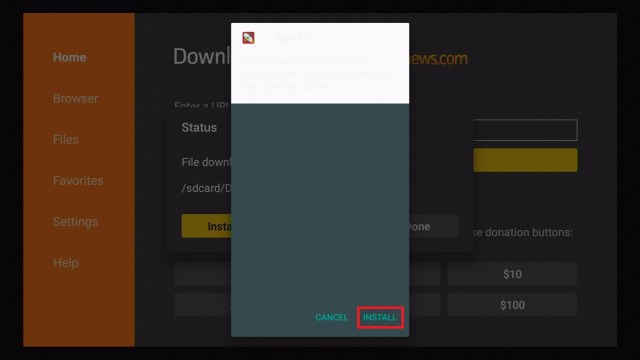
  16. Press the Install button after the Willow app’s installer APK completes its download.
  17. Wait for the Willow app’s installation to complete.
  18. Tap the Open button to launch the Willow app.
  19. Wait for the Willow app’s user interface to load.
  20. You may select any Cricket video from the Willow app’s library.


Willow for Android Devices


Note: ReviewVPN.com does not host this APK file. It is hosted by Archive.org


How to Install Willow App on Fire TV Stick with Screenshots

Follow our screenshots to successfully install the Willow app on your Fire TV stick. While doing this method, we recommend using the Downloader app.

1. Open your Firestick Settings Tab. (Gear Wheel Icon).

Install Willow App on Fire TV Stick 1


2. Scroll down and to the right until you get to My Fire TV. Click on it.

Install Willow App on Fire TV Stick 2


3. Select Developer options.

Install Willow App on Fire TV Stick 3


4. Turn on ADB debugging and Apps from Unknown Sources.

Install Willow App on Fire TV Stick 4


5. Press the Turn On when the pop-up appears.

Install Willow App on Fire TV Stick 5


6. Click Home and press on FIND.

Install Willow App on Fire TV Stick 6


7. Press on Search.

Install Willow App on Fire TV Stick 7


8. You can either say Downloader to your Alexa voice-enabled remote or start typing it. If you typed it, click on the suggestion when it appears.

Install Willow App on Fire TV Stick 8


9. Click on the Downloader Icon.

Install Willow App on Fire TV Stick 9


10. Tap on Download.

Install Willow App on Fire TV Stick 10


Install Willow App on Fire TV Stick 10


11. Click on Open.

Install Willow App on Fire TV Stick 11


12. Press on the Allow button.

Install Willow App on Fire TV Stick 12


13. You can now use the Downloader app.

Install Willow App on Fire TV Stick 13


14. Type in: reviewvpn.com/wtv and click the Go button.

Install Willow App on Fire TV Stick 14


15. Wait for the Willow app installer file to download into your Fire TV stick.

Install Willow App on Fire TV Stick 15


16. Press the Install button after the Willow app’s installer APK completes its download.

Install Willow App on Fire TV Stick 16


17. Wait for the Willow app’s installation to complete.

Install Willow App on Fire TV Stick 17


18. Tap the Open button to launch the Willow app.

Install Willow App on Fire TV Stick 18


19. Wait for the Willow app’s user interface to load.

Install Willow App on Fire TV Stick 19


20. You may select any Cricket video from the Willow app’s library.

Install Willow App on Fire TV Stick 20


YOUR INTERNET ACTIVITY IS BEING WATCHED

ReviewVPN cannot attest to the legality, security and privacy of the applications discussed on this site. It is highly recommended that you use a VPN service while streaming or using Kodi.

Currently, your IP 54.37.118.69 is visible to everyone and your Browser is being tracked by Advertisers & ISP Provider.

Save 65% Now

Limited Time Offer

Here are the main reasons why you must use a VPN:

  • Your activities are hidden from your ISP, the government, and from the apps you are using.
  • You can access additional movies and TV streams.
  • ISP attempts to throttle are thrwarted thus reducing buffering issues.
  • Geographically restricted content like Netflix and Hulu can be unblocked.

A VPN works be replacing your ISP-assigned IP address and creating an encrypted tunnel. We recommend the no log service offered by IPVanish. It works well on a Firestick and offers the fastest possible speeds.

Special Limited Time Offer - Get IPVanish


Legal Disclaimer: ReviewVPN.com does not encourage or endorse any illegal activity involved in the usage of services and applications referenced on this site. We do not verify the licensing agreements of services. The end-user is wholly responsible for ensuring that any media accessed through these services does not violate copyright and/or licensing laws. ReviewVPN does not promote, link to, or receive compensation from any Apps and IPTV services.


Install Surfshark on Firestick

Best Surfshark Deal


Features of the Willow App

  • Provides live streaming of Cricket matches
  • Supports live streaming with Chromecast
  • Ability to cast videos on TV sets – (Smart TV, Fire TV/Stick, Apple TV, Chromecast)
  • Lets you receive notifications about upcoming cricket games
  • Game highlights, replays, and reviews
  • Scores, statistics, and recent news


Technical Specifications of the Willow app

Let us now take a closer look at the technical specifications of the Willow app. Here you will learn about its latest version, file size, and installation requirements. It will help you determine if your device is compatible with the Willow app.


The Interface of the Willow App

  • Easy-to-use interface
  • Comprehensible Icons
  • Attractive layout design
  • Shows Cricket matches in gallery style


Pros and Cons

Pros

  • The Willow app is dedicated to Cricket games
  • Provides high-quality Cricket videos
  • Suitable for people wanting to watch Cricket games
  • Easy-to-navigate interface
  • No subscription is required.
  • Excellent user reviews.


Cons

  • Not compatible with Roku TV.
  • Live streams sometimes get out of sync.


Stream Cricket Sports and Video Footage with a VPN

https://get.surfshark.net/aff_c?offer_id=865&aff_id=12312

The game of cricket has a worldwide fanbase. Popular in the middle east and some countries, cricket is a part of some cultures producing the best teams and players. To watch these players battle against other teams, people usually download sports apps.

The best app for watching cricket is Willow. However, you might encounter some hindrances while streaming cricket matches. Either your ISP reduces your internet speed, encounters content with geo-blocks, or watching cricket can become difficult.

To solve these difficulties, we recommend you install Surfshark. It is the best VPN for streaming sports videos. Aside from that, it offers us many benefits:

  • Access to content with geo-restrictions.
  • Pass your traffic through virtual tunnels.
  • Encrypt your internet connection.
  • Hide your identity while browsing the internet.
  • Prevent lagging, buffering, and stuttering both on Kodi and the Fire TV stick.

Note: For more information about SurfShark, please read our SURFSHARK REVIEW.


Grab your subscription now!


How to Install Surfshark VPN on Firestick

If your Firestick still has the older interface, read this article to learn how to update it: Update Firestick Interface.

You can download Surfshark directly from the Amazon App store. It will be easy for you to find Surfshark with your Firestick’s Find feature. Refer to our screenshots below.

1. Go to the Home screen of your Firestick.

step 1 Install Surfshark VPN on Firestick


2. Navigate towards the Find tab. Press the Search button from the resulting dropdown.

step 2 Install Surfshark VPN on Firestick


3. Type in the keyword of SurfShark and select from the suggestions that will appear.

step 3 Install Surfshark VPN on Firestick


4. Click the official SurfShark icon from your search results.

step 4 Install Surfshark VPN on Firestick


5. Press the Download (You own it) button.

step 5 Install Surfshark VPN on Firestick


6. The SurfShark VPN installer will download on your device.

step 6 Install Surfshark VPN on Firestick


7. SurfShark VPN’s app will automatically install itself on your Fire TV stick.

step 7 Install Surfshark VPN on Firestick


8. Press the Open button after completing SurfShark VPN’s installation process.

step 8 Install Surfshark VPN on Firestick


9. Please wait for the SurfShark VPN to load its user interface.

step 9 Install Surfshark VPN on Firestick


10. You can now log in with your SurfShark VPN account credentials.

step 10 Install Surfshark VPN on Firestick

Learn more about Surfshark and Grab the Best Surfshark Deal Now!


Install Surfshark on Firestick

Best Surfshark Deal


Other VPNs to Consider

NordVPN (Best for Streaming)

Best Features

  • 5000+ Server in 50+ Countries 
  • Military-Grade Encryption
  • Fast Connection Speed
  • Suitable to a lot of devices
  • No-Log Policy

Prices
  • Complete $5.89 per month (64% Discount)
  • Plus $4.59 per month (56% Discount)
  • Standard $3.69 per month (55% Discount)

Best Features

  • 750+ High-speed VPN Servers in 43 Locations
  • Military-Grade Encryption
  • Fastest HD Streaming and Gaming
  • 30-Day Money-Back Guarantee
  • Unlimited Data & Devices
  • No-Log Policy

Prices
  • 3 Years $1.99 per month (82% Discount)
  • 1 Years $3.29 per month (70% Discount)
  • 1 Month $10.99 per month

IPVanish VPN (Most Secure)

Best Features

  • 1200+ Servers in 60+ Countries around the world
  • Unlimited Connections
  • No-Log Policy
  • Top Notch Military-Grade VPN Protocols and Encryptions
  • 100% Safe and Secured
  • Most Trusted VPN
  • Best VPN for Firestick
  • 30-Day Money-Back Guarantee

Prices
  • Yearly $3.99 per month (63% Discount) – 30 days risk free + Ransomware & Malware Protection
  • Quarterly $5.32 per month (51% Discount)
  • Monthly $10.99 per month


For more VPN discounts, go to ReviewVPN Deals and purchase the best VPN for you.

Click here to get the lowest price on Surfshark through our exclusive limited-time offer.


FAQs

What is Lepto Sports?

Lepto Sports is a live TV streaming app for Android and Firestick that offers basketball, football, and cricket content. It also gives users access to match schedules and highlights, which they can stream at any time and anywhere.


Is it safe?

Yes, Lepto Sports is safe. However, for safer internet streaming, we recommend that you have a VPN like Surfshark.


Is it free?

Yes, Lepto Sports is free.


Are there Ads?

Lepto Sports is ad-free


Is there a need for registration?

There’s no need to register to be able to watch Lepto Sports.


Conclusion

Lepto Sports does not have a lot of content yet because it’s a new app, but it’s still a decent live streaming application for basketball, football, and cricket matches. There are several live stream connections available, and there are no advertisements. What I like most about it is that you can see when the next match is and that you can watch highlighted videos while you wait. Lepto Sports is also not geo-restricted, so anyone from anywhere in the world can watch it for free.

Thank you for taking the time to read our Lepto Sports article. We hope we were able to help you in installing it on your Firestick as well as use it to watch live TV and matches from your favorite sports teams.


Alternative Apps for Willow

Although performing excellently on your Fire TV stick, you might dislike some of its features. Here are some apps that can function as alternatives:

Visit our How to Watch T20 World Cup on Firestick article and learn more apps for streaming cricket.


FAQs

Is Willow free?

Yes, it does not require any type of payment or registration process.


Is it safe to use?

Yes, the app does not contain any cyber threat or malicious program.


Conclusion

The Willow app is the best streaming service for fans of cricket. It is your one-stop app for watching cricket matches and major competitions. The Willow app also lets you cast cricket videos on many devices such as your Smart TV, PC, and Android smartphone.

We hope this article helps you install the Willow app on your Fire TV stick.

How to Install Premier Sports on Firestick

Overview

In this article, we will show you how to install the Premier Sports app on your Fire TV stick.


Do you want to get one of the best sports apps outside the US? If you agree, then we just have the right app for you! Today, as the whole world recuperates from the effect of the pandemic, we expect the sports industry to make a comeback. This year, sports enthusiasts get a glimmer of hope as sports events of hockey and cricket to continue to entertain us. It has been some time since stadiums were full of people.

Since many of us are in lockdown, we can only watch sports videos with our portable gadgets. For sports enthusiasts wanting to stream the latest matches, this is possible with the Premier Sports app. Now known as Premier Player, it provides us footage from Premier Sports, Box Nation, LA Liga TV, and the FreeSports channel. Premier Player also lets you stream the 2021-2022 live Hockey events. Users may opt for the bundle including all channels or only feature the LA Liga TV channel.

We will now present to you the Premier Sports app’s download link for your Android device. Afterward, we will teach you how to install the Premier Sports app on your Fire TV stick. To install it successfully, you only have to Jailbreak your Fire TV Stick and sideload the app.


ANONYMOUSLY

How to Install the Premier Sports app on your Fire TV Stick

Follow our brief guide showing you how to successfully install the Premier Sports app on your Fire TV stick. We advise you to use the Downloader app for getting third-party apps like the Premier Sports app.

  1. Open your Firestick Settings Tab. (Gear Wheel Icon).
  2. Scroll down and to the right until you get to My Fire TV. Click on it.
  3. Select Developer options.
  4. Turn on ADB debugging and Apps from Unknown Sources.
  5. Press the Turn On when the pop-up appears.
  6. Click Home and press on FIND.
  7. Press on Search.
  8. You can either say Downloader to your Alexa voice-enabled remote or start typing it. If you typed it, click on the suggestion when it appears.
  9. Click on the Downloader Icon.
  10. Tap on Download.
  11. Click on Open.
  12. Press on the Allow button.
  13. You can now use the Downloader app.
  14. Type in: reviewvpn.com/prs and click the Go button.
  15. Wait for the Premier Sports APK installer to download into your device.
  16. After its download completes, press the Install button.
  17. Wait for the Premier Sports app to install on your Fire TV stick.
  18. Press the Open button to launch the Premier Sports app.
  19. The Premier Sports app will load its user interface.
  20. Log in with your Premier Sports credentials for streaming hockey sports events.


Premier Sports for Android Devices


Note: ReviewVPN.com does not host this APK file. It is hosted by Archive.org


How to Jailbreak the Fire TV Stick and Install the Downloader app (Screenshots)

1. Open your Firestick Settings Tab. (Gear Wheel Icon).


2. Scroll down and select My Fire TV.


3. Select Developer options.


4. Turn on ADB debugging and Apps from Unknown Sources.


5. Press the Turn On when the pop-up appears.


6. Click Home and press on FIND.


7. Press the Search button from the dropdown.


8. You can either say Downloader to your Alexa voice-enabled remote or start typing it. If you typed it, click on the suggestion when it appears.


9. Click on the Downloader Icon.


10. Tap on Download and please wait while the app is installing itself on your device.


11. Click on Open.


12. Press on the Allow button.


13. You can now use the Downloader app.


14. Type in: reviewvpn.com/prs and click the Go button.

Install Premier Sports on Firestick 14


15. Wait for the Premier Sports APK installer to download into your device.

Install Premier Sports on Firestick 15


16. After its download completes, press the Install button.

Install Premier Sports on Firestick 16


17. Wait for the Premier Sports app to install on your Fire TV stick.

Install Premier Sports on Firestick 17


18. Press the Open button to launch the Premier Sports app.

Install Premier Sports on Firestick 18


19. The Premier Sports app will load its user interface.

Install Premier Sports on Firestick 19


20. Login with your Premier Sports credentials for streaming hockey sports events.

Install Premier Sports on Firestick 20


YOUR INTERNET ACTIVITY IS BEING WATCHED

ReviewVPN cannot attest to the legality, security and privacy of the applications discussed on this site. It is highly recommended that you use a VPN service while streaming or using Kodi.

Currently, your IP 54.37.118.69 is visible to everyone and your Browser is being tracked by Advertisers & ISP Provider.

Save 65% Now

Limited Time Offer

Here are the main reasons why you must use a VPN:

  • Your activities are hidden from your ISP, the government, and from the apps you are using.
  • You can access additional movies and TV streams.
  • ISP attempts to throttle are thrwarted thus reducing buffering issues.
  • Geographically restricted content like Netflix and Hulu can be unblocked.

A VPN works be replacing your ISP-assigned IP address and creating an encrypted tunnel. We recommend the no log service offered by IPVanish. It works well on a Firestick and offers the fastest possible speeds.

Special Limited Time Offer - Get IPVanish


Legal Disclaimer: ReviewVPN.com does not encourage or endorse any illegal activity involved in the usage of services and applications referenced on this site. We do not verify the licensing agreements of services. The end-user is wholly responsible for ensuring that any media accessed through these services does not violate copyright and/or licensing laws. ReviewVPN does not promote, link to, or receive compensation from any Apps and IPTV services.


Install Surfshark on Firestick

Best Surfshark Deal


Features of the Premier Sports app

  • Presents upcoming sports events.
  • Contains VOD (Video-on-demand) content
  • Shows different categories of sports to select from.
  • Allows you to watch American sports even outside the US.
  • Presents live videos of sports and worldwide competitions.
  • Catch-up with media content from reputable sports TV channels.
  • Supports full HD TV Casting (Smart TV, Fire TV/Firestick, Android TV, Apple TV, Chromecast)


Technical Specifications of the Premier Sports app

Learning about the Premier Sports app’s technical specifications is crucial for its successful installation. The app’s latest version, file size, and system requirements will help you determine if it is compatible with your streaming device.

Sports Channels and Events

  • LA Liga TV
  • Series A
  • Scottish Cup
  • MLS
  • NHL – 15 Exclusive game footage per week
  • Pro 14
  • NASCAR


Premier Player Interface

  • Easy-to-Navigate User Interface
  • Modern Design
  • Attractive layout
  • Presents different sports categories


Sports Channels Available with Premier Player

  • Premier Sports
  • FreeSports Channel
  • Laliga TV
  • Box Nation


Pros and Cons

Pros

  • Premium app for watching sports
  • Supports smart TV casting
  • Cast videos on many devices
  • Attractive User Interface
  • All Sports channels available in HD resolutions
  • Choose a bundle showing sports channels or a standalone Laliga TV channel
  • Supports Full HD Casting – Smart TV, Fire TV/Firestick, Android TV, Apple TV, Chromecast
  • Select from the latest sports events worldwide
  • Contains upcoming game and competition schedules


Cons

  • Requires users to create an account or select a subscription.


Watch Sports Videos with a VPN

surfshark logo

A VPN will help you stream your various sports events. Suppose you live outside the US, many sports fans struggle to find an app for streaming their favorite sports. Sports enthusiasts may be disheartened to encounter disturbances while watching their favorite teams and players.

You might be living in a country with strict geo-restrictions. Your ISP might also throttle your connection to prevent their servers from overloading. Users might also experience lagging, stuttering, and buffering while streaming with their Fire TV stick, Android, or Kodi.

As an effective solution, we recommend using Surfshark. It is undeniably the best VPN for streaming sports videos. Here are some advantages of using Surfshark.

  • Hide all your online activities.
  • Help you access content with geo-restrictions.
  • Eliminate the need for expensive cable TV subscriptions.
  • Pass your traffic through digital tunnels.
  • Prevent the onset of stuttering and buffering both on your Kodi and the Fire TV stick.

Note: For more information about Surfshark, please read our Surfshark Review.


Grab your subscription now!


How to Install Surfshark VPN on Firestick

If your Firestick still has the older interface, read this article to learn how to update it: Update Firestick Interface.

Follow our screenshots below to install the SurfShark VPN app on your Fire TV stick.

1. Go to the Home screen of your Firestick.

step 1 Install Surfshark VPN on Firestick


2. Navigate towards the Find tab. Press the Search button from the resulting dropdown.

step 2 Install Surfshark VPN on Firestick


3. Type in the keyword of SurfShark and select from the suggestions that will appear.

step 3 Install Surfshark VPN on Firestick


4. Click the official SurfShark icon from your search results.

step 4 Install Surfshark VPN on Firestick


5. Press the Download (You own it) button.

step 5 Install Surfshark VPN on Firestick


6. The SurfShark VPN installer will download on your device.

step 6 Install Surfshark VPN on Firestick


7. SurfShark VPN’s app will automatically install itself on your Fire TV stick.

step 7 Install Surfshark VPN on Firestick


8. Press the Open button after completing SurfShark VPN’s installation process.

step 8 Install Surfshark VPN on Firestick


9. Please wait for the SurfShark VPN to load its user interface.

step 9 Install Surfshark VPN on Firestick


10. You can now log in with your SurfShark VPN account credentials.

step 10 Install Surfshark VPN on Firestick

Learn more about Surfshark and Grab the Best Surfshark Deal Now!


Install Surfshark on Firestick

Best Surfshark Deal


Other VPNs to Consider

NordVPN (Best for Streaming)

Best Features

  • 5000+ Server in 50+ Countries 
  • Military-Grade Encryption
  • Fast Connection Speed
  • Suitable to a lot of devices
  • No-Log Policy

Prices
  • Complete $5.89 per month (64% Discount)
  • Plus $4.59 per month (56% Discount)
  • Standard $3.69 per month (55% Discount)

Best Features

  • 750+ High-speed VPN Servers in 43 Locations
  • Military-Grade Encryption
  • Fastest HD Streaming and Gaming
  • 30-Day Money-Back Guarantee
  • Unlimited Data & Devices
  • No-Log Policy

Prices
  • 3 Years $1.99 per month (82% Discount)
  • 1 Years $3.29 per month (70% Discount)
  • 1 Month $10.99 per month

IPVanish VPN (Most Secure)

Best Features

  • 1200+ Servers in 60+ Countries around the world
  • Unlimited Connections
  • No-Log Policy
  • Top Notch Military-Grade VPN Protocols and Encryptions
  • 100% Safe and Secured
  • Most Trusted VPN
  • Best VPN for Firestick
  • 30-Day Money-Back Guarantee

Prices
  • Yearly $3.99 per month (63% Discount) – 30 days risk free + Ransomware & Malware Protection
  • Quarterly $5.32 per month (51% Discount)
  • Monthly $10.99 per month


For more VPN discounts, go to ReviewVPN Deals and purchase the best VPN for you.


Alternative Apps for Premier Player

Here are some apps that work the same as Premier Player. Suppose you dislike its features, these apps can function as its alternatives:

If you want to learn more apps for streaming sports, visit our article about the Best Free Sports Apps – 2021.


FAQs

Is Premier Player free?

No. Users are required to subscribe and sign in with their credentials before using the app’s features.


Is Premier Player safe to use?

Yes. It does not host or contain any form of malicious software or cyber threat.


Conclusion

For streaming sports video footage outside the US, we recommend using the Premier Sports app. The Premier Sports app lets you access reputable sports channels. Expect content from Premier Sports, Laliga TV, Free Sports channel, and Box Nation. Also catch the T20 World Cup, MLS, and 2021-2022 NHL matches.

We hope this article helps you install the Premier Sports app on your Fire TV stick.

How to Install Embratoria TV on Firestick

Overview

In this article, we will show you how to install the Embratoria TV app on your Fire TV stick.


Thanks to the invention of the IPTV protocol, we can now watch TV either on our smartphone, tablet, PC, or Fire TV stick. Are you looking for an app that lets you watch quality sports videos on your TV set? If you agree, we just have the perfect app for you! Let us introduce you to the Embratoria TV app.

Many sports enthusiasts are now struggling to watch the T20 World Cup, MLS, and NHL sports events. Even fans of competitive sports like boxing and MMA are looking for free apps to use. The best apps we want to have should either be affordable or free while being able to stream the latest sports videos. We understand the need for people wanting to get apps for streaming major sports events. As our suggestion, we recommend the Embratoria TV app.


What is the Embratoria TV app?

Upon launching the Embratoria TV app, it contains the latest sports videos from reputable sources. Catch exclusive game footage or learn about the latest sports news with the Embratoria TV app. Aside from its gallery-style interface, the Embratoria TV app displays information about each video. The only difficulty you might experience is with the app’s default language settings.

We will now present to you the Embratoria TV app’s download link for your Android device. Afterward, we will teach you how to install the Embratoria TV app on your Fire TV stick. To install it successfully, you only have to Jailbreak your Fire TV Stick and sideload the app.


ANONYMOUSLY

How to Install Embratoria TV App on Fire TV Stick

Follow this simple guide to successfully install the Embratoria TV app on your Fire TV stick. We advise you to use the Downloader app for getting third-party apps like the Embratoria TV app.

  1. Open your Firestick Settings Tab. (Gear Wheel Icon).
  2. Scroll down and to the right until you get to My Fire TV. Click on it.
  3. Select Developer options.
  4. Turn on ADB debugging and Apps from Unknown Sources.
  5. Press the Turn On when the pop-up appears.
  6. Click Home and press on FIND.
  7. Press on Search.
  8. You can either say Downloader to your Alexa voice-enabled remote or start typing it. If you typed it, click on the suggestion when it appears.
  9. Click on the Downloader Icon.
  10. Tap on Download.
  11. Click on Open.
  12. Press on the Allow button.
  13. You can now use the Downloader app.
  14. Type in: reviewvpn.com/emtv and click the Go button.
  15. The Embratoria TV app’s APK file will download into your device.
  16. When its download completes, click the Install button.
  17. Embratoria TV app will automatically install on your device.
  18. Press on the Open button to launch the Embratoria TV app.
  19. Wait for the Embratoria TV app’s home screen to load.
  20. Tap the Allow button letting the Embratoria TV app manage your phone calls.
  21. Click again the Allow button to let the Embratoria TV app access your media files and device location.
  22. You will now see a wide selection of sports videos and news to watch.


Embratoria TV for Android Devices


Note: ReviewVPN.com does not host this APK file. It is hosted by Archive.org


How to Install Embratoria TV App on Fire TV Stick With Screenshot

Follow our screenshots to successfully install the Embratoria TV app on your Fire TV stick. While doing this method, we recommend using the Downloader app.

1. Open your Firestick Settings Tab. (Gear Wheel Icon).

Install Embratoria TV App on Fire TV Stick 1


2. Scroll down and to the right until you get to My Fire TV. Click on it.

Install Embratoria TV App on Fire TV Stick 2


3. Select Developer options.

Install Embratoria TV App on Fire TV Stick 3


4. Turn on ADB debugging and Apps from Unknown Sources.

Install Embratoria TV App on Fire TV Stick 4


5. Press the Turn On when the pop-up appears.

Install Embratoria TV App on Fire TV Stick 5


6. Click Home and press on FIND.

Install Embratoria TV App on Fire TV Stick 6


7. Press on Search.

Install Embratoria TV App on Fire TV Stick 7


8. You can either say Downloader to your Alexa voice-enabled remote or start typing it. If you typed it, click on the suggestion when it appears.

Install Embratoria TV App on Fire TV Stick 8


9. Click on the Downloader Icon.

Install Embratoria TV App on Fire TV Stick 9


10. Tap on Download.

Install Embratoria TV App on Fire TV Stick 10


Install Embratoria TV App on Fire TV Stick 10


11. Click on Open.

Install Embratoria TV App on Fire TV Stick 11


12. Press on the Allow button.

Install Embratoria TV App on Fire TV Stick 12


13. You can now use the Downloader app.

Install Embratoria TV App on Fire TV Stick 13


14. Type in: reviewvpn.com/emtv and click the Go button.

Install Embratoria TV App on Fire TV Stick 14


15. The Embratoria TV app’s APK file will download into your device.

Install Embratoria TV App on Fire TV Stick 15


16. When its download completes, click the Install button.

Install Embratoria TV App on Fire TV Stick 16


17. Embratoria TV app will automatically install on your device.

Install Embratoria TV App on Fire TV Stick 17


18. Press on the Open button to launch the Embratoria TV app.

Install Embratoria TV App on Fire TV Stick 18


19. Wait for the Embratoria TV app’s home screen to load.

Install Embratoria TV App on Fire TV Stick 19


20. Tap the Allow button letting the Embratoria TV app manage your phone calls.

Install Embratoria TV App on Fire TV Stick 20


21. Click again the Allow button to let the Embratoria TV app access your media files and device location.

Install Embratoria TV App on Fire TV Stick 21


22. You will now see a wide selection of sports videos and news to watch.

Install Embratoria TV App on Fire TV Stick 22


YOUR INTERNET ACTIVITY IS BEING WATCHED

ReviewVPN cannot attest to the legality, security and privacy of the applications discussed on this site. It is highly recommended that you use a VPN service while streaming or using Kodi.

Currently, your IP 54.37.118.69 is visible to everyone and your Browser is being tracked by Advertisers & ISP Provider.

Save 65% Now

Limited Time Offer

Here are the main reasons why you must use a VPN:

  • Your activities are hidden from your ISP, the government, and from the apps you are using.
  • You can access additional movies and TV streams.
  • ISP attempts to throttle are thrwarted thus reducing buffering issues.
  • Geographically restricted content like Netflix and Hulu can be unblocked.

A VPN works be replacing your ISP-assigned IP address and creating an encrypted tunnel. We recommend the no log service offered by IPVanish. It works well on a Firestick and offers the fastest possible speeds.

Special Limited Time Offer - Get IPVanish


Legal Disclaimer: ReviewVPN.com does not encourage or endorse any illegal activity involved in the usage of services and applications referenced on this site. We do not verify the licensing agreements of services. The end-user is wholly responsible for ensuring that any media accessed through these services does not violate copyright and/or licensing laws. ReviewVPN does not promote, link to, or receive compensation from any Apps and IPTV services.


Install Surfshark on Firestick

Best Surfshark Deal


Features of the Embratoria TV App

  • Sports news
  • Contains different types of sports videos
  • Exclusive video footage of recent sports events
  • The news feed on top of your TV screen
  • Receive breaking news from the world of sports
  • Link to famous social media websites (Top right corner of your TV screen)


Technical Specifications of Embratoria TV

Learning about the Embratoria TV app’s technical specifications is crucial for its successful installation. The app’s latest version, file size, and system requirements will help you determine if it is compatible with your streaming device.

Embratoria TV


Embratoria TV’s Dropdown Menu

  • Home
  • Privacy
  • About
  • Terms of Service
  • Contact


Embratoria TV’s User Interface

  • Easy to navigate
  • Comprehensive buttons and icons
  • Presents sports videos
  • Provides the latest breaking news from the sports industry


Social Media Affiliates of Embratoria TV

  • Facebook
  • Instagram
  • Twitter
  • YouTube


Pros and Cons

Pros

  • 100% Free.
  • Provides breaking news from the sports industry.
  • Presents recent videos of sports events and famous matches.
  • Contains different types of sports.
  • Comprehensible Icons even though the app uses a default Middle Eastern language.


Cons

  • No Settings option for changing the app’s default language.


Stream Sports Footage with a VPN

https://get.surfshark.net/aff_c?offer_id=865&aff_id=12312

Browsing the internet for sports videos can be a difficult task. We want to watch the latest sports events without encountering hindrances. However, not all people can stream their favorite sports events with their smartphones and smart TV sets. We might come across geo-restrictions or have slow streaming speeds. As an effective solution, install and use Surfshark. It is the best VPN for streaming.

Here are some advantages that Surfshark can share with us:

  • Eliminate the effects of geo-restrictions.
  • Pass your internet traffic through secured tunnels.
  • Protect your data from cyber threats.
  • Prevents buffering and stuttering both on Kodi and your Fire TV stick.

Note: For more information about SurfShark, please read our SURFSHARK REVIEW.


Grab your subscription now!


How to Install Surfshark VPN on Firestick

You can download Surfshark directly from the Amazon App store. It will be easy for you to find Surfshark with your Firestick’s Find feature. Refer to our screenshots below.

1. Go to the Home screen of your Firestick.

step 1 Install Surfshark VPN on Firestick


2. Navigate towards the Find tab. Press the Search button from the resulting dropdown.

step 2 Install Surfshark VPN on Firestick


3. Type in the keyword of SurfShark and select from the suggestions that will appear.

step 3 Install Surfshark VPN on Firestick


4. Click the official SurfShark icon from your search results.

step 4 Install Surfshark VPN on Firestick


5. Press the Download (You own it) button.

step 5 Install Surfshark VPN on Firestick


6. The SurfShark VPN installer will download on your device.

step 6 Install Surfshark VPN on Firestick


7. SurfShark VPN’s app will automatically install itself on your Fire TV stick.

step 7 Install Surfshark VPN on Firestick


8. Press the Open button after completing SurfShark VPN’s installation process.

step 8 Install Surfshark VPN on Firestick


9. Please wait for the SurfShark VPN to load its user interface.

step 9 Install Surfshark VPN on Firestick


10. You can now log in with your SurfShark VPN account credentials.

step 10 Install Surfshark VPN on Firestick

Learn more about Surfshark and Grab the Best Surfshark Deal Now!


Install Surfshark on Firestick

Best Surfshark Deal


Other VPNs to Consider

NordVPN (Best for Streaming)

Best Features

  • 5000+ Server in 50+ Countries 
  • Military-Grade Encryption
  • Fast Connection Speed
  • Suitable to a lot of devices
  • No-Log Policy

Prices
  • Complete $5.89 per month (64% Discount)
  • Plus $4.59 per month (56% Discount)
  • Standard $3.69 per month (55% Discount)

Best Features

  • 750+ High-speed VPN Servers in 43 Locations
  • Military-Grade Encryption
  • Fastest HD Streaming and Gaming
  • 30-Day Money-Back Guarantee
  • Unlimited Data & Devices
  • No-Log Policy

Prices
  • 3 Years $1.99 per month (82% Discount)
  • 1 Years $3.29 per month (70% Discount)
  • 1 Month $10.99 per month

IPVanish VPN (Most Secure)

Best Features

  • 1200+ Servers in 60+ Countries around the world
  • Unlimited Connections
  • No-Log Policy
  • Top Notch Military-Grade VPN Protocols and Encryptions
  • 100% Safe and Secured
  • Most Trusted VPN
  • Best VPN for Firestick
  • 30-Day Money-Back Guarantee

Prices
  • Yearly $3.99 per month (63% Discount) – 30 days risk free + Ransomware & Malware Protection
  • Quarterly $5.32 per month (51% Discount)
  • Monthly $10.99 per month


For more VPN discounts, go to ReviewVPN Deals and purchase the best VPN for you.

Click here to get the lowest price on Surfshark through our exclusive limited-time offer.


Alternative Apps for Embratoria TV

Suppose you do not like the features of Embratoria TV, we have some apps that function similarly and work as its alternatives.

If you want to learn more about apps for streaming sports, visit our article about the Best Free Sports Apps – 2021.


FAQs

Is Embratoria TV free?

Yes. It does not require any subscription or payment.


Is it safe to use the Embratoria TV app?

Yes. It does not contain any harmful software, cyber threats, or malware.


Conclusion

For sports enthusiasts that can speak Arabic, we recommend you use the Embratoria TV app. It is your one-stop app for receiving the latest sports news, matches, and competitions. You will also enjoy learning about upcoming sports events or catching up with the latest games.

We hope this article helps you install the Embratoria TV app on your Fire TV stick.

How to Install Phantom Blue IPTV on Firestick

Overview

In this article, we will show you how to install the Phantom Blue IPTV app on your Fire TV stick.


Since IPTV services began, many people prefer them over expensive TV subscriptions. Are you looking for an app with great IPTV features? Then you have come across the right article! Here at ReviewVPN, we ensure that the apps we suggest will work on your Fire TV stick. Aside from that, the app we will suggest presents amazing features for you to enjoy!

If you are a fan of streaming live TV channels, we recommend the Phantom Blue IPTV app. When watching TV from online sources, you do not have to pay for anything. This is common with many IPTV services, like the Phantom Blue IPTV app. It will let you enjoy a variety of movies, TV shows, and videos without the need for payment.

During your first visit or launch of the Phantom Blue IPTV app, it will show you a different language. This is the only weakness of the Phantom Blue IPTV app. It does not contain any settings for changing the default language. Fortunately, its user interface presents recognizable buttons.

 We will now present to you the Phantom Blue IPTV app’s download link for your Android device. Afterward, we will teach you how to install the Phantom Blue IPTV app on your Fire TV stick. To install it successfully, you only have to Jailbreak your Fire TV Stick and sideload the app.


ANONYMOUSLY

How to Install Phantom Blue IPTV App on Fire TV stick

Follow this simple guide to successfully install the Phantom Blue IPTV app on your Fire TV stick. We advise you to use the Downloader app for getting third-party apps like the Phantom Blue IPTV app.

  1. Open your Firestick Settings Tab. (Gear Wheel Icon).
  2. Scroll down and to the right until you get to My Fire TV. Click on it.
  3. Select Developer options.
  4. Turn on ADB debugging and Apps from Unknown Sources.
  5. Press the Turn On when the pop-up appears.
  6. Click Home and press on FIND.
  7. Press on Search.
  8. You can either say Downloader to your Alexa voice-enabled remote or start typing it. If you typed it, click on the suggestion when it appears.
  9. Click on the Downloader Icon.
  10. Tap on Download.
  11. Click on Open.
  12. Press on the Allow button.
  13. You can now use the Downloader app.
  14. Type in: reviewvpn.com/phbl and click the Go button.
  15. The Phantom Blue IPTV app’s APK file will download into your device.
  16. When its download completes, click the Install button.
  17. Phantom Blue IPTV app will automatically install on your device.
  18. Press on the Open button to launch the Phantom Blue IPTV app.
  19. Wait for the Phantom Blue IPTV app’s user interface to load.
  20. Press the Entrar (Enter) button to enter its interface.
  21. Tap the Allow button letting the Phantom Blue IPTV app access your media files.
  22. You can now select from TV, EPG, Films, and Series buttons on its home screen.


Phantom Blue IPTV for Android Devices


Note: ReviewVPN.com does not host this APK file. It is hosted by Archive.org


How to Install Phantom Blue IPTV App on Fire TV Stick With Screenshots

Follow our screenshots to successfully install the Phantom Blue IPTV app on your Fire TV stick. While doing this method, we recommend using the Downloader app.

1. Open your Firestick Settings Tab. (Gear Wheel Icon).

How to Install Phantom Blue IPTV App on Fire TV Stick 1


2. Scroll down and to the right until you get to My Fire TV. Click on it.

How to Install Phantom Blue IPTV App on Fire TV Stick 2


3. Select Developer options.

How to Install Phantom Blue IPTV App on Fire TV Stick 3


4. Turn on ADB debugging and Apps from Unknown Sources.

How to Install Phantom Blue IPTV App on Fire TV Stick 4


5. Press the Turn On when the pop-up appears.

How to Install Phantom Blue IPTV App on Fire TV Stick 5


6. Click Home and press on FIND.

How to Install Phantom Blue IPTV App on Fire TV Stick 6


7. Press on Search.

How to Install Phantom Blue IPTV App on Fire TV Stick 7


8. You can either say Downloader to your Alexa voice-enabled remote or start typing it. If you typed it, click on the suggestion when it appears.

How to Install Phantom Blue IPTV App on Fire TV Stick 8


9. Click on the Downloader Icon.

How to Install Phantom Blue IPTV App on Fire TV Stick 9


10. Tap on Download.

How to Install Phantom Blue IPTV App on Fire TV Stick 10


How to Install Phantom Blue IPTV App on Fire TV Stick 10


11. Click on Open.

How to Install Phantom Blue IPTV App on Fire TV Stick 11


12. Press on the Allow button.

How to Install Phantom Blue IPTV App on Fire TV Stick 12


13. You can now use the Downloader app.

How to Install Phantom Blue IPTV App on Fire TV Stick 13


14. Type in: reviewvpn.com/phbl and click the Go button.

How to Install Phantom Blue IPTV App on Fire TV Stick 14


15. The Phantom Blue IPTV app’s APK file will download into your device.

How to Install Phantom Blue IPTV App on Fire TV Stick 15


16. When its download completes, click the Install button.

How to Install Phantom Blue IPTV App on Fire TV Stick 16


17. Phantom Blue IPTV app will automatically install on your device.

How to Install Phantom Blue IPTV App on Fire TV Stick 17


18. Press on the Open button to launch the Phantom Blue IPTV app.

How to Install Phantom Blue IPTV App on Fire TV Stick 18


19. Wait for the Phantom Blue IPTV app’s user interface to load.

How to Install Phantom Blue IPTV App on Fire TV Stick 19


20. Press the Entrar (Enter) button to enter its interface.

How to Install Phantom Blue IPTV App on Fire TV Stick 20


21. Tap the Allow button letting the Phantom Blue IPTV app access your media files.

How to Install Phantom Blue IPTV App on Fire TV Stick 21


22. You can now select from TV, EPG, Films, and Series buttons on its home screen.

How to Install Phantom Blue IPTV App on Fire TV Stick 22


YOUR INTERNET ACTIVITY IS BEING WATCHED

ReviewVPN cannot attest to the legality, security and privacy of the applications discussed on this site. It is highly recommended that you use a VPN service while streaming or using Kodi.

Currently, your IP 54.37.118.69 is visible to everyone and your Browser is being tracked by Advertisers & ISP Provider.

Save 65% Now

Limited Time Offer

Here are the main reasons why you must use a VPN:

  • Your activities are hidden from your ISP, the government, and from the apps you are using.
  • You can access additional movies and TV streams.
  • ISP attempts to throttle are thrwarted thus reducing buffering issues.
  • Geographically restricted content like Netflix and Hulu can be unblocked.

A VPN works be replacing your ISP-assigned IP address and creating an encrypted tunnel. We recommend the no log service offered by IPVanish. It works well on a Firestick and offers the fastest possible speeds.

Special Limited Time Offer - Get IPVanish


Legal Disclaimer: ReviewVPN.com does not encourage or endorse any illegal activity involved in the usage of services and applications referenced on this site. We do not verify the licensing agreements of services. The end-user is wholly responsible for ensuring that any media accessed through these services does not violate copyright and/or licensing laws. ReviewVPN does not promote, link to, or receive compensation from any Apps and IPTV services.


Install Surfshark on Firestick

Best Surfshark Deal


Features of the Phantom Blue IPTV App

  • IPTV Entertainment service
  • Interactive buttons
  • Provides free-to-watch media content
  • Select from its wide library of media files
  • Built-in playback feature
  • Radio icon (Access radio broadcasting networks)
  • Settings Menu (Gear Wheel Icon)


Technical Specifications of Phantom Blue IPTV

Learning about the Phantom Blue IPTV app’s technical specifications is crucial for its successful installation. The app’s latest version, file size, and system requirements will help you determine if it is compatible with your streaming device.


Phantom Blue IPTV app’s Interface

  • Modern-design
  • Monochromatic Blue Interface
  • Live TV Channel button
  • EPG Button
  • Films button
  • Series Icon
  • Built-in playback feature
  • Radio icon (Access radio broadcasting networks)
  • Settings Menu (Gear Wheel Icon)


Pros and Cons

Pros

  • 100% Free
  • Impressive and attractive User Interface
  • Modern layout design
  • Contains four categories of media content
  • Built-in playback feature
  • Radio accessibility


Cons

  • No options are available within the Settings (Gear Wheel Icon) to change the app’s default language.


Stream Live TV Channels with a VPN

https://get.surfshark.net/aff_c?offer_id=865&aff_id=12312

Many IPTV services and apps allow us to stream our favorite TV channels live on either our smartphone or TV set. Along with advancements in IPTV features, all of our gadgets also receive consistent upgrades and updates from their manufacturers. It allows us to conveniently access TV networks wherever we might be.

Unfortunately, not all of us can use the features of excellent IPTV apps. We might encounter geo-restrictions, websites with cyber threats, or experience a lagging internet connection.

To solve these difficulties, we advise you to install Surfshark. It is the best VPN to accompany IPTV apps. Here are some benefits of using Surfshark:

  • It conceals everything you do online.
  • Conceal your identity while browsing the internet.
  • Provide you with a new IP address.
  • Pass your internet traffic through encrypted tunnels.
  • Prevents buffering and stuttering both on Kodi and Firestick.

Note: For more information about Surfshark, please read our Surfshark Review.


Grab your subscription now!


How to Install Surfshark VPN on Firestick

You can download Surfshark directly from the Amazon App store. It will be easy for you to find Surfshark with your Firestick’s Find feature. Refer to our screenshots below.

1. Go to the Home screen of your Firestick.

step 1 Install Surfshark VPN on Firestick


2. Navigate towards the Find tab. Press the Search button from the resulting dropdown.

step 2 Install Surfshark VPN on Firestick


3. Type in the keyword of Surfshark and select from the suggestions that will appear.

step 3 Install Surfshark VPN on Firestick


4. Click the official Surfshark icon from your search results.

step 4 Install Surfshark VPN on Firestick


5. Press the Download (You own it) button.

step 5 Install Surfshark VPN on Firestick


6. The Surfshark VPN installer will download on your device.

step 6 Install Surfshark VPN on Firestick


7. Surfshark VPN’s app will automatically install itself on your Fire TV stick.

step 7 Install Surfshark VPN on Firestick


8. Press the Open button after completing Surfshark VPN’s installation process.

step 8 Install Surfshark VPN on Firestick


9. Please wait for the Surfshark VPN to load its user interface.

step 9 Install Surfshark VPN on Firestick


10. You can now log in with your Surfshark VPN account credentials.

step 10 Install Surfshark VPN on Firestick

Learn more about Surfshark and Grab the Best Surfshark Deal Now!


Install Surfshark on Firestick

Best Surfshark Deal


Other VPNs to Consider

NordVPN (Best for Streaming)

Best Features

  • 5000+ Server in 50+ Countries 
  • Military-Grade Encryption
  • Fast Connection Speed
  • Suitable to a lot of devices
  • No-Log Policy

Prices
  • Complete $5.89 per month (64% Discount)
  • Plus $4.59 per month (56% Discount)
  • Standard $3.69 per month (55% Discount)

Best Features

  • 750+ High-speed VPN Servers in 43 Locations
  • Military-Grade Encryption
  • Fastest HD Streaming and Gaming
  • 30-Day Money-Back Guarantee
  • Unlimited Data & Devices
  • No-Log Policy

Prices
  • 3 Years $1.99 per month (82% Discount)
  • 1 Years $3.29 per month (70% Discount)
  • 1 Month $10.99 per month

IPVanish VPN (Most Secure)

Best Features

  • 1200+ Servers in 60+ Countries around the world
  • Unlimited Connections
  • No-Log Policy
  • Top Notch Military-Grade VPN Protocols and Encryptions
  • 100% Safe and Secured
  • Most Trusted VPN
  • Best VPN for Firestick
  • 30-Day Money-Back Guarantee

Prices
  • Yearly $3.99 per month (63% Discount) – 30 days risk free + Ransomware & Malware Protection
  • Quarterly $5.32 per month (51% Discount)
  • Monthly $10.99 per month


For more VPN discounts, go to ReviewVPN Deals and purchase the best VPN for you.

Click here to get the lowest price on Surfshark through our exclusive limited-time offer.


Alternative Apps for Phantom Blue IPTV

If you’re looking for an app with many language settings, we recommend you use these IPTV apps:

If you are looking for more apps, visit our article about the Best Legal IPTV apps for your Fire TV stick.


FAQs

Is the Phantom Blue IPTV app free?

Yes. It is also easy to download, install, and use with your Fire TV stick.


Is it safe to use?

Yes. Do not worry about malicious programs, the Phantom Blue IPTV app is clear of cyber threats.


Conclusion

If you are searching for an IPTV app with an attractive interface, then we recommend the Phantom Blue IPTV app. It is an excellent app for streaming films, TV shows, and live TV channels. The only issue we discovered while using the app is the lack to change its default UI language. Overall, the app works great with comprehensible icons.

We hope this article helps you install the Phantom Blue IPTV app on your Fire TV stick. 

How to Install cMaN Kodi Build

Overview

The article will help you on how to install cMaN Kodi Build.


cMaN is a popular Kodi Build located on Narcissist Wizard that brings you a great lineup of content to watch for free. This build also contains a great selection of Kodi addons and Builds.

It has an attractive ghostbusters-inspired interface theme that you will surely love. It is also a good option for movie lovers because it will bring you all of the latest and hottest movies and TV shows to watch. This build is a feature-rich Kodi build as it supports Real-Debrid and Trakt accounts to give you a great streaming experience.

You can choose from their vast collection of content and try on their preloaded Kodi addon. This build also has many top Kodi 19 Matrix Kodi addons that you can use, such as the Free, Continuum, Asgard, 4K, and more.


ANONYMOUSLY

How to Install cMaN Kodi Build with Screenshots

Installing a Kodi build has a lot of processes to take. That is why we will guide you step by step on how you can install it on Kodi.

 Follow the following steps below. 

1. On your Firestick, open Kodi and go to Settings.

Install cMaN Kodi Build 1


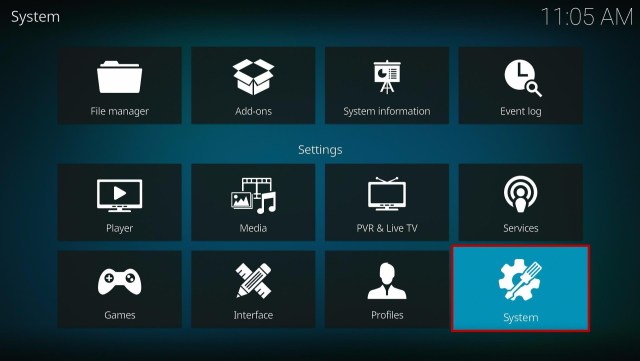
2. Select on System.

Install cMaN Kodi Build 2


3. Click on the Add-ons menu and Turn ON the Unknown Sources.

Install cMaN Kodi Build 3


4. Select Yes when the box appears.

Install cMaN Kodi Build 4


5. Go back one step and click on File Manager.

Install cMaN Kodi Build 5


6. Select the Add Source.

Install cMaN Kodi Build 6


7. A box will pop up, so click on the ‘None’ option.

Install cMaN Kodi Build 7


8. Type in http://narcacist.com/repo and click OK.

Install cMaN Kodi Build 8


9. Name the URL- narcacist or any other name you want to. Then select OK.

Install cMaN Kodi Build 9


10. Go back and Select Add-ons.

Install cMaN Kodi Build 10


11. Click Install from zip file.

Install cMaN Kodi Build 11


12. Choose narcacist or any other name you put.

Install cMaN Kodi Build 12


13. Click  repository.NarcacistWizard.zip

Install cMaN Kodi Build 13


14. Wait for the Narcacist’s Wizard Repository installed text to appear.

Install cMaN Kodi Build 14


15. After that, click the Install from repository.

Install cMaN Kodi Build 15


16. Select the Narcacist’s Wizard Repository.

Install cMaN Kodi Build 16


17. Go to Programs add-ons.

Install cMaN Kodi Build 17


18. Choose the Narcacist Wizard.

Install cMaN Kodi Build 18


19. Click the Install button.

Install cMaN Kodi Build 19


20. Wait for Narcacist Wizard Repository Add-On Installed text to appear.

21. When a box pops up, tap the Continue.

Install cMaN Kodi Build 21


22. Click Not Used.

Install cMaN Kodi Build 22


23. Go back to the main menu and select Add-ons.

Install cMaN Kodi Build 23


24.  On the program add-ons, click the Narcacist Wizard icon.

Install cMaN Kodi Build 24


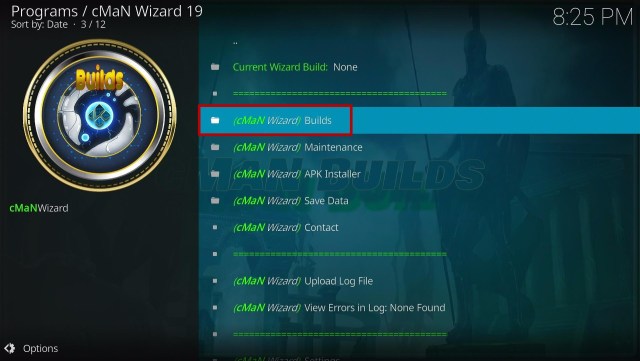
25. Select the Builds.

Install cMaN Kodi Build 25


26. Click Builds.

Install cMaN Kodi Build 26


27. Choose cMaN.

Install cMaN Kodi Build 27


28. Click the Fresh Install.

Install cMaN Kodi Build 28


29. When a box pop up, select the Yes.

Install cMaN Kodi Build 29


30. Wait for the build to finish its download.

Install cMaN Kodi Build 30


31. Tap OK.

Install cMaN Kodi Build 31


32. Exit your Kodi and reopen it again.

Install cMaN Kodi Build 32


33. That’s it! You have successfully installed the cMan Kodi Build.

Install cMaN Kodi Build 33


YOUR INTERNET ACTIVITY IS BEING WATCHED

ReviewVPN cannot attest to the legality, security and privacy of the applications discussed on this site. It is highly recommended that you use a VPN service while streaming or using Kodi.

Currently, your IP 54.37.118.69 is visible to everyone and your Browser is being tracked by Advertisers & ISP Provider.

Save 65% Now

Limited Time Offer

Here are the main reasons why you must use a VPN:

  • Your activities are hidden from your ISP, the government, and from the apps you are using.
  • You can access additional movies and TV streams.
  • ISP attempts to throttle are thrwarted thus reducing buffering issues.
  • Geographically restricted content like Netflix and Hulu can be unblocked.

A VPN works be replacing your ISP-assigned IP address and creating an encrypted tunnel. We recommend the no log service offered by IPVanish. It works well on a Firestick and offers the fastest possible speeds.

Special Limited Time Offer - Get IPVanish


Legal Disclaimer: ReviewVPN.com does not encourage or endorse any illegal activity involved in the usage of services and applications referenced on this site. We do not verify the licensing agreements of services. The end-user is wholly responsible for ensuring that any media accessed through these services does not violate copyright and/or licensing laws. ReviewVPN does not promote, link to, or receive compensation from any Apps and IPTV services.


Install Surfshark on Firestick

Best Surfshark Deal


Features of Topix Kodi Build

Interface

  • A user-friendly and Ghost Busters theme.
  • Easy to navigate the interface without using mouse toggle


Categories

  • You can see different sections: Movies, TV, Kids, Sports, Favourites, and System,  
  • They have different content categories to choose from, such as the 4K one-click section, One-click section, Nondebrid section, Movies, TV shows, Documentaries, Soaps, Kids, Sports, Stand Up, Apps, Music, Anime, and more.
  • It also has resumed watching and the last link plays to continue what you are watching.
  • An excellent search function: One Click Search and Search History.
  • You can also keep on Trakt with what you are watching with a Trakt account.
  • It also assures you with high-quality streaming links provided with a Real-debrid. 
  • Watch on 4K content collections including A-Z Movies, and different Box sets such as Back to the Future, Beverly Hills Cop, Classic Movies, Bourne, Crouching Tiger, Despicable Me, Kids Movies, LOTR/Hobbit, Mission Impossible, and more. 
  • Movies from 2014 to 2021. 
  • Choose from different genres: Action, Adventure, Animation, Comedy, Crime, Documentary, Drama, Family, Fantasy, History, Horror, Music, Mystery, Romance, Sci-fi, Thriller, and War.
  • It has different popular studios, including Marvel, DC Studios, Lucasfilm, Warner Bros, Walt Disney Pictures, Pixar, 20th Century Fox, MGM, Gracie Films, Orion Pictures, and more.
  • Available Next Up, AutoPlay, Show Next Episode, Next UP movie enabled, and Show Recommended movie button.
  • Subtitles in multi-language.


Preloaded cMaN’s Kodi Addons and Builds.

  • Cman’s Wizard repo, Ezzermacs Wizard, Host505, Narcissist Wizard Repo, Tikipeter’s repo, Where the Monsters Live Repository, FenomScrapers, and Openscrapers.
  • Torque, Asgard, the EndZone, Black Lightning, Goto, Fen, Library Data provider, M-E-T-V, Midian, TheOath, Aeon Nox: Silvo, and YouTube. 


Pros and Cons

Pros

  • Well-designed GhostBusters interface.
  • Wide variety of content categories to choose from.
  • It has a large and good collection of Movies and Tv shows.
  • Integrated with Trakt and Real Debrid account
  • Up to 4k video streaming quality.  

Cons

  • Some Kodi Builds and add-ons aren’t working properly.
  • It requires you to download the add-on and the content before you can watch it.


Why do I need a VPN?

In using a Third-party addon, you cannot ensure that you are 100% safe, because some addons are served with malicious files that can affect your device. These add ons can cause major damage to your device and privacy issues. 

That is why, in using these third-party add-ons, we suggest using a Virtual Private Network on your device to eliminate these threats. Whereas, this VPN will ensure your privacy and security by giving you a safe internet connection.

There are lots of VPNs that you can choose from online, but we highly recommend Surfshark as the best choice. This VPN serves you with the high quality of service you deserve. It also has uncrackable security that will safeguard your internet traffic and identity to keep you anonymous online. 

Surfshark also has a lot of impressive features to enjoy, including:

  • This VPN uses a high standard of AES-256 Bit of encryption and uncrackable security that safeguard your data and activities. 
  • It destroys Geo-block and bypasses any censorship and restriction by letting you connect to 2,000 servers in 70+ locations. 
  • Surfshark also prevents ISPs from interfering with your connection to avoid lags and buffering. It also stops snooping ISP and keeps you protected while being connected on a public network. 
  • Keep your identity anonymous by hiding your real IP address and identity to protect you from hackers. 
  • Surfshark gives you unlimited bandwidth.

Note: For more information about SurfShark, please read our SURFSHARK REVIEW.


Grab your subscription now!


How to Install Surfshark VPN on Firestick

1. Go to the Home screen of your Firestick.

step 1 Install Surfshark VPN on Firestick


2. Navigate towards the Find tab. Press the Search button from the resulting dropdown.

step 2 Install Surfshark VPN on Firestick


3. Type in the keyword of SurfShark and select from the suggestions that will appear.

step 3 Install Surfshark VPN on Firestick


4. Click the official SurfShark icon from your search results.

step 4 Install Surfshark VPN on Firestick


5. Press the Download (You own it) button.

step 5 Install Surfshark VPN on Firestick


6. The SurfShark VPN installer will download on your device.

step 6 Install Surfshark VPN on Firestick


7. SurfShark VPN’s app will automatically install itself on your Fire TV stick.

step 7 Install Surfshark VPN on Firestick


8. Press the Open button after completing SurfShark VPN’s installation process.

step 8 Install Surfshark VPN on Firestick


9. Please wait for the SurfShark VPN to load its user interface.

step 9 Install Surfshark VPN on Firestick


10. You can now log in with your SurfShark VPN account credentials.

step 10 Install Surfshark VPN on Firestick

Learn more about Surfshark and Grab the Best Surfshark Deal Now!


Install Surfshark on Firestick

Best Surfshark Deal


Other VPNs to Consider

NordVPN (Best for Streaming)

Best Features

  • 5000+ Server in 50+ Countries 
  • Military-Grade Encryption
  • Fast Connection Speed
  • Suitable to a lot of devices
  • No-Log Policy

Prices
  • Complete $5.89 per month (64% Discount)
  • Plus $4.59 per month (56% Discount)
  • Standard $3.69 per month (55% Discount)

Best Features

  • 750+ High-speed VPN Servers in 43 Locations
  • Military-Grade Encryption
  • Fastest HD Streaming and Gaming
  • 30-Day Money-Back Guarantee
  • Unlimited Data & Devices
  • No-Log Policy

Prices
  • 3 Years $1.99 per month (82% Discount)
  • 1 Years $3.29 per month (70% Discount)
  • 1 Month $10.99 per month

IPVanish VPN (Most Secure)

Best Features

  • 1200+ Servers in 60+ Countries around the world
  • Unlimited Connections
  • No-Log Policy
  • Top Notch Military-Grade VPN Protocols and Encryptions
  • 100% Safe and Secured
  • Most Trusted VPN
  • Best VPN for Firestick
  • 30-Day Money-Back Guarantee

Prices
  • Yearly $3.99 per month (63% Discount) – 30 days risk free + Ransomware & Malware Protection
  • Quarterly $5.32 per month (51% Discount)
  • Monthly $10.99 per month


For more VPN discounts, go to ReviewVPN Deals and purchase the best VPN for you.

Click here to get the lowest price on Surfshark through our exclusive limited-time offer.


Alternatives for cMaN Kodi Build

We list down some of the Kodi builds that you can try. Kindly read their corresponding articles to know more about these add-ons.


FAQs

Is cMaN Kodi Builds working on Kodi 19 Matrix?

Yes, this build is now compatible with Kodi 18 Leia and Kodi 19 Matrix. 


Is the cMaN Kodi Build legal?

Yes, downloading this build is not illegal.


Is the cMaN Kodi Build safe to use?

Yes, this build is safe to use, but we suggest using a VPN such as Surfshark to keep you safe. 


Is the cMaN Kodi Build free?

Yes, this build is free and allows you to access their content for free.


Conclusion

If you want to choose from a wide variety of categories the cMaN Kodi Build is a good option for you. This build brings you hundreds of categories to choose from and thousands of contents to watch for free. It is also a feature-rich add-on that will never disappoint you, from its interface to its large collection of content. This build is probably one of the best that you can try.

We hope this article helps you install the cMaN Kodi Build.

Best Alluc Alternatives

Overview

In this article, we will show you the best Alluc Alternatives for streaming movies, tv shows, and any media content.

Alluc was not just about streaming movies and TV shows on the internet. The video streaming platform was also a web crawler for films and numerous other media content. If you’ve visited the platform before, you must already know about its huge library of movies, TV shows, documentaries, and much more.

Nonetheless, the news of Alluc is no longer available online has hit hard for tons of its users. That being said, there are numerous Alluc alternatives that you can use to stream your favorite movies & TV series. Finding the best Alluc alternatives is hard but ReviewVPN has tried hard to help movie buffs find the best Alluc alternatives for streaming movies & TV shows.


What To Do Now That Alluc Streaming Platform Has Cease Operation

Our team is always keeping an eye on the internet for the best available video streaming platforms. We want to ensure that movie lover can find their favorite movies while keeping away from the dangerous, malicious websites that contain malware that can damage devices.

However, before we start on the best alternatives to Alluc, we recommend that you must stay protected on the web. We strongly suggest using a Virtual Private Network or VPN for streaming videos online. A VPN service, like Surfshark, helps keep web users protected from legal consequences. Also, VPNs can safeguard devices from malware or viruses.

Now it’s time for you to know the top Alluc alternatives


ANONYMOUSLY

Best Alluc Alternatives

Tubi TV (Official website: https://tubitv.com/)

Tubi TV is one of the best Alluc alternatives available online. You can think of Tubi TV as Netflix’s free version. The streaming platform provides tons of movies, TV series, as well as other most-watched programs. You are not required to subscribe to the streaming service. To break things down, you can look at some of Tubi TV’s features below:


Features:

  • Tubi TV lets you access electrifying, on-demand films and TV shows using various devices, such as Android & iOS mobile phones & tablets, Google Chromecast, Roku devices, and Amazon FireStick.
  • Apart from the platform offering new movies, you will most likely watch TV shows that you have probably been looking for for a long time.
  • Tubi TV offers its services free of charge, and there is zero option to upgrade to a premium service.


Install Tubi TV on Firesticks with Screenshots

1. Install the Downloader app and jailbreak your firestick by enabling unknown sources. To learn more about the procedure, you may read How to Install the Downloader App and Enable Unknown Sources.


2. Open Downloader App. Type https://reviewvpn.com/tub and click Go.

Install Tubi TV on Firesticks 13


3. Click Install.

Install Tubi TV on Firesticks 14


4. Click Open.

Install Tubi TV on Firesticks 15


5. Click Skip

Install Tubi TV on Firesticks 16


6. Tubi TV is installed. Enjoy watching.

Install Tubi TV on Firesticks 17


YOUR INTERNET ACTIVITY IS BEING WATCHED

ReviewVPN cannot attest to the legality, security and privacy of the applications discussed on this site. It is highly recommended that you use a VPN service while streaming or using Kodi.

Currently, your IP 54.37.118.69 is visible to everyone and your Browser is being tracked by Advertisers & ISP Provider.

Save 65% Now

Limited Time Offer

Here are the main reasons why you must use a VPN:

  • Your activities are hidden from your ISP, the government, and from the apps you are using.
  • You can access additional movies and TV streams.
  • ISP attempts to throttle are thrwarted thus reducing buffering issues.
  • Geographically restricted content like Netflix and Hulu can be unblocked.

A VPN works be replacing your ISP-assigned IP address and creating an encrypted tunnel. We recommend the no log service offered by IPVanish. It works well on a Firestick and offers the fastest possible speeds.

Special Limited Time Offer - Get IPVanish


Legal Disclaimer: ReviewVPN.com does not encourage or endorse any illegal activity involved in the usage of services and applications referenced on this site. We do not verify the licensing agreements of services. The end-user is wholly responsible for ensuring that any media accessed through these services does not violate copyright and/or licensing laws. ReviewVPN does not promote, link to, or receive compensation from any Apps and IPTV services.


Install Surfshark on Firestick

Best Surfshark Deal


Popcorn Time (Official website: )

The Popcorn Time had quite a fascinating kickoff. The owners who created Popcorn Time had to shut the platform down due to the legal issues they were dealing with after one month of launching it. Nonetheless, several coders picked up the streaming platform and restored it.

Today, Popcorn Time records tons of unique users and numerous streaming links every day. It’s important to consider that, unlike Tubi TV that can stream live content without downloading & installing an app, you can only access the vast gallery of Popcorn Time when you download the platform’s built-in media player.


The Popcorn Time features are as follows:

  • You can access the Popcorn Time streaming service on a wide array of platforms, such as Windows, iOS, Linux, OS X, & Android. Just download the Popcorn Time app, search for your favorite movie or TV show. Then, choose a subtitle language, and you can start streaming.
  • Popcorn Time avoids cheap advertising & spamming on its platform. Thus, you can only see minimal ads on it.
  • It’s a free, open-source streaming service with an integrated media player.


Install Popcorn Time on Firesticks with Screenshots

1. Install the Downloader app and jailbreak your firestick by enabling unknown sources. To learn more about the procedure, you may read How to Install the Downloader App and Enable Unknown Sources.


2. Open Downloader App. Type https://reviewvpn.com/pop and click Go.

Install Popcorn Time on Firesticks 13


3. Wait for it to download.

Install Popcorn Time on Firesticks 14


4. Click on INSTALL

Install Popcorn Time on Firesticks 15


5. Click on OPEN

Install Popcorn Time on Firesticks 16


6. Click on ALLOW

Install Popcorn Time on Firesticks 17


7. PopcornTime is Installed. Enjoy Watching.

Install Popcorn Time on Firesticks 18


You may download the application directly from their website: https://popcorn-time.tw/. You may use Silk Browser to browse the website on Firestick. Here’s a Tutorial on Installing & Using Silk on Firestick.


Install Surfshark on Firestick

Best Surfshark Deal


Titanium TV

Titanium TV is among the best Alluc alternatives. It is an online viewing app that lets you watch movies & TV shows on your Android or iOS devices. For just a couple of steps, you can download the Titanium TV app and start streaming your favorite movies, TV shows, & more completely free.

Although Titanium TV is a free app, it supports streaming videos in High Definition (HD) and 4K quality. This is absolutely a feature to obtain as most free movie streaming websites or apps only let you watch in High Definition quality.

Titanium TV provides a huge content repository. The developer of the platform always updated and added it with the hottest, newest films every week. Presently, Titanium TV has tens of thousands of TV programs, movies, TV shows as well as music. The streaming platform provides various categories, such as sci-fi, fantasy, comedy, mystery, history, musical, drama, war, and more. You just search for the media content via the menu displayed on the app’s home screen.


Titanium TV Features:

  • It is compatible with various external media players, such as MX Player Pro.
  • The platform provides a wide selection of movies & TV shows
  • Titanium TV support for Google Chromecast as well as Amazon Firestick to enable people to stream content on a compatible TV
  • It has the ability to sort & filter to find videos and functioning links
  • The streaming service has a TV Calendar to see when will the latest shows broadcast
  • It offers smart suggestions
  • The platform provides subtitles from Open Subtitles
  • It has an easy-to-use & clean user interface UI


Is There an Official Website?

Yes, there are two sites. One for Titanium: https://titaniumtv-app.com/download/ which is a pretty standard format, containing guides for installation and the latest updated application.

You can also download it from the developer’s site Team No Name: https://titaniumtv.xyz/


Install Titanium TV Download on Firestick with Screenshots

1. Install the Downloader app and jailbreak your firestick by enabling unknown sources. To learn more about the procedure, you may read How to Install the Downloader App and Enable Unknown Sources.


2. Open Downloader App. Type https://reviewvpn.com/tit and click Go.

Step 13 Install Titanium TV on Firestick


3. Click Install.

Step 14 Install Titanium TV on Firestick


4. Click Open.

Step 15 Install Titanium TV on Firestick


5. Enjoy Titanium TV!

Install Titanium TV Download on Firestick 16


Install Surfshark on Firestick

Best Surfshark Deal


Nova TV

Nova TV is another Android streaming app that is on the list of the best Alluc alternatives. It provides movies and TV shows in High Definition quality free of charge. This streaming app has tons of awesome sources for films and TV series. Nova TV’s interface is stunning.

Nova TV is an entertainment content search engine that fetches movies & TV shows on the internet. It displays its content in a categorized manner. Also, Nova TV provides a download option to save media content for offline viewing.

Nova TV’s user interface is very similar to the user interface of Netflix, making your streaming experience much better. The video streaming platform fetches high-speed media links in high definition (1080p & 4k quality).


Pros and Cons of Nova TV

Pros

  • Thumbnails are paired with the description of the show
  • Subtitle Support
  • You can copy the links
  • It displays which links can be trusted
  • Can be used with Firestick & Chromecast
  • Regular Update to the app
  • Fast Loading time
  • High-Quality media links 720p, 1080p, & even 4K


Cons

  • Anime videos take a while to load up & play
  • Movies take longer to play
  • Subtitle unzipping errors
  • No Live TV

Please visit the official site for the most recent version.


Install Nova TV Download on Firestick with Screenshots

1. Install the Downloader app and jailbreak your firestick by enabling unknown sources. To learn more about the procedure, you may read How to Install the Downloader App and Enable Unknown Sources.


2. Open Downloader App. Type https//reviewvpn.com/nova and click Go. (Note: ReviewVPN.com does not host this APK file)

Install Nova TV Download on Firestick 13


3. Click Install.

Install Nova TV Download on Firestick 14


4. Click Open.

Install Nova TV Download on Firestick 15


5. Click Allow

Install Nova TV Download on Firestick 16


6. Choose Default Player

Install Nova TV Download on Firestick 17


7. Choose Language

Install Nova TV Download on Firestick 18


8. Enjoy Nova TV

Install Nova TV Download on Firestick 19


Install Surfshark on Firestick

Best Surfshark Deal


BeeTV

The BeeTV streaming service app is one of the best Alluc alternatives. This streaming app does not require you to create a user account for it. However, BeeTV uses the requested search from people in their app and collects the entertainment content from various third-party web pages. Basically, the streaming app itself doesn’t provide any videos for users to stream on their Android-based streaming devices. To run the BeeTV app, you are required to have a device with the Android 5.0 operating system.


Features

  • It has tons of collections, including various Movies and TV shows.
  • There is no registration needed in order to use the streaming app on your device.
  • The app comes along with a minimal user interface (UI) with all the settings & options in a well-organized manner.
  • This streaming app is absolutely free from subscription – free for a lifetime.
  • The app has a minimal number of ads so that you won’t be disturbed or interrupted while streaming a movie or TV show.
  • It has a special request section where users can request for their desired entertainment content to be added to the application.

To watch movies and TV shows on BeeTV, you’re required to have an active web connection in order to stream the videos on your Android-powered device. Nonetheless, this app is unavailable in the native App Store. In order to install the app on your device, you need to follow the instructions on how to download the BeeTV app on your device. After installing the app, you’ll be able to watch your favorite movies and TV shows.


Is there an official BeeTV website?

Yes, BeeTV has a one-page website with a simple FAQ section as well as a download link: http://beetvapk.me/


Install BeeTV App on Firestick with Screenshots

1. Install the Downloader app and jailbreak your firestick by enabling unknown sources. To learn more about the procedure, you may read How to Install the Downloader App and Enable Unknown Sources.


2. Open Downloader App. Type https://reviewvpn.com/bee and click Go.

Install BeeTV App on Firestick 13


3. Click Install.

Install BeeTV App on Firestick 14


4. Click Open.

Install BeeTV App on Firestick 15


5. Click Allow

Install BeeTV App on Firestick 16


6. Enjoy Bee TV!

Install BeeTV App on Firestick 17


Always Use A VPN While Using The Amazon Firestick

Using Virtual Private Network or VPN can be very useful. Thanks to a VPN service, movie lovers can access platforms, services, or websites that are unavailable in their country or bypass restrictions that numerous platforms sometimes impose. When you utilize one of the streaming apps above, an encrypted Virtual Private Network service provider is highly recommended to conceal your activities on the internet, identity, as well as location. Many web users prefer Surfshark VPN service for speed, privacy, & price.

Offering superfast servers and astounding live chat support, Surfshark is also an easy-to-use app. Ensure to turn the Surfshark on when you’re streaming on the internet.


Surfshark Features:

  • 30-day money-back guarantee
  • Unblocks Netflix, Disney+, and lots more
  • Robust encryption
  • Zero log policy
  • Great download speed
  • Great customer service
  • Compatible with Windows, Android, iOS, Linux, and other routers

Note: For more information about Surfshark, please read our Surfshark Review.


Grab your subscription now!


How to Install Surfshark VPN on Firestick

If your Firestick still has the older interface, read this article to learn how to update it: Update Firestick Interface.

Follow our screenshots below to install the SurfShark VPN app on your Fire TV stick.

1. Go to the Home screen of your Firestick.

step 1 Install Surfshark VPN on Firestick


2. Navigate towards the Find tab. Press the Search button from the resulting dropdown.

step 2 Install Surfshark VPN on Firestick


3. Type in the keyword of SurfShark and select from the suggestions that will appear.

step 3 Install Surfshark VPN on Firestick


4. Click the official SurfShark icon from your search results.

step 4 Install Surfshark VPN on Firestick


5. Press the Download (You own it) button.

step 5 Install Surfshark VPN on Firestick


6. The SurfShark VPN installer will download on your device.

step 6 Install Surfshark VPN on Firestick


7. SurfShark VPN’s app will automatically install itself on your Fire TV stick.

step 7 Install Surfshark VPN on Firestick


8. Press the Open button after completing SurfShark VPN’s installation process.

step 8 Install Surfshark VPN on Firestick


9. Please wait for the SurfShark VPN to load its user interface.

step 9 Install Surfshark VPN on Firestick


10. You can now log in with your SurfShark VPN account credentials.

step 10 Install Surfshark VPN on Firestick

Learn more about Surfshark and Grab the Best Surfshark Deal Now!


Install Surfshark on Firestick

Best Surfshark Deal


Other VPNs to Consider

NordVPN (Best for Streaming)

Best Features

  • 5000+ Server in 50+ Countries 
  • Military-Grade Encryption
  • Fast Connection Speed
  • Suitable to a lot of devices
  • No-Log Policy

Prices
  • Complete $5.89 per month (64% Discount)
  • Plus $4.59 per month (56% Discount)
  • Standard $3.69 per month (55% Discount)

Best Features

  • 750+ High-speed VPN Servers in 43 Locations
  • Military-Grade Encryption
  • Fastest HD Streaming and Gaming
  • 30-Day Money-Back Guarantee
  • Unlimited Data & Devices
  • No-Log Policy

Prices
  • 3 Years $1.99 per month (82% Discount)
  • 1 Years $3.29 per month (70% Discount)
  • 1 Month $10.99 per month

IPVanish VPN (Most Secure)

Best Features

  • 1200+ Servers in 60+ Countries around the world
  • Unlimited Connections
  • No-Log Policy
  • Top Notch Military-Grade VPN Protocols and Encryptions
  • 100% Safe and Secured
  • Most Trusted VPN
  • Best VPN for Firestick
  • 30-Day Money-Back Guarantee

Prices
  • Yearly $3.99 per month (63% Discount) – 30 days risk free + Ransomware & Malware Protection
  • Quarterly $5.32 per month (51% Discount)
  • Monthly $10.99 per month


For more VPN discounts, go to ReviewVPN Deals and purchase the best VPN for you.

Click here to get the lowest price on Surfshark through our exclusive limited-time offer.


FAQs

Are Alluc alternatives legal?

Yes, Alluc alternatives are completely legal to download, install, & use. 


Are Alluc alternatives safe?

Yes, the Alluc alternatives are safe to use and contain no viruses & malware. 


What devices can the Alluc alternatives be installed on?

The Alluc alternatives are compatible and function the best with devices running the Android operating system, including Amazon Firestick, Nvidia Shield, Google Chromecast, Kindle Fire Tablet,  as well as other Android TV Boxes.


Wrapping Up

It’s quite easy to install the Alluc alternatives on your Firestick device, and the methods outlined above should really help you do so. After installing any of the Alluc alternatives on Firestick, you’ll be able to boost your home entertainment by streaming almost anything you want. 

Nonetheless, Always remember to use A VPN every time you use your Firestick. Please feel free to let us know what you think of our best Alluc alternatives in the comments section below.

How to Install Edge Kodi Build

Edge Kodi Build Overview

The article will help you on how to install Edge Kodi Build.


Edge is a new Kodi Build from the CmaN’s Repository that offers you a quality of movies/tv-shows to watch. This build is also one of the few builds that are compatible with the Kodi 19.5 Matrix. It brings you all of the latest and new release contents worldwide.

The good thing with streaming on Kodi is you can have a smooth streaming experience without any ads interrupting your viewing. The main sections in this build are Movies, Shows, Sports, Trakt, Favs, and more. You can enjoy streaming in this build, as it gives you all of your all-time favorite content and popular videos to watch from different countries.

It also has a simple and easy-to-use interface that has a well-organized list of contents. This build also brings you a lot of pre-loaded add-ons, including Asgard, Rising Tides, Loop, Q sports, Seren, and more.


ANONYMOUSLY

How to Install Edge Kodi Build with Screenshot Guide

Installing a Kodi build has a lot of processes to take. That is why we will guide you step by step on how you can install it on Kodi.

Follow the following steps below.

1. On your Firestick, open Kodi and go to Settings.

Install Edge Kodi Build Step 1


2. Select on System.

Install Edge Kodi Build Step 2


3. Click on the Add-ons menu and Turn ON the Unknown Sources.

Install Edge Kodi Build Step 3


4. Select Yes when the box appears.

Install Edge Kodi Build Step 4


5. Go back one step and click on File Manager.

Install Edge Kodi Build Step 5


6. Select the Add Source.

Install Edge Kodi Build Step 6


7. A box will pop up, so click on the ‘None’ option.

Install Edge Kodi Build Step 7


8. Now type in this URL http://cmanbuilds.com/repo and click OK. 

Install Edge Kodi Build Step 8


9. Name this URL as cman and tap OK.

Install Edge Kodi Build Step 9


10. After that, go back to the system menu and select Add-ons.

Install Edge Kodi Build Step 10


11. Click Install from Zip File.

Install Edge Kodi Build Step 11


12. When a box pop up, tap the Yes button.

Install Edge Kodi Build Step 12


13. Select cman or any name you have given.

Install Edge Kodi Build Step 13


14. Choose repository.cMaNWizard.zip

Install Edge Kodi Build Step 14


15. Wait a few minutes for the addon to be installed. After that, an icon will appear at the top menu.

Install Edge Kodi Build Step 15


16. Tap the  Install from Repository.

Install Edge Kodi Build Step 16


17. Then select cMaN’s Wizard Repository from the list.

Install Edge Kodi Build Step 17


18. Select the Program add-ons.

Install Edge Kodi Build Step 18


19. Click cMaN Wizard 19.

Install Edge Kodi Build Step 19


20. Tap the Install button.

Install Edge Kodi Build Step 20


21. Click the Ok button.

Install Edge Kodi Build Step 21


22. Wait for the Installed message to appear and click the Continue.

Install Edge Kodi Build Step 22


23. Tap the Close.

Install Edge Kodi Build Step 23


24. Go back to the Kodi home screen and scroll down to Addon.

Install Edge Kodi Build Step 24


25. From the Program add-ons, select cMaN Wizard 19.

Install Edge Kodi Build Step 25


26. Select Builds.

Install Edge Kodi Build Step 26


27. Scroll down and select Edge.

Install Edge Kodi Build Step 27


28. Tap the Install.

Install Edge Kodi Build Step 28


29. Click the Yes, Install.

Install Edge Kodi Build Step 29


30. Wait for the build to download.

Install Edge Kodi Build Step 30


31. Tap on the Fresh Install.

Install Edge Kodi Build Step 31


32. Wait a second for it to finish.

Install Edge Kodi Build Step 32


33. Click the OK button.

Install Edge Kodi Build Step 33


34. Launch your Kodi again.

Install Edge Kodi Build Step 34


35. That’s it! You have successfully installed the Edge Build. 

  Install Edge Kodi Build Step 35


YOUR INTERNET ACTIVITY IS BEING WATCHED

ReviewVPN cannot attest to the legality, security and privacy of the applications discussed on this site. It is highly recommended that you use a VPN service while streaming or using Kodi.

Currently, your IP 54.37.118.69 is visible to everyone and your Browser is being tracked by Advertisers & ISP Provider.

Save 65% Now

Limited Time Offer

Here are the main reasons why you must use a VPN:

  • Your activities are hidden from your ISP, the government, and from the apps you are using.
  • You can access additional movies and TV streams.
  • ISP attempts to throttle are thrwarted thus reducing buffering issues.
  • Geographically restricted content like Netflix and Hulu can be unblocked.

A VPN works be replacing your ISP-assigned IP address and creating an encrypted tunnel. We recommend the no log service offered by IPVanish. It works well on a Firestick and offers the fastest possible speeds.

Special Limited Time Offer - Get IPVanish


Legal Disclaimer: ReviewVPN.com does not encourage or endorse any illegal activity involved in the usage of services and applications referenced on this site. We do not verify the licensing agreements of services. The end-user is wholly responsible for ensuring that any media accessed through these services does not violate copyright and/or licensing laws. ReviewVPN does not promote, link to, or receive compensation from any Apps and IPTV services.


Install SurfShark on Firestick

Best SurfShark Deal


Features of Edge Kodi Build

  • This build has a skin of AMBER by default.
  • It has an easy-to-use interface.
  • Shows: Watch on a large collection of Tv shows and choose from New Releases, 4K TV shows, Popular, On the Air, New Episodes, Catch up, and more.
  • It has a series tracker where you can track when there are new episodes uploaded.
  • Genres: Action&Adventures, Animation, Comedy, Crime, Documentary, Drama, Family, Kids, Fantasy, History, Horror, Music, Mystery, Romance, Soap, Science Fiction, TV Movies, Talk, War Politics, and Western.
  • Collections of movies & Tv shows every year from 1970 to 2021.
  • Kids: Kids movies/Tv shows, Kids Box Sets, Cartoons, and more.
  • Movies: You can choose from the 4K One-click section, One-Click section, Non-Debrid Section, Movie World, TV World, Soaps, Documentaries, Kids, Sports, Stand up, and more.
  • Sports: Watch Live sports games on MMA, Football, Boxing, Baseball, America Football, Wrestling, College Football, Formula 1, UFC replay, and more.
  • Live TV: You can watch on different popular Live Tv channels such as AMC, Cinema, ActionMax, ABC, HBO MAX, News, Documentary, and more.
  • Free: This section brings you free streaming links from a variety of content.
  • This build brings you different Movie Boxsets and Collections.
  • Supports Trakt account linking to synchronize and access your library.
  • It has a search history, RD history, and the Last link Played.
  • Available Reboot, Shutdown and Quit button.
  • Preloaded addons are Asgard, Rising Tides, Replay Me, Odin, Loop Repository, The Endzone 19, CmaN’s Wizard, Dailymotion.com, ApeX Sports, cMaN Wizard 19, The Xstream, Seren, Themoviedb Helper, TheOath, Black, Black Lightning, tvOne, the Movie Database and more.


Pros and Cons

Pros

  • You can watch their contents without any account required.
  • It has a massive collection of content to watch for free.
  • This build is compatible with Kodi 19.5 Matrix.
  • Streaming on Kodi is free and does not have any pop-up ads to interrupt.
  • You can watch on a maximum of 4k of streaming quality.


Cons

  • Some streaming links and providers in this build are not working.


Why do I need to use a VPN?

Surfshark vpn

Having a VPN is important nowadays because there are lots of potential harm and dangers that you can encounter online, including privacy threats, hacking, viruses, malware on your devices, and more. That is why having a VPN is a good option to keep you protected online and safe from any of these threats. One of the good VPNs that will always keep you protected online is SurfShark. As you connect to it it will automatically make you anonymous by hiding your web traffic, identity, IP Address, and everything that matters to you.

Here are the reasons why it is our VPN of choice:

  • Provides you with a high speed of connection and unlimited bandwidth to stream as much as you want. It also has a solid zero logs policy and no IP Leak.
  • SurfShark helps you keep your activity online private and safe by encrypting your data. It also prevents your ISP from interfering with your connection and snooping ISP to give you privacy on whatever you do online.
  • High standard of encryption with a 256-bit AES encryption. It is the same level of security used by the US military, so you can assure that all of your data is secured.

Note: For more information about SurfShark, please read our SurfShark REVIEW.


Grab your subscription now!


How to Install Surfshark on Firestick with Screenshots

If your Firestick still has the older interface, read this article to learn how to update it: Update Firestick Interface.

You can download Surfshark directly from the Amazon App store. It will be easy for you to find Surfshark with your Firestick’s Find feature. Refer to our screenshots below.

Follow our screenshots below to install the SurfShark VPN app on your Fire TV stick.

1. Go to the Home screen of your Firestick.

step 1 Install Surfshark VPN on Firestick


2. Navigate towards the Find tab. Press the Search button from the resulting dropdown.

step 2 Install Surfshark VPN on Firestick


3. Type in the keyword of SurfShark and select from the suggestions that will appear.

step 3 Install Surfshark VPN on Firestick


4. Click the official SurfShark icon from your search results.

step 4 Install Surfshark VPN on Firestick


5. Press the Download (You own it) button.

step 5 Install Surfshark VPN on Firestick


6. The SurfShark VPN installer will download on your device.

step 6 Install Surfshark VPN on Firestick


7. SurfShark VPN’s app will automatically install itself on your Fire TV stick.

step 7 Install Surfshark VPN on Firestick


8. Press the Open button after completing SurfShark VPN’s installation process.

step 8 Install Surfshark VPN on Firestick


9. Please wait for the SurfShark VPN to load its user interface.

step 9 Install Surfshark VPN on Firestick


10. You can now log in with your SurfShark VPN account credentials.

step 10 Install Surfshark VPN on Firestick

Learn more about Surfshark and Grab the Best Surfshark Deal Now!


Install Surfshark on Firestick

Best Surfshark Deal

Other VPNs to Consider

NordVPN (Best for Streaming)

Best Features

  • 5000+ Server in 50+ Countries 
  • Military-Grade Encryption
  • Fast Connection Speed
  • Suitable to a lot of devices
  • No-Log Policy

Prices
  • Complete $5.89 per month (64% Discount)
  • Plus $4.59 per month (56% Discount)
  • Standard $3.69 per month (55% Discount)

Best Features

  • 750+ High-speed VPN Servers in 43 Locations
  • Military-Grade Encryption
  • Fastest HD Streaming and Gaming
  • 30-Day Money-Back Guarantee
  • Unlimited Data & Devices
  • No-Log Policy

Prices
  • 3 Years $1.99 per month (82% Discount)
  • 1 Years $3.29 per month (70% Discount)
  • 1 Month $10.99 per month

IPVanish VPN (Most Secure)

Best Features

  • 1200+ Servers in 60+ Countries around the world
  • Unlimited Connections
  • No-Log Policy
  • Top Notch Military-Grade VPN Protocols and Encryptions
  • 100% Safe and Secured
  • Most Trusted VPN
  • Best VPN for Firestick
  • 30-Day Money-Back Guarantee

Prices
  • Yearly $3.99 per month (63% Discount) – 30 days risk free + Ransomware & Malware Protection
  • Quarterly $5.32 per month (51% Discount)
  • Monthly $10.99 per month

For more VPN discounts, go to ReviewVPN Deals and purchase the best VPN for you.


Alternatives for Edge Kodi Build

We list down some of the Kodi builds that you can try on your Kodi. If you want to know more about these builds, kindly read their corresponding articles. For more addon/build compatible with Kodi 19.5 visit this link  What’s working on Kodi 19.5.


FAQs

 Where can I get the Edge Kodi Build?

The edge Kodi build is located at the Cman’s Wizard 19.


Can I watch Edge Kodi Build for free?

Yes, this build is free and allows you to access their content for free.


Is the Edge Kodi Build legal to use?

Yes, downloading this build is not illegal.


Is the Edge Kodi Build safe to use?

Yes, this build is safe to use, but if you want to ensure your security, we suggest using a VPN such as SurfShark.


Conclusion

Edge is another new Kodi build that brings you a large collection of content to watch. This build allows you to access their content for free. You can choose from their wide variety of content and it will ensure you that they will serve you the latest and most popular content to watch. We hope this article helps you install the Edge Kodi Build.

How to Install Reboot Kodi Build

Reboot Kodi Build Overview

The article will help you with how to install Reboot Kodi Build.


Reboot is a third-party build from the popular CmaN’s Wizard 19, and it is also one of the few builds compatible with the Kodi 19.5  Matrix. This build has a simple and user-friendly interface that works well on Kodi. It also brings you a large collection of content with a wide variety of content categories to choose from.

In this build, you can watch the latest and fresh release of movies, Tv series, Kids’ content, and more. It also offers you high-quality streaming links to watch live game coverage on sports such as football, baseball, basketball, and more. This build also allows you to integrate your Trakt.tv account to monitor what you are watching and synchronize your content library.

It also has a list of preloaded addons that you can use to watch its collection of contents. Some of the popular addons that you can see here are TheOath, Seren, Black Lightning, Asgard, and more. The good thing with streaming content on Kodi is, it doesn’t have any distractions or pop-up ads to interrupt.   


ANONYMOUSLY

How to Install Reboot Kodi Build with Screenshot Guide

Installing a Kodi build has a lot of processes to take. That is why we will guide you step by step on how you can install it on Kodi.

 Follow the following steps below.  

1. On your Firestick, open Kodi and go to Settings.

Install Reboot Kodi Build Step 1


2. Select on System.

Install Reboot Kodi Build Step 2


3. Click on the Add-ons menu and Turn ON the Unknown Sources.

Install Reboot Kodi Build Step 3


4. Select Yes when the box appears.

Install Reboot Kodi Build Step 4


5. Go back one step and click on File Manager.

Install Reboot Kodi Build Step 5


6. Select the Add Source.

Install Reboot Kodi Build Step 6


7. A box will pop up, so click on the ‘None’ option.

Install Reboot Kodi Build Step 7


8. Now type in this URL http://cmanbuilds.com/repo and click OK. 

Install Reboot Kodi Build Step 8


9. Name this URL as cman and tap OK.

Install Reboot Kodi Build Step 9


10. After that, go back to the system menu and select Add-ons.

Install Reboot Kodi Build Step 10


11. Click Install from Zip File.

Install Reboot Kodi Build Step 11


12. When a box pop up, tap the Yes button.

Install Reboot Kodi Build Step 12


13. Select cman or any name you have given.

Install Reboot Kodi Build Step 13


14. Choose repository.cMaNWizard.zip

Install Reboot Kodi Build Step 14


15. Wait a few minutes for the addon to be installed. After that, an icon will appear at the top menu.

Install Reboot Kodi Build Step 15


16. Tap the  Install from Repository.

Install Reboot Kodi Build Step 16


17. Then select cMaN’s Wizard Repository from the list.

Install Reboot Kodi Build Step 17


18. Select the Program add-ons.

Install Reboot Kodi Build Step 18


19. Click cMaN Wizard 19.

Install Reboot Kodi Build Step 19


20. Tap the Install button.

Install Reboot Kodi Build Step 20


21. Click the Ok button.

Install Reboot Kodi Build Step 21


22. Wait for the Installed message to appear and click the Continue.

Install Reboot Kodi Build Step 22


23. Tap the Close.

Install Reboot Kodi Build Step 23


24. Go back to the Kodi home screen and scroll down to Addon.

Install Reboot Kodi Build Step 24


25. From the Program add-ons, select cMaN Wizard 19.

Install Reboot Kodi Build Step 25


26. Select Builds.

Install Reboot Kodi Build Step 26


27. Scroll down and select Reboot.

Install Reboot Kodi Build Step 27


28. Tap the Install.

Install Reboot Kodi Build Step 28


29. Click the Yes, Install.

Install Reboot Kodi Build Step 29


30. Wait for the build to download.

Install Reboot Kodi Build Step 30


31. Tap on the Fresh Install.

Install Reboot Kodi Build Step 31


32. Wait a second for it to finish.

Install Reboot Kodi Build Step 32


33. Click the OK button.

Install Reboot Kodi Build Step 33


34. Launch your Kodi again.

Install Reboot Kodi Build Step 34


35. That’s it! You have successfully installed the Reboot Build. 

  Install Reboot Kodi Build Step 35


YOUR INTERNET ACTIVITY IS BEING WATCHED

ReviewVPN cannot attest to the legality, security and privacy of the applications discussed on this site. It is highly recommended that you use a VPN service while streaming or using Kodi.

Currently, your IP 54.37.118.69 is visible to everyone and your Browser is being tracked by Advertisers & ISP Provider.

Save 65% Now

Limited Time Offer

Here are the main reasons why you must use a VPN:

  • Your activities are hidden from your ISP, the government, and from the apps you are using.
  • You can access additional movies and TV streams.
  • ISP attempts to throttle are thrwarted thus reducing buffering issues.
  • Geographically restricted content like Netflix and Hulu can be unblocked.

A VPN works be replacing your ISP-assigned IP address and creating an encrypted tunnel. We recommend the no log service offered by IPVanish. It works well on a Firestick and offers the fastest possible speeds.

Special Limited Time Offer - Get IPVanish


Legal Disclaimer: ReviewVPN.com does not encourage or endorse any illegal activity involved in the usage of services and applications referenced on this site. We do not verify the licensing agreements of services. The end-user is wholly responsible for ensuring that any media accessed through these services does not violate copyright and/or licensing laws. ReviewVPN does not promote, link to, or receive compensation from any Apps and IPTV services.


Install Surfshark on Firestick

Best Surfshark Deal


Features of Reboot Kodi Build

  • It has a simple and easy-to-navigate interface. 
  • This build has a skin by default of Arctic – Zephyr Reloaded
  • The main sections are Movies, TV, Free, Kids, Trakt, Sports, Fav, Wizard, and Settings.
  • Movies: You can choose from 4k One-click Section, One-click section, Nn Debrid Section, Movies, Tv shows, Soaps, Documentaries, Kids, Sports, and more. 
  • It has a resume watching to continue where you stopped off. 
  • You can also check the last link played or the search history to know your watching history. 
  • TV: Watch on a large collection of Tv shows from different streaming services. 
  • It brings you the latest, popular and On Air shows to watch. 
  • Collections of movies & Tv shows every year from 1970 to 2021.
  • Free: It brings you free streaming links and you can choose from different categories such as Movies, TV shows, Movie Box Sets, Documentaries, Random Movies, and more.  
  • Kids: You can watch different kinds of content from popular studios, such as Pixar, Disney, Nickelodeon, Walt Disney Classic Movies, Warner Bros, DreamWorks, and more. 
  • Trakt: This build supports Trakt account integration to synchronize and personalize your library.
  • Sports: It brings you Football Live, Live PPV Events, and more sports events to watch for free.  
  • Genres: Action Adventures, Animation, Comedy, Crime, Documentary, Drama, Family, Kids, Fantasy, History, Horror, Music, Mystery, Romance, Soap, Science Fiction, TV Movies, Talk, War Politics, and Western. 
  • Preloaded addons are Rising Tides, Loop Repository, The Endzone 19, Q Sports, Arctic, Black, Black Lightning, CMAN Wizard, DailyMotion.com, DEM, FEN, Narcissists Wizard Repo, Q Continuum, Seren, The Xtream, TheOath, TMDB TV Shows, and more. 


Pros and Cons

Pros

  • This build allows you to access their content for free. 
  • One of the few builds compatible with Kodi 19.5 Matrix. 
  • It has a large collection of the popular and latest content to watch. 
  • Streaming on Kodi is free and does not have any pop-up ads to interrupt. 
  • Bring you high-quality streaming links with a maximum of 4k of video quality. 


Cons

Some streaming links and providers in this build are not working. 


Stream Online With a VPN

https://get.surfshark.net/aff_c?offer_id=865&aff_id=12312

If you love to stream online using free streaming links from different providers, then we recommend using a Virtual Private Network. A VPN on your device will keep you protected from any harm and viruses from these providers. Some of these providers that give you free streaming links have malicious files that can affect your device and be a threat to your privacy. Having a VPN on your device can eliminate the instances of having any privacy or security issues by giving you the best security service that will safeguard everything about you. 

One of the best VPNs that you can rely on for these kinds of concerts while streaming online is Surfshark. This VPN gives you a military standard of AES-256 bit of encryption that safeguards your web traffic, history, IP address, and more. With Surfshark you can now stream and visit any website you want without worrying about your privacy or security. Surfshark is also a proven and tested VPN with a list of impressive features and security services to offer. 

Note: For more information about SurfShark, please read our SURFSHARK REVIEW.


Grab your subscription now!


How to Install Surfshark VPN on Firestick

If your Firestick still has the older interface, read this article to learn how to update it: Update Firestick Interface.

You can download Surfshark directly from the Amazon App store. It will be easy for you to find Surfshark with your Firestick’s Find feature. Refer to our screenshots below.

1. Go to the Home screen of your Firestick.

step 1 Install Surfshark VPN on Firestick


2. Navigate towards the Find tab. Press the Search button from the resulting dropdown.

step 2 Install Surfshark VPN on Firestick


3. Type in the keyword of SurfShark and select from the suggestions that will appear.

step 3 Install Surfshark VPN on Firestick


4. Click the official SurfShark icon from your search results.

step 4 Install Surfshark VPN on Firestick


5. Press the Download (You own it) button.

step 5 Install Surfshark VPN on Firestick


6. The SurfShark VPN installer will download on your device.

step 6 Install Surfshark VPN on Firestick


7. SurfShark VPN’s app will automatically install itself on your Fire TV stick.

step 7 Install Surfshark VPN on Firestick


8. Press the Open button after completing SurfShark VPN’s installation process.

step 8 Install Surfshark VPN on Firestick


9. Please wait for the SurfShark VPN to load its user interface.

step 9 Install Surfshark VPN on Firestick


10. You can now log in with your SurfShark VPN account credentials.

step 10 Install Surfshark VPN on Firestick

Learn more about Surfshark and Grab the Best Surfshark Deal Now!


Install Surfshark on Firestick

Best Surfshark Deal


Other VPNs to Consider

NordVPN (Best for Streaming)

Best Features

  • 5000+ Server in 50+ Countries 
  • Military-Grade Encryption
  • Fast Connection Speed
  • Suitable to a lot of devices
  • No-Log Policy

Prices
  • Complete $5.89 per month (64% Discount)
  • Plus $4.59 per month (56% Discount)
  • Standard $3.69 per month (55% Discount)

Best Features

  • 750+ High-speed VPN Servers in 43 Locations
  • Military-Grade Encryption
  • Fastest HD Streaming and Gaming
  • 30-Day Money-Back Guarantee
  • Unlimited Data & Devices
  • No-Log Policy

Prices
  • 3 Years $1.99 per month (82% Discount)
  • 1 Years $3.29 per month (70% Discount)
  • 1 Month $10.99 per month

IPVanish VPN (Most Secure)

Best Features

  • 1200+ Servers in 60+ Countries around the world
  • Unlimited Connections
  • No-Log Policy
  • Top Notch Military-Grade VPN Protocols and Encryptions
  • 100% Safe and Secured
  • Most Trusted VPN
  • Best VPN for Firestick
  • 30-Day Money-Back Guarantee

Prices
  • Yearly $3.99 per month (63% Discount) – 30 days risk free + Ransomware & Malware Protection
  • Quarterly $5.32 per month (51% Discount)
  • Monthly $10.99 per month


For more VPN discounts, go to ReviewVPN Deals and purchase the best VPN for you.

Click here to get the lowest price on Surfshark through our exclusive limited-time offer.


Alternatives for Reboot Kodi Build

We list down some of the Kodi builds that you can try on your Kodi. If you want to know more about these builds, kindly read their corresponding articles. For more addon/build compatible with Kodi 19.5 visit this link  What’s working on Kodi 19.5.


FAQs

Is the Reboot Kodi Build legal to use?

Yes, this build is not illegal, as long as it does not offer any copyrighted and restricted content.


Can I watch Reboot Kodi Build for free?

Yes, this build is free and allows you to access their content for free.


Is the Reboot Kodi Build safe to use?

Yes, this build is safe to use, but if you want to ensure your security, we suggest using a VPN such as Surfshark. 


Conclusion

Reboot is a third-party build that brings you a large collection of content to watch for free. This build also brings you free streaming links to watch for free. The good thing with this build is, it allows you to access their contents for free without any registration needed. However, since it is an unofficial build, we suggest using a VPN such as Surfshark. We hope this article helps you install the Reboot Kodi Build.

Best Kodi Addons to Watch MLS

MLS Overview

This article is about the best Kodi addons to watch MLS.


Major League Soccer is another popular sports game and men’s professional soccer league operated by the United States Soccer Federation. This sport also represents the highest level of sports in the United States and it was founded in 1993 as part of the US successful bid to host the 1994 FIFA WorldCup. The MLS has 27 teams, which are 24 in the U.S. and 3 in Canada. In the 2023 season, the league was about to expand to 29 teams.

The MLS teams usually play in both international and domestic competitions. It is one of the most popular and most awaited sports all over the world. You can watch MLS live games on different sports channels such as ESPN, DAZN, FOX Sports Go, and more.

MLS is broadcast on different satellite channels worldwide, and you can access these networks on any device of your choice such as Kodi. The good thing with streaming live MLS games on Kodi is that you can stream in less buffering and without any ads popping up. There are also lots of Kodi addons that offer you a great lineup of sports collections. 

This add-on also covers MLS, where it brings you to live streaming links, replays, and highlights and gets you updated with every latest happening in MLS. We have collected the best Kodi add-on that you can use to watch the MLS. There are official add-ons that you can get directly on Kodi’s official repository and also unofficial or third-party add-ons, which we advise you to use a VPN such as Surfshark.


ANONYMOUSLY

Best Kodi Addons to Watch MLS

Here is the list of some best Kodi addons that you can watch in the MLS. 


Official MLS Kodi Addon

Here are the official or legal sports addons where you can watch MLS. You can get these directly from Kodi’s official repository. 


DAZN

DAZN

DAZN is a popular sports channel that covers different sports like MLS, NBA, MLB, and more. The good thing is, DAZN is an official add-on on Kodi that you can get on Kodi’s official repository and is compatible with both Kodi 18.9 and 19.5. In this add-on, you can watch live and on-demand sports footage on Major League Soccer. DAZN will also get you updated with every latest happening on MLS teams such as teams stats, scores, standings, news updates, upcoming matches, and more. Other than the MLS, it also covers different sports events, such as Premier League matches, World Cup highlights, National Football League, NHL, NFL, Hockey, WWE, and more. However, this add-on requires an existing DAZN account because you cannot access their content without linking an account.  


Features:

  • It is an official add-on on Kodi compatible with both Kodi 18.9 Leia and 19.5 Matrix. 
  • Requires you to link your DAZN account. 
  • Watch MLS live sports footage, replays, highlights, and more about the NBA. 
  • It offers you a wide variety of content categories. 
  • Regularly uploading new videos about the MLS. 
  • You can choose from 720p and 1080p video quality.
  • Allows background playing.

If you want to know more about the add-on, kindly read our DAZN Addon review.


Fox Sports Go

Fox Sports Go

Fox Sports Go is another popular sports network that is known from all over the world. This sports network is now available on Kodi as an official Kodi addon. It also covers different sports including MLS, where it brings you to live sports events, highlights, replays, news updates, game stats, and more. You can get updated with every MLS news and happening, scores, and standings. However, just like the DAZN addon, this addon also requires you to have a Fox Sports Go account to link because you cannot access their content if you do not have an account. Other sports that this addon covers are Basketball, Baseball, Football, Tennis, Wrestling, Racing, and more. 


 Features:

  • A simple and easy-to-navigate interface.
  • It requires you to have a Fox Sports Go account.
  • You can watch live and on-demand videos on MLS events. 
  • This add-on brings you high-quality streaming links from the official Fox Sports Go.
  • You can stream on 720p video quality and without any ads popping up. 
  • Allows background playing.
  • This addon is regularly updating its list of contents. 


ESPN 3

ESPN 3

ESPN 3 is an official sports add-on that is compatible with both Kodi 18.9 and Kodi 19.5. This add-on also offers you a large collection of sports footage and covers lots of sports such as MLS. It gives you the latest updates on MLS such as news, scores, stats, standings, fantasy games, and more about it. The good thing is ESPN addon provides you a high-quality streaming link for Live and replays MLS sports games. You can also watch other sports such as NBA, Auto Racing, MLB, NCAA Football, NFL, NCAA, NHL, and more. ESPN is also one of the supported streaming channels that cover MLS matches. 


Features:

  • It has a very simple and user-friendly interface.
  • Unlike other sports addons, it doesn’t require you to link an account.
  • An official Kodi addon is located at Kodi’s official repository.
  • Provides you with high-quality streaming links. 
  • You can watch highlights, replays, Live coverage, news updates, and more. 
  • Experience a smooth and without any pop-up ads streaming.
  • A maximum video streaming quality of 1080p.


Install Surfshark on Firestick

Best Surfshark Deal


Legal Disclaimer: ReviewVPN.com does not encourage or endorse any illegal activity involved in the usage of services and applications referenced on this site. We do not verify the licensing agreements of services. The end-user is wholly responsible for ensuring that any media accessed through these services does not violate copyright and/or licensing laws. ReviewVPN does not promote, link to, or receive compensation from any Apps and IPTV services.


YOUR INTERNET ACTIVITY IS BEING WATCHED

ReviewVPN cannot attest to the legality, security and privacy of the applications discussed on this site. It is highly recommended that you use a VPN service while streaming or using Kodi.

Currently, your IP 54.37.118.69 is visible to everyone and your Browser is being tracked by Advertisers & ISP Provider.

Save 65% Now

Limited Time Offer

Here are the main reasons why you must use a VPN:

  • Your activities are hidden from your ISP, the government, and from the apps you are using.
  • You can access additional movies and TV streams.
  • ISP attempts to throttle are thrwarted thus reducing buffering issues.
  • Geographically restricted content like Netflix and Hulu can be unblocked.

A VPN works be replacing your ISP-assigned IP address and creating an encrypted tunnel. We recommend the no log service offered by IPVanish. It works well on a Firestick and offers the fastest possible speeds.

Special Limited Time Offer - Get IPVanish


Unofficial Sports Addon

We also list down some of the unofficial or third-party sports addons that cover the MLS. However, since they are not an official Kodi addon, we suggest using a VPN such as Surfshark before you stream on it. 


Mad Titan Sports

Mad Titan Sports

Mad Titan Sports is an add-on from the Magnetic Repo and also one of the sports add-ons that bring you a large coverage on a variety of sports. This add-on is also one of the sports addons that you can try to watch live and different videos on MLS sports. Aside from MLS other sports that cover are Football, Baseball, Football, Wrestling, Boxing, and more. You can watch on Live and replay game coverage as this add-on brings you direct links to different sports networks. The good thing with this add-on is it does not solely focus on sports because you can also watch other content such as Live Tv. 


Features:

  • Allows you to access their content for free.
  • It has a simple and easy-to-navigate interface.
  • Bring you love footage of an MLS game match.
  • Different provider sources of content. 
  • Gets you updated on the latest events and happenings on MLS teams.
  • Available international sports footage. 
  • You can watch HD to UHD 4k video streaming quality. 
  • Integrate your Real Debrid account to access high-quality streaming links. 
  • Monitor your watching history with a Trakt.tv account.

If you want to know more about this addon kindly read our Mad Titan Sports Review


TvN Sports

TvN Sports

TvN Sports is an unofficial sports add-on from the LooNatics Repository that brings you a wide coverage of different sports events worldwide. It covers different sports such as MLS, MLB, NHL, NFL, NBA, Cricket, Hockey, Tennis, Water Polo, Racing, and more. This add-on also brings you love coverage on MLS matches, where you can watch on Love sports events and demand videos. The good thing about this addon is, it stores replays of live games for those who miss the live game.

This addon does not solely focus on sport only because it also has a large collection of Movies, Tv shows, documentaries, Kids’ content, travel, and even international TV. It is probably one of the best sports addons because it has an extremely wide range of content that you can watch for free. 


Features:

  • No registration and subscription required
  • Easy to navigate and user friendly interface
  • It has different streaming links providers such as LiveTV.sx, MLB66, NBAStreams, and more.
  • Regularly updating its list of contents.
  • This add-on brings you regular updates on MLS sports. 
  • You can set your Timezone to be alerted with a live game schedule.
  • Watch videos with 360p to 2160p quality. 
  • Available subtitles in multi-language.
  • It allows background playing.

If you want to know more about this addon kindly read our TVN Sports Review


Rising Tides

Rising Tides

Repository URL: http://mullafabz.xyz/Repository/ 

Rising Tides is one of the popular sports add-ons from the Mullafaz Repository that covers different sports such as MLS. This add-on will bring you a wide coverage of sports events/matches. If you want to get updated with MLS teams and upcoming events, then this add-on is a good option for you, because it will bring you to live sports game footage, game highlights, live replays, news updates, and more. 

When it comes to sports addons, Rising Tides is always on the list because it is one of the best sports addons that brings you high-quality streaming links from different providers. This add-on will also give you regular updates on MLS and other sports events. Other sports it covers are NBA, MLB, NHL, NFL, WWE, Boxing, NCAA Football, and more. 


Features:

  • It is simple and does not require any registration. 
  • You can watch sports videos from different popular sports networks such as ESPN, BEIN, Fox Sports Go, and more.  
  • Choose from 480p, 720p, and 1080p quality of streaming links 
  • Watch Live Sports with less buffering and no pop-up ads to interrupt on Kodi.
  • It brings you Live Sports, Live Tv, Highlights, replays, interviews, and more.
  • Brings you regular updates on the latest happenings in different sports.

Learn more about this addon by reading our Rising tides Review


Benefits of using a VPN

If you are streaming online on any addon or streaming service, we advise that you use a Virtual Private Network on your device to ensure your security and privacy. Whereas having a VPN on your device gives you a lot of benefits in terms of security and gives you a secure internet connection. Having a VPN on your device is that you don’t need to worry about your privacy and security, while you are streaming using free streaming links because a VPN will automatically encrypt everything about you to keep you anonymous online. One of the best VPNs that we recommend is Surfshark because this VPN brings you an impressive list of features and benefits to enjoy. 


Here are some of the benefits to enjoy using Surfshark:

Online Anonymity

A VPN will automatically conceal your online identity and IP Address to keep you anonymous online. That is why whatever you do online you will remain anonymous on your ISP and it can never be traced back to you. You can also safely connect on any public network because a VPN will keep you anonymous online. 


Increased Internet Speed

Surfshark is known as one of the fastest VPNs that gives its user a high-speed connection tighter with unlimited bandwidth to enjoy streaming online as much as you want.


Secured Online Activity

Using a VPN such as Surfshark gives you a secured online activity by preventing your ISP from snooping and interfering with your connection. Surfshark has a military standard of encryption that safeguards your identity, IP Address, web traffic, and more. You can now safely and privately do anything that you want online without your ISP knowing. 


Untraceable IP Address

Surfshark will automatically encrypt your real IP address and let you connect to any servers of your choice. In this way, this VPN will allow you to connect to an untraceable IP Address. With it, you can do anything. anywhere in the world without anyone knowing it. 

Note: For more information about Surfshark, please read our Surfshark Review.


Grab your subscription now!

Click here to get the lowest price on Surfshark through our exclusive limited-time offer.


How to Install Surfshark VPN on Firestick

If your Firestick still has the older interface, read this article to learn how to update it: Update Firestick Interface.

1. Go to the Home screen of your Firestick.

step 1 Install Surfshark VPN on Firestick


2. Navigate towards the Find tab. Press the Search button from the resulting dropdown.

step 2 Install Surfshark VPN on Firestick


3. Type in the keyword of SurfShark and select from the suggestions that will appear.

step 3 Install Surfshark VPN on Firestick


4. Click the official SurfShark icon from your search results.

step 4 Install Surfshark VPN on Firestick


5. Press the Download (You own it) button.

step 5 Install Surfshark VPN on Firestick


6. The SurfShark VPN installer will download on your device.

step 6 Install Surfshark VPN on Firestick


7. SurfShark VPN’s app will automatically install itself on your Fire TV stick.

step 7 Install Surfshark VPN on Firestick


8. Press the Open button after completing SurfShark VPN’s installation process.

step 8 Install Surfshark VPN on Firestick


9. Please wait for the SurfShark VPN to load its user interface.

step 9 Install Surfshark VPN on Firestick


10. You can now log in with your SurfShark VPN account credentials.

step 10 Install Surfshark VPN on Firestick

Learn more about Surfshark and Grab the Best Surfshark Deal Now!


Install Surfshark on Firestick

Best Surfshark Deal


Other VPNs to Consider

NordVPN (Best for Streaming)

Best Features

  • 5000+ Server in 50+ Countries 
  • Military-Grade Encryption
  • Fast Connection Speed
  • Suitable to a lot of devices
  • No-Log Policy

Prices
  • Complete $5.89 per month (64% Discount)
  • Plus $4.59 per month (56% Discount)
  • Standard $3.69 per month (55% Discount)

Best Features

  • 750+ High-speed VPN Servers in 43 Locations
  • Military-Grade Encryption
  • Fastest HD Streaming and Gaming
  • 30-Day Money-Back Guarantee
  • Unlimited Data & Devices
  • No-Log Policy

Prices
  • 3 Years $1.99 per month (82% Discount)
  • 1 Years $3.29 per month (70% Discount)
  • 1 Month $10.99 per month

IPVanish VPN (Most Secure)

Best Features

  • 1200+ Servers in 60+ Countries around the world
  • Unlimited Connections
  • No-Log Policy
  • Top Notch Military-Grade VPN Protocols and Encryptions
  • 100% Safe and Secured
  • Most Trusted VPN
  • Best VPN for Firestick
  • 30-Day Money-Back Guarantee

Prices
  • Yearly $3.99 per month (63% Discount) – 30 days risk free + Ransomware & Malware Protection
  • Quarterly $5.32 per month (51% Discount)
  • Monthly $10.99 per month


For more VPN discounts, go to ReviewVPN Deals and purchase the best VPN for you.

Click here to get the lowest price on Surfshark through our exclusive limited-time offer.


FAQs

What does MLS stand for?

 MLS stands for Major League Soccer which is the highest level men’s professional soccer league.


Can I stream Live MLS games using these addons for free?

Yes, all of the addons, we have mentioned above allow you to stream Live MLS sports games for free. 


Is streaming on a third-party sports addon legal?

Yes, streaming on a third-party add-on is legal, as long as these add-ons offer you only legal content and do not offer any copyrighted content.


Is it safe to stream live MLS on these addons?

Yes, streaming on these addons is safe, but to ensure your safety and privacy, we suggest using a VPN such as Surfshark


Conclusion

MLS is one of the most awaited sports events and is loved by millions of soccer fans all over the world. You can stream MLS live games, highlights, and more about it on different streaming services and addons. The good thing is, that there are also streaming addons that offer you free streaming links. Watching sports and other content on Kodi is much better because it doesn’t have any pop-up ads to interrupt your viewing. We hope that this article gives you the best sports add-on to watch MLS. 

Best Kodi Addons to Watch NBA

NBA Overview

This article is about the best Kodi addons to watch NBA.


National Basketball Association or NBA is a sports league composed of 30 teams, 29 from the United States and 1 from Canada. This sport is one of the most-awaited and popular leagues that is loved to be watched by millions of people around the world. It is also one of the four major professional sports leagues and a premier professional basketball league in the world.

The NBA originated in 1946 with only 11 teams, but because of the team expansions, reductions, and relocation, it currently consists of 30 teams. Some of the teams are Los Angeles Lakers, Golden State Warriors, Chicago Bulls, Boston Celtics, Toronto Raptors, and more. The popularity of this sport spreads all around the world, whereas you can watch NBA anywhere you want from different popular networks online and offline.

You can watch Live NBA sports games on any platform such as Kodi. The good thing with streaming Live NBA on Kodi is that it brings you a smooth streaming experience without any buffering and pop-up ads to interrupt. If you want to be updated with the NBA’s latest happenings, news, and teams stats, then you should install one of the following addons that we will present.

There are lots of addons that offer you live streaming on NBA and give you a free streaming link. Now, we will list down some of the best official and unofficial Kodi addon that offers you free streaming on NBA and other sports.


ANONYMOUSLY

Best Kodi Addons to Watch NBA

Here is the list of some best Kodi addons that you can watch in the NBA. 

Official NBA Kodi Addon

Here are the official or legal sports addons where you can watch NBA. You can get these directly from Kodi’s official repository. 


NBA League Pass


NBA league pass is an official add-on located at Kodi’s official repository and it brings you a wide variety of NBA sports coverage. You can watch on Live games, NBA TV Live, highlights, replays, news, and exclusive video. The good thing with this addon is it is legal, so you don’t need to worry about any illegal or copyrighted streaming links. It is also supported by the official NBA League website. However, this addon may require you to have an account that you need to link. You can follow your favorite teams and be updated on their latest game and teams stats using this addon. It is also regularly updating and uploading videos about the NBA that you can watch. 


Features:

  • It is a very simple and user-friendly interface.
  • Easy account link on settings. 
  • Legal sports addon that brings you quality coverage of NBA
  • Watch NBA Live games without any pop-up ads.
  • You can choose a video quality from 360, 480p, and 720p.
  • It is regularly uploading new videos.


DAZN

DAZN or Da Zone is another sports streaming service that offers you quality sports game footage and highlights. This add-on brings you to live and on-demand sports footage of NBA live games. It also brings you news updates, stats, standings, and more about NBA teams. The good thing is, it is an official Kodi addon located at Kodi’s official repository that is also compatible with both Kodi 18.9 and 19.5. 

DAZN is based in the UK, but it is also available in different countries such as Germany, the US, Canada, and Japan. Aside from NBA, this add-on covers different sports events such as NHL, Premier League matches, World Cup highlights, National Football League, Hockey, WWE, and more. However, just like other addons it also requires you to link your DAZN account to access your content. 


Features:

  • You can link your DAZN account safely. 
  • An official Kodi addon that brings you content from legitimate sources.
  • You can watch Live sports footage, replays, highlights, and more about the NBA. 
  • Wide range coverage of sports content.
  • You can choose from 720p and 1080p video quality.
  • Allows background playing.
  • Regularly uploading new videos about the NBA. 

If you want to know more about the add-on, kindly read our DAZN Addon review.


Fox Sports Go

Fox Sports Go is a popular live sports channel and an official add-on located in Kodi’s official repository. This add-on brings you to live sports events, highlights, replays, news updates, game stats, and more about the NBA. Aside from NBA, it also covers different sports such as Baseball, Football, Tennis, Wrestling, Racing, and more. It is one of the good options for sports lovers who want to get updated with every live sporting event. However, it requires you to have a Fox Sports Go account because you cannot access their content if you do not have any linked account. The Good thing is, that this official add-on is compatible with both Kodi 18.9 Leia and 19.5 Matrix. 


 Features:

  • It requires you to have a Fox Sports Go account.
  • You can watch live games, clips, and highlights for your favorite teams.
  • Bring you regular updates such as News, scores, stats, standing on NBA.
  • Streaming NBA on Kodi is smooth and without any ads to pop up. 
  • This add-on brings you a high quality of streaming links. 
  • A maximum video streaming quality of 720p. 
  • Allows background playing.


ESPN 3

ESPN 3 is another popular sports network/channel that brings you a large collection of sports footage and also one of the affiliated sports networks that cover NBA sports. It is also one of the legal sports addons that bring you a quality of streaming links to watch on your favorite sports, such as the NBA. You can get NBA news, scores, stats, standings, fantasy games, and more about it. The good thing is, this add-on is compatible with Kodi 18.9 and 19.5. Aside from NBA, this addon also covers different sports such as Auto Racing, MLB, NCAA Football, NFL, NCAA, NHL, and more.


Features:

  • It has a very simple and user-friendly interface.
  • Allows you to access their contents without any registration needed. 
  • One of the legal sports channels that bring you quality coverage on NBA
  • It covers not just 1 sport but different sports
  • Brings you highlights, replays, Live coverage, news updates, and more. 
  • You can watch this add-on smoothly without any pop-up ads.
  • A maximum video streaming quality of 1080p.


YOUR INTERNET ACTIVITY IS BEING WATCHED

ReviewVPN cannot attest to the legality, security and privacy of the applications discussed on this site. It is highly recommended that you use a VPN service while streaming or using Kodi.

Currently, your IP 54.37.118.69 is visible to everyone and your Browser is being tracked by Advertisers & ISP Provider.

Save 65% Now

Limited Time Offer

Here are the main reasons why you must use a VPN:

  • Your activities are hidden from your ISP, the government, and from the apps you are using.
  • You can access additional movies and TV streams.
  • ISP attempts to throttle are thrwarted thus reducing buffering issues.
  • Geographically restricted content like Netflix and Hulu can be unblocked.

A VPN works be replacing your ISP-assigned IP address and creating an encrypted tunnel. We recommend the no log service offered by IPVanish. It works well on a Firestick and offers the fastest possible speeds.

Special Limited Time Offer - Get IPVanish


Legal Disclaimer: ReviewVPN.com does not encourage or endorse any illegal activity involved in the usage of services and applications referenced on this site. We do not verify the licensing agreements of services. The end-user is wholly responsible for ensuring that any media accessed through these services does not violate copyright and/or licensing laws. ReviewVPN does not promote, link to, or receive compensation from any Apps and IPTV services.


Install Surfshark on Firestick

Best Surfshark Deal


Unofficial Sports Addon

We also list down some of the unofficial or third-party sports addons that cover the NBA. However, since they are not an official Kodi addon, we suggest using a VPN such as Surfshark before you stream on it. 


DejaVu

Deja Vu is an all-in-one third-party add-on that brings you almost all kinds of content such as Movies, Tv shows, Kids’ content, sports, and more. This add-on has a wide range of content categories to choose from with a great lineup of content to watch for free. It also brings you a wide variety of sports coverage such as NBA, where it gives you on-demand content to watch such as Live sports game footage, highlights, replays, and more about the NBA. Other sports it covers aside from NBA are NFL, WWE, Boxing, NHL, MLB, NCAA, Cricket, Hickey, Live Rugby, and more. This add-on is probably one of the best third-party add-ons that bring you a large collection of content to watch for free. The good thing with this addon is it allows you to access and watch their contents for free even without registering or creating or having an account. 


Features:

  • It has a simple and easy-to-use interface.
  • No registration and subscription are required. 
  • This addon is compatible with Kodi 18.9 Leia
  • You can watch their content for free. 
  • Brings you a wide variety of content to choose from.
  • It serves you with high-quality streaming links to watch Live NBA games.
  • You can also watch other combat and field sports.
  • A video streaming quality of HD to 4K quality 
  • It is also supported with Trakt and Real Debrid accounts. 

If you want to know more about this add-on, kindly read our DejaVu Kodi Addon.


The Crew

The Crew is one of the popular third-party addons with a wide range of content categories to choose from. It is also one of the sports addons that offer you on-demand and live NBA sports coverage. This addon is known for having a large collection of content, such as Movies, Tv shows, Kids’ content, and sports. It brings you a high quality of streaming links to watch on Live match coverage, replays, highlights, and more. Aside from NBA this addon also covers different sports such as Wrestling, Football, Baseball, Cricket, Tennis, Hockey, NCAA Football, UFC, MMA, Boxing, and more. The good thing with this addon is, it is supported with Real Debrid and Trakt accounts to enhance a better streaming experience. It is one of the best third-party streaming addons that offer you wide coverage on NBA sports. 


Features:

  • It allows you to access their content for free. 
  • Simple and easy to navigate interface. 
  • Bring you a large collection of content. 
  • Wide variety of content categories to choose from.
  • It brings you regular updates on the NBA. 
  • You can watch up to 480p to 4K quality videos. 
  • It supportsReal Debrid and Trakt account integration.

To know more about this add-on, kindly visit and read The Crew Addon Review


Rising Tides

Repository URL: http://mullafabz.xyz/Repository/ 

Rising Tides is one of the popular sports add-ons that brings you a wide coverage of sports. One of the sports that this addon covers is NBA, where it gives you live sports game footage, game highlights, live replays, news updates, and more. It has a large collection of sports videos that covers different sports other than the NBA, including MLB, NHL, NFL, WWE, Boxing, NCAA Football, and more. This add-on collection of streaming links from different sports channels and sources such as ESPN, Fox Sports, BEin, and more.


Features:

  • It has simple and does not require any registration. 
  • You can watch sports videos from different popular sports networks.  
  • It brings you Live Sports, Live Tv, Highlights, replays, interviews, and more.
  • Watch Live Sports in less buffering and no pop-up ads to interrupt on Kodi.
  • It also brings you regular updates on the latest happenings in the NBA.
  • Choose from 480p, 720p, and 1080p quality of streaming links 

Learn more about this addon by reading our Rising tides Review


Apex Sports

Repository URL: https://arxtic-ape.github.io 

Apex Sports is a live Tv and sports add-on that you can get on Arxtic-ape Repository and one of the add ons compatible with Kodi 19.5 matrix. This add-on is also one of the sports addons that previews NBA live happenings and on-demand videos from different networks. Other sports that it covers are NCAA football, Rugby Union, Boxing, Tennis, Golf, Combat Sport, American Football, and more. The main menu of this add-on is Live Sport, Live TV, Replay & Highlights, and tools. It also has different streaming link sources such as LiveTV.sx, SoccerStreams, Rojadirecta.me, SportsPurge, and NBA Streams. 


Features:

  • It has an easy-to-use interface.
  • You can select your Timezone.
  • It has a wide variety of content categories.
  • You can choose from their large collection of content.
  • The maximum video streaming quality is up to 1080p.
  • Available background playing
  • It has a one-click full stop button.


Stream Online Safely with a VPN

Streaming online on any legal or third-party addons is not that safe, because you can encounter lots of harm and dangers. Security and privacy are some of the concerns with most Kodi users streaming online. That is why we always suggest using a Virtual Private Network on your device. Having a VPN is like having an online companion that will keep you safe and protected 24/7 while streaming online. 

 When it comes to privacy and security Surfshark is one of the most reliable that you can use on your device. It is also one of the proven and tested VPNs that gives you an impressive list of features and a quality of security. You don’t need to worry about your security because this VPN has uncrackable security of AES 256 bit of encryption. It will also give you the privacy you need as it will keep you anonymous online by hiding your IP Address. Read our Surfshark Review, if you want to learn more about this VPN.

Surfshark has a lot of impressive features and services to offer:

  • This VPN uses a high standard of AES-256 Bit of encryption and uncrackable security that safeguards your data and activities. 
  • It destroys Geo-block and bypasses any censorship and restriction by letting you connect to 3,200 VPN servers in 65 worldwide locations. 
  • Military-grade AES-256 encryption follows FIPS (Federal Information Processing Standards) that oversees the handling of sensitive data.
  • Surfshark also prevents ISPs from interfering with your connection to avoid lags and buffering. It also stops snooping on ISP and keeps you protected while being connected on a public network. 
  • Keep your identity anonymous by hiding your real IP address and identity to protect you from hackers. 


Grab your subscription now!

Click here to get the lowest price on Surfshark through our exclusive limited-time offer.


How to Install Surfshark VPN on Firestick

If your Firestick still has the older interface, read this article to learn how to update it: Update Firestick Interface.

You can download Surfshark directly from the Amazon App store. It will be easy for you to find Surfshark with your Firestick’s Find feature. Refer to our screenshots below.

1. Go to the Home screen of your Firestick.

step 1 Install Surfshark VPN on Firestick


2. Navigate towards the Find tab. Press the Search button from the resulting dropdown.

step 2 Install Surfshark VPN on Firestick


3. Type in the keyword of SurfShark and select from the suggestions that will appear.

step 3 Install Surfshark VPN on Firestick


4. Click the official SurfShark icon from your search results.

step 4 Install Surfshark VPN on Firestick


5. Press the Download (You own it) button.

step 5 Install Surfshark VPN on Firestick


6. The SurfShark VPN installer will download on your device.

step 6 Install Surfshark VPN on Firestick


7. SurfShark VPN’s app will automatically install itself on your Fire TV stick.

step 7 Install Surfshark VPN on Firestick


8. Press the Open button after completing SurfShark VPN’s installation process.

step 8 Install Surfshark VPN on Firestick


9. Please wait for the SurfShark VPN to load its user interface.

step 9 Install Surfshark VPN on Firestick


10. You can now log in with your SurfShark VPN account credentials.

step 10 Install Surfshark VPN on Firestick

Learn more about Surfshark and Grab the Best Surfshark Deal Now!


Install Surfshark on Firestick

Best Surfshark Deal


Other VPNs to Consider

NordVPN (Best for Streaming)

Best Features

  • 5000+ Server in 50+ Countries 
  • Military-Grade Encryption
  • Fast Connection Speed
  • Suitable to a lot of devices
  • No-Log Policy

Prices
  • Complete $5.89 per month (64% Discount)
  • Plus $4.59 per month (56% Discount)
  • Standard $3.69 per month (55% Discount)

Best Features

  • 750+ High-speed VPN Servers in 43 Locations
  • Military-Grade Encryption
  • Fastest HD Streaming and Gaming
  • 30-Day Money-Back Guarantee
  • Unlimited Data & Devices
  • No-Log Policy

Prices
  • 3 Years $1.99 per month (82% Discount)
  • 1 Years $3.29 per month (70% Discount)
  • 1 Month $10.99 per month

IPVanish VPN (Most Secure)

Best Features

  • 1200+ Servers in 60+ Countries around the world
  • Unlimited Connections
  • No-Log Policy
  • Top Notch Military-Grade VPN Protocols and Encryptions
  • 100% Safe and Secured
  • Most Trusted VPN
  • Best VPN for Firestick
  • 30-Day Money-Back Guarantee

Prices
  • Yearly $3.99 per month (63% Discount) – 30 days risk free + Ransomware & Malware Protection
  • Quarterly $5.32 per month (51% Discount)
  • Monthly $10.99 per month


For more VPN discounts, go to ReviewVPN Deals and purchase the best VPN for you.

Click here to get the lowest price on Surfshark through our exclusive limited-time offer.


FAQs

Can I stream live on NBA for free using these addons?

Yes, all of the add-ons we mentioned above bring you free access to Live NBA sports. However, some Kodi add-ons require you to have an existing account.  


Is streaming on a third-party addon legal?

Yes, streaming on a third-party add-on is legal, as long as these add-ons offer you only legal content and do not offer any copyrighted content.


Is it safe to stream live NBA on these addons?

Yes, streaming on these addons is safe, but to ensure your safety and privacy, we suggest using a VPN such as Surfshark.


Conclusion

The NBA is one of the popular sports that brings joy and entertainment to millions of fans all over the globe. There are also lots of add-ons that offer you a free streaming link on NBA live and on-demand videos. All of the add-ons that we have mentioned above bring you free access and a great lineup of content to watch. We hope that this article gives you the best sports add-on to watch NBA.