How To Install Viva TV On Google Chromecast

Overview

In this article, we will be divulging important details on how to install Viva TV on Google Chromecast and other devices that run on the android platform.


Viva TV is an awesome Android app that allows people to stream the most recent movies & TV series. The app is completely free. Wherein, users can stream anything they want and it comes without subscription fees. Nonetheless, what makes Viva TV distinctive in the streaming application world is its easy-to-use, professional, & impressive user interface.

Viva TV allows users to stream High Definition videos. The streaming app comes with amazing features as well as a user interface. However, installing and utilizing the streaming app is extremely easy. Furthermore, just like other streaming platforms, Viva TV searches the web for easy-to-stream media links for particular videos that are publicly available.


ANONYMOUSLY

Installing Viva TV On Google Chromecast
  1. Turn on the Google Chromecast device.
  2. On the upper right of the screen, choose > Settings.
  3. Once in Settings, scroll down to System > About.
  4. Scroll down to Android TV OS Build & click on it seven times until it goes into Developer options and it’s gonna say “you are now a developer”.
  5. Click the Back Button and you can now see the Developer options.
  6. Go back to Settings and select > Apps.
  7. Scroll down to Security & Restriction – turn on Unknown Sources.
  8. Go to Downloader and toggle it on.
  9. Press the Google Chromecast Home button.
  10. Open the Downloader app.
  11. Type in the Viva TV app download URL/APK – https://reviewvpn.com/viva
  12. Click Install.
  13. Now, you’ve successfully installed the Viva TV app on your Google Chromecast.


Install Viva TV App on Google Chromecast with Screenshots

1. Turn on the Google Chromecast device and scroll to your account from the home screen.

Step 1 Google Chromecast home screen


2. On the upper right of the screen, choose > Settings.


3. Once in Settings, scroll down to System > About.
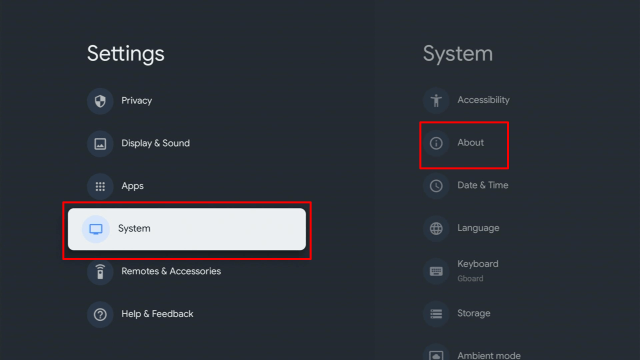
12a


4. Scroll down to Android TV OS Build & click on it seven times until it goes into Developer options and it’s gonna say “you are now a developer”.


5. Click the Back Button, scroll down to see the Developer options.


6. Go back to Settings and select > Apps.


7. Scroll down to Security & Restriction – to turn on Unknown Sources.


8. Go back to the home screen and hover over the Search icon.


9. Type in Downloader app.

c1


10. Select the Downloader.


11. Click Install.

c4


12. Open the Downloader app.

c5


13. Type https://reviewvpn.com/viva and click Go.


14. Click on Install.

Step 13 Install VIVA TV IPTV on Firestick


15. Click Open

Step 14 Install VIVA TV IPTV on Firestick


16. Enjoy Watching Viva TV

Step 15 Install VIVA TV IPTV on Firestick


YOUR INTERNET ACTIVITY IS BEING WATCHED

ReviewVPN cannot attest to the legality, security and privacy of the applications discussed on this site. It is highly recommended that you use a VPN service while streaming or using Kodi.

Currently, your IP 216.73.216.156 is visible to everyone and your Browser is being tracked by Advertisers & ISP Provider.

Save 65% Now

Limited Time Offer

Here are the main reasons why you must use a VPN:

  • Your activities are hidden from your ISP, the government, and from the apps you are using.
  • You can access additional movies and TV streams.
  • ISP attempts to throttle are thrwarted thus reducing buffering issues.
  • Geographically restricted content like Netflix and Hulu can be unblocked.

A VPN works be replacing your ISP-assigned IP address and creating an encrypted tunnel. We recommend the no log service offered by IPVanish. It works well on a Firestick and offers the fastest possible speeds.

Special Limited Time Offer - Get IPVanish


Legal Disclaimer: ReviewVPN.com does not encourage or endorse any illegal activity involved in the usage of services and applications referenced on this site. We do not verify the licensing agreements of services. The end-user is wholly responsible for ensuring that any media accessed through these services does not violate copyright and/or licensing laws. ReviewVPN does not promote, link to, or receive compensation from any Apps and IPTV services.


Install Surfshark on Google Chromecast

Best Surfshark Deal


What Is Viva TV?

Viva TV APK is a great streaming service that allows people to watch the most recent entertainment content on their Android-powered devices. This free streaming app provides you the benefit of watching videos in High Definition (HD) quality. Nonetheless, Viva TV contains some blockbuster films.

Even though Viva TV is a free-to-use app, it provides High Definition as well as 4K resolution videos. This is totally a feature you want to have in a streaming app. On the other hand, tons of free movie streaming services only allow you to stream in HD quality.


Viva TV Features

  • It has a huge library of movies, TV shows, as well as web series. This app contains a big collection of videos in various languages. Users can choose the language they need to stream from the available videos.
  • Viva TV has a simple and easy-to-use interface. However, not all streaming applications contain a very simple user interface like Viva TV. The user interface should be plain and straightforward to make the application load faster.
  • This streaming app is ad-free. There will be no annoying advertisements on the homepage. 
  • Viva TV is completely free and does not even contain any in-app items to purchase. It doesn’t also have a subscription plan. Nonetheless, you just download the app and start streaming the movies or TV shows
  • It is frequently updated. The developers of Viva TV frequently update the app. 
  • Viva TV provides high-quality servers. Thus, buffering and latency are not an issue.
  • Users can stream content in any language on Viva TV as it supports subtitles in numerous languages.
  • This streaming app supports premium platforms, such as Real-Debrid, All-Debrid, Premiumize, & trakt


Pros and Cons

Pros

  • It has no Ads
  • Subtitle & Closed Captioning support
  • Summary of the videos to show a little context
  • Adaptive Search
  • 1080p & 4K videos are available
  • Straightforward design
  • It provides a huge collection of movies & TV shows


Cons

  • The streaming app is poorly updated
  • It does not offer a premium version


Always Use A VPN While Using Viva TV

Watching free content on your Google Chromecast or other Android streaming devices may lead to legal trouble. Nonetheless, it is highly recommended to utilize a VPN (Virtual Private Network) on your Google Chromecast device. Surfshark service is our recommended option because it totally conceals your true IP address. This VPN service keeps users’ online identities anonymous while streaming free movies & TV shows. A VPN service is strictly advised to mask online identity, location, as well as activities. However, tons of Google Chromecast users choose Surfshark service for the price, speed, & privacy.

While offering the fastest server speeds and impressive live customer support, Surfshark is also an easy-to-navigate VPN service. However, make sure to turn the VPN service on when you stream videos on the web.

Surfshark Features:
  • Unblocks Netflix, Disney+, and lots more
  • 30-day money-back guarantee
  • Unlimited simultaneous devices
  • Great download speed
  • Robust encryption
  • Great customer service
  • Zero log policy
  • Runs well on Android, Windows, Linux, iOS, Mac, and other routers

Note: For more information about Surfshark, please read our Surfshark Review.


Grab your subscription now!

Click here to get the lowest price on Surfshark through our exclusive limited-time offer.


Install Surfshark VPN on Google Chromecast with Screenshots

1. Click Home on your remote then select Search.

Surfshark VPN on Google Chromecast step 1


2. On the search bar, you can use google voice assistant to find Surfshark VPN or by typing it.

Surfshark VPN on Google Chromecast step 2


3. Click on Surfshark VPN icon.

Surfshark VPN on Google Chromecast step 3


4. Click on Install.

Surfshark VPN on Google Chromecast step 4


5. Surfshark VPN is now installing just wait for it until it’s done.

Surfshark VPN on Google Chromecast step 5


6. Click open.

Surfshark VPN on Google Chromecast step 6


7. Input your username and password to log in

Surfshark VPN on Google Chromecast step 7

Learn more about Surfshark and Grab the Best Surfshark Deal Now!


Install Surfshark on Google Chromecast

Best Surfshark Deal


Other VPNs to Consider

NordVPN (Best for Streaming)

Best Features

  • 5000+ Server in 50+ Countries 
  • Military-Grade Encryption
  • Fast Connection Speed
  • Suitable to a lot of devices
  • No-Log Policy

Prices
  • Complete $5.89 per month (64% Discount)
  • Plus $4.59 per month (56% Discount)
  • Standard $3.69 per month (55% Discount)

Best Features

  • 750+ High-speed VPN Servers in 43 Locations
  • Military-Grade Encryption
  • Fastest HD Streaming and Gaming
  • 30-Day Money-Back Guarantee
  • Unlimited Data & Devices
  • No-Log Policy

Prices
  • 3 Years $1.99 per month (82% Discount)
  • 1 Years $3.29 per month (70% Discount)
  • 1 Month $10.99 per month

IPVanish VPN (Most Secure)

Best Features

  • 1200+ Servers in 60+ Countries around the world
  • Unlimited Connections
  • No-Log Policy
  • Top Notch Military-Grade VPN Protocols and Encryptions
  • 100% Safe and Secured
  • Most Trusted VPN
  • Best VPN for Firestick
  • 30-Day Money-Back Guarantee

Prices
  • Yearly $3.99 per month (63% Discount) – 30 days risk free + Ransomware & Malware Protection
  • Quarterly $5.32 per month (51% Discount)
  • Monthly $10.99 per month


For more VPN discounts, go to ReviewVPN Deals and purchase the best VPN for you.

Click here to get the lowest price on Surfshark through our exclusive limited-time offer.


Alternative Applications for Viva TV on Google Chromecast

Viva TV is an awesome streaming app for movies and TV shows. However, it is always ideal to have the best alternatives. Below are the best Viva TV alternatives.


FAQs

Is Viva TV on Chromecast Legal?

Yes, Viva TV is legal to download, install, and use. However, you must only stream legal videos in the public domain.


Is Viva TV on Chromecast Safe?

Yes, the Viva TV is safe to use and has no viruses & malware. Nonetheless, since this is a third-party app, it’s recommended to use a Virtual Private Network or VPN so the app developers won’t be able to log your internet activities.


Compatibility

The Viva TV is compatible and functions the best with devices running the Android operating system, including Google Chromecast, Kindle Fire Tablet, Amazon Firestick, Android TV Boxes, Nvidia Shield, and more.


Wrapping Up

It’s pretty simple to install the Viva TV on Google Chromecast, and the steps outlined above should help you install it. After installing Viva TV on Google Chromecast, you’ll be able to enhance your home entertainment by watching nearly anything you want. 

Nonetheless, always remember to use A VPN every time you use your Google Chromecast. Please feel free to let us know what you think of Viva TV in the comments section below.

Everything You Need to Know About IP Leaks

Overview

In this article, we will tell you about IP leaks.


A VPN’s main purpose is to hide your connection. Modern VPNs can either help you with streaming or maintain your privacy. To do all these goals, your IP address should remain hidden.

But what will happen when your VPN leaks your IP address? Your device will no longer keep its privacy from prying eyes. It is how hackers and spies manage to steal your information.

For today’s device users, it is imperative to learn about what an IP leak is all about. Later on, we will also give you some tips on how to prevent this type of leak.


ANONYMOUSLY

What is an IP Leak?

When your VPN leaks your IP address online, it is what we will call an IP leak. On the other hand, IP leaks are also known as VPN leaks. It is the leakage of your device’s IP address by your VPN.


How does an IP Leak happen?

An IP leak occurs because of many reasons under the sun. Let us discuss each reason down below:


Browser Extensions

Remember that time when some pop-up ads annoy you while viewing some online sites? As a solution, you go to your browser settings and install an AdBlock extension. With an AdBlock extension, you can now block those annoying pop-up ads. Your AdBlock extension is an example of a browser extension.

However, some browser extensions you install cause IP leaks. Some extensions like Flash player, WebRTC, and other plug-ins are typical culprits of IP leaks.


Apps and Software

All the apps we install on our modern devices can connect to the internet. These apps do this for downloading files, updating their features, or connecting to a cloud.

Some VPNs still run in the background while you use these apps. Without your knowledge, there are apps and software that will leak your IP address to third parties online. As a result, other online factions will know about the details of your device.

In some cases, we might install software like tools and utility apps. While connecting to the internet to open their features, these apps may also cause an IP leak.


Web Browsing Apps

Aside from Google Chrome, Mozilla Firefox, and Internet Explorer, there are new browsing apps you can install on your device.

Some of the browsing apps you install might contain faulty data. These browser apps might also cause an IP leak.


Brief VPN Disconnection

Any VPN relies on its servers to hide your traffic. Powerful VPNs manage to encrypt your internet traffic by passing them through digital tunnels. This method is effective against online spies.

However, when VPN users try to connect to servers far from their location, disconnections can occur. All these brief moments of disconnection result in your VPN leaking your IP address. Your time zone, location, and details are now exposed. Weak connections also cause VPN disconnections that lead to IP leaks.


What are the Dangers of IP Leaks?

A VPN leaking your IP address should get your utmost attention! Although IP leaks happen due to many reasons, the most critical of them is your VPN leaking your IP address. Here are the top reasons why you should pay attention to a VPN leak:


Breach of Privacy

Your IP address leaking online shows a critical breach of your privacy.

Imagine trying to hide all your details while using the VPN. Without your knowledge, your VPN exposes all your details on the internet. This includes your search history, product searches, and videos you watch. We install VPN to prevent the government, spies, and hackers access to our data.


Malfunction to Bypass Geo-Restrictions

We all enjoy streaming many TV shows online. Some people use VPNs to watch shows from countries with strict restrictions.

On the flip side, when your VPN leaks your IP address, the websites you are trying to visit will know about your IP address. As a result, you will not be able to bypass their restrictions. You also cannot view the content from websites you are trying to visit. It is the same result when you are not using a VPN.


VPN Detection and ISP Tracking

One of the roles of a modern VPN is to keep your ISP (Internet Service Provider) from stealing your data. They cannot record your online activities or track your location. When a VPN leak occurs, your ISP will learn about your VPN. You will also be under the surveillance of your ISP.

ISP tracking can be intercepted by cybercriminals. This might pose a threat to your overall security.


How does a VPN Leak my IP address?

In our first section, we have given you some reasons why IP leaks happen. Let us now discuss with you how your VPN accidentally leaks your IP address. Knowing about these reasons might help you prevent the occurrence of future VPN leaks.

Whether the problem lies with your VPN, many IP leaks occur in some of these ways:


IPv4 and IPv6 IP Address Leaks

The typical situation when a VPN leaks your IP address exposes either two types of IP addresses. These IP addresses are popular as either IPv4 or IPv6 IP addresses.

For people who want to understand IP addresses further, we will review each type of IP Address.


IPv4 Leak

An IPv4 IP address represents the conventional type of IP address. It is the numerical identifier that our ISPs assign to our device. Whether an Android smartphone, iPhone, tablet, PC, or laptop, these devices use IPv4 IP addresses. The IPv4 type of IP address uses a 32-bit internet address standard.

Many modern up to this day use IPv4. Aside from this, many websites recognize the IPv4 IP address. Many VPNs also support the IPv4 IP address. It is easier for VPNs to hide an IPv4 IP address.

Therefore, when a VPN leaks a typical IPv4 IP address, it means that your VPN failed to protect it.


IPv6 Leak

The IPv6 is the new standard of IP addresses. It belongs to the new 128-bit internet address standard giving us many number combinations. As a result, many websites support IPv6 IP addresses. On the other hand, most ISPs do not have support for IPv6 IP addresses.

An IPv6 leak is the most common type of leak that happens with many VPNs. It occurs since many VPNs do not support or recognize the IPv6 type of IP address. Most modern VPNs are meant to mask IPv4 IP addresses and cannot hide IPv6 IP addresses. Either they do not support IPv6 or cannot detect it.


DNS Leak

One of the common leaks a VPN can experience is a DNS leak. DNS is short for Domain Name System. Modern VPNs process DNS queries by passing them through their servers. This includes your internet traffic and online searches. DNS leaks now rarely occur since VPNs handle DNS queries with the help of encrypted tunnels.

On the other hand, a DNS leak can still occur. It might happen when your OS (Operating System) submits your DNS queries to a default DNS server. Your default DNS server always belongs to your ISP (Internet Service Provider).

When a DNS Leak happens, your ISP will detect a conflict between your VPN IP address and their DNS server. This leads to them discovering you are using a VPN to hide your online activities.


WebRTC Leak

A WebRTC Leak occurs typically with your web browsers. In some instances, WebRTC leaks happen with Google Chrome, Opera, Mozilla Firefox, and Internet Explorer.

WebRTC stands for Web Real-Time Communication. It allows web browsers to communicate with each other. WebRTC is an open-source tool allowing web-browsers to build real-time peer-to-peer connections.

A WebRTC leak is a typical cause for a VPN leak. It happens when communication channels pass through your VPN’s encrypted tunnels. As a result, the websites you visit can see your IP address.


Connection Drops

The brief moment your VPN disconnects from its server is known as a Connection Drop. These types of disturbances are typical causes of VPN leaks.

Even if you apply the best methods of preventing VPN leaks, your efforts become futile when a Connection Drop occurs. When your VPN loses connection, it suddenly exposes your IP address to the websites you visit. All of the data that your device transmits with all your details (location, history, IP address, etc.).


YOUR INTERNET ACTIVITY IS BEING WATCHED

ReviewVPN cannot attest to the legality, security and privacy of the applications discussed on this site. It is highly recommended that you use a VPN service while streaming or using Kodi.

Currently, your IP 216.73.216.156 is visible to everyone and your Browser is being tracked by Advertisers & ISP Provider.

Save 65% Now

Limited Time Offer

Here are the main reasons why you must use a VPN:

  • Your activities are hidden from your ISP, the government, and from the apps you are using.
  • You can access additional movies and TV streams.
  • ISP attempts to throttle are thrwarted thus reducing buffering issues.
  • Geographically restricted content like Netflix and Hulu can be unblocked.

A VPN works be replacing your ISP-assigned IP address and creating an encrypted tunnel. We recommend the no log service offered by IPVanish. It works well on a Firestick and offers the fastest possible speeds.

Special Limited Time Offer - Get IPVanish


Install Surfshark on Firestick

Best Surfshark Deal


How to Detect an IP Leak?

Fortunately for many of us, some methods help us detect if our VPN leaks our IP address. After performing the tests we will share, you can then check your VPN for underlying problems.


IP and DNS Leak Test

To check if your VPN is leaking your IP address, you have to first test your IP address and DNS. Modern VPNs have a built-in feature allowing you to perform these types of tests. Afterward, it will show you the resulting parameters and all the relevant details. Your VPN will also inform you if there is a leak.


Online Tools for IP and DNS Leak Tests:

  • IP Leaks: ipleak.org
  • Browser Extension IP Leaks: browserleak.com/ip
  • DNS Leaks: dnsleaktest.com


WebRTC Leak Test

A WebRTC leak occurs from your faulty browser. The typical WebRTC leak happens when communication channels pass through the tunnels created by your VPN. Your VPN will not be able to detect this type of leak.


Online Tools for WebRTC Leak Tests:

  • browserleaks.com/webrtc
  • hidemyass.com/en-us/webrtc-leak-test
  • whatismyipaddress.com/webrtc-test
  • hide.me/en/webrtc-leak-test
  • ip8.com/webrtc-test


How do I fix VPN or IP Leak Problems?

IP leak protection is crucial in ensuring your online privacy. Let us now share with you some methods that can help you fix some VPN leaks.


How to Fix an IPv6 Leak

An IPv6 leak is the most common type of IP address leak. We did not include IPv4 fixes since it is rare. IPv4 leaks also show that you might be using a faulty VPN. Let us now discuss how to fix an IPv6 leak:


Entirely Disable your IPv6

To fix an IPv6 leak, you must first choose to disable your IPv6 connection on your device. It will ensure that an IPv6 leak will stop on its tracks.

  1. Go to your device settings.
  2. Find IPv6 IP address.
  3. Disable IPv6 IP address.


For Windows:

  1. Go to your Network Properties
  2. Uncheck the IPv6 option.


How to Fix a DNS Leak

When you disable an IPv6 type of connection, you are still vulnerable to DNS leaks.


Change your DNS Settings

  1. Go to your device network settings.
  2. Find IPv4 DNS server address or IPv6 DNS server address.
  3. Change your settings.


Change your DNS Settings on Windows

  1. Find IPv4 DNS server.
  2. Under IPv4 DNS server: Preferred DNS Server and Alternate DNS Server
  3. Change both settings.


DNS Encryption Techniques

  • DoH: DNS over HTTPS
  • DoT: DNS over TLS


How to Fix a WebRTC Leak

WebRTC stands for Web Real-Time Communication. It is an open-source tool allowing browsers to communicate with each other. WebRTCs are common causes of IP leaks. Let us now teach you how to fix a WebRTC Leak.


Disable WebRTC

WebRTC is crucial for the audio and video communication of web browsers. Luckily for many users, you can disable the WebRTC feature to ensure overall privacy.

You can disable WebRTC on your Google Chrome and Mozilla Firefox by visiting their extension settings. Install either WebRTC Leak Prevent, Easy WebRTC Block, or WebRTC Control.

There are also available plugins from online sources that will help you disable your WebRTC feature.


Prevent IP Leaks with Surfshark

As we have mentioned, some VPNs experience IP leaks due to multiple reasons. As a result, your IP address, location, data, and queries will be available online for anyone to see.

This is the opportunity that cybercriminals and prying eyes are waiting for. They can then infect your device with cyber threats, decrease your streaming speed, or perform ISP throttling.

DNS Leaks also give away your VPN. When your ISP detects you use a VPN, they will keep you under surveillance while taking your beloved privacy away.

To prevent future IP leaks, use Surfshark. If you use Surfshark as your VPN, it will share these features:

  • IP Leak Test and Protection
  • DNS Leak Protection
  • Kill Switch Feature
  • Provides you with an undetectable IP address.
  • Pass your traffic through encrypted tunnels.

Note: For more information about Surfshark, please read our Surfshark Review.


Grab your subscription now!


How to Install Surfshark VPN on Firestick

If your Firestick still has the older interface, read this article to learn how to update it: Update Firestick Interface.

Follow our screenshots below to install the SurfShark VPN app on your Fire TV stick.

1. Go to the Home screen of your Firestick.

step 1 Install Surfshark VPN on Firestick


2. Navigate towards the Find tab. Press the Search button from the resulting dropdown.

step 2 Install Surfshark VPN on Firestick


3. Type in the keyword of SurfShark and select from the suggestions that will appear.

step 3 Install Surfshark VPN on Firestick


4. Click the official SurfShark icon from your search results.

step 4 Install Surfshark VPN on Firestick


5. Press the Download (You own it) button.

step 5 Install Surfshark VPN on Firestick


6. The SurfShark VPN installer will download on your device.

step 6 Install Surfshark VPN on Firestick


7. SurfShark VPN’s app will automatically install itself on your Fire TV stick.

step 7 Install Surfshark VPN on Firestick


8. Press the Open button after completing SurfShark VPN’s installation process.

step 8 Install Surfshark VPN on Firestick


9. Please wait for the SurfShark VPN to load its user interface.

step 9 Install Surfshark VPN on Firestick


10. You can now log in with your SurfShark VPN account credentials.

step 10 Install Surfshark VPN on Firestick

Learn more about Surfshark and Grab the Best Surfshark Deal Now!


Install Surfshark on Firestick

Best Surfshark Deal


Other VPNs to Consider

NordVPN (Best for Streaming)

Best Features

  • 5000+ Server in 50+ Countries 
  • Military-Grade Encryption
  • Fast Connection Speed
  • Suitable to a lot of devices
  • No-Log Policy

Prices
  • Complete $5.89 per month (64% Discount)
  • Plus $4.59 per month (56% Discount)
  • Standard $3.69 per month (55% Discount)

Best Features

  • 750+ High-speed VPN Servers in 43 Locations
  • Military-Grade Encryption
  • Fastest HD Streaming and Gaming
  • 30-Day Money-Back Guarantee
  • Unlimited Data & Devices
  • No-Log Policy

Prices
  • 3 Years $1.99 per month (82% Discount)
  • 1 Years $3.29 per month (70% Discount)
  • 1 Month $10.99 per month

IPVanish VPN (Most Secure)

Best Features

  • 1200+ Servers in 60+ Countries around the world
  • Unlimited Connections
  • No-Log Policy
  • Top Notch Military-Grade VPN Protocols and Encryptions
  • 100% Safe and Secured
  • Most Trusted VPN
  • Best VPN for Firestick
  • 30-Day Money-Back Guarantee

Prices
  • Yearly $3.99 per month (63% Discount) – 30 days risk free + Ransomware & Malware Protection
  • Quarterly $5.32 per month (51% Discount)
  • Monthly $10.99 per month


For more VPN discounts, go to ReviewVPN Deals and purchase the best VPN for you.

Click here to get the lowest price on Surfshark through our exclusive limited-time offer.


Conclusion

IP leaks happen when your VPN exposes your IP address on the internet. There are many reasons why IP leaks occur all the time. Typical reasons might be connection drops, apps, and the new WebRTC feature. Luckily for modern device users, follow our guide above that will help you fix IP leak problems.

We hope this article teaches you about IP leaks and how to prevent them from happening in the future.

Best Slamious Kodi Build Alternatives

Best Slamious Kodi Build Alternatives Overview

This article is about the best Slamious build alternatives on Kodi.


Slamious was one of the best builds that work well on Kodi and it has a large collection of content to offer. This build also comes with a great lineup of over 40+ addons but is still a lightweight build. It has a very simple and easy-to-use interface with a well-organized lot of content categories to choose from.

You can choose from their wide variety of categories such as Movies, Tv shows, Sports, Live TV, Music, Kids, and more. It brings you a massive collection of content from different preloaded addons, including the Numbers, Maverick, Rising Tides, Skynet, Release BB, Shadow, The Crew, and more. 

This build was also one of the best alternatives for non-working builds, such as Xanax, and you can get this build from the Slamious Repository. However, the Slamious developer recently tweeted and updated that they have decided to discontinue managing and working on the wizard.

Many Kodi users have been disappointed by this sudden news because there are lots of great builds and addons from Slamious. It is not currently down and not working, but don’t worry because we have listed down some of the best alternatives for the Slamious Kodi build that you can try. These builds are likely the same as the shutdown build because they also bring you a massive collection of content with a great lineup of add ons to use. 


ANONYMOUSLY

Best Slamious Kodi Build Alternatives

We list down some of the best Kodi build alternatives for Slamious Build that are not working. 

USA 19

Best Slamious Kodi Build Alternatives

Repository URL: https://doomzdayteam.github.io/doomzday

USA is an amazing build from the Doomzday Repository and one of the great alternatives for Slamious as it brings you a massive collection of content to watch for free. This build also has a simple and USA-inspired theme that is easy to use on Kodi. You can choose from a wide variety of content categories and watch their great lineup of movies and TV shows. The good thing is, this build supports both Real Debrid and Trakt.tv account integration. It also uses lots of pre-loaded add-ons that you can try and watch on their collections of content. Some of the popular addons are The Crew, The Oath, Q Continuum, Chain, Shadow, Revolution, and more. 


Features:

  • It has an awesome and easy-to-use interface. 
  • This build works on both Kodi 18.9 and 19.5 Matrix. 
  • You can choose from their wide selection of categories. 
  • It is a USA theme build that is very smooth to use. 
  • Supports both Real Debrid and Trakt account integration. 
  • Well-organized categories and subcategories. 
  • Allows background playing.
  • You can watch up to 720 to 1080p video streaming quality. 

Read the article and be guided on How to Install USA Kodi Build.

Click here to get the lowest price on Surfshark through our exclusive limited-time offer.


Green Monster 19

Best Slamious Kodi Build Alternatives

Repository URL: https://team-crew.github.io

Green Monster 19 is a third-party build located on the Team Crew Repository. This build is simple with a Greenfluence skin by default that is easy to use on Kodi. It also works well on Kodi 19.5 Matrix. The good thing is, that this build offers you a massive collection of content to watch for free. It also brings you a great lineup of the latest movies and Tv shows from different popular streaming services. You can watch high-quality streaming links from different providers. 

This build offers you content such as Movies, Tv shows, Sports coverage, and more. It also has preloaded add-ons that you can try and watch on their content, such as the SSTV, Aliunde, Cabal, Hypersonic K19, Dejavu, Asgard, Rogue One, Rising Tides, Maverick, Odin, Dracarys, and more. It is also a feature-rich build that supports Trakt.tv account integration to monitor your watching and synchronize your content library. 


Features

  • It has a simple and easy-to-navigate interface. 
  • Watch a large collection of content. 
  • Choose from their wide variety of categories. 
  • Available advanced content selection.  
  • This build is also regularly updating its list of contents.
  • Watch on a maximum of 4k video streaming quality.
  • It also has a resume watching to continue watching where you stopped off.

Use the guide below to install the Green Monster 19 Kodi Build. 

How to install the Green Monster 19 Kodi Build 

Click here to get the lowest price on Surfshark through our exclusive limited-time offer.


Misfit Mods Lite

Best Slamious Kodi Build Alternatives

Repository URL: http://misfitmods.com/mmwiz/repo/

Misfit Mod Lite is one of the popular builds and also a good alternative for Slamious build. This build is rich in features as it brings you a well-organized content category with a large collection of content. It is a lightweight build that offers you thousands of content with a great lineup of preloaded add-ons. Some of the addons it uses are Exodus Redux, Yoda, Mad Dragon, SportsDevil, WolfPack, and more. You can watch their wide selection of content such as Movies, Tv shows, Music, Sports, Kids, and more. It brings you high-quality streaming links from different providers. The good thing is, it is working on both Kodi 18.9 and 19.5 Matrix. 


Features:

  • User-friendly interface
  • Compatible with Kodi 19.5 Matrix. 
  • You can choose from their wide variety of content categories. 
  • It uses different popular addons to bring you a great lineup of content. 
  • Provides you with a high quality of streaming links from different providers. 
  • Allows background playing and resume watching. 
  • It also covers Live sports coverage. 

Read the article and be guided on: How to Install Misfit Mod Lits Kodi Build.


YOUR INTERNET ACTIVITY IS BEING WATCHED

ReviewVPN cannot attest to the legality, security and privacy of the applications discussed on this site. It is highly recommended that you use a VPN service while streaming or using Kodi.

Currently, your IP 216.73.216.156 is visible to everyone and your Browser is being tracked by Advertisers & ISP Provider.

Save 65% Now

Limited Time Offer

Here are the main reasons why you must use a VPN:

  • Your activities are hidden from your ISP, the government, and from the apps you are using.
  • You can access additional movies and TV streams.
  • ISP attempts to throttle are thrwarted thus reducing buffering issues.
  • Geographically restricted content like Netflix and Hulu can be unblocked.

A VPN works be replacing your ISP-assigned IP address and creating an encrypted tunnel. We recommend the no log service offered by IPVanish. It works well on a Firestick and offers the fastest possible speeds.

Special Limited Time Offer - Get IPVanish


Legal Disclaimer: ReviewVPN.com does not encourage or endorse any illegal activity involved in the usage of services and applications referenced on this site. We do not verify the licensing agreements of services. The end-user is wholly responsible for ensuring that any media accessed through these services does not violate copyright and/or licensing laws. ReviewVPN does not promote, link to, or receive compensation from any Apps and IPTV services.


Install Surfshark on Firestick

Best Surfshark Deal


Slate by Red 79

Best Slamious Kodi Build Alternatives

Repository URL: http://ezzer-mac.com/repo

Slate by Red 79 is an amazing build compatible with the Kodi 19.5 Matrix and is also one of the best alternatives for Slamious. This build brings you a large collection of content to watch for free. It brings you thousands of on-demand movies, TV shows, sports, and more. You can watch movies, Tv shows, Kids Content, Live Sports that are provided by different Kodi addons. Some of the Kodi addons it has are Asgard, SportHD, WatchNixtoons2, The Oath, FBS kids, and Embury helper. This build also comes with a simple and easy-to-use interface with a customizable theme and skin. 

Features:

  • It has easy to navigate without using a mouse toggle
  • Offers you a regularly updated list of movies and Tv shows. 
  • You can watch Live Sports coverage. 
  • Large collection of content to watch for free. 
  • Available Resume watching function to continue where you stopped off. 
  • Brings you high-quality streaming links.
  • Watch up to 1080p video streaming quality. 
  • Allows you to install more themes and skin

Use the guide below to install the Slate by Red 79 Build on Kodi 19 Matrix 

How to install the Slate by Red 79 Kodi Build 

Click here to get the lowest price on Surfshark through our exclusive limited-time offer.


The Lite Build

Best Slamious Kodi Build Alternatives

Repository URL: http://cmanbuilds.com/repo

The Lite Build is a third-party build from the Cman Repository that contains a list of popular add-ons. This build offers you a large collection of content from different preloaded add ons, such as The black Lightning, Asgard, Shadow, C:/>Goto, Tempest, YouTube, and more. You can choose from their wide range of categories such as Movies, TV shows, Kids, Addon, wizards, and more. Aside from movies and TV shows, you can also watch live international sports such as MMA Live, Football, Wrestling, Boxing, and more.

This build comes with a simple and easy-to-use interface that works well on Kodi 19.5 Matrix. The good thing is, it supports Trakt.tv and Real debrid account integration to give you the best and high quality streaming links. 


Features:

  • It has an easy-to-customize interface with free themes. 
  • Large collection of latest and popular movies/TV shows.
  • Supports different preload add-ons to give you a great lineup of contents.
  • You can watch a maximum of 4K quality videos.
  • This build is regularly updated to fix some bugs and minor issues.
  • Supports Real debrid and Trakt. tv account linking.

Read on the article below and be guided on how to install The Lite Build on Kodi 19 Matrix

How to Install The Lite Build.

Click here to get the lowest price on Surfshark through our exclusive limited-time offer.


1874 Cars Xon

Best Slamious Kodi Build Alternatives

Repository URL: http://ezzer-mac.com/repo

1874 Cars Xon is another latest build from the EzzerMacs Repository that has a skin of Xonfluence by default, which allows you to customize your interface. It is one of the latest builds that brings its users the quality of streaming links from different providers. This build has a massive collection of content to watch and a wide selection of categories. The good thing is, this build content is organized by their types such as Certificate, Genre type, Release year, popularity, and more. So you can easily choose the contents you want to watch. You can also assure that this build brings you a high quality of streaming links, as it supports Real Debrid account integration. This build also brings you lots of popular pre-loaded add-ons you can use, such as CellarDoor TV Repo, DejaVu Repo, Scrubs V2, The Crew Repo, The Crew, Jewrepo, and more. 


Features:

  • Allow you to access their content for free. 
  • Brings you a wide variety of content categories. 
  • Regularly updating its list of contents. 
  • Offers your the most popular, latest, and fresh release content to watch. 
  • Watch on a maximum video streaming quality of 4k. 
  • You can watch it on Kodi without any ads popping up. 
  • Allows background playing on videos.

To install this Kodi Build, kindly refer to the article below to guide you. 

How to Install The 1874 Cars Xon Kodi Build


Benefits of using a VPN

surfshark logo

For everything you do online, we always suggest using a Virtual Private Network on your device to have a safe and secure activity. One of the best VPNs that we always recommend is Surfshark, as it provides its users the best quality of service and a list of impressive features. Here are some of the benefits to enjoy using Surfshark:


Secured Online Activity

Using a VPN such as Surfshark gives you a secured online activity by preventing your ISP from snooping and interfering with your connection. Surfshark has a military standard of encryption that safeguards your identity, IP Address, web traffic, and more. You can now safely and privately do anything you want online without your ISP knowing. 


Untraceable IP Address

Surfshark will automatically encrypt your real IP address and let you connect to any servers of your choice. In this way, this VPN will allow you to connect to an untraceable IP Address. With it, you can do anything, anywhere in the world without anyone knowing it. 


Online Anonymity

A VPN will automatically conceal your online identity and IP Address to keep you anonymous online. That is why whatever you do online you will remain anonymous on your ISP, and it will never be traced back to you. You can also safely connect on any public network because a VPN will keep you anonymous online. 


Increased Internet Speed

Surfshark is known as one of the fastest VPNs that gives its user a high speed of connection tighter with unlimited bandwidth to enjoy streaming online as much as you want. It has a recorded average download speed of 94MBps and an average upload speed of 84Mbps.

Note: For more information about Surfshark, please read our Surfshark Review.


Grab your subscription now!


How to Install Surfshark VPN on Firestick

If your Firestick still has the older interface, read this article to learn how to update it: Update Firestick Interface.

Follow our screenshots below to install the SurfShark VPN app on your Fire TV stick.

1. Go to the Home screen of your Firestick.

step 1 Install Surfshark VPN on Firestick


2. Navigate towards the Find tab. Press the Search button from the resulting dropdown.

step 2 Install Surfshark VPN on Firestick


3. Type in the keyword of SurfShark and select from the suggestions that will appear.

step 3 Install Surfshark VPN on Firestick


4. Click the official SurfShark icon from your search results.

step 4 Install Surfshark VPN on Firestick


5. Press the Download (You own it) button.

step 5 Install Surfshark VPN on Firestick


6. The SurfShark VPN installer will download on your device.

step 6 Install Surfshark VPN on Firestick


7. SurfShark VPN’s app will automatically install itself on your Fire TV stick.

step 7 Install Surfshark VPN on Firestick


8. Press the Open button after completing SurfShark VPN’s installation process.

step 8 Install Surfshark VPN on Firestick


9. Please wait for the SurfShark VPN to load its user interface.

step 9 Install Surfshark VPN on Firestick


10. You can now log in with your SurfShark VPN account credentials.

step 10 Install Surfshark VPN on Firestick

Learn more about Surfshark and Grab the Best Surfshark Deal Now!


Install Surfshark on Firestick

Best Surfshark Deal


Other VPNs to Consider

NordVPN (Best for Streaming)

Best Features

  • 5000+ Server in 50+ Countries 
  • Military-Grade Encryption
  • Fast Connection Speed
  • Suitable to a lot of devices
  • No-Log Policy

Prices
  • Complete $5.89 per month (64% Discount)
  • Plus $4.59 per month (56% Discount)
  • Standard $3.69 per month (55% Discount)

Best Features

  • 750+ High-speed VPN Servers in 43 Locations
  • Military-Grade Encryption
  • Fastest HD Streaming and Gaming
  • 30-Day Money-Back Guarantee
  • Unlimited Data & Devices
  • No-Log Policy

Prices
  • 3 Years $1.99 per month (82% Discount)
  • 1 Years $3.29 per month (70% Discount)
  • 1 Month $10.99 per month

IPVanish VPN (Most Secure)

Best Features

  • 1200+ Servers in 60+ Countries around the world
  • Unlimited Connections
  • No-Log Policy
  • Top Notch Military-Grade VPN Protocols and Encryptions
  • 100% Safe and Secured
  • Most Trusted VPN
  • Best VPN for Firestick
  • 30-Day Money-Back Guarantee

Prices
  • Yearly $3.99 per month (63% Discount) – 30 days risk free + Ransomware & Malware Protection
  • Quarterly $5.32 per month (51% Discount)
  • Monthly $10.99 per month


For more VPN discounts, go to ReviewVPN Deals and purchase the best VPN for you.

Click here to get the lowest price on Surfshark through our exclusive limited-time offer.


Best Slamious Kodi Build Alternatives FAQs

Does the Slamious Build down?

Yes, the Slamious Build is down because the developer of the Slamious repository has decided to discontinue running and managing the wizard. That is why Slamious build and other addons on this Repo are currently down and not working. 


What is exactly a Kodi Build?

Kodi build is a pre-canned packaged Kodi with lots of addons on it. It also has settings, graphics, a set of themes, and information displayed in the Build interface. 


Are Kodi Builds Legal?

Yes, Kodi Builds are legal and safe to use.


Are these Kodi Builds Free?

Yes, all of these Kodi Builds are free.


Conclusion

Slamious build was one of the amazing streaming services on Kodi as it brings you a large collection of on-demand content. However, because of the sudden news, this build is currently shut down, don’t worry because we have listed down some of the best Kodi build alternatives to it. You can use all of the Kodi builds mentioned above for free and enjoy their great lineup of content. However, to ensure your safety and privacy we suggest using a VPN such as Surfshark. We hope this article helps you to know the best Kodi builds alternative for Slamious. 


Note: ReviewVPN.com does not own or operate any app nor does it endorse any. The main purpose of this article is strictly for educational purposes only.

How to Install Kingdom Kodi Build

Kingdom Kodi Build Overview

The article will help you on how to install Kingdom Kodi Build.


Kingdom Kodi build is another build with a different lineup of categories and brings you a large collection of content from different addons. The main categories in this build are addons such as Asgard, C:\>Goto, Odin, Venom, The Oath, and more.

It brings you almost all kinds of content to watch, such as Movies, TV shows, Sports, Live TV, and more. You can enjoy streaming in this build, as it brings you not just a great lineup of content but also a high quality of streaming links. 

This build also uses different popular addons to bring you a massive collection of content. Some of the popular preloaded addons are Asgard, Odin, The Oath, Goto, Venom, and more, of which these add ons also serve as the main categories. It also has a simple and easy-to-use interface that works well on Kodi 19.5 Matrix. You can get this build on the cMan Wizard 19 repo. 


ANONYMOUSLY

How to Install Kingdom Kodi Build with Screenshot

Installing a Kodi build has a lot of processes to take. That is why we will guide you step by step on how you can install it on Kodi.

 Follow the following steps below.  

1. On your Firestick, open Kodi and go to Settings.

Install Kingdom Kodi Build Step 1


2. Select on System.

Install Kingdom Kodi Build Step 2


3. Click on the Add-ons menu and Turn ON the Unknown Sources.

Install Kingdom Kodi Build Step 3


4. Select Yes when the box appears.

Install Kingdom Kodi Build Step 4


5. Go back one step and click on File Manager.

Install Kingdom Kodi Build Step 5


6. Select the Add Source.

Install Kingdom Kodi Build Step 6


7. A box will pop up, so click on the ‘None’ option.

Install Kingdom Kodi Build Step 7


8. Now type in this URL http://cmanbuilds.com/repo and click OK. 

Install Kingdom Kodi Build Step 8


9. Name this URL as cman and tap OK.

Install Kingdom Kodi Build Step 9


10. After that, go back to the system menu and select Add-ons.

Install Kingdom Kodi Build Step 10


11. Click Install from Zip File.

Install Kingdom Kodi Build Step 11


12. When a box pop up, tap the Yes button.

Install Kingdom Kodi Build Step 12


13. Select cman or any name you have given.

Install Kingdom Kodi Build Step 13


14. Choose repository.cMaNWizard.zip

Install Kingdom Kodi Build Step 14


15. Wait a few minutes for the addon to be installed. After that, an icon will appear at the top menu.

Install Kingdom Kodi Build Step 15


16. Tap the  Install from Repository.

Install Kingdom Kodi Build Step 16


17. Then select cMaN’s Wizard Repository from the list.

Install Kingdom Kodi Build Step 17


18. Select the Program add-ons.

Install Kingdom Kodi Build Step 18


19. Click cMaN Wizard 19.

Install Kingdom Kodi Build Step 19


20. Tap the Install button.

Install Kingdom Kodi Build Step 20


21. Wait for the cMaN Wizard 19 installed notification.

Install Kingdom Kodi Build Step 21


22. Wait for the Installed message to appear and click the Continue

Install Kingdom Kodi Build Step 22


23. Tap the Close

Install Kingdom Kodi Build Step 23


24. Go back to the Kodi home screen and scroll down to Addon.

Install Kingdom Kodi Build Step 24


25. From the Program add-ons, select cMaN Wizard 19.

Install Kingdom Kodi Build Step 25


26. Click the Builds

Install Kingdom Kodi Build Step 26


27. Scroll down and select Kingdom

Install Kingdom Kodi Build Step 27


28. Click Fresh Install

Install Kingdom Kodi Build Step 28


29. Tap on the Yes button

Install Kingdom Kodi Build Step 29


30. Wait for the build to download.

Install Kingdom Kodi Build Step 30


31. Click the OK button

Install Kingdom Kodi Build Step 31


32. Launch your Kodi again

Install Kingdom Kodi Build Step 32


33. That’s it! You have successfully installed the kingdom Kodi Build.

Install Kingdom Kodi Build Step 33


YOUR INTERNET ACTIVITY IS BEING WATCHED

ReviewVPN cannot attest to the legality, security and privacy of the applications discussed on this site. It is highly recommended that you use a VPN service while streaming or using Kodi.

Currently, your IP 216.73.216.156 is visible to everyone and your Browser is being tracked by Advertisers & ISP Provider.

Save 65% Now

Limited Time Offer

Here are the main reasons why you must use a VPN:

  • Your activities are hidden from your ISP, the government, and from the apps you are using.
  • You can access additional movies and TV streams.
  • ISP attempts to throttle are thrwarted thus reducing buffering issues.
  • Geographically restricted content like Netflix and Hulu can be unblocked.

A VPN works be replacing your ISP-assigned IP address and creating an encrypted tunnel. We recommend the no log service offered by IPVanish. It works well on a Firestick and offers the fastest possible speeds.

Special Limited Time Offer - Get IPVanish


Legal Disclaimer: ReviewVPN.com does not encourage or endorse any illegal activity involved in the usage of services and applications referenced on this site. We do not verify the licensing agreements of services. The end-user is wholly responsible for ensuring that any media accessed through these services does not violate copyright and/or licensing laws. ReviewVPN does not promote, link to, or receive compensation from any Apps and IPTV services.


Install Surfshark on Firestick

Best Surfshark Deal


Features of Kingdom Kodi Build

Interface

  • This build has a simple yet attractive interface design. 
  • It is easy to navigate and works well on Kodi 19.5 Matrix. 
  • Allows you to access their content for free. 


Categories and Contents

  • The main categories are Asgard, C:\>Goto, Odin, Venom, The Oath, Seren, Fen, Black Lightning, Free, Fav, Wizard, System, and Power. 
  • In the Asgard section, you can choose from the 4K One-Click Section, One-Click Section, Non-Debrid Section, Movies, Tv shows, Soaps, Documentaries, Kids, Sports, Stand Up, Apps, Music, Anime, Live TV, and more. 
  • Available Resume watching, where you can continue watching where you stopped off last time. 
  • It also has the Last link played, Searches history, Trakt, One-click Search, My RD History, and RD Torrents to monitor what you are watching.  
  • This build brings you a wide variety of categories for Movies, such as 4K movies, 3D movies, Theatres, Popular Movies, 3-D Movies, 3-D Movies (Free), and more. 
  • You can also watch live Sports games on Wrestling, Boxing, UFC replays, and even Sports Documentaries/Catch-Up.
  • Other sports categories are Auto Zone, 24/7 Zone, Fan Zone, Fight Zone, MLB, NBA, NCAA, NFL, NHL, and more.
  • In Live TV, you can watch TV Tap, Fluxus TV, Swiftstreamz, DailyMotion, and more.
  • Goto section brings your categories with a great lineup of contents such as New Releases, Santa’s Place, Non-Debrid Flicks, One-Click TV shows, MoviesScrapers, TV scrapers, and more. 
  • The Odin section contains different 4K content collections such as Movies, TV shows, Wildlife, A-Z Movies, Back to the Future Box sets, Classic Movies, and more. 
  • It brings you both debrid and free streaming links. 
  • Supports Trakt and Real Debrid account integrations. 
  • You can watch on a maximum of 4k video streaming quality.

Preloaded add ons – Asgard, Rising Tides, Replay Me, Venom, Odin, Loop Repo, Torque Lite, The Endzone 19, Black, Black Lightning, Goto, Cman Wizard 19, FEN, Fluxus TV, Host505, MadTitan Sports, Magnetic Repo, Seren, and more.


Pros and Cons

Pros

  • It brings you a wide selection of content to access for free. 
  • You can watch their content for free as it brings you both Debrid and Free links. 
  • Supports Trakt and Real Debrid account integration. 
  • It uses different preloaded add ons with a great lineup of contents. 


Cons

  • It requires you to have an existing Real Debrid account to watch other content. 


Stream online with Surfshark

If you love to stream online on Kodi software using any addons or builds, then we suggest having a Virtual Private Network on your device to ensure your safety. Having a VPN while streaming online is much better because it will protect you 24/7 from any harm and threats online. That is why it is much better if you use a VPN while you stream on any streaming service and one of the best VPNs that we can recommend is Surfshark.

This VPN has a great security service, as it uses a military standard of encryption that will automatically safeguard anything about you, including your personal information, real IP address, and more. Surfshark also has an impressive list of features with great security services to offer at a budget-friendly price. It is a good option for streamers who want to keep their identity secured and safe from any harm online.

Note: For more information about Surfshark, please read our Surfshark Review.


Grab your subscription now!

Click here to get the lowest price on Surfshark through our exclusive limited-time offer.


How to Install Surfshark VPN on Firestick

If your Firestick still has the older interface, read this article to learn how to update it: Update Firestick Interface.

Follow our screenshots below to install the SurfShark VPN app on your Fire TV stick.

1. Go to the Home screen of your Firestick.

step 1 Install Surfshark VPN on Firestick


2. Navigate towards the Find tab. Press the Search button from the resulting dropdown.

step 2 Install Surfshark VPN on Firestick


3. Type in the keyword of SurfShark and select from the suggestions that will appear.

step 3 Install Surfshark VPN on Firestick


4. Click the official SurfShark icon from your search results.

step 4 Install Surfshark VPN on Firestick


5. Press the Download (You own it) button.

step 5 Install Surfshark VPN on Firestick


6. The SurfShark VPN installer will download on your device.

step 6 Install Surfshark VPN on Firestick


7. SurfShark VPN’s app will automatically install itself on your Fire TV stick.

step 7 Install Surfshark VPN on Firestick


8. Press the Open button after completing SurfShark VPN’s installation process.

step 8 Install Surfshark VPN on Firestick


9. Please wait for the SurfShark VPN to load its user interface.

step 9 Install Surfshark VPN on Firestick


10. You can now log in with your SurfShark VPN account credentials.

step 10 Install Surfshark VPN on Firestick

Learn more about Surfshark and Grab the Best Surfshark Deal Now!


Install Surfshark on Firestick

Best Surfshark Deal


Other VPNs to Consider

NordVPN (Best for Streaming)

Best Features

  • 5000+ Server in 50+ Countries 
  • Military-Grade Encryption
  • Fast Connection Speed
  • Suitable to a lot of devices
  • No-Log Policy

Prices
  • Complete $5.89 per month (64% Discount)
  • Plus $4.59 per month (56% Discount)
  • Standard $3.69 per month (55% Discount)

Best Features

  • 750+ High-speed VPN Servers in 43 Locations
  • Military-Grade Encryption
  • Fastest HD Streaming and Gaming
  • 30-Day Money-Back Guarantee
  • Unlimited Data & Devices
  • No-Log Policy

Prices
  • 3 Years $1.99 per month (82% Discount)
  • 1 Years $3.29 per month (70% Discount)
  • 1 Month $10.99 per month

IPVanish VPN (Most Secure)

Best Features

  • 1200+ Servers in 60+ Countries around the world
  • Unlimited Connections
  • No-Log Policy
  • Top Notch Military-Grade VPN Protocols and Encryptions
  • 100% Safe and Secured
  • Most Trusted VPN
  • Best VPN for Firestick
  • 30-Day Money-Back Guarantee

Prices
  • Yearly $3.99 per month (63% Discount) – 30 days risk free + Ransomware & Malware Protection
  • Quarterly $5.32 per month (51% Discount)
  • Monthly $10.99 per month


For more VPN discounts, go to ReviewVPN Deals and purchase the best VPN for you.

Click here to get the lowest price on Surfshark through our exclusive limited-time offer.


Alternatives for Kingdom Kodi Build

We list down some Kodi builds that you can try on your Kodi. If you want to know more about these builds, kindly read their corresponding articles. For more addon/build compatible with Kodi 19.5, visit this link What’s working on Kodi 19.5.


FAQs

Does the Kingdom Kodi build also work well on Kodi 18.9 Leia?

No, this build is only available on Kodi 19.5 Matrix. 


Can I watch Kingdom Kodi Build for free?

Yes, this build is free and allows you to access their content for free.


Is the Kingdom Kodi Build legal to use?

Yes, this build is legal, as long as it does not offer any copyrighted and restricted content.


Is the Kingdom Kodi Build safe to use?

Yes, this build is safe to use, but if you want to ensure your security, we suggest using a VPN such as Surfshark


Conclusion

The kingdom is an amazing Kodi build compatible with the Kodi 19.5 Matrix and has a different lineup of categories. It also offers you a large collection of content from different categories. You can watch the latest and popular content from different streaming services.

The good thing is this build also supports Trakt.tv and Real Debrid account integration. However, since it is a third-party build, we still suggest using a VPN such as Surfshark for your safety. We hope this article helps you install the Kingdom Kodi Build.

How to Install Mortal Combat Kodi Build

Mortal Combat Kodi Build Overview

The article will help you on how to install Mortal Combat Kodi Build.


Mortal Combat is a third-party build located on the cMan Wizard Repository and is compatible with Kodi 19.5 Matrix. This build brings you almost all kinds of content and a great lineup of content to watch for free.

The main section in this build are Movies, TV Shows, Sports, and more. This build brings you all the popular and latest release content from different streaming services. It is also a feature-rich build that supports both Trakt and Real Debrid account integration.

You will surely enjoy streaming in this build as it brings you high-quality streaming links. The good thing is, that allows you to access their content for free, and you can watch on different preloaded add-ons, such as Djay Lite 19, Asgard, Rogue One, Rising Tides, Replay Me, and more.


ANONYMOUSLY

How to Install Mortal Combat Kodi Build with Screenshot

Installing a Kodi build has a lot of processes to take. That is why we will guide you step by step on how you can install it on Kodi.

 Follow the following steps below.  

1. On your Firestick, open Kodi and go to Settings.

Install Mortal Combat Kodi Build Step 1


2. Select on System.

Install Groguuu Madnox Kodi Build Step 2


3. Click on the Add-ons menu and Turn ON the Unknown Sources.

Install Groguuu Madnox Kodi Build Step 3


4. Select Yes when the box appears.

Install Groguuu Madnox Kodi Build Step 4


5. Go back one step and click on File Manager.

Install Groguuu Madnox Kodi Build Step 5


6. Select the Add Source.

Install Groguuu Madnox Kodi Build Step 6


7. A box will pop up, so click on the ‘None’ option.

Install Groguuu Madnox Kodi Build Step 7


8. Now type in this URL http://cmanbuilds.com/repo and click OK. 

Install Groguuu Madnox Kodi Build Step 8


9. Name this URL as cman and tap OK.

Install Groguuu Madnox Kodi Build Step 9


10. After that, go back to the system menu and select Add-ons.

Install Groguuu Madnox Kodi Build Step 10


11. Click Install from Zip File.

Install Groguuu Madnox Kodi Build Step 11


12. When a box pop up, tap the Yes button.

Install Groguuu Madnox Kodi Build Step 12


13. Select cman or any name you have given.

Install Groguuu Madnox Kodi Build Step 13


14. Choose repository.cMaNWizard.zip

Install Groguuu Madnox Kodi Build Step 14


15. Wait a few minutes for the addon to be installed. After that, an icon will appear at the top menu.

Install Groguuu Madnox Kodi Build Step 15


16. Tap the  Install from Repository.

Install Groguuu Madnox Kodi Build Step 16


17. Then select cMaN’s Wizard Repository from the list.

Install Groguuu Madnox Kodi Build Step 17


18. Select the Program add-ons.

Install Groguuu Madnox Kodi Build Step 18


19. Click cMaN Wizard 19.

Install Groguuu Madnox Kodi Build Step 19


20. Tap the Install button.

Install Groguuu Madnox Kodi Build Step 20


21. Wait for the cMaN Wizard 19 installed notification.

Install Groguuu Madnox Kodi Build Step 21


22. Wait for the Installed message to appear and click the Continue

Install Groguuu Madnox Kodi Build Step 22


23. Tap the Close

Install Groguuu Madnox Kodi Build Step 23


24. Go back to the Kodi home screen and scroll down to Addon.

Install Groguuu Madnox Kodi Build Step 24


25. From the Program add-ons, select cMaN Wizard 19.

Install Groguuu Madnox Kodi Build Step 25


26. Click the Builds

Install Groguuu Madnox Kodi Build Step 26


27. Scroll down and select Mortal Combat


28. Click Fresh Install


29. Tap on the Yes button


30. Wait for the build to download.


31. Click the OK button


32. Launch your Kodi again

Install Groguuu Madnox Kodi Build Step 32


33. That’s it! You have successfully installed the Mortal Combat Kodi Build.


YOUR INTERNET ACTIVITY IS BEING WATCHED

ReviewVPN cannot attest to the legality, security and privacy of the applications discussed on this site. It is highly recommended that you use a VPN service while streaming or using Kodi.

Currently, your IP 216.73.216.156 is visible to everyone and your Browser is being tracked by Advertisers & ISP Provider.

Save 65% Now

Limited Time Offer

Here are the main reasons why you must use a VPN:

  • Your activities are hidden from your ISP, the government, and from the apps you are using.
  • You can access additional movies and TV streams.
  • ISP attempts to throttle are thrwarted thus reducing buffering issues.
  • Geographically restricted content like Netflix and Hulu can be unblocked.

A VPN works be replacing your ISP-assigned IP address and creating an encrypted tunnel. We recommend the no log service offered by IPVanish. It works well on a Firestick and offers the fastest possible speeds.

Special Limited Time Offer - Get IPVanish


Legal Disclaimer: ReviewVPN.com does not encourage or endorse any illegal activity involved in the usage of services and applications referenced on this site. We do not verify the licensing agreements of services. The end-user is wholly responsible for ensuring that any media accessed through these services does not violate copyright and/or licensing laws. ReviewVPN does not promote, link to, or receive compensation from any Apps and IPTV services.


Install Surfshark on Firestick

Best Surfshark Deal


Features of Mortal Combat Kodi Build

  • It brings you a wide variety of content categories.
  • You can choose from different categories such as Movie Most, People Watching, Most Popular, Featured, Most Voted, Highly Rated, Oscar Winners, Box Office, In Theatres, Recently Releases, and more. 
  • It also has an IMDb Keyword searches/keywords/ and Popular IMDb user list. 
  • Brings you a collection of content per decade 1901s to 2021s. 
  • Genres: Action, Adventure, Animation, Anime, Biography, Comedy, Crime, Documentary, Drama, Family, Fantasy, History, Horror, Music, Musical, Mystery, Romance, Science Fiction, Sport, Superhero, Thriller, War and Western. 
  • In the Tv shows, you can choose from New Releases, 4K TV Shows, TV shows, Popular, On The Air, New TV shows, New Episodes, Networks, and more. 
  • It has a Resume watching, where you can continue watching where you stopped off last time. 
  • Available Advance Content Selection for easy searching options. 
  • You can also use the Series Tracker to keep on track with your favorite TV series. 
  • Choose TV shows from different Networks such as Disney+, Apple TV, Netflix, HBO, CBS, Syfy, and more. 
  • Watch sports coverage such as Football Live, Live PPV Events, and more sporting events. 
  • You can also watch sport,s such as Wrestling, Boxing, UFC, MMA life, MLB, NBA, NCAA, NFL, NHL, and more.
  • It supports Trakt and Real Debrid account integrations. 
  • Watch on a maximum of 4k video streaming quality. 
  • Preloaded add ons – Djay Lite 19, Asgard, Rogue One, Rising Tides, Replay Me, Venom, Odin, Loop Repo, Torque Lite, 4K, Black, Cman Wizard 19, Daily Motion, Loop TV 1, 2, 3, Nixgates, Host505, Seren, Shadow, SNES, The Loop, The Movie Database, TheOath, and more.


Pros and Cons

Pros

  • This build is compatible with Kodi 19.5 Matrix. 
  • It brings you a massive collection of content in a wide variety of categories. 
  • Watch a great lineup of content from different addons. 
  • Supports Trakt and Real Debrid account integration. 


Cons

  • Some of its provided streaming links are not working along with its unknown servers.


Fast and Safe Streaming with a VPN

If you want to have a smooth and safe streaming experience online, we highly recommend using Surfshark. This VPN will ensure your security and privacy while you stream online by automatically encrypting everything about you. It also gives you a high-speed of connection with unlimited bandwidth to stream as much as you want smoothly and fast. Surfshark is also proven and tested that you can have on your device as it was known as the fastest and most reliable VPN for everyone. If you want to learn more about this VPN, kindly read our Surfshark Review.

Here are other reasons why it is our VPN of choice:

  • Destroys geo-block and gains access to different content globally.
  • Zero logs and no IP address leaks. 
  • A high standard of AES 256-bit encryptions will safeguard all of your data.
  • Bypass censorship and restrictions.
  • Prevent ISPs from interfering with your connection and speed up your internet.
  • It provides a secure environment for everyday internet activity.
  • Keep your file protected from harmful malware.
  • It gives you unlimited bandwidth and makes your internet speed faster. 
  • Keep your identity anonymous to protect you from hackers, especially when you are using public wi-fi.

Note: For more information about SurfShark, please read our SURFSHARK REVIEW.


Grab your subscription now!

Click here to get the lowest price on Surfshark through our exclusive limited-time offer.


How to Install Surfshark VPN on Firestick

If your Firestick still has the older interface, read this article to learn how to update it: Update Firestick Interface.

1. Go to the Home screen of your Firestick.

step 1 Install Surfshark VPN on Firestick


2. Navigate towards the Find tab. Press the Search button from the resulting dropdown.

step 2 Install Surfshark VPN on Firestick


3. Type in the keyword of SurfShark and select from the suggestions that will appear.

step 3 Install Surfshark VPN on Firestick


4. Click the official SurfShark icon from your search results.

step 4 Install Surfshark VPN on Firestick


5. Press the Download (You own it) button.

step 5 Install Surfshark VPN on Firestick


6. The SurfShark VPN installer will download on your device.

step 6 Install Surfshark VPN on Firestick


7. SurfShark VPN’s app will automatically install itself on your Fire TV stick.

step 7 Install Surfshark VPN on Firestick


8. Press the Open button after completing SurfShark VPN’s installation process.

step 8 Install Surfshark VPN on Firestick


9. Please wait for the SurfShark VPN to load its user interface.

step 9 Install Surfshark VPN on Firestick


10. You can now log in with your SurfShark VPN account credentials.

step 10 Install Surfshark VPN on Firestick

Learn more about Surfshark and Grab the Best Surfshark Deal Now!


Other VPNs to Consider

NordVPN (Best for Streaming)

Best Features

  • 5000+ Server in 50+ Countries 
  • Military-Grade Encryption
  • Fast Connection Speed
  • Suitable to a lot of devices
  • No-Log Policy

Prices
  • Complete $5.89 per month (64% Discount)
  • Plus $4.59 per month (56% Discount)
  • Standard $3.69 per month (55% Discount)

Best Features

  • 750+ High-speed VPN Servers in 43 Locations
  • Military-Grade Encryption
  • Fastest HD Streaming and Gaming
  • 30-Day Money-Back Guarantee
  • Unlimited Data & Devices
  • No-Log Policy

Prices
  • 3 Years $1.99 per month (82% Discount)
  • 1 Years $3.29 per month (70% Discount)
  • 1 Month $10.99 per month

IPVanish VPN (Most Secure)

Best Features

  • 1200+ Servers in 60+ Countries around the world
  • Unlimited Connections
  • No-Log Policy
  • Top Notch Military-Grade VPN Protocols and Encryptions
  • 100% Safe and Secured
  • Most Trusted VPN
  • Best VPN for Firestick
  • 30-Day Money-Back Guarantee

Prices
  • Yearly $3.99 per month (63% Discount) – 30 days risk free + Ransomware & Malware Protection
  • Quarterly $5.32 per month (51% Discount)
  • Monthly $10.99 per month


For more VPN discounts, go to ReviewVPN Deals and purchase the best VPN for you.


Alternatives for Mortal Kombat Kodi Build

We list down some Kodi builds that you can try on your Kodi. If you want to know more about these builds, kindly read their corresponding articles. For more addon/build compatible with Kodi 19.5, visit this link What’s working on Kodi 19.5.


FAQs

Can I watch Mortal Kombat Kodi Build for free?

Yes, this build is free and allows you to access their content for free.


Is the Mortal Kombat Kodi Build legal to use?

Yes, this build is legal, as long as it does not offer any copyrighted and restricted content.


Is the Mortal Kombat Kodi Build safe to use?

Yes, this build is safe to use, but if you want to ensure your security, we suggest using a VPN such as Surfshark. 


Conclusion

Mortal Kombat is another popular build from the Cman Repository. This build has a large collection of content to watch for free. You can choose from its wide selection of categories. The good thing is, you can assure that they bring you the best and high quality streaming links as it supports Real Debrid and Trakt account integration. We hope this article helps you install the Mortal Kombat Kodi Build.

How to Install DefSquid on Firestick

Overview

In this article, we will show you how to install the DefSquid app on your Fire TV stick. 


Are you looking for an app that can protect your device? If yes, then you’ve come across the right article. We will be discussing the features of the DefSquid app. It is an excellent app that ensures the protection of your streaming device. 

The DefSquid app is a new Android and Fire TV stick app. It provides its users with many features that boost your security measures. As we all know, the internet has many cyber threats lurking in every corner. While using streaming apps, we might visit some web pages with viruses, malware, or spyware. Some even contain buttons that redirect us to websites with malicious intent.

Today, people who enjoy streaming online media have a hard time looking for the best protective apps. Some apps work either as cleaners, anti-virus, or speed testers. Fortunately, we have the new DefSquid app that combines all these capabilities into one app!


ANONYMOUSLY

How to Install the DefSquid App on your Fire TV Stick

Finding the DefSquid app on your Fire TV stick is not a difficult task. You can easily search for the DefSquid app by using the search feature of your Fire TV stick.

You do not have to Jailbreak the Firestick or Sideload the DefSquid app. Let us show you how it is done:

  1. Open your Firestick Home screen.
  2. Tap on the Find section.
  3. Click on the Search tab.
  4. Type in the keywords DefSquid
  5. Select the official DefSquid icon. It will appear as the primary result of your search.
  6. Click on the GET button.
  7. Download DefSquid into your Firestick. 
  8. The DefSquid app will Install on your device.
  9. Click on the Open button to launch the DefSquid app’s user interface.
  10. Wait for the DefSquid app to load its main user interface. 
 
How to Use the Features of the DefSquid App:
  1. Privacy Test: First, you will be able to use the DefSquid app’s Privacy Test Feature: It checks your overall privacy settings, VPN connection, IP address, and other important details. 
  2. Speed Test: For testing the speed of your connection, click on the right tab showing Speed Test. It is right beside the Privacy test button.
  3. Cleaner: To use the DefSquid app’s Cleaner, press the tab button for its Cleaner feature. Press the Allow button letting the DefSquid app access your media files.
  4. Press on the Start Cleaning Device button to rid your device of extra files, folders, and app data.
  5. Virus Scan: The DefSquid app also contains a Virus Scan feature whose button is right beside the Cleaner: To initiate the Virus Scan, click the Start Deep Scan All button.
  6. My Device: To check the settings of your device, the DefSquid app also provides us with a My Device option.
  7. Manage Apps: For managing apps inside your device, press the Manage Apps button which is the farthest button on your dropdown menu.


Video on How to Install DefSquid on Firestick


How to Install DefSquid App on Fire TV Stick with Screenshots

Follow our screenshots down below showing you how to properly install and use the DefSquid app on your Fire TV stick. Installing the DefSquid app is possible for both your Android and Fire TV stick. It is free and there is no need to worry about hidden payments.

1. Open your Firestick Home screen.

DefSquid


2. Tap on the Find section.

DefSquid


3. Click on the Search tab.

DefSquid


4. Type in the keywords DefSquid

DefSquid


5. Select the official DefSquid icon. It will appear as the primary result of your search.

DefSquid


6. Click on the GET button.

DefSquid


7. Download DefSquid into your Firestick. 

DefSquid


8. The DefSquid app will Install on your device.

DefSquid


9. Click on the Open button to launch the DefSquid app’s user interface.

DefSquid


10. Wait for the DefSquid app to load its main user interface. 

DefSquid


YOUR INTERNET ACTIVITY IS BEING WATCHED

ReviewVPN cannot attest to the legality, security and privacy of the applications discussed on this site. It is highly recommended that you use a VPN service while streaming or using Kodi.

Currently, your IP 216.73.216.156 is visible to everyone and your Browser is being tracked by Advertisers & ISP Provider.

Save 65% Now

Limited Time Offer

Here are the main reasons why you must use a VPN:

  • Your activities are hidden from your ISP, the government, and from the apps you are using.
  • You can access additional movies and TV streams.
  • ISP attempts to throttle are thrwarted thus reducing buffering issues.
  • Geographically restricted content like Netflix and Hulu can be unblocked.

A VPN works be replacing your ISP-assigned IP address and creating an encrypted tunnel. We recommend the no log service offered by IPVanish. It works well on a Firestick and offers the fastest possible speeds.

Special Limited Time Offer - Get IPVanish


Legal Disclaimer: ReviewVPN.com does not encourage or endorse any illegal activity involved in the usage of services and applications referenced on this site. We do not verify the licensing agreements of services. The end-user is wholly responsible for ensuring that any media accessed through these services does not violate copyright and/or licensing laws. ReviewVPN does not promote, link to, or receive compensation from any Apps and IPTV services.


Install Surfshark on Firestick

Best Surfshark Deal


How to Use the Features of the DefSquid App:

1. Privacy Test: First, you will be able to use the DefSquid app’s Privacy Test Feature: It checks your overall privacy settings, VPN connection, IP address, and other important details. 

DefSquid


2. Speed Test: For testing the speed of your connection, click on the right tab showing Speed Test. It is right beside the Privacy test button.

DefSquid


3. Cleaner: To use the DefSquid app’s Cleaner, press the tab button for its Cleaner feature. Press the Allow button letting the DefSquid app access your media files.

DefSquid


4. Press on the Start Cleaning Device button to rid your device of extra files, folders, and app data.

DefSquid


5. Virus Scan: The DefSquid app also contains a Virus Scan feature whose button is right beside the Cleaner: To initiate the Virus Scan, click the Start Deep Scan All button.

DefSquid


6. My Device: To check the settings of your device, the DefSquid app also provides us with a My Device option.

DefSquid


7. Manage Apps: For managing apps inside your device, press the Manage Apps button which is the farthest button on your dropdown menu.

DefSquid


Features of the DefSquid App

Privacy Test

The Privacy Test feature of the DefSquid app is useful for learning about how your device keeps you private. It lets you know if you have to boost the privacy settings of your device.

  • Security Status (VPN)
  • IP Address
  • Country
  • Region
  • City
  • Time Zone


Speed Test

The Speed Test feature shows how fast your device can connect or stream files from the internet.

  • Optimal Server Search
  • Name of your ISP Provider


Cleaner

Useful for keeping your device free from junk files and extra data, the Cleaner allows you to maintain your device in excellent condition.

  • Device Optimization bar
  • Start Cleaning Device Button


Virus Scan

Deep scans your device and eliminates or quarantines malicious files, apps, or programs.

  • Deep Scan all your Files (Start Deep Scan All button)
  • Displays all apps on your device


My Device

The My Device feature of DefSquid helps you manage some features of your device while using the DefSquid app.

  • Applications
  • Device
  • Network
  • Stub Information
  • Controllers and Bluetooth
  • Home Theater


Manage Apps

Displays all apps installed on your Fire TV stick.

  • Force Stop button
  • Uninstall button


Technical Specifications of the DefSquid App

Let us now show you the technical specifications of the DefSquid app. Here you will learn about its latest version, file size, and installation requirements. It will help you determine if your device is compatible with the DefSquid app.

DefSquid


DefSquid App Interface

The DefSquid app displays all its features in an interactive dropdown menu:

  • Privacy Test
  • Speed Test
  • Virus Scan
  • My Device
  • Manage Apps


Pros and Cons

Pros

  • 100% Free
  • Legal to Use
  • All-in-one app ensuring your protection.
  • Excellent features.
  • Combines different abilities like app manager, virus scan, speed test, and privacy test.


Cons

  • Affects the Kodi Build and its add-ons if you use the Cleaner of DefSquid.


Protect your Firestick with a VPN

Amazon’s Fire TV stick is one of the best streaming devices in existence. It allows us to stream from a wide selection of services. We can also install third-party apps with its Downloader feature.

However, we might encounter geo-restrictions, malicious programs, and slow internet speeds. As a solution, we recommend you use Surfshark as your VPN.

It is the best VPN to protect your Firestick.

Here are the advantages of using Surfshark:

  • Reinforces the natural security measures of your Fire TV stick.
  • Works well with security apps like DefSquid.
  • Keeps viruses, malware, and cyber threats from infecting your device.
  • Prevents buffering and stuttering both on Kodi and Firestick.

Note: For more information about SurfShark, please read our SURFSHARK REVIEW.


Grab your subscription now!

Click here to get the lowest price on Surfshark through our exclusive limited-time offer.


How to Install Surfshark VPN on Firestick

If your Firestick still has the older interface, read this article to learn how to update it: Update Firestick Interface.

You can download Surfshark directly from the Amazon App store. It will be easy for you to find Surfshark with your Firestick’s Find feature. Refer to our screenshots below.

1. Go to the Home screen of your Firestick.

step 1 Install Surfshark VPN on Firestick


2. Navigate towards the Find tab. Press the Search button from the resulting dropdown.

step 2 Install Surfshark VPN on Firestick


3. Type in the keyword of SurfShark and select from the suggestions that will appear.

step 3 Install Surfshark VPN on Firestick


4. Click the official SurfShark icon from your search results.

step 4 Install Surfshark VPN on Firestick


5. Press the Download (You own it) button.

step 5 Install Surfshark VPN on Firestick


6. The SurfShark VPN installer will download on your device.

step 6 Install Surfshark VPN on Firestick


7. SurfShark VPN’s app will automatically install itself on your Fire TV stick.

step 7 Install Surfshark VPN on Firestick


8. Press the Open button after completing SurfShark VPN’s installation process.

step 8 Install Surfshark VPN on Firestick


9. Please wait for the SurfShark VPN to load its user interface.

step 9 Install Surfshark VPN on Firestick


10. You can now log in with your SurfShark VPN account credentials.

step 10 Install Surfshark VPN on Firestick

Learn more about Surfshark and Grab the Best Surfshark Deal Now!


Other VPNs to Consider

NordVPN (Best for Streaming)

Best Features

  • 5000+ Server in 50+ Countries 
  • Military-Grade Encryption
  • Fast Connection Speed
  • Suitable to a lot of devices
  • No-Log Policy

Prices
  • Complete $5.89 per month (64% Discount)
  • Plus $4.59 per month (56% Discount)
  • Standard $3.69 per month (55% Discount)

Best Features

  • 750+ High-speed VPN Servers in 43 Locations
  • Military-Grade Encryption
  • Fastest HD Streaming and Gaming
  • 30-Day Money-Back Guarantee
  • Unlimited Data & Devices
  • No-Log Policy

Prices
  • 3 Years $1.99 per month (82% Discount)
  • 1 Years $3.29 per month (70% Discount)
  • 1 Month $10.99 per month

IPVanish VPN (Most Secure)

Best Features

  • 1200+ Servers in 60+ Countries around the world
  • Unlimited Connections
  • No-Log Policy
  • Top Notch Military-Grade VPN Protocols and Encryptions
  • 100% Safe and Secured
  • Most Trusted VPN
  • Best VPN for Firestick
  • 30-Day Money-Back Guarantee

Prices
  • Yearly $3.99 per month (63% Discount) – 30 days risk free + Ransomware & Malware Protection
  • Quarterly $5.32 per month (51% Discount)
  • Monthly $10.99 per month


For more VPN discounts, go to ReviewVPN Deals and purchase the best VPN for you.


Alternative Apps for DefSquid

Here is a list of apps that can boost your overall protection:

Visit our Best Antivirus Apps with VPN article. To learn more about Firewall apps, also check out our Best Free Firewall Apps.


FAQs

Is DefSquid free?

Yes. You can find, download, and install the app while using your Fire TV stick’s Search and Find feature. It does not require any payment.


Is it safe to use?

Yes. The DefSquid app combines many features for keeping your device safe from modern online threats.


Conclusion

The DefSquid app is a newcomer as an Android and Fire TV stick app. No wonder many people like to use the app. It combines a variety of features such as privacy test, virus scan, speed test, and cleaner. We have to warn you that using the DefSquid app’s Cleaner feature might fully cleanse your device directory.

We hope this article helps you install the DefSquid app on your Fire TV stick.

How to Install Pi Music Player on Firestick

Overview

In this article, we will show you how to install the Pi Music Player app on your Fire TV stick.


Do you want to have a wonderful musical experience while using an app? If you do, we recommend you use the Pi Music Player app. It is one of the best music apps in existence. 

The Pi Music Player app shares with us many features you won’t find in other music player apps. Aside from receiving high ratings, it continues to gain positive user reviews and perform well. While developing the app, the Pi Music Player app’s creators focus on bringing us an attractive user interface.

As a result, we have an app that works well with material design. It provides us with options to change its background. It also contains a built-in equalizer for adjusting sound output and its settings.


ANONYMOUSLY

Pi Music Player for Android Devices


Pi Music Player


Note: ReviewVPN.com does not host this APK file. It is hosted by Archive.org


How to Install the Pi Music Player App

To install this app, you first have to Jailbreak your Fire TV Stick and sideload the app. 

  1. Open your Firestick Settings Tab. (Gear Wheel Icon).
  2. Scroll down and to the right until you get to My Fire TV. Click on it.
  3. Select Developer options.
  4. Turn on ADB debugging and Apps from Unknown Sources.
  5. Press the Turn On when the pop-up appears.
  6. Click Home and press on FIND.
  7. Press the Search button from the dropdown.
  8. You can either say Downloader to your Alexa voice-enabled remote or start typing it. If you typed it, click on the suggestion when it appears.
  9. Click on the Downloader Icon.
  10. Tap on Download.
  11. Click on Open.
  12. Press on the Allow button.
  13. You can now use the Downloader app.
  14. Type in: reviewvpn.com/pimp and tap the Go button.
  15. The Pi Music Player app will download on your device.
  16. Press the Install button.
  17. The Pi Music Player app will install on your device.
  18. Press the Open button to launch the Pi Music Player app.
  19. Wait for the Pi Music Player app’s User Interface to load.


How to Set up the Pi Music Player app:

  1. You can either click the Skip button, but we recommend clicking the Next (Arrow button).
  2. While using this app, you can enjoy watching music videos.
  3. The Pi Music Player app has a powerful equalizer feature.
  4. You can also share music with other users of the app.
  5. It has many extra features for you to enjoy!
  6. Click on the Grant Permission button.
  7. Press the Allow button.
  8. Click the circular Check button to finish learning about the app’s capabilities.
  9. Select a background theme for the app.
  10. Choose any music track you want to listen to while using the  app.


How to Install Pi Music Player App on Firestick with Screenshots

Follow our screenshots to successfully install the music player app on your Fire TV stick. While doing this method, we recommend using the Downloader app.

1. Open your Firestick Settings Tab. (Gear Wheel Icon).

Install Pi Music Player App on Firestick step 1


2. Scroll down and to the right until you get to My Fire TV. Click on it.

Install Pi Music Player App on Firestick step 2


3. Select Developer options.

Install Pi Music Player App on Firestick step 3


4. Turn on ADB debugging and Apps from Unknown Sources.

Install Pi Music Player App on Firestick step 4


5. Press the Turn On when the pop-up appears.

Install Pi Music Player App on Firestick step 5


6. Click Home and press on FIND.

Install Pi Music Player App on Firestick step 6


7. Press the Search button from the dropdown.

Install Pi Music Player App on Firestick step 7


8. You can either say Downloader to your Alexa voice-enabled remote or start typing it. If you typed it, click on the suggestion when it appears.

Install Pi Music Player App on Firestick step 8


9. Click on the Downloader Icon.

Install Pi Music Player App on Firestick step 9


10. Tap on Download.

Install Pi Music Player App on Firestick step 10


Install Pi Music Player App on Firestick step 10


11. Click on Open.

Install Pi Music Player App on Firestick step 11


12. Press on the Allow button.

Install Pi Music Player App on Firestick step 12


13. You can now use the Downloader app.

Install Pi Music Player App on Firestick step 13


14. Type in: reviewvpn.com/pimp and tap the Go button.

Install Pi Music Player App on Firestick step 14


15. The Pi Music Player app will download on your device.

Install Pi Music Player App on Firestick step 15


16. Press the Install button.

Install Pi Music Player App on Firestick step 16


17. The Pi Music Player app will install on your device.

Install Pi Music Player App on Firestick step 17


18. Press the Open button to launch the app.

Install Pi Music Player App on Firestick step 18


19. Wait for the Pi Music Player app’s User Interface to load.

Install Pi Music Player App on Firestick step 19


YOUR INTERNET ACTIVITY IS BEING WATCHED

ReviewVPN cannot attest to the legality, security and privacy of the applications discussed on this site. It is highly recommended that you use a VPN service while streaming or using Kodi.

Currently, your IP 216.73.216.156 is visible to everyone and your Browser is being tracked by Advertisers & ISP Provider.

Save 65% Now

Limited Time Offer

Here are the main reasons why you must use a VPN:

  • Your activities are hidden from your ISP, the government, and from the apps you are using.
  • You can access additional movies and TV streams.
  • ISP attempts to throttle are thrwarted thus reducing buffering issues.
  • Geographically restricted content like Netflix and Hulu can be unblocked.

A VPN works be replacing your ISP-assigned IP address and creating an encrypted tunnel. We recommend the no log service offered by IPVanish. It works well on a Firestick and offers the fastest possible speeds.

Special Limited Time Offer - Get IPVanish


Legal Disclaimer: ReviewVPN.com does not encourage or endorse any illegal activity involved in the usage of services and applications referenced on this site. We do not verify the licensing agreements of services. The end-user is wholly responsible for ensuring that any media accessed through these services does not violate copyright and/or licensing laws. ReviewVPN does not promote, link to, or receive compensation from any Apps and IPTV services.


Install SurfShark on Firestick

Best SurfShark Deal


How to Set up the Pi Music Player app:

1. You can either click the Skip button, but we recommend clicking the Next (Arrow button).

Pi Music Player


2. While using the Pi Music Player app, you can enjoy watching music videos.

Pi Music Player


3. The Pi Music Player app has a powerful equalizer feature.

Pi Music Player


4. You can also share music with other users of the app.

Pi Music Player


5. The Pi Music Player app has many extra features for you to enjoy!

Pi Music Player


6. Click on the Grant Permission button.

Pi Music Player


7. Press the Allow button.

Pi Music Player


8. Click the circular Check button to finish learning about the Pi Music Player app’s capabilities.

Pi Music Player


9. Select a background theme for the Pi Music Player app.

Pi Music Player


10. Choose any music track you want to listen to while using the Pi Music Player app.

Pi Music Player


Install SurfShark on Firestick

Best SurfShark Deal


App Features

  • Excellent performance from a music player app.
  • Contains a selection of background themes.
  • YouTube pop-up media player.
  • ID3 Tag: Useful for editing audio file metadata (music tracks, artists, albums)
  • Sleep Timer
  • Contains a Widget set-up
  • Power/Battery Savings feature
  • Supports/Can play audiobooks and podcasts
  • Folder View of user MP3 files
  • Ringtone Editor/Cutter: Cut MP3 files and set them up as your Ringtone


Technical Specifications of the Pi Music Player App

Let us now show you the technical specifications of this app. Here you will learn about its latest version, file size, and installation requirements. It will help you determine if your device is compatible with the Pi Music Player app.

Pi Music Player


Interface

  • Displays an option to change themes.
  • Sleek, Intuitive, and Smart User Interface
  • Rapid response media controls


Equalizer Settings

  • Bass Boost
  • 3D Reverb Effects
  • Virtualizer
  • 10 Presets


Background Themes

  • Gloss Theme
  • Light Theme
  • Dark Theme
  • Black Theme


Pros and Cons

Pros

  • 100% Free
  • Excellent Media Player performance
  • Seamless app animation for the transition
  • Provides users a selection of background themes


Cons

  • Supports Ads: Ads might appear while you use the app.


Play your Music with a VPN

Surfshark vpn

Today, we can enjoy a variety of media players. Some let us connect to the internet while other apps require us to install music tracks inside our devices. No matter the method, these apps let us listen to our playlists wherever we might be.

For apps connecting to the web, their users might encounter geo-blocks and a slow streaming speed.

To solve these problems, we recommend you use SurfShark as your VPN:

Here are some advantages of using SurfShark:

  • Eliminate the effect of geo-restrictions.
  • Conceals your online activity.
  • Protects your internet traffic by passing them through encrypted tunnels.
  • Prevents buffering and stuttering both on Kodi and Firestick.

Note: For more information about SurfShark, please read our SurfShark Review.


Grab your subscription now!

Click here to get the lowest price on SurfShark through our exclusive limited-time offer.


How to Install Surfshark on Firestick with Screenshots

If your Firestick still has the older interface, read this article to learn how to update it: Update Firestick Interface.

You can download Surfshark directly from the Amazon App store. It will be easy for you to find Surfshark with your Firestick’s Find feature. Refer to our screenshots below.

Follow our screenshots below to install the SurfShark VPN app on your Fire TV stick.

1. Go to the Home screen of your Firestick.

step 1 Install Surfshark VPN on Firestick


2. Navigate towards the Find tab. Press the Search button from the resulting dropdown.

step 2 Install Surfshark VPN on Firestick


3. Type in the keyword of SurfShark and select from the suggestions that will appear.

step 3 Install Surfshark VPN on Firestick


4. Click the official SurfShark icon from your search results.

step 4 Install Surfshark VPN on Firestick


5. Press the Download (You own it) button.

step 5 Install Surfshark VPN on Firestick


6. The SurfShark VPN installer will download on your device.

step 6 Install Surfshark VPN on Firestick


7. SurfShark VPN’s app will automatically install itself on your Fire TV stick.

step 7 Install Surfshark VPN on Firestick


8. Press the Open button after completing SurfShark VPN’s installation process.

step 8 Install Surfshark VPN on Firestick


9. Please wait for the SurfShark VPN to load its user interface.

step 9 Install Surfshark VPN on Firestick


10. You can now log in with your SurfShark VPN account credentials.

step 10 Install Surfshark VPN on Firestick

Learn more about Surfshark and Grab the Best Surfshark Deal Now!


Install Surfshark on Firestick

Best Surfshark Deal

Other VPNs to Consider

NordVPN (Best for Streaming)

Best Features

  • 5000+ Server in 50+ Countries 
  • Military-Grade Encryption
  • Fast Connection Speed
  • Suitable to a lot of devices
  • No-Log Policy

Prices
  • Complete $5.89 per month (64% Discount)
  • Plus $4.59 per month (56% Discount)
  • Standard $3.69 per month (55% Discount)

Best Features

  • 750+ High-speed VPN Servers in 43 Locations
  • Military-Grade Encryption
  • Fastest HD Streaming and Gaming
  • 30-Day Money-Back Guarantee
  • Unlimited Data & Devices
  • No-Log Policy

Prices
  • 3 Years $1.99 per month (82% Discount)
  • 1 Years $3.29 per month (70% Discount)
  • 1 Month $10.99 per month

IPVanish VPN (Most Secure)

Best Features

  • 1200+ Servers in 60+ Countries around the world
  • Unlimited Connections
  • No-Log Policy
  • Top Notch Military-Grade VPN Protocols and Encryptions
  • 100% Safe and Secured
  • Most Trusted VPN
  • Best VPN for Firestick
  • 30-Day Money-Back Guarantee

Prices
  • Yearly $3.99 per month (63% Discount) – 30 days risk free + Ransomware & Malware Protection
  • Quarterly $5.32 per month (51% Discount)
  • Monthly $10.99 per month

For more VPN discounts, go to ReviewVPN Deals and purchase the best VPN for you.


Alternative Apps for Pi Music Player

Here are alternative apps in case you dislike the features of Pi Music Player:

Visit our articles about the Best Video Players for Firestick, Android, and iOS. We also invite you to check out our article about the Best External Player archives.


FAQs

Is the app free?

Yes. You only have to pay fees to get its extra features.


Is the app safe?

Yes. The app does not contain viruses, malware, and other cyber threats.


Conclusion

The Pi Music Player app gives us a wonderful app with impressive features. It plays a variety of audio files ranging from songs, podcasts, and audiobooks. This app even contains a powerful equalizer for adjusting your audio output.

We hope this article helps you install the Pi Music Player app on your Fire TV stick.

How to Install EtiQuetTe Kodi Build

EtiQuetTe Kodi Build Overview

The article will help you on how to install EtiQuetTe Kodi Build.


Etiquette is a build from the Misfit Mods Wizard and works well on Kodi 18.9 Leia. This build brings you a massive collection of content to watch for free, and the main categories are Movies, TV shows, Lil Tikes, Sports, PG-13, and more.

It brings you almost all kinds of content to watch and the good thing is, it is regularly updating its list of contents to bring you the popular and latest Movies/TV shows. This build also uses a different Kodi addon that brings you a great lineup of content.

Some of the pre-loaded add-ons in this build are CDTV, DejaVu, CellarDoorTV, THE CREW, Rising Tides, Loop Repo, and more. You will surely not stream on this build on Kodi, as it brings you a high quality of streaming links to watch in fewer buffering without any interruption. 


ANONYMOUSLY

How to Install EtiQuetTe Kodi Build with Screenshot

Installing a Kodi build has a lot of processes to take. That is why we will guide you step by step on how you can install it on Kodi.

 Follow the following steps below.  

1. On your Firestick, open Kodi and go to Settings.

Install EtiQuetTe Kodi Build Step 1


2. Select on System.

Install EtiQuetTe Kodi Build Step 2


3. Click on the Add-ons menu and Turn ON the Unknown Sources.

Install EtiQuetTe Kodi Build Step 3


4. Select Yes when the box appears.

Install Black Adam Kodi Build Step 4


5. Go back one step and click on File Manager.

Install Black Adam Kodi Build Step 5


6. Select the Add Source.

Install EtiQuetTe Kodi Build Step 6


7. A box will pop up, so click on the ‘None’ option.

Install EtiQuetTe Kodi Build Step 7


8. Now type in this URL http://misfitmods.com/mmwiz/repo and click OK. 

Install EtiQuetTe Kodi Build Step 8


9. Name this URL as misfit and tap OK.

Install EtiQuetTe Kodi Build Step 9


10. After that, go back to the system menu and select Add-ons.

Install EtiQuetTe Kodi Build Step 10


11. Click Install from Zip File

Install EtiQuetTe Kodi Build Step 11


12. Select misfit or any name you have given.

Install EtiQuetTe Kodi Build Step 10


13. Choose repository.misfitmods.zip

Install EtiQuetTe Kodi Build Step 13


14. Wait a few minutes for the addon to be installed. After that, an icon will appear at the top menu.

Install EtiQuetTe Kodi Build Step 14


15. Tap the  Install from Repository

Install EtiQuetTe Kodi Build Step 15


16. Then select misfit mods: Repository from the list

Install EtiQuetTe Kodi Build Step 16


17. Select the Program add-ons

Install EtiQuetTe Kodi Build Step 17


18. Click Misfit Mods Wizard

Install EtiQuetTe Kodi Build Step 18


19. Tap the Install button

Install EtiQuetTe Kodi Build Step 19


20. Wait for the Misfit Mods Wizard installation to be completed.

Install EtiQuetTe Kodi Build Step 20


21. Wait for the Installed message to appear and click the Continue

Install Black Adam Kodi Build Step 21


22. Ignore this and click the “back’ on your Remote. 

Install EtiQuetTe Kodi Build Step 22


23. Go back to the Kodi home screen and scroll down to Addon

Install EtiQuetTe Kodi Build Step 23


24. From the Program add-ons, select Misfit Mods Wizard

Install EtiQuetTe Kodi Build Step 24


25. Select Builds

Install EtiQuetTe Kodi Build Step 25


26. Scroll down and select EtiQueTte

Install EtiQuetTe Kodi Build Step 26


27. Click Fresh Install

Install EtiQuetTe Kodi Build Step 27


28. Tap on the Yes button

Install EtiQuetTe Kodi Build Step 28


29. Wait for the build to download.

Install EtiQuetTe Kodi Build Step 29


30. Click the OK button

Install EtiQuetTe Kodi Build Step 30


31. Launch your Kodi again

Install EtiQuetTe Kodi Build Step 31


32. That’s it! You have successfully installed the EtiQuetTe Kodi Build. 

Install EtiQuetTe Kodi Build Step 32


YOUR INTERNET ACTIVITY IS BEING WATCHED

ReviewVPN cannot attest to the legality, security and privacy of the applications discussed on this site. It is highly recommended that you use a VPN service while streaming or using Kodi.

Currently, your IP 216.73.216.156 is visible to everyone and your Browser is being tracked by Advertisers & ISP Provider.

Save 65% Now

Limited Time Offer

Here are the main reasons why you must use a VPN:

  • Your activities are hidden from your ISP, the government, and from the apps you are using.
  • You can access additional movies and TV streams.
  • ISP attempts to throttle are thrwarted thus reducing buffering issues.
  • Geographically restricted content like Netflix and Hulu can be unblocked.

A VPN works be replacing your ISP-assigned IP address and creating an encrypted tunnel. We recommend the no log service offered by IPVanish. It works well on a Firestick and offers the fastest possible speeds.

Special Limited Time Offer - Get IPVanish


Legal Disclaimer: ReviewVPN.com does not encourage or endorse any illegal activity involved in the usage of services and applications referenced on this site. We do not verify the licensing agreements of services. The end-user is wholly responsible for ensuring that any media accessed through these services does not violate copyright and/or licensing laws. ReviewVPN does not promote, link to, or receive compensation from any Apps and IPTV services.


Install Surfshark on Firestick

Best Surfshark Deal


Features of EtiQuetTe Kodi Build

Interface

  • This build has a skin by default of Bella Nore.
  • Allows you to access their content for free. 
  • It has a simple and easy-to-navigate interface.


Content Categories

  • The main categories are movies, TV shows, LiL Tikes, Sports, PG-13, All in 1, Helping, (SUB) Urban, Favs, and System.
  • In the Movies section, you can choose from My Movies, New Movies, In Theaters, Trending, Most Popular, Disney+, Trakt Lists, IMDB Lists, Box Sets, Box Office, Oscar Winners, Most Voted, and more.
  • Genres: Action, Adventure, Animation, Biography, Comedy, Crime, Family, Fantasy, History, Horror, Music, Musical, Mystery, Romance, Science Fiction, Sport, Thrillers, War and Western.
  • It has an international section that brings you different countries’ contents such as Arabic, Turkish, US, Canada, and more.
  • Choose from a yearly collection of movies from 1901 to 2021. 
  • TV shows: Choose from My TV shows, New Episodes, New TV shows, Airing Today, Trending, Most Popular, Disney, Apple TV, Documentaries, Highly Rated, Returning Shows, and more. 
  • It also has a TV calendar where you can see updates for new uploaded TV series episodes.
  • You can also watch all kinds of content rated PG-13. 
  • It also brings you different sports coverage such as Football, Basketball, Baseball, NCAAB, Hockey, MMA Live, Boxing, UFC, WWE, and more. 


Addons

Preloaded addon/Repos/build -Grease Lightning, Diamond Build, Bugatsinho, CellarDoorTV, Dejavu Repo, CellarDoorTV, CDTV UI sounds, Dejavu Repo, THE CREW Repo, The Crew, misfit mods, Rising Tides, Loop Repo, Asgard, cy4root, Fracture Repo, Ghost Porn, Grindhouse, SportHD, SportsDevil, TubiTV, Twisted, The Magic Dragon and more. 


Pros and Cons

Pros

  • It has a simple and easy-to-use interface. 
  • Brings you a wide selection of content with a great lineup of content. 
  • You can watch this build on Kodi without any interruptions.
  • This build brings you high-quality streaming links with a maximum of 1080p video quality.


Cons

  • Other streaming links it provides are not working well. 


Keep Secured with a VPN

surfshark logo

When streaming online, security is one of the main concerns of the streamers. That is why before you stream online, we suggest using a Virtual Private Network on your device. Having a VPN on your device is like having an online companion that will keep you secured and protected while streaming. 

We also highly recommend Surfshark as your best choice as it brings you a high standard of security. Surfshark has a military standard of encrypting that will safeguard anything about you. It is also an amazing VPN that will keep you safe while you stream on any streaming website and service. Surfshark is also known as an award-winning VPN with millions of users worldwide. If you want to know about this VPN, just read our Surfshark Review.

Here are the reasons why it is our VPN of choice:

  • Destroys geo-block and gains access to different content globally.
  • Bypass censorship and restrictions.
  • 100% zero logs and no IP address leaks. 
  • Keep your file protected from harmful malware.
  • Prevent ISPs from interfering with your connection and speed up your internet.
  • It gives you unlimited bandwidth and makes your internet speed faster. 
  • Keep your identity anonymous to protect you from hackers, especially when using public wi-fi.


Grab your subscription now!


How to Install Surfshark VPN on Firestick

If your Firestick still has the older interface, read this article to learn how to update it: Update Firestick Interface.

Follow our screenshots below to install the SurfShark VPN app on your Fire TV stick.

1. Go to the Home screen of your Firestick.

step 1 Install Surfshark VPN on Firestick


2. Navigate towards the Find tab. Press the Search button from the resulting dropdown.

step 2 Install Surfshark VPN on Firestick


3. Type in the keyword of SurfShark and select from the suggestions that will appear.

step 3 Install Surfshark VPN on Firestick


4. Click the official SurfShark icon from your search results.

step 4 Install Surfshark VPN on Firestick


5. Press the Download (You own it) button.

step 5 Install Surfshark VPN on Firestick


6. The SurfShark VPN installer will download on your device.

step 6 Install Surfshark VPN on Firestick


7. SurfShark VPN’s app will automatically install itself on your Fire TV stick.

step 7 Install Surfshark VPN on Firestick


8. Press the Open button after completing SurfShark VPN’s installation process.

step 8 Install Surfshark VPN on Firestick


9. Please wait for the SurfShark VPN to load its user interface.

step 9 Install Surfshark VPN on Firestick


10. You can now log in with your SurfShark VPN account credentials.

step 10 Install Surfshark VPN on Firestick

Learn more about Surfshark and Grab the Best Surfshark Deal Now!


Install Surfshark on Firestick

Best Surfshark Deal


Other VPNs to Consider

NordVPN (Best for Streaming)

Best Features

  • 5000+ Server in 50+ Countries 
  • Military-Grade Encryption
  • Fast Connection Speed
  • Suitable to a lot of devices
  • No-Log Policy

Prices
  • Complete $5.89 per month (64% Discount)
  • Plus $4.59 per month (56% Discount)
  • Standard $3.69 per month (55% Discount)

Best Features

  • 750+ High-speed VPN Servers in 43 Locations
  • Military-Grade Encryption
  • Fastest HD Streaming and Gaming
  • 30-Day Money-Back Guarantee
  • Unlimited Data & Devices
  • No-Log Policy

Prices
  • 3 Years $1.99 per month (82% Discount)
  • 1 Years $3.29 per month (70% Discount)
  • 1 Month $10.99 per month

IPVanish VPN (Most Secure)

Best Features

  • 1200+ Servers in 60+ Countries around the world
  • Unlimited Connections
  • No-Log Policy
  • Top Notch Military-Grade VPN Protocols and Encryptions
  • 100% Safe and Secured
  • Most Trusted VPN
  • Best VPN for Firestick
  • 30-Day Money-Back Guarantee

Prices
  • Yearly $3.99 per month (63% Discount) – 30 days risk free + Ransomware & Malware Protection
  • Quarterly $5.32 per month (51% Discount)
  • Monthly $10.99 per month


For more VPN discounts, go to ReviewVPN Deals and purchase the best VPN for you.

Click here to get the lowest price on Surfshark through our exclusive limited-time offer.


Alternatives for EtiQueTte Kodi Build

We list down some Kodi builds that you can try on your Kodi. If you want to know more about these builds, kindly read their corresponding articles. For more addon/build compatible with Kodi 19.5, visit this link What’s working on Kodi 19.5.


FAQs

Does the EtiQueTte Kodi Build for free?

Yes, this build is free and allows you to access their content for free.


Is the EtiQueTte Kodi Build legal to use?

Yes, this build is legal, as long as it does not offer any copyrighted and restricted content.  


Is the EtiQueTte Kodi Build safe to use?

Yes, this build is safe to use and is appropriate for kids, but if you want to ensure your security, we suggest using a VPN such as Surfshark


Conclusion

EtiQueTte is another third-party build from the Misfit Mods that brings you a great lineup of content to watch for free. This build has a wide variety of content categories to choose from. You can watch the latest and popular movies and TV shows from different providers and add-ons. However, it is a third-party build, so you need to use a VPN such as Surfshark. We hope this article helps you install the EtiQueTte Kodi Build.

How to Install Jellyfin on Firestick

Overview

In this article, we will show you how to install the Jellyfin app on your Fire TV stick.


Do you want to store all your media files online with an app? Then the Jellyfin app might be the app you are looking for! The Jellyfin app works like the Google Drive version for your media files. Not only does it store your videos, but you can also use the Jellyfin app for watching movies and TV shows.

The Jellyfin app also provides you with a URL search bar. This feature is suitable for visiting streaming websites on the internet. While using the Jellyfin app, you can stream online content by typing their web address on its search bar.

To be able to use the Jellyfin app, you first have to create your Jellyfin server by visiting its website: https://jellyfin.org

The Jellyfin app for android devices works well as a location for storing your videos, movies, and media files. By using a device that can connect to the internet, you can access your media files wherever you are!


ANONYMOUSLY

Jellyfin for Android Device


Jellyfin


Note: ReviewVPN.com does not host this APK file. It is hosted by Archive.org


How to Install Jellyfin App on Fire TV Stick

Follow each step from our brief guide showing you how to install the Jellyfin app on your Fire TV stick. 

To install the Jellyfin app on your streaming device, you first have to Jailbreak your Fire TV Stick and sideload the app. We advise you to use the Downloader app for getting third-party apps like the Jellyfin app.

  1. Open your Firestick Settings Tab. (Gear Wheel Icon).
  2. Scroll down and to the right until you get to My Fire TV. Click on it.
  3. Select Developer options.
  4. Turn on ADB debugging and Apps from Unknown Sources.
  5. Press the Turn On when the pop-up appears.
  6. Click Home and press on FIND.
  7. Press the Search button from the dropdown.
  8. You can either say Downloader to your Alexa voice-enabled remote or start typing it. If you typed it, click on the suggestion when it appears.
  9. Click on the Downloader Icon.
  10. Tap on Download.
  11. Click on Open.
  12. Press on the Allow button.
  13. You can now use the Downloader app.
  14. Type in: reviewvpn.com/jel and tap the Go button.
  15. The Jellyfin app will download on your device.
  16. Press the Install button.
  17. The Jellyfin app will install on your Fire TV stick.
  18. Press the Open button to launch the Jellyfin app.
  19. Wait for the Jellyfin app to load its user interface.
  20. Click on the Select Server > Enter Manually button showing on your screen.
  21. Type in the User Server that the Jellyfin app developers instructed you to create on its input field.


How to Install Jellyfin App on Fire TV Stick With Screenshots

Follow our screenshots to successfully install the Jellyfin app on your Fire TV stick. While doing this method, we recommend using the Downloader app.

1. Open your Firestick Settings Tab. (Gear Wheel Icon).

Install Jellyfin App on Fire TV Stick step 1


2. Scroll down and to the right until you get to My Fire TV. Click on it.

Install Jellyfin App on Fire TV Stick step 2


3. Select Developer options.

Install Jellyfin App on Fire TV Stick step 3


4. Turn on ADB debugging and Apps from Unknown Sources.

Install Jellyfin App on Fire TV Stick step 4


5. Press the Turn On when the pop-up appears.

Install Jellyfin App on Fire TV Stick step 5


6. Click Home and press on FIND.

Install Jellyfin App on Fire TV Stick step 6


7. Press the Search button from the dropdown.

Install Jellyfin App on Fire TV Stick step 7


8. You can either say Downloader to your Alexa voice-enabled remote or start typing it. If you typed it, click on the suggestion when it appears.

Install Jellyfin App on Fire TV Stick step 8


9. Click on the Downloader Icon.

Install Jellyfin App on Fire TV Stick step 9


10. Tap on Download.

Install Jellyfin App on Fire TV Stick step 10


Install Jellyfin App on Fire TV Stick step 10


11. Click on Open.

Install Jellyfin App on Fire TV Stick step 11


12. Press on the Allow button.

Install Jellyfin App on Fire TV Stick step 12


13. You can now use the Downloader app.

Install Jellyfin App on Fire TV Stick step 13


14. Type in: reviewvpn.com/jel and tap the Go button.

Install Jellyfin App on Fire TV Stick step 14


15. The Jellyfin app will download on your device.

Install Jellyfin App on Fire TV Stick step 15


16. Press the Install button.

Install Jellyfin App on Fire TV Stick step 16


17. The Jellyfin app will install on your Fire TV stick.

Install Jellyfin App on Fire TV Stick step 17


18. Press the Open button to launch the Jellyfin app.

Install Jellyfin App on Fire TV Stick step 18


19. Wait for the Jellyfin app to load its user interface.

Install Jellyfin App on Fire TV Stick step 19


20. Click on the Select Server > Enter Manually button showing on your screen.

Install Jellyfin App on Fire TV Stick step 20


21. Type in the User Server that the Jellyfin app developers instructed you to create on its input field.

Install Jellyfin App on Fire TV Stick step 21


YOUR INTERNET ACTIVITY IS BEING WATCHED

ReviewVPN cannot attest to the legality, security and privacy of the applications discussed on this site. It is highly recommended that you use a VPN service while streaming or using Kodi.

Currently, your IP 216.73.216.156 is visible to everyone and your Browser is being tracked by Advertisers & ISP Provider.

Save 65% Now

Limited Time Offer

Here are the main reasons why you must use a VPN:

  • Your activities are hidden from your ISP, the government, and from the apps you are using.
  • You can access additional movies and TV streams.
  • ISP attempts to throttle are thrwarted thus reducing buffering issues.
  • Geographically restricted content like Netflix and Hulu can be unblocked.

A VPN works be replacing your ISP-assigned IP address and creating an encrypted tunnel. We recommend the no log service offered by IPVanish. It works well on a Firestick and offers the fastest possible speeds.

Special Limited Time Offer - Get IPVanish


Legal Disclaimer: ReviewVPN.com does not encourage or endorse any illegal activity involved in the usage of services and applications referenced on this site. We do not verify the licensing agreements of services. The end-user is wholly responsible for ensuring that any media accessed through these services does not violate copyright and/or licensing laws. ReviewVPN does not promote, link to, or receive compensation from any Apps and IPTV services.


Install SurfShark on Firestick

Best SurfShark Deal


Features of the Jellyfin App

  • Open-source media player
  • Functions as an online repository of media files such as movies, TV show episodes, and audio tracks.
  • Requires you to create a Server by visiting: https://jellyfin.org
  • Works as a media server for storing your files.
  • Collect all your movies, TV shows, audio, and various media files in one place.
  • Watch live TV, movies, and recorded TV show episodes.
  • Supports Chromecast streaming with any device on your network.
  • Stream your media files with any Android OS device.
  • View your entire media file collection (movies, TV shows, series, music)
  • Listen to your music with your smartphone (applies only with Android OS)
  • Battery Optimization feature


Technical Specifications of the Jellyfin App

Let us now show you the technical specifications of the Jellyfin app. Here you will learn about its latest version, file size, and installation requirements. It will help you determine if your device is compatible with the Jellyfin app.

Jellyfin


The Interface of the Jellyfin app

  • Straightforward UI design
  • A built-in server input box
  • Presents all your media files as one interactive collection
  • Listen to music with an Android smartphone


Pros and Cons

Pros

  • 100% Free
  • Legal to Use
  • Collects all your media files in one app
  • Allows you to create a server for storing all your media files
  • The Jellyfin app lets you watch movies and TV shows on any device
  • Supports Chromecast with any device available on your network
  • Stream media files wherever you are with your Android smartphone
  • Online streaming of audio files and music tracks


Cons

  • Some users complain about its instability: app crashes while running in the background.


Store your Files Online with a VPN

Surfshark vpn

Today, storing and accessing our media files wherever we are is possible with some apps. To do this, we only have to create a server or purchase a cloud drive.

However, without the knowledge of many people, our files can be stolen by hackers and online spies. They do this to gain revenue while sending us targeted ads. Some online threats even infect our devices with malware, spyware, and adware.

To be free from these threats, we recommend you use SurfShark as your VPN.

Here are some advantages of using SurfShark:

  • Keep modern threats away before they infect your device.
  • Conceals your information.
  • Hides your internet traffic by passing it through virtual tunnels.
  • Gives you a new IP address.
  • Prevents buffering and stuttering both on Kodi and Firestick.

Note: For more information about SurfShark, please read our SurfShark REVIEW.


Grab your subscription now!


How to Install Surfshark on Firestick with Screenshots

If your Firestick still has the older interface, read this article to learn how to update it: Update Firestick Interface.

You can download Surfshark directly from the Amazon App store. It will be easy for you to find Surfshark with your Firestick’s Find feature. Refer to our screenshots below.

Follow our screenshots below to install the SurfShark VPN app on your Fire TV stick.

1. Go to the Home screen of your Firestick.

step 1 Install Surfshark VPN on Firestick


2. Navigate towards the Find tab. Press the Search button from the resulting dropdown.

step 2 Install Surfshark VPN on Firestick


3. Type in the keyword of SurfShark and select from the suggestions that will appear.

step 3 Install Surfshark VPN on Firestick


4. Click the official SurfShark icon from your search results.

step 4 Install Surfshark VPN on Firestick


5. Press the Download (You own it) button.

step 5 Install Surfshark VPN on Firestick


6. The SurfShark VPN installer will download on your device.

step 6 Install Surfshark VPN on Firestick


7. SurfShark VPN’s app will automatically install itself on your Fire TV stick.

step 7 Install Surfshark VPN on Firestick


8. Press the Open button after completing SurfShark VPN’s installation process.

step 8 Install Surfshark VPN on Firestick


9. Please wait for the SurfShark VPN to load its user interface.

step 9 Install Surfshark VPN on Firestick


10. You can now log in with your SurfShark VPN account credentials.

step 10 Install Surfshark VPN on Firestick

Learn more about Surfshark and Grab the Best Surfshark Deal Now!


Install Surfshark on Firestick

Best Surfshark Deal

Other VPNs to Consider

NordVPN (Best for Streaming)

Best Features

  • 5000+ Server in 50+ Countries 
  • Military-Grade Encryption
  • Fast Connection Speed
  • Suitable to a lot of devices
  • No-Log Policy

Prices
  • Complete $5.89 per month (64% Discount)
  • Plus $4.59 per month (56% Discount)
  • Standard $3.69 per month (55% Discount)

Best Features

  • 750+ High-speed VPN Servers in 43 Locations
  • Military-Grade Encryption
  • Fastest HD Streaming and Gaming
  • 30-Day Money-Back Guarantee
  • Unlimited Data & Devices
  • No-Log Policy

Prices
  • 3 Years $1.99 per month (82% Discount)
  • 1 Years $3.29 per month (70% Discount)
  • 1 Month $10.99 per month

IPVanish VPN (Most Secure)

Best Features

  • 1200+ Servers in 60+ Countries around the world
  • Unlimited Connections
  • No-Log Policy
  • Top Notch Military-Grade VPN Protocols and Encryptions
  • 100% Safe and Secured
  • Most Trusted VPN
  • Best VPN for Firestick
  • 30-Day Money-Back Guarantee

Prices
  • Yearly $3.99 per month (63% Discount) – 30 days risk free + Ransomware & Malware Protection
  • Quarterly $5.32 per month (51% Discount)
  • Monthly $10.99 per month

For more VPN discounts, go to ReviewVPN Deals and purchase the best VPN for you.


Alternative Apps for Jellyfin

If you dislike some features of the Jellyfin app, these apps work the same and can serve as its alternatives:


FAQs

Is the Jellyfin app free?

Yes. The Jellyfin app is free and does not have hidden fees. It only requires you to create an account and Jellyfin server for storing your media files.


Is the app safe to use?

Yes. The Jellyfin app will only be dangerous if you connect with a user server filled with malicious files.


Conclusion

The Jellyfin app functions as a repository for your media files. You can store any type of media file after entering your server. To use the app, it requires you to create an account and server at https://jellyfin.org. The app will then let you store many media files on its server.

We hope this article helps you install the Jellyfin app on your Fire TV stick.

How to Install Night Player on Firestick

Overview

In this article, we will show you how to install the Night Player app on your Fire TV stick.


Are you looking for a player for watching movies at night? Then we have what you are searching for. We will now discuss with you the magnificent features of the Night Player app! The Night Player app is perfect for streaming TV shows or movies during the evening.

It presents an elegant user interface that blends with the night. What makes the app interesting is that it is the first app to apply a speech loudness enhancement option. Users of the app can easily optimize or change the speech settings of a movie they are watching.

There is no doubt you will have a great time streaming films with the Night Player app. Aside from that, the app detects all the videos inside your device. As a result, you can easily view your entire movie collection.


ANONYMOUSLY

Night Player for Android Devices


Night Player

Note: ReviewVPN.com does not host this APK file. It is hosted by Archive.org


How to Install Night Player App on Fire TV Stick

Follow each step from our brief guide showing you how to install the Night Player app on your Fire TV stick. 

Moreover, to install the app on your streaming device, you first have to Jailbreak your Fire TV Stick and sideload the app. We advise you to use the Downloader app for getting third-party apps like the Night Player app.

  1. Open your Firestick Settings Tab. (Gear Wheel Icon).
  2. Scroll down and to the right until you get to My Fire TV. Click on it.
  3. Select Developer options.
  4. Turn on ADB debugging and Apps from Unknown Sources.
  5. Press the Turn On when the pop-up appears.
  6. Click Home and press on FIND.
  7. Press the Search button from the dropdown.
  8. You can either say Downloader to your Alexa voice-enabled remote or start typing it. If you typed it, click on the suggestion when it appears.
  9. Click on the Downloader Icon.
  10. Tap on Download.
  11. Click on Open.
  12. Press on the Allow button.
  13. You can now use the Downloader app.
  14. Type in: reviewvpn.com/npl and tap the Go button.
  15. The Night Player app will download on your device.
  16. Press the Install button.
  17. The Night Player app will install on your Fire TV stick.
  18. Press the Open button to launch the Night Player app.
  19. Click the Allow button after the Night Player app loads its user interface. It will allow the ZK Player app access to your media files.
  20. The Night Player app will show all the folders inside your device containing movies and films.
  21. If you open these folders using the app, it will show all the videos you can watch.


How to Install Night Player App on Fire TV Stick with Screenshots

Follow our screenshots to successfully install the Night Player app on your Fire TV stick. While doing this method, we recommend using the Downloader app.

1. Open your Firestick Settings Tab. (Gear Wheel Icon).

Install Night Player App on Fire TV Stick step 1


2. Scroll down and to the right until you get to My Fire TV. Click on it.

Install Night Player App on Fire TV Stick step 2


3. Select Developer options.

Install Night Player App on Fire TV Stick step 3


4. Turn on ADB debugging and Apps from Unknown Sources.

Install Night Player App on Fire TV Stick step 4


5. Press the Turn On when the pop-up appears.

Install Night Player App on Fire TV Stick step 5


6. Click Home and press on FIND.

Install Night Player App on Fire TV Stick step 6


7. Press the Search button from the dropdown.

Install Night Player App on Fire TV Stick step 7


8. You can either say Downloader to your Alexa voice-enabled remote or start typing it. If you typed it, click on the suggestion when it appears.

Install Night Player App on Fire TV Stick step 8


9. Click on the Downloader Icon.

Install Night Player App on Fire TV Stick step 9


10. Tap on Download.

Install Night Player App on Fire TV Stick step 10


Install Night Player App on Fire TV Stick step 10


11. Click on Open.

Install Night Player App on Fire TV Stick step 11


12. Press on the Allow button.

Install Night Player App on Fire TV Stick step 12


13. You can now use the Downloader app.

Install Night Player App on Fire TV Stick step 13


14. Type in: reviewvpn.com/npl and tap the Go button.

Install Night Player App on Fire TV Stick step 14


15. The Night Player app will download on your device.

Install Night Player App on Fire TV Stick step 15


16. Press the Install button.

Install Night Player App on Fire TV Stick step 16


17. The Night Player app will install on your Fire TV stick.

Install Night Player App on Fire TV Stick step 17


18. Press the Open button to launch the Night Player app.

Install Night Player App on Fire TV Stick step 18


19. Click the Allow button after the Night Player app loads its user interface. It will allow the ZK Player app access to your media files.

Install Night Player App on Fire TV Stick step 19


20. The Night Player app will show all the folders inside your device containing movies and films.

Install Night Player App on Fire TV Stick step 20


21. If you open these folders using the app, it will show all the videos you can watch.

Install Night Player App on Fire TV Stick step 21

Install Surfshark on Firestick

Best Surfshark Deal


Legal Disclaimer: ReviewVPN.com does not encourage or endorse any illegal activity involved in the usage of services and applications referenced on this site. We do not verify the licensing agreements of services. The end-user is wholly responsible for ensuring that any media accessed through these services does not violate copyright and/or licensing laws. ReviewVPN does not promote, link to, or receive compensation from any Apps and IPTV services.


YOUR INTERNET ACTIVITY IS BEING WATCHED

ReviewVPN cannot attest to the legality, security and privacy of the applications discussed on this site. It is highly recommended that you use a VPN service while streaming or using Kodi.

Currently, your IP 216.73.216.156 is visible to everyone and your Browser is being tracked by Advertisers & ISP Provider.

Save 65% Now

Limited Time Offer

Here are the main reasons why you must use a VPN:

  • Your activities are hidden from your ISP, the government, and from the apps you are using.
  • You can access additional movies and TV streams.
  • ISP attempts to throttle are thrwarted thus reducing buffering issues.
  • Geographically restricted content like Netflix and Hulu can be unblocked.

A VPN works be replacing your ISP-assigned IP address and creating an encrypted tunnel. We recommend the no log service offered by IPVanish. It works well on a Firestick and offers the fastest possible speeds.

Special Limited Time Offer - Get IPVanish


Features of the Night Player app

  • Speech Loudness enhancement feature
  • Plays many video files in different formats
  • Supports a wide array of codecs
  • Streams TV shows, movies, and videos
  • The Night Player app lets its viewers stream IPTV channels
  • The ability for becoming an IPTV Player
  • Allows users to load and play their M3U Playlists
  • Voice Enhancing feature
  • Increase or Decrease the volume of movie character speech
  • The Night Player app smoothens some sharp sounds while playing a movie
  • Built-in feature that normalizes the volume of loud sound effects
  • Smart Volume correction of a movie’s audio track
  • Amplifies the voice and speech of movie characters
  • The Night Player app lets you clarify the sound output of movies that it plays
  • Noise Removal Feature


Technical Specifications of the Night Player App

Let us now show you the technical specifications of the Night Player app. Here you will learn about its latest version, file size, and installation requirements. It will help you determine if your device is compatible with the Night Player app.

Night Player


The Interface of the Night Player App

  • Elegant User Interface Design
  • App Background designed for night viewing purposes
  • Natural Night Mode feature
  • Displays videos, movies, and films inside your device


Video File Formats Compatible with the Night Player App

  • MKV
  • MP4
  • AVI
  • MOV
  • OGG
  • FLAC
  • TS
  • M2TS
  • WMV
  • WAV


Codecs Supported by the Night Player App

  • AC-3
  • AAC
  • HEVC (H.265)
  • VP9
  • H264
  • MPEG
  • AAC
  • OGG


Pros and Cons

Pros

  • 100% Free
  • Legal to Use
  • The first app to feature voice enhancement options
  • Smoothen sharp sound effects
  • Reduce or amplify sound effects of movies and TV shows
  • Adds a noise removal feature


Cons

  • No built-in timer for closing some media files after playing them for a specific duration.


Stream Movies at Night with a VPN

After a long day at work or during the weekends, we all enjoy a relaxing movie marathon. We can now stream many TV shows and movies with reputable streaming services. These services also provide us with apps we can install on a variety of devices.

However, our movie marathons are sometimes ruined by app crashes, slow streaming speeds, or when the video suddenly buffers. We all agree that we want a movie that is playing continuously without any disturbances.

To eliminate sudden buffering while streaming, we recommend you install Surfshark on your device.

Here are some benefits of using Surfshark:

  • Fast streaming of movies and TV shows.
  • Hides your internet traffic by passing them through digital tunnels.
  • Conceals your identity from prying eyes.
  • Prevents buffering and stuttering on Kodi, Android, and the Fire TV stick.

Note: For more information about Surfshark, please read our Surfshark Review.


Grab your subscription now!

Click here to get the lowest price on Surfshark through our exclusive limited-time offer.


How to Install Surfshark VPN on Firestick

If your Firestick still has the older interface, read this article to learn how to update it: Update Firestick Interface.

Follow our screenshots below to install the SurfShark VPN app on your Fire TV stick.

1. Go to the Home screen of your Firestick.

step 1 Install Surfshark VPN on Firestick


2. Navigate towards the Find tab. Press the Search button from the resulting dropdown.

step 2 Install Surfshark VPN on Firestick


3. Type in the keyword of SurfShark and select from the suggestions that will appear.

step 3 Install Surfshark VPN on Firestick


4. Click the official SurfShark icon from your search results.

step 4 Install Surfshark VPN on Firestick


5. Press the Download (You own it) button.

step 5 Install Surfshark VPN on Firestick


6. The SurfShark VPN installer will download on your device.

step 6 Install Surfshark VPN on Firestick


7. SurfShark VPN’s app will automatically install itself on your Fire TV stick.

step 7 Install Surfshark VPN on Firestick


8. Press the Open button after completing SurfShark VPN’s installation process.

step 8 Install Surfshark VPN on Firestick


9. Please wait for the SurfShark VPN to load its user interface.

step 9 Install Surfshark VPN on Firestick


10. You can now log in with your SurfShark VPN account credentials.

step 10 Install Surfshark VPN on Firestick

Learn more about Surfshark and Grab the Best Surfshark Deal Now!


Install Surfshark on Firestick

Best Surfshark Deal


Other VPNs to Consider

NordVPN (Best for Streaming)

Best Features

  • 5000+ Server in 50+ Countries 
  • Military-Grade Encryption
  • Fast Connection Speed
  • Suitable to a lot of devices
  • No-Log Policy

Prices
  • Complete $5.89 per month (64% Discount)
  • Plus $4.59 per month (56% Discount)
  • Standard $3.69 per month (55% Discount)

Best Features

  • 750+ High-speed VPN Servers in 43 Locations
  • Military-Grade Encryption
  • Fastest HD Streaming and Gaming
  • 30-Day Money-Back Guarantee
  • Unlimited Data & Devices
  • No-Log Policy

Prices
  • 3 Years $1.99 per month (82% Discount)
  • 1 Years $3.29 per month (70% Discount)
  • 1 Month $10.99 per month

IPVanish VPN (Most Secure)

Best Features

  • 1200+ Servers in 60+ Countries around the world
  • Unlimited Connections
  • No-Log Policy
  • Top Notch Military-Grade VPN Protocols and Encryptions
  • 100% Safe and Secured
  • Most Trusted VPN
  • Best VPN for Firestick
  • 30-Day Money-Back Guarantee

Prices
  • Yearly $3.99 per month (63% Discount) – 30 days risk free + Ransomware & Malware Protection
  • Quarterly $5.32 per month (51% Discount)
  • Monthly $10.99 per month


For more VPN discounts, go to ReviewVPN Deals and purchase the best VPN for you.

Click here to get the lowest price on Surfshark through our exclusive limited-time offer.


Alternative Apps for Night Player App

Here is a list of apps that function the same as the Night Player app. If you dislike some of its features, these apps can serve as viable replacements:

Visit our articles about the Best Video Players for Firestick, Android, and iOS. We also invite you to check out our article about the Best External Player archives.


FAQs

Is the Night Player app free?

Yes. You don’t have to pay for anything while using the app.


Is the Night Player app safe to use?

Yes. The app does not contain any form of malware or cyber threat.


Conclusion

Built with an elegant UI, the Night Player app is a unique media player. It prioritizes the nighttime streaming of movies and TV shows. Aside from its main purpose, the app is the first to feature a voice enhancement feature. You can adjust the volume and speech of TV shows or movie characters.

We hope this article helps you install the Night Player app on your Fire TV stick.