Reasons Why Firestick Is Not Working

Overview

The Amazon Fire Stick is available with many great features. There are tons of third-party applications that can be installed to lengthen its functionalities. However, users sometimes may find that their FireStick is not working. It’s either a blank screen issue, problems with streaming videos, or the remote to control the device will not work.

The Amazon FireStick is a streaming device that lets you stream all of your best-loved movies, TV shows, view photos, and many more. This streaming device allows you to store all of the content that you love and take them wherever you go. And while the Amazon FireStick can be quite handy, there are times it suddenly stops functioning.


Some of the most common Firestick problems involve device freezing, crashes, blank screen, issues with visuals or audio, app-related errors, and much more. Nonetheless, most of these issues can be fixed by just restarting the streaming device. It’s often a solution to most of the typical problems and needs to pull off the device’s power cord and plug it back in to make it functional again.

Regardless of the problem, there are many ways to fix the device when the FireStick is not working.


ANONYMOUSLY


Problems with Wi-Fi Connection

If the Firestick device continuously goes offline and just will not stay connected, it can be a bad internet connection problem, password error, power outage, and more. You think that this could be a password problem? Make sure that the Amazon prime account password and Wi-Fi password are not the same. If that is not the issue, check if there are interferences between the Firestick device and the Wi-Fi signal.


Buttons issue

The buttons of the FireStick don’t tend to respond if you did not properly pair the remote with the device. You need to press down the remote’s Home key for about 8 to 10 seconds to pair the device again. However, if it doesn’t fix the problem, reset the FireStick remote and pair it again with the device.


FireStick remote not working

The FireStick Remote eats up a large amount of battery. If the FireStick is not responding, there’s a probability that the remote batteries are weak or out of charge. Note that the battery will deplete without any warning. Nonetheless, one of the best solutions is to choose a good quality alkaline battery and also keep spare batteries.


YOUR INTERNET ACTIVITY IS BEING WATCHED

ReviewVPN cannot attest to the legality, security and privacy of the applications discussed on this site. It is highly recommended that you use a VPN service while streaming or using Kodi.

Currently, your IP 216.73.216.208 is visible to everyone and your Browser is being tracked by Advertisers & ISP Provider.

Save 65% Now

Limited Time Offer

Here are the main reasons why you must use a VPN:

  • Your activities are hidden from your ISP, the government, and from the apps you are using.
  • You can access additional movies and TV streams.
  • ISP attempts to throttle are thrwarted thus reducing buffering issues.
  • Geographically restricted content like Netflix and Hulu can be unblocked.

A VPN works be replacing your ISP-assigned IP address and creating an encrypted tunnel. We recommend the no log service offered by IPVanish. It works well on a Firestick and offers the fastest possible speeds.

Special Limited Time Offer - Get IPVanish


Reasons for the FireStick Remote to Stop Working

There are a lot of reasons that can cause the remote of FireStick to stop functioning. The most common problems include issues with the batteries, other electronics’ interference, and obstructions that hinder the remote’s signal. However, if all else fails, try to reset the streaming device to its factory settings.

Below are the most typical reasons for your Firestick remote to stop working:

  • Pairing – If the remote is not paired with the Amazon Firestick, it will not function. Always pair the Firestick remote or replacement remotes before using them.
  • Batteries – One of the reasons that the remote of the Firestick stopped working is battery issues. Low battery charge, batteries not inserted properly, and other related problems can all cause the streaming device’s remote to stop functioning.
  • Distance – the Firestick remote uses Bluetooth, so it has a theoretical range of around 30 feet. But, the actual range of the remote is usually lower.
  • Obstructions – it doesn’t require a direct line of sight between the Firestick and the remote. However, obstructions can lessen the range.
  • Interference – Other devices that can obstruct Bluetooth connections can prevent the Firestick remote from functioning properly.
  • Compatibility – If you buy a Firestick replacement remote, ensure they are compatible.
  • Damage – External damage, as well as internal faults because of failed parts, can cause the remote to stop working.

Always Use A VPN While Using The Amazon Firestick

Using Virtual Private Network or VPN can be very handy on a Firestick. Thanks to a VPN service, you can access platforms or services that are unavailable in your country or bypass the meaningless restrictions that several platforms sometimes impose. When you use a Firestick, an encrypted Virtual Private Network service provider is highly recommended to hide your online activities, identity, and location. Many Firestick users prefer Surfshark VPN service for privacy, price, and speed.

Providing the fastest server speeds and amazing live chat support, Surfshark is also an easy-to-use VPN app. Make sure to enable the VPN service when you are streaming on the internet.

Troubleshooting Firestick general problems

Amazon Firestick is a great device to watch movies, TV shows, and more on your own schedule. Particularly, if you have subscribed to Amazon Prime, thus you can stream unlimited entertainment content relatively inexpensively. However, it is very common to have problems with any electronic device, and the Amazon Firestick is no exception.

Fortunately, there are a number of things Firestick users can try to get the device going again. Below are the things you need to do when the Firestick is not working.


Check If the Firestick Is Set Up Correctly

Most importantly, make sure that you set up the FireStick properly. It may seem obvious, but cables of devices can easily lose over time. If the Firestick device seems to be unresponsive, you may try a different HDMI port on the television as well.

In addition, make sure the Firestick is powered correctly, connected to a wall outlet, and if you still have the original power adapter, use it.

Don’t use one of the spare USB ports of the TV for power. Even though it can be enticing to have one less cable behind the television, they do not always sufficiently output juice to keep the streaming device working reliably.

Even if the Firestick does work fully most of the time, it is recommended to restart or reboot the device.


Restarting the Amazon Firestick

Amazon designed the Firestick to be left plugged in and always connected. Nonetheless, Firestick users can fix many issues with the infrequent reboot, which include failed updates and connection problems.

There are three ways to restart the Amazon Firestick.

  • Head to Settings > My Fire TV > Restart and when prompted – choose to confirm. This could be the best way, as it will shut down all the apps or software properly before the Firestick restarts.

restart firestick

  • If the streaming device is frozen and you can’t navigate via the menus. Head to Settings, hold down the remote’s Select & Play/Pause buttons for around five seconds. This will force the Firestick to reboot or restart with no confirmation screen
  • The last option is to pull the plug of the Firestick. Unplugging and replugging the power supply will force the device to reboot. However, don’t do this method when the Firestick is updating.


Check The Network Connection

When the Firestick has generally sluggish performance, the main interface is not loading or buffering video, you must check the network connection. 

To check if you have a Wi-Fi connection head to Settings > Network.

settings

You can also check there if you have a strong signal. If the signal strength is poor then you will experience slower speeds regardless of how fast the internet connection is. This could lead to issues such as buffering or a picture quality reduction.

wifi

The best way to solve this issue is by moving the Firestick or the router so that the devices will be nearer and will have hardly any objects obstructing the signal.

For Wi-Fi issues or dropped connections, rebooting or restarting the router can sometimes also help.


Install All Available Firestick Updates 

Not all Firestick issues are necessarily distinctive to the streaming device. There could be software bugs that affect how the device performs. In order to prevent this, make sure the software of the Firestick is up to date.

It is recommended to leave the Fire TV Stick plugged in and always connected. This allows updates to happen, and the streaming device will be connected all the time when an update is in progress.

Updates for Firestick should transpire automatically, however, you can check if an update is available and start the process manually. Head to Settings > My Fire TV > About > Check for Updates.

update firestick

Reset The Firestick Apps/Applications

There are tons of great applications Firestick users should install on their devices. But sometimes some apps will stop working correctly, or unexpectedly keep crashing. However, there are three methods to fix it.

Ensure the apps on the Firestick are updated. As with the software of Firestick, this should transpire automatically, and you can also do it manually. Head to Settings > Applications then Manage Installed Applications. Choose the malfunctioning application and you will be able to update it if the update is available.

manage installed apps

 Still won’t work? You may reset the application. From the same menu option, select the app you wish to fix and choose Clear cache. The files and data that the app has kept will all be deleted, and which could sometimes be the source of issues.

If that still fails, head to the same menu and choose Clear data. Wherein, the app completely resets. You need to set it up again from the beginning, which includes login details.

In addition, you must remember that uninstalling applications you do not use could aid to speed up the Firestick.


Fix The Firestick Remote

If the remote of the Firestick is not functioning anymore, you can try a few things to get the remote working again. Nonetheless, restarting the streaming device itself will do the job.

Reset & repair a remote by holding down its Home button for about 20 seconds.

You can try taking the batteries of the remote out and putting them back in again. You may change them for brand new batteries. Also, wipe the battery connectors to clean.

Fire Stick Remote

If the methods above don’t work, the Firestick remote may be broken. However, there are many Firestick remote replacements you can purchase, and while you are waiting for the replacement remote to arrive you may utilize your mobile phone or the TV remote as a controller instead.


Resetting the Firestick

Resetting the Firestick is the best option for the Firestick Is Not Working issue. When you did everything else and the Firestick is still not functioning exactly as it should, you can restore the device to factory settings and set the device up again.

Head to Settings > My Fire TV > Reset to Factory Defaults – when prompted select confirm.

factory defaults

Once you’ve done resetting the Firestick, you will have to set up the Firestick again. This includes entering Amazon account details, as well as reinstalling all your favorite apps. Any other modifications you have made to the settings will be gone, but stuff, such as Watchlist, will remain during the process.


Fix The Blank Screen Issue With The Fire Stick

Upon turning the Firestick on and it only displays a blank screen, a  broken or loose cable connection could be to blame.

  • Ensure to use the cables that came with the Firestick device.
  • Make sure that you properly plugged the HDMI cable into the TV.
  • If the HDMI cable is not in good condition – replace it.
  • Also, restart the Firestick a couple of times.


How to Install Surfshark VPN on Firestick

If your Firestick still has the older interface, read this article to learn how to update it: Update Firestick Interface.

Follow our screenshots below to install the SurfShark VPN app on your Fire TV stick.

1. Go to the Home screen of your Firestick.

step 1 Install Surfshark VPN on Firestick


2. Navigate towards the Find tab. Press the Search button from the resulting dropdown.

step 2 Install Surfshark VPN on Firestick


3. Type in the keyword of SurfShark and select from the suggestions that will appear.

step 3 Install Surfshark VPN on Firestick


4. Click the official SurfShark icon from your search results.

step 4 Install Surfshark VPN on Firestick


5. Press the Download (You own it) button.

step 5 Install Surfshark VPN on Firestick


6. The SurfShark VPN installer will download on your device.

step 6 Install Surfshark VPN on Firestick


7. SurfShark VPN’s app will automatically install itself on your Fire TV stick.

step 7 Install Surfshark VPN on Firestick


8. Press the Open button after completing SurfShark VPN’s installation process.

step 8 Install Surfshark VPN on Firestick


9. Please wait for the SurfShark VPN to load its user interface.

step 9 Install Surfshark VPN on Firestick


10. You can now log in with your SurfShark VPN account credentials.

step 10 Install Surfshark VPN on Firestick

Learn more about Surfshark and Grab the Best Surfshark Deal Now!


Install Surfshark on Firestick

Best Surfshark Deal


Other VPNs to Consider

NordVPN (Best for Streaming)

Best Features

  • 5000+ Server in 50+ Countries 
  • Military-Grade Encryption
  • Fast Connection Speed
  • Suitable to a lot of devices
  • No-Log Policy

Prices
  • Complete $5.89 per month (64% Discount)
  • Plus $4.59 per month (56% Discount)
  • Standard $3.69 per month (55% Discount)

Best Features

  • 750+ High-speed VPN Servers in 43 Locations
  • Military-Grade Encryption
  • Fastest HD Streaming and Gaming
  • 30-Day Money-Back Guarantee
  • Unlimited Data & Devices
  • No-Log Policy

Prices
  • 3 Years $1.99 per month (82% Discount)
  • 1 Years $3.29 per month (70% Discount)
  • 1 Month $10.99 per month

IPVanish VPN (Most Secure)

Best Features

  • 1200+ Servers in 60+ Countries around the world
  • Unlimited Connections
  • No-Log Policy
  • Top Notch Military-Grade VPN Protocols and Encryptions
  • 100% Safe and Secured
  • Most Trusted VPN
  • Best VPN for Firestick
  • 30-Day Money-Back Guarantee

Prices
  • Yearly $3.99 per month (63% Discount) – 30 days risk free + Ransomware & Malware Protection
  • Quarterly $5.32 per month (51% Discount)
  • Monthly $10.99 per month


For more VPN discounts, go to ReviewVPN Deals and purchase the best VPN for you.

Click here to get the lowest price on Surfshark through our exclusive limited-time offer.


Wrapping up

It’s quite easy to fix the Firestick Is Not Working issue, and the methods outlined above should really help you do so. After fixing the Firestick problems, you will be able to boost your home entertainment by streaming nearly anything you want. 

However, always remember to use A VPN every time you use the Amazon Firestick. Please feel free to let us know what you think of this article in the comments section below.

What Is A Good Internet Speed

Overview

Internet speed is very important for the reason that the faster the connection is, the more people can do on the internet. Also, it means more individuals can use broadband simultaneously without tending to interfere with each other. However, the speed of the internet can be bewildering. Many individuals do not know their internet speed or are unsure what the speeds mean when they compare the plans of the broadband.  To bypass these barriers, you must know how broadband works, why people don’t get the promised super-fast speeds, and how to check the internet speed.

Internet speeds display how fast data can come & go (downloads & uploads) via the router. Internet speeds typically are divided between the upload & download speed for the reason that these two things are not the same. Downloads ascertain the speed with which people can obtain data from the internet, and upload speed measures how fast people can transmit data across the internet.


A Good Download Speed

A good download speed is 10 Mbps (megabits per second) for every person. By all means, good download speeds are for people who heavily depend on what they do online and the number of devices on their home network. With regard to email or internet surfing, 10 Mbps is sufficient to provide a seamless internet experience.

On the other hand, video streaming platforms, such as Hulu & Netflix, have the most intensive bandwidth activities that individuals go in for. If you have a number of televisions streaming movies or TV shows along with other Android devices streaming YouTube, you are going to need a download speed that can do some arduous work if you wish to steer clear of the annoyance that buffering provides.


ANONYMOUSLY


A Superior Upload Speed

In general, a good upload speed to shoot for is 10 megabits per second (Mbps). Nonetheless, people don’t have to fret about upload speed when opting for an internet plan. Some Internet Service Providers usually provide upload speeds up to 10 Mbps, cable internet, on the other hand, can provide 5 to 50 Mbps upload speeds.

For most activities on the internet, even 1o Mbps is enough for a seamless online experience. The upload speeds will become much more significant if people want to upload high-resolution photos, live stream video from home, or utilize video chat.

If you utilize your home network for streaming, school, or work on a regular basis, poor upload speeds are going to be an issue. At the very least, you are going to need an internet provider that provides upload speeds between 25 Mbps to 50 Mbps.


Fiber-Optic Networks

A much better solution for individuals who depend on uploading is fiber. Fiber-optic networks provide symmetrical upload speeds. Whereas, if you have a 1 Gbps connection, you can use 1 Gbps download & 1 Gbps upload speeds. Also, fiber-optic networks are the most reliable type of web connection, which makes Livestream much less probable to have problems – even if you’re streaming at peak hours.

While it’s enticing to let go of upload bandwidth as something be in need only by content creators & businesses, it would be useful to bear in mind that upload traffic boosted after the COVID-19 outbreak as individuals had to find new ways to be able to live at a distance. Thus, for people trying to keep up with school, social connections, as well as work, upload speed has become very busy.


Wi-Fi Speed

In most cases, the Wi-Fi router speed should be as fast or even faster than the speed of the internet. It is not important how fast the internet connection is if you can’t transmit that speed to actual Android devices. Frequently, Wi-Fi routers could be the obstruction that keeps people from getting the speeds they need.

A number of Wi-Fi routers boast extremely high speeds because of having dual or tri-band technology that essentially lets them broadcast numerous Wi-Fi networks simultaneously. This could be really important if web users have several devices on their home network. Numerous signal bands with other features such as beamforming, multi-user/multiple input/multiple outputs, as well as other Wi-Fi 6 technologies, allow devices to take advantage of the high-speed internet connection.

Breakdown of Typical Download Speed in Mbps & What They are Good for

  • 0 to 5 Mbps functions for:
  1. Streaming music on a single device
  2. Checking email
  3. Searching on the internet


  • 5 to 40 Mbps functions for:
  1. Video calling with FaceTime or Skype
  2. Streaming video on one device
  3. Online gaming for only one player


  • 40 to 100 Mbps functions for:
  1. Multiplayer online gaming
  2. Streaming High Definition video on a few devices
  3. Downloading huge files


  • 100 to 500 Mbps functions for:
  1. Streaming video in Ultra High Definition (UHD) on numerous screens
  2. Online gaming for multiple players
  3. Downloading huge files quickly


  • 500 to 1,000+ Mbps functions for:
  1. Doing tons of almost anything


YOUR INTERNET ACTIVITY IS BEING WATCHED

ReviewVPN cannot attest to the legality, security and privacy of the applications discussed on this site. It is highly recommended that you use a VPN service while streaming or using Kodi.

Currently, your IP 216.73.216.208 is visible to everyone and your Browser is being tracked by Advertisers & ISP Provider.

Save 65% Now

Limited Time Offer

Here are the main reasons why you must use a VPN:

  • Your activities are hidden from your ISP, the government, and from the apps you are using.
  • You can access additional movies and TV streams.
  • ISP attempts to throttle are thrwarted thus reducing buffering issues.
  • Geographically restricted content like Netflix and Hulu can be unblocked.

A VPN works be replacing your ISP-assigned IP address and creating an encrypted tunnel. We recommend the no log service offered by IPVanish. It works well on a Firestick and offers the fastest possible speeds.

Special Limited Time Offer - Get IPVanish


Download speed is  more important compared to upload speed

Even though people constantly both download and upload data on the internet, the data people upload is usually much smaller. If people are looking for a new shirt on Amazon, for instance, the browser is downloading text & images, and downloading the ads alongside the search results. In contrast, the only data that is necessary to be uploaded are the search terms people look up as well as the data from the buttons & links people click. That’s why upload speeds generally should not be as fast as download speeds.


How to know if you need more internet speed?

The surest indication that your web speed is not meeting your needs is when you are dealing with long loading times, crashed programs, as well as unexpected pauses when utilizing the web. Most people have had to face slow download speeds not very often. But, occasionally, which often includes waiting for photos to appear on a website or a media link stopping during playback to buffer.

If you have a low upload speed, you might obtain an unusually long wait time when you upload a video to YouTube or your call might drop when you try to utilize video chat. Since numerous types of web connections heavily gratify download speeds, it frequently does not consume much to overwhelm the upload bandwidth.

Just because you have a slow internet connection does not mean you have to upgrade your internet subscription plan. There are tons of reasons why the internet speed could dip temporarily because of traffic or ISP’s routine maintenance. Nevertheless, if these delays are a typical occurrence that is starting to barge into your life, then it’s time to switch to a much faster, more reliable internet connection.


Always Use A VPN While Using The Google Chromecast

Using Virtual Private Network or VPN can be very handy while using the internet. Thanks to a VPN service, you can access platforms or services that are unavailable in your country or bypass the meaningless restrictions that several platforms sometimes impose. When you use the internet, an encrypted Virtual Private Network service provider is highly recommended to hide your online activities, identity, and location. Many internet users prefer Surfshark VPN service for privacy, price, and speed.

Providing the fastest server speeds and amazing live chat support, Surfshark is also an easy-to-use VPN app. Make sure to enable the VPN service when you are streaming on the internet.

Surfshark Features:

  • Unblocks Netflix, Disney+, and lots more
  • 30-day money-back guarantee
  • Robust encryption
  • Great download speed
  • Zero log policy
  • Great customer service
  • Compatible with Android, Windows, Linux, iOS, Mac, and other routers


How to Install Surfshark VPN on Firestick

If your Firestick still has the older interface, read this article to learn how to update it: Update Firestick Interface.

Follow our screenshots below to install the SurfShark VPN app on your Fire TV stick.

1. Go to the Home screen of your Firestick.

step 1 Install Surfshark VPN on Firestick


2. Navigate towards the Find tab. Press the Search button from the resulting dropdown.

step 2 Install Surfshark VPN on Firestick


3. Type in the keyword of SurfShark and select from the suggestions that will appear.

step 3 Install Surfshark VPN on Firestick


4. Click the official SurfShark icon from your search results.

step 4 Install Surfshark VPN on Firestick


5. Press the Download (You own it) button.

step 5 Install Surfshark VPN on Firestick


6. The SurfShark VPN installer will download on your device.

step 6 Install Surfshark VPN on Firestick


7. SurfShark VPN’s app will automatically install itself on your Fire TV stick.

step 7 Install Surfshark VPN on Firestick


8. Press the Open button after completing SurfShark VPN’s installation process.

step 8 Install Surfshark VPN on Firestick


9. Please wait for the SurfShark VPN to load its user interface.

step 9 Install Surfshark VPN on Firestick


10. You can now log in with your SurfShark VPN account credentials.

step 10 Install Surfshark VPN on Firestick

Learn more about Surfshark and Grab the Best Surfshark Deal Now!


Install Surfshark on Firestick

Best Surfshark Deal


Other VPNs to Consider

NordVPN (Best for Streaming)

Best Features

  • 5000+ Server in 50+ Countries 
  • Military-Grade Encryption
  • Fast Connection Speed
  • Suitable to a lot of devices
  • No-Log Policy

Prices
  • Complete $5.89 per month (64% Discount)
  • Plus $4.59 per month (56% Discount)
  • Standard $3.69 per month (55% Discount)

Best Features

  • 750+ High-speed VPN Servers in 43 Locations
  • Military-Grade Encryption
  • Fastest HD Streaming and Gaming
  • 30-Day Money-Back Guarantee
  • Unlimited Data & Devices
  • No-Log Policy

Prices
  • 3 Years $1.99 per month (82% Discount)
  • 1 Years $3.29 per month (70% Discount)
  • 1 Month $10.99 per month

IPVanish VPN (Most Secure)

Best Features

  • 1200+ Servers in 60+ Countries around the world
  • Unlimited Connections
  • No-Log Policy
  • Top Notch Military-Grade VPN Protocols and Encryptions
  • 100% Safe and Secured
  • Most Trusted VPN
  • Best VPN for Firestick
  • 30-Day Money-Back Guarantee

Prices
  • Yearly $3.99 per month (63% Discount) – 30 days risk free + Ransomware & Malware Protection
  • Quarterly $5.32 per month (51% Discount)
  • Monthly $10.99 per month


For more VPN discounts, go to ReviewVPN Deals and purchase the best VPN for you.

Click here to get the lowest price on Surfshark through our exclusive limited-time offer.


Good Internet Speed for Surfing the Web 

In general, surfing the internet needs relatively a small amount of bandwidth, even though a faster connection is needed for watching videos.

When choosing a plan with data download & upload speeds that fit your needs, you must consider your daily online activities and select accordingly. With a quick calculation, you can ascertain what you use the internet for. For example, transmitting a text-only email utilizes only around 10 KB. A usual website might need 1 MB to load, watching standard-definition video utilizes 500 MB an hour. Audio streaming utilizes around 51 MB an hour, and streaming HD video utilizes up to 1.6 GB per hour.

Users who pay for less broadband capability than needed could end up displeased with the result.


Good Internet Speed for Watching Video

Video conferencing and streaming video need higher internet speed connections. If these are made up of a good percentage of your day-to-day online activities, it requires a faster internet connection with minimal latency. An ISP with a fiber-optic connection is the most reliable & fastest option.

It’s better to know your usual use and know about any data caps on your internet subscription plan so you do not go beyond them. This can compel you to settle up with data overcharges, which will cause ISP to slow or throttle internet speeds. Streaming standard-definition video for one minute uses 11.7 MB, HD videos utilize 41.7 MB, and 4K resolution video uses 97.5 MB, which is like sending almost 5,000 emails.

Fiber internet service provider continually provides low rates of data loss and the least latency to make sure slightest disruptions. Some internet providers have an average latency rate of 9 milliseconds (ms) and others register 12 milliseconds (ms). That is barely noticeable to the average web user and even to a person who regularly plays.


Good Internet Speed for Numerous Devices

The best Internet Service Provider for two connected devices as well as moderate to heavy web use should provide at least 12 Mbps of download speed. For more than four devices, it is recommended to provide 25 Mbps. For more than two users who regularly watch high-definition (HD) or 4K resolution video, work from home, engage in online gaming or use videoconferencing, the best internet speed should be 12 to 25 Mbps. Households with more than four individuals using more than four connected devices will need 25 Mbps or more download speeds. That said, it is recommended to have at least 100 Mbps for homes with heavy web use.

Most Internet Service Providers provide their promised broadband speed. These different ISPs provide good broadband speed along with the various technology configurations like cable, satellite, DSL, & fiber. Nonetheless, there are providers that didn’t deliver good broadband speed based on their advertised download speed.

Many internet subscription plans offer incremental boosts in cost for more speed. For instance, some ISPs have a 200 Mbps plan that will cost you $39.99 a month. While some will only cost $20 per month with 400 Mbps of upload & download speeds. Thus, you must research the best internet subscription plan in your area.


Good Internet Speed for People Who are Working From Home

Working from home needs, at least, a reliable internet service provider for email and a robust cellular signal. Also, it often needs sharing large files and engaging in video conferences, which both utilize substantial bandwidth.

When considering the internet speed you need, be cautious that low promotional pricing could be for an Internet Service Provider’s lowest web speeds. Ensure also the upload & download speeds you acquire are the ones that you are expecting. The transmission speeds rely on the kind of app you are utilizing and the number of individuals using it simultaneously. Internet Service Providers that provide fiber-optic network connections are the fastest & most reliable. It is recommended to have 25Mbps or more if you’re working from home.


Conclusion

Fast internet is excellent, but subscribing for a faster web connection than you can utilize will not change your online experience. You must opt for an internet service provider or ISP that is fit for your maximum speed needs to elude paying for internet bandwidth that you are not going to use.

Nonetheless, always remember to use a Virtual Private Network or VPN every time you use the internet. It is recommended to use the Surfshark VPN service. Please feel free to let us know what you think of this article in the comments section below.

How To Jailbreak Google Chromecast

Overview

Jailbreak is the method of expanding the capability of an Android-powered device to access certain things that are unavailable by default. This method is not suggested on any Android devices as it might lose the warranty of the product. With regard to jailbreaking, there’s no perfect process to jailbreak the Google Chromecast device. However, there are tricks & tips that can be followed to access third-party apps as well as media content.

What does it mean to jailbreak a Google Chromecast? It is the method of getting rid of the restrictions thrust by the manufacturer to allow for third-party apps installation.

Technically, this is not actually jailbreaking the Google Chromecast because we are not installing modified firmware. However, when jailbreaking nearly all electronic devices such as smartphones or tablets, several times it is required to install a modified firmware.


The firmware acts as the device’s operating system (OS). Fortunately, the firmware is not required to jailbreak a Google Chromecast!

Once you’ve jailbroken the Google TV Chromecast, you can side-load apps onto the streaming device that you normally can’t get via Google’s Play Store. In doing so, Google Chromecast will have access to tons of free movies, TV shows, pay-per-view (PPV), live channels, sports, and many more.


ANONYMOUSLY


Jailbreak Chromecast With Google TV

The first thing to do to jailbreak the Google Chromecast is to install the Downloader Application and then turn on Developer Options. Simply follow the steps below.

1.   Turn on the Google Chromecast device.

Step 1 Google Chromecast home screen

2. On the upper right of the screen, choose > Settings.


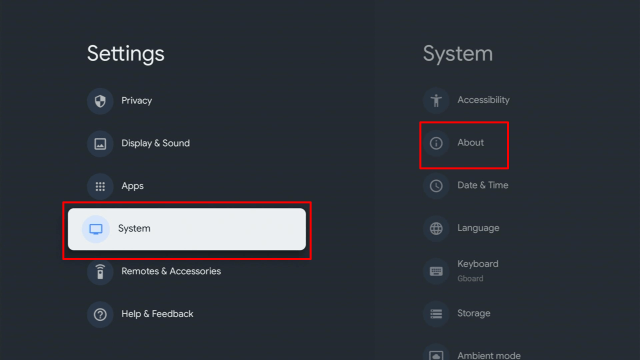
3. Once in Settings, scroll down to System > About.

12a


4. Then, Scroll down to Android TV OS Build & click on it seven times until it goes into Developer options and it’s gonna say “you are now a developer”


5. Click the Back Button and you can now see the Developer options.


6. Go back to Settings and select > Apps.


7. Then, scroll down to Security & Restriction – turn on Unknown Sources.


8. Go to Downloader and toggle it on.

FilmPlus11


There you go! You have now jailbroken your Google Chromecast. You are now allowed to install apps that are unavailable within Google’s Play Store.


YOUR INTERNET ACTIVITY IS BEING WATCHED

ReviewVPN cannot attest to the legality, security and privacy of the applications discussed on this site. It is highly recommended that you use a VPN service while streaming or using Kodi.

Currently, your IP 216.73.216.208 is visible to everyone and your Browser is being tracked by Advertisers & ISP Provider.

Save 65% Now

Limited Time Offer

Here are the main reasons why you must use a VPN:

  • Your activities are hidden from your ISP, the government, and from the apps you are using.
  • You can access additional movies and TV streams.
  • ISP attempts to throttle are thrwarted thus reducing buffering issues.
  • Geographically restricted content like Netflix and Hulu can be unblocked.

A VPN works be replacing your ISP-assigned IP address and creating an encrypted tunnel. We recommend the no log service offered by IPVanish. It works well on a Firestick and offers the fastest possible speeds.

Special Limited Time Offer - Get IPVanish


Alternative App Store Installation On A Jailbroken Chromecast

After you installed the Downloader app, you can now install an alternative application store – dubbed as the Aptoide TV. This third-party app store provides tons of apps that aren’t available within Google’s Play Store

However, Aptoide is like the popular alternative application store – Aurora Store.

Follow the simple procedure below to install the Aptoide TV App Store on your Google Chromecast:


  • Open the Downloader app

FilmPlus13


URL bar


  • Then, wait for the Aptoide TV installation

App Store


  • Click Install

Aptoide TV.


  • Click Open

Aptoide TV.


  • There you go! You’ve successfully installed the Aptoide TV app store on your jailbroken Google Chromecast.

Aptoide TV.


Jailbreak Google Chromecast Benefits

A jailbroken Google Chromecast will give you access and stream from popular streaming portals, such as Netflix, Crackle, and Hulu. Why jailbreak a Google Chromecast? The answer is that you can access & stream different popular subscription media content for free.

You may be familiar with jailbreaking numerous streaming devices, such as Amazon Firestick, the similar way you can jailbreak the Google Chromecast. Nonetheless, for immediate access to geo-restricted content, we have options that fill the gap between other popular streaming content.

Also, with a jailbroken Google Chromecast, you have the option to stream Pirated videos on your streaming device. Popcorn Times recently announced their services for  Google Chromecast to stream pirated content. However, streaming pirated videos is illegal and is not recommended.


Always Use A VPN While Using The Google Chromecast

Using Virtual Private Network or VPN can be very handy on a Google Chromecast. Thanks to a VPN service, you can access platforms or services that are unavailable in your country or bypass the meaningless restrictions that several platforms sometimes impose. When you use Google Chromecast, an encrypted Virtual Private Network service provider is highly recommended to hide your online activities, identity, and location. However, many Google Chromecast users prefer Surfshark VPN service for privacy, price, and speed.

Providing the fastest server speeds and amazing live chat support, Surfshark VPN service is also an easy-to-use VPN app. Nonetheless, make sure to enable the VPN service when you are streaming on the internet.


Surfshark Features:

  • Unblocks Netflix, Disney+, and lots more
  • Unlimited devices
  • 30-day money-back guarantee
  • Robust encryption
  • Great download speed
  • Zero log policy
  • Great customer service
  • Compatible with Android, Windows, Linux, iOS, Mac, and other routers


Install Surfshark VPN on Google Chromecast with Screenshots

1. Click Home on your remote then select Search.

Surfshark VPN on Google Chromecast step 1


2. On the search bar, you can use google voice assistant to find Surfshark VPN or by typing it.

Surfshark VPN on Google Chromecast step 2


3. Click on Surfshark VPN icon.

Surfshark VPN on Google Chromecast step 3


4. Click on Install.

Surfshark VPN on Google Chromecast step 4


5. Surfshark VPN is now installing just wait for it until it’s done.

Surfshark VPN on Google Chromecast step 5


6. Click open.

Surfshark VPN on Google Chromecast step 6


7. Input your username and password to log in

Surfshark VPN on Google Chromecast step 7

Learn more about Surfshark and Grab the Best Surfshark Deal Now!


Best Surfshark Deal


Other VPNs to Consider

NordVPN (Best for Streaming)

Best Features

  • 5000+ Server in 50+ Countries 
  • Military-Grade Encryption
  • Fast Connection Speed
  • Suitable to a lot of devices
  • No-Log Policy

Prices
  • Complete $5.89 per month (64% Discount)
  • Plus $4.59 per month (56% Discount)
  • Standard $3.69 per month (55% Discount)

Best Features

  • 750+ High-speed VPN Servers in 43 Locations
  • Military-Grade Encryption
  • Fastest HD Streaming and Gaming
  • 30-Day Money-Back Guarantee
  • Unlimited Data & Devices
  • No-Log Policy

Prices
  • 3 Years $1.99 per month (82% Discount)
  • 1 Years $3.29 per month (70% Discount)
  • 1 Month $10.99 per month

IPVanish VPN (Most Secure)

Best Features

  • 1200+ Servers in 60+ Countries around the world
  • Unlimited Connections
  • No-Log Policy
  • Top Notch Military-Grade VPN Protocols and Encryptions
  • 100% Safe and Secured
  • Most Trusted VPN
  • Best VPN for Firestick
  • 30-Day Money-Back Guarantee

Prices
  • Yearly $3.99 per month (63% Discount) – 30 days risk free + Ransomware & Malware Protection
  • Quarterly $5.32 per month (51% Discount)
  • Monthly $10.99 per month


For more VPN discounts, go to ReviewVPN Deals and purchase the best VPN for you.

Click here to get the lowest price on Surfshark through our exclusive limited-time offer.


Jailbreak Chromecast FAQs

There you go! You have now jailbroken your Google Chromecast. You are now allowed to install apps that are unavailable within Google’s Play Store.

  • It is not illegal to jailbreak your Google Chromecast. Nonetheless, what you access or stream online after jailbreaking Google Chromecast might be illegal. However, you must always use a Virtual Private Network or VPN so you can use your streaming device anonymously on the internet.


What are the requirements in using a jailbroken Google Chromecast?

  • Most of the apps that run on a jailbroken Google Chromecast need high-speed Internet. Also, you must register for a free Google account as it is needed to log into the streaming gadget when turning it on for the first time.


Can I undo the jailbreak on my Google Chromecast?

  • Yes, you must perform a complete reset on the Google Chromecast through the settings panel.


Will I damage my Chromecast with Google TV if I jailbreak it?

  • No, you are not manipulating Google Chromecast’s hardware in any way, so you’ll be doing no harm to the device by jailbreaking it.


Wrapping Up

After you jailbreak your Google Chromecast, you can stream the best content on your TV as a jailbroken Chromecast provides amazing movies and TV shows. You can also side-load apps onto your Chromecast device that are not available on the Google Play Store. However, you must always use a VPN while streaming online.

Installing Football Plus On Firestick

Football Plus Overview

In this article, we will be divulging important details on how to install Football Plus on Firestick and other devices that run on the android platform.


Football Plus is the best sports app for football fanatics, everything about football you can find in this app. It has an interactive table to rank teams in every league. The Football Plus APK lets you click on the name of any team in the league rankings and will show you everything about the team, such as results of previous games, dates of matches, news of the team, and everything written about the Football team on the internet. All players enrolled in this team have an icon for each player showing all news and each player’s official accounts on social media as well as everything written about the player in the search engine. 

Football Plus also provides match schedules and each match’s live results. You can view results and the ranking of teams’ changes from the beginning ‘till the end of the game.


Football Plus App Installation on FireStick

  • Turn on the FireStick device, go to the top menu bar and choose > Settings
  • Click My Fire TV > Developer Options
  • Enable Apps from Unknown Sources 
  • Go back to FireStick’s home screen and go to the menu bar
  • Go to the Search option
  • Search & install the Downloader app on FireStick
  • After installing the Downloader app, launch it
  • Enter the Football Plus app download URL/APK – https://reviewvpn.com/fplus
  • Click GO
  • Football Plus app’s APK file will download
  • Click on Install
  • Open the Football Plus app after installing it
  • Now, you have successfully installed the Football Plus app on FireStick


ANONYMOUSLY

Is Football Plus Safe and Virus-free?

We tested this app using VirusTotal and found no threats or any malicious files and malware.

Despite having good results, we still need to be vigilant in protecting our privacy while streaming.

A Virtual Private Network or VPN will definitely help us maintain our security and anonymity while using Football Plus.

Here’s how you can Install The Best VPN For Firestick and All Devices.


Step by Step Instructions with Screenshots

1. Install the Downloader app and jailbreak your firestick by enabling unknown sources. To learn more about the procedure, you may read How to Install the Downloader App and Enable Unknown Sources.


2. After installing the Downloader app, launch it

Install the UPlayer App on Firestick Step 13


3. Enter the Football Plus app download URL/APK – https://reviewvpn.com/fplus

Football Plus


4. Football Plus app’s APK file will download

Football Plus


5. Click on Install

Football Plus


6. Open the Football Plus app after installing it

Football Plus


7. Now, you have successfully installed the Football Plus app on FireStick

Football Plus


YOUR INTERNET ACTIVITY IS BEING WATCHED

ReviewVPN cannot attest to the legality, security and privacy of the applications discussed on this site. It is highly recommended that you use a VPN service while streaming or using Kodi.

Currently, your IP 216.73.216.208 is visible to everyone and your Browser is being tracked by Advertisers & ISP Provider.

Save 65% Now

Limited Time Offer

Here are the main reasons why you must use a VPN:

  • Your activities are hidden from your ISP, the government, and from the apps you are using.
  • You can access additional movies and TV streams.
  • ISP attempts to throttle are thrwarted thus reducing buffering issues.
  • Geographically restricted content like Netflix and Hulu can be unblocked.

A VPN works be replacing your ISP-assigned IP address and creating an encrypted tunnel. We recommend the no log service offered by IPVanish. It works well on a Firestick and offers the fastest possible speeds.

Special Limited Time Offer - Get IPVanish


Legal Disclaimer: ReviewVPN.com does not encourage or endorse any illegal activity involved in the usage of services and applications referenced on this site. We do not verify the licensing agreements of services. The end-user is wholly responsible for ensuring that any media accessed through these services does not violate copyright and/or licensing laws. ReviewVPN does not promote, link to, or receive compensation from any Apps and IPTV services.


Install Surfshark on Firestick

Best Surfshark Deal


Moving the newly installed app to the front

  • Go back to Fire Stick Home Screen (you may click the Home Button on the Fire Stick remote)
  • Go to Your Apps & Games/Channels
  • Scroll once to the left
  • Click See All
  • All the newly installed apps are located at the bottom – you can move the Football Plus by clicking the Options button (at the right side of the Home Button)
  • Click Move > move to front > and pick any spot you want to put the app


What Is Football Plus?

The Football Plus app allows you to watch all the international Football matches LIVE. It also lets you watch football live streaming (for FREE) of the classical match. You can download Football Plus free of charge with numerous advantages for all Soccer enthusiasts, such as:

  • Live streaming for all Football matches for free
  • Watch live match result and live football streaming
  • Stream live match information, which includes videos, starting lineup, highlights, and BET rate from well-known BetClick
  • Provides rankings, results, scores, of all the English as well as international championships


More About Soccer TV Apk

Football Plus provides access to major international competitions, such as the UEFA Champions League. The result of the game is updated in real-time, football fans will never miss any hottest moment from the Football Plus app

Football Plus does not only focus on Live football match information but also on live streaming of all football matches. All the matches from famous teams such as Chelsea, Manchester United,  Liverpool, Arsenal, Real Madrid, Barcelona, AC Milan, Bayern Munich, Galatasaray, PSG, and Manchester City will be live through Sopcast (a direct streaming and broadcast system based on P2P technology). Thus, Football Plus will let you enjoy your favorite football match on your Firestick or any other Android streaming device.


 Football Plus Key Features 

  • The app provides Soccer or Football Matches 
  • Apart from football, you can also watch other TV programs
  • Firestick users don’t need to purchase any subscription
  • To make the app responsive, experts hosted files over faster servers
  • Custom built-in video players are also integrated for smooth streaming
  • The Football Plus never support third-party advertisements
  • The app’s user interface is very easy to use


Best Sports Channels Football Plus

  • Supersport Channels
  • Sky Sports HD 4K
  • Sky Sports UK Channels
  • BT Sports Channels
  • FOX Sports Channels
  • ESPN Sports Channels
  • Bein Sports Max
  • Bein Sports Premium
  • Star Sports Channels
  • Bein Sports SD HD 4K
  • Bein Sports France
  • Dazn Sports
  • Ten Sports
  • Sports Tv Portugal
  • Liga Sports Spain


Always Use A VPN While Using The Firestick

Using Virtual Private Network or VPN can be very handy on a Fire TV Stick. Thanks to a VPN service, you can access platforms or services that are unavailable in your country or bypass the meaningless restrictions that several platforms sometimes impose. When you use Fire TV Stick, an encrypted Virtual Private Network service provider is highly recommended to hide your online activities, identity, and location. Many FireStick users prefer Surfshark services for privacy, price, and speed.


Providing the fastest server speeds and amazing live chat support, Surfshark is also an easy-to-use VPN app. Make sure to enable the VPN service when you are streaming on the internet.


Surfshark Features:

  • Unblocks Netflix, Disney+, and lots more
  • unlimited devices
  • 30-day money-back guarantee
  • Robust encryption
  • Great download speed
  • Zero log policy
  • Great customer service
  • Compatible with Android, Windows, Linux, iOS, Mac, and other routers

Note: For more information about Surfshark, please read our Surfshark Review.


Grab your subscription now!


How to Install Surfshark VPN on Firestick

If your Firestick still has the older interface, read this article to learn how to update it: Update Firestick Interface.

Follow our screenshots below to install the SurfShark VPN app on your Fire TV stick.

1. Go to the Home screen of your Firestick.

step 1 Install Surfshark VPN on Firestick


2. Navigate towards the Find tab. Press the Search button from the resulting dropdown.

step 2 Install Surfshark VPN on Firestick


3. Type in the keyword of SurfShark and select from the suggestions that will appear.

step 3 Install Surfshark VPN on Firestick


4. Click the official SurfShark icon from your search results.

step 4 Install Surfshark VPN on Firestick


5. Press the Download (You own it) button.

step 5 Install Surfshark VPN on Firestick


6. The SurfShark VPN installer will download on your device.

step 6 Install Surfshark VPN on Firestick


7. SurfShark VPN’s app will automatically install itself on your Fire TV stick.

step 7 Install Surfshark VPN on Firestick


8. Press the Open button after completing SurfShark VPN’s installation process.

step 8 Install Surfshark VPN on Firestick


9. Please wait for the SurfShark VPN to load its user interface.

step 9 Install Surfshark VPN on Firestick


10. You can now log in with your SurfShark VPN account credentials.

step 10 Install Surfshark VPN on Firestick

Learn more about Surfshark and Grab the Best Surfshark Deal Now!


Install Surfshark on Firestick

Best Surfshark Deal


Other VPNs to Consider

NordVPN (Best for Streaming)

Best Features

  • 5000+ Server in 50+ Countries 
  • Military-Grade Encryption
  • Fast Connection Speed
  • Suitable to a lot of devices
  • No-Log Policy

Prices
  • Complete $5.89 per month (64% Discount)
  • Plus $4.59 per month (56% Discount)
  • Standard $3.69 per month (55% Discount)

Best Features

  • 750+ High-speed VPN Servers in 43 Locations
  • Military-Grade Encryption
  • Fastest HD Streaming and Gaming
  • 30-Day Money-Back Guarantee
  • Unlimited Data & Devices
  • No-Log Policy

Prices
  • 3 Years $1.99 per month (82% Discount)
  • 1 Years $3.29 per month (70% Discount)
  • 1 Month $10.99 per month

IPVanish VPN (Most Secure)

Best Features

  • 1200+ Servers in 60+ Countries around the world
  • Unlimited Connections
  • No-Log Policy
  • Top Notch Military-Grade VPN Protocols and Encryptions
  • 100% Safe and Secured
  • Most Trusted VPN
  • Best VPN for Firestick
  • 30-Day Money-Back Guarantee

Prices
  • Yearly $3.99 per month (63% Discount) – 30 days risk free + Ransomware & Malware Protection
  • Quarterly $5.32 per month (51% Discount)
  • Monthly $10.99 per month


For more VPN discounts, go to ReviewVPN Deals and purchase the best VPN for you.


Football Plus Alternatives

  • Tea Sports Live
  • Sports TV
  • Dofusports Live Streaming
  • LiveSportsTV
  • Vola Sports


FAQs

Is the Football Plus APK safe to download, install, & use?

  • Football Plus app is completely safe to download & install on Android devices – such as Amazon Firestick, Google Chromecast,  smartphones, and tablets.


Is the Football Plus legal?

  • Yes, Football Plus is legal


Is Football Plus safe?

  • Yes, Football Plus is completely safe to use.


Conclusion

The Football Plus app is one of the best live streaming apps for watching your favorite soccer or football matches. This app also has football match information on all football matches which makes it more special to many football enthusiasts. Please feel free to let us know what you think of the Football Plus app in the comments section below.

If you want to download the Football Plus app, follow the installation process provided above.


What Is Your Favorite Streaming App? Cast Your Vote Below.

How to Install TV Bro Browser on Google Chromecast

TV Bro Browser

Concerning the internet, browsers play a significant role in accessing & browsing essential stuff. However, when it comes to streaming devices, the browsing choices are very few. Although streaming devices come with various streaming apps, the developers showed no interest in developing a dedicated internet browser. Even the Google Chromecast with Google TV does not come along with a built-in browser, but you can sideload a web browser, such as TV Bro Browser, on Google Chromecast.


The TV Bro browser’s categories consist of the Favorites,  navigation bar, Download manager, Refresh, and Settings.


TV Bro is a popular internet browser and it’s functioning great. If you’re using a Google Chromecast with Google TV or any streaming device, below are the steps for the TV Bro browser installation on your video streaming device.


ANONYMOUSLY


Installing TV Bro browser On Google Chromecast

1. Turn on the Google Chromecast device.

Step 1 Google Chromecast home screen

2. On the upper right of the screen, choose > Settings.


3. Once in Settings, scroll down to System > About.

12a


4. Scroll down to Android TV OS Build & click on it seven times until it goes into Developer options and it’s gonna say “you are now a developer”.


5. Click the Back Button and you can now see the Developer options.


6. Go back to Settings and select > Apps.


7. Scroll down to Security & Restriction – turn on Unknown Sources.


8. Go to Downloader and toggle it on.

FilmPlus11


9. Press the Google Chromecast Home button.

FilmPlus12


10. Open the Downloader app.

FilmPlus13


11. Type in the TV Bro browser download URL/APK – https://reviewvpn.com/brob

TV Bro Browser


12. Wait for a few seconds for the file download process

TV Bro Browser


13. Click Install

TV Bro Browser


14. Select Install


Now, you’ve successfully installed the TV Bro browser on your Google Chromecast

Note: ReviewVPN.com does not host this APK file. It is hosted by Archive.org

What Is a TV Bro Browser?


TV Bro is an internet browser that lets you browse the web using your Google Chromecast or any Android-based device. The TV Bro lets you visit websites and also allows you to download. Tons of individuals choose the Puffin TV browser for their streaming devices, but since the web browser has been having issues – it makes TV Bro one of the best alternatives.


TV Bro Browser Features

  • Optimized for Android operating system (OS)
  • Free to use internet browser
  • Functions on all video streaming devices running Android OS
  • Voice search support
  • Simple navigation 
  • Quick page loading & rendering speed
  • Built-in download manager
  • Easy Settings configuration
  • Smooth video playback
  • Easy-to-use user interface
  • Support for tabs & bookmarks


Always Use A VPN While Using The Google Chromecast

Using Virtual Private Network or VPN can be very handy on a Google Chromecast. Thanks to a VPN service, you can access platforms or services that are unavailable in your country or bypass the meaningless restrictions that several platforms sometimes impose. When you use Google Chromecast, an encrypted Virtual Private Network service provider is highly recommended to hide your online activities, identity, and location. Many Google Chromecast users prefer Surfshark VPN service for privacy, price, and speed.

Providing the fastest server speeds and amazing live chat support, Surfshark VPN is also an easy-to-use VPN app. Make sure to enable the VPN service when streaming on the internet.

Surfshark Features:

  • Unblocks Netflix, Disney+, and lots more
  • It works on all unlimited simultaneous devices
  • 30-day money-back guarantee
  • Robust encryption
  • Great download speed
  • Zero log policy
  • Great customer service
  • Compatible with Android, Windows, Linux, iOS, Mac, and other routers


Install Surfshark VPN on Google Chromecast with Screenshots

1. Click Home on your remote then select Search.

Surfshark VPN on Google Chromecast step 1


2. On the search bar, you can use google voice assistant to find Surfshark VPN or by typing it.

Surfshark VPN on Google Chromecast step 2


3. Click on Surfshark VPN icon.

Surfshark VPN on Google Chromecast step 3


4. Click on Install.

Surfshark VPN on Google Chromecast step 4


5. Surfshark VPN is now installing just wait for it until it’s done.

Surfshark VPN on Google Chromecast step 5


6. Click open.

Surfshark VPN on Google Chromecast step 6


7. Input your username and password to log in

Surfshark VPN on Google Chromecast step 7

Learn more about Surfshark and Grab the Best Surfshark Deal Now!


Install Surfshark on Google Chromecast

Best Surfshark Deal


Other VPNs to Consider

NordVPN (Best for Streaming)

Best Features

  • 5000+ Server in 50+ Countries 
  • Military-Grade Encryption
  • Fast Connection Speed
  • Suitable to a lot of devices
  • No-Log Policy

Prices
  • Complete $5.89 per month (64% Discount)
  • Plus $4.59 per month (56% Discount)
  • Standard $3.69 per month (55% Discount)

Best Features

  • 750+ High-speed VPN Servers in 43 Locations
  • Military-Grade Encryption
  • Fastest HD Streaming and Gaming
  • 30-Day Money-Back Guarantee
  • Unlimited Data & Devices
  • No-Log Policy

Prices
  • 3 Years $1.99 per month (82% Discount)
  • 1 Years $3.29 per month (70% Discount)
  • 1 Month $10.99 per month

IPVanish VPN (Most Secure)

Best Features

  • 1200+ Servers in 60+ Countries around the world
  • Unlimited Connections
  • No-Log Policy
  • Top Notch Military-Grade VPN Protocols and Encryptions
  • 100% Safe and Secured
  • Most Trusted VPN
  • Best VPN for Firestick
  • 30-Day Money-Back Guarantee

Prices
  • Yearly $3.99 per month (63% Discount) – 30 days risk free + Ransomware & Malware Protection
  • Quarterly $5.32 per month (51% Discount)
  • Monthly $10.99 per month


For more VPN discounts, go to ReviewVPN Deals and purchase the best VPN for you.

Click here to get the lowest price on Surfshark through our exclusive limited-time offer.


Best Browsers for Chromecast with Google TV


  • Google Chrome
  • Puffin
  • TV Bro
  • TVWeb Browser
  • Mozilla Firefox
  • Web Browser for Android TV

Best websites Using TV Bro

ReviewVPN provides you a list of the best streaming websites that you can access utilizing the TV Bro browser on your Google Chromecast streaming device.


  • 50+ Best Free Movie Streaming Websites – 2021 Update
  • Free TV Show Websites
  • Top Free Sports Apps
  • Top Live TV Apps
  • List of Browsers Available on Firestick
  • Top Filelinked Codes


YOUR INTERNET ACTIVITY IS BEING WATCHED

ReviewVPN cannot attest to the legality, security and privacy of the applications discussed on this site. It is highly recommended that you use a VPN service while streaming or using Kodi.

Currently, your IP 216.73.216.208 is visible to everyone and your Browser is being tracked by Advertisers & ISP Provider.

Save 65% Now

Limited Time Offer

Here are the main reasons why you must use a VPN:

  • Your activities are hidden from your ISP, the government, and from the apps you are using.
  • You can access additional movies and TV streams.
  • ISP attempts to throttle are thrwarted thus reducing buffering issues.
  • Geographically restricted content like Netflix and Hulu can be unblocked.

A VPN works be replacing your ISP-assigned IP address and creating an encrypted tunnel. We recommend the no log service offered by IPVanish. It works well on a Firestick and offers the fastest possible speeds.

Special Limited Time Offer - Get IPVanish


FAQs


Is TV Bro legal?

Yes, TV Bro is legal to download, install, and use. Nonetheless, you can only browse & stream legal content in the public domain.


Is it safe?

Yes, the TV Bro browser is safe to use and has no viruses & malware. Nonetheless, since this is a third-party app, it’s recommended to use a Virtual Private Network or VPN so the app developers won’t be able to log your internet activities.


What devices can the TV Bro browser be installed on?

The TV Bro browser is compatible and functions the best with devices running the Android operating system, including Google Chromecast, Amazon Firestick, Kindle Fire Tablet, Nvidia Shield,  and Android TV Boxes.


Alternatives

Google Chrome – is a safe web browser and utilizes robust encryption protocols & tools to keep people’s data safe. Unlike other internet browsers, the Google Chrome browser allows you to download files from numerous websites. 


Firefox Web Browser – Firefox is a great internet browser, It has an app version available on Amazon’s App Store. After you install the Firefox Web Browser on your Google Chromecast, you can access popular video platforms, visit any website, and even search for content that you can play on your streaming device.


Silk Browser – It is one of the best web browsers for Google Chromecast because it doesn’t allow unnecessary advertisements. In addition, this browser lets you access the Best Free Movie Websites.


Puffin TV-Browser – is a good internet browser that you can download, install, & use for free. It works great on devices that run the Android OS. Whether you’re watching videos or want to listen to your favorite music, it’s a good browser to use.


Wrapping Up

It’s quite easy to install the TV Bro Browser on Google Chromecast, and the methods outlined above should really help you do so. After installing TV Bro on Google Chromecast, you’ll be able to boost your home entertainment by streaming almost anything you want. 

Nonetheless, Always remember to use A VPN every time you use your Google Chromecast. Please feel free to let us know what you think of the TV Bro Browser in the comments section below.

How to Install TV Bro Browser on Firestick

TV Bro Browser Overview

TV Bro is a free internet browser that functions great on the Amazon Firestick, Fire TV, Fire Cube. Many Firestick users have been experiencing problems with other web browsers and the TV Bro browser makes an ideal alternative. Whether you want to listen to music, watch movies or TV shows, or just surf the web, TV Bro is a robust internet browser.

The categories within the TV Bro browser consist of the Download manager, Favorites, Refresh, the navigation bar, and Settings.

TV Bro quickly became a well-known web browser and as of this writing, it’s functioning great. If you’re using an Amazon Firestick, Fire TV, or any Fire device, below are the steps for installing the TV Bro browser on your streaming device.


TV Bro Browser App Installation on FireStick

  • Turn on the FireStick device, go to the top menu bar and choose > Settings
  • Click My Fire TV > Developer Options
  • Enable Apps from Unknown Sources 
  • Go back to FireStick’s home screen and go to the menu bar
  • Go to the Search option
  • Search & install the Downloader app on FireStick
  • After installing the Downloader app, launch it
  • Enter the TV Bro browser download URL/APK – https://reviewvpn.com/brob
  • TV Bro browser app’s APK file will download
  • Click on Install
  • Open the TV Bro browser after installing it
  • Now, you have successfully installed the TV Bro browser on FireStick


ANONYMOUSLY


Step by Step Instructions with Screenshots

Install the Downloader app and jailbreak your firestick by enabling unknown sources. To learn more about the procedure, you may read How to Install the Downloader App and Enable Unknown Sources.

1.  After installing the Downloader app, launch it

Install the UPlayer App on Firestick Step 13

2. Enter the TV Bro browser download URL/APK – https://reviewvpn.com/brob

TV Bro Browser

3. TV Bro browser app’s APK file will download

TV Bro Browser

4. Select install

TV Bro Browser

5. Tap install

TV Bro Browser

6. Choose Allow

TV Bro Browser

7. Click Open

8. Now, you have successfully installed the TV Bro browser on FireStick


Install Surfshark on Firestick

Best Surfshark Deal


Moving the newly installed app to the front

  • Go back to Fire Stick Home Screen (you may click the Home Button on the Fire Stick remote)
  • Go to Your Apps & Games/Channels
  • Scroll once to the left
  • Click See All
  • All the newly installed apps are located at the bottom – you can move the TV Bro browser by clicking the Options button (at the right side of the Home Button)


YOUR INTERNET ACTIVITY IS BEING WATCHED

ReviewVPN cannot attest to the legality, security and privacy of the applications discussed on this site. It is highly recommended that you use a VPN service while streaming or using Kodi.

Currently, your IP 216.73.216.208 is visible to everyone and your Browser is being tracked by Advertisers & ISP Provider.

Save 65% Now

Limited Time Offer

Here are the main reasons why you must use a VPN:

  • Your activities are hidden from your ISP, the government, and from the apps you are using.
  • You can access additional movies and TV streams.
  • ISP attempts to throttle are thrwarted thus reducing buffering issues.
  • Geographically restricted content like Netflix and Hulu can be unblocked.

A VPN works be replacing your ISP-assigned IP address and creating an encrypted tunnel. We recommend the no log service offered by IPVanish. It works well on a Firestick and offers the fastest possible speeds.

Special Limited Time Offer - Get IPVanish


What Is a TV Bro Browser?

TV Bro is a web browser that allows you to browse the internet on your Android-based device. Not only does the TV Bro let you visit websites but it also lets you download. A lot of people choose the Puffin TV browser for their Android TV devices, but since the browser has been experiencing problems – it makes TV Bro a great replacement.


Features of TV Bro Browser

  • Free to use the internet browser
  • Optimized for Android operating system (OS)
  • Simple navigation 
  • Voice search support
  • Easy Settings configuration
  • Built-in download manager
  • Easy-to-use user interface
  • Smooth video playback
  • Functions on all video streaming devices running Android OS
  • Quick page loading & rendering speed
  • Support for tabs & bookmarks


Always Use A VPN While Using The Firestick

Using Virtual Private Network or VPN can be very handy on a Fire TV Stick. Thanks to a VPN service, you can access platforms or services that are unavailable in your country or bypass the meaningless restrictions that several platforms sometimes impose. When you use Fire TV Stick, an encrypted Virtual Private Network service provider is highly recommended to hide your online activities, identity, and location. Many FireStick users prefer Surfshark services for privacy, price, and speed.

Providing the fastest server speeds and amazing live chat support, Surfshark is also an easy-to-use VPN app. Make sure to enable the VPN service when you are streaming on the internet.


Surfshark Features:

  • Unblocks Netflix, Disney+, and lots more
  • It works on all unlimited simultaneous devices
  • 30-day money-back guarantee
  • Robust encryption
  • Great download speed
  • Zero log policy
  • Great customer service
  • Compatible with Android, Windows, Linux, iOS, Mac, and other routers


Grab your subscription now!

Click here to get the lowest price on Surfshark through our exclusive limited-time offer.


How to Install Surfshark VPN on Firestick

If your Firestick still has the older interface, read this article to learn how to update it: Update Firestick Interface.

Follow our screenshots below to install the Surfshark VPN app on your Fire TV stick.

1. Go to the Home screen of your Firestick.

step 1 Install Surfshark VPN on Firestick


2. Navigate towards the Find tab. Press the Search button from the resulting dropdown.

step 2 Install Surfshark VPN on Firestick


3. Type in the keyword of Surfshark and select from the suggestions that will appear.

step 3 Install Surfshark VPN on Firestick


4. Click the official Surfshark icon from your search results.

step 4 Install Surfshark VPN on Firestick


5. Press the Download (You own it) button.

step 5 Install Surfshark VPN on Firestick


6. The Surfshark VPN installer will download on your device.

step 6 Install Surfshark VPN on Firestick


7. Surfshark VPN’s app will automatically install itself on your Fire TV stick.

step 7 Install Surfshark VPN on Firestick


8. Press the Open button after completing Surfshark VPN’s installation process.

step 8 Install Surfshark VPN on Firestick


9. Please wait for the Surfshark VPN to load its user interface.

step 9 Install Surfshark VPN on Firestick


10. You can now log in with your Surfshark VPN account credentials.

step 10 Install Surfshark VPN on Firestick

Learn more about Surfshark and Grab the Best Surfshark Deal Now!


Install Surfshark on Firestick

Best Surfshark Deal


Other VPNs to Consider

NordVPN (Best for Streaming)

Best Features

  • 5000+ Server in 50+ Countries 
  • Military-Grade Encryption
  • Fast Connection Speed
  • Suitable to a lot of devices
  • No-Log Policy

Prices
  • Complete $5.89 per month (64% Discount)
  • Plus $4.59 per month (56% Discount)
  • Standard $3.69 per month (55% Discount)

Best Features

  • 750+ High-speed VPN Servers in 43 Locations
  • Military-Grade Encryption
  • Fastest HD Streaming and Gaming
  • 30-Day Money-Back Guarantee
  • Unlimited Data & Devices
  • No-Log Policy

Prices
  • 3 Years $1.99 per month (82% Discount)
  • 1 Years $3.29 per month (70% Discount)
  • 1 Month $10.99 per month

IPVanish VPN (Most Secure)

Best Features

  • 1200+ Servers in 60+ Countries around the world
  • Unlimited Connections
  • No-Log Policy
  • Top Notch Military-Grade VPN Protocols and Encryptions
  • 100% Safe and Secured
  • Most Trusted VPN
  • Best VPN for Firestick
  • 30-Day Money-Back Guarantee

Prices
  • Yearly $3.99 per month (63% Discount) – 30 days risk free + Ransomware & Malware Protection
  • Quarterly $5.32 per month (51% Discount)
  • Monthly $10.99 per month


For more VPN discounts, go to ReviewVPN Deals and purchase the best VPN for you.


Alternatives

Google Chrome – is a secure, safe web browser and utilizes strong encryption protocols & tools to keep your account data safe. Unlike other internet browsers on Amazon Firestick, the Google Chrome browser allows you to download files from different websites. 

Silk Browser – It is one of the best web browsers for Firestick because it doesn’t allow unnecessary advertisements to pop up on your screen. Also, Silk Browser lets you access the Best Free Movie Websites.

Firefox Web Browser – Firefox is an internet browser that has an app version available on Amazon’s App Store. After installing the Firefox Web Browser on your Firestick, you can access popular video websites (like YouTube), visit any website you want, and even search for content that can be played on the streaming stick.

Puffin TV-Browser – is an internet browser that is free to download, install, and use. It works well on devices running the Android operating system. Whether you’re watching videos, browsing the web, or want to listen to your favorite music, it is a good browser to use.


What’s New On Tv Bro Browser

  • Several major and minor bugs fixed
  • Adblocker added
  • Localizations added


FAQs

Is TV Bro legal?

Yes, it is completely legal to download, install, and use. Nonetheless, you are only allowed to browse & stream legal content in the public domain.


Is it safe?

Yes, the TV Bro browser is safe to use and has no viruses & malware. Nonetheless, since this is a third-party app, it’s recommended to use a Virtual Private Network or VPN so the app developers won’t be able to log your internet activities.


What devices can the TV Bro browser be installed on?

The TV Bro browser is compatible and functions the best with devices running the Android operating system, including Amazon Firestick, Fire TV Cubes, Nvidia Shield, Kindle Fire Tablet,  as well as other Android TV Boxes.


Install Surfshark on Firestick

Best Surfshark Deal


Best Websites Using TV Bro

ReviewVPN has created a list of the best streaming websites that you can access using the TV Bro browser on your Firestick streaming device.

  • 50+ Best Free Movie Streaming Websites – 2021 Update
  • Top Free Sports Apps
  • Free TV Show Websites
  • Top Live TV Apps
  • Best Firestick Apps
  • Top Filelinked Codes
  • List of Browsers Available on Firestick


Wrapping Up

It’s quite easy to install the TV Bro Browser on Firestick, and the methods outlined above should really help you do so. After installing TV Bro on Firestick, you’ll be able to boost your home entertainment by streaming almost anything you want. Nonetheless, Always remember to use A VPN every time you use your Firestick. Please feel free to let us know what you think of the TV Bro Browser in the comments section below.

Amazon Prime Video Error – “This Title Isn’t Available in Your Location”

Overview About The Article

In this article, we will tell you what to do when you experience the “this title isn’t available in your location” error on Amazon Prime Video.

Amazon Prime Video is one of the official Amazon apps. Like Netflix, it offers thousands of award-winning and popular movies, and tv series. Most of them are original Amazon Prime shows.

This streaming service is not for free. Amazon Prime is a subscription-based platform mostly used in the US. The price of Amazon Prime is $13 per month or $199 a year. This includes all the other features of Prime like AmazonFresh. But if you only want to use Amazon Prime Video, the payment is only $9 per month.


If you are going to travel abroad, you will find it hard to stream some titles from Prime Video. You will experience an error that says, “this title isn’t available in your location”.


Why are you Experiencing This Amazon Prime Error?

You are experiencing the “this title isn’t available in your location” error because of geo-restriction. Most features and content of apps like Amazon Prime Video are only available in specific countries.

Actually, Amazon Prime Video is available in over 200 countries. But the content varies depending on location. Geo-restriction implies the imposed licensing restrictions per country.

Since Amazon Prime Video originated in the USA, the content library available in the US probably has the most to offer.

In a simpler explanation, if you want to access a US-only show on Amazon Prime Video, but you are not located in any of its states, you will surely experience this error.


ANONYMOUSLY


Other Possible Reasons Why You Experience the “this title isn’t available in your location” on Amazon Prime Video

Aside from location issues, there might still be other reasons why you are experiencing this “this title isn’t available in your location” error. Take a look at this list of possibilities:

  • It is possible to experience such errors when you change your payment method. If you use a credit card number that is available in a different country, you are to experience the “this title isn’t available in your location” error from Amazon.
  • By using software that blocks information to destroy location issues. Examples of this software are Firewalls, Anti-virus, and Browser extensions.
  • If you are using a VPN that does not work really well with Amazon Prime Video or is currently connected to a country with no access to Amazon Prime Video. Please take note that not all VPNs work with Amazon.


How to Remove the “this title isn’t available on your location” error on Amazon Prime Video

To remove this error, you need to have a good and working VPN for Amazon Prime Video. You can change your IP address through your VPN. This means changing your internet location. No need to travel, your VPN will serve as a bridge for you. It will connect you to another country’s server like the USA. You can finally access the title that formerly has an error.

The question for you right now is to know which VPN to use.

SurfShark VPN is the best VPN that can unblock almost all streaming platforms. This is why we recommend using this to remove the error with Amazon Prime.

There are only a few VPNs that work well with Amazon Prime Video and they are as follows:


Other Great Features of Surfshark

https://get.surfshark.net/aff_c?offer_id=865&aff_id=12312

  • This VPN boasts 3,200 VPN servers in 65 locations all over the world.
  • Surfshark’s VPN protocols work great and can actually adjust depending on your device type.
  • No-log policy is being followed by Surfshark. You don’t have to worry about your streaming activities because it does not record them.
  • Surfshark gives another layer of protection from your Internet Service Provider (ISP).
  • This prevents bandwidth throttling when you access content that requires higher internet speed.
  • By connecting to other servers, you can access content only available in that area.
  • Stops malware entry.
  • You can use one Surfshark account on different devices at one time.
  • Surfshark safely encrypts your data.
  • Makes your internet speed faster.
  • Supports torrenting
  • Prevents Firestick Buffering and Kodi Buffering


Grab your subscription now!

Best Surfshark Deal


How to Install Surfshark VPN on Firestick

If your Firestick still has the older interface, read this article to learn how to update it: Update Firestick Interface.

You can download Surfshark directly from the Amazon App store. It will be easy for you to find Surfshark with your Firestick’s Find feature. Refer to our screenshots below.

1. Go to the Home screen of your Firestick.

step 1 Install Surfshark VPN on Firestick


2. Navigate toward the Find tab. Press the Search button from the resulting dropdown.

step 2 Install Surfshark VPN on Firestick


3. Type in the keyword of SurfShark and select from the suggestions that will appear.

step 3 Install Surfshark VPN on Firestick


4. Click the official SurfShark icon from your search results.

step 4 Install Surfshark VPN on Firestick


5. Press the Download (You own it) button.

step 5 Install Surfshark VPN on Firestick


6. The SurfShark VPN installer will download on your device.

step 6 Install Surfshark VPN on Firestick


7. SurfShark VPN’s app will automatically install itself on your Fire TV stick.

step 7 Install Surfshark VPN on Firestick


8. Press the Open button after completing SurfShark VPN’s installation process.

step 8 Install Surfshark VPN on Firestick


9. Please wait for the SurfShark VPN to load its user interface.

step 9 Install Surfshark VPN on Firestick


10. You can now log in with your SurfShark VPN account credentials.

step 10 Install Surfshark VPN on Firestick

Learn more about Surfshark and Grab the Best Surfshark Deal Now!


Install Surfshark on Firestick

Best Surfshark Deal


Other VPNs to Consider

NordVPN (Best for Streaming)

Best Features

  • 5000+ Server in 50+ Countries 
  • Military-Grade Encryption
  • Fast Connection Speed
  • Suitable to a lot of devices
  • No-Log Policy

Prices
  • Complete $5.89 per month (64% Discount)
  • Plus $4.59 per month (56% Discount)
  • Standard $3.69 per month (55% Discount)

Best Features

  • 750+ High-speed VPN Servers in 43 Locations
  • Military-Grade Encryption
  • Fastest HD Streaming and Gaming
  • 30-Day Money-Back Guarantee
  • Unlimited Data & Devices
  • No-Log Policy

Prices
  • 3 Years $1.99 per month (82% Discount)
  • 1 Years $3.29 per month (70% Discount)
  • 1 Month $10.99 per month

IPVanish VPN (Most Secure)

Best Features

  • 1200+ Servers in 60+ Countries around the world
  • Unlimited Connections
  • No-Log Policy
  • Top Notch Military-Grade VPN Protocols and Encryptions
  • 100% Safe and Secured
  • Most Trusted VPN
  • Best VPN for Firestick
  • 30-Day Money-Back Guarantee

Prices
  • Yearly $3.99 per month (63% Discount) – 30 days risk free + Ransomware & Malware Protection
  • Quarterly $5.32 per month (51% Discount)
  • Monthly $10.99 per month


For more VPN discounts, go to ReviewVPN Deals and purchase the best VPN for you.

Click here to get the lowest price on Surfshark through our exclusive limited-time offer.


How to Access Amazon Prime Video Using Split Tunneling

There are some VPNs out there that cannot unblock SurfShark. IPVanish is one of them. And if you are currently using IPVanish wight now, you might still have problems using Amazon Prime outside the US.

The best thing you can do is to activate IPVanish Split Tunneling to access Amazon Prime.

Follow this simple steps to do so.

1. Launch your IPVanish app and click on the Settings button (gearwheel icon) on the upper right portion.

IPVanish Secret Settings (1)


2. Scroll down to the Split Tunneling option.

IPVanish Secret Settings (2)


3. You can choose between 3 types of apps namely: Recommended, User Apps, and System Apps.

IPVanish Secret Settings (3)


4. Choose and click any app that you would like to use your original IP address instead of the one provided by IPVanish.

Amazon Prime Video error This Title Isn't Available on Your Location

For more IPVanish features, read The Best IPVanish Secret Settings For You.


YOUR INTERNET ACTIVITY IS BEING WATCHED

ReviewVPN cannot attest to the legality, security and privacy of the applications discussed on this site. It is highly recommended that you use a VPN service while streaming or using Kodi.

Currently, your IP 216.73.216.208 is visible to everyone and your Browser is being tracked by Advertisers & ISP Provider.

Save 65% Now

Limited Time Offer

Here are the main reasons why you must use a VPN:

  • Your activities are hidden from your ISP, the government, and from the apps you are using.
  • You can access additional movies and TV streams.
  • ISP attempts to throttle are thrwarted thus reducing buffering issues.
  • Geographically restricted content like Netflix and Hulu can be unblocked.

A VPN works be replacing your ISP-assigned IP address and creating an encrypted tunnel. We recommend the no log service offered by IPVanish. It works well on a Firestick and offers the fastest possible speeds.

Special Limited Time Offer - Get IPVanish


Legal Disclaimer: ReviewVPN.com does not encourage or endorse any illegal activity involved in the usage of services and applications referenced on this site. We do not verify the licensing agreements of services. The end-user is wholly responsible for ensuring that any media accessed through these services does not violate copyright and/or licensing laws. ReviewVPN does not promote, link to, or receive compensation from any Apps and IPTV services.


Install Surfshark on Firestick

Best Surfshark Deal


Executive Summary

The “this title isn’t available in your location” error from Amazon Prime Video is caused by so many factors. Most of them are:

  1. Your current location
  2. The payment method, or credit card location
  3. By using a firewall, anti-virus, browser extension, or any software that blocks information to destroy location issues
  4. Your VPN is currently connected to a server where there is no access to Amazon Prime Video
  5. You are using a VPN that does not work with Amazon Prime Video

Not all VPNs can unblock Amazon Prime Video. The platform has a strict features that can detect the use of VPNs. Only a few can really bypass this restriction and best among others is none other than SurfShark. SurfShark VPN can unblock a huge number of streaming platforms that is why it is the best VPN for Firestick and all other devices.


Note: ReviewVPN.com does not own or operate any app nor does it endorse any. The main purpose of this article is strictly for educational purposes only.


Related Articles:

Is VPN Really Worth It?

Best VPN for Streaming

How to Sign Up For IPVanish VPN

Best VPN with Free Trials

The Best Hacks For Your Firestick and Fire TV (2023 Edition)

Firestick Hacks Overview

In this article, you will learn the best Firestick hacks to enjoy your streaming.


It is indeed sure that Firestick brings great entertainment to viewers. With so many apps, you can stream a lot of great shows.

Sometimes, it is difficult to stream a few contents depending on the app you are streaming. So with this article, we will tell you all the best hacks to level up your streaming.

This list of Firestick hacks includes some great apps, settings changes, and more. Some featured applications are part of the Best Legal Firestick apps and some are third-party. To install third-party apps, you need to Jailbreak Your Firestick and Install the Downloader App.

If your Firestick still has the older interface, read this article to learn how to update it: Update Firestick Interface.


ANONYMOUSLY


Best Firestick Hacks

Jailbreak Firestick

Jailbreaking your Amazon Firestick requires you to install third-party applications to your device. This might sound illegal, but it is actually not. And you can easily do this fast and easy.

1.  Click Home on your remote and scroll once to your Right. Click Setting (Gear Wheel Icon)

firestick hacks hack

2. Scroll down and to the right until you get to My Fire TV. Click on it.

firestick hacks hack


3. Select Developer options.

firestick hacks hack


4. Turn on ADB debugging and Apps from Unknown Sources.

firestick hacks hack


5. Click Turn On when the pop-up appears.

firestick hacks hack

Disable Firestick Monitoring To Your Streaming Activities

If you are new to Firestick, then this hack is actually a must. Don’t you know that Amazon can track your streaming activities? Only if you disable some settings can this stop.

1. Go to Settings

Firestick Settings (2)


2. Click on Preferences

Firestick Settings (3)


3. Go to Privacy Settings

Firestick Settings (7)


4. Turn off all the Settings Feature under Privacy Settings: Device Usage Data; Collect App Usage Data; Internat Based Ads.

Firestick Settings (8)


Firestick Settings (9)


Firestick Settings (10)


Firestick Settings (11)


Firestick Settings (12)


Firestick Settings (13)

For more settings that you need to disable, go to Firestick Settings That You Need to Disable Immediately After Updating to New Interface article.


Apps Used to Download Other Apps

The next firestick hack is about the apps used to download other apps. we’ve listed the top 3 for you.


Downloader

This is an official Amazon app that can be used as a browser and an app installer. By typing the link on its search engine, you can easily install the specific app you want. Here is how you install the Downloader app on your Firestick:

1.  Click Home, click FIND.

Step 6 jailbreak firestick


2. Click Search.

Step 7 jailbreak firestick


3. You can either say Downloader to your Alexa voice-enabled remote or start typing it. If you typed it, click on the suggestion when it appears.

Step 8 jailbreak firestick


4. Click on the Downloader icon

Step 9 jailbreak firestick


5. Click Download

Step 10 jailbreak firestick


6. Click on Open.

Step 11 jailbreak firestick


7. Click on Allow.

Install Virus Total Antivirus

If you want to learn more, read How to Install Downloader on Firestick.


Aptoide

One of the best FileLinked Alternatives is Aptoide. This app is an app store. It is actually one of the largest out there, in line with Google and Apple. To install it on your Firestick, you need to use Downloader first.


1. Install the Downloader app and jailbreak your firestick by enabling unknown sources. To learn more about the procedure, you may read How to Install the Downloader App and Enable Unknown Sources.


2. Open Downloader and type in https://reviewvpn.com/apt and click Go.

aptoide


3. Wait for the app to be downloaded.

aptoide


4. Choose Install.

aptoide


5. Wait for the app to be installed

aptoide


6. Select Open.

aptoide


7. Click OK.

aptoide


8. Choose Allow.

aptoide


9. You are now at the home page of the Aptoide TV app.

aptoide

To know more, Install Aptoide on Your Firestick.

Install Surfshark on Firestick

Best Surfshark Deal


AppLinked

Days after the shocking shut down of FileLinked, one of its clones exist in the streaming world. AppLinked is a new app that works almost the same as FileLinked. It is one of the new Firestick hacks that you can also apply to your streaming journey. This app also needs a Downloader for it to be installed.


1. Install the Downloader app and jailbreak your firestick by enabling unknown sources. To learn more about the procedure, you may read How to Install the Downloader App and Enable Unknown Sources.


2. Type in “https://i4studio.co.uk/applinked” then click “Go”.

AppLinked


3. Scroll down and click “Download”.

AppLinked 3


4. The file will then begin to download; simply wait for it to complete.

AppLinked 1


5. Click on “Install”.

AppLinked 3


6. Then click “Open”.

AppLinked 2


7. Click Allow.

AppLinked 5


8. There you have it, AppLinked is already installed on your device. 

AppLinked 4


If you want to know more, go to AppLinked Installation and Review article.


YOUR INTERNET ACTIVITY IS BEING WATCHED

ReviewVPN cannot attest to the legality, security and privacy of the applications discussed on this site. It is highly recommended that you use a VPN service while streaming or using Kodi.

Currently, your IP 216.73.216.208 is visible to everyone and your Browser is being tracked by Advertisers & ISP Provider.

Save 65% Now

Limited Time Offer

Here are the main reasons why you must use a VPN:

  • Your activities are hidden from your ISP, the government, and from the apps you are using.
  • You can access additional movies and TV streams.
  • ISP attempts to throttle are thrwarted thus reducing buffering issues.
  • Geographically restricted content like Netflix and Hulu can be unblocked.

A VPN works be replacing your ISP-assigned IP address and creating an encrypted tunnel. We recommend the no log service offered by IPVanish. It works well on a Firestick and offers the fastest possible speeds.

Special Limited Time Offer - Get IPVanish


Legal Disclaimer: ReviewVPN.com does not encourage or endorse any illegal activity involved in the usage of services and applications referenced on this site. We do not verify the licensing agreements of services. The end-user is wholly responsible for ensuring that any media accessed through these services does not violate copyright and/or licensing laws. ReviewVPN does not promote, link to, or receive compensation from any Apps and IPTV services.


Install Surfshark on Firestick

Best Surfshark Deal


Stream Almost Everything on Kodi

Kodi is a popular streaming app. You can use it for almost all types of streaming. That depends on the addon that you will use. Almost available legal and third-party apps on Firestick have an equivalent addon for Kodi.


1. Install the Downloader app and jailbreak your firestick by enabling unknown sources. To learn more about the procedure, you may read How to Install the Downloader App and Enable Unknown Sources.


2. Click on the URL line starting with https://kodi.tv/download and click Go.

type url in downloader


3.  Scroll down the screen and select the Android icon once. Be patient because it might take it 30 seconds or so to load the next screen

kodi download on firestick


4. Click on the 32-bit ARM version in the middle between Google Play and 64-bit ARM

kodi 32 bit arm download on firestick


5. The download should start (if it doesn’t, kick the screen a few times for good measure)

kodi downloading firestick install


6. Click INSTALL

click install on kodi in firestick


7.  After the Kodi App is installed, click OPEN (note, you will want to delete the APK in Downloader. You can do that at any point by going to Files and holding down on the APK file.)

click open firestick - kodi install on firestick


8. Click Allow

kodi allow access to files


9.  Your new Kodi install on your firestick should now load. Enjoy!

kodi 18.3 leia splash screen for kodi install on firestick


Stream Websites Using Your Firestick Device

The first firestick hack is that you can actually use your device to access websites. You can use the best browser on firestick which is the Amazon Silk Browser. It is an official Amazon app so you can install it directly.

1.  Click Home on your remote and click “Find”.


2. Click “Search”


3.Type in Silk Browser and choose this item that appears on the results.


4. Click on the Silk Browser Icon.


5. Choose Download


6. Select Open to launch the browser.


7. You can now start browsing using Amazon Silk Browser.


Install Surfshark on Firestick

Best Surfshark Deal


Other Best Firestick Hacks

Parental Controls

This feature allows you to manage that your kids cannot access some content. It is a good Firestick hack so whenever you are not home, you will not worry about your kids.

Best Firestick Settings (10)


Calibrate Display

This allows you to move your screen display to make it exactly fit your TV.

Best Firestick Settings (2)

To know more about these Settings, go to the Best Firestick Settings.


Stream Safely with a VPN

surfshark logo

Streaming could be dangerous to you because some apps and websites may see your IP address. Your identity can easily be known and your activities can be monitored. This is because your IP address serves as your online fingerprint.

You can filter this by changing your IP address through the use of a VPN. You just have to pick the best VPN for you. There are free VPNs but they are not completely safe. That is why we always suggest using the premium ones. And when we say premium VPN, Surfshark comes first. Through this, you’ll really get what you pay for.

Here are some of the best features and benefits you can get from Surfshark:

  • The VPN protocols of Surfshark are great and adjust depending on your device type.
  • It has a no-log policy.
  • Add a layer of protection from your Internet Service Provider to stop them from throttling your bandwidth.
  • It gives you a bridge that connects you to other regions or countries and access to geo-restricted content.
  • Prevents malware to corrupt your devices.
  • Let’s you use their service on multiple devices at the same time.
  • Encrypts your data.
  • Your internet speed will improve depending on your selected server.
  • This is the best VPN to use for torrenting.
  • Prevents Firestick Buffering and Kodi Buffering


Install Surfshark on Firestick

Best Surfshark Deal


How to Install Surfshark VPN on Firestick

If your Firestick still has the older interface, read this article to learn how to update it: Update Firestick Interface.

Follow our screenshots below to install the SurfShark VPN app on your Fire TV stick.

1. Go to the Home screen of your Firestick.

step 1 Install Surfshark VPN on Firestick


2. Navigate towards the Find tab. Press the Search button from the resulting dropdown.

step 2 Install Surfshark VPN on Firestick


3. Type in the keyword of SurfShark and select from the suggestions that will appear.

step 3 Install Surfshark VPN on Firestick


4. Click the official SurfShark icon from your search results.

step 4 Install Surfshark VPN on Firestick


5. Press the Download (You own it) button.

step 5 Install Surfshark VPN on Firestick


6. The SurfShark VPN installer will download on your device.

step 6 Install Surfshark VPN on Firestick


7. SurfShark VPN’s app will automatically install itself on your Fire TV stick.

step 7 Install Surfshark VPN on Firestick


8. Press the Open button after completing SurfShark VPN’s installation process.

step 8 Install Surfshark VPN on Firestick


9. Please wait for the SurfShark VPN to load its user interface.

step 9 Install Surfshark VPN on Firestick


10. You can now log in with your SurfShark VPN account credentials.

step 10 Install Surfshark VPN on Firestick

Learn more about Surfshark and Grab the Best Surfshark Deal Now!


Install Surfshark on Firestick

Best Surfshark Deal


Other VPNs to Consider

NordVPN (Best for Streaming)

Best Features

  • 5000+ Server in 50+ Countries 
  • Military-Grade Encryption
  • Fast Connection Speed
  • Suitable to a lot of devices
  • No-Log Policy

Prices
  • Complete $5.89 per month (64% Discount)
  • Plus $4.59 per month (56% Discount)
  • Standard $3.69 per month (55% Discount)

Best Features

  • 750+ High-speed VPN Servers in 43 Locations
  • Military-Grade Encryption
  • Fastest HD Streaming and Gaming
  • 30-Day Money-Back Guarantee
  • Unlimited Data & Devices
  • No-Log Policy

Prices
  • 3 Years $1.99 per month (82% Discount)
  • 1 Years $3.29 per month (70% Discount)
  • 1 Month $10.99 per month

IPVanish VPN (Most Secure)

Best Features

  • 1200+ Servers in 60+ Countries around the world
  • Unlimited Connections
  • No-Log Policy
  • Top Notch Military-Grade VPN Protocols and Encryptions
  • 100% Safe and Secured
  • Most Trusted VPN
  • Best VPN for Firestick
  • 30-Day Money-Back Guarantee

Prices
  • Yearly $3.99 per month (63% Discount) – 30 days risk free + Ransomware & Malware Protection
  • Quarterly $5.32 per month (51% Discount)
  • Monthly $10.99 per month


For more VPN discounts, go to ReviewVPN Deals and purchase the best VPN for you.

Click here to get the lowest price on Surfshark through our exclusive limited-time offer.


Wrapping Up

Firestick hacks are great. These help you to level up your streaming experience. To sum up, here are the best Firestick hacks for you:

  • Jailbreak Firestick
  • Disable Firestick Monitoring to Your Activities
  • Apps Used to Download Other Apps
  • Stream Almost Everything on Kodi
  • Stream Websites Using Your Firestick Device
  • Parental Control
  • Calibrate Display

We hope that this article was able to help you learn the best Firestick hacks for your streaming needs.

Note: ReviewVPN.com does not own or operate any app nor does it endorse any. The main purpose of this article is strictly for educational purposes only.

How to Install Black Panther Kodi Build

Overview

The article will help you how to install Black Panther Kodi Build.


Black Panther is a Kodi Build from the cMan’s Repository. This build offers you lots of content, including TV shows, Movies, Kids, Documentaries, and a list of supported addons. It has a great lineup of content to watch for free in a less buffering experience. This build also lets you stream on their content without even registering. 

It also comes with a simple and amazing interface that shows you thousands of content from different popular add-ons and a great category of popular and trending movies to watch. This is also a feature-rich build that is integrated with Real-Debrid and Trakt accounts. It will not disappoint you with its list of contents which provides you with high-quality streaming links. 


ANONYMOUSLY

How to Install Black Panther Kodi Build with Screenshot

Installing a Kodi build has a lot of processes to take. That is why we will guide you step by step on how you can install it on Kodi.

 Follow the following steps below. 

1. On your Firestick, open Kodi and go to Settings.

Install Black Panther Kodi Build 1


2. Select on System.

Install Black Panther Kodi Build 2


3. Click on the Add-ons menu and Turn ON Unknown Sources.

Install Black Panther Kodi Build 3


4. Select Yes when the box appears.

Install Black Panther Kodi Build 4


5. Go back one step and click on File Manager.

Install Black Panther Kodi Build 5


6. Click Add Source.

Install Black Panther Kodi Build 6


7. A box will pop up, so click on the ‘None’ option.

Install Black Panther Kodi Build 7


8. Type in http://cmanbuilds.com/repo and click OK.

Install Black Panther Kodi Build Step 8


9. Name the URL- cman or any other name you want to. Then select OK.

Install Black Panther Kodi Build Step 9


10. Go back and Select Add-ons.

Install Black Panther Kodi Build Step 10


11.  Click Install from zip file.

Install Black Panther Kodi Build Step 11


12. Choose cman or any other name you put.

Install Black Panther Kodi Build Step 12


13. Click  repository.cMaNWizard.zip

Install Black Panther Kodi Build Step 13


14. Wait for the message to appear and after that click the Install from repository.

Install Black Panther Kodi Build Step 14


15. Click cMaN’s Wizard Repository.

Install Black Panther Kodi Build Step 15


16. Go to Programs add-ons.

Install Black Panther Kodi Build Step 16


17. Choose cMaN Wizard.

Install Black Panther Kodi Build Step 17


18. Click Install.

Install Black Panther Kodi Build Step 18


19. Wait for a message to appear and click Version 1.0.9.

Install Black Panther Kodi Build Step 19


20. A box will pop up, select Continue.

Install Black Panther Kodi Build Step 20


21. Click Open Wizard.

Install Black Panther Kodi Build Step 21


22. Select Builds.

Install Black Panther Kodi Build Step 22


23. Scroll down and click Black Panther.

Install Black Panther Kodi Build Step 23


24. Select the Fresh Install.

Install Black Panther Kodi Build Step 24


25. When a box pop up, Tap Yes.

Install Black Panther Kodi Build Step 25


26. Wait for the Black Panther Kodi Build to download.

Install Black Panther Kodi Build Step 26


27. Tap Ok.

Install Black Panther Kodi Build Step 27


28. Exit your Kodi and reopen it again.

Install Black Panther Kodi Build Step 28


29. That’s it! You have successfully installed the Black Panther Kodi Build. 

Install Black Panther Kodi Build Step 29


YOUR INTERNET ACTIVITY IS BEING WATCHED

ReviewVPN cannot attest to the legality, security and privacy of the applications discussed on this site. It is highly recommended that you use a VPN service while streaming or using Kodi.

Currently, your IP 216.73.216.208 is visible to everyone and your Browser is being tracked by Advertisers & ISP Provider.

Save 65% Now

Limited Time Offer

Here are the main reasons why you must use a VPN:

  • Your activities are hidden from your ISP, the government, and from the apps you are using.
  • You can access additional movies and TV streams.
  • ISP attempts to throttle are thrwarted thus reducing buffering issues.
  • Geographically restricted content like Netflix and Hulu can be unblocked.

A VPN works be replacing your ISP-assigned IP address and creating an encrypted tunnel. We recommend the no log service offered by IPVanish. It works well on a Firestick and offers the fastest possible speeds.

Special Limited Time Offer - Get IPVanish


Legal Disclaimer: ReviewVPN.com does not encourage or endorse any illegal activity involved in the usage of services and applications referenced on this site. We do not verify the licensing agreements of services. The end-user is wholly responsible for ensuring that any media accessed through these services does not violate copyright and/or licensing laws. ReviewVPN does not promote, link to, or receive compensation from any Apps and IPTV services.


Install Surfshark on Firestick

Best Surfshark Deal


Features of Black Panther Kodi Build

Interface

  • Attractive and easy-to-use interface
  • No registration needed
  • Easy to navigate the interface without using mouse toggle
  • The time and date presented below


Content

  • It covers movies from the year 2014-2021
  • You can choose categories from the 4K one-click Section, Non-Debrid Section, Movies, Tv shows, Kids, Documentaries, and more. 
  • It has popular preloaded add ons such as Torque, Asgard, Black Lightning, Goto, Fen, Rogue One, Sport HD, TubiTV, YouTube, and more.
  • A great lineup of content in a wide variety of content, such as Sports, Tv shows, Live TV, Kids’ shows, and more. 
  • They regularly update the list of content to serve you fresh releases and trending shows. 
  • Well-organized categories and subcategories. 


Video Quality

  • HD and UHD 4K video quality
  • Available subtitles in multi-language
  • Playback and forward button
  • Real debrid Integration account from high quality streaming links
  • Integrated with Trakt account to monitor what you are watching.


Pros and Cons

Pros

  • No registration and subscription needed
  • Simple and easy to use interface
  • Lots of popular preloaded addons. 
  • It has a huge collection of regularly updated contents
  • Integrated with Trakt and Real Debrid account
  • Hd quality of videos to watch.

Cons

  • Some add-ons are not working 
  • You need to download the addon and the content before you can watch it,


Why do I need a VPN?

Surfshark vpn

Using Kodi Builds is not as safe as it can be. Whereas, some of the Kodi builds are served with some malicious files and unknown servers that might affect your device. Some Kodi users have experienced privacy and security issues. That is why we recommend using a Virtual Private Network to keep you protected from any of these.  

 One of the best VPNs that we can recommend when it comes to these kinds of issues is SurfShark as your best choice. This VPN uses a high standard of encryption and uncrackable security that will safeguard your identity and data. It has impressive security features of a US standard of AES-256-bit encryptions and supports IKEv2, OpenVPN, and L2TP/IPsec VPN protocols. If you want to know about the other service and features this VPN has, kindly read our  SurfShark Review.

Other features of SurfShark are: 

  • Prevent ISPs from interfering with your connection and speed up your internet.
  • It gives you unlimited bandwidth and makes your internet speed faster. 
  • Keep your identity anonymous to protect you from hackers, especially when you are using public wi-fi.
  • Destroys geo-block and gains access to different content globally.
  • Bypass censorship and restrictions.
  • Has a total of 3,200+ servers in 65 countries to choose from
  • 100% zero logs and no IP address leaks. 
  • Keep your file protected from harmful malware.


Grab your subscription now!

Click here to get the lowest price on SurfShark through our exclusive limited-time offer.


How to Install Surfshark on Firestick with Screenshots

If your Firestick still has the older interface, read this article to learn how to update it: Update Firestick Interface.

You can download Surfshark directly from the Amazon App store. It will be easy for you to find Surfshark with your Firestick’s Find feature. Refer to our screenshots below.

Follow our screenshots below to install the SurfShark VPN app on your Fire TV stick.

1. Go to the Home screen of your Firestick.

step 1 Install Surfshark VPN on Firestick


2. Navigate towards the Find tab. Press the Search button from the resulting dropdown.

step 2 Install Surfshark VPN on Firestick


3. Type in the keyword of SurfShark and select from the suggestions that will appear.

step 3 Install Surfshark VPN on Firestick


4. Click the official SurfShark icon from your search results.

step 4 Install Surfshark VPN on Firestick


5. Press the Download (You own it) button.

step 5 Install Surfshark VPN on Firestick


6. The SurfShark VPN installer will download on your device.

step 6 Install Surfshark VPN on Firestick


7. SurfShark VPN’s app will automatically install itself on your Fire TV stick.

step 7 Install Surfshark VPN on Firestick


8. Press the Open button after completing SurfShark VPN’s installation process.

step 8 Install Surfshark VPN on Firestick


9. Please wait for the SurfShark VPN to load its user interface.

step 9 Install Surfshark VPN on Firestick


10. You can now log in with your SurfShark VPN account credentials.

step 10 Install Surfshark VPN on Firestick

Learn more about Surfshark and Grab the Best Surfshark Deal Now!


Install Surfshark on Firestick

Best Surfshark Deal

Other VPNs to Consider

NordVPN (Best for Streaming)

Best Features

  • 5000+ Server in 50+ Countries 
  • Military-Grade Encryption
  • Fast Connection Speed
  • Suitable to a lot of devices
  • No-Log Policy

Prices
  • Complete $5.89 per month (64% Discount)
  • Plus $4.59 per month (56% Discount)
  • Standard $3.69 per month (55% Discount)

Best Features

  • 750+ High-speed VPN Servers in 43 Locations
  • Military-Grade Encryption
  • Fastest HD Streaming and Gaming
  • 30-Day Money-Back Guarantee
  • Unlimited Data & Devices
  • No-Log Policy

Prices
  • 3 Years $1.99 per month (82% Discount)
  • 1 Years $3.29 per month (70% Discount)
  • 1 Month $10.99 per month

IPVanish VPN (Most Secure)

Best Features

  • 1200+ Servers in 60+ Countries around the world
  • Unlimited Connections
  • No-Log Policy
  • Top Notch Military-Grade VPN Protocols and Encryptions
  • 100% Safe and Secured
  • Most Trusted VPN
  • Best VPN for Firestick
  • 30-Day Money-Back Guarantee

Prices
  • Yearly $3.99 per month (63% Discount) – 30 days risk free + Ransomware & Malware Protection
  • Quarterly $5.32 per month (51% Discount)
  • Monthly $10.99 per month

For more VPN discounts, go to ReviewVPN Deals and purchase the best VPN for you.


Alternatives for Black Panther Kodi Builds

We list down some of the Kodi builds that you can try. Kindly read their corresponding articles to know more about these add-ons.


FAQs

Is the Black Panther Kodi Build legal?

Yes, downloading this build is not illegal.


Is the Black Panther Kodi Build safe to use?

Yes, this Build is safe to use, but we suggest using a VPN such as SurfShark to keep you safe. 


Is the Black Panther Kodi Build free?

Yes, this Build is free and allows you to access their content for free.


Do I need to use a VPN for this?

Yes, we always suggest using a VPN such as SurfShark to keep you safe and protected. 


Conclusion

Black Panther is an amazing Kodi build that brings you a great lineup of content and different Preloaded popular Kodi addons. This build also offers you hundreds of popular and trending movies to watch, and you can easily find the contents you want because the contents are properly arranged according to their type. However, we suggest using a VPN such as SurfShark before using this build. We hope this article helps you install the Black Panther Kodi Build.

How To Block Youtube Ads

Overview

This article will show you how to block Youtube ads on your Firestick device.

As much as we enjoy Youtube, we are well aware of how annoying its ads can be. And we all know how much it detracts from the enjoyment of watching or listening to your favorite videos on your device.


And, as a result, your streaming experience is ruined because you can’t even watch a single video without being bombarded with one or more ads, depending on how long the content is. That’s why we came up with this idea on how to block Youtube ads on your Firestick. 

Luckily, there are a few simple ways to effectively block Youtube ads on your device. It doesn’t matter if it’s paid or free; the most important thing is that it improves your Firestick experience by removing those bothersome YouTube commercials. So, let’s get started with the options so you can start watching videos ad-free on your device.


ANONYMOUSLY


How To Block Youtube Ads

We’ve compiled a few simple but effective ways how to block Youtube ads on your Firestick device. We’ll provide both paid and free solutions, giving you more choices that will suit not only your preferences but also your budget.


By Subscribing to Youtube Premium

Subscribing to Youtube Premium is the simplest and most widely advertised option to block Youtube ads. Fortunately, Youtube has given a means for you to enjoy their service without interruption, which is to subscribe to their premium service. However, because premium versions will always be more expensive, you will have to pay to use them. It costs $11.99 every month, but you can try it out for free for a month to see how well it works.

How to Subscribe to Youtube Premium on Firestick

  1. On the Home screen, go to “Find”.
  2. Click on “ Search”.
  3. You may use the Alexa Voice Command or simply type in “Silk Browser”.
  4. Click on the suggestion.
  5. Then click on the Silk Browser icon when it appears.
  6. Type in “youtube.com/premium”.
  7. Click on “TRY IT FREE”.
  8. Sign in with your username and password.
  9. Then verify your device.
  10. You’ll then be required to select your payment method to complete your purchase.
  11. Then click on “BUY”.


By Sideloading Third-Party Apps

If you’re on a budget or simply don’t want to spend the money to block Youtube ads, there’s another option: downloading third-party apps on your Firestick device. What’s great about this is that it’s not only free, but it’s also simple to install on your device. You simply need to jailbreak your Firestick and use the Downloader App to sideload them.


How To Jailbreak Firestick and Download the Downloader App

1.  Click Home on your remote and scroll once to your Right. Click Setting (Gear Wheel Icon).

Step 1 jailbreak firestick

2. Scroll down and to the right until you get to My Fire TV. Click on it.

Step 2 jailbreak firestick


3. Select Developer options.

Step 3 jailbreak firestick


4. Turn on ADB debugging and Apps from Unknown Sources.

Step 4 jailbreak firestick


5. Click Turn On when the pop-up appears.

Step 5 jailbreak firestick


6. Click Home, click FIND.

Step 6 Install FitOn Pro App on Firestick


7. Click Search.

Step 7 Install FitOn Pro App on Firestick


8. You can either say Downloader to your Alexa voice-enabled remote or start typing it. If you typed it, click on the suggestion when it appears.

Step 8 Install FitOn Pro App on Firestick


9. Click on the Downloader Icon.

Step 9 Install FitOn Pro App on Firestick


10. Click Download.

Step 10 Install FitOn Pro App on Firestick


step 10 Install FitOn Pro App on Firestick


11. Click on Open.

Step 11 Install FitOn Pro App on Firestick


12. Click on Allow.

Step 12 Install FitOn Pro App on Firestick


13. Use the Downloader search tab.

Install the UPlayer App on Firestick Step 13


Install Surfshark on Firestick

Best Surfshark Deal


Legal Disclaimer: ReviewVPN.com does not encourage or endorse any illegal activity involved in the usage of services and applications referenced on this site. We do not verify the licensing agreements of services. The end-user is wholly responsible for ensuring that any media accessed through these services does not violate copyright and/or licensing laws. ReviewVPN does not promote, link to, or receive compensation from any Apps and IPTV services.


YOUR INTERNET ACTIVITY IS BEING WATCHED

ReviewVPN cannot attest to the legality, security and privacy of the applications discussed on this site. It is highly recommended that you use a VPN service while streaming or using Kodi.

Currently, your IP 216.73.216.208 is visible to everyone and your Browser is being tracked by Advertisers & ISP Provider.

Save 65% Now

Limited Time Offer

Here are the main reasons why you must use a VPN:

  • Your activities are hidden from your ISP, the government, and from the apps you are using.
  • You can access additional movies and TV streams.
  • ISP attempts to throttle are thrwarted thus reducing buffering issues.
  • Geographically restricted content like Netflix and Hulu can be unblocked.

A VPN works be replacing your ISP-assigned IP address and creating an encrypted tunnel. We recommend the no log service offered by IPVanish. It works well on a Firestick and offers the fastest possible speeds.

Special Limited Time Offer - Get IPVanish


Smart Youtube TV App

Smart Youtube TV is a fork of the popular Youtube app. It has the same appearance and functions as the original, with the exception that it offers ad-free streaming to its users. What makes it stand out to me is that, given the UI’s resemblance to Youtube, it proves that the app’s developers are constantly improving it to make users feel as if they’re using the original Youtube app, only better.


How To Install Smart Youtube TV App on Firestick

  1. On the Downloader app, type in “https://reviewvpn.com/sytv
  2. Click “Go”.
  3. Wait for the file to download.
  4. Then click on “Install”.
  5. Click “Open” to launch the app.
  6. A pop-up will then appear regarding the app’s filtering of ads and other content to improve user experience. Choose “Yes”.
  7. That’s it, you can now sign in with your account and begin browsing and watching your favorite YouTube content without having to deal with ad interruptions.


Smart Youtube TV APK Download for Android Devices


Download Smart Youtube TV APK

Note: ReviewVPN.com does not host this APK file. It is hosted by Archive.org


Features:

  • Home, News, Music, Gaming, Movies & Shows, Subscriptions, and Library are all accessible through tabs
  • Log in to your Youtube account to access your favorite videos, playlists, and more
  • The autoplay option will automatically play the next video that has been suggested by Youtube
  • In Restricted Mode, inappropriate content will be hidden
  • The casting of a device over Wi-Fi or a TV code
  • Language and location can be selected
  • Clear your search and watch history


Pros and Cons

Pros 

  • The UI of Smart Youtube TV is identical to that of the Youtube app
  • The selections have already been organized into tabs
  • You can clear the app’s cache by resetting
  • Easy to use and navigate
  • You have the option of clearing your history

Cons

  • There are some lags when navigating the app
  • Every time you open the app, the disclaimer appears

To know more about Smart Youtube TV, you may read this article.


Youtube Vanced App

Youtube Vance is a modified version of the popular Youtube app. It has some features that Smart Youtube TV doesn’t have, such as dark theme mode and Sponsorblock. The user interface of Youtube Vance differs from that of the current Youtube app, but it is simple to use and navigate. Of course, the more important consideration is still how effectively you can block YouTube ads on your Firestick device.


How To Install Youtube Vanced App on Firestick

  1. On the Downloader app, type in “https://reviewvpn.com/van
  2. Click “Go”.
  3. Wait for the file to download.
  4. Then click “Install”.
  5. Click “Open” to launch the app.
  6. Simply select “Close”.
  7. There you go, you can now enjoy ad-free viewing of your favorite Youtube content with Youtube Vanced.


YouTube Vanced APK Download for Android Devices


Download YouTube Vanced APK

Note: ReviewVPN.com does not host this APK file. It is hosted by Archive.org 


Features:

  • There are Home, Explore, Subscriptions, and Library tabs
  • Notifies you when your favorite channels’ videos have been updated with new content
  • The search bar can also be used with the Alexa Voice Command to find videos more efficiently
  • Set a reminder of when it’s time to go to bed or when it’s time to take a break
  • Use a dark theme to reduce glare and improve night viewing
  • Playbacks can be muted as you browse the Home and Subscription feeds
  • Voice search in multiple languages is available
  • The location can be set in the settings menu
  • The restricted mode can be used to keep mature content hidden
  • When you finish watching a video, the Autoplay option can automatically begin playing the next one
  • Wifi casting and TV codes are also available
  • Skip sponsor segments by enabling SponsorBlock


Pros and Cons

Pros

  • Its features are easy to navigate since they are already on the Homescreen
  • The Homescreen displays notifications for recommended videos and updates instantly
  • You can choose a dark theme

Cons

  • You’ll need a Mouse Toggle to navigate the app
  • The user interface of the app differs from that of the current Youtube app


If you wish to learn more about YouTube Vanced, click here


Stream Safely With A VPN

https://get.surfshark.net/aff_c?offer_id=865&aff_id=12312

You’re probably excited to binge-watch videos or even movies on your Firestick now that you know how to block Youtube ads on it. But first, let us remind you to always keep your connection secure when streaming or merely viewing anything online. You certainly don’t want Youtube to know that you’re watching a free video without paying for the premium version. And to do so, you’ll need a Virtual Private Network (VPN) such as Surfshark, which is extremely easy to use. All you have to do is simply connect to Surfshark, and it will provide you with an anonymous IP address that will mask your real IP address as well as your online identity. Then you’ll be completely anonymous online, and no one will be able to trace or recognize you.

Aside from the anonymity, here are some of the advantages of using Surfshark:

  • Easy to use
  • Not expensive
  • 30-day money-back guarantee
  • Fast
  • All incoming and outgoing internet traffic from your device will be protected by 256-bit military-grade encryption
  • Capability to get around geo-restrictions and access content from anywhere on the globe
  • You’ll have unlimited bandwidth to stream and download any online content you like
  • You can encrypt all of your devices with its unlimited number of simultaneous connections
  • Available on all major platforms, ensuring that any device you own can connect to it
  • Avoid ISP throttling by hiding your connection from your ISP and avoid lags and buffers
  • Prevents ransomware, spyware, and other viruses from infecting your device, preventing personal information from being stolen


Grab your subscription now!

Click here to get the lowest price on Surfshark through our exclusive limited-time offer.


How to Install Surfshark VPN on Firestick

You can download Surfshark directly from the Amazon App store. It will be easy for you to find Surfshark with your Firestick’s Find feature. Refer to our screenshots below.

1. Go to the Home screen of your Firestick.

step 1 Install Surfshark VPN on Firestick


2. Navigate towards the Find tab. Press the Search button from the resulting dropdown.

step 2 Install Surfshark VPN on Firestick


3. Type in the keyword of SurfShark and select from the suggestions that will appear.

step 3 Install Surfshark VPN on Firestick


4. Click the official SurfShark icon from your search results.

step 4 Install Surfshark VPN on Firestick


5. Press the Download (You own it) button.

step 5 Install Surfshark VPN on Firestick


6. The SurfShark VPN installer will download on your device.

step 6 Install Surfshark VPN on Firestick


7. SurfShark VPN’s app will automatically install itself on your Fire TV stick.

step 7 Install Surfshark VPN on Firestick


8. Press the Open button after completing SurfShark VPN’s installation process.

step 8 Install Surfshark VPN on Firestick


9. Please wait for the SurfShark VPN to load its user interface.

step 9 Install Surfshark VPN on Firestick


10. You can now log in with your SurfShark VPN account credentials.

step 10 Install Surfshark VPN on Firestick

Learn more about Surfshark and Grab the Best Surfshark Deal Now!


Install Surfshark on Firestick

Best Surfshark Deal


Other VPNs to Consider

NordVPN (Best for Streaming)

Best Features

  • 5000+ Server in 50+ Countries 
  • Military-Grade Encryption
  • Fast Connection Speed
  • Suitable to a lot of devices
  • No-Log Policy

Prices
  • Complete $5.89 per month (64% Discount)
  • Plus $4.59 per month (56% Discount)
  • Standard $3.69 per month (55% Discount)

Best Features

  • 750+ High-speed VPN Servers in 43 Locations
  • Military-Grade Encryption
  • Fastest HD Streaming and Gaming
  • 30-Day Money-Back Guarantee
  • Unlimited Data & Devices
  • No-Log Policy

Prices
  • 3 Years $1.99 per month (82% Discount)
  • 1 Years $3.29 per month (70% Discount)
  • 1 Month $10.99 per month

IPVanish VPN (Most Secure)

Best Features

  • 1200+ Servers in 60+ Countries around the world
  • Unlimited Connections
  • No-Log Policy
  • Top Notch Military-Grade VPN Protocols and Encryptions
  • 100% Safe and Secured
  • Most Trusted VPN
  • Best VPN for Firestick
  • 30-Day Money-Back Guarantee

Prices
  • Yearly $3.99 per month (63% Discount) – 30 days risk free + Ransomware & Malware Protection
  • Quarterly $5.32 per month (51% Discount)
  • Monthly $10.99 per month


For more VPN discounts, go to ReviewVPN Deals and purchase the best VPN for you.

Click here to get the lowest price on Surfshark through our exclusive limited-time offer.


FAQs

How can I block Youtube Ads on Firestick?

On your Firestick, you can block Youtube ads by subscribing to their Youtube Premium service or sideloading Third Party modded versions of Youtube.


What is the best way to block Youtube Ads on Firestick?

Personally, the best way to block Youtube ads is by sideloading third-party apps like Smart Youtube TV and Youtube Vanced. The reason is simple, it’s easy to install and use and it won’t cost you anything. All you have to do is jailbreak your Firestick and use the Downloader App to sideload them. Then you can start watching and listening to videos on Youtube without the annoying ads.


Is jailbreaking a Firestick safe?

Yes, jailbreaking of Firestick is safe. However, we always advise our readers to use Surfshark to safeguard their online safety. You can install an unlimited number of apps after jailbreaking, so you’ll never know when or to whom you’re exposing your data on the internet.


Is jailbreaking a Firestick legal?

Yes, jailbreaking of Firestick is legal. Aside from that, it won’t void your device’s warranty or cause any other difficulties with your device. However, you should always make sure that you only install apps from legitimate sources to guarantee that the apps you’re installing are legal. This way, you’ll be able to avoid any legal complications.


What is the best free alternative to Youtube Premium?

Smart Youtube TV is, in my opinion, the best alternative for Youtube premium. The reason for this is that it appears just like the actual Youtube app, so it’s as if you’re using the premium version of Youtube, which is free of ads. And the best part is that it’s completely free of charge.


Conclusion

Fortunately, there are free alternatives to Youtube Premium that allow you to block YouTube ads. However, I like Smart Youtube TV because its interface is identical to that of the original Youtube App. This makes navigation easier, and you’ll feel as if you’re using the regular Youtube app. But regardless of which option you select, both provide an ad-free experience to their users.

Finally, we’d like to thank you for taking the time to read our article on how to block Youtube ads. We hope that by removing ads while streaming music or videos on your Firestick device, we could assist you in improving your Youtube experience. Enjoy streaming!


You may also read:

Best Youtube VPN

Is VPN Really Worth It

Best YouTube Alternatives to Stream Videos Online

How to Install YouTube Kodi Addon

Best Ways to Remove or Block Ads on Firestick

Install Aptoide on Firestick and Android – Best Alternative App Store