How To Install Still I Rise Kodi Addon

Still I Rise Kodi Addon


In this article, we are going to teach you how to successfully install the Still I Rise Kodi Addon.

Still, I Rise is a third-party Kodi addon found within the Dark Carnival Returns repository. This addon is relatively new. It is a feature-rich add-on section such as Movies, TV shows, Swift streams, Nightmare Reborn, Buffalo, Bills True Love, Jason’s camping activities, Deep, space, and Haddonfield Murder Mysteries.


ANONYMOUSLY


Installing Still I Rise Kodi Addons

Before installing any build or addon on Kodi, you need to enable the unknown sources. Follow the below step by step to enable the unknown sources and then download and install the Still I Rise addon.

Step 1. Launch your Kodi app and on the home screen, scroll up and click on the setting icon (this is located at the upper left side of your screen)

Step 2. Next, on the setting menu, scroll down and click on Systems.

Step 3. On the new window, navigate down and select addons.

Step 4. Scroll rightward and click on Unknown sources. On the warning dialog box that will appear, select YES.

Step 5. Return to the home screen and click on the setting icon. On the new window, click on File manager.

Step 6. Next, click on Add source and then click on <None> and then use the on-screen keyboard to write this URL: https://hydem98.github.io and then click OK. On the Enter a name for this media source, Type Still I Rise and then click on OK

Step 7. Return to the home screen

Step 8. On the home screen, scroll down and click on Addons

Step 9. Next, scroll up and click on the addon Installer icon (found at the top left side of your screen).

Step 10. On the new window, click on Install from zip file.

Step 9. Next, scroll to Still I Rise and click on it.

Step 10. Now, click on repository.dk-1.0.19.zip and wait for Dark Carnival Returns addon enabled notification.

Step 11. Click on Install from repository.

Step 12. Next, scroll down and click on Dark Carnival Returns.

Step 13. On the new window, scroll down and click on Video addons.

Step 14. Next, scroll down and click on Still I Rise RD Only.

Step 15. On the new window, click on Install and click on Ok on the textbox that says “The following additional addons will be installed”

Step 16. Wait for the installation to complete. Once the installation is completed, click on Still I Rise and then click Open and enjoy free streaming of movies.

Key Features and Sections of Still I Rise Addon

In the movie section, you will find: 

  • In Theaters (IMDB), Now playing (TMDB), anticipated that upcoming (TMDB), most popular (IMDB).
  • Laughing IT Up, Leatherfaces crime scenes, Dracula and friends, jigsaws playTime, Ghost town, top keywords movies, my movies, my TV Shows, New movies (IMDB), New episode trakt, recently aired (TVMaze), search and tools.
  • Popular, Box office (IMDB), most voted (IMDB), top-rated, Trending, Recommended that, featured (IMDB), Oscar winners, Oscar nominees, Genres IMDb, people, language IMDb, certificates IMDb, latest movies, search.

In the TV shows section, you will find the following: 

  • Most popular IMDB, top-rated TMdb, highly rated, recommended Trakt, genres IMDb, network TVMaze, languages, Trakt on Deck, Airing Today IMDb
  • Airing Today TMDb, on TV TMDb, Returning TV shows, IMDb, new TV shows, Calendar TVMaze, new episode, My TV shows, People TV and search.


YOUR INTERNET ACTIVITY IS BEING WATCHED

ReviewVPN cannot attest to the legality, security and privacy of the applications discussed on this site. It is highly recommended that you use a VPN service while streaming or using Kodi.

Currently, your IP 216.73.216.84 is visible to everyone and your Browser is being tracked by Advertisers & ISP Provider.

Save 65% Now

Limited Time Offer

Here are the main reasons why you must use a VPN:

  • Your activities are hidden from your ISP, the government, and from the apps you are using.
  • You can access additional movies and TV streams.
  • ISP attempts to throttle are thrwarted thus reducing buffering issues.
  • Geographically restricted content like Netflix and Hulu can be unblocked.

A VPN works be replacing your ISP-assigned IP address and creating an encrypted tunnel. We recommend the no log service offered by IPVanish. It works well on a Firestick and offers the fastest possible speeds.

Special Limited Time Offer - Get IPVanish


Frequently Asked Questions

What is Kodi?

Kodi has been around since its first release in 2002 as Xbox Media Player. The name was later changed to Xbox Media center in 2003. 

Currently, this software is known as Kodi and it has evolved to its recent version 19 Matrix.

Kodi is an open-source media streaming software that allows you to access, stream, and watch your favorite entertainment. It is free to download and use the software. All you need is a reliable and strong internet connection.


What is an Addon?

To access and stream all kinds of entertainment with kodi, you need to install an addon. It is an application that you can install on Kodi. When successfully installed, an addon scrapes streaming links for movies, TV shows, and other entertainment.


Is it Free to Use the Still I Rise Addon?

This add-on offers free to stream movies, TV shows, TV series, documentaries, pre-recorded news, sports events, and many more. No subscription fee is needed to use this addon.


Can I Install the Still I Rise Addon on My Firestick and Fire TV Device?

This add-on works on all devices that support Kodi such as Firestick, fire TV, computer, smartphone, and many more.


Pros and Cons

Pros

  • Easy to install
  • Loads videos fast
  • You can set your preferred language
  • You can easily customize the skins to your taste.
  • Amazing user interface

Cons

Videos are playing well.


Alternative Addons

Even though this addon offers beautiful features with a large library of entertainment, we can not ascertain when it will stop working. In that case, I have listed below our best alternative add-ons to keep handy: 


Why do You Need a VPN While Streaming?

Streaming with a third-party build or addon can expose your data to threats. Third-party builds and addons do not have the copyright to most of the content they offer and as such you need to protect yourself while with a VPN.

A VPN is software that encrypts your IP address to appear as a secure and anonymous user on the Internet service provider network. When this happens, no one on the internet service provider network will be able to monitor whatever activities you are doing online. 

A VPN will encrypt your online data to be safe, secure, protect, and above all, hidden on the network. For maximum online security and anonymity, we recommend Surfshark, They offer the best vpn service at a pocket-friendly rate. You will even enjoy up to 70% off when you purchase using our affiliate link.


Note: For more information about Surfshark, please read our Surfshark Review.


Grab your subscription now!

Click here to get the lowest price on Surfshark through our exclusive limited-time offer.


How to Install Surfshark VPN on Firestick

If your Firestick still has the older interface, read this article to learn how to update it: Update Firestick Interface.

Follow our screenshots below to install the SurfShark VPN app on your Fire TV stick.

1. Go to the Home screen of your Firestick.

step 1 Install Surfshark VPN on Firestick


2. Navigate towards the Find tab. Press the Search button from the resulting dropdown.

step 2 Install Surfshark VPN on Firestick


3. Type in the keyword of SurfShark and select from the suggestions that will appear.

step 3 Install Surfshark VPN on Firestick


4. Click the official SurfShark icon from your search results.

step 4 Install Surfshark VPN on Firestick


5. Press the Download (You own it) button.

step 5 Install Surfshark VPN on Firestick


6. The SurfShark VPN installer will download on your device.

step 6 Install Surfshark VPN on Firestick


7. SurfShark VPN’s app will automatically install itself on your Fire TV stick.

step 7 Install Surfshark VPN on Firestick


8. Press the Open button after completing SurfShark VPN’s installation process.

step 8 Install Surfshark VPN on Firestick


9. Please wait for the SurfShark VPN to load its user interface.

step 9 Install Surfshark VPN on Firestick


10. You can now log in with your SurfShark VPN account credentials.

step 10 Install Surfshark VPN on Firestick

Learn more about Surfshark and Grab the Best Surfshark Deal Now!


Install Surfshark on Firestick

Best Surfshark Deal


Other VPNs to Consider

NordVPN (Best for Streaming)

Best Features

  • 5000+ Server in 50+ Countries 
  • Military-Grade Encryption
  • Fast Connection Speed
  • Suitable to a lot of devices
  • No-Log Policy

Prices
  • Complete $5.89 per month (64% Discount)
  • Plus $4.59 per month (56% Discount)
  • Standard $3.69 per month (55% Discount)

Best Features

  • 750+ High-speed VPN Servers in 43 Locations
  • Military-Grade Encryption
  • Fastest HD Streaming and Gaming
  • 30-Day Money-Back Guarantee
  • Unlimited Data & Devices
  • No-Log Policy

Prices
  • 3 Years $1.99 per month (82% Discount)
  • 1 Years $3.29 per month (70% Discount)
  • 1 Month $10.99 per month

IPVanish VPN (Most Secure)

Best Features

  • 1200+ Servers in 60+ Countries around the world
  • Unlimited Connections
  • No-Log Policy
  • Top Notch Military-Grade VPN Protocols and Encryptions
  • 100% Safe and Secured
  • Most Trusted VPN
  • Best VPN for Firestick
  • 30-Day Money-Back Guarantee

Prices
  • Yearly $3.99 per month (63% Discount) – 30 days risk free + Ransomware & Malware Protection
  • Quarterly $5.32 per month (51% Discount)
  • Monthly $10.99 per month


For more VPN discounts, go to ReviewVPN Deals and purchase the best VPN for you.

Click here to get the lowest price on Surfshark through our exclusive limited-time offer.


Conclusion

This is a feature-rich add-on with nice video quality. You will experience smooth streaming with this add-on. I streamed four movies with this addon in night (my internet connection is strong at night) and all played smoothly without buffering. I recommend you check out this add-on. 

Install ESPN on Firestick and Android – 2023 Edition

Application Overview

This article will help you install the ESPN app on your devices such as the Amazon Firestick, Android devices.


ESPN is a US-based live sports television app that lets you stream thousands of live sports events at any time.

With the use of this app on your device, you won’t miss out on any game highlights, latest scores, updates, or any on-demand news about your favorite teams and leagues.

The ESPN app can be installed freely on your firestick device, but you need to have a subscription to enjoy all the shows. You can click this link to get a subscription.

If you are inside the USA, you can easily install ESPN on your firestick. Don’t worry if you are not, you can still sideload this app. But before you do that, you need to jailbreak your firestick first.

How to Jailbreak Your Firestick Account

Once you were able to jailbreak your firestick, you will be needing a downloader app. Here is a guide to installing Downloader App on Firestick.

How to Install Downloader on Firestick


How to Download the ESPN App on Android

ESPN

Note: ReviewVPN.com does not host this APK file. It is hosted on Archive.org.


ANONYMOUSLY

How to Install the ESPN App on Firestick Inside USA

  1. Launch the Amazon App Store.
  2. Type in ESPN on the search box
  3. Click on the suggestion
  4. Tap the ESPN icon when it appears
  5. Select the “Get” or “Download” button
  6. Wait for the app to be installed
  7. Click on the “Open”  button to launch the app


If your Firestick still has the older interface, read this article to learn how to update it: Update Firestick Interface.


Install the ESPN App on Firestick Outside USA with Screenshots.

1. Install the Downloader app and jailbreak your firestick by enabling unknown sources.


2. Open Downloader App. Type https://reviewvpn.com/espn and click Go.

Install ESPN


3. Click on Install.

Install ESPN1


4. Click on OPEN

Install ESPN2


5. Choose Allow.

Install ESPN3


5. Choose Allow button one more time.

Install ESPN4


7. Sign in or Log in to your ESPN account

Install ESPN5


YOUR INTERNET ACTIVITY IS BEING WATCHED

ReviewVPN cannot attest to the legality, security and privacy of the applications discussed on this site. It is highly recommended that you use a VPN service while streaming or using Kodi.

Currently, your IP 216.73.216.84 is visible to everyone and your Browser is being tracked by Advertisers & ISP Provider.

Save 65% Now

Limited Time Offer

Here are the main reasons why you must use a VPN:

  • Your activities are hidden from your ISP, the government, and from the apps you are using.
  • You can access additional movies and TV streams.
  • ISP attempts to throttle are thrwarted thus reducing buffering issues.
  • Geographically restricted content like Netflix and Hulu can be unblocked.

A VPN works be replacing your ISP-assigned IP address and creating an encrypted tunnel. We recommend the no log service offered by IPVanish. It works well on a Firestick and offers the fastest possible speeds.

Special Limited Time Offer - Get IPVanish


Legal Disclaimer: ReviewVPN.com does not encourage or endorse any illegal activity involved in the usage of services and applications referenced on this site. We do not verify the licensing agreements of services. The end-user is wholly responsible for ensuring that any media accessed through these services does not violate copyright and/or licensing laws. ReviewVPN does not promote, link to, or receive compensation from any Apps and IPTV services.


Install Surfshark on Firestick

Best Surfshark Deal


App Features

User Interface

  • Allows users to choose what specific live sports they want to stream
  • Lets users list as many teams and sports types they want to follow
  • High definition contents
  • Needs a cable provider to stream contents
  • Easily search any sports topics and teams
  • Free for download with monthly subscriptions
  • Sends alerts about the latest news of your favorite games


Contents

  • Live National and Regional ESPN radio station
  • Provides game highlights, scores, and standing
  • Offers live events, documentaries about games and players, and more exclusive shows to binge-watch
  • Has the support for many live play-by-play, box score, more than 1000 ESPN sports podcasts, and many more


ESPN Channels (Supported by Cable Provider)

  • ESPN
  • ESPN2
  • ESPNU
  • ESPN News
  • SEC Network


Stream Safely with a VPN

Streaming requires a lot of data. Your Internet Service Provider (ISP) monitors your activities especially when they are consuming many internet data.

To have an extra layer of protection, you need a VPN.

The best VPN that we recommend is Surfshark. It gives a lot of wonderful benefits like:

  • Gives access to geo-restricted content. You will have access to different content not available in your location.
  • Connects you to a different server.
  • Download movies from any torrent site without getting caught.
  • Provides safety and security when using public wifi connections that make your device susceptible to scams.
  • The ultimate solution to Firestick Buffering and Kodi Buffering too.

Note: For more information about SurfShark, please read our SURFSHARK REVIEW.


Grab your subscription now!

Click here to get the lowest price on Surfshark through our exclusive limited-time offer.


How to Install Surfshark VPN on Firestick

If your Firestick still has the older interface, read this article to learn how to update it: Update Firestick Interface.

You can download Surfshark directly from the Amazon App store. It will be easy for you to find Surfshark with your Firestick’s Find feature. Refer to our screenshots below.

1. Go to the Home screen of your Firestick.

step 1 Install Surfshark VPN on Firestick


2. Navigate towards the Find tab. Press the Search button from the resulting dropdown.

step 2 Install Surfshark VPN on Firestick


3. Type in the keyword of SurfShark and select from the suggestions that will appear.

step 3 Install Surfshark VPN on Firestick


4. Click the official SurfShark icon from your search results.

step 4 Install Surfshark VPN on Firestick


5. Press the Download (You own it) button.

step 5 Install Surfshark VPN on Firestick


6. The SurfShark VPN installer will download on your device.

step 6 Install Surfshark VPN on Firestick


7. SurfShark VPN’s app will automatically install itself on your Fire TV stick.

step 7 Install Surfshark VPN on Firestick


8. Press the Open button after completing SurfShark VPN’s installation process.

step 8 Install Surfshark VPN on Firestick


9. Please wait for the SurfShark VPN to load its user interface.

step 9 Install Surfshark VPN on Firestick


10. You can now log in with your SurfShark VPN account credentials.

step 10 Install Surfshark VPN on Firestick

Learn more about Surfshark and Grab the Best Surfshark Deal Now!


Install Surfshark on Firestick

Best Surfshark Deal


Other VPNs to Consider

NordVPN (Best for Streaming)

Best Features

  • 5000+ Server in 50+ Countries 
  • Military-Grade Encryption
  • Fast Connection Speed
  • Suitable to a lot of devices
  • No-Log Policy

Prices
  • Complete $5.89 per month (64% Discount)
  • Plus $4.59 per month (56% Discount)
  • Standard $3.69 per month (55% Discount)

Best Features

  • 750+ High-speed VPN Servers in 43 Locations
  • Military-Grade Encryption
  • Fastest HD Streaming and Gaming
  • 30-Day Money-Back Guarantee
  • Unlimited Data & Devices
  • No-Log Policy

Prices
  • 3 Years $1.99 per month (82% Discount)
  • 1 Years $3.29 per month (70% Discount)
  • 1 Month $10.99 per month

IPVanish VPN (Most Secure)

Best Features

  • 1200+ Servers in 60+ Countries around the world
  • Unlimited Connections
  • No-Log Policy
  • Top Notch Military-Grade VPN Protocols and Encryptions
  • 100% Safe and Secured
  • Most Trusted VPN
  • Best VPN for Firestick
  • 30-Day Money-Back Guarantee

Prices
  • Yearly $3.99 per month (63% Discount) – 30 days risk free + Ransomware & Malware Protection
  • Quarterly $5.32 per month (51% Discount)
  • Monthly $10.99 per month


For more VPN discounts, go to ReviewVPN Deals and purchase the best VPN for you.

Click here to get the lowest price on Surfshark through our exclusive limited-time offer.


Alternative Applications for ESPN

ESPN is the number 1 sports app and is widely known in America. If you find it hard to install and stream through this app, you can check out this list of alternative applications:

Live Net TV

Plex

Mobdro

Ola TV

NFL Live

Mobi Kora

Wawa Sports TV

You can also check the List of  Live TV Apps for Firestick and Best Free Live TV App for Firestick.


FAQ

Is the application free?

The ESPN is free for download on your firestick.


What other devices are ESPN available?

The application is available on other devices such as iPhone, iPad, iPad mini (iOS 7 or higher), iPod Touch, Android, and tablet (running version should be 4.0 and above)


How much Does ESPN cost?

For ESPN+, the cost is $4.99 per month


What other content does ESPN offer?

Aside from Live Sports, ESPN also offers Original Series, UFC On-demand Library, and 30-for-30 Documentaries.


Is ESPN also available on other applications?

Yes, you can watch ESPN using different applications such as HULU, Sling TV, and Youtube TV.


Our Opinion

This application is a very good option to stream live sports, game events, and highlights on your firestick. If you are a sports enthusiast, ESPN is on the top of our list of recommendations.

Installing the app is not that difficult though it might cover a minute or two of your time. Once you are all set and the app is running, it is worth it. 

The quality of the videos is great. The application is very convenient on your firestick because you can enjoy all your favorite sports without signing up for any expensive cable and satellite TV provider.


Final Thoughts

We hope that this article is helpful for you if you would like to install the ESPN app on your firestick.


Note: ReviewVPN.com does not own or operate any app nor does it endorse any. The main purpose of this article is strictly for educational purposes only.


Must Read!

Best Firestick Apps

Top Unlinked Codes

Free Movie Streaming Websites

Best TV Show Websites

Best Adult Apps for Firestick

Top Live TV Apps

Install Swift Streamz on Firestick

Best Kissanime.RU Alternatives 


What Is Your Favorite Streaming App? Cast Your Vote Below.

How To Install TV Tap On Google Chromecast

TV Tap On Google Chromecast

TV Tap is a Live TV streaming app that allows you to watch live television on your Google Chromecast, Amazon Fire TV/Fire Stick, Android-powered phone, or tablet. The app is an amazing source of entertainment where users can find tons of movies, TV shows, news, music, cartoons, sports, and a lot more.


Thus, the app has enough content for everyone (from kids to adults). To make it easier for users to navigate, TV channels are grouped into different categories, such as music, kids, documentary, news, food, and more. The TV Tap app is ad-free, making it the best live TV streaming application for Android-based devices. 

The TV Tap app allows you to stream live television channels from all around the world, including popular TV channels from the United States, India, Portugal, France, Russia, Italy, Germany, and many more. The app already has more than 150 Live TV channels. You don’t need to sign up on the TV Tap app to watch live television. All you need to do is download and install the TV Tap app on your Android-powered device and start watching your best-loved movies, TV shows, Live TV channels for free. The app doesn’t require membership or a subscription.


ANONYMOUSLY


Note: ReviewVPN.com does not host any of these apps.


Install TV Tap App on Google Chromecast with Screenshots

1. Turn on the Google Chromecast device and scroll to your account from the home screen.

Step 1 Google Chromecast home screen

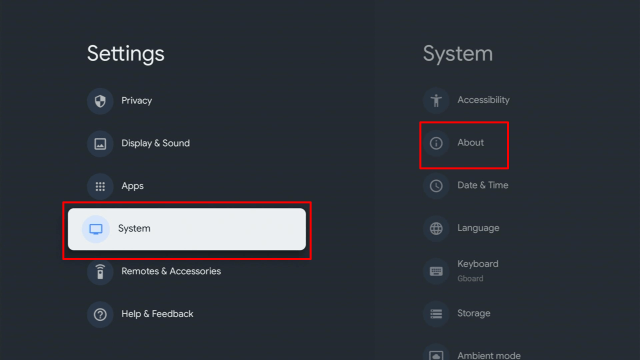
2. On the upper right of the screen, choose > Settings.


3. Once in Settings, scroll down to System > About.

12a


4. Scroll down to Android TV OS Build & click on it seven times until it goes into Developer options and it’s gonna say “you are now a developer”.


5. Click the Back Button, scroll down to see the Developer options.


6. Go back to Settings and select > Apps.


7. Scroll down to Security & Restriction – to turn on Unknown Sources.


8. Go back to the home screen and hover over the Search icon.


9. Type in Downloader app.

c1


10. Select the Downloader.


11. Click Install.

c4


12. Open the Downloader app.

c5


13. Type in the TV Tap app download URL/APK – https://reviewvpn.com/tvtap


14. Wait for a few seconds for the file download progress


15. Click Install


16. Click Done.


17. Click Delete > click Delete again


18. Go back to the Home screen. Go to Settings.


19. Choose Apps.


20. See All Apps.


21. Select TV Tap icon.


22. Click Open.


12. Enjoy Watching.


Install Surfshark on Google Chromecast

Best Surfshark Deal


TV Tap Features

  • Stylish user-interface: A number of Live TV applications are really annoying because of their sloppy interface. However, the TV Tap app has an elegant user-interface, making it easier for users to browse via TV channels. The TV Tap app’s user interface is very clean.
  • Buffer-free video streaming: There is nothing more frustrating than having a buffering screen while watching TV on the internet. It could be because of a slow internet connection but most Live TV apps stream content via slow servers.
  • Lightweight application: The TV Tap is a very light app, it only occupies 5.8MB space on your Android-powered device. Thus, don’t fret about the TV Tap occupying valuable storage space on your Android device.
  • Add TV channels to Favorites: The TV Tap app allows you to add your favorite television channels to the Favorites category. Wherein, it will be easier for users to find their favorite TV channels and don’t have to look for the channels every time.
  • Recently watched list feature: If you want to watch the show you watched days ago but you can’t remember which TV channel it was on, this app has a Recently watched list feature where you can locate all the content you watched or streamed before.
  • Scheduling feature: the app allows you to scan the schedules of different television channels to find out when a certain show is going to air. Users can set reminders so that they get notified when the program starts.
  • Built-in media player: The app comes along with a built-in media player, dubbed as Go Player. However, the app allows you to use other media players, such as MX player, to watch entertainment content.
  • Availability of content: Entertainment content from across the globe is available on the TV Tap app. The app allows you to watch tons of TV channels from countries like the United Kingdom, United States, India, France, Russia, Italy, and a lot more. 
  • TV Tap app compatibility – You can download the Live TV streaming app on all Android-based devices. The app can also be downloaded on Mac, PC, Android TV Boxes, Amazon FireTV/ Fire Stick, Kindle Fire devices, and more.


YOUR INTERNET ACTIVITY IS BEING WATCHED

ReviewVPN cannot attest to the legality, security and privacy of the applications discussed on this site. It is highly recommended that you use a VPN service while streaming or using Kodi.

Currently, your IP 216.73.216.84 is visible to everyone and your Browser is being tracked by Advertisers & ISP Provider.

Save 65% Now

Limited Time Offer

Here are the main reasons why you must use a VPN:

  • Your activities are hidden from your ISP, the government, and from the apps you are using.
  • You can access additional movies and TV streams.
  • ISP attempts to throttle are thrwarted thus reducing buffering issues.
  • Geographically restricted content like Netflix and Hulu can be unblocked.

A VPN works be replacing your ISP-assigned IP address and creating an encrypted tunnel. We recommend the no log service offered by IPVanish. It works well on a Firestick and offers the fastest possible speeds.

Special Limited Time Offer - Get IPVanish


FAQs

What does the TV Tap app offer?

The TV Tap is a live TV streaming application that provides an awesome range of television channels from all around the world. Users can enjoy tons of new television shows and watch TV series in different languages. The app offers various genres to choose from, such as music, sports, movies, TV shows, news, a lot more. With the TV Tap app, you can watch numerous TV channels at the highest video resolution.


Does TV Tap support casting apps?

Yes, users can cast the app’s contents to various screens by utilizing casting applications such as Google Chromecast, AirPlay, and more.

Is the TV Tap app free?

Yes, the TV Tap app for Android doesn’t require a subscription fee. The app allows you to watch TV channels (international & regional) free of charge and in the highest, best quality.


Is the TV Tap app safe to use?

Yes, TV Tap is one of the safest applications to watch live TV channels from around the world. Users can enjoy tons of TV channels. You don’t need to root your Android device with this app. Also, it does not come along with bugs, thus it is absolutely safe to use. 

How long has the TV Tap app been around?

Based on reviews, the TV Tap app has been around since mid-2018.


Is the TV Tap app a Terrarium Clone?

No


TV Tap Alternatives

  • Exodus Live TV
  • LiveNetTV
  • SwiftStreamz
  • AOS TV
  • Kraken TV
  • Redbox TV
  • Mobdro
  • Airy TV
  • Oreo TV
  • Pocket TV


Compatibility

  • Google Chromecast
  • Android-based phone
  • Android-based tablet
  • Amazon Fire Stick
  • Amazon Fire TV 
  • Android TV Box
  • and all other android based devices.


Why Use a VPN Service For Chromecast?

Chromecast users are highly recommended to use a Virtual Private Network while streaming. A VPN service will bypass Government surveillance, geo-restriction, and Internet Service Provider (ISP) throttling. It is strongly advised to connect to the Surfshark service on all your streaming devices. 

Surfshark is the fastest and most secure Virtual Private Network. The Surfshark provider offers easy-to-use apps for nearly all devices, such as Android, Amazon Fire TV Stick, Windows, iOS, Apple TV, Linux, Mac, PlayStation, Xbox, and routers.


Surfshark Features

  • Amazing speed
  • Anonymous Torrenting
  • With owned server network
  • Unlimited P2P Traffic
  • Allows 6 devices at the same time
  • 256-Bit AES Encryption
  • Unlimited Bandwidth
  • SOCKS5 Web Proxy
  • Has additional privacy features
  • Geo-Locked Content Access
  • Platforms: IOS, Mac, Windows, Android
  • Zero Logs
  • Privacy & security features: OpenVPN, IKEv2, & L2TP/IPsec VPN protocols


Grab your subscription now!

Click here to get the lowest price on Surfshark through our exclusive limited-time offer.


Install Surfshark VPN on Google Chromecast with Screenshots

1. Click Home on your remote then select Search.

Surfshark VPN on Google Chromecast step 1


2. On the search bar, you can use google voice assistant to find Surfshark VPN or by typing it.

Surfshark VPN on Google Chromecast step 2


3. Click on Surfshark VPN icon.

Surfshark VPN on Google Chromecast step 3


4. Click on Install.

Surfshark VPN on Google Chromecast step 4


5. Surfshark VPN is now installing just wait for it until it’s done.

Surfshark VPN on Google Chromecast step 5


6. Click open.

Surfshark VPN on Google Chromecast step 6


7. Input your username and password to log in

Surfshark VPN on Google Chromecast step 7

Learn more about Surfshark and Grab the Best Surfshark Deal Now!


Install Surfshark on Google Chromecast

Best Surfshark Deal


Other VPNs to Consider

NordVPN (Best for Streaming)

Best Features

  • 5000+ Server in 50+ Countries 
  • Military-Grade Encryption
  • Fast Connection Speed
  • Suitable to a lot of devices
  • No-Log Policy

Prices
  • Complete $5.89 per month (64% Discount)
  • Plus $4.59 per month (56% Discount)
  • Standard $3.69 per month (55% Discount)

Best Features

  • 750+ High-speed VPN Servers in 43 Locations
  • Military-Grade Encryption
  • Fastest HD Streaming and Gaming
  • 30-Day Money-Back Guarantee
  • Unlimited Data & Devices
  • No-Log Policy

Prices
  • 3 Years $1.99 per month (82% Discount)
  • 1 Years $3.29 per month (70% Discount)
  • 1 Month $10.99 per month

IPVanish VPN (Most Secure)

Best Features

  • 1200+ Servers in 60+ Countries around the world
  • Unlimited Connections
  • No-Log Policy
  • Top Notch Military-Grade VPN Protocols and Encryptions
  • 100% Safe and Secured
  • Most Trusted VPN
  • Best VPN for Firestick
  • 30-Day Money-Back Guarantee

Prices
  • Yearly $3.99 per month (63% Discount) – 30 days risk free + Ransomware & Malware Protection
  • Quarterly $5.32 per month (51% Discount)
  • Monthly $10.99 per month


For more VPN discounts, go to ReviewVPN Deals and purchase the best VPN for you.

Click here to get the lowest price on Surfshark through our exclusive limited-time offer.


Conclusion

The TV Tap is an awesome app that allows you to watch live TV on your Android-powered devices. It allows you to watch live television channels from all around the globe.  You will not miss your most-liked movies, TV shows, or sports when you aren’t at home because all the app’s media content is also available on your Android-based phone or tablet.

How To Install Revolution Kodi Addon

Revolution Kodi Addon

Today, you are going to learn how to install Revolution Kodi Addon.


Revolution is a third-party Kodi addon within the Dejavu Repository. This addon allows you to stream and watch different kinds of entertainment ranging from movies, TV shows, documentaries, and lots more. 

Unlike many add-ons, this add-on scrapes and filters streaming links from different sources, making sure you enjoy HD video quality. It allows you to save a movie you are watching and complete it later when you have the time.

Revolution is a feature-rich Kodi addon with sections such as movies, search, tools, channels, New Episodes, New movies, My TV shows, My Movies, TV, and more.


ANONYMOUSLY


Install Revolution Kodi Addon

Note: Before installing any Kodi addon or build, you need to enable the unknown sources of your Kodi app and then download and install the repository file.

Step 1. Launch your Kodi app and on the home screen, scroll up and click on the setting icon.

Step 2. Next, on the setting window, scroll down and click on the systems options.

Step 3. On the new window that will appear, scroll down and select the addons option. Next, scroll right and then click on unknown sources. Next, on the warning dialog box that will appear, select YES to enable the unknown sources.

Step 4. Return to the home screen and then click on the setting icon.

Step 5. On the new window, select the File manager option.

Step 6. Next, scroll down and click on the Add source option.

Step 7. Now, click on <NONE>  and then use the onscreen Keyboard and enter the media URL: https://dejavurepo.github.io/ and then click on OK.

Step 8. Next, click on Enter a name for this media source and type Revolution, and then click on OK

Step 9. Return to the home screen. On the home screen, scroll down and click on the Addons option.

Step 10. On the new window, scroll up and then click on the addon installer icon (located at the top left side of your screen).

Step 11. Next, scroll and click on install from zip file.

Stepp 12. On the new window that will appear, scroll down and select Revolution.

Step 13. Click on repository.Dejavu-1.0.4.zip and then click on OK.

Step 14. Wait for Dejavu Repository installed notification at the top right side of your screen.

Step 15. Next, click on install from repository and then select Dejavu Repo.

Step 16. On the new window, scroll down and click on Video add-ons

Step 17. Navigate and click on Revolution.

Step 18. Scroll down and click on Install.

Step 19. Click OK on  “the following additional add-ons will be installed” and then wait for the installation to complete. Once the installation is completed, you will receive Revolution add-on installed notification at the top right corner of your screen.

Step 20. Return to the home screen, click on add-ons and then select video add-ons, and a list of installed Add-ons will appear.

Features of Revolution Addon

In the movies sub-section, you will find: 

  • Year, genres, decade, people, language, certificate, people watching, most popular, most voted, box office, Oscar winners, in theatres, new movies
  • IMDb keyword searches, popular IMDb user lists, movie mosts, my movies, people search and search.


TV shows section has: 

  • Certificates, language, networks, genres, people watching, most voted, TV show most
  • Airing today, New TV shows, highly rated, new episode, TV calendar, My TV shows, search and People search.


Channel section of Revolution addon has the following: 

  • Sky hits, sky premiere, sky greats, sky Disney, sky family
  • sky action, sky comedy, sky thriller, sky drama, sky sci-fi and horror, sky select, Film4+1, and TCM+1.


The tools section of Revolution this addon include:

  • Revolution: changelog, Revolution: settings, Revolution: library, Revolution: view types, Revolution: clear search history, Revolution: clear providers.
  • Revolution: clear debris checks, Revolution: clear cache, Revolution: clear all cache, Revolution: clean settings file
  • RevolutionScrapera: settings, OpenScrapers: settings, ResolveURL: settings.


Install Surfshark on Firestick

Best Surfshark Deal


Legal Disclaimer: ReviewVPN.com does not encourage or endorse any illegal activity involved in the usage of services and applications referenced on this site. We do not verify the licensing agreements of services. The end-user is wholly responsible for ensuring that any media accessed through these services does not violate copyright and/or licensing laws. ReviewVPN does not promote, link to, or receive compensation from any Apps and IPTV services.


YOUR INTERNET ACTIVITY IS BEING WATCHED

ReviewVPN cannot attest to the legality, security and privacy of the applications discussed on this site. It is highly recommended that you use a VPN service while streaming or using Kodi.

Currently, your IP 216.73.216.84 is visible to everyone and your Browser is being tracked by Advertisers & ISP Provider.

Save 65% Now

Limited Time Offer

Here are the main reasons why you must use a VPN:

  • Your activities are hidden from your ISP, the government, and from the apps you are using.
  • You can access additional movies and TV streams.
  • ISP attempts to throttle are thrwarted thus reducing buffering issues.
  • Geographically restricted content like Netflix and Hulu can be unblocked.

A VPN works be replacing your ISP-assigned IP address and creating an encrypted tunnel. We recommend the no log service offered by IPVanish. It works well on a Firestick and offers the fastest possible speeds.

Special Limited Time Offer - Get IPVanish


Instructions on How to Integrate Real-Debrid

Step 1. Open your browser and log onto here. You will create a Real-Debrid account from here.

Step 2. Next, you will launch your Kodi app and then open the Revolution addon.

Step 3. Now, on the Revolution add-on interface, navigate and click on the tools option.

Step 4. Scroll down and click on ResolveURL settings

Step 5. Now, under the Real-Debrid option, scroll and click on (Re)Authorize My Account.

Step 6. A code will appear on your screen, copy it out. 

Step 7. Now, minimize Kodi and then open your browser. Type this URL on your browser https://real-debrid.com/device

Step 8. On the window that will appear, enter the code you received in step 6 and then click on Continue. At this time, you will receive a “Real-Debrid successfully approved” message on your screen. Return to Kodi and start streaming with Revolution add-on.


Frequently Asked Questions

What is Kodi?

Kodi allows you to stream entertainment without having to pay for a subscription. It is an open-source streaming software that was developed by XBMC Foundation, a nonprofit technology consortium. This software has been around since 2002 and currently on its version 19th.


What is Kodi Addon?

An add-on is an application that allows you to stream and watch entertainment on Kodi. Without an add-on, you can not explore the full potential of Kodi.


Is it safe and legal to use Revolution Kodi Addon?

It is safe and legal to install and stream content with this add-on. That said, whatever content you access on this add-on may be illegal due to the fact it’s a third-party add-on. In that case, I recommend using this addon with a VPN like Surfshark.


Do I need a VPN to use Revolution Kodi Addon?

Yes, it is highly recommended to use this add-on with a VPN like Surfshark. From installing down to streaming movies with this add-on, always use a VPN


Can I install Revolution Kodi Addon on my firestick and fire TV devices?

Yes, you can install this add-on on any platform or device that supports Kodi such as fire TV, firestick, smartphone, computer, tablets, and many more.


Is it free to use Revolution Kodi Addon?

Yes, installing and streaming with this add-on is free. 


Alternative Addons

No one can say when an add-on will stop working. In that case, I recommend having alternative add-ons handy. To make it much easier, I have prepared a list of the best alternative add-ons for you. Check out the list of our best Kodi add-ons here: Venom, The Magic Dragon, and Yoda


Pros and Cons

Pros

  • User-friendly interface
  • Offers you the best streaming available on the internet for HD video quality
  • Regular add-on update
  • Easy to customize skins

Cons

You can not use this addon without Real-Debrid integration.


Don’t Stream Without a VPN

surfshark logo

We recommend using Kodi with a VPN. This is because most of the add-ons and builds on Kodi are third-party addons and builds. As you know, the majority of the third-party add-ons do not have the copyright to most of the content they offer and as such, we recommend you protect yourself with a VPN. 

With a VPN installed on your device, you will bypass location restrictions, ISP throttling, and stay secure and private while stream g and accessing the internet. We recommend Surfshark for nonstop online security, privacy, and anonymity.


Note: For more information about Surfshark, please read our Surfshark Review.


Grab your subscription now!

Click here to get the lowest price on Surfshark through our exclusive limited-time offer.


How to Install Surfshark VPN on Firestick

If your Firestick still has the older interface, read this article to learn how to update it: Update Firestick Interface.

Follow our screenshots below to install the SurfShark VPN app on your Fire TV stick.

1. Go to the Home screen of your Firestick.

step 1 Install Surfshark VPN on Firestick


2. Navigate towards the Find tab. Press the Search button from the resulting dropdown.

step 2 Install Surfshark VPN on Firestick


3. Type in the keyword of SurfShark and select from the suggestions that will appear.

step 3 Install Surfshark VPN on Firestick


4. Click the official SurfShark icon from your search results.

step 4 Install Surfshark VPN on Firestick


5. Press the Download (You own it) button.

step 5 Install Surfshark VPN on Firestick


6. The SurfShark VPN installer will download on your device.

step 6 Install Surfshark VPN on Firestick


7. SurfShark VPN’s app will automatically install itself on your Fire TV stick.

step 7 Install Surfshark VPN on Firestick


8. Press the Open button after completing SurfShark VPN’s installation process.

step 8 Install Surfshark VPN on Firestick


9. Please wait for the SurfShark VPN to load its user interface.

step 9 Install Surfshark VPN on Firestick


10. You can now log in with your SurfShark VPN account credentials.

step 10 Install Surfshark VPN on Firestick

Learn more about Surfshark and Grab the Best Surfshark Deal Now!


Install Surfshark on Firestick

Best Surfshark Deal


Other VPNs to Consider

NordVPN (Best for Streaming)

Best Features

  • 5000+ Server in 50+ Countries 
  • Military-Grade Encryption
  • Fast Connection Speed
  • Suitable to a lot of devices
  • No-Log Policy

Prices
  • Complete $5.89 per month (64% Discount)
  • Plus $4.59 per month (56% Discount)
  • Standard $3.69 per month (55% Discount)

Best Features

  • 750+ High-speed VPN Servers in 43 Locations
  • Military-Grade Encryption
  • Fastest HD Streaming and Gaming
  • 30-Day Money-Back Guarantee
  • Unlimited Data & Devices
  • No-Log Policy

Prices
  • 3 Years $1.99 per month (82% Discount)
  • 1 Years $3.29 per month (70% Discount)
  • 1 Month $10.99 per month

IPVanish VPN (Most Secure)

Best Features

  • 1200+ Servers in 60+ Countries around the world
  • Unlimited Connections
  • No-Log Policy
  • Top Notch Military-Grade VPN Protocols and Encryptions
  • 100% Safe and Secured
  • Most Trusted VPN
  • Best VPN for Firestick
  • 30-Day Money-Back Guarantee

Prices
  • Yearly $3.99 per month (63% Discount) – 30 days risk free + Ransomware & Malware Protection
  • Quarterly $5.32 per month (51% Discount)
  • Monthly $10.99 per month


For more VPN discounts, go to ReviewVPN Deals and purchase the best VPN for you.

Click here to get the lowest price on Surfshark through our exclusive limited-time offer.


Final Thought

This is a must-have add-on for non-stop streaming of free music, movies, TV shows, and more. I recommend installing this add-on, however, you are required to create a Real-Debrid account and integrate it with this add-on. 

How To Install Mad Rabbit Kodi Addon

Mad Rabbit Kodi Addon

In this article, you are going to learn how to install the Mad Rabbit Kodi add-on. 


Mad Rabbit is a new Kodi addon within the Chains repository. This is a feature-rich add-on with Resume watching and other amazing features.

It delivers video in top-notch quality and allows you to customize the UI to your taste.

This add-on has the following major sections: My Movies, Tools, Channels, Movies, Search, New movies, My TV show, New Episodes, In theatres, New movies, Popular IMDb user lists, Movie mosts, Year, Genres, Decade, People, Box office, Oscar winners, My movies, People search and search.


ANONYMOUSLY


Installing Mad Rabbit Kodi Addon

Note: you need to enable the unknown sources of your Kodi app before installing any addon or build. This is because most addon and builds are third-party (not official addons and builds). Follow the below step by step guide below.

1. Launch your Kodi app.

2. From the home screen, scroll up and then click on the setting icon (this is found at the top left side of your screen).

3. On the new window, scroll down and select the system.

4. Next, scroll down and select Add-ons. Now, click on unknown sources, and then on the warning dialog box that will appear, select YES to enable the unknown sources.

5. Return to the home screen and then click on settings

6. Next, on the new window, click on the file manager option.

7. Now, click on add source and then click on <none> and then use the onscreen Keyboard to type: https://thechains24.com/chainsRepo and then click on OK .

8. On the textbox “Enter a name for this media source” type Mad Rabbit and then click on OK.

9. Return to the home screen, and click on Add-ons.

10. Next, on the new window, scroll up and click on the add-on installer icon (you will find this at the top left side of your screen).

11. Now, click on the install from zip file option.

12. On the new window, scroll down and click on the name you save the media source within step 8. For this installation, we used Mad Rabbit and then select repository.chainsrepo.zip and then click on OK.

13. Wait for Chains Repo add-on installed notification (this will appear at the top right side of your screen).

14. Next, click on install from repository and then click on chains repo.

15. Now, on the new window, scroll down and click on video add-ons.

16. Scroll down and select Mad Rabbit.

17. On the new window, scroll down and click on install. 

18. Click OK on the dialog box that says “the following additional add-ons will be installed and then wait for the installation to complete. You will receive a notification once the installation is completed.

19. Return to the home screen and click on add-ons then video add-ons and you will find the Mad Rabbit add-on there.

Features of Mad Rabbit Kodi Addon

  • Language, Certificate, People watching, IMDb keyword searches, Most popular, Most voted, and many more, Highly rated, Genres, People watching.
  • Most vote, TV shows most, Certificates, Language, TV calendar, My TV shows, Search and People Search, Networks, Airing today, New TV shows, New episode


You will find in the channel section, the following subsections:

  • Disney, Family, Action, ComedyDrama, Sci-fi, and horror
  • Select, Thriller, Film4+1, and TCM+1., Hits, Premiere, and Greats


You will find in the tools section of Mad Rabbit Kodi add-on the following subsections:

  • Changelog, Settings, Clear debris checks
  • Clean settings file, OpenScrapers: settings
  • Library, View types, Clear search history, Clear providers, Clear all cache, Clear cache, ResolveURL: settings.


Install Surfshark on Firestick

Best Surfshark Deal


Legal Disclaimer: ReviewVPN.com does not encourage or endorse any illegal activity involved in the usage of services and applications referenced on this site. We do not verify the licensing agreements of services. The end-user is wholly responsible for ensuring that any media accessed through these services does not violate copyright and/or licensing laws. ReviewVPN does not promote, link to, or receive compensation from any Apps and IPTV services.


YOUR INTERNET ACTIVITY IS BEING WATCHED

ReviewVPN cannot attest to the legality, security and privacy of the applications discussed on this site. It is highly recommended that you use a VPN service while streaming or using Kodi.

Currently, your IP 216.73.216.84 is visible to everyone and your Browser is being tracked by Advertisers & ISP Provider.

Save 65% Now

Limited Time Offer

Here are the main reasons why you must use a VPN:

  • Your activities are hidden from your ISP, the government, and from the apps you are using.
  • You can access additional movies and TV streams.
  • ISP attempts to throttle are thrwarted thus reducing buffering issues.
  • Geographically restricted content like Netflix and Hulu can be unblocked.

A VPN works be replacing your ISP-assigned IP address and creating an encrypted tunnel. We recommend the no log service offered by IPVanish. It works well on a Firestick and offers the fastest possible speeds.

Special Limited Time Offer - Get IPVanish


How to Integrate Real-Debrid

1. Create a Real-Debrid account here.

2. Mad Rabbit add-on

3. Click on the tools option.

4. Click on ResolveURL settings

5. Click on (Re)Authorize My Account ( this is under the Real-Debrid option).

6. Copy the code that will appear on your screen. 

7. Open your browser and type: https://real-debrid.com/device

8. Next, enter the code you received in step 6 and click Continue. Wait for the “Real-Debrid successfully approved” notification.


What is Kodi?

You can save hundreds of dollars on cable TV subscriptions and still enjoy your favorite movies, TV shows, TV series by installing kodi. Released in 2002 as an Xbox media player, kodi is currently on its 19th version. 

Kodi is free to download media streaming software. It gives you access to watch entertainment in various categories and subcategories such as sports events, documentaries, news, kids shows, anime, cartoons, and many more. Kodi is open-source, and as such, it allows you to install third-party apps like builds and add-ons.

An add-on like Mad Rabbit allows you to access, stream and watch movies, documentaries, anime, cartoons, and many more.


Frequently Asked Questions

Is it free to use the Mad Rabbit Kodi Addon?

Yes. You can install and stream movies with this add-on for free. No credit card, sign up, no commitment, no paid subscription is required to use this add-on.


On what device do I Install the Mad Rabbit Kodi Addon?

You can install this addon on any device that supports Kodi. The compatible device includes computer (Windows and Mac OS, Linux), smartphones (Android, iOS), tablets, firestick, fire TV, and many more.


How do I install the Mad Rabbit Kodi Addon on my Firestick and Fire TV Device?

The above-mentioned installation will help you on how to install this addon on your firestick and fire TV devices. Follow the steps carefully and drop a comment if you encounter any issues while installing this addon.


Is it safe and legal to stream with the Mad Rabbit Kodi Addon?

This is a third-party add-on. Installing and using this addon on your device is safe and legal. However, I recommend using this addon with a VPN like Surfshark for security and privacy purposes.


Pros and Cons

Pros

  • User-friendly interface
  • Good video and picture quality 
  • You can set up your subtitle to the language of your choice.
  • Easy to customize themes and skins
  • Offers you different streaming links to choose from.

Cons

None.


Alternative Addons

Nothing lasts forever, neither do addons. Today they are working so well, tomorrow, they have stopped working. That is why I recommend having alternative addons handy. To that end, I have listed for you, our best alternative addons. Here is the list:


Install a VPN

A VPN (a virtual private network) is software that uses encryption to hide your IP address on the internet service provider network. When this happens, no one on the ISP network will be able to monitor whatever activities you are doing online. 

A VPN will encrypt your IP address to appear safe, secure, private, and above all anonymous on the internet service provider network. After reviewing tons of VPN service providers, we present Surfshark to you. They offer the best VPN service with the cheapest plans.


Note: For more information about Surfshark, please read our Surfshark Review.


Grab your subscription now!

Click here to get the lowest price on Surfshark through our exclusive limited-time offer.


How to Install Surfshark VPN on Firestick

If your Firestick still has the older interface, read this article to learn how to update it: Update Firestick Interface.

Follow our screenshots below to install the SurfShark VPN app on your Fire TV stick.

1. Go to the Home screen of your Firestick.

step 1 Install Surfshark VPN on Firestick


2. Navigate towards the Find tab. Press the Search button from the resulting dropdown.

step 2 Install Surfshark VPN on Firestick


3. Type in the keyword of SurfShark and select from the suggestions that will appear.

step 3 Install Surfshark VPN on Firestick


4. Click the official SurfShark icon from your search results.

step 4 Install Surfshark VPN on Firestick


5. Press the Download (You own it) button.

step 5 Install Surfshark VPN on Firestick


6. The SurfShark VPN installer will download on your device.

step 6 Install Surfshark VPN on Firestick


7. SurfShark VPN’s app will automatically install itself on your Fire TV stick.

step 7 Install Surfshark VPN on Firestick


8. Press the Open button after completing SurfShark VPN’s installation process.

step 8 Install Surfshark VPN on Firestick


9. Please wait for the SurfShark VPN to load its user interface.

step 9 Install Surfshark VPN on Firestick


10. You can now log in with your SurfShark VPN account credentials.

step 10 Install Surfshark VPN on Firestick

Learn more about Surfshark and Grab the Best Surfshark Deal Now!


Install Surfshark on Firestick

Best Surfshark Deal


Other VPNs to Consider

NordVPN (Best for Streaming)

Best Features

  • 5000+ Server in 50+ Countries 
  • Military-Grade Encryption
  • Fast Connection Speed
  • Suitable to a lot of devices
  • No-Log Policy

Prices
  • Complete $5.89 per month (64% Discount)
  • Plus $4.59 per month (56% Discount)
  • Standard $3.69 per month (55% Discount)

Best Features

  • 750+ High-speed VPN Servers in 43 Locations
  • Military-Grade Encryption
  • Fastest HD Streaming and Gaming
  • 30-Day Money-Back Guarantee
  • Unlimited Data & Devices
  • No-Log Policy

Prices
  • 3 Years $1.99 per month (82% Discount)
  • 1 Years $3.29 per month (70% Discount)
  • 1 Month $10.99 per month

IPVanish VPN (Most Secure)

Best Features

  • 1200+ Servers in 60+ Countries around the world
  • Unlimited Connections
  • No-Log Policy
  • Top Notch Military-Grade VPN Protocols and Encryptions
  • 100% Safe and Secured
  • Most Trusted VPN
  • Best VPN for Firestick
  • 30-Day Money-Back Guarantee

Prices
  • Yearly $3.99 per month (63% Discount) – 30 days risk free + Ransomware & Malware Protection
  • Quarterly $5.32 per month (51% Discount)
  • Monthly $10.99 per month


For more VPN discounts, go to ReviewVPN Deals and purchase the best VPN for you.

Click here to get the lowest price on Surfshark through our exclusive limited-time offer.


Conclusion

This is a must addon for movie and TV shows lovers. It offers you free movies with the best video quality. I recommend you check this add-on out and drop a comment.

How To Install Free Kodi Addon

Free Kodi Addon

Today, we are going to teach you how to install the Free Kodi add-on.


Just as the name, all the contents of this add-on are free to stream and watch. However, you will find the Donate button within the add-on to support the work of the developer (this is a free-will donation though). Free is a third-party addon within the Dejavu Repository and comes jam-packed with amazing features. 

One good side of this add-on is that it scrapes links from many sources for you to choose from. It is a relatively new add-on with the following sections: TV shows, 4K UHD, New movie release, Classic movies HD, Top 250 movies of all time, and latest TV shows.


ANONYMOUSLY


Steps on How to Install Free Kodi Addon

Note: ensure to enable the unknown sources of your kodi app before installing any third-party addon or build.

Step 1. Launch your kodi app. From the home screen, scroll up and click on the setting icon.

Step 2. On the new window, click the system option.

Step 3. Next, click on addons and then scroll rightward to unknown sources. On the warning dialog box that will appear, select Yes and this will enable the unknown sources.

Step 4. Return to the home screen and click on the setting icon.

Step 5. On the new window, click on the file manager

Step 6. Click on add source

Step 7. Click on <none> and then type the media source URL: https://dejavurepo.github.io/ And then click OK

Step 8. Click on “enter a name for this media source” then type Free and click OK

Step 9. Return to the home screen

Step 10. On the home screen, click on addons

Step 11. On the new window, scroll up and click on the addon installer icon.

Step 12. Click on install from zip file

Step 13. Click on Free

Step 14. Click on  repository.DejaVu-1.0.4.zip and wait for the Dejavu Repo addon installed notification (this will appear at the top right side of your screen).

Step 15. Click on install from repository

Step 16. Click Dejavu Repo

Step 17. Click on video addons

Step 18. Click on Free

Step 19. Click on install

Step 20. On the textbox with “the following additional addons will be installed” click OK

Step 21. Wait for the installation to complete. You will receive a notification at the top right side of your screen.

Features of Free Kodi Addon

  • The comedians, daily motion TV, 
  • Documentaries and catch up TV, 
  • Fluxus playlist/TV channels, One-click TV Shows, WWE/AEW/UFC/sports replays, HD sports replays (RD only)
  • World CCTV, Classic British cinema, classic kids TV, 
  • kids movie boxset, Movie genres, Live in concert, 
  • The jukebox, Mp3 jukebox.


You will find in the Documentaries/Catch upTV Section the following Subsections:

  • Catch up on the latest TV, iPlayer/ITV player 
  • Catchup new documentaries, Online radio, Toolbox, and more.


You will find in the TV Shows Section of Free Kodi Addon the following Subsections:

  • Popular TV shows updated, Top-rated TV shows updated top shows on the air updated, Latest CCTV shows updated, TV channels, On/demand TV, Web channels, and lots more.


Install Surfshark on Firestick

Best Surfshark Deal


Legal Disclaimer: ReviewVPN.com does not encourage or endorse any illegal activity involved in the usage of services and applications referenced on this site. We do not verify the licensing agreements of services. The end-user is wholly responsible for ensuring that any media accessed through these services does not violate copyright and/or licensing laws. ReviewVPN does not promote, link to, or receive compensation from any Apps and IPTV services.


YOUR INTERNET ACTIVITY IS BEING WATCHED

ReviewVPN cannot attest to the legality, security and privacy of the applications discussed on this site. It is highly recommended that you use a VPN service while streaming or using Kodi.

Currently, your IP 216.73.216.84 is visible to everyone and your Browser is being tracked by Advertisers & ISP Provider.

Save 65% Now

Limited Time Offer

Here are the main reasons why you must use a VPN:

  • Your activities are hidden from your ISP, the government, and from the apps you are using.
  • You can access additional movies and TV streams.
  • ISP attempts to throttle are thrwarted thus reducing buffering issues.
  • Geographically restricted content like Netflix and Hulu can be unblocked.

A VPN works be replacing your ISP-assigned IP address and creating an encrypted tunnel. We recommend the no log service offered by IPVanish. It works well on a Firestick and offers the fastest possible speeds.

Special Limited Time Offer - Get IPVanish


Frequently Asked Questions

What is Kodi?

You can easily cut cable and still stream movies and other entertainment. Kodi is an open-source media software. It is free to download software that allows you to stream and watch entertainment in various categories and subcategories all for free. You can install this software on different hardware platforms and operating systems.

Compatible devices include computers; Smartphones, tablets, firestick, fire TV, Chromecast, and many more. To access the media content on kodi, you need to install an addon. 

Just like the app you install on your smartphone to make it more useful, an add-on is an application in .zip format which can be installed on kodi. It scrapes streaming links for movies, documentaries, music, sports events, live TV shows from various sources. Add-ons like Free allows you to access free entertainment without paying or purchasing a subscription.


How do I Install the Free Kodi Addon on my computer device?

You can install and use this add-on on every hardware platform and operating system that is compatible with kodi. Compatible devices include computers, smartphones, tablets, firestick, fire TV, and many more.


Do I need to pay to use the Free Kodi Addon?

Installing and streaming movies with this add-on is free. You are not required to purchase a subscription plan before using this add-on.


Is it safe to stream with a Free Kodi add-on?

Even though this is a third-party add-on, installing this add-on on your device is safe. However, I highly recommend using this add-on with a VPN like Surfshark.


Best Alternative Addon

You and I can not predict when an add-on will stop working. In that case, it is always the best practice to have alternative add-ons handy. Check out our best alternative add-ons: 


Pros and Cons

Pros

  • No mouse toggle
  • Easy to navigate interface
  • Switch between any foreign language
  • Resume watching
  • Subtitles (you can download any language of your choice)
  • Customizable skins and themes
  • Regular add-on update


Cons

Buffering


Use a VPN While Streaming with Kodi

surfshark logo

If you are fond of streaming movies and browsing the internet, we recommend installing a VPN on your device for security and privacy reasons.

A VPN is software that uses encryption to hide your IP address on the internet service provider network. The sole aim of installing a VPN is to keep you secure, private, and anonymous when you stream movies or acres the internet. We highly recommend installing Surfshark.

They offer the best VPN services and are very affordable.


Importance of VPN

Bypass Location Restriction

Installing a VPN-like Surfshark will encrypt your IP address to appear as a secure, private, and anonymous user on the internet service provider network. A VPN allows you to switch to a new location by changing to a new server. This way, you can access any website or stream movies and other entertainment from anywhere around the world.


Throttling

Your internet service provider network slows down your internet connection each time you stream movies or play online games. However, installing a VPN-like Surfshark will help you beat throttling and enjoy the smooth streaming of movies.

Note: For more information about Surfshark, please read our Surfshark Review.


Grab your subscription now!


How to Install Surfshark VPN on Firestick

If your Firestick still has the older interface, read this article to learn how to update it: Update Firestick Interface.

Follow our screenshots below to install the SurfShark VPN app on your Fire TV stick.

1. Go to the Home screen of your Firestick.

step 1 Install Surfshark VPN on Firestick


2. Navigate towards the Find tab. Press the Search button from the resulting dropdown.

step 2 Install Surfshark VPN on Firestick


3. Type in the keyword of SurfShark and select from the suggestions that will appear.

step 3 Install Surfshark VPN on Firestick


4. Click the official SurfShark icon from your search results.

step 4 Install Surfshark VPN on Firestick


5. Press the Download (You own it) button.

step 5 Install Surfshark VPN on Firestick


6. The SurfShark VPN installer will download on your device.

step 6 Install Surfshark VPN on Firestick


7. SurfShark VPN’s app will automatically install itself on your Fire TV stick.

step 7 Install Surfshark VPN on Firestick


8. Press the Open button after completing SurfShark VPN’s installation process.

step 8 Install Surfshark VPN on Firestick


9. Please wait for the SurfShark VPN to load its user interface.

step 9 Install Surfshark VPN on Firestick


10. You can now log in with your SurfShark VPN account credentials.

step 10 Install Surfshark VPN on Firestick

Learn more about Surfshark and Grab the Best Surfshark Deal Now!


Install Surfshark on Firestick

Best Surfshark Deal


Other VPNs to Consider

NordVPN (Best for Streaming)

Best Features

  • 5000+ Server in 50+ Countries 
  • Military-Grade Encryption
  • Fast Connection Speed
  • Suitable to a lot of devices
  • No-Log Policy

Prices
  • Complete $5.89 per month (64% Discount)
  • Plus $4.59 per month (56% Discount)
  • Standard $3.69 per month (55% Discount)

Best Features

  • 750+ High-speed VPN Servers in 43 Locations
  • Military-Grade Encryption
  • Fastest HD Streaming and Gaming
  • 30-Day Money-Back Guarantee
  • Unlimited Data & Devices
  • No-Log Policy

Prices
  • 3 Years $1.99 per month (82% Discount)
  • 1 Years $3.29 per month (70% Discount)
  • 1 Month $10.99 per month

IPVanish VPN (Most Secure)

Best Features

  • 1200+ Servers in 60+ Countries around the world
  • Unlimited Connections
  • No-Log Policy
  • Top Notch Military-Grade VPN Protocols and Encryptions
  • 100% Safe and Secured
  • Most Trusted VPN
  • Best VPN for Firestick
  • 30-Day Money-Back Guarantee

Prices
  • Yearly $3.99 per month (63% Discount) – 30 days risk free + Ransomware & Malware Protection
  • Quarterly $5.32 per month (51% Discount)
  • Monthly $10.99 per month


For more VPN discounts, go to ReviewVPN Deals and purchase the best VPN for you.

Click here to get the lowest price on Surfshark through our exclusive limited-time offer.


Conclusion

This addon is arguably not one of our best Kodi addons. However, it has got some good movies and TV shows you may want to check out. You will experience buffering while using this addon.

How to Install Marvel Universe Kodi Addon

Marvel Universe Kodi Addon


Today, we are going to teach you how to install the Marvel Universe. 

Marvel universe is a feature-rich add-on with the following entertainment section: Marvel Universe Superman, Harley Quinn, Animated movie, marvel universe who, Marvel Universe specials, and Marvel universe documentaries.

To use this add-on you need to create a Real-Debrid account and link it with this add-on. Marvel Universe add-on is a third-party add-on within CellarDoorTV Repository. 


ANONYMOUSLY


Instructions on How to Install Marvel Universe Kodi Addon

Step 1. Open your Kodi app on the home screen, scroll up, and click on the setting icon.

Step 2. Next, Click the systems option

Step 3. Now, select add-ons and scroll rightward, click unknown sources, and then on the warning dialog box, select Yes.

Step 4. Next, return to the home screen 

Step 5. Select the setting icon.

Step 6. Select the file manager.

Step 7. Next, click on add source 

Step 8. Now, click on <none> 

Step 9. On the new window, type the media source file URL: https://cellardoortv.com/repo and then click OK

Step 10. Next, click on “enter a name for this media source” and use the onscreen keyboard and type Marvel universe 

Step 11. Return to the home screen 

Step 12. Now, Select add-ons

Step 13. Next, Scroll up and click on the addon installer icon which is found at the top right side of your screen.

Step 14. Now, Click on install from the zip file

Step 15. On the new window, Select Marvel universe  

Step 16. Next, Select Repository.cdrepo-11.0.zip

Step 17. Next, wait for the CellarDoorTV Repository add-on installed notification that will appear at the top right corner of your screen.

Step 18. Now, Select Install from the repository

Step 19. Select CellarDoorTV Repository 

Step 20. Select video addons

Step 21. Next, Scroll down and then click on Marvel universe 

Step 22. Scroll down and click install

Step 23. Now, on the “the following additional add-ons will be installed” dialog box, select OK. 

Steps on How to Integrate Real-Debrid

Step 1. Log onto here and create a Real-Debrid account.

Step 2. Open your Marvel Uniserve add-on

Step 3. Next, select the tools option.

Step 4. Now, select ResolveURL settings

Step 5. Next, select, (Re)Authorize My Account (under Real-Debrid option).

Step 6. Write down the code that will appear on your screen. 

Step 7. Next, open your browser and enter https://real-debrid.com/device

Step 8. Now, type the code you received in step 6 and select Continue. Next, you will receive a “Real-Debrid successfully approved” message on your screen.


Features of Marvel Universe Addon

Marvel universe superman section has the following:

  • The losers, The kitchen, Joker, Shazam, Aquaman, Justice League
  • Wonder woman, Constantine, V for vendetta, watchmen ultimate cut, and Green.Lantern.
  • Wonder woman unaired pilot, and invasion, Flash Vs Arrow, Elseworlds, Crisis On Earth X, Crisis on infinite earth.Green hornet, 
  • The shadow, Catwoman, steel, swamp thing, Supergirl International, Jonah Hex, The Phantom, Red, and Red 2 


Marvel universe Documentaries offers you the following subsections:  

  • The history of Batman, How bob can’t steal Batman, and bat-mania – from the comics to screen
  • Batman and bill, The shadow of the bat,
  • The death of superman live what happened, 
  • Secret origin: the story of DC Comics, 
  • Jack Kirby: Storyteller
  • Blade 1, and Blade 2


Install Surfshark on Firestick

Best Surfshark Deal


Legal Disclaimer: ReviewVPN.com does not encourage or endorse any illegal activity involved in the usage of services and applications referenced on this site. We do not verify the licensing agreements of services. The end-user is wholly responsible for ensuring that any media accessed through these services does not violate copyright and/or licensing laws. ReviewVPN does not promote, link to, or receive compensation from any Apps and IPTV services.


YOUR INTERNET ACTIVITY IS BEING WATCHED

ReviewVPN cannot attest to the legality, security and privacy of the applications discussed on this site. It is highly recommended that you use a VPN service while streaming or using Kodi.

Currently, your IP 216.73.216.84 is visible to everyone and your Browser is being tracked by Advertisers & ISP Provider.

Save 65% Now

Limited Time Offer

Here are the main reasons why you must use a VPN:

  • Your activities are hidden from your ISP, the government, and from the apps you are using.
  • You can access additional movies and TV streams.
  • ISP attempts to throttle are thrwarted thus reducing buffering issues.
  • Geographically restricted content like Netflix and Hulu can be unblocked.

A VPN works be replacing your ISP-assigned IP address and creating an encrypted tunnel. We recommend the no log service offered by IPVanish. It works well on a Firestick and offers the fastest possible speeds.

Special Limited Time Offer - Get IPVanish


Frequently Asked Questions

What is Kodi?

Kodi is an open-source media streaming software. Download and stream with this software are free. This software was known as an Xbox Media player at the time of its first release in 2002. However, the name was changed to Xbox Media center 2003 which it retained until it was renamed Kodi. XBMC Foundation, a nonprofit technology organization is the developer of this software.

Kodi allows you to access, stream, and watch free content such as TV series, TV shows, documentaries, movies, kids shows, anime, cartoons, and many more. That said, you need to install an add-on like Marvel Universe in order to use Kodi.

An add-on is an app that provides you with streaming links to access movies on Kodi. Add-ons are so important that with them, you can not watch any entertainment with your Kodi app.


Is it legal to use Kodi?

Installing and using Kodi on your device is legal, as far as you download this software from its official website. Also, installing addons on your Kodi is legal as well. However, protect yourself with a VPN like Surfshark when streaming with Kodi, especially with third-party add-ons.


Is it free to use Kodi?

It is entirely free to install and stream with this software. Just make sure you have a reliable and strong Internet connection.


Do I need a VPN to use the Marvel Universe Addon?

Yes. This is a third-party add-on. As we know, third-party add-ons, many times do not have the copyright to most of their content. For security and privacy reasons, use this add-on with a VPN like Surfshark.


Pros and Cons

Pros

  • Subtitles in a foreign language
  • User-friendly interface
  • No mouse toggle for firestick
  • Regular update

Cons

Offers only Marvel Universe content.


Alternative Addons

I recommend having alternative add-ons handy as you do not know when your add-on will stop working. Here is the list of our best alternative Kodi addons: Gaia, Destiny of Deathstar, Venom, The Magic Dragon, and Yoda.


Use Kodi with a VPN

We recommend installing a VPN like Surfshark on your device for maximum security and privacy. Even though you have a personal computer and internet connection, your Internet service provider still spies on and monitors your online activities. To this end, the only way to outsmart your internet service provider is to install a VPN.

A VPN is software that encrypts and masks your IP address to appear on the ISP network as a private, secure, and anonymous user. It helps you to stay anonymous on the internet service provider network while you are streaming movies or browsing the net. 

Installing a VPN like Surfshark on your device helps you:

Stream securely and anonymously without being monitored or tracked

Bypass location restrictions and stream from anywhere around the world. Beat throttling which is usually caused by your internet service provider

We recommend installing Surfshark. They offer the best VPN service out there and have the following features: 

  • Enhanced privacy
  • Zero log policy
  • Unlimited bandwidth,
  • Leak protection policy and lots more.
  • Military-grade encryption
  • and lots more.

If you want to know more about this VPN, kindly read our Surfshark Review.


Grab your subscription now!

Click here to get the lowest price on Surfshark through our exclusive limited-time offer.


How to Install Surfshark VPN on Firestick

If your Firestick still has the older interface, read this article to learn how to update it: Update Firestick Interface.

You can download Surfshark directly from the Amazon App store. It will be easy for you to find Surfshark with your Firestick’s Find feature. Refer to our screenshots below.

1. Go to the Home screen of your Firestick.

step 1 Install Surfshark VPN on Firestick


2. Navigate towards the Find tab. Press the Search button from the resulting dropdown.

step 2 Install Surfshark VPN on Firestick


3. Type in the keyword of SurfShark and select from the suggestions that will appear.

step 3 Install Surfshark VPN on Firestick


4. Click the official SurfShark icon from your search results.

step 4 Install Surfshark VPN on Firestick


5. Press the Download (You own it) button.

step 5 Install Surfshark VPN on Firestick


6. The SurfShark VPN installer will download on your device.

step 6 Install Surfshark VPN on Firestick


7. SurfShark VPN’s app will automatically install itself on your Fire TV stick.

step 7 Install Surfshark VPN on Firestick


8. Press the Open button after completing SurfShark VPN’s installation process.

step 8 Install Surfshark VPN on Firestick


9. Please wait for the SurfShark VPN to load its user interface.

step 9 Install Surfshark VPN on Firestick


10. You can now log in with your SurfShark VPN account credentials.

step 10 Install Surfshark VPN on Firestick

Learn more about Surfshark and Grab the Best Surfshark Deal Now!


Install Surfshark on Firestick

Best Surfshark Deal


Other VPNs to Consider

NordVPN (Best for Streaming)

Best Features

  • 5000+ Server in 50+ Countries 
  • Military-Grade Encryption
  • Fast Connection Speed
  • Suitable to a lot of devices
  • No-Log Policy

Prices
  • Complete $5.89 per month (64% Discount)
  • Plus $4.59 per month (56% Discount)
  • Standard $3.69 per month (55% Discount)

Best Features

  • 750+ High-speed VPN Servers in 43 Locations
  • Military-Grade Encryption
  • Fastest HD Streaming and Gaming
  • 30-Day Money-Back Guarantee
  • Unlimited Data & Devices
  • No-Log Policy

Prices
  • 3 Years $1.99 per month (82% Discount)
  • 1 Years $3.29 per month (70% Discount)
  • 1 Month $10.99 per month

IPVanish VPN (Most Secure)

Best Features

  • 1200+ Servers in 60+ Countries around the world
  • Unlimited Connections
  • No-Log Policy
  • Top Notch Military-Grade VPN Protocols and Encryptions
  • 100% Safe and Secured
  • Most Trusted VPN
  • Best VPN for Firestick
  • 30-Day Money-Back Guarantee

Prices
  • Yearly $3.99 per month (63% Discount) – 30 days risk free + Ransomware & Malware Protection
  • Quarterly $5.32 per month (51% Discount)
  • Monthly $10.99 per month


For more VPN discounts, go to ReviewVPN Deals and purchase the best VPN for you.

Click here to get the lowest price on Surfshark through our exclusive limited-time offer.


Conclusion

Marvel Universe is a good add-on that allows you to access a huge collection of Marvel Universe movies. It has beautiful features with a user-friendly interface. The only downside of this add-on is that you can’t find movies from other moviemakers, only Marvel Universe. However, you can still check it out and let me know your thoughts in the comment section.

How to Install Maverick Kodi Addon

Maverick Kodi Addon

In this article, we will teach you how to install the Maverick Kodi addon.


Maverick is a third-party addon. This addon is found within the Dejavu Repository.  In April 2020, this add-on was shut down due to copyright issues. However, its developer did not bow down, they kept working to ensure that Maverick is back and better. You will enjoy the beautiful and amazing features this add-on has to offer.  

Sections such as search movies and TV shows, Debrid movies 4K UHD, new movie release, Debrid classic movies HD, Top 250 movies of all time, latest TV shows, one-click TV Shows, and WWE/UFC/sports replays. 


ANONYMOUSLY


Installing Maverick Kodi Addon

Note: enable the unknown sources of your Kodi app before installing any third-party Kodi addon or builds.

Step 1. Launch your Kodi app and on the home screen, scroll up and click on the setting icon.

Step 2. Next, on the setting menu, scroll down and click on systems.

Step 3. Now, on the new window, click on addons and then click on Unknown sources. On the warning dialog box, select Yes to enable the unknown sources.

Step 4. Return to the home screen and then click on the setting icon.

Step 5. Next, click on file manager and then select Add source.

Step 6. On the new window, click on <none> and then type the media source URL: http://thechains24.com/ChainsRepo and then click OK.

Step 7. Click on “enter a name for this media source” and then type ‘Maverick’ and click on OK.

Step 8. Return to the home screen. 

Step 9. Click on addons.

Step 10. On the new window, scroll up and click on the addon installer icon.

Step 11. On the new window, scroll down and click on install from zip file.

Step 12. Next, click on Maverick (if you used a different name, click on it)

Step 13. Click on repository.chainsrepo.zip and wait for the Dejavu Repo add-on installed notification.

Step 14. Next, click on install from repository

Step 15. Click on the DejaVu repository

Step 16. Click on Video addon

Step 17. Click on Maverick

Step 18. Click on install

Step 19. Click OK on the textbox with “the following additional addons will be installed” and wait for the installation to complete.

Step 20. Once the installation is completed, return to the home screen and click on add-ons>video add-ons, and the list of installed addons will appear.

Instructions Steps on How to Integrate Real-Debrid

Step 1. You need to create a Real-debrid account here.

Step 2. After creating an account, launch your Kodi app and open the Maverick add-on.

Step 3. On Maverick add, click on the tools option.

Step 4. Next, scroll down and click on ResolveURL settings

Step 5. Now, under the Real-Debrid option, scroll down and click on (Re)Authorize My Account.

Step 6. A code will appear on your screen, copy and paste it on your MS word app or write it down on paper. 

Step 7. Now, minimize kodi and open your browser. On your browser, enter https://real-debrid.com/device and click GO.

Step 8. It will take you to a new window where you will be prompted to enter the code you received in step 6. Enter the code and click on Continue. At this point, you will receive a “Real-Debrid successfully approved” notification on your screen. 


YOUR INTERNET ACTIVITY IS BEING WATCHED

ReviewVPN cannot attest to the legality, security and privacy of the applications discussed on this site. It is highly recommended that you use a VPN service while streaming or using Kodi.

Currently, your IP 216.73.216.84 is visible to everyone and your Browser is being tracked by Advertisers & ISP Provider.

Save 65% Now

Limited Time Offer

Here are the main reasons why you must use a VPN:

  • Your activities are hidden from your ISP, the government, and from the apps you are using.
  • You can access additional movies and TV streams.
  • ISP attempts to throttle are thrwarted thus reducing buffering issues.
  • Geographically restricted content like Netflix and Hulu can be unblocked.

A VPN works be replacing your ISP-assigned IP address and creating an encrypted tunnel. We recommend the no log service offered by IPVanish. It works well on a Firestick and offers the fastest possible speeds.

Special Limited Time Offer - Get IPVanish


Install Surfshark on Firestick

Best Surfshark Deal


Features of Maverick Kodi Addon

Latest TV shows section: 

  • Popular TV Shows (updated daily), top-rated TV shows (updated daily), top shows on the air (updated daily), latest TV shows (updated daily), classic British cinema, Bond, James Bond, classic kids TV, kids movie boxset, movie genres, live in concert, the jukebox, mp3 jukebox, online radio, maverick toolbox, and DS9 sports, TV channels, on/demand TV and web channels.

The documentaries and catch-up TV section include 

  • catch up on the latest TV, iPlayer/ITV player, and catch up and new maverick documentaries, 
  • HD sports replays (RD only), daily motion TV, documentaries and catch-up TV, Fluxus playlist/TV channels, Maverick world CCTV, maverick movie lists,

Toolbox the following subsections: 

  • Real-debrid re-authorize, all debris re-authorize, internet sweetest, movie site pairing, clear the cache, and general settings.


Frequently Asked Questions

What is Kodi?

Oftentimes, the amount of money spent on cable TV subscriptions is outrageous. You can cut cords and still enjoy tons of movies documentaries, TV shows, and TV series free by installing Kodi.

Kodi is an open-source media software developed by XBMC Foundation, a nonprofit technology company. It allows you to access and stream free movies, anime, cartoons, sports events, live TV shows, news, xxx and adult content, music and drama, and lots more. 


What is Kodi Addon?

An add-on is an application (in .zip) that you can install on Kodi. It provides you streaming links to access and watch free entertainment in various categories and subcategories. 


How do I install the Maverick Kodi Addon on my firestick and fire TV?

The above step-by-step installation guide will put you through how to install this add-on on your firestick and fire TV devices.


Is it free to use the Maverick Kodi Addon?

Streaming movies and other entertainment with this add-on are free. All you need is a strong and reliable internet connection.


Is it safe to stream with the Maverick Kodi Addon?

Maverick is a third-party add-on. Installing and using this add-on on your device is safe. However, I recommend installing a VPN Surfshark before streaming with this add-on.


Pros and Cons

Pros

  • Allows you to choose the preferred language for subtitles
  • User-friendly interface
  • Easy installation
  • Scrapes streaming links from different sources


Cons

None when I tested this add-on.


Alternative Addon

Add-on comes and goes. The best add-on today may stop working in the next few minutes. Consequently, it is advisable to have alternative add-ons handy just in case. I have correlated the best alternative add-ons for you. Here is the list to check out: Gaia, Venom, and Yoda


Why Do You Need a VPN While Streaming?

A VPN is software that masks and encrypts your IP address to appear on the internet service provider network as a secure, private, and anonymous user.

The sole aim of installing a VPN on your is to keep your identity private while you are streaming or accessing the internet. A VPN will help you to bypass location restrictions and best throttling. We recommend installing Surfshark.


Features of Surfshark:

  • Has a total of 3,200 VPN servers in 65 locations to choose from
  • Unlimited bandwidth
  • Zero log policy
  • Military-grade encryption


Grab your subscription now!

Click here to get the lowest price on Surfshark through our exclusive limited-time offer.


How to Install Surfshark VPN on Firestick

If your Firestick still has the older interface, read this article to learn how to update it: Update Firestick Interface.

You can download Surfshark directly from the Amazon App store. It will be easy for you to find Surfshark with your Firestick’s Find feature. Refer to our screenshots below.

1. Go to the Home screen of your Firestick.

step 1 Install Surfshark VPN on Firestick


2. Navigate towards the Find tab. Press the Search button from the resulting dropdown.

step 2 Install Surfshark VPN on Firestick


3. Type in the keyword of SurfShark and select from the suggestions that will appear.

step 3 Install Surfshark VPN on Firestick


4. Click the official SurfShark icon from your search results.

step 4 Install Surfshark VPN on Firestick


5. Press the Download (You own it) button.

step 5 Install Surfshark VPN on Firestick


6. The SurfShark VPN installer will download on your device.

step 6 Install Surfshark VPN on Firestick


7. SurfShark VPN’s app will automatically install itself on your Fire TV stick.

step 7 Install Surfshark VPN on Firestick


8. Press the Open button after completing SurfShark VPN’s installation process.

step 8 Install Surfshark VPN on Firestick


9. Please wait for the SurfShark VPN to load its user interface.

step 9 Install Surfshark VPN on Firestick


10. You can now log in with your SurfShark VPN account credentials.

step 10 Install Surfshark VPN on Firestick

Learn more about Surfshark and Grab the Best Surfshark Deal Now!


Install Surfshark on Firestick

Best Surfshark Deal


Other VPNs to Consider

NordVPN (Best for Streaming)

Best Features

  • 5000+ Server in 50+ Countries 
  • Military-Grade Encryption
  • Fast Connection Speed
  • Suitable to a lot of devices
  • No-Log Policy

Prices
  • Complete $5.89 per month (64% Discount)
  • Plus $4.59 per month (56% Discount)
  • Standard $3.69 per month (55% Discount)

Best Features

  • 750+ High-speed VPN Servers in 43 Locations
  • Military-Grade Encryption
  • Fastest HD Streaming and Gaming
  • 30-Day Money-Back Guarantee
  • Unlimited Data & Devices
  • No-Log Policy

Prices
  • 3 Years $1.99 per month (82% Discount)
  • 1 Years $3.29 per month (70% Discount)
  • 1 Month $10.99 per month

IPVanish VPN (Most Secure)

Best Features

  • 1200+ Servers in 60+ Countries around the world
  • Unlimited Connections
  • No-Log Policy
  • Top Notch Military-Grade VPN Protocols and Encryptions
  • 100% Safe and Secured
  • Most Trusted VPN
  • Best VPN for Firestick
  • 30-Day Money-Back Guarantee

Prices
  • Yearly $3.99 per month (63% Discount) – 30 days risk free + Ransomware & Malware Protection
  • Quarterly $5.32 per month (51% Discount)
  • Monthly $10.99 per month


For more VPN discounts, go to ReviewVPN Deals and purchase the best VPN for you.

Click here to get the lowest price on Surfshark through our exclusive limited-time offer.


Conclusion

If you are looking for an add-on to stream 24/7 non-stop movies, music, and many more, I recommend installing the Maverick Kodi add-on. It has a user-friendly interface with amazing features. What are you still waiting for? Check this add-on out and let me know your thoughts.

Install Vola Sports on Firestick – 2023 Edition

Install Vola Sports on Firestick Overview

In this article, you are going to learn how to install Vola Sports on various streaming devices such as firestick, Fire TV, Android Box Tv, Android phones, and lots more,


For sports fans, Vola Sports is a must-have. This app allows you to access and stream live sports even while on the go. Vola Sports has got tons of amazing and beautiful features that will make you love this app even more.


What is Vola Sports?

Formerly known as Wow Sports, Vola Sports is an app that allows you to access and stream live sports events. You can also stream and watch match highlights with this app.

Vola Sports offers you a wide range of sports events such as basketball, tennis, soccer, cricket, baseball. This application comes with beautiful features that improve streaming quality.


ANONYMOUSLY

Is Vola Sports Safe and Virus-free?

We tested this app using VirusTotal and found no threats or any malicious files and malware.

Despite having good results, we still need to be vigilant in protecting our privacy while streaming.

A Virtual Private Network or VPN will definitely help us maintain our security and anonymity while using Vola Sports.

Here’s how you can install the Best VPN For Firestick and All Devices.


If your Firestick still has the older interface, read this article to learn how to update it: Update Firestick Interface.


How to Install Vola Sports on Firestick

Follow our guide below showing you how to sideload the Vola Sports app on your Firestick.

  1. Open your Firestick Settings Tab. (Gear Wheel Icon).
  2. Scroll down and select My Fire TV.
  3. Select Developer options.
  4. Turn on ADB debugging and Apps from Unknown Sources.
  5. Press the Turn On when the pop-up appears.
  6. Click Home and press on FIND.
  7. Press the Search button from the dropdown.
  8. You can either say Downloader to your Alexa voice-enabled remote or start typing it. If you typed it, click on the suggestion when it appears.
  9. Click on the Downloader Icon.
  10. Tap on Download and please wait while the app is installing itself on your device.
  11. Click on Open.
  12. Press on the Allow button.
  13. You can now use the Downloader app.
  14. Type https://reviewvpn.com/vola and click Go.
  15. Click the Install button.
  16. Press the Open button to launch the Vola Sports app.


How to Install Vola Sports on Firestick (Screenshots)

1. Open your Firestick Settings Tab. (Gear Wheel Icon).


2. Scroll down and select My Fire TV.


3. Select Developer options.


4. Turn on ADB debugging and Apps from Unknown Sources.


5. Press the Turn On when the pop-up appears.


6. Click Home and press on FIND.


7. Press the Search button from the dropdown.


8. You can either say Downloader to your Alexa voice-enabled remote or start typing it. If you typed it, click on the suggestion when it appears.


9. Click on the Downloader Icon.


10. Tap on Download and please wait while the app is installing itself on your device.


11. Click on Open.


12. Press on the Allow button.


13. You can now use the Downloader app.


14. Type https://reviewvpn.com/vola and click Go.

Vola Sports


15. Click the Install button.

install Vola Sports1


16. Press the Open button to launch the Vola Sports app.

install Vola Sports2

YOUR INTERNET ACTIVITY IS BEING WATCHED

ReviewVPN cannot attest to the legality, security and privacy of the applications discussed on this site. It is highly recommended that you use a VPN service while streaming or using Kodi.

Currently, your IP 216.73.216.84 is visible to everyone and your Browser is being tracked by Advertisers & ISP Provider.

Save 65% Now

Limited Time Offer

Here are the main reasons why you must use a VPN:

  • Your activities are hidden from your ISP, the government, and from the apps you are using.
  • You can access additional movies and TV streams.
  • ISP attempts to throttle are thrwarted thus reducing buffering issues.
  • Geographically restricted content like Netflix and Hulu can be unblocked.

A VPN works be replacing your ISP-assigned IP address and creating an encrypted tunnel. We recommend the no log service offered by IPVanish. It works well on a Firestick and offers the fastest possible speeds.

Special Limited Time Offer - Get IPVanish


Legal Disclaimer: ReviewVPN.com does not encourage or endorse any illegal activity involved in the usage of services and applications referenced on this site. We do not verify the licensing agreements of services. The end-user is wholly responsible for ensuring that any media accessed through these services does not violate copyright and/or licensing laws. ReviewVPN does not promote, link to, or receive compensation from any Apps and IPTV services.


Install SurfShark on Firestick

Best SurfShark Deal


How to Install Vola Sports on iOS devices (iPad and iPhones)

  1. Click on this link to download and install TuTuApp on your iOS device. Https://tutuapp.vip
  2. Choose the regular version
  3. Once the installation is completed, launch TuTuApp
  4. On the search bar, type Vola sports
  5. Next, click on Add


How to Install Vola sports on Android Smart TV

The first thing you need to do when installing this app on Android smart TV is to enable the unknown sources.

  1. Open your smart TV, go to settings.
  2. Click on systems and select Addons
  3. Next, click on unknown sources and tap on the ON button.
  4. Return to the home screen of your smart TV and click on the Google Play app.
  5. On the search bar, type Puffin browser
  6. Install by following the on-screen instructions.
  7. Launch your Puffin browser and type this URL: https://volasports.fun/download/
  8. Click on install and follow the onscreen instructions.


How to Install Vola Sports on Windows devices

To install Vola Sports on windows devices, follow these steps

  1. Install an android emulator. Click on this URL: https://bluestack.com to download the Bluestack emulator.
  2. Install the bluestack.exe file. (Follow the onscreen instructions for the installation guide)
  3. After installing the Android emulator, download Vola Sports APK from this URL: https://volasports.fun/download/
  4. Open your Bluestack Android emulator.
  5. Go to where you saved the APK file.
  6. Drag and drop the APK on the Bluestack Android emulator
  7. The buestack emulator will start installing Vola sports on your Windows device.
  8. You will get a notification once the installation is completed.


How to Install Vola Sports On Mac OS X (Macbook Pro and Macbook Air)

If you are using the Mac operating system, follow the below steps to install Vola sports on Macbook Pro and Macbook Air.

  1. Download and install Nox Emulator from this URL: https://bignox.com. save the file on any folder or better still, on your Mac’s desktop.
  2. On the desktop, click on nox.dmg to install.
  3. When you click on install, follow the onscreen instructions to complete the installation process.
  4. Click on this URL: https://volasports.fun/download/
  5. Open your Nox app.
  6. Drag and drop the Vola sports file onto the Nox app. The installation will start automatically.

Features of Vola Sports

  • Live Sports
  • Vola Sports comes with a Live sports feature. With this, you can stream Live football, basketball, and lots more from the comfort of your homes.
  • Whatever sports you want to watch, Vola Sports gives you front-row and free tickets to any game you wish to watch.
  • You can stream and watch T20, PSL, IPL, ICC, Cricket, soccer, basketball, baseball, FIFA, NBA, and many more.


Absolutely Free

Vola Sports is complete to use. This app scrapes streaming links that allow you to stream live sports events.  Available sports you can stream for free include soccer, cricket, tennis, basketball, volleyball, and many more.


Highlights

Vola Sports has got a highlight feature that allows you to access and stream live past sports events. Whenever you miss any game, Vola Sport offers you the summarized version of any missed game in full  HD video quality.


Multiple streaming Links

Vola sports scrapes streaming links from different sources and present them in High Definition video format. The links this app provides are among the best streaming links from the best source.


Low memory

Vola Sports has approximately 6.30 MBS. This means that you can install this app on low memory devices. Also, you can install this app on the Android operating system from version 4.0+ and above.

200 Plus channels

With this app installed on your streaming device, you will enjoy premium sports packages all for free. You need not pay for anything when you are using this App. It allows you to access and stream over 200 channels from anywhere around the world.


Count Down

The count down feature of this app allows you to get information about future games. It provides crucial information on upcoming games, fixtures, and many more.


User-friendly interface

Vola Sports has got an amazing and beautiful user-friendly interface. The navigation through this app is sleek and smooth.


Ad Free

Vola Sports has an ad-blocking feature. This allows you to access and stream your favorite sports event without any interruption.

Picture in Picture mode

Vola Sports comes with a PIP feature. With this feature, you can browse content while you are watching sports. Also, you can access complete information about upcoming sports events. Vola Sports also has a Night mode which allows you to switch to dark mode if the brightness is too much.


How to Fix Vola Sports not working

  1. Clear the cache of the Vola Sports app.
  2. Uninstall and reinstall the Vola Sports app.


Frequently Asked Questions

What are the compatible devices?

Vola sports works on the following device: Android box TV, Xiaomi MI box S, iOS, Nvidia shield, WatchOS, Android Smart TV, Linux, Windows (7 and upwards), Mac OS, android phone, Android tablet, Amazon Fire TV, Firestick and many more.


Is Vola sports free to use?

Using this app is completely free.

Is Vola sports safe?

Installing and running this app on your device is safe. However, we recommend using a VPN for privacy and security reasons.


Use a VPN for Streaming Sports

Surfshark vpn

Streaming sports videos is a common hobby for many of us. However, our ISPs might throttle our connection due to excessive data use. Cyber threats such as hackers, viruses, and malware can also infiltrate our devices.

To avoid all these threats, we suggest using SurfShark. It uses military-grade AES-256 bit encryption that ensures your overall safety.

Here are some features of SurfShark:

  • Faster streaming of sports videos.
  • Conceals everything you do on the internet.
  • Unlimited bandwidth with military-grade encryption.
  • Leak protection policy.
  • Zero log policy.
  • Multiple device connectivity.

Note: For more information about SurfShark, please read our SurfShark REVIEW.


Grab your subscription now!


How to Install Surfshark on Firestick with Screenshots

If your Firestick still has the older interface, read this article to learn how to update it: Update Firestick Interface.

You can download Surfshark directly from the Amazon App store. It will be easy for you to find Surfshark with your Firestick’s Find feature. Refer to our screenshots below.

Follow our screenshots below to install the SurfShark VPN app on your Fire TV stick.

1. Go to the Home screen of your Firestick.

step 1 Install Surfshark VPN on Firestick


2. Navigate towards the Find tab. Press the Search button from the resulting dropdown.

step 2 Install Surfshark VPN on Firestick


3. Type in the keyword of SurfShark and select from the suggestions that will appear.

step 3 Install Surfshark VPN on Firestick


4. Click the official SurfShark icon from your search results.

step 4 Install Surfshark VPN on Firestick


5. Press the Download (You own it) button.

step 5 Install Surfshark VPN on Firestick


6. The SurfShark VPN installer will download on your device.

step 6 Install Surfshark VPN on Firestick


7. SurfShark VPN’s app will automatically install itself on your Fire TV stick.

step 7 Install Surfshark VPN on Firestick


8. Press the Open button after completing SurfShark VPN’s installation process.

step 8 Install Surfshark VPN on Firestick


9. Please wait for the SurfShark VPN to load its user interface.

step 9 Install Surfshark VPN on Firestick


10. You can now log in with your SurfShark VPN account credentials.

step 10 Install Surfshark VPN on Firestick

Learn more about Surfshark and Grab the Best Surfshark Deal Now!


Install Surfshark on Firestick

Best Surfshark Deal

Other VPNs to Consider

NordVPN (Best for Streaming)

Best Features

  • 5000+ Server in 50+ Countries 
  • Military-Grade Encryption
  • Fast Connection Speed
  • Suitable to a lot of devices
  • No-Log Policy

Prices
  • Complete $5.89 per month (64% Discount)
  • Plus $4.59 per month (56% Discount)
  • Standard $3.69 per month (55% Discount)

Best Features

  • 750+ High-speed VPN Servers in 43 Locations
  • Military-Grade Encryption
  • Fastest HD Streaming and Gaming
  • 30-Day Money-Back Guarantee
  • Unlimited Data & Devices
  • No-Log Policy

Prices
  • 3 Years $1.99 per month (82% Discount)
  • 1 Years $3.29 per month (70% Discount)
  • 1 Month $10.99 per month

IPVanish VPN (Most Secure)

Best Features

  • 1200+ Servers in 60+ Countries around the world
  • Unlimited Connections
  • No-Log Policy
  • Top Notch Military-Grade VPN Protocols and Encryptions
  • 100% Safe and Secured
  • Most Trusted VPN
  • Best VPN for Firestick
  • 30-Day Money-Back Guarantee

Prices
  • Yearly $3.99 per month (63% Discount) – 30 days risk free + Ransomware & Malware Protection
  • Quarterly $5.32 per month (51% Discount)
  • Monthly $10.99 per month

For more VPN discounts, go to ReviewVPN Deals and purchase the best VPN for you.


Final thought

Vola sport is an amazing app offering you links to stream sports events such as soccer, baseball, basketball, cricket, and lots more all for free. One good thing about this app is that it is compatible with the majority of the streaming devices you may have.


What Is Your Favorite Streaming App? Cast Your Vote Below.

How to Install NaAd TV On Firestick – 2023 Edition

Install NaAd TV on Firestick Overview

In this guide, we are going to teach you how to successfully install and run NaAd TV on Firestick your android and windows devices.


What is NaAd TV?

NaAd Tv is an app that allows you to access and stream LIve Tv channels offering News, sports events, lifestyle events, music, animation, documentaries, and lots more. Channels on NaAd Tv come from the following countries: Germany, Albania, Italy, Turkey, USA, Canada, Australia, and many others. With this app, you will have the avenue to access tons of sports channels and movie channels 24/7.

This app comes with amazing features aimed at improving the streaming experience.

You will not experience much buffering and lagging while streaming movies and other entertainment on this app. It allows you to access and watch free sports, movies, documentaries, and lots more.


Is NaAd Safe and Virus-free?

We tested this application using VirusTotal and found that there is/are malicious file/files. You can see the above result for your reference.

Because of this, we highly recommend using a VPN that can protect your privacy against any threat from NaAd.

Here’s how you can Install The Best VPN For Firestick and All Devices.


ANONYMOUSLY

How to install NaAD TV on firestick and Fire TV devices

Note: NaAD TV is not available on the official Amazon App store. However, the only way you can install this app on firestick or fire TV is by using the sideloading method

    1. Launch your Firestick or Fire TV device
    2. Navigate and select the setting option
    3. On the setting menu, select My Fire Tv OR devices (if you are using the new version).
    4. Next, select Apps from unknown sources and then click on Turn ON
  • Return to the home screen
  1. Select the search bar and type the Downloader APP.
  2. When the downloader app appears, select it.
  3. select download
  4. After downloading and installing, launch the downloader app and select OK once the app opens.
  5. On the left-hand side, select Javascript and enable it.
  6. Next, select the home option found at the left side of your screen and then type this URL: https://cutt.ly/1hjCLbk  and press GO
  7. Next, select Install
  8. Select Done once the installation is completed.
  9. Select delete
  10. Select delete again to erase the raw file as this often occupies space on your firestick.
  11. Return to the home screen and scroll to the Apps section. Select see all and scroll down to find NaAD TV installed.

How to install on Android device devices

If you are using an android device and you want to install NaAd Tv on your device, the below steps will guide you through.

  1. Open your android devices: smartphone, smart TV, etc
  2. Navigate to Google play store
  3. On the Google play store, click on the search bar
  4. On the search bar, type NaAd Tv
  5. When NaAd Tv appears, select it and click on the install option


How to download and install NaAD TV APK on Android devices

Follow these steps to install NaAD TV APK file on your android devices.

  1. Open your android menu
  2. Select setting
  3. Select security
  4. Select unknown source and turn It ON
  5. Next, Download and install the APK file
  6. Install afterward.


How to install NaAD TV on windows computer devices

If you are using windows devices, follow the below step by step guide to install NaAD TV on your device.

Note: Before you can install NaAD on any windows computer, you need to install an android emulator. You may choose one out of the two popular android emulators in the market: Bluestack or Nox android emulators.

  1. Download Bluestack or Nox android emulators
  2. Install after the downloading is completed on your Windows device.
  3. Open the emulator app after installing.
  4. Download the NaAD TV APK file
  5. Drag and drop the APK file on the android emulator. The installation will begin immediately.
  6. Launch NaAD TV after the installation is completed.


YOUR INTERNET ACTIVITY IS BEING WATCHED

ReviewVPN cannot attest to the legality, security and privacy of the applications discussed on this site. It is highly recommended that you use a VPN service while streaming or using Kodi.

Currently, your IP 216.73.216.84 is visible to everyone and your Browser is being tracked by Advertisers & ISP Provider.

Save 65% Now

Limited Time Offer

Here are the main reasons why you must use a VPN:

  • Your activities are hidden from your ISP, the government, and from the apps you are using.
  • You can access additional movies and TV streams.
  • ISP attempts to throttle are thrwarted thus reducing buffering issues.
  • Geographically restricted content like Netflix and Hulu can be unblocked.

A VPN works be replacing your ISP-assigned IP address and creating an encrypted tunnel. We recommend the no log service offered by IPVanish. It works well on a Firestick and offers the fastest possible speeds.

Special Limited Time Offer - Get IPVanish


Legal Disclaimer: ReviewVPN.com does not encourage or endorse any illegal activity involved in the usage of services and applications referenced on this site. We do not verify the licensing agreements of services. The end-user is wholly responsible for ensuring that any media accessed through these services does not violate copyright and/or licensing laws. ReviewVPN does not promote, link to, or receive compensation from any Apps and IPTV services.


Install Surfshark on Firestick

Best Surfshark Deal


App SPECIFICATIONS

  • App name: NaAD Tv
  • App category: Editors apps and video players
  • Latest update:   2019/07/01
  • Latest version: 9.2
  • Available on Google play store: Yes  (Google Play)
  • Android operating system Requirements: Android 4.0.3 and upwards.


Features of NaAD TV

  • Free: downloading, installing, and running NaAd Tv on your device is free. You need not pay any cents to stream movies or sports events with this app. All you need to use this app is a strong and reliable internet connection.
  • No buffering: NaAd Tv does not buffer or lag when you are streaming movies or new. That said, you need to have a strong internet connection to avoid buffering and lagging while using this app.
  • No ads: in the Mod version of this app, you will experience an uninterrupted streaming experience. This is because the Mod version does not contain ads.
  • Lightweight: this app will only occupy about 50MB of your device storage space.
  • User-friendly interface: unlike other streaming apps, NaAd Tv comes with easy to navigate interface. You need not be a techy person before you can use this app. Basic knowledge of app usage is enough.


Use a VPN

If you are the type that is fond of streaming free movies and other entertainment on apps, then protecting yourself with a VPN is highly recommended. With a VPN installed on your device, you will be secure, anonymous, and private while streaming content online.

A VPN is software that encrypts and masks your IP address to appear on the internet service provider network as a private secure and unknown user. The sole aim of using a VPN is to protect your online privacy.


Importance of using a VPN:

Security

When you install a VPN on your device, it will encrypt your IP address. When this happens, no one on the ISP network will be able to monitor or track your presence on the network. For instance, if you are using a public internet connect]ction, without a VPN, everyone can see your IP address on the  ISP network. However, when you install a VPN, your IP address will appear as a private and anonymous user.

Bypass monitoring

You can easily bypass monitoring or tracking by your internet service provider. It may interest you to know that anytime you access the internet or stream content online that your internet service provider monitors and tracks your online activities. However, you can beat this by installing a VPN on your device.

Note: For more information about Surfshark, please read our Surfshark Review.


Grab your subscription now!

Click here to get the lowest price on Surfshark through our exclusive limited-time offer.


How to Install Surfshark VPN on Firestick

If your Firestick still has the older interface, read this article to learn how to update it: Update Firestick Interface.

Follow our screenshots below to install the SurfShark VPN app on your Fire TV stick.

1. Go to the Home screen of your Firestick.

step 1 Install Surfshark VPN on Firestick


2. Navigate towards the Find tab. Press the Search button from the resulting dropdown.

step 2 Install Surfshark VPN on Firestick


3. Type in the keyword of SurfShark and select from the suggestions that will appear.

step 3 Install Surfshark VPN on Firestick


4. Click the official SurfShark icon from your search results.

step 4 Install Surfshark VPN on Firestick


5. Press the Download (You own it) button.

step 5 Install Surfshark VPN on Firestick


6. The SurfShark VPN installer will download on your device.

step 6 Install Surfshark VPN on Firestick


7. SurfShark VPN’s app will automatically install itself on your Fire TV stick.

step 7 Install Surfshark VPN on Firestick


8. Press the Open button after completing SurfShark VPN’s installation process.

step 8 Install Surfshark VPN on Firestick


9. Please wait for the SurfShark VPN to load its user interface.

step 9 Install Surfshark VPN on Firestick


10. You can now log in with your SurfShark VPN account credentials.

step 10 Install Surfshark VPN on Firestick

Learn more about Surfshark and Grab the Best Surfshark Deal Now!


Install Surfshark on Firestick

Best Surfshark Deal


Other VPNs to Consider

NordVPN (Best for Streaming)

Best Features

  • 5000+ Server in 50+ Countries 
  • Military-Grade Encryption
  • Fast Connection Speed
  • Suitable to a lot of devices
  • No-Log Policy

Prices
  • Complete $5.89 per month (64% Discount)
  • Plus $4.59 per month (56% Discount)
  • Standard $3.69 per month (55% Discount)

Best Features

  • 750+ High-speed VPN Servers in 43 Locations
  • Military-Grade Encryption
  • Fastest HD Streaming and Gaming
  • 30-Day Money-Back Guarantee
  • Unlimited Data & Devices
  • No-Log Policy

Prices
  • 3 Years $1.99 per month (82% Discount)
  • 1 Years $3.29 per month (70% Discount)
  • 1 Month $10.99 per month

IPVanish VPN (Most Secure)

Best Features

  • 1200+ Servers in 60+ Countries around the world
  • Unlimited Connections
  • No-Log Policy
  • Top Notch Military-Grade VPN Protocols and Encryptions
  • 100% Safe and Secured
  • Most Trusted VPN
  • Best VPN for Firestick
  • 30-Day Money-Back Guarantee

Prices
  • Yearly $3.99 per month (63% Discount) – 30 days risk free + Ransomware & Malware Protection
  • Quarterly $5.32 per month (51% Discount)
  • Monthly $10.99 per month


For more VPN discounts, go to ReviewVPN Deals and purchase the best VPN for you.

Click here to get the lowest price on Surfshark through our exclusive limited-time offer.


Verdict

NaAD TV  is an app that allows you to watch free movies, documentaries, sports events, and many others.  You need not pay any cents to stream movies or sports events with this app. To use this app, all you need is a strong and reliable internet connection.

If you are looking for an app that offers no ads and buffering while streaming, NaAD TV is for you.


What Is Your Favorite Streaming App? Cast Your Vote Below.