How to Install Movies Time on Firestick

Movies Time Overview

In this article, we will be showing how to install Movies Time Firestick edition.


It is one of the few compatible free third-party streaming applications that you can use with the Firestick.

Being on total lockdown in certain parts of the world will really take a toll on anyone. One way to ease up is by watching entertainment for free.

If you are an Amazon Firestick user, let us take care of you by showing you how to stream for free.


ANONYMOUSLY

Is Movies Time Safe and Virus-free?

We tested this app using VirusTotal and found no threats or any malicious files and malware.

Despite having good results, we still need to be vigilant in protecting our privacy while streaming.

A Virtual Private Network or VPN will definitely help us maintain our security and anonymity while using Movies Time.

Here’s how you can Install The Best VPN For Firestick and All Devices.


How to Install Movies Time APK on Android

Movies Time Download Icon

Note: ReviewVPN.com does not host this APK file. It is hosted on Archive.org.

How to Install Movies Time on Firestick Guide

  1. Go to Settings and select Device.
  2. Choose Developer Options
  3. Turn on the ADB Debugging and Apps From Unknown Sources
  4. After turning these options on, launch the Amazon App Store on your device
  5. Search and Download Downloader
  6. Install Downloader and launch it after installing it.
  7. Choose Allow and Select Ok
  8. Type in https://reviewvpn.com/mov and select Go
  9. Wait for it to finish and then select Movies Time
  10. Select Done
  11. This will automatically take you back to Downloader. Select Delete
  12. Choose Delete one more time
  13. Head back to the home screen and under the Your Apps & Channels select Choose All
  14. Scroll down and select Movies Time and select the Options.
  15. Then select Move to Front
  16. Movies Time will be moved forward to Your Apps and Channels
  17. After this, you will see Movies Time and click it to launch.


If your Firestick still has the older interface, read this article to learn how to update it: Update Firestick Interface.


Install Movies Time on Firesticks with Screenshots guide

1. Install the Downloader app and jailbreak your firestick by enabling unknown sources. To learn more about the procedure, you may read How to Install the Downloader App and Enable Unknown Sources.

2. Open Downloader App. Type https://reviewvpn.com/mov and click Go.

Install Movies Time


3. Select INSTALL.

Step 13 Install Movies Time on Firestick


4. Select OPEN.

Step 14 Install Movies Time on Firestick


5. Movies Time is installed!

Step 15 Install Movies Time on Firestick


YOUR INTERNET ACTIVITY IS BEING WATCHED

ReviewVPN cannot attest to the legality, security and privacy of the applications discussed on this site. It is highly recommended that you use a VPN service while streaming or using Kodi.

Currently, your IP 216.73.216.156 is visible to everyone and your Browser is being tracked by Advertisers & ISP Provider.

Save 65% Now

Limited Time Offer

Here are the main reasons why you must use a VPN:

  • Your activities are hidden from your ISP, the government, and from the apps you are using.
  • You can access additional movies and TV streams.
  • ISP attempts to throttle are thrwarted thus reducing buffering issues.
  • Geographically restricted content like Netflix and Hulu can be unblocked.

A VPN works be replacing your ISP-assigned IP address and creating an encrypted tunnel. We recommend the no log service offered by IPVanish. It works well on a Firestick and offers the fastest possible speeds.

Special Limited Time Offer - Get IPVanish


Legal Disclaimer: ReviewVPN.com does not encourage or endorse any illegal activity involved in the usage of services and applications referenced on this site. We do not verify the licensing agreements of services. The end-user is wholly responsible for ensuring that any media accessed through these services does not violate copyright and/or licensing laws. ReviewVPN does not promote, link to, or receive compensation from any Apps and IPTV services.

Install SurfShark on Firestick

Best SurfShark Deal


Is It Any Good?

Movies Time is a free third-party streaming application that is focused on featuring content from India/Bollywood. It does, however, offer English content, TV Shows, and Live TV Channels. It is also amongst the few true one-click play apps out there. So, you can expect a smooth viewing experience.

Movies Time Features

Homepage

The Homepage has four different sections. Bollywood, Hollywood, Web Shows, and Live TV. 

Interface

Movies Time works without the need for Mouse Toggle that is why navigation will be easy. The internal player also allows you to rewind or fast forward the video by ten seconds. You can also change the language here and select subtitles.

Live TV Categories

These are mostly Indian channels that are categorized into Entertainment, Kids, Music, Movie, Sports, Information, Devotional, News, And All.

Pros and Cons 

Pros

  •     Mouse Toggle is not required to use Movies Time.
  •     Real One-Click Play
  •     Subtitle Support
  •     Dual Language Support
  •     Fast Loading Time and Playback.

Cons

  • Most of the Live TV channels are not working. There are only a few channels that are working
  • Some TV show links are not working
  • No Real-Debrid and Trakt Integration

Alternatives

In terms of specializing in Bollywood content, there are a few apps that operate the same way as Sofa TV. But when we talk about other decent free third-party streaming applications, here is a list of apps that we have tried and tested. Here they are:

                 APPS

               REVIEW

           DOWNLOAD

                 Nova TV

           Nova TV Review

                  Viva TV

            Viva TV Review

                PikaShow

          PikaShow Review

                 PTV Max

           PTV Max Review

                  Sofa TV

            Sofa TV Review

ReviewVPN.com does not host any of these files. They are hosted on Archive.org.

Note: Read our Best One Click Play Movie Apps!

Should I use a VPN?

Surfshark vpn

Always remember this, whatever you do online is being monitored by your ISP. Whether you browse, stream, and download, everything is seen. These types of activities consume a lot of data which is why they will be flagged by your ISP. After being flagged, your speed will be significantly affected and slowed down. To prevent this from happening, you must use a premium VPN service like SurfShark. It will help you hide all of your activities and also ensure your online anonymity.

Note: For more information about SurfShark, please read our SurfShark REVIEW.


Grab your subscription now!

Click here to get the lowest price on SurfShark through our exclusive limited-time offer.


How to Install Surfshark on Firestick with Screenshots

If your Firestick still has the older interface, read this article to learn how to update it: Update Firestick Interface.

You can download Surfshark directly from the Amazon App store. It will be easy for you to find Surfshark with your Firestick’s Find feature. Refer to our screenshots below.

Follow our screenshots below to install the SurfShark VPN app on your Fire TV stick.

1. Go to the Home screen of your Firestick.

step 1 Install Surfshark VPN on Firestick


2. Navigate towards the Find tab. Press the Search button from the resulting dropdown.

step 2 Install Surfshark VPN on Firestick


3. Type in the keyword of SurfShark and select from the suggestions that will appear.

step 3 Install Surfshark VPN on Firestick


4. Click the official SurfShark icon from your search results.

step 4 Install Surfshark VPN on Firestick


5. Press the Download (You own it) button.

step 5 Install Surfshark VPN on Firestick


6. The SurfShark VPN installer will download on your device.

step 6 Install Surfshark VPN on Firestick


7. SurfShark VPN’s app will automatically install itself on your Fire TV stick.

step 7 Install Surfshark VPN on Firestick


8. Press the Open button after completing SurfShark VPN’s installation process.

step 8 Install Surfshark VPN on Firestick


9. Please wait for the SurfShark VPN to load its user interface.

step 9 Install Surfshark VPN on Firestick


10. You can now log in with your SurfShark VPN account credentials.

step 10 Install Surfshark VPN on Firestick

Learn more about Surfshark and Grab the Best Surfshark Deal Now!


Install Surfshark on Firestick

Best Surfshark Deal

Other VPNs to Consider

NordVPN (Best for Streaming)

Best Features

  • 5000+ Server in 50+ Countries 
  • Military-Grade Encryption
  • Fast Connection Speed
  • Suitable to a lot of devices
  • No-Log Policy

Prices
  • Complete $5.89 per month (64% Discount)
  • Plus $4.59 per month (56% Discount)
  • Standard $3.69 per month (55% Discount)

Best Features

  • 750+ High-speed VPN Servers in 43 Locations
  • Military-Grade Encryption
  • Fastest HD Streaming and Gaming
  • 30-Day Money-Back Guarantee
  • Unlimited Data & Devices
  • No-Log Policy

Prices
  • 3 Years $1.99 per month (82% Discount)
  • 1 Years $3.29 per month (70% Discount)
  • 1 Month $10.99 per month

IPVanish VPN (Most Secure)

Best Features

  • 1200+ Servers in 60+ Countries around the world
  • Unlimited Connections
  • No-Log Policy
  • Top Notch Military-Grade VPN Protocols and Encryptions
  • 100% Safe and Secured
  • Most Trusted VPN
  • Best VPN for Firestick
  • 30-Day Money-Back Guarantee

Prices
  • Yearly $3.99 per month (63% Discount) – 30 days risk free + Ransomware & Malware Protection
  • Quarterly $5.32 per month (51% Discount)
  • Monthly $10.99 per month

For more VPN discounts, go to ReviewVPN Deals and purchase the best VPN for you.


FAQ


Is it safe to download?

Yes, Movies Time is safe to download and install on your Amazon Firestick and other compatible devices.


Is it legal or grey?

Movies Time is 100% to download, install, and use on a Firestick.


Is it free?

Movies Time is totally free.


Are there ADS?

You will be glad to know that Movies Time does not have ads. You are ensured of smooth and hassle-free streaming.


Is there a premium version?

No, Movies Time does not have a premium version.


Is it a Terrarium Clone?

No, Movies Time is not a terrarium clone.


Is there an official website?

No Movies Time does not have an official website.


What other devices does it work on?

Movies Time will work on Android TV, Fire Cube, Windows via an android emulator, and Fire Tablets.


How does the app work?

Kindly read the guide we have provided above on how to install Movies Time Firestick version and witness firsthand how fast and easy it is to use.


Minimum Version Required

Your device needs to have at least version 5.0 for Movies Time to work properly.


How long has it been around?

Movies Time is pretty new and was launched this year, 2020.


Our Opinion

What we liked about Movies Time is the fact that it is a One-Click Play. It also has a fast playback and loading time. We believe that it should focus more on Movies and remove the Live TV Shows section that only has a few working channels. Please follow the guide provided above on how to install Movies Time Firestick version and see what we are talking about.

Final Thoughts

We hope that this article helps you with how to install Movies Time Firestick Version. Thank you for reading and be safe!

Note: ReviewVPN.com does not own or operate any app nor does it endorse any. The main purpose of this article is strictly for educational purposes only.


What Is Your Favorite Streaming App? Cast Your Vote Below.

How to Install PTV Max on Firestick – New 2023

Install PTV Max on Firestick Version

In this article, we will be guiding you on how to install PTV Max on Firestick.


Are you looking for a free third-party streaming application that has everything? From Movies, TV Shows, and Live TV? Seems hard to find right?

You do not have to look any further because we already did the research and testing.

We present to you, PTV Max. It is an all-in-one streaming app that will give you Bollywood Movies, Hollywood Movies, US TV Shows, Live TV, and many more.


ANONYMOUSLY

Is PTV Max Safe and Virus-free?

We tested this app using VirusTotal and found no threats or any malicious files and malware.

Despite having good results, we still need to be vigilant in protecting our privacy while streaming.

A Virtual Private Network or VPN will definitely help us maintain our security and anonymity while using PTV Max.

Here’s how you can Install The Best VPN For Firestick and All Devices.


How to Install PTV Max on Android


PTV Max Download Icon

Note: ReviewVPN.com does not host this APK file. It is hosted on Archive.org.


How to Install PTV Max on Firestick Guide

  1. Go to Settings and select Device
  2. Choose Developer Options
  3. Turn on the ADB Debugging and Apps From Unknown Sources
  4.  After turning these options on, launch the Amazon App Store on your device
  5. Search and Download Downloader
  6.  Install Downloader and launch it after installing it.
  7. Choose Allow and Select Ok
  8.  Type in https://reviewvpn.com/ptv and select Go
  9. Wait for it to finish and then select PTV Max
  10. Select Done
  11. This will automatically take you back to Downloader. Select Delete
  12. Choose Delete one more time
  13. Head back to the home screen and under the Your Apps & Channels select Choose All
  14. Scroll down and select PTV Max and select the Options.
  15. Then select Move to Front
  16. PTV Max will be moved forward to Your Apps and Channels
  17. After this, you will see PTV Max and click it to launch.


If your Firestick still has the older interface, read this article to learn how to update it: Update Firestick Interface.


Install PTV Max on Firestick with Screenshots

1. Install the Downloader app and jailbreak your firestick by enabling unknown sources. To learn more about the procedure, you may read How to Install the Downloader App and Enable Unknown Sources.


2. Open Downloader App. Type https://reviewvpn.com/ptv and click Go.

Install PTV Max


3. Select INSTALL.

Step 13 Install PTV MAX on firestick


4. Select OPEN.

Step 14 Install PTV MAX on firestick


5. Select Accept.

Step 15 Install PTV MAX on firestick


6. Select Allow.

Step 16 Install PTV MAX on firestick


7. There you go, the PTV Max is installed!

Step 17 Install PTV MAX on firestick

YOUR INTERNET ACTIVITY IS BEING WATCHED

ReviewVPN cannot attest to the legality, security and privacy of the applications discussed on this site. It is highly recommended that you use a VPN service while streaming or using Kodi.

Currently, your IP 216.73.216.156 is visible to everyone and your Browser is being tracked by Advertisers & ISP Provider.

Save 65% Now

Limited Time Offer

Here are the main reasons why you must use a VPN:

  • Your activities are hidden from your ISP, the government, and from the apps you are using.
  • You can access additional movies and TV streams.
  • ISP attempts to throttle are thrwarted thus reducing buffering issues.
  • Geographically restricted content like Netflix and Hulu can be unblocked.

A VPN works be replacing your ISP-assigned IP address and creating an encrypted tunnel. We recommend the no log service offered by IPVanish. It works well on a Firestick and offers the fastest possible speeds.

Special Limited Time Offer - Get IPVanish


Legal Disclaimer: ReviewVPN.com does not encourage or endorse any illegal activity involved in the usage of services and applications referenced on this site. We do not verify the licensing agreements of services. The end-user is wholly responsible for ensuring that any media accessed through these services does not violate copyright and/or licensing laws. ReviewVPN does not promote, link to, or receive compensation from any Apps and IPTV services.


Install Surfshark on Firestick

Best Surfshark Deal


Is Good to Install PTV Max on a Firestick?

Movies Time is a free third-party streaming application that is focused on featuring content from India/Bollywood. It does, however, offer English content, TV Shows, and Live TV Channels. It is also amongst the few true one-click play apps out there. So, you can expect a smooth viewing experience.

PTV Max Features

Hamburger Menu

  • This section of the app will allow you to choose between Home, Live TV, Movies, Shows, Genre, login, Share App, and Settings.

Genres

  • Action, Sci-fi, Animation, Documentary, Family, Historic, Music, TV Shows, Adventure, Sushant Ko Tribute, Crime, Drama, Fantasy, Horror, and Musical

Live TV Channels

  • Road Safety World Series, Cricket LIVE, Pakistan Super League

Search Button

  • It allows you to search for anything you would like to stream.

Discover Tab

  • Upon clicking on this tab while scrolling down, you will be shown the Latest Movies, Latest TV Shows, Sushant Ko Tribute, Featured TV Shows, Featured Movies, Web Series, Hollywood Movies, Bollywood Movies, Kollywood Movies, Tollywood Movies, Mollywood Movies, Tamil Dubbed Movies, Hindi Dubbed Movies, Telugu Dubbed Movies, South Hindi Movies, Sandalwood Movies, Punjabi Movies, and Marathi Movies

Movies Tab

  • This section will give you all the Movies under PTV Max’s roster. From recent releases of Hollywood Movies up to the Bollywood ones and the like.

Shows Tab

  • This area highlights all the popular US TV Shows and other shows that originate from India, Pakistan, and other Asian countries.

Settings

  • Configure if you want push notifications or not, see the app version, check for updates, visit the official website, join their telegram, email address, and view the terms and policies.

Interface

You will be glad to know that PTV max does not require Mouse Toggle so navigation is going to be a breeze. You also have the option of using Zini Tevi as a player source or MX Player.

Thumbnail Menu

After you click on a video thumbnail, you will see the available links, a summary of the video trailer, date of release, Cast, and other recommended movies.


Pros and Cons 

Pros

  1. Fast Loading Time and Playback
  2. Subtitle Support
  3. HD Selection of Movies and TV Shows
  4. Hindi and Tamil Subbed Movies that will cater to a specific audience.

Cons

  1. Live TV Channels are not working
  2. There seems to be a limit on the number of tv shows it features. Most are of Bollywood origin, and the English TV Shows featured are the only popular ones.

Should I use a VPN?

The Golden Rule of free streaming is always doing it with the use of a premium VPN service like Surfshark. Do you know why? It is because free streaming is always flagged by your ISP as a heavy-data-consuming type of activity. Once you are noticed by your ISP, the inevitable result is always going to be throttling down your speed which will always result in lags and buffering. This will be the death of your seamless streaming experience. In order to prevent this from happening, you must use Surfshark. It will block all the efforts of your ISP to slow down your speed and will assure your online anonymity.

Note: For more information about Surfshark, please read our Surfshark Review.


Grab your subscription now!


How to Install Surfshark VPN on Firestick

If your Firestick still has the older interface, read this article to learn how to update it: Update Firestick Interface.

1. Go to the Home screen of your Firestick.

step 1 Install Surfshark VPN on Firestick


2. Navigate towards the Find tab. Press the Search button from the resulting dropdown.

step 2 Install Surfshark VPN on Firestick


3. Type in the keyword of SurfShark and select from the suggestions that will appear.

step 3 Install Surfshark VPN on Firestick


4. Click the official SurfShark icon from your search results.

step 4 Install Surfshark VPN on Firestick


5. Press the Download (You own it) button.

step 5 Install Surfshark VPN on Firestick


6. The SurfShark VPN installer will download on your device.

step 6 Install Surfshark VPN on Firestick


7. SurfShark VPN’s app will automatically install itself on your Fire TV stick.

step 7 Install Surfshark VPN on Firestick


8. Press the Open button after completing SurfShark VPN’s installation process.

step 8 Install Surfshark VPN on Firestick


9. Please wait for the SurfShark VPN to load its user interface.

step 9 Install Surfshark VPN on Firestick


10. You can now log in with your SurfShark VPN account credentials.

step 10 Install Surfshark VPN on Firestick

Learn more about Surfshark and Grab the Best Surfshark Deal Now!


Install Surfshark on Firestick

Best Surfshark Deal


Other VPNs to Consider

NordVPN (Best for Streaming)

Best Features

  • 5000+ Server in 50+ Countries 
  • Military-Grade Encryption
  • Fast Connection Speed
  • Suitable to a lot of devices
  • No-Log Policy

Prices
  • Complete $5.89 per month (64% Discount)
  • Plus $4.59 per month (56% Discount)
  • Standard $3.69 per month (55% Discount)

Best Features

  • 750+ High-speed VPN Servers in 43 Locations
  • Military-Grade Encryption
  • Fastest HD Streaming and Gaming
  • 30-Day Money-Back Guarantee
  • Unlimited Data & Devices
  • No-Log Policy

Prices
  • 3 Years $1.99 per month (82% Discount)
  • 1 Years $3.29 per month (70% Discount)
  • 1 Month $10.99 per month

IPVanish VPN (Most Secure)

Best Features

  • 1200+ Servers in 60+ Countries around the world
  • Unlimited Connections
  • No-Log Policy
  • Top Notch Military-Grade VPN Protocols and Encryptions
  • 100% Safe and Secured
  • Most Trusted VPN
  • Best VPN for Firestick
  • 30-Day Money-Back Guarantee

Prices
  • Yearly $3.99 per month (63% Discount) – 30 days risk free + Ransomware & Malware Protection
  • Quarterly $5.32 per month (51% Discount)
  • Monthly $10.99 per month


For more VPN discounts, go to ReviewVPN Deals and purchase the best VPN for you.

Click here to get the lowest price on Surfshark through our exclusive limited-time offer.


FAQ

Is it safe to download?

PTV Max is safe to download and install on a Firestick and other devices that run on the Android OS.

Is it legal or grey?

PTV Max is 100% legal to use on your device.


Is it free?

You do not have to worry about spending a single dime as PTV Max is free of charge.


Are there ADS?

The developer made it possible for PTV Max to be ad-free. That is why it landed a special mention in our article Best Ad-Free Movie Apps.


 Is there a premium version?

PTV Max has no premium version whatsoever.


Is it a Terrarium Clone?

No, PTV Max is not a terrarium clone.


Is there an official website?

Yes, PTV Max has an official website. You can access it by clicking on the Settings button under the hamburger menu.


What other devices does it work on?

Aside from the Amazon Firestick, PTV Max will also run on all Android OS-run devices. You can also download and install it on other Fire devices like Fire Tablet 7 and 10.


How does the app work?

Please follow the guide we have given above on how to install the PTV Max Firestick edition and see firsthand how it operates.


Minimum Version Required

PTV Max will run smoothly on your device as long as it has a minimum version of 5.0 and above.


How long has it been around?

PTV Max is already a year old. It was registered on March 20, 2019


Alternatives

If you are looking for other streaming apps that specialize in Bollywood, Hollywood, and US TV Shows, Sofa TV will be the right choice. But if you are looking for content mostly focused on US-based Movies and TV Shows, the following apps are good alternatives:

                 APPS

               REVIEW

           DOWNLOAD

                 Nova TV

           Nova TV Review

                  Viva TV

            Viva TV Review

                PikaShow

          PikaShow Review

                  ZiniTevi

            ZiniTevi Review

              Movies Time

        Movies Time Review

ReviewVPN.com does not host any of these files. They are hosted on Archive.org.

Note: We have compiled a list of Best One-Click Play Movie Apps. Please take the time in reading that article.


Our Opinion

PTV Max is without a doubt a huge surprise for us here at Reviewvpn.com. You get to have all the amazing content from Hollywood, Bollywood, and US TV Shows in just one application. Be sure to follow our guide on how to install PTV Max on Firestick and see for yourself what we are fuzzing about.


Final Thoughts

It is our wish that this article helps you with how to install PTV Max on the Firestick edition. Should you have questions and suggestions, please feel free to comment down below. Thank you for reading and stay safe!

Note: ReviewVPN.com does not own or operate any app nor does it endorse any. The main purpose of this article is strictly for educational purposes only.

See Also:

Best One-Click Play Apps

Best Unlinked Codes

50 Best Streaming Websites

Best Adult Apps for Firestick

Install The Downloader App – Quick and Easy Guide

Downloader App Overview

In this write-up, we will be teaching you how to install Downloader App on Firestick and other Fire devices. 


After learning how to Jailbreak the Firestick, you will need to install the downloader app apk on the Firestick. 

Downloader App plays a crucial role in side-loading the APKs and the Best Firestick Apps that you can use to stream Movies, TV Shows, Live TV, Sports, and even Adult content for free.

It is readily available at the Amazon App Store so the process of how to install the Downloader app for Firestick is going to be easy.


ANONYMOUSLY

Is Downloader App Safe and Virus-free?

We tested this app using VirusTotal and found no threats or any malicious files and malware.

Despite having good results, we still need to be vigilant in protecting our privacy while streaming.

A Virtual Private Network or VPN will definitely help us maintain our security and anonymity while using Downloader.

Here’s how you can Install The Best VPN For Firestick and All Devices.


If your Firestick still has the older interface, read this article to learn how to update it: Update Firestick Interface


How to Install Downloader App with Screenshot Guide

1.  Click Home on your remote and scroll once to your Right. Click Setting (Gear Wheel Icon)

Step 1 jailbreak firestick


2. Scroll down and to the right until you get to My Fire TV. Click on it.

Step 2 jailbreak firestick


3. Select Developer options.

Step 3 jailbreak firestick


4. Turn on ADB debugging and Apps from Unknown Source.

Step 4 jailbreak firestick


5. Click Turn On when the pop-up appears.

Step 5 jailbreak firestick


6.  Click Home, click FIND.

Step 6 jailbreak firestick


7. Click Search.

Step 7 jailbreak firestick


8. You can either say Downloader to your Alexa voice-enabled remote or start typing it. If you typed it, click on the suggestion when it appears.

Step 8 jailbreak firestick


9. Click on the Downloader icon

Step 9 jailbreak firestick


10. Click Download

Step 10 jailbreak firestick


11. Click on Open.

Step 11 jailbreak firestick


12. Click on Allow.

Step 12 jailbreak firestick


13. There you go, you now use Downloader to sideload free streaming apps.

down4


YOUR INTERNET ACTIVITY IS BEING WATCHED

ReviewVPN cannot attest to the legality, security and privacy of the applications discussed on this site. It is highly recommended that you use a VPN service while streaming or using Kodi.

Currently, your IP 216.73.216.156 is visible to everyone and your Browser is being tracked by Advertisers & ISP Provider.

Save 65% Now

Limited Time Offer

Here are the main reasons why you must use a VPN:

  • Your activities are hidden from your ISP, the government, and from the apps you are using.
  • You can access additional movies and TV streams.
  • ISP attempts to throttle are thrwarted thus reducing buffering issues.
  • Geographically restricted content like Netflix and Hulu can be unblocked.

A VPN works be replacing your ISP-assigned IP address and creating an encrypted tunnel. We recommend the no log service offered by IPVanish. It works well on a Firestick and offers the fastest possible speeds.

Special Limited Time Offer - Get IPVanish


Legal Disclaimer: ReviewVPN.com does not encourage or endorse any illegal activity involved in the usage of services and applications referenced on this site. We do not verify the licensing agreements of services. The end-user is wholly responsible for ensuring that any media accessed through these services does not violate copyright and/or licensing laws. ReviewVPN does not promote, link to, or receive compensation from any Apps and IPTV services.


Install Surfshark on Firestick

Best Surfshark Deal


How to Use Free Streaming Apps with Downloader

Now that you have downloaded Downloader on Firestick, there are a lot of good third-party apps that you can use to watch anything for free.

Note: It is imperative that you download these apps while using Surfshark. Read this article to help you with this matter.

Let us side-load a popular streaming app for Movies and TV Shows called Viva TV. Follow the instructions below:


Install Viva TV on Firestick with Screenshots

1. Open Downloader App. Type https://reviewvpn.com/viva and click Go.

step1 viva


2. Click on Install.

Step 13 Install VIVA TV IPTV on Firestick


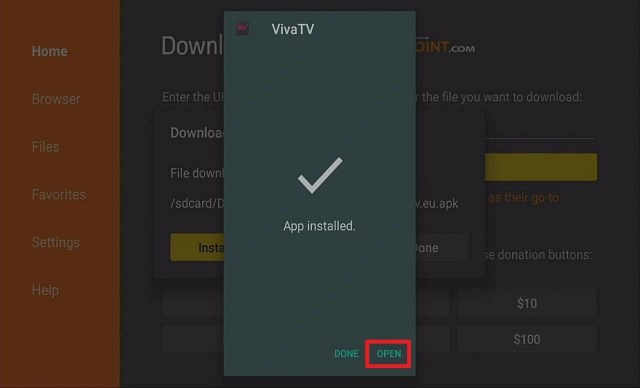
3. Click Open

Step 14 Install VIVA TV IPTV on Firestick


4. Enjoy Watching Viva TV

Step 15 Install VIVA TV IPTV on Firestick

Note: Read our Viva TV Review for further details regarding this application.


You can also watch Cable TV and Sports by side-loading Live NetTV. It is a third-party streaming app that specializes in Live TV and Sports. You can install it by following the guide below:


Install Live Net TV on Firestick Sideloading Guide with Screenshots

1. Open Downloader App. Type https://reviewvpn.com/livenet and click Go.

livenet1


2. Click on INSTALL

Step 13 Install Live NetTV on firestick


3. Click on OPEN

Step 14 Install Live NetTV on firestick


4. Click Continue.

Step 15 Install Live NetTV on firestick


5. Click Allow.

Step 16 Install Live NetTV on firestick


6. Live NetTV is Installed. Enjoy Watching.

Step 17 Install Live NetTV on firestick


Note: Our Live NetTV Review will provide more information regarding the app.


See Also

Best Free Movie Websites

Terrarium TV Alternatives


How To Stream Safely?

Surfshark vpn

Now that you have installed free streaming applications, we would like to remind you that it is important to use these apps in combination with a reliable and trustworthy VPN service like Surfshark.

Here are the reasons why you should use it:

  • Surfshark will provide users with anonymity and security.
  • It will prevent ISP Throttling which is why it is one of the best solutions on how to stop buffering on Kodi and Firestick.
  • Provides access to Geo-Restricted content that is unavailable from your location.
  • Covers your tracks, especially your online activities.

You can avail of Surfshark VPN at an affordable price. We have the Best Surfshark Deal! Hurry up and grab your subscription now!

Note: For more information about Surfshark, please read our Surfshark REVIEW.


Grab your subscription now!


How to Install Surfshark on Firestick with Screenshots

If your Firestick still has the older interface, read this article to learn how to update it: Update Firestick Interface.

You can download Surfshark directly from the Amazon App store. It will be easy for you to find Surfshark with your Firestick’s Find feature. Refer to our screenshots below.

Follow our screenshots below to install the Surfshark VPN app on your Fire TV stick.

1. Go to the Home screen of your Firestick.

step 1 Install Surfshark VPN on Firestick


2. Navigate towards the Find tab. Press the Search button from the resulting dropdown.

step 2 Install Surfshark VPN on Firestick


3. Type in the keyword of Surfshark and select from the suggestions that will appear.

step 3 Install Surfshark VPN on Firestick


4. Click the official Surfshark icon from your search results.

step 4 Install Surfshark VPN on Firestick


5. Press the Download (You own it) button.

step 5 Install Surfshark VPN on Firestick


6. The Surfshark VPN installer will download on your device.

step 6 Install Surfshark VPN on Firestick


7. Surfshark VPN’s app will automatically install itself on your Fire TV stick.

step 7 Install Surfshark VPN on Firestick


8. Press the Open button after completing Surfshark VPN’s installation process.

step 8 Install Surfshark VPN on Firestick


9. Please wait for the Surfshark VPN to load its user interface.

step 9 Install Surfshark VPN on Firestick


10. You can now log in with your Surfshark VPN account credentials.

step 10 Install Surfshark VPN on Firestick

Learn more about Surfshark and Grab the Best Surfshark Deal Now!


Install Surfshark on Firestick

Best Surfshark Deal

Other VPNs to Consider

NordVPN (Best for Streaming)

Best Features

  • 5000+ Server in 50+ Countries 
  • Military-Grade Encryption
  • Fast Connection Speed
  • Suitable to a lot of devices
  • No-Log Policy

Prices
  • Complete $5.89 per month (64% Discount)
  • Plus $4.59 per month (56% Discount)
  • Standard $3.69 per month (55% Discount)

Best Features

  • 750+ High-speed VPN Servers in 43 Locations
  • Military-Grade Encryption
  • Fastest HD Streaming and Gaming
  • 30-Day Money-Back Guarantee
  • Unlimited Data & Devices
  • No-Log Policy

Prices
  • 3 Years $1.99 per month (82% Discount)
  • 1 Years $3.29 per month (70% Discount)
  • 1 Month $10.99 per month

IPVanish VPN (Most Secure)

Best Features

  • 1200+ Servers in 60+ Countries around the world
  • Unlimited Connections
  • No-Log Policy
  • Top Notch Military-Grade VPN Protocols and Encryptions
  • 100% Safe and Secured
  • Most Trusted VPN
  • Best VPN for Firestick
  • 30-Day Money-Back Guarantee

Prices
  • Yearly $3.99 per month (63% Discount) – 30 days risk free + Ransomware & Malware Protection
  • Quarterly $5.32 per month (51% Discount)
  • Monthly $10.99 per month

For more VPN discounts, go to ReviewVPN Deals and purchase the best VPN for you.


FAQ

Compatible Devices

Downloader app APK is compatible with Android TV Box, Smart TV, and other devices that run Android OS.

How to Install Downloader on Android Box/Phone

Head to the Google Play Store and just search for Downloader. Just download and install it on your device.

Is it Free?

Yes, the downloader app is free to download and install on any device.


Alternatives

One of the best alternatives for installing free third-party streaming apps is Unlinked. Here is how you install Unlinked on your device:

How to Install Unlinked on Firestick

Note: Read our article on The Best Unlinked Codes to get the latest free streaming apps.


Conclusion

The Downloader app is one of the best ways to help you install streaming apps that will give you access to free content. Be sure to follow the tutorials we have provided above and you will have a wonderful streaming experience.

We hope that this article helps you with how to install the Downloader app on your device. Thank you for reading!


Note: ReviewVPN.com does not own or operate any app nor does it endorse any. The main purpose of this article is strictly for educational purposes only.

Install The Blaze Kodi Build – 2023 Edition Guide

The Blaze Kodi Build

In this article, we will help you install The Blaze Kodi Build on Firestick.


In this tutorial, we will teach you how to install The Blaze Kodi Build. The Blaze Kodi Build is a third-party Kodi build within the Blazin streams repository. This build allows you to access and stream entertainment in various categories and subcategories. Sections in The Blaze Kodi Build include

  • TV shows
  • Movies
  • Sports
  • Live TV
  • Kids shows
  • Music
  • Cartoon
  • Documentaries and lots more.


The Blaze build comes to a huge collection of addons with 24/7 streaming links for movies and lots more. It works well on Kodi versions17.6 krypton and Leia 18.8 and other streaming devices. You can install this build on your smartphone, Roku, Chromecast, Apple TV, Android TV boxes, computers, and Firestick. One good side of this Kodi build is that it works on most of the operating system including 

  • MAC
  • Linux
  • Windows
  • Android
  • iOS and Amazon powered devices.


ANONYMOUSLY

The Blaze Build houses the following addons

  • The crew
  • Odin
  • The Magic Dragon
  • Alvin
  • Shadow
  • Mad Titan
  • Asgard and many more.


The Blaze Build Features:

  • Requires Real-Debrid integration for the improved streaming experience.
  • Blaze build comes with a well-structured, clutter-free, user-friendly, and colorful interface with a neat layout.
  • Comes with tons of content to keep you entertained 24/7.
  • Allows you to customize the themes and skin (download more themes as you wish). Houses apps you can download as well.
  • The Blaze Kodi Build scrapes links from different sources (which allows you to choose a source that has the best streaming quality).
  • Low memory: blaze build occupies only a few memory spaces on your device. This makes this build work well on low-memory devices such as Amazon Firestick and lots more.


Kodi

The entry of Kodi has drastically changed the streaming industry. Nowadays, you Don’t have to spend lots of money on paying for cable television subscriptions. This is because most of the content being offered by cable TV channels is also available on most the streaming apps, especially Kodi. 

Kodi is an open-source streaming media that give you access to stream entertainment such as music, live TV (pay per view), movies (in various categories and subcategories), documentaries, kids shows, anime, cartoons, adult (no porn), and adult (porn), sports and many more. Kodi, during the days of its launch in 2002, was known as Xbox media player. Nevertheless, the name “Xbox media player” was changed to Xbox media center in 2003 and remained so till 2014.

However, it was renamed Kodi by the XBMC foundation which is the brain behind Kodi’s development and media content. With Kodi, you can store, share, access, and stream files with anyone around your household. That said, there are some concerns when It comes to using Kodi. One such concern includes security issues. This is because houses third-party addons. These addons do not have the copyright to most of their offer. That is why we advise installing and using a VPN on your device when you are streaming with Kodi. Some people still find using Kodi technical because of the installation process most Kodi build. However, reading through this article will clear most of the FAQs you may have about installing and using Kodi. The following are compatible devices; Roku, Android, Mac, Linux, Apple TV, Firestick, Windows, and lots more.


FAQ About the Use of Kodi

Is it safe to use Kodi?

Yes. Using Kodi is safe. The downloading, installing, and using of Kodi on your device is safe. That said, we highly recommend protecting yourself with a VPN. This is because most of the addons on Kodi offer content with copyright issues. 


Is the use of Kodi legal?

Yes. Using Kodi is legal. That, whatever involved Kodi, be it the downloading and installing and running the app on your device, is legal. However, while streaming with Kodi, watch out for addons with permission issues.


Is it free to use Kodi?

Yes, downloading Kodi is free. However, if you are using the official Kodi website, you might donate some money to support their good work. 

Using Kodi on your device is completely free. Nevertheless, there are some addons offering pay-per-view content that often require subscription plans.


Kodi Build

For easier understanding, a Kodi build is all in one addon. Instead of downloading and installing add-ons one by one, a Kodi build has got all the add-ons, features, skins, themes, and lots more in just one installation. A Kodi build has the same similarity with addons and goes beyond just an addon.


A Kodi Build has the following features:

  • You can customize the themes and skins to suit your taste.
  • Compatible with different streaming devices such as Amazon Firestick, Roku, smart TVs, Apple TV, Chromecast, computers, smartphones, tablets, and lots more.
  • Houses large library of addons
  • Kodi build comes with an Electronic Program guide (EPG).
  • Allows you to customize the interface.
  • User friendly, well organized, neat, clutter-free, and easy to navigate interface.
  • Improves streaming experience by scraping links from various sources.
  • Kodi builds are compatible with many operating systems such as iOS, Windows, MAC, Android, and lots more.


YOUR INTERNET ACTIVITY IS BEING WATCHED

ReviewVPN cannot attest to the legality, security and privacy of the applications discussed on this site. It is highly recommended that you use a VPN service while streaming or using Kodi.

Currently, your IP 216.73.216.156 is visible to everyone and your Browser is being tracked by Advertisers & ISP Provider.

Save 65% Now

Limited Time Offer

Here are the main reasons why you must use a VPN:

  • Your activities are hidden from your ISP, the government, and from the apps you are using.
  • You can access additional movies and TV streams.
  • ISP attempts to throttle are thrwarted thus reducing buffering issues.
  • Geographically restricted content like Netflix and Hulu can be unblocked.

A VPN works be replacing your ISP-assigned IP address and creating an encrypted tunnel. We recommend the no log service offered by IPVanish. It works well on a Firestick and offers the fastest possible speeds.

Special Limited Time Offer - Get IPVanish


Legal Disclaimer: ReviewVPN.com does not encourage or endorse any illegal activity involved in the usage of services and applications referenced on this site. We do not verify the licensing agreements of services. The end-user is wholly responsible for ensuring that any media accessed through these services does not violate copyright and/or licensing laws. ReviewVPN does not promote, link to, or receive compensation from any Apps and IPTV services.


Install Surfshark on Firestick

Best Surfshark Deal


Installing the Blaze Kodi Build with Screenshots

Installing this build is fast and simple. It doesn’t require you to be techy before using this build. However, you will need to first and foremost, to enable unknown sources. Without enabling unknown sources, the installation will not proceed successfully.

Follow the step-by-step guide to enable unknown sources and install the Blaze Build Repository.

1. Open your Kodi app on the home screen, scroll up, and click on the setting icon.

Installing the Blaze Kodi Build step 1


2. Next, on the new screen that will appear, click on the option of the system.

Installing the Blaze Kodi Build step 2


3. Now, select add-ons and scroll rightward, click unknown sources, and then on the warning dialog box, select Yes.

Installing the Blaze Kodi Build step 3


Installing the Blaze Kodi Build step 3


4. Next, return to the home screen settings

Installing the Blaze Kodi Build step 4


5. Select the file manager.

Installing the Blaze Kodi Build step 5


6. Next, on the new window, scroll down and click on add source

Installing the Blaze Kodi Build step 6


7. Now, click on <none>

Installing the Blaze Kodi Build step 7


8. Next, on the dialog box that will appear, type the media source link: http://blazinstreams.com/wiz and OK afterward.

Installing the Blaze Kodi Build step 8


9. Now, on the dialog box with “Enter a name for this media source” name it blaze-build and select OK to proceed.

Installing the Blaze Kodi Build step 9


10. Now, from the home screen, navigate down and click on addons.

Installing the Blaze Kodi Build step 10


11. A new window will appear, select install from zip file.

Installing the Blaze Kodi Build step 11


12. A warning box appears just click yes.

Installing the Blaze Kodi Build step 12


13. Simply click the blaze-build

Installing the Blaze Kodi Build step 13


14. Now, on the new window that will pop-up, click on the plugin.program_blazinstreams.zip

Installing the Blaze Kodi Build step 14


15. Next, click the continue button. 

Installing the Blaze Kodi Build step 15


16. Now, on the next box appears click Build Menu.

Installing the Blaze Kodi Build step 16


17. Select (Blazin StreamsWizard)Install

Installing the Blaze Kodi Build step 17


18. Next, select the Yes, Install to continue.

Installing the Blaze Kodi Build step 18


19. Wait for the downloading and installing of Blaze Build to complete. When the installation is completed, you will receive a notification, then select OK.

Installing the Blaze Kodi Build step 19


20. Click OK.

Installing the Blaze Kodi Build step 20


21. Kodi will automatically shutdown. Restart your Kodi app to enjoy blaze build.

Installing the Blaze Kodi Build step 21

Installing the Blaze Kodi Build step 22


How to use the blaze Kodi Build

Once you are done with the installation of Blaze Build, follow these steps to enjoy Blaze Build.

Step 1. Open your Kodi app

Step. Blaze Build will load automatically.

Step 3. Navigate through the interface and select whatever you want to explore on Blaze Build.


Use a VPN

Nowadays, it is not safe to access the internet or stream content online. This is a result of security breaches. Even though you are using a personal computer with your private connection, you will realize that your Internet service provider spies and monitors things you are doing online. To make matters worse, if you are using a public internet connection let’s say WiFi or data, everyone on the network can see your identity. However, you can keep your identity private by installing a VPN. A VPN will hide and keep your IP address safe over the internet service provider network by encrypting and masking your IP address.


Installing a VPN offers you the following benefits

Security

The only way to stay secure while online is to install a VPN. This way, a VPN will mask and encrypt your IP address and it will appear as a private, anonymous, and secure user over the ISP network.

You can bypass restrictions due to location. Once you install a VPN on your device, it uses encryption to alter your IP address. When this happens, you can stream from anywhere around the world. Often, a VPN comes with numerous servers and countries for you to choose from.

You can minimize throttling caused by your internet service provider by having a VPN installed on your device. It’s frustrating to see your movies or live TV shows lag or buffer while streaming. However, installing a VPN on your device helps to minimize throttling and improve streaming quality. For the best VPN experience, Surfshark is all you need for 24/7 online security. They offer affordable subscription plans and come with a 30-day money-back guarantee policy.

Note: For more information about Surfshark, please read our Surfshark Review.


Grab your subscription now!


How to Install Surfshark VPN on Firestick

If your Firestick still has the older interface, read this article to learn how to update it: Update Firestick Interface.

1. Go to the Home screen of your Firestick.

step 1 Install Surfshark VPN on Firestick


2. Navigate towards the Find tab. Press the Search button from the resulting dropdown.

step 2 Install Surfshark VPN on Firestick


3. Type in the keyword of SurfShark and select from the suggestions that will appear.

step 3 Install Surfshark VPN on Firestick


4. Click the official SurfShark icon from your search results.

step 4 Install Surfshark VPN on Firestick


5. Press the Download (You own it) button.

step 5 Install Surfshark VPN on Firestick


6. The SurfShark VPN installer will download on your device.

step 6 Install Surfshark VPN on Firestick


7. SurfShark VPN’s app will automatically install itself on your Fire TV stick.

step 7 Install Surfshark VPN on Firestick


8. Press the Open button after completing SurfShark VPN’s installation process.

step 8 Install Surfshark VPN on Firestick


9. Please wait for the SurfShark VPN to load its user interface.

step 9 Install Surfshark VPN on Firestick


10. You can now log in with your SurfShark VPN account credentials.

step 10 Install Surfshark VPN on Firestick

Learn more about Surfshark and Grab the Best Surfshark Deal Now!


Install Surfshark on Firestick

Best Surfshark Deal


Other VPNs to Consider

NordVPN (Best for Streaming)

Best Features

  • 5000+ Server in 50+ Countries 
  • Military-Grade Encryption
  • Fast Connection Speed
  • Suitable to a lot of devices
  • No-Log Policy

Prices
  • Complete $5.89 per month (64% Discount)
  • Plus $4.59 per month (56% Discount)
  • Standard $3.69 per month (55% Discount)

Best Features

  • 750+ High-speed VPN Servers in 43 Locations
  • Military-Grade Encryption
  • Fastest HD Streaming and Gaming
  • 30-Day Money-Back Guarantee
  • Unlimited Data & Devices
  • No-Log Policy

Prices
  • 3 Years $1.99 per month (82% Discount)
  • 1 Years $3.29 per month (70% Discount)
  • 1 Month $10.99 per month

IPVanish VPN (Most Secure)

Best Features

  • 1200+ Servers in 60+ Countries around the world
  • Unlimited Connections
  • No-Log Policy
  • Top Notch Military-Grade VPN Protocols and Encryptions
  • 100% Safe and Secured
  • Most Trusted VPN
  • Best VPN for Firestick
  • 30-Day Money-Back Guarantee

Prices
  • Yearly $3.99 per month (63% Discount) – 30 days risk free + Ransomware & Malware Protection
  • Quarterly $5.32 per month (51% Discount)
  • Monthly $10.99 per month


For more VPN discounts, go to ReviewVPN Deals and purchase the best VPN for you.

Click here to get the lowest price on Surfshark through our exclusive limited-time offer.


FAQs

Is Blaze Build free to use?

Yes, you can use this build for free.


Is Blaze Build safe?

Yes, using blaze build is safe and legal. However, you are advised to install a VPN on your device.


Alternative

Digzz Xenon Build

 Xanax Kodi Build 


Conclusion

The Blaze build features low memory and works on most streaming devices. It comes with a huge collection of addons that allows you to stream movies, sports, music, and many more.

Install No Name Build – 2023 Edition Guide

 No Name Build


In this tutorial, we are going to show how to install and use No Name Build.

This is a third-party build that allows you to access and stream entertainment in various categories and subcategories. This build comes with amazing features, add-ons, and tools to improve the streaming experience. No Name Build scrapes links from different sources for streaming movies, documentaries, music, and lots more.


ANONYMOUSLY


Movie categories and subcategories in No Name Build include:

  • Western and wars
  • Sci-fi or fantasy
  • Kung fu
  • Hallmark movies
  • Movies by genre
  • Adult (not porn)
  • Now that’s funny
  • Odds and ends
  • Movie full list
  • Water fun
  • Urban gone
  • British movies
  • Dance
  • Horror
  • Comedy
  • Caught on video
  • Commentary on the real world
  • Carnival blame it on Rio
  • Best contortionist worldwide
  • Movie critics
  • Classic movies
  • Fan or short movies
  • Lifetime movies and lots more.

Documentary sections include

  • Sports new
  • Sports documentaries ESPN
  • Aviation
  • Fitness and fashion
  • Fitness
  • NatGeo
  • Sports documentaries and a lot more


Kodi’s Sections Include

  • Movies or TV kids
  • Kids shows
  • Cartoons
  • Our world is amazing kids
  • Anime and lots more.


No Name Build also has music and utility sections. With this build, your all-around entertainment is guaranteed 24/7. No Name Build works on Kodi versions 17.6 krypton and Leia 18.8 and other stream apps like Amazon firestick. The following are the compatible device: computers, smartphones, tablets, android Tv boxes, Firestick devices, and lots more. Compatible operating systems include Android, window, iOS, MAC, Amazon firestick powered devices, and lots more.


Key Features of No Name Build

  • This build comes with a navigable, intuitive, and well-organized interface with the standard layout.
  • No Name Build has a huge library of add-ons offering categories and subcategories of movies such as Western and wars, Sci-fi or fantasy, Hallmark movies, Movies by genre, Adult (not porn), Now that’s funny, Movie full list, British movies, Horror, Comedy, Caught on video, Best contortionist worldwide, Movie critics, Classic movies, Fan or short movies and Lifetime movies. Also, this build provides streaming links for Documentary such as Sports new
  • Sports documentaries ESPN, Fitness and fashion, Fitness, NatGeo, Sports documentaries, and lot more. You will also find in this build kids sections which include Kodi’s sections include
  • Movies or TV kids, Kids shows, Cartoons, Our world is amazing kids, Anime, and lots more.
  • No Name Build only occupies a small fraction of your device’s storage memory. It offers you streaming links from a different source and comes with a large collection of content it offers aside from addons.
  • It has easy-to-customize themes and skins.


Kodi

Nowadays, you need to pay a huge amount of money to go cordless. Just by installing Kodi on your device, you will be able to access and stream movies, music, and documentaries in different categories and subcategories. 

Kodi is a streaming app that was known as the time of its first release in 2002 as an Xbox media player. It remained an Xbox media player till 2003. However, the name was later changed to Xbox media center in late 2003 which remained until 2014. That said, it was later changed from the Xbox media center to Kodi by the XBMC foundation which oversees this software media content and pictures.


What is Kodi?

Kodi allows you to access and stream 

  • Movies or TV kids
  • Kids shows
  • Cartoons
  • Our world is amazing kids
  • Anime and lots more.
  • Music
  • Sci-fi or fantasy 
  • Hallmark movies 
  • Movies by genre 
  • Lifetime movies
  • Sports new
  • Sports documentaries ESPN
  • Aviation
  • Fitness and fashion
  • Fitness
  • NatGeo
  • Adult (not porn) 
  • Now that’s funny
  • Movie full list
  • British movies
  • Horror
  • Comedy
  • Caught on video
  • Best contortionist worldwide
  • Movie critics
  • Classic movies
  • Fan or short movies
  • Sports documentaries and a lot more


However, a lot of people find this software to be technical and cumbersome because of the process involved in installing its builds. Also, some people don’t fancy the idea of installing Kodi because of the security risk involved in using Kodi. This is because most of the add-ons found on Kodi are third-party and as such, they do not have the copyright to contents they offer. That is why we recommend protecting yourself with a VPN whenever you are using a third-party app or Kodi.

Kodi works on the following devices:

Raspberry Pi, smartphones, TV, and lots more.


Features of Kodi

  • It comes with a structured and navigable interface.
  • House add-ons that allow you to stream movies, music, documentaries, sports, cartoons, anime in various categories and subcategories.
  • You can also access pre-recorded news or live TV shows and it supports H.264, ISO, and 3D formats.
  • Allow you to create a playlist and add, delete, or trash a track.
  • You can stream music in different formats such as AAC, MP3, AVI, OGG, and lots more. It allows both local and network storage.


Compatible operating system

Kodi works well on the following operating systems MAC, Amazon-powered devices, Linux, Windows, iOS, Android, and lots more.


Is Kodi free and safe to use?

Downloading and installing Kodi is completely free. Also, using Kodi is legal and safe. However, there are security risks involved when using a third-party Kodi add-on. This is because the majority of these third-party add-ons offer pirated content. That is why we recommend installing a VPN on your device.


That said, you will find within Kodi, quite a several add-ons offering free content such as:

  • Movies
  • Documentaries
  • TV shows
  • Music and lots more. 

Also, there are addons offering pay-per-view content and this will require you to purchase a subscription to access such content.


Kodi build

With a Kodi build, you don’t need to install addons one by one. For easier understanding, when you install a build on your device, you will have access to tons of add-ons and other content. In other words, a Kodi build is software housing add-ons, tools, program files, and other entertainments all in one. 

Features

A Kodi build has a huge collection of addons. It comes with utility sections such as Setting, Weather, and tools. You will find in builds, Electronic Program guide with a neat, clutter-free, and well-structured interface with the standard layout. It has a navigable interface and allows you to customize the themes and skins. Compatible with different operating systems such as iOS, Android, Windows, MAC, Linux, Amazon-powered devices, and lots more.

A Kodi builds often scrapes links from different sources and houses utility sections such as Search, Tools, and lots more.


Grab your subscription now!

Click here to get the lowest price on Surfshark through our exclusive limited-time offer.


Legal Disclaimer: ReviewVPN.com does not encourage or endorse any illegal activity involved in the usage of services and applications referenced on this site. We do not verify the licensing agreements of services. The end-user is wholly responsible for ensuring that any media accessed through these services does not violate copyright and/or licensing laws. ReviewVPN does not promote, link to, or receive compensation from any Apps and IPTV services.


YOUR INTERNET ACTIVITY IS BEING WATCHED

ReviewVPN cannot attest to the legality, security and privacy of the applications discussed on this site. It is highly recommended that you use a VPN service while streaming or using Kodi.

Currently, your IP 216.73.216.156 is visible to everyone and your Browser is being tracked by Advertisers & ISP Provider.

Save 65% Now

Limited Time Offer

Here are the main reasons why you must use a VPN:

  • Your activities are hidden from your ISP, the government, and from the apps you are using.
  • You can access additional movies and TV streams.
  • ISP attempts to throttle are thrwarted thus reducing buffering issues.
  • Geographically restricted content like Netflix and Hulu can be unblocked.

A VPN works be replacing your ISP-assigned IP address and creating an encrypted tunnel. We recommend the no log service offered by IPVanish. It works well on a Firestick and offers the fastest possible speeds.

Special Limited Time Offer - Get IPVanish


Installing No Name Build

No Name Build is very fast and easy to install. However, first and foremost, you need to turn on the unknown source of your Kodi app. Once you are done with turning ON the unknown source, then proceed with downloading and installing the repository file.

1. From your device, launch your Kodi app.

2. Next, From the home screen, move your mouse upwards and select the setting icon/cog found at the top left side of your home screen.

3. Now, scroll down and click on the System option on the new window that will appear.

4. Next, on the new window, scroll down and click on addons. Now, scroll to unknown sources. Next on the warning dialog box, click on YES and this will enable the unknown sources of your Kodi app.

5. Use the back or arrow button on your remote to return to the home screen. 

6. From the home screen, scroll up and click on the setting icon.

7. Next, click on the file manager.

8. Next, on the new window that will appear, choose to add source.

9. Next, click on <none> and carefully enter the media source URL: <https://doomzdayteam.github.io/doomzday/> and choose the OK button.

10. Hover on the textbox that says enter a name for the media source and type doom and click OK.

11. On the new window, double-check all the details you entered and then click OK.

12. Return to the home screen by pressing the arrow button.

13. From the home screen, scroll down and click on addons.

14. Next, click on the addon installer icon found at the top left corner of your screen.

14. On the new window, click on install from the zip file.

15. Click on doom

16. Next, click on Select <repository.doomzday-x.x.x.zip> 

17. Wait while the repository is downloading. You will receive a notification at the top right-hand side of your screen that says innovation repository installed.

18. Next click on install from the repository

19. Select Doomz-day Wizard Repository.

20. Now, click on program addons

21. Select Doomz-day build wizard

22. Now, click on install and wait for the downloading and installation to complete. You will receive a notification.

23. Next, click on remind me later or Dismiss and then click on continue.

24. Next, select the Build menu

25. A list of the build will appear, scroll down, and click on Doomsday – No name.

26. Click on a fresh install

27. Next, select continue and then wait for the installation to complete.

28. Next, click on the Click force close.

29. You can then restart your Kodi device.


Use a VPN

When streaming content online or accessing the internet, you should bear in mind that whatever activities you are doing are monitored by your internet service provider. This has been a challenge recently to internet users.

Even though you are using your personal computer with a private internet connection, your internet service provider still finds ways to spy on whatever activities you are doing online. This is where the use of a VPN comes to play.

A VPN is software that encrypts and masks your IP address to appear as an anonymous, secure and private use on the internet service provider network. People who are fond of using an internet connection. Without a VPN might not know that they are risking their online activities. A VPN hides/keeps your IP address secure and private while you are streaming with Kodi.


Importance of using a VPN

Privacy

A VPN offers protection by a process known as encryption. This way, you can access the internet without your IP address being monitored or tracked.


Minimizing Throttling

Whenever you stream videos, you will notice that often, it lag or buffer.

The truth is that this throttling is caused by your internet service provider and it reduces the quality of videos you are streaming.


Location

Imagine trying to access a certain website and you are denied access. That said, most of the streaming apps offer location-based content: Netflix US is for US residents only and will not allow access to non-US residents. But how can someone outside of the US gain access to Netflix USA? The only way is to install a VPN. 

A VPN will enable you to change your location by changing to a different server location: when this happens, you will be able to stream from anywhere around the world without limitation. However, installing a VPN on your device will help minimize throttling and improve the streaming experience. After reviewing several VPN service providers, Surfshark has more to offer. They offer the best VPN service with pocket-friendly subscription packages. When you purchase a subscription package through our website, you will enjoy %70 off.


Install Surfshark on Firestick

Best Surfshark Deal


Features of Surfshark

  • Has 3200+ servers in 65 countries.
  • Comes with military-grade encryption.
  • Has zero log policy for protecting your browsing history from third-parties
  • The leak protection policy makes sure that all your browsing data are kept confidential.


Click here to get Surfshark at a discounted rate.


How to Install Surfshark VPN on Firestick

If your Firestick still has the older interface, read this article to learn how to update it: Update Firestick Interface.

Follow our screenshots below to install the SurfShark VPN app on your Fire TV stick.

1. Go to the Home screen of your Firestick.

step 1 Install Surfshark VPN on Firestick


2. Navigate towards the Find tab. Press the Search button from the resulting dropdown.

step 2 Install Surfshark VPN on Firestick


3. Type in the keyword of SurfShark and select from the suggestions that will appear.

step 3 Install Surfshark VPN on Firestick


4. Click the official SurfShark icon from your search results.

step 4 Install Surfshark VPN on Firestick


5. Press the Download (You own it) button.

step 5 Install Surfshark VPN on Firestick


6. The SurfShark VPN installer will download on your device.

step 6 Install Surfshark VPN on Firestick


7. SurfShark VPN’s app will automatically install itself on your Fire TV stick.

step 7 Install Surfshark VPN on Firestick


8. Press the Open button after completing SurfShark VPN’s installation process.

step 8 Install Surfshark VPN on Firestick


9. Please wait for the SurfShark VPN to load its user interface.

step 9 Install Surfshark VPN on Firestick


10. You can now log in with your SurfShark VPN account credentials.

step 10 Install Surfshark VPN on Firestick

Learn more about Surfshark and Grab the Best Surfshark Deal Now!


Install Surfshark on Firestick

Best Surfshark Deal


Other VPNs to Consider

NordVPN (Best for Streaming)

Best Features

  • 5000+ Server in 50+ Countries 
  • Military-Grade Encryption
  • Fast Connection Speed
  • Suitable to a lot of devices
  • No-Log Policy

Prices
  • Complete $5.89 per month (64% Discount)
  • Plus $4.59 per month (56% Discount)
  • Standard $3.69 per month (55% Discount)

Best Features

  • 750+ High-speed VPN Servers in 43 Locations
  • Military-Grade Encryption
  • Fastest HD Streaming and Gaming
  • 30-Day Money-Back Guarantee
  • Unlimited Data & Devices
  • No-Log Policy

Prices
  • 3 Years $1.99 per month (82% Discount)
  • 1 Years $3.29 per month (70% Discount)
  • 1 Month $10.99 per month

IPVanish VPN (Most Secure)

Best Features

  • 1200+ Servers in 60+ Countries around the world
  • Unlimited Connections
  • No-Log Policy
  • Top Notch Military-Grade VPN Protocols and Encryptions
  • 100% Safe and Secured
  • Most Trusted VPN
  • Best VPN for Firestick
  • 30-Day Money-Back Guarantee

Prices
  • Yearly $3.99 per month (63% Discount) – 30 days risk free + Ransomware & Malware Protection
  • Quarterly $5.32 per month (51% Discount)
  • Monthly $10.99 per month


For more VPN discounts, go to ReviewVPN Deals and purchase the best VPN for you.

Click here to get the lowest price on Surfshark through our exclusive limited-time offer.


FAQs

Is No Name Build free?

Streaming content with No Name Build is free of charge. That said, there are addons offering pay-per-view content.


Is No Name Build safe?

No Name Build is safe to use. However, you are advised to install a VPN for security reasons.


Alternatives to No Name Build

No Name Build has many alternatives which may include Digzz Xenon Build and Xanax Kodi Build 


Conclusion

No Name Build has low-memory consumption on your device making it suitable for low-memory devices. No Name Build comes with a huge collection of add-ons offering entertainment such as movies, documentaries, music, Live TV, cartoons, anime, and lots more. 

No Name Build comes with an intuitive, neat, easy-to-navigate, and clutter-free interface with the standard layout and works on all devices and a huge collection of add-ons offering streaming links for kids shows, Movies, Cartoons, and lots more.