How to Install Aio Streamer Firestick Edition

Aio Streamer Firestick Edition Overview

In this article, we will be divulging important details on how to install Aio Streamer on Firestick and other devices that run on the android platform.


Are you having trouble finding a compatible adult streaming application to the Amazon Firestick? Worry no more because here at Reviewvpn.com, we already tested more than a dozen porn apps and we only feature ones that are truly working for the Firestick. 


ANONYMOUSLY

How to Install Aio Streamer on Android

  1.     Launch Filelinked on your device.
  2.     Input the code 67664537
  3.     Search for Aio Streamer
  4.     Click on the Drop-down button to download
  5.     Press on the play button to install on your device
  6.     Select Install
  7.     Choose Open

How To Install Aio Streamer Firestick Version

  1.  Go to Settings and select Device.
  2. Choose Developer Options
  3. Turn on the ADB Debugging and Apps From Unknown Sources
  4.  After turning these options on, launch the Amazon App Store on your device
  5.  Search and Download Downloader
  6. Install Downloader and launch it after installing it.
  7.  Choose Allow and Select Ok
  8. Type in get.filelinked.com and select Go
  9. Wait for it to finish and then select Filelinked
  10. Select Done
  11. This will automatically take you back to Downloader. Select Delete
  12. Choose Delete one more time
  13. Head back to the home screen and under the Your Apps & Channels select Choose All
  14. Scroll down and select Filelinked and select the Options.
  15. Then select Move to Front
  16. Filelinked will be moved forward to Your Apps and Channels
  17. After this, you will see Filelinked and click it to launch. 
  18. Type in the code 67664537 and wait for it to load.
  19. On the search box, type in Aio Streamer
  20. Download Aio Streamer by clicking on the drop-down button.
  21. Once the download finishes, click on the play button to install Aio Streamer.
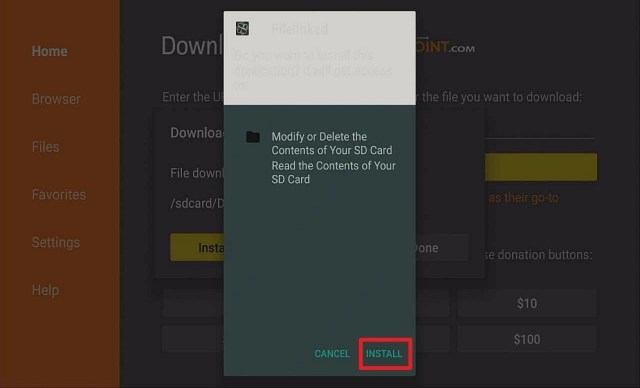
  22. Select Install
  23. Click Open to launch Aio Streamer on your Firestick.

Note: For the best file linked codes, please read our Best Filelinked Codes Review.


download aio streamer


If your Firestick still has the older interface, read this article to learn how to update it: Update Firestick Interface.


Install Aio Streamer on Firestick with Screenshots

1. Install the Downloader app and jailbreak your firestick by enabling unknown sources. To learn more about the procedure, you may read How to Install the Downloader App and Enable Unknown Sources.


2. Open Downloader App. Type https://get.filelinked.com and click Go.

Install Aio Streamer


3. Click Install.

Step 13 Install Aio Streamer on a Firestick


4. Click Open.

Step 14 Install Aio Streamer on a Firestick


5. Click Enter Code.

Step 15 Install Aio Streamer on a Firestick


6. Type Code Number and Click Next.

Step 16 Install Aio Streamer on a Firestick


7. Click Continue.

Step 17 Install Aio Streamer on a Firestick


8. Click on the search bar.

Step 18 Install AIO Streamer on a Firestick


9. On the search box, type in AIO Streamer. Then select Next.

Step 19 Install AIO Streamer on a Firestick


10. Download Aio Streamer by clicking on the drop-down button.

Step 20 Install AIO Streamer on a Firestick


11. Once the download finishes, click on the play button to install AIO Streamer.

Step 21 Install AIO Streamer on a Firestick


12. Select Install.

Step 22 Install AIO Streamer on a Firestick


13. Click Open to launch AIO Streamer on your Firestick.

Step 23 Install AIO Streamer on a Firestick


YOUR INTERNET ACTIVITY IS BEING WATCHED

ReviewVPN cannot attest to the legality, security and privacy of the applications discussed on this site. It is highly recommended that you use a VPN service while streaming or using Kodi.

Currently, your IP 216.73.216.1 is visible to everyone and your Browser is being tracked by Advertisers & ISP Provider.

Save 65% Now

Limited Time Offer

Here are the main reasons why you must use a VPN:

  • Your activities are hidden from your ISP, the government, and from the apps you are using.
  • You can access additional movies and TV streams.
  • ISP attempts to throttle are thrwarted thus reducing buffering issues.
  • Geographically restricted content like Netflix and Hulu can be unblocked.

A VPN works be replacing your ISP-assigned IP address and creating an encrypted tunnel. We recommend the no log service offered by IPVanish. It works well on a Firestick and offers the fastest possible speeds.

Special Limited Time Offer - Get IPVanish


Legal Disclaimer: ReviewVPN.com does not encourage or endorse any illegal activity involved in the usage of services and applications referenced on this site. We do not verify the licensing agreements of services. The end-user is wholly responsible for ensuring that any media accessed through these services does not violate copyright and/or licensing laws. ReviewVPN does not promote, link to, or receive compensation from any Apps and IPTV services.


Install Surfshark on Firestick

Best Surfshark Deal


Is It Any Good?

Aio Streamer is unlike any browser out there. Even though it works much like the browser version of PornHub and XNXX, you will be pleased to know that it is superior when it comes to working on a firestick. It has a lot of featured websites and more than a dozen categories to choose from.

Note: Read our Mouse Toggle Review for details as Aio Streamer requires one to work on the Firestick.


Aio Streamer Features

Hamburger Menu

  • Settings – This section will allow you to integrate your Premium Porn Hub Account (if you have one), Log in to your Aio Streamer Premium Account, Set Up and an external player like MX Player Pro, Set the Home tab which lets you choose what website is used upon startup, Activate Pin Lock, and Set your Pin Code.
  • Downloads – This portion will give you access to all the videos you have downloaded for offline streaming.
  • Favorites – This area will show you all of the videos you have tagged as your favorite.
  • Global Search – This function will allow you to search for any type of content you want to watch.
  • News – This section informs you of the updates made to each featured website.
  • FAQ – This area provides tutorials on how to select a category, Get Premium Ponr Hub for free, Why do some sites take time to load, and what is the fast forward time function.
  • Premium – This part will let you either sign up or log in to a premium account.


Featured Premium HD Websites

        Porn Hub, HQporner, Porn Trex, Spank Bang, Sexy Pron, Just Full Porn, Plus One 8, Trendy Porn, Bingato, Laid Hub, Porn4Days, likuoo, ePorner, DaftSex, laetsjerk.to, xGogi, and Porn ECCO


Featured Live Porn Website

        Chaturbate


Featured Amateur Porn Websites

        YouPorn, NSFW247.to, Tube8, XNXX, XVideos, XHamster, RedTube, YouJizz, Dupose, Cliphunter, and BitPorno.


Featured Family Porn Websites

        MilfZR, TabooPorns, Incestflix, and TabooTube.


Featured Japanese Porn Websites

        JavFinder, JAVDoe, JavBangers, BestJAVPorn, JavHihi, and JAVtiful


Featured Hentai Porn Websites

        HentaiMama, Hanime.tv, and HentaiGasm.

Other Featured Websites

        GameofPorn, PerfectGirls, GotPorn, VQTube, vPorn, Sextvx, XoZilla, PornGo, PornXio, and DirtyShip.

Interface

There is a search box where you can sort out videos according to their video quality, production, categories, and order. You will also notice at the bottom of the screen that you can sort our streams to the newest, hottest, most searched, and category listings.


Videos

Aio Streamer features short clips up to full-length videos that usually run for 20 minutes. There are also a lot of HD videos, so you are assured of high-quality videos.


Playing/Loading Time

Before you can play a video, you will choose the video quality. After that, you will see how fast the video loads and plays. Aio Streamer is by far one of the fastest when it comes to this aspect.


In-App Player Interface

Once you select the video quality, the player will pop up and there are other functions that you can use inside like choose the screen orientation, mute audio, download, set the video to 3D, choose an external player, and close the video. 


Categories

        1080p Porn, 4k Porn, 60fps Porn, Amateur, Anal Sex Hd, Asian, Babe, BDSM, Beach Porn, Big Ass, Big Dick, Big Tits, Bisexual, Blonde, Bondage, Blowjob, Brunette, Casting, Creampie, Cumshot, Deepthroat, Ebony, Fetish, Fingering, Fisting, Gangbang, Group Sex, Hairy Pussy, Handjob, Hentai, Interracial, Latina, Japanese Girls Porn, Latina, Lesbian, Masturbation, Mature, MILF, Moaning, Old And Young, Orgasm, Orgy, Pickup, Outdoor, Public, Pussy Licking, Redhead, Russian, Porn Massage, Sex Parties, Shaved Pussy, Small Tits, Squeezing Tits, Squirt, Stockings, Tattooed, Teen Porn, Threesome, Undressing, Uniforms, Vibrator, And Vintage.


Pros and Cons 

Pros

  • 3D Application – you can set any video into 3D.
  • Fast Loading/Playing Time
  • Downloadable Content
  • HD Videos (720p and 1080p)
  • Huge Library
  • Full-Screen Mode on the Firestick

Cons

  • When you set a video into 3D, you will find it hard to revert it back to the original setting.


Should I use a VPN?

A premium VPN service like Surfshark is required when viewing adult content. Aside from cloaking your online activity and identity, one of the benefits of having one is the assurance of a smooth viewing experience. It will block all attempts to throttle down your speed done by your ISP.


Note:  If you want to know more about the perks of having a premium VPN service, please read our Surfshark Review.


How to Install Surfshark VPN on Firestick

If your Firestick still has the older interface, read this article to learn how to update it: Update Firestick Interface.

Follow our screenshots below to install the SurfShark VPN app on your Fire TV stick.

1. Go to the Home screen of your Firestick.

step 1 Install Surfshark VPN on Firestick


2. Navigate towards the Find tab. Press the Search button from the resulting dropdown.

step 2 Install Surfshark VPN on Firestick


3. Type in the keyword of SurfShark and select from the suggestions that will appear.

step 3 Install Surfshark VPN on Firestick


4. Click the official SurfShark icon from your search results.

step 4 Install Surfshark VPN on Firestick


5. Press the Download (You own it) button.

step 5 Install Surfshark VPN on Firestick


6. The SurfShark VPN installer will download on your device.

step 6 Install Surfshark VPN on Firestick


7. SurfShark VPN’s app will automatically install itself on your Fire TV stick.

step 7 Install Surfshark VPN on Firestick


8. Press the Open button after completing SurfShark VPN’s installation process.

step 8 Install Surfshark VPN on Firestick


9. Please wait for the SurfShark VPN to load its user interface.

step 9 Install Surfshark VPN on Firestick


10. You can now log in with your SurfShark VPN account credentials.

step 10 Install Surfshark VPN on Firestick

Learn more about Surfshark and Grab the Best Surfshark Deal Now!


Install Surfshark on Firestick

Best Surfshark Deal


Other VPNs to Consider

NordVPN (Best for Streaming)

Best Features

  • 5000+ Server in 50+ Countries 
  • Military-Grade Encryption
  • Fast Connection Speed
  • Suitable to a lot of devices
  • No-Log Policy

Prices
  • Complete $5.89 per month (64% Discount)
  • Plus $4.59 per month (56% Discount)
  • Standard $3.69 per month (55% Discount)

Best Features

  • 750+ High-speed VPN Servers in 43 Locations
  • Military-Grade Encryption
  • Fastest HD Streaming and Gaming
  • 30-Day Money-Back Guarantee
  • Unlimited Data & Devices
  • No-Log Policy

Prices
  • 3 Years $1.99 per month (82% Discount)
  • 1 Years $3.29 per month (70% Discount)
  • 1 Month $10.99 per month

IPVanish VPN (Most Secure)

Best Features

  • 1200+ Servers in 60+ Countries around the world
  • Unlimited Connections
  • No-Log Policy
  • Top Notch Military-Grade VPN Protocols and Encryptions
  • 100% Safe and Secured
  • Most Trusted VPN
  • Best VPN for Firestick
  • 30-Day Money-Back Guarantee

Prices
  • Yearly $3.99 per month (63% Discount) – 30 days risk free + Ransomware & Malware Protection
  • Quarterly $5.32 per month (51% Discount)
  • Monthly $10.99 per month


For more VPN discounts, go to ReviewVPN Deals and purchase the best VPN for you.

Click here to get the lowest price on Surfshark through our exclusive limited-time offer.


FAQ

Is it safe to download?

Aio Streamer is safe to download on your device.


Is it legal or grey?

Aio Streamer is 100% legal to install on a Firestick.


Is it free?

Aio Streamer is free.


Are there ADS?

Ad Guard is not required because Aio Streamer is Ad-free.


Is there a premium version?

Yes, Aio Streamer offers a premium account. 


Is it a Terrarium Clone?

Aio Streamer is not a terrarium clone.


Is there an official website?

Aio Streamer has none.


What other devices does it work on?

Aio Streamer will work on android devices and Amazon Fire Tablets 7 and 10.


How does the app work?

The installation guide we have provided above will show you how Aio Streamer works on the Firestick.


Minimum Version Required

Your device needs to be at least version 5.0 and above for Aio Streamer to work.


How long has it been around?

Aio Streamer is relatively new. It was launched this year, 2020.


Alternatives

We know how hard it is to find a WORKING adult streaming application on the firestick. We did our research, reviews, and tests to make life easier for you. The following apps are guaranteed to work on the firestick.

                 APPS

               REVIEW

           DOWNLOAD

                 Stremio

           Stremio Review

             Media Lounge

       Media Lounge Review

               Jizztagram

         Jizztagram Review

                  XVideos

           XVideos Review

               Pron4Droid

         Pron4Droid Review

ReviewVPN.com does not host any of these files. They are hosted on Archive.org.


Note: Kindly read our How to Watch Porn using a Firestick for more details.


Our Opinion

We will never get tired of stressing out how rare it is to find a WORKING porn app that is compatible with the Firestick. You will be pleased to know that Aio Streamer not only works for the Firestick but also has great assets that will make other porn apps a run for their money. With its great features and compatibility, we believe that Aio Streamer will be one of the best apps you can use to watch porn on a Firestick.


Note: Read our ultimate guide on how to watch porn on a Firestick by clicking here.


Final Thoughts

Please let us know if this article on how to install Aio Streamer Firestick Edition worked out for you by leaving comments down below. Thank you for reading and stay safe!

Note: ReviewVPN.com does not own or operate any app nor does it endorse any. The main purpose of this article is strictly for educational purposes only.

How to Install Newest Movies HD on Firestick

Install Newest Movies HD Firestick Version

In this article, we will be divulging important details on how to install Newest Movies HD on Firestick and other devices that run on the android platform.


 Do you want to catch up on the latest movie releases, but the quarantine has rendered you unable to do so? The Firestick is an amazing device that allows you to access third-party applications that offer free movies and TV Shows. In this article, we will be teaching you how to install Newest Movies HD on Firestick. It is one of the newest additions to our roster of apps that provides free movies and TV Shows.


ANONYMOUSLY

Is Newest Movies App Safe and Virus-free?

We tested this application using VirusTotal and found that there is/are malicious file/files. You can see the above result for your reference.

Because of this, we highly recommend using a VPN that can protect your privacy against any threat from Newest Movies App.

Here’s how you can Install The Best VPN For Firestick and All Devices.


How to Install Newest Movies HD APK Firestick Guide

  1. Go to Settings and select Device.
  2. Choose Developer Options
  3. Turn on the ADB Debugging and Apps From Unknown Sources
  4. After turning these options on, launch the Amazon App Store on your device
  5. Search and Download Downloader
  6.  Install Downloader and launch it after installing it.
  7. Choose Allow and Select Ok
  8. Type in https://reviewvpn.com/new and select Go
  9. Wait for it to finish and then select Newest Movies HD APK
  10. Select Done
  11. This will automatically take you back to Downloader. Select Delete
  12. Choose Delete one more time
  13. Head back to the home screen and under the Your Apps & Channels select Choose All
  14. Scroll down and select Newest Movies HD APK and select Options.
  15. Then select Move to Front
  16. Newest Movies HD APK will be moved forward to Your Apps and Channels
  17. After this, you will see Newest Movies HD APK and click it to launch.


If your Firestick still has the older interface, read this article to learn how to update it: Update Firestick Interface.


Install Newest Movies HD on Firesticks (Video)


Install Newest Movies HD on Firesticks with Screenshots

1. Install the Downloader app and jailbreak your Firestick by enabling unknown sources. To learn more about the procedure, you may read How to Install the Downloader App and Enable Unknown Sources.


2. Open Downloader App. Type https://reviewvpn.com/new and click Go.

Install Newest Movies1


3. Select INSTALL.

Step 13 Install Newest Movies HD on Firestick


4. Select OPEN.

Step 14 Install Newest Movies HD on Firestick


5. There you go, the Newest Movies HD is installed!

Step 15 Install Newest Movies HD on Firestick


YOUR INTERNET ACTIVITY IS BEING WATCHED

ReviewVPN cannot attest to the legality, security and privacy of the applications discussed on this site. It is highly recommended that you use a VPN service while streaming or using Kodi.

Currently, your IP 216.73.216.1 is visible to everyone and your Browser is being tracked by Advertisers & ISP Provider.

Save 65% Now

Limited Time Offer

Here are the main reasons why you must use a VPN:

  • Your activities are hidden from your ISP, the government, and from the apps you are using.
  • You can access additional movies and TV streams.
  • ISP attempts to throttle are thrwarted thus reducing buffering issues.
  • Geographically restricted content like Netflix and Hulu can be unblocked.

A VPN works be replacing your ISP-assigned IP address and creating an encrypted tunnel. We recommend the no log service offered by IPVanish. It works well on a Firestick and offers the fastest possible speeds.

Special Limited Time Offer - Get IPVanish


Legal Disclaimer: ReviewVPN.com does not encourage or endorse any illegal activity involved in the usage of services and applications referenced on this site. We do not verify the licensing agreements of services. The end-user is wholly responsible for ensuring that any media accessed through these services does not violate copyright and/or licensing laws. ReviewVPN does not promote, link to, or receive compensation from any Apps and IPTV services.


Install SurfShark on Firestick

Best SurfShark Deal


Is It Any Good?

Newest Movies HD is one of the new and upcoming third-party movies and TV Shows streaming applications. It provides a variety of up-to-date movies and a handful of popular TV Shows. Get to watch the latest movie releases and updates on TV shows by using Newest Movies HD Streaming app.


Newest Movies HD Features

Hamburger Menu

Consists of the following items:

        Home, New Updates, Movies, Cartoons, TV Shows, Watchlist, Recent Release, History, Request Movies, Become VIP, Settings, About, Log out.


Homepage

The Homepage has a slide show on the latest TV seasons. New updates, Movies, Cartoons, TV Shows, Trending. You can expand every section by clicking on the three-dotted button.


Interface

Once you click on a thumbnail, there will be two tabs that will appear; Info and Episode.  The Info tab shows a summary of the video. The episode tab, on the other hand, will show you preset links that you can choose. It does not appear to be gathering links. Once you click on the link, you can either choose the video quality or download the video. You also have the option of choosing an external player.


Pros and Cons 

Pros

  •     No Mouse Toggle Required

        Mouse Toggle is going to be a hassle if you are new to it. It gets better over time but a good streaming application should be Mouse Toggle Free.

  •     High-Definition Video Quality (720p and 1080p)
  •     Faster Playback when MX Player Pro is used.
  •     Subtitle Function via MX Player Pro.
  •     Downloadable Content
  •     Favorites Function


Cons

  • Limited no. of TV Shows.
  • Internal Player Buffers a lot.
  • Tv Shows section loads slower
  • Some TV show links are not working
  • Some videos for the tv shows have audio but no video. The screen is just black.
  • No Real Debrid, Premiumize, and All Debrid Integration 

        Having no premium link generator present means that the quality of the generated links is ok. If you are going to play popular movies, you might lose a slot because of the number of users trying to access the said film.

  • No Trakt Integration

        Without Trakt TV, you will have to manually search for the last thing you have watched. You will also need to skim through the video to get back where you left off.

  • Not One-Click Play

        This means you must manually choose the links.


Should I use a VPN?

Surfshark vpn

The responsible thing to do when using third-party applications is to ensure your protection. Your online identity and activity are vulnerable to entities like your ISP and other online threats. You can protect yourself by using a premium VPN service like SurfShark. Aside from masking your activity, it will also ensure that your streaming experience is buffer-free.

Note: For more information about Surfshark, please read our Surfshark Review.


Grab your subscription now!

Click here to get the lowest price on SurfShark through our exclusive limited-time offer.


How to Install Surfshark on Firestick with Screenshots

If your Firestick still has the older interface, read this article to learn how to update it: Update Firestick Interface.

You can download Surfshark directly from the Amazon App store. It will be easy for you to find Surfshark with your Firestick’s Find feature. Refer to our screenshots below.

Follow our screenshots below to install the SurfShark VPN app on your Fire TV stick.

1. Go to the Home screen of your Firestick.

step 1 Install Surfshark VPN on Firestick


2. Navigate towards the Find tab. Press the Search button from the resulting dropdown.

step 2 Install Surfshark VPN on Firestick


3. Type in the keyword of SurfShark and select from the suggestions that will appear.

step 3 Install Surfshark VPN on Firestick


4. Click the official SurfShark icon from your search results.

step 4 Install Surfshark VPN on Firestick


5. Press the Download (You own it) button.

step 5 Install Surfshark VPN on Firestick


6. The SurfShark VPN installer will download on your device.

step 6 Install Surfshark VPN on Firestick


7. SurfShark VPN’s app will automatically install itself on your Fire TV stick.

step 7 Install Surfshark VPN on Firestick


8. Press the Open button after completing SurfShark VPN’s installation process.

step 8 Install Surfshark VPN on Firestick


9. Please wait for the SurfShark VPN to load its user interface.

step 9 Install Surfshark VPN on Firestick


10. You can now log in with your SurfShark VPN account credentials.

step 10 Install Surfshark VPN on Firestick

Learn more about Surfshark and Grab the Best Surfshark Deal Now!


Install Surfshark on Firestick

Best Surfshark Deal


Other VPNs to Consider

NordVPN (Best for Streaming)

Best Features

  • 5000+ Server in 50+ Countries 
  • Military-Grade Encryption
  • Fast Connection Speed
  • Suitable to a lot of devices
  • No-Log Policy

Prices
  • Complete $5.89 per month (64% Discount)
  • Plus $4.59 per month (56% Discount)
  • Standard $3.69 per month (55% Discount)

Best Features

  • 750+ High-speed VPN Servers in 43 Locations
  • Military-Grade Encryption
  • Fastest HD Streaming and Gaming
  • 30-Day Money-Back Guarantee
  • Unlimited Data & Devices
  • No-Log Policy

Prices
  • 3 Years $1.99 per month (82% Discount)
  • 1 Years $3.29 per month (70% Discount)
  • 1 Month $10.99 per month

IPVanish VPN (Most Secure)

Best Features

  • 1200+ Servers in 60+ Countries around the world
  • Unlimited Connections
  • No-Log Policy
  • Top Notch Military-Grade VPN Protocols and Encryptions
  • 100% Safe and Secured
  • Most Trusted VPN
  • Best VPN for Firestick
  • 30-Day Money-Back Guarantee

Prices
  • Yearly $3.99 per month (63% Discount) – 30 days risk free + Ransomware & Malware Protection
  • Quarterly $5.32 per month (51% Discount)
  • Monthly $10.99 per month


For more VPN discounts, go to ReviewVPN Deals and purchase the best VPN for you.

Click here to get the lowest price on Surfshark through our exclusive limited-time offer.


FAQ

Is it safe to download?

Newest Movies HD is safe to download and install on the Firestick and other devices.


Is it legal or grey?

Newest Movies HD is legal to use on your Firestick. 


Is it free?

Yes, Newest Movies HD is free.


Are there ADS?

One of the highlights of this application is that it has no ads. You are assured of a seamless viewing experience. 


Is there a premium version?

No, Newest Movies HD does not have a premium version.


Is it a Terrarium Clone?

Newest Movies HD is a terrarium clone.


Is there an official website?

No, Newest Movies HD does not have an official website.


What other devices does it work on?

Newest Movies HD will run on android devices, Smart TV’s, and Fire Tablets 7 and 10.


How does the app work?

The app works by scraping the web for working streaming links. You will see how it works by following our guide on how to install Newest Movies on Firestick.


Minimum Version Required

Newest Movies HD requires a minimum version of 5.0 to have a smooth run on your device.


How long has it been around?

Newest Movies HD was launched in 2019.


Alternatives

We must remember that free third-party streaming applications are unpredictable. Sometimes they work and sometimes they do not. The same is true for Newest Movies HD and you need to have a good back-up streaming application. We have tested more than a dozen streaming apps that work perfectly with the Amazon Firestick and they are as follows:

                 APPS

               REVIEW

           DOWNLOAD

                 Cyberflix

           Cyberflix Review

               Cinema HD

         Cinema HD Review

                 Nova TV

           Nova TV Review

                  Viva TV

            Viva TV Review

                   Bee TV

             Bee TV Review

                  FilmPlus

            FilmPlus Review

ReviewVPN.com does not host any of these files. They are hosted on Archive.org.

Note: For the Best Movie apps, please click on this link.


Our Opinion

What caught our attention when it came to Newest Movies HD is that it does not require Mouse Toggle to function. There are a lot of movie apps out there that will only work with the use of the Mouse Toggle. Some of them are even included in the Alternatives List. For a smoother viewing experience, make sure that you use MX Player Pro. You will see the difference when using it compared to the internal player of Newest HD Movies.


Final Thoughts

May this article help you on how to install Newest Movies HD on Firestick. Thank you for reading and stay safe.


Note: ReviewVPN.com does not own or operate any app nor endorse any. The main purpose of this article is strictly for educational purposes only.


What Is Your Favorite Streaming App? Cast Your Vote Below.

How to Install JetBOX on Firestick

JetBOX Firestick Version

This article will show you how to install JetBOX on Firestick.


When was the last time you sat back and relaxed? Turned your TV on and watched something nice? We are going to assume that you have not in a while due to the crisis all of us are facing right now. If you are an Amazon Firestick user, the good news is you can watch good entertainment without having the need to pay for anything. All you need is your reliable internet connection and you are all set. In this article, we will be demonstrating how to install JetBOX on Firestick and Android devices.


ANONYMOUSLY

Is JetBox Safe and Virus-free?

We tested this app using VirusTotal and found no threats or any malicious files and malware.

Despite having good results, we still need to be vigilant in protecting our privacy while streaming.

A Virtual Private Network or VPN will definitely help us maintain our security and anonymity while using JetBox.

Here’s how you can Install The Best VPN For Firestick and All Devices.


 How to Install JetBox on Android

To download and install JetBOX on your Android device, just click on this link.


How to Install JetBOX Firestick Guide

  1. Go to Settings and select Device.
  2. Choose Developer Options
  3. Turn on the ADB Debugging and Apps From Unknown Sources
  4. After turning these options on, launch the Amazon App Store on your device
  5. Search and Download Downloader
  6. Install Downloader and launch it after installing it.
  7. Choose Allow and Select Ok
  8. Type in https://reviewvpn.com/jet and select Go
  9. Wait for it to finish and then select JetBOX
  10. Select Done
  11. This will automatically take you back to Downloader. Select Delete
  12. Choose Delete one more time
  13. Head back to the home screen and under the Your Apps & Channels select Choose All
  14. Scroll down and select JetBOX and select the Options.
  15. Then select Move to Front
  16. JetBOX will be moved forward to Your Apps and Channels
  17. After this, you will see JetBOX and click it to launch.


If your Firestick still has the older interface, read this article to learn how to update it: Update Firestick Interface.


Install JetBox on Firestick with Screenshots

1. Install the Downloader app and jailbreak your firestick by enabling unknown sources. To learn more about the procedure, you may read How to Install the Downloader App and Enable Unknown Sources.


2. Open Downloader App. Type https://reviewvpn.com/jet and click Go.

install JetBOX


3. Click on Install.

Step 13 Install jetbox on firestick


4. Click Open

Step 14 Install jetbox on firestick


5. Click Allow.

Step 15 Install jetbox on firestick


6. JetBox is installed. Enjoy Watching!

Step 16 Install jetbox on firestick


YOUR INTERNET ACTIVITY IS BEING WATCHED

ReviewVPN cannot attest to the legality, security and privacy of the applications discussed on this site. It is highly recommended that you use a VPN service while streaming or using Kodi.

Currently, your IP 216.73.216.1 is visible to everyone and your Browser is being tracked by Advertisers & ISP Provider.

Save 65% Now

Limited Time Offer

Here are the main reasons why you must use a VPN:

  • Your activities are hidden from your ISP, the government, and from the apps you are using.
  • You can access additional movies and TV streams.
  • ISP attempts to throttle are thrwarted thus reducing buffering issues.
  • Geographically restricted content like Netflix and Hulu can be unblocked.

A VPN works be replacing your ISP-assigned IP address and creating an encrypted tunnel. We recommend the no log service offered by IPVanish. It works well on a Firestick and offers the fastest possible speeds.

Special Limited Time Offer - Get IPVanish


Legal Disclaimer: ReviewVPN.com does not encourage or endorse any illegal activity involved in the usage of services and applications referenced on this site. We do not verify the licensing agreements of services. The end-user is wholly responsible for ensuring that any media accessed through these services does not violate copyright and/or licensing laws. ReviewVPN does not promote, link to, or receive compensation from any Apps and IPTV services.


Install Surfshark on Firestick

Best Surfshark Deal


Is It Any Good?

JetBOX has the standard features of a free third-party streaming application. It offers various movies and TV Shows that will surely keep users entertained. The movies and TV Shows can be sorted out by using the filter button. JetBOX is also home to the most popular animations and anime. If you are a fan of both, then you are in for a treat.


JetBOX Features

Main Menu Interface

You can see the following buttons on the main homepage:

  • Hamburger Menu
  • Filter Button
  • Search Button


Hamburger Menu

The Hamburger Menu contains the tabs for Movies, TV Shows, My Favorites, Downloads, My Reminders, Settings, Contact Support, and Privacy Policy. Once you click on each tab, you will be redirected to the corresponding items that are contained in each tab. You can freely explore it with just the remote.


Filter Button

You can use this feature to sort out videos depending on the genre they are under.


TV Show Genres

  • Trending, Most Popular, Action, Adventure, Animation, Comedy. Drama, Fantasy, Horror, Mystery, Romance, and Sci-Fi.


Movies Genre

  • Trending, Most Popular, Action, Adventure, Comedy, Drama, Fantasy, Horror, Mystery, Romance, and Sci-Fi


Settings

In this section, you will be able to adjust the way the app works. You can enable or disable notifications, Choose Subtitle Language/Provider, Enable/Disable Dark Mode, Select Download Folder, Log in to your Trakt TV Account, Log into your Real-Debrid, Connect to various social media platforms of the app, FAQ, and the current version of JetBOX.


Search Button

Use this feature to look for any specific tv show or movie you want to view.


Interface

The interface is easy to navigate. Upon clicking a thumbnail, you will see the star rating, video length, overview, similar videos tab, cast, director, and a summary of what the video is about.


JetBOX Pros and Cons

Pros

  1. No Need for Mouse Toggle
    • One aspect of a good third-party streaming app is its usability without a Mouse Toggle app. Mouse Toggle, although it gets better in time, is still considered a hassle to use.
  2. Dark Theme
    • This aspect only applies to the general theme of the app. Dark Colors usually save you more energy and make it easier on your eyes whenever you are navigating through the app.
  3. Subtitles
    • A lot of people prefer having subtitles because they can understand what they are watching easier.
  4. Real Debrid Integration
    • With Real-Debrid Integration, you will only get premium quality links and these are the cream of the crop.
  5. Trakt TV Support
    • With Trakt TV Support, you no longer must worry about the schedule of your favorite TV series. It will automatically notify you before the TV Show airs. Also, it keeps track of the videos you have watched and are currently watching with the specific time where you left off.
  6. Downloadable Content
    • Although this is not applicable to the Amazon Firestick, this proves to be useful for Android users.
  7. Bookmark
    • You can tag videos as your favorites whenever you click on a specific thumbnail.


Cons

  1. Not Real One-Click Play
  • You will have to pick the links to watch videos.
  1. Some links are not working.


Should I use JetBOX with a VPN?

To ensure a safe and secure browsing experience, you must always stream using a premium VPN service like Surfshark. Aside from providing the necessary blockage to make you anonymous, it also allows you to access location-restricted content. You are also assured to have lag-free streaming because it will block any efforts made by your ISP to slow down your connection.

Note: For more information about Surfshark, please read our Surfshark Review.


Grab your subscription now!


How to Install Surfshark VPN on Firestick

If your Firestick still has the older interface, read this article to learn how to update it: Update Firestick Interface.

1. Go to the Home screen of your Firestick.

step 1 Install Surfshark VPN on Firestick


2. Navigate towards the Find tab. Press the Search button from the resulting dropdown.

step 2 Install Surfshark VPN on Firestick


3. Type in the keyword of SurfShark and select from the suggestions that will appear.

step 3 Install Surfshark VPN on Firestick


4. Click the official SurfShark icon from your search results.

step 4 Install Surfshark VPN on Firestick


5. Press the Download (You own it) button.

step 5 Install Surfshark VPN on Firestick


6. The SurfShark VPN installer will download on your device.

step 6 Install Surfshark VPN on Firestick


7. SurfShark VPN’s app will automatically install itself on your Fire TV stick.

step 7 Install Surfshark VPN on Firestick


8. Press the Open button after completing SurfShark VPN’s installation process.

step 8 Install Surfshark VPN on Firestick


9. Please wait for the SurfShark VPN to load its user interface.

step 9 Install Surfshark VPN on Firestick


10. You can now log in with your SurfShark VPN account credentials.

step 10 Install Surfshark VPN on Firestick

Learn more about Surfshark and Grab the Best Surfshark Deal Now!


Install Surfshark on Firestick

Best Surfshark Deal


Other VPNs to Consider

NordVPN (Best for Streaming)

Best Features

  • 5000+ Server in 50+ Countries 
  • Military-Grade Encryption
  • Fast Connection Speed
  • Suitable to a lot of devices
  • No-Log Policy

Prices
  • Complete $5.89 per month (64% Discount)
  • Plus $4.59 per month (56% Discount)
  • Standard $3.69 per month (55% Discount)

Best Features

  • 750+ High-speed VPN Servers in 43 Locations
  • Military-Grade Encryption
  • Fastest HD Streaming and Gaming
  • 30-Day Money-Back Guarantee
  • Unlimited Data & Devices
  • No-Log Policy

Prices
  • 3 Years $1.99 per month (82% Discount)
  • 1 Years $3.29 per month (70% Discount)
  • 1 Month $10.99 per month

IPVanish VPN (Most Secure)

Best Features

  • 1200+ Servers in 60+ Countries around the world
  • Unlimited Connections
  • No-Log Policy
  • Top Notch Military-Grade VPN Protocols and Encryptions
  • 100% Safe and Secured
  • Most Trusted VPN
  • Best VPN for Firestick
  • 30-Day Money-Back Guarantee

Prices
  • Yearly $3.99 per month (63% Discount) – 30 days risk free + Ransomware & Malware Protection
  • Quarterly $5.32 per month (51% Discount)
  • Monthly $10.99 per month


For more VPN discounts, go to ReviewVPN Deals and purchase the best VPN for you.

Click here to get the lowest price on Surfshark through our exclusive limited-time offer.


FAQ

Is it safe to download?

JetBOX is safe to download and install on a Firestick and other compatible devices.


Is it legal or grey?

JetBOX is 100% legal to download and utilize on the Amazon Firestick.


Is it free?

JetBOX is free.


Are there ADS?

JetBOX is totally ad-free.


Is there a premium version?

No, there is no premium version but with Real-Debrid, it would feel like you just got one.


Is it a Terrarium Clone?

Yes, it is a terrarium clone.


Is there an official website?

Yes, JetBOX has an official website. You can visit them at https://jetboxapp.com/.


What other devices does it work on?

As long as your device runs on Android OS and it is under the Amazon Entertainment system like the Fire TV, Fire Cube, and Fire Tablets, JetBOX will work just fine.


How does the app work?

JetBOX works just like any other free third-party streaming application. It scours the web for working streaming links and shares these links for you to choose from. Just follow our guide on how to install JetBOX on Firestick edition and you will see how it works.


Minimum Version Required

JetBOX requires a minimum of version 5.0 to run without any issue on your Firestick.


How long has it been around?

JetBOX is relatively new to the free streaming app scene. It was developed and released last year, 2019.


Alternatives

We have tested a lot of free third-party streaming applications and came to the realization that these apps have an unpredictable nature. One moment it works and then it does not. With that being said, we always remind our readers to set up a good shortlist of alternatives. The following apps are the top in the market and we can attest to their capabilities.

                 APPS

               REVIEW

           DOWNLOAD

                 Nova TV

           Nova TV Review

                  Viva TV

            Viva TV Review

                   Bee TV

             Bee TV Review

                  FilmPlus

            FilmPlus Review

                 Cyberflix

           Cyberflix Review

ReviewVPN.com does not host any of these files. They are hosted on Archive.org.

Note:  Please click on this link to learn more about the best free third-party streaming applications we have reviewed.


Our Opinion

If you pay attention to JetBOX’s pros, you will surely be amazed by the magnitude of its capability. The trend nowadays is to be the go-to streaming app and mind you, JetBOX is not letting up. It may not be as popular as the ones we have featured in the alternatives, but it can also perform at the same level. Please follow the guide we have given on how to install JetBOX on Firestick and see what we are rambling about.

We hope that this article helps you with how to install JetBOX on Firestick. Kindly leave your comments down below and feel free to contact us on any of our other social media platforms. Thank you for reading and stay safe!


Note: ReviewVPN.com does not own or operate any app nor does it endorse any. The main purpose of this article is strictly for educational purposes only.


What Is Your Favorite Streaming App? Cast Your Vote Below.

How to Install Best Sex Movies Firestick Edition

Install Best Sex Movies Firestick Version

In this article, we will be divulging important details on how to install Best Sec Movies app on Firestick and other devices that run on the android platform.


How often do you find a WORKING  free adult streaming application that is compatible with the Amazon Firestick? We would assume that you are having a hard time just like we did. There seem to be a lot of porn apps available online but there are only a select few that will really run perfectly on the Firestick. We placed it upon ourselves to do the research and testing for you, our avid readers because we only want the best for you. In this article, we will be showing you how to install Best Sex Movies Firestick version. 


ANONYMOUSLY

Is Best Sex Movies App Safe and Virus-free?

We tested this app using VirusTotal and found no threats or any malicious files and malware.

Despite having good results, we still need to be vigilant in protecting our privacy while streaming.

A Virtual Private Network or VPN will definitely help us maintain our security and anonymity while using Best Sex Movies App.

Here’s how you can Install The Best VPN For Firestick and All Devices.


How to Install Best Sex Movies APK on Android

To download and install Best Sex Movies on your Android device, just click on this link.


How to Install Best Sex Movies Firestick Guide

  1.  Go to Settings and select Device.
  2.  Choose Developer Options
  3.  Turn on the ADB Debugging and Apps From Unknown Sources
  4.  After turning these options on, launch the Amazon App Store on your device
  5.  Search and Download Downloader
  6.  Install Downloader and launch it after installing it.
  7.  Choose Allow and Select Ok
  8.  Type in https://reviewvpn.com/bsm and select Go
  9.  Wait for it to finish and then select Best Sex Movies
  10.  Select Done
  11.  This will automatically take you back to Downloader. Select Delete
  12.  Choose Delete one more time
  13.  Head back to the home screen and under the Your Apps & Channels select Choose All
  14.  Scroll down and select Best Sex Movies and select the Options.
  15.  Then select Move to Front
  16.  Best Sex Movies will be moved forward to Your Apps and Channels
  17.  After this, you will see Best Sex Movies and click it to launch.


If your Firestick still has the older interface, read this article to learn how to update it: Update Firestick Interface.


Install Best Sex Movies on Firesticks with Screenshots

1. Install the Downloader app and jailbreak your firestick by enabling unknown sources. To learn more about the procedure, you may read How to Install the Downloader App and Enable Unknown Sources.


2. Open Downloader App. Type https://reviewvpn.com/bsm  and click Go.

Install Best Sex Movies


3. Select INSTALL.

Step 13 Install Best Sex Movies on Firestick


4. Select OPEN. There you go, the Best Sex Movies is installed!

Step 14 Install Best Sex Movies on Firestick


YOUR INTERNET ACTIVITY IS BEING WATCHED

ReviewVPN cannot attest to the legality, security and privacy of the applications discussed on this site. It is highly recommended that you use a VPN service while streaming or using Kodi.

Currently, your IP 216.73.216.1 is visible to everyone and your Browser is being tracked by Advertisers & ISP Provider.

Save 65% Now

Limited Time Offer

Here are the main reasons why you must use a VPN:

  • Your activities are hidden from your ISP, the government, and from the apps you are using.
  • You can access additional movies and TV streams.
  • ISP attempts to throttle are thrwarted thus reducing buffering issues.
  • Geographically restricted content like Netflix and Hulu can be unblocked.

A VPN works be replacing your ISP-assigned IP address and creating an encrypted tunnel. We recommend the no log service offered by IPVanish. It works well on a Firestick and offers the fastest possible speeds.

Special Limited Time Offer - Get IPVanish


Legal Disclaimer: ReviewVPN.com does not encourage or endorse any illegal activity involved in the usage of services and applications referenced on this site. We do not verify the licensing agreements of services. The end-user is wholly responsible for ensuring that any media accessed through these services does not violate copyright and/or licensing laws. ReviewVPN does not promote, link to, or receive compensation from any Apps and IPTV services.


Install Surfshark on Firestick

Best Surfshark Deal


Is It Any Good?

We must point out that there are only a few free adult streaming apps that will work on the Amazon Firestick. One of which is Best Sex Movies APK. 


Best Sex Movies APK Features

Interface

Best Sex Movies has a pretty straightforward interface. Navigating through the app is a breeze. You can see that pages are numbered from one to nine. 


Videos

Best Sex Videos has a total number of one hundred eighty videos. There are 20 videos per page and have titles in them. There is no listing as to where these videos come from but from our inspection, mostly come from Nubile Films. Also, the video featured are snippets and are not full-length movies. These are decent enough to get you and your partner warmed up for the real thing.


Hamburger Menu

At the upper right corner of the screen, you will see a three-dotted button which will give you two options, The main Screen, and favorite a video.


Pros and Cons

Pros

  • You can bookmark a video by making it a favorite. This way you can gain access to all the favorite videos.
  • One-Click Play

Cons

  • There is a complete lack of categories to choose from
  • Although it appears to have a full-screen function, the video size will remain the same.
  • There is a limit to how many videos are featured in the application.


Should I use a VPN?

https://get.surfshark.net/aff_c?offer_id=865&aff_id=12312

Using free adult streaming applications has its risks. If you are not well protected, your online identity and activity are exposed to your ISP and other online threats. One of the main benefits of having a premium VPN service as Surfshark will create a safe shroud that will give you anonymity. It will also neutralize any attempt to throttle down your connection. It will only show the ISP the amount of data being utilized but not what it is being utilized for. 

Note: For more information about Surfshark, please read our Surfshark Review.


Grab your subscription now!


How to Install Surfshark VPN on Firestick

If your Firestick still has the older interface, read this article to learn how to update it: Update Firestick Interface.

1. Go to the Home screen of your Firestick.

step 1 Install Surfshark VPN on Firestick


2. Navigate towards the Find tab. Press the Search button from the resulting dropdown.

step 2 Install Surfshark VPN on Firestick


3. Type in the keyword of Surfshark and select from the suggestions that will appear.

step 3 Install Surfshark VPN on Firestick


4. Click the official SurfShark icon from your search results.

step 4 Install Surfshark VPN on Firestick


5. Press the Download (You own it) button.

step 5 Install Surfshark VPN on Firestick


6. The Surfshark VPN installer will download on your device.

step 6 Install Surfshark VPN on Firestick


7. SurfShark VPN’s app will automatically install itself on your Fire TV stick.

step 7 Install Surfshark VPN on Firestick


8. Press the Open button after completing Surfshark VPN’s installation process.

step 8 Install Surfshark VPN on Firestick


9. Please wait for the SurfShark VPN to load its user interface.

step 9 Install Surfshark VPN on Firestick


10. You can now log in with your Surfshark VPN account credentials.

step 10 Install Surfshark VPN on Firestick

Learn more about Surfshark and Grab the Best Surfshark Deal Now!


Install Surfshark on Firestick

Best Surfshark Deal


Other VPNs to Consider

NordVPN (Best for Streaming)

Best Features

  • 5000+ Server in 50+ Countries 
  • Military-Grade Encryption
  • Fast Connection Speed
  • Suitable to a lot of devices
  • No-Log Policy

Prices
  • Complete $5.89 per month (64% Discount)
  • Plus $4.59 per month (56% Discount)
  • Standard $3.69 per month (55% Discount)

Best Features

  • 750+ High-speed VPN Servers in 43 Locations
  • Military-Grade Encryption
  • Fastest HD Streaming and Gaming
  • 30-Day Money-Back Guarantee
  • Unlimited Data & Devices
  • No-Log Policy

Prices
  • 3 Years $1.99 per month (82% Discount)
  • 1 Years $3.29 per month (70% Discount)
  • 1 Month $10.99 per month

IPVanish VPN (Most Secure)

Best Features

  • 1200+ Servers in 60+ Countries around the world
  • Unlimited Connections
  • No-Log Policy
  • Top Notch Military-Grade VPN Protocols and Encryptions
  • 100% Safe and Secured
  • Most Trusted VPN
  • Best VPN for Firestick
  • 30-Day Money-Back Guarantee

Prices
  • Yearly $3.99 per month (63% Discount) – 30 days risk free + Ransomware & Malware Protection
  • Quarterly $5.32 per month (51% Discount)
  • Monthly $10.99 per month


For more VPN discounts, go to ReviewVPN Deals and purchase the best VPN for you.

Click here to get the lowest price on Surfshark through our exclusive limited-time offer.


FAQs

Is it safe to download?

You are assured that Best Sex Movies APK is safe to download and install on your Firestick.


Is it legal or grey?

Best Sex Movies is legal to use on your Firestick.


Is it free?

Best Sex Movies APK is free to use. You don’t have to pay for anything.


Are there ADS?

You do not have to worry about anything popping up from your screen when you stream using Best Sex Movie APK.  Ad Guard will not be required because Best Sex Movies is totally ad-free.


Is there a premium version?

Best Sex Movies APK does not have a premium version whatsoever. 


Is it a Terrarium Clone?

No, Best Sex Movies APK is not a terrarium clone.


Is there an official website?

Best Sex Movies has no official website.


What other devices does it work on?

You can use Best Sex Movies APK with other devices like android tv, Amazon Fire Tablet 7 and 10, and other devices that run on the same operating system.


How does the app work?

By following the installation guide listed above, you will see how Best Sex Movies APK works on Firestick. 


Minimum Version Required

A minimum version of 5.0 is required to run Best Sex Movies APK smoothly.


How long has it been around?

This information is inconclusive. We can only surmise that the app has been around for a year or so.  


Alternatives

There are dozens of free adult streaming apps out there that claim to work on the Amazon Firestick. But trust us, there are only a few that works. Here they are:

                 APPS

               REVIEW

           DOWNLOAD

                 Stremio

            Stremio Review

                Jizztagram

         Jizztagram Review

               Pron4Droid

         Pron4Droid Review

                  Porn4k

             Porn4k Review

                 XVideos

            XVideos Review

ReviewVPN.com does not host any of these files. They are hosted on Archive.org.


Note: We have compiled the best working adult apps on Firestick and you can read them by clicking here.


Our Opinion

How to Install Best Sex Movies Firestick Edition

You may find it underwhelming due to the lack of content and categories, but know that it is one of the only WORKING porn apps for the Firestick. Follow our guide on how to install Best Sex Movies on the Firestick and see what we are talking about. Come on, give it a try.

We hope that this article helps you with how to install Best Sex Movies on your Firestick. Leave a comment down below for any inquiry. Thank you for reading! Stay Safe.

Note: ReviewVPN.com does not own or operate any app nor does it endorse any. The main purpose of this article is strictly for educational purposes only.

How to Install Troma Films Kodi Addon

Troma Films Kodi Addon

This tutorial will teach you how to install the Troma Films Kodi Addon. 


Troma Films add-on is a Kodi add-on within the Butter Fingers repository and has a huge collection of movies, TV series, TV shows, and lots more. This add-on has more horror and sci-fi movies.


ANONYMOUSLY

Features of Troma Films Kodi Addon

  • A large collection of Troma entertainment sections such as horror, movies, and sci-fi movies
  • Categories and subcategories
  • User-friendly and customizable search bar for trending movies, popular and new release
  • A huge database of TV shows, TV series, radio and lots more


Step by Step Guide on How to Install Troma Films Kodi Add-on

Installing Troma Films Kodi add-on involves two major process

  1. Enable unknown sources
  2. Installation of Troma Films Kodi add-on


Enable unknown sources 

Before installing Troma Films Kodi add-on, ensure that the unknown sources are enabled on your Kodi app. If it is not enabled; follow the below steps to enable unknown sources

Step 1. Launch your Kodi app and go to the setting icon and click on it.

Step 2. Next, on the new dialog box that will come out, scroll down to the system option, and click on it.

Step 3. On the system menu, scroll to add-on and click on it.

Step 4. Navigate to unknown sources and on the new dialog box, select YES on the warning message that will appear.

Step 5. Tap on the back button on your remote or escape or backspace key on your keyboard to go back to the home screen or main menu.


Installation of Troma Films Kodi add-on

Step 1. From the home screen or main menu, click on the setting icon found at the top right corner of your screen.

Step 2. On the settings menu, navigate to the file manager and click on it.

Step 3. Next, on the file manager menu scroll down to add source and click on it.

Step 4. Select <NONE> on the new window and enter the media source URL: http://j1wizard.net/butter/ and click Ok (Crosscheck the URL to ensure correctness)

Step 5. On the second dialog box, enter a name for the media source and click Ok.


Note:

If Kodi already auto-populates a name for this media source, just click Ok but if not you should enter a name you wish.

Step 6. After entering the name, use the back button on your remote or escape or backspace key on your keyboard to go back to the start menu or home screen. 

Step 7. Next, from the start menu, click on add-on and the add-on menu, scroll up to add-on package installer and click on it.

Step 8. On the new window, scroll down to install from the zip file and click on it

Step 9. Next, navigate to the name you used to save or the auto-populated name for the media source URL. Here we used “butter”. Click on the name and select the repository zip file: repository.butter-0.9.6.zip

Step 10. Wait for the repository file to complete the installation. You will receive a notification at the top right corner of your screen that says “Butterfingers repo add-on installed

Step 11. click on install from repository. On the new window, scroll down to Butter Fingers Repo and click on it. 

Step 12. Select videos add-on on the new window that will appear.

Step 13. Scroll down to select “Troma Films”

Step 14. click on install. 

Note: if you using the latest version of Kodi which is Kodi Leia 18, you will see a dialog box with “THE FOLLOWING ADDITIONAL ADD-ON WILL BE INSTALLED” select OK and wait for the installation to complete.


YOUR INTERNET ACTIVITY IS BEING WATCHED

ReviewVPN cannot attest to the legality, security and privacy of the applications discussed on this site. It is highly recommended that you use a VPN service while streaming or using Kodi.

Currently, your IP 216.73.216.1 is visible to everyone and your Browser is being tracked by Advertisers & ISP Provider.

Save 65% Now

Limited Time Offer

Here are the main reasons why you must use a VPN:

  • Your activities are hidden from your ISP, the government, and from the apps you are using.
  • You can access additional movies and TV streams.
  • ISP attempts to throttle are thrwarted thus reducing buffering issues.
  • Geographically restricted content like Netflix and Hulu can be unblocked.

A VPN works be replacing your ISP-assigned IP address and creating an encrypted tunnel. We recommend the no log service offered by IPVanish. It works well on a Firestick and offers the fastest possible speeds.

Special Limited Time Offer - Get IPVanish


Legal Disclaimer: ReviewVPN.com does not encourage or endorse any illegal activity involved in the usage of services and applications referenced on this site. We do not verify the licensing agreements of services. The end-user is wholly responsible for ensuring that any media accessed through these services does not violate copyright and/or licensing laws. ReviewVPN does not promote, link to, or receive compensation from any Apps and IPTV services.


Install Surfshark on Firestick

Best Surfshark Deal


Install Troma Films Kodi addon with Screenshots

1. From the home screen, select the cogwheel at the upper left.

Step 1 Install Apex on kodi


2. Select System in the bottom right corner.

Step 2 Install Apex on kodi


3. Hover Add-ons on the left side of the screen.  Select Unknown sources.

Step 3 Install Apex on kodi


4. Click Yes to allow unknown sources.

Step 4 Install Apex on kodi


5. Take one step back, Select File manager.

Step 5 Install Apex on kodi


6. Click Add source.

Step 6 Install Apex on kodi


7. Click on <None>.

Step 7 Install Apex on kodi


8. Type exactly: http://j1wizard.net/butter/

Steps 8 Install Troma Films Kodi add-on


9. Click on OK.

Steps 9 Install Troma Films Kodi add-on


10. Select enter a name for this media source.

Steps 10 Install Troma Films Kodi add-on


11. Name is Troma (this part isn’t critical as long as you remember the name).

Steps 11 Install Troma Films Kodi add-on


12. Click on OK.

Steps 12 Install Troma Films Kodi add-on


13. Click on OK.

Steps 13 Install Troma Films Kodi add-on


14. Take one step back and click on Add-ons.

Steps 14 Install Troma Films Kodi add-on


15. Select install from zip file.

Steps 15 Install Troma Films Kodi add-on


16. Click on Troma (or whatever you named the source).

Steps 16 Install Troma Films Kodi add-on


17. Click on repository.butter-1.4.7.zip

Steps 17 Install Troma Films Kodi add-on


18. Once the installation is completed, a pop message will appear.

Steps 18 Install Troma Films Kodi add-on


19. Select on Install from repository.

Steps 19 Install Troma Films Kodi add-on


20. Click on Butter  Fingers Repo.

Steps 20 Install Troma Films Kodi add-on


21. Pick Video add-ons.

Steps 21 Install Troma Films Kodi add-on


22. Select Troma.

Steps 22 Install Troma Films Kodi add-on


23. Click on Install.

Steps 23 Install Troma Films Kodi add-on


24. Select OK after reviewing the addons that will be installed.

Steps 24 Install Troma Films Kodi add-on


25. You should see a popup in the upper right corner saying Troma has installed. There will actually be multiple popups for the various components.

Steps 25 Install Troma Films Kodi add-on


26. Click on Troma.

Steps 26 Install Troma Films Kodi add-on


27. Click on Open to start the Troma addon.

Steps 27 Install Troma Films Kodi add-on


Don’t Use Kodi Without a VPN

To stream content on Kodi, we recommend installing Surfshark on your device. Surfshark encrypts your IP address and as such, your online information will be anonymous and private on the internet service provider. Most streaming platforms or magnet links has geo-location and installing Surfshark helps you to bypass geolocation and internet service provider (ISP) throttling.

Note: For more information about Surfshark, please read our Surfshark Review.


Grab your subscription now!


How to Install Surfshark VPN on Firestick

If your Firestick still has the older interface, read this article to learn how to update it: Update Firestick Interface.

Follow our screenshots below to install the SurfShark VPN app on your Fire TV stick.

1. Go to the Home screen of your Firestick.

step 1 Install Surfshark VPN on Firestick


2. Navigate towards the Find tab. Press the Search button from the resulting dropdown.

step 2 Install Surfshark VPN on Firestick


3. Type in the keyword of SurfShark and select from the suggestions that will appear.

step 3 Install Surfshark VPN on Firestick


4. Click the official SurfShark icon from your search results.

step 4 Install Surfshark VPN on Firestick


5. Press the Download (You own it) button.

step 5 Install Surfshark VPN on Firestick


6. The SurfShark VPN installer will download on your device.

step 6 Install Surfshark VPN on Firestick


7. SurfShark VPN’s app will automatically install itself on your Fire TV stick.

step 7 Install Surfshark VPN on Firestick


8. Press the Open button after completing SurfShark VPN’s installation process.

step 8 Install Surfshark VPN on Firestick


9. Please wait for the SurfShark VPN to load its user interface.

step 9 Install Surfshark VPN on Firestick


10. You can now log in with your SurfShark VPN account credentials.

step 10 Install Surfshark VPN on Firestick

Learn more about Surfshark and Grab the Best Surfshark Deal Now!


Install Surfshark on Firestick

Best Surfshark Deal


Other VPNs to Consider

NordVPN (Best for Streaming)

Best Features

  • 5000+ Server in 50+ Countries 
  • Military-Grade Encryption
  • Fast Connection Speed
  • Suitable to a lot of devices
  • No-Log Policy

Prices
  • Complete $5.89 per month (64% Discount)
  • Plus $4.59 per month (56% Discount)
  • Standard $3.69 per month (55% Discount)

Best Features

  • 750+ High-speed VPN Servers in 43 Locations
  • Military-Grade Encryption
  • Fastest HD Streaming and Gaming
  • 30-Day Money-Back Guarantee
  • Unlimited Data & Devices
  • No-Log Policy

Prices
  • 3 Years $1.99 per month (82% Discount)
  • 1 Years $3.29 per month (70% Discount)
  • 1 Month $10.99 per month

IPVanish VPN (Most Secure)

Best Features

  • 1200+ Servers in 60+ Countries around the world
  • Unlimited Connections
  • No-Log Policy
  • Top Notch Military-Grade VPN Protocols and Encryptions
  • 100% Safe and Secured
  • Most Trusted VPN
  • Best VPN for Firestick
  • 30-Day Money-Back Guarantee

Prices
  • Yearly $3.99 per month (63% Discount) – 30 days risk free + Ransomware & Malware Protection
  • Quarterly $5.32 per month (51% Discount)
  • Monthly $10.99 per month


For more VPN discounts, go to ReviewVPN Deals and purchase the best VPN for you.

Click here to get the lowest price on Surfshark through our exclusive limited-time offer.


How to Install ClickSville Kodi Addon

ClickSville Kodi Addon Overview

In this article, we will help you install ClickSville Kodi Addon on Firestick.


ClickSville is a new TV show and Movie addon within the last kingdom Repository. It has a “One-click” feature for free streaming links. ClickSville works on different devices such as Fire TV, Fire TV Cube, Android TV Boxes, NVIDIA Shield, and Amazon Firestick 4k.


ANONYMOUSLY


Steps on How to Install ClickSville Kodi Addon

Installing ClickSville Kodi Addon entails two processes:

First, enabling the unknown sources on your Kodi App

Second, installing of the ClickSville Kodi Addon


Enabling the unknown source on your Kodi App

Step 1. Launch your Kodi App and from the home menu or start menu, scroll upwards to locate the setting icon at the top left-hand side of your screen, and click on it.

Step 2. Next on the new window, navigate downwards to System and click on it. On the system menu, scroll down to add-on and click on it.

Step 3. Hover on Unknown source and on the warning message that will appear select YES.

Step 4. Return to the home menu or start menu by hitting the escape/backspace key on your keyboard or back button on your remote.


Installing ClickSville Kodi Addon

Step 1: from the home screen, scroll to the top left and select the System Settings Icon

Step 2: Next, on the new window Select File manager.

Step 3: On the file manager menu, scroll down to the left and select Add Source.

Step 4: On the new dialog box, Select <NONE>

Step 5: on the <NONE> menu, enter the media source URL: https://pedrokingdom.com/repo

Step 6: Next, go down to the next box and enter a name for this media source. Here we used Kingdom and select OK.


Note:

If Kodi auto-populated a name for this media source at your end, just click OK to continue with the installation process. Ensure that the media source URL is correct.


Step 7: Hit the escape/ backspace key on your keyboard or the back button on your remote to return to the home menu.

Step 9: Next, form the home menu, click on the add-on, and Scroll to the top left and click on the Add-on Package Installer Icon.

Step 10: On the new window, select Install from zip file

Step 11: Next, on the dialog box, navigate down to locate the name you saved the media source file with. Remember here we used Kingdom. click on Kingdom

Step 12: On the new window that will appear, Select repository.lk-1.1.zip

Step 13: wait while the repository is downloading. You will get a notification message at the top right corner of your screen that says; Repo Installed

Step 14: Next, select Install from the repository.

Step 15: On the install from the repository, Select the Last Kingdom Repository.

Step 16: Click Video add-ons

Step 17: On the video, add-ons menu scroll down to Select ClickSville and click on it.

Step 18: Next, on the new window, select the install option.

Step 19: If your Kodi App is the latest version, you will see a pop-up dialog box with “THE FOLLOWING ADDITIONAL ADD-ON WILL BE INSTALLED click on OK and wait for the installation to complete.

Step 20. Once the installation is completed hit the escape/backspace key on your keyboard or the back button to return to the home menu.


YOUR INTERNET ACTIVITY IS BEING WATCHED

ReviewVPN cannot attest to the legality, security and privacy of the applications discussed on this site. It is highly recommended that you use a VPN service while streaming or using Kodi.

Currently, your IP 216.73.216.1 is visible to everyone and your Browser is being tracked by Advertisers & ISP Provider.

Save 65% Now

Limited Time Offer

Here are the main reasons why you must use a VPN:

  • Your activities are hidden from your ISP, the government, and from the apps you are using.
  • You can access additional movies and TV streams.
  • ISP attempts to throttle are thrwarted thus reducing buffering issues.
  • Geographically restricted content like Netflix and Hulu can be unblocked.

A VPN works be replacing your ISP-assigned IP address and creating an encrypted tunnel. We recommend the no log service offered by IPVanish. It works well on a Firestick and offers the fastest possible speeds.

Special Limited Time Offer - Get IPVanish


Legal Disclaimer: ReviewVPN.com does not encourage or endorse any illegal activity involved in the usage of services and applications referenced on this site. We do not verify the licensing agreements of services. The end-user is wholly responsible for ensuring that any media accessed through these services does not violate copyright and/or licensing laws. ReviewVPN does not promote, link to, or receive compensation from any Apps and IPTV services.


Install Surfshark on Firestick

Best Surfshark Deal


Install ClickSville Kodi addon with Screenshots

1. From the home screen, select the cogwheel at the upper left.

Step 1 Install Apex on kodi


2. Select System in the bottom right corner.

Step 2 Install Apex on kodi


3. Hover Add-ons on the left side of the screen.  Select Unknown sources.

Step 3 Install Apex on kodi


4. Click Yes to allow unknown sources.

Step 4 Install Apex on kodi


5. Take one step back, Select File manager.

Step 5 Install Apex on kodi


6. Click Add source.

Step 6 Install Apex on kodi


7. Click on <None>.

Step 7 Install Apex on kodi


8. Type exactly: https://pedrokingdom.com/repo

Step 8 Install ClickSville Kodi Addon


9. Click on OK.

Step 9 Install ClickSville Kodi Addon


10. Select enter a name for this media source.

Step 10 Install ClickSville Kodi Addon


11. Name is ClickSville (this part isn’t critical as long as you remember the name).

Step 11 Install ClickSville Kodi Addon


12. Click on OK.

Step 12 Install ClickSville Kodi Addon


13. Click on OK.

Step 13 Install ClickSville Kodi Addon


14. Take one step back and click on Add-ons.

Step 14 Install ClickSville Kodi Addon


15. Select install from zip file.

Step 15 Install ClickSville Kodi Addon


16. Click on ClickSville (or whatever you named the source).

Step 16 Install ClickSville Kodi Addon


17. Click on repository.lk-1.1.zip

Step 17 Install ClickSville Kodi Addon


18. Once the installation is completed, a pop message will appear.

Step 18 Install ClickSville Kodi Addon


19. Select on Install from repository.

Step 19 Install ClickSville Kodi Addon


20. Click on Last Kingdom  Repo.

Step 20 Install ClickSville Kodi Addon


21. Pick Video add-ons.

Step 21 Install ClickSville Kodi Addon


22. Select ClickSville.

Step 22 Install ClickSville Kodi Addon


23. Click on Install.

Step 23 Install ClickSville Kodi Addon


24. Select OK after reviewing the addons that will be installed.

Step 24 Install ClickSville Kodi Addon


25. You should see a popup in the upper right corner saying ClickSville has installed. There will actually be multiple popups for the various components.

Step 25 Install ClickSville Kodi Addon


26. Click on ClickSville.

Step 26 Install ClickSville Kodi Addon


27. Click on Open to start the ClickSville addon.

Step 27 Install ClickSville Kodi Addon


Use a VPN

Never stream videos on Kodi or access the internet without installing a VPN on your device. We recommend Surfshark. Surfshark has a zero log policy and offers the best IP address encryption and masing.

With Surfshark installed on your device, you need not worry about your online data being monitored or recorded by the internet service provider. Surfshark also enables you to bypass geolocation and internet service provider throttling.

Note: For more information about Surfshark, please read our Surfshark Review.


Grab your subscription now!


How to Install Surfshark VPN on Firestick

If your Firestick still has the older interface, read this article to learn how to update it: Update Firestick Interface.

Follow our screenshots below to install the SurfShark VPN app on your Fire TV stick.

1. Go to the Home screen of your Firestick.

step 1 Install Surfshark VPN on Firestick


2. Navigate towards the Find tab. Press the Search button from the resulting dropdown.

step 2 Install Surfshark VPN on Firestick


3. Type in the keyword of SurfShark and select from the suggestions that will appear.

step 3 Install Surfshark VPN on Firestick


4. Click the official SurfShark icon from your search results.

step 4 Install Surfshark VPN on Firestick


5. Press the Download (You own it) button.

step 5 Install Surfshark VPN on Firestick


6. The SurfShark VPN installer will download on your device.

step 6 Install Surfshark VPN on Firestick


7. SurfShark VPN’s app will automatically install itself on your Fire TV stick.

step 7 Install Surfshark VPN on Firestick


8. Press the Open button after completing SurfShark VPN’s installation process.

step 8 Install Surfshark VPN on Firestick


9. Please wait for the SurfShark VPN to load its user interface.

step 9 Install Surfshark VPN on Firestick


10. You can now log in with your SurfShark VPN account credentials.

step 10 Install Surfshark VPN on Firestick

Learn more about Surfshark and Grab the Best Surfshark Deal Now!


Install Surfshark on Firestick

Best Surfshark Deal


Other VPNs to Consider

NordVPN (Best for Streaming)

Best Features

  • 5000+ Server in 50+ Countries 
  • Military-Grade Encryption
  • Fast Connection Speed
  • Suitable to a lot of devices
  • No-Log Policy

Prices
  • Complete $5.89 per month (64% Discount)
  • Plus $4.59 per month (56% Discount)
  • Standard $3.69 per month (55% Discount)

Best Features

  • 750+ High-speed VPN Servers in 43 Locations
  • Military-Grade Encryption
  • Fastest HD Streaming and Gaming
  • 30-Day Money-Back Guarantee
  • Unlimited Data & Devices
  • No-Log Policy

Prices
  • 3 Years $1.99 per month (82% Discount)
  • 1 Years $3.29 per month (70% Discount)
  • 1 Month $10.99 per month

IPVanish VPN (Most Secure)

Best Features

  • 1200+ Servers in 60+ Countries around the world
  • Unlimited Connections
  • No-Log Policy
  • Top Notch Military-Grade VPN Protocols and Encryptions
  • 100% Safe and Secured
  • Most Trusted VPN
  • Best VPN for Firestick
  • 30-Day Money-Back Guarantee

Prices
  • Yearly $3.99 per month (63% Discount) – 30 days risk free + Ransomware & Malware Protection
  • Quarterly $5.32 per month (51% Discount)
  • Monthly $10.99 per month


For more VPN discounts, go to ReviewVPN Deals and purchase the best VPN for you.

Click here to get the lowest price on Surfshark through our exclusive limited-time offer.


How to Install Apex Kodi Addon

Apex Kodi Addon Overview

In this guide, you will learn how to install Apex Kodi Addon.


Apex add-on is a Kodi Addon within the Magnetic Repository. This Kodi Addon requires you to have a Real Debrid account and has sections such as movies, documentaries, TV series, TV shows, and lots more.


ANONYMOUSLY

Features of Apex Kodi Addon

  • Real Debrid integrate for best streaming experience
  • Categories and subcategories
  • Daily add-on update
  • User-friendly interface and customizable search bar for rating, popularity, and trending.
  • A huge database of movies, entertainments and lots more


Step by Step Guide on How to Install Apex Kodi Addon

The installation process of Apex Kodi Addon involves:

  1. Enabling the unknown sources
  2. . Installation of Apex Kodi Addon


Enabling the unknown sources

To enable the unknown sources;

Step 1. Launch your Kodi app and scroll up to the setting icon from the home menu or start menu and click on it.

Step 2. Next, on the new window that will appear, scroll down to locate the System icon and click on it.

Step 3. On the dialog box that will scroll down to add-on and click on it

Step 4. Navigate to unknown sources and click on it.

Step 5. On the warning message that will appear, select YES and hit the escape or backspace key on your keyboard or the back button on your remote to return to the home menu or start menu/


Installation of Apex Kodi Addon.

Step 1. From the home menu or start menu, scroll up to setting icon and click on it

Step 2. On the new window that will appear, navigate to file manage, and click on it.

Step 3. Next, on the dialog box that will come out, scroll down to add source and highlight the <NONE> option.

Step 4. Clic on <NONE> and enter the media source URL: http://magnetic.website/repo/ and select OK.

Step 5. Enter a name for this media source file. Note, however, if Kodi auto-populate a name already, just click on OK and continue. Here we will name this media source file “APEX”

Step 6. Next, hit the backspace or escape ey on your keyboard or the back button on your remote to return to the home menu. From the home menu, click on add-ons

Step 7. Scroll up to locate the add-on icon at the top left corner of your screen and click on it.

Step 8. On the new window that will appear, scroll down to INSTALL FROM ZIP FILE and click on it. Navigate to the name you saved the media source with (here we used “Apex) and click on it.

Step 9. Select “repository.Magnetic-1.0.7.zip” (Note; the version may vary) and wait to a notification message to appear at the top right corner of your screen.

Step 10. click on INSTALL FROM REPOSITORY and scroll down to “Magnetic Repo” and on the new window, select videos add-on.

Step 11. click on “Apex”

Step 12. On the new window that will appear, click on INSTALL, and on the dialog box with “THE FOLLOWING ADDITIONAL ADD-ONS WILL BE INSTALLED” select OK and wait for the installation to complete.

Step 13. Use the bac button or escape or backspace key on your keyboard to return back to the home menu.


YOUR INTERNET ACTIVITY IS BEING WATCHED

ReviewVPN cannot attest to the legality, security and privacy of the applications discussed on this site. It is highly recommended that you use a VPN service while streaming or using Kodi.

Currently, your IP 216.73.216.1 is visible to everyone and your Browser is being tracked by Advertisers & ISP Provider.

Save 65% Now

Limited Time Offer

Here are the main reasons why you must use a VPN:

  • Your activities are hidden from your ISP, the government, and from the apps you are using.
  • You can access additional movies and TV streams.
  • ISP attempts to throttle are thrwarted thus reducing buffering issues.
  • Geographically restricted content like Netflix and Hulu can be unblocked.

A VPN works be replacing your ISP-assigned IP address and creating an encrypted tunnel. We recommend the no log service offered by IPVanish. It works well on a Firestick and offers the fastest possible speeds.

Special Limited Time Offer - Get IPVanish


Legal Disclaimer: ReviewVPN.com does not encourage or endorse any illegal activity involved in the usage of services and applications referenced on this site. We do not verify the licensing agreements of services. The end-user is wholly responsible for ensuring that any media accessed through these services does not violate copyright and/or licensing laws. ReviewVPN does not promote, link to, or receive compensation from any Apps and IPTV services.


Install Surfshark on Firestick

Best Surfshark Deal


Install Apex Kodi addon with Screenshots

1. From the home screen, select the cogwheel at the upper left.

Step 1 Install Apex on kodi


2. Select System in the bottom right corner.

Step 2 Install Apex on kodi


3. Hover Add-ons on the left side of the screen.  Select Unknown sources.

Step 3 Install Apex on kodi


4. Click Yes to allow unknown sources.

Step 4 Install Apex on kodi


5. Take one step back, Select File manager.

Step 5 Install Apex on kodi


6. Click Add source.

Step 6 Install Apex on kodi


7. Click on <None>.

Step 7 Install Apex on kodi


8. Type exactly: http://magnetic.website/repo/

Step 8 Install Apex kodi addon


9. Click on OK.

Step 9 Install Apex kodi addon


10. Select enter a name for this media source.

Step 10 Install Apex kodi addon


11. Name is Apex (this part isn’t critical as long as you remember the name).

Step 11 Install Apex kodi addon


12. Click on OK.

Step 12 Install Apex kodi addon


13. Click on OK.

Step 13 Install Apex kodi addon


14. Take one step back and click on Add-ons.

Step 14 Install Apex kodi addon


15. Select install from zip file.

Step 15 Install Apex kodi addon


16. Click on Apex (or whatever you named the source).

Step 16 Install Apex kodi addon


17. Click on repository.magnetic-1.0.8.zip

Step 17 Install Apex kodi addon


18. Once the installation is completed, a pop message will appear.

Step 18 Install Apex kodi addon


19. Select on Install from repository.

Step 19 Install Apex kodi addon


20. Click on Magnetic  Repo.

Step 20 Install Apex kodi addon


21. Pick Video add-ons.

Step 21 Install Apex kodi addon


22. Select Apex.

Step 22 Install Apex kodi addon


23. Click on Install.

Step 23 Install Apex kodi addon


24. Select OK after reviewing the addons that will be installed.

Step 24 Install Apex kodi addon


25. You should see a popup in the upper right corner saying Apex has installed. There will actually be multiple popups for the various components.

Step 25 Install Apex kodi addon


26. Click on Apex.

Step 26 Install Apex kodi addon


27. Click on Open to start the Uranus addon.

Step 27 Install Apex kodi addon


Don’t Use Kodi Without a VPN

We recommend using Surfshark while accessing the internet or streaming with the Kodi app. This is because each time you access the internet without a VPN, your IP address is public on the internet service provider network, and as such whatever activities you are doing might be monitored by your ISP government. Surfshark encrypts your IP address and makes you appear secure and private on the ISP network. Surfshark also helps to bypass geo-location and ISP throttling.

Note: For more information about Surfshark, please read our Surfshark Review.


Grab your subscription now!


How to Install Surfshark VPN on Firestick

If your Firestick still has the older interface, read this article to learn how to update it: Update Firestick Interface.

Follow our screenshots below to install the SurfShark VPN app on your Fire TV stick.

1. Go to the Home screen of your Firestick.

step 1 Install Surfshark VPN on Firestick


2. Navigate towards the Find tab. Press the Search button from the resulting dropdown.

step 2 Install Surfshark VPN on Firestick


3. Type in the keyword of SurfShark and select from the suggestions that will appear.

step 3 Install Surfshark VPN on Firestick


4. Click the official SurfShark icon from your search results.

step 4 Install Surfshark VPN on Firestick


5. Press the Download (You own it) button.

step 5 Install Surfshark VPN on Firestick


6. The SurfShark VPN installer will download on your device.

step 6 Install Surfshark VPN on Firestick


7. SurfShark VPN’s app will automatically install itself on your Fire TV stick.

step 7 Install Surfshark VPN on Firestick


8. Press the Open button after completing SurfShark VPN’s installation process.

step 8 Install Surfshark VPN on Firestick


9. Please wait for the SurfShark VPN to load its user interface.

step 9 Install Surfshark VPN on Firestick


10. You can now log in with your SurfShark VPN account credentials.

step 10 Install Surfshark VPN on Firestick

Learn more about Surfshark and Grab the Best Surfshark Deal Now!


Install Surfshark on Firestick

Best Surfshark Deal


Other VPNs to Consider

NordVPN (Best for Streaming)

Best Features

  • 5000+ Server in 50+ Countries 
  • Military-Grade Encryption
  • Fast Connection Speed
  • Suitable to a lot of devices
  • No-Log Policy

Prices
  • Complete $5.89 per month (64% Discount)
  • Plus $4.59 per month (56% Discount)
  • Standard $3.69 per month (55% Discount)

Best Features

  • 750+ High-speed VPN Servers in 43 Locations
  • Military-Grade Encryption
  • Fastest HD Streaming and Gaming
  • 30-Day Money-Back Guarantee
  • Unlimited Data & Devices
  • No-Log Policy

Prices
  • 3 Years $1.99 per month (82% Discount)
  • 1 Years $3.29 per month (70% Discount)
  • 1 Month $10.99 per month

IPVanish VPN (Most Secure)

Best Features

  • 1200+ Servers in 60+ Countries around the world
  • Unlimited Connections
  • No-Log Policy
  • Top Notch Military-Grade VPN Protocols and Encryptions
  • 100% Safe and Secured
  • Most Trusted VPN
  • Best VPN for Firestick
  • 30-Day Money-Back Guarantee

Prices
  • Yearly $3.99 per month (63% Discount) – 30 days risk free + Ransomware & Malware Protection
  • Quarterly $5.32 per month (51% Discount)
  • Monthly $10.99 per month


For more VPN discounts, go to ReviewVPN Deals and purchase the best VPN for you.

Click here to get the lowest price on Surfshark through our exclusive limited-time offer.


How to Install UK Turk Playlists Kodi Addon

Overview

In this tutorial, you will learn How to Install UK Turk Playlists Kodi Addon. Uk Turk playlist add-on is also known as UK Turk Kodi add-on and is within the UKTurk add-on repository. It has sections such as cartoons, tv shows, movies, live tv, tv-series and so much more. 

UK Turk has a standard layout and user-friendly interface and has a huge database of steaming links and scrapes streams faster than most Kodi add-ons.


ANONYMOUSLY


Features of UK Turk Playlist Kodi Addon

  1. Multiple streaming links
  2. Standard layout
  3. Easy and user-friendly interface
  4. Huge collection of movies, anime, cartoons, movies, live TV, TV shows, and lots more.


Install Surfshark on Firestick

Best Surfshark Deal


Legal Disclaimer: ReviewVPN.com does not encourage or endorse any illegal activity involved in the usage of services and applications referenced on this site. We do not verify the licensing agreements of services. The end-user is wholly responsible for ensuring that any media accessed through these services does not violate copyright and/or licensing laws. ReviewVPN does not promote, link to, or receive compensation from any Apps and IPTV services.


YOUR INTERNET ACTIVITY IS BEING WATCHED

ReviewVPN cannot attest to the legality, security and privacy of the applications discussed on this site. It is highly recommended that you use a VPN service while streaming or using Kodi.

Currently, your IP 216.73.216.1 is visible to everyone and your Browser is being tracked by Advertisers & ISP Provider.

Save 65% Now

Limited Time Offer

Here are the main reasons why you must use a VPN:

  • Your activities are hidden from your ISP, the government, and from the apps you are using.
  • You can access additional movies and TV streams.
  • ISP attempts to throttle are thrwarted thus reducing buffering issues.
  • Geographically restricted content like Netflix and Hulu can be unblocked.

A VPN works be replacing your ISP-assigned IP address and creating an encrypted tunnel. We recommend the no log service offered by IPVanish. It works well on a Firestick and offers the fastest possible speeds.

Special Limited Time Offer - Get IPVanish


How to Install the UK Turk Playlist Kodi Addon

The installation of the UK Turk Kodi add-on has two processes.

  1. Turning ON the unknown sources
  2. Installation of UK Turk playlist Kodi add-on


Turning ON the unknown sources:

Step 1. Launch your Kodi app and from the home screen, scroll up to the setting icon and select it.

Step 2. Next, on the new window, navigate down to SYSTEM and click on it.

Step 3. Scroll down to Add-ons and click on UNKNOWN SOURCES. 

Step 4. Next on the dialog box with a warning message; select YES to turn ON the unknown sources.

Step 5. Use the back button on your remote or the escape key on your keyboard to return to the main menu or home screen.


Installation of UK Turk Playlist Kodi Addon

Step 1. On the home screen of your Kodi app, click on the setting icon again and on the new window, navigate to the File manager, and click on it. 

Step 2. next, on the new window that will show, scroll down to add source and click on it. 

Step 3. On the dialog box, click on <NONE> and enter the media source URL: https://addoncloud.org/ukturk/install and click OK.

Note:

Enter the media source URL correctly. We advise double-checking to avoid errors.

Step 4. Enter a name for this media source and click OK. 

Note: 

If the name is auto-populated by Kodi, then you don’t need to enter a new name. We used: “UKTurk” for this installation. 

Step 5. Next after entering the media source URL and media source name, hit the ESC or backspace key on your keyboard or the back button on your remote controller to go back to the home screen.

Step 6. From the home screen, scroll down to add-on and click on it.

Step 7. On the new window that will appear, scroll up to add-on icon and click on it 

Step 8. Next, on the new window, scroll to install from zip file and click on it

Step 9. Scroll down to find “UKTurk” which we used to save the media source and click on it or if you chose a different name, scroll up or down to find the name you used to save the media source. 

Step 10. On the next window; click on ‘repository.ukturk-1.0.8.zip’. 

Note: The version may vary.

Step 11. Wait while the ‘UK Turk’ repository is installing. Once the installation is done, you will get a notification at the top right corner of your screen. 

Step 12. click on install from repository and the new window, scroll down to locate “UK Turk Addon repository” and click on it

Step 13. On the new window, select video add-ons and scroll down to locate “UK Turk Playlists” and click on it.

Step 14. Next is to select “install on the new window that will appear.

Note:

If you are using Kodi Leia 18, a dialog box will appear with this message “the following additional add-on will be installed” 

Step 15. Select Ok and wait for the installation to complete.

Step 16. Once the installation is done, go back to the home screen by pressing the ESC or backspace key on your keyboard or the back button on your remote.

Step 17. From your home screen, click on add-on and scroll down to video add-ons and there you will find UK Turk Playlists Kodi add-on.


Grab your subscription now!

Click here to get the lowest price on Surfshark through our exclusive limited-time offer.


Install UK Turk Playlists Kodi Addon with Screenshots

 1. From the home screen, select the cogwheel at the upper left.

Step 1 Install UK Turk Playlists on kodi

2. Select System in the bottom right corner.

Step 2 Install UK Turk Playlists on kodi


3. Hover Add-ons on the left side of the screen.  Select Unknown sources.

Step 3 Install UK Turk Playlists on kodi


4. Click Yes to allow unknown sources.

Step 4 Install UK Turk Playlists on kodi


5. Take one step back, Select File manager.

Step 5 Install UK Turk Playlists on kodi


6. Click Add source.

Step 6 Install UK Turk Playlists on kodi


7. Click on <None>.

Step 7 Install UK Turk Playlists on kodi


8. Type exactly: https://addoncloud.org/ukturk/install

Step 8 Install UK Turk Playlist on kodi


9. Click on OK.

Step 9 Install UK Turk Playlist on kodi


10. Select enter a name for this media source.

Step 10 Install UK Turk Playlist on kodi


11. Name is UK Turk (this part isn’t critical as long as you remember the name).

Step 11 Install UK Turk Playlist on kodi


12. Click on OK.

Step 12 Install UK Turk Playlist on kodi


13. Click on OK.

Step 13 Install UK Turk Playlist on kodi


14. Take one step back and click on Add-ons.

Step 14 Install UK Turk Playlist on kodi


15. Select install from zip file.

Step 15 Install UK Turk Playlist on kodi


16. Click on UK Turk(or whatever you named the source).

Step 16 Install UK Turk Playlist on kodi


17. Click on repository,ukTurk-2.0.0.zip

Step 17 Install UK Turk Playlist on kodi


18. Once the installation is completed, a pop message will appear.

Step 18 Install UK Turk Playlist on kodi


19. Select on Install from repository.

Step 19 Install UK Turk Playlist on kodi


20. Click on UKTurk Addon Repo.

Step 20 Install UK Turk Playlist on kodi


21. Pick Video add-ons.

Step 21 Install UK Turk Playlist on kodi


22. Select UK Turk Playlists.

Step 22 Install UK Turk Playlist on kodi


23. Click on Install.

Step 23 Install UK Turk Playlist on kodi


24. Select OK after reviewing the addons that will be installed.

Step 24 Install UK Turk Playlist on kodi


25. You should see a popup in the upper right corner saying UK Turk Playlists has installed. There will actually be multiple popups for the various components.

Step 25 Install UK Turk Playlist on kodi


26. Click on UK Turk Playlists.

Step 26 Install UK Turk Playlist on kodi


27. Click on Open to start the UK Turk Playlists addon.

Step 27 Install UK Turk Playlist on kodi


Legal Disclaimer: ReviewVPN.com does not encourage or endorse any illegal activity involved in the usage of services and applications referenced on this site. We do not verify the licensing agreements of services. The end-user is wholly responsible for ensuring that any media accessed through these services does not violate copyright and/or licensing laws. ReviewVPN does not promote, link to, or receive compensation from any Apps and IPTV services.


Use a VPN

We recommend using Surfshark. Surfshark helps you to stay anonymous and secure on the internet service provider’s network. Surfshark offers a 30-day money-back guarantee.

Note: For more information about Surfshark, please read our Surfshark Review.


Grab your subscription now!

Click here to get the lowest price on Surfshark through our exclusive limited-time offer.


How to Install Surfshark VPN on Firestick

If your Firestick still has the older interface, read this article to learn how to update it: Update Firestick Interface.

Follow our screenshots below to install the SurfShark VPN app on your Fire TV stick.

1. Go to the Home screen of your Firestick.

step 1 Install Surfshark VPN on Firestick


2. Navigate towards the Find tab. Press the Search button from the resulting dropdown.

step 2 Install Surfshark VPN on Firestick


3. Type in the keyword of SurfShark and select from the suggestions that will appear.

step 3 Install Surfshark VPN on Firestick


4. Click the official SurfShark icon from your search results.

step 4 Install Surfshark VPN on Firestick


5. Press the Download (You own it) button.

step 5 Install Surfshark VPN on Firestick


6. The SurfShark VPN installer will download on your device.

step 6 Install Surfshark VPN on Firestick


7. SurfShark VPN’s app will automatically install itself on your Fire TV stick.

step 7 Install Surfshark VPN on Firestick


8. Press the Open button after completing SurfShark VPN’s installation process.

step 8 Install Surfshark VPN on Firestick


9. Please wait for the SurfShark VPN to load its user interface.

step 9 Install Surfshark VPN on Firestick


10. You can now log in with your SurfShark VPN account credentials.

step 10 Install Surfshark VPN on Firestick

Learn more about Surfshark and Grab the Best Surfshark Deal Now!


Install Surfshark on Firestick

Best Surfshark Deal


Other VPNs to Consider

NordVPN (Best for Streaming)

Best Features

  • 5000+ Server in 50+ Countries 
  • Military-Grade Encryption
  • Fast Connection Speed
  • Suitable to a lot of devices
  • No-Log Policy

Prices
  • Complete $5.89 per month (64% Discount)
  • Plus $4.59 per month (56% Discount)
  • Standard $3.69 per month (55% Discount)

Best Features

  • 750+ High-speed VPN Servers in 43 Locations
  • Military-Grade Encryption
  • Fastest HD Streaming and Gaming
  • 30-Day Money-Back Guarantee
  • Unlimited Data & Devices
  • No-Log Policy

Prices
  • 3 Years $1.99 per month (82% Discount)
  • 1 Years $3.29 per month (70% Discount)
  • 1 Month $10.99 per month

IPVanish VPN (Most Secure)

Best Features

  • 1200+ Servers in 60+ Countries around the world
  • Unlimited Connections
  • No-Log Policy
  • Top Notch Military-Grade VPN Protocols and Encryptions
  • 100% Safe and Secured
  • Most Trusted VPN
  • Best VPN for Firestick
  • 30-Day Money-Back Guarantee

Prices
  • Yearly $3.99 per month (63% Discount) – 30 days risk free + Ransomware & Malware Protection
  • Quarterly $5.32 per month (51% Discount)
  • Monthly $10.99 per month


For more VPN discounts, go to ReviewVPN Deals and purchase the best VPN for you.


How to Install Smaug Kodi Addon

Smaug Kodi Addon Overview

In this article, we will help you install Smaug Kodi Addon on Firestick.


The following tutorial will guide you on how to install the Smaug Kodi add-on. Smaug is a new Kodi add-on that is compatible with the latest Kodi 18 Leia. Smaug is an add-on within the Nitron Repository and offers different categories of entertainment such as kids’ area, TV shows, movies, and lots more.


ANONYMOUSLY

You will find in Smaug Kodi add-on sections such as:

New movies, my movies, YouTube videos, my TV shows, new episodes, search, tools, and sports. Smaug Kodi add-on offers high-quality video streaming without buffering or lagging. Smaug Kodi add-on has a user-friendly interface making it suitable for all users.


Features of Smaug Kodi Addon

  • Real Debrid integration for optimal streaming experience
  • Allows streaming from different links with up to 1080p 
  • No lagging or buffering
  • A huge database of movies, TV shows, music videos, kids shows, documentaries, TV series and lots more
  • Compatible with other streaming devices such as iOS devices, computers, fire TV, firestick, and Android device. 
  • Has “Smaug monthly selection” with latest and trending videos, music, documentaries, kids shows, and lots more.
  • A large collection of Categories and subcategories
  • Daily Add-on updating


How to Install Smaug Kodi Addon

The first thing to do when you want to install an add-on on Kodi is to make sure that the UNKNOWN SOURCE is enabled. If it’s not enabled, you can do so by:

  • Open your Kodi app. Scroll up to locate the setting icon on your home screen. 
  • Click on the setting icon and scroll down to SYSTEM (on the new window)
  • Next is to click on Add-on and navigate to UNKNOWN SOURCES.
  • Click on UNKNOWN SOURCES and on the warning message that will appear; select YES.
  • To return to the home screen or main menu, tap on the back button found on your remote or BACKSPACE Button on the keyboard.


  1. Now, you are done with enabling the UNKNOWN SOURCE. On the home screen or main menu, click again on the setting icon.
  2. Next, click on FILE MANAGER and scroll down to ADD SOURCE.
  3. Click on <NONE> and enter this URL http://nitronwizard.co.uk/repository. Nitron will automatically appear on the dialog box for “enter a name for this media source” (you may choose a different name for this media source).
  4. Click on Ok once you are done entering the media source link and media name.
  5. Navigate back to the home screen or main menu. Again click on Add-ons
  6. Scroll up to locate the Add-on icon found on the top left side of your screen.
  7. Scroll down to INSTALL FROM ZIP FILE.
  8. Select NITRON or the name you saved the media source link with.
  9. Click on repository.NitronRepo.zip. Wait while the media source is to download. Once it’s done, you will receive a notification message at the top right corner of your screen.
  10. Select INSTALL FROM REPOSITORY
  11. Click on Nitron Repo
  12. Next, on the new window that will appear, click on VIDEO ADD-ONS
  13. Click on Smaug
  14. Select INSTALL and on the new dialog box with “THE FOLLOWING ADDITIONAL ADD-ON WILL BE INSTALLED” click on OK and wait for the installation to finish. It might take a few minutes to complete. Once the installation is done, you will receive a notification message.


YOUR INTERNET ACTIVITY IS BEING WATCHED

ReviewVPN cannot attest to the legality, security and privacy of the applications discussed on this site. It is highly recommended that you use a VPN service while streaming or using Kodi.

Currently, your IP 216.73.216.1 is visible to everyone and your Browser is being tracked by Advertisers & ISP Provider.

Save 65% Now

Limited Time Offer

Here are the main reasons why you must use a VPN:

  • Your activities are hidden from your ISP, the government, and from the apps you are using.
  • You can access additional movies and TV streams.
  • ISP attempts to throttle are thrwarted thus reducing buffering issues.
  • Geographically restricted content like Netflix and Hulu can be unblocked.

A VPN works be replacing your ISP-assigned IP address and creating an encrypted tunnel. We recommend the no log service offered by IPVanish. It works well on a Firestick and offers the fastest possible speeds.

Special Limited Time Offer - Get IPVanish


Legal Disclaimer: ReviewVPN.com does not encourage or endorse any illegal activity involved in the usage of services and applications referenced on this site. We do not verify the licensing agreements of services. The end-user is wholly responsible for ensuring that any media accessed through these services does not violate copyright and/or licensing laws. ReviewVPN does not promote, link to, or receive compensation from any Apps and IPTV services.


Install Surfshark on Firestick

Best Surfshark Deal


Install Smaug Kodi add-on with Screenshots

 1. From the home screen, select the cogwheel at the upper left.

Step 1 Install Smaug on kodi


2. Select System in the bottom right corner.

Step 2 Install Smaug on kodi


3. Hover Add-ons on the left side of the screen.  Select Unknown sources.

Step 3 Install Smaug on kodi


4. Click Yes to allow unknown sources.

Step 4 Install Smaug on kodi


5. Take one step back, Select File manager.

Step 5 Install Smaug on kodi


6. Click Add source.

Step 6 Install Smaug on kodi


7. Click on <None>.

Step 7 Install Smaug on kodi


8. Type exactly: http://nitronwizard.co.uk/repository/

Step 8 Install Borg on kodi


9. Click on OK.

Step 9 Install Borg on kodi


10. Select enter a name for this media source.

Step 10 Install Smaug on kodi


11. Name is Smaug (this part isn’t critical as long as you remember the name).

Step 11 Install Smaug on kodi


12. Click on OK.

Step 12 Install Smaug on kodi


13. Click on OK.

Step 13 Install Smaug on kodi


14. Take one step back and click on Add-ons.

Step 14 Install Smaug on kodi


15. Select install from zip file.

Step 15 Install Smaug on kodi


16. Click on Smaug (or whatever you named the source).

Step 16 Install Smaug on kodi


17. Click on repository.NitronRepo.zip

Step 17 Install Smaug on kodi


18. Once the installation is completed, a pop message will appear.

Step 18 Install Smaug on kodi


19. Select on Install from repository.

Step 19 Install Smaug on kodi


20. Click on Nitron  Repo.

Step 20 Install Smaug on kodi


21. Pick Video add-ons.

Step 21 Install Smaug on kodi


22. Select Smaug.

Step 22 Install Smaug on kodi


23. Click on Install.

Step 23 Install Smaug on kodi


24. Select OK after reviewing the addons that will be installed.

Step 24 Install Smaug on kodi


25. You should see a popup in the upper right corner saying Smaug has installed. There will actually be multiple popups for the various components.

Step 25 Install Smaug on kodi


26. Click on Smaug.

Step 26 Install Smaug on kodi


27. Click on Open to start the Smaug addon.

Step 27 Install Smaug on kodi


Don’t Use Kodi Without a VPN

Surfshark offers you the highest online security. Accessing the net or streaming with Kodi app without a VPN makes your online identity public. When you install Surfshark, it encrypts and masks your IP address and as such, you will appear secure and private on the internet service provider network.

Note: For more information about Surfshark, please read our Surfshark Review.


Grab your subscription now!


How to Install Surfshark VPN on Firestick

If your Firestick still has the older interface, read this article to learn how to update it: Update Firestick Interface.

Follow our screenshots below to install the SurfShark VPN app on your Fire TV stick.

1. Go to the Home screen of your Firestick.

step 1 Install Surfshark VPN on Firestick


2. Navigate towards the Find tab. Press the Search button from the resulting dropdown.

step 2 Install Surfshark VPN on Firestick


3. Type in the keyword of SurfShark and select from the suggestions that will appear.

step 3 Install Surfshark VPN on Firestick


4. Click the official SurfShark icon from your search results.

step 4 Install Surfshark VPN on Firestick


5. Press the Download (You own it) button.

step 5 Install Surfshark VPN on Firestick


6. The SurfShark VPN installer will download on your device.

step 6 Install Surfshark VPN on Firestick


7. SurfShark VPN’s app will automatically install itself on your Fire TV stick.

step 7 Install Surfshark VPN on Firestick


8. Press the Open button after completing SurfShark VPN’s installation process.

step 8 Install Surfshark VPN on Firestick


9. Please wait for the SurfShark VPN to load its user interface.

step 9 Install Surfshark VPN on Firestick


10. You can now log in with your SurfShark VPN account credentials.

step 10 Install Surfshark VPN on Firestick

Learn more about Surfshark and Grab the Best Surfshark Deal Now!


Install Surfshark on Firestick

Best Surfshark Deal


Other VPNs to Consider

NordVPN (Best for Streaming)

Best Features

  • 5000+ Server in 50+ Countries 
  • Military-Grade Encryption
  • Fast Connection Speed
  • Suitable to a lot of devices
  • No-Log Policy

Prices
  • Complete $5.89 per month (64% Discount)
  • Plus $4.59 per month (56% Discount)
  • Standard $3.69 per month (55% Discount)

Best Features

  • 750+ High-speed VPN Servers in 43 Locations
  • Military-Grade Encryption
  • Fastest HD Streaming and Gaming
  • 30-Day Money-Back Guarantee
  • Unlimited Data & Devices
  • No-Log Policy

Prices
  • 3 Years $1.99 per month (82% Discount)
  • 1 Years $3.29 per month (70% Discount)
  • 1 Month $10.99 per month

IPVanish VPN (Most Secure)

Best Features

  • 1200+ Servers in 60+ Countries around the world
  • Unlimited Connections
  • No-Log Policy
  • Top Notch Military-Grade VPN Protocols and Encryptions
  • 100% Safe and Secured
  • Most Trusted VPN
  • Best VPN for Firestick
  • 30-Day Money-Back Guarantee

Prices
  • Yearly $3.99 per month (63% Discount) – 30 days risk free + Ransomware & Malware Protection
  • Quarterly $5.32 per month (51% Discount)
  • Monthly $10.99 per month


For more VPN discounts, go to ReviewVPN Deals and purchase the best VPN for you.

Click here to get the lowest price on Surfshark through our exclusive limited-time offer.


Conclusion

Smaug  Kodi add-on has a huge database of entertainment for you to choose from. You can find movies, documentaries, and TV series on this add-on.

How to Install Disney Plus Kodi Addon

Disney Plus Kodi Addon Overview

In this article, we will help you install Disney Plus Kodi Addon on Firestick.


This tutorial will teach you how to successfully install Disney Plus Kodi add-on. Disney Plus Kodi is a well-known add-on hosting Disney content and lots more. Disney Plus offers TV shows such as star wars: Forky asks a question, Marvels Herk Project, Star Wars, Pixar, The Clone Wars, Simpson, Duck Tales, and The Mandalorian. This add-on was developed by Huisman Matt and supports WideVine DRM (input stream adaptative Module). 

Note:

Before you will be able to use Disney Plus Kodi add-on, you must subscribe to Disney Plus.


ANONYMOUSLY

Features of Disney Plus Kodi add-on

  • Due to wideVine L3 Disney Plus, Disney plus Kodi add-on supports 1280×720 @23.90 FPS quality which is the same as when using this add-on on a browser.
  • Multiple language support
  • 5.1DD Plus (audio support compatible) and 2 channel
  • A huge database of Disney Plus content
  • Daily Kodi add-on update


Step by Step Guide on How to Install Disney Plus Kodi Addon

Check if the UNKNOWN SOURCE is enabled on your Kodi app; if it’s not enabled, follow the below steps to enable it:

  • Launch your Kodi app
  • From the main menu, go to the top left corner of your screen and click on the setting logo or icon.
  • Scroll down on the window that will appear and select SYSTEM.
  • On the system window, scroll down to Add-ons and go to UNKNOWN SOURCES.
  • Click on UNKNOWN SOURCES: once you click on it, a warning message will come out. At this point, click YES.
  • Go back to the home screen or the main menu by pressing the BACKSPACE or ESC key on your keyboard or the back button on your remote.


Installing this add-on:

  1. The next step is to click again on the setting icon. On the new window which comes up, click on FILE MANAGER.
  2. On the FILE MANAGER window, click on ADD SOURCE.
  3. Click on <NONE> and enter the media source link: http://k.slyguy.xyz and click OK. Once done, click on “ENTER A NAME FOR THIS MEDIA SOURCE” (you may choose any name you want)

Note: 

Ensure that you enter correctly the media source link URL.


  1. Press the BACKSPACE or ESC key thrice or the Back button on your remote to return to the home screen or the main menu.
  2. Click on Add-on
  3. Scroll up to locate the Add-on logo at the top left side of your screen and click on it.
  4. Next, click on INSTALL FROM ZIP FILE on the new window.
  5. Scroll down or up to locate the name you saved the media source with. Once you find it, click on it and select this: repository.slyguy.zip wait for a message at the top right corner of your screen notifying you of the successful installation.
  6. Click on INSTALL FROM REPOSITORY. On the install from the repository window, scroll down to locate: SlyGuy Repo and click on it.
  7. Select video add-ons and navigate to find Disney+ when you locate it, click on it
  8. It will bring out the installation window, click on INSTALL.
  9. On the dialog box that says “THE FOLLOWING ADDITIONAL ADD-ON WILL BE INSTALLED”
  10. Click “OK” and wait for the installation to complete.
  11. Press the Back button on your remote or the ESC OR BACKSPACE button on your keyboard to return to the home screen. 


YOUR INTERNET ACTIVITY IS BEING WATCHED

ReviewVPN cannot attest to the legality, security and privacy of the applications discussed on this site. It is highly recommended that you use a VPN service while streaming or using Kodi.

Currently, your IP 216.73.216.1 is visible to everyone and your Browser is being tracked by Advertisers & ISP Provider.

Save 65% Now

Limited Time Offer

Here are the main reasons why you must use a VPN:

  • Your activities are hidden from your ISP, the government, and from the apps you are using.
  • You can access additional movies and TV streams.
  • ISP attempts to throttle are thrwarted thus reducing buffering issues.
  • Geographically restricted content like Netflix and Hulu can be unblocked.

A VPN works be replacing your ISP-assigned IP address and creating an encrypted tunnel. We recommend the no log service offered by IPVanish. It works well on a Firestick and offers the fastest possible speeds.

Special Limited Time Offer - Get IPVanish


Legal Disclaimer: ReviewVPN.com does not encourage or endorse any illegal activity involved in the usage of services and applications referenced on this site. We do not verify the licensing agreements of services. The end-user is wholly responsible for ensuring that any media accessed through these services does not violate copyright and/or licensing laws. ReviewVPN does not promote, link to, or receive compensation from any Apps and IPTV services.


Install Surfshark on Firestick

Best Surfshark Deal


Install Disney Plus Kodi add-on with Screenshots

 1. From the home screen, select the cogwheel at the upper left.

Step 1 Install Disney Plus on kodi


2. Select System in the bottom right corner.

Step 2 Install Disney Plus on kodi


3. Hover Add-ons on the left side of the screen.  Select Unknown sources.

Step 3 Install Disney Plus on kodi


4. Click Yes to allow unknown sources.

Step 4 Install Disney Plus on kodi


5. Take one step back, Select File manager.

Step 5 Install Disney Plus on kodi


6. Click Add source.

Step 6 Install Disney Plus on kodi


7. Click on <None>.

Step 7 Install Disney Plus on kodi


8. Type in http://k.slyguy.xyz/

Step 8 Install Disney Plus on kodi


9. Click on OK.

Step 9 Install Disney Plus on kodi


10. Select Enter a name for this media source.

Step 10 Install Disney Plus on kodi


11. The name is Disney Plus. (You may choose a different name that is suitable for you).

Step 11 Install Disney Plus on kodi


12. Click on OK.

Step 12 Install Disney Plus on kodi


13. Click on OK again.

Step 13 Install Disney Plus on kodi


14. Select Addons.

Step 14 Install Disney Plus on kodi


15. Select install from zip file.

Step 15 Install Disney Plus on kodi


16. Click on Disney Plus (or whatever you named the source).

Step 16 Install Disney Plus on kodi


17. Click on repository.slyguy.zip

Step 17 Install Disney Plus on kodi


18. Once the installation is completed, a pop message will appear.

Step 18 Install Disney Plus on kodi


19. Select on Install from repository.

Step 19 Install Disney Plus on kodi


20. Click on Slyguy Repository.

Step 20 Install Disney Plus on kodi


21. Pick Video add-ons.

Step 21 Install Disney Plus on kodi


22. Select Disney Plus.

Step 22 Install Disney Plus on kodi


23. Click on Install.

Step 23 Install Disney Plus on kodi


24. Select OK after reviewing the addons that will be installed.

Step 24 Install Disney Plus on kodi


25. You should see a popup in the upper right corner saying Disney Plus has installed. There will actually be multiple popups for the various components.

Step 25 Install Disney Plus on kodi


26. Click on Disney Plus.

Step 26 Install Disney Plus on kodi


27. Click on Open to start the Disney Plus addon.

Step 27 Install Disney Plus on kodi


Why do You Need a VPN on Kodi?

We recommend using Surfshark while streaming with Kodi. Surfshark is very affordable and has a 30-day money-back guarantee. This is to keep your online data safe and private. Streaming with Kodi or accessing the internet without a VPN makes your IP address public and whatever activity you are doing online can be monitored or tracked by your Internet service provider or government. You can bypass geo-locations and ISP throttling with Surfshark.

Note: For more information about SurfShark, please read our SURFSHARK REVIEW.


Grab your subscription now!


How to Install Surfshark VPN on Firestick

If your Firestick still has the older interface, read this article to learn how to update it: Update Firestick Interface.

You can download Surfshark directly from the Amazon App store. It will be easy for you to find Surfshark with your Firestick’s Find feature. Refer to our screenshots below.

1. Go to the Home screen of your Firestick.

step 1 Install Surfshark VPN on Firestick


2. Navigate towards the Find tab. Press the Search button from the resulting dropdown.

step 2 Install Surfshark VPN on Firestick


3. Type in the keyword of SurfShark and select from the suggestions that will appear.

step 3 Install Surfshark VPN on Firestick


4. Click the official SurfShark icon from your search results.

step 4 Install Surfshark VPN on Firestick


5. Press the Download (You own it) button.

step 5 Install Surfshark VPN on Firestick


6. The SurfShark VPN installer will download on your device.

step 6 Install Surfshark VPN on Firestick


7. SurfShark VPN’s app will automatically install itself on your Fire TV stick.

step 7 Install Surfshark VPN on Firestick


8. Press the Open button after completing SurfShark VPN’s installation process.

step 8 Install Surfshark VPN on Firestick


9. Please wait for the SurfShark VPN to load its user interface.

step 9 Install Surfshark VPN on Firestick


10. You can now log in with your SurfShark VPN account credentials.

step 10 Install Surfshark VPN on Firestick

Learn more about Surfshark and Grab the Best Surfshark Deal Now!


Install Surfshark on Firestick

Best Surfshark Deal


Other VPNs to Consider

NordVPN (Best for Streaming)

Best Features

  • 5000+ Server in 50+ Countries 
  • Military-Grade Encryption
  • Fast Connection Speed
  • Suitable to a lot of devices
  • No-Log Policy

Prices
  • Complete $5.89 per month (64% Discount)
  • Plus $4.59 per month (56% Discount)
  • Standard $3.69 per month (55% Discount)

Best Features

  • 750+ High-speed VPN Servers in 43 Locations
  • Military-Grade Encryption
  • Fastest HD Streaming and Gaming
  • 30-Day Money-Back Guarantee
  • Unlimited Data & Devices
  • No-Log Policy

Prices
  • 3 Years $1.99 per month (82% Discount)
  • 1 Years $3.29 per month (70% Discount)
  • 1 Month $10.99 per month

IPVanish VPN (Most Secure)

Best Features

  • 1200+ Servers in 60+ Countries around the world
  • Unlimited Connections
  • No-Log Policy
  • Top Notch Military-Grade VPN Protocols and Encryptions
  • 100% Safe and Secured
  • Most Trusted VPN
  • Best VPN for Firestick
  • 30-Day Money-Back Guarantee

Prices
  • Yearly $3.99 per month (63% Discount) – 30 days risk free + Ransomware & Malware Protection
  • Quarterly $5.32 per month (51% Discount)
  • Monthly $10.99 per month


For more VPN discounts, go to ReviewVPN Deals and purchase the best VPN for you.

Click here to get the lowest price on Surfshark through our exclusive limited-time offer.