How to Install F19 Kodi Build

F19 Kodi Build Overview

The article will help you on how to install F19 Kodi Build.


F19 is one of the newest Kodi builds that is compatible with Kodi 19.5 Matrix. It is also an amazing addon as it brings you a large collection of one-click streaming links. This build also has a wide selection of content to watch, such as Movies, Tv shows, Sports, Comedies, Romance, and more.

You can enjoy streaming in this build on Kodi as it lets you experience less buffering and no interruption of streaming. The main section in this build is Movies, TV, AIO, Sports, Favourites, and more. The good thing with this build is, it supports both Trakt and Real Debrid account integration.

You can assure that this build provides you with high-quality and working streaming links. It also has different preloaded addons and repos that you can try and allows you to access their contents. Some of the popular addons in it are M-E-T-V, Asgard, Odds N’ End, Dejavu, The Crew, and more. 


ANONYMOUSLY

How to Install F19 Kodi Build with a Screenshot

Installing a Kodi build has a lot of processes to take. That is why we will guide you step by step on how you can install it on Kodi.

 Follow the following steps below.  

1. On your Firestick, open Kodi and go to Settings.

Install F19 Kodi Build


2. Select on System

Install F19 Kodi Build


3. Click on the Add-ons menu and Turn ON the Unknown Sources

Install F19 Kodi Build


4. Select Yes when the box appears

Install F19 Kodi Build


5. Go back one step and click on File Manager.

Install F19 Kodi Build


6. Select the Add Source

Install F19 Kodi Build


7. A box will pop up, so click on the ‘None’ option.

Install F19 Kodi Build


8. Now type in this URL http://grindhousekodi.tk/repo and click OK.

Install F19 Kodi Build


10. Name this URL as a grindhouse and tap OK.

Install F19 Kodi Build


11. After that, go back to the system menu and select Add-ons.

Install F19 Kodi Build


12. Click Install from Zip File

Install F19 Kodi Build


13. Tap the Yes button

Install F19 Kodi Build


14. When the box pop-up, select grindhouse or any name you have given.

Install F19 Kodi Build


15. Choose repository.grindhousekodi-1.7.zip

Install F19 Kodi Build


16. Wait a few minutes for the addon to be installed. After that, an icon will appear at the top menu.

Install F19 Kodi Build


17. Tap the  Install from Repository

Install F19 Kodi Build


18. Choose the Grindhouse Repository 

Install F19 Kodi Build


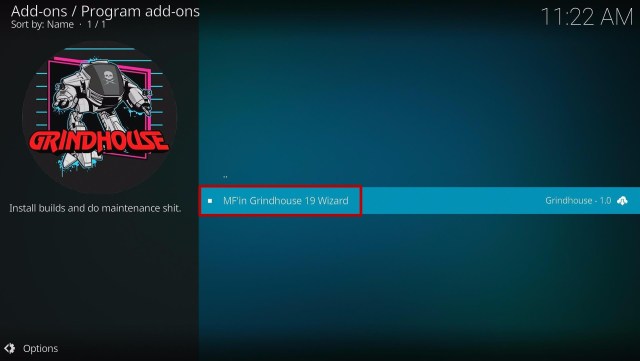
19. Select the Program add-ons

Install F19 Kodi Build


20. Click MF’in Grindhouse 19 Wizard

Install F19 Kodi Build


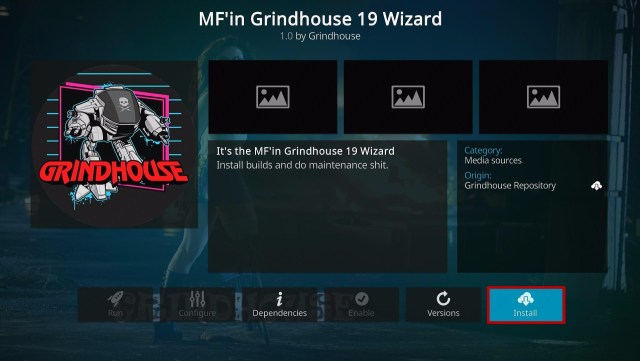
21. Tap the Install button

Install F19 Kodi Build


22. Click the OK button

Install F19 Kodi Build


23. Wait for the Installed message to appear

Install F19 Kodi Build


24. Click the Continue

Install F19 Kodi Build


25. Tap the Ignore button

Install F19 Kodi Build


26. Go back to the Kodi home screen and scroll down to Addon

Install F19 Kodi Build


27. From the Program add-ons, select MF’in Grindhouse 19 Wizard

Install F19 Kodi Build


28. Select Builds

Install F19 Kodi Build


29. Scroll down and click F19

Install F19 Kodi Build      


30. Click the Install

Install F19 Kodi Build


31. When a box pops up, tap the Yes, Install

Install F19 Kodi Build


32, Wait for the build to download.

Install F19 Kodi Build


33. Click the OK button

Install F19 Kodi Build


34. Launch your Kodi again

Install F19 Kodi Build


35. That’s it! You have successfully installed the F19 Kodi Build.

Install F19 Kodi Build

Install Surfshark on Firestick

Best Surfshark Deal


Legal Disclaimer: ReviewVPN.com does not encourage or endorse any illegal activity involved in the usage of services and applications referenced on this site. We do not verify the licensing agreements of services. The end-user is wholly responsible for ensuring that any media accessed through these services does not violate copyright and/or licensing laws. ReviewVPN does not promote, link to, or receive compensation from any Apps and IPTV services.


YOUR INTERNET ACTIVITY IS BEING WATCHED

ReviewVPN cannot attest to the legality, security and privacy of the applications discussed on this site. It is highly recommended that you use a VPN service while streaming or using Kodi.

Currently, your IP 216.73.216.156 is visible to everyone and your Browser is being tracked by Advertisers & ISP Provider.

Save 65% Now

Limited Time Offer

Here are the main reasons why you must use a VPN:

  • Your activities are hidden from your ISP, the government, and from the apps you are using.
  • You can access additional movies and TV streams.
  • ISP attempts to throttle are thrwarted thus reducing buffering issues.
  • Geographically restricted content like Netflix and Hulu can be unblocked.

A VPN works be replacing your ISP-assigned IP address and creating an encrypted tunnel. We recommend the no log service offered by IPVanish. It works well on a Firestick and offers the fastest possible speeds.

Special Limited Time Offer - Get IPVanish


Features of F19 Kodi Build

Interface

  • This build allows you to access their content for free. 
  • It has a simple and easy-to-use interface. 
  • The skin of Aeon Nox: SiLVO by default. 


Categories and Contents

  • The Main sections are Movies, TV, AIO, Sports, System, Favourites, and Exits. 
  • In the Movies section: You can click once for 2020 Movies, New Movies, Old Movies, 4k, Adventures, Biography, Comedy, Crime Scene, Family, History, Mystery, Romance, and more. 
  • This build brings you high-quality and working one-click streaming links.
  • It has a collection of movies from 190o to 2022. 
  • You can access the latest and popular Tv shows from different streaming services.  
  • In the AIO section, you can choose from the Click Once Box Set Section, Click Once Movie section, Movie World, Tv World, Trakt, and more. 
  • It also has Search history, Last Linked Played, and MY RD History.
  • Available Resume Watching to continue where you stopped off. 
  • The Sports section brings you Live Events, different sports to watch, and the Best League. 
  • Some of the sports it covers are Football, Basketball, MotorSport, Handball, Rugby, NFL, UFC, Wrestling, Volleyball, Darts, Tennis, Boxing, Cricket, Baseball, Snookers, and Chess. 
  • Movies and TV shows genres: Action, Adventures, Animation, Anime, Biography, Comedy, Crime, Documentary, Drama, Family, Fantasy, History, Horror, Music, Musical, Mystery, Romance, Science Fiction, Sport, Thriller, War and Western. 
  • It supports Trakt and Real Debrid account Integration 


Video Quality

This build brings you lots of streaming links from different providers with 480p, 720p, 1080p, and 4k quality.


Pre Loaded Addon/Repo

It has a different addon to try, such as Dejavu Repo, Asgard, The Crew, Free, Rising Tides Repo, Rising Tides, Cloud 9, The Endzone 19, Revolution, Bugatsinho Repo, THE CREW REPO, 4K, BewbsandBeer, Black, Crackle, Culmination, DIM, Goto, Host505, Kaito, M-E-T-V, Odds N’ Ends, Plex Live, Shadow, SlyGuy Common, SportHD, SwagOtaku, The Movie Database, Purely Wrestling, The Oath, WatchNoxtoons2, and more.


Pros and Cons

Pros

  • It has a simple and easy-to-use interface. 
  • You can watch this build for free without any ads to interrupt. 
  • This build brings you lots of streaming links with a maximum of 4K of video quality. 
  • It has different add-ons to install and try. 
  • One of the few builds compatible with Kodi 19.5 Matrix. 


Cons

  • Some of the streaming links it provides are not working. 


Do I need a VPN?

Kodi users are advised to use a Virtual Private Network while streaming on any third-party addon or build. It is to ensure that you are safe and protected while using these builds and their provided streaming links. It is much better if you stream online with a VPN because there are lots of builds that use unsafe and unsecured sources. 

We highly recommend Surfshark as your best choice, as it is one of the proven and tested VPNs that is committed to giving its users the best quality of service they deserve. This VPN also ensures that you are anonymous online by keeping your IP address and identity unknown. Surfshark is also known as the fastest and most reliable VPN that will keep you away from any harm online. If you want to know about this VPN, just read our Install Surfshark on Firestick.

Note: For more information about Surfshark, please read our Surfshark Review.


Grab your subscription now!


How to Install Surfshark VPN on Firestick

If your Firestick still has the older interface, read this article to learn how to update it: Update Firestick Interface.

You can download Surfshark directly from the Amazon App store. It will be easy for you to find Surfshark with your Firestick’s Find feature. Refer to our screenshots below.

1. Go to the Home screen of your Firestick.

step 1 Install Surfshark VPN on Firestick


2. Navigate towards the Find tab. Press the Search button from the resulting dropdown.

step 2 Install Surfshark VPN on Firestick


3. Type in the keyword of SurfShark and select from the suggestions that will appear.

step 3 Install Surfshark VPN on Firestick


4. Click the official SurfShark icon from your search results.

step 4 Install Surfshark VPN on Firestick


5. Press the Download (You own it) button.

step 5 Install Surfshark VPN on Firestick


6. The SurfShark VPN installer will download on your device.

step 6 Install Surfshark VPN on Firestick


7. SurfShark VPN’s app will automatically install itself on your Fire TV stick.

step 7 Install Surfshark VPN on Firestick


8. Press the Open button after completing SurfShark VPN’s installation process.

step 8 Install Surfshark VPN on Firestick


9. Please wait for the SurfShark VPN to load its user interface.

step 9 Install Surfshark VPN on Firestick


10. You can now log in with your SurfShark VPN account credentials.

step 10 Install Surfshark VPN on Firestick

Learn more about Surfshark and Grab the Best Surfshark Deal Now!


Other VPNs to Consider

NordVPN (Best for Streaming)

Best Features

  • 5000+ Server in 50+ Countries 
  • Military-Grade Encryption
  • Fast Connection Speed
  • Suitable to a lot of devices
  • No-Log Policy

Prices
  • Complete $5.89 per month (64% Discount)
  • Plus $4.59 per month (56% Discount)
  • Standard $3.69 per month (55% Discount)

Best Features

  • 750+ High-speed VPN Servers in 43 Locations
  • Military-Grade Encryption
  • Fastest HD Streaming and Gaming
  • 30-Day Money-Back Guarantee
  • Unlimited Data & Devices
  • No-Log Policy

Prices
  • 3 Years $1.99 per month (82% Discount)
  • 1 Years $3.29 per month (70% Discount)
  • 1 Month $10.99 per month

IPVanish VPN (Most Secure)

Best Features

  • 1200+ Servers in 60+ Countries around the world
  • Unlimited Connections
  • No-Log Policy
  • Top Notch Military-Grade VPN Protocols and Encryptions
  • 100% Safe and Secured
  • Most Trusted VPN
  • Best VPN for Firestick
  • 30-Day Money-Back Guarantee

Prices
  • Yearly $3.99 per month (63% Discount) – 30 days risk free + Ransomware & Malware Protection
  • Quarterly $5.32 per month (51% Discount)
  • Monthly $10.99 per month


For more VPN discounts, go to ReviewVPN Deals and purchase the best VPN for you.


Alternatives for F19 Kodi Build

We list down some of the Kodi builds that you can try on your Kodi aside from F19. Kindly read their corresponding articles to know more about these add-ons. 


FAQs

Does the F19 Kodi Build also work well on Kodi 18.9?

No, this build is only compatible with Kodi 19.5 Matrix.


Can I stream on F19 Kodi Build for free?

Yes, this build is free and allows you to access their content for free. YOu can stream any content that you want for free. 


Is the F19 Kodi Build legal?

Yes, this build is legal as long as it only offers non-copyright content.


Is the F19 Kodi Build safe to use?

Yes, this build is safe to use, but if you want to ensure your security, we suggest using a VPN such as Surfshark


Conclusion

F19 is another Kodi build from the Grindhouse Repo and one of the few builds compatible with Kodi 19.5 Matrix. This build brings you a large selection of content to watch for free. It also provides you with high-quality streaming links from the Real Debrid.

The good thing is that you can stream on this build for free and without any interruption to pop up on your viewing. We hope this article helps you install the F9 Kodi Build. 

How to Install Showly Track TV on Firestick

Overview

In this article, we will show you how to install the Showly Track TV app on your Fire TV stick. 


Do you like an app that tracks TV shows and movies for you? We all do! It is how we’ve come across the Showly Track TV app. Let us now tell you about the wonderful features of the Showly Track TV app. First, this app does not let you stream movies and TV shows.

The app requires you to have reliable streaming apps installed for this purpose. Showly is an open-source app whose main function is to find TV shows and movies that you prefer. The app works well with the trakt.tv streaming service.

If you want an app that tracks your progress with each video you watch, then we recommend the Showly Track TV app. Its tracking feature applies to both TV shows and movies. While using the Showly Track TV app, you won’t find it hard to resume watching a TV show or movie.


ANONYMOUSLY

Showly Track TV for Android Devices


Note: ReviewVPN.com does not host this APK file. It is hosted by Archive.org


How to Install Showly Track TV App on Fire TV Stick

Follow our brief guide showing you how to successfully install the Showly Track app on your Fire TV stick. 

To successfully install it on your device, you only have to Jailbreak your Fire TV Stick and sideload the app. We advise you to use the Downloader app for getting third-party apps like the Showly Track TV app.

  1. Open your Firestick Settings Tab. (Gear Wheel Icon).
  2. Scroll down and to the right until you get to My Fire TV. Click on it.
  3. Select Developer options.
  4. Turn on ADB debugging and Apps from Unknown Sources.
  5. Press the Turn On when the pop-up appears.
  6. Click Home and press on FIND.
  7. Press the Search button from the dropdown.
  8. You can either say Downloader to your Alexa voice-enabled remote or start typing it. If you typed it, click on the suggestion when it appears.
  9. Click on the Downloader Icon.
  10. Tap on Download.
  11. Click on Open.
  12. Press on the Allow button.
  13. You can now use the Downloader app.
  14. Type in: reviewvpn.com/sly and tap the Go button.
  15. The Showly Track TV app will download on your device.
  16. Press the Install button.
  17. The Showly Track TV app will install on your Fire TV stick.
  18. Tap the Open button to launch the Showly Track TV app.
  19. Click the Ok, I Understand button on the Showly Track TV app’s welcome page.
  20. You can now browse TV shows and movies or import from the trakt.tv streaming service.


How to Install Showly Track TV App on Fire TV Stick Screenshots

Follow our screenshots to successfully install the Showly Track TV app on your Fire TV stick. While doing this method, we recommend using the Downloader app.

1. Open your Firestick Settings Tab. (Gear Wheel Icon).

Install Showly Track TV App on Fire TV Stick


2. Scroll down and to the right until you get to My Fire TV. Click on it.

Install Showly Track TV App on Fire TV Stick


3. Select Developer options.

Install Showly Track TV App on Fire TV Stick


4. Turn on ADB debugging and Apps from Unknown Sources.

Install Showly Track TV App on Fire TV Stick


5. Press the Turn On when the pop-up appears.

Install Showly Track TV App on Fire TV Stick


6. Click Home and press on FIND.

Install Showly Track TV App on Fire TV Stick


7. Press the Search button from the dropdown.

Install Showly Track TV App on Fire TV Stick


8. You can either say Downloader to your Alexa voice-enabled remote or start typing it. If you typed it, click on the suggestion when it appears.

Install Showly Track TV App on Fire TV Stick


9. Click on the Downloader Icon.

Install Showly Track TV App on Fire TV Stick


10. Tap on Download.

Install Showly Track TV App on Fire TV Stick


Install Showly Track TV App on Fire TV Stick


11. Click on Open.

Install Showly Track TV App on Fire TV Stick


12. Press on the Allow button.

Install Showly Track TV App on Fire TV Stick


13. You can now use the Downloader app.

Install Showly Track TV App on Fire TV Stick


14. Type in: reviewvpn.com/sly and tap the Go button.

Install Showly Track TV App on Fire TV Stick


15. The Showly Track TV app will download on your device.

Install Showly Track TV App on Fire TV Stick


16. Press the Install button.

Install Showly Track TV App on Fire TV Stick


17. The Showly Track TV app will install on your Fire TV stick.

Install Showly Track TV App on Fire TV Stick


18. Tap the Open button to launch the Showly Track TV app.

Install Showly Track TV App on Fire TV Stick


19. Click the Ok, I Understand button on the Showly Track TV app’s welcome page.

Install Showly Track TV App on Fire TV Stick


20. You can now browse TV shows and movies or import from the trakt.tv streaming service.

Install Showly Track TV App on Fire TV Stick


YOUR INTERNET ACTIVITY IS BEING WATCHED

ReviewVPN cannot attest to the legality, security and privacy of the applications discussed on this site. It is highly recommended that you use a VPN service while streaming or using Kodi.

Currently, your IP 216.73.216.156 is visible to everyone and your Browser is being tracked by Advertisers & ISP Provider.

Save 65% Now

Limited Time Offer

Here are the main reasons why you must use a VPN:

  • Your activities are hidden from your ISP, the government, and from the apps you are using.
  • You can access additional movies and TV streams.
  • ISP attempts to throttle are thrwarted thus reducing buffering issues.
  • Geographically restricted content like Netflix and Hulu can be unblocked.

A VPN works be replacing your ISP-assigned IP address and creating an encrypted tunnel. We recommend the no log service offered by IPVanish. It works well on a Firestick and offers the fastest possible speeds.

Special Limited Time Offer - Get IPVanish


Legal Disclaimer: ReviewVPN.com does not encourage or endorse any illegal activity involved in the usage of services and applications referenced on this site. We do not verify the licensing agreements of services. The end-user is wholly responsible for ensuring that any media accessed through these services does not violate copyright and/or licensing laws. ReviewVPN does not promote, link to, or receive compensation from any Apps and IPTV services.


Install Surfshark on Firestick

Best Surfshark Deal


Features of the Showly Track TV App

  • Open-source app
  • Tracks the progress of TV shows and movies
  • Presents new releases
  • Shows premieres and new episodes
  • Discover new media content to watch
  • Tracks Popular, Trending, or Highly-Anticipated TV shows and movies
  • Receives periodic updates from its developers
  • Manage your favorite TV shows and movies with its Collection feature
  • Displays current statistics of your collection
  • Sync your custom playlists with Trakt.tv
  • Sends you notifications about new episodes, seasons, and pilot episodes.
  • Assign widgets for easier access to the app.


Technical Specifications of the Showly Track TV app

Let us now show you the technical specifications of the Showly Track TV app. Here you will learn about its latest version, file size, and installation requirements. It will help you determine if your device is compatible with the Showly Track TV app.


The Interface of the Showly Track TV app

  • Easy-to-navigate
  • Simple user interface
  • Default Night Mode
  • TV Shows
  • Movies
  • Progress
  • Discover
  • Collection
  • Import from Trakt.tv button
  • Built-in search bar


Pros and Cons

Pros

  • 100% Free
  • Easy to use
  • Legal app
  • Simple Interface
  • Tracks your viewing progress of TV shows and movies
  • Notifies its user about the latest TV show and movie releases


Cons

  • Requires trakt.tv connection.
  • Does not contain movies and TV shows.
  • The Showly Track TV app is not for streaming TV shows and movies.


Track Your Video Playing Progress with a VPN

Apps of today connect us to various websites. This method allows us to stream movies and TV shows from reputable online sources. There are many streaming apps available for our entertainment. With these apps, we can enjoy the latest TV shows and movies. It is also easier for us to catch new releases.

Unfortunately, there are times when we experience difficulties while streaming movies and TV shows. It can be caused by ISP throttling or geo-restrictions.

To smoothen your streaming experience, we suggest Surfshark. It has many benefits to share with its users:

  • No hindrances while streaming media content.
  • Enhances your internet speed.
  • Supports the download of large files.
  • Hides your traffic with virtual tunnels.
  • Assign a new IP address masking your connection.
  • Prevents buffering and stuttering both on Kodi and the Fire TV stick.

Note: For more information about SurfShark, please read our SURFSHARK REVIEW.


Grab your subscription now!


How to Install Surfshark VPN on Firestick

If your Firestick still has the older interface, read this article to learn how to update it: Update Firestick Interface.

You can download Surfshark directly from the Amazon App store. It will be easy for you to find Surfshark with your Firestick’s Find feature. Refer to our screenshots below.

1. Go to the Home screen of your Firestick.

step 1 Install Surfshark VPN on Firestick


2. Navigate towards the Find tab. Press the Search button from the resulting dropdown.

step 2 Install Surfshark VPN on Firestick


3. Type in the keyword of SurfShark and select from the suggestions that will appear.

step 3 Install Surfshark VPN on Firestick


4. Click the official SurfShark icon from your search results.

step 4 Install Surfshark VPN on Firestick


5. Press the Download (You own it) button.

step 5 Install Surfshark VPN on Firestick


6. The SurfShark VPN installer will download on your device.

step 6 Install Surfshark VPN on Firestick


7. SurfShark VPN’s app will automatically install itself on your Fire TV stick.

step 7 Install Surfshark VPN on Firestick


8. Press the Open button after completing SurfShark VPN’s installation process.

step 8 Install Surfshark VPN on Firestick


9. Please wait for the SurfShark VPN to load its user interface.

step 9 Install Surfshark VPN on Firestick


10. You can now log in with your SurfShark VPN account credentials.

step 10 Install Surfshark VPN on Firestick

Learn more about Surfshark and Grab the Best Surfshark Deal Now!


Other VPNs to Consider

NordVPN (Best for Streaming)

Best Features

  • 5000+ Server in 50+ Countries 
  • Military-Grade Encryption
  • Fast Connection Speed
  • Suitable to a lot of devices
  • No-Log Policy

Prices
  • Complete $5.89 per month (64% Discount)
  • Plus $4.59 per month (56% Discount)
  • Standard $3.69 per month (55% Discount)

Best Features

  • 750+ High-speed VPN Servers in 43 Locations
  • Military-Grade Encryption
  • Fastest HD Streaming and Gaming
  • 30-Day Money-Back Guarantee
  • Unlimited Data & Devices
  • No-Log Policy

Prices
  • 3 Years $1.99 per month (82% Discount)
  • 1 Years $3.29 per month (70% Discount)
  • 1 Month $10.99 per month

IPVanish VPN (Most Secure)

Best Features

  • 1200+ Servers in 60+ Countries around the world
  • Unlimited Connections
  • No-Log Policy
  • Top Notch Military-Grade VPN Protocols and Encryptions
  • 100% Safe and Secured
  • Most Trusted VPN
  • Best VPN for Firestick
  • 30-Day Money-Back Guarantee

Prices
  • Yearly $3.99 per month (63% Discount) – 30 days risk free + Ransomware & Malware Protection
  • Quarterly $5.32 per month (51% Discount)
  • Monthly $10.99 per month


For more VPN discounts, go to ReviewVPN Deals and purchase the best VPN for you.


Grab the Best Surfshark Deal Now!


Alternative Apps for Showly Track TV

Suppose you dislike some of its features, here are some apps that can serve as alternatives for the Track TV app.

If you like more apps that stream both TV shows and movies, visit our Best Free Movie apps article.


FAQs

Is Showly Track free?

Yes. It does not require any payment plan or registration fees.


Is it safe to use the Showly Track app?

Yes. The app does not contain any form of malware or cyber threats.


Conclusion

The Showly Track TV app does not contain any TV shows or movies. On the other hand, it monitors your progress with each TV show and movie you watch. You can easily resume a TV show or movie whenever you like. This app also notifies you about popular, trending, and highly-anticipated TV shows and movies.

We hope this article helps you install the Showly Track TV app on your Fire TV stick.

How to Install AirMusic on Firestick

Overview

In this article, we will show you how to install the AirMusic app on your Fire TV stick.


Are you fond of listening to music during your free time or as a hobby? If you are, you might be searching for a music app for your Android or Fire TV stick. We are glad to inform you about an app suitable for your needs.

Let us introduce you to the excellent features of the AirMusic app! AirMusic is an app that succeeds the AirAudio app. It lets you stream any type of audio file from an app to any receiver. Streaming music is now faster with just a single click.

The AirMusic app aims to link all your music from different music streaming apps. It is compatible with modern audio streaming apps. The AirMusic app lets you sync all your music files into one directory. Ahead of its time, the AirMusic app requires an Android 10+ OS or a rooted Android OS. This feature lets you record music from reputable music streaming apps available on the internet.


ANONYMOUSLY

AirMusic for Android Devices


AirMusic


Note: ReviewVPN.com does not host this APK file. It is hosted by Archive.org


How to Install AirMusic App on Fire TV Stick

Follow our brief guide showing you how to successfully install the AirMusic app on your Fire TV stick. 

To successfully install it on your device, you only have to Jailbreak your Fire TV Stick and sideload the app. We advise you to use the Downloader app for getting third-party apps like the AirMusic app.

  1. Open your Firestick Settings Tab. (Gear Wheel Icon).
  2. Scroll down and to the right until you get to My Fire TV. Click on it.
  3. Select Developer options.
  4. Turn on ADB debugging and Apps from Unknown Sources.
  5. Press the Turn On when the pop-up appears.
  6. Click Home and press on FIND.
  7. Press the Search button from the dropdown.
  8. You can either say Downloader to your Alexa voice-enabled remote or start typing it. If you typed it, click on the suggestion when it appears.
  9. Click on the Downloader Icon.
  10. Tap on Download.
  11. Click on Open.
  12. Press on the Allow button.
  13. You can now use the Downloader app.
  14. Type in: reviewvpn.com/airm and tap the Go button.
  15. The AirMusic app will download on your device.
  16. Press the Install button.
  17. The AirMusic app will install on your Fire TV stick.
  18. Tap the Open button to launch the AirMusic app.
  19. Wait for the AirMusic app to load its app features.
  20. When its user interfaces show, the AirMusic app will display all devices where you can stream music.


How to Install AirMusic App on Fire TV Stick with Screenshots

Follow our screenshots to successfully install the AirMusic app on your Fire TV stick. While doing this method, we recommend using the Downloader app.

1. Open your Firestick Settings Tab. (Gear Wheel Icon).

Install AirMusic App on Fire TV Stick


2. Scroll down and to the right until you get to My Fire TV. Click on it.

Install AirMusic App on Fire TV Stick


3. Select Developer options.

Install AirMusic App on Fire TV Stick


4. Turn on ADB debugging and Apps from Unknown Sources.

Install AirMusic App on Fire TV Stick


5. Press the Turn On when the pop-up appears.

Install AirMusic App on Fire TV Stick


6. Click Home and press on FIND.

Install AirMusic App on Fire TV Stick


7. Press the Search button from the dropdown.

Install AirMusic App on Fire TV Stick


8. You can either say Downloader to your Alexa voice-enabled remote or start typing it. If you typed it, click on the suggestion when it appears.

Install AirMusic App on Fire TV Stick


9. Click on the Downloader Icon.

Install AirMusic App on Fire TV Stick


10. Tap on Download.

Install AirMusic App on Fire TV Stick


Install AirMusic App on Fire TV Stick


11. Click on Open.

Install AirMusic App on Fire TV Stick


12. Press on the Allow button.

Install AirMusic App on Fire TV Stick


13. You can now use the Downloader app.

Install AirMusic App on Fire TV Stick


14. Type in: reviewvpn.com/airm and tap the Go button.

Install AirMusic App on Fire TV Stick


15. The AirMusic app will download on your device.

Install AirMusic App on Fire TV Stick


16. Press the Install button.

Install AirMusic App on Fire TV Stick


17. The AirMusic app will install on your Fire TV stick.

Install AirMusic App on Fire TV Stick


18. Tap the Open button to launch the AirMusic app.

Install AirMusic App on Fire TV Stick


19. Wait for the AirMusic app to load its app features.

Install AirMusic App on Fire TV Stick


20. When its user interfaces show, the AirMusic app will display all devices where you can stream music.

Install AirMusic App on Fire TV Stick


YOUR INTERNET ACTIVITY IS BEING WATCHED

ReviewVPN cannot attest to the legality, security and privacy of the applications discussed on this site. It is highly recommended that you use a VPN service while streaming or using Kodi.

Currently, your IP 216.73.216.156 is visible to everyone and your Browser is being tracked by Advertisers & ISP Provider.

Save 65% Now

Limited Time Offer

Here are the main reasons why you must use a VPN:

  • Your activities are hidden from your ISP, the government, and from the apps you are using.
  • You can access additional movies and TV streams.
  • ISP attempts to throttle are thrwarted thus reducing buffering issues.
  • Geographically restricted content like Netflix and Hulu can be unblocked.

A VPN works be replacing your ISP-assigned IP address and creating an encrypted tunnel. We recommend the no log service offered by IPVanish. It works well on a Firestick and offers the fastest possible speeds.

Special Limited Time Offer - Get IPVanish


Legal Disclaimer: ReviewVPN.com does not encourage or endorse any illegal activity involved in the usage of services and applications referenced on this site. We do not verify the licensing agreements of services. The end-user is wholly responsible for ensuring that any media accessed through these services does not violate copyright and/or licensing laws. ReviewVPN does not promote, link to, or receive compensation from any Apps and IPTV services.


Install Surfshark on Firestick

Best Surfshark Deal


Features of the AirMusic App

  • Stream any type of audio files
  • Lets you record music from various devices
  • Requires a rooted android device
  • Stream music files from music streaming applications to any receiver
  • Compatible with modern audio apps and music streaming apps
  • Supports the latest music streaming apps
  • Sends information and artwork with each music file you are playing
  • Detects if you are playing music or streaming with various devices


Technical Specifications of the AirMusic App

Let us now show you the technical specifications of the AirMusic app. Here you will learn about its latest version, file size, and installation requirements. It will help you determine if your device is compatible with the AirMusic app.

AirMusic

The Interface of the AirMusic App

  • Easy-to-navigate
  • Simple design and layout
  • Displays all receivers: Smart TVs, Android, Fire TV stick, etc.
  • Connects with DLNA platforms


Compatible Apps with AirMusic

  • Spotify
  • Deezer
  • TuneIn


Device OS Compatible with AirMusic

  • Airport Express
  • Freebox
  • AV-receiver
  • Apple TV
  • Fire TV
  • Raspberry Pi
  • Google Chromecast
  • Smart TV
  • Roku
  • SONOS
  • Denon HEOS


AirMusic Compatibility with Modern Streaming Devices:

  • Apple AirPlay
  • DLNA
  • SONOS
  • Google Cast
  • AllPlay
  • Amazon Fire TV
  • Denon HEOS
  • Roku


Pros and Cons

Pros

  • Legal to use
  • Includes a Free Trial Version
  • Requires Premium Account Registration
  • Simple User Interface Design
  • Displays all compatible streaming devices
  • Compatible with modern streaming devices and features


Cons

  • The AirMusic app does not contain audio and music files.
  • Best for streaming on various devices.


Stream Music on All Your Devices with a VPN

Our modern internet allows us to search for our favorite songs, artists, and albums. We can also listen to podcasts and a wide array of audio tracks. Audiobooks, news, and other music files are available with just a few clicks on our favorite devices.

However, we might experience difficulties while streaming audio files. Whether caused by ISP throttling or geo-restrictions, streaming audio files can become a daunting task.

As a solution, we recommend you use Surfshark. It is the best VPN for streaming. Here are the advantages of using Surfshark:

  • Faster streaming of audio files from reputable online sources.
  • Supports the download of large files.
  • Surfshark hides your identity with a new IP address.
  • Protect your internet traffic with encrypted tunnels.
  • Prevents buffering and stuttering both on Kodi and Fire TV stick.

Note: For more information about Surfshark, please read our Surfshark Review.


Grab your subscription now!

Click here to get the lowest price on Surfshark through our exclusive limited-time offer.


How to Install Surfshark VPN on Firestick

If your Firestick still has the older interface, read this article to learn how to update it: Update Firestick Interface.

You can download Surfshark directly from the Amazon App store. It will be easy for you to find Surfshark with your Firestick’s Find feature. Refer to our screenshots below.

1. Go to the Home screen of your Firestick.

step 1 Install Surfshark VPN on Firestick


2. Navigate towards the Find tab. Press the Search button from the resulting dropdown.

step 2 Install Surfshark VPN on Firestick


3. Type in the keyword of SurfShark and select from the suggestions that will appear.

step 3 Install Surfshark VPN on Firestick


4. Click the official SurfShark icon from your search results.

step 4 Install Surfshark VPN on Firestick


5. Press the Download (You own it) button.

step 5 Install Surfshark VPN on Firestick


6. The SurfShark VPN installer will download on your device.

step 6 Install Surfshark VPN on Firestick


7. SurfShark VPN’s app will automatically install itself on your Fire TV stick.

step 7 Install Surfshark VPN on Firestick


8. Press the Open button after completing SurfShark VPN’s installation process.

step 8 Install Surfshark VPN on Firestick


9. Please wait for the SurfShark VPN to load its user interface.

step 9 Install Surfshark VPN on Firestick


10. You can now log in with your SurfShark VPN account credentials.

step 10 Install Surfshark VPN on Firestick

Learn more about Surfshark and Grab the Best Surfshark Deal Now!


Other VPNs to Consider

NordVPN (Best for Streaming)

Best Features

  • 5000+ Server in 50+ Countries 
  • Military-Grade Encryption
  • Fast Connection Speed
  • Suitable to a lot of devices
  • No-Log Policy

Prices
  • Complete $5.89 per month (64% Discount)
  • Plus $4.59 per month (56% Discount)
  • Standard $3.69 per month (55% Discount)

Best Features

  • 750+ High-speed VPN Servers in 43 Locations
  • Military-Grade Encryption
  • Fastest HD Streaming and Gaming
  • 30-Day Money-Back Guarantee
  • Unlimited Data & Devices
  • No-Log Policy

Prices
  • 3 Years $1.99 per month (82% Discount)
  • 1 Years $3.29 per month (70% Discount)
  • 1 Month $10.99 per month

IPVanish VPN (Most Secure)

Best Features

  • 1200+ Servers in 60+ Countries around the world
  • Unlimited Connections
  • No-Log Policy
  • Top Notch Military-Grade VPN Protocols and Encryptions
  • 100% Safe and Secured
  • Most Trusted VPN
  • Best VPN for Firestick
  • 30-Day Money-Back Guarantee

Prices
  • Yearly $3.99 per month (63% Discount) – 30 days risk free + Ransomware & Malware Protection
  • Quarterly $5.32 per month (51% Discount)
  • Monthly $10.99 per month


For more VPN discounts, go to ReviewVPN Deals and purchase the best VPN for you.


Alternative Apps for the AirMusic App

Suppose you dislike some features of the AirMusic app, we have a list of apps that can serve as its alternatives:

For more apps that stream music, visit our article about the Best Music Apps for Firestick.


FAQs

Is the AirMusic app free?

No. It requires you to register with its Premium plan.


Is it safe to use the AirMusic app?

Yes. The app does not contain any type of cyber threat or malicious software.


Conclusion

The AirMusic app is the successor to the AirAudio app. It lets you stream music from reputable streaming services. The AirMusic app also detects whether you are playing music or streaming audio across multiple devices. On its main screen, the AirMusic app displays all devices that can stream music.

We hope this article helps you install the AirMusic app on your Fire TV stick.

How to Install Tidal Music on Firestick

Overview

In this article, we will show you how to install the Tidal Music app on your Fire TV stick.


Do you want an Android app that lets you listen to high-quality music? Well then, let us acquaint you with the Tidal Music app! The Tidal Music app seems like another music player app to many people. On the other hand, the Tidal Music app differs from other music player apps.

It serves many music lovers worldwide with its Tidal HiFi service. The Tidal Music app aims to elevate your audio streaming experience! It contains over 80 million music tracks in an easy-to-access library. The app lets you listen to music in excellent quality. To get the Tidal Music app service, you first have to create an account.

Afterward, you can access its HiFi service. You can then enjoy music with your portable device wherever you might be. Connect with the Tidal Music service with the Tidal Connect feature. It is compatible with many modern devices along with your Smart TV, Amazon Alexa, and your speakers of choice.


ANONYMOUSLY

Tidal Music for Android Devices


Tidal Music


Note: ReviewVPN.com does not host this APK file. It is hosted by Archive.org


How to Install Tidal Music App on Fire TV Stick

Follow our brief guide showing you how to successfully install the Tidal Music app on your Fire TV stick. 

To successfully install it on your device, you only have to Jailbreak your Fire TV Stick and sideload the app. We advise you to use the Downloader app for getting third-party apps like the Tidal Music app.

  1. Open your Firestick Settings Tab. (Gear Wheel Icon).
  2. Scroll down and to the right until you get to My Fire TV. Click on it.
  3. Select Developer options.
  4. Turn on ADB debugging and Apps from Unknown Sources.
  5. Press the Turn On when the pop-up appears.
  6. Click Home and press on FIND.
  7. Press the Search button from the dropdown.
  8. You can either say Downloader to your Alexa voice-enabled remote or start typing it. If you typed it, click on the suggestion when it appears.
  9. Click on the Downloader Icon.
  10. Tap on Download.
  11. Click on Open.
  12. Press on the Allow button.
  13. You can now use the Downloader app.
  14. Type in: reviewvpn.com/tdm and tap the Go button.
  15. The Tidal Music app will download on your device.
  16. Press the Install button.
  17. The Tidal Music app will install on your Fire TV stick.
  18. Tap the Open button to launch the Tidal Music app.
  19. After launching the app, it requires you to either Continue with Facebook or Sign In with your Tidal Music account.


How to Install Tidal Music App on Fire TV Stick with Screenshots

Follow our screenshots to successfully install the Tidal Music app on your Fire TV stick. While doing this method, we recommend using the Downloader app.

1. Open your Firestick Settings Tab. (Gear Wheel Icon).

Install Tidal Music App on Fire TV Stick


2. Scroll down and to the right until you get to My Fire TV. Click on it.

Install Tidal Music App on Fire TV Stick


3. Select Developer options.

Install Tidal Music App on Fire TV Stick


4. Turn on ADB debugging and Apps from Unknown Sources.

Install Tidal Music App on Fire TV Stick


5. Press the Turn On when the pop-up appears.

Install Tidal Music App on Fire TV Stick


6. Click Home and press on FIND.

Install Tidal Music App on Fire TV Stick


7. Press the Search button from the dropdown.

Install Tidal Music App on Fire TV Stick


8. You can either say Downloader to your Alexa voice-enabled remote or start typing it. If you typed it, click on the suggestion when it appears.

Install Tidal Music App on Fire TV Stick


9. Click on the Downloader Icon.

Install Tidal Music App on Fire TV Stick


10. Tap on Download.

Install Tidal Music App on Fire TV Stick


Install Tidal Music App on Fire TV Stick


11. Click on Open.

Install Tidal Music App on Fire TV Stick


12. Press on the Allow button.

Install Tidal Music App on Fire TV Stick


13. You can now use the Downloader app.

Install Tidal Music App on Fire TV Stick


14. Type in: reviewvpn.com/tdm and tap the Go button.

Install Tidal Music App on Fire TV Stick


15. The Tidal Music app will download on your device.

Install Tidal Music App on Fire TV Stick


16. Press the Install button.

Install Tidal Music App on Fire TV Stick


17. The Tidal Music app will install on your Fire TV stick.

Install Tidal Music App on Fire TV Stick


18. Tap the Open button to launch the Tidal Music app.

Install Tidal Music App on Fire TV Stick


19. After launching the app, it requires you to either Continue with Facebook or Sign In with your Tidal Music account.

Install Tidal Music App on Fire TV Stick


YOUR INTERNET ACTIVITY IS BEING WATCHED

ReviewVPN cannot attest to the legality, security and privacy of the applications discussed on this site. It is highly recommended that you use a VPN service while streaming or using Kodi.

Currently, your IP 216.73.216.156 is visible to everyone and your Browser is being tracked by Advertisers & ISP Provider.

Save 65% Now

Limited Time Offer

Here are the main reasons why you must use a VPN:

  • Your activities are hidden from your ISP, the government, and from the apps you are using.
  • You can access additional movies and TV streams.
  • ISP attempts to throttle are thrwarted thus reducing buffering issues.
  • Geographically restricted content like Netflix and Hulu can be unblocked.

A VPN works be replacing your ISP-assigned IP address and creating an encrypted tunnel. We recommend the no log service offered by IPVanish. It works well on a Firestick and offers the fastest possible speeds.

Special Limited Time Offer - Get IPVanish


Legal Disclaimer: ReviewVPN.com does not encourage or endorse any illegal activity involved in the usage of services and applications referenced on this site. We do not verify the licensing agreements of services. The end-user is wholly responsible for ensuring that any media accessed through these services does not violate copyright and/or licensing laws. ReviewVPN does not promote, link to, or receive compensation from any Apps and IPTV services.


Install Surfshark on Firestick

Best Surfshark Deal


Features of the Tidal Music App

  • Enhances your music streaming experience
  • Distributes high-quality music tracks
  • Compatible with modern devices
  • Lets you connect with its Tidal Connect feature
  • Tidal Music HiFi – Contains 80 Million songs and audio tracks
  • Includes a wide collection of music videos (350,000 Music videos)
  • Offers Tidal Premium with Immersive Audio Formats (MQA, Dolby Atmos, 360 Reality Audio)
  • The Tidal Music HiFi service is accessible with your Smart TV, Android, and Fire TV/Stick


Technical Specifications of the Tidal Music App

Let us now show you the technical specifications of the Tidal Music app. Here you will learn about its latest version, file size, and installation requirements. It will help you determine if your device is compatible with the Tidal Music app.

Tidal Music


The Interface of the Tidal Music App

  • Presents the typical buttons of a music player app.
  • Playing music does not contain ads and commercials.
  • Choose music format (MQA, Dolby Atmos, 360 Reality Audio)
  • Create your playlist
  • Play or Shuffle songs and music files
  • Lets you support your favorite music artists


Pros and Cons

Pros

  • Legal-to-use
  • Contains 80 Million songs
  • Presents the latest songs available
  • Contains 350,000 music videos
  • All the audio files play in high-quality format (MQA, Dolby Atmos, 360 Reality Audio)
  • Playing music files does not contain any ads.
  • Choose your Tidal Music service: HiFi or HiFi Plus


Cons

  • Requires users to create an account and choose a payment plan.


Listen to High-Quality Music with a VPN

Today, we can stream a variety of media files such as videos and audio tracks. The quality they play on our devices varies widely. Fortunately, some apps provide us with some options and let us choose the files we want to enjoy.

There are now many options for playing media files in different formats. Either we select a trustworthy online source or use an app that contains these media files.

However, there might be situations where we cannot stream music and videos properly. This can be due to ISP throttling, cyber threats, and geo-restrictions. It is quite annoying to search the web for excellent media files. We might even experience difficulties while downloading these files.

To solve this problem, we suggest you install and use Surfshark. Here are some benefits of using Surfshark as your VPN:

  • Surfshark is the best VPN for streaming.
  • Enhances your internet speed.
  • Supports the download of large files.
  • Provides you with an undetectable IP address.
  • Hide your identity while browsing the internet.
  • Stops modern cyber threats on their tracks.
  • Conceals your internet traffic by passing through encrypted tunnels.
  • Prevents buffering and stuttering both on Kodi and the Fire TV stick.

Note: For more information about Surfshark, please read our Surfshark Review.


Grab your subscription now!

Click here to get the lowest price on Surfshark through our exclusive limited-time offer.


How to Install Surfshark VPN on Firestick

If your Firestick still has the older interface, read this article to learn how to update it: Update Firestick Interface.

Follow our screenshots below to install the Surfshark VPN app on your Fire TV stick.

1. Go to the Home screen of your Firestick.

step 1 Install Surfshark VPN on Firestick


2. Navigate towards the Find tab. Press the Search button from the resulting dropdown.

step 2 Install Surfshark VPN on Firestick


3. Type in the keyword of Surfshark and select from the suggestions that will appear.

step 3 Install Surfshark VPN on Firestick


4. Click the official Surfshark icon from your search results.

step 4 Install Surfshark VPN on Firestick


5. Press the Download (You own it) button.

step 5 Install Surfshark VPN on Firestick


6. The Surfshark VPN installer will download on your device.

step 6 Install Surfshark VPN on Firestick


7. Surfshark VPN’s app will automatically install itself on your Fire TV stick.

step 7 Install Surfshark VPN on Firestick


8. Press the Open button after completing Surfshark VPN’s installation process.

step 8 Install Surfshark VPN on Firestick


9. Please wait for the Surfshark VPN to load its user interface.

step 9 Install Surfshark VPN on Firestick


10. You can now log in with your Surfshark VPN account credentials.

step 10 Install Surfshark VPN on Firestick

Learn more about Surfshark and Grab the Best Surfshark Deal Now!


Install Surfshark on Firestick

Best Surfshark Deal


Other VPNs to Consider

NordVPN (Best for Streaming)

Best Features

  • 5000+ Server in 50+ Countries 
  • Military-Grade Encryption
  • Fast Connection Speed
  • Suitable to a lot of devices
  • No-Log Policy

Prices
  • Complete $5.89 per month (64% Discount)
  • Plus $4.59 per month (56% Discount)
  • Standard $3.69 per month (55% Discount)

Best Features

  • 750+ High-speed VPN Servers in 43 Locations
  • Military-Grade Encryption
  • Fastest HD Streaming and Gaming
  • 30-Day Money-Back Guarantee
  • Unlimited Data & Devices
  • No-Log Policy

Prices
  • 3 Years $1.99 per month (82% Discount)
  • 1 Years $3.29 per month (70% Discount)
  • 1 Month $10.99 per month

IPVanish VPN (Most Secure)

Best Features

  • 1200+ Servers in 60+ Countries around the world
  • Unlimited Connections
  • No-Log Policy
  • Top Notch Military-Grade VPN Protocols and Encryptions
  • 100% Safe and Secured
  • Most Trusted VPN
  • Best VPN for Firestick
  • 30-Day Money-Back Guarantee

Prices
  • Yearly $3.99 per month (63% Discount) – 30 days risk free + Ransomware & Malware Protection
  • Quarterly $5.32 per month (51% Discount)
  • Monthly $10.99 per month


For more VPN discounts, go to ReviewVPN Deals and purchase the best VPN for you.


Alternative Apps for the Tidal Music App

In case you dislike some features of the Tidal Music app, we have a list of apps that can serve as its alternatives:

If you are looking for more apps for streaming music, check out our article about the Best Music Apps for Firestick.


FAQs

Is the Tidal App free?

No. You have to choose between HiFi and HiFi Plus which are both Tidal Music app services.


Is it safe to use?

Yes. The app does not contain cyber threats or malicious programs.


Conclusion

Perfect for music lovers, the Tidal Music app aims to bring you quality music and audio tracks. It contains over 80 Million audio files and 350,000 music videos. You only have to register and sign in before you can completely access its features.

We hope this article helps you install the Tidal Music app on your Fire TV stick.

How to Install FotMob Pro on Firestick

Overview

In this article, we will teach you how to install the FotMob Pro app on your Fire TV Stick.


Are you searching for an app that keeps you up to date with the latest football news? If you are, then you have come across the right page! Let us now introduce you to the FotMob Pro app! The FotMob Pro app is not your typical sports streaming app. It lets you view live scores, statistics, game previews, and stories from soccer and football games.

Aside from the latest sports results, the FotMob Pro app also updates you about fixtures and tables. If you want to learn about upcoming soccer matches, then the FotMob also contains this information. One of the best things about the FotMob Pro app is that you can personalize the news you receive.

Upon launching the app, it will show you how to properly use it. Easily choose your favorite teams and players after opening the app. The FotMob Pro app features a simple interface that is easy to navigate. It focuses on showing you scores, highlights, and statistics from the world of football.

ANONYMOUSLY

FotMob Pro for Android Devices


FotMob


Note: ReviewVPN.com does not host this APK file. It is hosted by Archive.org


How to Install FotMob App on Fire TV Stick

Follow our brief guide showing you how to successfully install the FotMob Pro app on your Fire TV stick. 

To successfully install it on your device, you only have to Jailbreak your Fire TV Stick and sideload the app. We advise you to use the Downloader app for getting third-party apps like the FotMob Pro app.

  1. Open your Firestick Settings Tab. (Gear Wheel Icon).
  2. Scroll down and to the right until you get to My Fire TV. Click on it.
  3. Select Developer options.
  4. Turn on ADB debugging and Apps from Unknown Sources.
  5. Press the Turn On when the pop-up appears.
  6. Click Home and press on FIND.
  7. Press the Search button from the dropdown.
  8. You can either say Downloader to your Alexa voice-enabled remote or start typing it. If you typed it, click on the suggestion when it appears.
  9. Click on the Downloader Icon.
  10. Tap on Download.
  11. Click on Open.
  12. Press on the Allow button.
  13. You can now use the Downloader app.
  14. Type in: reviewvpn.com/fmbp and tap the Go button.
  15. The FotMob Pro app will download on your device.
  16. Press the Install button.
  17. The FotMob Pro app will install on your Fire TV stick.
  18. Click the Open button to launch the FotMob app.
  19. Wait for the FotMob Pro app to load its wonderful app features.
  20. Press the Quick Setup button so you can change some of the FotMob app’s settings.
  21. Tap the Next button after viewing windows of Local Teams and Popular Teams.
  22. You will now see the FotMob Pro app’s user interface and the latest scores and news about soccer.


How to Install FotMob App on Fire TV Stick With Screenshots

Follow our screenshots to successfully install the FotMob Pro app on your Fire TV stick. While doing this method, we recommend using the Downloader app.

1. Open your Firestick Settings Tab. (Gear Wheel Icon).


2. Scroll down and select My Fire TV.


3. Select Developer options.


4. Turn on ADB debugging and Apps from Unknown Sources.


5. Press the Turn On when the pop-up appears.


6. Click Home and press on FIND.


7. Press the Search button from the dropdown.


8. You can either say Downloader to your Alexa voice-enabled remote or start typing it. If you typed it, click on the suggestion when it appears.


9. Click on the Downloader Icon.


10. Tap on Download and please wait while the app is installing itself on your device.


11. Click on Open.


12. Press on the Allow button.


13. You can now use the Downloader app.


14. Type in: reviewvpn.com/fmbp and tap the Go button.

Install FotMob App on Fire TV Stick


15. The FotMob Pro app will download on your device.

Install FotMob App on Fire TV Stick


16. Press the Install button.

Install FotMob App on Fire TV Stick


17. The FotMob Pro app will install on your Fire TV stick.

Install FotMob App on Fire TV Stick


18. Click the Open button to launch the FotMob app.

Install FotMob App on Fire TV Stick


19. Wait for the FotMob Pro app to load its wonderful app features.

Install FotMob App on Fire TV Stick


20. Press the Quick Setup button so you can change some of the FotMob app’s settings.

Install FotMob App on Fire TV Stick


21. Tap the Next button after viewing the windows of Local Teams and Popular Teams.

Install FotMob App on Fire TV Stick


22. You will now see the FotMob Pro app’s user interface and the latest scores and news about soccer.

Install FotMob App on Fire TV Stick


YOUR INTERNET ACTIVITY IS BEING WATCHED

ReviewVPN cannot attest to the legality, security and privacy of the applications discussed on this site. It is highly recommended that you use a VPN service while streaming or using Kodi.

Currently, your IP 216.73.216.156 is visible to everyone and your Browser is being tracked by Advertisers & ISP Provider.

Save 65% Now

Limited Time Offer

Here are the main reasons why you must use a VPN:

  • Your activities are hidden from your ISP, the government, and from the apps you are using.
  • You can access additional movies and TV streams.
  • ISP attempts to throttle are thrwarted thus reducing buffering issues.
  • Geographically restricted content like Netflix and Hulu can be unblocked.

A VPN works be replacing your ISP-assigned IP address and creating an encrypted tunnel. We recommend the no log service offered by IPVanish. It works well on a Firestick and offers the fastest possible speeds.

Special Limited Time Offer - Get IPVanish


Legal Disclaimer: ReviewVPN.com does not encourage or endorse any illegal activity involved in the usage of services and applications referenced on this site. We do not verify the licensing agreements of services. The end-user is wholly responsible for ensuring that any media accessed through these services does not violate copyright and/or licensing laws. ReviewVPN does not promote, link to, or receive compensation from any Apps and IPTV services.


Install Surfshark on Firestick

Best Surfshark Deal


Features of the FotMob Pro App

  • Live Match Scores
  • Statistics
  • Highlights
  • News Feed
  • Storylines about soccer and football
  • Results, tables, and highlights
  • Detailed maps
  • Expected Goals (xG) and Expected Assists (xA)
  • Shot Maps
  • Ratings about each Player
  • Official Match Highlights
  • Live Text Commentary
  • Schedule of events


Technical Specifications of the FotMob Pro app

Let us now show you the technical specifications of the FotMob Pro app. Here you will learn about its latest version, file size, and installation requirements. It will help you determine if your device is compatible with the FotMob Pro app.

FotMob


The Interface of the FotMob Pro App

  • Matches
  • News
  • Leagues
  • Favorites
  • Score Table
  • Teams
  • Players


Pros and Cons

Pros

  • 100% Free
  • Legal to Use
  • App prioritizing the deliverance of soccer scores, news, stats, and highlights.
  • Displays the scores and statistics daily.
  • Presents the schedule of each soccer game.
  • Receive scores from live soccer matches.
  • Allows users to personalize the news they receive.
  • Sends you Alerts/Notifications about your favorite teams and players.
  • Listen to reviews and audio commentaries.


Cons

  • The FotMob Pro app does not contain live streaming or past videos of sports events.


Receive Sports News with a VPN

surfshark logo

For sports enthusiasts and fans of soccer, the FotMob app is a good companion to your live streaming app. It is difficult for many people to see the details, scores, and results following a live soccer match. We sometimes rely on on-screen pop-ups showing us the results of a soccer game.

Fortunately, we have some apps that deliver this information. However, we might experience some disruptions while using some sports streaming apps. We might not know about the results of a game we are following in case of buffering and stuttering.

To solve some issues, we recommend you use Surfshark. It is the best VPN for streaming sports videos. Surfshark has many advantages to share with you:

  • Quick streaming of sports videos.
  • Conceal all your online activities.
  • Helps you search the internet for soccer scores and statistics.
  • Hide your identity while browsing the internet.
  • Gives you an undetectable IP address.
  • Prevents buffering and stuttering both on Kodi and Firestick.

Note: For more information about Surfshark, please read our Surfshark Review.


Grab your subscription now!


How to Install Surfshark VPN on Firestick

If your Firestick still has the older interface, read this article to learn how to update it: Update Firestick Interface.

Follow our screenshots below to install the SurfShark VPN app on your Fire TV stick.

1. Go to the Home screen of your Firestick.

step 1 Install Surfshark VPN on Firestick


2. Navigate towards the Find tab. Press the Search button from the resulting dropdown.

step 2 Install Surfshark VPN on Firestick


3. Type in the keyword of SurfShark and select from the suggestions that will appear.

step 3 Install Surfshark VPN on Firestick


4. Click the official SurfShark icon from your search results.

step 4 Install Surfshark VPN on Firestick


5. Press the Download (You own it) button.

step 5 Install Surfshark VPN on Firestick


6. The SurfShark VPN installer will download on your device.

step 6 Install Surfshark VPN on Firestick


7. SurfShark VPN’s app will automatically install itself on your Fire TV stick.

step 7 Install Surfshark VPN on Firestick


8. Press the Open button after completing SurfShark VPN’s installation process.

step 8 Install Surfshark VPN on Firestick


9. Please wait for the SurfShark VPN to load its user interface.

step 9 Install Surfshark VPN on Firestick


10. You can now log in with your SurfShark VPN account credentials.

step 10 Install Surfshark VPN on Firestick

Learn more about Surfshark and Grab the Best Surfshark Deal Now!


Install Surfshark on Firestick

Best Surfshark Deal


Other VPNs to Consider

NordVPN (Best for Streaming)

Best Features

  • 5000+ Server in 50+ Countries 
  • Military-Grade Encryption
  • Fast Connection Speed
  • Suitable to a lot of devices
  • No-Log Policy

Prices
  • Complete $5.89 per month (64% Discount)
  • Plus $4.59 per month (56% Discount)
  • Standard $3.69 per month (55% Discount)

Best Features

  • 750+ High-speed VPN Servers in 43 Locations
  • Military-Grade Encryption
  • Fastest HD Streaming and Gaming
  • 30-Day Money-Back Guarantee
  • Unlimited Data & Devices
  • No-Log Policy

Prices
  • 3 Years $1.99 per month (82% Discount)
  • 1 Years $3.29 per month (70% Discount)
  • 1 Month $10.99 per month

IPVanish VPN (Most Secure)

Best Features

  • 1200+ Servers in 60+ Countries around the world
  • Unlimited Connections
  • No-Log Policy
  • Top Notch Military-Grade VPN Protocols and Encryptions
  • 100% Safe and Secured
  • Most Trusted VPN
  • Best VPN for Firestick
  • 30-Day Money-Back Guarantee

Prices
  • Yearly $3.99 per month (63% Discount) – 30 days risk free + Ransomware & Malware Protection
  • Quarterly $5.32 per month (51% Discount)
  • Monthly $10.99 per month


For more VPN discounts, go to ReviewVPN Deals and purchase the best VPN for you.

Click here to get the lowest price on Surfshark through our exclusive limited-time offer.


Alternative Apps for FotMob Pro

Suppose you dislike some features of the FotMob Pro app, we have some apps that can act as alternatives:

To view some apps for sports, visit our article: Best Free Sports Apps – Android and Firestick 2021.


FAQs

Is the FotMob Pro free?

Yes. It does not require any payment.


Is it safe to use the FotMob Pro app?

Yes. The FotMob Pro app does not send you to malicious websites or include cyber threats.


Conclusion

The FotMob Pro app focuses on providing you with the latest scores, statistics, and results of new soccer matches. It presents a simple user interface displaying scores, schedules, and football teams. We recommend the FotMob app for fans of soccer and football.

We hope this article helps you install the FotMob Pro app on your Fire TV stick.

How to Install Power Browser on Firestick

Overview

In this article, we will show you how to install the Power Browser app on your Fire TV stick. 


Are you having difficulties with your present browser? If you are, then we recommend that you use the Power Browser app. The Power Browser app is one of the best web browsers available today. It optimizes your internet speed and reduces the time it loads a webpage.

Using the Power Browser app helps you gain a faster response time while browsing the internet. You will appreciate the Power Browser app since it loads pages at a quicker pace. Aside from its speedy approach, the Power Browser app also protects you from the latest cyber threats. Say goodbye to malware and phishing programs prevalent on the internet.

The Power Browser app lets you open many browsers as clickable tabs. It also helps you save your battery by having a low consumption rate. The Power Browser app is compatible with both your Android smartphone and the Fire TV stick.


ANONYMOUSLY

Power Browser for Android Devices


Power Browser

Note: ReviewVPN.com does not host this APK file. It is hosted by Archive.org


How to Install Power Browser app on Fire TV stick

Follow our brief guide showing you how to successfully install the Power Browser app on your Fire TV stick. 

To successfully install it on your device, you only have to Jailbreak your Fire TV Stick and sideload the app. We advise you to use the Downloader app for getting third-party apps like the Power Browser app.

  1. Open your Firestick Settings Tab. (Gear Wheel Icon).
  2. Scroll down and to the right until you get to My Fire TV. Click on it.
  3. Select Developer options.
  4. Turn on ADB debugging and Apps from Unknown Sources.
  5. Press the Turn On when the pop-up appears.
  6. Click Home and press on FIND.
  7. Press the Search button from the dropdown.
  8. You can either say Downloader to your Alexa voice-enabled remote or start typing it. If you typed it, click on the suggestion when it appears.
  9. Click on the Downloader Icon.
  10. Tap on Download.
  11. Click on Open.
  12. Press on the Allow button.
  13. You can now use the Downloader app.
  14. Type in: reviewvpn.com/pwb and tap the Go button.
  15. The Power Browser app will download on your device.
  16. Press the Install button.
  17. The Power Browser app will install on your Fire TV stick.
  18. Tap the Open button to launch the Power Browser app.
  19. Wait for the Power Browser app to load its user interface.
  20. Press the Accept button after reading the Power Browser app’s Privacy Protection window.
  21. You can now use the Power Browser app while browsing the internet.


How to Install Power Browser App on Fire TV Stick (Screenshots)

Follow our screenshots to successfully install the Power Browser app on your Fire TV stick. While doing this method, we recommend using the Downloader app.

1. Open your Firestick Settings Tab. (Gear Wheel Icon).

Install Power Browser App on Fire TV Stick


2. Scroll down and to the right until you get to My Fire TV. Click on it.

Install Power Browser App on Fire TV Stick


3. Select Developer options.

Install Power Browser App on Fire TV Stick


4. Turn on ADB debugging and Apps from Unknown Sources.

Install Power Browser App on Fire TV Stick


5. Press the Turn On when the pop-up appears.

Install Power Browser App on Fire TV Stick


6. Click Home and press on FIND.

Install Power Browser App on Fire TV Stick


7. Press the Search button from the dropdown.

Install Power Browser App on Fire TV Stick


8. You can either say Downloader to your Alexa voice-enabled remote or start typing it. If you typed it, click on the suggestion when it appears.

Install Power Browser App on Fire TV Stick


9. Click on the Downloader Icon.

Install Power Browser App on Fire TV Stick


10. Tap on Download.

Install Power Browser App on Fire TV Stick


Install Power Browser App on Fire TV Stick


11. Click on Open.

Install Power Browser App on Fire TV Stick


12. Press on the Allow button.

Install Power Browser App on Fire TV Stick


13. You can now use the Downloader app.

Install Power Browser App on Fire TV Stick


14. Type in: reviewvpn.com/pwb and tap the Go button.

Install Power Browser App on Fire TV Stick


15. The Power Browser app will download on your device.

Install Power Browser App on Fire TV Stick


16. Press the Install button.

Install Power Browser App on Fire TV Stick


17. The Power Browser app will install on your Fire TV stick.

Install Power Browser App on Fire TV Stick


18. Tap the Open button to launch the Power Browser app.

Install Power Browser App on Fire TV Stick


19. Wait for the Power Browser app to load its user interface.

Install Power Browser App on Fire TV Stick


20. Press the Accept button after reading the Power Browser app’s Privacy Protection window.

Install Power Browser App on Fire TV Stick


21. You can now use the Power Browser app while browsing the internet.

Install Power Browser App on Fire TV Stick


YOUR INTERNET ACTIVITY IS BEING WATCHED

ReviewVPN cannot attest to the legality, security and privacy of the applications discussed on this site. It is highly recommended that you use a VPN service while streaming or using Kodi.

Currently, your IP 216.73.216.156 is visible to everyone and your Browser is being tracked by Advertisers & ISP Provider.

Save 65% Now

Limited Time Offer

Here are the main reasons why you must use a VPN:

  • Your activities are hidden from your ISP, the government, and from the apps you are using.
  • You can access additional movies and TV streams.
  • ISP attempts to throttle are thrwarted thus reducing buffering issues.
  • Geographically restricted content like Netflix and Hulu can be unblocked.

A VPN works be replacing your ISP-assigned IP address and creating an encrypted tunnel. We recommend the no log service offered by IPVanish. It works well on a Firestick and offers the fastest possible speeds.

Special Limited Time Offer - Get IPVanish


Legal Disclaimer: ReviewVPN.com does not encourage or endorse any illegal activity involved in the usage of services and applications referenced on this site. We do not verify the licensing agreements of services. The end-user is wholly responsible for ensuring that any media accessed through these services does not violate copyright and/or licensing laws. ReviewVPN does not promote, link to, or receive compensation from any Apps and IPTV services.


Install Surfshark on Firestick

Best Surfshark Deal


Features of the Power Browser App

  • Fast Search Results
  • Optimizes your internet speed
  • Provide additional security
  • Malware Protection
  • Fraud Protection
  • Incognito Mode
  • The rapid loading time of webpages
  • Quick Response Time
  • Multiple Internet Browsers in Tabs
  • Malware Protection
  • Phishing Protection
  • Low Battery Consumption
  • Browse without saving data to your browsing history
  • Add Bookmarks
  • Save top internet websites
  • Full-Screen mode
  • Quick Search mode
  • Smart Downloading options


Technical Specifications of the Power Browser app

Let us now show you the technical specifications of the Power Browser app. Here you will learn about its latest version, file size, and installation requirements. It will help you determine if your device is compatible with the Power Browser app.

Power Browser


The Interface of the Power Browser App

  • Simple user interface
  • Built-in search tab
  • Links famous internet websites


Available Website Shortcuts

  • Facebook
  • YouTube
  • Amazon
  • Wikipedia
  • Best Buy
  • Reddit
  • Lazada
  • Udemy
  • World of Tanks
  • Shopee


Pros and Cons

Pros

  • 100% Free
  • No hidden fees.
  • Legal-to-use.
  • The Power Browser app prioritizes giving you a quick internet search.
  • Optimizes your internet speed.
  • Smart downloading features.
  • Saves your battery with its low battery consumption.
  • Protects you from malware and phishing websites.
  • Allows users to create bookmarks and save top sites.
  • Quick search option.


Cons

  • Does not support the addition of browser extensions like AdBlock.


Browse the Web with a VPN

Today, browsing the internet allows us to receive information at a faster rate than in past generations. This gives way to faster connections and the delivery of messages.

The internet also provides us with a virtual place where we can get files or download media content from various sources. However, there are websites on the internet that might contain malware, spyware, ransomware, and other phishing programs.

We all want to have a safe and secure browsing experience. To achieve this, we suggest you install and use Surfshark. Surfshark is also great for streaming online videos. It has many features to share with its users:

  • Enhances your internet speed.
  • Hides your identity from prying eyes.
  • Surfshark makes you anonymous while browsing the internet.
  • Provides a stealthy IP address for your protection.
  • Secure your data.
  • Prevents buffering and stuttering both on Kodi and the Fire TV stick.

Note: For more information about Surfshark, please read our Surfshark Review.


Grab your subscription now!

Click here to get the lowest price on Surfshark through our exclusive limited-time offer.


How to Install Surfshark VPN on Firestick

If your Firestick still has the older interface, read this article to learn how to update it: Update Firestick Interface.

You can download Surfshark directly from the Amazon App store. It will be easy for you to find Surfshark with your Firestick’s Find feature. Refer to our screenshots below.

1. Go to the Home screen of your Firestick.

step 1 Install Surfshark VPN on Firestick


2. Navigate towards the Find tab. Press the Search button from the resulting dropdown.

step 2 Install Surfshark VPN on Firestick


3. Type in the keyword of SurfShark and select from the suggestions that will appear.

step 3 Install Surfshark VPN on Firestick


4. Click the official SurfShark icon from your search results.

step 4 Install Surfshark VPN on Firestick


5. Press the Download (You own it) button.

step 5 Install Surfshark VPN on Firestick


6. The SurfShark VPN installer will download on your device.

step 6 Install Surfshark VPN on Firestick


7. SurfShark VPN’s app will automatically install itself on your Fire TV stick.

step 7 Install Surfshark VPN on Firestick


8. Press the Open button after completing SurfShark VPN’s installation process.

step 8 Install Surfshark VPN on Firestick


9. Please wait for the SurfShark VPN to load its user interface.

step 9 Install Surfshark VPN on Firestick


10. You can now log in with your SurfShark VPN account credentials.

step 10 Install Surfshark VPN on Firestick

Learn more about Surfshark and Grab the Best Surfshark Deal Now!


Other VPNs to Consider

NordVPN (Best for Streaming)

Best Features

  • 5000+ Server in 50+ Countries 
  • Military-Grade Encryption
  • Fast Connection Speed
  • Suitable to a lot of devices
  • No-Log Policy

Prices
  • Complete $5.89 per month (64% Discount)
  • Plus $4.59 per month (56% Discount)
  • Standard $3.69 per month (55% Discount)

Best Features

  • 750+ High-speed VPN Servers in 43 Locations
  • Military-Grade Encryption
  • Fastest HD Streaming and Gaming
  • 30-Day Money-Back Guarantee
  • Unlimited Data & Devices
  • No-Log Policy

Prices
  • 3 Years $1.99 per month (82% Discount)
  • 1 Years $3.29 per month (70% Discount)
  • 1 Month $10.99 per month

IPVanish VPN (Most Secure)

Best Features

  • 1200+ Servers in 60+ Countries around the world
  • Unlimited Connections
  • No-Log Policy
  • Top Notch Military-Grade VPN Protocols and Encryptions
  • 100% Safe and Secured
  • Most Trusted VPN
  • Best VPN for Firestick
  • 30-Day Money-Back Guarantee

Prices
  • Yearly $3.99 per month (63% Discount) – 30 days risk free + Ransomware & Malware Protection
  • Quarterly $5.32 per month (51% Discount)
  • Monthly $10.99 per month


For more VPN discounts, go to ReviewVPN Deals and purchase the best VPN for you.


Alternative Apps for Power Browser

In case you dislike some of its features, here are some internet browsing apps that can serve as alternatives to the Power Browser app:

If you are searching for more internet browser apps, visit our Best Browsers for Firestick.


FAQs

Is the Power Browser app free?

Yes. It does not require any registration or payment fees.


Is it safe to use the Power Browser app?

Yes. The Power Browser app even protects you from malware, viruses, and phishing websites.


Conclusion

The Power Browser app is one of the best browsers available for both your Android and Fire TV device. It helps you receive results faster while optimizing your internet speed. The Power Browser app also adds a protective layer to your device against the latest cyber threats and phishing websites.

We hope this article helps you install the Power Browser app on your Fire TV stick.

How to Install Nyx Music Player on Firestick

Overview

In this article, we will show you how to install the Nyx Music Player app on your Fire TV Stick.


The Nyx Music Player aims to bring you a simple music app to use anywhere. Upon opening the user interface of the Nyx Music Player, you will find it easy to navigate around its content. For people who enjoy passing time by listening to their favorite songs, we recommend you to use the Nyx Music Player app.

It scans your device for audio tracks, music files, and albums. As a result, you can tap on any song you want to listen to. The Nyx Music Player also arranges your music files in an easy-to-access library. All the songs inside your device will show up as a list. When selecting songs to play, you only have to swipe upwards or downwards to view all the songs in your list.


ANONYMOUSLY

Nyx Music Player for Android Devices


Nyx Music Player

Note: ReviewVPN.com does not host this APK file. It is hosted by Archive.org


How to Install the Nyx Music Player on your Fire TV Stick

Follow our brief guide showing you how to successfully install the Nyx Music Player app on your Fire TV stick. 

To successfully install it on your device, you only have to Jailbreak your Fire TV Stick and sideload the app. We advise you to use the Downloader app for getting third-party apps like the Nyx Music Player app.

  1. Open your Firestick Settings Tab. (Gear Wheel Icon).
  2. Scroll down and to the right until you get to My Fire TV. Click on it.
  3. Select Developer options.
  4. Turn on ADB debugging and Apps from Unknown Sources.
  5. Press the Turn On when the pop-up appears.
  6. Click Home and press on FIND.
  7. Press the Search button from the dropdown.
  8. You can either say Downloader to your Alexa voice-enabled remote or start typing it. If you typed it, click on the suggestion when it appears.
  9. Click on the Downloader Icon.
  10. Tap on Download.
  11. Click on Open.
  12. Press on the Allow button.
  13. You can now use the Downloader app.
  14. Type in: reviewvpn.com/nyx and tap the Go button.
  15. The Nyx Music Player app will download on your device.
  16. Press the Install button.
  17. The Nyx Music Player will install on your Fire TV stick.
  18. Tap the Open button to launch the Nyx Music Player app.
  19. Wait for the Nyx Music Player app to load its user interface.
  20. Press the Allow button letting the Nyx Music Player app access your media files.
  21. Click the OK button after reading its Change Log window.
  22. Tap the OK button when the window about new fixes appears.
  23. You can either Join Beta or press the OK button to exit its introduction window.
  24. In the next window, you can choose to Join Telegram or click the OK button.
  25. Tap on any song or audio track that appears on your Nyx Music Player’s library.


How to Install Nyx Music Player App on Fire TV Stick with Screenshots

Follow our screenshots to successfully install the Nyx Music Player app on your Fire TV stick. While doing this method, we recommend using the Downloader app.

1. Open your Firestick Settings Tab. (Gear Wheel Icon).

Install Nyx Music Player App on Fire TV Stick


2. Scroll down and to the right until you get to My Fire TV. Click on it.

Install Nyx Music Player App on Fire TV Stick


3. Select Developer options.

Install Nyx Music Player App on Fire TV Stick


4. Turn on ADB debugging and Apps from Unknown Sources.

Install Nyx Music Player App on Fire TV Stick


5. Press the Turn On when the pop-up appears.

Install Nyx Music Player App on Fire TV Stick


6. Click Home and press on FIND.

Install Nyx Music Player App on Fire TV Stick


7. Press the Search button from the dropdown.

Install Nyx Music Player App on Fire TV Stick


8. You can either say Downloader to your Alexa voice-enabled remote or start typing it. If you typed it, click on the suggestion when it appears.

Install Nyx Music Player App on Fire TV Stick


9. Click on the Downloader Icon.

Install Nyx Music Player App on Fire TV Stick


10. Tap on Download.

Install Nyx Music Player App on Fire TV Stick


Install Nyx Music Player App on Fire TV Stick


11. Click on Open.

Install Nyx Music Player App on Fire TV Stick


12. Press on the Allow button.

Install Nyx Music Player App on Fire TV Stick


13. You can now use the Downloader app.

Install Nyx Music Player App on Fire TV Stick


14. Type in: reviewvpn.com/nyx and tap the Go button.

Nyx Music Player


15. The Nyx Music Player app will download on your device.

Nyx Music Player


16. Press the Install button.

Nyx Music Player


17. The Nyx Music Player will install on your Fire TV stick.

Nyx Music Player


18. Tap the Open button to launch the Nyx Music Player app.

Nyx Music Player


19. Wait for the Nyx Music Player app to load its user interface.

Nyx Music Player


20. Press the Allow button letting the Nyx Music Player app access your media files.

Nyx Music Player


21. Click the OK button after reading its Change Log window.

Nyx Music Player


22. Tap the OK button when the window about new fixes appears.

Nyx Music Player


23. You can either Join Beta or press the OK button to exit its introduction window.

Nyx Music Player


24. In the next window, you can choose to Join Telegram or click the OK button.

Nyx Music Player


25. Tap on any song or audio track that appears on your Nyx Music Player’s library.

Nyx Music Player

Install Surfshark on Firestick

Best Surfshark Deal


Legal Disclaimer: ReviewVPN.com does not encourage or endorse any illegal activity involved in the usage of services and applications referenced on this site. We do not verify the licensing agreements of services. The end-user is wholly responsible for ensuring that any media accessed through these services does not violate copyright and/or licensing laws. ReviewVPN does not promote, link to, or receive compensation from any Apps and IPTV services.


YOUR INTERNET ACTIVITY IS BEING WATCHED

ReviewVPN cannot attest to the legality, security and privacy of the applications discussed on this site. It is highly recommended that you use a VPN service while streaming or using Kodi.

Currently, your IP 216.73.216.156 is visible to everyone and your Browser is being tracked by Advertisers & ISP Provider.

Save 65% Now

Limited Time Offer

Here are the main reasons why you must use a VPN:

  • Your activities are hidden from your ISP, the government, and from the apps you are using.
  • You can access additional movies and TV streams.
  • ISP attempts to throttle are thrwarted thus reducing buffering issues.
  • Geographically restricted content like Netflix and Hulu can be unblocked.

A VPN works be replacing your ISP-assigned IP address and creating an encrypted tunnel. We recommend the no log service offered by IPVanish. It works well on a Firestick and offers the fastest possible speeds.

Special Limited Time Offer - Get IPVanish


Features of the Nyx Music Player App

  • Provides different types of music player features.
  • Attractive yet simple design and layout.
  • Scans your device for audio files and music tracks.
  • Displays your music files into a singular library.
  • Swipe your screen to choose any song from your playlist.
  • Presents some details about each song.
  • Arrange your music files by category.
  • Allows you to mark a music file as your favorite.


Technical Specifications of the Nyx Music Player app:

Let us now show you the technical specifications of the Nyx Music Player app. Here you will learn about its latest version, file size, and installation requirements. It will help you determine if your device is compatible with the Nyx Music Player app.

Nyx Music Player


The Interface of the Nyx Music Player App

  • Simple User Interface Design
  • Displays all your songs into a single library
  • Scans and displays albums and music collections
  • Albums
  • Artists
  • Tags
  • Moods
  • Genres
  • Playlist
  • Folders
  • Favorites


Pros and Cons

Pros

  • Simple User Interface
  • Organize your music files
  • Scans your device for audio tracks
  • Displays all your songs into one library


Cons

  • Does not display some buttons for Next/Last, Backward, Repeat, or Shuffle.
  • You have to swipe your screen to navigate its contents.


Get Audio Tracks with a VPN

Downloading songs on the internet is now a daily activity. However, we might encounter some hindrances when searching the net for our favorite artists, songs, and albums.

We might even experience ISP throttling or encounter music files with geo-restrictions.

To get audio tracks anywhere on the web, we recommend you use Surfshark. It has many features to share with us:

  • Faster downloading speed.
  • Supports the download of large media files.
  • Masks your internet traffic by passing it through encrypted tunnels.
  • Provides you with an undetectable IP address.
  • Prevents buffering and stuttering both on Kodi and the Fire TV stick.

Note: For more information about Surfshark, please read our Surfshark Review.


Grab your subscription now!


How to Install Surfshark VPN on Firestick

If your Firestick still has the older interface, read this article to learn how to update it: Update Firestick Interface.

Follow our screenshots below to install the SurfShark VPN app on your Fire TV stick.

1. Go to the Home screen of your Firestick.

step 1 Install Surfshark VPN on Firestick


2. Navigate towards the Find tab. Press the Search button from the resulting dropdown.

step 2 Install Surfshark VPN on Firestick


3. Type in the keyword of SurfShark and select from the suggestions that will appear.

step 3 Install Surfshark VPN on Firestick


4. Click the official SurfShark icon from your search results.

step 4 Install Surfshark VPN on Firestick


5. Press the Download (You own it) button.

step 5 Install Surfshark VPN on Firestick


6. The SurfShark VPN installer will download on your device.

step 6 Install Surfshark VPN on Firestick


7. SurfShark VPN’s app will automatically install itself on your Fire TV stick.

step 7 Install Surfshark VPN on Firestick


8. Press the Open button after completing SurfShark VPN’s installation process.

step 8 Install Surfshark VPN on Firestick


9. Please wait for the SurfShark VPN to load its user interface.

step 9 Install Surfshark VPN on Firestick


10. You can now log in with your SurfShark VPN account credentials.

step 10 Install Surfshark VPN on Firestick

Learn more about Surfshark and Grab the Best Surfshark Deal Now!


Install Surfshark on Firestick

Best Surfshark Deal


Other VPNs to Consider

NordVPN (Best for Streaming)

Best Features

  • 5000+ Server in 50+ Countries 
  • Military-Grade Encryption
  • Fast Connection Speed
  • Suitable to a lot of devices
  • No-Log Policy

Prices
  • Complete $5.89 per month (64% Discount)
  • Plus $4.59 per month (56% Discount)
  • Standard $3.69 per month (55% Discount)

Best Features

  • 750+ High-speed VPN Servers in 43 Locations
  • Military-Grade Encryption
  • Fastest HD Streaming and Gaming
  • 30-Day Money-Back Guarantee
  • Unlimited Data & Devices
  • No-Log Policy

Prices
  • 3 Years $1.99 per month (82% Discount)
  • 1 Years $3.29 per month (70% Discount)
  • 1 Month $10.99 per month

IPVanish VPN (Most Secure)

Best Features

  • 1200+ Servers in 60+ Countries around the world
  • Unlimited Connections
  • No-Log Policy
  • Top Notch Military-Grade VPN Protocols and Encryptions
  • 100% Safe and Secured
  • Most Trusted VPN
  • Best VPN for Firestick
  • 30-Day Money-Back Guarantee

Prices
  • Yearly $3.99 per month (63% Discount) – 30 days risk free + Ransomware & Malware Protection
  • Quarterly $5.32 per month (51% Discount)
  • Monthly $10.99 per month


For more VPN discounts, go to ReviewVPN Deals and purchase the best VPN for you.

Click here to get the lowest price on Surfshark through our exclusive limited-time offer.


Alternative Apps for Nyx Music Player

In case you dislike some features of the Nyx Music Player app, we have a list of apps that can serve as its alternatives:

If you are looking for more apps that play music, visit our article about the Best Music Apps for Firestick.


FAQs

Is the Nyx Music Player free?

Yes. It is free to download, install, and use both on Android devices and the Fire TV stick.


Is it safe to use the Nyx Music Player app?

Yes. The Nyx Music Player functions as a media and audio player and does not contain any cyber threats.


Conclusion

The Nyx Music Player works to bring you all the music files and audio tracks into one library. It scans your device for audio files and arranges them by category. As a result, it is easier for you to find and play any song or audio track you want to listen to.

We hope this article helps you install the Nyx Music Player app on your Fire TV stick.

Sportz TV (IPTV) Alternatives

Overview

In this article, we will show you the Best Sportz TV IPVT alternatives.


The first thing you should know about Sportz TV (IPTV) Alternatives is that they are compatible with tons of Android-powered devices. The fact that these alternatives are available on numerous devices probably has to do with their popularity.

One of the best ways to take advantage of Sportz TV (IPTV) alternatives, in general, is to have a robust list of sports IPTV streams where all of the sports channels are well-ordered in one place. However, it is important to remember that these sports streaming platforms are consistently updating. As of this writing, the sports streaming platforms listed below are all functioning and available for download & installation.

The best sports IPTV services below are based on the following:

  • Quality of streams
  • Ad annoyance
  • User interface (UI) and navigation
  • Playback


ANONYMOUSLY

Best Sportz TV (IPTV) Alternatives

Area 51 IPTV

Area 51 is one of the best Sportz TV (IPTV) Alternatives that provides more than 500 channels from a lot of countries, such as the United States, Canada, United Kingdom, New Zealand, Australia, Russia, and lots more. Nonetheless, Area 51 comes with cable channels from the United States, including SYFY, truTV, as well as TBS. This IPTV service is available with premium sports channels like NBA Pass as well as NFL Sunday Ticket. Furthermore, Area 51 offers movie channels including HBO, Starz, and more.

Nevertheless, these premium channels cost only $5 per month. The price tag of Area 51 IPTV allows users to stream on 2 devices simultaneously.


Area 51 IPTV Features

  • This IPTV service provides a vast range of sports, movies, & TV channels 
  • It offers live & video-on-demand content
  • A great IPTV platform
  • This IPTV service lets you stream all of the videos in the English language
  • Area 51 lets you stream live channels from the United States, UK, and Australia, as well as various global sources
  • Users can watch high-quality media content
  • It is a user-friendly IPTV platform
  • 100% Free
  • Provides tons of TV channels from across the globe


How to Install Area 51 IPTV app on Your Fire TV Stick

Install the Cloudbeats app on your Fire TV stick by using the Downloader app. Just follow our simple guide below.

  1. Open your Firestick Settings Tab. (Gear Wheel Icon).
  2. Scroll down and to the right until you get to My Fire TV. Click on it.
  3. Select Developer options.
  4. Turn on ADB debugging and Apps from Unknown Sources.
  5. Press the Turn On when the pop-up appears.
  6. Click Home and press on FIND.
  7. Press on Search.
  8. You can either say Downloader to your Alexa voice-enabled remote or start typing it. If you typed it, click on the suggestion when it appears.
  9. Click on the Downloader Icon.
  10. Tap on Download.
  11. Click on Open.
  12. Press on the Allow button.
  13. Use the Downloader app’s Search tab.
  14. Type in: reviewvpn.com/a51
  15. The APK file will download.
  16. Click on the Install button.
  17. The Area 51 IPTV app will install automatically on your Fire TV stick.
  18. Launch the Area 51 IPTV app by pressing the Open button after its installation.
  19. You can now log in with your Area 51 IPTV app credentials to access the app’s features.


How to Install the Area 51 IPTV app on your Fire TV Stick With Screenshots

1. Open your Firestick Settings Tab. (Gear Wheel Icon).

Area 51 IPTV


2. Scroll down and to the right until you get to My Fire TV. Click on it.

Area 51 IPTV


3. Select Developer options.

Area 51 IPTV


4. Turn on ADB debugging and Apps from Unknown Sources.

Area 51 IPTV


5. Press the Turn On when the pop-up appears.

Area 51 IPTV


6. Click Home and press on FIND.

Area 51 IPTV


7. Press on Search.

Area 51 IPTV


8. You can either say Downloader to your Alexa voice-enabled remote or start typing it. If you typed it, click on the suggestion when it appears.

Area 51 IPTV


9. Click on the Downloader Icon.

Area 51 IPTV


10. Tap on Download.

Area 51 IPTV


Area 51 IPTV


11. Click on Open.

Area 51 IPTV


12. Press on the Allow button.

Area 51 IPTV


13. You can now use the Downloader app.

Area 51 IPTV


14. Type in: reviewvpn.com/a51

Area 51 IPTV


15. The Area 51 IPTV app’s APK file will download.

Area 51 IPTV


16. Click on the Install button.

Area 51 IPTV


17. The Area 51 IPTV app will install automatically on your Fire TV stick.

Area 51 IPTV


18. Launch the Area 51 IPTV app by pressing the Open button after its installation.

Area 51 IPTV


19. You can now log in with your Area 51 IPTV app credentials to access the app’s features.

Area 51 IPTV


YOUR INTERNET ACTIVITY IS BEING WATCHED

ReviewVPN cannot attest to the legality, security and privacy of the applications discussed on this site. It is highly recommended that you use a VPN service while streaming or using Kodi.

Currently, your IP 216.73.216.156 is visible to everyone and your Browser is being tracked by Advertisers & ISP Provider.

Save 65% Now

Limited Time Offer

Here are the main reasons why you must use a VPN:

  • Your activities are hidden from your ISP, the government, and from the apps you are using.
  • You can access additional movies and TV streams.
  • ISP attempts to throttle are thrwarted thus reducing buffering issues.
  • Geographically restricted content like Netflix and Hulu can be unblocked.

A VPN works be replacing your ISP-assigned IP address and creating an encrypted tunnel. We recommend the no log service offered by IPVanish. It works well on a Firestick and offers the fastest possible speeds.

Special Limited Time Offer - Get IPVanish


Legal Disclaimer: ReviewVPN.com does not encourage or endorse any illegal activity involved in the usage of services and applications referenced on this site. We do not verify the licensing agreements of services. The end-user is wholly responsible for ensuring that any media accessed through these services does not violate copyright and/or licensing laws. ReviewVPN does not promote, link to, or receive compensation from any Apps and IPTV services.


Install Surfshark on Firestick

Best Surfshark Deal


Sportz Prime TV IPTV

Sportz Prime TV is among the best Sportz TV (IPTV) alternatives that you can install on your FireStick or other Android devices. This IPTV service comes with a wide range of media types, such as Live TV, Video-on-demand, and sports. Users will find tons of sports content on this IPTV platform. Nonetheless, the developers behind this IPTV service also keep adding other entertainment content regularly. Due to Sportz Prime TV’s amazingly user-friendly interface as well as high-quality streaming, it makes itself one of the best apps for FireStick.


Sportz Prime TV IPTV’s Features

  • It has a multi-screen feature
  • This IPTV service has an EPG or Electronic program guide
  • You may download & install Sportz Prime TV as APK (Android Package Kit or Android Application Package)
  • Sportz Prime TV comes with a VOD or video-on-demand
  • Sportz Prime TV supports m3u URL
  • It has amazing 24/7 customer service
  • This IPTV service offers more than 2900 Live High Definition channels
  • Sportz Prime TV offers Professional sports season packages – basketball, football, and many more
  • It allows users to connect up to 3 devices at the same time
  • Without Internet Protocol location locker
  • Sportz Prime TV supports external player
  • This IPTV service is compatible with Surfshark
  • It comes with a user-friendly interface

Click here on how to sign up & install Sportz Prime TV IPTV service


Shack TV IPTV

Shack TV IPTV is a great IPTV service platform to watch your favorite sports. It provides more than 8,000 live TV channels worldwide (SD & full HD quality). The channels it provides are from the US, Canada, UK, Colombia, Peru, France, Puerto Rico, Argentina, Dominican Republic, Spain, Cuba, and more. Nonetheless, Shack TV IPTV provides various categories of channels, such as sports movies, kids, music, business, news, religion, and many more


Shack TV IPTV’s Features

  • An amazing IPTV platform
  • Reliable IPTV for watching live TV channels
  • Shack TV IPTV provides more than 8,000 live channels
  • Offer channels from around the world
  • It provides an affordable premium plan
  • Shack TV IPTV comes with a Video-on-Demand (VOD) – users may request and receive media content from the IPTV service
  • It also has a Catch-Up TV feature to watch previous TV programs


App Interface

  • The IPTV service presents a bright-red interface
  • Login page for the Shack TV IPTV account
  • Movies
  • Live TV
  • Account
  • Series
  • Catch-Up button
  • Electronic program guide or EPG


How to Install the Shack TV IPTV App on your Fire TV Stick with Screenshots

To successfully install the Shack TV IPTV app on your Fire TV stick, just follow our screenshots below:

1. Open your Firestick Settings Tab. (Gear Wheel Icon).

Shack TV IPTV


2. Scroll down and to the right until you get to My Fire TV. Click on it.

Shack TV IPTV


3. Select Developer options.

Shack TV IPTV


4. Turn on ADB debugging and Apps from Unknown Sources.

Shack TV IPTV


5. Press the Turn On when the pop-up appears.

Shack TV IPTV


6. Click Home and press on FIND.

Shack TV IPTV


7. Press on Search.

Shack TV IPTV


8. You can either say Downloader to your Alexa voice-enabled remote or start typing it. If you typed it, click on the suggestion when it appears.

Shack TV IPTV


9. Click on the Downloader Icon.

Shack TV IPTV


10. Tap on Download.

Shack TV IPTV


Shack TV IPTV


11. Click on Open.

Shack TV IPTV


12. Press on the Allow button.

Shack TV IPTV


13. You can now use the Downloader app.

Shack TV IPTV


14. Type in: reviewvpn.com/shck

Shack TV IPTV


15. The Shack TV IPTV app’s APK file will download.

Shack TV IPTV


16. Click on the Install button.

Shack TV IPTV


17. The Shack TV IPTV app will install automatically on your Fire TV stick.

Shack TV IPTV


18. Launch the Shack TV IPTV app by pressing the Open button after its installation.

Shack TV IPTV


19. Login with your Shack TV IPTV app credentials so you can use its IPTV services.

Shack TV IPTV


Dynasty TV IPTV

Dynasty TV is one of the major players in the IPTV world. This is why this Internet Protocol Television service is on our list of the best Sportz TV (IPTV) alternatives. It is one of the best IPTV platforms to exist. Dynasty TV features more than 6,000 channels. Users of Dynasty TV won’t have a difficult time choosing videos to enjoy. Nonetheless, this IPTV service also offers numerous flexible payment plans for picky users.

Avid streamers of live TV channels will definitely enjoy a vast range of television channel categories. Dynasty TV’s channel categories include sports, action, general content, and many more. Thus, this IPTV service provider is perfect for all your entertainment needs. However, bear in mind that Dynasty TV is not available in the infamous app stores. But, it runs well on Android, smartphones, as well as Fire TV devices.


Features of the Dynasty TV App

  • This IPTV service provider contains more than 6,000 live TV channels.
  • You can access all these TV channels in various categories
  • It is an inexpensive IPTV platform providing multiple subscription plans
  • Dynasty TV offers 2 connections (you may add extra connections upon registration)
  • You can access pay-per-view (PPV) as well as famous sports channels
  • This IPTV service allows you to load M3U playlists & channels
  • It has video-on-demand options
  • You can record movies, TV shows, or even remarkable scenes
  • Dynasty TV lets you add any entertainment content on its Favorites Manager


How to Install the Dynasty TV IPTV app on your Fire TV Stick

1. Use your Downloader’s Home/Search bar. Visit our article showing you how to Jailbreak your Fire TV stick and install the Downloader app for getting third-party apps.


2. Type in: reviewvpn.com/dyn

Sapphire Secure IPTV Alternatives


3. Wait for the Dynasty TV app’s APK installer to download on your Fire TV stick.

Sapphire Secure IPTV Alternatives


4. Click on the Next button allowing Dynasty TV to find accounts on your device.

Sapphire Secure IPTV Alternatives


5. Tap on the Install button.

Sapphire Secure IPTV Alternatives


6. Wait for the Dynasty TV app to install on your Fire TV stick.

Sapphire Secure IPTV Alternatives


7. Press on the Open button to launch the Dynasty TV IPTV app.

Sapphire Secure IPTV Alternatives


8. You will now open the Dynasty TV app with different channels to select. However, we advise you to register with Dynasty TV app’s services before installing the app.

Sapphire Secure IPTV Alternatives


Pluto TV

Pluto TV is a great IPTV service that contains more than 100 channels from more than 70 content providers. This IPTV service ensures a quality service providing High Definition (HD) content. Nonetheless, you can use Pluto TV for free and it doesn’t require any payment. Additionally, it has no hidden fees and you don’t need to register to watch videos. 


Pluto TV Features

  • Free to use
  • High Definition streaming of online videos
  • Live TV streams
  • Displays either modern & classic movie titles
  • Follows a strict airing schedule of media contents
  • Watch videos by using a reliable internet browser
  • Legal & safe to use
  • Streams local TV channels
  • Simple interface
  • Catch a variety of shows and movies
  • Live TV streaming
  • Perfect for non-subscribers of cable services
  • Huge collection of channels


Sports Channels

  • CBS Sports HQ
  • Fox Sports
  • MLB Channel
  • NFL Channel
  • Stadium
  • PGA Tour Rewind


How to Stream Pluto TV Website on Your Fire TV Stick With Screenshots

1. Go to the Home screen of your Firestick.

Silk Browser Installation Guide on Firestick Step 1


2. Click on Find.

Silk Browser Installation Guide on Firestick Step1


3. Tap on the Search tab.

Silk Browser Installation Guide on Firestick Step 2


4.Type in Silk Browser and choose this item that appears on the results.

Installation Guide on Firestick Step 3


5. Click on the Silk Browser Icon.

Silk Browser Installation Guide on Firestick Step 4


6. Choose Download.

Silk Browser Installation Guide on Firestick Step 5


7. Silk Browser is Downloading into your Firestick.

Silk Browser Installation Guide on Firestick Step6


8. The Silk Browser app will Install on Firestick.

Silk Browser Installation Guide on Firestick Step 7


9. Select Open to launch the browser.

Silk Browser Installation Guide on Firestick Step 8


11. You can now start browsing using Amazon Silk Browser.

Silk Browser Installation Guide on Firestick Step 9


12. Go to the URL bar on the top corner of your browsing screen.

APK Exe website on your Fire TV Stick 3


13. Type in: https://pluto.tv/tv

Stream the Pluto TV Website on your Fire TV Stick Step 13


14. You will then open Pluto TV’s main website.

Stream the Pluto TV Website on your Fire TV Stick step 14


15. Watch the latest media content that is streaming live.

Stream the Pluto TV Website on your Fire TV Stick step 15


Stream Safely, Securely with VPN

Nowadays, there are tons of options for watching your favorite sports, movies & TV shows online for free. Nonetheless, there are issues: lots of these IPTV platforms don’t work well with particular devices or in specific countries. Also, the premium options could be troublesome.

This is the reason it’s essential to use a Virtual Private Network or VPN while streaming movies or TV shows from any Android device. A VPN service helps secure your sensitive information when accessing social media services, using a public Wi-Fi network, and lots more. When choosing the best VPN service for streaming online, the perfect option is Surfshark. 

Note: For more information about SurfShark, please read our SURFSHARK REVIEW.


Grab your subscription now!


How to Install Surfshark VPN on Firestick

If your Firestick still has the older interface, read this article to learn how to update it: Update Firestick Interface.

You can download Surfshark directly from the Amazon App store. It will be easy for you to find Surfshark with your Firestick’s Find feature. Refer to our screenshots below.

1. Go to the Home screen of your Firestick.

step 1 Install Surfshark VPN on Firestick


2. Navigate towards the Find tab. Press the Search button from the resulting dropdown.

step 2 Install Surfshark VPN on Firestick


3. Type in the keyword of SurfShark and select from the suggestions that will appear.

step 3 Install Surfshark VPN on Firestick


4. Click the official SurfShark icon from your search results.

step 4 Install Surfshark VPN on Firestick


5. Press the Download (You own it) button.

step 5 Install Surfshark VPN on Firestick


6. The SurfShark VPN installer will download on your device.

step 6 Install Surfshark VPN on Firestick


7. SurfShark VPN’s app will automatically install itself on your Fire TV stick.

step 7 Install Surfshark VPN on Firestick


8. Press the Open button after completing SurfShark VPN’s installation process.

step 8 Install Surfshark VPN on Firestick


9. Please wait for the SurfShark VPN to load its user interface.

step 9 Install Surfshark VPN on Firestick


10. You can now log in with your SurfShark VPN account credentials.

step 10 Install Surfshark VPN on Firestick

Learn more about Surfshark and Grab the Best Surfshark Deal Now!


Install Surfshark on Firestick

Best Surfshark Deal


Other VPNs to Consider

NordVPN (Best for Streaming)

Best Features

  • 5000+ Server in 50+ Countries 
  • Military-Grade Encryption
  • Fast Connection Speed
  • Suitable to a lot of devices
  • No-Log Policy

Prices
  • Complete $5.89 per month (64% Discount)
  • Plus $4.59 per month (56% Discount)
  • Standard $3.69 per month (55% Discount)

Best Features

  • 750+ High-speed VPN Servers in 43 Locations
  • Military-Grade Encryption
  • Fastest HD Streaming and Gaming
  • 30-Day Money-Back Guarantee
  • Unlimited Data & Devices
  • No-Log Policy

Prices
  • 3 Years $1.99 per month (82% Discount)
  • 1 Years $3.29 per month (70% Discount)
  • 1 Month $10.99 per month

IPVanish VPN (Most Secure)

Best Features

  • 1200+ Servers in 60+ Countries around the world
  • Unlimited Connections
  • No-Log Policy
  • Top Notch Military-Grade VPN Protocols and Encryptions
  • 100% Safe and Secured
  • Most Trusted VPN
  • Best VPN for Firestick
  • 30-Day Money-Back Guarantee

Prices
  • Yearly $3.99 per month (63% Discount) – 30 days risk free + Ransomware & Malware Protection
  • Quarterly $5.32 per month (51% Discount)
  • Monthly $10.99 per month


For more VPN discounts, go to ReviewVPN Deals and purchase the best VPN for you.

Click here to get the lowest price on Surfshark through our exclusive limited-time offer.


FAQs

Are Sportz TV (IPTV) Alternatives legal?

Yes, these Sportz TV (IPTV) alternatives are completely legal to download, install, & use. 


Are Sportz TV (IPTV) Alternatives safe?

Yes, these Sportz TV (IPTV) alternatives are safe to use and have no viruses & malware. 


What devices can the Sportz TV (IPTV) alternatives be installed on?

These Sportz TV (IPTV) Alternatives are compatible with devices running the Android OS. These alternatives run on Google Chromecast, Amazon Firestick, smartphones, tablets, and many more.


Conclusion

It’s easy to install the Sportz TV (IPTV) alternatives on a Firestick device. The methods above should help you do so. After installing any of the Sportz TV (IPTV) alternatives above, you’ll be able to enhance your home entertainment. 

However, always remember to turn on a VPN every time you use your Firestick. Feel free to let us know what you think of our best Sportz TV (IPTV) alternatives in the comments section below.

Best VIPLeague Alternatives

Overview

In this article, we will show you the best alternatives to the VIPLeague website.


Are you trying to visit the VIPLeague website only to come up empty? If you experience this situation, we invite you to keep on reading. Later on, we will give you some alternatives to the VIPLeague website. First, we will discuss what VIPLeague is all about.


What is VIPLeague?

VIPLeague is a free streaming website that is popular with sports fans worldwide. It helps us watch quality sports videos. You only have to connect to the internet with any modern device.

If you are into competitions, matches, and live sports, then VIPLeague is the best place to visit. Its online domain is suitable for audiences that want to stream sports videos. Whether you want to watch sports as a hobby, follow your favorite team, or just pass the time, we recommend you visit VIPLeague.

VIPLeague is a streaming service from Stream2Watch. It lets you watch sports videos of basketball, baseball, cricket, football, eSports, and other types of sports.

As restrictions tighten once again due to new coronavirus variants, we should stay at home. This way, we can watch sports videos with our streaming devices. You can visit the VIPLeague website either on your PC, Android smartphone, Smart TV, and Fire TV/stick.


ANONYMOUSLY

Best VIPLeague Alternatives

Vidgo

Best VIPLeague Alternatives

For people looking for a VIPLeague alternative, we recommend the Vidgo TV service. It contains many live TV channels for sports. Vidgo also includes other channels with movies and TV shows. All of these channels are available on Vidgo’s website.

One thing about Vidgo is that it both has a website and an app. Both of which you can access with your PC, Android, and Firestick.

Visitors of the Vidgo website will be able to view a wide list of live TV sports channels. The channels available focus on sports, news, and entertainment. Relying on IPTV features, Vidgo requires you to have a reliable internet connection.

Some of the channels available with Vidgo are ESPN, ABC, Fox, Hallmark, and many more.

Vidgo is a legal website that allows you to stream with famous sports channels. To access its app and website, you have to register and create an account. 

We recommend Vidgo for sports fans searching for a VIPLeague alternative. You can also download and install the Vidgo TV app on your Fire TV stick.


VIPRow Sports

Best VIPLeague Alternatives

In our list of the best VIPLeague alternatives, we have VIPRow Sports.

Visitors to VIPRow Sports may choose from a wide array of sports genres. The website brings you a wide selection of sports video streams. Its developers offer you a virtual place you can visit with any device.

Sports fans that want to catch the latest sports events may catch up with the VIPRow Sports website. It is one of the most popular websites for watching free online sports.

VIPRow Sports dedicates its website to provide a free online source for fans of basketball, football, baseball, etc. We recommend you always check out the VIPRow website in case you feel the urge to watch sports. One of the best things is that users don’t even have to pay for anything. There are no hidden fees or registration requirements.

The main page of VIPRow Sports presents a simple user interface. You will find a long list of available categories representing each type of sport. 


Sports Surge

Best VIPLeague Alternatives

Sports Surge is our third option in our Best VIPLeague Alternatives list.

SportSurge is a popular online sports website that lets its visitors stream sports videos for free. Users will easily find a sports genre they want to watch.

The SportSurge website includes different sports on its website. You can search for videos of basketball, baseball, football, hockey, MMA (Mixed Martial Arts), motorsports, and boxing.

We assure you that the Sports Surge website delivers quality sports videos. All you have to do is click on the tabs on its main menu. You have to type in a particular match that you want to review.

The main interface of the Sports Surge website has changed from our last visit.

We now know that the Sports Surge includes a vast directory of sports videos. It is why you will see a search bar where you can input any match. If you want to watch the latest sports events, you only have to click its sports category and begin typing. 

SportSurge gives us many sports streaming links while arranging them in detail. You may click on different sports icons. Every video contains adjustable values of resolution, bitrate, compatibility, and frequency of ads.

If you want to learn more about Sports Surge, visit our article about the SportSurge website and how you can open it on your Android or Fire TV devices.


YOUR INTERNET ACTIVITY IS BEING WATCHED

ReviewVPN cannot attest to the legality, security and privacy of the applications discussed on this site. It is highly recommended that you use a VPN service while streaming or using Kodi.

Currently, your IP 216.73.216.156 is visible to everyone and your Browser is being tracked by Advertisers & ISP Provider.

Save 65% Now

Limited Time Offer

Here are the main reasons why you must use a VPN:

  • Your activities are hidden from your ISP, the government, and from the apps you are using.
  • You can access additional movies and TV streams.
  • ISP attempts to throttle are thrwarted thus reducing buffering issues.
  • Geographically restricted content like Netflix and Hulu can be unblocked.

A VPN works be replacing your ISP-assigned IP address and creating an encrypted tunnel. We recommend the no log service offered by IPVanish. It works well on a Firestick and offers the fastest possible speeds.

Special Limited Time Offer - Get IPVanish


Legal Disclaimer: ReviewVPN.com does not encourage or endorse any illegal activity involved in the usage of services and applications referenced on this site. We do not verify the licensing agreements of services. The end-user is wholly responsible for ensuring that any media accessed through these services does not violate copyright and/or licensing laws. ReviewVPN does not promote, link to, or receive compensation from any Apps and IPTV services.


Install Surfshark on Firestick

Best Surfshark Deal


Fubo TV

Best VIPLeague Alternatives

The FuboTV website is an excellent online distributor of sports videos. All of its sports videos come from reputable TV channels like ESPN, Fox, and ABC. We suggest sports fans worldwide visit the FuboTV website. It is the best place for the free streaming of live sports events, competitions, and matches.

FuboTV lets its users watch live sports streaming channels without requiring any payment. However, using the FuboTV app requires you to register and choose a payment plan. 

The FuboTV app might present an expensive payment plan. This is only a first impression on its app. Getting the $64.99 monthly plan gives you 113 live TV channels.

The FuboTV Pro plan costs $69.99 a month. It includes 113 channels and 1,000 hours of cloud-based DVR, The FuboTV Pro plan allows you to stream in 10 separate gadgets.

FuboTV also offers an Elite Plan. The Elite Plan requires $79.99 as a monthly payment. It contains 159 channels, Fubo Extra channels, and 1,000 hours of cloud-based DVR. The Elite Plan also supports 10 streams at once.

FuboTV offers you exclusive live sports videos from NBA, CPL, NHL, NFL, MLS, MLB, football, and soccer. 

Suitable for sports enthusiasts around the world, FuboTV has an app. Visit our article showing you how to install FuboTV on your Firestick.


Stream2Watch

Best VIPLeague Alternatives

Stream2Watch makes it on our Best VIPLeague Alternatives list since it is an easy website to use. For an easier search of live sports matches, we recommend the Stream2Watch website.

Stream2Watch is popular amongst sports fans in the cord-cutting community.

The Stream2Watch main page immediately provides a list of sports category options.

Upon opening its website, you will see an interface with a night theme. It is also easy to navigate with its contrasting text, buttons, and icons. Stream2Watch also contains a built-in search bar where fans can easily type in sports matches they want to stream.

Visitors can watch baseball, basketball, boxing, NFL, Golf, Hockey, Motorsports, soccer, rugby, tennis, UFC, and wrestling. For fans of college football, we recommend you to click on the NFL button.

Stream2Watch also presents us with an organized schedule of live sports events that will air.

We recommend the website for sports fans that have difficulties with geo-blocks. Stream2Watch has many sports video categories from reputable online sources. All you have to do is select any sports category and click on its video listings.

If you want another VIPLeague alternative, then we have the Stream2Watch website. To learn more details, visit our article about Stream2Watch Alternatives.


ESPN Plus

Best VIPLeague Alternatives

In terms of popularity, there are only a few channels on par with the ESPN service. ESPN provides us with affordable TV channels and app subscriptions. ESPN’s payment plans are considerably cheaper than its counterparts. This is why we love including ESPN Plus on our list of the Best VIPLeague alternatives.

The ESPN Plus website is your go-to website when it comes to streaming high-quality sports videos. ESPN is now teaming up with Hulu and Disney. Undeniably, ESPN Plus is an excellent streaming service for watching online sports. Expect the best sports video quality delivered to you in HD resolution.

For sports enthusiasts worldwide, ESPN Plus is a good alternative for catching the latest sports events. Whether for football, basketball, cricket, or hockey. ESPN Plus includes famous sports categories with its worldwide fanbase.

The ESPN website presents its visitors with a schedule of their upcoming live sports footage.

The Our Sports button on the main menu of ESPN Plus presents past sports matches. The button is located in the upper left corner of your TV screen. This section will give you popular sports categories and various sports events.

ESPN Plus also includes exclusive sports competitions and live stream videos. Find your favorite sports event from ESPN Originals, PPV of UFC events, and many more.

While visiting the ESPN Plus website, you will be able to watch the best sports videos available online. For its sports categories, ESPN Plus contains basketball, football, MMA, soccer, tennis, baseball, golf, and college sports.

Being a popular sports network since the Cable TV era, ESPN also offers its streaming app both for your Android and Fire TV stick. To learn how to use the app, check out our article about ESPN: How to Install it on Firestick and Android devices.


BuffStreams

Best VIPLeague Alternatives

BuffStreams is rather new to the world of online streaming. We have BuffStreams since it contains a wide selection of online sports videos you can stream anywhere you might be. Aside from that, having an internet connection makes you stream these videos faster and conveniently.

The BuffStreams website is a new version of the crackstreams website. Nevertheless, the BuffStreams site still retains its wide library of sports categories. All of its content is viewable with online methods. 

The shutdown of the crackstreams website left sports fans scratching their heads. Fortunately for many sports enthusiasts, its revival comes in the form of the BuffStreams website. After moving its domain, BuffStreams follows the streak of crackstreams giving us quality online sports videos.

When launching the BuffStreams website, it presents a simple interface with a white background. This makes the icons easier to view and click. 

Visitors of the site will be able to see the most recent changes in sports events and their schedules. It would be easier for them to catch up or adjust their activities. The BuffStreams website also contains many clickable links that will direct you to an online video player.

Every link also represents a different type of sports category. It is why BuffStreams makes it easier for us to enjoy the latest sports events and live stream matches.


Stream Online Sports Videos with a VPN

https://get.surfshark.net/aff_c?offer_id=865&aff_id=12312

For sports enthusiasts worldwide, we can now enjoy streaming our favorite games and matches via online methods. Also, we can view these websites with the help of modern gadgets and devices. There are many sports websites, TV networks, and apps that provide us with quality sports videos with live streaming.

Easily catch the latest 2021 Football or Cricket events with famous websites. If you want to stream other sports categories, there will always be a website that has the latest videos.

Unfortunately, streaming some videos causes our internet to slow down. This is either a result of geo-restrictions, ISP throttling, or a heavy load on our bandwidth. In some cases, our devices might be infected with malware, spyware, viruses, and modern cyber threats.

The best solution to these problems is using Surfshark as your primary VPN. It is the best VPN to use for streaming live sports events. Surfshark has many features to share with us:

  • Stream sports events live without disturbances.
  • Increase the speed of our streaming session.
  • Enhance the rate of our downloading speeds.
  • Stop modern cyber threats in their tracks.
  • Mask your internet traffic with virtual tunnels.
  • Provide you with a secured IP address.
  • Make you anonymous while browsing the internet.
  • Prevents buffering and stuttering both on Kodi and Firestick.

Note: For more information about Surfshark, please read our Surfshark Review.


Grab your subscription now!

Click here to get the lowest price on Surfshark through our exclusive limited-time offer.


How to Install Surfshark VPN on Firestick

If your Firestick still has the older interface, read this article to learn how to update it: Update Firestick Interface.

1. Go to the Home screen of your Firestick.

step 1 Install Surfshark VPN on Firestick


2. Navigate towards the Find tab. Press the Search button from the resulting dropdown.

step 2 Install Surfshark VPN on Firestick


3. Type in the keyword of SurfShark and select from the suggestions that will appear.

step 3 Install Surfshark VPN on Firestick


4. Click the official SurfShark icon from your search results.

step 4 Install Surfshark VPN on Firestick


5. Press the Download (You own it) button.

step 5 Install Surfshark VPN on Firestick


6. The SurfShark VPN installer will download on your device.

step 6 Install Surfshark VPN on Firestick


7. SurfShark VPN’s app will automatically install itself on your Fire TV stick.

step 7 Install Surfshark VPN on Firestick


8. Press the Open button after completing SurfShark VPN’s installation process.

step 8 Install Surfshark VPN on Firestick


9. Please wait for the SurfShark VPN to load its user interface.

step 9 Install Surfshark VPN on Firestick


10. You can now log in with your SurfShark VPN account credentials.

step 10 Install Surfshark VPN on Firestick

Learn more about Surfshark and Grab the Best Surfshark Deal Now!


Install Surfshark on Firestick

Best Surfshark Deal


Other VPNs to Consider

NordVPN (Best for Streaming)

Best Features

  • 5000+ Server in 50+ Countries 
  • Military-Grade Encryption
  • Fast Connection Speed
  • Suitable to a lot of devices
  • No-Log Policy

Prices
  • Complete $5.89 per month (64% Discount)
  • Plus $4.59 per month (56% Discount)
  • Standard $3.69 per month (55% Discount)

Best Features

  • 750+ High-speed VPN Servers in 43 Locations
  • Military-Grade Encryption
  • Fastest HD Streaming and Gaming
  • 30-Day Money-Back Guarantee
  • Unlimited Data & Devices
  • No-Log Policy

Prices
  • 3 Years $1.99 per month (82% Discount)
  • 1 Years $3.29 per month (70% Discount)
  • 1 Month $10.99 per month

IPVanish VPN (Most Secure)

Best Features

  • 1200+ Servers in 60+ Countries around the world
  • Unlimited Connections
  • No-Log Policy
  • Top Notch Military-Grade VPN Protocols and Encryptions
  • 100% Safe and Secured
  • Most Trusted VPN
  • Best VPN for Firestick
  • 30-Day Money-Back Guarantee

Prices
  • Yearly $3.99 per month (63% Discount) – 30 days risk free + Ransomware & Malware Protection
  • Quarterly $5.32 per month (51% Discount)
  • Monthly $10.99 per month


For more VPN discounts, go to ReviewVPN Deals and purchase the best VPN for you.

Click here to get the lowest price on Surfshark through our exclusive limited-time offer.


FAQs

Are these websites for free?

Yes. All of the websites are free. However, some websites like ESPN, FuboTV, and Vidgo might contain geo-restrictions. Some websites might also require prior registration before letting you access their content.


Are the VIPLeague Alternatives safe to visit?

Yes. They do not contain any malware or malicious programs. We have to warn you that visiting some websites may cause the appearance of ads. Beware of clicking some ads that might redirect you to malicious websites.


Conclusion

The VIPLeague is a popular sports streaming website with a worldwide fanbase. However, there might be times when the website is inaccessible or have problems. As a solution, we present to you a list of websites that also provides free streaming of online sports videos.

We hope this article brings you the best VIPLeague alternatives for streaming sports videos online.

How to Install Snowflake Killer Kodi Build

Snowflake Killer Kodi Build Overview

The article will help you on how to install Snowflake Killer Kodi Build.


Snowflake killer is a third-party Kodi build that has a different interface design and theme. This build brings you an extraordinary name of categories with a great lineup of content to watch for free. The main categories in this build are MF’IN Movies, Shitty TV, Every FK’IN Thing, GD system, GTFO, and Useless Favs.

Regardless of different categories, this build is like the other build that brings you all of the latest and popular content from different streaming providers. It is also an all-in-one build that gives you a wide variety of content categories to choose from. This build brings you a high quality of streaming links from different providers.

Since it uses different providers, we suggest that you use a VPN before you stream. It also has a different preloaded add-on that brings you a large collection of content to watch. Some of these addons are Revolution, Asgard, The Endzone 19, Twisted and more.


ANONYMOUSLY

How to Install Snowflake Killer Kodi Build with Screenshot

Installing a Kodi build has a lot of processes to take. That is why we will guide you step by step on how you can install it on Kodi.

 Follow the following steps below.   

1. On your Firestick, open Kodi and go to Settings.

Install Snowflake Killer Kodi Build 1


2. Select on System

Install Snowflake Killer Kodi Build 2


3. Click on the Add-ons menu and Turn ON the Unknown Sources

Install Snowflake Killer Kodi Build 3


4. Select Yes when the box appears

Install Snowflake Killer Kodi Build 4


5. Go back one step and click on File Manager.

Install Snowflake Killer Kodi Build 5


6. Select the Add Source

Install Snowflake Killer Kodi Build 6


7. A box will pop up, so click on the ‘None’ option.

Install Snowflake Killer Kodi Build 7


8. Now type in this URL http://grindhousekodi.tk/repo and click OK.

Install Snowflake Killer Kodi Build 8


9. Name this URL as a grindhouse and tap OK.

Install Snowflake Killer Kodi Build 9


10. After that, go back to the system menu and select Add-ons.

Install Snowflake Killer Kodi Build 10


11. Click Install from Zip File

Install Snowflake Killer Kodi Build 11


12. Tap the Yes button

Install Snowflake Killer Kodi Build 12


13. When the box pop-up, select grindhouse or any name you have given.

Install Snowflake Killer Kodi Build 13


14. Choose repository.grindhousekodi-1.7.zip

Install Snowflake Killer Kodi Build 14


15. Wait a few minutes for the addon to be installed. After that, an icon will appear at the top menu.

Install Snowflake Killer Kodi Build 15


16. Tap the  Install from Repository

Install Snowflake Killer Kodi Build 16


17. Choose the Grindhouse Repository 

Install Snowflake Killer Kodi Build 17


18. Select the Program add-ons

Install Snowflake Killer Kodi Build 18


19. Click MF’in Grindhouse 19 Wizard

Install Snowflake Killer Kodi Build 19


20. Tap the Install button

Install Snowflake Killer Kodi Build 20


21. Click the OK button

Install Snowflake Killer Kodi Build 21


22. Wait for the Installed message to appear

Install Snowflake Killer Kodi Build 22


23. Click the Continue

Install Snowflake Killer Kodi Build 23


24. Tap the Ignore button

Install Snowflake Killer Kodi Build 24


25. Go back to the Kodi home screen and scroll down to Addon

Install Snowflake Killer Kodi Build 25


26. From the Program add-ons, select MF’in Grindhouse 19 Wizard

Install Snowflake Killer Kodi Build 26


27. Select Builds

Install Snowflake Killer Kodi Build 27


28. Scroll down and click Snowflake Killer

Install Snowflake Killer Kodi Build 28


29. Click the Install

Install Snowflake Killer Kodi Build 29


30. When a box pops up, tap the Yes, Install

Install Snowflake Killer Kodi Build 30


31. Wait for the build to download.

Install Snowflake Killer Kodi Build 31


32. Click the OK button

Install Snowflake Killer Kodi Build 32


33. Launch your Kodi again

Install Snowflake Killer Kodi Build 33


35. That’s it! You have successfully installed the Snowflake Killer Kodi Build.

Install Snowflake Killer Kodi Build 35


YOUR INTERNET ACTIVITY IS BEING WATCHED

ReviewVPN cannot attest to the legality, security and privacy of the applications discussed on this site. It is highly recommended that you use a VPN service while streaming or using Kodi.

Currently, your IP 216.73.216.156 is visible to everyone and your Browser is being tracked by Advertisers & ISP Provider.

Save 65% Now

Limited Time Offer

Here are the main reasons why you must use a VPN:

  • Your activities are hidden from your ISP, the government, and from the apps you are using.
  • You can access additional movies and TV streams.
  • ISP attempts to throttle are thrwarted thus reducing buffering issues.
  • Geographically restricted content like Netflix and Hulu can be unblocked.

A VPN works be replacing your ISP-assigned IP address and creating an encrypted tunnel. We recommend the no log service offered by IPVanish. It works well on a Firestick and offers the fastest possible speeds.

Special Limited Time Offer - Get IPVanish


Legal Disclaimer: ReviewVPN.com does not encourage or endorse any illegal activity involved in the usage of services and applications referenced on this site. We do not verify the licensing agreements of services. The end-user is wholly responsible for ensuring that any media accessed through these services does not violate copyright and/or licensing laws. ReviewVPN does not promote, link to, or receive compensation from any Apps and IPTV services.


Install Surfshark on Firestick

Best Surfshark Deal


Features of Snowflake Killer Kodi Build

  • You can choose Movies from 2004 Movies to 2021 Movies.
  • Brings you all of the popular and latest Tv shows from different streaming services. 
  • In the AIO section, you can choose from the 4K one Click Section, One-Click Section, Non-Debrid Section, Movies, TV shows, Soaps, Documentaries, Kids, Sports, Stand Up, Apps, Music, Anime, and more. 
  • It also has Resume watching, where you can continue watching where you stopped off. 
  • Available Last Link Played, Search History, and My RD History.
  • This build also supports Trakt and Real Debrid integration. 
  • You can access high-quality streaming links by integrating your Real Debrid account. 
  • Here is the list of genres to choose from Action, Adventures, Animation, Anime, Biography, Comedy, Crime, Documentary, Drama, Family, Fantasy, History, Horror, Music, Musical, Mystery, Romance, Science Fiction, Sport, Thriller, War and Western.


Here are some of the Preloaded addons/repos:

Dejavu Repo, Asgard, Twisted, Twisted Nutz Repo, THE CREW, THE CREW REPO, Free, Maverick, Torque Lite, The Endzone 19, Revolution, Q Sports, Bugatsinho Repo, AAC Encoder, BewsandBeer, Black, Cumination, Dailymotion.com, EzzerMacs Wizard Repository, Grindhouse Repo, Host505, Jizz Planet, Plex Live, Pluto TV, Purely Wrestling, SportHD, The Oath, and more.


Pros and Cons

Pros

  • This build is compatible with Kodi 19.5 Matrix.
  • Brings you a great lineup of content to watch for free. 
  • You can watch this build without any interruption. 
  • The maximum streaming quality is up to 4K.


Cons

  • Some of the provided streaming links are not working. 


Keep Secured with a VPN

Having a Virtual Private Network on your device is recommendable while you stream online. You need to ensure safety and privacy while using any third-party add-ons or builds. Whereas, sometimes these third-party addon/builds are very risky to use because some user servers that have malicious files that can affect your device. 

We highly recommend using Surfshark to keep you protected and secured while you stream online. It has an advanced security feature that keeps you safe from any potential hackers and prevents any snooping ISP. Surfshark also has a lot of impressive features and serves you with a quality of services such as:

  • Destroys geo-block and gains access to different content globally.
  • Zero logs and no IP address leaks. 
  • Bypass censorship and restrictions.
  • Prevent ISPs from interfering with your connection and speed up your internet.
  • It gives you unlimited bandwidth and makes your internet speed faster. 
  • Keep your identity anonymous to protect you from hackers, especially when you are using public wi-fi.

Note: For more information about Surfshark, please read our Surfshark Review.


Grab your subscription now!


How to Install Surfshark VPN on Firestick

If your Firestick still has the older interface, read this article to learn how to update it: Update Firestick Interface.

Follow our screenshots below to install the SurfShark VPN app on your Fire TV stick.

1. Go to the Home screen of your Firestick.

step 1 Install Surfshark VPN on Firestick


2. Navigate towards the Find tab. Press the Search button from the resulting dropdown.

step 2 Install Surfshark VPN on Firestick


3. Type in the keyword of SurfShark and select from the suggestions that will appear.

step 3 Install Surfshark VPN on Firestick


4. Click the official SurfShark icon from your search results.

step 4 Install Surfshark VPN on Firestick


5. Press the Download (You own it) button.

step 5 Install Surfshark VPN on Firestick


6. The SurfShark VPN installer will download on your device.

step 6 Install Surfshark VPN on Firestick


7. SurfShark VPN’s app will automatically install itself on your Fire TV stick.

step 7 Install Surfshark VPN on Firestick


8. Press the Open button after completing SurfShark VPN’s installation process.

step 8 Install Surfshark VPN on Firestick


9. Please wait for the SurfShark VPN to load its user interface.

step 9 Install Surfshark VPN on Firestick


10. You can now log in with your SurfShark VPN account credentials.

step 10 Install Surfshark VPN on Firestick

Learn more about Surfshark and Grab the Best Surfshark Deal Now!


Install Surfshark on Firestick

Best Surfshark Deal


Other VPNs to Consider

NordVPN (Best for Streaming)

Best Features

  • 5000+ Server in 50+ Countries 
  • Military-Grade Encryption
  • Fast Connection Speed
  • Suitable to a lot of devices
  • No-Log Policy

Prices
  • Complete $5.89 per month (64% Discount)
  • Plus $4.59 per month (56% Discount)
  • Standard $3.69 per month (55% Discount)

Best Features

  • 750+ High-speed VPN Servers in 43 Locations
  • Military-Grade Encryption
  • Fastest HD Streaming and Gaming
  • 30-Day Money-Back Guarantee
  • Unlimited Data & Devices
  • No-Log Policy

Prices
  • 3 Years $1.99 per month (82% Discount)
  • 1 Years $3.29 per month (70% Discount)
  • 1 Month $10.99 per month

IPVanish VPN (Most Secure)

Best Features

  • 1200+ Servers in 60+ Countries around the world
  • Unlimited Connections
  • No-Log Policy
  • Top Notch Military-Grade VPN Protocols and Encryptions
  • 100% Safe and Secured
  • Most Trusted VPN
  • Best VPN for Firestick
  • 30-Day Money-Back Guarantee

Prices
  • Yearly $3.99 per month (63% Discount) – 30 days risk free + Ransomware & Malware Protection
  • Quarterly $5.32 per month (51% Discount)
  • Monthly $10.99 per month


For more VPN discounts, go to ReviewVPN Deals and purchase the best VPN for you.

Click here to get the lowest price on Surfshark through our exclusive limited-time offer.


Alternatives for Snowflake Killer Kodi Build

We list down some of the Kodi builds that you can try on your Kodi aside from this build. Kindly read their corresponding articles to know more about these add-ons. 


FAQs

 Is the Snowflake Killer Kodi Build safe to use?

Yes, this build is safe to use, but if you want to ensure your security, we suggest using a VPN such as Surfshark


Is the Snowflake Killer Kodi Build legal?

Yes, this build is legal as long as it only offers non-copyright content.


Is streaming on Snowflake Killer Kodi Build for free?

Yes, this build allows you to access and stream their content for free. 


Conclusion

Snowflake Killer is a Kodi Build from the Grindhouse Repo that has a different interface theme and skin. This build also brings you a large collection of content. We presented the lits of categories that you can see in this build. You can now enjoy streaming on their thousand of content in Kodi with less buffering and an uninterrupted streaming experience. We hope this article helps you install the Snowflake Killer Kodi Build.