Best VIPLeague Alternatives

Overview

In this article, we will show you the best alternatives to the VIPLeague website.


Are you trying to visit the VIPLeague website only to come up empty? If you experience this situation, we invite you to keep on reading. Later on, we will give you some alternatives to the VIPLeague website. First, we will discuss what VIPLeague is all about.


What is VIPLeague?

VIPLeague is a free streaming website that is popular with sports fans worldwide. It helps us watch quality sports videos. You only have to connect to the internet with any modern device.

If you are into competitions, matches, and live sports, then VIPLeague is the best place to visit. Its online domain is suitable for audiences that want to stream sports videos. Whether you want to watch sports as a hobby, follow your favorite team, or just pass the time, we recommend you visit VIPLeague.

VIPLeague is a streaming service from Stream2Watch. It lets you watch sports videos of basketball, baseball, cricket, football, eSports, and other types of sports.

As restrictions tighten once again due to new coronavirus variants, we should stay at home. This way, we can watch sports videos with our streaming devices. You can visit the VIPLeague website either on your PC, Android smartphone, Smart TV, and Fire TV/stick.


ANONYMOUSLY

Best VIPLeague Alternatives

Vidgo

Best VIPLeague Alternatives

For people looking for a VIPLeague alternative, we recommend the Vidgo TV service. It contains many live TV channels for sports. Vidgo also includes other channels with movies and TV shows. All of these channels are available on Vidgo’s website.

One thing about Vidgo is that it both has a website and an app. Both of which you can access with your PC, Android, and Firestick.

Visitors of the Vidgo website will be able to view a wide list of live TV sports channels. The channels available focus on sports, news, and entertainment. Relying on IPTV features, Vidgo requires you to have a reliable internet connection.

Some of the channels available with Vidgo are ESPN, ABC, Fox, Hallmark, and many more.

Vidgo is a legal website that allows you to stream with famous sports channels. To access its app and website, you have to register and create an account. 

We recommend Vidgo for sports fans searching for a VIPLeague alternative. You can also download and install the Vidgo TV app on your Fire TV stick.


VIPRow Sports

Best VIPLeague Alternatives

In our list of the best VIPLeague alternatives, we have VIPRow Sports.

Visitors to VIPRow Sports may choose from a wide array of sports genres. The website brings you a wide selection of sports video streams. Its developers offer you a virtual place you can visit with any device.

Sports fans that want to catch the latest sports events may catch up with the VIPRow Sports website. It is one of the most popular websites for watching free online sports.

VIPRow Sports dedicates its website to provide a free online source for fans of basketball, football, baseball, etc. We recommend you always check out the VIPRow website in case you feel the urge to watch sports. One of the best things is that users don’t even have to pay for anything. There are no hidden fees or registration requirements.

The main page of VIPRow Sports presents a simple user interface. You will find a long list of available categories representing each type of sport. 


Sports Surge

Best VIPLeague Alternatives

Sports Surge is our third option in our Best VIPLeague Alternatives list.

SportSurge is a popular online sports website that lets its visitors stream sports videos for free. Users will easily find a sports genre they want to watch.

The SportSurge website includes different sports on its website. You can search for videos of basketball, baseball, football, hockey, MMA (Mixed Martial Arts), motorsports, and boxing.

We assure you that the Sports Surge website delivers quality sports videos. All you have to do is click on the tabs on its main menu. You have to type in a particular match that you want to review.

The main interface of the Sports Surge website has changed from our last visit.

We now know that the Sports Surge includes a vast directory of sports videos. It is why you will see a search bar where you can input any match. If you want to watch the latest sports events, you only have to click its sports category and begin typing. 

SportSurge gives us many sports streaming links while arranging them in detail. You may click on different sports icons. Every video contains adjustable values of resolution, bitrate, compatibility, and frequency of ads.

If you want to learn more about Sports Surge, visit our article about the SportSurge website and how you can open it on your Android or Fire TV devices.


YOUR INTERNET ACTIVITY IS BEING WATCHED

ReviewVPN cannot attest to the legality, security and privacy of the applications discussed on this site. It is highly recommended that you use a VPN service while streaming or using Kodi.

Currently, your IP 216.73.216.52 is visible to everyone and your Browser is being tracked by Advertisers & ISP Provider.

Save 65% Now

Limited Time Offer

Here are the main reasons why you must use a VPN:

  • Your activities are hidden from your ISP, the government, and from the apps you are using.
  • You can access additional movies and TV streams.
  • ISP attempts to throttle are thrwarted thus reducing buffering issues.
  • Geographically restricted content like Netflix and Hulu can be unblocked.

A VPN works be replacing your ISP-assigned IP address and creating an encrypted tunnel. We recommend the no log service offered by IPVanish. It works well on a Firestick and offers the fastest possible speeds.

Special Limited Time Offer - Get IPVanish


Legal Disclaimer: ReviewVPN.com does not encourage or endorse any illegal activity involved in the usage of services and applications referenced on this site. We do not verify the licensing agreements of services. The end-user is wholly responsible for ensuring that any media accessed through these services does not violate copyright and/or licensing laws. ReviewVPN does not promote, link to, or receive compensation from any Apps and IPTV services.


Install Surfshark on Firestick

Best Surfshark Deal


Fubo TV

Best VIPLeague Alternatives

The FuboTV website is an excellent online distributor of sports videos. All of its sports videos come from reputable TV channels like ESPN, Fox, and ABC. We suggest sports fans worldwide visit the FuboTV website. It is the best place for the free streaming of live sports events, competitions, and matches.

FuboTV lets its users watch live sports streaming channels without requiring any payment. However, using the FuboTV app requires you to register and choose a payment plan. 

The FuboTV app might present an expensive payment plan. This is only a first impression on its app. Getting the $64.99 monthly plan gives you 113 live TV channels.

The FuboTV Pro plan costs $69.99 a month. It includes 113 channels and 1,000 hours of cloud-based DVR, The FuboTV Pro plan allows you to stream in 10 separate gadgets.

FuboTV also offers an Elite Plan. The Elite Plan requires $79.99 as a monthly payment. It contains 159 channels, Fubo Extra channels, and 1,000 hours of cloud-based DVR. The Elite Plan also supports 10 streams at once.

FuboTV offers you exclusive live sports videos from NBA, CPL, NHL, NFL, MLS, MLB, football, and soccer. 

Suitable for sports enthusiasts around the world, FuboTV has an app. Visit our article showing you how to install FuboTV on your Firestick.


Stream2Watch

Best VIPLeague Alternatives

Stream2Watch makes it on our Best VIPLeague Alternatives list since it is an easy website to use. For an easier search of live sports matches, we recommend the Stream2Watch website.

Stream2Watch is popular amongst sports fans in the cord-cutting community.

The Stream2Watch main page immediately provides a list of sports category options.

Upon opening its website, you will see an interface with a night theme. It is also easy to navigate with its contrasting text, buttons, and icons. Stream2Watch also contains a built-in search bar where fans can easily type in sports matches they want to stream.

Visitors can watch baseball, basketball, boxing, NFL, Golf, Hockey, Motorsports, soccer, rugby, tennis, UFC, and wrestling. For fans of college football, we recommend you to click on the NFL button.

Stream2Watch also presents us with an organized schedule of live sports events that will air.

We recommend the website for sports fans that have difficulties with geo-blocks. Stream2Watch has many sports video categories from reputable online sources. All you have to do is select any sports category and click on its video listings.

If you want another VIPLeague alternative, then we have the Stream2Watch website. To learn more details, visit our article about Stream2Watch Alternatives.


ESPN Plus

Best VIPLeague Alternatives

In terms of popularity, there are only a few channels on par with the ESPN service. ESPN provides us with affordable TV channels and app subscriptions. ESPN’s payment plans are considerably cheaper than its counterparts. This is why we love including ESPN Plus on our list of the Best VIPLeague alternatives.

The ESPN Plus website is your go-to website when it comes to streaming high-quality sports videos. ESPN is now teaming up with Hulu and Disney. Undeniably, ESPN Plus is an excellent streaming service for watching online sports. Expect the best sports video quality delivered to you in HD resolution.

For sports enthusiasts worldwide, ESPN Plus is a good alternative for catching the latest sports events. Whether for football, basketball, cricket, or hockey. ESPN Plus includes famous sports categories with its worldwide fanbase.

The ESPN website presents its visitors with a schedule of their upcoming live sports footage.

The Our Sports button on the main menu of ESPN Plus presents past sports matches. The button is located in the upper left corner of your TV screen. This section will give you popular sports categories and various sports events.

ESPN Plus also includes exclusive sports competitions and live stream videos. Find your favorite sports event from ESPN Originals, PPV of UFC events, and many more.

While visiting the ESPN Plus website, you will be able to watch the best sports videos available online. For its sports categories, ESPN Plus contains basketball, football, MMA, soccer, tennis, baseball, golf, and college sports.

Being a popular sports network since the Cable TV era, ESPN also offers its streaming app both for your Android and Fire TV stick. To learn how to use the app, check out our article about ESPN: How to Install it on Firestick and Android devices.


BuffStreams

Best VIPLeague Alternatives

BuffStreams is rather new to the world of online streaming. We have BuffStreams since it contains a wide selection of online sports videos you can stream anywhere you might be. Aside from that, having an internet connection makes you stream these videos faster and conveniently.

The BuffStreams website is a new version of the crackstreams website. Nevertheless, the BuffStreams site still retains its wide library of sports categories. All of its content is viewable with online methods. 

The shutdown of the crackstreams website left sports fans scratching their heads. Fortunately for many sports enthusiasts, its revival comes in the form of the BuffStreams website. After moving its domain, BuffStreams follows the streak of crackstreams giving us quality online sports videos.

When launching the BuffStreams website, it presents a simple interface with a white background. This makes the icons easier to view and click. 

Visitors of the site will be able to see the most recent changes in sports events and their schedules. It would be easier for them to catch up or adjust their activities. The BuffStreams website also contains many clickable links that will direct you to an online video player.

Every link also represents a different type of sports category. It is why BuffStreams makes it easier for us to enjoy the latest sports events and live stream matches.


Stream Online Sports Videos with a VPN

https://get.surfshark.net/aff_c?offer_id=865&aff_id=12312

For sports enthusiasts worldwide, we can now enjoy streaming our favorite games and matches via online methods. Also, we can view these websites with the help of modern gadgets and devices. There are many sports websites, TV networks, and apps that provide us with quality sports videos with live streaming.

Easily catch the latest 2021 Football or Cricket events with famous websites. If you want to stream other sports categories, there will always be a website that has the latest videos.

Unfortunately, streaming some videos causes our internet to slow down. This is either a result of geo-restrictions, ISP throttling, or a heavy load on our bandwidth. In some cases, our devices might be infected with malware, spyware, viruses, and modern cyber threats.

The best solution to these problems is using Surfshark as your primary VPN. It is the best VPN to use for streaming live sports events. Surfshark has many features to share with us:

  • Stream sports events live without disturbances.
  • Increase the speed of our streaming session.
  • Enhance the rate of our downloading speeds.
  • Stop modern cyber threats in their tracks.
  • Mask your internet traffic with virtual tunnels.
  • Provide you with a secured IP address.
  • Make you anonymous while browsing the internet.
  • Prevents buffering and stuttering both on Kodi and Firestick.

Note: For more information about Surfshark, please read our Surfshark Review.


Grab your subscription now!

Click here to get the lowest price on Surfshark through our exclusive limited-time offer.


How to Install Surfshark VPN on Firestick

If your Firestick still has the older interface, read this article to learn how to update it: Update Firestick Interface.

1. Go to the Home screen of your Firestick.

step 1 Install Surfshark VPN on Firestick


2. Navigate towards the Find tab. Press the Search button from the resulting dropdown.

step 2 Install Surfshark VPN on Firestick


3. Type in the keyword of SurfShark and select from the suggestions that will appear.

step 3 Install Surfshark VPN on Firestick


4. Click the official SurfShark icon from your search results.

step 4 Install Surfshark VPN on Firestick


5. Press the Download (You own it) button.

step 5 Install Surfshark VPN on Firestick


6. The SurfShark VPN installer will download on your device.

step 6 Install Surfshark VPN on Firestick


7. SurfShark VPN’s app will automatically install itself on your Fire TV stick.

step 7 Install Surfshark VPN on Firestick


8. Press the Open button after completing SurfShark VPN’s installation process.

step 8 Install Surfshark VPN on Firestick


9. Please wait for the SurfShark VPN to load its user interface.

step 9 Install Surfshark VPN on Firestick


10. You can now log in with your SurfShark VPN account credentials.

step 10 Install Surfshark VPN on Firestick

Learn more about Surfshark and Grab the Best Surfshark Deal Now!


Install Surfshark on Firestick

Best Surfshark Deal


Other VPNs to Consider

NordVPN (Best for Streaming)

Best Features

  • 5000+ Server in 50+ Countries 
  • Military-Grade Encryption
  • Fast Connection Speed
  • Suitable to a lot of devices
  • No-Log Policy

Prices
  • Complete $5.89 per month (64% Discount)
  • Plus $4.59 per month (56% Discount)
  • Standard $3.69 per month (55% Discount)

Best Features

  • 750+ High-speed VPN Servers in 43 Locations
  • Military-Grade Encryption
  • Fastest HD Streaming and Gaming
  • 30-Day Money-Back Guarantee
  • Unlimited Data & Devices
  • No-Log Policy

Prices
  • 3 Years $1.99 per month (82% Discount)
  • 1 Years $3.29 per month (70% Discount)
  • 1 Month $10.99 per month

IPVanish VPN (Most Secure)

Best Features

  • 1200+ Servers in 60+ Countries around the world
  • Unlimited Connections
  • No-Log Policy
  • Top Notch Military-Grade VPN Protocols and Encryptions
  • 100% Safe and Secured
  • Most Trusted VPN
  • Best VPN for Firestick
  • 30-Day Money-Back Guarantee

Prices
  • Yearly $3.99 per month (63% Discount) – 30 days risk free + Ransomware & Malware Protection
  • Quarterly $5.32 per month (51% Discount)
  • Monthly $10.99 per month


For more VPN discounts, go to ReviewVPN Deals and purchase the best VPN for you.

Click here to get the lowest price on Surfshark through our exclusive limited-time offer.


FAQs

Are these websites for free?

Yes. All of the websites are free. However, some websites like ESPN, FuboTV, and Vidgo might contain geo-restrictions. Some websites might also require prior registration before letting you access their content.


Are the VIPLeague Alternatives safe to visit?

Yes. They do not contain any malware or malicious programs. We have to warn you that visiting some websites may cause the appearance of ads. Beware of clicking some ads that might redirect you to malicious websites.


Conclusion

The VIPLeague is a popular sports streaming website with a worldwide fanbase. However, there might be times when the website is inaccessible or have problems. As a solution, we present to you a list of websites that also provides free streaming of online sports videos.

We hope this article brings you the best VIPLeague alternatives for streaming sports videos online.

Best Private Search Engines for Firestick and Windows PC

Best Private Search Engines Overview

This article will help you learn the best private search engines to use for Firestick, Windows, and PC.


Most of us might not be aware of our privacy when we surf the internet. Using incognito when surfing through Google will not guarantee your privacy. Google, the top search engine worldwide along with Yahoo, and Bing monetize their users’ collected data for marketing. We often see advertisements that surprisingly fit our interests right? This is mainly because the engines we’re using track our searches and hold a record of how we use the internet.

There are also instances that instead of giving the best results or articles to your searches, Google provides advertisements. This is just one of the main reasons why you should stop using Google and give chance to other alternatives.

Even on Firestick, there are browsers that help you maintain your privacy while using them. Some of them might require you to Jailbreak your Firestick first.


What is a Private Search Engine?

Private search engines work the same as a normal search engine like Google, Yahoo, and Bing in terms of providing answers to other people’s queries, but they do not track the users’ information. This means that your personal and professional information, political and religious beliefs, and medical status are safe from data collectors.

For every search, a private search engine returns the best result with an added safety precaution.


ANONYMOUSLY

Best Private Search Engines for Firestick

Duck Duck Go

One of the best private search engines for Firestick is Duck Duck Go. It provides 100% security for all your online browsing. You don’t have to worry about getting caught while surfing online.


Install Duck Duck Go Browser on a Firestick with Screenshots

1. Install the Downloader app and jailbreak your firestick by enabling unknown sources. To learn more about the procedure, you may read How to Install the Downloader App and Enable Unknown Sources.

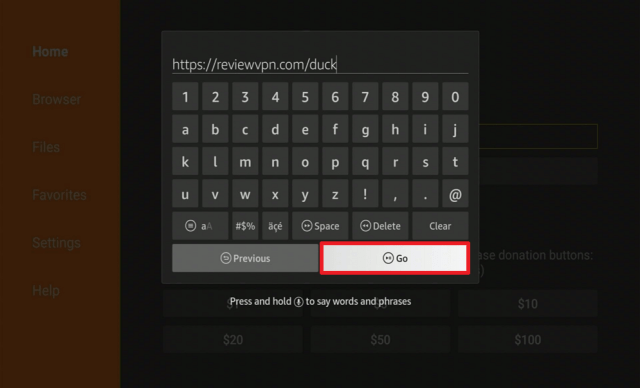
2.Open Downloader App. Type https://reviewvpn.com/duck and click Go.

Install Duck Duck Go Browser


3. Select INSTALL.

Step 13 Install Duck Duck on a firestick


4. Select OPEN.

Step 14 Install Duck Duck on a firestick


5. Click on the “Let’s Do It!” button.

Step 15 Install Duck Duck on a firestick


6. Choose Maybe Later.

Step 16 Install Duck Duck on a firestick


7. There you go, Duck Duck Browser is now installed on your device.

Step 17 Install Duck Duck on a firestick


Other Best Search Engines for Firestick

Aside from Duck Duck Go, there are also other apps or browsers that you can check out. Take a look at these:


YOUR INTERNET ACTIVITY IS BEING WATCHED

ReviewVPN cannot attest to the legality, security and privacy of the applications discussed on this site. It is highly recommended that you use a VPN service while streaming or using Kodi.

Currently, your IP 216.73.216.52 is visible to everyone and your Browser is being tracked by Advertisers & ISP Provider.

Save 65% Now

Limited Time Offer

Here are the main reasons why you must use a VPN:

  • Your activities are hidden from your ISP, the government, and from the apps you are using.
  • You can access additional movies and TV streams.
  • ISP attempts to throttle are thrwarted thus reducing buffering issues.
  • Geographically restricted content like Netflix and Hulu can be unblocked.

A VPN works be replacing your ISP-assigned IP address and creating an encrypted tunnel. We recommend the no log service offered by IPVanish. It works well on a Firestick and offers the fastest possible speeds.

Special Limited Time Offer - Get IPVanish


Legal Disclaimer: ReviewVPN.com does not encourage or endorse any illegal activity involved in the usage of services and applications referenced on this site. We do not verify the licensing agreements of services. The end-user is wholly responsible for ensuring that any media accessed through these services does not violate copyright and/or licensing laws. ReviewVPN does not promote, link to, or receive compensation from any Apps and IPTV services.


Install Surfshark on Firestick

Best Surfshark Deal


Best Private Search Engines for Windows and PC

Aside from Google, you can also choose from these best private search engines.


DuckDuckGo

best private search engines 1

URL: https://duckduckgo.com/

The number 1 and 100% safest and most private search engine is DuckDuckGo, also known as DDG. It is a user-friendly search engine that does not log any information of the user.

Features
  • Results include symbols and favicons
  • You easily recognize your favorite web spaces
  • Works almost the same as other common search engines
  • No image filtering is available


Google VS DuckDuckGo


Swisscows

best private search engines 2

URL: https://swisscows.com/

Formerly known as Hulbee, Swisscows is one of the best private search engines for Windows. It has great functions and features for data encryption and hinders information leaks.

Features
  • No tracking
  • Family-friendly
  • Search with your own index


StartPage

best private search engines 3

URL: https://startpage.com/

StartPage claims that it is the world’s most private search engine. Along with other competitors, it is surely one to checkout. It use proxy servers to protect users and prevent tracking of IP address.

Features
  • Based from the Netherlands
  • Protects Your Personal Data
  • Aims for quality results on user’s querries
  • Block price trackers
  • Avoid advertisements
  • Prevents online profiling
  • Received unprofiled news


Gibiru

best private search engines 3

URL: https://gibiru.com/

Gibiru is the top 4 in our list of the best private search engines for Windows. It encrypts users’ data which hinders third-party data collectors to gather them.

Features
  • Eliminates tracking methods
  • Zero retargeting
  • Provides honest earnings
  • Do not store and sell users’ privacy


WolframAlpha

best private search engines 3

URL: https://wolframalpha.com/

WolframAlpha is one of the best private search engines that provide detailed breakthrough algorithm. You can see on its home page searches for different topics and subjects like Mathematics, Science and Technology, Society & Culture, and Everyday Life.

Features
  • A search engine that is like an encyclopedia
  • Enhance knowledge for users
  • Provides sets of results through dynamic calculations and integrated algorithms


Lukol

best private search engines 3

URL: https://lukol.com/

Lukol is a simple search engine that also protects your privacy. Although you will see that this search engine is powered by Google.

Features
  • very minimal user interface
  • hinders misleading advertising and inappropriate websites
  • protects your personal information


Peekier

best private search engines 3

URL: https://peekier.com/

Last but definitely not the list in our list of the best private search engines is Peekier. It claims to be the new way to search the web. Like all of the other private search engines, it is also privacy-oriented.

Features
  • User-friendly
  • Provides relevant pages
  • Clicking a result will help you preview and scroll the page first


Ensure Your Safety With A VPN

surfshark logo

Whichever browser or search engine you are using from this list of the best private search engines, it is still best if you use a Virtual Private Network or VPN. A VPN will surely change your IP address not just protect it.

A VPN is a trusted software that helps you access geo-restricted content. There are other malicious VPNs out there as well, most of them are free. That is why it is still better to use a premium but great VPN like Surfshark.

Here are some of the great benefits of Surfshark:
  • Thousands of available servers to choose from
  • Destroys geo-restrictions and allows access to certain contents
  • Flexible VPN protocols depend on the need of your device.
  • Split tunneling
  • Kill switch
  • Allows Double VPN setup.
  • Provides Data Encryption.
  • No log policy.
  • Speed up your internet connection.
  • Best VPN for torrenting.
  • Prevents Firestick Buffering and Kodi Buffering

Note: For more information about Surfshark, please read our Surfshark Review.


Grab your subscription now!


How to Install Surfshark VPN on Firestick

If your Firestick still has the older interface, read this article to learn how to update it: Update Firestick Interface.

Follow our screenshots below to install the SurfShark VPN app on your Fire TV stick.

1. Go to the Home screen of your Firestick.

step 1 Install Surfshark VPN on Firestick


2. Navigate towards the Find tab. Press the Search button from the resulting dropdown.

step 2 Install Surfshark VPN on Firestick


3. Type in the keyword of SurfShark and select from the suggestions that will appear.

step 3 Install Surfshark VPN on Firestick


4. Click the official SurfShark icon from your search results.

step 4 Install Surfshark VPN on Firestick


5. Press the Download (You own it) button.

step 5 Install Surfshark VPN on Firestick


6. The SurfShark VPN installer will download on your device.

step 6 Install Surfshark VPN on Firestick


7. SurfShark VPN’s app will automatically install itself on your Fire TV stick.

step 7 Install Surfshark VPN on Firestick


8. Press the Open button after completing SurfShark VPN’s installation process.

step 8 Install Surfshark VPN on Firestick


9. Please wait for the SurfShark VPN to load its user interface.

step 9 Install Surfshark VPN on Firestick


10. You can now log in with your SurfShark VPN account credentials.

step 10 Install Surfshark VPN on Firestick

Learn more about Surfshark and Grab the Best Surfshark Deal Now!


Install Surfshark on Firestick

Best Surfshark Deal


Other VPNs to Consider

NordVPN (Best for Streaming)

Best Features

  • 5000+ Server in 50+ Countries 
  • Military-Grade Encryption
  • Fast Connection Speed
  • Suitable to a lot of devices
  • No-Log Policy

Prices
  • Complete $5.89 per month (64% Discount)
  • Plus $4.59 per month (56% Discount)
  • Standard $3.69 per month (55% Discount)

Best Features

  • 750+ High-speed VPN Servers in 43 Locations
  • Military-Grade Encryption
  • Fastest HD Streaming and Gaming
  • 30-Day Money-Back Guarantee
  • Unlimited Data & Devices
  • No-Log Policy

Prices
  • 3 Years $1.99 per month (82% Discount)
  • 1 Years $3.29 per month (70% Discount)
  • 1 Month $10.99 per month

IPVanish VPN (Most Secure)

Best Features

  • 1200+ Servers in 60+ Countries around the world
  • Unlimited Connections
  • No-Log Policy
  • Top Notch Military-Grade VPN Protocols and Encryptions
  • 100% Safe and Secured
  • Most Trusted VPN
  • Best VPN for Firestick
  • 30-Day Money-Back Guarantee

Prices
  • Yearly $3.99 per month (63% Discount) – 30 days risk free + Ransomware & Malware Protection
  • Quarterly $5.32 per month (51% Discount)
  • Monthly $10.99 per month


For more VPN discounts, go to ReviewVPN Deals and purchase the best VPN for you.

Click here to get the lowest price on Surfshark through our exclusive limited-time offer.


FAQs

Do I have to stop using Google?

If you really want to continue using Google’s search engine, there’s no problem with that. The best suggestion we can give you is to use a VPN service like Surfshark to secure your privacy.


How to change the default search engine on my browser?

To change the default search engine, you can choose from any of the best private search engines, follow the provided URL and spot the button that says make as default browser/search engine.


Should I delete my Google History?

This is a better option for you. Follow these steps to do so:

How to delete/clear my search history:
  1. Open Chrome or Google
  2. Find the three dots placed vertically located at the top right of your screen
  3. Choose History
  4. Click Clear browsing data
  5. You can choose which ones you want to delete or just simply select All
  6. Once the boxes of the data you want to delete are checked, click Clear Data


Conclusion

Privacy is such a big deal as technology evolves nowadays. Good thing that there are ways to protect your privacy. By using the best private search engines, you can assure that every activity you will do online will not be tracked.

Another useful way is to use a Virtual Private Network. Whatever search engine you are using, a VPN will change your IP address and protect you from tracking and hacking. For us, the best VPN is Surfshark.

We hope that you find this article helpful in learning the best private search engines for Firestick and Windows.


Note: ReviewVPN.com does not own or operate any app nor does it endorse any. The main purpose of this article is strictly for educational purposes only.

How to Install Snowflake Killer Kodi Build

Snowflake Killer Kodi Build Overview

The article will help you on how to install Snowflake Killer Kodi Build.


Snowflake killer is a third-party Kodi build that has a different interface design and theme. This build brings you an extraordinary name of categories with a great lineup of content to watch for free. The main categories in this build are MF’IN Movies, Shitty TV, Every FK’IN Thing, GD system, GTFO, and Useless Favs.

Regardless of different categories, this build is like the other build that brings you all of the latest and popular content from different streaming providers. It is also an all-in-one build that gives you a wide variety of content categories to choose from. This build brings you a high quality of streaming links from different providers.

Since it uses different providers, we suggest that you use a VPN before you stream. It also has a different preloaded add-on that brings you a large collection of content to watch. Some of these addons are Revolution, Asgard, The Endzone 19, Twisted and more.


ANONYMOUSLY

How to Install Snowflake Killer Kodi Build with Screenshot

Installing a Kodi build has a lot of processes to take. That is why we will guide you step by step on how you can install it on Kodi.

 Follow the following steps below.   

1. On your Firestick, open Kodi and go to Settings.

Install Snowflake Killer Kodi Build 1


2. Select on System

Install Snowflake Killer Kodi Build 2


3. Click on the Add-ons menu and Turn ON the Unknown Sources

Install Snowflake Killer Kodi Build 3


4. Select Yes when the box appears

Install Snowflake Killer Kodi Build 4


5. Go back one step and click on File Manager.

Install Snowflake Killer Kodi Build 5


6. Select the Add Source

Install Snowflake Killer Kodi Build 6


7. A box will pop up, so click on the ‘None’ option.

Install Snowflake Killer Kodi Build 7


8. Now type in this URL http://grindhousekodi.tk/repo and click OK.

Install Snowflake Killer Kodi Build 8


9. Name this URL as a grindhouse and tap OK.

Install Snowflake Killer Kodi Build 9


10. After that, go back to the system menu and select Add-ons.

Install Snowflake Killer Kodi Build 10


11. Click Install from Zip File

Install Snowflake Killer Kodi Build 11


12. Tap the Yes button

Install Snowflake Killer Kodi Build 12


13. When the box pop-up, select grindhouse or any name you have given.

Install Snowflake Killer Kodi Build 13


14. Choose repository.grindhousekodi-1.7.zip

Install Snowflake Killer Kodi Build 14


15. Wait a few minutes for the addon to be installed. After that, an icon will appear at the top menu.

Install Snowflake Killer Kodi Build 15


16. Tap the  Install from Repository

Install Snowflake Killer Kodi Build 16


17. Choose the Grindhouse Repository 

Install Snowflake Killer Kodi Build 17


18. Select the Program add-ons

Install Snowflake Killer Kodi Build 18


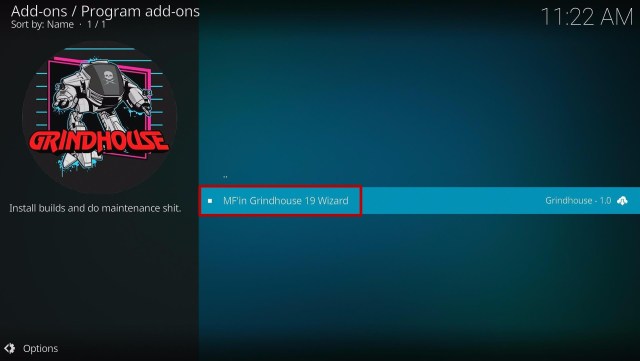
19. Click MF’in Grindhouse 19 Wizard

Install Snowflake Killer Kodi Build 19


20. Tap the Install button

Install Snowflake Killer Kodi Build 20


21. Click the OK button

Install Snowflake Killer Kodi Build 21


22. Wait for the Installed message to appear

Install Snowflake Killer Kodi Build 22


23. Click the Continue

Install Snowflake Killer Kodi Build 23


24. Tap the Ignore button

Install Snowflake Killer Kodi Build 24


25. Go back to the Kodi home screen and scroll down to Addon

Install Snowflake Killer Kodi Build 25


26. From the Program add-ons, select MF’in Grindhouse 19 Wizard

Install Snowflake Killer Kodi Build 26


27. Select Builds

Install Snowflake Killer Kodi Build 27


28. Scroll down and click Snowflake Killer

Install Snowflake Killer Kodi Build 28


29. Click the Install

Install Snowflake Killer Kodi Build 29


30. When a box pops up, tap the Yes, Install

Install Snowflake Killer Kodi Build 30


31. Wait for the build to download.

Install Snowflake Killer Kodi Build 31


32. Click the OK button

Install Snowflake Killer Kodi Build 32


33. Launch your Kodi again

Install Snowflake Killer Kodi Build 33


35. That’s it! You have successfully installed the Snowflake Killer Kodi Build.

Install Snowflake Killer Kodi Build 35


YOUR INTERNET ACTIVITY IS BEING WATCHED

ReviewVPN cannot attest to the legality, security and privacy of the applications discussed on this site. It is highly recommended that you use a VPN service while streaming or using Kodi.

Currently, your IP 216.73.216.52 is visible to everyone and your Browser is being tracked by Advertisers & ISP Provider.

Save 65% Now

Limited Time Offer

Here are the main reasons why you must use a VPN:

  • Your activities are hidden from your ISP, the government, and from the apps you are using.
  • You can access additional movies and TV streams.
  • ISP attempts to throttle are thrwarted thus reducing buffering issues.
  • Geographically restricted content like Netflix and Hulu can be unblocked.

A VPN works be replacing your ISP-assigned IP address and creating an encrypted tunnel. We recommend the no log service offered by IPVanish. It works well on a Firestick and offers the fastest possible speeds.

Special Limited Time Offer - Get IPVanish


Legal Disclaimer: ReviewVPN.com does not encourage or endorse any illegal activity involved in the usage of services and applications referenced on this site. We do not verify the licensing agreements of services. The end-user is wholly responsible for ensuring that any media accessed through these services does not violate copyright and/or licensing laws. ReviewVPN does not promote, link to, or receive compensation from any Apps and IPTV services.


Install Surfshark on Firestick

Best Surfshark Deal


Features of Snowflake Killer Kodi Build

  • You can choose Movies from 2004 Movies to 2021 Movies.
  • Brings you all of the popular and latest Tv shows from different streaming services. 
  • In the AIO section, you can choose from the 4K one Click Section, One-Click Section, Non-Debrid Section, Movies, TV shows, Soaps, Documentaries, Kids, Sports, Stand Up, Apps, Music, Anime, and more. 
  • It also has Resume watching, where you can continue watching where you stopped off. 
  • Available Last Link Played, Search History, and My RD History.
  • This build also supports Trakt and Real Debrid integration. 
  • You can access high-quality streaming links by integrating your Real Debrid account. 
  • Here is the list of genres to choose from Action, Adventures, Animation, Anime, Biography, Comedy, Crime, Documentary, Drama, Family, Fantasy, History, Horror, Music, Musical, Mystery, Romance, Science Fiction, Sport, Thriller, War and Western.


Here are some of the Preloaded addons/repos:

Dejavu Repo, Asgard, Twisted, Twisted Nutz Repo, THE CREW, THE CREW REPO, Free, Maverick, Torque Lite, The Endzone 19, Revolution, Q Sports, Bugatsinho Repo, AAC Encoder, BewsandBeer, Black, Cumination, Dailymotion.com, EzzerMacs Wizard Repository, Grindhouse Repo, Host505, Jizz Planet, Plex Live, Pluto TV, Purely Wrestling, SportHD, The Oath, and more.


Pros and Cons

Pros

  • This build is compatible with Kodi 19.5 Matrix.
  • Brings you a great lineup of content to watch for free. 
  • You can watch this build without any interruption. 
  • The maximum streaming quality is up to 4K.


Cons

  • Some of the provided streaming links are not working. 


Keep Secured with a VPN

Having a Virtual Private Network on your device is recommendable while you stream online. You need to ensure safety and privacy while using any third-party add-ons or builds. Whereas, sometimes these third-party addon/builds are very risky to use because some user servers that have malicious files that can affect your device. 

We highly recommend using Surfshark to keep you protected and secured while you stream online. It has an advanced security feature that keeps you safe from any potential hackers and prevents any snooping ISP. Surfshark also has a lot of impressive features and serves you with a quality of services such as:

  • Destroys geo-block and gains access to different content globally.
  • Zero logs and no IP address leaks. 
  • Bypass censorship and restrictions.
  • Prevent ISPs from interfering with your connection and speed up your internet.
  • It gives you unlimited bandwidth and makes your internet speed faster. 
  • Keep your identity anonymous to protect you from hackers, especially when you are using public wi-fi.

Note: For more information about Surfshark, please read our Surfshark Review.


Grab your subscription now!


How to Install Surfshark VPN on Firestick

If your Firestick still has the older interface, read this article to learn how to update it: Update Firestick Interface.

Follow our screenshots below to install the SurfShark VPN app on your Fire TV stick.

1. Go to the Home screen of your Firestick.

step 1 Install Surfshark VPN on Firestick


2. Navigate towards the Find tab. Press the Search button from the resulting dropdown.

step 2 Install Surfshark VPN on Firestick


3. Type in the keyword of SurfShark and select from the suggestions that will appear.

step 3 Install Surfshark VPN on Firestick


4. Click the official SurfShark icon from your search results.

step 4 Install Surfshark VPN on Firestick


5. Press the Download (You own it) button.

step 5 Install Surfshark VPN on Firestick


6. The SurfShark VPN installer will download on your device.

step 6 Install Surfshark VPN on Firestick


7. SurfShark VPN’s app will automatically install itself on your Fire TV stick.

step 7 Install Surfshark VPN on Firestick


8. Press the Open button after completing SurfShark VPN’s installation process.

step 8 Install Surfshark VPN on Firestick


9. Please wait for the SurfShark VPN to load its user interface.

step 9 Install Surfshark VPN on Firestick


10. You can now log in with your SurfShark VPN account credentials.

step 10 Install Surfshark VPN on Firestick

Learn more about Surfshark and Grab the Best Surfshark Deal Now!


Install Surfshark on Firestick

Best Surfshark Deal


Other VPNs to Consider

NordVPN (Best for Streaming)

Best Features

  • 5000+ Server in 50+ Countries 
  • Military-Grade Encryption
  • Fast Connection Speed
  • Suitable to a lot of devices
  • No-Log Policy

Prices
  • Complete $5.89 per month (64% Discount)
  • Plus $4.59 per month (56% Discount)
  • Standard $3.69 per month (55% Discount)

Best Features

  • 750+ High-speed VPN Servers in 43 Locations
  • Military-Grade Encryption
  • Fastest HD Streaming and Gaming
  • 30-Day Money-Back Guarantee
  • Unlimited Data & Devices
  • No-Log Policy

Prices
  • 3 Years $1.99 per month (82% Discount)
  • 1 Years $3.29 per month (70% Discount)
  • 1 Month $10.99 per month

IPVanish VPN (Most Secure)

Best Features

  • 1200+ Servers in 60+ Countries around the world
  • Unlimited Connections
  • No-Log Policy
  • Top Notch Military-Grade VPN Protocols and Encryptions
  • 100% Safe and Secured
  • Most Trusted VPN
  • Best VPN for Firestick
  • 30-Day Money-Back Guarantee

Prices
  • Yearly $3.99 per month (63% Discount) – 30 days risk free + Ransomware & Malware Protection
  • Quarterly $5.32 per month (51% Discount)
  • Monthly $10.99 per month


For more VPN discounts, go to ReviewVPN Deals and purchase the best VPN for you.

Click here to get the lowest price on Surfshark through our exclusive limited-time offer.


Alternatives for Snowflake Killer Kodi Build

We list down some of the Kodi builds that you can try on your Kodi aside from this build. Kindly read their corresponding articles to know more about these add-ons. 


FAQs

 Is the Snowflake Killer Kodi Build safe to use?

Yes, this build is safe to use, but if you want to ensure your security, we suggest using a VPN such as Surfshark


Is the Snowflake Killer Kodi Build legal?

Yes, this build is legal as long as it only offers non-copyright content.


Is streaming on Snowflake Killer Kodi Build for free?

Yes, this build allows you to access and stream their content for free. 


Conclusion

Snowflake Killer is a Kodi Build from the Grindhouse Repo that has a different interface theme and skin. This build also brings you a large collection of content. We presented the lits of categories that you can see in this build. You can now enjoy streaming on their thousand of content in Kodi with less buffering and an uninterrupted streaming experience. We hope this article helps you install the Snowflake Killer Kodi Build. 

Why Is My Firestick So Slow? How to Fix This Problem

Why is My Firestick So Slow?

Are you currently experiencing and asking why is my firestick so slow? With this article, we are hoping that we can be able to help you solve your problem.

Along with this, we might also give you all the possible reasons why you are experiencing this.


Firestick is the official streaming device of Amazon. It has a total of 1GB of RAM for all the data, and apps that you want to install. Sometimes this is not enough for all the things that we want to do with our device. This might result to slow user-device interactions.

Even us here at reviewvpn.com experience such problems. Sometimes, we already click on the remote and it took 2 or more seconds before the device follows. There are also times when we experience Firestick buffering, lags, and glitches. No wonder why so many people also ask the same question we ask ourselves, why is my firestick so slow?


ANONYMOUSLY


Why is My Firestick So Slow? Possible Reasons and Solutions

Firesticks become slow not just because of a specific reason. There are so many factors that might contribute to this. Here we discuss every possible reason that might answer your question, why is my firestick so slow.


1. Apps Running in the Background

The most common answer to the question, why is my firestick so slow, is because of the number of running apps in the background of your device. When you open an app and just close it, it still runs in the background.

Any application that runs in the background consumes RAM storage. The more apps running the more reason why you have a slow firestick.

One of the ways to kill a running application on your firestick is by using different applications like:

You can also force stop, clear data, and cache to all of your installed applications directly through your firestick setting. Follow these steps:

1. Go to Settings

why is my firestick so slow

2. Click Applications

why is my firestick so slow


3. Select Manage Installed Applications

why is my firestick so slow


4. Choose the specific application that you want to kill

why is my firestick so slow


5. You can choose Force stop, Clear data, or Clear cache to kill the running application

why is my firestick so slow


2. By Having an Overheated Device

The next reason why you have a slow firestick is that your device might be overheated. If your device is turned on for a long time with even just one running app, it might overheat.

When a device is overheated, the processor works slower than normal.

Here are the ways to stop Firestick overheating:


3. Too much bloatware installed in your device

When you install an app even through direct installation or using Downloader, it requires a lot of space in your device. The more apps you install, the slower your device may go.

When you are not using an app for a very long time, or you think you are done with it, you can easily uninstall it from Firestick. Follow these simple steps to do so.

1. Go to the Home menu. Scroll to the right and click settings.

why is my firestick so slow


2. Select Applications.

why is my firestick so slow


3. Click Manage Installed Applications.

why is my firestick so slow


4. Select the application you want to delete. 

why is my firestick so slow


5. Click Uninstall.

why is my firestick so slow


6. Click Uninstall.

why is my firestick so slow


YOUR INTERNET ACTIVITY IS BEING WATCHED

ReviewVPN cannot attest to the legality, security and privacy of the applications discussed on this site. It is highly recommended that you use a VPN service while streaming or using Kodi.

Currently, your IP 216.73.216.52 is visible to everyone and your Browser is being tracked by Advertisers & ISP Provider.

Save 65% Now

Limited Time Offer

Here are the main reasons why you must use a VPN:

  • Your activities are hidden from your ISP, the government, and from the apps you are using.
  • You can access additional movies and TV streams.
  • ISP attempts to throttle are thrwarted thus reducing buffering issues.
  • Geographically restricted content like Netflix and Hulu can be unblocked.

A VPN works be replacing your ISP-assigned IP address and creating an encrypted tunnel. We recommend the no log service offered by IPVanish. It works well on a Firestick and offers the fastest possible speeds.

Special Limited Time Offer - Get IPVanish


Legal Disclaimer: ReviewVPN.com does not encourage or endorse any illegal activity involved in the usage of services and applications referenced on this site. We do not verify the licensing agreements of services. The end-user is wholly responsible for ensuring that any media accessed through these services does not violate copyright and/or licensing laws. ReviewVPN does not promote, link to, or receive compensation from any Apps and IPTV services.


Install Surfshark on Firestick

Best Surfshark Deal


Other Ways to Improve The Performace of Your Amazon Firestick Device

There are also other ways you can follow to help improve your Firestick’s performance. You won’t be able to say “Why is my firestick so slow?”.


1. Check Your Wifi Connection

By using a better ethernet wire or adapter may be a good way to boost your internet speed. This might also stop slowing your Firestick. Most Firestick buffering is due to poor WiFi connection. So if you would connect your2.  TV directly to your internet modem through an adapter, there is a big chance that you won’t have a poor connection.


2. Use the Original Power Adapter/USB

When you buy the Amazon Firestick, it is better to use all the original USB or adapters found inside the box, instead of using other brands. This might not make sense at first but if you are not that technical and o you don’t like to experience having a slow device, we suggest you follow all instructions.


3. Learn about the Firestick Settings

Some settings are set by default, and you need to change them to boost your streaming experience.

Best Amazon Firestick Settings That You Should Know


Stream Safely With a VPN

Firestick buffering is such an annoying problem to deal with. Aside from following all the steps and tips provided above, we suggest using a Virtual Private Network as well. A VPN will boost your internet speed and stop buffering while streaming.

We always suggest using Surfshark as the best VPN for Firestick. We have tested this service and there is no doubt that is 100% useful. It can connect you to a different server from other countries you like. With this, you’ll have access to their content but all of your data and information is stay hidden and safe.


Install Surfshark on Firestick

Best Surfshark Deal


How to Install Surfshark VPN on Firestick

If your Firestick still has the older interface, read this article to learn how to update it: Update Firestick Interface.

Follow our screenshots below to install the SurfShark VPN app on your Fire TV stick.

1. Go to the Home screen of your Firestick.

step 1 Install Surfshark VPN on Firestick


2. Navigate towards the Find tab. Press the Search button from the resulting dropdown.

step 2 Install Surfshark VPN on Firestick


3. Type in the keyword of SurfShark and select from the suggestions that will appear.

step 3 Install Surfshark VPN on Firestick


4. Click the official SurfShark icon from your search results.

step 4 Install Surfshark VPN on Firestick


5. Press the Download (You own it) button.

step 5 Install Surfshark VPN on Firestick


6. The SurfShark VPN installer will download on your device.

step 6 Install Surfshark VPN on Firestick


7. SurfShark VPN’s app will automatically install itself on your Fire TV stick.

step 7 Install Surfshark VPN on Firestick


8. Press the Open button after completing SurfShark VPN’s installation process.

step 8 Install Surfshark VPN on Firestick


9. Please wait for the SurfShark VPN to load its user interface.

step 9 Install Surfshark VPN on Firestick


10. You can now log in with your SurfShark VPN account credentials.

step 10 Install Surfshark VPN on Firestick

Learn more about Surfshark and Grab the Best Surfshark Deal Now!


Install Surfshark on Firestick

Best Surfshark Deal


Other VPNs to Consider

NordVPN (Best for Streaming)

Best Features

  • 5000+ Server in 50+ Countries 
  • Military-Grade Encryption
  • Fast Connection Speed
  • Suitable to a lot of devices
  • No-Log Policy

Prices
  • Complete $5.89 per month (64% Discount)
  • Plus $4.59 per month (56% Discount)
  • Standard $3.69 per month (55% Discount)

Best Features

  • 750+ High-speed VPN Servers in 43 Locations
  • Military-Grade Encryption
  • Fastest HD Streaming and Gaming
  • 30-Day Money-Back Guarantee
  • Unlimited Data & Devices
  • No-Log Policy

Prices
  • 3 Years $1.99 per month (82% Discount)
  • 1 Years $3.29 per month (70% Discount)
  • 1 Month $10.99 per month

IPVanish VPN (Most Secure)

Best Features

  • 1200+ Servers in 60+ Countries around the world
  • Unlimited Connections
  • No-Log Policy
  • Top Notch Military-Grade VPN Protocols and Encryptions
  • 100% Safe and Secured
  • Most Trusted VPN
  • Best VPN for Firestick
  • 30-Day Money-Back Guarantee

Prices
  • Yearly $3.99 per month (63% Discount) – 30 days risk free + Ransomware & Malware Protection
  • Quarterly $5.32 per month (51% Discount)
  • Monthly $10.99 per month


For more VPN discounts, go to ReviewVPN Deals and purchase the best VPN for you.

Click here to get the lowest price on Surfshark through our exclusive limited-time offer.


Why is my firestick so slow: Executive Summary

To sum up, all of the possible answers to why my firestick is so slow are these reasons, apps running in the background, overheated devices, and too much bloatware.

Follow all the great tips above on how to improve the speed of your device and we hope that you find this article helpful for your query.


Note: ReviewVPN.com does not own or operate any app nor does it endorse any. The main purpose of this article is strictly for educational purposes only.

Easy Installation of MyWiFi TV On Firestick

Overview

In this article, we will help you install MyWifi TV on your Firestick and android devices.


MyWiFi TV is an Android app offered for Android users to get all premium TV channels from the United States, United Kingdom, Canada, as well as other European countries. Whether you want to watch in SD, HD, & 1080p resolution, MyWiFi TV ensures you get the best.

MyWiFi TV is one of the best IPTV Android apps to watch live TV channels from all across the globe. It contains over 200 IPTV channels from all around the world. MyWiFi TV is compatible with all Android-based streaming devices. You can access this IPTV app wherever you are as it provides worldwide coverage with no interruptions. All you must have is a good WiFi connection to obtain the best desirable resolution.

This Live TV app contains channels from various categories, such as news, science, sports, animal planets, documentary, cultural, religion, kids,  business, cooking, adults, and many more such types of TV channels from all around the world.


ANONYMOUSLY

MyWiFi TV App Installation on FireStick
  1. Turn on the FireStick device, go to the top menu bar and choose > Settings
  2. Click My Fire TV > Developer Options
  3. Enable Apps from Unknown Sources 
  4. Go back to FireStick’s home screen and go to the menu bar
  5. Go to the Search option
  6. Search & install the Downloader app on FireStick
  7. After installing the Downloader application, launch it
  8. Enter the MyWiFi TV app download URL/APK – https://reviewvpn.com/myw
  9. Click GO
  10. When the DirecTV app file download is complete – click Install
  11. Now, you have successfully installed the MyWiFi TV app on FireStick


Installing MyWiFi TV App on Firestick with Screenshots

1. Install the Downloader app and jailbreak your firestick by enabling unknown sources. To learn more about the procedure, you may read How to Install the Downloader App and Enable Unknown Sources.


2. After installing the Downloader app, launch it.

Installing MyWiFi TV App on Firestick 13


3. Enter the MyWiFi TV app download URL/APK – https://reviewvpn.com/myw  and click GO

Installing MyWiFi TV App on Firestick 14


4. When the DirecTV app file download is complete – click Install

Installing MyWiFi TV App on Firestick 15


5. Now, you have successfully installed the MyWiFi TV app on FireStick

Installing MyWiFi TV App on Firestick 16


YOUR INTERNET ACTIVITY IS BEING WATCHED

ReviewVPN cannot attest to the legality, security and privacy of the applications discussed on this site. It is highly recommended that you use a VPN service while streaming or using Kodi.

Currently, your IP 216.73.216.52 is visible to everyone and your Browser is being tracked by Advertisers & ISP Provider.

Save 65% Now

Limited Time Offer

Here are the main reasons why you must use a VPN:

  • Your activities are hidden from your ISP, the government, and from the apps you are using.
  • You can access additional movies and TV streams.
  • ISP attempts to throttle are thrwarted thus reducing buffering issues.
  • Geographically restricted content like Netflix and Hulu can be unblocked.

A VPN works be replacing your ISP-assigned IP address and creating an encrypted tunnel. We recommend the no log service offered by IPVanish. It works well on a Firestick and offers the fastest possible speeds.

Special Limited Time Offer - Get IPVanish


Legal Disclaimer: ReviewVPN.com does not encourage or endorse any illegal activity involved in the usage of services and applications referenced on this site. We do not verify the licensing agreements of services. The end-user is wholly responsible for ensuring that any media accessed through these services does not violate copyright and/or licensing laws. ReviewVPN does not promote, link to, or receive compensation from any Apps and IPTV services.


Install Surfshark on Firestick

Best Surfshark Deal


Moving the Newly Installed App to the Front

  • Go back to Fire Stick Home Screen (you may click the Home Button on the Fire Stick remote)
  • Go to Your Apps & Games/Channels
  • Scroll once to the left
  • Click See All
  • All the newly installed apps are located at the bottom – you can move the MyWiFi TV app by clicking the Options button (at the right side of the Home Button)
  • Click Move > move to front > and pick any spot you want to put the app


MyWiFi TV Channels & Content

MyWiFi TV provides a huge selection of movies, sports channels, TV shows, and many more. Some of the TV channels that the app is currently displaying are:

  • Live premier league
  • Soap opera
  • Sporting & action events
  • Fashion
  • Music channels
  • Family weekend programs
  • Business and marketing news

MyWiFi TV is a great quality streaming service and it comes under the inexpensive price tag of 25$ a month that includes more than 2000 channels, all types of video qualities such as SD, HD, & 1080p, and along with the app’s maximum uptime.

Nonetheless, if you want to install the MyWiFi TV on 3 devices, you have to pay an additional $10 a month – the same goes for the family package & family+ package. Thus, just go over the WiFi TV website and purchase the subscription you want without delaying streaming your live TV channels.


MyWifi TV Device Compatibility

One of the best things about subscribing to MyWifi TV is the awesome compatibility that it provides. It is compatible with multiple streaming devices, such as Google Chromecast, Nvidia Shield, Amazon Firestick, Android TV, iPhone, tablet, and many more. MyWifi TV is a world-class media streaming service on any Android-based device. You can download the MyWifi TV app on your Android and IOS devices.

MyWiFi TV can also be used on the internet browser by just going to its website. Thus, if you want to save some device storage you can watch your movies or TV shows online without ever worrying that it will not offer the same video quality as it will on its app.

Also, the MyWiFi TV channels are accessible on a vast selection of quality TV boxes with just one app. Furthermore, you can also purchase a fire stick that acts as a streaming device for the television so you can easily access the platform through the device respectively.


Multiple Providers

MyWiFi TV buys client connection licenses from authorized or official content providers across the globe. This ensures consistent service with minimal to no buffering issues and maximum television channel options.


Cutting Edge

MyWiFi TV uses cutting-edge Live TV technologies, delivering the best IPTV subscription experience to its subscribers. 


How to Access MyWiFi TV Overseas

You just have to download & install the app on your Android-powered streaming device to access the service. You can simply purchase any MyWiFi TV package and have a reliable, fast WiFi connection that can get you streaming your most-likedTV channels in no time. Nonetheless, if you’re on a mobile data plan, there may be additional mobile carrier charges.

Note: If the MyWiFi TV app does not allow you to access it abroad, then you should use a Virtual Private Network or VPN.


Why Use A VPN

When you use Google Chromecast, a Virtual Private Network or VPN with strong encryption is highly recommended to mask your online activities, identity, and true location. Many Google Chromecast users prefer Surfshark service for privacy, price, & speed. Also, the Surfshark service is great in terms of bypassing geo-restricted content or streaming services.


Surfshark service offers the fastest server speeds and great live chat support. It is an easy-to-use app. Make sure to enable your VPN service when you are streaming online.


Surfshark Features:

  • Unblocks Netflix, Disney+, and more
  • Great download speed
  • Unlimited simultaneous devices
  • Great customer service
  • No connection records
  • Strong encryption
  • 30-day money-back guarantee
  • Compatible with Windows, Linux, Mac, iOS, Android, and other routers

Note: For more information about Surfshark, please read our Surfshark Review.


Grab your subscription now!


How to Install Surfshark VPN on Firestick

If your Firestick still has the older interface, read this article to learn how to update it: Update Firestick Interface.

Follow our screenshots below to install the SurfShark VPN app on your Fire TV stick.

1. Go to the Home screen of your Firestick.

step 1 Install Surfshark VPN on Firestick


2. Navigate towards the Find tab. Press the Search button from the resulting dropdown.

step 2 Install Surfshark VPN on Firestick


3. Type in the keyword of SurfShark and select from the suggestions that will appear.

step 3 Install Surfshark VPN on Firestick


4. Click the official SurfShark icon from your search results.

step 4 Install Surfshark VPN on Firestick


5. Press the Download (You own it) button.

step 5 Install Surfshark VPN on Firestick


6. The SurfShark VPN installer will download on your device.

step 6 Install Surfshark VPN on Firestick


7. SurfShark VPN’s app will automatically install itself on your Fire TV stick.

step 7 Install Surfshark VPN on Firestick


8. Press the Open button after completing SurfShark VPN’s installation process.

step 8 Install Surfshark VPN on Firestick


9. Please wait for the SurfShark VPN to load its user interface.

step 9 Install Surfshark VPN on Firestick


10. You can now log in with your SurfShark VPN account credentials.

step 10 Install Surfshark VPN on Firestick

Learn more about Surfshark and Grab the Best Surfshark Deal Now!


Install Surfshark on Firestick

Best Surfshark Deal


Other VPNs to Consider

NordVPN (Best for Streaming)

Best Features

  • 5000+ Server in 50+ Countries 
  • Military-Grade Encryption
  • Fast Connection Speed
  • Suitable to a lot of devices
  • No-Log Policy

Prices
  • Complete $5.89 per month (64% Discount)
  • Plus $4.59 per month (56% Discount)
  • Standard $3.69 per month (55% Discount)

Best Features

  • 750+ High-speed VPN Servers in 43 Locations
  • Military-Grade Encryption
  • Fastest HD Streaming and Gaming
  • 30-Day Money-Back Guarantee
  • Unlimited Data & Devices
  • No-Log Policy

Prices
  • 3 Years $1.99 per month (82% Discount)
  • 1 Years $3.29 per month (70% Discount)
  • 1 Month $10.99 per month

IPVanish VPN (Most Secure)

Best Features

  • 1200+ Servers in 60+ Countries around the world
  • Unlimited Connections
  • No-Log Policy
  • Top Notch Military-Grade VPN Protocols and Encryptions
  • 100% Safe and Secured
  • Most Trusted VPN
  • Best VPN for Firestick
  • 30-Day Money-Back Guarantee

Prices
  • Yearly $3.99 per month (63% Discount) – 30 days risk free + Ransomware & Malware Protection
  • Quarterly $5.32 per month (51% Discount)
  • Monthly $10.99 per month


For more VPN discounts, go to ReviewVPN Deals and purchase the best VPN for you.

Click here to get the lowest price on Surfshark through our exclusive limited-time offer.


FAQs

Is MyWIFI TV legal?

Yes, the MyWIFI TV is completely legal to download, install, and use.


Can I continuously stream videos on the MyWIFI TV app?

Yes, you can definitely stream on MyWIFI TV continuously.


Apps Alternatives


Conclusion

MyWIFI TV is an Android app specially designed for those who want to stream TV channels around the world. If you love to stream TV channels on your Android streaming device, such as Google Chromecast, then download this Live TV app and enjoy streaming your favorite program. Share your experience with your family and friends and don’t forget to comment your thoughts in the section below.

How to Install Frolomuse on Firestick

Overview

In this article, we will show you how to install the Frolomuse app on your Fire TV stick.


Are you looking for an app that is both a music player and an equalizer? If you are, we just have the right music player app for your needs. Let us introduce you to the Frolomuse app!

The Frolomuse app combines the features of a music player complete with an equalizer feature. Its powerful equalizer lets you filter an audio sound to play in different genres. You can also adjust the frequencies of any song you are playing.

One of the best things about Frolomuse is that it easily detects all the mp3 songs you have inside your device. Whether Android or Fire TV stick, you just have to open the Frolomuse app. When its interface displays, it will show you a list of all your music files.


ANONYMOUSLY

Frolomuse app for Android Devices


Frolomuse MP3 Player

Note: ReviewVPN.com does not host this APK file. It is hosted by Archive.org


Install Surfshark on Firestick

Best Surfshark Deal


How to Install the Frolomuse App on Your Fire TV Stick

Follow our brief guide showing you how to successfully install the Frolomuse app on your Fire TV stick. To successfully install it on your device, you only have to Jailbreak your Fire TV Stick and sideload the app. We advise you to use the Downloader app for getting third-party apps like the Frolomuse app.

  1. Open your Firestick Settings Tab. (Gear Wheel Icon).
  2. Scroll down and to the right until you get to My Fire TV. Click on it.
  3. Select Developer options.
  4. Turn on ADB debugging and Apps from Unknown Sources.
  5. Press the Turn On when the pop-up appears.
  6. Click Home and press on FIND.
  7. Press the Search button from the dropdown.
  8. You can either say Downloader to your Alexa voice-enabled remote or start typing it. If you typed it, click on the suggestion when it appears.
  9. Click on the Downloader Icon.
  10. Tap on Download.
  11. Click on Open.
  12. Press on the Allow button.
  13. You can now use the Downloader app.
  14. Type in: reviewvpn.com/frmp and click the Go button.
  15. Frolomuse app’s installer file will download on your Fire TV stick.
  16. Press the Install button.
  17. The Frolomuse app will install on your Fire TV stick.
  18. Click the Open button to launch the Frolomuse app.
  19. Press the Allow button letting the Frolomuse app access your media files.
  20. The Frolomuse interface will display with a black library at first since you have to copy audio files into your device.
  21. After transferring some audio files, the Frolomuse app will display all your music files on its media player.
  22. To access its equalizer, you must play a song first. Click on the button beside your library button, and tap on the button at the top right side of your screen.


How to Install Frolomuse App on Your Fire TV Stick with Screenshots

Follow our screenshots to successfully install the Frolomuse app on your Fire TV stick. While doing this method, we recommend using the Downloader app.

1. Open your Firestick Settings Tab. (Gear Wheel Icon).

Install Frolomuse App on Your Fire TV 1


2. Scroll down and to the right until you get to My Fire TV. Click on it.

Install Frolomuse App on Your Fire TV 2


3. Select Developer options.

Install Frolomuse App on Your Fire TV 3


4. Turn on ADB debugging and Apps from Unknown Sources.

Install Frolomuse App on Your Fire TV 4


5. Press the Turn On when the pop-up appears.

Install Frolomuse App on Your Fire TV 5


6. Click Home and press on FIND.

Install Frolomuse App on Your Fire TV 6


7. Press the Search button from the dropdown.

Install Frolomuse App on Your Fire TV 7


8. You can either say Downloader to your Alexa voice-enabled remote or start typing it. If you typed it, click on the suggestion when it appears.

Install Frolomuse App on Your Fire TV 8


9. Click on the Downloader Icon.

Install Frolomuse App on Your Fire TV 9


10. Tap on Download.

Install Frolomuse App on Your Fire TV 10


Install Frolomuse App on Your Fire TV 10


11. Click on Open.

Install Frolomuse App on Your Fire TV 11


12. Press on the Allow button.

Install Frolomuse App on Your Fire TV 12


13. You can now use the Downloader app.

Install Frolomuse App on Your Fire TV 13


14. Type in: reviewvpn.com/frmp and click the Go button.

Install Frolomuse App on Your Fire TV 14


15. Frolomuse app’s installer file will download on your Fire TV stick.

Install Frolomuse App on Your Fire TV 15


16. Press the Install button.

Install Frolomuse App on Your Fire TV 16


17. The Frolomuse app will install on your Fire TV stick.

Install Frolomuse App on Your Fire TV 17


18. Click the Open button to launch the Frolomuse app.

Install Frolomuse App on Your Fire TV 18


19. Press the Allow button letting the Frolomuse app access your media files.

Install Frolomuse App on Your Fire TV 19


20. The Frolomuse interface will display with a black library at first since you have to copy audio files into your device.

Install Frolomuse App on Your Fire TV 20


21. After transferring some audio files, the Frolomuse app will display all your music files on its media player.

Install Frolomuse App on Your Fire TV 21


22. To access its equalizer, you must play a song first. Click on the button beside your library button, and tap on the button at the top right side of your screen.

Install Frolomuse App on Your Fire TV 22


YOUR INTERNET ACTIVITY IS BEING WATCHED

ReviewVPN cannot attest to the legality, security and privacy of the applications discussed on this site. It is highly recommended that you use a VPN service while streaming or using Kodi.

Currently, your IP 216.73.216.52 is visible to everyone and your Browser is being tracked by Advertisers & ISP Provider.

Save 65% Now

Limited Time Offer

Here are the main reasons why you must use a VPN:

  • Your activities are hidden from your ISP, the government, and from the apps you are using.
  • You can access additional movies and TV streams.
  • ISP attempts to throttle are thrwarted thus reducing buffering issues.
  • Geographically restricted content like Netflix and Hulu can be unblocked.

A VPN works be replacing your ISP-assigned IP address and creating an encrypted tunnel. We recommend the no log service offered by IPVanish. It works well on a Firestick and offers the fastest possible speeds.

Special Limited Time Offer - Get IPVanish

Legal Disclaimer: ReviewVPN.com does not encourage or endorse any illegal activity involved in the usage of services and applications referenced on this site. We do not verify the licensing agreements of services. The end-user is wholly responsible for ensuring that any media accessed through these services does not violate copyright and/or licensing laws. ReviewVPN does not promote, link to, or receive compensation from any Apps and IPTV services.


Install Surfshark on Firestick

Best Surfshark Deal


Features of the Frolomuse App

  • Music/Media Player
  • Built-in Equalizer
  • Create and Save your Music Playing Settings
  • Adjustable Frequencies to modify the audio output of a music file
  • Arrange your list of songs into playlists
  • Easier creating and editing of playlists
  • Sleep timer
  • Built-in search button (magnifying glass icon)
  • Select a theme that fits your taste
  • Ringtone cutter – Trim any ringtone to the duration you like
  • Create an easy to access icon for the app


Technical Specifications of the Frolomuse App

Let us now show you the technical specifications of the Frolomuse app. Here you will learn about its latest version, file size, and installation requirements. It will help you determine if your device is compatible with the Frolomuse app.


Frolomuse MP3 Player


The Interface of the Frolomuse App

  • Modern and Stylish Interface
  • All Music
  • Artists
  • Albums
  • Genres
  • Favorite
  • Recently Added
  • Playlists
  • Folders
  • Most Played


Adjustable Equalizer Settings

  • Bass
  • Virtualizer
  • KHz (30 KHz, 120 KHz, 460 KHz, 1800 KHz, 7000 KHz)
  • Reverberation
  • Preset


Pros and Cons

Pros

  • 100% Free
  • Music Media Player
  • Built-in Equalizer
  • Stylish and modern interface design
  • Adjustable audio output


Cons

  • Rare occurrence where audio output is not functioning.


Download Audio Files with a VPN

Getting audio files from the internet is now possible with different methods. Sometimes we might encounter hindrances while downloading media files from online sources.

Independent music players like Frolomuse require you to place audio files into your device. To get quality audio files, we must browse the internet for reliable distributors. However, we might visit some sites with cyber threats.

To protect our device and get faster download speeds, we recommend you use Surfshark as your VPN. Surfshark has many benefits to share with us:

  • Stops new cyber threats from entering your device.
  • Cloaks your traffic with encrypted tunnels.
  • Increases your downloading speed.
  • Prevents buffering and stuttering both on Kodi and the Fire TV stick.

Note: For more information about Surfshark, please read our Surfshark Review.


Grab your subscription now!

Click here to get the lowest price on Surfshark through our exclusive limited-time offer.


How to Install Surfshark VPN on Firestick

If your Firestick still has the older interface, read this article to learn how to update it: Update Firestick Interface.

Follow our screenshots below to install the SurfShark VPN app on your Fire TV stick.

1. Go to the Home screen of your Firestick.

step 1 Install Surfshark VPN on Firestick


2. Navigate towards the Find tab. Press the Search button from the resulting dropdown.

step 2 Install Surfshark VPN on Firestick


3. Type in the keyword of SurfShark and select from the suggestions that will appear.

step 3 Install Surfshark VPN on Firestick


4. Click the official SurfShark icon from your search results.

step 4 Install Surfshark VPN on Firestick


5. Press the Download (You own it) button.

step 5 Install Surfshark VPN on Firestick


6. The SurfShark VPN installer will download on your device.

step 6 Install Surfshark VPN on Firestick


7. SurfShark VPN’s app will automatically install itself on your Fire TV stick.

step 7 Install Surfshark VPN on Firestick


8. Press the Open button after completing SurfShark VPN’s installation process.

step 8 Install Surfshark VPN on Firestick


9. Please wait for the SurfShark VPN to load its user interface.

step 9 Install Surfshark VPN on Firestick


10. You can now log in with your SurfShark VPN account credentials.

step 10 Install Surfshark VPN on Firestick

Learn more about Surfshark and Grab the Best Surfshark Deal Now!


Install Surfshark on Firestick

Best Surfshark Deal


Other VPNs to Consider

NordVPN (Best for Streaming)

Best Features

  • 5000+ Server in 50+ Countries 
  • Military-Grade Encryption
  • Fast Connection Speed
  • Suitable to a lot of devices
  • No-Log Policy

Prices
  • Complete $5.89 per month (64% Discount)
  • Plus $4.59 per month (56% Discount)
  • Standard $3.69 per month (55% Discount)

Best Features

  • 750+ High-speed VPN Servers in 43 Locations
  • Military-Grade Encryption
  • Fastest HD Streaming and Gaming
  • 30-Day Money-Back Guarantee
  • Unlimited Data & Devices
  • No-Log Policy

Prices
  • 3 Years $1.99 per month (82% Discount)
  • 1 Years $3.29 per month (70% Discount)
  • 1 Month $10.99 per month

IPVanish VPN (Most Secure)

Best Features

  • 1200+ Servers in 60+ Countries around the world
  • Unlimited Connections
  • No-Log Policy
  • Top Notch Military-Grade VPN Protocols and Encryptions
  • 100% Safe and Secured
  • Most Trusted VPN
  • Best VPN for Firestick
  • 30-Day Money-Back Guarantee

Prices
  • Yearly $3.99 per month (63% Discount) – 30 days risk free + Ransomware & Malware Protection
  • Quarterly $5.32 per month (51% Discount)
  • Monthly $10.99 per month


For more VPN discounts, go to ReviewVPN Deals and purchase the best VPN for you.

Click here to get the lowest price on Surfshark through our exclusive limited-time offer.


Alternative Apps for Frolomuse

In case you dislike some features of the Frolomuse app, we have a list of apps that can serve as its alternatives:

If you are looking for more apps that play music, visit our article about the Best Music Apps for Firestick.


FAQs

Is the Frolomuse app free?

Yes. It does not require any payment or registration fee.


Is it safe to use the Frolomuse app?

Yes. The app does not contain any malicious software or cyber threats.


Conclusion

For music aficionados, we recommend you use the Frolomuse app. It is an MP3 Music Player with a built-in equalizer. You can adjust the audio output with each song or audio file you are playing with the Frolomuse app.

We hope this article helps you install the Frolomuse app on your Fire TV stick.

Best Free Firewall Apps

Overview

In this article, we will show you the best and most free firewall apps for your Android and Fire TV stick.


Do you want the best and free firewall apps for your Android and Fire TV stick? You probably want to boost your security while using third-party apps, browsing the web, or streaming videos on different websites. If this is the case, we have some apps that function as your firewall.


What is a Firewall?

A Firewall can either be an app or a system feature. Its main purpose is to help device users filter their internet traffic. The firewall inspects incoming traffic for cyber threats and malicious software. It will only permit a connection after verifying that a website is secure.

Using a firewall ensures the privacy of your data and information. It will only allow safe and secure websites access to your device. The firewall also acts as our first line of defense against cyber threats. It acts as the intermediary between the internet connection and other websites on the internet.

The firewall also helps us avoid malicious websites. It denies the access of hackers and viruses. This way, cyber threats are kept at bay while we browse the internet.

Many free apps work either as anti-virus, anti-malware or as a firewall. For people looking for these apps, we have a list of the best and free firewall apps.


ANONYMOUSLY

Downloader App

We will first teach you how to Jailbreak your Fire TV stick and install the Downloader app. After learning this process, you can use the downloader to get these firewall apps from the internet.


How to Jailbreak Your Firestick and Install the Downloader App

Here is a brief guide showing you how to install the downloader app on your Fire TV stick.

1. Open your Firestick Settings Tab. (Gear Wheel Icon).

Install the Downloader App 1


2. Scroll down and to the right until you get to My Fire TV. Click on it.

Install the Downloader App 2


3. Select Developer options.

Install the Downloader App 3


4. Turn on ADB debugging and Apps from Unknown Sources.

Install the Downloader App 4


5. Press the Turn On when the pop-up appears.

Install the Downloader App 5


6. Click Home and press on FIND.

Install the Downloader App 6


7. Press the Search button from the dropdown.

Install the Downloader App 7


8. You can either say Downloader to your Alexa voice-enabled remote or start typing it. If you typed it, click on the suggestion when it appears.

Install the Downloader App 8


9. Click on the Downloader Icon.

Install the Downloader App 9


10. Tap on Download.

Install the Downloader App 10


Install the Downloader App 10


11. Click on Open.

Install the Downloader App 11


12. Press on the Allow button.

Install the Downloader App 12


13. You can now use the Downloader app.

Install the Downloader App 13


YOUR INTERNET ACTIVITY IS BEING WATCHED

ReviewVPN cannot attest to the legality, security and privacy of the applications discussed on this site. It is highly recommended that you use a VPN service while streaming or using Kodi.

Currently, your IP 216.73.216.52 is visible to everyone and your Browser is being tracked by Advertisers & ISP Provider.

Save 65% Now

Limited Time Offer

Here are the main reasons why you must use a VPN:

  • Your activities are hidden from your ISP, the government, and from the apps you are using.
  • You can access additional movies and TV streams.
  • ISP attempts to throttle are thrwarted thus reducing buffering issues.
  • Geographically restricted content like Netflix and Hulu can be unblocked.

A VPN works be replacing your ISP-assigned IP address and creating an encrypted tunnel. We recommend the no log service offered by IPVanish. It works well on a Firestick and offers the fastest possible speeds.

Special Limited Time Offer - Get IPVanish


Legal Disclaimer: ReviewVPN.com does not encourage or endorse any illegal activity involved in the usage of services and applications referenced on this site. We do not verify the licensing agreements of services. The end-user is wholly responsible for ensuring that any media accessed through these services does not violate copyright and/or licensing laws. ReviewVPN does not promote, link to, or receive compensation from any Apps and IPTV services.


Install Surfshark on Firestick

Best Surfshark Deal


Best Free Firewall Apps

Let us now give you the best free Firewall apps that we know about. These apps are compatible with both your Android and the Fire TV stick.


AFWall

For our first app on our Best Free Firewall Apps List, we present to you the AFWall app.

The AFWall is the app name that means Android Firewall. It is a front-end app utilizing powerful Linux Firewall Iptables. It ensures to provide its users top-notch security with new privacy options. You have an app acting as your first line of defense against new online threats.

AFWall lets you restrict the apps that access your data. You will have full control over which apps make use of your device. The AFWall works with new data networks (2G/3G, Wi-Fi, and a Roaming Network). You can also use the AFWall while having a VPN. Also, control your traffic through the AFWall app with a LAN connection.

The AFWall app is compatible with both Android and the Fire TV stick. Let us now teach you how to install the AFWall app on your devices.


How to Install the AFWall App on your Fire TV Stick

1. Go to your Fire TV stick’s Downloader app search engine. To do this, you first have to Jailbreak your Fire TV stick and install the Downloader app. Afterward, you can use the Downloader app for getting the best free firewall apps on the internet.
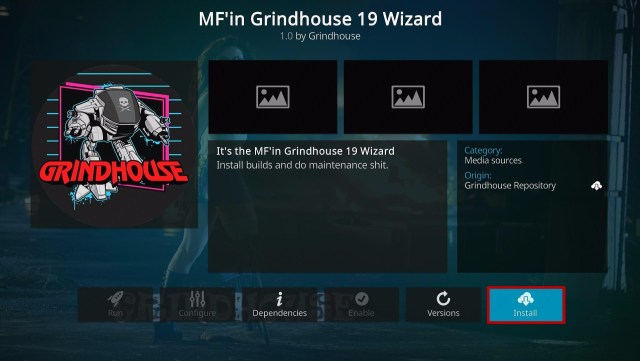
Best Free Firewall Apps


2. Type in: reviewvpn.com/afw and click the Go button.

Best Free Firewall Apps


3. The AFWall app’s APK file installer will download on your device.

Best Free Firewall Apps


4. Press the Install button.

Best Free Firewall Apps


5. The AFWall app will install on your Fire TV stick.

Best Free Firewall Apps


6. Click the Open button after installing the AFWall app.

Best Free Firewall Apps


7. Tap the Continue button when a window appears telling you about the app’s root access.

Best Free Firewall Apps


8. You can now select which apps to run with the AFWall Firewall app.

Best Free Firewall Apps


How to Install the AFWall app on your Android

1. On your Android Smartphone’s main menu, open your Google Playstore app.


2. Type in: AFWall on the Google Playstore’s search tab. Afterward, tap the Search button on your on-screen keypad.

Best Free Firewall Apps


3. Press on the Install button when the AFWall app’s introduction screen appears.

Best Free Firewall Apps


4. The AFWall app will load its installer file from its wide selection of apps.

Best Free Firewall Apps


5. AFWall will now install on your Android smartphone.

Best Free Firewall Apps


6. After installing the AFWall app, click the Open button to ensure that it works.

Best Free Firewall Apps


7. Click the Continue button when the window about the app’s root access appears on your screen.

Best Free Firewall Apps


8. Use the AFWall to filter apps on your Android device.

Best Free Firewall Apps


NetGuard

For the second app on our list of the Best Free Firewall apps, we have the NetGuard app.

The NetGuard is a good optional app if you want to install a firewall on your Android smartphone, tablet, or streaming device. It is simple to install and use while providing you maximum protection against the latest internet threats.

The NetGuard app functions as both a Firewall and an open-source app. This means that independent developers have the permission to modify or improve some of its protective features. They can also add new protective capabilities based on their main structure.

NetGuard supports device tethering. Let us show you how to install the NetGuard app both on your Fire TV stick and Android smartphone.


How to Install the NetGuard App on your Fire TV Stick

1. Go to your Fire TV stick’s Downloader app search engine. To do this, you first have to Jailbreak your Fire TV stick and install the Downloader app. Afterward, you can use the Downloader app for getting the best free firewall apps on the internet.

Best Free Firewall Apps


2. Type in: reviewvpn.com/neg and click the Go button.

Best Free Firewall Apps


3. The NetGuard app’s APK file installer will download on your device.

Best Free Firewall Apps


4. Press the Install button.

Best Free Firewall Apps


5. The NetGuard app will install on your Fire TV stick.

Best Free Firewall Apps


6. Click the Open button after installing the NetGuard app.

Best Free Firewall Apps


7. Press the ‘I Agree‘ button to agree with the NetGuard app’s Privacy Policy statement.

Best Free Firewall Apps


8. Either enable the NetGuard Firewall fully or choose apps to work with the NetGuard app.

Best Free Firewall Apps


How to Install the NetGuard app on your Android Device

1. On your Android Smartphone’s main menu, open your Google Playstore app.

Best Free Firewall Apps


2. Type in: NetGuard on the Google Playstore’s search tab. Click on the NetGuard – No Root Firewall result. Afterward, click the Search button on your on-screen keypad.

Best Free Firewall Apps


3. Press the Install button that will appear.

Best Free Firewall Apps


4. Let your Playstore load the NetGuard app’s installer file.

Best Free Firewall Apps


5. The NetGuard app will now load its installation process.

Best Free Firewall Apps


6. Let the NetGuard app install on your Android smartphone.

Best Free Firewall Apps


7. Click the Open button after installing the NetGuard app on your Android device.

Best Free Firewall Apps


8. You can now use the NetGuard app on your Android device.


MobiWol

We want to include the MobiWol – No Root Firewall app on our Best Free Firewall apps list since it adds a variety of user features and protection capabilities.

After installing the MobiWol Firewall app, you can use it to save your Android smartphone’s battery. You can also utilize the MobiWol app to reduce your data consumption. It will help you achieve your data plan.

The MobiWol app functions as your Android’s Firewall. It allows you full control of all the apps you have inside your Android smartphone. Users can also allow or block apps trying to connect with your device. If you dislike many apps running in the background, use the MobiWol app to deactivate them.

The MobiWol app will also notify you if some apps attempt to access the internet. MobiWol will also protect your device from cyber threats such as viruses and malware.


How to Install the MobiWol app on your Fire TV Stick

1. Go to your Fire TV stick’s Downloader app search engine. To do this, you first have to Jailbreak your Fire TV stick and install the Downloader app. Afterward, you can use the Downloader app for getting the best free firewall apps on the internet.

Best Free Firewall Apps


2. Type in: reviewvpn.com/mobw and click the Go button.

Best Free Firewall Apps


3. The MobiWol app’s APK file installer will download on your device.

Best Free Firewall Apps


4. Press the Install button.

Best Free Firewall Apps


5. The MobiWol app will install on your Fire TV stick.

Best Free Firewall Apps


6. Tap on the Open button to launch the MobiWol app.

Best Free Firewall Apps


7. Press the Accept button if you agree with the MobiWol app’s Privacy and License Terms.

Best Free Firewall Apps


8. Let MobiWol load its user interface.

Best Free Firewall Apps


9. Press OK to allow MobiWol to run in your background.

Best Free Firewall Apps


10. The MobiWol app will close on your Fire TV stick but will still run in the background.


How to Install the MobiWol App on your Android Device

1. On your Android Smartphone’s main menu, open your Google Playstore app.

Best Free Firewall Apps


2. Type in: MobiWol on the Google Playstore’s search tab. Click on the MobiWol – No Root Firewall result. Afterward, click the Search button on your on-screen keypad.

Best Free Firewall Apps


3. Press the Install button that will appear.

Best Free Firewall Apps


4. Click the Accept button allowing the MobiWol app access to your media files.

Best Free Firewall Apps


5. Let your Playstore load the MobiWol app’s installer file.

Best Free Firewall Apps


6. The MobiWol app will now load its installation process.

Best Free Firewall Apps


7. Let the MobiWol app install on your Android smartphone.

Best Free Firewall Apps


8. Click the Open button after installing the MobiWol app on your Android device.

Best Free Firewall Apps


9. Press the Continue button allowing the MobiWol app to access your Phone, Storage, Contacts, and Location.

Best Free Firewall Apps


10. Tap the Accept button if you agree with the MobiWol app’s Privacy and License Terms.

Best Free Firewall Apps


11. Wait for the MobiWol app to open its user interface.

Best Free Firewall Apps


12. Press the OK button letting MobiWol run in the background.

Best Free Firewall Apps


13. Click the Allow button letting the MobiWol app control your device.

Best Free Firewall Apps


14. On your settings, click on the MobiWol Accessibility option and ensure that it is On.

Best Free Firewall Apps


15. You will now come across a menu where you can switch the MobiWol app’s Firewall Status to ON/OFF.

Best Free Firewall Apps


NetPatch Firewall

NetPatch Firewall is one of the Best Free Firewall apps you can install on your Android and Fire TV stick. One of the best things about the app is it does not require any root to function. The NetPatch app works as your Firewall against many cyber threats. It uses modern protective features that ensure your full privacy while using your Android smartphone.

While using the NetPatch app, you can allow apps to access your device. You will also monitor the connectivity of each app letting you block apps trying to connect to the internet. Users can also block any app’s internet access whether their screens are on or off. This feature applies to 2G/3G, LAN, and Roaming internet connections.

The NetPatch app also lets you customize your DNS. You can change your DNS servers, support DNS queries, or set your DNS Cache time. NetPatch also adds new features which are configurable on your settings. Save battery, reduce your data consumption, and protect your privacy with the NetPatch Firewall app.


How to Install the NetPatch Firewall app on your Fire TV Stick:

1. Go to your Fire TV stick’s Downloader app search engine. To do this, you first have to Jailbreak your Fire TV stick and install the Downloader app. Afterward, you can use the Downloader app for getting the best free firewall apps on the internet.

Best Free Firewall Apps


2. Type in: reviewvpn.com/npf and click the Go button.

Best Free Firewall Apps


3. The NetPatch Firewall app’s APK file installer will download on your device.

Best Free Firewall Apps


4. Press the Install button.

Best Free Firewall Apps


5. The NetPatch Firewall app will install on your Fire TV stick.

Best Free Firewall Apps


6. Tap on the Open button to launch the NetPatch Firewall app.

Best Free Firewall Apps


7. You can either enable/disable the NetPatch Firewall on its user interface screen by tapping the switch button.

Best Free Firewall Apps


How to Install the NetPatch Firewall on your Android Device

1. On your Android Smartphone’s main menu, open your Google Playstore app.

Best Free Firewall Apps


2. Type in: NetPatch on the Google Playstore’s search tab and click the Search button on your on-screen keypad.

Best Free Firewall Apps


3. Press the Install button that will appear.

Best Free Firewall Apps


4. Let your Playstore load the NetPatch app’s installer file.

Best Free Firewall Apps


5. The NetPatch app will now load its installation process.

Best Free Firewall Apps


6. Wait for the NetPatch app to install on your Android smartphone.

Best Free Firewall Apps


7. Click the Open button after installing the NetPatch app on your Android device.

Best Free Firewall Apps


8. You can either enable/disable the NetPatch Firewall on its user interface screen by tapping the switch button.

Best Free Firewall Apps


VPN Safe

Do you want an app that both functions as a VPN and a Firewall? Then we recommend that you use the VPN Safe app. It is one of the best free apps you can use with either your Android smartphone or Fire TV stick.

The VPN Safe app acts as your firewall and a VPN. As we all know, a Virtual Private Network (VPN) masks your internet connection bypassing your traffic through encrypted tunnels. This method is useful in hiding your connection from third parties and prying eyes.

VPN Safe also functions as a firewall for your Android. It will let you monitor each app trying to connect to the internet. Either allow or block these apps from connecting to your internet.

The VPN Safe app works with different kinds of connections ( WiFi, LTE, 4G, 3G, and various mobile data carriers).

While using the VPN Safe app, you can reduce your battery and data consumption, improve your protection, and have a firewall against new online threats.


How to Install the VPN Safe app on your Fire TV Stick

1. Go to your Fire TV stick’s Downloader app search engine. To do this, you first have to Jailbreak your Fire TV stick and install the Downloader app. Afterward, you can use the Downloader app for getting the best free firewall apps on the internet.

Best Free Firewall Apps


2. Type in: reviewvpn.com/vpsf and click the Go button.

Best Free Firewall Apps


3. The VPN Safe Firewall app’s APK file installer will download on your device.

Best Free Firewall Apps


4. Press the Install button.

Best Free Firewall Apps


5. The VPN Safe app will install on your Fire TV stick.

Best Free Firewall Apps


6. Tap on the Open button to launch the VPN Safe app.

Best Free Firewall Apps


7. Wait for the VPN Safe app to load its user interface.

Best Free Firewall Apps


8. Tap on the VPN Safe app’s activation icon to enable its Firewall feature.

Best Free Firewall Apps


How to Install the VPN Safe app on your Android Device

1. On your Android smartphone’s main menu, open either your Google browser or Google Chrome app.

Best Free Firewall Apps


2. The Google website will now display on your browser.

Best Free Firewall Apps


3. On its search tab, type in: bit.ly/3cR5NUh and click the Search button on your on-screen keypad.

Best Free Firewall Apps


4. Press the OK button when the warning window appears.

Best Free Firewall Apps


5. The VPN Safe app’s installer file will download on your device.

Best Free Firewall Apps


6. You can check the VPN Safe’s downloading progress on your Download menu.

Best Free Firewall Apps


7. VPN Safe will complete its download process.

Best Free Firewall Apps


8. Go towards your Android smartphone’s File Manager feature.

Best Free Firewall Apps


9. Click on the Downloads menu button.

Best Free Firewall Apps


10. Navigate towards your Downloads>APKs and click the VPN Safe’s APK file.

Best Free Firewall Apps


11. Press the Install button.

Best Free Firewall Apps


12. The VPN Safe app will install on your Android smartphone.

Best Free Firewall Apps


13. Press the Open button.

Best Free Firewall Apps


14. The VPN Safe app will load its features.

Best Free Firewall Apps


15. You can tap on the VPN Safe app’s icon to activate its Firewall or VPN feature.

Best Free Firewall Apps


Use a VPN to Boost Your Security

Having a VPN can reinforce your firewall app. A VPNs primary purpose is to ensure that you have maximum privacy while browsing different websites on the internet. 

Today many people transfer from TV subscriptions to streaming apps. Some viewers choose streaming services over expensive TV services. It helps them save money while being able to watch their favorite movies, TV shows, and series.

Unbeknownst to many people, many websites contain cyber threats. These online threats can infiltrate your device with the help of websites and third-party apps. They also use clickable links that divert you to malicious websites filled with spyware and adware.

We suggest you reinforce your firewall app with the features of VPN.

For this purpose, we recommend you use the Surfshark app. Using Surfshark shares many security features with its users:

  • Block modern cyber threats trying to infiltrate your device.
  • Increase the speed of your internet connection.
  • Hide your internet traffic with virtual tunnels.
  • Prevents buffering and stuttering both on Kodi and the Fire TV stick.

Note: For more information about SurfShark, please read our SURFSHARK REVIEW.


Grab your subscription now!

Click here to get the lowest price on Surfshark through our exclusive limited-time offer.


How to Install Surfshark VPN on Firestick

If your Firestick still has the older interface, read this article to learn how to update it: Update Firestick Interface.

You can download Surfshark directly from the Amazon App store. It will be easy for you to find Surfshark with your Firestick’s Find feature. Refer to our screenshots below.

1. Go to the Home screen of your Firestick.

step 1 Install Surfshark VPN on Firestick


2. Navigate towards the Find tab. Press the Search button from the resulting dropdown.

step 2 Install Surfshark VPN on Firestick


3. Type in the keyword of SurfShark and select from the suggestions that will appear.

step 3 Install Surfshark VPN on Firestick


4. Click the official SurfShark icon from your search results.

step 4 Install Surfshark VPN on Firestick


5. Press the Download (You own it) button.

step 5 Install Surfshark VPN on Firestick


6. The SurfShark VPN installer will download on your device.

step 6 Install Surfshark VPN on Firestick


7. SurfShark VPN’s app will automatically install itself on your Fire TV stick.

step 7 Install Surfshark VPN on Firestick


8. Press the Open button after completing SurfShark VPN’s installation process.

step 8 Install Surfshark VPN on Firestick


9. Please wait for the SurfShark VPN to load its user interface.

step 9 Install Surfshark VPN on Firestick


10. You can now log in with your SurfShark VPN account credentials.

step 10 Install Surfshark VPN on Firestick

Learn more about Surfshark and Grab the Best Surfshark Deal Now!


Install Surfshark on Firestick

Best Surfshark Deal


Other VPNs to Consider

NordVPN (Best for Streaming)

Best Features

  • 5000+ Server in 50+ Countries 
  • Military-Grade Encryption
  • Fast Connection Speed
  • Suitable to a lot of devices
  • No-Log Policy

Prices
  • Complete $5.89 per month (64% Discount)
  • Plus $4.59 per month (56% Discount)
  • Standard $3.69 per month (55% Discount)

Best Features

  • 750+ High-speed VPN Servers in 43 Locations
  • Military-Grade Encryption
  • Fastest HD Streaming and Gaming
  • 30-Day Money-Back Guarantee
  • Unlimited Data & Devices
  • No-Log Policy

Prices
  • 3 Years $1.99 per month (82% Discount)
  • 1 Years $3.29 per month (70% Discount)
  • 1 Month $10.99 per month

IPVanish VPN (Most Secure)

Best Features

  • 1200+ Servers in 60+ Countries around the world
  • Unlimited Connections
  • No-Log Policy
  • Top Notch Military-Grade VPN Protocols and Encryptions
  • 100% Safe and Secured
  • Most Trusted VPN
  • Best VPN for Firestick
  • 30-Day Money-Back Guarantee

Prices
  • Yearly $3.99 per month (63% Discount) – 30 days risk free + Ransomware & Malware Protection
  • Quarterly $5.32 per month (51% Discount)
  • Monthly $10.99 per month


For more VPN discounts, go to ReviewVPN Deals and purchase the best VPN for you.

Click here to get the lowest price on Surfshark through our exclusive limited-time offer.


FAQs

What is the difference between a Firewall and an antivirus app?

Firewall

A Firewall can both be an app or a system feature. It is designed to protect computer systems, network connections, and portable devices against modern cyber threats. The main purpose of a Firewall is to provide you with a defensive shield against malicious programs.


Anti-Virus

The typical Antivirus program works to protect your devices from internal cyber threat attacks. It will scan your whole system for viruses, malware, spyware, adware, and other threats. The anti-virus app will then use its features to isolate the files infected with cyber threats or malicious programs.


What is the difference between a firewall and a VPN?

Firewall

A firewall filters your internet traffic and prevents unauthorized access. The firewall is suitable when you like installing apps and visiting many websites on the internet.


VPN

A typical VPN uses many servers that act as a middle point between your device and a website you are trying to visit. As a result, your traffic passes through encrypted tunnels that ensure your privacy. A VPN also helps neutralize the effects of geo-restrictions since it has many physical servers on many worldwide locations.


Are these apps for free?

Yes, all the apps on our Best Free Firewall Apps list are free to download, install, and use both on your Android and Fire TV stick.


Conclusion

A firewall app works to protect you from cyber threats by filtering your internet traffic. It will also let you choose apps you don’t want to connect to the internet. Some firewall apps add new features such as battery saving and reducing your data consumption. A firewall app installs a shield that acts as your first line of defense against modern online threats.

We hope this article gives you the Best Free Firewall apps both for your Android and Fire TV stick device.