How To Install SonyLiv TV App On Firestick

Overview

SonyLIV TV is a streaming platform that promises 24/7 entertainment. The streaming app provides a wide variety of TV shows, movies, breaking news, and lots more. For constant entertainment, you have to download the SonyLIV TV app and you’ll access the best entertainment content across various genres.

The SonyLIV TV app offers you an unforgettable streaming experience from the comfort of your home. It lets you watch entertainment content on the go. For binge-watching with family and friends, the streaming app provides entertainment, such as TV shows, premium TV shows, comedy TV series, for the whole family and peers to enjoy.


SonyLiv TV App Installation on FireStick
  1. Turn on the FireStick device, go to the top menu bar and choose > Settings.
  2. Click My Fire TV > Developer Options.
  3. Enable Apps from Unknown Sources.
  4. Go back to FireStick’s home screen and go to the menu bar.
  5. Go to the Search option.
  6. Search & install the Downloader app on FireStick.
  7. After installing the Downloader app, launch it.
  8. Enter the SonyLiv TV download URL/APK – https://reviewvpn.com/slt
  9. Click GO.
  10. When the SonyLiv TV file download is complete – click Install.
  11. Now, you have successfully installed the SonyLiv TV app on FireStick.


ANONYMOUSLY


Install SonyLiv TV App with Screenshots

Install the Downloader app and jailbreak your firestick by enabling unknown sources. To learn more about the procedure, you may read How to Install the Downloader App and Enable Unknown Sources.

1. After installing the Downloader app, launch it.

Install the UPlayer App on Firestick Step 13

2. Enter the SonyLiv TV download URL/APK – https://reviewvpn.com/slt and click GO.

SonyLiv TV


3. When the SonyLiv TV file download is complete – click Install.

SonyLiv TV Install


4. Now, you have successfully installed the SonyLiv TV app on FireStick.

SonyLiv TV app


Install Surfshark on Firestick

Best Surfshark Deal


YOUR INTERNET ACTIVITY IS BEING WATCHED

ReviewVPN cannot attest to the legality, security and privacy of the applications discussed on this site. It is highly recommended that you use a VPN service while streaming or using Kodi.

Currently, your IP 216.73.216.211 is visible to everyone and your Browser is being tracked by Advertisers & ISP Provider.

Save 65% Now

Limited Time Offer

Here are the main reasons why you must use a VPN:

  • Your activities are hidden from your ISP, the government, and from the apps you are using.
  • You can access additional movies and TV streams.
  • ISP attempts to throttle are thrwarted thus reducing buffering issues.
  • Geographically restricted content like Netflix and Hulu can be unblocked.

A VPN works be replacing your ISP-assigned IP address and creating an encrypted tunnel. We recommend the no log service offered by IPVanish. It works well on a Firestick and offers the fastest possible speeds.

Special Limited Time Offer - Get IPVanish


Moving the Newly Installed App to the Front

  • Go back to FireStick’s Home Screen (you may click the Home Button on the Fire Stick remote)
  • Go to Your Apps & Games/Channels
  • Scroll once to the left
  • Click See All
  • All the newly installed apps are located at the bottom – you can move the SonyLiv TV by clicking the Options button (at the right side of the Home Button)


What Is SonyLiv TV?

SonyLIV TV is a streaming app that allows you to watch your favorite movies and TV shows. The streaming app also offers live sporting events. Nonetheless, SonyLIV TV provides not only movies, TV shows, and sports from across the globe but also Bollywood movies, Hindi TV serials, as well as other non-English language content unavailable on other streaming platforms.


User-friendly Interface

SonyLiv TV gives its users a simple, easy-to-use interface and makes users feel comfortable the first time they use it. The streaming app uses straightforward soft colors as the main theme. At the same time, key elements like movies or app tabs are highlighted in front of your eyes.  Thus, when you start using the app, you can instantly know how to utilize it.

A great amount of the streaming app’s space revolves around showcasing new movies & TV shows. Users can find famous films or recently updated content. After downloading the streaming app, the next thing that you need to do is experience what the app brings your way. You can find anything you love in areas like the best movies or sports.


Features

  • SonyLiv TV lets you access great movies, TV series, kids’ shows, live sports, web series, short-length movies, and many more.
  • It features all the matches of the best soccer tournaments across the globe: UEFA Europa League, UEFA Champions League, English Premier League, Spanish La Liga, German Bundesliga, and much more
  • The app provides access to other major sports like Formula 1, tennis, cricket, or MotoGP.
  • It provides channels for series & programs from various countries such as the X-Factor. The app even has fitness channels.
  • It lets you download videos that you can watch without an internet connection.


No Ads

Sonyliv TV gives another element that people will love because they won’t be interrupted by annoying advertisements. Sonyliv TV has become the best streaming app that has been downloaded by many individuals on their devices. The streaming app is being liked the most by many people because here they can watch their favorite movies, TV shows, or sports without ads. So only with this app can you find the complete experience without being disturbed by anything. Thus, only with this streaming app can people find the complete streaming experience without any disturbance.


Watch Live Sports

The SonyLiv TV app is more than just providing movies and TV shows. It’s the perfect platform to watch the latest Indian as well as international sporting events. You can watch all the cricket matches live and let you stream exclusive content, such as FIFA. You may also watch the app however you want – stream it from a computer, mobile phone, or tablet, or cast the app to a home television with Amazon Firestick.


Pros & Cons

Pros

  • The app provides live sports
  • Supports Amazon Firestick, Google Chromecast, and many more

Cons

  • The app is subscription-based


Always Use The Best VPN on Firestick

A Virtual Private Network or VPN service is the best way for individuals to protect their web traffic and keep their personal information private online. As a person connects to a secure VPN server, his/her internet traffic goes via an encrypted tunnel that nobody can intercept, such as governments, Internet Service Providers (ISP), and hackers. 

With Surfshark service, you can change your IP address to help protect your identity from apps, services, and websites that try to track you. A great VPN service, such as Surfshark, also prevents mobile carriers, ISPs, and anyone who wants to see your activities online. That’s huge thanks to Surfshark service’s layer of strong encryption.


Surfshark Features:

  • Unblocks Disney+, Hulu, Netflix, and many more
  • Unlimited simultaneous devices
  • Great download speed
  • 30-day money-back guarantee
  • Strict NO log policy
  • Robust encryption
  • Great customer service
  • Compatible with Android, Windows, Linux,  iOS, and other routers


Grab your subscription now!

Click here to get the lowest price on Surfshark through our exclusive limited-time offer.


How to Install Surfshark VPN on Firestick

If your Firestick still has the older interface, read this article to learn how to update it: Update Firestick Interface.

1. Go to the Home screen of your Firestick.

step 1 Install Surfshark VPN on Firestick


2. Navigate towards the Find tab. Press the Search button from the resulting dropdown.

step 2 Install Surfshark VPN on Firestick


3. Type in the keyword of SurfShark and select from the suggestions that will appear.

step 3 Install Surfshark VPN on Firestick


4. Click the official SurfShark icon from your search results.

step 4 Install Surfshark VPN on Firestick


5. Press the Download (You own it) button.

step 5 Install Surfshark VPN on Firestick


6. The SurfShark VPN installer will download on your device.

step 6 Install Surfshark VPN on Firestick


7. SurfShark VPN’s app will automatically install itself on your Fire TV stick.

step 7 Install Surfshark VPN on Firestick


8. Press the Open button after completing SurfShark VPN’s installation process.

step 8 Install Surfshark VPN on Firestick


9. Please wait for the SurfShark VPN to load its user interface.

step 9 Install Surfshark VPN on Firestick


10. You can now log in with your SurfShark VPN account credentials.

step 10 Install Surfshark VPN on Firestick

Learn more about Surfshark and Grab the Best Surfshark Deal Now!


Other VPNs to Consider

NordVPN (Best for Streaming)

Best Features

  • 5000+ Server in 50+ Countries 
  • Military-Grade Encryption
  • Fast Connection Speed
  • Suitable to a lot of devices
  • No-Log Policy

Prices
  • Complete $5.89 per month (64% Discount)
  • Plus $4.59 per month (56% Discount)
  • Standard $3.69 per month (55% Discount)

Best Features

  • 750+ High-speed VPN Servers in 43 Locations
  • Military-Grade Encryption
  • Fastest HD Streaming and Gaming
  • 30-Day Money-Back Guarantee
  • Unlimited Data & Devices
  • No-Log Policy

Prices
  • 3 Years $1.99 per month (82% Discount)
  • 1 Years $3.29 per month (70% Discount)
  • 1 Month $10.99 per month

IPVanish VPN (Most Secure)

Best Features

  • 1200+ Servers in 60+ Countries around the world
  • Unlimited Connections
  • No-Log Policy
  • Top Notch Military-Grade VPN Protocols and Encryptions
  • 100% Safe and Secured
  • Most Trusted VPN
  • Best VPN for Firestick
  • 30-Day Money-Back Guarantee

Prices
  • Yearly $3.99 per month (63% Discount) – 30 days risk free + Ransomware & Malware Protection
  • Quarterly $5.32 per month (51% Discount)
  • Monthly $10.99 per month


For more VPN discounts, go to ReviewVPN Deals and purchase the best VPN for you.


FAQs

Is the SonyLiv TV   app free?

Yes, the SonyLiv TV   app is free to use.


Is the SonyLiv TV   app legal?

Yes, the SonyLiv TV  app is legal. 


Is the SonyLiv TV   app safe?

Yes, the SonyLiv TV   app is very safe to use and has no viruses or malware. 


Wrapping Up

If you want to watch TV channels on the internet, that means you wish to watch all the TV channels across the globe. Then, you must download SonyLiv TV on your Android device. SonyLiv TV provides access to all the premium television channels and you can boost your streaming experience by watching your favorite channels.

However, always remember to use A VPN service every time you use your Firestick. If you have any thoughts about the SonyLiv TV app, don’t hesitate to let us know in the comments section.

How To Install You TV Player On Firestick

You TV Player Overview


Are you bored with YouTube or other contemporary video player platforms? Tired of streaming low-quality media content? Don’t have the opportunity to watch TV shows on time? The best way to deal with all these issues is the You TV Player APK. It’s a video & movie streaming app that has massive popularity among movie & TV shows fanatics.

Not only the You TV Player app is just a video player but also provides many other features to its users. Aside from streaming videos online, users can also enjoy the best, latest movies, TV shows, cartoons, & TV series for completely free of charge. Additionally, the streaming app supports Amazon Firestick, Google Chromecast, and more. Wherein, you can watch your most-liked TV series through streaming – directly on your device.


You TV Player App Installation on FireStick
  1. Turn on the FireStick device, go to the top menu bar and choose > Settings.
  2. Click My Fire TV > Developer Options.
  3. Enable Apps from Unknown Sources.
  4. Go back to FireStick’s home screen and go to the menu bar.
  5. Go to the Search option.
  6. Search & install the Downloader app on FireStick.
  7. After installing the Downloader app, launch it.
  8. Enter the You TV Player download URL/APK – https://reviewvpn.com/ytvp
  9. Click GO.
  10. When the You TV Player file download is complete – click Install.
  11. Now, you have successfully installed the You TV Player app on FireStick.


ANONYMOUSLY

Install You TV Player App On Your Firestick with Screenshots

Install the Downloader app and jailbreak your firestick by enabling unknown sources. To learn more about the procedure, you may read How to Install the Downloader App and Enable Unknown Sources.

1. After installing the Downloader app, launch it.

Install the UPlayer App on Firestick Step 13


2. Enter the You TV Player download URL/APK – https://reviewvpn.com/ytvp and click GO.

You TV Player


3. When the You TV Player file download is complete – click Install.

You TV Player install


4. Now, you have successfully installed the You TV Player app on FireStick.

You TV Player app


YOUR INTERNET ACTIVITY IS BEING WATCHED

ReviewVPN cannot attest to the legality, security and privacy of the applications discussed on this site. It is highly recommended that you use a VPN service while streaming or using Kodi.

Currently, your IP 216.73.216.211 is visible to everyone and your Browser is being tracked by Advertisers & ISP Provider.

Save 65% Now

Limited Time Offer

Here are the main reasons why you must use a VPN:

  • Your activities are hidden from your ISP, the government, and from the apps you are using.
  • You can access additional movies and TV streams.
  • ISP attempts to throttle are thrwarted thus reducing buffering issues.
  • Geographically restricted content like Netflix and Hulu can be unblocked.

A VPN works be replacing your ISP-assigned IP address and creating an encrypted tunnel. We recommend the no log service offered by IPVanish. It works well on a Firestick and offers the fastest possible speeds.

Special Limited Time Offer - Get IPVanish


Moving the Newly Installed App to the Front

  • Go back to FireStick’s Home Screen (you may click the Home Button on the Fire Stick remote)
  • Go to Your Apps & Games/Channels
  • Scroll once to the left
  • Click See All
  • All the newly installed apps are located at the bottom – you can move the You TV Player by clicking the Options button (at the right side of the Home Button)


What is You TV Player?

You TV Player is a great video player for Android devices that allows you to stream tons of video channels on your device. The You TV Player app lets you play any media content saved on your device. Just select My Device located on the left panel. However, if you head to the Help menu and request assistance, you will get a particular key to access new features. It is important to understand that this special key may take a couple of minutes to arrive.

Nonetheless, the app lets you watch unlimited TV shows anywhere. If you download the streaming app, you’ll get access to free High Definition movies, TV shows, and the most well-known national & international television channels.


Features

  • It lets you watch the latest HD videos for free.
  • With a good web connection, you can stream high-quality content without buffering issues.
  • The streaming app comes with a collection of tons of TV channels of various genres. These include movie channels, music channels, sports channels, cartoon channels, news channels, fashion channels, as well as other regional channels.
  • Users can watch the videos that have been saved previously to their devices via this amazing app.
  • The app comes with a very user-friendly interface and allows you to customize it according to your liking.
  • This video-playing app lets you set push notifications and other settings based on your own preferences and requirements.
  • The video playing app supports numerous file formats, such as 3GP, MKV, MPEG, MP4, FLV, MOV, AVI, as well as other formats.


Create Your Own Profile & Meet New People

You TV Player is among the most effective video streaming applications. The streaming app lets you can create your own profile. You may then establish a reputation if your recommendations & shares turn out to be popular with many people. Additionally, you can share all the details of your activities on the streaming app with individuals you are linked with. Then, your experience will be more wholesome due to the fact that the app lets you meet new people.


Set Reminders For Your Favorite Shows

The app lets you set reminders for your favorite TV shows. Thus, whenever there are new episodes available for your best-loved shows, you’ll get notifications about them. However, the huge advantage of the YouTV Player app and which makes it stand out is it supports numerous Android devices, such as Firestick, Google Chromecast, and many more. Wherein, you can directly watch your favorite films or TV series on your TV set through your Android streaming device. Additionally, the YouTV Player app lets you add extra channels.


Always Use The Best VPN on Firestick

A VPN service can help keep Firestick users safe from malicious threats, keep their personal data private, and boost their streaming speeds. Surfshark is highly recommended for Firestick as it offers tons of high-class protection features. Enabling Surfshark on your Firestick is simple and effective. Surfshark is one of the most famous VPN providers available today.

With tons of servers in various countries, Firestick users will be able to link to any country and bewilder their connection easily & quickly.

Note: For more information about Surfshark, please read our Surfshark Review.


Grab your subscription now!


How to Install Surfshark VPN on Firestick

If your Firestick still has the older interface, read this article to learn how to update it: Update Firestick Interface.

Follow our screenshots below to install the Surfshark VPN app on your Fire TV stick.

1. Go to the Home screen of your Firestick.

step 1 Install Surfshark VPN on Firestick


2. Navigate towards the Find tab. Press the Search button from the resulting dropdown.

step 2 Install Surfshark VPN on Firestick


3. Type in the keyword of Surfshark and select from the suggestions that will appear.

step 3 Install Surfshark VPN on Firestick


4. Click the official Surfshark icon from your search results.

step 4 Install Surfshark VPN on Firestick


5. Press the Download (You own it) button.

step 5 Install Surfshark VPN on Firestick


6. The Surfshark VPN installer will download on your device.

step 6 Install Surfshark VPN on Firestick


7. Surfshark VPN’s app will automatically install itself on your Fire TV stick.

step 7 Install Surfshark VPN on Firestick


8. Press the Open button after completing Surfshark VPN’s installation process.

step 8 Install Surfshark VPN on Firestick


9. Please wait for the Surfshark VPN to load its user interface.

step 9 Install Surfshark VPN on Firestick


10. You can now log in with your Surfshark VPN account credentials.

step 10 Install Surfshark VPN on Firestick

Learn more about Surfshark and Grab the Best Surfshark Deal Now!


Install Surfshark on Firestick

Best Surfshark Deal


Other VPNs to Consider

NordVPN (Best for Streaming)

Best Features

  • 5000+ Server in 50+ Countries 
  • Military-Grade Encryption
  • Fast Connection Speed
  • Suitable to a lot of devices
  • No-Log Policy

Prices
  • Complete $5.89 per month (64% Discount)
  • Plus $4.59 per month (56% Discount)
  • Standard $3.69 per month (55% Discount)

Best Features

  • 750+ High-speed VPN Servers in 43 Locations
  • Military-Grade Encryption
  • Fastest HD Streaming and Gaming
  • 30-Day Money-Back Guarantee
  • Unlimited Data & Devices
  • No-Log Policy

Prices
  • 3 Years $1.99 per month (82% Discount)
  • 1 Years $3.29 per month (70% Discount)
  • 1 Month $10.99 per month

IPVanish VPN (Most Secure)

Best Features

  • 1200+ Servers in 60+ Countries around the world
  • Unlimited Connections
  • No-Log Policy
  • Top Notch Military-Grade VPN Protocols and Encryptions
  • 100% Safe and Secured
  • Most Trusted VPN
  • Best VPN for Firestick
  • 30-Day Money-Back Guarantee

Prices
  • Yearly $3.99 per month (63% Discount) – 30 days risk free + Ransomware & Malware Protection
  • Quarterly $5.32 per month (51% Discount)
  • Monthly $10.99 per month


For more VPN discounts, go to ReviewVPN Deals and purchase the best VPN for you.


FAQs

Is the You TV Player app free?

Yes, the You TV Player app is free to use.


Is the You TV Player app legal?

Yes, the You TV Player app is legal. 


Is the You TV Player app safe?

Yes, the You TV Player app is very safe to use and has no viruses or malware. 


Conclusion

In this article, we have provided information on how to install You TV Player on Firestick. The information above should really help you boost your streaming experience. All you have to do to get started is follow the installation instructions provided above.

Nonetheless, always remember to use A VPN every time you use the internet. If you have any thoughts about the You TV Player app, don’t hesitate to let us know in the comments section.

Safe Security (360 Security) On Firestick

Overview – 360 Security

Safe Security is an all-in-one smart speed booster, antivirus, & power cleaner app. It optimizes the device’s background apps, junk files, battery power, and memory storage. Safe security (360 Security) keeps Android devices safe from malware or viruses. Moreover, it is trusted by 200 million users. It comes along with a junk cleaner, speed booster, virus remover, as well as anti-spyware.

Furthermore, Safe Security is among the best antivirus and security apps for Android devices. Download 360 Security Safe APK to keep your devices safe from malicious threats online. However, it is from a famous internet security company that is known for its antivirus software, web browser, and mobile application store. 


Safe Security (360 Security) App Installation on FireStick

  1. Turn on the FireStick device, go to the top menu bar and choose > Settings
  2. Click My Fire TV > Developer Options
  3. Enable Apps from Unknown Sources.
  4. Go back to FireStick’s home screen and go to the menu bar
  5. Go to the Search option.
  6. Search & install the Downloader app on FireStick.
  7. After installing the Downloader app, launch it.
  8. Enter the Safe security (360 Security) download URL/APK – https://reviewvpn.com/360
  9. Click GO.
  10. When the Safe security (360 Security) file download is complete – click Install
  11. Now, you have successfully installed the Safe security app on FireStick


ANONYMOUSLY


Install Safe Security (360 Security) in Firestick with Screenshots

Install the Downloader app and jailbreak your firestick by enabling unknown sources. To learn more about the procedure, you may read How to Install the Downloader App and Enable Unknown Sources.

1. After installing the Downloader app, launch it.

Install the UPlayer App on Firestick Step 13


2. Enter the Safe Security (360 Security) download URL/APK – https://reviewvpn.com/360 and click GO.

Safe Security


3. When the Safe Security file download is complete – click Install

Safe Security install


4. Now, you have successfully installed the Safe security app on FireStick

Safe Security app


Install Surfshark on Firestick

Best Surfshark Deal


Moving the Newly Installed App to the Front

  • Go back to FireStick’s Home Screen (you may click the Home Button on the Fire Stick remote)
  • Go to Your Apps & Games/Channels
  • Scroll once to the left
  • Click See All
  • All the newly installed apps are located at the bottom. You can move the Safe security (360 Security) by clicking the Options button (at the right side of the Home Button)


What Is Safe Security (360 Security)?

Safe Security is a great antivirus app that provides a unified solution for device utility & security. The 360 Security app comes with the best optimization tools. It has total protection against malware, virus, as well as other web threats. It is a security & speeds cleaner app that is intuitively created to protect your Android devices with just one tap.

Nevertheless, Safe Security frees the device’s storage space to speed it up. The 360 Security app cleans up the device’s junk files & cache to make it run smoothly. This app saves the battery by disabling unnecessary applications in the background that eat up the battery fast. It is one of the most renowned security apps for Android that can protect devices against all types of malware.


Safe Security (360 Security) Highlights

  • It automatically scans apps, new apps, & memory card content. It has state-of-the-art protection technologies against adware, viruses, malware, and many more.
  • The app deletes all sorts of junk files, such as image cache, system cache, advertisement cache, & video cache to free up device storage space.
  • Safe Security optimizes memory and speeds up the device. It cleans up RAM to amplify the speed and enhance device performance. Also, it boosts games to run smoothly.
  • 360 Security lets you hide annoying & useless notifications. It stops excessive notifications from showing simultaneously.
  • It prevents data on Instagram, Facebook, photo albums, Snapchat, and other private documents to be held by the wrong person or group.
  • Moreover, it scans local Android Package (APK) files and monitors every installation process, providing online payment security.


How 360 Security Works

It scans your Android-powered device for malware, viruses, & system vulnerabilities. After 360 Security scans the device, users can view information about its detected vulnerabilities.

Also, Safe Security can boost the device’s performance by freeing up storage space & cleaning caches which could lead to a 15.3% boost in performance. Some of 360 Security’s tools include app manager, text message encryption, secure vault, anti-theft, and many more. Furthermore, Safe Security can boost speed and battery efficiency for some devices by 42.8% to 52.7%.


Complete Protection

Safe Security provides your Android device complete protection from trojans, viruses, malware, and other emerging threats online. Whether you’re downloading files or shopping online 360 Security guarantees to keep you safe and your device optimized. Additionally, the app’s clean-up utility is just a click away to keep Android devices in optimal condition.


Always Use The Best VPN on Firestick


Amazon FireStick allows you to watch your favorite content online. However, that content could be blocked or in a restricted network. Nonetheless, Surfshark service grants access to FireStick users wherever they are. Also, the VPN service protects your data or sensitive information from the prying eyes of hackers. With Surfshark, nobody can ever gather, keep, or distribute your information.

However, a VPN encrypts the Amazon Firestick. Once you connect to Surfshark,  its servers direct the streaming traffic via a private tunnel. Wherein, it will keep the data private and will not allow your ISP to limit the bandwidth. Thus, Surfshark can take your streaming experience to the next level as it removes buffering, speed drops as well as speed loss.

Surfshark Features:

  • unlimited devices
  • Unblocks Disney+, Hulu, Netflix, and many more
  • Strict NO log policy
  • 30-day money-back guarantee
  • Great customer service
  • Robust encryption
  • Great download speed
  • Additionally, it is compatible with Android, Windows, Linux,  iOS, and other routers


Grab your subscription now!

Click here to get the lowest price on Surfshark through our exclusive limited-time offer.


How to Install Surfshark VPN on Firestick

If your Firestick still has the older interface, read this article to learn how to update it: Update Firestick Interface.

Follow our screenshots below to install the SurfShark VPN app on your Fire TV stick.

1. Go to the Home screen of your Firestick.

step 1 Install Surfshark VPN on Firestick


2. Navigate towards the Find tab. Press the Search button from the resulting dropdown.

step 2 Install Surfshark VPN on Firestick


3. Type in the keyword of SurfShark and select from the suggestions that will appear.

step 3 Install Surfshark VPN on Firestick


4. Click the official SurfShark icon from your search results.

step 4 Install Surfshark VPN on Firestick


5. Press the Download (You own it) button.

step 5 Install Surfshark VPN on Firestick


6. The SurfShark VPN installer will download on your device.

step 6 Install Surfshark VPN on Firestick


7. SurfShark VPN’s app will automatically install itself on your Fire TV stick.

step 7 Install Surfshark VPN on Firestick


8. Press the Open button after completing SurfShark VPN’s installation process.

step 8 Install Surfshark VPN on Firestick


9. Please wait for the SurfShark VPN to load its user interface.

step 9 Install Surfshark VPN on Firestick


10. You can now log in with your SurfShark VPN account credentials.

step 10 Install Surfshark VPN on Firestick

Learn more about Surfshark and Grab the Best Surfshark Deal Now!


Install Surfshark on Firestick

Best Surfshark Deal


Other VPNs to Consider

NordVPN (Best for Streaming)

Best Features

  • 5000+ Server in 50+ Countries 
  • Military-Grade Encryption
  • Fast Connection Speed
  • Suitable to a lot of devices
  • No-Log Policy

Prices
  • Complete $5.89 per month (64% Discount)
  • Plus $4.59 per month (56% Discount)
  • Standard $3.69 per month (55% Discount)

Best Features

  • 750+ High-speed VPN Servers in 43 Locations
  • Military-Grade Encryption
  • Fastest HD Streaming and Gaming
  • 30-Day Money-Back Guarantee
  • Unlimited Data & Devices
  • No-Log Policy

Prices
  • 3 Years $1.99 per month (82% Discount)
  • 1 Years $3.29 per month (70% Discount)
  • 1 Month $10.99 per month

IPVanish VPN (Most Secure)

Best Features

  • 1200+ Servers in 60+ Countries around the world
  • Unlimited Connections
  • No-Log Policy
  • Top Notch Military-Grade VPN Protocols and Encryptions
  • 100% Safe and Secured
  • Most Trusted VPN
  • Best VPN for Firestick
  • 30-Day Money-Back Guarantee

Prices
  • Yearly $3.99 per month (63% Discount) – 30 days risk free + Ransomware & Malware Protection
  • Quarterly $5.32 per month (51% Discount)
  • Monthly $10.99 per month


For more VPN discounts, go to ReviewVPN Deals and purchase the best VPN for you.

Click here to get the lowest price on Surfshark through our exclusive limited-time offer.


FAQs

Is the Safe Security (360 Security) app free?

Yes, the app is free to use.


Is the Safe Security (360 Security) app legal?

Yes, the app is legal. 


 What devices can the Safe Security (360 Security) app be installed on?

The app is compatible and functions the best with Android-powered devices, such as Amazon Firestick, smartphones, as well as tablets.


Safe Security (360 Security) Pros & Cons

Pros

  • It has an attractive user interface
  • The app is fast and easy to use
  • Comes with tons of optimization tools


Cons

  • Without data monitor feature


Wrapping Up

In this article, we have provided information on how to install Safe Security on Firestick. Therefore, the information above should really help you boost your Firestick experience. Moreover, all you have to do to get started is follow the installation instructions provided above.

Nonetheless, always remember to use A VPN every time you use the internet. But, if you have any thoughts about the Safe Security (360 Security) app, don’t hesitate to let us know in the comments section.

How to Install Touch Screen Game on Firestick

Overview

In this article, we will show you how to install the Touch Screen Game app on your Fire TV stick.

Are you good at touch screen games and looking for an app for your Fire TV stick? If yes, then we just got the right app for you! Here at ReviewVPN, we search for the best apps for streaming. Aside from that, we also explore the web for challenging apps such as games and puzzles. That is how we’ve come across the Touch Screen Game app.

Let us now talk about the wonderful features of the touch screen game app.


The Touch Screen Game app lets you play a game that challenges your reflexes to the ultimate test. Each game is gradual in design. Think about typing games, they slowly introduce you to game levels that increase the dexterity of your hands and fingers. The same concept applies to the Touch Screen Game app.

Apart from improving your on-screen response, you can connect with anyone while playing the Touch Screen Game app. Challenge your relatives and friends to earn the highest score possible! Each level design features different types of challenges. You and your friends will enjoy competing with each other while raising your touch screen skills.


We will now teach you how to install the Touch Screen Game app on your Fire TV stick. You only have to Jailbreak your Fire TV Stick and sideload the app for its successful installation.


Touch Screen Games App for Android Devices


TSG APK Button 1

Note: ReviewVPN.com does not host this APK file. It is hosted by Archive.org


ANONYMOUSLY


How to Install Touch Screen Game app on your Fire TV stick

You can install the Touch Screen Game app on your Fire TV stick by using the Downloader app. Just follow our simple guide below.

  1. Open your Firestick Settings Tab. (Gear Wheel Icon).
  2. Scroll down and to the right until you get to My Fire TV. Click on it.
  3. Select Developer options.
  4. Turn on ADB debugging and Apps from Unknown Sources.
  5. Press the Turn On when the pop-up appears.
  6. Click Home and press on FIND.
  7. Press on Search.
  8. You can either say Downloader to your Alexa voice-enabled remote or start typing it. If you typed it, click on the suggestion when it appears.
  9. Click on the Downloader Icon.
  10. Tap on Download.
  11. Click on Open.
  12. Press on the Allow button.
  13. Use the Downloader search tab.
  14. Type in: reviewvpn.com/tsg
  15. The Touch Screen Game app’s APK file will download.
  16. Click on Install.
  17. Complete the Touch Screen Game app’s installation process.
  18. The Touch Screen Game app will install on Firestick.
  19. You can now open and play with the Touch Screen Game app after its setup is finalized.


How to Install Touch Screen Game App on Fire TV Stick with Screenshots

You can install the Touch Screen Game app on your Fire TV stick by using the Downloader app. Just follow our simple guide below.

1. Open your Firestick Settings Tab. (Gear Wheel Icon).

Step 1 jailbreak firestick

2. Scroll down and to the right until you get to My Fire TV. Click on it.

Step 2 jailbreak firestick


3. Select Developer options.

Step 3 jailbreak firestick


4. Turn on ADB debugging and Apps from Unknown Sources.

Step 4 jailbreak firestick


5. Press the Turn On when the pop-up appears.

Step 5 jailbreak firestick


6. Click Home and press on FIND.

Step 6 Install FitOn Pro App on Firestick


7. Press on Search.

Step 7 Install FitOn Pro App on Firestick


8. You can either say Downloader to your Alexa voice-enabled remote or start typing it. If you typed it, click on the suggestion when it appears.

Step 8 Install FitOn Pro App on Firestick


9. Click on the Downloader Icon.

Step 9 Install FitOn Pro App on Firestick


10. Tap on Download.

Step 10 Install FitOn Pro App on Firestick


step 10 Install FitOn Pro App on Firestick


11. Click on Open.

Step 11 Install FitOn Pro App on Firestick


12. Press on the Allow button.

Step 12 Install FitOn Pro App on Firestick


13. Use the Downloader search tab.

Install the UPlayer App on Firestick Step 13


14. Type in: reviewvpn.com/tsg

Touch Screen Game 1


15. The Touch Screen Game app’s APK file will download.

Touch Screen Game 2


16. Click on Install.

Touch Screen Game 3


17. Complete the Touch Screen Game app’s installation process.

Touch Screen Game 4


18. The Touch Screen Game app will install on Firestick.

Touch Screen Game 5


19. You can now open and play with the Touch Screen Game app after its setup is finalized.

Touch Screen Game 7


YOUR INTERNET ACTIVITY IS BEING WATCHED

ReviewVPN cannot attest to the legality, security and privacy of the applications discussed on this site. It is highly recommended that you use a VPN service while streaming or using Kodi.

Currently, your IP 216.73.216.211 is visible to everyone and your Browser is being tracked by Advertisers & ISP Provider.

Save 65% Now

Limited Time Offer

Here are the main reasons why you must use a VPN:

  • Your activities are hidden from your ISP, the government, and from the apps you are using.
  • You can access additional movies and TV streams.
  • ISP attempts to throttle are thrwarted thus reducing buffering issues.
  • Geographically restricted content like Netflix and Hulu can be unblocked.

A VPN works be replacing your ISP-assigned IP address and creating an encrypted tunnel. We recommend the no log service offered by IPVanish. It works well on a Firestick and offers the fastest possible speeds.

Special Limited Time Offer - Get IPVanish


Install Surfshark on Firestick

Best Surfshark Deal


Features of the Touch Screen Game App

  • Fast Installation Process.
  • Improves the dexterity and reflexes of your fingers.
  • Enhances your response time when interacting with other touch screen applications.
  • Contains different level designs.
  • Each level design introduces you to different touch screen challenges.
  • Users may use the app with their relatives and friends.
  • Requires sideloading of the Fire TV stick for installation.


Touch Screen Game App Technical Specifications

Let us show you the technical specifications of the Touch Screen Game app.


TSG Tech Specs 1


Touch Screen App Interface

  • Easy to use
  • Simple Interface
  • Click on Play Game
  • Resume game levels
  • See your Scores
  • Learn How to Play button


Pros and Cons

Pros

  • 100% Free
  • Simple to Use
  • Easy to Learn
  • Challenges you to improve your skillset
  • Provides a coop game for friends
  • Enhances your response to touch screen apps

Cons

  • Requires users to sideload the Fire TV stick for installation.


Play Games with a VPN

Our streaming devices also have some gaming apps compatible with their systems. In case we get bored or tire ourselves while streaming videos and movies, we can play games as a hobby. The Touch Screen Game app lets you train your responses to other touch screen applications.

Unfortunately, you might experience disturbances while playing games. Cyber threats from online sources might infiltrate your device. Connecting with friends while gaming can also be hindered by ISP throttling. They reduce your internet connection to prevent server overloading.

Installing a VPN can prevent all of these situations. We recommend Surfshark while gaming and streaming. Here are the advantages that Surfshark can offer you:

  • Continuous gaming experience.
  • Strong internet connections.
  • Reliable downloading Speeds.
  • Hides your identity from cyber threats.
  • Keeps you safe from digital dangers.
  • Protects your internet traffic through virtual tunnels.
  • Prevents stuttering and buffering on both Kodi and Fire TV stick devices.


Grab your subscription now!

Click here to get the lowest price on Surfshark through our exclusive limited-time offer.


How to Install Surfshark VPN on Firestick

If your Firestick still has the older interface, read this article to learn how to update it: Update Firestick Interface.

Follow our screenshots below to install the SurfShark VPN app on your Fire TV stick.

1. Go to the Home screen of your Firestick.

step 1 Install Surfshark VPN on Firestick


2. Navigate towards the Find tab. Press the Search button from the resulting dropdown.

step 2 Install Surfshark VPN on Firestick


3. Type in the keyword of SurfShark and select from the suggestions that will appear.

step 3 Install Surfshark VPN on Firestick


4. Click the official SurfShark icon from your search results.

step 4 Install Surfshark VPN on Firestick


5. Press the Download (You own it) button.

step 5 Install Surfshark VPN on Firestick


6. The SurfShark VPN installer will download on your device.

step 6 Install Surfshark VPN on Firestick


7. SurfShark VPN’s app will automatically install itself on your Fire TV stick.

step 7 Install Surfshark VPN on Firestick


8. Press the Open button after completing SurfShark VPN’s installation process.

step 8 Install Surfshark VPN on Firestick


9. Please wait for the SurfShark VPN to load its user interface.

step 9 Install Surfshark VPN on Firestick


10. You can now log in with your SurfShark VPN account credentials.

step 10 Install Surfshark VPN on Firestick

Learn more about Surfshark and Grab the Best Surfshark Deal Now!


Install Surfshark on Firestick

Best Surfshark Deal


Other VPNs to Consider

NordVPN (Best for Streaming)

Best Features

  • 5000+ Server in 50+ Countries 
  • Military-Grade Encryption
  • Fast Connection Speed
  • Suitable to a lot of devices
  • No-Log Policy

Prices
  • Complete $5.89 per month (64% Discount)
  • Plus $4.59 per month (56% Discount)
  • Standard $3.69 per month (55% Discount)

Best Features

  • 750+ High-speed VPN Servers in 43 Locations
  • Military-Grade Encryption
  • Fastest HD Streaming and Gaming
  • 30-Day Money-Back Guarantee
  • Unlimited Data & Devices
  • No-Log Policy

Prices
  • 3 Years $1.99 per month (82% Discount)
  • 1 Years $3.29 per month (70% Discount)
  • 1 Month $10.99 per month

IPVanish VPN (Most Secure)

Best Features

  • 1200+ Servers in 60+ Countries around the world
  • Unlimited Connections
  • No-Log Policy
  • Top Notch Military-Grade VPN Protocols and Encryptions
  • 100% Safe and Secured
  • Most Trusted VPN
  • Best VPN for Firestick
  • 30-Day Money-Back Guarantee

Prices
  • Yearly $3.99 per month (63% Discount) – 30 days risk free + Ransomware & Malware Protection
  • Quarterly $5.32 per month (51% Discount)
  • Monthly $10.99 per month


For more VPN discounts, go to ReviewVPN Deals and purchase the best VPN for you.

Click here to get the lowest price on Surfshark through our exclusive limited-time offer.


Alternative Apps for Touch Screen Game app

Luckily for us, the Fire TV stick is compatible with Android apps. This allows us to install apps for gaming purposes. The Touch Screen Game app is an excellent game that improves your reflexes. However, some users might look for other apps for gaming. We have a list of gaming apps compatible with the Fire TV stick:


FAQs

Is the Touch Screen Game free for download?

Yes, you don’t have to pay for anything while using the app.


Is the Touch Screen Game Safe to use?

Yes, there are no threats present while downloading or playing with the app.


Conclusion

The Touch Screen Games app lets you train your hands to have better reflexes. It challenges you with many game levels that improve your touch screen skills. You can also play with friends and relatives while using the app.

We hope this article helps you install the Touch Screen Games app on your Fire TV stick.


How to Install FitzyTV on Firestick

Overview

In this article, we will show you how to install the FitzyTV app on your Fire TV stick.


Are you looking for an app that lets you access live TV channels from online sources? If you are, then you have come across the right article. Here at ReviewVPN, we perform meticulous reviews about streaming apps available online. Aside from that, we ensure that the apps we recommend will work well on your Fire TV stick.

Let us now talk about the FitzyTV application. The FitzyTV app is what you call a free streaming TV aggregator. It is also a cloud DVR app. The FitzyTV app is compatible with Android, Windows, and Fire TV devices.

For those of you wondering what is a cloud DVR? The answer is that it is the new term for digital video recorders. A DVR records videos from different sources. However, a cloud DVR stores its recording into a cloud canceling the need for a physical DVR.

Complete with built-in DVR features, the FitzyTV app transforms your device into a DVR. It works great for accessing online TV channels. The app can easily be set to record from online TV and cable subscribers.


What’s New with the FitzyTV App:

Fortunately for avid TV watchers, the FitzyTV app undergoes daily updates with its features.


FitzyTV Update 1


We will now teach you how to install the FitzyTV app on your Fire TV stick. You only have to Jailbreak your Fire TV Stick and sideload the app for its successful installation.


ANONYMOUSLY

How to Install the FitzyTV App on your Firestick

You can install the FitzyTV app on your Fire TV stick by using the Downloader app. Just follow our simple guide below.

  1. Open your Firestick Settings Tab. (Gear Wheel Icon).
  2. Scroll down and to the right until you get to My Fire TV. Click on it.
  3. Select Developer options.
  4. Turn on ADB debugging and Apps from Unknown Sources.
  5. Press the Turn On when the pop-up appears.
  6. Click Home and press on FIND.
  7. Press on Search.
  8. You can either say Downloader to your Alexa voice-enabled remote or start typing it. If you typed it, click on the suggestion when it appears.
  9. Click on the Downloader Icon.
  10. Tap on Download.
  11. Click on Open.
  12. Press on the Allow button.
  13. Use the Downloader search tab.
  14. Type in: reviewvpn.com/fitz
  15. The FitzyTV app’s APK file will download.
  16. Click on Install.
  17. The FitzyTV app will install on Firestick.
  18. Open the FitzyTV app and wait for it to load.
  19. Users of the app need to input their code by registering with FitzyTV’s website.


FitzyTV app for Android Devices


FitzyTV APK Button 1

Note: ReviewVPN.com does not host this APK file. It is hosted by Archive.org


How to Install the FitzyTV app on your Firestick with Screenshots

You can install the FitzyTV app on your Fire TV stick by using the Downloader app. Just follow our simple guide below.

1. Open your Firestick Settings Tab. (Gear Wheel Icon).

Step 1 jailbreak firestick


2. Scroll down and to the right until you get to My Fire TV. Click on it.

Step 2 jailbreak firestick


3. Select Developer options.

Step 3 jailbreak firestick


4. Turn on ADB debugging and Apps from Unknown Sources.

Step 4 jailbreak firestick


5. Press the Turn On when the pop-up appears.

Step 5 jailbreak firestick


6. Click Home and press on FIND.

Step 6 Install FitOn Pro App on Firestick


7. Press on Search.

Step 7 Install FitOn Pro App on Firestick


8. You can either say Downloader to your Alexa voice-enabled remote or start typing it. If you typed it, click on the suggestion when it appears.

Step 8 Install FitOn Pro App on Firestick


9. Click on the Downloader Icon.

Step 9 Install FitOn Pro App on Firestick


10. Tap on Download.

Step 10 Install FitOn Pro App on Firestick


step 10 Install FitOn Pro App on Firestick


11. Click on Open.

Step 11 Install FitOn Pro App on Firestick


12. Press on the Allow button.

Step 12 Install FitOn Pro App on Firestick


13. Use the Downloader search tab.

Install the UPlayer App on Firestick Step 13

14. Type in: reviewvpn.com/fitz

FitzyTV Firestick 1


15. The FitzyTV app’s APK file will download.

FitzyTV Firestick 2


16. Click on Install.

FitzyTV Firestick 3


17. The FitzyTV app will install on Firestick.

FitzyTV Firestick 4


18. Open the FitzyTV app and wait for it to load.

FitzyTV Firestick 5


19. Users of the app need to input their code by registering with FitzyTV’s website.

FitzyTV Firestick 6

FitzyTV Firestick 7


YOUR INTERNET ACTIVITY IS BEING WATCHED

ReviewVPN cannot attest to the legality, security and privacy of the applications discussed on this site. It is highly recommended that you use a VPN service while streaming or using Kodi.

Currently, your IP 216.73.216.211 is visible to everyone and your Browser is being tracked by Advertisers & ISP Provider.

Save 65% Now

Limited Time Offer

Here are the main reasons why you must use a VPN:

  • Your activities are hidden from your ISP, the government, and from the apps you are using.
  • You can access additional movies and TV streams.
  • ISP attempts to throttle are thrwarted thus reducing buffering issues.
  • Geographically restricted content like Netflix and Hulu can be unblocked.

A VPN works be replacing your ISP-assigned IP address and creating an encrypted tunnel. We recommend the no log service offered by IPVanish. It works well on a Firestick and offers the fastest possible speeds.

Special Limited Time Offer - Get IPVanish


Legal Disclaimer: ReviewVPN.com does not encourage or endorse any illegal activity involved in the usage of services and applications referenced on this site. We do not verify the licensing agreements of services. The end-user is wholly responsible for ensuring that any media accessed through these services does not violate copyright and/or licensing laws. ReviewVPN does not promote, link to, or receive compensation from any Apps and IPTV services.


Install Surfshark on Firestick

Best Surfshark Deal


Features of the FitzyTV App

  • The FitzyTV app is the first global Cloud DVR TV app
  • Affordable Cloud DVR app
  • Supports US Cable TV
  • Access to Satellite TV channels
  • Allows users to stream live TV channels
  • Transforms your device (Android, PC Android Emulator, Fire TV device) into a Cloud DVR
  • Portable DVR app
  • Users can record their favorite TV shows
  • Lets users watch their favorite live TV channels
  • Continuous addition of live TV channels
  • The FitzyTV app undergoes daily updating of content
  • Supports Chromecast
  • Cast TV shows or watch live TV show recordings


FitzyTV App Interface

  • Requires a code upon entry
  • Displays your video recordings
  • Lets you record live TV shows
  • Allows users to access live TV channels
  • Easy to use
  • Simple Interface


Live TV Channels Available with FitzyTV App

  • ABC
  • AMC
  • Bravo
  • BBC America
  • BET
  • Big 10 Network
  • Cartoon Network
  • CBS
  • CMT
  • CNBC
  • CNN
  • Comedy Central
  • Discovery
  • Disney Channel
  • ESPN
  • FOX
  • Food Network
  • Freeform
  • FX EAST
  • FXX EAST
  • FXM
  • Golf Channel
  • Hallmark Channel
  • Hallmark Movies & Mysteries
  • HGTV
  • HLN
  • IFC
  • Investigation Discovery
  • Logo
  • Motor Trend
  • MSNBC
  • MTV
  • National Geographic Channel
  • NESN
  • NFL Network
  • Olympic Channel
  • Oxygen
  • Paramount Network
  • POP TV
  • QVC
  • SEC Network
  • SNY
  • SUNDANCE
  • Syfy
  • TBS East
  • TCM
  • Tennis Channel
  • The Weather Channel
  • TLC
  • TNT
  • Travel Channel
  • TruTV
  • TV Land
  • Universal Kids
  • USA
  • VH1


Pros and Cons

Pros

  • 100% Free!
  • The developer claims that the app is legal to use.
  • Provides a single guide for live TV streaming.
  • Allows users to record live TV shows they want.
  • Supports Locast
  • Chromecast support
  • Recording of over-the-air live TV channels
  • Functions on PC, Android, and Fire TV devices


Cons

  • Fails to display TV station affiliates.
  • Only works on PC Emulators (Blue Stacks, Nox Player, etc.).
  • App requires more streamlining.


Use Cloud DVR Apps with a VPN

Cloud DVR apps allow users to access many live TV streaming channels. The app developers let people record their favorite TV shows and videos from online streaming. Recording memorable TV scenes are made possible with the FitzyTV app.

Unfortunately, recording while streaming can experience disturbances. Your ISP might throttle your internet connection when they detect heavy traffic. They do this to stop their servers from overloading. It can result in stuttering and lumbering connections.

To have a great connection, we recommend installing Surfshark. Here are the advantages that Surfshark can provide us:

  • Excellent streaming speeds.
  • Fast video streaming.
  • Protection from internet threats.
  • Conceals your online identity.
  • Hides your internet connection from cyber threats.
  • Prevents stuttering and buffering on Fire TV and Kodi devices.

Note: For more information about Surfshark, please read our Surfshark Review.


Install Surfshark on Firestick

Best Surfshark Deal


How to Install Surfshark VPN on Firestick

If your Firestick still has the older interface, read this article to learn how to update it: Update Firestick Interface.

Follow our screenshots below to install the SurfShark VPN app on your Fire TV stick.

1. Go to the Home screen of your Firestick.

step 1 Install Surfshark VPN on Firestick


2. Navigate towards the Find tab. Press the Search button from the resulting dropdown.

step 2 Install Surfshark VPN on Firestick


3. Type in the keyword of SurfShark and select from the suggestions that will appear.

step 3 Install Surfshark VPN on Firestick


4. Click the official SurfShark icon from your search results.

step 4 Install Surfshark VPN on Firestick


5. Press the Download (You own it) button.

step 5 Install Surfshark VPN on Firestick


6. The SurfShark VPN installer will download on your device.

step 6 Install Surfshark VPN on Firestick


7. SurfShark VPN’s app will automatically install itself on your Fire TV stick.

step 7 Install Surfshark VPN on Firestick


8. Press the Open button after completing SurfShark VPN’s installation process.

step 8 Install Surfshark VPN on Firestick


9. Please wait for the SurfShark VPN to load its user interface.

step 9 Install Surfshark VPN on Firestick


10. You can now log in with your SurfShark VPN account credentials.

step 10 Install Surfshark VPN on Firestick

Learn more about Surfshark and Grab the Best Surfshark Deal Now!


Install Surfshark on Firestick

Best Surfshark Deal


Other VPNs to Consider

NordVPN (Best for Streaming)

Best Features

  • 5000+ Server in 50+ Countries 
  • Military-Grade Encryption
  • Fast Connection Speed
  • Suitable to a lot of devices
  • No-Log Policy

Prices
  • Complete $5.89 per month (64% Discount)
  • Plus $4.59 per month (56% Discount)
  • Standard $3.69 per month (55% Discount)

Best Features

  • 750+ High-speed VPN Servers in 43 Locations
  • Military-Grade Encryption
  • Fastest HD Streaming and Gaming
  • 30-Day Money-Back Guarantee
  • Unlimited Data & Devices
  • No-Log Policy

Prices
  • 3 Years $1.99 per month (82% Discount)
  • 1 Years $3.29 per month (70% Discount)
  • 1 Month $10.99 per month

IPVanish VPN (Most Secure)

Best Features

  • 1200+ Servers in 60+ Countries around the world
  • Unlimited Connections
  • No-Log Policy
  • Top Notch Military-Grade VPN Protocols and Encryptions
  • 100% Safe and Secured
  • Most Trusted VPN
  • Best VPN for Firestick
  • 30-Day Money-Back Guarantee

Prices
  • Yearly $3.99 per month (63% Discount) – 30 days risk free + Ransomware & Malware Protection
  • Quarterly $5.32 per month (51% Discount)
  • Monthly $10.99 per month


For more VPN discounts, go to ReviewVPN Deals and purchase the best VPN for you.


Alternative Apps for the FitzyTV App

The FitzyTV app is the first cloud DVR app compatible with many devices. However, the app may sometimes not meet the requirements of its users. If this is your situation, then we have a list of apps that can serve as alternatives for the FitzyTV app:


FAQs

Is FitzyTV free?

Yes, downloading the app is possible from online sources. You only have to sideload the app on your Fire TV stick for a successful installation.


Can I watch live TV networks for free with FitzyTV?

Yes, you only have to create an account with FitzyTV’s main website to gain access to its features.


Conclusion

The FitzyTV app has a built-in cloud DVR feature. It also is a live TV channel aggregator that lets you stream and connect with many live TV channels. Users may record scenes from the live TV channels that they watch.

We hope this article helps you install the FitzyTV app on your Fire TV stick.

What Is Your Favorite Streaming App? Cast Your Vote Below.

How to Reset Your Firestick Remote

Overview

In this article, we will teach you how to reset your Fire TV stick’s remote.

Fire TV devices and the Fire TV stick pair with a different type of remote. The design of Fire TV remotes is different from our typical infrared remotes. When we encounter malfunctions while using the remote, it can be difficult to pinpoint the root cause of the problem.


Troubleshooting the Fire TV stick remote sometimes becomes a daunting task. Are you having problems while using your Fire TV stick’s remote? If you are, then you have come across the right article! Here at ReviewVPN, we conduct reviews about the best apps for streaming.

We also cover some issues typical with many Fire TV stick users. Today, we will show you the best methods on how to troubleshoot the Fire TV stick 4K’s remote. First, we will talk about common issues that can cause a malfunctioning remote.


ANONYMOUSLY


How to Reset the Fire TV Stick’s Remote

If your Fire TV stick’s remote continues to malfunction, we will now show you some methods on how to reset the remote. 


Press Buttons Reset

Reset Firestick Remote M-1

The Fire TV stick’s remote can be manually reset with three buttons. You have to press the Left button, Back button, and Menu button at the same time. Press all three buttons simultaneously within 10 seconds.

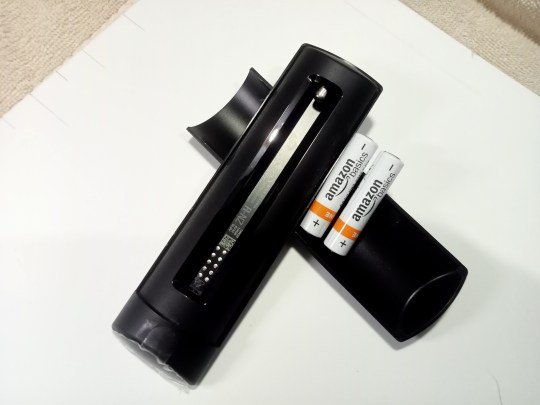
Check or Replace Batteries

Batteries may sometimes cause a malfunctioning Fire TV stick remote. Fortunately, the remote requires a pair of AAA batteries. However, we have to warn you that the Amazon AAA batteries are not rechargeable. When your Fire TV stick runs out of power juice, you have to replace them with a fresh pair of AAA batteries.

1. Remove the Amazon batteries from your Firestick’s remote.

Firestick Remote 1


2. Reinstall the pair of batteries and ensure that their positive and negative nodes are in the right direction.

Firestick Remote 2


3. If your Firestick remote is not still working, try installing a fresh pair of AAA Batteries. 

Firestick Remote 3


4. In this case, we will install a new pair of Energizer AAA batteries. Ensure that both polar ends of the AAA batteries are facing the right direction.

Firestick Remote 4


Unplug the Fire TV stick

In some instances, a remote not working can be caused by a malfunctioning Fire TV stick. Its cables might be loose or it just needs to restart. 

1. Check the cable attachment of your Fire TV stick.

Unplug Firestick 1


2. Unplug your Fire TV stick from your TV monitor.

Unplug Firestick 2


Reset your Fire TV stick to Factory Settings

Resetting your device to its factory settings can unpair your Fire TV stick to its remote. It can also clear your device of junk and free some memory.

1. Go to the Home screen of your Fire TV stick.

Factory Reset 1


2. Click on the Settings button. (Gear Wheel Icon)

Factory Reset 2


3. Press on the My Fire TV button from the dropdown.

Factory Reset 3


4. Choose and press the Reset to Factory Defaults option.

Factory Reset 4


Why is the Remote of my Firestick Not Working?

You might be enjoying the services of a streaming app or binge-watching popular TV shows from reputable streaming services. Suddenly, when you press on your remote’s buttons, it is not responding. 

In some cases, after purchasing a brand new Amazon Fire TV stick, the remote does not function at all. 

As we have discussed above, troubleshooting your Firestick’s remote is a difficult procedure. There are many possible causes why malfunctions begin to happen. There are also many factors to consider. Let us now take a look at each one of these problems:


Obstacles

As we all know, the Fire TV stick 4k automatically has a remote as a part of its package. It is the primary user tool that lets people take command of their Fire TV devices. The input of commands with the Fire TV remote does not always require a direct line from the remote to the Firestick. However, when obstacles such as mirrors, metals, and reflective materials stand in the way, they can block its signal.


Batteries

One of the common issues, the Fire TV stick’s remote has Amazon AAA batteries as a part of its package. Unfortunately, these batteries are not rechargeable. Users should always check the health of their batteries as they suddenly drain out of energy. This may happen occasionally if you always stream with the Fire TV stick.


Distance

The Fire TV stick remote’s design differs significantly from conventional remotes. It always sports a matte-black case and comes with the size of the standard human grip. The remote sends signals via Bluetooth, which is a far cry from the typical infrared remote. Sending signals from the remote to the device requires a maximum range of 30 feet. 


Pairing

Once you launch the system of your brand new Fire TV stick, it will ask you to pair the Bluetooth remote. Sometimes, your remote will also unpair with the Fire TV stick when you are not using it. There might be some instances that users forget to pair the remote again with their Fire TV sticks. It will result in a remote not working.


Interference

The Fire TV stick remote relies on Bluetooth to send signals to your Fire TV device. Be aware that common household gadgets with Bluetooth may interfere with the signals of your Fire TV stick remote. It may result in a malfunctioning remote. 


Damage

The color and size of the Fire TV stick’s remote may cause its displacement. Its small size may sometimes be hard to grip and cause it to fall to the ground. Damages may occur to its structure and internal components. Be aware that the remote is susceptible to fluid damage. In some cases, it is the components inside their remotes that require fixes.


Compatibility

When their Fire TV sticks are not working, some people choose to purchase a new remote. The remote we recommend should be the same model as your first remote. You may also opt to install the Fire TV stick app that transforms your smartphone or tablet into a remote.


Use the Firestick 4K with a VPN

The Amazon Fire TV stick 4K is the latest device on their product line. It is the best gadget for streaming. You can bring it anywhere and use it anytime. However, you might encounter content with geo-blocks. Your device might also encounter some cyber threats online.

For safe streaming with the Fire TV stick, we recommend you install the Surfshark VPN service. It is the best VPN for streaming from online sources. Surfshark has features to share with you:

  • Ensures safe streaming from online sources.
  • Conceals your connection from prying eyes.
  • Hides your data and credentials.
  • Allows you to access content with geo-restrictions.


Install Surfshark on Firestick

Best Surfshark Deal


YOUR INTERNET ACTIVITY IS BEING WATCHED

ReviewVPN cannot attest to the legality, security and privacy of the applications discussed on this site. It is highly recommended that you use a VPN service while streaming or using Kodi.

Currently, your IP 216.73.216.211 is visible to everyone and your Browser is being tracked by Advertisers & ISP Provider.

Save 65% Now

Limited Time Offer

Here are the main reasons why you must use a VPN:

  • Your activities are hidden from your ISP, the government, and from the apps you are using.
  • You can access additional movies and TV streams.
  • ISP attempts to throttle are thrwarted thus reducing buffering issues.
  • Geographically restricted content like Netflix and Hulu can be unblocked.

A VPN works be replacing your ISP-assigned IP address and creating an encrypted tunnel. We recommend the no log service offered by IPVanish. It works well on a Firestick and offers the fastest possible speeds.

Special Limited Time Offer - Get IPVanish


How to Install Surfshark VPN on Firestick

If your Firestick still has the older interface, read this article to learn how to update it: Update Firestick Interface.

You can download Surfshark directly from the Amazon App store. It will be easy for you to find Surfshark with your Firestick’s Find feature. Refer to our screenshots below.

1. Go to the Home screen of your Firestick.

step 1 Install Surfshark VPN on Firestick


2. Navigate towards the Find tab. Press the Search button from the resulting dropdown.

step 2 Install Surfshark VPN on Firestick


3. Type in the keyword of SurfShark and select from the suggestions that will appear.

step 3 Install Surfshark VPN on Firestick


4. Click the official SurfShark icon from your search results.

step 4 Install Surfshark VPN on Firestick


5. Press the Download (You own it) button.

step 5 Install Surfshark VPN on Firestick


6. The SurfShark VPN installer will download on your device.

step 6 Install Surfshark VPN on Firestick


7. SurfShark VPN’s app will automatically install itself on your Fire TV stick.

step 7 Install Surfshark VPN on Firestick


8. Press the Open button after completing SurfShark VPN’s installation process.

step 8 Install Surfshark VPN on Firestick


9. Please wait for the SurfShark VPN to load its user interface.

step 9 Install Surfshark VPN on Firestick


10. You can now log in with your SurfShark VPN account credentials.

step 10 Install Surfshark VPN on Firestick

Learn more about Surfshark and Grab the Best Surfshark Deal Now!


Other VPNs to Consider

NordVPN (Best for Streaming)

Best Features

  • 5000+ Server in 50+ Countries 
  • Military-Grade Encryption
  • Fast Connection Speed
  • Suitable to a lot of devices
  • No-Log Policy

Prices
  • Complete $5.89 per month (64% Discount)
  • Plus $4.59 per month (56% Discount)
  • Standard $3.69 per month (55% Discount)

Best Features

  • 750+ High-speed VPN Servers in 43 Locations
  • Military-Grade Encryption
  • Fastest HD Streaming and Gaming
  • 30-Day Money-Back Guarantee
  • Unlimited Data & Devices
  • No-Log Policy

Prices
  • 3 Years $1.99 per month (82% Discount)
  • 1 Years $3.29 per month (70% Discount)
  • 1 Month $10.99 per month

IPVanish VPN (Most Secure)

Best Features

  • 1200+ Servers in 60+ Countries around the world
  • Unlimited Connections
  • No-Log Policy
  • Top Notch Military-Grade VPN Protocols and Encryptions
  • 100% Safe and Secured
  • Most Trusted VPN
  • Best VPN for Firestick
  • 30-Day Money-Back Guarantee

Prices
  • Yearly $3.99 per month (63% Discount) – 30 days risk free + Ransomware & Malware Protection
  • Quarterly $5.32 per month (51% Discount)
  • Monthly $10.99 per month


For more VPN discounts, go to ReviewVPN Deals and purchase the best VPN for you.


FAQs

Can you reset the Firestick without a remote?

Yes, it is possible since the Fire TV stick functions with Bluetooth devices, you may opt to install the Fire TV app for Android devices. While your remote is functioning, we recommend you pair an extra Bluetooth device such as a mouse or keyboard. You can then use these controllers to reset the Fire TV stick without a remote.


Is it dangerous to reset the Firestick remote?

Not at all. We have to warn you to handle electronic devices, batteries, and cables carefully to avoid physical harm. It might also preserve the internal components and structural integrity of your devices.


Conclusion

The Fire TV stick is a unique gadget that allows us to stream 24/7. In some cases, the Fire TV stick’s remote may encounter malfunctions. There are a few methods to fix some issues such as resetting both the remote and the Fire TV stick.

We hope this article teaches you how to reset the remote of your Fire TV stick.

Wireless File Manager on FireStick

Overview

In this article, we will help you install the Wireless File Manager app on your Firestick.

Nowadays, with rapidly growing technology each day, the Amazon App Store or Google Play Store launches and adds numerous new apps. Thus, if you search on these app stores, you’ll find that there are various file manager applications.


Even though you’ll find various file manager applications on Amazon App Store or Google Play Store, all of these applications are not useful. As you’ll find that most of them are equipped with annoying ads. And even if you find a satisfactory app, still it might not be compatible with Firestick or other Android-based devices.

Moreover, even though there are numerous file manager apps, there are only a few apps that are useful. These file manager apps will help in managing or transferring files over Firestick or other Android devices. But, the best file manager app to transfer & manage files is the File Manager app.


ANONYMOUSLY


How to Download Wireless File Manager on FireStick with Amazon Silk Browser

1. Click Home on your remote & Select Find.

Step 1 Wireless File Manager on FireStick

2. Click Search.

Step 2 Wireless File Manager on FireStick


3. Type Wireless File Manager, and select the Wireless File Manager app.

Wireless File Manager


4. Click Download.

download


5. After the download is complete, click open to launch the app.

download


6. Now, you have installed the Wireless File Manager.

wireless file manager


YOUR INTERNET ACTIVITY IS BEING WATCHED

ReviewVPN cannot attest to the legality, security and privacy of the applications discussed on this site. It is highly recommended that you use a VPN service while streaming or using Kodi.

Currently, your IP 216.73.216.211 is visible to everyone and your Browser is being tracked by Advertisers & ISP Provider.

Save 65% Now

Limited Time Offer

Here are the main reasons why you must use a VPN:

  • Your activities are hidden from your ISP, the government, and from the apps you are using.
  • You can access additional movies and TV streams.
  • ISP attempts to throttle are thrwarted thus reducing buffering issues.
  • Geographically restricted content like Netflix and Hulu can be unblocked.

A VPN works be replacing your ISP-assigned IP address and creating an encrypted tunnel. We recommend the no log service offered by IPVanish. It works well on a Firestick and offers the fastest possible speeds.

Special Limited Time Offer - Get IPVanish


Install SurfShark on Firestick

Best SurfShark Deal


Features of Wireless File Manager

  • Send or receive files, brows or save files kept on TV utilizing any web browser.
  • It comes along with a file explorer that lets you browse, launch, & delete sent files.
  • The file manager sends files to external storage devices, such as SD cards utilizing any internet browser
  • It has a dark theme that is easy on your eyes
  • The file manager can work on any network connection
  • From the WebUI, users can open apps, launch files on any storage
  • It lets you utilize the Open file manager button to open, browse, as well as delete recent files received through the app


Wireless File Manager Supports

  • Android-based mobile phones & tablets
  • TVs running Android OS and are Remote Friendly


Transfer, Manage files on Android, iOS devices (Internal & External Storage) using any internet browser

Transfer files between:

  • Android and Android
  • Windows and Android 
  • iOS and Android 
  • Android and  Mac OS
  • Linux and Android 


How often is the Wireless File Explorer updated?

The Wireless File Explorer is regularly updated which keeps it functioning at its best performance.

What’s New on Wireless File Manager

  • Fixed a problem where a file that has a greater size than available internal storage space that’s impossible to transmit to external storage
  • Utilize the Open file manager feature to browse newly sent files
  • Transmit files to external storage devices
  • The file manager app can open all photos in the app itself
  • It can function on any network connection


FAQs

Is the Wireless  File Manager app legal?

Yes, the Wireless  File Manager app is absolutely legal to download, install, & use. 


Is the Wireless  File Manager app safe?

Yes, the Wireless  File Manager app is safe to use and doesn’t have any viruses & malware. 


What devices can Wireless  File Manager be installed on?

The Wireless  File Manager is compatible and functions the best with devices running the Android & iOS operating systems. It runs on Amazon Firestick, Google Chromecast, PCs, Android boxes, iOS devices, Android mobile phones/tablets, and many more.


Wireless  File Manager Alternatives

ES File Explorer

It is an all-in-one file managing platform for most users. This file manager app has tons of features such as exploring root files, recycle bin, cloud drive, hiding files, File Transfer Protocol (FTP), local area network (LAN), space analyzer to eliminate junk files, built-in download manager, and more.


Apps 2 Fire

It is a file manager, utility/maintenance app that can be installed on Android-powered devices. You just need to link to the same Wi-Fi network and finish the set-up process by putting the Firestick IP address. From there, you can access all the installed applications, files, etc. from the device. You can also download or upload files as well.

Features:

  • Push applications from the Android mobile device to the Firestick
  • Open apps on the Firestick
  • Upload files (such as .jpg, .apk, .mp4, & more) from the SD card to the Firestick
  • Scanner for devices
  • Uninstall applications from the Firestick
  • You can rename files on Firestick’s SD card
  • Download apps from the Firestick to Android mobile device
  • Lets you take Screenshots from the Firestick screen
  • Pause & restart Firestick


Amaze File Manager

Amaze File Manager is a free & open-source file manager app. Even though this file manager app is not as feature-rich, it contains a set of benefits such as themes with cool icons, multiple tabs, moving, copying, extracting, compressing, and more. It can also do basic stuff such as cutting. Nonetheless, the Amaze File Manager contains no ads.


Always Use A VPN While Using The Amazon Firestick

Surfshark vpn

Using Virtual Private Network or VPN is very useful on a Firestick. Props to a VPN service, people can access platforms, services, or websites that are unavailable in your country or bypass restrictions that many platforms impose. Upon using the Amazon Firestick, an encrypted Virtual Private Network service provider is highly recommended to hide your online activities, identity, and location. Many Firestick or Fire TV Stick users prefer SurfShark service for privacy, price, and speed.

Offering superfast servers and great live chat support, SurfShark is also an easy-to-use app. Ensure to turn on SurfShark when you are streaming on the internet.

SurfShark Features:

  • Unlimited devices
  • Unblocks Netflix, Disney+, and lots more
  • Robust encryption
  • Great customer service
  • 30-day money-back guarantee
  • Zero log policy
  • Great download speed
  • Works well on Windows, Android, iOS, Linux, Mac, as well other routers


Grab your subscription now!

Click here to get the lowest price on SurfShark through our exclusive limited-time offer.


How to Install Surfshark on Firestick with Screenshots

If your Firestick still has the older interface, read this article to learn how to update it: Update Firestick Interface.

You can download Surfshark directly from the Amazon App store. It will be easy for you to find Surfshark with your Firestick’s Find feature. Refer to our screenshots below.

Follow our screenshots below to install the SurfShark VPN app on your Fire TV stick.

1. Go to the Home screen of your Firestick.

step 1 Install Surfshark VPN on Firestick


2. Navigate towards the Find tab. Press the Search button from the resulting dropdown.

step 2 Install Surfshark VPN on Firestick


3. Type in the keyword of SurfShark and select from the suggestions that will appear.

step 3 Install Surfshark VPN on Firestick


4. Click the official SurfShark icon from your search results.

step 4 Install Surfshark VPN on Firestick


5. Press the Download (You own it) button.

step 5 Install Surfshark VPN on Firestick


6. The SurfShark VPN installer will download on your device.

step 6 Install Surfshark VPN on Firestick


7. SurfShark VPN’s app will automatically install itself on your Fire TV stick.

step 7 Install Surfshark VPN on Firestick


8. Press the Open button after completing SurfShark VPN’s installation process.

step 8 Install Surfshark VPN on Firestick


9. Please wait for the SurfShark VPN to load its user interface.

step 9 Install Surfshark VPN on Firestick


10. You can now log in with your SurfShark VPN account credentials.

step 10 Install Surfshark VPN on Firestick

Learn more about Surfshark and Grab the Best Surfshark Deal Now!


Install Surfshark on Firestick

Best Surfshark Deal

Other VPNs to Consider

NordVPN (Best for Streaming)

Best Features

  • 5000+ Server in 50+ Countries 
  • Military-Grade Encryption
  • Fast Connection Speed
  • Suitable to a lot of devices
  • No-Log Policy

Prices
  • Complete $5.89 per month (64% Discount)
  • Plus $4.59 per month (56% Discount)
  • Standard $3.69 per month (55% Discount)

Best Features

  • 750+ High-speed VPN Servers in 43 Locations
  • Military-Grade Encryption
  • Fastest HD Streaming and Gaming
  • 30-Day Money-Back Guarantee
  • Unlimited Data & Devices
  • No-Log Policy

Prices
  • 3 Years $1.99 per month (82% Discount)
  • 1 Years $3.29 per month (70% Discount)
  • 1 Month $10.99 per month

IPVanish VPN (Most Secure)

Best Features

  • 1200+ Servers in 60+ Countries around the world
  • Unlimited Connections
  • No-Log Policy
  • Top Notch Military-Grade VPN Protocols and Encryptions
  • 100% Safe and Secured
  • Most Trusted VPN
  • Best VPN for Firestick
  • 30-Day Money-Back Guarantee

Prices
  • Yearly $3.99 per month (63% Discount) – 30 days risk free + Ransomware & Malware Protection
  • Quarterly $5.32 per month (51% Discount)
  • Monthly $10.99 per month

For more VPN discounts, go to ReviewVPN Deals and purchase the best VPN for you.


Conclusion

In this article, we have provided information on Wireless File Manager for Amazon Firestick. The information above should really help you boost your Firestick or other Fire devices. 

However, always remember to use A VPN every time you use the Firestick. Please let us know what you think about this article in the comments section.

How to Install the TDUK Debloat Tool on Firestick

Overview

In this article, we will teach you how to install the TDUK Debloat Tool on your Fire TV stick.

Many devices upon purchase contain apps we do not need. As an example, the Fire TV stick comes with the Fire OS, it also has apps as a part of its package. If we install apps we love to use, background apps can cause minor disturbances.

Are you having trouble removing apps you don’t use? If yes, then you have come across the right article. We will discuss issues like bloatware and the perfect app suitable for their uninstallation.


Bloatware is the main term for apps that come after we purchase a new Android device. Many device merchants install these apps as a part of their trade. Unfortunately, not all customers will use the apps that they install. Aside from that, these apps can sometimes link to the web automatically.

Bloatware apps running in the background of our devices also consume the memory of our devices. In some cases, Android devices will begin to malfunction or suddenly lag. Fortunately for many of us, there is the TDUK Debloat Tool which is useful for cleansing our gadgets of extra apps.


We will now teach you how to install the TDUK Debloat Tool on your Fire TV stick. You only have to Jailbreak your Fire TV Stick and sideload the app for its successful installation.


ANONYMOUSLY


TDUK Debloat Tool for Android Devices


TDUK Button 1

Note: ReviewVPN.com does not host this APK file. It is hosted by Archive.org


How to Install the TDUK Debloat Tool on Firestick

You can install the TDUK Debloat Tool on your Fire TV stick by using the Downloader app. Just follow our simple guide below.

  1. Open your Firestick Settings Tab. (Gear Wheel Icon).
  2. Scroll down and to the right until you get to My Fire TV. Click on it.
  3. Select Developer options.
  4. Turn on ADB debugging and Apps from Unknown Sources.
  5. Press the Turn On when the pop-up appears.
  6. Click Home and press on FIND.
  7. Press on Search.
  8. You can either say Downloader to your Alexa voice-enabled remote or start typing it. If you typed it, click on the suggestion when it appears.
  9. Click on the Downloader Icon.
  10. Tap on Download.
  11. Click on Open.
  12. Press on the Allow button.
  13. Use the Downloader app’s Search tab.
  14. Type in: reviewvpn.com/dbl
  15. The TDUK Debloat Tool’s APK file will download.
  16. Click on Install.
  17. The TDUK Debloat Tool will install on Firestick.
  18. You can now Open the TDUK Debloat Tool so it can analyze and cleanse your Fire TV stick.
  19. All the apps you have will show as a checklist you can mark for defrosting or removal.


How to Install the TDUK Debloat Tool on Firestick with Screenshots

Use the Downloader app to install the TDUK Debloat Tool on your Fire TV stick. Follow each of our screenshots down below and not miss one step of its installation procedure.

1. Open your Firestick Settings Tab. (Gear Wheel Icon).

Install the TDUK Debloat Tool on Firestick 1

2. Scroll down and to the right until you get to My Fire TV. Click on it.

Install the TDUK Debloat Tool on Firestick 2


3. Select Developer options.

Install the TDUK Debloat Tool on Firestick 3


4. Turn on ADB debugging and Apps from Unknown Sources.

Install the TDUK Debloat Tool on Firestick 4


5. Press the Turn On when the pop-up appears.

Install the TDUK Debloat Tool on Firestick 5


6. Click Home and press on FIND.

Install the TDUK Debloat Tool on Firestick 6


7. Press on Search.

Install the TDUK Debloat Tool on Firestick 7


8. You can either say Downloader to your Alexa voice-enabled remote or start typing it. If you typed it, click on the suggestion when it appears.

Install the TDUK Debloat Tool on Firestick 8


9. Click on the Downloader Icon.

Install the TDUK Debloat Tool on Firestick 9


10. Tap on Download.

Install the TDUK Debloat Tool on Firestick 10


Install the TDUK Debloat Tool on Firestick 10


11. Click on Open.

Install the TDUK Debloat Tool on Firestick 11


12. Press on the Allow button.

Install the TDUK Debloat Tool on Firestick 12


13. Use the Downloader search tab.

Install the TDUK Debloat Tool on Firestick 13


14. Type in: reviewvpn.com/dbl

Install the TDUK Debloat Tool on Firestick 14


15. The TDUK Debloat Tool’s APK file will download.

Install the TDUK Debloat Tool on Firestick 15


16. Click on Install.

Install the TDUK Debloat Tool on Firestick 16


17. The TDUK Debloat Tool will install on Firestick.

Install the TDUK Debloat Tool on Firestick 17


18. You can now Open the TDUK Debloat Tool so it can analyze and cleanse your Fire TV stick.

Install the TDUK Debloat Tool on Firestick 18


19. All the apps you have will show as a checklist you can mark for defrosting or removal.

Install the TDUK Debloat Tool on Firestick 19


YOUR INTERNET ACTIVITY IS BEING WATCHED

ReviewVPN cannot attest to the legality, security and privacy of the applications discussed on this site. It is highly recommended that you use a VPN service while streaming or using Kodi.

Currently, your IP 216.73.216.211 is visible to everyone and your Browser is being tracked by Advertisers & ISP Provider.

Save 65% Now

Limited Time Offer

Here are the main reasons why you must use a VPN:

  • Your activities are hidden from your ISP, the government, and from the apps you are using.
  • You can access additional movies and TV streams.
  • ISP attempts to throttle are thrwarted thus reducing buffering issues.
  • Geographically restricted content like Netflix and Hulu can be unblocked.

A VPN works be replacing your ISP-assigned IP address and creating an encrypted tunnel. We recommend the no log service offered by IPVanish. It works well on a Firestick and offers the fastest possible speeds.

Special Limited Time Offer - Get IPVanish


Install SurfShark on Firestick

Best SurfShark Deal


Features of the TDUK Debloat Tool

  • Removes bloatware that is not useful.
  • Cleanses your system of extra apps.
  • Free extra memory for other apps.
  • Instantly Freeze your device.
  • Defrost a frozen gadget.
  • Apps on your device appear as a checklist.
  • Mark apps you want to remove or defrost.
  • Useful in clearing the cache of your device.
  • Cleans the cache of each app.
  • Allows users to move an app to their SD cards.
  • Automatically Detects the OS of your device. (ex. Firestick 4K)

Technical Specifications of the TDUK Debloat Tool:

The TDUK Debloat Tool was meant for Android and FireOS devices. Installing the app is fast and easy on your smartphone and Fire TV stick.

TDUK Technical Specifications 1


The interface of the TDUK Debloat Tool

  • Simple Interface
  • Default Night Mode
  • Dark Blue background
  • Features a debloat section
  • Apps appear as a checklist
  • Users may just click or mark an app they want to modify.


Pros and Cons

Pros

  • Excellent tool that cleans your device of extra apps.
  • Removes apps you do not use.
  • Results in a faster device.
  • Frees up extra memory.
  • Defrosts a frozen gadget.
  • Improves the performance of your smartphone, tablet, or Fire TV device.


Cons

  • Some versions require the installation of the Busybox feature.


Secure your device with a VPN

Surfshark vpn

Many modern devices allow us to connect to the internet. We can stream, download, or share files with online resources. However, it also allows hackers to steal our data. Some websites and online content also contain harmful malware that can infect your system.

To avoid online threats from infecting your device, we recommend you install SurfShark. It is a VPN that can give us many special features:

  • Mask your online identity while browsing the internet.
  • Protect your device from malware and viruses.
  • Hides your connection through digital tunnels.
  • Gives you another IP address untraceable to third parties.


Grab your subscription now!

Click here to get the lowest price on SurfShark through our exclusive limited-time offer.


How to Install Surfshark on Firestick with Screenshots

If your Firestick still has the older interface, read this article to learn how to update it: Update Firestick Interface.

You can download Surfshark directly from the Amazon App store. It will be easy for you to find Surfshark with your Firestick’s Find feature. Refer to our screenshots below.

Follow our screenshots below to install the SurfShark VPN app on your Fire TV stick.

1. Go to the Home screen of your Firestick.

step 1 Install Surfshark VPN on Firestick


2. Navigate towards the Find tab. Press the Search button from the resulting dropdown.

step 2 Install Surfshark VPN on Firestick


3. Type in the keyword of SurfShark and select from the suggestions that will appear.

step 3 Install Surfshark VPN on Firestick


4. Click the official SurfShark icon from your search results.

step 4 Install Surfshark VPN on Firestick


5. Press the Download (You own it) button.

step 5 Install Surfshark VPN on Firestick


6. The SurfShark VPN installer will download on your device.

step 6 Install Surfshark VPN on Firestick


7. SurfShark VPN’s app will automatically install itself on your Fire TV stick.

step 7 Install Surfshark VPN on Firestick


8. Press the Open button after completing SurfShark VPN’s installation process.

step 8 Install Surfshark VPN on Firestick


9. Please wait for the SurfShark VPN to load its user interface.

step 9 Install Surfshark VPN on Firestick


10. You can now log in with your SurfShark VPN account credentials.

step 10 Install Surfshark VPN on Firestick

Learn more about Surfshark and Grab the Best Surfshark Deal Now!


Install Surfshark on Firestick

Best Surfshark Deal

Other VPNs to Consider

NordVPN (Best for Streaming)

Best Features

  • 5000+ Server in 50+ Countries 
  • Military-Grade Encryption
  • Fast Connection Speed
  • Suitable to a lot of devices
  • No-Log Policy

Prices
  • Complete $5.89 per month (64% Discount)
  • Plus $4.59 per month (56% Discount)
  • Standard $3.69 per month (55% Discount)

Best Features

  • 750+ High-speed VPN Servers in 43 Locations
  • Military-Grade Encryption
  • Fastest HD Streaming and Gaming
  • 30-Day Money-Back Guarantee
  • Unlimited Data & Devices
  • No-Log Policy

Prices
  • 3 Years $1.99 per month (82% Discount)
  • 1 Years $3.29 per month (70% Discount)
  • 1 Month $10.99 per month

IPVanish VPN (Most Secure)

Best Features

  • 1200+ Servers in 60+ Countries around the world
  • Unlimited Connections
  • No-Log Policy
  • Top Notch Military-Grade VPN Protocols and Encryptions
  • 100% Safe and Secured
  • Most Trusted VPN
  • Best VPN for Firestick
  • 30-Day Money-Back Guarantee

Prices
  • Yearly $3.99 per month (63% Discount) – 30 days risk free + Ransomware & Malware Protection
  • Quarterly $5.32 per month (51% Discount)
  • Monthly $10.99 per month

For more VPN discounts, go to ReviewVPN Deals and purchase the best VPN for you.


Alternative Apps for the TDUK Debloat Tool

The TDUK Debloat tool is meant to solve the bloatware problem prevalent on many Android devices. However, there might be instances where it might not completely clean your device. We have a list of alternative apps that can also cleanse your device:


FAQs

Is the TDUK Debloat Tool for free?

Yes, the app is free for download. You only have to sideload your Fire TV stick and use the Downloader app for its installation.


Are there ads while using the app?

No, there are no pop-up ads while using the TDUK Debloat tool.


Conclusion

After their purchase, many devices such as laptops, tablets, smartphones, and Fire TV devices contain bloatware. Bloatware is the term for apps installed by the merchant of these products. Although not harmful as malware, bloatware apps may sometimes consume device memory and cause malfunctions. As a solution, we recommend you install the TDUK Debloat tool for cleaning your Fire TV device.

We hope this article teaches you how to install the TDUK Debloat tool on your Fire TV stick.

Gemini Streamz IPTV

Overview

In this article, we will show you how to open the Gemini Streamz IPTV on your Fire TV stick.

How can I get the services of Gemini Streamz IPTV on my Fire TV stick? If you have this question in your head, you’ve come across the right article. Here at ReviewVPN, we perform meticulous testing of every available streaming app. We also review some IPTV services perfect for your Fire TV devices, computers, and smartphones.

Ensuring that the apps work on your Fire TV stick, we will then provide you a guide on how to install them. In this case, we will now discuss the Gemini Streamz IPTV service.


IPTV services make use of Internet Protocol Television abilities. It means that software using the IPTV feature uses an internet connection to stream television shows and channels. Today, many devices can connect with the world wide web. They give their users the capability to stream television shows and channels wherever they might be.

Let us now talk about the Gemini Streamz IPTV service.

The Gemini Streamz IPTV service, though not an official Amazon or Google affiliate, continues to become famous. There are a plethora of shows to get from their service. Users wanting to subscribe can play its media content with the help of reliable IPTV players.

As we all know, when an app or IPTV service is not available from the popular online app stores, jailbreaking your Fire TV stick and sideloading an app is the best way to go. This is the case with the Gemini Streamz IPTV service.


ANONYMOUSLY


How to Install the Amazon Silk Browser on your Fire TV stick

Let us now teach you how to install the Amazon Silk Browser on your Fire TV stick. Afterward, we will teach you how to use it for opening the Gemini Streamz IPTV website.

1. Open your Fire TV stick’s home screen.

Silk Browser Install 1

2. Navigate to the Find tab.

Silk Browser Install 2


3. Click on the Search button from the drop-down.

Silk Browser Install 3


4. Type in: Silk Browser Fire tv stick.

Silk Browser Install 4


5. Select the official Amazon Silk Browser app icon.

Silk Browser Install 5


6. Press on the ‘Get/ Download (You Own It)’ button that appears.

Silk Browser Install 6


7. The Amazon Silk Browser app will download its installation files.

Silk Browser Install 7


8. Its installation will begin shortly after download.

Silk Browser Install 8


9. You can then use the Amazon Silk Browser app for visiting websites with the Fire TV stick.

Silk Browser Install 9


How to Visit the Gemini Streamz IPTV Website with the Amazon Silk Browser

Follow the steps below to visit the Gemini Streamz IPTV website on your Fire TV stick:

1. Go to your Fire TV stick’s home screen.

Gemini Streamz IPTV FS 1


2. Scroll right towards the Amazon Silk browser’s icon.

Gemini Streamz IPTV FS 2


3. Type in: geministreamz.com

Gemini Streamz IPTV FS 3


4. You can now choose to register with the Gemini Streamz IPTV website and get its IPTV services.

Gemini Streamz IPTV FS 4


How to Visit the Gemini Streamz IPTV on your Windows PC

IPTV enthusiasts may also visit the Gemini Streamz IPTV website by using their Windows PC.

1. Open any Windows Browser you have, for this example we will be using Google Chrome.

Gemini Streamz IPTV Windows 1


2. Tap on the URL Address bar on the top of your web browser.

Gemini Streamz IPTV Windows 2


3. Type in: geministreamz.com

Gemini Streamz IPTV Windows 3


4. You can now choose to register with the Gemini Streamz IPTV website and get its IPTV services.

Gemini Streamz IPTV Windows 4


Grab your subscription now!

Click here to get the lowest price on Surfshark through our exclusive limited-time offer.


How to Register with the Gemini Streamz IPTV Website

If you want to check out its trial version first, then we have a brief guide for you:

1. The Gemini Streamz IPTV website will present two types of subscription plans.

Gemini Streamz Subscription 1


Gemini Streamz Subscription 2


2. Upon visiting the Gemini Streamz IPTV website, click on the Register tab from its main menu.

Gemini Streamz Subscription 3


3. Complete typing your information with the website’s registration form.

Gemini Streamz Subscription 4


4. After registering, press the Services button from the main menu.

Gemini Streamz Subscription 5


5. Click on Order New Services from the resulting dropdown list.

Gemini Streamz Subscription 6


6. Choose the 24 Hrs. Free Trial that the website offers and press on the Order Now button.

Gemini Streamz Subscription 7


7. Press on the Check Out button after confirming your order.

Gemini Streamz Subscription 8


8. Afterward, click on the Complete Order button to get the services of Gemini Streamz IPTV for 24 Hrs.

Gemini Streamz Subscription 9


Features of the Gemini Streamz IPTV service

  • Contains over 6,000 live channels
  • Gemini Streamz IPTV standard plan starts at $12.00/month
  • Four connections are available with its basic package
  • Supports VPN software.
  • No Locking of IP Location
  • 3, 6, and 12 months payment plans are also available
  • Offers packages for Major Sports Channels
  • VOD options
  • Presents Pay-per-View (PPV)
  • News channels
  • Adult Channels and Content
  • Entertainment channels
  • Gemini Streamz IPTV supports other IPTV Players
  • Available on Fire TV and Android devices
  • Manage your favorite channels with the Favorites Manager
  • External video player support
  • M3U Playlist and URLs
  • Provides an Electronic Program Guide (EPG)
  • For Payment: Gemini Streamz IPTV accepts Cashapp, Google Play, and Amazon
  • Gemini Streamz IPTV provides Customer support through their online contact form and email


Watch IPTV with a VPN

IPTV stands for Internet Protocol Television. It harnesses your internet connection to allow its users to stream live IPTV channels. One good example is the Gemini Streamz IPTV service. People may also use IPTV players to stream content from the Gemini Streamz IPTV service.

Some people experience stuttering and buffering while using IPTV apps. It is because of ISP throttling techniques. They decrease our connectivity rates while streaming live TV channels.

To counter the effects of ISP throttling methods, having Surfshark on your device is an effective solution. Here are some advantages that Surfshark can perform:

  • Allows us to access restricted media content.
  • Speeds up file-sharing activities.
  • Hides our identities while browsing the web.
  • Cancels out buffering and stuttering while using IPTV apps.


Install Surfshark on Firestick

Best Surfshark Deal


YOUR INTERNET ACTIVITY IS BEING WATCHED

ReviewVPN cannot attest to the legality, security and privacy of the applications discussed on this site. It is highly recommended that you use a VPN service while streaming or using Kodi.

Currently, your IP 216.73.216.211 is visible to everyone and your Browser is being tracked by Advertisers & ISP Provider.

Save 65% Now

Limited Time Offer

Here are the main reasons why you must use a VPN:

  • Your activities are hidden from your ISP, the government, and from the apps you are using.
  • You can access additional movies and TV streams.
  • ISP attempts to throttle are thrwarted thus reducing buffering issues.
  • Geographically restricted content like Netflix and Hulu can be unblocked.

A VPN works be replacing your ISP-assigned IP address and creating an encrypted tunnel. We recommend the no log service offered by IPVanish. It works well on a Firestick and offers the fastest possible speeds.

Special Limited Time Offer - Get IPVanish


How to Install Surfshark VPN on Firestick

If your Firestick still has the older interface, read this article to learn how to update it: Update Firestick Interface.

Follow our screenshots below to install the SurfShark VPN app on your Fire TV stick.

1. Go to the Home screen of your Firestick.

step 1 Install Surfshark VPN on Firestick


2. Navigate towards the Find tab. Press the Search button from the resulting dropdown.

step 2 Install Surfshark VPN on Firestick


3. Type in the keyword of SurfShark and select from the suggestions that will appear.

step 3 Install Surfshark VPN on Firestick


4. Click the official SurfShark icon from your search results.

step 4 Install Surfshark VPN on Firestick


5. Press the Download (You own it) button.

step 5 Install Surfshark VPN on Firestick


6. The SurfShark VPN installer will download on your device.

step 6 Install Surfshark VPN on Firestick


7. SurfShark VPN’s app will automatically install itself on your Fire TV stick.

step 7 Install Surfshark VPN on Firestick


8. Press the Open button after completing SurfShark VPN’s installation process.

step 8 Install Surfshark VPN on Firestick


9. Please wait for the SurfShark VPN to load its user interface.

step 9 Install Surfshark VPN on Firestick


10. You can now log in with your SurfShark VPN account credentials.

step 10 Install Surfshark VPN on Firestick

Learn more about Surfshark and Grab the Best Surfshark Deal Now!


Install Surfshark on Firestick

Best Surfshark Deal


Other VPNs to Consider

NordVPN (Best for Streaming)

Best Features

  • 5000+ Server in 50+ Countries 
  • Military-Grade Encryption
  • Fast Connection Speed
  • Suitable to a lot of devices
  • No-Log Policy

Prices
  • Complete $5.89 per month (64% Discount)
  • Plus $4.59 per month (56% Discount)
  • Standard $3.69 per month (55% Discount)

Best Features

  • 750+ High-speed VPN Servers in 43 Locations
  • Military-Grade Encryption
  • Fastest HD Streaming and Gaming
  • 30-Day Money-Back Guarantee
  • Unlimited Data & Devices
  • No-Log Policy

Prices
  • 3 Years $1.99 per month (82% Discount)
  • 1 Years $3.29 per month (70% Discount)
  • 1 Month $10.99 per month

IPVanish VPN (Most Secure)

Best Features

  • 1200+ Servers in 60+ Countries around the world
  • Unlimited Connections
  • No-Log Policy
  • Top Notch Military-Grade VPN Protocols and Encryptions
  • 100% Safe and Secured
  • Most Trusted VPN
  • Best VPN for Firestick
  • 30-Day Money-Back Guarantee

Prices
  • Yearly $3.99 per month (63% Discount) – 30 days risk free + Ransomware & Malware Protection
  • Quarterly $5.32 per month (51% Discount)
  • Monthly $10.99 per month


For more VPN discounts, go to ReviewVPN Deals and purchase the best VPN for you.


FAQs

Is the Gemini Streamz IPTV for free?

No, you have to register an account and pay for its services.


Are there ads while using the IPTV service?

No, there are no ads while using its website. Ads might appear when streaming IPTV Live channels.


Conclusion

The Gemini Streamz IPTV service is unique. You may only get its services after registering for an account and providing your payment credentials. Afterward, you may play its content by using reliable IPTV players.

We hope this article teaches you about the Gemini Streamz IPTV service.

EZTV Torrent Website

Overview

In this article, we will show you how to visit the EZTV website for getting torrent files.


Movies have been a part of our daily lives. Watching movies and videos is an entertaining experience for many of us. Whether we watch movies as a hobby or relaxing after work, many of its genres give us a unique perspective. Luckily for movie enthusiasts, our internet can provide sources for getting the latest movies.

Are you a fan of movies looking for a torrenting site? If you agree, then we got your back! Today we will discuss the EZTV Torrenting website. Here at ReviewVPN, we make reviews about apps for your streaming purposes. Aside from that, we also cover the sites that provide us many downloadable files.

Let us now introduce you to the EZTV torrenting website.

The EZTV website contains the latest downloads when it comes to new movie releases. Apart from recent films, it also includes classic and existing movie titles. They show these titles on a tile-style gallery. You won’t have a difficult time exploring the site.

While using the Fire TV stick, you may only visit the EZTV movie torrents website by installing a web browser. We recommend you download and install the Amazon Silk browser on your Fire TV stick.


ANONYMOUSLY

How to Install the Amazon Silk Browser on your Fire TV stick

Let us now teach you how to install the Amazon Silk Browser on your Fire TV stick. Afterward, we will teach you how to use it for opening the RuTracker downloads website.

1. Open your Fire TV stick’s home screen.

Silk Browser Install 1


2. Navigate to the Find tab.

Silk Browser Install 2


3. Click on the Search button from the drop-down.

Silk Browser Install 3


4. Type in: Silk Browser Fire tv stick.

Silk Browser Install 4


5. Select the official Amazon Silk Browser app icon.

Silk Browser Install 5


6. Press on the ‘Get/ Download (You Own It)’ button that appears.

Silk Browser Install 6


7. The Amazon Silk Browser app will download its installation files.

Silk Browser Install 7


8. Its installation will begin shortly after download.

Silk Browser Install 8


9. You can then use the Amazon Silk Browser app for visiting websites with the Fire TV stick.

Silk Browser Install 9


How to Open the EZTV Movie Torrents Website with the Amazon Silk Browser

Follow the steps below to visit the EZTV movie torrents website on your Fire TV stick:

1. Go to your Fire TV stick’s home screen.

EZTV Firestick 1


2. Scroll right towards the Amazon Silk browser’s icon.

EZTV Firestick 2


3. Type in: eztv.unblockit.ch

EZTV Firestick 3


4. Select from its wide library of movie titles and video uploads.

EZTV Firestick 4


How to Visit the EZTV Website on your Windows PC

Fans of movies and films may also visit the EZTV website by using their Windows PC.

1. Open any Windows Browser you have, for this example we will be using Google Chrome.

EZTV Windows 1


2. Tap on the URL Address bar on the top of your web browser.

EZTV Windows 2


3. Type in: eztv.unblockit.ch

EZTV Windows 4


4. Your browser will open the EZTV website with a wide list of torrents.

EZTV Windows 5


YOUR INTERNET ACTIVITY IS BEING WATCHED

ReviewVPN cannot attest to the legality, security and privacy of the applications discussed on this site. It is highly recommended that you use a VPN service while streaming or using Kodi.

Currently, your IP 216.73.216.211 is visible to everyone and your Browser is being tracked by Advertisers & ISP Provider.

Save 65% Now

Limited Time Offer

Here are the main reasons why you must use a VPN:

  • Your activities are hidden from your ISP, the government, and from the apps you are using.
  • You can access additional movies and TV streams.
  • ISP attempts to throttle are thrwarted thus reducing buffering issues.
  • Geographically restricted content like Netflix and Hulu can be unblocked.

A VPN works be replacing your ISP-assigned IP address and creating an encrypted tunnel. We recommend the no log service offered by IPVanish. It works well on a Firestick and offers the fastest possible speeds.

Special Limited Time Offer - Get IPVanish


Legal Disclaimer: ReviewVPN.com does not encourage or endorse any illegal activity involved in the usage of services and applications referenced on this site. We do not verify the licensing agreements of services. The end-user is wholly responsible for ensuring that any media accessed through these services does not violate copyright and/or licensing laws. ReviewVPN does not promote, link to, or receive compensation from any Apps and IPTV services.


Install Surfshark on Firestick

Best Surfshark Deal


Features of the EZTV Website

  • List-style home page.
  • Built-in search bar.
  • Displays the top three categories of the newest torrent uploads.
  • Provides a direct download button.
  • Shows the IMDB or Critics’ rating on the top of each movie title image.
  • Contains the latest film releases available for download.
  • Includes TV series.
  • Recommends the top IMDB video titles.


EZTV User Interface

  • Easy to use
  • Simple and provides a quick search option
  • Built-in search bar
  • Displays a ‘Recent Movies’ window
  • Includes an IMDB rating for each show and movie title
  • Contains the latest TV series
  • Presents the latest TV series episodes
  • Default night theme
  • Newest Movie Releases
  • Recent TV shows and series
  • Watch or Download series from EZTV


EZTV Front Webpage Menu

  • EZTV Series: Latest Torrent Uploads for TV series
  • Full Season TV Packs
  • EZTV Downloads: Top 20 Torrents with many seeders
  • TV shows that aired today
  • Browse or Search bar
  • Home
  • TV Packs
  • Countdown List
  • Calendar
  • TV Show List
  • Forum
  • FAQ/Help
  • Website News


Pros and Cons

Pros

  • 100% Free
  • Safe to Use
  • No ads and pop-up commercials
  • Displays the latest movie releases
  • Presents the newest TV shows
  • Includes the latest TV series episodes
  • Allows users to browse for existing titles
  • Direct download option
  • List-style interface
  • Includes a Top IMDB recommendation section
  • No requirement of a user account


Cons

  • Requires the installation of a torrent client app.


Download Torrent Files with a VPN

The EZTV torrenting website provides many titles and genres of movies and television shows. You can get and download from the EZTV Torrenting website by installing any torrent client app. We have to warn you that some of the files you download might contain hidden cyber threats.

Additionally, your ISP monitors your connection for heavy internet traffic. They will decrease your streaming speed even while downloading files.

To aid in faster downloads, Surfshark is the best VPN for torrenting. Here are the benefits of installing Surfshark on your device.

  • Consistent download speeds.
  • Security against cyber threats.
  • Cancels out the effects of geo-restrictions.
  • Access hid online content by outmaneuvering geo-blocks.

Note: For more information about Surfshark, please read our Surfshark Review.


Install Surfshark on Firestick

Best Surfshark Deal


How to Install Surfshark VPN on Firestick

If your Firestick still has the older interface, read this article to learn how to update it: Update Firestick Interface.

Follow our screenshots below to install the SurfShark VPN app on your Fire TV stick.

1. Go to the Home screen of your Firestick.

step 1 Install Surfshark VPN on Firestick


2. Navigate towards the Find tab. Press the Search button from the resulting dropdown.

step 2 Install Surfshark VPN on Firestick


3. Type in the keyword of SurfShark and select from the suggestions that will appear.

step 3 Install Surfshark VPN on Firestick


4. Click the official SurfShark icon from your search results.

step 4 Install Surfshark VPN on Firestick


5. Press the Download (You own it) button.

step 5 Install Surfshark VPN on Firestick


6. The SurfShark VPN installer will download on your device.

step 6 Install Surfshark VPN on Firestick


7. SurfShark VPN’s app will automatically install itself on your Fire TV stick.

step 7 Install Surfshark VPN on Firestick


8. Press the Open button after completing SurfShark VPN’s installation process.

step 8 Install Surfshark VPN on Firestick


9. Please wait for the SurfShark VPN to load its user interface.

step 9 Install Surfshark VPN on Firestick


10. You can now log in with your SurfShark VPN account credentials.

step 10 Install Surfshark VPN on Firestick

Learn more about Surfshark and Grab the Best Surfshark Deal Now!


Install Surfshark on Firestick

Best Surfshark Deal


Other VPNs to Consider

NordVPN (Best for Streaming)

Best Features

  • 5000+ Server in 50+ Countries 
  • Military-Grade Encryption
  • Fast Connection Speed
  • Suitable to a lot of devices
  • No-Log Policy

Prices
  • Complete $5.89 per month (64% Discount)
  • Plus $4.59 per month (56% Discount)
  • Standard $3.69 per month (55% Discount)

Best Features

  • 750+ High-speed VPN Servers in 43 Locations
  • Military-Grade Encryption
  • Fastest HD Streaming and Gaming
  • 30-Day Money-Back Guarantee
  • Unlimited Data & Devices
  • No-Log Policy

Prices
  • 3 Years $1.99 per month (82% Discount)
  • 1 Years $3.29 per month (70% Discount)
  • 1 Month $10.99 per month

IPVanish VPN (Most Secure)

Best Features

  • 1200+ Servers in 60+ Countries around the world
  • Unlimited Connections
  • No-Log Policy
  • Top Notch Military-Grade VPN Protocols and Encryptions
  • 100% Safe and Secured
  • Most Trusted VPN
  • Best VPN for Firestick
  • 30-Day Money-Back Guarantee

Prices
  • Yearly $3.99 per month (63% Discount) – 30 days risk free + Ransomware & Malware Protection
  • Quarterly $5.32 per month (51% Discount)
  • Monthly $10.99 per month


For more VPN discounts, go to ReviewVPN Deals and purchase the best VPN for you.


Alternative Websites for the EZTV Torrenting Website

The EZTV torrenting website hosts many videos, movies, and television shows. It also includes many features that differentiate itself from other torrenting websites. The EZTV website is quite easy to use as you can see the latest torrents you can download. However, it might not always contain files you might like. If this is the case, we have a list of websites that can serve as alternatives for the EZTV torrenting website:

  • YTS
  • 1337x
  • The Pirate Bay
  • RARBG
  • KickAss Torrents
  • LimeTorrents


FAQs

Is the EZTV website free to use?

Yes, getting torrents from the EZTV website is easy and does not require any payment.


How to download torrents from EZTV?

You will have to search the web for a reliable torrent client app (uTorrent, BitTorrent, etc.) and install it on your device. While visiting the EZTV website, select any torrent file you want and click on either the red magnet icon or the direct download icon.


Conclusion

The EZTV Torrent website is not popular but is growing in visitors per month. It works the same as the famous torrent websites on the web such as The Pirate Bay and KickAss Torrents. Upon visiting the website, you will find a list of torrents focusing on television shows, series, and the latest episodes.

We hope this article teaches you how to visit the EZTV website on your Fire TV stick and web browser.