Apps to Clean Up Firestick

Overview

When the Amazon Firestick is cluttered, the device becomes slower and can even crash from time to time. The major reason that a device can be slow is the lack of storage space, which you can no longer enjoy. Adding up to the OS (operating system), data garbage’s ever-increasing accumulations lead to unnecessary utilization of memory space. In this article, we’ll discuss the best apps to clean up Firestick to speed it up.

A cleaner app for Amazon Firestick is an application that you can download & install on the streaming device to clean it. However, there are tons of apps available on the market so choosing one may seem a difficult task. But, no worries! This article has compiled the best options available.


Why Does The Amazon Fire TV Stick Slow Down?

Does it take forever for the Firestick to load your favorite streams or does the streaming start to lag at the very beginning? Before getting the streaming device clean, you should first diagnose the problem. It can be a simple lag issue then some Firestick users may need to do a factory reset.

Nonetheless, in most cases, it boils down to the cache. You just simply need to free up the storage or clear data. The Firestick is not a beefy gadget. Thus, always remember that it only has a limited amount of space. The device will go quicker than most owners think. If the issue seems storage-related, below are the options for the best apps to clean up Firestick. You can then quickly get rid of unwanted apps.


ANONYMOUSLY


The Best Apps to Clean Up Firestick

CCleaner

This cleaning application not only does amazing stuff on Android devices but also for macOS and Windows PCs. The cleaning app lets you clean your device’s RAM, remove junk, and get more available space. However, it is one of the best cleaning apps for Android.

The app provides the option to uninstall a number of apps at once. It has a Storage Analyzer feature that gives a great idea of how the device’s storage space is being utilized.

Aside from CCleaner’s essential cleaning functions, it also comes along with a system monitoring tool. This tool lets you monitor the CPU usage of various apps, the temperature levels of the device, as well as the RAM being used by applications.


Features:

  1. It speeds up your device and safely removes junk.
  2. It has a clean app cache, clipboard content browser history, download folders, and many more.
  3. The cleaning app analyzes & optimizes extremely useful storage space.
  4. It easily & quickly uninstalls numerous unwanted apps.
  5. CCleaner boosts device performance.
  6. The app monitors the system – it checks the usage of the CPU.
  7. Optimize the Android device in just a couple of clicks.
  8. It has a simple, intuitive user interface UI that you can easily navigate.
  9. The cleaning app is compact, efficient, & fast – with low CPU & RAM usage.


Install CCleaner Pro App on Firestick with Screenshots

1. Install the Downloader app and jailbreak your firestick by enabling unknown sources. To learn more about the procedure, you may read How to Install the Downloader App and Enable Unknown Sources.


2. Open Downloader App. Type https://reviewvpn.com/ccl  and click Go.

Install CCleaner Pro

3. Click Install.

Install CCleaner Pro 1


4. Click Open.

Install CCleaner Pro 2


All-In-One Toolbox 

It is a multi-purpose cleaner application for Android that can handle tons of stuff rather than just getting rid of junk files. It has over 30 tools to boost the productivity of your Android device. The All-In-One Toolbox comes with a system app uninstaller that functions even without root. This cleaning app’s Boot Speedup feature allows you to choose which applications should start when you reboot your device.

The All-In-One Toolbox app comes with options for mass uninstalling or installing applications. It lets you move apps from the memory of the device to a removable storage drive. This awesome cleaning aims to provide a faster, cleaner interface. It is one of the best free cleaning apps for Android.


Features:

  1. It has a photo compressor to lessen the space seize by high-resolution photos.
  2. The app comes with a hardware info checker.
  3. It has a feature that identifies huge files stored on the device.
  4. You have the option to remove app leftovers & empty folders.


Install All-In-One Toolbox App on Firestick with Screenshots

1. Install the Downloader app and jailbreak your firestick by enabling unknown sources. To learn more about the procedure, you may read How to Install the Downloader App and Enable Unknown Sources.


2. Open Downloader App. Type https://reviewvpn.com/tool and click Go.


3. Click on INSTALL.

Step 13 Install All in one toolbox


4. Click on OPEN.

Step 14 Install All in one toolbox


5. Select Yes, I Agree.

Step 15 Install All in one toolbox


6. All-In-One Toolbox is Installed.

Step 16 Install All in one toolbox


DB Assistant 

DangBei Assistant or DB TV Assistant is among the best tools you can use on Android devices to boost its performance. This professional management software clears cache, obsolete Android files, Memory or RAM, as well as residual files. Since the DB TV Assistant removes obsolete & residual files you’ll acquire some storage space boost on your Android devices.


Features:

  1. DB TV Assistant allows you to uninstall rarely utilized apps that eat up large storage.
  2. It has a Network Test feature that lets you perform a speed test on a network.
  3. Its Autorun Killer feature lets you forcibly close applications that run in the background.


Install DBTV Assistant on a Firestick with Screenshots

1. Install the Downloader app and jailbreak your firestick by enabling unknown sources. To learn more about the procedure, you may read How to Install the Downloader App and Enable Unknown Sources.


2. Type https://reviewvpn.com/dbt and click Go.


3. Click Install.


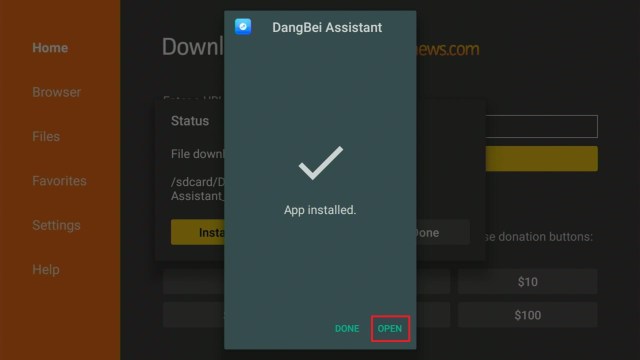
4. Click Open.


5. DBTV Assistant is Installed.

Step 15 Install DBTV Assistant on Firestick


Clean Cache App

Clean Cache app is an Android device tool you can use to clean all the files cached in the apps. This Android device cleaning app frees up space & memory and boosts the performance of the device. The cleaning app is available with a number of interesting options. 

Nevertheless, it is an easy-to-use app that helps Android device users enhance the performance of their devices. Additionally, you can use this cleaning app to view application info, and even immediately get rid of the apps from the device.


Features:

  1. The app clears the cache and gives extra memory & performance to the device.
  2. It is the most effective cleaning app to remove cache in one click.
  3. The cleaning app’s Speed Booster feature will boost your device’s performance.
  4. If you run out of storage space, it lets you acquire more by clearing the apps-created cache.
  5. Huge Files – the Clean Cache app saves storage space to keep handy files.
  6. The app gets rid of unnecessary apps and gives more memory space.
  7. The cleaning app blocks non-essential notifications and brings them to one spot.
  8. It has a Battery Saver feature that optimizes your device battery to extend the usage time.
  9. Allows you to view the duplicated material’s history.
  10. It lets you feel the power of your device while you play video games. 
  11. The app put unutilized apps to sleep to utilize more resources.


Install Clean Cache App On Firestick with Screenshots

1. Install the Downloader app and jailbreak your firestick by enabling unknown sources. To learn more about the procedure, you may read How to Install the Downloader App and Enable Unknown Sources.


2. After installing the Downloader app, launch it.

Install the UPlayer App on Firestick Step 13


3. Enter the Clean Cache app download URL/APK – https://reviewvpn.com/clc and click GO.

Cache Cleaner


4. When the Clean Cache file download is complete – click Install.

Cache Cleaner install


5. Now, you have successfully installed the Clean Cache app on FireStick.

Clean Cache app


MiXplorer

MiXplorer is a great file management app that helps Android device users work comfortably with their devices’ files & folders. This ad-free safe to use application is absolutely one of the best file manager apps that you can have on your Firestick or other Android devices. 


Features:

  1. It automatically syncs all device files.
  2.  The app lets you customize the interface to your preferred color.
  3. It supports a dual-panel user interface for effortless drag & drop of files.
  4. MiXplorer lets you sort, enable, & disable menu options as well as action buttons.
  5. It has basic functions such as copy, paste, move, cut, select, & delete.
  6. The app has various viewing options – columned, compact, wrapped, detailed, grid, gallery, & minimal.
  7. Different view modes & sorting alternatives on every folder.
  8. It has file encryption & decryption utilizing Aescrypt file format.
  9. The app has a built-in FTP/HTTP Server and TCP server to obtain files from devices utilizing it.
  10. It has a built-in image viewer that comes with GIF animation & large images support.
  11. The MiXplorer app comes with a built-in media player & VLC codecs.
  12. It contains an excellent Text Editor.
  13. The app supports SAMBA, WebDAV FTP, & SFTP.
  14. Contains custom USB OTG driver –  exFat(R/W), NTFS ®, & FAT32 (R/W).
  15. It has an available Html viewer supporting CHM, AXml, Markdown, MHT, MAFF, and many more.
  16. The app comes with an eBook reader that supports Epub, PDF, Docs, and many more.
  17. It lets you extract and create zip files.
  18. You can extract XZ, RAR/RAR5, NTFS, LZMA, VHD, FAT, CAB, APM, RPM, ISO, NSIS, DEB, SWM, MBR, ARJ, MSLZ, LZH, ARC, CramFS, LHA, ELF, Dmg, Mub, MachO, MSI, CHM, Z, WIM, PE, CPIO, Xar, Split, HFS, Udf, PPMD, & SquashFS.
  19. The app supports numerous providers, such as Dropbox, Amazon Cloud Drive, Meo, Google Drive, iCloud, OneDrive, VDisk, SugarSync, Yandex, Box, Baidu, HiDrive, Kuaipan, Mediafire, IDrive, Kanbox, Hubic.
  20. All storage has EncFS volumes support.
  21. The app has user & system application management that can backup data.


How to Install MiXplorer App‬ on Firestick and Android


Total Commander 

Total File Commander is an awesome file manager software to copy, delete, or transfer files in the quickest way. The app has numerous features that are appropriate for you as this file manager software can help you in numerous ways. 


Features:

  • It can copy, move entire subdirectories.
  • Drag & Drop.
  • Zip & unzip or unrar.
  • Rename or generate directories.
  • Delete. 
  • Built-in text editor.
  • Properties dialog, modify permissions.
  • Directory history.
  • Search function & text.
  • Choose by clicking on file icons.
  • Select or unselect a file or groups of files.
  • List of installed applications.
  • Select range – Long tap and release on the icon.
  • WebDAV or Web folders.
  • FTP & SFTP client.
  • Plugins for cloud platforms: Microsoft Live, Google Drive, or Dropbox.
  • LAN access. 
  • Send files through Bluetooth.
  • Root support for the primary functions. 
  • Bookmarks.
  • Thumbnails for images.
  • Two panels or virtual 2-panel mode.
  • Configurable button bar to change internal commands, directories, sending shell commands, as well as launching apps.
  • Media player to stream straight from WebDAV, cloud, & LAN plugins.
  • Optimizations for the visually impaired.
  • Straightforward aid function in English, Russian, German, Czech, & Ukrainian.
  • Main program’s supported languages –  English, Bulgarian, German, Czech, Croatian, Dutch, Danish, Greek, French, Hungarian, Hebrew, Italian, Indonesian, Korean, Japanese, Portuguese, Polish, Russian, Romanian, Simplified Chinese, Serbian, Slovenian, Slovak, Swedish, Spanish, Turkish, Traditional Chinese, Vietnamese, & Ukrainian.


Pros and Cons

Pros

  • Lifetime License
  • Support Plugins
  • Numerous state-of-the-art options
  • In-built Utility Tools
  • Easy to use for language translation
  • Dual Pane Interface
  • User-friendly file manager software


Cons

  • It’s a Shareware
  • Very slow on launching network shares
  • Contains a classic Interface
  • Without a recycle bin


How to Install Total File Commander on Firestick with Screenshots

1. Click FIND.

Movie Nite 1


2. Click Search.

Movie Nite2


3. Search for the Total File Commander.

Step 2 Install Total File Commander On Firestick


4. Select the icon of Total File Commander.

Step 3 Install Total File Commander On Firestick


5. Click Download.

Step 4 Install Total File Commander On Firestick


6. Click Open.

Step 5 Install Total File Commander On Firestick


7. Click Allow.

Step 6 Install Total File Commander On Firestick


8. Total File Commander is Installed.

Step 7 Install Total File Commander On Firestick


TDUK Update Blocker

With Amazon constantly updating the Fire TV Interface on its popular streaming gadgets (Firestick), tons of users have become distressed and annoyed with advertisements and suggested content. Sadly, it seems this Fire OS system update will be rolled out to newer Firesticks regardless of the preference of users.

Typically, it is impossible to deactivate this function, as Amazon’s popular streaming devices don’t have an in-built option to do it. Nonetheless, there’s a method for overcoming the issue by utilizing the TechDoctorUK (TDUK) FireOS Update Blocker app.


How to Install TDUK Update Blocker

1. Install the Downloader app and jailbreak your firestick by enabling unknown sources. To learn more about the procedure, you may read How to Install the Downloader App and Enable Unknown Sources.


2. After installing the Downloader app, launch it

Install the UPlayer App on Firestick Step 13


3. Enter the TDUK FireOS Update Blocker app download URL/APK – https://reviewvpn.com/uso and click GO

TDUK FireOS Update Blocker


4. When the TDUK FireOS Update Blocker file download is complete – click Install

TDUK FireOS Update Blocker install


5. Now, you have successfully installed the TDUK FireOS Update Blocker app on FireStick

Fire OS update blocker


YOUR INTERNET ACTIVITY IS BEING WATCHED

ReviewVPN cannot attest to the legality, security and privacy of the applications discussed on this site. It is highly recommended that you use a VPN service while streaming or using Kodi.

Currently, your IP 216.73.216.109 is visible to everyone and your Browser is being tracked by Advertisers & ISP Provider.

Save 65% Now

Limited Time Offer

Here are the main reasons why you must use a VPN:

  • Your activities are hidden from your ISP, the government, and from the apps you are using.
  • You can access additional movies and TV streams.
  • ISP attempts to throttle are thrwarted thus reducing buffering issues.
  • Geographically restricted content like Netflix and Hulu can be unblocked.

A VPN works be replacing your ISP-assigned IP address and creating an encrypted tunnel. We recommend the no log service offered by IPVanish. It works well on a Firestick and offers the fastest possible speeds.

Special Limited Time Offer - Get IPVanish


Always Use The Best VPN on Firestick

The reason why Firestick users need a Virtual Private Network or VPN for their devices is to stay protected on the internet. Firestick users can then safely & securely stream movies, TV shows, and more through streaming platforms, such as BeeTV, Kodi, CyberFlix TV, and many more. Also, you need a VPN to access apps or streams that are otherwise not available in your region. These include BBC iPlayer, US Netflix, Disney Plus, ITV Hub, HBO, and lots more.

Surfshark is one of the top VPN recommendations. It is considered the best Virtual Private Network for online streaming. It provides numerous servers that are accessible in multiple locations. The Surfshark is one of the user-friendly VPN providers that you can utilize on FireStick devices. This VPN service provides a strong 256-bit AES encryption and allows you to access tons of applications or platforms that have geo-restrictions, such as Hulu, Netflix, HBO Max, and many more.

Surfshark has a strict no-logs policy so you can feel secure while you stream entertainment content on your FireStick. But, with just one Surfshark account, you’ll be able to connect an unlimited number of devices at the same time.


How to Install Surfshark VPN on Firestick

If your Firestick still has the older interface, read this article to learn how to update it: Update Firestick Interface.

Follow our screenshots below to install the SurfShark VPN app on your Fire TV stick.

1. Go to the Home screen of your Firestick.

step 1 Install Surfshark VPN on Firestick


2. Navigate towards the Find tab. Press the Search button from the resulting dropdown.

step 2 Install Surfshark VPN on Firestick


3. Type in the keyword of SurfShark and select from the suggestions that will appear.

step 3 Install Surfshark VPN on Firestick


4. Click the official SurfShark icon from your search results.

step 4 Install Surfshark VPN on Firestick


5. Press the Download (You own it) button.

step 5 Install Surfshark VPN on Firestick


6. The SurfShark VPN installer will download on your device.

step 6 Install Surfshark VPN on Firestick


7. SurfShark VPN’s app will automatically install itself on your Fire TV stick.

step 7 Install Surfshark VPN on Firestick


8. Press the Open button after completing SurfShark VPN’s installation process.

step 8 Install Surfshark VPN on Firestick


9. Please wait for the SurfShark VPN to load its user interface.

step 9 Install Surfshark VPN on Firestick


10. You can now log in with your SurfShark VPN account credentials.

step 10 Install Surfshark VPN on Firestick

Learn more about Surfshark and Grab the Best Surfshark Deal Now!


Install Surfshark on Firestick

Best Surfshark Deal


Other VPNs to Consider

NordVPN (Best for Streaming)

Best Features

  • 5000+ Server in 50+ Countries 
  • Military-Grade Encryption
  • Fast Connection Speed
  • Suitable to a lot of devices
  • No-Log Policy

Prices
  • Complete $5.89 per month (64% Discount)
  • Plus $4.59 per month (56% Discount)
  • Standard $3.69 per month (55% Discount)

Best Features

  • 750+ High-speed VPN Servers in 43 Locations
  • Military-Grade Encryption
  • Fastest HD Streaming and Gaming
  • 30-Day Money-Back Guarantee
  • Unlimited Data & Devices
  • No-Log Policy

Prices
  • 3 Years $1.99 per month (82% Discount)
  • 1 Years $3.29 per month (70% Discount)
  • 1 Month $10.99 per month

IPVanish VPN (Most Secure)

Best Features

  • 1200+ Servers in 60+ Countries around the world
  • Unlimited Connections
  • No-Log Policy
  • Top Notch Military-Grade VPN Protocols and Encryptions
  • 100% Safe and Secured
  • Most Trusted VPN
  • Best VPN for Firestick
  • 30-Day Money-Back Guarantee

Prices
  • Yearly $3.99 per month (63% Discount) – 30 days risk free + Ransomware & Malware Protection
  • Quarterly $5.32 per month (51% Discount)
  • Monthly $10.99 per month


For more VPN discounts, go to ReviewVPN Deals and purchase the best VPN for you.

Click here to get the lowest price on Surfshark through our exclusive limited-time offer.


Wrapping Up

In this article, we have provided information on the best Apps to Clean Up Firestick. The information above should really help you enhance the performance of the Firestick device by taking it to the next level. 

However, always remember to use A VPN service every time you use your Firestick. If you have any thoughts about the Apps to Clean Up Firestick, don’t hesitate to let us know in the comments section.

How To Record IPTV On Firestick

Overview

Many individuals don’t need to record television shows because of having all on-demand videos on the internet. However, some people are asking how to record IPTV programs. Such broadcasts as news, sports, daily shows, and special events are insufficient in quantity on on-demand channels.


One of the major issues with Internet Protocol television (IPTV) providers is that they always update their collection of movies & TV shows/series. There is no assurance that IPTV users can watch the content from the beginning until the end. IPTV providers can remove videos from their collection and replace them with new ones. That’s where IPTV recording turns out to be useful.


ANONYMOUSLY


How to Record IPTV on Firestick

There are issues that people will come up against when recording directly from their Amazon Firestick. The device has a built-in restriction that detects & blocks Firestick users from doing so. Nonetheless, with the proper equipment, it could be quite simple for users to circumvent. Unfortunately, it’s not a very inexpensive setup but once Firestick users have everything in position, they’ll be able to record their favorite content.


The things you’ll need to utilize this method:

  • HDMI splitter 
  • Capture Card 
  • PC or Mac
  • A PC monitor or TV with an HDMI port

A Fire Stick user doesn’t really have to record on his/her streaming device as it only comes along with an 8GB of storage space. The HDMI splitter will do the trick into allowing you to record IPTV on Firestick. The computer or PC is where you’ll make and control the IPTV recording. The capture card is the one that takes care of the recording process.

First, plug the Firestick directly into the HDMI input port of the HDMI splitter. Connect one of the HDMI output ports of the splitter to the HDMI input port of the capture card. Then, connect the HDMI output of the capture card to the TV or PC monitor. From there, connect the Micro USB port of the Capture Card to a USB port on the computer.

Ensure that you plug in all of the tools and are powered on. Launch the software that came with the capture card and the Fire TV home screen displaying on the TV is duplicated on the screen of the PC or computer. Then, you can now start recording the content being transmitted by the Firestick onto the hard drive of the computer utilizing the software of the capture card.

Why Record IPTV Content?

One of the main problems with streaming providers is that they constantly update their library of movies, TV shows, and more. Users might not finish binge-watching a movie or a show as IPTV providers can remove the content for something new. Nonetheless, recording what you wish to keep is an ideal way to make sure that you’ll have access to that certain content, instead of being beholden to the IPTV provider.

Additionally, IPTV recording is safer than downloading videos from illegal torrent platforms. Illegal torrent sites could be an internet provider’s way to share a person’s details with the authorities, and he/she could pay a fine for breaching copyright.


IPTV Recording’s Legality

IPTV content could sometimes be illegal to stream and record. Several IPTV service providers offer copyrighted videos. Even if you have purchased a subscription from an IPTV provider, you are not always safe. Nonetheless, ensure that you are recording videos that don’t violate Digital Millennium Copyright Act (DMCA) or other copyright restrictions in your country.

However, even if the device or the application supports video recording, owners can encounter issues. IPTV’s legality and particularly some videos are debatable in particular cases. Wherein, it is recommended to stream and record via a Virtual Private Network or VPN connection.


YOUR INTERNET ACTIVITY IS BEING WATCHED

ReviewVPN cannot attest to the legality, security and privacy of the applications discussed on this site. It is highly recommended that you use a VPN service while streaming or using Kodi.

Currently, your IP 216.73.216.109 is visible to everyone and your Browser is being tracked by Advertisers & ISP Provider.

Save 65% Now

Limited Time Offer

Here are the main reasons why you must use a VPN:

  • Your activities are hidden from your ISP, the government, and from the apps you are using.
  • You can access additional movies and TV streams.
  • ISP attempts to throttle are thrwarted thus reducing buffering issues.
  • Geographically restricted content like Netflix and Hulu can be unblocked.

A VPN works be replacing your ISP-assigned IP address and creating an encrypted tunnel. We recommend the no log service offered by IPVanish. It works well on a Firestick and offers the fastest possible speeds.

Special Limited Time Offer - Get IPVanish


Always Use A VPN While Using The Amazon Firestick

Amazon’s Fire TV Stick allows you to stream entertainment on your TV. However, it’s a good idea to use a Virtual Private Network or VPN while using the Amazon Firestick. With the Surfshark VPN service, you’ll be able to control your privacy on the internet and stream movies & TV shows without being monitored by hackers, ISPs, or even governments.

A VPN service provides online protection for your private information by generating a private network that conceals your IP address. With a VPN, all of your online activities are secure and untraceable. All of your internet traffic passes via an encrypted tunnel. No one can monitor or access anything within that tunnel. Wherein, your sensitive data is protected against malicious threats, such as viruses, malware, and hackers.


How to Install Surfshark VPN on Firestick

If your Firestick still has the older interface, read this article to learn how to update it: Update Firestick Interface.

1. Go to the Home screen of your Firestick.

step 1 Install Surfshark VPN on Firestick


2. Navigate towards the Find tab. Press the Search button from the resulting dropdown.

step 2 Install Surfshark VPN on Firestick


3. Type in the keyword of SurfShark and select from the suggestions that will appear.

step 3 Install Surfshark VPN on Firestick


4. Click the official SurfShark icon from your search results.

step 4 Install Surfshark VPN on Firestick


5. Press the Download (You own it) button.

step 5 Install Surfshark VPN on Firestick


6. The SurfShark VPN installer will download on your device.

step 6 Install Surfshark VPN on Firestick


7. SurfShark VPN’s app will automatically install itself on your Fire TV stick.

step 7 Install Surfshark VPN on Firestick


8. Press the Open button after completing SurfShark VPN’s installation process.

step 8 Install Surfshark VPN on Firestick


9. Please wait for the SurfShark VPN to load its user interface.

step 9 Install Surfshark VPN on Firestick


10. You can now log in with your SurfShark VPN account credentials.

step 10 Install Surfshark VPN on Firestick

Learn more about Surfshark and Grab the Best Surfshark Deal Now!


Other VPNs to Consider

NordVPN (Best for Streaming)

Best Features

  • 5000+ Server in 50+ Countries 
  • Military-Grade Encryption
  • Fast Connection Speed
  • Suitable to a lot of devices
  • No-Log Policy

Prices
  • Complete $5.89 per month (64% Discount)
  • Plus $4.59 per month (56% Discount)
  • Standard $3.69 per month (55% Discount)

Best Features

  • 750+ High-speed VPN Servers in 43 Locations
  • Military-Grade Encryption
  • Fastest HD Streaming and Gaming
  • 30-Day Money-Back Guarantee
  • Unlimited Data & Devices
  • No-Log Policy

Prices
  • 3 Years $1.99 per month (82% Discount)
  • 1 Years $3.29 per month (70% Discount)
  • 1 Month $10.99 per month

IPVanish VPN (Most Secure)

Best Features

  • 1200+ Servers in 60+ Countries around the world
  • Unlimited Connections
  • No-Log Policy
  • Top Notch Military-Grade VPN Protocols and Encryptions
  • 100% Safe and Secured
  • Most Trusted VPN
  • Best VPN for Firestick
  • 30-Day Money-Back Guarantee

Prices
  • Yearly $3.99 per month (63% Discount) – 30 days risk free + Ransomware & Malware Protection
  • Quarterly $5.32 per month (51% Discount)
  • Monthly $10.99 per month


For more VPN discounts, go to ReviewVPN Deals and purchase the best VPN for you.

FAQs

Can I watch & record IPTV at the same time?

Yes, but it has one condition. If you wish to stream an IPTV channel and record it at the same time, ensure that your IPTV provider lets you use at least 2 connections simultaneously. You’ll be using one connection to record IPTV content and use the other to stream the channel.


Is it illegal to watch or record IPTV?

Streaming IPTV service is legal in the U.S. Nonetheless, you can’t rebroadcast any copyright videos. If you record copyrighted videos from IPTV and share them, then that’s illegal.


What if my device doesn’t have sufficient built-in storage?

You may use extra tools such as capture cards & HDMI splitters to allow you to record directly to the PC hard drive. A large-capacity USB flash drive & HDMI capture card lets you expand the Firestick storage without linking it to a PC or computer.


Can I record IPTV on Firestick?

Yes, you can record IPTV using Amazon Firestick. But, you can also do it on any Fire TV device, Android TV Boxes, NVIDIA Shield, and many more.


Conclusion

In this article, we have provided information on how to record IPTV on Firestick. The information above should really help you boost your IPTV streaming experience. 

Nonetheless, always remember to use A VPN every time you use the internet. If you have any thoughts about how to record IPTV on Firestick, don’t hesitate to let us know in the comments section.

How to Visit the pcgamestorrents Website

Overview

In this article, we will show you how to visit the pcgamestorrents website with your web browsers.

Are you an avid gamer looking for a website to download video games? If yes, we just got the right website for you! Here at ReviewVPN, we ensure that our readers catch the best information we can produce.

We also conduct reviews and test many apps for streaming. Aside from that, we understand the need for gamers to have an online source of video games.


Considering all of the factors above, we know about some websites that can provide you quality gaming apps. Let us now introduce you to the pcgamestorrents website.

The pcgametorrents website is an excellent source and repository of video games. Whether you are using a PC, console, smartphone, tablet, or even the Fire TV stick, there are games perfect for you! Its website hosts hundreds of video games from reliable sources.

Downloading video games from the website is easy with its simple interface. Visitors can check out the site and discover the latest games available for download. For new visitors of the website, its creators include a download guide for your convenience.


Benefits of Gaming

Benefits of Gaming

While using the Fire TV stick, you can get games from the pcgamestorrents website by installing a web browser. We recommend you download and install the Amazon Silk browser on your Fire TV stick.


ANONYMOUSLY


How to Install the Amazon Silk Browser on your Fire TV stick

Let us now teach you how to install the Amazon Silk Browser on your Fire TV stick. Afterward, we will teach you how to use it for opening the pcgamestorrents website.

1. Open your Fire TV stick’s home screen.

Silk Browser Install 1

2. Navigate to the Find tab.

Silk Browser Install 2


3. Click on the Search button from the drop-down.

Silk Browser Install 3


4. Type in: Silk Browser Fire tv stick.

Silk Browser Install 4


5. Select the official Amazon Silk Browser app icon.

Silk Browser Install 5


6. Press on the ‘Get/ Download (You Own It)’ button that appears.

Silk Browser Install 6


7. The Amazon Silk Browser app will download its installation files.

Silk Browser Install 7


8. Its installation will begin shortly after download.

Silk Browser Install 8


9. You can then use the Amazon Silk Browser app for visiting websites with the Fire TV stick.

Silk Browser Install 9


How to Open the pcgamestorrents Website with Amazon Silk Browser

Follow the steps below to visit the pcgamestorrents website on your Fire TV stick:

1. Go to your Fire TV stick’s home screen.

PCgamesTorrents Firestick 1


2. Scroll right towards the Amazon Silk browser’s icon.

PCgamesTorrents Firestick 2


3. Type in: pcgamestorrents.nl

PCgamesTorrents Firestick 3


4. You can now check out the latest video games available for download from the website.

PCgamesTorrents Firestick 4


How to Open the pcgamestorrents website on your Windows PC

Gamers and video game hobbyists may also open the pcgamestorrents website by using their Windows PC.

1. Open any Windows Browser you have, for this example we will be using Google Chrome.

PCgamestorrents Windows 1


2. Tap on the URL Address bar on the top of your web browser.

PCgamestorrents Windows 2


3. Type in: pcgamestorrents.nl

PCgamestorrents Windows 3


4. Your browser will now open the pcgamestorrents website so you can explore its video game listing.

PCgamestorrents Windows 4


YOUR INTERNET ACTIVITY IS BEING WATCHED

ReviewVPN cannot attest to the legality, security and privacy of the applications discussed on this site. It is highly recommended that you use a VPN service while streaming or using Kodi.

Currently, your IP 216.73.216.109 is visible to everyone and your Browser is being tracked by Advertisers & ISP Provider.

Save 65% Now

Limited Time Offer

Here are the main reasons why you must use a VPN:

  • Your activities are hidden from your ISP, the government, and from the apps you are using.
  • You can access additional movies and TV streams.
  • ISP attempts to throttle are thrwarted thus reducing buffering issues.
  • Geographically restricted content like Netflix and Hulu can be unblocked.

A VPN works be replacing your ISP-assigned IP address and creating an encrypted tunnel. We recommend the no log service offered by IPVanish. It works well on a Firestick and offers the fastest possible speeds.

Special Limited Time Offer - Get IPVanish


Install Surfshark on Firestick

Best Surfshark Deal


Features of the pcgamestorrents Website

  • Presents the latest video game uploads from different sources
  • Default Night-mode background
  • Lets visitors explore the latest game releases
  • Allows people to find games that they want to download
  • Provides a How to Install guide for newbies
  • Site visitors can download games using magnet links as torrents
  • Converts gaming setup files as torrent files for easier download
  • Shows a brief description of each video game upload
  • Acts as an online repository for video games
  • Contains video games for different devices and operating systems
  • Arranges each video game upload by their genre


Website Interface

  • Fast and responsive main menu buttons
  • Arranges games by category
  • Includes an FAQ section
  • Users may check out their Game List
  • Select video game downloadable files by their genre
  • Contains a How to Install guide


Main Menu of the pcgamestorrents Website

  • Home
  • Game List
  • Genre
  • VR Games
  • Anime
  • How to Install
  • FAQ


Video Game Genres

  • Action
  • Adventure
  • Simulation
  • Casual
  • RPG
  • Strategy
  • Shooter
  • Puzzle
  • VR Games
  • Anime


Pros and Cons

Pros

  • Acts as an online library for video game torrents.
  • Users may upload or download video game setup files.
  • Presents the latest video game releases.
  • Contains existing video game uploads.
  • Provides a summary for each video game upload.
  • Allows users to download video games with magnet links or mirror links.


Cons

  • Access to the website is blocked by anti-malware services due to Trojan.
  • Requires users to install a torrent client application.


Download Video Games with a VPN

The pcgamestorrents website is a magnificent source of video games. As we all know, many torrenting websites are being shut down one by one. Luckily for avid gamers, there are still sites that act as an online repository for video games.

However, some of the files from these sites might contain cyber threats that can be harmful to our devices. To protect your device, we recommend you to install Surfshark. The VPN has many benefits to offer:

  • Protects you while you play online games.
  • Lets you download games faster.
  • Prevents cyber threats from infecting your device.
  • Allows the consistent download of files.
  • Eliminates the effects of geo-blocks.


Grab your subscription now!

Click here to get the lowest price on Surfshark through our exclusive limited-time offer.


How to Install Surfshark VPN on Firestick

If your Firestick still has the older interface, read this article to learn how to update it: Update Firestick Interface.

Follow our screenshots below to install the SurfShark VPN app on your Fire TV stick.

1. Go to the Home screen of your Firestick.

step 1 Install Surfshark VPN on Firestick


2. Navigate towards the Find tab. Press the Search button from the resulting dropdown.

step 2 Install Surfshark VPN on Firestick


3. Type in the keyword of SurfShark and select from the suggestions that will appear.

step 3 Install Surfshark VPN on Firestick


4. Click the official SurfShark icon from your search results.

step 4 Install Surfshark VPN on Firestick


5. Press the Download (You own it) button.

step 5 Install Surfshark VPN on Firestick


6. The SurfShark VPN installer will download on your device.

step 6 Install Surfshark VPN on Firestick


7. SurfShark VPN’s app will automatically install itself on your Fire TV stick.

step 7 Install Surfshark VPN on Firestick


8. Press the Open button after completing SurfShark VPN’s installation process.

step 8 Install Surfshark VPN on Firestick


9. Please wait for the SurfShark VPN to load its user interface.

step 9 Install Surfshark VPN on Firestick


10. You can now log in with your SurfShark VPN account credentials.

step 10 Install Surfshark VPN on Firestick

Learn more about Surfshark and Grab the Best Surfshark Deal Now!


Install Surfshark on Firestick

Best Surfshark Deal


Other VPNs to Consider

NordVPN (Best for Streaming)

Best Features

  • 5000+ Server in 50+ Countries 
  • Military-Grade Encryption
  • Fast Connection Speed
  • Suitable to a lot of devices
  • No-Log Policy

Prices
  • Complete $5.89 per month (64% Discount)
  • Plus $4.59 per month (56% Discount)
  • Standard $3.69 per month (55% Discount)

Best Features

  • 750+ High-speed VPN Servers in 43 Locations
  • Military-Grade Encryption
  • Fastest HD Streaming and Gaming
  • 30-Day Money-Back Guarantee
  • Unlimited Data & Devices
  • No-Log Policy

Prices
  • 3 Years $1.99 per month (82% Discount)
  • 1 Years $3.29 per month (70% Discount)
  • 1 Month $10.99 per month

IPVanish VPN (Most Secure)

Best Features

  • 1200+ Servers in 60+ Countries around the world
  • Unlimited Connections
  • No-Log Policy
  • Top Notch Military-Grade VPN Protocols and Encryptions
  • 100% Safe and Secured
  • Most Trusted VPN
  • Best VPN for Firestick
  • 30-Day Money-Back Guarantee

Prices
  • Yearly $3.99 per month (63% Discount) – 30 days risk free + Ransomware & Malware Protection
  • Quarterly $5.32 per month (51% Discount)
  • Monthly $10.99 per month


For more VPN discounts, go to ReviewVPN Deals and purchase the best VPN for you.

Click here to get the lowest price on Surfshark through our exclusive limited-time offer.


Alternative Websites for the pcgamestorrents Website

Avid gamers and hobbyists may find that the games inside the website are new releases. However, some site visitors may be looking for games which the site may not contain. If this is the case, we have a list of other torrenting websites for downloading video games:

  • YTS
  • 1337x
  • The Pirate Bay
  • RARBG
  • KickAss Torrents
  • LimeTorrents

If you are still looking for other torrenting websites, just visit our article about the best torrenting sites in 2021 available online.


FAQs

Is the pcgamestorrents website safe?

Yes, however, your anti-malware software can mark the site to contain some active malware threats like trojan viruses.


Is pcgamestorrents legit?

Yes, many reliable sources of video games also upload their setup files on the website.


Conclusion

For gamers and video game hobbyists, there is an excellent website to get video games. If you have a hard time accessing other torrent websites, the pcgamestorrents website can give you a list of video games. All of its setup files are ready for download.

We hope this article teaches you how to open the pcgamestorrents website.

How to Visit The yourbittorrent Website

Overview

In this article, we will teach you how to open yourbittorrent website on your web browsers.

Are you fond of downloading or sharing files on the web? If yes, then we just have the right website for your needs! Let us acquaint you with yourbittorrent website. Today, many people rely on the wide reach of the modern internet.

It lets us connect with many people while letting us access the files that they upload. All of this is made possible with torrenting websites. When it comes to torrenting, it is the activity of downloading or uploading files to the network of BitTorrent.


Instead of relying on a single server to host these files, we can now get files from other devices. The BitTorrent network now functions as a library of many different files. Whether you are looking for videos, songs, music tracks, albums, apps, and games, torrent websites online host these files. Luckily for many of us, websites like the yourbittorrent website exist.

Statistics of the yourbittorrent Website

Daily visitors of torrent sites usually rely on the popularity of a file-sharing website. The yourbittorrent website is still growing famous since it is still a part of the BitTorrent network. Fortunately, it has the advantage of providing a faster download of 0.31 seconds than its famous counterparts.

yourbittorrent stat 1


Avid file contributors may visit the yourbittorrent website on any web browser. While using the Fire TV stick, downloading files from the website is possible by installing a web browser. We recommend you download and install the Amazon Silk browser on your Fire TV stick.


ANONYMOUSLY


How to Install Amazon Silk Browser on Your Fire TV stick

Let us now teach you how to install the Amazon Silk Browser on your Fire TV stick. Afterward, we will teach you how to use it for opening yourbittorrent website.

1. Open your Fire TV stick’s home screen.

Silk Browser Install 1

2. Navigate to the Find tab.

Silk Browser Install 2


3. Click on the Search button from the drop-down.

Silk Browser Install 3


4. Type in: Silk Browser Fire tv stick.

Silk Browser Install 4


5. Select the official Amazon Silk Browser app icon.

Silk Browser Install 5


6. Press on the ‘Get/ Download (You Own It)’ button that appears.

Silk Browser Install 6


7. The Amazon Silk Browser app will download its installation files.

Silk Browser Install 7


8. Its installation will begin shortly after download.

Silk Browser Install 8


9. You can then use the Amazon Silk Browser app for visiting websites with the Fire TV stick.

Silk Browser Install 9


How to Open The yourbittorrent Website with Amazon Silk Browser

Follow the steps below to visit the yourbittorrent website on your Fire TV stick:

1. Go to your Fire TV stick’s home screen.

yourbittorrent Firestick 1


2. Scroll right towards the Amazon Silk browser’s icon.

yourbittorrent Firestick 2


3. Type in: yourbittorrent.com

yourbittorrent Website Firestick 3


4. The Silk browser will now open the website. You can select any files from its catalog.

yourbittorrent Firestick 4


How to Open The yourbittorrent Website on Your Windows PC

Frequent visitors of torrenting sites may also open the yourbittorrent website by using their Windows PC.

1. Open any Windows Browser you have, for this example we will be using Google Chrome.

yourbittorrent Windows 1


2. Tap on the URL Address bar on the top of your web browser.

yourbittorrent Windows 2


3. Type in: yourbittorrent.com

yourbittorrent Windows 3


4. Your browser will now open the yourbittorrent website.

yourbittorrent Windows 4


Install Surfshark on Firestick

Best Surfshark Deal


YOUR INTERNET ACTIVITY IS BEING WATCHED

ReviewVPN cannot attest to the legality, security and privacy of the applications discussed on this site. It is highly recommended that you use a VPN service while streaming or using Kodi.

Currently, your IP 216.73.216.109 is visible to everyone and your Browser is being tracked by Advertisers & ISP Provider.

Save 65% Now

Limited Time Offer

Here are the main reasons why you must use a VPN:

  • Your activities are hidden from your ISP, the government, and from the apps you are using.
  • You can access additional movies and TV streams.
  • ISP attempts to throttle are thrwarted thus reducing buffering issues.
  • Geographically restricted content like Netflix and Hulu can be unblocked.

A VPN works be replacing your ISP-assigned IP address and creating an encrypted tunnel. We recommend the no log service offered by IPVanish. It works well on a Firestick and offers the fastest possible speeds.

Special Limited Time Offer - Get IPVanish


Features of The yourbittorrent Website

  • Simple Interface
  • Upfront list of the latest torrent files
  • Shows the most recent file uploads
  • Displays the date of each file upload
  • Provides three methods of downloading each torrent
  • Includes a brief description, synopsis, or plot for each media torrent
  • Shows the number of Seeders and Leechers for each torrent file
  • Presents the total file size
  • Arranges torrent files by category
  • Categorizing of file uploads by Genre


Categories Available

  • Movies
  • Music
  • Television
  • Games
  • Software
  • Anime
  • XXX
  • eBooks
  • Photos
  • Other


The interface of the Website

  • A direct approach to displaying torrent files
  • Built-in search engine
  • List of available torrents
  • Displays the number of seeders and leechers
  • Provides a dropdown for All Torrents and All Categories
  • Simple Icons represent each torrent category
  • Provides an upload button beside the categories icon


Pros and Cons

Pros

  • 100% Free
  • Hosts thousands of file uploads
  • Presents the number of Seeders and Leechers for each file
  • Includes the date of each upload
  • Displays the size of each torrent
  • Users may choose between Direct Download, Torrent File, and Download Now options


Cons

  • The website may conflict with anti-malware programs.
  • Some file downloads might contain harmful software.


Ensure Safety while Torrenting with a VPN

Torrenting is the modern way of sharing files and information through the internet. Fortunately for many of us, torrenting websites exist. A good example is yourbittorrent website. The website contains a large collection of files available for download.

However, our ISPs monitor our internet traffic. If they detect traffic they dislike, they can reduce our download speeds. It may result in stuttering and buffering while playing videos. Downloading files online becomes a difficult process.

If you want to prevent reductions, we recommend Surfshark. The VPN is the best safeguard while sharing files online. It can also improve your downloading and streaming speeds. Here are the advantages that Surfshark can provide:

  • Enhances your internet connection.
  • Speeds up your file download.
  • Makes you anonymous while browsing the web.
  • Guards your device from harmful software.
  • Employs many security features.
  • Prevents stuttering and buffering with Kodi and Firestick.


Grab your subscription now!

Click here to get the lowest price on Surfshark through our exclusive limited-time offer.


How to Install Surfshark VPN on Firestick

If your Firestick still has the older interface, read this article to learn how to update it: Update Firestick Interface.

You can download Surfshark directly from the Amazon App store. It will be easy for you to find Surfshark with your Firestick’s Find feature. Refer to our screenshots below.

1. Go to the Home screen of your Firestick.

step 1 Install Surfshark VPN on Firestick


2. Navigate towards the Find tab. Press the Search button from the resulting dropdown.

step 2 Install Surfshark VPN on Firestick


3. Type in the keyword of SurfShark and select from the suggestions that will appear.

step 3 Install Surfshark VPN on Firestick


4. Click the official SurfShark icon from your search results.

step 4 Install Surfshark VPN on Firestick


5. Press the Download (You own it) button.

step 5 Install Surfshark VPN on Firestick


6. The SurfShark VPN installer will download on your device.

step 6 Install Surfshark VPN on Firestick


7. SurfShark VPN’s app will automatically install itself on your Fire TV stick.

step 7 Install Surfshark VPN on Firestick


8. Press the Open button after completing SurfShark VPN’s installation process.

step 8 Install Surfshark VPN on Firestick


9. Please wait for the SurfShark VPN to load its user interface.

step 9 Install Surfshark VPN on Firestick


10. You can now log in with your SurfShark VPN account credentials.

step 10 Install Surfshark VPN on Firestick

Learn more about Surfshark and Grab the Best Surfshark Deal Now!


Other VPNs to Consider

NordVPN (Best for Streaming)

Best Features

  • 5000+ Server in 50+ Countries 
  • Military-Grade Encryption
  • Fast Connection Speed
  • Suitable to a lot of devices
  • No-Log Policy

Prices
  • Complete $5.89 per month (64% Discount)
  • Plus $4.59 per month (56% Discount)
  • Standard $3.69 per month (55% Discount)

Best Features

  • 750+ High-speed VPN Servers in 43 Locations
  • Military-Grade Encryption
  • Fastest HD Streaming and Gaming
  • 30-Day Money-Back Guarantee
  • Unlimited Data & Devices
  • No-Log Policy

Prices
  • 3 Years $1.99 per month (82% Discount)
  • 1 Years $3.29 per month (70% Discount)
  • 1 Month $10.99 per month

IPVanish VPN (Most Secure)

Best Features

  • 1200+ Servers in 60+ Countries around the world
  • Unlimited Connections
  • No-Log Policy
  • Top Notch Military-Grade VPN Protocols and Encryptions
  • 100% Safe and Secured
  • Most Trusted VPN
  • Best VPN for Firestick
  • 30-Day Money-Back Guarantee

Prices
  • Yearly $3.99 per month (63% Discount) – 30 days risk free + Ransomware & Malware Protection
  • Quarterly $5.32 per month (51% Discount)
  • Monthly $10.99 per month


For more VPN discounts, go to ReviewVPN Deals and purchase the best VPN for you.


Alternative Websites for the yourbittorrent Website

The yourbittorrent website provides many files from generous contributors. However, the site is not that famous and might not contain the content you are searching for. If this is the case, we have a list of websites that can serve your torrenting needs:

  • The Pirate Bay
  • 1337x
  • KickAss Torrents
  • RARBG
  • LimeTorrents
  • YTS

If you are still looking for other torrenting websites, just visit our article about the best torrenting sites in 2021 available online.


FAQs

How to download it from yourbittorrent.com?

Visitors of the site may download torrents with the help of torrent client apps. Famous examples of torrent clients are BitTorrent, uTorrent, Transmission, and many more. After installing a torrent client app, you can head to the website on click on any torrent name you want. You can choose from Direct Link, Torrent File, or Download Now buttons to download from the website.


Is yourbittorrent safe?

Yes, however some files and users of the website might upload files that may harm your device.


Conclusion

The yourbittorrent website acts as a good alternative for famous torrenting websites. It contains a mix of various files from different contributors. Whether you want to get a movie, song, app, or game, the website hosts these types of files.

We hope this article teaches you how to open yourbittorrent website on your web browsers.

How to Visit the idope Torrent Website

Overview

In this article, we will show you how to open the idope torrent website on your Fire TV stick.

Are you looking for a torrent website that still works in 2021? If yes, then you’ve come across the right article! Here at ReviewVPN, we enjoy doing reviews of many streaming apps. Aside from that, we know the importance of torrenting in our daily lives. It is why we search the web for the best websites we can give you. So without further ado, let us now introduce you to the idope website.


The idope website is a good source of files from many sources. Developers of the site intend to pay tribute to the popularity of Kickass torrents. As we all know, the latter has seen multiple punishments due to copyright laws. Fortunately, many torrent enthusiasts continue to create websites for streaming online files.

There is no doubt that torrenting allows us to download different types of files. Many people get files from online sources for various purposes. Whether it is a video, music, app, game, or e-book, websites like idope host thousands of them.


Popularity Statistics for the idope Website

Since the idope website copies from its famous counterparts, it does not support P2P file sharing that much. Here is a brief statistical chart showing the popularity of idope when it comes to different torrenting factors.

idope stats 1 

Luckily for torrent enthusiasts, the idope website is accessible with some web browsers. While using the Fire TV stick, downloading files from the idope website is possible by installing a web browser. We recommend you download and install the Amazon Silk browser on your Fire TV stick.


ANONYMOUSLY


How to Install the Amazon Silk Browser on your Fire TV stick

Let us now teach you how to install the Amazon Silk Browser on your Fire TV stick. Afterward, we will teach you how to use it for opening the idope website.

1. Open your Fire TV stick’s home screen.

Silk Browser Install 1

2. Navigate to the Find tab.

Silk Browser Install 2


3. Click on the Search button from the drop-down.

Silk Browser Install 3


4. Type in: Silk Browser Fire tv stick.

Silk Browser Install 4


5. Select the official Amazon Silk Browser app icon.

Silk Browser Install 5


6. Press on the ‘Get/ Download (You Own It)’ button that appears.

Silk Browser Install 6


7. The Amazon Silk Browser app will download its installation files.

Silk Browser Install 7


8. Its installation will begin shortly after download.

Silk Browser Install 8


9. You can then use the Amazon Silk Browser app for visiting websites with the Fire TV stick.

Silk Browser Install 9


How to Open idope Website with the Amazon Silk Browser

Follow the steps below to visit the idope website on your Fire TV stick:

1. Go to your Fire TV stick’s home screen.

idope Firestick 1


2. Scroll right towards the Amazon Silk browser’s icon.

idope Firestick 2


3. Type in: idope.cyou

idope Firestick 3


4. Once the website opens, click on any main menu category to select torrents. (e.g. Top button)

idope Firestick 4


5. You may now select from many torrent folders representing different types of files.

idope Firestick 5


Install Surfshark on Firestick

Best Surfshark Deal


How to Open idope website on your Windows PC

Random torrent downloaders may also open the idope website by using their Windows PC.

1. Open any Windows Browser you have, for this example we will be using Google Chrome.

idope Windows 1


2. Tap on the URL Address bar on the top of your web browser.

idope Windows 2


3. Type in: idope.cyou

idope Windows 3


4. Your browser will open idope torrenting the website’s home page.

idope Windows 4


5. Click on the Home button in the middle of the browser’s screen.

idope Windows 5


6. Users may now choose from a list of the latest torrents with many downloads.

idope Windows 6


Features of idope Torrenting Website

  • Contains thousands of torrent files.
  • Hosts many uploads from different contributors.
  • Download files via a magnet link.
  • Google-type front web page.
  • Built-in search option.
  • Includes torrents from different categories.
  • Select torrent files in different formats.
  • Displays the torrent name and important details.


idope Website Interface

  • Search engine type home page.
  • Includes main menu tabs for easy exploration of torrent files.
  • Provides a magnet icon button for magnet links in each torrent file.
  • Displays the torrent name.
  • Find any torrent files under their categories.
  • Shows the time and date of each file upload.
  • Displays the size of each torrent file.
  • Shows visitors how many Seeders and Leechers are present for each torrent.
  • Presents the uploader of each torrent file.


idope Website Main Menu

  • Built-in search engine
  • Home
  • Top
  • Recent
  • Movies
  • TV Series
  • Games
  • Music
  • Apps


Pros and Cons

Pros

  • idope website contains the latest torrents
  • Provides a magnet link for every file upload
  • Displays the date of the file upload
  • Presents the description of each file
  • Shows users how many seeders are hosting the file
  • Arranges torrents by categories
  • Built-in search engine


Cons

  • The website may conflict with anti-malware software.
  • Users might download some files with harmful software.
  • Requires the installation of a torrent client application.


Download Online Files safely with a VPN

Torrenting allows us to get or share files through the web. The method provides us with an easy way to find and explore files that we need. Either for entertainment or to expand our knowledge, torrents contain many types of files. Luckily, we can get files from websites like idope. 

However, when our ISPs detect heavy traffic from our connection, they reduce its speed. It results in stuttering and buffering. This could also cause a slow downloading speed.

To stop your ISP from doing this, we recommend Surfshark while downloading torrents. The VPN speeds up your internet connection. It also keeps you safe while downloading files online.

Surfshark is the best VPN for torrenting. The Surfshark VPN service gives you many benefits:

  • Improves your downloading speeds.
  • Increases your internet connection.
  • Conceals your online identity.
  • Keeps you safe from the latest cyber threats.
  • Applies many security protocols.
  • Prevents stuttering and buffering with Kodi and Firestick.


Install Surfshark on Firestick

Best Surfshark Deal


YOUR INTERNET ACTIVITY IS BEING WATCHED

ReviewVPN cannot attest to the legality, security and privacy of the applications discussed on this site. It is highly recommended that you use a VPN service while streaming or using Kodi.

Currently, your IP 216.73.216.109 is visible to everyone and your Browser is being tracked by Advertisers & ISP Provider.

Save 65% Now

Limited Time Offer

Here are the main reasons why you must use a VPN:

  • Your activities are hidden from your ISP, the government, and from the apps you are using.
  • You can access additional movies and TV streams.
  • ISP attempts to throttle are thrwarted thus reducing buffering issues.
  • Geographically restricted content like Netflix and Hulu can be unblocked.

A VPN works be replacing your ISP-assigned IP address and creating an encrypted tunnel. We recommend the no log service offered by IPVanish. It works well on a Firestick and offers the fastest possible speeds.

Special Limited Time Offer - Get IPVanish


How to Install Surfshark VPN on Firestick

If your Firestick still has the older interface, read this article to learn how to update it: Update Firestick Interface.

You can download Surfshark directly from the Amazon App store. It will be easy for you to find Surfshark with your Firestick’s Find feature. Refer to our screenshots below.

1. Go to the Home screen of your Firestick.

step 1 Install Surfshark VPN on Firestick


2. Navigate towards the Find tab. Press the Search button from the resulting dropdown.

step 2 Install Surfshark VPN on Firestick


3. Type in the keyword of SurfShark and select from the suggestions that will appear.

step 3 Install Surfshark VPN on Firestick


4. Click the official SurfShark icon from your search results.

step 4 Install Surfshark VPN on Firestick


5. Press the Download (You own it) button.

step 5 Install Surfshark VPN on Firestick


6. The SurfShark VPN installer will download on your device.

step 6 Install Surfshark VPN on Firestick


7. SurfShark VPN’s app will automatically install itself on your Fire TV stick.

step 7 Install Surfshark VPN on Firestick


8. Press the Open button after completing SurfShark VPN’s installation process.

step 8 Install Surfshark VPN on Firestick


9. Please wait for the SurfShark VPN to load its user interface.

step 9 Install Surfshark VPN on Firestick


10. You can now log in with your SurfShark VPN account credentials.

step 10 Install Surfshark VPN on Firestick

Learn more about Surfshark and Grab the Best Surfshark Deal Now!


Other VPNs to Consider

NordVPN (Best for Streaming)

Best Features

  • 5000+ Server in 50+ Countries 
  • Military-Grade Encryption
  • Fast Connection Speed
  • Suitable to a lot of devices
  • No-Log Policy

Prices
  • Complete $5.89 per month (64% Discount)
  • Plus $4.59 per month (56% Discount)
  • Standard $3.69 per month (55% Discount)

Best Features

  • 750+ High-speed VPN Servers in 43 Locations
  • Military-Grade Encryption
  • Fastest HD Streaming and Gaming
  • 30-Day Money-Back Guarantee
  • Unlimited Data & Devices
  • No-Log Policy

Prices
  • 3 Years $1.99 per month (82% Discount)
  • 1 Years $3.29 per month (70% Discount)
  • 1 Month $10.99 per month

IPVanish VPN (Most Secure)

Best Features

  • 1200+ Servers in 60+ Countries around the world
  • Unlimited Connections
  • No-Log Policy
  • Top Notch Military-Grade VPN Protocols and Encryptions
  • 100% Safe and Secured
  • Most Trusted VPN
  • Best VPN for Firestick
  • 30-Day Money-Back Guarantee

Prices
  • Yearly $3.99 per month (63% Discount) – 30 days risk free + Ransomware & Malware Protection
  • Quarterly $5.32 per month (51% Discount)
  • Monthly $10.99 per month


For more VPN discounts, go to ReviewVPN Deals and purchase the best VPN for you.


Alternative Websites for idope Website

The idope website is another torrenting website similar to the famous KickAss torrents website. It has many features that torrent enthusiasts may like. However, it sometimes may not contain the files we want to download. We now have a list of torrent websites that can act as alternatives for the idope website.

  • KickAss Torrents
  • 1337x
  • The Pirate Bay
  • RARBG
  • YTS
  • LimeTorrents

If you are still looking for other torrenting websites, just visit our article about the best torrenting sites in 2021 available online.


FAQs

How to download it from idope?

To download from the idope torrenting website, you need to install a torrent client app. Examples of torrent client apps are uTorrent, BitTorrent, Vuze, etc. Afterward, you can visit its website to search for torrents. Upon selecting a torrent you fancy, just click on the magnet icon on the side of each torrent.


Is it safe to download from idope?

Yes. However, your anti-malware programs might detect some harmful software on the website. We recommend visiting other websites if harmful programs threaten your device.


Conclusion

For fans of torrenting files, the idope website is a good alternative for famous torrenting sites. As we all know, many popular torrenting websites are getting shut down due to copyright issues. The idope website may serve as an excellent source of online files.

We hope this article helps you open the idope torrenting website on your gadget’s web browser.

How to Install Kiwi Browser On Firestick

Overview

The Kiwi Browser is an excellent Google Chrome alternative and functions as the TV Bro & Puffin TV browsers. Since the Kiwi Browser is unavailable within Amazon’s official App Store, you have to side-load the browser on the Amazon Firestick.

Kiwi Browser is the best web browser developed on Google’s open-source codebase for an internet browser – Chromium. It comes along with Webkit makes it faster for Android TV compared to most of the other web browsers.


Kiwi Browser is among the very few internet browsers that can prevent hackers from utilizing a device without the owner’s authorization to mine crypto-currency. Also, this internet browser supports instantaneous chatting on Facebook.


Kiwi Browser Installation on FireStick

  1. Turn on the FireStick device, go to the top menu bar and choose > Settings.
  2. Click My Fire TV > Developer Options.
  3. Enable Apps from Unknown Sources. 
  4. Go back to FireStick’s home screen and go to the menu bar.
  5. Go to the Search option.
  6. Search & install the Downloader app on FireStick.
  7. After installing the Downloader app, launch it.
  8. Enter the Kiwi Browser download URL/APK – https://reviewvpn.com/kiw
  9. Click GO.
  10. When the Kiwi Browser file download is complete – click Install.
  11. Click Done.
  12. Click Delete > click Delete again.
  13. Now, you have successfully installed the Kiwi Browser on FireStick.


ANONYMOUSLY


Install Kiwi Browser on Firestick with Screenshots

Install the Downloader app and jailbreak your firestick by enabling unknown sources. To learn more about the procedure, you may read How to Install the Downloader App and Enable Unknown Sources.

1. After installing the Downloader app, launch it.

Install the UPlayer App on Firestick Step 13

2. Enter the Kiwi Browser download URL/APK – https://reviewvpn.com/kiw, and then click GO.

Kiwi Browser


3. When the Kiwi Browser file download is complete – click Install.

Kiwi Browser install


4. Now, you have successfully installed the Kiwi Browser on FireStick.

Kiwi Browser site


Moving the Newly Installed App to the Front

  • Go back to Fire Stick Home Screen (you may click the Home Button on the Fire Stick remote)
  • Go to Your Apps & Games/Channels
  • Scroll once to the left
  • Click See All
  • All the newly installed apps are located at the bottom – you can move the Kiwi Browser by clicking the Options button (at the right side of the Home Button)


What Is Kiwi Browser?

Kiwi Browser is a great Android browser that lets you surf the web at super high speed without eating too much memory space on your device. Due to the lightweight interface of Kiwi Browser and since it was developed utilizing Chromium, it will only take a couple of seconds to load a web page.

One of Kiwi Browser’s outstanding aspects is that it allows you to add numerous extensions that other web browsers do not support. For instance, Kiwi Browser users will get to install various ad blockers and obtain the possibility to set up a grid view on the video-communication service – Google Meet.

Additionally, Kiwi Browser lets you visit lots of websites comfortably from your Android-based device. You’ll also gain extra speed with regard to file downloads.


Kiwi Browser Features & Details

  • It is a free internet browser that functions great on the Android TV OS
  • You can use the Kiwi Browser to surf the web, watch videos, listen to music, and read news with pleasure
  • Whether you’re streaming videos or simply surfing the web, Kiwi Browser checks several boxes of being a good quality browser
  • Some of Kiwi Browser’s Settings include Downloads, Bookmarks, New tab, History, Extensions, Incognito tab, Share, and many more.
  • Navigating within the Kiwi Browser is a breeze 
  • When first opening this internet browser, you’ll immediately notice the clean interface. The browser’s interface is one of its best features.


Benefits Of Using Kiwi Browser

  • It is very fast and easy to use
  • It has a Night Mode feature
  • Free, in-built Ad Blocker
  • It comes with an integrated translator for websites
  • Provides a chat community for sharing resolutions, ideas, as well as  issues
  • The browser blocks annoying notifications
  • It blocks slow & invasive trackers for privacy protection
  • Translates 60 languages
  • You can import or export bookmarks


YOUR INTERNET ACTIVITY IS BEING WATCHED

ReviewVPN cannot attest to the legality, security and privacy of the applications discussed on this site. It is highly recommended that you use a VPN service while streaming or using Kodi.

Currently, your IP 216.73.216.109 is visible to everyone and your Browser is being tracked by Advertisers & ISP Provider.

Save 65% Now

Limited Time Offer

Here are the main reasons why you must use a VPN:

  • Your activities are hidden from your ISP, the government, and from the apps you are using.
  • You can access additional movies and TV streams.
  • ISP attempts to throttle are thrwarted thus reducing buffering issues.
  • Geographically restricted content like Netflix and Hulu can be unblocked.

A VPN works be replacing your ISP-assigned IP address and creating an encrypted tunnel. We recommend the no log service offered by IPVanish. It works well on a Firestick and offers the fastest possible speeds.

Special Limited Time Offer - Get IPVanish


Stay Safe Online By Using The Best VPN on Firestick

Amazon Firestick is inarguably one of the best streaming devices available on the market today. This low-priced streaming device instantly converts regular televisions (given it has an HDMI port) into a smart TV. The Firestick provides quick access to famous streaming platforms such as Hulu, Netflix, and even a number of satellite channels. 

However, you must be aware that some Firestick users have experienced setbacks with the device too. But, there’s nothing wrong with Amazon’s streaming gadget in itself. It is all about several limitations & restrictions imposed by Internet Service Providers (ISP), streaming services, as well as governments. Thus, you must use a Virtual Private Network or VPN service to deal with the issue.

Surfshark service is our top choice for the best all-around Firestick VPN. It has over 2,000 servers located in over 75+ countries. Surfshark service is one of the top choices for streaming on Firestick because it is secure, fast, and compatible with nearly all Android and iOS devices.


How to Install Surfshark VPN on Firestick

If your Firestick still has the older interface, read this article to learn how to update it: Update Firestick Interface.

You can download Surfshark directly from the Amazon App store. It will be easy for you to find Surfshark with your Firestick’s Find feature. Refer to our screenshots below.

1. Go to the Home screen of your Firestick.

step 1 Install Surfshark VPN on Firestick


2. Navigate towards the Find tab. Press the Search button from the resulting dropdown.

step 2 Install Surfshark VPN on Firestick


3. Type in the keyword of SurfShark and select from the suggestions that will appear.

step 3 Install Surfshark VPN on Firestick


4. Click the official SurfShark icon from your search results.

step 4 Install Surfshark VPN on Firestick


5. Press the Download (You own it) button.

step 5 Install Surfshark VPN on Firestick


6. The SurfShark VPN installer will download on your device.

step 6 Install Surfshark VPN on Firestick


7. SurfShark VPN’s app will automatically install itself on your Fire TV stick.

step 7 Install Surfshark VPN on Firestick


8. Press the Open button after completing SurfShark VPN’s installation process.

step 8 Install Surfshark VPN on Firestick


9. Please wait for the SurfShark VPN to load its user interface.

step 9 Install Surfshark VPN on Firestick


10. You can now log in with your SurfShark VPN account credentials.

step 10 Install Surfshark VPN on Firestick

Learn more about Surfshark and Grab the Best Surfshark Deal Now!


Other VPNs to Consider

NordVPN (Best for Streaming)

Best Features

  • 5000+ Server in 50+ Countries 
  • Military-Grade Encryption
  • Fast Connection Speed
  • Suitable to a lot of devices
  • No-Log Policy

Prices
  • Complete $5.89 per month (64% Discount)
  • Plus $4.59 per month (56% Discount)
  • Standard $3.69 per month (55% Discount)

Best Features

  • 750+ High-speed VPN Servers in 43 Locations
  • Military-Grade Encryption
  • Fastest HD Streaming and Gaming
  • 30-Day Money-Back Guarantee
  • Unlimited Data & Devices
  • No-Log Policy

Prices
  • 3 Years $1.99 per month (82% Discount)
  • 1 Years $3.29 per month (70% Discount)
  • 1 Month $10.99 per month

IPVanish VPN (Most Secure)

Best Features

  • 1200+ Servers in 60+ Countries around the world
  • Unlimited Connections
  • No-Log Policy
  • Top Notch Military-Grade VPN Protocols and Encryptions
  • 100% Safe and Secured
  • Most Trusted VPN
  • Best VPN for Firestick
  • 30-Day Money-Back Guarantee

Prices
  • Yearly $3.99 per month (63% Discount) – 30 days risk free + Ransomware & Malware Protection
  • Quarterly $5.32 per month (51% Discount)
  • Monthly $10.99 per month


For more VPN discounts, go to ReviewVPN Deals and purchase the best VPN for you.


Grab the Best Surfshark Deal Now!

FAQs

Is Kiwi Browser legal?

Yes, Kiwi Browser is completely legal to use. Nonetheless, you are only allowed to browse & stream legal content in the public domain.


Is Kiwi Browser safe?

Yes, the Kiwi Browser is safe to use and has no viruses & malware. Nonetheless, since using Kiwi Browser needs an internet connection, it’s recommended to use a VPN so ISPs, governments, or hackers won’t be able to log your activities online.


What devices can the Kiwi Browser be installed on?

The Kiwi Browser is compatible and functions the best with devices running the Android operating system, including Amazon Firestick devices, Nvidia Shield,  as well as other Android TV Boxes.


Kiwi Browser Deals with Ads and Trackers

It’s great to browse the internet with ease as the Kiwi Browser takes care of advertisements with its robust Ad & Pop-Up Blocker. The Kiwi Browser even blocks Invasive Trackers that stalk & snoop for your activities online. These factors contribute to the web browser’s fast page loading speeds.


Wrapping Up

It’s quite easy to install the Kiwi Browser on Firestick, and the procedures outlined above should certainly help you do so. After installing Kiwi Browser on Firestick, you’ll be able to boost your internet activities by browsing almost anything you want. 

Nonetheless, Always remember to use A VPN service every time you use your Firestick. Please feel free to let us know what you think of the Kiwi Browser in the comments section below.

Amazon News App On Firestick

Overview

The Amazon News App supports local channels in more than 80 cities across the United States. If you’re an IPTV Service subscriber, you probably don’t have any local channel options. Nonetheless, with Amazon News App providing local options, Firestick users will have complete access to superb live news channels.


This News App is an amazing way to watch local channels on Firestick. When you first launch the Amazon News app, it provides the option to customize the user experience. Just choose the news channels & content categories you want.

Firestick users can stream live feeds & news clips from well-known news channels, such as CBS News, ABC News, HuffPost, Bloomberg, Reuters, Yahoo, Black News Channel, Entertainment Weekly, and many more.


ANONYMOUSLY


How to Use the Amazon News App to Stream Local Channels on Firestick

1. Find the News App on your Amazon device home screen, then click it.

news app

2. Click Local News

Amazon News App


3. From the More Channels Tab, select Manage Local News.

More channels


4. Select a location(s), then click Continue.

Location


5. Select your network options & click Continue.

network options


6. You may add any national news channels as favorites. 

news channels


7. Organize channels and click Done.

Organize channels


8. Now, you’ll have all the local channels you like on the Local News Category.

news channels


Where to Find the Amazon News App?

The Amazon News application will be automatically installed on Firestick. You should see the app on the Firestick home screen’s Your Apps & Channels. Adding up to the News app, the Fire TV home screen has a dedicated News row. Simply scroll down a couple of rows and you’ll find the News row, with Live news as well as short news clips from various providers.

Amazon News App Locations

  • Atlanta, GA
  • Macon, GA
  • Austin, TX
  • Beaumont, TX
  • College Station, TX
  • Corpus Christi, TX
  • Dallas, TX
  • Houston, TX
  • Midland, TX
  • San Angelo, TX
  • San Antonio, TX
  • Temple, TX
  • Tyler, TX
  • Waco, TX
  • Bakersfield, CA
  • Los Angeles, CA
  • Pittsburgh, CA
  • Sacramento, CA
  • San Francisco, CA
  • San Diego, CA
  • Santa Barbara, CA
  • Baltimore, MD
  • Billings, MT
  • Butte-Bozeman, MT
  • Great Falls, MT
  • Helena, MT
  • Missoula, MT
  • Boise, ID
  • Boston, MA
  • Buffalo, NY
  • New York, NY
  • Charlotte, NC
  • Chicago, IL
  • Cincinnati, OH
  • Columbus, OH
  • Cleveland, OH
  • Dayton, OH
  • Toledo, OH
  • Colorado Springs, CO
  • Denver, CO
  • Columbia, SC
  • Des Moines, IA
  • Davenport, IA
  • Detroit, MI
  • Grand Rapids, MI
  • Lansing-Jackson, MI
  • St. Louis, MI
  • Fayetteville, AR
  • Fort Myers, FL
  • Jacksonville, FL
  • Miami, FL
  • Orlando, FL
  • Tallahassee, FL
  • Tampa, FL
  • West Palm Beach, FL
  • Green Bay, WI
  • Milwaukee, WI
  • Greensboro, NC
  • Harrisburg, PA
  • Moosic, PA
  • Philadelphia, PA
  • Hartford, CT
  • Huntsville, AL
  • Indianapolis, IN
  • Knoxville, TN
  • Lafayette, LA
  • New Orleans, LA
  • Lexington, KY
  • Louisville, KY
  • Little Rock, AR
  • Memphis, TN
  • Nashville, TN
  • Minneapolis, MN
  • Omaha, NE
  • Norfolk, VA
  • Richmond, VA
  • Phoenix, AZ
  • Portland, OR
  • Seattle, WA
  • Spokane, WA
  • Salt Lake City, UT
  • Tulsa, OK
  • Washington, D.C.


Customize to Suit Your Interests

It’s easy to modify a person’s news experience based on the news channels he/she likes and the type of categories he/she cares about most. Upon launching the Amazon News app for the first time, Firestick users have the option to choose their preferred news channels and even organize them in the order in which users would like their news to play. For instance, you can place Reuters in the first spot and then ABC News. Then, every time you voice command Alexa to play the news or launch the news app, the news auto-play starts from Reuters first and ABC News second.


Categorized Live News, News, and Trending

For individuals who want to stream live news, the Amazon News App has a dedicated section for it. In the Live news section, there is live & breaking news coverage from CBS News Live, Yahoo News, as well as ABC News Live. The Amazon News App will be adding more Live channels. If Firestick users want to know the trending news online, there’s a dedicated trending stories section. Also, it has news divided into categories, such as Tech, Politics, Business, Sports, and Finance.


YOUR INTERNET ACTIVITY IS BEING WATCHED

ReviewVPN cannot attest to the legality, security and privacy of the applications discussed on this site. It is highly recommended that you use a VPN service while streaming or using Kodi.

Currently, your IP 216.73.216.109 is visible to everyone and your Browser is being tracked by Advertisers & ISP Provider.

Save 65% Now

Limited Time Offer

Here are the main reasons why you must use a VPN:

  • Your activities are hidden from your ISP, the government, and from the apps you are using.
  • You can access additional movies and TV streams.
  • ISP attempts to throttle are thrwarted thus reducing buffering issues.
  • Geographically restricted content like Netflix and Hulu can be unblocked.

A VPN works be replacing your ISP-assigned IP address and creating an encrypted tunnel. We recommend the no log service offered by IPVanish. It works well on a Firestick and offers the fastest possible speeds.

Special Limited Time Offer - Get IPVanish


Always Use A VPN While Using Firestick

The Amazon Firestick has tons to offer. It provides Prime Video, Hulu, CBS News, CNN, ABC News, Netflix, and any other streaming platform that you can think of. Nonetheless, if you’re in a region and want to access a regular Firestick home screen, or if you don’t want your ISP to know your streaming activities, you must use a Virtual Private Network or VPN service. A VPN service allows you to watch movies, TV shows, news, and more on Firestick privately and safely.

Surfshark is positively suggested as far as Virtual Private Network options go. With the Surfshark service, Firestick users can safely enjoy streaming entertainment content. This awesome VPN provider manages numerous virtual servers in various nations around the world. Additionally, Surfshark multi-protocol availability and great customer service.


FAQs

Can I acquire Local Channels on Amazon Firestick?

Yes, the Amazon News App provides local channels on Firestick.


Can I watch Local Channels for Free?

Yes, the Amazon News App is completely free and available on all Firestick variations.


Can I watch CBS, ABC, and NBC on Firestick?

Yes, with the Amazon News App, you can get channels from famous networks, such as NBC, ABC, CBS, and many more.


Modify Your Preferences Anytime

You can change the settings by going into the preferences section. Also, you can further customize by removing, reordering, or adding your favorite channels.


Alexa Integration

With Alexa’s power, accessing your favorite local news channel will be extremely fast. Just ask the voice-controlled virtual assistant to play local news. Alexa will then pull up the news feed and play it automatically.


Wrapping Up

In this article, we have provided information on the Amazon News App On Firestick. The information above should really help you boost your Firestick experience. All you have to do to get started is follow the instructions provided above and start watching your favorite news channels.

Nonetheless, always remember to use a VPN service every time you use your Firestick. If you have any thoughts about the Amazon News App, don’t hesitate to let us know in the comments section.

How to Install Lxstream Player on Firestick

Overview

In this article, we will teach you how to install the Lxstream player app on your Fire TV stick.


Do you want an app that streams live TV channels anywhere you are? If you agree, then we just have the right app for you! ReviewVPN aims to deliver the best apps for streaming. We also review other apps that offer quality video streaming as an answer to your boredom.

We will now talk about the Lxstream Player app. The Lxstream Player is an IPTV app with many wonderful features. It works excellently with IPTV service providers. The app ensures that its users get live TV channels from reliable sources. You will find it easy to use the app.

Be aware that using the Lxstream Player app requires you to create an account. Afterward, you will have to input a code that will let the app access IPTV service, providers. The Lxstream Player app does not contain any content for streaming. Users will have to input access to live IPTV services.


ANONYMOUSLY

We will now teach you how to install the Lxstream Player app on your Fire TV stick. You only have to Jailbreak your Fire TV Stick and sideload the app for its successful installation.


Lxstream Player App for Android Devices


LXStream Player Button 1


 Note: ReviewVPN.com does not host this APK file. It is hosted by Archive.org


How to Install the Lxstream Player App on Fire TV stick

You can install the Lxstream Player app on your Fire TV stick by using the Downloader app. Just follow our simple guide below.

  1. Open your Firestick Settings Tab. (Gear Wheel Icon).
  2. Scroll down and to the right until you get to My Fire TV. Click on it.
  3. Select Developer options.
  4. Turn on ADB debugging and Apps from Unknown Sources.
  5. Press the Turn On when the pop-up appears.
  6. Click Home and press on FIND.
  7. Press on Search.
  8. You can either say Downloader to your Alexa voice-enabled remote or start typing it. If you typed it, click on the suggestion when it appears.
  9. Click on the Downloader Icon.
  10. Tap on Download.
  11. Click on Open.
  12. Press on the Allow button.
  13. Use the Downloader search tab.
  14. Type in: reviewvpn.com/lxs
  15. The Lxstream Player app’s APK file will download.
  16. Click on Install.
  17. The Lxstream Player app will install on Firestick.
  18. You can now Open the Lxstream Player app and wait for it to load.
  19. When the app initializes, users have to input their codes to access live TV channels from their favorite IPTV service providers.


How to Install Lxstream Player on Fire TV Stick with Screenshots

Installing the Lxstream Player on your Fire TV stick is possible with the Downloader app. Be sure to follow our screenshots down below and not miss one step of its installation procedure.

1. Open your Firestick Settings Tab. (Gear Wheel Icon).

Step 1 jailbreak firestick


2. Scroll down and to the right until you get to My Fire TV. Click on it.

Step 2 jailbreak firestick


3. Select Developer options.

Step 3 jailbreak firestick


4. Turn on ADB debugging and Apps from Unknown Sources.

Step 4 jailbreak firestick


5. Press the Turn On when the pop-up appears.

Step 5 jailbreak firestick


6. Click Home and press on FIND.

Step 6 Install FitOn Pro App on Firestick


7. Press on Search.

Step 7 Install FitOn Pro App on Firestick


8. You can either say Downloader to your Alexa voice-enabled remote or start typing it. If you typed it, click on the suggestion when it appears.

Step 8 Install FitOn Pro App on Firestick


9. Click on the Downloader Icon.

Step 9 Install FitOn Pro App on Firestick


10. Tap on Download.

Step 10 Install FitOn Pro App on Firestick


step 10 Install FitOn Pro App on Firestick


11. Click on Open.

Step 11 Install FitOn Pro App on Firestick


12. Press on the Allow button.

Step 12 Install FitOn Pro App on Firestick


13. Use the Downloader search tab.

Install the UPlayer App on Firestick Step 13


14. Type in: reviewvpn.com/lxs

Lxstream Player 1


15. The Lxstream Player app’s APK file will download.

Lxstream Player 2


16. Click on Install.

Lxstream Player 3


17. The Lxstream Player app will install on Firestick.

Lxstream Player 4


18. You can now Open the Lxstream Player app and wait for it to load.


19. When the app initializes, users have to input their codes to access live TV channels from their favorite IPTV service providers.

Lxstream Player 7


YOUR INTERNET ACTIVITY IS BEING WATCHED

ReviewVPN cannot attest to the legality, security and privacy of the applications discussed on this site. It is highly recommended that you use a VPN service while streaming or using Kodi.

Currently, your IP 216.73.216.109 is visible to everyone and your Browser is being tracked by Advertisers & ISP Provider.

Save 65% Now

Limited Time Offer

Here are the main reasons why you must use a VPN:

  • Your activities are hidden from your ISP, the government, and from the apps you are using.
  • You can access additional movies and TV streams.
  • ISP attempts to throttle are thrwarted thus reducing buffering issues.
  • Geographically restricted content like Netflix and Hulu can be unblocked.

A VPN works be replacing your ISP-assigned IP address and creating an encrypted tunnel. We recommend the no log service offered by IPVanish. It works well on a Firestick and offers the fastest possible speeds.

Special Limited Time Offer - Get IPVanish


Legal Disclaimer: ReviewVPN.com does not encourage or endorse any illegal activity involved in the usage of services and applications referenced on this site. We do not verify the licensing agreements of services. The end-user is wholly responsible for ensuring that any media accessed through these services does not violate copyright and/or licensing laws. ReviewVPN does not promote, link to, or receive compensation from any Apps and IPTV services.


Install Surfshark on Firestick

Best Surfshark Deal


Features of the Lxstream Player App

  • Allows users to watch live TV channels from many online sources.
  • Lets users input a code from its XStream-code server affiliate.
  • When typing in a code, app users can now pick from a list of live TV channel playlists.
  • Let people access different TV stations and networks.
  • Functions as an IPTV application.
  • Loads online TV shows fast.
  • Does not need the XStream-codes IPTV core for functioning.
  • Live playlists provide current EPGs
  • The Lxstream Player app separates playlists for Live TV channels and VODs (Videos-on-Demand)
  • Organize Playlists under different Categories
  • Built-in internal Player
  • Offers a TV show section from its Playlists


Technical Specifications of the Lxstream Player app

The Lxstream Player app is compatible with many devices. It is compatible with gadgets having an Android operating system. You can install the app on your smartphone and your Fire TV stick.


Lxstream Tech Specs 1

Lxstream App Interface

  • Login and input of code upon app launch
  • Requires a user account
  • Links you to IPTV providers
  • Organizes content with many categories
  • Easy to use interface


Lxstream Available Languages

  • English
  • French
  • German
  • Arabic
  • Spanish
  • Italian


Pros and Cons

Pros

  • Easy to use
  • Compatible with Android Systems
  • Access to IPTV Service Providers
  • Available in many languages


Cons

  • Requires users to input a code.
  • No streaming content inside the app as it is an IPTV app.
  • Requires the services of reliable IPTV service providers.


Stream IPTV Services with a VPN

IPTV apps work with the help of internet protocol television. It means that these apps require their users to have a consistent internet connection. They will then provide 24/7 streaming of live TV channels, access to cable networks, and broadcasting services.

Users may sometimes encounter hindrances while streaming. Our ISPs may cause a lumbering internet connection known as throttling. Countering ISP throttling is possible by installing Surfshark. It is the best VPN we recommend for streaming with IPTV services.

Here are the other features that Surfshark can give us:

  • Excellent streaming modifications.
  • Prevents your ISP to monitor your streaming activities.
  • Hides your internet connection through virtual tunnels.
  • Allows people to browse the web with anonymity.
  • Denies cyber threat attacks.

Note: For more information about Surfshark, please read our Surfshark Review.


Grab your subscription now!


How to Install Surfshark VPN on Firestick

If your Firestick still has the older interface, read this article to learn how to update it: Update Firestick Interface.

You can download Surfshark directly from the Amazon App store. It will be easy for you to find Surfshark with your Firestick’s Find feature. Refer to our screenshots below.

1. Go to the Home screen of your Firestick.

step 1 Install Surfshark VPN on Firestick


2. Navigate towards the Find tab. Press the Search button from the resulting dropdown.

step 2 Install Surfshark VPN on Firestick


3. Type in the keyword of SurfShark and select from the suggestions that will appear.

step 3 Install Surfshark VPN on Firestick


4. Click the official SurfShark icon from your search results.

step 4 Install Surfshark VPN on Firestick


5. Press the Download (You own it) button.

step 5 Install Surfshark VPN on Firestick


6. The SurfShark VPN installer will download on your device.

step 6 Install Surfshark VPN on Firestick


7. SurfShark VPN’s app will automatically install itself on your Fire TV stick.

step 7 Install Surfshark VPN on Firestick


8. Press the Open button after completing SurfShark VPN’s installation process.

step 8 Install Surfshark VPN on Firestick


9. Please wait for the SurfShark VPN to load its user interface.

step 9 Install Surfshark VPN on Firestick


10. You can now log in with your SurfShark VPN account credentials.

step 10 Install Surfshark VPN on Firestick

Learn more about Surfshark and Grab the Best Surfshark Deal Now!


Other VPNs to Consider

NordVPN (Best for Streaming)

Best Features

  • 5000+ Server in 50+ Countries 
  • Military-Grade Encryption
  • Fast Connection Speed
  • Suitable to a lot of devices
  • No-Log Policy

Prices
  • Complete $5.89 per month (64% Discount)
  • Plus $4.59 per month (56% Discount)
  • Standard $3.69 per month (55% Discount)

Best Features

  • 750+ High-speed VPN Servers in 43 Locations
  • Military-Grade Encryption
  • Fastest HD Streaming and Gaming
  • 30-Day Money-Back Guarantee
  • Unlimited Data & Devices
  • No-Log Policy

Prices
  • 3 Years $1.99 per month (82% Discount)
  • 1 Years $3.29 per month (70% Discount)
  • 1 Month $10.99 per month

IPVanish VPN (Most Secure)

Best Features

  • 1200+ Servers in 60+ Countries around the world
  • Unlimited Connections
  • No-Log Policy
  • Top Notch Military-Grade VPN Protocols and Encryptions
  • 100% Safe and Secured
  • Most Trusted VPN
  • Best VPN for Firestick
  • 30-Day Money-Back Guarantee

Prices
  • Yearly $3.99 per month (63% Discount) – 30 days risk free + Ransomware & Malware Protection
  • Quarterly $5.32 per month (51% Discount)
  • Monthly $10.99 per month


For more VPN discounts, go to ReviewVPN Deals and purchase the best VPN for you.


Grab the Best Surfshark Deal Now!

Click here to get the lowest price on Surfshark through our exclusive limited-time offer.


Alternative Apps for the Lxstream Player

Lxstream Player is one of the latest IPTV apps. However, some users may find it hard to use the app. It might not also link with some IPTV service providers. We have a list of IPTV apps that can serve as alternatives for the Lxstream Player app:


FAQs

Does the Lxstream app have special requirements?

Yes, before you can access the app, you will have to input a code and your credentials. We advise you to create an account first.


Is it safe to use the Lxstream app?

Yes, the Lxstream app is legal to use an IPTV application that streams many IPTV live TV channels and networks.


Conclusion

Avid enthusiasts and TV show streamers may now visit their favorite channels with the Lxstream Player app. The app has a built-in player that lets you stream online videos from the web. Users are only required to input their codes and log in with their credentials.

We hope this article helps you install the Lxstream Player app on your Fire TV stick.

How to Install Cloud TV on Firestick

Overview

In this article, we will teach you how to install the Cloud TV app on your Fire TV stick.

Are you searching for an IPTV app with free access to live TV channels? If you agree, then you have come across the right article.

Thanks to our modern internet, we can now stream videos from online sources. However, all the famous streaming giants such as Netflix, Amazon Prime, YouTube, and HBO cost us a lot of money. Not everyone on the planet can afford expensive services. This is where free IPTV apps work well.


Let us now introduce you to the Cloud TV app. Simple in its name and function, the Cloud TV app is one of the free IPTV apps available for download. App users can then stream with the app without having large expenses. Moreover, one of the best features of the app is its live TV streaming service.

The Cloud TV app is easy to download and install. Let us take a look at some of its specifications so that you will know which devices are compatible with it.


We will now teach you how to install the Cloud TV app on your Fire TV stick. You only have to Jailbreak your Fire TV Stick and sideload the app for its successful installation.


Cloud TV app for Android Devices


CLOUD TV

Note: ReviewVPN.com does not host this APK file. It is hosted by Archive.org


ANONYMOUSLY


How to Install the Cloud TV app on your Fire TV stick

You can install the Cloud TV app on your Fire TV stick by using the Downloader app. Just follow our simple guide below.

  1. Open your Firestick Settings Tab. (Gear Wheel Icon).
  2. Scroll down and to the right until you get to My Fire TV. Click on it.
  3. Select Developer options.
  4. Turn on ADB debugging and Apps from Unknown Sources.
  5. Press the Turn On when the pop-up appears.
  6. Click Home and press on FIND.
  7. Press on Search.
  8. You can either say Downloader to your Alexa voice-enabled remote or start typing it. If you typed it, click on the suggestion when it appears.
  9. Click on the Downloader Icon.
  10. Tap on Download.
  11. Click on Open.
  12. Press on the Allow button.
  13. Use the Downloader search tab.
  14. Type in: reviewvpn.com/clo
  15. The Cloud TV app’s APK file will download.
  16. Click on Install.
  17. The Cloud TV app will install on Firestick.
  18. You can now Open the Cloud TV app and wait for it to load.
  19. As the app opens, you can either update the app with its latest version or log in with your credentials. (Creating an account is mandatory for using the Cloud TV app)


How to Install the Cloud TV App on Your Fire TV Stick With Screenshots

Installing the Cloud TV app on your Fire TV stick is possible with the Downloader app. Be sure to follow our screenshots down below and not miss one step of its installation procedure.

1. Open your Firestick Settings Tab. (Gear Wheel Icon).

Step 1 jailbreak firestick

2. Scroll down and to the right until you get to My Fire TV. Click on it.

Step 2 jailbreak firestick


3. Select Developer options.

Step 3 jailbreak firestick


4. Turn on ADB debugging and Apps from Unknown Sources.

Step 4 jailbreak firestick


5. Press the Turn On when the pop-up appears.

Step 5 jailbreak firestick


6. Click Home and press on FIND.

Step 6 Install FitOn Pro App on Firestick


7. Press on Search.

Step 7 Install FitOn Pro App on Firestick


8. You can either say Downloader to your Alexa voice-enabled remote or start typing it. If you typed it, click on the suggestion when it appears.

Step 8 Install FitOn Pro App on Firestick


9. Click on the Downloader Icon.

Step 9 Install FitOn Pro App on Firestick


10. Tap on Download.

Step 10 Install FitOn Pro App on Firestick


step 10 Install FitOn Pro App on Firestick


11. Click on Open.

Step 11 Install FitOn Pro App on Firestick


12. Press on the Allow button.

Step 12 Install FitOn Pro App on Firestick


13. Use the Downloader search tab.

Install the UPlayer App on Firestick Step 13


14. Type in: reviewvpn.com/clo

Cloud TV 1


15. The Cloud TV app’s APK file will download.

Cloud TV 2


16. Click on Install.

Cloud TV 3


17. The Cloud TV app will install on Firestick.

Cloud TV 4


18. You can now Open the Cloud TV app and wait for it to load.

Cloud TV 5


19. As the app opens, you can either update the app with its latest version or log in with your credentials. (Creating an account is mandatory for using the Cloud TV app)

Cloud TV 7


YOUR INTERNET ACTIVITY IS BEING WATCHED

ReviewVPN cannot attest to the legality, security and privacy of the applications discussed on this site. It is highly recommended that you use a VPN service while streaming or using Kodi.

Currently, your IP 216.73.216.109 is visible to everyone and your Browser is being tracked by Advertisers & ISP Provider.

Save 65% Now

Limited Time Offer

Here are the main reasons why you must use a VPN:

  • Your activities are hidden from your ISP, the government, and from the apps you are using.
  • You can access additional movies and TV streams.
  • ISP attempts to throttle are thrwarted thus reducing buffering issues.
  • Geographically restricted content like Netflix and Hulu can be unblocked.

A VPN works be replacing your ISP-assigned IP address and creating an encrypted tunnel. We recommend the no log service offered by IPVanish. It works well on a Firestick and offers the fastest possible speeds.

Special Limited Time Offer - Get IPVanish


Install Surfshark on Firestick

Best Surfshark Deal


Features of Cloud TV App

  • IPTV app for Android devices
  • Provides multiple languages.
  • Easy identification of TV shows and programs from each category
  • Categories TV shows and channels
  • Neat User Interface
  • Easy to use interface
  • Let users create their playlists
  • Save videos for future viewing
  • The app works with many online servers
  • It relies on cloud-storage servers and IPTV service providers
Cloud TV App Technical Specifications

The Cloud TV app is compatible with devices having an Android operating system. It is an IPTV app that offers the free streaming of IPTV live channels. You can then stream many TV shows and videos for free with an Android smartphone or device.

Cloud TV - Tech Specs (1)


Cloud TV App Interface

  • Neat User Interface
  • Easy to learn
  • Simple to Use
  • Responsive buttons and tabs
  • Requires the log in of user credentials


Pros and Cons

Pros

  • 100% Free
  • Easy to learn interface
  • TV shows, videos, and channels in different categories
  • Legal to Use
  • Responsive tabs and buttons
  • High-quality streaming of HD videos and TV shows
  • Gains you access to TV channels
  • Allows users to watch live TV anywhere
  • It functions with many online servers


Cons

  • Requires users to create an account before they can access the features of the app.


Enjoy Streaming with Live IPTV apps with a VPN

The Cloud TV app is one of the best IPTV apps available online. It can substitute popular streaming services that require us to pay expensive fees. Moreover, using this IPTV app is free and is compatible with Android devices.

Streaming with IPTV services may sometimes result in stuttering, lagging, and buffering. It is often caused by the throttling of our internet connection. Our internet service providers throttle our internet if they detect heavy traffic requests such as streaming.

Negating the effects of throttling is possible. You only have to install the Surfshark. It is the best VPN for streaming with IPTV apps.

Here are the benefits of getting Surfshark:

  • Consistent Streaming of Live TV channels.
  • Protects your device from online dangers.
  • Hides your internet connection from ISP monitoring.
  • Renders you anonymous while browsing the internet.


Grab your subscription now!

Click here to get the lowest price on Surfshark through our exclusive limited-time offer.


How to Install Surfshark VPN on Firestick

If your Firestick still has the older interface, read this article to learn how to update it: Update Firestick Interface.

Follow our screenshots below to install the SurfShark VPN app on your Fire TV stick.

1. Go to the Home screen of your Firestick.

step 1 Install Surfshark VPN on Firestick


2. Navigate towards the Find tab. Press the Search button from the resulting dropdown.

step 2 Install Surfshark VPN on Firestick


3. Type in the keyword of SurfShark and select from the suggestions that will appear.

step 3 Install Surfshark VPN on Firestick


4. Click the official SurfShark icon from your search results.

step 4 Install Surfshark VPN on Firestick


5. Press the Download (You own it) button.

step 5 Install Surfshark VPN on Firestick


6. The SurfShark VPN installer will download on your device.

step 6 Install Surfshark VPN on Firestick


7. SurfShark VPN’s app will automatically install itself on your Fire TV stick.

step 7 Install Surfshark VPN on Firestick


8. Press the Open button after completing SurfShark VPN’s installation process.

step 8 Install Surfshark VPN on Firestick


9. Please wait for the SurfShark VPN to load its user interface.

step 9 Install Surfshark VPN on Firestick


10. You can now log in with your SurfShark VPN account credentials.

step 10 Install Surfshark VPN on Firestick

Learn more about Surfshark and Grab the Best Surfshark Deal Now!


Install Surfshark on Firestick

Best Surfshark Deal


Other VPNs to Consider

NordVPN (Best for Streaming)

Best Features

  • 5000+ Server in 50+ Countries 
  • Military-Grade Encryption
  • Fast Connection Speed
  • Suitable to a lot of devices
  • No-Log Policy

Prices
  • Complete $5.89 per month (64% Discount)
  • Plus $4.59 per month (56% Discount)
  • Standard $3.69 per month (55% Discount)

Best Features

  • 750+ High-speed VPN Servers in 43 Locations
  • Military-Grade Encryption
  • Fastest HD Streaming and Gaming
  • 30-Day Money-Back Guarantee
  • Unlimited Data & Devices
  • No-Log Policy

Prices
  • 3 Years $1.99 per month (82% Discount)
  • 1 Years $3.29 per month (70% Discount)
  • 1 Month $10.99 per month

IPVanish VPN (Most Secure)

Best Features

  • 1200+ Servers in 60+ Countries around the world
  • Unlimited Connections
  • No-Log Policy
  • Top Notch Military-Grade VPN Protocols and Encryptions
  • 100% Safe and Secured
  • Most Trusted VPN
  • Best VPN for Firestick
  • 30-Day Money-Back Guarantee

Prices
  • Yearly $3.99 per month (63% Discount) – 30 days risk free + Ransomware & Malware Protection
  • Quarterly $5.32 per month (51% Discount)
  • Monthly $10.99 per month


For more VPN discounts, go to ReviewVPN Deals and purchase the best VPN for you.

Click here to get the lowest price on Surfshark through our exclusive limited-time offer.


Alternative Apps for the Cloud TV App

The Cloud TV app is undoubtedly one of the best free IPTV apps available. It is compatible with Android devices. The app is systematic and neat with its content. However, not all people will be satisfied with its features. We invite you to check our list of IPTV apps to serve as its alternatives:


FAQs

Is Cloud TV for free?

Yes, avid IPTV enthusiasts can download and use the Cloud TV app for free. They are only required to create an account as their log-in credentials.


How to Install Cloud TV on Android Box?

Installing Cloud TV on your Android Box is the same as installing it on your Fire TV stick.

  1. Go to your SettingsSecurity/Privacy Option>
  2. Toggle, activate, or turn on Apps from Unknown Sources
  3. Search the web for the Cloud TV app’s APK installer.
  4. You can then install the Cloud TV app on your Android box by clicking on the Install button.


Conclusion

IPTV apps offer us an affordable way to watch and stream with our modern gadgets. Many IPTV apps like the Cloud TV app are compatible with Android devices such as the Fire TV stick. Furthermore, it is for free and only requires the creation of a user account.

We hope this article helps you install the Cloud TV app on your Fire TV stick and Android devices.

How to Install Torrse on Firestick

Overview

In this article, we will show you how to install the Torrse app on your Fire TV stick.

Torrenting allows people to download large files from the internet. This is possible with the help of the BitTorrent network. It is a network where peers can conduct file sharing methods. The catch is we need a torrent client app and a search engine for finding the files that we need.


Are you searching for an app that helps you find torrents? probably an app compatible with an Android or Fire TV device? If you do, then we just got the right app for you. ReviewVPN searches the web for the best apps for streaming. We also review apps for torrenting and websites that host thousands of file downloads.

In this case, we will discuss the Torrse app. Torrse’s app is relatively new when it comes to the torrenting world. The app’s first version appeared in 2018. Today, the Torrse app has many users worldwide. The Torrse app focuses on receiving a query from any person looking for a particular torrent file.

You can search for TV shows, movies, music, games, apps, and Japanese animations. However, results by using the Torrse app require you to install a torrent client app (ex. uTorrent, BitTorrent, etc.). We will now teach you how to install the Torrse app on your Fire TV stick. You only have to Jailbreak your Fire TV Stick and sideload the app for its successful installation.


ANONYMOUSLY


Torrse App for Android Devices


Torrse Button 1

Note: ReviewVPN.com does not host this APK file. It is hosted by Archive.org


How to Install the Torrse App on Your Fire TV stick

You can install the Torrse app on your Fire TV stick by using the Downloader app. Just follow our simple guide below.

  1. Open your Firestick Settings Tab. (Gear Wheel Icon).
  2. Scroll down and to the right until you get to My Fire TV. Click on it.
  3. Select Developer options.
  4. Turn on ADB debugging and Apps from Unknown Sources.
  5. Press the Turn On when the pop-up appears.
  6. Click Home and press on FIND.
  7. Press on Search.
  8. You can either say Downloader to your Alexa voice-enabled remote or start typing it. If you typed it, click on the suggestion when it appears.
  9. Click on the Downloader Icon.
  10. Tap on Download.
  11. Click on Open.
  12. Press on the Allow button.
  13. Use the Downloader app’s Search tab.
  14. Type in: reviewvpn.com/tors
  15. The Torrse app’s APK file will download.
  16. Click on Install.
  17. The Torrse app will install on Firestick.
  18. People wanting to find downloadable files can open the Torrse app.
  19. Press on the Agree button with Torrse app’s user policy.
  20. You can now use the app to find torrent files.


How to Install the Torrse App on Your Fire TV stick With Screenshots

Use the Downloader app to install the Torrse app on your Fire TV stick. Follow each of our screenshots down below and not miss one step of its installation procedure.

1. Open your Firestick Settings Tab. (Gear Wheel Icon).

Step 1 jailbreak firestick

2. Scroll down and to the right until you get to My Fire TV. Click on it.

Step 2 jailbreak firestick


3. Select Developer options.

Step 3 jailbreak firestick


4. Turn on ADB debugging and Apps from Unknown Sources.

Step 4 jailbreak firestick


5. Press the Turn On when the pop-up appears.

Step 5 jailbreak firestick


6. Click Home and press on FIND.

Step 6 Install FitOn Pro App on Firestick


7. Press on Search.

Step 7 Install FitOn Pro App on Firestick


8. You can either say Downloader to your Alexa voice-enabled remote or start typing it. If you typed it, click on the suggestion when it appears.

Step 8 Install FitOn Pro App on Firestick


9. Click on the Downloader Icon.

Step 9 Install FitOn Pro App on Firestick


10. Tap on Download.

Step 10 Install FitOn Pro App on Firestick


step 10 Install FitOn Pro App on Firestick


11. Click on Open.

Step 11 Install FitOn Pro App on Firestick


12. Press on the Allow button.

Step 12 Install FitOn Pro App on Firestick


13. Use the Downloader search tab.

Install the UPlayer App on Firestick Step 13


14. Type in: reviewvpn.com/tors

Torrse Firestick Install 1


15. The Torrse app’s APK file will download.

Torrse Firestick Install 2


16. Click on Install.

Torrse Firestick Install 3


17. The Torrse app will install on Firestick.

Torrse Firestick Install 4


18. People wanting to find downloadable files can open the Torrse app.

Torrse Firestick Install 5


19. Press on the Agree button with Torrse app’s user policy.

Torrse Firestick Install 7


20. You can now use the app to find torrent files.

Torrse Firestick Install 8


YOUR INTERNET ACTIVITY IS BEING WATCHED

ReviewVPN cannot attest to the legality, security and privacy of the applications discussed on this site. It is highly recommended that you use a VPN service while streaming or using Kodi.

Currently, your IP 216.73.216.109 is visible to everyone and your Browser is being tracked by Advertisers & ISP Provider.

Save 65% Now

Limited Time Offer

Here are the main reasons why you must use a VPN:

  • Your activities are hidden from your ISP, the government, and from the apps you are using.
  • You can access additional movies and TV streams.
  • ISP attempts to throttle are thrwarted thus reducing buffering issues.
  • Geographically restricted content like Netflix and Hulu can be unblocked.

A VPN works be replacing your ISP-assigned IP address and creating an encrypted tunnel. We recommend the no log service offered by IPVanish. It works well on a Firestick and offers the fastest possible speeds.

Special Limited Time Offer - Get IPVanish


Install Surfshark on Firestick

Best Surfshark Deal


Features of the Torrse App

  • App for browsing torrent files on the internet
  • Access torrent files from the BitTorrent network
  • Receives user queries about any torrent file
  • Returns a resulting torrent file matching any torrent query from a client machine
  • Compatible with Android and Fire TV devices
  • Allows users to set up their Torrse app’s main theme
  • Setup your default torrent client app
  • Seek and find all types of files


Technical Specifications of the Torrse App

The Torrse app is compatible with most Android and Fire TV devices. To get a view of its requirements, we now provide you the technical specifications of the Torrse App.

Torrse App Tech Specs 1


Files that the Torrse Torrent App can Find

  • TV shows
  • Series
  • Mini-series
  • Music
  • Novels
  • eBooks
  • Movies
  • Albums
  • Apps
  • Software
  • Programs
  • Games
  • Tools
  • Editor Programs
  • Many more.


Torrse App’s Interface

  • Default Day Theme
  • Search engine style home screen
  • Presents the date a file upload
  • Shows users the total file size
  • Displays the number of downloaders and uploaders


Pros and Cons

Pros

  • 100% Free.
  • Finds any type of file available on torrent sites.
  • Functions like a central app for finding torrents.
  • Allows users to conduct many torrent searches at the same time.
  • App users can personalize the theme of the Torrse app.
  • Set any torrent client app as your default app.


Cons

  • Do not show an instant download button on its main screen.
  • Requires the help of torrent client apps.


Find Online Files with a VPN

Searching the web for downloadable content is easier with the help of search engines and apps. People can now download any type of file. Either you are into music, gaming, or simulators, the internet has the results you might be looking for.

However, not all people are aware of the dangers lurking on the internet. While downloading from various sources, your file might contain harmful software. Cyber threats and hackers also frequent some torrent websites. They infiltrate and steal the credentials of any web user.

Fortunately, there are VPNs like Surfshark. Installing Surfshark can help you ward off the latest online threats. It also has many special features to share with us:

  • Cloak your identity while downloading files from torrent websites.
  • Provide a faster time for downloading torrent files.
  • Assists with the download of large files as it supports P2P file sharing.
  • Hide your connection through digital tunnels and give you an untraceable IP address.


Grab your subscription now!

Click here to get the lowest price on Surfshark through our exclusive limited-time offer.


How to Install Surfshark VPN on Firestick

If your Firestick still has the older interface, read this article to learn how to update it: Update Firestick Interface.

Follow our screenshots below to install the SurfShark VPN app on your Fire TV stick.

1. Go to the Home screen of your Firestick.

step 1 Install Surfshark VPN on Firestick


2. Navigate towards the Find tab. Press the Search button from the resulting dropdown.

step 2 Install Surfshark VPN on Firestick


3. Type in the keyword of SurfShark and select from the suggestions that will appear.

step 3 Install Surfshark VPN on Firestick


4. Click the official SurfShark icon from your search results.

step 4 Install Surfshark VPN on Firestick


5. Press the Download (You own it) button.

step 5 Install Surfshark VPN on Firestick


6. The SurfShark VPN installer will download on your device.

step 6 Install Surfshark VPN on Firestick


7. SurfShark VPN’s app will automatically install itself on your Fire TV stick.

step 7 Install Surfshark VPN on Firestick


8. Press the Open button after completing SurfShark VPN’s installation process.

step 8 Install Surfshark VPN on Firestick


9. Please wait for the SurfShark VPN to load its user interface.

step 9 Install Surfshark VPN on Firestick


10. You can now log in with your SurfShark VPN account credentials.

step 10 Install Surfshark VPN on Firestick

Learn more about Surfshark and Grab the Best Surfshark Deal Now!


Install Surfshark on Firestick

Best Surfshark Deal


Other VPNs to Consider

NordVPN (Best for Streaming)

Best Features

  • 5000+ Server in 50+ Countries 
  • Military-Grade Encryption
  • Fast Connection Speed
  • Suitable to a lot of devices
  • No-Log Policy

Prices
  • Complete $5.89 per month (64% Discount)
  • Plus $4.59 per month (56% Discount)
  • Standard $3.69 per month (55% Discount)

Best Features

  • 750+ High-speed VPN Servers in 43 Locations
  • Military-Grade Encryption
  • Fastest HD Streaming and Gaming
  • 30-Day Money-Back Guarantee
  • Unlimited Data & Devices
  • No-Log Policy

Prices
  • 3 Years $1.99 per month (82% Discount)
  • 1 Years $3.29 per month (70% Discount)
  • 1 Month $10.99 per month

IPVanish VPN (Most Secure)

Best Features

  • 1200+ Servers in 60+ Countries around the world
  • Unlimited Connections
  • No-Log Policy
  • Top Notch Military-Grade VPN Protocols and Encryptions
  • 100% Safe and Secured
  • Most Trusted VPN
  • Best VPN for Firestick
  • 30-Day Money-Back Guarantee

Prices
  • Yearly $3.99 per month (63% Discount) – 30 days risk free + Ransomware & Malware Protection
  • Quarterly $5.32 per month (51% Discount)
  • Monthly $10.99 per month


For more VPN discounts, go to ReviewVPN Deals and purchase the best VPN for you.

Click here to get the lowest price on Surfshark through our exclusive limited-time offer.


FAQs

How do I use the Torrse app?

After installing the Torrse app, use its search engine to type any file name. If you want the results, click on the magnet link to download the file with a torrent client app.


How will I know if an app installer is malicious?

You may use malware scanning websites or software. Just right-click on the app’s APK and your anti-malware program will check if it is malicious. You can also scan the app’s APK with a malware scanning website.


Conclusion

The Torrse app is compatible with Android and Fire TV devices. Its purpose is to function as a gateway between a user and torrent websites. Users can use Torrse’s search box to type in torrent file names they want to find. Downloading the files they want is done via the help of a torrent client app.

We hope this article helps you install the Torrse app on your Fire TV stick.