The 1337x Torrenting Website

Overview

In this article, we will teach you how to open the 1337x website on various devices.

We know about the famous sites that provide us with many torrent files. Torrenting has become a habit for most of us. They allow us to download or share files that we have. Apart from that, watching movies and listening to music files offline is possible.


Are you searching for an excellent website with loads of torrents? Then we got your back! Here at ReviewVPN, we perform meticulous testing of many streaming apps. Aside from that, we also cover some of the best-streaming sites available online. We ensure that you can visit these sites while using your Fire TV stick.

While looking for the best torrent sites online, we stumbled upon a wonderful torrent site. Let us now introduce you to the 1337x torrenting website.

The 1337x torrenting website became the famous substitute for the websites of The Pirate Bay and KickAss Torrents. Its website hosts thousands of torrent files in many formats. Visitors of the website can download movies, music tracks, songs, apps, games, and many more. The site also features a dynamic orange theme and a simple user interface.

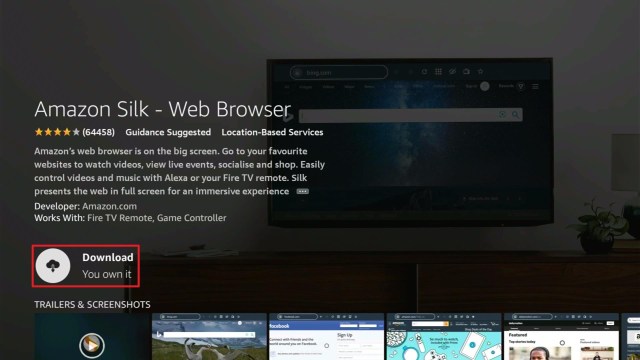
When using the Fire TV stick, you may only visit the 1337x website by installing a web browser. We recommend you download and install the Amazon Silk browser on your Fire TV stick.


ANONYMOUSLY


How to Install the Amazon Silk Browser on your Fire TV stick

Let us now teach you how to install the Amazon Silk Browser on your Fire TV stick. Afterward, we will teach you how to use it in accessing the 1337x torrenting website.

1. Open your Fire TV stick’s home screen.

Silk Browser Install 1

2. Navigate to the Find tab.

Silk Browser Install 2


3. Click on the Search button from the drop-down.

Silk Browser Install 3


4. Type in: Silk Browser Fire tv stick.

Silk Browser Install 4


5. Select the official Amazon Silk Browser app icon.

Silk Browser Install 5


6. Press on the ‘Get/ Download (You Own It)’ button that appears.

Silk Browser Install 6


7. The Amazon Silk Browser app will download its installation files.

Silk Browser Install 7


8. Its installation will begin shortly after download.

Silk Browser Install 8


9. You can then use the Amazon Silk Browser app for visiting websites with the Fire TV stick.

Silk Browser Install 9


How to Open the 1337x Torrenting Website on your Fire TV stick

Follow the steps below to visit the 1337x website on your Fire TV stick:

1. Go to your Fire TV stick’s home screen.

1337x - FS 1


2. Scroll right towards the Amazon Silk browser’s icon.

1337x - FS 2


3. Type in: 1337x.to

1337x - FS 3


4. The 1337x front webpage will open.

1337x - FS 4


5. Click on the ‘Full Home Page‘ button to access its main website.

1337x - FS 5


6. 1337x’s main webpage will open and display all the latest and available torrents.

1337x - FS 6


YOUR INTERNET ACTIVITY IS BEING WATCHED

ReviewVPN cannot attest to the legality, security and privacy of the applications discussed on this site. It is highly recommended that you use a VPN service while streaming or using Kodi.

Currently, your IP 216.73.216.144 is visible to everyone and your Browser is being tracked by Advertisers & ISP Provider.

Save 65% Now

Limited Time Offer

Here are the main reasons why you must use a VPN:

  • Your activities are hidden from your ISP, the government, and from the apps you are using.
  • You can access additional movies and TV streams.
  • ISP attempts to throttle are thrwarted thus reducing buffering issues.
  • Geographically restricted content like Netflix and Hulu can be unblocked.

A VPN works be replacing your ISP-assigned IP address and creating an encrypted tunnel. We recommend the no log service offered by IPVanish. It works well on a Firestick and offers the fastest possible speeds.

Special Limited Time Offer - Get IPVanish


Install Surfshark on Firestick

Best Surfshark Deal


How to Visit the 1337x website on your Windows PC:

Torrent users may also visit the 1337x website by using their Windows PC.

1. Open any Windows Browser you have, for this example we will be using Google Chrome.

1337x WIN 1


2. Tap on the URL Address bar on the top of your web browser.

1337x WIN 2


3. Type in: www.1337x.to

1337x WIN 3


4. It will now open the 1337x front webpage.

1337x WIN 4


5. Press on the ‘Full Home Page’ button to access its main website.

1337x WIN 5


6. 1337x’s main webpage will open and display all the latest and available torrents.

1337x WIN 6


7. You can check out the latest and available movie titles from their different categories. (e.g. Popular Movies)

1337x WIN 7


1337x Website Features

  • 100% Free
  • Hosts thousands of various torrent files from different uploaders.
  • Download different media files
  • Movies are in HD Quality
  • Get quality songs and music tracks
  • Contains hundreds of TV shows and TV series
  • Provides a dedicated Anime selection
  • Includes a section for adult media content
  • Presents a brief description of each movie
  • Shows the details about each torrent file you want to download


1337x Website Interface

  • Simple interface
  • Direct or magnet download
  • Search engine style front webpage
  • Different tabs for selecting categories
  • Provides a link to KickAss torrents
  • Includes a Pirate Bay proxy link
  • Shows the Top 100 Torrents
  • Presents the latest or trending torrent files
  • Gives you access to its Full Home Page


1337x Torrent Categories

  • Movies
  • Television
  • Games
  • Music
  • Applications
  • Anime
  • Documentaries
  • Other
  • Adult Content (XXX)
  • Solar Movie
  • French Stream
  • FMovies
  • 123 Movies
  • CPASBIEN


1337x Full Home Page Categories

  • Weekly Popular Torrents (Most Popular Torrents This Week)
  • Popular Movie Torrents
  • Famous Foreign Movie Torrents (Popular Foreign Movie Torrents)
  • Popular TV Torrents
  • Famous Music Torrents (Popular Music Torrents)
  • Popular Application Torrents
  • Famous Game Torrents
  • Other Torrents


Pros and Cons

Pros

  • 100% Free
  • Hosts thousands of torrent files
  • Acts as an online repository of available torrents
  • Download torrents in different file formats
  • Get movies in HD quality
  • Availability of Music, Apps, Games, and other torrents
  • Provides links to 123Movies, Solar Movies, Pirate Proxy, and KickAss torrents

Cons

  • May require users to get a torrent client app for magnet downloads (useful for downloading magnet torrents)
  • Direct downloads may stop if the internet connection is not consistent


Download Torrents for Free with a VPN

surfshark logo

Torrent files are files available on famous torrenting websites. Many users may opt to download or share the files they have through these websites. As a result, many people can get any type of torrent file. You can download movies, music, apps, games, and other types of torrents.

Your ISP may reduce your internet speed while getting torrents from the web. Surfshark can help you maintain a consistent download rate. Installing Surfshark can provide many benefits:

  • Excellent downloading speeds.
  • Best VPN for file-sharing activities.
  • Protects your device while browsing torrent websites.
  • Allows people to access content with geo-restrictions.


Grab your subscription now!

Click here to get the lowest price on Surfshark through our exclusive limited-time offer.


How to Install Surfshark VPN on Firestick

If your Firestick still has the older interface, read this article to learn how to update it: Update Firestick Interface.

Follow our screenshots below to install the SurfShark VPN app on your Fire TV stick.

1. Go to the Home screen of your Firestick.

step 1 Install Surfshark VPN on Firestick


2. Navigate towards the Find tab. Press the Search button from the resulting dropdown.

step 2 Install Surfshark VPN on Firestick


3. Type in the keyword of SurfShark and select from the suggestions that will appear.

step 3 Install Surfshark VPN on Firestick


4. Click the official SurfShark icon from your search results.

step 4 Install Surfshark VPN on Firestick


5. Press the Download (You own it) button.

step 5 Install Surfshark VPN on Firestick


6. The SurfShark VPN installer will download on your device.

step 6 Install Surfshark VPN on Firestick


7. SurfShark VPN’s app will automatically install itself on your Fire TV stick.

step 7 Install Surfshark VPN on Firestick


8. Press the Open button after completing SurfShark VPN’s installation process.

step 8 Install Surfshark VPN on Firestick


9. Please wait for the SurfShark VPN to load its user interface.

step 9 Install Surfshark VPN on Firestick


10. You can now log in with your SurfShark VPN account credentials.

step 10 Install Surfshark VPN on Firestick

Learn more about Surfshark and Grab the Best Surfshark Deal Now!


Install Surfshark on Firestick

Best Surfshark Deal


Other VPNs to Consider

NordVPN (Best for Streaming)

Best Features

  • 5000+ Server in 50+ Countries 
  • Military-Grade Encryption
  • Fast Connection Speed
  • Suitable to a lot of devices
  • No-Log Policy

Prices
  • Complete $5.89 per month (64% Discount)
  • Plus $4.59 per month (56% Discount)
  • Standard $3.69 per month (55% Discount)

Best Features

  • 750+ High-speed VPN Servers in 43 Locations
  • Military-Grade Encryption
  • Fastest HD Streaming and Gaming
  • 30-Day Money-Back Guarantee
  • Unlimited Data & Devices
  • No-Log Policy

Prices
  • 3 Years $1.99 per month (82% Discount)
  • 1 Years $3.29 per month (70% Discount)
  • 1 Month $10.99 per month

IPVanish VPN (Most Secure)

Best Features

  • 1200+ Servers in 60+ Countries around the world
  • Unlimited Connections
  • No-Log Policy
  • Top Notch Military-Grade VPN Protocols and Encryptions
  • 100% Safe and Secured
  • Most Trusted VPN
  • Best VPN for Firestick
  • 30-Day Money-Back Guarantee

Prices
  • Yearly $3.99 per month (63% Discount) – 30 days risk free + Ransomware & Malware Protection
  • Quarterly $5.32 per month (51% Discount)
  • Monthly $10.99 per month


For more VPN discounts, go to ReviewVPN Deals and purchase the best VPN for you.

Click here to get the lowest price on Surfshark through our exclusive limited-time offer.


Alternative Websites for the 1337x Torrenting Website

1337x serves as another famous torrenting website that shares thousands of downloadable files. However, the site may not always contain the files that we need to download. If this is the case, there are still some torrenting websites that might contain the files you are looking for. Here are some websites that function similarly to the 1337x website:

  • The Pirate Bay
  • RARBG
  • KickAss Torrents
  • LimeTorrents
  • 1337x


FAQs

How to download from 1337x?

To download torrents from the website, we recommend downloading and installing a torrent client’s app. As an example, torrent client apps are uTorrent, BitTorrent, Vuze, etc. After installing them on your device, visit the 1337x website. Select any torrent file you want to download and click on the magnet icon.


Is the 1337x website free?

Yes, site visitors don’t have to pay for anything while downloading files from the website.


Conclusion

Several torrent websites are being targeted and blocked in many countries. As an alternative, the 1337x website provides another online repository for torrent files. It also provides links to other torrenting websites such as The Pirate Bay and KickAss Torrents.

We hope this article teaches you how to visit the 1337x website on various devices.

Limetorrents Review

Overview

With the shutdown of many popular torrent sites years back, tons of other torrent sites took their place. One such torrent site is Limetorrents. However, it is not new in the torrent industry, and it has been in existence since 2009 but has stayed mostly dormant. But, not only the movie files of LimeTorrents are of good quality, it does have superior-quality verified torrent files.


LimeTorrents distributes files over the internet. It operates on the BitTorrent protocol facilitating P2P (peer-to-peer) file-sharing. LimeTorrents provides all sorts of entertainment, such as music, games, and TV shows. It indexes torrents of all the well-known TV series. Nonetheless, due to its popularity, LimeTorrents is blocked in various countries.

You can use the search engine LimeTorrents to obtain the torrent files you want or you may browse the categories for inspiration. LimeTorrents users can choose the file and can download it. The site knows how to get rid of LimeTorrents pop-ups as it displays no popups, advertisements, or a shady maze of links to acquire the file you wish to download.


ANONYMOUSLY


How to Launch Limetorrents on Amazon FireStick with Silk Browser

1. Click Home on your remote & Select Find.

2. Click Search.


3. Type in Silk Browser and select this item that appears on the results.


4. Click on the Silk Browser Icon.


5. Choose Download.


6. Select Open to launch the browser.


7. Click on the URL section of the app.


8. Type limetorrents.info, then, click Go

LimeTorrents


9. There you go, you have the Limetorrents on Firestick

LimeTorrents site


YOUR INTERNET ACTIVITY IS BEING WATCHED

ReviewVPN cannot attest to the legality, security and privacy of the applications discussed on this site. It is highly recommended that you use a VPN service while streaming or using Kodi.

Currently, your IP 216.73.216.144 is visible to everyone and your Browser is being tracked by Advertisers & ISP Provider.

Save 65% Now

Limited Time Offer

Here are the main reasons why you must use a VPN:

  • Your activities are hidden from your ISP, the government, and from the apps you are using.
  • You can access additional movies and TV streams.
  • ISP attempts to throttle are thrwarted thus reducing buffering issues.
  • Geographically restricted content like Netflix and Hulu can be unblocked.

A VPN works be replacing your ISP-assigned IP address and creating an encrypted tunnel. We recommend the no log service offered by IPVanish. It works well on a Firestick and offers the fastest possible speeds.

Special Limited Time Offer - Get IPVanish


LimeTorrents is the Perfect Place for Torrent Freaks

Unlike some other torrent platforms, the LimeTorrents content is categorized (with separated adult content) to make finding particular stuff easier. The easy-to-use interface of LimeTorrents makes it easy for you to find media before you download it. The LimeTorrents site is the place to be for torrent freaks.

The LimeTorrents was released in 2009 and it became popular for its programs that allowed users to download content from famous movies, TV shows, music, games, entertainment, and many more.  Heavily downloaded programs such as The Walking Dead, Game of Thrones, & more have made the site a popular choice. However, the torrent site has been banned in various nations for violating piracy & copyright laws.


Interface

One of the best things that you’d really love about LimeTorrents is how the site design is uncharacteristically stylish for a torrent website. LimeTorrents has a clean & fresh look along with its lime gray & green theme. From the moment you land on the site’s homepage, you’ll immediately be impressed. A sparse splash page (professionally done) will greet you that contains icons to browse by file type, a slender site menu bar, a search bar, as well as a very modern logo.  The interface is all intuitive & concise.


Content

LimeTorrents provides a wide selection of file types, such as TV shows, movies, apps, games, music, and lots more. Each torrent file has a comments section. However, LimeTorrents draws over 14.6 million users every month.


Why use a Virtual Private Network or VPN when torrenting?

Due to the bans imposed by ISPs across the globe, tons of LimeTorrents proxy websites are available that allow you to access them with no restriction. Nonetheless, proxy sites come with several security issues, which include malware.

However, not only do those proxy websites have advertisements but also annoying pop-ups as well as links that redirect to other web pages.

Thus, while you try downloading an Agents of Shield episode, malware that appears to be a shield starts to download in the background. Additionally, a huge number of popups can eat up enormous system resources.

Nonetheless, with a VPN service, you can evade all the issues associated with the proxy sites of LimeTorrents. Some of the recommended VPN service providers include Surfshark VPN service. The Surfshark VPN service can bypass the LimeTorrents block.


Use Surfshark VPN Service for LimeTorrents

https://get.surfshark.net/aff_c?offer_id=865&aff_id=12312

Surfshark VPN service has servers all across the globe. The purpose these servers serve is to unblock LImeTorrents in the United States. All you need to do is to connect to a Surfshark server in another country. After connecting to a server, in Europe for instance, the device acquires a European IP address. 

When you launch limetorrents.info, you will not see a single website blocked error or the likes. Surfshark VPN service’s server encrypts the connection and provides a different IP address.

Therefore, there’s no way the ISP knows that you’re using the LimeTorrents site. All information that the ISP obtains is some information transferred between your device and the Surfshark server.

Surfshark is a reputed VPN service provider. It has secure encryption. The VPN service provider redirects internet traffic via encrypted servers. Thus, it protects your privacy rights on the internet. In addition, the Surfshark VPN service doesn’t affect your network speed.

Surfshark Features:

  • Strict NO log policy
  • Unblocks Disney+, Hulu, Netflix, and many more
  • Great customer service
  • 30-day money-back guarantee
  • Great download speed
  • Robust encryption
  • Compatible with Android, Windows, Linux,  iOS, and other routers


How to Install Surfshark VPN on Firestick

If your Firestick still has the older interface, read this article to learn how to update it: Update Firestick Interface.

You can download Surfshark directly from the Amazon App store. It will be easy for you to find Surfshark with your Firestick’s Find feature. Refer to our screenshots below.

1. Go to the Home screen of your Firestick.

step 1 Install Surfshark VPN on Firestick


2. Navigate towards the Find tab. Press the Search button from the resulting dropdown.

step 2 Install Surfshark VPN on Firestick


3. Type in the keyword of SurfShark and select from the suggestions that will appear.

step 3 Install Surfshark VPN on Firestick


4. Click the official SurfShark icon from your search results.

step 4 Install Surfshark VPN on Firestick


5. Press the Download (You own it) button.

step 5 Install Surfshark VPN on Firestick


6. The SurfShark VPN installer will download on your device.

step 6 Install Surfshark VPN on Firestick


7. SurfShark VPN’s app will automatically install itself on your Fire TV stick.

step 7 Install Surfshark VPN on Firestick


8. Press the Open button after completing SurfShark VPN’s installation process.

step 8 Install Surfshark VPN on Firestick


9. Please wait for the SurfShark VPN to load its user interface.

step 9 Install Surfshark VPN on Firestick


10. You can now log in with your SurfShark VPN account credentials.

step 10 Install Surfshark VPN on Firestick

Learn more about Surfshark and Grab the Best Surfshark Deal Now!


Install Surfshark on Firestick

Best Surfshark Deal


Other VPNs to Consider

NordVPN (Best for Streaming)

Best Features

  • 5000+ Server in 50+ Countries 
  • Military-Grade Encryption
  • Fast Connection Speed
  • Suitable to a lot of devices
  • No-Log Policy

Prices
  • Complete $5.89 per month (64% Discount)
  • Plus $4.59 per month (56% Discount)
  • Standard $3.69 per month (55% Discount)

Best Features

  • 750+ High-speed VPN Servers in 43 Locations
  • Military-Grade Encryption
  • Fastest HD Streaming and Gaming
  • 30-Day Money-Back Guarantee
  • Unlimited Data & Devices
  • No-Log Policy

Prices
  • 3 Years $1.99 per month (82% Discount)
  • 1 Years $3.29 per month (70% Discount)
  • 1 Month $10.99 per month

IPVanish VPN (Most Secure)

Best Features

  • 1200+ Servers in 60+ Countries around the world
  • Unlimited Connections
  • No-Log Policy
  • Top Notch Military-Grade VPN Protocols and Encryptions
  • 100% Safe and Secured
  • Most Trusted VPN
  • Best VPN for Firestick
  • 30-Day Money-Back Guarantee

Prices
  • Yearly $3.99 per month (63% Discount) – 30 days risk free + Ransomware & Malware Protection
  • Quarterly $5.32 per month (51% Discount)
  • Monthly $10.99 per month


For more VPN discounts, go to ReviewVPN Deals and purchase the best VPN for you.

Click here to get the lowest price on Surfshark through our exclusive limited-time offer.


LimeTorrents Alternatives

The best LimeTorrents alternatives are:

  • The Pirate Bay
  • RARBG
  • 1337x
  • Torrentz2
  • TorLock
  • Zooqle
  • iDope
  • ExtraTorrent
  • SeedPeer
  • BitPort


FAQs

Is torrenting safe?

Yes, it is completely safe to torrent. Torrenting is an easy method to share files. Nonetheless, torrenting gains criticism for being illegal in various countries across the globe. But, it is legal in many countries. To ensure that you’re torrenting legally, ensure that you enable the VPN service before launching a torrent site.


Is the Limetorrents torrent site Free?

Yes, the Limetorrents is free to use


Is the Limetorrents torrent site legal?

Yes, the Limetorrents torrent site is 100% legal. Nonetheless, you are only allowed to download and browse legal content in the public domain.


Is the Limetorrents torrent site safe?

Yes, the Limetorrents torrent site is very safe to use and has no viruses or malware. 


Conclusion

In this article, we have provided information on the Limetorrents torrent site. The information above should really help you boost your torrenting experience. 

Nonetheless, always remember to use A VPN every time you use the internet. If you have any thoughts about the Limetorrents torrent site, don’t hesitate to let us know in the comments section.

The Pirate Bay Proxy Sites

Overview

In this article, we will tell you about the best Pirate Bay proxy sites.


TPB Icon 1


Torrenting is almost a daily ritual since many nations advise us to stay at home. Surfing the internet with the comfort of our houses became the substitute of face to face interaction. Today, the internet provides us with nonstop connection as most of the globe transitions into a home-based workforce.


To get various files from the web, we rely on famous torrenting sites. Going into popular torrenting sites is more common since many people are familiar with them. We can then expect to find the latest files and media content we are searching for. This is possible since many individuals upload their files on these sites.

However, the Pirate Bay being a famous web source is not available in some countries. It is known that the website was a center for illegal online actions. Some people upload files with copyright protection.

Being the target of anti-piracy laws, the Pirate bay’s main site became hard to access. For people to visit its webpage, its creators employ many forms of proxy servers. Let us first discuss what the Pirate Bay is, its proxy sites, and how we can visit each of its proxies.


ANONYMOUSLY


What is the Pirate Bay?

The Pirate bay is one of the popular websites where people get torrents. It acts as an online repository of various types of files. Upon visiting the website, people can either download or upload files that they have on their devices. These files range from apps, games, videos, music, eBooks, and many more.

The wide availability of files and its open nature gave way to piracy. Many people put their files on the website. Some uploaders know that these files are protected by copyright laws. Consequently, many governments began noticing the many pirated files appearing on the website.

Aside from that, the original creators of these files that own the rights for them began complaining about the Pirate Bay. As a result, many countries agreed to pass laws that prohibit the use of the website inside their areas. They install geo-restrictions to the files available on The Pirate Bay.


How can I download files from the Pirate Bay?

As we all know, the Pirate bay is an excellent online source for the latest and existing torrents. Many people upload their files on the website. You can get these files in different formats. However, we want to warn you that visiting the website may result in getting you caught in illegal activities. Some of these illegal activities are piracy and the distribution of copyright content.

However, no matter how negative the site has become in the eyes of government organizations, the website still hosts many files online. The website lets us download apps, games, movies, music, songs, and even readable materials. This is the advantage of torrent sites, they act as an online library for free file sharing.

To download from the Pirate Bay, you will have to download torrent client software. We will now give you a shortlist of torrent clients:

  • uTorrent
  • qBittorrent
  • Vuze
  • Deluge
  • BitTorrent


Why should we use the Pirate Bay’s Proxy Sites?

The purpose of a proxy server is to give users access to content with geo-blocks. As a result, our queries pass through their ISPs and are then redirected to their main server. Conceptually, a proxy server acts as a periscope. A user can see their search results as the proxy server gets them from the primary source.

As another example, a proxy server works as an intermediary between a person and the internet. The server deploys firewalls between us and the websites we browse. It allows for a safer, private, and secure method of browsing the internet for free.

The Pirate Bay is a famous online source for pirated content. It is why many governments implement laws to prevent people from using them. Many countries are fighting to shut down their online operations involving piracy. Similar to many sites on the internet, there is a route around these restrictions. It is how the Pirate Bay is still existing after all the years of punishment.


Why are there Pirate Bay Proxy sites?

To avoid government restrictions, Pirate Bay has many online portals. Any person wanting to get torrents can visit these web pages. These proxy websites provide a way to bypass many attempts to shut the site down.


Punishments for Illegal File Sharing

Many countries now join the fight against illegal online activities and website piracy. Individuals who are caught doing these activities may be subject to punishments. Luckily for us, most of these punishments are not deadly. Some nations only ask for fines and payments.


Countries that Block the Pirate Bay

By 2021, many countries are restricting access to The Pirate Bay website. It is not accessible in almost twenty countries. In case you are visiting these countries, you cannot visit the website. These are the countries that restrict the use of the Pirate Bay:

  • Australia
  • Belgium
  • China
  • France
  • Germany
  • Greece
  • Romania
  • Russia
  • Spain
  • United Kingdom
  • Netherlands
  • United States


How do the Pirate Bay Proxies Work?

Any proxy works as a gateway between a user and the internet. It acts as some form of virtual shield. When using a proxy, the other end of your connection does not know your identity. They won’t be able to track or isolate your location since proxies conceal your IP address.

The application of proxies allows for a private, safe, and secure way of browsing the web. They also allow us to access online content with geo-restrictions. We can open these files through our browsers while being anonymous from other people on the internet.

Since the Pirate Bay is a famous platform, many people use it to explore torrent files. It is also gaining the attention of many file-sharing enthusiasts. As a result, many individuals go to great lengths to protect the accessibility of the Pirate Bay. They continuously set up proxy sites and mirror sites. These proxies allow many people to still be able to download files from the Pirate bay website.


What are the Best Pirate Bay Proxies to Use?

Proxies can be similar to extension sites of any website. In this case, we will discuss the proxies of the Pirate Bay website. File sharing enthusiasts continuously create proxy sites for the Pirate Bay. This prevents the website from getting shut down.

Luckily for many of us, we can get torrent files via these proxy websites. We will now teach you how to use these websites on your Fire TV stick. To be able to visit these proxies while using the Fire TV stick, you have to download and install the Amazon Silk Browser which is the best web browser for the device.


How to Install the Amazon Silk Browser on your Fire TV stick

1. Open your Fire TV stick’s home screen.

Silk Browser Install 1

2. Navigate to the Find tab.

Silk Browser Install 2


3. Click on the Search button from the drop-down.

Silk Browser Install 3


4. Type in: Silk Browser Fire tv stick.

Silk Browser Install 4


5. Select the official Amazon Silk Browser app icon.

Silk Browser Install 5


6. Press on the ‘Get/ Download (You Own It)’ button that appears.

Silk Browser Install 6


7. The Amazon Silk Browser app will download its installation files.

Silk Browser Install 7


8. Its installation will begin shortly after download.

Silk Browser Install 8


9. You can then use the Amazon Silk Browser app for visiting websites with the Fire TV stick.

Silk Browser Install 9


Grab your subscription now!

Click here to get the lowest price on Surfshark through our exclusive limited-time offer.


How to Visit the Pirate Bay Proxy Sites with the Amazon Silk Browser App

After installing the Amazon Silk Browser app, you may now visit the proxy sites of the Pirate Bay website.

www.pirateproxy.space

1. Go to your Fire TV stick’s home screen.

Pirateproxy FS 1


2. Navigate towards your Silk Browser and open it.

Pirateproxy FS 2


3. Click on the URL bar for typing in website addresses.

Pirateproxy FS 3


4. Type in: pirateproxy.space

Pirateproxy FS 4


5. You can now access the Pirate Bay’s torrent search engine.

Pirateproxy FS 5


www.tpbproxypirate.com

1. Go to your Fire TV stick’s home screen.

TPBPirateProxy FS 1


2. Navigate towards your Silk Browser and open it.

TPBPirateProxy FS 2


3. Click on the URL bar for typing in website addresses.

TPBPirateProxy FS 3


4. Type in: tpbproxypirate.com

TPBPirateProxy FS 4


5. You can now access the Pirate Bay’s torrent search engine.

TPBPirateProxy FS 5


Grab your subscription now!

Click here to get the lowest price on Surfshark through our exclusive limited-time offer.


www.tpbaysproxy.com

1. Go to your Fire TV stick’s home screen.

TPBay FS 1\


2. Navigate towards your Silk Browser and open it.

TPBay FS 2


3. Click on the URL bar for typing in website addresses.

TPBay FS 3


4. Type in: tpbaysproxy.com

TPBay FS 4


5. You can now access the Pirate Bay’s torrent search engine.

TPBay FS 5


www.pirateproxy-bay.com

1. Go to your Fire TV stick’s home screen.

PirateProxyBay FS 1


2. Navigate towards your Silk Browser and open it.

PirateProxyBay FS 2


3. Click on the URL bar for typing in website addresses.

PirateProxyBay FS 3


4. Type in: pirateproxy-bay.com

PirateProxyBay FS 4


5. You can now access the Pirate Bay’s torrent search engine.

PirateProxyBay FS 5


Grab your subscription now!

Click here to get the lowest price on Surfshark through our exclusive limited-time offer.


www.thepiratebay.zone

1. Go to your Fire TV stick’s home screen.

TPB Zone FS 1


2. Navigate towards your Silk Browser and open it.

TPB Zone FS 2


3. Click on the URL bar for typing in website addresses.

TPB Zone FS 3


4. Type in: thepiratebay.zone

TPB Zone FS 4


5. You can now access the Pirate Bay’s torrent search engine.

TPB Zone FS 5


YOUR INTERNET ACTIVITY IS BEING WATCHED

ReviewVPN cannot attest to the legality, security and privacy of the applications discussed on this site. It is highly recommended that you use a VPN service while streaming or using Kodi.

Currently, your IP 216.73.216.144 is visible to everyone and your Browser is being tracked by Advertisers & ISP Provider.

Save 65% Now

Limited Time Offer

Here are the main reasons why you must use a VPN:

  • Your activities are hidden from your ISP, the government, and from the apps you are using.
  • You can access additional movies and TV streams.
  • ISP attempts to throttle are thrwarted thus reducing buffering issues.
  • Geographically restricted content like Netflix and Hulu can be unblocked.

A VPN works be replacing your ISP-assigned IP address and creating an encrypted tunnel. We recommend the no log service offered by IPVanish. It works well on a Firestick and offers the fastest possible speeds.

Special Limited Time Offer - Get IPVanish


How to Visit the Pirate Bay Proxy sites by using Windows Browsers

We will now teach you how to open the Pirate Bay Proxy websites with a Windows web browser.


www.pirateproxy.space

1. Open any web browser you have on your PC. For this example, we will be using Chrome.

Pirateproxy WIN 1


2. Click on the URL bar on the top of the browser.

Pirateproxy WIN 2


3. Type in: www.pirateproxy.space

Pirateproxy WIN 3


4. Select the appropriate result matching its web address.

Pirateproxy WIN 4


5. You can now look for torrents with the Pirate bay’s search engine.

Pirateproxy WIN 5


Grab your subscription now!

Click here to get the lowest price on Surfshark through our exclusive limited-time offer.


www.tpbproxypirate.com

1. Open any web browser you have on your PC. For this example, we will be using Chrome.

TPBPirateProxy WIN 1


2. Click on the URL bar on the top of the browser.

TPBPirateProxy WIN 2


3. Type in: www.tpbproxypirate.com

TPBPirateProxy WIN 3


4. You can now look for torrents with the Pirate bay’s search engine.

TPBPirateProxy WIN 4


www.tpbaysproxy.com

1. Open any web browser you have on your PC. For this example, we will be using Chrome.

TP-Bay WIN 1


2. Click on the URL bar on the top of the browser.

TP-Bay WIN 2


3. Type in: www.tpbaysproxy.com

TP-Bay WIN 3


4. You can now look for torrents with the Pirate bay’s search engine.

TP-Bay WIN 4


www.pirateproxy-bay.com

1. Open any web browser you have on your PC. For this example, we will be using Chrome.

PirateProxyBay WIN 1


2. Click on the URL bar on the top of the browser.

PirateProxyBay WIN 2


3. Type in: www.pirateproxy-bay.com

PirateProxyBay WIN 3


4. You can now look for torrents with the Pirate bay’s search engine.

PirateProxyBay WIN 4


www.thepiratebay.zone

1. Open any web browser you have on your PC. For this example, we will be using Chrome.

TPB Zone WIN 1


2. Click on the URL bar on the top of the browser.

TPB Zone WIN 2


3. Type in: www.thepiratebay.zone

TPB Zone WIN 3


4. You can now look for torrents with the Pirate bay’s search engine.

TPB Zone WIN 4


Visit Pirate Bay Proxies with a VPN

The Pirate Bay is now unavailable in almost twenty countries worldwide. People can still get torrent files from its main website by visiting its proxies.

Torrenting can cause a reduction with our internet speeds. Downloading torrents can become a difficult process. Sometimes torrent files may contain harmful programs.

Installing Surfshark on our Fire TV sticks is an effective solution. It is the best VPN for torrenting. Here are the reasons why:

  • Allows the faster downloading of torrent files.
  • Efficient file sharing speeds.
  • Prevents any type of malware from infecting our devices.
  • Helps us find any downloadable content from the internet.


Install Surfshark on Firestick

Best Surfshark Deal


How to Install Surfshark VPN on Firestick

If your Firestick still has the older interface, read this article to learn how to update it: Update Firestick Interface.

Follow our screenshots below to install the SurfShark VPN app on your Fire TV stick.

1. Go to the Home screen of your Firestick.

step 1 Install Surfshark VPN on Firestick


2. Navigate towards the Find tab. Press the Search button from the resulting dropdown.

step 2 Install Surfshark VPN on Firestick


3. Type in the keyword of SurfShark and select from the suggestions that will appear.

step 3 Install Surfshark VPN on Firestick


4. Click the official SurfShark icon from your search results.

step 4 Install Surfshark VPN on Firestick


5. Press the Download (You own it) button.

step 5 Install Surfshark VPN on Firestick


6. The SurfShark VPN installer will download on your device.

step 6 Install Surfshark VPN on Firestick


7. SurfShark VPN’s app will automatically install itself on your Fire TV stick.

step 7 Install Surfshark VPN on Firestick


8. Press the Open button after completing SurfShark VPN’s installation process.

step 8 Install Surfshark VPN on Firestick


9. Please wait for the SurfShark VPN to load its user interface.

step 9 Install Surfshark VPN on Firestick


10. You can now log in with your SurfShark VPN account credentials.

step 10 Install Surfshark VPN on Firestick

Learn more about Surfshark and Grab the Best Surfshark Deal Now!


Install Surfshark on Firestick

Best Surfshark Deal


Other VPNs to Consider

NordVPN (Best for Streaming)

Best Features

  • 5000+ Server in 50+ Countries 
  • Military-Grade Encryption
  • Fast Connection Speed
  • Suitable to a lot of devices
  • No-Log Policy

Prices
  • Complete $5.89 per month (64% Discount)
  • Plus $4.59 per month (56% Discount)
  • Standard $3.69 per month (55% Discount)

Best Features

  • 750+ High-speed VPN Servers in 43 Locations
  • Military-Grade Encryption
  • Fastest HD Streaming and Gaming
  • 30-Day Money-Back Guarantee
  • Unlimited Data & Devices
  • No-Log Policy

Prices
  • 3 Years $1.99 per month (82% Discount)
  • 1 Years $3.29 per month (70% Discount)
  • 1 Month $10.99 per month

IPVanish VPN (Most Secure)

Best Features

  • 1200+ Servers in 60+ Countries around the world
  • Unlimited Connections
  • No-Log Policy
  • Top Notch Military-Grade VPN Protocols and Encryptions
  • 100% Safe and Secured
  • Most Trusted VPN
  • Best VPN for Firestick
  • 30-Day Money-Back Guarantee

Prices
  • Yearly $3.99 per month (63% Discount) – 30 days risk free + Ransomware & Malware Protection
  • Quarterly $5.32 per month (51% Discount)
  • Monthly $10.99 per month


For more VPN discounts, go to ReviewVPN Deals and purchase the best VPN for you.


FAQs

Is it safe for me to visit any of the Pirate Bay proxy sites?

Yes, it can be safe if you have some apps that protect you from the latest cyber dangers. Apart from that, installing a VPN like Surfshark can add another layer of protection while preventing cyber threats.


Why use a Pirate Bay proxy?

Proxies allow us to get torrents from the main website of the Pirate Bay. They also allow anonymous browsing of the website. Proxies also circumnavigate the effects of geo-restrictions.


Alternative the Pirate Bay Proxies

The Pirate Bay is unavailable in many countries. Its website is being targeted by anti-piracy laws. In case you cannot access the website or any of its proxies, here are other sites to get torrents:

  • 1337x
  • RARBG
  • YTS
  • LimeTorrents


Conclusion

The Pirate bay website is a famous website for getting torrent files. After a few years of experiencing pressure from anti-piracy punishments, file-sharing enthusiasts continuously create proxies. These proxy sites help in hiding the main website of the Pirate Bay. They are also crucial in protecting the identity of both its administrators and daily visitors.

We hope this article teaches you how to visit the best Pirate bay proxies available online.

Best Airplay Apps for Firestick

Overview

Screen mirroring is the most common tool to use to share mobile or desktop screens with the smart TV. Individuals can easily mirror or cast their Android devices to the big screen. However, in the case of iOS devices (iPad/iPhone), you must use the AirPlay option.


Users can mirror their device screen utilizing non-Apple TV devices’ screen mirroring.  If you have a Firestick, you can cast the iPhone screen to the TV using the airplay applications for Firestick. Using the Firestick mirroring applications is the simple method to mirror an Apple device to the Firestick connected to the television screen.

You can install screen mirroring apps on Firestick from Amazon’s App Store. There are tons of popular AirPlay applications on the Amazon App Store, like the AirScreen, AirPlayMirror Receiver, AirBeamTV Mirroring Receiver, ApowerMirror, and lots more. This article will discuss these AirPlay apps in detail with features.


ANONYMOUSLY


Why Use AirPlay Apps on Firestick

Before moving towards the screen mirroring apps on Firestick, have you wondered why you need to use an AirPlay application on the Firestick? If not, thus you must continue reading this article. Nonetheless, before answering that query, let us comprehend what an AirPlay app is? The AirPlay is an interactive app from Apple that is utilized to share Photos, screens, & audio between devices. The AirPlay app is available in Macbook, iPhone, iMac as well as other iOS devices.

Now, as you know about the AirPlay service, let’s move towards the topic – the use of AirPlay Applications on Firestick? Thus, the Firestick is based on an Android OS that has Miracast support. On the other hand, Apple’s AirPlay is an entirely different technology and does not have Android’s screencasting support. That is why to share a screen between Android & iOS devices, a user needs to acquire an AirPlay app.

Apple launched the AirPlay service back in 2010 and then the American multinational tech company improved it and rolled out AirPlay 2 in 2018. But, before that, there was no method to screen mirror iOS devices. Thus, after that, the tech company offers the source to third-party developers. Now, many screencasting apps screen mirror iOS devices to Android devices or other operating systems.


Best AirPlay Apps for Firestick

Screen Mirroring is the most uncomplicated way to share music, videos, & photos from a device to the television. Apple devices have a distinctive service to screen mirror iOS devices to the Apple TV. However, you can still screen mirror iOS devices to other TV via AirPlay applications. These apps come up with seamless mirroring of all iOS devices to the TV. Below, we’ll discuss the best AirPlay apps for Firestick.


AirBeam TV

AirBeam is the leading screen mirroring app that is utilized across the globe to show iPhone, iPod, iPad, and other iOS devices on the big screen. With the help of the AirBeam app, users can view their gallery, watch recorded or saved videos. Also, you can use this app to watch movies or TV series from your most-favored app straight to the Amazon Firestick.

You can get the AirBeam TV app on the Amazon App Store for free. This screen mirroring app doesn’t need you to have a wired connection as it functions with wireless mirroring. Nonetheless, to use the AirBeam TV  app, just download it on an Apple device and link to the same Wi-Fi network you are utilizing on TV.

From there, you’ll be able to find the TV on the device. Then, just tap on it and choose Start Broadcasting and you’ll notice the screen come into view on the television. The app is very easy to set up and to use. You don’t need to launch Screencasting on Firestick as others used to do with other applications.


How to Install Airbeam TV Screen Mirroring Receiver on FireStick with Screenshots

1. Click Home on your remote & Select Find.

2. Click Search.


3. Type Airbeam  TV Screen Mirroring Receiver.

AirBeam


4. Select the Airbeam  TV Screen Mirroring Receiver icon.

AirBeam TV


5. Click Download.

Download AirBeam


6. After the download is complete, click open to launch the app.

Launch AirBeam


7. Now, you have installed the Airbeam  TV Screen Mirroring Receiver on your Firestick device.

AirBeam app


Install SurfShark on Firestick

Best SurfShark Deal


Features:

  • The screen mirroring app lets you mirror iPad, Mac, iPhone, or other iOS devices on the big screen. The app offers the easiest way for casting the screen & sound of your device on the TV. You may share the screen of your device with any smart television.
  • Use the app to stream your favorite movies or TV shows on the big screen. You can stream TV series on your TV from your iOS devices. Also, the app allows you to cast presentations as well as other applications
  • The screen mirroring app makes screen mirroring look extremely easy and fast. You don’t need cables and extra hardware to cast devices to your big TV screen.


ApowerMirror

ApowerMirror is one of the best free screen mirroring apps that you can use to cast iOS device screens to the Firestick. The ApowerMirror app supports compatibility with other devices, such as Android Mobile, Tablet, and even Windows PCs. One of the best things about the ApowerMirror app is that users can set the default screen up to 1080p resolution. Also, the app supports 60fps.

Unlike other screen mirroring apps, ApowerMirror does not require having a different application installed on your device. You just have to connect to the same Wi-Fi network and you’ll be able to cast the screen. Apart from this, even if you don’t have a web connection, you can still use the screen mirroring app to cast your device’s screen utilizing a USB cable.


Features

  • ApowerMirror performs well when you screen share documents, photos, & videos 
  • The app screen mirrors iOS devices to other Android mobile devices
  • Cast PDF & PowerPoint to the Smart TV & PC
  • Users can control PowerPoint from their smartphone during the presentation
  • Screen share & control PC or Mac from an iOS device
  • Allows screencast live streaming applications on the TV or computer
  • It lets you wirelessly connect an iOS mobile device to the TV
  • Easy Setup (Wireless connection)
  • HD Quality (No Delay)
  • AirPlay game streaming on TV & computer to share with friends
  • It has video streaming support from all DLNA-compatible applications
  • Video streaming
  • It has screenshot & screen recording features that lets you capture memorable moments 
  • Compatible with all iOS & Android devices


YOUR INTERNET ACTIVITY IS BEING WATCHED

ReviewVPN cannot attest to the legality, security and privacy of the applications discussed on this site. It is highly recommended that you use a VPN service while streaming or using Kodi.

Currently, your IP 216.73.216.144 is visible to everyone and your Browser is being tracked by Advertisers & ISP Provider.

Save 65% Now

Limited Time Offer

Here are the main reasons why you must use a VPN:

  • Your activities are hidden from your ISP, the government, and from the apps you are using.
  • You can access additional movies and TV streams.
  • ISP attempts to throttle are thrwarted thus reducing buffering issues.
  • Geographically restricted content like Netflix and Hulu can be unblocked.

A VPN works be replacing your ISP-assigned IP address and creating an encrypted tunnel. We recommend the no log service offered by IPVanish. It works well on a Firestick and offers the fastest possible speeds.

Special Limited Time Offer - Get IPVanish


How to Install ApowerMirror – Screen Mirroring App on FireStick with Screenshots

1. Click Home on your remote & Select Find.


2. Click Search.


3. Type ApowerMirror Screen Mirroring for TV.

ApowerMirror


4. Select the ApowerMirror – Screen Mirroring icon.

ApowerMirror icon


5. Then, click Download.

ApowerMirror download


6. After the download is complete, click open to launch the app.

Launch ApowerMirror


7. Now, you have installed the ApowerMirror – Screen Mirroring on your Firestick device.

ApowerMirror app


AirPlay Mirror Receiver

AirPlay Mirror Receiver is another great application to share iOS device screens with Amazon Firestick. This screen mirroring app has state-of-the-art features. It lets you view documents,  gallery photos, & share YouTube screens. Also, you can use it to play a slideshow.

The AirPlay Mirror Receiver app is compatible with Firestick devices, such as Firestick Lite, FireTV Cube, as well as Firestick 4K. Since the app provides tons of features, it’s not available for free. You must purchase it for $4.99. However, to check if the app is worth purchasing, you can download & install the app’s 15-minutes trial from the Amazon Store.


AirPlay Mirror Receiver App Installation on FireStick with Screenshots

1. Install the Downloader app and jailbreak your firestick by enabling unknown sources. To learn more about the procedure, you may read How to Install the Downloader App and Enable Unknown Sources.


2. Open Downloader App. Type https://reviewvpn.com/aipl and click Go.

AirPlay


3. Click on INSTALL.

AirPlay Install


4. Then, click on OPEN.

AirPlay Open


5. Now, you have successfully installed the AirPlay Mirror Receiver app on FireStick.


Install SurfShark on Firestick

Best SurfShark Deal


AirPlay Features:

  • Mirror or cast from up to 4 iOS devices at the same time
  • Screen mirroring of iOS devices 
  • Allows slideshow of images & videos
  • You can share a game screen while you play a game on an iOS device
  • Playback the media content of the Apple device
  • Restrict unauthorized users by using the passcode feature
  • YouTube free content playback from iOS device to the AirPlay Mirror receiver app
  • You can resize & move the mirroring window in the application view


AirScreen

AirScreen is another great AirPlay app for Firestick that supports Google Cast, Miracast, DLNA, & AirPlay. It works well on all macOS & iOS devices. The AirScreen app has a wide selection of apps, such as browsing Safari, playing songs from iTunes, and streaming YouTube videos. The data & file transfers are extremely encrypted. The AirScreen app comes along with video hardware acceleration for High Definition 4K resolution. The app’s background service model lets you stream videos or view photos while you’re transferring files. The app allows you to screen record all your streaming.

The AirScreen app is available on different platforms, such as Apple Store, Google Play Store, Tablets, and lots more. It’s an all-in-one app for individuals who are willing to cast their device screen to the television. You can use the AirScreen app on devices that don’t have AirPlay or mirroring support. Just download & install it and you’re ready for screen mirroring.

AirScreen can make your experience larger as it allows you to listen to iTunes, stream videos on YouTube, and do so much more. AirScreen supports tons of apps, which means there are more media resources.


How to Install AirScreen App on FireStick with Screenshots

1. Click Home on your remote & Select Find.


2. Click Search.


3. Type AirScreen.

Step 2 Install Airscreen on firestick


4. Select the AirScreen icon.

Step 3 Install Airscreen on firestick


5. Click Download.

Step 4 Install Airscreen on firestick


6. After the download is complete, click open to launch the app.

Step 5 Install Airscreen on firestick


7. Now, you have installed the AirScreen on your Firestick device, click Start Now.

Step 6 Install Airscreen on firestick


Always Use The Best VPN

Surfshark vpn

Using Virtual Private Network or VPN service can be very useful. Thanks to a VPN service, web users can access platforms, services, or websites that are unavailable in their country or bypass restrictions that numerous platforms sometimes impose. When you utilize the internet, an encrypted Virtual Private Network service provider is highly recommended to conceal your activities, location, as well as identity. Tons of internet users choose SurfShark for privacy, price, and speed.

Offering superfast servers and astounding live chat support, the SurfShark service is also an easy-to-use app. Ensure to turn the SurfShark on when you’re streaming on the internet.


SurfShark Features:

  • Unlimited simultaneous devices
  • Strict NO log policy
  • Unblocks Disney+, Hulu, Netflix, and many more
  • Great customer service
  • 30-day money-back guarantee
  • Great download speed
  • Robust encryption
  • Compatible with Android, Windows, Linux,  iOS, and other routers


Grab your subscription now!

Click here to get the lowest price on SurfShark through our exclusive limited-time offer.


How to Install Surfshark on Firestick with Screenshots

If your Firestick still has the older interface, read this article to learn how to update it: Update Firestick Interface.

You can download Surfshark directly from the Amazon App store. It will be easy for you to find Surfshark with your Firestick’s Find feature. Refer to our screenshots below.

Follow our screenshots below to install the SurfShark VPN app on your Fire TV stick.

1. Go to the Home screen of your Firestick.

step 1 Install Surfshark VPN on Firestick


2. Navigate towards the Find tab. Press the Search button from the resulting dropdown.

step 2 Install Surfshark VPN on Firestick


3. Type in the keyword of SurfShark and select from the suggestions that will appear.

step 3 Install Surfshark VPN on Firestick


4. Click the official SurfShark icon from your search results.

step 4 Install Surfshark VPN on Firestick


5. Press the Download (You own it) button.

step 5 Install Surfshark VPN on Firestick


6. The SurfShark VPN installer will download on your device.

step 6 Install Surfshark VPN on Firestick


7. SurfShark VPN’s app will automatically install itself on your Fire TV stick.

step 7 Install Surfshark VPN on Firestick


8. Press the Open button after completing SurfShark VPN’s installation process.

step 8 Install Surfshark VPN on Firestick


9. Please wait for the SurfShark VPN to load its user interface.

step 9 Install Surfshark VPN on Firestick


10. You can now log in with your SurfShark VPN account credentials.

step 10 Install Surfshark VPN on Firestick

Learn more about Surfshark and Grab the Best Surfshark Deal Now!


Install Surfshark on Firestick

Best Surfshark Deal

Other VPNs to Consider

NordVPN (Best for Streaming)

Best Features

  • 5000+ Server in 50+ Countries 
  • Military-Grade Encryption
  • Fast Connection Speed
  • Suitable to a lot of devices
  • No-Log Policy

Prices
  • Complete $5.89 per month (64% Discount)
  • Plus $4.59 per month (56% Discount)
  • Standard $3.69 per month (55% Discount)

Best Features

  • 750+ High-speed VPN Servers in 43 Locations
  • Military-Grade Encryption
  • Fastest HD Streaming and Gaming
  • 30-Day Money-Back Guarantee
  • Unlimited Data & Devices
  • No-Log Policy

Prices
  • 3 Years $1.99 per month (82% Discount)
  • 1 Years $3.29 per month (70% Discount)
  • 1 Month $10.99 per month

IPVanish VPN (Most Secure)

Best Features

  • 1200+ Servers in 60+ Countries around the world
  • Unlimited Connections
  • No-Log Policy
  • Top Notch Military-Grade VPN Protocols and Encryptions
  • 100% Safe and Secured
  • Most Trusted VPN
  • Best VPN for Firestick
  • 30-Day Money-Back Guarantee

Prices
  • Yearly $3.99 per month (63% Discount) – 30 days risk free + Ransomware & Malware Protection
  • Quarterly $5.32 per month (51% Discount)
  • Monthly $10.99 per month

For more VPN discounts, go to ReviewVPN Deals and purchase the best VPN for you.


Wrapping Up

The Airplay platform is utilized to mirror the iOS device screen to Amazon Firestick. Generally, iOS devices can’t mirror their screens to other devices aside from Apple TV. Nonetheless, the AirPlay applications are the only way to couple the iOS devices to Firestick.

There are tons of AirPlay apps available, and some of the free apps have certain limitations and some are available with a price tag. You must connect the Firestick and the iOS device to the same WiFi network to start with the mirroring function via AirPlay.

However, always remember to use A VPN every time you use the internet. If you have any thoughts about the Best Airplay Apps for Firestick, don’t hesitate to let us know in the comments section.

How to Install No Bad Dayz Kodi Build

Overview

The article will help you on how to install No Bad Dayz Kodi Build.

No Bad Dayz is a great build from the EzzerMacs repository that brings you a great lineup of content to watch. This build also has a simple and easy-to-use interface that works well on Kodi.


It also has lots of impressive features to enjoy, such as an excellent search function for you to easily find content to watch. You can also assure that this build will give you a high quality of streaming links, as it is integrated with real debrid. 

You can watch movies, Tv shows, sports, Kids, listen to music, and try their different popular addons. This build will give you all-in-one entertainment for free. The main categories of this build are Movies, TV shows, favorites, Sports, Toonz, Yoda, Apps, systems, and Power. Some of the popular addons in this build are Asgard, The Crew, The Magic Dragon. Numbers, and more.  


ANONYMOUSLY


How to Install No Bad Dayz Kodi Build with Screenshot

1. On your Firestick, open Kodi and go to Settings.

Install No Bad Dayz Kodi Build 1

2. Select on System.

Install No Bad Dayz Kodi Build 2


3. Click on the Add-ons menu and Turn ON the Unknown Sources.

Install No Bad Dayz Kodi Build 3


4. Select Yes when the box appears.

Install No Bad Dayz Kodi Build 4


5. Go back one step and click on File Manager.

Install No Bad Dayz Kodi Build 5


6. Select the Add Source.

Install No Bad Dayz Kodi Build 6


7. A box will pop up, so click on the ‘None’ option.

Install No Bad Dayz Kodi Build 7


8. Type in https://ezzer-mac.com/repo/  and click OK.

Install No Bad Dayz Kodi Build 8


9. Name the URL- ezzer or any other name you want to. Then select OK.

Install No Bad Dayz Kodi Build 9


10. Go back and Select Add-ons.

Install No Bad Dayz Kodi Build 10


11.  Click Install from zip file.

Install No Bad Dayz Kodi Build 11


12.  Choose ezzer or any other name you put.

Install No Bad Dayz Kodi Build 12


13. Click  repository.EzzerMaczWizard.zip

Install No Bad Dayz Kodi Build 13


14Wait for the EzzerMacs Wizard Repository installed text to appear.

Install No Bad Dayz Kodi Build 14


15. After that, click the Install from repository.

Install No Bad Dayz Kodi Build 15


16. Select the EzzerMacs Wizard Repository.

Install No Bad Dayz Kodi Build 16


17. Go to Programs add-ons.

Install No Bad Dayz Kodi Build 17


18. Choose the BreezzWizard.

Install No Bad Dayz Kodi Build 18


19. Click the Install button.

Install No Bad Dayz Kodi Build 19


20. Wait for BreezzWizard Add-On Installed text to appear.

Install No Bad Dayz Kodi Build 20


21.  When a box pop up, click Continue.

Install No Bad Dayz Kodi Build 21


 22. Click Ignore.

Install No Bad Dayz Kodi Build 22


23. Go back to the main menu and select Add-ons.

Install No Bad Dayz Kodi Build 23


24. On the program add-ons, click the BreezzWizard icon.

Install No Bad Dayz Kodi Build 24


25.  Select the Builds.

Install No Bad Dayz Kodi Build 25


26. Choose Breezz NO BAD DAYZ.

Install No Bad Dayz Kodi Build 26


27. Click the Fresh Install.

Install No Bad Dayz Kodi Build 27


28. When a box pop up, select the Continue.

Install No Bad Dayz Kodi Build 28


29. Wait for the build to finish its download.

Install No Bad Dayz Kodi Build 29


30. Tap Force Close.

Install No Bad Dayz Kodi Build 30


31. Exit your Kodi and reopen it again.

Install No Bad Dayz Kodi Build 31


32. That’s it! You have successfully installed the No Bad Dayz Kodi Build.

Install No Bad Dayz Kodi Build 32

Install Surfshark on Firestick

Best Surfshark Deal


Legal Disclaimer: ReviewVPN.com does not encourage or endorse any illegal activity involved in the usage of services and applications referenced on this site. We do not verify the licensing agreements of services. The end-user is wholly responsible for ensuring that any media accessed through these services does not violate copyright and/or licensing laws. ReviewVPN does not promote, link to, or receive compensation from any Apps and IPTV services.


YOUR INTERNET ACTIVITY IS BEING WATCHED

ReviewVPN cannot attest to the legality, security and privacy of the applications discussed on this site. It is highly recommended that you use a VPN service while streaming or using Kodi.

Currently, your IP 216.73.216.144 is visible to everyone and your Browser is being tracked by Advertisers & ISP Provider.

Save 65% Now

Limited Time Offer

Here are the main reasons why you must use a VPN:

  • Your activities are hidden from your ISP, the government, and from the apps you are using.
  • You can access additional movies and TV streams.
  • ISP attempts to throttle are thrwarted thus reducing buffering issues.
  • Geographically restricted content like Netflix and Hulu can be unblocked.

A VPN works be replacing your ISP-assigned IP address and creating an encrypted tunnel. We recommend the no log service offered by IPVanish. It works well on a Firestick and offers the fastest possible speeds.

Special Limited Time Offer - Get IPVanish


Features of No Bad Dayz Kodi Build

Interface

  • Interface Skin is AEON NOX:SiLVO by default  
  • Easy to navigate the interface without using mouse toggle
  • A simple and attractive interface.


Categories

  • Choose from different categories such as Movies, TV Shows, Animes, 
  • Random play: Play any random content from different genres to watch. 
  • Log in to your Trakt account and sync on your movies and Tv shows. 
  • You can choose movies from different categories such as Movie Portal, Eye Candy, In Theaters, People watching, My Top 1000, Most popular, Romantic Comedy, Marvel Studios, DC Movies, Horror 2019-2000, Box Office, and more. 
  • They also have a collection of Oscar Winners movies and Top Rated.
  • Regularly update the list of content to give you all of the fresh releases and new movies. 
  • Watch Tv shows from different popular streaming services such as Netflix, Apple TV+, Hulu, and more. 
  • They have compiled the most popular, highly rated, Most Voted, Returning TV shows, and lots of Tv shows to watch for free. 
  • Watch on sports replays on Boxing, UFC, F1, Wrestling.
  • Genre: You can choose genres such as Action, Adventure, Animation, Animation, Comedy, Crime, Documentary, Drama, Family, Fantasy, History, Horror, Music, Mystery, Romance, Sci-fi, Sport, TV Movie, Thriller, War, and Western.


Preloaded Addons

Video Addons – NuMb3r5, CHAINS SINISTERS, THE CREW, Free, Enigma, The Magic Dragon, Base, YouTube, Black Lightning, Asgard, Athena, Maverick 18, DejaVu, Scrubs v2, SportsDevil, Sport365, LiveStreamsPro, The Loop, The Magic Dragon, Studio Icons, SportHD, DS9, Rising Tides.

Repos: BreezzWizard, CellarDoorTV Repo, The Crew Sports, Chains Repository, EzzerMacs Wizard Repository, 


Pros and Cons

Pros

  • No registration and subscription are required. 
  • Easy to use and easy to navigate interface.
  • A wide variety of content categories to choose from.
  • Categories and subcategories are properly arranged. 
  • Up to 4K video streaming quality.  
  • Lots of popular preloaded Kodi addons and Kodi repos.

Cons

  • Some Kodi addons aren’t working properly.
  • There are some videos that are not playable and errors. 


Should I Use a VPN?

If you are using a third-party addon or build, we suggest using a Virtual Private Network on your device to ensure that you are safe and protected while engaging online. Having a VPN is like having an online companion who always keeps you protected 24/7 from any harm and danger online. This VPN also ensures that you are anonymous online by keeping your IP address and identity unknown. 

One of the best VPNs you can rely on for security and a high-speed connection is Surfshark. This VPN is also known as the fastest and most reliable VPN that will keep you away from any harm online. If you want to know about this VPN, just read our  Surfshark Review.

Other features of Surfshark are: 

  • Prevent ISPs from interfering with your connection and speed up your internet.
  • It gives you unlimited bandwidth and makes your internet speed faster. 
  • Keep your identity anonymous to protect you from hackers, especially when you are using public wi-fi.
  • Destroys geo-block and gains access to different content globally.
  • Bypass censorship and restrictions.
  • Has a total of 3200+ servers in 65 countries to choose from
  • 100% zero logs and no IP address leaks. 
  • Keep your file protected from harmful malware.


Grab your subscription now!

Click here to get the lowest price on Surfshark through our exclusive limited-time offer.


How to Install Surfshark VPN on Firestick

If your Firestick still has the older interface, read this article to learn how to update it: Update Firestick Interface.

Follow our screenshots below to install the SurfShark VPN app on your Fire TV stick.

1. Go to the Home screen of your Firestick.

step 1 Install Surfshark VPN on Firestick


2. Navigate towards the Find tab. Press the Search button from the resulting dropdown.

step 2 Install Surfshark VPN on Firestick


3. Type in the keyword of SurfShark and select from the suggestions that will appear.

step 3 Install Surfshark VPN on Firestick


4. Click the official SurfShark icon from your search results.

step 4 Install Surfshark VPN on Firestick


5. Press the Download (You own it) button.

step 5 Install Surfshark VPN on Firestick


6. The SurfShark VPN installer will download on your device.

step 6 Install Surfshark VPN on Firestick


7. SurfShark VPN’s app will automatically install itself on your Fire TV stick.

step 7 Install Surfshark VPN on Firestick


8. Press the Open button after completing SurfShark VPN’s installation process.

step 8 Install Surfshark VPN on Firestick


9. Please wait for the SurfShark VPN to load its user interface.

step 9 Install Surfshark VPN on Firestick


10. You can now log in with your SurfShark VPN account credentials.

step 10 Install Surfshark VPN on Firestick

Learn more about Surfshark and Grab the Best Surfshark Deal Now!


Install Surfshark on Firestick

Best Surfshark Deal


Other VPNs to Consider

NordVPN (Best for Streaming)

Best Features

  • 5000+ Server in 50+ Countries 
  • Military-Grade Encryption
  • Fast Connection Speed
  • Suitable to a lot of devices
  • No-Log Policy

Prices
  • Complete $5.89 per month (64% Discount)
  • Plus $4.59 per month (56% Discount)
  • Standard $3.69 per month (55% Discount)

Best Features

  • 750+ High-speed VPN Servers in 43 Locations
  • Military-Grade Encryption
  • Fastest HD Streaming and Gaming
  • 30-Day Money-Back Guarantee
  • Unlimited Data & Devices
  • No-Log Policy

Prices
  • 3 Years $1.99 per month (82% Discount)
  • 1 Years $3.29 per month (70% Discount)
  • 1 Month $10.99 per month

IPVanish VPN (Most Secure)

Best Features

  • 1200+ Servers in 60+ Countries around the world
  • Unlimited Connections
  • No-Log Policy
  • Top Notch Military-Grade VPN Protocols and Encryptions
  • 100% Safe and Secured
  • Most Trusted VPN
  • Best VPN for Firestick
  • 30-Day Money-Back Guarantee

Prices
  • Yearly $3.99 per month (63% Discount) – 30 days risk free + Ransomware & Malware Protection
  • Quarterly $5.32 per month (51% Discount)
  • Monthly $10.99 per month


For more VPN discounts, go to ReviewVPN Deals and purchase the best VPN for you.

Click here to get the lowest price on Surfshark through our exclusive limited-time offer.


Alternatives for No Bad Dayz Kodi Build

We list down some of the Kodi builds that you can try. Kindly read their corresponding articles to know more about these add-ons.


FAQs

Do I need a Real Debrid account for this Build?

No, a Real Debrid account is not required when you use this build, but to enhance your experience in streaming with this build, we suggest getting a Real debrid account. 


Is the No Bad Dayz Kodi Build legal?

Yes, downloading this build is not illegal.


Is the No Bad Dayz Kodi Build free?

Yes, this build is free and allows you to access their content for free.


Is the No Bad Dayz Kodi Build safe to use?

Yes, this build is safe to use. However, since it is still a third-party build, we suggest using a VPN such as Surfshark to keep you safe. 


Conclusion

No Bad Dayz is an amazing Kodi Build that brings you a large collection of content to watch for free along with their amazing Kodi addons and Repos. This build is features rich as it is integrated with Trakt accounts and Real debrid. You can watch their content for free and as much as you want. It is probably one of the simple yet amazing builds to try. We hope this article helps you install the No Bad Dayz Kodi Build.

How To Install Moviesy on Firestick

Overview

This article will show you how to install Moviesy on Firestick.

Moviesy, which is owned by KaustubhPatange, is a YTS client that enables streaming and downloads on Firestick and Android devices. It contains over 10,000 HD/4k movies that you can watch immediately with their built-in media player or download using their torrent downloader.


It also includes subtitles, which you may also stream or download. Additionally, it lets you cast movies on any Chromecast device, allowing you to enjoy your favorite films on a larger screen. Furthermore, it offers both a free and a premium plan but be assured that both plans include free access to their movies.

However, the premium plan’s advantage is that it is a one-time payment of $2 and includes additional features. This includes unlimited movie downloads, higher-quality streaming, subtitle support when casting, no adverts or pop-ups, and an automatic update.


ANONYMOUSLY


How To Install Moviesy on Firestick

To begin, if your Firestick has not yet been jailbroken, follow the simple steps below to jailbreak it to install Moviesy on your device: 

1.  Click Home on your remote and scroll once to your Right. Click Setting (Gear Wheel Icon).

Step 1 jailbreak firestick

2. Scroll down and to the right until you get to My Fire TV. Click on it.

Step 2 jailbreak firestick


3. Select Developer options.

Step 3 jailbreak firestick


4. Turn on ADB debugging and Apps from Unknown Sources.

Step 4 jailbreak firestick


5. Click Turn On when the pop-up appears.

Step 5 jailbreak firestick


Then, after jailbreaking your Firestick, you’ll need to download the Downloader app to sideload Moviesy. This app, which is easily available on the Amazon App Store, allows you to download APK files.


6. Click Home, click FIND.

Step 6 Install FitOn Pro App on Firestick


7. Click Search.

Step 7 Install FitOn Pro App on Firestick


8. You can either say Downloader to your Alexa voice-enabled remote or start typing it. If you typed it, click on the suggestion when it appears.

Step 8 Install FitOn Pro App on Firestick


9. Click on the Downloader Icon.

Step 9 Install FitOn Pro App on Firestick


10. Click Download.

Step 10 Install FitOn Pro App on Firestick


step 10 Install FitOn Pro App on Firestick


11. Click on Open.

Step 11 Install FitOn Pro App on Firestick


12. Click on Allow.

Step 12 Install FitOn Pro App on Firestick


13. Use the Downloader search tab.

Install the UPlayer App on Firestick Step 13


14. You will be asked to enter a download link. Type in “https://reviewvpn.com/moy” and select Go.

Install Moviesy


15. Depending on your internet connection, the APK will take a few seconds to download.

Install Moviesy 1


16. After that, choose Install.

Install Moviesy 2


17. Then click Open.

Install Moviesy 3


18. Select “No Thanks”.

Install Moviesy 4


19. Then a disclaimer will appear, click on “Next”.

Install Moviesy 5


20. Choose “Agree”.

Install Moviesy 6


21. Then click “Alright”.

Install Moviesy 8


22. That’s it, you can now start browsing Moviesy.

Install Moviesy 7


Moviesy APK Download for Android Devices


Moviesy APK

Note: ReviewVPN.com does not host this APK file. It is hosted by Archive.org


Install Surfshark on Firestick

Best Surfshark Deal


Legal Disclaimer: ReviewVPN.com does not encourage or endorse any illegal activity involved in the usage of services and applications referenced on this site. We do not verify the licensing agreements of services. The end-user is wholly responsible for ensuring that any media accessed through these services does not violate copyright and/or licensing laws. ReviewVPN does not promote, link to, or receive compensation from any Apps and IPTV services.


YOUR INTERNET ACTIVITY IS BEING WATCHED

ReviewVPN cannot attest to the legality, security and privacy of the applications discussed on this site. It is highly recommended that you use a VPN service while streaming or using Kodi.

Currently, your IP 216.73.216.144 is visible to everyone and your Browser is being tracked by Advertisers & ISP Provider.

Save 65% Now

Limited Time Offer

Here are the main reasons why you must use a VPN:

  • Your activities are hidden from your ISP, the government, and from the apps you are using.
  • You can access additional movies and TV streams.
  • ISP attempts to throttle are thrwarted thus reducing buffering issues.
  • Geographically restricted content like Netflix and Hulu can be unblocked.

A VPN works be replacing your ISP-assigned IP address and creating an encrypted tunnel. We recommend the no log service offered by IPVanish. It works well on a Firestick and offers the fastest possible speeds.

Special Limited Time Offer - Get IPVanish


App Features

  • It lets users watch and download HD and 4K quality films.
  • Filters servers based on their language.
  • Allows you to download films anonymously and conceals your IP address.
  • It has an adaptive search query that eliminates some common typos.
  • Notifies you when a film is included in popular downloads.
  • Keeps you informed of all the new movies that are added.
  • You can choose between a light or dark theme.
  • Allows you to create a Google Drive backup of your data.
  • It is possible to restore earlier Google Drive backups.
  • You can create a Watchlist for your favorite films.
  • It includes a built-in VPN for resolving YTS connection difficulties.
  • The Library tab displays all newly downloaded files as well as previously downloaded content.
  • Has a search option that enables you to look for movies directly by typing in their titles.
  • The video quality is available in 720p, 1080p, 4k, and 3D.
  • You can sort films into categories based on their release date, download count, popularity, rating, seeders, and year.
  • You can select ascending or ascending in your order.
  • Indicates the IMDb rating of the movie


Selections

Featured

This section presently contains four films: Snake Eyes, Joe Bell, Beckett, and CODA.


Recently Added

This section contains films such as Stripped to Kill, A Better Tomorrow, Journey to the Center of the Earth, Tommy’s Honour, Circle of Pain, 3 Bad Men, The Squeeze, and Variety.


Top Rated

Films included in this section are Doctor Who, the movie The Shawshank Redemption, and the musical rock concert “Gotterdammerung” in Los Angeles with Avenged Sevenfold.


Popular

Contains Marvel films such as Avengers: Infinity War, Black Panther, Deadpool 2, Avengers: Endgame, Thor: Ragnarok, Doctor Strange, and Big Hero 6 are all available here.


Most liked

The Avengers movies and The Shawshank Redemption are also available here. Other films include Inception, Den of Thieves, Spider-Man: Homecoming, and Prisoners.


Latest

Movies you can find here are Gap Year, The Green Sea, Money Fight, Honor Among Thieves, Heir, Loaded Monday, Lansky, and Gun and a Hotel Bible.


Categories

  • Action
  • Adventure
  • Animation
  • Comedy
  • Crime
  • Documentary
  • Drama
  • Family
  • Fantasy
  • History
  • Horror
  • Musical
  • Romance
  • Sci-Fi
  • Sports
  • Thriller


Pros and Cons

Pros

  • Movies are available for download
  • Offers movie suggestions
  • Includes original content from major streaming providers such as Netflix.


Cons

  • I needed to use a FireTV remote app on my mobile phone to enable the prompt for access.
  • A Mouse Toggle will be needed in clicking on certain options such as the menu bar, categories, and films.
  • It takes a while to load since it is a torrent client.
  • There are buffers.
  • It does not allow you to fast forward or adjust the quality of the video and access other media player settings. 
  • Difficult to navigate.


Stream Safely With a VPN

Streaming torrent files have long been a staple of the internet. It’s because it enables users to view and download content that is typically unavailable through streaming services. However, it is important to know that viewing torrent files can be significantly more harmful due to a variety of reasons. To begin, you’ll never know where the movies came from, which means you’ll never know who has access to your data when you stream their content. Second, torrenting is prohibited in certain countries. It was expressly mentioned in the disclaimer that certain carriers, such as Airtel (India), do not allow access to any MoviesY content, making the app inaccessible. And apart from the legal implications, you would need to bypass censorships to access Moviesy if you’re using Airtel.

Fortunately, there is a tool known as a VPN that can not only help you encrypt your data but will also allow you to access restricted content. A VPN service, such as Surfshark, will give you an anonymous IP address, enabling you to watch safely without leaving any traces of your activity on the app or content you’re accessing. Additionally, it will make you appear to be from another country, allowing you to access any app or material without worrying about censorship or geo-restrictions. Furthermore, the following are some of its extra protective measures:

  • Includes a kill switch that will automatically disconnect you from the internet in the event of a VPN connection interruption.
  • Strictly adheres to the zero-log policy and no IP address leaks.
  • Utilizes AES 256-bit military-grade encryption to ensure secure end-to-end encryption.
  • Implements WireGuard, IKEv2, OpenVPN, L2TP, IPSec, and PPTP protocols to guarantee a safe and fast connection.
  • Your data will never be sold to advertising companies or other third parties because Surfshark owns and manages its whole network.


How to Install Surfshark VPN on Firestick

If your Firestick still has the older interface, read this article to learn how to update it: Update Firestick Interface.

1. Go to the Home screen of your Firestick.

step 1 Install Surfshark VPN on Firestick


2. Navigate towards the Find tab. Press the Search button from the resulting dropdown.

step 2 Install Surfshark VPN on Firestick


3. Type in the keyword of SurfShark and select from the suggestions that will appear.

step 3 Install Surfshark VPN on Firestick


4. Click the official SurfShark icon from your search results.

step 4 Install Surfshark VPN on Firestick


5. Press the Download (You own it) button.

step 5 Install Surfshark VPN on Firestick


6. The SurfShark VPN installer will download on your device.

step 6 Install Surfshark VPN on Firestick


7. SurfShark VPN’s app will automatically install itself on your Fire TV stick.

step 7 Install Surfshark VPN on Firestick


8. Press the Open button after completing SurfShark VPN’s installation process.

step 8 Install Surfshark VPN on Firestick


9. Please wait for the SurfShark VPN to load its user interface.

step 9 Install Surfshark VPN on Firestick


10. You can now log in with your SurfShark VPN account credentials.

step 10 Install Surfshark VPN on Firestick

Learn more about Surfshark and Grab the Best Surfshark Deal Now!


Install Surfshark on Firestick

Best Surfshark Deal


Other VPNs to Consider

NordVPN (Best for Streaming)

Best Features

  • 5000+ Server in 50+ Countries 
  • Military-Grade Encryption
  • Fast Connection Speed
  • Suitable to a lot of devices
  • No-Log Policy

Prices
  • Complete $5.89 per month (64% Discount)
  • Plus $4.59 per month (56% Discount)
  • Standard $3.69 per month (55% Discount)

Best Features

  • 750+ High-speed VPN Servers in 43 Locations
  • Military-Grade Encryption
  • Fastest HD Streaming and Gaming
  • 30-Day Money-Back Guarantee
  • Unlimited Data & Devices
  • No-Log Policy

Prices
  • 3 Years $1.99 per month (82% Discount)
  • 1 Years $3.29 per month (70% Discount)
  • 1 Month $10.99 per month

IPVanish VPN (Most Secure)

Best Features

  • 1200+ Servers in 60+ Countries around the world
  • Unlimited Connections
  • No-Log Policy
  • Top Notch Military-Grade VPN Protocols and Encryptions
  • 100% Safe and Secured
  • Most Trusted VPN
  • Best VPN for Firestick
  • 30-Day Money-Back Guarantee

Prices
  • Yearly $3.99 per month (63% Discount) – 30 days risk free + Ransomware & Malware Protection
  • Quarterly $5.32 per month (51% Discount)
  • Monthly $10.99 per month


For more VPN discounts, go to ReviewVPN Deals and purchase the best VPN for you.

Click here to get the lowest price on Surfshark through our exclusive limited-time offer.


App Alternatives


FAQs

What is Moviesy?

Moviesy is a YTS client for your device that enables you to stream and download torrent files. It supports streaming in HD and 4K resolutions and includes an integrated VPN, media player, and subtitle support.


Is Moviesy free?

While Moviesy offers both free and premium options, you can watch free movies on your device regardless of which plan you choose.


Is Moviesy Safe?

Yes, Moviesy is safe to download on your Firestick. However, we cannot guarantee customers’ safety when using torrents, which is why we always advise our readers to use Surfshark when using apps like Moviesy.


Is Moviesy Legal?

It is stated before the app is fully launched that it contains illegal content. So to avoid legal issues, we recommend that you use a VPN service, such as Surfshark, in addition to its built-in VPN to double your protection.


Conclusion

Moviesy is a great option for streaming because it features films in HD and 4K resolution. It also includes a built-in VPN, ensuring that your IP address is concealed while streaming or downloading content from their app.

However, as a frequent streamer, my concern with this app is my safety, as it involves illegal film distribution. As a result, I’d still prefer to use more secure and legitimate streaming apps. However, you may install and try it to determine whether it suits your streaming needs.


What Is Your Favorite Streaming App? Cast Your Vote Below.

How to Insttall Diamond Shadow Kodi Addon

Overview

The article will help you on how to install Diamond Shadow Kodi Addon.


Diamond Shadow is one of the latest Kodi add-ons from the Diamond Repository. This Kodi add-on is also compatible with Kodi 19 matrix and will surely give you the privilege to watch their large collection of movies and TV shows for free.

You can watch over 10,000 free movies and hundreds of TV shows in high-quality streaming links. This add-on is also feature-rich as it is integrated with Real-debrid to give you high-quality of streaming links and a Trakt account to monitor what you are watching.

The good thing about this add-on is, that it has a preloaded add-ons extension that allows you to scan and download the add-on to watch its contents. Aside From movies and TV shows, you can also watch Sports footage, anime, documentaries, different movie genres, Kids’ content, and more.

This addon also works on Kodi 18.9 but we suggest updating your Kodi to 19.1 for a better experience. 


ANONYMOUSLY

How to Install Diamond Shadow Kodi Addon with a Screenshot

Follow these simple steps:

1. On your Firestick, open Kodi and go to Settings.

Install Diamond Shadow Kodi Addon 1


2. Select on System.

Install Diamond Shadow Kodi Addon 2


3. Click on the Add-ons menu and Turn ON the Unknown Sources.

Install Diamond Shadow Kodi Addon 3


4. Select Yes when the box appears.

Install Diamond Shadow Kodi Addon 4


5. Go back one step and click on File Manager.

Install Diamond Shadow Kodi Addon 5


6. Select the Add Source.

Install Diamond Shadow Kodi Addon 6


7. A box will pop up, so click on the ‘None’ option.

Install Diamond Shadow Kodi Addon 7


8. Now type in this URL http://diamondbuild.xyz and click OK.

Install Diamond Shadow Kodi Addon 8


9. Name this URL as diamond and tap OK.

Install Diamond Shadow Kodi Addon 9


10. After that, go back to the system menu and select Add-ons.

Install Diamond Shadow Kodi Addon 10


11. Click Install from Zip File.

Install Diamond Shadow Kodi Addon 11


12. Tap the Yes button.

Install Diamond Shadow Kodi Addon 12


13. When the box pop-up, select diamond or any name you have given.

Install Diamond Shadow Kodi Addon 13


14. Choose repository.diamond-kodi19-repo-10.62.zip.

Install Diamond Shadow Kodi Addon 14


15. Wait a few minutes for the addon to be installed. After that, an icon will appear at the top menu.

Install Diamond Shadow Kodi Addon 15


16. Tap the  Install from Repository.

Install Diamond Shadow Kodi Addon 16


17. Then select *Diamond Build K19 Repo (Primary Server USA)* from the list.

Install Diamond Shadow Kodi Addon 17


18. Click on Video Add-ons.

Install Diamond Shadow Kodi Addon 18


19. Select the Diamond Shadow+ FSM.

Install Diamond Shadow Kodi Addon 19


20. Click the Install button.

Install Diamond Shadow Kodi Addon 20


21. When a box Pops up, click OK.

Install Diamond Shadow Kodi Addon 21


22. Wait for the Diamond Shadow+ FSM Add-on installed message to appear.

Install Diamond Shadow Kodi Addon 22


23. Go back to the Kodi home screen and scroll down to Addon.

Install Diamond Shadow Kodi Addon 23


24. From the Video Add-on, select the Diamond Shadow+ FSM Add-on icon.

Install Diamond Shadow Kodi Addon 24


25. That’s it! Choose from the categories and enjoy.

Install Diamond Shadow Kodi Addon 25


YOUR INTERNET ACTIVITY IS BEING WATCHED

ReviewVPN cannot attest to the legality, security and privacy of the applications discussed on this site. It is highly recommended that you use a VPN service while streaming or using Kodi.

Currently, your IP 216.73.216.144 is visible to everyone and your Browser is being tracked by Advertisers & ISP Provider.

Save 65% Now

Limited Time Offer

Here are the main reasons why you must use a VPN:

  • Your activities are hidden from your ISP, the government, and from the apps you are using.
  • You can access additional movies and TV streams.
  • ISP attempts to throttle are thrwarted thus reducing buffering issues.
  • Geographically restricted content like Netflix and Hulu can be unblocked.

A VPN works be replacing your ISP-assigned IP address and creating an encrypted tunnel. We recommend the no log service offered by IPVanish. It works well on a Firestick and offers the fastest possible speeds.

Special Limited Time Offer - Get IPVanish


Legal Disclaimer: ReviewVPN.com does not encourage or endorse any illegal activity involved in the usage of services and applications referenced on this site. We do not verify the licensing agreements of services. The end-user is wholly responsible for ensuring that any media accessed through these services does not violate copyright and/or licensing laws. ReviewVPN does not promote, link to, or receive compensation from any Apps and IPTV services.


Install Surfshark on Firestick

Best Surfshark Deal


Features of Diamond Shadow+ FSM Kodi Addon

Interface

  • No registration and subscription required
  • It has an easy navigation interface even without using mouse toggle
  • Excellent search function. (One-click Search, Search and Search History.


Categories

  • You can watch 10,000 movies, 1-Click free Movies, 1-Click Debrid, Popular Movies, Top Rated Movies, Top Box Office, Upcoming Movies, and more Movies to choose from. 
  • All of the content is rated G, PG, PG-13, and R.
  • A large collection of movies from 1929 to 2021. 
  • They also provide you with Movie Trailers, Rants, and Clips. 
  • You can also log in to your Trakt account and sync on your Movies and Tv shows. 
  • Available Keyword searches for TMDB and IMDb.
  • Choose your preferred city (London, Los Angeles, New York, Chicago, San Francisco, Boston, Paris, Rome, and more.) and watch their contents.
  • They also have many collections of movies such as Spider-Man Collection, Starship Troopers, Home Alone, Sharknado, Porkys, Urban Legend, The Hunger Games, The Twilight, and more.
  • Watch Live sports from different sports channels.
  • You can also choose from different IPTV and watch their content. 
  • Available Resume Watching to continue where you stopped off. 
  • Supported with a Real Debrid account and sync on your RD history and RD torrents. 


Movie Genres

Action, Adventure, Animation, Comedy, Crime, Documentary, Drama, Family, Fantasy, History, Horror, Music, Mystery, Romance, Science Fiction, TV Movies, War, and Western. 


Video Quality

  • HD, 3D, 4K video streaming quality. 
  • Excellent and clear sound quality.  
  • Available subtitles in multi-language.
  • Allows background playing.
  • One-click pause, forward/backward, play, and full stop button


Pros and Cons

Pros

  • No registration and subscription are needed. 
  • Easy to use interface and excellent search functions
  • It has a large collection of content in a wide variety of categories to choose from. 
  • Supported with Real-Debrid and Trakt.tv account.
  • Watch High-quality videos for free. 

Cons

  • You need to download an additional frost to watch their contents. 
  • Some content or videos aren’t able to play. 


Fast and Safe Streaming with VPN

Streaming online on Kodi addons is much better when you use a Virtual Private Network on your device. This VPN will give you a high-speed and safe internet connection to enjoy safe and smooth streaming online. A VPN also ensures that you have a safe online environment by keeping your internet connection private and safe. 

The best VPN you can use to make your internet connection safe and fast is Surfshark. This VPN has an average speed and unlimited bandwidth to offer, to enjoy streaming all you want. This VPN will automatically encrypt your IP address and identity to keep you anonymous online. 

Here are some of the services and impressive features that this VPN offers:

  • This VPN uses a high standard of AES-256 Bit of encryption and uncrackable security that safeguard your data and activities. 
  • It destroys Geo-block and bypasses any censorship and restriction by letting you connect to over 40,000 anonymous IP addresses on over 3,200 servers and 65 locations. 
  • Surfshark also prevents ISPs from interfering with your connection to avoid lags and buffering. It also stops snooping on ISP and keeps you protected while being connected to a public network. 
  • Keep your identity anonymous by hiding your real IP address and identity to protect you from hackers. 

Note: For more information about Surfshark, please read our Surfshark Review.


Install Surfshark on Firestick

Best Surfshark Deal


How to Install Surfshark VPN on Firestick

If your Firestick still has the older interface, read this article to learn how to update it: Update Firestick Interface.

Follow our screenshots below to install the SurfShark VPN app on your Fire TV stick.

1. Go to the Home screen of your Firestick.

step 1 Install Surfshark VPN on Firestick


2. Navigate towards the Find tab. Press the Search button from the resulting dropdown.

step 2 Install Surfshark VPN on Firestick


3. Type in the keyword of SurfShark and select from the suggestions that will appear.

step 3 Install Surfshark VPN on Firestick


4. Click the official SurfShark icon from your search results.

step 4 Install Surfshark VPN on Firestick


5. Press the Download (You own it) button.

step 5 Install Surfshark VPN on Firestick


6. The SurfShark VPN installer will download on your device.

step 6 Install Surfshark VPN on Firestick


7. SurfShark VPN’s app will automatically install itself on your Fire TV stick.

step 7 Install Surfshark VPN on Firestick


8. Press the Open button after completing SurfShark VPN’s installation process.

step 8 Install Surfshark VPN on Firestick


9. Please wait for the SurfShark VPN to load its user interface.

step 9 Install Surfshark VPN on Firestick


10. You can now log in with your SurfShark VPN account credentials.

step 10 Install Surfshark VPN on Firestick

Learn more about Surfshark and Grab the Best Surfshark Deal Now!


Install Surfshark on Firestick

Best Surfshark Deal


Other VPNs to Consider

NordVPN (Best for Streaming)

Best Features

  • 5000+ Server in 50+ Countries 
  • Military-Grade Encryption
  • Fast Connection Speed
  • Suitable to a lot of devices
  • No-Log Policy

Prices
  • Complete $5.89 per month (64% Discount)
  • Plus $4.59 per month (56% Discount)
  • Standard $3.69 per month (55% Discount)

Best Features

  • 750+ High-speed VPN Servers in 43 Locations
  • Military-Grade Encryption
  • Fastest HD Streaming and Gaming
  • 30-Day Money-Back Guarantee
  • Unlimited Data & Devices
  • No-Log Policy

Prices
  • 3 Years $1.99 per month (82% Discount)
  • 1 Years $3.29 per month (70% Discount)
  • 1 Month $10.99 per month

IPVanish VPN (Most Secure)

Best Features

  • 1200+ Servers in 60+ Countries around the world
  • Unlimited Connections
  • No-Log Policy
  • Top Notch Military-Grade VPN Protocols and Encryptions
  • 100% Safe and Secured
  • Most Trusted VPN
  • Best VPN for Firestick
  • 30-Day Money-Back Guarantee

Prices
  • Yearly $3.99 per month (63% Discount) – 30 days risk free + Ransomware & Malware Protection
  • Quarterly $5.32 per month (51% Discount)
  • Monthly $10.99 per month


For more VPN discounts, go to ReviewVPN Deals and purchase the best VPN for you.


Alternatives for Diamond Shadow Kodi Addon

We list down some of the Kodi addons as an alternative for Diamond Shadow Kodi Addon. Kindly read their corresponding articles to know more about these add-ons.


FAQs

Is the Diamond Shadow Kodi Addon working on Kodi 18.9 Leia?

Yes, this addon also works on Kodi 18.9 and it is also compatible with Kodi 19 matrix. 


Is the Diamond Shadow an official Kodi addon?

No, this addon is a third-party addon, which is why we suggest using a VPN such as Surfshark when you use this addon.


Is the Diamond Shadow Kodi addon legal?

Yes, this Kodi addon is not illegal to download.


Is the Diamond Shadow Kodi Addon safe?

Yes, this Add-on is safe, but it is much better if you use a VPN such as Surfshark to ensure your saltines. 


Is the Diamond Shadow Kodi Addon free?

Yes, this Add-on is free and allows you to watch their content for free.


Conclusion

Diamond Shadow is one of the latest Kodi addons that gives you a great experience in streaming because it has a large collection of content to watch for free. The good thing is, this addon is one of the few Kodi addons compatible with the Kodi 19 matrix. It is also integrated with Real-Debrid and Trakt accounts which also give you a great experience in streaming. You can assure that this addon will give you the latest and popular content because it is regularly updating its content list. We hope this article helps you install the Diamond Shadow Kodi Addon.

How to Sync Amazon Content on Firestick

Overview

In this article, we will teach you how to sync Amazon content to your Fire TV stick.


Do you want to learn how to sync the contents of your Amazon account to your Fire TV stick? If yes, then you’ve come across the right article. This article will provide you with a brief guide about syncing content from your Amazon account to your device. We will also teach you things about synchronization and what it does for your Fire TV stick.

There are a few factors to understand when it comes to syncing devices and accounts. Suppose you are a beginner with the Fire TV stick, then we will explain to you how synchronization works. Upon looking for the best methods from the internet, we discovered that many people want to sync their Amazon accounts to their Fire TV devices.


ANONYMOUSLY


What does “Sync Content” mean when it comes to the Fire TV stick?

The term ‘sync’ is the famous shortcut for the word ‘synchronize’. The primary definition of synchronizing is when two events are happening simultaneously, or instantly taking place at the same time. Its second definition is to render two things synchronous in operation. Other definitions provide the same concept for the word synchronize.

When we now apply the word ‘synchronize’ to modern-day devices, this covers the process of merging all the contents from one device to another. In the tech industry, the term ‘sync’ became famous for its easy application to buttons, tabs, and interface options. Today, we can now sync media content from our website accounts to any of our smart devices. This includes the media contents from our Amazon account to our Fire TV devices like the Fire TV stick.


The Importance of the Sync Feature on Amazon Devices

Now, you might be wondering how the sync feature came to be? or you might be asking yourself how they thought about such a wonderful feature. If these questions pop into your head, we just got the right answers for you.

Let us now teach you about the Sync Content feature available on the settings of your Fire TV stick.


How did the Sync Content Feature come to be?

Our modern internet gave us a way to watch shows and videos online. Originally, people began realizing that we can stream many video uploads from YouTube. This results in the appearance of various streaming platforms like Amazon Prime Video.

During its first phases, many Amazon Prime Video subscribers watch its media contents either on their smartphones, computers, tablets, and TV sets. However, complaints began to flood the company that accessing their video subscriptions cannot be done on different devices. For example, when people want to watch their favorite TV series on their TV sets, they have to go through the difficult task of searching for it again.

Considering the needs of their subscribers, device developers began applying the ‘Sync Content’ feature on Amazon’s latest gadgets. 


YOUR INTERNET ACTIVITY IS BEING WATCHED

ReviewVPN cannot attest to the legality, security and privacy of the applications discussed on this site. It is highly recommended that you use a VPN service while streaming or using Kodi.

Currently, your IP 216.73.216.144 is visible to everyone and your Browser is being tracked by Advertisers & ISP Provider.

Save 65% Now

Limited Time Offer

Here are the main reasons why you must use a VPN:

  • Your activities are hidden from your ISP, the government, and from the apps you are using.
  • You can access additional movies and TV streams.
  • ISP attempts to throttle are thrwarted thus reducing buffering issues.
  • Geographically restricted content like Netflix and Hulu can be unblocked.

A VPN works be replacing your ISP-assigned IP address and creating an encrypted tunnel. We recommend the no log service offered by IPVanish. It works well on a Firestick and offers the fastest possible speeds.

Special Limited Time Offer - Get IPVanish


Install Surfshark on Firestick

Best Surfshark Deal


What is the Purpose of the “Sync Recent Content” Feature?

Today, when you purchase a new Fire TV device, users are given the requirement to register their gadget with their Amazon account. If they do not have an Amazon account, they will have to register for a new one. All they have to do is to create an account on Amazon’s main website, add their credentials, and they’re good to go.

The ‘Sync Recent Content’ feature’s purpose is to let any individual with an Amazon account access all their apps on any Amazon device that they prefer to use. They can activate the feature optionally by visiting the settings of their Fire TV devices.


Advantages of the Sync Recent Content Feature:

The ‘Sync Recent Content’ feature provides many advantages to Fire TV stick users:

  • Access personal media content using different devices present on their Amazon Account.
  • Amazon Subscribers will not have a hard time re-installing some apps when resetting their Fire TV sticks.
  • Use their official Amazon apps through each Amazon Fire TV device.
  • Applicable with Amazon’s Fire TV Stick 4K, Fire TV Cube, Fire TV Stick 2nd, 3rd Generation, and the Fire TV stick lite.

How to Activate Sync Feature on your Fire TV stick with Screenshots

We will now show you how to use the ‘Sync Feature’ on your Fire TV stick. Keep in mind that this is for Firestick users. Fortunately, the sync feature is also available with the Fire TV Cube, Fire TV Stick 2nd, 3rd Generation, and the Fire TV stick lite.

1. Go to your Fire TV stick’s ‘Home’ screen.

Sync Amazon Content 1

2. Navigate to your Fire TV stick’s ‘Settings‘ by clicking on the gear button.

Sync Amazon Content 2


3. Click on the ‘Preferences’ button from the resulting dropdown.

Sync Amazon Content 3


4. Scroll down towards the ‘Sync Recent Content‘ option.

Sync Amazon Content 4


5. Press on the ‘Sync Recent Content‘ option to turn it ‘ON‘.

Sync Amazon Content 5


Stream Videos with a VPN

Amazon’s Fire TV stick 4k is the latest device from the Fire TV stick series. It allows users to stream many online videos. There are also many apps you can download for streaming. People can even connect their Fire TV sticks to their TV sets. 

Disturbances while streaming online videos can happen. Our ISP performs the throttling of our internet connections. As an effective answer, the Surfshark has many features to share:

  • Stuttering and buffering will no longer occur.
  • Conceals our identity while streaming from the web.
  • Gains us access to content with restrictions.
  • Safeguards our device from the latest forms of malware.


Grab your subscription now!

Click here to get the lowest price on Surfshark through our exclusive limited-time offer.


How to Install Surfshark VPN on Firestick

If your Firestick still has the older interface, read this article to learn how to update it: Update Firestick Interface.

1. Go to the Home screen of your Firestick.

step 1 Install Surfshark VPN on Firestick


2. Navigate towards the Find tab. Press the Search button from the resulting dropdown.

step 2 Install Surfshark VPN on Firestick


3. Type in the keyword of SurfShark and select from the suggestions that will appear.

step 3 Install Surfshark VPN on Firestick


4. Click the official SurfShark icon from your search results.

step 4 Install Surfshark VPN on Firestick


5. Press the Download (You own it) button.

step 5 Install Surfshark VPN on Firestick


6. The SurfShark VPN installer will download on your device.

step 6 Install Surfshark VPN on Firestick


7. SurfShark VPN’s app will automatically install itself on your Fire TV stick.

step 7 Install Surfshark VPN on Firestick


8. Press the Open button after completing SurfShark VPN’s installation process.

step 8 Install Surfshark VPN on Firestick


9. Please wait for the SurfShark VPN to load its user interface.

step 9 Install Surfshark VPN on Firestick


10. You can now log in with your SurfShark VPN account credentials.

step 10 Install Surfshark VPN on Firestick

Learn more about Surfshark and Grab the Best Surfshark Deal Now!


Other VPNs to Consider

NordVPN (Best for Streaming)

Best Features

  • 5000+ Server in 50+ Countries 
  • Military-Grade Encryption
  • Fast Connection Speed
  • Suitable to a lot of devices
  • No-Log Policy

Prices
  • Complete $5.89 per month (64% Discount)
  • Plus $4.59 per month (56% Discount)
  • Standard $3.69 per month (55% Discount)

Best Features

  • 750+ High-speed VPN Servers in 43 Locations
  • Military-Grade Encryption
  • Fastest HD Streaming and Gaming
  • 30-Day Money-Back Guarantee
  • Unlimited Data & Devices
  • No-Log Policy

Prices
  • 3 Years $1.99 per month (82% Discount)
  • 1 Years $3.29 per month (70% Discount)
  • 1 Month $10.99 per month

IPVanish VPN (Most Secure)

Best Features

  • 1200+ Servers in 60+ Countries around the world
  • Unlimited Connections
  • No-Log Policy
  • Top Notch Military-Grade VPN Protocols and Encryptions
  • 100% Safe and Secured
  • Most Trusted VPN
  • Best VPN for Firestick
  • 30-Day Money-Back Guarantee

Prices
  • Yearly $3.99 per month (63% Discount) – 30 days risk free + Ransomware & Malware Protection
  • Quarterly $5.32 per month (51% Discount)
  • Monthly $10.99 per month


For more VPN discounts, go to ReviewVPN Deals and purchase the best VPN for you.


FAQs

Does the Amazon account require any payment?

Creating an Amazon account does not require any payment. However, when using the Fire TV stick, typing in your payment credentials is necessary for purchasing apps from the Amazon app store.


Is the ‘Sync Recent Content’ feature applicable to all Amazon Devices?

Amazon’s ‘Sync Recent Content’ feature is available with the Fire TV stick 4k, Fire TV Stick 2nd, 3rd Generation and Fire TV stick lite, and the Fire TV Cube.


Conclusion

Initially, many people complain about not being able to find their favorite apps while using different Amazon devices. Whether using their smartphones, tablets, PCs, or Fire TV devices, they have a hard time looking for them. This is why the ‘Sync Recent Content’ feature became available with different Fire TV devices. Its purpose is the accessibility of Amazon apps across different platforms through one Amazon profile.

We hope this article teaches you how to sync Amazon content to your Fire TV stick.

How to Connect Firestick to Wifi Without Remote

Overview

In this article we will show you on how to Connect Firestick to Wifi Without Remote.


Amazon’s Firestick devices are extremely handy and highly portable devices for streaming videos on any TV. Upon getting streaming content through Firestick devices on any television, you need a wireless web connection (Wi-Fi) and a TV.

That is why individuals who love to travel (within the country or abroad) always have their FireStick along with them. All they have to do is to enter the Wi-Fi password of the hotel they’re in to access the streaming device.

Unfortunately, if Fire Stick users forgot to bring the remote control with them it might seem like they are out of luck. However, no need to worry. We are here to help. It is possible to connect the streaming device to the internet or Wi-Fi if you forgot to bring or lost its remote.

You can continue to use the streaming gadget without a remote once you have it linked to the internet. Follow the steps below on How to Connect Firestick to Wifi Without Remote.


ANONYMOUSLY

Using Amazon’s Fire TV App

You can connect the Amazon Firestick to Wi-Fi without a remote using Amazon’s Fire TV application. Even if the Firestick has been previously linked to your home Wi-Fi network, you can still configure it. Follow the steps below:

  • First, you must set up a smartphone or any other appropriate device to act as a wireless hotspot. Then, turn on the hotspot of the device. While you are enabling it, set the SSID & password of your home network the same as the hotspot. Make sure that the Fire TV Stick is also linked to this home network.
  • Choose another device, such as a tablet or a family member’s phone. However, you’ll need this secondary device for a short time only.
  • Then, install Amazon’s Fire TV app on the secondary device and launch the app.
  • Connect the second device to the hotspot that you made a few minutes in the first step.
  • At this point, the second device (which acts as the remote) and the Firestick are linked to the same Wi-Fi network. These two devices can now communicate with each other.
  • Now, it’s time to connect the Amazon Firestick to the television. Then, the second device can now control the Fire TV Stick.
  • Then, utilize the second device to reboot the network of the Fire TV Stick linked to that of the local Wi-Fi network. The local Wi-Fi network will be that of any other place where you’re staying.
  • From there, you can turn the wireless hotspot off.

You can start using the first device or the second device like the Amazon Fire TV Stick’s remote control. Nonetheless, you need the SSID (Service Set Identifier) and the password of the last network to which the Amazon Fire TV Stick is connected. Now, you have successfully linked the FireStick to the Wi-Fi network without a remote.


YOUR INTERNET ACTIVITY IS BEING WATCHED

ReviewVPN cannot attest to the legality, security and privacy of the applications discussed on this site. It is highly recommended that you use a VPN service while streaming or using Kodi.

Currently, your IP 216.73.216.144 is visible to everyone and your Browser is being tracked by Advertisers & ISP Provider.

Save 65% Now

Limited Time Offer

Here are the main reasons why you must use a VPN:

  • Your activities are hidden from your ISP, the government, and from the apps you are using.
  • You can access additional movies and TV streams.
  • ISP attempts to throttle are thrwarted thus reducing buffering issues.
  • Geographically restricted content like Netflix and Hulu can be unblocked.

A VPN works be replacing your ISP-assigned IP address and creating an encrypted tunnel. We recommend the no log service offered by IPVanish. It works well on a Firestick and offers the fastest possible speeds.

Special Limited Time Offer - Get IPVanish

Install Surfshark on Firestick

Best Surfshark Deal


Connect Firestick To Wi-Fi Network Using HDMI-CEC

If the original Firestick Remote is damaged or is lost, then purchasing an HDMI-CEC can help to solve this problem. The CEC or Consumer Electronics Control is considered as the Universal remote.

It is not necessary to obtain two mobile phones or two smart devices at the same time. In addition, it may appear to be a confusing task for particular individuals. Thus, Firestick users can choose a somewhat more simple way that involves utilizing the HDMI-CEC principle.

Nevertheless, tons of third-party app stores let people download remote controls for Apple TV, Smart TVs, and much more. These remote controls are universal, which means they function well with all types of television. In addition, you can purchase universal television remotes from Walmart, Best Buy, or any other store.

These compatible remotes function on the HDMI CEC basic principle. All televisions today come with an HDMI port that you can connect to the remote. Wherein, you’ll be able to utilize any universal remote or HDMI CEC with the Amazon Firestick. Additionally, you can link it to the Wi-Fi network using the remote through the device settings.


Always Use The Best VPN – Surfshark VPN Service

Using Virtual Private Network or VPN service can be very useful. Thanks to a VPN service, web users can access platforms, services, or websites that are unavailable in their country or bypass restrictions that numerous platforms sometimes impose. When you utilize the internet, an encrypted Virtual Private Network service provider is highly recommended to conceal your activities, location, as well as identity. Tons of internet users choose Surfshark for privacy, price, and speed.

Offering superfast servers and astounding live chat support, the Surfshark service is also an easy-to-use app. Ensure to turn the Srufshark on when you’re streaming on the internet.

Note: For more information about Surfshark, please read our Surfshark Review.


Install Surfshark on Firestick

Best Surfshark Deal


How to Install Surfshark VPN on Firestick

If your Firestick still has the older interface, read this article to learn how to update it: Update Firestick Interface.

Follow our screenshots below to install the SurfShark VPN app on your Fire TV stick.

1. Go to the Home screen of your Firestick.

step 1 Install Surfshark VPN on Firestick


2. Navigate towards the Find tab. Press the Search button from the resulting dropdown.

step 2 Install Surfshark VPN on Firestick


3. Type in the keyword of SurfShark and select from the suggestions that will appear.

step 3 Install Surfshark VPN on Firestick


4. Click the official SurfShark icon from your search results.

step 4 Install Surfshark VPN on Firestick


5. Press the Download (You own it) button.

step 5 Install Surfshark VPN on Firestick


6. The SurfShark VPN installer will download on your device.

step 6 Install Surfshark VPN on Firestick


7. SurfShark VPN’s app will automatically install itself on your Fire TV stick.

step 7 Install Surfshark VPN on Firestick


8. Press the Open button after completing SurfShark VPN’s installation process.

step 8 Install Surfshark VPN on Firestick


9. Please wait for the SurfShark VPN to load its user interface.

step 9 Install Surfshark VPN on Firestick


10. You can now log in with your SurfShark VPN account credentials.

step 10 Install Surfshark VPN on Firestick

Learn more about Surfshark and Grab the Best Surfshark Deal Now!


Install Surfshark on Firestick

Best Surfshark Deal


Other VPNs to Consider

NordVPN (Best for Streaming)

Best Features

  • 5000+ Server in 50+ Countries 
  • Military-Grade Encryption
  • Fast Connection Speed
  • Suitable to a lot of devices
  • No-Log Policy

Prices
  • Complete $5.89 per month (64% Discount)
  • Plus $4.59 per month (56% Discount)
  • Standard $3.69 per month (55% Discount)

Best Features

  • 750+ High-speed VPN Servers in 43 Locations
  • Military-Grade Encryption
  • Fastest HD Streaming and Gaming
  • 30-Day Money-Back Guarantee
  • Unlimited Data & Devices
  • No-Log Policy

Prices
  • 3 Years $1.99 per month (82% Discount)
  • 1 Years $3.29 per month (70% Discount)
  • 1 Month $10.99 per month

IPVanish VPN (Most Secure)

Best Features

  • 1200+ Servers in 60+ Countries around the world
  • Unlimited Connections
  • No-Log Policy
  • Top Notch Military-Grade VPN Protocols and Encryptions
  • 100% Safe and Secured
  • Most Trusted VPN
  • Best VPN for Firestick
  • 30-Day Money-Back Guarantee

Prices
  • Yearly $3.99 per month (63% Discount) – 30 days risk free + Ransomware & Malware Protection
  • Quarterly $5.32 per month (51% Discount)
  • Monthly $10.99 per month


For more VPN discounts, go to ReviewVPN Deals and purchase the best VPN for you.


FAQs

Can I use a mobile phone as a remote for Amazon Firestick?

Yes, you can use a mobile phone as a remote for your Amazon Firestick. However, you need to download Amazon’s FireTV remote app.


Can I replace my Amazon Firestick remote?

Yes, you can purchase on Amazon the best and even better remote for Fire Stick that comes with more features than the stock remote. With the new one, you’ll acquire a dedicated Volume Control key that includes the mute button. It also contains Alexa Voice assistant support.


What to do if I lose the remote of my Firestick?

If you lost your Firestick remote, you can simply buy an HDMI-CEC-enabled remote. However, make sure that you can enable this option on the TV.


Conclusion

In this article, we have provided information on how to connect Firestick to Wifi without a remote. The information above should help your streaming experience on your Firestick. 

Nonetheless, always remember to use A VPN every time you use the internet. If you have any thoughts about the AirPlay Mirror Receiver app, don’t hesitate to let us know in the comments section.

How To Install AirPlay Mirror Receiver On Firestick

Overview

AirPlayMirror Receiver is a screen mirroring app that lets Android devices mirror the screen of an Apple Airplay device. The app can playback photos, video, or audio on iOS devices. Also, it can play YouTube videos from iOS devices on the local network. Additionally, the AirPlayMirror Receiver app is highly useful for sharing the screen and content of iOS devices with family, colleagues, friends, business partners, or customers.

However, AirPlay Mirroring Receiver is one of the most state-of-the-art multiple wireless transmission protocol receivers for Android & DLNA (Digital Living Network Alliance) Receivers. Thus, the app lets you use the local network connection, Wi-Fi or Ethernet, with your family & friends to experience the pleasure of sharing screens from Android devices to iOS devices.


AirPlay Mirror Receiver App Installation on FireStick

  1. Turn on the FireStick device, go to the top menu bar and choose > Settings.
  2. Click My Fire TV > Developer Options.
  3. Enable Apps from Unknown Sources.
  4. Go back to FireStick’s home screen and go to the menu bar.
  5. Go to the Search option.
  6. Search & install the Downloader app on FireStick.
  7. After installing the Downloader app, launch it.
  8. Enter the AirPlay Mirror Receiver download URL/APK – https://reviewvpn.com/aipl
  9. Click GO.
  10. When the Cineflix file download is complete – click Install.
  11. Click Done.
  12. Click Delete > click Delete again.
  13. Now, you have successfully installed the AirPlay Mirror Receiver app on FireStick.


ANONYMOUSLY


Step by Step Instructions with Screenshots

1. Install the Downloader app and jailbreak your firestick by enabling unknown sources. To learn more about the procedure, you may read How to Install the Downloader App and Enable Unknown Sources.

2. Open Downloader App. Type https://reviewvpn.com/aipl and click Go.

AirPlay


3. Click on INSTALL.

AirPlay Install


4. Then, click on OPEN.

AirPlay Open


5. Now, you have successfully installed the AirPlay Mirror Receiver app on FireStick.


Install Surfshark on Firestick

Best Surfshark Deal


Moving the newly Installed App to the Front

  • Go back to FireStick’s Home Screen (you may click the Home Button on the Fire Stick remote)
  • Go to Your Apps & Games/Channels
  • Scroll once to the left
  • Click See All
  • All the newly installed apps are located at the bottom. But, you can move the AirPlay Mirror Receiver by clicking the Options button (at the right side of the Home Button)


What Is an AirPlayMirror Receiver App?

AirPlayMirror is a Receiver application for AirPlay Mirroring & Casting from iOS devices. An iOS device can be an iPad, iPodTouch, iPhone, iMac, MacMini, or MacBook. The AirPlayMirror Receiver app is available for various devices such as Android-based phones or tablets, Amazon FireTV devices, Microsoft Windows computers/PCs, & more.


Using AirPlay Mirror Receiver App

  1. Open the AirPlayMirror App on an Android device. The App will start to recognize the Android device as an AirPlay Receiver. The Receiver’s default name is the name of the Android device.
  2. On an iOS device, launch AirPlay and choose the name of the AirPlayMirror Receiver from the list. Launch Mirroring utilizing the slider. The iOS device must have the same network connection as the Android device.
  3. On the AirPlay Mirror Receiver app, the iOS devices linked to the app are displayed in a semi-transparent control screen that slides out when you touch the > symbol. 
  4. You can disconnect the iOS device and mute or unmute the mirroring or casting by touching the app’s mirroring window for two seconds. 
  5. By touching the Settings icon, you can navigate to Settings, where you can change the name of the AirPlayMirror Receiver or enable/disable the authentication password. Also, you can toggle AirPlayMirror Receiver discovery, set the bandwidth of YouTube, change the quality of mirroring, or reset to default settings.


YOUR INTERNET ACTIVITY IS BEING WATCHED

ReviewVPN cannot attest to the legality, security and privacy of the applications discussed on this site. It is highly recommended that you use a VPN service while streaming or using Kodi.

Currently, your IP 216.73.216.144 is visible to everyone and your Browser is being tracked by Advertisers & ISP Provider.

Save 65% Now

Limited Time Offer

Here are the main reasons why you must use a VPN:

  • Your activities are hidden from your ISP, the government, and from the apps you are using.
  • You can access additional movies and TV streams.
  • ISP attempts to throttle are thrwarted thus reducing buffering issues.
  • Geographically restricted content like Netflix and Hulu can be unblocked.

A VPN works be replacing your ISP-assigned IP address and creating an encrypted tunnel. We recommend the no log service offered by IPVanish. It works well on a Firestick and offers the fastest possible speeds.

Special Limited Time Offer - Get IPVanish


App Features:

  • Screen mirroring of iOS devices 
  • Mirror or cast from up to 4 iOS devices at the same time
  • Playback the media content of the Apple device
  • Slideshow of images & videos
  • Restrict unauthorized users by using the passcode feature
  • YouTube free content playback from iOS device to the AirPlay Mirror receiver app
  • You can resize and move the mirroring window in the application view
  • You can share a game screen while you play a game on an iOS device


Always Use The Best VPN – Surfshark Service

Using Virtual Private Network or VPN service can be very useful. Thanks to a VPN service, web users can access platforms, services, or websites that are unavailable in their country or bypass restrictions that numerous platforms sometimes impose. However, when you utilize the internet, an encrypted Virtual Private Network service provider is highly recommended to conceal your activities, location, as well as identity. Tons of internet users choose Surfshark for privacy, price, and speed.

Offering superfast servers and astounding live chat support, the Surfshark service is also an easy-to-use app. Ensure to turn the Surfshark on when you’re streaming on the internet.

Surfshark Features:

  • Unlimited simultaneous devices
  • Strict NO log policy
  • Unblocks Disney+, Hulu, Netflix, and many more
  • Great customer service
  • 30-day money-back guarantee
  • Great download speed
  • Robust encryption
  • Compatible with Android, Windows, Linux,  iOS, as well as other routers


Grab your subscription now!

Click here to get the lowest price on Surfshark through our exclusive limited-time offer.


How to Install Surfshark VPN on Firestick

If your Firestick still has the older interface, read this article to learn how to update it: Update Firestick Interface.

Follow our screenshots below to install the SurfShark VPN app on your Fire TV stick.

1. Go to the Home screen of your Firestick.

step 1 Install Surfshark VPN on Firestick


2. Navigate towards the Find tab. Press the Search button from the resulting dropdown.

step 2 Install Surfshark VPN on Firestick


3. Type in the keyword of SurfShark and select from the suggestions that will appear.

step 3 Install Surfshark VPN on Firestick


4. Click the official SurfShark icon from your search results.

step 4 Install Surfshark VPN on Firestick


5. Press the Download (You own it) button.

step 5 Install Surfshark VPN on Firestick


6. The SurfShark VPN installer will download on your device.

step 6 Install Surfshark VPN on Firestick


7. SurfShark VPN’s app will automatically install itself on your Fire TV stick.

step 7 Install Surfshark VPN on Firestick


8. Press the Open button after completing SurfShark VPN’s installation process.

step 8 Install Surfshark VPN on Firestick


9. Please wait for the SurfShark VPN to load its user interface.

step 9 Install Surfshark VPN on Firestick


10. You can now log in with your SurfShark VPN account credentials.

step 10 Install Surfshark VPN on Firestick

Learn more about Surfshark and Grab the Best Surfshark Deal Now!


Install Surfshark on Firestick

Best Surfshark Deal


Other VPNs to Consider

NordVPN (Best for Streaming)

Best Features

  • 5000+ Server in 50+ Countries 
  • Military-Grade Encryption
  • Fast Connection Speed
  • Suitable to a lot of devices
  • No-Log Policy

Prices
  • Complete $5.89 per month (64% Discount)
  • Plus $4.59 per month (56% Discount)
  • Standard $3.69 per month (55% Discount)

Best Features

  • 750+ High-speed VPN Servers in 43 Locations
  • Military-Grade Encryption
  • Fastest HD Streaming and Gaming
  • 30-Day Money-Back Guarantee
  • Unlimited Data & Devices
  • No-Log Policy

Prices
  • 3 Years $1.99 per month (82% Discount)
  • 1 Years $3.29 per month (70% Discount)
  • 1 Month $10.99 per month

IPVanish VPN (Most Secure)

Best Features

  • 1200+ Servers in 60+ Countries around the world
  • Unlimited Connections
  • No-Log Policy
  • Top Notch Military-Grade VPN Protocols and Encryptions
  • 100% Safe and Secured
  • Most Trusted VPN
  • Best VPN for Firestick
  • 30-Day Money-Back Guarantee

Prices
  • Yearly $3.99 per month (63% Discount) – 30 days risk free + Ransomware & Malware Protection
  • Quarterly $5.32 per month (51% Discount)
  • Monthly $10.99 per month


For more VPN discounts, go to ReviewVPN Deals and purchase the best VPN for you.

Click here to get the lowest price on Surfshark through our exclusive limited-time offer.


FAQs

Is the AirPlay Mirror Receiver app Free?

Yes, the AirPlay Mirror Receiver app is free to download, install, & use


Is the AirPlay Mirror Receiver app legal?

Yes, the AirPlay Mirror Receiver app is 100% legal.


Is the AirPlay Mirror Receiverapp safe?

Yes, the AirPlay Mirror Receiver app is very safe to use and has no viruses or malware. 


What devices can the AirPlay Mirror Receiver app be installed on?

Aside from iOS devices, the AirPlay Mirror Receiver app is compatible and functions the best with Android-powered devices, such as Amazon Firestick, smartphones, as well as tablets.


Alternatives

  • Airbeam  TV Screen Mirroring Receiver – The AirBeam TV app allows you to cast photos and play videos on the smart TV. The Screen Mirroring Receiver app is an easy way to cast iOS device screens to Amazon’s FireStick devices. However, this procedure does not require any cables.
  • ApowerMirror – Screen Mirroring App – It is a great screen mirroring application for Android & iOS devices. With this Screen Mirroring app, you can screen mirror Android devices & iOS devices to computers through USB. Nevertheless, you may use Wi-Fi and cast the smartphone screen to the television


Conclusion

In this article, we have provided information on how to install the AirPlay Mirror Receiver app on your Firestick. The information above should really help you screen mirror your device. 

Nonetheless, always remember to use A VPN every time you use the internet. If you have any thoughts about the AirPlay Mirror Receiver app, don’t hesitate to let us know in the comments section.