Install Scrubs v2 Kodi Addon on Firestick/Fire TV/Android

Scrubs v2 Kodi Addon

This article will show you how to install the Scrubs v2 Kodi Addon on your Firestick and all you need to know about it.


Scrubs v2 is a Kodi add-on for movies and TV shows that you may get through the JewRepo. It includes a variety of streaming links from various sources with different video resolutions. Scrubs also features the most popular television networks and movie content from the most renowned producers. So you can surely find any movie or show you want to watch using this Addon.

Furthermore, if you’ve been using Kodi for a while, you’re certainly familiar with the Exodus Kodi Addon. And Scrubs is one of the forks in the road. So, in addition to the installation that we’ll cover in this article, read on to learn more about our experience with this addon.


ANONYMOUSLY


Note: Because this addon is not from the official Kodi repository, we recommend using a VPN like Surfshark before enabling unknown sources on Kodi. This is to avoid any device damage as well as data leakage while using this Addon.


How To Install Scrubs Kodi Addon on Firestick

This guide below will provide you with comprehensive steps on how to install the Scrubs Kodi Addon on your Firestick.

1. Launch the Kodi app on your Firestick. Click on the gear wheel icon (Settings).

Install Scrubs v2 Kodi Addon step 1


2. Select “System

Install Scrubs v2 Kodi Addon step 2

3. Scroll down to “Add-ons

Install Scrubs v2 Kodi Addon step 3


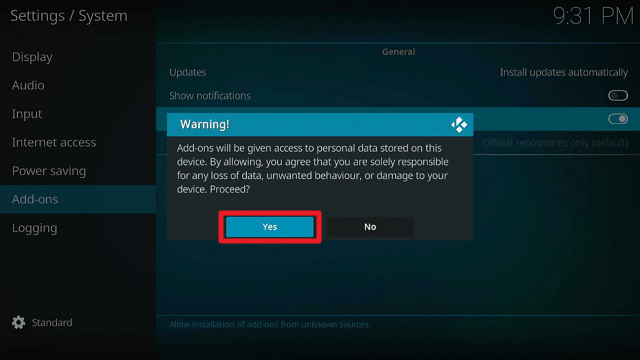
4. Go to “Unknown sources” then toggle it on

Install Scrubs v2 Kodi Addon step 4


5. Select “Yes

Install Scrubs v2 Kodi Addon step 5


6. Then using your Firestick remote, press the return button to go back to the System page


7. Now choose “File Manager

Install Scrubs v2 Kodi Addon step 7


8. Scroll down and select “Add source

Install Scrubs v2 Kodi Addon step 8


9. Click “<None>

Install Scrubs v2 Kodi Addon step 9


10. Type in “http://jewbmx.github.io” then click “OK”

Install Scrubs v2 Kodi Addon step 10


11. Highlight the box under the source to give the media source a name, and put “scrubs” or any other name that will help you identify it quickly. Click “OK

Install Scrubs v2 Kodi Addon step 11


12. Then click “OK” again

Install Scrubs v2 Kodi Addon step 12


13. Return to the System page by pressing the return button on your remote


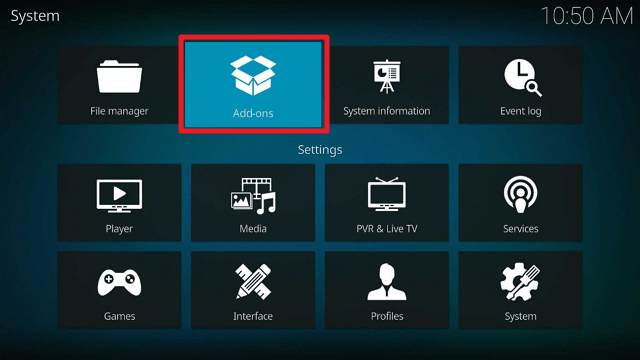
14. Select “Add-ons

Install Scrubs v2 Kodi Addon step 14


15. Choose “Install from zip file

Install Scrubs v2 Kodi Addon step 15


16. Click “Yes

Install Scrubs v2 Kodi Addon step 16


17. Select “scrubs

Install Scrubs v2 Kodi Addon step 17


18. Then click on the zip file URL – repository.jewrepo-1.5.7.zip

Install Scrubs v2 Kodi Addon step 18


19. Wait for the notification “JewRepo Add-on installed” to appear on the upper right part of the screen

Install Scrubs v2 Kodi Addon step 19


20. Afterward, select “Install from repository

Install Scrubs v2 Kodi Addon step 20


21. Then click “JewRepo

Install Scrubs v2 Kodi Addon step 21


22. Select “Video add-ons

Install Scrubs v2 Kodi Addon step 22


23. Click on “Scrubs v2

Install Scrubs v2 Kodi Addon step 23


24. Then click “Install

Install Scrubs v2 Kodi Addon step 24


25. Click “OK” for the additional add-ons that will be installed

Install Scrubs v2 Kodi Addon step 25


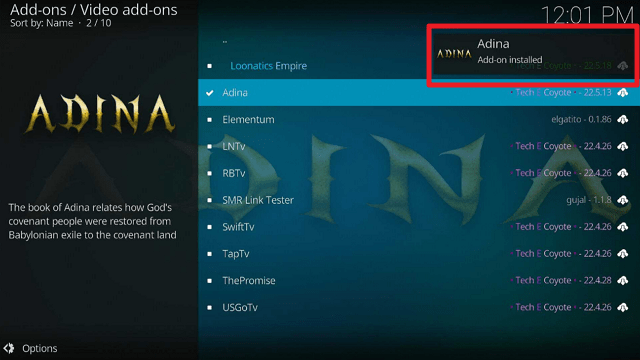
26. Then wait for it to install. It’s finished once you see the “Scrubs v2 Add-on Installed” message appears. After installation click once again the Scrubs v2.

Install Scrubs v2 Kodi Addon step 26


27. Then select “Open

Install Scrubs v2 Kodi Addon step 27


28. That’s it, Scrubs v2 Kodi Addon is already installed in your Firestick.

Install Scrubs v2 Kodi Addon step 28


YOUR INTERNET ACTIVITY IS BEING WATCHED

ReviewVPN cannot attest to the legality, security and privacy of the applications discussed on this site. It is highly recommended that you use a VPN service while streaming or using Kodi.

Currently, your IP 216.73.216.102 is visible to everyone and your Browser is being tracked by Advertisers & ISP Provider.

Save 65% Now

Limited Time Offer

Here are the main reasons why you must use a VPN:

  • Your activities are hidden from your ISP, the government, and from the apps you are using.
  • You can access additional movies and TV streams.
  • ISP attempts to throttle are thrwarted thus reducing buffering issues.
  • Geographically restricted content like Netflix and Hulu can be unblocked.

A VPN works be replacing your ISP-assigned IP address and creating an encrypted tunnel. We recommend the no log service offered by IPVanish. It works well on a Firestick and offers the fastest possible speeds.

Special Limited Time Offer - Get IPVanish


Legal Disclaimer: ReviewVPN.com does not encourage or endorse any illegal activity involved in the usage of services and applications referenced on this site. We do not verify the licensing agreements of services. The end-user is wholly responsible for ensuring that any media accessed through these services does not violate copyright and/or licensing laws. ReviewVPN does not promote, link to, or receive compensation from any Apps and IPTV services.


Install Surfshark on Firestick

Best Surfshark Deal


Features

  • Straightforward UI with categories for Movies, TV Shows, Episodes (Widget) – TVMaze Episodes, My Stuff, More Stuff, and Tools.
  • Provides SD to 8K video resolution for movies and TV shows.
  • Allows you to save all of your favorite movies and TV series as bookmarks.
  • Its movie section features IMDb, TMDb, and Trakt content.
  • Contains the Most Popular, Box Office, In Theaters, Latest Movies, Highly Rated, Oscar Winners, and other latest movies and shows
  • You can also search by year, decade, genre, language, or people.
  • It contains media content ranging from 1901 to the present (2022)
  • Its genres include Action, Adventure, Animation, Comedy, Crime, Drama, Fantasy, Horror, Musical, News, Reality TV, Romance, Sport, Sci-Fi, and others.
  • You can get foreign films in Arabic, Chinese, French, German, Japanese, Italian, Portuguese, Punjabi, and Spanish, among other languages.
  • In the TMDb section, there is a category for ‘Popular Companies,’ which includes content from 20th Century Fox, BBC Films, Columbia Pictures, DC, Dreamworks, Filmgate Films, Hallmark, Lions Gate Films, and more.
  • Free channels from ABC, Animal Planet, BBC America, BET, Cartoon Network, CBS, Disney, FOX, Food Network, and others are available in the TVMaze section.


Pros & Cons

Pros

  • Its categories on the Home screen are pretty straightforward, so you won’t waste time looking for what you want to watch.
  • Multiple sources provide numerous streaming links.
  • You can search for keywords such as 2D, 3D, action hero, based on a true story, business, conspiracy theory, and more to discover content.


Cons

  • Some of the links would not open or play.
  • My Kodi suddenly became unresponsive when searching through its settings.
  • This addon does not support Debrid integration.


Stream Safely With a VPN

https://get.surfshark.net/aff_c?offer_id=865&aff_id=12312

Unofficial Kodi Addons get streaming links from a variety of sources. Even though it offers hours of free streaming on Firestick, you never know who is behind these free streaming links. Furthermore, you’ll never know if your data and internet behavior are being monitored. As a result, the best way to protect your identity is to use a VPN.

A VPN, such as Surfshark, will hide your online identity by providing you with an anonymous IP address. That way, you may rest assured that online threats like hackers and phishers will not be able to acquire your real IP address. Apart from that, here are a few more advantages of using Surfshark:

  • Assists you to bypass geo-restrictions and accessing 3,200 VPN servers in 65 locations across the world.
  • Allows for an unlimited number of simultaneous connections, helping you to protect all of your devices.
  • Provides unlimited bandwidth, so you won’t have to worry about data caps or other data restrictions.
  • Offers the fastest network in your area to help you speed up your internet connection.

Note: For more information about SurfShark, please read our SURFSHARK REVIEW.


How to Install Surfshark VPN on Firestick

If your Firestick still has the older interface, read this article to learn how to update it: Update Firestick Interface.

You can download Surfshark directly from the Amazon App store. It will be easy for you to find Surfshark with your Firestick’s Find feature. Refer to our screenshots below.

1. Go to the Home screen of your Firestick.

step 1 Install Surfshark VPN on Firestick


2. Navigate towards the Find tab. Press the Search button from the resulting dropdown.

step 2 Install Surfshark VPN on Firestick


3. Type in the keyword of SurfShark and select from the suggestions that will appear.

step 3 Install Surfshark VPN on Firestick


4. Click the official SurfShark icon from your search results.

step 4 Install Surfshark VPN on Firestick


5. Press the Download (You own it) button.

step 5 Install Surfshark VPN on Firestick


6. The SurfShark VPN installer will download on your device.

step 6 Install Surfshark VPN on Firestick


7. SurfShark VPN’s app will automatically install itself on your Fire TV stick.

step 7 Install Surfshark VPN on Firestick


8. Press the Open button after completing SurfShark VPN’s installation process.

step 8 Install Surfshark VPN on Firestick


9. Please wait for the SurfShark VPN to load its user interface.

step 9 Install Surfshark VPN on Firestick


10. You can now log in with your SurfShark VPN account credentials.

step 10 Install Surfshark VPN on Firestick

Learn more about Surfshark and Grab the Best Surfshark Deal Now!


Other VPNs to Consider

NordVPN (Best for Streaming)

Best Features

  • 5000+ Server in 50+ Countries 
  • Military-Grade Encryption
  • Fast Connection Speed
  • Suitable to a lot of devices
  • No-Log Policy

Prices
  • Complete $5.89 per month (64% Discount)
  • Plus $4.59 per month (56% Discount)
  • Standard $3.69 per month (55% Discount)

Best Features

  • 750+ High-speed VPN Servers in 43 Locations
  • Military-Grade Encryption
  • Fastest HD Streaming and Gaming
  • 30-Day Money-Back Guarantee
  • Unlimited Data & Devices
  • No-Log Policy

Prices
  • 3 Years $1.99 per month (82% Discount)
  • 1 Years $3.29 per month (70% Discount)
  • 1 Month $10.99 per month

IPVanish VPN (Most Secure)

Best Features

  • 1200+ Servers in 60+ Countries around the world
  • Unlimited Connections
  • No-Log Policy
  • Top Notch Military-Grade VPN Protocols and Encryptions
  • 100% Safe and Secured
  • Most Trusted VPN
  • Best VPN for Firestick
  • 30-Day Money-Back Guarantee

Prices
  • Yearly $3.99 per month (63% Discount) – 30 days risk free + Ransomware & Malware Protection
  • Quarterly $5.32 per month (51% Discount)
  • Monthly $10.99 per month


For more VPN discounts, go to ReviewVPN Deals and purchase the best VPN for you.


Grab the Best Surfshark Deal Now!


FAQs

Is Scrubs v2 Addon Legal?

In general, Kodi addons are legal. However, because of its numerous media sources, we can never guarantee the legitimacy of all the streams it offers to its users. So make sure to only watch movies and TV shows that are in the public domain.


Is Scrubs v2 Addon Safe?

Yes, Scrubs v2 is safe to install and use on your device. However, we would like to remind you not to become complacent when using third-party add-ons. So using Surfshark while browsing and streaming with this addon is still the best option.


Conclusion

Scrubs v2 offers a wide range of free streams from numerous sources. What I like about it is that it comes with free channels from some of the most popular TV stations, as well as free movies from some of the most popular producers. However, I was unable to play some movies/shows. I’ve also had the experience of Kodi freezing while I was navigating through its settings while a video was playing. Nevertheless, you can test it out because the developer appears to update this Addon frequently, so they can probably sort out the bugs. Alternatively, you can always use our tried and tested best Kodi addons, which we are confident will not cause you any trouble.

Mandatory Usage of VPN Detection Tools

Overview

This article will provide you with information about the inquiry into the usage of Mandatory VPN Detection Tools.


Have you ever attempted to access a geo-restricted app only to be informed that you appear to be using a blocker or proxy? As devastating as this encounter is, it is merely because they have VPN detection tools in place. And unfortunately, this is likely to happen to many more streaming services in the future.

This is because GeoComply is pushing for the use of VPN detection tools to be mandatory across all streaming services and websites. Further, it appears that the US Copyright Office is considering the recent inquiry concerning required VPN detection tools.

While this is beneficial for rightsholders in terms of preventing copyright infringement, it may limit the freedom of streamers who use VPNs to bypass geo-restrictions. GeoComply thinks, however, that this protection is a requirement to govern territorial licenses.


ANONYMOUSLY


Notification of Inquiry on Standard Technical Measures

GeoComply

“We appreciate the opportunity to share our views as part of the U.S. Copyright Office’s efforts to gather information on the development of and use of standard technical measures for the protection and identification of copyrighted works. As the U.S. Copyright Office explores potential technologies and solutions to include as part of the Standard Technical Measures under section 512, we respectfully suggest the inclusion of accurate and effective VPN detection tools to ensure the full protection of copyrighted works”

-Anna Sainsbury CEO & Co-Founder / GeoComply Solutions Inc.


This was part of GeoComply CEO Sainsbury’s letter to the United States Copyright Office on May 27, 2022. And to give an overview, some streaming providers, such as Netflix, are already employing VPN detection tools, making it difficult to access geo-restricted content. And with so many streaming apps geo-restricted to the United States, it will be more difficult for people outside the United States to enjoy these apps once the mandatory VPN detection measures are in place. Furthermore, GeoComply has already established a reputation for successfully offering geolocation security.


Bypassing Geo-restrictions

“With hundreds of readily available VPNs on the market, the most common way for an individual to access geo-restricted content is to simply spoof their IP address using a VPN or DNS proxy. There are a number of “free” subscription-based VPNs/proxies that enable users to change their IP address to appear to be located in a different country or territory.”


As a VPN user, you’re surely aware that unblocking geo-restricted apps and services is as simple as clicking a button. And apparently, there are free VPNs that may simply spoof your IP address and allow you to access these geo-restricted apps. But we’d want to remind you of the potential dangers of free VPNs. Because sometimes getting things for free means handing them something in return that isn’t monetary. And this is possible through data breaches and unauthorized logging of your internet behavior.


Further, if you wish to read GeoComply’s entire letter to the United States Copyright Office, click on the link below:

Notification of Inquiry on Standard Technical Measures and Section 512, Docket Number 2022-2


YOUR INTERNET ACTIVITY IS BEING WATCHED

ReviewVPN cannot attest to the legality, security and privacy of the applications discussed on this site. It is highly recommended that you use a VPN service while streaming or using Kodi.

Currently, your IP 216.73.216.102 is visible to everyone and your Browser is being tracked by Advertisers & ISP Provider.

Save 65% Now

Limited Time Offer

Here are the main reasons why you must use a VPN:

  • Your activities are hidden from your ISP, the government, and from the apps you are using.
  • You can access additional movies and TV streams.
  • ISP attempts to throttle are thrwarted thus reducing buffering issues.
  • Geographically restricted content like Netflix and Hulu can be unblocked.

A VPN works be replacing your ISP-assigned IP address and creating an encrypted tunnel. We recommend the no log service offered by IPVanish. It works well on a Firestick and offers the fastest possible speeds.

Special Limited Time Offer - Get IPVanish


What’s Next for VPN Users?

We understand that the mandatory VPN detection tool can be concerning for VPN users. Especially because more than half of VPN users employ VPNs to get better streaming content. However, it is important to note that this VPN detection tool will have no impact on some VPN functions. And these include the following:

  • Prevention of data theft by hiding your information from hackers and phishers.
  • Avoiding developers and other third-party servers from logging your online behavior to sell to ad companies.
  • Protection from the government and even your ISP from tracking your internet usage.
  • Stops ISP throttling, which causes lags and buffering.
  • Helps in the speed of your internet connection.
  • Provides you an unlimited amount of bandwidth to stream and download any content you desire.
  • Prevention from any kind of data breaches and IP address leaks.


So, as early as now, we’d like to reassure you that the VPN service will continue to be useful for your other internet needs. This is particularly when it comes to your security and privacy. Further, Surfshark is our trusted VPN service that offers you these security features and more. You can also read more about Surfshark by reading our Review.


FAQs

What is GeoComply?

GeoComply is the market leader in geolocation security that provides fraud protection and cybersecurity solutions to its clients. They use a gold standard geolocation compliance technology that successfully detects location fraud. Moreover, their solution primarily focuses on providing security and protection for geolocation-based digital content. As a result, video and content providers can then prevent geo-piracy and ensure their copyrighted works’ protection.


What do Mandatory VPN Detection Tools Mean?

This means that all streaming apps and services will use a VPN detection tool to prevent IPs from outside of the jurisdiction from accessing geo-restricted content. For example, if you are from an Asian country like Japan, you will be unable to view or watch any Netflix USA content.


Wrapping Up

The usage of Mandatory VPN Detection Tools is likely to cause a stir in the streaming industry. And this will most certainly affect consumers’ streaming habits as well as the dependability of streaming apps. Moreover, it could have both beneficial and bad consequences, but we expect that they will thoroughly consider everything before the implementation. Because VPNs are not only for bypassing geo-restrictions, they also provide protection and privacy when accessing any app or website online.

How about you, what are your thoughts about the implementation of the Mandatory VPN Detection Tools? Let us know what you think and feel about this inquiry in the comments section.


Legal Disclaimer: ReviewVPN.com does not encourage or endorse any illegal activity involved in the usage of services and applications referenced on this site. We do not verify the licensing agreements of services. The end-user is wholly responsible for ensuring that any media accessed through these services does not violate copyright and/or licensing laws. ReviewVPN does not promote, link to, or receive compensation from any Apps and IPTV services.


How to Install Surfshark VPN on Firestick

If your Firestick still has the older interface, read this article to learn how to update it: Update Firestick Interface.

Follow our screenshots below to install the SurfShark VPN app on your Fire TV stick.

1. Go to the Home screen of your Firestick.

step 1 Install Surfshark VPN on Firestick


2. Navigate towards the Find tab. Press the Search button from the resulting dropdown.

step 2 Install Surfshark VPN on Firestick


3. Type in the keyword of SurfShark and select from the suggestions that will appear.

step 3 Install Surfshark VPN on Firestick


4. Click the official SurfShark icon from your search results.

step 4 Install Surfshark VPN on Firestick


5. Press the Download (You own it) button.

step 5 Install Surfshark VPN on Firestick


6. The SurfShark VPN installer will download on your device.

step 6 Install Surfshark VPN on Firestick


7. SurfShark VPN’s app will automatically install itself on your Fire TV stick.

step 7 Install Surfshark VPN on Firestick


8. Press the Open button after completing SurfShark VPN’s installation process.

step 8 Install Surfshark VPN on Firestick


9. Please wait for the SurfShark VPN to load its user interface.

step 9 Install Surfshark VPN on Firestick


10. You can now log in with your SurfShark VPN account credentials.

step 10 Install Surfshark VPN on Firestick

Learn more about Surfshark and Grab the Best Surfshark Deal Now!


Install Surfshark on Firestick

Best Surfshark Deal


Other VPNs to Consider

NordVPN (Best for Streaming)

Best Features

  • 5000+ Server in 50+ Countries 
  • Military-Grade Encryption
  • Fast Connection Speed
  • Suitable to a lot of devices
  • No-Log Policy

Prices
  • Complete $5.89 per month (64% Discount)
  • Plus $4.59 per month (56% Discount)
  • Standard $3.69 per month (55% Discount)

Best Features

  • 750+ High-speed VPN Servers in 43 Locations
  • Military-Grade Encryption
  • Fastest HD Streaming and Gaming
  • 30-Day Money-Back Guarantee
  • Unlimited Data & Devices
  • No-Log Policy

Prices
  • 3 Years $1.99 per month (82% Discount)
  • 1 Years $3.29 per month (70% Discount)
  • 1 Month $10.99 per month

IPVanish VPN (Most Secure)

Best Features

  • 1200+ Servers in 60+ Countries around the world
  • Unlimited Connections
  • No-Log Policy
  • Top Notch Military-Grade VPN Protocols and Encryptions
  • 100% Safe and Secured
  • Most Trusted VPN
  • Best VPN for Firestick
  • 30-Day Money-Back Guarantee

Prices
  • Yearly $3.99 per month (63% Discount) – 30 days risk free + Ransomware & Malware Protection
  • Quarterly $5.32 per month (51% Discount)
  • Monthly $10.99 per month


For more VPN discounts, go to ReviewVPN Deals and purchase the best VPN for you.

Click here to get the lowest price on Surfshark through our exclusive limited-time offer.


How To Install Homelander Kodi Addon on Firestick/Fire TV/Android

Homelander Kodi Addon

This article will guide you through installing the Homelander Kodi Addon as well as all you need to know about it.


Homelander is a Kodi addon available from the well-known The Crew Repository. It’s a brand-new addon that lets you watch the most recent movies and TV shows from all genres and decades.

Furthermore, while it already has a large number of streaming links, it also enables the integration of Realdebrid and Alldebrid to provide the best quality resources.

It also offers a simple interface that makes it easy to navigate and watch shows within the Addon. They are conveniently divided into categories like Genre, Year, Decade, Most Voted, and Highly Rated, making it simple to find movies and shows.

However, because Homelander Kodi Addon is not from the official repository, we recommend that you use a VPN to avoid activity logs and tracking.


ANONYMOUSLY


How To Install Homelander Kodi Addon on Firestick

This guide will walk you through the steps of installing the Homelander Kodi Addon on your Firestick.

1. Launch the Kodi app on your Firestick. Click on the gear wheel icon (Settings).

Install Homelander Kodi Addon on Firestick step 1


2. Select “System

Install Homelander Kodi Addon on Firestick step 2

3. Scroll down to “Add-ons

Install Homelander Kodi Addon on Firestick step 3


4. Go to “Unknown sources” then toggle it on

Install Homelander Kodi Addon on Firestick step 4


5. Select “Yes

Install Homelander Kodi Addon on Firestick step 5


6. Then using your Firestick remote, press the return button to go back to the System page


7. Now choose “File Manager

Install Homelander Kodi Addon on Firestick step 7


8. Scroll down and select “Add source

Install Homelander Kodi Addon on Firestick step 8


9. Click “<None>

Install Homelander Kodi Addon on Firestick step 9


10. Type in “https://team-crew.github.io” then click “OK”

Install Homelander Kodi Addon on Firestick step 10


11. Highlight the box under the source to give the media source a name, and put “crew” or any other name that will help you identify it quickly. Click “OK

Install Homelander Kodi Addon on Firestick step 11


12. Scroll down then click “OK” again.

Install Homelander Kodi Addon on Firestick step 12


13. Return to the System page by pressing the return button on your remote. Select “Add-ons

Install Homelander Kodi Addon on Firestick step 13


14. Choose “Install from zip file

Install Homelander Kodi Addon on Firestick step 14


15. Click “Yes

Install Homelander Kodi Addon on Firestick step 15


16. Select “crew

Install Homelander Kodi Addon on Firestick step 16


17. Then click on the zip file URL – repository.thecrew-0.3.4.zip

Install Homelander Kodi Addon on Firestick step 17


18. Wait for the notification “The Crew Repo Add-on installed” to appear on the upper right part of the screen

Install Homelander Kodi Addon on Firestick step 18


19. Afterward, select “Install from repository

Install Homelander Kodi Addon on Firestick step 19


20. Then click “The Crew Repo

Install Homelander Kodi Addon on Firestick step 20


21. Select “Video add-ons

Install Homelander Kodi Addon on Firestick step 21


22. Click on “Homelander

Install Homelander Kodi Addon on Firestick step 22


23. Then click “Install

Install Homelander Kodi Addon on Firestick step 23


24. Click “OK” for the additional add-ons that will be installed

Install Homelander Kodi Addon on Firestick step 24


25. Then wait for it to install. It’s finished once you see the “Homelander Add-on Installed” message appears. After installation click Homelander once again.

Install Homelander Kodi Addon on Firestick step 25


26. Then select “Open

Install Homelander Kodi Addon on Firestick step 26


27. Finally, Homelander Kodi Addon is already installed in your Firestick.

Install Homelander Kodi Addon on Firestick step 27


YOUR INTERNET ACTIVITY IS BEING WATCHED

ReviewVPN cannot attest to the legality, security and privacy of the applications discussed on this site. It is highly recommended that you use a VPN service while streaming or using Kodi.

Currently, your IP 216.73.216.102 is visible to everyone and your Browser is being tracked by Advertisers & ISP Provider.

Save 65% Now

Limited Time Offer

Here are the main reasons why you must use a VPN:

  • Your activities are hidden from your ISP, the government, and from the apps you are using.
  • You can access additional movies and TV streams.
  • ISP attempts to throttle are thrwarted thus reducing buffering issues.
  • Geographically restricted content like Netflix and Hulu can be unblocked.

A VPN works be replacing your ISP-assigned IP address and creating an encrypted tunnel. We recommend the no log service offered by IPVanish. It works well on a Firestick and offers the fastest possible speeds.

Special Limited Time Offer - Get IPVanish


Legal Disclaimer: ReviewVPN.com does not encourage or endorse any illegal activity involved in the usage of services and applications referenced on this site. We do not verify the licensing agreements of services. The end-user is wholly responsible for ensuring that any media accessed through these services does not violate copyright and/or licensing laws. ReviewVPN does not promote, link to, or receive compensation from any Apps and IPTV services.


Install SurfShark on Firestick

Best SurfShark Deal


How to Use Homelander Kodi Addon With Real-Debrid

Using Real debrid is the best way to watch the most recent and popular movies and TV episodes. Fortunately, Homelander supports real debrid integration, allowing you to locate the best streaming sources for the best video quality.

1. Launch the Homelander Kodi Addon on your Firestick. Scroll down and select “Tools”.

How to Use Homelander Kodi Addon With Real-Debrid step 1


2. Choose “ResolveURL: Settings”.

How to Use Homelander Kodi Addon With Real-Debrid step 2


3. Then click on “Universal Resolvers 2”. Select “(Re)Authorize My Account”.

How to Use Homelander Kodi Addon With Real-Debrid step 3


4. You’ll be given a code to input by going to “https://real-debrid.com/device” on any device browser.

How to Use Homelander Kodi Addon With Real-Debrid step 4


5. Then, simply click “Continue” on your web browser to enable your real debrid integration with Homelander.

How to Use Homelander Kodi Addon With Real-Debrid step 5


6. Lastly, you’ll see a notification on the Homelander Kodi Addon that says “ResolveURL Real-Debrid Resolver Authorized” once the integration is complete.

How to Use Homelander Kodi Addon With Real-Debrid step 6

Features

  • Provides free access to the latest movies and TV shows.
  • You can search for tv shows and movies by genre, year, decade, or language.
  • It offers 4k, 1080p, 720p, SD, and CAM video quality.
  • Tons of genres are available: Action, Adventure, Animation, Anime, Biography, Comedy, Crime, Documentary, Drama, Family, Fantasy, History, Horror, Music, Musical, Mystery, Romance, Sci-Fi, Sports, Superhero, Thriller, War, and Western
  • It has everything from new releases to older films dating back to 1901.
  • There are movies and shows in Arabic, Chinese, English, French, German, Italian, Japanese, Korean, Spanish, and other languages available.
  • The Most Popular tab includes Oscar Winners, Box Office, IMDb shows, In Theaters, and other related categories.
  • You can save your favorite movies and TV shows as bookmarks.
  • Subtitle support is also available: Enable, Browse, and Download.


Pros & Cons

Pros

  • There are numerous streaming links accessible.
  • You can find movies and tv shows in a variety of genres and categories.
  • It has films dating back to 1901.
  • Supports Real debrid and All debrid integration.
  • Straightforward UI.

Cons

  • Only 1080P quality links are available without real debrid integration.
  • Does not support Trakt integration.


Should I Use a VPN with Homelander Kodi Addon?

Surfshark vpn

Yes. Using a Kodi Addon like Homelander is certainly one of the easiest ways to obtain free streams online. In fact, it saves you time and effort by providing you with all of the latest and most accessible movies and shows available today. However, as previously stated, this Addon is not available in the official repository. That is, you can never be certain of the sources of these free movies and shows. You’ll never know if watching these videos for free is already compromising your data and privacy. So using a VPN like SurfShark to stream anonymously is the best option. SurfShark will provide you with an anonymous IP address and implement the following security features:

  • Protects your internet activities from being logged by third-party services, ISPs, governments, and app developers.
  • Prevents hackers and phishers from stealing your information for monetary or malevolent gain.
  • Ensures that no logs are kept and that no data is leaked when connecting to their VPN server.
  • Encrypts your connection with military-grade 256-bit encryption for unbreakable security.

Note: For more information about SurfShark, please read our SURFSHARK REVIEW.


How to Install Surfshark on Firestick with Screenshots

If your Firestick still has the older interface, read this article to learn how to update it: Update Firestick Interface.

You can download Surfshark directly from the Amazon App store. It will be easy for you to find Surfshark with your Firestick’s Find feature. Refer to our screenshots below.

Follow our screenshots below to install the SurfShark VPN app on your Fire TV stick.

1. Go to the Home screen of your Firestick.

step 1 Install Surfshark VPN on Firestick


2. Navigate towards the Find tab. Press the Search button from the resulting dropdown.

step 2 Install Surfshark VPN on Firestick


3. Type in the keyword of SurfShark and select from the suggestions that will appear.

step 3 Install Surfshark VPN on Firestick


4. Click the official SurfShark icon from your search results.

step 4 Install Surfshark VPN on Firestick


5. Press the Download (You own it) button.

step 5 Install Surfshark VPN on Firestick


6. The SurfShark VPN installer will download on your device.

step 6 Install Surfshark VPN on Firestick


7. SurfShark VPN’s app will automatically install itself on your Fire TV stick.

step 7 Install Surfshark VPN on Firestick


8. Press the Open button after completing SurfShark VPN’s installation process.

step 8 Install Surfshark VPN on Firestick


9. Please wait for the SurfShark VPN to load its user interface.

step 9 Install Surfshark VPN on Firestick


10. You can now log in with your SurfShark VPN account credentials.

step 10 Install Surfshark VPN on Firestick

Learn more about Surfshark and Grab the Best Surfshark Deal Now!


Install Surfshark on Firestick

Best Surfshark Deal

Other VPNs to Consider

NordVPN (Best for Streaming)

Best Features

  • 5000+ Server in 50+ Countries 
  • Military-Grade Encryption
  • Fast Connection Speed
  • Suitable to a lot of devices
  • No-Log Policy

Prices
  • Complete $5.89 per month (64% Discount)
  • Plus $4.59 per month (56% Discount)
  • Standard $3.69 per month (55% Discount)

Best Features

  • 750+ High-speed VPN Servers in 43 Locations
  • Military-Grade Encryption
  • Fastest HD Streaming and Gaming
  • 30-Day Money-Back Guarantee
  • Unlimited Data & Devices
  • No-Log Policy

Prices
  • 3 Years $1.99 per month (82% Discount)
  • 1 Years $3.29 per month (70% Discount)
  • 1 Month $10.99 per month

IPVanish VPN (Most Secure)

Best Features

  • 1200+ Servers in 60+ Countries around the world
  • Unlimited Connections
  • No-Log Policy
  • Top Notch Military-Grade VPN Protocols and Encryptions
  • 100% Safe and Secured
  • Most Trusted VPN
  • Best VPN for Firestick
  • 30-Day Money-Back Guarantee

Prices
  • Yearly $3.99 per month (63% Discount) – 30 days risk free + Ransomware & Malware Protection
  • Quarterly $5.32 per month (51% Discount)
  • Monthly $10.99 per month

For more VPN discounts, go to ReviewVPN Deals and purchase the best VPN for you.


FAQs

Is Homelander Kodi Addon Legal?

Installing and using addons on Firestick is legal in general. However, we cannot guarantee the legality of the streams it provides. Therefore, it’s advisable to use a VPN like SurfShark to protect your connection and avoid logs.


Is Homelander Kodi free?

Yes, both installing Homelander and watching its content on Firestick are free.


Is Homelander Safe?

Yes, it’s safe. However, using SurfShark while watching all of the videos you want with Homelander will provide you with additional security.


What is the difference between an Addon and a Build?

An add-on allows you to search for and watch movies, TV shows, and other content. Similarly, it’s like any other streaming app available for your Firestick. A Build, on the other hand, is made up of many add-ons that provide you with more streaming possibilities.


Conclusion

Homelander Kodi Addon gives its users a variety of streaming possibilities. Above all, what I like best about it is how simple it is to use and navigate. For instance, it offers a basic yet efficient interface that allows you to easily find the most recent videos accessible. The movies and shows are also neatly organized, making it a user-friendly addon that anyone of any age may enjoy.

How To Install Adina Kodi Addon on Firestick/Fire TV/Android

Adina Kodi Addon

This article will guide you through installing the Adina Kodi Addon on your Firestick as well as everything you need to know about it.


Adina is a video Kodi addon that provides users with the most recent movies and TV series available today. Moreover, it is available on The WareHouse Repository alongside other addons such as Loonatics Empire, Elementum, ThePromise, and several others.

Adina Kodi Addon has a simple interface that allows users to easily browse movies and show titles with only a click or two. Even so, it does allow you to link your Trakt, IMDb, Real-debrid, Alldebrid, and Premiumize accounts.

Further, because Adina is a third-party add-on, you will not be able to find it in Kodi’s official repository. And to gain access to it, we will use an external provider which will be shown in a little while. As a result, we recommend that you use a VPN before installing it on your Firestick to prevent device damage and data leakage.


ANONYMOUSLY


How To Install Adina Kodi Addon on Firestick

This guide below will provide you with comprehensive steps on how to install the Adina Kodi Addon on your Firestick.

1. Launch the Kodi app on your Firestick. Click on the gear wheel icon (Settings).

Install Adina Kodi Addon on Firestick step 1


2. Select “System

Install Adina Kodi Addon on Firestick step 2

3. Scroll down to “Add-ons

Install Adina Kodi Addon on Firestick step 3


4. Go to “Unknown sources” then toggle it on

Install Adina Kodi Addon on Firestick step 4


5. Select “Yes

Install Adina Kodi Addon on Firestick step 5


6. Then using your Firestick remote, press the return button to go back to the System page


7. Now choose “File Manager

Install Adina Kodi Addon on Firestick step 7


8. Scroll down and select “Add source

Install Adina Kodi Addon on Firestick step 8


9. Click “<None>

Install Adina Kodi Addon on Firestick step 9


10. Type in “https://tinyurl.com/TWHrepo” then click “OK”

Install Adina Kodi Addon on Firestick step 10


11. Highlight the box under the source to give the media source a name, and put “TWHrepo” or any other name that will help you identify it quickly. Click “OK

Install Adina Kodi Addon on Firestick step 11


12. Then click “OK” again

Install Adina Kodi Addon on Firestick step 12


13. Return to the System page by pressing the return button on your remote


14. Select “Add-ons

Install Adina Kodi Addon on Firestick step 14


15. Choose “Install from zip file

step 15Install Adina Kodi Addon on Firestick step


16. Click “Yes

Install Adina Kodi Addon on Firestick step 16


17. Select “TWHrepo

Install Adina Kodi Addon on Firestick step 17


18. Then click on the zip file URL – repository.thewarehouse-22.6.8.zip

Install Adina Kodi Addon on Firestick step 18


19. Wait for the notification “The WareHouse Repository Add-on installed” to appear on the upper right part of the screen

Install Adina Kodi Addon on Firestick step 19


20. Afterward, select “Install from repository

Install Adina Kodi Addon on Firestick step 20


21. Then click “The WareHouse Repository

Install Adina Kodi Addon on Firestick step 21


22. Select “Video add-ons

Install Adina Kodi Addon on Firestick step 22


23. Click on “Adina

Install Adina Kodi Addon on Firestick step 23


24. Then click “Install

Install Adina Kodi Addon on Firestick step 24


25. Click “OK” for the additional add-ons that will be installed

Install Adina Kodi Addon on Firestick step 25


26. Then wait for it to install. It’s finished once you see the “Adina Add-on Installed” message appears. After installation clicks once again Adina.

Install Adina Kodi Addon on Firestick step 26


27. Then select “Open

Install Adina Kodi Addon on Firestick step 27


28. That’s it, Adina Kodi Addon is already installed in your Firestick.

Install Adina Kodi Addon on Firestick step 28


YOUR INTERNET ACTIVITY IS BEING WATCHED

ReviewVPN cannot attest to the legality, security and privacy of the applications discussed on this site. It is highly recommended that you use a VPN service while streaming or using Kodi.

Currently, your IP 216.73.216.102 is visible to everyone and your Browser is being tracked by Advertisers & ISP Provider.

Save 65% Now

Limited Time Offer

Here are the main reasons why you must use a VPN:

  • Your activities are hidden from your ISP, the government, and from the apps you are using.
  • You can access additional movies and TV streams.
  • ISP attempts to throttle are thrwarted thus reducing buffering issues.
  • Geographically restricted content like Netflix and Hulu can be unblocked.

A VPN works be replacing your ISP-assigned IP address and creating an encrypted tunnel. We recommend the no log service offered by IPVanish. It works well on a Firestick and offers the fastest possible speeds.

Special Limited Time Offer - Get IPVanish


Legal Disclaimer: ReviewVPN.com does not encourage or endorse any illegal activity involved in the usage of services and applications referenced on this site. We do not verify the licensing agreements of services. The end-user is wholly responsible for ensuring that any media accessed through these services does not violate copyright and/or licensing laws. ReviewVPN does not promote, link to, or receive compensation from any Apps and IPTV services.


Install Surfshark on Firestick

Best Surfshark Deal


Features

  • Contains the most current titles in the movie and television program categories.
  • It has sections for Trending, Popular, Premieres, Latest Releases, Most Watched This Week, Top 10 Box Office, Blockbusters, In Theaters, Upcoming, Oscar Winners, and more.
  • Its search function allows you to look for movies, television shows, people, IMDb keywords, and movie collections.
  • The Discover tab will allow you to discover Movies, TV Shows, Movies History, and TV Shows History.
  • It contains a Favorites section with individual tabs for your favorite movies and TV shows.
  • You can also search for movies, TV shows, premium files, and images that you’ve downloaded.
  • With the integration of your Trakt and IMDb accounts, you’ll be able to keep track of and find shows on your My Lists.
  • It features Adina Tips, which can be accessible in the Tools section and will assist you in navigating the addon.
  • You can also link your All Debrid, Premiumize, and Real-Debrid accounts to obtain high-quality streaming links.
  • This addon also allows you to enable your Meta Accounts and Scraper Accounts.


Pros & Cons

Pros

  • It enables the integration of all sorts of Premium link integrators (All Debrid, Premiumize, and Real-Debrid).
  • Allows you to link your Trakt and IMDb accounts.
  • Even the latest movies and episodes are available in this Addon.


Cons

  • It keeps saying “No External Scrapers Enabled” or “No Results” when I try to play a video.
  • This may not be the ideal Kodi addon for beginners because it does not provide videos instantly.
  • To generate streaming links, you must first link a Real-debrid/Alldebrid/Premiumize account.


Stream Safely With a VPN

https://get.surfshark.net/aff_c?offer_id=865&aff_id=12312

When you access Addons that are not from the official Kodi repository, you have no idea what risks you are taking with your privacy and security. That’s because you don’t know if the Addons’ developers are secretly recording your activities while you’re using them. Alternatively, your ISP, government, and other third-party servers may be monitoring everything you do. While we don’t know for what reason they do this, it’s preferable to use a VPN to hide your data.

A VPN service, such as Surfshark, will provide you with an anonymous IP address that will hide your true IP address. This way, you can safeguard the data you send and receive online. You can therefore feel certain that any action in your IP will be known only to you. Aside from that, Surfshark provides you with the ff security features:

  • Protection against identity theft.
  • Shields your device even if you connect to a bogus Wi-Fi network.
  • Provides 256-bit military-grade encryption that is unbreakable.
  • Ensures zero logs and no IP address leaks.
  • Allows unlimited simultaneous connections to secure all of your devices.


Note: For more information about SurfShark, please read our SURFSHARK REVIEW.


How to Install Surfshark VPN on Firestick

If your Firestick still has the older interface, read this article to learn how to update it: Update Firestick Interface.

You can download Surfshark directly from the Amazon App store. It will be easy for you to find Surfshark with your Firestick’s Find feature. Refer to our screenshots below.

1. Go to the Home screen of your Firestick.

step 1 Install Surfshark VPN on Firestick


2. Navigate towards the Find tab. Press the Search button from the resulting dropdown.

step 2 Install Surfshark VPN on Firestick


3. Type in the keyword of SurfShark and select from the suggestions that will appear.

step 3 Install Surfshark VPN on Firestick


4. Click the official SurfShark icon from your search results.

step 4 Install Surfshark VPN on Firestick


5. Press the Download (You own it) button.

step 5 Install Surfshark VPN on Firestick


6. The SurfShark VPN installer will download on your device.

step 6 Install Surfshark VPN on Firestick


7. SurfShark VPN’s app will automatically install itself on your Fire TV stick.

step 7 Install Surfshark VPN on Firestick


8. Press the Open button after completing SurfShark VPN’s installation process.

step 8 Install Surfshark VPN on Firestick


9. Please wait for the SurfShark VPN to load its user interface.

step 9 Install Surfshark VPN on Firestick


10. You can now log in with your SurfShark VPN account credentials.

step 10 Install Surfshark VPN on Firestick

Learn more about Surfshark and Grab the Best Surfshark Deal Now!


Other VPNs to Consider

NordVPN (Best for Streaming)

Best Features

  • 5000+ Server in 50+ Countries 
  • Military-Grade Encryption
  • Fast Connection Speed
  • Suitable to a lot of devices
  • No-Log Policy

Prices
  • Complete $5.89 per month (64% Discount)
  • Plus $4.59 per month (56% Discount)
  • Standard $3.69 per month (55% Discount)

Best Features

  • 750+ High-speed VPN Servers in 43 Locations
  • Military-Grade Encryption
  • Fastest HD Streaming and Gaming
  • 30-Day Money-Back Guarantee
  • Unlimited Data & Devices
  • No-Log Policy

Prices
  • 3 Years $1.99 per month (82% Discount)
  • 1 Years $3.29 per month (70% Discount)
  • 1 Month $10.99 per month

IPVanish VPN (Most Secure)

Best Features

  • 1200+ Servers in 60+ Countries around the world
  • Unlimited Connections
  • No-Log Policy
  • Top Notch Military-Grade VPN Protocols and Encryptions
  • 100% Safe and Secured
  • Most Trusted VPN
  • Best VPN for Firestick
  • 30-Day Money-Back Guarantee

Prices
  • Yearly $3.99 per month (63% Discount) – 30 days risk free + Ransomware & Malware Protection
  • Quarterly $5.32 per month (51% Discount)
  • Monthly $10.99 per month


For more VPN discounts, go to ReviewVPN Deals and purchase the best VPN for you.


Grab the Best Surfshark Deal Now!


FAQs

Is Adina Kodi Addon Legal?

Every Kodi addon is legal. However, because we cannot ensure the legality of all of its streaming, we urge that you only watch videos that are available in the public domain.


Is Adina Kodi Addon Safe?

Yes, Adina Kodi Addon is safe to install and use on your device. However, a VPN such as Surfshark can provide additional security.


Is Adina Kodi Addon Free?

To acquire streaming links, you’ll need to link your real-debrid (as well as other premium link generators) account. As a result, you’ll need to sign up for a paid subscription with them.


Conclusion

Adina Kodi Addon does have a simple user interface that makes it easy to find the most recent movies and TV episodes. However, you won’t be able to watch a movie without first linking your real-debrid account, which will provide a streaming link. While it may be useful for individuals with active subscriptions to various premium link generators, it will not be suitable for those looking for completely free streaming services.

How To Watch NBA Finals 2022 – Celtics vs Warriors

How To Watch NBA Finals 2022

This article will show you how to watch the NBA Finals 2022.


Warriors and Celtics fans are extremely excited as the NBA Finals 2022 begins on June 2, 2022, at 9 p.m. (ET). Will Stephen Curry lead the Golden State Warriors to another NBA title, or will the Boston Celtics, who have reached the finals for the first time in decades, win it this time?

On the other hand, you’ll be quite fortunate if you can watch the games at the Chase Center in San Francisco. However, if you like to stay at home and watch the NBA Finals alone or with your friends, we’re certain you’re looking for the best way to watch the NBA Finals.

Furthermore, the NBA Finals 2022 will be televised by ABC, which is accessible via all TV antennas. But if you don’t have one, there are IPTV services that include ABC on their channel lineup. So we’ve put together a list of services that will allow you to stream the NBA Finals 2022 on your Firestick or other devices.


ANONYMOUSLY

Schedule

We’ll start with the NBA Finals 2022 schedule so you’ll know when to expect it and when to tune in to watch it live on your favorite streaming platform.

Game 1

June 2, Thursday, 9 pm

Celtics vs Warriors

Game 2

June 5, Sunday, 8 pm

Celtics vs Warriors

Game 3

June 8, Wednesday, 9 pm

Warriors vs Celtics

Game 4

June 10, Friday, 9 pm

Warriors vs Celtics

Game 5

June 13, Monday, 9 pm

Celtics vs Warriors

Game 6

June 16, Thursday, 9 pm

Warriors vs Celtics

Game 7

June 19, Sunday, 8 pm

Celtics vs Warriors

*If necessary


fuboTV

Fubo tv

When it comes to streaming the latest and live TV of your most anticipated sporting events, fuboTV is always the first option that comes to mind. FuboTV allows you to watch live sports such as NBA without the need for a cable subscription. Furthermore, it provides hundreds of channels, including ABC for NBA Finals 2022 streaming, ensuring that you will be able to find practically any channel you demand. Aside from that, it includes 1,000 hours of cloud DVR storage, so you can always record games to watch later or revisit your favorite highlights.


You can read our article to discover more about Fubo TV, including pricing and other details.


DirecTV Stream

DirecTV

DirecTV is another service that offers all of the main sports services, such as live NBA and other major sporting events on television. Furthermore, DirectTV Stream offers more than 160 channels, including the ABC channel, as part of the DirectTV Entertainment package. Apart from that, while the NBA is in season, you can watch up to 40 live out-of-market NBA games on your device a week. And it also offers unlimited DVR storage, so imagine having an unlimited capacity for all of the NBA games during the 2022 Finals.


Visit DirecTV to learn more about their packages and offerings.


Hulu+Live TV

hulu logo

Streaming live TV and Sports would not be complete without mentioning one of the best IPTV services which is Hulu. What makes Hulu so enticing is that it offers not only live television but also movies and TV shows. Going back to the NBA Finals 2022, Hulu has ABC on its channel list, so if you have an active Hulu membership, you may be guaranteed to be able to watch it there. Furthermore, Hulu also has 75+ premium channels with live sports, news, and events. Besides that, it comes with an unlimited DVR that allows you to store and re-watch live TV recordings for up to 9 months. Finally, you can watch it on two screens at the same time with up to six user profiles.


You can read our Hulu review if you’re interested in learning more about the service.


Vidgo

Vidgo TV

Vidgo is another IPTV provider that offers live TV channels for sports aficionados. It has over 110 live sports, news, and entertainment channels in both English and Spanish. What’s great about Vidgo is that it includes the NBA schedule on its website, so you can check it out to see what games are coming up and make sure you don’t miss anything. Aside from that, its premium package includes free DVR storage so you may record the NBA finals on your device. Finally, Vidgo is available on a variety of platforms, including the Amazon Fire TV, Roku, Android, Apple TV, and others. With your membership, you can watch on up to three devices at once.


Here, you can learn more about Vidgo and its services.


YouTube TV

Youtube TV Logo Watch Live TV on Firestick

YouTube TV is last on our list, but certainly not least. Of course, this list would be incomplete without YouTube TV, because the NBA Finals are presented by Youtube TV, even though ABC has the broadcast rights to the 2022 NBA Finals. Furthermore, YouTube TV is a premium live TV streaming service that offers 85+ top channels of live sports, news, entertainment, and more. Aside from that, it has an unlimited DVR that allows you to record any stream, including the NBA Finals 2022, with no storage restrictions. Furthermore, Youtube TV’s plan allows for up to six accounts and includes a seven-day free trial.


You may read our article if you’re interested in learning more about Youtube TV and what it has to offer its users.


Is a VPN required to use these IPTV services?

surfshark logo

While a VPN serves a variety of functions, including encrypting your data while using any of the featured IPTV services to watch the NBA Finals in 2022, you will need one if you live outside of the United States. This is because all of the apps we’ve listed are geo-restricted to the United States. This means that if you live outside of the United States, you will be unable to use these IPTV services. However, you do not need to be concerned because a VPN will allow you to easily access these services. You may overcome restrictions from anywhere in the world, especially with Surfshark, which offers over 3200+ servers in 65 countries.

Apart from assisting you in bypassing geo-restrictions, here are some of Surfshark’s additional benefits:

  • Prevents your data from being stolen by hackers and phishers since you are using a different IP address
  • You won’t have to worry about data leaks because your device is protected with AES-256 encryption.
  • Provides you with an unlimited amount of bandwidth so that you may stream and download all of your favorite NBA games.
  • It automatically connects you to the fastest available server in your location, which speeds up your internet connection.

Note: For more information about Surfshark, please read our Surfshark Review.


How to Install Surfshark VPN on Firestick

If your Firestick still has the older interface, read this article to learn how to update it: Update Firestick Interface.

Follow our screenshots below to install the SurfShark VPN app on your Fire TV stick.

1. Go to the Home screen of your Firestick.

step 1 Install Surfshark VPN on Firestick


2. Navigate towards the Find tab. Press the Search button from the resulting dropdown.

step 2 Install Surfshark VPN on Firestick


3. Type in the keyword of SurfShark and select from the suggestions that will appear.

step 3 Install Surfshark VPN on Firestick


4. Click the official SurfShark icon from your search results.

step 4 Install Surfshark VPN on Firestick


5. Press the Download (You own it) button.

step 5 Install Surfshark VPN on Firestick


6. The SurfShark VPN installer will download on your device.

step 6 Install Surfshark VPN on Firestick


7. SurfShark VPN’s app will automatically install itself on your Fire TV stick.

step 7 Install Surfshark VPN on Firestick


8. Press the Open button after completing SurfShark VPN’s installation process.

step 8 Install Surfshark VPN on Firestick


9. Please wait for the SurfShark VPN to load its user interface.

step 9 Install Surfshark VPN on Firestick


10. You can now log in with your SurfShark VPN account credentials.

step 10 Install Surfshark VPN on Firestick

Learn more about Surfshark and Grab the Best Surfshark Deal Now!


Install Surfshark on Firestick

Best Surfshark Deal


Other VPNs to Consider

NordVPN (Best for Streaming)

Best Features

  • 5000+ Server in 50+ Countries 
  • Military-Grade Encryption
  • Fast Connection Speed
  • Suitable to a lot of devices
  • No-Log Policy

Prices
  • Complete $5.89 per month (64% Discount)
  • Plus $4.59 per month (56% Discount)
  • Standard $3.69 per month (55% Discount)

Best Features

  • 750+ High-speed VPN Servers in 43 Locations
  • Military-Grade Encryption
  • Fastest HD Streaming and Gaming
  • 30-Day Money-Back Guarantee
  • Unlimited Data & Devices
  • No-Log Policy

Prices
  • 3 Years $1.99 per month (82% Discount)
  • 1 Years $3.29 per month (70% Discount)
  • 1 Month $10.99 per month

IPVanish VPN (Most Secure)

Best Features

  • 1200+ Servers in 60+ Countries around the world
  • Unlimited Connections
  • No-Log Policy
  • Top Notch Military-Grade VPN Protocols and Encryptions
  • 100% Safe and Secured
  • Most Trusted VPN
  • Best VPN for Firestick
  • 30-Day Money-Back Guarantee

Prices
  • Yearly $3.99 per month (63% Discount) – 30 days risk free + Ransomware & Malware Protection
  • Quarterly $5.32 per month (51% Discount)
  • Monthly $10.99 per month


For more VPN discounts, go to ReviewVPN Deals and purchase the best VPN for you.

Click here to get the lowest price on Surfshark through our exclusive limited-time offer.


FAQs

When is the NBA Finals 2022?

The NBA Finals 2022 will start on June 2, 2022, at 9 p.m. (E.T.)


Where can I watch the NBA Finals 2022?

All the streaming services that we’ve provided in this article will allow you to watch the NBA Finals this 2022. All you have to do is subscribe from your preferred IPTV service (in case you don’t have an active subscription yet), then tune in to ABC Channel on the scheduled date and time of the game.


Are these IPTV services free?

Unfortunately, all the mentioned IPTV services in this article are paid. However, services such as fuboTV and Youtube TV come with a 7-day free trial. You can also take advantage of this free trial to evaluate if you enjoy their service before committing to a subscription.


Wrapping Up

This NBA Finals 2022 is a must-see event for Warriors and Celtics fans alike. So whether you’re rooting for Curry or Tatum to win the championship, we’re here to support you. Moreover, we hope that we were able to supply you with the best providers that will allow you to watch the NBA Finals this year. Of course, we don’t want you to miss any of the action during the finals. Enjoy!

Firestick Remote Replacement – Best App and Alternatives

Overview

This article will provide you with Firestick remote replacement options to consider.


Have you lost your Firestick remote or simply can’t recall where you put it the last time you used it to stream? Alternatively, you may have broken your remote control and are figuring out how to use your Firestick without it. Another scenario is that your Firestick remote battery runs out and stops operating unexpectedly, and you don’t have a replacement battery on hand.

Furthermore, there are times when using the Firestick remote is way too hard, particularly when typing a long URL to locate something on your Firestick. This is pretty much the same for me since I prefer using the downloader app to get the best Firestick apps.

So, in this article, we’ll give you a list of the top Firestick remote replacements you can use as a backup. We at ReviewVPN believe that replacements or alternatives should always be available in the event of an unfavorable scenario.


ANONYMOUSLY


Moreover, you may also read our other Firestick remote-related articles here:

Fix Firestick Remote Not Working: How to Fix, Pair, Troubleshoot

How to Check if Your Firestick Remote Battery is Low

Best Firestick Remote Apps

How to Connect Firestick to Wifi Without Remote

Best Firestick Remote Replacement

Fire TV Remote App

Fire TV App Logo

This is by far the best Firestick Remote Replacement since it is so simple to use. Aside from that, it is also free to download and install on any device you own, including iOS, Android, and Smart devices. I use this whenever I feel like my mobile device is much simpler to type with, especially when it comes to long URLs.


How To Use the Fire TV Remote App

On whichever device you’re using, the Fire TV Remote App is readily accessible in the App Store. Simply search for “Fire TV Remote App” and download it to your device.

Furthermore, as previously stated, it is really easy to use. Nevertheless, we’ll provide some screenshots below so you may become familiar with or have a guide on how to pair and use it with your Firestick device.


1. Upon launching the app, select “OK” to find and connect your device to your local network.

Firestick Remote Replacement 1


2. Connect your remote to the Firestick/Fire TV device

Firestick Remote Replacement 2


3. Then enter the 4-digit code that you will see on your Fire TV’s screen

Firestick Remote Replacement 3


4. That’s it, you’re all set if you see this on your phone.

Firestick Remote Replacement 4

You can use the Up, Down, Left, and Right arrows to navigate the screen. Moreover, you can also click on the Setting, Voice Control, App List, and Keyboard which you can find on the upper part of the app. Then there’s the return, home, and menu button. Lastly, you can also Pause/Play, Rewind, and Fast forward videos using the Fire TV Remote app.

Meanwhile, here are other screenshots upon navigating through the Keyboard, Apps & Games, Microphone, and Settings functions.

Firestick Remote Replacement 5

Firestick Remote Replacement 6

Firestick Remote Replacement 7

Firestick Remote Replacement 8


YOUR INTERNET ACTIVITY IS BEING WATCHED

ReviewVPN cannot attest to the legality, security and privacy of the applications discussed on this site. It is highly recommended that you use a VPN service while streaming or using Kodi.

Currently, your IP 216.73.216.102 is visible to everyone and your Browser is being tracked by Advertisers & ISP Provider.

Save 65% Now

Limited Time Offer

Here are the main reasons why you must use a VPN:

  • Your activities are hidden from your ISP, the government, and from the apps you are using.
  • You can access additional movies and TV streams.
  • ISP attempts to throttle are thrwarted thus reducing buffering issues.
  • Geographically restricted content like Netflix and Hulu can be unblocked.

A VPN works be replacing your ISP-assigned IP address and creating an encrypted tunnel. We recommend the no log service offered by IPVanish. It works well on a Firestick and offers the fastest possible speeds.

Special Limited Time Offer - Get IPVanish


Other Firestick Remote Replacement to consider

Rii Mini Wireless Keyboard i8

Rii Mini Wireless Keyboard i8

Isn’t there any other way to type faster than using a keyboard? Also, some users prefer to use the Rii Mini Wireless Keyboard i8 instead of the standard remote control for their Android TV boxes due to its convenience. As a result, we’ve included it in our list of Firestick remote replacements.

The Rii i8 is a three-in-one 2.4GHz QWERTY keyboard, touchpad, and USB adaptor. Even though it’s small, the touchpad allows you to click and roll the screen with multiple fingers. As a result, its size would not be a hindrance to its functionality.

Furthermore, while this is suitable for all ages, we may recommend it to those who are older and have difficulty navigating letters with the Firestick remotes. To begin searching for what you’re looking for on your Firestick, simply put in the text and press enter.


iPazzPort Mini Wireless Keyboard With Touchpad

iPazzPort Mini Wireless Keyboard With Touchpad

The iPazzPort Mini Wireless Keyboard with Touchpad is another Firestick remote replacement worth considering. It has the advantage of having a LED backlight, which makes it more convenient to use in the dark. Aside from that, it features a touchpad with high sensitivity and a 360-degree flip design. Its ergonomic design makes it easy to operate while still providing the anticipated efficiency. Furthermore, it includes an auto sleep and auto wake mode, so you don’t have to worry about it being idle.

Furthermore, this keyboard comes with a lithium-ion rechargeable battery that can last for several weeks when fully charged. As a result, you won’t have to think about needing to charge it constantly before you can use it on your Firestick.

Moreover, iPazzPort Mini Wireless Keyboard with Touchpad works with Firesticks, Fire TV Boxes, Smart TVs, Raspberry Pis, and Android TV boxes.


Auvi Pal G9

AuviPal G9

The Auvi Pal G9 Air Mouse Remote is the last option for our Firestick Remote Replacement. It’s a battery-powered QWERTY Keyboard Remote that uses a combination of IR (Infrared Ray) and RF (Radio Frequency) technology. It also has a backlight, so it’s a good choice if you prefer to watch in the dark.

What makes this distinctive is that it features a built-in air mouse function that allows you to control the cursor movement. As a result, it functions as both a mouse and a keyboard. Furthermore, this is the only one on the list that looks and feels like a standard Firestick remote.

Besides that, it is compatible with Firestick, Fire TV, NVIDIA Shield, Android TV Box, Kodi, PC, Raspberry Pi, PS4, and other devices.


Want the Original Firestick Remote Replacement?

Of course, there are die-hard Firestick remote users that prefer it over any other alternative apps or devices. That’s why it’s still on our list of the best Firestick remote replacement. We understand how familiarity makes it convenient for some individuals, and we also know that pairing the Firestick with its original remote gives you the best Firestick experience.

However, the remote itself costs more than half the price of the Firestick. As a result, it may be a costly option when compared to keyboards and remotes that may be used for purposes other than the Firestick.

Even so, here’s the best-selling Fire TV Stick with Alexa Voice Remote, which comes with TV controls for HD streaming.

Firestick Remote


Access The Web Safely With a VPN

https://get.surfshark.net/aff_c?offer_id=865&aff_id=12312

We know you’re excited to check out your preferred Firestick remote replacement, but we’d like to remind you to always be cautious when accessing apps via your Firestick and other platforms associated with streaming and browsing. This is to avoid any data breaches or IP address leaks that may occur as a result of your internet usage. And the easiest method to do it is to use a VPN to secure your connection.

A VPN, such as Surfshark, can assist you with this by providing you with an anonymous IP address from one of its many servers, masking your true IP address. This keeps you from being tracked and having your identity stolen without your knowledge.

Apart from that, below are some of the advantages of using a VPN with Surfshark’s features:

  • Allows you to access any content from anywhere in the globe by bypassing geo-restrictions.
  • Supports multiple concurrent connections, allowing you to secure all of your devices at the same time.
  • It runs on all major operating systems, so you can be sure that it will work with practically any device you own.
  • Unlimited bandwidth means you can stream and download any content you desire.
  • Hackers and phishers are prevented from hijacking your account.
  • Stops snoopers from monitoring and tracking your online activity, including your ISP and the government.

Note: For more information about SurfShark, please read our SURFSHARK REVIEW.


Install Surfshark on Firestick

Best Surfshark Deal


How to Install Surfshark VPN on Firestick

If your Firestick still has the older interface, read this article to learn how to update it: Update Firestick Interface.

You can download Surfshark directly from the Amazon App store. It will be easy for you to find Surfshark with your Firestick’s Find feature. Refer to our screenshots below.

1. Go to the Home screen of your Firestick.

step 1 Install Surfshark VPN on Firestick


2. Navigate towards the Find tab. Press the Search button from the resulting dropdown.

step 2 Install Surfshark VPN on Firestick


3. Type in the keyword of SurfShark and select from the suggestions that will appear.

step 3 Install Surfshark VPN on Firestick


4. Click the official SurfShark icon from your search results.

step 4 Install Surfshark VPN on Firestick


5. Press the Download (You own it) button.

step 5 Install Surfshark VPN on Firestick


6. The SurfShark VPN installer will download on your device.

step 6 Install Surfshark VPN on Firestick


7. SurfShark VPN’s app will automatically install itself on your Fire TV stick.

step 7 Install Surfshark VPN on Firestick


8. Press the Open button after completing SurfShark VPN’s installation process.

step 8 Install Surfshark VPN on Firestick


9. Please wait for the SurfShark VPN to load its user interface.

step 9 Install Surfshark VPN on Firestick


10. You can now log in with your SurfShark VPN account credentials.

step 10 Install Surfshark VPN on Firestick

Learn more about Surfshark and Grab the Best Surfshark Deal Now!


Install Surfshark on Firestick

Best Surfshark Deal


Other VPNs to Consider

NordVPN (Best for Streaming)

Best Features

  • 5000+ Server in 50+ Countries 
  • Military-Grade Encryption
  • Fast Connection Speed
  • Suitable to a lot of devices
  • No-Log Policy

Prices
  • Complete $5.89 per month (64% Discount)
  • Plus $4.59 per month (56% Discount)
  • Standard $3.69 per month (55% Discount)

Best Features

  • 750+ High-speed VPN Servers in 43 Locations
  • Military-Grade Encryption
  • Fastest HD Streaming and Gaming
  • 30-Day Money-Back Guarantee
  • Unlimited Data & Devices
  • No-Log Policy

Prices
  • 3 Years $1.99 per month (82% Discount)
  • 1 Years $3.29 per month (70% Discount)
  • 1 Month $10.99 per month

IPVanish VPN (Most Secure)

Best Features

  • 1200+ Servers in 60+ Countries around the world
  • Unlimited Connections
  • No-Log Policy
  • Top Notch Military-Grade VPN Protocols and Encryptions
  • 100% Safe and Secured
  • Most Trusted VPN
  • Best VPN for Firestick
  • 30-Day Money-Back Guarantee

Prices
  • Yearly $3.99 per month (63% Discount) – 30 days risk free + Ransomware & Malware Protection
  • Quarterly $5.32 per month (51% Discount)
  • Monthly $10.99 per month


For more VPN discounts, go to ReviewVPN Deals and purchase the best VPN for you.

Click here to get the lowest price on Surfshark through our exclusive limited-time offer.


Conclusion

We’ve listed down the best Firestick remote replacement and other options available today. So, whether you’ve misplaced your remote or simply want a more convenient way to search for Firestick, you’ll always have the best alternative options for you. Rest assured that all of those mentioned in this article are available for download and purchase.


How To Install Rokyn Kodi Build on Firestick/Fire TV

Overview

This guide will show you how to install the Rokyn Kodi Build on your Firestick or Fire TV.

With so many accessible Builds for your Kodi software, you’ve almost certainly installed a great amount of them to find one that suits you. Furthermore, these Kodi builds contain not just movies but also TV shows, live TV, anime, and children’s programming.


This includes the Rokyn Kodi Build, available in the Ghetto Astronaut Matrix Wizard Repository, one of ReviewVPN’s Best Kodi Repositories. It has a variety of channels and free content for movies, TV series, anime, sports, and other entertainment. So, not only will this article show you how to install it on your Firestick, but it will also provide an overview of how it works. We’ll also discuss if it’s safe to use. Is it legal? Reading this post will provide you with answers to these and other questions.

However, you should be aware that this build does not come from the official Kodi repository. This third-party application will require you to enable unknown sources to install on your account. As a result, we recommend that you turn on your VPN, such as Surfshark, before installing it on your Firestick and Android devices to avoid data leaks and device damage.


ANONYMOUSLY


How To Install Rokyn Kodi Build on Firestick

1. On your Firestick, open Kodi and go to Settings.

Install Rokyn Kodi Build on Firestick step 1

2. Select on System.

Install Rokyn Kodi Build on Firestick step 2


3. Click on the Add-ons menu and Turn ON the Unknown Sources.

Install Rokyn Kodi Build on Firestick step 3


4. Select Yes when the box appears.

Install Rokyn Kodi Build on Firestick step 4


5. Go back one step and click on File Manager.

Install Rokyn Kodi Build on Firestick step 5


6. Select the Add Source.

Install Rokyn Kodi Build on Firestick step 6


7. A box will pop up, so click on the ‘None’ option.

Install Rokyn Kodi Build on Firestick step 7


8. Type in “http://famdamnlyman.one/Matrix/Repo” then click “OK

Install Rokyn Kodi Build on Firestick step 8


9. Highlight the box under the source to give the media source a name, and put “Ghetto” or any other name that will help you identify it quickly. Click “OK

Install Rokyn Kodi Build on Firestick step 9


10. Return to the System page by pressing the return button on your remote


11. Select “Add-ons

Install Rokyn Kodi Build on Firestick step 11


12. Choose “Install from zip file

Install Rokyn Kodi Build on Firestick step 12


13. Click “Yes


14. Select “Ghetto

Install Rokyn Kodi Build on Firestick step 14


15. Then click on the zip file URL – ghettomatrix-1.1.1.zip

Install Rokyn Kodi Build on Firestick step 15


16. Wait for the notification “Ghetto Astronaut Matrix Repository Add-on installed” to appear on the upper right part of the screen

Install Rokyn Kodi Build on Firestick step 16


17. Then click “Install from repository

Install Rokyn Kodi Build on Firestick step 17


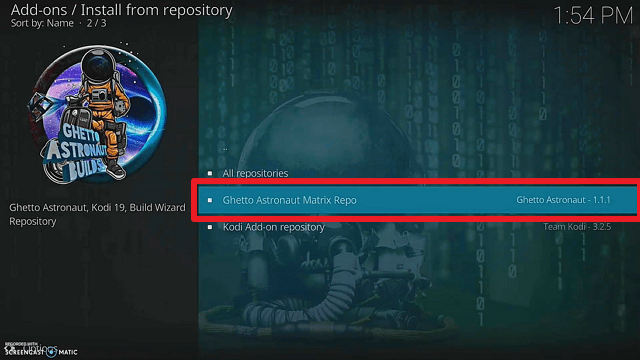
18. Select “Ghetto Astronaut Matrix Repo

step 18Install Rokyn Kodi Build on Firestick step 18


19. Then choose “Program add-ons

Install Rokyn Kodi Build on Firestick step 19


20. Click on “Ghetto Astronaut Wizard

step 20Install Rokyn Kodi Build on Firestick step


21. Then click “Install

Install Rokyn Kodi Build on Firestick step 21


22. Select “OK

Install Rokyn Kodi Build on Firestick step 22


23. Simply wait for it to finish with its installation

step 23Install Rokyn Kodi Build on Firestick step 23


24. Then select what you would like to enable (i.e. Trakt, Real Debrid, Login Data, My Sources, My Profiles, etc). Afterward, click “Continue

step 24Install Rokyn Kodi Build on Firestick step 24


25. Then click again“Ghetto Astronaut Wizard” and the box appears just simply click the “build menu” and “remind me later”.


26. Click “Matrix Builds

step 27Install Rokyn Kodi Build on Firestick step 26


27. Then scroll down to find “Rokyn

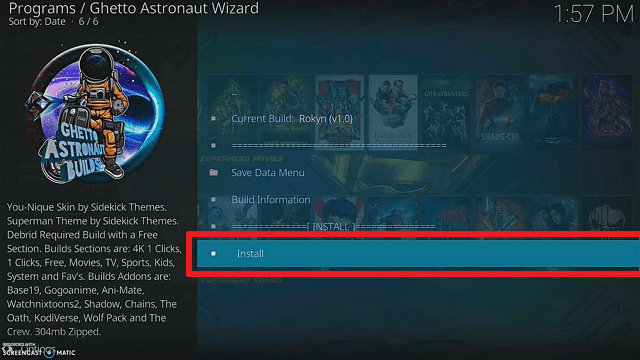
Install Rokyn Kodi Build on Firestick step 27


28. Click “Install

Install Rokyn Kodi Build on Firestick step 28


29. Select “Yes, Install

Install Rokyn Kodi Build on Firestick step 29

30. The build will then start to install, simply wait for it.

31. Then select “Fresh Install”.

32. Wait for a few minutes again for it to install.

33. Then click “OK” when a Force Close pop-up appears.

34. Then relaunch Kodi Matrix.


Note: Wait for the build to fully load and update for about 5-6 minutes to avoid lagging or crashing while it tries to update.


Install Surfshark on Firestick

Best Surfshark Deal


Legal Disclaimer: ReviewVPN.com does not encourage or endorse any illegal activity involved in the usage of services and applications referenced on this site. We do not verify the licensing agreements of services. The end-user is wholly responsible for ensuring that any media accessed through these services does not violate copyright and/or licensing laws. ReviewVPN does not promote, link to, or receive compensation from any Apps and IPTV services.


Features

  • It provides free streaming of movies, TV shows, anime, kids, and sports.
  • Offers streaming links with no to minimal buffering.
  • Real debrid integration is possible to obtain better streaming links.
  • It supports 1080p and 4k streaming.
  • You’ll be able to bookmark your favorite movies, TV series, and other stuff in a favorites section.
  • It allows you to watch movies and TV shows with a single click.
  • House of EL can also be found in the Rokyn Kodi Build.


Pros & Cons

Pros

  • It contains anime content, which is lacking in some Builds.
  • It can integrate real debrid.
  • There are one-click play streams available, including 4k resolution.
  • You can add more streaming add-ons.

Cons

  • No integration with Trakt is currently available.
  • It will take several minutes to set up the first time.
  • Rokyn is not from the official repository, therefore you will never know if it poses a threat to your safety.


Should I Use Rokyn Kodi Build With A VPN?

surfshark logo

When using Kodi, as well as its build and add-ons, it is usually suggested to use a VPN such as Surfshark. This is especially the case if you’re running unofficial builds like Rokyn, which aren’t available in the Kodi repository.

Surfshark can assist you in maintaining your privacy right from the start. As a result, you can rest assured that any third-party Build’s servers will be unable to obtain any information from you. This is done by masking your real IP address, preventing them from obtaining any information from it.

Here are some additional reasons why using a Surfshark is recommended:

  • It protects your data from being stolen by hackers and phishers.
  • Maintains a strict zero-log policy to avoid IP address leaks and data breaches.
  • Allows you to get beyond censorship and geographical constraints.
  • Secures your device with 256-bit military-grade encryption.
  • Protects all of your devices simultaneously, allowing you to safeguard an unlimited number of accounts at the same time.


Note: For more information about Surfshark, please read our Surfshark Review.


How to Install Surfshark VPN on Firestick

If your Firestick still has the older interface, read this article to learn how to update it: Update Firestick Interface.

Follow our screenshots below to install the SurfShark VPN app on your Fire TV stick.

1. Go to the Home screen of your Firestick.

step 1 Install Surfshark VPN on Firestick


2. Navigate towards the Find tab. Press the Search button from the resulting dropdown.

step 2 Install Surfshark VPN on Firestick


3. Type in the keyword of SurfShark and select from the suggestions that will appear.

step 3 Install Surfshark VPN on Firestick


4. Click the official SurfShark icon from your search results.

step 4 Install Surfshark VPN on Firestick


5. Press the Download (You own it) button.

step 5 Install Surfshark VPN on Firestick


6. The SurfShark VPN installer will download on your device.

step 6 Install Surfshark VPN on Firestick


7. SurfShark VPN’s app will automatically install itself on your Fire TV stick.

step 7 Install Surfshark VPN on Firestick


8. Press the Open button after completing SurfShark VPN’s installation process.

step 8 Install Surfshark VPN on Firestick


9. Please wait for the SurfShark VPN to load its user interface.

step 9 Install Surfshark VPN on Firestick


10. You can now log in with your SurfShark VPN account credentials.

step 10 Install Surfshark VPN on Firestick

Learn more about Surfshark and Grab the Best Surfshark Deal Now!


Install Surfshark on Firestick

Best Surfshark Deal


Other VPNs to Consider

NordVPN (Best for Streaming)

Best Features

  • 5000+ Server in 50+ Countries 
  • Military-Grade Encryption
  • Fast Connection Speed
  • Suitable to a lot of devices
  • No-Log Policy

Prices
  • Complete $5.89 per month (64% Discount)
  • Plus $4.59 per month (56% Discount)
  • Standard $3.69 per month (55% Discount)

Best Features

  • 750+ High-speed VPN Servers in 43 Locations
  • Military-Grade Encryption
  • Fastest HD Streaming and Gaming
  • 30-Day Money-Back Guarantee
  • Unlimited Data & Devices
  • No-Log Policy

Prices
  • 3 Years $1.99 per month (82% Discount)
  • 1 Years $3.29 per month (70% Discount)
  • 1 Month $10.99 per month

IPVanish VPN (Most Secure)

Best Features

  • 1200+ Servers in 60+ Countries around the world
  • Unlimited Connections
  • No-Log Policy
  • Top Notch Military-Grade VPN Protocols and Encryptions
  • 100% Safe and Secured
  • Most Trusted VPN
  • Best VPN for Firestick
  • 30-Day Money-Back Guarantee

Prices
  • Yearly $3.99 per month (63% Discount) – 30 days risk free + Ransomware & Malware Protection
  • Quarterly $5.32 per month (51% Discount)
  • Monthly $10.99 per month


For more VPN discounts, go to ReviewVPN Deals and purchase the best VPN for you.

Click here to get the lowest price on Surfshark through our exclusive limited-time offer.


FAQs

What is Rokyn Kodi Build?

Rokyn is a Kodi Build from the well-known Astronaut Matrix Wizard repository. It lets you view free movies, television shows, anime, sports, and children’s programming. Furthermore, it supports real debrid integration as well as one-click play links for easier streaming of your selected content.


Is Rokyn Kodi Build safe?

Yes, installing Rokyn Kodi Build on Firestick and other Kodi-compatible devices is safe. However, Surfshark will assist you in adding protection while using and installing the build, which is why we enable it when testing any third-party builds.


Is Rokyn Kodi Build Legal?

Kodi Builds in general are legal to install and use on your device. However, because this build is not from the official Kodi repository, we will never be able to evaluate the legality of the streams that it provides. To prevent legal repercussions, it is recommended to employ a VPN service such as Surfshark.


Conclusion

If you’re anyone like me who prefers one-click play options for easier streaming then Rokyn is a good build to consider. It even provides 4k resolution one-click play streaming, ensuring that you will be able to access high-quality streams for this. Furthermore, it has Anime content, which is rarely found in many builds. However, since this is not from the official repository, we’d then again remind you of the possible risks that it can do to your device.


How To Install Fido K19 Kodi Addon on Firestick/Fire TV

Overview

This article will show you all you need to know about the Fido K19 Kodi Add-on, including how to install it on your Firestick.

Are you tired of having to switch add-ons every time you use the Kodi app? We understand how much you want to see everything in one add-on, from movies and TV shows to live TV, kids’ entertainment, and more. Fortunately, the Fido K19 Kodi Addon takes care of just about everything.


The Fido Kodi Addon makes it simple to watch movies, TV shows, and live TV. It also offers fast streams with no buffering, allowing you to conveniently watch and catch up on the news, sports, and other broadcasts. Furthermore, with so many channels to choose from, the Fido K29 Kodi Add-on will never leave you wanting.

However, because the Fido K19 Kodi Add-on is not from the official Kodi repository, we recommend using a VPN connection from services such as Surfshark while using it. This is to ensure content streaming and access are safe.


ANONYMOUSLY


How To Install Fido Kodi Addon on Firestick with Screenshots

This guide will walk you through the steps of installing the Fido K19 Kodi Addon on your Firestick.


1. On your Firestick, open Kodi and go to Settings.

Install Fido Kodi Addon on Firestick step 1

2. Select on System.

Install Fido Kodi Addon on Firestick step 2


3. Click on the Add-ons menu and Turn ON the Unknown Sources.

Install Fido Kodi Addon on Firestick step 3


4. Select Yes when the box appears.

Install Fido Kodi Addon on Firestick step 4


5. Go back one step and click on File Manager.

Install Fido Kodi Addon on Firestick step 5


6. Select the Add Source.

Install Fido Kodi Addon on Firestick step 6


7. A box will pop up, so click on the ‘None’ option.

Install Fido Kodi Addon on Firestick step 7


8. Type in “http://fantazyrepo.uk/repo/” then click “OK”

Install Fido Kodi Addon on Firestick step 8


9. Highlight the box under the source to give the media source a name, and put “fantazy” or any other name that will help you identify it quickly. Then click “OK” again

Install Fido Kodi Addon on Firestick step 9


10. Return to the System page by pressing the return button on your remote


11. Select “Add-ons

Install Fido Kodi Addon on Firestick step 11


12. Choose “Install from zip file

Install Fido Kodi Addon on Firestick step 12


13. Click “Yes

Install Fido Kodi Addon on Firestick step 13


14. Select “fantazy

Install Fido Kodi Addon on Firestick step 14


15. Then click on the zip file URL – repository.Fido-1.5.zip

Install Fido Kodi Addon on Firestick step 15


16. Wait for the notification “Fido Repository Add-on installed” to appear on the upper right part of the screen

Install Fido Kodi Addon on Firestick step 16


17. Afterward, select “Install from repository

Install Fido Kodi Addon on Firestick step 17


18. Then click “Fido Repository

Install Fido Kodi Addon on Firestick step 18


19. Select “Video add-ons

step 24Install Fido Kodi Addon on Firestick step 19


20. Click on “Fido.K19

Install Fido Kodi Addon on Firestick step 20


21. Then click “Install

step 26Install Fido Kodi Addon on Firestick step 21


22. Click “OK” for the additional add-ons


23. Then wait for it to install. It’s finished once you see the “Fido K-19 Add-on Installed” message appears.

Install Fido Kodi Addon on Firestick step 23


24. Click on the “Fido.K19” again


25. Then select “Open

Install Fido Kodi Addon on Firestick step 25


26. That’s it, Fido K19 Kodi Addon is already installed in your Firestick.

Install Fido Kodi Addon on Firestick step 26

Install Surfshark on Firestick

Best Surfshark Deal


Legal Disclaimer: ReviewVPN.com does not encourage or endorse any illegal activity involved in the usage of services and applications referenced on this site. We do not verify the licensing agreements of services. The end-user is wholly responsible for ensuring that any media accessed through these services does not violate copyright and/or licensing laws. ReviewVPN does not promote, link to, or receive compensation from any Apps and IPTV services.


YOUR INTERNET ACTIVITY IS BEING WATCHED

ReviewVPN cannot attest to the legality, security and privacy of the applications discussed on this site. It is highly recommended that you use a VPN service while streaming or using Kodi.

Currently, your IP 216.73.216.102 is visible to everyone and your Browser is being tracked by Advertisers & ISP Provider.

Save 65% Now

Limited Time Offer

Here are the main reasons why you must use a VPN:

  • Your activities are hidden from your ISP, the government, and from the apps you are using.
  • You can access additional movies and TV streams.
  • ISP attempts to throttle are thrwarted thus reducing buffering issues.
  • Geographically restricted content like Netflix and Hulu can be unblocked.

A VPN works be replacing your ISP-assigned IP address and creating an encrypted tunnel. We recommend the no log service offered by IPVanish. It works well on a Firestick and offers the fastest possible speeds.

Special Limited Time Offer - Get IPVanish


Features

  • It contains Live TV, Music TV, Classic TV Shows, Movies, Kids Area, Stand Up Comedy, Fitness, TV BoxSets, Faith in Humanity, Need For Speed, Nature-History-Travel, Crime, Christmas, And TV Windows & Art.
  • There are several popular live TV programs available for free streaming.
  • 123Movies, 300MBFilms, BNWMovies, FilmXY, GoWatchSeries, HDMovie8, Iwaatch, MAXRLS, and others are among some of the hosters.
  • Foreign providers are Gamato-Movies, Tenies-Onlinem, and XRYSOI
  • Popular torrent sources include 1337X, Kickass2, LimeTorrents, PirateBay, TORDL, YTS, Zooqle, and many others.
  • Additional add-ons that will be installed are Google Drive, Youtube, InputStream Helper, MicroJen Scraper Module, and ResolveURL
  • You can choose from WideList, Wall, Shift, or InfoWall as your view type depending on your preference.
  • You can sort the results in ascending or descending order.
  • Allows you to enter a search term to locate titles quickly.
  • Entering a value enables you to filter content.
  • Allows you to select a Scraper Module.
  • You can enable and disable All Providers, All Hosters, All Foreign Providers, and All Torrent Providers
  • There are four settings to choose from Basic, Standard, Advanced, and Expert.


Pros & Cons

Pros

  • Some of the most popular live channels, such as Pluto TV, PLEX, and others, can be found here.
  • It has a large number of movies, TV series, and other streaming alternatives across a wide range of genres.
  • There are numerous channels to choose from.
  • Streaming without buffering
  • There are multiple streaming links available.

Cons

  • There is no real debrid integration.
  • It is not possible to connect a Trakt account to keep track of shows.
  • The loading process takes some time.


Should I Use Fido K19 Kodi Addon With a VPN?

Yes, you should use Fido with a VPN since it is a third-party Kodi addon. This is because you will never know what dangers it may pose to your device.

Furthermore, it warns you that if you enable unknown sources, Kodi will not be responsible for any device damage or data theft. As a result, you will be completely responsible for the security of your device and data.

Of course, you’ll never want to put your safety at risk and be held liable for the damage and losses. That’s where a VPN comes in handy.

A VPN service, such as Surfshark, will conceal your connection by providing you with an anonymous IP address.  As a result, it provides you with the following security measures:

  • Because you will be employing a different IP address, this anonymous IP address will mask all of your internet activities as well as your data.
  • The IP address will make you appear to be from another location (you can even use Surfshark to access geo-restricted content through this feature)
  • It has a kill switch that will disconnect your device from the internet if your VPN connection is suddenly lost.
  • Surfshark secures your connection with 256-bit military-grade encryption to avoid any breaches.
  • Its zero-logs policy assures that no IP addresses or data are exposed.


Note: For more information about Surfshark, please read our Surfshark Review.


Install Surfshark on Firestick

Best Surfshark Deal


How to Install Surfshark VPN on Firestick

If your Firestick still has the older interface, read this article to learn how to update it: Update Firestick Interface.

Follow our screenshots below to install the SurfShark VPN app on your Fire TV stick.

1. Go to the Home screen of your Firestick.

step 1 Install Surfshark VPN on Firestick


2. Navigate towards the Find tab. Press the Search button from the resulting dropdown.

step 2 Install Surfshark VPN on Firestick


3. Type in the keyword of SurfShark and select from the suggestions that will appear.

step 3 Install Surfshark VPN on Firestick


4. Click the official SurfShark icon from your search results.

step 4 Install Surfshark VPN on Firestick


5. Press the Download (You own it) button.

step 5 Install Surfshark VPN on Firestick


6. The SurfShark VPN installer will download on your device.

step 6 Install Surfshark VPN on Firestick


7. SurfShark VPN’s app will automatically install itself on your Fire TV stick.

step 7 Install Surfshark VPN on Firestick


8. Press the Open button after completing SurfShark VPN’s installation process.

step 8 Install Surfshark VPN on Firestick


9. Please wait for the SurfShark VPN to load its user interface.

step 9 Install Surfshark VPN on Firestick


10. You can now log in with your SurfShark VPN account credentials.

step 10 Install Surfshark VPN on Firestick

Learn more about Surfshark and Grab the Best Surfshark Deal Now!


Install Surfshark on Firestick

Best Surfshark Deal


Other VPNs to Consider

NordVPN (Best for Streaming)

Best Features

  • 5000+ Server in 50+ Countries 
  • Military-Grade Encryption
  • Fast Connection Speed
  • Suitable to a lot of devices
  • No-Log Policy

Prices
  • Complete $5.89 per month (64% Discount)
  • Plus $4.59 per month (56% Discount)
  • Standard $3.69 per month (55% Discount)

Best Features

  • 750+ High-speed VPN Servers in 43 Locations
  • Military-Grade Encryption
  • Fastest HD Streaming and Gaming
  • 30-Day Money-Back Guarantee
  • Unlimited Data & Devices
  • No-Log Policy

Prices
  • 3 Years $1.99 per month (82% Discount)
  • 1 Years $3.29 per month (70% Discount)
  • 1 Month $10.99 per month

IPVanish VPN (Most Secure)

Best Features

  • 1200+ Servers in 60+ Countries around the world
  • Unlimited Connections
  • No-Log Policy
  • Top Notch Military-Grade VPN Protocols and Encryptions
  • 100% Safe and Secured
  • Most Trusted VPN
  • Best VPN for Firestick
  • 30-Day Money-Back Guarantee

Prices
  • Yearly $3.99 per month (63% Discount) – 30 days risk free + Ransomware & Malware Protection
  • Quarterly $5.32 per month (51% Discount)
  • Monthly $10.99 per month


For more VPN discounts, go to ReviewVPN Deals and purchase the best VPN for you.

Click here to get the lowest price on Surfshark through our exclusive limited-time offer.


FAQs

What is Fido Kodi Addon?

Fido Kodi Addon lets you watch movies, TV series, live TV, and other content. Moreover, it features some categories which include Kids Area, Stand Up Comedy, Fitness, Crime, Nature, Travel, History and so much more. It also has a variety of channels and streaming links to provide you with the best possible streams.


Is Fido Kodi Addon Safe?

Yes, the Fido K19 Kodi addon is safe to install on any device, including Firestick. However, because it is a third-party addon, a VPN is recommended to ensure that your device and data are not at risk while using the service.


Is Fido Kodi Addon Legal?

Due to a large number of movies and channels available, we at ReviewVPN are unable to fully determine the legality of Fido K19 Kodi Addon. As a result, it’s best to use a VPN to remain anonymous online and avoid any legal troubles when using the service.


Conclusion

Fido Kodi Addon is by far one of the best Kodi Addons I’ve tried and tested. There are numerous movie options and channels to choose from. So whether you want to watch the latest movies, catch up on your favorite shows, or even watch live sports and news, there’s always a channel that’s right for you.

Apart from that, my favorite part is that it allows users to stream without buffering. So, if you’re like me and are easily irritated by buffering, you might want to try this Kodi Addon for your streaming.


Best CucoTV Alternatives

Overview

Following CucoTV’s recent shutdown, this article will outline the best CucoTV alternatives accessible for streaming.

There are instances when, like any other streaming service available online, they confront controversy over the movies and series that they provide. CucoTV is, regrettably, one of them today.

Despite the fact that CucoTV promises to provide legal streams to its viewers, the company was sent a DMCA notice, which resulted in their service being shut down. Sky UK Limited requested that this well-known streaming app be removed because it was reportedly distributing copyright shows on its platform.


And, given the success of Sky’s shutdown request, you might be asking what the best alternatives are right now. As a result, we’ve compiled a list of the best ones available today. You may also rest certain that these apps have been verified, so you won’t have to worry about the legality of the apps featured in this article.

Furthermore, that is why it is always advisable to use a VPN when accessing any content online. This is to protect your personal information from being exposed to apps and websites that you use for whatever reason, especially if you are uncertain about their legality. This prevents your IP address and activity logs from being stored on the apps and websites you visit.


ANONYMOUSLY


Best CucoTV Alternatives

The best CucoTV alternatives to install and use on your Firestick are listed below:


Tubi TV

tubi tv logo

Tubi TV, an excellent alternative to CucoTV, is first on our list. It’s a must-have streaming app because it gives you access to over 35,000 free movies and TV series. It’s ad-supported, so you won’t have to question why it’s free considering the number of streams available on their app or website. As a result, you don’t have to worry about it being legal because you can watch whatever content you want using their app. Furthermore, as previously stated, you can watch using their app or website, so they can match your streaming preferences regardless of platform. In addition, it is available through TV, phone, tablet, or laptop.


Features:

  • Continue watching your favorite shows from where you left off.
  • It has a channel guide (EPG)
  • Allows you to save shows to your watch list for later viewing.
  • Supports closed captioning.
  • Allows you to navigate the menu on the screen using text-to-speech.
  • There is parental control accessible to filter the content that can be viewed and accessed.

You may learn more about Tubi TV by reading this article.


PopcornFlix

PopcornFlix logo

PopcornFlix comes in second on our list of the best CucoTV alternatives. It’s also free and doesn’t require a subscription, but it ensures that you’re watching legal content. The nicest part about this app is that you won’t have to sign up because you’ll be able to find movies and episodes straight after you open it. It also offers a website for individuals who like to watch videos on streaming services. Its categories include Action, Comedy, Crime, Documentaries, Drama, Horror, Sci-Fi, Sports, Thriller, and more. As a result, you’ll never run out of options for anything you want to watch at the moment. Aside from that, it includes PopcornFlix Originals, which offers users exclusive content.


Features:

  • User-friendly UI.
  • Quick set-up and easy to navigate.
  • Free HD-quality films.
  • One-click play streaming.
  • Closed captioning is supported.
  • Offers ad-supported free streaming to users.

To know more about Popcornflix, you may read this here.

Plex

plex logo

If you’re into streaming then you’re probably familiar with Plex. It’s a popular Amazon app that lets you watch and listen to free movies, TV episodes, sports, and music. It also provides over 250 live TV channels and 50,000 free on-demand titles. It’s a terrific deal because, although free, it gives HD quality videos to its users. Apart from that, it works globally, so you won’t have to worry about geo-restrictions when watching Plex content.


Features:

  • Free live TV, movies and TV shows, sports, and music.
  • Provides an EPG for their live TV content.
  • Add shows to your watchlist for later viewing.
  • Stream and share your videos and music across all of your devices.
  • Move your favorite live Tv channels to the top of the list to personalize your experience.
  • Its search tool makes it simple to find titles.
  • It has a movie trailer in its movies section.
  • Playing is as simple as clicking a button.
  • There is a sleep timer accessible.
  • It contains a playback feature that lets you shuffle and replay movies.

If you want to learn more about Plex, read here.


Crackle

Crackle logo

Crackle is also one of the best CucoTV alternatives because it offers legal movies and TV shows to watch for free. However, it is only available in the United States, so you’ll need an active VPN subscription to see its content. Nonetheless, it provides access to hundreds of movies and TV shows, so having a VPN is well worth it. Apart from that, it’s a simple and easy-to-use streaming app, so you won’t have any trouble watching your favorite movies and shows with it.


YOUR INTERNET ACTIVITY IS BEING WATCHED

ReviewVPN cannot attest to the legality, security and privacy of the applications discussed on this site. It is highly recommended that you use a VPN service while streaming or using Kodi.

Currently, your IP 216.73.216.102 is visible to everyone and your Browser is being tracked by Advertisers & ISP Provider.

Save 65% Now

Limited Time Offer

Here are the main reasons why you must use a VPN:

  • Your activities are hidden from your ISP, the government, and from the apps you are using.
  • You can access additional movies and TV streams.
  • ISP attempts to throttle are thrwarted thus reducing buffering issues.
  • Geographically restricted content like Netflix and Hulu can be unblocked.

A VPN works be replacing your ISP-assigned IP address and creating an encrypted tunnel. We recommend the no log service offered by IPVanish. It works well on a Firestick and offers the fastest possible speeds.

Special Limited Time Offer - Get IPVanish


Features:

  • You can request Movies or shows that you would want to see on Crackle
  • Crackle provides free official copyrighted videos.
  • Because it is ad-supported, you will occasionally encounter adverts.
  • Allows you to use the same account on multiple devices.
  • Supports Amazon Fire TV and Firestick, Android, iOS, Chromecast, Roku, XBOX1, Playstation, and a variety of other devices.

To know more about Crackle, you may read this article.


Pluto TV

Pluto TV is the last but certainly not least of our best CucoTV alternatives. Though Pluto TV is well-known for being a live TV app, it also provides movies, TV series, VOD, and music channels that you can watch on your Firestick device. Moreover, the good news is that despite being an Amazon Appstore verified software, it offers free streams to its users. It offers thousands of free on-demand movies and series, 100+ live channels, and 250+ free TV channels. Its categories include sports, news, comedy, entertainment, and more, allowing you to stream any content you can think of. It’s also a free streaming app with ads, but it’s geo-restricted. So, once again, you’ll need Surfshark to access and enjoy free Pluto TV content.


Features:

  • There are Spanish channels available.
  • Contains an EPG for its live channels.
  • Regularly updates channel lineup.
  • Available on major platforms such as Fire devices, iOS, Android, Roku, Chromecast, and more.
  • Thousands of free VOD, movies and TV shows are accessible for free.

You may learn more about Pluto TV by reading this article.


Stream Safely With a VPN

surfshark logo

CucoTV is a clear example of why you should always protect your data when using streaming services, especially if you don’t know if they’re legal.

However, regardless of which streaming service you use, you’ll never know when your data is being logged for whatever purposes these services may have. You could even be unaware of the extent to which your data and activity are being monitored when using these apps.

As a result, it is always advisable to use a VPN to prevent data breaches and IP address leaks. You can rest assured that none of your personal information or actions will be monitored this way.

And, as with the previous CucoTV incident, you never know if they’ll give authorities a list of IPs or users to interrogate about their app usage.

Apart from that, Surfshark also has the following features:

  • You’ll be able to get around geo-restrictions and watch everything you want from any streaming provider.
  • There are over 3200+ servers in 65 countries, so you’ll never be without a connection for your everyday streaming.
  • It comes with a 30-day money-back guarantee.
  • It contains a kill switch feature that adds an extra layer of security in the event of a VPN interruption.
  • All the Surfshark servers are owned by the company, so you can be confident that your information will not be sold to a third party.


Install Surfshark on Firestick

Best Surfshark Deal


How to Install Surfshark VPN on Firestick

If your Firestick still has the older interface, read this article to learn how to update it: Update Firestick Interface.

Follow our screenshots below to install the SurfShark VPN app on your Fire TV stick.

1. Go to the Home screen of your Firestick.

step 1 Install Surfshark VPN on Firestick


2. Navigate towards the Find tab. Press the Search button from the resulting dropdown.

step 2 Install Surfshark VPN on Firestick


3. Type in the keyword of SurfShark and select from the suggestions that will appear.

step 3 Install Surfshark VPN on Firestick


4. Click the official SurfShark icon from your search results.

step 4 Install Surfshark VPN on Firestick


5. Press the Download (You own it) button.

step 5 Install Surfshark VPN on Firestick


6. The SurfShark VPN installer will download on your device.

step 6 Install Surfshark VPN on Firestick


7. SurfShark VPN’s app will automatically install itself on your Fire TV stick.

step 7 Install Surfshark VPN on Firestick


8. Press the Open button after completing SurfShark VPN’s installation process.

step 8 Install Surfshark VPN on Firestick


9. Please wait for the SurfShark VPN to load its user interface.

step 9 Install Surfshark VPN on Firestick


10. You can now log in with your SurfShark VPN account credentials.

step 10 Install Surfshark VPN on Firestick

Learn more about Surfshark and Grab the Best Surfshark Deal Now!


Install Surfshark on Firestick

Best Surfshark Deal


Other VPNs to Consider

NordVPN (Best for Streaming)

Best Features

  • 5000+ Server in 50+ Countries 
  • Military-Grade Encryption
  • Fast Connection Speed
  • Suitable to a lot of devices
  • No-Log Policy

Prices
  • Complete $5.89 per month (64% Discount)
  • Plus $4.59 per month (56% Discount)
  • Standard $3.69 per month (55% Discount)

Best Features

  • 750+ High-speed VPN Servers in 43 Locations
  • Military-Grade Encryption
  • Fastest HD Streaming and Gaming
  • 30-Day Money-Back Guarantee
  • Unlimited Data & Devices
  • No-Log Policy

Prices
  • 3 Years $1.99 per month (82% Discount)
  • 1 Years $3.29 per month (70% Discount)
  • 1 Month $10.99 per month

IPVanish VPN (Most Secure)

Best Features

  • 1200+ Servers in 60+ Countries around the world
  • Unlimited Connections
  • No-Log Policy
  • Top Notch Military-Grade VPN Protocols and Encryptions
  • 100% Safe and Secured
  • Most Trusted VPN
  • Best VPN for Firestick
  • 30-Day Money-Back Guarantee

Prices
  • Yearly $3.99 per month (63% Discount) – 30 days risk free + Ransomware & Malware Protection
  • Quarterly $5.32 per month (51% Discount)
  • Monthly $10.99 per month


For more VPN discounts, go to ReviewVPN Deals and purchase the best VPN for you.

Click here to get the lowest price on Surfshark through our exclusive limited-time offer.


FAQs

What was the reason behind CucoTV’s shutdown?

CucoTV was taken down after receiving a DMCA notice claiming that they were providing copyrighted content. Sky UK Limited is a company that has filed numerous complaints about CucoTV.


What is the best CucoTV alternative?

In this article, we’ve listed the best CucoTV alternatives. However, it is still up to the user to determine which one is best for him or her.


Are these CucoTV alternatives free?

Yes. Because our users are most likely looking for free alternatives, all of the apps we’ve featured are free.


Is it safe to use these CucoTV alternatives?

Yes, all of the apps mentioned in this article are safe. However, for enhanced security, you should use a VPN with your connection. This is to prevent any logging or surveillance of your IP address.


Are these CucoTV alternatives legal?

Yes, we are pleased to inform you that all of these applications are legitimate. As a result, you won’t have to worry about unlawful content when using these apps to watch.


Conclusion

CucoTV is a great app for watching movies and TV series for free. However, it’s still advisable to just use legal apps like the ones we’ve listed above to access and stream content. Even if their offering may not be similar, there’s no better way to stream while knowing that you’re just getting legal streams through these apps. You may also rest certain that your security will not be compromised in exchange for free content.

CNN+ Shutdown: Best Alternatives

Overview

In light of the recent announcement of CNN+’s shutdown on April 30, this article will provide you with an overview of the context as well as the best CNN+ alternatives.

CNN+ has just been available for live streaming for a month, having launched on March 29 with an expenditure of up to $300 million. However, on April 21, it was announced that it would be shutting down. This unexpected decision was taken by Warner Bros. Discovery, the new management in charge of the streaming service.


It is because their CEO, David Zaslav, has better plans for a streaming service that will incorporate all of their streaming assets, including Discovery+ and HBO Max. Furthermore, according to reports, the streaming service got off to a rocky start, with only 10,000 daily viewers, which is significantly less than projected.

Despite the fact that this decision startled many people, particularly those who had subscribed to this streaming service, WBD promises its current subscribers that they would get a prorated refund of their subscription fees. Additionally, CNN+ employees who are on the verge of losing their employment will be offered positions in other CNN departments.


ANONYMOUSLY


CNN+ Alternatives

With the discontinuation of the CNN+ streaming service, the following are the best CNN+ alternatives on which you may rely for your CNN streams:


Hulu + Live TV

hulu logo

Hulu is well known for its movie and TV show offerings, but with its Hulu + Live TV bundle, it now also offers live channels. We can consider this live TV offering to be one of the CNN+ alternatives because it contains sports, news, and events. Moreover, it also has a streaming library with thousands of TV programs and films. Aside from that, most new episodes are shown the day after they premiere. However, because Hulu is geo-restricted, you’ll need a VPN  such as Surfshark if you’re outside of the United States.


Features:

  • There are more than 75 networks available, including CNN, CBS, MSNBC, FOX News, and others.
  • Disney+ and ESPN+ are included in the bundle.
  • Available on television, laptop, mobile phone, and tablet
  • There are up to 6 user profiles available.
  • 2 simultaneous screens
  • You can save shows to watch later by downloading them.
  • It has a live TV guide (EPG)
  • DVR storage is unlimited.

You may learn more about Hulu by reading this article.


Sling TV

Sling TV is another popular streaming service that allows you to watch live TV while on the go. It prides itself on being less expensive than cable TV providers and offering plan flexibility by not requiring long-term commitments. This allows you to change or cancel your subscription at any moment, so you won’t be tied to the service for an extended period of time. Furthermore, if you want to enjoy news and entertainment, we recommend getting the Blue Plan. You can also choose the Orange & Blue Plan, which costs $15 more but includes all 50 channels. All of their options, however, include CNN as part of the subscription.


Features:

  • Depending on your plan, you can have up to 4 device streams.
  • DVR storage capacity of 50 hours
  • Compatible with iOS, Android, Fire TV, Roku, XBOX, Chromecast, and other major devices.
  • Also includes local channels
  • As of this writing, you can get 50% off your first month.

To know more about Sling TV, you may read this article.

Peacock TV

Peacock TV is another CNN+ alternative worth considering. It allows you to watch the news, live sports, movies, and TV series, among other things. Peacock TV’s best feature is its free subscription, which allows you to view ad-supported movies, shows, live news, sports, and more. All you need is an active email address and a password to get started. You won’t even need a credit card, ensuring that everything is completely free.


Features:

  • 50+ channels are available for daily streaming.
  • Up to 60,000 hours of movies, shows, and more depending on your plan.
  • Downloadable shows that you can watch offline.
  • Next-day access to NBC hits.
  • Supports TV, Computer, Mobile, Tablet, Game Consoles, and more.
  • Upgrade to Peacock Plus to enjoy ad-free streams.

If you want to learn more about Peacock TV, read here.


Youtube TV

Youtube TV logo

If you’re a big YouTube fan, you might want to look into Youtube TV as a CNN+ alternative. News, entertainment, and live sports are all available through this premium live streaming service. It has access to news channels such as CNN, ABC, CBS, FOX, NBC, and many others. As a result, you can get your daily news from a variety of sources, not just CNN. Apart from that, there is no annual contract, so you can also cancel your subscription whenever you want.


Features:

  • Provides 85+ top channels.
  • Unlimited DVR recording.
  • Up to 6 accounts.
  • Allows up to 3 simultaneous streams.
  • Includes additional channels such as NFL, NBA, MLB, PBS, BET, Comedy Central, MTV, and Nickelodeon.
  • Available on Android, iOS, Fire TV, Roku, Chromecast, Playstation, XBOX, and Smart TVs.

To know more about Youtube TV, you may read this here.


YOUR INTERNET ACTIVITY IS BEING WATCHED

ReviewVPN cannot attest to the legality, security and privacy of the applications discussed on this site. It is highly recommended that you use a VPN service while streaming or using Kodi.

Currently, your IP 216.73.216.102 is visible to everyone and your Browser is being tracked by Advertisers & ISP Provider.

Save 65% Now

Limited Time Offer

Here are the main reasons why you must use a VPN:

  • Your activities are hidden from your ISP, the government, and from the apps you are using.
  • You can access additional movies and TV streams.
  • ISP attempts to throttle are thrwarted thus reducing buffering issues.
  • Geographically restricted content like Netflix and Hulu can be unblocked.

A VPN works be replacing your ISP-assigned IP address and creating an encrypted tunnel. We recommend the no log service offered by IPVanish. It works well on a Firestick and offers the fastest possible speeds.

Special Limited Time Offer - Get IPVanish


Pluto TV

Pluto TV, which has been around since 2013, rounds up our list of the best CNN+ alternatives. Another well-known streaming service is Pluto TV which lets you watch live TV and on-demand videos. This includes Movies, Entertainment, News, Reality, Crime, Comedy, Sports, Kids, and even local networks. Apart from that, you can see the schedule of upcoming shows so you know when CNN will be available to stream.


Features:

  • Offers free streaming.
  • 100 channels to choose from.
  • 400+ global content partners.
  • 150,000+ hours of content.
  • Compatible with Fire TV, Android, Apple TV, Chromecast, Playstation, Roku, XBOX, Xfinity, and more.

You may learn more about Pluto TV by reading this article.


Do I Need A VPN To Use These Apps?

https://get.surfshark.net/aff_c?offer_id=865&aff_id=12312

Yes. Because most of these apps are geo-restricted to the United States, a VPN is required to access them. So, in order to use these apps, you’ll need to use a VPN like Surfshark to obtain an IP address in the United States. But don’t be put off by this restriction because acquiring a VPN subscription is simple and quick. All you have to do is choose a subscription, complete the process, and begin connecting to the country you require. Nonetheless, we have the best Surfshark deal available here to help you get started with your VPN subscription.

In addition, these are some of Surfshark’s more specific features:

  • Helps you access geo-restricted streaming apps and websites.
  • Has over 3,200 VPN servers in 65 locations.
  • Adheres to a strict zero-logs policy.
  • It comes with a 30-day money-back guarantee.
  • Shared IP addresses will increase your anonymity online.
  • Includes a kill switch feature.


Install Surfshark on Firestick

Best Surfshark Deal


How to Install Surfshark VPN on Firestick

If your Firestick still has the older interface, read this article to learn how to update it: Update Firestick Interface.

You can download Surfshark directly from the Amazon App store. It will be easy for you to find Surfshark with your Firestick’s Find feature. Refer to our screenshots below.

1. Go to the Home screen of your Firestick.

step 1 Install Surfshark VPN on Firestick


2. Navigate towards the Find tab. Press the Search button from the resulting dropdown.

step 2 Install Surfshark VPN on Firestick


3. Type in the keyword of SurfShark and select from the suggestions that will appear.

step 3 Install Surfshark VPN on Firestick


4. Click the official SurfShark icon from your search results.

step 4 Install Surfshark VPN on Firestick


5. Press the Download (You own it) button.

step 5 Install Surfshark VPN on Firestick


6. The SurfShark VPN installer will download on your device.

step 6 Install Surfshark VPN on Firestick


7. SurfShark VPN’s app will automatically install itself on your Fire TV stick.

step 7 Install Surfshark VPN on Firestick


8. Press the Open button after completing SurfShark VPN’s installation process.

step 8 Install Surfshark VPN on Firestick


9. Please wait for the SurfShark VPN to load its user interface.

step 9 Install Surfshark VPN on Firestick


10. You can now log in with your SurfShark VPN account credentials.

step 10 Install Surfshark VPN on Firestick

Learn more about Surfshark and Grab the Best Surfshark Deal Now!


Install Surfshark on Firestick

Best Surfshark Deal


Other VPNs to Consider

NordVPN (Best for Streaming)

Best Features

  • 5000+ Server in 50+ Countries 
  • Military-Grade Encryption
  • Fast Connection Speed
  • Suitable to a lot of devices
  • No-Log Policy

Prices
  • Complete $5.89 per month (64% Discount)
  • Plus $4.59 per month (56% Discount)
  • Standard $3.69 per month (55% Discount)

Best Features

  • 750+ High-speed VPN Servers in 43 Locations
  • Military-Grade Encryption
  • Fastest HD Streaming and Gaming
  • 30-Day Money-Back Guarantee
  • Unlimited Data & Devices
  • No-Log Policy

Prices
  • 3 Years $1.99 per month (82% Discount)
  • 1 Years $3.29 per month (70% Discount)
  • 1 Month $10.99 per month

IPVanish VPN (Most Secure)

Best Features

  • 1200+ Servers in 60+ Countries around the world
  • Unlimited Connections
  • No-Log Policy
  • Top Notch Military-Grade VPN Protocols and Encryptions
  • 100% Safe and Secured
  • Most Trusted VPN
  • Best VPN for Firestick
  • 30-Day Money-Back Guarantee

Prices
  • Yearly $3.99 per month (63% Discount) – 30 days risk free + Ransomware & Malware Protection
  • Quarterly $5.32 per month (51% Discount)
  • Monthly $10.99 per month


For more VPN discounts, go to ReviewVPN Deals and purchase the best VPN for you.

Click here to get the lowest price on Surfshark through our exclusive limited-time offer.


FAQs

What caused CNN+ to be shut down?

This decision was made by David Sazlav, the current CEO of Warner Brothers Discovery, who has different visions than the previous CNN+ management. It was because he had other ideas for the streaming service, which includes HBO Max, Discovery+, and other subscriptions.


What are the best CNN+ alternatives?

This article has listed the best CNN+ alternatives that you can consider after its shutdown. You can be sure that all of these applications feature CNN and other news channels, as well as live TV that you can watch on the go.


Are these CNN+ alternatives safe?

Yes, the apps that we’ve listed in this article are safe to install and use on your device. Moreover, these are the most reliable streaming providers available right now.


Are these CNN+ alternatives free?

Although some of these applications offer free services, most of them are not. However, as of this writing, they are offering discounts, so take advantage of it while it is still available.


Conclusion

Though the abrupt shutdown of CNN+ is both shocking and heartbreaking, I believe it was the best choice for the company. However, for those of us who are constantly on the hunt for the best streaming services accessible today, all we have left to do is find the best alternatives. And, thankfully, we’ve identified some of the best alternatives that you can consider after it shuts down. Hulu, Peacock TV, Sling TV, and others are just a few of the most well-known and well-established streaming apps available today.