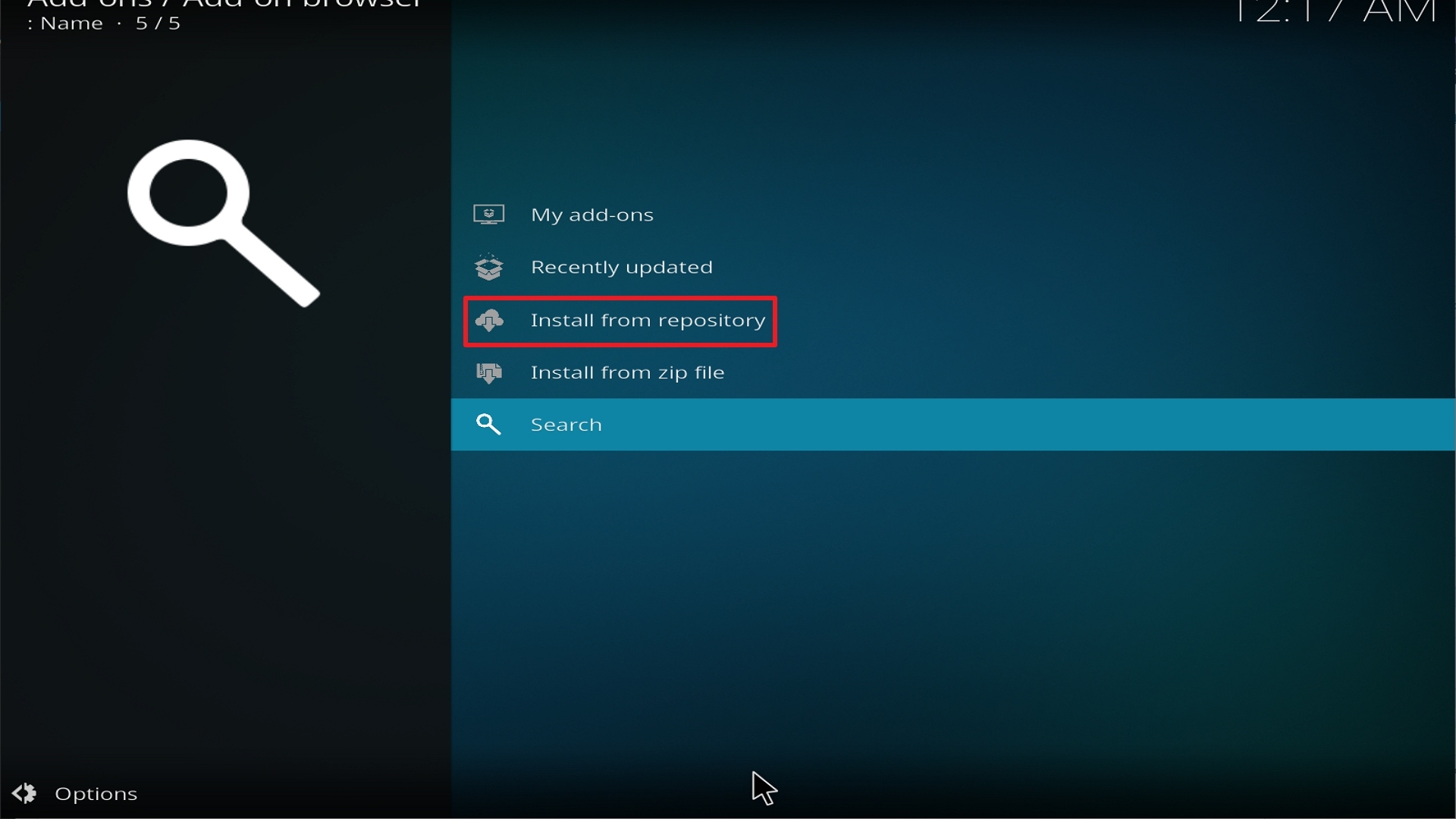
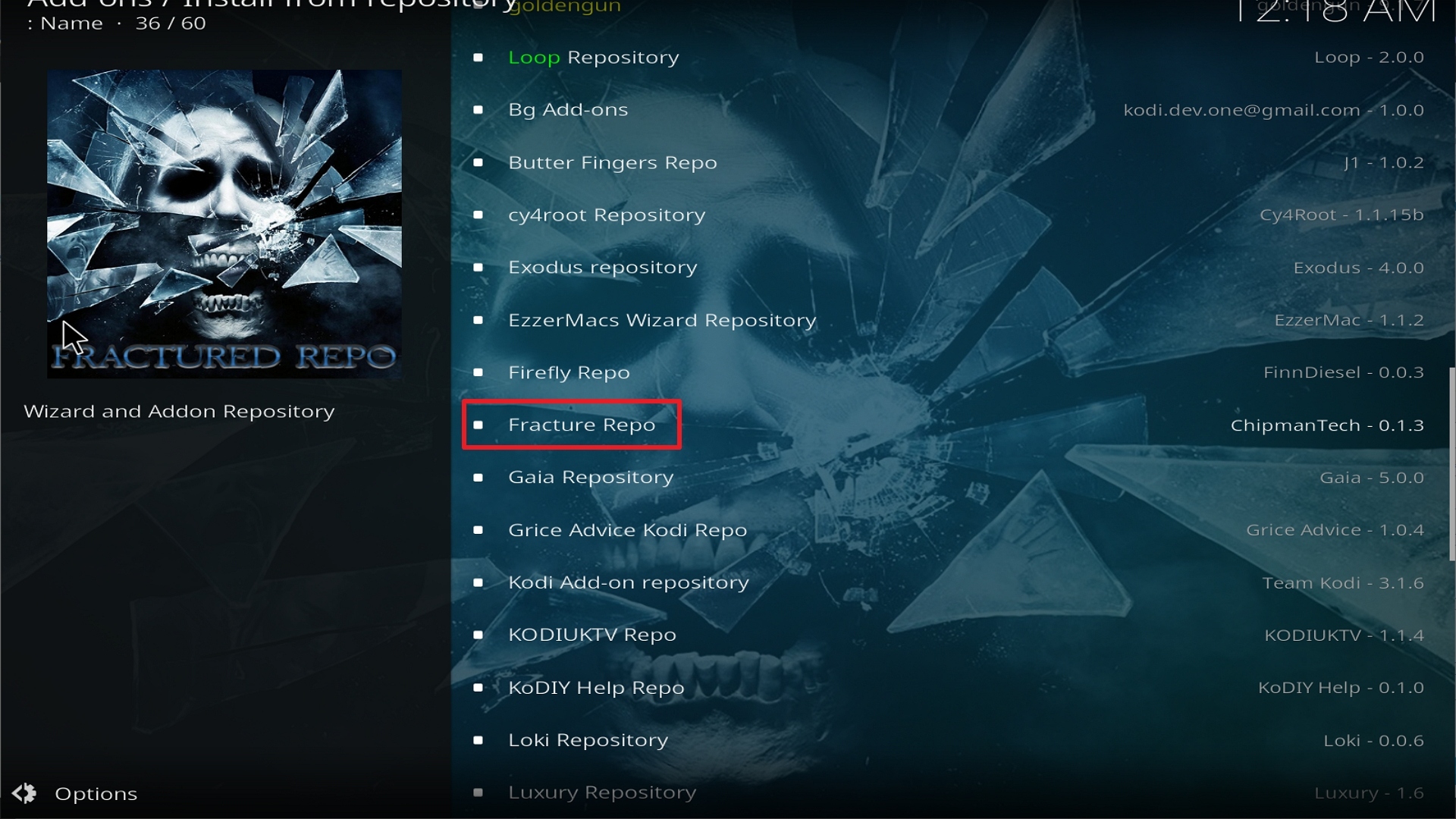
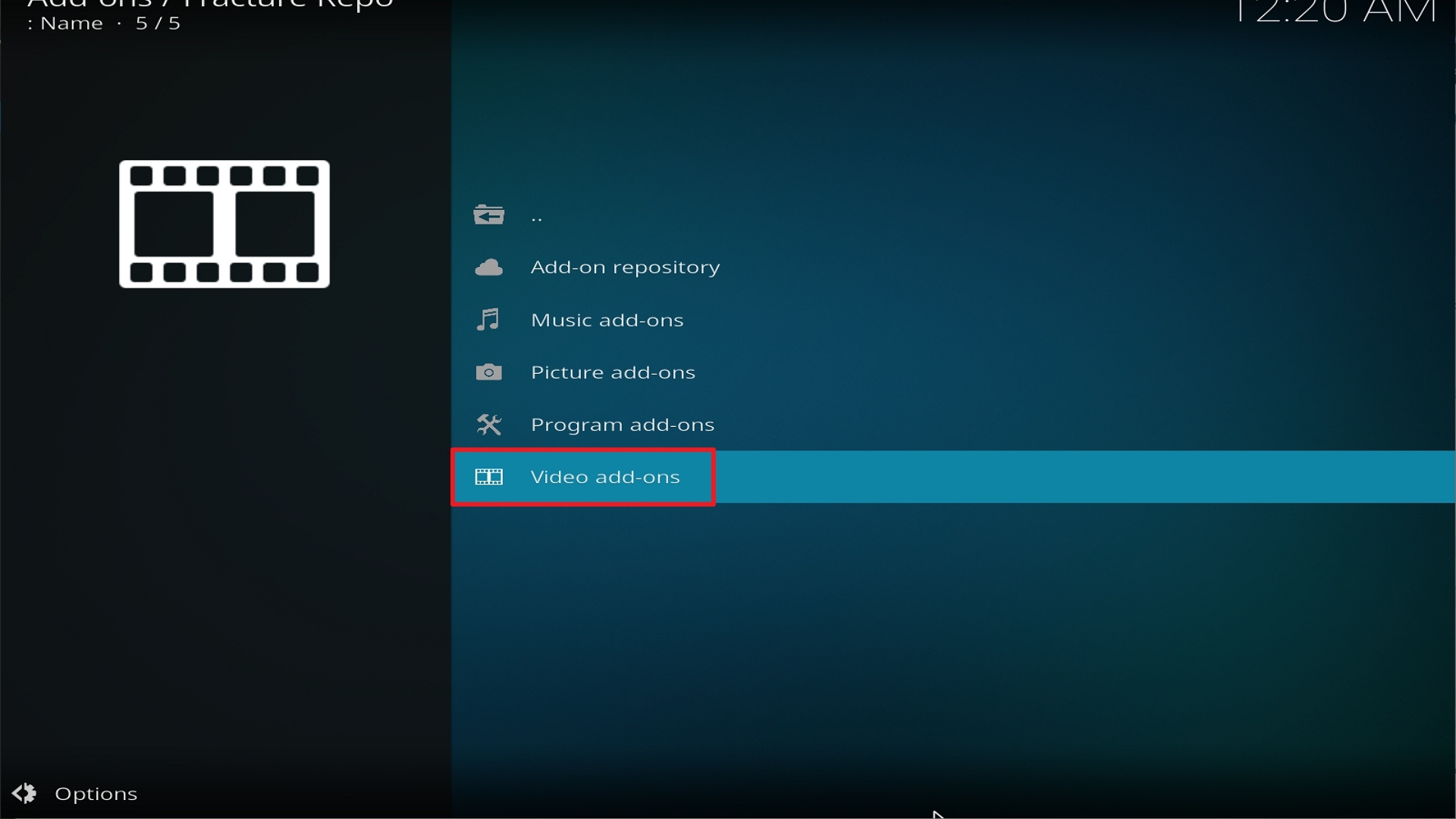
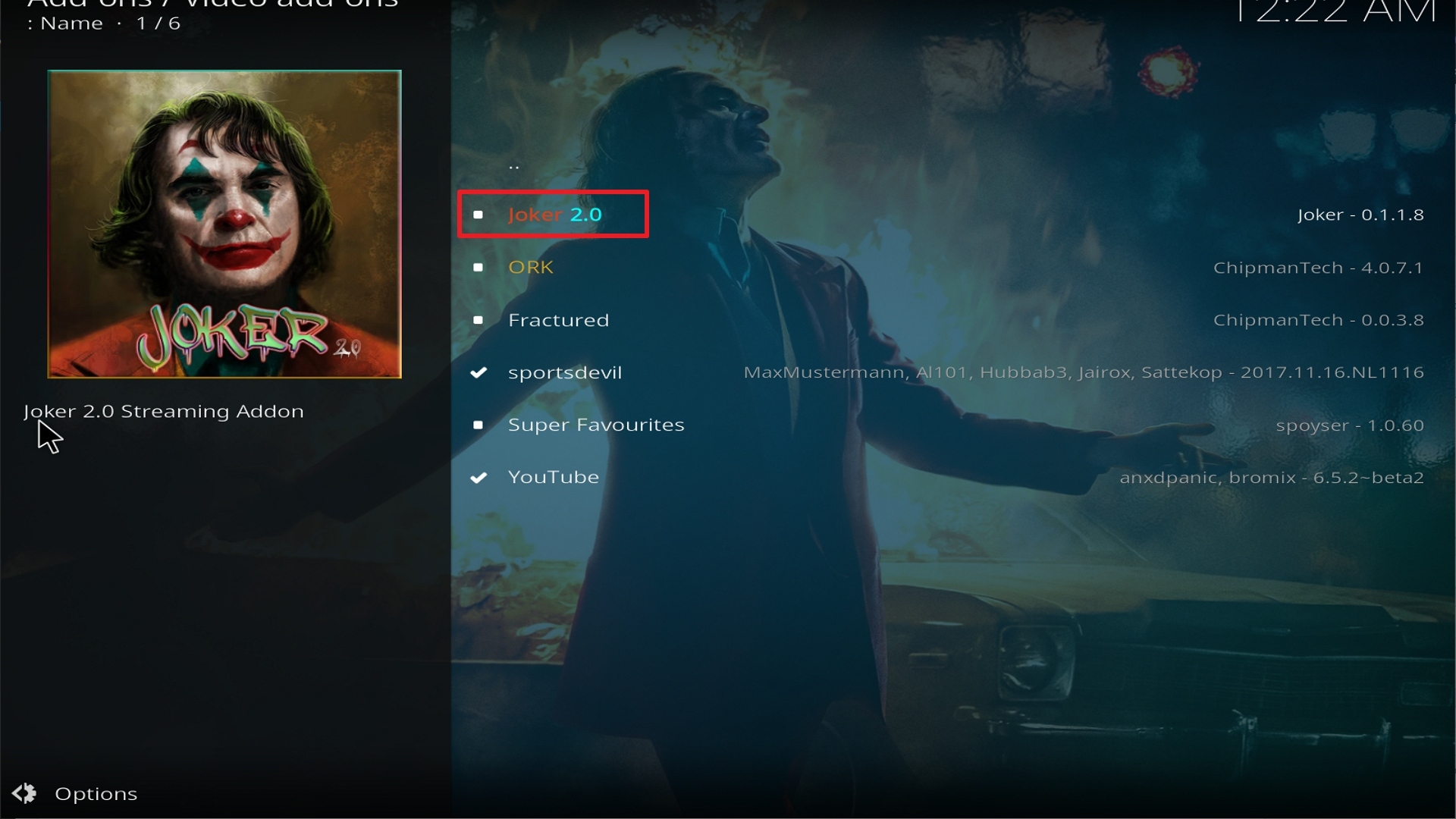
Install Bumblebee Kodi Addon

Bumblebee Kodi Addon

http://nitronwizard.co.uk/repository/

Bumblebee has been a household name in all of the Transformers Movies. He served as Sam Witwicky’s sidekick in the first three installments of the movie and to Mark Wahlberg’s character, Cade Yeager in the succeeding installments. In the movies, he accompanies the lead characters to victory but not really taking the limelight for himself. In the world of Transformers, he may be a sidekick, but in the World of Kodi, one of the best add-ons you will ever use.
 

Bumblebee Kodi Video Add-on hails from the Nitron Repository and offers high-quality content that is sure to satisfy a lot of Kodi users. It has an extensive list of categories to choose from and a very vibrant layout that will surely keep things visually entertaining. It features high-definition videos whose formats are either 720p, SD, and DVD. It also has a very user-friendly interface without complicated steps to further do.


ANONYMOUSLY


Install Surfshark on Firestick

Best Surfshark Deal


Features

  • Movie Boxset Collections
  • Trakt Integration
  • 720p, SD, and DVD Video Formats
  • Catch-up TV
  • Movie Subcategories
  1. Box Office, Movies Through The Decades, Trending, Popular, Genres, In Theater Movies, Movies Per Studio
  • TV Shows
  1. Trending, Popular, Top Rated, Airing Today, Super Hero TV Shows, Animations, Reality-TV


Easy Installation Guide

  1. Launch Kodi on your device
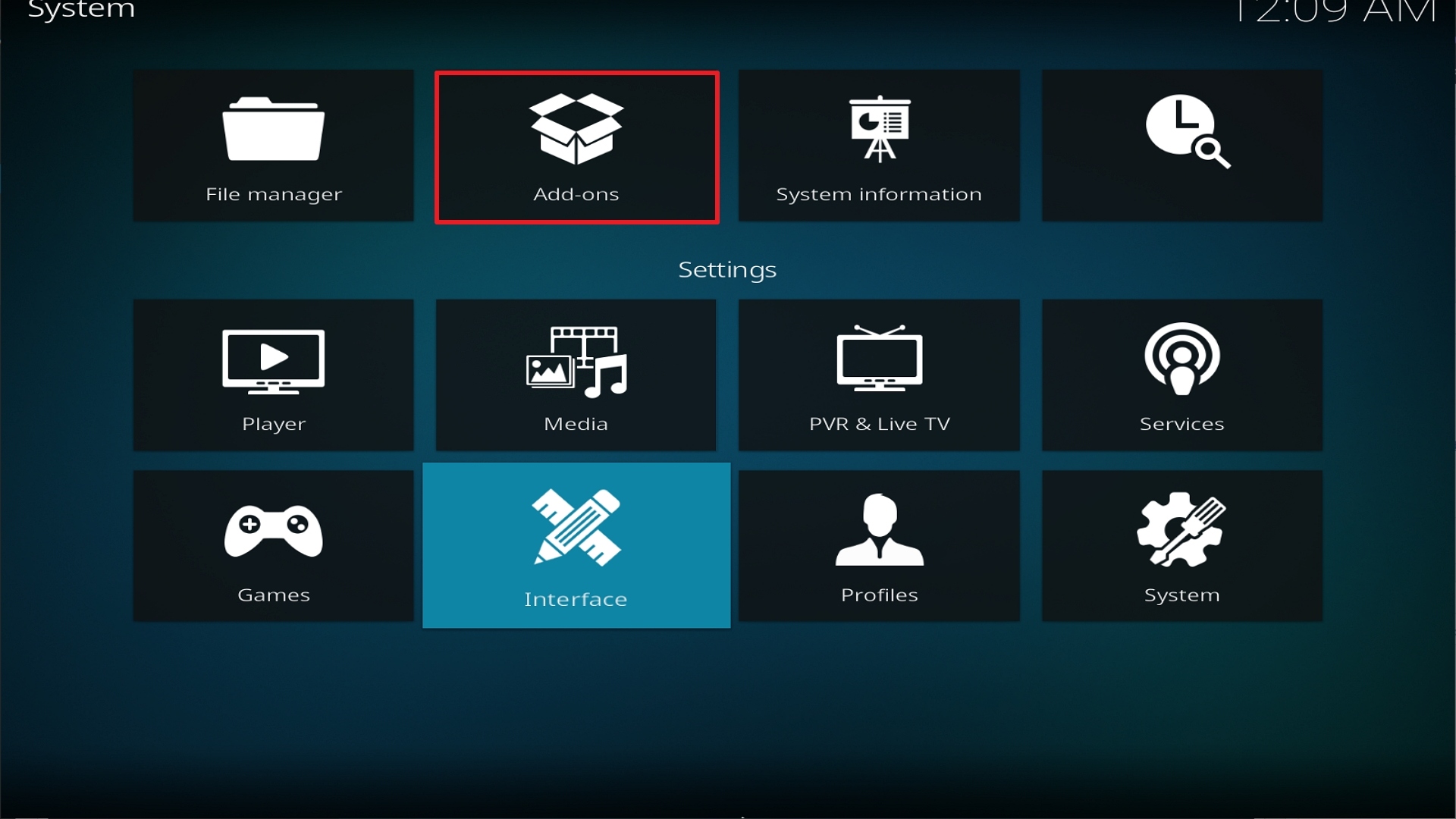
  2. Click on the “Gear Icon” and select “System”
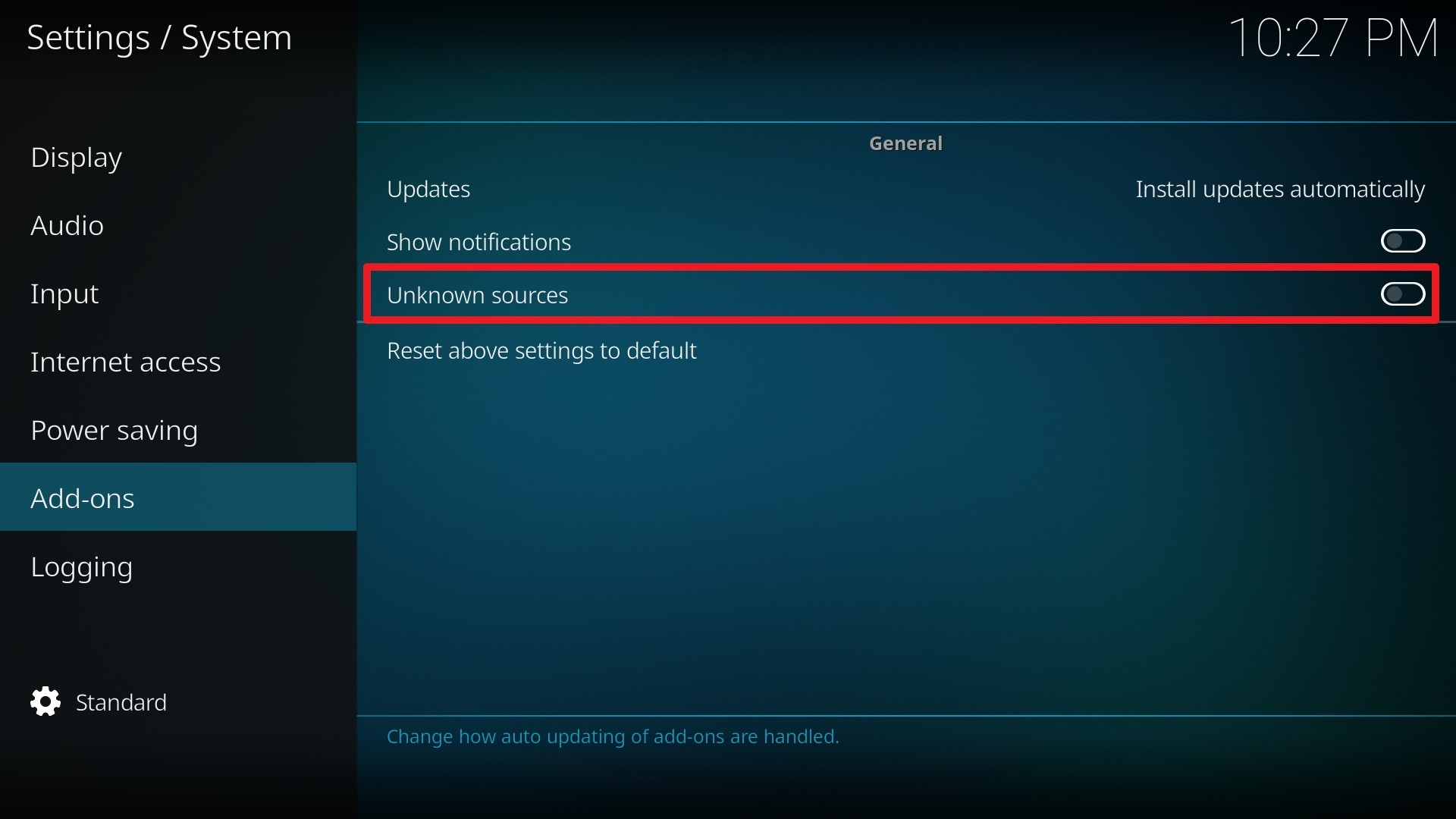
  3. At the add-ons menu, turn on the “Unknown Sources” by clicking “yes”
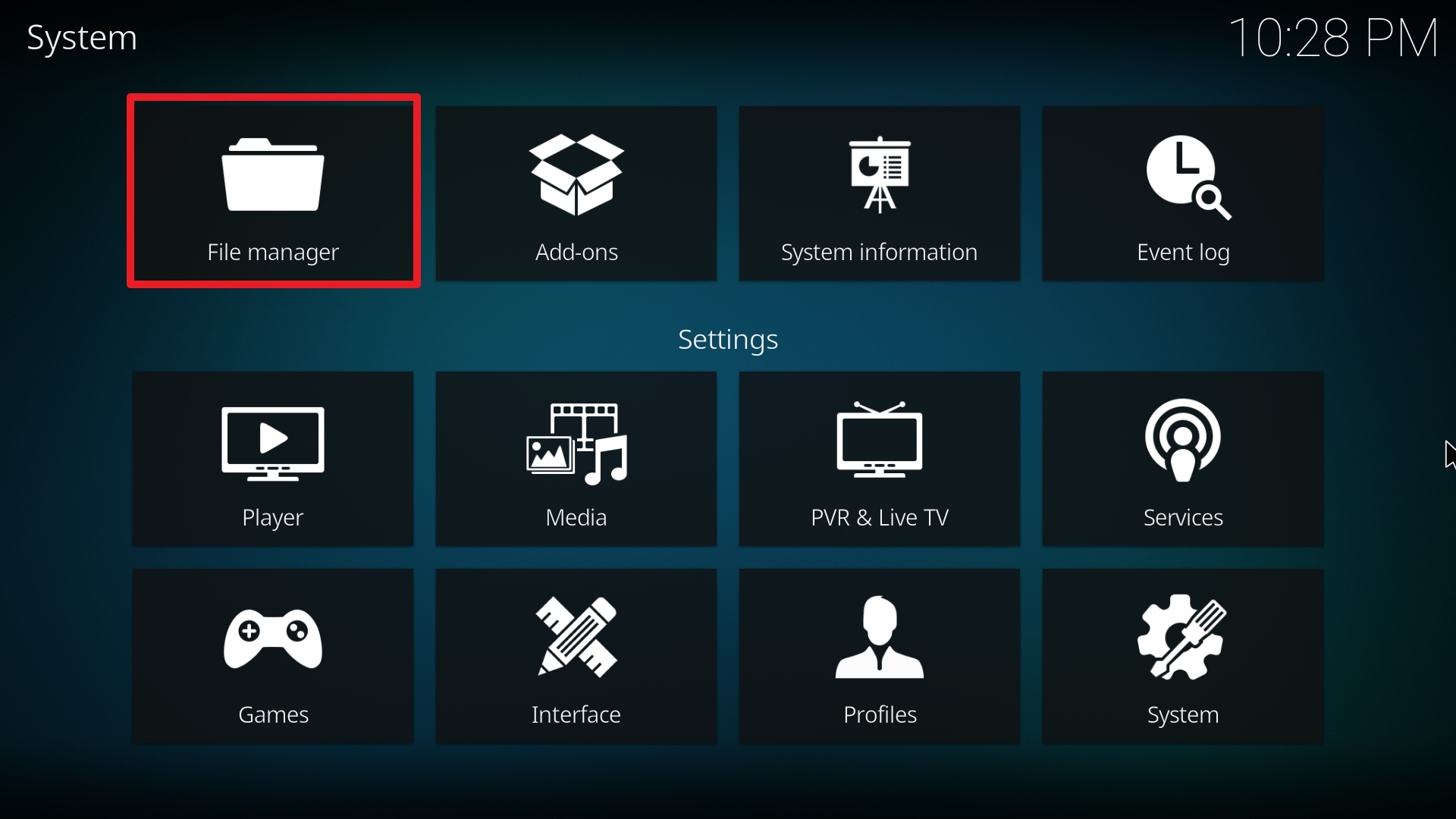
  4. Go back to the “Systems” page and choose “File Manager”
  5. Choose Add source and select “none”
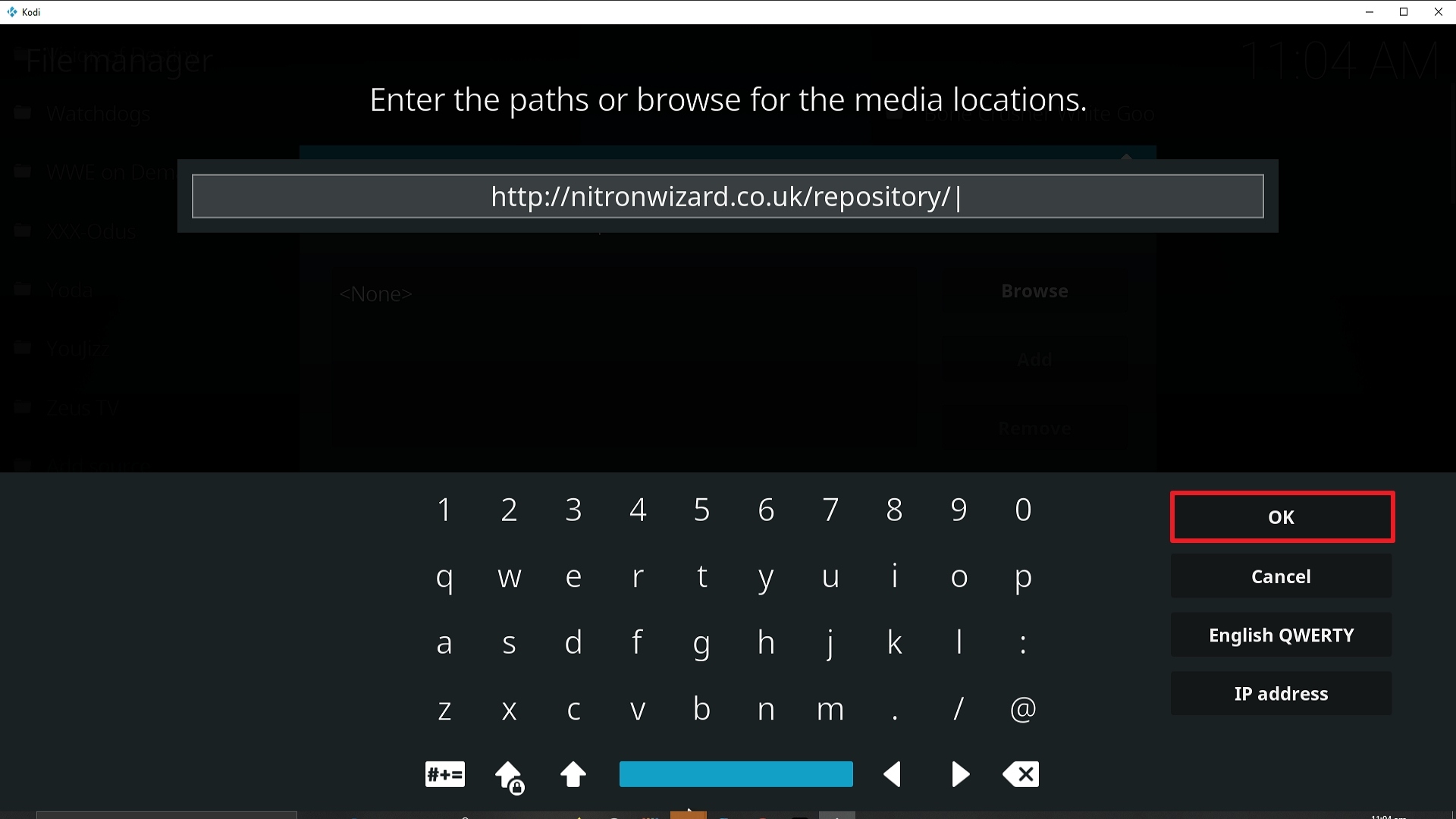
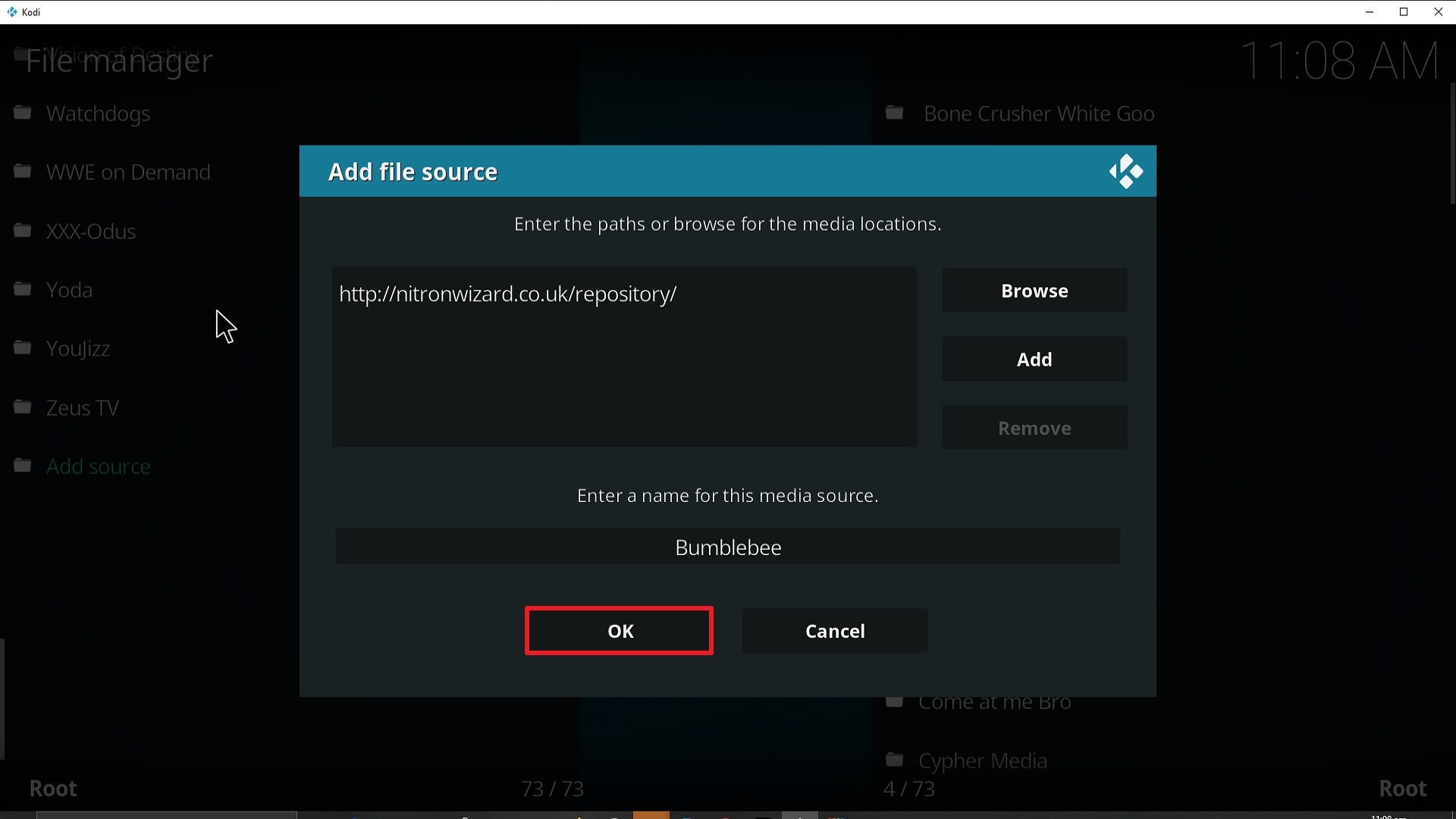
  6. Type in http://nitronwizard.co.uk/repository/
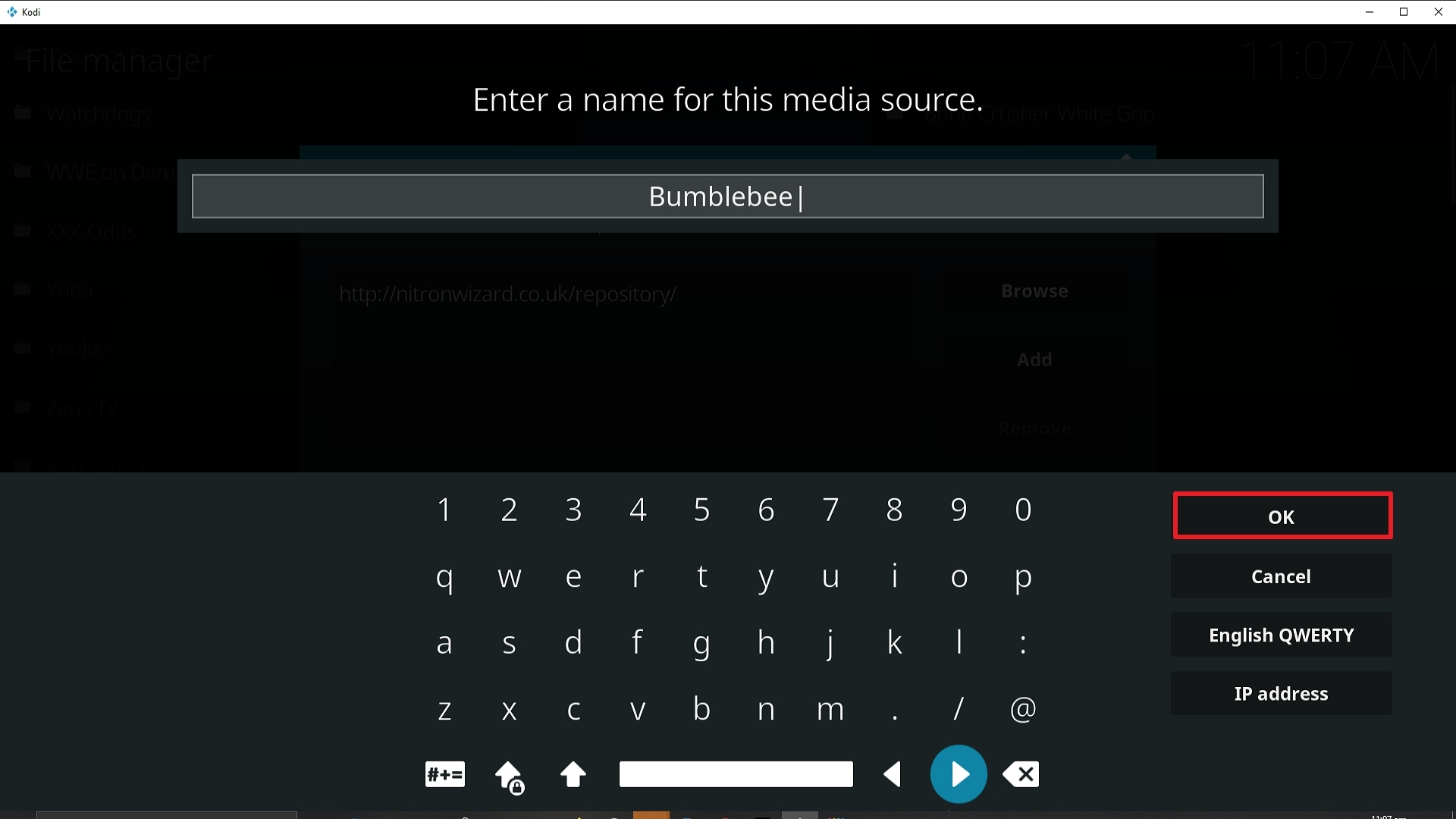
  7. Highlight the source and rename it to “Bumblebee” or any name you would like to use to identify this particular source and click “ok”
  8. Go back to the System Screen and click “Add-ons”
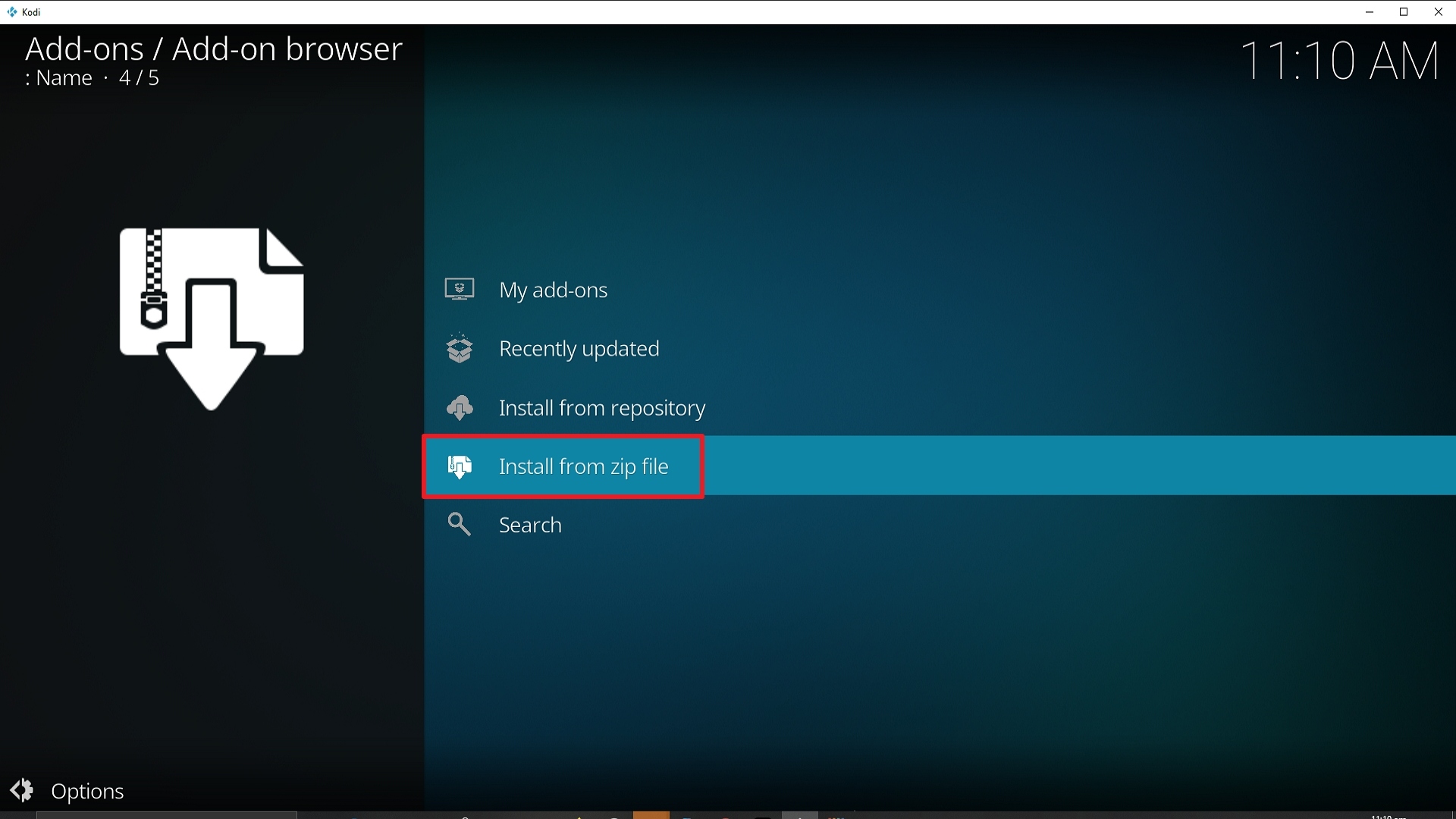
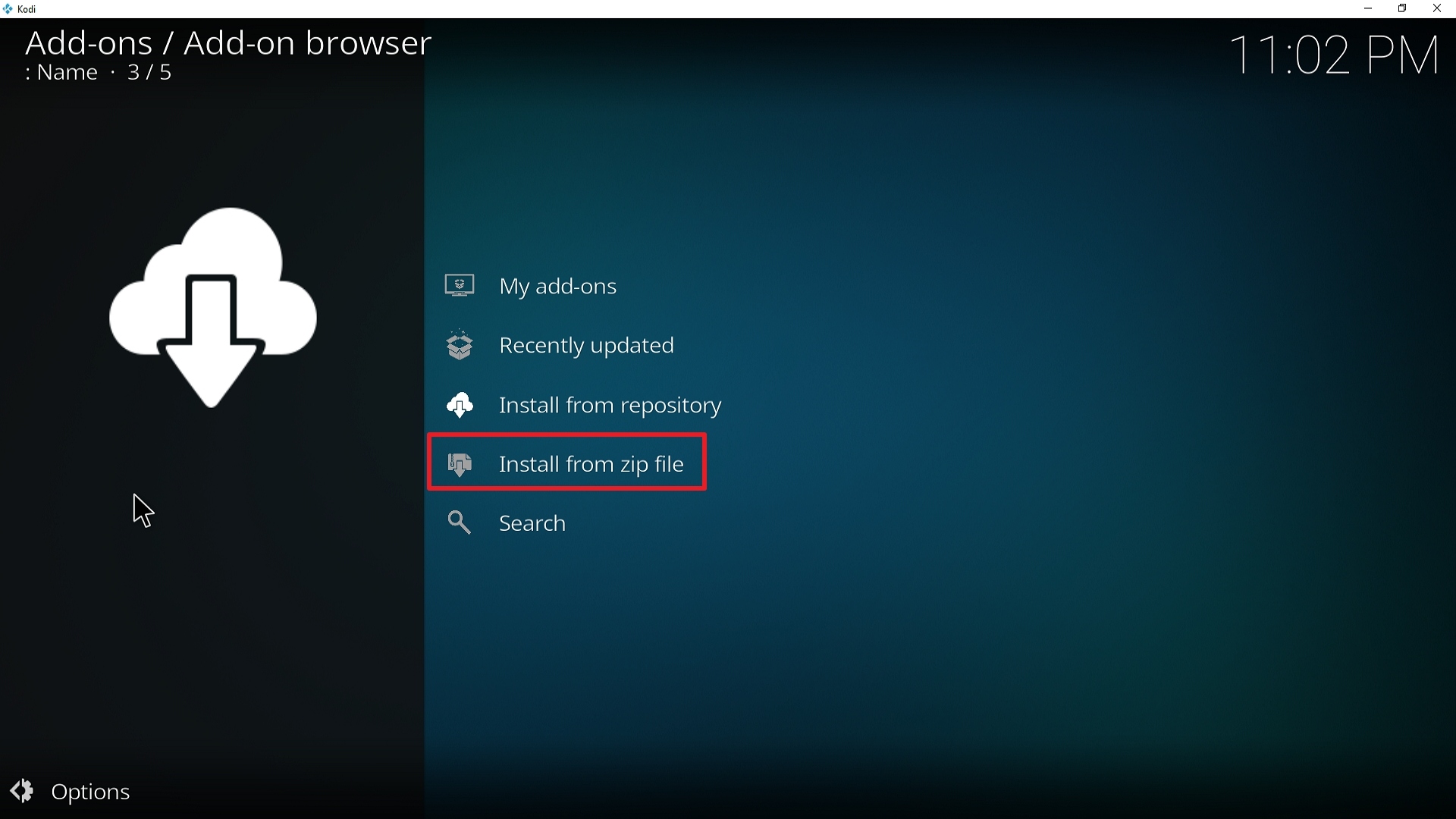
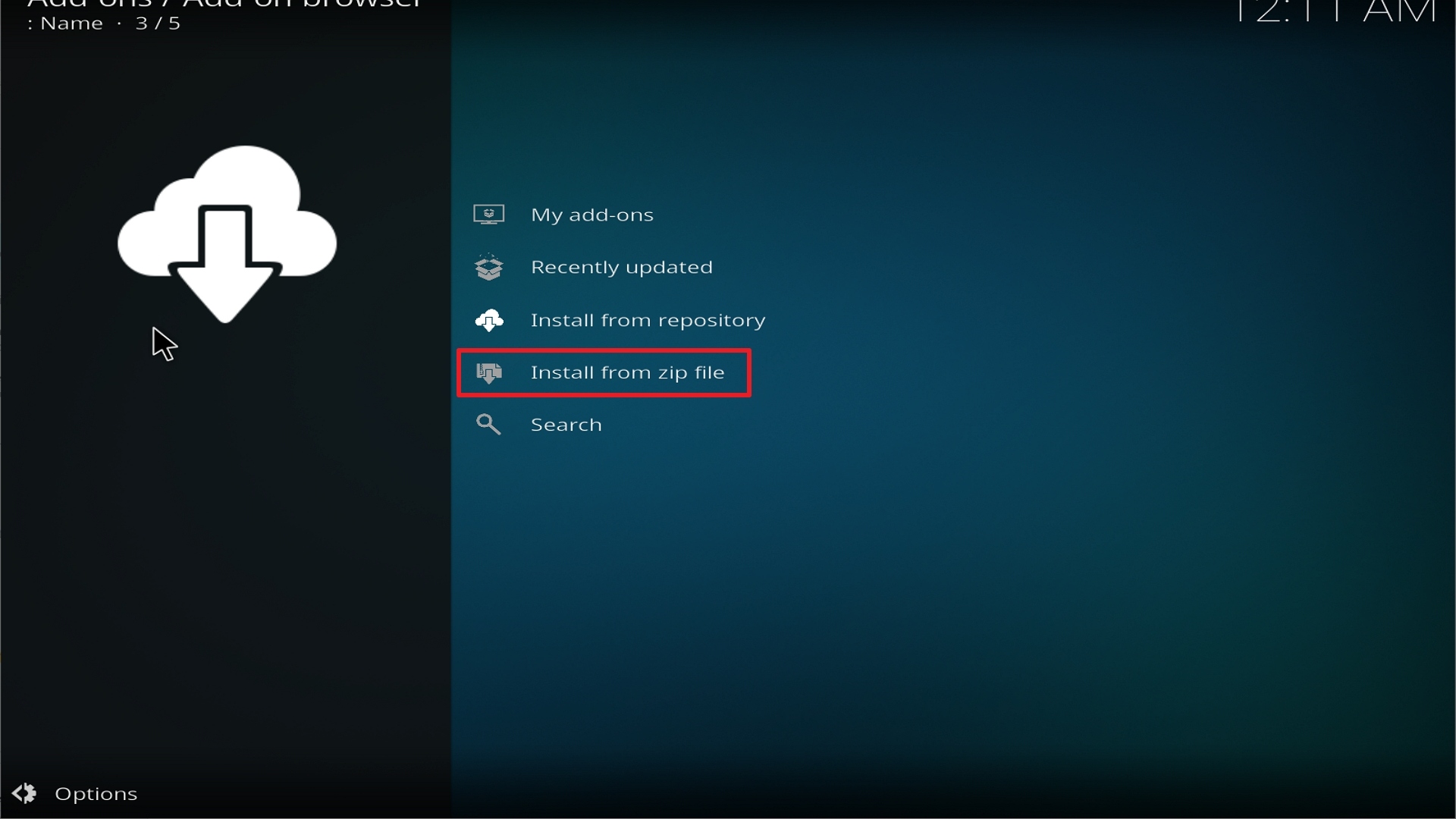
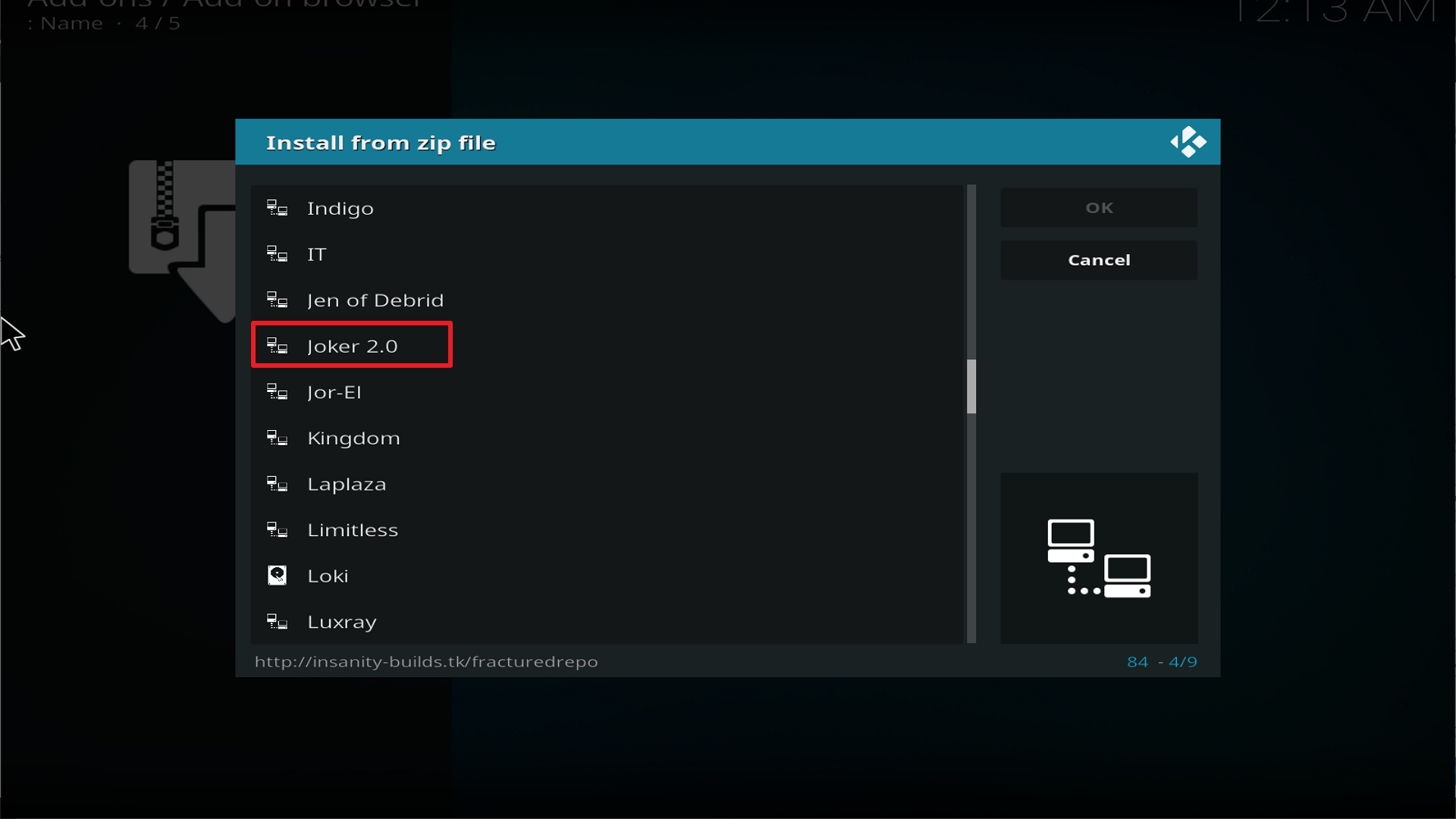
  9. Select “Install Zip File” choose “Bumblebee” or whatever you renamed the file.
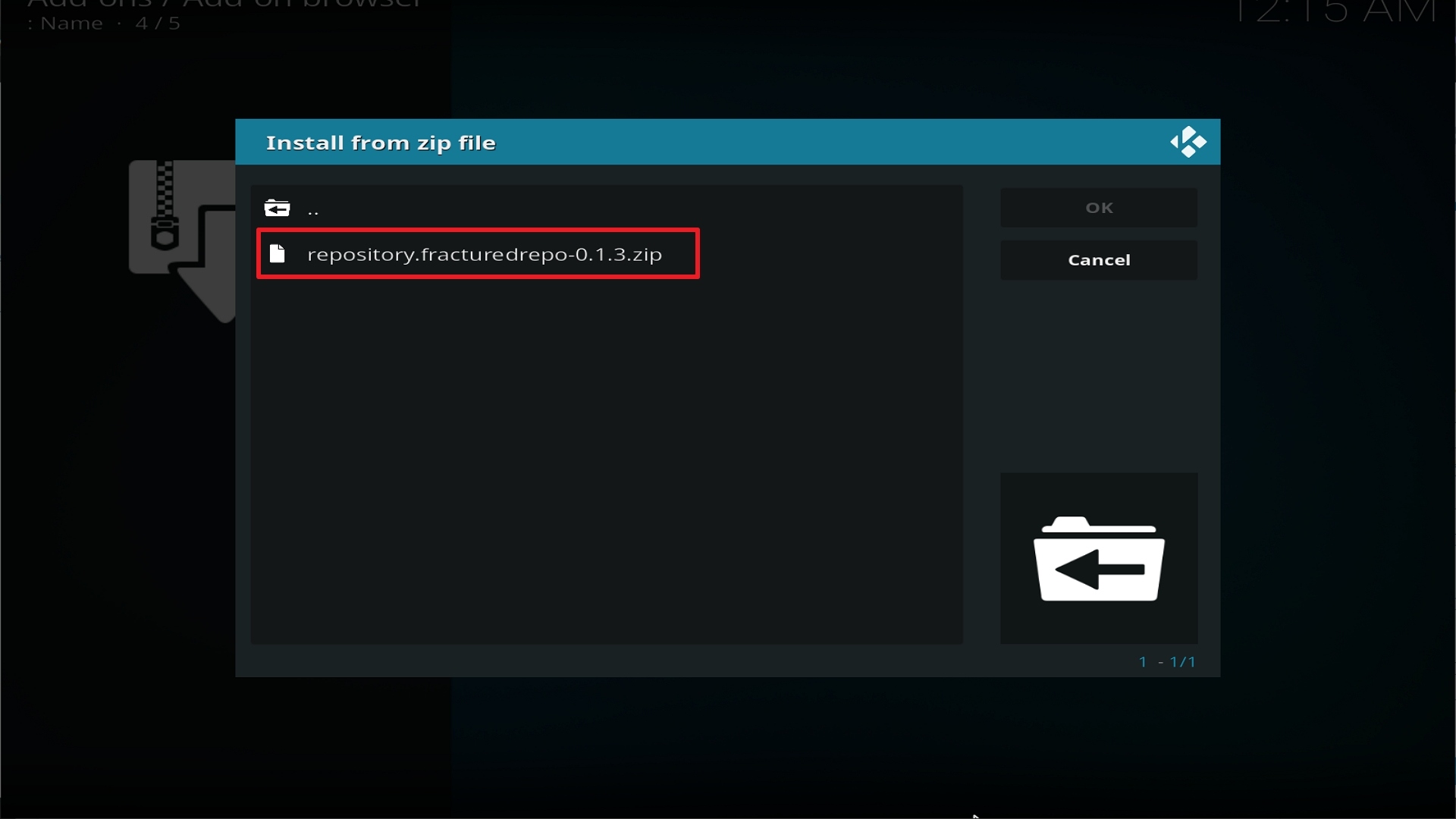
  10. Select the zip file URL- repository.NitronRepo.zip
  11. Wait for the notification “Nitron Wiz Add-on Repo Installed” to appear.
  12. Select “Install Repository”
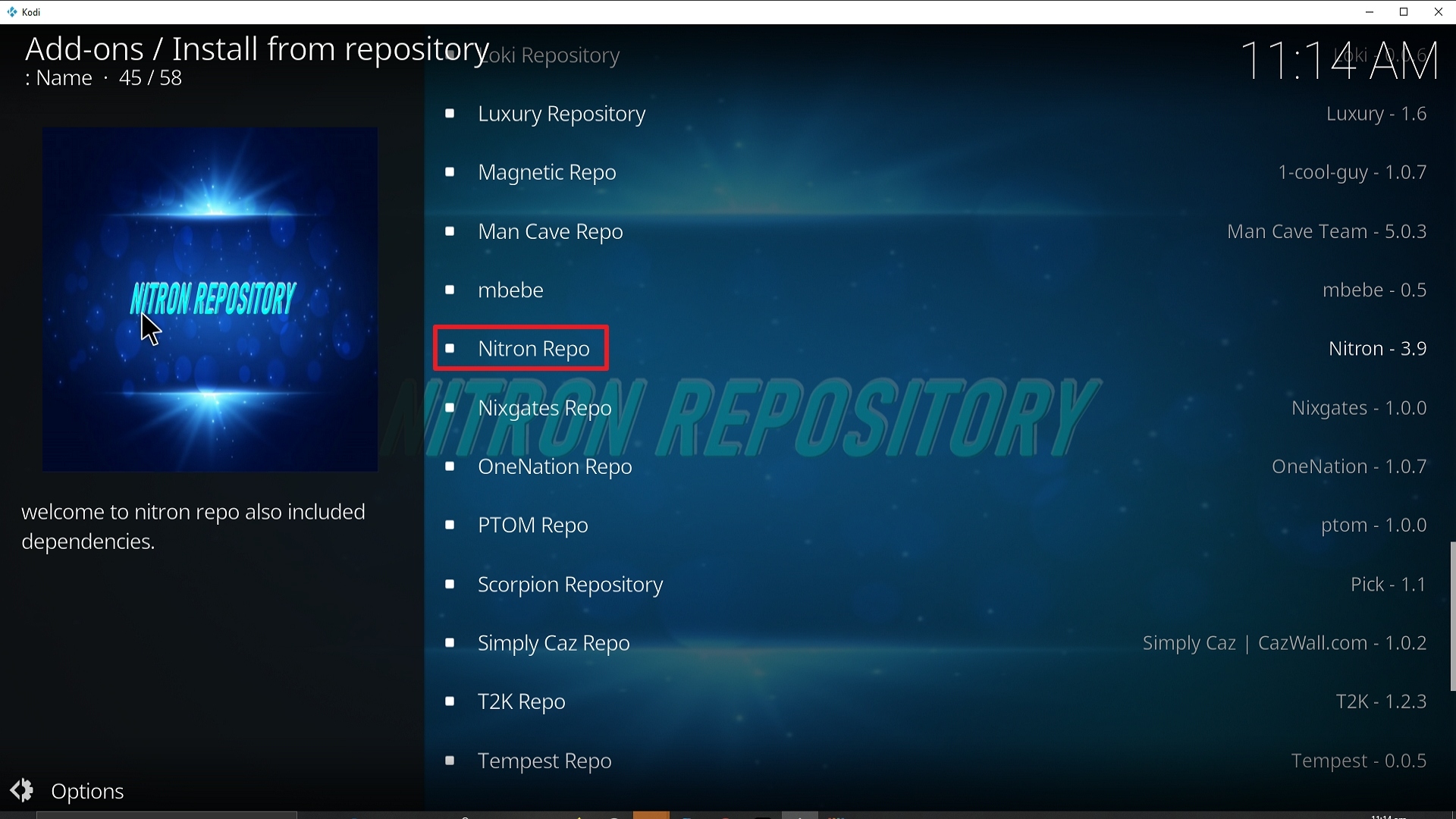
  13. Choose “Nitron Wiz Build Repo”
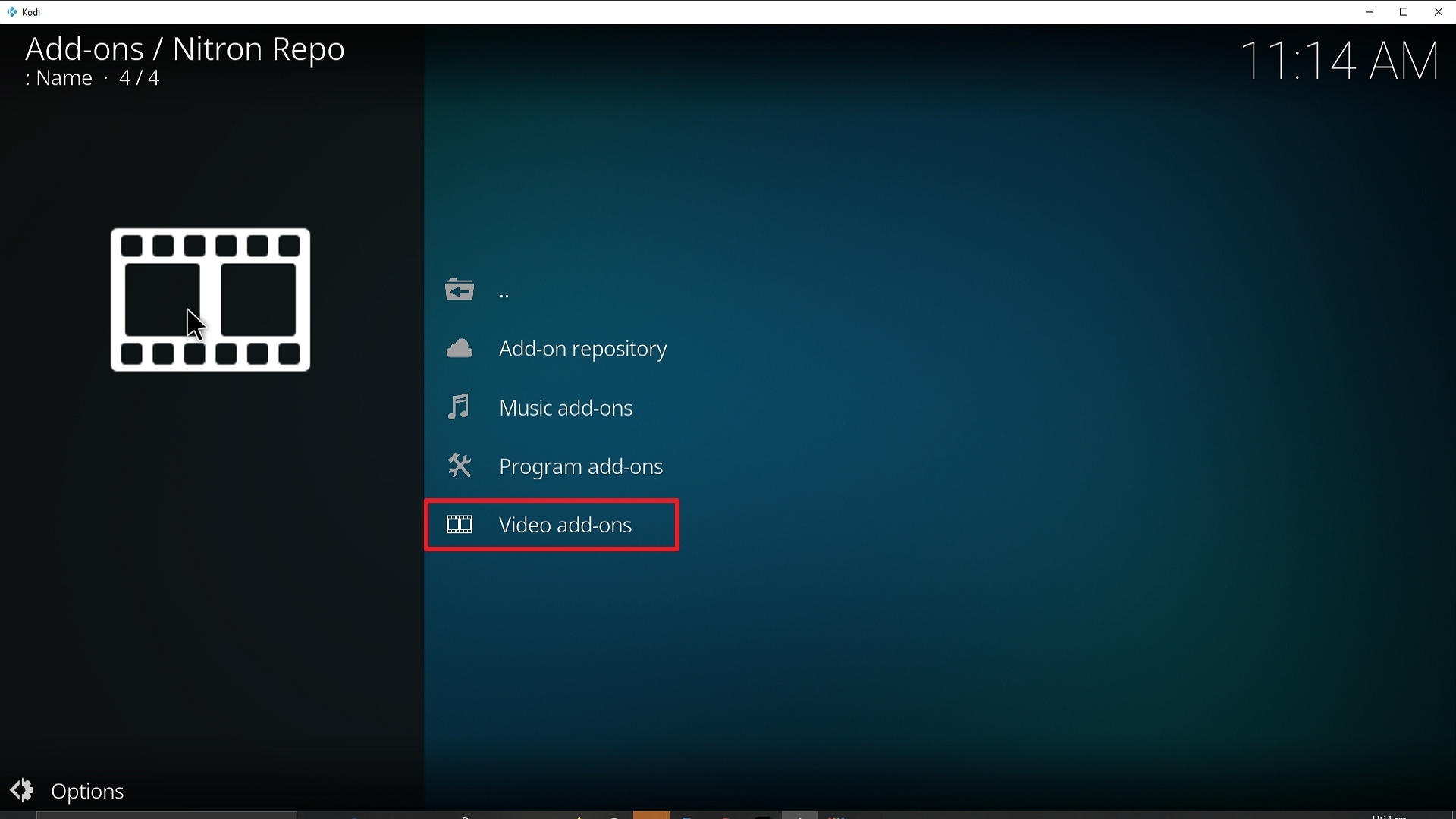
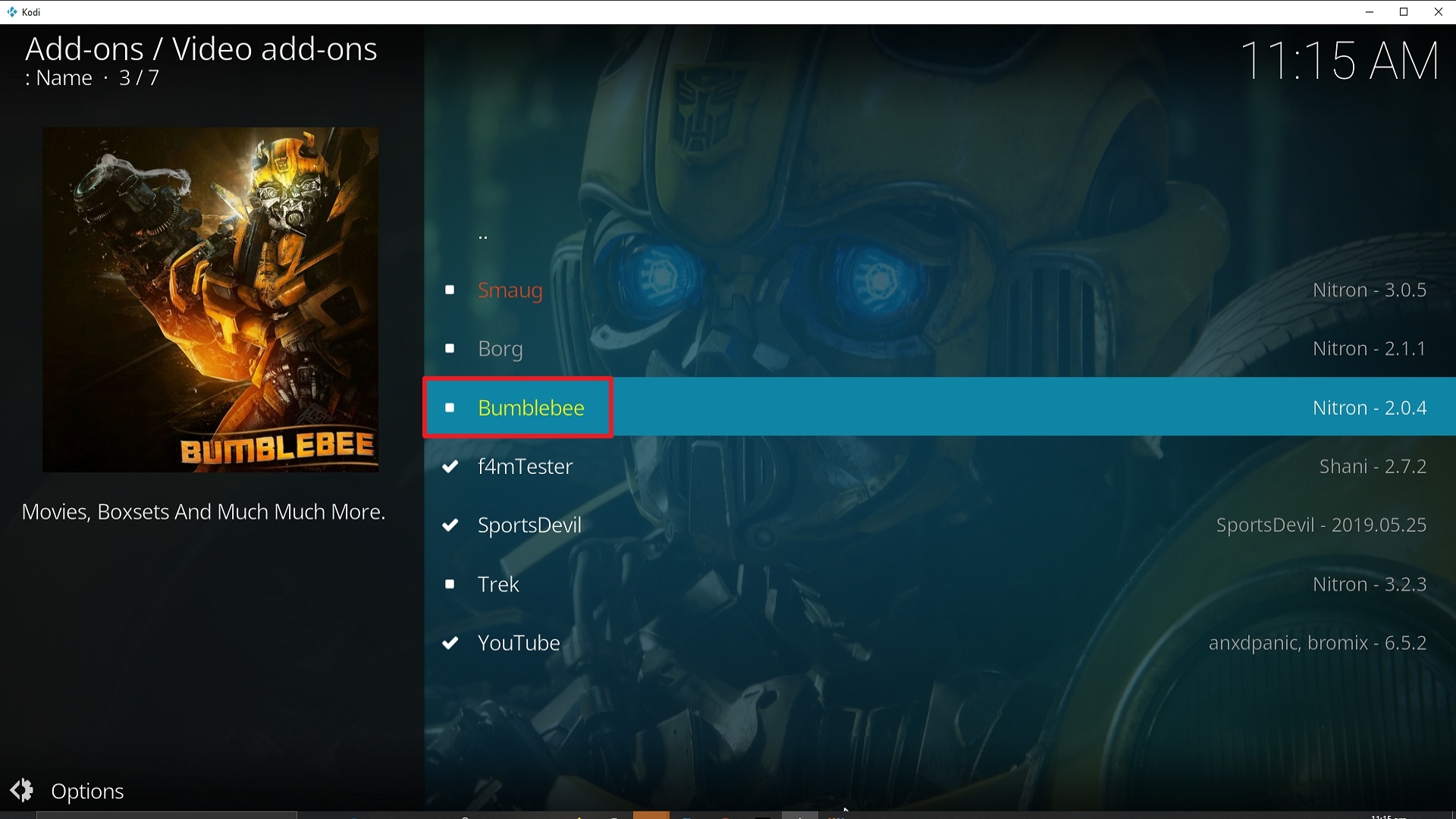
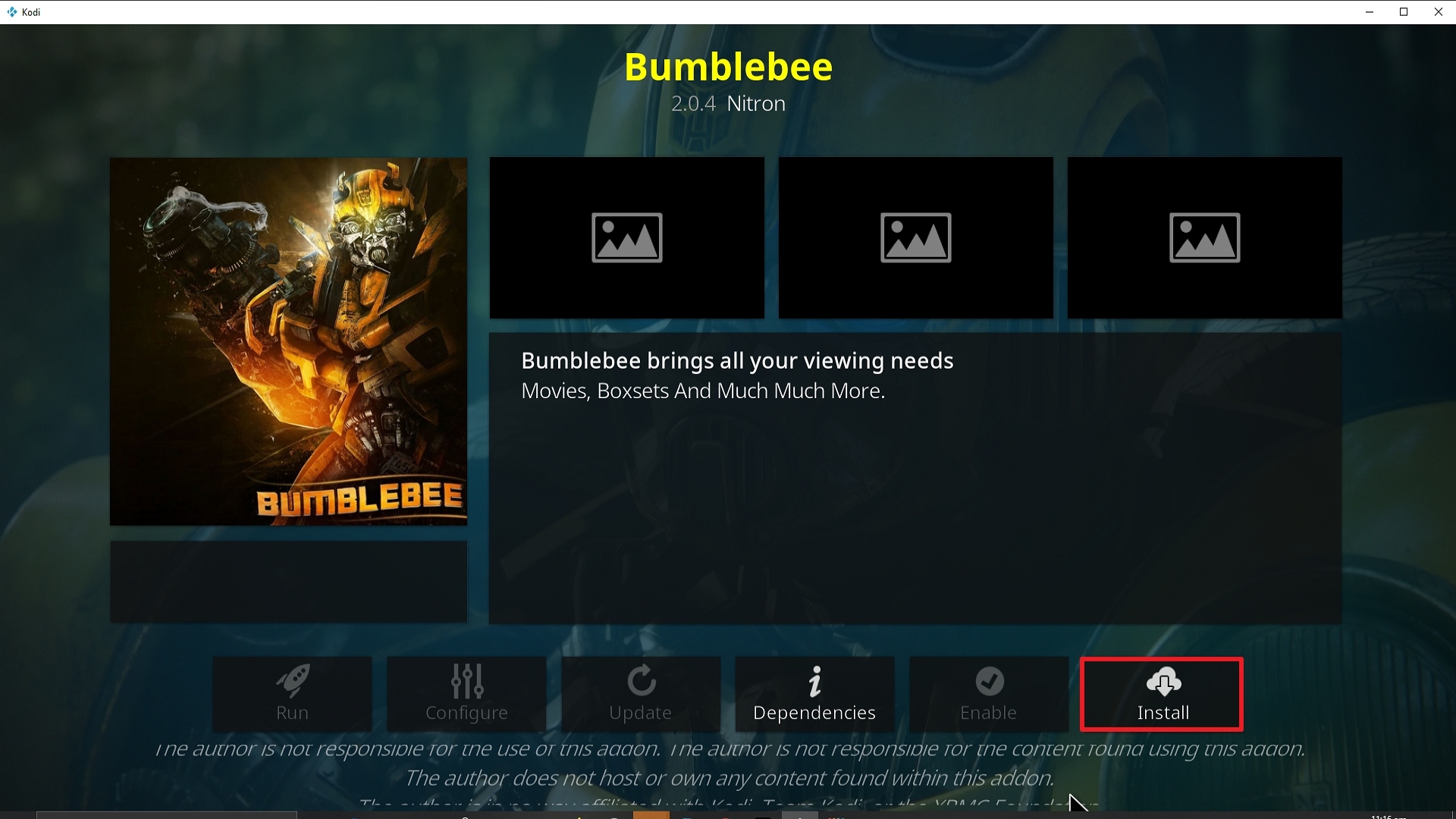
  14. Click on “Video Add-ons” and select “Bumblebee” and “Install”
  15. Click “Ok” when a notification “the following add-ons will be installed” appears and wait for Bumblebee Add-on to install
  16. Once the add-on is installed go back to the home screen and select “add-ons”
  17. Choose “Video add-ons” and select “Bumblebee”
  18. There you go, the Bumblebee add-on is now installed.


YOUR INTERNET ACTIVITY IS BEING WATCHED

ReviewVPN cannot attest to the legality, security and privacy of the applications discussed on this site. It is highly recommended that you use a VPN service while streaming or using Kodi.

Currently, your IP 216.73.217.150 is visible to everyone and your Browser is being tracked by Advertisers & ISP Provider.

Save 65% Now

Limited Time Offer

Here are the main reasons why you must use a VPN:

  • Your activities are hidden from your ISP, the government, and from the apps you are using.
  • You can access additional movies and TV streams.
  • ISP attempts to throttle are thrwarted thus reducing buffering issues.
  • Geographically restricted content like Netflix and Hulu can be unblocked.

A VPN works be replacing your ISP-assigned IP address and creating an encrypted tunnel. We recommend the no log service offered by IPVanish. It works well on a Firestick and offers the fastest possible speeds.

Special Limited Time Offer - Get IPVanish


How to Install Bumblebee Addon on Kodi with Screenshots

1. From the home screen, select the cogwheel at the upper left.

Step 1 Installing Bumblebee addon on Kodi

2. Select System in the bottom right corner.

Step 2 Installing Bumblebee addon on Kodi


3. Select Add-ons on the left side of the screen.

Step 3 Installing Bumblebee addon on Kodi


4. Select Unknown sources.

Step 4 Installing Bumblebee addon on Kodi


5. Click Yes to allow unknown sources.

Step 5 Installing Bumblebee addon on Kodi


6. Select File manager.

Step 6 Installing Bumblebee on Kodi


7. Click Add source.

Step 7 Installing Bumblebee addon on Kodi


8. Click on <None>.

Step 8 Installing Bumblebee addon on Kodi


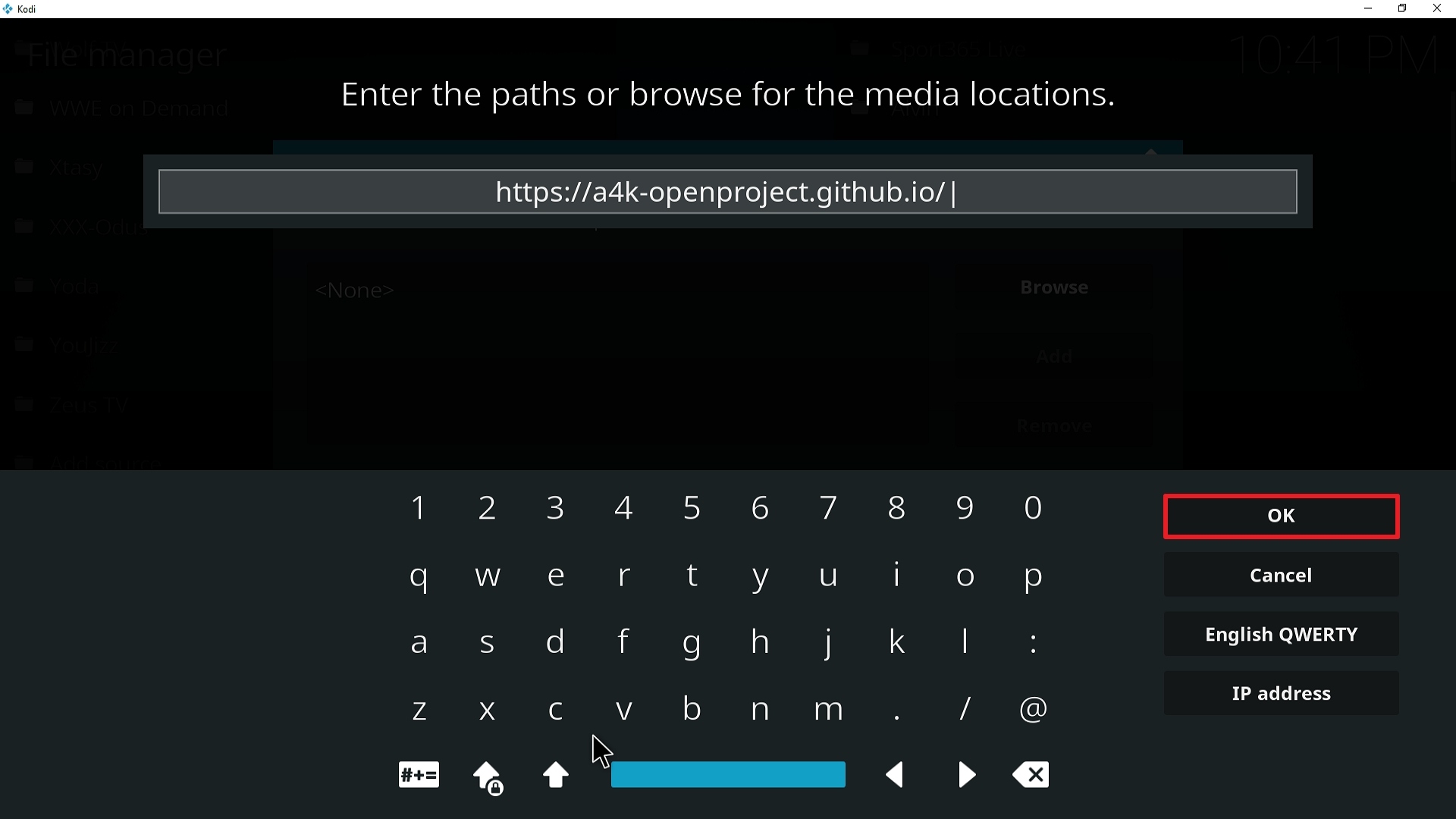
9. Type exactly: http://nitronwizard.co.uk/repository/
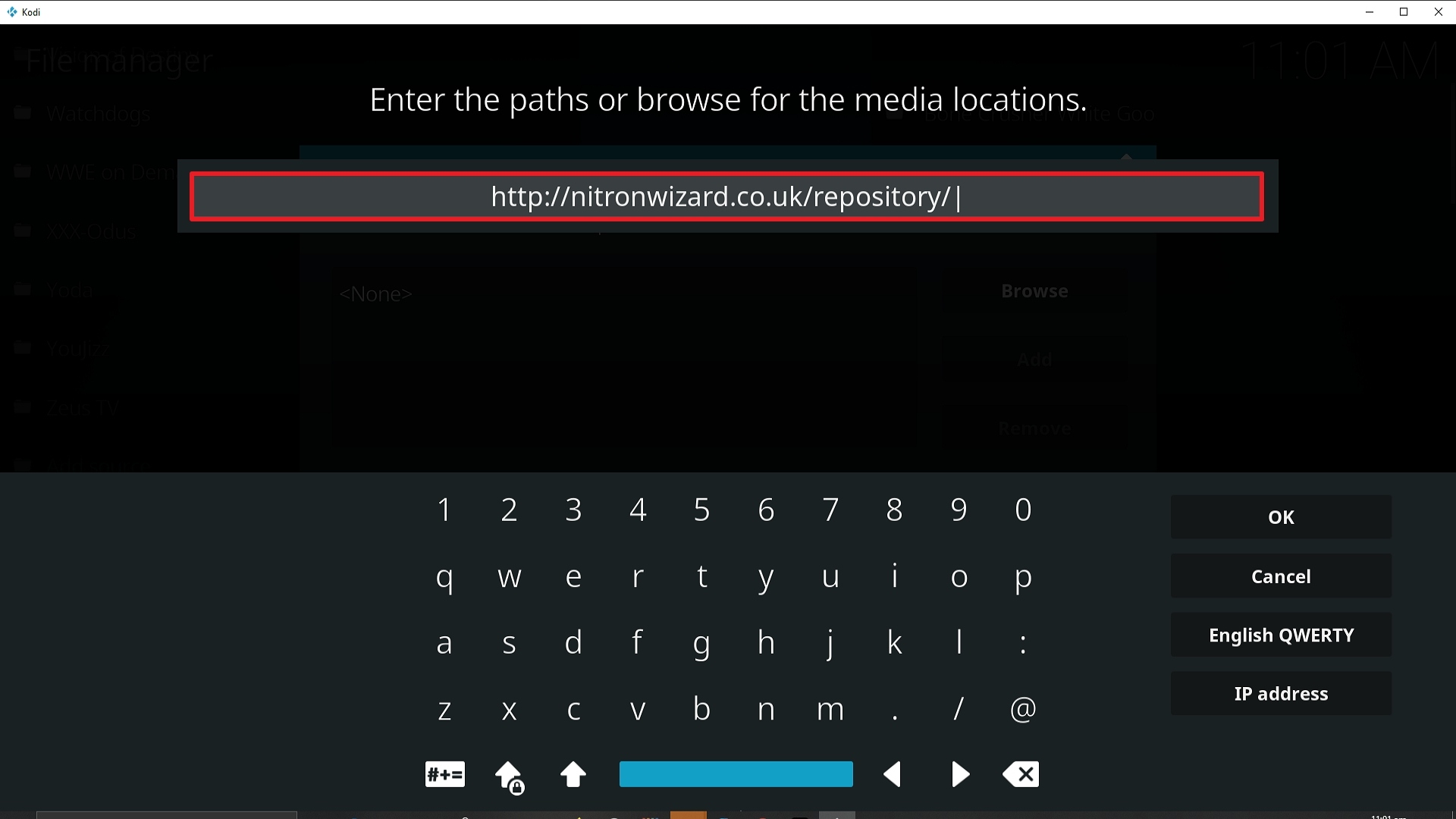
Step 9 Installing Bumblebee addon on Kodi


10. Click on OK.

Step 10 Installing Bumblebee addon on Kodi


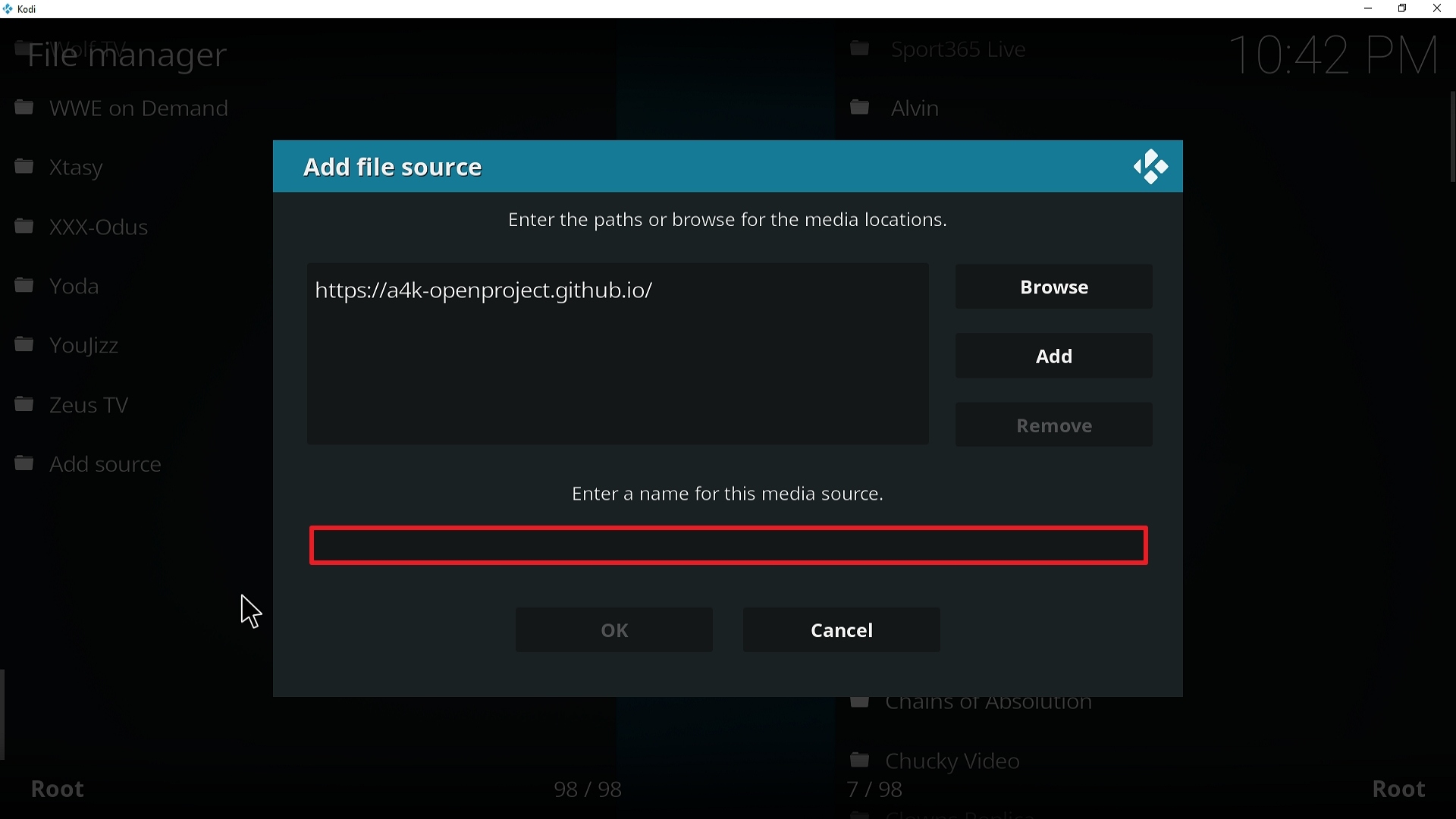
11. Select enter a name for this media source.
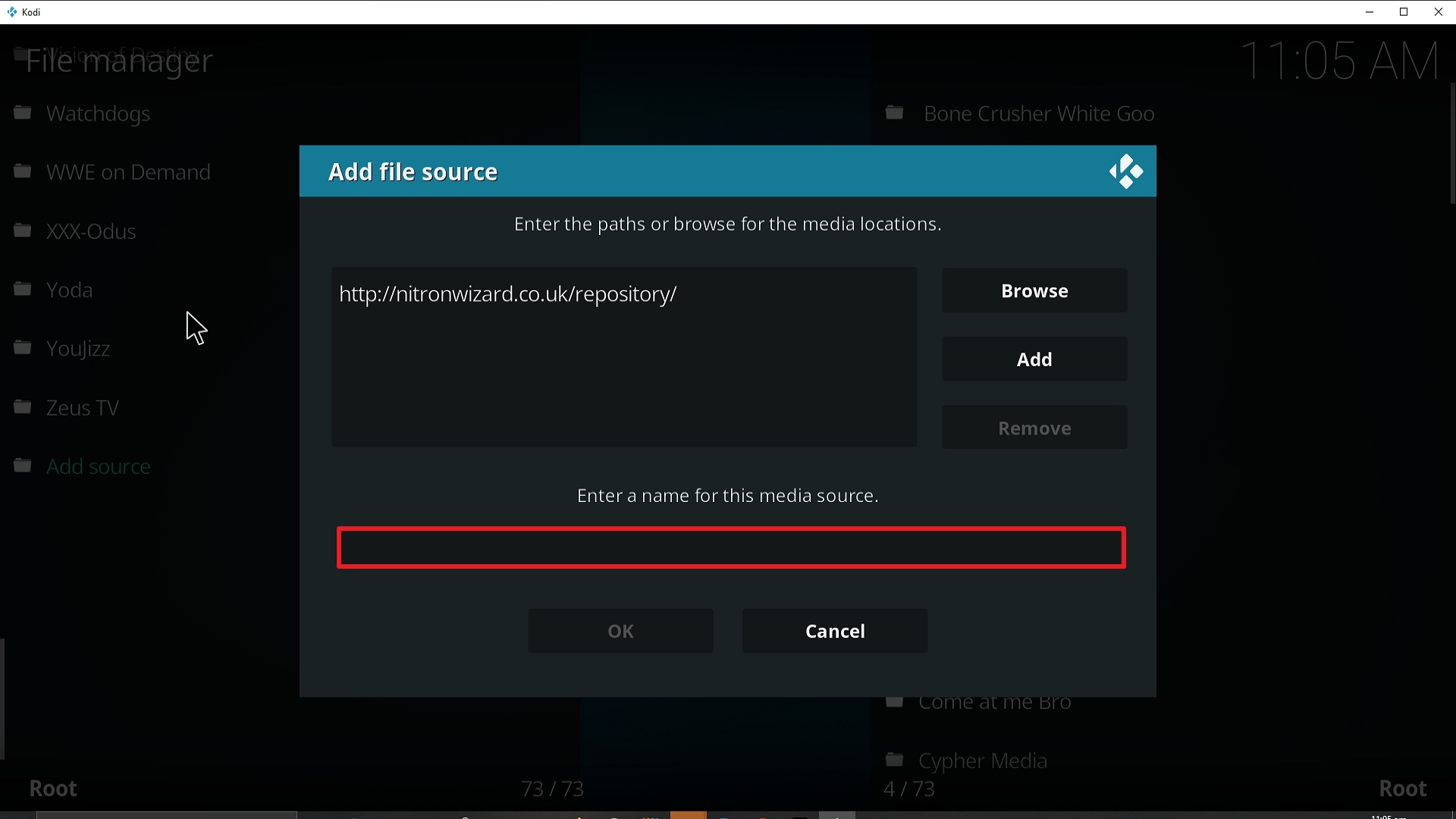
Step 11 Installing Bumblebee addon on Kodi


12. Name is Bumblebee (this part isn’t critical as long as you remember the name).
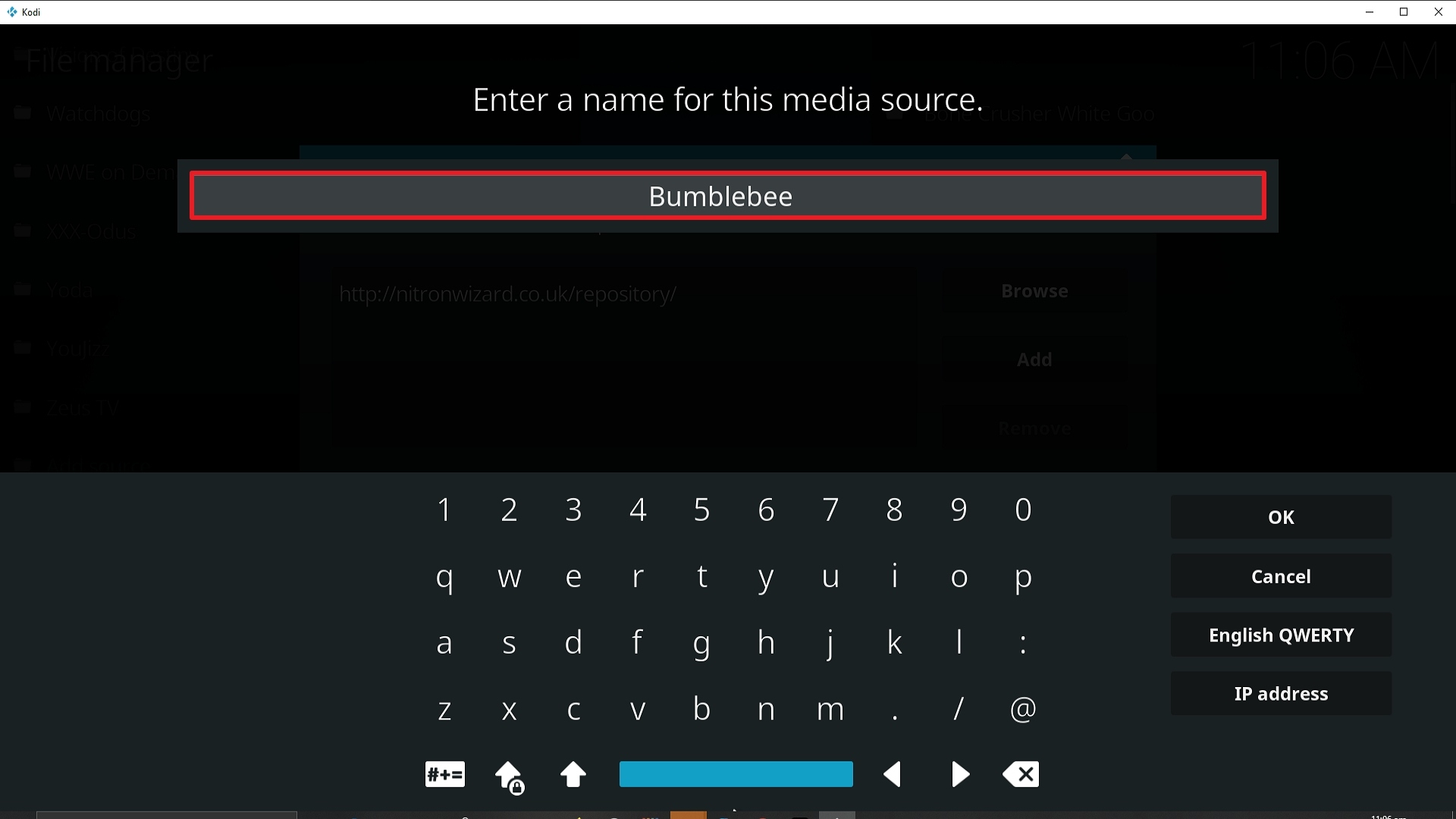
Step 12 Installing Bumblebee addon on Kodi


13. Click on OK.

Step 13 Installing Bumblebee addon on Kodi


14. Click on OK.

Step 14 Installing Bumblebee addon on Kodi


15. Take one step back and click on Add-ons.
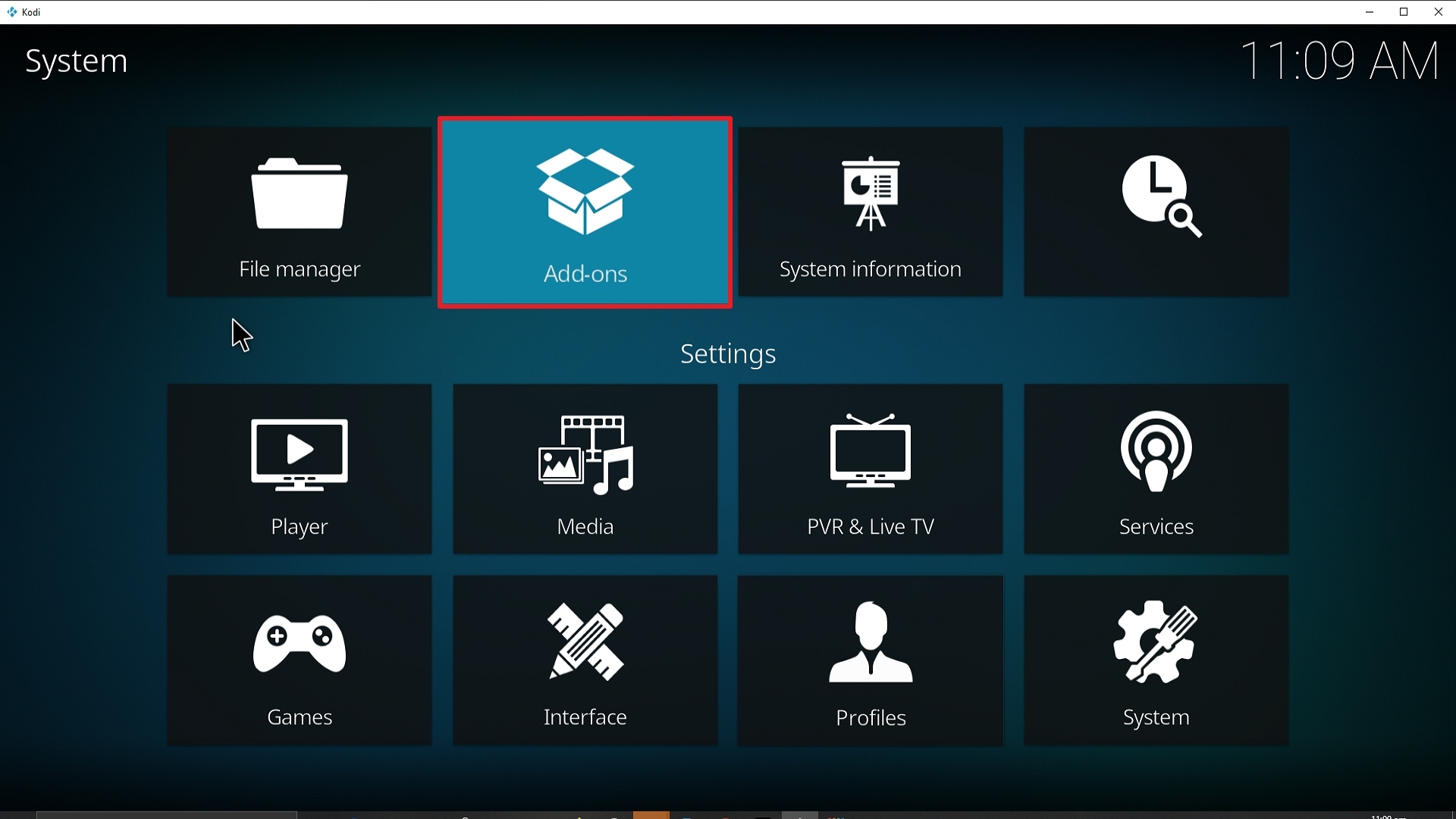
Step 15 Installing Bumblebee addon on Kodi


16. Select install from zip file.

Step 16 Installing Bumblebee addon on Kodi


17. Click on Bumblebee (or whatever you named the source).
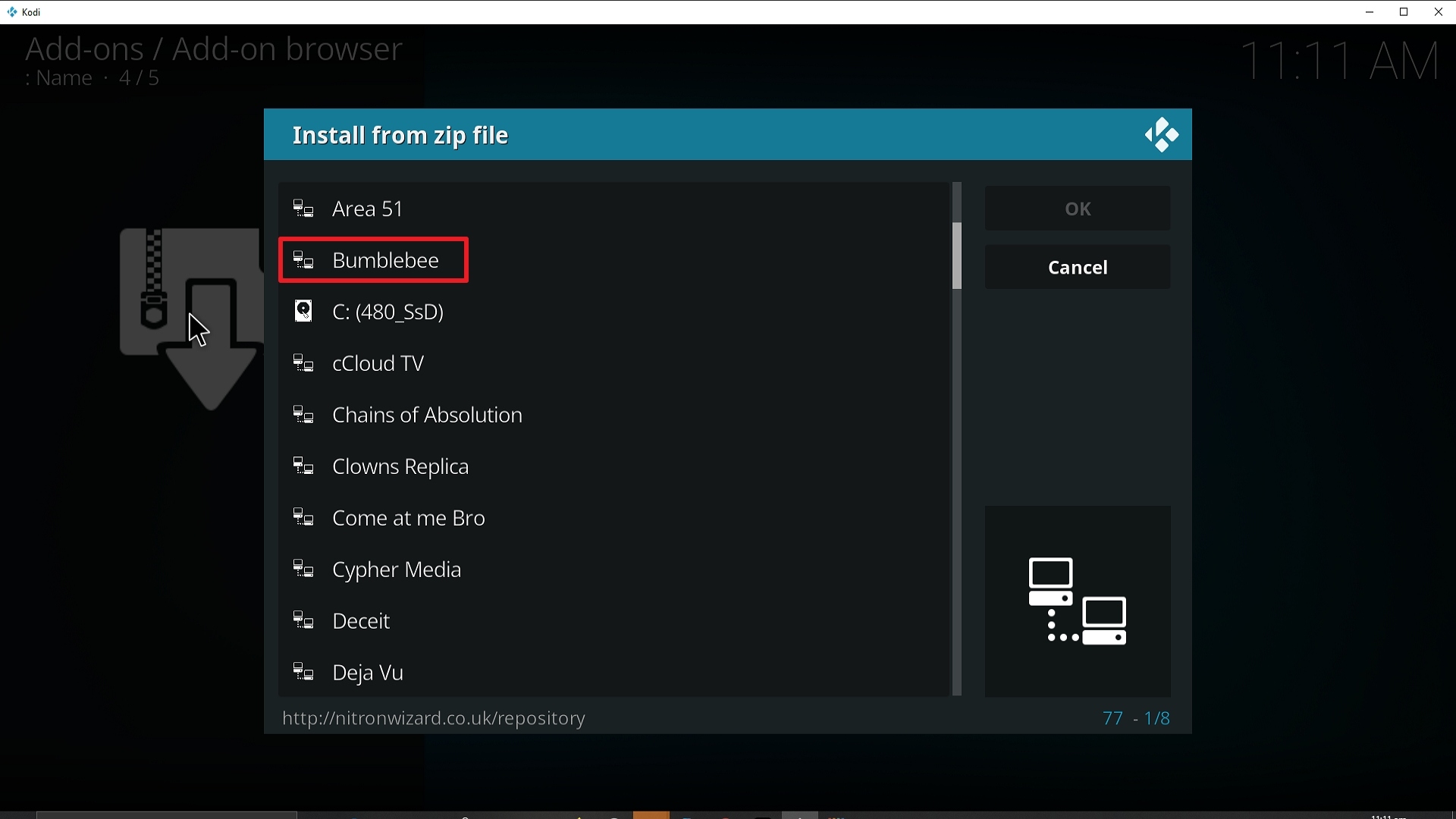
Step 17 Installing Bumblebee addon on Kodi


18. Click on repository.NitronRepo.zip
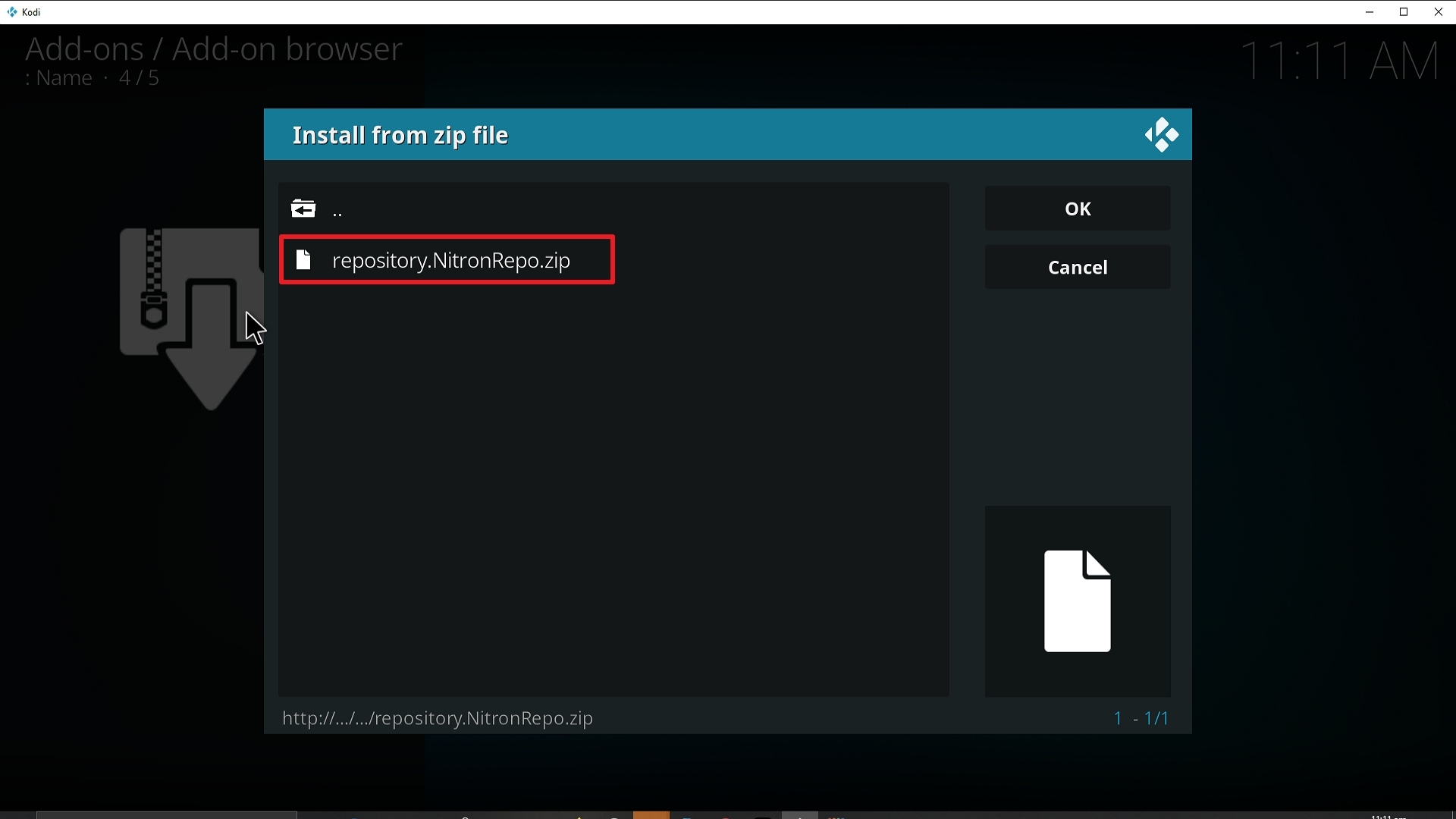
Step 18 Installing Bumblebee addon on Kodi


19. Select on Install from repository.
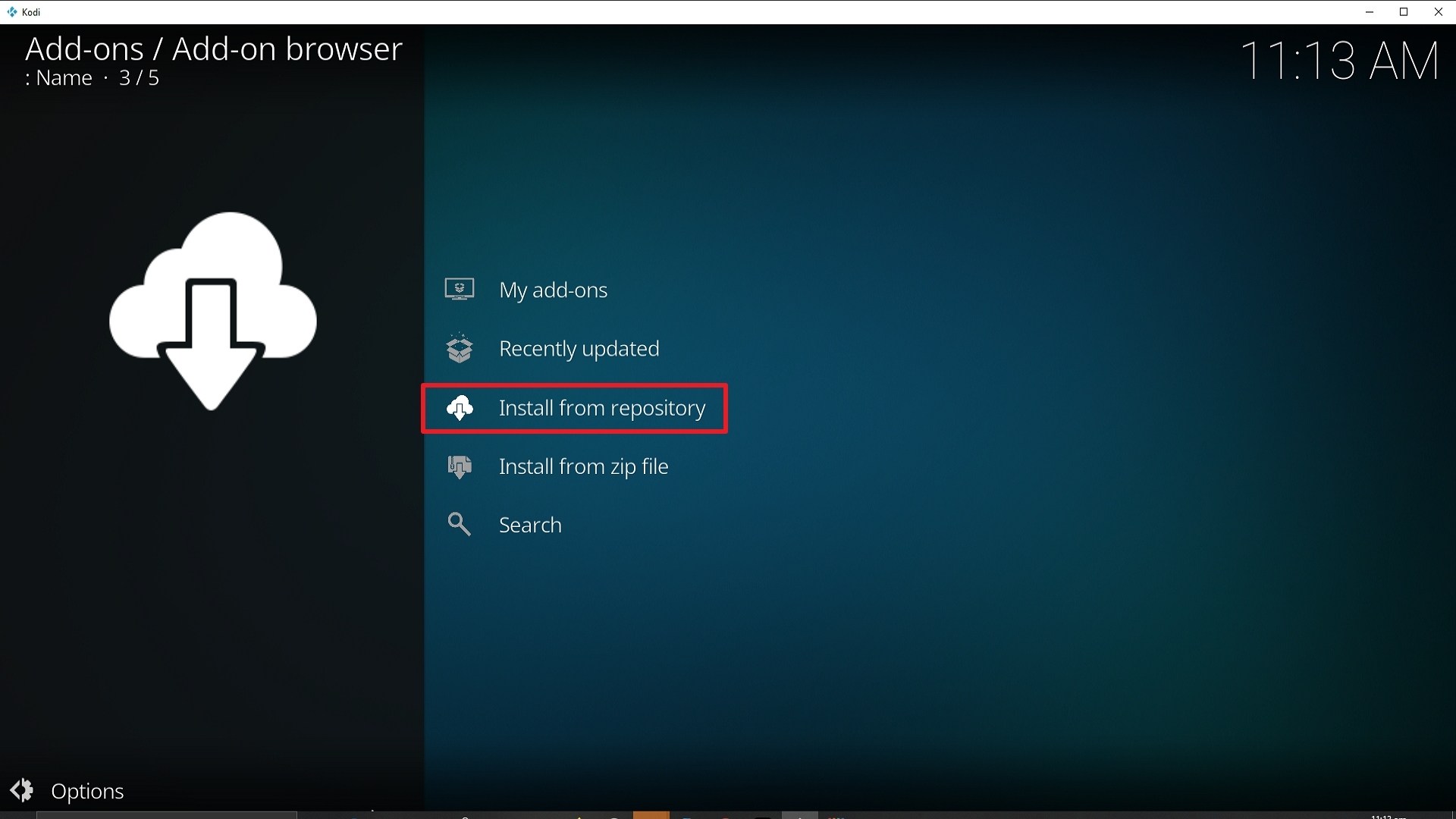
Step 19 Installing Bumblebee addon on Kodi


20. Click on Nitron Repo.

Step 20 Installing Bumblebee addon on Kodi


21. Pick Video add-ons.

Step 21 Installing Bumblebee addon on Kodi


22. Select Bumblebee again.

Step 22 Installing Bumblebee addon on Kodi


23. Click on Install.

Step 23 Installing Bumblebee addon on Kodi


24. Select OK after reviewing the add-ons that will be installed.
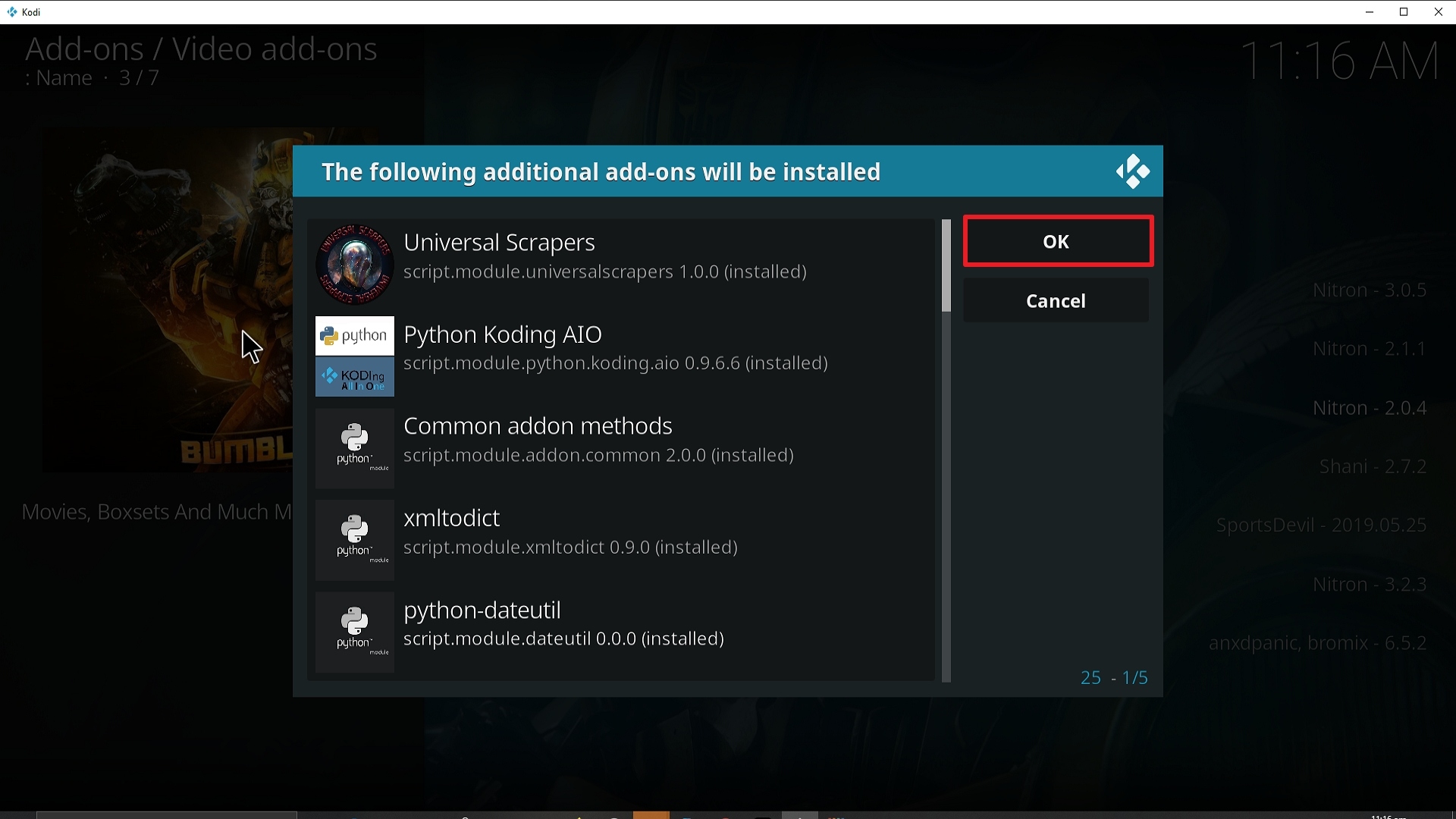
Step 24 Installing Bumblebee addon on Kodi


25. You should see a popup in the upper right corner saying Bumblebee has installed. There will actually be multiple popups for the various components.
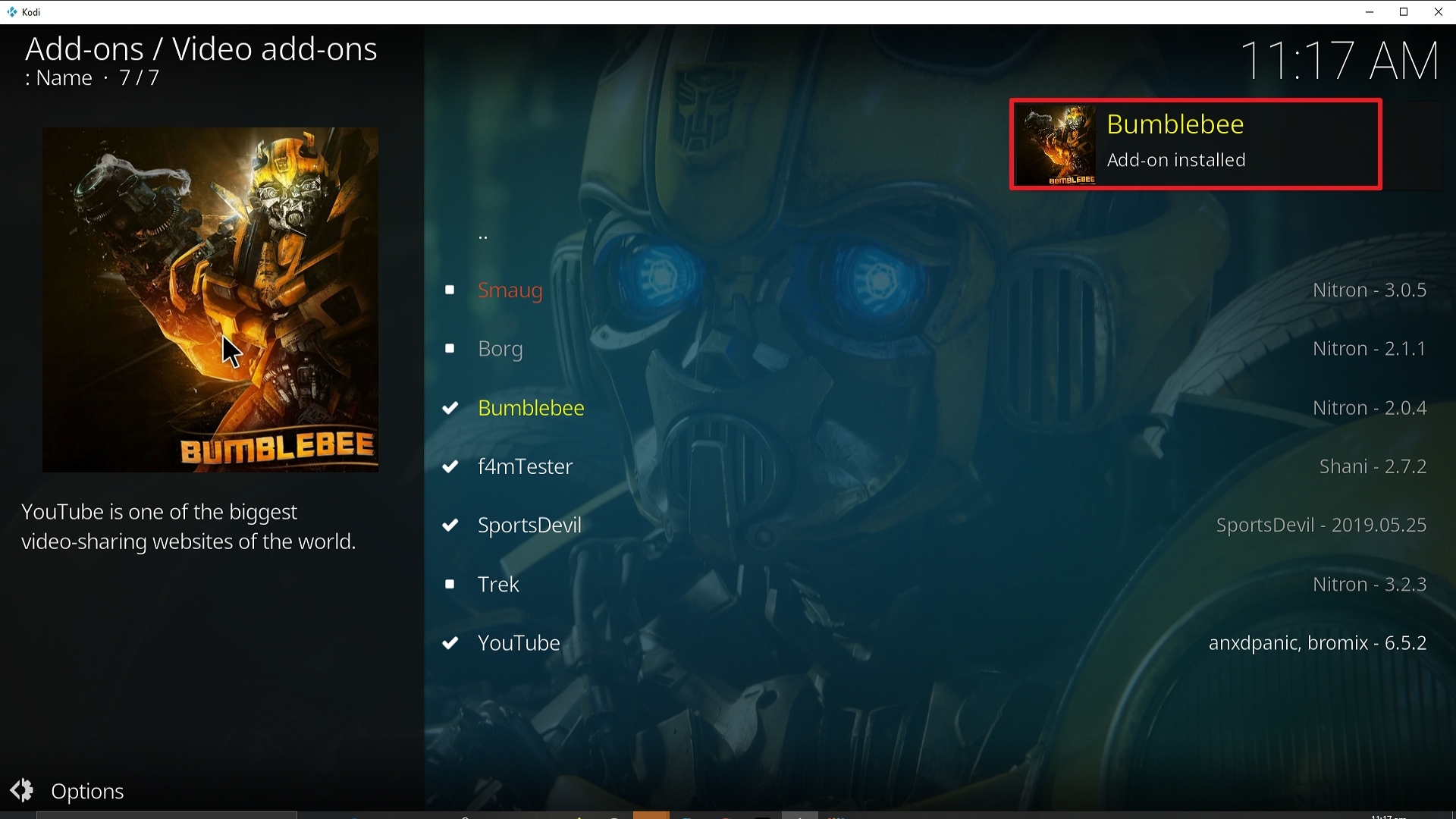
Step 25 Installing Bumblebee addon on Kodi


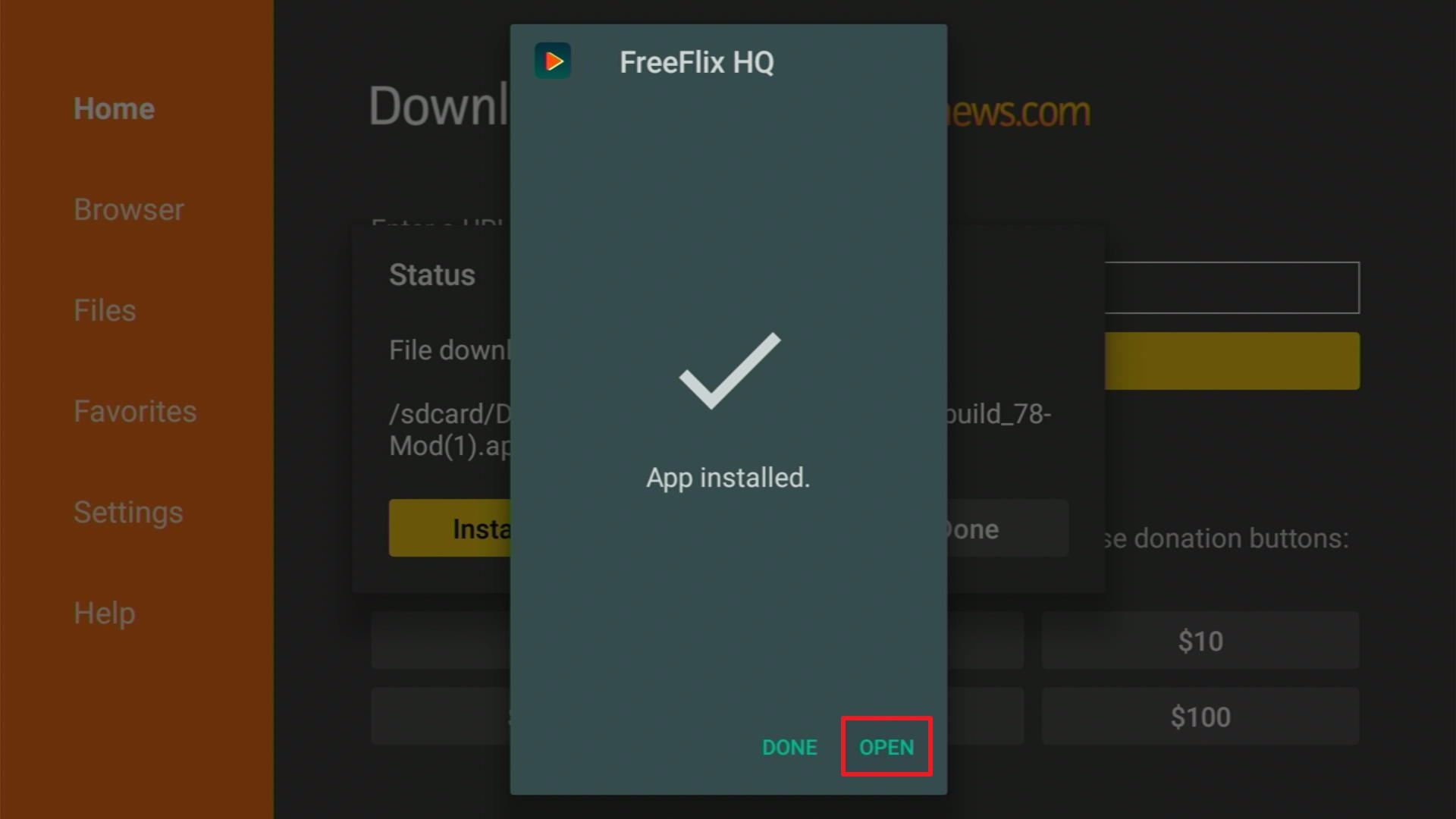
26. Click on Open to start the Bumblebee add-on.
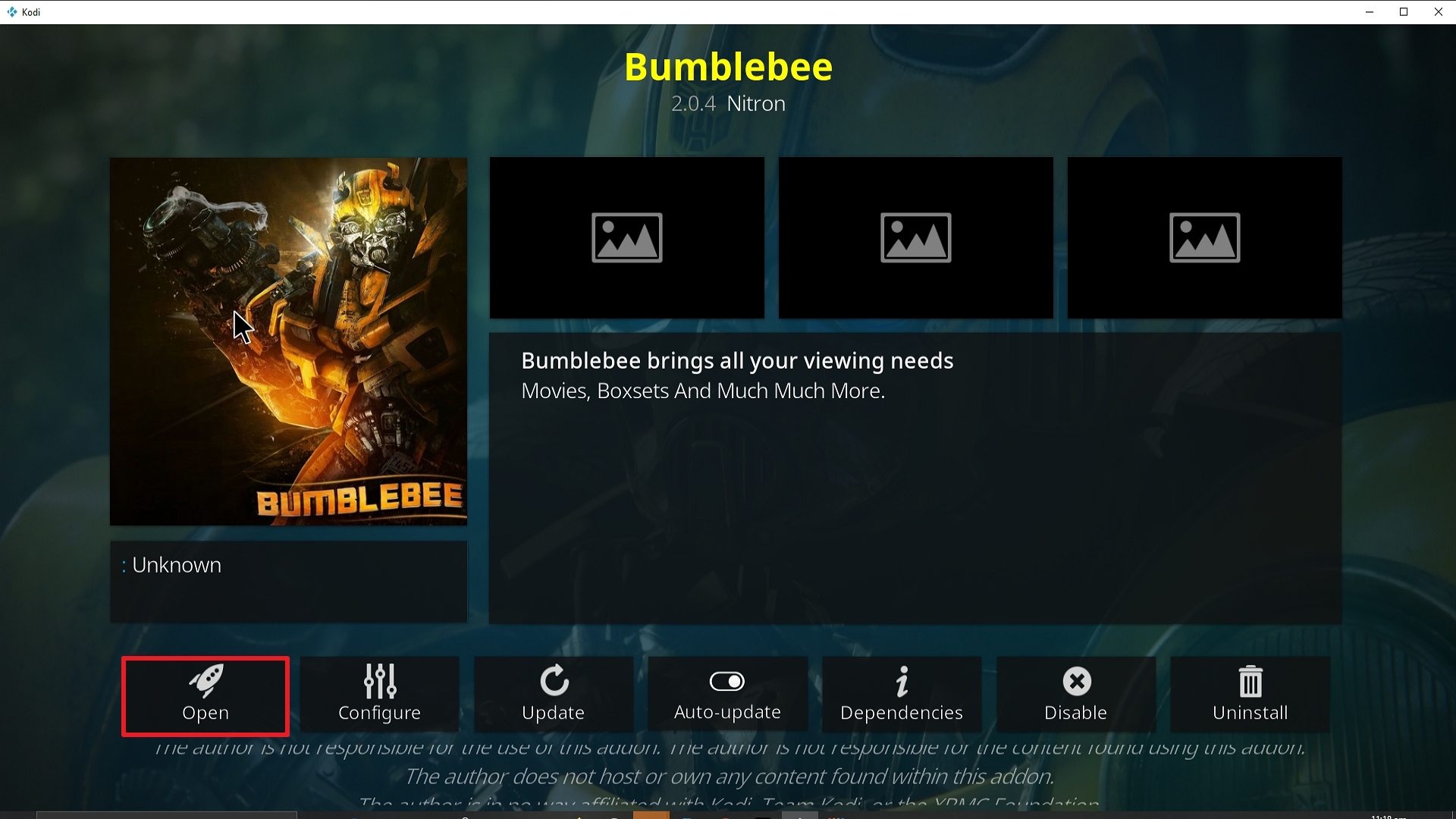
Step 26 Installing Bumblebee addon on Kodi


Alternatives

There are a lot of good-quality add-ons available on the web. Sometimes, it is inevitable that we encounter issues whenever we run an add-on. So it is basic that you always have a back-up to remedy this kind of issue. Back-ups should be obtained from trusted and reliable sources so that you won’t encounter problems. Here at ReviewVPN, we always recommend only the best add-ons so that you get to enjoy Kodi to its full potential. The following add-ons may serve as alternatives to Bumblebee:

  • Midian Add-on
  • Chain Reaction Add-on
  • Chucky Add-on
  • Leviathan Add-on
  • Common Errors


These are some of the things that may cause an issue when installing Bumblebee:

  1.    Unable to connect to URL/Download

One of the main reasons why this happens is that you might have written the wrong URL. Please be careful when typing in the URL because the slightest mistake can totally ruin your download. Secondly, having a stable internet connection is always desired as it does not impend the speed of your download. Lastly, to protect your identity and internet trail, you must have a reliable VPN to mask your online activities and will help you remain anonymous. Check here for the best VPN deal.

  1.     Script Error

This issue usually arises when Kodi is not properly installed or has lacking features for it to work properly. If that is the case, you can redownload Kodi and install it properly. An in-depth guide on how to install the Kodi app is provided on our website. Lastly, if the issue is with the add-on itself, you can reinstall it by following the procedure given above.

  1.     Kodi Check Log Error

A check log error only happens when your media cache is full. You can remedy this situation by emptying your cache. 

  1.     Source not working/slow/frozen

Bumblebee does not keep any of the content on its servers. It is distributed by 3rd party apps. Patience is key here, just wait for a couple of seconds for the other suggestions and click on them. For other solutions please take time to read our in-depth guide linked above. 


How to Install Surfshark VPN on Firestick

If your Firestick still has the older interface, read this article to learn how to update it: Update Firestick Interface.

Follow our screenshots below to install the SurfShark VPN app on your Fire TV stick.

1. Go to the Home screen of your Firestick.
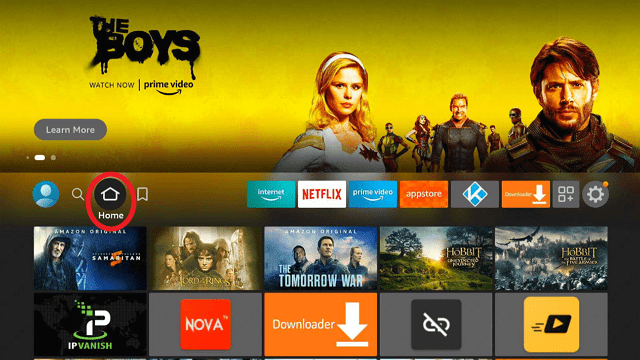
step 1 Install Surfshark VPN on Firestick


2. Navigate towards the Find tab. Press the Search button from the resulting dropdown.
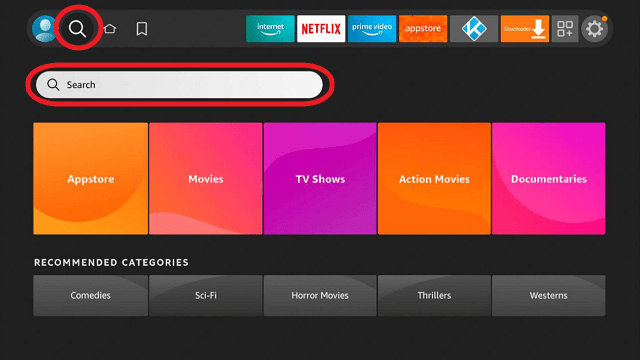
step 2 Install Surfshark VPN on Firestick


3. Type in the keyword of SurfShark and select from the suggestions that will appear.
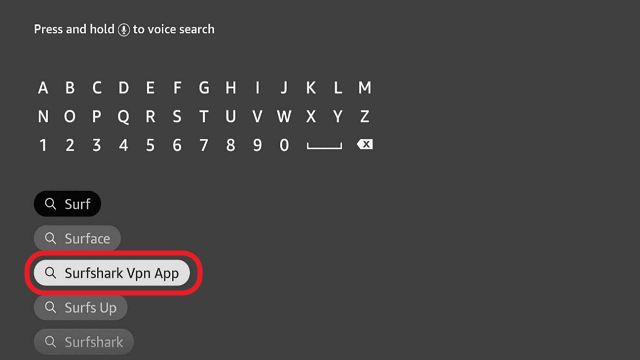
step 3 Install Surfshark VPN on Firestick


4. Click the official SurfShark icon from your search results.
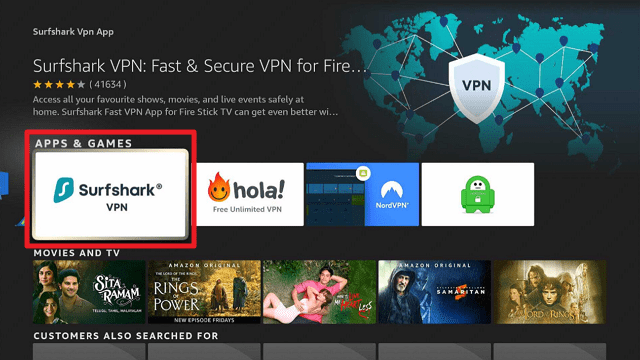
step 4 Install Surfshark VPN on Firestick


5. Press the Download (You own it) button.
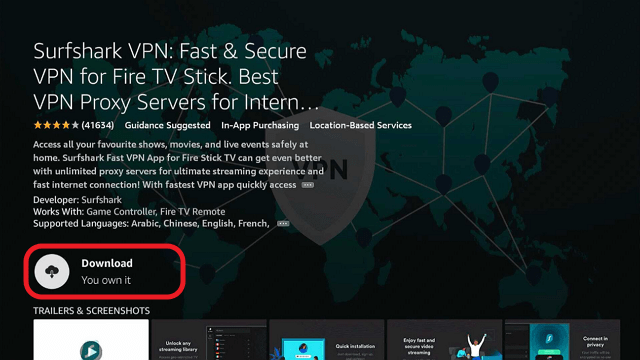
step 5 Install Surfshark VPN on Firestick


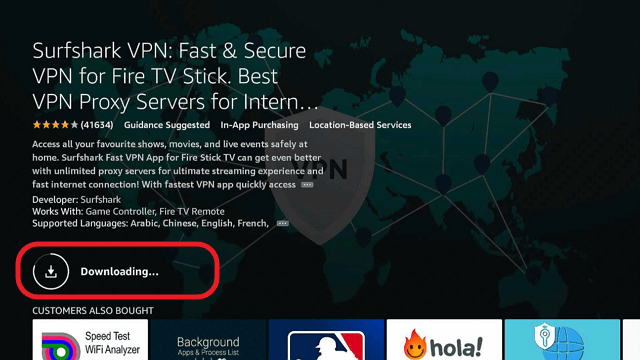
6. The SurfShark VPN installer will download on your device.
step 6 Install Surfshark VPN on Firestick


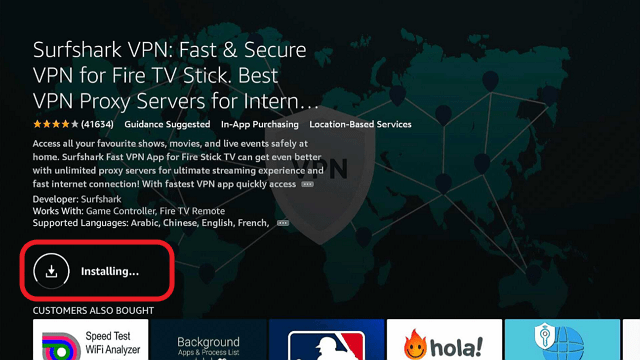
7. SurfShark VPN’s app will automatically install itself on your Fire TV stick.
step 7 Install Surfshark VPN on Firestick


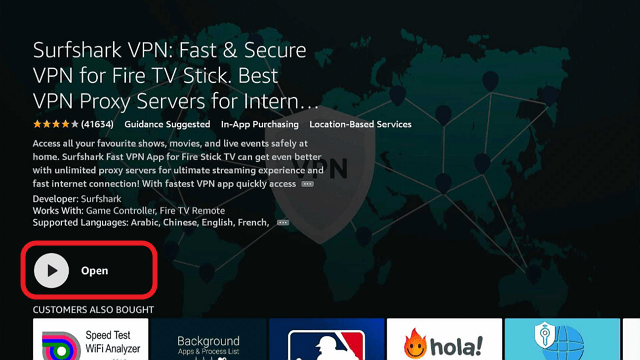
8. Press the Open button after completing SurfShark VPN’s installation process.
step 8 Install Surfshark VPN on Firestick


9. Please wait for the SurfShark VPN to load its user interface.
step 9 Install Surfshark VPN on Firestick


10. You can now log in with your SurfShark VPN account credentials.
step 10 Install Surfshark VPN on Firestick

Learn more about Surfshark and Grab the Best Surfshark Deal Now!


Install Surfshark on Firestick
Best Surfshark Deal


Other VPNs to Consider

NordVPN (Best for Streaming)

Best Features

  • 5000+ Server in 50+ Countries 
  • Military-Grade Encryption
  • Fast Connection Speed
  • Suitable to a lot of devices
  • No-Log Policy

Prices
  • Complete $5.89 per month (64% Discount)
  • Plus $4.59 per month (56% Discount)
  • Standard $3.69 per month (55% Discount)

Best Features

  • 750+ High-speed VPN Servers in 43 Locations
  • Military-Grade Encryption
  • Fastest HD Streaming and Gaming
  • 30-Day Money-Back Guarantee
  • Unlimited Data & Devices
  • No-Log Policy

Prices
  • 3 Years $1.99 per month (82% Discount)
  • 1 Years $3.29 per month (70% Discount)
  • 1 Month $10.99 per month

IPVanish VPN (Most Secure)

Best Features

  • 1200+ Servers in 60+ Countries around the world
  • Unlimited Connections
  • No-Log Policy
  • Top Notch Military-Grade VPN Protocols and Encryptions
  • 100% Safe and Secured
  • Most Trusted VPN
  • Best VPN for Firestick
  • 30-Day Money-Back Guarantee

Prices
  • Yearly $3.99 per month (63% Discount) – 30 days risk free + Ransomware & Malware Protection
  • Quarterly $5.32 per month (51% Discount)
  • Monthly $10.99 per month


For more VPN discounts, go to ReviewVPN Deals and purchase the best VPN for you.

Click here to get the lowest price on Surfshark through our exclusive limited-time offer.


Conclusion

Bumblebee Kodi Video Add-on is really one awesome add-on. Aside from its huge library of content, it also makes navigation easy for users. What we like about it is the boxset collections that aim to lessen the hassle for users when it comes to searching for the next installment of a film, Transformers is the perfect example.

You don’t have to go back and forth searching for the next but instead, after one movie finishes, the next one is one click away. Also, if you are very particular when searching for content, it has a section that features film studios.

This is also another good thing about it if you are particularly inclined to watch movies from DC or Marvel, there is already a folder specifically made for that. So who else thinks Bumblebee is a sidekick?

We hope that this article helped you in understanding more about Kodi and the add-on Bumblebee. Should you have queries, please feel free to drop a comment below or message us at any of our other social media platforms. Thank you for reading and have a great day ahead!

Install Open Meta Kodi Addon

Open Meta Kodi Addon

Source: https://a4k-openproject.github.io/

In the US, people spend around $150 on cable or satellite services and for a lot of us, we find that very expensive. So we resort to IPTV Services which can range anywhere from $20 up to $65 and some of us still find that expensive. So our last resort is to rely on Kodi and its add-ons. We admit that these add-ons are heaven sent and truly a blessing. The only catch is some times it doesn’t always work or there is an issue that arises within each add-on. So what we do is we switch from one add-on to another and you must admit that that is very time-consuming. What if we tell you that there is an easy way to circumvent all the switching and all the hassle? Yes, you heard it right, there is a solution! We introduce you to the Open Meta Kodi Addon.


So how does it work? It works by letting you stay on any add-on and search for links within other add-ons without having to switch back and forth. 

Sounds good? It only gets better. It supports playing as long as you have a player file for it. Player Files are distributed by other users and not as part of Open Meta. Open Meta only works with Player Files so make sure that you have those in order for it to run smoothly.


ANONYMOUSLY


Features:

  • Works with Kodi 17 and Kodi 18
  • Trakt Support
  • TVDB Integration
  • TMDB Integration
  • Library Integration
  • Centralized Menu for all Kodi Add-ons


YOUR INTERNET ACTIVITY IS BEING WATCHED

ReviewVPN cannot attest to the legality, security and privacy of the applications discussed on this site. It is highly recommended that you use a VPN service while streaming or using Kodi.

Currently, your IP 216.73.217.150 is visible to everyone and your Browser is being tracked by Advertisers & ISP Provider.

Save 65% Now

Limited Time Offer

Here are the main reasons why you must use a VPN:

  • Your activities are hidden from your ISP, the government, and from the apps you are using.
  • You can access additional movies and TV streams.
  • ISP attempts to throttle are thrwarted thus reducing buffering issues.
  • Geographically restricted content like Netflix and Hulu can be unblocked.

A VPN works be replacing your ISP-assigned IP address and creating an encrypted tunnel. We recommend the no log service offered by IPVanish. It works well on a Firestick and offers the fastest possible speeds.

Special Limited Time Offer - Get IPVanish


Easy Installation Guide

  1. Launch Kodi on your device
  2. Click on the “Gear Icon” and select “System”
  3. At the add-ons menu, turn on the “Unknown Sources” by clicking “yes”
  4. Go back to the “systems” page and choose “File Manager”
  5. Choose Add source and select “none”
  6. Type in http://a4k-openproject.github.io/
  7. Highlight the source and rename it to “Addons4kodi Repo” or any name you would like to use to identify this particular source and click “ok”
  8. Go back to the System Screen and click “Add-ons”
  9. Select “Install Zip File” choose “Addons4kodi Repo” or whatever you renamed the file.
  10. Select the zip file URL- repository.addons4kodi-x.x.zip
  11. Wait for the notification “Addons4kodi Build Add-on Repo Installed” to appear.
  12. Select “Install Repository”
  13. Choose “Addons4kodi Build Repo”
  14. Click on “Video Add-ons” and select “Open Meta” and “Install”
  15. Click “Ok” when a notification “the following add-ons will be installed” appears and wait for Open Meta Add-on to install
  16. Once the add-on is installed go back to the home screen and select “add-ons”
  17. Choose “Video add-ons” and select “Open Meta”
  18. There you go, Open Meta is now installed.


How to Install Open Meta Addon on Kodi with Screenshots

  1. From the home screen, select the cogwheel at the upper left.

Step 1 Installing Open Meta addon on Kodi

2. Select System in the bottom right corner.

Step 2 Installing Open Meta addon on Kodi


3. Select Add-ons on the left side of the screen.

Step 3 Installing Open Meta addon on Kodi


4. Select Unknown sources.

Step 4 Installing Open Meta addon on Kodi


5. Click Yes to allow unknown sources.

Step 5 Installing Open Meta addon on Kodi


6. Select File manager.

Step 6 Installing Open Meta on Kodi


7. Click Add source.

Step 7 Installing Open Meta addon on Kodi


8. Click on <None>.

Step 8 Installing Open Meta addon on Kodi


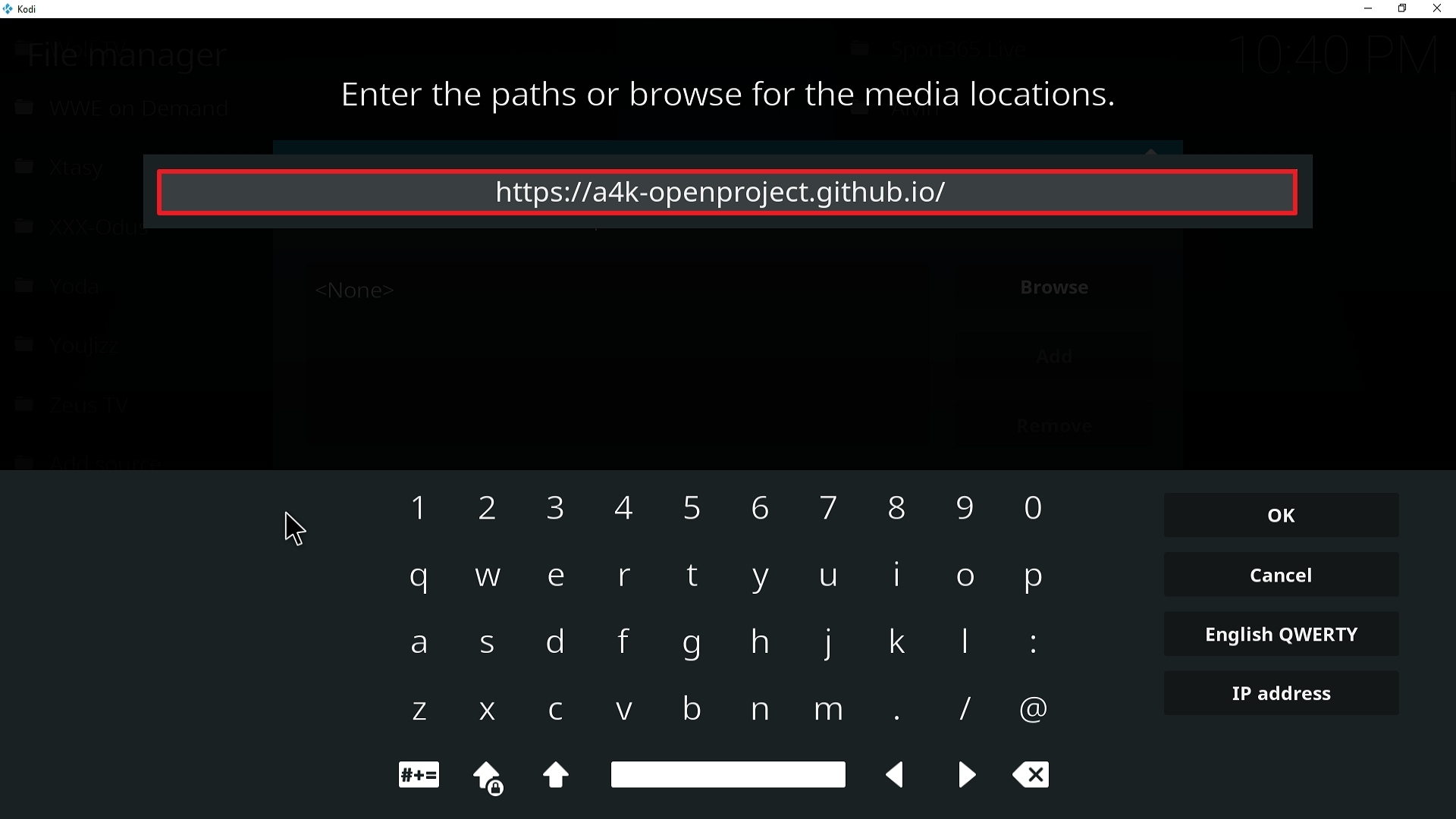
9. Type exactly: https://a4k-openproject.github.io/

Step 9 Installing Open Meta addon on Kodi


10. Click on OK.

Step 10 Installing Open Meta addon on Kodi


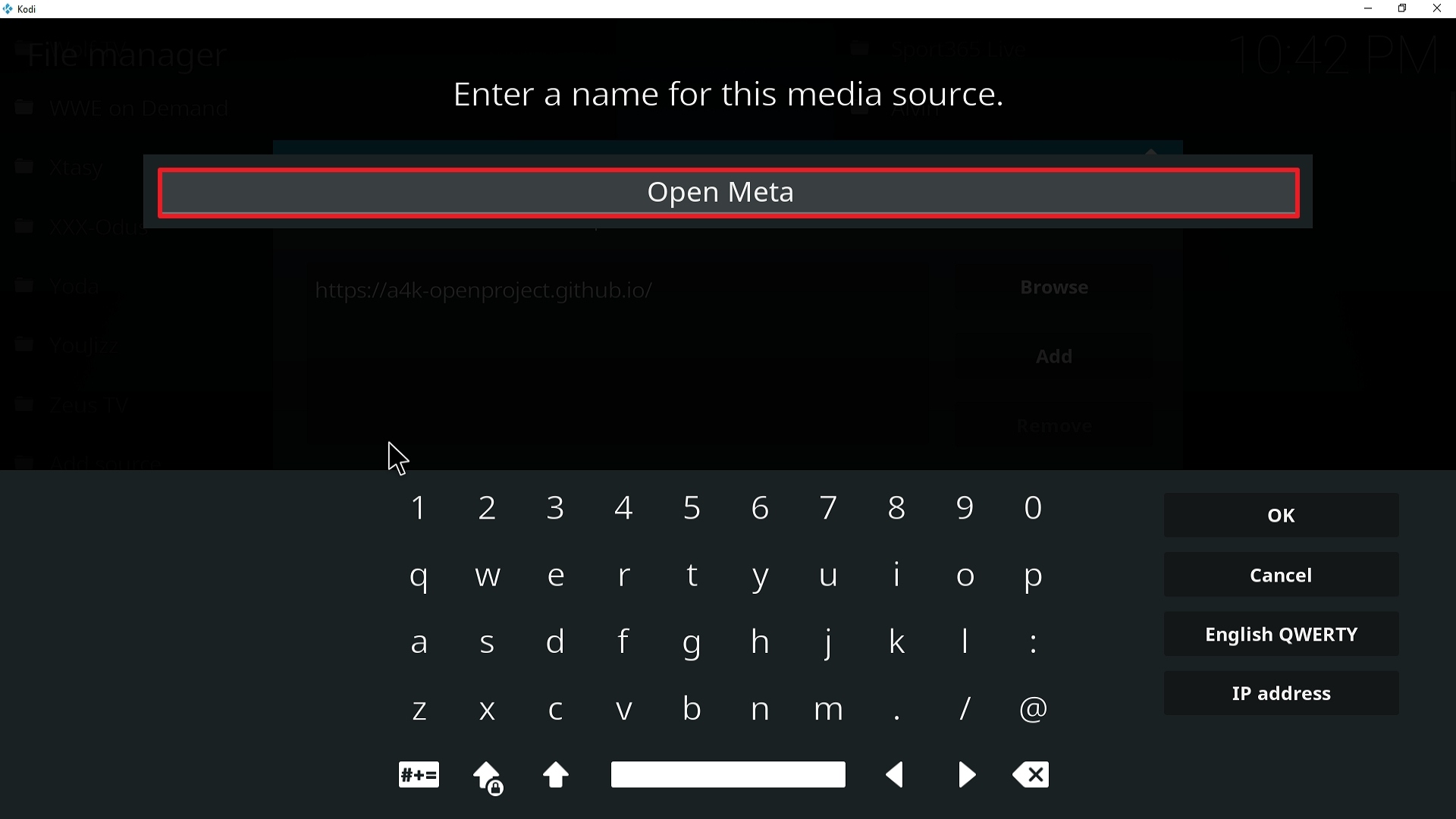
11. Select enter a name for this media source.

Step 11 Installing Open Meta addon on Kodi


12. Name is Open Meta (this part isn’t critical as long as you remember the name).

Step 12 Installing Open Meta addon on Kodi


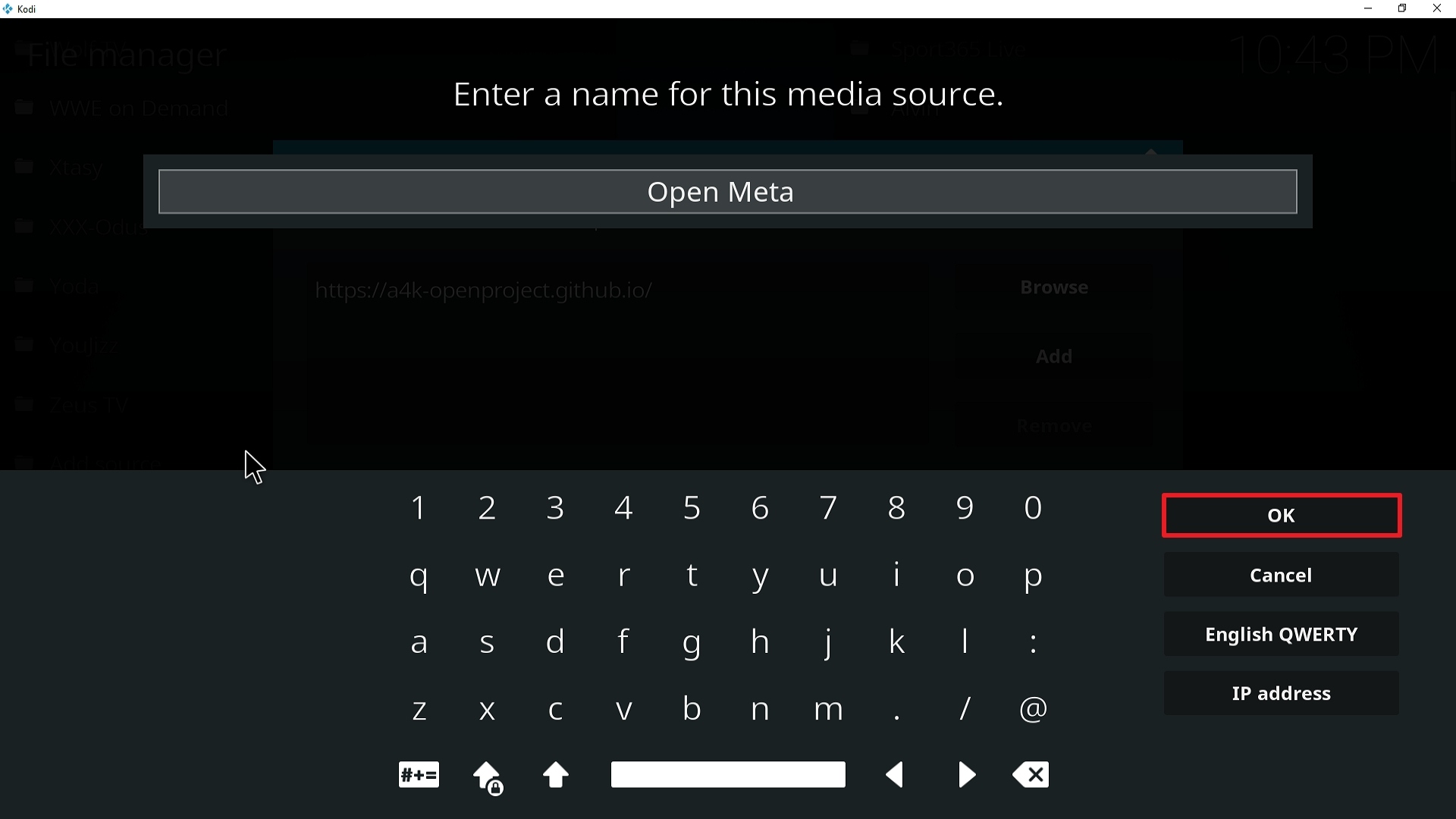
13. Click on OK.

Step 13 Installing Open Meta addon on Kodi


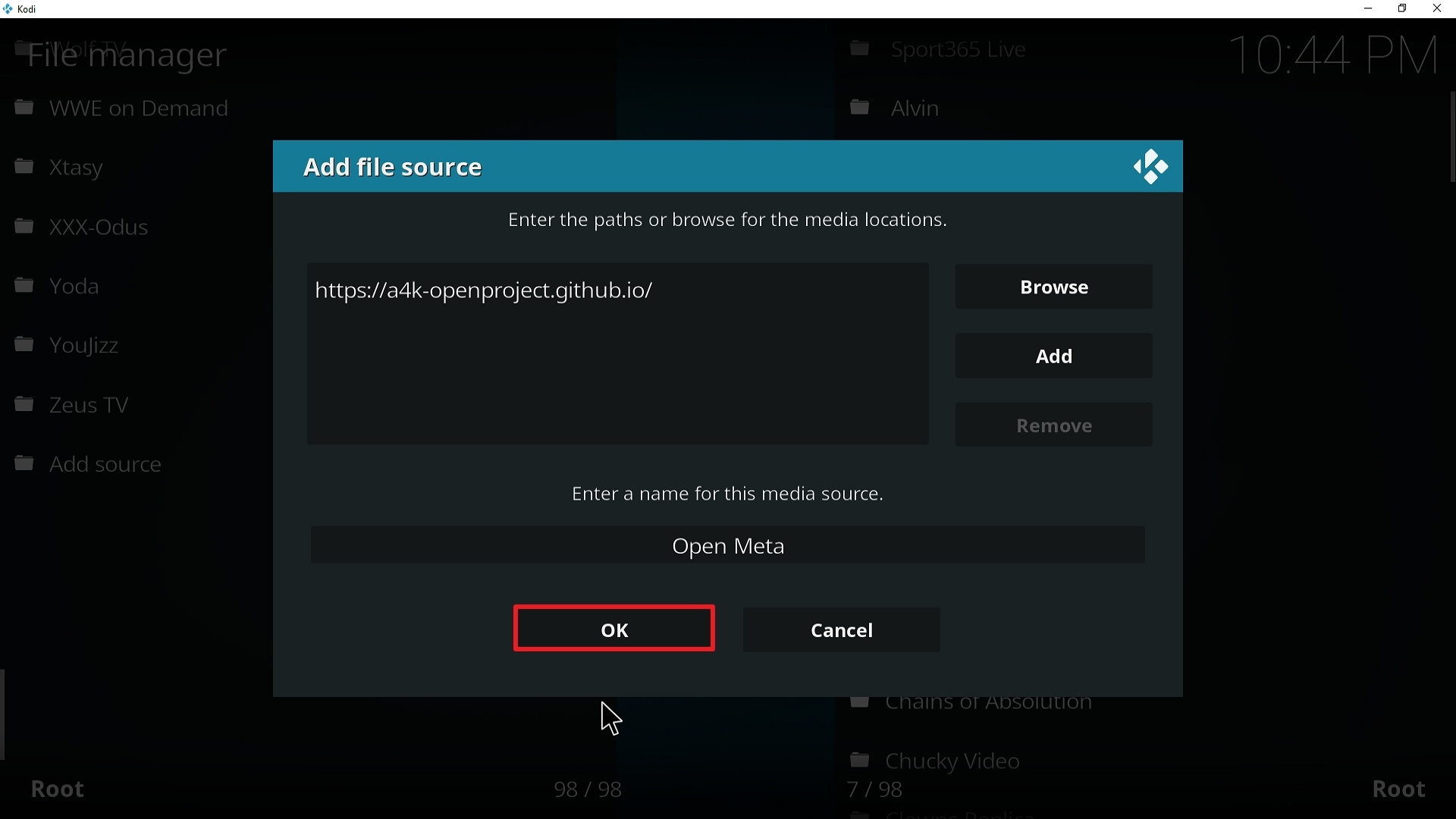
14. Click on OK.

Step 14 Installing Open Meta addon on Kodi


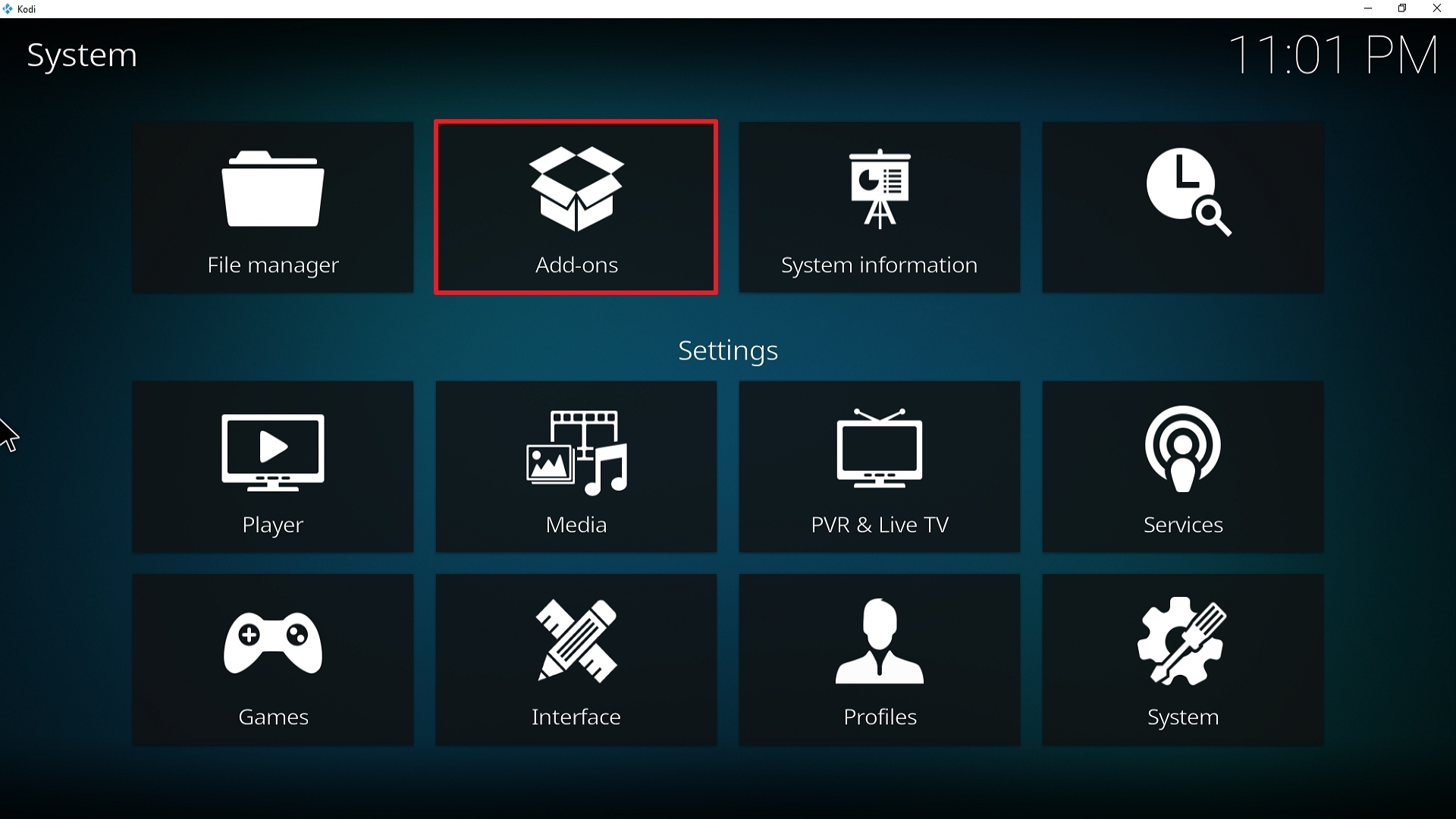
15. Take one step back and click on Add-ons.

Step 15 Installing Open Meta addon on Kodi


16. Select install from zip file.

Step 16 Installing Open Meta addon on Kodi


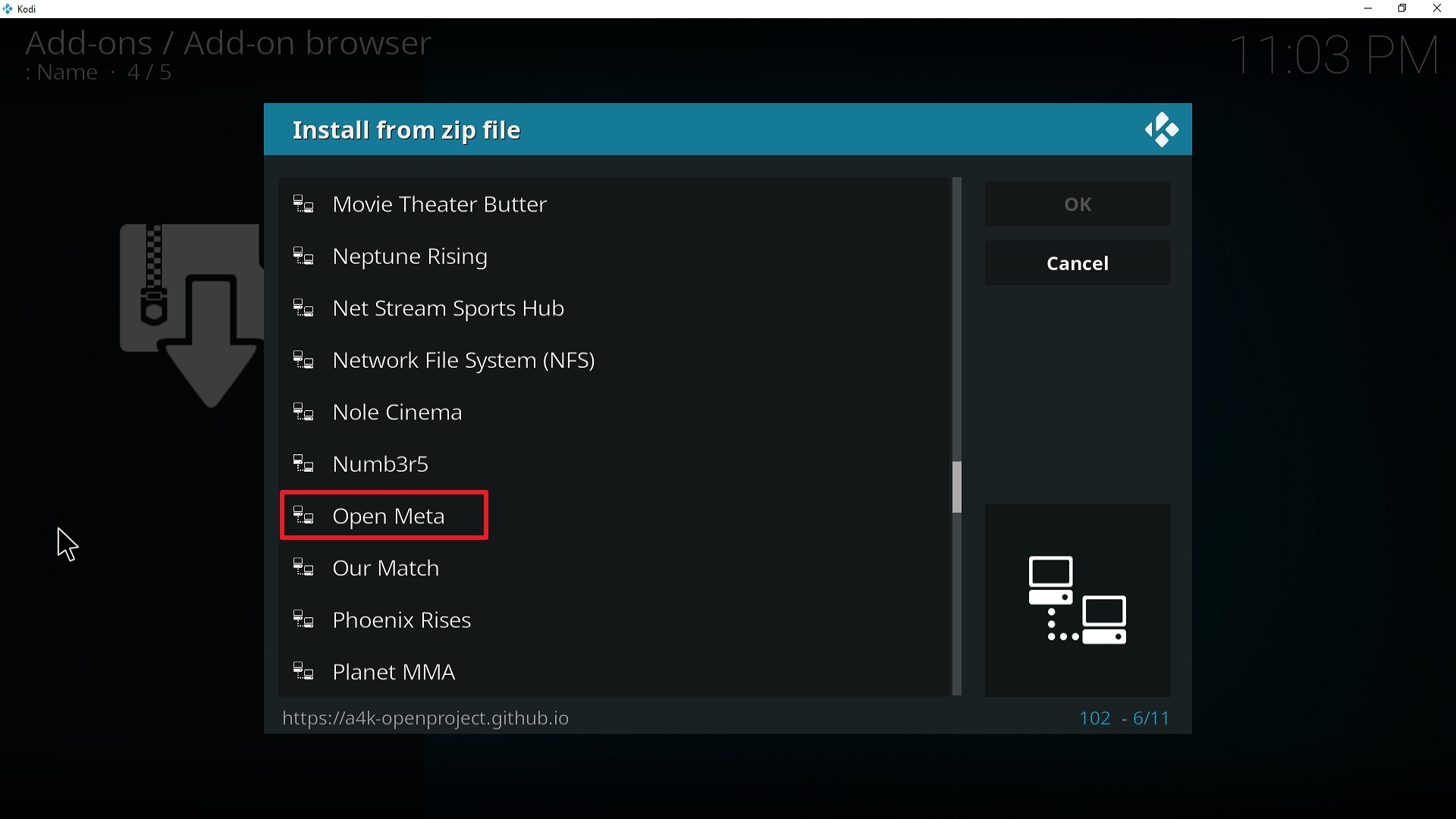
17. Click on Open Meta (or whatever you named the source).

Step 17 Installing Open Meta addon on Kodi


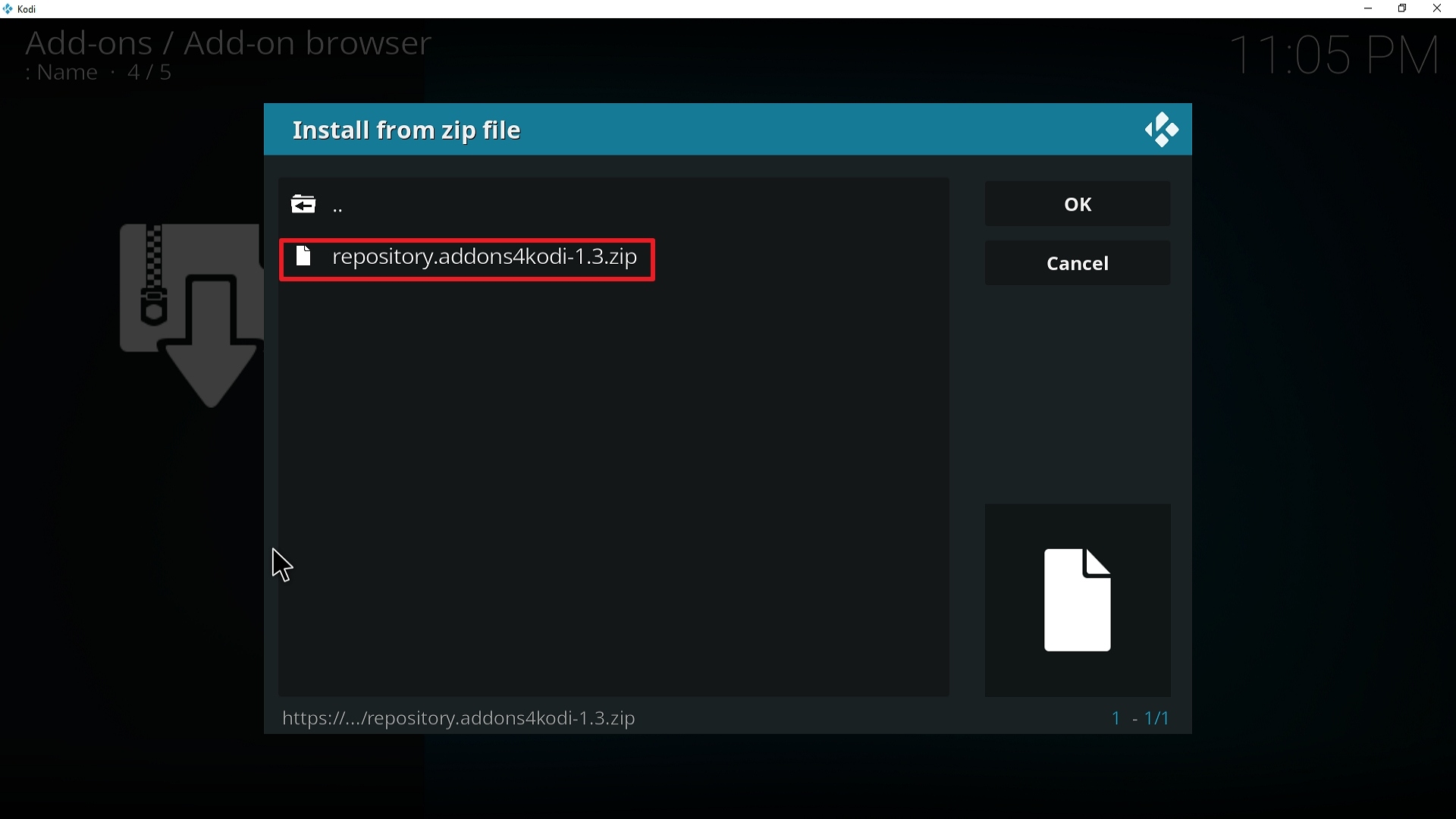
18. Click on repository.addons4kodi-1.3.zip

Step 18 Installing Open Meta addon on Kodi


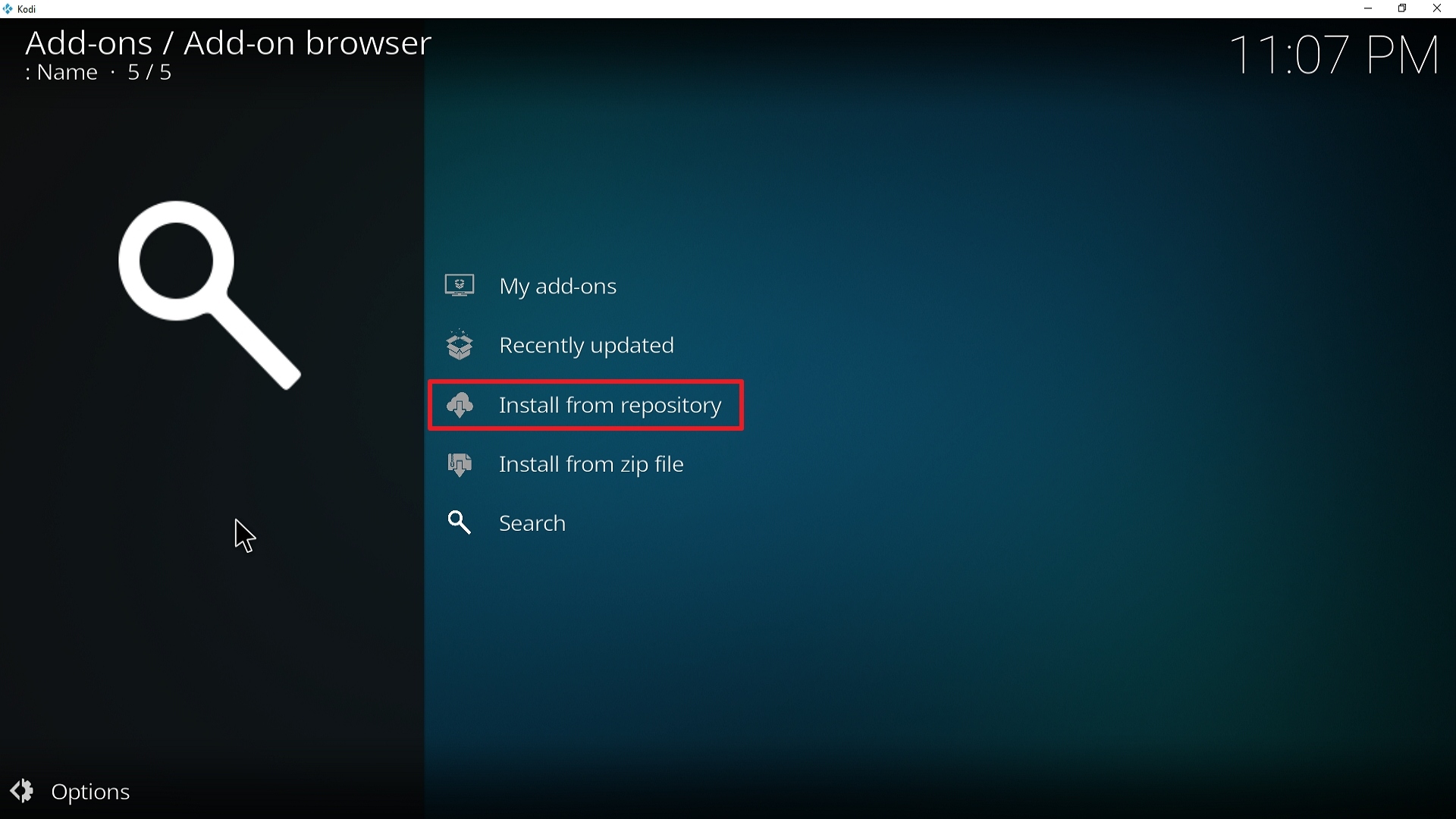
19. Select on Install from repository.

Step 19 Installing Open Meta addon on Kodi


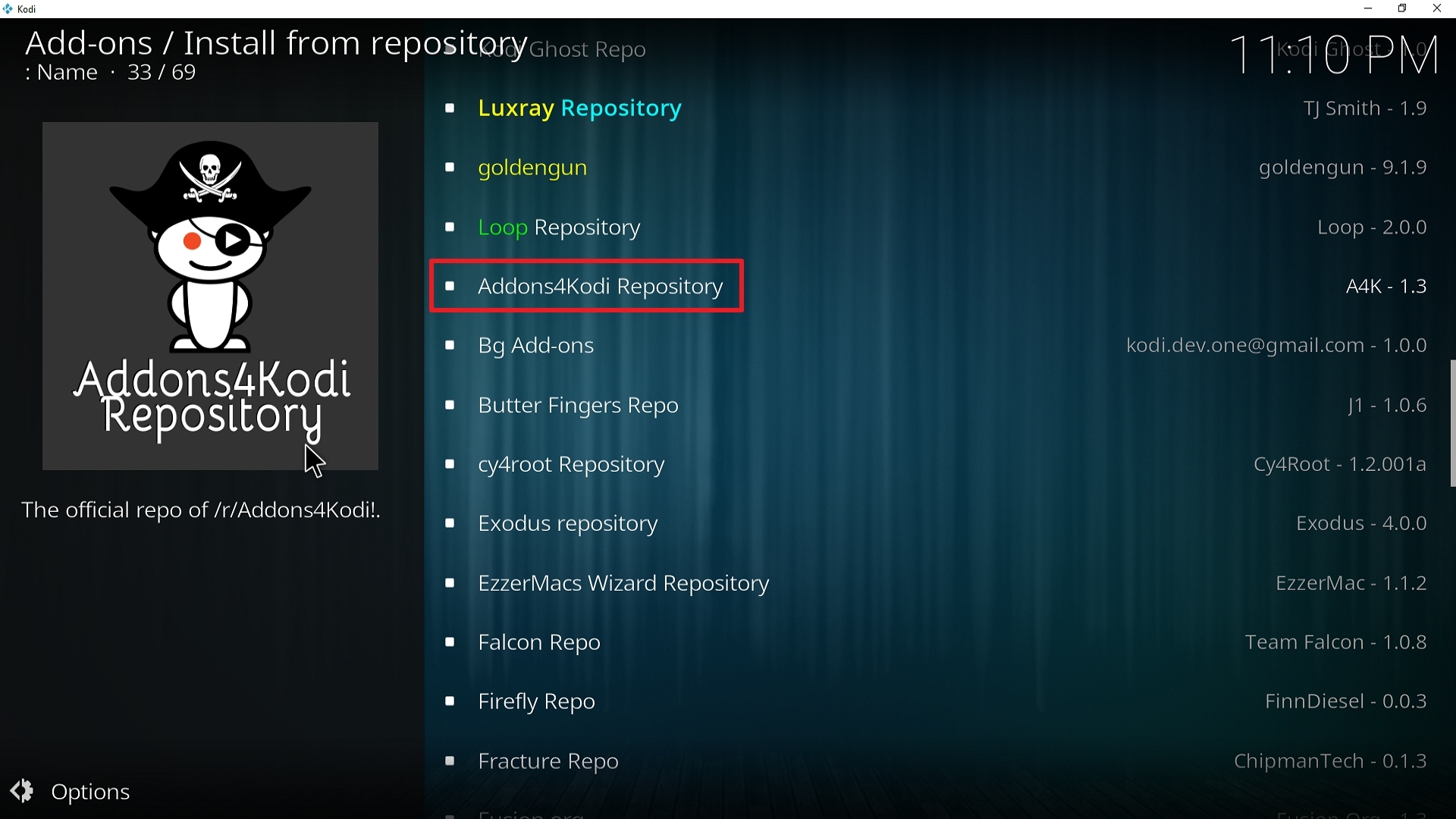
20. Click on Addons4kodi Repo

Step 20 Installing Open Meta addon on Kodi


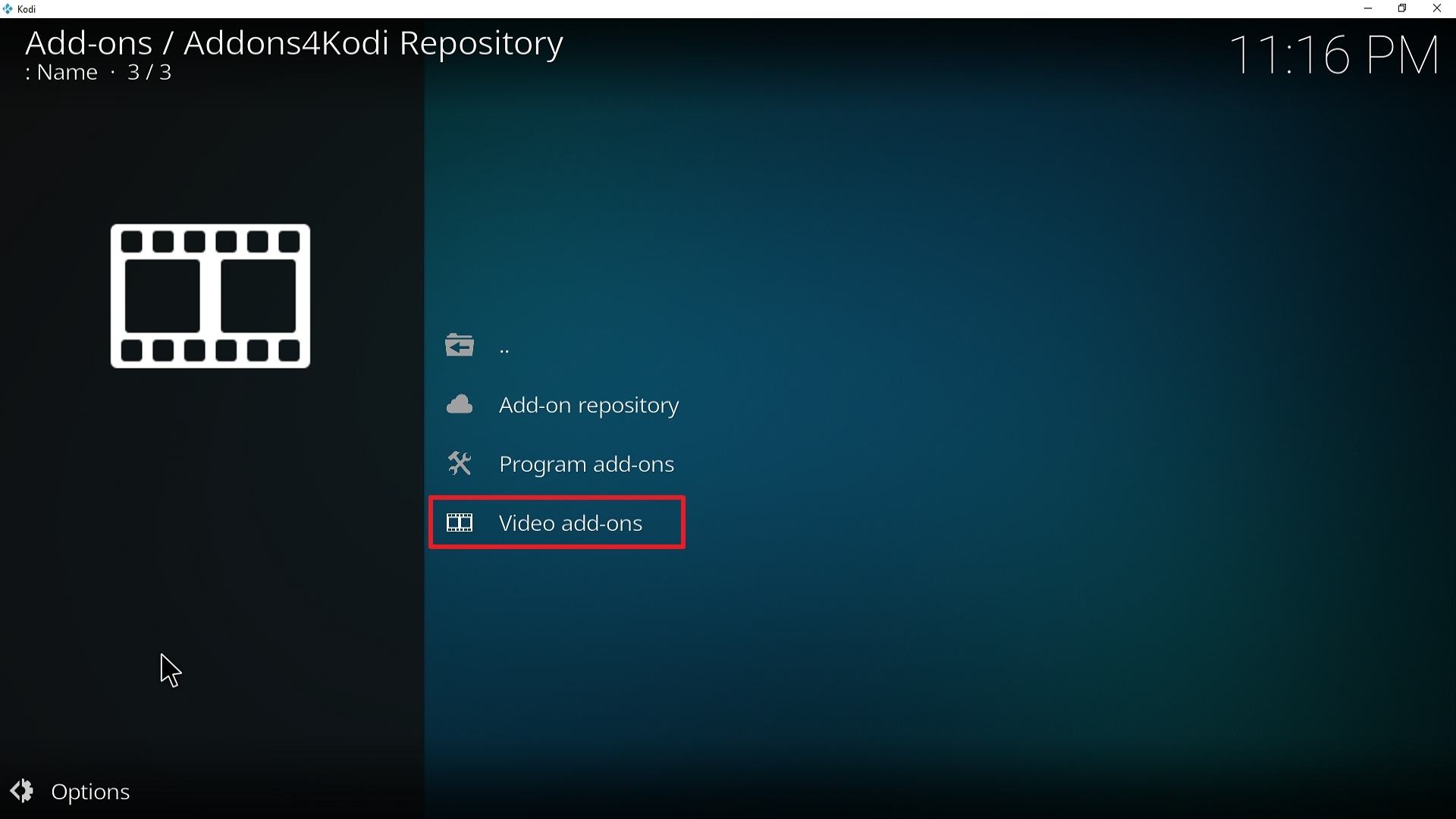
21. Pick Video add-ons.

Step 21 Installing Open Meta addon on Kodi


22. Select Open Meta again.

Step 22 Installing Open Meta addon on Kodi


23. Click on Install.

Step 23 Installing Open Meta addon on Kodi


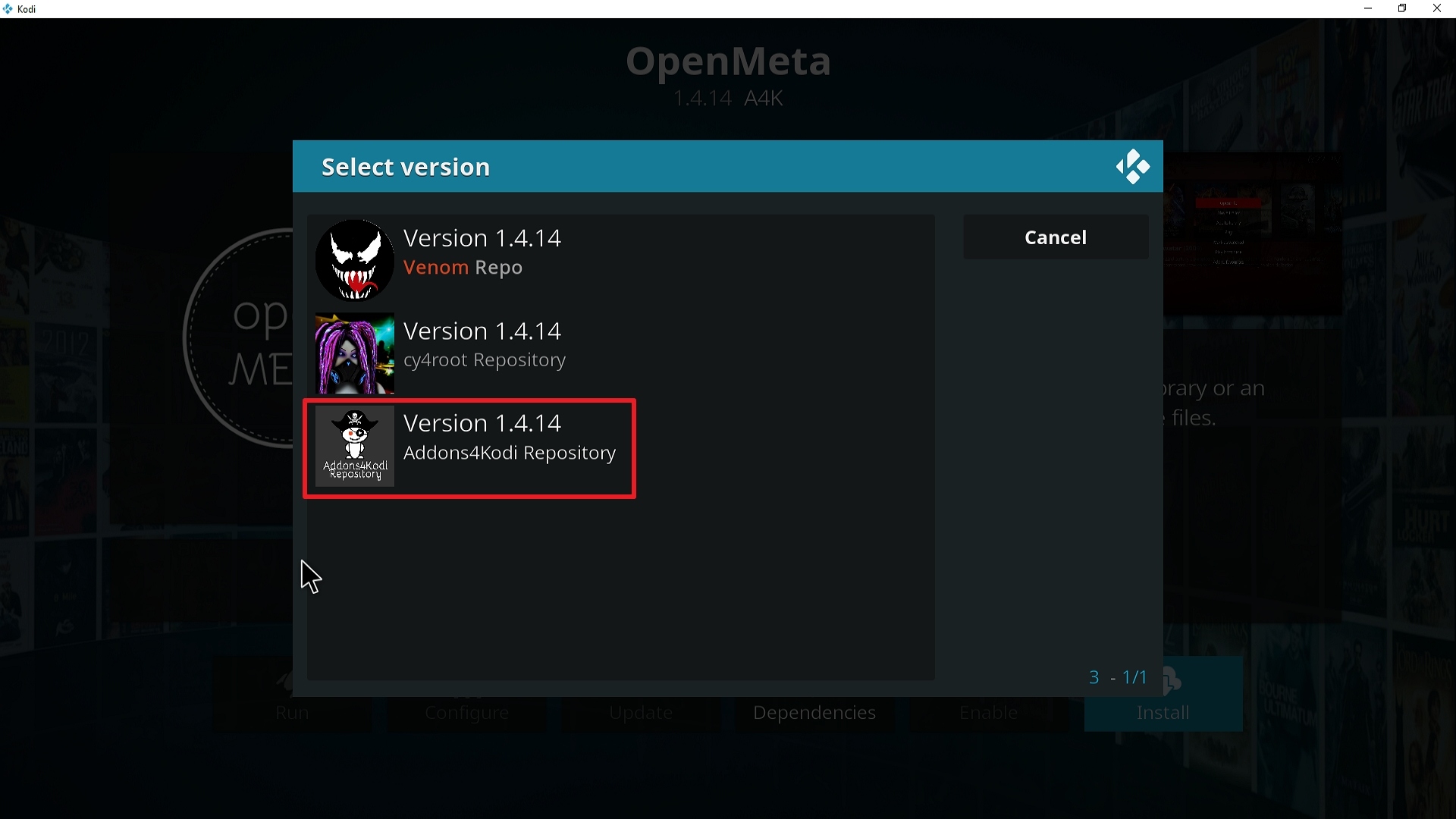
24. Select  Version 1.4.14 Addons4kodi Repo

Step 24 Installing Open Meta addon on Kodi


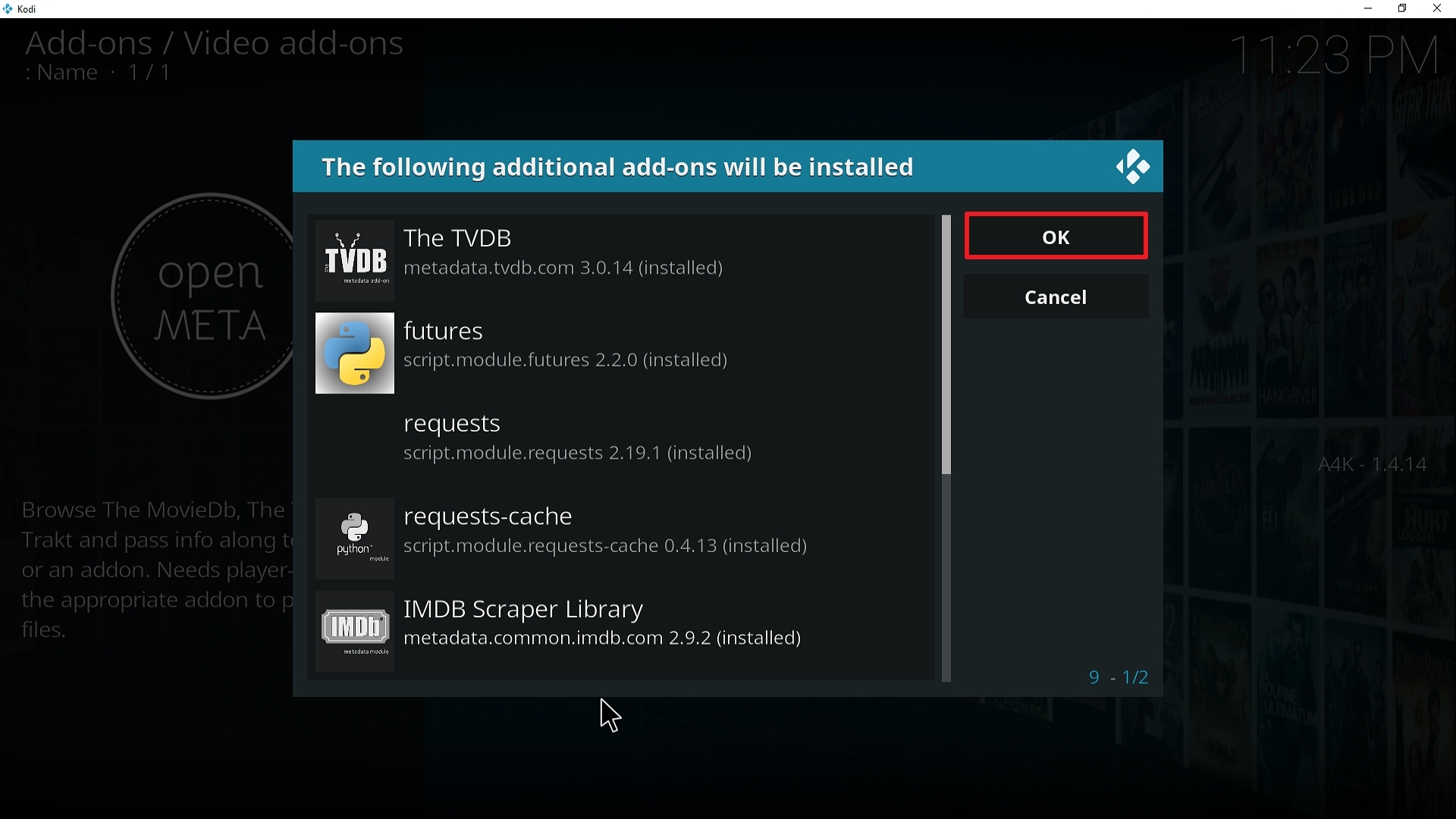
25. Select OK after reviewing the add-ons that will be installed.

Step 25 Installing Open Meta addon on Kodi


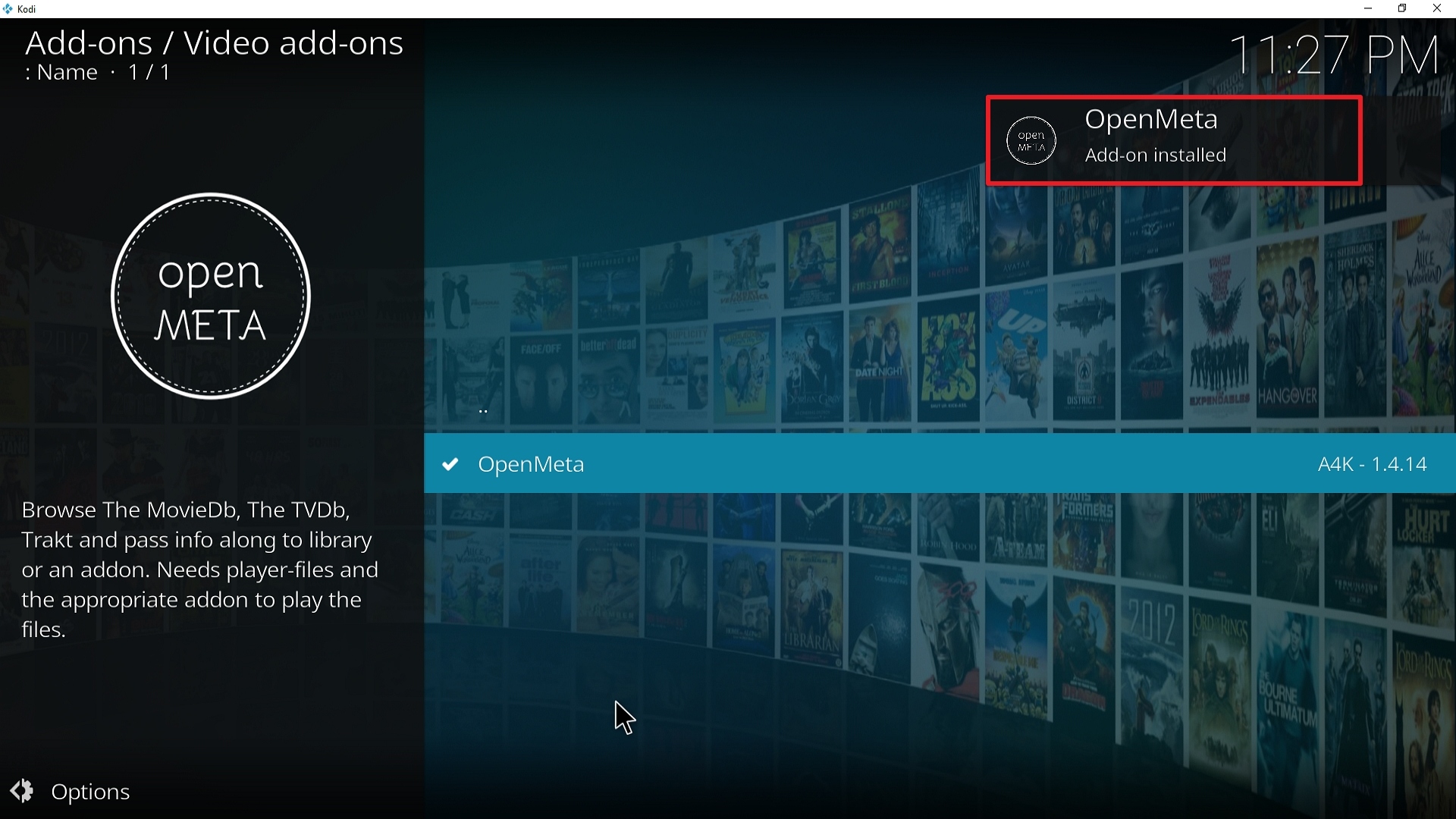
26. You should see a popup in the upper right corner saying Open Meta has installed. There will actually be multiple popups for the various components.

Step 26 Installing Open Meta addon on Kodi


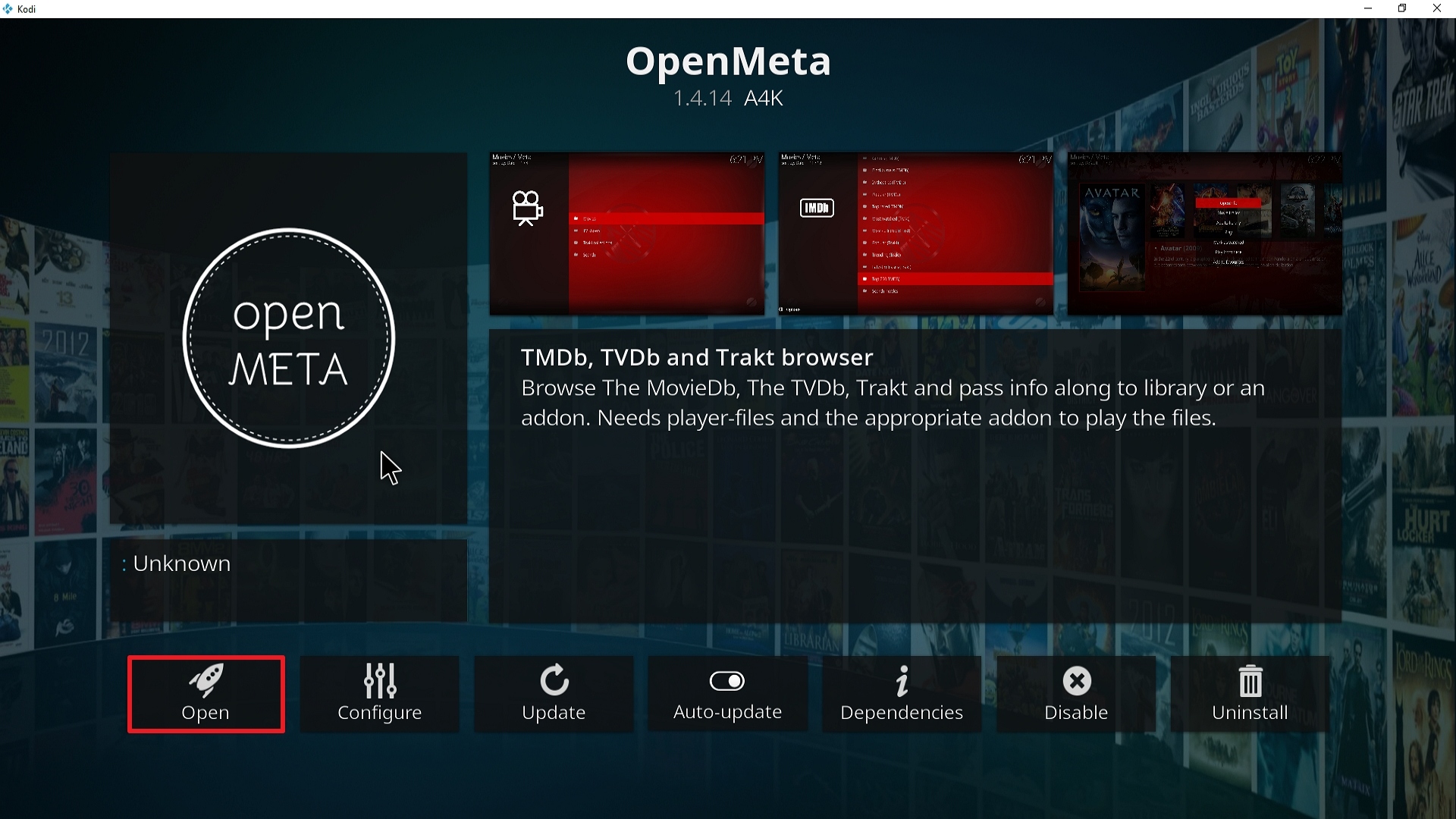
27. Click on Open to start the Open Meta add-on.

Step 27 Installing Open Meta addon on Kodi


Alternatives

Rule of thumb that we always suggest is that you always have a back-up plan if ever things go sideways. This way, your viewing experience remains uninterrupted. Having said that, only a handful of add-ons host torrent cache for viewing. For its unique nature, the following add-ons that we are going to recommend are from trusted sources and believe that we only suggest only the best here at ReviewVPN. The following may be considered as alternatives for Open Meta

        Kratos Reborn Add-on

        A Pirates Life For Me Add-on

        Jen of Debrid

Common Errors

These are some of the things that may cause an issue when installing Open Meta:

  1. Unable to connect to URL/Download

Your URL address should be written correctly or else this issue will arise. Also, be sure that your Repository is properly installed and the guide above will help you with that. Although cached torrents do not require VPN because you are accessing the torrent directly unlike torrent clients which act as middlemen, to be on the safer side of things, we still advise you to have a reliable VPN installed. Check here for the best VPN deal.


  1.     Script Error

Make sure that the Kodi App is properly installed on your device to avoid this error. Also, you have to double-check if the add-on is installed correctly if not, reinstall it. Please refer to the guide above to help you in installing the add-on properly. An in-depth guide is also provided in this article with regards to the proper installation of Kodi.


  1.     Kodi Check Log Error

This occurs when your media cache is full. We can prevent this by emptying your cache and making sure that it gets cleaned on a regular basis. Cache build is quite common nowadays because it is one way of making our streaming experience smoother.


  1.     Source not working/slow/frozen

Open Meta supports other add-ons and does not keep any content in its servers. If this issue arises, you may want to wait for a few seconds until the results refresh and choose a working link.


How to Install Surfshark VPN on Firestick

If your Firestick still has the older interface, read this article to learn how to update it: Update Firestick Interface.

Follow our screenshots below to install the SurfShark VPN app on your Fire TV stick.

1. Go to the Home screen of your Firestick.

step 1 Install Surfshark VPN on Firestick


2. Navigate towards the Find tab. Press the Search button from the resulting dropdown.

step 2 Install Surfshark VPN on Firestick


3. Type in the keyword of SurfShark and select from the suggestions that will appear.

step 3 Install Surfshark VPN on Firestick


4. Click the official SurfShark icon from your search results.

step 4 Install Surfshark VPN on Firestick


5. Press the Download (You own it) button.

step 5 Install Surfshark VPN on Firestick


6. The SurfShark VPN installer will download on your device.

step 6 Install Surfshark VPN on Firestick


7. SurfShark VPN’s app will automatically install itself on your Fire TV stick.

step 7 Install Surfshark VPN on Firestick


8. Press the Open button after completing SurfShark VPN’s installation process.

step 8 Install Surfshark VPN on Firestick


9. Please wait for the SurfShark VPN to load its user interface.

step 9 Install Surfshark VPN on Firestick


10. You can now log in with your SurfShark VPN account credentials.

step 10 Install Surfshark VPN on Firestick

Learn more about Surfshark and Grab the Best Surfshark Deal Now!


Install Surfshark on Firestick
Best Surfshark Deal


Other VPNs to Consider

NordVPN (Best for Streaming)

Best Features

  • 5000+ Server in 50+ Countries 
  • Military-Grade Encryption
  • Fast Connection Speed
  • Suitable to a lot of devices
  • No-Log Policy

Prices
  • Complete $5.89 per month (64% Discount)
  • Plus $4.59 per month (56% Discount)
  • Standard $3.69 per month (55% Discount)

Best Features

  • 750+ High-speed VPN Servers in 43 Locations
  • Military-Grade Encryption
  • Fastest HD Streaming and Gaming
  • 30-Day Money-Back Guarantee
  • Unlimited Data & Devices
  • No-Log Policy

Prices
  • 3 Years $1.99 per month (82% Discount)
  • 1 Years $3.29 per month (70% Discount)
  • 1 Month $10.99 per month

IPVanish VPN (Most Secure)

Best Features

  • 1200+ Servers in 60+ Countries around the world
  • Unlimited Connections
  • No-Log Policy
  • Top Notch Military-Grade VPN Protocols and Encryptions
  • 100% Safe and Secured
  • Most Trusted VPN
  • Best VPN for Firestick
  • 30-Day Money-Back Guarantee

Prices
  • Yearly $3.99 per month (63% Discount) – 30 days risk free + Ransomware & Malware Protection
  • Quarterly $5.32 per month (51% Discount)
  • Monthly $10.99 per month


For more VPN discounts, go to ReviewVPN Deals and purchase the best VPN for you.

Click here to get the lowest price on Surfshark through our exclusive limited-time offer.


Conclusion

We consider Open Meta as one of the most useful add-ons in Kodi. It gives you control over where you want to watch your content. It removes the hassle of going back and forth between add-ons. This add-on really comes in handy if you don’t have the patience to switch add-ons. It also gives you an option on what source is the best to use. Overall, it is an amazing add-on that makes life easier for its users.

We hope this helped! Comments are welcome on our website and at any of our other social media platforms. Thank you and God Speed!

Install Joker 2.0 Kodi Addon

Joker 2.0 Kodi Addon

Source: http://insanity-builds.tk/fracturedrepo/

Hailing from the famous Fracture Repository, Joker 2.0 Kodi addon is a revamped version of the older one. Its content is mainly focused on movies. It gives users high-definition video formats that include 720p and 1080p. It is also works-well with a Real-Debrid account signed-in. We tell you that this add-on does not joke. It is easily a go-to add-on for all the movie lovers out there.


ANONYMOUSLY


Features

  • Excellent User Interface
  • Retro Feature
  • Compatible with every platform and operating system
  • Real-Debrid Integration
  • 720p and 1080p Video Formats
  • Subcategories include: Movies, Spotlight Movies 1930-1959, New Movies, Movie Decades, and Movie Collections

Easy Installation Guide

  1. Launch Kodi on your device
  2. Click on the “Gear Icon” and select “System”
  3. At the add-ons menu, turn on the “Unknown Sources” by clicking “yes”
  4. Go back to the “systems” page and choose “File Manager”
  5. Choose Add source and select “none”
  6. Type in http://insanity-builds.tk/fracturedrepo
  7. Highlight the source and rename it to “Fractured Repo” or any name you would like to use to identify this particular source and click “ok”
  8. Go back to the System Screen and click “Add-ons”
  9. Select “Install Zip File” choose “Fractured Repo” or whatever you renamed the file.
  10. Select the zip file URL- repository.fracturedrepo-0.0.6.zip
  11. Wait for the notification “Fractured Build Add-on Repo Installed” to appear.
  12. Select “Install Repository”
  13. Choose “Fractured Build Repo”
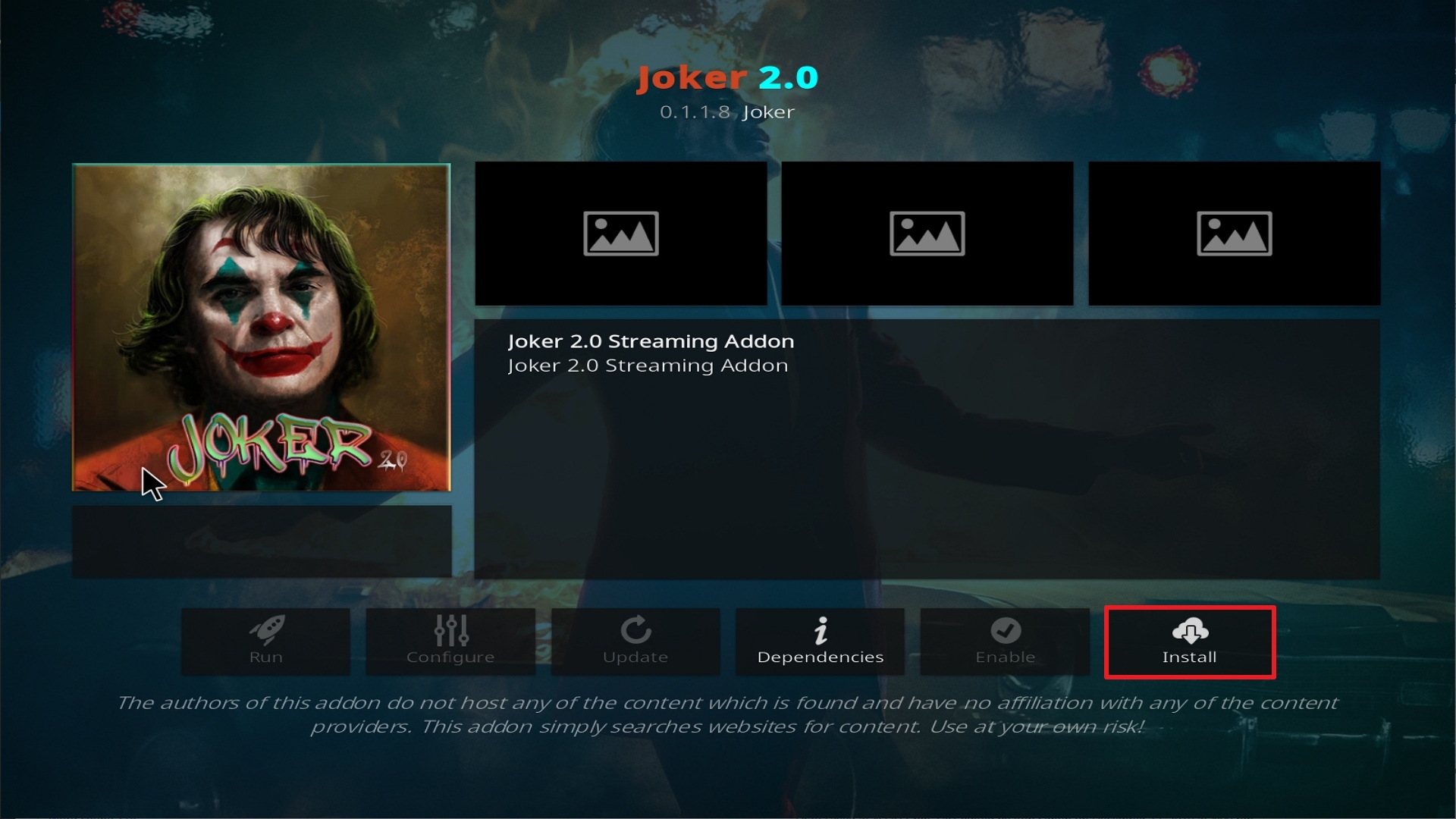
  14. Click on “Video Add-ons” and select “Joker 2.0” and “Install”
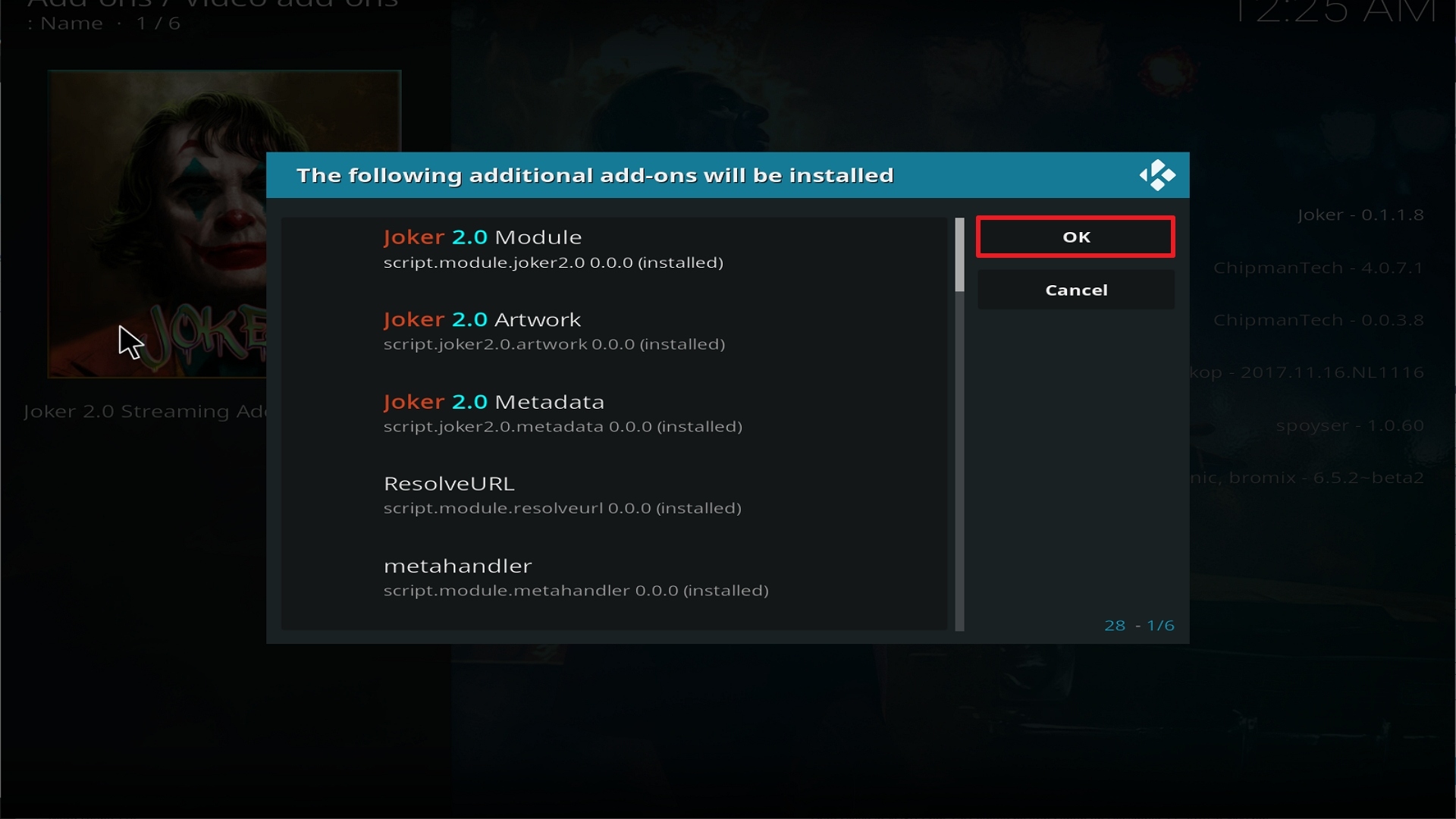
  15. Click “Ok” when a notification “the following add-ons will be installed” appears and wait for Joker 2.0 Add-on to install
  16. Once the add-on is installed go back to the home screen and select “add-ons”
  17.  Choose “Video add-ons” and select “Joker 2.0”


YOUR INTERNET ACTIVITY IS BEING WATCHED

ReviewVPN cannot attest to the legality, security and privacy of the applications discussed on this site. It is highly recommended that you use a VPN service while streaming or using Kodi.

Currently, your IP 216.73.217.150 is visible to everyone and your Browser is being tracked by Advertisers & ISP Provider.

Save 65% Now

Limited Time Offer

Here are the main reasons why you must use a VPN:

  • Your activities are hidden from your ISP, the government, and from the apps you are using.
  • You can access additional movies and TV streams.
  • ISP attempts to throttle are thrwarted thus reducing buffering issues.
  • Geographically restricted content like Netflix and Hulu can be unblocked.

A VPN works be replacing your ISP-assigned IP address and creating an encrypted tunnel. We recommend the no log service offered by IPVanish. It works well on a Firestick and offers the fastest possible speeds.

Special Limited Time Offer - Get IPVanish


How to Install Joker 2.0 Addon on Kodi with Screenshots

1. From the home screen, select the cogwheel at the upper left.

Step 1 Installing Joker 2.0 addon on Kodi

2. Select System in the bottom right corner.

Step 2 Installing Joker 2.0 addon on Kodi


3. Select Add-ons on the left side of the screen.

Step 3 Installing Joker 2.0 addon on Kodi


4. Select Unknown sources.

Step 4 Installing Joker 2.0 addon on Kodi


5. Click Yes to allow unknown sources.

Step 5 Installing Joker 2.0 addon on Kodi


6. Select File manager.

Step 6 Installing Joker 2.0 on Kodi


7. Click Add source.

Step 7 Installing Joker 2.0 addon on Kodi


8. Click on <None>.

Step 8 Installing Joker 2.0 addon on Kodi


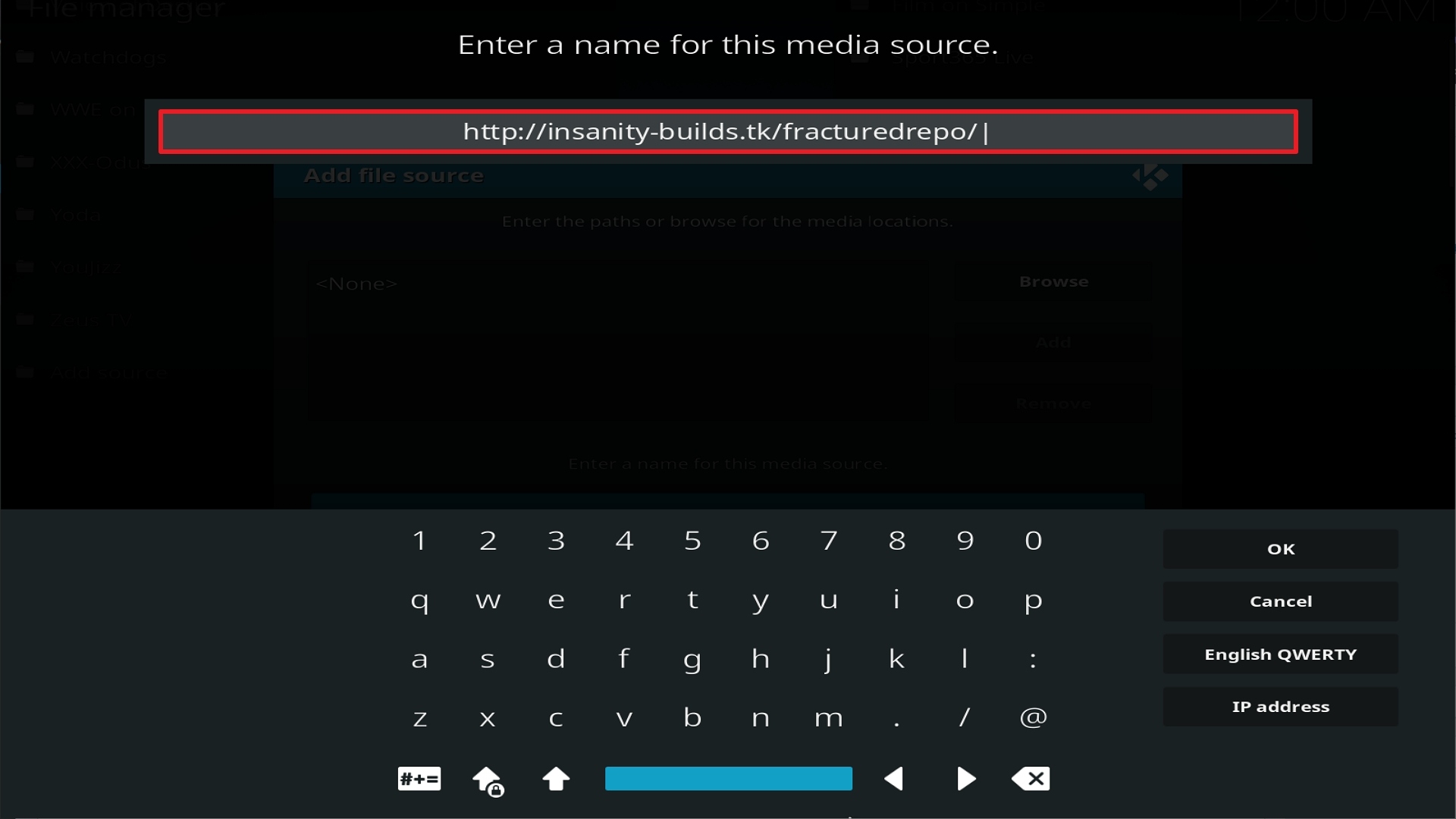
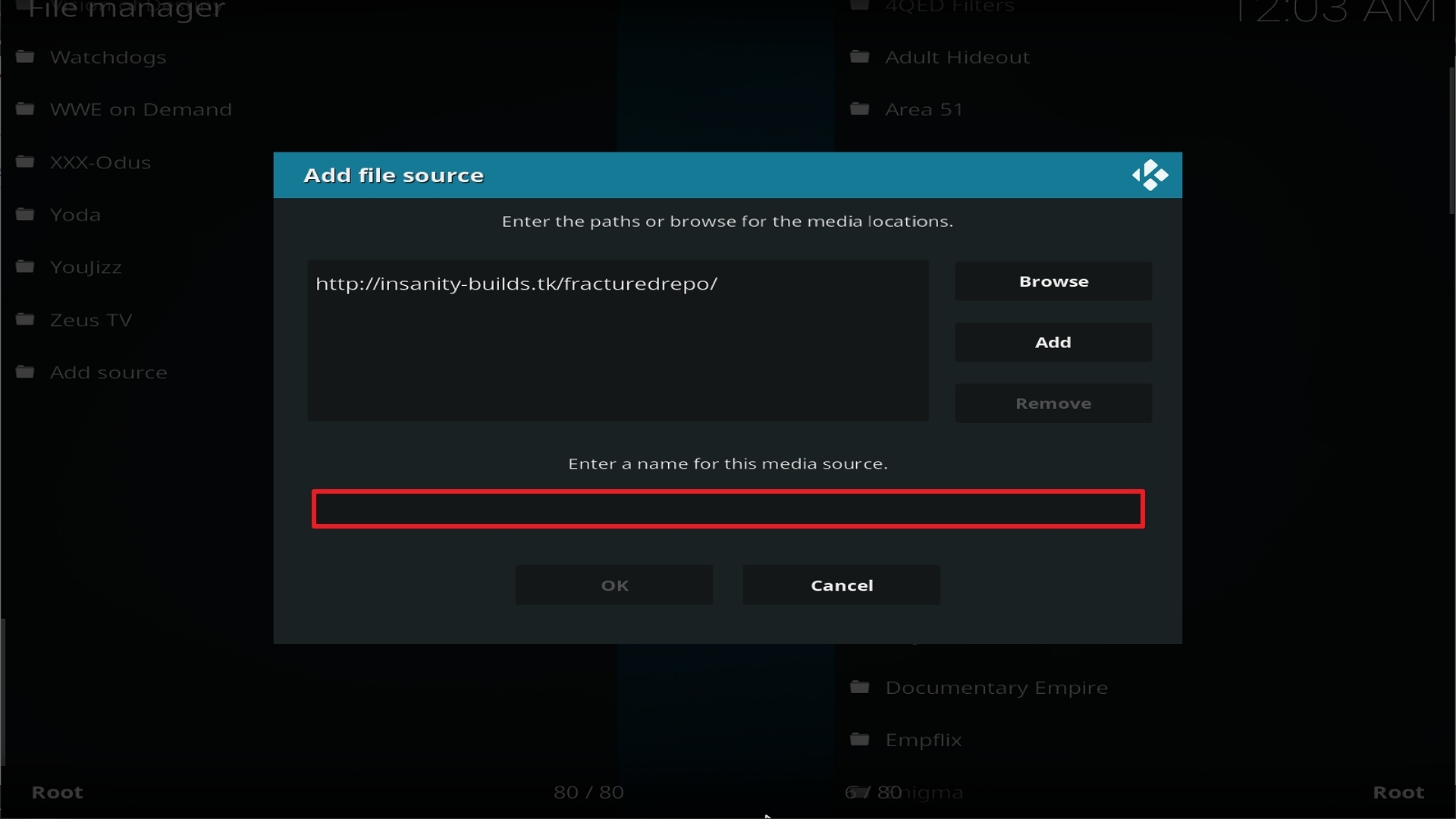
9. Type exactly: http://insanity-builds.tk/fracturedrepo/

Step 9 Installing Joker 2.0 addon on Kodi


10. Click on OK.

Step 10 Installing Joker 2.0 addon on Kodi


11. Select enter a name for this media source.

Step 11 Installing Joker 2.0 addon on Kodi


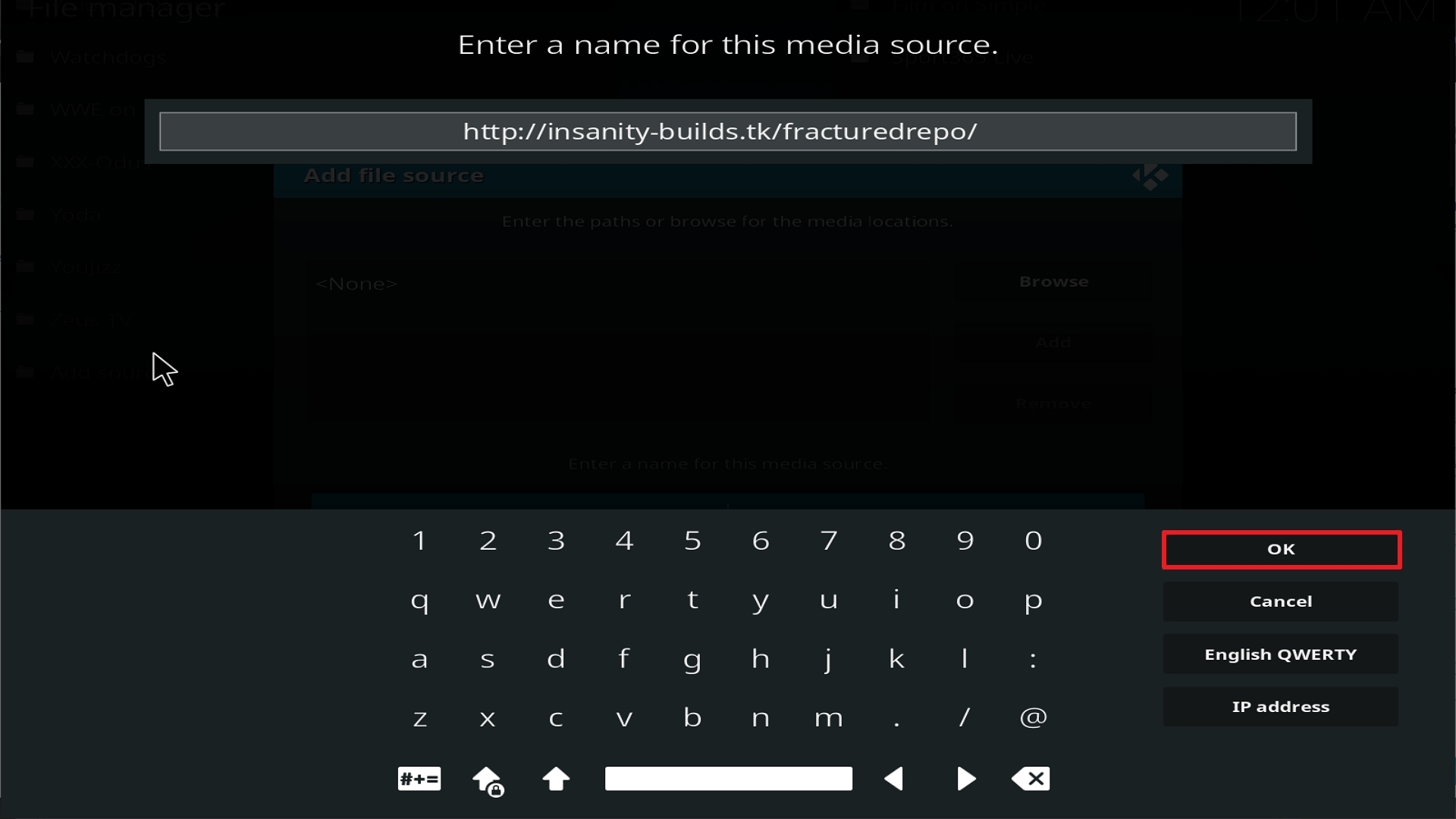
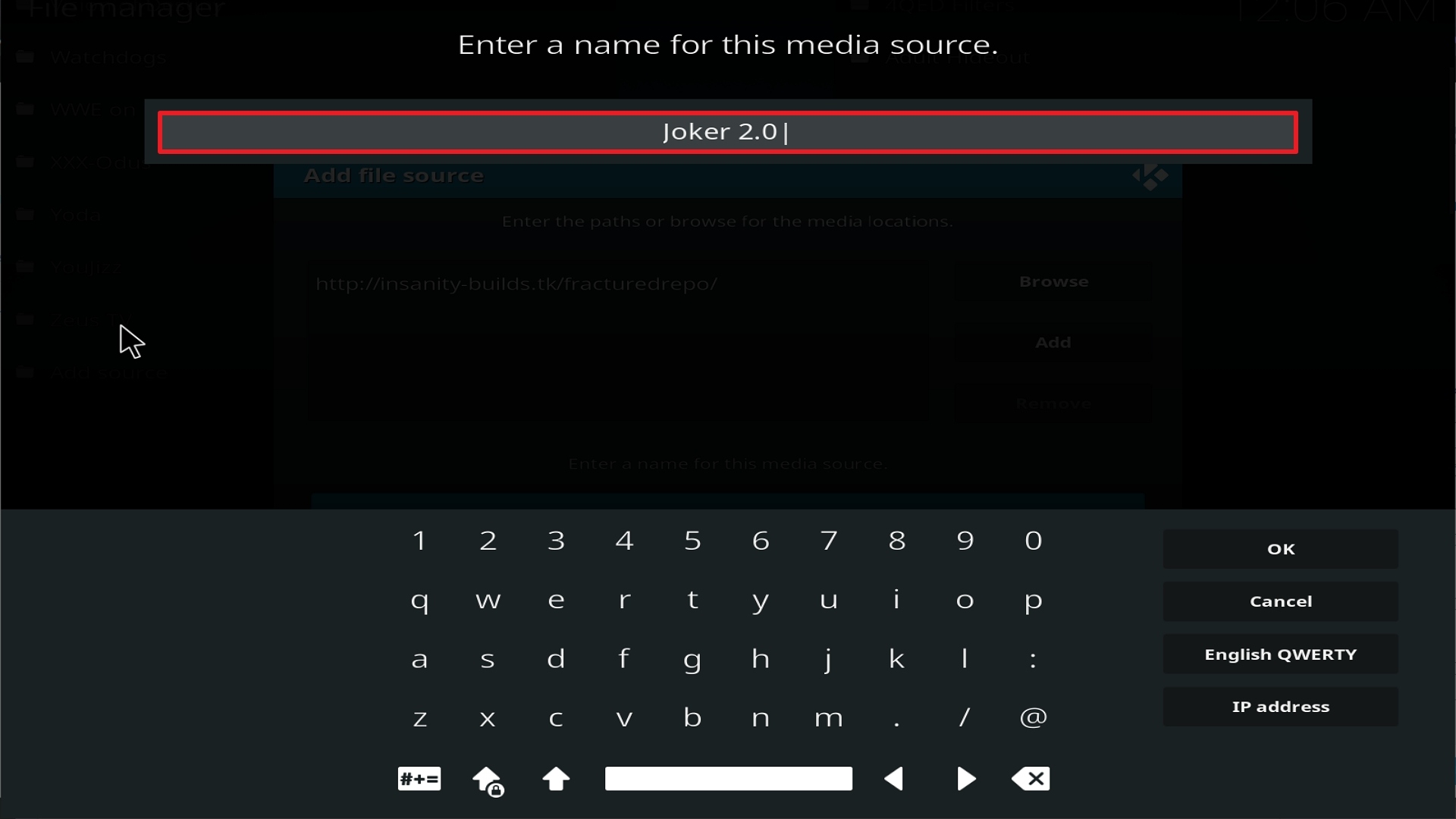
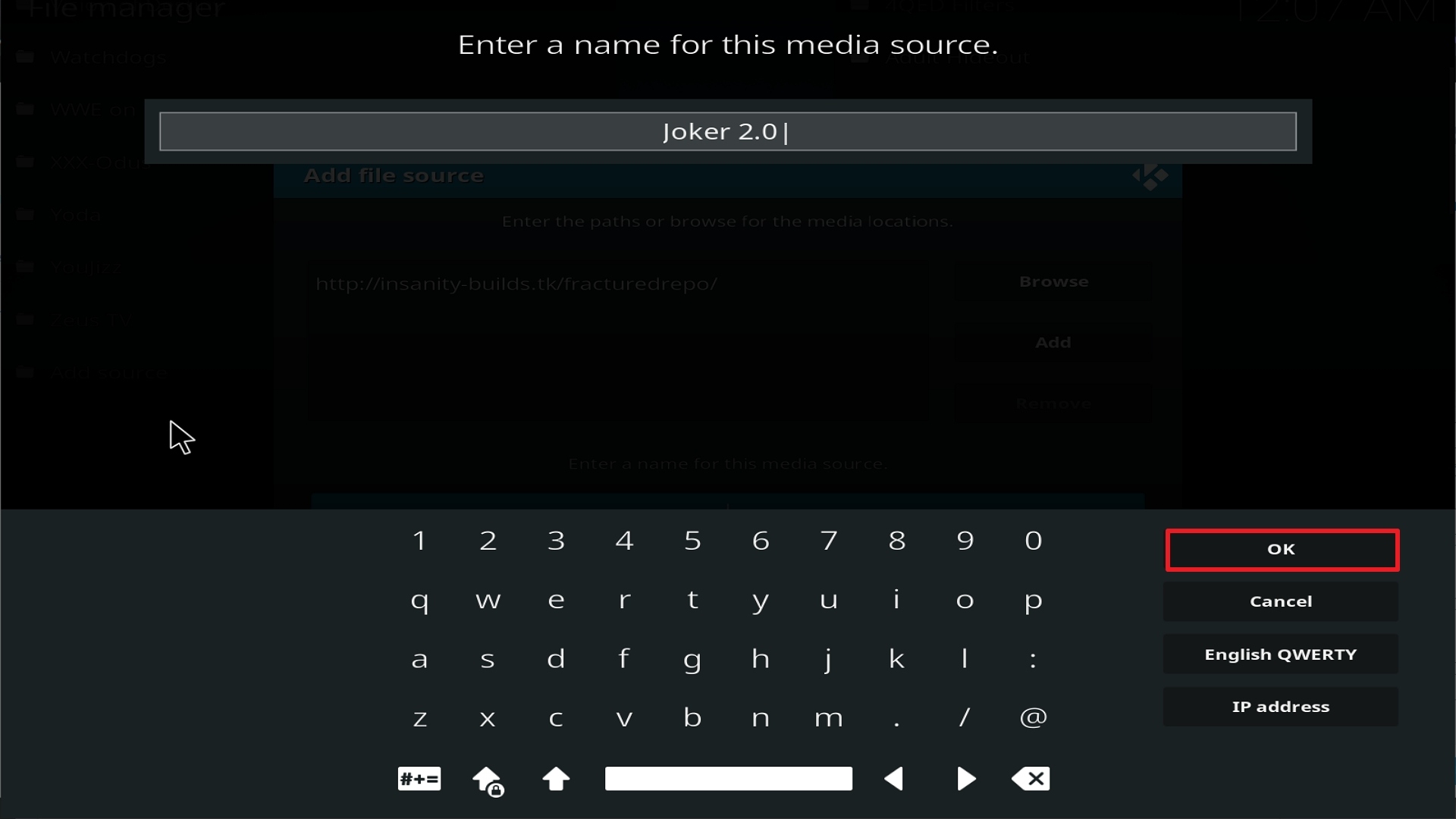
12. Name is Joker 2.0 (this part isn’t critical as long as you remember the name).

Step 12 Installing Joker 2.0 addon on Kodi


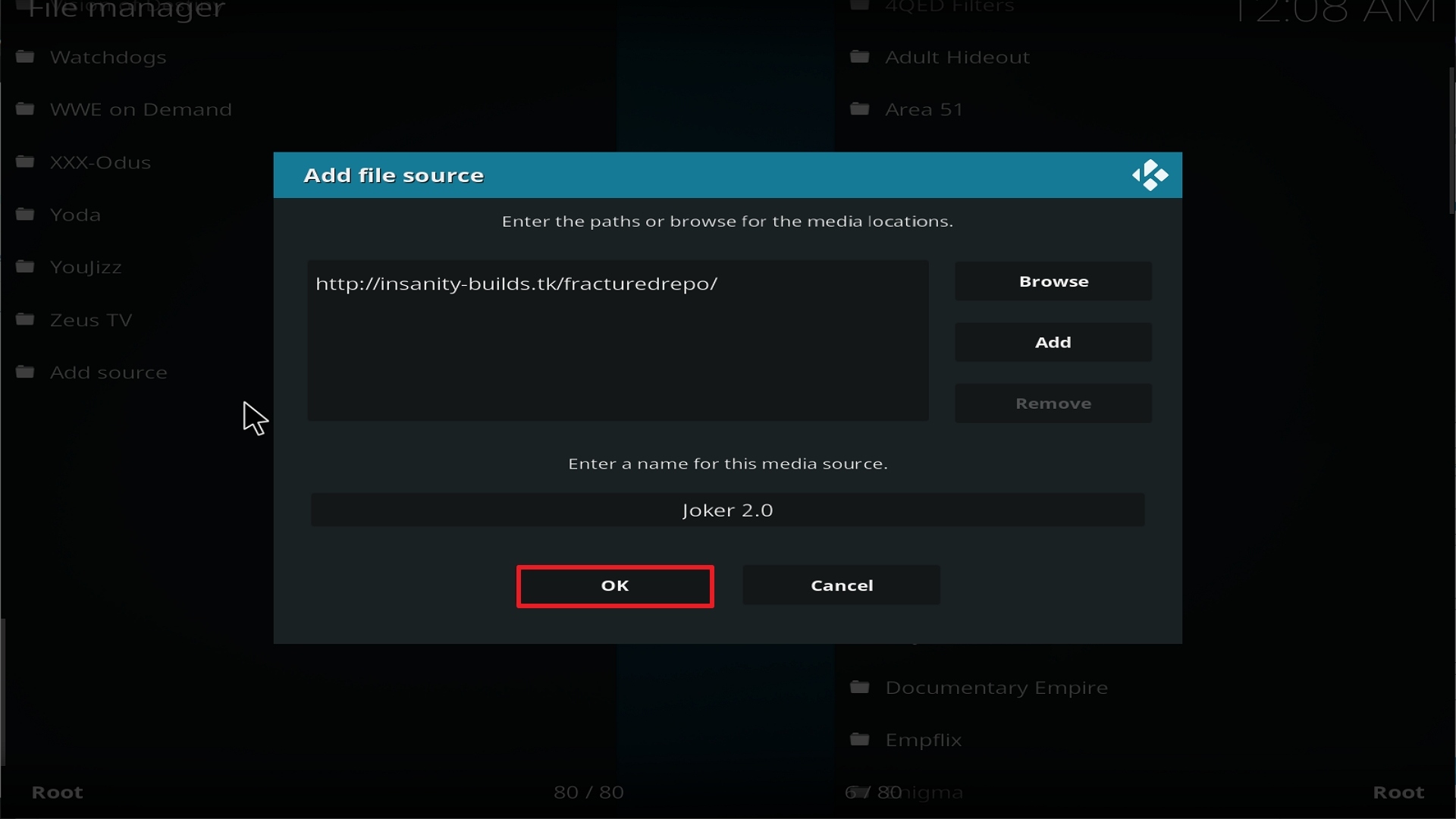
13. Click on OK.

Step 13 Installing Joker 2.0 addon on Kodi


14. Click on OK.

Step 14 Installing Joker 2.0 addon on Kodi


15. Take one step back and click on Add-ons.

Step 15 Installing Joker 2.0 addon on Kodi


16. Select install from zip file.

Step 16 Installing Joker 2.0 addon on Kodi


17. Click on Joker 2.0 (or whatever you named the source).

Step 17 Installing Joker 2.0 addon on Kodi


18. Click on repository.fracturedrepo-0.1.3.zip

Step 18 Installing Joker 2.0 addon on Kodi


19. Select on Install from repository.

Step 19 Installing Joker 2.0 addon on Kodi


20. Click on Fracture Repo.

Step 20 Installing Joker 2.0 addon on Kodi


21. Pick Video add-ons.

Step 21 Installing Joker 2.0 addon on Kodi


22. Select Joker 2.0 Video again.

Step 22 Installing Joker 2.0 addon on Kodi


23. Click on Install.

Step 23 Installing Joker 2.0 addon on Kodi


24. Select OK after reviewing the add-ons that will be installed.

Step 24 Installing Joker 2.0 addon on Kodi


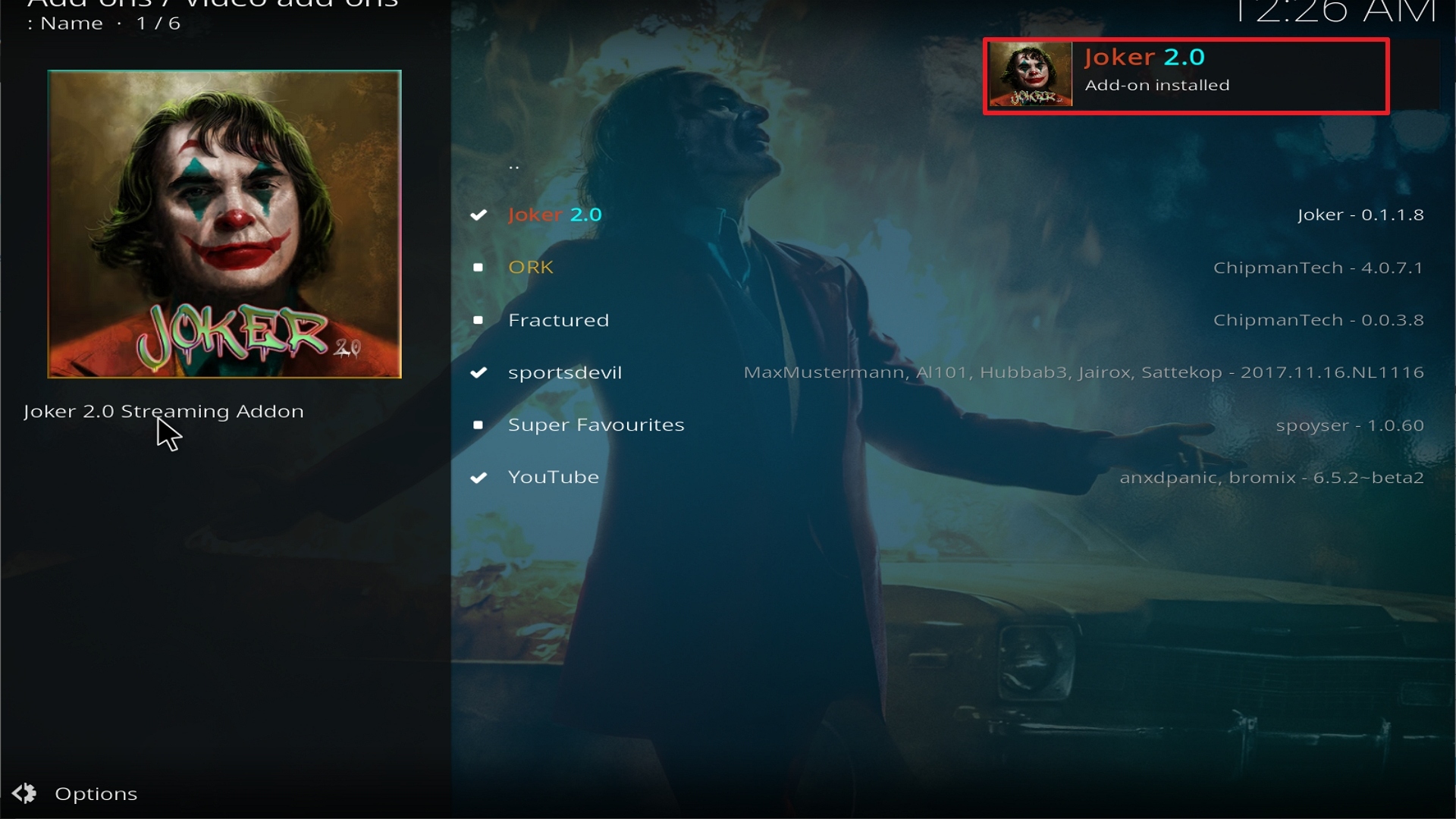
25. You should see a popup in the upper right corner saying Joker 2.0 has installed. There will actually be multiple popups for the various components.

Step 25 Installing Joker 2.0 addon on Kodi


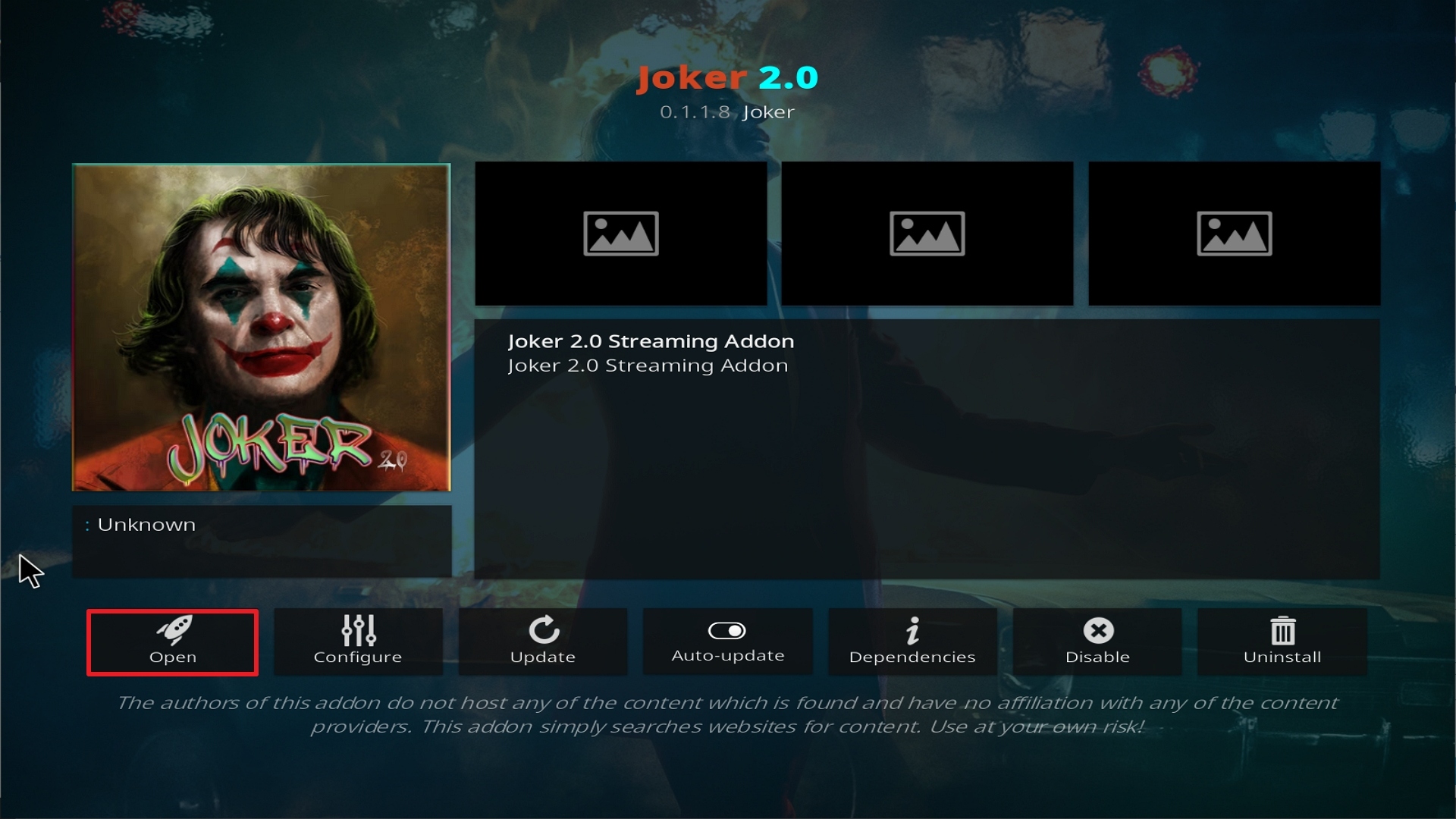
26. Click on Open to start the Joker 2.0 add-on.

Step 26 Installing Joker 2.0 addon on Kodi


Real-Debrid Integration

  1. If you don’t possess a Real-Debrid account yet, you must register.
  2. When Launching Joker 2.0 add-on you will be notified with this message. Write down the code that will be given.
  3. Launch a web browser on a different device and enter https://real-debrid.com/device.
  4. Type in the code you got and select “Continue”
  5. You will then be granted your Real-Debrid Account
  6. Go back to Joker 2.0 and a notification that shows another successful authorization message will appear, select “ok”
  7. If notified with a changelog, just press the “ok” button on your remote and voila! Joker 2.0 is now Real-Debrid ready.


Alternatives

The downside when running an add-on is that sometimes it works well and sometimes it just doesn’t. What we always suggest here at ReviewVPN is to have a back-up plan ready. This is to ensure that your viewing experience doesn’t get interrupted. Just be sure to obtain your content from trusted and reliable sources. If and when Joker 2.0 doesn’t work properly, the following add-ons may serve as its replacement:

  • Bumblebee Add-on
  • Leviathan Add-on
  • Chain Reaction Add-on
  • Chucky Add-on
  • Midian Add-on


Common Errors

These are some of the things that may cause an issue when installing Joker 2.0:

  1.    Unable to connect to URL/Download

One of the main reasons why this happens is that you might have written the wrong URL. Please be careful when typing in the URL because the slightest mistake can totally ruin your download. Secondly, having a stable internet connection is always desired as it does not impend the speed of your download. Lastly, to protect your identity and internet trail, you must have a reliable VPN to mask your online activities and will help you remain anonymous. Check here for the best VPN deal. For more fixes read our fix guide linked above.


  1.     Script Error

This issue usually arises when Kodi is not properly installed or has lacking features for it to work properly. If that is the case, you can redownload Kodi and install it properly. An in-depth guide on how to install the Kodi app is provided on our website. Lastly, if the issue is with the add-on itself, you can reinstall it by following the procedure given above.


  1.     Kodi Check Log Error

A check log error only happens when your media cache is full. You can remedy this situation by emptying your cache. For more fixes read our fix guide linked above.


  1.     Source not working/slow/frozen

Joker 2.0 does not keep any of the content on its servers. It is distributed by 3rd party apps. Patience is key here, just wait for a couple of seconds for the other suggestions and click on them. For other solutions please take time to read our in-depth guide linked above. 


Install Surfshark on Firestick

Best Surfshark Deal


How to Install Surfshark VPN on Firestick

If your Firestick still has the older interface, read this article to learn how to update it: Update Firestick Interface.

Follow our screenshots below to install the SurfShark VPN app on your Fire TV stick.

1. Go to the Home screen of your Firestick.

step 1 Install Surfshark VPN on Firestick


2. Navigate towards the Find tab. Press the Search button from the resulting dropdown.

step 2 Install Surfshark VPN on Firestick


3. Type in the keyword of SurfShark and select from the suggestions that will appear.

step 3 Install Surfshark VPN on Firestick


4. Click the official SurfShark icon from your search results.

step 4 Install Surfshark VPN on Firestick


5. Press the Download (You own it) button.

step 5 Install Surfshark VPN on Firestick


6. The SurfShark VPN installer will download on your device.

step 6 Install Surfshark VPN on Firestick


7. SurfShark VPN’s app will automatically install itself on your Fire TV stick.

step 7 Install Surfshark VPN on Firestick


8. Press the Open button after completing SurfShark VPN’s installation process.

step 8 Install Surfshark VPN on Firestick


9. Please wait for the SurfShark VPN to load its user interface.

step 9 Install Surfshark VPN on Firestick


10. You can now log in with your SurfShark VPN account credentials.

step 10 Install Surfshark VPN on Firestick

Learn more about Surfshark and Grab the Best Surfshark Deal Now!


Install Surfshark on Firestick

Best Surfshark Deal


Other VPNs to Consider

NordVPN (Best for Streaming)

Best Features

  • 5000+ Server in 50+ Countries 
  • Military-Grade Encryption
  • Fast Connection Speed
  • Suitable to a lot of devices
  • No-Log Policy

Prices
  • Complete $5.89 per month (64% Discount)
  • Plus $4.59 per month (56% Discount)
  • Standard $3.69 per month (55% Discount)

Best Features

  • 750+ High-speed VPN Servers in 43 Locations
  • Military-Grade Encryption
  • Fastest HD Streaming and Gaming
  • 30-Day Money-Back Guarantee
  • Unlimited Data & Devices
  • No-Log Policy

Prices
  • 3 Years $1.99 per month (82% Discount)
  • 1 Years $3.29 per month (70% Discount)
  • 1 Month $10.99 per month

IPVanish VPN (Most Secure)

Best Features

  • 1200+ Servers in 60+ Countries around the world
  • Unlimited Connections
  • No-Log Policy
  • Top Notch Military-Grade VPN Protocols and Encryptions
  • 100% Safe and Secured
  • Most Trusted VPN
  • Best VPN for Firestick
  • 30-Day Money-Back Guarantee

Prices
  • Yearly $3.99 per month (63% Discount) – 30 days risk free + Ransomware & Malware Protection
  • Quarterly $5.32 per month (51% Discount)
  • Monthly $10.99 per month


For more VPN discounts, go to ReviewVPN Deals and purchase the best VPN for you.

Click here to get the lowest price on Surfshark through our exclusive limited-time offer.


Conclusion

Coming from a very famous repository, Joker 2.0 is not joking and it means business when delivering content to its users. What is amazing about this add-on is that it mainly focuses its attention on movies providing only the best video quality available.

You can rest assured that the quality of content that you get is of the highest caliber. We hope this article enlightened you regarding Joker 2.0. For questions and suggestions, please feel free to drop a comment below and contact us through any of our other social media platforms. Thank you for reading and have a great day ahead!

Install Covenant Kodi Addon

Covenant Kodi Addon

In this article, we will help you install Covenant Kodi Addon on Firestick.


https://cy4root2.github.io/zip/

The Covenant Kodi addon is the newest addition to the Exodus Kodi Repository. It features high-quality Movies and TV Shows and provides streaming links that cater to different categories. To best enjoy this add-on, you must have it integrated into your Real-Debrid account.


ANONYMOUSLY


Features

  •  Movies
  • TV Shows
  • My Movies
  • My TV Shows
  • New Movies
  • New Episodes
  • Documentaries
  • IMDB
  • IPTV
  • Search
  • Tools
  • Scraper Settings
  •  Info!!
  • Easy User Interface
  • Huge Category List
  • Real-Debrid Integration


Easy Installation Guide

install image

  1. Launch Kodi on your device
  2. Click on the “Gear Icon” and select “System”
  3. At the add-ons menu, turn on the “Unknown Sources” by clicking “yes”
  4. Go back to the “systems” page and choose “File Manager”
  5. Choose Add source and select “none”
  6. Type in https://cy4root2.github.io/zip/
  7. Highlight the source and rename it to “Covenant Repo” or any name you would like to use to identify this particular source and click “ok”
  8. Go back to the System Screen and click “Add-ons”
  9. Select “Install Zip File” choose “Covenant Repo” or whatever you renamed the file.
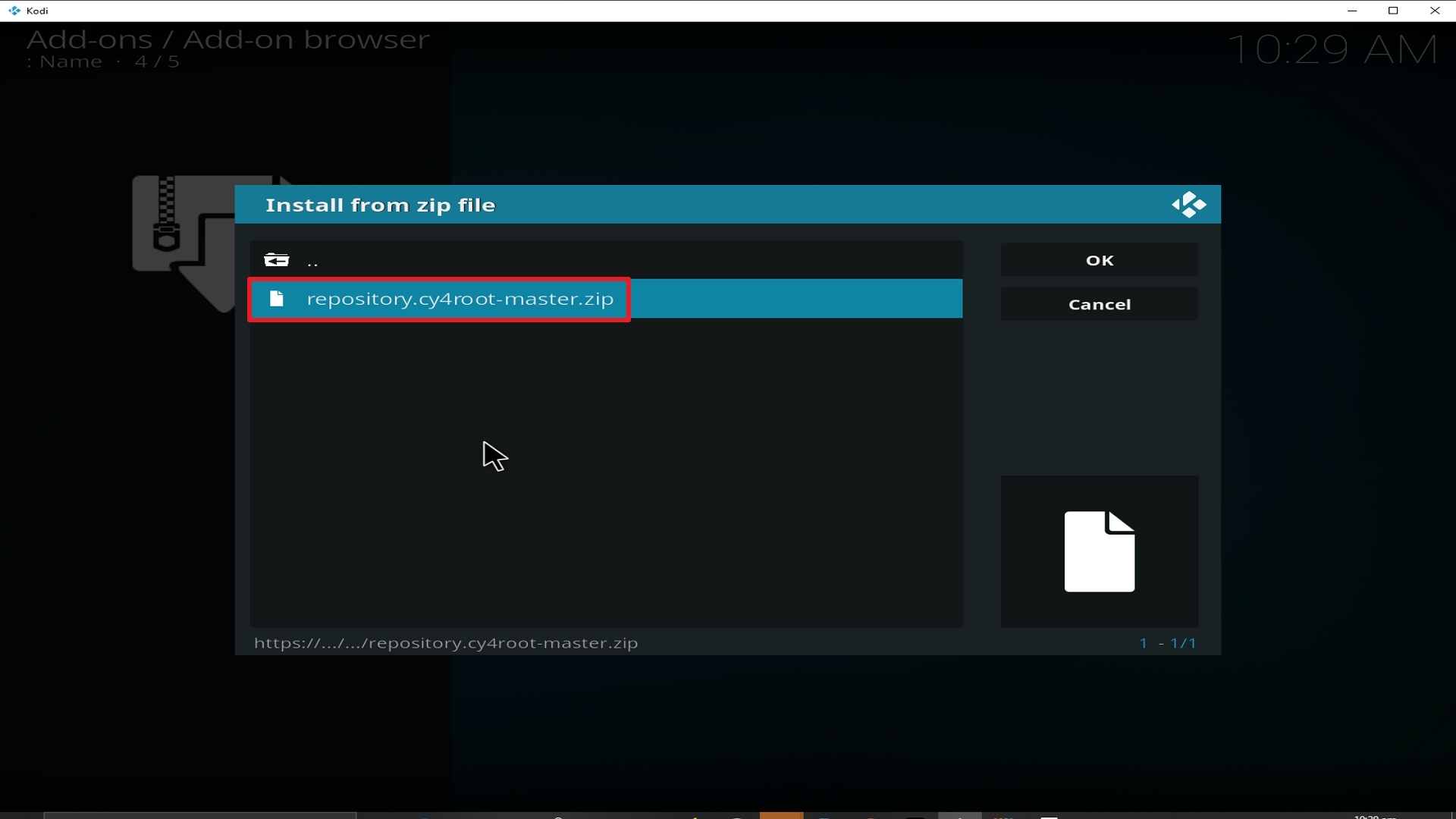
  10. Select the zip file URL- repository.cy4root-master.zip
  11. Wait for the notification “Covenant Build Add-on Repo Installed” to appear.
  12. Select “Install Repository”
  13. Choose “Covenant Build Repo”
  14. Click on “Video Add-ons” and select “Covenant” and “Install”
  15. Click “Ok” when a notification “the following add-ons will be installed” appears and wait for Covenant Add-on to install
  16. Once the add-on is installed go back to the home screen and select “add-ons”
  17. Choose “Video add-ons” and select “Covenant”
  18. There you go, Covenant is now installed.


Real-Debrid Integration

  1. If you don’t possess a Real-Debrid account yet, you must register.
  2. When Launching Covenant add-on you will be notified with this message. Write down the code that will be given.
  3. Launch a web browser on a different device and enter https://real-debrid.com/device.
  4. Type in the code you got and select “Continue”
  5. You will then be granted your Real-Debrid Account
  6. Go back to Covenant and a notification that shows another successful authorization message will appear, select “ok”
  7. If notified with a changelog, just press the “ok” button on your remote, and voila! Covenant is now Real-Debrid ready.


YOUR INTERNET ACTIVITY IS BEING WATCHED

ReviewVPN cannot attest to the legality, security and privacy of the applications discussed on this site. It is highly recommended that you use a VPN service while streaming or using Kodi.

Currently, your IP 216.73.217.150 is visible to everyone and your Browser is being tracked by Advertisers & ISP Provider.

Save 65% Now

Limited Time Offer

Here are the main reasons why you must use a VPN:

  • Your activities are hidden from your ISP, the government, and from the apps you are using.
  • You can access additional movies and TV streams.
  • ISP attempts to throttle are thrwarted thus reducing buffering issues.
  • Geographically restricted content like Netflix and Hulu can be unblocked.

A VPN works be replacing your ISP-assigned IP address and creating an encrypted tunnel. We recommend the no log service offered by IPVanish. It works well on a Firestick and offers the fastest possible speeds.

Special Limited Time Offer - Get IPVanish


Legal Disclaimer: ReviewVPN.com does not encourage or endorse any illegal activity involved in the usage of services and applications referenced on this site. We do not verify the licensing agreements of services. The end-user is wholly responsible for ensuring that any media accessed through these services does not violate copyright and/or licensing laws. ReviewVPN does not promote, link to, or receive compensation from any Apps and IPTV services.


Install Surfshark on Firestick

Best Surfshark Deal


How to Install Covenant Addon on Kodi with Screenshots

1. From the home screen, select the cogwheel at the upper left.

Step 1 Installing Covenant addon on Kodi


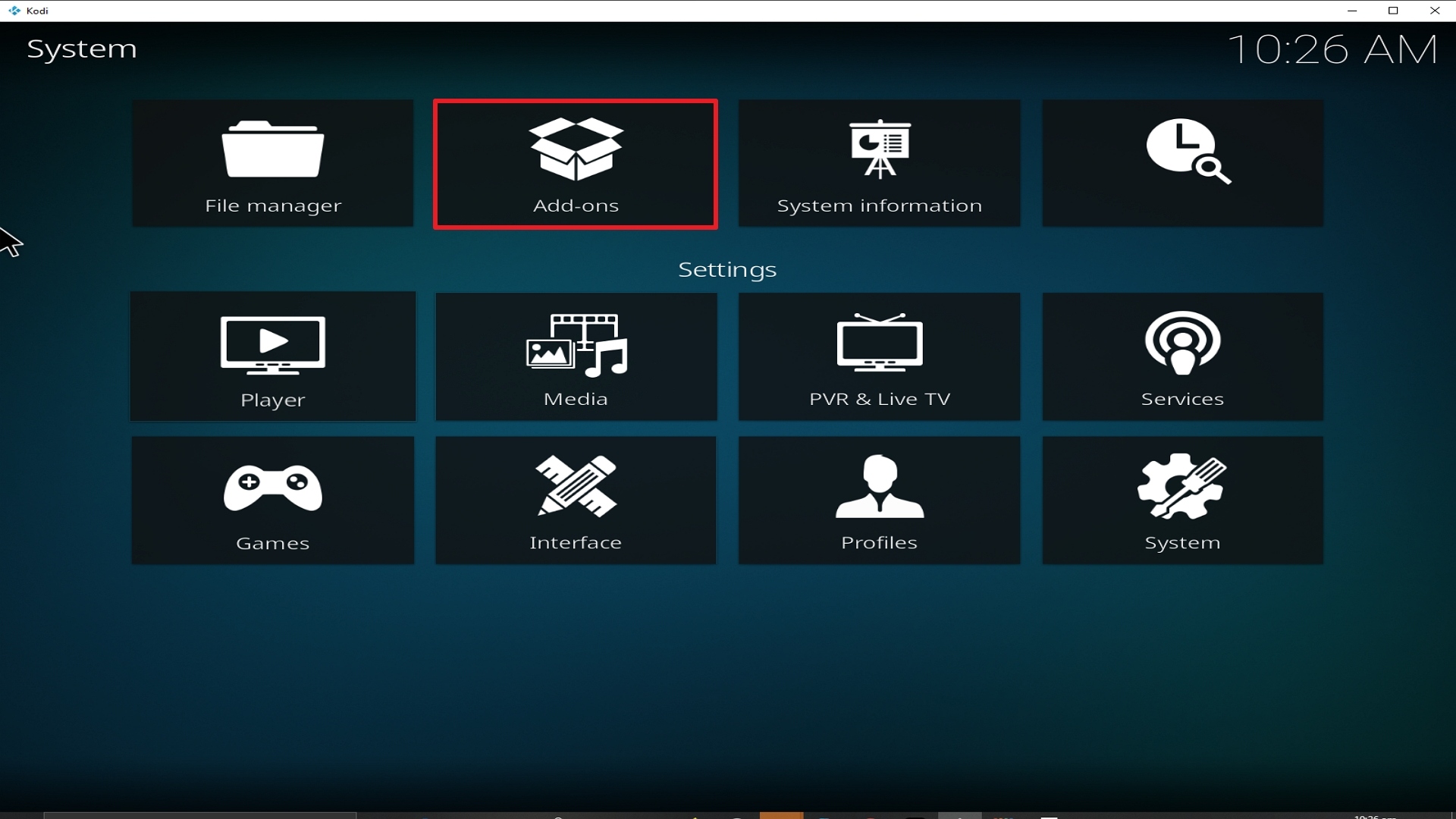
2. Select System in the bottom right corner.

Step 2 Installing Covenant addon on Kodi


3. Select Add-ons on the left side of the screen.

Step 3 Installing Covenant addon on Kodi


4. Select Unknown sources.

Step 4 Installing Covenant addon on Kodi


5. Click Yes to allow unknown sources.

Step 5 Installing Covenant addon on Kodi


6. Select File manager.

Step 6 Installing Covenant on Kodi


7. Click Add source.

Step 7 Installing Covenant addon on Kodi


8. Click on <None>.

Step 8 Installing Covenant addon on Kodi


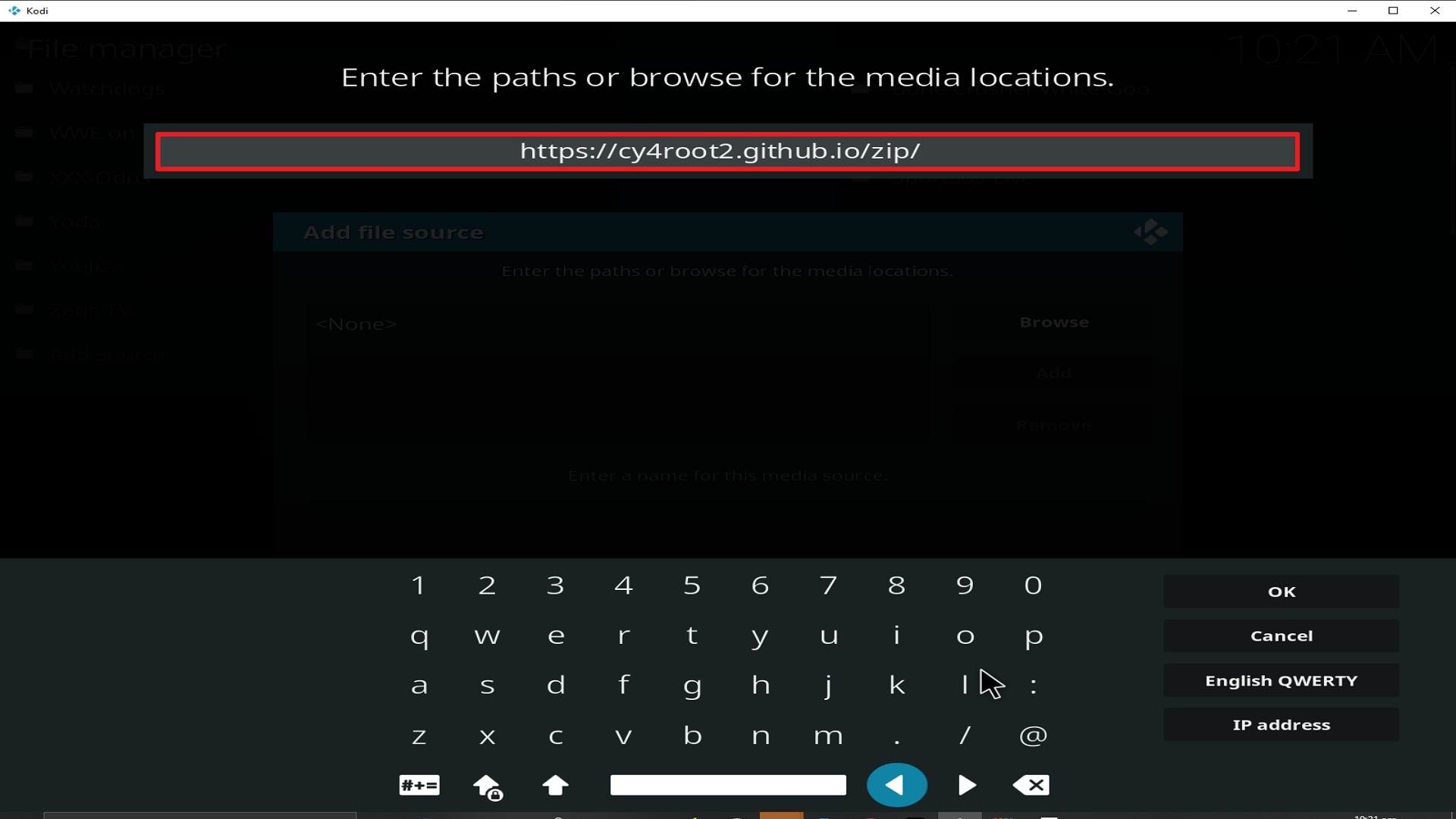
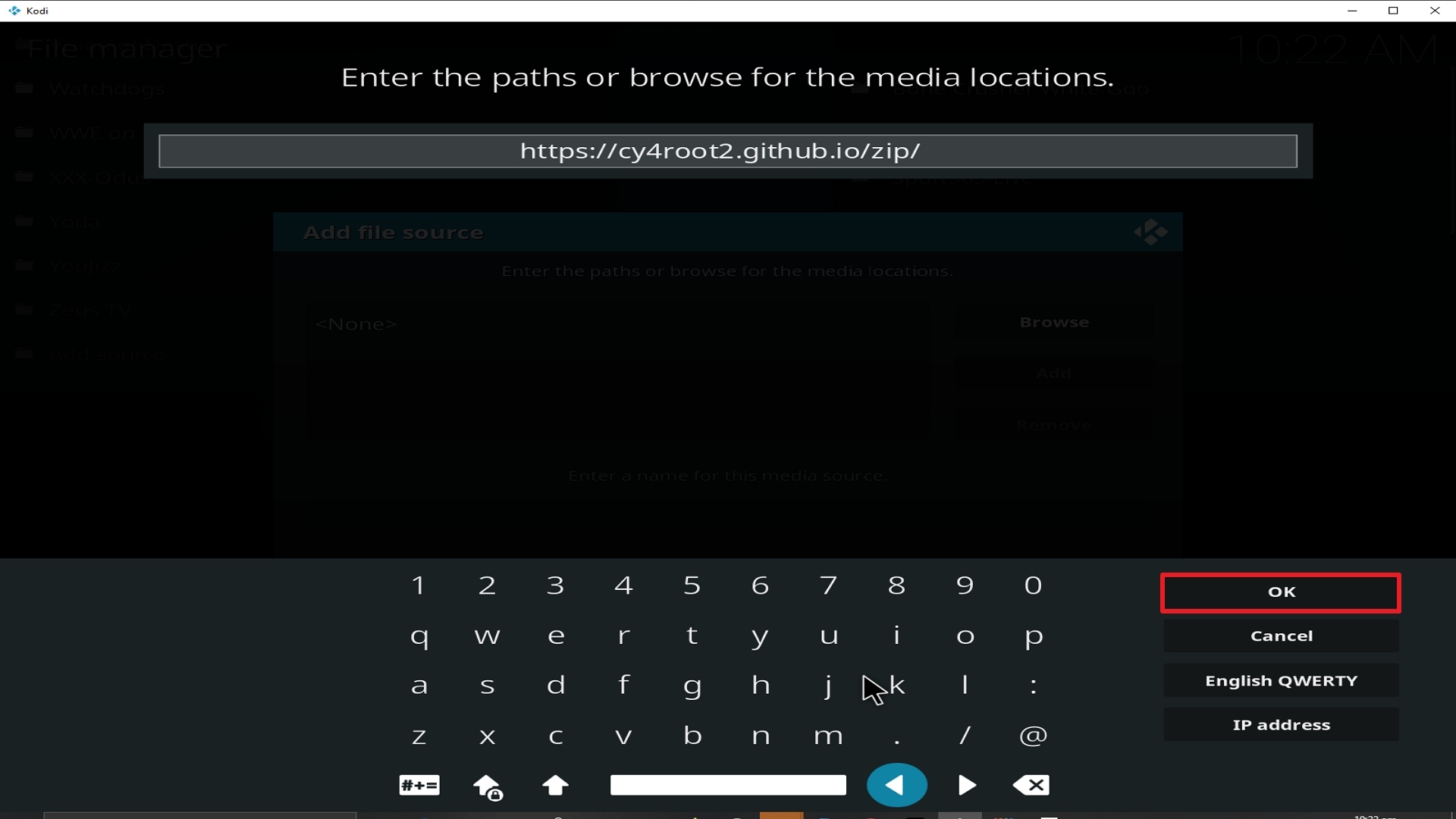
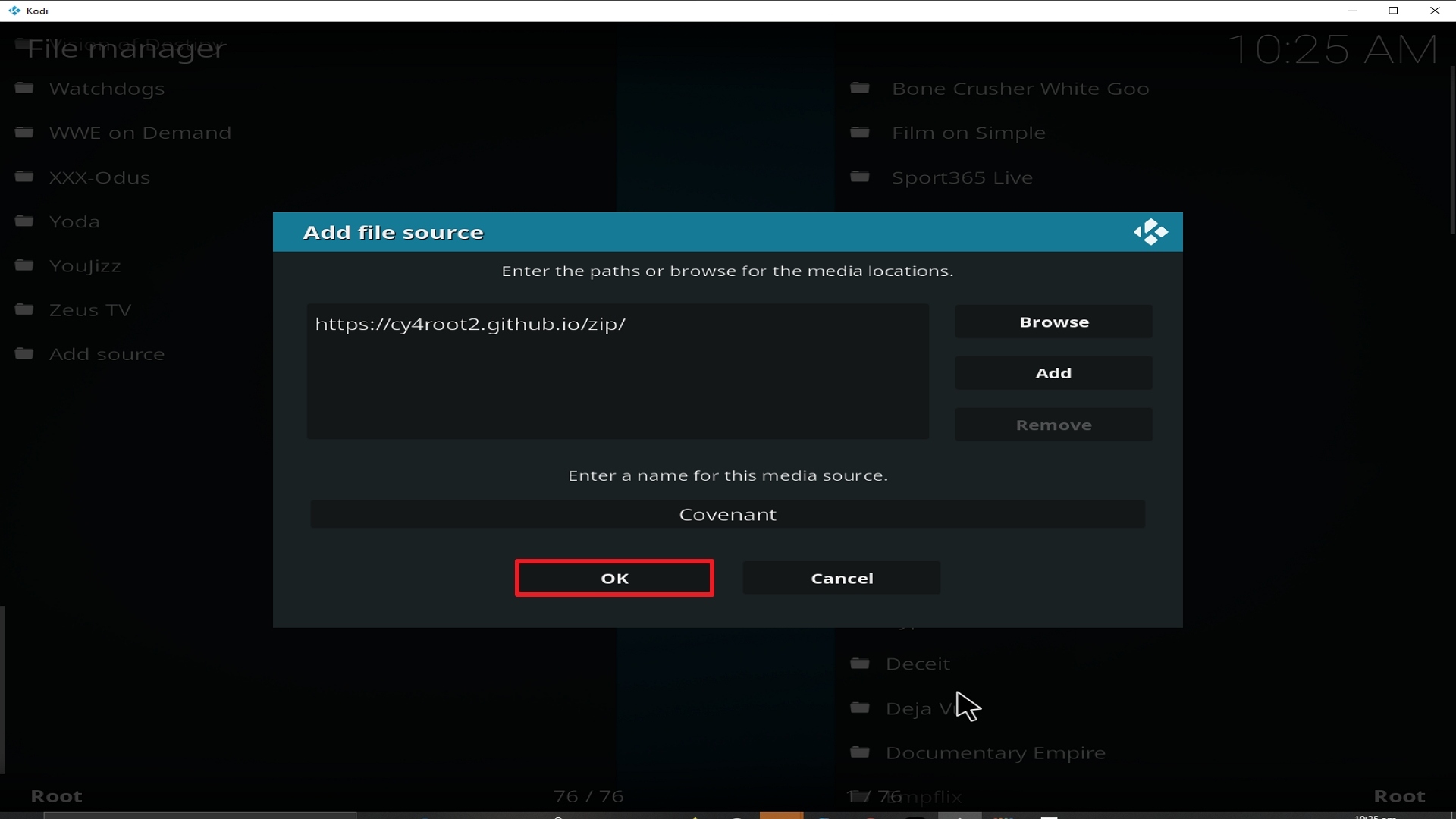
9. Type exactly: https://cy4root2.github.io/zip/

Step 9 Installing Covenant addon on Kodi


10. Click on OK.

Step 10 Installing Covenant addon on Kodi


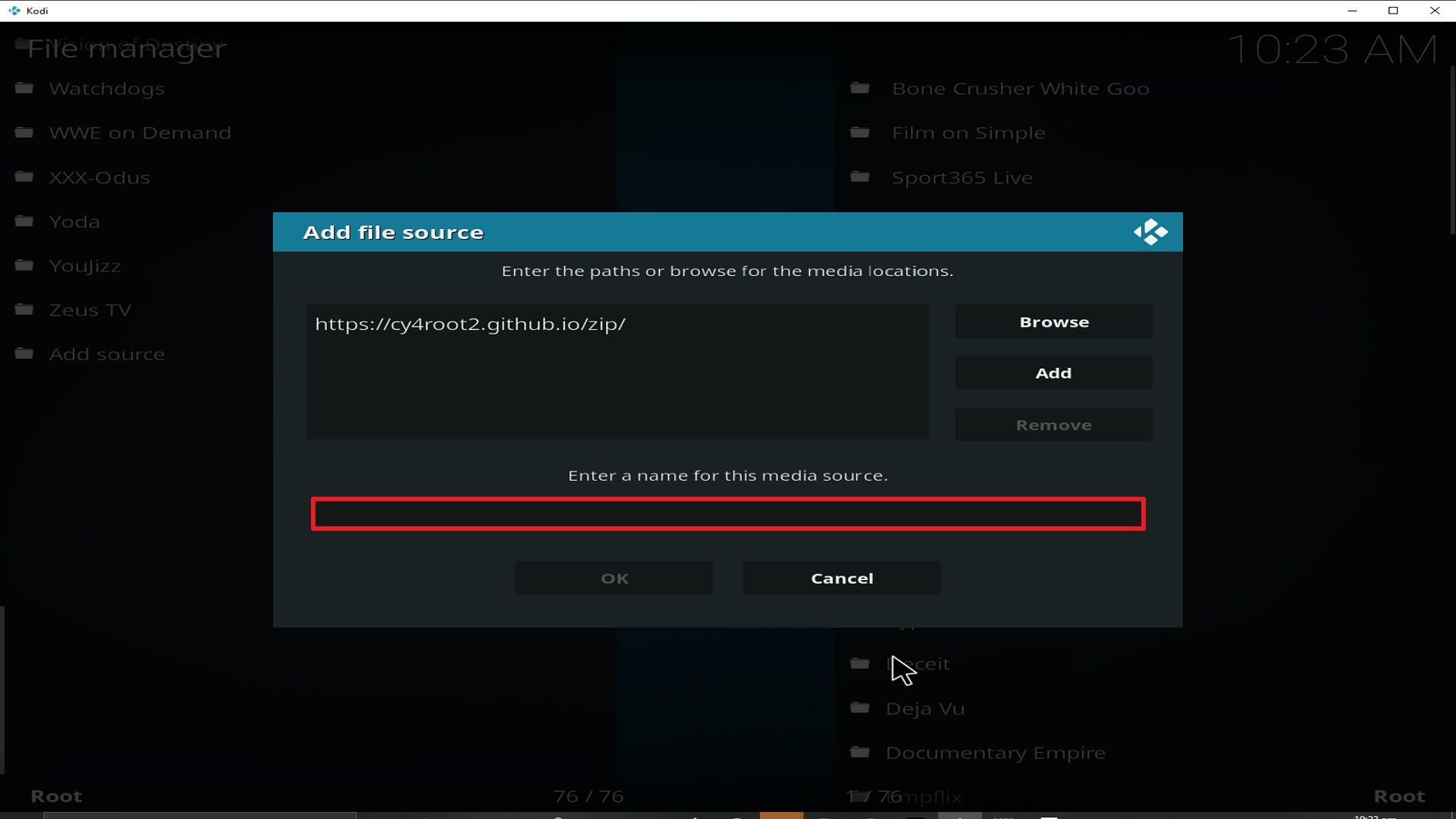
11. Select enter a name for this media source.

Step 11 Installing Covenant addon on Kodi


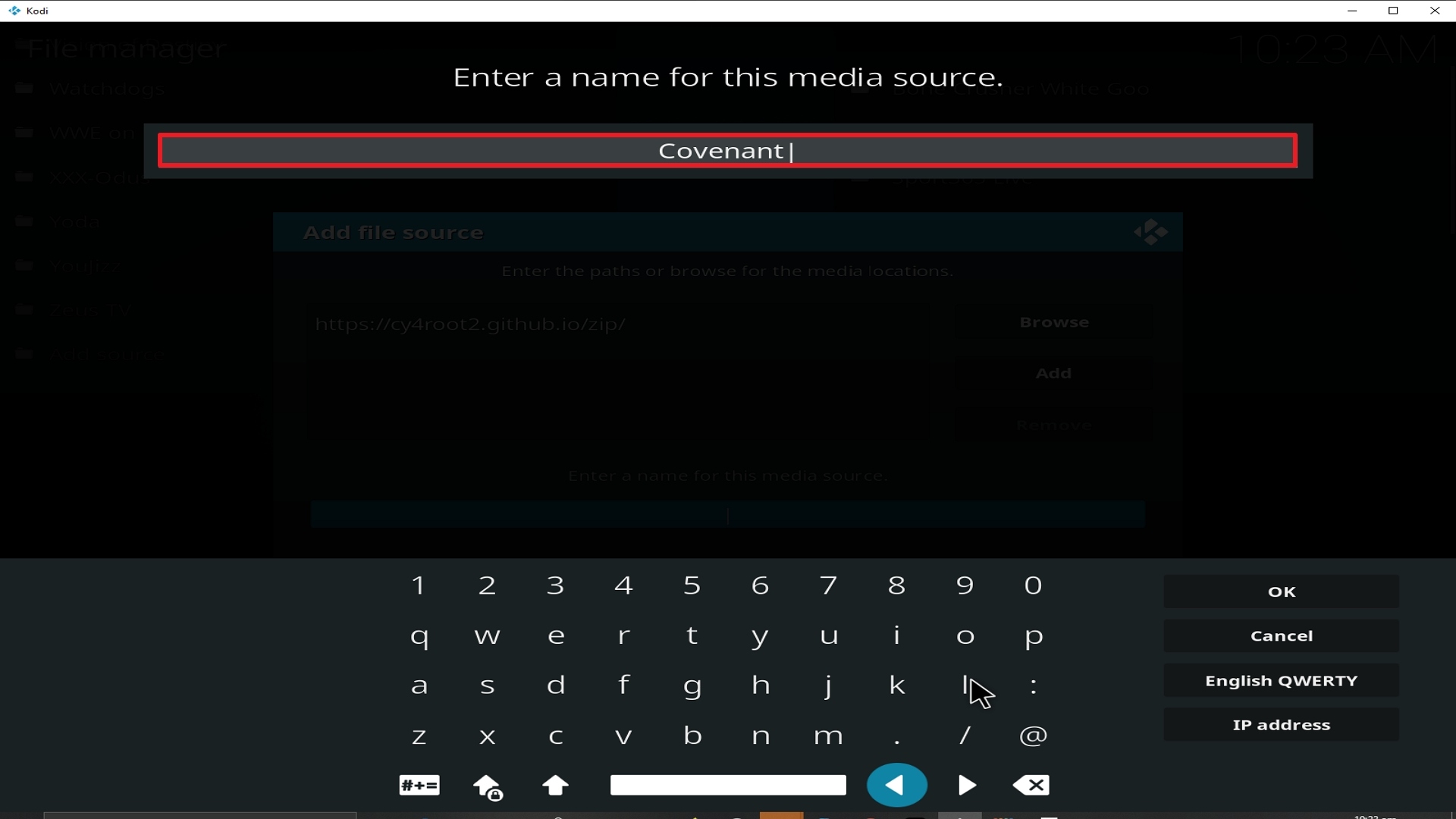
12. Name is Covenant (this part isn’t critical as long as you remember the name).

Step 12 Installing Covenant addon on Kodi


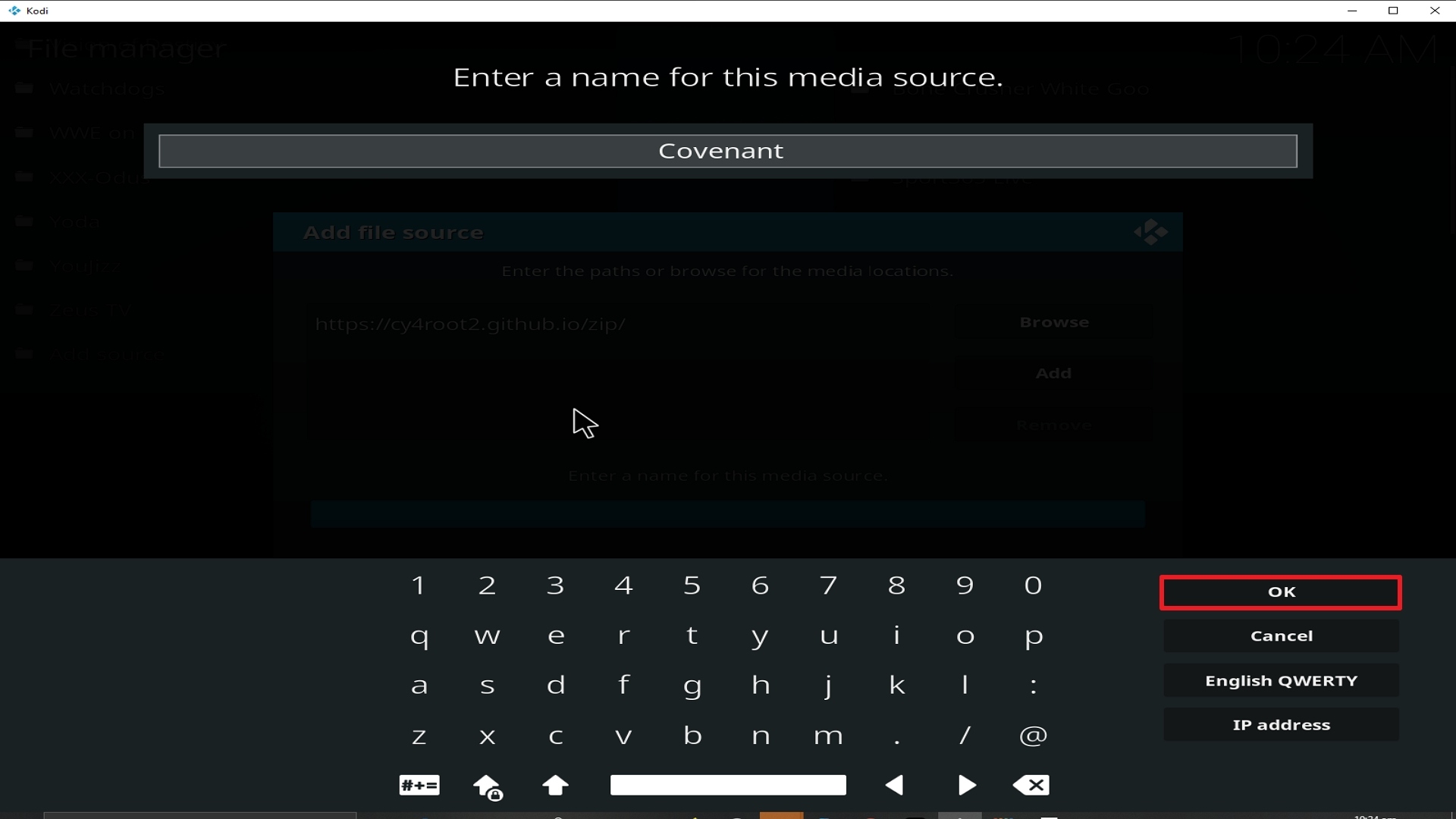
13. Click on OK.

Step 13 Installing Covenant addon on Kodi


14. Click on OK.

Step 14 Installing Covenant addon on Kodi


15. Take one step back and click on Add-ons.

Step 15 Installing Covenant addon on Kodi


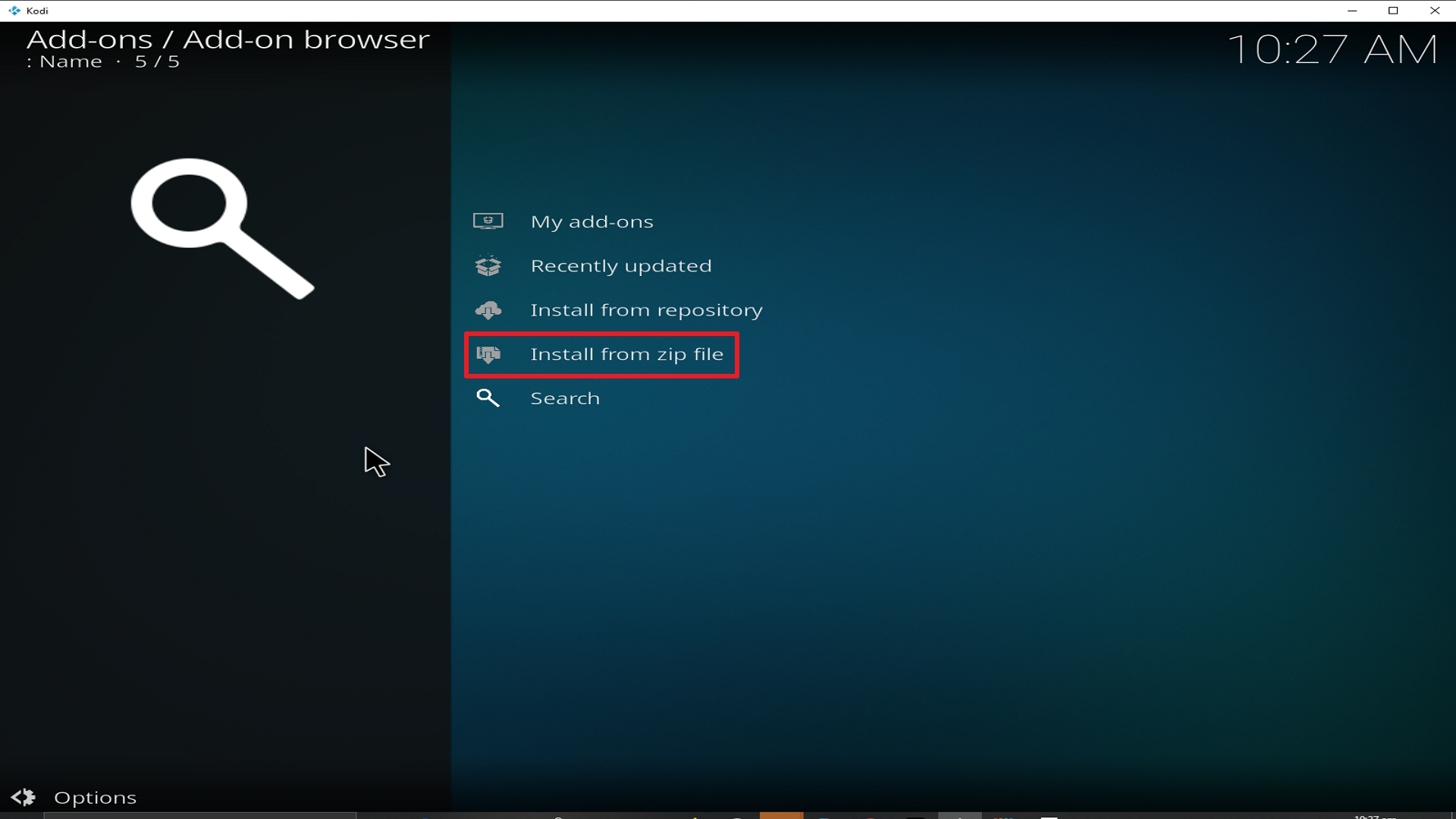
16. Select install from zip file.

Step 16 Installing Covenant addon on Kodi


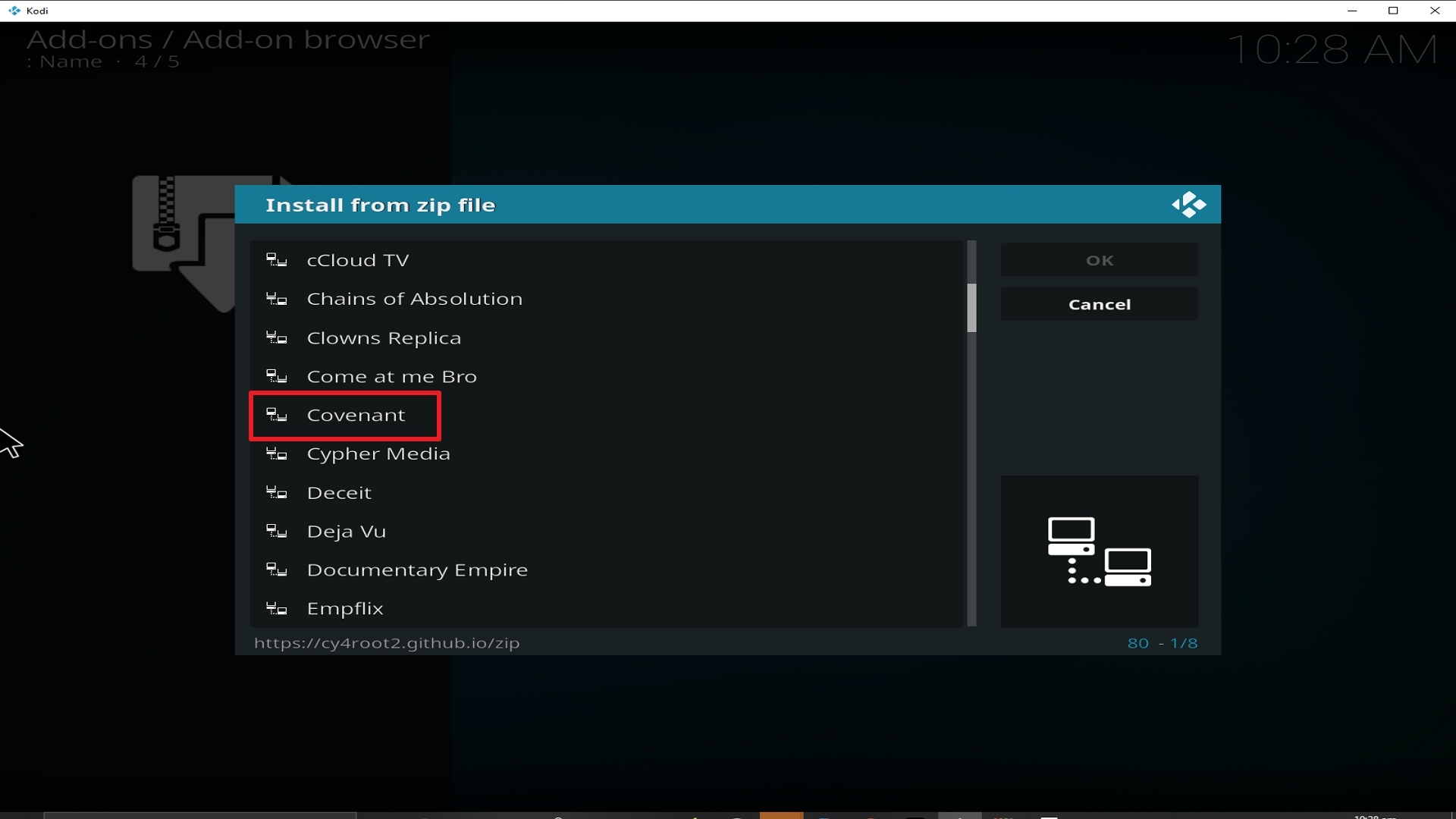
17. Click on Covenant (or whatever you named the source).

Step 17 Installing Covenant addon on Kodi


18. Click on repository.cy4root-master.zip

Step 18 Installing Covenant addon on Kodi


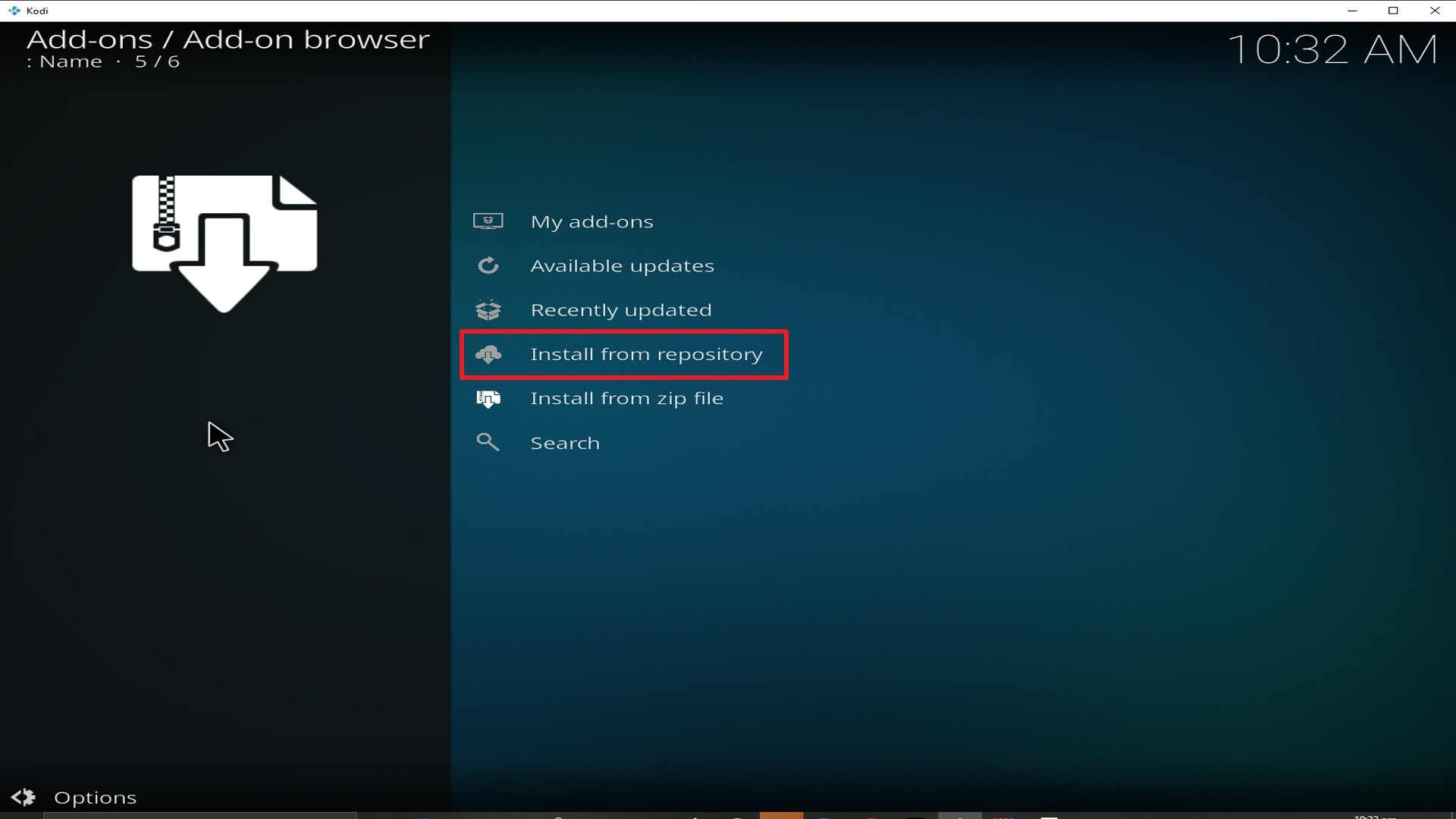
19. Select on Install from repository.

Step 19 Installing Covenant addon on Kodi


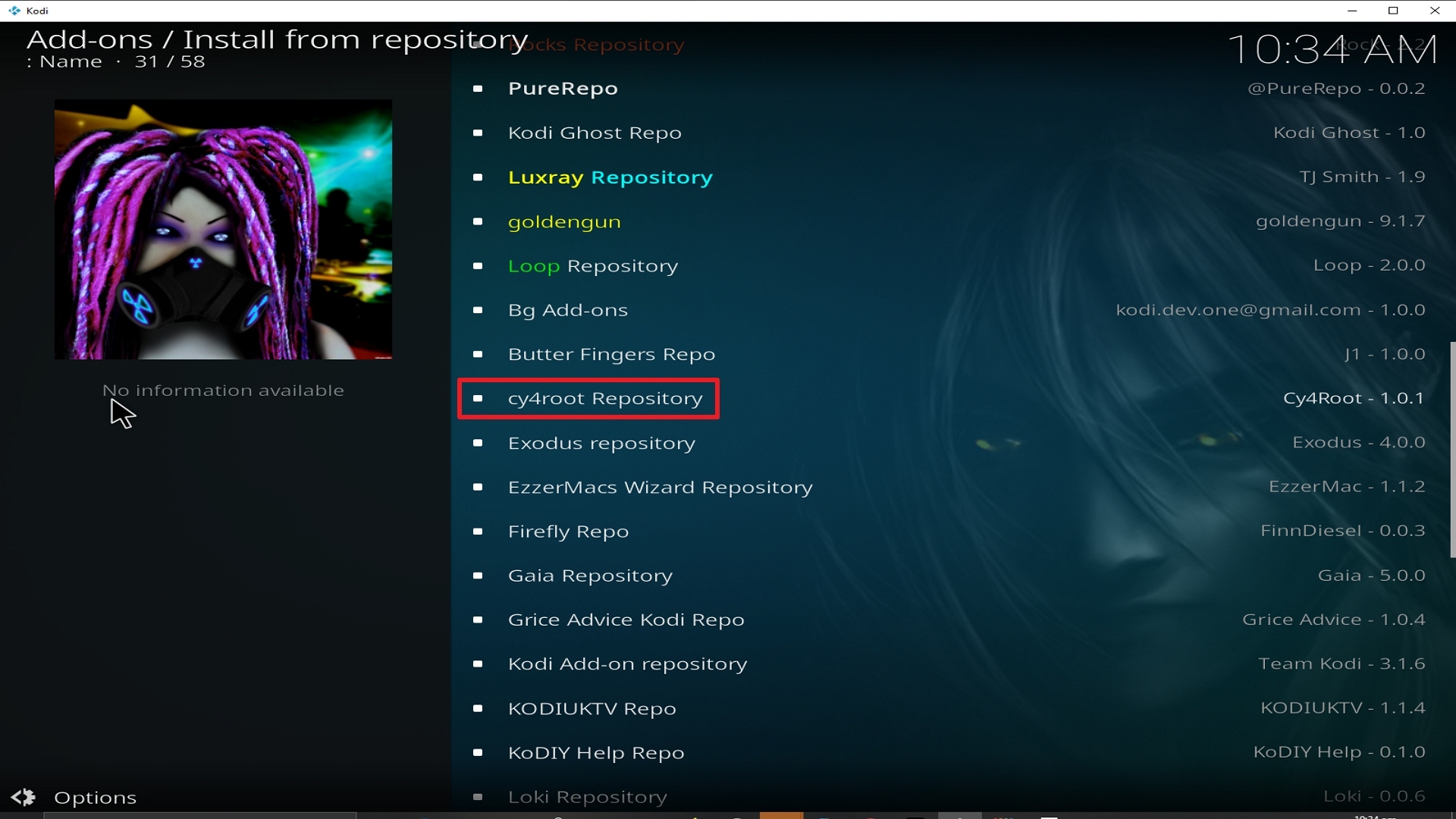
20. Click on Cy4root Repo.

Step 20 Installing Covenant addon on Kodi


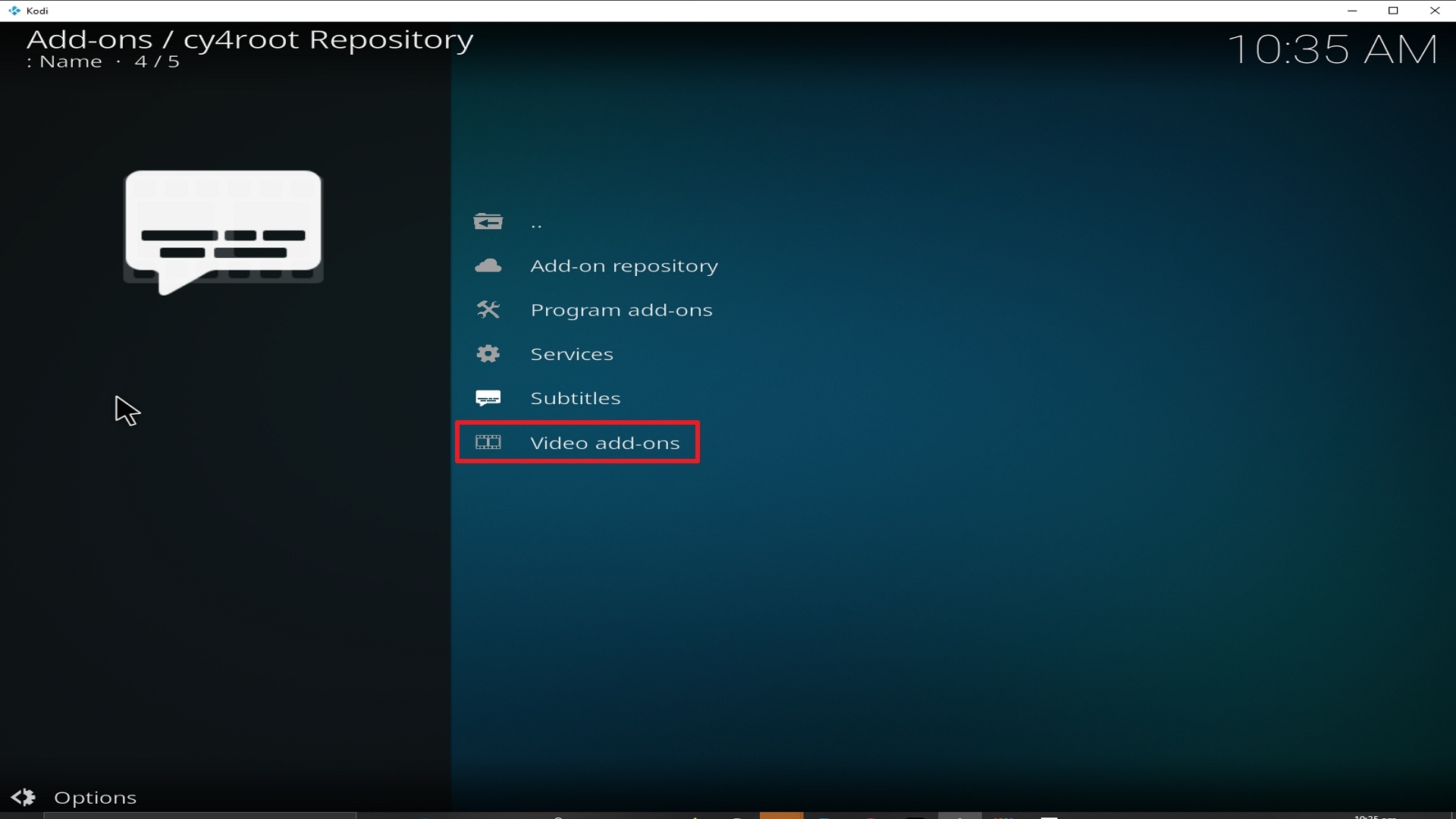
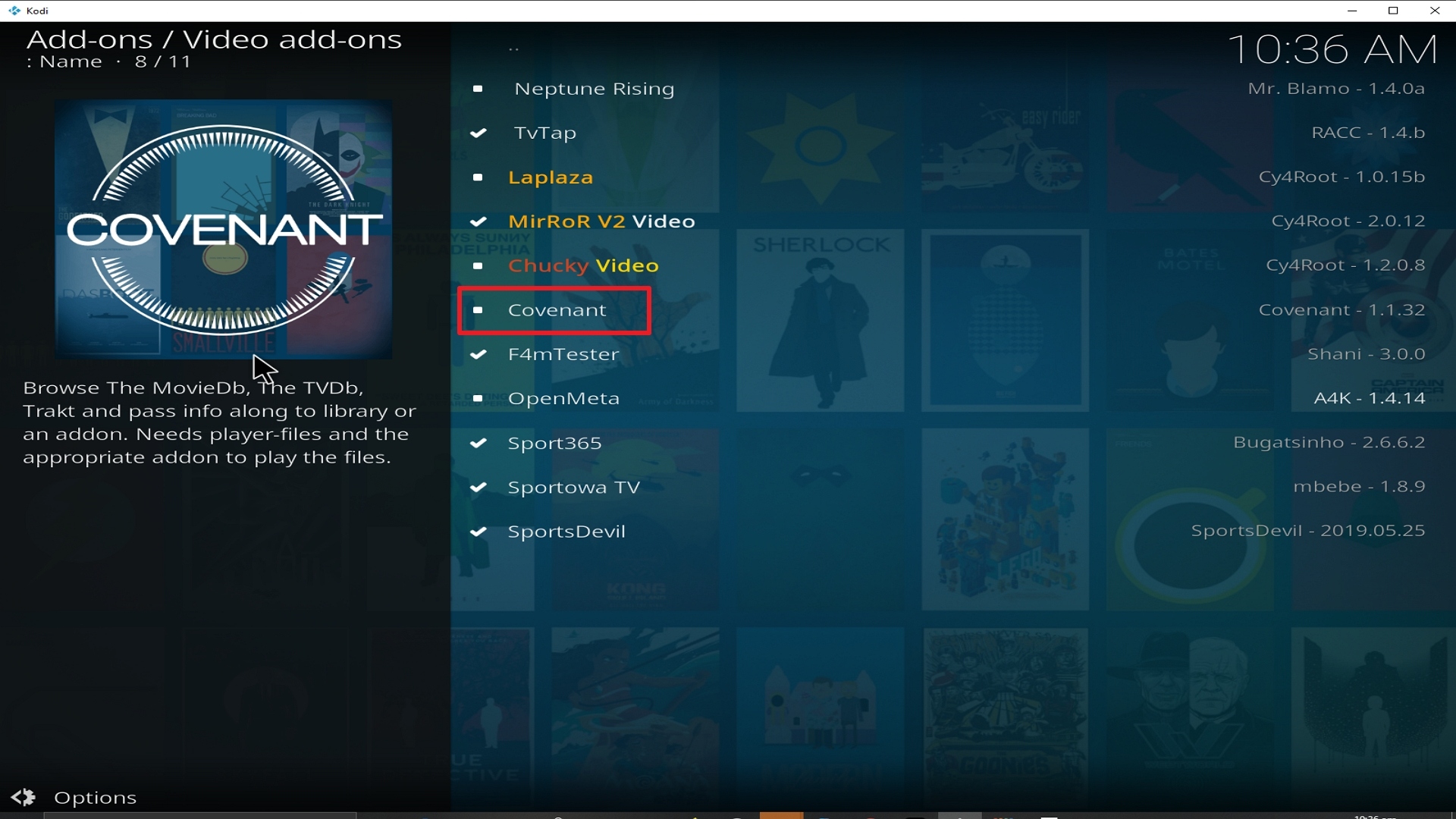
21. Pick Video add-ons.

Step 21 Installing Covenant addon on Kodi


22. Select Covenant again.

Step 22 Installing Covenant addon on Kodi


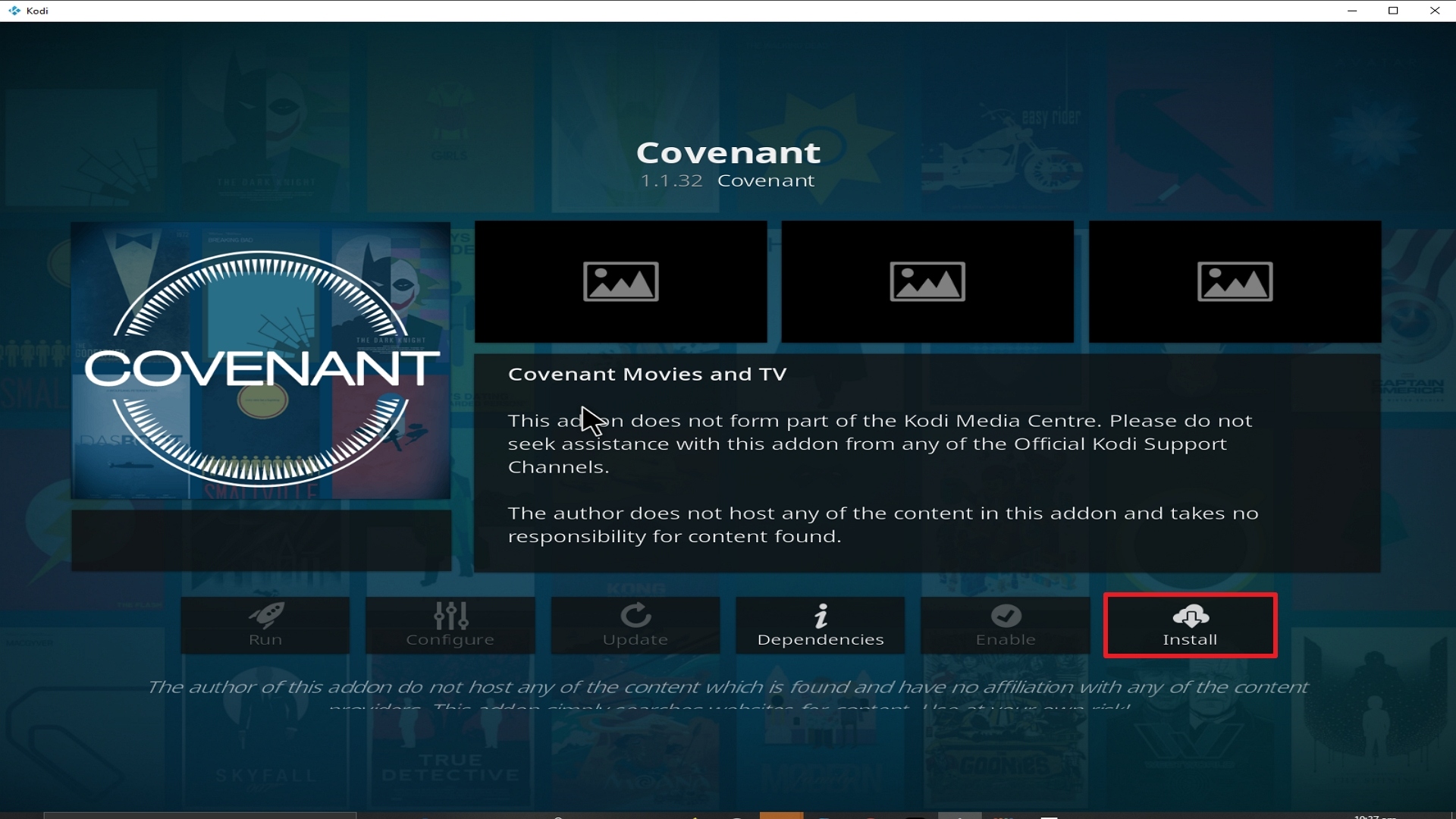
23. Click on Install.

Step 23 Installing Covenant addon on Kodi


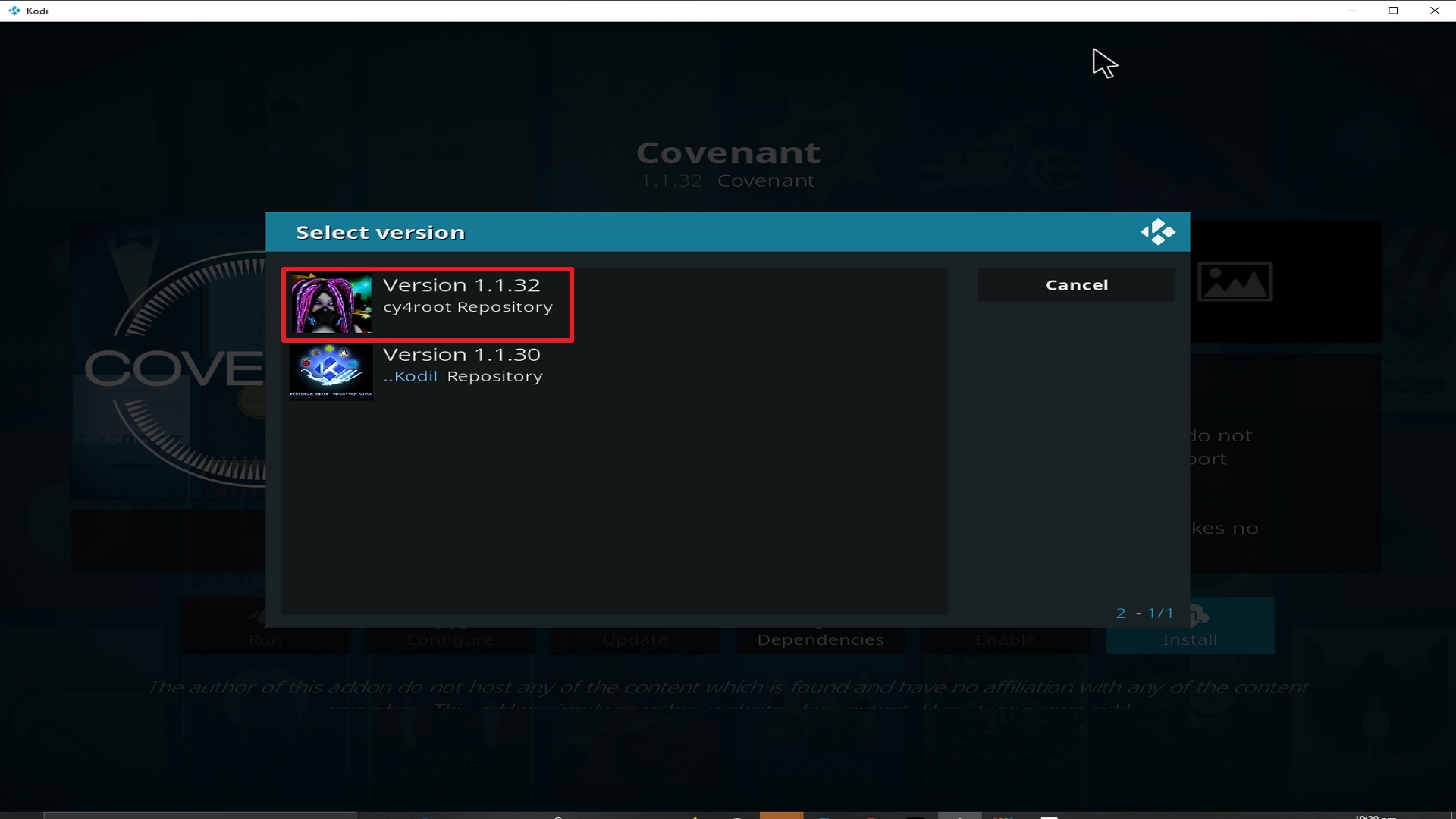
24. Select Version 1.1.32 Cy4root Repo

Step 24 Installing Covenant addon on Kodi


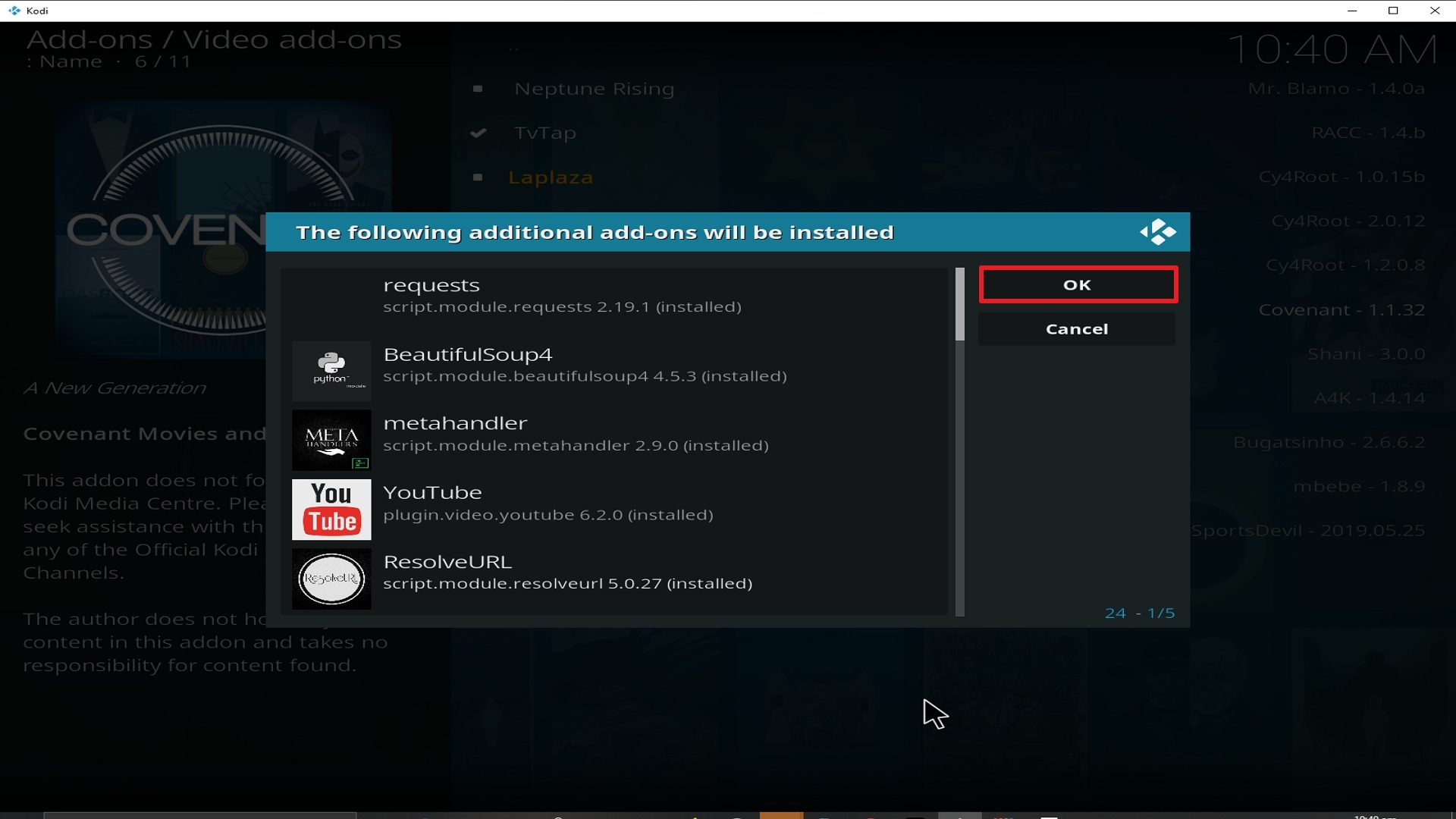
25. Select OK after reviewing the add-ons that will be installed.

Step 25 Installing Covenant addon on Kodi


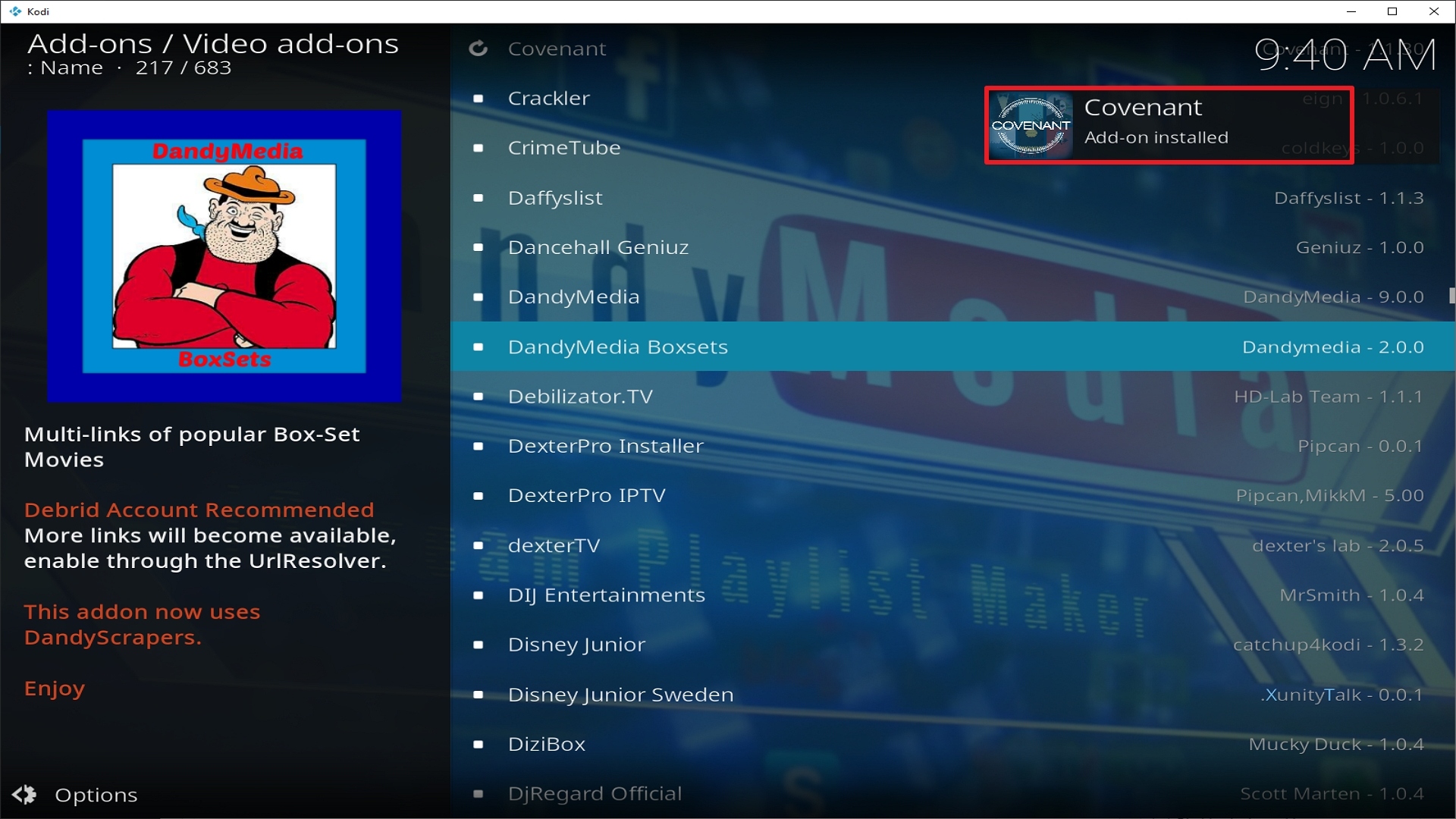
26. You should see a popup in the upper right corner saying Covenant has installed. There will actually be multiple popups for the various components.

Step 26 Installing Covenant addon on Kodi


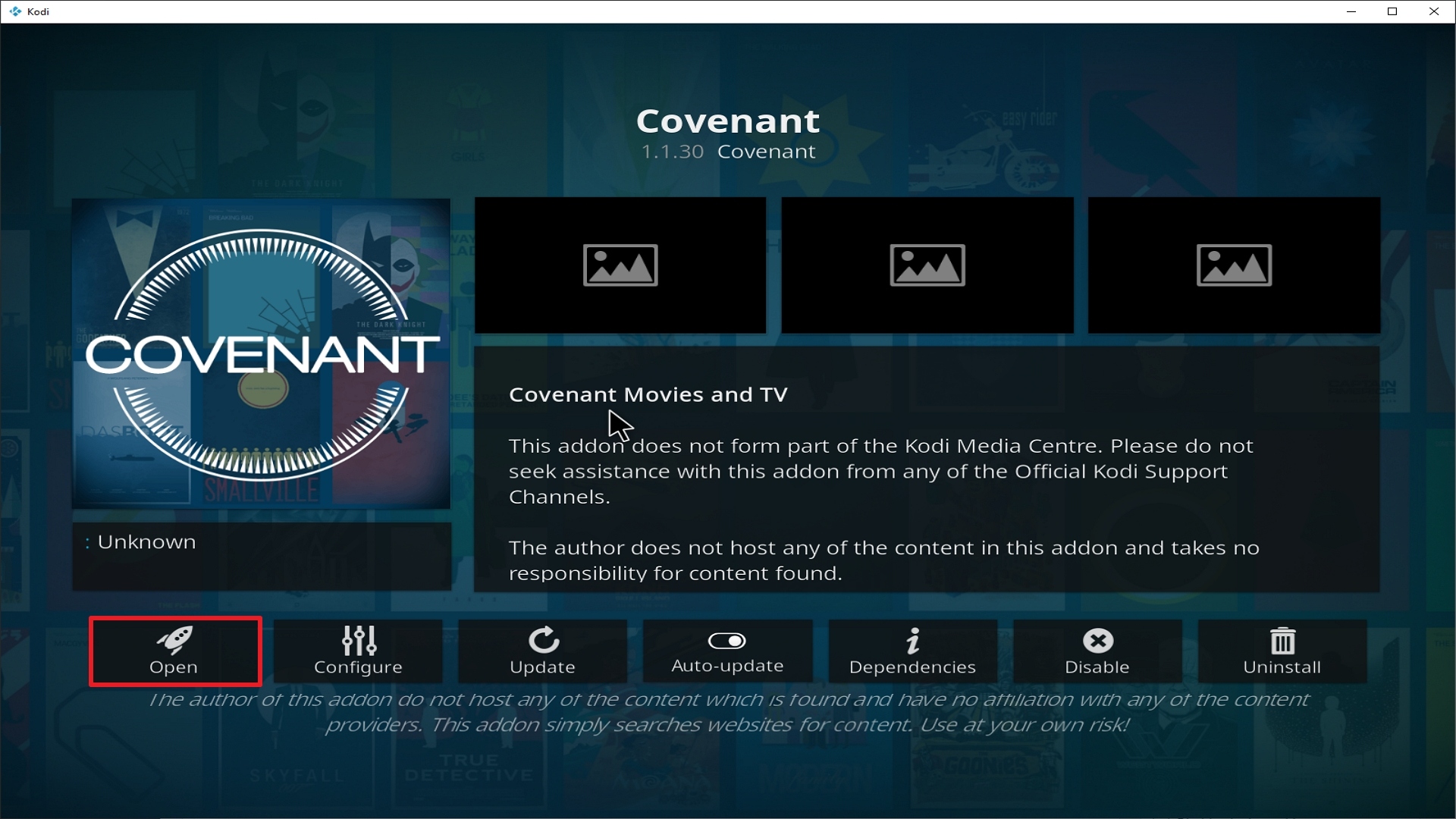
27. Click on Open to start the Covenant add-on.

Step 27 Installing Covenant addon on Kodi


Alternatives

When Covenant add-on encounters issues rendering it unable to function properly what do we do? We always suggest that our users create a backup plan so as to have their entertainment experience uninterrupted. This backup should be procured from a trusted source and here at ReviewVPN, we only suggest the best out of the best. The following add-ons can serve as a stand-in for Covenant:

        Exodus Add-on

        Primal Add-on

        The USS Defiant

These add-ons have similar features so that when Covenant may experience issues, you can always have another option to use.

Common Errors

These are some of the things that may cause an issue when installing The USS Defiant

  1.    Unable to connect to URL/Download

One of the main reasons why this happens is that you might have written the wrong URL. Please be careful when typing in the URL because the slightest mistake can totally ruin your download. Secondly, having a stable internet connection is always desired as it does not impend the speed of your download. Lastly, to protect your identity and internet trail, you must have a reliable VPN to mask your online activities which will help you remain anonymous. Check here for the best VPN deal.

  1.     Script Error

This issue usually arises when Kodi is not properly installed or has lacking features for it to work properly. If that is the case, you can redownload Kodi and install it properly. An in-depth guide on how to install the Kodi app is provided on our website. Lastly, if the issue is with the add-on itself, you can reinstall it by following the procedure given above.

  1.     Kodi Check Log Error

A check log error only happens when your media cache is full. You can remedy this situation by emptying your cache. 

  1.     Source not working/slow/frozen

Covenant does not keep any of the content on its servers. It is distributed by 3rd party apps. Patience is key here, just wait for a couple of seconds for the other suggestions and click on them. For other solutions please take the time to read our in-depth guide linked above.


Always Use a VPN On Kodi

It is advisable to install a VPN on your streaming device. This is because any time you are streaming content online, your online data is vulnerable and you are being monitored on the internet service provider’s network. 

Not only that, but you will also experience location restrictions. Using a VPN will save you that headache and stress and you will be safe and secure while streaming content online. We recommend Surfshark as it offers high security and privacy with a zero-log policy with DNS leak protection. 

Note: For more information about SurfShark, please read our SURFSHARK REVIEW.


Grab your subscription now!


How to Install Surfshark VPN on Firestick

If your Firestick still has the older interface, read this article to learn how to update it: Update Firestick Interface.

You can download Surfshark directly from the Amazon App store. It will be easy for you to find Surfshark with your Firestick’s Find feature. Refer to our screenshots below.

1. Go to the Home screen of your Firestick.

step 1 Install Surfshark VPN on Firestick


2. Navigate towards the Find tab. Press the Search button from the resulting dropdown.

step 2 Install Surfshark VPN on Firestick


3. Type in the keyword of SurfShark and select from the suggestions that will appear.

step 3 Install Surfshark VPN on Firestick


4. Click the official SurfShark icon from your search results.

step 4 Install Surfshark VPN on Firestick


5. Press the Download (You own it) button.

step 5 Install Surfshark VPN on Firestick


6. The SurfShark VPN installer will download on your device.

step 6 Install Surfshark VPN on Firestick


7. SurfShark VPN’s app will automatically install itself on your Fire TV stick.

step 7 Install Surfshark VPN on Firestick


8. Press the Open button after completing SurfShark VPN’s installation process.

step 8 Install Surfshark VPN on Firestick


9. Please wait for the SurfShark VPN to load its user interface.

step 9 Install Surfshark VPN on Firestick


10. You can now log in with your SurfShark VPN account credentials.

step 10 Install Surfshark VPN on Firestick

Learn more about Surfshark and Grab the Best Surfshark Deal Now!


Install Surfshark on Firestick

Best Surfshark Deal


Other VPNs to Consider

NordVPN (Best for Streaming)

Best Features

  • 5000+ Server in 50+ Countries 
  • Military-Grade Encryption
  • Fast Connection Speed
  • Suitable to a lot of devices
  • No-Log Policy

Prices
  • Complete $5.89 per month (64% Discount)
  • Plus $4.59 per month (56% Discount)
  • Standard $3.69 per month (55% Discount)

Best Features

  • 750+ High-speed VPN Servers in 43 Locations
  • Military-Grade Encryption
  • Fastest HD Streaming and Gaming
  • 30-Day Money-Back Guarantee
  • Unlimited Data & Devices
  • No-Log Policy

Prices
  • 3 Years $1.99 per month (82% Discount)
  • 1 Years $3.29 per month (70% Discount)
  • 1 Month $10.99 per month

IPVanish VPN (Most Secure)

Best Features

  • 1200+ Servers in 60+ Countries around the world
  • Unlimited Connections
  • No-Log Policy
  • Top Notch Military-Grade VPN Protocols and Encryptions
  • 100% Safe and Secured
  • Most Trusted VPN
  • Best VPN for Firestick
  • 30-Day Money-Back Guarantee

Prices
  • Yearly $3.99 per month (63% Discount) – 30 days risk free + Ransomware & Malware Protection
  • Quarterly $5.32 per month (51% Discount)
  • Monthly $10.99 per month


For more VPN discounts, go to ReviewVPN Deals and purchase the best VPN for you.

Click here to get the lowest price on Surfshark through our exclusive limited-time offer.


Conclusion

The Exodus Kodi Repository is one of the more popular repositories in the world of Kodi. Being under such a repository makes Covenant one of the go-to add-ons available on the web. It provides content that is very stable and buffer-free so that users enjoy what they are watching. It is also one of the better working add-ons that get updated on a regular basis. We do hope that this article was of help to you. For your concerns, do drop us a comment down below or at any of our other social media platforms. Thank you for reading and have a great day ahead!
Best Live TV Applications on Firestick

Best Live TV Applications on Firestick

You’re really spoilt for choice when it comes to the best live TV applications on Firestick. There was a time when you had to pay an exorbitant fee just to access cable in your country. Now you can easily access thousands of channels across the globe from one application.

This is particularly good news if you are away from home and feeling nostalgic about some entertainment in your native language.

What’re more many companies like Tubi TV and Pluto TV are now making it easy for you to free and legally access a massive range of content if you don’t mind going through some adverts.

If your Firestick still has the older interface, read this article to learn how to update it: Update Firestick Interface.

 Install Android Applications on Firestick

Before you get started, you will need to make a few tweaks to your Firestick to allow it to download some of these applications. Tubi TV and Pluto TV will have no problems downloading directly from the Amazon or Google Play store, but others like Mobdro will need to you turn on unknown sources and have Downloader installed.


ANONYMOUSLY


To turn on unknown sources:

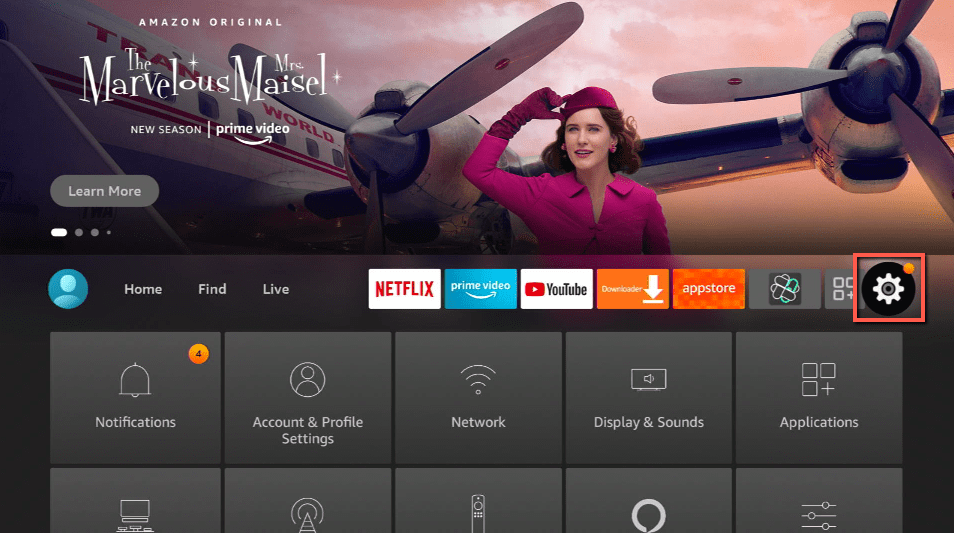
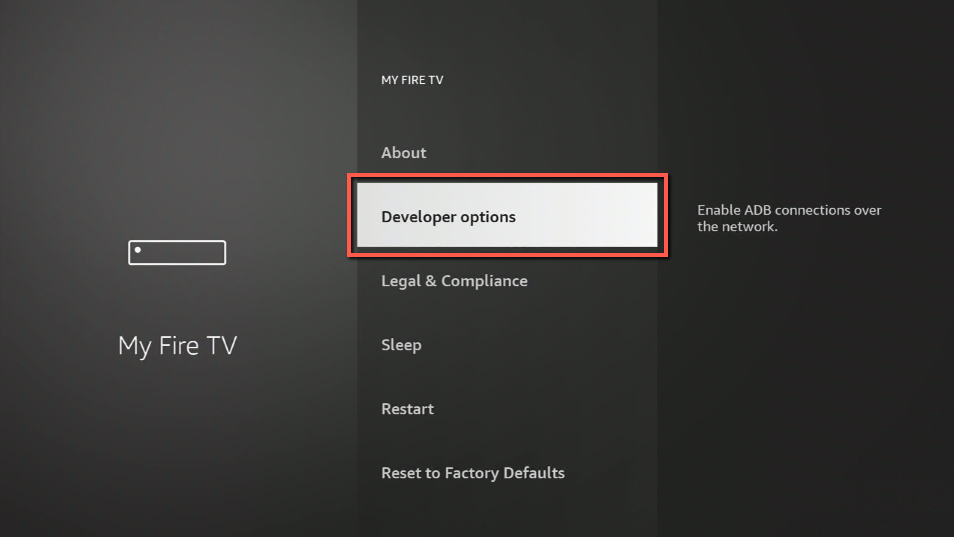
1.  Click Home on your remote and scroll once to your Right. Click Setting (Gear Wheel Icon)

Step 1 jailbreak firestick

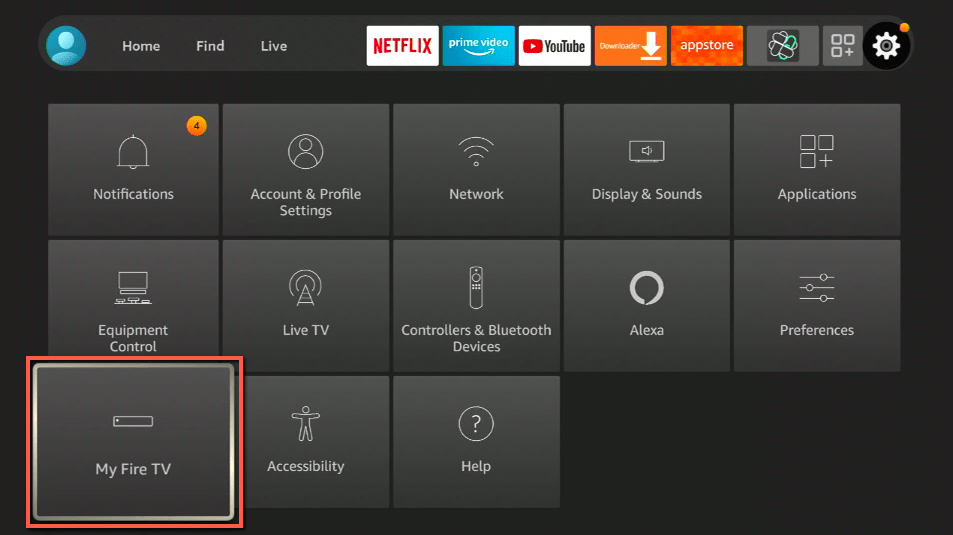
2. Scroll down and to the right until you get to My Fire TV. Click on it.

Step 2 jailbreak firestick


3. Select Developer options.

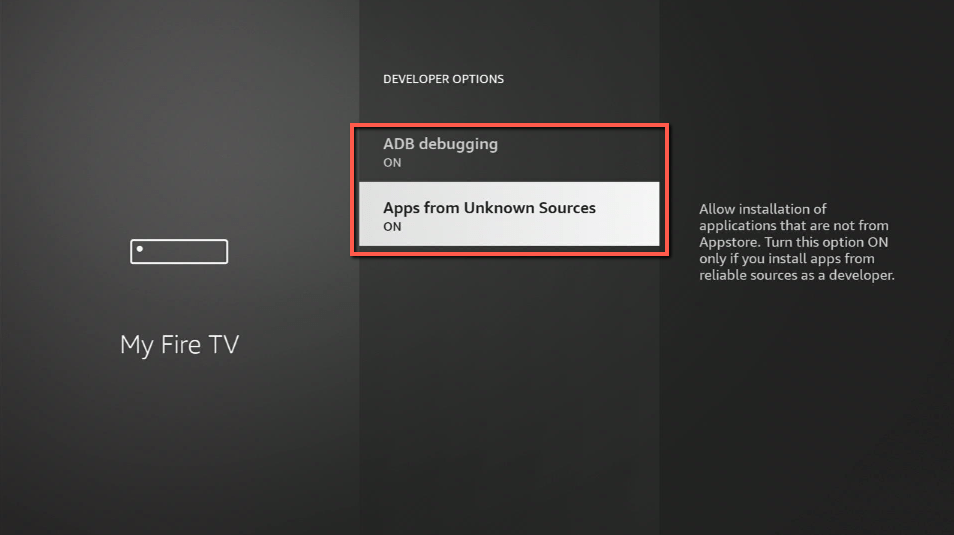
Step 3 jailbreak firestick


4. Turn on ADB debugging and Apps from Unknown Source.

Step 4 jailbreak firestick


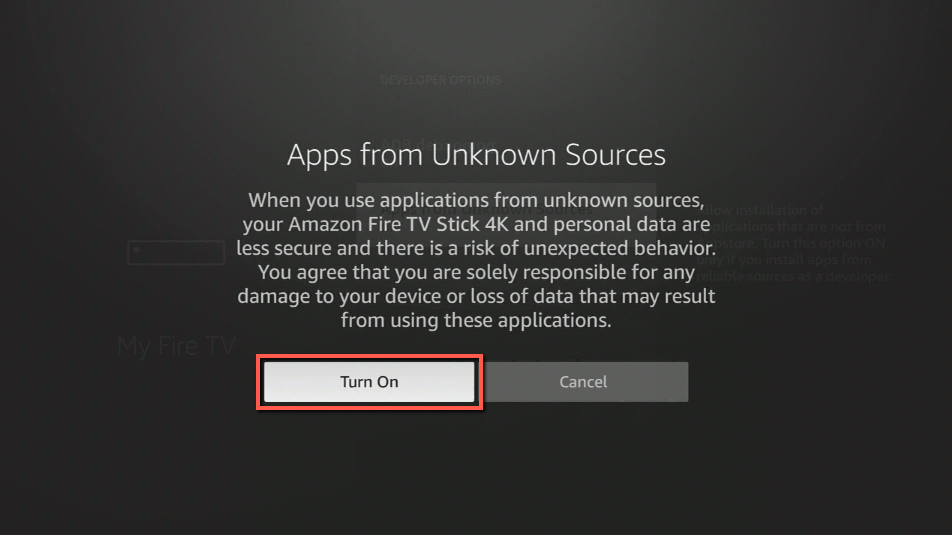
5. Click Turn On when the pop-up appears.

Step 5 jailbreak firestick


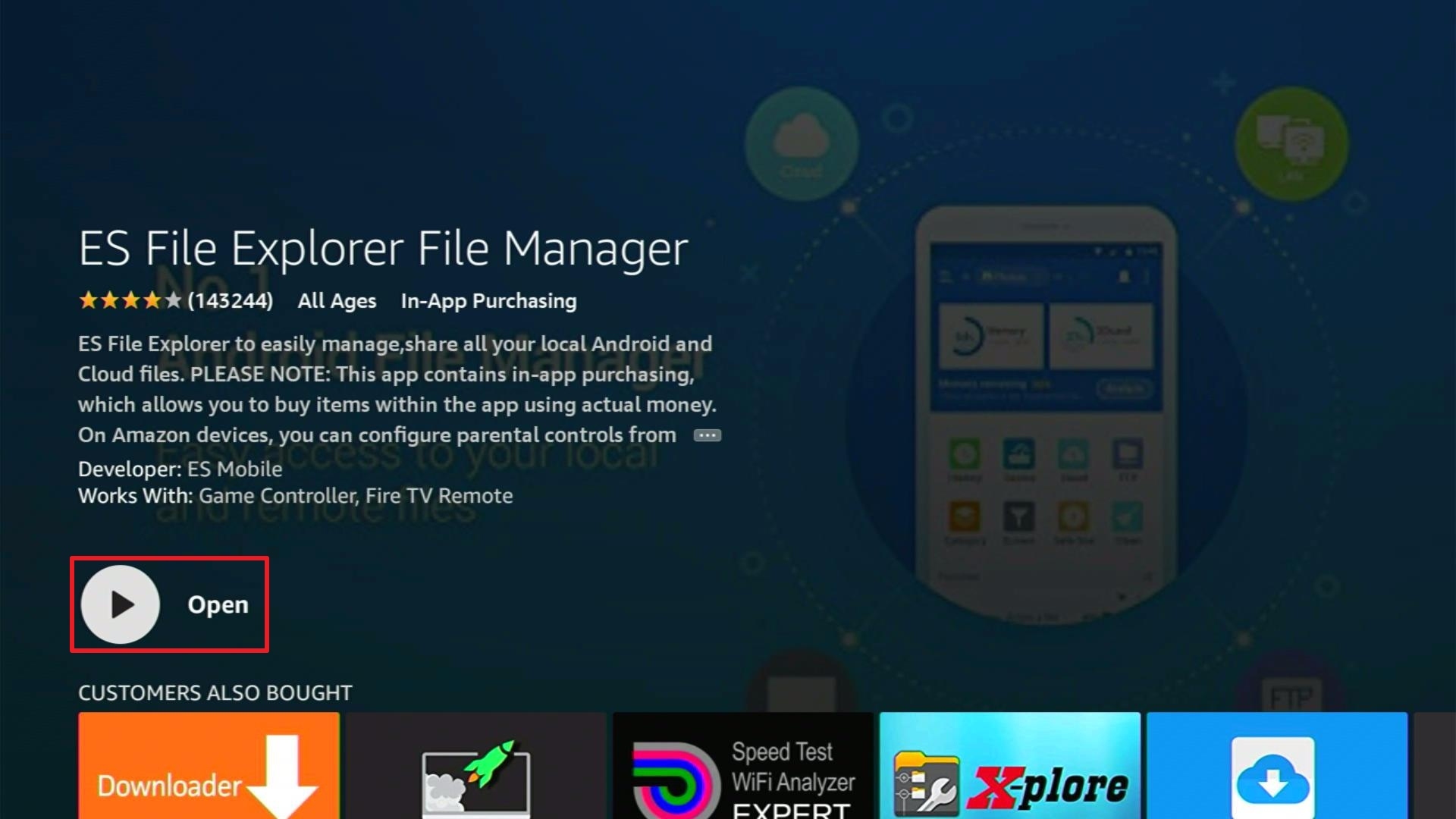
Now download ES File Explorer and Downloader, to enable you to download the best live TV applications directly from a URL:

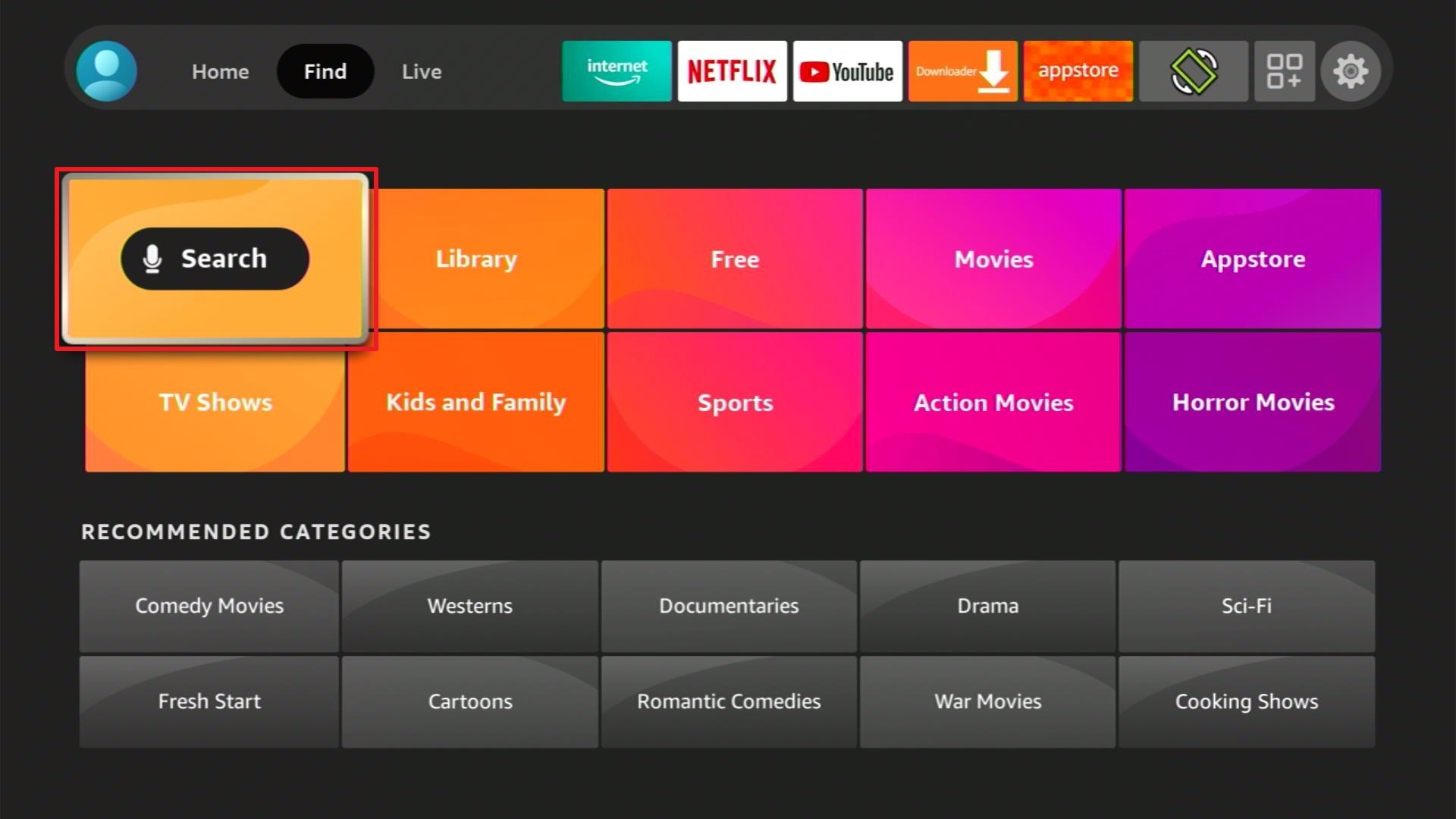
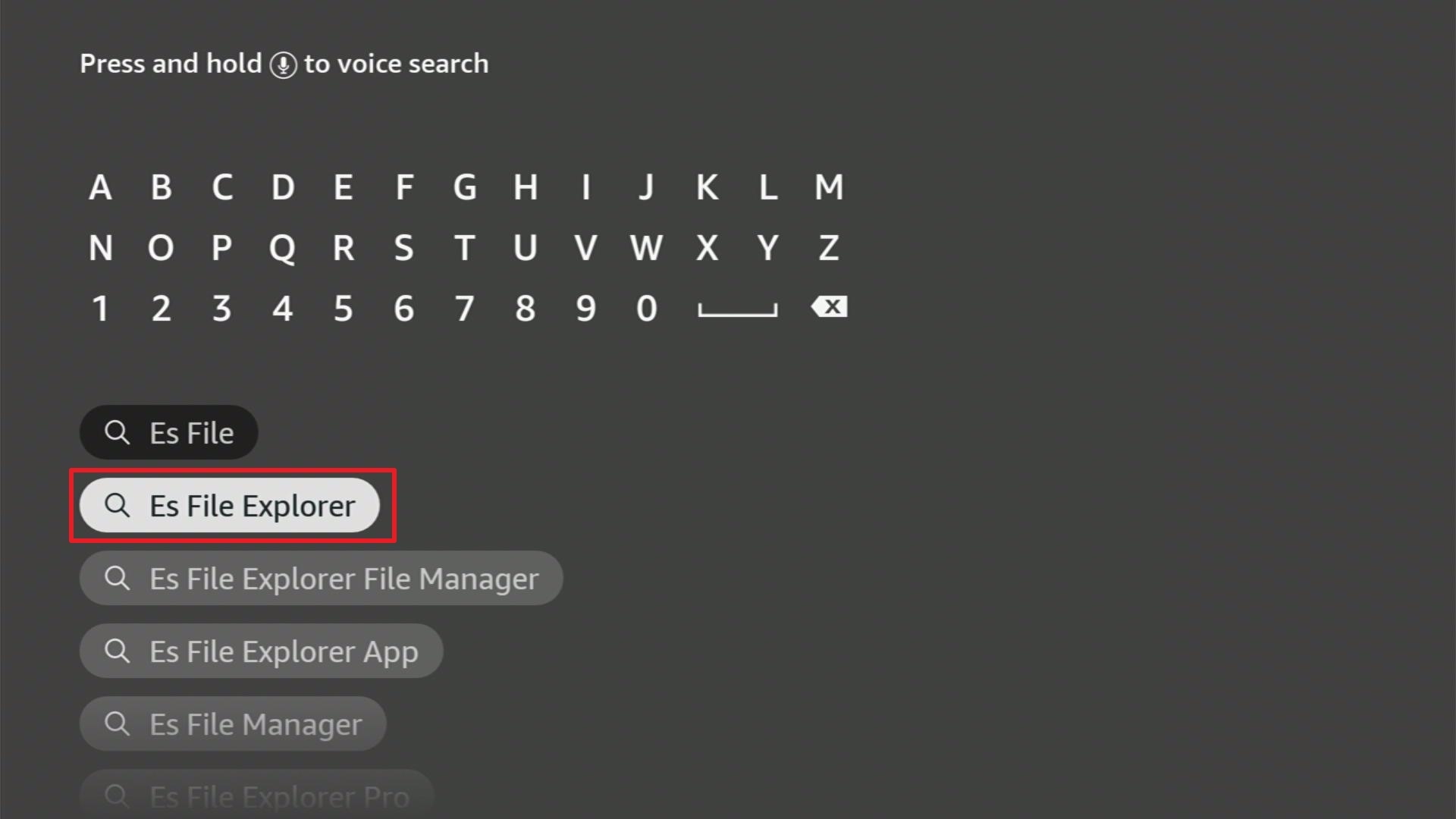
1. From the Firestick Home Screen, click Find and select Search.


2. Type “ES File Explorer Manager” then select the result.


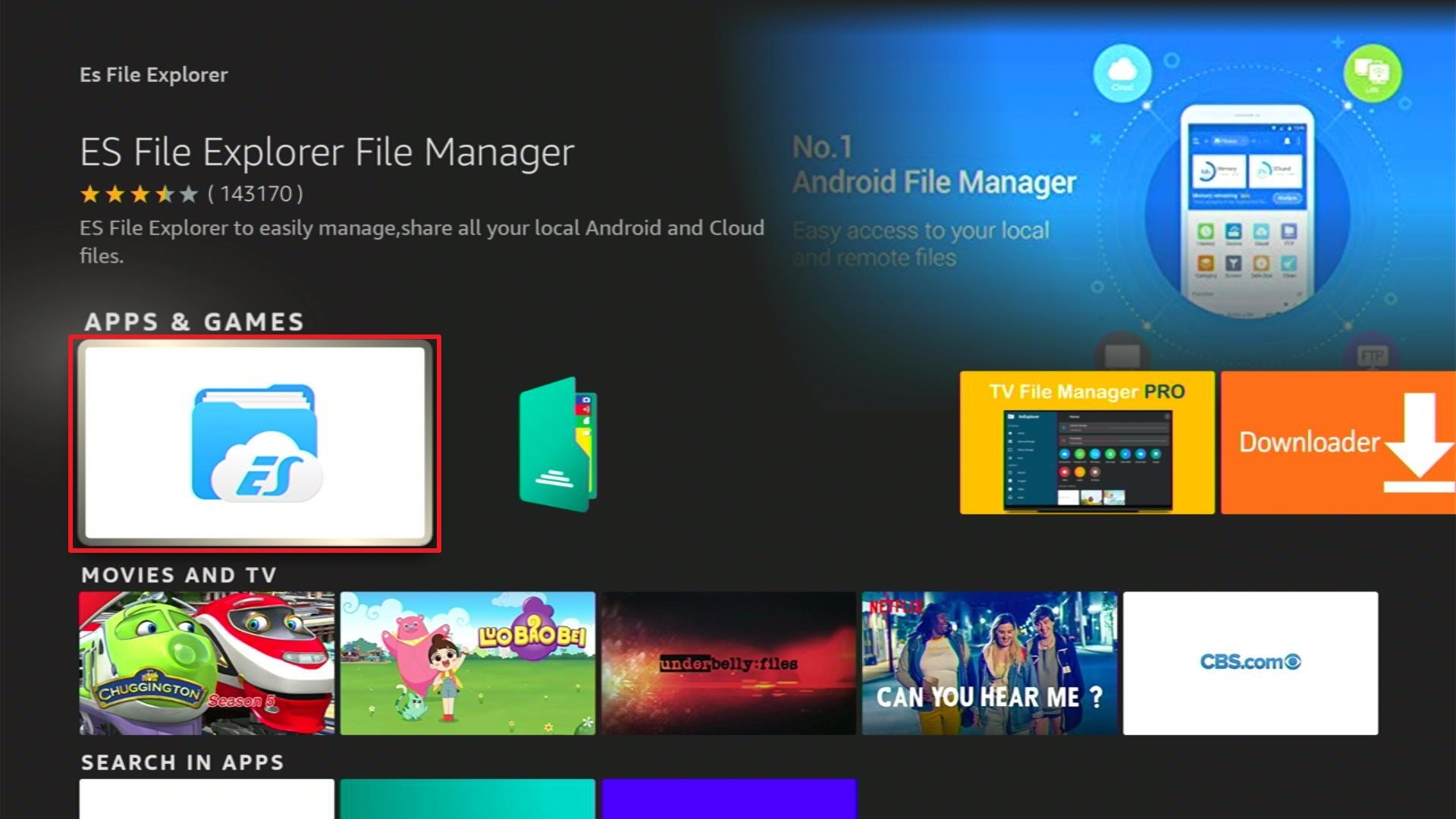
3. Select the ES File Explorer Manager app


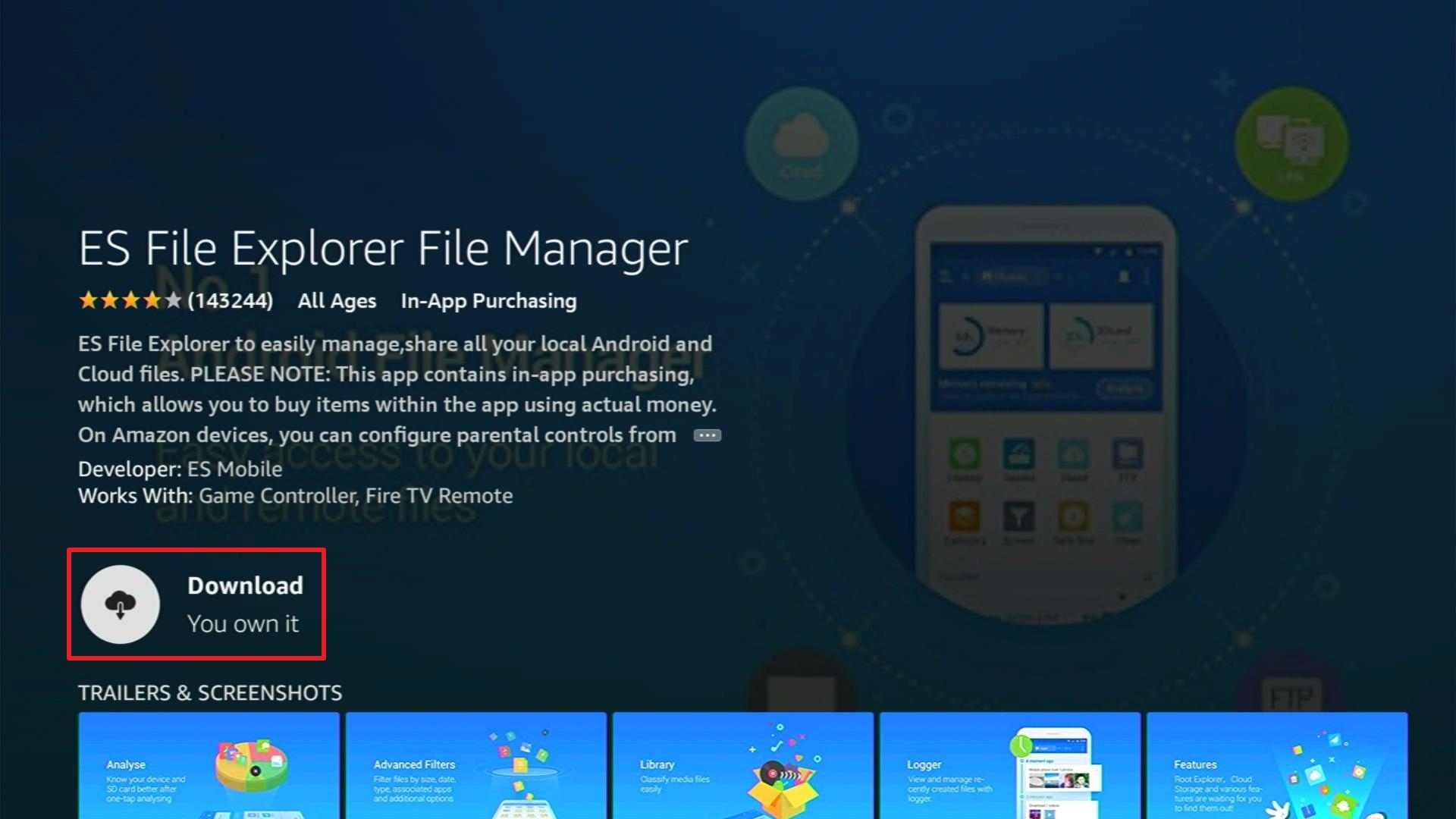
4. Click Download


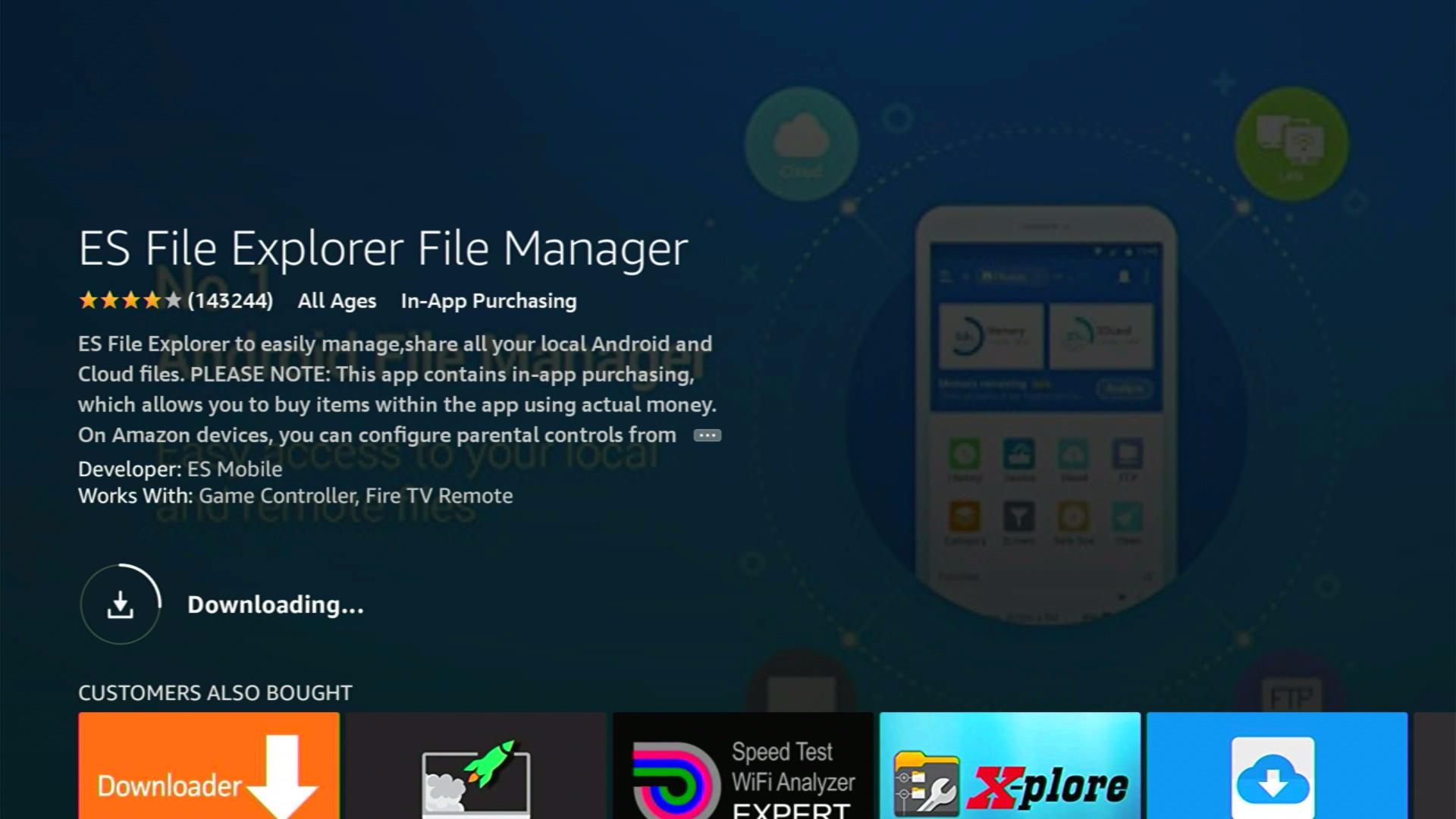
5. Wait for the download to finish


6. Click Open


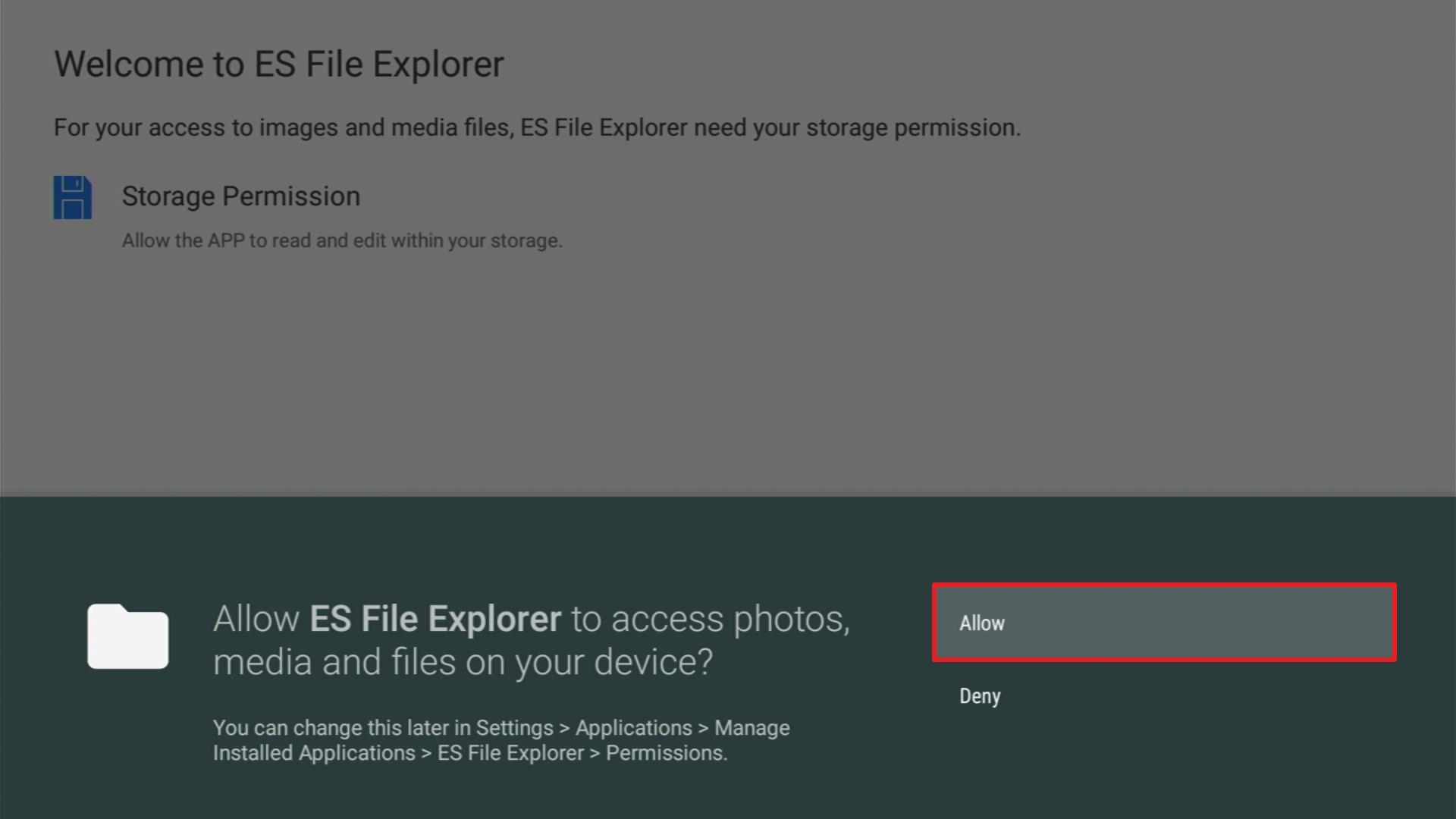
7. Click Allow


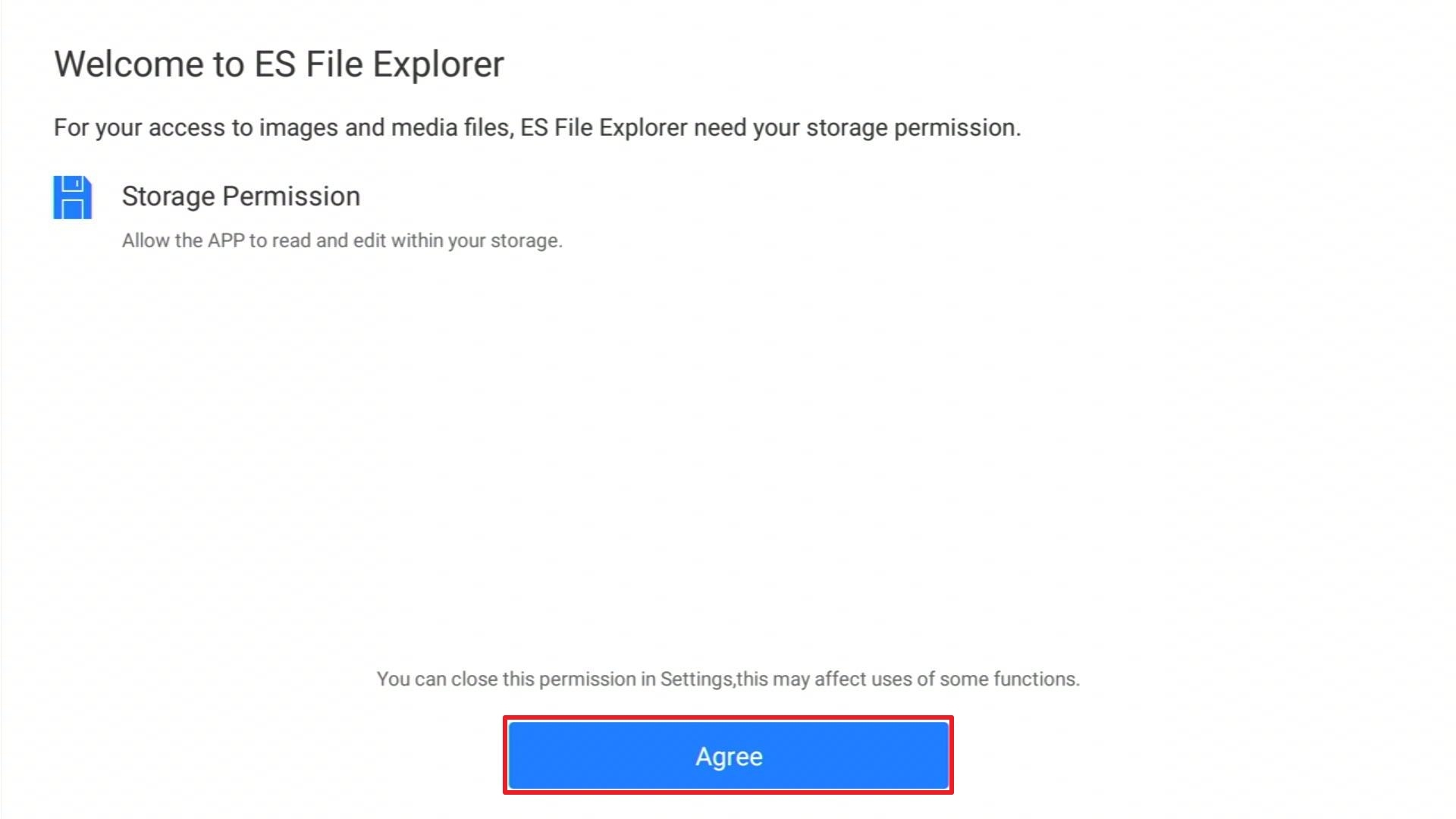
8. Select Agree


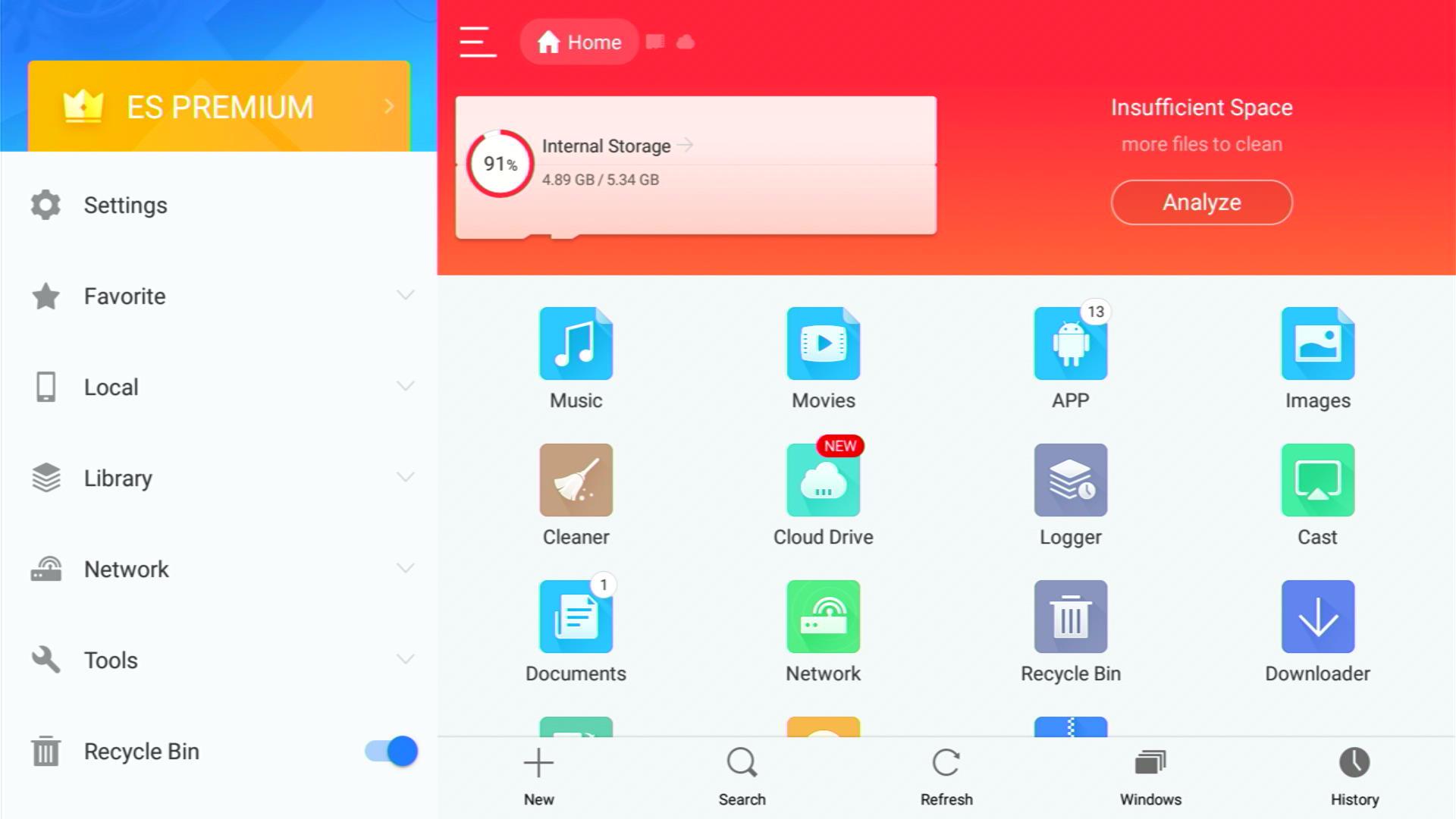
9.  You can now use ES File Explorer Manager


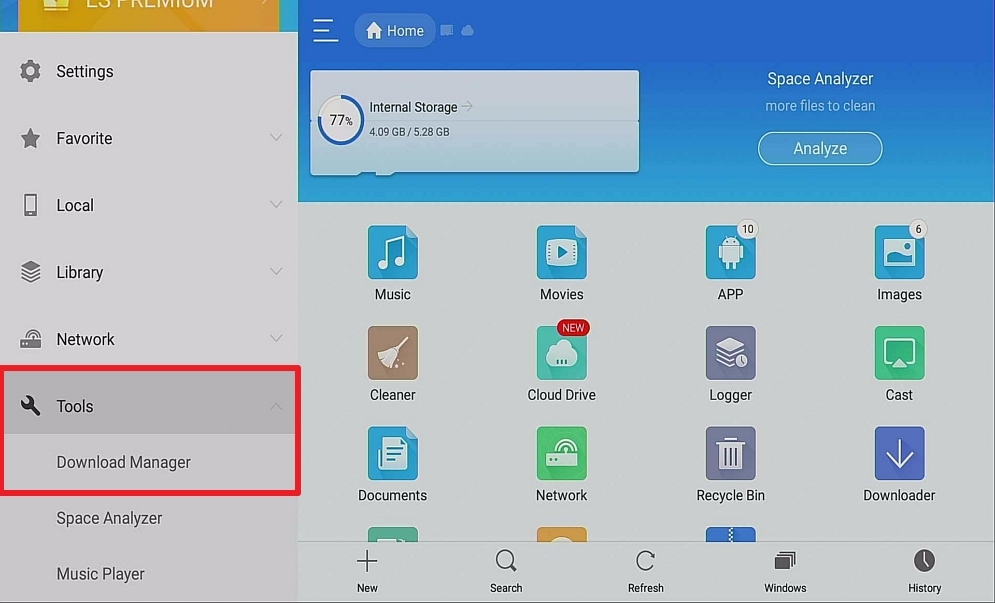
10. Go to Tools and Download Manager

Step 3 How to Install ES Files


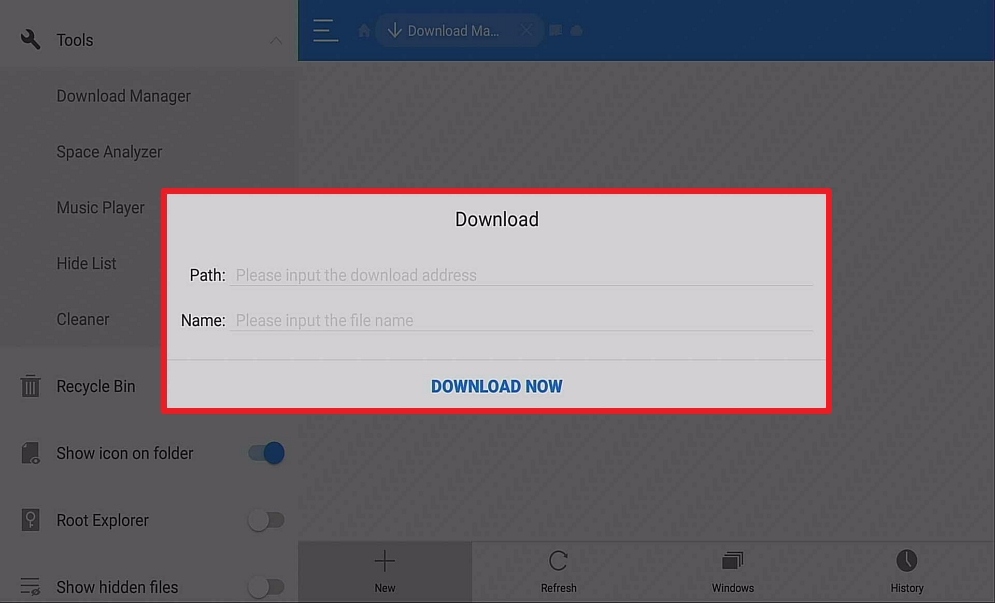
11. You will see an icon labeled Downloader, All you need to do is click “+New” and enter the corresponding URL to download your application direct to your Firestick.

Step 4 How to Install ES Files


Install Surfshark on Firestick

Best Surfshark Deal


Mobdro

Mobdro Logo

Download from:

https://www.mobdro.bz/

Mobdro is probably the best and most stable live TV application available on Firestick. You can choose from thousands of channels and even have the option to stream channels offline and download content for a modest fee of $2.99 per year. This is an option that isn’t offered anywhere else. You also get to set a sleep timer, so Mobdro will turn off after a set period.

They probably have the largest range of Live TV channels of any application going, in terms of quality and stability. Apart from Ola TV.

Mobdro’s interface is clean and easy to use, and you even have an option to turn off adverts. Though there has been some controversy about allowing Mobdro to use your latent resources if you choose to switch off the adverts, it seems like a fair trade to access so much content.

Mobdro has an active developer and a massive Reddit community, which is always great for fixing bugs and flagging channels that aren’t working. The team regularly releases updates and seeks feedback from the community.

You also get a handy live event calendar to see what’s on and find programs you want to watch.

Please read our article on How To Install Mobdro for Free Live TV on Firestick.


Red Box

Red Box Logo

Download from:

https://myredboxtv.com/redbox-tv-apk/

Probably the closest competitor that Mobdro has. The Red Box team has a history with developing applications and has another app on our list, AOS TV.

The app has been specially modified to reduce buffering time for TV channels and features hundreds of channels from 17 different countries including Nepal, Iran and the Philippines. As well as the standard Western countries you would come to expect like the US and the UK.

Red Box also has a section for movies and TV channels, and they allow you to mark links if they are dead, or glitching in some way so that they can easily be taken down by the developer.

The layout is beautiful and easy to navigate. Including a Kids section, as well as a passcode to lock adult content and channels.

A good choice for those looking for a good depth of foreign channels which might be hard to get elsewhere. Also, the simple sections make it easy to navigate by category, so you can see all the sports channels from different countries in the same place.

There is also a good selection of HD channels, and you can request content from within the application if you can’t find a channel you are looking for.

Please read our article on How To Install Redbox TV APK on Firestick.


YOUR INTERNET ACTIVITY IS BEING WATCHED

ReviewVPN cannot attest to the legality, security and privacy of the applications discussed on this site. It is highly recommended that you use a VPN service while streaming or using Kodi.

Currently, your IP 216.73.217.150 is visible to everyone and your Browser is being tracked by Advertisers & ISP Provider.

Save 65% Now

Limited Time Offer

Here are the main reasons why you must use a VPN:

  • Your activities are hidden from your ISP, the government, and from the apps you are using.
  • You can access additional movies and TV streams.
  • ISP attempts to throttle are thrwarted thus reducing buffering issues.
  • Geographically restricted content like Netflix and Hulu can be unblocked.

A VPN works be replacing your ISP-assigned IP address and creating an encrypted tunnel. We recommend the no log service offered by IPVanish. It works well on a Firestick and offers the fastest possible speeds.

Special Limited Time Offer - Get IPVanish


Kodi

Kodi Logo

Download from:

https://kodi.tv/download

If in doubt, Kodi has a massive selection of Live TV add ons that you can download, here we wanted to highlight two, as they tend to be areas, we found other Live TV applications may fall. Live Sports and pay per view. You can search these add ons through our site or Google for the latest download link.

Read our article on How to Install Kodi on Firestick.


Sports Devil

SportsDevil Image


Sport’s Devil is the best and biggest sports addon available on Kodi. A lot of other add ons will gather their streams from Sport’s Devil.

It’s also stable and has good uptime when it comes to big pay-per-view cable fights in boxing and MMA.


cCLoud TV

cCloud TV Image

Another add on solely dedicated to sports and has a good selection of streams from international countries that you might not find anywhere else.

It’s helpful that they list channels by country, making it easy to find what you’re looking for.


Ola TV

Ola TV Logo

Download from:

https://olatv.me/

Ola TV has the biggest selection of Live TV channels of any Live TV application on Firestick. Over 50,000 channels and an enormous range of countries for you to choose from.

Like Red Box, Ola TV has been specially designed to reduce lag and buffering time, so you don’t have to keep pausing the channel to catch up.

Ola TV comes from IPTV Droid who has good form for designing live TV applications, having previously designed Relax TV, so you get a great working application with good uptime.

You can choose how you navigate channels, whether its by country or category and its easy to find your way around. Then add channels to your favorites tab to build your own private TV list.

With such wide range channels, it means that even if one link doesn’t work, you are bound to find something similar on another channel.

Ola TV is a great add on with a long history of stability and uptime.

Read our article on How To Install Ola TV on Firestick.


Redflix

redflix logo

Download from:

https://www.red-flix.com/register

Redflix is a great choice for those who are looking for Bollywood style content. They have a Netflix style interface, as well as a link to Netflix sites around the world, so you can sample the different content that Netflix has to offer. 

They also have a good mix of Tv shows and movies, as well as many Asian cultural shows and of course Bollywood movies.

Another bonus is Redflix is completely adverted free.

Please read our article about Redflix.


Tubi TV

Tubi TV Logo

Download/Watch online:

https://tubi.tv

Tubi TV is a completely legal offering of TV, you can download it from the Google Play Store or watch it for free online.

New content is added every Friday, though admittedly it won’t be the latest movies and TV shows. There is a limited range of Live TV Channels which tend to be more niche. Like Kickboxing or Fashion TV.

They have a decent content depth with 50,000+ titles and the only catch is that you need to watch the adverts in the titles. The ads aren’t too bad, showing up once every 15 minutes, so about the same as regular TV used to be.

All media is available in high-quality HD and you get to enjoy a well-designed application with a multimillion-dollar team backing it.

Plus, Tubi TV is committing more money to bring original content, so expect titles to be more recent and exciting. A good application for those who want to stick to free and legal content.

Read our article on How To Install Tubi TV on Firestick.


AOS TV

AOS TV Logo

Download from:

https://www.aostv.me

AOS TV is new and is the latest application to come from the makers of Red Box. It features over 1000 channels, from a wide range of countries including Saudi Arabia, India, and Pakistan.

The UI is super simple and easy to navigate by category or country, or your search by the latest trending topics, which is handy if you are looking for a stream of a pay per view fight.

The ads are unobtrusive, and though AOS TV is relatively new, it seems to be heading in the right direction. We just hope this doesn’t mean that Red Box gets let go!
Read our article on How To Install AOS TV on Firestick.


Live TV Net

Live Net TV Logo

Download from:

https://www.livenettv.sc/

Live TV Net is a lovely app, which is completely ad-free. You can access 800+ Live TV channels, as well as Video on Demand where you pay for content.

The content is easy to search, sort, and filter and you can also access movies and TV shows, many of which are in HD.

The developers are involved, and you can flag dead links, request channels, and suggest improvements.

You also have a cool live event scheduler where you can set reminders for content or be notified when a piece of content has been uploaded that you have been hunting for.

Live TV Net has been consistently stable and received positive reviews since 2017, and an app we would have alongside Red Box and Mobdro.

Read our article on How To Install Live NetTV on Firestick.


Pluto TV

Pluto TV Logo

Download/Watch online:

https://www.pluto.tv/

Pluto Tv is a lot like Tubi TV, but it concentrates solely on Live TV channels. You can access over 100 channels, which are a bit weird and wonderful like international poker and niche fighting channels.

But the format works because you see unobtrusive adverts and get free Live TV.

You can download it direct from the Google Play Store, and you can also access 17+ movie channels and thousands of free movies and TV shows. Though just like Tubi TV don’t expect anything to be too recent.

Pluto TV is another great choice for those who want to watch free and legal TV.

Read our article about Pluto TV.


Grab your subscription now!

Click here to get the lowest price on Surfshark through our exclusive limited-time offer.


How to Install Surfshark VPN on Firestick

If your Firestick still has the older interface, read this article to learn how to update it: Update Firestick Interface.

You can download Surfshark directly from the Amazon App store. It will be easy for you to find Surfshark with your Firestick’s Find feature. Refer to our screenshots below.

1. Go to the Home screen of your Firestick.

step 1 Install Surfshark VPN on Firestick


2. Navigate towards the Find tab. Press the Search button from the resulting dropdown.

step 2 Install Surfshark VPN on Firestick


3. Type in the keyword of SurfShark and select from the suggestions that will appear.

step 3 Install Surfshark VPN on Firestick


4. Click the official SurfShark icon from your search results.

step 4 Install Surfshark VPN on Firestick


5. Press the Download (You own it) button.

step 5 Install Surfshark VPN on Firestick


6. The SurfShark VPN installer will download on your device.

step 6 Install Surfshark VPN on Firestick


7. SurfShark VPN’s app will automatically install itself on your Fire TV stick.

step 7 Install Surfshark VPN on Firestick


8. Press the Open button after completing SurfShark VPN’s installation process.

step 8 Install Surfshark VPN on Firestick


9. Please wait for the SurfShark VPN to load its user interface.

step 9 Install Surfshark VPN on Firestick


10. You can now log in with your SurfShark VPN account credentials.

step 10 Install Surfshark VPN on Firestick

Learn more about Surfshark and Grab the Best Surfshark Deal Now!


Install Surfshark on Firestick

Best Surfshark Deal


Other VPNs to Consider

NordVPN (Best for Streaming)

Best Features

  • 5000+ Server in 50+ Countries 
  • Military-Grade Encryption
  • Fast Connection Speed
  • Suitable to a lot of devices
  • No-Log Policy

Prices
  • Complete $5.89 per month (64% Discount)
  • Plus $4.59 per month (56% Discount)
  • Standard $3.69 per month (55% Discount)

Best Features

  • 750+ High-speed VPN Servers in 43 Locations
  • Military-Grade Encryption
  • Fastest HD Streaming and Gaming
  • 30-Day Money-Back Guarantee
  • Unlimited Data & Devices
  • No-Log Policy

Prices
  • 3 Years $1.99 per month (82% Discount)
  • 1 Years $3.29 per month (70% Discount)
  • 1 Month $10.99 per month

IPVanish VPN (Most Secure)

Best Features

  • 1200+ Servers in 60+ Countries around the world
  • Unlimited Connections
  • No-Log Policy
  • Top Notch Military-Grade VPN Protocols and Encryptions
  • 100% Safe and Secured
  • Most Trusted VPN
  • Best VPN for Firestick
  • 30-Day Money-Back Guarantee

Prices
  • Yearly $3.99 per month (63% Discount) – 30 days risk free + Ransomware & Malware Protection
  • Quarterly $5.32 per month (51% Discount)
  • Monthly $10.99 per month


For more VPN discounts, go to ReviewVPN Deals and purchase the best VPN for you.

Click here to get the lowest price on Surfshark through our exclusive limited-time offer.


How to Jailbreak a Roku for Free Movies in 2023

Jailbreaking Roku

In this article, we will help you jailbreak Roku to stream free movies.


Roku is currently the second most popular streaming device globally. Millions use Roku every day to stream their favorite programs.

One of the problems more creative users find with Roku is that it uses a closes system. The Roku team coded their own proprietary Operating System, which means that unless you use officially sanctioned software you can’t do anything outside of what Roku allows you to do.

We look at what Roku is, why jailbreaking a Roku is a myth, and how you can get around their operating system restrictions and use Kodi on Roku to access an unlimited amount of content.


ANONYMOUSLY


What is Roku?

Roku looks just like a USB stick; you plug it into your TV, and it gives you access to thousands of TV Channels from Netflix to Sky. Some content is free, with access to a wide range of original content, blockbuster movies, and other paid-for content.

Crucially everything on Roku is legal. They have satisfied all the copyright requirements for that content, and you don’t ever need to worry about watching anything illegally

Roku has 29 million users and comes from the Japanese word meaning the number “six”, literally because it was the 6th company that Anthony Wood started in 2002. It is led by Amazon which has its Fire TV series, in front of 34 million.

Roku is platform agnostic which means that unlike the Google Chromecast or the Amazon Fire Series it will run on any system, and isn’t centered around a streaming platform

Each device comes with a remote, but unlike Amazon does not have voice control components like Alexa.

People love Roku because it’s a simple plug and play system and gives you access to a dizzying amount of content. You can pretty much access anything you want for a price.

But what happens if you want to access more than Roku has to offer or don’t fancy paying for the content you want to watch.

What is Jailbreaking?

Jailbreaking first became a popular term in its relation to iPhone, when people would allow an iPhone to access applications that weren’t contained in the Apple App store.

Today, jailbreaking means making a modification or removing restrictions from a piece of software on a piece of hardware.

A lot of software systems today are closed because developers make money on both sides by charging developers a fee to sell their applications and taking a cut of the fee paid by a user. Or a company simply wants to maintain control of their ecosystem and collate all the relevant data for later use to improve their products.

Why Jailbreaking a Roku is a Myth?

The Roku is a closed system and does not allow third-party applications in any form, apart from one, Miracast. Which we cover later, this application allows you to cast Roku onto another device. 

Unlike the iPhone, you can’t “Jailbreak” a Roku and install third-party applications. That loophole doesn’t exist in the system.

The Roku operating system is coded in C++ and is difficult to deal with in terms of making modifications and honestly just not worth the time.

So, when articles talk about jailbreaking a Roku, they just mean they are using Miracast.

The Magic of Miracast

Miracast allows you to mirror your Roku onto another device. Bear in mind this is not a great solution, as ultimately if you wanted to use a third-party application on Roku, you would be better just using another device.

But if you’re not able to, then mirroring is a good option.

To enable screen mirroring:

  1. Go to the Home screen on your Roku
  2. Select Settings
  3. Click System
  4. Select Screen Mirroring
  5. For ease of use turn one “Always Allow”


YOUR INTERNET ACTIVITY IS BEING WATCHED

ReviewVPN cannot attest to the legality, security and privacy of the applications discussed on this site. It is highly recommended that you use a VPN service while streaming or using Kodi.

Currently, your IP 216.73.217.150 is visible to everyone and your Browser is being tracked by Advertisers & ISP Provider.

Save 65% Now

Limited Time Offer

Here are the main reasons why you must use a VPN:

  • Your activities are hidden from your ISP, the government, and from the apps you are using.
  • You can access additional movies and TV streams.
  • ISP attempts to throttle are thrwarted thus reducing buffering issues.
  • Geographically restricted content like Netflix and Hulu can be unblocked.

A VPN works be replacing your ISP-assigned IP address and creating an encrypted tunnel. We recommend the no log service offered by IPVanish. It works well on a Firestick and offers the fastest possible speeds.

Special Limited Time Offer - Get IPVanish


Legal Disclaimer: ReviewVPN.com does not encourage or endorse any illegal activity involved in the usage of services and applications referenced on this site. We do not verify the licensing agreements of services. The end-user is wholly responsible for ensuring that any media accessed through these services does not violate copyright and/or licensing laws. ReviewVPN does not promote, link to, or receive compensation from any Apps and IPTV services.


Install Surfshark on Firestick

Best Surfshark Deal


Watching Kodi on Roku

Your best solution to finding free content on Roku is using Kodi. As such Kodi doesn’t have an application in the Roku store, though you can use Plex which is on Roku.

So, a way of “jailbreaking” Roku is using the Miracast function to cast Kodi onto your Roku device and your TV.

You can do this with the following steps

  1. Using the instructions above enable the screen mirroring function on your Roku device
  2. Pair your device with your laptop, PC, tablet or phone. You will use this device to download Kodi and install your add-ons of choice, so make sure it has space and functionality
  3. You can pair your device, by going to your device’s setting and trying to find a wireless display
  4. Now your device is paired. Go to https://kodi.tv/download and download Kodi
  5. Follow the installation instructions
  6. You’ll now be able to cast Kodi from your device onto your Roku device and your TV
  7. Pick the add-ons that you want to watch and stream away to your heart’s content


Alternative to Roku

Roku is a great little device. Cheap and easy to use, but honestly there are easier devices out there that give you a much wider range of functionality because they are based on the Android Operating System.

Amazon Fire Stick

ANONYMOUSLY

The most popular streaming device of choice. The Fire Stick will cost you about as much as a Roku, but you get much more ease of use. Using the Amazon Store, you can easily install Kodi, a VPN and use Downloader to install third-party applications.

As the Fire Stick runs on Android you can even just pop it into a USB slot on your laptop and sideload third-party applications.

The one downside is how Amazon video-centric the initial home screen is, but it’s a great little device once you move past that.


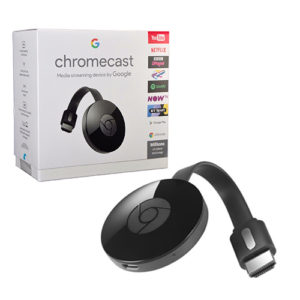
Google Chromecast

Google Chromecast image

The Chromecast is also based on the Android system and gives you a massive range of usability as you can easily access the Google Play Store, with over 2 million applications.

Google products and devices though bit data-heavy, and not great for general privacy are easy to use and Google couldn’t care less what you use the device for as long as they can track you.


Note: For more information about Surfshark, please read our Surfshark Review.


Grab your subscription now!


How to Install Surfshark VPN on Firestick

If your Firestick still has the older interface, read this article to learn how to update it: Update Firestick Interface.

Follow our screenshots below to install the SurfShark VPN app on your Fire TV stick.

1. Go to the Home screen of your Firestick.

step 1 Install Surfshark VPN on Firestick


2. Navigate towards the Find tab. Press the Search button from the resulting dropdown.

step 2 Install Surfshark VPN on Firestick


3. Type in the keyword of SurfShark and select from the suggestions that will appear.

step 3 Install Surfshark VPN on Firestick


4. Click the official SurfShark icon from your search results.

step 4 Install Surfshark VPN on Firestick


5. Press the Download (You own it) button.

step 5 Install Surfshark VPN on Firestick


6. The SurfShark VPN installer will download on your device.

step 6 Install Surfshark VPN on Firestick


7. SurfShark VPN’s app will automatically install itself on your Fire TV stick.

step 7 Install Surfshark VPN on Firestick


8. Press the Open button after completing SurfShark VPN’s installation process.

step 8 Install Surfshark VPN on Firestick


9. Please wait for the SurfShark VPN to load its user interface.

step 9 Install Surfshark VPN on Firestick


10. You can now log in with your SurfShark VPN account credentials.

step 10 Install Surfshark VPN on Firestick

Learn more about Surfshark and Grab the Best Surfshark Deal Now!


Install Surfshark on Firestick

Best Surfshark Deal


Other VPNs to Consider

NordVPN (Best for Streaming)

Best Features

  • 5000+ Server in 50+ Countries 
  • Military-Grade Encryption
  • Fast Connection Speed
  • Suitable to a lot of devices
  • No-Log Policy

Prices
  • Complete $5.89 per month (64% Discount)
  • Plus $4.59 per month (56% Discount)
  • Standard $3.69 per month (55% Discount)

Best Features

  • 750+ High-speed VPN Servers in 43 Locations
  • Military-Grade Encryption
  • Fastest HD Streaming and Gaming
  • 30-Day Money-Back Guarantee
  • Unlimited Data & Devices
  • No-Log Policy

Prices
  • 3 Years $1.99 per month (82% Discount)
  • 1 Years $3.29 per month (70% Discount)
  • 1 Month $10.99 per month

IPVanish VPN (Most Secure)

Best Features

  • 1200+ Servers in 60+ Countries around the world
  • Unlimited Connections
  • No-Log Policy
  • Top Notch Military-Grade VPN Protocols and Encryptions
  • 100% Safe and Secured
  • Most Trusted VPN
  • Best VPN for Firestick
  • 30-Day Money-Back Guarantee

Prices
  • Yearly $3.99 per month (63% Discount) – 30 days risk free + Ransomware & Malware Protection
  • Quarterly $5.32 per month (51% Discount)
  • Monthly $10.99 per month


For more VPN discounts, go to ReviewVPN Deals and purchase the best VPN for you.

Click here to get the lowest price on Surfshark through our exclusive limited-time offer.


Install Mobilism on Firestick, Fire TV, and Android – 2023

Mobilism Overview

This article will show you how to install Mobilism on Firestick and Android devices.


Mobilism is a firm favorite for people who love books, modded apps, and games. With over 300,000 applications and 600,000 eBooks on their site and application. This is another specialized application that likely has everything you could possibly need.


What is an APK File?

APK stands for Android package and is the file extension that you would see at the end of an executable file which when clicked will install any Android Application on your device.

These files are initially downloaded as a zip file, which you download unzip, and then run the executable .apk file.

You would only tend to download and use .apk files on an Android device, however, you can open and use them on Windows or Mac using an Android emulator.

You should always be cautious when downloading an app file. Any executable file can contain malware that will be automatically installed on your device if you are not careful.

We always recommend that you source your file from a trusted provider, and if unsure, once downloaded scan the .zip file using Malwarebytes to check there isn’t any Malware present within the file.


ANONYMOUSLY

Why Can’t I Just Download the App on the Google Play Store?

The Google Play Store has risen over 10 years to become the biggest app store on the planet with well over 2 million applications available.

The chances are if you want an app, you’ll find it on the Google Play Store.

However, just like Apple, Google Play has terms of use policy which means applications that may allow users to circumvent the law will be pulled from the site.

A popular application used to say stream tv and movies for free, which may pull content from illegal sources won’t be found on the Google Play Store because they breach their terms of use policy.

So, when looking for these applications you need to find a trusted provider of applications outside of the Google Play Store.


How do I Install Unknown Files?

Most modern devices have an inbuilt fail-safe, which means that unless your application comes from the Google Play Store then you won’t be allowed to download the app. 

This protection stops you from downloading malicious code onto your device.

Before you try to use a third-party site that isn’t the Google Play Store you will need to do the following:

  • Go to your settings on your device
  • Click Security
  • Look for a button that says Install unknown applications / Allow third-party applications

The setting may vary by device, and if you are unable to find it using the above instructions then just Google your device name and model along with “allow third-party apps”


YOUR INTERNET ACTIVITY IS BEING WATCHED

ReviewVPN cannot attest to the legality, security and privacy of the applications discussed on this site. It is highly recommended that you use a VPN service while streaming or using Kodi.

Currently, your IP 216.73.217.150 is visible to everyone and your Browser is being tracked by Advertisers & ISP Provider.

Save 65% Now

Limited Time Offer

Here are the main reasons why you must use a VPN:

  • Your activities are hidden from your ISP, the government, and from the apps you are using.
  • You can access additional movies and TV streams.
  • ISP attempts to throttle are thrwarted thus reducing buffering issues.
  • Geographically restricted content like Netflix and Hulu can be unblocked.

A VPN works be replacing your ISP-assigned IP address and creating an encrypted tunnel. We recommend the no log service offered by IPVanish. It works well on a Firestick and offers the fastest possible speeds.

Special Limited Time Offer - Get IPVanish


What is Mobilism?

Mobilism is less of an application and more of a community-powered database of links and files spread across the internet.

They have a thriving community, where you can post, share links, and even enter contests and they have been going since 2006.

So, you can access an enormous library, and they are a favorite for people who don’t want to pay for eBooks.

Aptoide is the best place to download their app. The forum website is https://forum.mobilism.org/.

You can choose to register or log in as a guest. You also get the option to become a premium member allowing you to download straight from their servers rather than having to go through a load of ads to get your download.

The two main sections you get are books and apps. The book sections are massive and cover everything from textbooks to fiction novels as well as audiobooks. The app section is equally diverse.

It’s worth pointing out that with a community-driven marketplace it’s tough to know if all the links are secure. But we doubt it. Make sure everything you download is getting scanned as we reckon there is going to be a fair few pieces of Malware flying around.


Screenshots with Step by Step Instruction to Install Mobilism on a Firestick

1. Scroll to Settings from the home screen.

Step 1 Install Mobilism on Firestick


2. Scroll down and to the right until you get to My Fire TV. Click on it.

Step 2 Install Mobilism on Firestick


3. Select Developer options.

Step 3 Install Mobilism on Firestick


4. Turn on ADB debugging and Apps from Unknown Sources.

Step 4 Install Mobilism on Firestick


5. Click Turn On when the pop-up appears.

Step 5 Install Mobilism on Firestick


6. Click Home on your remote and scroll once to your left. It will be the search icon.

Step 6 Install Mobilism on Firestick


7. You can either say Downloader to your Alexa voice-enabled remote or start typing it. If you typed it, click on the suggestion when it appears.

Step 7 Install Mobilism on Firestick


8. Click on the Downloader icon

Step 8 Install Mobilism on Firestick


9. Click Download

Step 9 Install Mobilism on Firestick


10. Click on Open

Step 10 Install Mobilism on Firestick


11. Click on Allow.

Step 11 Install Mobilism on Firestick


12. Type https://androroot.net/mobilism/ and click Go.

Step 12 Install Mobilism on Firestick


13. Click on Download

Step 13 Install Mobilism on Firestick


14. Click on Download

Step 14 Install Mobilism on Firestick


15. Click on Install and you should be all set. Remember to delete the APK file after installation to save space.

Step 15 Install Mobilism on Firestick


16. Select OPEN.

Step 16 Install Mobilism on Firestick


Features

  • Massive library dating back to 2006
  • One of the biggest collections of Android applications and free eBooks online
  • Choice of apps for various platforms including Windows and iPhone
  • Strong community
  • Constantly updated content
  • Report dead links function
  • Active forum with lots to get involved in
  • Browse and use anonymously if you don’t want to register


Is it Safe?

Mobilism has been around for a long time and built a solid reputation for giving great content and variety.

We would urge some caution around the applications that it allows onto the site, as no team can be exhaustive in scanning each application which is also liable to be modified once uploaded.

Mobilism has got a strong community and great reviews, but we’d still scan any of their applications with Malwarebytes before using it. Particularly as links can be added by any member of the community and link to sources outside of the application.


Top Apps Available on Mobilism

There are too many to count, unlike APK Time, Mobilism doesn’t keep tabs on their most downloaded apps because the download function is not done within the application.

But you can find everything from Spotify to Run Planner and beyond. What we would say is that with over 300,000 applications you should have a rough idea of what you want to find on Mobilism, otherwise you may get lost for hours in pages and pages of forum posts.


Should I Use Mobilism With a VPN?

Mobilism provides endless possibilities to its users through its diverse APK offerings. However, we would like to advise our readers, particularly those who live in countries with strict internet monitoring, to always use a Virtual Private Network (VPN) to avoid internet activity tracking and logging. 

As a result, a VPN, such as Surfshark, assists you in avoiding your data being stolen and exploited for malicious purposes, jeopardizing your privacy. It encrypts your connection end to end with AES 256-bit encryption, ensuring that no logs or IP addresses are leaked while you use its service.


Note: For more information about SurfShark, please read our SURFSHARK REVIEW.


Grab your subscription now!

Click here to get the lowest price on Surfshark through our exclusive limited-time offer.


How to Install Surfshark VPN on Firestick

If your Firestick still has the older interface, read this article to learn how to update it: Update Firestick Interface.

You can download Surfshark directly from the Amazon App store. It will be easy for you to find Surfshark with your Firestick’s Find feature. Refer to our screenshots below.

1. Go to the Home screen of your Firestick.

step 1 Install Surfshark VPN on Firestick


2. Navigate towards the Find tab. Press the Search button from the resulting dropdown.

step 2 Install Surfshark VPN on Firestick


3. Type in the keyword of SurfShark and select from the suggestions that will appear.

step 3 Install Surfshark VPN on Firestick


4. Click the official SurfShark icon from your search results.

step 4 Install Surfshark VPN on Firestick


5. Press the Download (You own it) button.

step 5 Install Surfshark VPN on Firestick


6. The SurfShark VPN installer will download on your device.

step 6 Install Surfshark VPN on Firestick


7. SurfShark VPN’s app will automatically install itself on your Fire TV stick.

step 7 Install Surfshark VPN on Firestick


8. Press the Open button after completing SurfShark VPN’s installation process.

step 8 Install Surfshark VPN on Firestick


9. Please wait for the SurfShark VPN to load its user interface.

step 9 Install Surfshark VPN on Firestick


10. You can now log in with your SurfShark VPN account credentials.

step 10 Install Surfshark VPN on Firestick

Learn more about Surfshark and Grab the Best Surfshark Deal Now!


Install Surfshark on Firestick

Best Surfshark Deal


Other VPNs to Consider

NordVPN (Best for Streaming)

Best Features

  • 5000+ Server in 50+ Countries 
  • Military-Grade Encryption
  • Fast Connection Speed
  • Suitable to a lot of devices
  • No-Log Policy

Prices
  • Complete $5.89 per month (64% Discount)
  • Plus $4.59 per month (56% Discount)
  • Standard $3.69 per month (55% Discount)

Best Features

  • 750+ High-speed VPN Servers in 43 Locations
  • Military-Grade Encryption
  • Fastest HD Streaming and Gaming
  • 30-Day Money-Back Guarantee
  • Unlimited Data & Devices
  • No-Log Policy

Prices
  • 3 Years $1.99 per month (82% Discount)
  • 1 Years $3.29 per month (70% Discount)
  • 1 Month $10.99 per month

IPVanish VPN (Most Secure)

Best Features

  • 1200+ Servers in 60+ Countries around the world
  • Unlimited Connections
  • No-Log Policy
  • Top Notch Military-Grade VPN Protocols and Encryptions
  • 100% Safe and Secured
  • Most Trusted VPN
  • Best VPN for Firestick
  • 30-Day Money-Back Guarantee

Prices
  • Yearly $3.99 per month (63% Discount) – 30 days risk free + Ransomware & Malware Protection
  • Quarterly $5.32 per month (51% Discount)
  • Monthly $10.99 per month


For more VPN discounts, go to ReviewVPN Deals and purchase the best VPN for you.

Click here to get the lowest price on Surfshark through our exclusive limited-time offer.


Best Alternatives

There are quite a few great alternatives out there that may be a bit safer than Mobilism because they scan and check the applications that they are hosting rather than just allow external links

  • APK Mirror – One of the more popular APK sites that seem to get flagged a lot by reviewers. You can get access to about 10,000 applications. A lot of these applications aren’t allowed on other platforms and find a home here
  • APK Time – A lesser-known platform than some of the others, but a great source if you particularly want apps based around Android TV and TV streaming. Also, it gives you a library of applications within the application which is neat.
  • Aptoide – The third biggest mobile application provider behind Apple and Google, they have well over 1 million applications and over 10 billion downloads

Install Cetus Play on Firestick & Android in 5 minutes – 2023

Cetus Play Overview

In this article, we will help you install Cetus Play on Firestick.


What Is It?

Cetus Play turns your smartphone into a TV remote. Once you’ve downloaded the App onto your phone, simply switch on your device and follow the instructions to pair the two together.

Cetus has also started to expand beyond a TV remote and offer functionality for controlling multiple devices that are integrated into the Internet of Things ecosystem, like smart door locks, lightbulbs, and HVAC systems.

You can also use the app to sideload applications onto the Amazon Fire TV series devices, and automatically deletes .apk files once they are installed on the Fire device.

Cetus Play boasts daily users.

As well as over 32K reviews on Google Play and 1M+ downloads.


Where Is It Available?

Cetus Play is available to download directly from their website, on the Google Play Store, iOS Store and also the Amazon App Store.

You can also download it from APK Time and Apptoide.

Cetus Play official website: https://www.cetusplay.com/

Google Play Store: https://play.google.com/store/apps/details?id=com.cetusplay.remotephone&hl=en_GB

Apple App Store: https://apps.apple.com/gb/app/cetusplay/id1219898700

Amazon App Store: https://www.amazon.co.uk/CetusPlay-Group-on-Fire/dp/B01MT6X3CW/ref=sr_1_1?crid=N3F8SV8SO0XW&keywords=cetusplay+free+app&qid=1563530924&s=gateway&sprefix=cetusPlay%2Caps%2C162&sr=8-1

Like any other popular software make sure to only use the official website or a trusted provider. Many malicious parties will use similar name websites to give you access to files that may be infected with malware.

Whenever you download a file from an unknown source we recommend you always use Malwarebytes to scan the file before opening it.


ANONYMOUSLY

If your Firestick still has the older interface, read this article to learn how to update it: Update Firestick Interface.


Screenshots with Step by Step Instruction to Install Cetus Play on a Firestick

1. Install the Downloader app and jailbreak your firestick by enabling unknown sources. To learn more about the procedure, you may read How to Install the Downloader App and Enable Unknown Sources.

2. Open Downloader App. Type https://www.cetusplay.com/ and click Go.

Step 12 Install Cetus Play on Firestick


3. Click on Download APK.

Step 13 Install Cetus Play on Firestick


4. Click on Install and you should be all set. Remember to delete the APK file after installation to save space.

Step 14 Install Cetus Play on Firestick


5. Click OPEN.

Step 15 Install Cetus Play on Firestick

YOUR INTERNET ACTIVITY IS BEING WATCHED

ReviewVPN cannot attest to the legality, security and privacy of the applications discussed on this site. It is highly recommended that you use a VPN service while streaming or using Kodi.

Currently, your IP 216.73.217.150 is visible to everyone and your Browser is being tracked by Advertisers & ISP Provider.

Save 65% Now

Limited Time Offer

Here are the main reasons why you must use a VPN:

  • Your activities are hidden from your ISP, the government, and from the apps you are using.
  • You can access additional movies and TV streams.
  • ISP attempts to throttle are thrwarted thus reducing buffering issues.
  • Geographically restricted content like Netflix and Hulu can be unblocked.

A VPN works be replacing your ISP-assigned IP address and creating an encrypted tunnel. We recommend the no log service offered by IPVanish. It works well on a Firestick and offers the fastest possible speeds.

Special Limited Time Offer - Get IPVanish


Legal Disclaimer: ReviewVPN.com does not encourage or endorse any illegal activity involved in the usage of services and applications referenced on this site. We do not verify the licensing agreements of services. The end-user is wholly responsible for ensuring that any media accessed through these services does not violate copyright and/or licensing laws. ReviewVPN does not promote, link to, or receive compensation from any Apps and IPTV services.


Install Surfshark on Firestick

Best Surfshark Deal


What Features Does It Have?

Cetus Play offers:

  • Multiple navigation modes which include Direction-Pad, TouchPad, Keyboard mode, and Mouse mode; 
  • Cast your favorite streaming media like Youtube directly from your phone to TV
  • Use Cetus Play to send applications to your TV or Android device
  • Quickly launch your TV apps through one click on your phone;
  • Clean cache and trash to speed up your TV with a one-click trash function
  • Screen capture function which allows you to take a picture of the screen in-app, cut and share on Social Media
  • Cast local videos, photos, and files to your device
  • Load your M3U Playlist directly to your TV
  • Cast directly from links online
  • Compatible with over 13,000 TV models, 250+ TV applications


How Do You Use It?

Download the App on your phone and then sync with your Android device.

Cetus Play is free with ads, and for $4 you can pay for the premium app and remove ads from the device.


When Was It Developed?

Cetus Play was released in 2017


What Tools Does It Compliment The Most?

Cetus Play is a decent alternative to using your own TV remote, the mouse pointer function can be a bit off. But it gives greater functionality than say a bog-standard Amazon Fire Stick remote.

What makes it unique is that it works on a wide range of TV’s and TV applications. Most remote controls for your phone are developed with only a specific app in mind and won’t work on any others. A pain if you like to use Kodi and Chromecast for example.


Common problems

There have been some reported issues with the mouse function, so we suggest downloading a separate application that can refine the mouse pointer function.

Also, users reported an excessive number of permission being asked on their phones including GPS location. Which raises some concerns about privacy and data use.

On the Google Play Store, they have a decent rating of 4.4/5 considering the thousands of reviews, but on the Apple Store, they have received some negative commentary which has gone unanswered.

But on the Google Play Store, there were recent comments and fix suggestions from the development team


History / Is It In Active Development?

Cetus Play is shown on the iOS app store as being developed by Guang Yu Zhang who may just be a member of the development team.

The responses to negative reviews on the Google Play Store shows there is some activity from the development team. Though you can only report bugs or give suggestion and advice through an email on their website. So no forums or active conversations with the developer which could well just be one person.


What Devices Does It Work On?

Cetus Play works with iOS and Android devices


What Alternatives Exist?

As spoken about before many alternative TV remotes work solely for that device, so you have Cast to TV for Chrome Cast, Remote for Samsung TV and Kore for Kodi.

The two best alternatives for controlling a wide range of devices are:

Anymote Universal Remote: Works on over 900,000 different devices including Samsun, AVR, Panasonic and Xbox and call also be customized with themes and has a library of accompanying widgets

Harmony: Works on a wide range of devices but more skewed towards working for  Smart Home. You can also customize and create favorite channels.

There are plenty of other free apps out there but none quite offer the functionality of Cetus Play, as most Universal remotes are now steered towards use across devices in the Smart Home. The sideloading functionality that Cetus Play offers is really useful and targeted directly at those using Android TV.


What Apps Does It Compliment / Are Required To Use It?

Complementary apps which work well with Cetus Play, fall into 2 categories.

For pushing apps to your Fire Stick or Android device we recommend Apps 2, Easy File Tools or ADB Link.

Also though Cetus Play says that it can remove the need for the paid Mouse Toggle app we respectfully disagree. We found the mouse pointer was still off and it’s worth paying for Mouse Toggle if you don’t want to keep getting a mouse pointer that is off.


Stream IPTV Content with a VPN

IPTV is now a common feature with new streaming apps. It allows users living in different countries access live TV channels from various global regions.

Unfortunately, IPTV app aficionados might encounter geo-restrictions. We might even experience denial of access concerning some media files.

To bridge these gaps, we recommend you install and use Surfshark. Here are some advantages of using Surfshark:

  • Surfshark is undeniably the best VPN for streaming media content.
  • Protect your identity while browsing the internet.
  • Allows you access to media files with geo-restrictions.
  • Ensures that your data is safe from cyber threats.
  • Prevents buffering and stuttering both on Kodi and Fire TV devices.

Note: For more information about SurfShark, please read our SURFSHARK REVIEW.


Grab your subscription now!


How to Install Surfshark VPN on Firestick

If your Firestick still has the older interface, read this article to learn how to update it: Update Firestick Interface.

1. Go to the Home screen of your Firestick.

step 1 Install Surfshark VPN on Firestick


2. Navigate towards the Find tab. Press the Search button from the resulting dropdown.

step 2 Install Surfshark VPN on Firestick


3. Type in the keyword of SurfShark and select from the suggestions that will appear.

step 3 Install Surfshark VPN on Firestick


4. Click the official SurfShark icon from your search results.

step 4 Install Surfshark VPN on Firestick


5. Press the Download (You own it) button.

step 5 Install Surfshark VPN on Firestick


6. The SurfShark VPN installer will download on your device.

step 6 Install Surfshark VPN on Firestick


7. SurfShark VPN’s app will automatically install itself on your Fire TV stick.

step 7 Install Surfshark VPN on Firestick


8. Press the Open button after completing SurfShark VPN’s installation process.

step 8 Install Surfshark VPN on Firestick


9. Please wait for the SurfShark VPN to load its user interface.

step 9 Install Surfshark VPN on Firestick


10. You can now log in with your SurfShark VPN account credentials.

step 10 Install Surfshark VPN on Firestick

Learn more about Surfshark and Grab the Best Surfshark Deal Now!


Install Surfshark on Firestick

Best Surfshark Deal


Other VPNs to Consider

NordVPN (Best for Streaming)

Best Features

  • 5000+ Server in 50+ Countries 
  • Military-Grade Encryption
  • Fast Connection Speed
  • Suitable to a lot of devices
  • No-Log Policy

Prices
  • Complete $5.89 per month (64% Discount)
  • Plus $4.59 per month (56% Discount)
  • Standard $3.69 per month (55% Discount)

Best Features

  • 750+ High-speed VPN Servers in 43 Locations
  • Military-Grade Encryption
  • Fastest HD Streaming and Gaming
  • 30-Day Money-Back Guarantee
  • Unlimited Data & Devices
  • No-Log Policy

Prices
  • 3 Years $1.99 per month (82% Discount)
  • 1 Years $3.29 per month (70% Discount)
  • 1 Month $10.99 per month

IPVanish VPN (Most Secure)

Best Features

  • 1200+ Servers in 60+ Countries around the world
  • Unlimited Connections
  • No-Log Policy
  • Top Notch Military-Grade VPN Protocols and Encryptions
  • 100% Safe and Secured
  • Most Trusted VPN
  • Best VPN for Firestick
  • 30-Day Money-Back Guarantee

Prices
  • Yearly $3.99 per month (63% Discount) – 30 days risk free + Ransomware & Malware Protection
  • Quarterly $5.32 per month (51% Discount)
  • Monthly $10.99 per month


For more VPN discounts, go to ReviewVPN Deals and purchase the best VPN for you.

Click here to get the lowest price on Surfshark through our exclusive limited-time offer.


Install Apollo TV on Firestick, Fire TV & Android for Free Live TV

Apollo TV

Is it Any Good?

Apollo TV was custom built-in 2018 and allows you to stream and watch a large library of television and movies with some cool additional features like voice control and IMDB integration.

A relatively new app its quickly gained support as a solid Terrarium online alternative with a wide array of functionality.

Apollo TV is different because it is a server-side scraper rather than a client-side scraper like Terrarium. Meaning the application can be more easily ported to other platforms, meaning we can expect applications across Android, iOS, Windows, and Linux.


ANONYMOUSLY


Screenshots with Step by Step Instruction to Apollo TV on a Firestick

  1. Scroll to Settings from the home screen.

Step 1 Install Apollo TV on Firestick

2. Scroll down and to the right until you get to My Fire TV. Click on it.

Step 2 Install Apollo TV on Firestick


3. Select Developer options.

Step 3 Install Apollo TV on Firestick


4. Turn on ADB debugging and Apps from Unknown Source.

Step 4 Install Apollo TV on Firestick


5. Click Turn On when the pop-up appears.

Step 5 Install Apollo TV on Firestick


6. Click home on your remote and scroll once to your left. It will be the search icon.

Step 6 Install Apollo TV on Firestick


7. You can either say Downloader to your Alexa voice enabled remote or start typing it. If you typed it, click on the suggestion when it appears.

Step 7 Install Apollo TV on Firestick


8. Click on the Downloader icon

Step 8 Install Apollo TV on Firestick


9. Click Download

Step 9 Install Apollo TV on Firestick


10. Click on Open

Step 10 Install Apollo TV on Firestick


11. Click on Allow.

Step 11 Install Apollo TV on Firestick


12. Type https://www.relaxtv.xyz/download-apollo-tv-apk/ and click Go.

Step 12 Install Apollo TV on Firestick


13. Click on Download The App.

Step 13 Install Apollo TV on Firestick


14. Click on Install and you should be all set. Remember to delete the APK file after installation to save space.

Step 14 Install Apollo TV on Firestick


15. Click Open

Step 15 Install Apollo TV on Firestick


Install Surfshark on Firestick

Best Surfshark Deal


What Does it Do?

Apollo TV has gained a lot of support and commentary around the speed of the scrapers that it used. It acts as a third-party library, scraping links from open websites and then putting them together within the application to be viewed by the user

What Platforms Does it Work on?

Apollo TV works on all Android devices. An iPhone application is currently being beta tested

Features

  • AMOLED user interface which is clean simple and elegant
  • Trakt.tv compatible
  • Real Debrian compatible
  • IMDB integrated
  • Easy to use categories
  • Search and filter functions
  • Chrome cast support
  • A detailed synopsis of episodes
  • Favorite your shows and get notifications of new episodes
  • Swipe navigation
  • Autoplay feature


YOUR INTERNET ACTIVITY IS BEING WATCHED

ReviewVPN cannot attest to the legality, security and privacy of the applications discussed on this site. It is highly recommended that you use a VPN service while streaming or using Kodi.

Currently, your IP 216.73.217.150 is visible to everyone and your Browser is being tracked by Advertisers & ISP Provider.

Save 65% Now

Limited Time Offer

Here are the main reasons why you must use a VPN:

  • Your activities are hidden from your ISP, the government, and from the apps you are using.
  • You can access additional movies and TV streams.
  • ISP attempts to throttle are thrwarted thus reducing buffering issues.
  • Geographically restricted content like Netflix and Hulu can be unblocked.

A VPN works be replacing your ISP-assigned IP address and creating an encrypted tunnel. We recommend the no log service offered by IPVanish. It works well on a Firestick and offers the fastest possible speeds.

Special Limited Time Offer - Get IPVanish


Pros and Cons

Pros

  • One of the biggest pro’s users have is the beautiful UI in AMOLED with clear lines and great color
  • Trak.tv compatible means you can pick up watching shows where you left off
  • Deep Real Debrian integration means that you can download torrents high speed and access extensive playlists from other users
  • Ability to favorite episodes and also overlay for episodes that you have already watched
  • History of movies watching which you can clear and cache
  • Load up autoplay to play a number of movies one after the other
  • You can see the latency and speed for each link source
  • A massive Reddit community with over 6K members
  • An active development team who are actively rolling out updates and hopefully the application to work on multiple platforms
  • Talk of releasing an electron app which means the application will work even if it blocked in your home country, by allowing you to run it on their home servers
  • 100% free without ads, currently funded by donations

Cons

  • Still relatively new with features in the pipeline
  • No auto next function
  • Unable to download content


FAQ

Is it Safe to Use?

Yes, the application is available to download from the Amazon Store. Always make sure you download it from an official website. 


Is it Legal or Grey?

It’s a grey area, but we’d say Apollo TV leans towards the less legal side of things. They are actively trying to keep the app as grey as possible by preventing the content download from within the app. Also, they seem to be pretty open and transparent to the same level we have only seen with Zion TV


Should I Use This App With a VPN?

A Virtual Private Network allows you to form a secure connection over the internet. Using a VPN, you can create an encrypted tunnel between your VPN client and their DNS server. 

ISP’s work with media producers to make it difficult to access copyrighted material as it is illegal. When using a VPN, you can change your IP to register in a number of different countries around the world. Also, all your data is encrypted using military-style encryption meaning that your ISP can’t see what you are streaming, or even what website you are visiting.

There isn’t much point trying to connect to Apollo TV without a VPN. The website itself would likely be blocked and even if you were able to connect to Apollo TV your connection would be logged and could later be blocked.


How to Install Surfshark VPN on Firestick

If your Firestick still has the older interface, read this article to learn how to update it: Update Firestick Interface.

Follow our screenshots below to install the SurfShark VPN app on your Fire TV stick.

1. Go to the Home screen of your Firestick.

step 1 Install Surfshark VPN on Firestick


2. Navigate towards the Find tab. Press the Search button from the resulting dropdown.

step 2 Install Surfshark VPN on Firestick


3. Type in the keyword of SurfShark and select from the suggestions that will appear.

step 3 Install Surfshark VPN on Firestick


4. Click the official SurfShark icon from your search results.

step 4 Install Surfshark VPN on Firestick


5. Press the Download (You own it) button.

step 5 Install Surfshark VPN on Firestick


6. The SurfShark VPN installer will download on your device.

step 6 Install Surfshark VPN on Firestick


7. SurfShark VPN’s app will automatically install itself on your Fire TV stick.

step 7 Install Surfshark VPN on Firestick


8. Press the Open button after completing SurfShark VPN’s installation process.

step 8 Install Surfshark VPN on Firestick


9. Please wait for the SurfShark VPN to load its user interface.

step 9 Install Surfshark VPN on Firestick


10. You can now log in with your SurfShark VPN account credentials.

step 10 Install Surfshark VPN on Firestick

Learn more about Surfshark and Grab the Best Surfshark Deal Now!


Install Surfshark on Firestick

Best Surfshark Deal


Other VPNs to Consider

NordVPN (Best for Streaming)

Best Features

  • 5000+ Server in 50+ Countries 
  • Military-Grade Encryption
  • Fast Connection Speed
  • Suitable to a lot of devices
  • No-Log Policy

Prices
  • Complete $5.89 per month (64% Discount)
  • Plus $4.59 per month (56% Discount)
  • Standard $3.69 per month (55% Discount)

Best Features

  • 750+ High-speed VPN Servers in 43 Locations
  • Military-Grade Encryption
  • Fastest HD Streaming and Gaming
  • 30-Day Money-Back Guarantee
  • Unlimited Data & Devices
  • No-Log Policy

Prices
  • 3 Years $1.99 per month (82% Discount)
  • 1 Years $3.29 per month (70% Discount)
  • 1 Month $10.99 per month

IPVanish VPN (Most Secure)

Best Features

  • 1200+ Servers in 60+ Countries around the world
  • Unlimited Connections
  • No-Log Policy
  • Top Notch Military-Grade VPN Protocols and Encryptions
  • 100% Safe and Secured
  • Most Trusted VPN
  • Best VPN for Firestick
  • 30-Day Money-Back Guarantee

Prices
  • Yearly $3.99 per month (63% Discount) – 30 days risk free + Ransomware & Malware Protection
  • Quarterly $5.32 per month (51% Discount)
  • Monthly $10.99 per month


For more VPN discounts, go to ReviewVPN Deals and purchase the best VPN for you.

Click here to get the lowest price on Surfshark through our exclusive limited-time offer.


Is it Free?

No, you are asked to make a nominal donation, even if it’s just $0.01


Are There Ads? (If it has ads is there a modded version)

No, currently they are supported by donations


Is There a Premium Version?

No, but there is talk of releasing a premium service similar to Zion TV


Is There an Official Website?

Yes, Apollo TV have got a great website at https://apollotv.xyz/

This even has an open link to their GitHub as well as a learning page, which would be familiar for people who contribute to open-source software.


What Other Devices Does it Work on?

Apollo YV only works on Android Devices and is compatible with Chrome Cast


How Does The App Work?

You can download the application on the Amazon store, or directly download the apk file from the Apollo TV website


What is the Minimum Version of Android I Need?

Android 4.0


History

How Long Has it Been Around?

Apollo TV has been around since September 2018


Is it a Terrarium Clone?

No


What is the Development Team Like?

The developers are really active, and we saw at least 2 commenting developers as well as one moderator on their Reddit sub-thread: https://www.reddit.com/r/ApolloTV/

Unlike any other application, they also have an open page on GitHub showing the upcoming features being added.

Users can flag bugs on GitHub, as well as submit features through Reddit.

This is the best development team we have seen of any Android TV app currently apart from maybe Zion TV


Best Alternatives

The only alternative which even comes close is Zion TV. You could also try Cyber Flix, Tea TV, and Bee TV


Our Opinion

We can understand why there is so much excitement about Apollo TV. With an active community, open-source code as well a clear and transparent road plan, along with a plan for an iOS and electron application, we can see Apollo TV becoming one of the most popular Android TV applications online.

The fact that it works server-side is also quite unique to all the other Terrarium clones out there.

The only feasible competitor we see is Zion TV, now they will face the same problems of an increasing number of modded apps. Unless their donation model works.

Install Freeflix HQ On Firestick – 2023 Update

FreeFlix HQ Overview


Is it Any Good?

We are sure FreeFlix HQ was good once upon a time and it’s been going for about 2 years, but a cursory glance over the FreeFlix subreddit page: https://www.reddit.com/r/freeflix/, will tell you all you need to know.

Namely that there hasn’t been a comment for 9 months, the servers are slow or not working and it looks like the application development team has either abandoned the project or are just not updating it anymore.

There are multiple comments of the cast function not working, and content being littered with dead links which tell us their scrapers need updating and links are not being vetted.

A common problem for many of the lower quality android tv applications is though it appears that they have tons of content you can spend hours repeatedly clicking on dead links or on media art which doesn’t even have any links at all.

You’re better off using Zion TV, Cyberflix, Cinema HD, Bee TV, or Tea TV.


ANONYMOUSLY

Is FreeFlix HQ Safe and Virus-free?

FreeFlix HQ Virus Total Result

We tested this app using VirusTotal and found no threats or any malicious files and malware.

Despite having good results, we still need to be vigilant in protecting our privacy while streaming.

A Virtual Private Network or VPN will definitely help us maintain our security and anonymity while using FreeFlix HQ.

Here’s how you can Install The Best VPN For Firestick and All Devices.


What Does it Do?

Freeflix HQ works in a similar way to a lot of other Android TV apps, using their proprietary scrapers they search online looking for new content added from 3rd parties. 

The links are then added with media art to give what should be a daily updated library of working links to new content.

What Platforms Does it Work On?

FreeFlix HQ has an Android and an iOS application, as well as a Windows desktop application


FreeFlix HQ Features

  • Works across a platform with multiple applications
  • Access to HD streams
  • Supports Chromecast
  • You can download content to watch offline
  • Supposedly has a large library of anime content, though most of it doesn’t work
  • Terrarium style TV calendar and notifications for when your favorite shows have had a new episode added
  • Support Real Debrian and Trakt.Tv
  • Clean and easy to use interface
  • Optimized for TV casting
  • You can customize the look with skins
  • Watch trailers of media
  • Access to Live TV channels and some pay per view including music and wrestling


How to Install FreeFlix HQ

FreeFlix HQ install image

You can download the application directly from their website: https://freeflixhq.com/

Note: ReviewVPN.com does not host this APK file. It is hosted on Archive.org.  


Download FreeFlix HQ

If your Firestick still has the older interface, read this article to learn how to update it: Update Firestick Interface

Install Freeflix HQ on a Firestick with Screenshots

1. Install the Downloader app and jailbreak your firestick by enabling unknown sources. To learn more about the procedure, you may read How to Install the Downloader App and Enable Unknown Sources.


2. Open Downloader App. Type https://reviewvpn.com/free and click Go.

Install FreeFlix HQ on Firestick Step 2


3. Click on Install and you should be all set. Remember to delete the APK file after installation to save space.

Install FreeFlix HQ on Firestick Step 3


4. Click Open

Install FreeFlix HQ on Firestick Step 4


5. Enjoy your Freeflix HQ on a Firestick.

Install FreeFlix HQ on Firestick Step 5


YOUR INTERNET ACTIVITY IS BEING WATCHED

ReviewVPN cannot attest to the legality, security and privacy of the applications discussed on this site. It is highly recommended that you use a VPN service while streaming or using Kodi.

Currently, your IP 216.73.217.150 is visible to everyone and your Browser is being tracked by Advertisers & ISP Provider.

Save 65% Now

Limited Time Offer

Here are the main reasons why you must use a VPN:

  • Your activities are hidden from your ISP, the government, and from the apps you are using.
  • You can access additional movies and TV streams.
  • ISP attempts to throttle are thrwarted thus reducing buffering issues.
  • Geographically restricted content like Netflix and Hulu can be unblocked.

A VPN works be replacing your ISP-assigned IP address and creating an encrypted tunnel. We recommend the no log service offered by IPVanish. It works well on a Firestick and offers the fastest possible speeds.

Special Limited Time Offer - Get IPVanish


Legal Disclaimer: ReviewVPN.com does not encourage or endorse any illegal activity involved in the usage of services and applications referenced on this site. We do not verify the licensing agreements of services. The end-user is wholly responsible for ensuring that any media accessed through these services does not violate copyright and/or licensing laws. ReviewVPN does not promote, link to, or receive compensation from any Apps and IPTV services.


Install Surfshark on Firestick

Best Surfshark Deal


FreeFlix HQ Pros and Cons

Pros

  • Clean and easy to use user interface
  • If they worked FreeFlix has an enormous library of content and TV channels
  • Real Debrid and Trak.tv compatible, allowing you to download at high speeds and resume watching shows where you left off
  • Chromecast support
  • TV calendar
  • Customizable skins are a nice touch and quite Kodi’esque
  • Optimized for TV

Cons

  • According to their Facebook page comments: https://www.facebook.com/free.flix.hq/ Freeflix HQ hasn’t been working for some time. Problems reported included a lack of updates, the application not starting and none of the IPTV channels are working
  • Slow and lacks stability
  • Lacks updates
  • A lot of the function no longer seems to work
  • Users reporting paying premium subscriptions and still not having issues resolved
  • WWE on Demand and Anime sections mostly don’t work


FAQ

Is FreeFlix HQ Safe to Use?

Yes, download it from the Amazon store or their official website

Is FreeFlix HQ Legal or Grey?

FreeFlix HQ offers in a grey area they have a DMCA request email on their website for taking down copyrighted content, but just like all other Android TV applications, they know they are going to be displaying mainly illegal content from across the web.


Should I Use FreeFlix HQ With a VPN?

Always use a VPN with FreeFlix HQ or any other android tv application. Without it, the chances are you won’t be able to use the service at all and the IP will be blocked. Meaning you can’t even access the website to download the APK.

Also, by not using a VPN your Internet Service Provider can see everything that you are doing. They will log your browsing records and may throttle your internet usage meaning that even when not streaming your internet could be slow, as well as running the risk of a cease and desist letter, fines, or even imprisonment.

Note: For more information about Surfshark, please read our Surfshark Review.


Grab your subscription now!


How to Install Surfshark VPN on Firestick

If your Firestick still has the older interface, read this article to learn how to update it: Update Firestick Interface.

1. Go to the Home screen of your Firestick.

step 1 Install Surfshark VPN on Firestick


2. Navigate towards the Find tab. Press the Search button from the resulting dropdown.

step 2 Install Surfshark VPN on Firestick


3. Type in the keyword of SurfShark and select from the suggestions that will appear.

step 3 Install Surfshark VPN on Firestick


4. Click the official SurfShark icon from your search results.

step 4 Install Surfshark VPN on Firestick


5. Press the Download (You own it) button.

step 5 Install Surfshark VPN on Firestick


6. The SurfShark VPN installer will download on your device.

step 6 Install Surfshark VPN on Firestick


7. SurfShark VPN’s app will automatically install itself on your Fire TV stick.

step 7 Install Surfshark VPN on Firestick


8. Press the Open button after completing SurfShark VPN’s installation process.

step 8 Install Surfshark VPN on Firestick


9. Please wait for the SurfShark VPN to load its user interface.

step 9 Install Surfshark VPN on Firestick


10. You can now log in with your SurfShark VPN account credentials.

step 10 Install Surfshark VPN on Firestick

Learn more about Surfshark and Grab the Best Surfshark Deal Now!


Install Surfshark on Firestick

Best Surfshark Deal


Other VPNs to Consider

NordVPN (Best for Streaming)

Best Features

  • 5000+ Server in 50+ Countries 
  • Military-Grade Encryption
  • Fast Connection Speed
  • Suitable to a lot of devices
  • No-Log Policy

Prices
  • Complete $5.89 per month (64% Discount)
  • Plus $4.59 per month (56% Discount)
  • Standard $3.69 per month (55% Discount)

Best Features

  • 750+ High-speed VPN Servers in 43 Locations
  • Military-Grade Encryption
  • Fastest HD Streaming and Gaming
  • 30-Day Money-Back Guarantee
  • Unlimited Data & Devices
  • No-Log Policy

Prices
  • 3 Years $1.99 per month (82% Discount)
  • 1 Years $3.29 per month (70% Discount)
  • 1 Month $10.99 per month

IPVanish VPN (Most Secure)

Best Features

  • 1200+ Servers in 60+ Countries around the world
  • Unlimited Connections
  • No-Log Policy
  • Top Notch Military-Grade VPN Protocols and Encryptions
  • 100% Safe and Secured
  • Most Trusted VPN
  • Best VPN for Firestick
  • 30-Day Money-Back Guarantee

Prices
  • Yearly $3.99 per month (63% Discount) – 30 days risk free + Ransomware & Malware Protection
  • Quarterly $5.32 per month (51% Discount)
  • Monthly $10.99 per month


For more VPN discounts, go to ReviewVPN Deals and purchase the best VPN for you.

Click here to get the lowest price on Surfshark through our exclusive limited-time offer.


Is Freeflix HQ Free?

Yes, however, we see many users talking about subscriptions but there is no clear explanation on the website. Honestly, another reason to avoid them.


Are There Ads? (If it has ads is there a modded version)

Not sure


Is there a Premium Version?

Yes, it seems there is a paid version, which has received multiple complaints about not working.


Is There an Official Website?

Yes, FreeFlix HQ has a really flashy website, which if all the functions worked would be one hell of an application and was in 2018 but seems to have gone well downhill in 2019.

You can find the official apk here: https://freeflixhq.com/


What Other Devices Does it Work On?

FreeFlix HQ works on all devices apart from Linux


How Does FreeFlix HQ Work?

Just download, install, and go!


What is the Minimum Version of Android I Need?

Android 4.0


History

How Long Has FreeFlix HQ Been Around?

We estimate FreeFlix HQ has been around since early 2017


Is FreeFlix HQ a Terrarium Clone?

Yes


What is the Development Team Like?

From what we can see the development team does still post updates on the Facebook page, and fixes that have happened but these are usually greeted with an angry response.

We suspect the team or individual is now working on another project.


Best FreeFlix HQ Alternatives

There are heaps of better alternatives out there. If you are going to pay a premium subscription then get Zion TV which has lots of added features and a ton of working premium TV channels for you to choose from.

If you are looking for a better ad-free or 100% free with ads version then choose Cyberflix or UnlockMyTV (a Cinema HD clone).


Our Opinion

One to avoid.

It’s clear to us that FreeFlix HQ was once an awesome application and really had something going for it, but for whatever reason, the developer is no longer paying attention to the app and it’s now falling into a black hole filled with android tv applications that worked for a while and now are full of dead links.

2