Installing Football Plus On Firestick

Football Plus Overview

In this article, we will be divulging important details on how to install Football Plus on Firestick and other devices that run on the android platform.


Football Plus is the best sports app for football fanatics, everything about football you can find in this app. It has an interactive table to rank teams in every league. The Football Plus APK lets you click on the name of any team in the league rankings and will show you everything about the team, such as results of previous games, dates of matches, news of the team, and everything written about the Football team on the internet. All players enrolled in this team have an icon for each player showing all news and each player’s official accounts on social media as well as everything written about the player in the search engine. 

Football Plus also provides match schedules and each match’s live results. You can view results and the ranking of teams’ changes from the beginning ‘till the end of the game.


Football Plus App Installation on FireStick

  • Turn on the FireStick device, go to the top menu bar and choose > Settings
  • Click My Fire TV > Developer Options
  • Enable Apps from Unknown Sources 
  • Go back to FireStick’s home screen and go to the menu bar
  • Go to the Search option
  • Search & install the Downloader app on FireStick
  • After installing the Downloader app, launch it
  • Enter the Football Plus app download URL/APK – https://reviewvpn.com/fplus
  • Click GO
  • Football Plus app’s APK file will download
  • Click on Install
  • Open the Football Plus app after installing it
  • Now, you have successfully installed the Football Plus app on FireStick


ANONYMOUSLY

Is Football Plus Safe and Virus-free?

We tested this app using VirusTotal and found no threats or any malicious files and malware.

Despite having good results, we still need to be vigilant in protecting our privacy while streaming.

A Virtual Private Network or VPN will definitely help us maintain our security and anonymity while using Football Plus.

Here’s how you can Install The Best VPN For Firestick and All Devices.


Step by Step Instructions with Screenshots

1. Install the Downloader app and jailbreak your firestick by enabling unknown sources. To learn more about the procedure, you may read How to Install the Downloader App and Enable Unknown Sources.


2. After installing the Downloader app, launch it

Install the UPlayer App on Firestick Step 13


3. Enter the Football Plus app download URL/APK – https://reviewvpn.com/fplus

Football Plus


4. Football Plus app’s APK file will download

Football Plus


5. Click on Install

Football Plus


6. Open the Football Plus app after installing it

Football Plus


7. Now, you have successfully installed the Football Plus app on FireStick

Football Plus


YOUR INTERNET ACTIVITY IS BEING WATCHED

ReviewVPN cannot attest to the legality, security and privacy of the applications discussed on this site. It is highly recommended that you use a VPN service while streaming or using Kodi.

Currently, your IP 216.73.216.221 is visible to everyone and your Browser is being tracked by Advertisers & ISP Provider.

Save 65% Now

Limited Time Offer

Here are the main reasons why you must use a VPN:

  • Your activities are hidden from your ISP, the government, and from the apps you are using.
  • You can access additional movies and TV streams.
  • ISP attempts to throttle are thrwarted thus reducing buffering issues.
  • Geographically restricted content like Netflix and Hulu can be unblocked.

A VPN works be replacing your ISP-assigned IP address and creating an encrypted tunnel. We recommend the no log service offered by IPVanish. It works well on a Firestick and offers the fastest possible speeds.

Special Limited Time Offer - Get IPVanish


Legal Disclaimer: ReviewVPN.com does not encourage or endorse any illegal activity involved in the usage of services and applications referenced on this site. We do not verify the licensing agreements of services. The end-user is wholly responsible for ensuring that any media accessed through these services does not violate copyright and/or licensing laws. ReviewVPN does not promote, link to, or receive compensation from any Apps and IPTV services.


Install Surfshark on Firestick

Best Surfshark Deal


Moving the newly installed app to the front

  • Go back to Fire Stick Home Screen (you may click the Home Button on the Fire Stick remote)
  • Go to Your Apps & Games/Channels
  • Scroll once to the left
  • Click See All
  • All the newly installed apps are located at the bottom – you can move the Football Plus by clicking the Options button (at the right side of the Home Button)
  • Click Move > move to front > and pick any spot you want to put the app


What Is Football Plus?

The Football Plus app allows you to watch all the international Football matches LIVE. It also lets you watch football live streaming (for FREE) of the classical match. You can download Football Plus free of charge with numerous advantages for all Soccer enthusiasts, such as:

  • Live streaming for all Football matches for free
  • Watch live match result and live football streaming
  • Stream live match information, which includes videos, starting lineup, highlights, and BET rate from well-known BetClick
  • Provides rankings, results, scores, of all the English as well as international championships


More About Soccer TV Apk

Football Plus provides access to major international competitions, such as the UEFA Champions League. The result of the game is updated in real-time, football fans will never miss any hottest moment from the Football Plus app

Football Plus does not only focus on Live football match information but also on live streaming of all football matches. All the matches from famous teams such as Chelsea, Manchester United,  Liverpool, Arsenal, Real Madrid, Barcelona, AC Milan, Bayern Munich, Galatasaray, PSG, and Manchester City will be live through Sopcast (a direct streaming and broadcast system based on P2P technology). Thus, Football Plus will let you enjoy your favorite football match on your Firestick or any other Android streaming device.


 Football Plus Key Features 

  • The app provides Soccer or Football Matches 
  • Apart from football, you can also watch other TV programs
  • Firestick users don’t need to purchase any subscription
  • To make the app responsive, experts hosted files over faster servers
  • Custom built-in video players are also integrated for smooth streaming
  • The Football Plus never support third-party advertisements
  • The app’s user interface is very easy to use


Best Sports Channels Football Plus

  • Supersport Channels
  • Sky Sports HD 4K
  • Sky Sports UK Channels
  • BT Sports Channels
  • FOX Sports Channels
  • ESPN Sports Channels
  • Bein Sports Max
  • Bein Sports Premium
  • Star Sports Channels
  • Bein Sports SD HD 4K
  • Bein Sports France
  • Dazn Sports
  • Ten Sports
  • Sports Tv Portugal
  • Liga Sports Spain


Always Use A VPN While Using The Firestick

Using Virtual Private Network or VPN can be very handy on a Fire TV Stick. Thanks to a VPN service, you can access platforms or services that are unavailable in your country or bypass the meaningless restrictions that several platforms sometimes impose. When you use Fire TV Stick, an encrypted Virtual Private Network service provider is highly recommended to hide your online activities, identity, and location. Many FireStick users prefer Surfshark services for privacy, price, and speed.


Providing the fastest server speeds and amazing live chat support, Surfshark is also an easy-to-use VPN app. Make sure to enable the VPN service when you are streaming on the internet.


Surfshark Features:

  • Unblocks Netflix, Disney+, and lots more
  • unlimited devices
  • 30-day money-back guarantee
  • Robust encryption
  • Great download speed
  • Zero log policy
  • Great customer service
  • Compatible with Android, Windows, Linux, iOS, Mac, and other routers

Note: For more information about Surfshark, please read our Surfshark Review.


Grab your subscription now!


How to Install Surfshark VPN on Firestick

If your Firestick still has the older interface, read this article to learn how to update it: Update Firestick Interface.

Follow our screenshots below to install the SurfShark VPN app on your Fire TV stick.

1. Go to the Home screen of your Firestick.

step 1 Install Surfshark VPN on Firestick


2. Navigate towards the Find tab. Press the Search button from the resulting dropdown.

step 2 Install Surfshark VPN on Firestick


3. Type in the keyword of SurfShark and select from the suggestions that will appear.

step 3 Install Surfshark VPN on Firestick


4. Click the official SurfShark icon from your search results.

step 4 Install Surfshark VPN on Firestick


5. Press the Download (You own it) button.

step 5 Install Surfshark VPN on Firestick


6. The SurfShark VPN installer will download on your device.

step 6 Install Surfshark VPN on Firestick


7. SurfShark VPN’s app will automatically install itself on your Fire TV stick.

step 7 Install Surfshark VPN on Firestick


8. Press the Open button after completing SurfShark VPN’s installation process.

step 8 Install Surfshark VPN on Firestick


9. Please wait for the SurfShark VPN to load its user interface.

step 9 Install Surfshark VPN on Firestick


10. You can now log in with your SurfShark VPN account credentials.

step 10 Install Surfshark VPN on Firestick

Learn more about Surfshark and Grab the Best Surfshark Deal Now!


Install Surfshark on Firestick

Best Surfshark Deal


Other VPNs to Consider

NordVPN (Best for Streaming)

Best Features

  • 5000+ Server in 50+ Countries 
  • Military-Grade Encryption
  • Fast Connection Speed
  • Suitable to a lot of devices
  • No-Log Policy

Prices
  • Complete $5.89 per month (64% Discount)
  • Plus $4.59 per month (56% Discount)
  • Standard $3.69 per month (55% Discount)

Best Features

  • 750+ High-speed VPN Servers in 43 Locations
  • Military-Grade Encryption
  • Fastest HD Streaming and Gaming
  • 30-Day Money-Back Guarantee
  • Unlimited Data & Devices
  • No-Log Policy

Prices
  • 3 Years $1.99 per month (82% Discount)
  • 1 Years $3.29 per month (70% Discount)
  • 1 Month $10.99 per month

IPVanish VPN (Most Secure)

Best Features

  • 1200+ Servers in 60+ Countries around the world
  • Unlimited Connections
  • No-Log Policy
  • Top Notch Military-Grade VPN Protocols and Encryptions
  • 100% Safe and Secured
  • Most Trusted VPN
  • Best VPN for Firestick
  • 30-Day Money-Back Guarantee

Prices
  • Yearly $3.99 per month (63% Discount) – 30 days risk free + Ransomware & Malware Protection
  • Quarterly $5.32 per month (51% Discount)
  • Monthly $10.99 per month


For more VPN discounts, go to ReviewVPN Deals and purchase the best VPN for you.


Football Plus Alternatives

  • Tea Sports Live
  • Sports TV
  • Dofusports Live Streaming
  • LiveSportsTV
  • Vola Sports


FAQs

Is the Football Plus APK safe to download, install, & use?

  • Football Plus app is completely safe to download & install on Android devices – such as Amazon Firestick, Google Chromecast,  smartphones, and tablets.


Is the Football Plus legal?

  • Yes, Football Plus is legal


Is Football Plus safe?

  • Yes, Football Plus is completely safe to use.


Conclusion

The Football Plus app is one of the best live streaming apps for watching your favorite soccer or football matches. This app also has football match information on all football matches which makes it more special to many football enthusiasts. Please feel free to let us know what you think of the Football Plus app in the comments section below.

If you want to download the Football Plus app, follow the installation process provided above.


What Is Your Favorite Streaming App? Cast Your Vote Below.

How to Install TV Bro Browser on Google Chromecast

TV Bro Browser

Concerning the internet, browsers play a significant role in accessing & browsing essential stuff. However, when it comes to streaming devices, the browsing choices are very few. Although streaming devices come with various streaming apps, the developers showed no interest in developing a dedicated internet browser. Even the Google Chromecast with Google TV does not come along with a built-in browser, but you can sideload a web browser, such as TV Bro Browser, on Google Chromecast.


The TV Bro browser’s categories consist of the Favorites,  navigation bar, Download manager, Refresh, and Settings.


TV Bro is a popular internet browser and it’s functioning great. If you’re using a Google Chromecast with Google TV or any streaming device, below are the steps for the TV Bro browser installation on your video streaming device.


ANONYMOUSLY


Installing TV Bro browser On Google Chromecast

1. Turn on the Google Chromecast device.

Step 1 Google Chromecast home screen

2. On the upper right of the screen, choose > Settings.


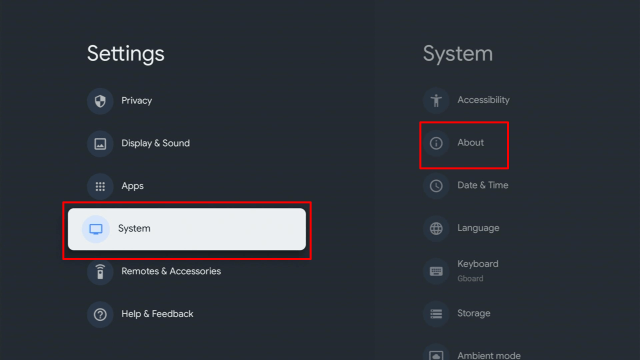
3. Once in Settings, scroll down to System > About.

12a


4. Scroll down to Android TV OS Build & click on it seven times until it goes into Developer options and it’s gonna say “you are now a developer”.


5. Click the Back Button and you can now see the Developer options.


6. Go back to Settings and select > Apps.


7. Scroll down to Security & Restriction – turn on Unknown Sources.


8. Go to Downloader and toggle it on.

FilmPlus11


9. Press the Google Chromecast Home button.

FilmPlus12


10. Open the Downloader app.

FilmPlus13


11. Type in the TV Bro browser download URL/APK – https://reviewvpn.com/brob

TV Bro Browser


12. Wait for a few seconds for the file download process

TV Bro Browser


13. Click Install

TV Bro Browser


14. Select Install


Now, you’ve successfully installed the TV Bro browser on your Google Chromecast

Note: ReviewVPN.com does not host this APK file. It is hosted by Archive.org

What Is a TV Bro Browser?


TV Bro is an internet browser that lets you browse the web using your Google Chromecast or any Android-based device. The TV Bro lets you visit websites and also allows you to download. Tons of individuals choose the Puffin TV browser for their streaming devices, but since the web browser has been having issues – it makes TV Bro one of the best alternatives.


TV Bro Browser Features

  • Optimized for Android operating system (OS)
  • Free to use internet browser
  • Functions on all video streaming devices running Android OS
  • Voice search support
  • Simple navigation 
  • Quick page loading & rendering speed
  • Built-in download manager
  • Easy Settings configuration
  • Smooth video playback
  • Easy-to-use user interface
  • Support for tabs & bookmarks


Always Use A VPN While Using The Google Chromecast

Using Virtual Private Network or VPN can be very handy on a Google Chromecast. Thanks to a VPN service, you can access platforms or services that are unavailable in your country or bypass the meaningless restrictions that several platforms sometimes impose. When you use Google Chromecast, an encrypted Virtual Private Network service provider is highly recommended to hide your online activities, identity, and location. Many Google Chromecast users prefer Surfshark VPN service for privacy, price, and speed.

Providing the fastest server speeds and amazing live chat support, Surfshark VPN is also an easy-to-use VPN app. Make sure to enable the VPN service when streaming on the internet.

Surfshark Features:

  • Unblocks Netflix, Disney+, and lots more
  • It works on all unlimited simultaneous devices
  • 30-day money-back guarantee
  • Robust encryption
  • Great download speed
  • Zero log policy
  • Great customer service
  • Compatible with Android, Windows, Linux, iOS, Mac, and other routers


Install Surfshark VPN on Google Chromecast with Screenshots

1. Click Home on your remote then select Search.

Surfshark VPN on Google Chromecast step 1


2. On the search bar, you can use google voice assistant to find Surfshark VPN or by typing it.

Surfshark VPN on Google Chromecast step 2


3. Click on Surfshark VPN icon.

Surfshark VPN on Google Chromecast step 3


4. Click on Install.

Surfshark VPN on Google Chromecast step 4


5. Surfshark VPN is now installing just wait for it until it’s done.

Surfshark VPN on Google Chromecast step 5


6. Click open.

Surfshark VPN on Google Chromecast step 6


7. Input your username and password to log in

Surfshark VPN on Google Chromecast step 7

Learn more about Surfshark and Grab the Best Surfshark Deal Now!


Install Surfshark on Google Chromecast

Best Surfshark Deal


Other VPNs to Consider

NordVPN (Best for Streaming)

Best Features

  • 5000+ Server in 50+ Countries 
  • Military-Grade Encryption
  • Fast Connection Speed
  • Suitable to a lot of devices
  • No-Log Policy

Prices
  • Complete $5.89 per month (64% Discount)
  • Plus $4.59 per month (56% Discount)
  • Standard $3.69 per month (55% Discount)

Best Features

  • 750+ High-speed VPN Servers in 43 Locations
  • Military-Grade Encryption
  • Fastest HD Streaming and Gaming
  • 30-Day Money-Back Guarantee
  • Unlimited Data & Devices
  • No-Log Policy

Prices
  • 3 Years $1.99 per month (82% Discount)
  • 1 Years $3.29 per month (70% Discount)
  • 1 Month $10.99 per month

IPVanish VPN (Most Secure)

Best Features

  • 1200+ Servers in 60+ Countries around the world
  • Unlimited Connections
  • No-Log Policy
  • Top Notch Military-Grade VPN Protocols and Encryptions
  • 100% Safe and Secured
  • Most Trusted VPN
  • Best VPN for Firestick
  • 30-Day Money-Back Guarantee

Prices
  • Yearly $3.99 per month (63% Discount) – 30 days risk free + Ransomware & Malware Protection
  • Quarterly $5.32 per month (51% Discount)
  • Monthly $10.99 per month


For more VPN discounts, go to ReviewVPN Deals and purchase the best VPN for you.

Click here to get the lowest price on Surfshark through our exclusive limited-time offer.


Best Browsers for Chromecast with Google TV


  • Google Chrome
  • Puffin
  • TV Bro
  • TVWeb Browser
  • Mozilla Firefox
  • Web Browser for Android TV

Best websites Using TV Bro

ReviewVPN provides you a list of the best streaming websites that you can access utilizing the TV Bro browser on your Google Chromecast streaming device.


  • 50+ Best Free Movie Streaming Websites – 2021 Update
  • Free TV Show Websites
  • Top Free Sports Apps
  • Top Live TV Apps
  • List of Browsers Available on Firestick
  • Top Filelinked Codes


YOUR INTERNET ACTIVITY IS BEING WATCHED

ReviewVPN cannot attest to the legality, security and privacy of the applications discussed on this site. It is highly recommended that you use a VPN service while streaming or using Kodi.

Currently, your IP 216.73.216.221 is visible to everyone and your Browser is being tracked by Advertisers & ISP Provider.

Save 65% Now

Limited Time Offer

Here are the main reasons why you must use a VPN:

  • Your activities are hidden from your ISP, the government, and from the apps you are using.
  • You can access additional movies and TV streams.
  • ISP attempts to throttle are thrwarted thus reducing buffering issues.
  • Geographically restricted content like Netflix and Hulu can be unblocked.

A VPN works be replacing your ISP-assigned IP address and creating an encrypted tunnel. We recommend the no log service offered by IPVanish. It works well on a Firestick and offers the fastest possible speeds.

Special Limited Time Offer - Get IPVanish


FAQs


Is TV Bro legal?

Yes, TV Bro is legal to download, install, and use. Nonetheless, you can only browse & stream legal content in the public domain.


Is it safe?

Yes, the TV Bro browser is safe to use and has no viruses & malware. Nonetheless, since this is a third-party app, it’s recommended to use a Virtual Private Network or VPN so the app developers won’t be able to log your internet activities.


What devices can the TV Bro browser be installed on?

The TV Bro browser is compatible and functions the best with devices running the Android operating system, including Google Chromecast, Amazon Firestick, Kindle Fire Tablet, Nvidia Shield,  and Android TV Boxes.


Alternatives

Google Chrome – is a safe web browser and utilizes robust encryption protocols & tools to keep people’s data safe. Unlike other internet browsers, the Google Chrome browser allows you to download files from numerous websites. 


Firefox Web Browser – Firefox is a great internet browser, It has an app version available on Amazon’s App Store. After you install the Firefox Web Browser on your Google Chromecast, you can access popular video platforms, visit any website, and even search for content that you can play on your streaming device.


Silk Browser – It is one of the best web browsers for Google Chromecast because it doesn’t allow unnecessary advertisements. In addition, this browser lets you access the Best Free Movie Websites.


Puffin TV-Browser – is a good internet browser that you can download, install, & use for free. It works great on devices that run the Android OS. Whether you’re watching videos or want to listen to your favorite music, it’s a good browser to use.


Wrapping Up

It’s quite easy to install the TV Bro Browser on Google Chromecast, and the methods outlined above should really help you do so. After installing TV Bro on Google Chromecast, you’ll be able to boost your home entertainment by streaming almost anything you want. 

Nonetheless, Always remember to use A VPN every time you use your Google Chromecast. Please feel free to let us know what you think of the TV Bro Browser in the comments section below.

How to Install TV Bro Browser on Firestick

TV Bro Browser Overview

TV Bro is a free internet browser that functions great on the Amazon Firestick, Fire TV, Fire Cube. Many Firestick users have been experiencing problems with other web browsers and the TV Bro browser makes an ideal alternative. Whether you want to listen to music, watch movies or TV shows, or just surf the web, TV Bro is a robust internet browser.

The categories within the TV Bro browser consist of the Download manager, Favorites, Refresh, the navigation bar, and Settings.

TV Bro quickly became a well-known web browser and as of this writing, it’s functioning great. If you’re using an Amazon Firestick, Fire TV, or any Fire device, below are the steps for installing the TV Bro browser on your streaming device.


TV Bro Browser App Installation on FireStick

  • Turn on the FireStick device, go to the top menu bar and choose > Settings
  • Click My Fire TV > Developer Options
  • Enable Apps from Unknown Sources 
  • Go back to FireStick’s home screen and go to the menu bar
  • Go to the Search option
  • Search & install the Downloader app on FireStick
  • After installing the Downloader app, launch it
  • Enter the TV Bro browser download URL/APK – https://reviewvpn.com/brob
  • TV Bro browser app’s APK file will download
  • Click on Install
  • Open the TV Bro browser after installing it
  • Now, you have successfully installed the TV Bro browser on FireStick


ANONYMOUSLY


Step by Step Instructions with Screenshots

Install the Downloader app and jailbreak your firestick by enabling unknown sources. To learn more about the procedure, you may read How to Install the Downloader App and Enable Unknown Sources.

1.  After installing the Downloader app, launch it

Install the UPlayer App on Firestick Step 13

2. Enter the TV Bro browser download URL/APK – https://reviewvpn.com/brob

TV Bro Browser

3. TV Bro browser app’s APK file will download

TV Bro Browser

4. Select install

TV Bro Browser

5. Tap install

TV Bro Browser

6. Choose Allow

TV Bro Browser

7. Click Open

8. Now, you have successfully installed the TV Bro browser on FireStick


Install Surfshark on Firestick

Best Surfshark Deal


Moving the newly installed app to the front

  • Go back to Fire Stick Home Screen (you may click the Home Button on the Fire Stick remote)
  • Go to Your Apps & Games/Channels
  • Scroll once to the left
  • Click See All
  • All the newly installed apps are located at the bottom – you can move the TV Bro browser by clicking the Options button (at the right side of the Home Button)


YOUR INTERNET ACTIVITY IS BEING WATCHED

ReviewVPN cannot attest to the legality, security and privacy of the applications discussed on this site. It is highly recommended that you use a VPN service while streaming or using Kodi.

Currently, your IP 216.73.216.221 is visible to everyone and your Browser is being tracked by Advertisers & ISP Provider.

Save 65% Now

Limited Time Offer

Here are the main reasons why you must use a VPN:

  • Your activities are hidden from your ISP, the government, and from the apps you are using.
  • You can access additional movies and TV streams.
  • ISP attempts to throttle are thrwarted thus reducing buffering issues.
  • Geographically restricted content like Netflix and Hulu can be unblocked.

A VPN works be replacing your ISP-assigned IP address and creating an encrypted tunnel. We recommend the no log service offered by IPVanish. It works well on a Firestick and offers the fastest possible speeds.

Special Limited Time Offer - Get IPVanish


What Is a TV Bro Browser?

TV Bro is a web browser that allows you to browse the internet on your Android-based device. Not only does the TV Bro let you visit websites but it also lets you download. A lot of people choose the Puffin TV browser for their Android TV devices, but since the browser has been experiencing problems – it makes TV Bro a great replacement.


Features of TV Bro Browser

  • Free to use the internet browser
  • Optimized for Android operating system (OS)
  • Simple navigation 
  • Voice search support
  • Easy Settings configuration
  • Built-in download manager
  • Easy-to-use user interface
  • Smooth video playback
  • Functions on all video streaming devices running Android OS
  • Quick page loading & rendering speed
  • Support for tabs & bookmarks


Always Use A VPN While Using The Firestick

Using Virtual Private Network or VPN can be very handy on a Fire TV Stick. Thanks to a VPN service, you can access platforms or services that are unavailable in your country or bypass the meaningless restrictions that several platforms sometimes impose. When you use Fire TV Stick, an encrypted Virtual Private Network service provider is highly recommended to hide your online activities, identity, and location. Many FireStick users prefer Surfshark services for privacy, price, and speed.

Providing the fastest server speeds and amazing live chat support, Surfshark is also an easy-to-use VPN app. Make sure to enable the VPN service when you are streaming on the internet.


Surfshark Features:

  • Unblocks Netflix, Disney+, and lots more
  • It works on all unlimited simultaneous devices
  • 30-day money-back guarantee
  • Robust encryption
  • Great download speed
  • Zero log policy
  • Great customer service
  • Compatible with Android, Windows, Linux, iOS, Mac, and other routers


Grab your subscription now!

Click here to get the lowest price on Surfshark through our exclusive limited-time offer.


How to Install Surfshark VPN on Firestick

If your Firestick still has the older interface, read this article to learn how to update it: Update Firestick Interface.

Follow our screenshots below to install the Surfshark VPN app on your Fire TV stick.

1. Go to the Home screen of your Firestick.

step 1 Install Surfshark VPN on Firestick


2. Navigate towards the Find tab. Press the Search button from the resulting dropdown.

step 2 Install Surfshark VPN on Firestick


3. Type in the keyword of Surfshark and select from the suggestions that will appear.

step 3 Install Surfshark VPN on Firestick


4. Click the official Surfshark icon from your search results.

step 4 Install Surfshark VPN on Firestick


5. Press the Download (You own it) button.

step 5 Install Surfshark VPN on Firestick


6. The Surfshark VPN installer will download on your device.

step 6 Install Surfshark VPN on Firestick


7. Surfshark VPN’s app will automatically install itself on your Fire TV stick.

step 7 Install Surfshark VPN on Firestick


8. Press the Open button after completing Surfshark VPN’s installation process.

step 8 Install Surfshark VPN on Firestick


9. Please wait for the Surfshark VPN to load its user interface.

step 9 Install Surfshark VPN on Firestick


10. You can now log in with your Surfshark VPN account credentials.

step 10 Install Surfshark VPN on Firestick

Learn more about Surfshark and Grab the Best Surfshark Deal Now!


Install Surfshark on Firestick

Best Surfshark Deal


Other VPNs to Consider

NordVPN (Best for Streaming)

Best Features

  • 5000+ Server in 50+ Countries 
  • Military-Grade Encryption
  • Fast Connection Speed
  • Suitable to a lot of devices
  • No-Log Policy

Prices
  • Complete $5.89 per month (64% Discount)
  • Plus $4.59 per month (56% Discount)
  • Standard $3.69 per month (55% Discount)

Best Features

  • 750+ High-speed VPN Servers in 43 Locations
  • Military-Grade Encryption
  • Fastest HD Streaming and Gaming
  • 30-Day Money-Back Guarantee
  • Unlimited Data & Devices
  • No-Log Policy

Prices
  • 3 Years $1.99 per month (82% Discount)
  • 1 Years $3.29 per month (70% Discount)
  • 1 Month $10.99 per month

IPVanish VPN (Most Secure)

Best Features

  • 1200+ Servers in 60+ Countries around the world
  • Unlimited Connections
  • No-Log Policy
  • Top Notch Military-Grade VPN Protocols and Encryptions
  • 100% Safe and Secured
  • Most Trusted VPN
  • Best VPN for Firestick
  • 30-Day Money-Back Guarantee

Prices
  • Yearly $3.99 per month (63% Discount) – 30 days risk free + Ransomware & Malware Protection
  • Quarterly $5.32 per month (51% Discount)
  • Monthly $10.99 per month


For more VPN discounts, go to ReviewVPN Deals and purchase the best VPN for you.


Alternatives

Google Chrome – is a secure, safe web browser and utilizes strong encryption protocols & tools to keep your account data safe. Unlike other internet browsers on Amazon Firestick, the Google Chrome browser allows you to download files from different websites. 

Silk Browser – It is one of the best web browsers for Firestick because it doesn’t allow unnecessary advertisements to pop up on your screen. Also, Silk Browser lets you access the Best Free Movie Websites.

Firefox Web Browser – Firefox is an internet browser that has an app version available on Amazon’s App Store. After installing the Firefox Web Browser on your Firestick, you can access popular video websites (like YouTube), visit any website you want, and even search for content that can be played on the streaming stick.

Puffin TV-Browser – is an internet browser that is free to download, install, and use. It works well on devices running the Android operating system. Whether you’re watching videos, browsing the web, or want to listen to your favorite music, it is a good browser to use.


What’s New On Tv Bro Browser

  • Several major and minor bugs fixed
  • Adblocker added
  • Localizations added


FAQs

Is TV Bro legal?

Yes, it is completely legal to download, install, and use. Nonetheless, you are only allowed to browse & stream legal content in the public domain.


Is it safe?

Yes, the TV Bro browser is safe to use and has no viruses & malware. Nonetheless, since this is a third-party app, it’s recommended to use a Virtual Private Network or VPN so the app developers won’t be able to log your internet activities.


What devices can the TV Bro browser be installed on?

The TV Bro browser is compatible and functions the best with devices running the Android operating system, including Amazon Firestick, Fire TV Cubes, Nvidia Shield, Kindle Fire Tablet,  as well as other Android TV Boxes.


Install Surfshark on Firestick

Best Surfshark Deal


Best Websites Using TV Bro

ReviewVPN has created a list of the best streaming websites that you can access using the TV Bro browser on your Firestick streaming device.

  • 50+ Best Free Movie Streaming Websites – 2021 Update
  • Top Free Sports Apps
  • Free TV Show Websites
  • Top Live TV Apps
  • Best Firestick Apps
  • Top Filelinked Codes
  • List of Browsers Available on Firestick


Wrapping Up

It’s quite easy to install the TV Bro Browser on Firestick, and the methods outlined above should really help you do so. After installing TV Bro on Firestick, you’ll be able to boost your home entertainment by streaming almost anything you want. Nonetheless, Always remember to use A VPN every time you use your Firestick. Please feel free to let us know what you think of the TV Bro Browser in the comments section below.

How to Install Podcast Republic on Firestick

Podcast Republic Overview

In this article, we will show you how to install the Podcast Republic app on your Fire TV stick.


Do you like listening to podcasts while on the go? If you enjoy podcasts, then we know of an app that is beneficial for your needs.

You won’t need to worry about if it is working. Here at ReviewVPN, all the apps we suggest come from research. We also test the apps if they are functioning on your Fire TV stick. 

Let us now acquaint you with the Podcast Republic app.

The Podcast Republic app is an excellent companion when listening to podcasts. It allows you to manage your podcasts and customize them to your preference. You will have a personal experience while using it.

Aside from a malleable interface, the Podcast Republic app makes it easier for you to find podcasts. You can also listen to radio programs, audiobook recordings, RSS news, and blog feeds. Begin listening to any genre of podcasts wherever you might be.

We will now teach you how to install the Podcast Republic app on your Fire TV stick. You only have to Jailbreak your Fire TV Stick and sideload the app.


ANONYMOUSLY

Is Podcast Republic Safe and Virus-free?

We tested this app using VirusTotal and found no threats or any malicious files and malware.

Despite having good results, we still need to be vigilant in protecting our privacy while streaming.

A Virtual Private Network or VPN will definitely help us maintain our security and anonymity while using Podcast Republic.

Here’s how you can Install The Best VPN For Firestick and All Devices.


Podcast Republic app for Android Devices


Download Podcast Republic APK

Note: ReviewVPN.com does not host this APK file. It is hosted by Archive.org


How to Install Podcast Republic App on your Fire TV stick

You can install the Podcast Republic app on Firestick by using the Downloader app. Follow this simple guide below.

  1. Open your Firestick Settings Tab.
  2. Choose the My Fire TV icon.
  3. Go inside the Developer options.
  4. Turn On ADB Debugging and Apps from Unknown Sources.
  5. Return to your Home Screen and click on Find.
  6. Use the Search Bar.
  7. Input Downloader app.
  8. Tap on the suggested result.
  9. Click on the Get or Download button.
  10. Open the Downloader app.
  11. Select Allow.
  12. Use the Downloader search tab.
  13. Type in: https://reviewvpn.com/prep
  14. The Podcast Republic app’s APK file will download.
  15. Click on Install.
  16. Complete its installation process.
  17. You can Open the Podcast Republic app after installing it.
  18. Use the Podcast Republic app for getting the newest podcast episodes.


How to Install the Podcast Republic App on your Fire TV stick with Screenshots

1.  Click Home on your remote and scroll once to your Right. Click Setting (Gear Wheel Icon).

Step 1 jailbreak firestick


2. Scroll down and to the right until you get to My Fire TV. Click on it.

Step 2 jailbreak firestick


3. Select Developer options.

Step 3 jailbreak firestick


4. Turn on ADB debugging and Apps from Unknown Sources.

Step 4 jailbreak firestick


5. Click Turn On when the pop-up appears.

Step 5 jailbreak firestick


Then, after jailbreaking your Firestick, you’ll need to download the Downloader app to sideload the Podcast Republic. This app, which is easily available on the Amazon App Store, allows you to download APK files.


6. Click Home, click FIND.

Step 6 Install FitOn Pro App on Firestick


7. Click Search.

Step 7 Install FitOn Pro App on Firestick


8. You can either say Downloader to your Alexa voice-enabled remote or start typing it. If you typed it, click on the suggestion when it appears.

Step 8 Install FitOn Pro App on Firestick


9. Click on the Downloader Icon.

Step 9 Install FitOn Pro App on Firestick


10. Click Download.

Step 10 Install FitOn Pro App on Firestick


step 10 Install FitOn Pro App on Firestick


11. Click on Open.

Step 11 Install FitOn Pro App on Firestick


12. Click on Allow.

Step 12 Install FitOn Pro App on Firestick


13. Use the Downloader search tab.

Install the UPlayer App on Firestick Step 13


14. Type in: https://reviewvpn.com/prep

Install Podcast Republic App on your Fire TV stick Step 14


15. The Podcast Republic app’s APK file will download.

Install Podcast Republic App on your Fire TV stick Step 15


16. Click on Install.

Install Podcast Republic App on your Fire TV stick Step 16


17. Complete its installation process.

Install Podcast Republic App on your Fire TV stick Step 17


18. You can Open the Podcast Republic app after installing it.

Install Podcast Republic App on your Fire TV stick Step 18


19. Use the Podcast Republic app for getting the newest podcast episodes.

Install Podcast Republic App on your Fire TV stick Step 19


YOUR INTERNET ACTIVITY IS BEING WATCHED

ReviewVPN cannot attest to the legality, security and privacy of the applications discussed on this site. It is highly recommended that you use a VPN service while streaming or using Kodi.

Currently, your IP 216.73.216.221 is visible to everyone and your Browser is being tracked by Advertisers & ISP Provider.

Save 65% Now

Limited Time Offer

Here are the main reasons why you must use a VPN:

  • Your activities are hidden from your ISP, the government, and from the apps you are using.
  • You can access additional movies and TV streams.
  • ISP attempts to throttle are thrwarted thus reducing buffering issues.
  • Geographically restricted content like Netflix and Hulu can be unblocked.

A VPN works be replacing your ISP-assigned IP address and creating an encrypted tunnel. We recommend the no log service offered by IPVanish. It works well on a Firestick and offers the fastest possible speeds.

Special Limited Time Offer - Get IPVanish


Legal Disclaimer: ReviewVPN.com does not encourage or endorse any illegal activity involved in the usage of services and applications referenced on this site. We do not verify the licensing agreements of services. The end-user is wholly responsible for ensuring that any media accessed through these services does not violate copyright and/or licensing laws. ReviewVPN does not promote, link to, or receive compensation from any Apps and IPTV services.


Install Surfshark on Firestick

Best Surfshark Deal


Podcast Republic App Features

  • Easier management of podcast file downloads
  • Get audio files online
  • Search any podcast topic you like
  • Choose from its wide library of podcast episodes
  • Subscribe to the best podcast series
  • Serves one million podcasts
  • Contains five hundred million podcast episodes
  • Download the latest podcast releases
  • The Podcast Republic has over four million downloads of podcasts
  • Online Radio channel streaming
  • RSS Feed support
  • Listen to blog feeds
  • Direct importing from RSS and ATOM feeds
  • Play audiobooks
  • Listen to music files
  • Open your media files


Podcast Republic Playback Features

  • Changeable playback speed
  • Play podcast episodes with speeds from 0.5x to 3x.
  • Trim silent portions in podcasts
  • Reduces a podcast’s duration
  • Boosts your volume
  • Increases the volume of speaker voices
  • Multiple playlists support
  • Enhanced playback management
  • Create your priority playlists
  • Smart play queue feature
  • Schedule to play any podcast or
  • Set a date for listening to the radio at a specific time.
  • Play your favorite podcast series
  • Set a sleep timer
  • Stop the playback while resting
  • Gesture control Car mode
  • Changeable shaking actions for controlling your playback
  • Customize skipping intervals amid a playback
  • Skip the beginning or end of any podcast
  • Bookmark positions
  • Place bookmark notes
  • Supports video playing with a picture in picture (PIP) mode
  • Allows you to skip chapters easily
  • Remembers your playback position and
  • Immediately pick up from your last playback point
  • Live worldwide radio streaming


Podcast Republic Compatibility

  • Chromecast
  • Android wear
  • Android Auto


Podcast Republic Genre

  • Comedy
  • Inspirational
  • Sports
  • News
  • Business
  • Music
  • Hollywood
  • TV & Film
  • Movies
  • Artists
  • Technology
  • Science
  • Military
  • History
  • Education
  • Health & fitness
  • Arts


Pros and Cons

Pros

  • 100% Legal and Free
  • One million podcasters
  • Over five hundred million podcast episodes
  • Customize your podcast experience
  • Changeable interface
  • Different playback settings
  • Gesture control
  • RSS and Blog feeds
  • Download many Audiobooks
  • Open any media files on your device

Cons

  • Alarm feature malfunctions
  • Glitching of some podcasts while playing


Listen to Podcasts with a VPN

Podcasts can be an enjoyable activity to have during our downtime. Listening to podcasts offers you knowledge, experience, and entertainment. Select from millions of podcasts from worldwide sources with the Podcast Republic application.

You may experience disturbances while listening to podcasts. It is caused by throttling by your ISP. To stop this from happening, install Surfshark on your device. It has many capabilities to give:

  • Cancel the effects of ISP throttling.
  • Access content with geo-blocks.
  • Protect your device from cyber threats.
  • You will no longer encounter buffering and stuttering.

Note: For more information about Surfshark, please read our Surfshark Review.


Grab your subscription now!

Click here to get the lowest price on Surfshark through our exclusive limited-time offer.


How to Install Surfshark VPN on Firestick

If your Firestick still has the older interface, read this article to learn how to update it: Update Firestick Interface.

Follow our screenshots below to install the SurfShark VPN app on your Fire TV stick.

1. Go to the Home screen of your Firestick.

step 1 Install Surfshark VPN on Firestick


2. Navigate towards the Find tab. Press the Search button from the resulting dropdown.

step 2 Install Surfshark VPN on Firestick


3. Type in the keyword of SurfShark and select from the suggestions that will appear.

step 3 Install Surfshark VPN on Firestick


4. Click the official SurfShark icon from your search results.

step 4 Install Surfshark VPN on Firestick


5. Press the Download (You own it) button.

step 5 Install Surfshark VPN on Firestick


6. The SurfShark VPN installer will download on your device.

step 6 Install Surfshark VPN on Firestick


7. SurfShark VPN’s app will automatically install itself on your Fire TV stick.

step 7 Install Surfshark VPN on Firestick


8. Press the Open button after completing SurfShark VPN’s installation process.

step 8 Install Surfshark VPN on Firestick


9. Please wait for the SurfShark VPN to load its user interface.

step 9 Install Surfshark VPN on Firestick


10. You can now log in with your SurfShark VPN account credentials.

step 10 Install Surfshark VPN on Firestick

Learn more about Surfshark and Grab the Best Surfshark Deal Now!


Install Surfshark on Firestick

Best Surfshark Deal


Other VPNs to Consider

NordVPN (Best for Streaming)

Best Features

  • 5000+ Server in 50+ Countries 
  • Military-Grade Encryption
  • Fast Connection Speed
  • Suitable to a lot of devices
  • No-Log Policy

Prices
  • Complete $5.89 per month (64% Discount)
  • Plus $4.59 per month (56% Discount)
  • Standard $3.69 per month (55% Discount)

Best Features

  • 750+ High-speed VPN Servers in 43 Locations
  • Military-Grade Encryption
  • Fastest HD Streaming and Gaming
  • 30-Day Money-Back Guarantee
  • Unlimited Data & Devices
  • No-Log Policy

Prices
  • 3 Years $1.99 per month (82% Discount)
  • 1 Years $3.29 per month (70% Discount)
  • 1 Month $10.99 per month

IPVanish VPN (Most Secure)

Best Features

  • 1200+ Servers in 60+ Countries around the world
  • Unlimited Connections
  • No-Log Policy
  • Top Notch Military-Grade VPN Protocols and Encryptions
  • 100% Safe and Secured
  • Most Trusted VPN
  • Best VPN for Firestick
  • 30-Day Money-Back Guarantee

Prices
  • Yearly $3.99 per month (63% Discount) – 30 days risk free + Ransomware & Malware Protection
  • Quarterly $5.32 per month (51% Discount)
  • Monthly $10.99 per month


For more VPN discounts, go to ReviewVPN Deals and purchase the best VPN for you.

Click here to get the lowest price on Surfshark through our exclusive limited-time offer.


Alternative Apps for the Podcast Republic

The Podcast Republic app is great for managing your podcasts. Unfortunately, its features might not meet your needs. We will now list some apps that are alternatives for the Podcast Republic app.


FAQs

Does the Podcast Republic app require payment?

No. The download and installation of the Podcast Republic app do not require any payment.


Do ads appear while using the app?

No. There are no ads reported by users of the Podcast Republic app.


Conclusion

The Podcast Republic app can give you a different experience than other podcast apps. It has a customizable user experience and lets you control it with simple gestures. The app contains over five hundred million podcasts episodes. You won’t run out of podcast episodes or topics to select.

We hope this article helps with your installation of the Podcast Republic app on your Fire TV stick.

How to Install CastMix on Firestick

Overview

In this article, we will show you how to install the CastMix app on your Firestick.


Are you fond of listening to podcasts during your free time? If you enjoy the type of media content, then we just got the app for you. Here at ReviewVPN, all the apps we suggest undergo meticulous testing. We ensure that the app we will recommend works on your Fire TV stick.

For avid fans of podcasts, we will now introduce you to the CastMix application.

CastMix is software for android and mobile devices. It lets you manage your podcast lists and allows you to download them as a series. Having the CastMix app gives you an easier and more convenient approach when accessing online podcasts.

The CastMix app also allows you to have a personal experience when it comes to podcasts. You can listen to the latest podcast episodes, live stream radio channels, RSS feeds, and audiobooks. If your favorite podcast series has a new release, you can easily access it with the CastMix app.

CastMix will also notify you when your favorite series has a new release. It will also give you recommendations based on your recent history. Users can also browse from its huge catalog of podcasts.

We will now teach you the installation of the CastMix app on your Fire TV stick. For its successful installment, you only have to Jailbreak your Fire TV Stick and sideload the CastMix app.


ANONYMOUSLY

CastMix app for Android Devices

Download CastMix APK

Note: ReviewVPN.com does not host this APK file. It is hosted by Archive.org


How to Install CastMix App on your Fire TV stick

You can install the CastMix app on Firestick by using the Downloader app. Follow this simple guide below.

  1. Open your Firestick Settings Tab.
  2. Choose the My Fire TV icon.
  3. Go inside the Developer options.
  4. Turn On ADB Debugging and Apps from Unknown Sources.
  5. Return to your Home Screen and click on Find.
  6. Use the Search Bar.
  7. Input Downloader app.
  8. Tap on the suggested result.
  9. Click on the Get or Download button.
  10. Open the Downloader app.
  11. Select Allow.
  12. Use the Downloader search tab.
  13. Type in: https://reviewvpn.com/cmx
  14. The CastMix app’s APK file will download.
  15. Click on Install.
  16. Complete its installation process.
  17. You can Open the CastMix app after installing it.
  18. Use the CastMix app to manage and get the latest podcasts.


How to Install CastMix App on your Fire TV stick with Screenshots

1.  Click Home on your remote and scroll once to your Right. Click Setting (Gear Wheel Icon).

Step 1 jailbreak firestick


2. Scroll down and to the right until you get to My Fire TV. Click on it.

Step 2 jailbreak firestick


3. Select Developer options.

Step 3 jailbreak firestick


4. Turn on ADB debugging and Apps from Unknown Sources.

Step 4 jailbreak firestick


5. Click Turn On when the pop-up appears.

Step 5 jailbreak firestick


Then, after jailbreaking your Firestick, you’ll need to download the Downloader app to sideload CastMix. This app, which is easily available on the Amazon App Store, allows you to download APK files.


6. Click Home, click FIND.

Step 6 Install FitOn Pro App on Firestick


7. Click Search.

Step 7 Install FitOn Pro App on Firestick


8. You can either say Downloader to your Alexa voice-enabled remote or start typing it. If you typed it, click on the suggestion when it appears.

Step 8 Install FitOn Pro App on Firestick


9. Click on the Downloader Icon.

Step 9 Install FitOn Pro App on Firestick


10. Click Download.

Step 10 Install FitOn Pro App on Firestick


step 10 Install FitOn Pro App on Firestick


11. Click on Open.

Step 11 Install FitOn Pro App on Firestick


12. Click on Allow.

Step 12 Install FitOn Pro App on Firestick


13. Use the Downloader search tab.

Install the UPlayer App on Firestick Step 13


14. Type in: https://reviewvpn.com/cmx

Install CastMix App on your Fire TV stick 14


15. The CastMix app’s APK file will download.

Install CastMix App on your Fire TV stick 15


16. Click on Install.

Install CastMix App on your Fire TV stick 16


17. Complete its installation process.

Install CastMix App on your Fire TV stick 17


18. You can Open the CastMix app after installing it.

Install CastMix App on your Fire TV stick 18


19. Use the CastMix app to manage and get the latest podcasts.

Install CastMix App on your Fire TV stick 19


YOUR INTERNET ACTIVITY IS BEING WATCHED

ReviewVPN cannot attest to the legality, security and privacy of the applications discussed on this site. It is highly recommended that you use a VPN service while streaming or using Kodi.

Currently, your IP 216.73.216.221 is visible to everyone and your Browser is being tracked by Advertisers & ISP Provider.

Save 65% Now

Limited Time Offer

Here are the main reasons why you must use a VPN:

  • Your activities are hidden from your ISP, the government, and from the apps you are using.
  • You can access additional movies and TV streams.
  • ISP attempts to throttle are thrwarted thus reducing buffering issues.
  • Geographically restricted content like Netflix and Hulu can be unblocked.

A VPN works be replacing your ISP-assigned IP address and creating an encrypted tunnel. We recommend the no log service offered by IPVanish. It works well on a Firestick and offers the fastest possible speeds.

Special Limited Time Offer - Get IPVanish


Legal Disclaimer: ReviewVPN.com does not encourage or endorse any illegal activity involved in the usage of services and applications referenced on this site. We do not verify the licensing agreements of services. The end-user is wholly responsible for ensuring that any media accessed through these services does not violate copyright and/or licensing laws. ReviewVPN does not promote, link to, or receive compensation from any Apps and IPTV services.


Install Surfshark on Firestick

Best Surfshark Deal


CastMix App Features

  • Access many podcast episodes
  • Get podcast imports from OPML files and URL links
  • Offline listening to podcast downloads
  • Download podcasts to your mobile or android device
  • Multiple compatibilities with many operating systems
  • Lets you listen to the podcasts you like
  • Find a podcast genre that will suit your needs
  • Explore many podcast topics
  • Subscribe and listen to many podcasts series
  • Receive the latest podcast news
  • Accept notifications about the newest podcast episodes
  • Select from popular and trending podcast series
  • Customizable podcast listening experience
  • Manipulate podcast episodes for faster listening speeds
  • Skip over silent partitions
  • Queue up podcast episodes for future listening
  • Keep track of your podcast listening history
  • Monitor your downloads and your device storage
  • Listen to podcasts on many devices
  • RSS Feed support


CastMix App Interface

  • Easy to use
  • Attractive layout
  • Simple design
  • Navigate to any tab (Home, Categories, Profile, Radio)
  • Search bar for discovering podcasts
  • Displays the latest weekly features
  • Find your favorite podcast series
  • Lists many podcast titles and shows
  • Play podcasts while navigating the app
  • Search for podcasts with many search filters
  • Choose from its many podcast categories
  • Lets you customize your podcast listening experience


CastMix App Podcast Genre

  • Comedy
  • Music
  • Business
  • Health & fitness
  • Technology
  • TV & Film
  • Movies
  • Artists
  • Hollywood
  • Military
  • Inspirational
  • News
  • History
  • Education
  • Arts
  • Science
  • Sports


Pros and Cons

Pros

  • 100% free
  • Subscribe and listen to podcasts without payment
  • Customize your podcast listening experience
  • Find new podcasts you might like
  • Convenient podcast title search with filters
  • Choose podcasts in different categories

Cons

  • Some podcasts series may require payment
  • Requires additional artwork on idle screen while playing podcasts


Listen to Podcasts with a VPN

Listening to podcasts can be a good way to spend your free time. It can teach you new things, inspire you, and keep you away from boredom. Discover and choose from the many categories and genres that the CastMix app offers.

However, your ISP may hinder your podcast listening experience. They do this by throttling your connection. Eliminate ISP throttling by purchasing the Surfshark. It has many abilities to provide its users:

Note: For more information about Surfshark, please read our Surfshark Review.


Install Surfshark on Firestick

Best Surfshark Deal


How to Install Surfshark VPN on Firestick

If your Firestick still has the older interface, read this article to learn how to update it: Update Firestick Interface.

Follow our screenshots below to install the SurfShark VPN app on your Fire TV stick.

1. Go to the Home screen of your Firestick.

step 1 Install Surfshark VPN on Firestick


2. Navigate towards the Find tab. Press the Search button from the resulting dropdown.

step 2 Install Surfshark VPN on Firestick


3. Type in the keyword of SurfShark and select from the suggestions that will appear.

step 3 Install Surfshark VPN on Firestick


4. Click the official SurfShark icon from your search results.

step 4 Install Surfshark VPN on Firestick


5. Press the Download (You own it) button.

step 5 Install Surfshark VPN on Firestick


6. The SurfShark VPN installer will download on your device.

step 6 Install Surfshark VPN on Firestick


7. SurfShark VPN’s app will automatically install itself on your Fire TV stick.

step 7 Install Surfshark VPN on Firestick


8. Press the Open button after completing SurfShark VPN’s installation process.

step 8 Install Surfshark VPN on Firestick


9. Please wait for the SurfShark VPN to load its user interface.

step 9 Install Surfshark VPN on Firestick


10. You can now log in with your SurfShark VPN account credentials.

step 10 Install Surfshark VPN on Firestick

Learn more about Surfshark and Grab the Best Surfshark Deal Now!


Install Surfshark on Firestick

Best Surfshark Deal


Other VPNs to Consider

NordVPN (Best for Streaming)

Best Features

  • 5000+ Server in 50+ Countries 
  • Military-Grade Encryption
  • Fast Connection Speed
  • Suitable to a lot of devices
  • No-Log Policy

Prices
  • Complete $5.89 per month (64% Discount)
  • Plus $4.59 per month (56% Discount)
  • Standard $3.69 per month (55% Discount)

Best Features

  • 750+ High-speed VPN Servers in 43 Locations
  • Military-Grade Encryption
  • Fastest HD Streaming and Gaming
  • 30-Day Money-Back Guarantee
  • Unlimited Data & Devices
  • No-Log Policy

Prices
  • 3 Years $1.99 per month (82% Discount)
  • 1 Years $3.29 per month (70% Discount)
  • 1 Month $10.99 per month

IPVanish VPN (Most Secure)

Best Features

  • 1200+ Servers in 60+ Countries around the world
  • Unlimited Connections
  • No-Log Policy
  • Top Notch Military-Grade VPN Protocols and Encryptions
  • 100% Safe and Secured
  • Most Trusted VPN
  • Best VPN for Firestick
  • 30-Day Money-Back Guarantee

Prices
  • Yearly $3.99 per month (63% Discount) – 30 days risk free + Ransomware & Malware Protection
  • Quarterly $5.32 per month (51% Discount)
  • Monthly $10.99 per month


For more VPN discounts, go to ReviewVPN Deals and purchase the best VPN for you.


Alternative Apps for CastMix

CastMix is an excellent app for your podcast listening activities. However, it might not always meet the requirements of its users. We will now list some apps that are alternatives for the CastMix app.


FAQs

Is the CastMix app for free?

Yes. Downloading the CastMix app does not require any payment. You only have to get the Downloader app and sideload its APK when installing on your Fire TV stick.


Are there ads while using the CastMix app?

No. There are no ads while listening to a podcast with the CastMix app.


Conclusion

The CastMix app lets you manage and personalize your podcast listening experience. It allows you to browse through many podcast categories. The app will also notify you when your favorite podcast series has a new audio file release. You listen to podcasts anywhere you are with the CastMix app.

We hope that this article helps with your installation of the CastMix app on your Firestick.

How to Install Box Movies on Firestick

Overview

In this article, we will show you how to install the Box Movies app on your Fire TV stick.

Do you enjoy watching on-demand videos and films on your TV set? If yes, then you’ve come to the right article. Combined with the latest Fire TV stick devices, the Box Movies app is perfect for your needs. 


Here at ReviewVPN, we assure you that the apps we recommend undergo meticulous testing. We only suggest apps that work well with your Fire TV stick. Also covering its features and capabilities, let us introduce you to the Box Movies app.

The Box Movies app is a streaming service that delivers free movies. It has a wide library of films and original shows you can select. When you have the Box Movies app, you can enjoy watching movies anywhere with the convenience of your mobile device. 

The interface of the Box Movies app is easy to use. It has a responsive menu where you can find the latest films for your entertainment. The layout is simple and comprehensive.

We will now teach you the installation of the Box Movies app on your Fire TV stick. For its successful installment, you only have to Jailbreak your Fire TV Stick and sideload the Box Movies app. 


ANONYMOUSLY


Box Movies app for Android Devices


Download Box Movies APK

Note: ReviewVPN.com does not host this APK file. It is hosted by Archive.org


How to Install the Box Movies app on your Fire TV stick

You can install the Box Movies app on Firestick by using the Downloader app. Follow this simple guide below.

  1. Open your Firestick Settings Tab.
  2. Choose the My Fire TV icon.
  3. Go inside the Developer options.
  4. Turn On ADB Debugging and Apps from Unknown Sources.
  5. Return to your Home Screen and click on Find.
  6. Use the Search Bar.
  7. Input Downloader app.
  8. Tap on the suggested result.
  9. Click on the Get or Download button.
  10. Open the Downloader app.
  11. Select Allow.
  12. Use the Downloader search tab.
  13. Type in: https://reviewvpn.com/bxm
  14. The Box Movies app’s APK file will download.
  15. Click on Install.
  16. Complete its installation process.
  17. You can Open the Box Movies app after installing it.
  18. Use the Box Movies app to watch movies you like.


How to Install the Box Movies app on your Fire TV Stick Screenshots

1.  Click Home on your remote and scroll once to your Right. Click Setting (Gear Wheel Icon).

Step 1 jailbreak firestick

2. Scroll down and to the right until you get to My Fire TV. Click on it.

Step 2 jailbreak firestick


3. Select Developer options.

Step 3 jailbreak firestick


4. Turn on ADB debugging and Apps from Unknown Sources.

Step 4 jailbreak firestick


5. Click Turn On when the pop-up appears.

Step 5 jailbreak firestick


Then, after jailbreaking your Firestick, you’ll need to download the Downloader app to sideload Box Movies. This app, which is easily available on the Amazon App Store, allows you to download APK files.


6. Click Home, click FIND.

Step 6 Install FitOn Pro App on Firestick


7. Click Search.

Step 7 Install FitOn Pro App on Firestick


8. You can either say Downloader to your Alexa voice-enabled remote or start typing it. If you typed it, click on the suggestion when it appears.

Step 8 Install FitOn Pro App on Firestick


9. Click on the Downloader Icon.

Step 9 Install FitOn Pro App on Firestick


10. Click Download.

Step 10 Install FitOn Pro App on Firestick


step 10 Install FitOn Pro App on Firestick


11. Click on Open.

Step 11 Install FitOn Pro App on Firestick


12. Click on Allow.

Step 12 Install FitOn Pro App on Firestick


13. Use the Downloader search tab.

Install the UPlayer App on Firestick Step 13


14. Type in: https://reviewvpn.com/bxm

Install Box Movies on Firestick Step 14


15. The Box Movies app’s APK file will download.

Install Box Movies on Firestick Step 15


16. Click on Install.

Install Box Movies on Firestick Step 16


17. Complete its installation process.

Install Box Movies on Firestick Step 17


18. You can Open the Box Movies app after installing it.

Install Box Movies on Firestick Step 18


19. Use the Box Movies app to watch movies you like.

Install Box Movies on Firestick Step 19


YOUR INTERNET ACTIVITY IS BEING WATCHED

ReviewVPN cannot attest to the legality, security and privacy of the applications discussed on this site. It is highly recommended that you use a VPN service while streaming or using Kodi.

Currently, your IP 216.73.216.221 is visible to everyone and your Browser is being tracked by Advertisers & ISP Provider.

Save 65% Now

Limited Time Offer

Here are the main reasons why you must use a VPN:

  • Your activities are hidden from your ISP, the government, and from the apps you are using.
  • You can access additional movies and TV streams.
  • ISP attempts to throttle are thrwarted thus reducing buffering issues.
  • Geographically restricted content like Netflix and Hulu can be unblocked.

A VPN works be replacing your ISP-assigned IP address and creating an encrypted tunnel. We recommend the no log service offered by IPVanish. It works well on a Firestick and offers the fastest possible speeds.

Special Limited Time Offer - Get IPVanish


Grab your subscription now!

Click here to get the lowest price on Surfshark through our exclusive limited-time offer.


Box Movies App Features

  • 100% Free and ready to use
  • Legal to operate
  • Complete with licenses
  • High-Quality HD Movies
  • Films present in many categories
  • Displays the latest movies
  • Uses IPTV Technology
  • Cutting-edge streaming service
  • Offers a list of movies
  • Capable of Wi-Fi Multicasting
  • Choose from different video resolutions
  • Developers update the content daily
  • Watch your favorite online TV shows
  • Playback function for your movies
  • Create your playlist
  • Customize your streaming experience
  • Built-in search menu
  • Contains the latest public domain movie uploads


Box Movies App Interface

  • Easy to use
  • Comprehensive layout
  • Responsive User Interface
  • Search bar
  • Library style menu
  • Displays the latest movies


Box Movies Genre

  • Action
  • Entertainment
  • Sports
  • Fantasy
  • Drama
  • Horror
  • Nature
  • Adventure
  • Western
  • Crime
  • Mystery
  • Science Fiction


Box Movies User Functions

  • Browse
  • Search
  • Organize
  • Discover
  • Collect Movies
  • Gather the latest films
  • Periodic Updates 


Box Movies Compatible Devices

  • Naturally compatible with many operating systems
  • Android
  • iOS
  • Smartphone
  • Amazon Fire TV stick
  • Android TV Box
  • Nvidia Shield
  • Mac
  • Windows
  • Linux


Pros and Cons

Pros

  • 100% Free
  • Does not require registration
  • Free movies 24/7
  • Daily updating of film content
  • Built-in search feature
  • Displays public domain movies
  • Hosted by a public movie website
  • High-quality movie resolutions
  • Watch many TV Channels
  • Users can choose from the latest movies
  • Compatible with many OS
  • Does not require any account creation

Cons

  • Does not let users save movies to their devices
  • Operates with a public domain movie website
  • No downloading of movies
  • Can only stream movies


Watch Public Domain Movies with a VPN

Box Movies is great for avid fans of movies and films. It has a wide library of movies that undergo daily updating by its developers. Watch and choose from many categories and genres.

Watching public domain movies may cause disturbances. Sometimes it is because of lumbering internet or ISP throttling protocols.

Protecting your device with Surfshark is the best solution. The VPN has excellent features to give:

  • Gives you better streaming speeds.
  • Conceals your internet traffic with virtual tunnels.
  • Protects your device from the latest online threats.
  • Allows for a smoother streaming experience.


Grab your subscription now!

Click here to get the lowest price on Surfshark through our exclusive limited-time offer.


How to Install Surfshark VPN on Firestick

If your Firestick still has the older interface, read this article to learn how to update it: Update Firestick Interface.

Follow our screenshots below to install the SurfShark VPN app on your Fire TV stick.

1. Go to the Home screen of your Firestick.

step 1 Install Surfshark VPN on Firestick


2. Navigate towards the Find tab. Press the Search button from the resulting dropdown.

step 2 Install Surfshark VPN on Firestick


3. Type in the keyword of SurfShark and select from the suggestions that will appear.

step 3 Install Surfshark VPN on Firestick


4. Click the official SurfShark icon from your search results.

step 4 Install Surfshark VPN on Firestick


5. Press the Download (You own it) button.

step 5 Install Surfshark VPN on Firestick


6. The SurfShark VPN installer will download on your device.

step 6 Install Surfshark VPN on Firestick


7. SurfShark VPN’s app will automatically install itself on your Fire TV stick.

step 7 Install Surfshark VPN on Firestick


8. Press the Open button after completing SurfShark VPN’s installation process.

step 8 Install Surfshark VPN on Firestick


9. Please wait for the SurfShark VPN to load its user interface.

step 9 Install Surfshark VPN on Firestick


10. You can now log in with your SurfShark VPN account credentials.

step 10 Install Surfshark VPN on Firestick

Learn more about Surfshark and Grab the Best Surfshark Deal Now!


Install Surfshark on Firestick

Best Surfshark Deal


Other VPNs to Consider

NordVPN (Best for Streaming)

Best Features

  • 5000+ Server in 50+ Countries 
  • Military-Grade Encryption
  • Fast Connection Speed
  • Suitable to a lot of devices
  • No-Log Policy

Prices
  • Complete $5.89 per month (64% Discount)
  • Plus $4.59 per month (56% Discount)
  • Standard $3.69 per month (55% Discount)

Best Features

  • 750+ High-speed VPN Servers in 43 Locations
  • Military-Grade Encryption
  • Fastest HD Streaming and Gaming
  • 30-Day Money-Back Guarantee
  • Unlimited Data & Devices
  • No-Log Policy

Prices
  • 3 Years $1.99 per month (82% Discount)
  • 1 Years $3.29 per month (70% Discount)
  • 1 Month $10.99 per month

IPVanish VPN (Most Secure)

Best Features

  • 1200+ Servers in 60+ Countries around the world
  • Unlimited Connections
  • No-Log Policy
  • Top Notch Military-Grade VPN Protocols and Encryptions
  • 100% Safe and Secured
  • Most Trusted VPN
  • Best VPN for Firestick
  • 30-Day Money-Back Guarantee

Prices
  • Yearly $3.99 per month (63% Discount) – 30 days risk free + Ransomware & Malware Protection
  • Quarterly $5.32 per month (51% Discount)
  • Monthly $10.99 per month


For more VPN discounts, go to ReviewVPN Deals and purchase the best VPN for you.

Click here to get the lowest price on Surfshark through our exclusive limited-time offer.


Alternative apps for the Box Movies app

The Box Movies app lets you stream movies online. It works with the help of public domain movie sites. The disability to download films for later viewing can cause an issue with some of its users. If you do not like its features, you can check out other apps that let you watch online films and videos.


If you want to check out other apps we have that streams movies, check out our article about the Best Free Movie app for Fire TV stick 2021.


FAQs

Are there ads while using the app?

Some ads might appear when streaming from different online sources and public domain sites.


Does the Box Movies app require payment?

No. It does not require any payment. You can stream free movies you like anytime without paying for anything.


Does it have any special requirements?

No. You only have to learn to sideload an app and Jailbreak your Fire TV stick and install the Downloader app.


Conclusion

The Box Movies app is a streaming service with free movies. It is supported by public domain movie websites that show you films uploaded by other users. Being a public domain app, you cannot download any media content for later viewing. You can only stream movies you want after installing the app on your device.

We hope this article helps with your installation of the Box Movies app on your Fire TV stick.


What Is Your Favorite Streaming App? Cast Your Vote Below.

What Makes an App To Be Considered Dangerous

Overview

Some applications are malicious or dangerous. Some apps contain viruses, worms, malware, or some other way of harming your Android or iOS device. These malicious or dangerous apps might steal things like a person’s personal information, passwords, & contact information, and may share that Infos with others.


Google Play is an amazing place for new developers who want to create their own applications. Unfortunately, not all app developers have the best intentions. There are several programs that can collect the data or personal information from an Android or iOS device, share the personal information, and even steal money from the person’s bank account.

Some apps became extremely popular at the beginning, but it was discovered to have tons of viruses in them. For instance, there was a case when an app had a built-in trojan that gathered the data from the owner’s smartphone and gave it to attackers. To a great degree, they showed interest in credit card information.


ANONYMOUSLY


What Makes an App Dangerous

Connectivity – most free-to-install apps require a somewhat level of connectivity for advertisement delivery. These ads are frequently unregulated or under-regulated and can carry links that are inappropriate for some individuals.

A great deal of social media apps and websites give out a large amount of data about the user. This information can come in the form of bank information, driver’s license number, and Social Security. If a hacker gets access to your Android or iOS device, your personal data could be vulnerable through audio files, passwords, and messages.

Download additional Apps – some apps endlessly nagged device users to download additional applications through notification bar pop-ups that can’t be disabled.

Malware Camouflage – There are several apps that seem like popular legit applications, but in fact, these apps are dangerous or malicious. These dangerous or malicious apps frequently hide behind Google Chrome, Spotify, or YouTube. Using the name of a popular app is an amazingly effective tactic. For instance, you install the legitimate YouTube app by Google. Then, you’ll be tricked into installing a malicious hacker-developed YouTube app. 


Install Surfshark on Firestick

Best Surfshark Deal


How To Know if an App Is Safe

The first thing to make sure that the app is safe is to download & install security software. This security feature is on a computer, so your other Android or iOS device needs it too. Thus, how do you know if the security app is safe? You must do some research. Choose your security app by going on the internet and read reviews & articles about the best security software for your Android device.  All of the platforms have customer reviews, thus that is a good spot to go when you have narrowed down your options.

Also, look closely at the developer of the app. Many of these developers have websites. The websites of some developers contain other applications they have developed. Major developers of the most well-known games, for instance, are not going to put malicious or dangerous apps. It is also safest to continue using the most popular platforms, like those associated with the operating system of your device. 

Things to be aware of if an app marketplace is reliable

Some of the safe marketplace’s characteristics are:

  • A well-developed terms of service
  • Clear contact information & troubleshooting  Frequently Asked Questions (FAQ)
  • It has strict app developer criteria
  • A history of eliminating vendors with poor content


Tips to protect a device from malware

The good news is while an Android or iOS device may be in danger of being infected by viruses or malware, there are easy ways to avoid it. are some ways to protect Android or iOS devices from viruses or malware:

  • Don’t jailbreak the device – Jailbreaking a device eliminates tons of its in-built security. While a jailbroken device may allow you to do more with it, it also leaves the device more vulnerable to threats or attacks.  
  • Use a Virtual Private Network or VPN –  A VPN is a secure tunnel that allows you to access and share data securely. 
  • Download apps only from trustworthy, reputable sources
  • Encrypt your data –  If your mobile device contains sensitive data, make sure it is encrypted. 
  • Update software & hardware –  Companies frequently release updates on devices that deal with potential vulnerabilities. 


YOUR INTERNET ACTIVITY IS BEING WATCHED

ReviewVPN cannot attest to the legality, security and privacy of the applications discussed on this site. It is highly recommended that you use a VPN service while streaming or using Kodi.

Currently, your IP 216.73.216.221 is visible to everyone and your Browser is being tracked by Advertisers & ISP Provider.

Save 65% Now

Limited Time Offer

Here are the main reasons why you must use a VPN:

  • Your activities are hidden from your ISP, the government, and from the apps you are using.
  • You can access additional movies and TV streams.
  • ISP attempts to throttle are thrwarted thus reducing buffering issues.
  • Geographically restricted content like Netflix and Hulu can be unblocked.

A VPN works be replacing your ISP-assigned IP address and creating an encrypted tunnel. We recommend the no log service offered by IPVanish. It works well on a Firestick and offers the fastest possible speeds.

Special Limited Time Offer - Get IPVanish


Why You Need A VPN

The Internet has several built-in flaws that make individuals vulnerable when they’re online. People must know that hackers, government, snoopers, advertisers, and Internet Service Providers (ISP) can take full advantage of their vulnerability on the internet. Nevertheless, you can make the web more secure, more private, & safer with the aid of a Virtual Private Network (VPN).

Providing the fastest server speeds and amazing live chat support, Surfshark is also an easy-to-use VPN app. Make sure to enable the VPN service when you are streaming on the internet.

Surfshark Features:

  • Unblocks Netflix, Disney+, and lots more
  • Unlimited devices
  • 30-day money-back guarantee
  • Robust encryption
  • Great download speed
  • Zero log policy
  • Great customer service
  • Compatible with Android, Windows, Linux, iOS, Mac, and other routers


Grab your subscription now!

Click here to get the lowest price on Surfshark through our exclusive limited-time offer.


How to Install Surfshark VPN on Firestick

If your Firestick still has the older interface, read this article to learn how to update it: Update Firestick Interface.

You can download Surfshark directly from the Amazon App store. It will be easy for you to find Surfshark with your Firestick’s Find feature. Refer to our screenshots below.

1. Go to the Home screen of your Firestick.

step 1 Install Surfshark VPN on Firestick


2. Navigate towards the Find tab. Press the Search button from the resulting dropdown.

step 2 Install Surfshark VPN on Firestick


3. Type in the keyword of SurfShark and select from the suggestions that will appear.

step 3 Install Surfshark VPN on Firestick


4. Click the official SurfShark icon from your search results.

step 4 Install Surfshark VPN on Firestick


5. Press the Download (You own it) button.

step 5 Install Surfshark VPN on Firestick


6. The SurfShark VPN installer will download on your device.

step 6 Install Surfshark VPN on Firestick


7. SurfShark VPN’s app will automatically install itself on your Fire TV stick.

step 7 Install Surfshark VPN on Firestick


8. Press the Open button after completing SurfShark VPN’s installation process.

step 8 Install Surfshark VPN on Firestick


9. Please wait for the SurfShark VPN to load its user interface.

step 9 Install Surfshark VPN on Firestick


10. You can now log in with your SurfShark VPN account credentials.

step 10 Install Surfshark VPN on Firestick

Learn more about Surfshark and Grab the Best Surfshark Deal Now!


Other VPNs to Consider

NordVPN (Best for Streaming)

Best Features

  • 5000+ Server in 50+ Countries 
  • Military-Grade Encryption
  • Fast Connection Speed
  • Suitable to a lot of devices
  • No-Log Policy

Prices
  • Complete $5.89 per month (64% Discount)
  • Plus $4.59 per month (56% Discount)
  • Standard $3.69 per month (55% Discount)

Best Features

  • 750+ High-speed VPN Servers in 43 Locations
  • Military-Grade Encryption
  • Fastest HD Streaming and Gaming
  • 30-Day Money-Back Guarantee
  • Unlimited Data & Devices
  • No-Log Policy

Prices
  • 3 Years $1.99 per month (82% Discount)
  • 1 Years $3.29 per month (70% Discount)
  • 1 Month $10.99 per month

IPVanish VPN (Most Secure)

Best Features

  • 1200+ Servers in 60+ Countries around the world
  • Unlimited Connections
  • No-Log Policy
  • Top Notch Military-Grade VPN Protocols and Encryptions
  • 100% Safe and Secured
  • Most Trusted VPN
  • Best VPN for Firestick
  • 30-Day Money-Back Guarantee

Prices
  • Yearly $3.99 per month (63% Discount) – 30 days risk free + Ransomware & Malware Protection
  • Quarterly $5.32 per month (51% Discount)
  • Monthly $10.99 per month


For more VPN discounts, go to ReviewVPN Deals and purchase the best VPN for you.


FAQs

Can you acquire a virus from an app?

Downloading & installing third-party apps to your device is the most common way to obtain a virus or malware. Also, you can accidentally download a virus or malware to your device if you open an infected file, browse a malicious website, and an infected link in an email.


How do I know if my device has malware?

Signs a device might have malware are like those on the computer or PC – it is slow, apps will not load properly, the battery is draining faster, or you are flooded with pop-up ads.


Wrapping Up

In spite of Google’s persistent efforts, people can find tons of risky apps on its Play Store, which include malware, spyware, bloatware, and adware. Thus, if you have dangerous Android apps on your device, uninstall them now.

However, you must always remember to use A VPN every time you use your Android or iOS device. Please feel free to let us know what you think of this article in the comment section below.

DroidMote App On Firestick

Overview

The DroidMote remote app is among the best remote control apps people can use to control their Amazon Firestick or another Android streaming device. This remote application has a D-pad mode that lets you make use of it to navigate the Firestick app through Wi-Fi. You can get this awesome DroidMote remote app on Google Play Store.


Control your Amazon Firestick easily with the help of the DroidMote app. This is the server part that you must install on the streaming device that you wish to control. In addition, with the DroidMote remote app, you can utilize multi-touch apps & games – also works on devices that don’t have the touch screen feature (for instance, when connected to a television).

By default, the DroidMote remote app doesn’t have noticeable lags or delays, if you experience slowness, you may check the network connections or try it with other Client devices.

DroidMote is a remote application and an input devices emulator that can turn hardware input devices into various input devices. For example, a hardware gamepad in keyboard & mouse, or touch screen/hardware keyboard & mouse in gamepad.


ANONYMOUSLY


Setting Up DroidMote App

1. Install DroidMate Server on your Android device (FireStick) through Google Play Store

droidmate

2. Go to Settings located on the upper right of the screen

droidmate


3. Allow DroidMate Server to access photos, media, and files on your device (Also, install also the DroidMate client on your Android smartphone through Google Play Store)

droidmate


4. Launch the DroidMate app on your device

ON


5. Now, you can use the DroidMote remote app

droidmate


Install Surfshark on Firestick

Best Surfshark Deal


How to pair the DroidMote app?

When you launch the DroidMote app, a listing of IP addresses will come into view (each is running the server of the DroidMote). Select the IP address where your Firestick is connected, and you will be connected to the server automatically. You can now use your smartphone device as your Firestick trackpad.


What Is DroidMate?

DroidMate app acts as a Remote Mouse for the Amazon Fire TV or FireStick. Once you install the DroidMate app on both your Android smartphone and Firestick, the app lets you use your mobile phone to control your FireStick in several ways.

The DroidMote remote app allows you to control Linux, Android, Chrome, and Windows OS devices. With your smartphone, you can control games & apps on your Firestick that support all types of interactions, such as a mouse, gamepad, keyboard – including touch actions. With a hardware gamepad, you can be in charge of multi-touch games as well as games that require a keyboard & mouse. However, the DroidMote KMredirect add-on lets you control multi-touch games as well as games with gamepad support.


DroidMote Uses

The DroidMote app emulates hardware devices in the Windows, Linux, and Android operating systems – this includes a keyboard, touch screen, mouse, multi-touch trackpad, and a gamepad. The DroidMote app allows you to use a hardware gamepad, soft gamepad, mouse & keyboard to play with all installed games on the server device. This works also for those without the gamepad support because of the Gamepad2Touch functionality and the touch profiles.

Games that have hardware gamepad support recognize the DroidMote app as a hardware gamepad device. If you don’t have a router, no worries – you can create a connection point to point between the devices by using Tethering or a portable hotspot of the device. 


YOUR INTERNET ACTIVITY IS BEING WATCHED

ReviewVPN cannot attest to the legality, security and privacy of the applications discussed on this site. It is highly recommended that you use a VPN service while streaming or using Kodi.

Currently, your IP 216.73.216.221 is visible to everyone and your Browser is being tracked by Advertisers & ISP Provider.

Save 65% Now

Limited Time Offer

Here are the main reasons why you must use a VPN:

  • Your activities are hidden from your ISP, the government, and from the apps you are using.
  • You can access additional movies and TV streams.
  • ISP attempts to throttle are thrwarted thus reducing buffering issues.
  • Geographically restricted content like Netflix and Hulu can be unblocked.

A VPN works be replacing your ISP-assigned IP address and creating an encrypted tunnel. We recommend the no log service offered by IPVanish. It works well on a Firestick and offers the fastest possible speeds.

Special Limited Time Offer - Get IPVanish


Gamepad2Touch Feature

Apart from being a remote mouse, a remote gamepad, a remote multi-touch touchpad, and a remote keyboard, DroidMote is something more. As a matter of fact, the Gamepad2Touch feature lets you use all the apps and games that were developed to support devices with touch-screen features only. With DroidMote, you can remote control games that are designed for touch screen devices on a large TV screen.


Features

  • Mouse
  • Multi-touch trackpad
  • Air Mouse
  • Keyboard
  • Two fingers scroll to rotate the zoom
  • Dpad
  • Media controls
  • Supports multiple mobile phones simultaneously
  • Controller for games
  • Touch emulation lets you map buttons & analog sticks to the screen. You can play all the games you like with full analog support – including those without built-in controller support
  • Two virtual analog stick
  • Voice dictation
  • Touch Mouse for games that don’t support a hardware mouse
  • Copy & paste from one device to the other
  • You can link a hardware gamepad to the smartphone through Bluetooth and play with multi-touch games or video games that need a mouse & keyboard. 
  • Android TV compatible
  • The app functions well on Windows, Android, Chrome, or Linux OS.


Compatible Devices

If you want to use your Amazon FireStick to easily stream movies, and shows, or play games, you must use the DroidMote. You can download & install the DroidMote app on Android TV, Google Chromecast, and Apple TV. DroidMote Server is available for Android, Linux, Windows, and Chrome OS.


Always Use A VPN While Using Your Firestick

Using Virtual Private Network or VPN can be very handy on a Fire TV Stick. Thanks to a VPN service, you can access platforms or services that are unavailable in your country or bypass the meaningless restrictions that several platforms sometimes impose. When you use Fire TV Stick, an encrypted Virtual Private Network service provider is highly recommended to hide your online activities, identity, and location. Many FireStick users prefer Surfshark services for privacy, price, and speed.

Providing the fastest server speeds and amazing live chat support, Surfshark is also an easy-to-use VPN app. Make sure to enable the VPN service when you are streaming on the internet.


Surfshark Features:

  • Unblocks Netflix, Disney+, and lots more
  • Unlimited devices
  • 30-day money-back guarantee
  • Robust encryption
  • Great download speed
  • Zero log policy
  • Great customer service
  • Compatible with Android, Windows, Linux, iOS, Mac, and other routers


Grab your subscription now!

Click here to get the lowest price on Surfshark through our exclusive limited-time offer.


How to Install Surfshark VPN on Firestick

If your Firestick still has the older interface, read this article to learn how to update it: Update Firestick Interface.

You can download Surfshark directly from the Amazon App store. It will be easy for you to find Surfshark with your Firestick’s Find feature. Refer to our screenshots below.

1. Go to the Home screen of your Firestick.

step 1 Install Surfshark VPN on Firestick


2. Navigate towards the Find tab. Press the Search button from the resulting dropdown.

step 2 Install Surfshark VPN on Firestick


3. Type in the keyword of SurfShark and select from the suggestions that will appear.

step 3 Install Surfshark VPN on Firestick


4. Click the official SurfShark icon from your search results.

step 4 Install Surfshark VPN on Firestick


5. Press the Download (You own it) button.

step 5 Install Surfshark VPN on Firestick


6. The SurfShark VPN installer will download on your device.

step 6 Install Surfshark VPN on Firestick


7. SurfShark VPN’s app will automatically install itself on your Fire TV stick.

step 7 Install Surfshark VPN on Firestick


8. Press the Open button after completing SurfShark VPN’s installation process.

step 8 Install Surfshark VPN on Firestick


9. Please wait for the SurfShark VPN to load its user interface.

step 9 Install Surfshark VPN on Firestick


10. You can now log in with your SurfShark VPN account credentials.

step 10 Install Surfshark VPN on Firestick

Learn more about Surfshark and Grab the Best Surfshark Deal Now!


Other VPNs to Consider

NordVPN (Best for Streaming)

Best Features

  • 5000+ Server in 50+ Countries 
  • Military-Grade Encryption
  • Fast Connection Speed
  • Suitable to a lot of devices
  • No-Log Policy

Prices
  • Complete $5.89 per month (64% Discount)
  • Plus $4.59 per month (56% Discount)
  • Standard $3.69 per month (55% Discount)

Best Features

  • 750+ High-speed VPN Servers in 43 Locations
  • Military-Grade Encryption
  • Fastest HD Streaming and Gaming
  • 30-Day Money-Back Guarantee
  • Unlimited Data & Devices
  • No-Log Policy

Prices
  • 3 Years $1.99 per month (82% Discount)
  • 1 Years $3.29 per month (70% Discount)
  • 1 Month $10.99 per month

IPVanish VPN (Most Secure)

Best Features

  • 1200+ Servers in 60+ Countries around the world
  • Unlimited Connections
  • No-Log Policy
  • Top Notch Military-Grade VPN Protocols and Encryptions
  • 100% Safe and Secured
  • Most Trusted VPN
  • Best VPN for Firestick
  • 30-Day Money-Back Guarantee

Prices
  • Yearly $3.99 per month (63% Discount) – 30 days risk free + Ransomware & Malware Protection
  • Quarterly $5.32 per month (51% Discount)
  • Monthly $10.99 per month


For more VPN discounts, go to ReviewVPN Deals and purchase the best VPN for you.


Conclusion

Now you know how to stream the DroidMote app on your Amazon Firestick. It is a great remote app, especially if you like to be entertained during in-between moments. It’s like easily controlling your Amazon Firestick from the comfort of your couch. 

Always remember to use A VPN every time you use your Amazon Firestick. Please feel free to let us know what you think of the DroidMote app in the comments section below.

List of the Best VPNs For Google Chromecast – Reviewed and Ranked

Overview

The Google Chromecast is one of the most popular video-streaming devices.


It can provide a wide range of movies and TV channels to your television. Sadly, many of those TV channels have geographical restrictions, which means you can only access those channels from a specific country. Also, there are live streams that are subject to geo-location that block you from streaming sports as well as other events if they go live within a particular region. 

Nonetheless, a Virtual Private Network or VPN can bypass these geographic limitations and let you stream your favorite streaming TV channels from across the globe. A VPN encrypts all the internet traffic of the Google Chromecast and routes it via a server in a remote location of your choice, thus concealing your actual location from the streaming platform.


ANONYMOUSLY


What Is a Virtual Private Network or VPN?

A Virtual Private Network or VPN provides you privacy & anonymity on the internet by generating a private network that originated from a public web connection. A VPN service hides your internet protocol address or IP so your online activities will be untraceable. Most importantly, a VPN establishes secure & encrypted connections to deliver greater privacy compared to a secured Wi-Fi hotspot.

Chromecast is a great device that digitally projects video content from PC, mobile phone, or tablet to the television. Nonetheless, the streaming platforms available with it, such as Netflix or Hulu, are Geo-restricted in several countries of the world, and in order to access them, you must have a VPN for your Chromecast.

For instance, you can’t stream movies or TV shows on Hulu if you are outside the United States, and BBC iPlayer is inaccessible from outside the United Kingdom – unless you use a reliable, secure Virtual Private Network.


The Best VPN for Google Chromecast

SurfShark

surfshark logo

If you’re on a budget, then one of your best options would be SurfShark. Despite only costing $2.49 per month, it allows you to unblock pretty much all geo-restricted platforms and websites from across the globe.

In addition, with more than 3200 servers all over the globe, SurfShark manages to provide fast streaming speeds. It lets you literally stream your most-liked movies & TV shows in Ultra High Definition (UHD) picture quality. For streaming fanatics out there asking – Can I stream Netflix in Spain? Definitely yes, streaming enthusiasts can watch any Netflix content including in Spain with the fast-speed servers of SurfShark.


NordVPN

nordvpn

NordVPN is among the most popular VPN service providers for Google Chromecast in the market. It has the largest network servers compared to other VPN service providers, consisting of over 5500 servers in more than 59 countries. Similar to any VPN service provider, NordVPN utilizes powerful encryption protocols that not only aid users secure their privacy but also help them unblock popular streaming platforms, such as Netflix.

Additionally, the NordVPN privacy policy is flawless, as it ensures strict no data logging. Thus, NordVPN on Google Chromecast offers one of the best experiences when using the streaming device through VPN.


IPVanish

ipvanish-logo

IPVanish is a fast, very easy-to-use, and affordable VPN service provider that incorporates sturdy encryption and guarantees a perfect user experience. With the IPVanish VPN service, your web activity is untraceable. This VPN service has a strict no-logs policy so even its own employees will never know your activities on the internet. It offers an internet kill switch feature. Wherein, your information or data will still be secured even if your internet connection drops. 

The VPN’s encryption standards are very tight. It utilizes a SHA512 authentication, 256-bit encryption on the OpenVPN protocol, & a DHE-RSA 2,048-bit key exchange with remarkable forward secrecy. Thus, even if a person’s account is vulnerable, hackers, ISPs, or the government can never decrypt previous session information and launch browsing history.

IPVanish VPN service lets you select between 850 servers across 60 countries. It allows ten devices to connect simultaneously, which makes it an even affordable VPN service provider if you want to share it with your family or friends. The VPN service has applications for both Android and iOS.

IPVanish Features:

  • Unblocks Netflix in the United States
  • A database of over 40,000 IP addresses
  • Split tunneling
  • 30-day money-back guarantee
  • User-friendly dashboard
  • SOCKS5 proxy support
  • It is compatible with most computer software
  • More than 70+ countries
  • PayPal accepted and credit cards
  • P2P permitted
  • Can connect to 10 different servers simultaneously
  • Zero logs policy
  • Provides Kill switch feature
  • Leak protection
  • Superb encryption
  • Unlimited bandwidth and data allowance

If you want a VPN service provider that is robust in the United States and Europe but also provides servers in places such as Brazil, Australia, Japan, & South Africa, then IPVanish VPN is the best option. 


Other VPN Services for Google Chromecast

ExpressVPN

expressvpn logo

ExpressVPN is one of the best VPN service providers in the world. It offers more than 3000 servers in about 94 locations. All of its servers are heavily encrypted and provide fast speeds.

Regarding speeds, this VPN provider is one of the fastest VPN services you’ll ever find on the web. However, all the performance ExpressVPN does come at a price. The ExpressVPN for Chromecast will cost you $6.67 a month. That said, the expensive price of ExpressVPN is worth it and makes casting with Virtual Private Network a lot easier.

Features:

  • Outstanding connection speeds
  • More than 3,000 servers in 90 countries
  • 30-day money-back guarantee
  • 5 simultaneous device connections
  • It functions with Spotify, Sling TV, Disney+, HBO Now, Netflix, and many more
  • Compatible with Android, macOS, iOS, Windows,  Linux, and many more


CyberGhost

With over 7,400 servers around the world, CyberGhost lets you connect to almost all countries, including Germany, Sweden, France, the United Kingdom, Australia, and the United States. Also, you’ll be amazed by the compatibility of this VPN service with a wide range of Android-powered devices, which include Google Chromecast, Amazon Fire Stick, Android TV, Android smartphone, and tablet.


Features:

  • 45-day money-back guarantee
  • 7,400 servers in 91 countries
  • Also works with Netflix,  Amazon Prime Video, BBC iPlayer, Spotify, HBO, and many more
  • 7 simultaneous device connections
  • Amazing speeds for streaming music
  • Compatible with Linux, macOS, Android,  iOS, Windows, and lots more


Important VPN features for Chromecast

For you to get the most out of a VPN service for Chromecast, the VPN service must have the following features:

  • Provides access to streaming services – The VPN service provider must unblock streaming platforms such as iPlayer, Netflix, Hulu, and many more – so you can watch your favorite videos regardless of where you are.
  • Easy to use the app – the VPN service should be an easy-to-use app for Mac, Windows, iOS, and Android. The VPN also works well with VPN-ready routers.  
  • Must have fast servers – there are Virtual Private Networks that slow down the internet connection, nonetheless, by using a VPN service with super-fast servers, you’ll notice the difference. 
  • A global server network – allows you to unblock videos from all over the globe. The VPN service must have large networks of servers across the globe. 
  • Great customer service – the VPN services must have 24/7 live chat support so users can immediately talk to someone if some issues occur. 
  • It has affordable or cheap plans – Even though VPNs vary in price, there are VPNs for Chromecast listed in this article that provide good value for your money. 
  • Strong encryption – A VPN service provider is first and foremost a privacy tool and thus it is important that it offers strong encryption. This way, your Internet Service Provider (ISP), the government, and hackers can’t spy on what you’re doing on the web, giving you peace of mind.


How To Set Up Surfshark On Google Chromecast

A VPN is a user-friendly app that functions in the background and does everything for you. An amazing VPN, such as Surfshark, is very fast, you will not even notice it while you’re streaming videos on your Google Chromecast. To get access to geo-restricted content on Chromecast, follow the steps below:


Why do You need a VPN for your Google Chromecast?

A Virtual Private Network or VPN is a handy online tool that lets you gain added privacy & freedom on the web. A VPN functions by encrypting data and allowing web users to hide their IP address – making the person be in a different region or country. When used in combination with Google Chromecast, your streaming device acquires these benefits – ensuring your privacy while streaming on the internet, protecting you from WiFi hackers, and letting you access geo-restricted content from across the globe to cast onto your TV screen.

Due to how consumer VPN services work, a VPN app excludes local IP addresses to allow you to access local resources like LAN drives, Chromecast dongles, and printers. Thus, running a VPN app on the streaming device will not prevent users from casting to Google Chromecast. You need to connect the VPN on the streaming device before you start casting.


Install Surfshark VPN on Google Chromecast with Screenshots

1. Click Home on your remote then select Search.

Surfshark VPN on Google Chromecast step 1


2. On the search bar, you can use google voice assistant to find Surfshark VPN or by typing it.

Surfshark VPN on Google Chromecast step 2


3. Click on Surfshark VPN icon.

Surfshark VPN on Google Chromecast step 3


4. Click on Install.

Surfshark VPN on Google Chromecast step 4


5. Surfshark VPN is now installing just wait for it until it’s done.

Surfshark VPN on Google Chromecast step 5


6. Click open.

Surfshark VPN on Google Chromecast step 6


7. Input your username and password to log in

Surfshark VPN on Google Chromecast step 7

Learn more about Surfshark and Grab the Best Surfshark Deal Now!


Best Surfshark Deal


Other VPNs to Consider

NordVPN (Best for Streaming)

Best Features

  • 5000+ Server in 50+ Countries 
  • Military-Grade Encryption
  • Fast Connection Speed
  • Suitable to a lot of devices
  • No-Log Policy

Prices
  • Complete $5.89 per month (64% Discount)
  • Plus $4.59 per month (56% Discount)
  • Standard $3.69 per month (55% Discount)

Best Features

  • 750+ High-speed VPN Servers in 43 Locations
  • Military-Grade Encryption
  • Fastest HD Streaming and Gaming
  • 30-Day Money-Back Guarantee
  • Unlimited Data & Devices
  • No-Log Policy

Prices
  • 3 Years $1.99 per month (82% Discount)
  • 1 Years $3.29 per month (70% Discount)
  • 1 Month $10.99 per month

IPVanish VPN (Most Secure)

Best Features

  • 1200+ Servers in 60+ Countries around the world
  • Unlimited Connections
  • No-Log Policy
  • Top Notch Military-Grade VPN Protocols and Encryptions
  • 100% Safe and Secured
  • Most Trusted VPN
  • Best VPN for Firestick
  • 30-Day Money-Back Guarantee

Prices
  • Yearly $3.99 per month (63% Discount) – 30 days risk free + Ransomware & Malware Protection
  • Quarterly $5.32 per month (51% Discount)
  • Monthly $10.99 per month


For more VPN discounts, go to ReviewVPN Deals and purchase the best VPN for you.

Click here to get the lowest price on Surfshark through our exclusive limited-time offer.


How does a VPN work?

When you connect the Chromecast to a VPN server, your true IP address is masked and the websites and streaming platforms you visit will indicate that you’re positioned in the remote location where the server of the VPN you’re linking to is located. For instance, if you live in the United States but connect to a VPN server in the United Kingdom, you actually seem to live in the U.K. and you can use streaming platforms to stream videos from there that are usually geographically restricted.

If you utilize a VPN app, it is not important where you actually live. A VPN lets you instantly connect to a network server in another country and use the web as if you were actually residing in that place. Wherein, you’ll be given the freedom to access a nearly endless list of entertainment content with your Google Chromecast.


FAQs

Can I use a VPN app with Google Chromecast?

  • Yes, all you have to do is download & install the VPN app on Chromecast or choose a VPN that functions well with your router and is great for streaming movies & TV shows. Then, set the VPN up on the router and you can utilize it on Google Chromecast.


Does Surfshark work with Google Chromecast?

  • You can use the Surfshark app with Chromecast by connecting to a virtual or a physical router. The Surfshark app is good for using Chromecast as it provides lots of servers to let you avoid geo-restrictions.

Is it okay to use a free VPN service with Google Chromecast?

  • You may use a free VPN service with Google Chromecast. Just make sure that it’s in tune with your router. Nonetheless, it is not recommended to use a free VPN service, as they are not as reliable, secure and are more likely can’t unblock streaming services.

In any case, nearly all free VPN services require you to use their applications and you can’t manually configure the connections. Thus, router setup is not an option. Also, free VPN services implement bandwidth restrictions  & data caps that can suspend whatever you are doing on the internet.


Conclusion

Google Chromecast is one of the most popular videos streaming devices.  If the content has geo-restrictions, you can bypass the block by using a VPN service. The best VPN service provider for Google Chromecast is the Surfshark VPN service.

How to Install SnagFilms on Firestick

Overview

This article will teach you how to install the SnagFilms app on your Fire TV stick.

Are you fond of watching video-on-demand shows and movies? If yes, we just got the best app for you. Here at ReviewVPN, we perform reviews and testing of many apps. Before suggesting an app, we ensure that it will work on your Fire TV stick. That is why we want to acquaint you with the SnagFilms app.


Initially, SnagFilms is a website that supports documentaries, advertisements, and independent films. It has many followers and video streamers from all around the world. Seeing their potential for streaming media content, the developers began creating an app for mobile devices.

We now present you with the SnagFilms app for your Fire TV stick.

The SnagFilms app helps you find unique videos, movies, and television shows. Users can search and stream videos on demand with its easy search option. It contains a wide library of independent films and documentaries. You won’t run out of genres to select.

Be aware that the SnagFilms app is not an official Amazon app store release. You have to Jailbreak your Fire TV stick and install the downloader app for its Fire TV stick installation. 

We will now teach you how to install the SnagFilms app on your Fire TV stick.


ANONYMOUSLY


SnagFilms app for Android Devices


Download SnagFilms APK

Note: ReviewVPN.com does not host this APK file. It is hosted by Archive.org


How to Install the SnagFilms app on Fire TV stick

Follow our guide below to install the SnagFilms app using the Downloader app of your Fire TV stick.

  1. Open your Firestick Settings Tab.
  2. Choose the My Fire TV icon.
  3. Go inside the Developer options.
  4. Turn On ADB Debugging and Apps from Unknown Sources.
  5. Return to your Home Screen and click on Find.
  6. Use the Search Bar.
  7. Input Downloader app.
  8. Tap on the suggested result.
  9. Click on the Get or Download button.
  10. Open the Downloader app.
  11. Select Allow.
  12. Use the Downloader search tab.
  13. Type in: https://reviewvpn.com/snag
  14. SnagFilms app’s APK file will download.
  15. Click on Install.
  16. Complete its installation process.
  17. You can Open the SnagFilms app after installing it.
  18. Use the SnagFilms app for streaming videos on demand.


How to Install the SnagFilms app on your Fire TV stick With Screenshots

1.  Click Home on your remote and scroll once to your Right. Click Setting (Gear Wheel Icon).

Step 1 jailbreak firestick

2. Scroll down and to the right until you get to My Fire TV. Click on it.

Step 2 jailbreak firestick


3. Select Developer options.

Step 3 jailbreak firestick


4. Turn on ADB debugging and Apps from Unknown Sources.

Step 4 jailbreak firestick


5. Click Turn On when the pop-up appears.

Step 5 jailbreak firestick


Then, after jailbreaking your Firestick, you’ll need to download the Downloader app to sideload SnagFilms. This app, which is easily available on the Amazon App Store, allows you to download APK files.


6. Click Home, click FIND.

Step 6 Install FitOn Pro App on Firestick


7. Click Search.

Step 7 Install FitOn Pro App on Firestick


8. You can either say Downloader to your Alexa voice-enabled remote or start typing it. If you typed it, click on the suggestion when it appears.

Step 8 Install FitOn Pro App on Firestick


9. Click on the Downloader Icon.

Step 9 Install FitOn Pro App on Firestick


10. Click Download.

Step 10 Install FitOn Pro App on Firestick


step 10 Install FitOn Pro App on Firestick


11. Click on Open.

Step 11 Install FitOn Pro App on Firestick


12. Click on Allow.

Step 12 Install FitOn Pro App on Firestick


13. Use the Downloader search tab.

Install the UPlayer App on Firestick Step 13


14. Type in: https://reviewvpn.com/snag

Install SnagFilms on Firestick Step 14


15. SnagFilms app’s APK file will download.

Install SnagFilms on Firestick Step 15


16. Click on Install.

Install SnagFilms on Firestick Step 16


17. Complete its installation process.

Install SnagFilms on Firestick Step 17


18. You can Open the SnagFilms app after installing it.

Install SnagFilms on Firestick Step 18


19. Use the Snag Films app for streaming videos on demand.

Install SnagFilms on Firestick Step 19


YOUR INTERNET ACTIVITY IS BEING WATCHED

ReviewVPN cannot attest to the legality, security and privacy of the applications discussed on this site. It is highly recommended that you use a VPN service while streaming or using Kodi.

Currently, your IP 216.73.216.221 is visible to everyone and your Browser is being tracked by Advertisers & ISP Provider.

Save 65% Now

Limited Time Offer

Here are the main reasons why you must use a VPN:

  • Your activities are hidden from your ISP, the government, and from the apps you are using.
  • You can access additional movies and TV streams.
  • ISP attempts to throttle are thrwarted thus reducing buffering issues.
  • Geographically restricted content like Netflix and Hulu can be unblocked.

A VPN works be replacing your ISP-assigned IP address and creating an encrypted tunnel. We recommend the no log service offered by IPVanish. It works well on a Firestick and offers the fastest possible speeds.

Special Limited Time Offer - Get IPVanish


Install Surfshark on Firestick

Best Surfshark Deal


SnagFilms App Features

  • Watch videos on Demand
  • Choose from different global channels
  • Thousands of TV Channels
  • Select from many media genres
  • Watch many television shows
  • Stream Live TV with any gadget
  • Compatible with many operating systems
  • Uses IPTV Technology
  • Displays a list of movies
  • Supports of WiFi Multicasting
  • Vibrating notifications
  • Cutting-edge streaming
  • View many international TV channels
  • Extensive playback option
  • Catalog of shows and movies
  • Replay Series and TV show episodes
  • Hosts creations of Independent filmmakers
  • Watch documentaries and independent films


SnagFilms Interface

  • Easy to Use
  • Simple and Basic layout
  • Built-in Search bar
  • Categories of TV shows and Movies
  • Helps you find Independent film titles


SnagFilms Media Content

  • Advertisements
  • Commercials
  • Videos on demand
  • International TV Channels
  • Documentaries
  • Independent films and videos
  • Original video creations
  • Different media genres
  • Short films


SnagFilms Platform Collaboration

  • VUDU
  • Samsung Media Hub
  • Xbox Live
  • PlayStation Streaming Network
  • Thundershorts
  • Indiewire


Pros and Cons

Pros

  • 100% free
  • Safe and Legal to use
  • Collaborates with many media platforms
  • Supports independent filmmaking
  • Expect thousands of documentaries and short films
  • Recommended for independent filmmakers
  • Original media content
  • Offers videos on demand
  • Distributes many popular TV shows and movies
  • Library of short films and indie films

Cons

  • Supports commercials and advertisements for revenue


Play Videos on Demand with a VPN

Snag Films is a popular streaming service for independent media. Choose from thousands of short films and indie films. 

However, your ISP monitors your video streaming activities. They will throttle your internet to prevent server overload. 

Surfshark helps you eliminate the effects of ISP throttling. It also has many features to give to its users:


  • Hides your online identity while browsing the web.
  • Keeps you safe from harm.
  • Cloaks your device and connection from cyber threats.
  • Faster streaming speeds without buffering and stuttering.


Grab your subscription now!

Click here to get the lowest price on Surfshark through our exclusive limited-time offer.


How to Install Surfshark VPN on Firestick

If your Firestick still has the older interface, read this article to learn how to update it: Update Firestick Interface.

Follow our screenshots below to install the SurfShark VPN app on your Fire TV stick.

1. Go to the Home screen of your Firestick.

step 1 Install Surfshark VPN on Firestick


2. Navigate towards the Find tab. Press the Search button from the resulting dropdown.

step 2 Install Surfshark VPN on Firestick


3. Type in the keyword of SurfShark and select from the suggestions that will appear.

step 3 Install Surfshark VPN on Firestick


4. Click the official SurfShark icon from your search results.

step 4 Install Surfshark VPN on Firestick


5. Press the Download (You own it) button.

step 5 Install Surfshark VPN on Firestick


6. The SurfShark VPN installer will download on your device.

step 6 Install Surfshark VPN on Firestick


7. SurfShark VPN’s app will automatically install itself on your Fire TV stick.

step 7 Install Surfshark VPN on Firestick


8. Press the Open button after completing SurfShark VPN’s installation process.

step 8 Install Surfshark VPN on Firestick


9. Please wait for the SurfShark VPN to load its user interface.

step 9 Install Surfshark VPN on Firestick


10. You can now log in with your SurfShark VPN account credentials.

step 10 Install Surfshark VPN on Firestick

Learn more about Surfshark and Grab the Best Surfshark Deal Now!


Install Surfshark on Firestick

Best Surfshark Deal


Other VPNs to Consider

NordVPN (Best for Streaming)

Best Features

  • 5000+ Server in 50+ Countries 
  • Military-Grade Encryption
  • Fast Connection Speed
  • Suitable to a lot of devices
  • No-Log Policy

Prices
  • Complete $5.89 per month (64% Discount)
  • Plus $4.59 per month (56% Discount)
  • Standard $3.69 per month (55% Discount)

Best Features

  • 750+ High-speed VPN Servers in 43 Locations
  • Military-Grade Encryption
  • Fastest HD Streaming and Gaming
  • 30-Day Money-Back Guarantee
  • Unlimited Data & Devices
  • No-Log Policy

Prices
  • 3 Years $1.99 per month (82% Discount)
  • 1 Years $3.29 per month (70% Discount)
  • 1 Month $10.99 per month

IPVanish VPN (Most Secure)

Best Features

  • 1200+ Servers in 60+ Countries around the world
  • Unlimited Connections
  • No-Log Policy
  • Top Notch Military-Grade VPN Protocols and Encryptions
  • 100% Safe and Secured
  • Most Trusted VPN
  • Best VPN for Firestick
  • 30-Day Money-Back Guarantee

Prices
  • Yearly $3.99 per month (63% Discount) – 30 days risk free + Ransomware & Malware Protection
  • Quarterly $5.32 per month (51% Discount)
  • Monthly $10.99 per month


For more VPN discounts, go to ReviewVPN Deals and purchase the best VPN for you.

Click here to get the lowest price on Surfshark through our exclusive limited-time offer.


Alternatives for SnagFilms

SnagFilms is a great source of original film creations and videos on demand. Unfortunately, it might not meet your standards. If this is the case, you can check out other online TV applications. We have listed some apps as alternatives for the SnagFilms app.


FAQs

History

Originally, SnagFilms is a website for advertisements, documentaries, and independent films. It was launched by Ted Leonsis in 2008 and was a free streaming service. Today, SnagFilms has its app for mobile devices. You can now enjoy watching short films and documentaries with the app.


Are there any ads while using the app?

Yes. The SnagFilms app supports ads while using its features.


Does SnagFilms require any payment?

No. It does not require you any payment to download it on your Fire TV stick.


Conclusion

The SnagFilms website supports indie film creations. It also provides documentaries, advertisements, and videos on demand. Now, the SnagFilms app can be installed on your mobile device. It is also compatible with android operating systems like the Fire TV stick. You only have to sideload the app for its successful installation.

We hope this article helps with your installation of the SnagFilms app on your Fire TV stick.


What Is Your Favorite Streaming App? Cast Your Vote Below.