Install Spotify on Firestick and Android: 2 Ways – 2023 Edition

Spotify On Firestick Overview

This article will help you install Spotify on your Firestick and Android devices in two different ways.


We all know that Spotify is one of the most popular digital music and podcast streaming apps in the world. It is also one of the Best Music Apps for Firestick.

The app houses a vast library of songs, about 35 million in total. Users can easily choose from a wide variety of genres and artists as well.

From rock to classical, oldies to today’s hits, indie songs to pop, and even podcasts about life, Spotify got all that covered.

You can install Spotify on your Firestick device in two different ways.

First is you can install it directly from the Amazon App Store.

Another one is that you can sideload it upon jailbreaking your firestick.

Jailbreak Amazon Firestick.

Install Downloader App on Firestick.


How To Install Spotify APK on Android


Spotify APK


Note: ReviewVPN.com does not host this APK file. It is hosted on Archive.org.


ANONYMOUSLY

Is Spotify Safe and Virus-free?

We tested this app using VirusTotal and found no threats or any malicious files and malware.

Despite having good results, we still need to be vigilant in protecting our privacy while streaming.

A Virtual Private Network or VPN will definitely help us maintain our security and anonymity while using Spotify.

Here’s how you can Install The Best VPN For Firestick and All Devices.


If your Firestick still has the older interface, read this article to learn how to update it: Update Firestick Interface.


Install Spotify Directly on Firestick with Screenshots

1.   Click FIND.

Step 6 jailbreak firestick


2. Click Search.

Step 7 jailbreak firestick


3. Type Spotify and click on the suggestion

Sporify 2


4. Tap the Spotify icon when it appears on your screen

Spotify 3


5. Click the Get or Download button

Spotify 4


6. Wait for the app to be installed

Spotify 5


7. Select Open to launch the app

Spotify 6


YOUR INTERNET ACTIVITY IS BEING WATCHED

ReviewVPN cannot attest to the legality, security and privacy of the applications discussed on this site. It is highly recommended that you use a VPN service while streaming or using Kodi.

Currently, your IP 216.73.216.102 is visible to everyone and your Browser is being tracked by Advertisers & ISP Provider.

Save 65% Now

Limited Time Offer

Here are the main reasons why you must use a VPN:

  • Your activities are hidden from your ISP, the government, and from the apps you are using.
  • You can access additional movies and TV streams.
  • ISP attempts to throttle are thrwarted thus reducing buffering issues.
  • Geographically restricted content like Netflix and Hulu can be unblocked.

A VPN works be replacing your ISP-assigned IP address and creating an encrypted tunnel. We recommend the no log service offered by IPVanish. It works well on a Firestick and offers the fastest possible speeds.

Special Limited Time Offer - Get IPVanish


Legal Disclaimer: ReviewVPN.com does not encourage or endorse any illegal activity involved in the usage of services and applications referenced on this site. We do not verify the licensing agreements of services. The end-user is wholly responsible for ensuring that any media accessed through these services does not violate copyright and/or licensing laws. ReviewVPN does not promote, link to, or receive compensation from any Apps and IPTV services.


Install Surfshark on Firestick

Best Surfshark Deal


How to Install Spotify on Firestick Guide (Sideload)

1. Install the Downloader app and jailbreak your firestick by enabling unknown sources. To learn more about the procedure, you may read How to Install the Downloader App and Enable Unknown Sources.


2. Open Downloader. Type https://reviwvpn.com/spo on the search engine

Spotify 16


3. Click Go

Spotify 17


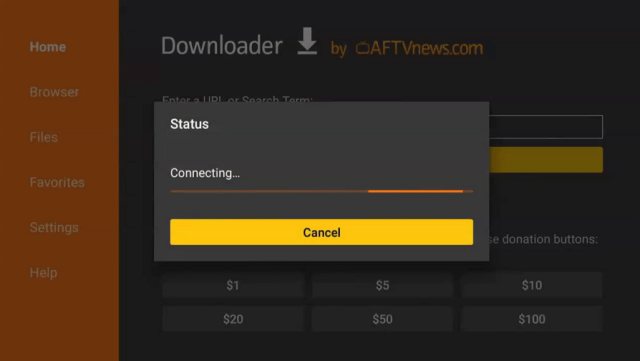
4. Let the apk be downloaded

Spotify 18


5. Choose Install

Spotify 19


6. Wait for the app to be installed

Spotify 20


7. Launch the app by clicking Open

Spotify 21

App Features

  • Application is free with advertisements
  • Has premium subscription without advertisements (not free)
  • About 35 million selection of songs, podcasts, and media content
  • High-quality sounds
  • Upon app renovation for Fire TV, different amazing font styles and cover arts for the songs and media were provided.
  • Can connect the application from smartphone to smart TV
  • Capable of playing  music on six different devices at the same time
  • Let you follow other artist or users of the application
  • Easy control from TV remotes


Stream Safely with a VPN

https://get.surfshark.net/aff_c?offer_id=865&aff_id=12312

Using a VPN will let you access geo-restricted content. For example, you like to listen to podcasts that are only available in the USA but you are not anywhere near it.

Having a VPN will give you the freedom to enjoy all of those things and many more.

Here at reviewvpn.com, we always recommend Surfshark. It is the best VPN you can install on your devices.

Other benefits of Surfshark:

  • Protects your identity while streaming
  • Serves as a bridge that links you to other servers outside your country
  • Can make your internet speed faster
  • Lets you download content from torrent sites without being caught
  • Protects your data from malware
  • Your connections will be kept encrypted and anonymous

Note: For more information about Surfshark, please read our Surfshark Review.


Grab your subscription now!

Click here to get the lowest price on Surfshark through our exclusive limited-time offer.


How to Install Surfshark VPN on Firestick

If your Firestick still has the older interface, read this article to learn how to update it: Update Firestick Interface.

1. Go to the Home screen of your Firestick.

step 1 Install Surfshark VPN on Firestick


2. Navigate towards the Find tab. Press the Search button from the resulting dropdown.

step 2 Install Surfshark VPN on Firestick


3. Type in the keyword of SurfShark and select from the suggestions that will appear.

step 3 Install Surfshark VPN on Firestick


4. Click the official SurfShark icon from your search results.

step 4 Install Surfshark VPN on Firestick


5. Press the Download (You own it) button.

step 5 Install Surfshark VPN on Firestick


6. The SurfShark VPN installer will download on your device.

step 6 Install Surfshark VPN on Firestick


7. SurfShark VPN’s app will automatically install itself on your Fire TV stick.

step 7 Install Surfshark VPN on Firestick


8. Press the Open button after completing SurfShark VPN’s installation process.

step 8 Install Surfshark VPN on Firestick


9. Please wait for the SurfShark VPN to load its user interface.

step 9 Install Surfshark VPN on Firestick


10. You can now log in with your SurfShark VPN account credentials.

step 10 Install Surfshark VPN on Firestick

Learn more about Surfshark and Grab the Best Surfshark Deal Now!


Install Surfshark on Firestick

Best Surfshark Deal


Other VPNs to Consider

NordVPN (Best for Streaming)

Best Features

  • 5000+ Server in 50+ Countries 
  • Military-Grade Encryption
  • Fast Connection Speed
  • Suitable to a lot of devices
  • No-Log Policy

Prices
  • Complete $5.89 per month (64% Discount)
  • Plus $4.59 per month (56% Discount)
  • Standard $3.69 per month (55% Discount)

Best Features

  • 750+ High-speed VPN Servers in 43 Locations
  • Military-Grade Encryption
  • Fastest HD Streaming and Gaming
  • 30-Day Money-Back Guarantee
  • Unlimited Data & Devices
  • No-Log Policy

Prices
  • 3 Years $1.99 per month (82% Discount)
  • 1 Years $3.29 per month (70% Discount)
  • 1 Month $10.99 per month

IPVanish VPN (Most Secure)

Best Features

  • 1200+ Servers in 60+ Countries around the world
  • Unlimited Connections
  • No-Log Policy
  • Top Notch Military-Grade VPN Protocols and Encryptions
  • 100% Safe and Secured
  • Most Trusted VPN
  • Best VPN for Firestick
  • 30-Day Money-Back Guarantee

Prices
  • Yearly $3.99 per month (63% Discount) – 30 days risk free + Ransomware & Malware Protection
  • Quarterly $5.32 per month (51% Discount)
  • Monthly $10.99 per month


For more VPN discounts, go to ReviewVPN Deals and purchase the best VPN for you.

Click here to get the lowest price on Surfshark through our exclusive limited-time offer.


Alternative Applications for Spotify

There are also other music apps available for download on firestick. Here are some of the apps that you might want to check out:

For more details about music apps for firestick, follow the link below:

Top Music Apps for Firestick


FAQ

History

Spotify was launched last 2008. A lot has changed since the first time it was launched. From the application interface to the content and features it offers.


Is it free?

Yes, Spotify is free but with advertisements. You can have the premium version to get rid of advertisements, but it is not free.


Is it possible to download music from Spotify?

No, you cannot download music from Spotify. You can download music from the premium version and play it offline.


How to play songs using Spotify on Firestick?

There are two ways to do that. The first option is to sign up for your Spotify account in your application on firestick. The second one is to cast a particular song from the app on your phone or tablet. Click Play, and then select the option Devices Available. Choose your Fire TV device and listen to music.


How much is Spotify Premium?

The premium version of the app costs $9.99 per month. But there are also other options like a student plan that costs almost 50% off which is $4.99 per month, but there should be proof of being a student, and a family plan for $14.99 per month that can be used by six separate premium accounts, all members should be living under one roof.


What Apple device supports Spotify?

Starting from iPhone 4s up to the latest version; iPad 2 up to the latest version; iPod touch up to the latest version, all should be iOS 8 or higher.

For MAC, it should be MAC running OS X 10.9 or newer version.


Can I use my Spotify offline?

Yes, only on your Premium subscription you can download songs and play them offline.


Can I use Spotify with lyrics?

Yes, you can. Upon partnership with Genius, some (but not all) songs can be played with lyrics.


Does Spotify have parental controls?

Only on the premium, a family plan that there is a feature like parental control.


Can a Spotify account be hacked?

Unfortunately, yes, it can be. You need to protect your account.


Can I change the username of my Spotify account?

You can’t change the username of your Spotify account anymore. Anyhow, you can change the display name. Settings > View Profile > Edit Profile> Tap on your display name to edit it.


Our Opinion

It is without a doubt that Spotify is one of the leading apps when it comes to streaming music. It is always updated with the latest songs and albums from various artists with good sound quality. Even it will cost you some money for the Premium account or plan, we can say that it is worth it.

Sometimes, you might find it hard to be able to download this app on your firestick, but it is worth the try.


Final Thoughts

We hope that this article helps you with how to install Spotify on your Android and Firestick devices.


Must Read!

Best Firestick Apps

Top Unlinked Codes

Free Movie Streaming Websites

List of Best TV Show Websites

Best Adult Apps for Firestick

Top Live TV Apps

Install Swift Streamz on Firestick

Best Kissanime.RU Alternatives 

How to Install 365Scores on Firestick

Overview

This article will show you how to install 365Scores on Firestick.

Are you a sports fan who enjoys staying current on the latest news? Are you seeking a way to keep track of live scores, the schedule of upcoming events, and the latest news? If you’re tired of searching for scores across multiple websites, 365 Scores is the app for you. 365Scores is the fastest way to access live NFL, NBA, NBA Draft, and World Cup scores.


It features breaking news on Football (including NFL), Basketball (NBA scores, standings, and schedules), and Soccer (World Cup news, rankings), among other sports. Therefore, if you’re looking for the most up-to-date scores throughout the 102nd NFL Season, you can count on 365Scores. Moreover, it serves as the ultimate, lightning-fast scoreboard for all international games.

Furthermore, now you can stay current on current happenings and communicate with your favorite teams while watching the game. Without further ado, let us move on to the installation process, its features, and other information.

Note: If you don’t yet have Mouse Toggle, you’ll need it to navigate the app.


ANONYMOUSLY


How to Install 365Scores on Firestick

To begin, if your Firestick has not yet been jailbroken, follow the simple steps below to jailbreak it to install 365Scores on your device: 

1.  Click Home on your remote and scroll once to your Right. Click Setting (Gear Wheel Icon).

Step 1 Install 365Scores on Firestick

2. Scroll down and to the right until you get to My Fire TV. Click on it.

Step 2 Install 365Scores on Firestick


3. Select Developer options.

Step 3 Install 365Scores on Firestick


4. Turn on ADB debugging and Apps from Unknown Sources.

Step 4 Install 365Scores on Firestick


5. Click Turn On when the pop-up appears.

Step 5 Install 365Scores on Firestick


Then, after jailbreaking your Firestick, you’ll need to download the Downloader app to sideload 365Scores. This app, which is easily available on the Amazon App Store, allows you to download APK files.


6. Click Home, click FIND.

Step 6 Install 365Scores on Firestick


7. Click Search.

Step 7 Install 365Scores on Firestick


8. You can either say Downloader to your Alexa voice-enabled remote or start typing it. If you typed it, click on the suggestion when it appears.

Step 8 Install 365Scores on Firestick


9. Click on the Downloader Icon.

Step 9 Install 365Scores on Firestick


10. Click Download.

Step 10 Install 365Scores on Firestick


step 10 Install 365Scores on Firestick


11. Click on Open.

Step 11 Install 365Scores on Firestick


12. Click on Allow.

Step 12 Install 365Scores on Firestick


13. Use the Downloader search tab.

Step 13 Install 365Scores on Firestick


14. You will be asked to enter a download link. Type in “https://reviewvpn.com/3sc” and select Go.

Install 365Scores


15. Depending on your internet connection, the APK will take a few seconds to download.

365Scores


16. After that, choose Install.

365Scores 1


17. Then click Open.

365Scores 2


365Scores APK Download for Android Devices


365Scores APK Download for Android Devices

Note: ReviewVPN.com does not host this APK file. It is hosted by Archive.org


Install Surfshark on Firestick

Best Surfshark Deal


Legal Disclaimer: ReviewVPN.com does not encourage or endorse any illegal activity involved in the usage of services and applications referenced on this site. We do not verify the licensing agreements of services. The end-user is wholly responsible for ensuring that any media accessed through these services does not violate copyright and/or licensing laws. ReviewVPN does not promote, link to, or receive compensation from any Apps and IPTV services.


YOUR INTERNET ACTIVITY IS BEING WATCHED

ReviewVPN cannot attest to the legality, security and privacy of the applications discussed on this site. It is highly recommended that you use a VPN service while streaming or using Kodi.

Currently, your IP 216.73.216.102 is visible to everyone and your Browser is being tracked by Advertisers & ISP Provider.

Save 65% Now

Limited Time Offer

Here are the main reasons why you must use a VPN:

  • Your activities are hidden from your ISP, the government, and from the apps you are using.
  • You can access additional movies and TV streams.
  • ISP attempts to throttle are thrwarted thus reducing buffering issues.
  • Geographically restricted content like Netflix and Hulu can be unblocked.

A VPN works be replacing your ISP-assigned IP address and creating an encrypted tunnel. We recommend the no log service offered by IPVanish. It works well on a Firestick and offers the fastest possible speeds.

Special Limited Time Offer - Get IPVanish


App Features

  • Covers live scores, news, team and player updates, and much more.
  • Allows you to view scores for Football, Basketball, Tennis, Hockey, Rugby, American Football, Baseball, and Cricket on a single screen.
  • 365Scores allows you to select leagues and teams to follow during the setup process, ensuring that you receive the most up-to-date information from them.
  • By selecting a date on the calendar, you can search for game scores from prior matchups.
  • You can find confirmed and rumored player transfers in its news section.
  • A search option enables you to view the most popular teams, competitions, and players.
  • It has a favorites section where you can keep track of your favorite teams, competitions, and players.
  • You have the option of enabling notifications for your favorite teams and competitions.
  • It enables you to localize and locate content in your area by utilizing your location.
  • You can customize your home page by specifying what you want to see: My Scores, All Scores, and News
  • English, Bahasa Indonesia, Deutsch, Espanol, Filipino, Francais, Italiano, Nederlands, and Portugues are all available as language options.


Pros and Cons

Pros

  • Scores for a variety of sporting events are available in a single app.
  • It is accessible in many languages, allowing those who feel more at ease using their native tongue to have it set.
  • The app can be customized according to the type of content you want to see.


Cons

  • The app is a little difficult to navigate.
  • There is simply too much activity in the app.


Protect Your Connection Using a VPN

When using services such as 365Scores, it is critical to safeguard your data. This is to prevent hackers and phishers from stealing your personal information through apps and websites, particularly free-to-use apps. In this manner, you can protect your data from being exposed and exploited by these cybercriminals for malevolent or financial gain. Apart from that, some permissions on apps may request access to your location and other information. Therefore, regardless of the reason for these permissions, whether legitimate or not, you can always be certain that no information is disclosed without your approval.

A VPN service such as Surfshark can help you avoid this by allowing you to connect from one of its 3,200 VPN servers in 65 locations to choose from. These IP addresses will encrypt your connection using AES 256-bit encryption, which is guaranteed to be uncrackable, assuring the security of all your traffic. Moreover, it adheres to a tight policy of no IP address leaks and no data breaches, ensuring that your data is not sold to third-party servers. Furthermore, some of its other advantages include the following:

  • It will provide you with an unlimited amount of bandwidth so that you can view any content from your favorite apps and websites.
  • A kill switch prevents unprotected content access by instantly disconnecting your device from the internet in the event of a VPN failure.
  • You can upgrade your subscription to include a VPN with backup or a VPN with antivirus to further secure your device.
  • It enables you to circumvent geo-restrictions, allowing you to effortlessly access blocked apps and websites.


Grab your subscription now!

Click here to get the lowest price on Surfshark through our exclusive limited-time offer.


How to Install Surfshark VPN on Firestick

If your Firestick still has the older interface, read this article to learn how to update it: Update Firestick Interface.

Follow our screenshots below to install the SurfShark VPN app on your Fire TV stick.

1. Go to the Home screen of your Firestick.

step 1 Install Surfshark VPN on Firestick


2. Navigate towards the Find tab. Press the Search button from the resulting dropdown.

step 2 Install Surfshark VPN on Firestick


3. Type in the keyword of SurfShark and select from the suggestions that will appear.

step 3 Install Surfshark VPN on Firestick


4. Click the official SurfShark icon from your search results.

step 4 Install Surfshark VPN on Firestick


5. Press the Download (You own it) button.

step 5 Install Surfshark VPN on Firestick


6. The SurfShark VPN installer will download on your device.

step 6 Install Surfshark VPN on Firestick


7. SurfShark VPN’s app will automatically install itself on your Fire TV stick.

step 7 Install Surfshark VPN on Firestick


8. Press the Open button after completing SurfShark VPN’s installation process.

step 8 Install Surfshark VPN on Firestick


9. Please wait for the SurfShark VPN to load its user interface.

step 9 Install Surfshark VPN on Firestick


10. You can now log in with your SurfShark VPN account credentials.

step 10 Install Surfshark VPN on Firestick

Learn more about Surfshark and Grab the Best Surfshark Deal Now!


Install Surfshark on Firestick

Best Surfshark Deal


Other VPNs to Consider

NordVPN (Best for Streaming)

Best Features

  • 5000+ Server in 50+ Countries 
  • Military-Grade Encryption
  • Fast Connection Speed
  • Suitable to a lot of devices
  • No-Log Policy

Prices
  • Complete $5.89 per month (64% Discount)
  • Plus $4.59 per month (56% Discount)
  • Standard $3.69 per month (55% Discount)

Best Features

  • 750+ High-speed VPN Servers in 43 Locations
  • Military-Grade Encryption
  • Fastest HD Streaming and Gaming
  • 30-Day Money-Back Guarantee
  • Unlimited Data & Devices
  • No-Log Policy

Prices
  • 3 Years $1.99 per month (82% Discount)
  • 1 Years $3.29 per month (70% Discount)
  • 1 Month $10.99 per month

IPVanish VPN (Most Secure)

Best Features

  • 1200+ Servers in 60+ Countries around the world
  • Unlimited Connections
  • No-Log Policy
  • Top Notch Military-Grade VPN Protocols and Encryptions
  • 100% Safe and Secured
  • Most Trusted VPN
  • Best VPN for Firestick
  • 30-Day Money-Back Guarantee

Prices
  • Yearly $3.99 per month (63% Discount) – 30 days risk free + Ransomware & Malware Protection
  • Quarterly $5.32 per month (51% Discount)
  • Monthly $10.99 per month


For more VPN discounts, go to ReviewVPN Deals and purchase the best VPN for you.

Click here to get the lowest price on Surfshark through our exclusive limited-time offer.


App Alternatives

  • SofaScore
  • FlashScore
  • Goal.com
  • LiveScore
  • FotMob


FAQs

What does 365Scores do?

365Scores app provides live scores, breaking news, and other information about your favorite leagues, teams, and players. Moreover, it enables customization, allowing you to quickly access the information you wish to see on the app.


Is 365Scores safe?

Yes, using and installing 365Scores on your device is safe. However, it is still preferable to use a VPN service such as Surfshark to ensure that you are securely surfing its content.


Is 365Scores free?

Yes, installing and using 365Scores on Firestick is 100 % free.


Is 365Scores legal?

Yes, 365Scores is legal.


Is there an official website for 365Scores?

Yes, you can visit them at “https://www.365scores.com


Final Thoughts

The 365Scores app makes it easy to see live scores for your favorite matches. It also provides news, ensuring that you’re always informed about your favorite teams and leagues. Moreover, what I enjoy about the app is how many of its settings can be customized. Furthermore, it is free to install and use on your Firestick, allowing you to test the app and determine whether it meets your demands for staying current on the latest matches.

How To Install No Bones About It Kodi Build on Firestick/Android TV

Overview

This article will show you how to install No Bones About It Kodi Build on Firestick/Android TV.

No Bones About It is a Kodi build available from the Doomzday Repository. You can view a ton of streaming content in many categories, including movies, TV shows, live television, sports, kids’ programming, adult content, and more. Additionally, it provides music streaming with a variety of channels.

Furthermore, No Bones About It offers both free and debrid produced streams. You may also link your Trakt account to sync your watchlist and keep track of your watched movies as shows. It also comes pre-installed with an extensive selection of add-ons, so you won’t have to manually install one simply to be able to stream content.

So let’s get started on how to install No Bones About It Kodi Build on Firestick/Android TV. And don’t forget to turn on your VPN like Surfshark to make sure that there aren’t any leaks or breaches that might happen.


ANONYMOUSLY


How To Install No Bones About It Kodi Build on Firestick

You can follow along with this tutorial to install the No Bones About It Kodi Build on your Firestick.

1. Launch the Kodi app on your Firestick. Click on the gear wheel icon (Settings)

No Bones About It Kodi Build


2. Select “System

No Bones About It Kodi Build

3. Scroll down to “Add-ons” Then Go to “Unknown sources” then toggle it on.

No Bones About It Kodi Build


4. Select “Yes”. Then using your Firestick remote, press the return button to go back to the System page

No Bones About It Kodi Build


5. Now choose “File Manager

No Bones About It Kodi Build


6. Scroll down and select “Add source

No Bones About It Kodi Build


7. Click “<None>

No Bones About It Kodi Build


8. Type in “https://doomzdayteam.github.io/doomzday” then click “OK”

No Bones About It Kodi Build


9. Highlight the box under the source to give the media source a name, and put “doomzday” or any other name that will help you identify it quickly. Click “OK”. Return to the System page by pressing the return button on your remote

No Bones About It Kodi Build


10. Select “Add-ons

No Bones About It Kodi Build


11. Choose “Install from zip file

No Bones About It Kodi Build


12. Click “Yes

No Bones About It Kodi Build


13. Select “doomzday

No Bones About It Kodi Build


14. Then click on the zip file URL – repository.doomzday-x.x.x.zip

No Bones About It Kodi Build


15. Wait for the notification “Doomzday Repo Add-on installed” to appear on the upper right part of the screen

No Bones About It Kodi Build


16. Afterward, select “Install from repository

No Bones About It Kodi Build


17. Then click “Doomzday Repo

No Bones About It Kodi Build


18. Select “Program add-ons

No Bones About It Kodi Build


19. Click on “Doomzday Simple Wizard

No Bones About It Kodi Build


20. Then click “Install

No Bones About It Kodi Build


21. Click “OK” for the additional add-on/s that will be installed

No Bones About It Kodi Build


22. Then wait for it to install. It’s finished once you see the “Doomzday Simple Wizard Add-on Installed” message appear.

No Bones About It Kodi Build


23. Click “Close

No Bones About It Kodi Build


24. Select “Yes”

No Bones About It Kodi Build


25. Choose “NO BONES ABOUT IT

No Bones About It Kodi Build


25. Click “Continue

No Bones About It Kodi Build


26. Wait for the Build to install, Then click “OK” to force close Kodi

No Bones About It Kodi Build


27. Finally, Relaunch Kodi. That’s it, No Bones About It Kodi Build is now installed on your Firestick.

No Bones About It Kodi Build


YOUR INTERNET ACTIVITY IS BEING WATCHED

ReviewVPN cannot attest to the legality, security and privacy of the applications discussed on this site. It is highly recommended that you use a VPN service while streaming or using Kodi.

Currently, your IP 216.73.216.102 is visible to everyone and your Browser is being tracked by Advertisers & ISP Provider.

Save 65% Now

Limited Time Offer

Here are the main reasons why you must use a VPN:

  • Your activities are hidden from your ISP, the government, and from the apps you are using.
  • You can access additional movies and TV streams.
  • ISP attempts to throttle are thrwarted thus reducing buffering issues.
  • Geographically restricted content like Netflix and Hulu can be unblocked.

A VPN works be replacing your ISP-assigned IP address and creating an encrypted tunnel. We recommend the no log service offered by IPVanish. It works well on a Firestick and offers the fastest possible speeds.

Special Limited Time Offer - Get IPVanish


Legal Disclaimer: ReviewVPN.com does not encourage or endorse any illegal activity involved in the usage of services and applications referenced on this site. We do not verify the licensing agreements of services. The end-user is wholly responsible for ensuring that any media accessed through these services does not violate copyright and/or licensing laws. ReviewVPN does not promote, link to, or receive compensation from any Apps and IPTV services.


Install Surfshark on Firestick

Best Surfshark Deal


Features

  • Its Main Categories are Free Movies, Free TV, Debrid, Horror, Live TV, Sports, Sports TV, Music, Favourites, Boner XXX, Wizard, Weather, Addons/Apps, System, Power,  Accounts, My Library, and Scrapers/AIO.
  • Contains both free and debrid movies and TV shows.
  • Some of the Music Channels available are MTV, Vevo, Xite, and Pluto TV Music.
  • Kids shows scrape content from YouTube, WatchNixToons 2, Kids TV (Live), Kids Movie Club (Live), Aliunde Kids, Kids Zone, and Asgard Kids.
  • Contains a Speed Test.
  • Supports the use of Trakt.
  • Provides subtitle support.
  • Enables you to Create and Clear bookmarks, as well as “set episode book”.
  • Customizable audio and video settings.
  • It also offers Bollywood content.
  • There’s a Weather section for the weather forecast and news channels


Add-ons

  • Quicksilver
  • Scrubs v2
  • The Crew
  • Umbrella
  • Seren
  • Ghost
  • Asgard
  • Fido
  • DaddyLive
  • TheTVApp
  • SportHD
  • Crew Sports
  • Titan Sports
  • The Loop
  • Rising Tides
  • Bewbs&Beer
  • XXX
  • Panty dropper
  • Empflix
  • Cumination
  • Video Devil
  • Youtube
  • WatchNixToons 2


Pros & Cons

Pros

  • Offers free streaming.
  • Preloaded with tons of built-in add-ons.
  • Provides a One-click streaming solution.
  • The subtitle is enabled by default.

Cons

  • There are buffers.
  • Some videos are in SD quality.
  • The loading time upon clicking a title is quite long.
  • There are playback failures.


Stream Safely With a VPN

Surfshark vpn

It is recommended that you use a VPN like Surfshark when using Kodi and its builds, such as No Bones About It. This is particularly important if you use unofficial builds, such as No Bones About It, which aren’t accessible via the Kodi repository.

To begin with, you can protect your privacy by using Surfshark. By hiding your real IP address, you can prevent others from exploiting it for their gain. As a result, no third-party Build servers will gather any information about you.

Furthermore, using Surfshark has the following additional benefits:

  • Contains more than 3,200 servers in 100+ locations.
  • Allows you to circumvent geographical and censorship barriers.
  • It protects your information from being stolen by hackers and phishers.
  • Prevents IP address leaks and data breaches.
  • Strict zero-log policy.
  • Employs AES-256 GCM encryption to safeguard your device.
  • Protects an unlimited number of simultaneous devices.
  • Contains a Cleanweb which filters ads and malware.
  • It offers a cookie consent pop-up blocker.
  • A kill switch is also available to add additional protection to your device.
  • 24/7 customer support
  • 30-day money-back guarantee

Note: For more information about Surfshark, please read our Surfshark Review.

Install Surfshark on Firestick

Best Surfshark Deal

How to Install Surfshark VPN on Firestick

If your Firestick still has the older interface, read this article to learn how to update it: Update Firestick Interface.

Follow our screenshots below to install the SurfShark VPN app on your Fire TV stick.

1. Go to the Home screen of your Firestick.

step 1 Install Surfshark VPN on Firestick


2. Navigate towards the Find tab. Press the Search button from the resulting dropdown.

step 2 Install Surfshark VPN on Firestick


3. Type in the keyword of SurfShark and select from the suggestions that will appear.

step 3 Install Surfshark VPN on Firestick


4. Click the official SurfShark icon from your search results.

step 4 Install Surfshark VPN on Firestick


5. Press the Download (You own it) button.

step 5 Install Surfshark VPN on Firestick


6. The SurfShark VPN installer will download on your device.

step 6 Install Surfshark VPN on Firestick


7. SurfShark VPN’s app will automatically install itself on your Fire TV stick.

step 7 Install Surfshark VPN on Firestick


8. Press the Open button after completing SurfShark VPN’s installation process.

step 8 Install Surfshark VPN on Firestick


9. Please wait for the SurfShark VPN to load its user interface.

step 9 Install Surfshark VPN on Firestick


10. You can now log in with your SurfShark VPN account credentials.

step 10 Install Surfshark VPN on Firestick

Learn more about Surfshark and Grab the Best Surfshark Deal Now!


Install Surfshark on Firestick

Best Surfshark Deal


Other VPNs to Consider

NordVPN (Best for Streaming)

Best Features

  • 5000+ Server in 50+ Countries 
  • Military-Grade Encryption
  • Fast Connection Speed
  • Suitable to a lot of devices
  • No-Log Policy

Prices
  • Complete $5.89 per month (64% Discount)
  • Plus $4.59 per month (56% Discount)
  • Standard $3.69 per month (55% Discount)

Best Features

  • 750+ High-speed VPN Servers in 43 Locations
  • Military-Grade Encryption
  • Fastest HD Streaming and Gaming
  • 30-Day Money-Back Guarantee
  • Unlimited Data & Devices
  • No-Log Policy

Prices
  • 3 Years $1.99 per month (82% Discount)
  • 1 Years $3.29 per month (70% Discount)
  • 1 Month $10.99 per month

IPVanish VPN (Most Secure)

Best Features

  • 1200+ Servers in 60+ Countries around the world
  • Unlimited Connections
  • No-Log Policy
  • Top Notch Military-Grade VPN Protocols and Encryptions
  • 100% Safe and Secured
  • Most Trusted VPN
  • Best VPN for Firestick
  • 30-Day Money-Back Guarantee

Prices
  • Yearly $3.99 per month (63% Discount) – 30 days risk free + Ransomware & Malware Protection
  • Quarterly $5.32 per month (51% Discount)
  • Monthly $10.99 per month


For more VPN discounts, go to ReviewVPN Deals and purchase the best VPN for you.


FAQs

What is No Bones About It Kodi Build?

No Bones About It Kodi Build offers streaming for a variety of categories including Movies, TV Shows, Live TV, Sports, Kids, Adult content, and more. Additionally, it comes pre-installed with add-ons such as The Crew, Seren, Daddylive, Asgard, The Loop, Rising Tides, and many others.


Is No Bones About It Kodi Build Safe?

Yes, No Bones About It is safe to install on your device. However, it is still recommended to use Surfshark as an additional layer of security while using No Bones About It.


Is No Bones About It Kodi Build Legal?

In general, Kodi builds are legal. However, because some of No Bones About It’s free streams might be copyrighted, we cannot ensure their legality.


Is No Bones About It Kodi Build free?

Yes, if you’re looking for free content then you might want to check out No Bones About It Kodi Build.


Wrapping Up

No Bones About It Kodi Build is an excellent Build since it provides a lot of streaming options such as Movies, TV Shows, Sports, Live TV, and more. It also offers adult content so it’s certainly a one-stop shop for all the addons in different categories.

Moreover, it offers free and debrid streaming so it caters to different types of Kodi users. So check out No Bones About It Kodi Build on your next streaming. Enjoy!

How To Install Ola TV on Firestick and Fire TV

Ola TV Overview

In this article, we will be divulging important details on how to install Ola TV on Firestick and other devices that run on the android platform.


Ola TV has been around since 2017 and leads the way when it comes to the sheer range of channels you can access through the app. With a selection of over 50,000 channels from all over the world, it is one of the best live streaming applications out there. Particularly for those who want TV from more obscure countries like Albania, or struggle to find channels on other providers like Mobdro and Red Box.

The application gets frequent updates and is now in its fifth iteration, also many users have returned after it turned down the frequency of adverts that plagued the first 3 versions.


What Does it Do?

ola tv pro

Ola TV works just like most Android TV streaming applications, but instead of collating links for films and TV shows it only concentrates on Live TV links. The app’s web scrapers traverse the internet looking for working TV links which are then provided within the application 

Ola TV does not host any of the content itself, it only provides links to third parties meaning you may have to cycle through a couple of links before finding one that works, but its scrapers are pretty reliable and refresh daily.


ANONYMOUSLY

Is OLA TV Safe and Virus-free?

Ola TV Virus Total

We tested this app using VirusTotal and found no threats or any malicious files and malware.

Despite having good results, we still need to be vigilant in protecting our privacy while streaming.

A Virtual Private Network or VPN will help us maintain our security and anonymity while using OLA TV.

Here’s how you can Install The Best VPN For Firestick and All Devices.


Download Ola TV for Android

Download Ola TV

Note: ReviewVPN.com does not host this APK file. It is hosted on Archive.org. 


How to Install Ola TV on Firestick

Follow our guide below showing you how to jailbreak your Firestick and sideload the Ola TV app.

  1. Open your Firestick Settings Tab. (Gear Wheel Icon).
  2. Scroll down and to the right until you get to My Fire TV. Click on it.
  3. Select Developer options.
  4. Turn on ADB debugging and Apps from Unknown Sources.
  5. Press the Turn On when the pop-up appears.
  6. Click Home and press on FIND.
  7. Press the Search button from the dropdown.
  8. You can either say Downloader to your Alexa voice-enabled remote or start typing it. If you typed it, click on the suggestion when it appears.
  9. Click on the Downloader Icon.
  10. Tap on Download.
  11. Click on Open.
  12. Press on the Allow button.
  13. You can now use the Downloader app.
  14. Type in https://reviewvpn.com/ola and select the Go button. 
  15. Ola TV’s APK file will download.
  16. Click on Install.
  17. The Ola TV App will install on Firestick.
  18. Click the Open button to launch the Ola TV app.
  19. Please wait for the Ola TV app to load its home screen.
  20. You can now add your IPTV or Live TV subscription to the Ola TV app to stream Spanish films and media.

How to Install Ola TV on Firestick (Screenshots)

1. Open your Firestick Settings Tab. (Gear Wheel Icon).


2. Scroll down and select My Fire TV.


3. Select Developer options.


4. Turn on ADB debugging and Apps from Unknown Sources.


5. Press the Turn On when the pop-up appears.


6. Click Home and press on FIND.


7. Press the Search button from the dropdown.


8. You can either say Downloader to your Alexa voice-enabled remote or start typing it. If you typed it, click on the suggestion when it appears.


9. Click on the Downloader Icon.


10. Tap on Download and please wait while the app is installing itself on your device.


11. Click on Open.


12. Press on the Allow button.


13. You can now use the Downloader app.


14. Type in https://reviewvpn.com/ola and select the Go button. 


15. Ola TV’s APK file will download.


16. Click on Install.


17. The Ola TV App will install on Firestick.


18. Click the Open button to launch the Ola TV app.


19. Please wait for the Ola TV app to load its home screen.


20. You can now add your IPTV or Live TV subscription to the Ola TV app to stream Spanish films and media.

Ola TV Features

  • Clean and easy to use tile-based user interface
  • Lightweight application
  • 50,000 channels to choose from
  • An enormous range of countries
  • The software has been adapted to reduce lag when buffering live TV
  • Easy to navigate by countries, categories, and sections
  • Kids TV section
  • Create a favorites tab of your chosen TV shows to manage your TV channel list
  • Compatible with a massive range of media players including MX Player


What Platforms Does it Work on?

Ola TV android devices image

Ola TV works on all Android-based devices


YOUR INTERNET ACTIVITY IS BEING WATCHED

ReviewVPN cannot attest to the legality, security and privacy of the applications discussed on this site. It is highly recommended that you use a VPN service while streaming or using Kodi.

Currently, your IP 216.73.216.102 is visible to everyone and your Browser is being tracked by Advertisers & ISP Provider.

Save 65% Now

Limited Time Offer

Here are the main reasons why you must use a VPN:

  • Your activities are hidden from your ISP, the government, and from the apps you are using.
  • You can access additional movies and TV streams.
  • ISP attempts to throttle are thrwarted thus reducing buffering issues.
  • Geographically restricted content like Netflix and Hulu can be unblocked.

A VPN works be replacing your ISP-assigned IP address and creating an encrypted tunnel. We recommend the no log service offered by IPVanish. It works well on a Firestick and offers the fastest possible speeds.

Special Limited Time Offer - Get IPVanish


Legal Disclaimer: ReviewVPN.com does not encourage or endorse any illegal activity involved in the usage of services and applications referenced on this site. We do not verify the licensing agreements of services. The end-user is wholly responsible for ensuring that any media accessed through these services does not violate copyright and/or licensing laws. ReviewVPN does not promote, link to, or receive compensation from any Apps and IPTV services.


Install Surfshark on Firestick

Best Surfshark Deal


Ola TV Pros and Cons

Pros

  • The sheer size and number of channels that it offers is unparalleled, as well as the countries
  • Developed by IPTV Droid who have made a name for themselves by specifically developing IPTV apps like Relax TV
  • Easy to navigate and find channels
  • Navigate by section, country, genre, and even location by city
  • The favorites tab makes it easy for you to create a personal viewing list instead of having to search for the same channel each time
  • Great uptime and long history of stability
  • Still supported by the development team with decent ad revenue meaning that should continue
  • Specially adapted for Live TV meaning you would spend less time waiting for it to buffer than watching directly from a link
  • Variety of channels means if you find a link that doesn’t work they will always be something else similar

Cons

  • Specifically targeted for Live TV, not on-demand movies and tv shows
  • No active community available on Reddit or Facebook
  • Ola TV did have a repetition for too many ads which seems to have gotten better with the new updates
  • Only use a Live Streaming app if you have an unlimited data plan
  • The application may slow down mobile phones
  • No PVR functionality


What Is the Ola TV Pin Code

If Ola TV asks for a pin code, enter:

874452

Versions before 9 never asked for a pin code, but version 9 asks for one.


Ola TV FAQs

Is It Safe to Use?

Yes, the application is widely used and well-reviewed and has been stable for several years. We always recommend that you download the application either within the Amazon App Store or from the official website link below.


Is It Legal or Grey?

Let’s face it, Ola TV is just as grey as the rest of the streaming applications out there. You can access all the premium TV providers from ABC and Sky to Netflix and Hulu, so they will be pretty hot on shutting down streams whenever they can.

Ola TV simply won’t work without a VPN as all their content will be blocked by media providers and links will change regularly.


Is it Free?

Yes, Ola TV uses advertising to generate revenue


Are There Ads? (If it has ads is there a modded version)

Yes, there are quite a few ads but less than before


Is There a Premium Version?

No, the free version is the premium version


Is There an Official Website?

Olatv Website Image

Ola TV has a basic 1-page site here: https://olatv.me/

We always recommend you use the official website or the official application from the Amazon store.


What Other Devices Does Ola TV Work On?

Ola TV works on any device running the Android operating system


How Does Ola TV Work?

Simply download the apk file from the Amazon store or the official Ola TV Website and run the executable file. Then follow the instructions provided by Ola TV’s installation wizard.


What is the Minimum Version of Android I Need?

Android 4.0


How Long Has Ola TV Been Around?

Ola TV has been around since 2017 making it one of the oldest IPTV streaming apps still available


Is Ola TV a Terrarium Clone?

No. Ola TV is not a Terrarium clone.


What is the Development Team Like?

There wasn’t much that we could find about the development team, there doesn’t seem to be an active community on Facebook or Reddit.

We know it was developed by the IPTV Droid team who has released numerous IPTV streaming apps.


Should I Use Ola TV With a VPN?

surfshark logo

You should always use a VPN with Ola TV. Media companies are hot on blocking companies that are allowing users to stream premium content for free. Sky, Virgin, and ABC will shut down streams as soon as they are detected, as well as active try to track users who are using illegal streaming software.

Using a VPN, you can change your home IP address and also make sure that your connection and browsing history is encrypted. This means that your data cannot be snooped on by any third parties not even your ISP won’t knows that you are using Ola TV.

Internet Service Providers are legally obliged to record people who try to access pirated content, this could lead to your IP being blocked, a cease and desist letter, or even a fine.


Note: For more information about Surfshark, please read our Surfshark Review.


Grab your subscription now!

How to Install Surfshark VPN on Firestick

If your Firestick still has the older interface, read this article to learn how to update it: Update Firestick Interface.

Follow our screenshots below to install the SurfShark VPN app on your Fire TV stick.

1. Go to the Home screen of your Firestick.

step 1 Install Surfshark VPN on Firestick


2. Navigate towards the Find tab. Press the Search button from the resulting dropdown.

step 2 Install Surfshark VPN on Firestick


3. Type in the keyword of SurfShark and select from the suggestions that will appear.

step 3 Install Surfshark VPN on Firestick


4. Click the official SurfShark icon from your search results.

step 4 Install Surfshark VPN on Firestick


5. Press the Download (You own it) button.

step 5 Install Surfshark VPN on Firestick


6. The SurfShark VPN installer will download on your device.

step 6 Install Surfshark VPN on Firestick


7. SurfShark VPN’s app will automatically install itself on your Fire TV stick.

step 7 Install Surfshark VPN on Firestick


8. Press the Open button after completing SurfShark VPN’s installation process.

step 8 Install Surfshark VPN on Firestick


9. Please wait for the SurfShark VPN to load its user interface.

step 9 Install Surfshark VPN on Firestick


10. You can now log in with your SurfShark VPN account credentials.

step 10 Install Surfshark VPN on Firestick

Learn more about Surfshark and Grab the Best Surfshark Deal Now!


Install Surfshark on Firestick

Best Surfshark Deal


Other VPNs to Consider

NordVPN (Best for Streaming)

Best Features

  • 5000+ Server in 50+ Countries 
  • Military-Grade Encryption
  • Fast Connection Speed
  • Suitable to a lot of devices
  • No-Log Policy

Prices
  • Complete $5.89 per month (64% Discount)
  • Plus $4.59 per month (56% Discount)
  • Standard $3.69 per month (55% Discount)

Best Features

  • 750+ High-speed VPN Servers in 43 Locations
  • Military-Grade Encryption
  • Fastest HD Streaming and Gaming
  • 30-Day Money-Back Guarantee
  • Unlimited Data & Devices
  • No-Log Policy

Prices
  • 3 Years $1.99 per month (82% Discount)
  • 1 Years $3.29 per month (70% Discount)
  • 1 Month $10.99 per month

IPVanish VPN (Most Secure)

Best Features

  • 1200+ Servers in 60+ Countries around the world
  • Unlimited Connections
  • No-Log Policy
  • Top Notch Military-Grade VPN Protocols and Encryptions
  • 100% Safe and Secured
  • Most Trusted VPN
  • Best VPN for Firestick
  • 30-Day Money-Back Guarantee

Prices
  • Yearly $3.99 per month (63% Discount) – 30 days risk free + Ransomware & Malware Protection
  • Quarterly $5.32 per month (51% Discount)
  • Monthly $10.99 per month


For more VPN discounts, go to ReviewVPN Deals and purchase the best VPN for you.


Best Ola TV Alternatives

Here are some apps that can work as alternatives to the Ola TV app:

Our Opinion

Ola TV is a great app with a vast collection and range of IPTV channels. One for everyone to have in their IPTV app library. The adverts might get a bit annoying, but it’s good to subscribe to an application that has a sustainable revenue stream, as the developers are more likely to keep it up and running, rather than abandoning it for a new project.

How to Install Audials Play Pro on Firestick

Overview

In this article, we will show you how to install the Audials Play Pro app on Firestick.


Are you looking for an app that functions as your radio? Probably one that works well on your Android and Fire TV stick? Then we have the best recommendation for you! Here at ReviewVPN, we test many apps you can use with your Android and Fire TV stick. It is how we’ve come across the Audials Play Pro app.

The Audials Play Pro app is excellent if you want to play radio. It helps you detect radio broadcast stations and different radio channels. You can also use its search feature and type in your favorite music genre, album, or music artist. As a result, the Audials Play Pro app will find the best radio broadcast station that is playing your favorite song live!

Suppose you are also into podcasts, the Audials Play Pro app not only plays radio stations, but you can also use the app to stream podcasts. It contains a wide selection of over 260,000 podcasts. We will now present to you the Audials Play Pro app download link for your Android device.


ANONYMOUSLY

Audials Play Pro App for Android Devices


Audials Play Pro


Note: ReviewVPN.com does not host this APK file. It is hosted by Archive.org


How to Install Audials Play Pro App on Your Fire TV Stick

Follow our brief guide showing you how to successfully install the Audials Play Pro app on your Fire TV stick. To successfully install it on your device, you only have to Jailbreak your Fire TV Stick and sideload the app. We advise you to use the Downloader app for getting third-party apps like the Audials Play Pro app.

  1. Open your Firestick Settings Tab. (Gear Wheel Icon).
  2. Scroll down and to the right until you get to My Fire TV. Click on it.
  3. Select Developer options.
  4. Turn on ADB debugging and Apps from Unknown Sources.
  5. Press the Turn On when the pop-up appears.
  6. Click Home and press on FIND.
  7. Press the Search button from the dropdown.
  8. You can either say Downloader to your Alexa voice-enabled remote or start typing it. If you typed it, click on the suggestion when it appears.
  9. Click on the Downloader Icon.
  10. Tap on Download.
  11. Click on Open.
  12. Press on the Allow button.
  13. You can now use the Downloader app.
  14. Type in: reviewvpn.com/arp and click the Go button.
  15. Audials Play Pro app’s installer file will download on your Fire TV stick.
  16. Press the Install button.
  17. The Audials Play Pro app will install on your Fire TV stick.
  18. Click the Open button to launch the Audials Play Pro app.
  19. Wait for the Audials Play Pro app to load its user interface.
  20. Select any radio station from the Audials Play Pro app’s recommendation library.


How to Install Audials Play Pro App on Your Fire TV Stick with Screenshots

Follow our screenshots to successfully install the Audials Play Pro app on your Fire TV stick. While doing this method, we recommend using the Downloader app.

1. Open your Firestick Settings Tab. (Gear Wheel Icon).

Install Audials Play Pro App on Your Fire TV Stick 1


2. Scroll down and to the right until you get to My Fire TV. Click on it.

Install Audials Play Pro App on Your Fire TV Stick 2


3. Select Developer options.

Install Audials Play Pro App on Your Fire TV Stick 3


4. Turn on ADB debugging and Apps from Unknown Sources.

Install Audials Play Pro App on Your Fire TV Stick 4


5. Press the Turn On when the pop-up appears.

Install Audials Play Pro App on Your Fire TV Stick 5


6. Click Home and press on FIND.

Install Audials Play Pro App on Your Fire TV Stick 6


7. Press the Search button from the dropdown.

Install Audials Play Pro App on Your Fire TV Stick 7


8. You can either say Downloader to your Alexa voice-enabled remote or start typing it. If you typed it, click on the suggestion when it appears.

Install Audials Play Pro App on Your Fire TV Stick 8


9. Click on the Downloader Icon.

Install Audials Play Pro App on Your Fire TV Stick 9


10. Tap on Download.

Install Audials Play Pro App on Your Fire TV Stick 10


Install Audials Play Pro App on Your Fire TV Stick 10


11. Click on Open.

Install Audials Play Pro App on Your Fire TV Stick 11


12. Press on the Allow button.

Install Audials Play Pro App on Your Fire TV Stick 12


13. You can now use the Downloader app.

Install Audials Play Pro App on Your Fire TV Stick 13


14. Type in: reviewvpn.com/arp and click the Go button.

Install Audials Play Pro App on Your Fire TV Stick 14


15. Audials Play Pro app’s installer file will download on your Fire TV stick.

Install Audials Play Pro App on Your Fire TV Stick 15


16. Press the Install button.

Install Audials Play Pro App on Your Fire TV Stick 16


17. The Audials Play Pro app will install on your Fire TV stick.

Install Audials Play Pro App on Your Fire TV Stick 17


18. Click the Open button to launch the Audials Play Pro app.

Install Audials Play Pro App on Your Fire TV Stick 18


19. Wait for the Audials Play Pro app to load its user interface.

Install Audials Play Pro App on Your Fire TV Stick 19


20. Select any radio station from the Audials Play Pro app’s recommendation library.

Install Audials Play Pro App on Your Fire TV Stick 20


YOUR INTERNET ACTIVITY IS BEING WATCHED

ReviewVPN cannot attest to the legality, security and privacy of the applications discussed on this site. It is highly recommended that you use a VPN service while streaming or using Kodi.

Currently, your IP 216.73.216.102 is visible to everyone and your Browser is being tracked by Advertisers & ISP Provider.

Save 65% Now

Limited Time Offer

Here are the main reasons why you must use a VPN:

  • Your activities are hidden from your ISP, the government, and from the apps you are using.
  • You can access additional movies and TV streams.
  • ISP attempts to throttle are thrwarted thus reducing buffering issues.
  • Geographically restricted content like Netflix and Hulu can be unblocked.

A VPN works be replacing your ISP-assigned IP address and creating an encrypted tunnel. We recommend the no log service offered by IPVanish. It works well on a Firestick and offers the fastest possible speeds.

Special Limited Time Offer - Get IPVanish


Legal Disclaimer: ReviewVPN.com does not encourage or endorse any illegal activity involved in the usage of services and applications referenced on this site. We do not verify the licensing agreements of services. The end-user is wholly responsible for ensuring that any media accessed through these services does not violate copyright and/or licensing laws. ReviewVPN does not promote, link to, or receive compensation from any Apps and IPTV services.


Install Surfshark on Firestick

Best Surfshark Deal


Features of the Audials Play Pro App

  • Find and play the best radio station for your favorite music.
  • Establish a connection with all available radio stations.
  • The Audials Play Pro app functions as your audio recorder.
  • Contains over 260,000 podcast episodes.
  • Stream your favorite radio station.
  • Quickly transition from one radio station to another.
  • Supports streaming with Airplay and Chromecast.
  • Compatible for vehicular use.
  • Includes an Audio Equalizer feature.
  • Sync your wireless music with the Audials Play Pro app.


Technical Specifications of the Audials Play Pro App

Let us now show you the technical specifications of the Audials Play Pro app. Here you will learn about its latest version, file size, and installation requirements. It will help you determine if your device is compatible with the Audials Play Pro app.

Audials Play Pro


The Interface of the Audials Play Pro App

  • Attractive Home Menu Background
  • Metal-chromium backdrop design.
  • Easy-to-use
  • Quick Navigation
  • Detects the best radio stations for your favorite audio.
  • Contains 260,000 podcasts.
  • Presents a Recommendation screen with famous radio stations.


Pros and Cons

Pros

  • Search and play radio stations in your area.
  • Helps you find radio stations with your favorite music.
  • Supports Airplay and Chromecast.
  • Let’s sync music through via a wireless connection.
  • Compatible with your car.
  • Lets you record music with its built-in music recorder.
  • Contains an equalizer for adjusting your audio, volume, and other settings.


Cons

  • Lack of multilingual support.
  • Do not play mp3 files.


Listen to FM Music with a VPN

https://get.surfshark.net/aff_c?offer_id=865&aff_id=12312

Although many people think that radio broadcasting is a thing of the past, many radio stations still exist and continue to serve us daily.

Whether you are driving your car, eating your breakfast, or working, the radio can provide you with news, updates, and even music. Today, many people are relying on radio apps installed on their portable devices. After all, we all prefer to use these devices for streaming with the help of the internet.

However, we might encounter a slow internet speed or radio stations with geo-restrictions.

As a solution, we recommend you use Surfshark while listening to the radio. It will share with you some advantages such as:

  • Faster streaming of radio broadcasts.
  • Helps you access media with geo-blocks.
  • Allows you to browse the internet while staying anonymous.
  • Protect your data with encrypted tunnels.
  • Prevents buffering and stuttering both on Kodi and the Fire TV stick.

Note: For more information about SurfShark, please read our SURFSHARK REVIEW.


Grab your subscription now!


How to Install Surfshark VPN on Firestick

If your Firestick still has the older interface, read this article to learn how to update it: Update Firestick Interface.

You can download Surfshark directly from the Amazon App store. It will be easy for you to find Surfshark with your Firestick’s Find feature. Refer to our screenshots below.

1. Go to the Home screen of your Firestick.

step 1 Install Surfshark VPN on Firestick


2. Navigate towards the Find tab. Press the Search button from the resulting dropdown.

step 2 Install Surfshark VPN on Firestick


3. Type in the keyword of SurfShark and select from the suggestions that will appear.

step 3 Install Surfshark VPN on Firestick


4. Click the official SurfShark icon from your search results.

step 4 Install Surfshark VPN on Firestick


5. Press the Download (You own it) button.

step 5 Install Surfshark VPN on Firestick


6. The SurfShark VPN installer will download on your device.

step 6 Install Surfshark VPN on Firestick


7. SurfShark VPN’s app will automatically install itself on your Fire TV stick.

step 7 Install Surfshark VPN on Firestick


8. Press the Open button after completing SurfShark VPN’s installation process.

step 8 Install Surfshark VPN on Firestick


9. Please wait for the SurfShark VPN to load its user interface.

step 9 Install Surfshark VPN on Firestick


10. You can now log in with your SurfShark VPN account credentials.

step 10 Install Surfshark VPN on Firestick

Learn more about Surfshark and Grab the Best Surfshark Deal Now!


Other VPNs to Consider

NordVPN (Best for Streaming)

Best Features

  • 5000+ Server in 50+ Countries 
  • Military-Grade Encryption
  • Fast Connection Speed
  • Suitable to a lot of devices
  • No-Log Policy

Prices
  • Complete $5.89 per month (64% Discount)
  • Plus $4.59 per month (56% Discount)
  • Standard $3.69 per month (55% Discount)

Best Features

  • 750+ High-speed VPN Servers in 43 Locations
  • Military-Grade Encryption
  • Fastest HD Streaming and Gaming
  • 30-Day Money-Back Guarantee
  • Unlimited Data & Devices
  • No-Log Policy

Prices
  • 3 Years $1.99 per month (82% Discount)
  • 1 Years $3.29 per month (70% Discount)
  • 1 Month $10.99 per month

IPVanish VPN (Most Secure)

Best Features

  • 1200+ Servers in 60+ Countries around the world
  • Unlimited Connections
  • No-Log Policy
  • Top Notch Military-Grade VPN Protocols and Encryptions
  • 100% Safe and Secured
  • Most Trusted VPN
  • Best VPN for Firestick
  • 30-Day Money-Back Guarantee

Prices
  • Yearly $3.99 per month (63% Discount) – 30 days risk free + Ransomware & Malware Protection
  • Quarterly $5.32 per month (51% Discount)
  • Monthly $10.99 per month


For more VPN discounts, go to ReviewVPN Deals and purchase the best VPN for you.


Alternative Apps for Audials Play Pro

These apps can work as alternatives in case you dislike some features of the Audials Play Pro app.

If you want apps for streaming music, you can visit our articles within our Music App Archives.


FAQs

Is the app free?

Yes. It does not require you to pay for anything.


Is it safe to use?

Yes. The app does not contain any cyber threat.


Conclusion

The radio has been a part of everyday life since it was invented. For people wanting to listen to something, we can now use modern apps that both function as a player and a radio. The Audials Play Pro app works to deliver us the best radio stations customized to our taste in music.

We hope this article helps you install the Audials Play Pro app on your Fire TV stick.


Install Eroflix on Firestick – 2023 Guide and Review

Eroflix App Review

This article will mostly talk about how to install Eroflix app on Firestick and other devices that are supported by the Android operating system.


Eroflix is one of the adult (+18) content applications that you can access on your Firestick.

It offers a wide assortment of classic and erotic pornographic videos that you can stream through your device.

Videos from different periods can also be found in this streaming application which will be tackled later on in this article.

So first, let me teach you how to install Eroflix on your Amazon Firestick so you’ll be able to have access to these videos. 


ANONYMOUSLY

Is Eroflix Safe and Virus-free?

We tested this app using VirusTotal and found no threats or any malicious files and malware.

Despite having good results, we still need to be vigilant in protecting our privacy while streaming.

A Virtual Private Network or VPN will definitely help us maintain our security and anonymity while using Eroflix.

Here’s how you can Install The Best VPN For Firestick and All Devices.


How to Install Eroflix on Android


Install Eroflix on Firestick APK download

Note: ReviewVPN does not host the file. It is hosted by archive.org


Installation Guide on Firestick

1. Install the Downloader app and jailbreak your firestick by enabling unknown sources. To learn more about the procedure, you may read How to Install the Downloader App and Enable Unknown Sources.


2. Open Downloader App. Type https://reviewvpn.com/ero and click Go.

Install Eroflix


3. Click on INSTALL.

Install Eroflix1


4. Click on OPEN.

Install Eroflix2


5. Eroflix is installed. Enjoy watching!

Install Eroflix3


YOUR INTERNET ACTIVITY IS BEING WATCHED

ReviewVPN cannot attest to the legality, security and privacy of the applications discussed on this site. It is highly recommended that you use a VPN service while streaming or using Kodi.

Currently, your IP 216.73.216.102 is visible to everyone and your Browser is being tracked by Advertisers & ISP Provider.

Save 65% Now

Limited Time Offer

Here are the main reasons why you must use a VPN:

  • Your activities are hidden from your ISP, the government, and from the apps you are using.
  • You can access additional movies and TV streams.
  • ISP attempts to throttle are thrwarted thus reducing buffering issues.
  • Geographically restricted content like Netflix and Hulu can be unblocked.

A VPN works be replacing your ISP-assigned IP address and creating an encrypted tunnel. We recommend the no log service offered by IPVanish. It works well on a Firestick and offers the fastest possible speeds.

Special Limited Time Offer - Get IPVanish


Legal Disclaimer: ReviewVPN.com does not encourage or endorse any illegal activity involved in the usage of services and applications referenced on this site. We do not verify the licensing agreements of services. The end-user is wholly responsible for ensuring that any media accessed through these services does not violate copyright and/or licensing laws. ReviewVPN does not promote, link to, or receive compensation from any Apps and IPTV services.


Install Surfshark on Firestick

Best Surfshark Deal


How to Use Eroflix on the Firestick

Now that you’ve successfully downloaded Eroflix on your Firestick, you can now start exploring the features of the application on your home screen. However, you will be needing an extra app called Mouse Toggle to navigate Eroflix.   


Eroflix Features

On the home page, you can see that Eroflix has 4 genres that you can choose from. Depending on your preference, below are the following categories available on Eroflix:

  1. Classic – these are full-length old adult films dating back as old as 1969. They use vintage cover photos with titles which I find eye-catching since it’s a lot different from the cover photos used in other genres.
  2. Modern – these are full-length films created by Brazzers, Reality Kings, 21Sextury, Hustler, etc. The videos on this genre last an hour to two.
  3. HD Porn – these are high-definition porn videos that are less than an hour long.
  4. Collection – these are a combination of different genres of porn including videos featuring popular porn stars.
  5. JAV – from its acronym itself, these are mainly Japanese adult videos.

Aside from the videos available for streaming, you can also see in its settings the following:

  1. Contact
  2. Website
  3. Share


Is it good?

Aside from the difficulty in navigation, I can say that the video content of Eroflix is good.

I find their catalog unique and organized which makes it easy for the Firestick user to familiarize himself/herself with the genres and videos available on Eroflix.

I also think that Eroflix will be a preferred adult streaming app by erotic viewers due to its content.   


Pros and Cons

Pros

  • Streaming in Eroflix is Lag-free.
  • They have classic adult videos, unlike other adult streaming applications which only offer modern adult videos.


Cons

  • Limited navigation when you are using the home screen. You will only see new thumbnails when you switch to a different tab.
  • You will need a Mouse toggle to navigate the application.
  • Ads are very much visible on the home page. Another ad will play upon streaming a video.


Is there a need for VPN?

Surfshark vpn

You will not need a VPN in installing Eroflix on your Firestick.

However, since you will be downloading an application with sensitive content, you would surely want to secure your online activities.

Aside from that, cyberattacks like phishing will be prevented because you will be able to hide your personal information. Your data won’t be tracked by third-party sources so you won’t need to worry that your personal information will be used for malicious means or worse, gain money thru your data.

So if you would want to have that safe streaming of these adult videos, then you will need to have a VPN like Surfshark.

Note: For more information about Surfshark, please read our SurfsharkReview.


Grab your subscription now!


How to Install Surfshark on Firestick with Screenshots

If your Firestick still has the older interface, read this article to learn how to update it: Update Firestick Interface.

You can download Surfshark directly from the Amazon App store. It will be easy for you to find Surfshark with your Firestick’s Find feature. Refer to our screenshots below.

Follow our screenshots below to install the Surfshark VPN app on your Fire TV stick.

1. Go to the Home screen of your Firestick.

step 1 Install Surfshark VPN on Firestick


2. Navigate towards the Find tab. Press the Search button from the resulting dropdown.

step 2 Install Surfshark VPN on Firestick


3. Type in the keyword of Surfshark and select from the suggestions that will appear.

step 3 Install Surfshark VPN on Firestick


4. Click the official Surfshark icon from your search results.

step 4 Install Surfshark VPN on Firestick


5. Press the Download (You own it) button.

step 5 Install Surfshark VPN on Firestick


6. The Surfshark VPN installer will download on your device.

step 6 Install Surfshark VPN on Firestick


7. Surfshark VPN’s app will automatically install itself on your Fire TV stick.

step 7 Install Surfshark VPN on Firestick


8. Press the Open button after completing Surfshark VPN’s installation process.

step 8 Install Surfshark VPN on Firestick


9. Please wait for the Surfshark VPN to load its user interface.

step 9 Install Surfshark VPN on Firestick


10. You can now log in with your Surfshark VPN account credentials.

step 10 Install Surfshark VPN on Firestick

Learn more about Surfshark and Grab the Best Surfshark Deal Now!


Install Surfshark on Firestick

Best Surfshark Deal

Other VPNs to Consider

NordVPN (Best for Streaming)

Best Features

  • 5000+ Server in 50+ Countries 
  • Military-Grade Encryption
  • Fast Connection Speed
  • Suitable to a lot of devices
  • No-Log Policy

Prices
  • Complete $5.89 per month (64% Discount)
  • Plus $4.59 per month (56% Discount)
  • Standard $3.69 per month (55% Discount)

Best Features

  • 750+ High-speed VPN Servers in 43 Locations
  • Military-Grade Encryption
  • Fastest HD Streaming and Gaming
  • 30-Day Money-Back Guarantee
  • Unlimited Data & Devices
  • No-Log Policy

Prices
  • 3 Years $1.99 per month (82% Discount)
  • 1 Years $3.29 per month (70% Discount)
  • 1 Month $10.99 per month

IPVanish VPN (Most Secure)

Best Features

  • 1200+ Servers in 60+ Countries around the world
  • Unlimited Connections
  • No-Log Policy
  • Top Notch Military-Grade VPN Protocols and Encryptions
  • 100% Safe and Secured
  • Most Trusted VPN
  • Best VPN for Firestick
  • 30-Day Money-Back Guarantee

Prices
  • Yearly $3.99 per month (63% Discount) – 30 days risk free + Ransomware & Malware Protection
  • Quarterly $5.32 per month (51% Discount)
  • Monthly $10.99 per month

For more VPN discounts, go to ReviewVPN Deals and purchase the best VPN for you.


FAQs 

Is it legal?

 Yes. Eroflix is legal to download and install on the Firestick.


Is it safe? 

Yes. Eroflix is safe to download and install on the Firestick.


Is it available on Android?

Yes, it’s available on Android but some Android phones are not compatible with Eroflix.


Conclusion

Eroflix is one of the few adult streaming apps that offers you a large scale of vintage and erotic porn.

It is also good since their catalog is unique by having vintage videos to modern ones to Japanese adult videos. What bothers me though is that it is hard to navigate.

Aside from needing to use the Mouse Toggle, you can only see limited videos per category on the home screen. Nonetheless, I would still recommend you to try Eroflix to know if it is approved to your liking.

Thank you for finishing this tutorial on how to install Eroflix on Firestick. I hope that this article has been helpful and that it made your installing and browsing easier.

How To Install Risque Kodi Addon on Firestick/Android

Overview

This article will show you how to install Risque Kodi Addon on Firestick/Android.

Risque is an adult Kodi Addon that is available from the Butter Fingers Repository. Some of the categories you can find from it are Sexy Movies, Sexy Swimwear, Sexy Channels, Sexy Sports N More, Sexy Cooking N Home, Sexy Dance N Twerk, and more.

Furthermore, you can find a lot of genres in its movies section which are very appealing. You can certainly find hours of adult content within the Risque Kodi Addon.

But before we get into how you can install Risque Kodi Addon on your device, we’d like to let you know ahead of time that this is a third-party add-on. Meaning, it is not from the official Kodi repository and Kodi disclaims any liability for device damages or data breaches.

That is why we recommend the use of a VPN like Surfshark so that you’ll be anonymously installing and viewing its content.


ANONYMOUSLY


How To Install Risque Kodi Addon on Firestick

You can follow this tutorial to install Risque Kodi Addon on your Firestick.

1. Launch the Kodi app on your Firestick. Click on the gear wheel icon (Settings)

Risque Kodi Addon


2. Select “System

Risque Kodi Addon

3. Scroll down to “Add-ons” Then Go to “Unknown sources” then toggle it on.

Risque Kodi Addon


4. Select “Yes”. Then using your Firestick remote, press the return button to go back to the System page

Risque Kodi Addon


5. Now choose “File Manager

Risque Kodi Addon


6. Scroll down and select “Add source

Risque Kodi Addon


7. Click “<None>

Risque Kodi Addon


8. Type in “http://j1wizard.net/butter/ then click “OK”

Risque Kodi Addon


9. Highlight the box under the source to give the media source a name, and put “butter” or any other name that will help you identify it quickly. Click “OK” Return to the System page by pressing the return button on your remote

Risque Kodi Addon


10. Select “Add-ons

Risque Kodi Addon


11. Choose “Install from zip file

Risque Kodi Addon


12. Click “Yes

Risque Kodi Addon


13. Select “butter

Risque Kodi Addon


14. Then click on the zip file URL – repository.butter-x.x.x.zip

Risque Kodi Addon


15. Wait for the notification “Butter Fingers Repo Add-on installed” to appear on the upper right part of the screen

Risque Kodi Addon


16. Afterward, select “Install from repository

Risque Kodi Addon


17. Then click “Butter Fingers Repo

Risque Kodi Addon


18. Select “Video add-ons

Risque Kodi Addon


19. Click on “Risque

Risque Kodi Addon


20. Then click “Install

Risque Kodi Addon


21. Click OK for additional add-ons to be installed.

Risque Kodi Addon


22. Wait for the add-on to install. It’s finished once you see the “Risque Add-on Installed” message appear.

Risque Kodi Addon


23. Select “Risque” Then select “Open

Risque Kodi Addon


24. That’s it, Risque Kodi Addon is already installed on your Firestick.

Risque Kodi Addon


YOUR INTERNET ACTIVITY IS BEING WATCHED

ReviewVPN cannot attest to the legality, security and privacy of the applications discussed on this site. It is highly recommended that you use a VPN service while streaming or using Kodi.

Currently, your IP 216.73.216.102 is visible to everyone and your Browser is being tracked by Advertisers & ISP Provider.

Save 65% Now

Limited Time Offer

Here are the main reasons why you must use a VPN:

  • Your activities are hidden from your ISP, the government, and from the apps you are using.
  • You can access additional movies and TV streams.
  • ISP attempts to throttle are thrwarted thus reducing buffering issues.
  • Geographically restricted content like Netflix and Hulu can be unblocked.

A VPN works be replacing your ISP-assigned IP address and creating an encrypted tunnel. We recommend the no log service offered by IPVanish. It works well on a Firestick and offers the fastest possible speeds.

Special Limited Time Offer - Get IPVanish


Legal Disclaimer: ReviewVPN.com does not encourage or endorse any illegal activity involved in the usage of services and applications referenced on this site. We do not verify the licensing agreements of services. The end-user is wholly responsible for ensuring that any media accessed through these services does not violate copyright and/or licensing laws. ReviewVPN does not promote, link to, or receive compensation from any Apps and IPTV services.


Install Surfshark on Firestick

Best Surfshark Deal


Features

  • Its Main Categories are Sexy Movies, Sexy Swimwear, Sexy Channels, Just Plain Sexy, Sexy Fashion N Arts, Sexy Sports N More, Sexy Cooking N Home, Sexy Dance N Twerk, Sexy Tattoo N Art, and Sexy Fitness.
  • Genres of its movies include Action, Anime, Classic, Comedy, Crime, Documentaries, Drama, Fantasy, Horror, Mystery, Romance, Scifi, Sports, Thriller, and Western.
  • Sexy Channels available are Victoria’s Secret, Playboy, Model Society, Naked News, World Naked Bike Ride, and more.
  • Some of the Sext Sports you can find are WWE Bra and Panties Matches, Aerobics and Fitness, Ronda Rousey, Beach Volleyball, Hot Bikes, and Girls Grappling Channel.
  • Sexy Cooking and Home features Cooking Made Sexy By Tifa, Cooking and Cleaning, The Sexy Home Bodies, The Sexy Chef Wendy, Lily’s Sizzlin Cooking Show, and Nakes News: Bakers.


Pros & Cons

Pros

  • Offers a huge variety of categories to choose from.
  • There are popular channels, such as Victoria’s Secret and Playboy.

Con

  • There are many extra configurations required before a video can be played, which is the sole drawback of this add-on.


Stream Safely With a VPN

Surfshark vpn

Because you will be using Kodi to watch videos containing sensitive content, you will undoubtedly want to encrypt your online activity.

Besides that, being able to hide your personal information would help you avoid cyberattacks like phishing.

You won’t need to be concerned that your personal information will be utilized for bad purposes or, worse yet, that someone will profit from your data because it won’t be traced by outside sources.

Therefore, a VPN like Surfshark must be used if you wish to access these pornographic videos safely. Surfshark will provide you with an anonymous IP address and route your traffic via an encrypted tunnel.

In this manner, no one would be able to keep track of or log your internet actions.

As a result, you can be confident that you are using the Risque Kodi Addon to stream your preferred media safely.

In addition, the following are some traits that set Surfshark apart:

  • More than 3,200 servers in 100+ locations
  • Helps you bypass geo-restrictions
  • Uses AES-256 GCM encryption
  • Cleanweb filters ads and malware
  • Cookie consent pop-up blocker
  • Kill switch
  • Camouflage mode
  • Speeds up your internet connection
  • Unlimited simultaneous connections
  • Prevents ISP throttling
  • Unlimited bandwidth
  • 30-day money-back guarantee
  • 24/7 customer support

Note: For more information about Surfshark, please read our Surfshark Review.

Install Surfshark on Firestick

Best Surfshark Deal

How to Install Surfshark VPN on Firestick

If your Firestick still has the older interface, read this article to learn how to update it: Update Firestick Interface.

Follow our screenshots below to install the SurfShark VPN app on your Fire TV stick.

1. Go to the Home screen of your Firestick.

step 1 Install Surfshark VPN on Firestick


2. Navigate towards the Find tab. Press the Search button from the resulting dropdown.

step 2 Install Surfshark VPN on Firestick


3. Type in the keyword of SurfShark and select from the suggestions that will appear.

step 3 Install Surfshark VPN on Firestick


4. Click the official SurfShark icon from your search results.

step 4 Install Surfshark VPN on Firestick


5. Press the Download (You own it) button.

step 5 Install Surfshark VPN on Firestick


6. The SurfShark VPN installer will download on your device.

step 6 Install Surfshark VPN on Firestick


7. SurfShark VPN’s app will automatically install itself on your Fire TV stick.

step 7 Install Surfshark VPN on Firestick


8. Press the Open button after completing SurfShark VPN’s installation process.

step 8 Install Surfshark VPN on Firestick


9. Please wait for the SurfShark VPN to load its user interface.

step 9 Install Surfshark VPN on Firestick


10. You can now log in with your SurfShark VPN account credentials.

step 10 Install Surfshark VPN on Firestick

Learn more about Surfshark and Grab the Best Surfshark Deal Now!


Install Surfshark on Firestick

Best Surfshark Deal


Other VPNs to Consider

NordVPN (Best for Streaming)

Best Features

  • 5000+ Server in 50+ Countries 
  • Military-Grade Encryption
  • Fast Connection Speed
  • Suitable to a lot of devices
  • No-Log Policy

Prices
  • Complete $5.89 per month (64% Discount)
  • Plus $4.59 per month (56% Discount)
  • Standard $3.69 per month (55% Discount)

Best Features

  • 750+ High-speed VPN Servers in 43 Locations
  • Military-Grade Encryption
  • Fastest HD Streaming and Gaming
  • 30-Day Money-Back Guarantee
  • Unlimited Data & Devices
  • No-Log Policy

Prices
  • 3 Years $1.99 per month (82% Discount)
  • 1 Years $3.29 per month (70% Discount)
  • 1 Month $10.99 per month

IPVanish VPN (Most Secure)

Best Features

  • 1200+ Servers in 60+ Countries around the world
  • Unlimited Connections
  • No-Log Policy
  • Top Notch Military-Grade VPN Protocols and Encryptions
  • 100% Safe and Secured
  • Most Trusted VPN
  • Best VPN for Firestick
  • 30-Day Money-Back Guarantee

Prices
  • Yearly $3.99 per month (63% Discount) – 30 days risk free + Ransomware & Malware Protection
  • Quarterly $5.32 per month (51% Discount)
  • Monthly $10.99 per month


For more VPN discounts, go to ReviewVPN Deals and purchase the best VPN for you.


FAQs

What is Risque Kodi Addon?

Risque is a Kodi Addon from the Butter Fingers Repo that offers adult content in a variety of categories.


Is Risque Kodi Addon safe?

It’s safe to install the Risque Kodi Addon. However, in addition to being a third party, it contains adult content, and occasionally hackers and phishers exploit those who stream from it for financial or malevolent benefits.

Because of this, it is advisable to maintain your anonymity when utilizing adult add-ons.


is Risque Kodi Addon legal?

The legality of the streams that Risque offers is not something we can guarantee. So it’s preferable to just stay anonymous to prevent any legal issues.


Wrapping Up

Risque provides its users with a wide variety of pornographic content. There are many interesting categories to choose from. However, as previously noted, exercise caution when streaming adult content to avoid jeopardizing your security and privacy.

Enjoy Risque and everything it has to offer!

How to Install Poker Championship on Amazon Firestick

Poker Championship

This article will show you how to install the Poker Championship app on Amazon Firestick.

Poker Championship is a mobile-based app that lets users play poker against other online players. If you are familiar with Texas Hold’em, this game is very similar to it. There are different modes by which you can play the Poker Championship such as Texas Hold ’em, Omaha, and Sit & Go tournaments.

There are a lot of features that you can enjoy while playing Poker Championship on your device. Some of them are chatting with other players, leaderboards, achievements, and more. There are also some daily bonuses, gifts, and free chips as long as you are actively playing.

You can install the app and play it for free, but there are some in-game purchases available on this platform. It is available in the Amazon app store, and you can install it directly on your device. There is no need to Jailbreak Firestick and use the Downloader app just to install the Poker Championship app.

Make sure to use a reliable VPN service when streaming on your Amazon Firestick device. This is to help you get rid of malicious trackers and stay safe all the time. Continue reading to learn more.


ANONYMOUSLY


How to Install Poker Championship on Firestick

1. Go to the Home screen of your Firestick.

VidAngel


2. Click on Find.

VidAngel


3. Scroll down to Search

Amazon Music


4. Search foe the Poker Championship app.

Poker Championship


5. Click the icon of the app

Poker Championship


6. Select Get or Download to install the app. Wait for the app to be installed then click OK

Poker Championship


7. Downloading and installing the app will take a few seconds or minutes, depending on your internet connection.

Poker Championship


8. After installing the app, click Open to launch and set up the app.

Poker Championship


9. The Poker Championship game is now installed! Click continue and Tap to play!

Poker Championship


YOUR INTERNET ACTIVITY IS BEING WATCHED

ReviewVPN cannot attest to the legality, security and privacy of the applications discussed on this site. It is highly recommended that you use a VPN service while streaming or using Kodi.

Currently, your IP 216.73.216.102 is visible to everyone and your Browser is being tracked by Advertisers & ISP Provider.

Save 65% Now

Limited Time Offer

Here are the main reasons why you must use a VPN:

  • Your activities are hidden from your ISP, the government, and from the apps you are using.
  • You can access additional movies and TV streams.
  • ISP attempts to throttle are thrwarted thus reducing buffering issues.
  • Geographically restricted content like Netflix and Hulu can be unblocked.

A VPN works be replacing your ISP-assigned IP address and creating an encrypted tunnel. We recommend the no log service offered by IPVanish. It works well on a Firestick and offers the fastest possible speeds.

Special Limited Time Offer - Get IPVanish


Legal Disclaimer: ReviewVPN.com does not encourage or endorse any illegal activity involved in the usage of services and applications referenced on this site. We do not verify the licensing agreements of services. The end-user is wholly responsible for ensuring that any media accessed through these services does not violate copyright and/or licensing laws. ReviewVPN does not promote, link to, or receive compensation from any Apps and IPTV services.


Install Surfshark on Firestick

Get the Best Surfshark Deal


Poker Championship Features

  • Free to install and play
  • Supports in-app purchase
  • Have a lot of modes to play
  • Multi-player role
  • Leaderboard features to see who is the best player
  • Host regular tournaments for players
  • Provides tons of freebies for active players
  • Fun and easy to play
  • Available on different App Stores


Stream Safely With a VPN

Surfshark vpn

To ensure your safety against malicious trackers online, you need to stay private and anonymous. Trackers collect and use your personal information for their own gain. This is dangerous since even your exact location is exposed to a lot of spying eyes.

The best way to ensure your privacy is by using a Virtual Private Network or VPN. A VPN is a powerful tool that can hide your IP address and provide a new one which makes trackers have a hard time knowing your information. It can also help you bypass geo-restrictions and access different apps, websites, features, and content easily, and safely.

Surfshark is the best VPN to use for privacy and accessibility. In fact, it is the only VPN that can unblock all streaming platforms even the most popular ones like Netflix, Hulu, YouTube TV, and many more. It has the best military-grade VPN encryption on all of its servers which makes it the best VPN for security.

To know more about this amazing VPN, read our  SurfShark review.

Other SurfShark Features

  • 3200 servers available in 100+ countries
  • Best VPN for torrenting
  • Destroys geo-restriction
  • Dedicated IP
  • 30-day money-back guarantee
  • Cloud Storage
  • P2P friendly VPN
  • SOCKS5 Proxy
  • Allows Torrenting
  • Kill Switch
  • Split Tunneling
  • DNS Leak Protection
  • Prevents Firestick Buffering and Kodi Buffering

For more details about this VPN, read our SurfShark review.


Grab your subscription now!

Best Surfshark Deal


How to Install Surfshark on Firestick with Screenshots

If your Firestick still has the older interface, read this article to learn how to update it: Update Firestick Interface.

You can download Surfshark directly from the Amazon App Store. It will be easy for you to find Surfshark with your Firestick’s Find feature. Refer to our screenshots below.

Follow our screenshots below to install the SurfShark VPN app on your Fire TV stick.

1. Go to the Home screen of your Firestick.

step 1 Install Surfshark VPN on Firestick


2. Navigate toward the Find tab. Press the Search button from the resulting dropdown.

step 2 Install Surfshark VPN on Firestick


3. Type in the keyword of SurfShark and select from the suggestions that will appear.

step 3 Install Surfshark VPN on Firestick


4. Click the official SurfShark icon from your search results.

step 4 Install Surfshark VPN on Firestick


5. Press the Download (You Own it) button.

step 5 Install Surfshark VPN on Firestick


6. The SurfShark VPN installer will download on your device.

step 6 Install Surfshark VPN on Firestick


7. SurfShark VPN’s app will automatically install itself on your Fire TV stick.

step 7 Install Surfshark VPN on Firestick


8. Press the Open button after completing SurfShark VPN’s installation process.

step 8 Install Surfshark VPN on Firestick


9. Please wait for the SurfShark VPN to load its user interface.

step 9 Install Surfshark VPN on Firestick


10. You can now log in with your SurfShark VPN account credentials.

step 10 Install Surfshark VPN on Firestick

Learn more about Surfshark and Grab the Best Surfshark Deal Now!


Install Surfshark on Firestick

Best Surfshark Deal


Other VPNs to Consider

NordVPN (Best for Streaming)

Best Features

  • 5000+ Server in 50+ Countries 
  • Military-Grade Encryption
  • Fast Connection Speed
  • Suitable to a lot of devices
  • No-Log Policy

Prices
  • Complete $5.89 per month (64% Discount)
  • Plus $4.59 per month (56% Discount)
  • Standard $3.69 per month (55% Discount)

Best Features

  • 750+ High-speed VPN Servers in 43 Locations
  • Military-Grade Encryption
  • Fastest HD Streaming and Gaming
  • 30-Day Money-Back Guarantee
  • Unlimited Data & Devices
  • No-Log Policy

Prices
  • 3 Years $1.99 per month (82% Discount)
  • 1 Years $3.29 per month (70% Discount)
  • 1 Month $10.99 per month

IPVanish VPN (Most Secure)

Best Features

  • 1200+ Servers in 60+ Countries around the world
  • Unlimited Connections
  • No-Log Policy
  • Top Notch Military-Grade VPN Protocols and Encryptions
  • 100% Safe and Secured
  • Most Trusted VPN
  • Best VPN for Firestick
  • 30-Day Money-Back Guarantee

Prices
  • Yearly $3.99 per month (63% Discount) – 30 days risk free + Ransomware & Malware Protection
  • Quarterly $5.32 per month (51% Discount)
  • Monthly $10.99 per month


For more VPN discounts, go to ReviewVPN Deals and purchase the best VPN for you.

Click here for the lowest price on Surfshark through our exclusive limited-time offer.


Alternatives to Poker Championship

If it is entertainment, games, and fun that you like, there are a lot of different games that you can install on Amazon Firetick. Some of them are popular games, races, and more. Here are some of the best games that you can install on your device.


FAQs

What is the Poker Championship App?

Poker Championship is a mobile-based app that lets users play poker against other online players.


Is The Poker Championship App legal?

ReviewVPN.com cannot determine the legality of any app or website. This article is for educational purposes only. To ensure that you are safe from any legal matters regarding the apps and websites you are using, use a VPN service like Surfshark.


Is The Poker Championship App safe?

It is safe to install and use the Poker Championship app on your device.


Is the Poker Championship App Free?

Yes. You can install the app for free. There are just some in-app purchases that you may make while playing on the app.


Conclusion

If you like to play poker online, you can now do so with your Amazon Firestick device. The Poker Championship app is actually a mobile-based game that is also available on the Amazon App Store.

Make sure that you use a reliable VPN service for privacy and anonymity while streaming online. We suggest the best VPN to use which is Surfshark.

How to Install MUBI APK on Firestick and Android

MUBI

This article will show you how to install the MUBI APK on your Amazon Firestick and Android devices.

MUBI is a streaming platform that produces and distributes films globally. The platform only presents original content from different filmmakers, both emerging and established in the industry. Most of the content is focused on art house movies.

The MUBI app is a subscription-based platform that is available in different countries and is very similar to Netflix. This platform is based in London, UK. The first name of the app is actually The Auteurs, but this was eventually changed, giving it a more intuitive name.

You can install the MUBI app on your Amazon Firestick anywhere you are located through the sideloading process. First, you need to jailbreak your Firestick, and then use the Downloader app.

When installing and streaming on any third-party app like MUBI, make sure to protect yourself from any malicious tracker. Use a reliable VPN service to do so. Continue reading to learn more.


ANONYMOUSLY


MUBI APK Download for Android Devices


MUBI

Note: ReviewVPN.com does not host this APK file. It is hosted by Archive.org


How to Install MUBI on Firestick (Video)


How to Install MUBI on Firestick

1.  From your home screen, go to Settings.

MUBI


2. Scroll down and to the right until you get to My Fire TV. Click on it.

MUBI


3. Select Developer options.

MUBI


4. Turn on ADB debugging and Apps from Unknown Sources.

MUBI


5. Click Turn On when the pop-up appears.

MUBI


6. Click Home, click FIND.

MUBI


7. Click Search.

MUBI


8. You can either say Downloader to your Alexa voice-enabled remote or start typing it. If you type it, click on the suggestion when it appears.

MUBI


9. Click on the Downloader Icon.

MUBI


10. Click Download.

MUBI


MUBI


11. Click on Open.

MUBI


12. Click on Allow.

MUBI


13. Use the Downloader search tab.

MUBI


14. Type https://reviewvpn.com/mbi and click go.

MUBI


15. Wait for the APK to be downloaded.

MUBI

MUBI


16. Click install

MUBI


17. Click open.

MUBI


18. MUBI is already installed! Enjoy!

MUBI

MUBI


YOUR INTERNET ACTIVITY IS BEING WATCHED

ReviewVPN cannot attest to the legality, security and privacy of the applications discussed on this site. It is highly recommended that you use a VPN service while streaming or using Kodi.

Currently, your IP 216.73.216.102 is visible to everyone and your Browser is being tracked by Advertisers & ISP Provider.

Save 65% Now

Limited Time Offer

Here are the main reasons why you must use a VPN:

  • Your activities are hidden from your ISP, the government, and from the apps you are using.
  • You can access additional movies and TV streams.
  • ISP attempts to throttle are thrwarted thus reducing buffering issues.
  • Geographically restricted content like Netflix and Hulu can be unblocked.

A VPN works be replacing your ISP-assigned IP address and creating an encrypted tunnel. We recommend the no log service offered by IPVanish. It works well on a Firestick and offers the fastest possible speeds.

Special Limited Time Offer - Get IPVanish


Legal Disclaimer: ReviewVPN.com does not encourage or endorse any illegal activity involved in the usage of services and applications referenced on this site. We do not verify the licensing agreements of services. The end-user is wholly responsible for ensuring that any media accessed through these services does not violate copyright and/or licensing laws. ReviewVPN does not promote, link to, or receive compensation from any Apps and IPTV services.


Install Surfshark on Firestick

Get the Best Surfshark Deal


MUBI App Features

  • Subscription-based platform
  • 7-day free trial for new users
  • Offers Original Content
  • Fit for independent film lovers


Pros and Cons

Pros

  • Tons of original movies to offer
  • 7-day free trial
  • Not geo-restricted


Cons

  • Not for free


Stream Safely With A VPN

Surfshark vpn

Protect yourself from malicious trackers all over the internet. Different apps, websites, hosters, devices, and even your Internet Service Provider (ISP) can track your every move using your exposed IP address. Your IP serves as your online fingerprint, and trackers can use it to know your online activities, the words you search, and even your personal information, and location. This is very alarming since your personal information can easily be accessed by a stranger.

The best way to deal with this is by using a Virtual Private Network or VPN. A VPN is a powerful tool that can hide your IP address, and provide a safe one to help users stream anonymously and safely whenever they need to be.

If you are looking for the best one, Surfshark VPN is the best choice to secure your privacy against malicious trackers. It has the best military-grade VPN encryption in all of its available servers worldwide.

If you want to know more, read our  SurfShark VPN review.

Other SurfShark Features

  • 3200 servers available in 100+ countries
  • Best VPN for torrenting
  • Destroys geo-restriction
  • Dedicated IP
  • 30-day money-back guarantee
  • Cloud Storage
  • P2P friendly VPN
  • SOCKS5 Proxy
  • Allows Torrenting
  • Kill Switch
  • Split Tunneling
  • DNS Leak Protection
  • Prevents Firestick Buffering and Kodi Buffering

For more details about this VPN, read our SurfShark review.


Grab your subscription now!

Best Surfshark Deal


How to Install Surfshark on Firestick with Screenshots

If your Firestick still has the older interface, read this article to learn how to update it: Update Firestick Interface.

You can download Surfshark directly from the Amazon App Store. It will be easy for you to find Surfshark with your Firestick’s Find feature. Refer to our screenshots below.

Follow our screenshots below to install the SurfShark VPN app on your Fire TV stick.

1. Go to the Home screen of your Firestick.

step 1 Install Surfshark VPN on Firestick


2. Navigate toward the Find tab. Press the Search button from the resulting dropdown.

step 2 Install Surfshark VPN on Firestick


3. Type in the keyword of SurfShark and select from the suggestions that will appear.

step 3 Install Surfshark VPN on Firestick


4. Click the official SurfShark icon from your search results.

step 4 Install Surfshark VPN on Firestick


5. Press the Download (You Own it) button.

step 5 Install Surfshark VPN on Firestick


6. The SurfShark VPN installer will download on your device.

step 6 Install Surfshark VPN on Firestick


7. SurfShark VPN’s app will automatically install itself on your Fire TV stick.

step 7 Install Surfshark VPN on Firestick


8. Press the Open button after completing SurfShark VPN’s installation process.

step 8 Install Surfshark VPN on Firestick


9. Please wait for the SurfShark VPN to load its user interface.

step 9 Install Surfshark VPN on Firestick


10. You can now log in with your SurfShark VPN account credentials.

step 10 Install Surfshark VPN on Firestick

Learn more about Surfshark and Grab the Best Surfshark Deal Now!


Install Surfshark on Firestick

Best Surfshark Deal


Other VPNs to Consider

NordVPN (Best for Streaming)

Best Features

  • 5000+ Server in 50+ Countries 
  • Military-Grade Encryption
  • Fast Connection Speed
  • Suitable to a lot of devices
  • No-Log Policy

Prices
  • Complete $5.89 per month (64% Discount)
  • Plus $4.59 per month (56% Discount)
  • Standard $3.69 per month (55% Discount)

Best Features

  • 750+ High-speed VPN Servers in 43 Locations
  • Military-Grade Encryption
  • Fastest HD Streaming and Gaming
  • 30-Day Money-Back Guarantee
  • Unlimited Data & Devices
  • No-Log Policy

Prices
  • 3 Years $1.99 per month (82% Discount)
  • 1 Years $3.29 per month (70% Discount)
  • 1 Month $10.99 per month

IPVanish VPN (Most Secure)

Best Features

  • 1200+ Servers in 60+ Countries around the world
  • Unlimited Connections
  • No-Log Policy
  • Top Notch Military-Grade VPN Protocols and Encryptions
  • 100% Safe and Secured
  • Most Trusted VPN
  • Best VPN for Firestick
  • 30-Day Money-Back Guarantee

Prices
  • Yearly $3.99 per month (63% Discount) – 30 days risk free + Ransomware & Malware Protection
  • Quarterly $5.32 per month (51% Discount)
  • Monthly $10.99 per month


For more VPN discounts, go to ReviewVPN Deals and purchase the best VPN for you.

Click here for the lowest price on Surfshark through our exclusive limited-time offer.


Best MUBI Alternatives

The MUBI app may not be everyone’s cup of tea. If you are looking for a more diverse library of content and movies to watch, here are the best alternatives to check out.


FAQs

What is MUBI?

MUBI is a streaming platform that produces and distributes films globally. The platform only presents original content from different filmmakers, both emerging and established in the industry. Most of the content is focused on art house movies.


Is the MUBI App Legal?

ReviewVPN.com cannot determine the legality of any app or website. This article is for educational purposes only. To ensure that you are safe from any legal matters regarding the apps and websites you are using, use a VPN service like Surfshark.


Is the MUBI App Safe?

To ensure your safety and security when using the MUBI app on your devices, use a reliable VPN service like Surfshark VPN.


Is the MUBI Free?

The MUBI is a subscription-based platform that only offers a 7-day free trial to new users.


Conclusion

The MUBI app offers a selection of original movies to stream. It is fair to say that the titles in this app are not for everyone, but they are still worth the try.

To make sure that you are safe when streaming on different platforms like the MUBI app, use a reliable VPN service like Surfshark.

How to Install The Travel Channel Go on Amazon Firestick

Travel Channel Go

This article will show you how to install the Travel Channel Go app on Amazon Firestick.

The Travel Channel Go is an app that provides different travel shows, and content. You can pick up a thing or two from several travel tips, guides, exclusive shows, and more. The exclusive content is only for those with paid subscriptions.

Using the Travel Channel Go, you’ll have access to 14 different networks. Most of them are lifestyle channels that provide great shows for travel. They are TLC, ID, Discovery, Science Channel, and many more.

You can install the Travel Channel Go directly on your Amazon Firestick device. There is no need for you to jailbreak your Firestick and use the Downloader app.

Make sure to use a reliable VPN service when using the Travel Channel Go to bypass geo-restrictions and stream safely against trackers. Continue reading to learn more.


ANONYMOUSLY


How to Install Nick Jr on Firestick

1. Go to the Home screen of your Firestick.

VidAngel


2. Click on Find.

VidAngel


3. Tap on the Search tab.

Red Ball


4. Search for the Travel Channel Go app.

Travel Channel


5. Click the icon of the app

Travel Channel


6. Select Get or Download to install the app. Wait for the app to be installed then click OK

Travel Channel


7. Downloading and installing the app will take a few seconds or minutes, depending on your internet connection.

Travel Channel


8. After downloading the app, click Open to launch and set up the app.

Travel Channel


YOUR INTERNET ACTIVITY IS BEING WATCHED

ReviewVPN cannot attest to the legality, security and privacy of the applications discussed on this site. It is highly recommended that you use a VPN service while streaming or using Kodi.

Currently, your IP 216.73.216.102 is visible to everyone and your Browser is being tracked by Advertisers & ISP Provider.

Save 65% Now

Limited Time Offer

Here are the main reasons why you must use a VPN:

  • Your activities are hidden from your ISP, the government, and from the apps you are using.
  • You can access additional movies and TV streams.
  • ISP attempts to throttle are thrwarted thus reducing buffering issues.
  • Geographically restricted content like Netflix and Hulu can be unblocked.

A VPN works be replacing your ISP-assigned IP address and creating an encrypted tunnel. We recommend the no log service offered by IPVanish. It works well on a Firestick and offers the fastest possible speeds.

Special Limited Time Offer - Get IPVanish


Legal Disclaimer: ReviewVPN.com does not encourage or endorse any illegal activity involved in the usage of services and applications referenced on this site. We do not verify the licensing agreements of services. The end-user is wholly responsible for ensuring that any media accessed through these services does not violate copyright and/or licensing laws. ReviewVPN does not promote, link to, or receive compensation from any Apps and IPTV services.


Install Surfshark on Firestick

Get the Best Surfshark Deal


Travel Channel Go Features

  • Offers a wide library of content about travel guides, tips, and more
  • Provides access to 14 different networks
  • Live streaming of your favorite shows
  • Available on different devices like Android, iOS, Apple TV, Roku, and more
  • User-friendly interface


Pros and Cons

Pros

  • Easy to use
  • Lots of shows and networks to offer


Cons

  • Geo-restricted


Stream Safely With a VPN

Surfshark vpn

You cannot access or install the Travel Channel Go everywhere. It is only available in certain countries. This is due to geo-restrictions of the app. To access the Travel Channel Go from anywhere, you need to use a reliable VPN service.

A VPN is a powerful tool that solves geo-restriction problems by hiding your IP address and providing a new one, giving you access to a lot of apps, websites, and more.

Surfshark is the only VPN that can unblock all streaming platforms even the most popular ones like Netflix, Hulu, YouTube TV, and many more. It is also the best choice to bypass geo-restrictions when streaming on Nick Jr. from anywhere.

To know more about this amazing VPN, read our  SurfShark review.

Other SurfShark Features

  • 3200 servers available in 100+ countries
  • Best VPN for torrenting
  • Destroys geo-restriction
  • Dedicated IP
  • 30-day money-back guarantee
  • Cloud Storage
  • P2P friendly VPN
  • SOCKS5 Proxy
  • Allows Torrenting
  • Kill Switch
  • Split Tunneling
  • DNS Leak Protection
  • Prevents Firestick Buffering and Kodi Buffering

For more details about this VPN, read our SurfShark review.


Grab your subscription now!

Best Surfshark Deal


How to Install Surfshark on Firestick with Screenshots

If your Firestick still has the older interface, read this article to learn how to update it: Update Firestick Interface.

You can download Surfshark directly from the Amazon App Store. It will be easy for you to find Surfshark with your Firestick’s Find feature. Refer to our screenshots below.

Follow our screenshots below to install the SurfShark VPN app on your Fire TV stick.

1. Go to the Home screen of your Firestick.

step 1 Install Surfshark VPN on Firestick


2. Navigate toward the Find tab. Press the Search button from the resulting dropdown.

step 2 Install Surfshark VPN on Firestick


3. Type in the keyword of SurfShark and select from the suggestions that will appear.

step 3 Install Surfshark VPN on Firestick


4. Click the official SurfShark icon from your search results.

step 4 Install Surfshark VPN on Firestick


5. Press the Download (You Own it) button.

step 5 Install Surfshark VPN on Firestick


6. The SurfShark VPN installer will download on your device.

step 6 Install Surfshark VPN on Firestick


7. SurfShark VPN’s app will automatically install itself on your Fire TV stick.

step 7 Install Surfshark VPN on Firestick


8. Press the Open button after completing SurfShark VPN’s installation process.

step 8 Install Surfshark VPN on Firestick


9. Please wait for the SurfShark VPN to load its user interface.

step 9 Install Surfshark VPN on Firestick


10. You can now log in with your SurfShark VPN account credentials.

step 10 Install Surfshark VPN on Firestick

Learn more about Surfshark and Grab the Best Surfshark Deal Now!


Install Surfshark on Firestick

Best Surfshark Deal


Other VPNs to Consider

NordVPN (Best for Streaming)

Best Features

  • 5000+ Server in 50+ Countries 
  • Military-Grade Encryption
  • Fast Connection Speed
  • Suitable to a lot of devices
  • No-Log Policy

Prices
  • Complete $5.89 per month (64% Discount)
  • Plus $4.59 per month (56% Discount)
  • Standard $3.69 per month (55% Discount)

Best Features

  • 750+ High-speed VPN Servers in 43 Locations
  • Military-Grade Encryption
  • Fastest HD Streaming and Gaming
  • 30-Day Money-Back Guarantee
  • Unlimited Data & Devices
  • No-Log Policy

Prices
  • 3 Years $1.99 per month (82% Discount)
  • 1 Years $3.29 per month (70% Discount)
  • 1 Month $10.99 per month

IPVanish VPN (Most Secure)

Best Features

  • 1200+ Servers in 60+ Countries around the world
  • Unlimited Connections
  • No-Log Policy
  • Top Notch Military-Grade VPN Protocols and Encryptions
  • 100% Safe and Secured
  • Most Trusted VPN
  • Best VPN for Firestick
  • 30-Day Money-Back Guarantee

Prices
  • Yearly $3.99 per month (63% Discount) – 30 days risk free + Ransomware & Malware Protection
  • Quarterly $5.32 per month (51% Discount)
  • Monthly $10.99 per month


For more VPN discounts, go to ReviewVPN Deals and purchase the best VPN for you.

Click here for the lowest price on Surfshark through our exclusive limited-time offer.


FAQs

What is Travel Channel Go?

The Travel Channel Go is an app that provides different travel shows, guides, tips, content, and more to watch on any device like Firestick, Android, iOS, and more.


Is The Travel Channel Go App legal?

ReviewVPN.com cannot determine the legality of any app or website. This article is for educational purposes only. To ensure that you are safe from any legal matters regarding the apps and websites you are using, use a VPN service like Surfshark.


Is The Travel Channel Go App safe?

It is safe to install and use the Travel Channel Go app on your device.


Is the Travel Channel Go Aoo Free?

You can install the app for free but there might be in-app purchases while using the platform.


Conclusion

If you are looking for the best app to use to learn tons of great tips and guides about traveling then you should use the Travel Channel Go app. It is an amazing app that offers 14 different lifestyle networks. The Travel Channel Go is available on different devices such as Firestick, Android, Apple TV, iOS, Roku, and many more.

There are a lot of great features and live-streaming content that you can use and watch on the Travel Channel Go app.

We suggest you use a reliable VPN service when streaming on the Travel Channel Go app to make sure that you are safe from any malicious trackers and that you can bypass geo-restrictions wherever you are located.