How to Install Mad Dragon Kodi Build

Mad Dragon Kodi Build Overview

The article will help you on how to install Mad Dragon Kodi Build.


Mad Dragon is a third-party build located at the CmaN’s Repository that brings you a wide range of content to watch. This build brings you high-quality streaming links provided by the Real Debrid. The main sections in this build are Den, Lair, Dungeon, Wizard, System, and more.

For each category, you can choose from a wide variety of categories with thousands of content to watch, such as Movies, Tv shows, Sports, and more. You can integrate or link youtube Trakt accounts to access your library and synchronize your content library.

The good thing is, it brings you, different service providers, to choose from SD to 4k quality streaming links. It will bring you all of the latest and popular movies and Tv shows to watch for free. However, since it is a third-party build that uses different link providers, we suggest using a VPN such as the Surfshark

 ANONYMOUSLY

How to install Mad Dragon Kodi Build with Screenshot

Installing a Kodi build has a lot of processes to take. That is why we will guide you step by step on how you can install it on Kodi.

 Follow the following steps below.  

1. On your Firestick, open Kodi and go to Settings.


2. Select on System
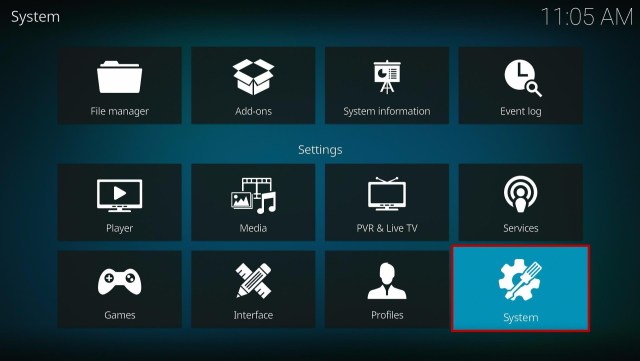
 

3. Click on the Add-ons menu and Turn ON the Unknown Sources


4. Select Yes when the box appears


5. Go back one step and click on File Manager.


6. Select the Add Source


7. A box will pop up, so click on the ‘None’ option.


8. Now type in this URL http://cmanbuilds.com/repo and click OK. 


9. Name this URL as cman and tap OK.


10. After that, go back to the system menu and select Add-ons.


11. Click Install from Zip File


12. When a box pop up, tap the Yes button

13. Select cman or any name you have given.


14. Choose repository.cMaNWizard.zip


15. Wait a few minutes for the addon to be installed. After that, an icon will appear at the top menu.


16. Tap the  Install from Repository


17. Then select cMaN’s Wizard Repository from the list


18. Select the Program add-ons


19. Click cMaN Wizard 19


20. Tap the Install button


21. Click the Ok button


22. Wait for the Installed message to appear and click the Continue


23. Tap the Close


24. Go back to the Kodi home screen and scroll down to Addon


25. From the Program add-ons, select cMaN Wizard 19


26. Select Builds
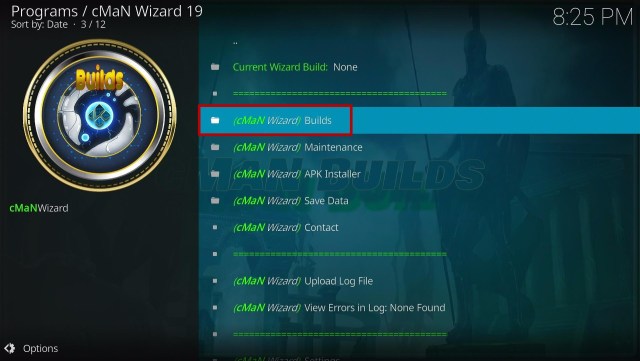
 

27. Scroll down and select Mad Dragon


28. Tap the Install 


29. Click the Yes, Install


30. Wait for the build to download.


31. Tap on the Fresh Install 


32. Wait a second for it to finish.


33. Click the OK button


34. Launch your Kodi again


35. That’s it! You have successfully installed the Mad Dragon Build. 


YOUR INTERNET ACTIVITY IS BEING WATCHED

ReviewVPN cannot attest to the legality, security and privacy of the applications discussed on this site. It is highly recommended that you use a VPN service while streaming or using Kodi.

Currently, your IP 216.73.216.144 is visible to everyone and your Browser is being tracked by Advertisers & ISP Provider.

Save 65% Now

Limited Time Offer

Here are the main reasons why you must use a VPN:

  • Your activities are hidden from your ISP, the government, and from the apps you are using.
  • You can access additional movies and TV streams.
  • ISP attempts to throttle are thrwarted thus reducing buffering issues.
  • Geographically restricted content like Netflix and Hulu can be unblocked.

A VPN works be replacing your ISP-assigned IP address and creating an encrypted tunnel. We recommend the no log service offered by IPVanish. It works well on a Firestick and offers the fastest possible speeds.

Special Limited Time Offer - Get IPVanish


Legal Disclaimer: ReviewVPN.com does not encourage or endorse any illegal activity involved in the usage of services and applications referenced on this site. We do not verify the licensing agreements of services. The end-user is wholly responsible for ensuring that any media accessed through these services does not violate copyright and/or licensing laws. ReviewVPN does not promote, link to, or receive compensation from any Apps and IPTV services.


Install Surfshark on Firestick

Best Surfshark Deal


Features of Mad Dragon Kodi Build

  • The Main categories are Den, Lair, Dungeon, Wizard, Cave, Duel, Dwelling, System, and Power. 
  • You can also choose from sub-categories such as 4K One-Click Section, One-Click section, Non-Debrid, Movies, Tv shows, Soaps, Documentaries, Kids, Sports, Stand up, Apps, and more. 
  • It brings you a wide range collection of 4K content to watch. 
  • For movies you can choose from 4K movies, Popular Movies, Theaters, 3D movies, classics, Top Rated, Oscar Winners, and more.
  • Collections of content from 1971 up to the present.
  • Genres: Action, Adventures, Animation, Comedy, Crime, Documentary, Drama, Family, Fantasy, History, Horror, Music, Mystery, Romance, Science Fiction, TV Movies, Thriller, and more. 
  • It also brings you Kids’ content from different popular studios such as Pixar, Marvel Cartoons, Disney+, DreamWorks, Columbia Pictures, Fox, Universal Animations Studios, and more.
  • You can also watch Sports coverage of Wrestling, Boxing, UFC Replays, NFA, NHL, MLB, Sports Documentaries, Sports Catch up, and more.
  • Available PVR and Live TVs such as Pakistan TV, India tv, Bangladesh, UK TV, Sports TV, Afghanistan TV, and more. 
  • You can choose from different quality streaming links from SD to 4K quality.
  • It also has playback and skips buttons.
  • My Addons/Repo section where you can try different addons, such as DejaVu repo, Asgard, THE CREW, THE CREW REPO, Rising tides, Replay Me, Venom, Nightwing, Odin, Maverick, Loop Repository, Project Mayhem, The Endzone, Q Sports, Dailymotion, Mad Titan Sports and more.


Pros and Cons

Pros

  • It is one of the few addons compatible with the new Kodi 19.5.
  • No registration or subscription is required to access their content. 
  • Large collections of content with a wide variety of content categories. 
  • This build supports both Trakt and Real Debrid accounts integration. 
  • It brings you, different link providers, to choose from. 

Cons

  • This build has too much buffering when choosing from categories. 
  • There are some error streaming links. 


Use a VPN while Streaming.

We always suggest using a Virtual Private Network on your device before you stream on any third-party build or addon and even from different sites. It is to ensure that you are safe from any harm and dangerous servers that provide you free streaming links from unsafe servers. Nevertheless, having a VPN on your device is like having an online companion that will always keep you protected 24/7.  

One of the best VPNs that we highly recommend when it comes to security and protection is Surfshark. However, this VPN uses a military standard of encryption that safeguards everything about you including your identity, and real IP address, and even keeps you anonymous while streaming online. 

Surfshark has a lot of impressive features and quality services to offer, such as unlimited bandwidth with a high speed of connection to enjoy.

Note: For more information about SurfShark, please read our SURFSHARK REVIEW.


Grab your subscription now!

Click here to get the lowest price on Surfshark through our exclusive limited-time offer.


How to Install Surfshark VPN on Firestick

If your Firestick still has the older interface, read this article to learn how to update it: Update Firestick Interface.

You can download Surfshark directly from the Amazon App store. It will be easy for you to find Surfshark with your Firestick’s Find feature. Refer to our screenshots below.

1. Go to the Home screen of your Firestick.

step 1 Install Surfshark VPN on Firestick


2. Navigate towards the Find tab. Press the Search button from the resulting dropdown.

step 2 Install Surfshark VPN on Firestick


3. Type in the keyword of SurfShark and select from the suggestions that will appear.

step 3 Install Surfshark VPN on Firestick


4. Click the official SurfShark icon from your search results.

step 4 Install Surfshark VPN on Firestick


5. Press the Download (You own it) button.

step 5 Install Surfshark VPN on Firestick


6. The SurfShark VPN installer will download on your device.

step 6 Install Surfshark VPN on Firestick


7. SurfShark VPN’s app will automatically install itself on your Fire TV stick.

step 7 Install Surfshark VPN on Firestick


8. Press the Open button after completing SurfShark VPN’s installation process.

step 8 Install Surfshark VPN on Firestick


9. Please wait for the SurfShark VPN to load its user interface.

step 9 Install Surfshark VPN on Firestick


10. You can now log in with your SurfShark VPN account credentials.

step 10 Install Surfshark VPN on Firestick

Learn more about Surfshark and Grab the Best Surfshark Deal Now!


Install Surfshark on Firestick

Best Surfshark Deal


Other VPNs to Consider

NordVPN (Best for Streaming)

Best Features

  • 5000+ Server in 50+ Countries 
  • Military-Grade Encryption
  • Fast Connection Speed
  • Suitable to a lot of devices
  • No-Log Policy

Prices
  • Complete $5.89 per month (64% Discount)
  • Plus $4.59 per month (56% Discount)
  • Standard $3.69 per month (55% Discount)

Best Features

  • 750+ High-speed VPN Servers in 43 Locations
  • Military-Grade Encryption
  • Fastest HD Streaming and Gaming
  • 30-Day Money-Back Guarantee
  • Unlimited Data & Devices
  • No-Log Policy

Prices
  • 3 Years $1.99 per month (82% Discount)
  • 1 Years $3.29 per month (70% Discount)
  • 1 Month $10.99 per month

IPVanish VPN (Most Secure)

Best Features

  • 1200+ Servers in 60+ Countries around the world
  • Unlimited Connections
  • No-Log Policy
  • Top Notch Military-Grade VPN Protocols and Encryptions
  • 100% Safe and Secured
  • Most Trusted VPN
  • Best VPN for Firestick
  • 30-Day Money-Back Guarantee

Prices
  • Yearly $3.99 per month (63% Discount) – 30 days risk free + Ransomware & Malware Protection
  • Quarterly $5.32 per month (51% Discount)
  • Monthly $10.99 per month


For more VPN discounts, go to ReviewVPN Deals and purchase the best VPN for you.

Click here to get the lowest price on Surfshark through our exclusive limited-time offer.


Alternatives for Mad Dragon Kodi Build

We list down some of the Kodi builds that you can try on your Kodi aside from Mad Dragon. Kindly read their corresponding articles to know more about these add-ons. Nonetheless, if you want to know more about the addon build compatible with Kodi 19.5, kindly read our What’s working on Kodi 19.5.


FAQs

Does this Kodi Build work well on the latest version of Kodi?

Yes, this build is compatible with the latest Kodi version. 


Can I watch Mad Dragon Kodi Build for free?

Yes, this build is free and allows you to access their content for free.


Is the Mad Dragon Kodi Build legal to use?

Yes, this build is legal as long as it only offers non-copyright content.


Is the Mad Dragon Kodi Build safe to use?

Yes, this build is safe to use, but if you want to ensure your security, we suggest using a VPN such as Surfshark. 


Conclusion

Mad Dragon is one of the latest Kodi builds from the Cman Repository and one of the few builds that work well on Kodi 19.5 This build brings you a wide range of content categories and subcategories. It is also a feature-rich build that supports both Trakt and Real Debrid account integration to have a better experience in streaming. However, some of this build content requires you to have a Real Debrid account. We hope this article helps you install the Mad Dragon Kodi Build. 


Note: ReviewVPN.com does not own or operate any app nor does it endorse any. The main purpose of this article is strictly for educational purposes only.

How to Install Artic Crush Kodi Build

Artic Crush Kodi Build Overview

The article will help you on how to install Artic Crush Kodi Build.


Artic Crush build is from the Cman Repository and is one of the few builds compatible with Kodi 19.5. This build interface is different from other builds and a little bit hard to navigate. However, this build will surely satisfy you with its list of content in a wide variety of categories.

You can watch the latest and popular movies and TV series, Kids’ content, Sports, and more. This build supports trakt.tv account integration to monitor your watching history and synchronize your content library.

It also has a preloaded add-on that you can try and watch on their list of contents, such as the Maverick, Loop Repo, Seren, The Oath, and more. However, this build has a skin by default of Arctic Horizon that is very simple and easy to use. 


ANONYMOUSLY

How to Install Artic Crush Kodi Build with Screenshot

Installing a Kodi build has a lot of processes to take. That is why we will guide you step by step on how you can install it on Kodi.

 Follow the following steps below.  

1. On your Firestick, open Kodi and go to Settings.


2. Select on System


3. Click on the Add-ons menu and Turn ON the Unknown Sources


4. Select Yes when the box appears


5. Go back one step and click on File Manager.


6. Select the Add Source


7. A box will pop up, so click on the ‘None’ option.


8. Now type in this URL http://cmanbuilds.com/repo and click OK. 


9. Name this URL as cman and tap OK.


10. After that, go back to the system menu and select Add-ons.


11. Click Install from Zip File


12. When a box pop up, tap the Yes button


13. Select cman or any name you have given.


14. Choose repository.cMaNWizard.zip


15. Wait a few minutes for the addon to be installed. After that, an icon will appear at the top menu.


16. Tap the  Install from Repository


17. Then select cMaN’s Wizard Repository from the list


18. Select the Program add-ons


19. Click cMaN Wizard 19


20. Tap the Install button


21. Click the Ok button


22. Wait for the Installed message to appear and click the Continue


23. Tap the Close


24. Go back to the Kodi home screen and scroll down to Addon


25. From the Program add-ons, select cMaN Wizard 19


26. Select Builds


27. Scroll down and select Artic Crush


28. Tap the Install 


29. Click the Yes, Install


30. Wait for the build to download.


31. Tap on the Fresh Install 


32. Wait a second for it to finish.


33. Click the OK button


34. Launch your Kodi again


35. That’s it! You have successfully installed the Artic Crush Build. 


YOUR INTERNET ACTIVITY IS BEING WATCHED

ReviewVPN cannot attest to the legality, security and privacy of the applications discussed on this site. It is highly recommended that you use a VPN service while streaming or using Kodi.

Currently, your IP 216.73.216.144 is visible to everyone and your Browser is being tracked by Advertisers & ISP Provider.

Save 65% Now

Limited Time Offer

Here are the main reasons why you must use a VPN:

  • Your activities are hidden from your ISP, the government, and from the apps you are using.
  • You can access additional movies and TV streams.
  • ISP attempts to throttle are thrwarted thus reducing buffering issues.
  • Geographically restricted content like Netflix and Hulu can be unblocked.

A VPN works be replacing your ISP-assigned IP address and creating an encrypted tunnel. We recommend the no log service offered by IPVanish. It works well on a Firestick and offers the fastest possible speeds.

Special Limited Time Offer - Get IPVanish


Legal Disclaimer: ReviewVPN.com does not encourage or endorse any illegal activity involved in the usage of services and applications referenced on this site. We do not verify the licensing agreements of services. The end-user is wholly responsible for ensuring that any media accessed through these services does not violate copyright and/or licensing laws. ReviewVPN does not promote, link to, or receive compensation from any Apps and IPTV services.


Install Surfshark on Firestick

Best Surfshark Deal


Features of Arctic Crush Kodi Build

  • You can choose from different categories such as Popular, Top Rated, Most Rated, Latest, Animation, and more. 
  • Kids section: You can choose from Kids Movies, Family Movies, Animation, Q Kids, Free Kids Movies, Asgard Kids, Boxsets, Animation, 4K kids Movies, and more.  
  • Movies and TV Shows: Watch on a large collection of Tv shows from different addons, such as Asgard, Seren, Odin, Goto, Q Continuum, Maverick 19, Black Lightning, and more. 
  • It also has Live Tv, where you can watch on different popular channels such as USTV GO, Animal Planet from different countries, LMShows 24/7, Fluxus IPTV, TubiTV, and more.
  • Available SMR Link Tester where you can Create a Directory, Add Link, and SMR settings. 
  • Wizard Section: It has Buffer Fixes, Builds MEnu, Maintenance, Misc Maintenance, and Save Data.
  • Genres: Action, Adventures, Animation, Comedy, Crime, Documentary, Drama, Family, Fantasy, History, Horror, Music, Mystery, Romance, Science Fiction, TV Movies, Thriller and more. 
  • It also brings you Kids’ content from different popular studios such as Pixar, Marvel Cartoons, Disney+, DreamWorks, Columbia Pictures, Fox, Universal Animations Studios, and more.
  • Resolution rate is 1920x1080p
  • Available Play Next automatically and skip steps. 
  • My Addons/Repo section where you can try different addons, such as DejaVu repo, Asgard, Rising tides, Replay Me, Venom, Nightwing, Odin, Maverick, Loop Repository, Torque Lite, The Endzone, Q Sports, Arctic Ape Repo, Black, Black Lightning, Dailymotion, Free TV, Host505 repo, Narcassist’s Wizard repository, Seren, Q Continuum, TV one111, Mad Titan Sports and more.


Pros and Cons

Pros

  • No registration or subscription is required to access their contents.
  • This build is compatible with Kodi 19.5. 
  • Large collections of content with a wide variety of content categories. 
  • You can integrate your Trakt.tv account to monitor your watching history.
  • It brings you both free and debrid links.
  • You can stream on up to 1080p video quality. 

Cons

  • Too much buffering and lags when you are choosing content. 
  • Some streaming links provided are not working at all.


Keep Private with a VPN

Streaming online using free links is not safe at all, because sometimes these links were from unknown servers. That is why we always recommend using a Virtual Private Network on your device to ensure your privacy while streaming online.

In terms of privacy issues, Surfshark is the most reliable VPN, you can use to give you the privacy you need.  However, this VPN will automatically encrypt everything about you to keep you anonymous online. It also uses a military standard of AES-256, a bit of encryption that will safeguard your data.

Surfshark also prevents your ISP from interfering with your connection and snooping on your activities. To know more about these VPN features and services, kindly read our Surfshark Review

Note: For more information about Surfshark, please read our Surfshark Review.


Grab your subscription now!

Click here to get the lowest price on Surfshark through our exclusive limited-time offer.


How to Install Surfshark VPN on Firestick

If your Firestick still has the older interface, read this article to learn how to update it: Update Firestick Interface.

Follow our screenshots below to install the SurfShark VPN app on your Fire TV stick.

1. Go to the Home screen of your Firestick.

step 1 Install Surfshark VPN on Firestick


2. Navigate towards the Find tab. Press the Search button from the resulting dropdown.

step 2 Install Surfshark VPN on Firestick


3. Type in the keyword of SurfShark and select from the suggestions that will appear.

step 3 Install Surfshark VPN on Firestick


4. Click the official SurfShark icon from your search results.

step 4 Install Surfshark VPN on Firestick


5. Press the Download (You own it) button.

step 5 Install Surfshark VPN on Firestick


6. The SurfShark VPN installer will download on your device.

step 6 Install Surfshark VPN on Firestick


7. SurfShark VPN’s app will automatically install itself on your Fire TV stick.

step 7 Install Surfshark VPN on Firestick


8. Press the Open button after completing SurfShark VPN’s installation process.

step 8 Install Surfshark VPN on Firestick


9. Please wait for the SurfShark VPN to load its user interface.

step 9 Install Surfshark VPN on Firestick


10. You can now log in with your SurfShark VPN account credentials.

step 10 Install Surfshark VPN on Firestick

Learn more about Surfshark and Grab the Best Surfshark Deal Now!


Install Surfshark on Firestick

Best Surfshark Deal


Other VPNs to Consider

NordVPN (Best for Streaming)

Best Features

  • 5000+ Server in 50+ Countries 
  • Military-Grade Encryption
  • Fast Connection Speed
  • Suitable to a lot of devices
  • No-Log Policy

Prices
  • Complete $5.89 per month (64% Discount)
  • Plus $4.59 per month (56% Discount)
  • Standard $3.69 per month (55% Discount)

Best Features

  • 750+ High-speed VPN Servers in 43 Locations
  • Military-Grade Encryption
  • Fastest HD Streaming and Gaming
  • 30-Day Money-Back Guarantee
  • Unlimited Data & Devices
  • No-Log Policy

Prices
  • 3 Years $1.99 per month (82% Discount)
  • 1 Years $3.29 per month (70% Discount)
  • 1 Month $10.99 per month

IPVanish VPN (Most Secure)

Best Features

  • 1200+ Servers in 60+ Countries around the world
  • Unlimited Connections
  • No-Log Policy
  • Top Notch Military-Grade VPN Protocols and Encryptions
  • 100% Safe and Secured
  • Most Trusted VPN
  • Best VPN for Firestick
  • 30-Day Money-Back Guarantee

Prices
  • Yearly $3.99 per month (63% Discount) – 30 days risk free + Ransomware & Malware Protection
  • Quarterly $5.32 per month (51% Discount)
  • Monthly $10.99 per month


For more VPN discounts, go to ReviewVPN Deals and purchase the best VPN for you.

Click here to get the lowest price on Surfshark through our exclusive limited-time offer.


Alternatives for Artic Crush Kodi Build

We list down some Kodi builds that you can try on your Kodi aside from Artic Crush. Kindly read their corresponding articles to know more about these add-ons. Nonetheless, if you want to know more about the addon build that is compatible with Kodi 19.5, kindly read our What’s working on Kodi 19.5.


FAQs

Can I watch Artic Crush Kodi Build for free?

Yes, this build is free and allows you to access their content for free.


Is the Artic Crush Kodi Build legal to use?

Yes, this build is legal as long as it only offers non-copyright content.


Is the Artic Crush Kodi Build safe to use?

Yes, this build is safe to use, but if you want to ensure your security, we suggest using a VPN such as Surfshark


 Is Artic Crush Kodi Build compatible with the latest version of Kodi?

Yes, the Artic Crush build is compatible with the latest Kodi version. 


Conclusion

Artic Crush is another latest and amazing Kodi build from the Cman Repository. It is also one of the few builds compatible with Kodi 19.5. This build also brings you high-quality streaming links from different providers.  However, you can watch the latest and popular movies, Tv shows, kids, documentaries, and more for free. We hope this article helps you install the Artic Crush Kodi Build. 


Note: ReviewVPN.com does not own or operate any app nor does it endorse any. The main purpose of this article is strictly for educational purposes only.

How to Watch the 2021 World Series

Overview

In this article, we will teach you how to watch the 2021 World Cup on your Fire TV stick.


Do you want to catch the 2021 World Series either on your Android or Fire TV stick? Let us show you possible methods for its successful streaming!

After some time of waiting, the 2021 World Series is here! The 2021 season is an unforgettable event for us sports enthusiasts! Now, it all funnels down to the Atlanta Braves vs. the Houston Astros. We cannot wait for who dominates this eventful clash!

As many cord-cutters know, fans of MLB and the World Series should first figure out what channel the event will air. Afterward, we have to find an app suitable for streaming the live event on our mobile phones, streaming devices, and portable gadgets.

Let us now share with you some apps that will bring you the 2021 World Series straight to your viewing screen.


ANONYMOUSLY

Paid Apps for Watching the 2021 World Series

If you are wondering what team will end the 2021 World Series, then follow our guide below showing you the apps for streaming the event.

We are all excited about the next match between the Atlanta Braves and Houston Astros. Our last update shows that the Atlanta Braves lead at 3-2, while the Houston Astros are at 2-3.

Check out our guide below so you can catch the live streaming of the 2021 MLB event.


Fox Sports Go

The Fox company is a famous provider of sports videos since cable TV subscriptions became a thing. Today, Fox owns the rights to stream the 2021 MLB World Series event.

Fox both has a website and app where you can check out the latest event schedules. You don’t have to worry about the channels since you will easily find the one streaming the next MLB match. The Fox Sports Go app is compatible both with Android and Fire TV stick devices.


How to Install the Fox Sports Go app on your Fire TV stick:

1. Install the Downloader app and jailbreak your firestick by enabling unknown sources. To learn more about the procedure, you may read How to Install the Downloader App and Enable Unknown Sources. Use the Downloader app’s URL Search browser.


2. Open Downloader App. Type https://reviewvpn.com/fxs and click Go.

2021 World Series

3. Click Install.

2021 World Series

4. Click Open.

2021 World Series

5. Click OK.

2021 World Series

6. You can now stream live TV and sports events with the Fox Sports GO app on your Fire TV stick.

2021 World Series


YOUR INTERNET ACTIVITY IS BEING WATCHED

ReviewVPN cannot attest to the legality, security and privacy of the applications discussed on this site. It is highly recommended that you use a VPN service while streaming or using Kodi.

Currently, your IP 216.73.216.144 is visible to everyone and your Browser is being tracked by Advertisers & ISP Provider.

Save 65% Now

Limited Time Offer

Here are the main reasons why you must use a VPN:

  • Your activities are hidden from your ISP, the government, and from the apps you are using.
  • You can access additional movies and TV streams.
  • ISP attempts to throttle are thrwarted thus reducing buffering issues.
  • Geographically restricted content like Netflix and Hulu can be unblocked.

A VPN works be replacing your ISP-assigned IP address and creating an encrypted tunnel. We recommend the no log service offered by IPVanish. It works well on a Firestick and offers the fastest possible speeds.

Special Limited Time Offer - Get IPVanish


Legal Disclaimer: ReviewVPN.com does not encourage or endorse any illegal activity involved in the usage of services and applications referenced on this site. We do not verify the licensing agreements of services. The end-user is wholly responsible for ensuring that any media accessed through these services does not violate copyright and/or licensing laws. ReviewVPN does not promote, link to, or receive compensation from any Apps and IPTV services.


Install Surfshark on Firestick

Best Surfshark Deal


Hulu Live TV

We recommend you install the Hulu Live TV app in case the Fox streaming service gets overloaded. As a reminder, you might experience disturbances streaming from the main live event provider.

It is a good method to have an alternative app right in your pocket. The Hulu Live TV app directly serves as a solution for this scenario. It contains the Fox Sports channel. Aside from that, you can record some game events with Hulu’s cloud DVR. Users can even watch some movies about baseball.

For people wanting to catch the next 2021 World Series event, you can do it successfully with Hulu’s 7-Day Free trial plan. Who knows? You might like its services and stay with the app for streaming a variety of sports videos.


How to Install the Hulu app on your Fire TV stick:

1. Install the Downloader app and jailbreak your firestick by enabling unknown sources. To learn more about the procedure, you may read How to Install the Downloader App and Enable Unknown Sources.


2. Type in: reviewvpn.com/hul and click Go.

2021 World Series


3. Wait for the file download to finish.

2021 World Series


4. Click Install.

2021 World Series


5. Click on the Open button.

2021 World Series


6. Press the login button.

2021 World Series

Explore the features of the Hulu Live TV app by visiting our article about Hulu App Review and Installation guide.

Sling TV

Sling TV is another app that offers channels from Fox Sports 1, TBS, and the MLB network. We recommend the app for people wanting to watch the 2021 World Series after the season ends.

The Sling TV app is a well-known affiliate of Fox. You can catch the 2021 World Series by subscribing to the Sling Blue subscription plan.


How to Install the Sling TV app on your Fire TV stick:

1. Use the Downloader app’s URL Search browser. Read our article showing you How to Install the Downloader App.


2. Type in: https://reviewvpn.com/sli and click on the Go button.

2021 World Series


3. Click on the Install button.

2021 World Series


4. Press the Open button.

2021 World Series


5. Tap on the Sign In button to watch.

2021 World Series

You will learn more about the app if you visit our article about Sling TV: App Review and Installation for your Fire TV stick.


Fubo TV

The Fubo TV streaming service is another excellent option for streaming the World Series. Upon visiting the app’s official website, you will see that they offer live streaming of the World Series event.

When you launch the app, get access to famous sports networks such as Fox Sports 1, MLB Network, ESPN, Bein Sports, NFL Network, and many more.

You can either catch the 2021 World Series with the Fubo TV app’s free trial or immediately subscribe to one of its flexible payment plans.


How to Install the Fubo TV app on your Fire TV stick:

1. Use the Downloader app’s URL Search browser. Read our article showing you How to Install the Downloader App.


2. Type in the URL: https://reviewvpn.com/apt and click Go.

2021 World Series


3. Wait for the file download to finish.

2021 World Series


4. Click on the Install button.

2021 World Series


5. Select Open to launch the app.

2021 World Series


6. Press the OK button after opening the app.

2021 World Series


7. Choose Allow.

2021 World Series


8. Click on the Search button.

2021 World Series


9. Type in FuboTV as your search term.

2021 World Series


10. Click on the Install button on the front menu.

2021 World Series


11. Once the download is complete, press the Install button.

2021 World Series


12. Open the Fubo TV installer file with the Package Installer app.

2021 World Series


13. Click the Open button.

2021 World Series


14. You can now sign in with your account to start streaming.

2021 World Series

Learn more about using the Fubo TV app by visiting Fubo TV App Review and Installation on Firestick.


Watch the 2021 World Series Event with a VPN

It now comes down to the Atlanta Braves and Houston Astros. We are glad we’ve come this far together in the 2021 World Series.

To ensure that you stream the 2021 World Series without disturbances, we recommend you use Surfshark. It is undeniably the best VPN for streaming popular sports events. Here are some advantages that Surfshark shares with its users:

  • Stream the 2021 World Series without worrying about geo-restrictions.
  • Hide your identity while browsing sports channels from online sources.
  • Helps you download a sports streaming app at faster speeds.
  • Provide you with a new IP address.
  • Prevents buffering and stuttering while streaming the MLB event on your Fire TV stick.

Note: For more information about SurfShark, please read our SURFSHARK REVIEW.


Grab your subscription now!


How to Install Surfshark VPN on Firestick

If your Firestick still has the older interface, read this article to learn how to update it: Update Firestick Interface.

You can download Surfshark directly from the Amazon App store. It will be easy for you to find Surfshark with your Firestick’s Find feature. Refer to our screenshots below.

1. Go to the Home screen of your Firestick.

step 1 Install Surfshark VPN on Firestick


2. Navigate towards the Find tab. Press the Search button from the resulting dropdown.

step 2 Install Surfshark VPN on Firestick


3. Type in the keyword of SurfShark and select from the suggestions that will appear.

step 3 Install Surfshark VPN on Firestick


4. Click the official SurfShark icon from your search results.

step 4 Install Surfshark VPN on Firestick


5. Press the Download (You own it) button.

step 5 Install Surfshark VPN on Firestick


6. The SurfShark VPN installer will download on your device.

step 6 Install Surfshark VPN on Firestick


7. SurfShark VPN’s app will automatically install itself on your Fire TV stick.

step 7 Install Surfshark VPN on Firestick


8. Press the Open button after completing SurfShark VPN’s installation process.

step 8 Install Surfshark VPN on Firestick


9. Please wait for the SurfShark VPN to load its user interface.

step 9 Install Surfshark VPN on Firestick


10. You can now log in with your SurfShark VPN account credentials.

step 10 Install Surfshark VPN on Firestick

Learn more about Surfshark and Grab the Best Surfshark Deal Now!


Other VPNs to Consider

NordVPN (Best for Streaming)

Best Features

  • 5000+ Server in 50+ Countries 
  • Military-Grade Encryption
  • Fast Connection Speed
  • Suitable to a lot of devices
  • No-Log Policy

Prices
  • Complete $5.89 per month (64% Discount)
  • Plus $4.59 per month (56% Discount)
  • Standard $3.69 per month (55% Discount)

Best Features

  • 750+ High-speed VPN Servers in 43 Locations
  • Military-Grade Encryption
  • Fastest HD Streaming and Gaming
  • 30-Day Money-Back Guarantee
  • Unlimited Data & Devices
  • No-Log Policy

Prices
  • 3 Years $1.99 per month (82% Discount)
  • 1 Years $3.29 per month (70% Discount)
  • 1 Month $10.99 per month

IPVanish VPN (Most Secure)

Best Features

  • 1200+ Servers in 60+ Countries around the world
  • Unlimited Connections
  • No-Log Policy
  • Top Notch Military-Grade VPN Protocols and Encryptions
  • 100% Safe and Secured
  • Most Trusted VPN
  • Best VPN for Firestick
  • 30-Day Money-Back Guarantee

Prices
  • Yearly $3.99 per month (63% Discount) – 30 days risk free + Ransomware & Malware Protection
  • Quarterly $5.32 per month (51% Discount)
  • Monthly $10.99 per month


For more VPN discounts, go to ReviewVPN Deals and purchase the best VPN for you.


Grab the Best Surfshark Deal Now!


FAQs

Are all the apps free?

No. Each app requires the creation of an account and a user subscription complete with flexible payment plans. However, these apps have varying free trial durations.


Is it safe to use these apps?

Yes. The apps we include on our list do not have any form of cyber threats such as viruses and malware.


Conclusion

The 2021 World Series is here! Fans worldwide are excited about the defining match between Atlanta Braves and Houston Astros. Last we checked, the Atlanta Braves lead Game 6. Will the Houston Braves be up for the challenge? Find out the apps inside this article.

We hope this article provides you with the best apps for streaming the 2021 World Series.


Note: ReviewVPN.com does not own or operate any app nor does it endorse any. The main purpose of this article is strictly for educational purposes only.


How to Install 80smovies18 Kodi Build

80smovies18 Kodi Build Overview

The article will help you on how to install 80smovies18 Kodi Build.


80smovies18 is another golden-aged Kodi build that brings you a wide selection of movies and TV series of the 80s. This build is located at the Grindhouse Repository along with the other popular builds and addons. It also has a wide variety of content to choose from and a different collection of movies. This build interface will make you feel the 80s entertainment by showing you different covers of popular 80s movies/series.

The main categories in this build are Movies, Tv shows, Addons, Favorites, Systems, and more. It also has different pre-loaded add-ons that bring you a wide selection of content. Some of the preloaded addons that you can try are Grindhouse Wizard, NuMb3r5, DejaVu, DC Universe, The Endzone, Marvel Universe, and more. It is also a feature-rich build that brings you a high quality of streaming links provided by the Real Debrid, but you need to have an account.


ANONYMOUSLY

How to Install 80smovies18 Kodi Build with Screenshot

Installing a Kodi build has a lot of processes to take. That is why we will guide you step by step on how you can install it on Kodi.

 Follow the following steps below. 

1. On your Firestick, open Kodi and go to Settings.


2. Select on System

Purely Wrestling Kodi Addon


3. Click on the Add-ons menu and Turn ON the Unknown Sources

80smovies18


4. Select Yes when the box appears

80smovies18


5. Go back one step and click on File Manager.

80smovies18


6. Select the Add Source

80smovies18


7. A box will pop up, so click on the ‘None’ option.

80smovies18


8. Now type in this URL http://grindhousekodi.tk/repo and click OK.

80smovies18


9. Name this URL as grind and tap OK.

80smovies18


10. After that, go back to the system menu and select Add-ons.

80smovies18


11. Click Install from Zip File

80smovies18


12. When the box pop-up, select grind or any name you have given. 

80smovies18


13. Choose repository.grindhousekodi-1.7.zip

80smovies18


14. Wait a few minutes for the addon to be installed. After that, an icon will appear at the top menu.

80smovies18


15. Tap the  Install from Repository

80smovies18


16. Then select Grindhouse Repository from the list

80smovies18


17. Select the Program add-ons

80smovies18


18. Click Grindhouse Wizard

80smovies18


19. Tap the Install button

80smovies18


20. Wait for the Installed message to appear and click the Continue

80smovies18


21. Tap the Not Used

80smovies18


22. Go back to the Kodi home screen and scroll down to Addon

80smovies18


23. From the Program add-ons, select Grindhouse Wizard

80smovies18


24. Select Builds

80smovies18


25. Scroll down and click 80smovies18

80smovies18


26. Click the Fresh Install

80smovies18


27. When a box pops up, tap the Yes

80smovies18


28. Wait for the build to download.

80smovies18


29. Click the OK button

80smovies18


30. Launch your Kodi again

80smovies18


31. That’s it! You have successfully installed the 80smovies18 Build. 

80smovies18


YOUR INTERNET ACTIVITY IS BEING WATCHED

ReviewVPN cannot attest to the legality, security and privacy of the applications discussed on this site. It is highly recommended that you use a VPN service while streaming or using Kodi.

Currently, your IP 216.73.216.144 is visible to everyone and your Browser is being tracked by Advertisers & ISP Provider.

Save 65% Now

Limited Time Offer

Here are the main reasons why you must use a VPN:

  • Your activities are hidden from your ISP, the government, and from the apps you are using.
  • You can access additional movies and TV streams.
  • ISP attempts to throttle are thrwarted thus reducing buffering issues.
  • Geographically restricted content like Netflix and Hulu can be unblocked.

A VPN works be replacing your ISP-assigned IP address and creating an encrypted tunnel. We recommend the no log service offered by IPVanish. It works well on a Firestick and offers the fastest possible speeds.

Special Limited Time Offer - Get IPVanish


Legal Disclaimer: ReviewVPN.com does not encourage or endorse any illegal activity involved in the usage of services and applications referenced on this site. We do not verify the licensing agreements of services. The end-user is wholly responsible for ensuring that any media accessed through these services does not violate copyright and/or licensing laws. ReviewVPN does not promote, link to, or receive compensation from any Apps and IPTV services.


Install Surfshark on Firestick

Best Surfshark Deal


Features of 80smovies18 Kodi Build

Interface

  • It has an attractive and easy-to-navigate interface. 
  • You can access their content for free. 


Categories and Contents

  • The Main categories are Movies, Tv shows, Add-on/AIO, System, Favorites, and Exit. 
  • For the Movies section, you can choose from different collections of movies such as Hulk Collection, Deadpool Collection, Fantastic, Blade, Punisher, Ghost Rider. X-Men Collection and more.
  • You can also watch the DC Universe, Superman, Wonder Woman, Harley Quinn, Animated Movies, DC Lego movies, and more. 
  • Choose from 4K movies, 3D Movies, Movies, People Watching, Genre, Year, New Movies, black and White Movies, Collections, and more.
  • Genres: Action, Adventures, Animation, Comedy, Crime, Documentary, Drama, Family, Fantasy, History, Horror, Music, Mystery, Romance, and more. 
  • It also brings you different popular studios such as 40 Acres, Columbia Pictures, Destination Films, DreamWorks, Disney, Fox, Hallmark, and more.
  • In TV shows: You can choose from Top-rated, Trending Today, Currently Airing, Airing Today, Top Rated, and more Tv series. 
  • You can integrate your Real Debrid account to access high-quality streaming links. 
  • Link your Trakt. tv account to synchronize your library.


Settings

  • You can watch up to 1080p video streaming quality. 
  • Available PVR and Live TV
  • It also has playback and skip buttons.
  • My Addons/Repo section where you can try different addons, such as Grindhouse Wizard, NuMb3r5, CellarDoorTV, DejaVu Repo, DC Universe, Maverick 18, The Endzone, Marvel Universe, SkyNet, Asgard, Black, Chains Repository, Evil, F4mTester, Helly Repo, Kratos Reborn, Odds N’ Ends, SportsDevil, The Boys, TheMoviesDatabase, Twisted, and more.


Pros and Cons

Pros

  • It has a simple 80s entertainment-inspired interface that is easy to navigate.  
  • You can watch a large collection of 80s movies and Tv series. 
  • Thai build supports both Trakt and Real Debrid accounts integration. 
  • It brings you high-quality streaming links. 
  • Wide variety of content categories to choose from.

Cons

  • This build has too much buffering when choosing from categories. 
  • You cannot watch their content if you do not have a Real Debrid account.


Have Safe and Fast streaming with Surfshark

When streaming online, isn’t it very frustrating when you encounter too many lags and buffering because of your internet connection? One of the major problems of the streamers online is poor and unsafe connections that always kill the fun. That is why we always suggest using a Virtual Private Network on your device to have a fast and safe streaming experience online. A VPN will ensure that you are safe from any potential harm online by keeping everything about you encrypted and anonymous. It also brings you a high speed of connection to enjoy smooth streaming online. 

We highly recommend Surfshark as your best choice, as it brings you a high-speed connection with unlimited bandwidth. It also prevents your ISP from interfering with your connection to avoid any buffering and lags. At the same time, it also keeps you safe from unprotected servers by hiding your real IP address and identity. 

Note: For more information about SurfShark, please read our SURFSHARK REVIEW.


Grab your subscription now!


How to Install Surfshark VPN on Firestick

If your Firestick still has the older interface, read this article to learn how to update it: Update Firestick Interface.

You can download Surfshark directly from the Amazon App store. It will be easy for you to find Surfshark with your Firestick’s Find feature. Refer to our screenshots below.

1. Go to the Home screen of your Firestick.

step 1 Install Surfshark VPN on Firestick


2. Navigate towards the Find tab. Press the Search button from the resulting dropdown.

step 2 Install Surfshark VPN on Firestick


3. Type in the keyword of SurfShark and select from the suggestions that will appear.

step 3 Install Surfshark VPN on Firestick


4. Click the official SurfShark icon from your search results.

step 4 Install Surfshark VPN on Firestick


5. Press the Download (You own it) button.

step 5 Install Surfshark VPN on Firestick


6. The SurfShark VPN installer will download on your device.

step 6 Install Surfshark VPN on Firestick


7. SurfShark VPN’s app will automatically install itself on your Fire TV stick.

step 7 Install Surfshark VPN on Firestick


8. Press the Open button after completing SurfShark VPN’s installation process.

step 8 Install Surfshark VPN on Firestick


9. Please wait for the SurfShark VPN to load its user interface.

step 9 Install Surfshark VPN on Firestick


10. You can now log in with your SurfShark VPN account credentials.

step 10 Install Surfshark VPN on Firestick

Learn more about Surfshark and Grab the Best Surfshark Deal Now!


Install Surfshark on Firestick

Best Surfshark Deal


Other VPNs to Consider

NordVPN (Best for Streaming)

Best Features

  • 5000+ Server in 50+ Countries 
  • Military-Grade Encryption
  • Fast Connection Speed
  • Suitable to a lot of devices
  • No-Log Policy

Prices
  • Complete $5.89 per month (64% Discount)
  • Plus $4.59 per month (56% Discount)
  • Standard $3.69 per month (55% Discount)

Best Features

  • 750+ High-speed VPN Servers in 43 Locations
  • Military-Grade Encryption
  • Fastest HD Streaming and Gaming
  • 30-Day Money-Back Guarantee
  • Unlimited Data & Devices
  • No-Log Policy

Prices
  • 3 Years $1.99 per month (82% Discount)
  • 1 Years $3.29 per month (70% Discount)
  • 1 Month $10.99 per month

IPVanish VPN (Most Secure)

Best Features

  • 1200+ Servers in 60+ Countries around the world
  • Unlimited Connections
  • No-Log Policy
  • Top Notch Military-Grade VPN Protocols and Encryptions
  • 100% Safe and Secured
  • Most Trusted VPN
  • Best VPN for Firestick
  • 30-Day Money-Back Guarantee

Prices
  • Yearly $3.99 per month (63% Discount) – 30 days risk free + Ransomware & Malware Protection
  • Quarterly $5.32 per month (51% Discount)
  • Monthly $10.99 per month


For more VPN discounts, go to ReviewVPN Deals and purchase the best VPN for you.

Click here to get the lowest price on Surfshark through our exclusive limited-time offer.


Alternatives for 80smovies18 Kodi Build

We list down some of the Kodi builds that you can try on your Kodi aside from 80smovies18. Kindly read their corresponding articles to know more about these add-ons. 


FAQs

Does the 80smovies18 Kodi Build also work well on Kodi 19.5?

No, this add-on is only working on Kodi 18.9 Leia and it is not compatible with Kodi 19.5. 


Is the 80smovies18 Kodi Build free?

Yes, this build is free and allows you to access their content for free.


Is the 80smovies18 Kodi Build legal?

Yes, this addon is legal as long as it only offers non-copyright content.


Is the 80smovies18 Kodi Build safe to use?

Yes, this build is safe to use, but if you want to ensure your security, we suggest using a VPN such as Surfshark


Conclusion

80smovies18 is one of the golden age builds that bring you quality content to watch for free. You can watch their great lineup of content from the 80s. This build also brings you different movies that will remind you of how beautiful your childhood was. It brings you all of the all-time favorite cartoons, Disney, anime, movies, and TV series. However, some of this build content requires you to have a Real Debrid account. We hope this article helps you install the 80smovies18 Kodi Build. 


Note: ReviewVPN.com does not own or operate any app nor does it endorse any. The main purpose of this article is strictly for educational purposes only.

How to Install Set IPTV on Firestick

Overview

In this article, we will show you how to install the Set IPTV app on your Fire TV stick.


Set IPTV Pro is yet another IPTV app that works both on Android and Fire TV devices. The Set IPTV Pro app relies on IPTV features. As we all know, IPTV is the short-term for Internet Protocol Television.

While using the Set IPTV Pro app, you do not have to rely on conventional and expensive cable or satellite TV subscriptions. The app lets you enjoy streaming a variety of content with your portable device.

Set IPTV Pro is a newcomer in the Internet Protocol Television industry. For people wanting to use the app, it is native to the Portuguese language. It means that the app hails from Portuguese app developers.

Spanish media content enthusiasts will enjoy using the Set IPTV Pro app. The app developers behind its creation periodically update the app with new TV shows and live channels. Its wide collection of TV series, movies, and shows expands its listing per week. You won’t have a hard time receiving new updates concerning the app’s content.

We will now present to you the Set IPTV Pro app’s download link for your Android device. Afterward, we will teach you how to install the app on your Fire TV stick. To install it successfully, you only have to Jailbreak your Fire TV Stick and sideload the app.


ANONYMOUSLY

How to Install the Set IPTV Pro App on your Fire TV stick

Follow this simple guide to successfully install the Set IPTV Pro app on your Fire TV stick. We advise you to use the Downloader app for getting third-party apps like Set IPTV Pro.

  1. Open your Firestick Settings Tab. (Gear Wheel Icon).
  2. Scroll down and to the right until you get to My Fire TV. Click on it.
  3. Select Developer options.
  4. Turn on ADB debugging and Apps from Unknown Sources.
  5. Press the Turn On when the pop-up appears.
  6. Click Home and press on FIND.
  7. Press on Search.
  8. You can either say Downloader to your Alexa voice-enabled remote or start typing it. If you typed it, click on the suggestion when it appears.
  9. Click on the Downloader Icon.
  10. Tap on Download.
  11. Click on Open.
  12. Press on the Allow button.
  13. You can now use the Downloader app.
  14. Type in: reviewvpn.com/sti
  15. The Set IPTV Pro app’s APK file will download into your device.
  16. When its download completes, click the Install button.
  17. Wait for the Set IPTV Pro app’s installation to complete.
  18. To launch the Set IPTV Pro app, click on the Open button.
  19. The Set IPTV Pro app’s interface will load.
  20. Upon launching its home screen, you can now Sign In with your Set IPTV Pro account credentials.


Set IPTV Pro App for Android Devices


Set IPTV Pro


Note: ReviewVPN.com does not host this APK file. It is hosted by Archive.org


How to Install the Set IPTV Pro App on your Fire TV stick with Screenshots

Follow our screenshots to successfully install the Set IPTV Pro app on your Fire TV stick. While doing this method, we recommend using the Downloader app.

1. Open your Firestick Settings Tab. (Gear Wheel Icon).

Install Set IPTV Pro 1


2. Scroll down and to the right until you get to My Fire TV. Click on it.

Install Set IPTV Pro 2


3. Select Developer options.

Install Set IPTV Pro 3


4. Turn on ADB debugging and Apps from Unknown Sources.

Install Set IPTV Pro 4


5. Press the Turn On when the pop-up appears.

Install Set IPTV Pro 5


6. Click Home and press on FIND.

Install Set IPTV Pro 6


7. Press on Search.

Install Set IPTV Pro 7


8. You can either say Downloader to your Alexa voice-enabled remote or start typing it. If you typed it, click on the suggestion when it appears.

Install Set IPTV Pro 8


9. Click on the Downloader Icon.

Install Set IPTV Pro 9


10. Tap on Download.

Install Set IPTV Pro 10


11. The file will then start to install.

Install Set IPTV Pro 11


12. Click on Open.

Install Set IPTV Pro 12


13. Press on the Allow button.

Install Set IPTV Pro 13


14. You can now use the Downloader app.

Install Set IPTV Pro 14


15. Type in: reviewvpn.com/sti

Install Set IPTV Pro 15


16. The Set IPTV Pro app’s APK file will download into your device.

Install Set IPTV Pro 16


17. When its download completes, click the Install button.

Install Set IPTV Pro 17


18. Wait for the Set IPTV Pro app’s installation to complete.

Install Set IPTV Pro 18


19. To launch the Set IPTV Pro app, click on the Open button.

Install Set IPTV Pro 19


19. The Set IPTV Pro app’s interface will load.

Set IPTV Pro


20. Upon launching its home screen, you can now Sign In with your Set IPTV Pro account credentials.

Set IPTV Pro


YOUR INTERNET ACTIVITY IS BEING WATCHED

ReviewVPN cannot attest to the legality, security and privacy of the applications discussed on this site. It is highly recommended that you use a VPN service while streaming or using Kodi.

Currently, your IP 216.73.216.144 is visible to everyone and your Browser is being tracked by Advertisers & ISP Provider.

Save 65% Now

Limited Time Offer

Here are the main reasons why you must use a VPN:

  • Your activities are hidden from your ISP, the government, and from the apps you are using.
  • You can access additional movies and TV streams.
  • ISP attempts to throttle are thrwarted thus reducing buffering issues.
  • Geographically restricted content like Netflix and Hulu can be unblocked.

A VPN works be replacing your ISP-assigned IP address and creating an encrypted tunnel. We recommend the no log service offered by IPVanish. It works well on a Firestick and offers the fastest possible speeds.

Special Limited Time Offer - Get IPVanish


Legal Disclaimer: ReviewVPN.com does not encourage or endorse any illegal activity involved in the usage of services and applications referenced on this site. We do not verify the licensing agreements of services. The end-user is wholly responsible for ensuring that any media accessed through these services does not violate copyright and/or licensing laws. ReviewVPN does not promote, link to, or receive compensation from any Apps and IPTV services.


Install Surfshark on Firestick

Best Surfshark Deal


Features of the Set IPTV Pro app

  • 100% Free.
  • Requires the registration of an account.
  • Contains a built-in playback feature.
  • EPG – Electronic Programming Guide
  • The Set IPTV Pro app’s content receives weekly updates.
  • Contains many TV shows, series, and movies.
  • Presents a wide collection of the latest video titles.
  • Allows users to watch trailers of upcoming TV shows, series, and movies.
  • Wide variety of media content.
  • The app’s natural language is Portuguese.
  • Change app language via its settings menu.

Technical Specifications of the Set IPTV Pro app

Learning about the Set IPTV Pro app’s technical specifications is vital for its successful installation. The app’s latest version, file size, and system requirements will help you determine if it is compatible with your streaming device.

Set IPTV Pro Technical Specifications

Set IPTV Pro App’s Interface

  • Presents an attractive Main Screen.
  • Launches a Sign In home page.
  • Select either from TV, Movies, or Series icons.
  • Provides a shut-down icon at the top-right of the screen.
  • Settings Icon for adjusting some of the app’s features.
  • User Account Icon for your Set IPTV Account/Profile.


Pros and Cons

Pros

  • 100% Free
  • Language Selection
  • Media Content from the Set IPTV Pro app receives weekly updates.
  • Provides a built-in playback feature.
  • Presents an attractive main screen.
  • Contains an EPG (Electronic Programming Guide)
  • Allows users to watch trailers of upcoming TV shows, movies, and series.
  • Different tabs for TV shows, movies, and series.


Cons

  • Requires users to register an account.
  • Some users filed complaints about the app shutting down or malfunctioning after a two-week period.


Stream IPTV Content with a VPN

IPTV is now a common feature with new streaming apps. It allows users living in different countries to access live TV channels from various global regions.

Unfortunately, IPTV app aficionados might encounter geo-restrictions. We might even experience denial of access concerning some media files.

To bridge these gaps, we recommend you install and use Surfshark. Here are some advantages of using Surfshark:

  • Surfshark is undeniably the best VPN for streaming media content.
  • Protect your identity while browsing the internet.
  • Allows you access to media files with geo-restrictions.
  • Ensures that your data is safe from cyber threats.
  • Prevents buffering and stuttering both on Kodi and Fire TV devices.

Note: For more information about Surfshark, please read our Surfshark Review.


Grab your subscription now!


How to Install Surfshark VPN on Firestick

If your Firestick still has the older interface, read this article to learn how to update it: Update Firestick Interface.

1. Go to the Home screen of your Firestick.

step 1 Install Surfshark VPN on Firestick


2. Navigate towards the Find tab. Press the Search button from the resulting dropdown.

step 2 Install Surfshark VPN on Firestick


3. Type in the keyword of Surfshark and select from the suggestions that will appear.

step 3 Install Surfshark VPN on Firestick


4. Click the official Surfshark icon from your search results.

step 4 Install Surfshark VPN on Firestick


5. Press the Download (You own it) button.

step 5 Install Surfshark VPN on Firestick


6. The Surfshark VPN installer will download on your device.

step 6 Install Surfshark VPN on Firestick


7. Surfshark VPN’s app will automatically install itself on your Fire TV stick.

step 7 Install Surfshark VPN on Firestick


8. Press the Open button after completing Surfshark VPN’s installation process.

step 8 Install Surfshark VPN on Firestick


9. Please wait for the Surfshark VPN to load its user interface.

step 9 Install Surfshark VPN on Firestick


10. You can now log in with your Surfshark VPN account credentials.

step 10 Install Surfshark VPN on Firestick

Learn more about Surfshark and Grab the Best Surfshark Deal Now!


Install Surfshark on Firestick

Best Surfshark Deal


Other VPNs to Consider

NordVPN (Best for Streaming)

Best Features

  • 5000+ Server in 50+ Countries 
  • Military-Grade Encryption
  • Fast Connection Speed
  • Suitable to a lot of devices
  • No-Log Policy

Prices
  • Complete $5.89 per month (64% Discount)
  • Plus $4.59 per month (56% Discount)
  • Standard $3.69 per month (55% Discount)

Best Features

  • 750+ High-speed VPN Servers in 43 Locations
  • Military-Grade Encryption
  • Fastest HD Streaming and Gaming
  • 30-Day Money-Back Guarantee
  • Unlimited Data & Devices
  • No-Log Policy

Prices
  • 3 Years $1.99 per month (82% Discount)
  • 1 Years $3.29 per month (70% Discount)
  • 1 Month $10.99 per month

IPVanish VPN (Most Secure)

Best Features

  • 1200+ Servers in 60+ Countries around the world
  • Unlimited Connections
  • No-Log Policy
  • Top Notch Military-Grade VPN Protocols and Encryptions
  • 100% Safe and Secured
  • Most Trusted VPN
  • Best VPN for Firestick
  • 30-Day Money-Back Guarantee

Prices
  • Yearly $3.99 per month (63% Discount) – 30 days risk free + Ransomware & Malware Protection
  • Quarterly $5.32 per month (51% Discount)
  • Monthly $10.99 per month


For more VPN discounts, go to ReviewVPN Deals and purchase the best VPN for you.

Click here to get the lowest price on Surfshark through our exclusive limited-time offer.


Grab the Best Surfshark Deal Now!

Click here to get the lowest price on Surfshark through our exclusive limited-time offer.


Alternative Apps for Set IPTV Pro

Set IPTV Pro receives complaints from some users. The app malfunctions after a two-week period or the developer does not answer some complaints. Luckily, we have a list of legal IPTV apps for your streaming activities.


If you are looking for more apps, visit our article about the Best Legal IPTV apps for your Fire TV stick.


FAQs

Is the Set IPTV Pro app free?

No. It requires registration and payment to access its features.


Is it safe to use the app?

Some people have used the app for streaming. However, after two weeks, the app begins to malfunction.


Conclusion

Set IPTV Pro is a new IPTV service beginning on March 4, 2021. Unfortunately, some of its users complain that the app starts to malfunction after two weeks. It might be caused by the app’s new service. However, we advise you to use other IPTV services which are paid and legal. They will ensure you get the best IPTV services with a wide variety of content to choose from.

We hope this article helps you install the Set IPTV Pro app on your Fire TV stick.


Note: ReviewVPN.com does not own or operate any app nor does it endorse any. The main purpose of this article is strictly for educational purposes only.

How to Install Cerebro on Firestick

Overview

In this article, we will show you how to install the Cerebro app on your Fire TV stick.


Do you want an app that can expand your knowledge and simultaneously entertain you? If you are searching for this type of app, we just have the best recommendation for you!

Let us now introduce you to Cerebro – The Thinker’s App!

First, the Cerebro app is different from the Kodi IPTV addon with the same name. The Cerebro app is entirely meant for Android devices. It means that you can install and use the Cerebro app both on your Android smartphone, tablet, and Fire TV device.

Cerebro is famously known as The Thinker’s app. It is a social software suitable for intellectuals wanting to learn and discuss ideas and topics with their colleagues. You can also use the app to share information with other users.

The Cerebro app presents many interesting articles to read. While using the Cerebro app, users will expand their knowledge with its vast collection of knowledgeable content. The app also serves as a semi-gaming app complete with puzzles for the mind.

We will now present to you the Cerebro app’s download link for your Android device. Afterward, we will teach you how to install the Cerebro app on your Fire TV stick. To install it successfully, you only have to Jailbreak your Fire TV Stick and sideload the app.


ANONYMOUSLY

How to Install the Cerebro app on Fire TV Stick

Follow this simple guide to successfully install the Cerebro app on your Fire TV stick. While performing these steps, we recommend using the Downloader app.

  1. Open your Firestick Settings Tab. (Gear Wheel Icon).
  2. Scroll down and to the right until you get to My Fire TV. Click on it.
  3. Select Developer options.
  4. Turn on ADB debugging and Apps from Unknown Sources.
  5. Press the Turn On when the pop-up appears.
  6. Click Home and press on FIND.
  7. Press on Search.
  8. You can either say Downloader to your Alexa voice-enabled remote or start typing it. If you typed it, click on the suggestion when it appears.
  9. Click on the Downloader Icon.
  10. Tap on Download.
  11. Click on Open.
  12. Press on the Allow button.
  13. You can now use the Downloader app.
  14. Type in: reviewvpn.com/cerb
  15. The Cerebro app’s APK file will download into your device.
  16. When its download completes, click the Install button.
  17. Wait for the Cerebro app’s installation to complete.
  18. Tap on the Open button to launch the Cerebro app.
  19. The Cerebro app’s user interface will load.
  20. Press on the Select button of your Fire TV stick’s remote to allow Cerebro app access to your media files.
  21. Tap once on the allow button to let the Cerebro app manage your social connectivity settings.
  22. Sign in with your Cerebro app account to use its wonderful features.


Cerebro app for Android Devices


Note: ReviewVPN.com does not host this APK file. It is hosted by Archive.org


How to Install the Cerebro app on your Fire TV Stick with Screenshots

Follow our screenshots to successfully install the Cerebro app on your Fire TV stick. While doing this method, we recommend using the Downloader app.

1. Open your Firestick Settings Tab. (Gear Wheel Icon).


2. Scroll down and to the right until you get to My Fire TV. Click on it.


3. Select Developer options.


4. Turn on ADB debugging and Apps from Unknown Sources.


5. Press the Turn On when the pop-up appears.


6. Click Home and press on FIND.


7. Press on Search.


8. You can either say Downloader to your Alexa voice-enabled remote or start typing it. If you typed it, click on the suggestion when it appears.


9. Click on the Downloader Icon.


10. Tap on Download.


11. Click on Open.


12. Press on the Allow button.


13. You can now use the Downloader app.


14. Type in: reviewvpn.com/cerb

Cerebro


15. The Cerebro app’s APK file will download into your device.

Cerebro


16. When its download completes, click the Install button.

Cerebro


17. Wait for the Cerebro app’s installation to complete.

Cerebro


18. Tap on the Open button to launch the Cerebro app.

Cerebro


19. The Cerebro app’s user interface will load.

Cerebro


20. Press on the Select button of your Fire TV stick’s remote to allow Cerebro app access to your media files.

Cerebro


21. Tap once on the allow button to let the Cerebro app manage your social connectivity settings.

Cerebro


22. Sign in with your Cerebro app account to use its wonderful features.

Cerebro


YOUR INTERNET ACTIVITY IS BEING WATCHED

ReviewVPN cannot attest to the legality, security and privacy of the applications discussed on this site. It is highly recommended that you use a VPN service while streaming or using Kodi.

Currently, your IP 216.73.216.144 is visible to everyone and your Browser is being tracked by Advertisers & ISP Provider.

Save 65% Now

Limited Time Offer

Here are the main reasons why you must use a VPN:

  • Your activities are hidden from your ISP, the government, and from the apps you are using.
  • You can access additional movies and TV streams.
  • ISP attempts to throttle are thrwarted thus reducing buffering issues.
  • Geographically restricted content like Netflix and Hulu can be unblocked.

A VPN works be replacing your ISP-assigned IP address and creating an encrypted tunnel. We recommend the no log service offered by IPVanish. It works well on a Firestick and offers the fastest possible speeds.

Special Limited Time Offer - Get IPVanish


Legal Disclaimer: ReviewVPN.com does not encourage or endorse any illegal activity involved in the usage of services and applications referenced on this site. We do not verify the licensing agreements of services. The end-user is wholly responsible for ensuring that any media accessed through these services does not violate copyright and/or licensing laws. ReviewVPN does not promote, link to, or receive compensation from any Apps and IPTV services.


Install Surfshark on Firestick

Best Surfshark Deal


Features of the Cerebro app

  • Cerebro app is a knowledge-sharing social platform.
  • Suitable to intellectuals and seekers of knowledge.
  • Contains detailed articles.
  • Provides entertaining games.
  • Presents a wide collection of study material.
  • The Cerebro app allows its users to contribute their knowledge.
  • Connect with other Cerebro app users to discuss ideas, topics, and controversial phenomena.
  • Contains tutorials, How-to guides, and To-do lists.
  • Explore notes from other users.
  • Search and follow a variety of user notes by using the hashtag feature.
  • Users of the app can subscribe to events and mark their calendars.


Technical Specifications of the Cerebro app:

Here is the technical specifications guide of the Cerebro – The Thinker’s App. You must learn about its system requirements, latest version, and total file size. This way, you will discover if your device is compatible with the Cerebro app.


Cerebro App’s User Interface

  • Features an interface with bright colors.
  • Contains various topics for user discussion.
  • Find any type of guide available with the Cerebro app.
  • Presents puzzles and mind-bending games.
  • Contains problems for problem-solving enthusiasts.


Pros and Cons

Pros

  • 100% Free
  • Cerebro is one of the few apps meant to expand the knowledge of its user.
  • Contains many articles.
  • Covers different topics for discussion.
  • Presents mind games for enhancing different human intelligence skills.
  • Provides puzzles and tutorials to its users.


Cons

  • People wanting to use the app need to register.
  • Upon launching the app, users will have to sign in with their account credentials.


Enjoy the Thinker’s App with a VPN

Should you use a VPN while using the Cerebro app? We recommend Surfshark for your intellectual purposes.

The Cerebro app contains many puzzles, mind games, and hot topics for discussion. However, users might experience some difficulties while playing mind games or socializing with their peers through the app.

As a solution, we recommend you use Surfshark. It has many benefits to share with its users:

  • No disturbances while playing gaming apps.
  • Allows you to connect with your colleagues without delay.
  • Protects your data and valuable information.
  • Surfshark is perfect for streaming and using social apps.
  • Prevents lagging and stuttering both on Kodi and the Fire TV stick.

Note: For more information about Surfshark, please read our Surfshark Review.


Grab your subscription now!

Click here to get the lowest price on Surfshark through our exclusive limited-time offer.


How to Install Surfshark VPN on Firestick

If your Firestick still has the older interface, read this article to learn how to update it: Update Firestick Interface.

Follow our screenshots below to install the SurfShark VPN app on your Fire TV stick.

1. Go to the Home screen of your Firestick.

step 1 Install Surfshark VPN on Firestick


2. Navigate towards the Find tab. Press the Search button from the resulting dropdown.

step 2 Install Surfshark VPN on Firestick


3. Type in the keyword of SurfShark and select from the suggestions that will appear.

step 3 Install Surfshark VPN on Firestick


4. Click the official SurfShark icon from your search results.

step 4 Install Surfshark VPN on Firestick


5. Press the Download (You own it) button.

step 5 Install Surfshark VPN on Firestick


6. The SurfShark VPN installer will download on your device.

step 6 Install Surfshark VPN on Firestick


7. SurfShark VPN’s app will automatically install itself on your Fire TV stick.

step 7 Install Surfshark VPN on Firestick


8. Press the Open button after completing SurfShark VPN’s installation process.

step 8 Install Surfshark VPN on Firestick


9. Please wait for the SurfShark VPN to load its user interface.

step 9 Install Surfshark VPN on Firestick


10. You can now log in with your SurfShark VPN account credentials.

step 10 Install Surfshark VPN on Firestick

Learn more about Surfshark and Grab the Best Surfshark Deal Now!


Install Surfshark on Firestick

Best Surfshark Deal


Other VPNs to Consider

NordVPN (Best for Streaming)

Best Features

  • 5000+ Server in 50+ Countries 
  • Military-Grade Encryption
  • Fast Connection Speed
  • Suitable to a lot of devices
  • No-Log Policy

Prices
  • Complete $5.89 per month (64% Discount)
  • Plus $4.59 per month (56% Discount)
  • Standard $3.69 per month (55% Discount)

Best Features

  • 750+ High-speed VPN Servers in 43 Locations
  • Military-Grade Encryption
  • Fastest HD Streaming and Gaming
  • 30-Day Money-Back Guarantee
  • Unlimited Data & Devices
  • No-Log Policy

Prices
  • 3 Years $1.99 per month (82% Discount)
  • 1 Years $3.29 per month (70% Discount)
  • 1 Month $10.99 per month

IPVanish VPN (Most Secure)

Best Features

  • 1200+ Servers in 60+ Countries around the world
  • Unlimited Connections
  • No-Log Policy
  • Top Notch Military-Grade VPN Protocols and Encryptions
  • 100% Safe and Secured
  • Most Trusted VPN
  • Best VPN for Firestick
  • 30-Day Money-Back Guarantee

Prices
  • Yearly $3.99 per month (63% Discount) – 30 days risk free + Ransomware & Malware Protection
  • Quarterly $5.32 per month (51% Discount)
  • Monthly $10.99 per month


For more VPN discounts, go to ReviewVPN Deals and purchase the best VPN for you.

Click here to get the lowest price on Surfshark through our exclusive limited-time offer.


Alternative apps for Cerebro

Suppose you are having difficulties or dislike some of the Cerebro app’s features, we have some apps that can also expand your knowledge.


FAQs

Is the Cerebro app for free?

Yes. Cerebro is considered a free social app.


Does it have special requirements?

Yes. You first have to register an account you will need for the app’s features.


Is it safe to use?

Yes. Cerebro does not contain any form of cyber threat or malicious program.


Conclusion

The Cerebro app aims to function both as a social and informative app. Cerebro prides itself as The Thinker’s app. The app contains many topics, ideas, puzzles, tutorials, guides, and mind games. People wanting an intellectual challenge will enjoy using the Cerebro app.


Final Words

We hope this article helps you install the Cerebro app on your Fire TV stick.


Note: ReviewVPN.com does not own or operate any app nor does it endorse any. The main purpose of this article is strictly for educational purposes only.

Sapphire Secure IPTV Alternatives

Sapphire Secure IPTV Overview

In this article, we will give you the best Sapphire Secure IPTV alternatives.


Are you searching for IPTV apps similar to Sapphire Secure TV? If yes, we have some good news for you! Since it became unavailable in the first quarter of 2021, many people are looking for similar IPTV apps.

Luckily for IPTV aficionados, we have a list of working IPTV apps that can work as viable alternatives to Sapphire Secure IPTV.


What happened to the Sapphire Secure IPTV service?

On February 7, 2021, the popular IPTV service became unavailable to its users. As a result, many of its users began looking for other IPTV apps the same as Sapphire Secure.

One reason why Sapphire Secure shut down its services is due to a security breach. They have to ensure that their service will not again be susceptible to cyber-attacks such as hackers and data thieves. Upon visiting its website, you will see a message telling you that the IPTV service is down for maintenance.

The Sapphire Secure app works like your typical IPTV service. Let us first show you how an IPTV works. Later on, we will be sharing with you some apps similar to Sapphire Secure.


ANONYMOUSLY

What is IPTV?

IPTV is the short term for Internet Protocol Television.

Today, many live TV streaming apps rely on IPTV features. While using an IPTV app, you won’t be receiving live TV channels from conventional cable or satellite providers.

An IPTV service allows you access to thousands of live TV channels with your broadband connection. This is what makes IPTV apps the new standard for watching live TV.


Benefits of IPTV

One of the benefits of IPTV is that users can watch more channels than they could ever get through satellite and cable providers.

IPTV is also great for people who enjoy exploring foreign channels in different languages. There are IPTV apps that provide translations and subtitles. You won’t be able to find this huge collection of channels anywhere else.

IPTV has the potential to have more applications in the future. For now, avid TV enthusiasts can enjoy a wide selection of IPTV apps available on the internet.

IPTV apps and services allow us to enjoy our favorite TV shows, binge-watch movies, or catch our favorite live TV channels wherever we might be.

How to Jailbreak your Fire TV Stick and Install the Downloader app (Screenshots)

Before we will share some IPTV apps that can function as Sapphire Secure IPTV alternatives, let us first teach you how to Jailbreak your Fire TV stick and install the Downloader app.

Getting the Downloader app is crucial for downloading third-party apps from the internet. All the apps we will share as Sapphire Secure IPTV Alternatives are third-party apps.

1. Open your Firestick Settings Tab. (Gear Wheel Icon).


2. Scroll down and to the right until you get to My Fire TV. Click on it.


3. Select Developer options.


4. Turn on ADB debugging and Apps from Unknown Sources.


5. Press the Turn On when the pop-up appears.


6. Click Home and press on FIND.


7. Press on Search.


8. You can either say Downloader to your Alexa voice-enabled remote or start typing it. If you typed it, click on the suggestion when it appears.


9. Click on the Downloader Icon.


10. Tap on Download.


11. Click on Open.


12. Press on the Allow button.


13. You can now use the Downloader app.


YOUR INTERNET ACTIVITY IS BEING WATCHED

ReviewVPN cannot attest to the legality, security and privacy of the applications discussed on this site. It is highly recommended that you use a VPN service while streaming or using Kodi.

Currently, your IP 216.73.216.144 is visible to everyone and your Browser is being tracked by Advertisers & ISP Provider.

Save 65% Now

Limited Time Offer

Here are the main reasons why you must use a VPN:

  • Your activities are hidden from your ISP, the government, and from the apps you are using.
  • You can access additional movies and TV streams.
  • ISP attempts to throttle are thrwarted thus reducing buffering issues.
  • Geographically restricted content like Netflix and Hulu can be unblocked.

A VPN works be replacing your ISP-assigned IP address and creating an encrypted tunnel. We recommend the no log service offered by IPVanish. It works well on a Firestick and offers the fastest possible speeds.

Special Limited Time Offer - Get IPVanish


Legal Disclaimer: ReviewVPN.com does not encourage or endorse any illegal activity involved in the usage of services and applications referenced on this site. We do not verify the licensing agreements of services. The end-user is wholly responsible for ensuring that any media accessed through these services does not violate copyright and/or licensing laws. ReviewVPN does not promote, link to, or receive compensation from any Apps and IPTV services.

Install SurfShark on Firestick

Best SurfShark Deal


Best Sapphire Secure IPTV Alternatives

Now that we have given you the steps of installing the Downloader app, you can now download the apps we will share. Here is our list of apps that can work as the best Sapphire Secure IPTV Alternatives.


Hydrogen TV IPTV (H-Player)

For our first app in our Sapphire Secure IPTV alternatives list, we present to you the Hydrogen TV IPTV app.

Now known as H-Player, it once circulated the cord-cutting community as Hydrogen TV IPTV. The Hydrogen TV IPTV app is a major provider of IPTV media content. Subscribers to its services receive access to over 2,500 full HD (High Definition) TV channels.

For years, the Hydrogen TV IPTV app is a popular choice within the Internet protocol industry. It is a testament to their staying power. The Hydrogen TV IPTV still receives numerous subscribers and visitors up to this day. A good thing about the IPTV service is that they offer pocket-friendly subscription plans.


Features of Hydrogen TV IPTV (H-Player)
  • Provides VOD (Videos on-demand)
  • Contains over 2,500 live TV channels
  • Users of the app may easily navigate across media content (videos, movies, TV shows, and sports events)
  • Ability to display media content through multiple TV screens
  • Supports Chromecast
  • Users with an MX Player can integrate it with Hydrogen TV IPTV
  • Additional option for selecting 2-4 screens for Multiview feature
  • Contains a TV Guide
  • TV Guide receives periodic updates in between app version releases
  • Automatic updates for Android users
  • Compatible with Android phones, iPad, tablet, Xbox One, Android Box TV, GSE IPTV App (iOS and Android), Fire TV devices, and Kodi


How to Install the Hydrogen TV IPTV app on your Fire TV Stick:

1. Use your Downloader’s Home/Search bar. Visit our article showing you how to Jailbreak your Fire TV stick and install the Downloader app for getting third-party apps.


2. Type in: reviewvpn.com/hyd

Sapphire Secure IPTV Alternatives


3. Wait for its APK installer to download on your Fire TV stick.

Sapphire Secure IPTV Alternatives


4. After the download completes, click on the Install button.

Sapphire Secure IPTV Alternatives


5. Wait for the Hydrogen TV app’s APK file to install.

Sapphire Secure IPTV Alternatives


6. Tap on the Open button to launch the Hydrogen TV IPTV app with your Fire TV stick.

Sapphire Secure IPTV Alternatives


7. Wait for its interface to load.

Sapphire Secure IPTV Alternatives


8. You can now sign in with your credentials to open its full features.

Sapphire Secure IPTV Alternatives


Visit our article about Hydrogen TV on Firestick and Android to learn more information about the app.


Dynasty TV IPTV

Dynasty TV is a major player in the Internet Protocol Television industry. It is why we have it on our list of the best Sapphire Secure IPTV alternatives.

Dynasty TV is one of the best IPTV service providers to exist. Featuring over 6,000 channels for only $10 per month, subscribers of the app won’t have a hard time selecting videos to enjoy. For picky users, Dynasty TV IPTV also offers many flexible subscription plans.

Avid live TV channel streamers will enjoy a wide collection of TV channel categories. Whether you are into sports, action, or content for general audiences, then the Dynasty TV app is suitable for your needs.

We have to remind you that Dynasty TV apps are not available infamous app stores. However, it is compatible with your Android, tablet, and Fire TV device.


Features of the Dynasty TV App
  • The Dynasty TV app contains over 6,000 live TV channels.
  • Access all these channels in different categories.
  • Inexpensive IPTV service offering multiple payment plans.
  • Provides two connections (add more connections during registration)
  • Users can access PPV and famous sports channels
  • Dynasty TV app users can load M3U playlists and channels
  • Video-on-demand (VOD) options are available with certain subscription plans
  • Record your favorite TV shows, movies, or remarkable scenes
  • Add any media content as your favorite (Favorites Manager)


How to Install the Dynasty TV IPTV app on your Fire TV Stick

1. Use your Downloader’s Home/Search bar. Visit our article showing you how to Jailbreak your Fire TV stick and install the Downloader app for getting third-party apps.


2. Type in: reviewvpn.com/dyn

Sapphire Secure IPTV Alternatives


3. Wait for the Dynasty TV app’s APK installer to download on your Fire TV stick.

Sapphire Secure IPTV Alternatives


4. Click on the Next button allowing Dynasty TV to find accounts on your device.

Sapphire Secure IPTV Alternatives


5. Tap on the Install button.

Sapphire Secure IPTV Alternatives


6. Wait for the Dynasty TV app to install on your Fire TV stick.

Sapphire Secure IPTV Alternatives


7. Press on the Open button to launch the Dynasty TV IPTV app.

Sapphire Secure IPTV Alternatives


8. You will now open the Dynasty TV app with different channels to select. However, we advise you to register with Dynasty TV app’s services before installing the app.

Sapphire Secure IPTV Alternatives


Check out our article about our Dynasty TV Review. You will learn more information about its IPTV service and features.


Kemo IPTV

For our third app on our list of the Best Sapphire Secure IPTV alternatives, we recommend the Kemo IPTV app!

The Kemo TV IPTV service prides itself as the fastest IPTV service provider. No matter what brand of smart TV you are using, the Kemo IPTV app will work on most models. Play your favorite OTT (Over-the-Top) and IPTV streams with the Kemo TV IPTV app.

The Kemo IPTV app contains over 15,000 live TV channels. Aside from that, the app holds a vast collection of 30,000 movies and 60,000 TV shows. Users who are curious about the app’s features can subscribe to its 24-hour free trial.

Kemo TV IPTV app is compatible with many OTT platforms and modern streaming devices. It will work on your Android, tablet, iOS, and Fire TV device. You can also install the app on your Smart TV and Android box. Kemo IPTV will also work on PCs with MAC, Linux, or Windows OS.


Features of the Kemo TV IPTV app:
  • 15,000 live TV Channels
  • 30,000 movies
  • 60,000 TV shows
  • 24-hr free trial
  • Fastest IPTV service provider to exist
  • Attractive user-interface
  • Streams live TV channels from a total of 50 countries
  • Huge video-on-demand (VOD) collection


How to Install the Kemo TV IPTV app on your Fire TV Stick

1. Use your Downloader’s Home/Search bar. Visit our article showing you how to Jailbreak your Fire TV stick and install the Downloader app for getting third-party apps.


2. Type in: reviewvpn.com/kmt

Sapphire Secure IPTV Alternatives


3. Wait for its APK installer to download on your Fire TV stick.

Sapphire Secure IPTV Alternatives


4. After the download completes, click on the Install button.

Sapphire Secure IPTV Alternatives


5. Wait for Kemo TV IPTV app’s APK file to install.

Sapphire Secure IPTV Alternatives


6. Tap on the Open button to launch the Kemo TV IPTV app with your Fire TV stick.

Sapphire Secure IPTV Alternatives


7. Wait for its interface to load.

Sapphire Secure IPTV Alternatives


8. You can now sign in with your credentials to open its full features.

Sapphire Secure IPTV Alternatives


Sportz TV IPTV

Sportz TV is a great IPTV service for sports enthusiasts worldwide. It allows you to watch a wide variety of sports videos without getting expensive cable or satellite TV subscriptions.

As we all know, IPTV apps let us enjoy a huge collection of live TV channels and content with only our internet connection.

Sportz TV is famous amongst members of the cord-cutting community. It gives subscribers access to more than 6,500 live TV channels. You can stream all types of media content. Whether you are into sports, action, news, or TV shows, the Sportz TV IPTV app has it all.

Sportz TV app offers many subscription plan options which are affordable and pocket-friendly. Aside from that, users will enjoy daily updates from the app’s developers. It is compatible with many modern streaming devices such as Android, tablet, iOS, and Fire TV gadgets.


Features of the Sportz TV IPTV app
  • Presents a huge collection of live TV channels
  • Suitable for sports enthusiasts
  • Contains various media content categories
  • Over 6,500 live TV channels to choose from
  • Compatible with Roku
  • Supports streaming with Kodi
  • Features VOD (Videos-on-demand)
  • Built for streaming videos in 1080p and 4K video/image resolutions


How to Install the Sportz TV IPTV app on your Fire TV Stick

1. Use your Downloader’s Home/Search bar. Visit our article showing you how to Jailbreak your Fire TV stick and install the Downloader app for getting third-party apps.


2. Type in: reviewvpn.com/spz

Sapphire Secure IPTV Alternatives


3. Wait for its APK installer to download on your Fire TV stick.

Sapphire Secure IPTV Alternatives


4. After the download completes, click on the Install button.

Sapphire Secure IPTV Alternatives


5. Wait for Sportz TV IPTV app’s APK file to install.

Sapphire Secure IPTV Alternatives


6. Tap on the Open button to launch the Sportz TV IPTV app with your Fire TV stick.

Sapphire Secure IPTV Alternatives


7. Wait for its interface to load.

Sapphire Secure IPTV Alternatives


8. Upon launching its interface, the Sportz TV IPTV app requires your login credentials.

Sapphire Secure IPTV Alternatives


Visit our article teaching you How to Install Sportz TV IPTV on Firestick. You will learn more features of the app.


Use IPTV apps with a VPN

Surfshark vpn

IPTV apps and services allow us to enjoy watching live TV without the need for expensive cable and satellite subscriptions.

However, it sometimes can be a daunting task to search for these apps on the internet. Some popular IPTV apps experience many problems. IPTV apps are being attacked by hackers, experiencing lawsuits, or even having a brief hiatus lasting a few years.

When searching for viable apps like the ones from our Sapphire Secure IPTV alternatives list, we might encounter some disturbances. Either you try to download an IPTV app with geo-restrictions, lagging streaming speeds, or be a victim of ISP throttling.

Note: For more information about SurfShark, please read our SURFSHARK REVIEW.


Grab your subscription now!

Click here to get the lowest price on SurfShark through our exclusive limited-time offer.


How to Install Surfshark on Firestick with Screenshots

If your Firestick still has the older interface, read this article to learn how to update it: Update Firestick Interface.

You can download Surfshark directly from the Amazon App store. It will be easy for you to find Surfshark with your Firestick’s Find feature. Refer to our screenshots below.

Follow our screenshots below to install the SurfShark VPN app on your Fire TV stick.

1. Go to the Home screen of your Firestick.

step 1 Install Surfshark VPN on Firestick


2. Navigate towards the Find tab. Press the Search button from the resulting dropdown.

step 2 Install Surfshark VPN on Firestick


3. Type in the keyword of SurfShark and select from the suggestions that will appear.

step 3 Install Surfshark VPN on Firestick


4. Click the official SurfShark icon from your search results.

step 4 Install Surfshark VPN on Firestick


5. Press the Download (You own it) button.

step 5 Install Surfshark VPN on Firestick


6. The SurfShark VPN installer will download on your device.

step 6 Install Surfshark VPN on Firestick


7. SurfShark VPN’s app will automatically install itself on your Fire TV stick.

step 7 Install Surfshark VPN on Firestick


8. Press the Open button after completing SurfShark VPN’s installation process.

step 8 Install Surfshark VPN on Firestick


9. Please wait for the SurfShark VPN to load its user interface.

step 9 Install Surfshark VPN on Firestick


10. You can now log in with your SurfShark VPN account credentials.

step 10 Install Surfshark VPN on Firestick

Learn more about Surfshark and Grab the Best Surfshark Deal Now!


Install Surfshark on Firestick

Best Surfshark Deal

Other VPNs to Consider

NordVPN (Best for Streaming)

Best Features

  • 5000+ Server in 50+ Countries 
  • Military-Grade Encryption
  • Fast Connection Speed
  • Suitable to a lot of devices
  • No-Log Policy

Prices
  • Complete $5.89 per month (64% Discount)
  • Plus $4.59 per month (56% Discount)
  • Standard $3.69 per month (55% Discount)

Best Features

  • 750+ High-speed VPN Servers in 43 Locations
  • Military-Grade Encryption
  • Fastest HD Streaming and Gaming
  • 30-Day Money-Back Guarantee
  • Unlimited Data & Devices
  • No-Log Policy

Prices
  • 3 Years $1.99 per month (82% Discount)
  • 1 Years $3.29 per month (70% Discount)
  • 1 Month $10.99 per month

IPVanish VPN (Most Secure)

Best Features

  • 1200+ Servers in 60+ Countries around the world
  • Unlimited Connections
  • No-Log Policy
  • Top Notch Military-Grade VPN Protocols and Encryptions
  • 100% Safe and Secured
  • Most Trusted VPN
  • Best VPN for Firestick
  • 30-Day Money-Back Guarantee

Prices
  • Yearly $3.99 per month (63% Discount) – 30 days risk free + Ransomware & Malware Protection
  • Quarterly $5.32 per month (51% Discount)
  • Monthly $10.99 per month

For more VPN discounts, go to ReviewVPN Deals and purchase the best VPN for you.


Conclusion

On February 7, 2021, the Sapphire Secure IPTV service shut its service down. Many fans of the IPTV service were left looking for viable alternative apps. The reason for its brief hiatus stems from a cyber attack on its IPTV services. Luckily, some IPTV apps work similarly and can serve as viable Sapphire Secure IPTV alternatives.

We hope this article gives you the best apps that can act as the best Sapphire Secure IPTV alternatives.


Note: ReviewVPN.com does not own or operate any app nor does it endorse any. The main purpose of this article is strictly for educational purposes only.

How to Stream Kanopy Website on Amazon FireStick

Kanopy Website on Firestick Overview


Kanopy is a free video streaming website that is available via participating colleges, universities, and public libraries. The platform is largely aimed at the educational market. It features niche documentaries and movies that are overlooked by huge mainstream streaming platforms. Nonetheless, this article will show you How to Stream Kanopy Website on Amazon FireStick.

Users can log into the Kanopy website using their university login or their public library card. Then, they watch critically acclaimed documentaries, films, as well as foreign movies. With the Kanopy streaming website, users can watch festival award-winning movies, The Criterion Collection, thought-provoking documentaries, and many more.

Furthermore, it adds new titles weekly. However, you can use the streaming website on streaming devices, web browsers, as well as iOS/Android devices.


ANONYMOUSLY

How to Stream Kanopy Website on Amazon FireStick Using Silk Browser

  1. Click Home on your remote 
  2. Select Find
  3. Click Search
  4. Then, type in Silk Browser and select this item that appears on the results.
  5. Click on the Silk Browser Icon.
  6. Choose Download
  7. Select Open to launch the browser.
  8. Click on the URL section 
  9. Then, enter the following URL – www.kanopy.com
  10. Finally! You’ll be able to watch movies & TV shows on Kanopy through a Firestick device using the Silk Browser.


How to Stream Kanopy Website on Amazon FireStick with Silk Browser with Screenshots

Streaming websites on Amazon Firestick should be done by installing the Silk Browser beforehand.

1. Go to the Home screen of your Firestick.

Stream Look Movie Website On FireStick Step 1


2. Click on Find.

Stream Look Movie Website On FireStick Step 2


3. Tap on the Search tab.

Stream Look Movie Website On FireStick Step 3


4. Then, type in Silk Browser and choose this item that appears on the results.

Stream Look Movie Website On FireStick Step 4


5. Click on the Silk Browser Icon.

Stream Look Movie Website On FireStick Step 5


6. Choose Download.

Stream Look Movie Website On FireStick Step 6


7. Silk Browser is Downloading into your Firestick.

Stream Look Movie Website On FireStick Step 7


8. The Silk Browser app will Install on Firestick.

Stream Look Movie Website On FireStick Step 8


9. Then, select Open to launch the browser.

Stream Look Movie Website On FireStick Step 9


10. You can now start using Amazon Silk Browser.

Stream Look Movie Website On FireStick Step 10


11. Enter the following URL – www.kanopy.com

Kanopy


12. Finally! You’ll be able to watch movies & TV shows on Kanopy through a Firestick device using the Silk Browser.

Kanopy website


YOUR INTERNET ACTIVITY IS BEING WATCHED

ReviewVPN cannot attest to the legality, security and privacy of the applications discussed on this site. It is highly recommended that you use a VPN service while streaming or using Kodi.

Currently, your IP 216.73.216.144 is visible to everyone and your Browser is being tracked by Advertisers & ISP Provider.

Save 65% Now

Limited Time Offer

Here are the main reasons why you must use a VPN:

  • Your activities are hidden from your ISP, the government, and from the apps you are using.
  • You can access additional movies and TV streams.
  • ISP attempts to throttle are thrwarted thus reducing buffering issues.
  • Geographically restricted content like Netflix and Hulu can be unblocked.

A VPN works be replacing your ISP-assigned IP address and creating an encrypted tunnel. We recommend the no log service offered by IPVanish. It works well on a Firestick and offers the fastest possible speeds.

Special Limited Time Offer - Get IPVanish


Legal Disclaimer: ReviewVPN.com does not encourage or endorse any illegal activity involved in the usage of services and applications referenced on this site. We do not verify the licensing agreements of services. The end-user is wholly responsible for ensuring that any media accessed through these services does not violate copyright and/or licensing laws. ReviewVPN does not promote, link to, or receive compensation from any Apps and IPTV services.


Install Surfshark on Firestick

Best Surfshark Deal


What Is Kanopy Website?

Kanopy is an amazing ad-free streaming platform that provides content via membership at universities or public libraries. It is in contrast to well-known free streaming platforms. Kanopy provides live television channels, movies, and TV shows without a typical commercial break. The Kanopy website focuses on distributing films, documentaries, classic cinema, foreign movies, educational videos, as well as independent films without ads.

The movie library of Kanopy is not just huge, but also among the best. It has more high-quality videos compared to any other free streaming platform and tons of premium streaming platforms. However, the TV selection of Kanopy is quite small. The biggest issue with Kanopy is accessibility. Whereas, if you don’t have a membership, accessing Kanopy is difficult.


Kanopy’s Content Available to Stream

The Kanopy streaming website differentiates itself pleasantly from other streaming services by providing tons of non-mainstream videos. That’s good if people are looking to try something new. However, it could be a bit frustrating if users are looking for a traditional TV show or movie to watch after a long day of hard work.


Content Partners

Kanopy uses numerous documentary & movie content partners to occupy its library. The streaming service claims over 12,000 filmmaker partners. However, the platform’s network obtains over 45 million public library members in over 200 countries.

Below are some of Kanopy’s recognizable partners:

  • Paramount
  • PBS
  • A24
  • HBO Documentaries
  • The Criterion Collection


Compatibility

With the Kanopy website, you can easily watch films, documentaries, classic cinema, foreign movies, educational videos, and independent films. You can watch the content on Android-based devices without ads. Furthermore, the Kanopy website works well on numerous Android devices, such as:

  • Amazon Fire tablets
  • Android devices
  • Amazon Fire TVs
  • Apple TVs
  • Android TVs
  • iOS devices
  • Google Chromecast
  • Samsung TVs
  • Roku
  • Web browsers


Pros & Cons

Pros

  • Amazing selection of more than 6,000 movies
  • It is free


Cons

  • Limited streams every month
  • High costs for universities & libraries 
  • Limited Android-powered device support


Stream Safely, Securely with VPN

Streaming videos online is becoming extremely popular. When it comes to streaming your favorite movies or TV shows, utilizing a Virtual Private Network or VPN is the safest way. However, it is also possible to stream geo-blocked content. With VPN services, like Surfshark, you can select numerous VPN servers to avoid geo-restrictions and watch blocked TV channels.

A VPN service is a great way to maintain your activities online secure & private. Nonetheless, it could be hard to know the best VPN service with so many of them available on the internet. However, Surfshark is one of the best VPN services for streaming content online. The VPN service will make your streaming experience a breeze. Additionally, the Surfshark service provides fast connection speeds with state-of-the-art online security.

Note: For more information about Surfshark, please read our Surfshark Review.


Grab your subscription now!


How to Install Surfshark VPN on Firestick

If your Firestick still has the older interface, read this article to learn how to update it: Update Firestick Interface.

Follow our screenshots below to install the SurfShark VPN app on your Fire TV stick.

1. Go to the Home screen of your Firestick.

step 1 Install Surfshark VPN on Firestick


2. Navigate towards the Find tab. Press the Search button from the resulting dropdown.

step 2 Install Surfshark VPN on Firestick


3. Type in the keyword of SurfShark and select from the suggestions that will appear.

step 3 Install Surfshark VPN on Firestick


4. Click the official SurfShark icon from your search results.

step 4 Install Surfshark VPN on Firestick


5. Press the Download (You own it) button.

step 5 Install Surfshark VPN on Firestick


6. The SurfShark VPN installer will download on your device.

step 6 Install Surfshark VPN on Firestick


7. SurfShark VPN’s app will automatically install itself on your Fire TV stick.

step 7 Install Surfshark VPN on Firestick


8. Press the Open button after completing SurfShark VPN’s installation process.

step 8 Install Surfshark VPN on Firestick


9. Please wait for the SurfShark VPN to load its user interface.

step 9 Install Surfshark VPN on Firestick


10. You can now log in with your SurfShark VPN account credentials.

step 10 Install Surfshark VPN on Firestick

Learn more about Surfshark and Grab the Best Surfshark Deal Now!


Install Surfshark on Firestick

Best Surfshark Deal


Other VPNs to Consider

NordVPN (Best for Streaming)

Best Features

  • 5000+ Server in 50+ Countries 
  • Military-Grade Encryption
  • Fast Connection Speed
  • Suitable to a lot of devices
  • No-Log Policy

Prices
  • Complete $5.89 per month (64% Discount)
  • Plus $4.59 per month (56% Discount)
  • Standard $3.69 per month (55% Discount)

Best Features

  • 750+ High-speed VPN Servers in 43 Locations
  • Military-Grade Encryption
  • Fastest HD Streaming and Gaming
  • 30-Day Money-Back Guarantee
  • Unlimited Data & Devices
  • No-Log Policy

Prices
  • 3 Years $1.99 per month (82% Discount)
  • 1 Years $3.29 per month (70% Discount)
  • 1 Month $10.99 per month

IPVanish VPN (Most Secure)

Best Features

  • 1200+ Servers in 60+ Countries around the world
  • Unlimited Connections
  • No-Log Policy
  • Top Notch Military-Grade VPN Protocols and Encryptions
  • 100% Safe and Secured
  • Most Trusted VPN
  • Best VPN for Firestick
  • 30-Day Money-Back Guarantee

Prices
  • Yearly $3.99 per month (63% Discount) – 30 days risk free + Ransomware & Malware Protection
  • Quarterly $5.32 per month (51% Discount)
  • Monthly $10.99 per month


For more VPN discounts, go to ReviewVPN Deals and purchase the best VPN for you.

Click here to get the lowest price on Surfshark through our exclusive limited-time offer.


Alternatives for Kanopy

The internet provides numerous streaming websites where individuals can stream movies and TV shows. Nonetheless, individuals need to be careful when streaming movies on the internet. However, it is highly recommended to use a VPN to be secure & safe while streaming.

Below are Kanopy alternatives to watch entertainment content:


Vumoo

The Vumoo website offers an extensive collection of movies of various languages and various genres. It has different kinds of TV shows. The Vumoo website lets you find the latest and classic movies as well as TV shows. Nonetheless, it allows you to stream entertainment content in 720p from different servers. 


Gostream 

GoStream is among the most user-friendly and simple platforms to watch movies and TV shows. This streaming website contains a wide range of movies & TV shows. Nonetheless, it lets users watch the videos in SD or HD mode from its main or original link. 


MoviesJoy

MoviesJoy is a free online streaming website that offers over 10,000 movies and TV shows. However, this online video streaming platform lets users have uninterrupted streaming. Furthermore, it comes without ads.

Features:

  • High Definition (HD) Videos
  • Plays quickly
  • Filter by genre or country
  • Android app available
  • It comes with subtitle support

Nonetheless, click the link to check out our list of the Best Free Movie Streaming Websites.


FAQs

Is the Kanopy website free?

The Kanopy website is free to use


Is the Kanopy website safe?

The Kanopy website is very safe to use. 


Wrapping Up

In this article, we have provided information on How to Stream Kanopy Website on Amazon FireStick using Silk Browser. The information above should help you watch numerous films, documentaries, foreign movies, as well as independent films.

However, always remember to use a VPN service every time you utilize your Firestick. If you have any thoughts about the article, don’t hesitate to let us know in the comments section.


Note: ReviewVPN.com does not own or operate any app nor does it endorse any. The main purpose of this article is strictly for educational purposes only.

How to Stream Moviestars.to Website on Amazon FireStick

Overview


Moviestars is another famous name that stood for the fantastic movie & TV show streaming platforms. The Moviestars website allows you to choose the videos of your choice to stream right away. You just have to choose a category, select a film and start watching. However, you don’t need to register for the service to stream its content. But, you need to have a good internet connection to stream your favorite movies or TV shows.

Whatever you need in the world of different genres, the Moviestars platform has you covered. The genres of the website include Action, Adventure, Comedy, Crime, Documentary, Drama, Fantasy, Family, Horror, History, Music, Mystery, and many more. All of the Moviestars’ videos are in High Definition.


ANONYMOUSLY

How to Stream Moviestars on Amazon FireStick Using Silk Browser

  • Click Home on your remote 
  • Select Find
  • Click Search
  • Type in Silk Browser and select this item that appears on the results.
  • Click on the Silk Browser Icon.
  • Choose Download
  • Select Open to launch the browser.
  • Click on the URL section 
  • Enter the following URL – https://moviestars.to/
  • Finally! You’ll be able to watch movies & TV shows on Moviestars through a Firestick device using the Silk Browser.


How to Stream MovieStars Website on Amazon FireStick with Silk Browser

Streaming websites on Amazon Firestick should be done by installing the Silk Browser beforehand.

1. Go to the Home screen of your Firestick.

Stream Look Movie Website On FireStick Step 1


2. Click on Find.

Stream Look Movie Website On FireStick Step 2


3. Tap on the Search tab.

Stream Look Movie Website On FireStick Step 3


4. Type in Silk Browser and choose this item that appears on the results.

Stream Look Movie Website On FireStick Step 4


5. Click on the Silk Browser Icon.

Stream Look Movie Website On FireStick Step 5


6. Choose Download.

Stream Look Movie Website On FireStick Step 6


7. Silk Browser is Downloading into your Firestick.

Stream Look Movie Website On FireStick Step 7


8. The Silk Browser app will Install on Firestick.

Stream Look Movie Website On FireStick Step 8


9. Select Open to launch the browser.

Stream Look Movie Website On FireStick Step 9


10. You can now start using Amazon Silk Browser.

Stream Look Movie Website On FireStick Step 10


11. Enter the following URL – https://moviestars.to/

Moviestars


12. Finally! You’ll be able to watch movies & TV shows on Moviestars through a Firestick device using the Silk Browser.

Moviestars website


YOUR INTERNET ACTIVITY IS BEING WATCHED

ReviewVPN cannot attest to the legality, security and privacy of the applications discussed on this site. It is highly recommended that you use a VPN service while streaming or using Kodi.

Currently, your IP 216.73.216.144 is visible to everyone and your Browser is being tracked by Advertisers & ISP Provider.

Save 65% Now

Limited Time Offer

Here are the main reasons why you must use a VPN:

  • Your activities are hidden from your ISP, the government, and from the apps you are using.
  • You can access additional movies and TV streams.
  • ISP attempts to throttle are thrwarted thus reducing buffering issues.
  • Geographically restricted content like Netflix and Hulu can be unblocked.

A VPN works be replacing your ISP-assigned IP address and creating an encrypted tunnel. We recommend the no log service offered by IPVanish. It works well on a Firestick and offers the fastest possible speeds.

Special Limited Time Offer - Get IPVanish


Legal Disclaimer: ReviewVPN.com does not encourage or endorse any illegal activity involved in the usage of services and applications referenced on this site. We do not verify the licensing agreements of services. The end-user is wholly responsible for ensuring that any media accessed through these services does not violate copyright and/or licensing laws. ReviewVPN does not promote, link to, or receive compensation from any Apps and IPTV services.


Install Surfshark on Firestick

Best Surfshark Deal


What Is Moviestars Website?

If you love to stream movies or TV shows without any charge, then head to the Moviestars website on your streaming devices. The Moviestars website is one of the best platforms to stream lots of exciting movies & TV shows on your streaming gadgets. The website provides a huge collection of entertainment content. Nonetheless, it works perfectly and it offers videos of the best quality. 

Moviestars is one of the best free video streaming services that offer the easiest way for you to watch movies, TV shows, etc., on the web. This streaming platform lets you watch over a number of servers so that you’ll never have problems streaming a TV show or movie. 


Genres

  • Action
  • Adventure
  • Comedy
  • Crime
  • Documentary
  • Drama
  • Fantasy
  • Family
  • Horror
  • History
  • Music
  • Mystery
  • Romance
  • Sport
  • Biography
  • Thriller
  • War
  • Western
  • And more


Pros & Cons

Pros

  • You can watch movies and TV shows instantly
  • It has tons of entertainment content


Cons

  • It will not automatically update its content


Stream Safely, Securely with VPN

Using a reliable VPN service can be the safest way to stream, download, or browse the web. A Virtual Private Network service is increasingly being used to keep personal information from being collected by government agencies, ISPs, hackers, and more. However, you can use a VPN to bypass geo-restricted apps, websites, or streaming services.

If you don’t know what a VPN is, it is a digital network that lets web users protect themselves by generating private web networks. A VPN prevents other individuals from spying or obtaining your web habits as well as the information you share. Nonetheless, a VPN service, just like Surfshark, generates a secure tunnel between an Android device and its server that masks a person’s location & internet activities.

Note: For more information about Surfshark, please read our Surfshark Review.


Grab your subscription now!

Click here to get the lowest price on Surfshark through our exclusive limited-time offer.


How to Install Surfshark VPN on Firestick

If your Firestick still has the older interface, read this article to learn how to update it: Update Firestick Interface.

Follow our screenshots below to install the SurfShark VPN app on your Fire TV stick.

1. Go to the Home screen of your Firestick.

step 1 Install Surfshark VPN on Firestick


2. Navigate towards the Find tab. Press the Search button from the resulting dropdown.

step 2 Install Surfshark VPN on Firestick


3. Type in the keyword of SurfShark and select from the suggestions that will appear.

step 3 Install Surfshark VPN on Firestick


4. Click the official SurfShark icon from your search results.

step 4 Install Surfshark VPN on Firestick


5. Press the Download (You own it) button.

step 5 Install Surfshark VPN on Firestick


6. The SurfShark VPN installer will download on your device.

step 6 Install Surfshark VPN on Firestick


7. SurfShark VPN’s app will automatically install itself on your Fire TV stick.

step 7 Install Surfshark VPN on Firestick


8. Press the Open button after completing SurfShark VPN’s installation process.

step 8 Install Surfshark VPN on Firestick


9. Please wait for the SurfShark VPN to load its user interface.

step 9 Install Surfshark VPN on Firestick


10. You can now log in with your SurfShark VPN account credentials.

step 10 Install Surfshark VPN on Firestick

Learn more about Surfshark and Grab the Best Surfshark Deal Now!


Install Surfshark on Firestick

Best Surfshark Deal


Other VPNs to Consider

NordVPN (Best for Streaming)

Best Features

  • 5000+ Server in 50+ Countries 
  • Military-Grade Encryption
  • Fast Connection Speed
  • Suitable to a lot of devices
  • No-Log Policy

Prices
  • Complete $5.89 per month (64% Discount)
  • Plus $4.59 per month (56% Discount)
  • Standard $3.69 per month (55% Discount)

Best Features

  • 750+ High-speed VPN Servers in 43 Locations
  • Military-Grade Encryption
  • Fastest HD Streaming and Gaming
  • 30-Day Money-Back Guarantee
  • Unlimited Data & Devices
  • No-Log Policy

Prices
  • 3 Years $1.99 per month (82% Discount)
  • 1 Years $3.29 per month (70% Discount)
  • 1 Month $10.99 per month

IPVanish VPN (Most Secure)

Best Features

  • 1200+ Servers in 60+ Countries around the world
  • Unlimited Connections
  • No-Log Policy
  • Top Notch Military-Grade VPN Protocols and Encryptions
  • 100% Safe and Secured
  • Most Trusted VPN
  • Best VPN for Firestick
  • 30-Day Money-Back Guarantee

Prices
  • Yearly $3.99 per month (63% Discount) – 30 days risk free + Ransomware & Malware Protection
  • Quarterly $5.32 per month (51% Discount)
  • Monthly $10.99 per month


For more VPN discounts, go to ReviewVPN Deals and purchase the best VPN for you.

Click here to get the lowest price on Surfshark through our exclusive limited-time offer.


Compatibility

With the Moviestars website, you can easily watch movies and TV shows without any charge on Android-based devices. Nonetheless, the Moviestars website works well on lots of Android devices, such as Amazon Firestick, Roku, and many more.


FAQs

Is the Moviestars website free?

  • The Moviestars website is free to use


Will Moviestars website collect and use any private information?

  • No, Moviestars website will not collect private data


Is the Moviestars website safe?

  • The Moviestars website is very safe to use. 


Alternatives

The internet provides tons of streaming websites where people can watch their favorite movies and TV shows. Nonetheless, people need to be careful when watching movies on any platform. It is highly recommended to use a VPN service to be secure & safe while streaming.

Below are Moviestars alternatives to watch your favorite entertainment content:


PopcornFlix

PopcornFlix is a free movie streaming website that provides movies & TV shows for free. However, in exchange for the free videos, the streaming website inserts advertisements. Since the videos on Popcornflix are free to stream, the signup process (optional) is extremely simple.

You can use the free movie streaming site on numerous platforms, so you shouldn’t have much issue finding a way to utilize it. You may use the free online movie platform on Amazon Fire TV, Apple TV, Roku, as well as iOS & Android devices.

Features:

  • Easy to navigate – videos are just two clicks away
  • It is free
  • No account needed
  • Contains TV series
  • More than 1,500 movies 
  • The website offers officially licensed content


AZMovies

AZMovies lets people stream their favorite entertainment without limits. Users just choose the movie they want to stream. The entertainment content you stream on the AZMovies platform is free. It doesn’t provide illegal or copyrighted videos.

Features:

  • It is free
  • The website has a verification protocol to find out users are not a robot
  • Ad-free
  • Cool interface
  • Fast Playback & loading time
  • High Definition movies 
  • Can filter by genre & year
  • Automatically Plays once you click on the movie thumbnail


Wrapping Up

In this article, we have provided information on how to stream Moviestars website on Amazon FireStick using Silk Browser. The information above should really help you watch tons of movies and TV shows on your Amazon Firestick.

However, always remember to use a VPN service every time you utilize your Firestick. If you have any thoughts about the article – “How to Stream Moviestars Website on Amazon FireStick using Silk Browser,” don’t hesitate to let us know in the comments section.


Note: ReviewVPN.com does not own or operate any app nor does it endorse any. The main purpose of this article is strictly for educational purposes only.

How To Stream YoMovies On All Devices

Overview


If you are addicted to movies & TV series, then you must read this article today. This post is going to talk about a movie platform or website that became very popular among movie lovers in a very short time. The movie website we are going to discuss is the Yomovies. However, the Yomovies website is still illegal in a number of countries. 

YoMovies is among the best video streaming websites that offer the easiest method to watch & download movies, TV series, etc., on the web for free. Nonetheless, the YoMovies website offers the best quality videos available on the web. It has lots of high-quality media links. Adding up, the website offers high-speed streaming.


ANONYMOUSLY

How To Stream YoMovies on All Devices

  1. Launch an internet browser on your Android device
  2. Head to Yomovies’ website – https://yomovies.ac/
  3. You can search for a movie name with the Search Option’s help. Or select a movie on the website’s main menu
  4. You will then see movie links and you’ll have many options of movie quality
  5. Then, select the media link of the movie you want to watch
  6. By following these instructions, you may stream or download the Movie you want on your Android device or PC.


How to Stream YoMovies Website on FireStick with Silk Browser

Streaming websites on Amazon Firestick should be done by installing the Silk Browser beforehand.

  1. Click Home on your remote 
  2. Select Find
  3. Click Search
  4. Type in Silk Browser and select this item that appears on the results.
  5. Click on the Silk Browser Icon.
  6. Choose Download
  7. Select Open to launch the browser.
  8. Click on the URL section 
  9. Then, enter the following URL – https://yomovies.ac/
  10. Finally! You’ll be able to watch movies on the YoMovies website on your Firestick device using the Silk Browser.


How to Stream YoMovies website on FireStick with Screenshots

1. Go to the Home screen of your Firestick.

Stream Look Movie Website On FireStick Step 1


2. Click on Find.

Stream Look Movie Website On FireStick Step 2


3. Tap on the Search tab.

Stream Look Movie Website On FireStick Step 3


4. Type in Silk Browser and choose this item that appears on the results.

Stream Look Movie Website On FireStick Step 4


5. Click on the Silk Browser Icon.

Stream Look Movie Website On FireStick Step 5


6. Choose Download.

Stream Look Movie Website On FireStick Step 6


7. Silk Browser is Downloading into your Firestick.

Stream Look Movie Website On FireStick Step 7


8. The Silk Browser app will Install on Firestick.

Stream Look Movie Website On FireStick Step 8


9. Select Open to launch the browser.

Stream Look Movie Website On FireStick Step 9


10. You can now start using Amazon Silk Browser.

Stream Look Movie Website On FireStick Step 10


11. Enter the following URL – https://yomovies.ac/

YoMovies


12. Finally! You’ll be able to watch movies on the YoMovies website on your Firestick device using the Silk Browser.

YoMovies website


YOUR INTERNET ACTIVITY IS BEING WATCHED

ReviewVPN cannot attest to the legality, security and privacy of the applications discussed on this site. It is highly recommended that you use a VPN service while streaming or using Kodi.

Currently, your IP 216.73.216.144 is visible to everyone and your Browser is being tracked by Advertisers & ISP Provider.

Save 65% Now

Limited Time Offer

Here are the main reasons why you must use a VPN:

  • Your activities are hidden from your ISP, the government, and from the apps you are using.
  • You can access additional movies and TV streams.
  • ISP attempts to throttle are thrwarted thus reducing buffering issues.
  • Geographically restricted content like Netflix and Hulu can be unblocked.

A VPN works be replacing your ISP-assigned IP address and creating an encrypted tunnel. We recommend the no log service offered by IPVanish. It works well on a Firestick and offers the fastest possible speeds.

Special Limited Time Offer - Get IPVanish


Legal Disclaimer: ReviewVPN.com does not encourage or endorse any illegal activity involved in the usage of services and applications referenced on this site. We do not verify the licensing agreements of services. The end-user is wholly responsible for ensuring that any media accessed through these services does not violate copyright and/or licensing laws. ReviewVPN does not promote, link to, or receive compensation from any Apps and IPTV services.


Install Surfshark on Firestick

Best Surfshark Deal


What is Yomovies?

The Yomovies video streaming website lets you watch Hollywood, English series, Bollywood, and many more. This free streaming website offers all types of Movies, Series, and provides numerous genres to its users.

The Yomovies video streaming website provides its users two options – to stream or download the content. Users can download entertainment content on their storage devices. Or if users have good Internet connection speed, then they can easily watch their favorite movies.

However, to stream on the YoMovies website, users are provided with media links. By clicking the video links, users can easily stream a movie without even downloading it. Wherein, users do not have any issue with their device storage. Also, users can stream Hindi films.


YoMovies User Interface

The YoMovies website comes with an extremely easy-to-use interface. The user interface of the website entices individuals to use this amazing service to stream and download movies or series. However, the website allows users to search the videos they want through its search section. Users may also utilize the various categories of the website. Additionally, users can filter movies they like to stream.


Yomovies Categories

Yomovies is a popular streaming website because it allows its users to stream and download numerous categories of entertainment content. Below are the categories of the Yomovies website.

  • Bollywood
  • Dual Audio
  • Hollywood
  • English Series
  • Hindi Series
  • Genre
  • Extramovies
  • Erotic
  • Hot Series


Movie Genres

  • Action
  • Adventure
  • Animation
  • Biography
  • Comedy
  • Crime
  • Drama
  • Music
  • & more


Watch & Download Free Movies

YoMovies is an amazing website to download movies and TV series. It allows users to download movies for free. Users can quickly download entertainment content while streaming films or TV series. YoMovies allows users to instantly download numerous videos. Aside from the platform providing popular Hollywood films, users can watch & download tons of other media content.

YoMovies is one of the best streaming websites that offer the simplest method to watch & download films, TV series, and many more. The streaming platform lets users obtain quality links so that they will never have issues streaming their favorite movies. 


Pros & Cons

Pros 

  • The website has no hidden cost
  • Users can easily stream movies & series

Cons

  • Streaming movies outside the house is complicated or not allowed.
  • The website has a low web interface


Stream Safely with VPN – Use Surfshark VPN Service

Using a Virtual Private Network or VPN service for video streaming websites alters the game. While using a reliable VPN service, you can watch your favorite movies & TV series safely & securely regardless of where you are. You can unlock content with geo-restrictions.

When it comes to choosing the best VPN for video streaming, the best choice is the Surfshark service. It comes with key features that a VPN should have. These include:

  • Easy to Use application for any streaming device
  • Compatible with video streaming apps
  • Superfast Download Speeds
  • Provides secure VPN Protocols
  • Zero traffic logs
  • 24/7 customer support
  • Tons of servers located around the world
  • Allows simultaneous connections
  • 30-day money-back guarantee


Grab your subscription now!

Click here to get the lowest price on Surfshark through our exclusive limited-time offer.


How to Install Surfshark VPN on Firestick

If your Firestick still has the older interface, read this article to learn how to update it: Update Firestick Interface.

Follow our screenshots below to install the SurfShark VPN app on your Fire TV stick.

1. Go to the Home screen of your Firestick.

step 1 Install Surfshark VPN on Firestick


2. Navigate towards the Find tab. Press the Search button from the resulting dropdown.

step 2 Install Surfshark VPN on Firestick


3. Type in the keyword of SurfShark and select from the suggestions that will appear.

step 3 Install Surfshark VPN on Firestick


4. Click the official SurfShark icon from your search results.

step 4 Install Surfshark VPN on Firestick


5. Press the Download (You own it) button.

step 5 Install Surfshark VPN on Firestick


6. The SurfShark VPN installer will download on your device.

step 6 Install Surfshark VPN on Firestick


7. SurfShark VPN’s app will automatically install itself on your Fire TV stick.

step 7 Install Surfshark VPN on Firestick


8. Press the Open button after completing SurfShark VPN’s installation process.

step 8 Install Surfshark VPN on Firestick


9. Please wait for the SurfShark VPN to load its user interface.

step 9 Install Surfshark VPN on Firestick


10. You can now log in with your SurfShark VPN account credentials.

step 10 Install Surfshark VPN on Firestick

Learn more about Surfshark and Grab the Best Surfshark Deal Now!


Install Surfshark on Firestick

Best Surfshark Deal


Other VPNs to Consider

NordVPN (Best for Streaming)

Best Features

  • 5000+ Server in 50+ Countries 
  • Military-Grade Encryption
  • Fast Connection Speed
  • Suitable to a lot of devices
  • No-Log Policy

Prices
  • Complete $5.89 per month (64% Discount)
  • Plus $4.59 per month (56% Discount)
  • Standard $3.69 per month (55% Discount)

Best Features

  • 750+ High-speed VPN Servers in 43 Locations
  • Military-Grade Encryption
  • Fastest HD Streaming and Gaming
  • 30-Day Money-Back Guarantee
  • Unlimited Data & Devices
  • No-Log Policy

Prices
  • 3 Years $1.99 per month (82% Discount)
  • 1 Years $3.29 per month (70% Discount)
  • 1 Month $10.99 per month

IPVanish VPN (Most Secure)

Best Features

  • 1200+ Servers in 60+ Countries around the world
  • Unlimited Connections
  • No-Log Policy
  • Top Notch Military-Grade VPN Protocols and Encryptions
  • 100% Safe and Secured
  • Most Trusted VPN
  • Best VPN for Firestick
  • 30-Day Money-Back Guarantee

Prices
  • Yearly $3.99 per month (63% Discount) – 30 days risk free + Ransomware & Malware Protection
  • Quarterly $5.32 per month (51% Discount)
  • Monthly $10.99 per month


For more VPN discounts, go to ReviewVPN Deals and purchase the best VPN for you.

Click here to get the lowest price on Surfshark through our exclusive limited-time offer.


FAQs

Is the YoMovies website free?

Streaming and downloading movies with this website are free of charge. Nonetheless, for a smooth streaming experience, it is recommended to have a fast, reliable web connection.


Is YoMovies website Good?

Yes, the YoMovies website is good 


Is anyone having trouble with the YoMovies website?

The YoMovies website nearly have no disruption to its service


YoMovies Alternatives

Free video streaming websites sometimes come & go. Individuals will never know when the service ceases operating. Nonetheless, the perfect solution to this problem is to know streaming website alternatives. The web offers tons of streaming websites that provide free movies. However, some free movie streaming services are not trustworthy. There are streaming websites that provide pirated content and come along with viruses.

But, below are streaming websites that are among the Best Free Movie Streaming Websites:


Final Words

In this article, we have provided information on How To Stream YoMovies on All Devices. The data above should really help you boost your streaming experience by streaming anything you want on your Android device. 

However, always remember to use a VPN every time you stream online. If you have any thoughts about the article: “How To Stream YoMovies on All Devices,” don’t hesitate to let us know in the comments section.


Note: ReviewVPN.com does not own or operate any app nor does it endorse any. The main purpose of this article is strictly for educational purposes only.