Install MediaBox APK on a Firestick for Free Live TV, Sports and Movies

MediaBox Overview

In this article, we will be divulging important details on how to install MediaBox on Firestick and other devices that run on the android platform.

 

Is it Any Good?

Mediabox is a great application for streaming Live TV. The application doesn’t use P2P or Torrent sites and you stream directly through the application’s servers.

You can access a wide range of TV channels from the US, Europe, Asia, and Africa all in one place.

MediaBox image


What Does it Do?

Mediabox streams directly from over 60 channels around the world.


ANONYMOUSLY

Is MediaBox Safe and Virus-free?

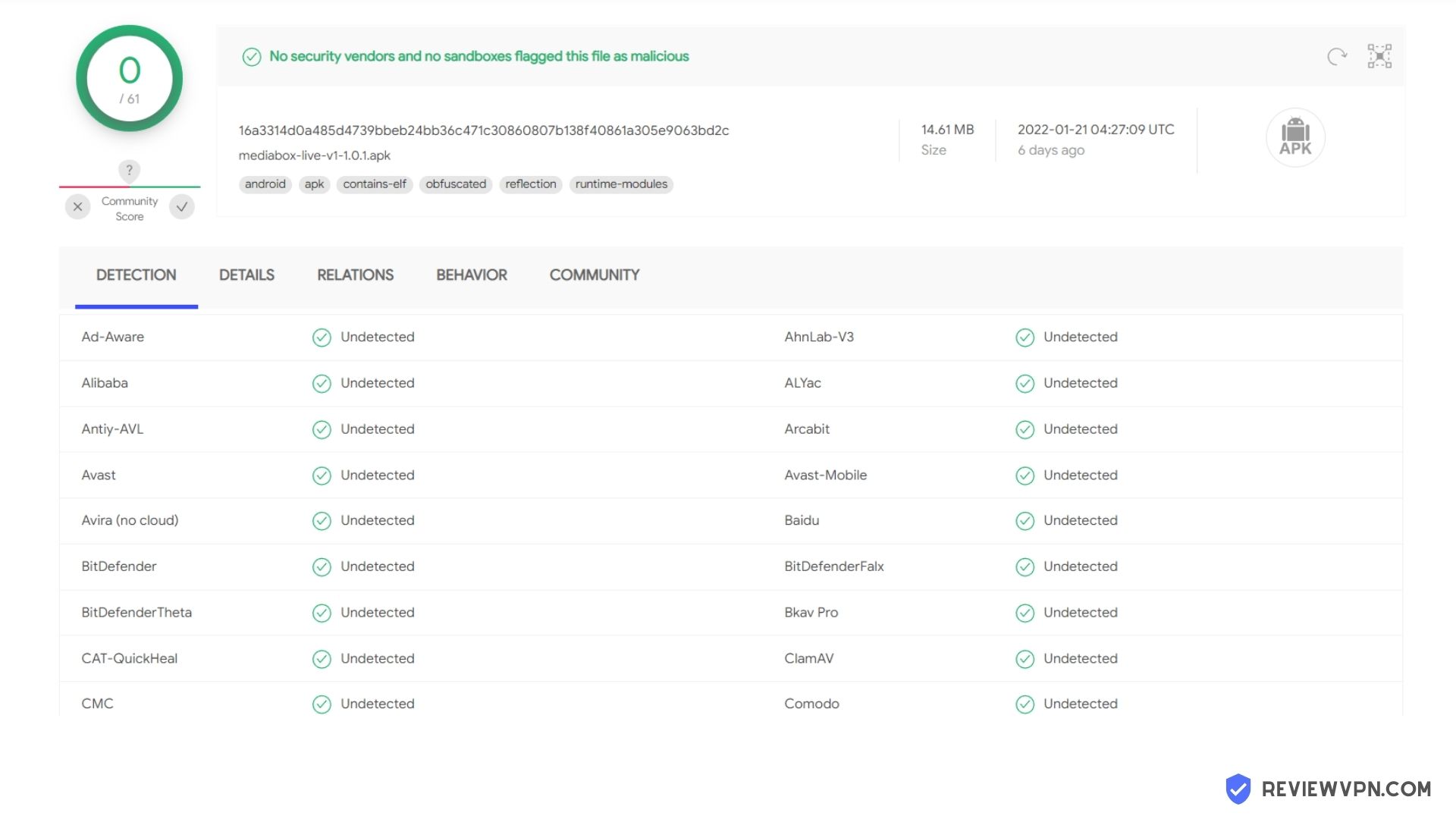
We tested this app using VirusTotal and found no threats or any malicious files and malware.

Despite having good results, we still need to be vigilant in protecting our privacy while streaming.

A Virtual Private Network or VPN will definitely help us maintain our security and anonymity while using MediaBox.

Here’s how you can Install The Best VPN For Firestick and All Devices.


What Platforms Does it Work on?

You can download the application for both Apple and Android directly from the website.

Features

  • Simple user interface
  • Works well on your phone
  • Movies
  • Sports channels
  • Kids TV
  • Religious channels
  • Adult channels
  • Documentaries
  • Music Channels
  • Massive selection of channels from 60 different countries
  • M3U channel input for updating streaming sources
  • Most channels seem to be stable and working


YOUR INTERNET ACTIVITY IS BEING WATCHED

ReviewVPN cannot attest to the legality, security and privacy of the applications discussed on this site. It is highly recommended that you use a VPN service while streaming or using Kodi.

Currently, your IP 216.73.217.150 is visible to everyone and your Browser is being tracked by Advertisers & ISP Provider.

Save 65% Now

Limited Time Offer

Here are the main reasons why you must use a VPN:

  • Your activities are hidden from your ISP, the government, and from the apps you are using.
  • You can access additional movies and TV streams.
  • ISP attempts to throttle are thrwarted thus reducing buffering issues.
  • Geographically restricted content like Netflix and Hulu can be unblocked.

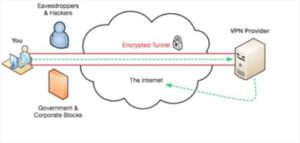
A VPN works be replacing your ISP-assigned IP address and creating an encrypted tunnel. We recommend the no log service offered by IPVanish. It works well on a Firestick and offers the fastest possible speeds.

Special Limited Time Offer - Get IPVanish


Legal Disclaimer: ReviewVPN.com does not encourage or endorse any illegal activity involved in the usage of services and applications referenced on this site. We do not verify the licensing agreements of services. The end-user is wholly responsible for ensuring that any media accessed through these services does not violate copyright and/or licensing laws. ReviewVPN does not promote, link to, or receive compensation from any Apps and IPTV services.


Install Surfshark on Firestick
Best Surfshark Deal


How Do You Install Mediabox?

install image

You can’t find Mediabox in Google Play or the Apple App Store as it allows its users to stream content that is copyright protected, so you’ll need to download the apk file directly from the developer’s website: https://iptv.city/mega/index7.html

Before you do that, carry out the following steps or your phone won’t allow you to download the application:

  • Go to your phone’s settings menu
  • Using Google or looking for Applications, you need to allow your phone to allow applications to be installed from unknown sources
  • Go to: https://iptv.city/mega/index7.html and download the application directly from the website
  • Download and install Mediabox
  • Open the application and you are good to go, remember that more of the channels are likely to work if you are using a VPN provider, otherwise many of the links might be blocked


FAQs

Is it Safe to Use?

Yes, you can find and download Mediabox’s apk file through Filelinked, Mobilism, and APKTime as well as downloading it directly from the website.

Just make sure that you download the application from a trusted source, as the internet is littered with corrupt files.


Is it Legal or Grey?

It’s a grey area because Mediabox is providing an opportunity for you to stream premium TV channels for free, so it’s definitely not legal. Some of the channels may be blocked if it shows that your IP is not based within that country which is why you should use a VPN.


Should I use This App With a VPN?

https://get.surfshark.net/aff_c?offer_id=865&aff_id=12312

Using a VPN with a Live TV streaming application is always a good idea, as otherwise, you may find that many of the links to channels do not work or are locked, always using a VPN with your application is a great idea because:

  • A VPN can help unlock content that is region-restricted. This is particularly true when watching Live TV, as many channels may not work if they register that your IP address is outside of their target country
  • You can help to ensure that all your data is encrypted, as your VPN will encrypt your data using 256-bit AES encryption. The same is used by the US Military. This means that not even your Internet Service Provider will be able to tell what you are doing, or block your connection
  • A VPN helps you to remain anonymous online and stream without restrictions or any intrusion on your privacy

Note: For more information about SurfShark, please read our SURFSHARK REVIEW.


Grab your subscription now!


How to Install Surfshark VPN on Firestick

If your Firestick still has the older interface, read this article to learn how to update it: Update Firestick Interface.

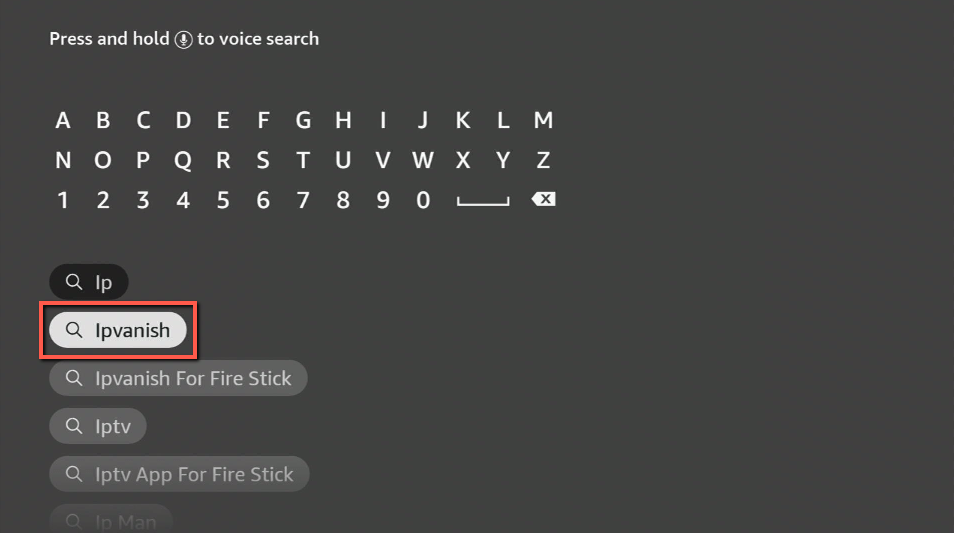
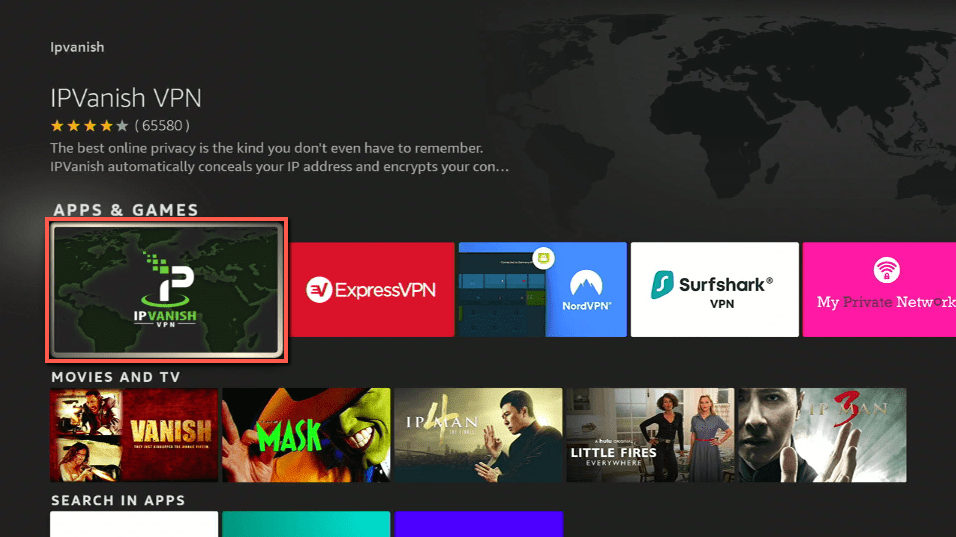
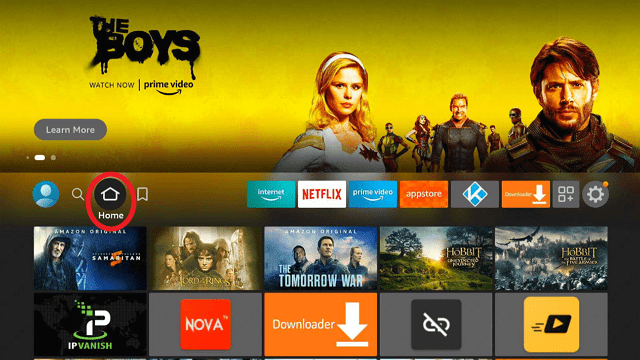
You can download Surfshark directly from the Amazon App store. It will be easy for you to find Surfshark with your Firestick’s Find feature. Refer to our screenshots below.

1. Go to the Home screen of your Firestick.
step 1 Install Surfshark VPN on Firestick


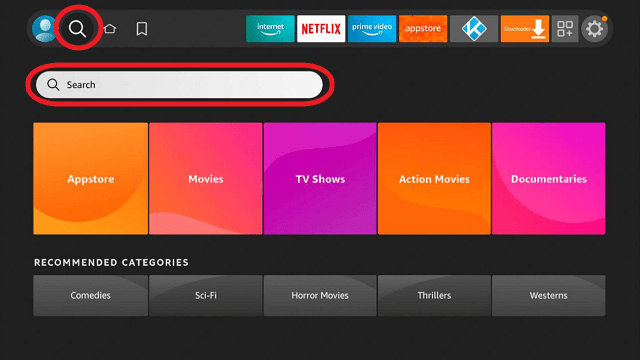
2. Navigate towards the Find tab. Press the Search button from the resulting dropdown.
step 2 Install Surfshark VPN on Firestick


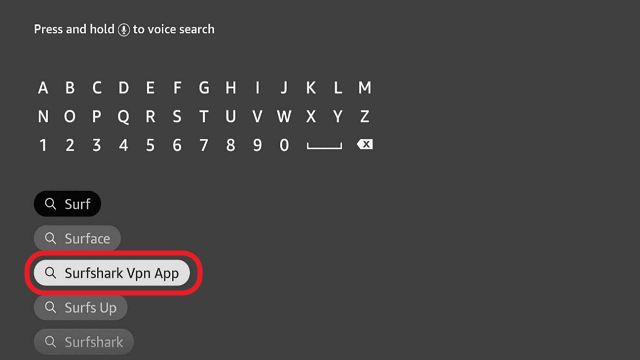
3. Type in the keyword of SurfShark and select from the suggestions that will appear.
step 3 Install Surfshark VPN on Firestick


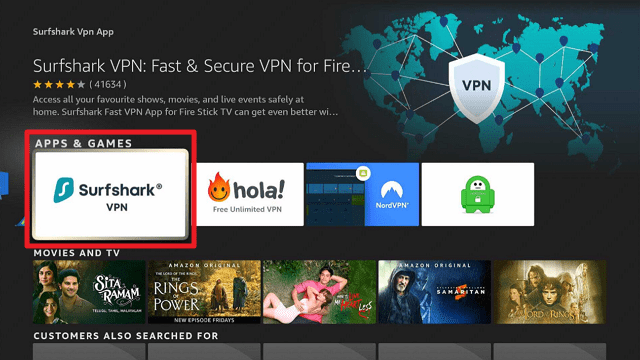
4. Click the official SurfShark icon from your search results.
step 4 Install Surfshark VPN on Firestick


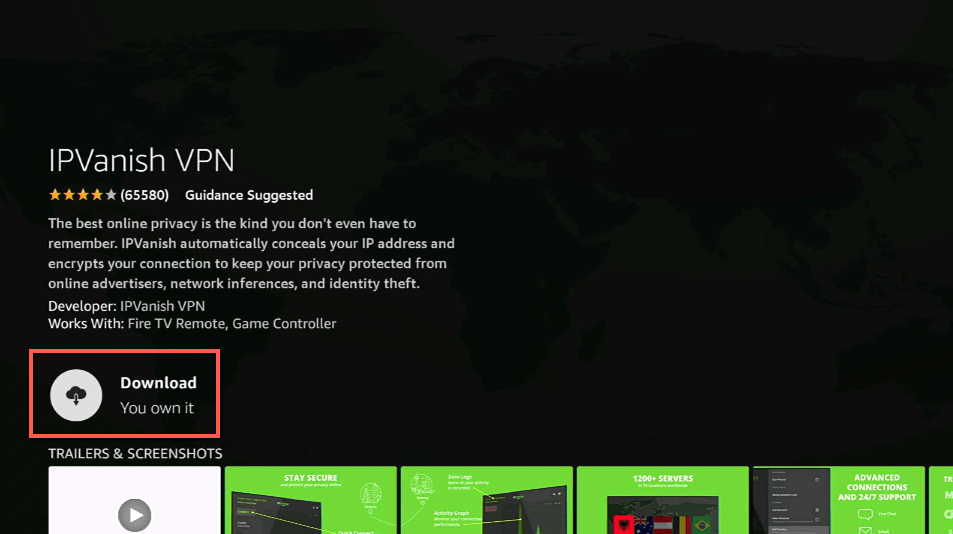
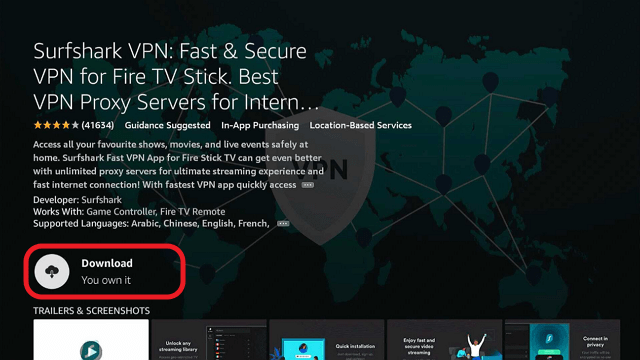
5. Press the Download (You own it) button.
step 5 Install Surfshark VPN on Firestick


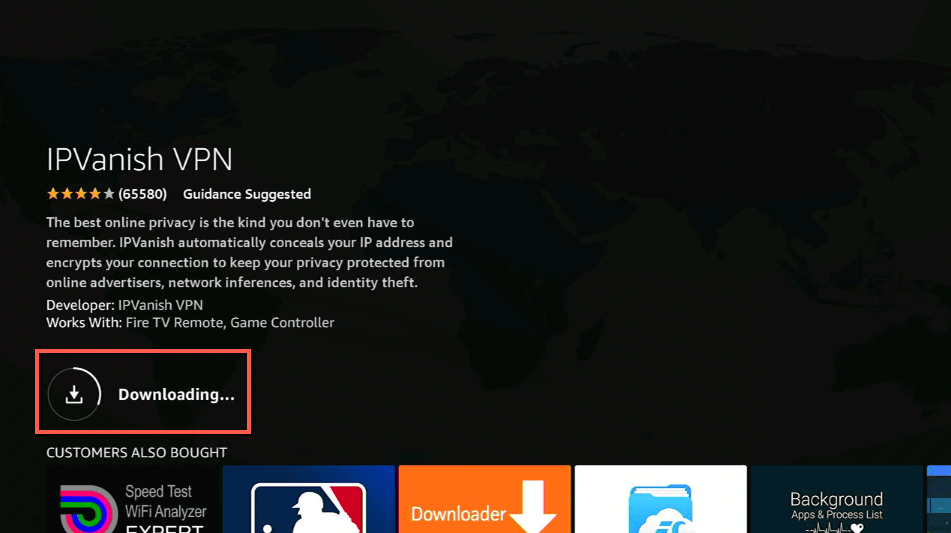
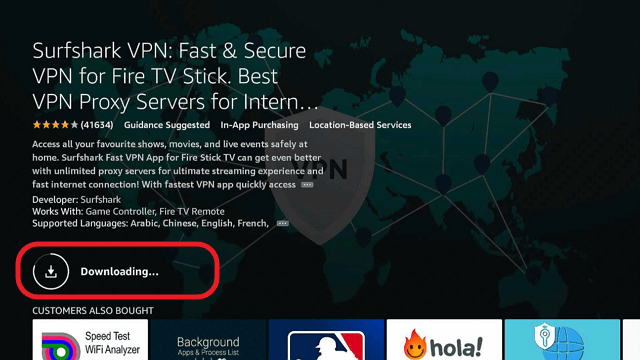
6. The SurfShark VPN installer will download on your device.
step 6 Install Surfshark VPN on Firestick


7. SurfShark VPN’s app will automatically install itself on your Fire TV stick.
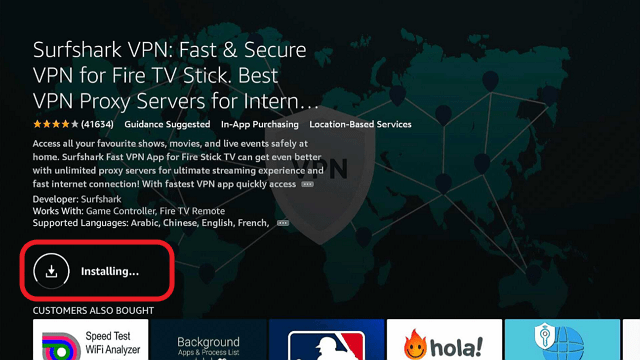
step 7 Install Surfshark VPN on Firestick


8. Press the Open button after completing SurfShark VPN’s installation process.
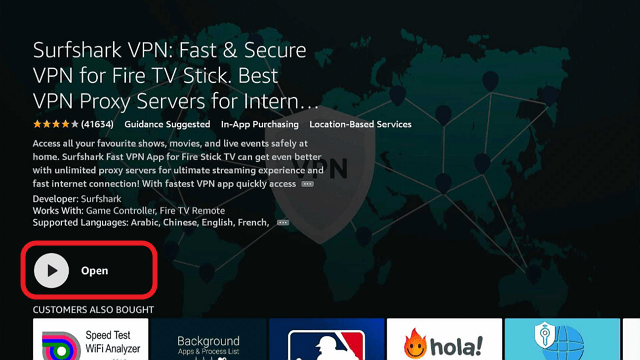
step 8 Install Surfshark VPN on Firestick


9. Please wait for the SurfShark VPN to load its user interface.
step 9 Install Surfshark VPN on Firestick


10. You can now log in with your SurfShark VPN account credentials.
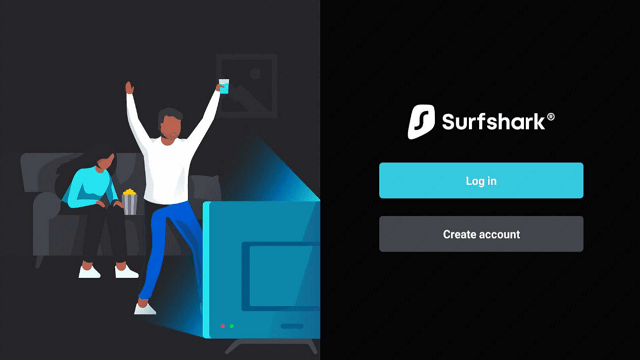
step 10 Install Surfshark VPN on Firestick

Learn more about Surfshark and Grab the Best Surfshark Deal Now!


Install Surfshark on Firestick
Best Surfshark Deal


Other VPNs to Consider

NordVPN (Best for Streaming)

Best Features

  • 5000+ Server in 50+ Countries 
  • Military-Grade Encryption
  • Fast Connection Speed
  • Suitable to a lot of devices
  • No-Log Policy

Prices
  • Complete $5.89 per month (64% Discount)
  • Plus $4.59 per month (56% Discount)
  • Standard $3.69 per month (55% Discount)

Best Features

  • 750+ High-speed VPN Servers in 43 Locations
  • Military-Grade Encryption
  • Fastest HD Streaming and Gaming
  • 30-Day Money-Back Guarantee
  • Unlimited Data & Devices
  • No-Log Policy

Prices
  • 3 Years $1.99 per month (82% Discount)
  • 1 Years $3.29 per month (70% Discount)
  • 1 Month $10.99 per month

IPVanish VPN (Most Secure)

Best Features

  • 1200+ Servers in 60+ Countries around the world
  • Unlimited Connections
  • No-Log Policy
  • Top Notch Military-Grade VPN Protocols and Encryptions
  • 100% Safe and Secured
  • Most Trusted VPN
  • Best VPN for Firestick
  • 30-Day Money-Back Guarantee

Prices
  • Yearly $3.99 per month (63% Discount) – 30 days risk free + Ransomware & Malware Protection
  • Quarterly $5.32 per month (51% Discount)
  • Monthly $10.99 per month


For more VPN discounts, go to ReviewVPN Deals and purchase the best VPN for you.

Click here to get the lowest price on Surfshark through our exclusive limited-time offer.


Is it Free?

Yes, Mediabox is completely free, just download and start watching.


Are There Ads? (If it has ads is there a modded version)

Yes, the application has ads.


Is There a Premium Version?

No, the application is completely free, they derive their revenue from ads.


Is There an Official Website?

Mediabox website image

Yes, they have a simple 1-page website at: https://iptv.city/mega/index7.html

Which really just provides links to download the application.


What Other Devices Does it Work on?

Android ios Image

Mediabox can work both on Android and iOS devices, which is handy as many live TV Streaming applications tend to only work on Android.


How Does the App Work?

Download the application onto your phone and get going straight away, just select which channel you want from the icons and get connected.


What is the Minimum Version of Android I Need?

Android 5.0


History

How Long Has it Been Around?

The application is still in its first version and has only been around for a few months.


Is it a Terrarium Clone?

No.


What is the Development Team Like?

Mediabox is developed by Gjithqka Studio who also developed Alb MegaIPTV Official which was recently released. Apart from that, we don’t know anything else about the developer.

Best Alternatives

There is some really great alternative out there for watching Live TV. The two very best are Redbox and Mobdro:


Mobdro

Mobdro Logo

  • They have thousands of live channels and streams. The channels are stable and Mobdro has been around since 2016
  • The application is free and gives you the option to turn off adverts
  • You can even access some premium functions and stream content offline, for the modest fee of $2.99 per year
  • Mobdro supports Chromecast and can also be found on Kodi as well as being a standalone application
  • You get a Live TV calendar to keep track of your favorite shows that are being screened in the upcoming week
  • You can also access a wide range of other content, with a massive back catalog
  • Access HD and 4K streams as well. 

Make sure to read our article on Mobdro.


Redbox

  • Really nice layout, quite similar to Mobdro
  • Specially tailored to reduce buffering time for Live TV
  • Watch channels and categories from 17 different countries
  • Also includes a wide range of categories including Kids TV
  • You can save your favorite channel to build up your own personal list
  • You can flag dead links to the developer to remove
  • Movie and TV Section
  • You can password protect the application to keep it away from children

Make sure to read our article on RedBox.


Our Opinion

Mediabox has an impressive selection of countries and channels and if it continues to grow and mature is sure to be a hit. 

The website had over 100,000 hits but the application is still pretty new, so maybe worth getting Redbox or Mobdro and keeping this as a backup for any channels you are missing.

Install Live Lounge APK for Free Live TV, Sports, Adult Section and Movies

Learn More About Live Lounge

Live-Lounge Image

Note: Live Lounge has been replaced with Media Lounge.

Live Lounge is a brilliant all-in-one application for any age and viewing choice. You can access everything from Adult Channel to Live Sports and also your standard movies and TV Shows. In its article, we will be showing you how to install Live Lounge APK on your Firestick to get free Live TV, Sports, Adult Section, and Movies.

What makes Live Lounge great is that most things work and it saves you having to get multiple different applications to do parts of the job that Live Lounge does.


The UI is pretty simplistic but what it lacks in looks it makes up for in utility, a great application with pedigree coming from I4Apps who also made Exousia, a great Kodi addon.

Legal Disclaimer: ReviewVPN.com does not encourage or endorse any illegal activity involved in the usage of services and applications referenced on this site. We do not verify the licensing agreements of services. The end-user is wholly responsible for ensuring that any media accessed through these services does not violate copyright and/or licensing laws. ReviewVPN does not promote, link to, or receive compensation from any Apps and IPTV services.


ANONYMOUSLY

What Does Live Lounge Do?

Live Lounge uses web scrapers to bring together a wide range of content, including Live TV, Live Sports, and also more general content like the latest TV shows and movie blockbusters.

Like many Android TV streaming applications, Live Lounge does not store content on its web server, it simply serves links to the content


App Features

  • The application is completely free, you can pay a small subscription fee to remove adverts, but they are not intrusive
  • Great video quality with HD Streams
  • Good Live TV sections from a wide range of countries including the UK and the US, and as far afield as Pakistan and India
  • Live TV also gives you access to great premium channels like HBO
  • Favorite sections for you to add movies, TV shows, and best channels
  • Open Subtitle support, for subtitles in a wide range of languages
  • Adult 18+ sections
  • Kids TV
  • Good selective of Live Sport Channels
  • Virtual Fireplace for latest and trending content
  • TV Shows
  • Movies


YOUR INTERNET ACTIVITY IS BEING WATCHED

ReviewVPN cannot attest to the legality, security and privacy of the applications discussed on this site. It is highly recommended that you use a VPN service while streaming or using Kodi.

Currently, your IP 216.73.217.150 is visible to everyone and your Browser is being tracked by Advertisers & ISP Provider.

Save 65% Now

Limited Time Offer

Here are the main reasons why you must use a VPN:

  • Your activities are hidden from your ISP, the government, and from the apps you are using.
  • You can access additional movies and TV streams.
  • ISP attempts to throttle are thrwarted thus reducing buffering issues.
  • Geographically restricted content like Netflix and Hulu can be unblocked.

A VPN works be replacing your ISP-assigned IP address and creating an encrypted tunnel. We recommend the no log service offered by IPVanish. It works well on a Firestick and offers the fastest possible speeds.

Special Limited Time Offer - Get IPVanish


How to Install Live Lounge on Firestick and Android

install image

You can download the Live Lounge APK for android from our website. Just click here and the download for Live Lounge APK for android will automatically start.

Note: ReviewVPN.com does not host this APK file. It is hosted on Archive.org.  


Download Live Lounge


Exousia has become a massively successful Kodi addon.

You can download the application direct to your device by allowing applications from unknown sources and navigating to the website above.

On a Firestick, you can sideload Live Lounge using Downloader.

Also, worth mentioning that Live Lounge is rare in having its own media player EXO Player. It’s a good media player but it may be worth downloading MX Player which works with a wider range of codecs and content. If you want to learn how to install MX Player, click here.


If your Firestick still has the older interface, read this article to learn how to update it: Update Firestick Interface.


Video on How to Install Media Lounge on Firestick

[videopress zDAkoDCX]


Install Media Lounge on Firestick via Filelinked Store With Screenshots

1. Install the Downloader app and jailbreak your firestick by enabling unknown sources. To learn more about the procedure, you may read How to Install the Downloader App and Enable Unknown Sources.

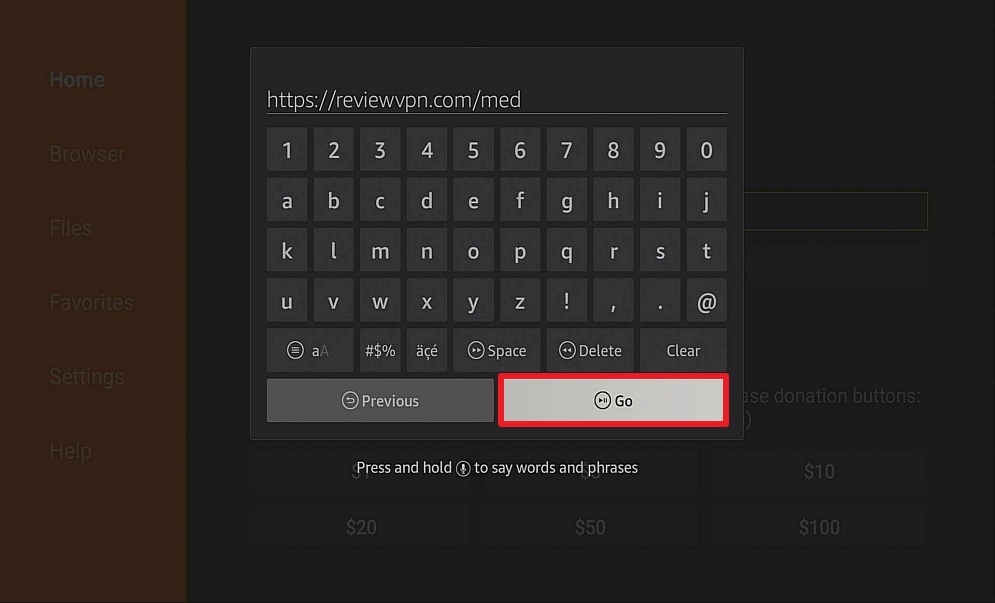
2. Open Downloader App. Type https://reviewvpn.com/med and click Go.

Media Lounge2


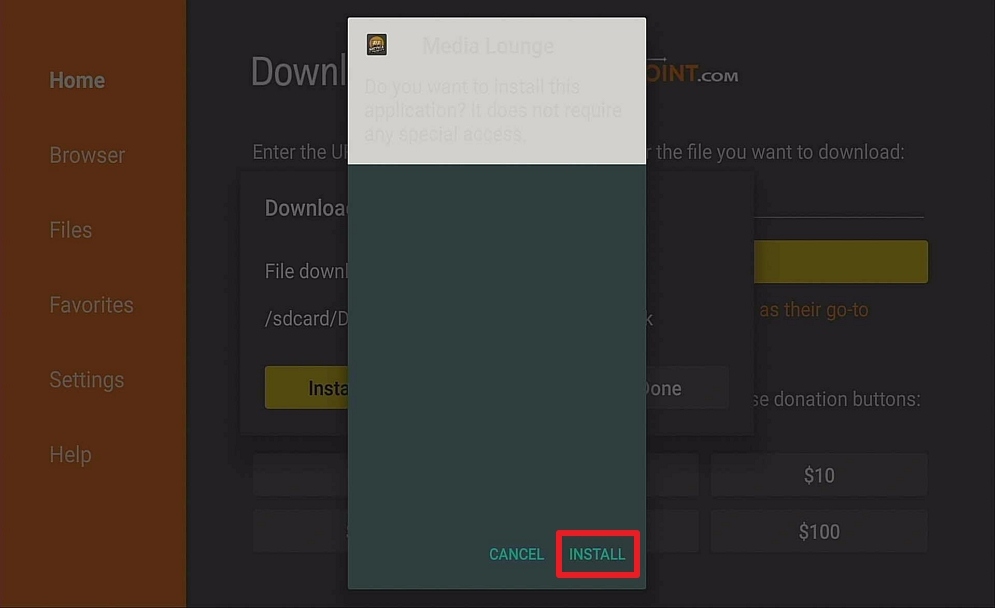
3. Click Install.

Step 13 Install Media Lounge on firestick


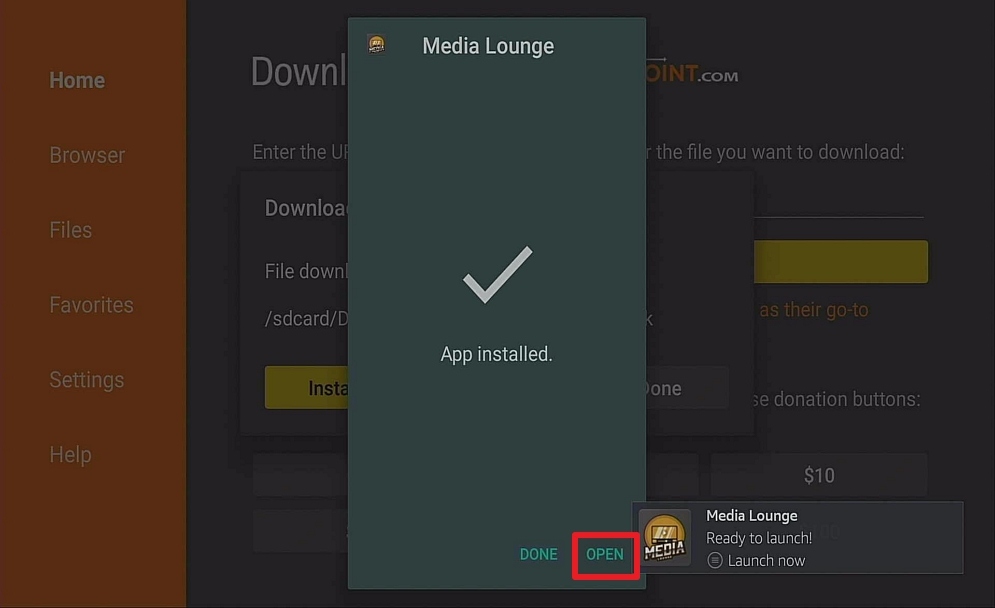
4. Click Open.

Step 14 Install Media Lounge on firestick


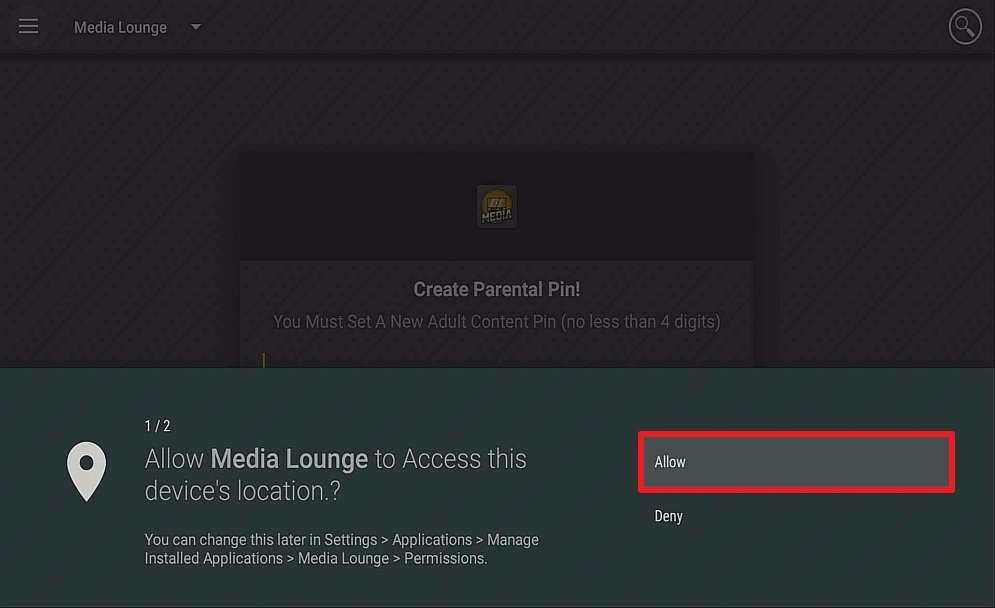
5. Click Allow.

Step 15 Install Media Lounge on firestick


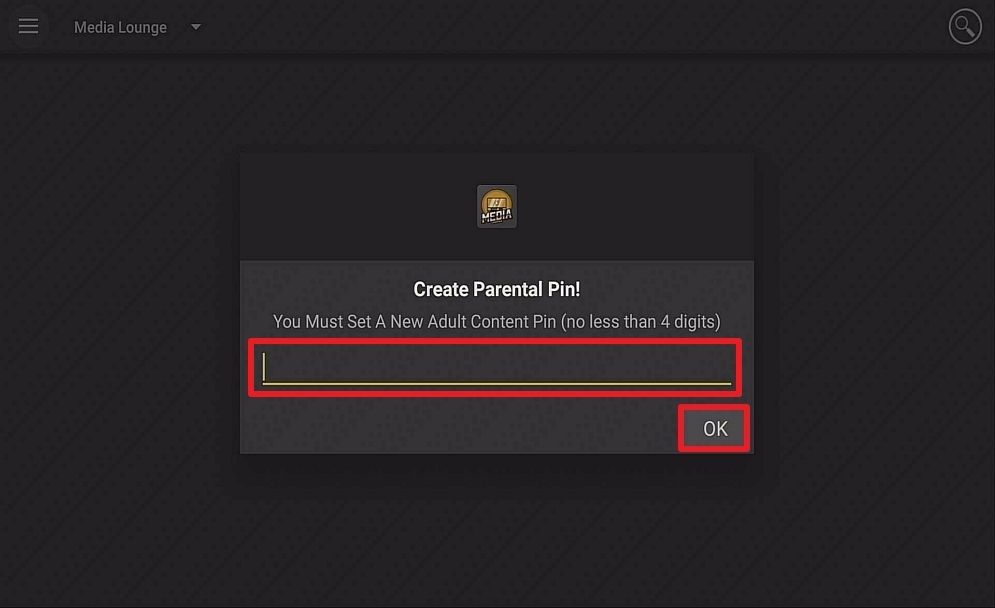
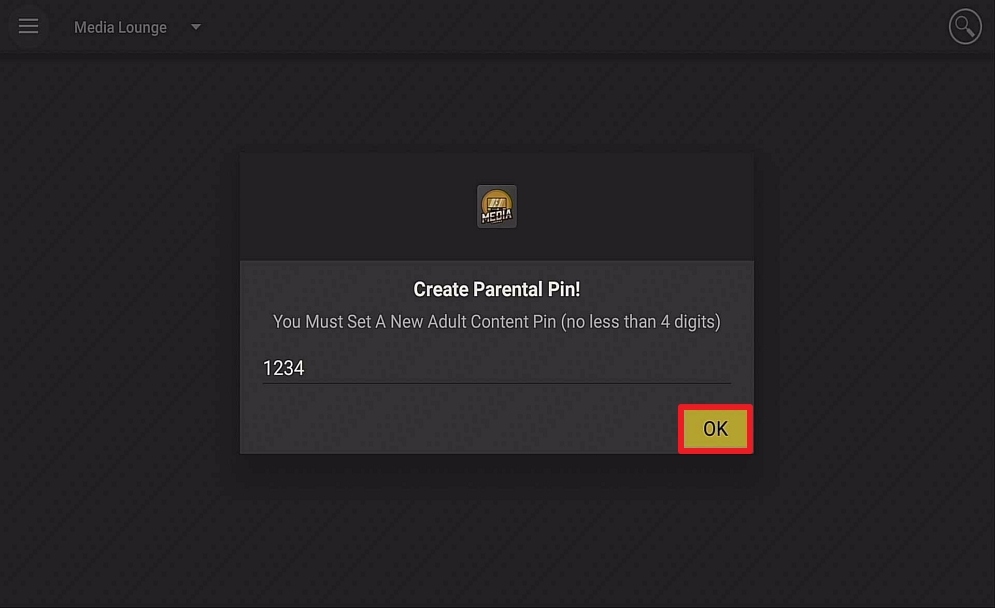
6. Create a Parental Pin. Click OK.

Step 16 Install Media Lounge on firestick


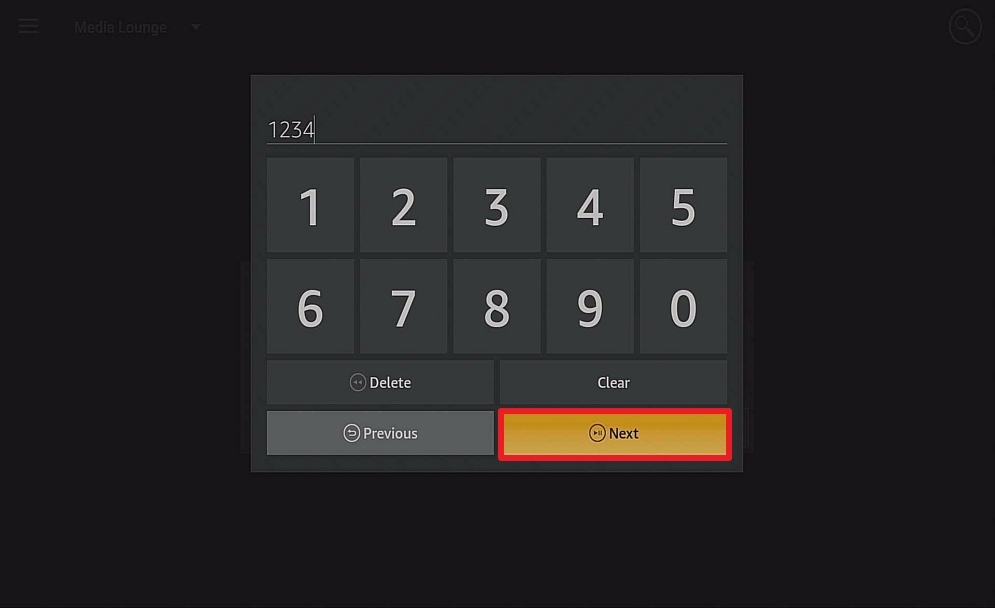
7. Type your pin. Click Next.

Step 17 Install Media Lounge on firestick


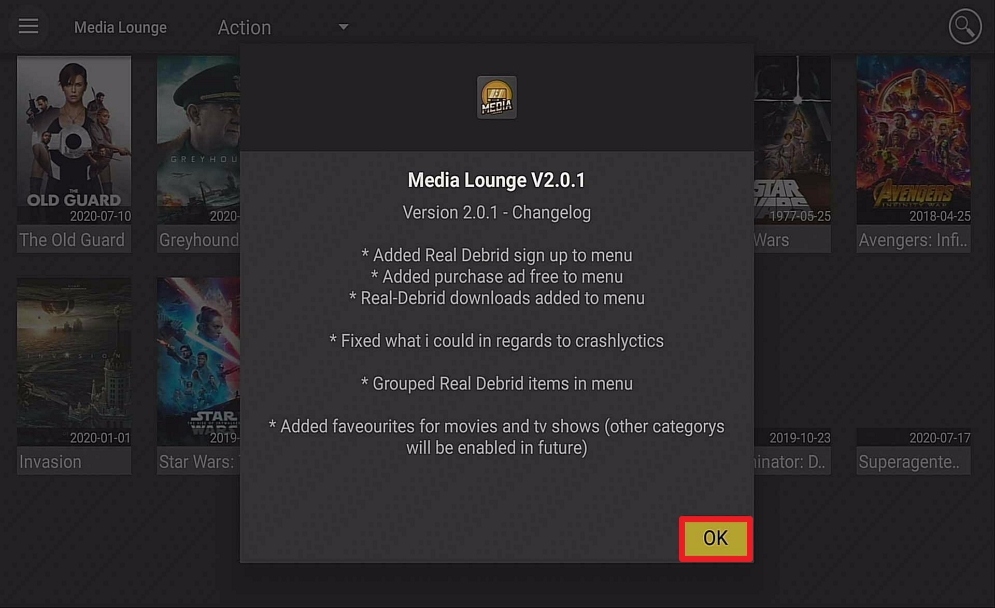
8. Click OK.

Step 18 Install Media Lounge on firestick


9. Media Lounge is installed. Enjoy watching.

Step 19 Install Media Lounge on firestick


Grab your subscription now!

Click here to get the lowest price on Surfshark through our exclusive limited-time offer.


What Platforms Does it Work On?

android devices image

Live Lounge works on applications that run Android OS


FAQs

Is it Safe to Use?

Absolutely, Live Lounge has been around for at least 2 years and comes from a small development team that has cranked out a couple of working TV streaming applications.


Should I Use This App with a VPN?

https://get.surfshark.net/aff_c?offer_id=865&aff_id=12312


We always recommend that you use a trusted VPN provider like Surfshark for a number of reasons:

  • Android TV streaming applications by their nature, give you access to content illegally. Your access will be monitored and logged by your Internet Service Provider (ISP) If they find you accessing this content over an extended period of time they may simply block access to those URL
  • Furthermore, if you are seen to be persistently accessing illegal content, your ISP can take a number of measures. From slowing down your internet connection to blacklisting your IP, issuing you with a warning, or even handing you over to content providers for legal action. This is a rarity and saved usually for people who distribute the content rather than view it
  • A VPN can help to avoid all of this. By encrypting your connection from your device to their servers, your ISP is unable to see what websites you are going to, and what you are doing with your data. The encryption is unbreakable
  • VPNs are also used to change your IP and obscure your original address, so host servers cannot tell where your request originates from
  • These two factors combine to give you anonymity and security whatever you do online

We recommend installing an active VPN on your device before downloading and installing the Live Lounge. We recommend Surfshark. Get Surfshark now.


How to Install Surfshark VPN on Firestick

If your Firestick still has the older interface, read this article to learn how to update it: Update Firestick Interface.

You can download Surfshark directly from the Amazon App store. It will be easy for you to find Surfshark with your Firestick’s Find feature. Refer to our screenshots below.

1. Go to the Home screen of your Firestick.

step 1 Install Surfshark VPN on Firestick


2. Navigate towards the Find tab. Press the Search button from the resulting dropdown.

step 2 Install Surfshark VPN on Firestick


3. Type in the keyword of SurfShark and select from the suggestions that will appear.

step 3 Install Surfshark VPN on Firestick


4. Click the official SurfShark icon from your search results.

step 4 Install Surfshark VPN on Firestick


5. Press the Download (You own it) button.

step 5 Install Surfshark VPN on Firestick


6. The SurfShark VPN installer will download on your device.

step 6 Install Surfshark VPN on Firestick


7. SurfShark VPN’s app will automatically install itself on your Fire TV stick.

step 7 Install Surfshark VPN on Firestick


8. Press the Open button after completing SurfShark VPN’s installation process.

step 8 Install Surfshark VPN on Firestick


9. Please wait for the SurfShark VPN to load its user interface.

step 9 Install Surfshark VPN on Firestick


10. You can now log in with your SurfShark VPN account credentials.

step 10 Install Surfshark VPN on Firestick

Learn more about Surfshark and Grab the Best Surfshark Deal Now!


Install Surfshark on Firestick
Best Surfshark Deal


Other VPNs to Consider

NordVPN (Best for Streaming)

Best Features

  • 5000+ Server in 50+ Countries 
  • Military-Grade Encryption
  • Fast Connection Speed
  • Suitable to a lot of devices
  • No-Log Policy

Prices
  • Complete $5.89 per month (64% Discount)
  • Plus $4.59 per month (56% Discount)
  • Standard $3.69 per month (55% Discount)

Best Features

  • 750+ High-speed VPN Servers in 43 Locations
  • Military-Grade Encryption
  • Fastest HD Streaming and Gaming
  • 30-Day Money-Back Guarantee
  • Unlimited Data & Devices
  • No-Log Policy

Prices
  • 3 Years $1.99 per month (82% Discount)
  • 1 Years $3.29 per month (70% Discount)
  • 1 Month $10.99 per month

IPVanish VPN (Most Secure)

Best Features

  • 1200+ Servers in 60+ Countries around the world
  • Unlimited Connections
  • No-Log Policy
  • Top Notch Military-Grade VPN Protocols and Encryptions
  • 100% Safe and Secured
  • Most Trusted VPN
  • Best VPN for Firestick
  • 30-Day Money-Back Guarantee

Prices
  • Yearly $3.99 per month (63% Discount) – 30 days risk free + Ransomware & Malware Protection
  • Quarterly $5.32 per month (51% Discount)
  • Monthly $10.99 per month


For more VPN discounts, go to ReviewVPN Deals and purchase the best VPN for you.

Click here to get the lowest price on Surfshark through our exclusive limited-time offer.


Is it Free?

Yes

Is Live Lounge Ad-Free?

Yes, there are non-intrusive ads, you can pay a small fee to have them removed

Is There a Premium Version?

No

Is There an Official Website?

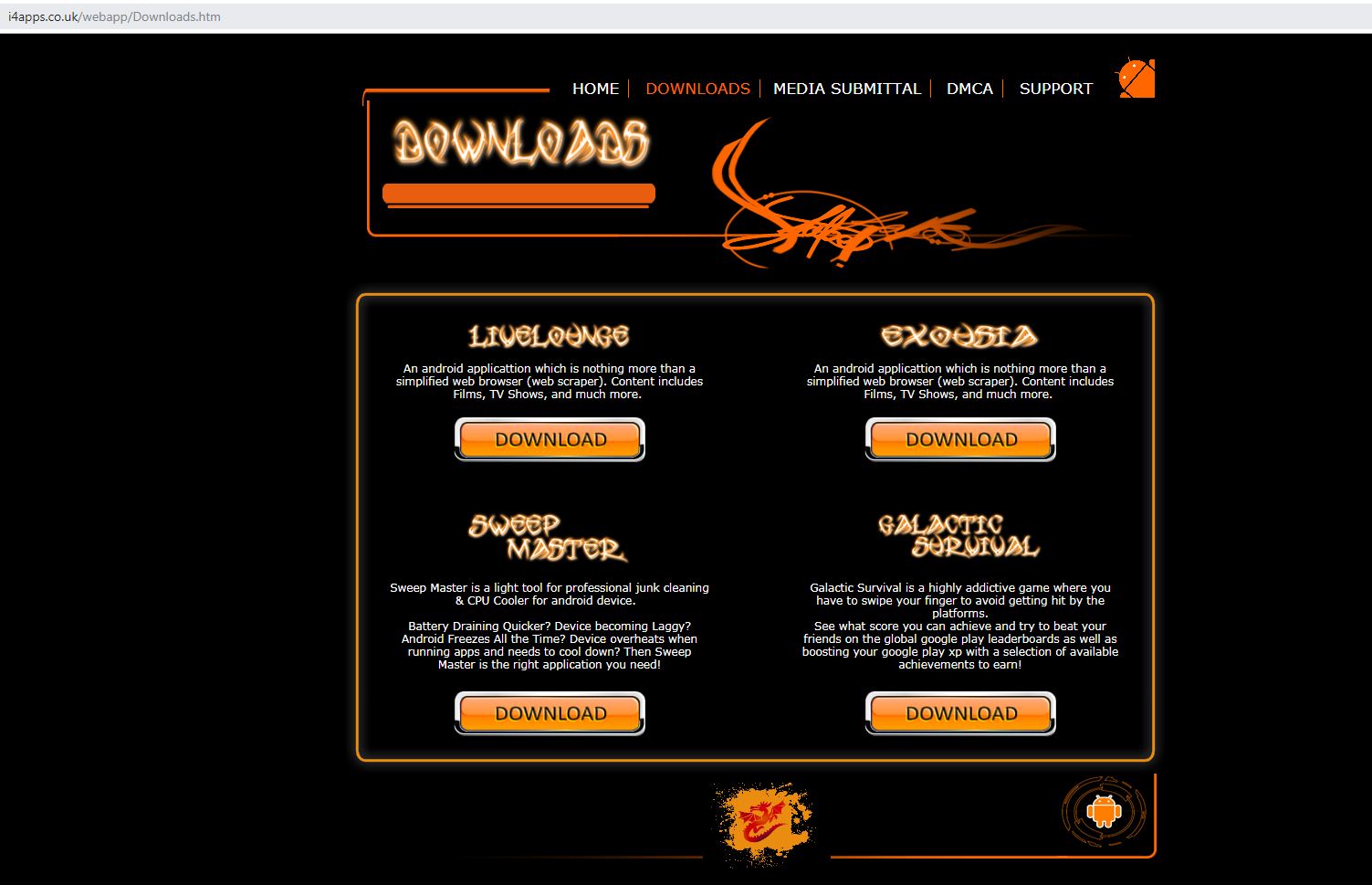
i4apps.co.uk website image

There is for I4Apps which houses Live Lounge.


What Other Devices Does it Work On?

android devices image

Currently, Live Lounge only works on Android. If you want to use it on Windows or iOS, you can look into downloading an Android emulator for that OS


How Does the App Work?

Download and go! We also recommend you install MX Player


What is the Minimum Version of Android I Need?

Android 4.2


History

We estimate Live Lounge has been around for over 2 years


Is it a Terrarium Clone?

No


What is the Development Team Like?

We couldn’t find any information about the development team on Facebook or Reddit.


Live Lounge Alternatives

There are quite a few good alternatives out there.

For Live Sports we recommend Sport’s Devil, the daddy of sporting applications. Most Kodi add ons would use Sport’s Devils feed for their channels. Make sure to read our article on Sport’s Devil.

For general Android TV, our choice would go to TV Zion, which has an absolutely amazing interface, and custom dashboard, and for $1.50 a month, you can access some awesome premium functions including arranging streams by speed and popularity and downloading offline content. If you don’t want to spend the money then we would go with Cyberflix which is the best free Terrarium clone out there.

For Live TV it’s a toss-up between Red Box and Mobdro, though Mobdro just edges it because of their great UI and offering over 800 channels.

You can learn more regarding Red Box by clicking on this link and read our article on Mobdro


Our Opinion

Live Lounge is a great jack of all trades, but a master of none. The UI looks a bit dated, and it’s a good application to have as a backup. Also limited by having no integration for Real Debrid or Trak.TV. A great back up to have. Thank you for reading and we hope this article helps you in installing Live Lounge on your Firestick and android device.

Note: ReviewVPN.com does not own any app nor does it promote any. This article is for educational purposes only.


Why Use a VPN? Is It Necessary in 2023?

Why Use a VPN

I worked for 7 years in the VPN industry with a few years off. Back when I first started, users would have to configure security certificates on their computers to use the service. Things have changed tremendously over the last 10 years. VPN’s have never been more popular and easy to use. In this article, we are going to address the top reasons why you should use a VPN.


VPNs Increase Security

Security is enhanced primarily through data being transported through an encrypted tunnel. This prevents hackers and even your ISP from seeing your data. These security features are particularly important with the proliferation of free WiFi hotspots and cell phones being used for daily Internet tasks. These two means of accessing the Internet can be particularly vulnerable. Most people wouldn’t dare use their computers without an active firewall and up-to-date antivirus. Using a VPN is becoming just as synonymous with security.

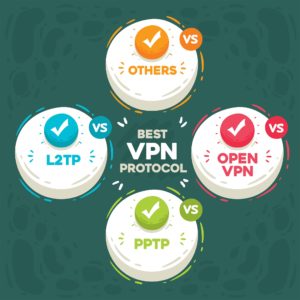
It’s important to understand the various protocols when security is your number 1 concern. For example, PPTP is by far the fastest protocol but it also isn’t considered secure. Open VPN is a good choice if you want both security and speed. If you have the choice Open VPN UDP is faster than Open VPN TCP. TCP is considered more reliable and better at bypassing firewalls because it usually runs on port 443. 443 is the same port used by HTTPS traffic and therefore less likely to be blocked.


ANONYMOUSLY

VPNs Increase Privacy

I will never go as far as to say a personal VPN will make you anonymous. As recent revelations about the NSA highlight, no one can assume they are completely anonymous on the Web regardless of whether or not they are using a VPN service. That said, using a VPN replaces your ISP assigned IP address. This process of masking your identity makes it harder for marketers to target you based upon your habits. It is also harder for websites to tell where you are from and find other clues as to your identity.


VPNs Bypass Firewalls

This feature is critical for citizens of countries with restrictive Internet policies, like China and Iran. I personally believe the Internet should be a place of freedom where everyone is allowed to speak their minds and share ideas. Unfortunately, some leaders believe the best way to maintain power is by restricting social sites/tools like Facebook, Twitter, and Youtube. Using a VPN allows users to access this content that would otherwise be restricted.


VPNs Can Access Geographically Restricted Content

Much of the best content on the Internet is geographically restricted to a certain region. Some geographically restricted services include HBO, Netflix, Spotify, Pandora, Hulu, and BBC iPlayer. In most of these cases, the restrictions are the result of contractual licensing. Using a VPN circumvents these restrictions.


VPNs Are Affordable

A service like Surfshark only costs less than $60 a year without an exclusive discount. I don’t know of many services that can provide peace of mind at such a low cost.


YOUR INTERNET ACTIVITY IS BEING WATCHED

ReviewVPN cannot attest to the legality, security and privacy of the applications discussed on this site. It is highly recommended that you use a VPN service while streaming or using Kodi.

Currently, your IP 216.73.217.150 is visible to everyone and your Browser is being tracked by Advertisers & ISP Provider.

Save 65% Now

Limited Time Offer

Here are the main reasons why you must use a VPN:

  • Your activities are hidden from your ISP, the government, and from the apps you are using.
  • You can access additional movies and TV streams.
  • ISP attempts to throttle are thrwarted thus reducing buffering issues.
  • Geographically restricted content like Netflix and Hulu can be unblocked.

A VPN works be replacing your ISP-assigned IP address and creating an encrypted tunnel. We recommend the no log service offered by IPVanish. It works well on a Firestick and offers the fastest possible speeds.

Special Limited Time Offer - Get IPVanish


Install Surfshark on Firestick

Best Surfshark Deal


Recap

There are countless more reasons why you might find a VPN invaluable. Free VPN services exist with limited access. Unfortunately, most of these services are subpar. The reality is it takes resources to maintain a premium VPN service. If you want to experience the true power of a quality VPN service, I recommend trying a premium service on this list. Many of these providers offer a money-back guarantee, so there literally is nothing to lose.

Note: For more information about Surfshark, please read our Surfshark Review.


Grab your subscription now!


How to Install Surfshark VPN on Firestick

If your Firestick still has the older interface, read this article to learn how to update it: Update Firestick Interface.

Follow our screenshots below to install the SurfShark VPN app on your Fire TV stick.

1. Go to the Home screen of your Firestick.

step 1 Install Surfshark VPN on Firestick


2. Navigate towards the Find tab. Press the Search button from the resulting dropdown.

step 2 Install Surfshark VPN on Firestick


3. Type in the keyword of SurfShark and select from the suggestions that will appear.

step 3 Install Surfshark VPN on Firestick


4. Click the official SurfShark icon from your search results.

step 4 Install Surfshark VPN on Firestick


5. Press the Download (You own it) button.

step 5 Install Surfshark VPN on Firestick


6. The SurfShark VPN installer will download on your device.

step 6 Install Surfshark VPN on Firestick


7. SurfShark VPN’s app will automatically install itself on your Fire TV stick.

step 7 Install Surfshark VPN on Firestick


8. Press the Open button after completing SurfShark VPN’s installation process.

step 8 Install Surfshark VPN on Firestick


9. Please wait for the SurfShark VPN to load its user interface.

step 9 Install Surfshark VPN on Firestick


10. You can now log in with your SurfShark VPN account credentials.

step 10 Install Surfshark VPN on Firestick

Learn more about Surfshark and Grab the Best Surfshark Deal Now!


Install Surfshark on Firestick

Best Surfshark Deal


Other VPNs to Consider

NordVPN (Best for Streaming)

Best Features

  • 5000+ Server in 50+ Countries 
  • Military-Grade Encryption
  • Fast Connection Speed
  • Suitable to a lot of devices
  • No-Log Policy

Prices
  • Complete $5.89 per month (64% Discount)
  • Plus $4.59 per month (56% Discount)
  • Standard $3.69 per month (55% Discount)

Best Features

  • 750+ High-speed VPN Servers in 43 Locations
  • Military-Grade Encryption
  • Fastest HD Streaming and Gaming
  • 30-Day Money-Back Guarantee
  • Unlimited Data & Devices
  • No-Log Policy

Prices
  • 3 Years $1.99 per month (82% Discount)
  • 1 Years $3.29 per month (70% Discount)
  • 1 Month $10.99 per month

IPVanish VPN (Most Secure)

Best Features

  • 1200+ Servers in 60+ Countries around the world
  • Unlimited Connections
  • No-Log Policy
  • Top Notch Military-Grade VPN Protocols and Encryptions
  • 100% Safe and Secured
  • Most Trusted VPN
  • Best VPN for Firestick
  • 30-Day Money-Back Guarantee

Prices
  • Yearly $3.99 per month (63% Discount) – 30 days risk free + Ransomware & Malware Protection
  • Quarterly $5.32 per month (51% Discount)
  • Monthly $10.99 per month


For more VPN discounts, go to ReviewVPN Deals and purchase the best VPN for you.

Click here to get the lowest price on Surfshark through our exclusive limited-time offer.


How to Install Cartoon HD on Firestick – 2023

Overview

In this article, we like to show you how to install the Cartoon HD app on your Fire TV stick.


Beginning in 2013, the Cartoon HD app is one of the first Android apps to hit the front pages of the news: This app was distributing links for third-party content. As a result, the app no longer exists inside the Apple App Store.

Unlike their name, they are not just about cartoons, but rather an even mix of movies and TV shows. It is a rare example for new apps which either disappear or become incomplete creations.

If you take a look at its Facebook page, it shows that Cartoon HD continues to receive massive support. It has over 60,000 likes. Unfortunately, their first website is now down. This 2023, after performing some checks, their website is back as Cartoon HD Pro.

Though the app is stable, it only receives periodic updates 2-3 times per year. We previously thought that its creators kept the app for revenue. However, it now posts new movie releases, TV shows, and other media content.


ANONYMOUSLY


Download Cartoon HD for Android Devices


Cartoon HD

Note: ReviewVPN.com does not host this APK file. It is hosted by Archive.org


How to Install Cartoon HD on your Fire TV Stick

This app is a famous free movie service that film enthusiasts will love to try and use. To install it on Firestick, you first have to Jailbreak your Fire TV stick and sideload the app.

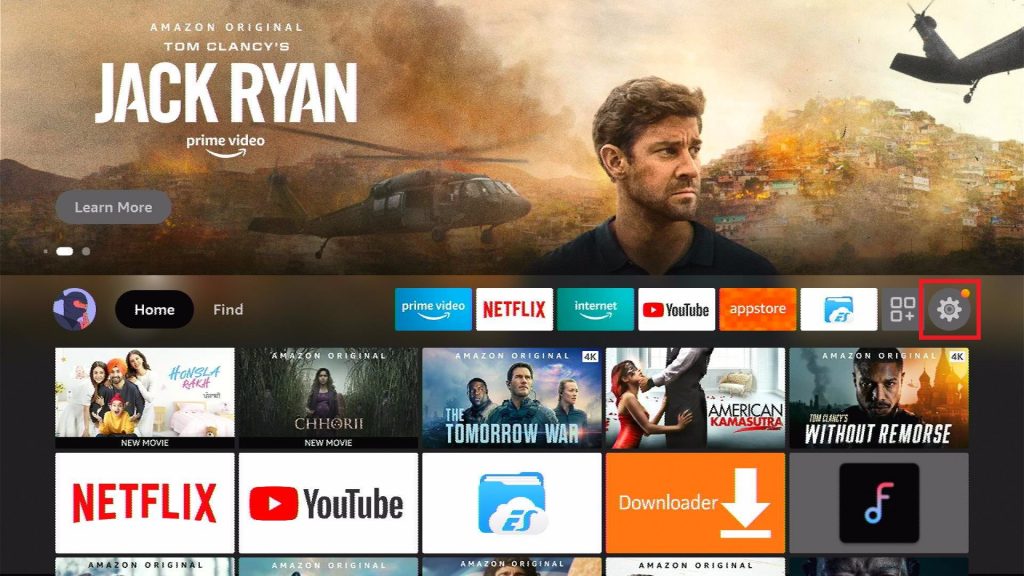
  1. Open your Firestick Settings Tab. (Gear Wheel Icon).
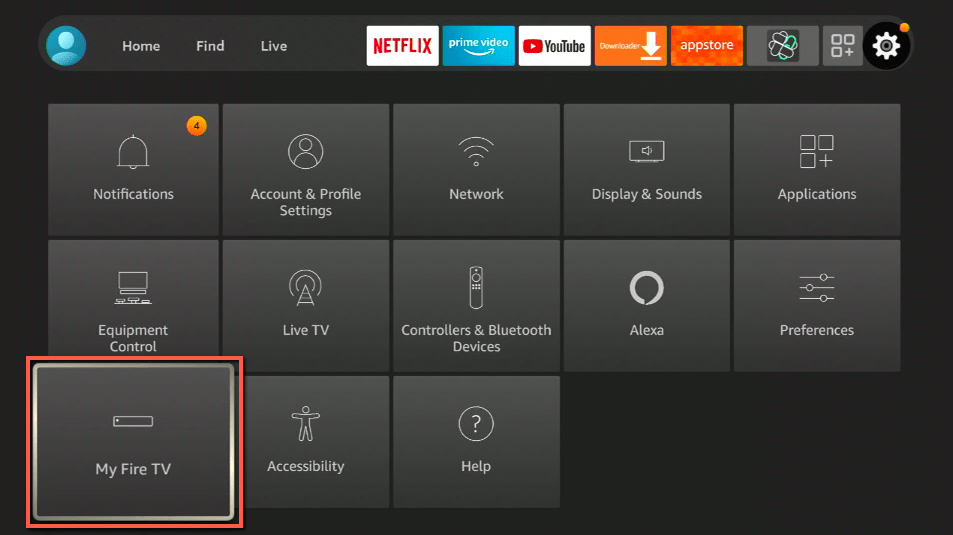
  2. Scroll down and to the right until you get to My Fire TV. Click on it.
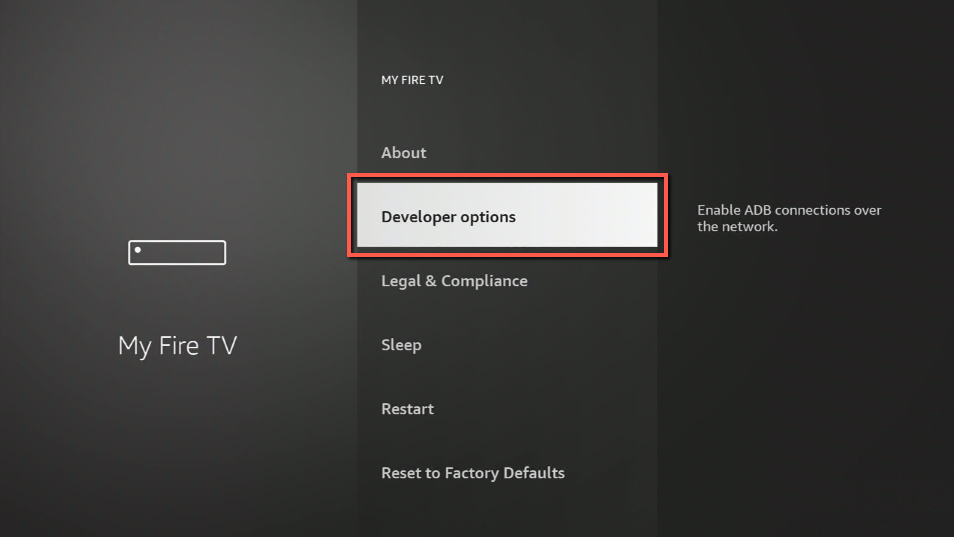
  3. Select Developer options.
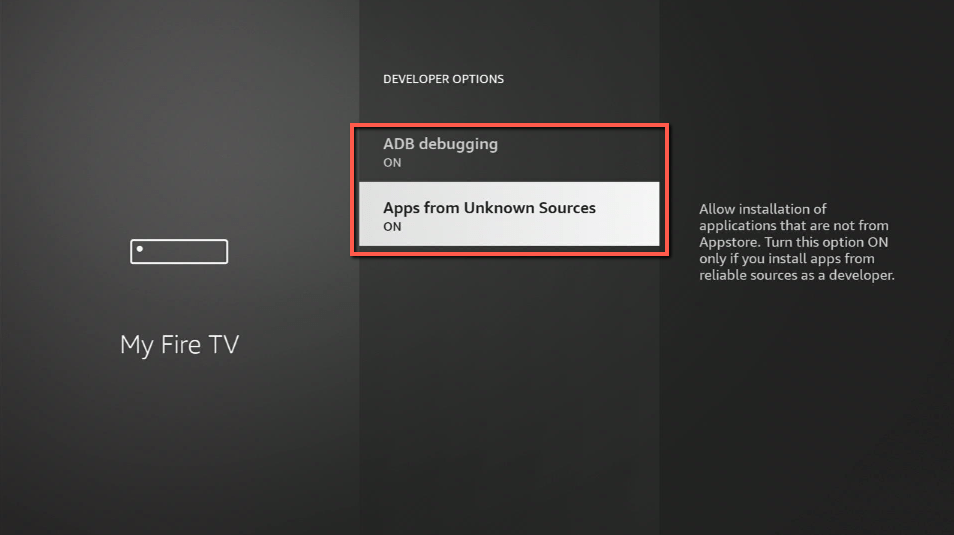
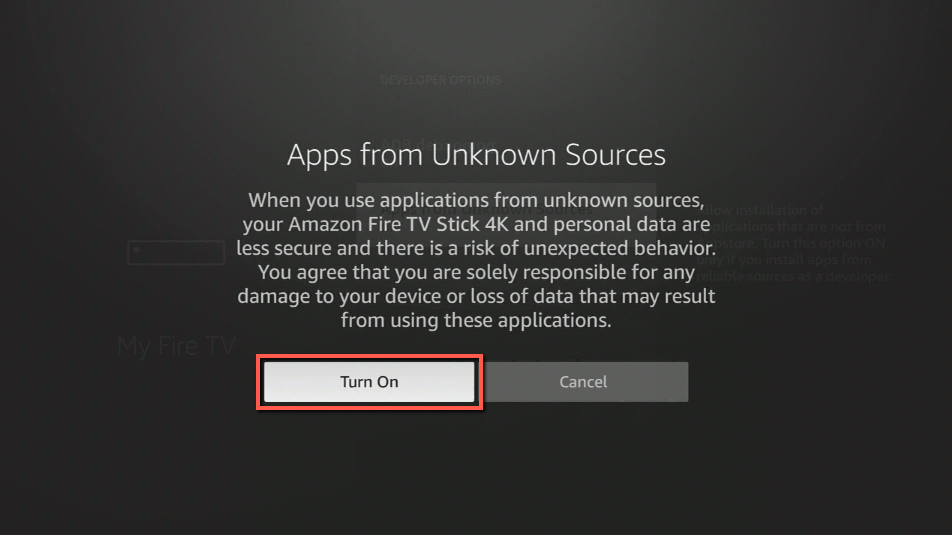
  4. Turn on ADB debugging and Apps from Unknown Sources.
  5. Press the Turn On when the pop-up appears.
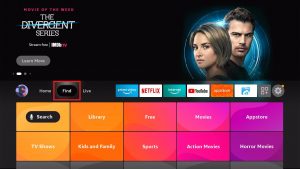
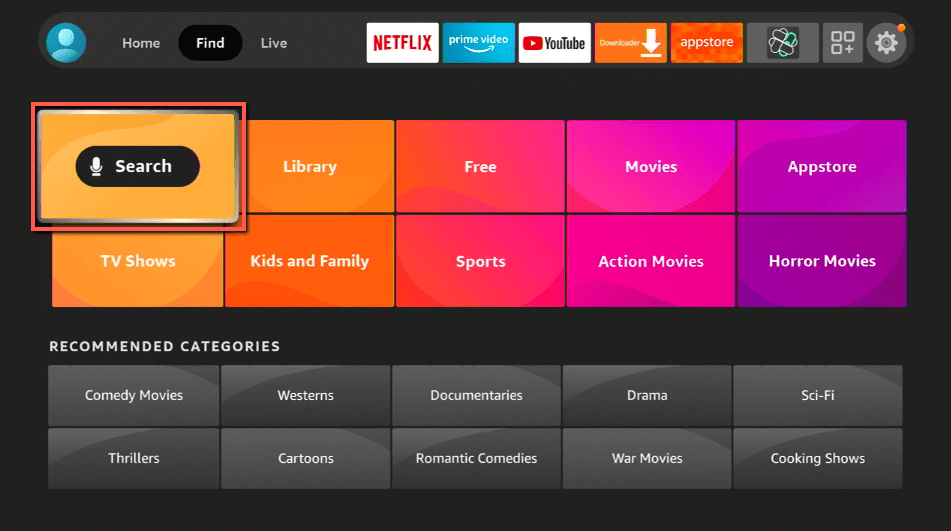
  6. Click Home and press on FIND.
  7. Press the Search button from the dropdown.
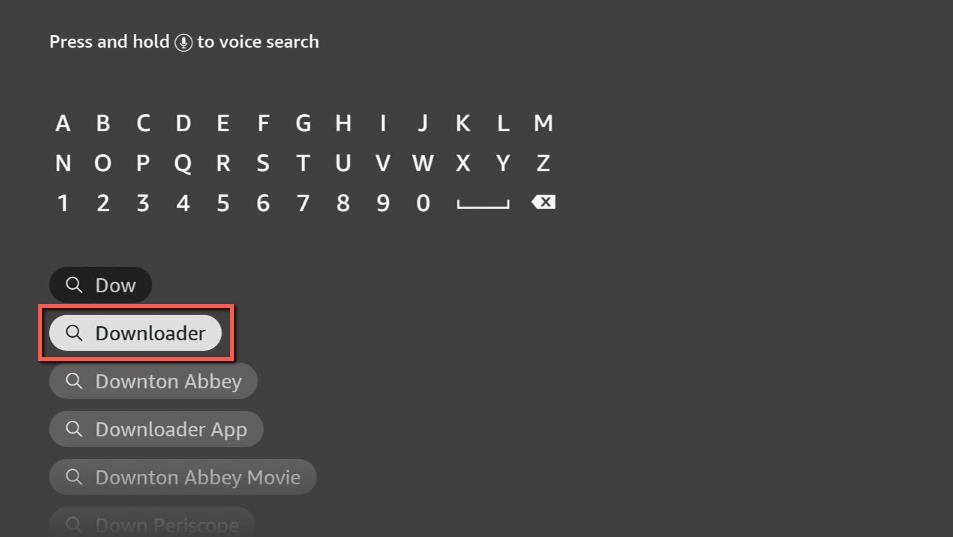
  8. You can either say Downloader to your Alexa voice-enabled remote or start typing it. If you typed it, click on the suggestion when it appears.
  9. Click on the Downloader Icon.
  10. Tap on Download.
  11. Click on Open.
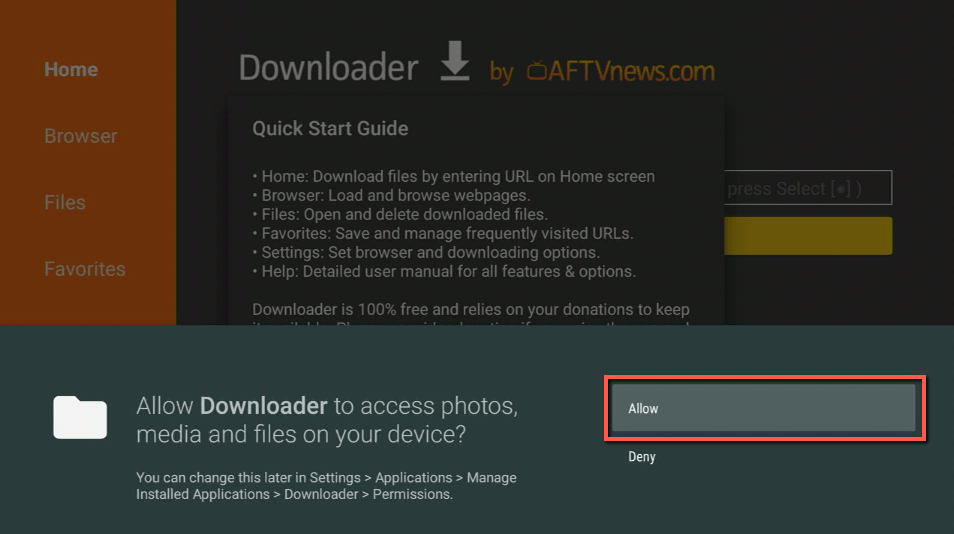
  12. Press on the Allow button.
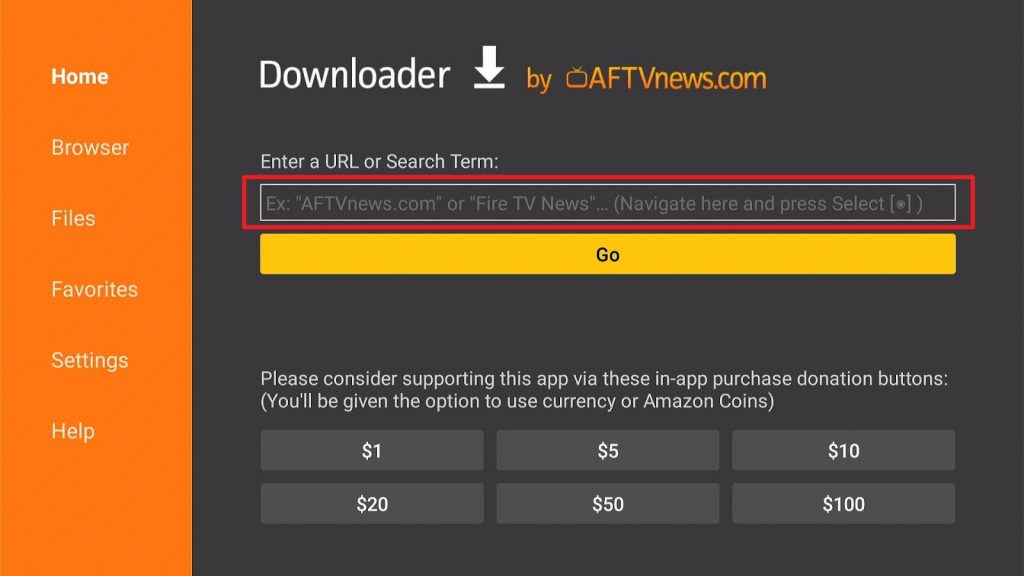
  13. You can now use the Downloader app.
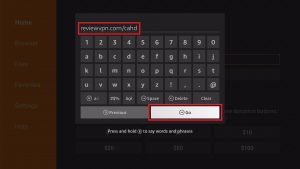
  14. Type in: reviewvpn.com/cahd and tap the Go button.
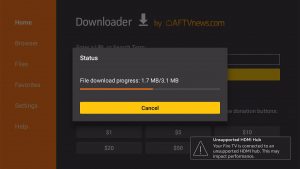
  15. The Cartoon HD app will download on your device.
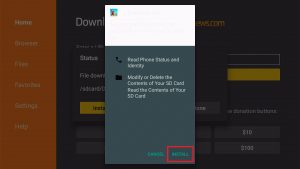
  16. Press the Install button.
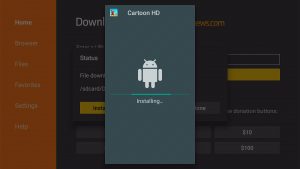
  17. The app will install on your device.
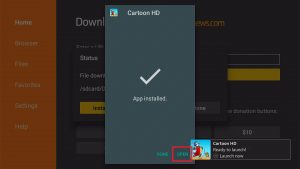
  18. Press the Open button to launch the app.
  19. Wait for the app to load its user interface.
  20. You can now use the Cartoon HD app to stream any movie you like to watch!


How to Install the Cartoon HD app on Fire TV Stick with Screenshots

Below are screenshots you can follow to successfully install the Cartoon HD app on your Fire TV stick. We suggest installing the Downloader app before doing these steps.

1. Open your Firestick Settings Tab. (Gear Wheel Icon).

Install the Cartoon HD app on Fire TV Stick step 1

2. Scroll down and to the right until you get to My Fire TV. Click on it.

Install the Cartoon HD app on Fire TV Stick step 2


3. Select Developer options.

Install the Cartoon HD app on Fire TV Stick step 3


4. Turn on ADB debugging and Apps from Unknown Sources.

Install the Cartoon HD app on Fire TV Stick step 4


5. Press the Turn On when the pop-up appears.

Install the Cartoon HD app on Fire TV Stick step 5


6. Click Home and press on FIND.

Install the Cartoon HD app on Fire TV Stick step 6


7. Press the Search button from the dropdown.

Install the Cartoon HD app on Fire TV Stick step 7


8. You can either say Downloader to your Alexa voice-enabled remote or start typing it. If you typed it, click on the suggestion when it appears.

Install the Cartoon HD app on Fire TV Stick step 8


9. Click on the Downloader Icon.

Install the Cartoon HD app on Fire TV Stick step 9


10. Tap on Download.

Install the Cartoon HD app on Fire TV Stick step 10


Install the Cartoon HD app on Fire TV Stick step 10


11. Click on Open.

Install the Cartoon HD app on Fire TV Stick step 11


12. Press on the Allow button.

Install the Cartoon HD app on Fire TV Stick step 12


13. You can now use the Downloader app.

Install the Cartoon HD app on Fire TV Stick step 13


14. Type in: reviewvpn.com/cahd and select the Go button.

Install the Cartoon HD app on Fire TV Stick step 14


15. The Cartoon HD app will download on your device.

Install the Cartoon HD app on Fire TV Stick step 15


16. Press the Install button.

Install the Cartoon HD app on Fire TV Stick step 16


17. The Cartoon HD app will install on your device.

Install the Cartoon HD app on Fire TV Stick step 17


18. Press the Open button to launch the app.

Install the Cartoon HD app on Fire TV Stick step 18


19. Wait for the app to load its user interface.

Install the Cartoon HD app on Fire TV Stick step 19


20. You can now use the Cartoon HD app to stream any movie you like to watch!

Install the Cartoon HD app on Fire TV Stick step 20


YOUR INTERNET ACTIVITY IS BEING WATCHED

ReviewVPN cannot attest to the legality, security and privacy of the applications discussed on this site. It is highly recommended that you use a VPN service while streaming or using Kodi.

Currently, your IP 216.73.217.150 is visible to everyone and your Browser is being tracked by Advertisers & ISP Provider.

Save 65% Now

Limited Time Offer

Here are the main reasons why you must use a VPN:

  • Your activities are hidden from your ISP, the government, and from the apps you are using.
  • You can access additional movies and TV streams.
  • ISP attempts to throttle are thrwarted thus reducing buffering issues.
  • Geographically restricted content like Netflix and Hulu can be unblocked.

A VPN works be replacing your ISP-assigned IP address and creating an encrypted tunnel. We recommend the no log service offered by IPVanish. It works well on a Firestick and offers the fastest possible speeds.

Special Limited Time Offer - Get IPVanish


Legal Disclaimer: ReviewVPN.com does not encourage or endorse any illegal activity involved in the usage of services and applications referenced on this site. We do not verify the licensing agreements of services. The end-user is wholly responsible for ensuring that any media accessed through these services does not violate copyright and/or licensing laws. ReviewVPN does not promote, link to, or receive compensation from any Apps and IPTV services.


Install Surfshark on Firestick

Best Surfshark Deal


Features of the Cartoon HD App

  • Massive selection of films and tv shows with an even balance between the two
  • Subtitle support with open subtitles
  • Download videos to watch them offline
  • The library renews every day
  • Large back catalog of content
  • Inbuilt technology means less buffering and latency
  • Watch videos in a variety of qualities up to 1080p
  • Clean and easy to use UI
  • IMDB ratings integrated
  • Intelligent search function and genres


Technical Specifications of the Cartoon HD App

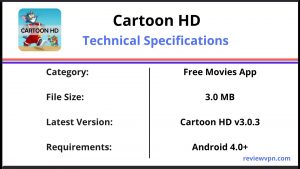
Let us now share with you the technical specifications of the Cartoon HD app. It will help you determine if the app is compatible with your present Android smartphone version.

Cartoon HD Technical Specifications


Cartoon HD Pros and Cons

Pros

  • 100% Free
  • New app version: Cartoon HD v.5.1.3
  • Contains a great collection of old and new movies
  • A much older app means an enormous back catalog of content
  • Proprietary technology makes for fast streaming even on low-speed internet
  • Download when offline is a rare function for most android streaming apps these days
  • Easy to use interface, categories, and functions
  • It performs as a stable app.
  • Began in 2013 and continues to provide us with quality content
  • Many users still love to use the app


Cons

  • No support for Real Debrid or Premiumize (No access to high-speed torrents and community lists)
  • Rare app content update
  • No support for Trak.TV (You cannot resume watching a TV show where you left off)
  • Problems are left unanswered and the official website doesn’t work
  • If you download the app from the Amazon Store, the app will not work. (Issue we hope the developers will fix.)
  • Many complaints about a huge number of ads (It can result in some users experiencing difficulties watching a show)


Stream Safely With A VPN?

Always use Cartoon HD with a VPN.

Using an Android streaming app without a VPN, even if it works will mean your broadband may get throttled to a slower speed. Without it, most of their content will be blocked as well as their website.

ISPs work in conjunction with big media providers to actively block and monitor the use, distribution, and streaming of pirated content.

We recommend installing an active VPN on your device before downloading and installing Cartoon HD. We recommend getting a Surfshark now.

  • Encrypts your data from your VPN Client to their DNS Server.
  • Gives access to any apps from any server around the world.
  • Your traffic is invisible from prying eyes.
  • Prevents buffering and stuttering both on Kodi and Firestick.


Grab your subscription now!

Click here to get the lowest price on Surfshark through our exclusive limited-time offer.


How to Install Surfshark VPN on Firestick

If your Firestick still has the older interface, read this article to learn how to update it: Update Firestick Interface.

1. Go to the Home screen of your Firestick.

step 1 Install Surfshark VPN on Firestick


2. Navigate towards the Find tab. Press the Search button from the resulting dropdown.

step 2 Install Surfshark VPN on Firestick


3. Type in the keyword of Surfshark and select from the suggestions that will appear.

step 3 Install Surfshark VPN on Firestick


4. Click the official SurfShark icon from your search results.

step 4 Install Surfshark VPN on Firestick


5. Press the Download (You own it) button.

step 5 Install Surfshark VPN on Firestick


6. The Surfshark VPN installer will download on your device.

step 6 Install Surfshark VPN on Firestick


7. SurfShark VPN’s app will automatically install itself on your Fire TV stick.

step 7 Install Surfshark VPN on Firestick


8. Press the Open button after completing Surfshark VPN’s installation process.

step 8 Install Surfshark VPN on Firestick


9. Please wait for the SurfShark VPN to load its user interface.

step 9 Install Surfshark VPN on Firestick


10. You can now log in with your Surfshark VPN account credentials.

step 10 Install Surfshark VPN on Firestick

Learn more about Surfshark and Grab the Best Surfshark Deal Now!


Install Surfshark on Firestick

Best Surfshark Deal


Other VPNs to Consider

NordVPN (Best for Streaming)

Best Features

  • 5000+ Server in 50+ Countries 
  • Military-Grade Encryption
  • Fast Connection Speed
  • Suitable to a lot of devices
  • No-Log Policy

Prices
  • Complete $5.89 per month (64% Discount)
  • Plus $4.59 per month (56% Discount)
  • Standard $3.69 per month (55% Discount)

Best Features

  • 750+ High-speed VPN Servers in 43 Locations
  • Military-Grade Encryption
  • Fastest HD Streaming and Gaming
  • 30-Day Money-Back Guarantee
  • Unlimited Data & Devices
  • No-Log Policy

Prices
  • 3 Years $1.99 per month (82% Discount)
  • 1 Years $3.29 per month (70% Discount)
  • 1 Month $10.99 per month

IPVanish VPN (Most Secure)

Best Features

  • 1200+ Servers in 60+ Countries around the world
  • Unlimited Connections
  • No-Log Policy
  • Top Notch Military-Grade VPN Protocols and Encryptions
  • 100% Safe and Secured
  • Most Trusted VPN
  • Best VPN for Firestick
  • 30-Day Money-Back Guarantee

Prices
  • Yearly $3.99 per month (63% Discount) – 30 days risk free + Ransomware & Malware Protection
  • Quarterly $5.32 per month (51% Discount)
  • Monthly $10.99 per month


For more VPN discounts, go to ReviewVPN Deals and purchase the best VPN for you.

Click here to get the lowest price on Surfshark through our exclusive limited-time offer.


Alternative Apps for Cartoon HD

These apps will work as alternatives in case you dislike the features:


FAQs

Is it Safe to Use?

Yes, the application is safe to use since it does not contain any malware or other cyber threats.


Is it Legal or Grey?

The Cartoon HD app exists in the grey area. We will say that the app is leaning on the side of not-so-legal. Many apps prevent users from downloading content. It makes them complicit in the distribution of pirated material.

However, it has been going for almost 5 years and is rarely taken down or has a service drop, which makes us think it is operating a model that does not arouse undue attention.


Conclusion

We are glad that the Cartoon HD app now has a new website. The app now gives us some new movie content to watch. Moreover, it is also easy to install both on Firestick and Android devices.

We hope this article helps you install this app on your Fire TV stick. Thank you for reading!

What Is A VPN

What is a VPN?

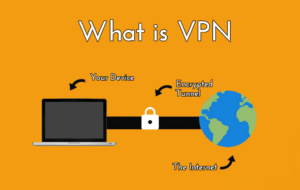
A VPN is an acronym that stands for Virtual Private Network. A VPN allows users to use a public network, like the Internet, safely and anonymously. This allows users to enjoy increased privacy and security. The technology was first made popular by businesses that needed enhanced security features. This allowed them to safely transmit sensitive data.

In today’s increasingly digital age, personal VPNs are growing in popularity among average consumers. Previously VPNs used to be very expensive. Today its widely available for a fraction of the cost. In addition to the security features, many users value increased privacy. A VPN can also be used to access restricted content, or content only available in other countries.


VPN Security Features

VPN’s create an encrypted tunnel that allows users to securely transmit information over a public network. Businesses, government agencies, and universities began using VPN technology years ago to allow people to remotely access sensitive data. Tunneling protocols required authorization, and encryption keeps this data secure.

Most people wouldn’t think of using their computer without an antivirus and firewall. Personal VPNs are increasingly becoming the next step in the evolution of personal computer security. Recent news stories about Firesheep and government snooping have meant people are more aware of data privacy.


ANONYMOUSLY

Privacy Features

The most important privacy feature of a VPN is that your IP given by your internet company is replaced by one provided by your VPN. A VPN company is much more likely to protect your privacy. That is what you are paying for. An ISP is often compelled by law to retain data about your browsing activity.

Many VPN providers build additional measures into their systems to guarantee your privacy. One measure is to not log user data. If there are no logs in the first place, there isn’t any data to hand over upon request. VPN providers also tend to share the IP addresses amongst their users. This in combination with the lack of logs can make tracing an individual user almost impossible.


GeoIP Features

Using a VPN, you can replace your IP address, with one from anywhere around the world. This gives you access to geographically restricted content. For example, you could reside in Washington state. but through the use of a VPN, acquire a London IP address to access BBC iPlayer. Many large content providers will not allow you to watch certain content unless you live in that country. You can use a VPN to access more content on Netflix, Hulu, Pandora, and BBC iPLayer. To name a few.

You can bypass firewalls using a VPN. Some countries restrict access to certain content.  The largest of these firewalls is jokingly referred to as the Great Firewall of China. Iran and several other Middle Eastern countries are also well known for blocking access to websites. Due to cultural and political reasons your freedom to look at content is restricted. Commonly blocked sites include Facebook, Twitter, and Youtube.


Common Protocols

  • PPTP
  • L2TP over IPsec
  • OpenVPN


YOUR INTERNET ACTIVITY IS BEING WATCHED

ReviewVPN cannot attest to the legality, security and privacy of the applications discussed on this site. It is highly recommended that you use a VPN service while streaming or using Kodi.

Currently, your IP 216.73.217.150 is visible to everyone and your Browser is being tracked by Advertisers & ISP Provider.

Save 65% Now

Limited Time Offer

Here are the main reasons why you must use a VPN:

  • Your activities are hidden from your ISP, the government, and from the apps you are using.

  • You can access additional movies and TV streams.
  • ISP attempts to throttle are thrwarted thus reducing buffering issues.
  • Geographically restricted content like Netflix and Hulu can be unblocked.

A VPN works be replacing your ISP-assigned IP address and creating an encrypted tunnel. We recommend the no log service offered by IPVanish. It works well on a Firestick and offers the fastest possible speeds.

Special Limited Time Offer - Get IPVanish


Advantages of Using a VPN

  • Added security
  • Increased privacy
  • Access  geographically restricted content (Hulu, Netflix, Pandora, etc.)
  • Bypass firewalls to access content restricted by the government (E.G. Twitter in the Middle East).


Disadvantages of Using a VPN

  • Most VPN services cost money.
  • Your internet will be slower. Using a premium VPN service and the closest server to your location allows users to experience the fastest speed.


Future of Virtual Private Networks

The number of people using VPNs has exploded over the past 10 years. Data privacy is not a commonly understood term. Many people are now concerned about the ability of government agencies like the NSA to snoop on them. When choosing a VPN, pick one that has a great track record of keeping your data safe.  Having a good zero logs policy, secure VPN protocols, and a fast network.

Recommended Reading – Why to Use a VPN


Note: For more information about Surfshark, please read our Surfshark Review.


Install Surfshark on Firestick

Best Surfshark Deal


How to Install Surfshark VPN on Firestick

If your Firestick still has the older interface, read this article to learn how to update it: Update Firestick Interface.

Follow our screenshots below to install the SurfShark VPN app on your Fire TV stick.

1. Go to the Home screen of your Firestick.

step 1 Install Surfshark VPN on Firestick


2. Navigate towards the Find tab. Press the Search button from the resulting dropdown.

step 2 Install Surfshark VPN on Firestick


3. Type in the keyword of SurfShark and select from the suggestions that will appear.

step 3 Install Surfshark VPN on Firestick


4. Click the official SurfShark icon from your search results.

step 4 Install Surfshark VPN on Firestick


5. Press the Download (You own it) button.

step 5 Install Surfshark VPN on Firestick


6. The SurfShark VPN installer will download on your device.

step 6 Install Surfshark VPN on Firestick


7. SurfShark VPN’s app will automatically install itself on your Fire TV stick.

step 7 Install Surfshark VPN on Firestick


8. Press the Open button after completing SurfShark VPN’s installation process.

step 8 Install Surfshark VPN on Firestick


9. Please wait for the SurfShark VPN to load its user interface.

step 9 Install Surfshark VPN on Firestick


10. You can now log in with your SurfShark VPN account credentials.

step 10 Install Surfshark VPN on Firestick

Learn more about Surfshark and Grab the Best Surfshark Deal Now!


Install Surfshark on Firestick

Best Surfshark Deal


Other VPNs to Consider

NordVPN (Best for Streaming)

Best Features

  • 5000+ Server in 50+ Countries 
  • Military-Grade Encryption
  • Fast Connection Speed
  • Suitable to a lot of devices
  • No-Log Policy

Prices
  • Complete $5.89 per month (64% Discount)
  • Plus $4.59 per month (56% Discount)
  • Standard $3.69 per month (55% Discount)

Best Features

  • 750+ High-speed VPN Servers in 43 Locations
  • Military-Grade Encryption
  • Fastest HD Streaming and Gaming
  • 30-Day Money-Back Guarantee
  • Unlimited Data & Devices
  • No-Log Policy

Prices
  • 3 Years $1.99 per month (82% Discount)
  • 1 Years $3.29 per month (70% Discount)
  • 1 Month $10.99 per month

IPVanish VPN (Most Secure)

Best Features

  • 1200+ Servers in 60+ Countries around the world
  • Unlimited Connections
  • No-Log Policy
  • Top Notch Military-Grade VPN Protocols and Encryptions
  • 100% Safe and Secured
  • Most Trusted VPN
  • Best VPN for Firestick
  • 30-Day Money-Back Guarantee

Prices
  • Yearly $3.99 per month (63% Discount) – 30 days risk free + Ransomware & Malware Protection
  • Quarterly $5.32 per month (51% Discount)
  • Monthly $10.99 per month


For more VPN discounts, go to ReviewVPN Deals and purchase the best VPN for you.

Click here to get the lowest price on Surfshark through our exclusive limited-time offer.


Best Free Movie Apps for Roku

Best Free Movie Apps to Cast on Roku

Roku has sold millions of devices worldwide and has become well known not just for the quality but also the closed nature of their proprietary operating system. Luckily if you have a phone handy there’s an easy way to stream anything you want on your Roku.

In this guide, we quickly look at what Roku is, and why you can’t just download any app onto Roku. Then we get into the solutions and understand how we can use screencasting to cast almost any app from our iPhone or Android phone.


What is Roku?

Roku was released by serial entrepreneur Anthony Wood, and the name simply comes from the Japanese number for “six” as this was the sixth company he had started.

Roku is a streaming device that plugs straight into your TV and allows you to access online content from most major providers from the comfort of one device.

Started in 2002, the company released it’s first product in 2008 and has grown to over 30 million active accounts.


ANONYMOUSLY


Why Can’t I Download The Apps Straight Onto Roku?

Roku has been coded using its own proprietary Operating System, which effectively makes Roku a closed system.

There are almost no third-party apps allowed on the system, which has thrived because of its closed nature.

Luckily you can screencast onto Roku, which makes it possible to get around the restrictions.


What Is Screen Casting?

One of the few compatible third-party applications you can use with Roku is screencasting. In this guide, we are going to use All Cast which is free to download from the Android or iOS store, or can be bought for $3.99 if you want to get rid of the ads.
This is a good point to tell you that jailbreaking a Roku isn’t possible. Because Roku has it’s own custom operating system.

So, the applications won’t work on Roku as most tend to be coded for Android, with a few for iOS.

Screencasting simply means you download the apps on your phone, then screencast using All Cast onto your Roku device letting you watch any apps you want on your TV.


Using Your Phone With Roku

For this you’re going to need a phone, we’re going to deal with the best applications for Android and then iOS.

If you want the broadest possible access to the best apps for free TV you are best off using an Android phone, even a cheap phone for a $100 will work well for our purpose.

You’ll also need to make sure that your Roku is discoverable and have a minimum of Android 5.0 installed on your phone.

We’re going to cover both Android and iOS


YOUR INTERNET ACTIVITY IS BEING WATCHED

ReviewVPN cannot attest to the legality, security and privacy of the applications discussed on this site. It is highly recommended that you use a VPN service while streaming or using Kodi.

Currently, your IP 216.73.217.150 is visible to everyone and your Browser is being tracked by Advertisers & ISP Provider.

Save 65% Now

Limited Time Offer

Here are the main reasons why you must use a VPN:

  • Your activities are hidden from your ISP, the government, and from the apps you are using.
  • You can access additional movies and TV streams.

  • ISP attempts to throttle are thrwarted thus reducing buffering issues.
  • Geographically restricted content like Netflix and Hulu can be unblocked.

A VPN works be replacing your ISP-assigned IP address and creating an encrypted tunnel. We recommend the no log service offered by IPVanish. It works well on a Firestick and offers the fastest possible speeds.

Special Limited Time Offer - Get IPVanish


Android

So, before we get started, you’re going to need to download two applications to get up and running on your Android phone.

Both can be found on the Google Play Store.

Firstly, get All Cast. This a great multi-purpose casting application. We recommend you buy the app for the $3.99 because you can get rid of the annoying popup ads which could ruin your viewing experience.

Next, you have a choice. Many free TV streaming apps aren’t allowed in the Google Play Store.

You can either download APK Time which has a constantly updated list of free TV streaming apps, or alternatively, you can use an alternative Android store like Aptoide.

To make it easy we would use APK Time. Once you have All cast and APKTime up and running, you simply download one of the apps from our list below. Launch All Cast and find the streaming device, and then connect it with your Roku device.

One last note is making sure your phone is fully charged or plugged in while streaming as it will drain the battery.

There’s a big choice, so here’s our pick of the best TV streaming applications:

Cyberflix

Cyberflix logo

Cyberflix is hands down for us the best free TV streaming application out there. It looks just like Netflix, massive range of titles. It can be integrated with Real Debrid to get consistent high-quality streams. Plus, it’s 100% free and without ads.


Cinema HD

cinema hd apk

Great range of movie titles with tonnes of working links, simple user interface as well as a place for favorite. It can also be integrated with Trakt TV and Real Debrid, and you can watch trailers in the app.


Typhoon TV

Typhoon TV Logo

A relative newcomer compared to our first 2 choices, but Typhoon TV has been topping off the charts for a few weeks, because of it being stable, easy to use with a high-quality user interface. Including a wide range of connectivity to premium services and no buffering fast links.


Mobdro

Mobdro Logo

Mobdro is an oldie but a goodie. It has been around since 2017. Unlike the other apps, it isn’t focused on just free movies. It offers to live free cable TV with a very simple UI.


Bee TV

beetv-app logo

No account needed with Bee TV. No ads and completely free. A large range of content along with high-quality streams including HD and constantly updated content

A few others to check out:

iOS

Unfortunately, unlike Android, iOS has a much smaller range of addons available at your disposal. You will also have to download the addons from the official websites as they won’t be available in the app store.

Follow the same instructions for downloading All Cast and then we have a few apps which provide a good service, but not as good as some of the better ones on Android.


Coto Movies:

Coto Movies Logo

https://cotomovies.com/ 

The best app for free streaming of TV shows and movie shows. Good range of content and clean UI. Some ads are shown in app.

Popcornflix:

Popcornflix Logo

https://www.popcornflix.com/pages/discover/d/movies

A good selection of movies but much smaller than you would find on something like Cyberflix. Also, the content tends to be much older.

Alternatively, you may want to go the free and legal route. In which case, Tubi TV and Pluto TV offer a good range of TV but expect ads as well as nothing particularly new.


Tubi TV:

Tubi TV Logo

https://tubi.tv/ 

Pluto TV:

Pluto TV Logo

https://www.pluto.tv/ 

Install CKay TV on Firestick, Fire TV, and Android – 2023

CKay TV

In this article, we will be divulging important details on how to install CKay TV on Firestick and other devices that run on the android platform.


Is it Any Good?

CKay TV has been around since late 2016 and became very popular overnight. A lot of people downloaded it and it was one of the top Android TV streaming applications of 2018. However, in 2019 the server load was increasing the Ckay TV time realized that the only way they could make the business work was through a subscription model.


There are two packages:

  1. Ckay TV Elite

    -$12 a month which gets you 200+ Live TV Channels, an updated TV Guide, no in-app adverts and cancel anytime

  2. Ckay TV Thrift

    -$5 a month which gets you 30 Live TV Channels users left in their droves. Considering that this is more expensive than Netflix. If you wanted to get 1,200+ IPTV Channels then you could join Stream for the US for $10 a month, or to get great TV links and high-speed downloads you could join Zion Club from TV Zion for $1.50 a month. Whether Ckay TV is good or not as a paid app is not relevant, considering there are much better alternatives out there for less. The paid subscription model is all that is available, you cannot access the app for free. We reckon that unless Ckay TV heavily discounts its prices or puts more on the table in terms of what is available they won’t be around for long.


ANONYMOUSLY

Is CKay TV Safe and Virus-free?

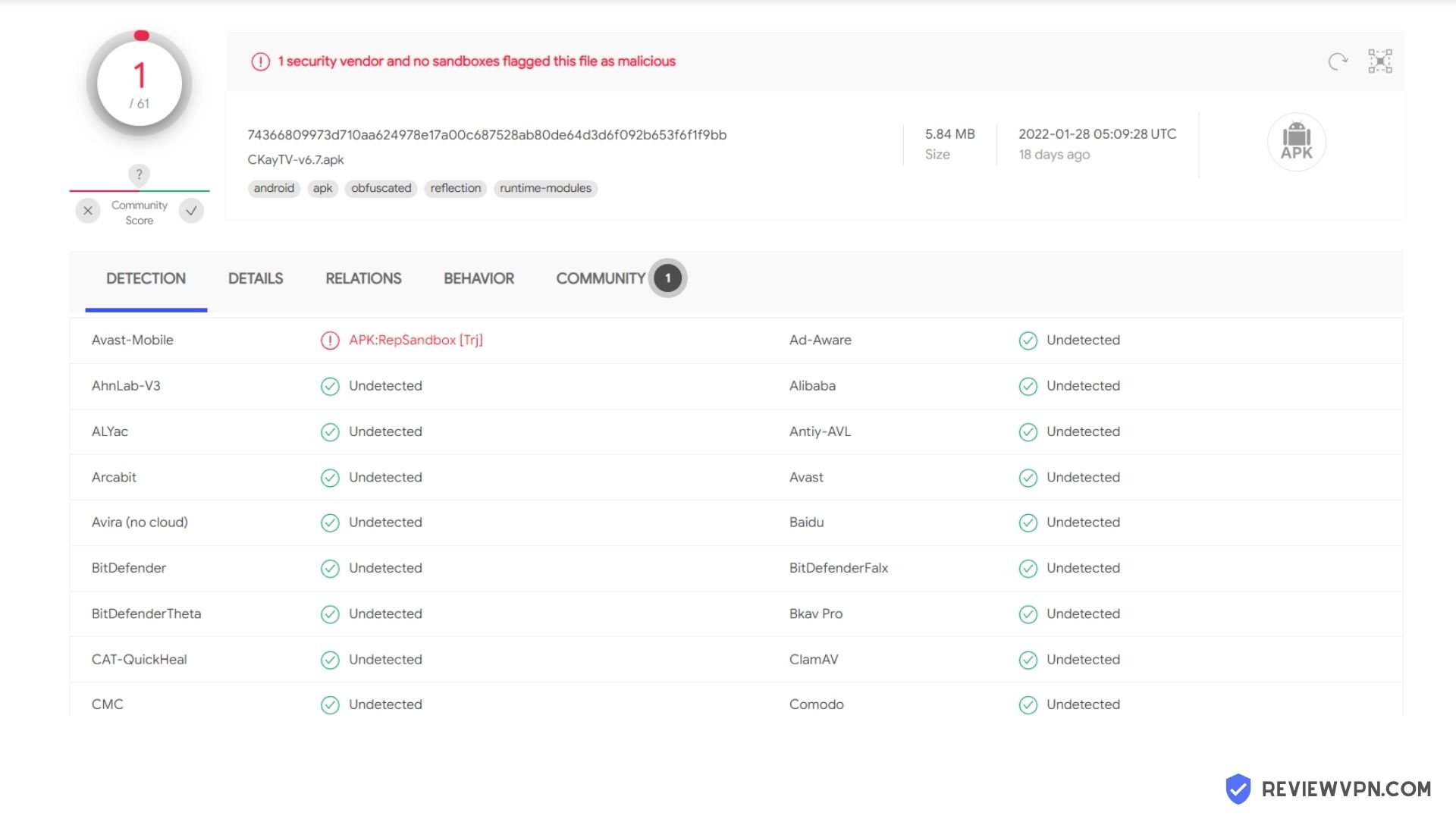
We tested this application using VirusTotal and found that there is/are malicious file/files. You can see the above result for your reference.

Because of this, we highly recommend using a VPN that can protect your privacy against any threat from CKay TV.

Here’s how you can Install The Best VPN For Firestick and All Devices.


What Does it Do?

CKay TV works in a similar way to a lot of other Android TV apps, using their proprietary scrapers they search online looking for new content added from 3 rd parties. The links are automatically tested and if they are found to work then they are added to an extensive media library

What Platforms Does it Work on?

android devices image

CKay TV works on Android only


Features

  • Wide range of Content
  • News
  • Sports
  • Kids
  • Movies
  • Entertainment
  • Lifestyle
  • Documentaries
  • Religious


YOUR INTERNET ACTIVITY IS BEING WATCHED

ReviewVPN cannot attest to the legality, security and privacy of the applications discussed on this site. It is highly recommended that you use a VPN service while streaming or using Kodi.

Currently, your IP 216.73.217.150 is visible to everyone and your Browser is being tracked by Advertisers & ISP Provider.

Save 65% Now

Limited Time Offer

Here are the main reasons why you must use a VPN:

  • Your activities are hidden from your ISP, the government, and from the apps you are using.
  • You can access additional movies and TV streams.
  • ISP attempts to throttle are thrwarted thus reducing buffering issues.
  • Geographically restricted content like Netflix and Hulu can be unblocked.

A VPN works be replacing your ISP-assigned IP address and creating an encrypted tunnel. We recommend the no log service offered by IPVanish. It works well on a Firestick and offers the fastest possible speeds.

Special Limited Time Offer - Get IPVanish


Legal Disclaimer: ReviewVPN.com does not encourage or endorse any illegal activity involved in the usage of services and applications referenced on this site. We do not verify the licensing agreements of services. The end-user is wholly responsible for ensuring that any media accessed through these services does not violate copyright and/or licensing laws. ReviewVPN does not promote, link to, or receive compensation from any Apps and IPTV services.


Install Surfshark on Firestick

Best Surfshark Deal


Pros and Cons

Pros

  • Good content library
  • A fair amount of live TV channels
  • A paid model which supports its developers
  • Regular updates
  • TV guide
  • An active community
  • In-app media player
  • Nice UI

Cons

  • Much less content available than many of their competitors
  • The number of Live Tv channels available pails in comparison to apps like Live Tv Net and Mobdro which offer 800+ channels
  • A subscription model is overpriced
  • No free version
  • No trial


FAQs

Is it Safe to Use?

Yes, the application is available to download either from the Ckay TV official website or through the Amazon store. Many popular Android and iOS applications spawn endless knock-off downloads, which appear to be almost the same code, but may contain Malware or viruses, we recommend that you always use a Malware scanning program if you download an application you are unsure of.


Is it Legal or Grey?

Ckay TV is well and truly in the grey area. There would be little legal content being streamed on the platform. Though add ons tend to act like third parties connecting users with working links, in the eyes of the law they are seen as just as complicit in the act of distributing copyrighted content. Be aware that if you use Ckay TV using an unencrypted connection to the internet, the service may be blocked or large parts of it won’t work.


Is it Free?

No, Ckay TV can only be accessed as a paying member.


Are There Ads? (If it Has Ads is There a Modded Version)

No ads.


Is There a Premium Version?

Yes, there are 2 types of paid subscriptions.


Is There an Official Website?

Yes, there is a simple one-page site to download the apk here: http://ckaytv.com/


What other Devices Does It Work On?

CKay TV works on all Android Devices.


How Does The App Work?

Download the application using the instructions above, and then click and go. Just be aware Ckay TV no longer works as a free ad on and you have to pay to access their content.


What is the Minimum Version of Android I Need?

Android 5.0.


How Long has it Been Around?

CKay TV has been around since 2016.


Is It a Terrarium Clone?

No.


What is the Development Team Like?

We couldn’t find any information about the development team. Though we have seen they have made recent announcements on their Facebook page here: https://www.facebook.com/ckaytv/

Should I Use This App With a VPN?

https://get.surfshark.net/aff_c?offer_id=865&aff_id=12312

We always recommend that you use Kodi and Ckay TV with a VPN for a number of reasons:

  • Your ISP (Internet Service Provider) monitors and logs everything you do online when your connection is unencrypted. Their database system will also have a long list of IP addresses and URLs that are on a watch list for various reasons. Many Kodi add ons are blacklisted because they allow copyrighted content to be distributed illegally. So if you want many add ons to work, you’ll need a VPN
  • A VPN will encrypt all your traffic making it impossible for anybody to tell what you are doing
  • A VPN will also keep your identity anonymous, meaning your IP cannot be tracked, and your browsing habits cannot be logged

Note: For more information about Surfshark, please read our Surfshark Review.


Grab your subscription now!


How to Install Surfshark VPN on Firestick

If your Firestick still has the older interface, read this article to learn how to update it: Update Firestick Interface.

1. Go to the Home screen of your Firestick.

step 1 Install Surfshark VPN on Firestick


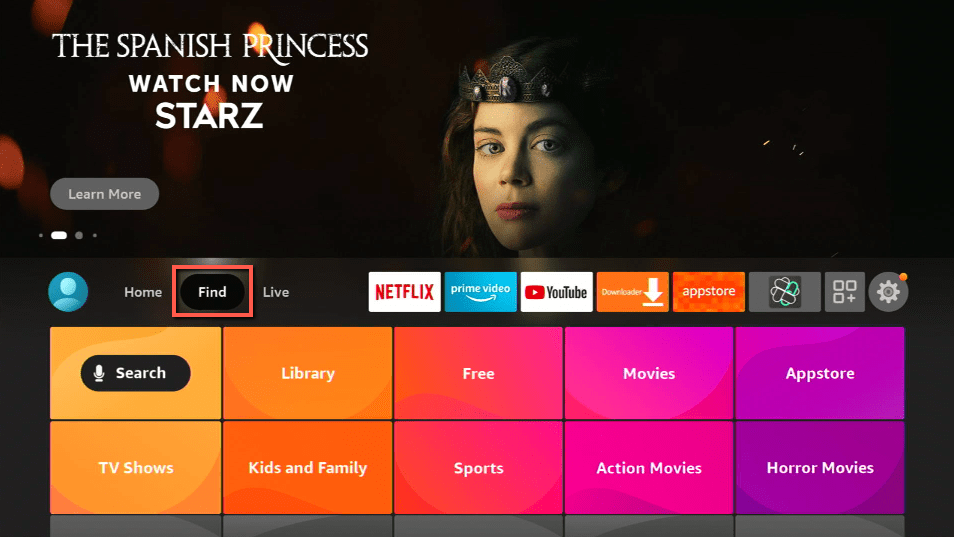
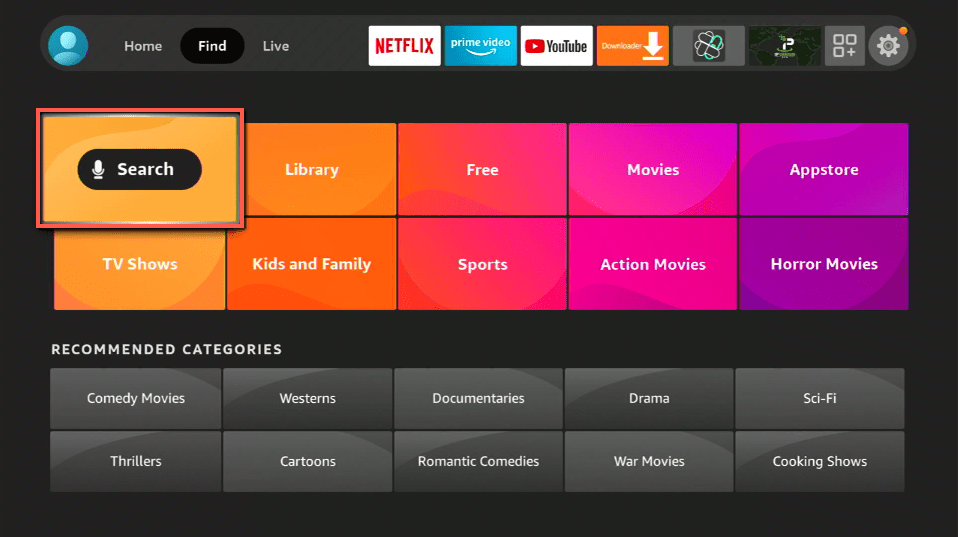
2. Navigate towards the Find tab. Press the Search button from the resulting dropdown.

step 2 Install Surfshark VPN on Firestick


3. Type in the keyword of SurfShark and select from the suggestions that will appear.

step 3 Install Surfshark VPN on Firestick


4. Click the official SurfShark icon from your search results.

step 4 Install Surfshark VPN on Firestick


5. Press the Download (You own it) button.

step 5 Install Surfshark VPN on Firestick


6. The SurfShark VPN installer will download on your device.

step 6 Install Surfshark VPN on Firestick


7. SurfShark VPN’s app will automatically install itself on your Fire TV stick.

step 7 Install Surfshark VPN on Firestick


8. Press the Open button after completing SurfShark VPN’s installation process.

step 8 Install Surfshark VPN on Firestick


9. Please wait for the SurfShark VPN to load its user interface.

step 9 Install Surfshark VPN on Firestick


10. You can now log in with your SurfShark VPN account credentials.

step 10 Install Surfshark VPN on Firestick

Learn more about Surfshark and Grab the Best Surfshark Deal Now!


Install Surfshark on Firestick

Best Surfshark Deal


Other VPNs to Consider

NordVPN (Best for Streaming)

Best Features

  • 5000+ Server in 50+ Countries 
  • Military-Grade Encryption
  • Fast Connection Speed
  • Suitable to a lot of devices
  • No-Log Policy

Prices
  • Complete $5.89 per month (64% Discount)
  • Plus $4.59 per month (56% Discount)
  • Standard $3.69 per month (55% Discount)

Best Features

  • 750+ High-speed VPN Servers in 43 Locations
  • Military-Grade Encryption
  • Fastest HD Streaming and Gaming
  • 30-Day Money-Back Guarantee
  • Unlimited Data & Devices
  • No-Log Policy

Prices
  • 3 Years $1.99 per month (82% Discount)
  • 1 Years $3.29 per month (70% Discount)
  • 1 Month $10.99 per month

IPVanish VPN (Most Secure)

Best Features

  • 1200+ Servers in 60+ Countries around the world
  • Unlimited Connections
  • No-Log Policy
  • Top Notch Military-Grade VPN Protocols and Encryptions
  • 100% Safe and Secured
  • Most Trusted VPN
  • Best VPN for Firestick
  • 30-Day Money-Back Guarantee

Prices
  • Yearly $3.99 per month (63% Discount) – 30 days risk free + Ransomware & Malware Protection
  • Quarterly $5.32 per month (51% Discount)
  • Monthly $10.99 per month


For more VPN discounts, go to ReviewVPN Deals and purchase the best VPN for you.

Click here to get the lowest price on Surfshark through our exclusive limited-time offer.


Best Alternatives

There are a lot of much better alternatives out there. The top of our list has to be Zion TV which is probably leading the field when it comes to Android TV applications. With a host of features, the ability to stream directly from Torrents, regularly updated content, and a hard-working developer. You can even pay a small subscription fee and get access to high-speed streams every time. Also, Cyberflix is well worth a look it is probably the best Netflix-style Android TV application out there, with a host of features as well as being 100% ad-free.


Our Opinion

Ckay TV may have been good once, but the subscription model they rolled out in May with little warning and poor marketing will pretty much kill any users they have. If you want to pay then get Zion TV, for a fraction of the price you are going to get an absolutely awesome app with more features than any other Android TV application on the market.

How to Speed Up Your Firestick

How to Speed Up Your Firestick?


Have you ever asked why your firestick is so slow? The firestick from Amazon has grown to be the most popular streaming device in the world. But what happens when seemingly for no reason it starts to slow down, which may mean it:

  • Delivers poor quality video
  • Lags between screens or actions from the remote
  • Applications suddenly crash
  • Sound frequently starts playing out of sync
  • Videos take longer than normal to buffer


There are only two core reasons why a Firestick is running slowly:

  1. Overheating
  2. Overloading: Too many apps and processes running on the device

How Can You Speed Up Your Firestick?

Here we tackle the 2 core reasons for your firestick slowing down, follow through all the steps until you find a solution that works for you. If nothing else works, then a factory reset in Step 11 of Overloading is always a good way to go.


ANONYMOUSLY

Overheating

This is a pretty common problem with the amazon firestick. It’s great, but it’s cheap. The mass-made plastic cases don’t have any room for ventilation so over time the Firestick can overheat.

Step 1: Change USB

– We don’t advise you to leave your firestick plugged directly in the mains if you do make sure that the plug socket is off when not in use. Otherwise even before you start using your device it’s already warm, due to being exposed to constantly circulating current. Or, if you have a USB socket in your TV, plug it in there. So, your firestick starts off cool.

Step 2: Make custom Cooling Holes

-Ok, so this is not for the faint-hearted. Or those who fear voiding the warranty on their device. The plastic casing for your firestick has no vents. So, you could just make your own. You can pry the plastic case of the device and then pop some holes into the case to allow air to circulate.

Note: Newer devices seem less prone to overheat, and almost all overheating problems can be fixed with Step 1. If you don’t feel comfortable making “modifications” then don’t. You don’t want to go from a device that overheats sometimes, to one that just doesn’t work at all.


YOUR INTERNET ACTIVITY IS BEING WATCHED

ReviewVPN cannot attest to the legality, security and privacy of the applications discussed on this site. It is highly recommended that you use a VPN service while streaming or using Kodi.

Currently, your IP 216.73.217.150 is visible to everyone and your Browser is being tracked by Advertisers & ISP Provider.

Save 65% Now

Limited Time Offer

Here are the main reasons why you must use a VPN:

  • Your activities are hidden from your ISP, the government, and from the apps you are using.
  • You can access additional movies and TV streams.
  • ISP attempts to throttle are thrwarted thus reducing buffering issues.
  • Geographically restricted content like Netflix and Hulu can be unblocked.

A VPN works be replacing your ISP-assigned IP address and creating an encrypted tunnel. We recommend the no log service offered by IPVanish. It works well on a Firestick and offers the fastest possible speeds.

Special Limited Time Offer - Get IPVanish


Install Surfshark on Firestick

Best Surfshark Deal


Overloading

By far the more common main problem is overloading. The Amazon firestick has 1GB of RAM and 8GB of storage. That really isn’t very much. It was primarily designed as a simple device to stream directly from Amazon, not a super media player for hundreds of applications and Kodi add-ons. A lot of people seem to miss that in their criticism of Amazon. It’s overheating because you’re using it for things it was not designed for. The Firestick is brilliant for what you get. Hands down.


Step 1: Reset and Power

-A common problem with technology is that we leave it running 24/7. For whatever reason, a process may be a stick, or the Operating System just needs to reboot. Switch the device off for 2 minutes and then switch back on.

Step 2: Check for Updates

-By default, Amazon will have enabled automatic updates. This is a function you should not change. So, if for any reason you have turned them off, you can put them back on by going to:

  1. From the Home, screen go to Settings
  2. Applications
  3. App store
  4. Automatic Updates

You can double-check online to see if you have the latest version of the application. If the numbers are out of sync, switch the Firestick off and then back on. On start-up it will automatically search for new updates and install them.

Step 3: Check Your Internet

-This is a step to check off if your problems are mainly related to video, audio, and buffering rather than applications randomly crashing. Go through the full checklist, just to make sure the problem is not unrelated to the device.


Wi-Fi Speed

From a Laptop or Browser Go To https://www.speedtest.net/

Run the speed checks. If your download speed is showing less than 10MBps then it may be worth checking your internet package and expected speeds. Also, look at your Internet Service Providers websites and see if there are outages in your area or maintenance work. If you’re trying to play in HD or even 4K then 20MBps + speeds are best. Less than that and you may get some lag and video/audio being out of sync.


VPN – Switch Servers

If you are using a VPN (see reason under Step 9) then it may be worth trying to find a new server. Often VPN providers will shunt you to the nearest server. This may not always be the fastest. Plus, intermittently servers can go down. Worth trying another local server to see if that makes a difference. Providers like Surfshark, ExpressVPN, IPVanish, and NordVPN have inbuilt speed tests in their application so you can check and find the fastest server. Sometimes your recommended server may not actually be the fastest.


Turn Off  Your VPN

VPN’s do slow down your internet connection, they can take anywhere up to 20% off your bandwidth. You can test how much your VPN is paring your speed, by installing the client on your device and then running: https://www.speedtest.net/, with and then without the VPN. If you aren’t using Kodi, and are just watching a paid-for service like Amazon Prime or Netflix, where you aren’t trying to watch region-restricted content (i.e. you are in the UK watching content that is only accessible by people based in the US) then it might be worth turning the VPN off.


Reboot Your Router

The next off-and-on trick. Turn your router off and leave for 2 minutes before turning it back on.


Step 4: Clear Out All Your Old Addons

Just like any device, your Firestick will start to fill up with addons, and applications you loved on Day 1 and 6 months later are nothing but a distant memory. So, it might be time for a purge to get back some precious storage space. 8GB really isn’t that much, so every MB counts.

You can do this by:

  • Go to the Home screen
  • Settings
  • Applications
  • Manage Installed Applications
  • Just like Windows, you’ll see a list of applications, uninstall any you’re not using.
  • Just to be safe, restart your firestick

Step 5: Stop Unused Addons

Some add ons run persistently. Which means they are always taking up some RAM in the background. One or two is fine, but when you have quite a few then this can really tax your already limited RAM. Using similar steps, you can force apps that are running, which you aren’t really using, and may consider returning to Step 5 and installing them all together. 

Do this by going to:

  • Home Screen
  • Settings
  • Applications
  • Under the list click Force Stop instead of uninstalling

Step 6: Clearing Cache

One thing we love about the firestick is that it has an inbuilt clear cache function which is handy, particularly if you run Kodi. Kodi by itself doesn’t have a cache, so the firestick may be cluttered with old Kodi add-ons and downloaded zip files you no longer need.

You can clear data and clear cache at the same time:

  • You can find this under Home Screen > Settings > Applications
  • This can be done individually for each app, start with Kodi and the bigger sized applications which you use most frequently


Step 7: Disabling Unnecessary Features

Amazon is a data-gathering machine and has quite a few secret functions running in the background which can continue to feed their algorithms and provide you with data about your usage habits, as well as pushing their products on you whenever you log in. Disabling these unnecessary features will ease the strain on your RAM and give more power to other processes.


Audio and Video Auto Play

You’ll notice that whenever you start your firestick, there are new videos and trailers being played by Amazon, encouraging you to buy the latest release. This featured content can really burn up processor speed, so turn these off:

  • Settings
  • Preferences
  • Featured content
  • Turn off both video and audio autoplay


Turn Off Data Monitoring

Notifications

Amazon will use notifications to push new products, inform you about updates and brand-new apps you can try. This all takes up unnecessary space. There are two notifications to turn off.


Appstore:

  • Settings
  • Applications
  • App store
  • Notifications


Individual apps:

  • Settings
  • Preferences
  • Notifications Settings
  • App Notifications


Step 8: VPN

Using a VPN has a multitude of benefits, from keeping you anonymous online, maintaining your privacy, and allowing you to access censored sites and content around the world. But in terms of the firestick, it has 2 clear benefits.


Internet Speed Throttling

Sometimes your ISP slows down your internet connection, and you would never even know it. This could be because the amount of data you are using is at odds with your neighbor. If you spend all day and night streaming content, then you are burning up maybe 20-30 GB each day. That’s much more than your next-door neighbor who watches Cable TV and checks their email once a day. So that your ISP can level out of the load, they may slow down your speeds, so you are forced to stream at a slower rate. A VPN can help you avoid this, by encrypting your data using military-grade 256-bit AES encryption. Why does this matter? With the encryption, your ISP, can’t tell what you are doing. Your data packets could be email, browsing, downloading a report. They have no way of telling. So, they won’t throttle you.


URL’s Being Blocked

You are trying to access URLs that are getting blocked, or using a Kodi addon, which gets multiple URLs blocked, and then find ones that work. Again, this is because your ISP helps to block over 30% of the internet to normal users. Mainly because the content has been flagged as inappropriate or breaking the law. As your data is encrypted it cannot block a URL it doesn’t know you are going to. You can also use your VPN to change your IP and appear in any country around the world if you want to access content that is only viewable in that specific country.

Note: For more information about Surfshark, please read our Surfshark Review.


Grab your subscription now!


How to Install Surfshark VPN on Firestick

If your Firestick still has the older interface, read this article to learn how to update it: Update Firestick Interface.

Follow our screenshots below to install the SurfShark VPN app on your Fire TV stick.

1. Go to the Home screen of your Firestick.

step 1 Install Surfshark VPN on Firestick


2. Navigate towards the Find tab. Press the Search button from the resulting dropdown.

step 2 Install Surfshark VPN on Firestick


3. Type in the keyword of SurfShark and select from the suggestions that will appear.

step 3 Install Surfshark VPN on Firestick


4. Click the official SurfShark icon from your search results.

step 4 Install Surfshark VPN on Firestick


5. Press the Download (You own it) button.

step 5 Install Surfshark VPN on Firestick


6. The SurfShark VPN installer will download on your device.

step 6 Install Surfshark VPN on Firestick


7. SurfShark VPN’s app will automatically install itself on your Fire TV stick.

step 7 Install Surfshark VPN on Firestick


8. Press the Open button after completing SurfShark VPN’s installation process.

step 8 Install Surfshark VPN on Firestick


9. Please wait for the SurfShark VPN to load its user interface.

step 9 Install Surfshark VPN on Firestick


10. You can now log in with your SurfShark VPN account credentials.

step 10 Install Surfshark VPN on Firestick

Learn more about Surfshark and Grab the Best Surfshark Deal Now!


Install Surfshark on Firestick

Best Surfshark Deal


Other VPNs to Consider

NordVPN (Best for Streaming)

Best Features

  • 5000+ Server in 50+ Countries 
  • Military-Grade Encryption
  • Fast Connection Speed
  • Suitable to a lot of devices
  • No-Log Policy

Prices
  • Complete $5.89 per month (64% Discount)
  • Plus $4.59 per month (56% Discount)
  • Standard $3.69 per month (55% Discount)

Best Features

  • 750+ High-speed VPN Servers in 43 Locations
  • Military-Grade Encryption
  • Fastest HD Streaming and Gaming
  • 30-Day Money-Back Guarantee
  • Unlimited Data & Devices
  • No-Log Policy

Prices
  • 3 Years $1.99 per month (82% Discount)
  • 1 Years $3.29 per month (70% Discount)
  • 1 Month $10.99 per month

IPVanish VPN (Most Secure)

Best Features

  • 1200+ Servers in 60+ Countries around the world
  • Unlimited Connections
  • No-Log Policy
  • Top Notch Military-Grade VPN Protocols and Encryptions
  • 100% Safe and Secured
  • Most Trusted VPN
  • Best VPN for Firestick
  • 30-Day Money-Back Guarantee

Prices
  • Yearly $3.99 per month (63% Discount) – 30 days risk free + Ransomware & Malware Protection
  • Quarterly $5.32 per month (51% Discount)
  • Monthly $10.99 per month


For more VPN discounts, go to ReviewVPN Deals and purchase the best VPN for you.

Click here to get the lowest price on Surfshark through our exclusive limited-time offer.


Step 9: Optimise Kodi

You may be using Kodi on your Firestick, so the problem just happens when you are Kodi. An all-in-one entertainment centre dating back to 2002. Where you can download thousands of add ons to watch anything from the latest movie blockbusters to the Superbowl, and all for free.

If Kodi keeps crashing, or you are having trouble with buffering there are a few different things you can try:

  • Clear Cache (See Step 7, clear cache just for the Kodi app)
  • Make sure you have the latest version of Kodi downloaded
  • Disable hardware acceleration: Do this from the Kodi home screen by going to Settings > Player Settings > Click gear icon 3 times to turn to expect> Allow hardware acceleration – DXVA2 > Disable]
  • Install TV add ons to get any missing dependencies by going to Settings > File Manager > Add Source > URL: http://fusion.tvaddons.co/ > Back space > Open package (icon in top left corner > Install from Zip File 
  • Alternatively, look for Ares Wizard addon and then run the Advanced Settings Wizard worse comes to the worst if the problem persists with Kodi then you can delete it and give it a fresh install.

Step 10: Factory Reset

Finally, if everything else that you have tried still isn’t working, then it’s time to go back to the beginning and do the dreaded factory reset. It’s a bummer we know, as everything will get wiped from the firestick. But better to start again than be perpetually slow.


Carry out a reset by going to:

  • Settings
  • Device
  • At the bottom, click Reset to Factory Defaults

Install IPVanish VPN on Firestick – Updated 2023

Why IPVanish?

IPVanish is the best VPN for Firesticks. A good Firestick VPN needs to be fast, have an app in the Amazon App Store, connect quickly, store logs, offer plenty of servers and be simple to use. IPVanish checks all these boxes. This article will show you how to quickly install IPVanish on your firestick in just a few minutes.

If your Firestick still has the older interface, read this article to learn how to update it: Update Firestick Interface.


ANONYMOUSLY

install ipvanish on firestick


Install IPVanish on Firestick with Screenshots

1.  Click Home on your remote and click “Find”.

Step 1 Install IPVanish


2. Click “Search”

Step 2 Install IPVanish


3. You can either say IPVanish to your Alexa’s voice-enabled remote or start typing it. If you typed it, click on the suggestion when it appears.

Step 3 Install IPVanish


4. Click on the IPVanish icon.

Step 4 Install IPVanish


5. Click on Download

Step 5 Install IPVanish


6. Wait to download.

Step 6 Install IPVanish


7.  Wait to install.

Step 8 Install IPVanish


8.  Click on Open.

Step 8 Install IPVanish


9.  Input your username and password to log in.


10. Click Connect.

Learn more about IPVanish. Get an IPVANISH now.


ipvanish deal logo


How Can I Tell if IPVanish Is Working on a Firestick?

The red disconnect button will switch to a green connected button. You can also check your IP address on a what is my IP address lookup website. The city should correspond with the one that you selected and the IP address should be different than one from your ISP.


What does IPVanish Do for a Firestick?

IPVanish hides all your online activities and allows you to access more content. It does this by replacing your ISP assigned IP address, which you can think of as your digital fingerprint or home address with one owned by them. They also store no logs that you do will using the Internet with this IP address.

Users can access additional content by appearing to be local in any of 70+ different countries.

What Are the Alternatives to IPVanish?

The most popular alternatives are ExpressVPN, NordVPN, and Cyberghost. That said, IPVanish gets our highest recommendation of all VPN providers.


Final words

IPVANISH VPN has been in the VPN industry and so far, offers great service. Their subscription plan is affordable and it works perfectly on Firestick. IPVANISH recommends for anyone who is looking for a great and excellent VPN service for their Firestick device.

Using A VPN To Save Money Online

Using a VPN to Save Money Online


You may think that a VPN is just good for keeping your identity anonymous and your data safe through encryption, but a VPN could save you thousands of dollars a year in online purchases.

A VPN gives you the power to literally be anywhere in the world, at the click of a button you can change your location to the UK, Switzerland, Hong Kong or Brazil.

You may wonder why that matters, but the location is everything when it comes to e-commerce.


How Does Online E-Commerce Work?

Prices are always dependent on location. If you live in a richer neighborhood you can expect to pay more.

The same is true online. In fact, it gets much deeper.

E-commerce is driven by recommendation engines, the best-known being Amazon. Where they categorize your previous purchases and make new recommendations based on what you bought. These can be quite helpful in your hour of need, but it also means that you are letting yourself become a target for marketers and advertisers to push products you don’t really need.

The same also happens with Google. You look up holidays in Mexico and for days and weeks afterward, you are followed by adverts for cheap holidays in … you guessed it, Mexico.

Without a VPN your data is a goldmine for products and services based on your browsing and buying habits.


ANONYMOUSLY

E-commerce retailers do this through tracking:

Cookies –

Any website you go to will have cookies. Initially, this was to allow websites to be easily cached on your browser with your preferences and settings to make it faster next time you visit. Nowadays the internet is full of cookies, some super cookies track your activity across all websites. The two worst offenders are Facebook and Google. This allows advertisers to target you on whatever website you go to. So even if you went from looking at watches to pyjamas, you are followed by adverts for the latest watch you must have. As well as storing information you enter like your email address, physical address, date of birth and preferences on each website.


IP Address –

Your Internet Protocol (IP) address gives your physical location geographically. So, a UK site can tell you are from the US and serve you US-based ads and dollar value amounts. It also means they could charge you based on the buying preferences of other people from the same region or country.

GPS –

Ever see that pop up when your website asks if it can get a fix on your location? Supposedly its to give you the nearest store, but it’s to allow stores to further refine their prices and products based on a precise physical location. You can also be tracked if you use public Wi-Fi with an unsecured connection.


YOUR INTERNET ACTIVITY IS BEING WATCHED

ReviewVPN cannot attest to the legality, security and privacy of the applications discussed on this site. It is highly recommended that you use a VPN service while streaming or using Kodi.

Currently, your IP 216.73.217.150 is visible to everyone and your Browser is being tracked by Advertisers & ISP Provider.

Save 65% Now

Limited Time Offer

Here are the main reasons why you must use a VPN:

  • Your activities are hidden from your ISP, the government, and from the apps you are using.
  • You can access additional movies and TV streams.
  • ISP attempts to throttle are thrwarted thus reducing buffering issues.
  • Geographically restricted content like Netflix and Hulu can be unblocked.

A VPN works be replacing your ISP-assigned IP address and creating an encrypted tunnel. We recommend the no log service offered by IPVanish. It works well on a Firestick and offers the fastest possible speeds.

Special Limited Time Offer - Get IPVanish


Install Surfshark on Firestick

Best Surfshark Deal


How Can a VPN Save You Money?

A VPN can enable you to change any of the above and give you the advantage as the buyer rather than being at the mercy of the seller and their recommendation engines.

Remember often your price may be based upon what people will and won’t pay in your local area, or even your country. 

Also, it’s personalized to enable e-commerce retailers to get the maximum number of sales, not give you the best price.

Using a VPN, you can change your physical IP location to different countries, encrypt your connection to prevent the transmission of unwanted data, and even get an ad blocker to tune out annoying adverts.

We’re going to show you several examples where having a VPN can save you hundreds of dollars.


Subscriptions

Subscriptions are based within the country. Now previously you couldn’t buy a physical subscription in a country because they would need to send the product. But in the age of digital subscriptions it doesn’t matter what country you buy it in, you just want to get the cheapest price.


Microsoft Office 365 Annual Subscription

Our first price is an annual subscription for Microsoft Office 365 home, each price given has been converted to dollars and it’s the exact same product.

Sometimes using hooky software just won’t cut it anymore and you resign yourself to buying the real thing. Saving money is important particularly if you are a struggling college student.


US: $99

microsoft office price us

Afghanistan: $79

microsoft office price afganistan

Vietnam: $73

microsoft office price vietnam

If you used a VPN and changed your location to Vietnam, you’d save 26% more than if you bought it in the US. 

Once bought you just download the product, install it on your computer and you’re good to go.

Total Saved: $26


Car Rentals

You’re planning on flying to Paris, France with your sweetheart, and you don’t want to be travelling around on the tube. You fancy renting a nice car and travelling around the City of Love in Paris.

Again, it shouldn’t matter what country you rented the car from, you are still going to physically collect the car at Charles de Gaulle airport.

Airport: Charles de Gaulle

Car: Nissan X-Trail or Similar

Extras: None

Length: 9/1/19 – 9/18/19

UK: £188.69 ($228.77)

enterprise car rental price uk


US: $335.63

enterprise car rental price us

So just by booking the same car from the UK instead of in the US you’ve saved almost a third of your costs.

Again, nothing else is different. You will still have to show your driving license and payment card as proof, but there are no additional taxes to differentiate between the 2 countries, it’s literally a case of different pricing plans between these two countries.

Total Saved: $106.86


Flight tickets

How about a flight from New York to London? Price comparison sites like Kayak will tend to serve different recommendations for “best flights” depending on the country you are from. So, we’ve chosen the exact same airline and flight time to be fair.

Website: www.kayak.com 

Flight: New York to London (Any airport)

Class: Basic Economy

Length: 9/21/19 – 9/28/19

Flight: American Airlines 8:50PM


US: $320

price using a flght using a vpn


Japan: ¥36,426 ($342)

price of flight using a vpn in japan

Interestingly Italy and Germany came back with the same price as booking from the US. There were a few things to notice though.

Firstly, the best and cheapest flight recommended varied a lot from $300-400, and the airline serving that flight changed every time. Kayak’s engine will lean first towards the domestic airline of choice, whether that’s American Airline, Japan Air or any other number.

Secondly, the American Airlines flight where the price was the same would vary in ranking in terms of search massively. In fact, for Italy it was the cheapest flight, but was shown 10 spaces lower than when we tried to book it from New York in the US.

We wanted to highlight this, because sometimes you need to use your VPN to do some investigating, it’s not always going to be different in every country you go to. But in our experience, you will see a massive difference in comparing 3-4 countries in terms of ranking and cheapest prices.

The poor folks in Tokyo, Japan where we checked the flight would pay more for the exact same flight

Total Saved: $22


Online Gaming

There was a time when you wanted a game, you had to put your shoes on and go to the nearest shopping mall and browse around for a great deal.

Today, buying games is just like anything else. Websites like Steam put thousands of games in one place meaning you never need to leave your bed.

But online gaming is yet another area where we saw price difference which were significant even for small purchases.

Website: www.steam.com

Game: Remnant from the Ashes

France: €39.99 ($44.32)

steam france


UK: £30.99 ($37.69)

steam uk price


US: $39.99

steam us price with vpn

Again, same game, no add ons and no restrictions on usage based on country of purchase. Yet we can see a different of almost 20% between the prices in 3 different countries. All with a similar socio-economic make up. With the French paying the most and yet just over the Channel, the Brits pay the least!

Money Saved: $6.63


Hotels

Who fancies a trip to Vegas? Nothing like blowing off a bit of steam and indulging in the city of sin. So, let’s book ourselves a fancy 5-star hotel to enjoy our week of gambling.

Trip: Las Vegas

Dates: 09/09/19 – 9/16/19

Hotel: The Venetian resort Las Vegas

Number of people: 2

US: $2,125

price booking a hotel in the US with a vpn


UK: £2,124 (£2603.80)

price booking a hotel in the uk with a vpn


Italy: € 2,356 ($2,613)

price booking a hotel with a vpn

The savings this time are again well over 20%, hotels do generally tend to be cheaper if you book them from the country that they are in. The recommendation system recognises you may not be a tourist and adjusts the prices accordingly.

Again, The Venetian was the top pick for the US and Italy but was almost at the bottom of the list for 5-star hotels when it comes to the UK, which reflects the different buying preferences from that country.

This time, the amount of money you saved could be as much as the cost of the flight ticket itself!

Money Saved: $492

Total Money Saved: $653.49

Most tier 1 VPNs like Surfshark, IPVanish, NordVPN and ExpressVPN are going to cost you at most $10 a month. A yearly subscription will be less than $60.

Investing in a VPN could return hundreds if not thousands of dollars of savings, so the next time you think you can’t afford a VPN think again.

The amount of money you save can vary wildly and for some eCommerce stores won’t make any difference. For example, we wouldn’t bother searching around on Amazon from different countries, after all where are you going to send the parcel to?

But when it comes to goods that do not need to be delivered to a physical location, then we always recommend checking a few countries from different regions, so:

  • The Americas
  • Europe
  • Asia

Using these three as a benchmark you can quickly figure out whether there is money to be saved on your booking or digital product.


Tips for Using a VPN with E-Commerce

We wouldn’t be doing you justice if we didn’t share some additional tips which will go along way to helping your VPN search for the cheapest deal go a lot faster.


Clear Cache

This is crucial. Many big e-commerce websites will cache your location and previous search. So whatever country you change it to, they will keep returning the same price.

It can seem laborious but after each search close the tab, open the history for your browser and clear all your browsing history.

Only then should you change the VPN server to another country and start your search from Google’s main site.


Don’t Let Google See Your location

Be warned if you keep hopping from country to country, Google will ask for your location. But they won’t use your IP address. They will fix onto your GPS co-ordinates completely defeating the purpose of using a VPN.

Always block Google when it asks for your location when carrying out searches.


Search From Country Specific Google

Sometimes searching through one site may appear to yield the same results. You can easily check if the currency denomination is being given in your home countries currency rather than the country you should be looking from. E.g. Your search shows up in $’s when your searching from a UK server.

You can also use Google specific sites for the country like UK is www.google.co.uk and India would be www.google.in 


Why do you need a VPN?

Note: For more information about Surfshark, please read our Surfshark Review.

Install Surfshark on Firestick

Best Surfshark Deal


How to Install Surfshark VPN on Firestick

If your Firestick still has the older interface, read this article to learn how to update it: Update Firestick Interface.

Follow our screenshots below to install the SurfShark VPN app on your Fire TV stick.

1. Go to the Home screen of your Firestick.

step 1 Install Surfshark VPN on Firestick


2. Navigate towards the Find tab. Press the Search button from the resulting dropdown.

step 2 Install Surfshark VPN on Firestick


3. Type in the keyword of SurfShark and select from the suggestions that will appear.

step 3 Install Surfshark VPN on Firestick


4. Click the official SurfShark icon from your search results.

step 4 Install Surfshark VPN on Firestick


5. Press the Download (You own it) button.

step 5 Install Surfshark VPN on Firestick


6. The SurfShark VPN installer will download on your device.

step 6 Install Surfshark VPN on Firestick


7. SurfShark VPN’s app will automatically install itself on your Fire TV stick.

step 7 Install Surfshark VPN on Firestick


8. Press the Open button after completing SurfShark VPN’s installation process.

step 8 Install Surfshark VPN on Firestick


9. Please wait for the SurfShark VPN to load its user interface.

step 9 Install Surfshark VPN on Firestick


10. You can now log in with your SurfShark VPN account credentials.

step 10 Install Surfshark VPN on Firestick

Learn more about Surfshark and Grab the Best Surfshark Deal Now!


Install Surfshark on Firestick

Best Surfshark Deal


Other VPNs to Consider

NordVPN (Best for Streaming)

Best Features

  • 5000+ Server in 50+ Countries 
  • Military-Grade Encryption
  • Fast Connection Speed
  • Suitable to a lot of devices
  • No-Log Policy

Prices
  • Complete $5.89 per month (64% Discount)
  • Plus $4.59 per month (56% Discount)
  • Standard $3.69 per month (55% Discount)

Best Features

  • 750+ High-speed VPN Servers in 43 Locations
  • Military-Grade Encryption
  • Fastest HD Streaming and Gaming
  • 30-Day Money-Back Guarantee
  • Unlimited Data & Devices
  • No-Log Policy

Prices
  • 3 Years $1.99 per month (82% Discount)
  • 1 Years $3.29 per month (70% Discount)
  • 1 Month $10.99 per month

IPVanish VPN (Most Secure)

Best Features

  • 1200+ Servers in 60+ Countries around the world
  • Unlimited Connections
  • No-Log Policy
  • Top Notch Military-Grade VPN Protocols and Encryptions
  • 100% Safe and Secured
  • Most Trusted VPN
  • Best VPN for Firestick
  • 30-Day Money-Back Guarantee

Prices
  • Yearly $3.99 per month (63% Discount) – 30 days risk free + Ransomware & Malware Protection
  • Quarterly $5.32 per month (51% Discount)
  • Monthly $10.99 per month


For more VPN discounts, go to ReviewVPN Deals and purchase the best VPN for you.

Click here to get the lowest price on Surfshark through our exclusive limited-time offer.


Closing thoughts

The first time we did this it completely blew us away, and over the years we have never booked a flight, hotel or got a subscription without first checking around for prices from different countries.

In this article we only just scratched the surface of what you could use it for, and didn’t even cover the other ways you can save money with a VPN, like being able to unlock region-restricted content and watch Netflix from any country in the world and gain access to that countries media library!

2