How To Install Real Steel Kodi Build

Real Steel Kodi Build Overview

The article will help you on how to install Real Steel Kodi Build.


Real Steel is a third-party build that works well on Kodi 19.5 Matrix and is located from the cMaN Repository. This build has a large collection of content to offer such as Movies, TV Shows, Kids, Sports, and more.

It is also regularly updating its list of contents to bring you the latest and fresh releases of Movies/TV shows from different streaming services. This build has a skin by default of Real Steel Viper Glowbar Edition that is easy to use on Kodi. You can enjoy streaming in this build as it brings you a wide selection of content categories provided by different preload addons, such as Asgard, Rogue One, THE CREW, Rising Tides, and more. 


ANONYMOUSLY

How to Install Real Steel Kodi Build with Screenshot

Installing a Kodi build has a lot of processes to take. That is why we will guide you step by step on how you can install it on Kodi.

 Follow the following steps below.  

1. On your Firestick, open Kodi and go to Settings.

Install Real Steel Kodi Build Step 1


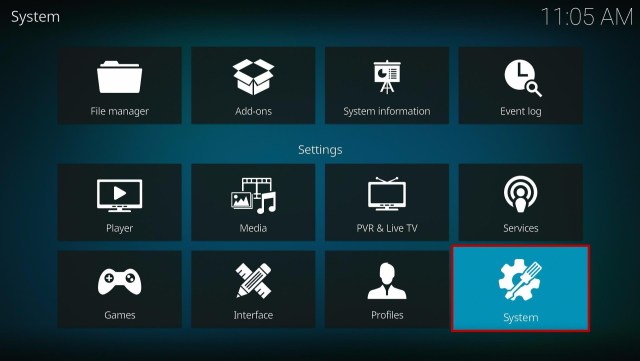
2. Select on System.

Install Real Steel Kodi Build Step 2


3. Click on the Add-ons menu and Turn ON the Unknown Sources.

Install Real Steel Kodi Build Step 3


4. Select Yes when the box appears.

Install Real Steel Kodi Build Step 4


5. Go back one step and click on File Manager.

Install Real Steel Kodi Build Step 5


6. Select the Add Source.

Install Real Steel Kodi Build Step 6


7. A box will pop up, so click on the ‘None’ option.

Install Real Steel Kodi Build Step 7


8. Now type in this URL http://cmanbuilds.com/repo and click OK. 

Install Real Steel Kodi Build Step 8


9. Name this URL as cman and tap OK.

Install Real Steel Kodi Build Step 9


10. After that, go back to the system menu and select Add-ons.

Install Real Steel Kodi Build Step 10


11. Click Install from Zip File.

Install Real Steel Kodi Build Step 11


12. When a box pop up, tap the Yes button.

Install Real Steel Kodi Build Step 12


13. Select cman or any name you have given.

Install Real Steel Kodi Build Step 13


14. Choose repository.cMaNWizard.zip

Install Real Steel Kodi Build Step 14


15. Wait a few minutes for the addon to be installed. After that, an icon will appear at the top menu.

Install Real Steel Kodi Build Step 15


16. Tap the  Install from Repository.

Install Real Steel Kodi Build Step 16


17. Then select cMaN’s Wizard Repository from the list.

Install Real Steel Kodi Build Step 17


18. Select the Program add-ons.

Install Real Steel Kodi Build Step 18


19. Click cMaN Wizard 19.

Install Real Steel Kodi Build Step 19


20. Tap the Install button.

Install Real Steel Kodi Build Step 20


21. Wait for the cMaN Wizard 19 installed notification.

Install Real Steel Kodi Build Step 21


22. Wait for the Installed message to appear and click the Continue

Install Real Steel Kodi Build Step 22


23. Tap the Close

Install Real Steel Kodi Build Step 23


24. Go back to the Kodi home screen and scroll down to Addon.

Install Real Steel Kodi Build Step 24


25. From the Program add-ons, select cMaN Wizard 19.
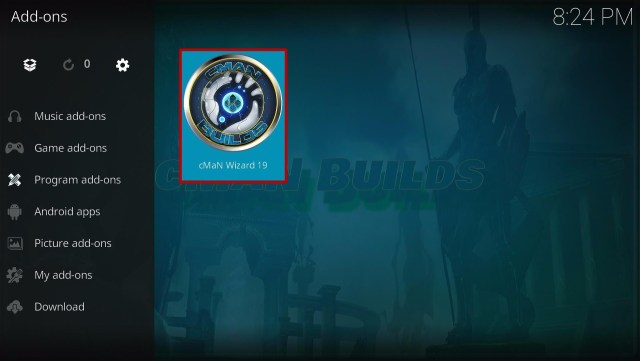
Install Real Steel Kodi Build Step 25


26. Click the Builds

Install Real Steel Kodi Build Step 26


27. Scroll down and select Real Steel

Install Real Steel Kodi Build Step 27


28. Click Fresh Install

Install Real Steel Kodi Build Step 28


29. Tap on the Yes button

Install Real Steel Kodi Build Step 29


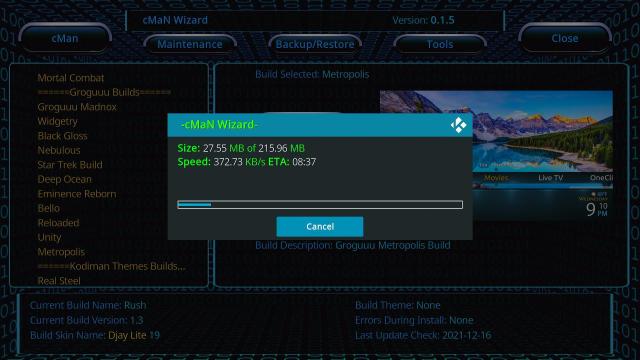
30. Wait for the build to download.

Install Real Steel Kodi Build Step 30


31. Click the OK button

Install Real Steel Kodi Build Step 31


32. Launch your Kodi again

Install Real Steel Kodi Build Step 32


33. That’s it! You have successfully installed the Real Steel Kodi Build.

Install Real Steel Kodi Build Step 33


YOUR INTERNET ACTIVITY IS BEING WATCHED

ReviewVPN cannot attest to the legality, security and privacy of the applications discussed on this site. It is highly recommended that you use a VPN service while streaming or using Kodi.

Currently, your IP 216.73.216.156 is visible to everyone and your Browser is being tracked by Advertisers & ISP Provider.

Save 65% Now

Limited Time Offer

Here are the main reasons why you must use a VPN:

  • Your activities are hidden from your ISP, the government, and from the apps you are using.
  • You can access additional movies and TV streams.
  • ISP attempts to throttle are thrwarted thus reducing buffering issues.
  • Geographically restricted content like Netflix and Hulu can be unblocked.

A VPN works be replacing your ISP-assigned IP address and creating an encrypted tunnel. We recommend the no log service offered by IPVanish. It works well on a Firestick and offers the fastest possible speeds.

Special Limited Time Offer - Get IPVanish


Legal Disclaimer: ReviewVPN.com does not encourage or endorse any illegal activity involved in the usage of services and applications referenced on this site. We do not verify the licensing agreements of services. The end-user is wholly responsible for ensuring that any media accessed through these services does not violate copyright and/or licensing laws. ReviewVPN does not promote, link to, or receive compensation from any Apps and IPTV services.


Install Surfshark on Firestick

Best Surfshark Deal


 Features of Real Steel Kodi Build

 Interface

  • No registration or subscription is needed. 
  • Allows you to access their contents for free. 
  • A skin by default of Real Steel Viper Glowbar Edition.
  • It has a user-friendly interface that works well on Kodi 19.5 Matrix.  


Categories and Contents

  • The Main sections are Movies/Shows, Networks, Kids, Chains, Sports, Favorites, Apps, Power, and systems.
  • You can choose from different popular networks such as A&E, ABC, ABC Family, Acorn TV, Adult Swim, AMC, Apple TV, and more. 
  • In the Movies/Shows section, you can choose from categories such as One Click Collection, Movies By Scraper, TV Shows by Scraper, Trakt Account Login, Trakt World Free Account, and more. 
  • It has a Resume watching to continue watching where you stopped off. 
  • You can also see the Last link played, Search history, My RD history, and RD Torrents to monitor what you are watching.  
  • Watch Popular Movies, Theatres, 3D Movies, Classic, Western, and more. 
  • You can search content By genre, By studio, Genre and Year, Movies, By actor, and more. 
  • Choose TV shows from Trending, Popular, Premiers, Top Rated, Airing Today, On The Air, Upcoming, Anticipated, In Progress TV Shows, In Progress Episodes, Oscar Winners, and more. 
  • Available Series tracker to keep on track when a new episode is released. 
  • Genres: Action Adventures, Animation, Comedy, Crime, Documentary, Drama, Family, Kids, Mystery News, Reality, SciFi&Fantasy, Soap, Talk, War Politics, and Western. 
  • On the Sports section, you can watch on PPV, Smackdown, RAW (13th Dec), NXT, 205 Live, AEW Dynamite, AEW Dark, and more. 
  • The Chains section has different categories Chains, Retro wave, Horror Unchained, Gallifreyan, Science Fiction, Marvel, Dc Comics, Slam City, and more. 
  • It also has Kids content, where you can watch lots of popular Kids’ movies and Series. 


Preloaded Addons/Repos

Asgard, Rogue One, THE CREW, THE CREW REPO, Rising Tides, Venom, Nightwing, Torque Lite, Loop Repository, Torque Lite, BASE 19, Chains, Black, Black Lightning, Chains Repo, FenomScrapers, Ghost, Host505, Mad Titan Sports, Magnetic Repo, Patriot, Purely Wrestling, Seren, The Movies Database, The Oath, TMDb TV Shows, and more. 


Pros and Cons

Pros

  • No registration or subscription is needed to access and watch their content. 
  • It is one of the few builds compatible with the Kodi 19.5 Matrix. 
  • This build has a large collection of content to offer. 
  • You can choose from their wide variety of content categories. 
  • It brings you different quality streaming links. 
  • Supported with Real Debrid and Trakt.tv account integration. 


Cons

  • Some of the provided streaming links are not working. 


Do I need a VPN?

One of the major concerns of Kodi users when streaming on third-party services is privacy and security. Whereas, some users have been repeatedly experiencing malicious things while streaming. It is because some use an unknown and unprotected service to provide you with free streaming links. That is why, before you stream online, we suggest using a VPN such as Surfshark. It is a proven and tested VPN committed to giving its users the best quality of service. If you want to know more about this VPN, kindly read our Surfshark Review.

Here are some of the services and impressive features that this VPN offers:

  • This VPN uses a high standard of AES-256 encryption and uncrackable security to safeguard your data and activities. 
  • It destroys Geo-block and bypasses any censorship and restriction by letting you connect to over 3200+ servers in 65 countries.
  • Surfshark also prevents ISPs from interfering with your connection to avoid lags and buffering. It also stops snooping ISP and keeps you protected while being connected on a public network. 
  • Keep your identity anonymous by hiding your real IP address and identity to protect you from hackers. 
  • It gives you an average download of 94Mbps and unlimited bandwidth.

Note: For more information about Surfshark, please read our Surfshark Review.


Grab your subscription now!

Click here to get the lowest price on Surfshark through our exclusive limited-time offer.


How to Install Surfshark VPN on Firestick

If your Firestick still has the older interface, read this article to learn how to update it: Update Firestick Interface.

Follow our screenshots below to install the SurfShark VPN app on your Fire TV stick.

1. Go to the Home screen of your Firestick.

step 1 Install Surfshark VPN on Firestick


2. Navigate towards the Find tab. Press the Search button from the resulting dropdown.

step 2 Install Surfshark VPN on Firestick


3. Type in the keyword of SurfShark and select from the suggestions that will appear.

step 3 Install Surfshark VPN on Firestick


4. Click the official SurfShark icon from your search results.

step 4 Install Surfshark VPN on Firestick


5. Press the Download (You own it) button.

step 5 Install Surfshark VPN on Firestick


6. The SurfShark VPN installer will download on your device.

step 6 Install Surfshark VPN on Firestick


7. SurfShark VPN’s app will automatically install itself on your Fire TV stick.

step 7 Install Surfshark VPN on Firestick


8. Press the Open button after completing SurfShark VPN’s installation process.

step 8 Install Surfshark VPN on Firestick


9. Please wait for the SurfShark VPN to load its user interface.

step 9 Install Surfshark VPN on Firestick


10. You can now log in with your SurfShark VPN account credentials.

step 10 Install Surfshark VPN on Firestick

Learn more about Surfshark and Grab the Best Surfshark Deal Now!


Install Surfshark on Firestick

Best Surfshark Deal


Other VPNs to Consider

NordVPN (Best for Streaming)

Best Features

  • 5000+ Server in 50+ Countries 
  • Military-Grade Encryption
  • Fast Connection Speed
  • Suitable to a lot of devices
  • No-Log Policy

Prices
  • Complete $5.89 per month (64% Discount)
  • Plus $4.59 per month (56% Discount)
  • Standard $3.69 per month (55% Discount)

Best Features

  • 750+ High-speed VPN Servers in 43 Locations
  • Military-Grade Encryption
  • Fastest HD Streaming and Gaming
  • 30-Day Money-Back Guarantee
  • Unlimited Data & Devices
  • No-Log Policy

Prices
  • 3 Years $1.99 per month (82% Discount)
  • 1 Years $3.29 per month (70% Discount)
  • 1 Month $10.99 per month

IPVanish VPN (Most Secure)

Best Features

  • 1200+ Servers in 60+ Countries around the world
  • Unlimited Connections
  • No-Log Policy
  • Top Notch Military-Grade VPN Protocols and Encryptions
  • 100% Safe and Secured
  • Most Trusted VPN
  • Best VPN for Firestick
  • 30-Day Money-Back Guarantee

Prices
  • Yearly $3.99 per month (63% Discount) – 30 days risk free + Ransomware & Malware Protection
  • Quarterly $5.32 per month (51% Discount)
  • Monthly $10.99 per month


For more VPN discounts, go to ReviewVPN Deals and purchase the best VPN for you.

Click here to get the lowest price on Surfshark through our exclusive limited-time offer.


Alternatives for Real Steel Kodi Build

We list down some Kodi builds that you can try on your Kodi. If you want to know more about these builds, kindly read their corresponding articles. For more addon/build compatible with Kodi 19.5, visit this link What’s working on Kodi 19.5.


FAQs

Can I also get the Real Steel Kodi Build compatible with Kodi 18.9?

No, this build is only available and compatible with Kodi 19.5 Matrix.


Is the Real Steel Kodi Build safe to use?

Yes, this build is safe to use, but if you want to ensure your security, we suggest using a VPN such as Surfshark


Is streaming on Real Steel Kodi Build for free?

Yes, this build allows you to access and stream their content for free.


Is the Real Steel Kodi Build legal?

Yes, this build is legal as long as it only offers non-copyright content.


Conclusion

Real Steel is another latest build that contains a great lineup of popular and latest content to watch for free. This build brings you almost all kinds of content. It provides you with a good quality of streaming links and allows you to synchronize your library by linking your Trakt account. You can watch the build contents for free and with less buffering experience on Kodi. We hope this article helps you install the Real Steel Kodi Build. 

Best VPN For Twitch

Overview

In this article, we will tell you about the best VPN for Twitch.


Are you looking for the best VPN while streaming videos on Twitch? Well, look no further! Here at ReviewVPN, we gather the best VPNs you can use for various purposes. Whether you want a VPN for streaming, privacy, or overall protection we always have a VPN that will meet all of your needs!

As a recap, VPNs work to help you keep your privacy. Hiding your online activities, queries, and info is a VPNs main purpose. Developers from all around the world continue improving their VPNs. Along the way, VPNs of today have many individual applications.

Some VPNs specialize in privacy. These VPNs have additional features for protection. Other VPNs keep you safe from cyber threats while you visit websites on the internet. Every reliable VPN brand can hide us from our ISP (Internet Service Provider). This way, they cannot track the activities we perform online.

Today, we will discuss the best VPN you can use while live streaming videos on Twitch.


ANONYMOUSLY

What is Twitch?

First, we will discuss what Twitch is all about. Twitch is also famous as twitch.tv. It is an online platform for streaming live video game events. If you want to learn more about a video game you are fond of playing, then Twitch has players that live stream their games.

The Twitch streaming service is another wonderful platform from Amazon. It allows gamers to live stream their events while communicating with other players. Twitch ensures that its creative content provides something that meets everyone’s interests.

Visiting Twitch is a good hobby for gaming enthusiasts worldwide. All of its content is available if you have a reliable connection. While using Twitch, you can interact with other gamers or video game streamers.

Here are content to expect from Twitch:

  • Live Streaming
  • Video Games
  • Game Walkthroughs
  • Gamer commentaries
  • Active Interaction with Video uploaders, various gamers, and live streamers.
  • Meet gamers who share the same gaming experience with you.
  • eSports Competitions
  • “In-Real Life” streams
  • Twitch also offers music broadcasts


Twitch Suddenly Not Working! What should I do?

For Twitch enthusiasts, things might go sideways when someone for no reason denies you access to some content. Suddenly, you try to open content with restrictions. It is sad to learn that you cannot access content with blocks.

Your screen displays the ‘Content Not Available’ message! You are left wondering what to do next when your favorite website does not show the content you desire to view.

Overall, Twitch is not available in select countries such as China, Turkey, and Russia. These countries apply strict restrictions that limit the content that their citizens view.

To open Twitch content in these countries, a VPN can help you in these types of situations. For people who want to access Twitch, let us now teach you how to open unavailable Twitch content with a VPN.


YOUR INTERNET ACTIVITY IS BEING WATCHED

ReviewVPN cannot attest to the legality, security and privacy of the applications discussed on this site. It is highly recommended that you use a VPN service while streaming or using Kodi.

Currently, your IP 216.73.216.156 is visible to everyone and your Browser is being tracked by Advertisers & ISP Provider.

Save 65% Now

Limited Time Offer

Here are the main reasons why you must use a VPN:

  • Your activities are hidden from your ISP, the government, and from the apps you are using.
  • You can access additional movies and TV streams.
  • ISP attempts to throttle are thrwarted thus reducing buffering issues.
  • Geographically restricted content like Netflix and Hulu can be unblocked.

A VPN works be replacing your ISP-assigned IP address and creating an encrypted tunnel. We recommend the no log service offered by IPVanish. It works well on a Firestick and offers the fastest possible speeds.

Special Limited Time Offer - Get IPVanish


Install Surfshark on Firestick

Best Surfshark Deal


The Best VPN to Use while Streaming on Twitch

Twitch is an impressive service allowing us gamers to share videos about the games we love to play! While in Twitch, users can live stream multiplayer events, interact with other players, and view other exclusive content from Twitch. But, what will you do if you suddenly cannot access a particular Twitch content?

The best method is to use the Best VPN for Twitch!


SurfShark

surfshark logo

Do you want to get an impressive VPN with only half the typical price? Then we want to acquaint you with the SurfShark VPN service! SurfShark VPN is a terrific newcomer in the VPN industry. It is a VPN that manages to continuously disrupt the VPN market for its affordable price and impressive capabilities.

Streaming video game videos is a relaxing hobby for every gamer. After logging many hours at work, we finally sit down and play a video game we want to enjoy. In doing so, we encounter problems or levels we cannot solve. Some gamers also want to learn about the latest player equipment, upgrades, skills, and techniques. To learn more, we visit live streaming services like Twitch.

Some players complain about not being able to open some content from Twitch! This may be due to their ISPs throttling their connection. They might also try to Twitch content with geo-restrictions. As a solution to these issues, we suggest you use SurfShark as your main VPN!

SurfShark is an affordable VPN that ensures your safety. It is reliable and trustworthy to use alongside Twitch. Let us show you the impressive features of SurfShark:


Features of the SurfShark VPN:

Speed:

  • 71 Mbps Average Speed


Bandwidth:

  • Unlimited Bandwidth and data


Privacy and Security:

  • Prioritizes User Privacy


Servers:

  • 3,200+ worldwide servers in 65+ Countries


Wireless Routers:

  • Inbox
  • Synology
  • Linksys
  • GliNet
  • Asus


Simultaneous Connection with Multiple Devices:

  • Connect with many devices with one account.


Customer Support:

  • 24/7 Live Chat Room
  • Email
  • Phone


Compatible Devices:

Computer Operating Systems:

  • Windows
  • macOS
  • Linux
  • Chromebook


Mobile Devices:

  • Android 
  • Windows Phone
  • IOS
  • Amazon Fire TV


Additional Details:

Supported Streaming Services:

  • Youtube
  • Netflix
  • Disney Plus
  • HBO Now
  • Amazon Prime Video
  • BBC iPlayer
  • DAZN
  • Hulu
  • Hotstar
  • Sky Go
  • YLE Areena
  • Abema TV
  • P2P Networks


Protocols and Encryption:

  • 256-bit AES Encryption
  • Wireguard
  • OpenVPN
  • IPSec
  • IKEv2
  • Shadowsocks


Prices:

  • 2 Year: US$ 2.49/month
  • 6 Months: US$ 6.49/month
  • 1 Month: US$ 12.95/month


No Log Policy:

  • No-Logs Policy:
  • Never records user connection.
  • Do not monitor traffic.
  • No tracking of user data.


Country of Origin:

  • The British Virgin Islands


Money-Back Guarantee:

  • 2 Year: US$ 2.49/month
  • 6 Months: US$ 6.49/month
  • 1 Month: US$ 12.95/month


Kill Switch Feature:

  • SurfShark Kill Switch feature.


Torrenting Support (P2P):

  • Allows P2P activity on their network.


How to Setup:
  1. Download the SurfShark app.
  2. Install the SurfShark app.
  3. Log into the SurfShark app after creating a SurfShark account on their website.
  4. Connect to its VPN servers.
  5. Choose a VPN server from its server manager.
  6. Ensure that your SurfShark VPN connection is successful and reliable.

Click here to get the best SurfShark deal


NordVPN

NordVPN is undeniably one of the best VPNs you can get your hands on! It is a fan-favorite VPN that many VPN enthusiasts appreciate. Whenever you first use NordVPN, you get the impression of having a powerful VPN backing you wherever you go on the internet! NordVPN manages to impress its users by applying wonderful features.

For live video streamers and their fans, it is sad to see that the video we are trying to watch is buffering. This is due to many reasons under the sun. Either your ISP throttles your connection reducing your speed, or meets some content with restrictions. It is hard for us to view a gaming video that suddenly becomes unavailable. This shows a situation that NordVPN can help you with.

The best thing about NordVPN is its entire speed! While using the VPN, you can stream video content without worrying about hindrances. As we all know, some videos load each segment before you can view them. For the faster loading of videos, we encourage you to use NordVPN. Let us now tell you about NordVPN’s wonderful features:


Features of NordVPN:

Speed:

  • 115 Mbps Average Speed
  • 4K UHD Video Streaming Support


Bandwidth:

  • Unlimited Bandwidth and data


Privacy and Security:

  • NordVPN prioritizes user protection and privacy. 
  • Operates in Panama – No laws require the retainment of user data.


Servers:

  • NordVPN has 5300 servers in 60+ countries.


Wireless Routers:

  • Netgear
  • Linksys
  • Asus
  • DD-WRT


Simultaneous Connection with Multiple Devices:

  • Connect with 6 devices with one NordVPN account.


Customer Support:

  • 24/7 Live Chat Room
  • Web Forum
  • Email
  • Phone


Compatible Devices:

Computer Operating Systems:

  • Windows
  • macOS
  • Linux
  • Chromebook


Mobile Devices:

  • Android 
  • Windows Phone
  • iOS
  • Amazon Fire TV


Additional Details:

Supported Streaming Services:

  • Youtube
  • Netflix
  • Amazon Prime Video
  • HBO Now
  • BBC iPlayer
  • ABC iView
  • Hulu
  • P2P Networks
  • Hulu


Protocols and Encryption:

  • NordLynx
  • IPSec/IKev2
  • OpenVPN
  • AES-256-GCM (Advanced Encryption Protocol) with 256-bit
  • PFS (Perfect Forward Secrecy) with 3072-bit Diffie-Hellman keys
  • SHA2-384 (Integrity Assurance)


Prices:

  • 2 Year plan: US$4.13/month
  • 1 Year plan: US$ 4.92/month
  • 6 Months: US$ 9.00/month
  • 1 Month: US$ 11.95/month


No Log Policy:

  • Strict No-Logs policy.
  • No recording of user activity.
  • Never store connection logs.
  • Do not monitor user browser history.


Country of Origin:

  • Republic of Panama


Money-Back Guarantee:

  • NordVPN features a 30-day money-back guarantee.


Kill Switch Feature:

  • App Level Kill Switch (Windows and macOS)
  • System-Wide Kill Switch (iOS, Linux, macOS)


Torrenting Support (P2P):

  • Allows P2P activity on their network.


How to Setup:
  1. Download and Install NordVPN.
  2. Create a NordVPN account.
  3. Open the NordVPN application.
  4. Login in your NordVPN account credentials.
  5. Select an option from their privacy plans.
  6. Enable NordVPN Cybersec feature.
  7. Quick connect to any NordVPN server.
  8. Activate the NordVPN Kill Switch Feature.
  9. Run NordVPN in the background.
  10. You can use any browsing or streaming application.


Click here to get the best NordVPN Deal


IPVanish

ipvanish-logo

IPVanish is the best VPN for streaming Twitch live streams! Growing famous along with other VPNs, IPVanish is the only VPN that supports large file downloads. It is also the most effective VPN to help you with online torrenting. Users of IPVanish can easily change some of its settings to fit their preferences.

When it comes to streaming live videos, many people encounter geo-blocks. Either they suddenly have a slow internet speed or be a victim of ISP throttling – it can ruin your Twitch experience. Some countries limit content with strict geo-restrictions. Furthermore, streaming gaming videos provide an opportunity for hackers and cybercriminals. IPVanish is our best bet to solve most of these problems. After all, the requirements of supporting torrent downloads are similar for streaming live gaming videos.


Features of IPVanish:

Speed:

  • 10 Gbps Average Speed


Bandwidth:

  • Unlimited Bandwidth and data


Privacy and Security:

  • Prioritizes User Privacy


DNS Leak Protection

  • DNS Leak Protection is activated by default.
  • User DNS requests are processed by IPVanish servers.


Servers:

  • 2,000 worldwide servers


Wireless Routers:

  • Netgear
  • Linksys
  • Asus


Simultaneous Connection with Multiple Devices:
  • Connect with unlimited devices using 1 IPVanish account.


Customer Support:

  • Tickets
  • Forums
  • Self-Service
  • Available in 20 Languages


Compatible Devices:

Computer Operating Systems:

  • Windows
  • macOS
  • Linux
  • Chromebook


Mobile Devices:

  • Android 
  • Windows Phone
  • iOS
  • Amazon Fire TV


Additional Details:

Supported Streaming Services:

  • Netflix
  • ESPN
  • HBO Now
  • IPTV
  • Amazon Prime Video
  • Kodi
  • Hulu
  • P2P Networks


Protocols and Encryption:

  • IPSec
  • IKEv2
  • L2TP
  • OpenVPN
  • TCP
  • UDP
  • SSTP
  • PPTP


Prices:

  • 1 Year: US$ 3.99/month
  • 3 Months: US$ 5.32/month
  • 1 Month: US$ 10.99/month


No Log Policy:

  • Strict No-Logs Policy
  • Do not monitor user traffic.
  • No tracking of user data.
  • Do not record your personal information.


Country of Origin:

  • United States of America (USA)


Money-Back Guarantee:

  • IPVanish offers a 30-day money-back guarantee.


Kill Switch Feature:

  • IPVanish has a Kill Switch feature.


Torrenting Support (P2P):

  • Allows P2P activity on their network.


How to Setup:
  1. Download and Install IPVanish.
  2. Create an IPVanish account.
  3. Open the IPVanish application.
  4. Login in your IPVanish account credentials.
  5. Select an option from their privacy plans.
  6. Connect to any IPVanish VPN server.
  7. Activate the IPVanish Kill Switch Feature.
  8. Run IPVanish in the background.
  9. You can use any browsing or streaming application.


ExpressVPN

Do you like to stream live gaming videos fast like an express service? Then let us recommend to you the speedy abilities of ExpressVPN! Imagine loading live streaming videos in a flash! We suggest ExpressVPN for its impressive delivery speeds and overall efficiency.

When playing games, we always wonder how other players manage to beat some opponents. We even take our time crossing some levels. Some players even struggle in getting the best equipment for their characters. To feed our curiosity, we visit top streaming platforms like Twitch.

Twitch is a live streaming service from Amazon, allows us to stream video uploads from other gamers. We either learn about their gaming style, sequence of upgrades, or the techniques they apply. Nothing can beat the exciting experience of learning from their stories. But streaming videos may result in some difficulties. Either we encounter restrictions or come across unavailable content!

ExpressVPN can easily solve your streaming problems! Here are the features of ExpressVPN that will leave you in awe!:


Features of the ExpressVPN:

Speed:

  • 135 Mbps Average Speed


Bandwidth:

  • ExpressVPN provides unlimited bandwidth and data.


Privacy and Security:

  • “ExpressVPN is committed to protecting your privacy.”


Servers:

  • 160 server locations across 94 countries.


Wireless Routers:

  • Asus
  • Linksys
  • Netgear


Simultaneous Connection with Multiple Devices:

  • Connect with 5 devices with one ExpressVPN account.


Customer Support:

  • 24/7 Live Chat Support
  • Phone
  • Email


Compatible Devices:

Computer Operating Systems:

  • Windows
  • Mac
  • Linux
  • Chromebook


Mobile Devices:

  • Android
  • IOS
  • Amazon Fire Tablet


Additional Details:

Supported Streaming Services:

  • Apple TV
  • Amazon Prime Video
  • BBC iPlayer
  • Disney+
  • HBO
  • Hulu
  • Netflix
  • Showtime
  • Sling TV


Protocols and Encryption:

  • Lightway Protocol: Next-generation VPN protocol developed for the best speeds, reliability, and maximum security.
  • AES-256 Encryption: AES (Advanced Encryption Standard) with 256-bit keys and Perfect Forward Secrecy.


Prices:

  • 12 Months: US$ 6.67/month
  • 6 Months: US$ 9.99/month
  • 1 Month: US$ 12.95/month


No Log Policy:

  • Strict No-log Policy.
  • No Connection logs.
  • Does not store user data.


Country of Origin:

  • The British Virgin Islands


Money-Back Guarantee:

  • ExpressVPN offers a 30-day money-back guarantee to its users.


Kill Switch Feature:

  • ExpressVPN features its original Network Lock kill switch. 


Torrenting Support (P2P):

  • ExpressVPN supports P2P Torrenting


How to Setup:
  1. Sign up and create your ExpressVPN account on their website
  2. Activate ExpressVPN to run in the background of your device.
  3. Connect with the nearest ExpressVPN server.
  4. Ensure that your ExpressVPN server connection is strong and reliable.


Click here to get the best IPVanish deal


The Best VPN for Twitch!

Twitch is a wonderful platform for sharing our video game tips to other players. For the best VPN for Twitch, we recommend Surfshark!

Surfshark has many features to share with its users:

  • Conceals everything you do online.
  • Encrypts your entire internet traffic.
  • Faster streaming of videos.
  • No buffering and stuttering.
  • Supports torrent downloads.
  • Protects you from cyber threats.
  • Bypass geo-blocks letting you access exclusive online material.

Note: For more information about Surfshark, please read our Surfshark Review.


Grab your subscription now!

Click here to get the lowest price on Surfshark through our exclusive limited-time offer.


How to Install Surfshark VPN on Firestick

If your Firestick still has the older interface, read this article to learn how to update it: Update Firestick Interface.

Follow our screenshots below to install the SurfShark VPN app on your Fire TV stick.

1. Go to the Home screen of your Firestick.

step 1 Install Surfshark VPN on Firestick


2. Navigate towards the Find tab. Press the Search button from the resulting dropdown.

step 2 Install Surfshark VPN on Firestick


3. Type in the keyword of SurfShark and select from the suggestions that will appear.

step 3 Install Surfshark VPN on Firestick


4. Click the official SurfShark icon from your search results.

step 4 Install Surfshark VPN on Firestick


5. Press the Download (You own it) button.

step 5 Install Surfshark VPN on Firestick


6. The SurfShark VPN installer will download on your device.

step 6 Install Surfshark VPN on Firestick


7. SurfShark VPN’s app will automatically install itself on your Fire TV stick.

step 7 Install Surfshark VPN on Firestick


8. Press the Open button after completing SurfShark VPN’s installation process.

step 8 Install Surfshark VPN on Firestick


9. Please wait for the SurfShark VPN to load its user interface.

step 9 Install Surfshark VPN on Firestick


10. You can now log in with your SurfShark VPN account credentials.

step 10 Install Surfshark VPN on Firestick

Learn more about Surfshark and Grab the Best Surfshark Deal Now!


Install Surfshark on Firestick

Best Surfshark Deal


Other VPNs to Consider

NordVPN (Best for Streaming)

Best Features

  • 5000+ Server in 50+ Countries 
  • Military-Grade Encryption
  • Fast Connection Speed
  • Suitable to a lot of devices
  • No-Log Policy

Prices
  • Complete $5.89 per month (64% Discount)
  • Plus $4.59 per month (56% Discount)
  • Standard $3.69 per month (55% Discount)

Best Features

  • 750+ High-speed VPN Servers in 43 Locations
  • Military-Grade Encryption
  • Fastest HD Streaming and Gaming
  • 30-Day Money-Back Guarantee
  • Unlimited Data & Devices
  • No-Log Policy

Prices
  • 3 Years $1.99 per month (82% Discount)
  • 1 Years $3.29 per month (70% Discount)
  • 1 Month $10.99 per month

IPVanish VPN (Most Secure)

Best Features

  • 1200+ Servers in 60+ Countries around the world
  • Unlimited Connections
  • No-Log Policy
  • Top Notch Military-Grade VPN Protocols and Encryptions
  • 100% Safe and Secured
  • Most Trusted VPN
  • Best VPN for Firestick
  • 30-Day Money-Back Guarantee

Prices
  • Yearly $3.99 per month (63% Discount) – 30 days risk free + Ransomware & Malware Protection
  • Quarterly $5.32 per month (51% Discount)
  • Monthly $10.99 per month


For more VPN discounts, go to ReviewVPN Deals and purchase the best VPN for you.

Click here to get the lowest price on Surfshark through our exclusive limited-time offer.


FAQs

How can VPNs assist with video game live streaming?

VPNs pass your traffic through a network of worldwide servers. This way, it can be hard for other parties to pinpoint your traffic or collect your info. While passing your traffic through different servers, their digital tunnels enable faster transmission of video streaming data.


Why is do some countries block Twitch?

Twitch is banned from some countries. This is because of activities that their government dislikes on the streaming platform. Here are the countries that block Twitch:

  • Slovakia
  • Russia
  • China
  • India
  • Turkey


Conclusion

For people wanting to learn more about the games they play, we recommend visiting Twitch. It is a live streaming platform from Amazon. Many live streamers and gamers upload their videos on Twitch. To avoid reaching unavailable content while on Twitch, we recommend you to use the best VPNs we have listed in this article.

We hope this article helps you find a VPN for live streaming with Twitch.


How To Install Metropolis Kodi Build

Metropolis Kodi Build Overview

The article will help you on how to install Metropolis Kodi Build.


Metropolis is beautifully designed with a scenic theme interface that you can find on the cMaN Repository. This build brings you not just a scenic view, but also a great lineup of content to watch for free. You can watch on their wide selection of content such as Movies, TV shows, Live TV, One-click section, and more.

The good thing is, that this build allows you to log in or integrate your Trakt account to synchronize your library. This build has a beautiful and well-organized interface that works well on Kodi 19.5 Matrix.

It also uses different Kodi add-ons to provide you with a massive collection of content. Some of the supported addons that you can see are Asgard, Balck, Apex Sports, Fen, and more. You can also ensure that this build provides you high quality streaming links as it supports Real Debrid.  


ANONYMOUSLY

How to Install Metropolis Kodi Build with Screenshot

Installing a Kodi build has a lot of processes to take. That is why we will guide you step by step on how you can install it on Kodi.

 Follow the following steps below.  

1. On your Firestick, open Kodi and go to Settings.

Install Metropolis Kodi Build Step 1


2. Select on System.

Install Metropolis Kodi Build Step 2


3. Click on the Add-ons menu and Turn ON the Unknown Sources.

Install Metropolis Kodi Build Step 3


4. Select Yes when the box appears.

Install Metropolis Kodi Build Step 4


5. Go back one step and click on File Manager.

Install Metropolis Kodi Build Step 5


6. Select the Add Source.

Install Metropolis Kodi Build Step 6


7. A box will pop up, so click on the ‘None’ option.

Install Metropolis Kodi Build Step 7


8. Now type in this URL http://cmanbuilds.com/repo and click OK. 

Install Metropolis Kodi Build Step 8


9. Name this URL as cman and tap OK.

Install Metropolis Kodi Build Step 9


10. After that, go back to the system menu and select Add-ons.

Install Metropolis Kodi Build Step 10


11. Click Install from Zip File.

Install Metropolis Kodi Build Step 11


12. When a box pop up, tap the Yes button.

Install Metropolis Kodi Build Step 12


13. Select cman or any name you have given.

Install Metropolis Kodi Build Step 13


14. Choose repository.cMaNWizard.zip

Install Metropolis Kodi Build Step 14


15. Wait a few minutes for the addon to be installed. After that, an icon will appear at the top menu.

Install Metropolis Kodi Build Step 15


16. Tap the  Install from Repository.

Install Metropolis Kodi Build Step 16


17. Then select cMaN’s Wizard Repository from the list.

Install Metropolis Kodi Build Step 17


18. Select the Program add-ons.

Install Metropolis Kodi Build Step 18


19. Click cMaN Wizard 19.

Install Metropolis Kodi Build Step 19


20. Tap the Install button.

Install Metropolis Kodi Build Step 20


21. Wait for the cMaN Wizard 19 installed notification.

Install Metropolis Kodi Build Step 21


22. Wait for the Installed message to appear and click the Continue

Install Metropolis Kodi Build Step 22


23. Tap the Close

Install Metropolis Kodi Build Step 23


24. Go back to the Kodi home screen and scroll down to Addon.

Install Metropolis Kodi Build Step 24


25. From the Program add-ons, select cMaN Wizard 19.

Install Metropolis Kodi Build Step 25


26. Click the Builds

Install Metropolis Kodi Build Step 26


27. Scroll down and select Metropolis

Install Metropolis Kodi Build Step 27


28. Click Fresh Install

Install Metropolis Kodi Build Step 28


29. Tap on the Yes button

Install Metropolis Kodi Build Step 29


30. Wait for the build to download.

Install Metropolis Kodi Build Step 30


31. Click the OK button

Install Metropolis Kodi Build Step 31


32. Launch your Kodi again

Install Metropolis Kodi Build Step 32


33. That’s it! You have successfully installed the Metropolis Kodi Build.

Install Metropolis Kodi Build Step 33


YOUR INTERNET ACTIVITY IS BEING WATCHED

ReviewVPN cannot attest to the legality, security and privacy of the applications discussed on this site. It is highly recommended that you use a VPN service while streaming or using Kodi.

Currently, your IP 216.73.216.156 is visible to everyone and your Browser is being tracked by Advertisers & ISP Provider.

Save 65% Now

Limited Time Offer

Here are the main reasons why you must use a VPN:

  • Your activities are hidden from your ISP, the government, and from the apps you are using.
  • You can access additional movies and TV streams.
  • ISP attempts to throttle are thrwarted thus reducing buffering issues.
  • Geographically restricted content like Netflix and Hulu can be unblocked.

A VPN works be replacing your ISP-assigned IP address and creating an encrypted tunnel. We recommend the no log service offered by IPVanish. It works well on a Firestick and offers the fastest possible speeds.

Special Limited Time Offer - Get IPVanish


Legal Disclaimer: ReviewVPN.com does not encourage or endorse any illegal activity involved in the usage of services and applications referenced on this site. We do not verify the licensing agreements of services. The end-user is wholly responsible for ensuring that any media accessed through these services does not violate copyright and/or licensing laws. ReviewVPN does not promote, link to, or receive compensation from any Apps and IPTV services.


Install SurfShark on Firestick

Best SurfShark Deal


Features of Metropolis Kodi Build

Categories and Contents

  • The main categories are TV shows, Movies, Trakt, Live TV, One-click, Sports, Weather, Favourites, Settings, Addons, and Quit.
  • In the Movie section, you can choose from Movies Collection, TV shows collection, Movie/TV Shows Watchlist, Your Recently watched Movies/TV Shows, and more. 
  • You can also see your IN progress Movies and Tv shows. 
  • It also gives you content recommendations based on what you have watched. 
  • Choose from Trending, Popular, Most Played, Anticipated, Top 10 Box Office, Liked list, and more. 
  • TV shows: Choose from Trending, Popular, Premiers, Top Rated, Airing Today, On The Air, Upcoming, Anticipated, In Progress TV Shows, In Progress Episodes, Oscar Winners, and more. 
  • Watch on Live TV, you can choose from different networks such as ABC, ACC Network, AE, AMC, Animal, BBC America, Big Ten Network, BET, Boomerang, CBS, and more.
  • One-Click section contains different subcategories such as 4K one click, One-click, Non-Debrid Section, Movies, TV shows, Soaps, Documentaries, Kids, Sports, Stand Up, and more. 
  • Watch on Live Sports such as MMA Live, Football, Wrestling, Boxing, American Football, Formula 1, Baseball, College Football, Basketball, NASCAR, Hockey, and more.
  • Support Trakt account integration to synchronize your library. 


Preloaded Addons/Repos

Asgard, ApeX Sports, Black, cMan Wizard, Fen, FenomScrapers, Loop TV 1,2,3, Nixgates, Metropolis, Loop TV, Seren, SNES, The Movie Database, The Xstream, Mad Titan Sports, Magnetic Repo, and more. 


Pros and Cons

Pros

  • It has a beautifully designed scenic view interface. 
  • Brings you a massive collection of content to watch for free. 
  • This build uses a lot of preloaded add ons to provide you with content. 
  • It brings you high-quality streaming links with a maximum 4k resolution. 
  • Supported with Real Debrid and Trakt.tv account integration. 


Cons

  • Some of the provided streaming links are not working. 


Should I Use a VPN?

Surfshark vpn

Sometimes these third-party addons/builds are very risky because some use unknown and unprotected servers to give you free streaming links. That is why before you use or stream using the third-party builds, we suggest using a Virtual Private Network to keep you anonymous and protected from these servers by encrypting your data and keeping you unknown online.

One of the best VPNs that we highly recommend is SurfShark, This VPN has an impressive list of features to offer and some of these are the following: 

  • Destroys geo-block and gains access to different content globally.
  • Zero logs and no IP address leaks. 
  • Bypass censorship and restrictions.
  • A high standard of AES 256-bit encryptions will safeguard all of your data.
  • Prevent ISPs from interfering with your connection and speed up your internet.
  • It gives you unlimited bandwidth and makes your internet speed faster. 
  • Keep your identity anonymous to protect you from hackers, especially when using public wi-fi.

Note: For more information about SurfShark, please read our SurfShark REVIEW.


Grab your subscription now!

Click here to get the lowest price on SurfShark through our exclusive limited-time offer.


How to Install Surfshark on Firestick with Screenshots

If your Firestick still has the older interface, read this article to learn how to update it: Update Firestick Interface.

You can download Surfshark directly from the Amazon App store. It will be easy for you to find Surfshark with your Firestick’s Find feature. Refer to our screenshots below.

Follow our screenshots below to install the SurfShark VPN app on your Fire TV stick.

1. Go to the Home screen of your Firestick.

step 1 Install Surfshark VPN on Firestick


2. Navigate towards the Find tab. Press the Search button from the resulting dropdown.

step 2 Install Surfshark VPN on Firestick


3. Type in the keyword of SurfShark and select from the suggestions that will appear.

step 3 Install Surfshark VPN on Firestick


4. Click the official SurfShark icon from your search results.

step 4 Install Surfshark VPN on Firestick


5. Press the Download (You own it) button.

step 5 Install Surfshark VPN on Firestick


6. The SurfShark VPN installer will download on your device.

step 6 Install Surfshark VPN on Firestick


7. SurfShark VPN’s app will automatically install itself on your Fire TV stick.

step 7 Install Surfshark VPN on Firestick


8. Press the Open button after completing SurfShark VPN’s installation process.

step 8 Install Surfshark VPN on Firestick


9. Please wait for the SurfShark VPN to load its user interface.

step 9 Install Surfshark VPN on Firestick


10. You can now log in with your SurfShark VPN account credentials.

step 10 Install Surfshark VPN on Firestick

Learn more about Surfshark and Grab the Best Surfshark Deal Now!


Install Surfshark on Firestick

Best Surfshark Deal

Other VPNs to Consider

NordVPN (Best for Streaming)

Best Features

  • 5000+ Server in 50+ Countries 
  • Military-Grade Encryption
  • Fast Connection Speed
  • Suitable to a lot of devices
  • No-Log Policy

Prices
  • Complete $5.89 per month (64% Discount)
  • Plus $4.59 per month (56% Discount)
  • Standard $3.69 per month (55% Discount)

Best Features

  • 750+ High-speed VPN Servers in 43 Locations
  • Military-Grade Encryption
  • Fastest HD Streaming and Gaming
  • 30-Day Money-Back Guarantee
  • Unlimited Data & Devices
  • No-Log Policy

Prices
  • 3 Years $1.99 per month (82% Discount)
  • 1 Years $3.29 per month (70% Discount)
  • 1 Month $10.99 per month

IPVanish VPN (Most Secure)

Best Features

  • 1200+ Servers in 60+ Countries around the world
  • Unlimited Connections
  • No-Log Policy
  • Top Notch Military-Grade VPN Protocols and Encryptions
  • 100% Safe and Secured
  • Most Trusted VPN
  • Best VPN for Firestick
  • 30-Day Money-Back Guarantee

Prices
  • Yearly $3.99 per month (63% Discount) – 30 days risk free + Ransomware & Malware Protection
  • Quarterly $5.32 per month (51% Discount)
  • Monthly $10.99 per month

For more VPN discounts, go to ReviewVPN Deals and purchase the best VPN for you.


Alternatives for Metropolis Kodi Build

We list down some Kodi builds that you can try on your Kodi. If you want to know more about these builds, kindly read their corresponding articles. For more addon/build compatible with Kodi 19.5, visit this link What’s working on Kodi 19.5.


FAQs

Can I also get the Metropolis Kodi Build compatible with Kodi 18.9?

No, this build is only available and compatible with Kodi 19.5 Matrix.


Is the Metropolis Kodi Build safe to use?

Yes, this build is safe to use, but if you want to ensure your security, we suggest using a VPN such as SurfShark. 


Is streaming on Metropolis Kodi Build for free?

Yes, this build allows you to access and stream their content for free.


Is the Metropolis Kodi Build legal?

Yes, this build is legal as long as it only offers non-copyright content.


Conclusion

Metropolis is a simple and easy-to-use build that works well on Kodi. This build is another good build with a great source of content to watch for free. The good thing is, it supports both real debrid and trakt accounts that give you a better experience in streaming. You can watch their wide selection for content in less buffering experience on Kodi.

We hope this article helps you install the Metropolis Kodi Build. 

How To Install Rush Kodi Build

Rush Kodi Build Overview

The article will help you with how to install Rush Kodi Build.
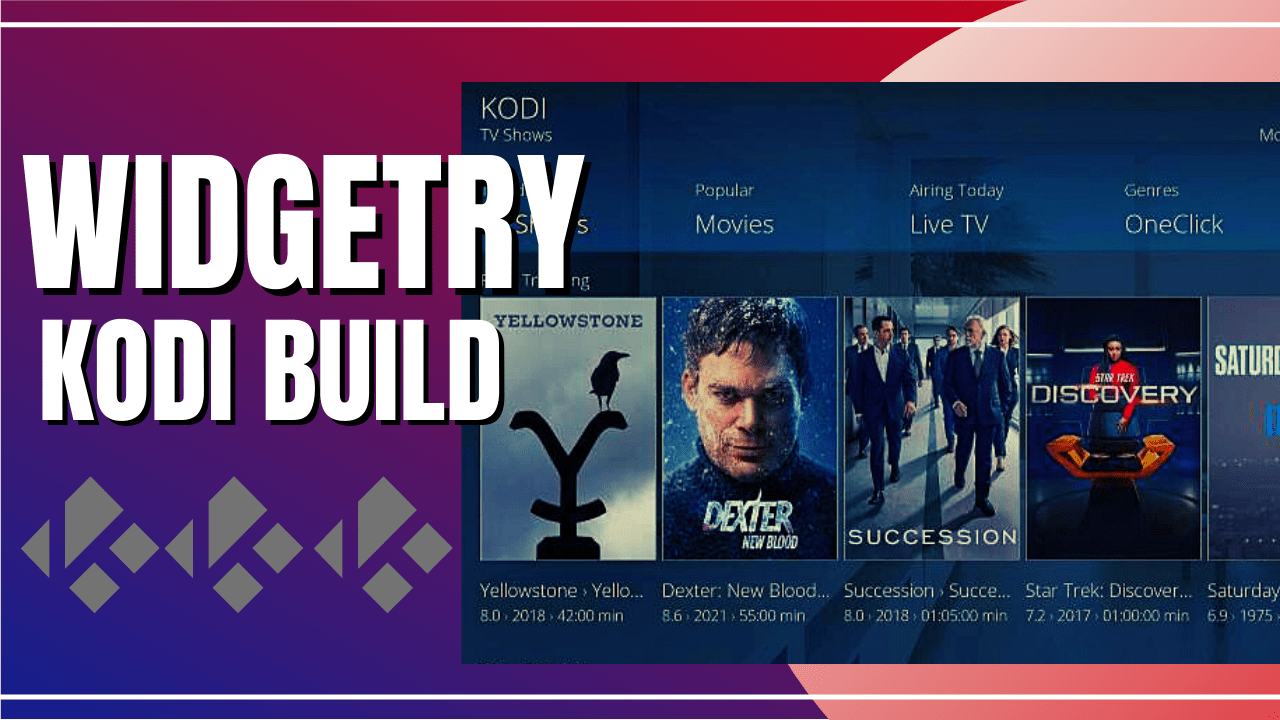
 

Rush is another latest build-on cMan Repository that contains a massive collection of content to watch for free. This build has a simple interface with a well-organized list of contents to choose from. It is also one of the few builds compatible with the Kodi 19.5 Matrix.

You can choose from this build’s main categories, such as Asgard, Odin, Venom, TheOath, and more. These categories contain a great lineup of content, such as Movies, TV Shows, Documentaries, and more.

The good thing is, that also uses different preloaded addons to give you a large collection of contents and some of these addons are Asgard, Seren, Black Lightning, Loop, and more. You can enjoy streaming in this build as it brings you high-quality and even 4K collections of Movies/TV shows. It is a lightweight build with a great lineup of contents collection to offer. 


ANONYMOUSLY

How to Install Rush Kodi Build with Screenshot

Installing a Kodi build has a lot of processes to take. That is why we will guide you step by step on how you can install it on Kodi.

 Follow the following steps below.  

1. On your Firestick, open Kodi and go to Settings.

Install Rush Kodi Build Step 1


2. Select on System.

Install Rush Kodi Build Step 2


3. Click on the Add-ons menu and Turn ON the Unknown Sources.

Install Rush Kodi Build Step 3


4. Select Yes when the box appears.

Install Rush Kodi Build Step 4


5. Go back one step and click on File Manager.

Install Rush Kodi Build Step 5


6. Select the Add Source.

Install Rush Kodi Build Step 6


7. A box will pop up, so click on the ‘None’ option.

Install Rush Kodi Build Step 7


8. Now type in this URL http://cmanbuilds.com/repo and click OK. 

Install Rush Kodi Build Step 8


9. Name this URL as cman and tap OK.

Install Rush Kodi Build Step 9


10. After that, go back to the system menu and select Add-ons.

Install Rush Kodi Build Step 10


11. Click Install from Zip File.

Install Rush Kodi Build Step 11


12. When a box pop up, tap the Yes button.

Install Rush Kodi Build Step 12


13. Select cman or any name you have given.

Install Rush Kodi Build Step 13


14. Choose repository.cMaNWizard.zip

Install Rush Kodi Build Step 14


15. Wait a few minutes for the addon to be installed. After that, an icon will appear at the top menu.

Install Rush Kodi Build Step 15


16. Tap the  Install from Repository.

Install Rush Kodi Build Step 16


17. Then select cMaN’s Wizard Repository from the list.

Install Rush Kodi Build Step 17


18. Select the Program add-ons.

Install Rush Kodi Build Step 18


19. Click cMaN Wizard 19.

Install Rush Kodi Build Step 19


20. Tap the Install button.

Install Rush Kodi Build Step 20


21. Wait for the cMaN Wizard 19 installed notification.

Install Rush Kodi Build Step 21


22. Wait for the Installed message to appear and click the Continue

Install Rush Kodi Build Step 22


23. Tap the Close

Install Rush Kodi Build Step 23


24. Go back to the Kodi home screen and scroll down to Addon.

Install Rush Kodi Build Step 24


25. From the Program add-ons, select cMaN Wizard 19.

Install Rush Kodi Build Step 25


26. Click the Builds

Install Rush Kodi Build Step 26


27. Scroll down and select Rush

Install Rush Kodi Build Step 27


28. Click Fresh Install

Install Rush Kodi Build Step 28


29. Tap on the Yes button

Install Rush Kodi Build Step 29


30. Wait for the build to download.

Install Rush Kodi Build Step 30


31. Click the OK button

Install Rush Kodi Build Step 31


32. Launch your Kodi again

Install Rush Kodi Build Step 32


33. That’s it! You have successfully installed the Rush Kodi Build.

Install Rush Kodi Build Step 33


YOUR INTERNET ACTIVITY IS BEING WATCHED

ReviewVPN cannot attest to the legality, security and privacy of the applications discussed on this site. It is highly recommended that you use a VPN service while streaming or using Kodi.

Currently, your IP 216.73.216.156 is visible to everyone and your Browser is being tracked by Advertisers & ISP Provider.

Save 65% Now

Limited Time Offer

Here are the main reasons why you must use a VPN:

  • Your activities are hidden from your ISP, the government, and from the apps you are using.
  • You can access additional movies and TV streams.
  • ISP attempts to throttle are thrwarted thus reducing buffering issues.
  • Geographically restricted content like Netflix and Hulu can be unblocked.

A VPN works be replacing your ISP-assigned IP address and creating an encrypted tunnel. We recommend the no log service offered by IPVanish. It works well on a Firestick and offers the fastest possible speeds.

Special Limited Time Offer - Get IPVanish


Legal Disclaimer: ReviewVPN.com does not encourage or endorse any illegal activity involved in the usage of services and applications referenced on this site. We do not verify the licensing agreements of services. The end-user is wholly responsible for ensuring that any media accessed through these services does not violate copyright and/or licensing laws. ReviewVPN does not promote, link to, or receive compensation from any Apps and IPTV services.


Install Surfshark on Firestick

Best Surfshark Deal


Features of Rush Kodi Build

 Interface

  • No registration or subscription is needed. 
  • You can access and watch their content for free. 
  • It has a user-friendly interface that works well on Kodi 19.5 Matrix. 


Categories and Contents

  • Asgard section: 4K One-Click Section, One-Click Section, Non-Debrid Section, Movies, Tv shows, Soaps, Documentaries, Kids, Sports, Stand Up, Apps, Music, Anime, Live TV, and more. 
  • It has a Resume watching to continue watching where you stopped off. 
  • You can also see the Last link played, Search history, My RD history, and RD Torrents to monitor what you are watching.  
  • Watch on Live TV from different popular streaming services such as TV Tap, Fluxus TV, Swiftstreamz, and Daily Motion. 
  • ODIN: It brings you 4K collections of content such as 4K Back to The Future Box Set, 4K Beverly Hills Cop Box set, 4K Bourne, 4K Crouching Tiger, 4K Despicable Me, and more.
  • The Xstream: Choose from Santa Place, Movies, TV Shows, TV Rewind, UK Soap Rewind, Live Sports, Sports Replays, Kids, and more.
  • You can also Discover content from Asgard, Venom, and Black Lightning section. 
  • In the Black Lightning section, you can watch movies and TV shows scraper. 
  • Allows you to log in to your Trakt account, plus it has a Trakt World Free Account. 
  • Watch on different sports zones such as Auto, 24/7, Fan, Fight, MLB, NBA, NCAA, NFL, NHL, Score, Soap, and Test Zone.
  • You can also watch on International Live TV such as Pakistan TV, India TV, UK, USA, Bangladesh TV, and more. 


Preloaded Addons/Repos

Djay Lite 19, Asgard, Rising Tides, Replay Me, Venom, Odin, Loop Repository, Torque Lite, The Endzone 19, Black, Black Lightning, DailyMotion, FenomScrapers, Host505, Loop TV, Mad Titan Sports, Magnetic Repo, Swift Streams, The Loop, The Oath, The Xstream, and more. 


Pros and Cons

Pros

  • This build has a user-friendly interface that works well on Kodi 19.5 Matrix.
  • It brings you a large collection of 4k content that is regularly updated. 
  • This build has a lot of preloaded add ons to provide you with content. 
  • You can watch on a maximum of 4k of streaming quality.
  • It is supported with Real Debrid and Trakt.tv account integration. 


Cons

  • Some of the provided streaming links are not working. 


Fast and Safe Streaming with Surfshark

https://get.surfshark.net/aff_c?offer_id=865&aff_id=12312

We always suggest using a Virtual Private Network on your device every time you stream online to experience safe and fast streaming. Having a VPN is like having an online security guard that will safeguard everything about you. 

In terms of secured and fast streaming, Surfshark is our number 1 best pick. It is one of the reliable VPNs that you can rely on when it comes to privacy and security concerns. 

Surfshark offers you the best security service using a military standard of encryption that keeps you anonymous online by hiding your identity, Real IP address, web traffic, and preventing snooping ISP to ensure your privacy. This VPN also gives you a high-speed connection with unlimited bandwidth to enjoy fast streaming as much as you want.   

Note: For more information about SurfShark, please read our SURFSHARK REVIEW.


Grab your subscription now!

Click here to get the lowest price on Surfshark through our exclusive limited-time offer.


How to Install Surfshark VPN on Firestick

If your Firestick still has the older interface, read this article to learn how to update it: Update Firestick Interface.

You can download Surfshark directly from the Amazon App store. It will be easy for you to find Surfshark with your Firestick’s Find feature. Refer to our screenshots below.

1. Go to the Home screen of your Firestick.

step 1 Install Surfshark VPN on Firestick


2. Navigate towards the Find tab. Press the Search button from the resulting dropdown.

step 2 Install Surfshark VPN on Firestick


3. Type in the keyword of SurfShark and select from the suggestions that will appear.

step 3 Install Surfshark VPN on Firestick


4. Click the official SurfShark icon from your search results.

step 4 Install Surfshark VPN on Firestick


5. Press the Download (You own it) button.

step 5 Install Surfshark VPN on Firestick


6. The SurfShark VPN installer will download on your device.

step 6 Install Surfshark VPN on Firestick


7. SurfShark VPN’s app will automatically install itself on your Fire TV stick.

step 7 Install Surfshark VPN on Firestick


8. Press the Open button after completing SurfShark VPN’s installation process.

step 8 Install Surfshark VPN on Firestick


9. Please wait for the SurfShark VPN to load its user interface.

step 9 Install Surfshark VPN on Firestick


10. You can now log in with your SurfShark VPN account credentials.

step 10 Install Surfshark VPN on Firestick

Learn more about Surfshark and Grab the Best Surfshark Deal Now!


Install Surfshark on Firestick

Best Surfshark Deal


Other VPNs to Consider

NordVPN (Best for Streaming)

Best Features

  • 5000+ Server in 50+ Countries 
  • Military-Grade Encryption
  • Fast Connection Speed
  • Suitable to a lot of devices
  • No-Log Policy

Prices
  • Complete $5.89 per month (64% Discount)
  • Plus $4.59 per month (56% Discount)
  • Standard $3.69 per month (55% Discount)

Best Features

  • 750+ High-speed VPN Servers in 43 Locations
  • Military-Grade Encryption
  • Fastest HD Streaming and Gaming
  • 30-Day Money-Back Guarantee
  • Unlimited Data & Devices
  • No-Log Policy

Prices
  • 3 Years $1.99 per month (82% Discount)
  • 1 Years $3.29 per month (70% Discount)
  • 1 Month $10.99 per month

IPVanish VPN (Most Secure)

Best Features

  • 1200+ Servers in 60+ Countries around the world
  • Unlimited Connections
  • No-Log Policy
  • Top Notch Military-Grade VPN Protocols and Encryptions
  • 100% Safe and Secured
  • Most Trusted VPN
  • Best VPN for Firestick
  • 30-Day Money-Back Guarantee

Prices
  • Yearly $3.99 per month (63% Discount) – 30 days risk free + Ransomware & Malware Protection
  • Quarterly $5.32 per month (51% Discount)
  • Monthly $10.99 per month


For more VPN discounts, go to ReviewVPN Deals and purchase the best VPN for you.

Click here to get the lowest price on Surfshark through our exclusive limited-time offer.


Alternatives for Rush Kodi Build

We list down some of the Kodi builds that you can try on your Kodi. If you want to know more about these builds, kindly read their corresponding articles. For more addon/build compatible with Kodi 19.5, visit this link What’s working on Kodi 19.5.


FAQs

Can I also get the Rush Kodi Build compatible with Kodi 18.9?

No, this build is only available and compatible with Kodi 19.5 Matrix.


Is the Rush Kodi Build safe to use?

Yes, this build is safe to use, but if you want to ensure your security, we suggest using a VPN such as Surfshark. 


Is streaming on Rush Kodi Build for free?

Yes, this build allows you to access and stream their content for free.


Is the Rush Kodi Build legal?

Yes, this build is legal as long as it only offers non-copyright content.


Conclusion

Rush is an amazing build that works well on Kodi 19.5 Matrix. This build has a large collection of content to watch for free and you can choose from their wide selection of categories. The good thing is, that it allows you to link or login into your Trakt accounts to watch your content library. We hope this article helps you install the Rush Kodi Build. 

Disable Ad Tracking

Overview

In this article, you will learn how to disable ad tracking on your devices.


Are you wondering how to disable ad tracking on all of your devices? If yes, we invite you to read this article to the full. First, we will discuss what ad tracking is all about. Later on, we will give you a brief guide on how to disable ad tracking on many devices. As daily users go to the internet to search for answers, ad tracking is the best tool for companies to advertise their products.


Imagine this situation:

You find yourself inside a mall to shop for supplies. While you are walking across different lanes, a polo shirt catches your attention and you check out its price tag. Realizing you have other things to buy, you continue moving to another section. 

Suddenly, one of the store’s staff members approaches you abruptly and reminds you about the polo shirt. When you deny wanting to buy it, other personnel ask you about the same items that might catch your interest.

Does this sound familiar? Would think of them as being helpful? Or maybe, you find the idea creepy enough that it threatens your space and privacy? Only a person who wants to buy the product will gladly entertain extra suggestions. In most cases, you will politely decline and leave in a hurry. The situation above is an example of ad tracking. But what is ad tracking? Let us discuss this topic in the next section.


ANONYMOUSLY

What is Ad Tracking?

To learn how their ads are performing with their target audience, many companies resort to ad tracking.

Ad tracking is also known as effectiveness tracking and post-testing. It is the process where companies learn how well their ads are performing.


Think About This Scenario:

Your company is producing a new app. To attract many buyers/users, you launch an ad campaign. However, without knowing how your ads are doing, you don’t have any idea how to boost its sales. This is where ad tracking can help you. By tracking how well your ads are doing, you can apply improvements that will ensure the sales of your app.

Ad tracking is a marketing tool for measuring the following criteria:


Brand Recognition

When a company introduces a new product, a wave of ads will follow suit. While you are browsing the web, you might come across pop-up ads. These ads help you catch the visual attributes of a product. If many people recognize a product by seeing it in other places, the brand recognition is successful.


Reception

How will people react to a company’s roll-out of their new product? This is what reception covers. If your product manages to invite potential customers, then you have a positive reception. On the other hand, if your product fails to deliver on its promises your reception will suffer.


Visibility

One popular tactic of online selling is to promote their products through visibility. It is why they rely on pop-up ads, commercials, videos, and click baits. When a new product catches the attention of many, it ensures the successful closure of sales. It also expands the visibility of your product to other people.


Popularity

Remember when the latest movie introduces a new actor? Because of their performance, they receive awards while continuing to shine in the limelight. As many viewers see them in future films, they easily recognize the actor from the movie they first appeared on. The same concept applies to the online ads of new products.


Impression

You might be familiar with the phrase ‘First impressions last‘. This is why companies that produce new items focus on their strengths. The impression that a new product leaves on the minds of people helps with its multiple purchases. If people find an item impressive, they have more chances of becoming valuable customers. This leads to them spreading the news about the product. As a result, you gain more customers.


Number of Clicks

Online ads exist for a reason. It is to invite people to click your ad window. When it happens, you have a chance of converting them into one of your customers. If many people click your ads, then it means that your online ads are effective in catching new customers.


Similar Products (Competition)

The best way to beat the competition is to follow the phrase ‘Ignore Competition‘. You can either come up with new or original ways to build a product. However, when it comes to marketing, competition plays a crucial role. Either you monitor how well their product is doing and learn from them, or help you apply improvements that enhance the sales and performance of your product.


The Desire of People to Buy the Brand

Similar to the number of clicks, this measures how people badly want to buy your product. If your product is performing well with its number of sales, you can head out and invent its limited-edition version. Think about it, when people think that an excellent product is scarce, they will jump at the opportunity to purchase it.


YOUR INTERNET ACTIVITY IS BEING WATCHED

ReviewVPN cannot attest to the legality, security and privacy of the applications discussed on this site. It is highly recommended that you use a VPN service while streaming or using Kodi.

Currently, your IP 216.73.216.156 is visible to everyone and your Browser is being tracked by Advertisers & ISP Provider.

Save 65% Now

Limited Time Offer

Here are the main reasons why you must use a VPN:

  • Your activities are hidden from your ISP, the government, and from the apps you are using.
  • You can access additional movies and TV streams.
  • ISP attempts to throttle are thrwarted thus reducing buffering issues.
  • Geographically restricted content like Netflix and Hulu can be unblocked.

A VPN works be replacing your ISP-assigned IP address and creating an encrypted tunnel. We recommend the no log service offered by IPVanish. It works well on a Firestick and offers the fastest possible speeds.

Special Limited Time Offer - Get IPVanish


Install Surfshark on Firestick

Best Surfshark Deal


How does Ad Tracking Work?

Ad tracking helps companies understand how their online ads are working. With the help of ads, they have the opportunity to advertise more items. Do you remember a moment when you click on an ad? Later on, a similar post or ad appears advertising the same product? This is how ad tracking works.

The dark side of ad tracking allows companies to follow your footprints all over the internet. You might visit a website once, and when you visit another, a wave of pop-up ads appear on your screen.

Companies track your search history to learn about your preferences. As a result, you will receive many ads referring to your interests. It is an effective method that earns them revenue. In other words, they can use ad tracking to build a profile about you.


How do they Perform Ad tracking?

Ad tracking can be done with a few tricks up their sleeves. Let us show you how companies complete ad tracking methods:


Cookies

Online advertisers use third-party cookies. Cookies are text files that contain small pieces of data. When you click an ad and visit their website, cookies will be sent to your device. As a result, these cookies will occupy space on your device. They will then send data about your online activities to advertisers. This is how ads continue to appear after you leave a website.


Web Trackers

Web tracking is a common practice of website operators. This is a process helping them collect, store, and share the data about visitors to their website. Web Trackers are scripts that learn about your preferences and send this info to advertisers. Once they learn about your interests, they will know what kind of products interest you.


Browser Fingerprinting

Browser Fingerprinting is also famous for device fingerprinting. In device fingerprinting, it refers to the collection of data about a device or remote computing hardware. They perform browser fingerprinting to know about the identity of your device and its user. By browser fingerprinting methods, they will learn about your online habits and search queries.


What Information does Ad Tracking Collect?

While ad tracking help companies improve their advertising techniques. It has a dark side too, ad tracking is related to other tracking methods. As a result, online advertisers will learn about your information. Many people consider these methods as a privacy breach. But what type of information will they get from you?


Details About You:

  • Age Group
  • Ethnicity
  • Gender
  • Approximate Location
  • Level of Education
  • Preferences (Likes and Dislikes)
  • Interests
  • Browsing Habits
  • Present Location (Approximate)
  • Nature of Your Work
  • Downloads and Uploads
  • Websites you Frequent


Technical Details of your Device:

  • Search History
  • ISP (Internet Service Provider)
  • IP Address
  • Search Queries
  • Online Activities
  • Products of Interest
  • Device OS (Operating System)
  • Time Zone
  • Device Model and Type
  • Ads Identifier


Is Ad-tracking Bad For You?

The reception of online ads always receives mixed reactions. Some people claim that they compromise your privacy. Other people do not mind ad tracking at all. However, there are ways to prevent ad tracking.

Overall, ad tracking is beneficial to both companies, advertisers, and their customers. It only shows products that might interest you. Furthermore, ad tracking can help you with similar items you might want to purchase. It only displays what you want and desires to have.

Ads with ad tracking allow us to use many apps and services for free. They continue to empower free journalism that we now enjoy on the internet. Visitors don’t have to worry about fees so they can read an insightful article or enjoy an online video. All of these things are possible since the creators cover the cost with the help of ads.

Aside from freebies, ads help you learn about the best deals you can get. People will learn when their favorite items go on sale or when their prices suddenly drop.


When is Ad tracking bad?

Ad tracking is also a typical process among cybercriminals. These cybercriminals represent the interest of hackers and other third parties that might do you harm. In some cases, they might fill a website with malicious programs. Suddenly your device has a trojan infection, malware, or adware.

They infect your device to get your information. These threats might learn about your credit card numbers, websites that help you pay, or your online shopping habits. They might also redirect you to dangerous phishing websites that mine your info.

The number of cyber threat infections grew in the last few years. Now that many people are always using devices that connect with the internet, it allows cybercriminals to perform these crimes. You cannot also trust anyone you meet online with your information. It might lead to them selling your info to gain income.


How to Disable Ad Tracking on your Devices?

Let us now teach you how to defend yourself against ad tracking methods. Each guide will show you steps you can follow for various device brands.


Disable Ad Tracking on Apple Devices

Older iOS versions have a Limit Ad Tracking feature. When iOS 13 came out, the setting is available through different options.

  1. Go to your iOS Settings.
  2. Scroll Down and find Privacy.
  3. Press the Privacy arrow button.
  4. Scroll down and tap the Advertising option.
  5. You will see a Limit Ad Tracking option with a green switch.
  6. Users can tap on the switch to activate or deactivate the Limit Ad Tracking feature.


How to Disable Ad Tracking on macOS:

Similar to the iOS feature, any device with a macOS has a Limit Ad Tracking feature. By default, you cannot turn off the ad tracking on macOS since it seems to be stuck. Follow our guide below to turn it on or off.

  1. Go to your macOS Settings.
  2. Select Screen Time.
  3. Tap the Content & Privacy Restrictions arrow.
  4. Go to the Advertising option.
  5. You will see both options for Allow and Don’t Allow. Tap the Allow option by interacting with the check box.
  6. Go back to your Settings menu.
  7. Return to the Screen Time option.
  8. Click the Content & Privacy Restrictions arrow.
  9. Visit the Advertising option.
  10. Select the Don’t Allow option by interacting with the check box.


How to Disable Ad Tracking on Android
  1. Go to the Settings menu of your Android device.
  2. Scroll down and select Google – Google Services Account Options.
  3. Click on the Ads option that will result from the dropdown.
  4. You will see an Opt-Out of Ads Personalization switch option.
  5. Tap on the switch to turn this feature on or off.
  6. Press the Reset Advertising ID option.
  7. Select Disable Personal Ads.


How to Disable Ad Tracking on Windows

When using a Windows device, you can only disable your device from sharing your advertising ID with the apps you use. Follow our guide down below:

  1. Click the Windows icon on the left side of your screen.
  2. Press the Settings (Gear Wheel Icon) or type Settings on the search bar.
  3. Tap the Privacy option from the results.
  4. Open the General settings menu of your Windows device.
  5. There will be switches you can interact with that prohibits Windows from sharing your advertising ID.


How to Disable Ad Tracking on Fire TV/Stick
  1. Go to your Fire TV Settings (Gear Wheel Icon)
  2. Tap the Preferences tile.
  3. Scroll down and select the Privacy Settings option.
  4. Tap the Internet-based Ads feature to switch it ON or OFF.


Use a VPN to Hide You from Ad Trackers

Ad tracking is a method where companies collect your data. They do this to learn about products that interest you. It has both positive and negative effects.

If you dislike its negative effects, use Surfshark:

  • Hide your device data.
  • Make your internet traffic invisible to prying eyes.
  • Conceal your online activities.
  • Prevent cybercriminals from taking a peak.

Note: For more information about Surfshark, please read our Surfshark Review.


Grab your subscription now!


How to Install Surfshark VPN on Firestick

If your Firestick still has the older interface, read this article to learn how to update it: Update Firestick Interface.

Follow our screenshots below to install the SurfShark VPN app on your Fire TV stick.

1. Go to the Home screen of your Firestick.

step 1 Install Surfshark VPN on Firestick


2. Navigate towards the Find tab. Press the Search button from the resulting dropdown.

step 2 Install Surfshark VPN on Firestick


3. Type in the keyword of SurfShark and select from the suggestions that will appear.

step 3 Install Surfshark VPN on Firestick


4. Click the official SurfShark icon from your search results.

step 4 Install Surfshark VPN on Firestick


5. Press the Download (You own it) button.

step 5 Install Surfshark VPN on Firestick


6. The SurfShark VPN installer will download on your device.

step 6 Install Surfshark VPN on Firestick


7. SurfShark VPN’s app will automatically install itself on your Fire TV stick.

step 7 Install Surfshark VPN on Firestick


8. Press the Open button after completing SurfShark VPN’s installation process.

step 8 Install Surfshark VPN on Firestick


9. Please wait for the SurfShark VPN to load its user interface.

step 9 Install Surfshark VPN on Firestick


10. You can now log in with your SurfShark VPN account credentials.

step 10 Install Surfshark VPN on Firestick

Learn more about Surfshark and Grab the Best Surfshark Deal Now!


Install Surfshark on Firestick

Best Surfshark Deal


Other VPNs to Consider

NordVPN (Best for Streaming)

Best Features

  • 5000+ Server in 50+ Countries 
  • Military-Grade Encryption
  • Fast Connection Speed
  • Suitable to a lot of devices
  • No-Log Policy

Prices
  • Complete $5.89 per month (64% Discount)
  • Plus $4.59 per month (56% Discount)
  • Standard $3.69 per month (55% Discount)

Best Features

  • 750+ High-speed VPN Servers in 43 Locations
  • Military-Grade Encryption
  • Fastest HD Streaming and Gaming
  • 30-Day Money-Back Guarantee
  • Unlimited Data & Devices
  • No-Log Policy

Prices
  • 3 Years $1.99 per month (82% Discount)
  • 1 Years $3.29 per month (70% Discount)
  • 1 Month $10.99 per month

IPVanish VPN (Most Secure)

Best Features

  • 1200+ Servers in 60+ Countries around the world
  • Unlimited Connections
  • No-Log Policy
  • Top Notch Military-Grade VPN Protocols and Encryptions
  • 100% Safe and Secured
  • Most Trusted VPN
  • Best VPN for Firestick
  • 30-Day Money-Back Guarantee

Prices
  • Yearly $3.99 per month (63% Discount) – 30 days risk free + Ransomware & Malware Protection
  • Quarterly $5.32 per month (51% Discount)
  • Monthly $10.99 per month


For more VPN discounts, go to ReviewVPN Deals and purchase the best VPN for you.

Click here to get the lowest price on Surfshark through our exclusive limited-time offer.


Conclusion

Ad tracking is an online marketing method helping companies monitor the performance of their ads. After learning about the results, they can make improvements or perform targeted ads. For people wanting more privacy, many modern devices have features that turn off ad tracking.

We hope this article helps you switch off ad tracking on any modern device.

How to Install Deep Ocean Kodi Build

Deep Ocean Kodi Build Overview

The article will help you on how to install Deep Ocean Kodi Build.


Deep Ocean is another latest build from the cMan Repository that contains a large collection of content to watch for free. It is a simple and oceanic-inspired theme that is easy to use and compatible with Kodi 19.5 Matrix.

his build has a wide selection of categories and the main sections are Movies, Tv shows, One-click, Live TV, Sports, Trakt, Apps, and more. It is also an AIO build that brings you almost all kinds of content in one place.

This build is also rich in features as it supports both Real Debrid and Trakt account integration for a better streaming experience. You can also watch on different Kodi addons such as Asgard, Black, Apex Sports, Cman Wizard, FEN, and more. However, since it is a third-party build, we suggest using a VPN before you stream on it. 


ANONYMOUSLY

How to Install Deep Ocean Kodi Build with Screenshot

Installing a Kodi build has a lot of processes to take. That is why we will guide you step by step on how you can install it on Kodi.

 Follow the following steps below.  

1. On your Firestick, open Kodi and go to Settings.

Install Deep Ocean Kodi Build Step 1


2. Select on System.

Install Deep Ocean Kodi Build Step 2


3. Click on the Add-ons menu and Turn ON the Unknown Sources.

Install Deep Ocean Kodi Build Step 3


4. Select Yes when the box appears.

Install Deep Ocean Kodi Build Step 4


5. Go back one step and click on File Manager.

Install Deep Ocean Kodi Build Step 5


6. Select the Add Source.

Install Deep Ocean Kodi Build Step 6


7. A box will pop up, so click on the ‘None’ option.

Install Deep Ocean Kodi Build Step 7


8. Now type in this URL http://cmanbuilds.com/repo and click OK. 

Install Deep Ocean Kodi Build Step 8


9. Name this URL as cman and tap OK.

Install Deep Ocean Kodi Build Step 9


10. After that, go back to the system menu and select Add-ons.

Install Deep Ocean Kodi Build Step 10


11. Click Install from Zip File.

Install Deep Ocean Kodi Build Step 11


12. When a box pop up, tap the Yes button.

Install Deep Ocean Kodi Build Step 12


13. Select cman or any name you have given.

Install Deep Ocean Kodi Build Step 13


14. Choose repository.cMaNWizard.zip

Install Deep Ocean Kodi Build Step 14


15. Wait a few minutes for the addon to be installed. After that, an icon will appear at the top menu.

Install Deep Ocean Kodi Build Step 15


16. Tap the  Install from Repository.

Install Deep Ocean Kodi Build Step 16


17. Then select cMaN’s Wizard Repository from the list.

Install Deep Ocean Kodi Build Step 17


18. Select the Program add-ons.

Install Deep Ocean Kodi Build Step 18


19. Click cMaN Wizard 19.

Install Deep Ocean Kodi Build Step 19


20. Tap the Install button.

Install Deep Ocean Kodi Build Step 20


21. Wait for the cMaN Wizard 19 installed notification.

Install Deep Ocean Kodi Build Step 21


22. Wait for the Installed message to appear and click the Continue

Install Deep Ocean Kodi Build Step 22


23. Tap the Close

Install Deep Ocean Kodi Build Step 23


24. Go back to the Kodi home screen and scroll down to Addon.

Install Deep Ocean Kodi Build Step 24


25. From the Program add-ons, select cMaN Wizard 19.

Install Deep Ocean Kodi Build Step 25


26. Click the Builds

Install Deep Ocean Kodi Build Step 26


27. Scroll down and select Deep Ocean

Install Deep Ocean Kodi Build Step 27


28. Click Fresh Install

Install Deep Ocean Kodi Build Step 28


29. Tap on the Yes button

Install Deep Ocean Kodi Build Step 29


30. Wait for the build to download.

Install Deep Ocean Kodi Build Step 30


31. Click the OK button

Install Deep Ocean Kodi Build Step 31


32. Launch your Kodi again

Install Deep Ocean Kodi Build Step 32


33. That’s it! You have successfully installed the Deep Ocean Kodi Build.

Install Deep Ocean Kodi Build Step 33


YOUR INTERNET ACTIVITY IS BEING WATCHED

ReviewVPN cannot attest to the legality, security and privacy of the applications discussed on this site. It is highly recommended that you use a VPN service while streaming or using Kodi.

Currently, your IP 216.73.216.156 is visible to everyone and your Browser is being tracked by Advertisers & ISP Provider.

Save 65% Now

Limited Time Offer

Here are the main reasons why you must use a VPN:

  • Your activities are hidden from your ISP, the government, and from the apps you are using.
  • You can access additional movies and TV streams.
  • ISP attempts to throttle are thrwarted thus reducing buffering issues.
  • Geographically restricted content like Netflix and Hulu can be unblocked.

A VPN works be replacing your ISP-assigned IP address and creating an encrypted tunnel. We recommend the no log service offered by IPVanish. It works well on a Firestick and offers the fastest possible speeds.

Special Limited Time Offer - Get IPVanish


Legal Disclaimer: ReviewVPN.com does not encourage or endorse any illegal activity involved in the usage of services and applications referenced on this site. We do not verify the licensing agreements of services. The end-user is wholly responsible for ensuring that any media accessed through these services does not violate copyright and/or licensing laws. ReviewVPN does not promote, link to, or receive compensation from any Apps and IPTV services.


Install Surfshark on Firestick

Best Surfshark Deal


Features of Deep Ocean Kodi Build

 Interface

  • User-friendly interface.
  • Allows you to access their content for free. 


Categories and Contents

  • The main sections are Movies, TV Shows, One Click, Live TV, Sports, Trakt, Apps, System, Search, Quit, Favourite, and Weather. 
  • Movies: Choose from Trending, Popular, Premiers, Latest Releases, Top 10 Box Office, Blockbusters, In Theatres, Top Rated, Upcoming, Oscar Winners, Most Anticipated, Oscar Winners, Mosts, and more.
  • Genres: Action, Adventure, Animation, Biography, Comedy, Crime, Family, Fantasy, History, Horror, Music, Musical, Mystery, Romance, Science Fiction, Sport, Thrillers, War and Western.
  • TV Shows: It brings you Trending, Popular, Premiers, Top Rated, Airing Today, On The Air, Upcoming, Anticipated, Mosts, In Progress TV Shows, In Progress Episodes, and more. 
  • Collections of Movies and Tv shows from 1900 to 2021. 
  • Watch different movies and Tv shows Languages, Certificates, Networks, and more. 
  • Keep activities such as Watched History, RD Torrents, My Rd History and give you suggestions based on what you have watched.
  • One-Click section contains different subcategories such as 4K one click, One-click, Non-Debrid Section, Movies, TV shows, Soaps, Documentaries, Kids, Sports, Stand Up, Apps, Music, Anime, Live TV, and more. 
  • Available Resume Watching to continue where you stopped off.
  • Live Sports such as Wrestling, Boxing, UFC Replays, MMA Live, Football, American Football, Formula 1, Baseball, College Football, Basketball, NASCAR, Hockey, and more.
  • It has a Live TV Section: TV Tap, Fluxus TV, Swiftstreamz, DailyMotion, and lots of popular TV networks.  

Preloaded Addons/Repos

  • Asgard, AAC encoder, ApeX Sports, Black, cMaN Wizard 19, Deep Ocean, FEN, Fenom Scrapers, Gismeteo, Loop TV1, 2, 3, Plex, Seren, The Movie Database, TMDB, and more.


Pros and Cons

Pros

  • It has a simple and easy-to-use interface. 
  • Brings you a wide selection of content with a great lineup of content. 
  • Supported with Real Debrid and Trakt.tv account integration. 
  • You can watch this build on Kodi without any interruptions.
  • This build brings you high quality streaming links with a maximum of 1080p video quality.

Cons

  • Other streaming links it provides are not working well. 


Fast and Safe Streaming with a VPN

Streaming online requires a high speed of connection to have a smooth and less buffering streaming experience. However, you cannot sue more than the normal range because your ISP will notice it and might interfere with your connection. That is why we always suggest using a VPN when you stream online to have a high-speed connection and stream as much as you want. 

We highly suggest when it comes to streaming online is the Surfshark. Whereas this VPN will give you a high speed of convention together with unlimited bandwidth to stream online. Surfshark also has a quality of security that will keep you safe while streaming on any server. It is also proven and tested VPN committed to giving its users a quality of service with an impressive list of features. 

Note: For more information about Surfshark, please read our Surfshark Review.


Grab your subscription now!

Click here to get the lowest price on Surfshark through our exclusive limited-time offer.


How to Install Surfshark VPN on Firestick

If your Firestick still has the older interface, read this article to learn how to update it: Update Firestick Interface.

Follow our screenshots below to install the SurfShark VPN app on your Fire TV stick.

1. Go to the Home screen of your Firestick.

step 1 Install Surfshark VPN on Firestick


2. Navigate towards the Find tab. Press the Search button from the resulting dropdown.

step 2 Install Surfshark VPN on Firestick


3. Type in the keyword of SurfShark and select from the suggestions that will appear.

step 3 Install Surfshark VPN on Firestick


4. Click the official SurfShark icon from your search results.

step 4 Install Surfshark VPN on Firestick


5. Press the Download (You own it) button.

step 5 Install Surfshark VPN on Firestick


6. The SurfShark VPN installer will download on your device.

step 6 Install Surfshark VPN on Firestick


7. SurfShark VPN’s app will automatically install itself on your Fire TV stick.

step 7 Install Surfshark VPN on Firestick


8. Press the Open button after completing SurfShark VPN’s installation process.

step 8 Install Surfshark VPN on Firestick


9. Please wait for the SurfShark VPN to load its user interface.

step 9 Install Surfshark VPN on Firestick


10. You can now log in with your SurfShark VPN account credentials.

step 10 Install Surfshark VPN on Firestick

Learn more about Surfshark and Grab the Best Surfshark Deal Now!


Install Surfshark on Firestick

Best Surfshark Deal


Other VPNs to Consider

NordVPN (Best for Streaming)

Best Features

  • 5000+ Server in 50+ Countries 
  • Military-Grade Encryption
  • Fast Connection Speed
  • Suitable to a lot of devices
  • No-Log Policy

Prices
  • Complete $5.89 per month (64% Discount)
  • Plus $4.59 per month (56% Discount)
  • Standard $3.69 per month (55% Discount)

Best Features

  • 750+ High-speed VPN Servers in 43 Locations
  • Military-Grade Encryption
  • Fastest HD Streaming and Gaming
  • 30-Day Money-Back Guarantee
  • Unlimited Data & Devices
  • No-Log Policy

Prices
  • 3 Years $1.99 per month (82% Discount)
  • 1 Years $3.29 per month (70% Discount)
  • 1 Month $10.99 per month

IPVanish VPN (Most Secure)

Best Features

  • 1200+ Servers in 60+ Countries around the world
  • Unlimited Connections
  • No-Log Policy
  • Top Notch Military-Grade VPN Protocols and Encryptions
  • 100% Safe and Secured
  • Most Trusted VPN
  • Best VPN for Firestick
  • 30-Day Money-Back Guarantee

Prices
  • Yearly $3.99 per month (63% Discount) – 30 days risk free + Ransomware & Malware Protection
  • Quarterly $5.32 per month (51% Discount)
  • Monthly $10.99 per month


For more VPN discounts, go to ReviewVPN Deals and purchase the best VPN for you.

Click here to get the lowest price on Surfshark through our exclusive limited-time offer.


Alternatives for Deep Ocean Kodi Build

We list down some Kodi builds that you can try on your Kodi aside from Deep Ocean. Kindly read their corresponding articles to know more about these add-ons. 


FAQs

Can I also download Deep Ocean Kodi Build on Kodi 18.9?

No, this build is only available and compatible with Kodi 19.5 Matrix.


Is the Deep Ocean Kodi Build legal?

Yes, this build is legal as long as it only offers non-copyright content.


Is the Deep Ocean Kodi Build safe to use?

Yes, this build is safe to use, but if you want to ensure your security, we suggest using a VPN such as Surfshark


Is streaming on Deep Ocean Kodi Build for free?

Yes, this build allows you to access and stream on their content for free.


Conclusion

Deep Ocean is one of the latest but amazing builds that you can use on your Kodi 19.5 Matrix. This build offers you almost all kinds of content to watch for free. You can watch high-quality streaming links from different providers. However, we suggest using a VPN while you steam online to keep your activity private from your ISP. All in all, it is one of the amazing builds that brings you a large collection of content from the supported addons. We hope this article helps you install the Deep Ocean Kodi Build. 

How to Install Widgetry Kodi Build

Widgetry Kodi Build Overview

The article will help you on how to install Widgetry Kodi Build.


Widgetry is an amazing build from the cMan Repository that contains a good lineup of the latest content to watch. This build has a simple interface designed that works well on Kodi 19.5 Matrix.

It offers you a large collection of regularly updated lists of content that you can watch for free. You can watch Tv shows, Movies, Live TV, Sports, and more.

This build has a well-organized list of categories and brings you all of the fresh releases and popular content. The good thing is, that it supports Trakt and Real Debrid account integration. That is why you can assure that it brings you high-quality streaming links. 


ANONYMOUSLY

How to Install Widgetry Kodi Build with Screenshot

Installing a Kodi build has a lot of processes to take. That is why we will guide you step by step on how you can install it on Kodi.

 Follow the following steps below.  

1. On your Firestick, open Kodi and go to Settings.

Install Widgetry Kodi Build Step 1


2. Select on System.

Install Widgetry Kodi Build Step 2


3. Click on the Add-ons menu and Turn ON the Unknown Sources.

Install Widgetry Kodi Build Step 3


4. Select Yes when the box appears.

Install Widgetry Kodi Build Step 4


5. Go back one step and click on File Manager.

Install Widgetry Kodi Build Step 5


6. Select the Add Source.

Install Widgetry Kodi Build Step 6


7. A box will pop up, so click on the ‘None’ option.

Install Widgetry Kodi Build Step 7


8. Now type in this URL http://cmanbuilds.com/repo and click OK. 

Install Widgetry Kodi Build Step 8


9. Name this URL as cman and tap OK.

Install Widgetry Kodi Build Step 9


10. After that, go back to the system menu and select Add-ons.

Install Widgetry Kodi Build Step 10


11. Click Install from Zip File.

Install Widgetry Kodi Build Step 11


12. When a box pop up, tap the Yes button.

Install Widgetry Kodi Build Step 12


13. Select cman or any name you have given.

Install Widgetry Kodi Build Step 13


14. Choose repository.cMaNWizard.zip

Install Widgetry Kodi Build Step 14


15. Wait a few minutes for the addon to be installed. After that, an icon will appear at the top menu.

Install Widgetry Kodi Build Step 15


16. Tap the  Install from Repository.

Install Widgetry Kodi Build Step 16


17. Then select cMaN’s Wizard Repository from the list.

Install Widgetry Kodi Build Step 17


18. Select the Program add-ons.

Install Widgetry Kodi Build Step 18


19. Click cMaN Wizard 19.

Install Widgetry Kodi Build Step 19


20. Tap the Install button.

Install Widgetry Kodi Build Step 20


21. Wait for the cMaN Wizard 19 installed notification.

Install Widgetry Kodi Build Step 21


22. Wait for the Installed message to appear and click the Continue

Install Widgetry Kodi Build Step 22


23. Tap the Close

Install Widgetry Kodi Build Step 23


24. Go back to the Kodi home screen and scroll down to Addon.

Install Widgetry Kodi Build Step 24


25. From the Program add-ons, select cMaN Wizard 19.

Install Widgetry Kodi Build Step 25


26. Click the Builds

Install Widgetry Kodi Build Step 26


27. Scroll down and select Widgetry

Install Widgetry Kodi Build Step 27


28. Click Fresh Install

Install Widgetry Kodi Build Step 28


29. Tap on the Yes button

Install Widgetry Kodi Build Step 29


30. Wait for the build to download.

Install Widgetry Kodi Build Step 30


31. Click the OK button

Install Widgetry Kodi Build Step 31


32. Launch your Kodi again

Install Widgetry Kodi Build Step 32


33. That’s it! You have successfully installed the Widgetry Kodi Build.
Install Widgetry Kodi Build Step 33


YOUR INTERNET ACTIVITY IS BEING WATCHED

ReviewVPN cannot attest to the legality, security and privacy of the applications discussed on this site. It is highly recommended that you use a VPN service while streaming or using Kodi.

Currently, your IP 216.73.216.156 is visible to everyone and your Browser is being tracked by Advertisers & ISP Provider.

Save 65% Now

Limited Time Offer

Here are the main reasons why you must use a VPN:

  • Your activities are hidden from your ISP, the government, and from the apps you are using.
  • You can access additional movies and TV streams.
  • ISP attempts to throttle are thrwarted thus reducing buffering issues.
  • Geographically restricted content like Netflix and Hulu can be unblocked.

A VPN works be replacing your ISP-assigned IP address and creating an encrypted tunnel. We recommend the no log service offered by IPVanish. It works well on a Firestick and offers the fastest possible speeds.

Special Limited Time Offer - Get IPVanish


Legal Disclaimer: ReviewVPN.com does not encourage or endorse any illegal activity involved in the usage of services and applications referenced on this site. We do not verify the licensing agreements of services. The end-user is wholly responsible for ensuring that any media accessed through these services does not violate copyright and/or licensing laws. ReviewVPN does not promote, link to, or receive compensation from any Apps and IPTV services.


Install Surfshark on Firestick

Best Surfshark Deal


Features of Widgetry Kodi Build

 Interface

  • It has a different interface design that is easy to use. 
  • Allows you to access their content for free. 
  • This build has a well-organized list of contents.


Categories and Contents

  • The main categories are TV shows, Movies, Live TV, One-click, Sports, and more. 
  • TV Shows: It brings you Trending, Popular, Premiers, Top Rated, Airing Today, On The Air, Upcoming, Anticipated, In Progress TV Shows, In Progress Episodes, and more. 
  • You can also choose from different types such as Languages, Genres, Years, Certificates, Networks, and more. 
  • Keep activities such as Watched History, RD Torrents, My Rd History and give you suggestions based on what you have watched.
  • Movies: It brings you the latest and popular movies, such as Top 10 Box Office, Blockbusters, In Theatres, Top Rated, Upcoming, Oscar Winners, Most Anticipated, and more.
  • For Live TV you can choose from different networks such as ABC, ACC Network, AE, AMC, Animal, BBC America, Big Ten Network, and more.
  • One-Click section contains different subcategories such as 4K one click, One-click, Non-Debrid Section, Movies, TV shows, Soaps, Documentaries, Kids, Sports, Stand Up, and more. 
  • Watch on Live Sports such as MMA Live, Football, Wrestling, Boxing, American Football, Formula 1, Baseball, College Football, Basketball, NASCAR, Hockey, and more.

Preloaded Addons/Repos

  • cMaN Wizard 19, FenomScrapers, Goto, Asgard, ApeX Sports, FEN, Super Favourites, TheMoviesDb Helper, The Oath, YouTube, Seren, Black, Blak Lightning, Embuary Helper, and Embuary Info.


Pros and Cons

Pros

  • This build has a simple and easy-to-navigate interface that works well on Kodi 19.5 Matrix.
  • Offers you a large collection of content to watch for free. 
  • It has a wide selection of content categories to choose from. 
  • Watch on a maximum of 4k of streaming quality.
  • It is supported with Real Debrid and Trakt.tv account integration. 

Cons

  • Some of the provided streaming links are not working. 


Why do I need a VPN?

Having a Virtual Private Network on your device is a good option as it brings you a more secure and safe interface connection. It also ensures that you are safe from any streaming services, providers, and servers when you stream online. The good thing with having a VPN is it protects you 24/7 from any haram online and keeps your activity private from your ISP. 

We highly suggest Surfshark as your best choice as it has a lot of impressive features to offer with a quality security service to offer. Surfshark is also an award-winning VPN that is trusted by millions of users around the world.

Here are the reasons why it is our VPN of choice:

  • Destroys geo-block and gains access to different content globally.
  • Lets you connect to over 3200+ servers in 65 countries
  • Zero logs and no IP address leaks. 
  • Bypass censorship and restrictions.
  • A high standard of AES 256-bit encryptions will safeguard all of your data.
  • Prevent ISPs from interfering with your connection and speed up your internet.
  • It gives you unlimited bandwidth and makes your internet speed faster. 
  • Keep your identity anonymous to protect you from hackers, especially when you are using public wi-fi.

Note: For more information about Surfshark, please read our Surfshark Review.


Grab your subscription now!

Click here to get the lowest price on Surfshark through our exclusive limited-time offer.


How to Install Surfshark VPN on Firestick

If your Firestick still has the older interface, read this article to learn how to update it: Update Firestick Interface.

Follow our screenshots below to install the SurfShark VPN app on your Fire TV stick.

1. Go to the Home screen of your Firestick.

step 1 Install Surfshark VPN on Firestick


2. Navigate towards the Find tab. Press the Search button from the resulting dropdown.

step 2 Install Surfshark VPN on Firestick


3. Type in the keyword of SurfShark and select from the suggestions that will appear.

step 3 Install Surfshark VPN on Firestick


4. Click the official SurfShark icon from your search results.

step 4 Install Surfshark VPN on Firestick


5. Press the Download (You own it) button.

step 5 Install Surfshark VPN on Firestick


6. The SurfShark VPN installer will download on your device.

step 6 Install Surfshark VPN on Firestick


7. SurfShark VPN’s app will automatically install itself on your Fire TV stick.

step 7 Install Surfshark VPN on Firestick


8. Press the Open button after completing SurfShark VPN’s installation process.

step 8 Install Surfshark VPN on Firestick


9. Please wait for the SurfShark VPN to load its user interface.

step 9 Install Surfshark VPN on Firestick


10. You can now log in with your SurfShark VPN account credentials.

step 10 Install Surfshark VPN on Firestick

Learn more about Surfshark and Grab the Best Surfshark Deal Now!


Install Surfshark on Firestick

Best Surfshark Deal


Other VPNs to Consider

NordVPN (Best for Streaming)

Best Features

  • 5000+ Server in 50+ Countries 
  • Military-Grade Encryption
  • Fast Connection Speed
  • Suitable to a lot of devices
  • No-Log Policy

Prices
  • Complete $5.89 per month (64% Discount)
  • Plus $4.59 per month (56% Discount)
  • Standard $3.69 per month (55% Discount)

Best Features

  • 750+ High-speed VPN Servers in 43 Locations
  • Military-Grade Encryption
  • Fastest HD Streaming and Gaming
  • 30-Day Money-Back Guarantee
  • Unlimited Data & Devices
  • No-Log Policy

Prices
  • 3 Years $1.99 per month (82% Discount)
  • 1 Years $3.29 per month (70% Discount)
  • 1 Month $10.99 per month

IPVanish VPN (Most Secure)

Best Features

  • 1200+ Servers in 60+ Countries around the world
  • Unlimited Connections
  • No-Log Policy
  • Top Notch Military-Grade VPN Protocols and Encryptions
  • 100% Safe and Secured
  • Most Trusted VPN
  • Best VPN for Firestick
  • 30-Day Money-Back Guarantee

Prices
  • Yearly $3.99 per month (63% Discount) – 30 days risk free + Ransomware & Malware Protection
  • Quarterly $5.32 per month (51% Discount)
  • Monthly $10.99 per month


For more VPN discounts, go to ReviewVPN Deals and purchase the best VPN for you.

Click here to get the lowest price on Surfshark through our exclusive limited-time offer.


Alternatives for Widgetry Kodi Build

We list down some Kodi builds that you can try on your Kodi aside from Widgetry. Kindly read their corresponding articles to know more about these add-ons. 


FAQs

Is the Widgetry Kodi Build safe to use?

Yes, this build is safe to use, but if you want to ensure your security, we suggest using a VPN such as Surfshark


Is streaming on Widgetry Kodi Build for free?

Yes, this build allows you to access and stream their content for free.


Is the Widgetry Kodi Build legal?

Yes, this build is legal as long as it only offers non-copyright content.


Can I also download Widgetry Kodi Build on Kodi 18.9?

No, this build is only available and compatible with Kodi 19.5 Matrix.


Conclusion

Widgetry is a third-party build that brings you a great lineup of content to watch for free. It offers you a large collection of content that is regularly updated daily. You can assure that this build brings you a high quality of streaming links provided by the Real Debrid account. We hope this article helps you install the Widgetry Kodi Build. 

How to Install 321 Media Player on Firestick

Overview

In this article, we will show you how to install the 321 Media Player app on your Fire TV stick.


Do you want a simple media player app that does not occupy large amounts of space? If you do, we just have the right media player for you! Let us introduce you to the 321 Media Player app. Like the typical countdown of starting a movement, the 321 Media Player app helps you open media files with easy steps.

Featuring a simple interface, you will find it easy to open all your media files. The 321 Media Player opens all types of files be it audio files or video files. It detects all media files you have inside your device directory.

Clicking its buttons on the left side corner of your screen will display all your media files as a gallery. If you want to open some folders inside your device, it is possible with the 321 Media Player app’s File Explorer feature.


ANONYMOUSLY

321 Media Player for Android Devices


321 Media Player


Note: ReviewVPN.com does not host this APK file. It is hosted by Archive.org


How to Install 321 Media Player App on Fire TV Stick

Follow each step from our brief guide showing you how to install the 321 Media Player app on your Fire TV stick. 

To install the 321 Media Player app on your streaming device, you first have to Jailbreak your Fire TV Stick and sideload the app. 

  1. Open your Firestick Settings Tab. (Gear Wheel Icon).
  2. Scroll down and to the right until you get to My Fire TV. Click on it.
  3. Select Developer options.
  4. Turn on ADB debugging and Apps from Unknown Sources.
  5. Press the Turn On when the pop-up appears.
  6. Click Home and press on FIND.
  7. Press the Search button from the dropdown.
  8. You can either say Downloader to your Alexa voice-enabled remote or start typing it. If you typed it, click on the suggestion when it appears.
  9. Click on the Downloader Icon.
  10. Tap on Download.
  11. Click on Open.
  12. Press on the Allow button.
  13. You can now use the Downloader app.
  14. Type in: reviewvpn.com/medp and tap the Go button.
  15. The 321 Media Player app will download on your device.
  16. Press the Install button.
  17. The 321 Media Player app will install on your Fire TV stick.
  18. Press the Open button to launch the 321 Media Player app.
  19. Click the Video Player icon on the left side corner of your screen.
  20. The 321 Media Player app will show all your video files as clickable tiles.
  21. To play music, click the Music Player icon on the left side corner of your screen.
  22. It will show you an interactive gallery complete with Artists, Albums, Songs, Genres, and Playlists.
  23. Press the Later button if you want to postpone rating the app.


How to Install 321 Media Player App on Fire TV Stick with Screenshots

Follow our screenshots to successfully install the 321 Media Player app on your Fire TV stick. While doing this method, we recommend using the Downloader app.

1. Open your Firestick Settings Tab. (Gear Wheel Icon).

Install 321 Media Player App on Fire TV Stick step 1


2. Scroll down and to the right until you get to My Fire TV. Click on it.

Install 321 Media Player App on Fire TV Stick step 2


3. Select Developer options.

Install 321 Media Player App on Fire TV Stick step 3


4. Turn on ADB debugging and Apps from Unknown Sources.

Install 321 Media Player App on Fire TV Stick step 4


5. Press the Turn On when the pop-up appears.

Install 321 Media Player App on Fire TV Stick step 5


6. Click Home and press on FIND.

Install 321 Media Player App on Fire TV Stick step 6


7. Press the Search button from the dropdown.

Install 321 Media Player App on Fire TV Stick step 7


8. You can either say Downloader to your Alexa voice-enabled remote or start typing it. If you typed it, click on the suggestion when it appears.

Install 321 Media Player App on Fire TV Stick step 8


9. Click on the Downloader Icon.

Install 321 Media Player App on Fire TV Stick step 9


10. Tap on Download.

Install 321 Media Player App on Fire TV Stick step 10


Install 321 Media Player App on Fire TV Stick step 10


11. Click on Open.

Install 321 Media Player App on Fire TV Stick step 11


12. Press on the Allow button.

Install 321 Media Player App on Fire TV Stick step 12


13. You can now use the Downloader app.

Install 321 Media Player App on Fire TV Stick step 13


14. Type in: reviewvpn.com/medp and tap the Go button.

Install 321 Media Player App on Fire TV Stick step 14


15. The 321 Media Player app will download on your device.

Install 321 Media Player App on Fire TV Stick step 15


16. Press the Install button.

Install 321 Media Player App on Fire TV Stick step 16


17. The 321 Media Player app will install on your Fire TV stick.

Install 321 Media Player App on Fire TV Stick step 17


18. Press the Open button to launch the 321 Media Player app.

Install 321 Media Player App on Fire TV Stick step 18


19. Click the Video Player icon on the left side corner of your screen.

Install 321 Media Player App on Fire TV Stick step 19


20. The 321 Media Player app will show all your video files as clickable tiles.

Install 321 Media Player App on Fire TV Stick step 20


21. To play music, click the Music Player icon on the left side corner of your screen.

Install 321 Media Player App on Fire TV Stick step 21


22. It will show you an interactive gallery complete with Artists, Albums, Songs, Genres, and Playlists.

Install 321 Media Player App on Fire TV Stick step 22


23. Press the Later button if you want to postpone rating the app.

Install 321 Media Player App on Fire TV Stick step 23


YOUR INTERNET ACTIVITY IS BEING WATCHED

ReviewVPN cannot attest to the legality, security and privacy of the applications discussed on this site. It is highly recommended that you use a VPN service while streaming or using Kodi.

Currently, your IP 216.73.216.156 is visible to everyone and your Browser is being tracked by Advertisers & ISP Provider.

Save 65% Now

Limited Time Offer

Here are the main reasons why you must use a VPN:

  • Your activities are hidden from your ISP, the government, and from the apps you are using.
  • You can access additional movies and TV streams.
  • ISP attempts to throttle are thrwarted thus reducing buffering issues.
  • Geographically restricted content like Netflix and Hulu can be unblocked.

A VPN works be replacing your ISP-assigned IP address and creating an encrypted tunnel. We recommend the no log service offered by IPVanish. It works well on a Firestick and offers the fastest possible speeds.

Special Limited Time Offer - Get IPVanish


Legal Disclaimer: ReviewVPN.com does not encourage or endorse any illegal activity involved in the usage of services and applications referenced on this site. We do not verify the licensing agreements of services. The end-user is wholly responsible for ensuring that any media accessed through these services does not violate copyright and/or licensing laws. ReviewVPN does not promote, link to, or receive compensation from any Apps and IPTV services.


Install Surfshark on Firestick

Best Surfshark Deal


Features of the 321 Media Player App

  • Media Player app for Android Devices
  • Opens all types of media files
  • Requires you to install media files inside your device storage
  • Detects all types of media files inside your directory
  • Presents clickable buttons for opening your media files


Technical Specifications of the 321 Media Player App

Let us now show you the technical specifications of the 321 Media Player app. Here you will learn about its latest version, file size, and installation requirements. It will help you determine if your device is compatible with the 321 Media Player app.

321 Media Player


321 Media Player App’s User Interface

  • Simple User Interface Layout
  • Yellow and Gray background design
  • Displays all clickable buttons on the left side corner of your screen
  • Open your video files by clicking the Video Player button
  • View all your music tracks by clicking the Music Player button
  • Built-in File Explorer: This feature lets you navigate all the folders inside your device


Pros and Cons

Pros

  • 100% Free
  • Easy to navigate user interface
  • Simple layout and design
  • Clickable media file buttons
  • Built-in media player
  • Combines both audio and video players into one app
  • Detects all your media files inside your device storage
  • Easy viewing of media files as an interactive gallery
  • Features a built-in File Explorer for navigating all the folders inside your device


Cons

  • The 321 Media Player app does not let you stream from online sources.
  • To use the 321 Media Player, you should install media files inside your device drivers.


Enjoy Opening Your Media Files with a VPN

Today, there are many media player apps available for our needs. Some media players let you connect to streaming websites. Other media players work to play all the media files inside your device.

However, getting all these apps can be difficult for some people. They might encounter geo-restrictions or be a victim of ISP throttling.

To prevent these problems, we suggest you install and use Surfshark. Surfshark is the best for streaming and downloading these types of apps.

Here are some advantages of using Surfshark:

  • Support the download of large files and apps.
  • P2P support for getting torrents.
  • Hides your internet traffic by encrypting them with digital tunnels.
  • Pass your queries through its servers to escape detection.
  • Prevents buffering and stuttering both on Kodi and Firestick.

Note: For more information about Surfshark, please read our Surfshark Review.


Grab your subscription now!

Click here to get the lowest price on Surfshark through our exclusive limited-time offer.


How to Install Surfshark VPN on Firestick

If your Firestick still has the older interface, read this article to learn how to update it: Update Firestick Interface.

1. Go to the Home screen of your Firestick.

step 1 Install Surfshark VPN on Firestick


2. Navigate towards the Find tab. Press the Search button from the resulting dropdown.

step 2 Install Surfshark VPN on Firestick


3. Type in the keyword of SurfShark and select from the suggestions that will appear.

step 3 Install Surfshark VPN on Firestick


4. Click the official SurfShark icon from your search results.

step 4 Install Surfshark VPN on Firestick


5. Press the Download (You own it) button.

step 5 Install Surfshark VPN on Firestick


6. The SurfShark VPN installer will download on your device.

step 6 Install Surfshark VPN on Firestick


7. SurfShark VPN’s app will automatically install itself on your Fire TV stick.

step 7 Install Surfshark VPN on Firestick


8. Press the Open button after completing SurfShark VPN’s installation process.

step 8 Install Surfshark VPN on Firestick


9. Please wait for the SurfShark VPN to load its user interface.

step 9 Install Surfshark VPN on Firestick


10. You can now log in with your SurfShark VPN account credentials.

step 10 Install Surfshark VPN on Firestick

Learn more about Surfshark and Grab the Best Surfshark Deal Now!


Install Surfshark on Firestick

Best Surfshark Deal


Other VPNs to Consider

NordVPN (Best for Streaming)

Best Features

  • 5000+ Server in 50+ Countries 
  • Military-Grade Encryption
  • Fast Connection Speed
  • Suitable to a lot of devices
  • No-Log Policy

Prices
  • Complete $5.89 per month (64% Discount)
  • Plus $4.59 per month (56% Discount)
  • Standard $3.69 per month (55% Discount)

Best Features

  • 750+ High-speed VPN Servers in 43 Locations
  • Military-Grade Encryption
  • Fastest HD Streaming and Gaming
  • 30-Day Money-Back Guarantee
  • Unlimited Data & Devices
  • No-Log Policy

Prices
  • 3 Years $1.99 per month (82% Discount)
  • 1 Years $3.29 per month (70% Discount)
  • 1 Month $10.99 per month

IPVanish VPN (Most Secure)

Best Features

  • 1200+ Servers in 60+ Countries around the world
  • Unlimited Connections
  • No-Log Policy
  • Top Notch Military-Grade VPN Protocols and Encryptions
  • 100% Safe and Secured
  • Most Trusted VPN
  • Best VPN for Firestick
  • 30-Day Money-Back Guarantee

Prices
  • Yearly $3.99 per month (63% Discount) – 30 days risk free + Ransomware & Malware Protection
  • Quarterly $5.32 per month (51% Discount)
  • Monthly $10.99 per month


For more VPN discounts, go to ReviewVPN Deals and purchase the best VPN for you.

Click here to get the lowest price on Surfshark through our exclusive limited-time offer.


Alternative Apps for 321 Media Player

If you dislike some features of the 321 Media Player app, other media player apps can work well as its alternatives:

Check out our article about the Best External Player archives. Learn about other video players with our Best Video Players for Firestick, Android, and iOS article.


FAQs

Is the app free?

Yes. You don’t have to pay for anything to use this media player app.


Is it safe to use the app?

Yes. The app does not contain malicious software such as viruses, malware, or other cyber threats.


Conclusion

For a lightweight media player, we recommend the 321 Media Player app. It can play both audio and video media files on your device. However, you first have to put media files on your device storage to use the app. It does not contain any type of media file or let you stream from online sources.

We hope this article helps you install the 321 Media Player app on your Fire TV Stick.

How to Install J3 Marvel Player on Firestick

Overview

In this article, we will show you how to install the J3 Marvel Player on your Fire TV stick.


The J3 Marvel Player is perfect for people who want to play many media files. Yet another media player app, the J3 Marvel Player presents an attractive user interface that will impress many Marvel fans. Each button text is in Spiderman-style text icons.

It is similar to the texts you read in comic books and Spiderman movies. You can use the J3 Marvel Player for playing a variety of media files. You can either check out your apps, watch videos, or visit its streaming playlists. We ensure you that using the app will give you a memorable experience.

The J3 Marvel Player can detect all the video files inside your device. It also displays the main menu buttons to open your app’s directory. Aside from playing files, you can set up your video settings by clicking the Advanced button.


ANONYMOUSLY

J3 Marvel Player for Android Devices


J3 Marvel Player


Note: ReviewVPN.com does not host this APK file. It is hosted by Archive.org


How to Install J3 Marvel Player on Fire TV Stick

Follow each step from our brief guide showing you how to install the J3 Marvel Player app on your Fire TV stick. 

To install the J3 Marvel Player app on your streaming device, you first have to Jailbreak your Fire TV Stick and sideload the app. 

  1. Open your Firestick Settings Tab. (Gear Wheel Icon).
  2. Scroll down and to the right until you get to My Fire TV. Click on it.
  3. Select Developer options.
  4. Turn on ADB debugging and Apps from Unknown Sources.
  5. Press the Turn On when the pop-up appears.
  6. Click Home and press on FIND.
  7. Press the Search button from the dropdown.
  8. You can either say Downloader to your Alexa voice-enabled remote or start typing it. If you typed it, click on the suggestion when it appears.
  9. Click on the Downloader Icon.
  10. Tap on Download.
  11. Click on Open.
  12. Press on the Allow button.
  13. You can now use the Downloader app.
  14. Type in: reviewvpn.com/jmap and tap the Go button.
  15. The J3 Marvel Player will download on your device.
  16. Press the Install button.
  17. The J3 Marvel Player will install on your Fire TV stick.
  18. Press the Open button to launch the J3 Marvel Player.
  19. The attractive user interface of the J3 Marvel Player app will display on your screen.
  20. Press the Applications button to open all the apps on your device.
  21. All your apps will show as your Fire TV stick’s app directory list. Press the Back button of your remote to return to the J3 Marvel Player user interface.
  22. Click the Advanced button to view your video player settings.
  23. You will see four window panes showing you video settings you can change.
  24. Click the Last Played button to display all the hidden features of the J3 Marvel Player app.


How to Install J3 Marvel Player App on Fire TV Stick

Follow our screenshots to successfully install the J3 Marvel Player app on your Fire TV stick. While doing this method, we recommend using the Downloader app.

1. Open your Firestick Settings Tab. (Gear Wheel Icon).

Install J3 Marvel Player App on Fire TV Stick Step 1


2. Scroll down and to the right until you get to My Fire TV. Click on it.

Install J3 Marvel Player App on Fire TV Stick Step 2


3. Select Developer options.

Install J3 Marvel Player App on Fire TV Stick Step 3


4. Turn on ADB debugging and Apps from Unknown Sources.

Install J3 Marvel Player App on Fire TV Stick Step 4


5. Press the Turn On when the pop-up appears.

Install J3 Marvel Player App on Fire TV Stick Step 5


6. Click Home and press on FIND.

Install J3 Marvel Player App on Fire TV Stick Step 6


7. Press the Search button from the dropdown.

Install J3 Marvel Player App on Fire TV Stick Step 7


8. You can either say Downloader to your Alexa voice-enabled remote or start typing it. If you typed it, click on the suggestion when it appears.

Install J3 Marvel Player App on Fire TV Stick Step 8


9. Click on the Downloader Icon.

Install J3 Marvel Player App on Fire TV Stick Step 9


10. Tap on Download.

Install J3 Marvel Player App on Fire TV Stick Step 10


Install J3 Marvel Player App on Fire TV Stick Step 10


11. Click on Open.

Install J3 Marvel Player App on Fire TV Stick Step 11


12. Press on the Allow button.

Install J3 Marvel Player App on Fire TV Stick Step 12


13. You can now use the Downloader app.

Install J3 Marvel Player App on Fire TV Stick Step 13


14. Type in: reviewvpn.com/jmap and tap the Go button.

J3 Marvel Player


15. The app will download on your device.

Install J3 Marvel Player App on Fire TV Stick Step 15


16. Press the Install button.

Install J3 Marvel Player App on Fire TV Stick Step 16


17. The app will install on your Fire TV stick.

Install J3 Marvel Player App on Fire TV Stick Step 17


18. Press the Open button to launch the app.

Install J3 Marvel Player App on Fire TV Stick Step 18


19. The attractive user interface of the app will display on your screen.

Install J3 Marvel Player App on Fire TV Stick Step 19


20. Press the Applications button to open all the apps on your device.

Install J3 Marvel Player App on Fire TV Stick Step 20


21. All your apps will show as your Fire TV stick’s app directory list. Press the Back button of your remote to return to the user interface.

Install J3 Marvel Player App on Fire TV Stick Step 21


22. Click the Advanced button to view your video player settings.

Install J3 Marvel Player App on Fire TV Stick Step 22


23. You will see four window panes showing you video settings you can change.

Install J3 Marvel Player App on Fire TV Stick Step 23


24. Click the Last Played button to display all the hidden features of the J3 Marvel Player app.

Install J3 Marvel Player App on Fire TV Stick Step 24


YOUR INTERNET ACTIVITY IS BEING WATCHED

ReviewVPN cannot attest to the legality, security and privacy of the applications discussed on this site. It is highly recommended that you use a VPN service while streaming or using Kodi.

Currently, your IP 216.73.216.156 is visible to everyone and your Browser is being tracked by Advertisers & ISP Provider.

Save 65% Now

Limited Time Offer

Here are the main reasons why you must use a VPN:

  • Your activities are hidden from your ISP, the government, and from the apps you are using.
  • You can access additional movies and TV streams.
  • ISP attempts to throttle are thrwarted thus reducing buffering issues.
  • Geographically restricted content like Netflix and Hulu can be unblocked.

A VPN works be replacing your ISP-assigned IP address and creating an encrypted tunnel. We recommend the no log service offered by IPVanish. It works well on a Firestick and offers the fastest possible speeds.

Special Limited Time Offer - Get IPVanish


Legal Disclaimer: ReviewVPN.com does not encourage or endorse any illegal activity involved in the usage of services and applications referenced on this site. We do not verify the licensing agreements of services. The end-user is wholly responsible for ensuring that any media accessed through these services does not violate copyright and/or licensing laws. ReviewVPN does not promote, link to, or receive compensation from any Apps and IPTV services.


Install Surfshark on Firestick

Best Surfshark Deal


Features of the J3 Marvel Player App

  • It is a Media Player
  • Compatible with Android devices, OTTs, and Fire TV/Stick
  • Features two built-in ExoPlayer
  • Adaptive HLS Streaming
  • Detects and displays all the video files inside your device directory
  • Do not require external media players or apps to run


Technical Specifications of the J3 Marvel Player App

Let us now show you the technical specifications of the J3 Marvel Player app. Here you will learn about its latest version, file size, and installation requirements. It will help you determine if your device is compatible with the J3 Marvel Player app.

J3 Marvel Player


User Interface

  • Attractive material design
  • Simple and easy to navigate app layout
  • Displays main menu buttons: Applications, Advanced, and Last Played
  • Comic-style text icons
  • Dynamic User Interface background


Pros and Cons

Pros

  • 100% Free
  • Stream media files of all types
  • Attractive app layout
  • Main menu buttons for easy file viewing
  • Detects all the video files inside your device


Cons

  • Lacks Play/Pause and Forward/Rewind buttons as a media player for Android devices.
  • Texts are visible but hard to comprehend at a distance.


Stream Online Media Files with a VPN

A VPN’s main purpose is to conceal our online activities. They pass our internet traffic through digital tunnels. This way, our ISPs cannot see the things we do online.

Hiding our traffic is useful when protecting our privacy from prying eyes. To ensure your security, we recommend you use Surfshark as your VPN.

Here are some advantages of Surfshark:

  • No disturbances while streaming videos.
  • Cancel the effects of restrictions.
  • Open media content with geo-blocks.
  • Prevents buffering and stuttering both on Kodi and Fire TV stick.

Note: For more information about SurfShark, please read our SURFSHARK REVIEW.


Grab your subscription now!


How to Install Surfshark VPN on Firestick

If your Firestick still has the older interface, read this article to learn how to update it: Update Firestick Interface.

You can download Surfshark directly from the Amazon App store. It will be easy for you to find Surfshark with your Firestick’s Find feature. Refer to our screenshots below.

1. Go to the Home screen of your Firestick.

step 1 Install Surfshark VPN on Firestick


2. Navigate towards the Find tab. Press the Search button from the resulting dropdown.

step 2 Install Surfshark VPN on Firestick


3. Type in the keyword of SurfShark and select from the suggestions that will appear.

step 3 Install Surfshark VPN on Firestick


4. Click the official SurfShark icon from your search results.

step 4 Install Surfshark VPN on Firestick


5. Press the Download (You own it) button.

step 5 Install Surfshark VPN on Firestick


6. The SurfShark VPN installer will download on your device.

step 6 Install Surfshark VPN on Firestick


7. SurfShark VPN’s app will automatically install itself on your Fire TV stick.

step 7 Install Surfshark VPN on Firestick


8. Press the Open button after completing SurfShark VPN’s installation process.

step 8 Install Surfshark VPN on Firestick


9. Please wait for the SurfShark VPN to load its user interface.

step 9 Install Surfshark VPN on Firestick


10. You can now log in with your SurfShark VPN account credentials.

step 10 Install Surfshark VPN on Firestick

Learn more about Surfshark and Grab the Best Surfshark Deal Now!


Install Surfshark on Firestick

Best Surfshark Deal


Other VPNs to Consider

NordVPN (Best for Streaming)

Best Features

  • 5000+ Server in 50+ Countries 
  • Military-Grade Encryption
  • Fast Connection Speed
  • Suitable to a lot of devices
  • No-Log Policy

Prices
  • Complete $5.89 per month (64% Discount)
  • Plus $4.59 per month (56% Discount)
  • Standard $3.69 per month (55% Discount)

Best Features

  • 750+ High-speed VPN Servers in 43 Locations
  • Military-Grade Encryption
  • Fastest HD Streaming and Gaming
  • 30-Day Money-Back Guarantee
  • Unlimited Data & Devices
  • No-Log Policy

Prices
  • 3 Years $1.99 per month (82% Discount)
  • 1 Years $3.29 per month (70% Discount)
  • 1 Month $10.99 per month

IPVanish VPN (Most Secure)

Best Features

  • 1200+ Servers in 60+ Countries around the world
  • Unlimited Connections
  • No-Log Policy
  • Top Notch Military-Grade VPN Protocols and Encryptions
  • 100% Safe and Secured
  • Most Trusted VPN
  • Best VPN for Firestick
  • 30-Day Money-Back Guarantee

Prices
  • Yearly $3.99 per month (63% Discount) – 30 days risk free + Ransomware & Malware Protection
  • Quarterly $5.32 per month (51% Discount)
  • Monthly $10.99 per month


For more VPN discounts, go to ReviewVPN Deals and purchase the best VPN for you.

Click here to get the lowest price on Surfshark through our exclusive limited-time offer.


Alternative Apps for J3 Marvel Player

Suppose you dislike some features of the app, here is a list of media players that can act as its alternatives:

We invite you to check out our article about the Best External Player archives. Also visit our articles about the Best Video Players for Firestick, Android, and iOS


FAQs

Is the app free?

Yes. You don’t have to pay anything to download and use the app.


Is it safe to use the app?

Yes. The app does not contain any cyber threat or malicious software.


Conclusion

The J3 Marvel Player lets you open a variety of media files. Whether changing your video settings or streaming, this app can do all these things. It also features an Application button shortcut allowing you to access all the apps inside your device.

We hope this article helps you install the J3 Marvel Player app on your Fire TV stick.

How to Install ZiniTevi on Chromecast

Overview

In this article, we will be divulging important details on how to install ZiniTevi on Google Chromecast and other devices that run on the android platform.


Are you looking for one of the best streaming platforms to stream movies & TV shows free of cost? The ZiniTevi app is available to offer you the most recent films & TV shows to stream on the web. This streaming app allows users to watch all the videos they want without spending money and signing up.

Nonetheless, the ZiniTevi app lets users stream HD (High Definition) entertainment content. Zinitevi is among the best streaming apps to stream movies and TV series on the internet. This streaming app is built with quality.

The Zinitevi app contrasts starkly against video streaming apps with complicated, difficult user interfaces. However, the multi-language support of the streaming app is another winning feature. Furthermore, Zinitevi provides movies & TV shows with different language subtitles.


ANONYMOUSLY

Installing ZiniTevi On Google Chromecast
  1. Turn on the Google Chromecast device.
  2. On the upper right of the screen, choose > Settings.
  3. Once in Settings, scroll down to System > About.
  4. Scroll down to Android TV OS Build & click on it seven times until it goes into Developer options and it’s gonna say “you are now a developer”.
  5. Click the Back Button and you can now see the Developer options.
  6. Go back to Settings and select > Apps.
  7. Scroll down to Security & Restriction – turn on Unknown Sources.
  8. Go to Downloader and toggle it on.
  9. Press the Google Chromecast Home button.
  10. Open the Downloader app.
  11. Type in the Zini Tevi app download URL/APK – https://reviewvpn.com/zin
  12. Click Install.
  13. Now, you’ve successfully installed the ZiniTevi app on your Google Chromecast.


Install ZiniTevi App on Google Chromecast with Screenshots

1. Turn on the Google Chromecast device and scroll to your account from the home screen.

Install ZiniTevi App on Google Chromecast Step 1


2. On the upper right of the screen, choose > Settings.

Install ZiniTevi App on Google Chromecast Step 2


3. Once in Settings, scroll down to System > About.

Install ZiniTevi App on Google Chromecast Step 3


4. Scroll down to Android TV OS Build & click on it seven times until it goes into Developer options and it’s gonna say “you are now a developer”.

Install ZiniTevi App on Google Chromecast Step 4


5. Click the Back Button, scroll down to see the Developer options.

Install ZiniTevi App on Google Chromecast Step 5


6. Go back to Settings and select > Apps.

Install ZiniTevi App on Google Chromecast Step 6


7. Scroll down to Security & Restriction – to turn on Unknown Sources.

Install ZiniTevi App on Google Chromecast Step 7


8. Go back to the home screen and hover over the Search icon.

Install ZiniTevi App on Google Chromecast Step 8


9. Type in Downloader app.

Install ZiniTevi App on Google Chromecast Step 9


10. Select the Downloader.

Install ZiniTevi App on Google Chromecast Step 10


11. Click Install.

Install ZiniTevi App on Google Chromecast Step 11


12. Open the Downloader app.

Install ZiniTevi App on Google Chromecast Step 12


13. Open Downloader App. Type https://reviewvpn.com/zin and click Go.

Install ZiniTevi App on Google Chromecast Step 13


14. Select INSTALL.

Install ZiniTevi App on Google Chromecast Step 14


15. Select OPEN.

Install ZiniTevi App on Google Chromecast Step 15


16. Click Get Started

Install ZiniTevi App on Google Chromecast Step 16


17. Select the language of your choice.

Install ZiniTevi App on Google Chromecast Step 17


18. Click Done

Install ZiniTevi App on Google Chromecast Step 18


19. Select the TV logo.

Install ZiniTevi App on Google Chromecast Step 19


20. Select Allow

Install ZiniTevi App on Google Chromecast Step 20


21. ZiniTevi is installed. Enjoy Watching!

Install ZiniTevi App on Google Chromecast Step 21


YOUR INTERNET ACTIVITY IS BEING WATCHED

ReviewVPN cannot attest to the legality, security and privacy of the applications discussed on this site. It is highly recommended that you use a VPN service while streaming or using Kodi.

Currently, your IP 216.73.216.156 is visible to everyone and your Browser is being tracked by Advertisers & ISP Provider.

Save 65% Now

Limited Time Offer

Here are the main reasons why you must use a VPN:

  • Your activities are hidden from your ISP, the government, and from the apps you are using.
  • You can access additional movies and TV streams.
  • ISP attempts to throttle are thrwarted thus reducing buffering issues.
  • Geographically restricted content like Netflix and Hulu can be unblocked.

A VPN works be replacing your ISP-assigned IP address and creating an encrypted tunnel. We recommend the no log service offered by IPVanish. It works well on a Firestick and offers the fastest possible speeds.

Special Limited Time Offer - Get IPVanish


Legal Disclaimer: ReviewVPN.com does not encourage or endorse any illegal activity involved in the usage of services and applications referenced on this site. We do not verify the licensing agreements of services. The end-user is wholly responsible for ensuring that any media accessed through these services does not violate copyright and/or licensing laws. ReviewVPN does not promote, link to, or receive compensation from any Apps and IPTV services.


Install Surfshark on Google Chromecast

Best Surfshark Deal


What Is ZinTevi?

Zinitevi is one of the best streaming apps available to stream movies, TV shows, as well as trailers. Users don’t have to pay to watch their favorite content. This streaming app provides free entertainment content. You can download & install this streaming app easily and safely. However, the Zinitevi application works well with numerous devices such as Google Chromecast, Amazon Firestick, Roku, laptops, MacBooks, and PC.

Nonetheless, one of the best features of this streaming app is that it helps users to enjoy media content in 720p and 1080p High Definition videos. Users will be able to stream the most recent movies and TV series. However, all of Zinitevi’s content is properly organized for appropriate categories. 


Features

  • You can play videos online & offline
  • It allows you to stream video on Google Chromecast, Smart TV, Apple TV, FireStick, Android TV Box, and more
  • Users can add videos to the favorites list, however, it allows users to save them to watched list
  • Caption in media content in all languages across the globe
  • TraktTV to sync stream & favorites list on the web
  • However, it has a Picture-in-Picture (PiP) mode that plays entertainment content while on the Home Screen


High-Quality Videos

Streaming your favorite movie or TV show on the ZiniTevi app is a treat. This streaming app comes with outstanding video quality. All the entertainment content appears extremely clear & crisp. It provides users with several video quality options. However, the ZiniTevi app takes all the connectivity problems away and through the application, you can surely enjoy your favorite videos.


Search Button Categories

Movie Genre

  • Adventure
  • Comedy
  • Animations
  • Documentaries
  • Crime
  • Family
  • Drama
  • History
  • Fantasy
  • Music
  • Horror
  • Romance
  • Mystery
  • Western
  • TV Movies
  • Sci-Fi
  • War
  • Thriller

TV Shows Genre

  • Action & Adventure
  • Comedy
  • Animation
  • Documentaries
  • Crime
  • Family
  • Drama
  • Western
  • Mystery
  • Kids
  • Reality
  • News
  • Fantasy
  • Sci-Fi
  • Talk
  • Soap
  • War & Politics

3 Dots Categories

  • Settings
  • Watched
  • Download
  • Favorites


Pros and Cons

Pros

  • Users can watch movies & TV shows at their homes conveniently
  • It allows users to always watch the most recent movies & TV series
  • However, the ZiniTevi app provides access to lots of media content


Cons

  • It has a lesser number of movie titles 
  • The number of HD videos is relatively lower


Stream Safely With a VPN

There are several superior VPN platforms with robust networks to avoid paid streaming services. However, top-tier VPNs, such as the Surfshark VPN service, keep your personal information safe by masking your online activities. Your personal information will be hidden from governments, ISP (Internet Service Providers), hackers, and many more.

A Virtual Private Network or VPN functions by concealing your true IP address and it encrypts your sensitive data. However, not all VPNs are created equal. One of the best Virtual Private Networks is the Surfshark VPN service. Nonetheless, it provides various other security as well as features.

Note: For more information about Surfshark, please read our Surfshark Review.


Grab your subscription now!

Click here to get the lowest price on Surfshark through our exclusive limited-time offer.


Install Surfshark VPN on Google Chromecast with Screenshots

1. Click Home on your remote then select Search.

Surfshark VPN on Google Chromecast step 1


2. On the search bar, you can use google voice assistant to find Surfshark VPN or by typing it.

Surfshark VPN on Google Chromecast step 2


3. Click on Surfshark VPN icon.

Surfshark VPN on Google Chromecast step 3


4. Click on Install.

Surfshark VPN on Google Chromecast step 4


5. Surfshark VPN is now installing just wait for it until it’s done.

Surfshark VPN on Google Chromecast step 5


6. Click open.

Surfshark VPN on Google Chromecast step 6


7. Input your username and password to log in

Surfshark VPN on Google Chromecast step 7

Learn more about Surfshark and Grab the Best Surfshark Deal Now!


Install Surfshark on Google Chromecast

Best Surfshark Deal


Other VPNs to Consider

NordVPN (Best for Streaming)

Best Features

  • 5000+ Server in 50+ Countries 
  • Military-Grade Encryption
  • Fast Connection Speed
  • Suitable to a lot of devices
  • No-Log Policy

Prices
  • Complete $5.89 per month (64% Discount)
  • Plus $4.59 per month (56% Discount)
  • Standard $3.69 per month (55% Discount)

Best Features

  • 750+ High-speed VPN Servers in 43 Locations
  • Military-Grade Encryption
  • Fastest HD Streaming and Gaming
  • 30-Day Money-Back Guarantee
  • Unlimited Data & Devices
  • No-Log Policy

Prices
  • 3 Years $1.99 per month (82% Discount)
  • 1 Years $3.29 per month (70% Discount)
  • 1 Month $10.99 per month

IPVanish VPN (Most Secure)

Best Features

  • 1200+ Servers in 60+ Countries around the world
  • Unlimited Connections
  • No-Log Policy
  • Top Notch Military-Grade VPN Protocols and Encryptions
  • 100% Safe and Secured
  • Most Trusted VPN
  • Best VPN for Firestick
  • 30-Day Money-Back Guarantee

Prices
  • Yearly $3.99 per month (63% Discount) – 30 days risk free + Ransomware & Malware Protection
  • Quarterly $5.32 per month (51% Discount)
  • Monthly $10.99 per month


For more VPN discounts, go to ReviewVPN Deals and purchase the best VPN for you.

Click here to get the lowest price on Surfshark through our exclusive limited-time offer.


Alternative Apps fro ZiniTevi on Google Chromecast

ZiniTevi is a great streaming app for entertainment content. Nonetheless, it is always ideal to know the best alternatives. However, below are the best ZiniTevi alternatives.


FAQs

Is ZiniTevi on Chromecast Legal?

Yes, ZiniTevi is legal to download, install, and use. However, you must only stream legal videos in the public domain.


Is ZiniTevi on Chromecast Safe?

Yes, ZiniTevi is safe to use and has no viruses & malware. Nonetheless, since this is a third-party app, it’s recommended to use a Virtual Private Network or VPN. Thus, the app developers won’t be able to log your internet activities.


What Devices can I Install ZiniTevi?

The ZiniTevi is compatible and functions the best with devices running the Android operating system, including Google Chromecast, Kindle Fire Tablet, Amazon Firestick, Android TV Boxes, Nvidia Shield, and more.


Wrapping Up

In this article, we have provided information on how to install ZiniTevi on Google Chromecast. Nonetheless, the information above should help you stream your favorite movies & TV shows on your Google Chromecast.

However, always remember to use a VPN service every time you utilize your Google Chromecast. If you have any thoughts about the article – How to install ZiniTevi on Google Chromecast, don’t hesitate to let us know in the comments section.