Kodi Builds Not Working and Their Best Alternatives

Overview

This article is about the not working Kodi builds and their best alternatives. 


Kodi is a great media player that is loved by millions of users around the world. Whereas, you can safely stream on Kodi without any ads to interrupt or any kind of distraction popping up. You can watch thousands of free content from different addons and builds. One of the popular streaming services on Kodi is builds, where these builds bring you all in one content to watch for free.

A Kodi Build installs everything that you need to run Kodi with one click, including add-ons, settings, skins, and more. There are lots of Kodi builds that you can install on your Kodi. In order to install these builds, you will need a repository link to add a source and you will see plenty of addons and build in it.

All of these builds are free to install. However, some builds are not compatible with every Kodi version. Some might work well on Kodi 18.9 Leia but are not compatible with the new Kodi 19.5 Matrix version. Now, this article will show you some of the Kodi Builds not working and the best alternative that you can try.


ANONYMOUSLY

List of Kodi Builds That is Not Working Anymore:
  1. Blue Magic
  2. The BK Nox
  3. Joker Builds
  4. EzzerMacs Sci-FI Build
  5. Debutcher
  6. Cellar Door TV


Kodi Builds Not Working and Their Best Alternatives

We list down some of the Kodi Builds Not Working and their best alternatives that you can try on your Kodi. 

1. Blue Magic

Blue Magic

Blue Magic is an old Kodi build that brings you a massive collection of content to watch for free. This build is also a home of different popular add-ons such as the DeathStar, Yoda, cCloud TV, The Magic Dragon, and more. You can choose from this wide variety of categories such as Movies, Tv shows, Live TV, Documentaries, Music, Sports, and more. However, this build is not working anymore because its Repository links are currently dead. But don’t worry because we will present you with the best alternative build for Blue Magic build. 


The best alternative for Blue Magic: DECADES

Blue Magic: DECADES

Decades is one of the best alternatives for Blue Magic as it brings you a large collection of content to watch. This build interface is also Aeon Nox: SiLVO by default, making it more appealing and easy to use. It is also a golden age-inspired build from the Grindhouse Repository. This build also brings you a great selection of movies and Tv shows from different popular streaming services. You can choose from different kinds of content such as Movies, TV Shows, Music, Kids, Anime, Sports, Soap, Stand Up, Documentaries, and more. 

This build also has lots of popular preload add-ons such as the Rising Tides, Free, BewsandBeer, Black, C:/>Goto, Culmination, DailyMotion.com, Replay Me, Maverick, Simple Sports, Revolution, Q Sports, Odds N’ Ends, and more. It also supports Real Debrid account integration to access high-quality streaming links. 

Open the article below and be guided on how to install the Decades Kodi Build. 

How to install the Decades Kodi Build 


2. The BK Nox

The BK Nox

The BK Nox is a third-party build with a classic and modern interface look. This build brings you a great lineup of content to watch for free. The main sections have sections for Movies, TV shows, Sports, Live TV, Real Debrid, documentaries, Kids, Music, Wizard, The Lounge, and System. It also uses different Kodi addons, such as Magic Dragon, The Crew, TempTV, Numbers, Torque, and more. However, this build Repository link is not working anymore, so we suggest the best alternative for this build which is the Wave.


The Best Alternative for BK Nox: WAVE

BK Nox: WAVE

Wave is another amazing build compatible with the new Kodi 19.5 Matrix and it is located on the popular cMaNs Repository. This build has a large collection of content to watch for free, and you can choose from their collections on movies, Tv shows, Kids’ content, Sport, and more. The main categories in this build are Movies, Tv shows, Addons, Systems, and more. The good thing is, that it supports Real Debrid and Trakt. tv account integration to have a better experience in streaming. So, if you have a Real debrid and Trakt account, it is much better to link your accounts. This build also has different popular preloaded addons and repos that you can use, including the Asgard, Rogue One, The Loop, Q sports, and more.


3. Joker Builds

Joker Builds

Joker Build is an old Kodi build that comes with amazing features and is a great list of content. This build also uses several Kodi addons that bring you a massive collection of content. Some of the popular addons in this build are Asgard, Seren, Rising Tides, Deathstar, and more. However, the Repository link of this build is not working anymore, which is why this build is currently unavailable. But don’t worry because there is one best alternative build that brings you a great lineup of content.


The Best Alternative for Joker Build: DARK

Joker Build: DARK

Dark is one of the best alternative builds for Joker because it has a large collection of content to watch for free. It is an amazing build from the EzzerMacs Repository and a lightweight build with only around 200MB of storage to occupy. The main categories in this build are Movies, Tv shows, Music, Sports, Addons, and more. This build uses different popular addons to bring you the quality of content to watch. Some of the preload addon and repos in this build are Athena, NuMb3r5, Dejavu, Asgard, Scrubs v2, Rising Tides, Enigma, and Chain Sinisters, Death Star, Maverick 18, BreezzWizard, CellarDoorTV Repo, and more. The good thing is, that this build also supports Real Debrid and Trakt integration for a better streaming experience. 


Kindly check the article below and use it as your guide to installing the Dark Kodi Build. 

How to install the Dark Kodi Build  


YOUR INTERNET ACTIVITY IS BEING WATCHED

ReviewVPN cannot attest to the legality, security and privacy of the applications discussed on this site. It is highly recommended that you use a VPN service while streaming or using Kodi.

Currently, your IP 216.73.216.52 is visible to everyone and your Browser is being tracked by Advertisers & ISP Provider.

Save 65% Now

Limited Time Offer

Here are the main reasons why you must use a VPN:

  • Your activities are hidden from your ISP, the government, and from the apps you are using.
  • You can access additional movies and TV streams.
  • ISP attempts to throttle are thrwarted thus reducing buffering issues.
  • Geographically restricted content like Netflix and Hulu can be unblocked.

A VPN works be replacing your ISP-assigned IP address and creating an encrypted tunnel. We recommend the no log service offered by IPVanish. It works well on a Firestick and offers the fastest possible speeds.

Special Limited Time Offer - Get IPVanish


Legal Disclaimer: ReviewVPN.com does not encourage or endorse any illegal activity involved in the usage of services and applications referenced on this site. We do not verify the licensing agreements of services. The end-user is wholly responsible for ensuring that any media accessed through these services does not violate copyright and/or licensing laws. ReviewVPN does not promote, link to, or receive compensation from any Apps and IPTV services.


Install Surfshark on Firestick

Best Surfshark Deal


4. EzzerMacs Sci-Fi Build

EzzerMacs Sci-Fi Build

EzzerMacs Sci-fi build is a popular build from the EzzerMacs repository that brings you a great lineup of science fiction content to watch. You can choose from this build category and subcategories of entertainment such as Kung fu, Sci-fi/fantasy, Horror or cult, Sports documentaries, Movies, Kids’ shows, Movies or TV kids, Western/wars, Fan or short films, Hallmark movies, and more. However, this build is not working anymore, you cannot find this build on the given Repository link, but there is one alternative Kodi build that you can use as a replacement in Ezzermacs Sci-Fi build.


The Best Alternative for EzzerMacs: NO BAD DAYZ

EzzerMacs: NO BAD DAYZ

No Bad Dayz is an EzzerMacs build that has a great lineup of content from a wide variety of content categories. This build has a large collection of movies, Tv shows, sports, Kids, and more. The good thing is this build is an AIO that provides you with almost all kinds of entertainment for free. It also uses different preloaded add ons that you can use, such as Asgard, The Crew, and The Magic Dragon. Numbers, and more. The main categories of this build are Movies, TV shows, favorites, Sports, Toonz, Yoda, Apps, systems, and Power. It also has a simple and easy-to-use interface that works well on Kodi. You can also ensure that this build will bring you high-quality streaming links as it supports Real debrid integration. 


5. Dabutcher

Dabutcher

Dabucther is a third-party build that brings you a large collection of high-quality content. This build has an impressive content library such as Movies, TV Shows, Addons, and more. The good thing is, that it also uses different popular addons, such as Asgard, Number, Death Star, The Crew, Venom, and more. However, dabutcher is currently not available because its repository link is dead.


The Best Alternative for Debutcher: THE LITE BUILD

Debutcher: THE LITE BUILD

The Lite build is an amazing build from the CmaN Repository and is one of the few builds compatible with the new Kodi 19.5 Version. This build brings you almost all kinds of content, such as Movies, Tv shows, Sports, Kids’ content, and more. It also has a simple and easy-to-navigate interface with a well-organized list of content that is regularly updated. This build brings you high-quality streaming links from different providers. It also has different popular pre-loaded add ons such as the Asgard, Nemesis AIO, The boys, DejaVu, XXX-O-DUS, 4K, the Oath, and more. 

Kindly check the article below and use it as your guide to installing The Lite Build. 

How to install The Lite Build  


6. Cellar Door TV

Cellar Door TV

Cellar Door TV is a third party from the Cellardoor Repository that has a sleek designed interface compatible with Kodi 18.9. This build has a great lineup of content to watch for free. It also uses different addons to bring you a massive collection of content. However, just like other old builds, this build is currently not working anymore. That is why we will present you with one alternative koi build.


The Best Alternative Cellar Door TV: CITYSCAPES

Cellar Door TV: CITYSCAPES

Cityscapes is a great Kodi build and a city-inspired interface from the Grindhouse Repository. You can try on their vast collection of music, movies, TV shows, and more. It is also regularly uploading all the latest and hottest movies and TV shows that you can watch on up to 4k video streaming quality. This build also uses different pre-loaded add ons and repo that you can try, such as Athena, Magic Dragon, Enigma, Shadow, DejaVu Repo, The Crew Repo, Number, Mad Titan, Grindhouse Wizard, Decades, Spaced Out, and more.

The good thing is, that this build is working on both Kodi 18.9 Leia and Kodi 19.5 Matrix. You can choose from their main categories are Movies, Tv shows, Music, Kids, systems, Favourites, AIO, and Apps. It is also a feature-rich build that supports Real Debrid integration to access high-quality streaming links. You can also monitor your watching history and synchronize your contents library by integrating your Trakt account.

 Use the guide below to install the Cityscapes Kodi Build.

How to install the Cityscapes Kodi Build


Use a VPN while using a Kodi Build

surfshark logo

There are lots of Kodi builds that you can use online to access a large collection of content. However, not all Kodi builds are safe to use because there is also an unprotected build that brings you an unsecured streaming link. That is why if you are using a third-party Kodi build, it is much better if you use a Virtual Private Network on your device to keep you protected and private online. Some Kodi builds use unknown servers and sources to provide you with free streaming links, which can be a threat to your privacy. However, using a VPN while streaming on any third-party build will ensure your safety and privacy. 

There are lots of VPNs that you can choose online, but we highly suggest Surfshark as your best choice. Surfshark uses a military-based standard of encryption that will safeguard your data. This VPN also gives you a safe internet connection and prevents your ISP from snooping to give you privacy.

Other features of Surfshark are:

  • Prevent ISPs from interfering with your connection and speed up your internet.
  • It gives you unlimited bandwidth and makes your internet speed faster. 
  • Keep your identity anonymous to protect you from hackers, especially when you are using public wi-fi.
  • Destroys geo-block and gains access to different content globally.
  • Bypass censorship and restrictions.
  • 100% zero logs and no IP address leaks. 
  • Keep your file protected from harmful malware.

Note: For more information about Surfshark, please read our Surfshark Review.


Install Surfshark on Firestick

Best Surfshark Deal


How to Install Surfshark VPN on Firestick

If your Firestick still has the older interface, read this article to learn how to update it: Update Firestick Interface.

Follow our screenshots below to install the SurfShark VPN app on your Fire TV stick.

1. Go to the Home screen of your Firestick.

step 1 Install Surfshark VPN on Firestick


2. Navigate towards the Find tab. Press the Search button from the resulting dropdown.

step 2 Install Surfshark VPN on Firestick


3. Type in the keyword of SurfShark and select from the suggestions that will appear.

step 3 Install Surfshark VPN on Firestick


4. Click the official SurfShark icon from your search results.

step 4 Install Surfshark VPN on Firestick


5. Press the Download (You own it) button.

step 5 Install Surfshark VPN on Firestick


6. The SurfShark VPN installer will download on your device.

step 6 Install Surfshark VPN on Firestick


7. SurfShark VPN’s app will automatically install itself on your Fire TV stick.

step 7 Install Surfshark VPN on Firestick


8. Press the Open button after completing SurfShark VPN’s installation process.

step 8 Install Surfshark VPN on Firestick


9. Please wait for the SurfShark VPN to load its user interface.

step 9 Install Surfshark VPN on Firestick


10. You can now log in with your SurfShark VPN account credentials.

step 10 Install Surfshark VPN on Firestick

Learn more about Surfshark and Grab the Best Surfshark Deal Now!


Install Surfshark on Firestick

Best Surfshark Deal


Other VPNs to Consider

NordVPN (Best for Streaming)

Best Features

  • 5000+ Server in 50+ Countries 
  • Military-Grade Encryption
  • Fast Connection Speed
  • Suitable to a lot of devices
  • No-Log Policy

Prices
  • Complete $5.89 per month (64% Discount)
  • Plus $4.59 per month (56% Discount)
  • Standard $3.69 per month (55% Discount)

Best Features

  • 750+ High-speed VPN Servers in 43 Locations
  • Military-Grade Encryption
  • Fastest HD Streaming and Gaming
  • 30-Day Money-Back Guarantee
  • Unlimited Data & Devices
  • No-Log Policy

Prices
  • 3 Years $1.99 per month (82% Discount)
  • 1 Years $3.29 per month (70% Discount)
  • 1 Month $10.99 per month

IPVanish VPN (Most Secure)

Best Features

  • 1200+ Servers in 60+ Countries around the world
  • Unlimited Connections
  • No-Log Policy
  • Top Notch Military-Grade VPN Protocols and Encryptions
  • 100% Safe and Secured
  • Most Trusted VPN
  • Best VPN for Firestick
  • 30-Day Money-Back Guarantee

Prices
  • Yearly $3.99 per month (63% Discount) – 30 days risk free + Ransomware & Malware Protection
  • Quarterly $5.32 per month (51% Discount)
  • Monthly $10.99 per month


For more VPN discounts, go to ReviewVPN Deals and purchase the best VPN for you.


FAQs

Why is some Kodi builds not working?

Not working Kodi builds are due to different common reasons such as non-working repository links and other reasons. 


Can I stream on these Kodi builds for free?

Yes, these builds are free to install and use. These builds also allow you to watch their content for free. 


Are these builds legal?

Yes, all of the builds mentioned above are legal to use as they only offer legal and non-copyrighted content. 


Is it safe to stream with these builds?

Yes, streaming in these builds is safe, but to ensure your safety, we suggest using a VPN such as Surfshark


Conclusion

Kodi build is an amazing streaming service as it brings you almost all kinds of content and a set of settings. However, there are lots of Kodi builds that are not working at all due to different problems, such as dead repository links. You don’t need to worry because these nonworking builds have the best alternative that you can try.

These builds bring you almost the same content and interface as the dead builds. But before you steam on any third-party Kodi build, we suggest that you use a VPN such as Surfshark. We hope that this article helps you to know the Kodi builds not working and their best alternatives. 

How to Install Hitman Kodi Build

Hitman Kodi Build Overview

The article will help you on how to install Hitman Kodi Build.


Hitman is a third-party build from the cMaN Repository that brings you a large collection of content to watch for free. This build has a simple and easy-to-use interface with a wide variety of content. You can choose from its categories, such as Movies, TV, Kids, Free, Sports, Live TV, and more.

The good thing is, it brings you debrid and free streaming links where you can watch up to 4k video quality. This build brings you all of the latest content to watch, such as Movies from different popular streaming services, live sporting events, and more.

It also brings you different movie collections and box sets. This build also has a great lineup of preloaded add- ons that you can try and watch on their contents. Some of these are Asgard, Q continuum, Rising tides, Replay Me, Q Sports, and more. 


ANONYMOUSLY

How to Install Hitman Kodi Build with Screenshot

Installing a Kodi build has a lot of processes to take. That is why we will guide you step by step on how you can install it on Kodi.

 Follow the following steps below.  

1. On your Firestick, open Kodi and go to Settings.

Install Hitman Kodi Build Step 1


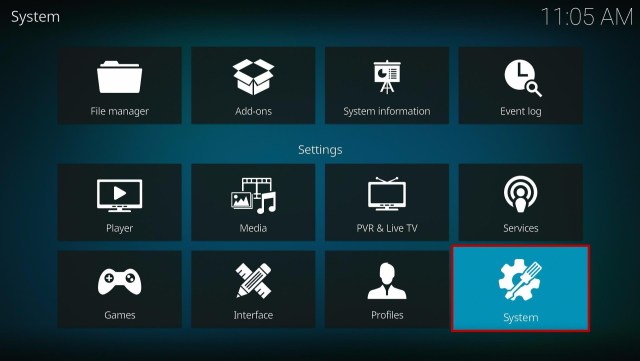
2. Select on System.

Install Hitman Kodi Build Step 2


3. Click on the Add-ons menu and Turn ON the Unknown Sources.

Install Hitman Kodi Build Step 3


4. Select Yes when the box appears.

Install Hitman Kodi Build Step 4


5. Go back one step and click on File Manager.

Install Hitman Kodi Build Step 5


6. Select the Add Source.

Install Hitman Kodi Build Step 6


7. A box will pop up, so click on the ‘None’ option.

Install Hitman Kodi Build Step 7


8. Now type in this URL http://cmanbuilds.com/repo and click OK. 

Install Hitman Kodi Build Step 8


9. Name this URL as cman and tap OK.

Install Hitman Kodi Build Step 9


10. After that, go back to the system menu and select Add-ons.

Install Hitman Kodi Build Step 10


11. Click Install from Zip File.

Install Hitman Kodi Build Step 11


12. When a box pop up, tap the Yes button.

Install Hitman Kodi Build Step 12


13. Select cman or any name you have given.

Install Hitman Kodi Build Step 13


14. Choose repository.cMaNWizard.zip

Install Hitman Kodi Build Step 14


15. Wait a few minutes for the addon to be installed. After that, an icon will appear at the top menu.

Install Hitman Kodi Build Step 15


16. Tap the  Install from Repository.

Install Hitman Kodi Build Step 16


17. Then select cMaN’s Wizard Repository from the list.

Install Hitman Kodi Build Step 17


18. Select the Program add-ons.

Install Hitman Kodi Build Step 18


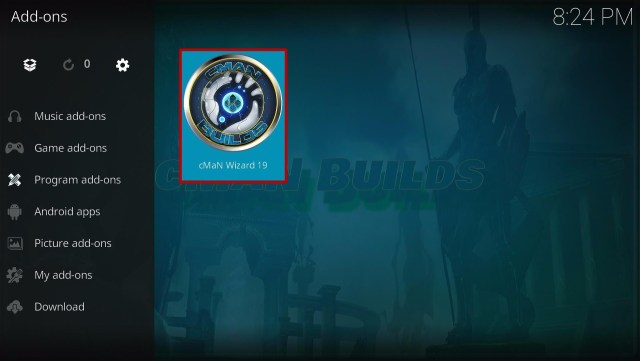
19. Click cMaN Wizard 19.

Install Hitman Kodi Build Step 19


20. Tap the Install button.

Install Hitman Kodi Build Step 20


21. Wait for the cMaN Wizard 19 installed notification.

Install Hitman Kodi Build Step 21


22. Wait for the Installed message to appear and click the Continue

Install Hitman Kodi Build Step 22


23. Tap the Close

Install Hitman Kodi Build Step 23


24. Go back to the Kodi home screen and scroll down to Addon.

Install Hitman Kodi Build Step 24


25. From the Program add-ons, select cMaN Wizard 19.

Install Hitman Kodi Build Step 25


26. Click the Builds

Install Hitman Kodi Build Step 26


27. Scroll down and select Hitman

Install Hitman Kodi Build Step 27


28. Click Fresh Install

Install Hitman Kodi Build Step 28


29. Tap on the Yes button

Install Hitman Kodi Build Step 29


30. Wait for the build to download.

Install Hitman Kodi Build Step 30


31. Click the OK button

Install Hitman Kodi Build Step 31


32. Launch your Kodi again

Install Hitman Kodi Build Step 32


33. That’s it! You have successfully installed the Hitman Build.

Install Hitman Kodi Build Step 33

Install Surfshark on Firestick

Best Surfshark Deal


Legal Disclaimer: ReviewVPN.com does not encourage or endorse any illegal activity involved in the usage of services and applications referenced on this site. We do not verify the licensing agreements of services. The end-user is wholly responsible for ensuring that any media accessed through these services does not violate copyright and/or licensing laws. ReviewVPN does not promote, link to, or receive compensation from any Apps and IPTV services.


YOUR INTERNET ACTIVITY IS BEING WATCHED

ReviewVPN cannot attest to the legality, security and privacy of the applications discussed on this site. It is highly recommended that you use a VPN service while streaming or using Kodi.

Currently, your IP 216.73.216.52 is visible to everyone and your Browser is being tracked by Advertisers & ISP Provider.

Save 65% Now

Limited Time Offer

Here are the main reasons why you must use a VPN:

  • Your activities are hidden from your ISP, the government, and from the apps you are using.
  • You can access additional movies and TV streams.
  • ISP attempts to throttle are thrwarted thus reducing buffering issues.
  • Geographically restricted content like Netflix and Hulu can be unblocked.

A VPN works be replacing your ISP-assigned IP address and creating an encrypted tunnel. We recommend the no log service offered by IPVanish. It works well on a Firestick and offers the fastest possible speeds.

Special Limited Time Offer - Get IPVanish


Features of Hitman Kodi Build

  • It has a simple and easy-to-navigate interface. 
  • You can choose from the main sections such as Movies, TV, Kids, Free, Sports, Live TV, Wizard, System, and more. 
  • From the Movie section, you can choose from 4K movies, 3D Movies, Movies, Theaters, Popular Movies, 3-D Movies, Genre, Cam Movies, and more. 
  • Collections of contents from 1971 to 2021.
  • It also has an Advance Content Selection where you can easily choose on content. 
  • You can also see the Last link played, Search history, My RD history, and RD Torrents to monitor, what you are watching.  
  • For TV shows, you can choose from New Releases, 4K TV Shows, TV Shows, Classic TV Shows, Popular, On The Air, New TV Shows, New Episodes, and more. 
  • Available Resume watching to continue watching where you stopped off. 
  • Movies and TV shows by genres are Action Adventures, Animation, Comedy, Crime, Documentary, Drama, Family, Kids, Fantasy, History, Horror, Music, Mystery, Romance, Sci-Fi, Sport, Superhero, War and Western. 
  • Kids section brings you different kinds of content such as Series, Movies, and content from different kids studios. 
  • In the sports section you can choose from Live Premier League, Live Events, Super Cars, Super Bikes, Live Races, US Open Tennis, and more. 
  • Watch up to 4k streaming quality in a less buffering experience.
  • On Live Tv, you can choose from different categories such as Documentary, Entertainment, Food, Kids, Movies, Music, News, Sports, USA Ch. and more.
  • Preloaded add ons – Asgard, Rising Tides, Replay Me, Loop Repository, Q Sports, Black, Black Lightning, Goto, cMaN Wizard 19, FEN, Loop TV, Mad Titan Sports, Magnetic Repo, Narcissist’s Wizard Repository, Pluto.TV, Q Continuum, Seren, SNES, The Loop, The Movie Database, tvOne111, and more.


Pros and Cons

Pros

  • This build is compatible with Kodi 19.5 Matrix. 
  • You can access this build content for free without any registration required. 
  • Streaming on Kodi is free and does not have any pop-up ads to interrupt. 
  • It brings you a large collection of content to watch for free. 
  • Watch up to 4k video streaming quality.


Cons

  • Some streaming links and providers in this build are not working. 


Have Fast and Safe Streaming with a VPN

If you are streaming online on any unprotected streaming sites, then we suggest using a Virtual Private Network on your device. Having a VPN is like having an online security guard that will safeguard everything about you. Surfshark is one of the reliable VPNs that you can rely on when it comes to privacy and security concerns. It also has a military standard that keeps you anonymous online by hiding your identity, Real IP address, web traffic, and prevents snooping ISP to ensure your privacy.

Surfshark is one of the proven and tested VPNs that has an impressive list of features such as:

  • Destroys geo-block and gains access to different content globally.
  • Bypass censorship and restrictions.
  • Military-grade AES-256 encryption follows FIPS (Federal Information Processing Standards) that oversee the handling of sensitive data.
  • Prevent ISPs from interfering with your connection and speed up your internet.
  • Strictly follows No-Log Policy.
  • Has a total of 2,000 servers, and 40,000 IP addresses in 75+ locations to choose from
  • Gives you unlimited bandwidth
  • One of the Fastest as its raging speed
  • Keep your identity anonymous to protect you from hackers, especially when you are using public wi-fi.
  • It provides a secure environment for everyday internet activity.
  • Keep your file protected from harmful malware.

Note: For more information about Surfshark, please read our Surfshark Review.


Grab your subscription now!


How to Install Surfshark VPN on Firestick

If your Firestick still has the older interface, read this article to learn how to update it: Update Firestick Interface.

Follow our screenshots below to install the SurfShark VPN app on your Fire TV stick.

1. Go to the Home screen of your Firestick.

step 1 Install Surfshark VPN on Firestick


2. Navigate towards the Find tab. Press the Search button from the resulting dropdown.

step 2 Install Surfshark VPN on Firestick


3. Type in the keyword of SurfShark and select from the suggestions that will appear.

step 3 Install Surfshark VPN on Firestick


4. Click the official SurfShark icon from your search results.

step 4 Install Surfshark VPN on Firestick


5. Press the Download (You own it) button.

step 5 Install Surfshark VPN on Firestick


6. The SurfShark VPN installer will download on your device.

step 6 Install Surfshark VPN on Firestick


7. SurfShark VPN’s app will automatically install itself on your Fire TV stick.

step 7 Install Surfshark VPN on Firestick


8. Press the Open button after completing SurfShark VPN’s installation process.

step 8 Install Surfshark VPN on Firestick


9. Please wait for the SurfShark VPN to load its user interface.

step 9 Install Surfshark VPN on Firestick


10. You can now log in with your SurfShark VPN account credentials.

step 10 Install Surfshark VPN on Firestick

Learn more about Surfshark and Grab the Best Surfshark Deal Now!


Install Surfshark on Firestick

Best Surfshark Deal


Other VPNs to Consider

NordVPN (Best for Streaming)

Best Features

  • 5000+ Server in 50+ Countries 
  • Military-Grade Encryption
  • Fast Connection Speed
  • Suitable to a lot of devices
  • No-Log Policy

Prices
  • Complete $5.89 per month (64% Discount)
  • Plus $4.59 per month (56% Discount)
  • Standard $3.69 per month (55% Discount)

Best Features

  • 750+ High-speed VPN Servers in 43 Locations
  • Military-Grade Encryption
  • Fastest HD Streaming and Gaming
  • 30-Day Money-Back Guarantee
  • Unlimited Data & Devices
  • No-Log Policy

Prices
  • 3 Years $1.99 per month (82% Discount)
  • 1 Years $3.29 per month (70% Discount)
  • 1 Month $10.99 per month

IPVanish VPN (Most Secure)

Best Features

  • 1200+ Servers in 60+ Countries around the world
  • Unlimited Connections
  • No-Log Policy
  • Top Notch Military-Grade VPN Protocols and Encryptions
  • 100% Safe and Secured
  • Most Trusted VPN
  • Best VPN for Firestick
  • 30-Day Money-Back Guarantee

Prices
  • Yearly $3.99 per month (63% Discount) – 30 days risk free + Ransomware & Malware Protection
  • Quarterly $5.32 per month (51% Discount)
  • Monthly $10.99 per month


For more VPN discounts, go to ReviewVPN Deals and purchase the best VPN for you.

Click here to get the lowest price on Surfshark through our exclusive limited-time offer.


Alternatives for Hitman Kodi Build

We list down some of the Kodi builds that you can try on your Kodi. If you want to know more about these builds, kindly read their corresponding articles. For more addon/build compatible with Kodi 19.5, visit this link What’s working on Kodi 19.5.


FAQs

Can I watch Hitman Kodi Build for free?

Yes, this build is free and you can watch their content for free.


Is the Hitman Kodi Build legal to use?

Yes, this build is legal, as long as it does not offer any copyrighted and restricted content.


Is the Hitman Kodi Build safe to use?

Yes, this build is safe to use, but if you want to ensure your security, we suggest using a VPN such as Surfshark


Conclusion

Hitman is a third-party build that brings you a large collection of content to watch for free. This build has a simple and easy-to-use interface that works well on Kodi 19.5 Matrix. It also brings you a great lineup of content for different popular addons. However, since it is still a third-party build, we suggest using a VPN such as Surfshark to ensure your safety. We hope this article helps you install the Hitman Kodi Build.

How to Install Ghostbusters Kodi Build

Ghostbusters Kodi Build Overview

The article will help you on how to install Ghostbusters Kodi Build.


Ghostbusters is a Kodi build that has a very attractive ghostbusters-inspired theme with a massive collection of content to watch. This build is one of the few Kodi builds compatible with Kodi 19.5 Matrix and is located in the cMaN Repository.

It brings you a great lineup of content to watch for free and high-quality streaming links from different providers. You can choose from their wide variety of content categories such as Movies, Tv shows, Sports, Kids, Free and more. It is also a feature-rich build that supports Real Debrid integration to provide you with a high quality of streaming links.

This build also uses different Kodi addons to bring you a great lineup of content. Some of the popular pre-loaded add-ons here are Asgard, Venom, Odin, Loop Repository, The Endzone 19, and more. You will surely enjoy streaming in this build as it brings you all of the latest and fresh release contents in different categories. 


ANONYMOUSLY

How to Install Ghostbusters Kodi Build with Screenshot

Installing a Kodi build has a lot of processes to take. That is why we will guide you step by step on how you can install it on Kodi.

 Follow the following steps below. 

1. On your Firestick, open Kodi and go to Settings.

Install Ghostbusters Kodi Build Step 1


2. Select on System.

Install Ghostbusters Kodi Build Step 2


3. Click on the Add-ons menu and Turn ON the Unknown Sources.

Install Ghostbusters Kodi Build Step 3


4. Select Yes when the box appears.

Install Ghostbusters Kodi Build Step 4


5. Go back one step and click on File Manager.

Install Ghostbusters Kodi Build Step 5


6. Select the Add Source.

Install Ghostbusters Kodi Build Step 6


7. A box will pop up, so click on the ‘None’ option.

Install Ghostbusters Kodi Build Step 7


8. Now type in this URL http://cmanbuilds.com/repo and click OK. 

Install Ghostbusters Kodi Build Step 8


9. Name this URL as cman and tap OK.

Install Ghostbusters Kodi Build Step 9


10. After that, go back to the system menu and select Add-ons.

Install Ghostbusters Kodi Build Step 10


11. Click Install from Zip File.

Install Ghostbusters Kodi Build Step 11


12. When a box pop up, tap the Yes button.

Install Ghostbusters Kodi Build Step 12


13. Select cman or any name you have given.

Install Ghostbusters Kodi Build Step 13


14. Choose repository.cMaNWizard.zip

Install Ghostbusters Kodi Build Step 14


15. Wait a few minutes for the addon to be installed. After that, an icon will appear at the top menu.

Install Ghostbusters Kodi Build Step 15


16. Tap the  Install from Repository.

Install Ghostbusters Kodi Build Step 16


17. Then select cMaN’s Wizard Repository from the list.

Install Ghostbusters Kodi Build Step 17


18. Select the Program add-ons.

Install Ghostbusters Kodi Build Step 18


19. Click cMaN Wizard 19.

Install Ghostbusters Kodi Build Step 19


20. Tap the Install button.

Install Ghostbusters Kodi Build Step 20


21. Wait for the cMaN Wizard 19 installed notification.

Install Ghostbusters Kodi Build Step 21


22. Wait for the Installed message to appear and click the Continue

Install Ghostbusters Kodi Build Step 22


23. Tap the Close

Install Ghostbusters Kodi Build Step 23


24. Go back to the Kodi home screen and scroll down to Addon.

Install Ghostbusters Kodi Build Step 24


25. From the Program add-ons, select cMaN Wizard 19.

Install Ghostbusters Kodi Build Step 25


26. Click the Builds

Install Ghostbusters Kodi Build Step 26


27. Scroll down and select Ghostbusters

Install Ghostbusters Kodi Build Step 27


28. Click Fresh Install

Install Ghostbusters Kodi Build Step 28


29. Tap on the Yes button

Install Ghostbusters Kodi Build Step 29


30. Wait for the build to download.

Install Ghostbusters Kodi Build Step 30


31. Click the OK button

Install Ghostbusters Kodi Build Step 31


32. Launch your Kodi again

Install Ghostbusters Kodi Build Step 32


33. That’s it! You have successfully installed the Ghostbusters Build.

Install Ghostbusters Kodi Build Step 33

YOUR INTERNET ACTIVITY IS BEING WATCHED

ReviewVPN cannot attest to the legality, security and privacy of the applications discussed on this site. It is highly recommended that you use a VPN service while streaming or using Kodi.

Currently, your IP 216.73.216.52 is visible to everyone and your Browser is being tracked by Advertisers & ISP Provider.

Save 65% Now

Limited Time Offer

Here are the main reasons why you must use a VPN:

  • Your activities are hidden from your ISP, the government, and from the apps you are using.
  • You can access additional movies and TV streams.
  • ISP attempts to throttle are thrwarted thus reducing buffering issues.
  • Geographically restricted content like Netflix and Hulu can be unblocked.

A VPN works be replacing your ISP-assigned IP address and creating an encrypted tunnel. We recommend the no log service offered by IPVanish. It works well on a Firestick and offers the fastest possible speeds.

Special Limited Time Offer - Get IPVanish


Legal Disclaimer: ReviewVPN.com does not encourage or endorse any illegal activity involved in the usage of services and applications referenced on this site. We do not verify the licensing agreements of services. The end-user is wholly responsible for ensuring that any media accessed through these services does not violate copyright and/or licensing laws. ReviewVPN does not promote, link to, or receive compensation from any Apps and IPTV services.


Install Surfshark on Firestick

Best Surfshark Deal


Features of Ghostbusters Kodi Build

  • It has a simple and attractive interface with a Ghostbusters theme design.  
  • Allows you to access their content without any registration needed. 
  • The main sections are Movies, TV Shows, Free, Kids zone, Sports, Live TV, Wizard, and more.
  • Movies Section: Choose from different categories such as 4K One-Click Section, One-Click Section, Non-Debrid Section, Movies, Tv shows, Soaps, Documentaries, Kids, Sports, Stand Up, Apps, Music, Anime, Live TV, and more. 
  • Available resume watching to continue watching where you stopped off.
  • It also has Last Link Played, Search History, Trakt, One-Click Search, and more. 
  • You can also integrate your Trakt and Real Debrid accounts for a better streaming experience.  
  • In the TV shows you can choose from New Releases, 4K TV Shows, TV Shows, Classic TV Shows, Popular, On The Air, New TV Shows, New Episodes, and more. 
  • Movies and TV shows by genres are Action Adventures, Animation, Comedy, Crime, Documentary, Drama, Family, Kids, Fantasy, History, Horror, Music, Mystery, Romance, Sci-Fi, Sport, Superhero, War and Western. 
  • For sports, you can watch Wrestling, Boxing, UFC Replays, Sports Documentaries, and Sports Catch-Up. 
  • You can also watch other sporting events such as NFL, NHL, MLB, NBA, NCAA, Fight Zone, and more. 
  • It also has Live TV where you can watch on TV Tap, Fluxus TV, SwiftStreamz, and Daily Motion. 
  • This build also brings you Free content on Movies, TV shows, Soaps, Documentaries, Kids, Sports, Stand Up and more.
  • Bring you different streaming links with the video quality of 360p, 480p, 720p, 1080p, and 4k. 
  • This build also brings you sports, such as MMA Live, Football, Wrestling, Boxing, American Football, Formula 1, Baseball, Basketball, NASCAR, Hockey, and more.
  • Preloaded add ons – Asgard, Venom, ODIN, Loop Repository, The Endzone 19, Q Sports, Black, Black Lightning, Goto, Fenom, Fluxus IPTV, Host 505, Loop TV 1, 2, 3, Nixgates Repo, Q Continuum, Seren, The Loop and more.


Pros and Cons

Pros

  • It is a simple and easy-to-use Kodi build that works well on Kodi 19.5 Matrix. 
  • You can watch their massive collection of content. 
  • Wide variety of content categories to choose from. 
  • It is an AIO build that serves you almost all kinds of content. 
  • Brings you different video quality of streaming links. 


Cons

  • Some streaming links and providers in this build are not working. 


Protect Your Privacy with a VPN

We always suggest using a Virtual Private Network on your device and one of the reasons is to stay private and secured while doing any activities online. Whereas, as far as your know your internet service provider has access to everything that you do and keeps logs on every activity, which makes you less private. That is why we suggest using a VPN such as Surfshark to keep you secure and private online. Surfshark will automatically encrypt your real IP address, identity, and your activities to keep you anonymous online. There are lots of impressive features and security services that Surfshark has to give and some of them are:

  • Surfshark helps you keep your activity online private and safe by encrypting your data. It also prevents your ISP from interfering with your connection and snooping ISP to give you privacy on whatever you do online. 
  • Gives you unlimited bandwidth to stream as much as you want. It also has a solid zero logs policy and no IP Leak. 
  • High standard of AES 256 bit of encryption, it is the same level of security used by the US military, so you can assure that all of your data is secured. 

Note: For more information about Surfshark, please read our Surfshark Review.


Install Surfshark on Firestick

Best Surfshark Deal


How to Install Surfshark VPN on Firestick

If your Firestick still has the older interface, read this article to learn how to update it: Update Firestick Interface.

Follow our screenshots below to install the SurfShark VPN app on your Fire TV stick.

1. Go to the Home screen of your Firestick.

step 1 Install Surfshark VPN on Firestick


2. Navigate towards the Find tab. Press the Search button from the resulting dropdown.

step 2 Install Surfshark VPN on Firestick


3. Type in the keyword of SurfShark and select from the suggestions that will appear.

step 3 Install Surfshark VPN on Firestick


4. Click the official SurfShark icon from your search results.

step 4 Install Surfshark VPN on Firestick


5. Press the Download (You own it) button.

step 5 Install Surfshark VPN on Firestick


6. The SurfShark VPN installer will download on your device.

step 6 Install Surfshark VPN on Firestick


7. SurfShark VPN’s app will automatically install itself on your Fire TV stick.

step 7 Install Surfshark VPN on Firestick


8. Press the Open button after completing SurfShark VPN’s installation process.

step 8 Install Surfshark VPN on Firestick


9. Please wait for the SurfShark VPN to load its user interface.

step 9 Install Surfshark VPN on Firestick


10. You can now log in with your SurfShark VPN account credentials.

step 10 Install Surfshark VPN on Firestick

Learn more about Surfshark and Grab the Best Surfshark Deal Now!


Install Surfshark on Firestick

Best Surfshark Deal


Other VPNs to Consider

NordVPN (Best for Streaming)

Best Features

  • 5000+ Server in 50+ Countries 
  • Military-Grade Encryption
  • Fast Connection Speed
  • Suitable to a lot of devices
  • No-Log Policy

Prices
  • Complete $5.89 per month (64% Discount)
  • Plus $4.59 per month (56% Discount)
  • Standard $3.69 per month (55% Discount)

Best Features

  • 750+ High-speed VPN Servers in 43 Locations
  • Military-Grade Encryption
  • Fastest HD Streaming and Gaming
  • 30-Day Money-Back Guarantee
  • Unlimited Data & Devices
  • No-Log Policy

Prices
  • 3 Years $1.99 per month (82% Discount)
  • 1 Years $3.29 per month (70% Discount)
  • 1 Month $10.99 per month

IPVanish VPN (Most Secure)

Best Features

  • 1200+ Servers in 60+ Countries around the world
  • Unlimited Connections
  • No-Log Policy
  • Top Notch Military-Grade VPN Protocols and Encryptions
  • 100% Safe and Secured
  • Most Trusted VPN
  • Best VPN for Firestick
  • 30-Day Money-Back Guarantee

Prices
  • Yearly $3.99 per month (63% Discount) – 30 days risk free + Ransomware & Malware Protection
  • Quarterly $5.32 per month (51% Discount)
  • Monthly $10.99 per month


For more VPN discounts, go to ReviewVPN Deals and purchase the best VPN for you.


Alternatives for Ghostbusters Kodi Build

We list down some of the Kodi builds that you can try on your Kodi. If you want to know more about these builds, kindly read their corresponding articles. For more addon/build compatible with Kodi 19.5, visit this link What’s working on Kodi 19.5.


FAQs

Can I watch Ghostbusters Kodi Build for free?

Yes, this build is free and allows you to access their content for free.


Is the Ghostbusters Kodi Build legal to use?

Yes, this build is legal, as long as it does not offer any copyrighted and restricted content.


Is the Ghostbusters Kodi Build safe to use?

Yes, this build is safe to use, but if you want to ensure your security, we suggest using a VPN such as Surfshark


Conclusion

Ghostbusters is a third-party build that brings you a large collection of content to watch for free. This build brings you all of the latest and popular content from different streaming sites. The good thing is, that this build allows you to access their content for free and watch them on Kodi without any ads to interrupt. However, since it is a third-party build, we still suggest using a VPN such as Surfshark for your safety. We hope this article helps you install the Ghostbusters Kodi Build.

How to Install Mad Sports Kodi Build

Mad Sports Kodi Build Overview

The article will help you on how to install Mad Sports Kodi Build.

Mad Sports is another sports Kodi build that brings you a great lineup of sports coverage. This build is slowly focused on sports only where it brings you free access to live sporting events such as NFL, NHL, MLB, WWE, Boxing, and more sports.


The main categories in this build are Sports Hub, Sports, Favourites, Addons, and System. You can watch Live PPV events and more sports highlights for free. This build is from the cMaN’s Repository and is one of the few builds compatible with Kodi 19.5 Matrix.

It has a simple and easy-to-use interface that works well on Kodi. The good thing is, this build allows you to access their content for free. It also has a different pre-loaded add-on that you can use to access a great collection of sports coverage. So, if you are a sports lover, then this build is a good option for you. 


ANONYMOUSLY

How to Install Mad Sports Kodi Build with Screenshot

Installing a Kodi build has a lot of processes to take. That is why we will guide you step by step on how you can install it on Kodi.

 Follow the following steps below.  

1. On your Firestick, open Kodi and go to Settings.

Install Mad Sports Kodi Build Step 1


2. Select on System.

Install Mad Sports Kodi Build Step 2


3. Click on the Add-ons menu and Turn ON the Unknown Sources.

Install Mad Sports Kodi Build Step 3


4. Select Yes when the box appears.

Install Mad Sports Kodi Build Step 4


5. Go back one step and click on File Manager.

Install Mad Sports Kodi Build Step 5


6. Select the Add Source.

Install Mad Sports Kodi Build Step 6


7. A box will pop up, so click on the ‘None’ option.

Install Mad Sports Kodi Build Step 7


8. Now type in this URL http://cmanbuilds.com/repo and click OK. 

Install Mad Sports Kodi Build Step 8


9. Name this URL as cman and tap OK.

Install Mad Sports Kodi Build Step 9


10. After that, go back to the system menu and select Add-ons.

Install Mad Sports Kodi Build Step 10


11. Click Install from Zip File.

Install Mad Sports Kodi Build Step 11


12. When a box pop up, tap the Yes button.

Install Mad Sports Kodi Build Step 12


13. Select cman or any name you have given.

Install Mad Sports Kodi Build Step 13


14. Choose repository.cMaNWizard.zip

Install Mad Sports Kodi Build Step 14


15. Wait a few minutes for the addon to be installed. After that, an icon will appear at the top menu.

Install Mad Sports Kodi Build Step 15


16. Tap the  Install from Repository.

Install Mad Sports Kodi Build Step 16


17. Then select cMaN’s Wizard Repository from the list.

Install Mad Sports Kodi Build Step 17


18. Select the Program add-ons.

Install Mad Sports Kodi Build Step 18


19. Click cMaN Wizard 19.

Install Mad Sports Kodi Build Step 19


20. Tap the Install button.

Install Mad Sports Kodi Build Step 20


21. Wait for the cMaN Wizard 19 installed notification.

Install Mad Sports Kodi Build Step 21


22. Wait for the Installed message to appear and click the Continue

Install Mad Sports Kodi Build Step 22


23. Tap the Close

Install Mad Sports Kodi Build Step 23


24. Go back to the Kodi home screen and scroll down to Addon.

Install Mad Sports Kodi Build Step 24


25. From the Program add-ons, select cMaN Wizard 19.

Install Mad Sports Kodi Build Step 25


26. Click the Builds

Install Mad Sports Kodi Build Step 26


27. Scroll down and select Mad Sports

Install Mad Sports Kodi Build Step 27


28. Click Fresh Install

Install Mad Sports Kodi Build Step 28


29. Tap on the Yes button

Install Mad Sports Kodi Build Step 29


30. Wait for the build to download.

Install Mad Sports Kodi Build Step 30


31. Click the OK button

Install Mad Sports Kodi Build Step 31


32. Launch your Kodi again

Install Mad Sports Kodi Build Step 32


33. That’s it! You have successfully installed the Mad Sports Build. 

Install Mad Sports Kodi Build Step 33

Install Surfshark on Firestick

Best Surfshark Deal


Legal Disclaimer: ReviewVPN.com does not encourage or endorse any illegal activity involved in the usage of services and applications referenced on this site. We do not verify the licensing agreements of services. The end-user is wholly responsible for ensuring that any media accessed through these services does not violate copyright and/or licensing laws. ReviewVPN does not promote, link to, or receive compensation from any Apps and IPTV services.


YOUR INTERNET ACTIVITY IS BEING WATCHED

ReviewVPN cannot attest to the legality, security and privacy of the applications discussed on this site. It is highly recommended that you use a VPN service while streaming or using Kodi.

Currently, your IP 216.73.216.52 is visible to everyone and your Browser is being tracked by Advertisers & ISP Provider.

Save 65% Now

Limited Time Offer

Here are the main reasons why you must use a VPN:

  • Your activities are hidden from your ISP, the government, and from the apps you are using.
  • You can access additional movies and TV streams.
  • ISP attempts to throttle are thrwarted thus reducing buffering issues.
  • Geographically restricted content like Netflix and Hulu can be unblocked.

A VPN works be replacing your ISP-assigned IP address and creating an encrypted tunnel. We recommend the no log service offered by IPVanish. It works well on a Firestick and offers the fastest possible speeds.

Special Limited Time Offer - Get IPVanish


Features of Mad Sports Kodi Build

  • Allows you to access their contents for free. 
  • Sports Hub: You can choose from different sports add-on categories such as Rising Tides, Torque Lite, The Endzone 19, C:/>GoTo SPORTS STREAMS, Q Sports, The Loop, and Mad Titan Sports. 
  • Every category has a great lineup of sports coverage such as Football Live, Live PPV Events, and more sports events. 
  • This build covers lots of sports such as MLB, NFL, NBA, NCAAF, MMA/BOXING, Wrestling, NHL, Nascar, and more.
  • It also has International Sports, TV 4 free Sports, Tv choice Sports, Swift Streams Sports, and more. 
  • From the Q sports, you can watch on Live Premier League, Live Events, Super Cars, Super Bikes, Live Races, US Open Tennis, UFC Replays, and more.
  • You can watch live games, Game Highlights, Replays, and more. 
  • Watch up to 4k streaming quality in a less buffering experience.
  • This build also brings you sports, such as MMA Live, Football, Wrestling, Boxing, American Football, Formula 1, Baseball, Basketball, NASCAR, Hockey, and more.
  • Preloaded sports addons are Q Continuum, Goto, The Endzone, Torque Lite, Rising Tides, The Loop, Replay Me, Q Sports, DailyMotion, YouTube, Embuarfy Helper, and more.


Pros and Cons

Pros

  • This build is solely focused on sports content only. 
  • It brings you different sports addons that cover different sports events. 
  • You can watch Live PPV events in a maximum 1080P streaming quality. 
  • Stream on Live sports events on Kodi in less buffering and no pop-up ads to interrupt. 


Cons

  • Some streaming links and providers in this build are not working. 


Should I use a VPN?

surfshark logo

Having a VPN on your device has a lot of benefits, such as the security and privacy you need. A VPN also eliminates the chances of getting hacked and tracked by different potential hackers online. So, for whatever you do online it is much better if you use a VPN for safety purposes. One of the best VPNs that we highly recommend is Surfshark because it is known as the most reliable with a high quality of security features. Surfshark also uses a high standard of encryption that safeguards your web traffic, and everything about you to keep you safe from any harm online.


Here are the reasons why it is our VPN of choice:

  • Provides you with a high speed of connection and unlimited bandwidth to stream as much as you want. It also has a solid zero logs policy and no IP Leak. 
  • High standard of encryption with a 256 bit AES encryption. It is the same level of security used by the US military, so you can assure that all of your data is secure.
  • Surfshark helps you keep your activity online private and safe by encrypting your data. It also prevents your ISP from interfering with your connection and snooping ISP to give you privacy on whatever you do online. 

Note: For more information about Surfshark, please read our Surfshark Review.


Grab your subscription now!

Click here to get the lowest price on Surfshark through our exclusive limited-time offer.


How to Install Surfshark VPN on Firestick

If your Firestick still has the older interface, read this article to learn how to update it: Update Firestick Interface.

Follow our screenshots below to install the SurfShark VPN app on your Fire TV stick.

1. Go to the Home screen of your Firestick.

step 1 Install Surfshark VPN on Firestick


2. Navigate towards the Find tab. Press the Search button from the resulting dropdown.

step 2 Install Surfshark VPN on Firestick


3. Type in the keyword of SurfShark and select from the suggestions that will appear.

step 3 Install Surfshark VPN on Firestick


4. Click the official SurfShark icon from your search results.

step 4 Install Surfshark VPN on Firestick


5. Press the Download (You own it) button.

step 5 Install Surfshark VPN on Firestick


6. The SurfShark VPN installer will download on your device.

step 6 Install Surfshark VPN on Firestick


7. SurfShark VPN’s app will automatically install itself on your Fire TV stick.

step 7 Install Surfshark VPN on Firestick


8. Press the Open button after completing SurfShark VPN’s installation process.

step 8 Install Surfshark VPN on Firestick


9. Please wait for the SurfShark VPN to load its user interface.

step 9 Install Surfshark VPN on Firestick


10. You can now log in with your SurfShark VPN account credentials.

step 10 Install Surfshark VPN on Firestick

Learn more about Surfshark and Grab the Best Surfshark Deal Now!


Install Surfshark on Firestick

Best Surfshark Deal


Other VPNs to Consider

NordVPN (Best for Streaming)

Best Features

  • 5000+ Server in 50+ Countries 
  • Military-Grade Encryption
  • Fast Connection Speed
  • Suitable to a lot of devices
  • No-Log Policy

Prices
  • Complete $5.89 per month (64% Discount)
  • Plus $4.59 per month (56% Discount)
  • Standard $3.69 per month (55% Discount)

Best Features

  • 750+ High-speed VPN Servers in 43 Locations
  • Military-Grade Encryption
  • Fastest HD Streaming and Gaming
  • 30-Day Money-Back Guarantee
  • Unlimited Data & Devices
  • No-Log Policy

Prices
  • 3 Years $1.99 per month (82% Discount)
  • 1 Years $3.29 per month (70% Discount)
  • 1 Month $10.99 per month

IPVanish VPN (Most Secure)

Best Features

  • 1200+ Servers in 60+ Countries around the world
  • Unlimited Connections
  • No-Log Policy
  • Top Notch Military-Grade VPN Protocols and Encryptions
  • 100% Safe and Secured
  • Most Trusted VPN
  • Best VPN for Firestick
  • 30-Day Money-Back Guarantee

Prices
  • Yearly $3.99 per month (63% Discount) – 30 days risk free + Ransomware & Malware Protection
  • Quarterly $5.32 per month (51% Discount)
  • Monthly $10.99 per month


For more VPN discounts, go to ReviewVPN Deals and purchase the best VPN for you.


Alternatives for Mad Sports Kodi Build

We list down some of the Kodi builds that you can try on your Kodi. If you want to know more about these builds, kindly read their corresponding articles. For more addon/build compatible with Kodi 19.5 visit this link: What’s working on Kodi 19.5


FAQs

Can I watch live sports games on Mad Sports Kodi Build for free?

Yes, this build brings you a free streaming link to watch live sporting events.  


Is the Mad Sports Kodi Build legal to use?

Yes, this build is legal, as long as it does not offer any copyrighted and restricted content.


Is the Mad Sports Kodi Build safe to use?

Yes, this build is safe to use, but if you want to ensure your security, we suggest using a VPN such as Surfshark


Conclusion

Mad Sports is a Kodi Build from the cMaN Repository and one of the few builds compatible with the Kodi 19.5 Matrix. This build brings you a great lineup of sporting events. The good thing about this build is, it is solely focused on sports only and offers you a large collection of sports. So if you are a sports lover, then this build is a good option for you. We hope this article helps you install the Mad Sports Kodi Build.

How to Install Nitro19 Kodi Build

Nitro19 Kodi Build Overview

The article will help you on how to install Nitro19 Kodi Build.

Nitro 19 is an extraordinary Kodi build located on cMaN’s Wizard Repository. This build is very simple and easy to use with a great lineup of content to watch from different Kodi addons. You can choose from their categories, such as Asgard, Non-Debrid, Q Continuum, Odin, Venom, and more.


It has a wide variety of categories and subcategories to choose from per section, such as Movies, TV shows, 4K One-Click Section, Non-Debrid Section, Soaps, Stand up comedy, Documentaries, and more. The good thing with this build is, it brings you both Denrid and Free streaming links to watch.

You will surely enjoy streaming in this add-on as it brings you all of the latest and popular content to watch. This build also brings working and quality of streaming links with a maximum 4k video quality. Other than the addons categories, this build also has different pre-loaded add ons to use and has a great lineup of contents. 


ANONYMOUSLY

How to Install Nitro19 Kodi Build with Screenshot

Installing a Kodi build has a lot of processes to take. That is why we will guide you step by step on how you can install it on Kodi.

 Follow the following steps below.  

1. On your Firestick, open Kodi and go to Settings.

Install Nitro19 Kodi Build Step 1


2. Select on System.

Install Nitro19 Kodi Build Step 2


3. Click on the Add-ons menu and Turn ON the Unknown Sources.

Install Nitro19 Kodi Build Step 3


4. Select Yes when the box appears.

Install Nitro19 Kodi Build Step 4


5. Go back one step and click on File Manager.

Install Nitro19 Kodi Build Step 5


6. Select the Add Source.

Install Nitro19 Kodi Build Step 6


7. A box will pop up, so click on the ‘None’ option.

Install Nitro19 Kodi Build Step 7


8. Now type in this URL http://cmanbuilds.com/repo and click OK. 

Install Nitro19 Kodi Build Step 8


9. Name this URL as cman and tap OK.

Install Nitro19 Kodi Build Step 9


10. After that, go back to the system menu and select Add-ons.

Install Nitro19 Kodi Build Step 10


11. Click Install from Zip File.

Install Nitro19 Kodi Build Step 11


12. When a box pop up, tap the Yes button.

Install Nitro19 Kodi Build Step 12


13. Select cman or any name you have given.

Install Nitro19 Kodi Build Step 13


14. Choose repository.cMaNWizard.zip

Install Nitro19 Kodi Build Step 14


15. Wait a few minutes for the addon to be installed. After that, an icon will appear at the top menu.

Install Nitro19 Kodi Build Step 15


16. Tap the  Install from Repository.

Install Nitro19 Kodi Build Step 16


17. Then select cMaN’s Wizard Repository from the list.

Install Nitro19 Kodi Build Step 17


18. Select the Program add-ons.

Install Nitro19 Kodi Build Step 18


19. Click cMaN Wizard 19.

Install Nitro19 Kodi Build Step 19


20. Tap the Install button.

Install Nitro19 Kodi Build Step 20


21. Wait for the cMaN Wizard 19 installed notification.

Install Nitro19 Kodi Build Step 21


22. Wait for the Installed message to appear and click the Continue

Install Nitro19 Kodi Build Step 22


23. Tap the Close

Install Nitro19 Kodi Build Step 23


24. Go back to the Kodi home screen and scroll down to Addon.

Install Nitro19 Kodi Build Step 24


25. From the Program add-ons, select cMaN Wizard 19.

Install Nitro19 Kodi Build Step 25


26. Click the Builds

Install Nitro19 Kodi Build Step 26


27. Scroll down and select Nitro 19

Install Nitro19 Kodi Build Step 27


28. Click Fresh Install

Install Nitro19 Kodi Build Step 28


29. Tap on the Yes button

Install Nitro19 Kodi Build Step 28


30. Wait for the build to download.

Install Nitro19 Kodi Build Step 30


31. Click the OK button

Install Nitro19 Kodi Build Step 31


32. Launch your Kodi again

Install Nitro19 Kodi Build Step 32


33. That’s it! You have successfully installed the Nitro 19 Build. 

Install Nitro19 Kodi Build Step 33


YOUR INTERNET ACTIVITY IS BEING WATCHED

ReviewVPN cannot attest to the legality, security and privacy of the applications discussed on this site. It is highly recommended that you use a VPN service while streaming or using Kodi.

Currently, your IP 216.73.216.52 is visible to everyone and your Browser is being tracked by Advertisers & ISP Provider.

Save 65% Now

Limited Time Offer

Here are the main reasons why you must use a VPN:

  • Your activities are hidden from your ISP, the government, and from the apps you are using.
  • You can access additional movies and TV streams.
  • ISP attempts to throttle are thrwarted thus reducing buffering issues.
  • Geographically restricted content like Netflix and Hulu can be unblocked.

A VPN works be replacing your ISP-assigned IP address and creating an encrypted tunnel. We recommend the no log service offered by IPVanish. It works well on a Firestick and offers the fastest possible speeds.

Special Limited Time Offer - Get IPVanish


Install Surfshark on Firestick

Best Surfshark Deal


Legal Disclaimer: ReviewVPN.com does not encourage or endorse any illegal activity involved in the usage of services and applications referenced on this site. We do not verify the licensing agreements of services. The end-user is wholly responsible for ensuring that any media accessed through these services does not violate copyright and/or licensing laws. ReviewVPN does not promote, link to, or receive compensation from any Apps and IPTV services.


Features of Nitro 19 Kodi Build

  • It has a simple and easy-to-navigate interface. 
  • The main sections are Asgard, Non-Debrid, Q Continuum, Odin, Venom, The Xstream, Wizard, Exit, and more.
  • You can choose from sub-categories such as 4K One-Click Section, One-Click Section, Non-Debrid Section, Movies, Tv shows, Soaps, Documentaries, Kids, Sports, Stand Up, Apps, Music, Anime, Live TV, and more. 
  • It has a resume watching to continue where you stopped off. 
  • From the categories, you can also see the Last link played, Search history, My RD history, and RD Torrents to monitor what you are watching.  
  • You can watch on Live TV from different popular streaming services such as TV Tap, Fluxus TV, Swiftstreamz, and Daily Motion. 
  • This build also brings you Non-Debrid content for Latest Movies, Movies by Year, Classic British Cinema, Movie Box Sets, Kids Movies, and more. 
  •  You can watch Movies from 1969 to 2016. 
  • It also allows you to create your Playlist. 
  • Movies and TV shows by genres are Action Adventures, Animation, Comedy, Crime, Documentary, Drama, Family, Kids, Fantasy, History, Horror, Music, Mystery, Romance, Sci-Fi, Sport, Superhero, War and Western. 
  • Watch up to 4k streaming quality in a less buffering experience.
  • This build also brings you sports, such as MMA Live, Football, Wrestling, Boxing, American Football, Formula 1, Baseball, Basketball, NASCAR, Hockey, and more.
  • Preloaded add ons – Nitro Build, Asgard, Rising Tides, Rising Tides Repository, Replay Me, Venom, Loop Repository, Project Mayhem, Odin, Torque Lite, Q Sports, Black, Black Lightning, CMAN Wizard 19, Mad Titan Sports, and more.


Pros and Cons

Pros

  • This build is compatible with Kodi 19.5 Matrix. 
  • It brings you a great lineup of content from different Kodi addons. 
  • Streaming on Kodi is free and does not have any pop-up ads to interrupt. 
  • You can watch on up to 4k streaming quality.


Cons

  • Lags and buffering when choosing content. 
  • Some streaming links and providers in this build are not working.


Keep Safe with a VPN

You need to ensure your safety while you stream online because other free streaming services are usually hosted with insecure servers and malicious files that can affect your device. Streaming online without a VPN is also not safe because your ISP knows everything you do, which steals your privacy. That is why we always suggest that before you stream online, kindly ensure that you are connected to a VPN. 

There are lots of VPNs in the market, but we highly recommend Surfshark as your best choice. This VPN is proven and tested and committed to giving its users the best quality of service with lots of impressive features to enjoy. Surfshark also offers a standard security feature that protects you from any servers online and prevents your ISP from interfering with your activities. If you want to learn more about this VPN, kindly read our Install Surfshark on Firestick.

Note: For more information about Surfshark, please read our Surfshark Review.


Grab your subscription now!

Click here to get the lowest price on Surfshark through our exclusive limited-time offer.


How to Install Surfshark VPN on Firestick

If your Firestick still has the older interface, read this article to learn how to update it: Update Firestick Interface.

Follow our screenshots below to install the SurfShark VPN app on your Fire TV stick.

1. Go to the Home screen of your Firestick.

step 1 Install Surfshark VPN on Firestick


2. Navigate towards the Find tab. Press the Search button from the resulting dropdown.

step 2 Install Surfshark VPN on Firestick


3. Type in the keyword of SurfShark and select from the suggestions that will appear.

step 3 Install Surfshark VPN on Firestick


4. Click the official SurfShark icon from your search results.

step 4 Install Surfshark VPN on Firestick


5. Press the Download (You own it) button.

step 5 Install Surfshark VPN on Firestick


6. The SurfShark VPN installer will download on your device.

step 6 Install Surfshark VPN on Firestick


7. SurfShark VPN’s app will automatically install itself on your Fire TV stick.

step 7 Install Surfshark VPN on Firestick


8. Press the Open button after completing SurfShark VPN’s installation process.

step 8 Install Surfshark VPN on Firestick


9. Please wait for the SurfShark VPN to load its user interface.

step 9 Install Surfshark VPN on Firestick


10. You can now log in with your SurfShark VPN account credentials.

step 10 Install Surfshark VPN on Firestick

Learn more about Surfshark and Grab the Best Surfshark Deal Now!


Install Surfshark on Firestick

Best Surfshark Deal


Other VPNs to Consider

NordVPN (Best for Streaming)

Best Features

  • 5000+ Server in 50+ Countries 
  • Military-Grade Encryption
  • Fast Connection Speed
  • Suitable to a lot of devices
  • No-Log Policy

Prices
  • Complete $5.89 per month (64% Discount)
  • Plus $4.59 per month (56% Discount)
  • Standard $3.69 per month (55% Discount)

Best Features

  • 750+ High-speed VPN Servers in 43 Locations
  • Military-Grade Encryption
  • Fastest HD Streaming and Gaming
  • 30-Day Money-Back Guarantee
  • Unlimited Data & Devices
  • No-Log Policy

Prices
  • 3 Years $1.99 per month (82% Discount)
  • 1 Years $3.29 per month (70% Discount)
  • 1 Month $10.99 per month

IPVanish VPN (Most Secure)

Best Features

  • 1200+ Servers in 60+ Countries around the world
  • Unlimited Connections
  • No-Log Policy
  • Top Notch Military-Grade VPN Protocols and Encryptions
  • 100% Safe and Secured
  • Most Trusted VPN
  • Best VPN for Firestick
  • 30-Day Money-Back Guarantee

Prices
  • Yearly $3.99 per month (63% Discount) – 30 days risk free + Ransomware & Malware Protection
  • Quarterly $5.32 per month (51% Discount)
  • Monthly $10.99 per month


For more VPN discounts, go to ReviewVPN Deals and purchase the best VPN for you.

Click here to get the lowest price on Surfshark through our exclusive limited-time offer.


Alternatives for Nitro19 Kodi Build

We list down some of the Kodi builds that you can try on your Kodi. If you want to know more about these builds, kindly read their corresponding articles. For more addon/build compatible with Kodi 19.5, visit this link What’s working on Kodi 19.5


FAQs

Can I watch Nitro 19 Kodi Build for free?

Yes, this build is free and allows you to access their content for free.


Is the Nitor 19 Kodi Build legal to use?

Yes, this build is legal, as long as it does not offer any copyrighted and restricted content.


Is the Nitro 19 Kodi Build safe to use?

Yes, this build is safe to use, but if you want to ensure your security, we suggest using a VPN such as Surfshark


Conclusion

Nitro 19 is an amazing Kodi build compatible with the Kodi 19.5 Matrix that offers you a massive collection of content from different categories. This build also has a great lineup of the latest and most popular content to watch. You can enjoy streaming in this build as it brings you high-quality streaming links. However, since it is a third-party build, we still suggest using a VPN such as Surfshark for your safety. We hope this article helps you install the Nitro 19 Kodi Build.

How to Install Techy19 Kodi Build

Techy 19 Kodi Build Overview

The article will help you on how to install Techy19 Kodi Build.


Techy19 is another Kodi build compatible with the new Kodi 19.5 Matrix. This build also brings you a massive collection of the popular and latest content to watch. It has a simple technology-inspired theme that is easy to use.

You can choose from their wide variety of content such as Movies, TV, AIO, and more. The good thing is, that you can stream their content without any registration or account needed. Whereas, it brings you a free streaming link from different providers. 

This amazing build is from the Grindhouse Repository along with the other latest Kodi build. You can enjoy streaming in this build without any hassle like ads pop up. Another good thing is, it allows you to integrate your Trakt and Real debrid account. You can also treat in different preloaded add ons such as The Oath, Asgard, Dejavu, and more.


ANONYMOUSLY

How to Install Techy19 Kodi Build with a Screenshot

Installing a Kodi build has a lot of processes to take. That is why we will guide you step by step on how you can install it on Kodi.

 Follow the following steps below.   

1. On your Firestick, open Kodi and go to Settings.

Install Techy19 Kodi Build 1


2. Select on System

Install Techy19 Kodi Build 2


3. Click on the Add-ons menu and Turn ON the Unknown Sources

Install Techy19 Kodi Build 3


4. Select Yes when the box appears

Install Techy19 Kodi Build 4


5. Go back one step and click on File Manager.

Install Techy19 Kodi Build 5


6. Select the Add Source

Install Techy19 Kodi Build 6


7. A box will pop up, so click on the ‘None’ option.

Install Techy19 Kodi Build 7


8. Now type in this URL http://grindhousekodi.tk/repo and click OK.

Install Techy19 Kodi Build 8


9. Name this URL as a grindhouse and tap OK.

Install Techy19 Kodi Build 9


10. After that, go back to the system menu and select Add-ons.

Install Techy19 Kodi Build 10


11. Click Install from Zip File

Install Techy19 Kodi Build 11


12. Tap the Yes button

Install Techy19 Kodi Build 12


13. When the box pop-up, select grindhouse or any name you have given.

Install Techy19 Kodi Build 13


14. Choose repository.grindhousekodi-1.7.zip

Install Techy19 Kodi Build 14


15. Wait a few minutes for the addon to be installed. After that, an icon will appear at the top menu.

Install Techy19 Kodi Build 15


16. Tap the  Install from Repository

Install Techy19 Kodi Build 16


17. Choose the Grindhouse Repository 

Install Techy19 Kodi Build 17


18. Select the Program add-ons

Install Techy19 Kodi Build 18


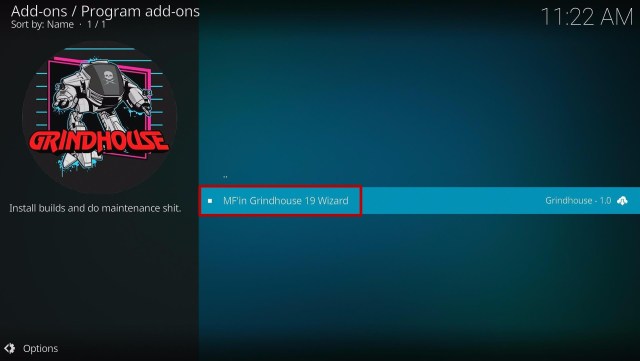
19. Click MF’in Grindhouse 19 Wizard

Install Techy19 Kodi Build 19


20. Tap the Install button

Install Techy19 Kodi Build 20


21. Click the OK button

Install Techy19 Kodi Build 21


22. Wait for the Installed message to appear

Install Techy19 Kodi Build 22


23. Click the Continue

Install Techy19 Kodi Build 23


24. Tap the Ignore button

Install Techy19 Kodi Build 24


25. Go back to the Kodi home screen and scroll down to Addon

Install Techy19 Kodi Build 25


26. From the Program add-ons, select MF’in Grindhouse 19 Wizard

Install Techy19 Kodi Build 26


27. Select Builds

Install Techy19 Kodi Build 27


28. Scroll down and click Techy19

Install Techy19 Kodi Build 28


29. Click the Install

Install Techy19 Kodi Build 29


30. When a box pops up, tap the Yes, Install

Install Techy19 Kodi Build 30


31. Wait for the build to download.

Install Techy19 Kodi Build 31


32. Click the OK button

Install Techy19 Kodi Build 32


33. Launch your Kodi again

Install Techy19 Kodi Build 33


34. That’s it! You have successfully installed the Techy19 Build. 

Install Techy19 Kodi Build 34

Install Surfshark on Firestick

Best Surfshark Deal


Legal Disclaimer: ReviewVPN.com does not encourage or endorse any illegal activity involved in the usage of services and applications referenced on this site. We do not verify the licensing agreements of services. The end-user is wholly responsible for ensuring that any media accessed through these services does not violate copyright and/or licensing laws. ReviewVPN does not promote, link to, or receive compensation from any Apps and IPTV services.


YOUR INTERNET ACTIVITY IS BEING WATCHED

ReviewVPN cannot attest to the legality, security and privacy of the applications discussed on this site. It is highly recommended that you use a VPN service while streaming or using Kodi.

Currently, your IP 216.73.216.52 is visible to everyone and your Browser is being tracked by Advertisers & ISP Provider.

Save 65% Now

Limited Time Offer

Here are the main reasons why you must use a VPN:

  • Your activities are hidden from your ISP, the government, and from the apps you are using.
  • You can access additional movies and TV streams.
  • ISP attempts to throttle are thrwarted thus reducing buffering issues.
  • Geographically restricted content like Netflix and Hulu can be unblocked.

A VPN works be replacing your ISP-assigned IP address and creating an encrypted tunnel. We recommend the no log service offered by IPVanish. It works well on a Firestick and offers the fastest possible speeds.

Special Limited Time Offer - Get IPVanish


Features of Techy19 Kodi Build

The main categories are Movies, TV, AIO, System, Exit, and Favourites. 

Movies

  • You can choose from Click Once for — 2020 Movies, Old Movies, 4K, Adventure, Biography, Comedy, Crime, Drama, Family, and more genre type categories.
  • Brings you all of the latest and popular movies from different streaming services. 
  • Genres: Action, Adventures, Animation, Anime, Biography, Comedy, Crime, Documentary, Drama, Family, Fantasy, History, Horror, Music, Musical, Mystery, Romance, Science Fiction, Sport, Thriller, War and Western. 


TV

  • Choose from Live, Live Favorites, Lineup, Categories, and OnDemand.
  • You can watch Live TV from different popular networks such as Pluto TV, TubiTv, Animal Planet, Adult Swim, and more.


AIO

  • In the AIO section, you can choose from different categories such as Movies World, TV World, Trakt World, and more. 
  • Available Search History, Last Link Played, My RD History, and an Advance Content Selection. 
  • It also has a Resume watching to continue where you stopped off. 
  • Collection of movies from 1970 to 2021. 


Settings

  • It has PVR & Live TV. 
  • You can integrate your Trakt account and customize and synchronize your content library.
  • Access high-quality streaming links by integrating your Real Debrid account.
  • The maximum streaming links video quality is up to 4k. 
  • Allows you to mark on your favorite content.  


Preloaded Addons/Repo

You can see different addons and Repos such as the Dejavu Repo, Asgard, The Crew, Rising Tides, Rising Tides Repo, Free, Cloud 9, The Endzone, Revolution 19, Revolution, Q Sports, AAC encoder, BewsandBeer, Black, Crackle, Cumination, Dailymotion.com, EzzerMacs Wizard Repository, M-E-T-V, Odds N’ Ends, Plex Live, Shadow, Pluto TV, Shadow, SportHD, Sportowa, The Movie Database, The Oath, WatchNixtoons2, YouTube and more.


Pros and Cons

Pros

  • It has a simple and easy-to-navigate interface that works well on Kodi 19.5 Matrix.
  • This build brings you a great lineup of content. 
  • It is an AIO build with a well-organized list of contents. 
  • You can watch up to 4k streaming quality.
  • Supports Real Debrid and Trakt.tv account integration. 


Cons

  • This build has limited content categories to choose from. 


Why do I need to use a VPN?

Every time you stream online, we always suggest having a Virtual Private Network on your device to ensure safety and privacy while streaming using any third-party addons or builds. Some of these addons/builds are risky to use because they have servers that use malicious files that can affect your device. That is why using a VPN will keep you anonymous and protected from these servers by encrypting your data and keeping you unknown online.

Surfshark is the most reliable and fastest VPN that has advanced security features. As you connect to it, it will automatically hide your real IP address and lets you connect on any servers of your choice. It will also keep you safe from any potential hackers and snooping ISP. To learn more about this VPN, kindly read our Install Surfshark on Firestick.

One of the best VPNs in the market is Surfshark because it has a lot of impressive features and services to offer such as:

  • Surfshark helps you keep your activity online private and safe by encrypting your data. It also prevents your ISP from interfering with your connection and snooping ISP to give you privacy on whatever you do online. 
  • It will automatically hide your real IP address and let you connect to over 3200+ servers in 65 countries of your choice. This will keep you anonymous online and avoid being tracked or attributed to any individual. 
  • Provides you with a high speed of connection and unlimited bandwidth to stream as much as you want. It also has a solid zero logs policy and no IP Leak. 
  • High standard of encryption with a 256 bit AES encryption. It is the same level of security used by the US military, so you can assure that all of your data is secured. 

Note: For more information about Surfshark, please read our Surfshark Review.


Grab your subscription now!


How to Install Surfshark VPN on Firestick

If your Firestick still has the older interface, read this article to learn how to update it: Update Firestick Interface.

Follow our screenshots below to install the SurfShark VPN app on your Fire TV stick.

1. Go to the Home screen of your Firestick.

step 1 Install Surfshark VPN on Firestick


2. Navigate towards the Find tab. Press the Search button from the resulting dropdown.

step 2 Install Surfshark VPN on Firestick


3. Type in the keyword of SurfShark and select from the suggestions that will appear.

step 3 Install Surfshark VPN on Firestick


4. Click the official SurfShark icon from your search results.

step 4 Install Surfshark VPN on Firestick


5. Press the Download (You own it) button.

step 5 Install Surfshark VPN on Firestick


6. The SurfShark VPN installer will download on your device.

step 6 Install Surfshark VPN on Firestick


7. SurfShark VPN’s app will automatically install itself on your Fire TV stick.

step 7 Install Surfshark VPN on Firestick


8. Press the Open button after completing SurfShark VPN’s installation process.

step 8 Install Surfshark VPN on Firestick


9. Please wait for the SurfShark VPN to load its user interface.

step 9 Install Surfshark VPN on Firestick


10. You can now log in with your SurfShark VPN account credentials.

step 10 Install Surfshark VPN on Firestick

Learn more about Surfshark and Grab the Best Surfshark Deal Now!


Install Surfshark on Firestick

Best Surfshark Deal


Other VPNs to Consider

NordVPN (Best for Streaming)

Best Features

  • 5000+ Server in 50+ Countries 
  • Military-Grade Encryption
  • Fast Connection Speed
  • Suitable to a lot of devices
  • No-Log Policy

Prices
  • Complete $5.89 per month (64% Discount)
  • Plus $4.59 per month (56% Discount)
  • Standard $3.69 per month (55% Discount)

Best Features

  • 750+ High-speed VPN Servers in 43 Locations
  • Military-Grade Encryption
  • Fastest HD Streaming and Gaming
  • 30-Day Money-Back Guarantee
  • Unlimited Data & Devices
  • No-Log Policy

Prices
  • 3 Years $1.99 per month (82% Discount)
  • 1 Years $3.29 per month (70% Discount)
  • 1 Month $10.99 per month

IPVanish VPN (Most Secure)

Best Features

  • 1200+ Servers in 60+ Countries around the world
  • Unlimited Connections
  • No-Log Policy
  • Top Notch Military-Grade VPN Protocols and Encryptions
  • 100% Safe and Secured
  • Most Trusted VPN
  • Best VPN for Firestick
  • 30-Day Money-Back Guarantee

Prices
  • Yearly $3.99 per month (63% Discount) – 30 days risk free + Ransomware & Malware Protection
  • Quarterly $5.32 per month (51% Discount)
  • Monthly $10.99 per month


For more VPN discounts, go to ReviewVPN Deals and purchase the best VPN for you.

Click here to get the lowest price on Surfshark through our exclusive limited-time offer.


Alternatives for Techy19 Kodi Build

We list down some of the Kodi builds that you can try on your Kodi aside fromTechy19. Kindly read their corresponding articles to know more about these add-ons. 


FAQs

Is the Techy19 Kodi Build safe to use?

Yes, this build is safe to use, but if you want to ensure your security, we suggest using a VPN such as Surfshark


Is streaming on Techy19 Kodi Build for free?

Yes, this build allows you to access and stream their content for free.


Is the Techy19 Kodi Build legal?

Yes, this build is legal as long as it only offers non-copyright content.


Conclusion

Techy19 is a simple and easy-to-use build that is compatible with Kodi 19.5 Matrix. It also serves you with a great lineup of popular movies and TV shows, However. This build has a few content categories to choose from. But you can enjoy streaming in this build without any hassle. We hope this article helps you install the Techy19 Kodi Build. 

How to Install Spacedout19 Kodi Build

Spacedout19 Kodi Build Overview

The article will help you on how to install Spacedout19 Kodi Build.


Spacedout19 is a new Kodi build compatible with Kodi 19.5 Matrix and located on the popular Grindhouse Repository. This build brings you a wide variety of content categories to choose from.

It is also an all-in-one build that brings you almost all kinds of content to watch for free such as Movies, TV shows, Sports, Kids’ content, and more. This build is an Aeon Nox: SILVO skin by default which is very simple and easy to use. The good thing with this build is, it supports Real Debrid account integration.

It also has lots of popular preloaded addons and repos to use and watch on their contents. Some of the pre-loaded add-ons are DejaVu Repo, Asgard, THE CREW, Rising Tides, Free, Cloud 9, The Endzone 19, and more.


ANONYMOUSLY

How to Install Spacedout19 Kodi Build with a Screenshot

Installing a Kodi build has a lot of processes to take. That is why we will guide you step by step on how you can install it on Kodi.

 Follow the following steps below.   

1. On your Firestick, open Kodi and go to Settings.

Install Spacedout19 Kodi 1


2. Select on System

Install Spacedout19 Kodi 2


3. Click on the Add-ons menu and Turn ON the Unknown Sources

Install Spacedout19 Kodi 3


4. Select Yes when the box appears

Install Spacedout19 Kodi 4


5. Go back one step and click on File Manager.

Install Spacedout19 Kodi 5


6. Select the Add Source

Install Spacedout19 Kodi 6


7. A box will pop up, so click on the ‘None’ option.

Install Spacedout19 Kodi 7


8. Now type in this URL http://grindhousekodi.tk/repo and click OK.

Install Spacedout19 Kodi 8


9. Name this URL as a grindhouse and tap OK.

Install Spacedout19 Kodi 9


10. After that, go back to the system menu and select Add-ons.

Install Spacedout19 Kodi 10


11. Click Install from Zip File

Install Spacedout19 Kodi 11


12. Tap the Yes button

Install Spacedout19 Kodi 12


13. When the box pop-up, select grindhouse or any name you have given.

Install Spacedout19 Kodi 13


14. Choose repository.grindhousekodi-1.7.zip

Install Spacedout19 Kodi 14


15. Wait a few minutes for the addon to be installed. After that, an icon will appear at the top menu.

Install Spacedout19 Kodi 15


16. Tap the  Install from Repository

Install Spacedout19 Kodi 16


17. Choose the Grindhouse Repository 

Install Spacedout19 Kodi 17


18. Select the Program add-ons

Install Spacedout19 Kodi 18


19. Click MF’in Grindhouse 19 Wizard

Install Spacedout19 Kodi 19


20. Tap the Install button

Install Spacedout19 Kodi 20


21. Click the OK button

Install Spacedout19 Kodi 21


22. Wait for the Installed message to appear

Install Spacedout19 Kodi 22


23. Click the Continue

Install Spacedout19 Kodi 23


24. Tap the Ignore button

Install Spacedout19 Kodi 24


25. Go back to the Kodi home screen and scroll down to Addon

Install Spacedout19 Kodi 25


26. From the Program add-ons, select MF’in Grindhouse 19 Wizard

Install 3d-ish Kodi Build 26


27. Select Builds

Install Spacedout19 Kodi 27


28. Scroll down and click Spacedout19

Install Spacedout19 Kodi 28


29. Click the Install

Install Spacedout19 Kodi 29


30. When a box pops up, tap the Yes, Install

Install Spacedout19 Kodi 30


31. Wait for the build to download.

Install Spacedout19 Kodi 31


32. Click the OK button

Install Spacedout19 Kodi 32


33. Launch your Kodi again

Install Spacedout19 Kodi 33


34. That’s it! You have successfully installed the Spacedout19Build. 

Install Spacedout19 Kodi 34

Install Surfshark on Firestick

Best Surfshark Deal


Legal Disclaimer: ReviewVPN.com does not encourage or endorse any illegal activity involved in the usage of services and applications referenced on this site. We do not verify the licensing agreements of services. The end-user is wholly responsible for ensuring that any media accessed through these services does not violate copyright and/or licensing laws. ReviewVPN does not promote, link to, or receive compensation from any Apps and IPTV services.


YOUR INTERNET ACTIVITY IS BEING WATCHED

ReviewVPN cannot attest to the legality, security and privacy of the applications discussed on this site. It is highly recommended that you use a VPN service while streaming or using Kodi.

Currently, your IP 216.73.216.52 is visible to everyone and your Browser is being tracked by Advertisers & ISP Provider.

Save 65% Now

Limited Time Offer

Here are the main reasons why you must use a VPN:

  • Your activities are hidden from your ISP, the government, and from the apps you are using.
  • You can access additional movies and TV streams.
  • ISP attempts to throttle are thrwarted thus reducing buffering issues.
  • Geographically restricted content like Netflix and Hulu can be unblocked.

A VPN works be replacing your ISP-assigned IP address and creating an encrypted tunnel. We recommend the no log service offered by IPVanish. It works well on a Firestick and offers the fastest possible speeds.

Special Limited Time Offer - Get IPVanish


Features of Spacedout19 Kodi Build

Interface

  • Allows you to access their content for free without any registration required.
  • This build interface is simple and easy to navigate. 


Categories

  • The main categories are Movies, TV, Debrid, AIO, Sports, System, Exit, and Favourites. 
  • Movies: You can choose from different categories and subcategories on the Movies section such as 4K Movies, 3D Movies, Movies, Theaters, Popular Movies, 3D Movies Free, Genre, Cam Movies, and more. 
  • You can also choose from different categories such as Content Years, Studio type, Actor, Genre Type, and more.
  • Available Search Movie, History, Last Link Played, and an Advance Content Selection. 
  • It also has Resume watching to continue where you stopped off. 
  • Collection of movies from 1970 to 2021. 
  • TV: Choose from New Releases, 4K TV Shows, TV shows, Popular, On The Air, New TV shows, New Episodes, and more. 
  • It also has a Series Tracker, where you can keep on track with your favorite TV series and be updated with every latest episode.
  • For the Debrid links, if you have a Real Debrid account, you can link it to access their high-quality streaming links. 
  • Genres: Action, Adventures, Animation, Anime, Biography, Comedy, Crime, Documentary, Drama, Family, Fantasy, History, Horror, Music, Musical, Mystery, Romance, Science Fiction, Sport, Thriller, War and Western. 
  • AIO: This section brings you all kinds of content in one place, such as the 4K one Click Section, Non-Debrid Section, Movies, Tv shows, Soaps, Documentaries, Kids, Sports, Stand Up, Music, Trakt, and more. 
  • Sports: This build brings you Live sporting events coverage, Live TV, Rojadirecta, Soccer Stream, Sports Bay, Sports Surge, and more.
  • It brings you different sports events such as NFL, NHL, MLB, NBA, NCAA, Tennis, Wrestling, UFC, and more.


Settings

  • You can integrate your Trakt account to synchronize the library.
  • Access high-quality streaming links by integrating your Real Debrid account.
  • You can watch on up to 4k streaming quality. 
  • Allows you to mark on your favorite content.  


Preloaded Addons/Repo

You can see different addons and Repos such as the Dejavu Repo, Asgard, The Crew, Rising Tides, Rising Tides Repo, Free, Cloud 9, The Endzone, Revolution 19, Revolution, Q Sports, Bugatsinho Repo, BewsandBeer, Black, Crackle, Cumination, Dailymotion.com, EzzerMacs Wizard Repository, Jizz Planet, Kaito, Grindhouse Repo, Host505, M-E-T-V, Odds N’ Ends, Plex Live, Pluto TV, Purely Wrestling, Shadow, SportHD, The Movie Database, The Oath, WatchNixtoons2, and more.


Pros and Cons

Pros

  • This build has a simple and easy-to-navigate interface that works well on Kodi 19.5 Matrix.
  • You can watch their large collection of content for free. 
  • This build brings you high-quality streaming links with a maximum of 4k of streaming quality.
  • It is supported with Real Debrid and Trakt.tv account integration. 


Cons

  • Some of the provided streaming links are not working. 


Stream with VPN

The question is, why do you need to stream online with a VPN? The simple is, to ensure your privacy and security while you stream online, Whereas a VPN is like an online guard that will safeguard everything about you. Streaming with a VPN is much better because you can ensure that your privacy is safe and that everything that you do online is encrypted from your Internet Service Provider. The good thing is there are lots of VPNs that you choose online and, we highly recommend Surfshark as your best choice because it has a military standard of encryption. Surfshark is also proven and tested VPN that has an impressive list of features with a high quality of services. 


Here are the reasons why it is our VPN of choice:

  • Destroys geo-block and gains access to different content globally.
  • Zero logs and no IP address leaks. 
  • Bypass censorship and restrictions.
  • A high standard of AES 256-bit encryptions will safeguard all of your data.
  • Prevent ISPs from interfering with your connection and speed up your internet.
  • It gives you unlimited bandwidth and makes your internet speed faster. 
  • Keep your identity anonymous to protect you from hackers, especially when you are using public wi-fi.

Note: For more information about Surfshark, please read our Surfshark Review.


Grab your subscription now!

Click here to get the lowest price on Surfshark through our exclusive limited-time offer.


How to Install Surfshark VPN on Firestick

If your Firestick still has the older interface, read this article to learn how to update it: Update Firestick Interface.

Follow our screenshots below to install the SurfShark VPN app on your Fire TV stick.

1. Go to the Home screen of your Firestick.

step 1 Install Surfshark VPN on Firestick


2. Navigate towards the Find tab. Press the Search button from the resulting dropdown.

step 2 Install Surfshark VPN on Firestick


3. Type in the keyword of SurfShark and select from the suggestions that will appear.

step 3 Install Surfshark VPN on Firestick


4. Click the official SurfShark icon from your search results.

step 4 Install Surfshark VPN on Firestick


5. Press the Download (You own it) button.

step 5 Install Surfshark VPN on Firestick


6. The SurfShark VPN installer will download on your device.

step 6 Install Surfshark VPN on Firestick


7. SurfShark VPN’s app will automatically install itself on your Fire TV stick.

step 7 Install Surfshark VPN on Firestick


8. Press the Open button after completing SurfShark VPN’s installation process.

step 8 Install Surfshark VPN on Firestick


9. Please wait for the SurfShark VPN to load its user interface.

step 9 Install Surfshark VPN on Firestick


10. You can now log in with your SurfShark VPN account credentials.

step 10 Install Surfshark VPN on Firestick

Learn more about Surfshark and Grab the Best Surfshark Deal Now!


Install Surfshark on Firestick

Best Surfshark Deal


Other VPNs to Consider

NordVPN (Best for Streaming)

Best Features

  • 5000+ Server in 50+ Countries 
  • Military-Grade Encryption
  • Fast Connection Speed
  • Suitable to a lot of devices
  • No-Log Policy

Prices
  • Complete $5.89 per month (64% Discount)
  • Plus $4.59 per month (56% Discount)
  • Standard $3.69 per month (55% Discount)

Best Features

  • 750+ High-speed VPN Servers in 43 Locations
  • Military-Grade Encryption
  • Fastest HD Streaming and Gaming
  • 30-Day Money-Back Guarantee
  • Unlimited Data & Devices
  • No-Log Policy

Prices
  • 3 Years $1.99 per month (82% Discount)
  • 1 Years $3.29 per month (70% Discount)
  • 1 Month $10.99 per month

IPVanish VPN (Most Secure)

Best Features

  • 1200+ Servers in 60+ Countries around the world
  • Unlimited Connections
  • No-Log Policy
  • Top Notch Military-Grade VPN Protocols and Encryptions
  • 100% Safe and Secured
  • Most Trusted VPN
  • Best VPN for Firestick
  • 30-Day Money-Back Guarantee

Prices
  • Yearly $3.99 per month (63% Discount) – 30 days risk free + Ransomware & Malware Protection
  • Quarterly $5.32 per month (51% Discount)
  • Monthly $10.99 per month


For more VPN discounts, go to ReviewVPN Deals and purchase the best VPN for you.

Click here to get the lowest price on Surfshark through our exclusive limited-time offer.


Alternatives for Spacedout19 Kodi Build

We list down some of the Kodi builds that you can try on your Kodi aside from Spacedout19. Kindly read their corresponding articles to know more about these add-ons. 


FAQs

Is the Spacedout19 Kodi Build safe to use?

Yes, this build is safe to use, but if you want to ensure your security, we suggest using a VPN such as Surfshark

Is streaming on Spacedout19 Kodi Build for free?

Yes, this build allows you to access and stream on their content for free.


Is the Spacedout19 Kodi Build legal?

Yes, this build is legal as long as it only offers non-copyright content.


Can I also download Spacedout19 Kodi Build on Kodi 18.9?

No, this build is only available and compatible with Kodi 19.5 Matrix.


Conclusion

Spacedout19 is a third-party build that brings you a great lineup of content to watch for free. This build has a large collection of content to watch for free. You can assure that this build brings you a high quality of streaming links provided by the Real Debrid account. It is also an AIO build that brings you a large collection of content where you can stream with a less buffering experience on Kodi. We hope this article helps you install the Spacedout19 Kodi Build. 

Best Kodi Addons to Watch Premier League 

Premier League Overview

This article is about the best Kodi addons to watch in the Premier League.


The Premier League or also referred to as the English Premier League (EPL) is one of the top English football league systems. It consists of 20 teams battling with each other for the honor of being crowned as the best team and champions. This sport is also one of the most-watched leagues worldwide have billions of homes watching it from over 188 countries. It takes place between August and May, where it was broadcast on different popular sports networks.

This sport involves teams playing from each other home and away across the season. The total of matches is 380 and Three points will be awarded to the winning team, one point for a draw and none for a defeat. Whereas at the end of the season, the team with the highest points will be the winner and crowned the Premier League Champion. Some Premier League teams are Manchester City, Liverpool, Chelsea, Brighton, Hove Albion, Manchester United, Leicester, and more.

You can watch this sport from different streaming devices such as Kodi. The good thing with streaming Premier League on Kodi is you can stream live on a less buffering experience without any pop-up ads to interrupt. There are lots of Kodi addons that offer you free streaming links to watch live Premier League games.

You can also get regular updates on your favorite team’s stats, scores, standing, latest news, and more. We list down some of the best sports addons that cover the Premier League. Some of these are official addons, which you can get on Kodi’s official Repository and others are nonofficial or third-party add-ons. 


ANONYMOUSLY

Best Kodi Addons to Watch Premier League

We list down some of the sports add-ons that cover the Premier League. 


Official Kodi Addon

Here are the official or legal sports addons where you can watch Premier League. You can get these directly from Kodi’s official repository. 


iPlayer WWW

iPlayer WWW is a popular streaming service that brings you the latest and greatest TV series and box sets from the BBC. The good thing is, that it is also an official Kodi addon that you can get directly on Kodi’s official repository. You can watch exclusive Premier League footage such as live games, game highlights, interviews, documentaries, and more. This add-on brings you lots of sports content and coverages that come from the official iPlayer Website. It also brings you regular updates on everything about EPL, such as news updates, stats, scores, schedules, player bios, current standings, and more. Other than Premier League it also covers different sports such as Baseball, Football, Baseball, Basketball, Tennis, Cricket, Rugby, and more. 

However, You cannot easily access this add-on content because BBC iPlayer is only available for those who have a BBC Tv License. This addon is also geo-block where even if you have a valid BBC iPlayer, but you’re not a UK resident, you still won’t be able to watch on it. 


Features:

  • It requires you to have a Valid BBC TV License.
  • Simple and easy-to-use interface. 
  • It has an excellent search function
  • You can choose from different channels such as the BBC, CBBC, BBC News Channel, BBC Parliament, and more.
  • It has a wide range of categories of content to watch. 
  • You can add your preferred channels.
  • This add-on brings you HD-quality videos.
  • Regular updates on Premier League sports. 

To know more about this addon, read our iPlayer Addon Review


Fox Sports Go

Fox Sports Go is another popular sports network that broadcasts different sports such as NCAA Football, NHL, NFL, MLB, NBA, WWE, Boxing, Cricket, and more. It is also one of the sports networks that you can rely on to watch Premier League live games. The good thing is you can now watch Fox Sports Go on Kodi because it has an official Kodi addon located in Kodi’s official Repository. You can watch Premier League, and other sports live match events, highlights, replays, news updates, game stats, and more. This add-on will bring you regular updates on your favorite sports team, as it is supported with the official Fox Sports Go. However, just like the other addon, it also requires you to have a Fox Sports Go account to link otherwise you cannot access their content. 


 Features:

  • A simple and easy-to-navigate interface.
  • It requires you to have a Fox Sports Go account.
  • This add-on brings you live and on-demand videos for Premier League. 
  • You can stream on 720p video quality without any ads popping up. 
  • Allows background playing.
  • This addon is regularly updating its list of contents. 
  • A well-organized list of contents. 


SportsNet Now

Sportsnet Now is a Canadian streaming service and an official sports add-on that covers live sporting events. The good thing is it is now an official Kodi addon located on Kodi’s official repository. You can install this add-on on your Kodi to keep on track with your favorite Premier League teams. Whereas, this add-on brings you different sports coverage of live games, highlights, replays, news updates, and more. Other than Premier League it also covers different sports such as Basketball, Baseball, Soccer, Ice Hockey, American Football, and more. However, like other legal sports addons, it also requires you to have an editing SportsNet Now account to link, otherwise, you cannot access their contents. 


Features:

  • It has a simple and user-friendly interface. 
  • Requires you to have an existing account to link. 
  • You can watch sports content such as Live game footage, interviews, game stats and scores, and more. 
  • Bring you a high-quality streaming link.
  • Watch up to 720p streaming video quality. 
  • It Covers Premier League exclusive videos. 
  • It is supported by the official SportsNet Now.


YOUR INTERNET ACTIVITY IS BEING WATCHED

ReviewVPN cannot attest to the legality, security and privacy of the applications discussed on this site. It is highly recommended that you use a VPN service while streaming or using Kodi.

Currently, your IP 216.73.216.52 is visible to everyone and your Browser is being tracked by Advertisers & ISP Provider.

Save 65% Now

Limited Time Offer

Here are the main reasons why you must use a VPN:

  • Your activities are hidden from your ISP, the government, and from the apps you are using.
  • You can access additional movies and TV streams.
  • ISP attempts to throttle are thrwarted thus reducing buffering issues.
  • Geographically restricted content like Netflix and Hulu can be unblocked.

A VPN works be replacing your ISP-assigned IP address and creating an encrypted tunnel. We recommend the no log service offered by IPVanish. It works well on a Firestick and offers the fastest possible speeds.

Special Limited Time Offer - Get IPVanish


Legal Disclaimer: ReviewVPN.com does not encourage or endorse any illegal activity involved in the usage of services and applications referenced on this site. We do not verify the licensing agreements of services. The end-user is wholly responsible for ensuring that any media accessed through these services does not violate copyright and/or licensing laws. ReviewVPN does not promote, link to, or receive compensation from any Apps and IPTV services.


Install Surfshark on Firestick

Best Surfshark Deal


Unofficial Sports Addon

We also list down some of the unofficial or third-party sports addons that cover the Premier League. However, since they are not an official Kodi addon, we suggest using a VPN such as Surfshark before you stream on it. 


The Loop

The Loop is a third-party sports add-on that covers different sports including the Premier League. This add-on has a wide variety of content categories to choose from and a large collection of content to watch for free. It brings you quality footage on Live sports matches and keeps you updated with the latest happening and event about your favorite sports. with replays. You can watch live matches, streaming links, and also PPV content. It has a wide variety of categories to choose from, such as Auto Zone, 24/7, Copa America Zone, Euro 2020 Zone, Fan Zone, Fight Zone, MLB, NBA, NHL, and more. This add-on includes Match of the Day, Match of the Day two, NFL Replays, The history of the World Cup, and more. The good thing is that it gives you free access to their content without requiring you to create an account.


Features:

  • No registration and subscription is needed.
  • It has a wide variety of categories to choose from. 
  • You can watch this add-on for free. 
  • Large collection of sports content 
  • Provide you with high-quality streaming links.
  • It serves you quality, free and working links for a wide range of sports worldwide. 
  • Watch live Premier League matches in a less buffering experience. 
  • Regularly bring you sports updates. 
  • Allows background playing

To know more about this addon, kindly read our article on The Loop.


Rising Tides

Rising Tides is one of the popular sports add-ons from the Mullafabz Repository that covers different sports and has a wide coverage of sports events/matches. This addon is always on the list when it comes to sports addon because it covers different sports including the Premier League. It will keep you updated with every EPL sports event, news update, and upcoming game event. This add-on is a good option for you because it will bring you live sports game footage, game highlights, live replays, news updates, and more. It is one of the best sports addons that brings you high-quality streaming links from different providers. Other than the Premier League, it also covers MLS, Wrestling, Boxing, NCAA Football, NBA, MLB, NHL, NFL, and more. Another good thing is, that it allows you to access their contents for free, without any account required. 


Features:

  • It is simple and does not require any registration. 
  • This add-on covers different sports such as the Premier League. 
  • You can watch sports videos from different popular sports networks such as ESPN, BEIN, Fox Sports Go, and more.  
  • Choose from 480p, 720p, and 1080p quality of streaming links
  • It provides you with working and quality streaming links.  
  • Watch Live Sports with less buffering and no pop-up ads to interrupt on Kodi.
  • It brings you Live Sports, Live Tv, Highlights, replays, interviews, and more.
  • Brings you regular updates on the latest happenings in different sports.

Learn more about this addon by reading our Rising tides Review


SportsDevil

sports devil is one of the popular and well-known sports addons for streaming live sports events online. This popular add-on is available on different repositories such as DejaVu, Team Crew, and Rising Tide Repository. It brings you different sports footage, game highlights, live replays, news updates about the latest happenings, and more about sports. This add-on also covers Premier League sports where you can watch live games for free and keeps you updated with upcoming game events. Other sports it covers are NCAA Football, NFL, NBA, NHL, UFC the Premier League, and more. You can assure that this addon provides you with working and high-quality streaming links. 


Features:

  • It has a simple and easy-to-use interface.
  • You can watch it in this add-on for free. 
  • Content sources such as RojaDirecta, SportsStrean365, StopStream, and more.
  • You can watch videos in 480p, 720p, 1080p, and 4k quality.
  • Watch Live Premier League games and keep updated with all upcoming events. 
  • Allows background playing.

Learn more about this addon by reading our SportsDevil Review.


Stream Online with a VPN

Every time you stream online, we recommend using a Virtual Private Network on your device to ensure that you are safe. Having a VPN is like having an online companion that will keep you safe 24/7 while you are streaming online. It also keeps you away from any harm online such as from unknown and unsafe sources. So, you need to do some extra precautions to keep yourself safe from these.

We also highly suggest Surfshark as your best choice, because it is one for the VPN with a high standard of encryption. As you connect to Surfshark, it will automatically encrypt everything about you such as your Real IP address, web traffic, identity, and more. Streaming online with Surfshark is worry less and gives you the freedom to watch anything you like without any snooping ISP. The good thing is, it will not only keep you secure, but it also gives you a high-speed connection with unlimited bandwidth to stream as much as you want.


Here are the reasons why it is our VPN of choice:

  • A high standard of AES 256-bit encryptions will safeguard all of your data.
  • Prevent ISPs from interfering with your connection and speed up your internet.
  • It gives you unlimited bandwidth and makes your internet speed faster. 
  • Keep your identity anonymous to protect you from hackers, especially when you are using public wi-fi.
  • Destroys geo-block and gains access to different content globally.
  • Zero logs and no IP address leaks. 
  • Bypass censorship and restrictions.
  • It provides a secure environment for everyday internet activity.
  • Keep your file protected from harmful malware.

Note: For more information about SurfShark, please read our SURFSHARK REVIEW.


Grab your subscription now!


How to Install Surfshark VPN on Firestick

If your Firestick still has the older interface, read this article to learn how to update it: Update Firestick Interface.

You can download Surfshark directly from the Amazon App store. It will be easy for you to find Surfshark with your Firestick’s Find feature. Refer to our screenshots below.

1. Go to the Home screen of your Firestick.

step 1 Install Surfshark VPN on Firestick


2. Navigate towards the Find tab. Press the Search button from the resulting dropdown.

step 2 Install Surfshark VPN on Firestick


3. Type in the keyword of SurfShark and select from the suggestions that will appear.

step 3 Install Surfshark VPN on Firestick


4. Click the official SurfShark icon from your search results.

step 4 Install Surfshark VPN on Firestick


5. Press the Download (You own it) button.

step 5 Install Surfshark VPN on Firestick


6. The SurfShark VPN installer will download on your device.

step 6 Install Surfshark VPN on Firestick


7. SurfShark VPN’s app will automatically install itself on your Fire TV stick.

step 7 Install Surfshark VPN on Firestick


8. Press the Open button after completing SurfShark VPN’s installation process.

step 8 Install Surfshark VPN on Firestick


9. Please wait for the SurfShark VPN to load its user interface.

step 9 Install Surfshark VPN on Firestick


10. You can now log in with your SurfShark VPN account credentials.

step 10 Install Surfshark VPN on Firestick

Learn more about Surfshark and Grab the Best Surfshark Deal Now!


Install Surfshark on Firestick

Best Surfshark Deal


Other VPNs to Consider

NordVPN (Best for Streaming)

Best Features

  • 5000+ Server in 50+ Countries 
  • Military-Grade Encryption
  • Fast Connection Speed
  • Suitable to a lot of devices
  • No-Log Policy

Prices
  • Complete $5.89 per month (64% Discount)
  • Plus $4.59 per month (56% Discount)
  • Standard $3.69 per month (55% Discount)

Best Features

  • 750+ High-speed VPN Servers in 43 Locations
  • Military-Grade Encryption
  • Fastest HD Streaming and Gaming
  • 30-Day Money-Back Guarantee
  • Unlimited Data & Devices
  • No-Log Policy

Prices
  • 3 Years $1.99 per month (82% Discount)
  • 1 Years $3.29 per month (70% Discount)
  • 1 Month $10.99 per month

IPVanish VPN (Most Secure)

Best Features

  • 1200+ Servers in 60+ Countries around the world
  • Unlimited Connections
  • No-Log Policy
  • Top Notch Military-Grade VPN Protocols and Encryptions
  • 100% Safe and Secured
  • Most Trusted VPN
  • Best VPN for Firestick
  • 30-Day Money-Back Guarantee

Prices
  • Yearly $3.99 per month (63% Discount) – 30 days risk free + Ransomware & Malware Protection
  • Quarterly $5.32 per month (51% Discount)
  • Monthly $10.99 per month


For more VPN discounts, go to ReviewVPN Deals and purchase the best VPN for you.

Click here to get the lowest price on Surfshark through our exclusive limited-time offer.


FAQs

Is it safe to stream live Premier League matches on these addons?

Yes, streaming on these addons is safe, but to ensure your safety and privacy, we suggest using a VPN such as Surfshark. 


Can I stream a Live Premier League match using these addons for free?

Yes, all of the addons we have mentioned above allow you to stream live sports matches for free.


Is streaming on a third-party sports addon legal?

Yes, streaming on a third-party add-on is legal, as long as these add-ons offer you only legal content and do not offer any copyrighted content.


Conclusion

Streaming Premier League on Kodi is much better because it does not have too much hassle like buffering or pop-up ads to interrupt. The good thing is there are lots of good Kodi addons that you can try. All of the add-on that we mentioned above covers EPL games. However, some addons require you to have an existing account to link and access their contents.

We hope that this article gives you the best sports add-on to watch Premier League. 

How to Install Retro Kodi Build

 Retro Kodi Build Overview

The article will help you with how to install Retro Kodi Build.


Retro is a new Kodi Build from the Grindhouse Repository that brings you a great lineup of content to watch for free. This build is Retro themed which is very light and smooth to use. It is also an all-in-one build that brings you almost all kinds of content to watch, including Kid’s Movies, Sports, Movies, Tv shows, and more.

You can watch this content anything you want as it brings you a large collection of content in a wide variety of categories. Streaming in this build on Kodi is a great choice because you can access thousands of popular and latest content.

You can easily stream for free in ales buffering experience and nothing to interrupt your viewing. This build brings you high-quality streaming links with lots of popular add-ons to use including the Asgard, THE CREW, Rising Tides, Free, Maverick, and more.


ANONYMOUSLY

How to Install Retro Kodi Build with a Screenshot

Installing a Kodi build has a lot of processes to take. That is why we will guide you step by step on how you can install it on Kodi.

 Follow the following steps below.   

1. On your Firestick, open Kodi and go to Settings.

Install Retro Kodi Build 1


2. Select on System

Install Retro Kodi Build 2


3. Click on the Add-ons menu and Turn ON the Unknown Sources

Install Retro Kodi Build 3


4. Select Yes when the box appears

Install Retro Kodi Build 4


5. Go back one step and click on File Manager.

Install Retro Kodi Build 5


6. Select the Add Source

Install Retro Kodi Build 6


7. A box will pop up, so click on the ‘None’ option.

Install Retro Kodi Build 7


8. Now type in this URL http://grindhousekodi.tk/repo and click OK.

Install Retro Kodi Build 8


9. Name this URL as a grindhouse and tap OK.

Install Retro Kodi Build 9


10. After that, go back to the system menu and select Add-ons.

Install Retro Kodi Build 10


11. Click Install from Zip File

Install Retro Kodi Build 11


12. Tap the Yes button

Install Retro Kodi Build 12


13. When the box pop-up, select grindhouse or any name you have given.

Install Retro Kodi Build 13


14. Choose repository.grindhousekodi-1.7.zip

Install Retro Kodi Build 14


15. Wait a few minutes for the addon to be installed. After that, an icon will appear at the top menu.

Install Retro Kodi Build 15


16. Tap the  Install from Repository

Install Retro Kodi Build 16


17. Choose the Grindhouse Repository 

Install Retro Kodi Build 17


18. Select the Program add-ons

Install Retro Kodi Build 18


19. Click MF’in Grindhouse 19 Wizard

Install Retro Kodi Build 19


20. Tap the Install button

Install Retro Kodi Build 20


21. Click the OK button

Install Retro Kodi Build 21


22. Wait for the Installed message to appear

Install Retro Kodi Build 22


23. Click the Continue

Install Retro Kodi Build 23


24. Tap the Ignore button

Install Retro Kodi Build 24


25. Go back to the Kodi home screen and scroll down to Addon

Install Retro Kodi Build 25


26. From the Program add-ons, select MF’in Grindhouse 19 Wizard

Install Retro Kodi Build 26


27. Select Builds

Install Retro Kodi Build 27


28. Scroll down and click Retro

Install Retro Kodi Build 28


29. Click the Install

Install Retro Kodi Build 29


30. When a box pops up, tap the Yes, Install

Install Retro Kodi Build 30


31. Wait for the build to download.

Install Retro Kodi Build 31


32. Click the OK button

Install Retro Kodi Build 32


33. Launch your Kodi again

Install Retro Kodi Build 33


34. That’s it! You have successfully installed the Retro Kodi Build.

Install Retro Kodi Build 35

Install Surfshark on Firestick

Best Surfshark Deal


Legal Disclaimer: ReviewVPN.com does not encourage or endorse any illegal activity involved in the usage of services and applications referenced on this site. We do not verify the licensing agreements of services. The end-user is wholly responsible for ensuring that any media accessed through these services does not violate copyright and/or licensing laws. ReviewVPN does not promote, link to, or receive compensation from any Apps and IPTV services.


YOUR INTERNET ACTIVITY IS BEING WATCHED

ReviewVPN cannot attest to the legality, security and privacy of the applications discussed on this site. It is highly recommended that you use a VPN service while streaming or using Kodi.

Currently, your IP 216.73.216.52 is visible to everyone and your Browser is being tracked by Advertisers & ISP Provider.

Save 65% Now

Limited Time Offer

Here are the main reasons why you must use a VPN:

  • Your activities are hidden from your ISP, the government, and from the apps you are using.
  • You can access additional movies and TV streams.
  • ISP attempts to throttle are thrwarted thus reducing buffering issues.
  • Geographically restricted content like Netflix and Hulu can be unblocked.

A VPN works be replacing your ISP-assigned IP address and creating an encrypted tunnel. We recommend the no log service offered by IPVanish. It works well on a Firestick and offers the fastest possible speeds.

Special Limited Time Offer - Get IPVanish


Features of Retro Kodi Build

Interface

  • Allows you to access their content for free without any registration required.
  • It has a simple Retro-themed and easy-to-use interface. 


Categories

  • The main categories are Movies, TV Shows, AIO, Kids, Sports, System, Exit, and Favourites. 
  • You can choose from different categories and subcategories on the Movies section such as 4K Movies, 3D Movies, Movies, Theaters, Popular Movies, 3D Movies Free, Genre, Cam Movies, Years, Studio, and more.
  •  It has an Advance Content Selection, Search Movie, Search History and History.
  • This build brings you the latest and popular movies from different sources. 
  • It has a collection of movies from 2000 to 2021. 
  • Choose from different Network contents such as Marvel, DC Studios, Lucasfilm, Warner Bros, Walt Disney Pictures, Pixar, Paramount, DreamWorks, and more.
  • TV Show: Choose from New Releases, 4K TV Shows, TV shows, Popular, On The Air, New TV shows, New Episodes, Genres, Years, Networks, and more.
  • Available Resume Watching to continue where you stopped off. 
  • It also has a Series Tracker to be updated with every latest uploaded series episode.
  • You can also choose from different TV networks such as Disney+. Apple TV. Netflix, HBO, CBS, SyFy, and more.
  • Genres: Action, Adventures, Animation, Anime, Biography, Comedy, Crime, Documentary, Drama, Family, Fantasy, History, Horror, Music, Musical, Mystery, Romance, Science Fiction, Sport, Thriller, War and Western. 
  • AIO: This section brings you all kinds of content in one place, such as the 4K one Click Section, Non-Debrid Section, Movies, Tv shows, Soaps, Documentaries, Kids, Sports, Stand Up, Music, and more. 
  • This build also brings you Kids’ content such as Tv shows, Movies, and other content for kids. 
  • You can watch live sports, Match Replays, Roja Sport, US TV Go from different sports such as Football, Volleyball, Basketball, Baseball, NCAA, Tennis, Wrestling, UFC, and more.


Preloaded Addons/Repo

You can see different addons and Repos such as the Dejavu Repo, Asgard, The Crew, Rising Tides, Rising Tides Repo, Free, Replay Me, Maverick, Torque Lite, The Endzone, Revolution 19, Revolution, Q Sports, Bugatsinho Repo, THE CREW REPO, BewsandBeer, Black, Cumination, Dailymotion.com, EzzerMacs Wizard Repository, Grindhouse Repo, Host505, Jizz Planet, Plex Live, Pluto TV, Purely Wrestling, SportHD, The Movie Database, The Oath, and more.


Pros and Cons

Pros

  • It is a simple and easy-to-navigate build that works well on Kodi 19.5 Matrix.
  • This build brings you a large collection of content to watch for free. 
  • You can watch this build smoothly without any ads to interrupt. 
  • Wide variety of content categories to choose from.
  • Bring you high-quality streaming links with a maximum of 4k video quality.


Cons

  • Some of the streaming links it provides are not free. 
  • Some contents are not working. 


Why do I need to stream with a VPN?

Streaming online for free and doing any online activities online without a VPN is not the safest thing to do. It is because your ISP knows everything that you do online, it keeps track and logs on your web traffic. That is why we always suggest using a Virtual Private Network on your device to stop your ISP from snooping on your activities. It is also a safe and secure thing to have when you are streaming on any third-party apps, add-ons, or builds. 

One of the best VPNs that you can rely on for these kinds of issues is Surfshark. This VPN has a great lineup of features and security to offer such as a military standard of encrypting that will safeguard everything about you. With this VPN, you can now safely and privately stream on any website that you want. SO, if you want to know more about this VPN kindly read our Install Surfshark on Firestick.

Note: For more information about Surfshark, please read our Surfshark Review.


Grab your subscription now!


How to Install Surfshark VPN on Firestick

If your Firestick still has the older interface, read this article to learn how to update it: Update Firestick Interface.

Follow our screenshots below to install the SurfShark VPN app on your Fire TV stick.

1. Go to the Home screen of your Firestick.

step 1 Install Surfshark VPN on Firestick


2. Navigate towards the Find tab. Press the Search button from the resulting dropdown.

step 2 Install Surfshark VPN on Firestick


3. Type in the keyword of SurfShark and select from the suggestions that will appear.

step 3 Install Surfshark VPN on Firestick


4. Click the official SurfShark icon from your search results.

step 4 Install Surfshark VPN on Firestick


5. Press the Download (You own it) button.

step 5 Install Surfshark VPN on Firestick


6. The SurfShark VPN installer will download on your device.

step 6 Install Surfshark VPN on Firestick


7. SurfShark VPN’s app will automatically install itself on your Fire TV stick.

step 7 Install Surfshark VPN on Firestick


8. Press the Open button after completing SurfShark VPN’s installation process.

step 8 Install Surfshark VPN on Firestick


9. Please wait for the SurfShark VPN to load its user interface.

step 9 Install Surfshark VPN on Firestick


10. You can now log in with your SurfShark VPN account credentials.

step 10 Install Surfshark VPN on Firestick

Learn more about Surfshark and Grab the Best Surfshark Deal Now!


Install Surfshark on Firestick

Best Surfshark Deal


Other VPNs to Consider

NordVPN (Best for Streaming)

Best Features

  • 5000+ Server in 50+ Countries 
  • Military-Grade Encryption
  • Fast Connection Speed
  • Suitable to a lot of devices
  • No-Log Policy

Prices
  • Complete $5.89 per month (64% Discount)
  • Plus $4.59 per month (56% Discount)
  • Standard $3.69 per month (55% Discount)

Best Features

  • 750+ High-speed VPN Servers in 43 Locations
  • Military-Grade Encryption
  • Fastest HD Streaming and Gaming
  • 30-Day Money-Back Guarantee
  • Unlimited Data & Devices
  • No-Log Policy

Prices
  • 3 Years $1.99 per month (82% Discount)
  • 1 Years $3.29 per month (70% Discount)
  • 1 Month $10.99 per month

IPVanish VPN (Most Secure)

Best Features

  • 1200+ Servers in 60+ Countries around the world
  • Unlimited Connections
  • No-Log Policy
  • Top Notch Military-Grade VPN Protocols and Encryptions
  • 100% Safe and Secured
  • Most Trusted VPN
  • Best VPN for Firestick
  • 30-Day Money-Back Guarantee

Prices
  • Yearly $3.99 per month (63% Discount) – 30 days risk free + Ransomware & Malware Protection
  • Quarterly $5.32 per month (51% Discount)
  • Monthly $10.99 per month


For more VPN discounts, go to ReviewVPN Deals and purchase the best VPN for you.

Click here to get the lowest price on Surfshark through our exclusive limited-time offer.


Alternatives for Retro Kodi Build

We list down some of the Kodi builds that you can try on your Kodi aside from Retro. Kindly read their corresponding articles to know more about these add-ons. 


FAQs

Can I also download Retro Kodi Build on Kodi 18.9?

No, this build is only available and compatible with Kodi 19.5 Matrix.


Is the Retro Kodi Build legal?

Yes, this build is legal as long as it only offers non-copyright content.


Is streaming on Retro Kodi Build for free?

Yes, this build allows you to access and stream on their content for free. 


Is the Retro Kodi Build safe to use?

Yes, this build is safe to use, but if you want to ensure your security, we suggest using a VPN such as Surfshark


Conclusion

Retro is one of the newest builds that is compatible with Kodi 19.5 Matrix. This build also brings you a large collection of content to watch for free. It is one of the simple yet attractive Kodi builds that has almost all kinds of content to watch for free. You can stream in this addon without any ads to interrupt. We hope this article helps you install the Retro Kodi Build. 

How to Install Twisted Kodi Addon

Twisted Kodi Addon Overview

The article will help you on how to install Twisted Kodi Addon.


Twisted is a third-party addon from the Twisted Nutz Repo. It is also considered as one of the best AIO or all-in-one addons that brings you a large collection of content to watch for free.

You can watch on this add-on almost all kinds of content, such as Movies, Tv shows, Live TV, Sports, Kids, Music, and more. This add-on has a wide variety of contents to choose from.  The good thing with this addon is it is supported with Trakt and Real Debrid accounts.

It will surely satisfy you, as it also brings you high-quality and working streaming links. This add-on also brings you all of the latest and popular content to watch for free. It has a simple and easy-to-use interface that works well on both Kodi 18.9 Leia and Kodi 19.5 Matrix. 


ANONYMOUSLY

How to Install Twisted Kodi Addon with a Screenshot

Follow these simple steps:

1. On your Firestick, open Kodi and go to Settings.

Install Twisted Kodi Addon


2. Select on System

Install Twisted Kodi Addon


3. Click on the Add-ons menu and Turn ON the Unknown Sources

Install Twisted Kodi Addon


4. Select Yes when the box appears

Install Twisted Kodi Addon


5. Go back one step and click on File Manager.

Install Twisted Kodi Addon


6. Select the Add Source

Install Twisted Kodi Addon


7. A box will pop up, so click on the ‘None’ option.

Install Twisted Kodi Addon


8. Now type in this URL http://twistednutz.xyz/repo and click OK.

Install Twisted Kodi Addon


9. Name this URL as twisted and tap OK.

Install Twisted Kodi Addon 9


10. After that, go back to the system menu and select Add-ons.

Install Twisted Kodi Addon 10


11. Click Install from Zip File

Install Twisted Kodi Addon 11


12. When the box pop-up, tap the Yes button

Install Twisted Kodi Addon 12


13. Select the twisted or any name you have given. 

Install Twisted Kodi Addon 13


14. Choose repository.twistednutz-1.2.zip

Install Twisted Kodi Addon 14


15. Wait a few minutes for the addon to be installed. After that, an icon will appear at the top menu.

Install Twisted Kodi Addon 15


16. Tap the  Install from Repository

Install Twisted Kodi Addon 16


17. Then select Twisted Nutz Repo from the list

Install Twisted Kodi Addon 17


18. Click on Video Add-ons 

Install Twisted Kodi Addon 18


19. Select Twisted

Install Twisted Kodi Addon 19


20. Click Install button

Install Twisted Kodi Addon 20


21. When a box Pop up, click OK

Install Twisted Kodi Addon 21


22. Wait for Twisted Add-on installed message to appear.

Install Twisted Kodi Addon 22


23. Go back to the Kodi home screen and scroll down to Addon.

Install Twisted Kodi Addon 23


24. From the Video Add-on, select the Twisted Add-on icon

Install Twisted Kodi Addon 24


25. That’s it! Choose from the categories and enjoy.

Install Twisted Kodi Addon 25


Install Surfshark on Firestick

Best Surfshark Deal


Legal Disclaimer: ReviewVPN.com does not encourage or endorse any illegal activity involved in the usage of services and applications referenced on this site. We do not verify the licensing agreements of services. The end-user is wholly responsible for ensuring that any media accessed through these services does not violate copyright and/or licensing laws. ReviewVPN does not promote, link to, or receive compensation from any Apps and IPTV services.


YOUR INTERNET ACTIVITY IS BEING WATCHED

ReviewVPN cannot attest to the legality, security and privacy of the applications discussed on this site. It is highly recommended that you use a VPN service while streaming or using Kodi.

Currently, your IP 216.73.216.52 is visible to everyone and your Browser is being tracked by Advertisers & ISP Provider.

Save 65% Now

Limited Time Offer

Here are the main reasons why you must use a VPN:

  • Your activities are hidden from your ISP, the government, and from the apps you are using.
  • You can access additional movies and TV streams.
  • ISP attempts to throttle are thrwarted thus reducing buffering issues.
  • Geographically restricted content like Netflix and Hulu can be unblocked.

A VPN works be replacing your ISP-assigned IP address and creating an encrypted tunnel. We recommend the no log service offered by IPVanish. It works well on a Firestick and offers the fastest possible speeds.

Special Limited Time Offer - Get IPVanish


Features of Twisted Kodi Addon

  • Allows you to access their contents for free. 
  • You can watch smoothly without any ads interrupting your viewing. 
  • The main categories are Movies, TV Shows, Documentaries, Kids, Music, Sports, Stand up Comedy, Best of the West, Anime, and more.
  • In the Movies section, you can choose from their wide variety of subcategories such as new Movies, 100 Top Mysteries, Box Sets, Christmas, Disaster Area, Film Noir, and more. 
  • It also brings you a massive collection of Tv shows that are organized Alphabetically, by Genres, Most Popular, Networks, and Years. 
  • Genres: Action Adventures, Animation, Comedy, Crime, Documentary, Drama, Family, Fantasy, Horror, Mystery, News, Romance, Science Fiction, Sport, Thriller, War Politics and Western.
  • Enjoy Documentaries contents such as Aliens & Space, David Atteborough, Louis Theroux, Ross Kemp, and more.
  • It also brings you Music collections such as the 2021 Billboard Music Awards, 56th Annual Academy of Country Music Awards, Live Gigs, Live Gigs 2, and more.
  • This addon also brings you Sports coverage such as Documentaries about your favorite teams, Movies, UFC Replays, Wrestling, and other sports live games, 
  • You can watch up to 1080p video streaming quality.
  • One click Previous, Pause/Play, Full stop, and Next button. 
  • Information button to see contents entails. 
  • Allows you to search and add subtitles. 


Pros and Cons

Pros

  • It has a user-friendly interface that works well on both Kodi 18.9 Leia Kodi 19.2 Matrix. 
  • This add-on brings you almost all kinds of content to watch for free. 
  • It has a massive collection of content that is well organized.
  • A maximum of 1080p video streaming quality of streaming.
  • It supports Trakt.tv and Real Debrid account integration.


Cons

  • Some of its contents are not playable and working at all. 


Why do I need to stream online with a VPN?

If you are asking why we always recommend using a Virtual Private Network (VPN) when streaming online, it is because there are lots of streaming services that provide users free but copyrighted content. Whereas, this content brings you harm because it is prone to malware and viruses that affect your devices. So if you are streaming online on illegal sites or unknown sources then it is much better if you use a VPN. Having a VPN online is like having an online companion that will keep you safe and protected 24/7 while streaming online. 

There are lots of VPNs that you can choose online, but we highly suggest Surfshark as is your best choice because this VPN is known as one of the most reliable and fastest. It also has a military standard of security that will safeguard everything about you. Surfshark will give you a secured, private and high-speed connection to enjoy streaming online without anything to worry about. It also serves you with an impressive list of features and a quality of service. If you want to know some of the features and services this VPN offers, kindly read our Install Surfshark on Firestick.

Note: For more information about Surfshark, please read our Surfshark Review.


Grab your subscription now!


How to Install Surfshark VPN on Firestick

If your Firestick still has the older interface, read this article to learn how to update it: Update Firestick Interface.

Follow our screenshots below to install the SurfShark VPN app on your Fire TV stick.

1. Go to the Home screen of your Firestick.

step 1 Install Surfshark VPN on Firestick


2. Navigate towards the Find tab. Press the Search button from the resulting dropdown.

step 2 Install Surfshark VPN on Firestick


3. Type in the keyword of SurfShark and select from the suggestions that will appear.

step 3 Install Surfshark VPN on Firestick


4. Click the official SurfShark icon from your search results.

step 4 Install Surfshark VPN on Firestick


5. Press the Download (You own it) button.

step 5 Install Surfshark VPN on Firestick


6. The SurfShark VPN installer will download on your device.

step 6 Install Surfshark VPN on Firestick


7. SurfShark VPN’s app will automatically install itself on your Fire TV stick.

step 7 Install Surfshark VPN on Firestick


8. Press the Open button after completing SurfShark VPN’s installation process.

step 8 Install Surfshark VPN on Firestick


9. Please wait for the SurfShark VPN to load its user interface.

step 9 Install Surfshark VPN on Firestick


10. You can now log in with your SurfShark VPN account credentials.

step 10 Install Surfshark VPN on Firestick

Learn more about Surfshark and Grab the Best Surfshark Deal Now!


Install Surfshark on Firestick

Best Surfshark Deal


Other VPNs to Consider

NordVPN (Best for Streaming)

Best Features

  • 5000+ Server in 50+ Countries 
  • Military-Grade Encryption
  • Fast Connection Speed
  • Suitable to a lot of devices
  • No-Log Policy

Prices
  • Complete $5.89 per month (64% Discount)
  • Plus $4.59 per month (56% Discount)
  • Standard $3.69 per month (55% Discount)

Best Features

  • 750+ High-speed VPN Servers in 43 Locations
  • Military-Grade Encryption
  • Fastest HD Streaming and Gaming
  • 30-Day Money-Back Guarantee
  • Unlimited Data & Devices
  • No-Log Policy

Prices
  • 3 Years $1.99 per month (82% Discount)
  • 1 Years $3.29 per month (70% Discount)
  • 1 Month $10.99 per month

IPVanish VPN (Most Secure)

Best Features

  • 1200+ Servers in 60+ Countries around the world
  • Unlimited Connections
  • No-Log Policy
  • Top Notch Military-Grade VPN Protocols and Encryptions
  • 100% Safe and Secured
  • Most Trusted VPN
  • Best VPN for Firestick
  • 30-Day Money-Back Guarantee

Prices
  • Yearly $3.99 per month (63% Discount) – 30 days risk free + Ransomware & Malware Protection
  • Quarterly $5.32 per month (51% Discount)
  • Monthly $10.99 per month


For more VPN discounts, go to ReviewVPN Deals and purchase the best VPN for you.

Click here to get the lowest price on Surfshark through our exclusive limited-time offer.


Alternatives for Twisted Kodi Addon

We list down some of the Kodi addons as an alternative for Twisted Kodi Addon. Kindly read their corresponding articles to know more about these add-ons.


FAQs

Can I stream on the Twisted Kodi Addon safely?

Yes, streaming in this add-on is safe but we suggest using a VPN such as Surfshark to keep you safe. 


Is Twisted Kodi Addon free?

Yes, this Add-on is free and allows you to watch their content for free.


Is Twisted Kodi Addon legal?

Yes, this addon is not illegal as long as it only offers you legal and non-copyrighted content. 


Conclusion

Twisted is another AIO add-on that brings you a wide range of content to watch for free. This addon has a massive collection of the latest and popular content to offer. It is also one of the best AIO that brings you high-quality streaming links. The good thing about this addon is it supports Real debrid and Trakt account integration and it is compatible with both Kodi 18.9 and 19.5. We hope this article helps you install Twisted Kodi Addon.