How to Install Disney Plus Kodi Addon

Disney Plus Kodi Addon Overview

In this article, we will help you install Disney Plus Kodi Addon on Firestick.


This tutorial will teach you how to successfully install Disney Plus Kodi add-on. Disney Plus Kodi is a well-known add-on hosting Disney content and lots more. Disney Plus offers TV shows such as star wars: Forky asks a question, Marvels Herk Project, Star Wars, Pixar, The Clone Wars, Simpson, Duck Tales, and The Mandalorian. This add-on was developed by Huisman Matt and supports WideVine DRM (input stream adaptative Module). 

Note:

Before you will be able to use Disney Plus Kodi add-on, you must subscribe to Disney Plus.


ANONYMOUSLY

Features of Disney Plus Kodi add-on

  • Due to wideVine L3 Disney Plus, Disney plus Kodi add-on supports 1280×720 @23.90 FPS quality which is the same as when using this add-on on a browser.
  • Multiple language support
  • 5.1DD Plus (audio support compatible) and 2 channel
  • A huge database of Disney Plus content
  • Daily Kodi add-on update


Step by Step Guide on How to Install Disney Plus Kodi Addon

Check if the UNKNOWN SOURCE is enabled on your Kodi app; if it’s not enabled, follow the below steps to enable it:

  • Launch your Kodi app
  • From the main menu, go to the top left corner of your screen and click on the setting logo or icon.
  • Scroll down on the window that will appear and select SYSTEM.
  • On the system window, scroll down to Add-ons and go to UNKNOWN SOURCES.
  • Click on UNKNOWN SOURCES: once you click on it, a warning message will come out. At this point, click YES.
  • Go back to the home screen or the main menu by pressing the BACKSPACE or ESC key on your keyboard or the back button on your remote.


Installing this add-on:

  1. The next step is to click again on the setting icon. On the new window which comes up, click on FILE MANAGER.
  2. On the FILE MANAGER window, click on ADD SOURCE.
  3. Click on <NONE> and enter the media source link: http://k.slyguy.xyz and click OK. Once done, click on “ENTER A NAME FOR THIS MEDIA SOURCE” (you may choose any name you want)

Note: 

Ensure that you enter correctly the media source link URL.


  1. Press the BACKSPACE or ESC key thrice or the Back button on your remote to return to the home screen or the main menu.
  2. Click on Add-on
  3. Scroll up to locate the Add-on logo at the top left side of your screen and click on it.
  4. Next, click on INSTALL FROM ZIP FILE on the new window.
  5. Scroll down or up to locate the name you saved the media source with. Once you find it, click on it and select this: repository.slyguy.zip wait for a message at the top right corner of your screen notifying you of the successful installation.
  6. Click on INSTALL FROM REPOSITORY. On the install from the repository window, scroll down to locate: SlyGuy Repo and click on it.
  7. Select video add-ons and navigate to find Disney+ when you locate it, click on it
  8. It will bring out the installation window, click on INSTALL.
  9. On the dialog box that says “THE FOLLOWING ADDITIONAL ADD-ON WILL BE INSTALLED”
  10. Click “OK” and wait for the installation to complete.
  11. Press the Back button on your remote or the ESC OR BACKSPACE button on your keyboard to return to the home screen. 


YOUR INTERNET ACTIVITY IS BEING WATCHED

ReviewVPN cannot attest to the legality, security and privacy of the applications discussed on this site. It is highly recommended that you use a VPN service while streaming or using Kodi.

Currently, your IP 216.73.216.156 is visible to everyone and your Browser is being tracked by Advertisers & ISP Provider.

Save 65% Now

Limited Time Offer

Here are the main reasons why you must use a VPN:

  • Your activities are hidden from your ISP, the government, and from the apps you are using.
  • You can access additional movies and TV streams.
  • ISP attempts to throttle are thrwarted thus reducing buffering issues.
  • Geographically restricted content like Netflix and Hulu can be unblocked.

A VPN works be replacing your ISP-assigned IP address and creating an encrypted tunnel. We recommend the no log service offered by IPVanish. It works well on a Firestick and offers the fastest possible speeds.

Special Limited Time Offer - Get IPVanish


Legal Disclaimer: ReviewVPN.com does not encourage or endorse any illegal activity involved in the usage of services and applications referenced on this site. We do not verify the licensing agreements of services. The end-user is wholly responsible for ensuring that any media accessed through these services does not violate copyright and/or licensing laws. ReviewVPN does not promote, link to, or receive compensation from any Apps and IPTV services.


Install Surfshark on Firestick

Best Surfshark Deal


Install Disney Plus Kodi add-on with Screenshots

 1. From the home screen, select the cogwheel at the upper left.

Step 1 Install Disney Plus on kodi


2. Select System in the bottom right corner.

Step 2 Install Disney Plus on kodi


3. Hover Add-ons on the left side of the screen.  Select Unknown sources.

Step 3 Install Disney Plus on kodi


4. Click Yes to allow unknown sources.

Step 4 Install Disney Plus on kodi


5. Take one step back, Select File manager.

Step 5 Install Disney Plus on kodi


6. Click Add source.

Step 6 Install Disney Plus on kodi


7. Click on <None>.

Step 7 Install Disney Plus on kodi


8. Type in http://k.slyguy.xyz/

Step 8 Install Disney Plus on kodi


9. Click on OK.

Step 9 Install Disney Plus on kodi


10. Select Enter a name for this media source.

Step 10 Install Disney Plus on kodi


11. The name is Disney Plus. (You may choose a different name that is suitable for you).

Step 11 Install Disney Plus on kodi


12. Click on OK.

Step 12 Install Disney Plus on kodi


13. Click on OK again.

Step 13 Install Disney Plus on kodi


14. Select Addons.

Step 14 Install Disney Plus on kodi


15. Select install from zip file.

Step 15 Install Disney Plus on kodi


16. Click on Disney Plus (or whatever you named the source).

Step 16 Install Disney Plus on kodi


17. Click on repository.slyguy.zip

Step 17 Install Disney Plus on kodi


18. Once the installation is completed, a pop message will appear.

Step 18 Install Disney Plus on kodi


19. Select on Install from repository.

Step 19 Install Disney Plus on kodi


20. Click on Slyguy Repository.

Step 20 Install Disney Plus on kodi


21. Pick Video add-ons.

Step 21 Install Disney Plus on kodi


22. Select Disney Plus.

Step 22 Install Disney Plus on kodi


23. Click on Install.

Step 23 Install Disney Plus on kodi


24. Select OK after reviewing the addons that will be installed.

Step 24 Install Disney Plus on kodi


25. You should see a popup in the upper right corner saying Disney Plus has installed. There will actually be multiple popups for the various components.

Step 25 Install Disney Plus on kodi


26. Click on Disney Plus.

Step 26 Install Disney Plus on kodi


27. Click on Open to start the Disney Plus addon.

Step 27 Install Disney Plus on kodi


Why do You Need a VPN on Kodi?

We recommend using Surfshark while streaming with Kodi. Surfshark is very affordable and has a 30-day money-back guarantee. This is to keep your online data safe and private. Streaming with Kodi or accessing the internet without a VPN makes your IP address public and whatever activity you are doing online can be monitored or tracked by your Internet service provider or government. You can bypass geo-locations and ISP throttling with Surfshark.

Note: For more information about SurfShark, please read our SURFSHARK REVIEW.


Grab your subscription now!


How to Install Surfshark VPN on Firestick

If your Firestick still has the older interface, read this article to learn how to update it: Update Firestick Interface.

You can download Surfshark directly from the Amazon App store. It will be easy for you to find Surfshark with your Firestick’s Find feature. Refer to our screenshots below.

1. Go to the Home screen of your Firestick.

step 1 Install Surfshark VPN on Firestick


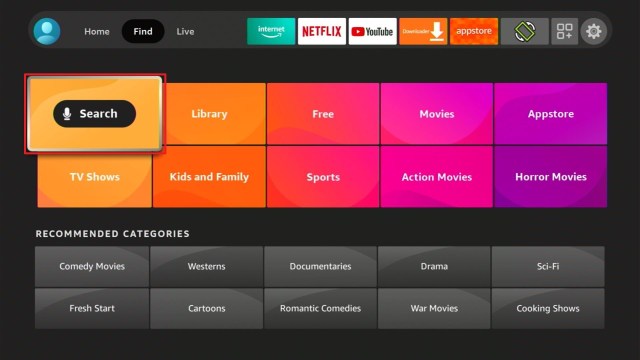
2. Navigate towards the Find tab. Press the Search button from the resulting dropdown.

step 2 Install Surfshark VPN on Firestick


3. Type in the keyword of SurfShark and select from the suggestions that will appear.

step 3 Install Surfshark VPN on Firestick


4. Click the official SurfShark icon from your search results.

step 4 Install Surfshark VPN on Firestick


5. Press the Download (You own it) button.

step 5 Install Surfshark VPN on Firestick


6. The SurfShark VPN installer will download on your device.

step 6 Install Surfshark VPN on Firestick


7. SurfShark VPN’s app will automatically install itself on your Fire TV stick.

step 7 Install Surfshark VPN on Firestick


8. Press the Open button after completing SurfShark VPN’s installation process.

step 8 Install Surfshark VPN on Firestick


9. Please wait for the SurfShark VPN to load its user interface.

step 9 Install Surfshark VPN on Firestick


10. You can now log in with your SurfShark VPN account credentials.

step 10 Install Surfshark VPN on Firestick

Learn more about Surfshark and Grab the Best Surfshark Deal Now!


Install Surfshark on Firestick

Best Surfshark Deal


Other VPNs to Consider

NordVPN (Best for Streaming)

Best Features

  • 5000+ Server in 50+ Countries 
  • Military-Grade Encryption
  • Fast Connection Speed
  • Suitable to a lot of devices
  • No-Log Policy

Prices
  • Complete $5.89 per month (64% Discount)
  • Plus $4.59 per month (56% Discount)
  • Standard $3.69 per month (55% Discount)

Best Features

  • 750+ High-speed VPN Servers in 43 Locations
  • Military-Grade Encryption
  • Fastest HD Streaming and Gaming
  • 30-Day Money-Back Guarantee
  • Unlimited Data & Devices
  • No-Log Policy

Prices
  • 3 Years $1.99 per month (82% Discount)
  • 1 Years $3.29 per month (70% Discount)
  • 1 Month $10.99 per month

IPVanish VPN (Most Secure)

Best Features

  • 1200+ Servers in 60+ Countries around the world
  • Unlimited Connections
  • No-Log Policy
  • Top Notch Military-Grade VPN Protocols and Encryptions
  • 100% Safe and Secured
  • Most Trusted VPN
  • Best VPN for Firestick
  • 30-Day Money-Back Guarantee

Prices
  • Yearly $3.99 per month (63% Discount) – 30 days risk free + Ransomware & Malware Protection
  • Quarterly $5.32 per month (51% Discount)
  • Monthly $10.99 per month


For more VPN discounts, go to ReviewVPN Deals and purchase the best VPN for you.

Click here to get the lowest price on Surfshark through our exclusive limited-time offer.


How to Install Cryptonite Kodi Addon

Overview

In this tutorial, you will learn how to install the Cryptonite Kodi addon. 

Cryptonite Kodi addon has a large database of entertainment such as movies, tv-series, tv shows, tv podcasts, music, Kids’ shows, and lots more. Cryptonite is a Kodi add-on within the TEAM FALCON REPOSITORY. Cryptonite Kodi addon has an ON-DEMAND movie and SPORTS section. This add-on also has a LIVE TV section; however, not all the live channels on the LIVE TV section are playing. 


Legal Disclaimer: ReviewVPN.com does not encourage or endorse any illegal activity involved in the usage of services and applications referenced on this site. We do not verify the licensing agreements of services. The end-user is wholly responsible for ensuring that any media accessed through these services does not violate copyright and/or licensing laws. ReviewVPN does not promote, link to, or receive compensation from any Apps and IPTV services.


ANONYMOUSLY


Features of Cryptonite Kodi Addon

Cryptonite Kodi addon has a large database of movies, music, sports, cartoons, tv shows, tv-series, and lots more. This add-on does not need Real Debrid integration and offers high-definition streaming quality. Cryptonite Kodi addon has a customizable search bar for trending, rating, and new releases. Cryptonite Kodi addon has a huge collection of IMDB movies and a LIVE TV section. This add-on has a user-friendly interface and standard layout.


YOUR INTERNET ACTIVITY IS BEING WATCHED

ReviewVPN cannot attest to the legality, security and privacy of the applications discussed on this site. It is highly recommended that you use a VPN service while streaming or using Kodi.

Currently, your IP 216.73.216.156 is visible to everyone and your Browser is being tracked by Advertisers & ISP Provider.

Save 65% Now

Limited Time Offer

Here are the main reasons why you must use a VPN:

  • Your activities are hidden from your ISP, the government, and from the apps you are using.
  • You can access additional movies and TV streams.
  • ISP attempts to throttle are thrwarted thus reducing buffering issues.
  • Geographically restricted content like Netflix and Hulu can be unblocked.

A VPN works be replacing your ISP-assigned IP address and creating an encrypted tunnel. We recommend the no log service offered by IPVanish. It works well on a Firestick and offers the fastest possible speeds.

Special Limited Time Offer - Get IPVanish


Grab your subscription now!

Click here to get the lowest price on Surfshark through our exclusive limited-time offer.


How to Install Cryptonite Kodi Addon

The installation process of Cryptonite Kodi addon involves the following:

  1. Ensuring that the unknown source is enabled
  2. Installing Falcon repository and then downloading Cryptonite Kodi addon from the repository.


Ensuring that the unknown source is enabled

Before you run any add-on installation on Kodi, figure out if the unknown sources are enabled. If it’s not enabled, follow the below steps to enable it.


Step 1. Open your Kodi app.

Step 2. From the start menu or home menu, scroll up to the setting logo or icon which is located at the top left side of your screen, and click on it.

Step 3. Next, on the new window, scroll down to SYSTEM and select it. 

Step 4. On the SYSTEM window, scroll down to add-ons and navigate to an unknown source.

Step 5. Once you click an unknown source, a warning message will appear, select YES to enable the unknown source. 

Step 6. Once you are done with turning ON the unknown sources, hit the back button on your remote or the backspace or escape key on your keyboard to go back to the home menu or start menu.


Installing falcon repository and then downloading Crytonite Kodi addon

Step 1. From the home menu or start menu, navigate up and locate the setting icon found at the left corner of your Kodi screen and click on it

Step 2. On the new window that will come up, scroll to file manager, and then click on it.

Step 3. On the file manager menu, scroll down to Add source and click on it. 

Step 4. Next, on the new pop-up window, click on <NONE> and enter the media source URL: http://teamfalcon.exposed/repository 

Note:

Double-check the URL to ensure there’s no typo error.

Step 5. Enter a name for this media source. If Kodi already auto-populated a name, just click OK, but if not, enter any name that is easy to remember and then click OK.

Step 6. Hit the backspace or escape key on your keyboard or the back button on your remote to return to the home menu or start menu.

Step 7. From the start menu or home menu, scroll down to add-ons and click on it.

Step 8. Next, on the add-ons window, navigate up to locate the add-on icon and click on it.

Step 9. On the new window that will appear, scroll down to install from and click on it. Navigate to locate the name in which you saved the media source earlier and click on it. Here we used Falcon

Step 10. click on repository.FalconRepo.zip and wait for the repository to complete the installation. A notification will appear at the top right corner of your screen.

Step 11. Select the install from the repository, and click on Falcon Repo

Step 12. Next, on the new window that will appear, click on video add-ons 

Step 13. click on Cryptonite on the new dialog that will appear

Step 14. Select Install on the new window. If you are using a Kodi Leia 18, a pop-up dialog box will appear with “THE FOLLOWING ADDITIONAL ADD-ONS WILL BE INSTALLED” click on OK. 

Step 15. Wait for the installation to complete.


Install Cryptonite Kodi addon with Screenshots

 1. From the home screen, select the cogwheel at the upper left.

Step 1 Install Cryptonite on kodi

2. Select System in the bottom right corner.

Step 2 Install Cryptonite on kodi


3. Hover Add-ons on the left side of the screen.  Select Unknown sources.

Step 3 Install Cryptonite on kodi


4. Click Yes to allow unknown sources.

Step 4 Install Cryptonite on kodi


5. Take one step back, Select File manager.

Step 5 Install Cryptonite on kodi


6. Click Add source.

Step 6 Install Cryptonite on kodi


7. Click on <None>.

Step 7 Install Cryptonite on kodi


8. Type in http:/teamfalcon.exposed/repository

Step 8 Install Cryptic on kodi


9. Click on OK.

Step 9 Install Cryptic on kodi


10. Select Enter a name for this media source.

Step 10 Install Cryptic on kodi


11. The name is Cryptonite. (You may choose a different name that is suitable for you).

Step 11 Install Cryptonite on kodi


12. Click on OK.

Step 12 Install Cryptonite on kodi


13. Click on OK again.

Step 13 Install Cryptonite on kodi


14. Select Addons.

Step 14 Install Cryptonite on kodi


15. Select install from zip file.

Step 15 Install Cryptonite on kodi


16. Click on Cryptonite (or whatever you named the source).

Step 16 Install Cryptonite on kodi


17. Click on repository.FalconRepo.zip

Step 17 Install Cryptonite on kodi


18. Once the installation is completed, a pop message will appear.

Step 18 Install Cryptonite on kodi


19. Select on Install from repository.

Step 19 Install Cryptonite on kodi


20. Click on Falcon Repo.

Step 20 Install Cryptonite on kodi


21. Pick Video add-ons.

Step 21 Install Cryptonite on kodi


22. Select Cryptonite.

Step 22 Install Cryptonite on kodi


23. Click on Install.

Step 23 Install Cryptonite on kodi


24. Select OK after reviewing the addons that will be installed.

Step 24 Install Cryptonite on kodi


25. You should see a popup in the upper right corner saying Cryptonite has installed. There will actually be multiple popups for the various components.

Step 25 Install Cryptonite on kodi


26. Click on Cryptonite.

Step 26 Install Cryptonite on kodi


27. Click on Open to start the Cryptonite addon.

Step 27 Install Cryptonite on kodi


Install Surfshark on Firestick

Best Surfshark Deal


Use a VPN

we recommend using a VPN whenever you are accessing the internet or streaming with Kodi. VPN helps to keep your IP address secure and private. The best VPN that will ensure your online privacy and security is.


Don’t Use Kodi Without a VPN

Streaming content online on Kodi without a VPN makes your online information public on the ISP network. We recommend using Surfshark as it offers the highest online security and privacy.


How to Install Surfshark VPN on Firestick

If your Firestick still has the older interface, read this article to learn how to update it: Update Firestick Interface.

Follow our screenshots below to install the SurfShark VPN app on your Fire TV stick.

1. Go to the Home screen of your Firestick.

step 1 Install Surfshark VPN on Firestick


2. Navigate towards the Find tab. Press the Search button from the resulting dropdown.

step 2 Install Surfshark VPN on Firestick


3. Type in the keyword of SurfShark and select from the suggestions that will appear.

step 3 Install Surfshark VPN on Firestick


4. Click the official SurfShark icon from your search results.

step 4 Install Surfshark VPN on Firestick


5. Press the Download (You own it) button.

step 5 Install Surfshark VPN on Firestick


6. The SurfShark VPN installer will download on your device.

step 6 Install Surfshark VPN on Firestick


7. SurfShark VPN’s app will automatically install itself on your Fire TV stick.

step 7 Install Surfshark VPN on Firestick


8. Press the Open button after completing SurfShark VPN’s installation process.

step 8 Install Surfshark VPN on Firestick


9. Please wait for the SurfShark VPN to load its user interface.

step 9 Install Surfshark VPN on Firestick


10. You can now log in with your SurfShark VPN account credentials.

step 10 Install Surfshark VPN on Firestick

Learn more about Surfshark and Grab the Best Surfshark Deal Now!


Install Surfshark on Firestick

Best Surfshark Deal


Other VPNs to Consider

NordVPN (Best for Streaming)

Best Features

  • 5000+ Server in 50+ Countries 
  • Military-Grade Encryption
  • Fast Connection Speed
  • Suitable to a lot of devices
  • No-Log Policy

Prices
  • Complete $5.89 per month (64% Discount)
  • Plus $4.59 per month (56% Discount)
  • Standard $3.69 per month (55% Discount)

Best Features

  • 750+ High-speed VPN Servers in 43 Locations
  • Military-Grade Encryption
  • Fastest HD Streaming and Gaming
  • 30-Day Money-Back Guarantee
  • Unlimited Data & Devices
  • No-Log Policy

Prices
  • 3 Years $1.99 per month (82% Discount)
  • 1 Years $3.29 per month (70% Discount)
  • 1 Month $10.99 per month

IPVanish VPN (Most Secure)

Best Features

  • 1200+ Servers in 60+ Countries around the world
  • Unlimited Connections
  • No-Log Policy
  • Top Notch Military-Grade VPN Protocols and Encryptions
  • 100% Safe and Secured
  • Most Trusted VPN
  • Best VPN for Firestick
  • 30-Day Money-Back Guarantee

Prices
  • Yearly $3.99 per month (63% Discount) – 30 days risk free + Ransomware & Malware Protection
  • Quarterly $5.32 per month (51% Discount)
  • Monthly $10.99 per month


For more VPN discounts, go to ReviewVPN Deals and purchase the best VPN for you.

Click here to get the lowest price on Surfshark through our exclusive limited-time offer.


How to Install Uranus Kodi Addon

Overview

In this guide, you will learn how to install Uranus Kodi addon. Uranus Kodi addon is an add-on within the CY4ROOT repository. It has tons of streaming links and requires Real Debrid integration for the best streaming quality. Uranus Kodi add-on has sections such as:

TV shows, TV series, movies, playlist, search, What the for, critters corner, and lots more.


Legal Disclaimer: ReviewVPN.com does not encourage or endorse any illegal activity involved in the usage of services and applications referenced on this site. We do not verify the licensing agreements of services. The end-user is wholly responsible for ensuring that any media accessed through these services does not violate copyright and/or licensing laws. ReviewVPN does not promote, link to, or receive compensation from any Apps and IPTV services.


ANONYMOUSLY


Features of Uranus Kodi Addon

  • Huge library of HD movies, entertainment, Tv series, sports shows and so much more
  • Entertainment, music, documentaries and more
  • Sports channels, live radio, live TV and lots more
  • Real Debrid integration for optimal streaming
  • Daily add-on update with a customizable searching box for category, rating, popularity, and trending
  • User friendly and easy to navigate interface
  • A large collection of categories and subcategories


Step by Step Guide on How to Install Uranus Kodi Addon

Before you begin the process of installing Uranus Kodi add-on, check if the UNKNOWN SOURCES is enabled on your Kodi app, if it’s not enabled, do the following to enable it:

Launch your Kodi app and from the home screen, scroll up to the top left corner of your screen, and select the SETTING icon. 

On the new window that will appear after you click on SYSTEM and scroll down to ADD-ONS and then navigate to UNKNOWN SOURCES and on the warning message that will appear, select YES and double click on the ESC or BACKSPACE button on your computer keyboard or BACK key on your remote to return to the homepage. 

  1. From the home screen or main menu, scroll up again to the SETTING icon and navigate to the FILE manager.
  2. Click on file manager and scroll down to add source
  3. Click on add source and the new window click on <NONE> and enter the media source URL: https://cy4root2.github.io/zip and then click OK. 


Install Surfshark on Firestick

Best Surfshark Deal


YOUR INTERNET ACTIVITY IS BEING WATCHED

ReviewVPN cannot attest to the legality, security and privacy of the applications discussed on this site. It is highly recommended that you use a VPN service while streaming or using Kodi.

Currently, your IP 216.73.216.156 is visible to everyone and your Browser is being tracked by Advertisers & ISP Provider.

Save 65% Now

Limited Time Offer

Here are the main reasons why you must use a VPN:

  • Your activities are hidden from your ISP, the government, and from the apps you are using.
  • You can access additional movies and TV streams.
  • ISP attempts to throttle are thrwarted thus reducing buffering issues.
  • Geographically restricted content like Netflix and Hulu can be unblocked.

A VPN works be replacing your ISP-assigned IP address and creating an encrypted tunnel. We recommend the no log service offered by IPVanish. It works well on a Firestick and offers the fastest possible speeds.

Special Limited Time Offer - Get IPVanish


Note: ensure you enter correctly the URL; crosscheck before clicking Ok

  1. Enter the name for the media source and click OK (if the name appears automatically, just click on it).
  2. Click on the back button on your remote or the backspace or ESC key to return to the home screen or main menu.
  3. From the home screen, click on Add-ons, and on the new window that will appear, scroll up to the top left corner of your screen and select the add-on installer icon. 
  4. Next, on the new window, scroll down to INSTALL FROM ZIP FILE and click on it. Scroll down to locate the name you used to save the media source and click on it (remember, we used cy4root). On the new window, click on repository.cy4root-master.zip and wait for the installation to complete (a notification message will appear at the top left corner of your screen).
  5. Select INSTALL FROM REPOSITORY and on the scroll down to cy4root Repository and click on it. 
  6. Next, on the new window, click on Video add-on and click on Uranus.
  7. Scroll down to INSTALL.
  8. Next, you will see a notification message that says “the following additional add-ons will be installed” select OK.
  9. Wait for the installation to complete. Once the installation is completed, return to your home screen by clicking the back button on your remote or backspace or ESC key on your keyboard.


Install Uranus Kodi addon with Screenshots

 1. From the home screen, select the cogwheel at the upper left.

Step 1 Install Uranus on kodi

2. Select System in the bottom right corner.

Step 2 Install Uranus on kodi


3. Hover Add-ons on the left side of the screen.  Select Unknown sources.

Step 3 Install Uranus on kodi


4. Click Yes to allow unknown sources.

Step 4 Install Uranus on kodi


5. Take one step back, Select File manager.

Step 5 Install Uranus on kodi


6. Click Add source.

Step 6 Install Uranus on kodi


7. Click on <None>.

Step 7 Install Uranus on kodi


8. Type exactly: https://cy4root2.github.io/zip/

Step 8 Install Uranus on kodi


9. Click on OK.

Step 9 Install Uranus on kodi


10. Select enter a name for this media source.

Step 10 Install Uranus on kodi


11. Name is Uranus (this part isn’t critical as long as you remember the name).

Step 11 Install Uranus on kodi


12. Click on OK.

Step 12 Install Uranus on kodi


13. Click on OK.

Step 13 Install Uranus on kodi


14. Take one step back and click on Add-ons.

Step 13 Install Uranus on kodi


15. Select install from zip file.

Step 15 Install Uranus on kodi


16. Click on Uranus (or whatever you named the source).

Step 16 Install Uranus on kodi


17. Click on repository.cy4root-master.zip

Step 17 Install Uranus on kodi


18. Once the installation is completed, a pop message will appear.

Step 18 Install Uranus on kodi


19. Select on Install from repository.

Step 19 Install Uranus on kodi


20. Click on Cy4root  Repo.

Step 20 Install Uranus on kodi


21. Pick Video add-ons.

Step 21 Install Uranus on kodi


22. Select Uranus.

Step 22 Install Uranus on kodi


23. Click on Install.

Step 23 Install Uranus on kodi


24. Select OK after reviewing the addons that will be installed.

Step 24 Install Uranus on kodi


25. You should see a popup in the upper right corner saying Uranus has installed. There will actually be multiple popups for the various components.

Step 25 Install Uranus on kodi


26. Click on Uranus.

Step 26 Install Uranus on kodi


27. Click on Open to start the Uranus addon.

Step 27 Install Uranus on kodi


Install Surfshark on Firestick

Best Surfshark Deal


How to Use Uranus Kodi Add-on

  1. From the home screen or main menu, click on add-ons 
  2. Click on video add-ons 
  3. Click on Uranus Kodi add-on


Use a VPN

We recommend using a VPN whenever you are streaming on Kodi. Surfshark offers the highest online security and helps you to bypass geolocation and ISP throttling. Also, Surfshark encrypts your IP address making you appear anonymous on the internet service provider network.


How to Install Surfshark VPN on Firestick

If your Firestick still has the older interface, read this article to learn how to update it: Update Firestick Interface.

Follow our screenshots below to install the SurfShark VPN app on your Fire TV stick.

1. Go to the Home screen of your Firestick.

step 1 Install Surfshark VPN on Firestick


2. Navigate towards the Find tab. Press the Search button from the resulting dropdown.

step 2 Install Surfshark VPN on Firestick


3. Type in the keyword of SurfShark and select from the suggestions that will appear.

step 3 Install Surfshark VPN on Firestick


4. Click the official SurfShark icon from your search results.

step 4 Install Surfshark VPN on Firestick


5. Press the Download (You own it) button.

step 5 Install Surfshark VPN on Firestick


6. The SurfShark VPN installer will download on your device.

step 6 Install Surfshark VPN on Firestick


7. SurfShark VPN’s app will automatically install itself on your Fire TV stick.

step 7 Install Surfshark VPN on Firestick


8. Press the Open button after completing SurfShark VPN’s installation process.

step 8 Install Surfshark VPN on Firestick


9. Please wait for the SurfShark VPN to load its user interface.

step 9 Install Surfshark VPN on Firestick


10. You can now log in with your SurfShark VPN account credentials.

step 10 Install Surfshark VPN on Firestick

Learn more about Surfshark and Grab the Best Surfshark Deal Now!


Install Surfshark on Firestick

Best Surfshark Deal


Other VPNs to Consider

NordVPN (Best for Streaming)

Best Features

  • 5000+ Server in 50+ Countries 
  • Military-Grade Encryption
  • Fast Connection Speed
  • Suitable to a lot of devices
  • No-Log Policy

Prices
  • Complete $5.89 per month (64% Discount)
  • Plus $4.59 per month (56% Discount)
  • Standard $3.69 per month (55% Discount)

Best Features

  • 750+ High-speed VPN Servers in 43 Locations
  • Military-Grade Encryption
  • Fastest HD Streaming and Gaming
  • 30-Day Money-Back Guarantee
  • Unlimited Data & Devices
  • No-Log Policy

Prices
  • 3 Years $1.99 per month (82% Discount)
  • 1 Years $3.29 per month (70% Discount)
  • 1 Month $10.99 per month

IPVanish VPN (Most Secure)

Best Features

  • 1200+ Servers in 60+ Countries around the world
  • Unlimited Connections
  • No-Log Policy
  • Top Notch Military-Grade VPN Protocols and Encryptions
  • 100% Safe and Secured
  • Most Trusted VPN
  • Best VPN for Firestick
  • 30-Day Money-Back Guarantee

Prices
  • Yearly $3.99 per month (63% Discount) – 30 days risk free + Ransomware & Malware Protection
  • Quarterly $5.32 per month (51% Discount)
  • Monthly $10.99 per month


For more VPN discounts, go to ReviewVPN Deals and purchase the best VPN for you.

Click here to get the lowest price on Surfshark through our exclusive limited-time offer.

 

Conclusion

Uranus Kodi add-on offers great entertainment features for you to choose from. If you are looking for a great Kodi add-on then Uranus is for you.

How to Install Cryptic Kodi Addon

Cryptic Kodi Addon Overview

In this article, we will help you install Cryptic Kodi Addon on Firestick.


Cryptic Kodi addon gives an extensive series of entertaining content on Kodi. This add-on has a special feature which is divided into; Movies, Disney Movies, New Releases, IMDB Top 100 Movies, Tv-Shows, Music, Cartoon, and many more interesting packages. 

This add-on can be found within the Team falcon repository and also offers 4K movies, TV shows, and TV series. This amazing add-on appeals to users of different age groups concerning the kind of feature it offers. The cryptic addon has numerous categories which include cryptic top 100 movies, cryptic movies, Disney movies, cryptic documentaries, cryptic TV shows, cryptic Kids’ shows, cryptic Telecast, animated movies, cryptic blockbuster movies, and lots more. The cryptic addon can be installed on all Kodi-supported devices.


ANONYMOUSLY

Enable “Unknown Source”

Before installing this add-on on Kodi, we recommend enabling the unknown source in your Kodi. Follow the below steps to enable the Unknown source:

  • Launch your Kodi app. scroll up to the setting icon and click on it. 
  • on the new window, scroll down to System and click on Add-on and select the unknown source. 
  • Click on the unknown source option and select YES.


Steps on How to Download and Install Cryptic Addon

Step 1:  Launch the Kodi app. Then go to the setting which is seen on the top left corner of your screen.

Step 2:  Click on the File Manager option.

Step 3:  Proceed to select the option that reads; Add Source

Step 4:  Now select <NONE> option on the Add Source windows and click OK

Step 5:  Move on to type in the URL of the crypto repo: “http:/teamfalcon.exposed/repository” then click OK.

Step 6:  Input Teamfalcon as the name of the repository then click OK (You may choose a different name that is suitable for you). It is very important to check if the URL and the name of the repository are correct before proceeding. After checking, if it is correct click on OK.

Step 7:  After following the above procedures, Go back to the main menu screen by hitting the backspace key on your keyboard twice. When you get to the main menu screen, click on the Addon option that is located on the left side of the screen.

Step 8:  When the Addon window opens, you will find the Package Installer Icon on the top left corner of the screen. Click it.

Step 10:  Proceed to select the option that says “Install from Zip File”.

Step 11:  Having completed the previous step, Select the repositories name which is Teamfalcon, or the name you used.

Step 12:  Click on the proper Zip file “repository.FalconRepo.zip” of the repository and press the OK button.

Step 13:  Have some patience until the installation of the addon is completed on your device. When the Addon finishes installing, there will be a pop-up message that will appear on the right corner of the screen.

Step 14:  When you see the popup, select an option that says “Install from repository”.

Step 15:  Move on to select the Falcon Repo.

Step 16:  From there Open the “video addon”

Step 17:  After opening the video addon you will find Cryptic, click on it.

Step 18:  Proceed to install the Addon on your Kodi player.

Step 19:  If you make use of Kodi 18 Leia, a pop up will be displayed and in this popup, there are different addons, Just click OK to install.


YOUR INTERNET ACTIVITY IS BEING WATCHED

ReviewVPN cannot attest to the legality, security and privacy of the applications discussed on this site. It is highly recommended that you use a VPN service while streaming or using Kodi.

Currently, your IP 216.73.216.156 is visible to everyone and your Browser is being tracked by Advertisers & ISP Provider.

Save 65% Now

Limited Time Offer

Here are the main reasons why you must use a VPN:

  • Your activities are hidden from your ISP, the government, and from the apps you are using.
  • You can access additional movies and TV streams.
  • ISP attempts to throttle are thrwarted thus reducing buffering issues.
  • Geographically restricted content like Netflix and Hulu can be unblocked.

A VPN works be replacing your ISP-assigned IP address and creating an encrypted tunnel. We recommend the no log service offered by IPVanish. It works well on a Firestick and offers the fastest possible speeds.

Special Limited Time Offer - Get IPVanish


Legal Disclaimer: ReviewVPN.com does not encourage or endorse any illegal activity involved in the usage of services and applications referenced on this site. We do not verify the licensing agreements of services. The end-user is wholly responsible for ensuring that any media accessed through these services does not violate copyright and/or licensing laws. ReviewVPN does not promote, link to, or receive compensation from any Apps and IPTV services.


Install Surfshark on Firestick

Best Surfshark Deal


Install Cryptic Kodi Addon with Screenshots

 1. From the home screen, select the cogwheel at the upper left.

Step 1 Install Cryptic on kodi


2. Select System in the bottom right corner.

Step 2 Install Cryptic on kodi


3. Hover Add-ons on the left side of the screen.  Select Unknown sources.

Step 3 Install Cryptic on kodi


4. Click Yes to allow unknown sources.

Step 4 Install Cryptic on kodi


5. Take one step back, Select File manager.

Step 5 Install Cryptic on kodi


6. Click Add source.

Step 6 Install Cryptic on kodi


7. Click on <None>.

Step 7 Install Cryptic on kodi


8. Type in http:/teamfalcon.exposed/repository

Step 8 Install Cryptic on kodi


9. Click on OK.

Step 9 Install Cryptic on kodi


10. Select Enter a name for this media source.

Step 10 Install Cryptic on kodi


11. The name is Cryptic. (You may choose a different name that is suitable for you).

Step 11 Install Cryptic on kodi


12. Click on OK.

Step 12 Install Cryptic on kodi


13. Click on OK again.

Step 13 Install Cryptic on kodi


14. Select Addons.

Step 14 Install Cryptic on kodi


15. Select install from zip file.

Step 15 Install Cryptic on kodi


16. Click on Cryptic (or whatever you named the source).

Step 16 Install Cryptic on kodi


17. Click on repository.FalconRepo.zip

Step 17 Install Cryptic on kodi


18. Once the installation is completed, a pop message will appear.

Step 18 Install Cryptic on kodi


19. Select on Install from repository.

Step 19 Install Cryptic on kodi


20. Click on Falcon Repo.

Step 20 Install Cryptic on kodi


21. Pick Video add-ons.

Step 21 Install Cryptic on kodi


22. Select Cryptic.

Step 22 Install Cryptic on kodi


23. Click on Install.

Step 23 Install Cryptic on kodi


24. Select OK after reviewing the addons that will be installed.

Step 24 Install Cryptic on kodi


25. You should see a popup in the upper right corner saying Cryptic has installed. There will actually be multiple popups for the various components.

Step 25 Install Cryptic on kodi


26. Click on Cryptic.

Step 26 Install Cryptic on kodi


27. Click on Open to start the Cryptic addon.

Step 27 Install Cryptic on kodi


Always Use a VPN On Kodi

It is advisable to install a VPN on your streaming device. This is because any time you are streaming content online, your online data is vulnerable and you are being monitored on the internet service provider’s network. 

Not only that, but you will also experience location restrictions. Using a VPN will save you that headache and stress and you will be safe and secure while streaming content online. We recommend Surfshark as it offers high security and privacy with a zero-log policy with DNS leak protection. 

Note: For more information about Surfshark, please read our Surfshark Review.


Grab your subscription now!


How to Install Surfshark VPN on Firestick

If your Firestick still has the older interface, read this article to learn how to update it: Update Firestick Interface.

Follow our screenshots below to install the SurfShark VPN app on your Fire TV stick.

1. Go to the Home screen of your Firestick.

step 1 Install Surfshark VPN on Firestick


2. Navigate towards the Find tab. Press the Search button from the resulting dropdown.

step 2 Install Surfshark VPN on Firestick


3. Type in the keyword of SurfShark and select from the suggestions that will appear.

step 3 Install Surfshark VPN on Firestick


4. Click the official SurfShark icon from your search results.

step 4 Install Surfshark VPN on Firestick


5. Press the Download (You own it) button.

step 5 Install Surfshark VPN on Firestick


6. The SurfShark VPN installer will download on your device.

step 6 Install Surfshark VPN on Firestick


7. SurfShark VPN’s app will automatically install itself on your Fire TV stick.

step 7 Install Surfshark VPN on Firestick


8. Press the Open button after completing SurfShark VPN’s installation process.

step 8 Install Surfshark VPN on Firestick


9. Please wait for the SurfShark VPN to load its user interface.

step 9 Install Surfshark VPN on Firestick


10. You can now log in with your SurfShark VPN account credentials.

step 10 Install Surfshark VPN on Firestick

Learn more about Surfshark and Grab the Best Surfshark Deal Now!


Install Surfshark on Firestick

Best Surfshark Deal


Other VPNs to Consider

NordVPN (Best for Streaming)

Best Features

  • 5000+ Server in 50+ Countries 
  • Military-Grade Encryption
  • Fast Connection Speed
  • Suitable to a lot of devices
  • No-Log Policy

Prices
  • Complete $5.89 per month (64% Discount)
  • Plus $4.59 per month (56% Discount)
  • Standard $3.69 per month (55% Discount)

Best Features

  • 750+ High-speed VPN Servers in 43 Locations
  • Military-Grade Encryption
  • Fastest HD Streaming and Gaming
  • 30-Day Money-Back Guarantee
  • Unlimited Data & Devices
  • No-Log Policy

Prices
  • 3 Years $1.99 per month (82% Discount)
  • 1 Years $3.29 per month (70% Discount)
  • 1 Month $10.99 per month

IPVanish VPN (Most Secure)

Best Features

  • 1200+ Servers in 60+ Countries around the world
  • Unlimited Connections
  • No-Log Policy
  • Top Notch Military-Grade VPN Protocols and Encryptions
  • 100% Safe and Secured
  • Most Trusted VPN
  • Best VPN for Firestick
  • 30-Day Money-Back Guarantee

Prices
  • Yearly $3.99 per month (63% Discount) – 30 days risk free + Ransomware & Malware Protection
  • Quarterly $5.32 per month (51% Discount)
  • Monthly $10.99 per month


For more VPN discounts, go to ReviewVPN Deals and purchase the best VPN for you.

Click here to get the lowest price on Surfshark through our exclusive limited-time offer.


How to Install Laplaza Kodi Addon

Overview

This tutorial will teach you how to install Laplaza Kodi Addon. Laplaza is an add-on within the CY4ROOT repository. To use the Laplaza Kodi Addon, you need to have a Real Debrid account. 

This add-n has a huge database of movies, anime, cartoons, tv shows, tv series, Kids shows, music, fitness zone, documentaries, radio, and lots more. Laplaza Kodi Addon has an IPTV section and supports TrakTV.


Legal Disclaimer: ReviewVPN.com does not encourage or endorse any illegal activity involved in the usage of services and applications referenced on this site. We do not verify the licensing agreements of services. The end-user is wholly responsible for ensuring that any media accessed through these services does not violate copyright and/or licensing laws. ReviewVPN does not promote, link to, or receive compensation from any Apps and IPTV services.


ANONYMOUSLY


Features of Laplaza Kodi Add-on

  • Real Debrid integration 
  • Categories and subcategories of movies and entertainments
  • A large collection of tv shows, tv series, wor out sections, movies, music, cartoon, and lots more.
  • Customizable search bar for popularity, rating, trending, and new release 
  • IMDB movies.


YOUR INTERNET ACTIVITY IS BEING WATCHED

ReviewVPN cannot attest to the legality, security and privacy of the applications discussed on this site. It is highly recommended that you use a VPN service while streaming or using Kodi.

Currently, your IP 216.73.216.156 is visible to everyone and your Browser is being tracked by Advertisers & ISP Provider.

Save 65% Now

Limited Time Offer

Here are the main reasons why you must use a VPN:

  • Your activities are hidden from your ISP, the government, and from the apps you are using.
  • You can access additional movies and TV streams.
  • ISP attempts to throttle are thrwarted thus reducing buffering issues.
  • Geographically restricted content like Netflix and Hulu can be unblocked.

A VPN works be replacing your ISP-assigned IP address and creating an encrypted tunnel. We recommend the no log service offered by IPVanish. It works well on a Firestick and offers the fastest possible speeds.

Special Limited Time Offer - Get IPVanish


Grab your subscription now!

Click here to get the lowest price on Surfshark through our exclusive limited-time offer.


Step by Step Guide on How to Install Laplaza Kodi Addon

The installation of Laplaza Kodi Addon involves two major steps:

  • Enable or Turn ON the unknown source 
  • Installing the Laplaza Addon on Kodi


Enable or Turn ON the Unknown Sources

Step 1. Launch your Kodi app.

Step 2. From the home screen or home menu, navigate up to locate the Setting icon, and click on it.

Step 3. Next, on the new window, scroll down to add-ons and navigate to unknown sources

Step 4. click on the unknown sources and a warning message will appear, select YES to enable the unknown source option. 

Step 5. On your remote press the back button or the ESC/backspace key on your keyboard to return to the home menu or home screen.


Installing the Laplaza Addon on Kodi

Step 1. From the home menu or home screen, navigate up to the setting icon, and click on it. 

Step 2. On the new window, select “File manager”.

Step 3. Next, on the dialog box that will appear, scroll down to add source and click on it.

Step 4. On the new window, click on <NONE> and enter the media source URL: https://cy4root2.github.io/zip/ (ensure you enter the media source URL correctly as any typo error will prevent the installation and once done, click OK.

Step 5. Highlight the dialog box where you will be prompted to enter a name for the media source. 

Note:

If Kodi auto-populated a name already, just click OK to continue but if not, you may choose any name you want and then click OK.

Step 6. Use the back button your remote or the backspace/ESC key on your keyboard to go back to the home menu or home screen.

Step 7. From the home menu, click on add-ons, and on the new window that will appear, scroll up to locate the add-on icon/installer and click on it. 

Step 8. Next on the new window, select the options that say “INSTALL FROM ZIP FILE.

Step 9. On the new window that will come up, locate the name which you saved the media source with. 

Step 10. click on this zip file URL: repository.cy4root-master.zip and wait for a message that reads “cy4root Repository Add-on installed” at the top right corner of your screen.

Step 11. click on INSTALL FROM REPOSITORY and scroll to locate “cy4root Repository” and click on it. 

Step 12. On the new window, click on video add-ons and select “Laplaza”

Step 13. click on install 

Note:

If you are using Kodi Leia 18, a dialog box will appear with “THE FOLLOWING ADDITIONAL ADD-ON WILL BE INSTALLED”, click Ok, and wait for the installation to complete.


Install Laplaza Kodi Addon with Screenshots

 1. From the home screen, select the cogwheel at the upper left.

Step 1 Install Laplaza on kodi

2. Select System in the bottom right corner.

Step 2 Install Laplaza on kodi


3. Hover Add-ons on the left side of the screen.  Select Unknown sources.

Step 3 Install Laplaza on kodi


4. Click Yes to allow unknown sources.

Step 4 Install Laplaza on kodi


5. Take one step back, Select File manager.

Step 5 Install Laplaza on kodi


6. Click Add source.

Step 6 Install Laplaza on kodi


7. Click on <None>.

Step 7 Install Laplaza on kodi


8. Type exactly: https://cy4root2.github.io/zip/

Step 8 Install Laplaza on kodi


9. Click on OK.

Step 9 Install Laplaza on kodi


10. Select enter a name for this media source.

Step 10 Install Laplaza on kodi


11. Name is Laplaza (this part isn’t critical as long as you remember the name).

Step 11 Install Laplaza on kodi


12. Click on OK.

Step 12 Install Laplaza on kodi


13. Click on OK.

Step 13 Install Laplaza on kodi


14. Take one step back and click on Add-ons.

Step 14 Install Laplaza on kodi


15. Select install from zip file.

Step 15 Install Laplaza on kodi


16. Click on Laplaza (or whatever you named the source).

Step 16 Install Laplaza on kodi


17. Click on repository.cy4root-master.zip

Step 17 Install Laplaza on kodi


18. Once the installation is completed, a pop message will appear.

Step 18 Install Laplaza on kodi


19. Select on Install from repository.

Step 19 Install Laplaza on kodi


20. Click on Cy4root  Repo.

Step 20 Install Laplaza on kodi


21. Pick Video add-ons.

Step 21 Install Laplaza on kodi


22. Select Laplaza.

Step 22 Install Laplaza on kodi


23. Click on Install.

Step 23 Install Laplaza on kodi


24. Select OK after reviewing the addons that will be installed.

Step 24 Install Laplaza on kodi


25. You should see a popup in the upper right corner saying Laplaza has installed. There will actually be multiple popups for the various components.

Step 25 Install La Plaza on Kodi


26. Click on Laplaza.

Step 26 Install La Plaza on Kodi


27. Click on Open to start the Laplaza addon.

Step 27 Install La Plaza on Kodi


Install Surfshark on Firestick

Best Surfshark Deal


Use a VPN

We recommend using Surfshark while using the Kodi app. This is to stay private and anonymous on the ISP network while streaming with the Kodi app.


How to Install Surfshark VPN on Firestick

If your Firestick still has the older interface, read this article to learn how to update it: Update Firestick Interface.

Follow our screenshots below to install the SurfShark VPN app on your Fire TV stick.

1. Go to the Home screen of your Firestick.

step 1 Install Surfshark VPN on Firestick


2. Navigate towards the Find tab. Press the Search button from the resulting dropdown.

step 2 Install Surfshark VPN on Firestick


3. Type in the keyword of SurfShark and select from the suggestions that will appear.

step 3 Install Surfshark VPN on Firestick


4. Click the official SurfShark icon from your search results.

step 4 Install Surfshark VPN on Firestick


5. Press the Download (You own it) button.

step 5 Install Surfshark VPN on Firestick


6. The SurfShark VPN installer will download on your device.

step 6 Install Surfshark VPN on Firestick


7. SurfShark VPN’s app will automatically install itself on your Fire TV stick.

step 7 Install Surfshark VPN on Firestick


8. Press the Open button after completing SurfShark VPN’s installation process.

step 8 Install Surfshark VPN on Firestick


9. Please wait for the SurfShark VPN to load its user interface.

step 9 Install Surfshark VPN on Firestick


10. You can now log in with your SurfShark VPN account credentials.

step 10 Install Surfshark VPN on Firestick

Learn more about Surfshark and Grab the Best Surfshark Deal Now!


Install Surfshark on Firestick

Best Surfshark Deal


Other VPNs to Consider

NordVPN (Best for Streaming)

Best Features

  • 5000+ Server in 50+ Countries 
  • Military-Grade Encryption
  • Fast Connection Speed
  • Suitable to a lot of devices
  • No-Log Policy

Prices
  • Complete $5.89 per month (64% Discount)
  • Plus $4.59 per month (56% Discount)
  • Standard $3.69 per month (55% Discount)

Best Features

  • 750+ High-speed VPN Servers in 43 Locations
  • Military-Grade Encryption
  • Fastest HD Streaming and Gaming
  • 30-Day Money-Back Guarantee
  • Unlimited Data & Devices
  • No-Log Policy

Prices
  • 3 Years $1.99 per month (82% Discount)
  • 1 Years $3.29 per month (70% Discount)
  • 1 Month $10.99 per month

IPVanish VPN (Most Secure)

Best Features

  • 1200+ Servers in 60+ Countries around the world
  • Unlimited Connections
  • No-Log Policy
  • Top Notch Military-Grade VPN Protocols and Encryptions
  • 100% Safe and Secured
  • Most Trusted VPN
  • Best VPN for Firestick
  • 30-Day Money-Back Guarantee

Prices
  • Yearly $3.99 per month (63% Discount) – 30 days risk free + Ransomware & Malware Protection
  • Quarterly $5.32 per month (51% Discount)
  • Monthly $10.99 per month


For more VPN discounts, go to ReviewVPN Deals and purchase the best VPN for you.

Click here to get the lowest price on Surfshark through our exclusive limited-time offer.


How to Use LapLaza Add-on

After installation, click on the back button on your remote, or the ESC or backspace key on your keyboard to return back to the home menu or home screen.

From the home menu, click on the add-on and navigate to video add-ons; LapLaza Kodi add-on is found on that section of the ODI.

How to Install Descent Kodi Addon

Descent Kodi Addon

In this guide, you will learn how to install the Descent Kodi addon. Descent Kodi add-on is a popular add-on with a large database of entertainment such as movies, music (both audio and video), kids shows, documentaries, and prerecorded sports shows (basketball, soccer, and cricket).


Legal Disclaimer: ReviewVPN.com does not encourage or endorse any illegal activity involved in the usage of services and applications referenced on this site. We do not verify the licensing agreements of services. The end-user is wholly responsible for ensuring that any media accessed through these services does not violate copyright and/or licensing laws. ReviewVPN does not promote, link to, or receive compensation from any Apps and IPTV services.


ANONYMOUSLY


The installation of this add-on is very easy and will only take you a few minutes with the following steps:


How to Install Descent Kodi Addon

To begin the installation process, make sure that the UNKNOWN SOURCE on your Kodi is turned ON. If it’s not turned ON, you can do so by launching your Kodi app; Once your Kodi app is already running, scroll up to where the SETTING ICON is located and click on it. It will take you to a new window; on the options that will appear, select SYSTEM and scroll down to Add-on option once you click on Add-on; a dialog box will appear; on the new dialog box, navigate to Unknown source. A warning message will appear, click YES. Once you clicked YES, you can return to the main menu or home screen by pressing the BACKSPACE OR ESC button on your keyboard.

  1. Click again the setting icon (you can find the setting icon at the top left corner of your screen). 
  2. On the new window that will come out, navigate to File Manager, and click on it. Once you click on the file manager, a new dialog window will appear. Scroll down to Add source.
  3. Next, on the new window that will appear, click on <NONE>. Once you click on <NONE>, a dialog box where you will enter this URL: https://cy4root2.github.io/zip/ (ensure that there’s no typo error when entering the URL and if a name appears automatically, just click OK) and when done, click Ok.
  4. Enter an easy to remember the name on the second box (Here we used “cy4root” and select Ok.
  5. Click on the ESC or BACKSPACE button to go back to the main menu or home screen. 
  6. On the main menu or home screen, click on the Add-on option and then scroll up to where the Add-on icon is located. When you find the Add-on icon, click on it.
  7. On the new window that will come out, scroll down to INSTALL FROM ZIP and navigate to find “cy4root or the name you saved the media source URL with earlier. Once you find it, click on it.
  8. Select; repository.cy4root-master.zip and wait for the zip repo to finish the installation. Once done, you will get a message as “cy4root repository add-on installed” (this will appear at the top right corner of your screen)
  9. Select INSTALL FROM REPOSITORY and on the new window, click on the cy4root repository.
  10. Navigate down on the new pop-up window and click on video add-on
  11. Once you click on video add-on, scroll up or down to find “Descent”
  12. Select INSTALL 
  13. For those using the latest version of the Kodi app, a dialog message will appear “THE FOLLOWING ADDITIONAL ADD-ON WILL BE INSTALLED” select OK. You may see a pop-up message like “YouTube: execute wizard? Select NO 
  14. Wait for the installation to complete. Once done, you will get a notification message shown at the top right corner of your screen.


Install Surfshark on Firestick

Best Surfshark Deal


YOUR INTERNET ACTIVITY IS BEING WATCHED

ReviewVPN cannot attest to the legality, security and privacy of the applications discussed on this site. It is highly recommended that you use a VPN service while streaming or using Kodi.

Currently, your IP 216.73.216.156 is visible to everyone and your Browser is being tracked by Advertisers & ISP Provider.

Save 65% Now

Limited Time Offer

Here are the main reasons why you must use a VPN:

  • Your activities are hidden from your ISP, the government, and from the apps you are using.
  • You can access additional movies and TV streams.
  • ISP attempts to throttle are thrwarted thus reducing buffering issues.
  • Geographically restricted content like Netflix and Hulu can be unblocked.

A VPN works be replacing your ISP-assigned IP address and creating an encrypted tunnel. We recommend the no log service offered by IPVanish. It works well on a Firestick and offers the fastest possible speeds.

Special Limited Time Offer - Get IPVanish


Install Descent Kodi Addon with Screenshots

 1. From the home screen, select the cogwheel at the upper left.

Step 1 Install Descent on kodi

2. Select System in the bottom right corner.

Step 2 Install Descent on kodi


3. Hover Add-ons on the left side of the screen.  Select Unknown sources.

Step 3 Install Descent on kodi


4. Click Yes to allow unknown sources.

Step 4 Install Descent on kodi


5. Take one step back, Select File manager.

Step 5 Install Descent on kodi


6. Click Add source.

Step 6 Install Descent on kodi


7. Click on <None>.

Step 7 Install Descent on kodi


8. Type in https://cy4root2.github.io/zip/

Step 8 Install Descent on Kodi


9. Click on OK.

Step 9 Install Descent on Kodi


10. Select Enter a name for this media source.

Step 10 Install Descent on Kodi


11. Input the name ‘cy4root’ (whatever you name for this media source).

Step 11 Install Descent on Kodi


12. Click on OK.

Step 12 Install Descent on Kodi


13. Click on OK again.

Step 13 Install Descent on Kodi


14. Go back to the System Menu & select Add-ons (box icon).

Step 14 Install Descent on Kodi


15. Select Install from zip file.

Step 15 Install Descent on Kodi


16. Choose cy4root.

Step 16 Install Descent on Kodi


17. Click on repository.cy4root-master.zip

Step 17 Install Descent on Kodi


18. You should see a pop-up on the upper-right corner saying cy4root Repository Add-on updated.

Step 18 Install Descent on Kodi


19. Select Install from repository.

Step 19 Install Descent on Kodi


20. Select cy4root Repository.

Step 20 Install Descent on Kodi


21. Select Video add-ons.

Step 21 Install Descent on Kodi


22. Look for Descent and click on it.

Step 22 Install Descent on Kodi


23. Click on Install.

Step 23 Install Descent on Kodi


24. Click on OK.

Step 24 Install Descent on Kodi


25.  Wait for the installation to finish. You should see a pop-up on the upper-right corner saying Descent Add-on installed & Select No.

Step 25 Install Descent on Kodi


26. Click on Descent again.

Step 26 Install Descent on Kodi


27. Select Open. Finally, Descent add-on installed!

Step 27 Install Descent on Kodi


Click here to get the lowest price on Surfshark through our exclusive limited-time offer.


Use a VPN

We recommend using Surfshark while streaming with this add-on. This is because your IP address is public and can be seen by anyone on the internet service provider’s network.

Surfshark also helps you to stay private and secure while you are streaming with this Kodi Add-on.


How to Install Surfshark VPN on Firestick

If your Firestick still has the older interface, read this article to learn how to update it: Update Firestick Interface.

Follow our screenshots below to install the SurfShark VPN app on your Fire TV stick.

1. Go to the Home screen of your Firestick.

step 1 Install Surfshark VPN on Firestick


2. Navigate towards the Find tab. Press the Search button from the resulting dropdown.

step 2 Install Surfshark VPN on Firestick


3. Type in the keyword of SurfShark and select from the suggestions that will appear.

step 3 Install Surfshark VPN on Firestick


4. Click the official SurfShark icon from your search results.

step 4 Install Surfshark VPN on Firestick


5. Press the Download (You own it) button.

step 5 Install Surfshark VPN on Firestick


6. The SurfShark VPN installer will download on your device.

step 6 Install Surfshark VPN on Firestick


7. SurfShark VPN’s app will automatically install itself on your Fire TV stick.

step 7 Install Surfshark VPN on Firestick


8. Press the Open button after completing SurfShark VPN’s installation process.

step 8 Install Surfshark VPN on Firestick


9. Please wait for the SurfShark VPN to load its user interface.

step 9 Install Surfshark VPN on Firestick


10. You can now log in with your SurfShark VPN account credentials.

step 10 Install Surfshark VPN on Firestick

Learn more about Surfshark and Grab the Best Surfshark Deal Now!


Install Surfshark on Firestick

Best Surfshark Deal


Other VPNs to Consider

NordVPN (Best for Streaming)

Best Features

  • 5000+ Server in 50+ Countries 
  • Military-Grade Encryption
  • Fast Connection Speed
  • Suitable to a lot of devices
  • No-Log Policy

Prices
  • Complete $5.89 per month (64% Discount)
  • Plus $4.59 per month (56% Discount)
  • Standard $3.69 per month (55% Discount)

Best Features

  • 750+ High-speed VPN Servers in 43 Locations
  • Military-Grade Encryption
  • Fastest HD Streaming and Gaming
  • 30-Day Money-Back Guarantee
  • Unlimited Data & Devices
  • No-Log Policy

Prices
  • 3 Years $1.99 per month (82% Discount)
  • 1 Years $3.29 per month (70% Discount)
  • 1 Month $10.99 per month

IPVanish VPN (Most Secure)

Best Features

  • 1200+ Servers in 60+ Countries around the world
  • Unlimited Connections
  • No-Log Policy
  • Top Notch Military-Grade VPN Protocols and Encryptions
  • 100% Safe and Secured
  • Most Trusted VPN
  • Best VPN for Firestick
  • 30-Day Money-Back Guarantee

Prices
  • Yearly $3.99 per month (63% Discount) – 30 days risk free + Ransomware & Malware Protection
  • Quarterly $5.32 per month (51% Discount)
  • Monthly $10.99 per month


For more VPN discounts, go to ReviewVPN Deals and purchase the best VPN for you.

Click here to get the lowest price on Surfshark through our exclusive limited-time offer.


In Verdict

If you are looking for a Kodi add-on with a huge database of entertainment, then the Descent Kodi add-on has got you covered. stream non-stop movies, music videos, and kids show on Descent Kodi add-on.

How to Install Tweakbox on iPhone or iPad

How to Install Tweakbox on iPhone or iPad

Have you been struggling with how to install TweakBox on your iOS powered devices such as iPad and iPhone and don’t know what to do about it? Don’t worry as this article will guide you on how to do so.  

We will teach you everything you need to know about TweakBox and how you will be able to install it on your iPhone and iPad. 


As we all know, the Apple ecosystem has got lots of closed-circuit environment; restrictions over sharing files across to other OS such as Android are in place. This has made it so difficult for an iPhone or iPad user to share (receive or send) files with other operating system users (Windows or Android) and this has limited iPhone and iPad users to only iOS apps and games. 

For the time being, jailbreaking has been in existence for quite some time and it allows iPhone and iPad users to have access to the software and hardware of the iDevices. Be that as it may, Apple Inc. has been doing everything technically possible to make jailbreaking of its devices harder even though jailbreaking is legal and often has some security threats.

The main reason for anyone who intends to TweakBox his or her iDevices is to be able to do more than just what the iPhone or iPad can do. The TweakBox mobile app installer enables the installation of third-party apps. So if you want to have third-party apps on your iDevices, TweakBox is all you need to get started.


ANONYMOUSLY


TweakBox App: What Is It All About?

The sole main of iOS developers is that its users can only install games and apps only from the AppleStore. Not only will you see something like this, even Google expects Android users to download and install apps and games only from the Google play store as well. 

Android, being an open-source Operating system allows its users to download and install games and apps manually from third-party app stores such and Amazon App Store Market place and other sources. 

Hitherto, iOS users had no opportunity as their Android counterparts as Apple restricts third-party download sources even as of writing this.

The emergence of TweakBox which is a third-party app installer allows iOS devices users to install apps on iPad and iPhones. 

However, there are other ways that you may use to directly install third-party applications on your iPad or iPhone; which is jailbreaking your iOS device and via CYDIA, install the third-party app you want. By and large, with the TweakBox app installer, you don’t need to jailbreak your iDevice whatsoever. This is because jailbreaking will end up making your iDevices vulnerable to security threats. 

TweakBox allows you to download and install a third-party app without compromising your iDevice security and all that.


YOUR INTERNET ACTIVITY IS BEING WATCHED

ReviewVPN cannot attest to the legality, security and privacy of the applications discussed on this site. It is highly recommended that you use a VPN service while streaming or using Kodi.

Currently, your IP 216.73.216.156 is visible to everyone and your Browser is being tracked by Advertisers & ISP Provider.

Save 65% Now

Limited Time Offer

Here are the main reasons why you must use a VPN:

  • Your activities are hidden from your ISP, the government, and from the apps you are using.
  • You can access additional movies and TV streams.
  • ISP attempts to throttle are thrwarted thus reducing buffering issues.
  • Geographically restricted content like Netflix and Hulu can be unblocked.

A VPN works be replacing your ISP-assigned IP address and creating an encrypted tunnel. We recommend the no log service offered by IPVanish. It works well on a Firestick and offers the fastest possible speeds.

Special Limited Time Offer - Get IPVanish


Step by Step Guide on How to Install TweakBox on Ipad

Below is the step by step guide you will follow to install TweakBox app installer on iDevices such as iPhone and iPad:

  • Open your iDevice and go to the menu. On the menu, find the safari browser and Launch it. When the safari browser opens, enter the TweakBox app installer web URL. The URL looks like this – tweakboxapp.com.
  • When the TweakBox webpage opens, navigate through the screen and find the “Install Now” and click on it. 
  • Once you click on the install Now, a new window will pop up notifying you that the webpage is about to access your App settings. You need to click the “Allow” button to continue.
  • A new window will appear with a message like “Profile Downloaded”, just click on close and this will continue the installation.
  • Go back to the home screen of your iDevice (iPhone or iPad) and click on the setting app to open.
  • On the settings menu, scroll to find the “profile downloaded”. Once you find it, click on it to open.
  • One it opens, it will prompt you to install. At this point, you will be requested to enter a passcode.
  • Once you are done entering the passcode, click o and this will bring out a new window prompting you to confirm your action. Continue by clicking install and this will begin the installation process.
  • When the installation is completed; click on the “Done” button; you will find this at the right side of your iDevice screen.
  • Return to the home screen of iDevice (iPhone or iPad), from there you will find the newly installed TweakBox app installer on your device.


Note:

You need to enable permissions to the “TweakBox” app installer; this is about granting permissions so you can use TweakBox along with tons of iOS apps without glitches.

Follow the below step to enable such permissions:

  • On your iDevice, navigate to the settings menu
  • On the settings menu, click on General. Navigate to find the menu option of “Profile and management.
  • Click on the text you find below the Enterprise Application menu
  • A new window will pop up. Click on the Trust button and this will confirm your selection. 
  • After the confirmation, the TweakBox app installer will be granted the needed permissions by the system which will enable it to function perfectly.


TweakBox: Features

The TweakBox app installer has got plenty of features. These features include: 

  • Tweaked Apps – It has got a huge collection of apps in various categories. On the TweakBox app installer, you will find apps such as Facebook, Instagram, Twitter, Snapchat, and lots more. You will also find entertainment Apps such as Spotify, YouTube, and lots more.
  • Hacked games  – Here you will find the modified versions of games such as PokeMan GO, clash of clans, and lots more. The good side of TweakBox is that allows you to enjoy premium games free of charge. 
  • TweakBox Apps  – Here you will find a huge collection of games, music directories, apps, movies, and lots more. You will also find game emulators that are added to regular updating of the app.  


Final words

The TweakBox app installer will give you the freedom to install third-party iOS apps. Its installation is very easy and fast. When you are done with the installation, ensure you allow the TweakBox app installer the necessary permission to enable its optimal performance.

How To Download Kodi On Your Firestick

How To Download Kodi On Your Firestick

Kodi has revolutionized home entertainment by allowing us to combine Sports, Live TV, Movies, TV Shows, Music, Adult, and more into a single media center. In this article, we will explore all the ways you can download Kodi on your Amazon Firestick to open this new world of entertainment options. We will cover several methods so you can choose what best fits your needs.


Legal Disclaimer: ReviewVPN.com does not encourage or endorse any illegal activity involved in the usage of services and applications referenced on this site. We do not verify the licensing agreements of services. The end-user is wholly responsible for ensuring that any media accessed through these services does not violate copyright and/or licensing laws. ReviewVPN does not promote, link to, or receive compensation from any Apps and IPTV services.


 Official Kodi Website Download Method via Downloader App

  1.  Go to Settings and select Device.
  2.  Choose Developer Options
  3.  Turn on the ADB Debugging and Apps From Unknown Sources
  4.  After turning these options on, launch the Amazon App Store on your device
  5.  Search and Download Downloader
  6.  Install Downloader and launch it after installing it.
  7.  Choose Allow and Select Ok
  8.  Type in https://kodi.tv/download/ and select Go
  9.  Scroll down and select the Android icon (Choose ArmV7A 32 Bit)
  10. The download will start; simply wait for it to finish
  11. Click Install
  12. Then select Done
  13.  This will automatically take you back to Downloader. Select Delete
  14.  Choose Delete one more time
  15.  Head back to the home screen and under the Your Apps & Channels select Choose All
  16.  Scroll down and select Kodi and select the Options.
  17.  Then select Move to Front
  18.  Kodi will be moved forward to Your Apps and Channels
  19.  After this, you will see Kodi and click it to launch.


ANONYMOUSLY


If your Firestick still has the older interface, read this article to learn how to update it: Update Firestick Interface.


Download Kodi On Your Firestick via Downloader App With Screenshots

1. Install the Downloader app and jailbreak your firestick by enabling unknown sources. To learn more about the procedure, you may read How to Install the Downloader App and Enable Unknown Sources.

2. Open Downloader. Type in https://kodi.tv/download/ and select Go.

 Install Kodi


3. Scroll down to find the Android icon.

 Install Kodi 1


4. Select ARMV7A (32BIT).

 Install Kodi 2


5. Click on INSTALL.

 Install Kodi 4


6. Click on Done.

Step 15 Download Kodi On Your Firestick via Downloader App


7. Choose Delete.

Step 16 Download Kodi On Your Firestick via Downloader App


8. Choose Delete again.

Step 17 Download Kodi On Your Firestick via Downloader App


9. Head back to the home screen. Scroll to the right and select the “apps and channel” button.


10. Scroll down and hover over the Kodi icon.


11. Click the menu button with 3 lines on your remote.

Step 20 Download Kodi On Your Firestick via Downloader App


12. Select Move to front. Kodi will be moved forward to Your Apps and Channels.


13. Select the Kodi icon to launch.


14. Press Continue.

Step 23 Download Kodi On Your Firestick via Downloader App


15. Select Allow.

Step 24 Download Kodi On Your Firestick via Downloader App


16. There you go, Kodi on a Firestick is installed!

Step 25 Download Kodi On Your Firestick via Downloader App


After successfully installing Kodi on your Firestick, you can install builds by adding the source and going through the wizard process. Notable builds that you can install are Xenon Build, Xanax Build, No Limits Build, and Titanium Build.

If you are new to the Kodiverse and unfamiliar with how to install these builds, do not worry, we have your back. We have step-by-step guides on how to install these builds. Just click on the following links (blue colored texts) and it will redirect you to our installation guides for Xenon Build, Xanax Build, No Limits Magic Build, and Titanium Build. We take pride in these guides because they are simple and very easy to follow.


Grab your subscription now!

Click here to get the lowest price on Surfshark through our exclusive limited-time offer.


YOUR INTERNET ACTIVITY IS BEING WATCHED

ReviewVPN cannot attest to the legality, security and privacy of the applications discussed on this site. It is highly recommended that you use a VPN service while streaming or using Kodi.

Currently, your IP 216.73.216.156 is visible to everyone and your Browser is being tracked by Advertisers & ISP Provider.

Save 65% Now

Limited Time Offer

Here are the main reasons why you must use a VPN:

  • Your activities are hidden from your ISP, the government, and from the apps you are using.
  • You can access additional movies and TV streams.
  • ISP attempts to throttle are thrwarted thus reducing buffering issues.
  • Geographically restricted content like Netflix and Hulu can be unblocked.

A VPN works be replacing your ISP-assigned IP address and creating an encrypted tunnel. We recommend the no log service offered by IPVanish. It works well on a Firestick and offers the fastest possible speeds.

Special Limited Time Offer - Get IPVanish


Download Kodi via the UnLinked App


1. On the Downloader App, type in https://unlinked.link and select Go

Install Kodi on FireStick with Unlinked step 2


2. Scroll down and select Download Android App

Install Kodi on FireStick with Unlinked step 3


3. Then click Install

Install Kodi on FireStick with Unlinked step 4


4. Choose Open

Install Kodi on FireStick with Unlinked step 5


5. Once the app launches, click Add under Add a new library.

Install Kodi on FireStick with Unlinked step 6


6. Then enter 67664537 (Note: This code is one of Reviewvpn’s Best Unlinked Codes)

Install Kodi on FireStick with Unlinked step 7


7. Once you enter the store, scroll to find Kodi then click on it.

Install Kodi on FireStick with Unlinked step 8

Install Kodi on FireStick with Unlinked step 9


8. Click Download

Install Kodi on FireStick with Unlinked step 9b


9. Wait until the downloading is done.

Install Kodi on FireStick with Unlinked step 10


10. After downloading tap the Kodi icon again and select “install app

Install Kodi on FireStick with Unlinked step 11


11. Then click “Install

Install Kodi on FireStick with Unlinked step 12


12. Click on open.

Install Kodi on FireStick with Unlinked step 13


13. Click Continue.

Install Kodi on FireStick with Unlinked step 14


14. Click Allow allowing Kodi to access files on your device.

Install Kodi on FireStick with Unlinked step 15


15. That’s it, Kodi app is finally installed via Unlinked.

Install Kodi on FireStick with Unlinked step 16


 Note: Aside from storing Kodi and Kodi Builds, our Unlinked Store is full of Movies, TV, Sports, and utility apps. We make sure that the apps featured in our store are all up-to-date and well maintained. You can also check out our article on Unlinked by clicking on this link. The article is a full review of the best working and updated Unlinked Codes for 2023.


Download Kodi Using ES File Explorer

  1.  Go to Settings and select Device.
  2.  Choose Developer Options.
  3.  Turn on the ADB Debugging and Apps From Unknown Sources.
  4.  After turning these options on, launch the Amazon App Store on your device.
  5.  Search and Download ES File Explorer.
  6.  Install ES File Explorer and launch it after installing it.
  7.  Now once inside ES File Explorer, go to Tools and select Download Manager.
  8.  Choose New.
  9.  A notification will appear asking for the Name and Path.
  10.  Under the Name, type in Kodi.
  11.  For Path, input https://kodi.tv/download/
  12.  Choose Download Now.
  13.  Once the download finishes, choose Open File.
  14.  Select Install and hang on for a few seconds.
  15.  Once the installation is finished, go to the Settings of ES File Explorer and select Applications.
  16.  Choose Manage Installed Applications.
  17.  Select Kodi to open it.


Download Kodi On Your Firestick Using ES File Explorer With Screenshots

1. From the Firestick Home Screen, click Find and select Search.


2. Type “ES File Explorer Manager” then select the result.


3. Select the ES File Explorer Manager app


4. Click Download


5. Wait for the download to finish


6. Click Open


7. Click Allow


8. Select Agree


9. Click on back button.

Step 10 Download Kodi Using ES File Explorer


10.  You can now use ES File Explorer Manager


Install Surfshark on Firestick

Best Surfshark Deal


How To Reset Kodi to add Another Build/Addon

Now that we have covered the ways on how you can download and install Kodi on your Firestick, let us discuss builds and add-ons. We consider these as the foundation that paved the way to Kodi’s rise in popularity that’s why it is of utmost importance that we get to discuss them.

A build is primarily a collection of add-ons. It is made in such a way that you don’t have to move between add-ons just to see which has a working link or which has the best video quality. The magic behind the build is collecting the best links out of all the add-ons under it. Sounds pretty cool right? But there is a minor setback, you can only install one build at a time. You can reset Kodi on your Firestick by following these steps:

  1.   Exit Kodi on your Firestick. You will be brought back to the Home Screen.
  2.   Press the Home button on your remote.
  3.   Select Settings and then scroll down
  4.   Select Applications
  5.   Go down and choose the item Manage Installed Applications.
  6.     Look for Kodi and click on it. After that Kodi’s settings menu will appear.

Note: To be sure that it has stopped, choose Force Stop

  1.  Go down and choose Clear Data
  2.  Click on Clear Data one more time for confirmation.
  3.  Head back to the home screen by pressing the home button on your remote.
  4.  Relaunch Kodi
  5.  A confirmation that Kodi is back to its default settings will appear.
  6.  You can now install which build you like.


Full Entertainment Showcase on Kodi

As we have stated earlier, Builds and Add-ons are essential to the whole entertainment experience with Kodi. Earlier, we have already talked about Builds, and now we will be talking about add-ons.

Add-ons are the building blocks of a build. If there are no add-ons, there are no builds. Add-ons were created by genius developers in order to maximize the potential of Kodi. Indeed, these geniuses changed the way we view entertainment.

Add-ons are very similar in nature in terms of content. The main offerings of these add-ons are TV Shows, Movies, Sports, and sometimes, Live TV. You have to be wise in choosing add-ons. Some are claiming that they have it all but fall short and there are the quiet ones that pack a heavy punch. Be that as it may, we have tried and tested countless add-ons and we have come to the conclusion that the best ones come from the most popular builds. This actually makes sense because these builds will not be popular if their add-ons are not functional.


So here is a list of the best working add-ons in our opinion:


 Xenon Build

  •         DejaVu
  •         Scrubs v2
  •         NuMb3r5
  •         Diggz Favorites
  •         Library Data Provider
  •         Listen up!!
  •         LiveStreamsPro
  •         OpenMeta
  •         Playlist Loader
  •         Prime Stream
  •         See My Bear Bass
  •         Seren
  •         Skin Helper Service Widgets
  •         Sports Devil
  •         Spotify Mod
  •         T2K IPTV Kingdom
  •         Voodoo
  •         Wolf Pack
  •         YouTube
  •         Yoda
  •         Exodus Redux


 No Limits Magic Build

  •         Magic Dragon
  •         Yoda
  •         UK Turk Playlist
  •         Adryan List
  •         Bennu
  •         BoB Unleashed
  •         Castaway
  •         cCloud TV
  •         Champion Sports
  •         Covenant
  •         DC Sports
  •         Death Streams
  •         Duckpool
  •         Elysium
  •         Goodfellas 2.0
  •         Maverick TV
  •         NBA Full Games
  •         Planet MMA
  •         Pro Sport
  •         Pulse Fitness
  •         Release HUB
  •         Spectro Fork
  •         Sports Devil
  •         Video Devil


 Titanium Build

  •         13 Clowns (Defunct – replaced by IT)
  •         Deathstar
  •         Supremacy
  •         Rising Tide
  •         Gaia
  •         Sport’s Devil
  •         At the Flix
  •         Maverick TV
  •         Yoda
  •         Neptune Rising
  •         Sports Replay
  •         Bob Unleashed
  •         UK Turk Playlist
  •         Kid’s Zone
  •         Gears TV
  •         Vader’s Streams
  •         Placenta
  •         Exodus Redux
  •         The Magic Dragon


You will notice that there are similar add-ons within each build and that means these are the cream of the crop.

Note: If you want to know more about add-ons, please click on this link for our full review of the best add-ons in the Kodiverse.


 VPN Requirement

It is always optimal to have a VPN installed when accessing content on Kodi most especially because of the Live TV component. The following reasons will show us why we need a VPN service:

  1.     It makes your internet connection safe and secure.
  2.     You can bypass censorship barriers.
  3.     Use the internet anonymously.
  4.     It allows you to bypass location-restricted content.
  5.     Aids in the removal of throttling.

When using Kodi, numbers 1, 3, and 5 are the main benefits you get when you use a VPN. Number 5 most especially because this will ensure that you have a smooth and lag-free viewing experience.

Note: For a more in-depth article regarding VPN, please click on this link.


Grab your subscription now!

Click here to get the lowest price on Surfshark through our exclusive limited-time offer.


How to Install Surfshark VPN on Firestick

If your Firestick still has the older interface, read this article to learn how to update it: Update Firestick Interface.

You can download Surfshark directly from the Amazon App store. It will be easy for you to find Surfshark with your Firestick’s Find feature. Refer to our screenshots below.

1. Go to the Home screen of your Firestick.

step 1 Install Surfshark VPN on Firestick


2. Navigate towards the Find tab. Press the Search button from the resulting dropdown.

step 2 Install Surfshark VPN on Firestick


3. Type in the keyword of SurfShark and select from the suggestions that will appear.

step 3 Install Surfshark VPN on Firestick


4. Click the official SurfShark icon from your search results.

step 4 Install Surfshark VPN on Firestick


5. Press the Download (You own it) button.

step 5 Install Surfshark VPN on Firestick


6. The SurfShark VPN installer will download on your device.

step 6 Install Surfshark VPN on Firestick


7. SurfShark VPN’s app will automatically install itself on your Fire TV stick.

step 7 Install Surfshark VPN on Firestick


8. Press the Open button after completing SurfShark VPN’s installation process.

step 8 Install Surfshark VPN on Firestick


9. Please wait for the SurfShark VPN to load its user interface.

step 9 Install Surfshark VPN on Firestick


10. You can now log in with your SurfShark VPN account credentials.

step 10 Install Surfshark VPN on Firestick

Learn more about Surfshark and Grab the Best Surfshark Deal Now!


Install Surfshark on Firestick

Best Surfshark Deal


Other VPNs to Consider

NordVPN (Best for Streaming)

Best Features

  • 5000+ Server in 50+ Countries 
  • Military-Grade Encryption
  • Fast Connection Speed
  • Suitable to a lot of devices
  • No-Log Policy

Prices
  • Complete $5.89 per month (64% Discount)
  • Plus $4.59 per month (56% Discount)
  • Standard $3.69 per month (55% Discount)

Best Features

  • 750+ High-speed VPN Servers in 43 Locations
  • Military-Grade Encryption
  • Fastest HD Streaming and Gaming
  • 30-Day Money-Back Guarantee
  • Unlimited Data & Devices
  • No-Log Policy

Prices
  • 3 Years $1.99 per month (82% Discount)
  • 1 Years $3.29 per month (70% Discount)
  • 1 Month $10.99 per month

IPVanish VPN (Most Secure)

Best Features

  • 1200+ Servers in 60+ Countries around the world
  • Unlimited Connections
  • No-Log Policy
  • Top Notch Military-Grade VPN Protocols and Encryptions
  • 100% Safe and Secured
  • Most Trusted VPN
  • Best VPN for Firestick
  • 30-Day Money-Back Guarantee

Prices
  • Yearly $3.99 per month (63% Discount) – 30 days risk free + Ransomware & Malware Protection
  • Quarterly $5.32 per month (51% Discount)
  • Monthly $10.99 per month


For more VPN discounts, go to ReviewVPN Deals and purchase the best VPN for you.

Click here to get the lowest price on Surfshark through our exclusive limited-time offer.


Conclusion

We hope that this article helps you in downloading Kodi on your Firestick. It is also our wish that this write-up serves as a crash course on all the things you need to know about Kodi.

Moreover, please help us improve by giving your feedback by commenting down below. Thank you for reading!


Note: ReviewVPN.com is not affiliated with any App or IPTV Service nor are we endorsing or promoting any. The sole purpose of this article is for educational purposes only.

Best Pirate Bay Mirrors

Best Pirate Bay Mirrors

When the pirate bay is made mention, what comes to mind is the torrent site on the BitTorrent site. The pirate bay is famous for housing a huge database of torrent files that are searchable, downloadable, and sharable by torrent site users. 

Be that as it may, the pirate bay organization has been accused and subsequently shut down for copyright infringement-related cases. This often led to its periodical domain name changing most often.


ANONYMOUSLY

How Safe is the Use of the Pirate Bay?

As we all know, everything that has an advantage must have a disadvantage as well, meaning that pirate bay has both drawbacks and benefits which you will encounter while accessing the TPB sites. One thing with large sites such as the pirate bay has a huge database of files that may be counterfeit and infected with a virus. 


When accessing torrent sites such as the pirate bay, the below guidelines will help you stay safe on TBP:

  • The use of a VPN –  It is recommended to use an Surfshark VPN service, it helps to keep your IP address encrypted and hidden while using torrent sites as well.
  • Using a virgin browser – When you want to access the pirate bay site, we suggest using a new browser that you haven’t used to access sensitive information such as passwords, banking, email, or social media accounts.


Ensure that the Ad-blocking software of your browser is turned ON. This way, unnecessary ads will be blocked.

Avoid clicking on phishing sites or unnecessary pop-ups. Do not click on any ads that will show up while accessing the pirate bay site.


Advantages of Using the Pirate Bay Site

  • It has vintage and unique content.
  • You can easily download and upload a file on pirate bay.
  • The pirate bay has a diverse and huge community fan base.
  • It has a P2P connection which often that files on PB are not corrupted or fake.
  • The pirate bay has HTTP connections that help save and fast download speed.
  • Amidst pirate bay’s set back, the pirate bay is still functional and provides its users fast and safe download.


Pirate Bay: Is It Still in Operation or Down?

Oftentimes, you will encounter some technical issues while accessing TPB; these issues may include the pirate bay site being down for some time. If you are not in a haste to access the site, you might need to exercise some patience. When you do so, within hours, the pirate bay site will be back as normal.


The following are the tips that might help you know when the pirate bay site is down:

  • When you visit the pirate bay website, the discussions or comments from other pirate bay users concerning the performance of the site.
  • You may also consider checking your internet connection to see if the problem is from your internet connection as well.


YOUR INTERNET ACTIVITY IS BEING WATCHED

ReviewVPN cannot attest to the legality, security and privacy of the applications discussed on this site. It is highly recommended that you use a VPN service while streaming or using Kodi.

Currently, your IP 216.73.216.156 is visible to everyone and your Browser is being tracked by Advertisers & ISP Provider.

Save 65% Now

Limited Time Offer

Here are the main reasons why you must use a VPN:

  • Your activities are hidden from your ISP, the government, and from the apps you are using.
  • You can access additional movies and TV streams.
  • ISP attempts to throttle are thrwarted thus reducing buffering issues.
  • Geographically restricted content like Netflix and Hulu can be unblocked.

A VPN works be replacing your ISP-assigned IP address and creating an encrypted tunnel. We recommend the no log service offered by IPVanish. It works well on a Firestick and offers the fastest possible speeds.

Special Limited Time Offer - Get IPVanish


Legal Disclaimer: ReviewVPN.com does not encourage or endorse any illegal activity involved in the usage of services and applications referenced on this site. We do not verify the licensing agreements of services. The end-user is wholly responsible for ensuring that any media accessed through these services does not violate copyright and/or licensing laws. ReviewVPN does not promote, link to, or receive compensation from any Apps and IPTV services.


Install Surfshark on Firestick

Best Surfshark Deal


Best Browser for Accessing Pirate Bay

So far the best browser you can use to access pirate bay sites is the Tor browser. The Tor browser is also called the onion router. When you use the Tor browser to access the pirate bay site, what it does is encrypt your online data thereby making you appear on the network as an anonymous and pirate user. 

When this does happen, you can safely surf pirate bay sites without any fear of being compromised.

This link http://uj3wazyk5u4hnvtk.onion/; which is the pirate bay site, can only be accessed on the Tor browser only as the normal browser will see it as an error URL. 

Be that as it may, the Tor browser can be downloaded by clicking this URL https://www.torproject.org/. The Tor browser is an open-source software which is compatible with Operating systems such as Windows and Mac.


Using the Google Translator

The Google translator can be used to have access to some sites where blocked. However, sometimes it does work while the other time it can’t work as well. Here, your location or region plays a big role, but you might as well give this a try, who knows. 


The below step can be used:

  1. On your computer, launch the Tor browser and scroll through to Google translator.
  2. When it open, enter this URL http://thepiratebay.se on the translation box.
  3. You may choose any other language apart from the English language.
  4. Once done, you can then click on translation. This will translate the site into the English language.


Listing of TPB Mirror Sites

When we make mention of what a mirror site or mirror is, we are referring to a site that is a replica of another site. What this means is that the mirror site will have a different domain name as the site is mirroring but its content will somehow be identical. 

A mirror website often improves access, speed and reduce traffic and many time, serve as an auxiliary helper to the original site (back up the site). When you are accessing the mirror website, it is advised that utmost care be taken to avoid downloading malware files or clicking on phishing ads. 


However, there are tones of legitimate and good mirror sites on TPB. These include but not limited to:

  • thepiratebay-us.org    
  • thepiratebay-usa.org   
  • https://www.tbp-mirror.com/ 
  • TorrentProxy – country of origin – the UK
  • PirateProxy.ink – country of origin – UK
  • OpenPirate.org – country of origin – UK
  • https://www.pirateproxy.space/
  • https://thehiddenbay.com
  • https://tpb.party
  • UnblockPirate.org – country of origin – US
  • OpenPirate.cc – country of origin – UK
  • MyPirateBay.net – cou
  • thepirates-bay.com    
  • thepiratebay-3.org     
  • thepiratbays.org       
  • thepiratebays.biz       
  • thepiratebays3.com    
  • thepiratebay.app       
  • thepiratebay-unblocked.org
  • thepiratebays3.com/torrents
  • thepirate-bay3.org     
  • thepirate-bay1.org     
  • pirate-bay.online       
  • torrentscan.com       
  • tpb-proxy.org  
  • thepiratebays3.net     
  • pirate-bay.net  
  • the-pirate-bay.net     
  • thepiratebay.cx        
  • thepiratebays3.com/eng
  • thepiratebays.com.se  
  • thepiratebay.co.com
  • MyPirateBay.wtf – 
  • tpbpirateproxy.com    
  • 1-thepiratebay.org     
  • thepirate-bay.org      
  • tpbpirateproxy.org     
  • piratebay-tracker.com  
  • thepirates-bay.org     
  • thepiratebai.org        
  • tpb.wiki/en    
  • thepiratebay3.us.com  
  • thepirate-bays.org     
  • thepiratebay-usa.com  
  • piratebay-tracker.org   
  • thepiratebay.us.com   
  • thepiratebay.us.org    
  • thepiratebays.us.com  
  • 1thepiratebay.org      
  • thepiratesbay.com     
  • pirate-bays.org
  • thepiratebay5.com     
  • pirate-bay.info 
  • the-pirate-bays.org    
  • thepiratebay.wiki
  • thepiratebay3.us.org   
  • country of origin – US
  • tpb.cool – country of origin – UK
  • piratebay.icu – country of origin – UK 
  • tpb.red – country of origin – US
  • ProxyBay.uk – country of origin – UK 
  • piratebay.life – country of origin – UK
  • thepiratebay.fail – country of origin – France
  • thepiratebay.fyi – country of origin – US
  • piratebay.tech – country of origin – UK
  • thepirate.fun – country of origin – DE
  • thepirate.host – country of origin – US
  • thepirate.live – country of origin – RO
  • tpb.bike – country of origin – GB
  • tpb.email – country of origin -US
  • tpb.guru – country of origin -US
  • TPBlist.info – country of origin – UK
  • TorrentProxy.io – country of origin – US


Why Do You Need to Use the Pirate Bay Mirror or Proxy?

An example of such a site is a pirate proxy.wtf now to one of the best proxy sites. Proxy sites are used in countries that ban the use of TPB sites. What the proxy does is to deliver the same content the pirate bay has. 

The proxy site can also offer the same content when eventually the pirate bay site is shut down. Using TPB mirror websites helps to unlock PB via the use of a proxy internet protocol and internet service provider blocking.

One good side of the pirate bay proxy is that it is updated daily with the latest internet protocol using the TPB with the help of a bulletproof security server.


List of Alternatives to the Pirate Bay

TPB has different torrent sites that serve as an alternative. You might try out these sites as they offer almost the same feature as the pirate bay site.

  • ExtraTorrent

Extra Torrent Image


The ExtraTorrent site houses a huge database of torrent files. One good side of this site is that it has its VPN which you can use to encrypt your online data and bypass censorship. It has easy to use user interface. 

The ExtraTorrent site comes with a news section that serves as a meta-description to the latest torrents and newest uploads on the site. The ExtraTorrent site has a huge fan base with like minds.


  • Kickass torrents

kickass

The Kickass torrents were launched in the year 2018. Kickass torrents are a major torrent site out there. It has over 45 languages which it supports and houses over 10 million torrent files that are searchable and downloadable. 

The site has a search bar which makes it easy for users to search torrent files. The user community of this site sees to its day-to-day updating as a user of this site, you can submit a torrent file which may be accepted. The site encourages users with rewards and votes.


  • RARBG

RARBG Image

This site which was founded in 2008 has magnet links. It has a huge database of software, movies, ebooks, tv-series, and lots more torrent files. One good side of this torrent file is that it has easy use, UI. The downside of this site is that it’s full of spam ads and phishing links. It also has loads of clickbait as downloadable files. 

To use this torrent file, it is recommended to enable the ad blocker in your browser before accessing this site. This is to help you stay safe while on this site. However, you will also find in this site a news section that is related to the files that are being hosted on the RARGB site.


  • LimeTorrents

limetorrents

This site has a large database of anime-related content. With the recent overhauling of the site, they now have an easy and friendly user interface and sports section. This site grew in popularity and as such, phishing links and suspicious ads grew as well on the site. One good side of this site is that it has zero records of ads on its database. So anytime you see an ad on this site, then it’s clickbait.


  • 1337X

1337x Image

This site topped on the list of most popular torrent sites in 2018. It has the almost same feature as the pirate bay and has an excellent user interface. However, you won’t find this site on the Google search engine as a result of it being banned.


  • VPN and the Pirate Bay

surfshark logo

If you don’t have a VPN on your device, you may not be allowed access to pirate bay and another torrent site. This is because of location restrictions. What the VPN does is to encrypt your IP address and assign you a different IP address so that your data on the internet service provider network will appear hidden and anonymous. 

When you connect your VPN, you may choose a different location and this will automatically change your IP address. When this happens, you can be able to access the pirate bay site or any other torrent sites.

We recommended using a paid VPN service (premium plan). This is because most free VPN service does not offer much-needed protection.


Note:  Our Surfshark Review will give you a piece of detailed information regarding a premium VPN service.


Install Surfshark on Firestick

Best Surfshark Deal


How to Install Surfshark VPN on Firestick

If your Firestick still has the older interface, read this article to learn how to update it: Update Firestick Interface.

Follow our screenshots below to install the SurfShark VPN app on your Fire TV stick.

1. Go to the Home screen of your Firestick.

step 1 Install Surfshark VPN on Firestick


2. Navigate towards the Find tab. Press the Search button from the resulting dropdown.

step 2 Install Surfshark VPN on Firestick


3. Type in the keyword of SurfShark and select from the suggestions that will appear.

step 3 Install Surfshark VPN on Firestick


4. Click the official SurfShark icon from your search results.

step 4 Install Surfshark VPN on Firestick


5. Press the Download (You own it) button.

step 5 Install Surfshark VPN on Firestick


6. The SurfShark VPN installer will download on your device.

step 6 Install Surfshark VPN on Firestick


7. SurfShark VPN’s app will automatically install itself on your Fire TV stick.

step 7 Install Surfshark VPN on Firestick


8. Press the Open button after completing SurfShark VPN’s installation process.

step 8 Install Surfshark VPN on Firestick


9. Please wait for the SurfShark VPN to load its user interface.

step 9 Install Surfshark VPN on Firestick


10. You can now log in with your SurfShark VPN account credentials.

step 10 Install Surfshark VPN on Firestick

Learn more about Surfshark and Grab the Best Surfshark Deal Now!


Install Surfshark on Firestick

Best Surfshark Deal


Other VPNs to Consider

NordVPN (Best for Streaming)

Best Features

  • 5000+ Server in 50+ Countries 
  • Military-Grade Encryption
  • Fast Connection Speed
  • Suitable to a lot of devices
  • No-Log Policy

Prices
  • Complete $5.89 per month (64% Discount)
  • Plus $4.59 per month (56% Discount)
  • Standard $3.69 per month (55% Discount)

Best Features

  • 750+ High-speed VPN Servers in 43 Locations
  • Military-Grade Encryption
  • Fastest HD Streaming and Gaming
  • 30-Day Money-Back Guarantee
  • Unlimited Data & Devices
  • No-Log Policy

Prices
  • 3 Years $1.99 per month (82% Discount)
  • 1 Years $3.29 per month (70% Discount)
  • 1 Month $10.99 per month

IPVanish VPN (Most Secure)

Best Features

  • 1200+ Servers in 60+ Countries around the world
  • Unlimited Connections
  • No-Log Policy
  • Top Notch Military-Grade VPN Protocols and Encryptions
  • 100% Safe and Secured
  • Most Trusted VPN
  • Best VPN for Firestick
  • 30-Day Money-Back Guarantee

Prices
  • Yearly $3.99 per month (63% Discount) – 30 days risk free + Ransomware & Malware Protection
  • Quarterly $5.32 per month (51% Discount)
  • Monthly $10.99 per month


For more VPN discounts, go to ReviewVPN Deals and purchase the best VPN for you.

Click here to get the lowest price on Surfshark through our exclusive limited-time offer.


Proxy Services Online

One good side of a web proxy is that It allows you to maintain your anonymity and privacy while you are accessing the pirate bay site or any other site.

As there are many proxies out there, it is of most importance that you will choose the best proxy which will offer you reliability and security while at the same time, unblocking the torrent site.


These proxies include but are not limited to:


Working Principle of a Torrent Proxy

When you access a website, what the proxy does is act as an intermediary between you and the site you are surfing. Upon making a request, the proxy accepts it and forwards it to your destination site.

When this happens, what the site is seeing is the site’s proxy instead of your proxy and as such, you are private on the network.


Reasons why you need the proxy to include but are not limited to:

  • It is free to use the proxy.
  • No registration is required.
  • Used to unlock torrent sites.
  • Requires no additional computer software before using it.
  • Used to proffer online data encryption for enhanced security.


Conclusion

From the above, you will see the list of the pirate bay mirror site. You must have also seen the need to install a VPN on your device before accessing the pirate bay mirror sites.

How To Update & Uninstall Apps From Firestick

Overview

The predominant question that comes at every interval from the Firestick is how to delete Apps on Firestick or Fire TV. It takes a split second to uninstall apps from firestick with the aid of this tutorial.  

You may notice sometimes that you find it very difficult to download or add applications due to insufficient space. The bigger spaces occupied by apps in a device the less space it is to accommodate other apps and downloads. 


There are pre-installed applications by Amazon that the users cannot erase or do away with. No matter how much you try deleting it, it remains static. The remedy is here, we will enlighten you on how to go about this; you can be able to run smoothly your Firestick and Fire TV. Our major preoccupation here is to use Amazon Fire TV Stick 4k as an avenue because of its availability and popularity to guide us. 

Notwithstanding, carefully following these steps will enable you to operate not only on Fire TV but on other devices. Now, let us painstakingly follow the steps and know how to delete Apps on Firestick. 


ANONYMOUSLY


Legal Disclaimer: ReviewVPN.com does not encourage or endorse any illegal activity involved in the usage of services and applications referenced on this site. We do not verify the licensing agreements of services. The end-user is wholly responsible for ensuring that any media accessed through these services does not violate copyright and/or licensing laws. ReviewVPN does not promote, link to, or receive compensation from any Apps and IPTV services.

Updating Apps

To set up updates is very easy and it will never be a problem for you again. If you want to keep all your apps completely updated, you need to set automatic updates and enabling them to do their work as needed. 

This implies that it gets updated whenever there is a need. To achieve this, you need to go to the Home menu and open up your Fire TV interface. 

Then gently go to your home screen and pick “settings” then you also need to click “Application” and immediately click “Appstore” again. 

The next thing that will pop up is Automatic updates” then tap it and change it to “On.” With this command, you will see that all your apps will update without any further instruction. 


Update Apps on Firestick with Screenshots

  1. Go to the Home menu. Scroll to the right and click settings.

2. Select Applications.


3. Click Appstore


4. Click Automatic updates” then tap it and change it to “On.”


Grab your subscription now!

Click here to get the lowest price on Surfshark through our exclusive limited-time offer.


Manual Updates

Automatic updates are indeed more stress-free but many people still chose the manual updates because of its benefits. Many will like to have control over the updates of their devices. However, doing the manual update may not be easy but it could be easy with the following steps that we will enumerate below: 

  1. Go to the Home menu and open up your Fire TV. 
  2. Move down to the row which is called “Your Apps and Games”  
  3. In a situation where the app that you want to download does not appear on the list, move to the right and click “See All”
  4. You need to highlight the app icon and you will click the menu button with three lines on your remote. This will popup a small menu at the bottom right of the screen and then click “More Info”. 
  5. Finally, when there is a new update to download, you will see a new option (“OPEN”). Be sure that you will download or install the update when clicking this Open. 


YOUR INTERNET ACTIVITY IS BEING WATCHED

ReviewVPN cannot attest to the legality, security and privacy of the applications discussed on this site. It is highly recommended that you use a VPN service while streaming or using Kodi.

Currently, your IP 216.73.216.156 is visible to everyone and your Browser is being tracked by Advertisers & ISP Provider.

Save 65% Now

Limited Time Offer

Here are the main reasons why you must use a VPN:

  • Your activities are hidden from your ISP, the government, and from the apps you are using.
  • You can access additional movies and TV streams.
  • ISP attempts to throttle are thrwarted thus reducing buffering issues.
  • Geographically restricted content like Netflix and Hulu can be unblocked.

A VPN works be replacing your ISP-assigned IP address and creating an encrypted tunnel. We recommend the no log service offered by IPVanish. It works well on a Firestick and offers the fastest possible speeds.

Special Limited Time Offer - Get IPVanish

Manual Updates With Screenshots

1. Go to the Home menu.


2. Hold the Home button for a few seconds on your Firestick remote controller. 

Home Button


3. Click Apps.


4. Hover to the app icon.


5. Click the menu button with 3 lines on your remote. 

Menu Button


6. Click “More Info”. 


7. Click Update

Grab your subscription now!

Click here to get the lowest price on Surfshark through our exclusive limited-time offer.


How to Uninstall Apps on Firestick/Fire TV

  1. Move to the right in your home screen, hover over the settings, and click Applications. 
  2. Strike Manage Installed Application 
  3. Move down and select the application you want to delete. 
  4. You will then select uninstall and again click uninstall. With this, there will be a huge space for another app on your Amazon Device. This will also enhance the performance level of your device. For any reason, you want to reinstall apps again in the same device, beware that Amazon App Store doesn’t accommodate unverified apps in your device.


Uninstall Apps on Firestick With Screenshot

  1. Go to the Home menu. Scroll to the right and click settings.


2. Select Applications.


3. Click Manage Installed Applications.


4. Select the application you want to delete. 


5. Click Uninstall.


6. Click Uninstall.

Grab your subscription now!

Click here to get the lowest price on Surfshark through our exclusive limited-time offer.


How to Uninstall Apps on Firestick From Homescreen

Some people always prefer to uninstall their apps without clearing their data. It is very possible to uninstall your app from Home Screen without going into settings. Kindly follow this method to achieve the best result:

  1. Your Firestick device has to load well, immediately you Put it On. 
  2. Click on the HOME BUTTON and make sure you hold it for a few seconds on your Firestick remote controller. 
  3. A new screen will pop up with  4 shortcuts and you select “Apps” with the available options.
  4. You will select the app that you want to uninstall permanently from your next screen. 
  5. Tap on the “MENU” button from your remote controller from the additional options for the selected app. From the option provided you select “uninstall”. Most importantly, it is pertinent that all the apps downloaded from Amazon App Store will automatically be stored in your cloud storage. 

It will remain perpetually in your cloud storage even when you delete it from your Firestick device. Though it is still possible to remove it from the cloud by selecting the app and accessing its options by selecting “Remove from the cloud”, within a blink of an eye it will erase. 


Uninstalling Apps From Homescreen With Screenshots

  1. Go to the Home menu.


2. Hold the Home button for a few seconds on your Firestick remote controller. 

Home Button


3. Click Apps.


4. Hover to the app icon.


5. Click the menu button with 3 lines on your remote. 

Menu Button


6. Click Uninstall.


7. Select Uninstall again


8. Select OK


Install Surfshark on Firestick

Best Surfshark Deal


Another Way to Delete Apps on Firestick Extras

Having given a guide above, there is another way of going about it. It is known that many Firestick users normally install a 3rd party application called ES File Explorer which works in all devices. You can be able to manage applications, install as well as uninstall easily with the help of ES File Explorer. It is important to note that ES File Explorer incurs charges for their apps. 

You need to learn how to get a free payment app through a tutorial on ES File Explorer Firestick. This device is compatible with Android devices because the Amazon Fire TV Device uses Android service devices. It works not only on Android but also works very well with Firestick/Fire TV. 


Method of Removing Preinstalled Apps on a Firestick

It appears difficult sometimes to see options on Amazon App on how to remove pre-installed apps. To uninstall this, you need to follow this:

To uninstall an app, go to the Fire TV menu, look for Settings and select, Applications will follow, and lastly, Manage Installed Applications. Select an app you wish to uninstall and click Uninstall and then abide by the instruction in on-screen instructions.

Protect Yourself With a VPN When Using This Technology

When you are not using a VPN while operating free or low-cost media your government, hackers, internet service provider, and app developers can log everything that happens with you online through your visible IP Address.


How to Install Surfshark VPN on Firestick

If your Firestick still has the older interface, read this article to learn how to update it: Update Firestick Interface.

Follow our screenshots below to install the SurfShark VPN app on your Fire TV stick.

1. Go to the Home screen of your Firestick.

step 1 Install Surfshark VPN on Firestick


2. Navigate towards the Find tab. Press the Search button from the resulting dropdown.

step 2 Install Surfshark VPN on Firestick


3. Type in the keyword of SurfShark and select from the suggestions that will appear.

step 3 Install Surfshark VPN on Firestick


4. Click the official SurfShark icon from your search results.

step 4 Install Surfshark VPN on Firestick


5. Press the Download (You own it) button.

step 5 Install Surfshark VPN on Firestick


6. The SurfShark VPN installer will download on your device.

step 6 Install Surfshark VPN on Firestick


7. SurfShark VPN’s app will automatically install itself on your Fire TV stick.

step 7 Install Surfshark VPN on Firestick


8. Press the Open button after completing SurfShark VPN’s installation process.

step 8 Install Surfshark VPN on Firestick


9. Please wait for the SurfShark VPN to load its user interface.

step 9 Install Surfshark VPN on Firestick


10. You can now log in with your SurfShark VPN account credentials.

step 10 Install Surfshark VPN on Firestick

Learn more about Surfshark and Grab the Best Surfshark Deal Now!


Install Surfshark on Firestick

Best Surfshark Deal


Other VPNs to Consider

NordVPN (Best for Streaming)

Best Features

  • 5000+ Server in 50+ Countries 
  • Military-Grade Encryption
  • Fast Connection Speed
  • Suitable to a lot of devices
  • No-Log Policy

Prices
  • Complete $5.89 per month (64% Discount)
  • Plus $4.59 per month (56% Discount)
  • Standard $3.69 per month (55% Discount)

Best Features

  • 750+ High-speed VPN Servers in 43 Locations
  • Military-Grade Encryption
  • Fastest HD Streaming and Gaming
  • 30-Day Money-Back Guarantee
  • Unlimited Data & Devices
  • No-Log Policy

Prices
  • 3 Years $1.99 per month (82% Discount)
  • 1 Years $3.29 per month (70% Discount)
  • 1 Month $10.99 per month

IPVanish VPN (Most Secure)

Best Features

  • 1200+ Servers in 60+ Countries around the world
  • Unlimited Connections
  • No-Log Policy
  • Top Notch Military-Grade VPN Protocols and Encryptions
  • 100% Safe and Secured
  • Most Trusted VPN
  • Best VPN for Firestick
  • 30-Day Money-Back Guarantee

Prices
  • Yearly $3.99 per month (63% Discount) – 30 days risk free + Ransomware & Malware Protection
  • Quarterly $5.32 per month (51% Discount)
  • Monthly $10.99 per month


For more VPN discounts, go to ReviewVPN Deals and purchase the best VPN for you.

Click here to get the lowest price on Surfshark through our exclusive limited-time offer.


Conclusively, this article discusses how you can update and uninstall apps on your Amazon device such as firestick.