How to Install ARIS Kodi Build

ARIS Kodi Build Overview

The article will help you on how to install ARIS Kodi Build.


ARIS is a third-party build located in SG Wizard 19 and it is one of the few builds compatible with Kodi 19.5 Matrix. It has a wide variety of content categories to choose from. The main Categories in this build are Live TV, Movies, Tv shows, Music, Family, and more.

This build brings you a massive collection of content from different streaming services. It also uses different Kodi addons to bring you a great lineup of content. Some of the addons it uses are Asgard, LiveNet, TvTap, Cabal, Chains, and more. 

The good thing is you can watch on high-quality streaming links as it is provided by Real Debrid. It brings you almost all kinds of content to watch for free, but before you stream in this build, we suggest using a VPN such as Surfshark to ensure your security. 


ANONYMOUSLY

How to Install ARIS Kodi Build with Screenshot guide.

Installing a Kodi build has a lot of processes to take. That is why we will guide you step by step on how to install it on Kodi.

 Follow the following steps below.  

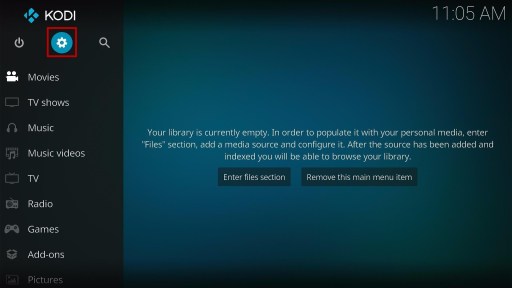
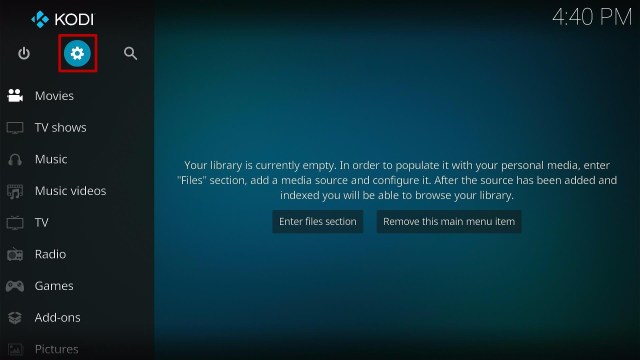
1. On your Firestick, open Kodi and go to Settings.
 

2. Select on System.


3. Click on the Add-ons menu and Turn ON the Unknown Sources.


4. Select Yes when the box appears.


5. Go back one step and click on File Manager.


6. Select the Add Source.


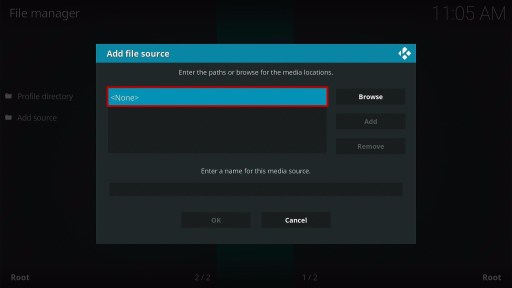
7. A box will pop up, so click on the ‘None’ option.


 8. Type in http://ezzer-mac.com/repo and click OK. 


 9. Name the URL- ezzer or any other name you want to. Then select OK.


10. Go back and Select Add-ons


 11. Click Install from zip file


12. Click the Yes button.


 13. Choose ezzer or any other name you put


14. Click  repository.EzzerMacsWizard.zip


 15. Wait for the EzzerMacs Wizard Repository installed text to appear.


16. After that, click the Install from repository.


17. Select the EzzerMacs Wizard Repository


 18. Go to Programs add-ons.


19. Choose the SG Wizard 19


20. Click the Install button.


21. Tap the OK button.
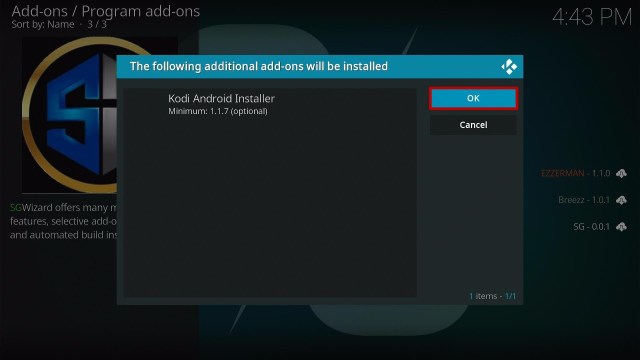
 

22. When a box pop up, click Continue


23. Click Ignore


24. Go back to the main menu and select Add-ons.


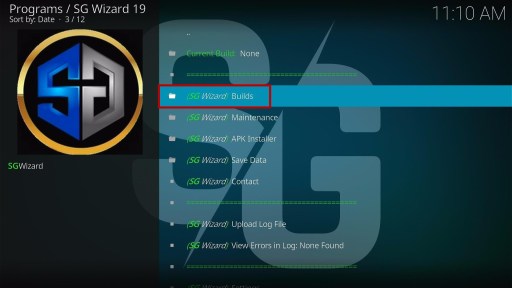
25. On the program add-ons, click the SG Wizard 19 icon.


26. Select the Builds.


27. Find the ARIS and click on it. 

Install ARIS Kodi Build Step 26


28. Click the Install

Install ARIS Kodi Build Step 27


29.  When a box pops up, select the Yes, Install 

Install ARIS Kodi Build Step 28


30. Wait for the build to finish its download.

Install ARIS Kodi Build Step 29


31. When a box pop up, click the Fresh Install 

Install ARIS Kodi Build Step 30


32. Wait for a few minutes.

Install ARIS Kodi Build Step 31


33. Tap Ok 

Install ARIS Kodi Build Step 32


34. Relaunch your Kodi.

Install Appi Kodi Build Step 33


35. That’s it! You have successfully installed the ARIS Kodi Build.

Install ARIS Kodi Build Step 34

Install Surfshark on Firestick

Best Surfshark Deal


Legal Disclaimer: ReviewVPN.com does not encourage or endorse any illegal activity involved in the usage of services and applications referenced on this site. We do not verify the licensing agreements of services. The end-user is wholly responsible for ensuring that any media accessed through these services does not violate copyright and/or licensing laws. ReviewVPN does not promote, link to, or receive compensation from any Apps and IPTV services.


YOUR INTERNET ACTIVITY IS BEING WATCHED

ReviewVPN cannot attest to the legality, security and privacy of the applications discussed on this site. It is highly recommended that you use a VPN service while streaming or using Kodi.

Currently, your IP 216.73.216.1 is visible to everyone and your Browser is being tracked by Advertisers & ISP Provider.

Save 65% Now

Limited Time Offer

Here are the main reasons why you must use a VPN:

  • Your activities are hidden from your ISP, the government, and from the apps you are using.
  • You can access additional movies and TV streams.
  • ISP attempts to throttle are thrwarted thus reducing buffering issues.
  • Geographically restricted content like Netflix and Hulu can be unblocked.

A VPN works be replacing your ISP-assigned IP address and creating an encrypted tunnel. We recommend the no log service offered by IPVanish. It works well on a Firestick and offers the fastest possible speeds.

Special Limited Time Offer - Get IPVanish


 Features of ARIS Kodi Build

  • The main sections are Live TV, Movies, TV shows, Music, Family, Sports, systems, Favourites, and Power. 
  • Live TV: You can watch on Live Tv from different popular networks such as A&E, ABC, AcornTV, Adult Swim, Amazon, AMC, Animal Planet, AppleTV, and more. 
  • It also allows you to watch on Pluto Tv channels such as Spotlight, Action, Reaction, Comedy, Drama, Fantastic, Romance, and more. 
  • Movies: You can choose Genres, Year, decade, Languages, Certifications, Movie Most, People Watching, Most Popular, Most Voted, Highly Rated, OscarWinners, Box Office, and more. 
  • Choose TV shows from Genres, Networks, Languages, Certifications, TV Shows Most, Highly Rated, Most Voted, Top Rated, Airing Today, On The Air, Upcoming, 
  • Genres: Action Adventures, Animation, Comedy, Crime, Documentary, Drama, Family, Kids, Mystery News, Reality, SciFi&Fantasy, Soap, Talk, War Politics, and Western. 
  • Music: Listen to thousands of songs and choose from Music Channels, Rock Music Videos, Concerts, Now Music collections, and Greatest Hits. 
  • Family: Watch on Family Movies, DC Universe, Disney+, Kids 4k, Kids Boxsets, Kids TV shows, Teens TV, Family movies, Family TV shows, Pixar, Warner Bros, Universal Studios, and more. 
  • Sports: You can watch Sports coverage on different sports networks such as Geo Super, PTV Sports, Ten Sports, 1 Sports, DD Sports, Sony Six, PTV Sports, and more. 
  • You can also watch on National Geographic, Discovery, History Channel, and more worthy to watch content. 


Preloaded Addons/Repos

LiveNet, TvTap, Cabal, Asgard, Rising Tides, Chains, LooNatics Asylum Repo, Bugatsinho, THE CREW SOUNDS, Loop Repository, ApeX Sports, Black, Goto, Crackle, Chains Repo, Evil Ten TV 19, Horizon, Host505, Loop TV 1, 2,3, Mad Titan Sports, Mbebe, Pluto TV, and more. 


Pros and Cons

Pros

  • Allow you to access their content for free.
  • Wide variety of content categories to choose from.
  • Supported with Real Debrid and Trakt.tv account integration.
  • It brings you all of the latest and fresh release contents.
  • This build uses lots of preloaded addons to bring you content.


Cons

  • Some of the provided streaming links are not working. 


Why should I Use a VPN?

In everything that you do online, it is much better if you are using a Virtual Private Network. A VPN helps you optimize your safety and privacy while streaming on unknown servers. Whereas, having a VPN is like having an online companion that helps you in many ways, such as encrypting every activity you do online using a high standard of encryption, giving you unlimited bandwidth and a high speed of connection. 

Since there are lots of VPNs that you can choose from online, we highly suggest Surfshark as your best choice. It is one of the proven and tested VPNs committed to giving its users the best quality of service. Surfshark has an impressive list of features and some of these are: 

  • Prevent ISPs from interfering with your connection and speed up your internet.
  • Surfshark used AES-256 bit of encryption, which is the highest quality encryption on the VPN market.
  • Keep your identity anonymous to protect you from hackers, especially when you are using public wi-fi.
  • Destroys geo-block and gains access to different content globally.
  • Bypass censorship and restrictions.
  • Has a total of 3200+ servers in 65 countries to choose from.
  • 100% zero logs and no IP address leaks. 
  • Keep your file protected from harmful malware.

Note: For more information about Surfshark, please read our Surfshark Review.


Grab your subscription now!


How to Install Surfshark VPN on Firestick

If your Firestick still has the older interface, read this article to learn how to update it: Update Firestick Interface.

Follow our screenshots below to install the SurfShark VPN app on your Fire TV stick.

1. Go to the Home screen of your Firestick.

step 1 Install Surfshark VPN on Firestick


2. Navigate towards the Find tab. Press the Search button from the resulting dropdown.

step 2 Install Surfshark VPN on Firestick


3. Type in the keyword of SurfShark and select from the suggestions that will appear.

step 3 Install Surfshark VPN on Firestick


4. Click the official SurfShark icon from your search results.

step 4 Install Surfshark VPN on Firestick


5. Press the Download (You own it) button.

step 5 Install Surfshark VPN on Firestick


6. The SurfShark VPN installer will download on your device.

step 6 Install Surfshark VPN on Firestick


7. SurfShark VPN’s app will automatically install itself on your Fire TV stick.

step 7 Install Surfshark VPN on Firestick


8. Press the Open button after completing SurfShark VPN’s installation process.

step 8 Install Surfshark VPN on Firestick


9. Please wait for the SurfShark VPN to load its user interface.

step 9 Install Surfshark VPN on Firestick


10. You can now log in with your SurfShark VPN account credentials.

step 10 Install Surfshark VPN on Firestick

Learn more about Surfshark and Grab the Best Surfshark Deal Now!


Install Surfshark on Firestick

Best Surfshark Deal


Other VPNs to Consider

NordVPN (Best for Streaming)

Best Features

  • 5000+ Server in 50+ Countries 
  • Military-Grade Encryption
  • Fast Connection Speed
  • Suitable to a lot of devices
  • No-Log Policy

Prices
  • Complete $5.89 per month (64% Discount)
  • Plus $4.59 per month (56% Discount)
  • Standard $3.69 per month (55% Discount)

Best Features

  • 750+ High-speed VPN Servers in 43 Locations
  • Military-Grade Encryption
  • Fastest HD Streaming and Gaming
  • 30-Day Money-Back Guarantee
  • Unlimited Data & Devices
  • No-Log Policy

Prices
  • 3 Years $1.99 per month (82% Discount)
  • 1 Years $3.29 per month (70% Discount)
  • 1 Month $10.99 per month

IPVanish VPN (Most Secure)

Best Features

  • 1200+ Servers in 60+ Countries around the world
  • Unlimited Connections
  • No-Log Policy
  • Top Notch Military-Grade VPN Protocols and Encryptions
  • 100% Safe and Secured
  • Most Trusted VPN
  • Best VPN for Firestick
  • 30-Day Money-Back Guarantee

Prices
  • Yearly $3.99 per month (63% Discount) – 30 days risk free + Ransomware & Malware Protection
  • Quarterly $5.32 per month (51% Discount)
  • Monthly $10.99 per month


For more VPN discounts, go to ReviewVPN Deals and purchase the best VPN for you.

Click here to get the lowest price on Surfshark through our exclusive limited-time offer.


Alternatives for ARIS Kodi Build

We list down some Kodi builds that you can try on your Kodi. If you want to know more about these builds, kindly read their corresponding articles. For more addon/build compatible with Kodi 19.5, visit this link What’s working on Kodi 19.5.


FAQs

 Do I need to use a VPN for this?

Yes, we always suggest using a VPN such as Surfshark when you are using a third-party streaming service such as builds or addons, to keep you safe and protected.


Is the ARIS Kodi Build safe to use?

Yes, this build is safe to use, but if you want to ensure your security, we suggest using a VPN such as Surfshark.


Is streaming on ARIS Kodi Build for free?

Yes, this build allows you to access and stream their content for free.

Is the ARIS Kodi Build legal?

Yes, this build is legal as long as it only offers non-copyright content.


Conclusion

ARIS is a third-party build that brings you a large collection of content to watch for free. You can watch the latest and popular content in HD quality. This build brings you almost all kinds of content, which is why if you are looking for a build with a massive collection of content, this build is a good option for you. However, since it is a third-party build, we still suggest using a VPN such as Surfshark for your safety. We hope this article helps you install the ARIS Kodi Build.

How to Install Midas Kodi Build

Midas Kodi Build Overview

The article will help you on how to install Midas Kodi Build.


Midas is a third-party build with a simple and easy-to-use interface compatible with Kodi 19.5 Matrix. This build gives you a great lineup of popular and latest content to watch for free. You can also watch on thousands of live TV channels in a wide variety of categories.

It also has a large collection of content to watch in a wide variety of categories such as Movies, Tv shows, Sports, Family, Kids, and more. This build also works with Real Debrid and Trakt accounts that let you link in your account.

You can have a great experience in streaming with their large collection as it brings you high-quality streaming links. This build also uses different Kodi add-ons to provide you with a collection of contents such as Live Net, Mad Titan Sports, Asgard, and more.


ANONYMOUSLY

How to Install Midas Kodi Build with Screenshot guide.

Installing a Kodi build has a lot of processes to take. That is why we will guide you step by step on how to install it on Kodi.

 Follow the following steps below.  

1. On your Firestick, open Kodi and go to Settings.


2. Select on System.


3. Click on the Add-ons menu and Turn ON the Unknown Sources.


4. Select Yes when the box appears.


5. Go back one step and click on File Manager.


6. Select the Add Source.


7. A box will pop up, so click on the ‘None’ option.


 8. Type in http://ezzer-mac.com/repo and click OK. 


 9. Name the URL- ezzer or any other name you want to. Then select OK.


10. Go back and Select Add-ons


 11. Click Install from zip file


12. Click the Yes button.


 13. Choose ezzer or any other name you put


14. Click  repository.EzzerMacsWizard.zip


 15. Wait for the EzzerMacs Wizard Repository installed text to appear.


16. After that, click the Install from repository.


17. Select the EzzerMacs Wizard Repository


 18. Go to Programs add-ons.


19. Choose the SG Wizard 19


20. Click the Install button.


21. Tap the OK button.


22. When a box pop up, click Continue


23. Click Ignore


24. Go back to the main menu and select Add-ons.


25. On the program add-ons, click the SG Wizard 19 icon.


26. Select the Builds.


27. Find the Midas and click on it. 

Install Midas Kodi Build Step 26


28. Click the Install

Install Midas Kodi Build Step 27


29.  When a box pops up, select the Yes, Install 

Install Midas Kodi Build Step 28


30. Wait for the build to finish its download.

Install Midas Kodi Build Step 29


31. Tap Ok 

Install Midas Kodi Build Step 30


32. Relaunch your Kodi.

Install Midas Kodi Build Step 33


33. That’s it! You have successfully installed the Midas Kodi Build.

Install Midas Kodi Build Step 31

Install SurfShark on Firestick

Best SurfShark Deal


Legal Disclaimer: ReviewVPN.com does not encourage or endorse any illegal activity involved in the usage of services and applications referenced on this site. We do not verify the licensing agreements of services. The end-user is wholly responsible for ensuring that any media accessed through these services does not violate copyright and/or licensing laws. ReviewVPN does not promote, link to, or receive compensation from any Apps and IPTV services.


YOUR INTERNET ACTIVITY IS BEING WATCHED

ReviewVPN cannot attest to the legality, security and privacy of the applications discussed on this site. It is highly recommended that you use a VPN service while streaming or using Kodi.

Currently, your IP 216.73.216.1 is visible to everyone and your Browser is being tracked by Advertisers & ISP Provider.

Save 65% Now

Limited Time Offer

Here are the main reasons why you must use a VPN:

  • Your activities are hidden from your ISP, the government, and from the apps you are using.
  • You can access additional movies and TV streams.
  • ISP attempts to throttle are thrwarted thus reducing buffering issues.
  • Geographically restricted content like Netflix and Hulu can be unblocked.

A VPN works be replacing your ISP-assigned IP address and creating an encrypted tunnel. We recommend the no log service offered by IPVanish. It works well on a Firestick and offers the fastest possible speeds.

Special Limited Time Offer - Get IPVanish


 Features of Midas Kodi Build

Interface

  • No registration or subscription is required. 
  • It has a simple and user-friendly interface. 
  • You can access their content for free. 


Live TV

  • You can watch Live TV from different TV networks such as BBC One, BBC Two, BBC Four, ITV, Channel 4, 5 Star, E4, More4, CBS, ABC, and more. 
  • Choose from different categories such as Documentary, Entertainment, Freeview, HD Channels, Kids, Movies, TV shows, Music, Radio, and Sports.
  • Watch different Live sports on Football, Motorsports, Boxing UFC, Rugby, and Basketball.
  • Allows you to add your category. 


Movies/TV Shows

  • You can choose Genres, Year, Decade, Languages, Certificates, movies Most, People Watching, Most Popular, Most Voted, Featured, Highly Rated, OscarWinners, Box Office, In Theaters, and more. 
  • Choose TV shows from Genres, Networks, Languages, Certifications, TV Shows Most, Highly Rated, Most Voted, Top Rated, Airing Today, On The Air, Upcoming, Anticipated, In Progress TV Shows, In Progress Episodes, Oscar Winners, and more. 
  • Genres: Action Adventures, Animation, Comedy, Crime, Documentary, Drama, Family, Kids, Mystery News, Reality, SciFi&Fantasy, Soap, Talk, War Politics, and Western. 
  • It has IMDB Keyword searches, Popular IMDb user lists, MyMovies, and more.
  • Collections of Movies/Tv shows from 1901 to 2022. 


Sports

Watch on live and replays sports coverage from different Sports Networks such as Geo Super, PTV Sports, Ten Sports, 1 Sports, DD Sports, Sony Six, Star Sports First, TEN 1, Arena Sports, and more. 


Preloaded Addons/Repos

These are the preloaded addons and repos in Midas build: LiveNet, Mad Titan Sports, Cabal, Asgard, Rising Tides, Chains, LooNatics Asylum Repo, The Loop 1, 2, 3, ApeX Sports, Black, Goto, Crackle, Pluto TV, and more. 


Pros and Cons

Pros

  • It has a user-friendly interface that works well on Kodi 19.5 Matrix.
  • This build brings you a large collection of content to watch for free.
  • Allow you to watch on Live Tv from different TV networks.
  • You can watch in this build without any ads to interrupt your viewing.
  • Supported with Real Debrid and Trakt account.


Cons

  • Some of the providers it uses are not safe and not working at all. 
  • There are nonworking streaming links.


Fast and Safe streaming with a VPN

Surfshark vpn

Streaming online requires you to have a lot of data to enjoy a smooth experience, but you are not allowed to use more than the normal bandwidth because your ISP will notice it and will throttle your connection. That is why before you stream online, we recommend using a Virtual Private Network to hide your web traffic from your ISP and to give you a high-speed connection together with unlimited bandwidth. 

One of the best VPNs that we highly suggest is SurfShark. This VPN gives you a high-speed connection with unlimited bandwidth to stream as much as you want without your ISP interfering with your connection. It is also known as the fastest and most reliable VPN trusted by millions of users worldwide.
SurfShark also prevents snooping ISP by encrypting your activities using a high standard of encryption. 

Note: For more information about SurfShark, please read our SurfShark Review.


Grab your subscription now!

Click here to get the lowest price on SurfShark through our exclusive limited-time offer.


How to Install Surfshark on Firestick with Screenshots

If your Firestick still has the older interface, read this article to learn how to update it: Update Firestick Interface.

You can download Surfshark directly from the Amazon App store. It will be easy for you to find Surfshark with your Firestick’s Find feature. Refer to our screenshots below.

Follow our screenshots below to install the SurfShark VPN app on your Fire TV stick.

1. Go to the Home screen of your Firestick.

step 1 Install Surfshark VPN on Firestick


2. Navigate towards the Find tab. Press the Search button from the resulting dropdown.

step 2 Install Surfshark VPN on Firestick


3. Type in the keyword of SurfShark and select from the suggestions that will appear.

step 3 Install Surfshark VPN on Firestick


4. Click the official SurfShark icon from your search results.

step 4 Install Surfshark VPN on Firestick


5. Press the Download (You own it) button.

step 5 Install Surfshark VPN on Firestick


6. The SurfShark VPN installer will download on your device.

step 6 Install Surfshark VPN on Firestick


7. SurfShark VPN’s app will automatically install itself on your Fire TV stick.

step 7 Install Surfshark VPN on Firestick


8. Press the Open button after completing SurfShark VPN’s installation process.

step 8 Install Surfshark VPN on Firestick


9. Please wait for the SurfShark VPN to load its user interface.

step 9 Install Surfshark VPN on Firestick


10. You can now log in with your SurfShark VPN account credentials.

step 10 Install Surfshark VPN on Firestick

Learn more about Surfshark and Grab the Best Surfshark Deal Now!


Install Surfshark on Firestick

Best Surfshark Deal

Other VPNs to Consider

NordVPN (Best for Streaming)

Best Features

  • 5000+ Server in 50+ Countries 
  • Military-Grade Encryption
  • Fast Connection Speed
  • Suitable to a lot of devices
  • No-Log Policy

Prices
  • Complete $5.89 per month (64% Discount)
  • Plus $4.59 per month (56% Discount)
  • Standard $3.69 per month (55% Discount)

Best Features

  • 750+ High-speed VPN Servers in 43 Locations
  • Military-Grade Encryption
  • Fastest HD Streaming and Gaming
  • 30-Day Money-Back Guarantee
  • Unlimited Data & Devices
  • No-Log Policy

Prices
  • 3 Years $1.99 per month (82% Discount)
  • 1 Years $3.29 per month (70% Discount)
  • 1 Month $10.99 per month

IPVanish VPN (Most Secure)

Best Features

  • 1200+ Servers in 60+ Countries around the world
  • Unlimited Connections
  • No-Log Policy
  • Top Notch Military-Grade VPN Protocols and Encryptions
  • 100% Safe and Secured
  • Most Trusted VPN
  • Best VPN for Firestick
  • 30-Day Money-Back Guarantee

Prices
  • Yearly $3.99 per month (63% Discount) – 30 days risk free + Ransomware & Malware Protection
  • Quarterly $5.32 per month (51% Discount)
  • Monthly $10.99 per month

For more VPN discounts, go to ReviewVPN Deals and purchase the best VPN for you.


Alternatives for Midas Kodi Build

We list down some Kodi builds that you can try on your Kodi. If you want to know more about these builds, kindly read their corresponding articles. For more addon/build compatible with Kodi 19.5, visit this link What’s working on Kodi 19.5.


FAQs

Can I get the Midas Kodi Build on Kodi 18.9 version?

No, this build is only compatible with Kodi 19.5 Matrix.


Do I need to use a VPN for this?

Yes, we always suggest using a VPN such as SurfShark when you are using a third-party streaming service such as builds or addons, to keep you safe and protected.


Is the Midas Kodi Build legal?

Yes, this addon is not illegal to install and use.


Is the Midas Kodi Build safe to use?

Yes, this build is safe to use, but we suggest using a VPN such as SurfShark to ensure your safety.


Is the Midas Kodi Build free?

Yes, this build is free and allows you to access their content for free.


Conclusion

Midas Kodi build is a simple and free build that works well on Kodi. This build brings you a large collection of content to watch for free and probably one of the builds that give you a great selection of content to watch. You will surely enjoy streaming in this build as it brings you high-quality streaming links. However, it is still a third-party build, which we suggest using a VPN such as
SurfShark for your safety. We hope this article helps you install the Midas Kodi Build.

Everything You Need to Know About Split Tunneling

Overview About Split Tunneling

In this article, we will teach you how does split tunneling works.


Split Tunneling is a feature of a Virtual Private Network or VPN. It allows you to direct a portion of your internet traffic through an encrypted virtual private network. Split Tunneling leaves the rest to be transmitted via a different tunnel on the public network. It is a state-of-the-art feature with certain uses this article will cover in detail.

People can choose which tunnel their internet traffic is sent on a website-by-website basis or through an app-by-app basis. For example, consider a situation where a person wants to interact with devices or machines on the open network while encrypting his/her internet traffic. 

Essentially, split tunneling provides people more power over how they send their data. They can either opt for the faster, slightly safe tunnel or the slower, much safer tunnel. Nonetheless, to understand why tunnels with encryption are slower, you must know how split tunneling functions in VPNs.


ANONYMOUSLY

How Does Split Tunneling Work?

To comprehend how split tunneling functions, you must know how VPN services function. Basically, when a person is connected to the internet, his/her browser links with his/her Internet Service Provider’s server. It subsequently asks for a server of the website for certain content. However, this is an excessively simplified way of explaining it.

When a person utilizes a VPN service, there is an additional server that his/her web traffic passes through. The computer first links with a VPN server that accesses the web. Thus, you must use a VPN to hide your IP address and bypass geo-restricted web pages or platforms wherever you are located.

With split tunneling, people can instruct the Virtual Private Network to only route internet traffic from particular apps or URLs. A VPN routes the traffic via a secured channel, while other web traffic will route through the public network. 


Various ways to implement split tunneling

  • Application-based: There are VPN services that allow you to choose particular applications to connect via the Virtual Private Network. Utilizing this method, the VPN will route those selected apps, while all other web traffic passes through the typical network.
  • URL-based: One of the popular methods of implementing split tunneling is through particular website URLs. This method lets you specify which website URLs need encryption via the VPN. Nonetheless, this is typically done through a browser extension of the VPN.
  • Inverse split tunneling: With this method, the opposite is true. All traffic is transmitted via the VPN and users choose exactly which applications or website URLs don’t pass the VPN.


VPN Split Tunneling Benefits

This section will detail the split tunneling benefits for people on private & corporate networks:


Users Can Keep their VPN Switched On

Some apps, services, and platforms simply will not work with VPN enabled. These particular apps, services, and platforms might require people’s home IP addresses for verification. Or they may block traffic from popular VPN servers.

If you always enable your VPN for complete protection, you might need to turn it off every so often. Turn it off when you need to utilize one of these applications or platforms. Nonetheless, it’s a nuisance, and it endangers you from leaking information if you leave the VPN off.

However, split tunneling stops people from doing that by enabling them to specify which applications or services go through the tunnel of VPN.


Speed Up Internet Connection

Utilizing a VPN service is slower compared to connecting straight to the internet. The additional hop to the Virtual Private Network server will take some time, and the VPN encryption causes a delay as well.

Among the fastest Virtual Private Networks, people will typically see a slowdown in web connection of between 10% & 30%. It slows down when linking from the US (Chicago) to the UK (London). However, by utilizing split tunneling, web users can boost the performance of websites & applications that don’t need to go through the VPN.


Reduce The Consumption of the Mobile Bandwidth

If your cellular data plan has a fixed data cap (bandwidth cap), you will reach the limit faster if you use a VPN. Actually, you will consume your cellular data plan between 4% & 20% more while using a VPN. Nonetheless, by using split tunneling, people can choose which apps pass through the VPN tunnel. Thus, they can avoid utilizing more mobile bandwidth than they need to.


Avoid Data Limits

Most premium Virtual Private Networks provide unlimited data usage. However, free Virtual Private Networks often have a monthly limit to the amount of data that travels through their networks.

Several free VPN services with data limits support split tunneling. Wherein, people can stretch their VPN data allowance.


Protect Torrenting Traffic

A VPN service is important for torrenting securely, safely, and concealing the identities of people from copyright trolls. Nonetheless, to secure Peer-to-Peer (P2P) activity and access fewer sensitive services at the same time, you can utilize the split tunneling feature. It encrypts torrenting activities whilst leaving all other browsings untouched.


Protect Gaming Activities

The use of Virtual Private Network services has become more typical in the online gaming world. A lot of gamers are concerned about revealing their real true location, while other gamers want to keep away from DDoS (distributed denial of service) attacks.

Utilizing a VPN conceals IP addresses, so gamers will not expose themselves. Nonetheless, gaming is extremely data-intensive. But, split tunneling lets gamers protect their gaming activity while sending the rest of their traffic elsewhere.


Acquire Local Area Network (LAN) Resources

VPN services can have an impact on people’s ability to access local area network (LAN) resources. However, it is not as much of a problem as tons of websites get along. If a person uses a top-tier Virtual Private Network service, it is probable the VPN offers an option to access local area network devices. Nonetheless, if you use a VPN that does not function with devices on your LAN, the viable solution will be split tunneling.


YOUR INTERNET ACTIVITY IS BEING WATCHED

ReviewVPN cannot attest to the legality, security and privacy of the applications discussed on this site. It is highly recommended that you use a VPN service while streaming or using Kodi.

Currently, your IP 216.73.216.1 is visible to everyone and your Browser is being tracked by Advertisers & ISP Provider.

Save 65% Now

Limited Time Offer

Here are the main reasons why you must use a VPN:

  • Your activities are hidden from your ISP, the government, and from the apps you are using.
  • You can access additional movies and TV streams.
  • ISP attempts to throttle are thrwarted thus reducing buffering issues.
  • Geographically restricted content like Netflix and Hulu can be unblocked.

A VPN works be replacing your ISP-assigned IP address and creating an encrypted tunnel. We recommend the no log service offered by IPVanish. It works well on a Firestick and offers the fastest possible speeds.

Special Limited Time Offer - Get IPVanish


Install Surfshark on Firestick

Best Surfshark Deal


Access Applications and Websites That Hinder VPN Traffic

By turning VPN split tunneling on, people can permanently secure their web connection safely while routing apps that do not work via the VPN out of the encrypted tunnel.


Control Content with Geo-Restrictions

It’s typical to use a VPN service to go around content with geographic restrictions on streaming platforms such as Netflix. Nonetheless, it’s likely you will still need to access entertainment content that’s inaccessible to your region. However, split tunneling lets you choose which apps utilize your IP address and which will utilize the VPN server’s IP address.


Lessen Corporate Network Load

Using split tunneling reduces the load of the VPN server on the company and speeds up the internet connection for its employees.


Why Do You Need Split Tunneling?

Have you become aware that your internet connection sometimes slows down when connecting to a server utilizing a Virtual Private Network? That’s because the web traffic passes through an intermediary server. Thus, it takes longer for data packets to go through between these points.

When routing only a portion of the web traffic via an encrypted tunnel of the VPN, it lets you use all other bandwidth completely for other activities.

For example, if you’re streaming Netflix or Hulu and your employer called you that you must work on something confidential that is running on a safe server. Linking to a VPN service means you will obtain slower speeds that can result in buffering while you stream your favorite movie or TV show.

However, split tunneling lets you use the secure tunnel of the VPN only for transmitting sensitive information, while still letting you use complete bandwidth for Hulu or Netflix.


Is Split Tunneling Secure & Safe for VPN services?

Undoubtedly, split tunneling with a Virtual Private Network or VPN adds additional security. As with any technology, people always caution against excessive dependence on a single feature. Nonetheless, there is tons of debate regarding whether the split tunneling feature slows the overall encryption and provides a backdoor for cybercriminals to exploit.

If you use split-tunneling to watch or unblock entertainment content while keeping the highest internet speeds, everything is going just fine. Nonetheless, if your main use of a VPN focuses on data security as well as identity protection, the split tunneling feature might be an unnecessary liability.


What are the Drawbacks of Split Tunneling?

Without correctly configuring the VPN service to split the tunneling feature, your private information will be at risk. Private data becomes visible to hackers, third parties, ISP, and the government through DNS leaks. Without great active firewall protection, third parties could bypass the gateway-level security of a person and could access the corporate network.

Remote users that download corporate private network content are also endangering the materials. While the split tunneling feature lets them link to the specified network, the office’s safety protocol is not protecting the user’s PC once he/she disconnects from the VPN.


Pros & Cons

Pros

  • Reduces the probability of bandwidth throttling
  • You can access public & private networks at the same time
  • Remote users will obtain access to company resources from anywhere 


Cons

  • Incorrect configuration of the system firewall and the split tunnel VPN lead to personal as well as corporate exposure
  • Exposed to the possibility of danger of DNS leaks
  • Third parties might access corporate networks 


Leading VPN Services for Split Tunneling

There are a few of the best VPN platforms available today for split tunneling. Some prices of the VPN reflect current promotions. Nonetheless, the Split tunneling feature allows people to have better control over how they channel their internet traffic via their devices, while linked to the VPN. This feature allows people to choose the applications that they would prefer to travel through their Internet Service Provider (ISP), rather than the VPN. 

Nonetheless, Surfshark service provides this feature on its application for Android-based devices. A split tunneling feature is a revolutionary tool where people control how the web traffic through their apps is routed while having absolute security & privacy through the Surfshark VPN service. 

Note: For more information about Surfshark, please read our Surfshark Review.


Grab your subscription now!


How to Install Surfshark VPN on Firestick

If your Firestick still has the older interface, read this article to learn how to update it: Update Firestick Interface.

You can download Surfshark directly from the Amazon App store. It will be easy for you to find Surfshark with your Firestick’s Find feature. Refer to our screenshots below.

1. Go to the Home screen of your Firestick.

step 1 Install Surfshark VPN on Firestick


2. Navigate towards the Find tab. Press the Search button from the resulting dropdown.

step 2 Install Surfshark VPN on Firestick


3. Type in the keyword of SurfShark and select from the suggestions that will appear.

step 3 Install Surfshark VPN on Firestick


4. Click the official SurfShark icon from your search results.

step 4 Install Surfshark VPN on Firestick


5. Press the Download (You own it) button.

step 5 Install Surfshark VPN on Firestick


6. The SurfShark VPN installer will download on your device.

step 6 Install Surfshark VPN on Firestick


7. SurfShark VPN’s app will automatically install itself on your Fire TV stick.

step 7 Install Surfshark VPN on Firestick


8. Press the Open button after completing SurfShark VPN’s installation process.

step 8 Install Surfshark VPN on Firestick


9. Please wait for the SurfShark VPN to load its user interface.

step 9 Install Surfshark VPN on Firestick


10. You can now log in with your SurfShark VPN account credentials.

step 10 Install Surfshark VPN on Firestick

Learn more about Surfshark and Grab the Best Surfshark Deal Now!


Install Surfshark on Firestick

Best Surfshark Deal


Other VPNs to Consider

NordVPN (Best for Streaming)

Best Features

  • 5000+ Server in 50+ Countries 
  • Military-Grade Encryption
  • Fast Connection Speed
  • Suitable to a lot of devices
  • No-Log Policy

Prices
  • Complete $5.89 per month (64% Discount)
  • Plus $4.59 per month (56% Discount)
  • Standard $3.69 per month (55% Discount)

Best Features

  • 750+ High-speed VPN Servers in 43 Locations
  • Military-Grade Encryption
  • Fastest HD Streaming and Gaming
  • 30-Day Money-Back Guarantee
  • Unlimited Data & Devices
  • No-Log Policy

Prices
  • 3 Years $1.99 per month (82% Discount)
  • 1 Years $3.29 per month (70% Discount)
  • 1 Month $10.99 per month

IPVanish VPN (Most Secure)

Best Features

  • 1200+ Servers in 60+ Countries around the world
  • Unlimited Connections
  • No-Log Policy
  • Top Notch Military-Grade VPN Protocols and Encryptions
  • 100% Safe and Secured
  • Most Trusted VPN
  • Best VPN for Firestick
  • 30-Day Money-Back Guarantee

Prices
  • Yearly $3.99 per month (63% Discount) – 30 days risk free + Ransomware & Malware Protection
  • Quarterly $5.32 per month (51% Discount)
  • Monthly $10.99 per month


For more VPN discounts, go to ReviewVPN Deals and purchase the best VPN for you.

Click here to get the lowest price on Surfshark through our exclusive limited-time offer.


FAQs

Is VPN Split Tunneling Feature 100% Safe?

Yes, the split tunneling feature is completely safe


How to Stop the Split Tunneling Feature?

It is all very simple. Just head back to your VPN service’s Settings or Options and then disable or turn off the split tunneling feature.


Conclusion

The VPN split tunneling feature can be a great way of maintaining your sensitive information secure without declining the speed of the internet connection. However, split tunneling does make web traffic less private compared to using a Virtual Private Network for everything.

Nonetheless, always remember to turn on a VPN every time you use the internet. Feel free to let us know what you think of our Everything You Need to Know About Split Tunneling article in the comments section below.

How to Install Black TV on Firestick

Overview

In this article, we will show you how to install the Black TV app on your Fire TV stick.


Do you like a media app you can use for your family time? If you are searching for an app like this, we like to introduce you to the Black TV app! The Black TV app is relatively new to the streaming industry. It both functions as a media app for your Fire TV stick and Android device.

The Black TV app specializes in providing us with a variety of online videos. You can easily select from categories of TV shows and live TV channels. Showing media content concerning lifestyle, there are other additions to the Black TV app.

The app is easy to install and use on your Firestick and Android gadgets. We recommend the Black TV app for families. Although the app is in its first version, you can still enjoy some of the content that it offers.


ANONYMOUSLY

Download the Black TV App for Android Devices


Black TV

Note: ReviewVPN.com does not host this APK file. It is hosted by Archive.org


How to Install Black TV on Firestick

We recommend the Black TV app for lifestyle and TV aficionados. Installing the Black TV app is possible after you Jailbreak your Fire TV stick and sideload the app.

  1. Open your Firestick Settings Tab. (Gear Wheel Icon).
  2. Scroll down and to the right until you get to My Fire TV. Click on it.
  3. Select Developer options.
  4. Turn on ADB debugging and Apps from Unknown Sources.
  5. Press the Turn On when the pop-up appears.
  6. Click Home and press on FIND.
  7. Press the Search button from the dropdown.
  8. You can either say Downloader to your Alexa voice-enabled remote or start typing it. If you typed it, click on the suggestion when it appears.
  9. Click on the Downloader Icon.
  10. Tap on Download.
  11. Click on Open.
  12. Press on the Allow button.
  13. You can now use the Downloader app.
  14. Type in: reviewvpn.com/blatv and tap the Go button.
  15. The Black TV app will download on your device.
  16. Press the Install button.
  17. The Black TV app will install on your device.
  18. Press the Open button to launch the Black TV app.
  19. Sign in with your Black TV app account login info.


How to Install Black TV on Firestick with Screenshots

Follow our screenshots to successfully install the Black TV app on your Fire TV stick. While doing this method, we recommend using the Downloader app.

1. Open your Firestick Settings Tab. (Gear Wheel Icon).

Install the Black TV App on Fire TV Stick step 1


2. Scroll down and to the right until you get to My Fire TV. Click on it.

Install the Black TV App on Fire TV Stick step 2


3. Select Developer options.

Install the Black TV App on Fire TV Stick step 3


4. Turn on ADB debugging and Apps from Unknown Sources.

Install the Black TV App on Fire TV Stick step 4


5. Press the Turn On when the pop-up appears.

Install the Black TV App on Fire TV Stick step 5


6. Click Home and press on FIND.

Install the Black TV App on Fire TV Stick step 6


7. Press the Search button from the dropdown.

Install the Black TV App on Fire TV Stick step 7


8. You can either say Downloader to your Alexa voice-enabled remote or start typing it. If you typed it, click on the suggestion when it appears.

Install the Black TV App on Fire TV Stick step 8


9. Click on the Downloader Icon.

Install the Black TV App on Fire TV Stick step 9


10. Tap on Download.

Install the Black TV App on Fire TV Stick step 10


Install the Black TV App on Fire TV Stick step 10


11. Click on Open.

Install the Black TV App on Fire TV Stick step 11


12. Press on the Allow button.

Install the Black TV App on Fire TV Stick step 12


13. You can now use the Downloader app.

Install the Black TV App on Fire TV Stick step 13


14. Type in: reviewvpn.com/blatv and tap the Go button.

Install the Black TV App on Fire TV Stick step 14


15. The Black TV app will download on your device.

Install the Black TV App on Fire TV Stick step 15


16. Press the Install button.

Install the Black TV App on Fire TV Stick step 16


17. The Black TV app will install on your device.

Install the Black TV App on Fire TV Stick step 17


18. Press the Open button to launch the Black TV app.

Install the Black TV App on Fire TV Stick step 18


19. Sign in with your Black TV app account login info.

Install the Black TV App on Fire TV Stick step 19


Install SurfShark on Firestick

Best SurfShark Deal


Legal Disclaimer: ReviewVPN.com does not encourage or endorse any illegal activity involved in the usage of services and applications referenced on this site. We do not verify the licensing agreements of services. The end-user is wholly responsible for ensuring that any media accessed through these services does not violate copyright and/or licensing laws. ReviewVPN does not promote, link to, or receive compensation from any Apps and IPTV services.


YOUR INTERNET ACTIVITY IS BEING WATCHED

ReviewVPN cannot attest to the legality, security and privacy of the applications discussed on this site. It is highly recommended that you use a VPN service while streaming or using Kodi.

Currently, your IP 216.73.216.1 is visible to everyone and your Browser is being tracked by Advertisers & ISP Provider.

Save 65% Now

Limited Time Offer

Here are the main reasons why you must use a VPN:

  • Your activities are hidden from your ISP, the government, and from the apps you are using.
  • You can access additional movies and TV streams.
  • ISP attempts to throttle are thrwarted thus reducing buffering issues.
  • Geographically restricted content like Netflix and Hulu can be unblocked.

A VPN works be replacing your ISP-assigned IP address and creating an encrypted tunnel. We recommend the no log service offered by IPVanish. It works well on a Firestick and offers the fastest possible speeds.

Special Limited Time Offer - Get IPVanish


Features

  • 100% Free
  • Compatible with Android and Fire TV stick
  • Basic user interface
  • Gives users access to online movies and TV shows
  • Provides a TV Guide, Channel Search, and an Exit button
  • Requires user login to fully access the Black TV app’s features
  • Supports Chromecast
  • Displays details about an online media file
  • Functions both as a streaming app and media player


Technical Specifications of the Black TV app

Let us now show you the technical specifications of the Black TV app. Here you will learn about its latest version, file size, and installation requirements. It will help you determine if your device is compatible with the Black TV app.

Black TV


User Interface

  • Basic gray background theme
  • Simple Layout Design
  • Four Buttons on its Main Menu: TV Guide, Channel Search, Settings, and Exit button.
  • Displays details about a media file you are playing: Title, Time, Resolution, Duration, HD Selector


Pros and Cons

Pros

  • 100% Free
  • New Media Streaming app
  • Functions both as a media streaming service and video player
  • Displays details about each video you play
  • Provides a TV Guide
  • Search channels easily with its Channel Search button
  • Adjust Settings quickly with its Main Menu


Cons

  • Being a newcomer, the Black TV app lacks content.
  • Requires any user to create and log in with their account.
  • Lacks language options.


Stream Online Videos Smoothly with a VPN

Surfshark vpn

We all know the hardships of streaming online media files. Whether we love to download or stream directly, we sometimes encounter buffering and stuttering of files that we play.

This is a common issue amongst Fire TV stick enthusiasts. Understandably, there are many reasons why lagging videos happen. We might be victims of ISP throttling, geo-blocks, or malfunctioning hardware. On some occasions, it can be difficult to open videos from online sources.

Fortunately for many of us, there exists a solution for these issues.

It is best to use SurfShark as your VPN. SurfShark is the best VPN for downloading large files and streaming videos.

Here are the advantages of using SurfShark:

  • Streaming online media is faster and smoother.
  • Supports P2P file sharing.
  • Upload files easily on any website.
  • Hides your identity from your ISP and cyber threats.
  • Prevents buffering and stuttering both on Kodi and the Fire TV stick.

Note: For more information about Surfshark, please read our Surfshark Review.


Grab your subscription now!

Click here to get the lowest price on SurfShark through our exclusive limited-time offer.


How to Install Surfshark on Firestick with Screenshots

If your Firestick still has the older interface, read this article to learn how to update it: Update Firestick Interface.

You can download Surfshark directly from the Amazon App store. It will be easy for you to find Surfshark with your Firestick’s Find feature. Refer to our screenshots below.

Follow our screenshots below to install the SurfShark VPN app on your Fire TV stick.

1. Go to the Home screen of your Firestick.

step 1 Install Surfshark VPN on Firestick


2. Navigate towards the Find tab. Press the Search button from the resulting dropdown.

step 2 Install Surfshark VPN on Firestick


3. Type in the keyword of SurfShark and select from the suggestions that will appear.

step 3 Install Surfshark VPN on Firestick


4. Click the official SurfShark icon from your search results.

step 4 Install Surfshark VPN on Firestick


5. Press the Download (You own it) button.

step 5 Install Surfshark VPN on Firestick


6. The SurfShark VPN installer will download on your device.

step 6 Install Surfshark VPN on Firestick


7. SurfShark VPN’s app will automatically install itself on your Fire TV stick.

step 7 Install Surfshark VPN on Firestick


8. Press the Open button after completing SurfShark VPN’s installation process.

step 8 Install Surfshark VPN on Firestick


9. Please wait for the SurfShark VPN to load its user interface.

step 9 Install Surfshark VPN on Firestick


10. You can now log in with your SurfShark VPN account credentials.

step 10 Install Surfshark VPN on Firestick

Learn more about Surfshark and Grab the Best Surfshark Deal Now!


Install Surfshark on Firestick

Best Surfshark Deal


Other VPNs to Consider

NordVPN (Best for Streaming)

Best Features

  • 5000+ Server in 50+ Countries 
  • Military-Grade Encryption
  • Fast Connection Speed
  • Suitable to a lot of devices
  • No-Log Policy

Prices
  • Complete $5.89 per month (64% Discount)
  • Plus $4.59 per month (56% Discount)
  • Standard $3.69 per month (55% Discount)

Best Features

  • 750+ High-speed VPN Servers in 43 Locations
  • Military-Grade Encryption
  • Fastest HD Streaming and Gaming
  • 30-Day Money-Back Guarantee
  • Unlimited Data & Devices
  • No-Log Policy

Prices
  • 3 Years $1.99 per month (82% Discount)
  • 1 Years $3.29 per month (70% Discount)
  • 1 Month $10.99 per month

IPVanish VPN (Most Secure)

Best Features

  • 1200+ Servers in 60+ Countries around the world
  • Unlimited Connections
  • No-Log Policy
  • Top Notch Military-Grade VPN Protocols and Encryptions
  • 100% Safe and Secured
  • Most Trusted VPN
  • Best VPN for Firestick
  • 30-Day Money-Back Guarantee

Prices
  • Yearly $3.99 per month (63% Discount) – 30 days risk free + Ransomware & Malware Protection
  • Quarterly $5.32 per month (51% Discount)
  • Monthly $10.99 per month


For more VPN discounts, go to ReviewVPN Deals and purchase the best VPN for you.

Click here to get the lowest price on Surfshark through our exclusive limited-time offer.


Alternative Apps for the Black TV app

We will now share with you a list of apps that function the same as the Black TV app. Choose any app down below in case your Black TV app does not work.

Check out our article about the Best Live TV apps for more live TV streaming apps.


FAQs

Is the Black TV app free?

Yes. You don’t have to pay for anything. The app only requires you to create a login account.


Does it contain cyber threats?

No. The Black TV app is safe for you to use. It is compatible with Android and Fire TV stick devices.


Conclusion

The Black TV app is a new streaming app service. It both functions as your one-stop media and video player. The app also provides you with a TV guide for selecting channels you want to watch. Installing the app is easy on your Fire TV stick, just follow our guide within this article.

We hope this article helps you install the Black TV app on your Fire TV stick.

How to Install Champions League IPTV on Firestick

Overview

In this article, we will show you how to install the Champions League IPTV app on your Fire TV stick. 


The UEFA Champions League is undeniably one of the biggest sports events every year. During the first days of the pandemic, we have seen it undergo a one-year hiatus in 2020. Many fans of the event wonder if it is coming back.

Luckily for lovers of football, the UEFA Champions League continued on September 14, 2021. Since the whole world applies strict rules for distancing, many fans of the event did not make it to the stadium. As another option, sports fans turn to online methods to stream the UEFA Champions League. Feel free to check out our article here: How to Watch the Champions League on Firestick.

Seeing that many football aficionados cannot watch the event firsthand, there is now an app we are excited to share with you! That is the official Champions League IPTV app. Now, you will not have difficulties looking for sites that stream the UEFA Champions League. All you have to do is install the app on your Fire TV stick.


ANONYMOUSLY

Champions League IPTV for Android Devices


Champions League IPTV


Note: ReviewVPN.com does not host this APK file. It is hosted by Archive.org


How to Install the Champions League IPTV on Fire TV stick

We recommend the Champions League IPTV app for fans of the UEFA Champions League event. Installing the app is possible after you Jailbreak your Fire TV stick and sideload the app.

  1. Open your Firestick Settings Tab. (Gear Wheel Icon).
  2. Scroll down and to the right until you get to My Fire TV. Click on it.
  3. Select Developer options.
  4. Turn on ADB debugging and Apps from Unknown Sources.
  5. Press the Turn On when the pop-up appears.
  6. Click Home and press on FIND.
  7. Press the Search button from the dropdown.
  8. You can either say Downloader to your Alexa voice-enabled remote or start typing it. If you typed it, click on the suggestion when it appears.
  9. Click on the Downloader Icon.
  10. Tap on Download.
  11. Click on Open.
  12. Press on the Allow button.
  13. You can now use the Downloader app.
  14. Type in: reviewvpn.com/champ and tap the Go button.
  15. The Champions League IPTV app will download on your device.
  16. Press the Install button.
  17. The Champions League IPTV app will install on your device.
  18. Press the Open button to launch the Champions League IPTV app.
  19. Click on the Allow button to let the Champions League IPTV app access your media files.
  20. To access the app’s features, you have to log in with your credentials.


How to Install the Champions League IPTV on Fire TV Stick with Screenshots

Follow our screenshots to successfully install the Champions League IPTV app on your Fire TV stick. While doing this method, we recommend using the Downloader app.

1. Open your Firestick Settings Tab. (Gear Wheel Icon).

Install the Champions League IPTV on Fire TV Stick 1


2. Scroll down and to the right until you get to My Fire TV. Click on it.

Install the Champions League IPTV on Fire TV Stick 2


3. Select Developer options.

Install the Champions League IPTV on Fire TV Stick 3


4. Turn on ADB debugging and Apps from Unknown Sources.

Install the Champions League IPTV on Fire TV Stick 4


5. Press the Turn On when the pop-up appears.

Install the Champions League IPTV on Fire TV Stick 5


6. Click Home and press on FIND.

Install the Champions League IPTV on Fire TV Stick 6


7. Press the Search button from the dropdown.

Install the Champions League IPTV on Fire TV Stick 7


8. You can either say Downloader to your Alexa voice-enabled remote or start typing it. If you typed it, click on the suggestion when it appears.

Install the Champions League IPTV on Fire TV Stick 8


9. Click on the Downloader Icon.

Install the Champions League IPTV on Fire TV Stick 9


10. Tap on Download.

Install the Champions League IPTV on Fire TV Stick 10


Install the Champions League IPTV on Fire TV Stick 10


11. Click on Open.

Install the Champions League IPTV on Fire TV Stick 11


12. Press on the Allow button.

Install the Champions League IPTV on Fire TV Stick 12


13. You can now use the Downloader app.

Install the Champions League IPTV on Fire TV Stick 13


14. Type in: reviewvpn.com/champ and tap the Go button.

Install the Champions League IPTV on Fire TV Stick 14


15. The Champions League IPTV app will download on your device.

Install the Champions League IPTV on Fire TV Stick 15


16. Press the Install button.

Install the Champions League IPTV on Fire TV Stick 16


17. The Champions League IPTV app will install on your device.

Install the Champions League IPTV on Fire TV Stick 17


18. Press the Open button to launch the Champions League IPTV app.

Install the Champions League IPTV on Fire TV Stick 18


19. Click on the Allow button to let the Champions League IPTV app access your media files.

Install the Champions League IPTV on Fire TV Stick 19


20. To access the app’s features, you have to log in with your credentials.

Install the Champions League IPTV on Fire TV Stick 20


YOUR INTERNET ACTIVITY IS BEING WATCHED

ReviewVPN cannot attest to the legality, security and privacy of the applications discussed on this site. It is highly recommended that you use a VPN service while streaming or using Kodi.

Currently, your IP 216.73.216.1 is visible to everyone and your Browser is being tracked by Advertisers & ISP Provider.

Save 65% Now

Limited Time Offer

Here are the main reasons why you must use a VPN:

  • Your activities are hidden from your ISP, the government, and from the apps you are using.
  • You can access additional movies and TV streams.
  • ISP attempts to throttle are thrwarted thus reducing buffering issues.
  • Geographically restricted content like Netflix and Hulu can be unblocked.

A VPN works be replacing your ISP-assigned IP address and creating an encrypted tunnel. We recommend the no log service offered by IPVanish. It works well on a Firestick and offers the fastest possible speeds.

Special Limited Time Offer - Get IPVanish


Legal Disclaimer: ReviewVPN.com does not encourage or endorse any illegal activity involved in the usage of services and applications referenced on this site. We do not verify the licensing agreements of services. The end-user is wholly responsible for ensuring that any media accessed through these services does not violate copyright and/or licensing laws. ReviewVPN does not promote, link to, or receive compensation from any Apps and IPTV services.


Install Surfshark on Firestick

Best Surfshark Deal


Features of the Champions League IPTV App

  • Stream the UEFA Champions League on your portable streaming device
  • Works both as an IPTV and sports streaming app
  • Displays the latest UCL news
  • UCL TV Highlights, scores, and Live TV Channels.
  • Check out select games while using the Champions League IPTV app
  • Receive the latest statistics from the latest UEFA matches
  • Preview Live Score
  • Learn about game predictions from expert sports analysts
  • Hear about betting tips with each game
  • Supports Chromecast


Technical Specifications of the Champions League IPTV app

Let us now show you the technical specifications of the Champions League IPTV app. Here you will learn about its latest version, file size, and installation requirements. It will help you determine if your device is compatible with the Champions League IPTV app.

Champions League IPTV


The Interface of the Champions League IPTV app

  • User interface design for sports apps
  • Displays live scores
  • Shows you the latest highlights
  • Watch live TV channels
  • Login Page before opening the app


Pros and Cons

Pros

  • 100% Free
  • Dedicates itself to streaming the UEFA Champions League
  • Perfect for football fans worldwide
  • Live scores, highlights, statistics, and news
  • Betting tips and game predictions


Cons

  • Requires you to create a user login account.
  • Some people complain about geo-restrictions (“Content Not Available in your Area”)
  • No options to change the video resolution of its player
  • Some users of the Champions League IPTV app complain about difficulties of creating an account


Bypass Geo-Blocks to Watch Football

Users of the Champions League IPTV app have experienced difficulties while creating an account. They also have a hard time streaming live sports events and some of the app’s videos. The reasons for these hardships stem from geo-blocks. These blocks limit a user’s ability to open media from different geo-locations.

To bypass geo-blocks effectively, we suggest you use Surfshark as your VPN. Surfshark has many advantages to share with you:

  • Surfshark helps you hide all your online activities.
  • Bypass geo-restrictions in different countries.
  • Assign you a new IP address while concealing your actual location.
  • Faster streaming of sports videos.
  • Prevents buffering and stuttering both on Kodi and the Fire TV stick.

Note: For more information about Surfshark, please read our Surfshark Review.


Grab your subscription now!


How to Install Surfshark VPN on Firestick

If your Firestick still has the older interface, read this article to learn how to update it: Update Firestick Interface.

1. Go to the Home screen of your Firestick.

step 1 Install Surfshark VPN on Firestick


2. Navigate towards the Find tab. Press the Search button from the resulting dropdown.

step 2 Install Surfshark VPN on Firestick


3. Type in the keyword of SurfShark and select from the suggestions that will appear.

step 3 Install Surfshark VPN on Firestick


4. Click the official SurfShark icon from your search results.

step 4 Install Surfshark VPN on Firestick


5. Press the Download (You own it) button.

step 5 Install Surfshark VPN on Firestick


6. The SurfShark VPN installer will download on your device.

step 6 Install Surfshark VPN on Firestick


7. SurfShark VPN’s app will automatically install itself on your Fire TV stick.

step 7 Install Surfshark VPN on Firestick


8. Press the Open button after completing SurfShark VPN’s installation process.

step 8 Install Surfshark VPN on Firestick


9. Please wait for the SurfShark VPN to load its user interface.

step 9 Install Surfshark VPN on Firestick


10. You can now log in with your SurfShark VPN account credentials.

step 10 Install Surfshark VPN on Firestick

Learn more about Surfshark and Grab the Best Surfshark Deal Now!


Install Surfshark on Firestick

Best Surfshark Deal


Other VPNs to Consider

NordVPN (Best for Streaming)

Best Features

  • 5000+ Server in 50+ Countries 
  • Military-Grade Encryption
  • Fast Connection Speed
  • Suitable to a lot of devices
  • No-Log Policy

Prices
  • Complete $5.89 per month (64% Discount)
  • Plus $4.59 per month (56% Discount)
  • Standard $3.69 per month (55% Discount)

Best Features

  • 750+ High-speed VPN Servers in 43 Locations
  • Military-Grade Encryption
  • Fastest HD Streaming and Gaming
  • 30-Day Money-Back Guarantee
  • Unlimited Data & Devices
  • No-Log Policy

Prices
  • 3 Years $1.99 per month (82% Discount)
  • 1 Years $3.29 per month (70% Discount)
  • 1 Month $10.99 per month

IPVanish VPN (Most Secure)

Best Features

  • 1200+ Servers in 60+ Countries around the world
  • Unlimited Connections
  • No-Log Policy
  • Top Notch Military-Grade VPN Protocols and Encryptions
  • 100% Safe and Secured
  • Most Trusted VPN
  • Best VPN for Firestick
  • 30-Day Money-Back Guarantee

Prices
  • Yearly $3.99 per month (63% Discount) – 30 days risk free + Ransomware & Malware Protection
  • Quarterly $5.32 per month (51% Discount)
  • Monthly $10.99 per month


For more VPN discounts, go to ReviewVPN Deals and purchase the best VPN for you.

Click here to get the lowest price on Surfshark through our exclusive limited-time offer.


Alternative Apps for Champions League IPTV

Here are some apps that can serve as alternatives for the Champions League IPTV app. We recommend these apps in case it does not work with your device:


FAQs

Is the Champions League IPTV app free?

Yes. You do not have to pay for anything to download and stream sports videos with the app.


Is the app safe to use?

Yes. The app does not contain any form of cyber threats such as malware, viruses, and adware. It is safe to use.


Conclusion

For fans wondering if there is an app that will let them watch the UEFA Champions League, worry no more! We now have the Champions League IPTV app. Suppose you want the latest news from the Champions League, the app will help you receive live scores, highlights, and statistics. You can also stream a variety of sports events, videos, and TV channels while using the app.

We hope this article helps you install the Champions League IPTV on your Fire TV stick.

How to Install Abadi IPTV on Firestick

Overview

In this article, we will show you how to install the Abadi IPTV app on your Fire TV stick. 


Choosing an app that can play Arabic media content can be a daunting task for many. There are apps out there we can select to answer our needs. If you like streaming media content from all around the world, then we just have the best app for you! Let us show you what the Abadi IPTV app is capable of.

The Abadi IPTV app is your first choice when playing Arabic videos online! It contains a wide collection of TV shows, channels, and content. You will also have no problems selecting a language. The Abadi IPTV app lets you watch films, news, and even sports videos!

You will surprise yourself if you download the Abadi IPTV app on your Fire TV stick. All you have to do to use the app is create an account. It will require your details so you can have full access to its features.


ANONYMOUSLY


Abadi IPTV for Android Devices


Abadi IPTV


Note: ReviewVPN.com does not host this APK file. It is hosted by Archive.org


How to Install the Abadi IPTV app on Fire TV Stick

Installing the Abadi IPTV app is an easy process. First, you have to Jailbreak your Fire TV Stick and sideload the app. Afterward, you have to type in a code to download the app directly to your Fire TV stick. Let us show you our brief guide on how to do it.

  1. Open your Firestick Settings Tab. (Gear Wheel Icon).
  2. Scroll down and to the right until you get to My Fire TV. Click on it.
  3. Select Developer options.
  4. Turn on ADB debugging and Apps from Unknown Sources.
  5. Press the Turn On when the pop-up appears.
  6. Click Home and press on FIND.
  7. Press the Search button from the dropdown.
  8. You can either say Downloader to your Alexa voice-enabled remote or start typing it. If you typed it, click on the suggestion when it appears.
  9. Click on the Downloader Icon.
  10. Tap on Download.
  11. Click on Open.
  12. Press the Allow button.
  13. You can now use the Downloader app.
  14. Type in: reviewvpn.com/abadi and tap the Go button.
  15. The Abadi IPTV app will download on your device.
  16. Press the Install button.
  17. The Abadi IPTV app will install on your device.
  18. Press the Open button to launch the Abadi IPTV app.
  19. Wait for the Abadi IPTV app to load its user interface.
  20. After opening the Abadi IPTV app with your Fire TV stick, you have to input your username and password.


How to Install the Abadi IPTV app on Fire TV Stick With Screenshots

Follow our screenshots to successfully install the Abadi IPTV app on your Fire TV stick. While doing this method, we recommend using the Downloader app.

1. Open your Firestick Settings Tab. (Gear Wheel Icon).

Install the Abadi IPTV app on Fire TV Stick 1


2. Scroll down and to the right until you get to My Fire TV. Click on it.

Install the Abadi IPTV app on Fire TV Stick 2


3. Select Developer options.

Install the Abadi IPTV app on Fire TV Stick 3


4. Turn on ADB debugging and Apps from Unknown Sources.

Install the Abadi IPTV app on Fire TV Stick 4


5. Press the Turn On when the pop-up appears.

Install the Abadi IPTV app on Fire TV Stick 5


6. Click Home and press on FIND.

Install the Abadi IPTV app on Fire TV Stick 6


7. Press the Search button from the dropdown.

Install the Abadi IPTV app on Fire TV Stick 7


8. You can either say Downloader to your Alexa voice-enabled remote or start typing it. If you typed it, click on the suggestion when it appears.

Install the Abadi IPTV app on Fire TV Stick 8


9. Click on the Downloader Icon.

Install the Abadi IPTV app on Fire TV Stick 9


10. Tap on Download.

Install the Abadi IPTV app on Fire TV Stick 10


Install the Abadi IPTV app on Fire TV Stick 10


11. Click on Open.

Install the Abadi IPTV app on Fire TV Stick 11


12. Press on the Allow button.

Install the Abadi IPTV app on Fire TV Stick 12


13. You can now use the Downloader app.

Install the Abadi IPTV app on Fire TV Stick 13


14. Type in: reviewvpn.com/abadi and tap the Go button.

Install the Abadi IPTV app on Fire TV Stick 14


15. The Abadi IPTV app will download on your device.

Install the Abadi IPTV app on Fire TV Stick 15


16. Press the Install button.

Install the Abadi IPTV app on Fire TV Stick 16


17. The Abadi IPTV app will install on your device.

Install the Abadi IPTV app on Fire TV Stick 17


18. Press the Open button to launch the Abadi IPTV app.

Install the Abadi IPTV app on Fire TV Stick 18


19. Wait for the Abadi IPTV app to load its user interface.

Install the Abadi IPTV app on Fire TV Stick 19


20. After opening the Abadi IPTV app with your Fire TV stick, you have to input your username and password.

Install the Abadi IPTV app on Fire TV Stick 20


Install Surfshark on Firestick

Best Surfshark Deal


Legal Disclaimer: ReviewVPN.com does not encourage or endorse any illegal activity involved in the usage of services and applications referenced on this site. We do not verify the licensing agreements of services. The end-user is wholly responsible for ensuring that any media accessed through these services does not violate copyright and/or licensing laws. ReviewVPN does not promote, link to, or receive compensation from any Apps and IPTV services.


YOUR INTERNET ACTIVITY IS BEING WATCHED

ReviewVPN cannot attest to the legality, security and privacy of the applications discussed on this site. It is highly recommended that you use a VPN service while streaming or using Kodi.

Currently, your IP 216.73.216.1 is visible to everyone and your Browser is being tracked by Advertisers & ISP Provider.

Save 65% Now

Limited Time Offer

Here are the main reasons why you must use a VPN:

  • Your activities are hidden from your ISP, the government, and from the apps you are using.
  • You can access additional movies and TV streams.
  • ISP attempts to throttle are thrwarted thus reducing buffering issues.
  • Geographically restricted content like Netflix and Hulu can be unblocked.

A VPN works be replacing your ISP-assigned IP address and creating an encrypted tunnel. We recommend the no log service offered by IPVanish. It works well on a Firestick and offers the fastest possible speeds.

Special Limited Time Offer - Get IPVanish


Features of the Abadi IPTV App

  • Free IPTV app
  • Online Streaming of Worldwide content
  • Access to International TV channels and shows
  • Gives you free Arabic media content
  • Stream online videos anywhere you might be
  • Opens live TV channels and shows


Technical Specifications of the Abadi IPTV App

Let us now show you the technical specifications of the Abadi IPTV app. Here you will learn about its latest version, file size, and installation requirements. It will help you determine if your device is compatible with the Abadi IPTV app.

Abadi IPTV


Media Content from Different Countries

  • 50+ countries
  • USA
  • CAD
  • UK
  • Indonesia


Languages

  • English
  • Arabic
  • Indonesian


The Interface of the Abadi IPTV app

  • Basic User Interface
  • Creative Layout Design
  • Eagle Icon that represents Abadi Eagle
  • Login Interface


Pros and Cons

Pros

  • The Abadi IPTV app lets you watch Arabic content.
  • Access both Indian and Indonesian live TV.
  • Variety of media content: News, TV Channels, TV shows, movies, films, and series.
  • Easy to use user interface
  • Fast access to exclusive content in Arabic


Cons

  • Requires you to create an account in Arabic.


Stream Safely with a VPN

If you live in another country or travel on purpose, you will miss the TV shows, news, and channels of your homeland. This might be the case for many travelers worldwide. Once they miss home, the only thing that lets them connect is their portable devices.

It is why we are thankful for apps that bring us TV shows and channels from our own country. However, the only thing that might hinder us is geo-restrictions. These are blocks that stop us from opening media inside another country’s borders.

To bypass geo-blocks, we recommend using Surfshark. It has many benefits to share with us:

  • Surfshark prevents other people to see your online activities.
  • Faster streaming of online media content.
  • Bypass geo-restrictions.
  • Help encrypt your traffic.
  • Prevent buffering and stuttering both on Kodi and the Fire TV Stick.

Note: For more information about Surfshark, please read our Surfshark Review.


Grab your subscription now!

Click here to get the lowest price on Surfshark through our exclusive limited-time offer.


How to Install Surfshark VPN on Firestick

If your Firestick still has the older interface, read this article to learn how to update it: Update Firestick Interface.

You can download Surfshark directly from the Amazon App store. It will be easy for you to find Surfshark with your Firestick’s Find feature. Refer to our screenshots below.

1. Go to the Home screen of your Firestick.

step 1 Install Surfshark VPN on Firestick


2. Navigate towards the Find tab. Press the Search button from the resulting dropdown.

step 2 Install Surfshark VPN on Firestick


3. Type in the keyword of SurfShark and select from the suggestions that will appear.

step 3 Install Surfshark VPN on Firestick


4. Click the official SurfShark icon from your search results.

step 4 Install Surfshark VPN on Firestick


5. Press the Download (You own it) button.

step 5 Install Surfshark VPN on Firestick


6. The SurfShark VPN installer will download on your device.

step 6 Install Surfshark VPN on Firestick


7. SurfShark VPN’s app will automatically install itself on your Fire TV stick.

step 7 Install Surfshark VPN on Firestick


8. Press the Open button after completing SurfShark VPN’s installation process.

step 8 Install Surfshark VPN on Firestick


9. Please wait for the SurfShark VPN to load its user interface.

step 9 Install Surfshark VPN on Firestick


10. You can now log in with your SurfShark VPN account credentials.

step 10 Install Surfshark VPN on Firestick

Learn more about Surfshark and Grab the Best Surfshark Deal Now!


Install Surfshark on Firestick

Best Surfshark Deal


Other VPNs to Consider

NordVPN (Best for Streaming)

Best Features

  • 5000+ Server in 50+ Countries 
  • Military-Grade Encryption
  • Fast Connection Speed
  • Suitable to a lot of devices
  • No-Log Policy

Prices
  • Complete $5.89 per month (64% Discount)
  • Plus $4.59 per month (56% Discount)
  • Standard $3.69 per month (55% Discount)

Best Features

  • 750+ High-speed VPN Servers in 43 Locations
  • Military-Grade Encryption
  • Fastest HD Streaming and Gaming
  • 30-Day Money-Back Guarantee
  • Unlimited Data & Devices
  • No-Log Policy

Prices
  • 3 Years $1.99 per month (82% Discount)
  • 1 Years $3.29 per month (70% Discount)
  • 1 Month $10.99 per month

IPVanish VPN (Most Secure)

Best Features

  • 1200+ Servers in 60+ Countries around the world
  • Unlimited Connections
  • No-Log Policy
  • Top Notch Military-Grade VPN Protocols and Encryptions
  • 100% Safe and Secured
  • Most Trusted VPN
  • Best VPN for Firestick
  • 30-Day Money-Back Guarantee

Prices
  • Yearly $3.99 per month (63% Discount) – 30 days risk free + Ransomware & Malware Protection
  • Quarterly $5.32 per month (51% Discount)
  • Monthly $10.99 per month


For more VPN discounts, go to ReviewVPN Deals and purchase the best VPN for you.

Click here to get the lowest price on Surfshark through our exclusive limited-time offer.


Alternative Apps for Abadi IPTV

An app you like might not work all the time. In case you are having trouble, here are some apps that can work as alternatives to the Abadi IPTV app:


FAQs

Is the Abadi IPTV app free?

Yes, but you need a login account to access its media content.


Is it safe to use the Abadi IPTV app?

Yes. It does not contain any type of malware or spyware.


Conclusion

Abadi IPTV is a unique app that lets you watch media content in the Arabic language. This app can be useful for anyone wanting to watch international TV shows and channels. Installing the app is easy and we advise you to create an account before using the app.

We hope this article helps you install the Abadi IPTV app on your Fire TV stick.

How to Install Appi Kodi Build

Appi Kodi Build Overview

The article will help you on how to install Appi Kodi Build.


Appi is the latest Kodi build from the SG wizard that works well on Kodi 19.5 Matrix. This build brings you a large collection of content to watch for free. You can choose from this build wide variety of categories such as Live Tv, Movies, Tv shows, Kids, and more.

It brings you all of the latest and popular content to watch from popular streaming services. This build also brings you a high quality of streaming links as it supports Real Debrid account integration.

You can enjoy streaming in this build on Kodi because it doesn’t have any ads to interrupt and a less buffering experience. This build also uses different Kodi add-ons to provide you with a large collection of content and some of these addons are LiveNet, Aliunde, Cabal, Asgard, Rising Tides, Chains, and more.


ANONYMOUSLY

How to Install Appi Kodi Build with Screenshot guide.

Installing a Kodi build has a lot of processes to take. That is why we will guide you step by step on how to install it on Kodi.

 Follow the following steps below.  

1. On your Firestick, open Kodi and go to Settings.


2. Select on System.


3. Click on the Add-ons menu and Turn ON the Unknown Sources.


4. Select Yes when the box appears.


5. Go back one step and click on File Manager.


6. Select the Add Source.


7. A box will pop up, so click on the ‘None’ option.


 8. Type in http://ezzer-mac.com/repo and click OK. 


 9. Name the URL- ezzer or any other name you want to. Then select OK.


10. Go back and Select Add-ons


 11. Click Install from zip file


12. Click the Yes button.


 13. Choose ezzer or any other name you put


14. Click  repository.EzzerMacsWizard.zip


 15. Wait for the EzzerMacs Wizard Repository installed text to appear.


16. After that, click the Install from repository.


17. Select the EzzerMacs Wizard Repository


 18. Go to Programs add-ons.


19. Choose the SG Wizard 19


20. Click the Install button.


21. Tap the OK button.


22. When a box pop up, click Continue


23. Click Ignore


24. Go back to the main menu and select Add-ons.


25. On the program add-ons, click the SG Wizard 19 icon.


26. Select the Builds.


27. Find the Appi and click on it. 

Install Appi Kodi Build Step 26


28. Click the Install

Install Appi Kodi Build Step 27


29.  When a box pops up, select the Yes, Install 

Install Appi Kodi Build Step 28


30. Wait for the build to finish its download.

Install Appi Kodi Build Step 29


31. When a box pop up, click the Fresh Install 

Install Appi Kodi Build Step 30


32. Wait for a few minutes.

Install Appi Kodi Build Step 31


33. Tap Ok 

Install Appi Kodi Build Step 32


34. Relaunch your Kodi.

Install Appi Kodi Build Step 33


35. That’s it! You have successfully installed the Appi Kodi Build.

Install Appi Kodi Build Step 34


YOUR INTERNET ACTIVITY IS BEING WATCHED

ReviewVPN cannot attest to the legality, security and privacy of the applications discussed on this site. It is highly recommended that you use a VPN service while streaming or using Kodi.

Currently, your IP 216.73.216.1 is visible to everyone and your Browser is being tracked by Advertisers & ISP Provider.

Save 65% Now

Limited Time Offer

Here are the main reasons why you must use a VPN:

  • Your activities are hidden from your ISP, the government, and from the apps you are using.
  • You can access additional movies and TV streams.
  • ISP attempts to throttle are thrwarted thus reducing buffering issues.
  • Geographically restricted content like Netflix and Hulu can be unblocked.

A VPN works be replacing your ISP-assigned IP address and creating an encrypted tunnel. We recommend the no log service offered by IPVanish. It works well on a Firestick and offers the fastest possible speeds.

Special Limited Time Offer - Get IPVanish


Legal Disclaimer: ReviewVPN.com does not encourage or endorse any illegal activity involved in the usage of services and applications referenced on this site. We do not verify the licensing agreements of services. The end-user is wholly responsible for ensuring that any media accessed through these services does not violate copyright and/or licensing laws. ReviewVPN does not promote, link to, or receive compensation from any Apps and IPTV services.


Install Surfshark on Firestick

Best Surfshark Deal


Features of Appi Kodi Build

Interface

  • It has a simple and easy-to-navigate interface. 
  • Allows you to access their contents for free without registration needed. 


Categories and Contents

  • The main sections are Live TV, Movies, TV shows, Family, Sports, Music, Favourites, Settings, and Power. 
  • Live TV: You can watch Live content such as Sports, Entertainment, News, Cooking, Kids, Religion, Movies, and more. 
  • You can also watch Live TV from different countries such as French, Australian, Bangla, Punjabi, South Indian, Afghan, Filipino, German, Portugal, and more. 
  • It brings you sports coverage from different sports networks such as Geo Super, PTV Sports, Ten Sports, 1 Sports, DD Sports, TEN, beIN, and more. 
  • Watch News from different News channels such as the 7 News, 92 News HD, Asp News, ARY News, and more. 
  • Movies: You can choose Genres, Year, decade, Languages, Certifications, Movie Most, People Watching, Most Popular, Most Voted, Highly Rated, OscarWinners, Box Office, and more. 
  • Genres: Action Adventures, Animation, Comedy, Crime, Documentary, Drama, Family, Kids, Mystery News, Reality, SciFi&Fantasy, Soap, Talk, War Politics, and Western. 
  • Choose TV shows from Genres, Networks, Languages, Certifications, TV Shows Most, Highly Rated, Most Voted, Top Rated, Airing Today, On The Air, Upcoming, Anticipated, In Progress TV Shows, In Progress Episodes, Oscar Winners, and more. 
  • Family: Watch on Kids 4k, Kids Boxsets, Kids TV shows, Teens TV, Family movies, Family TV shows, Pixar, and more. 
  • Sports: It brings you Live sports coverage every day, such as MMA Live, Football, UFC, Basketball, WWE, and more. 
  • Music: You can also listen to thousands of Music in different genres. 


Preloaded Addons/Repos

LiveNet, Aliunde Repo, Cabal, Asgard, Rising Tides, Chains, LooNatics Asylum Repo, Bugatsinho, Loop Repo, ApeX Sports, Black, Goto, Crackle, Chains Repo, Loop TV 1, 2,3, Mad Titan Sports, Mbebe, Pluto TV, and more. 


Pros and Cons

Pros

  • It allows you to access their content for free. 
  • This build is compatible with Kodi 19.5 Matrix. 
  • Wide variety of content categories to choose from. 
  • You can watch the latest and most popular content for free. 
  • Supported with Real Debrid and Trakt.tv account integration. 
  • This build uses lots of preloaded addons to bring you content.


Cons

  • Some of the provided streaming links are not working. 


Keep protected with a VPN

If you love to stream online in any streaming services then we suggest using a Virtual Private Network on your device to ensure your safety. Having a VPN is like having an online companion that will keep you safe and protected from any harm online. It is one of the reliable security software that is used by millions of users around the world. 

There are lots of VPNs in the market, but we highly suggest Surfshark as your best choice. This VPN has a lot of impressive features to offer, such as a military standard of encryption terms security that will safeguard everything about you. Surfshark is one of the proven and tested VPNs committed to giving its users the best quality security services. 

Note: For more information about Surfshark, please read our Surfshark Review.


Grab your subscription now!


How to Install Surfshark VPN on Firestick

If your Firestick still has the older interface, read this article to learn how to update it: Update Firestick Interface.

Follow our screenshots below to install the SurfShark VPN app on your Fire TV stick.

1. Go to the Home screen of your Firestick.

step 1 Install Surfshark VPN on Firestick


2. Navigate towards the Find tab. Press the Search button from the resulting dropdown.

step 2 Install Surfshark VPN on Firestick


3. Type in the keyword of SurfShark and select from the suggestions that will appear.

step 3 Install Surfshark VPN on Firestick


4. Click the official SurfShark icon from your search results.

step 4 Install Surfshark VPN on Firestick


5. Press the Download (You own it) button.

step 5 Install Surfshark VPN on Firestick


6. The SurfShark VPN installer will download on your device.

step 6 Install Surfshark VPN on Firestick


7. SurfShark VPN’s app will automatically install itself on your Fire TV stick.

step 7 Install Surfshark VPN on Firestick


8. Press the Open button after completing SurfShark VPN’s installation process.

step 8 Install Surfshark VPN on Firestick


9. Please wait for the SurfShark VPN to load its user interface.

step 9 Install Surfshark VPN on Firestick


10. You can now log in with your SurfShark VPN account credentials.

step 10 Install Surfshark VPN on Firestick

Learn more about Surfshark and Grab the Best Surfshark Deal Now!


Install Surfshark on Firestick

Best Surfshark Deal


Other VPNs to Consider

NordVPN (Best for Streaming)

Best Features

  • 5000+ Server in 50+ Countries 
  • Military-Grade Encryption
  • Fast Connection Speed
  • Suitable to a lot of devices
  • No-Log Policy

Prices
  • Complete $5.89 per month (64% Discount)
  • Plus $4.59 per month (56% Discount)
  • Standard $3.69 per month (55% Discount)

Best Features

  • 750+ High-speed VPN Servers in 43 Locations
  • Military-Grade Encryption
  • Fastest HD Streaming and Gaming
  • 30-Day Money-Back Guarantee
  • Unlimited Data & Devices
  • No-Log Policy

Prices
  • 3 Years $1.99 per month (82% Discount)
  • 1 Years $3.29 per month (70% Discount)
  • 1 Month $10.99 per month

IPVanish VPN (Most Secure)

Best Features

  • 1200+ Servers in 60+ Countries around the world
  • Unlimited Connections
  • No-Log Policy
  • Top Notch Military-Grade VPN Protocols and Encryptions
  • 100% Safe and Secured
  • Most Trusted VPN
  • Best VPN for Firestick
  • 30-Day Money-Back Guarantee

Prices
  • Yearly $3.99 per month (63% Discount) – 30 days risk free + Ransomware & Malware Protection
  • Quarterly $5.32 per month (51% Discount)
  • Monthly $10.99 per month


For more VPN discounts, go to ReviewVPN Deals and purchase the best VPN for you.

Click here to get the lowest price on Surfshark through our exclusive limited-time offer.


Alternatives for Appi Kodi Build

We list down some Kodi builds that you can try on your Kodi. If you want to know more about these builds, kindly read their corresponding articles. For more addon/build compatible with Kodi 19.5, visit this link What’s working on Kodi 19.5.


FAQs

Can I also get the Appi Kodi Build on Kodi 18.9?

No, this build is only available and compatible with Kodi 19.5 Matrix.


Is the Appi Kodi Build safe to use?

Yes, this build is safe to use, but if you want to ensure your security, we suggest using a VPN such as Surfshark


Is streaming on Appi Kodi Build for free?

Yes, this build allows you to access and stream their content for free.


Is the Appi Kodi Build legal?

Yes, this build is legal as long as it only offers non-copyright content.


Conclusion

If you are looking for a build with lots of content categories to choose from, then Appi Kodi build is a good option for you. This build brings you a large collection of the regularly updated list of contents. You can watch this build for free and without any ads to interrupt on Kodi. It brings you all of the popular and fresh release content. We hope this article helps you install the Appi Kodi Build. 

How to Install MediaPlus Kodi Build

MediaPlus Kodi Build Overview

The article will help you on how to install MediaPlus Kodi Build.


MediaPlus is an amazing Kodi build from the SG Wizard 19 and it is one of the few builds compatible with Kodi 19.5 Matrix. This build brings you a large collection of content in a wide variety of categories.

The main sections in this build are Movies, TV shows, Kids, Sports, Music, and more. This build is also supported with a Trakt account, where you can synchronize your content and watch it on your library. It also uses different popular addons to bring you a great lineup of content.

Some of the preloaded addons in it are LiveNet, Aliunde, Matrix Force, Cabal, Asgard, THE CREW, Rising Tides, and more. The good thing with streaming in this build on Kodi is you will have an uninterrupted streaming experience. 


ANONYMOUSLY

How to Install MediaPlus Kodi Build with Screenshot

Installing a Kodi build has a lot of processes to take. That is why we will guide you step by step on how to install it on Kodi.

 Follow the following steps below.  

1. On your Firestick, open Kodi and go to Settings.

Install MediaPlus Kodi Build Step 1


2. Select on System.

Install MediaPlus Kodi Build Step 2


3. Click on the Add-ons menu and Turn ON the Unknown Sources.

Install MediaPlus Kodi Build Step 3


4. Select Yes when the box appears.

Install MediaPlus Kodi Build Step 4


5. Go back one step and click on File Manager.

Install MediaPlus Kodi Build Step 5


6. Select the Add Source.

Install MediaPlus Kodi Build Step 6


7. A box will pop up, so click on the ‘None’ option.

Install MediaPlus Kodi Build Step 7


 8. Type in http://ezzer-mac.com/repo and click OK. 

Install MediaPlus Kodi Build Step 8


 9. Name the URL- ezzer or any other name you want to. Then select OK.

Install MediaPlus Kodi Build Step 9


10. Go back and Select Add-ons

Install MediaPlus Kodi Build Step 10


 11. Click Install from zip file

Install MediaPlus Kodi Build Step 11


 12. Choose ezzer or any other name you put

Install MediaPlus Kodi Build Step 12


13. Click  repository.EzzerMacsWizard.zip

Install MediaPlus Kodi Build Step 13


 14. Wait for the EzzerMacs Wizard Repository installed text to appear

Install MediaPlus Kodi Build Step 14


15. After that, click the Install from repository.

Install MediaPlus Kodi Build Step 15


16. Select the EzzerMacs Wizard Repository

Install MediaPlus Kodi Build Step 16


 17. Go to Programs add-ons.

Install MediaPlus Kodi Build Step 17


18. Choose the SG Wizard 19

Install MediaPlus Kodi Build Step 18


19. Click the Install button.

Install MediaPlus Kodi Build Step 19


20. Tap the OK button.

Install MediaPlus Kodi Build Step 20


21. When a box pop up, click Continue

Install MediaPlus Kodi Build Step 21


22. Click Ignore

Install MediaPlus Kodi Build Step 22


23. Go back to the main menu and select Add-ons.

Install MediaPlus Kodi Build Step 23


24. On the program add-ons, click the SG Wizard 19 icon.

Install MediaPlus Kodi Build Step 24


25. Select the Builds.

Install MediaPlus Kodi Build Step 25


26. Find the MediaPlus and click on it. 

Install MediaPlus Kodi Build Step 26


27. Click the Install

Install MediaPlus Kodi Build Step 27


28.  When a box pops up, select the Yes, Install 

Install MediaPlus Kodi Build Step 28


29. Wait for the build to finish its download.

Install MediaPlus Kodi Build Step 29


30. When a box pop up, click the Fresh Install 

Install MediaPlus Kodi Build Step 30


31. Wait for a few minutes.

Install MediaPlus Kodi Build Step 31


32. Tap Ok 

Install MediaPlus Kodi Build Step 32


33. Relaunch your Kodi.

Install MediaPlus Kodi Build Step 32


34. That’s it! You have successfully installed the MediaPlus Kodi Build.

Install MediaPlus Kodi Build Step 34


YOUR INTERNET ACTIVITY IS BEING WATCHED

ReviewVPN cannot attest to the legality, security and privacy of the applications discussed on this site. It is highly recommended that you use a VPN service while streaming or using Kodi.

Currently, your IP 216.73.216.1 is visible to everyone and your Browser is being tracked by Advertisers & ISP Provider.

Save 65% Now

Limited Time Offer

Here are the main reasons why you must use a VPN:

  • Your activities are hidden from your ISP, the government, and from the apps you are using.
  • You can access additional movies and TV streams.
  • ISP attempts to throttle are thrwarted thus reducing buffering issues.
  • Geographically restricted content like Netflix and Hulu can be unblocked.

A VPN works be replacing your ISP-assigned IP address and creating an encrypted tunnel. We recommend the no log service offered by IPVanish. It works well on a Firestick and offers the fastest possible speeds.

Special Limited Time Offer - Get IPVanish


Legal Disclaimer: ReviewVPN.com does not encourage or endorse any illegal activity involved in the usage of services and applications referenced on this site. We do not verify the licensing agreements of services. The end-user is wholly responsible for ensuring that any media accessed through these services does not violate copyright and/or licensing laws. ReviewVPN does not promote, link to, or receive compensation from any Apps and IPTV services.


Install Surfshark on Firestick

Best Surfshark Deal


Features of MediaPlus Kodi Build

Categories and Contents

  • The main sections are Live TV, Movies, TV shows, Family, Sports, Music, System, Favourites, and Power. 
  • You can choose from different actors and watch their Movies/Tv series. 
  • It shows you all of the newly uploaded episodes of a series. 
  • Choose from categories such as Sports, Entertainment News, Cooking, Music, Kids, Religious, Movies, Documentary and more. 
  • Watch Live TV from different countries such as French, Australian, Bangla, Punjabi, South Indian, Afghan, Filipino, German, Portugal, and more. 
  • You can also watch on Live Tv from different popular networks such as A&E, ABC, Adult Swim, Amazon, AMC, Animal Planet, Apple Tv, and more. 
  • You can choose Movies from Genres, Year, decade, Languages, Certifications, Movie Most, People Watching, Most Popular, Most Voted, Highly Rated, OscarWinners, Box Office, and more. 
  • Genres: Action Adventures, Animation, Comedy, Crime, Documentary, Drama, Family, Kids, Mystery News, Reality, SciFi&Fantasy, Soap, Talk, War Politics, and Western. 
  • TV shows from Genres, Networks, Languages, Certifications, TV Shows Most, Highly Rated, Most Voted, Top Rated, Airing Today, On The Air, Upcoming, Returning TV shows, New Episodes, New TV Shows, My TV Shows, and more. 
  • Watch Family Movies, Disney, Dreamwork, Pixar, Moves RD, Boxsets RD, and more. 
  • Sports: It brings you Live sports coverage every day, such as MMA Live, Football, UFC, Basketball, WWE, and more. 
  • You can also listen to Music from different Music Channels, Rock Music Videos, Concerts, New Music collections, and Greatest Hits.  


Preloaded Addons/Repos

LiveNet, DailyMotion, Mad Titan, Black Lightning, SGTV, Sport HD, Loop, Aliunde Repo, Cabal, Asgard, Rising Tides, Chains, LooNatics Asylum Repo, Bugatsinho, Loop Repo, ApeX Sports, Black, Goto, Crackle, Chains Repo, Loop TV 1, 2,3, Mad Titan Sports, Mbebe, Pluto TV, and more. 

Pros and Cons

Pros

  • Simple and User-friendly interface. 
  • This build works well with Kodi 19.5 Matrix.
  • You can choose from their wide variety of content categories.
  • It has a great lineup of content to watch for free. 
  • This build supports Real Debrid and Trakt.tv account integration. 
  • It uses lots of preloaded addons to bring you content.


Cons

  • Some of the provided streaming links are not working. 


Stream online with a VPN

surfshark logo

Did you know that streaming online using a Public network is not safe? It is because your ISP knows everything that you do online and without a VPN you are vulnerable. That is why before you stream online, it is much better if you use a VPN such as Surfshark. Surfshark will ensure that you have Privacy by encrypting all of your activities using a military standard of encryption. It is also an award-winning VPN trusted by millions of users worldwide. This VPN is also a proven and tested VPN committed to giving users the quality of service they deserve. 

Here are some of the reasons why it is our VPN of choice:

  • Prevent ISPs from interfering with your connection and speed up your internet.
  • It gives you unlimited bandwidth and makes your internet speed faster. 
  • Keep your identity anonymous to protect you from hackers, especially when using public wi-fi.
  • Destroys geo-block and gains access to different content globally.
  • Has a total of 3200+ servers in 65 countries
  • 100% zero logs and no IP address leaks. 
  • Bypass censorship and restrictions.
  • Surfshark defaults to the IKEv2 protocol 
  • A high standard of AES 256-bit encryptions will safeguard all of your data.

Note: For more information about Surfshark, please read our Surfshark Review.


Grab your subscription now!


How to Install Surfshark VPN on Firestick

If your Firestick still has the older interface, read this article to learn how to update it: Update Firestick Interface.

Follow our screenshots below to install the SurfShark VPN app on your Fire TV stick.

1. Go to the Home screen of your Firestick.

step 1 Install Surfshark VPN on Firestick


2. Navigate towards the Find tab. Press the Search button from the resulting dropdown.

step 2 Install Surfshark VPN on Firestick


3. Type in the keyword of SurfShark and select from the suggestions that will appear.

step 3 Install Surfshark VPN on Firestick


4. Click the official SurfShark icon from your search results.

step 4 Install Surfshark VPN on Firestick


5. Press the Download (You own it) button.

step 5 Install Surfshark VPN on Firestick


6. The SurfShark VPN installer will download on your device.

step 6 Install Surfshark VPN on Firestick


7. SurfShark VPN’s app will automatically install itself on your Fire TV stick.

step 7 Install Surfshark VPN on Firestick


8. Press the Open button after completing SurfShark VPN’s installation process.

step 8 Install Surfshark VPN on Firestick


9. Please wait for the SurfShark VPN to load its user interface.

step 9 Install Surfshark VPN on Firestick


10. You can now log in with your SurfShark VPN account credentials.

step 10 Install Surfshark VPN on Firestick

Learn more about Surfshark and Grab the Best Surfshark Deal Now!


Install Surfshark on Firestick

Best Surfshark Deal


Other VPNs to Consider

NordVPN (Best for Streaming)

Best Features

  • 5000+ Server in 50+ Countries 
  • Military-Grade Encryption
  • Fast Connection Speed
  • Suitable to a lot of devices
  • No-Log Policy

Prices
  • Complete $5.89 per month (64% Discount)
  • Plus $4.59 per month (56% Discount)
  • Standard $3.69 per month (55% Discount)

Best Features

  • 750+ High-speed VPN Servers in 43 Locations
  • Military-Grade Encryption
  • Fastest HD Streaming and Gaming
  • 30-Day Money-Back Guarantee
  • Unlimited Data & Devices
  • No-Log Policy

Prices
  • 3 Years $1.99 per month (82% Discount)
  • 1 Years $3.29 per month (70% Discount)
  • 1 Month $10.99 per month

IPVanish VPN (Most Secure)

Best Features

  • 1200+ Servers in 60+ Countries around the world
  • Unlimited Connections
  • No-Log Policy
  • Top Notch Military-Grade VPN Protocols and Encryptions
  • 100% Safe and Secured
  • Most Trusted VPN
  • Best VPN for Firestick
  • 30-Day Money-Back Guarantee

Prices
  • Yearly $3.99 per month (63% Discount) – 30 days risk free + Ransomware & Malware Protection
  • Quarterly $5.32 per month (51% Discount)
  • Monthly $10.99 per month


For more VPN discounts, go to ReviewVPN Deals and purchase the best VPN for you.

Click here to get the lowest price on Surfshark through our exclusive limited-time offer.


Alternatives for MediaPlus Kodi Build

We list down some Kodi builds that you can try on your Kodi. If you want to know more about these builds, kindly read their corresponding articles. For more addon/build compatible with Kodi 19.5, visit this link What’s working on Kodi 19.5.


FAQs

Can I also get the MediaPlus Kodi Build on Kodi 18.9?

No, this build is only available and compatible with Kodi 19.5 Matrix.


Is the MediaPlus Kodi Build safe to use?

Yes, this build is safe to use, but if you want to ensure your security, we suggest using a VPN such as Surfshark


Is streaming on MediaPlus Kodi Build for free?

Yes, this build allows you to access and stream their content for free.


Is the MediaPlus Kodi Build legal?

Yes, this build is legal as long as it only offers non-copyright content.


Conclusion

MediaPlus is a third-party build that brings you a great lineup of content to watch for free. This build is updating its list of content daily to bring you the most recent and fresh release content. You can also assure that you can watch on high-quality streaming links provided by the Real Debrid account. We hope this article helps you install the MediaPlus Kodi Build. 

Best VPN for Reddit Users

Overview

In this article, we will show you the Best VPN for Reddit users.


If you enjoy browsing the web, then you might be familiar with Reddit. The Reddit website is one of the earliest forum-style pages online. On top of that, it knows itself as the front page of the internet. In September 2021 last year, Reddit was the 7th most popular site that people visited in the US. Overall, it is the 19th of all the websites that people visit worldwide.


What is Inside Reddit?

Reddit draws more people in since it has what we will call subreddits. It is a collection of pages where people around the world can ask questions. Each of these pages represents a different topic of interest.

They allow people to voice their concerns and find answers to their problems. Subreddits may contain topics about video games, sports, and many more!

However, exploring Reddit could take a turn if you cannot access content from other Reddit users. This can happen due to geo-blocks or a slow connection speed. For these reasons, we want to share with you the best VPN for users who enjoy visiting subreddits.


ANONYMOUSLY

The Best VPN for Reddit Users

Reddit continues to entertain people from all walks of life. It is famous as a social news site that delivers us the latest scoop from topics that we prefer. Aside from that, you can choose as many subreddits as you want. Despite having a basic interface design, Reddit guarantees fresh, organic, and quality content.

Now, what will you do if you suddenly cannot open a subreddit page? You might either be a victim of ISP throttling or geo-restrictions. If this is the case, then let us share with you the best VPN for Reddit users.


Why should you use a VPN while on Reddit?

The answer to this question from daily Reddit users is Hackers. Although VPNs can hide your entire traffic by creating virtual tunnels, you might still leak your data while visiting famous online sites. Assuming your VPN does not keep logs of your data, hackers can still infect your device. You might then have a slow device due to viruses, malware, and phishing methods.

VPNs are handy in bypassing geo-restrictions. These restrictions are also known as geo-blocks work to limit the things we see online. They are useful in blocking people out of pages or media content. Many countries apply geo-blocks to protect their populations from wrong info.


Surfshark

https://get.surfshark.net/aff_c?offer_id=865&aff_id=12312

We suggest Surfshark as the VPN for many subreddit users. The best thing about Surfshark is that it connects you to its network of 1,900 server locations. For fans of Reddit in the US, you can choose from its large collection of servers. Apart from that, it is the only VPN powerful enough to support P2P (Peer-to-peer) downloads.

When we visit community pages like Reddit, we might sometimes encounter geo-blocks. Whether we may have a slow speed due to a low bandwidth rate or ISP throttling, opening subreddits will be difficult. Being a famous site, threats also frequent it for their next victim.

To counter these problems, we suggest you use Surfshark! It has similar requirements you will need while visiting torrent sites. This feature is also applicable to social sites like Reddit.


Features of Surfshark:

Speed:

  • 10 Gbps Average Speed


Bandwidth:

  • Unlimited Bandwidth and data


Privacy and Security:

  • Prioritizes User Privacy


DNS Leak Protection

  • DNS Leak Protection is activated by default.
  • User DNS requests are processed by Surfshark servers.


Servers:

  • 1,900+ worldwide servers


Wireless Routers:

  • Netgear
  • Linksys
  • Asus


Simultaneous Connection with Multiple Devices:

  • Connect with 10 devices using 1 Surfshark account.


Customer Support:

  • Tickets
  • Forums
  • Self-Service
  • Available in 20 Languages


Compatible Devices:

Computer Operating Systems:

  • Windows
  • macOS
  • Linux
  • Chromebook


Mobile Devices:

  • Android 
  • Windows Phone
  • iOS
  • Amazon Fire TV


Additional Details:

Supported Streaming Services:

  • Netflix
  • ESPN
  • HBO Now
  • IPTV
  • Amazon Prime Video
  • Kodi
  • Hulu
  • P2P Networks


Protocols and Encryption:

  • IPSec
  • IKEv2
  • L2TP
  • OpenVPN
  • TCP
  • UDP
  • SSTP
  • PPTP


Prices:

  • 1 Year: US$ 6.49/month
  • 3 Months: US$ 8.99/month
  • 1 Month: US$ 10.00/month


No Log Policy:

  • Strict No-Logs Policy
  • Do not monitor user traffic.
  • No tracking of user data.
  • Do not record your personal information.


Country of Origin:

  • United States of America (USA)


Money-Back Guarantee:

  • Surfshark offers a 30-day money-back guarantee.


Kill Switch Feature:

  • Surfshark has a Kill Switch feature.


Torrenting Support (P2P):

  • Supports P2P downloads.


How to Setup:
  1. Download and Install Surfshark.
  2. Create a Surfshark account.
  3. Open the Surfshark application.
  4. Login to your Surfshark account credentials.
  5. Select an option from their privacy plans.
  6. Connect to any Surfshark VPN server.
  7. Activate the Surfshark Kill Switch Feature.
  8. Run Surfshark in the background.
  9. You can use any browsing or streaming application.


How to Install Surfshark VPN on Firestick

If your Firestick still has the older interface, read this article to learn how to update it: Update Firestick Interface.

You can download Surfshark directly from the Amazon App store. It will be easy for you to find Surfshark with your Firestick’s Find feature. Refer to our screenshots below.

1. Go to the Home screen of your Firestick.

step 1 Install Surfshark VPN on Firestick


2. Navigate towards the Find tab. Press the Search button from the resulting dropdown.

step 2 Install Surfshark VPN on Firestick


3. Type in the keyword of SurfShark and select from the suggestions that will appear.

step 3 Install Surfshark VPN on Firestick


4. Click the official SurfShark icon from your search results.

step 4 Install Surfshark VPN on Firestick


5. Press the Download (You own it) button.

step 5 Install Surfshark VPN on Firestick


6. The SurfShark VPN installer will download on your device.

step 6 Install Surfshark VPN on Firestick


7. SurfShark VPN’s app will automatically install itself on your Fire TV stick.

step 7 Install Surfshark VPN on Firestick


8. Press the Open button after completing SurfShark VPN’s installation process.

step 8 Install Surfshark VPN on Firestick


9. Please wait for the SurfShark VPN to load its user interface.

step 9 Install Surfshark VPN on Firestick


10. You can now log in with your SurfShark VPN account credentials.

step 10 Install Surfshark VPN on Firestick

Learn more about Surfshark and Grab the Best Surfshark Deal Now!


Install Surfshark on Firestick

Best Surfshark Deal


Other VPNs to Consider

NordVPN (Best for Streaming)

Best Features

  • 5000+ Server in 50+ Countries 
  • Military-Grade Encryption
  • Fast Connection Speed
  • Suitable to a lot of devices
  • No-Log Policy

Prices
  • Complete $5.89 per month (64% Discount)
  • Plus $4.59 per month (56% Discount)
  • Standard $3.69 per month (55% Discount)

Best Features

  • 750+ High-speed VPN Servers in 43 Locations
  • Military-Grade Encryption
  • Fastest HD Streaming and Gaming
  • 30-Day Money-Back Guarantee
  • Unlimited Data & Devices
  • No-Log Policy

Prices
  • 3 Years $1.99 per month (82% Discount)
  • 1 Years $3.29 per month (70% Discount)
  • 1 Month $10.99 per month

IPVanish VPN (Most Secure)

Best Features

  • 1200+ Servers in 60+ Countries around the world
  • Unlimited Connections
  • No-Log Policy
  • Top Notch Military-Grade VPN Protocols and Encryptions
  • 100% Safe and Secured
  • Most Trusted VPN
  • Best VPN for Firestick
  • 30-Day Money-Back Guarantee

Prices
  • Yearly $3.99 per month (63% Discount) – 30 days risk free + Ransomware & Malware Protection
  • Quarterly $5.32 per month (51% Discount)
  • Monthly $10.99 per month


For more VPN discounts, go to ReviewVPN Deals and purchase the best VPN for you.

Click here to get the lowest price on Surfshark through our exclusive limited-time offer.


NordVPN

One VPN that is famous with Reddit users is NordVPN. That is we love to include NordVPN on our list of Best VPNs for Reddit users. NordVPN is undeniably one of the best VPNs we have ever met. Many VPN enthusiasts worldwide applaud its abilities! No wonder Reddit users suggest using NordVPN.

For people wanting to vent their frustrations, share their stories, or just read comments, it can be hard not to access Reddit. This can be frustrating when you need answers to your questions. We eagerly anticipate another answer from another Reddit community member.

Luckily, we have the powerful features that NordVPN shares with us! When we talk about VPN speed, NordVPN will share it with you. Checking out posts from your subreddit peers will be easier and more comfortable. You do not have to worry about disturbances or not being able to visit some posts. We suggest NordVPN for all the Reddit enthusiasts out there!


Features of NordVPN:

Speed:

  • 115 Mbps Average Speed
  • 4K UHD Video Streaming Support


Bandwidth:

  • Unlimited Bandwidth and data


Privacy and Security:

  • NordVPN prioritizes user protection and privacy. 
  • Operates in Panama – No laws require the retainment of user data.


Servers:

  • NordVPN has 5400 servers in 62 countries.


Wireless Routers:

  • Netgear
  • Linksys
  • Asus
  • DD-WRT


Simultaneous Connection with Multiple Devices:

  • Connect with 6 devices with one NordVPN account.


Customer Support:

  • 24/7 Live Chat Room
  • Web Forum
  • Email
  • Phone


Compatible Devices:

Computer Operating Systems:

  • Windows
  • macOS
  • Linux
  • Chromebook


Mobile Devices:

  • Android 
  • Windows Phone
  • iOS
  • Amazon Fire TV


YOUR INTERNET ACTIVITY IS BEING WATCHED

ReviewVPN cannot attest to the legality, security and privacy of the applications discussed on this site. It is highly recommended that you use a VPN service while streaming or using Kodi.

Currently, your IP 216.73.216.1 is visible to everyone and your Browser is being tracked by Advertisers & ISP Provider.

Save 65% Now

Limited Time Offer

Here are the main reasons why you must use a VPN:

  • Your activities are hidden from your ISP, the government, and from the apps you are using.
  • You can access additional movies and TV streams.
  • ISP attempts to throttle are thrwarted thus reducing buffering issues.
  • Geographically restricted content like Netflix and Hulu can be unblocked.

A VPN works be replacing your ISP-assigned IP address and creating an encrypted tunnel. We recommend the no log service offered by IPVanish. It works well on a Firestick and offers the fastest possible speeds.

Special Limited Time Offer - Get IPVanish


Install Surfshark on Firestick

Best Surfshark Deal


Additional Details:

Supported Streaming Services:

  • Youtube
  • Netflix
  • Amazon Prime Video
  • HBO Now
  • BBC iPlayer
  • ABC iView
  • Hulu
  • P2P Networks
  • Hulu


Protocols and Encryption:

  • NordLynx
  • IPSec/IKev2
  • OpenVPN
  • AES-256-GCM (Advanced Encryption Protocol) with 256-bit
  • PFS (Perfect Forward Secrecy) with 3072-bit Diffie-Hellman keys
  • SHA2-384 (Integrity Assurance)


Prices:

  • 2 Year plan: US$4.13/month
  • 1 Year plan: US$ 4.92/month
  • 6 Months: US$ 9.00/month
  • 1 Month: US$ 11.95/month


No Log Policy:

  • Strict No-Logs policy.
  • No recording of user activity.
  • Never store connection logs.
  • Do not monitor user browser history.


Country of Origin:

  • Republic of Panama


Money-Back Guarantee:

  • NordVPN features a 30-day money-back guarantee.


Kill Switch Feature:

  • App Level Kill Switch (Windows and macOS)
  • System-Wide Kill Switch (iOS, Linux, macOS)


Torrenting Support (P2P):

  • Allows P2P activity on their network.


SurfShark

surfshark logo

Are you looking for an affordable VPN that only requires half the price of famous VPNs? Look no further! For Reddit users, we suggest SurfShark VPN. SurfShark is a new VPN in the VPN industry. What makes it surprising is its features that rival existing VPNs. It is also a VPN famous with other Reddit subscribers. You can have a smooth Reddit surfing session while using SurfShark as your VPN.

The Reddit page is also the front page of the world wide web. If you want the latest news, then visiting Reddit will give you a wide selection of the latest topics. Suppose you are a fan of learning, then Reddit is fit for you! Inside Reddit is a collection of pages from many communities. People post things on these pages either to share, educate, or just have fun with other Reddit users.

Do you wonder what can ruin your Reddit experience? It is the threat of geo-blocks. Apart from that, Reddit being a famous site invite online criminals. You might be sharing data with another person in an illegal manner without your knowledge. To prevent this from happening, we recommend using SurfShark as your VPN. Now, let us take a closer look at its features:


Features of the SurfShark VPN:

Speed:

  • 71 Mbps Average Speed


Bandwidth:

  • Unlimited Bandwidth and data


Privacy and Security:

  • Prioritizes User Privacy


Servers:

  • 3,200+ worldwide servers in 65+ Countries


Wireless Routers:

  • Inbox
  • Synology
  • Linksys
  • GliNet
  • Asus


Simultaneous Connection with Multiple Devices:

  • Connect with many devices with one account.


Customer Support:

  • 24/7 Live Chat Room
  • Email
  • Phone


Compatible Devices:

Computer Operating Systems:

  • Windows
  • macOS
  • Linux
  • Chromebook


Mobile Devices:

  • Android 
  • Windows Phone
  • IOS
  • Amazon Fire TV


Additional Details:

Supported Streaming Services:

  • Youtube
  • Netflix
  • Disney Plus
  • HBO Now
  • Amazon Prime Video
  • BBC iPlayer
  • DAZN
  • Hulu
  • Hotstar
  • Sky Go
  • YLE Areena
  • Abema TV
  • P2P Networks


Protocols and Encryption:

  • 256-bit AES Encryption
  • Wireguard
  • OpenVPN
  • IPSec
  • IKEv2
  • Shadowsocks


Prices:

  • 2 Year: US$ 2.49/month
  • 6 Months: US$ 6.49/month
  • 1 Month: US$ 12.95/month


No Log Policy:

  • No-Logs Policy:
  • Never records user connection.
  • Do not monitor traffic.
  • No tracking of user data.


Country of Origin:

  • The British Virgin Islands


Money-Back Guarantee:

  • 2 Year: US$ 2.49/month
  • 6 Months: US$ 6.49/month
  • 1 Month: US$ 12.95/month


Kill Switch Feature:

  • SurfShark Kill Switch feature.


Torrenting Support (P2P):

  • Allows P2P activity on their network.


How to Setup:
  1. Download the SurfShark app.
  2. Install the SurfShark app.
  3. Log into the SurfShark app after creating a SurfShark account on their website.
  4. Connect to its VPN servers.
  5. Choose a VPN server from its server manager.
  6. Ensure that your SurfShark VPN connection is successful and reliable.


Express VPN

expressvpn logo

Visiting sites on the world wide web is a daily practice for many of us. It can be a disheartening situation if we want to open a Reddit post only to discover it is not available in our area. This is a common issue for many Reddit users. Do you want a VPN that works like a fast delivery service? Then Express VPN is the VPN for you!

As we all know, millions of people around the world enjoy the content from Reddit. We may even visit subreddit pages that share things we might know about topics that interest us. Yes, sometimes, posts on Reddit can be bizarre, but let us remind ourselves that we connect with other people in this manner.

This is why using Express VPN while on Reddit is a good practice for many of us. Using a VPN while visiting a famous site helps us hide our identities. Cybercriminals frequent famous sites like Reddit. Being hidden from them requires an excellent VPN like Express VPN.


Features of the ExpressVPN:

Speed:

  • 135 Mbps Average Speed


Bandwidth:

  • ExpressVPN provides unlimited bandwidth and data.


Privacy and Security:

  • “ExpressVPN is committed to protecting your privacy.”


Servers:

  • 160 server locations across 94 countries.


Wireless Routers:

  • Asus
  • Linksys
  • Netgear


Simultaneous Connection with Multiple Devices:

  • Connect with 5 devices with one ExpressVPN account.


Customer Support:

  • 24/7 Live Chat Support
  • Phone
  • Email


Compatible Devices:

Computer Operating Systems:

  • Windows
  • Mac
  • Linux
  • Chromebook


Mobile Devices:

  • Android
  • IOS
  • Amazon Fire Tablet


Additional Details:

Supported Streaming Services:

  • Apple TV
  • Amazon Prime Video
  • BBC iPlayer
  • Disney+
  • HBO
  • Hulu
  • Netflix
  • Showtime
  • Sling TV


Protocols and Encryption:

  • Lightway Protocol: Next-generation VPN protocol developed for the best speeds, reliability, and maximum security.
  • AES-256 Encryption: AES (Advanced Encryption Standard) with 256-bit keys and Perfect Forward Secrecy.


Prices:

  • 12 Months: US$ 6.67/month
  • 6 Months: US$ 9.99/month
  • 1 Month: US$ 12.95/month


No Log Policy:

  • Strict No-log Policy.
  • No Connection logs.
  • Does not store user data.


Country of Origin:

  • The British Virgin Islands


Money-Back Guarantee:

  • ExpressVPN offers a 30-day money-back guarantee to its users.


Kill Switch Feature:

  • ExpressVPN features its original Network Lock kill switch. 


Torrenting Support (P2P):

  • ExpressVPN supports P2P Torrenting


How to Setup:
  1. Sign up and create your ExpressVPN account on their website
  2. Activate ExpressVPN to run in the background of your device.
  3. Connect with the nearest ExpressVPN server.
  4. Ensure that your ExpressVPN server connection is strong and reliable.


FAQs

Are these VPNs free?

No. Luckily, these VPNs share with us their free trial versions. If you enjoy their services, you have to register to get their premium features – which is each of their free versions on steroids.


Is a Reddit VPN useful?

Yes. As cybercriminals lurk on some subreddit pages, we suggest you use a VPN. A VPN is handy when bypassing geo-restrictions. VPNs also encrypt your data while you connect with Reddit’s servers. You can then browser Reddit without having to worry about exposing your info.


Conclusion

Reddit is one of the most popular social news sites on the internet. It has billions of fans worldwide that continue to post on its subreddit pages. To ensure your safety while checking out different Reddit posts, we advise choosing one of the VPNs we have above.

We hope this article shows you the best VPN for Reddit users.

How To Install Omohak TV APK On Firestick

Overview

In this article, we will help you to install Omohak TV on your Firestick and android devices.


Omohak TV is a great streaming platform that provides the latest news, sports, entertainment, etc. to Nigeria, Africa, and the World. This streaming platform is a free app that you can easily download and use on your Android-powered devices.

Because the application is lightweight, you can download it in about a couple of minutes. You can trust this streaming application as it is safe to use on your Android devices.

Today, many people now stream movies, TV series, and other media with their portable gadgets. Since streaming is now popular, Omohak TV now has an app for streaming movies, TV channels, news, TV shows, Live TV, and lots more. Wherein, the Omohak TV app lets you stream amazing entertainment content.


ANONYMOUSLY

Omohak TV APK Install on Firestick
  1. Open your Firestick Settings Tab. (Gear Wheel Icon).
  2. Scroll down and to the right until you get to My Fire TV. Click on it.
  3. Select Developer options.
  4. Turn on ADB debugging and Apps from Unknown Sources.
  5. Press the Turn On when the pop-up appears.
  6. Click Home and press on FIND.
  7. Press the Search button from the dropdown.
  8. You can either say Downloader to your Alexa voice-enabled remote or start typing it. If you typed it, click on the suggestion when it appears.
  9. Click on the Downloader Icon.
  10. Tap on Download.
  11. Click on Open.
  12. Press on the Allow button.
  13. You can now use the Downloader app.
  14. Enter the Omohak TV app download URL/APK – https://reviewvpn.com/omotv
  15. When the Omohak TV file download is complete – click Install
  16. Now, you have successfully installed the Omohak TV app on Firestick.


How to Install Omohak TV on Firestick with Screenshots

1. Open your Firestick Settings Tab. (Gear Wheel Icon).


2. Scroll down and select My Fire TV.


3. Select Developer options.


4. Turn on ADB debugging and Apps from Unknown Sources.


5. Press the Turn On when the pop-up appears.


6. Click Home and press on FIND.


7. Press the Search button from the dropdown.


8. You can either say Downloader to your Alexa voice-enabled remote or start typing it. If you typed it, click on the suggestion when it appears.


9. Click on the Downloader Icon.


10. Tap on Download and please wait while the app is installing itself on your device.


11. Click on Open.


12. Press on the Allow button.


13. You can now use the Downloader app.


14. Enter the Omohak TV app download URL/APK – https://reviewvpn.com/omotv and Click GO.

Install Omohak TV on Firestick Step 14


15. When the Omohak TV file download is complete – click Install.

Install Omohak TV on Firestick Step 15


16. Now, you have successfully installed the Omohak TV app on Firestick.

Install Omohak TV on Firestick Step 16


YOUR INTERNET ACTIVITY IS BEING WATCHED

ReviewVPN cannot attest to the legality, security and privacy of the applications discussed on this site. It is highly recommended that you use a VPN service while streaming or using Kodi.

Currently, your IP 216.73.216.1 is visible to everyone and your Browser is being tracked by Advertisers & ISP Provider.

Save 65% Now

Limited Time Offer

Here are the main reasons why you must use a VPN:

  • Your activities are hidden from your ISP, the government, and from the apps you are using.
  • You can access additional movies and TV streams.
  • ISP attempts to throttle are thrwarted thus reducing buffering issues.
  • Geographically restricted content like Netflix and Hulu can be unblocked.

A VPN works be replacing your ISP-assigned IP address and creating an encrypted tunnel. We recommend the no log service offered by IPVanish. It works well on a Firestick and offers the fastest possible speeds.

Special Limited Time Offer - Get IPVanish


Legal Disclaimer: ReviewVPN.com does not encourage or endorse any illegal activity involved in the usage of services and applications referenced on this site. We do not verify the licensing agreements of services. The end-user is wholly responsible for ensuring that any media accessed through these services does not violate copyright and/or licensing laws. ReviewVPN does not promote, link to, or receive compensation from any Apps and IPTV services.


Install Surfshark on Firestick

Best Surfshark Deal


How to Move a New App to the Front

  • Go back to Firestick’s Home Screen (you may click the Home Button on the Fire Stick remote)
  • Go to Your Apps & Games/Channels.
  • Scroll once to the left.
  • Click See All.
  • All the newly installed apps are located at the bottom – you can move the Omohak TV app by clicking the Options button (at the right side of the Home Button).


What is Omohak TV App?

If you love to stream TV channels, the latest news, sports, entertainment, movies, TV series as well as several other programs for free, then download the Omohak TV app now. Omohak TV is one of the best apps to watch tons of exciting entertainment content on streaming gadgets. The streaming app provides you with a wide range of media content. Moreover, it runs perfectly and the videos of the app offer the best quality. 


Features

  • Watch tons of entertainment content
  • It offers on-demand channels 
  • Streaming access on numerous devices, such as Firestick, PC, Chromecast, Android TV, mobile phone, tablet, and many more
  • Exclusive and new TV originals 
  • The app updates automatically
  • Allows users to manage channels and make lists of their favorites
  • The app may improve the image by means of filters
  • High Definition (HD) Streams of most particular sports channels
  • It comes with optional low-quality streams 
  • The application updates its videos regularly
  • It offers stable streams
  • No extra plugin needed


Omohak TV User Interface

Omohak TV comes with an easy-to-use interface. The user interface of the streaming app entices individuals to utilize this awesome service to stream their best-loved entertainment content. Nonetheless, its main menu shows various categories. 


Compatibility

With the Omohak TV app, people can easily stream TV channels, the latest News, sports, entertainment, movies, TV series as well as several other programs and much more on Android-based devices. Luckily, the Omohak TV app is compatible with numerous Android-powered devices, such as Amazon Firestick, Roku, Google Chromecast, smartphones, tablets, and many more.


Pros and Cons

Pros

  • You may download the streaming app instantly
  • Once you download the Omohak TV app, there’s an Android Package (APK) file on the memory card or system memory of your device. Wherein, you can easily uninstall and reinstall it several times.


Cons

  • The app is not easy to navigate on Android devices
  • The videos of the app are not updated automatically


Stream Safely with a VPN

https://get.surfshark.net/aff_c?offer_id=865&aff_id=12312

A Virtual Private Network or VPN establishes a protected, encrypted web connection when you are online. A VPN encrypts internet traffic and hides people’s online identities as well as web activities. Thus, it will be difficult for third parties, governments, or Internet Service Providers (ISP) to track people’s web activities and steal their data. 

Using a VPN like Surfshark conceals IP addresses by rerouting your network through its encrypted network server. If a person browses the web with a VPN, its server will be the source of their internet activities. Thus, ISPs, governments, third parties, hackers, and cybercriminals cannot see the web pages you visit.

A VPN works like a filter, making all your internet activities nonsense. 

Note: For more information about SurfShark, please read our SURFSHARK REVIEW.


Grab your subscription now!


How to Install Surfshark VPN on Firestick

You can download Surfshark directly from the Amazon App store. It will be easy for you to find Surfshark with your Firestick’s Find feature. Refer to our screenshots below.

1. Go to the Home screen of your Firestick.

step 1 Install Surfshark VPN on Firestick


2. Navigate towards the Find tab. Press the Search button from the resulting dropdown.

step 2 Install Surfshark VPN on Firestick


3. Type in the keyword of SurfShark and select from the suggestions that will appear.

step 3 Install Surfshark VPN on Firestick


4. Click the official SurfShark icon from your search results.

step 4 Install Surfshark VPN on Firestick


5. Press the Download (You own it) button.

step 5 Install Surfshark VPN on Firestick


6. The SurfShark VPN installer will download on your device.

step 6 Install Surfshark VPN on Firestick


7. SurfShark VPN’s app will automatically install itself on your Fire TV stick.

step 7 Install Surfshark VPN on Firestick


8. Press the Open button after completing SurfShark VPN’s installation process.

step 8 Install Surfshark VPN on Firestick


9. Please wait for the SurfShark VPN to load its user interface.

step 9 Install Surfshark VPN on Firestick


10. You can now log in with your SurfShark VPN account credentials.

step 10 Install Surfshark VPN on Firestick

Learn more about Surfshark and Grab the Best Surfshark Deal Now!


Install Surfshark on Firestick

Best Surfshark Deal


Other VPNs to Consider

NordVPN (Best for Streaming)

Best Features

  • 5000+ Server in 50+ Countries 
  • Military-Grade Encryption
  • Fast Connection Speed
  • Suitable to a lot of devices
  • No-Log Policy

Prices
  • Complete $5.89 per month (64% Discount)
  • Plus $4.59 per month (56% Discount)
  • Standard $3.69 per month (55% Discount)

Best Features

  • 750+ High-speed VPN Servers in 43 Locations
  • Military-Grade Encryption
  • Fastest HD Streaming and Gaming
  • 30-Day Money-Back Guarantee
  • Unlimited Data & Devices
  • No-Log Policy

Prices
  • 3 Years $1.99 per month (82% Discount)
  • 1 Years $3.29 per month (70% Discount)
  • 1 Month $10.99 per month

IPVanish VPN (Most Secure)

Best Features

  • 1200+ Servers in 60+ Countries around the world
  • Unlimited Connections
  • No-Log Policy
  • Top Notch Military-Grade VPN Protocols and Encryptions
  • 100% Safe and Secured
  • Most Trusted VPN
  • Best VPN for Firestick
  • 30-Day Money-Back Guarantee

Prices
  • Yearly $3.99 per month (63% Discount) – 30 days risk free + Ransomware & Malware Protection
  • Quarterly $5.32 per month (51% Discount)
  • Monthly $10.99 per month


For more VPN discounts, go to ReviewVPN Deals and purchase the best VPN for you.

Click here to get the lowest price on Surfshark through our exclusive limited-time offer.


Alternative Apps for Omohak TV

The Omohak TV app lets you watch many TV channels, the latest News, sports, entertainment, movies, TV series as well as several other programs for free. However, if this application fails to function, below are the best Omohak TV alternatives:


FAQs

What is new on Omohak TV?

The new version of Omohak TV comes with some bug fixes, feature enhancement as well as a new user interface.


Is the Omohak TV app free to use?

You can use the Omohak TV for free.


Is the Omohak TV app safe?

The Omohak TV streaming service is very safe to download, install, and use.


Conclusion

In this article, we have provided information on how to install the How To Install Omohak TV APK On Firestick. The information above should really help you watch tons of TV channels, the latest News, sports, entertainment, movies, TV series as well as several other programs on your Amazon Firestick.

Nonetheless, always remember to use A VPN service every time you use your Firestick. If you have any thoughts about the Omohak TV app, don’t hesitate to let us know in the comments section.