Best DNS Server

Overview

In this article, we will tell you about the best DNS server.

Are you looking for the best DNS server you can use for a safer browsing experience? If you are, then we just have the right recommendation for you. However, to understand what a DNS is, we will briefly discuss how it works.

We will also show you factors you have to consider before you get a DNS. After you gain some understanding of how a DNS function works, we will tell you about the best DNS servers you can get online.


What is DNS and How Does it Work?

DNS stands for Domain Name System. As people browse the internet, they go to search engines to input their questions, phrases, and words that will produce all relevant results. A DNS is like a person’s phone number in the old school phonebook. However, it applies to each address of every website from the world wide web. Each website has a domain name.


How Does a DNS Work?

The Domain Name System (DNS) converts a website’s URL into an IP address that is readable by any gadget. It is how our modern devices allow you to connect with the internet. The process is also helpful for finding adequate answers to the questions we type in search engine boxes.

The process of getting results from different online sources is known as DNS Resolution. When any individual inputs a web address (www.metalcompass.org), the DNS will convert it to a readable IP address (192.168.6.9). After obtaining an IP address conversion, the client’s device will now read the IP address. It will result in the website that answers the query of the client’s search engine.


Purpose of a DNS Server


ANONYMOUSLY


Factors to Consider When Searching for a DNS

DNS plays a crucial role in providing security against prying eyes. As we all know, many websites contain harmful software. Using a DNS may also result in a device with better performance.

While using the web, you will find many paid DNS providers. However, we all want to save money. Before we will show you the Best Free DNS providers, we will tell you about some factors to consider before getting one.


Default DNS

During the first time you get an internet connection, your internet service provider (ISP) will give you a default DNS. Every time an ISP creates a new domain name, it will be assigned a set of name servers. They are also known as default domain name servers (Default DNS). These default name servers are responsible for keeping a new domain name active from the beginning.


Third-Party DNS

Third-Party DNS is a public domain name server. They can perform similar to default domain name servers (Default DNS). However, many third-party DNS belong to different operators worldwide. They represent alternative DNS services to the Default DNS we always use. It makes third-party domain name servers difficult to track or find the client device using them.


Free DNS

A free DNS is a public domain name server from different operators all over the planet. Free DNS services do not charge their users any type of payment. However, free domain name servers offer few features. Free DNS are hosting services that provide people a domain name if their registrars do not have a DNS hosting service.


Paid DNS

Paid DNS is another form of a third-party DNS hosting service. They offer the use of a private DNS by including extra features that require fees. These features are better security, safety, performance, customer support, and more options for user customization.


Public DNS

A public DNS is a domain name server available for anyone that is using the internet. Some examples are the default DNS from our internet service providers and a dedicated DNS hosting service. The public DNS is useful to a network of computers for searching answers to queries with the domain name server. A public DNS is similar to the DNS you use while browsing inside the safety of your house.


Private DNS

A private DNS is a domain name server that operates with the utmost privacy. Typically, private DNS is common with companies. A private DNS allows company employees to access their original websites and internal IP addresses. An example of a private DNS is the one you use while using the devices at your workstation while accessing the internet for information.

Best Free DNS Providers

We hope you gain some additional knowledge of what a DNS is all about, how it works, and the different types of DNS you typically encounter. Getting a free third-party DNS is now prevalent while connecting with the modern-day internet.

Although free DNS lacks some special features, there are free DNS providers that still ensure your safety while browsing the world wide web.


Cloudflare DNS

CloudFare DNS 1

CloudFare DNS is a free and fast DNS hosting service available for public use. It is a DNS service made for the use of online enterprises. The CloudFare DNS is also an authoritative DNS service that provides its users the fastest response time.

CloudFare DNS offers an outstanding speed of nearly 13.00 milliseconds. It is undoubtedly a fast and free DNS service you can use while browsing the internet. CloudFare has over 200 domain name servers in different worldwide locations. It is no surprise that anyone wanting to use the CloudFare DNS will find a server close to their location.

The CloudFare DNS uses a redundancy with no parallels. It has a distributed cache system that stores many DNS queries on its many servers. This is useful for improving latency and getting query results at excellent speeds. For better security, the CloudFare DNS uses DNS over HTTPS and TLS protocols.

  • CloudFare Primary DNS:

    • 1.1.1.1

  • CloudFare Secondary DNS:

    • 1.0.0.1


OpenDNS

Quad9 DNS 1

OpenDNS is a domain name server from the reputable company of Cisco. The DNS contains a package of features that attempts to provide a safer, reliable, and faster DNS service for its users. OpenDNS also aims to become a family-friendly DNS hosting service that is free of any fees.

The OpenDNS name is a popular term that represents a DNS concept. It accepts queries from any kind of input or online source. OpenDNS does not have any bandwidth limit. The OpenDNS company is a product of its parent company Cisco.

OpenDNS offers many special features. Some of these features are phishing protection, options for filtering website contents, and a DNS Lookup. Two of its main features are FamilyShield and Home. FamilyShield helps parents block adult content from their youngsters. Users may customize some filters and implement a network ban on many adult websites.

  • OpenDNS’ Primary DNS:

    • Home: 208.67.222.222

    • FamilyShield: 208.67.222.123

  • OpenDNS’ Secondary DNS:

    • Home: 208.67.222.222

    • FamilyShield: 208.67.222.123


Google Public DNS

Google Public DNS 1

Luckily for many users who are security conscious, the popular search engine of Google provides its public DNS server. The Google Public DNS is available for anyone to use while browsing the internet. Google’s Public DNS functions as a public recursive server. It aims to provide a DNS for a faster and more secured web browsing experience.

The Google Public DNS utilizes the power of its global data center network. This allows the Google Public DNS to provide excellent browsing speeds and offer more security options. Each data center of Google uses the Anycast Routing technique. Anycast Routing is a traffic algorithm for routing many user queries.

The Anycast Routing algorithm will map together with its network of global servers. As a result, any person will receive a query result with excellent speed. The Google Public DNS also supports user devices with IPv6 connections. Suppose you have an IPv6 connection, you just have to use a different set of DNS numbers.

  • Primary DNS:

    • 8.8.8.8

  • Secondary DNS:

    • 8.8.4.4


YOUR INTERNET ACTIVITY IS BEING WATCHED

ReviewVPN cannot attest to the legality, security and privacy of the applications discussed on this site. It is highly recommended that you use a VPN service while streaming or using Kodi.

Currently, your IP 216.73.216.211 is visible to everyone and your Browser is being tracked by Advertisers & ISP Provider.

Save 65% Now

Limited Time Offer

Here are the main reasons why you must use a VPN:

  • Your activities are hidden from your ISP, the government, and from the apps you are using.
  • You can access additional movies and TV streams.
  • ISP attempts to throttle are thrwarted thus reducing buffering issues.
  • Geographically restricted content like Netflix and Hulu can be unblocked.

A VPN works be replacing your ISP-assigned IP address and creating an encrypted tunnel. We recommend the no log service offered by IPVanish. It works well on a Firestick and offers the fastest possible speeds.

Special Limited Time Offer - Get IPVanish


Quad9

Quad9 DNS 1

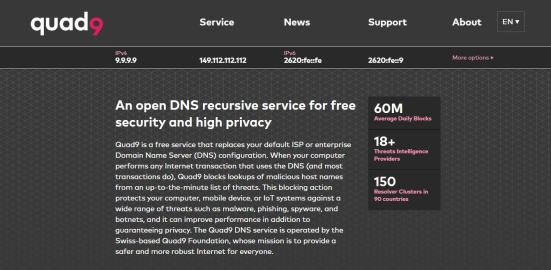
When it comes to providing many security measures against online threats, the DNS of Quad9 tops all other free DNS hosting services. Quad9 offers its users robust and reliable security measures. The free DNS provider aims to protect you against the latest harmful software, malware and lurking cyber threats.

Quad9 holds the highest record of stopping malware attacks worldwide. Ensuring a high level of security to its users, Quad9 follows DNSSEC extensions. These security extensions are efficient with the prevention of domain spoofing, malware intrusions, and cyber attacks. DNSSEC extensions also accurately match your DNS queries to the appropriate domain operator.

Quad9 also uses the live threat intelligence feature. The live threat intelligence feature combines the data collection of thirteen online cyber security firms. It is handy in detecting websites with infections or websites that have clones. The live threat intelligence feature also stops phishing and malware websites from infiltrating your domain.

  • Primary DNS:

    • 9.9.9.9

  • Secondary DNS:

    • 149.112.112.112


Comodo Secure

Comodo Secure 1

Comodo Secure is a public domain name server that does not require any fees. People may begin using Comodo secure by clicking on its free trial button. Comodo Secure is a public DNS that focuses on providing the utmost security measures against the latest cyber threats. It offers efficient protection against adware, spyware, malware, and C&C Callbacks.

If you use Comodo Secure, the public DNS will immediately warn you before opening a website with ads and malicious threats. The public DNS is also handy in blocking phishing websites and malware domains. When Comodo Secure detects a new website threat, it will add it to its existing blocklist of dangerous sites. This helps the public DNS provide a secure experience to its future users.

Comodo Secure also directs your queries to the correct domain operator. If any person is trying to visit an inactive domain, the Comodo Secure public DNS will redirect you towards active ones. Suppose you are an avid gamer wanting an increase in your connection speed, then Comodo Secure will help you achieve it.

  • Primary DNS:

    • 8.26.56.26

  • Secondary DNS:

    • 8.20.247.20


OpenNIC Project

OpenNIC Project DNS 1

OpenNIC Project is a free public domain server provider from an organization of hobbyists. The OpenNIC DNS provides users access to all the domains that do not fall under the administration of ICANN. OpenNIC resolves DNS queries with the help of their original namespaces.

The OpenNIC DNS does not contain any type of content blocking features. This means that any user cannot use OpenNIC to block some websites they do not want to visit. OpenNIC does not apply any type of internet censorship. It allows the users of the OpenNIC public DNS to have a free browsing experience without any limits.

OpenNIC DNS can also increase your internet speeds. The public DNS operates as a volunteer project and focuses on providing DNS neutrality. OpenNIC DNS has many global servers. One of the security measures of OpenNIC is the prevention of DNS Hijacking. It ensures that your DNS queries will not result in you visiting malicious websites.

  • Primary DNS:

    • 198.206.14.241

  • Secondary DNS:

    • 172.98.193.42


Yandex DNS

Yandex DNS 1

Yandex DNS is another third-party and public domain name server provider. The DNS hosting service is from Russia and offers its users a smooth and unforgettable experience like drinking vodka. Yandex DNS holds a record for providing an uptime of 99.95% efficiency. It means that its servers do not result in query failures almost 99.95% every time.

Yandex DNS provides three types of security features. These security features are Basic, Family, and Safe. Yandex DNS Basic feature offers an increase in your internet speed. The Family feature allows users to implement content filtering options. Yandex DNS’ Safe feature enhances your speed and protects you from DoS attacks and malware intrusions.

However, the Yandex DNS hosting service sometimes shares your data with third parties. It is not a private DNS provider. Yandex DNS still helps in giving a robust, reliable, and effective security measure against the latest cyber threats. It also allows users to access many customization features that will help you filter some online content.

  • Primary DNS:

    • 77.88.8.8

  • Secondary DNS:

    • 77.88.8.1


Use a DNS Provider with a VPN

surfshark logo

DNS services aim to provide people with a secure, fast, and reliable internet connection. Utilizing the help of powerful server networks, intelligence gathering techniques, and security protocols, many DNS services stop harmful attacks from many cyber threats.

However, not all DNS services are trustworthy. There are still providers that sell your information and distribute them to third parties. It is why we recommend you install the Surfshark.

Surfshark will help you stop many cyber threats. It will pass your online traffic through encrypted tunnels. It is the best for gaming and streaming activities. Here are some benefits of using this VPN:

  • Pass your connection through digital tunnels.
  • Counter the effects of ISP throttling.
  • Cloak your device from prying eyes.
  • Provide you with an invisible IP address.
  • Protect you from the latest cyber threats.
  • Prevents the onset of lagging and buffering while streaming with Fire TV devices.


Install Surfshark on Firestick

Best Surfshark Deal


How to Install Surfshark VPN on Firestick

If your Firestick still has the older interface, read this article to learn how to update it: Update Firestick Interface.

Follow our screenshots below to install the SurfShark VPN app on your Fire TV stick.

1. Go to the Home screen of your Firestick.

step 1 Install Surfshark VPN on Firestick


2. Navigate towards the Find tab. Press the Search button from the resulting dropdown.

step 2 Install Surfshark VPN on Firestick


3. Type in the keyword of SurfShark and select from the suggestions that will appear.

step 3 Install Surfshark VPN on Firestick


4. Click the official SurfShark icon from your search results.

step 4 Install Surfshark VPN on Firestick


5. Press the Download (You own it) button.

step 5 Install Surfshark VPN on Firestick


6. The SurfShark VPN installer will download on your device.

step 6 Install Surfshark VPN on Firestick


7. SurfShark VPN’s app will automatically install itself on your Fire TV stick.

step 7 Install Surfshark VPN on Firestick


8. Press the Open button after completing SurfShark VPN’s installation process.

step 8 Install Surfshark VPN on Firestick


9. Please wait for the SurfShark VPN to load its user interface.

step 9 Install Surfshark VPN on Firestick


10. You can now log in with your SurfShark VPN account credentials.

step 10 Install Surfshark VPN on Firestick

Learn more about Surfshark and Grab the Best Surfshark Deal Now!


Install Surfshark on Firestick

Best Surfshark Deal


Other VPNs to Consider

NordVPN (Best for Streaming)

Best Features

  • 5000+ Server in 50+ Countries 
  • Military-Grade Encryption
  • Fast Connection Speed
  • Suitable to a lot of devices
  • No-Log Policy

Prices
  • Complete $5.89 per month (64% Discount)
  • Plus $4.59 per month (56% Discount)
  • Standard $3.69 per month (55% Discount)

Best Features

  • 750+ High-speed VPN Servers in 43 Locations
  • Military-Grade Encryption
  • Fastest HD Streaming and Gaming
  • 30-Day Money-Back Guarantee
  • Unlimited Data & Devices
  • No-Log Policy

Prices
  • 3 Years $1.99 per month (82% Discount)
  • 1 Years $3.29 per month (70% Discount)
  • 1 Month $10.99 per month

IPVanish VPN (Most Secure)

Best Features

  • 1200+ Servers in 60+ Countries around the world
  • Unlimited Connections
  • No-Log Policy
  • Top Notch Military-Grade VPN Protocols and Encryptions
  • 100% Safe and Secured
  • Most Trusted VPN
  • Best VPN for Firestick
  • 30-Day Money-Back Guarantee

Prices
  • Yearly $3.99 per month (63% Discount) – 30 days risk free + Ransomware & Malware Protection
  • Quarterly $5.32 per month (51% Discount)
  • Monthly $10.99 per month


For more VPN discounts, go to ReviewVPN Deals and purchase the best VPN for you.

Click here to get the lowest price on Surfshark through our exclusive limited-time offer.


FAQs

Do these DNS Providers require any payment?

No, not all of them require any payment. However, if you want to get extra features, you may have to pay some extra fees.


Is it safe to use DNS servers?

Yes. One of the primary purposes of DNS servers is to provide a safe, secure, and faster web browsing experience. They also implement many security protocols that prevent online threats. There are DNS hosting services that specialize in preventing cyber attacks, malware, viruses, and even stop you from accessing malicious domains.


Conclusion

DNS is the acronym for Domain Name System. All of us use a different type of DNS while browsing the internet. Unbeknownst to many people, the internet contains many cyber threats such as hackers, viruses, and harmful software. To ensure security while browsing, people may opt to get the services of free public domain name servers.

We hope this article teaches you about the best DNS servers that provide a safe, faster, and reliable browsing experience.

How To Install 3C All in One Toolbox On Firestick

Overview

The 3C All-in-One Toolbox app is a useful tool that lets people take full control of their Android devices. It lets users monitor the status & heating of the memory, battery, network’s presence & quality, processor, clean & reboot, SD-card, and backup & restore. Also, it indicates adapters’ connection & disconnection, and many more.


Furthermore, the 3C All-in-One Toolbox pro combines several features from other awesome apps into one huge toolbox with an easy-to-use and state-of-the-art interface. This app has every tool people need to control, fine-tune, and monitor all their Android-based devices.

In addition, it offers very powerful activity scheduling, device watchdogs, and profiles to optimize device performance and battery savings based on your situation. The app comes with a great File manager. Finally, the 3C All-in-One Toolbox app lets you stream videos & images directly to your desired player. 


ANONYMOUSLY


3C All in One Toolbox APK Installation on FireStick
  1. Turn on the FireStick device, go to the top menu bar and choose > Settings.
  2. Click My Fire TV > Developer Options.
  3. Enable Apps from Unknown Sources.
  4. Go back to FireStick’s home screen and go to the menu bar.
  5. Go to the Search option.
  6. Search & install the Downloader app on FireStick.
  7. After installing the Downloader app, launch it.
  8. Enter the 3C All in One Toolbox app download URL/APK – https://reviewvpn.com/3ca
  9. Click GO.
  10. When the 3C All in One Toolbox file download is complete – click Install.
  11. Now, you have successfully installed the 3C All in One Toolbox app on FireStick.


Install 3C All in One Toolbox APK on Firestick with Screenshots

Install the Downloader app and jailbreak your firestick by enabling unknown sources. To learn more about the procedure, you may read How to Install the Downloader App and Enable Unknown Sources.

1. After installing the Downloader app, launch it.

Install 3C All in One Toolbox APK on Firestick Step 13

2. Enter the 3C All in One Toolbox app download URL/APK – https://reviewvpn.com/3ca and click GO.

Install 3C All in One Toolbox APK on Firestick Step 14


3. When the 3C All in One Toolbox file download is complete – click Install.

Install 3C All in One Toolbox APK on Firestick Step 15


4. Now, you have successfully installed the 3C All in One Toolbox app on FireStick

Install 3C All in One Toolbox APK on Firestick Step 16


Install Surfshark on Firestick

Best Surfshark Deal


Moving the Newly Installed App to the Front

  • Go back to FireStick’s Home Screen (you may click the Home Button on the Fire Stick remote)
  • Go to Your Apps & Games/Channels
  • Scroll once to the left
  • Click See All
  • All the newly installed apps are located at the bottom – you can move the 3C All in One Toolbox app by clicking the Options button (at the right side of the Home Button)


What Is 3C All in One Toolbox?

The 3C All-in-One Toolbox Pro app is an absolute solution for people who need to set up and control their Android-powered devices. It is a useful app that will keep your Android devices clean and under control. Nonetheless, the 3C All-in-One Toolbox application comes with a File Manager, device Manager, battery Manager, application Manager, task Manager, Network Manager, CPU Manager, and many more.

The 3C All-in-One Toolbox app lets you access the file manage section to see all the files. Then, you can manage the files by deleting some files to make some storage for new files. Also, the app displays info about all the applications running in the background.


YOUR INTERNET ACTIVITY IS BEING WATCHED

ReviewVPN cannot attest to the legality, security and privacy of the applications discussed on this site. It is highly recommended that you use a VPN service while streaming or using Kodi.

Currently, your IP 216.73.216.211 is visible to everyone and your Browser is being tracked by Advertisers & ISP Provider.

Save 65% Now

Limited Time Offer

Here are the main reasons why you must use a VPN:

  • Your activities are hidden from your ISP, the government, and from the apps you are using.
  • You can access additional movies and TV streams.
  • ISP attempts to throttle are thrwarted thus reducing buffering issues.
  • Geographically restricted content like Netflix and Hulu can be unblocked.

A VPN works be replacing your ISP-assigned IP address and creating an encrypted tunnel. We recommend the no log service offered by IPVanish. It works well on a Firestick and offers the fastest possible speeds.

Special Limited Time Offer - Get IPVanish


App Features

  • Device manager provides powerful profiles, device watchdog, and task scheduling to optimize performance and saves battery.
  • It has a File manager with folder size, thumbnails, and many more. It allows you to stream videos & photos. You can stream locally or from FTP, Samba, Google Drive, Dropbox, or WebDAV.
  • The 3C All in One Toolbox provides backup or restore of all the apps, which include the ability to import Android’s most powerful backup tool – Titanium Backup. Additionally, the app lets you customize & secure applications’ orientation, events, control permissions, and full-screen 
  • Its battery manager helps improve and analyze your device consumption. The app provides complete data on charge cycles history, approximate calculations in use or standby, as well as custom statistics on profiles. Nonetheless, it has special support for battery changes and dual battery devices
  • The app lets you configure and monitor network traffic.
  • The 3C All in One Toolbox app offers a simple user interface yet is extremely effective in sorting applications by different usage and eliminating unwanted applications
  • It has a CPU manager that controls single to octa-core central processing units, multi-core, most custom kernel settings, and thermal
  • The 3C All in One Toolbox app allows you to configure Linux kernel settings
  • The app allows you to configure Android operating system settings.
  • You can monitor and record all your apps and hardware components’ activities. However, it comes with status bar notifications accompanied by historical graphics.
  • The 3C All in One Toolbox app switches in-app or in-widgets. It allows you to switch on or off more than 20 device components, including Bluetooth, Wi-Fi, and more
  • It has information notifications allowing you to display major info in the status bar.
  • The app has line indicators to display simple data 
  • The app allows you to quickly access application features or toggle different system components
  • It comes with a toolbox integration that saves battery and optimizes performance. Nonetheless, you can control hardware and manage applications from anywhere.
  • Highly configurable user interface allowing you to change the app based on your liking
  • The widgets are highly configurable, from a basic gauge to more compound data display, historical graphics,  as well as component toggles


Pro-only Features

  • Conceal tabs or menu item
  • Multi or auto-select & sort applications
  • You can edit the main screen buttons
  • Recording items & options
  • Auto backup & new application notification
  • Automatic battery markers 
  • Make multiple watchers, profiles, and schedules
  • Notification shortcut 
  • Be in charge of multiple batteries
  • Several extra widgets


Always Use a VPN on Firestick

A Virtual Private Network or VPN is a great service that conceals data by transmitting web activities to a secure, safe location. The VPN service generates a secure tunnel to offer end-to-end protection. Thus, Internet Service Providers will not know what you are doing online. The Amazon Firestick is a very useful device that allows you to stream Netflix, Hulu, as well as any other content you want.

Nonetheless, streaming apps or platforms come with geographical restrictions. Thus, if you’re not residing in the United States, you will not be able to watch the US content library of Netflix. That is the major benefit of using a VPN service like the Surfshark service. If the content is not accessible in your country, the Surfshark service gives you the option to replace your real IP address with the location where the content is available.


Grab your subscription now!

Click here to get the lowest price on Surfshark through our exclusive limited-time offer.


How to Install Surfshark VPN on Firestick

If your Firestick still has the older interface, read this article to learn how to update it: Update Firestick Interface.

Follow our screenshots below to install the SurfShark VPN app on your Fire TV stick.

1. Go to the Home screen of your Firestick.

step 1 Install Surfshark VPN on Firestick


2. Navigate towards the Find tab. Press the Search button from the resulting dropdown.

step 2 Install Surfshark VPN on Firestick


3. Type in the keyword of SurfShark and select from the suggestions that will appear.

step 3 Install Surfshark VPN on Firestick


4. Click the official SurfShark icon from your search results.

step 4 Install Surfshark VPN on Firestick


5. Press the Download (You own it) button.

step 5 Install Surfshark VPN on Firestick


6. The SurfShark VPN installer will download on your device.

step 6 Install Surfshark VPN on Firestick


7. SurfShark VPN’s app will automatically install itself on your Fire TV stick.

step 7 Install Surfshark VPN on Firestick


8. Press the Open button after completing SurfShark VPN’s installation process.

step 8 Install Surfshark VPN on Firestick


9. Please wait for the SurfShark VPN to load its user interface.

step 9 Install Surfshark VPN on Firestick


10. You can now log in with your SurfShark VPN account credentials.

step 10 Install Surfshark VPN on Firestick

Learn more about Surfshark and Grab the Best Surfshark Deal Now!


Install Surfshark on Firestick

Best Surfshark Deal


Other VPNs to Consider

NordVPN (Best for Streaming)

Best Features

  • 5000+ Server in 50+ Countries 
  • Military-Grade Encryption
  • Fast Connection Speed
  • Suitable to a lot of devices
  • No-Log Policy

Prices
  • Complete $5.89 per month (64% Discount)
  • Plus $4.59 per month (56% Discount)
  • Standard $3.69 per month (55% Discount)

Best Features

  • 750+ High-speed VPN Servers in 43 Locations
  • Military-Grade Encryption
  • Fastest HD Streaming and Gaming
  • 30-Day Money-Back Guarantee
  • Unlimited Data & Devices
  • No-Log Policy

Prices
  • 3 Years $1.99 per month (82% Discount)
  • 1 Years $3.29 per month (70% Discount)
  • 1 Month $10.99 per month

IPVanish VPN (Most Secure)

Best Features

  • 1200+ Servers in 60+ Countries around the world
  • Unlimited Connections
  • No-Log Policy
  • Top Notch Military-Grade VPN Protocols and Encryptions
  • 100% Safe and Secured
  • Most Trusted VPN
  • Best VPN for Firestick
  • 30-Day Money-Back Guarantee

Prices
  • Yearly $3.99 per month (63% Discount) – 30 days risk free + Ransomware & Malware Protection
  • Quarterly $5.32 per month (51% Discount)
  • Monthly $10.99 per month


For more VPN discounts, go to ReviewVPN Deals and purchase the best VPN for you.

Click here to get the lowest price on Surfshark through our exclusive limited-time offer.


FAQs

Is the 3C All in One Toolbox app Good?

Yes, the 3C All in One Toolbox app is good and worth trying.


Is the 3C All in One Toolbox app free?

Yes, the 3C All in One Toolbox app is free to download, install, & use.


Conclusion

In this article, we have provided information on how to install the 3C All in One Toolbox app on Firestick. The information above should really help enhance your Firestick.

However, always remember to use A VPN service every time you use your Firestick. If you have any thoughts about the 3C All in One Toolbox app, don’t hesitate to let us know in the comments section.

How to Install Anime TV App on Firestick

Overview

In this article, we will show you how to install the Anime TV app on your Fire TV stick.

Anime represents the peak of Japanese culture. Their animations come from comic books popularly known as Mangas. The art of Manga still holds the world standard. No wonder both manga and anime gather millions of followers worldwide.


Are you looking for a TV app with many Anime shows to choose from? If yes, we will tell you about an app for streaming anime content. ReviewVPN tackles the best apps for streaming. We also cover some issues you might encounter while using the Fire TV stick. Our research and testing ensure that you receive the best apps.

Let us now introduce you to the Anime TV app. The Anime TV app is an awesome software for watching anime content. It contains many anime genres. Users may also select from its collection of movies, series, and TV shows. It is your one-stop app for accessing anime content.


We will now teach you how to install the Anime TV app on your Fire TV stick. You only have to Jailbreak your Fire TV Stick and sideload the app for its successful installation.


Anime TV App for Android Devices


Anime TV Button 1

Note: ReviewVPN.com does not host this APK file. It is hosted by Archive.org


ANONYMOUSLY


How to Install Anime TV App on your Fire TV stick

You can install the Anime TV app on your Fire TV stick by using the Downloader app. Just follow our simple guide below.

  1. Open your Firestick Settings Tab. (Gear Wheel Icon).
  2. Scroll down and to the right until you get to My Fire TV. Click on it.
  3. Select Developer options.
  4. Turn on ADB debugging and Apps from Unknown Sources.
  5. Press the Turn On when the pop-up appears.
  6. Click Home and press on FIND.
  7. Press on Search.
  8. You can either say Downloader to your Alexa voice-enabled remote or start typing it. If you typed it, click on the suggestion when it appears.
  9. Click on the Downloader Icon.
  10. Tap on Download.
  11. Click on Open.
  12. Press on the Allow button.
  13. Use the Downloader app’s Search tab.
  14. Type in: reviewvpn.com/anm
  15. The Anime TV app’s APK file will download.
  16. Click on Install.
  17. The Anime TV app will install on Firestick.
  18. Users may Open the Anime TV app for watching anime shows and reading manga comics.


How to Install Anime TV App on your Fire TV stick With Screenshots

Use the Downloader app to install the Anime TV app on your Fire TV stick. Follow each of our screenshots down below and not miss one step of its installation procedure.

1. Open your Firestick Settings Tab. (Gear Wheel Icon).

Step 1 Install Anime TV App on Firestick

2. Scroll down and to the right until you get to My Fire TV. Click on it.

Step 2 Install Anime TV App on Firestick


3. Select Developer options.

Step 3 Install Anime TV App on Firestick


4. Turn on ADB debugging and Apps from Unknown Sources.

Step 4 Install Anime TV App on Firestick


5. Press the Turn On when the pop-up appears.

Step 5 Install Anime TV App on Firestick


6. Click Home and press on FIND.

Step 6 Install Anime TV App on Firestick


7. Press on Search.

Step 7 Install Anime TV App on Firestick


8. You can either say Downloader to your Alexa voice-enabled remote or start typing it. If you typed it, click on the suggestion when it appears.

Step 8 Install Anime TV App on Firestick


9. Click on the Downloader Icon.

Step 9 Install Anime TV App on Firestick


10. Tap on Download.

Step 10 Install Anime TV App on Firestick


step 10 Install Anime TV App on Firestick


11. Click on Open.

Step 11 Install Anime TV App on Firestick


12. Press on the Allow button.

Step 12 Install Anime TV App on Firestick


13. Use the Downloader search tab.

Step 13 Install Anime TV App on Firestick


14. Type in: reviewvpn.com/anm

Install Anime TV App on Firestick Step 14


15. The Anime TV app’s APK file will download.

Install Anime TV App on Firestick Step 15


16. Click on Install.

Install Anime TV App on Firestick Step 16


17. The Anime TV app will install on Firestick.

Install Anime TV App on Firestick Step 17


18. Users may Open the Anime TV app for watching anime shows and reading manga comics.

Install Anime TV App on Firestick Step 18


Install Anime TV App on Firestick Step 19


Features of the Anime TV App

  • Anime TV show provider
  • Free anime movies and TV series
  • Updates app content daily
  • Select TV show episodes or exclusive Anime OVAs
  • Large collection of Japanese Manga and Anime content
  • One-stop app for Japanese Manga and Anime content
  • Provide subs for every language
  • English-dubbing for shows and movies
  • Allows users to access their viewing history
  • Lets people add TV shows, series, and movies as their favorite
  • Provides a Watch history feature
Technical Specifications of the Anime TV App

The Anime TV app is a free to use, community software, and comics app. You can install the app on many modern devices. We have the technical specifications for the Anime TV app so you can learn about its requirements.

Anime TV App Infographic


Anime TV App Interface

  • Simple user interface
  • Gallery style video list
  • Contains the latest Anime titles and Episodes
  • Comprehensive Interface
  • Find anime media content titles based on filters


Genres Inside the Anime TV App

  • Action
  • Demons
  • Drama
  • Horror
  • Shoujo
  • Shounen
  • Supernatural
  • Realistic
  • Romance
  • Magic
  • Mecha
  • Psychological
  • Sci-fi
  • Mystery


Pros and Cons

Pros

  • 100% Free
  • Legal-to-Use
  • A one-stop source of Japanese Anime
  • Comic book app
  • Allows users to read manga comics
  • Easy to install
  • Comprehensive interface
  • Contains many Anime genres
  • Provides an add to Favorite feature
  • Adds a Watch history feature


Cons

  • The app requires its users to either log in, signup, or create an account before using the app.


Watch Anime Online with a VPN

https://get.surfshark.net/aff_c?offer_id=865&aff_id=12312

Several anime enthusiasts now enjoy the free streaming of their favorite shows and movies. Accessing many Anime channels and manga websites is easier with the modern-day internet. The availability of many apps providing people 24/7 access to anime media continues to gather many anime fans worldwide.

Streaming anime is an excellent hobby to take. However, our internet service providers (ISPs) can decrease the rate of our connections. They do this if they detect heavy traffic from our devices. This process is known as ISP throttling.

Aside from ISP throttling, many online threats prey on avid streamers. To protect your device and connection, we recommend installing the Surfshark VPN. It is the best VPN for streaming anime content. This VPN service has many benefits to give us:

  • Fast streaming of anime videos.
  • Quick loading of manga pages.
  • Renders your connection invisible from online predators.
  • Keep your data secure with virtual tunnels.
  • Stuttering and buffering will not occur while using Fire TV and Kodi devices.


Grab your subscription now!

Best Surfshark Deal


YOUR INTERNET ACTIVITY IS BEING WATCHED

ReviewVPN cannot attest to the legality, security and privacy of the applications discussed on this site. It is highly recommended that you use a VPN service while streaming or using Kodi.

Currently, your IP 216.73.216.211 is visible to everyone and your Browser is being tracked by Advertisers & ISP Provider.

Save 65% Now

Limited Time Offer

Here are the main reasons why you must use a VPN:

  • Your activities are hidden from your ISP, the government, and from the apps you are using.
  • You can access additional movies and TV streams.
  • ISP attempts to throttle are thrwarted thus reducing buffering issues.
  • Geographically restricted content like Netflix and Hulu can be unblocked.

A VPN works be replacing your ISP-assigned IP address and creating an encrypted tunnel. We recommend the no log service offered by IPVanish. It works well on a Firestick and offers the fastest possible speeds.

Special Limited Time Offer - Get IPVanish


How to Install Surfshark VPN on Firestick

If your Firestick still has the older interface, read this article to learn how to update it: Update Firestick Interface.

You can download Surfshark directly from the Amazon App store. It will be easy for you to find Surfshark with your Firestick’s Find feature. Refer to our screenshots below.

1. Go to the Home screen of your Firestick.

step 1 Install Surfshark VPN on Firestick


2. Navigate towards the Find tab. Press the Search button from the resulting dropdown.

step 2 Install Surfshark VPN on Firestick


3. Type in the keyword of SurfShark and select from the suggestions that will appear.

step 3 Install Surfshark VPN on Firestick


4. Click the official SurfShark icon from your search results.

step 4 Install Surfshark VPN on Firestick


5. Press the Download (You own it) button.

step 5 Install Surfshark VPN on Firestick


6. The SurfShark VPN installer will download on your device.

step 6 Install Surfshark VPN on Firestick


7. SurfShark VPN’s app will automatically install itself on your Fire TV stick.

step 7 Install Surfshark VPN on Firestick


8. Press the Open button after completing SurfShark VPN’s installation process.

step 8 Install Surfshark VPN on Firestick


9. Please wait for the SurfShark VPN to load its user interface.

step 9 Install Surfshark VPN on Firestick


10. You can now log in with your SurfShark VPN account credentials.

step 10 Install Surfshark VPN on Firestick

Learn more about Surfshark and Grab the Best Surfshark Deal Now!


Install Surfshark on Firestick

Best Surfshark Deal


Other VPNs to Consider

NordVPN (Best for Streaming)

Best Features

  • 5000+ Server in 50+ Countries 
  • Military-Grade Encryption
  • Fast Connection Speed
  • Suitable to a lot of devices
  • No-Log Policy

Prices
  • Complete $5.89 per month (64% Discount)
  • Plus $4.59 per month (56% Discount)
  • Standard $3.69 per month (55% Discount)

Best Features

  • 750+ High-speed VPN Servers in 43 Locations
  • Military-Grade Encryption
  • Fastest HD Streaming and Gaming
  • 30-Day Money-Back Guarantee
  • Unlimited Data & Devices
  • No-Log Policy

Prices
  • 3 Years $1.99 per month (82% Discount)
  • 1 Years $3.29 per month (70% Discount)
  • 1 Month $10.99 per month

IPVanish VPN (Most Secure)

Best Features

  • 1200+ Servers in 60+ Countries around the world
  • Unlimited Connections
  • No-Log Policy
  • Top Notch Military-Grade VPN Protocols and Encryptions
  • 100% Safe and Secured
  • Most Trusted VPN
  • Best VPN for Firestick
  • 30-Day Money-Back Guarantee

Prices
  • Yearly $3.99 per month (63% Discount) – 30 days risk free + Ransomware & Malware Protection
  • Quarterly $5.32 per month (51% Discount)
  • Monthly $10.99 per month


For more VPN discounts, go to ReviewVPN Deals and purchase the best VPN for you.

Click here to get the lowest price on Surfshark through our exclusive limited-time offer.


Alternative Apps for Anime TV App

Anime TV app is a wonderful app for all things about anime. However, some anime fans might still look for content not present on the app. We have a list of apps that can serve as viable alternatives:


FAQs

Is the Anime TV app free?

Yes, but users of the app may have to create their login account to use the features of the app.


Are there ads while using the Anime TV app?

Yes, there are a few occasional pop-up ads while using the app. However, they do not disrupt your streaming experience.


Conclusion

The Anime TV app is one of the best apps for streaming anime. It allows users to find anime titles with different filters. Anime fans may also add titles as their favorite, or check out their viewing history.

We hope this article helps you install the Anime TV app on your Fire TV stick.

How to Install Insta IPTV on Firestick

Overview

In this article, we will show you how to install the Insta IPTV app on your Fire TV stick.

Internet Protocol Television or IPTV allows many people to stream TV channels with the help of the internet. It is a modern and fascinating feature. With the help of modern devices connecting to the web, we can watch our favorite TV shows anywhere.


Are you searching for an IPTV app that has tons of TV content? If you are, you have come across the right article. We will now introduce you to the wonderful capabilities of the Insta IPTV app. If you want instant IPTV streaming anywhere you might be, the Insta IPTV app is suitable for your needs.

The Insta IPTV app allows users to watch live IPTV channels either on their Android phone or Fire TV device. It contains an astounding eight thousand IPTV channels from different worldwide sources. You can now catch your favorite TV show, catch the latest sports event, watch the news, or even binge-watch movies with your mobile.

We will now show you the technical specifications of the Insta IPTV app.


We will now teach you how to install the Insta IPTV app on your Fire TV stick. You only have to Jailbreak your Fire TV Stick and sideload the app for its successful installation.


Insta IPTV App for Android Devices


Insta IPTV DL Button 1

Note: ReviewVPN.com does not host this APK file. It is hosted by Archive.org


ANONYMOUSLY


How to Install Insta IPTV App on your Fire TV stick

You can install the Insta IPTV app on your Fire TV stick by using the Downloader app. Just follow our simple guide below.

  1. Open your Firestick Settings Tab. (Gear Wheel Icon).
  2. Scroll down and to the right until you get to My Fire TV. Click on it.
  3. Select Developer options.
  4. Turn on ADB debugging and Apps from Unknown Sources.
  5. Press the Turn On when the pop-up appears.
  6. Click Home and press on FIND.
  7. Press on Search.
  8. You can either say Downloader to your Alexa voice-enabled remote or start typing it. If you typed it, click on the suggestion when it appears.
  9. Click on the Downloader Icon.
  10. Tap on Download.
  11. Click on Open.
  12. Press on the Allow button.
  13. Use the Downloader app’s Search tab.
  14. Type in: reviewvpn.com/ins
  15. The Insta IPTV app’s APK file will download.
  16. Click on Install.
  17. The Insta IPTV app will install on Firestick.
  18. You can now open the Insta IPTV app after installing it on your device.
  19. Click on any live IPTV channel for watching any programs you like.


How to Install Insta IPTV App on your Fire TV stick With Screenshots

Installing the Insta IPTV app on your Fire TV stick is easier with the Downloader app. You can then install third-party apps like the Insta IPTV app by jailbreaking your Fire TV stick Follow each instruction and image down below:

1. Open your Firestick Settings Tab. (Gear Wheel Icon).

Step 1 Install Insta IPTV App on your Fire TV stick

2. Scroll down and to the right until you get to My Fire TV. Click on it.

Step 2 Install Insta IPTV App on your Fire TV stick


3. Select Developer options.

Step 3 Install Insta IPTV App on your Fire TV stick


4. Turn on ADB debugging and Apps from Unknown Sources.

Step 4 Install Insta IPTV App on your Fire TV stick


5. Press the Turn On when the pop-up appears.

Step 5 Install Insta IPTV App on your Fire TV stick


6. Click Home and press on FIND.

Step 6 Install Insta IPTV App on your Fire TV stick


7. Press on Search.

Step 7 Install Insta IPTV App on your Fire TV stick


8. You can either say Downloader to your Alexa voice-enabled remote or start typing it. If you typed it, click on the suggestion when it appears.

Step 8 Install Insta IPTV App on your Fire TV stick


9. Click on the Downloader Icon.

Step 9 Install Insta IPTV App on your Fire TV stick


10. Tap on Download.

Step 10 Install Insta IPTV App on your Fire TV stick


step 10 Install Insta IPTV App on your Fire TV stick


11. Click on Open.

Step 11 Install Insta IPTV App on your Fire TV stick


12. Press on the Allow button.

Step 12 Install Insta IPTV App on your Fire TV stick


13. Use the Downloader search tab.

Step 13 Install Insta IPTV App on your Fire TV stick


14. Type in: reviewvpn.com/ins

Install Insta IPTV App on your Fire TV stick Step 14


15. The Insta IPTV app’s APK file will download.

Install Insta IPTV App on your Fire TV stick Step 15


16. Click on Install.

Install Insta IPTV App on your Fire TV stick Step 16


17. The Insta IPTV app will install on Firestick.

Install Insta IPTV App on your Fire TV stick Step 17


18. You can now open the Insta IPTV app after installing it on your device.

Install Insta IPTV App on your Fire TV stick Step 18


19. Click on any live IPTV channel for watching any programs you like.

Install Insta IPTV App on your Fire TV stick Step 19


Install Insta IPTV App on your Fire TV stick Step 19


Features of the Insta IPTV App

  • Contains over eight thousand live IPTV channels
  • Embed any channel from different worldwide sources
  • Choose from a wide selection of different IPTV channels
  • Select either a local or global IPTV channel
  • Watching live TV is now possible on your Android or Fire TV device
  • Instant IPTV channel viewing by clicking on any channel links


YOUR INTERNET ACTIVITY IS BEING WATCHED

ReviewVPN cannot attest to the legality, security and privacy of the applications discussed on this site. It is highly recommended that you use a VPN service while streaming or using Kodi.

Currently, your IP 216.73.216.211 is visible to everyone and your Browser is being tracked by Advertisers & ISP Provider.

Save 65% Now

Limited Time Offer

Here are the main reasons why you must use a VPN:

  • Your activities are hidden from your ISP, the government, and from the apps you are using.
  • You can access additional movies and TV streams.
  • ISP attempts to throttle are thrwarted thus reducing buffering issues.
  • Geographically restricted content like Netflix and Hulu can be unblocked.

A VPN works be replacing your ISP-assigned IP address and creating an encrypted tunnel. We recommend the no log service offered by IPVanish. It works well on a Firestick and offers the fastest possible speeds.

Special Limited Time Offer - Get IPVanish


Technical Specifications of the Insta IPTV App

The Insta IPTV app is compatible with installation with many Android and Fire TV devices. Here is a brief infographic showing the technical specifications of the Insta IPTV app.

Insta IPTV Specs 1 (1)

The Interface of the Insta IPTV App

  • Natural day-mode
  • Bright background theme
  • Displays all available IPTV Channel in tile format
  • Built-in search engine (Magnifying glass icon)
  • Settings button (Gear Wheel Icon)
  • Presents the name and icon of available IPTV channels


Pros and Cons

Pros

  • 100% Free.
  • Immediately displays all available IPTV channels.
  • No need to load other IPTV channel sources.
  • Does not require the addition of an M3U Playlist.
  • Built-in search engine for discovering IPTV channels.
  • Allows users to check their viewing history.
  • Contains over eight thousand IPTV channels from worldwide sources.


Cons

  • Has a pop-up ad that does not disappear.


View IPTV Channels with a VPN

surfshark logo

IPTV stands for Internet Protocol Television. It is a fresh new feature that allows app developers to create software for streaming. All that this type of app requires is a fast and reliable internet connection. IPTV apps rely on the internet for delivering 24/7 TV streaming services.

Sadly, streaming many channels can cause a reduction in our internet speed. It might disturb your movie marathon or while you are watching your favorite TV show. In some cases, cyber threats might also be the culprit for a lagging connection.

To counter disruptions from ISP throttling, we recommend installing Surfshark. The VPN allows you to watch media content with geo-restrictions. Surfshark also has many features to share with its users:

  • Increase the rate of your streaming speed.
  • Reduce the effects of ISP throttling.
  • Let you access media content with geo-blocks.
  • Allow you anonymous web browsing while protecting your data.
  • Keeps your device safe from cyber threats and hackers.


Grab your subscription now!

Click here to get the lowest price on Surfshark through our exclusive limited-time offer.


How to Install Surfshark VPN on Firestick

If your Firestick still has the older interface, read this article to learn how to update it: Update Firestick Interface.

Follow our screenshots below to install the SurfShark VPN app on your Fire TV stick.

1. Go to the Home screen of your Firestick.

step 1 Install Surfshark VPN on Firestick


2. Navigate towards the Find tab. Press the Search button from the resulting dropdown.

step 2 Install Surfshark VPN on Firestick


3. Type in the keyword of SurfShark and select from the suggestions that will appear.

step 3 Install Surfshark VPN on Firestick


4. Click the official SurfShark icon from your search results.

step 4 Install Surfshark VPN on Firestick


5. Press the Download (You own it) button.

step 5 Install Surfshark VPN on Firestick


6. The SurfShark VPN installer will download on your device.

step 6 Install Surfshark VPN on Firestick


7. SurfShark VPN’s app will automatically install itself on your Fire TV stick.

step 7 Install Surfshark VPN on Firestick


8. Press the Open button after completing SurfShark VPN’s installation process.

step 8 Install Surfshark VPN on Firestick


9. Please wait for the SurfShark VPN to load its user interface.

step 9 Install Surfshark VPN on Firestick


10. You can now log in with your SurfShark VPN account credentials.

step 10 Install Surfshark VPN on Firestick

Learn more about Surfshark and Grab the Best Surfshark Deal Now!


Install Surfshark on Firestick

Best Surfshark Deal


Other VPNs to Consider

NordVPN (Best for Streaming)

Best Features

  • 5000+ Server in 50+ Countries 
  • Military-Grade Encryption
  • Fast Connection Speed
  • Suitable to a lot of devices
  • No-Log Policy

Prices
  • Complete $5.89 per month (64% Discount)
  • Plus $4.59 per month (56% Discount)
  • Standard $3.69 per month (55% Discount)

Best Features

  • 750+ High-speed VPN Servers in 43 Locations
  • Military-Grade Encryption
  • Fastest HD Streaming and Gaming
  • 30-Day Money-Back Guarantee
  • Unlimited Data & Devices
  • No-Log Policy

Prices
  • 3 Years $1.99 per month (82% Discount)
  • 1 Years $3.29 per month (70% Discount)
  • 1 Month $10.99 per month

IPVanish VPN (Most Secure)

Best Features

  • 1200+ Servers in 60+ Countries around the world
  • Unlimited Connections
  • No-Log Policy
  • Top Notch Military-Grade VPN Protocols and Encryptions
  • 100% Safe and Secured
  • Most Trusted VPN
  • Best VPN for Firestick
  • 30-Day Money-Back Guarantee

Prices
  • Yearly $3.99 per month (63% Discount) – 30 days risk free + Ransomware & Malware Protection
  • Quarterly $5.32 per month (51% Discount)
  • Monthly $10.99 per month


For more VPN discounts, go to ReviewVPN Deals and purchase the best VPN for you.

Click here to get the lowest price on Surfshark through our exclusive limited-time offer.


Alternative Apps for the Insta IPTV App

IPTV apps rely on an excellent internet connection. We might encounter some disturbances while streaming our favorite TV shows. In some cases, your device might be a malfunction or your app or have a slow internet speed. For these types of situations, we have a list of IPTV apps for continuous streaming:


FAQs

Is the Insta IPTV app free?

Yes, its download and installation are easy and free both on Android and Fire TV devices.


Are there ads while using the app?

Yes, there is a small ad window on the bottom of the page.


Conclusion

The Insta IPTV app is yet another app relying on IPTV capabilities. However, users might enjoy using the app for its simple interface. The app also contains a massive collection of eight thousand IPTV channels. All you have to do is click on any channel available while using the Insta IPTV app.

We hope this article helps you install the Insta IPTV app on your Fire TV stick.

How to Install Block This APK on Firestick

Overview

Block This is a great app to block advertisements, spam, and malware. You can browse safely, and securely from any internet browser or application. Also, the Block This app speeds up browsing loading time and slightly reduces internet data consumption. Moreover, using this adblocking app is as easy as just tapping a button.

The Block This app is completely free to download, install, & use. However, satisfied users can freely choose to support the ad-blocker app through donations. The donations are processed in three ways – downloading third-party applications, supporting the app on Patreon, or donating directly to the app’s PayPal account.


Block This App Installation on FireStick
  1. Turn on the FireStick device, go to the top menu bar and choose > Settings.
  2. Click My Fire TV > Developer Options.
  3. Enable Apps from Unknown Sources.
  4. Go back to FireStick’s home screen and go to the menu bar.
  5. Go to the Search option.
  6. Search & install the Downloader app on FireStick.
  7. After installing the Downloader app, launch it.
  8. Enter the Block This app download URL/APK – https://reviewvpn.com/bth
  9. Click GO.
  10. When the Block This file download is complete – click Install.
  11. Now, you have successfully installed the Block This app on FireStick.


ANONYMOUSLY


Install Block This App on Firestick (Video)


Install Block This App on Firestick with Screenshots

Install the Downloader app and jailbreak your firestick by enabling unknown sources. To learn more about the procedure, you may read How to Install the Downloader App and Enable Unknown Sources.

1. After installing the Downloader app, launch it.

Install the UPlayer App on Firestick Step 13

2. Enter the Block This app download URL/APK – https://reviewvpn.com/bth and click GO.

Block This


3. When the Block This file download is complete – click Install.

Block This install


4. Now, you have successfully installed the Block This app on FireStick.

Block This app


Install Surfshark on Firestick

Best Surfshark Deal


Moving the Newly Installed App to the Front

  • Go back to FireStick’s Home Screen (you may click the Home Button on the Fire Stick remote)
  • Go to Your Apps & Games/Channels
  • Scroll once to the left
  • Click See All
  • All the newly installed apps are located at the bottom – you can move the Block This app by clicking the Options button (at the right side of the Home Button)


What Is Block This App?

The Block This is an open-source free ad blocker app for Android devices that functions in all browsers & apps. The ad blocker app offers additional benefits of increased browsing speed, malware protection, as well as reduction of data traffic.

The Block This! App is extremely easy to use. Thanks to the app’s features, you can browse the internet peacefully & safely. You don’t need to be constantly shutting down and ignoring annoying ads.


Features

  • Block all ads – The Block This app blocks all browser & in-app ads, including pop-up ads, audio & video ads, tracking cookies, & banners
  • Stop malware – the app takes care of users’ security with its antivirus features. It has a large list of malware distributors to protect users from viruses
  • No Censorship – It bypasses internet service provider (ISP) censorship and access parts of the internet that were previously not accessible for people.


Compatibility

With the Block This app, you can easily block all browser & in-app ads. Moreover, the Block This app is compatible with tons of Android-based devices, such as the Amazon Firestick, smartphones, tablets, and much more.


A Useful Tool

The Block This app is extremely useful to every individual who wants to eliminate the ceaseless flow of ads, spam as well as malware attempts. The app works well with all web browsers & apps, making the app universal. Nonetheless, spectacular productivity will not permit anything to disclose via the protection. Additionally, it has the function to avoid censorship  & blocking at various activity levels. The Block This app works so great that it saves up to 25% of previously used traffic with no blockers.


Always Use a VPN on Firestick

If privacy really matters to you, Virtual Private Network or VPN is an essential utility tool on your Android devices. Thus, installing a VPN on Firestick requires no second opinion. There are tons of premium VPN service providers available out there, this article deals with the best VPN for firestick – the Surfshark service. 

Surfshark is an end-to-end encrypted VPN service that guarantees your privacy & security every time you’re online. People who want a private experience on the internet can choose the Surfshark service on Firestick. If you want to unblock content with geo-restrictions, acquire unlimited access or avoid internet throttling, Surfshark does the job easily. 


Surfshark Features:

  • Robust encryption
  • Great download speed
  • Amazing customer service
  • Strict zero log policy
  • Unlimited simultaneous devices
  • Unblocks Disney+, Hulu, Netflix, and many more
  • 30-day money-back guarantee
  • Compatible with Android, Windows, Linux,  iOS, and other routers


Grab your subscription now!

Click here to get the lowest price on Surfshark through our exclusive limited-time offer.


How to Install Surfshark VPN on Firestick

If your Firestick still has the older interface, read this article to learn how to update it: Update Firestick Interface.

Follow our screenshots below to install the SurfShark VPN app on your Fire TV stick.

1. Go to the Home screen of your Firestick.

step 1 Install Surfshark VPN on Firestick


2. Navigate towards the Find tab. Press the Search button from the resulting dropdown.

step 2 Install Surfshark VPN on Firestick


3. Type in the keyword of SurfShark and select from the suggestions that will appear.

step 3 Install Surfshark VPN on Firestick


4. Click the official SurfShark icon from your search results.

step 4 Install Surfshark VPN on Firestick


5. Press the Download (You own it) button.

step 5 Install Surfshark VPN on Firestick


6. The SurfShark VPN installer will download on your device.

step 6 Install Surfshark VPN on Firestick


7. SurfShark VPN’s app will automatically install itself on your Fire TV stick.

step 7 Install Surfshark VPN on Firestick


8. Press the Open button after completing SurfShark VPN’s installation process.

step 8 Install Surfshark VPN on Firestick


9. Please wait for the SurfShark VPN to load its user interface.

step 9 Install Surfshark VPN on Firestick


10. You can now log in with your SurfShark VPN account credentials.

step 10 Install Surfshark VPN on Firestick

Learn more about Surfshark and Grab the Best Surfshark Deal Now!


Install Surfshark on Firestick

Best Surfshark Deal


Other VPNs to Consider

NordVPN (Best for Streaming)

Best Features

  • 5000+ Server in 50+ Countries 
  • Military-Grade Encryption
  • Fast Connection Speed
  • Suitable to a lot of devices
  • No-Log Policy

Prices
  • Complete $5.89 per month (64% Discount)
  • Plus $4.59 per month (56% Discount)
  • Standard $3.69 per month (55% Discount)

Best Features

  • 750+ High-speed VPN Servers in 43 Locations
  • Military-Grade Encryption
  • Fastest HD Streaming and Gaming
  • 30-Day Money-Back Guarantee
  • Unlimited Data & Devices
  • No-Log Policy

Prices
  • 3 Years $1.99 per month (82% Discount)
  • 1 Years $3.29 per month (70% Discount)
  • 1 Month $10.99 per month

IPVanish VPN (Most Secure)

Best Features

  • 1200+ Servers in 60+ Countries around the world
  • Unlimited Connections
  • No-Log Policy
  • Top Notch Military-Grade VPN Protocols and Encryptions
  • 100% Safe and Secured
  • Most Trusted VPN
  • Best VPN for Firestick
  • 30-Day Money-Back Guarantee

Prices
  • Yearly $3.99 per month (63% Discount) – 30 days risk free + Ransomware & Malware Protection
  • Quarterly $5.32 per month (51% Discount)
  • Monthly $10.99 per month


For more VPN discounts, go to ReviewVPN Deals and purchase the best VPN for you.

Click here to get the lowest price on Surfshark through our exclusive limited-time offer.


FAQs

How is the Block This app different from other adblocker applications?

The Block This app uses a distinctive technology that functions on nearly all devices & networks. Nonetheless, it blocks in-app ads & browsers.


Is the Block This app free?

Yes, the Block This app is free to download, install, & use.


Is the Block This app legal?

Yes, the Block This app is legal. 


Is the Block This app safe?

Yes, the Block This app is very safe to use and has no viruses or malware. 


Alternatives

  • AdGuard

AdGuard is a distinctive ad blocker app for Android devices that eliminates ads in browsers & apps. It protects users’ privacy and helps them manage their apps. The AdGuard is easy to set up. It is powerful & highly customizable. The ad blocker app has everything people will ever need from an ad-blocking tool. Also, it functions both on rooted & unrooted devices.

AdGuard can protect you from all types of internet threats, such as malicious websites, spam, phishing, and many more. Users’ personal info will remain secured & safe thanks to the app’s amazing filter that obstructs all analytics & counters.


  • StopAd

StopAd is an amazing software design to get rid of pop-up ads from different kinds of websites. It eliminates sponsored advertisements that tend to swarm social media platforms, such as Facebook. StopAd app promises to provide a smoother & more satisfying internet experience. However, one of the amazing things about this ad-blocking app is that it also boosts security while browsing the web.


Wrapping Up

In this article, we have provided information on how to install the Block This app on Firestick. The information above should really help enhance your Firestick experience. Moreover, this app lets you block ads, spam as well as malware.

In addition, always remember to use A VPN service every time you use your Firestick. If you have any thoughts about the Block This app, don’t hesitate to let us know in the comments section.

How to Install Dash Radio on Firestick

Overview

Are you tired of playing the same tracks on the radio and creating playlists repeatedly? Or listening to a bunch of radio commercials? Then, download & install the Dash Radio app on your Android device. It is a free digital radio broadcasting platform with zero commercials, credible & authentic DJs, personalities as well as stations.


This digital radio broadcasting service provides an amazing platform for artists while offering music without limitations. Dash Radio is the biggest radio broadcasting service across the globe. It allows you to stream music 24/7. Moreover, it features the biggest DJs, curators, personalities across the globe on more than 75 exclusive and original stations in all genres.

However, the digital radio broadcasting platform has a fast and very easy-to-use interface. Simply click on your favorite preset stations and go. It has no advertisements, searching, or pop-up windows. All you do is done with a tap.


ANONYMOUSLY


Dash Radio App Installation on FireStick
  1. Turn on the FireStick device, go to the top menu bar and choose > Settings.
  2. Click My Fire TV > Developer Options.
  3. Enable Apps from Unknown Sources.
  4. Go back to FireStick’s home screen and go to the menu bar.
  5. Go to the Search option.
  6. Search & install the Downloader app on FireStick.
  7. After installing the Downloader app, launch it.
  8. Enter the Dash Radio app download URL/APK –  https://reviewvpn.com/dar
  9. Click GO.
  10. When the Dash Radio file download is complete – click Install.
  11. Now, you have successfully installed the Dash Radio app on FireStick.


Install Dash Radio on Firestick with Screenshots

Install the Downloader app and jailbreak your firestick by enabling unknown sources. To learn more about the procedure, you may read How to Install the Downloader App and Enable Unknown Sources.

1. After installing the Downloader app, launch it.

Install the UPlayer App on Firestick Step 13

2. Enter the Dash Radio app download URL/APK –  https://reviewvpn.com/dar and click GO.

Dash Radio


3. When the Dash Radio file download is complete – click Install.

Dash Radio install


4. Now, you have successfully installed the Dash Radio app on FireStick.

Dash Radio app


Install Surfshark on Firestick

Best Surfshark Deal


Moving the Newly Installed app to the Front

  • Go back to FireStick’s Home Screen (you may click the Home Button on the Fire Stick remote)
  • Go to Your Apps & Games/Channels
  • Scroll once to the left
  • Click See All
  • All the newly installed apps are located at the bottom – you can move the Dash Radio app by clicking the Options button (at the right side of the Home Button)


What Is Dash Radio App?

Dash Radio is a digital radio broadcasting platform that lets you listen to radio stations broadcasting on the internet directly from your Android device. You can choose from a wide variety of radio stations or choose the genres you like. However, users can have the platform recommend radio channels for them to listen to. Nevertheless, the digital radio broadcasting app doesn’t come along with any advertisements or pop-ups.

Dash Radio functions on Android & iOS devices. Also, you can download & install this app on your computer/PC by utilizing an emulator app. But, with a community of more than 450 personalities across over 80 stations, this digital radio broadcasting app is the largest, original digital radio broadcast service in the world. 


Features Of Dash Radio

  • It has zero commercials or awkward pauses 
  • The app has real DJs and personalities playing your music. It has no algorithms & computers controlling you
  • With more than 75 original live streaming stations
  • It lets you stream music through Bluetooth or cord to devices
  • Comes with an amazing sound quality
  • It is the best programming across the globe
  • You may win prizes every day by listening
  • Completely free music, more variety, no ads
  • A radio app that is a great Radio USA alternative
  • The Dash Radio APK is available for free download


Genres

  • Hip-Hop
  • Pop
  • Latin
  • Electronic & Dance
  • Decades
  • Rock
  • Talk
  • R&B
  • Country
  • Jazz & Classical
  • World
  • Faith & Gospel
  • Health & Wellness


Sample Stations:

  • Insomniac Radio
  • DoggyStyle
  • Snoop Dogg’s Cadillacc Music
  • Monstercat Radio
  • YG Presents
  • and many more


No Sign Up Needed

The Dash Radio app doesn’t need you to sign- up for an account or tediously create a playlist repeatedly. Just choose a station that suits your mood and start listening to the music. Nonetheless, all original ad-free stations of the app have everything users need to straightforwardly set any mood on their device.


What does the Dash Radio app do?

The Dash Radio app provides free non-stop music without creating a playlist. It lets you choose any station (select from more than 80 premium stations) or select genres. The platform lets you instantly play its hand-curated stations. 


YOUR INTERNET ACTIVITY IS BEING WATCHED

ReviewVPN cannot attest to the legality, security and privacy of the applications discussed on this site. It is highly recommended that you use a VPN service while streaming or using Kodi.

Currently, your IP 216.73.216.211 is visible to everyone and your Browser is being tracked by Advertisers & ISP Provider.

Save 65% Now

Limited Time Offer

Here are the main reasons why you must use a VPN:

  • Your activities are hidden from your ISP, the government, and from the apps you are using.
  • You can access additional movies and TV streams.
  • ISP attempts to throttle are thrwarted thus reducing buffering issues.
  • Geographically restricted content like Netflix and Hulu can be unblocked.

A VPN works be replacing your ISP-assigned IP address and creating an encrypted tunnel. We recommend the no log service offered by IPVanish. It works well on a Firestick and offers the fastest possible speeds.

Special Limited Time Offer - Get IPVanish


Importance of a VPN on Firestick

surfshark logo

While Amazon’s Firestick is available in multiple countries across the world, the content provided on the gadget varies from country to country. Wherein, movies, music, TV shows, games, & apps that are available in one region may be unavailable in others. Nonetheless, there’s a method to bypass these geographical restrictions. A Virtual Private Network or VPN is the best, most dependable way to acquire access content with geo-restrictions, thanks to the location-spoofing abilities of a VPN service.

Nonetheless, when you connect your Firestick to a VPN server, the Virtual Private Network makes it seem the device is in the same location as the VPN server. This will provide you access to content available for that particular region. However, it is recommended to utilize Surfshark. It is among the fastest, most dependable, and most secure VPN service providers. You can use the Surfshark service with all types of video streaming platforms or applications. Additionally, the app is very easy to use.


Grab your subscription now!

Click here to get the lowest price on Surfshark through our exclusive limited-time offer.


How to Install Surfshark VPN on Firestick

If your Firestick still has the older interface, read this article to learn how to update it: Update Firestick Interface.

Follow our screenshots below to install the SurfShark VPN app on your Fire TV stick.

1. Go to the Home screen of your Firestick.

step 1 Install Surfshark VPN on Firestick


2. Navigate towards the Find tab. Press the Search button from the resulting dropdown.

step 2 Install Surfshark VPN on Firestick


3. Type in the keyword of SurfShark and select from the suggestions that will appear.

step 3 Install Surfshark VPN on Firestick


4. Click the official SurfShark icon from your search results.

step 4 Install Surfshark VPN on Firestick


5. Press the Download (You own it) button.

step 5 Install Surfshark VPN on Firestick


6. The SurfShark VPN installer will download on your device.

step 6 Install Surfshark VPN on Firestick


7. SurfShark VPN’s app will automatically install itself on your Fire TV stick.

step 7 Install Surfshark VPN on Firestick


8. Press the Open button after completing SurfShark VPN’s installation process.

step 8 Install Surfshark VPN on Firestick


9. Please wait for the SurfShark VPN to load its user interface.

step 9 Install Surfshark VPN on Firestick


10. You can now log in with your SurfShark VPN account credentials.

step 10 Install Surfshark VPN on Firestick

Learn more about Surfshark and Grab the Best Surfshark Deal Now!


Install Surfshark on Firestick

Best Surfshark Deal


Other VPNs to Consider

NordVPN (Best for Streaming)

Best Features

  • 5000+ Server in 50+ Countries 
  • Military-Grade Encryption
  • Fast Connection Speed
  • Suitable to a lot of devices
  • No-Log Policy

Prices
  • Complete $5.89 per month (64% Discount)
  • Plus $4.59 per month (56% Discount)
  • Standard $3.69 per month (55% Discount)

Best Features

  • 750+ High-speed VPN Servers in 43 Locations
  • Military-Grade Encryption
  • Fastest HD Streaming and Gaming
  • 30-Day Money-Back Guarantee
  • Unlimited Data & Devices
  • No-Log Policy

Prices
  • 3 Years $1.99 per month (82% Discount)
  • 1 Years $3.29 per month (70% Discount)
  • 1 Month $10.99 per month

IPVanish VPN (Most Secure)

Best Features

  • 1200+ Servers in 60+ Countries around the world
  • Unlimited Connections
  • No-Log Policy
  • Top Notch Military-Grade VPN Protocols and Encryptions
  • 100% Safe and Secured
  • Most Trusted VPN
  • Best VPN for Firestick
  • 30-Day Money-Back Guarantee

Prices
  • Yearly $3.99 per month (63% Discount) – 30 days risk free + Ransomware & Malware Protection
  • Quarterly $5.32 per month (51% Discount)
  • Monthly $10.99 per month


For more VPN discounts, go to ReviewVPN Deals and purchase the best VPN for you.

Click here to get the lowest price on Surfshark through our exclusive limited-time offer.


FAQs

Is the Dash Radio APK free?

Yes, the Dash Radio APK is free to download, install, & use.


Is the Dash Radio app legal?

Yes, the Dash Radio App is legal. 


Is the Dash Radio app safe?

Yes, the Dash Radio is very safe to use and has no viruses or malware. 


Compatibility

With the Dash Radio app, you can easily listen to radio stations broadcasting on the web. The digital radio broadcasting platform lets you create a playlist. It is compatible with an impressive number of iOS & Android-based devices, Generally, Dash Radio is a great digital radio broadcasting platform.


Conclusion

In this article, we have provided information on how to install the Google TV Launcher App on Firestick. The information above should really help enhance your Firestick experience. 
However, always remember to use A VPN service every time you use your Firestick. If you have any thoughts about the Dash Radio app, don’t hesitate to let us know in the comments section.

Installing Yandex Music APK On Firestick

Overview

Yandex Music is an amazing music app. It is one of the most famous music platforms to cater to the needs of people listening to music on Android devices. Even though this app is from a Russian publisher, you can still adjust it to the English language.


Yandex Music comes with an extremely user-friendly interface due to its design being almost identical to well-known music apps today. Yandex Music users can sort all apps just like the famous Spotify. However, users will see Yandex Music’s various distinctions, such as the app’s mainstream wallpaper as well as the main features organized in various places. 


ANONYMOUSLY


Yandex Music App Installation on FireStick
  1. Turn on the FireStick device, go to the top menu bar and choose > Settings.
  2. Click My Fire TV > Developer Options.
  3. Enable Apps from Unknown Sources.
  4. Go back to FireStick’s home screen and go to the menu bar.
  5. Go to the Search option.
  6. Search & install the Downloader app on FireStick.
  7. After installing the Downloader app, launch it.
  8. Enter the Yandex Music app download URL/APK – https://reviewvpn.com/yan
  9. Click GO.
  10. When the Yandex Music file download is complete – click Install.
  11. Now, you have successfully installed the Yandex Music app on FireStick.


How to Install Yandex Music APK On Firestick with Screenshots

Install the Downloader app and jailbreak your firestick by enabling unknown sources. To learn more about the procedure, you may read How to Install the Downloader App and Enable Unknown Sources.

1. After installing the Downloader app, launch it

Install the UPlayer App on Firestick Step 13

2. Enter the Yandex Music app download URL/APK – https://reviewvpn.com/yan and click GO.

Yandex Music


3. When the Yandex Music file download is complete – click Install

Yandex Music install


4. Now, you have successfully installed the Yandex Music app on FireStick.

Yandex Music app


Moving the Newly Installed App to the Front

  • Go back to FireStick’s Home Screen (you may click the Home Button on the Fire Stick remote)
  • Go to Your Apps & Games/Channels
  • Scroll once to the left
  • Click See All
  • All the newly installed apps are located at the bottom – you can move the Yandex Music app by clicking the Options button (at the right side of the Home Button)


What Is Yandex Music App?

Yandex Music is a music service that allows you to listen to your favorite music on your Android-based device. Similar to other music platforms – like Spotify, for instance – users will just have to browse via the various lists of artists and tracks to select what they want to listen to.

Yandex Music’s interface looks pretty nice due to how the app arranges all its features. Also, it is worth mentioning that the app provides an amazing dark mode. However, one of the best features of this music app is that users can play numerous songs in offline mode – not needing an internet connection.

The Yandex Music app provides users the option to create their own radio stations & playlists with a selection of their favorite songs as well as artists. Additionally, Yandex Music users can share their own radio stations & playlists with the rest of the platform’s users. On top of all that, the app even allows users to download some songs directly to their devices.


Yandex Music Features

  • New Releases – It offers new releases and free access to selections with more than 50 million tracks. The Yandex Music app offers different genres, such as rock, rap, pop, R&B, jazz, classical, world music, & electronic.
  • Personalized music recommendations – the app may select music & songs for you – for instance, deep cuts (non-radio singles by an artist) and new releases in your genres — and provide those recommendations for your listening pleasure. You may log in with a Yandex account to make the app’s recommendations more relevant to your likings.
  • Song Recognition – Simply click on the app’s microphone button and let the song play. The Yandex Music app will recognize what song is playing and you can save it in the Recognized playlist. The app’s song recognition feature is very convenient.
  • Popular music selections  – Yandex Music provides themed selections. Including classical music for studying, TV series soundtracks, 80’s and 90’s songs, relaxation music, workout songs, electronic music for work, and road trip rock. All of them are free to play online.
  • Easy-to-use app – The app lets you easily create your personal playlists & selections by adding directly from the platform. You can easily choose your favorite artists and you will get notifications about their new releases. You may see song lyrics in the app. Songs that are on your device that are in the app’s library are compiled in a different playlist. The Yandex Music app lets you link your Facebook account to see what others are listening to.


YOUR INTERNET ACTIVITY IS BEING WATCHED

ReviewVPN cannot attest to the legality, security and privacy of the applications discussed on this site. It is highly recommended that you use a VPN service while streaming or using Kodi.

Currently, your IP 216.73.216.211 is visible to everyone and your Browser is being tracked by Advertisers & ISP Provider.

Save 65% Now

Limited Time Offer

Here are the main reasons why you must use a VPN:

  • Your activities are hidden from your ISP, the government, and from the apps you are using.
  • You can access additional movies and TV streams.
  • ISP attempts to throttle are thrwarted thus reducing buffering issues.
  • Geographically restricted content like Netflix and Hulu can be unblocked.

A VPN works be replacing your ISP-assigned IP address and creating an encrypted tunnel. We recommend the no log service offered by IPVanish. It works well on a Firestick and offers the fastest possible speeds.

Special Limited Time Offer - Get IPVanish


Always Use The Best VPN on Firestick

surfshark logo

Your FireStick device lets you stream videos & listen to your favorite music. However, before you start streaming or listen to music, always remember that everything you do on the internet is visible to your Internet Service Provider (ISP) and your government. Thus, listening to music or streaming entertainment content might lead to legal issues. 

However, all you have to do to bypass this issue is to download & install a good Virtual Private Network or VPN on your Android device. The highly recommended VPN service to use is the Surfshark VPN service. It is one of the most secure VPN service providers available today. The Surfshark VPN service works well with all types of streaming services or apps. Additionally, this VPN service is extremely easy to use.


How to Install Surfshark VPN on Firestick

If your Firestick still has the older interface, read this article to learn how to update it: Update Firestick Interface.

Follow our screenshots below to install the SurfShark VPN app on your Fire TV stick.

1. Go to the Home screen of your Firestick.

step 1 Install Surfshark VPN on Firestick


2. Navigate towards the Find tab. Press the Search button from the resulting dropdown.

step 2 Install Surfshark VPN on Firestick


3. Type in the keyword of SurfShark and select from the suggestions that will appear.

step 3 Install Surfshark VPN on Firestick


4. Click the official SurfShark icon from your search results.

step 4 Install Surfshark VPN on Firestick


5. Press the Download (You own it) button.

step 5 Install Surfshark VPN on Firestick


6. The SurfShark VPN installer will download on your device.

step 6 Install Surfshark VPN on Firestick


7. SurfShark VPN’s app will automatically install itself on your Fire TV stick.

step 7 Install Surfshark VPN on Firestick


8. Press the Open button after completing SurfShark VPN’s installation process.

step 8 Install Surfshark VPN on Firestick


9. Please wait for the SurfShark VPN to load its user interface.

step 9 Install Surfshark VPN on Firestick


10. You can now log in with your SurfShark VPN account credentials.

step 10 Install Surfshark VPN on Firestick

Learn more about Surfshark and Grab the Best Surfshark Deal Now!


Install Surfshark on Firestick

Best Surfshark Deal


Other VPNs to Consider

NordVPN (Best for Streaming)

Best Features

  • 5000+ Server in 50+ Countries 
  • Military-Grade Encryption
  • Fast Connection Speed
  • Suitable to a lot of devices
  • No-Log Policy

Prices
  • Complete $5.89 per month (64% Discount)
  • Plus $4.59 per month (56% Discount)
  • Standard $3.69 per month (55% Discount)

Best Features

  • 750+ High-speed VPN Servers in 43 Locations
  • Military-Grade Encryption
  • Fastest HD Streaming and Gaming
  • 30-Day Money-Back Guarantee
  • Unlimited Data & Devices
  • No-Log Policy

Prices
  • 3 Years $1.99 per month (82% Discount)
  • 1 Years $3.29 per month (70% Discount)
  • 1 Month $10.99 per month

IPVanish VPN (Most Secure)

Best Features

  • 1200+ Servers in 60+ Countries around the world
  • Unlimited Connections
  • No-Log Policy
  • Top Notch Military-Grade VPN Protocols and Encryptions
  • 100% Safe and Secured
  • Most Trusted VPN
  • Best VPN for Firestick
  • 30-Day Money-Back Guarantee

Prices
  • Yearly $3.99 per month (63% Discount) – 30 days risk free + Ransomware & Malware Protection
  • Quarterly $5.32 per month (51% Discount)
  • Monthly $10.99 per month


For more VPN discounts, go to ReviewVPN Deals and purchase the best VPN for you.

Click here to get the lowest price on Surfshark through our exclusive limited-time offer.


Yandex Music Compatibility

With the Yandex Music app, you can easily listen to your favorite music on an Android device. The music platform lets you download songs. It is compatible with numerous Android-powered devices, such as the Firestick, Google Chromecast, mobile phones, tablets, and many more.


FAQs

Is the Yandex Music APK free?

Yes, the Yandex Music APK is free to download, install, & use.


Is the Yandex Music app legal?

Yes, the Yandex Music app is legal. 


Is the Yandex Music app safe?

Yes, the Yandex Music app is very safe to use and has no viruses or malware. 


Conclusion

In this article, we have provided information on how to install the Yandex Music App on Firestick. The information above should really help enhance your music streaming experience on your Firestick. 

However, always remember to use A VPN service every time you use your Firestick. If you have any thoughts about the Yandex Music app, don’t hesitate to let us know in the comments section.

How to Install FilePursuit Pro on Firestick

Overview

In this article, we will show you how to install the FilePursuit Pro app on your Fire TV stick.

Are you having difficulties looking for a particular file online? Today, we will present a solution for you. Let us introduce you to the FilePursuit Pro app. Aside from reviewing streaming apps, we also cover some apps that make your daily activities easier.


The FilePursuit Pro app is an excellent file indexing app. FilePursuit Pro also helps you find any type of file on the internet. It offers a powerful search service that assists anyone looking for files from different online sources. As we all know, there are millions of content available on the web.

The database of the app receives daily updates. It is done with the help of their crawler bots. These bots crawl through internet services with free access.

Concerning content, you won’t have to worry about pop-up ads. The app works as a search engine that directs any user with links. All of the links available are from millions of people worldwide.


ANONYMOUSLY


We will now teach you how to install the FilePursuit Pro app on your Fire TV stick. You only have to Jailbreak your Fire TV Stick and sideload the app for its successful installation.


FilePursuit Pro App on Android Devices


FilePursuit Button

Note: ReviewVPN.com does not host this APK file. It is hosted by Archive.org


How to Install FilePursuit Pro App on your Fire TV stick

You can install the FilePursuit Pro app on your Fire TV stick by using the Downloader app. Just follow our simple guide below.

  1. Open your Firestick Settings Tab. (Gear Wheel Icon).
  2. Scroll down and to the right until you get to My Fire TV. Click on it.
  3. Select Developer options.
  4. Turn on ADB debugging and Apps from Unknown Sources.
  5. Press the Turn On when the pop-up appears.
  6. Click Home and press on FIND.
  7. Press on Search.
  8. You can either say Downloader to your Alexa voice-enabled remote or start typing it. If you typed it, click on the suggestion when it appears.
  9. Click on the Downloader Icon.
  10. Tap on Download.
  11. Click on Open.
  12. Press on the Allow button.
  13. Use the Downloader app’s Search tab.
  14. Type in: reviewvpn.com/pur
  15. The FilePursuit Pro app’s APK file will download.
  16. Click on Install.
  17. The FilePursuit Pro app will install on Firestick.
  18. Users searching for particular online files can now open and use the FilePursuit Pro app.


How to Install FilePursuit Pro App on your Fire TV stick With Screenshots

Use the Downloader app to install the FilePursuit Pro app on your Fire TV stick. Follow each of our screenshots down below and not miss one step of its installation procedure.

1. Open your Firestick Settings Tab. (Gear Wheel Icon).

Install FilePursuit Pro on Firestick 1

2. Scroll down and to the right until you get to My Fire TV. Click on it.

Install FilePursuit Pro on Firestick 2


3. Select Developer options.

Install FilePursuit Pro on Firestick 3


4. Turn on ADB debugging and Apps from Unknown Sources.

Install FilePursuit Pro on Firestick 4


5. Press the Turn On when the pop-up appears.

Install FilePursuit Pro on Firestick 5


6. Click Home and press on FIND.

Install FilePursuit Pro on Firestick 6


7. Press on Search.

Install FilePursuit Pro on Firestick 7


8. You can either say Downloader to your Alexa voice-enabled remote or start typing it. If you typed it, click on the suggestion when it appears.

Install FilePursuit Pro on Firestick 8


9. Click on the Downloader Icon.

Install FilePursuit Pro on Firestick 9


10. Tap on Download.

Install FilePursuit Pro on Firestick 10


Install FilePursuit Pro on Firestick 10


11. Click on Open.

Install FilePursuit Pro on Firestick 11


12. Press on the Allow button.

Install FilePursuit Pro on Firestick 12


13. Use the Downloader search tab.

Install FilePursuit Pro on Firestick 13


14. Type in: reviewvpn.com/pur

Install FilePursuit Pro on Firestick 14


15. The FilePursuit Pro app’s APK file will download.

Install FilePursuit Pro on Firestick 15


16. Click on Install.

Install FilePursuit Pro on Firestick 16


17. The FilePursuit Pro app will install on Firestick.

Install FilePursuit Pro on Firestick 17


18. Users searching for particular online files can now open and use the FilePursuit Pro app.

Install FilePursuit Pro on Firestick 18

Install FilePursuit Pro on Firestick 18


Install Surfshark on Firestick

Best Surfshark Deal


Features of the FilePursuit Pro App

  • Index files you have on your gadget
  • Helps users find online files with the help of its powerful search engine
  • Uses bot crawlers to update its app content
  • Bot crawlers access online sites with free information services
  • Provides a Night mode option
  • Search files on the web with voice activation
  • Automatically provides search suggestions
  • Video preview
  • Provides an audio preview
  • Preview eBooks with optional choices of different formats
  • Audio and Video casting
  • Improvement with downloading capabilities
  • Supports TV Remote Controller Apps
  • User Interface Enhancements
  • Language translations for different dialects


YOUR INTERNET ACTIVITY IS BEING WATCHED

ReviewVPN cannot attest to the legality, security and privacy of the applications discussed on this site. It is highly recommended that you use a VPN service while streaming or using Kodi.

Currently, your IP 216.73.216.211 is visible to everyone and your Browser is being tracked by Advertisers & ISP Provider.

Save 65% Now

Limited Time Offer

Here are the main reasons why you must use a VPN:

  • Your activities are hidden from your ISP, the government, and from the apps you are using.
  • You can access additional movies and TV streams.
  • ISP attempts to throttle are thrwarted thus reducing buffering issues.
  • Geographically restricted content like Netflix and Hulu can be unblocked.

A VPN works be replacing your ISP-assigned IP address and creating an encrypted tunnel. We recommend the no log service offered by IPVanish. It works well on a Firestick and offers the fastest possible speeds.

Special Limited Time Offer - Get IPVanish


Technical Specifications of the FilePursuit Pro App

You can install the FilePursuit Pro app with most Android and Fire TV devices. To get a view of its requirements, we will now show you the technical specifications of the FilePursuit Pro App.


FilePursuit Pro


App Interface of FilePursuit Pro

  • Clean and simple interface
  • User options appear as tile buttons
  • Home Tab on the bottom of the screen


Compatible Android Versions:

  • Jelly Bean (v.4.2 – v.4.3.1)
  • KitKat (v.4.4 – v.4.4.4)
  • Lollipop (v.5.0 – v.5.0.2)
  • Marshmallow (v.6.0 – v.6.0.1)
  • Nougat (v.7.0 – v.7.1.1)
  • Oreo (v.8.0 – v.8.1)


Pros and Cons

Pros

  • 100% Free
  • Legal to Use
  • Assists users to find apps on the web
  • Excellent file management app
  • File Indexing function
  • Provides a download folder
  • Allows users to upload their file contributions
  • Lets users save files they want
  • Provides news and updates to their users
  • Modify the app with its Settings button


Cons

  • Some files might contain cyber threats.


Search for Online Files with a VPN

surfshark logo

The FilePursuit Pro app excellently delivers with its name. It is a great app that allows users to index online files they have on their devices. Aside from file management, the app also offers a powerful search engine. It is handy for searching files from millions of different link sources.

However, not all people are aware that some files might contain cyber threats. Your ISP might also reduce your internet speed while downloading large chunks of files. This is known as ISP throttling.

To prevent the effects of ISP throttling, we advise you to install Surfshark. It is the number one VPN for streaming. The VPN also has features to share with us:

  • Faster file downloads.
  • Keep you anonymous while searching files on the web.
  • Protects you from the latest cyber threats.
  • Provides its users with an untraceable IP address.


Grab your subscription now!

Click here to get the lowest price on Surfshark through our exclusive limited-time offer.


How to Install Surfshark VPN on Firestick

If your Firestick still has the older interface, read this article to learn how to update it: Update Firestick Interface.

Follow our screenshots below to install the SurfShark VPN app on your Fire TV stick.

1. Go to the Home screen of your Firestick.

step 1 Install Surfshark VPN on Firestick


2. Navigate towards the Find tab. Press the Search button from the resulting dropdown.

step 2 Install Surfshark VPN on Firestick


3. Type in the keyword of SurfShark and select from the suggestions that will appear.

step 3 Install Surfshark VPN on Firestick


4. Click the official SurfShark icon from your search results.

step 4 Install Surfshark VPN on Firestick


5. Press the Download (You own it) button.

step 5 Install Surfshark VPN on Firestick


6. The SurfShark VPN installer will download on your device.

step 6 Install Surfshark VPN on Firestick


7. SurfShark VPN’s app will automatically install itself on your Fire TV stick.

step 7 Install Surfshark VPN on Firestick


8. Press the Open button after completing SurfShark VPN’s installation process.

step 8 Install Surfshark VPN on Firestick


9. Please wait for the SurfShark VPN to load its user interface.

step 9 Install Surfshark VPN on Firestick


10. You can now log in with your SurfShark VPN account credentials.

step 10 Install Surfshark VPN on Firestick

Learn more about Surfshark and Grab the Best Surfshark Deal Now!


Install Surfshark on Firestick

Best Surfshark Deal


Other VPNs to Consider

NordVPN (Best for Streaming)

Best Features

  • 5000+ Server in 50+ Countries 
  • Military-Grade Encryption
  • Fast Connection Speed
  • Suitable to a lot of devices
  • No-Log Policy

Prices
  • Complete $5.89 per month (64% Discount)
  • Plus $4.59 per month (56% Discount)
  • Standard $3.69 per month (55% Discount)

Best Features

  • 750+ High-speed VPN Servers in 43 Locations
  • Military-Grade Encryption
  • Fastest HD Streaming and Gaming
  • 30-Day Money-Back Guarantee
  • Unlimited Data & Devices
  • No-Log Policy

Prices
  • 3 Years $1.99 per month (82% Discount)
  • 1 Years $3.29 per month (70% Discount)
  • 1 Month $10.99 per month

IPVanish VPN (Most Secure)

Best Features

  • 1200+ Servers in 60+ Countries around the world
  • Unlimited Connections
  • No-Log Policy
  • Top Notch Military-Grade VPN Protocols and Encryptions
  • 100% Safe and Secured
  • Most Trusted VPN
  • Best VPN for Firestick
  • 30-Day Money-Back Guarantee

Prices
  • Yearly $3.99 per month (63% Discount) – 30 days risk free + Ransomware & Malware Protection
  • Quarterly $5.32 per month (51% Discount)
  • Monthly $10.99 per month


For more VPN discounts, go to ReviewVPN Deals and purchase the best VPN for you.

Click here to get the lowest price on Surfshark through our exclusive limited-time offer.


Alternative Apps for FilePursuit Pro

Arranging your files and searching for new ones can be a difficult task. Fortunately, we have many apps that assist us with our file management methods. In case you do not like the abilities of FilePursuit Pro, we have a list of alternative apps:


FAQs

Is the FilePursuit Pro App free?

Yes, you don’t have to pay for anything to download, install, and use the app.


Are there ads while using the app?

No, the app is lifetime free of ads.


Conclusion

The FilePursuit Pro app is suitable for people looking for particular files on the internet. It is an app for file management, indexing, and even searching for files from millions of web sources. Users may also personalize the appearance of the app by changing its settings menu.

We hope this article helps you install the FilePursuit Pro app on your Fire TV stick.

How to Install AppCloner on Firestick

Overview

In this article, we will teach you how to install the AppCloner tool on your Fire TV stick.

Today, there are a total of nearly three million smartphones worldwide. Aside from that, streaming devices such as the Fire TV stick uses an operating system similar to an Android phone. Many people are using mobile apps as a part of their daily lives. It is why we will discuss a tool for cloning some apps.


Do you like to get the ability to clone an app you want? If you agree, we got great news for you! The AppCloner tool is an app that allows users to duplicate apps at their disposal. Featuring a simple interface that is easy to navigate, it lists down all the apps you have either on your phone or Fire TV device.

Many app developers know about the hardships of app production. Aside from that, some people have a difficult time with the original features of some apps. It is why the AppCloner exists. AppCloner is a tool that lets you clone an app for different purposes. 


ANONYMOUSLY


We will now teach you how to install the AppCloner tool on your Fire TV stick. You only have to Jailbreak your Fire TV Stick and sideload the app for its successful installation.


AppCloner for Android Devices


AppCloner Button 1

Note: ReviewVPN.com does not host this APK file. It is hosted by Archive.org


How to Install AppCloner on your Fire TV stick

You can install the AppCloner app on your Fire TV stick by using the Downloader app. Just follow our simple guide below.

  1. Open your Firestick Settings Tab. (Gear Wheel Icon).
  2. Scroll down and to the right until you get to My Fire TV. Click on it.
  3. Select Developer options.
  4. Turn on ADB debugging and Apps from Unknown Sources.
  5. Press the Turn On when the pop-up appears.
  6. Click Home and press on FIND.
  7. Press on Search.
  8. You can either say Downloader to your Alexa voice-enabled remote or start typing it. If you typed it, click on the suggestion when it appears.
  9. Click on the Downloader Icon.
  10. Tap on Download.
  11. Click on Open.
  12. Press on the Allow button.
  13. Use the Downloader app’s Search tab.
  14. Type in: reviewvpn.com/aclo
  15. The AppCloner app’s APK file will download.
  16. Click on Install.
  17. The AppCloner app will install on Firestick.
  18. After opening AppCloner, you will see a list of apps you have on your device.


How to Install the AppCloner on your Fire TV stick with Screenshots

Install the AppCloner tool on your Fire TV stick by installing the Downloader app. You can then install third-party apps like AppCloner on your Fire TV device. Follow each instruction and image down below:

1. Open your Firestick Settings Tab. (Gear Wheel Icon).

Step 1 jailbreak firestick

2. Scroll down and to the right until you get to My Fire TV. Click on it.

Step 2 jailbreak firestick


3. Select Developer options.

Step 3 jailbreak firestick


4. Turn on ADB debugging and Apps from Unknown Sources.

Step 4 jailbreak firestick


5. Press the Turn On when the pop-up appears.

Step 5 jailbreak firestick


6. Click Home and press on FIND.

Install AppCloner on Firestick 6


7. Press on Search.

Install AppCloner on Firestick 7


8. You can either say Downloader to your Alexa voice-enabled remote or start typing it. If you typed it, click on the suggestion when it appears.

Install AppCloner on Firestick 8


9. Click on the Downloader Icon.

Install AppCloner on Firestick 9


10. Tap on Download.

Install AppCloner on Firestick 10


Install AppCloner on Firestick 10


11. Click on Open.

Install AppCloner on Firestick 11


12. Press on the Allow button.

Install AppCloner on Firestick 12


13. Use the Downloader search tab.

Install AppCloner on Firestick 13


14. Type in: reviewvpn.com/aclo

Install AppCloner on Firestick 14


15. The AppCloner app’s APK file will download.

Install AppCloner on Firestick 15


16. Click on Install.

Install AppCloner on Firestick 16


17. The AppCloner app will install on Firestick.

Install AppCloner on Firestick 17


18. After opening AppCloner, you will see a list of apps you have on your device.

Install AppCloner on Firestick 18


Install AppCloner on Firestick 18


Install Surfshark on Firestick

Best Surfshark Deal


Features of AppCloner App

  • Create new copies of existing apps.
  • Clone-apps will run independently from their original versions.
  • Run clone-apps with stability and fewer malfunctions.
  • Clone-apps do not receive any updates that make their predecessors buggy.
  • Supports multiple accounts.
  • App-cloner allows users to log in with many accounts (Facebook, Twitter, Instagram, etc.)
  • Offers many mod options allowing people to modify the App-clones.
  • Change the app name and icon of any app-clone.
  • Protects apps with passwords.
  • Stealth mode.
  • Provides an incognito mode for app clones.
  • No access to contact list, calendar, call log, message log, and clipboard.


YOUR INTERNET ACTIVITY IS BEING WATCHED

ReviewVPN cannot attest to the legality, security and privacy of the applications discussed on this site. It is highly recommended that you use a VPN service while streaming or using Kodi.

Currently, your IP 216.73.216.211 is visible to everyone and your Browser is being tracked by Advertisers & ISP Provider.

Save 65% Now

Limited Time Offer

Here are the main reasons why you must use a VPN:

  • Your activities are hidden from your ISP, the government, and from the apps you are using.
  • You can access additional movies and TV streams.
  • ISP attempts to throttle are thrwarted thus reducing buffering issues.
  • Geographically restricted content like Netflix and Hulu can be unblocked.

A VPN works be replacing your ISP-assigned IP address and creating an encrypted tunnel. We recommend the no log service offered by IPVanish. It works well on a Firestick and offers the fastest possible speeds.

Special Limited Time Offer - Get IPVanish


Technical Specifications of the AppCloner Tool

The AppCloner tool is compatible with many Android systems. You can also install the app on your Fire TV stick. Users can then clone apps they want on their Fire TV devices.

AppCloner Infographic


Interface of AppCloner

  • Simple interface
  • Easy to use
  • Displays all the apps on your device.
  • Provides cloning options for apps you want to duplicate.


Apps that Users Cannot Clone

Here is a list of apps you cannot duplicate.

  • Evernote
  • Lazada
  • OneDrive
  • eBay
  • Grab
  • AliExpress
  • Google apps (Chrome and Gmail is possible with some malfunctions)
  • Dana
  • Trello
  • GCash
  • Kodi
  • Skype for Business
  • LINE
  • WhatsApp
  • Viber
  • Most Microsoft apps (LinkedIn and Skype work well)
  • Pokemon GO
  • Snapchat
  • WeChat


Pros and Cons

Pros

  • 100% Free
  • Easy to Use
  • Modify apps
  • Change app launcher icon
  • Customize apps
  • Run apps without updates
  • Stable app platforms
  • Provides its users with different options for app cloning
  • Supports multi-login with many accounts


Cons

  • Cannot duplicate some apps.
  • App clones may sometimes experience malfunctions.


Duplicate Apps with a VPN

App cloning allows users to run apps with more reliability and stability. These apps do not receive frequent updates, unlike their original versions. You can even login into multiple accounts with social media apps, change the app icon, or rename any app you fancy.

Although app cloning is a private activity, some cyber threats such as hackers can steal your information. Malware may infiltrate your device while you browse the internet.

To have maximum protection, we recommend you use Surfshark. It is the best VPN for streaming and watching videos online. Here are the benefits that Surfshark shares with us:

  • Conceals our internet connection.
  • Safeguard our files, data, and apps.
  • Allows access to content with geo-blocks.
  • Protect you from the latest cyber threats.


Grab your subscription now!

Click here to get the lowest price on Surfshark through our exclusive limited-time offer.


How to Install Surfshark VPN on Firestick

If your Firestick still has the older interface, read this article to learn how to update it: Update Firestick Interface.

You can download Surfshark directly from the Amazon App store. It will be easy for you to find Surfshark with your Firestick’s Find feature. Refer to our screenshots below.

1. Go to the Home screen of your Firestick.

step 1 Install Surfshark VPN on Firestick


2. Navigate towards the Find tab. Press the Search button from the resulting dropdown.

step 2 Install Surfshark VPN on Firestick


3. Type in the keyword of SurfShark and select from the suggestions that will appear.

step 3 Install Surfshark VPN on Firestick


4. Click the official SurfShark icon from your search results.

step 4 Install Surfshark VPN on Firestick


5. Press the Download (You own it) button.

step 5 Install Surfshark VPN on Firestick


6. The SurfShark VPN installer will download on your device.

step 6 Install Surfshark VPN on Firestick


7. SurfShark VPN’s app will automatically install itself on your Fire TV stick.

step 7 Install Surfshark VPN on Firestick


8. Press the Open button after completing SurfShark VPN’s installation process.

step 8 Install Surfshark VPN on Firestick


9. Please wait for the SurfShark VPN to load its user interface.

step 9 Install Surfshark VPN on Firestick


10. You can now log in with your SurfShark VPN account credentials.

step 10 Install Surfshark VPN on Firestick

Learn more about Surfshark and Grab the Best Surfshark Deal Now!


Install Surfshark on Firestick

Best Surfshark Deal


Other VPNs to Consider

NordVPN (Best for Streaming)

Best Features

  • 5000+ Server in 50+ Countries 
  • Military-Grade Encryption
  • Fast Connection Speed
  • Suitable to a lot of devices
  • No-Log Policy

Prices
  • Complete $5.89 per month (64% Discount)
  • Plus $4.59 per month (56% Discount)
  • Standard $3.69 per month (55% Discount)

Best Features

  • 750+ High-speed VPN Servers in 43 Locations
  • Military-Grade Encryption
  • Fastest HD Streaming and Gaming
  • 30-Day Money-Back Guarantee
  • Unlimited Data & Devices
  • No-Log Policy

Prices
  • 3 Years $1.99 per month (82% Discount)
  • 1 Years $3.29 per month (70% Discount)
  • 1 Month $10.99 per month

IPVanish VPN (Most Secure)

Best Features

  • 1200+ Servers in 60+ Countries around the world
  • Unlimited Connections
  • No-Log Policy
  • Top Notch Military-Grade VPN Protocols and Encryptions
  • 100% Safe and Secured
  • Most Trusted VPN
  • Best VPN for Firestick
  • 30-Day Money-Back Guarantee

Prices
  • Yearly $3.99 per month (63% Discount) – 30 days risk free + Ransomware & Malware Protection
  • Quarterly $5.32 per month (51% Discount)
  • Monthly $10.99 per month


For more VPN discounts, go to ReviewVPN Deals and purchase the best VPN for you.

Click here to get the lowest price on Surfshark through our exclusive limited-time offer.


FAQs

Is AppCloner free?

Yes, you can download and install the app by Jailbreaking your Fire TV stick.


What are the benefits of app cloning?

App clones do not receive frequent updates. Unlike their original versions, you can run a stable version of any app. You can also change its name and launcher icon to your preference.


Conclusion

App cloning lets you run apps without annoying updates that mess up some of their functions. You can also run stable versions without any bugs and malfunctions. AppCloner makes app duplication a possibility. Users can now change an app’s icon and its launcher name.

We hope this article helps you install the AppCloner app on your Fire TV stick.

How to Install Yalp Store on Firestick

Overview

In this article, we will show you how to install the Yalp Store app on your Fire TV stick.

Modern gadgets allow us to use various apps for different purposes. Famous online stores like Google Play and Amazon provide us a place to purchase many apps. Browsing apps is convenient and easier with the help of these app downloaders.


What if we tell you there is another way to get apps from the web? Fortunately for app enthusiasts, we have the Yalp Store app. Many apps are compatible with Android smartphones and Fire TV devices that let us get apps from third-party sources.

The Yalp Store app is similar to the function of the Google Play app. Aside from that, the app also functions as an app management tool. Users who are fond of arranging their apps will enjoy using the Yalp Store app. The app also lets you download apps from any reliable app developer.

Yalp Store also offers additional features to its original capabilities. It has a built-in search engine for discovering apps for their daily activities. You can also install or uninstall apps as you please while using the Yalp Store app. Let us now show you the technical specifications of the Yalp Store app.


ANONYMOUSLY


We will now teach you how to install the Yalp Store app on your Fire TV stick. You only have to Jailbreak your Fire TV Stick and sideload the app for its successful installation.


Yalp Store App for Android Devices


Yalp Store Button 1

Note: ReviewVPN.com does not host this APK file. It is hosted by Archive.org


How to Install Yalp Store App on your Fire TV stick

You can install the Yalp Store app on your Fire TV stick by using the Downloader app. Just follow our simple guide below.

  1. Open your Firestick Settings Tab. (Gear Wheel Icon).
  2. Scroll down and to the right until you get to My Fire TV. Click on it.
  3. Select Developer options.
  4. Turn on ADB debugging and Apps from Unknown Sources.
  5. Press the Turn On when the pop-up appears.
  6. Click Home and press on FIND.
  7. Press on Search.
  8. You can either say Downloader to your Alexa voice-enabled remote or start typing it. If you typed it, click on the suggestion when it appears.
  9. Click on the Downloader Icon.
  10. Tap on Download.
  11. Click on Open.
  12. Press on the Allow button.
  13. Use the Downloader app’s Search tab.
  14. Type in: reviewvpn.com/yalp
  15. The Yalp Store app’s APK file will download.
  16. Click on Install.
  17. The Yalp Store app will install on Firestick.
  18. People wanting to discover new apps can open and search with the Yalp Store app.


How to Install Yalp Store App on your Fire TV stick with Screenshots

Install the Yalp Store app on your Fire TV stick by installing the Downloader app. You can then install third-party apps like Yalp Store app on your Fire TV device. Follow each instruction and image down below:

1. Open your Firestick Settings Tab. (Gear Wheel Icon).

Step 1 jailbreak firestick

2. Scroll down and to the right until you get to My Fire TV. Click on it.

Step 2 jailbreak firestick


3. Select Developer options.

Step 3 jailbreak firestick


4. Turn on ADB debugging and Apps from Unknown Sources.

Step 4 jailbreak firestick


5. Press the Turn On when the pop-up appears.

Step 5 jailbreak firestick


6. Click Home and press on FIND.

Step 6 Install Yalp Store on Firestick


7. Press on Search.

Step 7 Install Yalp Store on Firestick


8. You can either say Downloader to your Alexa voice-enabled remote or start typing it. If you typed it, click on the suggestion when it appears.

Step 8 Install Yalp Store on Firestick


9. Click on the Downloader Icon.

Step 9 Install FitOn Pro App on Firestick


10. Tap on Download.

Step 10 Install Yalp Store on Firestick


step 10 Install Yalp Store on Firestick


11. Click on Open.

Step 11 Install Yalp Store on Firestick


12. Press on the Allow button.

Step 12 Install Yalp Store on Firestick


13. Use the Downloader search tab.

Install Yalp Store on Firestick Step 13


14. Type in: reviewvpn.com/yalp

Install Yalp Store on Firestick 14


15. The Yalp Store app’s APK file will download.

Install Yalp Store on Firestick 15


16. Click on Install.

Install Yalp Store on Firestick 16


17. The Yalp Store app will install on Firestick.

Install Yalp Store on Firestick 17


18. People wanting to discover new apps can open and search with the Yalp Store app.

Install Yalp Store on Firestick 18


Install Yalp Store on Firestick 18


Install Surfshark on Firestick

Best Surfshark Deal


Features of Yalp Store App

  • Allows you to download apps from different online services.
  • Download apps as APK file installers.
  • Functions like the Google Play app with a simple interface.
  • Acts like an app manager for the apps on your device.
  • Assists users to arrange all the apps on their gadgets.
  • Helps people find apps online.
  • Download and sort apps you want to use.


YOUR INTERNET ACTIVITY IS BEING WATCHED

ReviewVPN cannot attest to the legality, security and privacy of the applications discussed on this site. It is highly recommended that you use a VPN service while streaming or using Kodi.

Currently, your IP 216.73.216.211 is visible to everyone and your Browser is being tracked by Advertisers & ISP Provider.

Save 65% Now

Limited Time Offer

Here are the main reasons why you must use a VPN:

  • Your activities are hidden from your ISP, the government, and from the apps you are using.
  • You can access additional movies and TV streams.
  • ISP attempts to throttle are thrwarted thus reducing buffering issues.
  • Geographically restricted content like Netflix and Hulu can be unblocked.

A VPN works be replacing your ISP-assigned IP address and creating an encrypted tunnel. We recommend the no log service offered by IPVanish. It works well on a Firestick and offers the fastest possible speeds.

Special Limited Time Offer - Get IPVanish


Technical Specifications of Yalp Store App

Installing the Yalp Store app is possible with most Android and Fire TV devices. Here is a brief infographic showing the technical specifications of the Yalp Store app.


Yalp Store Specs 1


The Interface of Yalp Store App

  • Default Night Mode.
  • Color-gray theme.
  • Easy to use.
  • Lists all the apps you have on your device.
  • Check the Update button for updating your app’s functions.


Pros and Cons

Pros

  • 100% Free
  • Functions like a lightweight app finder
  • Allows you to download apps from third-party sources.
  • Lists all the apps you have on your device.
  • Compatible with Android and Fire TV devices.
  • Works like an app manager.
  • App downloads are APK file installers.


Cons

  • Some app downloads might contain malicious programs.


Download Apps with a VPN

Mobile apps have given us many capabilities that make our daily lives. There are apps for streaming videos, teach you how to work out, manage your files, monitor your device, and many more. For downloading apps, there is the Yalp Store app that helps you find apps. It lets users download third-party apps as APKs.

However, our ISPs monitor some of our online activities. If they detect the download of large online files such as apps, they might reduce our bandwidth. Aside from ISP throttling, cyber threats roam some download sites. Some people are unaware that the apps they get have harmful programs.

To prevent the effects of ISP throttling, we recommend you install Surfshark. It is the best VPN to use while downloading APK installers from the web. Here are some benefits that Surfsharkprovide us:

  • Quick Large File Downloads.
  • Protects your device from cyber threats.
  • Prevents infiltration from hackers and online hazards.
  • Provides its users an untraceable IP address.
  • Makes you anonymous while browsing the internet.


Grab your subscription now!

Click here to get the lowest price on Surfshark through our exclusive limited-time offer.


How to Install Surfshark VPN on Firestick

If your Firestick still has the older interface, read this article to learn how to update it: Update Firestick Interface.

Follow our screenshots below to install the SurfShark VPN app on your Fire TV stick.

1. Go to the Home screen of your Firestick.

step 1 Install Surfshark VPN on Firestick


2. Navigate towards the Find tab. Press the Search button from the resulting dropdown.

step 2 Install Surfshark VPN on Firestick


3. Type in the keyword of SurfShark and select from the suggestions that will appear.

step 3 Install Surfshark VPN on Firestick


4. Click the official SurfShark icon from your search results.

step 4 Install Surfshark VPN on Firestick


5. Press the Download (You own it) button.

step 5 Install Surfshark VPN on Firestick


6. The SurfShark VPN installer will download on your device.

step 6 Install Surfshark VPN on Firestick


7. SurfShark VPN’s app will automatically install itself on your Fire TV stick.

step 7 Install Surfshark VPN on Firestick


8. Press the Open button after completing SurfShark VPN’s installation process.

step 8 Install Surfshark VPN on Firestick


9. Please wait for the SurfShark VPN to load its user interface.

step 9 Install Surfshark VPN on Firestick


10. You can now log in with your SurfShark VPN account credentials.

step 10 Install Surfshark VPN on Firestick

Learn more about Surfshark and Grab the Best Surfshark Deal Now!


Install Surfshark on Firestick

Best Surfshark Deal


Other VPNs to Consider

NordVPN (Best for Streaming)

Best Features

  • 5000+ Server in 50+ Countries 
  • Military-Grade Encryption
  • Fast Connection Speed
  • Suitable to a lot of devices
  • No-Log Policy

Prices
  • Complete $5.89 per month (64% Discount)
  • Plus $4.59 per month (56% Discount)
  • Standard $3.69 per month (55% Discount)

Best Features

  • 750+ High-speed VPN Servers in 43 Locations
  • Military-Grade Encryption
  • Fastest HD Streaming and Gaming
  • 30-Day Money-Back Guarantee
  • Unlimited Data & Devices
  • No-Log Policy

Prices
  • 3 Years $1.99 per month (82% Discount)
  • 1 Years $3.29 per month (70% Discount)
  • 1 Month $10.99 per month

IPVanish VPN (Most Secure)

Best Features

  • 1200+ Servers in 60+ Countries around the world
  • Unlimited Connections
  • No-Log Policy
  • Top Notch Military-Grade VPN Protocols and Encryptions
  • 100% Safe and Secured
  • Most Trusted VPN
  • Best VPN for Firestick
  • 30-Day Money-Back Guarantee

Prices
  • Yearly $3.99 per month (63% Discount) – 30 days risk free + Ransomware & Malware Protection
  • Quarterly $5.32 per month (51% Discount)
  • Monthly $10.99 per month


For more VPN discounts, go to ReviewVPN Deals and purchase the best VPN for you.

Click here to get the lowest price on Surfshark through our exclusive limited-time offer.


Alternative Apps for Yalp Store App

The Yalp Store app is an excellent substitute for some of the famous online app stores. However, there might be apps you won’t find or download with the app. If you don’t want to use Yalp Store, there are other apps that can serve as alternatives for the Yalp Store app:


FAQs

Are there ads while using the Yalp Store app?

No, there are no annoying ads while using the Yalp Store app.


Can you purchase apps like books, audio, and movies?

No, it is not possible with the Yalp Store app. The Yalp Store app is suitable for getting free apps from independent app developers and other third-party sources.


Conclusion

For people wanting to download from third-party sources, the Yalp Store app is right for you. You can get free files and APK installers while using the Yalp Store app. It is also an app that can help you customize and arrange all the apps on your device.

We hope this article helps you install the Yalp Store app on your Fire TV stick.