Learn How To Install Kodi on iOS

How to Install Kodi on iOS

In this write-up, we will teach you extensively, how to install the Kodi streaming app on iDevices such as iPad or iPhone.


The Kodi app as we know is compatible with most OS (Operating systems). One good side of the Kodi app is that it allows you to stream all kinds of media both saved or online. Kodi comes with easy to use interface and awesome entertainment features.

You may as well use Kodi build and tons of add-ons that are free to use. You can as well, customize Kodi menu options to your choice. You can also be able to install Kodi repositories very easily and fast.

If you are confused about the type of Kodi build or best repositories, click on Best Kodi Builds for guidance on making a selection. However, a strong and reliable internet connection is necessary if you want to enjoy the Kodi app on your iOS devices such as iPhone or iPad.


ANONYMOUSLY


Kodi: What is It?

The Kodi app is formerly known as the Xbox Media Centre (XBMC). It is software developed for streaming online media from home. Kodi is open-source software that allows you to be able to stream content such as movies, music, tv-series, and lots more.

Kodi allows you to save a media file or do online streaming of any digital content easily and conveniently. It is worthy to note that Kodi does not create its media files (meaning they are a medium where you can have access to those files).

Kodi allows you to customize menus, interfaces, themes, add-ons, and plugins. You may also customize the skin of your Kodi software to your choice. You can download Kodi on their official download page and you need not worry as it’s compatible with all OS (operating systems).

However, for iOS users, jailbreaking is required before installing Kodi; this is because Kodi is not compatible with iOS that is not jailbroken.


Installation of Kodi on iPad or iPhone

Kodi app is not yet available on the Kodi Appstore. So if you want to install this app on your iPad or iPhone, you will need an installer: which allows you to install Kodi on iDevices. The installer app you need is TweakBox. TweakBox app installer is a third party installation app hosting different app that is not found on the Apple Appstore marketplace. It also comes with lots of amazing features and lets you download and install modified apps, applications that are still in their beta mode, and premium apps.  All the apps on tweaBox come as cracked versions with great features. One good side of tweaBox is that it allows you to download apps and games that are paid free of charge. With TweakBoX, you don’t need to jailbreak your iPhone or iPad. TweakBox is compatible with Android, iPhone, iPad, and iPods. We advise those using iOS devices such as iPhone or iPad to upgrade to at least version 7 of the iOS operating system. In this tutorial, we are going to use the iPhone XS which operates on the iOS version. That being said, other versions and other devices including the iPad can use this tutorial as well.


Note: As of writing this, Kodi 17.6 Krypton is version is the only available version via the TweakBox app installer. We have two ways which you might consider to install Kodi. One step is via the Cydia and the second step is using the XCODE procedure. 

Steps on How to Install Kodi on iPad or iPhone Via the CYDIA Impactor

This is the best way you can use to install Kodi on your iDevices such as iPad or iPhone without having to jailbreak your iOS device. The Cydia impactor is a well-known app that is downloadable and can be installed on windows and macOS and allows users of iOS devices to install apps that are not from the official apple AppStore on iOS powered devices. To use the Cydia impactor app, click on Cydia Impactor and you can also download the Kodi.IPA file.

  1. Switch on your computer and allow it to the booth. Then use the USB cable or any other compatible cable to connect your iPad or iPhone to the computer (the computer might be windows OS or MAC OS). When you connect your iPhone or iPad to your MAC computer and the iTunes app opens automatically, you need to close it. 
  2. Navigate and launch the Cydia impactor app. Once it opens, you should drag-n-drop the Kodi app IPA file (this you should have downloaded earlier).
  3. You should ensure that the iPhone or iPad is already selected (do this in the drop-down menu) and after that, click on the start button.
  4. At this point, the Cydia Impactor will request your Apple identification login details. Enter your ID login details to verify and sign the IPA file. Here you might choose a different Apple ID if you are concerned about your privacy.
  5. When the installation is completed; navigate to the menu of your device and click on the menu option and click on settings, then select general and then profiles and choose device management (However, note that there will be a variation of these options depending on your iOS versions) scroll to find the profile with your Apple Identification (ID) and click open.
  6. Click on the “trust” option. This is to enable the trust option on the new Kodi app on your iDevices such as iPad or iPhone.
  7. At this point, the app is already installed. Launch it and enjoy its streaming features.

Second method: installing Kodi app on iPad or iPhone using the XCODE.


To use this method to install Kodi on your iPad or iPhone, you need to download the following:

First, you need to download the Kodi deb file. The Kodi deb file can be downloaded from here. The Kodi deb file has two versions which are versions 15.2 and 18.2 respectively.

Second, you need the iOS App Signer. This can be downloaded as a zip file. We recommend you download version 1.12 and unzip the file. Ignore any ads you will come across after downloading this file.

Third, you will download and install the Xcode.


YOUR INTERNET ACTIVITY IS BEING WATCHED

ReviewVPN cannot attest to the legality, security and privacy of the applications discussed on this site. It is highly recommended that you use a VPN service while streaming or using Kodi.

Currently, your IP 216.73.216.1 is visible to everyone and your Browser is being tracked by Advertisers & ISP Provider.

Save 65% Now

Limited Time Offer

Here are the main reasons why you must use a VPN:

  • Your activities are hidden from your ISP, the government, and from the apps you are using.
  • You can access additional movies and TV streams.
  • ISP attempts to throttle are thrwarted thus reducing buffering issues.
  • Geographically restricted content like Netflix and Hulu can be unblocked.

A VPN works be replacing your ISP-assigned IP address and creating an encrypted tunnel. We recommend the no log service offered by IPVanish. It works well on a Firestick and offers the fastest possible speeds.

Special Limited Time Offer - Get IPVanish


You can download and install this file from the Mac AppStore. When you are done downloading and installing these apps on your MAC computer, then let’s get started with the installation of Kodi using the XCODE:

  1. Boot your MAC computer and plug in your iPad or iPhone via MAC PC and launch the XCODE.
  2. At this point, you will be prompted to click on creating a new XCODE project. We advise that you ensure that the application is properly highlighted via the iOS section can be found on the left side of your screen. Once you found it, click on the option with a single view application and then click the “next” button.
  3. A dialog will appear prompting you to identify the type of application you intend to create. We advise filling in the product name (here, you might enter “Kodi”) and on the organization identifier, you may choose com.davidprice. When other fields had been filled already, you might as well leave the other options empty. Now, you should choose the app: iPhone or iPad, or you might leave everything to universal and click the next button.
  4. The next dialog box that will appear, select the location you want for your GIT REPOSITORY. Here, we saved it on the desktop and tap on the create button.
  5. Next, don’t give access to “XCODE” to your contacts. You might as well allow access, but we don’t recommend doing so.    
  6. The next dialog box should have a message like this: ‘No code signing identities found’, at this point, to fix such, you need to click the FIX issue button that is found beneath this message. 
  7. The next dialog box will prompt you to enter your Apple ID detail for signing in.
  8. Return the home screen and a dialog box with this message: “To fix this issue, select a Development Team to use for provisioning” will appear. You are required to choose the “Development team” and the pop message alerting you of the fixing of the issue will pop up. Wait while the fixing is done. Within a while, it will be fixed.
  9. Launch the App signer which you did download earlier by clicking on its icon. It will prompt you to enter the file; at this point, you will have to find the Kodi deb file which you had downloaded earlier.
  10. The signing certificate by now must have been filed which contains your Apple Identification details. Click on the profile for provisioning the profile with the identifier which was found above (step3). By now, you should have filled in the New Application ID. When prompted to choose the App display name, you may input “Kodi” and then hit the start button.
  11. You will be required to select a file name that you will use to save the file, choose any name you can easily remember, and the destination where the file will be saved and then click on save. At this point, the App signer will start unpacking all the data and saving the file. Once everything is set, it will display done.
  12. Return to the XCODE and navigate to windows and click on devices. Select the iOS device which is found on the lefthand side of your screen. Also, hover on the right-hand corner of your screen to view the details of your iPad or iPhone.
  13. Navigate to find the.IPA file which the iOS app has generated in step 9 and then click launch or the open button. Wait while the installation is completing. Once it is completed, you will find the Kodi app installed on your device.
  14. When this is done, remove your Ipad or iPhone. Once you remove it, unlock it, and when an error message like this pops up “untrusted developer”, click cancel.
  15. You may also use this method: go to the setting of your device and click on settings, then general, and then navigate to find the device manager option. Once you find it (under the developer app), click on it, and tap on the account which you used a while ago, and on the next screen which will come up, click on the “name of account” and the next dialogue box, click on Trust.
  16. Return to the home screen of your device and you will see the icon of the installed app.


Addons on Kodi

When you are done installing the Kodi app, next is to start adding Add-ons in other to customize your streaming experience. You may choose your favorite Kodi add-ons via Kodi’s list of add-ons. Twitch; this has some similarities with YouTube. It allows you to stream live content such as games and lots more. You are able to download other content that is not game-related.

YouTube: if you are familiar with how YouTube sites work, then you will understand this add-on very well. You will be able to stream trending videos, channels, and live shows. However, you are required to sign in or sign up to use the YouTube Add-on. You can find this in the official Kodi library found on the video section of the Kodi add-0n menu.

SpotiMC, this is a similar Spotify app. It allows you to stream videos and music mp3, music videos. As of writing this, SpotiMC is one of the well-known streaming services globally. You can use SpotiMC as a ZIP file. When the installation is done, you can find the add-on at the Kodi Emby beta add-on section. Click on music Addons and choose Spotify. Open your app and then allow authentication to your Spotify to grant SpotiMC full access.


The APPLE iTunes Podcast

This has an easy-to-use interface. You can download this add-on on the Kodi add-on official library and it has tons of podcasts for you to install.


Grab your subscription now!

Click here to get the lowest price on Surfshark through our exclusive limited-time offer.


How to Install Surfshark VPN on Firestick

If your Firestick still has the older interface, read this article to learn how to update it: Update Firestick Interface.

Follow our screenshots below to install the SurfShark VPN app on your Fire TV stick.

1. Go to the Home screen of your Firestick.

step 1 Install Surfshark VPN on Firestick


2. Navigate towards the Find tab. Press the Search button from the resulting dropdown.

step 2 Install Surfshark VPN on Firestick


3. Type in the keyword of SurfShark and select from the suggestions that will appear.

step 3 Install Surfshark VPN on Firestick


4. Click the official SurfShark icon from your search results.

step 4 Install Surfshark VPN on Firestick


5. Press the Download (You own it) button.

step 5 Install Surfshark VPN on Firestick


6. The SurfShark VPN installer will download on your device.

step 6 Install Surfshark VPN on Firestick


7. SurfShark VPN’s app will automatically install itself on your Fire TV stick.

step 7 Install Surfshark VPN on Firestick


8. Press the Open button after completing SurfShark VPN’s installation process.

step 8 Install Surfshark VPN on Firestick


9. Please wait for the SurfShark VPN to load its user interface.

step 9 Install Surfshark VPN on Firestick


10. You can now log in with your SurfShark VPN account credentials.

step 10 Install Surfshark VPN on Firestick

Learn more about Surfshark and Grab the Best Surfshark Deal Now!


Install Surfshark on Firestick

Best Surfshark Deal


Other VPNs to Consider

NordVPN (Best for Streaming)

Best Features

  • 5000+ Server in 50+ Countries 
  • Military-Grade Encryption
  • Fast Connection Speed
  • Suitable to a lot of devices
  • No-Log Policy

Prices
  • Complete $5.89 per month (64% Discount)
  • Plus $4.59 per month (56% Discount)
  • Standard $3.69 per month (55% Discount)

Best Features

  • 750+ High-speed VPN Servers in 43 Locations
  • Military-Grade Encryption
  • Fastest HD Streaming and Gaming
  • 30-Day Money-Back Guarantee
  • Unlimited Data & Devices
  • No-Log Policy

Prices
  • 3 Years $1.99 per month (82% Discount)
  • 1 Years $3.29 per month (70% Discount)
  • 1 Month $10.99 per month

IPVanish VPN (Most Secure)

Best Features

  • 1200+ Servers in 60+ Countries around the world
  • Unlimited Connections
  • No-Log Policy
  • Top Notch Military-Grade VPN Protocols and Encryptions
  • 100% Safe and Secured
  • Most Trusted VPN
  • Best VPN for Firestick
  • 30-Day Money-Back Guarantee

Prices
  • Yearly $3.99 per month (63% Discount) – 30 days risk free + Ransomware & Malware Protection
  • Quarterly $5.32 per month (51% Discount)
  • Monthly $10.99 per month


For more VPN discounts, go to ReviewVPN Deals and purchase the best VPN for you.

Click here to get the lowest price on Surfshark through our exclusive limited-time offer.


Final words

Kodi app is not directly available on the Apple Appstore for downloading. However, you may install this on your iOS device using either the Cydia impactor or the XCODE. Kodi app on iOS devices allows you to stream loads of content such as videos, movies, tv-series, tv shows, and lots more.

Learn How to Install Kodi on an Apple TV

How to Install Kodi on an Apple TV

This article will help you on how to install Kodi on an Apple TV.


The Apple TV hasn’t quite had the all reaching effect of the iPhone, iPad and Mac but has been growing steadily more popular since it’s first release in 2007.

The latest version 4th and 5th Generation released in 2015 and 2017, differ in terms of hardware, and the 5th generation took away the USB C Port. In this guide we’ll show you three methods of installing Kodi that will work for both the 4th and 5th Generation Apple TV.


ANONYMOUSLY


What is Kodi?

Kodi Logo

Kodi has been going strong since 2002. One of the most popular free media players, which helps to turn any modern TV into a home entertainment centre. Run by the XMBC Foundation Kodi is now in its 18th major version and has garnered over 50 million downloads worldwide.

Kodi remains popular due to its 10-foot user interface, which allows you to easily scale any Android application to work on a TV and has a stretched User Interface, also the sheer amount of functions and media files it can play. Most importantly Kodi offers an opportunity to cut the cord and watch almost any media for free, through the thousands of third-party applications the software hosts.


Can I Install Kodi From the App Store?

No, one of the things that makes the Apple TV a bit fiddly, is that it doesn’t host Kodi on the Apple App Store, so it means we need to go through a few easy steps to get a working version of Kodi on an Apple TV.

3 Ways to Install Kodi on an Apple TV

The following methods covers all eventualities you may come across using a 4th or 5th generation, and a bonus section to install Kodi 14.2 “Helix” on a 2nd Generation Apple TV

The first 2 methods are for wired installations, and the last for non-wired. Use the first 2 methods for a 4th Generation Apple TV, and the third for a 5th Generation.


Install Surfshark on Firestick

Best Surfshark Deal


Cydia Impactor

Cydia Impactor Image

Using Cydia Impactor is for users who have a 4th Generation Apple Tv but aren’t going to connect their Apple TV to a Mac Book. You can connect your Mac Book to any computer that has a USB C or USB A Port.

  1. Download the latest Kodi DEB file here: https://kodi.tv/download onto your computer.
  2. To unzip the file, use your chosen programme. Or download Unarchive for Mac, 7-Zip for Windows.
  3. Unzip the Kodi DEB File and find the file named “data.tar”.
  4. Once you unzip this file you‘ll see a folder called “Data.
  5. Open the folder and find the folder called “Kodi.app”.
  6. Create a new folder next to it called “Payload”.
  7. Drop the “Kodi.app” folder into the “Payload” folder.
  8. Then use 7-Zip or Unarchive to create a new zip file.
  9. The zip file must be created in an archive format and named “Kodi.ipa”.
  10. Connect your Apple TV to your computer.
  11. If you haven’t already done so, download Cydia Impactor here: http://www.cydiaimpactor.com/
  12. Open Cydia Impactor and drag and drop your “Kodi.ipa” file into the application.
  13. When prompted enter your Apple ID and Password.
  14. Give it a few minutes to process. Cydia Impactor will be installing Kodi on your Apple TV.
  15. Switch your Apple TV on and you should see Kodi installed on the home screen.


YOUR INTERNET ACTIVITY IS BEING WATCHED

ReviewVPN cannot attest to the legality, security and privacy of the applications discussed on this site. It is highly recommended that you use a VPN service while streaming or using Kodi.

Currently, your IP 216.73.216.1 is visible to everyone and your Browser is being tracked by Advertisers & ISP Provider.

Save 65% Now

Limited Time Offer

Here are the main reasons why you must use a VPN:

  • Your activities are hidden from your ISP, the government, and from the apps you are using.
  • You can access additional movies and TV streams.
  • ISP attempts to throttle are thrwarted thus reducing buffering issues.
  • Geographically restricted content like Netflix and Hulu can be unblocked.

A VPN works be replacing your ISP-assigned IP address and creating an encrypted tunnel. We recommend the no log service offered by IPVanish. It works well on a Firestick and offers the fastest possible speeds.

Special Limited Time Offer - Get IPVanish


XCode Wired

XCode Wired Image

This method is for users who have a Mac Book that they can connect their Apple TV to.

  1. Connect your Mac to your Apple TV.
  2. Launch XCode on your Mac.
  3. In the left-hand sidebar, you will see tvOS, go to Application, and then Single View Application.
  4. Call the app Kodi.
  5. When XCode loads it will show you a warning saying it has no provisioning for the file. Click Fix Issue.
  6. Enter your Apple ID and XCode will fix the issue.
  7. Open the iOS App Signer.
  8. In the input file section, browse for your downloaded Kodi DEB file.
  9. Name the App Kodi, under App Display Name, and then click Start.
  10. Wait while iOS App Signer unpacks the data and creates a new file.
  11. Go back to XCode.
  12. On the top window bar, click Windows and then Devices.
  13. Find your Apple TV and click the “+” button.
  14. You can then add your newly created Kodi app, which will be installed on your Apple TV.


XCode Wireless

XCode Wireless Image

This version is for the 5th Generation Apple TV, which cannot be connected via a USB C to USB A cable.

  1. You will be following all the above instructions above for the XCode wired installation, but instead of connecting your Apple TV using a wire it first needs to be connected wirelessly.
  2. On your Apple Tv go to Setting.
  3. Click Remote Devices, then Remote App and Devices.
  4. Open your Mac and start XCode.
  5. From the top menu bar go to Windows and then Devices and Simulators.
  6. Your Mac should automatically find your Apple TV, particularly if you are in the same room, if not you can try to manually find the device.
  7. You can then pair your two devices. You will be prompted to enter the verification code which pops up on your Apple TV into XCode on your Mac.
  8. Once your 2 devices are paired you can start from Step 3 of the XCode Wired installation process above.


Install Kodi on a 2nd Generation Apple TV

install image

Unfortunately, the latest versions of Kodi aren’t available, but you can still install Kodi 14 on a 2nd Generation Apple TV. Just be aware this may affect some Kodi addons.

  1. Using an Apple Mac, open Terminal and enter: ssh YOUR.ATV2.IPADDRESS (Replace IPADDRESS with your Apple TV Address), enter the password if you have changed, if not the default password is: alpine.
  2. Once accepted enter the following commands:

apt-get install wget
wget -0- http://apt.awkwardtv.org/awkwardtv.pub | apt-key add –
echo “deb http://apt.awkwardtv.org/ stable main” > /etc/apt/sources.list.d/awkwardtv.list
echo “deb http://mirrors.kodi.tv/apt/atv2 ./” > /etc/apt/sources.list.d/xbmc.list
apt-get update
apt-get install org.xbmc.kodi-atv2
reboot

Your Mac TV will reboot with Kodi installed.

What About 1st and 3rd Generation Apple TVs?

Unfortunately, there isn’t an easily known way to install Kodi on these generations of Apple TV, though a brave soul might find some luck trawling through Stack Overflow.


Install Surfshark on Firestick

Best Surfshark Deal


How to Install Surfshark VPN on Firestick

If your Firestick still has the older interface, read this article to learn how to update it: Update Firestick Interface.

Follow our screenshots below to install the SurfShark VPN app on your Fire TV stick.

1. Go to the Home screen of your Firestick.

step 1 Install Surfshark VPN on Firestick


2. Navigate towards the Find tab. Press the Search button from the resulting dropdown.

step 2 Install Surfshark VPN on Firestick


3. Type in the keyword of SurfShark and select from the suggestions that will appear.

step 3 Install Surfshark VPN on Firestick


4. Click the official SurfShark icon from your search results.

step 4 Install Surfshark VPN on Firestick


5. Press the Download (You own it) button.

step 5 Install Surfshark VPN on Firestick


6. The SurfShark VPN installer will download on your device.

step 6 Install Surfshark VPN on Firestick


7. SurfShark VPN’s app will automatically install itself on your Fire TV stick.

step 7 Install Surfshark VPN on Firestick


8. Press the Open button after completing SurfShark VPN’s installation process.

step 8 Install Surfshark VPN on Firestick


9. Please wait for the SurfShark VPN to load its user interface.

step 9 Install Surfshark VPN on Firestick


10. You can now log in with your SurfShark VPN account credentials.

step 10 Install Surfshark VPN on Firestick

Learn more about Surfshark and Grab the Best Surfshark Deal Now!


Install Surfshark on Firestick

Best Surfshark Deal


Other VPNs to Consider

NordVPN (Best for Streaming)

Best Features

  • 5000+ Server in 50+ Countries 
  • Military-Grade Encryption
  • Fast Connection Speed
  • Suitable to a lot of devices
  • No-Log Policy

Prices
  • Complete $5.89 per month (64% Discount)
  • Plus $4.59 per month (56% Discount)
  • Standard $3.69 per month (55% Discount)

Best Features

  • 750+ High-speed VPN Servers in 43 Locations
  • Military-Grade Encryption
  • Fastest HD Streaming and Gaming
  • 30-Day Money-Back Guarantee
  • Unlimited Data & Devices
  • No-Log Policy

Prices
  • 3 Years $1.99 per month (82% Discount)
  • 1 Years $3.29 per month (70% Discount)
  • 1 Month $10.99 per month

IPVanish VPN (Most Secure)

Best Features

  • 1200+ Servers in 60+ Countries around the world
  • Unlimited Connections
  • No-Log Policy
  • Top Notch Military-Grade VPN Protocols and Encryptions
  • 100% Safe and Secured
  • Most Trusted VPN
  • Best VPN for Firestick
  • 30-Day Money-Back Guarantee

Prices
  • Yearly $3.99 per month (63% Discount) – 30 days risk free + Ransomware & Malware Protection
  • Quarterly $5.32 per month (51% Discount)
  • Monthly $10.99 per month


For more VPN discounts, go to ReviewVPN Deals and purchase the best VPN for you.

Click here to get the lowest price on Surfshark through our exclusive limited-time offer.


How To Install CyberGhost VPN On A Firestick

CyberGhost VPN Overview

In this article, we will help you install Cyber Ghost VPN on Firestick.


When we talk about VPN services, it is often hard to choose the best VPN among the thousands of VPN services In the market.

With the entry of CyberGhost VPN, that confusion has been cleared.

CyberGhost VPN has proven to be among the top VPN you will find in the market when it comes to unlocking location-restricted content and video streaming service.

CyberGhost APP often comes as a customized Application for FireTV or firestick. In this article, we will show you how to install CyberGhost on a firestick.


What Does CyberGhost VPN Do For A Firestick?

High Security 

Installing CyberGhost VPN on your firestick or other devices such as computers or smartphones will ensure your security. This is achieved by encrypting your online data. It is a well-known fact that CyberGhost has the highest encryption which is 256bit MG (MILITARY GRADE). What this 256B-MG does is to keep secure your data while you are surfing the net or streaming videos on the firestick device.


CyberGhost VPN Hides Your Internet Protocol Address

When CyberGhost VPN is installed on your firestick or any other device and you connect it, it automatically hides your internet protocol address. While hiding your IP, it will change it to a different IP address on the ISP network. This is because internet service provider monitors every activity you are doing online. So CyberGhost helps you to stay anonymous and secure by hiding your IP address on the ISP network.


No log Releasing Or Keeping

One good side of CyberGhost VPN is that it does not keep or release logs of any kind. What this means is that whatever you are doing or browsing on the internet or videos you stream on the internet are all private and encrypted; making it anonymous. Also, CyberGhost VPN does not leak the user’s logs or online activities to a third party. Everything done on CyberGhost remains in CyberGhost.


CyberGhost VPN Unlocks Streaming Services

With CyberGhost VPN, you can stream using paid streaming applications from anywhere around the globe. Cyberghost is also compatible with other streaming platforms.


ANONYMOUSLY

How To Install CyberGhost VPN On A Firestick

One good side of CyberGhost VPN is easy installation. CyberGhost VPN does not require many connections or technical know-how, unlike other VPN services you will find in the market. You can install CyberGhost on any Amazon Firestick be it a second or third-generation Fires Television or firestick device. 

To install CyberGhost VPN on a firestick, the first thing you need to do is to sign up for an account on CyberGhost. You will need to sign up with a password and a username that is very easy to remember.

  • Switch on the firestick and allow the fire TV device to start properly.
  • From the firestick main screen, scroll through and you will find an image with the magnifying-glass icon; when you click on it, it will open the search menu where you will input your search option.
  • When the new windows open which is where you input your search, input “CyberGhost”. When this is done, choose the first-ever result that will come up for the CyberGhost VPN.
  • Wait for the yellow button to appear. This is where you can download the CyberGhost VPN. Note that you will not see an option with download, but what you will see is “GET”. Click on it the downloading will start. The installation is done automatically. 
  • When the downloading and installation of a CyberGhost VPN is done, a new window with the “open” option will appear. Click on it to launch the downloaded app.
  • You need to accept the terms and conditions or terms of service before proceeding. Failure to do so, you cant access the CyberGhost service. Once you accept the terms, choose to allow access. When a pop-up message says “Allow APP to set-up a VPN connection”, choose yes or OK.
  • When this is done, a new window where you will input your login details such as password and username will appear. Input your password and username and then click on login.
  • You will be logged in to a new window. A pop-up notification with this message “connect”. Click on it to connect CyberGhost VPN to the network.
  • On the dropdown menu, you can click on it to choose the best location or change location. This will open a new window with a list of server locations for you to choose from. You can preview each server location before choosing. 


Screenshots With Step by Step Instruction To Install CyberGhost VPN On A Firestick

1.  Click Home on your remote and scroll once to your left. It will be the search icon.

Install CyberGhost VPN On A Firestick step 1


2. You can either say the name of the app to your Alexa’s voice-enabled remote or start typing it. If you typed it, click on the suggestion when it appears.

Install CyberGhost VPN On A Firestick step 2


3. Click on the CyberGhost VPN icon.

Install CyberGhost VPN On A Firestick step 3


4. Click on Download.

Install CyberGhost VPN On A Firestick step 4


5. Click Open.

Install CyberGhost VPN On A Firestick step 5


6.  Click Agree and Continue.

Install CyberGhost VPN On A Firestick step 6


7. To proceed select Open Connection Checker.

Install CyberGhost VPN On A Firestick step 7


8. Scroll down and simply click Return to login.

Install CyberGhost VPN On A Firestick step 8


9. Visit cgvpn.info/link from a web browser, and enter the code to Validate Pin.

Install CyberGhost VPN On A Firestick step 9

Installing And Using CyberGhost VPN With Kodi On A Firestick

  • In the case of Fire TV device, if you have already installed Kodi, then all you have to do now is to do a connection between the cyber ghost and your Kodi, this will help keep your identity private. For anyone who already has Kodi, just connect your CyberGhost by launching the app and tapping on the connect to a server; you can choose the location or region you want.
  • For new user, kindly follow the step by step guide to install Kodi on your amazon firestick.
  • You need to download and install the Downloader App.
  • For you to be able to install this, you must enable the allow installation of apps from a known source. This is to be able to install the downloaded app.
  • Launch the installed downloader App. When the app opens, a new window with the URL Box, input this: https://kodi.tv/download
  • Navigate through the android build. If your firestick is new, choose the “64-bit version. However, if you are using an old version, you are advised to choose the 32-bit version.
  • When the downloading is done, at the bottom of the screen, you will see the stall option, click on it. Once the installation is done, a new window will open notifying you of the successful installation of the Kodi app.


YOUR INTERNET ACTIVITY IS BEING WATCHED

ReviewVPN cannot attest to the legality, security and privacy of the applications discussed on this site. It is highly recommended that you use a VPN service while streaming or using Kodi.

Currently, your IP 216.73.216.1 is visible to everyone and your Browser is being tracked by Advertisers & ISP Provider.

Save 65% Now

Limited Time Offer

Here are the main reasons why you must use a VPN:

  • Your activities are hidden from your ISP, the government, and from the apps you are using.
  • You can access additional movies and TV streams.
  • ISP attempts to throttle are thrwarted thus reducing buffering issues.
  • Geographically restricted content like Netflix and Hulu can be unblocked.

A VPN works be replacing your ISP-assigned IP address and creating an encrypted tunnel. We recommend the no log service offered by IPVanish. It works well on a Firestick and offers the fastest possible speeds.

Special Limited Time Offer - Get IPVanish


Legal Disclaimer: ReviewVPN.com does not encourage or endorse any illegal activity involved in the usage of services and applications referenced on this site. We do not verify the licensing agreements of services. The end-user is wholly responsible for ensuring that any media accessed through these services does not violate copyright and/or licensing laws. ReviewVPN does not promote, link to, or receive compensation from any Apps and IPTV services.


Install Surfshark on Firestick

Best Surfshark Deal


Pros and Cons

Pros

  • 24/7 Tech. Support via live chat and email available
  • A fast and strong connection
  • You can unlock content from paid streaming applications

Cons

  • Has expensive for an annual subscription plan.


FAQ

CyberGhost VPN has 5,600 servers and is available in over 90 countries globally is compatible with 7 different devices. For a monthly subscription to this app, it goes for $2.75

Conclusion

CyberGhost VPN meets the requirements of a standard VPN service. The monthly fee is affordable and if you find it not suited to your needs, you can stop your subscription anytime.


Final Thoughts

We hope this article helps you in installing CyberGhost VPN on your Firestick. Thank you!

How To Install Disney Plus App on Firestick

Disney Plus Overview

This article tackles how to install Discovery Plus app on Firestick.


One of the fastest and most downloaded services on the Amazon Store is Disney+(plus). This Disney+(Plus) is an Amazon device that helps in video streaming services. This hottest device was made available on November 12, 2019. 

Then it became one of the most visited services on Amazon prime. This pertinent new service competes with other services like Netflix, Hulu, Amazon Prime, and even Apple TV. Consequently, the arousing excitement of this Disney Plus is unimaginable because of its originality and creativity. 

The prominent attributes that this service exhibits as its features and contents are Pixar, National Geographic, and Marvel Cinematic Universe. You can certainly view different arrays of movies from the Stars Wars franchise. USA, Netherlands, and Canada were the first places this Disney Plus was Lunched, and later it was made visible in Australia, India, Uk, New Zealand, and many European countries. 

The subscription determines the channels or services one enjoys. Following this work carefully, you can be able to install Disney Plus App on Firestick, you will know how to sign into Disney Plus, what to watch with Disney, and you can be able to consider what product features the service contained.


ANONYMOUSLY

Steps For The Installation Of Disney Plus App On Firestick/Fire TV

The compatibility of this service makes it unique and special from other services. It has a perfect match with Alexa which could mean that you can order the voice command to Alexa to enable the movies to show and play within the app. 

Disney Plus is simple to connect and start operating on with the aid of Amazon Firestick. Before you can make this a reality, you need to install the Disney Plus App on Firestick TV. 


These Are The Following Guidelines For The Installation Of This Device:

  1. Move your mouse to the search bar.
  2. To select from the list provided you need to enter “Disney Plus”. 
  3. Within the space of “Apps & Games”, you select Disney Plus App. 
  4. You can then hover your mouse on “Get” and Click it. 
  5. Disney Plus may not download immediately, so it takes the space of one to two minutes to download. 
  6. You will be propelled to open the App. This is not compulsory because you may desire to go back to the Home screen to place the Disney Plus app where you wish. 
  7. When you are on your Home screen you can move to the right under Your Apps & Channels where you can select “SEE ALL”. 
  8. Place your mouse on Disney Plus and click the Options button on your remote. And then click on MOVE. 
  9. If you desire you can adjust your Disney Plus to the front of Your Apps& Channels. 
  10. Finally, you have gotten the Disney Plus app installed successfully. Having installed the Disney Plus App you need to sign in for effective use of the App. 

Install Disney Plus Outside the USA Using Aptoide

1. Scroll to the right-most portion of your home screen and click the wheel gear button (Settings).

Best VPN To Unblock Disney Plus


2. Scroll down and to the right until you get to My Fire TV. Click on it.

Best VPN To Unblock Disney Plus


3. Select Developer options.

Best VPN To Unblock Disney Plus


4. Turn on ADB debugging and Apps from Unknown Sources.

Best VPN To Unblock Disney Plus


5. Click Turn On when the pop-up appears.

Best VPN To Unblock Disney Plus


Then, after jailbreaking your Firestick, you’ll need to install the Downloader app. This app, which is easily available on the Amazon App Store, allows you to download APK files.


6. Click Home, click FIND.

Best VPN To Unblock Disney Plus


7. Click Search.

Best VPN To Unblock Disney Plus


8. You can either say Downloader to your Alexa voice-enabled remote or start typing it. If you typed it, click on the suggestion when it appears.

Best VPN To Unblock Disney Plus


9. Click on the Downloader Icon.

Best VPN To Unblock Disney Plus


10. Click Download.

Best VPN To Unblock Disney Plus


Best VPN To Unblock Disney Plus


11. Click on Open.

Best VPN To Unblock Disney Plus


12. Click on Allow.

Best VPN To Unblock Disney Plus


13. Use the Downloader search tab.

Best VPN To Unblock Disney Plus


14. Type in https://reviewvpn.com/disn and click Go

Best VPN To Unblock Disney Plus


15. Wait for the APK to be downloaded.

Best VPN To Unblock Disney Plus


16. Click Install.

Best VPN To Unblock Disney Plus


17. Select Open.

Best VPN To Unblock Disney Plus


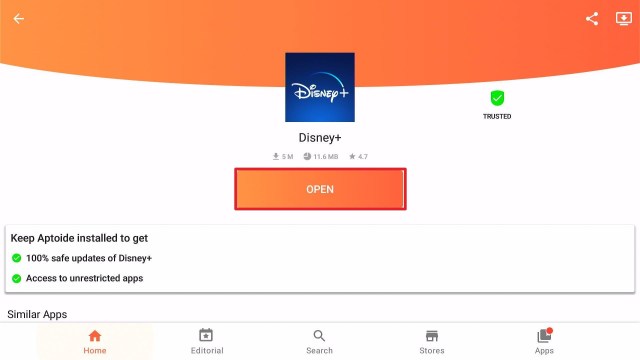
18. Aptoide App will launch directly to Disney plus. There might be some possibility that you need to use Mouse Toggle. Click on Install.

Best VPN To Unblock Disney Plus


19. Choose OK.

Best VPN To Unblock Disney Plus


20. Select Allow.

Best VPN To Unblock Disney Plus


21. The apk is now downloading.

Best VPN To Unblock Disney Plus


22. Select Install.

Best VPN To Unblock Disney Plus


23. Wait for the app to be installed

Best VPN To Unblock Disney Plus


24. Click Open.

Best VPN To Unblock Disney Plus


25. You can now use Disney Plus wherever you are.


YOUR INTERNET ACTIVITY IS BEING WATCHED

ReviewVPN cannot attest to the legality, security and privacy of the applications discussed on this site. It is highly recommended that you use a VPN service while streaming or using Kodi.

Currently, your IP 216.73.216.1 is visible to everyone and your Browser is being tracked by Advertisers & ISP Provider.

Save 65% Now

Limited Time Offer

Here are the main reasons why you must use a VPN:

  • Your activities are hidden from your ISP, the government, and from the apps you are using.
  • You can access additional movies and TV streams.
  • ISP attempts to throttle are thrwarted thus reducing buffering issues.
  • Geographically restricted content like Netflix and Hulu can be unblocked.

A VPN works be replacing your ISP-assigned IP address and creating an encrypted tunnel. We recommend the no log service offered by IPVanish. It works well on a Firestick and offers the fastest possible speeds.

Special Limited Time Offer - Get IPVanish


Legal Disclaimer: ReviewVPN.com does not encourage or endorse any illegal activity involved in the usage of services and applications referenced on this site. We do not verify the licensing agreements of services. The end-user is wholly responsible for ensuring that any media accessed through these services does not violate copyright and/or licensing laws. ReviewVPN does not promote, link to, or receive compensation from any Apps and IPTV services.


Install Surfshark on Firestick

Best Surfshark Deal


How To Sign In To Disney Plus

To make effective and efficient use of the content within the Disney Plus app, you need to have an account. To create this account, you need to follow this quick and easy guide below: 

  1. When you have already created an account you need to choose Log in but before this, you need to launch Disney Plus and then click START FREE TRIAL. 
  2. To proceed you need to enter your email within the space provided. 
  3. Make this accessible, your password will be demanded, once you enter your password, continue will pop-up then you click it. 
  4. To know if you are successful you will immediately receive an email after your login credentials are created. Finally, you will choose the duration of the subscription. It is necessary to know what you can watch with Disney+. 


The Content Of Disney Plus

There is a wide range of impressive displays like Marvel shows and movies like Captain Marvel Avengers Endgame, the entire arrangement of Star Wars, The Mandalorian, Lego Star Wars, Star Wars Resistance, programs like Simpsons and more. 

It may interest you that Disney can offer you chances of watching Hulu and ESPN with your bundle package. The specialty of this Hulu is its availability of TV shows from local U.S cable channels and networks. 

Its streaming system shows TV episodes immediately as soon as it is launched and different kinds of movies are available. And for the ESPN, it gives you the chance of viewing sports programs.


The Uniqueness Of The Service Product Features

There are a plethora of services but Disney Plus appears more unique. You can view 4K Ultra HD content in intense audio. it is created in a way you can see a symbol that tells you the format that you are watching. 

This symbol is located at the upper right of the screen before the beginning of the video. The beauty of this service is that you can create as many as seven user profiles for different people and it can work concurrently. 

It gives unstoppable mobile downloads for offline viewing. There is no compulsion or constraint in the number of downloads you make when using this device. The storage space depends on the number of titles stored. This device enables the user to have navigation support, closed captioning, and descriptive audio. 

Note: For more information about Surfshark, please read our Surfshark Review.


Grab your subscription now!


How to Install Surfshark VPN on Firestick

If your Firestick still has the older interface, read this article to learn how to update it: Update Firestick Interface.

Follow our screenshots below to install the SurfShark VPN app on your Fire TV stick.

1. Go to the Home screen of your Firestick.

step 1 Install Surfshark VPN on Firestick


2. Navigate towards the Find tab. Press the Search button from the resulting dropdown.

step 2 Install Surfshark VPN on Firestick


3. Type in the keyword of SurfShark and select from the suggestions that will appear.

step 3 Install Surfshark VPN on Firestick


4. Click the official SurfShark icon from your search results.

step 4 Install Surfshark VPN on Firestick


5. Press the Download (You own it) button.

step 5 Install Surfshark VPN on Firestick


6. The SurfShark VPN installer will download on your device.

step 6 Install Surfshark VPN on Firestick


7. SurfShark VPN’s app will automatically install itself on your Fire TV stick.

step 7 Install Surfshark VPN on Firestick


8. Press the Open button after completing SurfShark VPN’s installation process.

step 8 Install Surfshark VPN on Firestick


9. Please wait for the SurfShark VPN to load its user interface.

step 9 Install Surfshark VPN on Firestick


10. You can now log in with your SurfShark VPN account credentials.

step 10 Install Surfshark VPN on Firestick

Learn more about Surfshark and Grab the Best Surfshark Deal Now!


Install Surfshark on Firestick

Best Surfshark Deal


Other VPNs to Consider

NordVPN (Best for Streaming)

Best Features

  • 5000+ Server in 50+ Countries 
  • Military-Grade Encryption
  • Fast Connection Speed
  • Suitable to a lot of devices
  • No-Log Policy

Prices
  • Complete $5.89 per month (64% Discount)
  • Plus $4.59 per month (56% Discount)
  • Standard $3.69 per month (55% Discount)

Best Features

  • 750+ High-speed VPN Servers in 43 Locations
  • Military-Grade Encryption
  • Fastest HD Streaming and Gaming
  • 30-Day Money-Back Guarantee
  • Unlimited Data & Devices
  • No-Log Policy

Prices
  • 3 Years $1.99 per month (82% Discount)
  • 1 Years $3.29 per month (70% Discount)
  • 1 Month $10.99 per month

IPVanish VPN (Most Secure)

Best Features

  • 1200+ Servers in 60+ Countries around the world
  • Unlimited Connections
  • No-Log Policy
  • Top Notch Military-Grade VPN Protocols and Encryptions
  • 100% Safe and Secured
  • Most Trusted VPN
  • Best VPN for Firestick
  • 30-Day Money-Back Guarantee

Prices
  • Yearly $3.99 per month (63% Discount) – 30 days risk free + Ransomware & Malware Protection
  • Quarterly $5.32 per month (51% Discount)
  • Monthly $10.99 per month


For more VPN discounts, go to ReviewVPN Deals and purchase the best VPN for you.

Click here to get the lowest price on Surfshark through our exclusive limited-time offer.


Conclusion

Disney Plus is a powerful device that moves beyond range. It is more affordable than some devices like Netflix and HBO subscriptions; almost the same as Apple TV+. 

You can subscribe for $6.99 for a month in the US. If you want to subscribe for one year, the plan will cost you $69.99. then you will have the chance of saving $ 14. But in Canada, the prices are not the same, though it offers the same benefits. It has a very attractive bundle offers for you to choose from. 

The subscription of Disney Plus can be included with Hulu Service. It endorses many fascinating originalities and inclusively, you can watch a whole range of movies.


What Is Your Favorite Streaming App? Cast Your Vote Below.

How to Install Cyber Ghost on a Firestick

How to Install Cyber Ghost on a Firestick

In this article, we will help you install Cyber Ghost VPN on Firestick.


If you feel like joining the legion of friendly “Ghosties” out there using Cyber Ghost VPN on your Firestick, then this is the guide for you. We cover why having a VPN on your Firestick is so important, what we love about Cyberghost, and a simple step-by-step guide to get it installed on your device.


ANONYMOUSLY

Why Use a VPN on a Firestick?

cyberghost logo no background 200 pixels

Using a VPN is crucial when using a Firestick or doing anything online. Particularly if you intend to use Kodi on your Firestick

  • Your Internet Service Provider (ISP) monitors all your internet traffic, which means they can block access to certain content. Like illegally streamed media on Kodi. Using a VPN and their DNS you can encrypt your connection, meaning that your ISP cannot block a request that it can’t see or understand
  • Many top media services like Netflix and geo lock their content. The same happens if you want to watch a PPV or Live Tv channel through Kodi. If you don’t happen to be in the US, then some of your content could be blocked. Lucky with most VPN you get access to hundreds if not thousands of servers, meaning you can change your IP address and your location
  • A VPN allows you to stay secure using Kodi, where your IP and other detail may be at risk. Be safe and secure using military-grade encryption


YOUR INTERNET ACTIVITY IS BEING WATCHED

ReviewVPN cannot attest to the legality, security and privacy of the applications discussed on this site. It is highly recommended that you use a VPN service while streaming or using Kodi.

Currently, your IP 216.73.216.1 is visible to everyone and your Browser is being tracked by Advertisers & ISP Provider.

Save 65% Now

Limited Time Offer

Here are the main reasons why you must use a VPN:

  • Your activities are hidden from your ISP, the government, and from the apps you are using.
  • You can access additional movies and TV streams.
  • ISP attempts to throttle are thrwarted thus reducing buffering issues.
  • Geographically restricted content like Netflix and Hulu can be unblocked.

A VPN works be replacing your ISP-assigned IP address and creating an encrypted tunnel. We recommend the no log service offered by IPVanish. It works well on a Firestick and offers the fastest possible speeds.

Special Limited Time Offer - Get IPVanish


Legal Disclaimer: ReviewVPN.com does not encourage or endorse any illegal activity involved in the usage of services and applications referenced on this site. We do not verify the licensing agreements of services. The end-user is wholly responsible for ensuring that any media accessed through these services does not violate copyright and/or licensing laws. ReviewVPN does not promote, link to, or receive compensation from any Apps and IPTV services.


Install Surfshark on Firestick

Best Surfshark Deal


Why We Love Cyberghost

Cyberghost is one of the largest VPN providers in the world. These Romanian cyber ninjas have been going strong since 2004 and show no signs of slowing down. Their service is used by over 30 million people worldwide, and their infrastructure is supported by a team of over 70 engineers and cyber specialists. They are famous for their transparency and hard line on the freedom of information and exploration.

They offer one of the largest range of servers in the world, with 3,700+ servers across 60+ countries. This means that wherever you are in the world you will never be fast from a fast connection. Cyberghost has modified over 1000 of its servers for P2P connections meaning that you get faster upload and download speeds which is great for watching content.

They offer great customer service with an average rating of 4.7/5 over thousands of reviews from Trust Pilot. You can even try it for free for 24 hours or get a 45-day money-back guarantee on their annual subscription.

Cyberghost has a strong zero logs policy, has some of the fastest connection and streaming speeds in the industry, and works well-unlocking services like Netflix and BBC iPlayer.

What attracts most people to Cyberghost apart from the quality, breadth, and stability is the price. Cyberghost due to its size and age can offer some of the lowest prices in the industry. Get a multi-year subscription for as low as $2.10 per month, allowing you to connect to 7 devices at the same time.


How to Install Cyberghost on a Firestick?

install image

Couldn’t be easier to install Cyberghost on your Firestick as they have an app in the Google Play Store and the Amazon App Store:

  1. Start from the Home Screen of your Amazon Device
  2. You can either search from Home Screen for Cyberghost or navigate through the Apps and then the utility section and search for the Cyberghost app there
  3. Once you have downloaded and opened the Cyberghost app you will be prompted to enter your details or register an account
  4. Click the connect button to connect to your chosen server or just use the Best Location to allow Cyberghost to find the best location for you


Are You Using a VPN?

A Virtual Private Network can sometimes interfere with casting. To double-check, switch it off while you try again and refresh the source if it is online.

Note: For more information about Surfshark, please read our Surfshark Review.


Grab your subscription now!


How to Install Surfshark VPN on Firestick

If your Firestick still has the older interface, read this article to learn how to update it: Update Firestick Interface.

Follow our screenshots below to install the SurfShark VPN app on your Fire TV stick.

1. Go to the Home screen of your Firestick.

step 1 Install Surfshark VPN on Firestick


2. Navigate towards the Find tab. Press the Search button from the resulting dropdown.

step 2 Install Surfshark VPN on Firestick


3. Type in the keyword of SurfShark and select from the suggestions that will appear.

step 3 Install Surfshark VPN on Firestick


4. Click the official SurfShark icon from your search results.

step 4 Install Surfshark VPN on Firestick


5. Press the Download (You own it) button.

step 5 Install Surfshark VPN on Firestick


6. The SurfShark VPN installer will download on your device.

step 6 Install Surfshark VPN on Firestick


7. SurfShark VPN’s app will automatically install itself on your Fire TV stick.

step 7 Install Surfshark VPN on Firestick


8. Press the Open button after completing SurfShark VPN’s installation process.

step 8 Install Surfshark VPN on Firestick


9. Please wait for the SurfShark VPN to load its user interface.

step 9 Install Surfshark VPN on Firestick


10. You can now log in with your SurfShark VPN account credentials.

step 10 Install Surfshark VPN on Firestick

Learn more about Surfshark and Grab the Best Surfshark Deal Now!


Install Surfshark on Firestick

Best Surfshark Deal


Other VPNs to Consider

NordVPN (Best for Streaming)

Best Features

  • 5000+ Server in 50+ Countries 
  • Military-Grade Encryption
  • Fast Connection Speed
  • Suitable to a lot of devices
  • No-Log Policy

Prices
  • Complete $5.89 per month (64% Discount)
  • Plus $4.59 per month (56% Discount)
  • Standard $3.69 per month (55% Discount)

Best Features

  • 750+ High-speed VPN Servers in 43 Locations
  • Military-Grade Encryption
  • Fastest HD Streaming and Gaming
  • 30-Day Money-Back Guarantee
  • Unlimited Data & Devices
  • No-Log Policy

Prices
  • 3 Years $1.99 per month (82% Discount)
  • 1 Years $3.29 per month (70% Discount)
  • 1 Month $10.99 per month

IPVanish VPN (Most Secure)

Best Features

  • 1200+ Servers in 60+ Countries around the world
  • Unlimited Connections
  • No-Log Policy
  • Top Notch Military-Grade VPN Protocols and Encryptions
  • 100% Safe and Secured
  • Most Trusted VPN
  • Best VPN for Firestick
  • 30-Day Money-Back Guarantee

Prices
  • Yearly $3.99 per month (63% Discount) – 30 days risk free + Ransomware & Malware Protection
  • Quarterly $5.32 per month (51% Discount)
  • Monthly $10.99 per month


For more VPN discounts, go to ReviewVPN Deals and purchase the best VPN for you.

Click here to get the lowest price on Surfshark through our exclusive limited-time offer.


How To Fix Olpair Kodi Error

How to Fix Olpair Kodi Error in Just 2 Minutes (3 working methods)


As you use Kodi more and start streaming content, you will probably run into the fir pair or Olpair Kodi errors.

This happens when you try to connect to a streaming provider, and it asks you to pair your device with the provider.

Once is fine, but when you start having to do this every time you want to watch something, it can start to get irritating. In this guide, we cover information on common Kodi streaming providers, what these errors are and why they happen as well as 3 proven methods to fix these errors in minutes.


ANONYMOUSLY


What is a Kodi Streaming Provider?

Most popular add ons like Exodus Redux and Yoda, use scripts to find links from streaming providers.

Think of these like giant libraries of links, where your request is matched with a working URL to access the media file somewhere on the internet.

Some of the most common sources are Olpair (openload.com), thevideo.me, vidup.me and tvad.me. These common Kodi streaming providers are the sources for most of your content.


What is an Olpair Kodi Error and Why Do They Happen?

The errors are a system of checks from the streaming providers.

These libraries receive millions of requests every day for content. They are popular because they house high-quality content and working links. Add ons use these providers because they consistently deliver good content.

But that means that sources like Olpair must deal with a high level of traffic. Sometimes tens of thousands of requests each minute.

The pairing error occurs because the Olpair servers want to check that the request comes from a human being, and not an automated script or bot.

To prevent automatic requests, an error occurs requiring that the person verify themselves and pair their device.

Methods to Fix the Kodi Olpair Error

We’ve come up with 3 quick fixes that mean you can get rid of these errors either for a few hours or permanently.


Install Surfshark on Firestick

Best Surfshark Deal


Legal Disclaimer: ReviewVPN.com does not encourage or endorse any illegal activity involved in the usage of services and applications referenced on this site. We do not verify the licensing agreements of services. The end-user is wholly responsible for ensuring that any media accessed through these services does not violate copyright and/or licensing laws. ReviewVPN does not promote, link to, or receive compensation from any Apps and IPTV services.


YOUR INTERNET ACTIVITY IS BEING WATCHED

ReviewVPN cannot attest to the legality, security and privacy of the applications discussed on this site. It is highly recommended that you use a VPN service while streaming or using Kodi.

Currently, your IP 216.73.216.1 is visible to everyone and your Browser is being tracked by Advertisers & ISP Provider.

Save 65% Now

Limited Time Offer

Here are the main reasons why you must use a VPN:

  • Your activities are hidden from your ISP, the government, and from the apps you are using.
  • You can access additional movies and TV streams.
  • ISP attempts to throttle are thrwarted thus reducing buffering issues.
  • Geographically restricted content like Netflix and Hulu can be unblocked.

A VPN works be replacing your ISP-assigned IP address and creating an encrypted tunnel. We recommend the no log service offered by IPVanish. It works well on a Firestick and offers the fastest possible speeds.

Special Limited Time Offer - Get IPVanish


Authorize Your IP

This is our recommended fix. Olpair will ask to verify your IP address, this verification lasts for 4 hours and then needs to be renewed. It also means that any device operating from the same IP address will also be verified for those 4 hours.

Follow these steps to authorize your IP:

  1. You click on a streaming source and get an Open Load Stream Authorization note asking you to visit: www.olpair.com and click “Pair”
  2. Open a separate browser and go to the link above
  3. Click the Captcha box to verify that you are not a robot
  4. You’ll get a verification check; these tend to be a picture verification task where you must identify “cars” or some sort of object in a 4 x 4 grid of 16 images
  5. You may have to do more than one, depending on a variety of factors. Just keep going through and eventually you will get a green tick, confirming you are not a robot
  6. You’ll then get a message that says “Pairing Successful”
  7. Your IP has now been paired, and you won’t be asked to re-verify for another 4 hours
  8. You can then go back to Kodi, reload the screen, and can watch in peace without any more pairing notifications

As a side note, we would add, you should always use a VPN when browsing or streaming anything on Kodi. Your Internet Service Provider may block content, stop add ons working, log your traffic and even issue you a warning if it detects you streaming copyrighted content illegally.

Have your Kodi VPN running and active prior to pairing your IP.


Disable Olpair in the Hosters With Captcha List

We like this solution less. When your add on’s scrapers look for a link it will discount any hosters like Olpair which requires a Captcha to be checked before playing the link.

Though it means you won’t have to verify your device, you will miss out on many quality sources, many of which require you to verify and pair. They use Captcha because they are popular, as they have the best quality links.

Use this option if you don’t mind a lower quality source, and just want to avoid having to pair your IP every 4 hours:

    1. Go to your Kodi home screen
    2. Click Video Add ons
    3. Scroll down to Tools
    4. In Tool click Setting: Playback
  • You’ll see an option that says “Hosters with Captchas”, turn this option off (by clicking the toggle button to the left)

Now when you check the link list you will see that many popular providers like Open Upload have been removed. There will still be a long list of providers, but you may find you come across more dead or low-quality links.


Use Real Debrid

Our final option is for those who are committed to getting the best viewing quality with the minimum amount of hassle. 

Real Debrid is a paid-for service that costs around $4 a month. 

By spending the money, you save time and hassle by simply always connecting to high-quality links. When you synchronize your Real Debrid account with your current addon or build.

With Real Debrid you get:

  • A high-speed download of up to 1GBps
  • No waiting times or adverts when you click your stream
  • Access to 1300 servers, and 40,000 IP addresses in 70+ locations to choose from
  • Get the best link quality

Some may argue that this defeats the point of using Kodi. We found that this is unrealistic if you want to get the highest quality content.

Real Debrid takes all the hard work out of finding working streams and always delivers at a cheap price.

It can be synchronized with most add ons and means you will never have to click on a dead or low-quality link again. Or must wade through multiple adverts before your stream can work.

You can sign up for a Real Debird account here: https://real-debrid.com/

Other alternatives include All Debrid and Premiumize. Both are more expensive but give added functionality for the more sophisticated Kodi user.


Grab your subscription now!

Click here to get the lowest price on Surfshark through our exclusive limited-time offer.


How to Install Surfshark VPN on Firestick

If your Firestick still has the older interface, read this article to learn how to update it: Update Firestick Interface.

Follow our screenshots below to install the SurfShark VPN app on your Fire TV stick.

1. Go to the Home screen of your Firestick.

step 1 Install Surfshark VPN on Firestick


2. Navigate towards the Find tab. Press the Search button from the resulting dropdown.

step 2 Install Surfshark VPN on Firestick


3. Type in the keyword of SurfShark and select from the suggestions that will appear.

step 3 Install Surfshark VPN on Firestick


4. Click the official SurfShark icon from your search results.

step 4 Install Surfshark VPN on Firestick


5. Press the Download (You own it) button.

step 5 Install Surfshark VPN on Firestick


6. The SurfShark VPN installer will download on your device.

step 6 Install Surfshark VPN on Firestick


7. SurfShark VPN’s app will automatically install itself on your Fire TV stick.

step 7 Install Surfshark VPN on Firestick


8. Press the Open button after completing SurfShark VPN’s installation process.

step 8 Install Surfshark VPN on Firestick


9. Please wait for the SurfShark VPN to load its user interface.

step 9 Install Surfshark VPN on Firestick


10. You can now log in with your SurfShark VPN account credentials.

step 10 Install Surfshark VPN on Firestick

Learn more about Surfshark and Grab the Best Surfshark Deal Now!


Install Surfshark on Firestick

Best Surfshark Deal


Other VPNs to Consider

NordVPN (Best for Streaming)

Best Features

  • 5000+ Server in 50+ Countries 
  • Military-Grade Encryption
  • Fast Connection Speed
  • Suitable to a lot of devices
  • No-Log Policy

Prices
  • Complete $5.89 per month (64% Discount)
  • Plus $4.59 per month (56% Discount)
  • Standard $3.69 per month (55% Discount)

Best Features

  • 750+ High-speed VPN Servers in 43 Locations
  • Military-Grade Encryption
  • Fastest HD Streaming and Gaming
  • 30-Day Money-Back Guarantee
  • Unlimited Data & Devices
  • No-Log Policy

Prices
  • 3 Years $1.99 per month (82% Discount)
  • 1 Years $3.29 per month (70% Discount)
  • 1 Month $10.99 per month

IPVanish VPN (Most Secure)

Best Features

  • 1200+ Servers in 60+ Countries around the world
  • Unlimited Connections
  • No-Log Policy
  • Top Notch Military-Grade VPN Protocols and Encryptions
  • 100% Safe and Secured
  • Most Trusted VPN
  • Best VPN for Firestick
  • 30-Day Money-Back Guarantee

Prices
  • Yearly $3.99 per month (63% Discount) – 30 days risk free + Ransomware & Malware Protection
  • Quarterly $5.32 per month (51% Discount)
  • Monthly $10.99 per month


For more VPN discounts, go to ReviewVPN Deals and purchase the best VPN for you.

Click here to get the lowest price on Surfshark through our exclusive limited-time offer.


Learn How to Install and Use GBA4iOS on iPhone

How to Install and Use GBA4iOS on iPhone

The number of fans that follow standard games like “Pokemon”, “Mario” and “Day of the Tentacle” is overwhelming but it is has become a concern to many people that these games are not found in Apple’s App Store.


Many Apple users may not be happy about the fact that these amazing games are not available in the Apple store. The way out to this problem is by installing GBA4iOS in the Apple iPhone which makes use of iOS 13, 12, or 11. 

With GBA4iOS, you can play these games on your Apple phone. We may be tempted to ask what GBA4iOS is all about. It means Gameboy Advanced Emulator. It is an iOS emulator that gives you direct access to Gameboy Advanced games on your Apple Devices. 

The process of working with GBA4iOS may seem to be difficult but it is possible. Talking about how secure GBA4iOS is, which may arise as a question in our mind, GBA4iOS after some research work, we found that GBA4iOS for a long time is very safe and secure.


ANONYMOUSLY


Legal Disclaimer: ReviewVPN.com does not encourage or endorse any illegal activity involved in the usage of services and applications referenced on this site. We do not verify the licensing agreements of services. The end-user is wholly responsible for ensuring that any media accessed through these services does not violate copyright and/or licensing laws. ReviewVPN does not promote, link to, or receive compensation from any Apps and IPTV services.


Preliminary Cautions

  • GBA4iOS which is a Gameboy Advanced Emulator allows you to enjoy Gameboy Advance games on your Apple phone
  • When we tested this development, we did not see any danger about how it works. If you feel you want to implore the services of GBA4iOS you should do it at your own risk.
  • Your smartphone or computer can play retro video games like Super Nintendo or Atari when you use Emulators. These outdated games are known as Read-Only Memory (ROMs). They are duplicate software of cartridges just like Sega Genesis and Sony PlayStation CD.
  • Since ROMs are protected by copyright, It is illegal to download them.
  • We don’t encourage you to download ROMs.


YOUR INTERNET ACTIVITY IS BEING WATCHED

ReviewVPN cannot attest to the legality, security and privacy of the applications discussed on this site. It is highly recommended that you use a VPN service while streaming or using Kodi.

Currently, your IP 216.73.216.1 is visible to everyone and your Browser is being tracked by Advertisers & ISP Provider.

Save 65% Now

Limited Time Offer

Here are the main reasons why you must use a VPN:

  • Your activities are hidden from your ISP, the government, and from the apps you are using.
  • You can access additional movies and TV streams.
  • ISP attempts to throttle are thrwarted thus reducing buffering issues.
  • Geographically restricted content like Netflix and Hulu can be unblocked.

A VPN works be replacing your ISP-assigned IP address and creating an encrypted tunnel. We recommend the no log service offered by IPVanish. It works well on a Firestick and offers the fastest possible speeds.

Special Limited Time Offer - Get IPVanish


The Installation Process of GBA4iOS on iPhone or iPad

Step 1:    Open Safari on your iPhone or iPad and enter Tweakboxapp.com 

Step 2:   When it opens, you will find the install now option on the first page, click on it. When you click on it, the browser will show the permission to download the configuration file on the iOS device which you should allow by clicking on the allow button

Step 3:   Having downloaded the profile, open the app settings, click General, click Profile, then look for the Tweakbox Profile in that space, and install it.

Step 4:   After following the steps above, go back to the home screen of the Apple device and launch the Tweakbox app which is there.

Step 5:   When the app is opened, click on the Apps tab and look for all the Apps which fall under the Tweakbox app. Check out for GBA4iOS then install it.

Steps to follow to allow apps from unknown sources:

  1.   Open Settings.
  2.   move to General.
  3.   Click on Profiles and Device Management.
  4.   Click on the text that appears under the App.
  5.   Click on trust (Changsha Yasheng … which maybe something else on your system).
  6.   Then you click on the trust tab again.


To download ROMs of Pokemon, Metroid, Mario, The Legend of Zelda, Fire Emblem on iPhone please follow these steps:

Step 1.    Immediately you succeeded in installing the GBA4iOS APP on your iPhone device, open it. 

Step 2.   On the right side of your screen, strike on the “SEARCH BUTTON”.

Step 3.   To find ROM, you have to click the game series. You will have 11 options available for you to choose from. In case you want to choose other ROM who have to search it out on Google. And you can take a favorite game of your choice. As soon as you download the ROM of your favorite game, kindly get it started by launching it.


Methods of Deleting GBA4iOs App on iPhone

  1.   To delete a GBA4iOS App you need to go to the SETTINGS
  2.   Click on GENERAL
  3.   Go to your profile and Device Management and select then. 
  4.   This will pop up “Jiang Xi Microblog Technology Co., Ltd” click Delete and confirm it. 


Other Uses Of GBA4iOS

This GBA4iOS is remarkably good because it works fast and it is reliable. This implies that you will not experience any cashing-in-on some of your favorite games. 


GBA4iOS allows you to do the following:

  • Customizing the Control center on iPhone and iPad.
  • Customizing App Icons on iPhone.
  • Customizing iMessage App Drawer on iPhone and iPad. 
  • Adjusting Click Speed of Side Button on iPhone X. 
  • You can get other uses of GBA4iOS but we will limit our discussion to the above listed as we only focused on how to install it.


Ways of Using GBA4iOS to Download Games

You can open to see its interface after installing the App. You will find out that there are no pre-installed games, so you need to install these games differently with a ROM website. To achieve this, we have an easy guide below for you on how to use GBA4iOS by installing game ROMS. 

  1.  Launch your Safari and move to https://romsmania.cc/
  2.  Select Gameboy Advance or Game Colour under Popular Consoles 
  3.  From the list provided, make a selection of your preferred game. 
  4.  Move down and select Download 
  5.  Give it small time for the ROM to download 
  6.  Select open in GBA4iOS
  7.  From here, you will find your game is installed and finally tap on the game to launch it and enjoy it. 


Conclusion

GBA4iOS has a lot of ads. When you experience too many ads, which often takes a long time and you may consider waiting for it to finish. You will find an X (used to cancel the ads) at the upper left-hand corner. It shows that the advert is over. When you don’t want to experience much of these ads, you can click Skip on the lower right-hand side.  

Within the Setting tab of your app, you can change the Controller Skins, Opacity, and many more. And when you feel like taking a large list of games, you need to go to your right side of your screen and get them using side tools. To be candid, GBA4iOS is an amazing app that Gameboy fans cannot afford to miss. Install this app and you will be glad you did.

How To Fix Web Request Failed Kodi Error With These 2 Easy Ways

Overview


How to Fix Web Request Failed Kodi Error With These 2 Easy Ways

You’re in the middle of watching a live stream of your favourite sport, and suddenly you get a web request failed error, and you’re howling wondering if your team scored that crucial goal.

In this guide we cover what a web request error is, why they happen and outline 2 easy fixes as well as one that a lot of people forget to cover.


ANONYMOUSLY


What is a Web Request Failed Error?

A web request error is also known as a 400 Bad Request Error, is a status code from an HTTP. Basically, it means that the server was unable to process your connection request.

The request error though could come from either client-side or server-side. As there may be nothing wrong with your request, the server just isn’t able to handle it at the time.


Why Does it Happen?

There are a couple of reasons why you get a web request error. Firstly, they are almost always associated with viewing IPTV, or Live TV streamed through a device. So, your device is constantly requesting an updated data stream from a server that is streaming a live show. So, this would be common with live sports.

The 2 main reasons for getting a web request error are:

  • High Volume of Traffic:

    This is common if you are trying to watch a popular sporting event for free. Like a big boxing fight, or an NFL match. Lots of other people are requesting data from the server at the same time. Other people, as well as bots and scripts. A server can become overloaded with the number of requests. If the requests reach a critical level, the server will start rejecting requests, by throwing out web request failed errors. Though many providers get around this by forcing users to verify their details through Captcha


  • Region Restricted Content:

    Online content is often restricted by the region your IP address is registered too. Netflix is the best example of this. If you are in the US you can only access US Netflix, not France or Japan. If you are in the US and trying to watch a stream from the UK of a Premier League Football match then you may keep getting web request failed errors, because your IP shows that you are based in a different country. Like the first reason, allowing request processing by region is another way for servers to protect themselves against a high number of requests.


YOUR INTERNET ACTIVITY IS BEING WATCHED

ReviewVPN cannot attest to the legality, security and privacy of the applications discussed on this site. It is highly recommended that you use a VPN service while streaming or using Kodi.

Currently, your IP 216.73.216.1 is visible to everyone and your Browser is being tracked by Advertisers & ISP Provider.

Save 65% Now

Limited Time Offer

Here are the main reasons why you must use a VPN:

  • Your activities are hidden from your ISP, the government, and from the apps you are using.
  • You can access additional movies and TV streams.
  • ISP attempts to throttle are thrwarted thus reducing buffering issues.
  • Geographically restricted content like Netflix and Hulu can be unblocked.

A VPN works be replacing your ISP-assigned IP address and creating an encrypted tunnel. We recommend the no log service offered by IPVanish. It works well on a Firestick and offers the fastest possible speeds.

Special Limited Time Offer - Get IPVanish


Common Fixes

There are some easy fixes, which should remedy any web request errors you get, so you don’t have to miss out on that crucial point in your next live sports event.


Enable RTMP Input

By far the most common fix is going into your settings and enabling RTMP, before we cover how, let’s just clear up a bit of jargon and explain what it is.

What is RTMP?

RTMP stands for Real Time Messaging Protocol. Without RTMP your device will download and cache a file based upon a standard bit rate, set by the device. Problem is if your internet has a bad connection, or for some other reason there is a mismatch between client and server, then you’ll either get endless amounts of the streaming circle of death, or just get a web request error.

RTMP allows your device to adjust your streaming quality to the quality of your internet. So, if you have great speed broadband, you get full quality, but poorer connections mean a lower quality but a consistent picture.

This is great for reducing bandwidth and increasing connectivity.


How do I Enable RTMP?

To enable RTMP we need to download a specific Add On:

  1. Navigate to the Kodi main menu
  2. Click Add ons
  3. Go to Video Player Input Stream
  4. Enable RTMP Input
  5. Enable Input Stream Adaptive
  6. Restart Kodi

With RTMP installed, this should fix most of your web request errors, by adjusting your bitrate speed.


Reinstall the Add On

Sometimes an addon one you have downloaded and installed may be corrupted. Whenever you download add ons make sure that it comes from an official source which you can find in one of our guides or just by looking around Google.

Downloading add ons from unofficial sources could also lead to your device being infected with Malware.

Your addon could also just need to be reinstalled with the most up-to-date version.

Simply go to Kodi add ons, uninstall the add on that are giving you trouble, and reinstall it using an official source URL.


Are You Using a VPN?

This is a less common fix but one worth thinking about.

First, you shouldn’t be using Kodi without a VPN. It allows you to browse and stream potentially illegal content in a way that keeps you protected and anonymous.

A trusted VPN client will keep you anonymous by encrypting your connection between your device and their DNS server, meaning that your Internet Service provider will not be able to tell what you are doing, or what target URLs you are visiting.

This also means that your data can’t be logged, or your activities tracked by either your ISP or other third parties.

Plus, another major benefit of using a VPN is that you can circumvent region-restricted content.  VPNs like Surfshark will give you access to thousands of servers based across 60+ countries, which means you can connect to a server based in the country that you want to stream content from.

So, if you are on holiday in France and want to watch the NBA game, you simply connect to a US-based server through your VPN and then stream the game through your Kodi addon. If you want to know more about this VPN, kindly read our Surfshark Review.

Here are the reasons why it is our VPN of choice:

  • Bypass restrictions and geo-blocks to access lots of content.
  • This VPN service has a total of 3,200 VPN servers in 65 worldwide locations. 
  • Military-grade AES-256 encryption follows FIPS (Federal Information Processing Standards) that oversees the handling of sensitive data.
  • It follows a strict No-Logs Policy
  • No Bandwidth limits – you can enjoy a full-speed VPN connection without any throttling.
  • It makes your internet speed faster and works on all devices
  • 24/7 customer support.


Grab your subscription now!

Click here to get the lowest price on Surfshark through our exclusive limited-time offer.


How to Install Surfshark VPN on Firestick

If your Firestick still has the older interface, read this article to learn how to update it: Update Firestick Interface.

1. Go to the Home screen of your Firestick.

step 1 Install Surfshark VPN on Firestick


2. Navigate towards the Find tab. Press the Search button from the resulting dropdown.

step 2 Install Surfshark VPN on Firestick


3. Type in the keyword of SurfShark and select from the suggestions that will appear.

step 3 Install Surfshark VPN on Firestick


4. Click the official SurfShark icon from your search results.

step 4 Install Surfshark VPN on Firestick


5. Press the Download (You own it) button.

step 5 Install Surfshark VPN on Firestick


6. The SurfShark VPN installer will download on your device.

step 6 Install Surfshark VPN on Firestick


7. SurfShark VPN’s app will automatically install itself on your Fire TV stick.

step 7 Install Surfshark VPN on Firestick


8. Press the Open button after completing SurfShark VPN’s installation process.

step 8 Install Surfshark VPN on Firestick


9. Please wait for the SurfShark VPN to load its user interface.

step 9 Install Surfshark VPN on Firestick


10. You can now log in with your SurfShark VPN account credentials.

step 10 Install Surfshark VPN on Firestick

Learn more about Surfshark and Grab the Best Surfshark Deal Now!


Install Surfshark on Firestick

Best Surfshark Deal


Other VPNs to Consider

NordVPN (Best for Streaming)

Best Features

  • 5000+ Server in 50+ Countries 
  • Military-Grade Encryption
  • Fast Connection Speed
  • Suitable to a lot of devices
  • No-Log Policy

Prices
  • Complete $5.89 per month (64% Discount)
  • Plus $4.59 per month (56% Discount)
  • Standard $3.69 per month (55% Discount)

Best Features

  • 750+ High-speed VPN Servers in 43 Locations
  • Military-Grade Encryption
  • Fastest HD Streaming and Gaming
  • 30-Day Money-Back Guarantee
  • Unlimited Data & Devices
  • No-Log Policy

Prices
  • 3 Years $1.99 per month (82% Discount)
  • 1 Years $3.29 per month (70% Discount)
  • 1 Month $10.99 per month

IPVanish VPN (Most Secure)

Best Features

  • 1200+ Servers in 60+ Countries around the world
  • Unlimited Connections
  • No-Log Policy
  • Top Notch Military-Grade VPN Protocols and Encryptions
  • 100% Safe and Secured
  • Most Trusted VPN
  • Best VPN for Firestick
  • 30-Day Money-Back Guarantee

Prices
  • Yearly $3.99 per month (63% Discount) – 30 days risk free + Ransomware & Malware Protection
  • Quarterly $5.32 per month (51% Discount)
  • Monthly $10.99 per month


For more VPN discounts, go to ReviewVPN Deals and purchase the best VPN for you.

Click here to get the lowest price on Surfshark through our exclusive limited-time offer.


Find a New Source

If you continue to get persistent web request errors, then the source may simply be overrun with requests and you might be better off searching for a better source, or even paying for an IPTV provider like Streams for Us which starts at $7 per month and gives you access to 8,000+ channels, or Sports TV which starts at $14.95 per month, and also gives you access to over 8,000 channels.

Like a lot of things with Kodi. Free is good. But paying even a little bit extra can make a massive difference if quality and speed are important to you. As well as stability.

Learn How to Create a Library in Kodi

How to Create a Library in Kodi?


In this brief guide, we look at how Kodi creates a library of your content to easily access, search, and play. As well as methods for importing videos, music, and pictures into Kodi. Finally, we look at how to create libraries on your existing addons.


Install Surfshark on Firestick

Best Surfshark Deal


Legal Disclaimer: ReviewVPN.com does not encourage or endorse any illegal activity involved in the usage of services and applications referenced on this site. We do not verify the licensing agreements of services. The end-user is wholly responsible for ensuring that any media accessed through these services does not violate copyright and/or licensing laws. ReviewVPN does not promote, link to, or receive compensation from any Apps and IPTV services.


ANONYMOUSLY


How Does Kodi Create a Library?

Before you begin creating a library in Kodi, it’s important to recognize that Kodi does not act as a cloud storage device.

Kodi simply takes what you have on your device, and maps out paths to files and directories, as well as adding additional information. Like, cover art, IMDB rating, length, and other additional information.

If there are no media present on your Android device then Kodi cannot build a library to start with.

Prior to creating a library, try to upload all your relevant media files and organize them into appropriate files depending on the type of media. Kodi will easily be able to categorize them in terms of genre, artist, and so on.

Also, Kodi will arrange media in different libraries depending on the media type. SO, you don’t need to worry about pictures with videos and music.

From the Kodi Home screen you will see the following sections in the left-hand side menu if you are using Estuary:

  • Movies
  • Tv Shows
  • Music Videos
  • Tv radio
  • Add Ons
  • Pictures
  • Movies
  • Music

You can change the sections and where they are displayed by going into Settings > Skins > Configure Skin, where you can turn icons on and off and change their prominence in the menu hierarchy.


Importing Videos, Music, and Pictures Into Your Library

Here we give a brief overview of each of the main types of media added to your library.

Videos

Videos Image

  1. Form the main menu navigate down the “Videos” section
  2. From the right-hand side of the screen click “File”
  3. Then select “Add Videos”
  4. You will see a pop-up, where you can browse and add or remove sources
  5. Navigate to the folder that contains the videos that you want to upload
  6. Name your media source and then click “OK”
  7. On the “Set Content” you can manually choose from a number of categories including “Videos”
  8. Kodi will ask if you want to refresh information for all the files in this path, say yes, so it can fine-tune to pick up only video files
  9. Give Kodi time to map and categorize all the items of media, most of the time is spent finding title names and cover art

Music

Music image

  1. Click on Music from the Home screen
  2. Select “Add Music”
  3. Click “Browse for music”, navigate to the file path containing all your audio files
  4. Kodi will then categorize all your music and seek out the relevant cover art and details for each album and single


Pictures

Pic Image

  1. Start on the Kodi Home Screen
  2. On the left-hand side, menu click “Pictures”
  3. Select “Add Pictures…”
  4. You can navigate to browse and find the folder with your image files


YOUR INTERNET ACTIVITY IS BEING WATCHED

ReviewVPN cannot attest to the legality, security and privacy of the applications discussed on this site. It is highly recommended that you use a VPN service while streaming or using Kodi.

Currently, your IP 216.73.216.1 is visible to everyone and your Browser is being tracked by Advertisers & ISP Provider.

Save 65% Now

Limited Time Offer

Here are the main reasons why you must use a VPN:

  • Your activities are hidden from your ISP, the government, and from the apps you are using.
  • You can access additional movies and TV streams.
  • ISP attempts to throttle are thrwarted thus reducing buffering issues.
  • Geographically restricted content like Netflix and Hulu can be unblocked.

A VPN works be replacing your ISP-assigned IP address and creating an encrypted tunnel. We recommend the no log service offered by IPVanish. It works well on a Firestick and offers the fastest possible speeds.

Special Limited Time Offer - Get IPVanish


Creating Libraries on Addons

Most addons will allow you to favorite movies, TV Shows, and channels and allow you to create a Library of sorts. But this won’t be accessible from the libraries on your Kodi home screen.

Some addons may even allow you to download and then watch content offline. If you designate a folder that is covered by your library already then you will be able to view this from the library in the main section of Kodi. Just make sure to update your Kodi sources. If you want to know more about this VPN, kindly read our Surfshark Review.

Here are some of the services and impressive features that this VPN offers:

  • This VPN uses a high standard of AES-256 encryption and uncrackable security to safeguard your data and activities. 
  • It destroys Geo-block and bypasses any censorship and restriction by letting you connect to over 3200+ servers in 65 countries
  • Surfshark also prevents ISPs from interfering with your connection to avoid lags and buffering. It also stops snooping ISP and keeps you protected while being connected on a public network. 
  • Keep your identity anonymous by hiding your real IP address and identity to protect you from hackers. 
  • It gives you unlimited bandwidth and makes your internet speed faster. 


Grab your subscription now!

Click here to get the lowest price on Surfshark through our exclusive limited-time offer.


How to Install Surfshark VPN on Firestick

If your Firestick still has the older interface, read this article to learn how to update it: Update Firestick Interface.

Follow our screenshots below to install the SurfShark VPN app on your Fire TV stick.

1. Go to the Home screen of your Firestick.

step 1 Install Surfshark VPN on Firestick


2. Navigate towards the Find tab. Press the Search button from the resulting dropdown.

step 2 Install Surfshark VPN on Firestick


3. Type in the keyword of SurfShark and select from the suggestions that will appear.

step 3 Install Surfshark VPN on Firestick


4. Click the official SurfShark icon from your search results.

step 4 Install Surfshark VPN on Firestick


5. Press the Download (You own it) button.

step 5 Install Surfshark VPN on Firestick


6. The SurfShark VPN installer will download on your device.

step 6 Install Surfshark VPN on Firestick


7. SurfShark VPN’s app will automatically install itself on your Fire TV stick.

step 7 Install Surfshark VPN on Firestick


8. Press the Open button after completing SurfShark VPN’s installation process.

step 8 Install Surfshark VPN on Firestick


9. Please wait for the SurfShark VPN to load its user interface.

step 9 Install Surfshark VPN on Firestick


10. You can now log in with your SurfShark VPN account credentials.

step 10 Install Surfshark VPN on Firestick

Learn more about Surfshark and Grab the Best Surfshark Deal Now!


Install Surfshark on Firestick

Best Surfshark Deal


Other VPNs to Consider

NordVPN (Best for Streaming)

Best Features

  • 5000+ Server in 50+ Countries 
  • Military-Grade Encryption
  • Fast Connection Speed
  • Suitable to a lot of devices
  • No-Log Policy

Prices
  • Complete $5.89 per month (64% Discount)
  • Plus $4.59 per month (56% Discount)
  • Standard $3.69 per month (55% Discount)

Best Features

  • 750+ High-speed VPN Servers in 43 Locations
  • Military-Grade Encryption
  • Fastest HD Streaming and Gaming
  • 30-Day Money-Back Guarantee
  • Unlimited Data & Devices
  • No-Log Policy

Prices
  • 3 Years $1.99 per month (82% Discount)
  • 1 Years $3.29 per month (70% Discount)
  • 1 Month $10.99 per month

IPVanish VPN (Most Secure)

Best Features

  • 1200+ Servers in 60+ Countries around the world
  • Unlimited Connections
  • No-Log Policy
  • Top Notch Military-Grade VPN Protocols and Encryptions
  • 100% Safe and Secured
  • Most Trusted VPN
  • Best VPN for Firestick
  • 30-Day Money-Back Guarantee

Prices
  • Yearly $3.99 per month (63% Discount) – 30 days risk free + Ransomware & Malware Protection
  • Quarterly $5.32 per month (51% Discount)
  • Monthly $10.99 per month


For more VPN discounts, go to ReviewVPN Deals and purchase the best VPN for you.

Click here to get the lowest price on Surfshark through our exclusive limited-time offer.


Learn How to Change Skins on Kodi

How to Change Skins on Kodi

In this article, we will help you with how to change skins on Kodi in any device.


In this short guide, we cover what a Kodi skin is, the only 2 ways to change skins on Kodi, and our top picks for awesome skins on Kodi, or you can read our in-depth Kodi skins to guide here <LINK>


ANONYMOUSLY

What is a Kodi Skin

When you first install Kodi, you’ll notice that the skin or appearance is utilitarian, very simple, and blue. On Kodi 17 the fault skin is Confluence and on Kodi 18 its Estuary. Simple menu and icons and blue background.

Nothing to write home about. Luckily there are hundreds of skins out there, and you can easily install a skin to change the appearance of literally anything on Kodi.

From the background image and color to the menu location and size, icons, and how you navigate Kodi and addons. New skin can make a huge difference in customizing Kodi just for you.

Don’t worry about getting stuck with one skin, in our simple install guide, you will see that changing skins couldn’t be easier. 


2 Ways to Change Skins on Kodi

To change skins on Kodi there are 2 simple methods.

Change Skins on Kodi Through Settings

Through Settings

This is by far the easiest way to change skins on Kodi. Here are the step by step instructions:

  1. Start Kodi and go from the Home screen
  2. Click on Settings which is a gear icon on the top left-hand corner of your screen
  3. Click on Interface
  4. On the left-hand side menu, you will see “Skins” at the top
  5. On the right-hand side, a menu will come up, with the top category saying “Skin” and the current name of your Skin (If default it will say Estuary or Confluence depending on your Kodi version)
  6. Click on Skin, a new pop up will appear, the list will only have a few items as this only shows your installed skins
  7. Click “Get More” you should see a list of 20+ skins, starting with Aeon Nox
  8. Choose the skin you want, double click, and it will be downloaded to your list of installed skins. You just click Cancel to return to the previous screen, click on the downloaded skin and it will change your Kodi skin
  9. Once a Skin is downloaded you can further tweak the setting in the Skin section you got to on Step 5


Change Skin on Kodi through a ZIP file

Through Zip FIles

Some skins may not be available in the “Get More” section, so you will need to find and download the ZIP file 

  1. Using your Android device, download your chosen ZIP file and remember where you have stored it on your device
  2. Make sure you have turned on “Unknown Source”, if you haven’t simply gone to: Settings > Addons > Turn on Unknown Sources
  3. From the Home menu go to Settings and then Addons
  4. Click the Open Box Icon on the top left-hand corner of the screen above Video Addons
  5. Choose “Install from Zip File”
  6. From the pop navigate to the file location where you saved your earlier ZIP file
  7. Click on the ZIP and wait for it to install
  8. Go back to the Home Screen and click Addons 
  9. Then Click Addons from the left-hand vertical menu
  10. Next click on Look and Feel
  11. When you click on Skin your new skin should be there


YOUR INTERNET ACTIVITY IS BEING WATCHED

ReviewVPN cannot attest to the legality, security and privacy of the applications discussed on this site. It is highly recommended that you use a VPN service while streaming or using Kodi.

Currently, your IP 216.73.216.1 is visible to everyone and your Browser is being tracked by Advertisers & ISP Provider.

Save 65% Now

Limited Time Offer

Here are the main reasons why you must use a VPN:

  • Your activities are hidden from your ISP, the government, and from the apps you are using.
  • You can access additional movies and TV streams.
  • ISP attempts to throttle are thrwarted thus reducing buffering issues.
  • Geographically restricted content like Netflix and Hulu can be unblocked.

A VPN works be replacing your ISP-assigned IP address and creating an encrypted tunnel. We recommend the no log service offered by IPVanish. It works well on a Firestick and offers the fastest possible speeds.

Special Limited Time Offer - Get IPVanish


Legal Disclaimer: ReviewVPN.com does not encourage or endorse any illegal activity involved in the usage of services and applications referenced on this site. We do not verify the licensing agreements of services. The end-user is wholly responsible for ensuring that any media accessed through these services does not violate copyright and/or licensing laws. ReviewVPN does not promote, link to, or receive compensation from any Apps and IPTV services.


Install Surfshark on Firestick

Best Surfshark Deal


Awesome Skins on Kodi

This is just a quick list of a few of the best skins on Kodi, to check out our review of 20+ awesome Kodi skins read our guide here <LINK>

Some skins we recommend you try:

  • Aeon Nox
  • Eminence
  • Revolve
  • Black Glass Nova
  • Amber
  • Chroma
  • Grid
  • Aeon Tajo


Are You Using a VPN?

A Virtual Private Network can sometimes interfere with casting. To double-check, switch it off while you try again and refresh the source if it is online.

Note: For more information about Surfshark, please read our Surfshark Review.


Install Surfshark on Firestick

Best Surfshark Deal


How to Install Surfshark VPN on Firestick

If your Firestick still has the older interface, read this article to learn how to update it: Update Firestick Interface.

Follow our screenshots below to install the SurfShark VPN app on your Fire TV stick.

1. Go to the Home screen of your Firestick.

step 1 Install Surfshark VPN on Firestick


2. Navigate towards the Find tab. Press the Search button from the resulting dropdown.

step 2 Install Surfshark VPN on Firestick


3. Type in the keyword of SurfShark and select from the suggestions that will appear.

step 3 Install Surfshark VPN on Firestick


4. Click the official SurfShark icon from your search results.

step 4 Install Surfshark VPN on Firestick


5. Press the Download (You own it) button.

step 5 Install Surfshark VPN on Firestick


6. The SurfShark VPN installer will download on your device.

step 6 Install Surfshark VPN on Firestick


7. SurfShark VPN’s app will automatically install itself on your Fire TV stick.

step 7 Install Surfshark VPN on Firestick


8. Press the Open button after completing SurfShark VPN’s installation process.

step 8 Install Surfshark VPN on Firestick


9. Please wait for the SurfShark VPN to load its user interface.

step 9 Install Surfshark VPN on Firestick


10. You can now log in with your SurfShark VPN account credentials.

step 10 Install Surfshark VPN on Firestick

Learn more about Surfshark and Grab the Best Surfshark Deal Now!


Install Surfshark on Firestick

Best Surfshark Deal


Other VPNs to Consider

NordVPN (Best for Streaming)

Best Features

  • 5000+ Server in 50+ Countries 
  • Military-Grade Encryption
  • Fast Connection Speed
  • Suitable to a lot of devices
  • No-Log Policy

Prices
  • Complete $5.89 per month (64% Discount)
  • Plus $4.59 per month (56% Discount)
  • Standard $3.69 per month (55% Discount)

Best Features

  • 750+ High-speed VPN Servers in 43 Locations
  • Military-Grade Encryption
  • Fastest HD Streaming and Gaming
  • 30-Day Money-Back Guarantee
  • Unlimited Data & Devices
  • No-Log Policy

Prices
  • 3 Years $1.99 per month (82% Discount)
  • 1 Years $3.29 per month (70% Discount)
  • 1 Month $10.99 per month

IPVanish VPN (Most Secure)

Best Features

  • 1200+ Servers in 60+ Countries around the world
  • Unlimited Connections
  • No-Log Policy
  • Top Notch Military-Grade VPN Protocols and Encryptions
  • 100% Safe and Secured
  • Most Trusted VPN
  • Best VPN for Firestick
  • 30-Day Money-Back Guarantee

Prices
  • Yearly $3.99 per month (63% Discount) – 30 days risk free + Ransomware & Malware Protection
  • Quarterly $5.32 per month (51% Discount)
  • Monthly $10.99 per month


For more VPN discounts, go to ReviewVPN Deals and purchase the best VPN for you.

Click here to get the lowest price on Surfshark through our exclusive limited-time offer.