How To Install Army Build

Army Build

In this article, I am going to teach you how to install Army Kodi Build on Android, firestick, Chromecast, Raspberry Pi, iOS, iOStv, smartphones, and many more.


The Army is a lightweight build with approximately 200 MB. This build is updated and maintained by Funsterbe and is within the Funstersplace Wizard repository. It has AEON NOX Military skin and theme with an easy-to-customize interface.

This is a bank for the latest movies, tv shows live tv shows and kids’ shows. The sections are well arranged and organized alphabetically. The Army Kodi build provides streaming links from different sources in HD quality. Sections include movies, tv shows, sports, wizards, addons, fav, system, and lots more.


ANONYMOUSLY


Installing Army Kodi Build

Step 1. Open your Kodi app and click on the settings icon.

Step 2. Click on the System option.

Step 3. Click on add-ons 

Step 4. Click on unknown sources.

Step 5. Click on Yes.

Step 6. Go back to the home screen and click on the setting icon.

Step 7. Click on the file manager.

Step 8. Click on add source 

Step 9. Click on <none> 

Step 10. Type the media source URL: https://funstersplace.net/funs and then click OK

Step 11. Click on “Enter a name for this media source” and enter Army build

Step 12. Return to the home screen and select add-ons.

Step 13. Click on the addon installer icon.

Step 14. Click on install from the zip file.

Step 15. Click on Army build

Step 16. Click on repository.funstersplace-1.0.zip

Step 17. Wait for the “Funstersplace wizard add-on installed” notification.

Step 18. Click on Install from the repository

Step 19. Click on Funstersplace Repository 

Step 20. Click on program add-ons

Step 21. Click on Funstersplace Wizard 

Step 22. Click on install.

Step 23. Wait for the Funstersplace Wizard Add-On installed notification.

Step 24. Select Click here and then Continue

Step 25. Click on builds 

Step 26. Click on Army v1.10

Step 27. Click on Fresh install and click Yes.

Step 28. Wait for the installation to complete and click OK to force close.


Grab your subscription now!

Click here to get the lowest price on Surfshark through our exclusive limited-time offer.


How to Integrate Real Debrid

Step 1. If you don’t have a real debrid account, create one here

Step 2. Open your Army Build 

Step 3. Now, select system and click on resolveURL (or you may be prompted to authenticate real debrid when you want to access a certain section)

Step 4. Copy the code that will appear on your screen.

Step 5. Open your browser and then go to https://real-debrid.com/device

Step 6. Enter the code you received in step 4.

Features of Army Kodi Build

  • User-friendly interface
  • Well organized sections and subsections
  • Intelligent search
  • Resume watching
  • Aeon Nox Military skin and theme


YOUR INTERNET ACTIVITY IS BEING WATCHED

ReviewVPN cannot attest to the legality, security and privacy of the applications discussed on this site. It is highly recommended that you use a VPN service while streaming or using Kodi.

Currently, your IP 216.73.216.1 is visible to everyone and your Browser is being tracked by Advertisers & ISP Provider.

Save 65% Now

Limited Time Offer

Here are the main reasons why you must use a VPN:

  • Your activities are hidden from your ISP, the government, and from the apps you are using.
  • You can access additional movies and TV streams.
  • ISP attempts to throttle are thrwarted thus reducing buffering issues.
  • Geographically restricted content like Netflix and Hulu can be unblocked.

A VPN works be replacing your ISP-assigned IP address and creating an encrypted tunnel. We recommend the no log service offered by IPVanish. It works well on a Firestick and offers the fastest possible speeds.

Special Limited Time Offer - Get IPVanish


Pros and Cons

Pros

  • Customizable interface
  • Easy to install and set up
  • Allows you to download more themes and skins 
  • Shows meta description of movies, kids shows, etc.

Cons

Everything works well.


Review of Army Kodi Build

Tv Shows Section:

  • My tv shows, new episodes, new tv shows, airing today, trending most popular, Disney+, Apple tv+, documentaries, genres, networks, highly rated, most voted, International, returning shows, tv calendar, people search and search.

Sports Section:

  • NHL, MLB, NBA, NFL, LIVE TV, WATCH REPLAYS, NASCAR, EPL, MLS, F1, NCAA, BUNDESLIGA, CRICKET, PGA, TENNIS, WATCH UFC, WATCH BELLATOR and more.


Addons within Army Kodi Build

  • The Crew
  • Sinister
  • Chains
  • Rising tides


What is a Kodi Build?

Kodi as a standalone application only offers limited content. Consequently, you need an auxiliary like a build to be able to explore the full potential of this software. A Kodi build is an application that allows you to access add-ons, wizards, settings, displays, and lots more after installation. Oftentimes, a build is from a third-party or the official Kodi repository. It allows you to access, stream and watch free movies, tv shows, sports, and many more.


FAQs

Can I install Army build on my firestick, android, and windows devices?

You can install this build on any hardware platforms and operating systems that support Kodi such as firestick, windows, Android, Roku, Chromecast, and lots more.


Is it legal to use Army Build?

Although this build is from a third-party repository, installing and using this build is legal. However, as you and I know, third-party builds do not have the copyright to most of the content they offer. Consequently, it is very important to use TomorrowLand build with a VPN for security and privacy reasons.


Is it free to use Army Build?

It is completely free to install and stream with this build. No credit cards, billings, PayPal, required to use this build. However, you need a fast and reliable internet connection for smooth streaming with this build.


Is it safe to use Army Build?

 It is safe to install and stream with this build on your device. Coming from a third-party repository with a good reputation, Army is free from viruses and has no hidden files. That said, I recommend using this build with a VPN like Surfshark.


Why do I need a VPN while streaming with Kodi?

Kodi itself offers only limited content. To enjoy the full potential of this software, you need an auxiliary such as a build. Kodi builds do not have the copyright to most of the content they offer. Consequently, you may be in big trouble accessing content with copyright issues. That said, using a VPN while streaming will hide and keep your identity hidden. 

A VPN is software that masks and encrypts your IP address to appear as a private, secure and anonymous user on the internet service provider network. The importance of installing a VPN can not be overemphasized. However, with a VPN, you will have peace of mind while using the internet in whatever ways you choose.


Benefits of using a VPN

Privacy and Anonymity

A VPN will encrypt and mask your IP address to ensure all-around security and privacy when streaming content or accessing the net. 


Bypassing Location Restriction

With a VPN like Surfshark, you will have access to over 5,300 servers in 60+ worldwide locations. This gives you a huge choice to switch to any location and stream from anywhere around the world.


Best Alternative Build

Kodi builds are very unpredictable. Today, they are working, tomorrow, they have stopped and as such, having an alternative build handy is very crucial. I have made a list of our best Kodi builds for 2022. Click here to access it.


Install Surfshark on Firestick

Best Surfshark Deal


How to Install Surfshark VPN on Firestick

If your Firestick still has the older interface, read this article to learn how to update it: Update Firestick Interface.

Follow our screenshots below to install the SurfShark VPN app on your Fire TV stick.

1. Go to the Home screen of your Firestick.

step 1 Install Surfshark VPN on Firestick


2. Navigate towards the Find tab. Press the Search button from the resulting dropdown.

step 2 Install Surfshark VPN on Firestick


3. Type in the keyword of SurfShark and select from the suggestions that will appear.

step 3 Install Surfshark VPN on Firestick


4. Click the official SurfShark icon from your search results.

step 4 Install Surfshark VPN on Firestick


5. Press the Download (You own it) button.

step 5 Install Surfshark VPN on Firestick


6. The SurfShark VPN installer will download on your device.

step 6 Install Surfshark VPN on Firestick


7. SurfShark VPN’s app will automatically install itself on your Fire TV stick.

step 7 Install Surfshark VPN on Firestick


8. Press the Open button after completing SurfShark VPN’s installation process.

step 8 Install Surfshark VPN on Firestick


9. Please wait for the SurfShark VPN to load its user interface.

step 9 Install Surfshark VPN on Firestick


10. You can now log in with your SurfShark VPN account credentials.

step 10 Install Surfshark VPN on Firestick

Learn more about Surfshark and Grab the Best Surfshark Deal Now!


Install Surfshark on Firestick

Best Surfshark Deal


Other VPNs to Consider

NordVPN (Best for Streaming)

Best Features

  • 5000+ Server in 50+ Countries 
  • Military-Grade Encryption
  • Fast Connection Speed
  • Suitable to a lot of devices
  • No-Log Policy

Prices
  • Complete $5.89 per month (64% Discount)
  • Plus $4.59 per month (56% Discount)
  • Standard $3.69 per month (55% Discount)

Best Features

  • 750+ High-speed VPN Servers in 43 Locations
  • Military-Grade Encryption
  • Fastest HD Streaming and Gaming
  • 30-Day Money-Back Guarantee
  • Unlimited Data & Devices
  • No-Log Policy

Prices
  • 3 Years $1.99 per month (82% Discount)
  • 1 Years $3.29 per month (70% Discount)
  • 1 Month $10.99 per month

IPVanish VPN (Most Secure)

Best Features

  • 1200+ Servers in 60+ Countries around the world
  • Unlimited Connections
  • No-Log Policy
  • Top Notch Military-Grade VPN Protocols and Encryptions
  • 100% Safe and Secured
  • Most Trusted VPN
  • Best VPN for Firestick
  • 30-Day Money-Back Guarantee

Prices
  • Yearly $3.99 per month (63% Discount) – 30 days risk free + Ransomware & Malware Protection
  • Quarterly $5.32 per month (51% Discount)
  • Monthly $10.99 per month


For more VPN discounts, go to ReviewVPN Deals and purchase the best VPN for you.

Click here to get the lowest price on Surfshark through our exclusive limited-time offer.


Conclusion

Install Army build for nonstop unlimited streaming of free movies, sports, music, and lots more. This is a feature-rich build with Aeon Nox Military skin and theme. The installation is very fast and easy on any hardware platform or operating system. I recommend installing the Army Kodi build.

How To Install TomorrowLand Build

TomorrowLand Build

In this tutorial, you are going to learn how to install TomorrowLand build on firestick, Raspberry Pi, smart TV, iOS TV, smartphones, Chromecast, android, windows, MAC OS, NVIDIA shield, Roku, and many more.


This build is within the Funstersplace Wizard repository which is currently updated to version 3.0. TomorrowLand build is one of the best builds with the Funsterbe wizard repository.

This is a new build with a huge collection of movies, tv shows, kids shows, live tv, and more. This Kodi build is updated and maintained by Funsterbe and currently running on version 2.10  

TomorrowLand kodi build comes with beautiful Funstersplace skin and theme making the interface so unique from the rest. It is a feature-rich build with an easy-to-navigate interface. Sections include systems, escape, fav, movies, tv shows, live, sports, kids, and sinister.


ANONYMOUSLY


Installing TomorrowLand Kodi Build

Step 1. Open your Kodi app. On the home screen, scroll and select the setting icon.

Step 2. Click on the System option.

Step 3. Click on add-ons 

Step 4. Now, navigate rightward and click on unknown sources.

Step 5. Next, on the warning dialogue box that will appear, click on Yes.

Step 6. Go back to the home screen. On the home screen, scroll up and click on the setting icon.

Step 7. Next, on the new screen that will appear, click on the file manager.

Step 8. Scroll down and select add source 

Step 9. Click on <none> 

Step 10. Type the media source URL: https://funstersplace.net/funs and then click OK

Step 11. Select “Enter a name for this media source” and type TomorrowLand build

Step 12. Return to the home screen and select add-ons.

Step 13. Click on the addon installer icon.

Step 14. Next, on the new window, select install from the zip file.

Step 15. Click on TomorrowLand build

Step 16. Select repository.funstersplace-1.0.zip

Step 17. Wait for the “Funstersplace wizard add-on installed” notification.

Step 18. Click Install from the repository

Step 19. Select Funstersplace Repository 

Step 20. Select program add-ons

Step 21. Select Funstersplace Wizard 

Step 22. Click install.

Step 23. Wait for the Funstersplace Wizard Add-On installed notification at the top right-hand side of your screen. 

Step 24. Select Click here and then Continue

Step 25. Click on builds 

Step 26. Scroll down and select TomorrowLand v2.10

Step 27. Select Fresh install and click Yes.

Step 28. Wait for the installation to complete and then select OK to force close and save settings.


Grab your subscription now!

Click here to get the lowest price on Surfshark through our exclusive limited-time offer.


Features of TomorrowLand Kodi Build

  • Resume watching
  • A huge database of movies, tv shows, live tv, kids, and many more.
  • Beautiful interface
  • Well arranged and organized sections.
  • Search bar

Review of TomorrowLand and Kodi Build

System section:

  • Funs Wizard, skin setting, add-ons, resolveurl, file manager, and EzzerMac wizard.

Movies section:

  • My movies, new movies, in theaters, trending, most popular, Disney+, trakt lists, IMDB lists, box sets, box office, Oscar winner, genres, year, people, International, most voted, people search, search, Fen, Ghost, shadow, chains, numbers, Athena, marauder, and 4k maverick.

Kids section:

  • Kids, movies, kids shows, youngsters, anime movies, anime tv shows, 

Live TV Section:

  • Fluxus tv, Stratis tv, lodge tv, Pluto tv, xumo, bumblebee tv, distro tv, tubi tv, live channels, live channels tub, and more.

Music section:

  • Radio, meditative, techno head, music choice, music channels, music videos, now music, random play, and more.

System section:

  • Interface, player, media, addons live tv, games, profiles, services, system, system information, and more.


YOUR INTERNET ACTIVITY IS BEING WATCHED

ReviewVPN cannot attest to the legality, security and privacy of the applications discussed on this site. It is highly recommended that you use a VPN service while streaming or using Kodi.

Currently, your IP 216.73.216.1 is visible to everyone and your Browser is being tracked by Advertisers & ISP Provider.

Save 65% Now

Limited Time Offer

Here are the main reasons why you must use a VPN:

  • Your activities are hidden from your ISP, the government, and from the apps you are using.
  • You can access additional movies and TV streams.
  • ISP attempts to throttle are thrwarted thus reducing buffering issues.
  • Geographically restricted content like Netflix and Hulu can be unblocked.

A VPN works be replacing your ISP-assigned IP address and creating an encrypted tunnel. We recommend the no log service offered by IPVanish. It works well on a Firestick and offers the fastest possible speeds.

Special Limited Time Offer - Get IPVanish


Pros and Cons

Pros

  • The exit button within the main menu comes with a motivational quote on a daily basis
  • Regular update with latest movies, kids shows, sports and lots more.

Cons

  • TomorrowLand builds works so well. The video plays in High Definition quality.


Addons within TomorrowLand Kodi Build

  • Fen
  • Ghost
  • Shadow
  • chains
  • Numbers
  • Athena
  • Marauder
  • 4k maverick


How to Activate Trakt TV 

Step 1. Create a Trakt TV account here

Step 2. Open your TomorrowLand Kodi build

Step 3. On any section that requires Trakt TV activation, copy the code that will appear on your screen.

Step 4. Open your browser and then go to https://trakt.tv/activate 

Step 5. Next, enter the code you received in 3 and then select GO/Continue.


What is Kodi?

Kodi is an open-source streaming software that allows you to stream and watch free movies, tv shows, documentaries, and many more. This software has been around for the past two decades and waxing strong. It is currently updated and maintained by the XBMC Foundation, a nonprofit consortium. You can install Kodi on any hardware platforms and operating systems such as windows, android, Raspberry Pi, Chromecast, Roku, iOS TV, smart TV, and many more. That said, you need an auxiliary such as a build to explore the full potential of this software. A build is an application that offers a huge collection of add-ons, entertainment, and lots more.


FAQs

Do I need to pay to use TomorrowLand Build?

Installing and using this build is entirely free. TomorrowLand offers only free content. 


Is it safe to use TomorrowLand Build?

It is safe to install and use this build. Funstersplace wizard repository is known to house builds with no hidden files and viruses.


Why do you need a VPN while streaming?

A VPN is software that uses a process known as encryption to hide and keep safe your IP address while streaming content online. Encrypting and masking your IP address will make your online identity appear as a secure, private, and anonymous user on the internet service provider network. Installing a VPN like Surfshark will help you to:

  • Bypass geolocation
  • Minimize Throttling
  • Outsmart third-party and ISP monitoring and tracking
  • Stay secure, private, and anonymous while streaming content online.


Best Alternatives Build

I recommend installing an alternative build because you don’t know when your current build will stop working. In that sense, I have compiled the list of our best builds for 2021. Click here to explore it.


Install Surfshark on Firestick

Best Surfshark Deal


How to Install Surfshark VPN on Firestick

If your Firestick still has the older interface, read this article to learn how to update it: Update Firestick Interface.

Follow our screenshots below to install the SurfShark VPN app on your Fire TV stick.

1. Go to the Home screen of your Firestick.

step 1 Install Surfshark VPN on Firestick


2. Navigate towards the Find tab. Press the Search button from the resulting dropdown.

step 2 Install Surfshark VPN on Firestick


3. Type in the keyword of SurfShark and select from the suggestions that will appear.

step 3 Install Surfshark VPN on Firestick


4. Click the official SurfShark icon from your search results.

step 4 Install Surfshark VPN on Firestick


5. Press the Download (You own it) button.

step 5 Install Surfshark VPN on Firestick


6. The SurfShark VPN installer will download on your device.

step 6 Install Surfshark VPN on Firestick


7. SurfShark VPN’s app will automatically install itself on your Fire TV stick.

step 7 Install Surfshark VPN on Firestick


8. Press the Open button after completing SurfShark VPN’s installation process.

step 8 Install Surfshark VPN on Firestick


9. Please wait for the SurfShark VPN to load its user interface.

step 9 Install Surfshark VPN on Firestick


10. You can now log in with your SurfShark VPN account credentials.

step 10 Install Surfshark VPN on Firestick

Learn more about Surfshark and Grab the Best Surfshark Deal Now!


Install Surfshark on Firestick

Best Surfshark Deal


Other VPNs to Consider

NordVPN (Best for Streaming)

Best Features

  • 5000+ Server in 50+ Countries 
  • Military-Grade Encryption
  • Fast Connection Speed
  • Suitable to a lot of devices
  • No-Log Policy

Prices
  • Complete $5.89 per month (64% Discount)
  • Plus $4.59 per month (56% Discount)
  • Standard $3.69 per month (55% Discount)

Best Features

  • 750+ High-speed VPN Servers in 43 Locations
  • Military-Grade Encryption
  • Fastest HD Streaming and Gaming
  • 30-Day Money-Back Guarantee
  • Unlimited Data & Devices
  • No-Log Policy

Prices
  • 3 Years $1.99 per month (82% Discount)
  • 1 Years $3.29 per month (70% Discount)
  • 1 Month $10.99 per month

IPVanish VPN (Most Secure)

Best Features

  • 1200+ Servers in 60+ Countries around the world
  • Unlimited Connections
  • No-Log Policy
  • Top Notch Military-Grade VPN Protocols and Encryptions
  • 100% Safe and Secured
  • Most Trusted VPN
  • Best VPN for Firestick
  • 30-Day Money-Back Guarantee

Prices
  • Yearly $3.99 per month (63% Discount) – 30 days risk free + Ransomware & Malware Protection
  • Quarterly $5.32 per month (51% Discount)
  • Monthly $10.99 per month


For more VPN discounts, go to ReviewVPN Deals and purchase the best VPN for you.

Click here to get the lowest price on Surfshark through our exclusive limited-time offer.


Conclusion

TomorrowLand build is one of the best builds within the Funsterbe wizard repository. It scrapes streaming links in HD quality. It has a user-friendly interface with navigable sections and subsections. I recommend you check out this build and share your thoughts in the comment section.

How To Install Str8Edge Kodi Build

 Str8Edge Kodi Build


This tutorial will guide you on how to install Str8Edge build on firestick, Raspberry Pi, Chromecast, smartphones (android and iOS), computer (windows and mac OS), iOS TV, smart TV, and many more.

This build is a new build within the Narcacist repository and houses a huge collection of free to stream movies and other entertainment. It is a feature-rich build with a navigable interface. 

One good side of this build is that it is a lightweight build with approximately 300 MB of storage space and as such, you can install and use this build on low memory devices like firestick, etc. Str8Edge Kodi build is designed with unique AENOX NOX slvo skin and offers you the following sections: tv shows, documentaries, wizards, movies, and live tv.


ANONYMOUSLY


Installing Str8Edge Kodi Build

Step 1. Open your Kodi app and click on the setting icon.

Step 2. Click on the System option.

Step 3. Click on add-ons 

Step 4. Click on unknown sources.

Step 5. Click on Yes.

Step 6. Go back to the home screen and click on the setting icon.

Step 7. Click on the file manager.

Step 8. Click add source 

Step 9. Click on <none> 

Step 10. Type the media source URL: http://narcacist.com/repo and then click OK

Step 11. Select “Enter a name for this media source” and use the onscreen keyboard and type Str8Edge 

Step 12. Go back to the home screen and select add-ons

Step 13. Click on the addon installer icon.

Step 14. Click install from zip file

Step 15. Click on Str8Edge 

Step 16. Click repository.NarcacistWizard.zip

Step 17. Wait for the “Narcacist Wizard add-on installed” notification that will appear at the top right corner of your screen.

Step 18. Click Install from the repository

Step 19. Click on Narcacist Wizard Repo and select Program add-ons

Step 20. Click Narcacist wizard 

Step 21. Select Install. Wait for Narcacist Add-on installed notification.

Step 22. Click Continue.

Step 23. Click Click Here

Step 24. Return to the home screen.

Step 25. Click on addons.

Step 26. Click on Narcacist Wizard.

Step 27. Click on Builds.

Step 28. Click on Str8Edge 

Step 29. Click Fresh Install.

Step 30. Click Yes.

Step 31. Wait for the build to finish downloading and installing and click OK to force close.


Grab your subscription now!

Click here to get the lowest price on Surfshark through our exclusive limited-time offer.


Features of Str8Edge Kodi Build

  • Customizable interface: allows you to download and customize more themes and skins.
  • Huge library of sections and subsections such as sports, movies, and live tv.
  • Come with a beautiful AEON NOX SLVO theme and skin.
  • Resume watching allows you to continue from where you stopped off.
  • Has the following subsections titan, wow, the crew, ghost, monsters, twisted, mad, etc.
  • Well organized section for easy access


YOUR INTERNET ACTIVITY IS BEING WATCHED

ReviewVPN cannot attest to the legality, security and privacy of the applications discussed on this site. It is highly recommended that you use a VPN service while streaming or using Kodi.

Currently, your IP 216.73.216.1 is visible to everyone and your Browser is being tracked by Advertisers & ISP Provider.

Save 65% Now

Limited Time Offer

Here are the main reasons why you must use a VPN:

  • Your activities are hidden from your ISP, the government, and from the apps you are using.
  • You can access additional movies and TV streams.
  • ISP attempts to throttle are thrwarted thus reducing buffering issues.
  • Geographically restricted content like Netflix and Hulu can be unblocked.

A VPN works be replacing your ISP-assigned IP address and creating an encrypted tunnel. We recommend the no log service offered by IPVanish. It works well on a Firestick and offers the fastest possible speeds.

Special Limited Time Offer - Get IPVanish


Pros and Cons

Pros

  • Regular build update with new content like movies, docos, etc.
  • Easy and fast installation
  • HD video quality

Cons

  • Everything works well.


Addons within Str8Edge Kodi Build

  • Scrubs
  • Tempest
  • Twisted
  • Death star
  • Rising tides

What is Kodi?

Kodi is an open-source streaming software that provides you streaming links for movies and lots more. It allows you to cut cords and still enjoy your favorite entertainment. It allows you to access a huge database of free to stream movies, tv shows, live tv, docos, sports many more. This software was released in 2002 as an Xbox media player and since then has evolved to world-class media software for streaming free entertainment in different categories and subcategories.  However, in 2003, its name was changed to Xbox Media center until 2014 when the XBMC Foundation took over the affairs of this software, it was changed to Kodi. It is compatible with hardware platforms and operating systems such as smartphones, tablets, Raspberry Pi, computers (Windows and MAC OS), Chromecast, and Firestick TV devices.


Frequently Asked Questions

Is it safe to install and stream with Str8Edge Kodi Build?

It is safe to stream with this build. Even though it is a third-party build, I tested this build and found no hidden files within. That said, I still recommend using  Str8Edge build with a VPN like Surfshark.


Can I install Str8Edge Kodi Build on my Firestick and Android Devices?

Yes. You can install this build on your firestick and android devices.


Is it legal to use Str8Edge Kodi Build?

It is legal to install and use this build. 


Is it free to use the Str8Edge Kodi Build?

Yes. It is entirely free to install and use this build. No commitment, no credit card, and no billing details are required to use this build. 


Do I need a VPN to use the Str8Edge Kodi Build?

It is always in best practice to protect yourself while streaming with Kodi. Str8Edge is a third-party build. As you and I know, third-party builds do not have the copyright to most of their content. And as such, whenever you stream content within a third-party build, you might be in trouble for accessing copyrighted content. That is why using Kodi with a VPN is very important.


Importance of Streaming with a VPN

Bypassing Location Restriction

Installing a VPN will offer you many options to choose from when in terms of location. Oftentimes, you will want to stream a particular movie or access a certain website and then, you realize that you can’t due to your location. This is because such site or content is protected with location restrictions. However, installing a VPN will give you options to choose and switch to a different server location.


Privacy, Security, and Anonymity

Installing a VPN will encrypt and mask your IP address to appear as a secure and private use on the internet service provider network.


Best Alternative Build

It is important to have alternative builds ready. This is because Kodi builds are very unpredictable. Click here to see the list of our best alternative builds for 2022.


Install Surfshark on Firestick

Best Surfshark Deal


How to Install Surfshark VPN on Firestick

If your Firestick still has the older interface, read this article to learn how to update it: Update Firestick Interface.

Follow our screenshots below to install the SurfShark VPN app on your Fire TV stick.

1. Go to the Home screen of your Firestick.

step 1 Install Surfshark VPN on Firestick


2. Navigate towards the Find tab. Press the Search button from the resulting dropdown.

step 2 Install Surfshark VPN on Firestick


3. Type in the keyword of SurfShark and select from the suggestions that will appear.

step 3 Install Surfshark VPN on Firestick


4. Click the official SurfShark icon from your search results.

step 4 Install Surfshark VPN on Firestick


5. Press the Download (You own it) button.

step 5 Install Surfshark VPN on Firestick


6. The SurfShark VPN installer will download on your device.

step 6 Install Surfshark VPN on Firestick


7. SurfShark VPN’s app will automatically install itself on your Fire TV stick.

step 7 Install Surfshark VPN on Firestick


8. Press the Open button after completing SurfShark VPN’s installation process.

step 8 Install Surfshark VPN on Firestick


9. Please wait for the SurfShark VPN to load its user interface.

step 9 Install Surfshark VPN on Firestick


10. You can now log in with your SurfShark VPN account credentials.

step 10 Install Surfshark VPN on Firestick

Learn more about Surfshark and Grab the Best Surfshark Deal Now!


Install Surfshark on Firestick

Best Surfshark Deal


Other VPNs to Consider

NordVPN (Best for Streaming)

Best Features

  • 5000+ Server in 50+ Countries 
  • Military-Grade Encryption
  • Fast Connection Speed
  • Suitable to a lot of devices
  • No-Log Policy

Prices
  • Complete $5.89 per month (64% Discount)
  • Plus $4.59 per month (56% Discount)
  • Standard $3.69 per month (55% Discount)

Best Features

  • 750+ High-speed VPN Servers in 43 Locations
  • Military-Grade Encryption
  • Fastest HD Streaming and Gaming
  • 30-Day Money-Back Guarantee
  • Unlimited Data & Devices
  • No-Log Policy

Prices
  • 3 Years $1.99 per month (82% Discount)
  • 1 Years $3.29 per month (70% Discount)
  • 1 Month $10.99 per month

IPVanish VPN (Most Secure)

Best Features

  • 1200+ Servers in 60+ Countries around the world
  • Unlimited Connections
  • No-Log Policy
  • Top Notch Military-Grade VPN Protocols and Encryptions
  • 100% Safe and Secured
  • Most Trusted VPN
  • Best VPN for Firestick
  • 30-Day Money-Back Guarantee

Prices
  • Yearly $3.99 per month (63% Discount) – 30 days risk free + Ransomware & Malware Protection
  • Quarterly $5.32 per month (51% Discount)
  • Monthly $10.99 per month


For more VPN discounts, go to ReviewVPN Deals and purchase the best VPN for you.

Click here to get the lowest price on Surfshark through our exclusive limited-time offer.


Conclusion

Str8Edge is a new build within the Narcacist repository. it is a feature-rich build with a huge collection of entertainment to access and stream from. it comes with AEON NOX slvo theme and skin. I recommend installing this build.

How To Install Airscreen on Firestick

Airscreen on Firestick

This article will help you with installing the Airscreen app step by step on your Firestick device.

AirScreen is a wireless streaming receiver that allows your smartphone, laptop, and tablet devices to receive screen mirroring and all types of local multimedia files into display receivers such as TVs and monitors via WiFi or Ethernet connection.

With the Airscreen app, you can share anything with your colleagues in a meeting, family, or friends on a much bigger screen for everyone to see. This is a user-friendly app with its compatibility with both Android and Apple devices and allows receiving AirPlay, Miracast, and Chrome Cast streams. 

Since Airscreen is available on the Amazon app store, you do not have to type in any URL to download and install this app on your Firestick. You can directly install Airscreen from the Amazon App Store for free.


How to Install Airscreen on Your Firestick

  1. On your home screen, use your remote control to click the “Search” icon.
  2. Type in “Airscreen” on the Search field, then click on the “Airscreen” from the suggested list below.
  3. Select the Airscreen by pressing the center button of the remote directional pad.
  4. Click “Get” to finally download the app.
  5. Once the app download is completed, it will be automatically installed on your Firestick.
  6. Select the “Open” button to launch the Airscreen app.


ANONYMOUSLY


If your Firestick still has the older interface, read this article to learn how to update it: Update Firestick Interface.

How to Install Airscreen on Firestick with Screenshots

1.   Click FIND.

Step 6 jailbreak firestick

2. Click Search.

Step 7 jailbreak firestick


3. Search for the Airscreen.

Step 2 Install Airscreen on firestick


4. Select the icon of Airscreen.

Step 3 Install Airscreen on firestick


5. Click Download.

Step 4 Install Airscreen on firestick


6. Click Open.

Step 5 Install Airscreen on firestick


7. Select Start Now.

Step 6 Install Airscreen on firestick


8. Click Start.

Step 6 Install Airscreen on firestick


Grab your subscription now!

Click here to get the lowest price on Surfshark through our exclusive limited-time offer.


Airscreen App Features

  • Compatible with Android 5-10, iOS 8-13, MacOS 10.5-10.15, and Windows 7-10
  • Supports all major wireless streaming protocols such as AirPlay, Google Cast, Chrome Cast, Google Cast, Miracast, DLNA, and Cast-enabled without using cables
  • Supports a wide range of applications such as iTunes, YouTube, Safari, and Chrome browsers from Safari and Chrome,  and more
  • User-friendly as you only need to install AirScreen only on the receiver media (Firestick, Smart TV), and not on the device where you will send media from
  • Allows you to screen record real-time from your device
  • Improves your media viewing experience using Video Hardware Acceleration up to 40% in HD (4K) resolution
  • Allows picture quality and resolution adjustment based on your hardware performance and LAN speed which may affect your casting experience
  • Allows up to 5 devices running simultaneously using one subscription
  • Uses privacy protection: by encrypting data transfer to prevent any unauthorized data access
  • Allows you to cast 15 videos and 30 minutes of screen recording per day
  • Premium App Details:
    • Unlimited casting per day
    • Ad-free casting
    • Monthly subscription: $1.49
    • Annual subscription: $11.99


YOUR INTERNET ACTIVITY IS BEING WATCHED

ReviewVPN cannot attest to the legality, security and privacy of the applications discussed on this site. It is highly recommended that you use a VPN service while streaming or using Kodi.

Currently, your IP 216.73.216.1 is visible to everyone and your Browser is being tracked by Advertisers & ISP Provider.

Save 65% Now

Limited Time Offer

Here are the main reasons why you must use a VPN:

  • Your activities are hidden from your ISP, the government, and from the apps you are using.
  • You can access additional movies and TV streams.
  • ISP attempts to throttle are thrwarted thus reducing buffering issues.
  • Geographically restricted content like Netflix and Hulu can be unblocked.

A VPN works be replacing your ISP-assigned IP address and creating an encrypted tunnel. We recommend the no log service offered by IPVanish. It works well on a Firestick and offers the fastest possible speeds.

Special Limited Time Offer - Get IPVanish


Pros and Cons

Pros

  • Offers a 30-day free trial for both basic and premium features
  • Supports a huge range of compatible devices
  • User-friendly interface
  • Quick response system
  • No playback issues

Cons

  • Still do not support some Android phone, tablets, or Android TV models
  • Needs subscription to get rid of ads
  • Too many ads
  • Might encounter lags for some users depending on the device and internet speed


Legal Disclaimer: ReviewVPN.com does not encourage or endorse any illegal activity involved in the usage of services and applications referenced on this site. We do not verify the licensing agreements of services. The end-user is wholly responsible for ensuring that any media accessed through these services does not violate copyright and/or licensing laws. ReviewVPN does not promote, link to, or receive compensation from any Apps and IPTV services.


Why Stream Airscreen with Surfshark

You have certainly heard of using a VPN service, but what does it really do? With Surfshark, you don’t only get online protection and security, but also these benefits:

  • Faster streaming speed by protecting you from your Internet Service Provider (ISP)
  • Protected identity to stay anonymous online where your ISP can’t track you online
  • Access to some apps with geo-restriction anywhere by masking your IP address and making it look like you are streaming in an allowed location
  • Anti-detection of anti-VPN technology by regularly refreshing IP address
  • Secured personal data and information even when connected to public WiFI networks
  • Log-free browsing and streaming to prevent hackers from stealing your sensitive data by encrypting your internet data, preventing hackers, advertisers, and data thieves 

By using a great VPN such as Surfshark, you will now get access and a smooth streaming experience on your Firestick.


Install Surfshark on Firestick

Best Surfshark Deal


How to Install Surfshark VPN on Firestick

If your Firestick still has the older interface, read this article to learn how to update it: Update Firestick Interface.

Follow our screenshots below to install the SurfShark VPN app on your Fire TV stick.

1. Go to the Home screen of your Firestick.

step 1 Install Surfshark VPN on Firestick


2. Navigate towards the Find tab. Press the Search button from the resulting dropdown.

step 2 Install Surfshark VPN on Firestick


3. Type in the keyword of SurfShark and select from the suggestions that will appear.

step 3 Install Surfshark VPN on Firestick


4. Click the official SurfShark icon from your search results.

step 4 Install Surfshark VPN on Firestick


5. Press the Download (You own it) button.

step 5 Install Surfshark VPN on Firestick


6. The SurfShark VPN installer will download on your device.

step 6 Install Surfshark VPN on Firestick


7. SurfShark VPN’s app will automatically install itself on your Fire TV stick.

step 7 Install Surfshark VPN on Firestick


8. Press the Open button after completing SurfShark VPN’s installation process.

step 8 Install Surfshark VPN on Firestick


9. Please wait for the SurfShark VPN to load its user interface.

step 9 Install Surfshark VPN on Firestick


10. You can now log in with your SurfShark VPN account credentials.

step 10 Install Surfshark VPN on Firestick

Learn more about Surfshark and Grab the Best Surfshark Deal Now!


Install Surfshark on Firestick

Best Surfshark Deal


Other VPNs to Consider

NordVPN (Best for Streaming)

Best Features

  • 5000+ Server in 50+ Countries 
  • Military-Grade Encryption
  • Fast Connection Speed
  • Suitable to a lot of devices
  • No-Log Policy

Prices
  • Complete $5.89 per month (64% Discount)
  • Plus $4.59 per month (56% Discount)
  • Standard $3.69 per month (55% Discount)

Best Features

  • 750+ High-speed VPN Servers in 43 Locations
  • Military-Grade Encryption
  • Fastest HD Streaming and Gaming
  • 30-Day Money-Back Guarantee
  • Unlimited Data & Devices
  • No-Log Policy

Prices
  • 3 Years $1.99 per month (82% Discount)
  • 1 Years $3.29 per month (70% Discount)
  • 1 Month $10.99 per month

IPVanish VPN (Most Secure)

Best Features

  • 1200+ Servers in 60+ Countries around the world
  • Unlimited Connections
  • No-Log Policy
  • Top Notch Military-Grade VPN Protocols and Encryptions
  • 100% Safe and Secured
  • Most Trusted VPN
  • Best VPN for Firestick
  • 30-Day Money-Back Guarantee

Prices
  • Yearly $3.99 per month (63% Discount) – 30 days risk free + Ransomware & Malware Protection
  • Quarterly $5.32 per month (51% Discount)
  • Monthly $10.99 per month


For more VPN discounts, go to ReviewVPN Deals and purchase the best VPN for you.


Alternative Apps for Airscreen

There are also some similar and free apps as Airscreen and we’ve got them for you in this article that you might want to check out on Firestick:

  • AirReceiver
  • Video and TV Cast for Fire TV
  • All Screen Receiver
  • Screen Mirroring
  • AllCast


Conclusion

If you do not excessively need screen mirroring and TV casting regularly, then Airscreen is a great app that you can download and use for any of your desired purposes. Having a 30-minute screen mirroring and 15 videos casting daily limits sounds enough for a regular user, so you don’t have to worry about subscribing to the premium version. However, if you hate seeing and watching ads, then you will have to pay for the subscription. 

Overall, we can recommend Airscreen with its wide range of supported devices and proven functionality as also based on its users’ reviews. This app is innovative and impressive with its data packages transmission tools. Whether it’s for work or personal use, Airscreen is worth a try.


Final Words

We hope that we’ve helped you successfully install Airscreen on your Firestick. For any comment, feedback, or question, please feel free to comment below. Thank you for reading!

Note: ReviewVPN.com is not affiliated with any App or IPTV Service nor are we endorsing or promoting any. The sole purpose of this article is for educational purposes only.

How To Install Here TV on Firestick

Here TV on Firestick

This article is going to help you install the Here TV app on your Firestick. Here TV is among the LGBTQIA+ streaming services with hundreds of award-winning films available in Android, Apple, Amazon Fire TV, and Roku.

Its developer, Here Media, partners with the most prominent and charitable LGBT organizations in the United States to raise awareness of LGBT issues, advance LGBT equality, and support the LGBT youth. 

In this time of the pandemic, it is important to cope and endure the loneliness of quarantine and to always remember who we are. Downloading this app is perfect for queer people and even queer supporters to boost their streaming experience at home with LGBTQIA+ films on their preferred devices. 


How to Install Here TV on Your Firestick Guide

  1. Open your Firestick. Besides the “Home” section, select the magnifying glass or “Search” button using your remote control.
  2. Using the directional pad, type in “Here TV”. 
  3. While you type, you will find suggestions below the search field. Click on the “Here TV” by pressing the center button of the directional pad.
  4. When the app is highlighted, press the center button of the directional pad to select the app.
  5. Select “Get”, then press the center button of the directional pad.
  6. Once the download is complete, launch the WeatherNation app, or if you wish to use it later, you may return to the Apps section.


ANONYMOUSLY


If your Firestick still has the older interface, read this article to learn how to update it: Update Firestick Interface.

How to Install Here TV on Firestick with Screenshots

1.   Click FIND.

Step 6 jailbreak firestick

2. Click Search.

Step 7 jailbreak firestick


3. Search for the Here TV.

Step 2 Install Here TV on Firestick


4. Select the icon of Here TV.

Step 3 Install Here TV on Firestick


5. Click Download.

Step 4 Install Here TV on Firestick


6. Click Open.

Step 5 Install Here TV on Firestick


7. Enjoy Watching.

Step 6 Install Here TV on Firestick


Grab your subscription now!

Click here to get the lowest price on Surfshark through our exclusive limited-time offer.


Here TV App Features

With Here TV, you can stream short LGBTQIA+ movie clips for free. There are additional shows also suitable for families After the 30-day free trial, the app offers a premium service of $12.99 per month to give you access to Here TV’s entire content library from trailers to the entire movies. 


YOUR INTERNET ACTIVITY IS BEING WATCHED

ReviewVPN cannot attest to the legality, security and privacy of the applications discussed on this site. It is highly recommended that you use a VPN service while streaming or using Kodi.

Currently, your IP 216.73.216.1 is visible to everyone and your Browser is being tracked by Advertisers & ISP Provider.

Save 65% Now

Limited Time Offer

Here are the main reasons why you must use a VPN:

  • Your activities are hidden from your ISP, the government, and from the apps you are using.
  • You can access additional movies and TV streams.
  • ISP attempts to throttle are thrwarted thus reducing buffering issues.
  • Geographically restricted content like Netflix and Hulu can be unblocked.

A VPN works be replacing your ISP-assigned IP address and creating an encrypted tunnel. We recommend the no log service offered by IPVanish. It works well on a Firestick and offers the fastest possible speeds.

Special Limited Time Offer - Get IPVanish


Pros and Cons

Pros

  • Available in  Android, Apple, Amazon Fire TV, Roku, and online anytime and anywhere
  • Offers a 30-day free trial
  • Adjustable playback quality to a lower setting for smooth movie streaming
  • Offers troubleshooting and other related services through  

Cons

  • Not readily available on Smart TV apps – Amazon Fire TV, Apple TV, or Roku devices have to be used
  • Plays ads while streaming
  • Requires premium subscription to access 100% of the content


Legal Disclaimer: ReviewVPN.com does not encourage or endorse any illegal activity involved in the usage of services and applications referenced on this site. We do not verify the licensing agreements of services. The end-user is wholly responsible for ensuring that any media accessed through these services does not violate copyright and/or licensing laws. ReviewVPN does not promote, link to, or receive compensation from any Apps and IPTV services.


Why Use VPN on Firestick

We highly recommend using a VPN service especially in streaming apps such as Here TV. Through VPN, you can take advantage of the following perks in using your apps:

  • Prevents geo-targeting and protects your private information by connecting you to a secured server with an anonymous IP address
  • Prevents any playing and unwanted ads while streaming
  • Enables you to have access to some blocked websites and media due to country/regional restrictions
  • Protects your data from hackers in the same internet connection when connected to a public WiFi by encrypting your internet traffic in a safe tunnel system
  • Get censorship filters o explore the web without being censored online

A VPN will definitely help you to enjoy smooth, ad-free, and lag-free streaming. To get all this protection and security, learn more in Surfshark


Install Surfshark on Firestick

Best Surfshark Deal


How to Install Surfshark VPN on Firestick

If your Firestick still has the older interface, read this article to learn how to update it: Update Firestick Interface.

Follow our screenshots below to install the SurfShark VPN app on your Fire TV stick.

1. Go to the Home screen of your Firestick.

step 1 Install Surfshark VPN on Firestick


2. Navigate towards the Find tab. Press the Search button from the resulting dropdown.

step 2 Install Surfshark VPN on Firestick


3. Type in the keyword of SurfShark and select from the suggestions that will appear.

step 3 Install Surfshark VPN on Firestick


4. Click the official SurfShark icon from your search results.

step 4 Install Surfshark VPN on Firestick


5. Press the Download (You own it) button.

step 5 Install Surfshark VPN on Firestick


6. The SurfShark VPN installer will download on your device.

step 6 Install Surfshark VPN on Firestick


7. SurfShark VPN’s app will automatically install itself on your Fire TV stick.

step 7 Install Surfshark VPN on Firestick


8. Press the Open button after completing SurfShark VPN’s installation process.

step 8 Install Surfshark VPN on Firestick


9. Please wait for the SurfShark VPN to load its user interface.

step 9 Install Surfshark VPN on Firestick


10. You can now log in with your SurfShark VPN account credentials.

step 10 Install Surfshark VPN on Firestick

Learn more about Surfshark and Grab the Best Surfshark Deal Now!


Install Surfshark on Firestick

Best Surfshark Deal


Other VPNs to Consider

NordVPN (Best for Streaming)

Best Features

  • 5000+ Server in 50+ Countries 
  • Military-Grade Encryption
  • Fast Connection Speed
  • Suitable to a lot of devices
  • No-Log Policy

Prices
  • Complete $5.89 per month (64% Discount)
  • Plus $4.59 per month (56% Discount)
  • Standard $3.69 per month (55% Discount)

Best Features

  • 750+ High-speed VPN Servers in 43 Locations
  • Military-Grade Encryption
  • Fastest HD Streaming and Gaming
  • 30-Day Money-Back Guarantee
  • Unlimited Data & Devices
  • No-Log Policy

Prices
  • 3 Years $1.99 per month (82% Discount)
  • 1 Years $3.29 per month (70% Discount)
  • 1 Month $10.99 per month

IPVanish VPN (Most Secure)

Best Features

  • 1200+ Servers in 60+ Countries around the world
  • Unlimited Connections
  • No-Log Policy
  • Top Notch Military-Grade VPN Protocols and Encryptions
  • 100% Safe and Secured
  • Most Trusted VPN
  • Best VPN for Firestick
  • 30-Day Money-Back Guarantee

Prices
  • Yearly $3.99 per month (63% Discount) – 30 days risk free + Ransomware & Malware Protection
  • Quarterly $5.32 per month (51% Discount)
  • Monthly $10.99 per month


For more VPN discounts, go to ReviewVPN Deals and purchase the best VPN for you.

Click here to get the lowest price on Surfshark through our exclusive limited-time offer.


Here TV Alternative Apps

Unlike mainstream video content apps emerging online today, the streaming apps we’ve got for you in this article release shows that center around the LGBTQ community. So here are some notable LGBTQ streaming services you can definitely enjoy: 

  1. Dekkoo

This app features films and series about gay men, and other films about drama, sci-fi, horror, comedies, and reality shows. It offers a free 7-day trial and you can avail of a subscription of $9.99 per month. 

  1. Revry

This app is available in 116 countries with more than 4,000 hours of both audio and video content. Revry is the first global LGBTQ streaming service and contains queer foreign programs which some are in Mandarin. Some shows include “America in Transition” about the lives of trans people, “Awoke, Lesbian Spice World”, a musical comedy about lesbians, and “Room to Grow” about queer youths coming out from their identities. To access the premium movies and enjoy ad-free streaming, you may subscribe for $6.99 per month.

  1. WOW Presents Plus

World of Wonder (WOW) Presents Plus has collected all its content into one streaming service. Popular shows such as “RuPaul’s Drag Race”, “Untucked”,  “Werq the World”, and “Trump Learns Things” can be viewed on this streaming platform for $3.99 a month.


This app’s more than 26,000 movies and TV shows include award-winning LGBTQ movies in their large content library. These shows include Heartstone (2016, Queer Lion Award at Venice International Film Festival), Laurence Anyways (2012, Queer Palm Award at Cannes Film Festival), and Queer As Folk (2000, GLAAD Award for Outstanding Drama Series) which you can watch all for free.


This app offers free LGBT award-winning LGBT films, classics, comedies, documentaries, and foreign-language hits.


Tello features your favorite lesbian original series and movies anytime and anywhere on multiple devices. You can get unlimited streaming and instant access to a library full of queer women’s focused content on Tello Films. Subscription is $59.99 per year or $6.99 per month but cancellation may be done anytime. 


You can stream free HD LGBT movies, TV shows, and series get notified of new shows on your favorite devices such as Amazon Fire TV, PlayStation, Roku, Chromecast, or Smart TVs with the GL Nations app. 


Conclusion

Here TV will absolutely be downloaded to LGBTQIA+ community supporters’ devices for its award-winning content. With the power of a VPN service, you can enjoy smooth streaming of its free and premium movies and series. We hope that we have helped you successfully install the Here TV app on your Firestick. 


Final Words

We look forward to hearing your feedback. Should you have any questions or recommendations to make our service even better, please comment below. Thank you for reading!

Note: ReviewVPN.com is not affiliated with any App or IPTV Service nor are we endorsing or promoting any. The sole purpose of this article is for educational purposes only.


What Is Your Favorite Streaming App? Cast Your Vote Below.

How To Install IFC Film Screeners on Firestick

IFC Film Screeners on Firestick

In this article, you are going to get the easiest way of installing the IFC Film Screeners app on your Firestick. Unlike other streaming services, this app releases sci-fi, thrillers, horror, action, erotic art-house, and other movies the same day as they are available in theaters.

This is made possible by the Video On Demand (VOD) platform reaching about 50 million homes worldwide via Android, Amazon Fire TV, Apple, PlayStation, X-Box, and Hulu.

However, the IFC Film Screeners app is restricted only to pre-authorized users to view video content shared specifically with them for screening purposes. You will need to have received an email with a screener to use this app.


How to Install IFC Film Screeners Guide

Who wouldn’t enjoy watching their favorite movies on a larger screen? Fortunately, IFC Film Screeners is available on the Amazon app store, and we will provide you a step-by-step guide to install this app on your Firestick:

  1. Go to your Firestick home screen.
  2. Select Search.
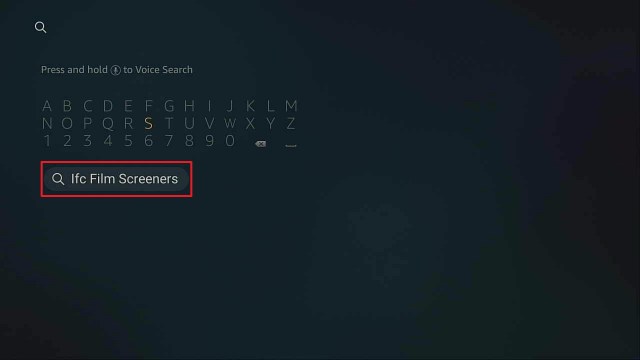
  3. Using the directional pad of your remote control, type in “IFC Film Screeners”.
  4. While you type, click on the “IFC Film Screeners” from the search results by pressing the center button of the directional pad.
  5. When the app is highlighted, press the center button of the directional pad to select the app.
  6. Select “Get”, then press the center button of the directional pad.
  7. Once the download is complete, launch the IFC Film Screeners app, or if you wish to use it later, you may return to the Apps section.


ANONYMOUSLY


If your Firestick still has the older interface, read this article to learn how to update it: Update Firestick Interface.

How to Install IFC Film Screeners on Firestick with Screenshots

1.   Click FIND.

Step 6 jailbreak firestick

2. Click Search.

Step 7 jailbreak firestick


3. Search for the IFC Film Screeners.

Step 2 Install IFC Film Screeners On Firestick


4. Select the icon of IFC Film Screeners.

Step 3 Install IFC Film Screeners On Firestick


5. Click Download.

Step 4 Install IFC Film Screeners On Firestick


6. Click Open.

Step 5 Install IFC Film Screeners On Firestick


7. Login.

Step 6 Install IFC Film Screeners On Firestick


Grab your subscription now!

Click here to get the lowest price on Surfshark through our exclusive limited-time offer.


IFC Film App Features

Streaming is made more convenient with the subtitles provided by the IFC Film Screeners. You can also change the video resolution to have faster streaming and less data bandwidth.

After the 30-day trial from Amazon Prime, the app charges $12.99 per month and $•5.99 per month after a 7-day trial from IFC Films Unlimited. Upon subscription, you can enjoy 100 more channels without the required cable.

Upon opening the app, you can see their content grouped into categories:

  • Now Playing: for new film releases
  • Coming Soon: for films to be available in theaters soon
  • Cannes Winners: a catalog of Cannes Film Festival’s Palme d’Or winners and masterworks from international cinema
  • LGBTQ: features the LGBT community from gay boys to lesbian stories and supports gender equality
  • Food on film: includes mouthwatering documentaries, comedies, and culinary journeys from different countries such as England, Germany, Italy, France, and Chinese restaurants to reach all people from the United States
  • The Great Outdoors: brings you doses of nature and everything outdoor without even leaving your room
  • Romantic comedies: streams sparkling rom-com dialogues and love affairs
  • Erotic Thrillers


YOUR INTERNET ACTIVITY IS BEING WATCHED

ReviewVPN cannot attest to the legality, security and privacy of the applications discussed on this site. It is highly recommended that you use a VPN service while streaming or using Kodi.

Currently, your IP 216.73.216.1 is visible to everyone and your Browser is being tracked by Advertisers & ISP Provider.

Save 65% Now

Limited Time Offer

Here are the main reasons why you must use a VPN:

  • Your activities are hidden from your ISP, the government, and from the apps you are using.
  • You can access additional movies and TV streams.
  • ISP attempts to throttle are thrwarted thus reducing buffering issues.
  • Geographically restricted content like Netflix and Hulu can be unblocked.

A VPN works be replacing your ISP-assigned IP address and creating an encrypted tunnel. We recommend the no log service offered by IPVanish. It works well on a Firestick and offers the fastest possible speeds.

Special Limited Time Offer - Get IPVanish


Legal Disclaimer: ReviewVPN.com does not encourage or endorse any illegal activity involved in the usage of services and applications referenced on this site. We do not verify the licensing agreements of services. The end-user is wholly responsible for ensuring that any media accessed through these services does not violate copyright and/or licensing laws. ReviewVPN does not promote, link to, or receive compensation from any Apps and IPTV services.


Why Use Surfshark on Your Firestick

https://get.surfshark.net/aff_c?offer_id=865&aff_id=12312

Using a VPN service is highly important when you stream your favorite shows on your Firestick. Here is why:

  • Access to apps and websites with geo-restriction

Installing Surfshark will enables you to watch your favorite series or access some blocked websites with country/regional restrictions.


  •  Protects Your Online Privacy

Installing Surfshark on your Firestick will remove all your digital fingerprints. It boosts up your online anonymity while streaming on Firestick, Morpheus, Popcorn Time, Kodi, ShowBox, Terrarium, and other streaming apps. When using a VPN, your real IP address is masked by an IP address that is used and shared by other users. 


  • Secures Your Internet Connection

When connecting to free public WiFi, the risk of your personal information being leaked is high. Using Surfshark’s advanced encryption system will prevent any middleman from hacking your information.


  • Prevent Packet Sniffing

Your personal information can be collected, stolen, and sold to advertising companies, then your data is scanned upon crossing its network. ISPs use deep packet inspection to monitor your internet usage and throttle your internet speed. Your connection in turn slows down and makes it difficult to play online games or stream your favorite media. With Surfshark, your traffic is encrypted and at the same time, you will be able to enjoy a smooth and lag-free streaming experience on your Firestick.


  • Get Censorship Filters

With Surfshark, you have the power to explore the web without being censored online. This is usually taken advantage of by government agencies, employers, and universities from across the world.

If you want to get protected and enjoy streaming above standard viewing experience, you may read more in Surfshark


Install Surfshark on Firestick

Best Surfshark Deal


How to Install Surfshark VPN on Firestick

If your Firestick still has the older interface, read this article to learn how to update it: Update Firestick Interface.

You can download Surfshark directly from the Amazon App store. It will be easy for you to find Surfshark with your Firestick’s Find feature. Refer to our screenshots below.

1. Go to the Home screen of your Firestick.

step 1 Install Surfshark VPN on Firestick


2. Navigate towards the Find tab. Press the Search button from the resulting dropdown.

step 2 Install Surfshark VPN on Firestick


3. Type in the keyword of SurfShark and select from the suggestions that will appear.

step 3 Install Surfshark VPN on Firestick


4. Click the official SurfShark icon from your search results.

step 4 Install Surfshark VPN on Firestick


5. Press the Download (You own it) button.

step 5 Install Surfshark VPN on Firestick


6. The SurfShark VPN installer will download on your device.

step 6 Install Surfshark VPN on Firestick


7. SurfShark VPN’s app will automatically install itself on your Fire TV stick.

step 7 Install Surfshark VPN on Firestick


8. Press the Open button after completing SurfShark VPN’s installation process.

step 8 Install Surfshark VPN on Firestick


9. Please wait for the SurfShark VPN to load its user interface.

step 9 Install Surfshark VPN on Firestick


10. You can now log in with your SurfShark VPN account credentials.

step 10 Install Surfshark VPN on Firestick

Learn more about Surfshark and Grab the Best Surfshark Deal Now!


Install Surfshark on Firestick

Best Surfshark Deal


Other VPNs to Consider

NordVPN (Best for Streaming)

Best Features

  • 5000+ Server in 50+ Countries 
  • Military-Grade Encryption
  • Fast Connection Speed
  • Suitable to a lot of devices
  • No-Log Policy

Prices
  • Complete $5.89 per month (64% Discount)
  • Plus $4.59 per month (56% Discount)
  • Standard $3.69 per month (55% Discount)

Best Features

  • 750+ High-speed VPN Servers in 43 Locations
  • Military-Grade Encryption
  • Fastest HD Streaming and Gaming
  • 30-Day Money-Back Guarantee
  • Unlimited Data & Devices
  • No-Log Policy

Prices
  • 3 Years $1.99 per month (82% Discount)
  • 1 Years $3.29 per month (70% Discount)
  • 1 Month $10.99 per month

IPVanish VPN (Most Secure)

Best Features

  • 1200+ Servers in 60+ Countries around the world
  • Unlimited Connections
  • No-Log Policy
  • Top Notch Military-Grade VPN Protocols and Encryptions
  • 100% Safe and Secured
  • Most Trusted VPN
  • Best VPN for Firestick
  • 30-Day Money-Back Guarantee

Prices
  • Yearly $3.99 per month (63% Discount) – 30 days risk free + Ransomware & Malware Protection
  • Quarterly $5.32 per month (51% Discount)
  • Monthly $10.99 per month


For more VPN discounts, go to ReviewVPN Deals and purchase the best VPN for you.

Click here to get the lowest price on Surfshark through our exclusive limited-time offer.


IFC Film Screeners Alternative Apps

  • Hulu

This app is an excellent selection of TV series, an extensive live TV channel line-up available on all streaming devices. At $5.99 per month, you can subscribe to enjoy ad-free streaming and offline downloads. Dependable option for streaming new and classic shows as well as live TV on nearly every platform. It’s a top choice among video streaming services.


If you love adventures, you can enjoy thousands of HD titles worldwide for only a $2.99 per month subscription. 


Tubi is a totally free and well-designed video streaming service with an updated and extensive library of movies and shows. However, since it is a free app, you will encounter ads while streaming at 720p resolution. 


With its 4K and HD excellent original content, it offers you a great experience in watching your favorites. With a monthly subscription of $8.9, it supports offline downloads, audio descriptions, and multiple viewers and login profiles. 


Just like IFC Film Screeners, HBO Max uploads Warner Bros. 2021 movies the same day as movies are released in theaters. It contains a huge catalog of popular movies and shows, supports profile and parental control tools, and offline mobile downloads. However, with $14.99 monthly, its subscription is relatively higher compared to similar apps. It currently does not have audio descriptions and no 4K content. 


This popular streaming service offers an impressive library of high-quality shows and movies in one place. It enables you to download and watch your favorite movies offline and 4K streaming. However, with a $6.99 monthly subscription, the app has only basic parental controls to guide their kids, and some 21st Century Fox content is not included. 


Conclusion

Compared to other streaming devices, IFC Film Screeners has a much more expensive subscription fee that would give you 100 more channels to access. By using a VPN service, you can enhance your streaming sessions ensuring your privacy and security. We hope that through this article, we are able to help you successfully install this app on your Firestick.


Final Words

Help us improve by commenting on any of your questions, comments, or feedback below. Thank you for reading! 

Note: ReviewVPN.com is not affiliated with any App or IPTV Service nor are we endorsing or promoting any. The sole purpose of this article is for educational purposes only.


What Is Your Favorite Streaming App? Cast Your Vote Below.

How To Install Chicago Bears Build

Chicago Bears Build


In this article, you are going to learn how to install Chicago Bears on firestick, Chromecast, tablet, computer, Raspberry Pi, smartphones, and many more. 

Chicago Bears is a third-party build within the Twisted Wizard Repository and offers the following sections: live tv, NFL, fav, wizard, addons, systems, search movies, search tv show, kids zone, and more. 

Chicago Bears build offers you a streaming link for free live sports shows and lots more. If you are a fan of the Chicago Bears Club, then this build is a must-have for you. It comes with AEON NOX SLVO skin and theme and currently runs on version 1.2.2.


ANONYMOUSLY


Installation Guide Of Chicago Bears

Step 1. Open your Kodi app

Step 2. On the home screen, click on the setting icon.

Step 3. Click on the option of the system.

Step 4. Click on add-ons and click unknown sources, and select Yes.

Step 5. Return to the home screen 

Step 6. Click on the setting icon.

Step 7. Click on the file manager.

Step 8. Click on add source 

Step 9. Click on <none> 

Step 10. Type the media source file URL: http://twistedbuilds.xyz/repo and then click OK

Step 11. Click on “enter a name for this media source” and use the onscreen keyboard and type Chicago Bears 

Step 12. Return to the home screen and then select add-ons

Step 13. Click on the addon installer icon.

Step 14. Click on install from zip file.

Step 15. Click on Chicago Bears 

Step 16. Click on repository.twisted-1.1.0.zip

Step 17. Wait for the Twisted add-on installed notification.

Step 18. Click on Install from the repository

Step 19. Click on Twisted Repository 

Step 20. Click on program add-ons

Step 21. Click on Twisted Wizard 

Step 22. Click on install

Step 23. Wait for the twisted Wizard Add-On installed notification. 

Step 24. Click on dismiss and then select continue

Step 25. Click on the Build menu.

Step 26. Click on builds

Step 27. Click on Chicago Bears

Step 28. Click on fresh install

Step 29. Select Yes. 

Step 30. Click OK to force close.


Grab your subscription now!

Click here to get the lowest price on Surfshark through our exclusive limited-time offer.


Features of Chicago Bears Build

  • Less than 300 Mb of memory on your device making it compatible with low memory devices such as firestick and fire.
  • Customizable themes and skins.Resume playing
  • Amazing user-friendly
  • Easy to customize the interface
  • Regular build update


Cons

The Chicago Bears work so well.


YOUR INTERNET ACTIVITY IS BEING WATCHED

ReviewVPN cannot attest to the legality, security and privacy of the applications discussed on this site. It is highly recommended that you use a VPN service while streaming or using Kodi.

Currently, your IP 216.73.216.1 is visible to everyone and your Browser is being tracked by Advertisers & ISP Provider.

Save 65% Now

Limited Time Offer

Here are the main reasons why you must use a VPN:

  • Your activities are hidden from your ISP, the government, and from the apps you are using.
  • You can access additional movies and TV streams.
  • ISP attempts to throttle are thrwarted thus reducing buffering issues.
  • Geographically restricted content like Netflix and Hulu can be unblocked.

A VPN works be replacing your ISP-assigned IP address and creating an encrypted tunnel. We recommend the no log service offered by IPVanish. It works well on a Firestick and offers the fastest possible speeds.

Special Limited Time Offer - Get IPVanish


Addon within Chicago Bears

  • Scrubs
  • Asgard
  • The Crew Movies
  • The Crew Sports
  • Rising Tides


What is Kodi?

Kodi is an open-source media software. With this software, you can stream free docs, sports events, live, movies, and more. 

Kodi was released in 2002 as “Xbox media player”. However, the name was later changed to Xbox media center in 2003. When XBMC Foundation took over the affairs of this software in 2014, its name changed to Kodi. 

You can install Kodi on any hardware platforms and operating systems such as computers (Windows and MAC OS), tablets, smartphones (Android and iOS), Raspberry Pi, Chromecast, and many more. Nonetheless, Kodi as a standalone application does not offer much content. Consequently, you need to install a third-party app liKe a build to explore the potential of Kodi. 


What is a Kodi Build?

A Kodi build is an application that allows you to access tons of free entertainment, add-ons, settings tools, wizards, and lots more. Usually, a Kodi build can come from the official Kodi repository or third-party repository. 


FAQs

Is it free to use Chicago Bears Kodi Build?

Installing and streaming with this build is free. No purchase of any subscription; no credit card, No PayPal, or billing is required to use Chicago Bears build. 


Is it safe to use the Chicago Bears Kodi Build?

It is safe to use this build. Although it is a third-party build installing and streaming with the Chicago Bears build is safe. That said, I recommend using this with a VPN liKe Surfshark


Can I install the Chicago Bears Kodi Build on my FiresticK and Fire TV Devices?

Yes, you can install this build on firesticK and fire TV. You can as well install this build on any hardware platforms and operating systems such as a computer, smartphones, tablets, Raspberry, and lots more.


Why you should use a VPN while streaming?

For security, privacy, and anonymous reasons, I recommend using a VPN while streaming with Kodi. A VPN is software that masks and encrypts your identity while accessing the internet or streaming content online. 


Importance of using a VPN

Geolocation

Imagine the feeling when you are not given access to a certain website or allowed to stream certain movies due to location-related issues. It can be frustrating. However, installing a vpn like Surfshark will offer you 5,300 servers in 62 worldwide locations to choose from. With a VPN, you can bypass geolocation or location restriction and stream from anywhere around the world.


Minimize Throttling

Each time you stream content or play online games, your internet service provider slows down your connection speed. However, installing a VPN will help minimize throttling and stabilize your internet connection speed.


Protection

Each time you access the internet or stream content online, your internet service provider monitors and keeps a record of your data or activities. Even though you may be using your private computer with an internet connection, your data and online activities can still be monitored and tracked by your internet service provider. 

Nevertheless, installing a VPN will encrypt and mask your IP address. When this happens, your online identity will be secure, private, and anonymous on the ISP network.


Best Alternative Builds

Although Chicago Bears seem promising with lots of features. I still recommend having alternative builds handy. This is because builds are very unpredictable. Check out the list of our best alternative builds for 2022 here


Install Surfshark on Firestick

Best Surfshark Deal


How to Install Surfshark VPN on Firestick

If your Firestick still has the older interface, read this article to learn how to update it: Update Firestick Interface.

Follow our screenshots below to install the SurfShark VPN app on your Fire TV stick.

1. Go to the Home screen of your Firestick.

step 1 Install Surfshark VPN on Firestick


2. Navigate towards the Find tab. Press the Search button from the resulting dropdown.

step 2 Install Surfshark VPN on Firestick


3. Type in the keyword of SurfShark and select from the suggestions that will appear.

step 3 Install Surfshark VPN on Firestick


4. Click the official SurfShark icon from your search results.

step 4 Install Surfshark VPN on Firestick


5. Press the Download (You own it) button.

step 5 Install Surfshark VPN on Firestick


6. The SurfShark VPN installer will download on your device.

step 6 Install Surfshark VPN on Firestick


7. SurfShark VPN’s app will automatically install itself on your Fire TV stick.

step 7 Install Surfshark VPN on Firestick


8. Press the Open button after completing SurfShark VPN’s installation process.

step 8 Install Surfshark VPN on Firestick


9. Please wait for the SurfShark VPN to load its user interface.

step 9 Install Surfshark VPN on Firestick


10. You can now log in with your SurfShark VPN account credentials.

step 10 Install Surfshark VPN on Firestick

Learn more about Surfshark and Grab the Best Surfshark Deal Now!


Install Surfshark on Firestick

Best Surfshark Deal


Other VPNs to Consider

NordVPN (Best for Streaming)

Best Features

  • 5000+ Server in 50+ Countries 
  • Military-Grade Encryption
  • Fast Connection Speed
  • Suitable to a lot of devices
  • No-Log Policy

Prices
  • Complete $5.89 per month (64% Discount)
  • Plus $4.59 per month (56% Discount)
  • Standard $3.69 per month (55% Discount)

Best Features

  • 750+ High-speed VPN Servers in 43 Locations
  • Military-Grade Encryption
  • Fastest HD Streaming and Gaming
  • 30-Day Money-Back Guarantee
  • Unlimited Data & Devices
  • No-Log Policy

Prices
  • 3 Years $1.99 per month (82% Discount)
  • 1 Years $3.29 per month (70% Discount)
  • 1 Month $10.99 per month

IPVanish VPN (Most Secure)

Best Features

  • 1200+ Servers in 60+ Countries around the world
  • Unlimited Connections
  • No-Log Policy
  • Top Notch Military-Grade VPN Protocols and Encryptions
  • 100% Safe and Secured
  • Most Trusted VPN
  • Best VPN for Firestick
  • 30-Day Money-Back Guarantee

Prices
  • Yearly $3.99 per month (63% Discount) – 30 days risk free + Ransomware & Malware Protection
  • Quarterly $5.32 per month (51% Discount)
  • Monthly $10.99 per month


For more VPN discounts, go to ReviewVPN Deals and purchase the best VPN for you.

Click here to get the lowest price on Surfshark through our exclusive limited-time offer.


Conclusion

Chicago Bears build is a feature-rich build with a beautiful interface and customizable themes and skin. I recommend installing the Chicago Bears build for 24/7 nonstop streaming of free sports events, tv shows, docos, live tv, and more. Check out this build and share your thoughts. 

How To Install San Francisco 49ers Build

San Francisco 49ers Build


This tutorial will teach you how to install San Francisco 49ers on different streaming devices such as Raspberry Pi, Chromecast, tablet, computer, smartphones, firestick, and more. The San Francisco 49ers is a build under the sports category.

It allows you to access and stream live American football games and lots more. This build is designed for San Francisco 49ers fans. It is a third-party build within the Twisted Wizard Repository and offers the following multifunctional sections: new movies, new tv, sports tv, live tv, fav, wizard, add-ons, system, and kids zone.


ANONYMOUSLY


Installation Guide Of San Francisco 49ers Build

Step 1. Open your Kodi app

Step 2. On the home screen, click on the setting icon.

Step 3. Click on the systems option.

Step 4. Click on add-ons and click unknown sources, and select Yes.

Step 5. Return to the home screen 

Step 6. Click on the setting icon.

Step 7. Click on the file manager.

Step 8. Click on add source 

Step 9. Click on <none> 

Step 10. Type the media source file URL: http://twistedbuilds.xyz/repo and then click OK

Step 11. Click on “enter a name for this media source” and use the onscreen keyboard and type San Francisco 49ers 

Step 12. Return to the home screen and then select add-ons

Step 13. Click on the addon installer icon.

Step 14. Click on install from zip file.

Step 15. Click on San Francisco 49ers 

Step 16. Click on repository.twisted-1.1.0.zip

Step 17. Wait for the Twisted add-on installed notification.

Step 18. Click on Install from the repository

Step 19. Click on Twisted Repository 

Step 20. Click on program add-ons

Step 21. Click on Twisted Wizard 

Step 22. Click on install

Step 23. Wait for the twisted Wizard Add-On installed notification. 

Step 24. Click on dismiss and then select continue

Step 25. Click on the Build menu.

Step 26. Click on builds

Step 27. Click on San Francisco 49ers

Step 28. Click on fresh install

Step 29. Select Yes and Wait for the installation to complete. 

Step 30. Click OK to force close when the installation is done.


Grab your subscription now!

Click here to get the lowest price on Surfshark through our exclusive limited-time offer.


Features of San Francisco 49ers Build

  • Resume playing
  • Beautiful UI
  • Easy to install
  • Customizable interface


YOUR INTERNET ACTIVITY IS BEING WATCHED

ReviewVPN cannot attest to the legality, security and privacy of the applications discussed on this site. It is highly recommended that you use a VPN service while streaming or using Kodi.

Currently, your IP 216.73.216.1 is visible to everyone and your Browser is being tracked by Advertisers & ISP Provider.

Save 65% Now

Limited Time Offer

Here are the main reasons why you must use a VPN:

  • Your activities are hidden from your ISP, the government, and from the apps you are using.
  • You can access additional movies and TV streams.
  • ISP attempts to throttle are thrwarted thus reducing buffering issues.
  • Geographically restricted content like Netflix and Hulu can be unblocked.

A VPN works be replacing your ISP-assigned IP address and creating an encrypted tunnel. We recommend the no log service offered by IPVanish. It works well on a Firestick and offers the fastest possible speeds.

Special Limited Time Offer - Get IPVanish


Pros and Cons

Pros

  • Regular build update
  • Occupy’s less than 200 Mb of memory on your device
  • Customizable themes and skins.

Cons

All the sections of this build work just fine.


Addon within San Francisco 49ers

  • The Crew movies
  • The Crew sports
  • Rising Tides
  • Scrubs
  • Asgard


What is Kodi?

Kodi allows you to stream and watch free movies and other entertainment. This software was released in 2002 as an Xbox media player. The name was later changed to Xbox media center in 2003. In 2014, when XBMC Foundation took over the affairs of this software, it was changed to Kodi. With this software, you can access anime, cartoons, documentaries, music, news, and lots more. You can install Kodi on any hardware platform and operating systems such as computers (Windows and MAC OS), tablets, smartphones (Android and iOS), Raspberry Pi, Chromecast, and many more. That said, Kodi as a standalone application does not offer much content. Consequently, you need to install a third-party app liKe a build to explore the potential of Kodi. A Kodi build is an application that allows you to access tons of free entertainment, add-ons, settings tools, wizards, and lots more. Usually, a Kodi build can come from the official Kodi repository or third-party repository. 


Frequently Asked Questions

Can I install the San Francisco 49ers Kodi Build on my FiresticK and Fire TV Devices?

Yes, you can install this build on firesticK and fire TV. You can as well install this build on any hardware platform and operating system such as a computer, smartphones, tablets, Raspberry, and lots more.


Is it safe to use the San Francisco 49ers Kodi Build?

It is safe to use this build. Although it is a third-party build installing and streaming with the San Francisco 49ers build is safe. That said, I recommend using San Francisco 49ers with a VPN liKe Surfshark


Do I need a VPN to use the San Francisco 49ers Kodi Build?

Yes. you need a VPN liKe Surfshark when using this build. Not only when using this build, but I also recommend using a VPN each time you are streaming with Kodi for privacy and security reasons.


Do I need to pay to stream with the San Francisco 49ers Kodi Build?

It is entirely safe to install and stream with this build. You do not need to pay or purchase any subscription; no credit card, no PayPal detail, or billing is required to use this build. However, you need to have a strong and fast internet connection when streaming with this build in other to enjoy smooth and nonstop streaming of free content.


Why you should use a VPN while streaming?

A VPN (a virtual private network) is software that masks and encrypts your identity while accessing the internet or streaming content online. The sole aim of using a VPN while streaming content online or accessing the Internet is for security and privacy purposes. However, the benefits of using a VPN can not be overemphasized. 


Importance of a VPN

Protection

Each time you access the internet or stream content online, your internet service provider monitors and keeps a record of your data or activities. Even though you may be using your private computer with an internet connection, your data and online activities can still be monitored and tracked by your internet service provider. Nevertheless, installing a VPN will encrypt and mask your IP address. When this happens, your online identity will be secure, private, and anonymous on the ISP network.


Minimize Throttling

Each time you stream content or play online games, your internet service provider slows down your connection speed. However, installing a VPN will help minimize throttling and stabilize your internet connection speed.


Geolocation

Imagine the feeling when you are not given access to a certain website or allowed to stream certain movies due to location-related issues. It can be frustrating. However, installing a VPN like Surfshark will offer you 3200+ servers in 65 countries. With a VPN, you can bypass geolocation or location restrictions and stream from anywhere around the world.


Best Alternative Builds

It can be frosting when a build you are using suddenly stops working without notification. To avoid such frustration, I recommend having alternative builds handy. Check out the list of our best alternative builds for 2022 here


Install Surfshark on Firestick

Best Surfshark Deal


How to Install Surfshark VPN on Firestick

If your Firestick still has the older interface, read this article to learn how to update it: Update Firestick Interface.

Follow our screenshots below to install the SurfShark VPN app on your Fire TV stick.

1. Go to the Home screen of your Firestick.

step 1 Install Surfshark VPN on Firestick


2. Navigate towards the Find tab. Press the Search button from the resulting dropdown.

step 2 Install Surfshark VPN on Firestick


3. Type in the keyword of SurfShark and select from the suggestions that will appear.

step 3 Install Surfshark VPN on Firestick


4. Click the official SurfShark icon from your search results.

step 4 Install Surfshark VPN on Firestick


5. Press the Download (You own it) button.

step 5 Install Surfshark VPN on Firestick


6. The SurfShark VPN installer will download on your device.

step 6 Install Surfshark VPN on Firestick


7. SurfShark VPN’s app will automatically install itself on your Fire TV stick.

step 7 Install Surfshark VPN on Firestick


8. Press the Open button after completing SurfShark VPN’s installation process.

step 8 Install Surfshark VPN on Firestick


9. Please wait for the SurfShark VPN to load its user interface.

step 9 Install Surfshark VPN on Firestick


10. You can now log in with your SurfShark VPN account credentials.

step 10 Install Surfshark VPN on Firestick

Learn more about Surfshark and Grab the Best Surfshark Deal Now!


Install Surfshark on Firestick

Best Surfshark Deal


Other VPNs to Consider

NordVPN (Best for Streaming)

Best Features

  • 5000+ Server in 50+ Countries 
  • Military-Grade Encryption
  • Fast Connection Speed
  • Suitable to a lot of devices
  • No-Log Policy

Prices
  • Complete $5.89 per month (64% Discount)
  • Plus $4.59 per month (56% Discount)
  • Standard $3.69 per month (55% Discount)

Best Features

  • 750+ High-speed VPN Servers in 43 Locations
  • Military-Grade Encryption
  • Fastest HD Streaming and Gaming
  • 30-Day Money-Back Guarantee
  • Unlimited Data & Devices
  • No-Log Policy

Prices
  • 3 Years $1.99 per month (82% Discount)
  • 1 Years $3.29 per month (70% Discount)
  • 1 Month $10.99 per month

IPVanish VPN (Most Secure)

Best Features

  • 1200+ Servers in 60+ Countries around the world
  • Unlimited Connections
  • No-Log Policy
  • Top Notch Military-Grade VPN Protocols and Encryptions
  • 100% Safe and Secured
  • Most Trusted VPN
  • Best VPN for Firestick
  • 30-Day Money-Back Guarantee

Prices
  • Yearly $3.99 per month (63% Discount) – 30 days risk free + Ransomware & Malware Protection
  • Quarterly $5.32 per month (51% Discount)
  • Monthly $10.99 per month


For more VPN discounts, go to ReviewVPN Deals and purchase the best VPN for you.

Click here to get the lowest price on Surfshark through our exclusive limited-time offer.


Conclusion

I recommend installing the San Francisco 49ers build for 24/7 nonstop streaming of free sports events, movies, tv shows, docos, live tv, and more. It is a feature-rich build with a beautiful interface and customizable themes and skin. Check out this build and share your thoughts. 

How To Install EarthCamTV 2 on Firestick

EarthCamTV 2 on Firestick

In this article, we will provide you with a step-by-step guide to installing EarthCamTV 2 on your Firestick device.

In this time of the pandemic, people who love traveling certainly miss a lot of places and wonderful sceneries that they have already visited or at least planned to visit. Some may even forget how refreshing it is to be in front of their favorite beaches, mountains, and awesome establishments.

Even for sunrise and sunset lovers, this app is for you. EarthCamTV 2 brings you the world’s best webcam of outdoor gigapixel panorama camera systems located in different parts of the world.

These amazing webcams include live streaming videos, time-lapse construction cameras, and a 360° reality capture. If you are not fascinated yet, some popular landmarks such as the Statue of Liberty, Times Square, the Eiffel Tower, Miami Beach, and Hollywood Boulevard are being hosted by cams that will virtually bring you to these places.

Installing this app on your Firestick is easy since it is available on Amazon App Store. No jailbreaking and installing the Downloader app on Firestick will be necessary.


How to Install EarthCamTV 2 on Your Firestick Guide

  1. Go to your Firestick home screen. 
  2. Select Search.
  3. Using the directional pad of your remote control, type in “EarthCamTV 2”.
  4. While you type, click on the “EarthCamTV 2” from the search results by pressing the center button of the directional pad.
  5. When the app is highlighted, press the center button of the directional pad to select the app.
  6. Select “Get”, then press the center button of the directional pad.
  7. Once the download is complete, launch the EarthCamTV 2 app, or if you wish to use it later, you may return to the Apps section.


ANONYMOUSLY


If your Firestick still has the older interface, read this article to learn how to update it: Update Firestick Interface.

How to Install EarthCamTV 2 on Firestick with Screenshots

1.   Click FIND.

Step 6 jailbreak firestick

2. Click Search.

Step 7 jailbreak firestick


3. Search for the EarthCamTV 2.

Step 2 Install EarthCam TV 2 on Firesrtick


4. Select the icon of EarthCamTV 2.

Step 3 Install EarthCam TV 2 on Firesrtick


5. Click Download.

Step 4 Install EarthCam TV 2 on Firesrtick


6. Click Open.

Step 5 Install EarthCam TV 2 on Firesrtick


7. EarthCamTV 2 is Installed.

Step 6 Install EarthCam TV 2 on Firesrtick


Grab your subscription now!

Click here to get the lowest price on Surfshark through our exclusive limited-time offer.


EarthCamTV 2 App Features

When you open this app on your Firestick, you will see the following in its interface:

  • “Take Control” Guide to using your Alexa remote
  • New Orleans Cats Meow Balcony Cam
  • New Orleans Bourbon Street Cam
  • Time Square South 4K Cam
  • Key West Cam
  • Hawaii Surf Cam
  • Kauai Cam
  • Saipan Beach Cam
  • Florida Marina Cam
  • New Zeland Cam
  • CN Tower Cam
  • Times Squares Crossroads
  • Times Square Street Cams
  • All-Access Pass for subscription
  • “View More Cameras” Navigation:
    • Trending and Featured Places
    • Earthcam A to Z
    • Animals
    • Beaches
    • Cities
    • Landmarks
    • Lakes, Rivers, Oceans,
    • Nature
    • Hometown
    • My EarthCam – shared cameras of the community
    • Youtube shared live cams
    • Time-lapse cams


YOUR INTERNET ACTIVITY IS BEING WATCHED

ReviewVPN cannot attest to the legality, security and privacy of the applications discussed on this site. It is highly recommended that you use a VPN service while streaming or using Kodi.

Currently, your IP 216.73.216.1 is visible to everyone and your Browser is being tracked by Advertisers & ISP Provider.

Save 65% Now

Limited Time Offer

Here are the main reasons why you must use a VPN:

  • Your activities are hidden from your ISP, the government, and from the apps you are using.
  • You can access additional movies and TV streams.
  • ISP attempts to throttle are thrwarted thus reducing buffering issues.
  • Geographically restricted content like Netflix and Hulu can be unblocked.

A VPN works be replacing your ISP-assigned IP address and creating an encrypted tunnel. We recommend the no log service offered by IPVanish. It works well on a Firestick and offers the fastest possible speeds.

Special Limited Time Offer - Get IPVanish


Here are other EarthCamTV 2’s Features:

Free Version Features:

  • 24-hour live camera streaming
  • Displays the location description and overview
  • Shows the location’s real-time temperature, humidity, wind gust, and visibility
  • Number of views information of the location’s webcam
  • Lets you create a watchlist of your favorite live webcams to stream anytime


Premium Features:

  •  Unlimited live streaming webcams
  • Hundreds of locations including live YouTube webcams
  • Personalized viewing experience
  • Unlimited viewing of your favorite cameras
  • Change watch times
  •  Select music soundtrack while you stream
  • Explore new cities and discover iconic locations
  •  Enjoy 2 curated watchlists: Trending and Featured Cams
  • Produce your own content by participating as a creator and sharing personal webcam streams with the MyEarthCam community
  • Through Alexa, you can verbally ‘Ask Alexa’ to switch on a live feed from any camera


Pros and Cons

Pros

  • Great sceneries included such as forests, river, and outdoor scenes that provide a calming and delightful effect on its users

Cons

  • Requires an annual subscription of $4.99 to access more webcams
  • Very limited webcams available for both free and premium versions
  • No “search” option
  • Slow transition of 1 cam to another
  •  Crashes and lags at times
  • Inconsistent camera quality from high to the low definition in some places


Legal Disclaimer: ReviewVPN.com does not encourage or endorse any illegal activity involved in the usage of services and applications referenced on this site. We do not verify the licensing agreements of services. The end-user is wholly responsible for ensuring that any media accessed through these services does not violate copyright and/or licensing laws. ReviewVPN does not promote, link to, or receive compensation from any Apps and IPTV services.


Why Use EarthCamTV 2 with Surfshark

We highly recommend using Surfshark, a VPN service, in streaming apps such as EarthCam TV 2 on your Firestick:

  1. Secures Your Internet Connection

When connecting to free public WiFi, the risk of your personal information being leaked is high. Using an Surfshark advanced encryption system will prevent any middleman from hacking your information.


  1. Protects Your Online Privacy

Installing Surfshark on your Firestick will remove all your digital fingerprints. It boosts up your online anonymity while streaming on Firestick, Morpheus, Popcorn Time, Kodi, ShowBox, Terrarium, and other streaming apps. When using a VPN, your real IP address is masked by an IP address that is used and shared by other users.


  1. Prevent Data Stealing

You might not know that your personal information can be collected, stolen, and sold to advertising companies. Your data is scanned upon crossing its network. ISPs use deep packet inspection to monitor your internet usage and throttle your internet speed. This then slows down your connection and makes it difficult to play online games or stream your favorite media. With Surfshark, your traffic is encrypted and at the same time, you will be able to enjoy a smooth and lag-free streaming experience on your Firestick.


  1. Get Censorship Filters

With Surfshark, you have the power to explore the web without being censored online. This is usually taken advantage of by government agencies, employers, and universities from across the world.


  1. Access to Apps and Websites with Geo-Restriction

Installing Surfshark will enables you to watch your favorite series or access some blocked websites with country/regional restrictions.

With these VPN functions, you can enjoy lag-free, smooth, and secured video streaming while virtually traveling to these breathtaking places. We recommend using Surfshark, one of the best VPN services for Firestick.


Install Surfshark on Firestick

Best Surfshark Deal


How to Install Surfshark VPN on Firestick

If your Firestick still has the older interface, read this article to learn how to update it: Update Firestick Interface.

1. Go to the Home screen of your Firestick.

step 1 Install Surfshark VPN on Firestick


2. Navigate towards the Find tab. Press the Search button from the resulting dropdown.

step 2 Install Surfshark VPN on Firestick


3. Type in the keyword of SurfShark and select from the suggestions that will appear.

step 3 Install Surfshark VPN on Firestick


4. Click the official SurfShark icon from your search results.

step 4 Install Surfshark VPN on Firestick


5. Press the Download (You own it) button.

step 5 Install Surfshark VPN on Firestick


6. The SurfShark VPN installer will download on your device.

step 6 Install Surfshark VPN on Firestick


7. SurfShark VPN’s app will automatically install itself on your Fire TV stick.

step 7 Install Surfshark VPN on Firestick


8. Press the Open button after completing SurfShark VPN’s installation process.

step 8 Install Surfshark VPN on Firestick


9. Please wait for the SurfShark VPN to load its user interface.

step 9 Install Surfshark VPN on Firestick


10. You can now log in with your SurfShark VPN account credentials.

step 10 Install Surfshark VPN on Firestick

Learn more about Surfshark and Grab the Best Surfshark Deal Now!


Install Surfshark on Firestick

Best Surfshark Deal


Other VPNs to Consider

NordVPN (Best for Streaming)

Best Features

  • 5000+ Server in 50+ Countries 
  • Military-Grade Encryption
  • Fast Connection Speed
  • Suitable to a lot of devices
  • No-Log Policy

Prices
  • Complete $5.89 per month (64% Discount)
  • Plus $4.59 per month (56% Discount)
  • Standard $3.69 per month (55% Discount)

Best Features

  • 750+ High-speed VPN Servers in 43 Locations
  • Military-Grade Encryption
  • Fastest HD Streaming and Gaming
  • 30-Day Money-Back Guarantee
  • Unlimited Data & Devices
  • No-Log Policy

Prices
  • 3 Years $1.99 per month (82% Discount)
  • 1 Years $3.29 per month (70% Discount)
  • 1 Month $10.99 per month

IPVanish VPN (Most Secure)

Best Features

  • 1200+ Servers in 60+ Countries around the world
  • Unlimited Connections
  • No-Log Policy
  • Top Notch Military-Grade VPN Protocols and Encryptions
  • 100% Safe and Secured
  • Most Trusted VPN
  • Best VPN for Firestick
  • 30-Day Money-Back Guarantee

Prices
  • Yearly $3.99 per month (63% Discount) – 30 days risk free + Ransomware & Malware Protection
  • Quarterly $5.32 per month (51% Discount)
  • Monthly $10.99 per month


For more VPN discounts, go to ReviewVPN Deals and purchase the best VPN for you.

Click here to get the lowest price on Surfshark through our exclusive limited-time offer.


EarthCamTV 2 Alternative Apps

If ever you encounter some trouble with EarthCamTV 2, a similar live webcam streaming app, Vista Live, is available on Firestick.

You may also refer to our list of Best Live TV Apps for Firestick and Android.


Conclusion

Overall, EarthCam2 is a great app with also a great goal of bringing people’s favorite places to their homes or wherever they are. However, the app still has a lot to improve in terms of the number of cameras available from different places in the world – as also based on its user reviews. Unlike its other alternative apps, it does not have a user-friendly interface like easy navigation as the basic “search” bar is missing. With only $4.99 per year, you get what you pay for.


Final Words

We hope that we have guided you with installing the EarthCamTV 2 app on your Firestick. If there is anything we missed or any question that you would like to raise, please feel free to comment below.

Note: ReviewVPN.com is not affiliated with any App or IPTV Service nor are we endorsing or promoting any. The sole purpose of this article is for educational purposes only.

How To Install Media Lounge on Firestick – 2023 Update

Install Media Lounge on Firestick Overview

In this article, we will be helping you with how to install Media Lounge on Firestick.


How frequently do you see a streaming application that gives Movies, TV Shows, Live TV, Sports TV, and Adult Content?

This is very rare because the most popular streaming apps usually only offer Movies, TV Shows, and Live TV.

You are probably wondering what this wonderful app is and how it can provide all of the said categories. 

Before you can install Media Lounge on your Firestick, you need to jailbreak it. Here is how you do it:

Jailbreak Firestick Guide

Additionally, you will also need the Downloader app to sideload Media Lounge. Please refer to this guide:

Install Downloader App on Firestick.


ANONYMOUSLY

Is Media Lounge Safe and Virus-free?

We tested this application using VirusTotal and found that there is/are malicious file/files. You can see the above result for your reference.

Because of this, we highly recommend using a VPN that can protect your privacy against any threat from Media Lounge.

Here’s how you can Install The Best VPN For Firestick and All Devices.


How To Install Media Lounge on Android


Media Lounge Download Icon

Note: ReviewVPN.com does not host this APK file. It is hosted on Archive.org.


If your Firestick still has the older interface, read this article to learn how to update it: Update Firestick Interface.


How to Install Media Lounge on Firestick (Video)


How To Install Media Lounge on Firestick

1.  Install the Downloader app and jailbreak your firestick by enabling unknown sources.
To learn more about the procedure, you may read How to Install the Downloader App and Enable Unknown Sources.


2. Open Downloader. Type https://reviewvpn.com/med and click GO.


3. Click Install.

Step 13 Install Media Lounge on firestick


4. Click Open.

Step 14 Install Media Lounge on firestick


5. Click Allow.

Step 15 Install Media Lounge on firestick


6. Create a Parental Pin. Click OK.

Step 16 Install Media Lounge on firestick


7. Type your pin. Click Next.

Step 17 Install Media Lounge on firestick


8. Click OK.

Step 18 Install Media Lounge on firestick


9. Media Lounge is installed. Enjoy watching.

Step 19 Install Media Lounge on firestick


YOUR INTERNET ACTIVITY IS BEING WATCHED

ReviewVPN cannot attest to the legality, security and privacy of the applications discussed on this site. It is highly recommended that you use a VPN service while streaming or using Kodi.

Currently, your IP 216.73.216.1 is visible to everyone and your Browser is being tracked by Advertisers & ISP Provider.

Save 65% Now

Limited Time Offer

Here are the main reasons why you must use a VPN:

  • Your activities are hidden from your ISP, the government, and from the apps you are using.
  • You can access additional movies and TV streams.
  • ISP attempts to throttle are thrwarted thus reducing buffering issues.
  • Geographically restricted content like Netflix and Hulu can be unblocked.

A VPN works be replacing your ISP-assigned IP address and creating an encrypted tunnel. We recommend the no log service offered by IPVanish. It works well on a Firestick and offers the fastest possible speeds.

Special Limited Time Offer - Get IPVanish


Legal Disclaimer: ReviewVPN.com does not encourage or endorse any illegal activity involved in the usage of services and applications referenced on this site. We do not verify the licensing agreements of services. The end-user is wholly responsible for ensuring that any media accessed through these services does not violate copyright and/or licensing laws. ReviewVPN does not promote, link to, or receive compensation from any Apps and IPTV services.


Grab your subscription now!

Click here to get the lowest price on Surfshark through our exclusive limited-time offer.


Is It Any Good?

Media Lounge is a very reliable third-party streaming application whose contents are Movies, TV Shows, Live TV, Sports TV, and Adult content.

It was created by the same developers of Live Lounge. As we all know, Live Lounge is no longer working.

Consider Media Lounge as the heir to the throne of the once-popular streaming app. 

It provides the best quality links due to its compatibility with Real-Debrid. Learn how to integrate it by following the tutorial below.


Integrate Real-Debrid on Medial Lounge

1. Launch Media Lounge on the Firestick.


2. Click on the Hamburger menu.


3. Choose Real Debrid – Login


4. Take note of the given code.


5. Launch a web browser on another device.


6. Type in the code given earlier.


7. Select Continue.


8. This confirmation will appear.


9. You will now see that Real Debrid is connected.


10. Real Debrid links are highlighted.


Integrate MX Player for Media Lounge

You can choose the default player for this app. But first, you have to make sure that MX Player is already installed on your firestick device.


1. Launch the Media Lounge app on firestick

media lounge (1)


2. Navigate to the hamburger button on the upper-left side of the app.

media lounge (2)


3. Scroll down to Choose Default Player

media lounge (3)


4. Choose MX Player

media lounge (4)


5. A notification will show on the lower part of the home page to clarify the chosen player.

media lounge (5)

You can also use VLC Media Player for Media Lounge.


Media Lounge Features

After you install the app on Firestick, you will be treated with the following features.

Interface

Media Lounge is very easy to use. Navigation is a breeze and you will not be needing an additional app called Mouse Toggle. It also collects working streaming links that you can choose from to watch videos.

Movie Genres

The Genres are Action, Adventure, Animation, Comedy, Crime, Documentary, Drama, Family, Fantasy, History, Horror, Music, Mystery, Romance, Science Fiction, TV Movie, Thriller, War, and Western

Live TV Section

The Live TV section provides a robust list of channels from Pakistan, India, Bangladesh, UK, USA, Afghanistan, Arabian, Punjabi, South Indian, Religious, Kids, Wildlife and Science, Canada, Philippines, Nepal, France, Australia, Portugal, Germany, Italy, Turkish, Poland, Belgium, Spain, Kurdish, Albania, Romania, Greece, Thailand, and OSN. 

Sports TV Section

Featured Sports channels are Sony, ESPN, Bein, Star Sports, Willow Cricket, Premier Sports, Sky Sports, BT Sports, Euro Sport, Box Nation, Setanta Sports, UK Racing, WWE Network, Dubai Sports, MUTV, Real Madrid, LFC TV, Chelsea TV, Arena Sports, Fox Sports, TSN Sports, Sports Net One, Ad Sports, Viasat Football, NBA TV, NBC SN, NFL Network, and many more.

Adult Section

This section has tons of content. It ranges from Straight, Gay, Lesbian, Hentai, Tranny, and many more.


Media Lounge Pros and Cons 

Pros

  • Incredible playback and loading time
  • Downloadable Content (Ideal for Android Users to watch offline)
  • Its internal player functions very well. External players like MX Player Pro are not required.
  • Regular Updates
  • One-Click Play for the Live TV Section.
  • Additional privacy feature with the parental pin
  • Ad-Free
  • Real-Debrid Integration


Cons

  • A few movies and TV Shows do not have working links
  • Most videos are in Standard Definition. Only a few HD links are available.


Grab your subscription now!

Click here to get the lowest price on Surfshark through our exclusive limited-time offer.


Should I use Media Lounge with a VPN?

https://get.surfshark.net/aff_c?offer_id=865&aff_id=12312

Free streaming is nice and all but it should be done responsibly. Streaming is a type of activity that your ISP will notice. Remember, all of your activities online are being monitored by your ISP. The best way to maintain anonymity is by using a premium VPN service like Surfshark. It will hide everything that you do online, especially streaming. You can also gain access to geo-restricted content like those on Netflix. Surfshark will also ensure that your viewing experience is lag-free because it will block any attempt by your ISP to throttle down your speed.

Note:  If you wish to subscribe to Surfshark, you can avail of it at a very affordable price by clicking our Surfshark BEST DEAL. Hurry while the promo still lasts!


How to Install Surfshark VPN on Firestick

1. Go to the Home screen of your Firestick.

step 1 Install Surfshark VPN on Firestick


2. Navigate towards the Find tab. Press the Search button from the resulting dropdown.

step 2 Install Surfshark VPN on Firestick


3. Type in the keyword of Surfshark and select from the suggestions that will appear.

step 3 Install Surfshark VPN on Firestick


4. Click the official SurfShark icon from your search results.

step 4 Install Surfshark VPN on Firestick


5. Press the Download (You own it) button.

step 5 Install Surfshark VPN on Firestick


6. The Surfshark VPN installer will download on your device.

step 6 Install Surfshark VPN on Firestick


7. SurfShark VPN’s app will automatically install itself on your Fire TV stick.

step 7 Install Surfshark VPN on Firestick


8. Press the Open button after completing Surfshark VPN’s installation process.

step 8 Install Surfshark VPN on Firestick


9. Please wait for the SurfShark VPN to load its user interface.

step 9 Install Surfshark VPN on Firestick


10. You can now log in with your Surfshark VPN account credentials.

step 10 Install Surfshark VPN on Firestick

Learn more about Surfshark and Grab the Best Surfshark Deal Now!


Install Surfshark on Firestick

Best Surfshark Deal


Other VPNs to Consider

NordVPN (Best for Streaming)

Best Features

  • 5000+ Server in 50+ Countries 
  • Military-Grade Encryption
  • Fast Connection Speed
  • Suitable to a lot of devices
  • No-Log Policy

Prices
  • Complete $5.89 per month (64% Discount)
  • Plus $4.59 per month (56% Discount)
  • Standard $3.69 per month (55% Discount)

Best Features

  • 750+ High-speed VPN Servers in 43 Locations
  • Military-Grade Encryption
  • Fastest HD Streaming and Gaming
  • 30-Day Money-Back Guarantee
  • Unlimited Data & Devices
  • No-Log Policy

Prices
  • 3 Years $1.99 per month (82% Discount)
  • 1 Years $3.29 per month (70% Discount)
  • 1 Month $10.99 per month

IPVanish VPN (Most Secure)

Best Features

  • 1200+ Servers in 60+ Countries around the world
  • Unlimited Connections
  • No-Log Policy
  • Top Notch Military-Grade VPN Protocols and Encryptions
  • 100% Safe and Secured
  • Most Trusted VPN
  • Best VPN for Firestick
  • 30-Day Money-Back Guarantee

Prices
  • Yearly $3.99 per month (63% Discount) – 30 days risk free + Ransomware & Malware Protection
  • Quarterly $5.32 per month (51% Discount)
  • Monthly $10.99 per month


For more VPN discounts, go to ReviewVPN Deals and purchase the best VPN for you.

Click here to get the lowest price on Surfshark through our exclusive limited-time offer.


 FAQ

Is Media Lounge safe to download?

Yes, it is safe to download and install Media Lounge on any device.


Is it legal or grey?

It is 100% legal to download and install Media Lounge on Firestick.


Is it free?

One of the best things about Media Lounge is that it’s free.


Are there ADS?

Ad Guard will not be needed when using Media Lounge because this app is Ad-Free


Is there a premium version?

Media Lounge does not have a premium version.


Is Media Lounge a Terrarium Clone?

No, Media Lounge is not a terrarium clone.


Is there an official website?

It does not have an official website.


What other devices does it work on?

Aside from the Amazon Firestick, you can download and install Media Lounge on Android Devices and other gadgets that run on similar platforms. 


How does Media Lounge work?

Just like any third-party streaming application, Media Lounge scrapes for working links that are available on the web. Just follow the installation guide we have provided above and witness how amazing this app is.


Minimum Version Required

Your device needs to be version 5.0.


How long has it been around?

Media Lounge was released in 2019.


Media Lounge Alternatives

Real talk? After you install Media Lounge on Firestick and find that it is not functioning well, the only app that functions like it is Strix. This is not surprising because Media Lounge is the predecessor of Strix. If you ever find that Media Lounge is not working or has some issues, the best alternative is Strix. However, there are also other noteworthy apps that you can use like Viva TV which is awesome for Movies and TV Shows. There is TV Tap Pro for Live TV, and Stremio for Movies, TV Shows, and Adult content. 

                 APPS

               REVIEW

           DOWNLOAD

                 Nova TV

           Nova TV Review

                  Viva TV

            Viva TV Review

                    Strix

               Strix Review

                  Bee TV

             Bee TV Review

               TV Tap Pro

         TV Tap Pro Review

                  Stremio

            Stremio Review

ReviewVPN.com does not host any of these files. They are hosted on Archive.org.


Our Opinion

Media Lounge is very handy if you don’t want to switch between apps because of the robust content it provides. There is a minor hiccup like having no links available for certain movies, but this can be easily resolved when you use Real-Debrid. Beyond that, it is the perfect app for you to stream everything. Just follow our tutorial on how to install Media Lounge on Firestick and be on your merry way to watch anything.


Final Thoughts

We hope that this article helps you with how to install Media Lounge on Firestick. Thank you for reading and stay safe!


Note: ReviewVPN.com does not own or operate any app nor does it endorse any. The main purpose of this article is strictly for educational purposes only.


 Read Also

Best Unlinked Codes

50 Best Free Movie Streaming Sites

Best Adult Apps for Firestick

The Best Adult Apps for Android