Pron4droid Porn App for Firestick and Android

Overview

What apps do you usually use when you watch porn? Some people use streaming apps like PatoPlayer 2 (TV Pato 2) and Live Lounge because of their adult section. But these apps aren’t really specializing in adult content.


A lot of adult streaming apps have come up but not all of them guarantee good quality. You may be susceptible to scams and threats without your knowledge and that is not really ideal for anyone. In this article, we will be showing you how to download and install Pron4Droid on Firestick and android devices.


Legal Disclaimer: ReviewVPN.com does not encourage or endorse any illegal activity involved in the usage of services and applications referenced on this site. We do not verify the licensing agreements of services. The end-user is wholly responsible for ensuring that any media accessed through these services does not violate copyright and/or licensing laws. ReviewVPN does not promote, link to, or receive compensation from any Apps and IPTV services.


ANONYMOUSLY


What Does Pron4Droid Do?

Pron4Droid is a third-party adult streaming app that scrapes the web for working video links. These links are gathered from popular websites that offer high-quality videos and a massive library of categories.


Note: ReviewVPN.com does not host this APK file. It is hosted on Archive.org.


Pron4droid download


Installation Guide On A Firestick

  1.  Go to Settings and select My Fire TV.
  2.  Choose Developer Options.
  3.  Turn on the ADB Debugging and Apps From Unknown Sources.
  4.  After turning these options on, launch the Amazon App Store on your device.
  5.  Search and Download Downloader.
  6.  Install Downloader and launch it after installing it.
  7.  Choose Allow and Select Ok.
  8. Type in https://reviewvpn.com/pron and select GO.
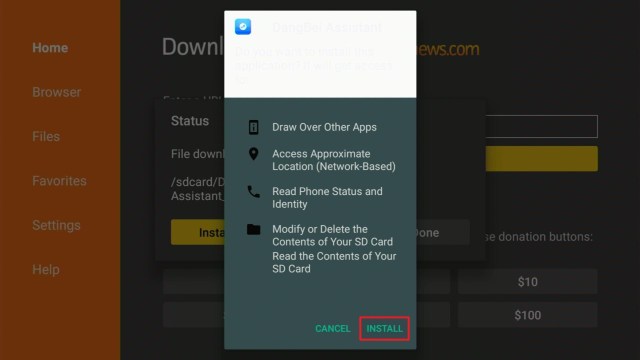
  9.  Wait for it to finish and then select Install Pron4Droid.
  10.  Select Done.
  11.  This will automatically take you back to Downloader. Select Delete.
  12.  Choose to Delete one more time.
  13.  Head back to the home screen and under the Your Apps & Channels select Choose All.
  14.  Scroll down and select Pron4Droid and select the Options.
  15.  Then select Move to Front.
  16.  Pron4Droid will be moved forward to Your Apps and Channels.
  17.  After this, you will see Pron4Droid and click it to launch.


If your Firestick still has the older interface, read this article to learn how to update it: Update Firestick Interface.


Install Pron4droid Porn App on Firesticks with Screenshots

1.  Install the Downloader app and jailbreak your firestick by enabling unknown sources. To learn more about the procedure, you may read How to Install the Downloader App and Enable Unknown Sources.

2.  Open Downloader. Type in https://reviewvpn.com/pron and select GO.

Pron4Droid1


3. Select INSTALL.

Step 13 Install Pron4droid Porn App on Firestick


4. Select OPEN to launch. Pron4droid  is installed. Enjoy watching!

Step 14 Install Pron4droid Porn App on Firestick


Install Surfshark on Firestick

Best Surfshark Deal


Pron4Droid Features

Hamburger Menu

This section will you all the available categories within the app’s system. The featured categories are quite massive and they are as follows for your reference:

  • Amateur
  • Anal
  • Asian
  • BBW
  • BDSM
  • Big Boobs
  • Celebs
  • Creampie
  • Cumshots
  • Ebony
  • Femdom
  • Gays
  • Grannies
  • Group
  • Hairy
  • Hand Jobs
  • HD Videos
  • Hidden
  • Interracial
  • Japanese
  • Latin
  • Lesbians
  • Massage
  • Masturbation
  • Matures
  • MILF
  • Public
  • Shemales
  • Squirting
  • Stockings
  • Swingers
  • Teens
  • Upskirts
  • Vintage
  • Voyeur
  • Webcams


Home Page Buttons

You can see buttons at the upper right part of the home screens which are Search, Favorite, Refresh, and Settings.

  • Search – use this feature to search for any type of content you like.
  • Favorite – it allows you to bookmark any video you particularly loved.
  • Refresh – By clicking on this, the main screen will be reloaded and you will see if there are any new additional videos.
  • Settings (Three-Dotted Button) – In this area, you can customize animations, transitions, choose an external player, mute sounds, hide the app from recent lists, protect the app with a password, and set up a password.


YOUR INTERNET ACTIVITY IS BEING WATCHED

ReviewVPN cannot attest to the legality, security and privacy of the applications discussed on this site. It is highly recommended that you use a VPN service while streaming or using Kodi.

Currently, your IP 216.73.216.211 is visible to everyone and your Browser is being tracked by Advertisers & ISP Provider.

Save 65% Now

Limited Time Offer

Here are the main reasons why you must use a VPN:

  • Your activities are hidden from your ISP, the government, and from the apps you are using.
  • You can access additional movies and TV streams.
  • ISP attempts to throttle are thrwarted thus reducing buffering issues.
  • Geographically restricted content like Netflix and Hulu can be unblocked.

A VPN works be replacing your ISP-assigned IP address and creating an encrypted tunnel. We recommend the no log service offered by IPVanish. It works well on a Firestick and offers the fastest possible speeds.

Special Limited Time Offer - Get IPVanish


Featured Websites

  • MotherLess
  • PornBurst
  • PornHub
  • Porn Mak
  • Red Tub
  • Slutload
  • xHamster
  • XNXX
  • XVideos
  • You Porn
  • VPorn
  • Porn Host
  • Spank Bang


How does Pron4Droid Work?

Pron4Droid works by collecting working links from the websites it features. You will see a tag for every thumbnail that signifies what website that video is from.


Compatible Platforms

Pron4Droid perfectly runs with the Amazon Firestick and all devices that run on Android.


Grab your subscription now!

Click here to get the lowest price on Surfshark through our exclusive limited-time offer.


Pros and Cons

Pros

  • Huge Library of Adult content
  • Organized categories
  • Fast Loading Time
  • Auto Full Screen when watching a video


Cons

  • Playing the videos using the internal player results in buffers and lags.

Note: We prefer using MX Player because it plays all the videos seamlessly.


FAQs

Is It Safe To Download?

Pron4Droid is safe to download on your chosen device.


Is It Legal Or Grey?

It is 100% safe to download and use.


Should I Use A VPN?

The rule of thumb when streaming adult content is to always use it in conjunction with a reliable premium VPN service Surfshark. This will cloak all of your online activities which are being constantly monitored by your ISP. Having a lag-free viewing experience is also one of the reasons why you should use a VPN service because it will hinder the efforts of your ISP to throttle your connection.


Note: Please read our Surfshark Review for more details.


How to Install Surfshark VPN on Firestick

If your Firestick still has the older interface, read this article to learn how to update it: Update Firestick Interface.

Follow our screenshots below to install the SurfShark VPN app on your Fire TV stick.

1. Go to the Home screen of your Firestick.

step 1 Install Surfshark VPN on Firestick


2. Navigate towards the Find tab. Press the Search button from the resulting dropdown.

step 2 Install Surfshark VPN on Firestick


3. Type in the keyword of SurfShark and select from the suggestions that will appear.

step 3 Install Surfshark VPN on Firestick


4. Click the official SurfShark icon from your search results.

step 4 Install Surfshark VPN on Firestick


5. Press the Download (You own it) button.

step 5 Install Surfshark VPN on Firestick


6. The SurfShark VPN installer will download on your device.

step 6 Install Surfshark VPN on Firestick


7. SurfShark VPN’s app will automatically install itself on your Fire TV stick.

step 7 Install Surfshark VPN on Firestick


8. Press the Open button after completing SurfShark VPN’s installation process.

step 8 Install Surfshark VPN on Firestick


9. Please wait for the SurfShark VPN to load its user interface.

step 9 Install Surfshark VPN on Firestick


10. You can now log in with your SurfShark VPN account credentials.

step 10 Install Surfshark VPN on Firestick

Learn more about Surfshark and Grab the Best Surfshark Deal Now!


Install Surfshark on Firestick

Best Surfshark Deal


Other VPNs to Consider

NordVPN (Best for Streaming)

Best Features

  • 5000+ Server in 50+ Countries 
  • Military-Grade Encryption
  • Fast Connection Speed
  • Suitable to a lot of devices
  • No-Log Policy

Prices
  • Complete $5.89 per month (64% Discount)
  • Plus $4.59 per month (56% Discount)
  • Standard $3.69 per month (55% Discount)

Best Features

  • 750+ High-speed VPN Servers in 43 Locations
  • Military-Grade Encryption
  • Fastest HD Streaming and Gaming
  • 30-Day Money-Back Guarantee
  • Unlimited Data & Devices
  • No-Log Policy

Prices
  • 3 Years $1.99 per month (82% Discount)
  • 1 Years $3.29 per month (70% Discount)
  • 1 Month $10.99 per month

IPVanish VPN (Most Secure)

Best Features

  • 1200+ Servers in 60+ Countries around the world
  • Unlimited Connections
  • No-Log Policy
  • Top Notch Military-Grade VPN Protocols and Encryptions
  • 100% Safe and Secured
  • Most Trusted VPN
  • Best VPN for Firestick
  • 30-Day Money-Back Guarantee

Prices
  • Yearly $3.99 per month (63% Discount) – 30 days risk free + Ransomware & Malware Protection
  • Quarterly $5.32 per month (51% Discount)
  • Monthly $10.99 per month


For more VPN discounts, go to ReviewVPN Deals and purchase the best VPN for you.


Is It Free?

Yes, Pron4Droid is free.


Are There ADS?

Ads will appear every now and then. Although they are not as intrusive compared to other adult streaming apps. If you find this annoying, you can install an Ad Blocker like Ad Guard.


Is There A Premium Version?

No premium version.


Is It A Terrarium Clone?

No, it is not.


Is There An Official Website?

Pron4Droid has an official website. Just type in Pron4Droid on your browser and it will immediately come up.


What Other Devices Does It Work On?

Any device that runs on Android OS is compatible with Pron4Droid.


How Does The App Work?

This app serves as the mobile version of the website. Everything that you will see on the website will also be seen here.


Minimum Version Required

Version 5.0 and above is required.


How Long Has It Been Around?

The official website was launched back in 2014. We are speculating that the mobile version was released sometime in 2015 up to 2016.


Alternatives

We always say that it is important to have a backup ready if and when things go south. The same goes for Pron4Droid, should it experience issues, the following are ideal alternatives:

                 APPS

               REVIEW

           DOWNLOAD

                 Stremio

            Stremio Review

            Media Lounge

                Jizztagram

         Jizztagram Review

                  Porn4k

            Porn4k Review

                 XVideos

            XVideos Review

ReviewVPN.com does not host any of these files. They are hosted on Archive.org.


Our Opinion

Whatever category of porn you are into, Pron4Droid covers them all. With a fast loading time and high-quality videos, you are assured that your viewing experience will be uninterrupted and buffer-free.

We hope this article helps with how to install Pron4Droid on a Firestick and Android device. Thank you for reading and stay safe!

Note: ReviewVPN.com does not own or operate any app nor does it endorse any. The main purpose of this article is strictly for educational purposes only.

Porn4k Porn App for Firestick and Android

Porn4k Overview

In this article, we will be divulging important details on how to install Porn4k on Firestick and other devices that run on the android platform.


Imagine this, there you are all comfy with your 72-inch screen, all set to watch the latest updates on your favorite porn app.

But then, the quality of the video that comes up is so grainy that you thought you were watching a video tutorial on Roblox.

Does that sound appealing? Do you think you get your money’s worth by investing in an Ultra-High definition TV and get subpar video quality from your go-to porn app?

We highly doubt that. In this article, we will be guiding you on how to download and install Porn4k on Firestick and android devices.


ANONYMOUSLY

Is Porn4k Safe and Virus-free?

We tested this app using VirusTotal and found no threats or any malicious files and malware.

Despite having good results, we still need to be vigilant in protecting our privacy while streaming.

A Virtual Private Network or VPN will definitely help us maintain our security and anonymity while using Porn4k.

Here’s how you can Install The Best VPN For Firestick and All Devices.


What Does Porn4k Do?

Porn4k is a third-party adult streaming app that offers content with 4k video quality. It has a diverse library of categories that allow you to choose what you like in porn. Boasting an impressive line-up of Full HD videos, you will see every inch (if you know what we mean) and angle from all points. No more pixelated frames. All you will ever see are the good stuff. Prepare some tissue folks, you will need it once you have downloaded and installed Porn4k on your Firestick and android device.


Note: ReviewVPN.com does not host this APK file. It is hosted on Archive.org.


Download Porn4k


If your Firestick still has the older interface, read this article to learn how to update it: Update Firestick Interface.


Installation Guide On A Firestick

  1.   Go to Settings and select Device.
  2.  Choose Developer Options
  3.  Turn on the ADB Debugging and Apps From Unknown Sources
  4.  After turning these options on, launch the Amazon App Store on your device
  5. Search and Download Downloader
  6.  Install Downloader and launch it after installing it.
  7.  Choose Allow and Select Ok
  8. Type in https://reviewvpn.com/p4k and select Go
  9.  Wait for it to finish and then select Install 
  10.  Select Done
  11.  This will automatically take you back to Downloader. Select Delete
  12.  Choose Delete one more time
  13.  Head back to the home screen and under the Your Apps & Channels select Choose All
  14.  Scroll down and select Porn4k and select the Options.
  15.  Then select Move to Front
  16.  Pron4Droid will be moved forward to Your Apps and Channels
  17.  After this, you will see Porn4k and click it to launch.

Video on How to Install Porn4k on Firestick


Install Porn4k a Firestick with Screenshots

1.  Install the Downloader app and jailbreak your firestick by enabling unknown sources. To learn more about the procedure, you may read How to Install the Downloader App and Enable Unknown Sources.


2. Open Downloader App. Type https://reviewvpn.com/p4k  and click Go.

Porn4k


3. Select INSTALL. After this, you will see Open, and click on it to launch. Enjoy watching!

Step 13 Install Porn4k on Firestick


YOUR INTERNET ACTIVITY IS BEING WATCHED

ReviewVPN cannot attest to the legality, security and privacy of the applications discussed on this site. It is highly recommended that you use a VPN service while streaming or using Kodi.

Currently, your IP 216.73.216.211 is visible to everyone and your Browser is being tracked by Advertisers & ISP Provider.

Save 65% Now

Limited Time Offer

Here are the main reasons why you must use a VPN:

  • Your activities are hidden from your ISP, the government, and from the apps you are using.
  • You can access additional movies and TV streams.
  • ISP attempts to throttle are thrwarted thus reducing buffering issues.
  • Geographically restricted content like Netflix and Hulu can be unblocked.

A VPN works be replacing your ISP-assigned IP address and creating an encrypted tunnel. We recommend the no log service offered by IPVanish. It works well on a Firestick and offers the fastest possible speeds.

Special Limited Time Offer - Get IPVanish


Legal Disclaimer: ReviewVPN.com does not encourage or endorse any illegal activity involved in the usage of services and applications referenced on this site. We do not verify the licensing agreements of services. The end-user is wholly responsible for ensuring that any media accessed through these services does not violate copyright and/or licensing laws. ReviewVPN does not promote, link to, or receive compensation from any Apps and IPTV services.


Install Surfshark on Firestick

Best Surfshark Deal


Porn4k Features

Logging in allows gives you access to favorites and comments sections

Hamburger Menu

  1. New Porn Videos – the latest videos from all the featured porn channels.
  2. Top Categories
  3. Categories
  • Full HD (748)
  • Anal (367)
  • Asian (84)
  • BDSM (22)
  • Black (167)
  • Blowjob (546)
  • Big Cock (11)
  • Big Tits (162)
  • Bisexual (117)
  • Casting (8)
  • Chubby (33)
  • Cum (48)
  • Cumshot (22)
  • Drunk (13)
  • Fetish (91)
  • Fisting (17)
  • Gay (11)
  • Group (351)
  • Homemade (49)
  • Lesbian (95)
  • Masturbation (114)
  • Mature (336)
  • Outdoor (96)
  • Party (7)
  • Pornstar (359)
  • Russian (80)
  • Shemale (22)
  • Teen (644)
  • Voyeur (11)
  1. Porn stars – A full list of the hottest and most popular porn stars today.
  2. Channels
  • Naturals (3)
  • 21 Sextury Network (34)
  • com (26)
  • BaDoink (1)
  • Blacked (36)
  • Brazzers (141)
  • Burning Angel (6)
  • Cum Louder (10)
  • Daring Sex (2)
  • DDF Network (63)
  • Devil’s Film (1)
  • Digital DP Playground (79)
  • Dog Fart (7)
  • Dorcel Club HD (10)
  • HD.com (6)
  • Elegant Angel (8)
  • Evil Angel (65)
  • Fantasy HD (4)
  • Femdom Empire (3)
  • HDV Pass (9)
  • Jules Jordan Videos (97)
  • Killergram (1)
  • KDevil (1)
  • Mofos (16)


Interface

The interface is similar to website versions of popular porn apps. You can access the full screen with just one click, adjust the volume, download the video, like or dislike, thumbnail shots, tag as favorite, and share. You can also adjust the quality of the video from High Definition, High-Quality, Standard Quality, and Low Quality. You can do other stuff like zoom in and zoom out as well when you are on the main menu.


How does Porn4k Work?

Porn4k works by gathering several video links from popular websites and placing them on its platform. Porn4k does not host any of these videos but acts as a liaison in distributing said videos.


Compatible Platforms

Porn4k is specially designed to work with devices that have 4k capabilities like Firestick, Android TVs, high-end tablets, high-resolution mobile devices, and even Windows via an emulator.


YOUR INTERNET ACTIVITY IS BEING WATCHED

ReviewVPN cannot attest to the legality, security and privacy of the applications discussed on this site. It is highly recommended that you use a VPN service while streaming or using Kodi.

Currently, your IP 216.73.216.211 is visible to everyone and your Browser is being tracked by Advertisers & ISP Provider.

Save 65% Now

Limited Time Offer

Here are the main reasons why you must use a VPN:

  • Your activities are hidden from your ISP, the government, and from the apps you are using.
  • You can access additional movies and TV streams.
  • ISP attempts to throttle are thrwarted thus reducing buffering issues.
  • Geographically restricted content like Netflix and Hulu can be unblocked.

A VPN works be replacing your ISP-assigned IP address and creating an encrypted tunnel. We recommend the no log service offered by IPVanish. It works well on a Firestick and offers the fastest possible speeds.

Special Limited Time Offer - Get IPVanish


Pros and Cons

Pros

  • Massive Content
  • Downloadable Content
  • Lag-free viewing
  • Ultra-High Definition Videos

Cons

  • Some 4k videos are either broken or won’t be able to play. Try refreshing your device and see if this solves the problem.
  • No Parental Control
  • Difficulty in exiting and going to another video (Windows version)


FAQs

Is it safe to download?

You might say that Porn4k only offers 4k videos so your device won’t be able to handle it. That is not true, aside from 4k content, it also has standard quality and low-quality videos that can be played by older versions of the Firestick. So, whatever generation of Firestick you are using, Porn4k is safe to use on your device.


Is it legal or grey?

It is 100% safe to download and use.


Should I use a VPN?

As we have established earlier, Porn4k has a multitude of 4k videos. 4k videos require a lot of data and bandwidth when being played. This kind of data consumption is marked and monitored by your ISP. If they see that you are streaming adult content and consuming a lot of data, they will definitely throttle down your speed. In order to prevent this, you will need a premium VPN service like Surfshark.  One of the perks of having such is hiding your online activity. The IPS may notice the amount of data you are using but they will not see what the data is being used for. In this way, throttling will no longer be an issue on your end.

Note: For more information about Surfshark, please read our Surfshark Review.


Grab your subscription now!


How to Install Surfshark VPN on Firestick

If your Firestick still has the older interface, read this article to learn how to update it: Update Firestick Interface.

Follow our screenshots below to install the Surfshark VPN app on your Fire TV stick.

1. Go to the Home screen of your Firestick.

step 1 Install Surfshark VPN on Firestick


2. Navigate towards the Find tab. Press the Search button from the resulting dropdown.

step 2 Install Surfshark VPN on Firestick


3. Type in the keyword of Surfshark and select from the suggestions that will appear.

step 3 Install Surfshark VPN on Firestick


4. Click the official SurfShark icon from your search results.

step 4 Install Surfshark VPN on Firestick


5. Press the Download (You own it) button.

step 5 Install Surfshark VPN on Firestick


6. The Surfshark VPN installer will download on your device.

step 6 Install Surfshark VPN on Firestick


7. SurfShark VPN’s app will automatically install itself on your Fire TV stick.

step 7 Install Surfshark VPN on Firestick


8. Press the Open button after completing Surfshark VPN’s installation process.

step 8 Install Surfshark VPN on Firestick


9. Please wait for the SurfShark VPN to load its user interface.

step 9 Install Surfshark VPN on Firestick


10. You can now log in with your Surfshark VPN account credentials.

step 10 Install Surfshark VPN on Firestick

Learn more about Surfshark and Grab the Best Surfshark Deal Now!


Install Surfshark on Firestick

Best Surfshark Deal


Other VPNs to Consider

NordVPN (Best for Streaming)

Best Features

  • 5000+ Server in 50+ Countries 
  • Military-Grade Encryption
  • Fast Connection Speed
  • Suitable to a lot of devices
  • No-Log Policy

Prices
  • Complete $5.89 per month (64% Discount)
  • Plus $4.59 per month (56% Discount)
  • Standard $3.69 per month (55% Discount)

Best Features

  • 750+ High-speed VPN Servers in 43 Locations
  • Military-Grade Encryption
  • Fastest HD Streaming and Gaming
  • 30-Day Money-Back Guarantee
  • Unlimited Data & Devices
  • No-Log Policy

Prices
  • 3 Years $1.99 per month (82% Discount)
  • 1 Years $3.29 per month (70% Discount)
  • 1 Month $10.99 per month

IPVanish VPN (Most Secure)

Best Features

  • 1200+ Servers in 60+ Countries around the world
  • Unlimited Connections
  • No-Log Policy
  • Top Notch Military-Grade VPN Protocols and Encryptions
  • 100% Safe and Secured
  • Most Trusted VPN
  • Best VPN for Firestick
  • 30-Day Money-Back Guarantee

Prices
  • Yearly $3.99 per month (63% Discount) – 30 days risk free + Ransomware & Malware Protection
  • Quarterly $5.32 per month (51% Discount)
  • Monthly $10.99 per month


For more VPN discounts, go to ReviewVPN Deals and purchase the best VPN for you.


Is it free?

Yes, Porn4k is free.


Are there ADS?

The good news about this version is that it is totally free of ads. You no longer need the assistance of an ad blocker like Ad Guard.


Is there a premium version?

Porn4k does not have a premium version but the quality of its service will feel like you are subscribed to a premium version.


Is it a Terrarium Clone?

No, it is not.


Is there an official website?

Porn4k does not have an official website.


What other devices does it work on?

Porn4k is the perfect fit for big tv screens and most especially with the Amazon Firestick 4k and other android devices.


How does the app work?

Carefully execute the steps we have highlighted above and you will gain access to Porn4k’s content in no time.


Minimum Version Required

Porn4k requires a minimum of version 5.0 and above to run and install on your firestick or android device.


How long has it been around?

Porn4k is a baby compared to Pron4Droid. It was released last year, 2019.


Alternatives

Not a lot of adult streaming apps can match Porn4k’s ultimate weapon (4k stuff) but that doesn’t mean it won’t experience any issue. We have been in this industry for quite a while and saw a lot of applications with their rise and fall. So, if Porn4k does experience issues, the following apps can substitute it temporarily.

                 APPS

               REVIEW

           DOWNLOAD

                 Stremio

           Stremio Review

             Media Lounge

       Media Lounge Review

             AIO Streamer

       AIO Streamer Review

                Jizztagram

         Jizztagram Review

               Pron4Droid

         Pron4Droid Review

ReviewVPN.com does not host any of these files. They are hosted on Archive.org.


Note: If you want to have a deeper understanding of how to watch porn on a Firestick, read our Ultimate Porn Article.


Our Opinion

Porn4k not only provides a huge list of 4k content but also caters to a lot of categories. There are only a few apps that can do this that’s why we consider Porn4k as one of our go-to adult streaming apps. Maximize the potential of your big screen and download and install Porn4k on your firestick and android device now.

Our sincere wish is that this article helps with how to download and install Porn4k on your Firestick and android device. If you have questions, please feel free to comment down below. We would also appreciate it if you gave us suggestions on how to improve our services. Thank you for reading and always stay safe!

Note: ReviewVPN.com does not own or operate any app nor does it endorse any. The main purpose of this article is strictly for educational purposes only.

How To Watch Porn Using Booblex – 2023 Review

Watch Porn Using Booblex


Porn has been a huge part of the lives of many people. Whether we like it or not, as long as there is a lonely person out there, Porn will be here to stay.

Today, Porn has branched out into numerous categories and subgenres. It will literally blow your mind just to see how many there are.

In this article, the streaming application we will be featuring boasts more than 200 categories and a whopping 700,000+ video content.

The following section will tackle how to install Booblex on a Firestick and android device.


What Does Booblex Do?

Booblex is the android app version of the website Booblex.com. It offers a huge category list of kinks and fetishes. Unlike PatoPlayer 2, Live Lounge, and Video Devil, Booblex gives access to over half a million videos and more than 200 categories. You will be overwhelmed by the sheer number of content it has.


Note: ReviewVPN.com does not host this APK file. It is hosted on Archive.org.


ANONYMOUSLY

Download Booblex


Installation Guide on A Firestick

  1. Go to Settings and select Device.
  2. Choose Developer Options
  3. Turn on the ADB Debugging and Apps From Unknown Sources
  4. After turning these options on, launch the Amazon App Store on your device
  5. Search and Download Downloader
  6. Install Downloader and launch it after installing it.
  7. Choose Allow and select Ok
  8. Type https://reviewvpn.com/boob and select Go
  9. Wait for it to finish and then select Install Booblex
  10. Select Done
  11. This will automatically take you back to Downloader. Select Delete
  12. Choose Delete one more time
  13. Head back to the home screen and under the Your Apps & Channels select Choose All
  14. Scroll down and select Booblex and click on Options.
  15. Then select Move to Front
  16. Booblex will be moved forward to Your Apps and Channels
  17. After this, you will see Booblex and click it to launch.


Install Booblex on a Firestick with Screenshots

If your Firestick still has the older interface, read this article to learn how to update it: Update Firestick Interface

1. Install the Downloader app and jailbreak your firestick by enabling unknown sources. To learn more about the procedure, you may read How to Install the Downloader App and Enable Unknown Sources.


2. Open Downloader. Type https://reviewvpn.com/boob  and click Go.

Booblex


3. Click Install.

Step 13 Instal Booblex on firestick


4. Click Open.

Step 14 Instal Booblex on firestick


5. Click Allow.

Step 15 Instal Booblex on firestick


6.  Enjoy watching BOOBLEX!

Step 16 Instal Booblex on firestick

Hamburger Menu

Located at the upper left side of the Home screen that houses Main, Favorites, Downloaded, Categories, Actress, and Lock the App.


Massive Library of Content

Booblex has a total of 277 categories and 769,663 videos.


YOUR INTERNET ACTIVITY IS BEING WATCHED

ReviewVPN cannot attest to the legality, security and privacy of the applications discussed on this site. It is highly recommended that you use a VPN service while streaming or using Kodi.

Currently, your IP 216.73.216.211 is visible to everyone and your Browser is being tracked by Advertisers & ISP Provider.

Save 65% Now

Limited Time Offer

Here are the main reasons why you must use a VPN:

  • Your activities are hidden from your ISP, the government, and from the apps you are using.
  • You can access additional movies and TV streams.
  • ISP attempts to throttle are thrwarted thus reducing buffering issues.
  • Geographically restricted content like Netflix and Hulu can be unblocked.

A VPN works be replacing your ISP-assigned IP address and creating an encrypted tunnel. We recommend the no log service offered by IPVanish. It works well on a Firestick and offers the fastest possible speeds.

Special Limited Time Offer - Get IPVanish


Categories (Video Count Included)

Russian (25254), Erotic (18050), Hentai (2037), Anal (34692), Pussy (1971), HD (8284), Mature (12479), MILF (3224), Blowjob (21239), Orgasm (1223), Step Son (323), Beautiful (14359), Women (1100), Handjob (2819), Wife (2418), Teen (27485), BDSM (1790), Big Tits (21213), Step Sister (827), Cumshot (1762), Big Dick (1608), Retro (3602), Casting (3849), Drunk (1265), Step Daughter (782), Orgy (13513), Massage (2786), Stockings (14848), Hidden Camera (1586), Sleeping (425), Creampie (1360), Big Ass (11377), Grandma (313), Schoolgirl (1643), Lesbian (13149), German (1040), BBW (2147), Pick up (1278), Sperm (2489), Finish in mouth (2276), Step Dad (401), Party (1450), Super (1575), Blonde (24821), Casual (7058), Swingers (582), Compilation (3055), Asian (3354), Friends (284), Double Penetration (6302), Cuckold (1656), Oral (3036), Teacher (1262), Cartoon (1725), Ukrainian (485), Celebrity (731), Virgins (282), Italian (769), Music (1657), Pregnant (364), Telephone (226), Strap-on (1386), Funny (890), Gangbang (1100), Students (2187), Parody (975), Nurse (1214), Small Dick (220), Pose (69328), Sauna (470), Brunette (21094), Secretary (1658), Bride (416), Tights (2208), Japanese (1399), Caught (172), Pissing (2120), Old Man (666), Whore (2252), Deep Throat (2278), Femdom (927), Doggy Style (4855), Nature (5435), Skinny (7220), WC (1139), Public (2634), Fisting (1580), Pantyhose (667), Beach (1850), Swallow (643), Panty (1877), Black (1863), French (1250), Bus (186), Red head (5467), Masturbation (17931), Czech (2133), Striptease (3547), Webcam (6719), Shower (1520), Pussy Licking (5717), Bath (2292), Tender (2811), Car (2110), Kazakh (69), Prison (256), Ebony (1826), Uniform (2313), Kitchen (2128), Positions (4980), POV (10891), Come on Face (2129), Threesome (19835), Bondage (889), Small Tits (6002), Anilingus (1014), Face sitting (508), Cowgirl (1515), Nipples (79), Armenian (44), Sex machine (373), Indian (284), Christmas (673), Nudists (361), Solo (4413), Squirt (995), Caucasian (65), Uzbek (17), Brazilian (401), Glasses (2238), Clitoris (236), Housewives (358), Arabic (341), Latex (467), Love (318), Flight Attendant (137), Train (145), Skirt (670), Doctor (912), Taxi (246), Rustic (230), FFM (10883), Bukkake (760), Chinese (93), Titty Fuck (979), Babysitter (850), Unusual (645), Natural (2425), Athletes (2341), Foot Fetish (802), Enema (68), Mother-in-law (47), Military (289), Staircase and elevator (182), Neighbors (220), Turkish (45), CFNM (468), Headmistress (398), Trampling (55), Fetish (970), Hobo (25), Table (799), Latina (2051), Torture (146), Water (1033), Bed (3734), Footwear (516), Filth (336), Shaved (310), Thai (53), Dance (783), Scream (1233), Pump (119), Oil (1555), Spanking (184), Fingers (650), Tajik (2), Azerbaijani (9), Dildo (9061), Bottle (279), Tattoo (4590), Piercing (737), Fantasy (323), Nymphomaniac (105), Interracial (9911)


Favorites

This feature allows you to bookmark videos that you particularly like. You can access videos you have tagged as your favorites by going to the Hamburger Menu and clicking on “Favorites”.


App Lock

It allows you to prohibit anyone from accessing the app other than yourself. This is helpful when it comes to privacy and child protection.


How does Booblex Work?

Booblex works just like the website version. It hosts a plethora of videos under different categories.


Compatible Platforms

Booblex can run with the Amazon Firestick and Android devices.


Install Surfshark on Firestick

Best Surfshark Deal


Pros and Cons

Pros

  • Downloadable content
  • Fast Loading Time
  • Sign up/Log in allows you to have access to the app’s library and favorites across multiple devices.
  • High-Quality Videos

Cons

  • This version is written in Russian Text. But the category thumbnails will give you an idea of what the category is all about.
  • Once you watch a video, it will hard to exit. You have to restart the app the navigate again.


FAQs

Is it safe to download?

Booblex is fine to download and install on your Firestick and Android device.


Is it legal or grey?

It is 100% safe to download and use.


Should I use a VPN?

Your ISP is always monitoring your online activity (porn included) so that they know which users heavily consume data. If you are watching adult content with high-definition videos, you will be flagged as a “heavy-user”. Your ISP would then throttle your connection which will result in lags and buffering. In order to avoid this, you will need the protection of a premium VPN service like Surfshark. It will hide your activities and most especially your online identity. This way, they will only see the use of data but not what it is used for.

Note: For more information about Surfshark, please read our Surfshark Review.


How to Install Surfshark VPN on Firestick

If your Firestick still has the older interface, read this article to learn how to update it: Update Firestick Interface.

Follow our screenshots below to install the SurfShark VPN app on your Fire TV stick.

1. Go to the Home screen of your Firestick.

step 1 Install Surfshark VPN on Firestick


2. Navigate towards the Find tab. Press the Search button from the resulting dropdown.

step 2 Install Surfshark VPN on Firestick


3. Type in the keyword of SurfShark and select from the suggestions that will appear.

step 3 Install Surfshark VPN on Firestick


4. Click the official SurfShark icon from your search results.

step 4 Install Surfshark VPN on Firestick


5. Press the Download (You own it) button.

step 5 Install Surfshark VPN on Firestick


6. The SurfShark VPN installer will download on your device.

step 6 Install Surfshark VPN on Firestick


7. SurfShark VPN’s app will automatically install itself on your Fire TV stick.

step 7 Install Surfshark VPN on Firestick


8. Press the Open button after completing SurfShark VPN’s installation process.

step 8 Install Surfshark VPN on Firestick


9. Please wait for the SurfShark VPN to load its user interface.

step 9 Install Surfshark VPN on Firestick


10. You can now log in with your SurfShark VPN account credentials.

step 10 Install Surfshark VPN on Firestick

Learn more about Surfshark and Grab the Best Surfshark Deal Now!


Install Surfshark on Firestick

Best Surfshark Deal


Other VPNs to Consider

NordVPN (Best for Streaming)

Best Features

  • 5000+ Server in 50+ Countries 
  • Military-Grade Encryption
  • Fast Connection Speed
  • Suitable to a lot of devices
  • No-Log Policy

Prices
  • Complete $5.89 per month (64% Discount)
  • Plus $4.59 per month (56% Discount)
  • Standard $3.69 per month (55% Discount)

Best Features

  • 750+ High-speed VPN Servers in 43 Locations
  • Military-Grade Encryption
  • Fastest HD Streaming and Gaming
  • 30-Day Money-Back Guarantee
  • Unlimited Data & Devices
  • No-Log Policy

Prices
  • 3 Years $1.99 per month (82% Discount)
  • 1 Years $3.29 per month (70% Discount)
  • 1 Month $10.99 per month

IPVanish VPN (Most Secure)

Best Features

  • 1200+ Servers in 60+ Countries around the world
  • Unlimited Connections
  • No-Log Policy
  • Top Notch Military-Grade VPN Protocols and Encryptions
  • 100% Safe and Secured
  • Most Trusted VPN
  • Best VPN for Firestick
  • 30-Day Money-Back Guarantee

Prices
  • Yearly $3.99 per month (63% Discount) – 30 days risk free + Ransomware & Malware Protection
  • Quarterly $5.32 per month (51% Discount)
  • Monthly $10.99 per month


For more VPN discounts, go to ReviewVPN Deals and purchase the best VPN for you.

Click here to get the lowest price on Surfshark through our exclusive limited-time offer.


Is it free?

Booblex is totally free.


Are there ADS?

This version is ad-free. Ad Guard will not be needed.


Is there a premium version?

Booblex has no premium version.


Is it a Terrarium Clone?

Booblex is not a terrarium clone.


Is there an official website?

Yes, Booblex has an official website.


What other devices does it work on?

Any device that runs on the Android platform can be used to download and install Booblex.


How does the app work?

Follow our Android and Firestick installation guide and see how the app works.


Minimum Version Required

Version 5.0 and above is required.


How long has it been around?

The website version was launched back in 2015. If we were to speculate, this version was released somewhere between 2015 and 2016.


Alternatives

If you experience issues when running Booblex on your Firestick or Android device, the following adult streaming apps are ideal alternatives:

  • PatoPlayer 2
  • Live Lounge
  • Streamio


Note: Please read our How to Watch Porn using a Firestick to have more information on how to watch adult content on Firestick and android devices.


Our Opinion

A huge library of content and downloadable videos are enough to call Booblex a giant in the adult streaming apps game. Whatever your fetish is, Booblex can deliver. It is a very ideal adult streaming app if you are adventurous that way. Follow the guide on how to install Booblex on your Firestick, and experience first-hand what we are talking about.

We hope we were able to shed some light on how to watch porn using the adult streaming app Booblex. Please feel free to ask questions and give suggestions by commenting down below. We will be replying promptly. Thank you for reading and please stay safe!

Note: ReviewVPN.com does not own or operate any app nor does it endorse any. The main purpose of this article is strictly for educational purposes only.

Fix Lag On A Firestick – SD Maid Pro Installation Guide

SD Maid Pro Overview


The Amazon Firestick has changed the way people watch entertainment. It can transform any regular LED TV into a Smart TV which allows users to download popular streaming applications like Cinema HD, Live Lounge, and PatoPlayer 2. But like all devices, the Amazon Firestick will inevitably experience lags and buffering because of its small storage capacity. A standard third-generation firestick only 1.3GHZ processor, 1GB RAM, and 8GB of storage. This is fairly small compared to its 4k successor which boasts a 1.7GHZ processor. In this article, we will teach you how to fix lags by installing SD Maid Pro on your Firestick.


ANONYMOUSLY

Is SD Maid Pro Safe and Virus-free?

We tested this app using VirusTotal and found no threats or any malicious files and malware.

Despite having good results, we still need to be vigilant in protecting our privacy while streaming.

A Virtual Private Network or VPN will definitely help us maintain our security and anonymity while using SD Maid Pro.

Here’s how you can Install The Best VPN For Firestick and All Devices.


What Does SD Maid Pro Do?

SD Maid Pro is a utility software application that is specifically designed to optimize android devices such as tablets, mobile phones, and even Amazon devices. It will help you clean, delete unnecessary files, kill applications running in the background, and analyze what is taking up most of your storage.


SD Maid Pro Features

Quick Access

 Allows you to perform a quick scan on the following aspects of your device:

Corpse Finder, System Cleaner, App Cleaner, and Databases


App Tools

Overview – This gives you a general summary of your device.

Explorer – It gives the user permission to copy/cut, create, rename, or delete items. If SD Maid is rooted, you can virtually do anything with it. Be cautious when using this feature because you might delete something important running on your system.

Searcher – SD Maid Pro allows you to search for files using this feature.

App Control – Gives you an overview of all the apps installed on your device. If you want to see system applications, you have to check the settings. When you click on an item, it will show you all the actions available for it. The actions available will depend on the app and if SD Maid is rooted.

Corpse Finder – Corpses are files that used to belong to uninstalled applications. SD Maid will scan your device’s SD Cards and internal memory and compare it against your installed applications as well as an internal database. If you see any discrepancy, long-press the item and report it.

System Cleaner – This feature will scan for files and locations that can be deleted. Adept users can customize the filter to target more files and locations.

App Cleaner – Installed applications will be scanned for files that can be purged without losing valuable data. However, this feature does not delete application settings.

Duplicates – SD Maid will show files with extra copies. You can delete the copies using this.

Storage Analyzer – This feature will show you the entirety of your storage, the apps, and files that consume most storage.

Databases – This will optimize databases by using the SQL command VACUUM. It improves database performance by deleting empty pages.


Extras

Scheduler – This feature will allow you to customize the schedule of your scans. You don’t have to manually scan your system as long as this feature is turned on.

Exclusions – Excludes are partial paths or app package names. These are case-sensitive. Wildcards are not supported. Be as specific as possible to prevent accidentally excluding more than what is necessary.

Settings

This will allow you to manipulate SD Maid Pro on how you want it to appear. You can also perform: Show/Hide Tabs, Enforce Language, Result Notifications, Generate Preview, Press twice to exit, Animations, Bug reporting, and advanced settings(for adept users only)


YOUR INTERNET ACTIVITY IS BEING WATCHED

ReviewVPN cannot attest to the legality, security and privacy of the applications discussed on this site. It is highly recommended that you use a VPN service while streaming or using Kodi.

Currently, your IP 216.73.216.211 is visible to everyone and your Browser is being tracked by Advertisers & ISP Provider.

Save 65% Now

Limited Time Offer

Here are the main reasons why you must use a VPN:

  • Your activities are hidden from your ISP, the government, and from the apps you are using.
  • You can access additional movies and TV streams.
  • ISP attempts to throttle are thrwarted thus reducing buffering issues.
  • Geographically restricted content like Netflix and Hulu can be unblocked.

A VPN works be replacing your ISP-assigned IP address and creating an encrypted tunnel. We recommend the no log service offered by IPVanish. It works well on a Firestick and offers the fastest possible speeds.

Special Limited Time Offer - Get IPVanish


Legal Disclaimer: ReviewVPN.com does not encourage or endorse any illegal activity involved in the usage of services and applications referenced on this site. We do not verify the licensing agreements of services. The end-user is wholly responsible for ensuring that any media accessed through these services does not violate copyright and/or licensing laws. ReviewVPN does not promote, link to, or receive compensation from any Apps and IPTV services.


Install Surfshark on Firestick

Best Surfshark Deal


How to Install on Android Device


Download SD Maid Pro

Note: ReviewVPN.com does not host this APK. It is hosted by archive.org 


Installation Guide On A Firestick

  1. On the home screen, go to Settings.
  2. Select Developer Options.
  3. Open Apps from Unknown Sources.
  4. Click Turn On.
  5. Head back to the home screen and select Search.
  6. Search on Downloader and click on Downloader. It will appear under the keyboard.
  7. Choose the Downloader app.
  8. Download it.
  9. Choose Open.
  10. Select Allow.
  11. Choose OK.
  12. Type http://reviewvpn.com/sd and click on Go.
  13. Click on INSTALL
  14. Click on OPEN
  15. SD MAid Pro is Installed!


Install SD Maid Pro On A Firestick With Screenshots

If your Firestick still has the older interface, read this article to learn how to update it: Update Firestick Interface

1.  Install the Downloader app and jailbreak your firestick by enabling unknown sources. To learn more about the procedure, you may read How to Install the Downloader App and Enable Unknown Sources.


2. Type https://reviewvpn.com/sd  and click Go.

Step 2 Install SD MAID


3. Click on Install.

Step 13 Install SD Maid Pro on Firestick


4. Click OPEN.

Step 14 Install SD Maid Pro on Firestick


5. SD Maid Pro

Step 15 Install SD Maid Pro on Firestick


What Platforms does it Work On?

SD Maid Pro will perfectly work on the Amazon Firestick, Fire TV, Android TV Boxes, and all devices that run on the Android OS.


FAQs

Is It Safe To Download?

Yes, SD Maid Pro is safe to download on your Firestick and Android device.


Is It Legal or Grey?

It is 100% safe to download and use.


Should I use a VPN?

SD Maid Pro is a utility application so there is no need to run a VPN service like Surfshark. But if you want to know more about it, please read our full article on it by clicking on this link.

Note: For more information about Surfshark, please read our Surfshark Review.


Grab your subscription now!


How to Install Surfshark VPN on Firestick

If your Firestick still has the older interface, read this article to learn how to update it: Update Firestick Interface.

Follow our screenshots below to install the SurfShark VPN app on your Fire TV stick.

1. Go to the Home screen of your Firestick.

step 1 Install Surfshark VPN on Firestick


2. Navigate towards the Find tab. Press the Search button from the resulting dropdown.

step 2 Install Surfshark VPN on Firestick


3. Type in the keyword of SurfShark and select from the suggestions that will appear.

step 3 Install Surfshark VPN on Firestick


4. Click the official SurfShark icon from your search results.

step 4 Install Surfshark VPN on Firestick


5. Press the Download (You own it) button.

step 5 Install Surfshark VPN on Firestick


6. The SurfShark VPN installer will download on your device.

step 6 Install Surfshark VPN on Firestick


7. SurfShark VPN’s app will automatically install itself on your Fire TV stick.

step 7 Install Surfshark VPN on Firestick


8. Press the Open button after completing SurfShark VPN’s installation process.

step 8 Install Surfshark VPN on Firestick


9. Please wait for the SurfShark VPN to load its user interface.

step 9 Install Surfshark VPN on Firestick


10. You can now log in with your SurfShark VPN account credentials.

step 10 Install Surfshark VPN on Firestick

Learn more about Surfshark and Grab the Best Surfshark Deal Now!


Install Surfshark on Firestick

Best Surfshark Deal


Other VPNs to Consider

NordVPN (Best for Streaming)

Best Features

  • 5000+ Server in 50+ Countries 
  • Military-Grade Encryption
  • Fast Connection Speed
  • Suitable to a lot of devices
  • No-Log Policy

Prices
  • Complete $5.89 per month (64% Discount)
  • Plus $4.59 per month (56% Discount)
  • Standard $3.69 per month (55% Discount)

Best Features

  • 750+ High-speed VPN Servers in 43 Locations
  • Military-Grade Encryption
  • Fastest HD Streaming and Gaming
  • 30-Day Money-Back Guarantee
  • Unlimited Data & Devices
  • No-Log Policy

Prices
  • 3 Years $1.99 per month (82% Discount)
  • 1 Years $3.29 per month (70% Discount)
  • 1 Month $10.99 per month

IPVanish VPN (Most Secure)

Best Features

  • 1200+ Servers in 60+ Countries around the world
  • Unlimited Connections
  • No-Log Policy
  • Top Notch Military-Grade VPN Protocols and Encryptions
  • 100% Safe and Secured
  • Most Trusted VPN
  • Best VPN for Firestick
  • 30-Day Money-Back Guarantee

Prices
  • Yearly $3.99 per month (63% Discount) – 30 days risk free + Ransomware & Malware Protection
  • Quarterly $5.32 per month (51% Discount)
  • Monthly $10.99 per month


For more VPN discounts, go to ReviewVPN Deals and purchase the best VPN for you.

Click here to get the lowest price on Surfshark through our exclusive limited-time offer.


Is It Free?

SD Maid Pro is free to download. Just follow the installation guides we have provided in this article.


Are There ADS?

SD Maid Pro has no ads whatsoever.


Is There a Premium Version?

SD Maid Pro has two versions – Basic and Pro. The one we are reviewing is the Pro version. The basic version has all the basic functions minus certain additional features.


Is There an Official Website?

Yes, there is an official website.


What Other Devices Does It Work On?

Windows Laptop/PC via an android emulator and other devices that run on android.


How Does The App Work?

Follow the installation guide above and after that, you can use SD Maid Pro to optimize your Firestick.


Minimum Version Required

Your device will require at least version 5.0 and above.


How Long Has It Been Around?

SD Maid Pro is relatively new to the scene. It was released last January 12, 2020.


Alternatives

We have tested other utility apps and came to a sound conclusion that the following are suitable alternatives to SD Maid Pro if and when it malfunctions:

         DBTV Assistant

          Clean Master

          Task Killer

Note: If you are using Kodi, you can also check out our article on Kodi Buffering


Our Opinion

SD Maid Pro is a pretty straightforward utility app. You can optimize your Firestick with just one click of a button. It is that simple. SD Maid Pro’s other features also make it a cut above the rest. You might want to give SD Maid Pro a try if you are not satisfied with the performance of your previous utility apps, 

We hope that this write-up helps you in fixing lags on your Firestick using SD Maid. Please feel free to send us comments and suggestions down below. Thank you and stay safe!


Note: ReviewVPN.com does not own or operate any app nor does it endorse any. The main purpose of this article is strictly for educational purposes only.

Install Insomniacs Build on Kodi for Firestick, Android, PC, Mac – 2023

Insomniacs Kodi Build Overview


Insomniacs Kodi Build is one of the most popular builds in the Kodiverse. It mainly offers three wizards which are Insomniacs Black and Gold, Insomniacs Passion Led US Here, and Kirks Krypton Build Mini Neon-Green. All of these wizards are updated on a regular basis and integrated into websites thus making Insomniacs Kodi Build one of the most popular builds out there.

If you are relatively new to the world of Kodi, we understand that you will find everything confusing at first. But please don’t worry, we will be providing you an easy-to-understand guide which will make things easier for you. It will be a long process but believe us, it will be worth it.


What Is Kodi?

Kodi is a free open-source media player founded by XMBC Foundation back in 2002. It has been integrated into the lives of many streamers over the years because of the nature of its operation. Its main edge among other media players is its ability to adaptively render android applications to larger screens like a Smart TV. It also has a unique feature that allows it to be navigated by the use of remote control. Kodi is also created to work with a lot of other platforms which makes it a very versatile player. Due to its popularity, many open source devs have created a lot of unofficial add-ons that contain thousands upon thousands of content which is comprised of Movies, TV Shows, Music, Live TV, and anything under the sun which are absolutely free.


ANONYMOUSLY


What Is A Build?

A build is basically a collection of addons that you can install in one go rather than having to install individual add-ons. This spares you from not only installing one-by-one but also going in between addons. It also has themes/skins, a set of optimized settings, and the ability to integrate premium file hosts like Real-Debrid. Inside the build, you will find a few wizards or what we call repos. They come in varying sizes and functions. In terms of size, there are builds that can go as large as 500MB with massive features and content and others that are decently sized up to 200MB and very basic in nature. In simpler terms, there is a Build available that will cater to individual preferences and standards.


What Is Insomniacs Kodi Build?

Insomniacs Kodi build is family-friendly and is mainly composed of three amazing builds which are Black and Gold, Passion Led Us Here, and Kirks Krypton Build. The Insomniacs Build is a host of a plethora of add-ons and they are as follows:

  • Mirror V2 Video
  •  Limitless 
  • Fractured
  • Exodus Redux
  • Cryptic
  • Cypher Media
  • Kingdom
  •  Numb3r5 
  • Venom 
  • Greased Lightning
  •  The Magic Dragon
  • T2k 1 Click Movie
  • Delta Quadrant 
  • IPlayer WWW
  • Tempt Tv 
  • Sports Devil 
  • Phoenix Rises 
  • Rising Tides 
  • UKTV Play 
  • ITV
  • Youtube 
  • Library Data Provider 
  • F4m Tester 
  • ByB ResolveURL Tester 
  • Big Toons 
  • The Best Music Collection 
  • Cyphers Now Music 
  • Kiddo 
  • TVTap 
  • Replay Me
  • Crime Scene
  • The Loop
  • Sport365
  • Sportowa TV
  • Kids Club
  • The End Zone
  • Notfilmon
  • Great British Music Addon
  • Little Kingdom
  • Fladnag Cartoons
  • Decado Documentaries,
  • Dreamzbeats,
  • Man Cave Jamz and
  •  Indio


Insomniacs Features

  • 295.08MB in Size
  • Has the best Kodi Add-ons
  • One-Click everything
  • TV Calendar which gives you the schedule of American TV SHows per day
  • Simple navigation
  • Classy Skins  
  • Real-Debrid Integration
  • Live TV
  • TV Shows
  • Movies


Installation Guide for Insomniacs Build on Kodi

  1.  On your Homescreen, click on the Cogwheel icon and choose System
  2.  Hover over Add-ons on the left. Turn On the Unknown Sources and click on Yes.
  3.  Head back to the previous screen and select File Manager.
  4.  Choose Add Source and then select None.
  5.  A pop-up browser will then appear, type in this on the URL http://wiz.insomniacs.party. Then click on OK.
  6.  Select “enter a name for this media source” and name the source Insomniacs and click on OK.
  7.  Head back to the main menu and select Add-ons
  8.  Select Install from Zip File. Then click on Insomniacs (or whatever you named the source)
  9.  Click on ClickMeToInstall.zip, a popup in the upper right corner saying Insomniacs-Wizard Addon Updated.
  10.  When the installation finishes, click on Dismiss and Select Continue.
  11.  Select Build Menu and choose Insomniacs – Black & Gold Build – The Ultimate Kodi Build (v3.4)
  12.  Select (Insomniacs) Fresh Install. Insomniacs build will now download and install.
  13.  Automatically back out to Homescreen. Select Kodi Icon
  14.  You can now enjoy the famous Insomniacs Build on Kodi


Screenshots on How to Install Insomniacs Kodi Build

  1. Select the cogwheel in the upper left corner

Step 1 Install Insomniacs Build on Kodi

2. Select System on the bottom left

Step 2 Install Insomniacs Build on Kodi


3. Hover over or select Add-ons on the left.

Step 3 Install Insomniacs Build on Kodi


4. Select Unknown sources to enable

Step 4 Install Insomniacs Build on Kodi


5. Click Yes to enable third-party addons

Step 5 Install Insomniacs Build on Kodi


6. Click on the File manager

Step 6 Install Insomniacs Build on Kodi


7. Click on Add source

Step 7 Install Insomniacs Build on Kodi


8. Click on None to add the URL path source

Step 8 Install Insomniacs Build on Kodi


9. Type  http://wiz.insomniacs.party

Step 9 Install Insomniacs Build on Kodi


10. Click on OK.

Step 10 Install Insomniacs Build on Kodi


11. Select enter a name for this media source.

Step 11 Install Insomniacs Build on Kodi


12. Name Insomniacs (this part isn’t critical as long as you remember the name).

Step 12 Install Insomniacs Build on Kodi


13. Click on OK.

Step 13 Install Insomniacs Build on Kodi


14. Click OK.

Step 14 Install Insomniacs Build on Kodi


15.  Take one step back and click on Add-ons.

Step 15 Install Insomniacs Build on Kodi


16. Select install from zip file.

Step 16 Install Insomniacs Build on Kodi


17. Click on Insomniacs (or whatever you named the source).

Step 17 Install Insomniacs Build on Kodi


18. Click on ClickMeToInstall.zip

Step 18 Install Insomniacs Build on Kodi


19. Popup in the upper right corner saying Insomniacs-Wizard  Addon Updated.

Step 19 Install Insomniacs Build on Kodi


20. Click on Dismiss.

Step 20 Install Insomniacs Build on Kodi


21. Select Continue.

Step 21 Install Insomniacs Build on Kodi


22. Select Build Menu.

Step 22 Install Insomniacs Build on Kodi


23. Select Insomniacs – Black & Gold Build – The Ultimate Kodi Build (v3.4)

Step 23 Install Insomniacs Build on Kodi


24. Select (Insomniacs) Fresh Install

Step 24 Install Insomniacs Build on Kodi


25. Select Continue.  Your Insomniacs build will now download and install. Wait for the download to finish.

Step 25 Install Insomniacs Build on Kodi


26. Congratulations, your Insomniacs Build is now installed and ready to use.

Step 26 Install Insomniacs Build on Kodi


Installation Guide for Insomniacs Build on A Firestick

  1. Launch the Kodi App on your Firestick.
  2. When the Kodi is already opened, click on the Cogwheel icon and choose System.
  3. Hover over Add-ons on the left. Turn On the Unknown Sources and click on Yes.
  4. Head back to the previous screen and select File Manager.
  5. Choose Add Source and then select None.
  6. A pop-up browser will then appear, type in this on the URL http://wiz.insomniacs.party/repo. Then click on OK.
  7. Select “enter a name for this media source” and name the source Insomniacs and click on OK.
  8. Scroll once up where it says Insomniac, click on it. Make sure you have repository.insomniacs.
  9. Head back and hover to a Cogwheel icon, select Add-ons.
  10. Click on the Box icon.
  11. Select Install from Zip File. Then click on Insomniacs (or whatever you named the source)
  12. Select repository.insomniacs
  13. Select repository.insomniacs-3.5.0.zip
  14. Select Install from repository when a popup in the upper-right corner saying Insomniacs-Wizard Addon Updated.
  15. Select Insomniacs Repository, then Select Program add-ons.
  16. Select Insomniacs-Wizard and press Install. A popup in the upper-right corner saying Insomniacs-Wizard Add-on Installed.
  17. When the installation finishes, click on Dismiss and Select Continue.
  18. Select Build Menu and choose Insomniacs – Black & Gold Build – The Ultimate Kodi Build (v3.4)
  19. Select (Insomniacs) Fresh Install and press Continue. Insomniacs build will now download and install.
  20. Automatically back out to Homescreen. Select Kodi icon.
  21. Voila! It is now installed on your Firestick.


Screenshots on How to Install Insomniacs Build on Firestick

  1. On Home screen click the Kodi icon.

Step 1 install insomniac build on firestick


2. Select the cogwheel in the upper left corner

Step 2 install insomniac build on firestick


3. Select System on the bottom left.

Step 3 install insomniac build on firestick


4. Hover over or select Add-ons on the left. Select Unknown sources.

Step 4 install insomniac build on firestick


5. Click Yes.

Step 5 install insomniac build on firestick


6. Click back one time, and select File Manager.

Step 6 install insomniac build on firestick


7. Select Add Source.

Step 7 install insomniac build on firestick


8. Select None.

Step 8 install insomniac build on firestick


9.  Type  http://wiz.insomniacs.party/repo

Step 9 install insomniac build on firestick


10. Click OK

Step 10 install insomniac build on firestick


11. Select enter a name for this media source.

Step 11 install insomniac build on firestick


12. Name Insomniacs (this part isn’t critical as long as you remember the name).

Step 12 install insomniac build on firestick


13. Clic OK

Step 13 install insomniac build on firestick


14. Click OK.

Step 14 install insomniac build on firestick


15. Scroll once up where it says Insomniac, click on it.

Step 15 install insomniac build on firestick


16. Make sure you have repository.insomniacs

Step 16 install insomniac build on firestick


17. Hover to a cogwheel, select Add-ons

Step 17 install insomniac build on firestick


18. Click on the Box Icon.

Step 18 install insomniac build on firestick


19. Select install from zip file.

Step 19 install insomniac build on firestick


20. Select Insomniac

Step 20 install insomniac build on firestick


21. Select repository.insomniacs

Step 21 install insomniac build on firestick


22. Select repository.insomniacs-3.5.0.zip

Step 22 install insomniac build on firestick


23. Popup in the upper right corner saying Insomniacs Repo  Addon Updated.

Step 23 install insomniac build on firestick


24.  Select Install from repository.

Step 24 install insomniac build on firestick


25. Select Insomniacs Repository.

Step 25 install insomniac build on firestick


26. Select Program add-ons.

Step 26 install insomniac build on firestick


27. Select Insomniacs-Wizard.

Step 27 install insomniac build on firestick


28. Select Install.

Step 28 install insomniac build on firestick


29.  Popup in the upper right corner saying Insomniacs-Wizard  Addon Installed.

Step 29 install insomniac build on firestick


30. Click on Dismiss.

Step 30 install insomniac build on firestick


31. Click Continue.

Step 31 install insomniac build on firestick


32. Click Build Menu.

Step 32 install insomniac build on firestick


33. Select Insomniacs – Black & Gold Build – The Ultimate Kodi Build (v3.4)

Step 33 install insomniac build on firestick


34.  Select (Insomniacs) Fresh Install.

Step 34 install insomniac build on firestick


35. Click Continue.

Step 35 install insomniac build on firestick


36.  Insomniacs build will now download and install. Wait for the download to finish.

Step 36 install insomniac build on firestick


37. Automatically back out to Homescreen. Select Kodi Icon.

Step 37 install insomniac build on firestick


38.  Voila! INSOMNIACS BLACK & GOLD Build is now installed on your Firestick.

Step 38 install insomniac build on firestick


FAQ

Is It Safe To Use?

Yes, Insomniacs Build is safe to use with your device.


Is It Legal or Grey?

It is safe to say that using Kodi is legal but there are certain add-ons inside Insomniacs Build that have Live TV features and we consider that a grey area. We recommend the use of a trusted VPN in order to be on the safer side of things when we use this build.


YOUR INTERNET ACTIVITY IS BEING WATCHED

ReviewVPN cannot attest to the legality, security and privacy of the applications discussed on this site. It is highly recommended that you use a VPN service while streaming or using Kodi.

Currently, your IP 216.73.216.211 is visible to everyone and your Browser is being tracked by Advertisers & ISP Provider.

Save 65% Now

Limited Time Offer

Here are the main reasons why you must use a VPN:

  • Your activities are hidden from your ISP, the government, and from the apps you are using.
  • You can access additional movies and TV streams.
  • ISP attempts to throttle are thrwarted thus reducing buffering issues.
  • Geographically restricted content like Netflix and Hulu can be unblocked.

A VPN works be replacing your ISP-assigned IP address and creating an encrypted tunnel. We recommend the no log service offered by IPVanish. It works well on a Firestick and offers the fastest possible speeds.

Special Limited Time Offer - Get IPVanish


Is A VPN Required?

ReviewVPN cannot guarantee the security and privacy of the applications discussed on this site. We strongly suggest the use of a reliable VPN service while using Kodi for the following reasons:

  1. Your online activity will be hidden from your ISP.
  2. You will gain access to geo-restricted content.
  3. Buffering issues will be eliminated because internet throttling will be purged.
  4. You can change the location of your IP Address and move it to any part of the world.


Note: For more information about Surfshark, please read our Surfshark Review.


Grab your subscription now!

Click here to get the lowest price on Surfshark through our exclusive limited-time offer.


How to Install Surfshark VPN on Firestick

If your Firestick still has the older interface, read this article to learn how to update it: Update Firestick Interface.

Follow our screenshots below to install the SurfShark VPN app on your Fire TV stick.

1. Go to the Home screen of your Firestick.

step 1 Install Surfshark VPN on Firestick


2. Navigate towards the Find tab. Press the Search button from the resulting dropdown.

step 2 Install Surfshark VPN on Firestick


3. Type in the keyword of SurfShark and select from the suggestions that will appear.

step 3 Install Surfshark VPN on Firestick


4. Click the official SurfShark icon from your search results.

step 4 Install Surfshark VPN on Firestick


5. Press the Download (You own it) button.

step 5 Install Surfshark VPN on Firestick


6. The SurfShark VPN installer will download on your device.

step 6 Install Surfshark VPN on Firestick


7. SurfShark VPN’s app will automatically install itself on your Fire TV stick.

step 7 Install Surfshark VPN on Firestick


8. Press the Open button after completing SurfShark VPN’s installation process.

step 8 Install Surfshark VPN on Firestick


9. Please wait for the SurfShark VPN to load its user interface.

step 9 Install Surfshark VPN on Firestick


10. You can now log in with your SurfShark VPN account credentials.

step 10 Install Surfshark VPN on Firestick

Learn more about Surfshark and Grab the Best Surfshark Deal Now!


Install Surfshark on Firestick

Best Surfshark Deal


Other VPNs to Consider

NordVPN (Best for Streaming)

Best Features

  • 5000+ Server in 50+ Countries 
  • Military-Grade Encryption
  • Fast Connection Speed
  • Suitable to a lot of devices
  • No-Log Policy

Prices
  • Complete $5.89 per month (64% Discount)
  • Plus $4.59 per month (56% Discount)
  • Standard $3.69 per month (55% Discount)

Best Features

  • 750+ High-speed VPN Servers in 43 Locations
  • Military-Grade Encryption
  • Fastest HD Streaming and Gaming
  • 30-Day Money-Back Guarantee
  • Unlimited Data & Devices
  • No-Log Policy

Prices
  • 3 Years $1.99 per month (82% Discount)
  • 1 Years $3.29 per month (70% Discount)
  • 1 Month $10.99 per month

IPVanish VPN (Most Secure)

Best Features

  • 1200+ Servers in 60+ Countries around the world
  • Unlimited Connections
  • No-Log Policy
  • Top Notch Military-Grade VPN Protocols and Encryptions
  • 100% Safe and Secured
  • Most Trusted VPN
  • Best VPN for Firestick
  • 30-Day Money-Back Guarantee

Prices
  • Yearly $3.99 per month (63% Discount) – 30 days risk free + Ransomware & Malware Protection
  • Quarterly $5.32 per month (51% Discount)
  • Monthly $10.99 per month


For more VPN discounts, go to ReviewVPN Deals and purchase the best VPN for you.

Click here to get the lowest price on Surfshark through our exclusive limited-time offer.


Is It Free?

You can enjoy Insomniacs Kodi Build for free.


History

Insomniacs is a very recent addition to the Kodi Family. It was launched back in 2019.


Best Alternatives

Diggz Xenon (most recommended alternative)

Titanium

No Limits Magic

We like Insomniacs very much but should it experience issues during its run, the Builds stated above are all good as well. If you are having second thoughts, you can always search “Top Kodi Builds in Google.


Review

Insomniacs Kodi Build is a reliable build that will give you lots of content. Knowing that it is regularly updated lets us know that the developer is competent and committed to giving us quality content. We hope that this guide helped you in setting up Insomniacs Kodi Build to your Firestick and Kodi Device.

How To Watch Live Sports on Firestick -Sports TV 3

Sports TV 3 Overview

In this article, we will be divulging important details on how to install Sports TV 3 on Firestick and other devices that run on the android platform.


If you are a huge soccer fan then this app will be a huge hit for you. Sports TV 3 is a streaming application that gives you access to a lot of sports channels that show almost every type of sport. The most famous sport to be featured in this app is soccer. It also offers channels that have Basketball, Football, and Baseball in them. It is a very well-rounded Sports App that can cater to your preferences whether it may be Basketball or Soccer. In this article, we will be showing you how to watch Live Sports on your Firestick by using Sports TV 3.


ANONYMOUSLY

Is Sports TV 3 Safe and Virus-free?

We tested this app using VirusTotal and found no threats or any malicious files and malware.

Despite having good results, we still need to be vigilant in protecting our privacy while streaming.

A Virtual Private Network or VPN will definitely help us maintain our security and anonymity while using Sports TV 3.

Here’s how you can install The Best VPN For Firestick and All Devices.


How to Install Sports TV 3 on Firestick

Follow our guide below showing you how to jailbreak your Firestick and sideload the Sports TV 3 app.

Note: Ace Stream Media App is required to run Sports TV 3. For some of you who don’t have it yet, Ace Stream Media is available at Google Play to download. 


  1. Open your Firestick Settings Tab. (Gear Wheel Icon).
  2. Scroll down and to the right until you get to My Fire TV. Click on it.
  3. Select Developer options.
  4. Turn on ADB debugging and Apps from Unknown Sources.
  5. Press the Turn On when the pop-up appears.
  6. Click Home and press on FIND.
  7. Press the Search button from the dropdown.
  8. You can either say Downloader to your Alexa voice-enabled remote or start typing it. If you typed it, click on the suggestion when it appears.
  9. Click on the Downloader Icon.
  10. Tap on Download.
  11. Click on Open.
  12. Press on the Allow button.
  13. You can now use the Downloader app.
  14. Open Downloader App. Type https://reviewvpn.com/stv3 and click Go.
  15. Click on Install and you should be all set. Remember to delete the APK file after installation to save space.
  16. Press the Open button to launch the Sports TV 3 app.
  17. You can now stream sports videos with the Sports TV 3 app!


If your Firestick still has the older interface, read this article to learn how to update it: Update Firestick Interface


How to Install Sports TV 3 on Firestick (Screenshots)

1. Open your Firestick Settings Tab. (Gear Wheel Icon).


2. Scroll down and select My Fire TV.


3. Select Developer options.


4. Turn on ADB debugging and Apps from Unknown Sources.


5. Press the Turn On when the pop-up appears.


6. Click Home and press on FIND.


7. Press the Search button from the dropdown.


8. You can either say Downloader to your Alexa voice-enabled remote or start typing it. If you typed it, click on the suggestion when it appears.


9. Click on the Downloader Icon.


10. Tap on Download and please wait while the app is installing itself on your device.


11. Click on Open.


12. Press on the Allow button.


13. You can now use the Downloader app.


14. Open Downloader App. Type https://reviewvpn.com/stv3 and click Go.


15. Click on Install and you should be all set. Remember to delete the APK file after installation to save space.


16. Press the Open button to launch the Sports TV 3 app.


17.  You can now stream sports videos with the Sports TV 3 app!

Step 15 Install TV Sports 3 on Firestick


YOUR INTERNET ACTIVITY IS BEING WATCHED

ReviewVPN cannot attest to the legality, security and privacy of the applications discussed on this site. It is highly recommended that you use a VPN service while streaming or using Kodi.

Currently, your IP 216.73.216.211 is visible to everyone and your Browser is being tracked by Advertisers & ISP Provider.

Save 65% Now

Limited Time Offer

Here are the main reasons why you must use a VPN:

  • Your activities are hidden from your ISP, the government, and from the apps you are using.
  • You can access additional movies and TV streams.
  • ISP attempts to throttle are thrwarted thus reducing buffering issues.
  • Geographically restricted content like Netflix and Hulu can be unblocked.

A VPN works be replacing your ISP-assigned IP address and creating an encrypted tunnel. We recommend the no log service offered by IPVanish. It works well on a Firestick and offers the fastest possible speeds.

Special Limited Time Offer - Get IPVanish


Legal Disclaimer: ReviewVPN.com does not encourage or endorse any illegal activity involved in the usage of services and applications referenced on this site. We do not verify the licensing agreements of services. The end-user is wholly responsible for ensuring that any media accessed through these services does not violate copyright and/or licensing laws. ReviewVPN does not promote, link to, or receive compensation from any Apps and IPTV services.


Install Surfshark on Firestick

Best Surfshark Deal


What Does It Do?

Sports TV 3 creates a connection between its server and other different TV Channels that show Sports. When it successfully establishes that link, it will now show you different channels and the sports that it is showing. Now, you can tune in on your favorite sports broadcast anytime and anywhere with just a few clicks.


Compatible Platforms

The Sports TV 3 app is compatible with your Amazon Firestick and Android Devices.


Features of Sports TV 3:

Sports TV 3 Categories

  • TV Channels
  • Cartoons
  • Music
  • News
  • Some Adult Content


Sports TV 3 Channels

  • Premier League
  • La Liga
  • UEFA Champion’s League
  • Europa League.


Pros and Cons

Pros

  • User interface is easy to navigate.
  • No buffering of sports videos.
  • Content receives regular updates.
  • Displays a schedule of upcoming sports events.


Cons

  • Requires users to create an account.
  • Some users encounter issues while logging in with the app.
  • No internal player.
  • Does not provide censures & filters.
  • Adult Content is easily accessible.


Should I Use VPN?

surfshark logo

Streaming sports videos and various media content online can result in ISP throttling. Apart from that, cyber threats lurk on different websites. We might infect our devices with malware and viruses without our knowledge.

To ensure a safe streaming experience, we suggest using Surfshark. It is a powerful VPN with military-grade encryption protocols. Surfshark is the best VPN for streaming online content.

Here are some benefits of using Surfshark:

  • Hides all your internet activities.
  • Assigns you an anonymous IP address.
  • Connects you to multiple servers worldwide.
  • Military-grade encryption for concealing your entire internet traffic.
  • Prevents buffering and stuttering both on Kodi and Firestick.

Note: For more information about Surfshark, please read our Surfshark Review.


Grab your subscription now!

Click here to get the lowest price on Surfshark through our exclusive limited-time offer.


How to Install Surfshark VPN on Firestick

If your Firestick still has the older interface, read this article to learn how to update it: Update Firestick Interface.

Follow our screenshots below to install the SurfShark VPN app on your Fire TV stick.

1. Go to the Home screen of your Firestick.

step 1 Install Surfshark VPN on Firestick


2. Navigate towards the Find tab. Press the Search button from the resulting dropdown.

step 2 Install Surfshark VPN on Firestick


3. Type in the keyword of SurfShark and select from the suggestions that will appear.

step 3 Install Surfshark VPN on Firestick


4. Click the official SurfShark icon from your search results.

step 4 Install Surfshark VPN on Firestick


5. Press the Download (You own it) button.

step 5 Install Surfshark VPN on Firestick


6. The SurfShark VPN installer will download on your device.

step 6 Install Surfshark VPN on Firestick


7. SurfShark VPN’s app will automatically install itself on your Fire TV stick.

step 7 Install Surfshark VPN on Firestick


8. Press the Open button after completing SurfShark VPN’s installation process.

step 8 Install Surfshark VPN on Firestick


9. Please wait for the SurfShark VPN to load its user interface.

step 9 Install Surfshark VPN on Firestick


10. You can now log in with your SurfShark VPN account credentials.

step 10 Install Surfshark VPN on Firestick

Learn more about Surfshark and Grab the Best Surfshark Deal Now!


Install Surfshark on Firestick

Best Surfshark Deal


Other VPNs to Consider

NordVPN (Best for Streaming)

Best Features

  • 5000+ Server in 50+ Countries 
  • Military-Grade Encryption
  • Fast Connection Speed
  • Suitable to a lot of devices
  • No-Log Policy

Prices
  • Complete $5.89 per month (64% Discount)
  • Plus $4.59 per month (56% Discount)
  • Standard $3.69 per month (55% Discount)

Best Features

  • 750+ High-speed VPN Servers in 43 Locations
  • Military-Grade Encryption
  • Fastest HD Streaming and Gaming
  • 30-Day Money-Back Guarantee
  • Unlimited Data & Devices
  • No-Log Policy

Prices
  • 3 Years $1.99 per month (82% Discount)
  • 1 Years $3.29 per month (70% Discount)
  • 1 Month $10.99 per month

IPVanish VPN (Most Secure)

Best Features

  • 1200+ Servers in 60+ Countries around the world
  • Unlimited Connections
  • No-Log Policy
  • Top Notch Military-Grade VPN Protocols and Encryptions
  • 100% Safe and Secured
  • Most Trusted VPN
  • Best VPN for Firestick
  • 30-Day Money-Back Guarantee

Prices
  • Yearly $3.99 per month (63% Discount) – 30 days risk free + Ransomware & Malware Protection
  • Quarterly $5.32 per month (51% Discount)
  • Monthly $10.99 per month


For more VPN discounts, go to ReviewVPN Deals and purchase the best VPN for you.

Click here to get the lowest price on Surfshark through our exclusive limited-time offer.


Alternatives Apps for Sports TV 3

Here is a list of apps that can work as alternative to the Sports TV 3 app. If you experience any issues running Sports TV 3, these are ideal alternatives.

  • Live Football TV
  • SuperSport
  • UEFA TV
  • Live Soccer TV

FAQs

Is it safe to use?

Yes, Sports TV 3 is safe to use.


Is It Free?

Yes, Sports TV if free to download.


Are there ads?

Yes, there are ads every now and then. That is usually the trend for free apps like this. They need ads to generate income in order to keep the app running.


Is There A Premium Version?

No, there is no premium version.


Does Sports TV 3 have a website?

Unfortunately, it doesn’t have an official website.


What Other Devices Does It Work On?

It is compatible with any device that runs on Android OS. You can also run it with Windows if you have an android emulator.


What are the system requirements for running Sports TV 3?

For Android Users, version 5.0 and above is needed to run the application.


Our Opinion

We have tested many apps that are very promising when it comes to streaming Sports Channels. Sports TV 3 has really stood out among the rest. It offers the best sports channels available and all the links inside the app are working.

The basic interface is also user-friendly and easy to navigate. The Sports TV 3 app is also compatible with modern operating systems. You can watch your favorite sports videos anytime and anywhere!


Final Thoughts

We hope that this guide will help you search for a working and stable sports streaming app. If you have any questions, suggestions, and comments, please feel free to drop a message below or at any of our other social media platforms. Thank you for reading and have a great day ahead! 

Note: ReviewVPN.com does not own or operate any app nor does it endorse any. The main purpose of this article is strictly for educational purposes only.


What Is Your Favorite Streaming App? Cast Your Vote Below.

Downloading IPVANISH On Amazon Firestick – Fast and Secure VPN Service

 IPVANISH On Amazon Firestick Overview

In this article, we will be reviewing and showing you how to download IPVANISH on your Amazon Firestick.


The Amazon Firestick has made strides over the years in terms of free entertainment. Downloading and installing streaming apps can now be done with a few steps. The common misconception is that once you have these streaming apps you are all set up and ready to go.

This notion is quite dangerous and may well, in fact, lead you to unwanted lawsuits. In order to avoid any unwanted circumstances, you need to be very careful and responsible when using such applications. Our hope is that by the end of this article we would have already shed some light on why IPVANISH is considered a fast and secure VPN service.


ANONYMOUSLY


Virtual Private Network Explained

VPN stands for Virtual Private Network. It is widely used in conjunction with free streaming applications. It serves as a barrier to helping us stay away from trouble when using streaming apps. There are a variety of reasons why you need a VPN service and they are as follows:

Secured Online Activity

Not a lot of people realize that whatever they do online is monitored by their ISP (Internet Service Provider) and even by the government. You are also susceptible to hackers who can use your information and sell them for their own benefit. A VPN service will conceal anything and everything you do online by creating encryption which is then rerouted to a private server which will make you virtually impossible to find.


Untraceable IP Address

As stated earlier, a VPN will render you untraceable by allowing you to change your IP Address. You can be anywhere in the world and nobody will find out your true location.


Access to Location-Restricted Content

You will notice that when you use some of the paid streaming applications, you will reach a point where you cannot access certain content. This means that what you are trying to watch is only accessible to people from that location. This could be very frustrating to many especially KDrama Fans. A VPN can give you access to this type of content by letting you change your IP Address to the location of the content you are trying to watch.


Online Anonymity

A VPN service will help you conceal your online identity. You are most vulnerable online when you are connected to a Public Network. So it is always desirable to connect to a VPN service first before accessing a Public Network. In this way, whatever you do online can never be traced back to you.


Increased Internet Speed

ISPs are famous for scamming their subscribers by giving off limited connection speeds not equal to what is stated in their subscription plans. This is called throttling. A VPN service will ensure that this never happens. It will always block the attempts of your ISP to throttle down your connection.

Now that we have covered the basics of a VPN, the next question would be, What is the fastest and most secure VPN Service out there? In the next section of this article, we will be introducing to you our personal go-to VPN Service of all time and that is IPVANISH.


YOUR INTERNET ACTIVITY IS BEING WATCHED

ReviewVPN cannot attest to the legality, security and privacy of the applications discussed on this site. It is highly recommended that you use a VPN service while streaming or using Kodi.

Currently, your IP 216.73.216.211 is visible to everyone and your Browser is being tracked by Advertisers & ISP Provider.

Save 65% Now

Limited Time Offer

Here are the main reasons why you must use a VPN:

  • Your activities are hidden from your ISP, the government, and from the apps you are using.
  • You can access additional movies and TV streams.
  • ISP attempts to throttle are thrwarted thus reducing buffering issues.
  • Geographically restricted content like Netflix and Hulu can be unblocked.

A VPN works be replacing your ISP-assigned IP address and creating an encrypted tunnel. We recommend the no log service offered by IPVanish. It works well on a Firestick and offers the fastest possible speeds.

Special Limited Time Offer - Get IPVanish


Legal Disclaimer: ReviewVPN.com does not encourage or endorse any illegal activity involved in the usage of services and applications referenced on this site. We do not verify the licensing agreements of services. The end-user is wholly responsible for ensuring that any media accessed through these services does not violate copyright and/or licensing laws. ReviewVPN does not promote, link to, or receive compensation from any Apps and IPTV services.


Fast and Secure Streaming With IPVanish

IPVANISH is hailed as the top VPN service in the world. It is compatible with most streaming devices and very simple and quick to use. All of the features of a VPN are embodied within IPVANISH making it the best of the best. 


Install IPVanish on Firestick with Screenshots

If your Firestick still has the older interface, read this article to learn how to update it: Update Firestick Interface.

1.  Click Home on your remote and click “Find”.

Step 1 Install IPVanish


2. Click “Search”

Step 2 Install IPVanish


3. You can either say IPVanish to your Alexa’s voice-enabled remote or start typing it. If you typed it, click on the suggestion when it appears.

Step 3 Install IPVanish


4. Click on the IPVanish icon.

Step 4 Install IPVanish


5. Click on Download

Step 5 Install IPVanish


6. Wait to download.

Step 6 Install IPVanish


7.  Wait to install.

Step 8 Install IPVanish


8.  Click on Open.

Step 8 Install IPVanish


9.  Input your username and password to log in.


10. Click Connect.

Learn more about IPVanish. Get an IPVANISH now.


After successfully downloading and installing IPVANISH on your Firestick you will gain access to these functions:


Start IPVANISH

This launches the IPVANISH VPN automatically the moment you switched on your device (Amazon fireTV or Firestick).


Auto Reconnect

This relaunches IPVANISH automatically when a termination occurs. We recommend you turn ON this option always. It will save you the headache of having to turn it back on each time you are going to use it.


Allow Local Area Network (LAN)

When you turn on this feature, the re-routing of your LAN will not happen. This helps you to connect to a device that streams with an app such as a Plex media server and a lot more.


Allow Split Tunneling

This feature allows you to choose any app that you don’t want to be filtered through the VPN. Keep this on when using paid streaming applications. It is relatively new, so there is a possibility that this feature won’t work well with Fire TVdevices.

Note: The ones we mentioned in this section are what we think are essential to IPVANISH operations.


Pros and Cons

Pros

  • Top-Notch Download Speed
  • Tailor-Made for Amazon Fire Devices (2nd gen and above)
  • Multiple Device Connections (10 devices per account)
  • Compatible with Android and IOS devices
  • Affordable and Reasonable Price ($60 per year)

Cons

  • It is not compatible with first-generation firesticks.


IPVANISH Alternatives

IPVANISH is a league of its own and we believe that there is no other VPN service that can match its superiority. With that being said, issues are unpredictable and IPVANISH is not exempt from such. That’s why a backup is always ideal and the following VPN services are competent enough to fill in if and when IPVANISH experiences issues. They are as follows:

  • Express VPN
  • Nord VPN
  • Cyberghost 


Conclusion

IPVANISH has been in the VPN industry for a while now and offers great service. Their subscription plans are affordable and reasonable. It works perfectly on the Firestick. So, if you are looking for the best VPN service, look no further, IPVANISH is the one you have been looking for.

We hope that this article was able to help you install IPVANISH on your Firestick. Thank you for reading!

How To Install ExpressVPN On A Firestick

ExpressVPN Overview

Whatever is your reason for wanting to install a VPN on your device, you can always choose the best VPN in the market for that purpose. Especially those who are using streaming devices such as Amazon Firestick and Fires TV. The question that always comes up is what VPN is best for Firestick in the market? In this article, we will be showing you how to install ExpressVPN on a firestick.


ExpressVPN Service

So far ExpressVPN has to contend with other VPNs in the market to prove that it’s the best. However, in this article, we will give you a comprehensive step-by-step guide on how to successfully install it on your Firestick devices. This guide will include but is not limited to the basics of side-loading; making it possible for you to enjoy your favorite ExpressVPN on any streaming device no matter the hardware specifications.


 We all will agree that streaming online content has taken new levels, and this also resulted in how Amazon Firestick changed as well. Streaming videos online these days has become easier and more efficient as there are different streaming devices out there in the market. Starting from set-top boxes for IPTV, down to smart TV, and other streaming platforms, Amazon Firestick seems promising.


How Do I Tell If ExpressVPN Works On Fire TV Stick?

Specifically, this ExpressVPN comes as an app, as an Addon, or can be used on the website. The App type of ExpressVPN works perfectly well with Firestick. Firestick being the first-generation Amazon is compatible with ExpressVPN. 

ANONYMOUSLY


What Does ExpressVPN Do For A Firestick?

ExpressVPN works very perfectly when installed on Firestick. Moreover, on other second or third-generation Amazon Firestick or Cube devices, it can also function properly when installed. You can as well install ExpressVPN on your other devices such as a computer, tablet, Android phone, iPhone, and iPad. 


Installing ExpressVPN On Firestick Will Enable You To Do The Following:

  • Access to Geo-restricted content-   with ExpressVPN installed on your firestick, you need not worry about those channels with location restrictions. You can bypass geo-located streaming services.


  • Anonymous to IS Network-  installing ExpressVPN on your Firestick or any other streaming device will make your identity on the internet service protocol network private. Let’s say you are using a public local area network, your online data is public and can be seen by every other user on that network. What ExpressVPN does is ensure that your data are encrypted thereby making it appear anonymous and private on the ISP network.


What Makes ExpressVPN Good For The Firestick?

ExpressVPN has carved a niche for itself when it comes to VPN service. The services they offer are equal to none. With ExpressVPN on your firestick device, you can do lots of activities such as accessing Geolocated streaming services including but not limited to Amazon prime video, Netflix, Hulu, and BBC iPlayer (for news). 

Also, ExpressVPN works perfectly on Kodi. Kodi is a media player (mp) which functions on Amazon Firestick or Fires TV.

One of the reasons we advocate ExpressVPN is that it offers top-notch security. No user logs are stored or IP address leaks.

ExpressVPN also has the fastest internet speed to beat buffering. Furthermore, the app is built with RLP (robust leakage protection which protects are data leakage).


YOUR INTERNET ACTIVITY IS BEING WATCHED

ReviewVPN cannot attest to the legality, security and privacy of the applications discussed on this site. It is highly recommended that you use a VPN service while streaming or using Kodi.

Currently, your IP 216.73.216.211 is visible to everyone and your Browser is being tracked by Advertisers & ISP Provider.

Save 65% Now

Limited Time Offer

Here are the main reasons why you must use a VPN:

  • Your activities are hidden from your ISP, the government, and from the apps you are using.
  • You can access additional movies and TV streams.
  • ISP attempts to throttle are thrwarted thus reducing buffering issues.
  • Geographically restricted content like Netflix and Hulu can be unblocked.

A VPN works be replacing your ISP-assigned IP address and creating an encrypted tunnel. We recommend the no log service offered by IPVanish. It works well on a Firestick and offers the fastest possible speeds.

Special Limited Time Offer - Get IPVanish


Step By Step Guide On How To Install ExpressVPN On A Firestick

With this comprehensive guide, you will learn how you can Install ExpressVPN On a Firestick. 

First thing first, you need to create an account on the ExpressVPN portal here. After creating an account, save your login details in a safe place, say a word document. Then, select and purchase from one of its subscription plans.

  • Open your firestick. When it launches, scroll through to the topmost left side of your screen. Click on it for the search bar to be activated.
  • When this opens a new window, input this “ExpressVPN”. after inputting that, you will have to click on the first result that will show up.
  • A new window will appear, choose the option that says “get”. This will automatically start the downloading of ExpressVPN. Once the downloading is done, wait as the installation will be done automatically. 
  • Once the downloading and installation are done, a new window will come up with the open option.
  • This will open the app. A new window where you will input your password and username will appear. Input your details. If you have not created an account yet, you can click on create a new account or sign up on the app as the case may be. When you create an account or sign up via the app, you will be given seven days of a free trial.
  • Once done, you are to confirm by selecting OK. This will complete the setup process. Once you click on it, automatically, ExpressVPN will start up a connection.
  • A new window with a message that says: Would you like to send an anonymous report to ExpressVPN? This solely depends on you. You may choose to allow it to send reports or you may decline.
  • Once done, tap on the button with the power option. This will connect the VPN to the nearest server. You will have to select the smart locator or location and change your location when done click on the button with the power option, this is to enable you to connect to a specific server.
  • When all the above is done, you will be connected. Other apps will as well be connected; you can now anonymously stream online or do whatever you want online!
  • On the ExpressVPN app’s main screen or home screen, scroll through the left, and you will find a menu; this menu will give you access to the app’s settings, how to manage your account, and how to set up another streaming device, etc.


Screenshots with Step-by-Step Instruction to Install ExpressVPN on a Firestick

1.  Click Home on your remote and scroll once to your left. It will be the search icon.

Step 1 Install ExpressVPN on Firestick

2. You can either say ExpressVPN to your Alexa’s voice-enabled remote or start typing it. If you typed it, click on the suggestion when it appears.

Step 2 Install expressvpn on firestick


3. Click on the ExpressVPN icon.

Step 3 Install expressvpn on firestick


4. Click on Download

Step 4 Install expressvpn on firestick


5. Click on Open

Step 5 Install expressvpn on firestick


6. Click Sign in.

Step 6 Install expressvpn on firestick


7. Input your username and password to Sign In

Step 7 Install expressvpn on firestick


What Other Devices Do ExpressVPN Work On?

ExpressVPN is compatible with the following devices:

  • Fires TV
  • Fire TV cube
  • Windows
  • macOS
  • iOS
  • WIFI routers
  • Linux


Pros and Cons

Pros

  • 24/7 Tech. Support: live chat and email available
  • A fastest and strong connection
  • You can access content from premium streaming applications.

Cons

  • It is expensive for monthly subscription renewal. That is, the annual subscription is cheaper compared to the monthly subscription.


Conclusion

ExpressVPN has solid features and can be considered an ideal VPN service. Test it out and see for yourself if it suits your needs and preferences.

We hope that this article helps you in installing ExpressVPN on a Firestick. Please comment down below for any queries. Thank you and stay safe!

How to Install Encrypt.me VPN on a Firestick

Encrypt.me VPN Overview

In this article, we will help you install Encrypt.me VPN on Firestick.


Nowadays, everything you do online is being recorded and monitored. ISPs are constantly doing this in order to track people who are doing something shady. Your online safety and security all depend on what you do with the internet. If you are fond of watching content for free by using third part streaming applications without any form of protection against monitoring, you will be in a lot of trouble. In this article, we will be showing you how to install Encrypt.me VPN on a Firestick.


VPN In a Nutshell

Your data and identity are most vulnerable when you access a public network.  A Virtual Private Network (VPN) is software that acts as an extra layer of protection especially when you are utilizing a public network as your internet connection. It hides your online identity and makes sure that all the activities you do will never be traced back to you.


ANONYMOUSLY

Encrypt.me VPN Features

Now that we have covered the basics of a VPN service, let us dive into more specific details by discussing Encrypt.me VPN. By subscribing to Encypt.me’s services, you are afforded the following benefits:

Online Privacy and Anonymity

What Encrypt.me does is the route and encrypt all the internet traffic using an intermediary server which you might want to choose. As such, you can conceal your real location and change your IP address to whichever location you choose. It will then appear on the network as if you are located in a different country. If you are using Kodi, installing Encrypt.me VPN will also provide the much-needed privacy and hide your details from your internet service provider.


Access to Location-Restricted Content

Encypt.me VPN allows you to bypass location restrictions thus giving you access to content in those countries and regions. You can also use it with the most popular paid streaming apps in order to access geo-locked content.


Zero Log Policy

Encrypt.me VPN does not store users’ information on their database and does not give out users’ information to third parties. Whatever information you may have while using encrypt.me VPN will be secured and kept with leak protection.


Kill Switch

Encrypt.me VPN has a kill switch feature. With this feature, you don’t need to worry about your data being vulnerable when your VPN suddenly stops working. So what the kill switch does is interrupt your internet connection the moment encrypt.me VPN stops working. This safeguards your online data because a few seconds of accessing the internet without a VPN will make your online information vulnerable.


Device Compatibility

Encrypt.me VPN  is compatible with Amazon devices such as Fire TV and Firestick. Once subscribed to its service, you will stream content privately and safely. Second and third-generation Amazon devices such as fire cube, firestick, and Fire TV are devices that you can connect to any type of television together with an internet connection, you can be able to stream thousands of video content such as tv shows, documentaries, news, and movies. 


YOUR INTERNET ACTIVITY IS BEING WATCHED

ReviewVPN cannot attest to the legality, security and privacy of the applications discussed on this site. It is highly recommended that you use a VPN service while streaming or using Kodi.

Currently, your IP 216.73.216.211 is visible to everyone and your Browser is being tracked by Advertisers & ISP Provider.

Save 65% Now

Limited Time Offer

Here are the main reasons why you must use a VPN:

  • Your activities are hidden from your ISP, the government, and from the apps you are using.
  • You can access additional movies and TV streams.
  • ISP attempts to throttle are thrwarted thus reducing buffering issues.
  • Geographically restricted content like Netflix and Hulu can be unblocked.

A VPN works be replacing your ISP-assigned IP address and creating an encrypted tunnel. We recommend the no log service offered by IPVanish. It works well on a Firestick and offers the fastest possible speeds.

Special Limited Time Offer - Get IPVanish


Legal Disclaimer: ReviewVPN.com does not encourage or endorse any illegal activity involved in the usage of services and applications referenced on this site. We do not verify the licensing agreements of services. The end-user is wholly responsible for ensuring that any media accessed through these services does not violate copyright and/or licensing laws. ReviewVPN does not promote, link to, or receive compensation from any Apps and IPTV services.


Install Surfshark on Firestick

Best Surfshark Deal


How To Install Encrypt.me VPN On A Firestick Device

Before starting, you need to sign up for an account on Encrypt.me VPN. Click on this URL to sign up for an account: https://app.encrypt.me/accounts/log-in/. After signing up for an account, you need to purchase a subscription plan as well. It is advisable to use easy-to-remember passwords and usernames.

  • Switch on your firestick device and allow it to boot. Once it running properly, navigate through to the home screen and click on App. When it opens, select categories and then click on utilities. Or you may use the search bar and input VPN.
  • When this is done, click on Encrypt.me VPN from the list of VPNs that will come out.
  • You will have to click on the yellow button; this will bring out the Get option, once you click on it, it will automatically start downloading the app. Once the downloading is done, install it.
  • When the installation is done, you will have to click on the yellow button again and will open Encrypt.me VPN app.
  • When it opens, it will bring a new window where you will be prompted to input your login details such as password and username. You may use the remote to input the login details. Once done inputting the details, you will have to click on login.
  • Once you click the login, a new window will pop up where you will then connect the VPN; you may click on connect or you may choose the server you want.

Note: For more information about Surfshark, please read our Surfshark Review.


Grab your subscription now!


How to Install Surfshark VPN on Firestick

If your Firestick still has the older interface, read this article to learn how to update it: Update Firestick Interface.

Follow our screenshots below to install the SurfShark VPN app on your Fire TV stick.

1. Go to the Home screen of your Firestick.

step 1 Install Surfshark VPN on Firestick


2. Navigate towards the Find tab. Press the Search button from the resulting dropdown.

step 2 Install Surfshark VPN on Firestick


3. Type in the keyword of SurfShark and select from the suggestions that will appear.

step 3 Install Surfshark VPN on Firestick


4. Click the official SurfShark icon from your search results.

step 4 Install Surfshark VPN on Firestick


5. Press the Download (You own it) button.

step 5 Install Surfshark VPN on Firestick


6. The SurfShark VPN installer will download on your device.

step 6 Install Surfshark VPN on Firestick


7. SurfShark VPN’s app will automatically install itself on your Fire TV stick.

step 7 Install Surfshark VPN on Firestick


8. Press the Open button after completing SurfShark VPN’s installation process.

step 8 Install Surfshark VPN on Firestick


9. Please wait for the SurfShark VPN to load its user interface.

step 9 Install Surfshark VPN on Firestick


10. You can now log in with your SurfShark VPN account credentials.

step 10 Install Surfshark VPN on Firestick

Learn more about Surfshark and Grab the Best Surfshark Deal Now!


Install Surfshark on Firestick

Best Surfshark Deal


Other VPNs to Consider

NordVPN (Best for Streaming)

Best Features

  • 5000+ Server in 50+ Countries 
  • Military-Grade Encryption
  • Fast Connection Speed
  • Suitable to a lot of devices
  • No-Log Policy

Prices
  • Complete $5.89 per month (64% Discount)
  • Plus $4.59 per month (56% Discount)
  • Standard $3.69 per month (55% Discount)

Best Features

  • 750+ High-speed VPN Servers in 43 Locations
  • Military-Grade Encryption
  • Fastest HD Streaming and Gaming
  • 30-Day Money-Back Guarantee
  • Unlimited Data & Devices
  • No-Log Policy

Prices
  • 3 Years $1.99 per month (82% Discount)
  • 1 Years $3.29 per month (70% Discount)
  • 1 Month $10.99 per month

IPVanish VPN (Most Secure)

Best Features

  • 1200+ Servers in 60+ Countries around the world
  • Unlimited Connections
  • No-Log Policy
  • Top Notch Military-Grade VPN Protocols and Encryptions
  • 100% Safe and Secured
  • Most Trusted VPN
  • Best VPN for Firestick
  • 30-Day Money-Back Guarantee

Prices
  • Yearly $3.99 per month (63% Discount) – 30 days risk free + Ransomware & Malware Protection
  • Quarterly $5.32 per month (51% Discount)
  • Monthly $10.99 per month


For more VPN discounts, go to ReviewVPN Deals and purchase the best VPN for you.

Click here to get the lowest price on Surfshark through our exclusive limited-time offer.


FAQs

Does Encrypt.me VPN Offer a Free Trial?

Yes, Encrypt.me VPN has a 14-day free trial. After which monthly and annual subscription plan starts at $9.99 and $99.9 respectively.


How Many Devices or Accounts Do You Need on Encrypt.me VPN?

Only one account is enough.


Pros and Cons

Pros

  • Fast and good streaming quality
  • Very honest and a decent spread of servers with transparent service.
  • Countries and servers: 31 and 132 respectively.
  • Internet protocol address: 132

Cons

  • Expensive and many pricing subscription plans. Also, Encrypt.me does not allow torrenting.
  • Payment is via debit and credit card.


Conclusion

Encrypt.me is an ideal option for a VPN service. It provides unlimited privacy and protection while streaming online via amazon firestick and fire tv devices.

We hope that this guide helps you in installing Encrypt.me VPN on your Firestick. Thank you for reading!

Make Your Firestick Faster With DBTV Assistant

DBTV AssistantOverview

In this article, we will be guiding you on how to install DBTV Assistant on Firestick.


Have you ever experienced having your Firestick being laggy? We do and this is because it is already reaching its storage limit. Just like any vehicle, your Firestick needs to be maintained and regularly checked for issues and errors.  In this article, we will be helping you to make your Firestick faster by installing DBTV Assistant on your device.


What Is DBTV Assistant?

In China, they refer to this app as Bebe Assistant but here in the US we simply call it DBTV Assistant. DBTV Assistant was developed by Hangzhou Dangbei Network Technology Co., Ltd. A company that spearheads app development intended for Smart TVs. DBTV Assistant will help you clean up your system by removing memory, obsolete data, residual data, and clearing up your cache.


ANONYMOUSLY

Is DBTVAssistant Safe and Virus-free?

We tested this application using VirusTotal and found that there is/are malicious file/files. You can see the above result for your reference.

Because of this, we highly recommend using a VPN that can protect your privacy against any threat from DBTVAssistant.

Here’s how you can Install The Best VPN For Firestick and All Devices.


Note: ReviewVPN.com does not host this APK file. It is hosted on Archive.org. 


DBTV Assistant Button


Installation Guide on a Firestick

  1. On the home screen, go to Settings.
  2. Select My Fire TV.
  3. Select Developer Options.
  4. Turn On ADB debugging and Apps from Unknown Sources.
  5. Head back to the home screen and select the Search icon.
  6. Search for Downloader and click on Downloader (It will appear under the keyboard).
  7. Choose the Downloader orange button.
  8. Download it.
  9. Choose Open.
  10. Select Allow.
  11. Choose OK.
  12. Type https://reviewvpn.com/dbt and click on GO.
  13. Click on INSTALL.
  14. Click on OPEN.
  15. There you go, DBTV Assistant is now installed.


If your Firestick still has the older interface, read this article to learn how to update it: Update Firestick Interface

Install DBTV Assistant on a Firestick with Screenshots

1. Install the Downloader app and jailbreak your firestick by enabling unknown sources. To learn more about the procedure, you may read How to Install the Downloader App and Enable Unknown Sources.


2. Type https://reviewvpn.com/dbt and click Go.


3. Click Install.


4. Click Open.


5. DBTV Assistant is Installed.

Step 15 Install DBTV Assistant on Firestick


YOUR INTERNET ACTIVITY IS BEING WATCHED

ReviewVPN cannot attest to the legality, security and privacy of the applications discussed on this site. It is highly recommended that you use a VPN service while streaming or using Kodi.

Currently, your IP 216.73.216.211 is visible to everyone and your Browser is being tracked by Advertisers & ISP Provider.

Save 65% Now

Limited Time Offer

Here are the main reasons why you must use a VPN:

  • Your activities are hidden from your ISP, the government, and from the apps you are using.
  • You can access additional movies and TV streams.
  • ISP attempts to throttle are thrwarted thus reducing buffering issues.
  • Geographically restricted content like Netflix and Hulu can be unblocked.

A VPN works be replacing your ISP-assigned IP address and creating an encrypted tunnel. We recommend the no log service offered by IPVanish. It works well on a Firestick and offers the fastest possible speeds.

Special Limited Time Offer - Get IPVanish


Legal Disclaimer: ReviewVPN.com does not encourage or endorse any illegal activity involved in the usage of services and applications referenced on this site. We do not verify the licensing agreements of services. The end-user is wholly responsible for ensuring that any media accessed through these services does not violate copyright and/or licensing laws. ReviewVPN does not promote, link to, or receive compensation from any Apps and IPTV services.


Install Surfshark on Firestick

Best Surfshark Deal


What Does It Do?

Any device has a cache that allows you to download temporary files that help make loading faster and contribute to the overall experience. It may be in the form of thumbnails, search history, and video snippets. This is well and good until it reaches a point where these temporary files already affect the performance of your device. The question is how and when to perform such maintenance. Well, the answer is quite simple. You have to do it on a regular basis but not to the point that you do it every day because your cache also plays an important role in the whole experience.

DBTV Assistant allows you to perform actions on your device without having the need to access your setting. You can clean your system, enable and disable apps, uninstall apps, perform network tests, and show you the current storage state of your device.


Compatible Platforms

DBTV Assistant is compatible with the Amazon Firestick and Android TV.


App Features

Uninstall

In this feature, you can uninstall rarely used applications that use up a lot of storage.


Network Test

This will allow you to perform a speed test on your network.


Autorun Killer

The autorun kill feature allows you to forcibly close any app that runs in the background.


Device Info

You can view the following information in this area:

  •         Device Name
  •         Android Version
  •         CPU
  •         RAM
  •         Internal Storage Capacity
  •         Render
  •         Resolution


Pros and Cons

Pros

  • User-friendly interface
  • One-Click cleanup

Cons

  • The official website is written in Chinese. Google doesn’t translate it well so you have to figure out on what they are trying to say.


FAQs

Is It Safe To Use?

DBTV Assistant is very safe to use.


Is It Legal Or Grey?

It is 100% legal to use.


Should I Use VPN?

surfshark logo

There is no actual need to run a VPN with this because it is a utility app meant to perform maintenance on your device. But there is no harm if you use it while your VPN is turned on. For your VPN needs, we highly recommend Surfshark because it is one of the best VPN services in the market. Please click on this link for our step-by-step tutorial on how to set it up on your device.

Note: For more information about Surfshark, please read our Surfshark Review.


Grab your subscription now!

Click here to get the lowest price on Surfshark through our exclusive limited-time offer.


How to Install Surfshark VPN on Firestick

If your Firestick still has the older interface, read this article to learn how to update it: Update Firestick Interface.

Follow our screenshots below to install the SurfShark VPN app on your Fire TV stick.

1. Go to the Home screen of your Firestick.

step 1 Install Surfshark VPN on Firestick


2. Navigate towards the Find tab. Press the Search button from the resulting dropdown.

step 2 Install Surfshark VPN on Firestick


3. Type in the keyword of SurfShark and select from the suggestions that will appear.

step 3 Install Surfshark VPN on Firestick


4. Click the official SurfShark icon from your search results.

step 4 Install Surfshark VPN on Firestick


5. Press the Download (You own it) button.

step 5 Install Surfshark VPN on Firestick


6. The SurfShark VPN installer will download on your device.

step 6 Install Surfshark VPN on Firestick


7. SurfShark VPN’s app will automatically install itself on your Fire TV stick.

step 7 Install Surfshark VPN on Firestick


8. Press the Open button after completing SurfShark VPN’s installation process.

step 8 Install Surfshark VPN on Firestick


9. Please wait for the SurfShark VPN to load its user interface.

step 9 Install Surfshark VPN on Firestick


10. You can now log in with your SurfShark VPN account credentials.

step 10 Install Surfshark VPN on Firestick

Learn more about Surfshark and Grab the Best Surfshark Deal Now!


Install Surfshark on Firestick

Best Surfshark Deal


Other VPNs to Consider

NordVPN (Best for Streaming)

Best Features

  • 5000+ Server in 50+ Countries 
  • Military-Grade Encryption
  • Fast Connection Speed
  • Suitable to a lot of devices
  • No-Log Policy

Prices
  • Complete $5.89 per month (64% Discount)
  • Plus $4.59 per month (56% Discount)
  • Standard $3.69 per month (55% Discount)

Best Features

  • 750+ High-speed VPN Servers in 43 Locations
  • Military-Grade Encryption
  • Fastest HD Streaming and Gaming
  • 30-Day Money-Back Guarantee
  • Unlimited Data & Devices
  • No-Log Policy

Prices
  • 3 Years $1.99 per month (82% Discount)
  • 1 Years $3.29 per month (70% Discount)
  • 1 Month $10.99 per month

IPVanish VPN (Most Secure)

Best Features

  • 1200+ Servers in 60+ Countries around the world
  • Unlimited Connections
  • No-Log Policy
  • Top Notch Military-Grade VPN Protocols and Encryptions
  • 100% Safe and Secured
  • Most Trusted VPN
  • Best VPN for Firestick
  • 30-Day Money-Back Guarantee

Prices
  • Yearly $3.99 per month (63% Discount) – 30 days risk free + Ransomware & Malware Protection
  • Quarterly $5.32 per month (51% Discount)
  • Monthly $10.99 per month


For more VPN discounts, go to ReviewVPN Deals and purchase the best VPN for you.


Is It Free?

Yes, it is free to download and install on your device.


Are There ADS?

There are no ads for this particular app.


Is There A Premium Version?

No premium version whatsoever.


Is There An Official Website?

Yes, it has an official website that you can visit to know more details about Dang Bei. Google Translate will help out in understanding the website better because the text is mainly comprised of Chinese text.


What Other Devices Does It Work On?

DBTV Assistant is also compatible with the Fire Cube, Fire TV, NVIDIA Shield, and other devices that run on the Android OS.


How Does The App Work?

Just simply download it at http://reviewvpn.com/dbtv


Minimum Version Required

Any Android device that has version 5.0 and above


History 

How Long Has It Been Around?

According to its official website, the company was established back in 2013. But it is unclear when DBTV Assistant has been created. We can assume that it was created between the years 2015 up to 2018. 


What Is The Development Team Like?

The development team is highly devoted to helping its consumers. They have at least four QQ App accounts that you can contact. 


Install Surfshark on Firestick

Best Surfshark Deal


Alternatives

We have been able to test a few other apps that do similar actions like DBTV Assistant and they are as follows:

  • Ares Wizard
  • Master Cleaner
  • CC Cleaner


Our Opinion

The health of your device is crucial in your entertainment experience. An app like DBTV Assistant is an ideal option for you to clean up your Firestick. It does not take too long to perform routine maintenance and you can perform this action by just a click of a button. Remember, do your maintenance preferably once or twice a month in order to keep your device running smoothly. Do not do it on a daily basis as it will also affect the performance of your device.

Should you have questions and suggestions, please feel free to comment down below and contact us at any of our social media platforms. We hope this article helps. Thank you for reading!

Note: ReviewVPN.com does not own or operate any app nor does it endorse any. The main purpose of this article is strictly for educational purposes only.