How to Install Deep TV Pro on Firestick and Android

Overview

This article will show you how to install Deep TV Pro on Firestick and Android devices.


Deep TV Pro is a Turkish app that lets you view IPTV, movies, series, and other forms of entertainment. It offers videos that you can watch offline because it allows you to download them to your device.

Users of Deep TV Pro can choose from a wide variety of streaming options, as well as content that has been dubbed and subtitled. Additionally, it provides free HD streaming to its users.

Further, we would like to inform you that Deep TV Pro is a third-party app and is not yet accessible through the official Amazon Appstore. We will jailbreak your Firestick and use the Downloader application to install it on your Firestick.

As a result, we always advise our readers to activate their VPNs, such as Surfshark, to make sure that there are no data breaches or unwanted logging issues when making use of applications managed by third parties.


ANONYMOUSLY


How to Install Deep TV Pro on Firestick (Video)


How to Install Deep TV Pro on Firestick

1.  From your home screen, go to Settings.

Install Deep TV Pro on Firestick


2. Scroll down to the right until you reach My Fire TV. Click on it.

Install Deep TV Pro on Firestick


3. Select Developer options.

Install Deep TV Pro on Firestick


4. Turn on ADB debugging and Apps from Unknown Sources.

Install Deep TV Pro on Firestick


5. Click Turn On when the pop-up appears.

Install Deep TV Pro on Firestick


6. Click Home, click FIND.

Install Deep TV Pro on Firestick


7. Click Search.

Install Deep TV Pro on Firestick


8. You can either say Downloader to your Alexa voice-enabled remote or start typing it. If you typed it, click on the suggestion when it appears.

Install Deep TV Pro on Firestick


9. Click on the Downloader Icon.

Install Deep TV Pro on Firestick


10. Click Download.

Install Deep TV Pro on Firestick


Install Deep TV Pro on Firestick


11. Click on Open.

Install Deep TV Pro on Firestick


12. Click on Allow.

Install Deep TV Pro on Firestick


13. Use the Downloader search tab.

Install Deep TV Pro on Firestick


14. Type https://reviewvpn.com/dptv and click go.

Install Deep TV Pro on Firestick


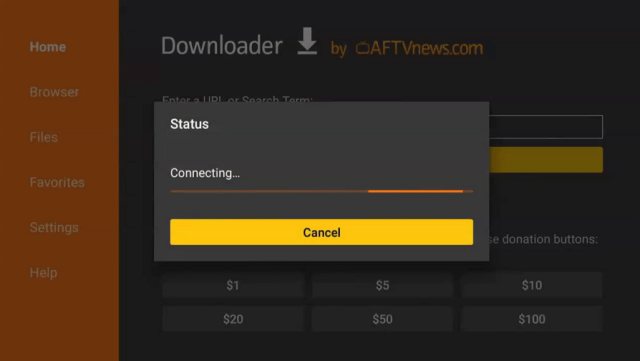
15. Wait for the APK to be downloaded.
Install Deep TV Pro on Firestick

Install Deep TV Pro on Firestick


16. Click install

Install Deep TV Pro on Firestick


17. Click open.

Install Deep TV Pro on Firestick


18. Deep TV Pro is already installed! Enjoy!

Install Deep TV Pro on Firestick

Install Deep TV Pro on Firestick


Deep TV Pro APK Download for Android Devices


deep TV Pro download button

Note: ReviewVPN.com does not host this APK file. It is hosted by Archive.org


YOUR INTERNET ACTIVITY IS BEING WATCHED

ReviewVPN cannot attest to the legality, security and privacy of the applications discussed on this site. It is highly recommended that you use a VPN service while streaming or using Kodi.

Currently, your IP 216.73.216.102 is visible to everyone and your Browser is being tracked by Advertisers & ISP Provider.

Save 65% Now

Limited Time Offer

Here are the main reasons why you must use a VPN:

  • Your activities are hidden from your ISP, the government, and from the apps you are using.
  • You can access additional movies and TV streams.
  • ISP attempts to throttle are thrwarted thus reducing buffering issues.
  • Geographically restricted content like Netflix and Hulu can be unblocked.

A VPN works be replacing your ISP-assigned IP address and creating an encrypted tunnel. We recommend the no log service offered by IPVanish. It works well on a Firestick and offers the fastest possible speeds.

Special Limited Time Offer - Get IPVanish


Legal Disclaimer: ReviewVPN.com does not encourage or endorse any illegal activity involved in the usage of services and applications referenced on this site. We do not verify the licensing agreements of services. The end-user is wholly responsible for ensuring that any media accessed through these services does not violate copyright and/or licensing laws. ReviewVPN does not promote, link to, or receive compensation from any Apps and IPTV services.


Install Surfshark on Firestick

Best Surfshark Deal


App Features

  • Contains Movies, TV shows, and IPTV
  • Its Hamburger Menu has tabs for Home Page, Announcements, Telegram, Settings, Share, and Exit
  • Some of the shows include Insight TV, Fashion TV, TRT Spor, Rossia 24, ShowMax, TGRT Haber, TV Net, TRT Avaz, Spor Smar, Sinema TV Aksiyon, and more
  • Settings customizable are Image Settings, List Settings, EPG, Subtitle size, and theme color
  • Image Settings you can choose from are Fill or Zoom In
  • List Setting available are horizontal, vertical, and closed
  • Customizable List EPGs are Open or Closed
  • Subtitle sizes available are Small, Middle, and Big
  • Theme colors available are Cyan, Red, and Purple
  • Enables you to clear all data including favorites, where you left off, and all your settings
  • It contains a search bar where you may directly type in a title
  • Provides dubbing and subtitles


Pros & Cons

Pros

  • Its theme colors are attractive and modern.
  • An interface that’s easy to use.
  • Provides free content.


Cons

  • Advertisements are present.
  • There are delays in loading.


Stream Safely With a VPN

Surfshark vpn

Deep TV Pro is a third-party APK that you can install on your Firestick. That is to say, it is not a part of the official Amazon Appstore and is run by an outside developer. You will therefore have no idea who has access to your data or whether anyone is monitoring your activity while Deep TV Pro is running. In addition, the government may be watching your internet use, particularly if you are from a nation where severe government surveillance is the norm. For this reason, we usually advise using a VPN like Surfshark.

A VPN, such as Surfshark, will conceal your identity by assigning you an anonymous IP address. Your whole internet traffic will then be routed through a secure tunnel, guaranteeing that nothing you do online can be traced back to your actual IP address. Additionally, this guard against data breaches and any other ways that anyone could take your personal information by simply accessing any app.

In addition, Surfshark has the following features:

  • it has over 3,200 servers spread across more than 100 countries
  • you can access any content from anywhere in the globe by being able to get around geo-restrictions
  • protects an unlimited number of device connections
  • gives you limitless bandwidth so you may stream as much as you want without worrying about data limits.
  • avoids ISP throttling, which raises lag and buffering.
  • a 30-day money-back guarantee is available.

Note: For more information about Surfshark, please read our Surfshark Review.


Install Surfshark on Firestick

Best Surfshark Deal


How to Install Surfshark VPN on Firestick

If your Firestick still has the older interface, read this article to learn how to update it: Update Firestick Interface.

1. Go to the Home screen of your Firestick.

step 1 Install Surfshark VPN on Firestick


2. Navigate toward the Find tab. Press the Search button from the resulting dropdown.

step 2 Install Surfshark VPN on Firestick


3. Type in the keyword of SurfShark and select from the suggestions that will appear.

step 3 Install Surfshark VPN on Firestick


4. Click the official SurfShark icon from your search results.

step 4 Install Surfshark VPN on Firestick


5. Press the Download button.

step 5 Install Surfshark VPN on Firestick


6. The SurfShark VPN installer will download on your device.

step 6 Install Surfshark VPN on Firestick


7. SurfShark VPN’s app will automatically install itself on your Fire TV stick.

step 7 Install Surfshark VPN on Firestick


8. Press the Open button after completing SurfShark VPN’s installation process.

step 8 Install Surfshark VPN on Firestick


9. Please wait for the SurfShark VPN to load its user interface.

step 9 Install Surfshark VPN on Firestick


10. You can now log in with your SurfShark VPN account credentials.

step 10 Install Surfshark VPN on Firestick

Learn more about Surfshark and Grab the Best Surfshark Deal Now!


Install Surfshark on Firestick

Best Surfshark Deal


Other VPNs to Consider

NordVPN (Best for Streaming)

Best Features

  • 5000+ Server in 50+ Countries 
  • Military-Grade Encryption
  • Fast Connection Speed
  • Suitable to a lot of devices
  • No-Log Policy

Prices
  • Complete $5.89 per month (64% Discount)
  • Plus $4.59 per month (56% Discount)
  • Standard $3.69 per month (55% Discount)

Best Features

  • 750+ High-speed VPN Servers in 43 Locations
  • Military-Grade Encryption
  • Fastest HD Streaming and Gaming
  • 30-Day Money-Back Guarantee
  • Unlimited Data & Devices
  • No-Log Policy

Prices
  • 3 Years $1.99 per month (82% Discount)
  • 1 Years $3.29 per month (70% Discount)
  • 1 Month $10.99 per month

IPVanish VPN (Most Secure)

Best Features

  • 1200+ Servers in 60+ Countries around the world
  • Unlimited Connections
  • No-Log Policy
  • Top Notch Military-Grade VPN Protocols and Encryptions
  • 100% Safe and Secured
  • Most Trusted VPN
  • Best VPN for Firestick
  • 30-Day Money-Back Guarantee

Prices
  • Yearly $3.99 per month (63% Discount) – 30 days risk free + Ransomware & Malware Protection
  • Quarterly $5.32 per month (51% Discount)
  • Monthly $10.99 per month


For more VPN discounts, go to ReviewVPN Deals and purchase the best VPN.

Click here to get the lowest price on Surfshark through our exclusive limited-time offer.


FAQs

What is Deep TV Pro?

The Turkish streaming app Deep TV Pro lets you access IPTV, movies, and TV episodes.


Is Deep TV Pro Safe?

Yes, Deep TV Pro is safe to install on your device. To make sure that your device is always free from viruses while using any streaming software, we still advise running an antivirus tool like TotalAV.


Is Deep TV Pro Legal?

Since Deep TV Pro falls under the category of an IPTV service, some nations may not consider it legal to use it, but some do.


Is Deep TV Pro free?

Yes, Deep TV Pro is free to use.


Wrapping Up

Deep TV Pro provides its users with a modern yet user-friendly interface. It has the advantage over other streaming providers in that you can navigate the app without requiring a Mouse Toggle. Additionally, it offers free videos with subtitles for people who don’t speak Turkish. Therefore, you can try out Deep TV Pro if you enjoy watching streaming content from different countries or if you’re Turkish and just want to access streams without cable.

How to Install BPlayer on Firestick/Android

BPlayer

This article will show you how to install BPlayer on Firestick and Android devices.


BPlayer is a media player that lets you watch video files from popular streaming apps as well as network streams. If you’d rather use a different video player than what’s provided by a platform’s default video player, you can use this external player for several platforms, including the well-known streaming application NovaTV.

Additionally, BPlayer supports a variety of video file types, including AVI, FLAC, OGG, MKV, MOV, and more. You can also be sure to watch in HD and 4k streaming while using BPlayer.

However, BPlayer is a third-party app and is not accessible through the Amazon Appstore. Therefore, we’ll sideload it into your device using the Downloader App. Furthermore, because this is a third-party application, we advise using a VPN when installing and utilizing it on your Firestick or Android devices to guard against data breaches and unauthorized logging.


ANONYMOUSLY


How to Install BPlayer on Firestick (Video)


How to Install BPlayer on Firestick

1.  From your home screen, go to Settings.

Install BPlayer on Firestick


2. Scroll down and to the right until you get to My Fire TV. Click on it.

Install BPlayer on Firestick


3. Select Developer options.

Install BPlayer on Firestick


4. Turn on ADB debugging and Apps from Unknown Sources.

Install BPlayer on Firestick


5. Click Turn On when the pop-up appears.

Install BPlayer on Firestick


6. Click Home, click FIND.

Install BPlayer on Firestick


7. Click Search.

Install BPlayer on Firestick


8. You can either say Downloader to your Alexa voice-enabled remote or start typing it. If you typed it, click on the suggestion when it appears.

Install BPlayer on Firestick


9. Click on the Downloader Icon.

Install BPlayer on Firestick


10. Click Download.

Install BPlayer on Firestick


Install BPlayer on Firestick


11. Click on Open.

Install BPlayer on Firestick


12. Click on Allow.

Install BPlayer on Firestick


13. Use the Downloader search tab.

Install BPlayer on Firestick


14. Type https://reviewvpn.com/bply and click go.

Install BPlayer on Firestick


15. Wait for the APK to be downloaded.

Install BPlayer on Firestick


16. Click install

Install BPlayer on Firestick


17. Click open.

Install BPlayer on Firestick


18. Click allow.

Install BPlayer on Firestick


19.

Install BPlayer on Firestick


BPlayer APK Download for Android Devices


BPlayer Download button

Note: ReviewVPN.com does not host this APK file. It is hosted by Archive.org


YOUR INTERNET ACTIVITY IS BEING WATCHED

ReviewVPN cannot attest to the legality, security and privacy of the applications discussed on this site. It is highly recommended that you use a VPN service while streaming or using Kodi.

Currently, your IP 216.73.216.102 is visible to everyone and your Browser is being tracked by Advertisers & ISP Provider.

Save 65% Now

Limited Time Offer

Here are the main reasons why you must use a VPN:

  • Your activities are hidden from your ISP, the government, and from the apps you are using.
  • You can access additional movies and TV streams.
  • ISP attempts to throttle are thrwarted thus reducing buffering issues.
  • Geographically restricted content like Netflix and Hulu can be unblocked.

A VPN works be replacing your ISP-assigned IP address and creating an encrypted tunnel. We recommend the no log service offered by IPVanish. It works well on a Firestick and offers the fastest possible speeds.

Special Limited Time Offer - Get IPVanish


Legal Disclaimer: ReviewVPN.com does not encourage or endorse any illegal activity involved in the usage of services and applications referenced on this site. We do not verify the licensing agreements of services. The end-user is wholly responsible for ensuring that any media accessed through these services does not violate copyright and/or licensing laws. ReviewVPN does not promote, link to, or receive compensation from any Apps and IPTV services.


Install Surfshark on Firestick

Best Surfshark Deal


Features

  • On the home screen, you may find the following categories: Video, Folders, and History.
  • Allows you to view a network stream by specifying a network URL.
  • Provides support for subtitles.
  • Subtitles can be customized in terms of font size, text style, text color, and background color.
  • Allows you to seek forward or backward by double tapping.
  • You may also pause by double-tapping in the middle.
  • Loop, Media tracks, Subtitle delay, and Subtitle settings are available in video settings.
  • There’s a lock screen option.
  • You can change the video speed between 0.25x and 2x.
  • BPlayer also allows you to mute and stretch the screen.


Pros & Cons

Pros

  • Allows you to watch videos in HD and 4k resolution.
  • Several commands are available in the player.
  • A few modification options are available.


Cons

  • I tried entering YouTube URLs, but they did not play.
  • Some videos take some time to load.


Stream Safely With a VPN

Surfshark vpn

BPlayer allows you to watch movies and TV episodes in HD and 4K resolution. It functions as an external provider for streaming apps and is therefore quite useful.

However, you should always be aware of the dangers of streaming, particularly when using unofficial apps. This is because you wouldn’t know if unwanted logging or hacking was going on when using these apps as they are maintained by third-party developers.

Because of this, we always advise using a VPN when streaming. A VPN service, such as Surfshark, will provide you with an anonymous IP address, allowing you to conceal your true identity.

By doing this, the IP address you use will prevent any link between your streaming activities and the actual device you are using. This stops other tracking from taking place as well as any data breaches.

In addition, here are a few more Surfshark features:

  • Allows you to circumvent geographical constraints.
  • Has more than 3,200 servers in 100 locations.
  • A kill switch is included.
  • It contains a Cleanweb feature that filters ads and malware.
  • Includes a cookie consent pop-up blocker.
  • It offers an unlimited amount of bandwidth.
  • Secures an unlimited number of concurrent connections
  • Money-back guarantee for 30 days.

Note: For more information about Surfshark, please read our Surfshark Review.


Install Surfshark on Firestick

Best Surfshark Deal


How to Install Surfshark VPN on Firestick

If your Firestick still has the older interface, read this article to learn how to update it: Update Firestick Interface.

1. Go to the Home screen of your Firestick.

step 1 Install Surfshark VPN on Firestick


2. Navigate toward the Find tab. Press the Search button from the resulting dropdown.

step 2 Install Surfshark VPN on Firestick


3. Type in the keyword of SurfShark and select from the suggestions that will appear.

step 3 Install Surfshark VPN on Firestick


4. Click the official SurfShark icon from your search results.

step 4 Install Surfshark VPN on Firestick


5. Press the Download button.

step 5 Install Surfshark VPN on Firestick


6. The SurfShark VPN installer will download on your device.

step 6 Install Surfshark VPN on Firestick


7. SurfShark VPN’s app will automatically install itself on your Fire TV stick.

step 7 Install Surfshark VPN on Firestick


8. Press the Open button after completing SurfShark VPN’s installation process.

step 8 Install Surfshark VPN on Firestick


9. Please wait for the SurfShark VPN to load its user interface.

step 9 Install Surfshark VPN on Firestick


10. You can now log in with your SurfShark VPN account credentials.

step 10 Install Surfshark VPN on Firestick

Learn more about Surfshark and Grab the Best Surfshark Deal Now!


Install Surfshark on Firestick

Best Surfshark Deal


Other VPNs to Consider

NordVPN (Best for Streaming)

Best Features

  • 5000+ Server in 50+ Countries 
  • Military-Grade Encryption
  • Fast Connection Speed
  • Suitable to a lot of devices
  • No-Log Policy

Prices
  • Complete $5.89 per month (64% Discount)
  • Plus $4.59 per month (56% Discount)
  • Standard $3.69 per month (55% Discount)

Best Features

  • 750+ High-speed VPN Servers in 43 Locations
  • Military-Grade Encryption
  • Fastest HD Streaming and Gaming
  • 30-Day Money-Back Guarantee
  • Unlimited Data & Devices
  • No-Log Policy

Prices
  • 3 Years $1.99 per month (82% Discount)
  • 1 Years $3.29 per month (70% Discount)
  • 1 Month $10.99 per month

IPVanish VPN (Most Secure)

Best Features

  • 1200+ Servers in 60+ Countries around the world
  • Unlimited Connections
  • No-Log Policy
  • Top Notch Military-Grade VPN Protocols and Encryptions
  • 100% Safe and Secured
  • Most Trusted VPN
  • Best VPN for Firestick
  • 30-Day Money-Back Guarantee

Prices
  • Yearly $3.99 per month (63% Discount) – 30 days risk free + Ransomware & Malware Protection
  • Quarterly $5.32 per month (51% Discount)
  • Monthly $10.99 per month


For more VPN discounts, go to ReviewVPN Deals and purchase the best VPN.

Click here to get the lowest price on Surfshark through our exclusive limited-time offer.


FAQs

What is BPlayer?

BPlayer is a media player that allows you to view up to 4K streaming on Android devices, including the Firestick.


Is BPlayer safe?

Yes, installing BPlayer on the device you’re using is safe. However, it’s still recommended to use antivirus software like TotalAV to make sure that your device is always secure in case any programs unexpectedly turn out to contain malware.


Is BPlayer legal?

BPlayer is legal. Just be sure that the content you are streaming is in the public domain and not protected by copyright.


Wrapping Up

BPlayer is a lightweight media player that can be installed on Android devices. It’s a great media player that you may use as an external provider for streaming apps. However, I’m not sure if network streams may be watched in it given that I was unsuccessful in doing so while trying this app. Nevertheless, the BPlayer does a fantastic job at streaming in up to 4k.

How to Install The Guardian App on Firestick and Android Devices

The Guardian News App on Firestick and Android

This article will show you how to install The Guardian app on your Firestick and Android devices.


The Guardian is a well-known daily newspaper that offers the most recent news on international affairs, sports, business, opinion, reviews, and analysis. Additionally, as technology develops, it is now possible to access it online rather than purchasing a paper copy to find the most latest news each day. Furthermore, it is available on Android devices as well as the Firestick, so you won’t have to worry about stacks of newspapers at home. The Guardian has made it simple for its readers to have immediate access to its news content.

We would want to let you know in advance, nonetheless, that The Guardian App makes use of technology that stores browser history and personal data. Therefore, it is best to protect your privacy by remaining anonymous using a VPN like Surfshark.


ANONYMOUSLY


How to Install The Guardian App on Firestick (Video)


How to Install The Guardian App on Firestick

1.  From your home screen, go to Settings.

Install The Guradian on Firestick


2. Scroll down and to the right until you get to My Fire TV. Click on it.

Install The Guradian on Firestick


3. Select Developer options.

Install The Guradian on Firestick


4. Turn on ADB debugging and Apps from Unknown Sources.

Install The Guradian on Firestick


5. Click Turn On when the pop-up appears.

Install The Guradian on Firestick


6. Click Home, click FIND.

Install The Guradian on Firestick


7. Click Search.

Install The Guradian on Firestick


8. You can either say Downloader to your Alexa voice-enabled remote or start typing it. If you typed it, click on the suggestion when it appears.

Install The Guradian on Firestick


9. Click on the Downloader Icon.

Install The Guradian on Firestick


10. Click Download.

Install The Guradian on Firestick


Install The Guradian on Firestick


11. Click on Open.

Install The Guradian on Firestick


12. Click on Allow.

Install The Guradian on Firestick


13. Use the Downloader search tab.

Install The Guradian on Firestick


14. Type https://reviewvpn.com/gdn and click go.

Install The Guradian on Firestick


15. Wait for the APK to be downloaded.

Install The Guradian on Firestick

Install The Guradian on Firestick


16. Click install

Install The Guradian on Firestick


17. Click open.

Install The Guradian on Firestick


18. That’s it! Enjoy watching.

Install The Guradian on Firestick


The Guardian App Download for Android Devices


The Guardian app free download

Note: ReviewVPN.com does not host this APK file. It is hosted by Archive.org


Features

  • It contains the most recent global news.
  • The categories available are Home, Live, Discover, Saved, and Menu.
  • Live News and Sports are available.
  • Provides a Search box for searching for news on certain topics.
  • US, World, Politics, Opinion, Sports, Soccer, Technology, Arts, Fight for Democracy, Lifestyle, Fashion, Business, Travel, Environment, Science, Media, Obituaries, Video, Podcasts, Support us, Corrections, Crosswords, Wordiply, and Jobs are among the topics of interest that can be accessed.
  • Allows you to hide stories in which you are not interested.
  • Your favorite stories can be saved so you can locate them later.
  • All sections can be downloaded for offline reading (text only).
  • You can also choose to schedule downloads for each day.


Pros & Cons

Pros

  • The Guardian runs well on the Firestick.
  • It provides free news.
  • There is Live news available.


Cons

  • A mouse toggle is required to click on its tabs.
  • To use its Saved Stories feature, you must register.


Protect Your Privacy With a VPN

SurfShark Logo No Background

For the app to function effectively, The Guardian app employs app technologies similar to web cookies. As a result, The Guardian and their partners may use cookies and other similar technologies to obtain personal information, browsing information, and other online activities with their app. This means they have access to and can store data on your device. And even while companies do this for app development as well as for targeted adverts and content, it still makes you feel uneasy to know that details about you and your online behavior are being tracked. That is why it is still preferable to utilize a VPN to view anonymously.

A VPN, such as Surfshark, will conceal your online identity by giving you a different IP address. This will prevent anyone from discovering anything about you or monitoring your internet activities. When making use of The Guardian, you can be guaranteed that no illicit logs or IP address leaks will occur. Here are a few more benefits of using Surfshark:

  • Its Cleanweb feature will stop malware and ads.
  • It has a pop-up blocker for cookie consent.
  • Allows you to access geo-restricted content from anywhere in the globe.
  • Has over 3,200 servers spread across 100+ locations.
  • There is a kill switch available.
  • Provides a quick connect option that will connect you to the fastest server accessible.
  • It safeguards an unlimited number of simultaneous connections.
  • Includes a 30-day money-back guarantee.

Note: For more information about Surfshark, please read our Surfshark Review.


Install Surfshark on Firestick

Best Surfshark Deal


How to Install Surfshark VPN on Firestick

If your Firestick still has the older interface, read this article to learn how to update it: Update Firestick Interface.

1. Go to the Home screen of your Firestick.

step 1 Install Surfshark VPN on Firestick


2. Navigate toward the Find tab. Press the Search button from the resulting dropdown.

step 2 Install Surfshark VPN on Firestick


3. Type in the keyword of SurfShark and select from the suggestions that will appear.

step 3 Install Surfshark VPN on Firestick


4. Click the official SurfShark icon from your search results.

step 4 Install Surfshark VPN on Firestick


5. Press the Download button.

step 5 Install Surfshark VPN on Firestick


6. The SurfShark VPN installer will download on your device.

step 6 Install Surfshark VPN on Firestick


7. SurfShark VPN’s app will automatically install itself on your Fire TV stick.

step 7 Install Surfshark VPN on Firestick


8. Press the Open button after completing SurfShark VPN’s installation process.

step 8 Install Surfshark VPN on Firestick


9. Please wait for the SurfShark VPN to load its user interface.

step 9 Install Surfshark VPN on Firestick


10. You can now log in with your SurfShark VPN account credentials.

step 10 Install Surfshark VPN on Firestick

Learn more about Surfshark and Grab the Best Surfshark Deal Now!


Install Surfshark on Firestick

Best Surfshark Deal


Other VPNs to Consider

NordVPN (Best for Streaming)

Best Features

  • 5000+ Server in 50+ Countries 
  • Military-Grade Encryption
  • Fast Connection Speed
  • Suitable to a lot of devices
  • No-Log Policy

Prices
  • Complete $5.89 per month (64% Discount)
  • Plus $4.59 per month (56% Discount)
  • Standard $3.69 per month (55% Discount)

Best Features

  • 750+ High-speed VPN Servers in 43 Locations
  • Military-Grade Encryption
  • Fastest HD Streaming and Gaming
  • 30-Day Money-Back Guarantee
  • Unlimited Data & Devices
  • No-Log Policy

Prices
  • 3 Years $1.99 per month (82% Discount)
  • 1 Years $3.29 per month (70% Discount)
  • 1 Month $10.99 per month

IPVanish VPN (Most Secure)

Best Features

  • 1200+ Servers in 60+ Countries around the world
  • Unlimited Connections
  • No-Log Policy
  • Top Notch Military-Grade VPN Protocols and Encryptions
  • 100% Safe and Secured
  • Most Trusted VPN
  • Best VPN for Firestick
  • 30-Day Money-Back Guarantee

Prices
  • Yearly $3.99 per month (63% Discount) – 30 days risk free + Ransomware & Malware Protection
  • Quarterly $5.32 per month (51% Discount)
  • Monthly $10.99 per month


For more VPN discounts, go to ReviewVPN Deals and purchase the best VPN.

Click here to get the lowest price on Surfshark through our exclusive limited-time offer.


FAQs

What is The Guardian App?

The Guardian App is a global news source that gives its readers the most recent information on politics, sports, lifestyle, fashion, and other topics.


Is The Guardian App Safe?

Due to The Guardian’s system for collecting users’ personal information, we are unable to guarantee their safety. Because you never know if your data will be compromised in the event of a database hacking. So it’s preferable to just use a VPN to remain anonymous when using The Guardian.


Is The Guardian App legal?

Yes, The Guardian is legal.


Wrapping Up

The Guardian app is a terrific resource for staying current on news related to international affairs, including politics, sports, and other topics. It performs admirably on devices running Android as well. However, what bothers me is that it collects user data and monitors their internet activity. Because of this, even if it’s excellent, I’ll make sure to use a VPN with it to protect my privacy.

How to Install Log Viewer for Kodi

Log Viewer for Kodi

This article will show you how to install Log Viewer for Kodi.


If you’re finding for a tool that will enable you to easily check and analyze your Kodi log file then you should check out Log Viewer for Kodi.

Log Viewer can be easily found and accessed in the official Kodi Repository so you wouldn’t have to worry about having to use an external provider just so you could run it on your device.

Additionally, Log Viewer for Kodi gives you the option of viewing recent and older logs. Or you could configure the Log Viewer’s settings to suit your preferences.

Without further ado, let’s begin the process of getting the Log Viewer for Kodi installed on your device.


ANONYMOUSLY


How to Install Log Viewer for Kodi

This installation below will show you how you can easily install the Log Viewer for Kodi Addon:

1.Launch the Kodi app on your Firestick. Click on the gear wheel icon (Settings).

Install Log Viewer for Kodi


2.Then select “Add-ons

Install Log Viewer for Kodi


3. Choose “Install from repository

Install Log Viewer for Kodi


4. Then click “Program add-ons

Install Log Viewer for Kodi


5. Scroll down and click on “Log Viewer for Kodi

Install Log Viewer for Kodi


6. Click “Install

Install Log Viewer for Kodi


7. The Addon will then start to install, simply wait for it

Install Log Viewer for Kodi


8. Then click on “Log Viewer for Kodi” once again. Select “Run

Install Log Viewer for Kodi


9. You’ll then have the option to “Show Log” “Show Old Log”, or “Settings”. That’s it, Log Viewer for Kodi is already available on your device.

Install Log Viewer for Kodi


Log Viewer Features

  • Allows you to look into and analyze your Kodi logs.
  • Makes it possible for you to view even older Kodi logs.
  • Invert the log to show the most recent ones first.
  • Set the desired number of lines to display.
  • Custom text box usage.
  • Display an error log when one occurs.
  • Only parse exceptions.
  • Enable HTTP server.
  • Set the HTTP server’s port.
  • Option to reset settings to default.


Maintain Your Anonymity While Using Kodi

Surfshark vpn

Kodi provides access to a lot of stuff, whether you want to watch movies, TV shows, Sports, Live TV, and more. However, you shouldn’t ever let these free Kodi add-ons undermine the security of your data.

It’s important to remember that accessing the internet alone means that your activity is always being monitored; therefore, installing addons or builds that are maintained by third parties only increases this risk.

Moreover, the government is constantly monitoring your internet activities, especially if you come from a country with rigorous surveillance.

In addition, your ISP is constantly tracking your data caps to implement ISP throttling, which results in lags and buffers. For these reasons, it’s always advisable to maintain your online anonymity, especially when using Kodi.

With the use of a VPN like Surfshark, you can be confident that no one on the internet will be able to track what you do online. You can use any Kodi addon with ease knowing that no unnecessary logs or IP address leaks will occur.

Additionally, a VPN guards against data leaks, shielding your personal information from internet risks like hackers and phishers.

Furthermore, here are some additional features of using Surfshark:

  • enables you to get around geographic restrictions so that you can access material from any location in the globe
  • makes sure there are no logs or IP address leaks
  • Surfshark gives you unrestricted bandwidth so you can stream and download any content you desire online.
  • it safeguards an unlimited number of simultaneous connections.
  • has a Cleanweb feature that guards against viruses and ads
  • it comes with a pop-up blocker for cookie consent

Note: For more information about Surfshark, please read our Surfshark Review.


Install Surfshark on Firestick

Best Surfshark Deal


How to Install Surfshark VPN on Firestick

If your Firestick still has the older interface, read this article to learn how to update it: Update Firestick Interface.

1. Go to the Home screen of your Firestick.

step 1 Install Surfshark VPN on Firestick


2. Navigate toward the Find tab. Press the Search button from the resulting dropdown.

step 2 Install Surfshark VPN on Firestick


3. Type in the keyword of SurfShark and select from the suggestions that will appear.

step 3 Install Surfshark VPN on Firestick


4. Click the official SurfShark icon from your search results.

step 4 Install Surfshark VPN on Firestick


5. Press the Download button.

step 5 Install Surfshark VPN on Firestick


6. The SurfShark VPN installer will download on your device.

step 6 Install Surfshark VPN on Firestick


7. SurfShark VPN’s app will automatically install itself on your Fire TV stick.

step 7 Install Surfshark VPN on Firestick


8. Press the Open button after completing SurfShark VPN’s installation process.

step 8 Install Surfshark VPN on Firestick


9. Please wait for the SurfShark VPN to load its user interface.

step 9 Install Surfshark VPN on Firestick


10. You can now log in with your SurfShark VPN account credentials.

step 10 Install Surfshark VPN on Firestick

Learn more about Surfshark and Grab the Best Surfshark Deal Now!


Install Surfshark on Firestick

Best Surfshark Deal


Other VPNs to Consider

NordVPN (Best for Streaming)

Best Features

  • 5000+ Server in 50+ Countries 
  • Military-Grade Encryption
  • Fast Connection Speed
  • Suitable to a lot of devices
  • No-Log Policy

Prices
  • Complete $5.89 per month (64% Discount)
  • Plus $4.59 per month (56% Discount)
  • Standard $3.69 per month (55% Discount)

Best Features

  • 750+ High-speed VPN Servers in 43 Locations
  • Military-Grade Encryption
  • Fastest HD Streaming and Gaming
  • 30-Day Money-Back Guarantee
  • Unlimited Data & Devices
  • No-Log Policy

Prices
  • 3 Years $1.99 per month (82% Discount)
  • 1 Years $3.29 per month (70% Discount)
  • 1 Month $10.99 per month

IPVanish VPN (Most Secure)

Best Features

  • 1200+ Servers in 60+ Countries around the world
  • Unlimited Connections
  • No-Log Policy
  • Top Notch Military-Grade VPN Protocols and Encryptions
  • 100% Safe and Secured
  • Most Trusted VPN
  • Best VPN for Firestick
  • 30-Day Money-Back Guarantee

Prices
  • Yearly $3.99 per month (63% Discount) – 30 days risk free + Ransomware & Malware Protection
  • Quarterly $5.32 per month (51% Discount)
  • Monthly $10.99 per month


For more VPN discounts, go to ReviewVPN Deals and purchase the best VPN.

Click here to get the lowest price on Surfshark through our exclusive limited-time offer.


FAQs

What is Log Viewer for Kodi?

Log Viewer for Kodi is a tool that allows you to inspect and analyze your Kodi log files. It enables you to access both your most recent and older log files.


Is Log Viewer for Kodi safe?

Since Log Viewer for Kodi comes from the official repository, we can affirm that it is secure. However, you should not be complacent about whatever you use online due to the threats that it may entail. To ensure that your device is always warned of any hazardous files like malware, it is therefore always best to equip and utilize an antivirus program like TotalAV.


Why has the Log Viewer for Kodi installation failed?

There may be certain reasons why Log Viewer for Kodi failed to install and one of them might be because you’re using a version that is not compatible with it. Therefore make sure that your Kodi is up to date to make it successfully install on your device. You can read this article if you haven’t yet updated to the newest version.


Wrapping Up

If you’re meticulous about logs and want to access your recent and old ones, you should check out Log Viewer for Kodi. It shows you details about your logs and helps you tweak specific aspects of your Kodi logs. Though there is not much to find from this addon apart from only the logs, it provides all the information you’ll need about your Kodi usage.

How to Increase VPN Speed

How to Speed up Your VPN

This article will show you how to increase VPN speed.


There may be certain instances when you connect to a VPN but makes your connection worse instead of making it faster. Or there may be incidents wherein your VPN just suddenly became slow. While there are many reasons why your VPN’s speed doesn’t live up to your requirement, there are also ways how you can work things around.

Fortunately, there are ways how you can increase the speed of your VPN with some tricks that are not that hard to do. And we’ll be providing you with some troubleshooting tips that you can do for your VPN speed in this article.

Without further ado, read on to know how to increase the VPN speed.


ANONYMOUSLY


How to Increase VPN Speed

Here are some of the best ways on how to increase your VPN speed:


Restart your Device

This is the most common yet one of the most effective ways on speeding up anything about your device.

There might be too much running in the background without your knowledge or your device simply just needs a restart that’s why it’s important to frequently restart your device once in a while. It provides your device a fresh start, thus making it run faster with the apps that you use it with.

Nonetheless, if this easy troubleshooting doesn’t make the trick then you can opt for the other techniques that we’ll be listing down.


Change Servers

Most VPN services offer a quick connect feature wherein it will automatically connect you to the fastest VPN service currently accessible to you. But of course, we understand that there may be instances when you’ll be needing to connect to a certain country because you need to access content from that specific country.

In case you don’t know, you can select different servers even from one country on your VPN service. So if your current connection from that country doesn’t work for you, you can try connecting to other servers accessible in that same country.


Select a Different Protocol

All the protocols that encompass a VPN serve their different functions in a VPN. So you can try changing the protocol that you’re connected to and see what would match best to speed up your VPN. Moreover, we suggest that you opt for a VPN service that has WireGuard in it. These include Surfshark, IPVanish, NordVPN (though it is called NordLynx which also uses the WireGuard protocol), Atlas, and more.


Switch to a different VPN service

As much as we hate to burst your bubble, your VPN service of choice might be the main reason why your VPN is slow. You might be using a VPN that does not offer robust speed or they might not be honest about their claim on the speed of their internet. That is why it is crucial to ensure that you are using the best VPN service available today.


Surfshark vpn

Our VPN of choice that offers the fastest and most consistent speed among VPN services that we’ve tested is Surfshark. Surfshark ensures to provide high-speed content delivery with more than 3,200 servers available in 100+ locations. Moreover, it uses industry-leading AES-256-GCM encryption and employs top-notch protocols such as WireGuard, OpenVPN, and IKEv2/IPSec.


Note: For more information about Surfshark, please read our Surfshark Review.


Install Surfshark on Firestick

Best Surfshark Deal


YOUR INTERNET ACTIVITY IS BEING WATCHED

ReviewVPN cannot attest to the legality, security and privacy of the applications discussed on this site. It is highly recommended that you use a VPN service while streaming or using Kodi.

Currently, your IP 216.73.216.102 is visible to everyone and your Browser is being tracked by Advertisers & ISP Provider.

Save 65% Now

Limited Time Offer

Here are the main reasons why you must use a VPN:

  • Your activities are hidden from your ISP, the government, and from the apps you are using.
  • You can access additional movies and TV streams.
  • ISP attempts to throttle are thrwarted thus reducing buffering issues.
  • Geographically restricted content like Netflix and Hulu can be unblocked.

A VPN works be replacing your ISP-assigned IP address and creating an encrypted tunnel. We recommend the no log service offered by IPVanish. It works well on a Firestick and offers the fastest possible speeds.

Special Limited Time Offer - Get IPVanish


How to Install Surfshark VPN on Firestick

If your Firestick still has the older interface, read this article to learn how to update it: Update Firestick Interface.

1. Go to the Home screen of your Firestick.

step 1 Install Surfshark VPN on Firestick


2. Navigate toward the Find tab. Press the Search button from the resulting dropdown.

step 2 Install Surfshark VPN on Firestick


3. Type in the keyword of SurfShark and select from the suggestions that will appear.

step 3 Install Surfshark VPN on Firestick


4. Click the official SurfShark icon from your search results.

step 4 Install Surfshark VPN on Firestick


5. Press the Download button.

step 5 Install Surfshark VPN on Firestick


6. The SurfShark VPN installer will download on your device.

step 6 Install Surfshark VPN on Firestick


7. SurfShark VPN’s app will automatically install itself on your Fire TV stick.

step 7 Install Surfshark VPN on Firestick


8. Press the Open button after completing SurfShark VPN’s installation process.

step 8 Install Surfshark VPN on Firestick


9. Please wait for the SurfShark VPN to load its user interface.

step 9 Install Surfshark VPN on Firestick


10. You can now log in with your SurfShark VPN account credentials.

step 10 Install Surfshark VPN on Firestick

Learn more about Surfshark and Grab the Best Surfshark Deal Now!


Install Surfshark on Firestick

Best Surfshark Deal


Other VPNs to Consider

NordVPN (Best for Streaming)

Best Features

  • 5000+ Server in 50+ Countries 
  • Military-Grade Encryption
  • Fast Connection Speed
  • Suitable to a lot of devices
  • No-Log Policy

Prices
  • Complete $5.89 per month (64% Discount)
  • Plus $4.59 per month (56% Discount)
  • Standard $3.69 per month (55% Discount)

Best Features

  • 750+ High-speed VPN Servers in 43 Locations
  • Military-Grade Encryption
  • Fastest HD Streaming and Gaming
  • 30-Day Money-Back Guarantee
  • Unlimited Data & Devices
  • No-Log Policy

Prices
  • 3 Years $1.99 per month (82% Discount)
  • 1 Years $3.29 per month (70% Discount)
  • 1 Month $10.99 per month

IPVanish VPN (Most Secure)

Best Features

  • 1200+ Servers in 60+ Countries around the world
  • Unlimited Connections
  • No-Log Policy
  • Top Notch Military-Grade VPN Protocols and Encryptions
  • 100% Safe and Secured
  • Most Trusted VPN
  • Best VPN for Firestick
  • 30-Day Money-Back Guarantee

Prices
  • Yearly $3.99 per month (63% Discount) – 30 days risk free + Ransomware & Malware Protection
  • Quarterly $5.32 per month (51% Discount)
  • Monthly $10.99 per month


For more VPN discounts, go to ReviewVPN Deals and purchase the best VPN.

Click here to get the lowest price on Surfshark through our exclusive limited-time offer.


FAQs

How can I make my VPN faster?

This article highlighted some useful ways how to increase VPN speed. This includes restarting your device, changing servers, and changing protocols.


Why is my VPN so slow?

There are certain reasons why your VPN is slow. One of the few reasons might be that the server you’re connected to isn’t the best for your location/connection. Or it could also be the protocol you’re connected to isn’t really what’s best for your desired speed. Moreover, there are some other ways like needing your device to restart, or even having to switch to a different VPN service that offers far more faster speed than the one you’re currently using.


Which VPN has the fastest speed?

While most VPNs claim that they offer the fastest speed in the market, what we can vouch for is Surfshark. They have more than 3,200 servers in 100+ locations worldwide and add 10 Gbps ports daily. Moreover, at least 1 Gbps port is available on any of the servers that you use.


What affects VPN speeds?

Many factors affect VPN speed. Some of them include the server you’re connected to, the protocol used for your connection, or even the VPN service itself that you use is not that fast.


Wrapping Up

We know it can get frustrating when your VPN suddenly acts up while you’re streaming or browsing your favorite content online. But don’t worry because there are some troubleshooting techniques on how to increase VPN speed.

And lastly, of course, we hope we were able to help you increase the speed of your VPN. Happy streaming/browsing!

Best Pay Monthly VPN for 2023

Overview

This article will show you the best pay monthly VPN service that is currently available.


Are you looking for a solid VPN but don’t want to take the risk because most VPNs offer at least three months on their plans? Or perhaps you simply want to test out different VPN services to see which one is best and are unwilling to sign up for a long-term plan?

Several VPN providers offer pay monthly plans, including Surfshark, IPVanish, NordVPN, and more. These services offer a range of features, including strong security, fast speeds, and access to servers in multiple countries.

It’s important to note that pay monthly VPN plans can be more expensive than longer-term plans, so you may want to compare pricing and features to find the best option for you. Additionally, some VPN providers offer discounts if you sign up for a longer-term plan, so it may be worth considering if you plan to use the VPN service for an extended period.

Overall, a pay monthly VPN can be a good option if you want to try out a VPN service or prefer the flexibility of paying every month.


ANONYMOUSLY


Best Pay Monthly VPN

Fortunately, several VPN services offer monthly plans. Some of the best monthly VPN plans available include:


Surfshark

Surfshark vpn

Surfshark is currently the best pay-monthly VPN service accessible. There are three monthly VPN plans available: Standard, Premium, and Ultimate. All of them include a secure VPN, an ad blocker, and a cookie pop-up blocker. The provider’s Standard Plan costs $12.95 per month, and as your plan level increases, you’ll also get access to more features like a private search engine, 24/7 antivirus protection, webcam protection, real-time email breach alerts, real-time credit card and ID breach alerts, personal data security reports, and more.

And the best thing about Surfshark is that it provides a 30-day money-back guarantee. Therefore, in addition to its monthly offerings, you can be confident that you will receive a money-back guarantee if you are not happy with its service. However, rest assured that most of Surfshark’s clients have been happy with its service over the years it has been in business, so you won’t even consider asking for your money back.


Install Surfshark on Firestick

Best Surfshark Deal


How to Install Surfshark VPN on Firestick

If your Firestick still has the older interface, read this article to learn how to update it: Update Firestick Interface.

1. Go to the Home screen of your Firestick.

step 1 Install Surfshark VPN on Firestick


2. Navigate toward the Find tab. Press the Search button from the resulting dropdown.

step 2 Install Surfshark VPN on Firestick


3. Type in the keyword of SurfShark and select from the suggestions that will appear.

step 3 Install Surfshark VPN on Firestick


4. Click the official SurfShark icon from your search results.

step 4 Install Surfshark VPN on Firestick


5. Press the Download button.

step 5 Install Surfshark VPN on Firestick


6. The SurfShark VPN installer will download on your device.

step 6 Install Surfshark VPN on Firestick


7. SurfShark VPN’s app will automatically install itself on your Fire TV stick.

step 7 Install Surfshark VPN on Firestick


8. Press the Open button after completing SurfShark VPN’s installation process.

step 8 Install Surfshark VPN on Firestick


9. Please wait for the SurfShark VPN to load its user interface.

step 9 Install Surfshark VPN on Firestick


10. You can now log in with your SurfShark VPN account credentials.

step 10 Install Surfshark VPN on Firestick

Learn more about Surfshark and Grab the Best Surfshark Deal Now!


Install Surfshark on Firestick

Best Surfshark Deal


NordVPN

nordvpn logo

Robust security features, including military-grade encryption and a strict no-logging policy, are what NordVPN is renowned for. Additionally, it has a vast network of servers spread across over 60 different countries and provides several services, such as malware and ad-blocking. On top of that, NordVPN boasts having the fastest speed of the major VPN services currently on the market, coming in at 6,730+ Mbps.

There are presently 3 pay monthly VPN plans available; these are Standard ($12.99), Plus ($14.19), and Complete ($15.69). With the more expensive monthly plans, you can also acquire extra features like a cross-platform password manager, a data breach scanner, 1 TB of cloud storage, and next-generation file encryption. Nevertheless, a risk-free 30-day money-back guarantee is offered on all of its pay-monthly VPN services.


Click here for the best NordVPN deal available right now.


IPVanish

IPVanish logo

IPVanish is also one of the best pay monthly VPN services accessible today. It is the cheapest VPN monthly pay solution when compared to Surfshark and NordVPN, with a monthly subscription of only $11.99. But unlike the others, which have alternatives for more expensive plans with extra features, it only offers one plan.

Its pay monthly VPN service offers high-speed servers in 75+ locations globally, encrypted internet access, an independently confirmed no traffic logs policy, and phone and live chat assistance. Additionally, credit cards, Paypal, Google Pay, and Amazon Pay are all accepted forms of payment for IPVanish.


Click on this link to get the best IPVanish offer.


YOUR INTERNET ACTIVITY IS BEING WATCHED

ReviewVPN cannot attest to the legality, security and privacy of the applications discussed on this site. It is highly recommended that you use a VPN service while streaming or using Kodi.

Currently, your IP 216.73.216.102 is visible to everyone and your Browser is being tracked by Advertisers & ISP Provider.

Save 65% Now

Limited Time Offer

Here are the main reasons why you must use a VPN:

  • Your activities are hidden from your ISP, the government, and from the apps you are using.
  • You can access additional movies and TV streams.
  • ISP attempts to throttle are thrwarted thus reducing buffering issues.
  • Geographically restricted content like Netflix and Hulu can be unblocked.

A VPN works be replacing your ISP-assigned IP address and creating an encrypted tunnel. We recommend the no log service offered by IPVanish. It works well on a Firestick and offers the fastest possible speeds.

Special Limited Time Offer - Get IPVanish


Legal Disclaimer: ReviewVPN.com does not encourage or endorse any illegal activity involved in the usage of services and applications referenced on this site. We do not verify the licensing agreements of services. The end-user is wholly responsible for ensuring that any media accessed through these services does not violate copyright and/or licensing laws. ReviewVPN does not promote, link to, or receive compensation from any Apps and IPTV services.


Install Surfshark on Firestick

Best Surfshark Deal


FAQs

What is a pay monthly VPN?

A pay monthly VPN is a VPN service that allows you to pay every month instead of requiring you to commit to a longer-term contract. This can be a great option if you don’t want to make a long-term commitment to a VPN service and prefer to have more flexibility with your payments.


Can I pay monthly for a VPN?

Yes, there are VPN services that offer their customers a subscription that is payable every month. In this article, we’ve highlighted some of the greatest options on the market right now.


What is the best VPN for 1 month?

You might want to think about Surfshark if you’re looking for a VPN that you can use for only one month. Surfshark has excellent features that will undoubtedly supply you with all you require from a VPN. Once you become accustomed to the ease of use and security provided by Surfshark, you may even decide to use a VPN for longer than a month.


Wrapping Up

Overall, when choosing a pay monthly VPN service, it’s important to consider factors such as speed, security, server locations, and additional features. By doing your research and choosing a reputable VPN provider, you can enjoy peace of mind and secure internet browsing no matter where you are in the world.

Best Free IPTV Apps for Firestick/Android

5 Best Free IPTV Apps

This article will provide you with the best free IPTV services available today.


Are you tired of paying monthly cable bills that are too expensive? If so, you might be interested in exploring the world of IPTV (Internet Protocol Television). IPTV allows you to stream live TV channels and on-demand content over the internet, providing a cheaper and more flexible alternative to traditional cable TV.

While there are many paid IPTV services out there, you might not want to shell out the money just yet. Luckily, there are also many free IPTV services available that offer a wide range of channels and content. Here are some of the best free IPTV services available today:


ANONYMOUSLY


Best Free IPTV Services

Pluto TV

With over 250 channels, including news, sports, movies, and TV shows, Pluto TV is one of the best free IPTV services available. It is available on most devices, including smart TVs, smartphones, and streaming devices.


To learn more about Pluto TV, you may read our article about it.


Xumo

Xumo offers over 190 channels of live TV and on-demand content. It has a user-friendly interface and is compatible with most devices. Plus, it offers a wide range of channels, including news, sports, and entertainment.


Learn more about Xumo by reading our article.


Peacock

Peacock is a free streaming service from NBCUniversal that offers a variety of TV shows, movies, and live sports. While it does have ads, you can upgrade to a premium version without ads for a small fee.


To know more about Peacock, click here.


Crackle

crackle logo

Crackle is a free streaming service that offers a variety of movies and TV shows from Sony Pictures. While it doesn’t have as many channels as some of the other services on this list, it is still a great option for free content.


If you’re interested in installing Crackle on your device, you may read this article.


Tubi

tubi tv logo

Tubi is a free streaming service that offers a wide range of movies and TV shows, including popular titles like The Matrix and The Apprentice. It is available on most devices and has a user-friendly interface.


Learn more about Tubi by reading our article.


YOUR INTERNET ACTIVITY IS BEING WATCHED

ReviewVPN cannot attest to the legality, security and privacy of the applications discussed on this site. It is highly recommended that you use a VPN service while streaming or using Kodi.

Currently, your IP 216.73.216.102 is visible to everyone and your Browser is being tracked by Advertisers & ISP Provider.

Save 65% Now

Limited Time Offer

Here are the main reasons why you must use a VPN:

  • Your activities are hidden from your ISP, the government, and from the apps you are using.
  • You can access additional movies and TV streams.
  • ISP attempts to throttle are thrwarted thus reducing buffering issues.
  • Geographically restricted content like Netflix and Hulu can be unblocked.

A VPN works be replacing your ISP-assigned IP address and creating an encrypted tunnel. We recommend the no log service offered by IPVanish. It works well on a Firestick and offers the fastest possible speeds.

Special Limited Time Offer - Get IPVanish


Legal Disclaimer: ReviewVPN.com does not encourage or endorse any illegal activity involved in the usage of services and applications referenced on this site. We do not verify the licensing agreements of services. The end-user is wholly responsible for ensuring that any media accessed through these services does not violate copyright and/or licensing laws. ReviewVPN does not promote, link to, or receive compensation from any Apps and IPTV services.


Install Surfshark on Firestick

Best Surfshark Deal


Stream Safely With a VPN

Surfshark vpn

Fortunately, IPTV offers a wealth of advantages to its users, enabling cord-cutters to access live TV for less money—or even for free—than cable subscriptions. But when streaming live content online, securing your connection is crucial. Thus, a VPN is a tool that is frequently used in conjunction with IPTV services. However, not all VPNs are created equal, so you must make sure to use the best VPN for IPTV.

Surfshark is a reputable VPN service that offers top-tier features such as AES-256 military-grade encryption and a variety of security protocols such as WireGuard, OpenVPN, IKEv2, and others. Additionally, it has a kill switch, which acts as the second line of defense after Surfshark’s security measures.

Here are a few additional advantages, besides that:

  • Bypassing censorships and geo-restrictions enable you to access even IPTVs that are region-specific.
  • It has 3,200+ servers in 100 locations throughout the world, providing a large number of connections.
  • Ideal for regular streaming because it offers unlimited bandwidth to stream any IPTV service material you choose.
  • You may use your IPTV on all of your devices and be sure to secure them all at once because it supports an unlimited number of simultaneous connections.
  • Cleanweb is a function that filters advertisements and malware.
  • A cookie consent pop-up blocker is also included.

Note: For more information about Surfshark, please read our Surfshark Review.


Install Surfshark on Firestick

Best Surfshark Deal


How to Install Surfshark VPN on Firestick

If your Firestick still has the older interface, read this article to learn how to update it: Update Firestick Interface.

1. Go to the Home screen of your Firestick.

step 1 Install Surfshark VPN on Firestick


2. Navigate toward the Find tab. Press the Search button from the resulting dropdown.

step 2 Install Surfshark VPN on Firestick


3. Type in the keyword of SurfShark and select from the suggestions that will appear.

step 3 Install Surfshark VPN on Firestick


4. Click the official SurfShark icon from your search results.

step 4 Install Surfshark VPN on Firestick


5. Press the Download button.

step 5 Install Surfshark VPN on Firestick


6. The SurfShark VPN installer will download on your device.

step 6 Install Surfshark VPN on Firestick


7. SurfShark VPN’s app will automatically install itself on your Fire TV stick.

step 7 Install Surfshark VPN on Firestick


8. Press the Open button after completing SurfShark VPN’s installation process.

step 8 Install Surfshark VPN on Firestick


9. Please wait for the SurfShark VPN to load its user interface.

step 9 Install Surfshark VPN on Firestick


10. You can now log in with your SurfShark VPN account credentials.

step 10 Install Surfshark VPN on Firestick

Learn more about Surfshark and Grab the Best Surfshark Deal Now!


Install Surfshark on Firestick

Best Surfshark Deal


Other VPNs to Consider

NordVPN (Best for Streaming)

Best Features

  • 5000+ Server in 50+ Countries 
  • Military-Grade Encryption
  • Fast Connection Speed
  • Suitable to a lot of devices
  • No-Log Policy

Prices
  • Complete $5.89 per month (64% Discount)
  • Plus $4.59 per month (56% Discount)
  • Standard $3.69 per month (55% Discount)

Best Features

  • 750+ High-speed VPN Servers in 43 Locations
  • Military-Grade Encryption
  • Fastest HD Streaming and Gaming
  • 30-Day Money-Back Guarantee
  • Unlimited Data & Devices
  • No-Log Policy

Prices
  • 3 Years $1.99 per month (82% Discount)
  • 1 Years $3.29 per month (70% Discount)
  • 1 Month $10.99 per month

IPVanish VPN (Most Secure)

Best Features

  • 1200+ Servers in 60+ Countries around the world
  • Unlimited Connections
  • No-Log Policy
  • Top Notch Military-Grade VPN Protocols and Encryptions
  • 100% Safe and Secured
  • Most Trusted VPN
  • Best VPN for Firestick
  • 30-Day Money-Back Guarantee

Prices
  • Yearly $3.99 per month (63% Discount) – 30 days risk free + Ransomware & Malware Protection
  • Quarterly $5.32 per month (51% Discount)
  • Monthly $10.99 per month


For more VPN discounts, go to ReviewVPN Deals and purchase the best VPN for you.

Click here to get the lowest price on Surfshark through our exclusive limited-time offer.


FAQs

What is free IPTV?

Free IPTV (Internet Protocol Television) is a free way to view your favorite live TV stations on devices such as Firestick, Chromecast, Nvidia Shield, and other Android boxes.


Can I get IPTV for free?

The good news is that there are currently free IPTV options available to users. However, the majority of them are geo-restricted to the US, so if you’re outside of the US, a VPN like Surfshark is unavoidably necessary.


How do you get IPTV for free?

All you need to do is download your preferred IPTV to your device. There are some of them that could demand logging in, but there are also some that don’t.


How to download free IPTV for Firestick?

There is a link in each IPTV service listed in this post to our articles that provide a thorough installation guide for various IPTV services.


Wrapping Up

While these free IPTV services might not offer as many channels or as much content as paid services, they are still a great option for those looking to save some money. Plus, they are easy to use and can be accessed on most devices. Give them a try and see if they work for you!

How To Install Full Match TV Kodi Addon on Firestick/Android

Full Match TV Kodi Addon

This article will show you how to install Full Match TV Kodi Addon on Firestick/Android.


You should check out the Full Match TV Kodi Addon if you’re looking for a sports addon that lets you watch both live sports and replays. Full Match TV is a Kodi Addon from the Diggz Repository that offers feeds for sports such as football, baseball, basketball, motorsports, hockey, rugby, wrestling, MMA, and more. Additionally, as implied by the name, it offers full match streams that you can access on a Firestick or other Kodi-compatible device.

However, we want to make sure you know that Full Match TV is a Kodi addon that isn’t available in the official Kodi Repository. Meaning, Full Match TV is a third-party addon, and Kodi will not be held liable for any data breaches or damages that may occur while using it. Thus, it is recommended that you equip your device with a VPN to ensure anonymous streaming and avoid data leaks or breaches.

Additionally, it is suggested to use an antivirus program to ensure you are not accessing any virus-infected content.


ANONYMOUSLY


How To Install Full Match TV Kodi Addon on Firestick

You can find the detailed steps on how you can install Full Match TV Kodi Addon on Firestick below:

1. Launch the Kodi app on your Firestick. Click on the gear wheel icon (Settings)

Full Match TV Kodi Addon


2. Select “System

Full Match TV Kodi Addon

3. Scroll down to “Add-ons” Then Go to “Unknown sources” then toggle it on.

Full Match TV Kodi Addon


4. Select “Yes”. Then using your Firestick remote, press the return button to go back to the System page

Full Match TV Kodi Addon


5. Now choose “File Manager

Full Match TV Kodi Addon


6. Scroll down and select “Add source

Full Match TV Kodi Addon


7. Click “<None>

Full Match TV Kodi Addon


8. Type in “https://diggz1.me/diggzrepo” then click “OK

Full Match TV Kodi Addon


9. Highlight the box under the source to give the media source a name, and put “diggzrepo” or any other name that will help you identify it quickly. Click “OK”. Return to the System page by pressing the return button on your remote

Full Match TV Kodi Addon


10. Select “Add-ons

Full Match TV Kodi Addon


11. Choose “Install from zip file

Full Match TV Kodi Addon


12. Click “Yes

Full Match TV Kodi Addon


13. Select “diggzrepo

Full Match TV Kodi Addon


14. Then click on the zip file URL – zip

Full Match TV Kodi Addon


15. Wait for the notification “Diggz Repository Add-on installed” to appear on the upper right part of the screen

Full Match TV Kodi Addon


16. Then click “Install from repository

Full Match TV Kodi Addon


17. Select “Diggz Repository

Full Match TV Kodi Addon


18. Then choose “Video add-ons

Full Match TV Kodi Addon


19. Click on “Full Match TV

Full Match TV Kodi Addon


20. Then click “Install

Full Match TV Kodi Addon


21. Click “OK

Full Match TV Kodi Addon


22. Simply wait for the “Full Match TV Add-on installed” notification

Full Match TV Kodi Addon


23. Click “No

Full Match TV Kodi Addon


24. Select “Full Match TV”. Then select “Open

Full Match TV Kodi Addon


25. That’s it, Full Match TV Kodi Addon is already installed in your Firestick.

Full Match TV Kodi Addon


YOUR INTERNET ACTIVITY IS BEING WATCHED

ReviewVPN cannot attest to the legality, security and privacy of the applications discussed on this site. It is highly recommended that you use a VPN service while streaming or using Kodi.

Currently, your IP 216.73.216.102 is visible to everyone and your Browser is being tracked by Advertisers & ISP Provider.

Save 65% Now

Limited Time Offer

Here are the main reasons why you must use a VPN:

  • Your activities are hidden from your ISP, the government, and from the apps you are using.
  • You can access additional movies and TV streams.
  • ISP attempts to throttle are thrwarted thus reducing buffering issues.
  • Geographically restricted content like Netflix and Hulu can be unblocked.

A VPN works be replacing your ISP-assigned IP address and creating an encrypted tunnel. We recommend the no log service offered by IPVanish. It works well on a Firestick and offers the fastest possible speeds.

Special Limited Time Offer - Get IPVanish


Legal Disclaimer: ReviewVPN.com does not encourage or endorse any illegal activity involved in the usage of services and applications referenced on this site. We do not verify the licensing agreements of services. The end-user is wholly responsible for ensuring that any media accessed through these services does not violate copyright and/or licensing laws. ReviewVPN does not promote, link to, or receive compensation from any Apps and IPTV services.


Install Surfshark on Firestick

Best Surfshark Deal


Features

  • The following categories are available: AFL, MLB, Motorsports, NBA, NFL, NHL, Other Sports, Rugby, Uncategorized, and WWE/MMA.
  • Provides free access to live sports streams and full match replays.
  • ok.ru and lvturbo.com supply streaming links.
  • It offers footage for events like the NFL Draft, Super Bowl, NFL Honors, NFL Pro Bowl Game, Senior Bow, and more.
  • Allows you to save your favorite videos as bookmarks.
  • Subtitle support is included.
  • Adjustable video, audio, and subtitle settings.
  • The date of the match can be found in the title.


Pros & Cons

Pros

  • Simple to use.
  • Provides free streaming.
  • The videos are in high definition (HD).
  • You can watch live sports and sports replays.


Con

  • The only flaw I have noticed with this add-on is certain instances of video buffering.


Should I Use Full Match TV Kodi Addon with a VPN?

Surfshark vpn

Yes, using a VPN is advised when using the Full Match TV Kodi Addon. This is because Full Match TV is a Kodi addon that is not accessible through the official Kodi Repository. Kodi won’t be responsible for any data breaches or hazards it causes to your device as a result. Furthermore, using these add-ons carries a high risk because Kodi expressly disclaims any liability for any damages. Because of this, the best thing you can do to safeguard yourself is to use a VPN.

Because a VPN like Surfshark gives you an anonymous IP address, you can use it to conceal your identity on any Addon you use. You can be sure that you won’t leave any traces on these add-ons that could be used to connect you to your real IP by doing this. The following are further advantages of employing Surfshark:

  • It has a Cleanweb feature that will block ads and malware.
  • A cookie consent popup blocker is also available.
  • To boost account security, you can enable two-factor authentication.
  • The ability of Surfshark to overcome geographic restrictions allows you to access content from anywhere in the world.
  • It supports an unlimited number of simultaneous connections.
  • Data caps won’t be a concern for you because there is unlimited bandwidth available.
  • It has a kill switch that will automatically disconnect your device from the internet in case the VPN fails.
  • Prevents your ISP from restricting your internet usage, which might lead to latency and buffering.
  • There won’t be any logs or publicly visible IP addresses.


Note: For more information about Surfshark, please read our Surfshark Review.


Install Surfshark on Firestick

Best Surfshark Deal


How to Install Surfshark VPN on Firestick

If your Firestick still has the older interface, read this article to learn how to update it: Update Firestick Interface.

1. Go to the Home screen of your Firestick.

step 1 Install Surfshark VPN on Firestick


2. Navigate toward the Find tab. Press the Search button from the resulting dropdown.

step 2 Install Surfshark VPN on Firestick


3. Type in the keyword of SurfShark and select from the suggestions that will appear.

step 3 Install Surfshark VPN on Firestick


4. Click the official SurfShark icon from your search results.

step 4 Install Surfshark VPN on Firestick


5. Press the Download button.

step 5 Install Surfshark VPN on Firestick


6. The SurfShark VPN installer will download on your device.

step 6 Install Surfshark VPN on Firestick


7. SurfShark VPN’s app will automatically install itself on your Fire TV stick.

step 7 Install Surfshark VPN on Firestick


8. Press the Open button after completing SurfShark VPN’s installation process.

step 8 Install Surfshark VPN on Firestick


9. Please wait for the SurfShark VPN to load its user interface.

step 9 Install Surfshark VPN on Firestick


10. You can now log in with your SurfShark VPN account credentials.

step 10 Install Surfshark VPN on Firestick

Learn more about Surfshark and Grab the Best Surfshark Deal Now!


Install Surfshark on Firestick

Best Surfshark Deal


Other VPNs to Consider

NordVPN (Best for Streaming)

Best Features

  • 5000+ Server in 50+ Countries 
  • Military-Grade Encryption
  • Fast Connection Speed
  • Suitable to a lot of devices
  • No-Log Policy

Prices
  • Complete $5.89 per month (64% Discount)
  • Plus $4.59 per month (56% Discount)
  • Standard $3.69 per month (55% Discount)

Best Features

  • 750+ High-speed VPN Servers in 43 Locations
  • Military-Grade Encryption
  • Fastest HD Streaming and Gaming
  • 30-Day Money-Back Guarantee
  • Unlimited Data & Devices
  • No-Log Policy

Prices
  • 3 Years $1.99 per month (82% Discount)
  • 1 Years $3.29 per month (70% Discount)
  • 1 Month $10.99 per month

IPVanish VPN (Most Secure)

Best Features

  • 1200+ Servers in 60+ Countries around the world
  • Unlimited Connections
  • No-Log Policy
  • Top Notch Military-Grade VPN Protocols and Encryptions
  • 100% Safe and Secured
  • Most Trusted VPN
  • Best VPN for Firestick
  • 30-Day Money-Back Guarantee

Prices
  • Yearly $3.99 per month (63% Discount) – 30 days risk free + Ransomware & Malware Protection
  • Quarterly $5.32 per month (51% Discount)
  • Monthly $10.99 per month


For more VPN discounts, go to ReviewVPN Deals and purchase the best VPN for you.

Click here to get the lowest price on Surfshark through our exclusive limited-time offer.


FAQs

What is Full Match TV Kodi Addon?

You may watch live sports and sports reruns using the Kodi addon Full Match TV, which is available through the Diggz Repository. Full Match TV broadcasts AFL, MLB, Motorsports, NBA, NFL, NHL, Rugby, WWE, MMA, and more sports.


Is Full Match TV Kodi Addon Safe?

The repository for Full Match TV doesn’t have any suspicious or malicious files in it. However, using an antivirus program like TotalAV is still advised to ensure your complete safety while using Full Match TV.


Is Full Match TV Kodi Addon Legal?

The legality of the content on Full Match TV cannot be guaranteed. Therefore, using a VPN like Surfshark to remain anonymous while using this Addon is recommended.


Wrapping Up

Full Match TV is a great Kodi addon that gives users access to free live sports and replays. What I like about Full Match TV apart from its free streaming accessibility is that it delivers content in HD. It also not only gives live TV but also full matches of prior matches, ensuring that you may view its full coverage even if you missed it during its live airing.

How to Access Websites While Traveling

Overview

This article will show you how to access websites while traveling.


Do you enjoy traveling but always seem to miss your favorite shows when you do so because of a geo-restriction? Or perhaps you are trying to access a website that won’t open because it is blocked in the nation you are in.

Particularly if you’re from the US, where there are many Live TV streaming providers like Hulu and Pluto TV. Since your favorite shows are only available within US borders, you may be looking for a way to finally watch them abroad.

It’s good to know that there are reliable methods for accessing websites when traveling. Read on to learn how to do this effortlessly.


ANONYMOUSLY


How to Access Websites While Travelling

Use a VPN

The most common technique for accessing websites while traveling is by using a VPN. You can choose the country you want to acquire an IP address from by utilizing a VPN. In this manner, it will appear as though you are from a particular country, enabling you to access anything that is offered in that country.

Especially in China, where many apps and websites are prohibited, you’ll need to employ a reliable VPN that can circumvent China’s Great Firewall. And not every VPN is capable of this, so be sure you choose one that can.

Additionally, a VPN will encrypt your connection to ensure that no data breaches occur while you are connected to its service. Nobody, not even the surveillance programs run by the government, will be able to find out who you really are. Consequently, a VPN offers anonymous usage so that you are shielded from online dangers.


Use a Proxy Server

Proxy servers can be useful for accessing websites while traveling, especially if you’re visiting a country where certain websites or online services are restricted or blocked.

When you connect to the internet through a proxy server, your requests are forwarded through the server to the website or online service you’re trying to access. This can help you bypass geographical restrictions or blocks put in place by local internet service providers (ISPs) or governments.

For example, if you’re traveling to a country where certain social media platforms are blocked, you can use a proxy server to access those platforms by connecting to a server located in a different country where the platform is not blocked. This can be a useful tool for staying connected with friends and family, accessing important information, or conducting business while on the road.


The Best VPN to Access Websites While Travelling

Surfshark vpn

The top-notch features that Surfshark provides its users make it the best VPN for traveling. It employs the most powerful protocols, including IKEv2, OpenVPN, and WireGuard, as well as 256-bit encryption that is known to be uncrackable. Together, all of these protocols and mechanisms for encryption offer users a fast and secure connection.

Additionally, it offers Shadowsocks, which is more of an encrypted proxy that allows users to access even countries with strict censorship without being noticed. This permits you to go through the Great Wall of China, a significant firewall that prevents access into and out of this country.

Moreover, the following list of Surfshark’s distinctive features:

  • There are over 3,200 servers in over 100 locations.
  • Compatible with key platforms such as Android, iOS, Mac, Windows, Firestick/Fire TV, Linux, Firefox, Chrome, and Edge.
  • It ensures that no records are stored and that no IP addresses are leaked.
  • Blocks viruses and advertisements with a Cleanweb feature.
  • It has a pop-up blocker for cookie consent.
  • Two-factor authentication is available.
  • Has a kill switch that ensures your device is always safe in the event of a VPN disruption.
  • Secures an unlimited number of simultaneous connections
  • Allows you to use an unlimited amount of bandwidth
  • It provides a 30-day money-back guarantee.

Note: For more information about Surfshark, please read our Surfshark Review.


Install Surfshark on Firestick

Best Surfshark Deal


How to Install Surfshark VPN on Firestick

If your Firestick still has the older interface, read this article to learn how to update it: Update Firestick Interface.

1. Go to the Home screen of your Firestick.

step 1 Install Surfshark VPN on Firestick


2. Navigate toward the Find tab. Press the Search button from the resulting dropdown.

step 2 Install Surfshark VPN on Firestick


3. Type in the keyword of SurfShark and select from the suggestions that will appear.

step 3 Install Surfshark VPN on Firestick


4. Click the official SurfShark icon from your search results.

step 4 Install Surfshark VPN on Firestick


5. Press the Download button.

step 5 Install Surfshark VPN on Firestick


6. The SurfShark VPN installer will download on your device.

step 6 Install Surfshark VPN on Firestick


7. SurfShark VPN’s app will automatically install itself on your Fire TV stick.

step 7 Install Surfshark VPN on Firestick


8. Press the Open button after completing SurfShark VPN’s installation process.

step 8 Install Surfshark VPN on Firestick


9. Please wait for the SurfShark VPN to load its user interface.

step 9 Install Surfshark VPN on Firestick


10. You can now log in with your SurfShark VPN account credentials.

step 10 Install Surfshark VPN on Firestick

Learn more about Surfshark and Grab the Best Surfshark Deal Now!


Install Surfshark on Firestick

Best Surfshark Deal


Other VPNs to Consider

NordVPN (Best for Streaming)

Best Features

  • 5000+ Server in 50+ Countries 
  • Military-Grade Encryption
  • Fast Connection Speed
  • Suitable to a lot of devices
  • No-Log Policy

Prices
  • Complete $5.89 per month (64% Discount)
  • Plus $4.59 per month (56% Discount)
  • Standard $3.69 per month (55% Discount)

Best Features

  • 750+ High-speed VPN Servers in 43 Locations
  • Military-Grade Encryption
  • Fastest HD Streaming and Gaming
  • 30-Day Money-Back Guarantee
  • Unlimited Data & Devices
  • No-Log Policy

Prices
  • 3 Years $1.99 per month (82% Discount)
  • 1 Years $3.29 per month (70% Discount)
  • 1 Month $10.99 per month

IPVanish VPN (Most Secure)

Best Features

  • 1200+ Servers in 60+ Countries around the world
  • Unlimited Connections
  • No-Log Policy
  • Top Notch Military-Grade VPN Protocols and Encryptions
  • 100% Safe and Secured
  • Most Trusted VPN
  • Best VPN for Firestick
  • 30-Day Money-Back Guarantee

Prices
  • Yearly $3.99 per month (63% Discount) – 30 days risk free + Ransomware & Malware Protection
  • Quarterly $5.32 per month (51% Discount)
  • Monthly $10.99 per month


For more VPN discounts, go to ReviewVPN Deals and purchase the best VPN for you.

Click here to get the lowest price on Surfshark through our exclusive limited-time offer.


FAQs

How can I access websites from another country?

Through the use of a VPN, you can access websites from other countries. All you need to do is select the country from which you wish to connect, then click the connect button. Once you see a new IP address that has been assigned to you by your VPN provider, you will know you are connected.


Do I need a VPN while traveling?

If you want to travel while still having access to everything online, you will need a VPN. However, keep in mind that not all VPNs can successfully get around geo-restrictions in certain countries like China. You will therefore require a strong VPN, such as Surfshark.


Wrapping Up

Technology has made using the internet while traveling much simpler than it was in the past. You wouldn’t have to worry about being unable to access certain online resources due to geographic constraints. With only a click of a connect button, you may already access anything you want online from wherever you are.

And with that, we would like to thank you for reading our post on how to access websites while traveling. We hope we were able to assist you in successfully accessing any website you desired from abroad.

How To Watch NFL Draft 2023

How To Watch NFL Draft 2023

This article is going to show you how to watch the NFL Draft 2023 without cable.


The NFL Draft 2023 is right around the corner. It will commence on Thursday, April 27, and end on Saturday, April 29. It is normally a 3-day event and this year’s NFL Draft will be held in Union Station, Kansas City, Missouri.

Fortunately, there are several ways how you may watch the NFL Draft 2023 even without cable. It will be telecast on the following networks: NFL Network, ABC, ESPN, and ESPN Deportes. We’ll be putting down streaming alternatives where you can access these networks so you’ll have loads of options for streaming.

However, do note that some of the platforms mentioned may be geo-restricted to US viewers only, so if you’re outside the US, you’ll need a VPN like Surfshark to access them.


ANONYMOUSLY


NFL Draft 2023 Schedule

  • April 27, Thursday – 8 PM ET
  • April 28, Friday – 7 PM ET
  • April 29, Saturday – 12 PM ET


How to Watch the NFL Draft 2023

Method 1 – Verified Streaming Apps

NFL Network App

NFL Network

Certainly, much like any other league, NFL has its official app which will bring broadcast to the NFL Draft 2023. NFL Network is an American sports-oriented pay television network that is part of the NFL media which is owned by the National Football League.

NFL Network delivers full access to stream the 2023 NFL Draft Live and other NFL games live and on demand. It enables its users to watch live NFL games on up to 5 simultaneous devices such as Firestick/Fire TV, iOS, Android, Apple TV, Chromecast, PS4, XBOB, Android TV, and more.


You can read this post to learn how to install NFL Network.


FuboTV

Fubo tv

One of the most popular sports streaming apps accessible now is FuboTV. This is because FuboTV is recognized to be a streaming service that primarily concentrates on delivering live sports channels including major leagues. It provides streaming on hundreds of channels like the NFL Network and ESPN. Available with its subscriptions are 1000 hours of Cloud DVR and limitless screens of up to 10 simultaneous streams. What’s amazing about FuboTV is that it comes with a 7-day free trial.

However, as was already indicated, this is one of the geo-restricted apps whose content would need to be accessed over a VPN.


Read this post to find out how to set up FuboTV.


Hulu + Live TV

Hulu Logo Watch Live TV on Firestick

Another streaming software that will enable you to watch the NFL Draft 2023 is Hulu. Hulu’s Live TV package delivers access to live sports with ESPN+ aLong its 85+ live TV channels. It gives unlimited DVR for up to 9 months so you may record your favorite NFL teams’ matches without worries about storage.

Hulu may also be accessed on a variety of devices, including Firestick/Fire TV, Android, iOS, Mac, Windows, Roku, Nintendo Switch, Chromecast, Playstation, Vizio, Xbox, Apple TV, and more. And Hulu enables 2 simultaneous broadcasts on your chosen platform.


To understand more about Hulu and how to install it on Firestick, you may read our post about it.


Method 2 – Kodi Addons

Kodi

Kodi is renowned for its add-ons and builds, which offer a wide variety of streaming options. And fortunately, it also offers several add-ons that especially deliver live TV and Sports content.

Among the most popular Kodi Sports add-ons available right now are Mad Titan, The Loop, and Rising Tides.


To locate the best Sports addons for Kodi, you may find them here.


Method 3 – Sports Streaming Sites

Additionally, access to the NFL Draft 2023 will be available on streaming websites. Therefore, you can use this alternative rather than using apps if you don’t want to install anything on your device.

You may find the best streaming sites for sports here. If you’ll be using a Firestick, you may also watch these via the Silk Browser.


Legal Disclaimer: ReviewVPN.com does not encourage or endorse any illegal activity involved in the usage of services and applications referenced on this site. We do not verify the licensing agreements of services. The end-user is wholly responsible for ensuring that any media accessed through these services does not violate copyright and/or licensing laws. ReviewVPN does not promote, link to, or receive compensation from any Apps and IPTV services.


Install Surfshark on Firestick

Best Surfshark Deal


Stream the NFL Draft 2023 Safely with a VPN

Surfshark vpn

Apart from allowing you to access geo-restricted material, a VPN such as Surfshark is also advisable for streaming due to the safety that it will provide to your device.

It will encrypt your connection so that your identity will be hidden from internet risks such as hackers and phishers. Especially with unverified options such as Kodi Addons and streaming sites, you’ll never know who can access your information by simply accessing their content.

Here are some additional features of Surfshark:

  • 3,200+ servers spread over 100+ locations
  • safeguards a limitless number of concurrent connections
  • has a Cleanweb that limits advertisements and malware
  • includes a pop-up blocker for cookie consent
  • a kill switch that, in the event of VPN failure, will immediately disconnect your internet connection
  • Money-back guarantee for 30 days

Note: For more information about Surfshark, please read our Surfshark Review.


Install Surfshark on Firestick

Best Surfshark Deal


How to Install Surfshark VPN on Firestick

If your Firestick still has the older interface, read this article to learn how to update it: Update Firestick Interface.

1. Go to the Home screen of your Firestick.

step 1 Install Surfshark VPN on Firestick


2. Navigate toward the Find tab. Press the Search button from the resulting dropdown.

step 2 Install Surfshark VPN on Firestick


3. Type in the keyword of SurfShark and select from the suggestions that will appear.

step 3 Install Surfshark VPN on Firestick


4. Click the official SurfShark icon from your search results.

step 4 Install Surfshark VPN on Firestick


5. Press the Download button.

step 5 Install Surfshark VPN on Firestick


6. The SurfShark VPN installer will download on your device.

step 6 Install Surfshark VPN on Firestick


7. SurfShark VPN’s app will automatically install itself on your Fire TV stick.

step 7 Install Surfshark VPN on Firestick


8. Press the Open button after completing SurfShark VPN’s installation process.

step 8 Install Surfshark VPN on Firestick


9. Please wait for the SurfShark VPN to load its user interface.

step 9 Install Surfshark VPN on Firestick


10. You can now log in with your SurfShark VPN account credentials.

step 10 Install Surfshark VPN on Firestick

Learn more about Surfshark and Grab the Best Surfshark Deal Now!


Install Surfshark on Firestick

Best Surfshark Deal


Other VPNs to Consider

NordVPN (Best for Streaming)

Best Features

  • 5000+ Server in 50+ Countries 
  • Military-Grade Encryption
  • Fast Connection Speed
  • Suitable to a lot of devices
  • No-Log Policy

Prices
  • Complete $5.89 per month (64% Discount)
  • Plus $4.59 per month (56% Discount)
  • Standard $3.69 per month (55% Discount)

Best Features

  • 750+ High-speed VPN Servers in 43 Locations
  • Military-Grade Encryption
  • Fastest HD Streaming and Gaming
  • 30-Day Money-Back Guarantee
  • Unlimited Data & Devices
  • No-Log Policy

Prices
  • 3 Years $1.99 per month (82% Discount)
  • 1 Years $3.29 per month (70% Discount)
  • 1 Month $10.99 per month

IPVanish VPN (Most Secure)

Best Features

  • 1200+ Servers in 60+ Countries around the world
  • Unlimited Connections
  • No-Log Policy
  • Top Notch Military-Grade VPN Protocols and Encryptions
  • 100% Safe and Secured
  • Most Trusted VPN
  • Best VPN for Firestick
  • 30-Day Money-Back Guarantee

Prices
  • Yearly $3.99 per month (63% Discount) – 30 days risk free + Ransomware & Malware Protection
  • Quarterly $5.32 per month (51% Discount)
  • Monthly $10.99 per month


For more VPN discounts, go to ReviewVPN Deals and purchase the best VPN for you.

Click here to get the lowest price on Surfshark through our exclusive limited-time offer.


FAQs

When is the NFL Draft 2023?

The 2023 NFL Draft will take place from April 27 to April 29, 2023.


Where to watch the NFL draft?

NFL Draft coverage is available on NFL Network, ESPN, ABC, Hulu, and FuboTV.


How do I watch the NFL Draft 2023?

In this article, we’ve provided streaming options to watch the 2023 NFL Draft.


Wrapping Up

The NFL Draft is one of the most anticipated events for football fans since it highlights the game’s future stars. However, not everyone has access to cable TV to watch the draft live. Fortunately, there are several alternatives for those without cable to view the NFL Draft 2023 such as FuboTV, Hulu, and more.