How To Install Anonymous Kodi Build on Firestick

Anonymous Kodi Build

This article will show you how to install Anonymous Kodi Build on Firestick and other devices.


Anonymous Kodi Build offers an array of streaming alternatives to its users. You can get it through the Narcacist Repository, and it enables you to watch movies, TV series, sports, and live TV.

It has access to thousands of movie titles and hundreds of TV networks. Additionally, it enables you to view live and recorded broadcasts of popular sporting events including basketball, boxing, football, racing, and wrestling.

Furthermore, Anonymous allows streaming in video quality ranging from SD to 8K.

But, before we get started on the installation steps for setting up Anonymous Kodi Build on Firestick and other devices, we’d like to remind you that it is a third-party Build.

Since it is not from the official repository, Kodi is not responsible for any data breaches or device damage that may result from it.

Because of this, it is strongly advised to use a VPN like Surfshark while installing and running Anonymous Kodi Build.


ANONYMOUSLY


How To Install Anonymous Kodi Build on Firestick

You can follow this tutorial to install the Anonymous Kodi Build on your Firestick.

1. Launch the Kodi app on your Firestick. Click on the gear wheel icon (Settings)

Anonymous Kodi Build on Firestick


2. Select “System

Anonymous Kodi Build on Firestick

3. Scroll down to “Add-ons” Then Go to “Unknown sources” then toggle it on.

Anonymous Kodi Build on Firestick


4. Select “Yes”. Then using your Firestick remote, press the return button to go back to the System page

Anonymous Kodi Build on Firestick


5. Now choose “File Manager

Anonymous Kodi Build on Firestick


6. Scroll down and select “Add source

Anonymous Kodi Build on Firestick


7. Click “<None>

Anonymous Kodi Build on Firestick


8. Type in “http://www.narcacist.com/repo/” then click “OK”

Anonymous Kodi Build on Firestick


9. Highlight the box under the source to give the media source a name, and put “anonymous” or any other name that will help you identify it quickly. Click “OK”. Return to the System page by pressing the return button on your remote

Anonymous Kodi Build on Firestick


10. Select “Add-ons

Anonymous Kodi Build on Firestick


11. Choose “Install from zip file

Anonymous Kodi Build on Firestick


12. Click “Yes

Anonymous Kodi Build on Firestick


13. Select “anonymous

Anonymous Kodi Build on Firestick


14. Then click on the zip file URL – repository.NarcacistWizard-x.x.x.zip

Anonymous Kodi Build on Firestick


14. Wait for the notification “Narcacist’s Wizard Repository Add-on installed” to appear on the upper right part of the screen

Anonymous Kodi Build on Firestick


16. Then click “Install from repository

Anonymous Kodi Build on Firestick


17. Then click “Narcacist’s Wizard Repository

Anonymous Kodi Build on Firestick


18. Select “Program add-ons

Anonymous Kodi Build on Firestick


19. Click on “Team Asgard

Anonymous Kodi Build on Firestick


20. Then click “Install

Anonymous Kodi Build on Firestick


21. Then wait for it to install. It’s finished once you see the “Team Asgard Add-on Installed” message appears.

Anonymous Kodi Build on Firestick


22. Select “Team Asgard”. Then select “Continue

Anonymous Kodi Build on Firestick


23. Click “Team Asgard” again

Anonymous Kodi Build on Firestick


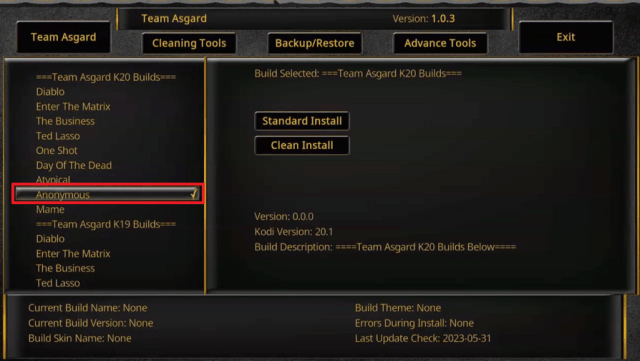
24. Then click the “Team Asgard” tab and scroll down then Choose “Anonymous

Anonymous Kodi Build on Firestick


25. Select “Clean Install

Anonymous Kodi Build on Firestick


26. Click “Yes”. Anonymous Kodi Build will then start to install.

Anonymous Kodi Build on Firestick


27. Then click “OK” to force close Kodi. Click “OK” once more.

Anonymous Kodi Build on Firestick


28. Then relaunch Kodi. That’s it, Anonymous Kodi Build is already installed on your Firestick.

Anonymous Kodi Build on Firestick


YOUR INTERNET ACTIVITY IS BEING WATCHED

ReviewVPN cannot attest to the legality, security and privacy of the applications discussed on this site. It is highly recommended that you use a VPN service while streaming or using Kodi.

Currently, your IP 216.73.216.208 is visible to everyone and your Browser is being tracked by Advertisers & ISP Provider.

Save 65% Now

Limited Time Offer

Here are the main reasons why you must use a VPN:

  • Your activities are hidden from your ISP, the government, and from the apps you are using.
  • You can access additional movies and TV streams.
  • ISP attempts to throttle are thrwarted thus reducing buffering issues.
  • Geographically restricted content like Netflix and Hulu can be unblocked.

A VPN works be replacing your ISP-assigned IP address and creating an encrypted tunnel. We recommend the no log service offered by IPVanish. It works well on a Firestick and offers the fastest possible speeds.

Special Limited Time Offer - Get IPVanish


Legal Disclaimer: ReviewVPN.com does not encourage or endorse any illegal activity involved in the usage of services and applications referenced on this site. We do not verify the licensing agreements of services. The end-user is wholly responsible for ensuring that any media accessed through these services does not violate copyright and/or licensing laws. ReviewVPN does not promote, link to, or receive compensation from any Apps and IPTV services.


Install Surfshark on Firestick

Best Surfshark Deal


Features

  • Access to movies, television shows, sports, and live television is available.
  • The main categories are Asgard, Scrubs, Sports, Live, Shazam, and System.
  • There are several networks available, including Animal Planet, BBC America, Bloomberg TV, Cartoon Network, Cinemax, ESPN, Fox, Hallmark, NFL Network, Showtime, Starz, TLC, TNT, USA Network, and more.
  • Offers live and on-demand access to events like the NFL, NBA, UFC, Wrestling, Formula 1, Premier League, and more.
  • Delivers broadcasts in resolutions of 8k, 6k, 4k, 2k, 1080p, 720p, and SD.
  • Subtitle support is available.
  • Allows you to create and clear bookmarks.
  • Adjustable Audio and Video Settings.


Anonymous Kodi Build – Addons

  • Asgard
  • Scrubs
  • Rising Tides
  • The Loop
  • Asgard Sports
  • Torque Lite
  • TvOne
  • Livenet
  • Json IPTV
  • Shazam


Pros & Cons

Pros

  • There are freely available streams.
  • Several streaming connections are accessible.
  • There are different built-in add-ons available for any category you want.


Cons

  • There are numerous playback errors.
  • Some titles don’t have streaming available.
  • There is no option for debrid integration.
  • Trakt support is unavailable.


Should I Use Anonymous Kodi Build with a VPN?

Surfshark vpn

Using a VPN, such as Surfshark when using Kodi and its builds is usually recommended. This is particularly the case if you’re using unofficial builds, such as Anonymous Kodi Build, which is not accessible through the official Kodi repository.

With the assistance of Surfshark, you could start by protecting your privacy. It enables you to conceal your real IP address, preventing anyone on the internet from finding anything about you.

Surfshark will provide you with an anonymous IP address and route all of your traffic through a secure tunnel. As a result, any third-party Build’s servers will be unable to gather any information from you.

Apart from that, the following are some additional advantages in support of using Surfshark:

  • It protects against hackers and phishers stealing your data.
  • IP address leaks and data breaches are guarded against by strict zero-log policies.
  • Allows you to circumvent geographical and censorship constraints.
  • It safeguards your device with 256-bit GCM encryption.
  • Protects simultaneous device connections, allowing you to safeguard all of your accounts at once.
  • Contains a Cleanweb that guards against viruses and advertisements.
  • It has a pop-up blocker for cookie consent.
  • If your VPN connection is suddenly lost, a kill switch will automatically disconnect your device from the internet.

Note: For more information about Surfshark, please read our Surfshark Review.


Install Surfshark on Firestick

Best Surfshark Deal


How to Install Surfshark VPN on Firestick

If your Firestick still has the older interface, read this article to learn how to update it: Update Firestick Interface.

1. Go to the Home screen of your Firestick.

step 1 Install Surfshark VPN on Firestick


2. Navigate toward the Find tab. Press the Search button from the resulting dropdown.

step 2 Install Surfshark VPN on Firestick


3. Type in the keyword of SurfShark and select from the suggestions that will appear.

step 3 Install Surfshark VPN on Firestick


4. Click the official SurfShark icon from your search results.

step 4 Install Surfshark VPN on Firestick


5. Press the Download button.

step 5 Install Surfshark VPN on Firestick


6. The SurfShark VPN installer will download on your device.

step 6 Install Surfshark VPN on Firestick


7. SurfShark VPN’s app will automatically install itself on your Fire TV stick.

step 7 Install Surfshark VPN on Firestick


8. Press the Open button after completing SurfShark VPN’s installation process.

step 8 Install Surfshark VPN on Firestick


9. Please wait for the SurfShark VPN to load its user interface.

step 9 Install Surfshark VPN on Firestick


10. You can now log in with your SurfShark VPN account credentials.

step 10 Install Surfshark VPN on Firestick

Learn more about Surfshark and Grab the Best Surfshark Deal Now!


Install Surfshark on Firestick

Best Surfshark Deal


Other VPNs to Consider

NordVPN (Best for Streaming)

Best Features

  • 5000+ Server in 50+ Countries 
  • Military-Grade Encryption
  • Fast Connection Speed
  • Suitable to a lot of devices
  • No-Log Policy

Prices
  • Complete $5.89 per month (64% Discount)
  • Plus $4.59 per month (56% Discount)
  • Standard $3.69 per month (55% Discount)

Best Features

  • 750+ High-speed VPN Servers in 43 Locations
  • Military-Grade Encryption
  • Fastest HD Streaming and Gaming
  • 30-Day Money-Back Guarantee
  • Unlimited Data & Devices
  • No-Log Policy

Prices
  • 3 Years $1.99 per month (82% Discount)
  • 1 Years $3.29 per month (70% Discount)
  • 1 Month $10.99 per month

IPVanish VPN (Most Secure)

Best Features

  • 1200+ Servers in 60+ Countries around the world
  • Unlimited Connections
  • No-Log Policy
  • Top Notch Military-Grade VPN Protocols and Encryptions
  • 100% Safe and Secured
  • Most Trusted VPN
  • Best VPN for Firestick
  • 30-Day Money-Back Guarantee

Prices
  • Yearly $3.99 per month (63% Discount) – 30 days risk free + Ransomware & Malware Protection
  • Quarterly $5.32 per month (51% Discount)
  • Monthly $10.99 per month


For more VPN discounts, go to ReviewVPN Deals and purchase the best VPN.

Click here to get the lowest price on Surfshark through our exclusive limited-time offer.


FAQs

What is Anonymous Kodi Build?

Anonymous is a Kodi Build that comes preinstalled with addons for watching movies, TV shows, live TV, sports, and other content.


Is Anonymous Kodi Build Safe?

The Anonymous Kodi Build’s Repository URL is safe to install and use on your device, such as the Firestick. However, using a VPN like Surfshark is still advised because Anonymous is a third-party Build.

Additionally, you can increase security on your device by providing it with an antivirus such as TotalAV.


Is Anonymous Kodi Build Legal?

Kodi Builds are generally legal. However, we cannot guarantee that anything offered in Anonymous is legal because it has several add-ons.


Wrapping Up

Anonymous Kodi Builds allow you to watch movies, TV shows, live TV, and sports. It also allows you to view its stuff for free. Additionally, it supports up to 8k streaming, so you can be sure that you’ll get video in the best quality available.

However, as Anonymous doesn’t offer support for debrid, you might want to have a look at our list of the best Kodi Builds if you use one.

The 10 Best Tips on How To Use A Firestick The Smart Way

How To Use A Firestick

Do you have an Amazon Firestick and wonder how to use it in the best way possible? Well, then you are on the right page. This article will provide you with the best tips on how to use a Firestick the smart way.

The Amazon Firestick is a great streaming device that lets you watch your favorite shows using different apps. Most cord-cutters may claim it to be the best device for streaming, and maybe some others will disagree. Based on personal experience, the Amazon Firestick is really great because it allows third-party applications that provide free streaming of different channels, movies, and TV series.

Aside from the fact that Amazon Firestick has something to offer, there are some hacks, or tips and tricks that you can use to use the device the smart way. If you can be able to make some adjustments, install some apps, etc. you can be able to use the device properly.


ANONYMOUSLY


Tips on How To Use A Firestick The Smart Way


1. Jailbreak a Firestick

As I said earlier, Firestick has the ability to let users install third-party applications. Third-party apps are those that are not present in the Amazon App Store. They are from unknown sources on the internet. Jailbreaking your Firestick does not mean anything illegal. It means that you are allowing your device to install apps from unknown sources.

Most cord-cutters like jailbreaking their Firestick. It is easy and you can finish it in less than five minutes. No need to wait for anything. All you need to do is follow the steps below:

  1. From your Home screen, go to Settings
  2. Scroll down to My Fire TV
  3. Select Developers Option
  4. Turn off Apps From Unknown Sources

Now that you are done jailbreaking your Firestick, you can now install these best Amazon Firestick Apps.


2. Install the Downloader App

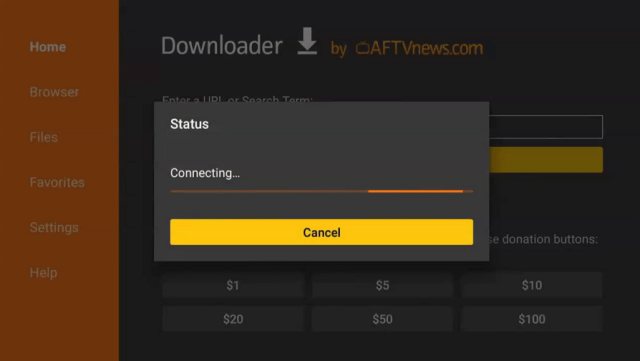
To install third-party apps on your Firestick, you need the Downloader app. The Downloader app is a browser that lets you install files to your device. By knowing the best Downloader codes, you will be able to install the best apps on your Firestick.

The Downloader app is an official Amazon app, which means it is available in the Amazon App Store. It will be easy for you to install this on your device, just follow the steps below:

  1. From your home screen go to Find
  2. Hover to Search
  3. Search for Downloader
  4. Click the icon of the Downloader app
  5. Select Get or Download
  6. Wait for the app to be installed
  7. Choose Open to launch the app


3. Install the Mouse Toggle

If you really want to know how to use a Firestick the smart way, then you need to install Mouse Toggle. It is a very useful app that provides a mouse or cursor whenever you are having a hard time navigating through the app.

The thing is when you are using Firestick, you might want to use or may encounter apps that are not that compatible. It means they may be hard to move or navigate or even click on a certain button. Using a Mouse Toggle is the best option to do. Here is how you can install it on your device.

  1. Install the Downloader App
  2. Type in https://reviewvpn.com/mouse
  3. Click Go
  4. Wait for the App to be installed
  5. Select Open

For more information about this app, read How to Install Mouse Toggle on Firestick.


4. Install The Amazon Silk Browser

It is not only apps that you can use on Firestick. Believe it or not, you can also stream on different websites using your Amazon Fire TV device. There are a lot of streaming websites out there, and the best way to visit them using your Firestick is with the help of teh Amazon Silk Browser.

The Amazon Silk Browser is the official browser for Firestick. It is easy to install. You can find it in the Amazon App Store. Here is how you can easily install it on your device.

  1. From your Home Screen go to the magnifying glass icon (Find)
  2.  Scroll over to Search
  3. Search for the Amazon Silk Browser
  4. Click the icon of the Amazon Silk Browser
  5. Choose the Get or Download button
  6. Wait for the app to be installed
  7. Click the Open button to launch the app

To know more, read How to Install the Amazon Silk Browser on Firestick.


5. Stop Amazon Firestick From Tracking You

This might be the best tip on how to use a Firestick in the smartest way possible. As you may know, there are so many trackers online. Aside from apps, and websites which we will tackle later, your device can also track you. One of the features of teh Amazon Firestick is to know your every move. The device has it in its settings which is on by default which allows it to record every activity the user does with it.

This is very alarming especially if you are very conscious of your privacy.

There are so many features that you need to turn off on your device. Here is how you can stop your Amazon Firestick from tracking everything you do.

  1. Go to Settings
  2. Scroll Down to Preferences
  3. Go to Privacy Settings
  4. Turn Off all of the options under Privacy Settings
    • Device Usage Data – OFF
    • Collect App Usage Data – OFF
    • Interest-based Ads – OFF

Once you’ve turned off all of these, you are now putting an end to your device tracking your online activities and presenting unwanted ads based on your activities.


YOUR INTERNET ACTIVITY IS BEING WATCHED

ReviewVPN cannot attest to the legality, security and privacy of the applications discussed on this site. It is highly recommended that you use a VPN service while streaming or using Kodi.

Currently, your IP 216.73.216.208 is visible to everyone and your Browser is being tracked by Advertisers & ISP Provider.

Save 65% Now

Limited Time Offer

Here are the main reasons why you must use a VPN:

  • Your activities are hidden from your ISP, the government, and from the apps you are using.
  • You can access additional movies and TV streams.
  • ISP attempts to throttle are thrwarted thus reducing buffering issues.
  • Geographically restricted content like Netflix and Hulu can be unblocked.

A VPN works be replacing your ISP-assigned IP address and creating an encrypted tunnel. We recommend the no log service offered by IPVanish. It works well on a Firestick and offers the fastest possible speeds.

Special Limited Time Offer - Get IPVanish


Legal Disclaimer: ReviewVPN.com does not encourage or endorse any illegal activity involved in the usage of services and applications referenced on this site. We do not verify the licensing agreements of services. The end-user is wholly responsible for ensuring that any media accessed through these services does not violate copyright and/or licensing laws. ReviewVPN does not promote, link to, or receive compensation from any Apps and IPTV services.


Install Surfshark on Firestick

Get the Best Surfshark Deal


6. Check If Your Remote Batteries Are Dying

Your Firestick remote play a major role in using your device. It is important to make sure that your remote’s batteries are not dying. Good thing that there is a way to check the current strength of your remote batteries. Follow the steps below to learn how:

  1. From your home screen, go to Settings.
  2. Scroll down to Controllers and Bluetooth Devices
  3. Select the option that says Amazon Fire TV Remote
  4. Look at the right side to see the current strength of your Amazon Fire TV remote batteries.


7. Close Apps That Are Running In The Background of Your Device

As you use your Firestick, you will use different apps. When you exit an app and move to the other, the recent application is still running in the background of your device. This is the reason why you may experience your Firestick not being fast enough. In order to remove buffering while using Firestick, all you need to do is to clear the cache, clear data, or force-stop the application.

It is very easy to force close an application that is running in the background. Follow the steps below to know how.

  1. From your home screen, go to Settings.
  2. Go to Applications
  3. Scroll down to Manage Installed Applications
  4. Choose the app that you want to force close
  5. Once you click on the application, you will see these options: Permissions, Launch Application, Force Stop, Uninstall, Clear data, and Clear cache.
  6. Choose the best option for you, but in order to close the app, choose Force Close.


8. Check System Updates

The Amazon Firestick commonly has updates. In order for you to learn how to use a Firestick the best way, you need to always check if there is an available system update.

Actually, you can make it automatic for your device to update on its own when there is a huge system update available. But you can also check your settings for any available updates. Follow the steps below:

  1. From your home screen, go to Settings.
  2. Go to My Fire TV
  3. Choose the About option
  4. Click Check For Updates
  5. With this, you will learn both the current version and the latest version available
  6. If your Firestick is up to date then there is no need for you to update your device.


9. Check Firestick Storage

Another way how to use a Firestick the best way is to check if your Firestick still has enough storage. This problem is very common to all devices. When we install so many apps on our devices, we lessen the storage space.

It is best if you are aware of the storage space you still have on your device. Follow the steps below to learn how.

  1. From your home screen, go to Settings.
  2. Scroll down to My Fires TV
  3. Select teh About button
  4. Go to Storage
  5. On the right side, you will see how much internal storage you already use and how much you still have.


10. Use A Virtual Private Network For Safe Streaming

The last tip that you need on how to use a Firestick the best way is to use a Virtual Private Network or VPN. A VPN can hide your IP address, and provide a new one that can help you bypass geo-restriction.

Another great thing about using a VPN is making sure that you are safe from so many trackers online like your Internet Service Provider (ISP), malicious domains, websites, apps, devices, and even from the government. By having a different IP address, you are hidden from any spying eyes.

A VPN is applicable to so many devices including Firestick. Learn the best VPN that you can use on your Amazon Fire TV device.


Best VPN For Firestick

Surfshark vpn

Surfshark VPN is the best VPN for Firestick. It has all of the best qualities that you are looking for. The VPN protocols on Surfshark are top-notch military-grade secured. Wherever you are using the service, you are ensured that your identity is protected.

Surfshark is also the best VPN that can unblock almost all streaming platforms even Netflix, Hulu, YouTube, and many more. Its unblocking ability is beyond compare, making it one of the best VPNs in the market today.

We wrote down a massive review on this VPN, you can read it here: Surfshark VPN Review – Is It The Best VPN?

Other SurfShark Features

  • 3200 servers available in 100+ countries
  • Best VPN for torrenting
  • Destroys geo-restriction
  • Dedicated IP
  • 30-day money-back guarantee
  • Cloud Storage
  • P2P friendly VPN
  • SOCKS5 Proxy
  • Allows Torrenting
  • Kill Switch
  • Split Tunneling
  • DNS Leak Protection
  • Prevents Firestick Buffering and Kodi Buffering

For more details about this VPN, read our SurfShark review.


Grab your subscription now!

Best Surfshark Deal


How to Install Surfshark on Firestick with Screenshots

If your Firestick still has the older interface, read this article to learn how to update it: Update Firestick Interface.

You can download Surfshark directly from the Amazon App Store. It will be easy for you to find Surfshark with your Firestick’s Find feature. Refer to our screenshots below.

Follow our screenshots below to install the SurfShark VPN app on your Fire TV stick.

1. Go to the Home screen of your Firestick.

step 1 Install Surfshark VPN on Firestick


2. Navigate toward the Find tab. Press the Search button from the resulting dropdown.

step 2 Install Surfshark VPN on Firestick


3. Type in the keyword of SurfShark and select from the suggestions that will appear.

step 3 Install Surfshark VPN on Firestick


4. Click the official SurfShark icon from your search results.

step 4 Install Surfshark VPN on Firestick


5. Press the Download (You Own it) button.

step 5 Install Surfshark VPN on Firestick


6. The SurfShark VPN installer will download on your device.

step 6 Install Surfshark VPN on Firestick


7. SurfShark VPN’s app will automatically install itself on your Fire TV stick.

step 7 Install Surfshark VPN on Firestick


8. Press the Open button after completing SurfShark VPN’s installation process.

step 8 Install Surfshark VPN on Firestick


9. Please wait for the SurfShark VPN to load its user interface.

step 9 Install Surfshark VPN on Firestick


10. You can now log in with your SurfShark VPN account credentials.

step 10 Install Surfshark VPN on Firestick

Learn more about Surfshark and Grab the Best Surfshark Deal Now!


Install Surfshark on Firestick

Best Surfshark Deal


Other VPNs to Consider

NordVPN (Best for Streaming)

Best Features

  • 5000+ Server in 50+ Countries 
  • Military-Grade Encryption
  • Fast Connection Speed
  • Suitable to a lot of devices
  • No-Log Policy

Prices
  • Complete $5.89 per month (64% Discount)
  • Plus $4.59 per month (56% Discount)
  • Standard $3.69 per month (55% Discount)

Best Features

  • 750+ High-speed VPN Servers in 43 Locations
  • Military-Grade Encryption
  • Fastest HD Streaming and Gaming
  • 30-Day Money-Back Guarantee
  • Unlimited Data & Devices
  • No-Log Policy

Prices
  • 3 Years $1.99 per month (82% Discount)
  • 1 Years $3.29 per month (70% Discount)
  • 1 Month $10.99 per month

IPVanish VPN (Most Secure)

Best Features

  • 1200+ Servers in 60+ Countries around the world
  • Unlimited Connections
  • No-Log Policy
  • Top Notch Military-Grade VPN Protocols and Encryptions
  • 100% Safe and Secured
  • Most Trusted VPN
  • Best VPN for Firestick
  • 30-Day Money-Back Guarantee

Prices
  • Yearly $3.99 per month (63% Discount) – 30 days risk free + Ransomware & Malware Protection
  • Quarterly $5.32 per month (51% Discount)
  • Monthly $10.99 per month


For more VPN discounts, go to ReviewVPN Deals and purchase the best VPN for you.

Click here for the lowest price on Surfshark through our exclusive limited-time offer.


Conclusion

Learning how to use a Firestick is not that hard. These tips and tricks can show you the full potential of using this device. It may be best for streaming, but knowing these may boost its ability to show you more apps, and content to stream.

We hope that we are able to help you learn how to use a Firestick the smart way.

Turn off Firestick Without Turning Off TV

Turn Off Firestick Without Turning Off the TV

This article will help you turn off Firestick without Turning Off your TV. It is applicable on different Firestick devices like Amazon Firestick 4K, and Amazon Fire TV Cube.

Your Firestick remote is a powerful tool for your Firestick. Make sure to not misplace it. It plays a key role in this process to turn off Firestick without turning off your TV. The Firestick remote has some power buttons that can make your Firestick device sleep. This means that it may still be connected to your TV but it is not active.

When we say turn off Firestick without turning off the TV, it means that putting your Firestick to sleep. Actually, your device will automatically disable itself when idle for about 20 minutes. But if you like to manually turn it off, there is a way.

Take note that Firestick does not shut down but only goes to sleep. Continue reading this article to learn how you can do this easily.


ANONYMOUSLY


How to Turn Off Firestick Without Turning Off TV

1. Go to the home screen of FireStick. Now, select Settings in the menu bar.

1


2. When you are here, select and click the option My Fire TV

2


3. Scroll and choose the option Sleep

3


YOUR INTERNET ACTIVITY IS BEING WATCHED

ReviewVPN cannot attest to the legality, security and privacy of the applications discussed on this site. It is highly recommended that you use a VPN service while streaming or using Kodi.

Currently, your IP 216.73.216.208 is visible to everyone and your Browser is being tracked by Advertisers & ISP Provider.

Save 65% Now

Limited Time Offer

Here are the main reasons why you must use a VPN:

  • Your activities are hidden from your ISP, the government, and from the apps you are using.
  • You can access additional movies and TV streams.
  • ISP attempts to throttle are thrwarted thus reducing buffering issues.
  • Geographically restricted content like Netflix and Hulu can be unblocked.

A VPN works be replacing your ISP-assigned IP address and creating an encrypted tunnel. We recommend the no log service offered by IPVanish. It works well on a Firestick and offers the fastest possible speeds.

Special Limited Time Offer - Get IPVanish


Legal Disclaimer: ReviewVPN.com does not encourage or endorse any illegal activity involved in the usage of services and applications referenced on this site. We do not verify the licensing agreements of services. The end-user is wholly responsible for ensuring that any media accessed through these services does not violate copyright and/or licensing laws. ReviewVPN does not promote, link to, or receive compensation from any Apps and IPTV services.


Install Surfshark on Firestick

Get the Best Surfshark Deal


Other Ways to Turn Off Firestick

Aside from turning your Firestick to sleep, there are still other ways to turn off Firestick.

Instead of going your way to settings, then my fire tv, there is a shortcut where you can easily find the sleep button. Follow these simple steps:

  1. Hold press the home button of your Firestick remote until the pop-up shortcuts appear.
  2. You will see options like Profile, Apps, Sleep, Mirroring, and Settings.
  3. Move to the right until you reach Sleep
  4. Click on the Sleep option to turn off your device.


Take note of how your can wake up your Firestick device. To wake up your Firestick, simply press any button on your remote. 


Another way how you can easily turn off your Firestick without turning off your TV is by unplugging your device from the source of power. You see, even though you make your Firestick go to sleep, the device is still running in the background of your TV. It still gets electricity, cache, data, and information. To permanently turn off Firestick without turning off the TV, you need to unplug it.


Best VPN For Firestick

Surfshark vpn

You might wonder what is the importance of having a Virtual Private Network. Safety and Privacy should be the two main goals of any VPN service. A VPN should make the user’s information safe from all trackers.

There are so many trackers online and you probably have no idea about some of them. First off is your Internet Service Provider or ISP. Your ISP can see what you are doing, it pings them when you stream on different shows using any device. You might wonder why you experience buffering, it is because your ISP is throttling your connection. The next are the apps and websites you use for streaming. They collect your information. You may see cookies when visiting a website. This is the website’s way of letting you know and accepting them tracking you. The 3rd one is the device you are using. Firestick has a setting by default that can track users. Be mindful of all probable trackers on the internet.

Surfshark VPN is the best VPN for protection. It can hide your real IP and provide a new one by connecting you to a server from a different country. This can also help you bypass geo-restriction, and access geo-restricted content while making sure that you are safe and private. It has the best qualities that you can ask for when streaming. You can read them all here in our SurfShark review to know more about this amazing VPN.

Other SurfShark Features

  • 3200 servers available in 100+ countries
  • Best VPN for torrenting
  • Destroys geo-restriction
  • Dedicated IP
  • 30-day money-back guarantee
  • Cloud Storage
  • P2P friendly VPN
  • SOCKS5 Proxy
  • Allows Torrenting
  • Kill Switch
  • Split Tunneling
  • DNS Leak Protection
  • Prevents Firestick Buffering and Kodi Buffering

For more details about this VPN, read our SurfShark review.


Grab your subscription now!

Best Surfshark Deal


How to Install Surfshark on Firestick with Screenshots

If your Firestick still has the older interface, read this article to learn how to update it: Update Firestick Interface.

You can download Surfshark directly from the Amazon App Store. It will be easy for you to find Surfshark with your Firestick’s Find feature. Refer to our screenshots below.

Follow our screenshots below to install the SurfShark VPN app on your Fire TV stick.

1. Go to the Home screen of your Firestick.

step 1 Install Surfshark VPN on Firestick


2. Navigate toward the Find tab. Press the Search button from the resulting dropdown.

step 2 Install Surfshark VPN on Firestick


3. Type in the keyword of SurfShark and select from the suggestions that will appear.

step 3 Install Surfshark VPN on Firestick


4. Click the official SurfShark icon from your search results.

step 4 Install Surfshark VPN on Firestick


5. Press the Download (You Own it) button.

step 5 Install Surfshark VPN on Firestick


6. The SurfShark VPN installer will download on your device.

step 6 Install Surfshark VPN on Firestick


7. SurfShark VPN’s app will automatically install itself on your Fire TV stick.

step 7 Install Surfshark VPN on Firestick


8. Press the Open button after completing SurfShark VPN’s installation process.

step 8 Install Surfshark VPN on Firestick


9. Please wait for the SurfShark VPN to load its user interface.

step 9 Install Surfshark VPN on Firestick


10. You can now log in with your SurfShark VPN account credentials.

step 10 Install Surfshark VPN on Firestick

Learn more about Surfshark and Grab the Best Surfshark Deal Now!


Install Surfshark on Firestick

Best Surfshark Deal


Other VPNs to Consider

NordVPN (Best for Streaming)

Best Features

  • 5000+ Server in 50+ Countries 
  • Military-Grade Encryption
  • Fast Connection Speed
  • Suitable to a lot of devices
  • No-Log Policy

Prices
  • Complete $5.89 per month (64% Discount)
  • Plus $4.59 per month (56% Discount)
  • Standard $3.69 per month (55% Discount)

Best Features

  • 750+ High-speed VPN Servers in 43 Locations
  • Military-Grade Encryption
  • Fastest HD Streaming and Gaming
  • 30-Day Money-Back Guarantee
  • Unlimited Data & Devices
  • No-Log Policy

Prices
  • 3 Years $1.99 per month (82% Discount)
  • 1 Years $3.29 per month (70% Discount)
  • 1 Month $10.99 per month

IPVanish VPN (Most Secure)

Best Features

  • 1200+ Servers in 60+ Countries around the world
  • Unlimited Connections
  • No-Log Policy
  • Top Notch Military-Grade VPN Protocols and Encryptions
  • 100% Safe and Secured
  • Most Trusted VPN
  • Best VPN for Firestick
  • 30-Day Money-Back Guarantee

Prices
  • Yearly $3.99 per month (63% Discount) – 30 days risk free + Ransomware & Malware Protection
  • Quarterly $5.32 per month (51% Discount)
  • Monthly $10.99 per month


For more VPN discounts, go to ReviewVPN Deals and purchase the best VPN for you.

Click here for the lowest price on Surfshark through our exclusive limited-time offer.


Conclusion

You can turn off Firestick without turning off your TV. Easily out your device to sleep using your Firestick remote. We provided the easy-to-follow steps above.

Putting your Firestick to sleep does not necessarily mean that it is already turned off. The device is still running in the background of your TV. Unplug your Firestick to permanently turn it off.

We hope that this article helped you to turn off your Firestick without Turning off your TV.

How to Install Blu Movies on Firestick and Android – Free Adult App

Blu Movies

Are you looking for an app where you can watch adult content for free? Let us introduce you to Blu Movies. In this article, we will show you how you can install this app on your Firestick and Android devices.

Please take note that this app is for adults only. If you are less than 18 years old, this article is not for you.

Blu Movies is a free adult app that offers tons of videos to stream. It is more applicable on Android devices like mobile phones and tablets rather than on Firestick. This is because when you install Blu Movies on Firestick, it has an expanded user interface.

Blu Movies is a third-party application. This means that you won’t find this app in the Amazon App Store. In order to install this on your Amazon Firestick, you need to jailbreak your device and use the Downloader app.

It is best if you use a trusted VPN service whenever you are using an app like Blu Movies. Continue reading for more.


Blu Movies APK Download for Android Devices


blu movies

Note: ReviewVPN.com does not host this APK file. It is hosted by Archive.org


ANONYMOUSLY


How to Install Blu Movies on Firestick (VIDEO)


How to Install Blu Movies on Firestick

1.  From your home screen, go to Settings.

Install Blu Movies on Firestick


2. Scroll down and to the right until you get to My Fire TV. Click on it.

Install Blu Movies on Firestick


3. Select Developer options.

Install Blu Movies on Firestick


4. Turn on ADB debugging and Apps from Unknown Sources.

Install Blu Movies on Firestick


5. Click Turn On when the pop-up appears.

Install Blu Movies on Firestick


6. Click Home, click FIND.

Install Blu Movies on Firestick


7. Click Search.

Install Blu Movies on Firestick


8. You can either say Downloader to your Alexa voice-enabled remote or start typing it. If you typed it, click on the suggestion when it appears.

Install Blu Movies on Firestick


9. Click on the Downloader Icon.

Install Blu Movies on Firestick


10. Click Download.

Install Blu Movies on Firestick


Install Blu Movies on Firestick


11. Click on Open.

Install Blu Movies on Firestick


12. Click on Allow.

Install Blu Movies on Firestick


13. Use the Downloader search tab.

Install Blu Movies on Firestick


14. Type https://reviewvpn.com/blmv and click go.

Install Blu Movies on Firestick


15. Wait for the APK to be downloaded.

Install Blu Movies on Firestick

Install Blu Movies on Firestick


16. Click install

Install Blu Movies on Firestick


17. Click open.

Install Blu Movies on Firestick


18. Blu Movies is already installed. And if you encounter this just follow the indicated numbers on the firestick remote. Then Enjoy!

Install Blu Movies on Firestick


YOUR INTERNET ACTIVITY IS BEING WATCHED

ReviewVPN cannot attest to the legality, security and privacy of the applications discussed on this site. It is highly recommended that you use a VPN service while streaming or using Kodi.

Currently, your IP 216.73.216.208 is visible to everyone and your Browser is being tracked by Advertisers & ISP Provider.

Save 65% Now

Limited Time Offer

Here are the main reasons why you must use a VPN:

  • Your activities are hidden from your ISP, the government, and from the apps you are using.
  • You can access additional movies and TV streams.
  • ISP attempts to throttle are thrwarted thus reducing buffering issues.
  • Geographically restricted content like Netflix and Hulu can be unblocked.

A VPN works be replacing your ISP-assigned IP address and creating an encrypted tunnel. We recommend the no log service offered by IPVanish. It works well on a Firestick and offers the fastest possible speeds.

Special Limited Time Offer - Get IPVanish


Legal Disclaimer: ReviewVPN.com does not encourage or endorse any illegal activity involved in the usage of services and applications referenced on this site. We do not verify the licensing agreements of services. The end-user is wholly responsible for ensuring that any media accessed through these services does not violate copyright and/or licensing laws. ReviewVPN does not promote, link to, or receive compensation from any Apps and IPTV services.


Install Surfshark on Firestick

Get the Best Surfshark Deal


Blu Movies Features

  • 100% free
  • No registration required
  • Need to use Mouse Toggle on Firestick
  • More applicable on Android devices like mobile phones and tablets


Pros and Cons

Pros

  • 100% free
  • No registration required


Cons

  • Expanded user interface on Firestick


Stream Safely With a VPN

Surfshark vpn

When streaming on third-party apps like Blu Movies, you need to keep your privacy safe. There are apps that provide links from unknown sources all over the internet. We are not 100% sure if all of the links that Blu Movies provides are safe and do not host any suspicious domains.

The best way to keep yourself safe from any malicious files and domains is by using a Virtual Private Network or VPN. A VPN is a tool that can hide your IP address, protects it from any trackers, and provides a new one that you can use. This way you can secure your connection while streaming everything you like on different websites and apps like Blu Movies.

Surfshark VPN is the best VPN for protection. It can hide your real IP and provide a new one by connecting you to a server from a different country. This can also help you bypass geo-restriction, and access geo-restricted content while making sure that you are safe and private. It has the best qualities that you can ask for when streaming. You can read them all here in our SurfShark review to know more about this amazing VPN.

Other SurfShark Features

  • 3200 servers available in 100+ countries
  • Best VPN for torrenting
  • Destroys geo-restriction
  • Dedicated IP
  • 30-day money-back guarantee
  • Cloud Storage
  • P2P friendly VPN
  • SOCKS5 Proxy
  • Allows Torrenting
  • Kill Switch
  • Split Tunneling
  • DNS Leak Protection
  • Prevents Firestick Buffering and Kodi Buffering

For more details about this VPN, read our SurfShark review.


Grab your subscription now!

Best Surfshark Deal


How to Install Surfshark on Firestick with Screenshots

If your Firestick still has the older interface, read this article to learn how to update it: Update Firestick Interface.

You can download Surfshark directly from the Amazon App Store. It will be easy for you to find Surfshark with your Firestick’s Find feature. Refer to our screenshots below.

Follow our screenshots below to install the SurfShark VPN app on your Fire TV stick.

1. Go to the Home screen of your Firestick.

step 1 Install Surfshark VPN on Firestick


2. Navigate toward the Find tab. Press the Search button from the resulting dropdown.

step 2 Install Surfshark VPN on Firestick


3. Type in the keyword of SurfShark and select from the suggestions that will appear.

step 3 Install Surfshark VPN on Firestick


4. Click the official SurfShark icon from your search results.

step 4 Install Surfshark VPN on Firestick


5. Press the Download (You Own it) button.

step 5 Install Surfshark VPN on Firestick


6. The SurfShark VPN installer will download on your device.

step 6 Install Surfshark VPN on Firestick


7. SurfShark VPN’s app will automatically install itself on your Fire TV stick.

step 7 Install Surfshark VPN on Firestick


8. Press the Open button after completing SurfShark VPN’s installation process.

step 8 Install Surfshark VPN on Firestick


9. Please wait for the SurfShark VPN to load its user interface.

step 9 Install Surfshark VPN on Firestick


10. You can now log in with your SurfShark VPN account credentials.

step 10 Install Surfshark VPN on Firestick

Learn more about Surfshark and Grab the Best Surfshark Deal Now!


Install Surfshark on Firestick

Best Surfshark Deal


Other VPNs to Consider

NordVPN (Best for Streaming)

Best Features

  • 5000+ Server in 50+ Countries 
  • Military-Grade Encryption
  • Fast Connection Speed
  • Suitable to a lot of devices
  • No-Log Policy

Prices
  • Complete $5.89 per month (64% Discount)
  • Plus $4.59 per month (56% Discount)
  • Standard $3.69 per month (55% Discount)

Best Features

  • 750+ High-speed VPN Servers in 43 Locations
  • Military-Grade Encryption
  • Fastest HD Streaming and Gaming
  • 30-Day Money-Back Guarantee
  • Unlimited Data & Devices
  • No-Log Policy

Prices
  • 3 Years $1.99 per month (82% Discount)
  • 1 Years $3.29 per month (70% Discount)
  • 1 Month $10.99 per month

IPVanish VPN (Most Secure)

Best Features

  • 1200+ Servers in 60+ Countries around the world
  • Unlimited Connections
  • No-Log Policy
  • Top Notch Military-Grade VPN Protocols and Encryptions
  • 100% Safe and Secured
  • Most Trusted VPN
  • Best VPN for Firestick
  • 30-Day Money-Back Guarantee

Prices
  • Yearly $3.99 per month (63% Discount) – 30 days risk free + Ransomware & Malware Protection
  • Quarterly $5.32 per month (51% Discount)
  • Monthly $10.99 per month


For more VPN discounts, go to ReviewVPN Deals and purchase the best VPN for you.

Click here for the lowest price on Surfshark through our exclusive limited-time offer.


Best Alternatives to Blu Movies

Aside from Blu Movies, you can still stream adult content on your Firestick and Android devices using these best alternatives.

For more adult apps, read the 10+ Best Adult Porn Apps For Firestick.


FAQs

What is Blu Movies?

Blu Movies is an adult porn streaming app that offers lots of porn videos to stream.


Is Blu Movies App legal?

ReviewVPN.com cannot determine the legality of any app or website. This article is for educational purposes only. To make sure that you are safe from any legal matters regarding the apps and websites you are using, use a VPN service like Surfshark.


Is Blu Movies App safe?

To ensure your safety while streaming on adult porn apps like Blu Movies, make sure to protect yourself using a trusted VPN like Surfshark.


Is the Blu Movies App Free?

The Blu Movies app is 100% free.


Are there any ads?

There are no ads when you stream on Blu Movies.


Conclusion

Blu Movies is a third-party application that offers porn videos. It is working on Firestick but it has an expanded user interface, which is why it is more applicable on Android phones and tablets.

Streaming on app like Blu Movies could be dangerous to your privacy that is why it is best to use a VPN like Surfshark.