Best Kids Channels for Firestick

Overview

In this article, we will teach you how to install the Best Kids Channels on your Fire TV stick.

Kids of today have the latest gadgets for watching many television channels. Thankfully, all these channels have shows made for children’s viewing. Parents can relax since these shows are safe for the youth. They also offer some features you won’t find on other channels.
 

Television was the main source of electronic entertainment before the internet became a worldwide phenomenon. We can still remember some of the TV shows from our childhood. Fortunately, the technologies of today bring us a new era for cartoons and 3D animations.

As we all know, the movie and television industries are focusing on CGI. There is nothing more enjoyable than watching giant robots or fictional characters play their roles on our wide TV monitors. Furthermore, we can watch them in high resolution.

The magic of television streaming is now at the fingertips of our children. Many streaming devices and platforms help bring kids’ TV shows right on our screens. All of these are made possible with a reliable internet connection. Your kids may now watch child-friendly television shows on their devices without you worrying about the content of these programs.

If you are looking for the Best Kids’ Channels for the viewing of children, you’ve come across the right article. Let us now introduce you to the Best Kids’ Channels available on your Fire TV stick.


ANONYMOUSLY


Best Kids’ Channels on the Fire TV stick

You can find all these kids’ channels easily while using your Fire TV stick. Children around you will enjoy watching a variety of TV shows and video clips from these channels.


Happy Kids

As parents and guardians of the youth, we all want a TV channel that respects their age. The TV shows we like them to watch should feature safe content. As a result, we can relax and enjoy our time watching these shows with our kids.

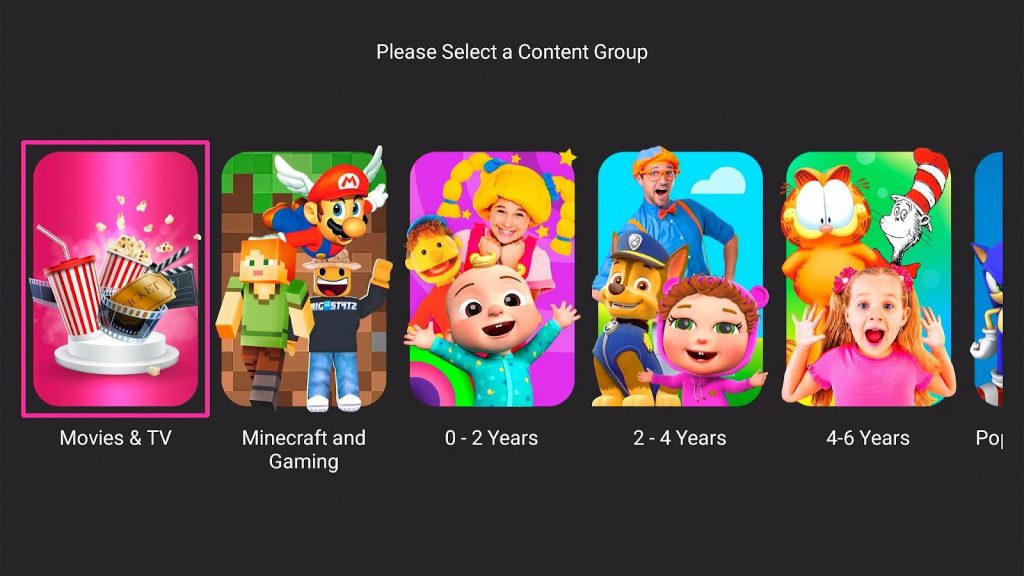
Luckily for both kids and adults, the Fire TV stick has some apps and channels tailored for kids’ viewing. These channels contain safe content perfect for the youth. For example, the Happy Kids channel contains cartoons, 3D animations, and live-action shows.

The Happy Kids channel has over fifty-five thousand episodes of free video content. All of them are free for streaming and available to over 75 million monthly visitors. You only have to own a mobile and TV set with a reliable internet connection.

Apart from its content, kids and adults can find other videos easily. Upon opening the app, you will find kids’ TV shows such as Bakugan, Barbie Dreamtopia, Cocomelon, Diana Kids Show, LEGO Friends, LEGO Ninjago, Molang, Paw Patrol Pup Tales, Pororo, Pokemon, Ryan and Friends, Sonic the Hedgehog, and many more!

 

Happy Kids 1


Happy Kids 2


YouTube Kids

Great news for the youth! The website giant known as YouTube has developed an app made for children. As we all know, YouTube is the main service where we can upload many videos. It can be original video footage or videos clips from our favorite shows.

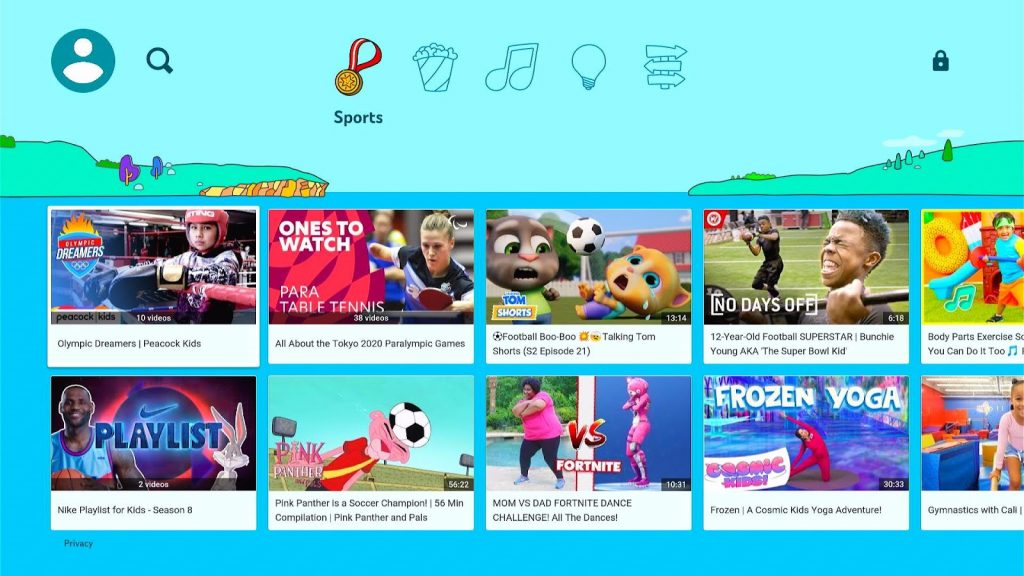
Today, the appearance of streaming devices and services gives way to the distribution of more content. To set itself apart, YouTube has a children’s app known as YouTube Kids. The YouTube Kids Channel offers a variety of videos meant for the viewing of children. All the videos are safe to watch and are parent-friendly.

When you open the YouTube Kids app, you can either register, log in, or continue as a guest. Either way, you choose, a selection of age sets is shown. When you click on an age set for toddlers, all the YouTube videos for toddlers will be present in gallery style. You won’t have a hard time searching for videos to entertain your kids.

 

YouTube Kids 1


YouTube Kids 2


ChuChu TV

Singing nursery rhymes is the classical way where people taught their offspring the basics of our language. It has been quite some time since nursery rhymes became available on the internet. Typically, many parents resort to the old TV set when looking for channels playing nursery rhymes.

Nursery rhymes are also played by our nursery school teachers. Some of these memorable songs offer colorful stories and lessons meant for the youth. Today, with many streaming services across the world, nursery rhymes can easily be found. Whether you visit a website or listen to an app, classic nursery rhymes are still difficult to find.

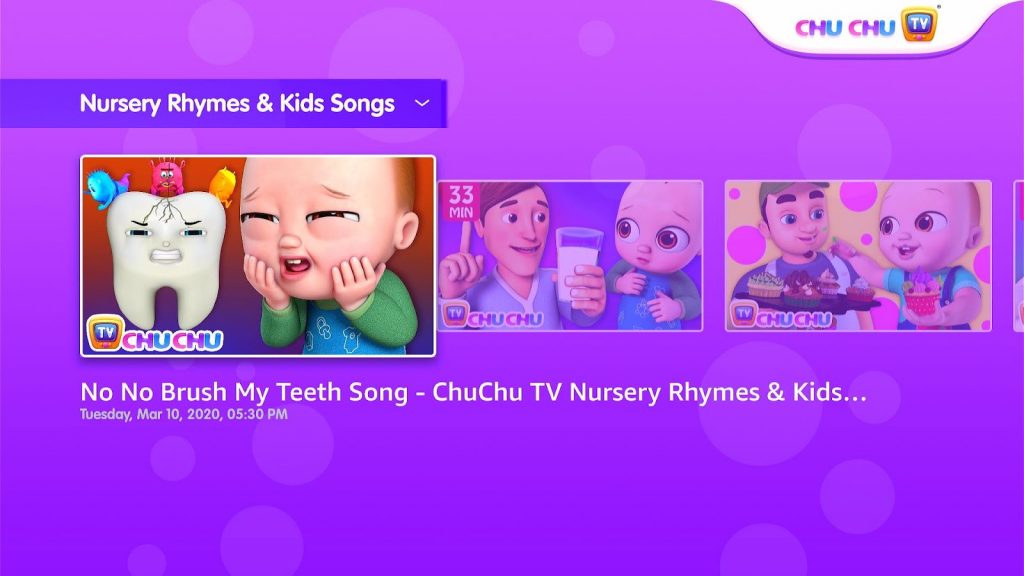
If you are looking for an app that plays nursery rhymes, then we got your back. The Fire TV stick contains a TV app known as ChuChu TV. The app’s purpose is to play old and new nursery rhymes for your kids. You won’t experience the hard process of searching the internet for classic and new nursery rhymes.

 

ChuChu TV 1


ChuChu TV 2


Install Surfshark on Firestick

Best Surfshark Deal


KidsBee TV

Many parents and guardians stress the need for safe content. Television plays an important role in a child’s development. The TV shows and characters they watch set an example that a child can follow. It is crucial to search for safe kids’ channels while developing their personalities.

Many people opt for channels that dedicate themselves to showing safe content for children. For example, the KidsBee TV channel prides itself on showing safe and educational videos for kids. All their content is safe and easy to stream.

The KidsBee TV channel includes videos that are safe for kids. The streaming app contains popular baby games, cartoons, 3D animations, songs, stories, arts, crafts, Yoga videos, and TV shows. All of the media are carefully designed for children’s consumption. The app also has quizzes for teaching kids about the alphabet, numbers, colors, emotions, and more.

 

KidsBee TV 1


KidsBee TV 2

PopcornFlix Kids

Are you looking for a free app that has kids’ TV shows and movies? Then we just got the right app for you. The PopcornFlix Kids app only shows videos that are safe for the viewing of children. Aside from Kids’ TV shows, your entire family may join you in watching these programs.

The good thing about PopcornFlix is that the show is free and does not require any payment. It also does not contain annoying pop-up ads that disturb your movie time. Grab your popcorn and stream movies with PopcornFlix Kids Channel! Here you will find high-quality movies in HD resolutions.

PopcornFlix is perfect if you want shows that do not contain violence. All the movies are safe to watch and friendly to both kids and adults. The feature films found on PopcornFlix Kids Channel show the biggest stars from Hollywood. You may also find some videos and independent movies that suit your preference.

The library of PopcornFlix Kids has thousands of titles to choose from. Streaming videos with the app is fast and does not have glitches. There are lots of Kids’ TV shows to select from. Select from different genres of adventure, 3D animations, Comedy, Sci-Fi, and fairy tales.


 

PopcornFlix Kids 1


PopcornFlix Kids 2


Kidoodle TV

Do you want a channel that only contains cartoons and animations? If yes, then the Kidoodle TV app is perfect for your needs. Suppose you want a safe channel for your kids, the Kidoodle TV app has user-friendly content great for all ages.

The Kidoodle TV app presents you with a wide selection of cartoons and kids’ TV shows. It hosts over twenty-five thousand episodes of the latest and popular cartoon series for your children. Kidoodle TV is an official app from the Amazon app store. You can easily find the app and install it on your Fire TV stick.

The best thing about Kidoodle TV is that it caters to a wide audience. Many children worldwide will easily recognize the characters on each show. When you download the app, you do not have to pay hidden fees or subscribe to its services. Playing the media content is fast and easy.

Upon opening the Kidoodle TV app, your children will be treated with colorful animations and cartoon series. Let them enjoy world-famous shows like Peppa Pig Minis, PAW Patrol, Pup tales, LEGO City, Talking Tom, My Little Pony, Masha & The Bear, Roblox, and many more.


Kids First

Parents and teachers appreciate that early education matters to a child’s development. Television plays a huge role while a child is growing. Many people know that TV shows and their characters can influence the attitude of a child. It is why many adults opt for the safest TV channels meant for kids.

If you combine both television and education in one app, you will get the Kids First TV app. It is the best kids’ channel that offers TV shows where your child can learn about the alphabet, basic math, nursery rhymes, colors, and wonderful stories.

The Kids First TV app lets you play songs and videos that contain memorable lyrics from famous nursery rhymes. As a result, your child may learn early about shapes, colors, and emotions. The Kids First channel has a compilation of entertaining videos. Aside from its enjoyable content, the videos are very educational and comprehensive for your kids.


 

Kids First 1


Kids First 2


Kids Preschool Nursery Rhymes

We all remember the time when we first heard the tunes of classic nursery rhymes. The lyrics and tone are memorable and nostalgic. Aside from their meaning, they provide a basic insight which your kids can learn. It is why nursery rhymes are typically shown to kids at an early age.

If you are looking for an app with many nursery rhymes, then the Kids Preschool Nursery Rhymes app is perfect for your needs. When you open the app, your children can enjoy preschool educational games. Kids may also play puzzles, videos, TV shows, and learn from kids’ stories.

The app also contains interactive games made for the development of your child’s brain. All the games and videos are crucial in improving their imagination, cognitive skills, and reasoning skills. Aside from educating children, you can easily put a baby to sleep by its wide selection of nursery rhymes and baby songs.
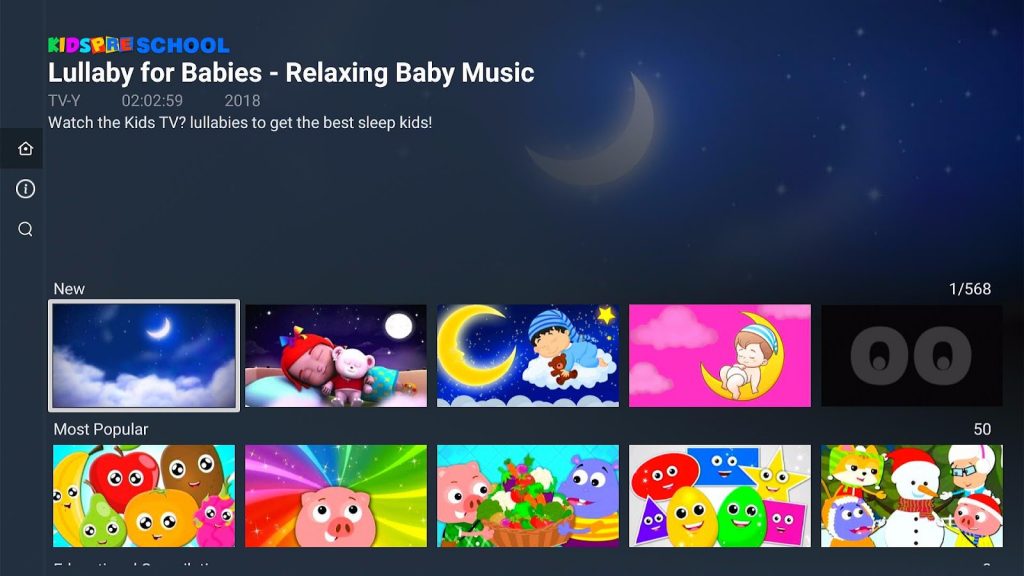

 

Kids Preschool Nursery Rhymes 1


Kids Preschool Nursery Rhymes 2


Install Surfshark on Firestick

Best Surfshark Deal


Happy Stories

When we were children, most of us enjoyed family campfires where stories are told by our grandparents. Today, with the development of streaming services. Many creative and new stories can be easily found on our mobile devices. Some of these stories may involve live-action scenes and 3D animations which are safe for kids.

The Happy Stories app delivers child-friendly content while using your Fire TV stick. Children always enjoy watching their heroes and favorite characters play their roles on the big screen. Unfortunately, some of the stories are often concluded without leaving satisfaction.

Happy Stories attempt to bring new stories to life with the help of famous cartoon characters and realistic playsets. Children with their wild imaginations can easily add their own stories to their toys. Luckily, the Happy Stories app can assist them in creating their dream worlds.
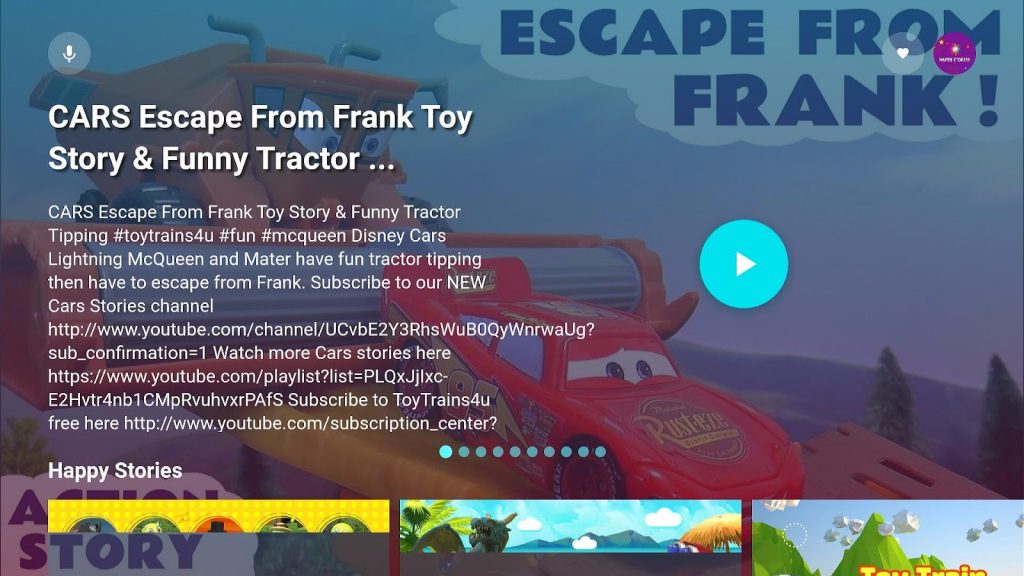

 

Happy Stories 1


Happy Stories 2


Enjoy Watching Kids Channels with a VPN

Kids and toddlers would want to watch shows and movies with their parents. It is why most adults prefer to let them watch channels meant for children. All the media content found on these channels is safe for all ages.

The Fire TV stick has many apps and channels meant for the viewing of kids. However, some of them have geo-restrictions. 

Surfshark is the best VPN for accessing live TV channels with restrictions. It also has many features to share:

  • Decreases the chances of stuttering.
  • Keeps you hidden from many online threats.
  • Excellent VPN for streaming channels for kids.
  • Fast streaming speeds and consistent bandwidth rate.


Grab your subscription now!

Click here to get the lowest price on Surfshark through our exclusive limited-time offer.


How to Install Surfshark VPN on Firestick

If your Firestick still has the older interface, read this article to learn how to update it: Update Firestick Interface.

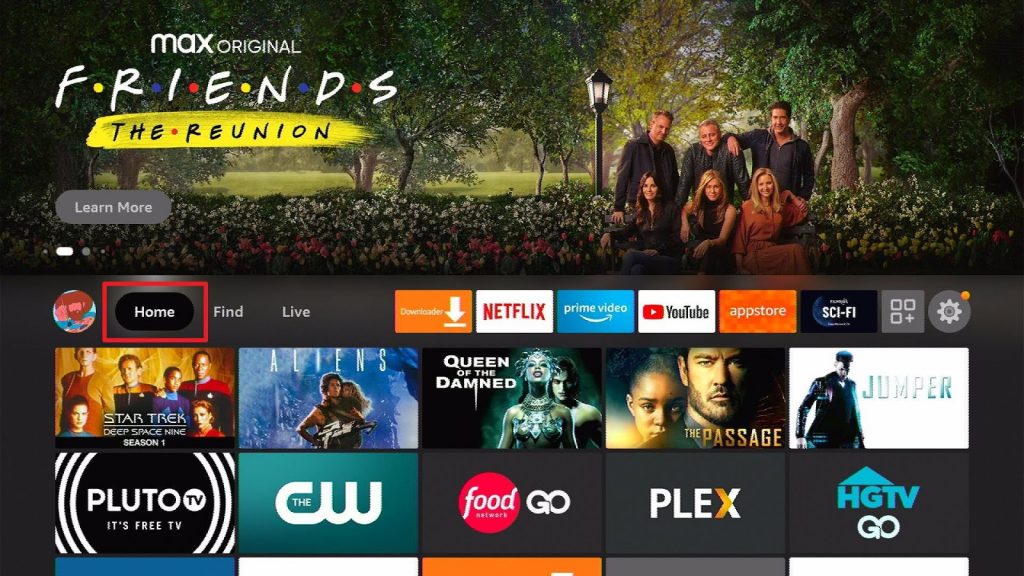
1. Go to the Home screen of your Firestick.
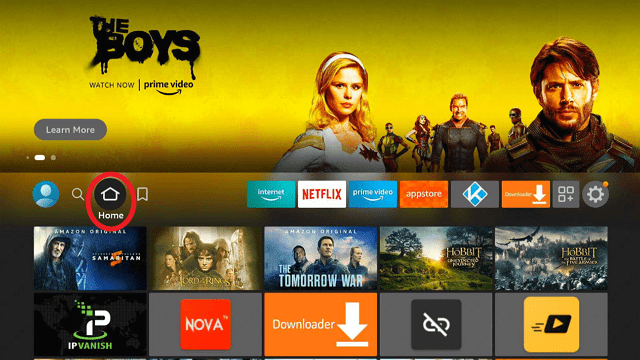
step 1 Install Surfshark VPN on Firestick


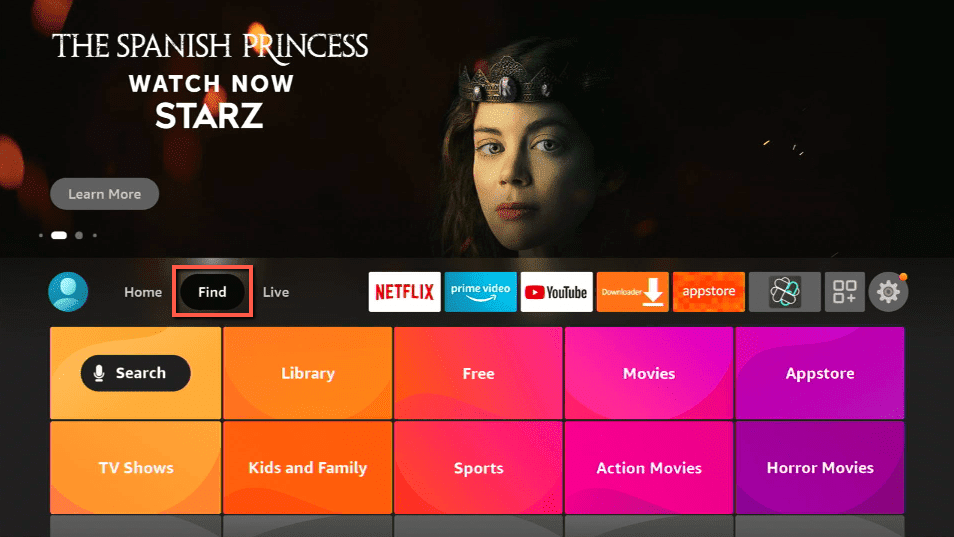
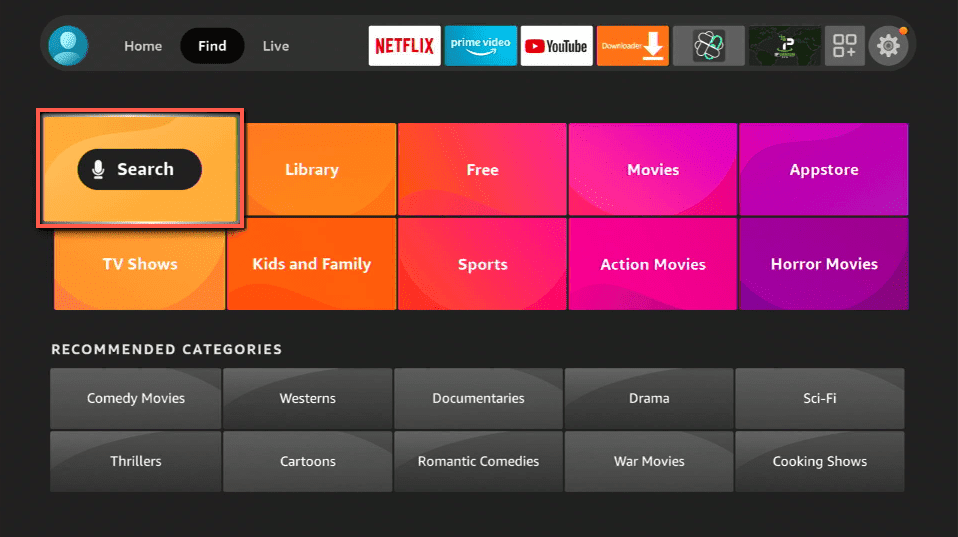
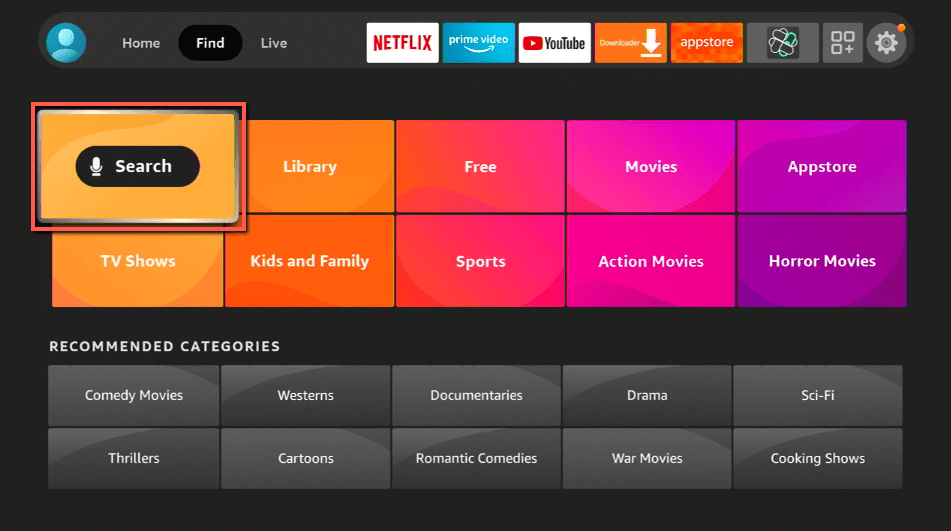
2. Navigate towards the Find tab. Press the Search button from the resulting dropdown.
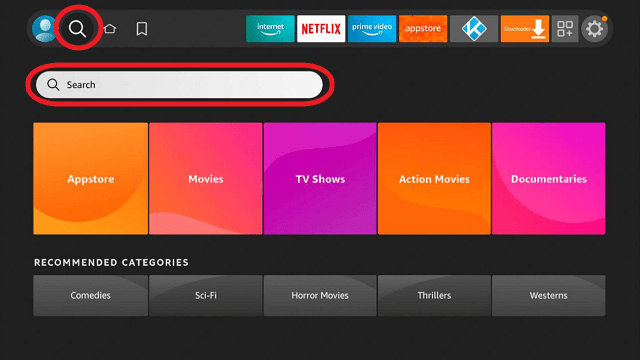
step 2 Install Surfshark VPN on Firestick


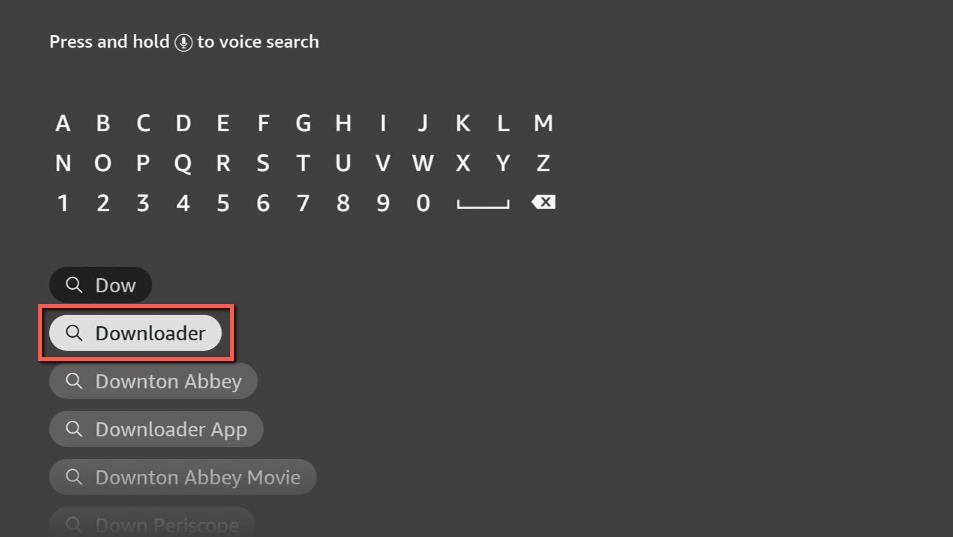
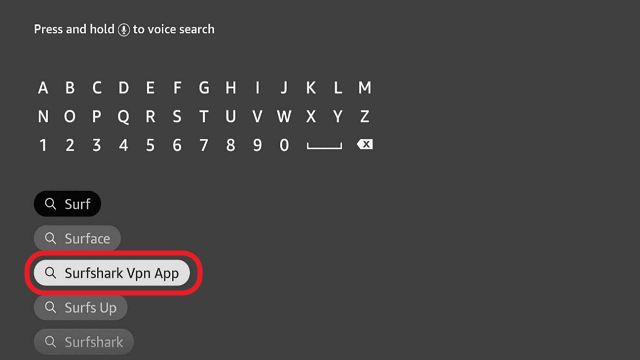
3. Type in the keyword of SurfShark and select from the suggestions that will appear.
step 3 Install Surfshark VPN on Firestick


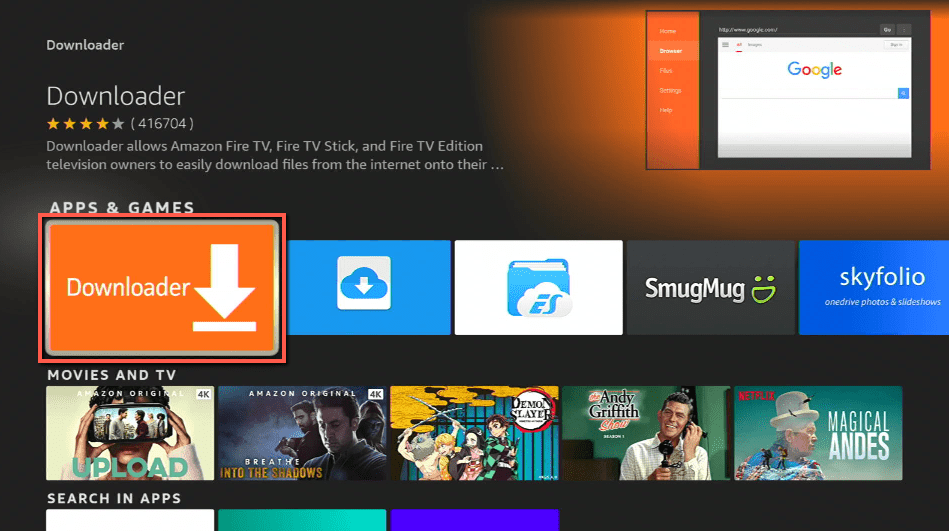
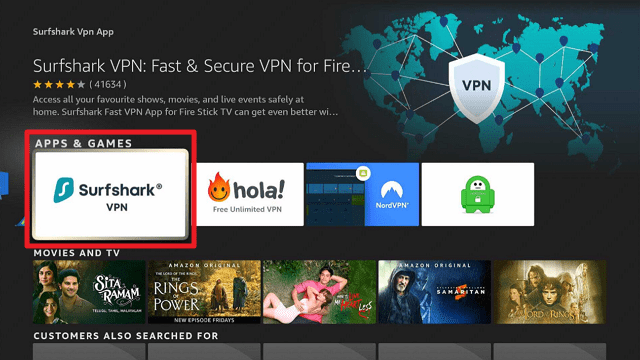
4. Click the official SurfShark icon from your search results.
step 4 Install Surfshark VPN on Firestick


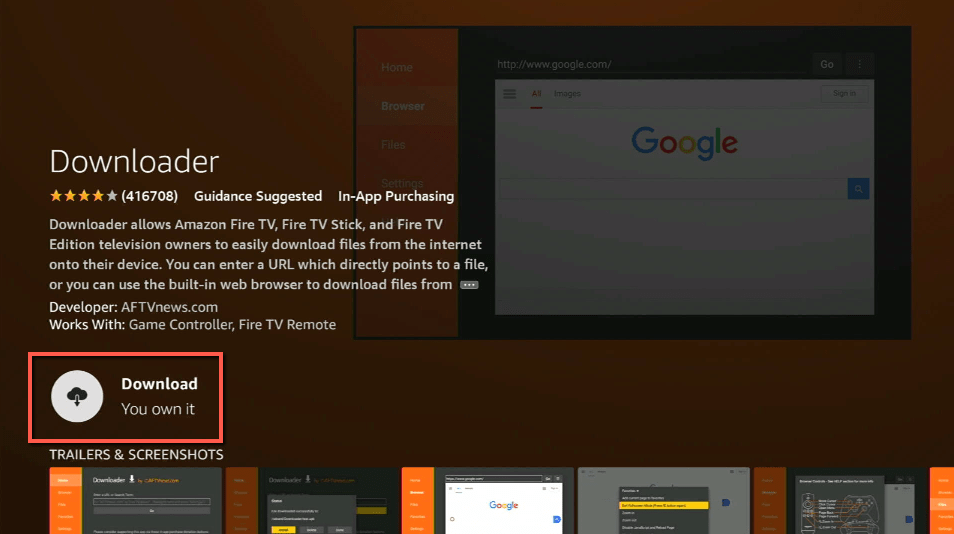
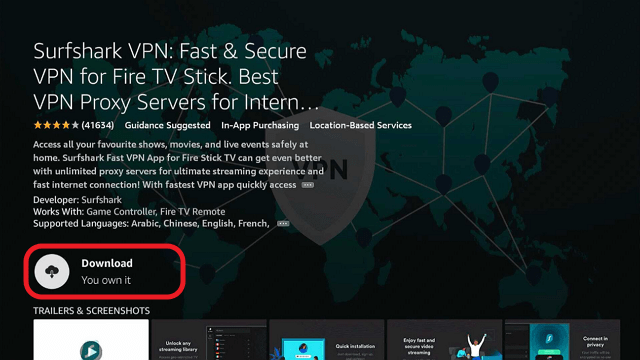
5. Press the Download (You own it) button.
step 5 Install Surfshark VPN on Firestick


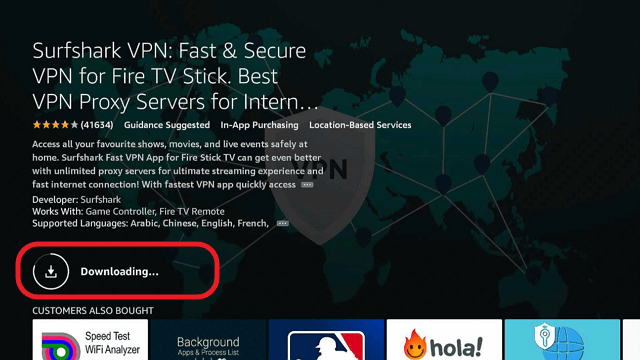
6. The SurfShark VPN installer will download on your device.
step 6 Install Surfshark VPN on Firestick


7. SurfShark VPN’s app will automatically install itself on your Fire TV stick.
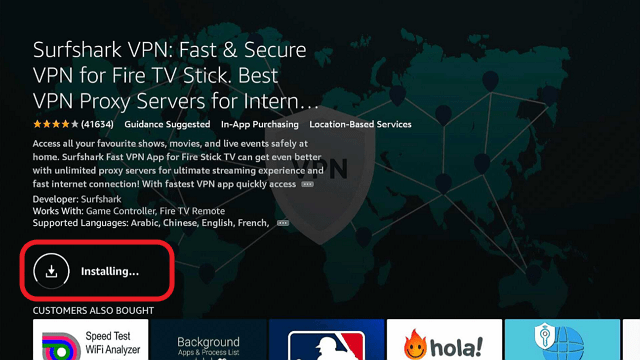
step 7 Install Surfshark VPN on Firestick


8. Press the Open button after completing SurfShark VPN’s installation process.
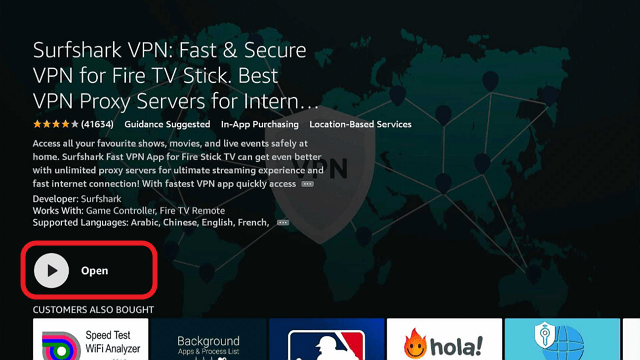
step 8 Install Surfshark VPN on Firestick


9. Please wait for the SurfShark VPN to load its user interface.
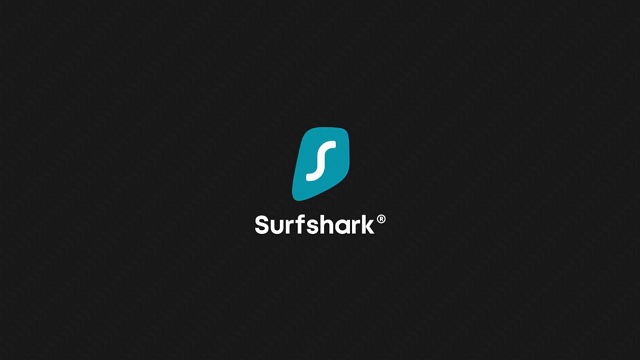
step 9 Install Surfshark VPN on Firestick


10. You can now log in with your SurfShark VPN account credentials.
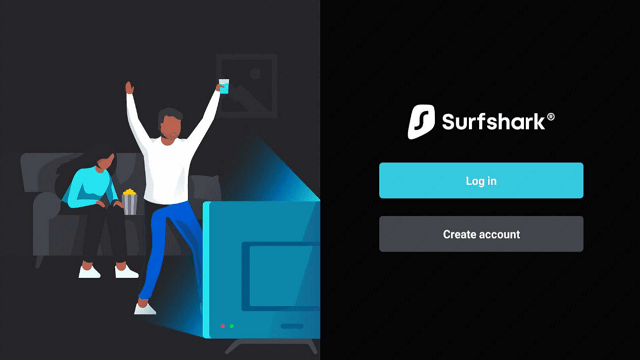
step 10 Install Surfshark VPN on Firestick

Learn more about Surfshark and Grab the Best Surfshark Deal Now!


Install Surfshark on Firestick
Best Surfshark Deal


Other VPNs to Consider

NordVPN (Best for Streaming)

Best Features

  • 5000+ Server in 50+ Countries 
  • Military-Grade Encryption
  • Fast Connection Speed
  • Suitable to a lot of devices
  • No-Log Policy

Prices
  • Complete $5.89 per month (64% Discount)
  • Plus $4.59 per month (56% Discount)
  • Standard $3.69 per month (55% Discount)

Best Features

  • 750+ High-speed VPN Servers in 43 Locations
  • Military-Grade Encryption
  • Fastest HD Streaming and Gaming
  • 30-Day Money-Back Guarantee
  • Unlimited Data & Devices
  • No-Log Policy

Prices
  • 3 Years $1.99 per month (82% Discount)
  • 1 Years $3.29 per month (70% Discount)
  • 1 Month $10.99 per month

IPVanish VPN (Most Secure)

Best Features

  • 1200+ Servers in 60+ Countries around the world
  • Unlimited Connections
  • No-Log Policy
  • Top Notch Military-Grade VPN Protocols and Encryptions
  • 100% Safe and Secured
  • Most Trusted VPN
  • Best VPN for Firestick
  • 30-Day Money-Back Guarantee

Prices
  • Yearly $3.99 per month (63% Discount) – 30 days risk free + Ransomware & Malware Protection
  • Quarterly $5.32 per month (51% Discount)
  • Monthly $10.99 per month


For more VPN discounts, go to ReviewVPN Deals and purchase the best VPN for you.

Click here to get the lowest price on Surfshark through our exclusive limited-time offer.


FAQs

Do the kids’ channels mentioned above require any payment?

No. All the channels present in this article are free to download and use.


Does every channel contain safe content for kids?

Yes. Every kid’s channel we feature provides TV shows and videos with safe content meant for the viewing of children.


Are there ads while watching these channels?

Yes, but only a few of them contain annoying pop-up ads and commercials. Most of the channels we recommend are free and do not suddenly play ads.


Conclusion

Television plays a crucial role during the early stages of a child’s growth. Watching TV shows may expose them to adorable and honorable characters which can help mold their attitude and personalities. It is why many adults prefer kids’ channels with safe content and are parent-friendly. All the kids’ channels we recommend present TV shows with cartoons, adventure, fiction, and 3D animations that your children will enjoy.

We hope this article has given you the best kids’ channels on your Fire TV stick.


Best Plex Channels for Kids

Overview

In this article, we will tell you about the best Plex Kids channels.

Are you searching for channels that children might enjoy? If yes, you have come across the right article. Today, we will tell you about the best channels for kids that are available on the Plex app. As a result, you can use the Plex app to entertain your children.


Watching TV plays an important role when a child is growing up. Additionally, letting your kids watch TV fosters their imagination. After long hours from school, it is a good idea to let them catch their favorite shows. It is an effective way that allows them to relax.

When watching television shows, children are exposed to superheroes, they can also follow science fiction stories, or learn from educational TV channels. They undergo a deep experience that can shape their personalities. However, a child’s guardian should be aware of the shows that they watch.

Kids’ TV show protagonists set a good example for children. Programs meant for kids can help in building their characters. These TV shows can shape their attitudes and perspectives. Therefore, letting your kid watch these channels plays a crucial role in their development.

Let us now discuss Kids’ Channels which are available on the Plex app. The Plex app is compatible with your Fire TV stick.


ANONYMOUSLY


Best Plex Channels for Kids

The channels we will recommend are official Plex channels, you don’t have to download or load them on the Plex server.


Skwad TV

Skwad is one of the available channels for kids. Whenever they find themselves stuck in a game level, the Skwad channel can assist them out. It provides non-stop gaming videos that guide many people. Watching the channel does not require any payment.

Skwad TV is a channel that offers the best from the gaming industry. There are many shows that your kid might enjoy. The Skwad channel is also available within the Plex application. You can watch the channel anywhere you are.

The best thing about the Skwad TV channel is that it brings you footage from expert players. Their in-game experiences are caught on cam and available for viewing. You won’t have a hard time playing any video game with the guidance of Skwad.

Skwad allows you to stream high-quality videos anywhere with any device. The channel is available any time of the day. Users of Plex can create an account to access bonus features. They can then watch any video where they left off. It also lets users create custom playlists for convenient streaming. You can expect a high-definition video playback feature in 4K resolutions.


Skwad TV 1


Tankee

Tankee is created by Austin-based TV channel developers. They aim to bring kids the best TV shows and gaming footage from the internet. Moreover, the content you can find on the Tankee channel entertains both young adults and kids. Tankee’s main goal is the development of a channel for the future of kid’s digital entertainment.

If you are looking for a gaming and kids’ channel in one package, then Tankee is perfect for you. The channel is available on your Plex app. To install the Plex app, it is already available on your Fire TV stick. You won’t have a hard time searching for an excellent kids’ channel.

Tankee has many video genres made for the youth. The channel also develops its original series aside from game videos and digital guides. They also feature fan artworks from enthusiasts of their shows. Tankee is a good source of entertainment for children.


Tankee 1


Grab your subscription now!

Click here to get the lowest price on SurfShark through our exclusive limited-time offer.


Kidoodle TV

We all have seen a person who likes to doodle on the back of their notebooks. The talent is natural for kids and teens. You can even see doodles on the notes of your child. While doodle art is growing in popularity, there is a channel that shows doodle cartoons perfect for the youth.

We now introduce you to Kidoodle TV. The Kidoodle TV shows content that is safe for children’s consumption. The air shows in 3D animations and includes content perfect for kids. There is no mature content or violent scenes that can cause nightmares. The channel is dedicated to the viewing of kids.

All the content found on Kidoodle TV is handpicked by parents. The developers understand the needs of parents when letting their children watch TV. If you want a safe channel for your kids, then the Kidoodle TV channel is suited for your preferences. The Kidoodle TV channel is available on your Plex app. Watch the kids’ channel with your Fire TV stick.


Kidoodle TV 1


Kidoodle TV 2


Toon Goggles Jr.

Toon Goggles is an excellent kids’ channel that allows them to enjoy colorful content. Children and adults may find the channel appealing for both their needs. You can have peace of mind when letting your child watch shows from the Toon Goggles Jr. channel.

The Toon Goggles Jr. kids’ channel mixes live TV shows and many channels. All you have to do is sit back and let your child enjoy the show. You may also explore is a vast collection of live-action, 3D animations, and cartoons made for the viewing of children. All the content is safe and free to watch.

Toon Goggles Jr. aims to deliver content to kids between the ages of eight and thirteen. All the shows are one-hundred percent safe for kids. The programs are completely parent-friendly. Viewers may also find shows they want from their large library of kids’ shows and series.


Toon Goggles Jr. 1


Toon Goggles

Toon Goggles is the main channel where its Toon Goggles Jr. counterpart comes from. It has more content meant for the viewing of toddlers and kids. All the television shows feature a mellow nature that is safe for the viewing of your children. Toon Goggles do not place shows in their library which is harmful to the minds of kids.

The Toon Goggles channel offers a vast collection of cartoons and television shows. Even adults may find their childhood calling again when watching the channel. Toon Goggles is home to thousands of live-action shows and 3D animations.

Upon opening the Toon Goggles channel, viewers may find pop-up channels regarding the present season. There is a wide collection of content to select from. Toon Goggles even offer on-demand TV shows which are great for children and are one-hundred percent parent-friendly. The Toon Goggles channel and Toon Goggles Jr. channel are both available on the Plex app. Enjoy a variety of kids’ content with your Fire TV stick.


Toon Goggles 1

Fantawild

Do you enjoy Asian-style animation while watching television? Then we got you covered. Let us now discuss the Fantawild channel. The channel of Fantawild incorporates Chinese animation and western Kid’s TV shows into a singular channel.

Recently, the Cinedigm company partnered with Fantawild Animation to create the kids’ channel. It is the producer of all the kids’ TV shows in Asia. All the famous shows like Boonie Bears and Kung Fu: Masters of the Zodiac are set to appear on the channel. Every content they include is safe for kids and is parent-friendly.

The content on the Fantawild channel is updated monthly. They will soon include many shows for the viewing of the youth. The developers want to expand their content and introduce it to many streaming platforms. As a result, many TV shows meant for kids and teens will be present when watching the kid’s channel.


Fantawild 1


Fantawild 2


YOUR INTERNET ACTIVITY IS BEING WATCHED

ReviewVPN cannot attest to the legality, security and privacy of the applications discussed on this site. It is highly recommended that you use a VPN service while streaming or using Kodi.

Currently, your IP 216.73.216.69 is visible to everyone and your Browser is being tracked by Advertisers & ISP Provider.

Save 65% Now

Limited Time Offer

Here are the main reasons why you must use a VPN:

  • Your activities are hidden from your ISP, the government, and from the apps you are using.
  • You can access additional movies and TV streams.
  • ISP attempts to throttle are thrwarted thus reducing buffering issues.
  • Geographically restricted content like Netflix and Hulu can be unblocked.

A VPN works be replacing your ISP-assigned IP address and creating an encrypted tunnel. We recommend the no log service offered by IPVanish. It works well on a Firestick and offers the fastest possible speeds.

Special Limited Time Offer - Get IPVanish


AFV Family

It is widely known that laughter is the best medicine for stress and illnesses. This is a good reason to let your kids enjoy the AFV Family channel. Not only does it entertain the youth, but it is also great for the viewing of your family members. The AFV Family channel contains many videos meant for the viewing of many people.

You can invite your relatives to join you while watching the AFV Family channel. AFV stands for America’s Funniest Videos. Today, the brand has its Youtube channel and a streaming channel. There is nothing better than to let your kids watch and develop their sense of humor.

AFV Family aims to cater to the needs of many family members. You can cook up some popcorn while enjoying all the video compilations found on the AFV Family channel. It is home to many funny family videos which you can watch with your children, relatives, and friends.

The AFV Family channel is perfect for viewing with your Plex application. Hence, you can then open it with your Fire TV stick. The AFV Family channel is an official Plex channel found within the Kids’ Channel tab.


AFV Family 1


AFV Family 2


Install SurfShark on Firestick

Best SurfShark Deal


KidsFlix

Do you want a Kids’ channel available on a 24/7 schedule? If yes, then the KidsFlix channel is right for you! KidsFlix is the children’s Netflix channel. The KidsFlix TV channel allows young people to enjoy colorful TV series meant for their entertainment.

KidsFlix has over two million viewers per month. Most of these viewers are families and kids. The TV channel offers a vast selection of kids’ shows and animated series. Your children will enjoy watching the KidsFlix television channel.

The KidsFlix channel features cartoons and TV shows presented in 3D animations. Watching these shows are comparable to the animations made by Pixar and Disney animators. All the content and storylines are created for the viewing of children. It is why many people of all ages enjoy watching TV shows from the KidsFlix channel.

KidsFlix is free and is a dedicated video service for kids of all ages. They can discover new content or watch colorful video clips. Your kids may enjoy any cartoon genre. From episodes of cars, trucks, planes, cartoons, and other adorable characters, any youngster may find the content funny and appealing. All of the episodes from the KidsFlix channel are meant to develop emotional and intellectual growth for both toddlers and preschoolers.


KidsFlix 1


KidsFlix 2


Game Toon

All of the kids today have handheld mobile devices or probably have access to laptops and personal computers. This means that they can play any games they find on the internet. Given the assistance of a powerful CPU and computer set-up, your child may enjoy a variety of video games right at their fingertips.

We now bring you a kids’ channel which can bring entertainment to your child. The Game Toon channel offers the daily streaming of cartoons and gaming videos. All the videos found on the channel are gaming guides and animated TV shows. Your child may enjoy watching these shows if they are technically inclined.

Game Toon is a famous TV channel for both gamers and the youth. It combines video game guides and cartoon series into one singular channel. The channel offers its viewers tips, tricks, and techniques to overcome any game level that kids want to cross. All the content is safe for the viewing of kids and is parent-friendly.

The Game Toon channel allows people to watch many types of videos. All of its content is meant for the youth that enjoys video games and shows during their free time. Game Toon also includes videos from the eSports industry. The kids’ channel presents highlights of popular video games, entertaining videos made by gaming YouTubers, and covers online video game tournaments (eSports) with million-dollar prizes.


Game Toon 1


Game Toon 2


Watch Plex Kids’ Channels with a VPN

Surfshark vpn

The Plex app includes many channels for children. As a result, all the content is safe for kids to watch and parent-friendly. These channels can even bring your families close together. Many kids’ channels on Plex contain TV shows, 3D animations, funny videos, and gaming guides meant for the consumption of the youth.

Unfortunately, the Plex app contains geo-restrictions. It will prevent you from accessing content if you live in another country. Installing a VPN like SurfShark before using Plex is the best method to implement.

SurfShark has many abilities to share:

  • Access kid’s channels worldwide.
  • Safe and consistent streaming.
  • Faster file downloads.
  • Watch TV shows without disturbances.
  • No lagging, stuttering, and buffering while watching with the Fire TV stick.


Grab your subscription now!

Click here to get the lowest price on SurfShark through our exclusive limited-time offer.


How to Install Surfshark on Firestick with Screenshots

If your Firestick still has the older interface, read this article to learn how to update it: Update Firestick Interface.

You can download Surfshark directly from the Amazon App store. It will be easy for you to find Surfshark with your Firestick’s Find feature. Refer to our screenshots below.

Follow our screenshots below to install the SurfShark VPN app on your Fire TV stick.

1. Go to the Home screen of your Firestick.

step 1 Install Surfshark VPN on Firestick


2. Navigate towards the Find tab. Press the Search button from the resulting dropdown.

step 2 Install Surfshark VPN on Firestick


3. Type in the keyword of SurfShark and select from the suggestions that will appear.

step 3 Install Surfshark VPN on Firestick


4. Click the official SurfShark icon from your search results.

step 4 Install Surfshark VPN on Firestick


5. Press the Download (You own it) button.

step 5 Install Surfshark VPN on Firestick


6. The SurfShark VPN installer will download on your device.

step 6 Install Surfshark VPN on Firestick


7. SurfShark VPN’s app will automatically install itself on your Fire TV stick.

step 7 Install Surfshark VPN on Firestick


8. Press the Open button after completing SurfShark VPN’s installation process.

step 8 Install Surfshark VPN on Firestick


9. Please wait for the SurfShark VPN to load its user interface.

step 9 Install Surfshark VPN on Firestick


10. You can now log in with your SurfShark VPN account credentials.

step 10 Install Surfshark VPN on Firestick

Learn more about Surfshark and Grab the Best Surfshark Deal Now!


Install Surfshark on Firestick
Best Surfshark Deal

Other VPNs to Consider

NordVPN (Best for Streaming)

Best Features

  • 5000+ Server in 50+ Countries 
  • Military-Grade Encryption
  • Fast Connection Speed
  • Suitable to a lot of devices
  • No-Log Policy

Prices
  • Complete $5.89 per month (64% Discount)
  • Plus $4.59 per month (56% Discount)
  • Standard $3.69 per month (55% Discount)

Best Features

  • 750+ High-speed VPN Servers in 43 Locations
  • Military-Grade Encryption
  • Fastest HD Streaming and Gaming
  • 30-Day Money-Back Guarantee
  • Unlimited Data & Devices
  • No-Log Policy

Prices
  • 3 Years $1.99 per month (82% Discount)
  • 1 Years $3.29 per month (70% Discount)
  • 1 Month $10.99 per month

IPVanish VPN (Most Secure)

Best Features

  • 1200+ Servers in 60+ Countries around the world
  • Unlimited Connections
  • No-Log Policy
  • Top Notch Military-Grade VPN Protocols and Encryptions
  • 100% Safe and Secured
  • Most Trusted VPN
  • Best VPN for Firestick
  • 30-Day Money-Back Guarantee

Prices
  • Yearly $3.99 per month (63% Discount) – 30 days risk free + Ransomware & Malware Protection
  • Quarterly $5.32 per month (51% Discount)
  • Monthly $10.99 per month

For more VPN discounts, go to ReviewVPN Deals and purchase the best VPN for you.


FAQs

Are all the Plex channels for kids free?

Yes, they are free. None of them requires any kind of payment.


Do ads appear while watching these channels?

Yes, some ads might appear while watching these channels. 


Conclusion

The Plex app on your Fire TV stick contains channels made for kids. Typically, many parents and guardians let their children watch television as their form of entertainment. Watching TV shows appropriately is crucial for a child’s development.

We hope this article gives you the best Plex channels for kids.


How To Deregister Firestick

Overview

This article will show you how to deregister Firestick on your Amazon Account.

Because your Amazon account is linked to your Firestick, it stores a lot of personal data, including your name and credit card details.

It saves more information than you’ll ever realize. Because in addition to the information you’ve provided on your account, some data is saved on your Firestick merely by using it.


In case you don’t know, Firestick collects data from your device as it’s set to the Firestick’s default settings.

And if it hasn’t been turned off after weeks, months, or years of use, your device has most likely gathered enough data and app usage through data monitoring.

Furthermore, if you need to deregister your account for any reason, simply follow our guide below on how to easily deregister Firestick on your Amazon account.


**If you wish to turn off your device’s default settings, you may read our article on the Common Mistakes Firestick Users Commit.


When Do I Need to Deregister Firestick?

You may have other reasons for deregistering Firestick, but below are the primary situations that will require you to deregister Firestick on your Amazon Account.


ANONYMOUSLY


Lost or Stolen Firestick device

One of the most common reasons for people to deregister their Firestick is that their device has been lost or stolen.

You must never forget to deregister your Firestick if this happens because your device saves confidential data about you. This includes your personal information and even your credit card details.

And if you do this after you’ve lost your Firestick, you won’t have to worry about unauthorized credit card transactions.


To Use Another Account on Your Firestick

Unfortunately, Firestick only supports one Amazon account per device. So, if you wish to use a new account, you must first deregister your current account to use a new account.

But don’t worry, you can re-register your account if you want to use it on your Firestick again. However, even while apps are saved in the cloud, you will never be able to retrieve your previous data.


How to Deregister Firestick

The Firestick can be deregistered from your Amazon account in two methods. You are free to choose which one is the most convenient for you.

Directly on Your Amazon Firestick

The first option is the most simple approach of deregistering Firestick. This is because you will be doing so using your Firestick device.

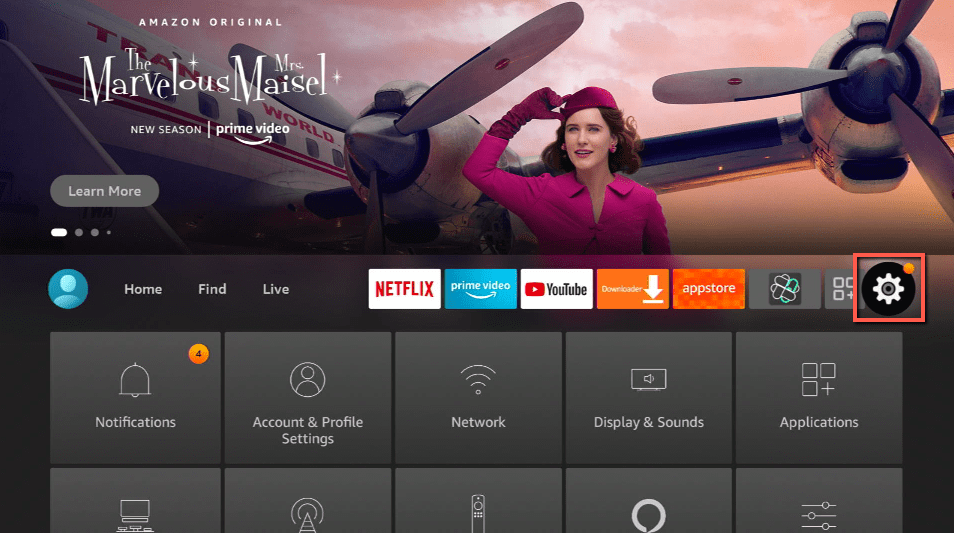
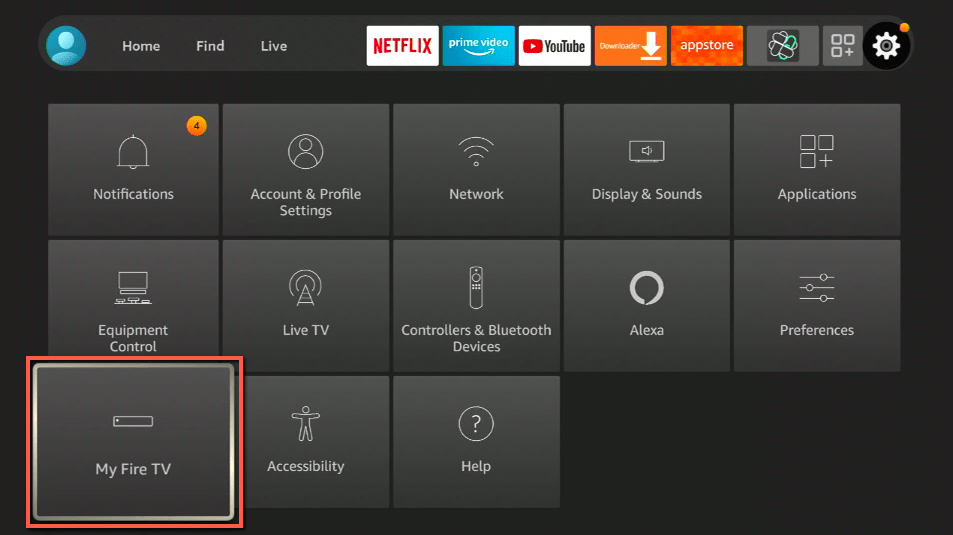
1. On the Home page, simply go to “Settings” (Gearwheel icon).

2. Then select “Account & Profile Settings”.


3. Click on “Amazon Account”.


4. Then click “Deregister”.


5. A warning message will then appear regarding the deregistering and the removal of apps on your device. Simply click “Deregister”.


6. That’s it, you have successfully deregistered your Firestick device.


Install Surfshark on Firestick

Best Surfshark Deal


YOUR INTERNET ACTIVITY IS BEING WATCHED

ReviewVPN cannot attest to the legality, security and privacy of the applications discussed on this site. It is highly recommended that you use a VPN service while streaming or using Kodi.

Currently, your IP 216.73.216.69 is visible to everyone and your Browser is being tracked by Advertisers & ISP Provider.

Save 65% Now

Limited Time Offer

Here are the main reasons why you must use a VPN:

  • Your activities are hidden from your ISP, the government, and from the apps you are using.
  • You can access additional movies and TV streams.
  • ISP attempts to throttle are thrwarted thus reducing buffering issues.
  • Geographically restricted content like Netflix and Hulu can be unblocked.

A VPN works be replacing your ISP-assigned IP address and creating an encrypted tunnel. We recommend the no log service offered by IPVanish. It works well on a Firestick and offers the fastest possible speeds.

Special Limited Time Offer - Get IPVanish


On the Amazon Website

If you don’t have your Firestick and need to deregister it immediately, you can use a web browser to log into your Amazon account.

1. Go to Amazon’s official site “https://www.amazon.com/”.


2. Then proceed with logging in to your Amazon username and password.


3. Hover over to “Account & Lists” on the upper right part of the screen.


4. On the “Your Account” option Click on “Account”.


5. Then choose “Your devices and content”.


6. Click “Manage devices”.


7. Select “Fire TV”.


8. Your device summary will then appear, simply click on “Deregister”.


Secure Your Connection With A VPN

The Firestick is one of the best devices that you can have because it gives us access to a variety of apps for our various online needs which includes streaming. However, even if you have this access, you should never compromise your privacy in exchange for the free content that comes with your Firestick.

In order to protect all of your internet traffic, whether incoming or outgoing, you’ll need a Virtual Private Network (VPN). A VPN service, such as Surfshark, can conceal your online activities so that no one on the internet knows about your personal information or other data that could jeopardize your privacy.

It will encrypt all incoming and outgoing traffic and safeguard all data stored on your device with uncrackable AES-256 military-grade encryption to ensure that no data breaches occur.

Moreover, to provide you with more information about what Surfshark can do for you, below are some of its benefits:

  • Has a total of 3200+ servers in 65 countries to choose from
  • You can get beyond censorship and geo-restrictions, allowing you to stream and download as much as you want.
  • Through Surfshark’s unlimited number of simultaneous connections, you can secure all of your devices with the same level of encryption.
  • Available for all major platforms, you can ensure that all of your devices are Surfshark-compatible.
  • It has a kill switch feature that will disconnect your device from the internet in case of a VPN connection interruption.
  • Surfshark will automatically connect you to the fastest internet connection accessible in your location, ensuring that you have the fastest network possible.


Grab your subscription now!

Click here to get the lowest price on Surfshark through our exclusive limited-time offer.


How to Install Surfshark VPN on Firestick

If your Firestick still has the older interface, read this article to learn how to update it: Update Firestick Interface.

Follow our screenshots below to install the SurfShark VPN app on your Fire TV stick.

1. Go to the Home screen of your Firestick.

step 1 Install Surfshark VPN on Firestick


2. Navigate towards the Find tab. Press the Search button from the resulting dropdown.

step 2 Install Surfshark VPN on Firestick


3. Type in the keyword of SurfShark and select from the suggestions that will appear.

step 3 Install Surfshark VPN on Firestick


4. Click the official SurfShark icon from your search results.

step 4 Install Surfshark VPN on Firestick


5. Press the Download (You own it) button.

step 5 Install Surfshark VPN on Firestick


6. The SurfShark VPN installer will download on your device.

step 6 Install Surfshark VPN on Firestick


7. SurfShark VPN’s app will automatically install itself on your Fire TV stick.

step 7 Install Surfshark VPN on Firestick


8. Press the Open button after completing SurfShark VPN’s installation process.

step 8 Install Surfshark VPN on Firestick


9. Please wait for the SurfShark VPN to load its user interface.

step 9 Install Surfshark VPN on Firestick


10. You can now log in with your SurfShark VPN account credentials.

step 10 Install Surfshark VPN on Firestick

Learn more about Surfshark and Grab the Best Surfshark Deal Now!


Install Surfshark on Firestick

Best Surfshark Deal


Other VPNs to Consider

NordVPN (Best for Streaming)

Best Features

  • 5000+ Server in 50+ Countries 
  • Military-Grade Encryption
  • Fast Connection Speed
  • Suitable to a lot of devices
  • No-Log Policy

Prices
  • Complete $5.89 per month (64% Discount)
  • Plus $4.59 per month (56% Discount)
  • Standard $3.69 per month (55% Discount)

Best Features

  • 750+ High-speed VPN Servers in 43 Locations
  • Military-Grade Encryption
  • Fastest HD Streaming and Gaming
  • 30-Day Money-Back Guarantee
  • Unlimited Data & Devices
  • No-Log Policy

Prices
  • 3 Years $1.99 per month (82% Discount)
  • 1 Years $3.29 per month (70% Discount)
  • 1 Month $10.99 per month

IPVanish VPN (Most Secure)

Best Features

  • 1200+ Servers in 60+ Countries around the world
  • Unlimited Connections
  • No-Log Policy
  • Top Notch Military-Grade VPN Protocols and Encryptions
  • 100% Safe and Secured
  • Most Trusted VPN
  • Best VPN for Firestick
  • 30-Day Money-Back Guarantee

Prices
  • Yearly $3.99 per month (63% Discount) – 30 days risk free + Ransomware & Malware Protection
  • Quarterly $5.32 per month (51% Discount)
  • Monthly $10.99 per month


For more VPN discounts, go to ReviewVPN Deals and purchase the best VPN for you.

Click here to get the lowest price on Surfshark through our exclusive limited-time offer.


FAQs

What happens if I deregister Firestick?

When you deregister your Firestick, it will no longer appear in your Amazon account. And, following deregistration, all installed apps and data from your previous account will be removed. However, if you change your mind and want to re-use your Amazon Account with your Firestick, you can re-register your device.

Furthermore, even after deregistration, the apps are still available in the cloud and can be reinstall.


How can I deregister Firestick if I don’t have a remote?

Option 2 in this tutorial does not require a Firestick remote because you will be deregistering on the Amazon website. However, Firestick remote apps are available on both the Apple Appstore and the Google Playstore that you can easily download for free on your mobile (i.e. Amazon Fire TV, Remote for Firestick & Fire TV ).

Once installed, simply open the app and you can begin using your device as a remote and follow the steps in Option 1.


Conclusion

Fortunately, there are two simple ways to deregister your Firestick.

You may do it straight on your Firestick as well as through your Amazon account, so you can deregister whether you’re at home or not.

Deregistering will also delete your data, which is important if you need to deregister due to a lost or stolen device.

That way, you won’t have to be concerned about strangers gaining access to your personal information and possibly harming you for it.

Finally, we’d like to thank you for taking the time to read our article on how to deregister Firestick. We hope we were able to help you and provide you with some additional information.

IPVanish Kill Switch – What is It and How to Use It?

IPVanish Kill Switch Overview

In this article, we will tell you about the IPVanish kill switch feature.

Virtual Private Networks or VPN have a lot of features to offer. Some of these features are not available on all brands of VPN. One example is Kill Switch. Only several VPNs have a verified kill switch feature. One example of a VPN that has good kill switch features is IPVanish.

IPVanish Kill Switch makes sure that your IP address is not exposed accidentally and unexpectedly. It is important because a VPN should really work on the user’s anonymity, security, and privacy.


To further elaborate on how does kill switch works, we tested IPVanish on Windows 10. But IPVanish is also available on other types of devices like Android, iOS, Mac, Linux, and Amazon Firestick.

Installing IPVanish on your Amazon Firestick is not that hard. It is one of the Best Firestick Apps and Best Legal Apps. You can install it directly on your device. There is no need to Jailbreak your Firestick and Use the Downloader App.


Related Articles:

Best IPVanish Secret Settings 

How to SignUp for IPVanish VPN


If your Firestick still has the older interface, read this article to learn how to update it: Update Firestick Interface.


ANONYMOUSLY


How to Install IPVanish on Windows

Since we have tested the IPVanish Kill Switch on Windows 10, we will show you first how to install IP Vanish on your PC.


1. Go to this link.

2. After clicking the link, click on the IPVanish banner to go to the home page.

IPVanish Kill Switch 1


3. Tap on Apps.

IPVanish Kill Switch 2


4. Scroll down until you reach the device options, click on Windows.

IPVanish Kill Switch 3


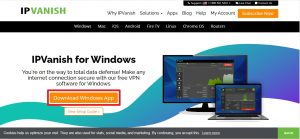
5. Select Download Windows App.

IPVanish Kill Switch 4


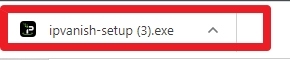
6. The apk will now be downloaded on your pc. Click the apk once finished.

IPVanish Kill Switch 5


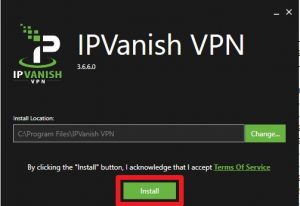
7. Click on Install.

IPVanish Kill Switch 6


Make sure to have an IPVanish account to test the IPVanish Kill Switch.


Legal Disclaimer: ReviewVPN.com does not encourage or endorse any illegal activity involved in the usage of services and applications referenced on this site. We do not verify the licensing agreements of services. The end-user is wholly responsible for ensuring that any media accessed through these services does not violate copyright and/or licensing laws. ReviewVPN does not promote, link to, or receive compensation from any Apps and IPTV services.


Install IPVANISH on Firestick

Best IPVANISH Deal


How to Sign Up for IPVanish

1. Using your browser, go to https://reviewvpn.com/deal. This link contains a discount for the IPVanish account that you would like to purchase.

Sign Up IPVanish


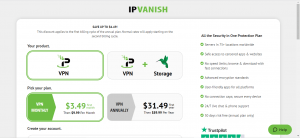
2. Choose the best plan for you. Since you use the link we stated on step number 1, you are entitled to have a huge discount for a plan. Choose between VPN or VPN + Storage. You can also select if your plan is monthly or yearly whatever type of service you like.

sign up ipvanish


3. You will then be redirected to the signup page, and still, confirm the plan that you really like.

How to sign up for IPVanish (3)


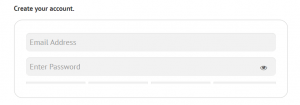
4. Complete the details under create an account bar with your email address and password.

How to sign up for IPVanish (4)


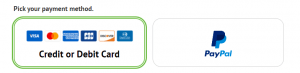
5. Pick a payment term that is best for you. You can choose between a credit card or PayPal.

How to sign up for IPVanish (5)


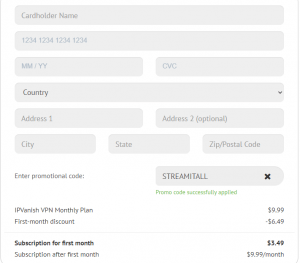
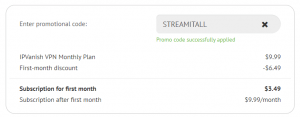
6. Complete the details regarding the payment terms, like the name of the credit card owner, card number, country, etc. In terms of PayPal payment, details to include are different.

How to sign up for IPVanish (6)

or

How to sign up for IPVanish (7)


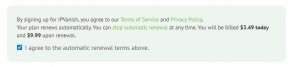
7. Upon settling the payment terms, take your time to review the Terms of Service and Privacy Policy. Click on I agree to the automatic renewal terms above. Note: You can always stop the renewal any time you like.

How to sign up for IPVanish (8)


8. Your payment is encrypted. Upon settling down, click on Subscribe Now.

How to sign up for IPVanish (9)


9. Upon subscribing, IPVanish will email you about your account details and subscription. Confirm your email, and you can now use your IPVanish account on your devices.


How to Use IPVanish Kill Switch

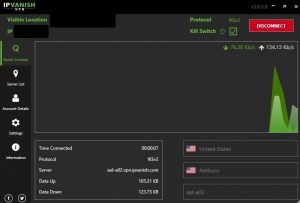
IPVanish Kill Switch is a more secure feature. When it is activated, IPVanish will send information to your device if you become disconnected from a VPN server. It will also prevent you from connecting to any unsafe and unsecured Network.

Here is how you can activate your Kill Switch feature on your IPVanish VPN:

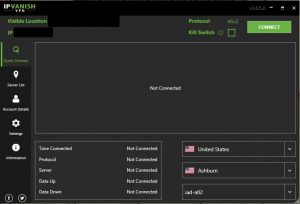
1. Launch the IPVanish app.

IPVanish kill Switch 7


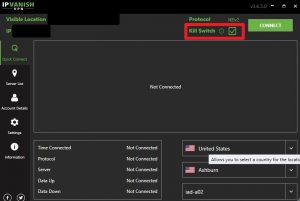
2. Select the Kill Switch box to activate the feature.

IPVanish Kill Switch 10


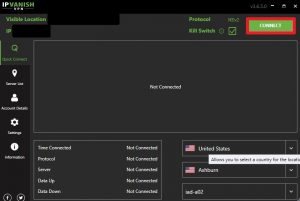
3. Click on Connect.

IPVanish Kill Switch 8


4. You are now connected to a VPN server with a special security feature of a Kill Switch.

IPVanish Kill Switch 9


Best VPN for Amazon Firestick

IPVanish VPN Promo

IPVanish is considered one of the best VPNs for Amazon Firestick. Aside from its kill switch feature, it also provides numerous amount of amazing functions for streaming. It serves as a bridge that connects you to another country or region so you can access their content. This can also hide your identity from your Internet Service Provider or ISP when you reach your speed limit. It will stop them from throttling your bandwidth.

Here are the other features offered by IPVanish:

  • 2,000 servers with 40,000 IP addresses in over 70+ locations worldwide available.
  • Allows you to choose the best server depending on what country and city you choose.
  • Disable geo-restrictions to help you access content from other countries.
  • IPVanish has VPN protocols for all types of devices.
  • More advance features like Split tunneling.
  • Zero logs policy.
  • Mask your identity from your ISP and hackers.
  • The data encryption for safety.
  • You can use one account for multiple devices.
  • Speeds up your internet connection.
  • Best VPN for Torrenting.
  • Prevents Firestick Buffering and Kodi Buffering


Grab your subscription now!

Best IPVANISH Deal


Install IPVanish on Firestick with Screenshots

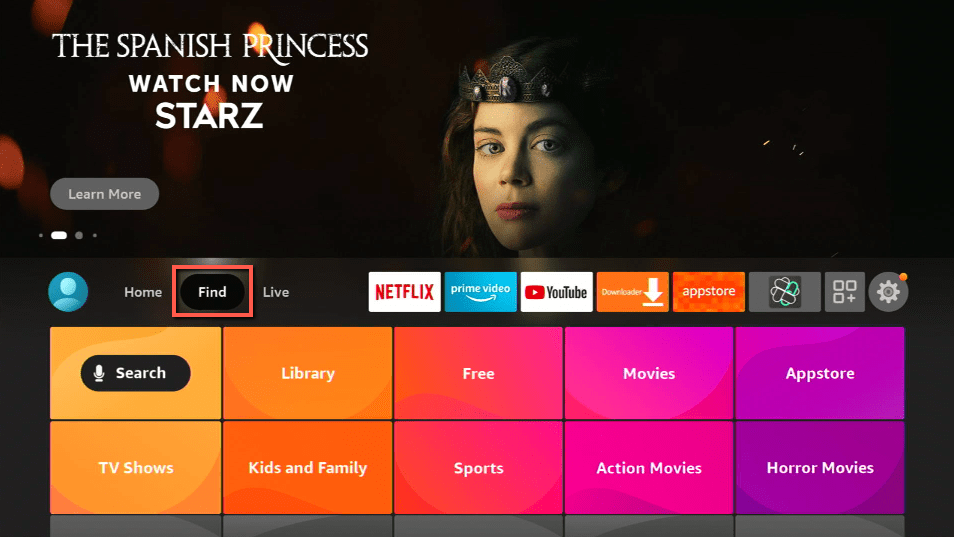
1.  Click Home on your remote and click “Find”.

SolarMovie Alternatives Alternative 6


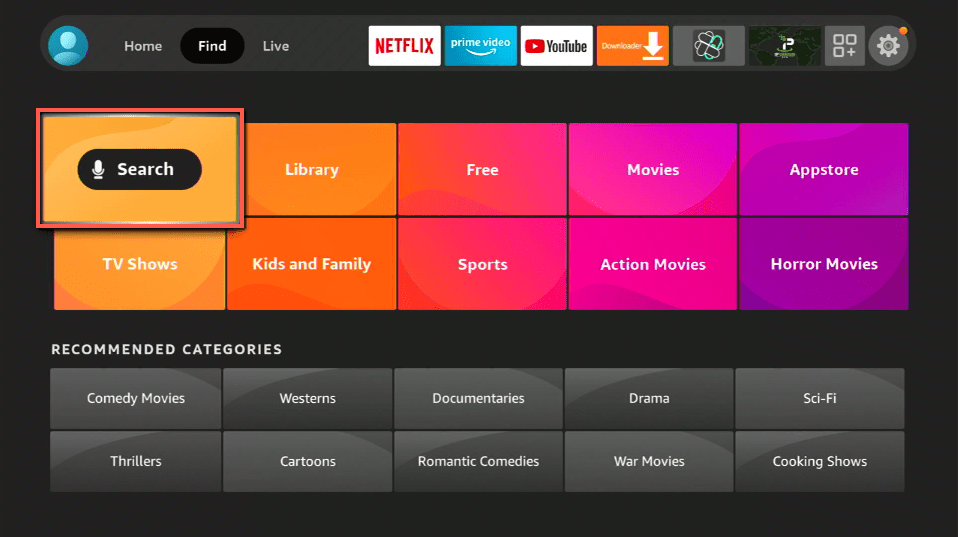
2. Click “Search”

SolarMovie Alternatives Alternative 6


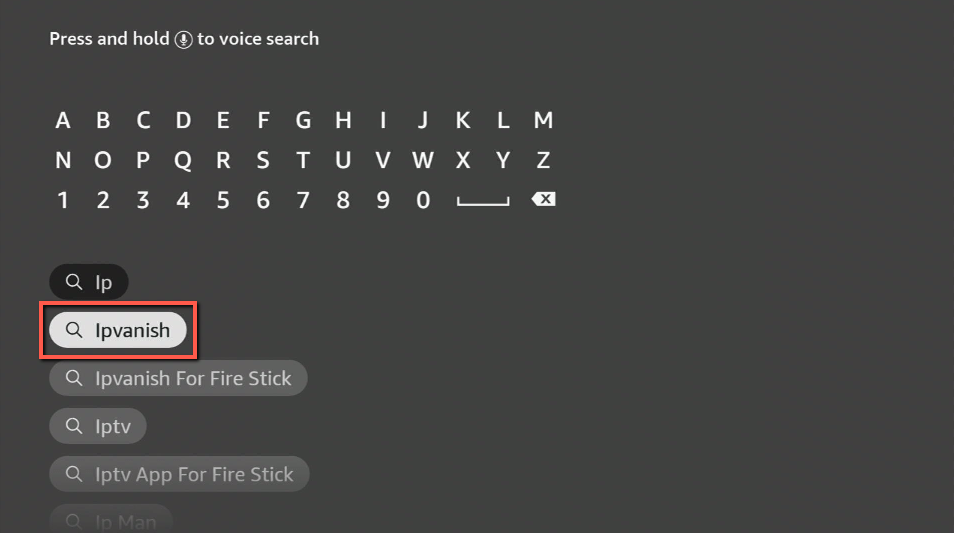
3. You can either say IPVanish to your Alexa’s voice-enabled remote or start typing it. If you typed it, click on the suggestion when it appears.

SolarMovie Alternatives Alternative 6


4. Click on the IPVanish icon.

SolarMovie Alternatives Alternative 6


5. Click on Download

Step 5 Install IPVanish


6. Wait to download.

Step 6 Install IPVanish


7.  Wait to install.

Step 8 Install IPVanish


8.  Click on Open.

Step 8 Install IPVanish


9.  Input your username and password to log in.


10. Click Connect.

Learn more about IPVanish. Get an IPVANISH now.


Other VPNs with Verified Kill Switch Features

Aside from IPVanish, there are also other VPNs with the Kill Switch function. Take a look at this list to learn more:


FAQs

What is IPVanish Kill Switch?

Kill Switch is one of the many advanced features offered by IPVanish. It prevents users to be connected to an unsafe and unsecured server.


Does IPVanish have a kill switch?

Yes. IPVanish is one of the several VPNs with a kill switch feature.


What is a Kill Switch?

In the VPN world, a kill switch is a feature that provides more security for the users. Once a VPN has a kill switch activated, it prevents your IP to be seen even you have been disconnected from a server. This feature will keep you disconnected as long as you’re VPN is restored.


Conclusion

Not all VPNs have a kill switch. It is a great feature that makes your anonymity and security become better. Luckily, IPVanish is one of those VPNs that has a kill switch.

IPVanish kill switch is verified working. Take a look above at how you can activate your kill switch in just seconds.

We hope that this article was able to help you learn more about the IPVanish kill switch.


Note: ReviewVPN.com does not own or operate any app nor does it endorse any. The main purpose of this article is strictly for educational purposes only.


See also:

Best Plex Channels for Sports

Overview

In this article, we will tell you about the best sports channels on the Plex app.

Plex is a wonderful media streaming app that many people enjoy using. Today, it is gaining more attention from people who like to stream online videos. The Plex app allows you to watch online videos in excellent resolutions.


The usefulness of the Plex app comes with its special features. It is a well-known fact that the Plex app can show you many television shows and movies. Generally, people can access many channels with the app.

The Plex service has been around for quite some time. Originally, it is a client-server service that lets users organize all of their media files with one app. When viewing a Plex official channel, you can enjoy a variety of videos in one category.

To add channels that can be viewed with the app, you can download and set up the Plex Media Server on your favorite device. From there, you can download media file bundles and place them inside the storage of the server app.

The Plex app also provides many sports streaming channels. All these channels are available within the Live TV section of the Plex app. Fortunately for sports fans, these are official channels that deliver quality sports footage, videos, and Live feeds.


ANONYMOUSLY


Best Plex Sports Channels

The channels we will recommend are official Plex channels, you don’t have to download or load them on the Plex server.


Poker Night America

For fans and avid players of Poker, there is a channel for you. It is known as the Poker Night America show. The TV program covers exclusive videos of people playing poker. Aside from the main game, it also covers cash games and sits and go’s.

Production in the series began in 2014. It immediately became a big hit with fans of the poke game. As a result, it grew in popularity which continues to expand. Overall, the show has over six seasons in total with more coming. The show covers various cash games at local casinos. All of the locations are spread across the United States. 888Poker is the main sponsor of the show.

Originally, Poker Night in America was a television series. Today, with many streaming devices, Poker Night in America can be downloaded via its official app. It also has an official channel with the Fire TV stick’s Plex application. Enjoy watching various casino games with your Fire TV stick.


1_Poker_Night America


1_PokerNight_02


Sports 24

Sports24 is a popular channel for viewing sports from different sources. It has a website that is perfect for sports enthusiasts all over the world. It offers many sports links available per season. Visitors to the website may also select from a wide range of sports.

The website’s address has recently changed to sport24.stream. Fortunately for athletes and sports fans, the Sports24 channel is available for viewing with the Plex application. All you have to do is scroll down and search for its official icon under the Sports Channel tab.

Upon clicking on the icon, viewers can watch many sports videos that the channel is playing. Available within the Plex app, the Sports 24 channel allows you to watch remarkable sports videos even if you are traveling.

The Sports 24 service began in 2012. The developers of the channel primarily cater to travelers. They want to deliver quality sports media content to every location 24/7. The streaming service aims to deliver all the drama and excitement from the most competitive sporting events, as they happen, to passengers worldwide.

If you want to learn more about its website, you can visit our article about How to Stream the Sports24 website on your Fire TV Stick.


2_Sports24


Outdoor America

Many people from different continents enjoy spending time going outdoors. Getting a glimpse of nature and a method to relieve stress are some reasons why people go on wilderness adventures. Apart from that, people have the inner longing to explore the world.

A lot of American citizens want to explore the wide territory of the American continent. Luckily for them, there is a TV show perfect for their needs. If you are an outdoor enthusiast and want to go out exploring the various types of terrain, you learn from watching the Outdoor America Channel.

The Outdoor America channel aims to inspire its viewers to go out and explore the vast American continent. While watching shows on the channel, you can learn tricks about craftsmanship, hunting, and fishing. On top of that, be familiar with the Western lifestyle. Users can also watch off-road motorsports while learning to navigate rough terrain.


Outdoor America 1


Outdoor America 2


NHRA Classics

NHRA is an acronym for National Hot Rod Association. It is a big organization that governs all official events of the drag racing community. They are responsible for setting all the ground rules of drag racing. The organization also hosts many racing events across the United States.

The NHRA is the largest community of drag racers in the entire world. It has a large roster containing over forty thousand drag race drivers. The organization claims to be the largest motorsports sanctioning body hosting many racing events.

If you are an avid fan of motorsports, then the NHRA channel is perfect for you. The NHRA Classics channel is available for viewing with the Plex application. You only have to install the Plex app on your Fire TV stick. By using the app, you can enjoy a collection of classic drag racing videos from the vaults of the NHRA organization.


NHRA Classics 1


NHRA Classics 2


YOUR INTERNET ACTIVITY IS BEING WATCHED

ReviewVPN cannot attest to the legality, security and privacy of the applications discussed on this site. It is highly recommended that you use a VPN service while streaming or using Kodi.

Currently, your IP 216.73.216.69 is visible to everyone and your Browser is being tracked by Advertisers & ISP Provider.

Save 65% Now

Limited Time Offer

Here are the main reasons why you must use a VPN:

  • Your activities are hidden from your ISP, the government, and from the apps you are using.
  • You can access additional movies and TV streams.
  • ISP attempts to throttle are thrwarted thus reducing buffering issues.
  • Geographically restricted content like Netflix and Hulu can be unblocked.

A VPN works be replacing your ISP-assigned IP address and creating an encrypted tunnel. We recommend the no log service offered by IPVanish. It works well on a Firestick and offers the fastest possible speeds.

Special Limited Time Offer - Get IPVanish


MAVTV Motorsports Network

MAVTV is originally known as Maverick Television. It began as an American cable television company that offers many TV shows about motorsports. The famous motorsports company of Lucas Oil created MAVTV as a television network. It aims to bring quality racing videos right to your TV screen.

For fans of motorsports, the MAVTV channel can cater to your needs. It hosts many racing events including famous racing organizations. To add variety to their content, MAVTV struck a deal with King of the Cage to broadcast martial arts events.

Today, with the launching of many streaming platforms and gadgets, the MAVTV network is available as a sports channel. For owners of the Fire TV stick, you can catch the latest MAVTV events by installing the Plex application. When opening the MAVTV channel, users can watch all kinds of racing events with different racing vehicles.


MAVTV Motorsports Network 1


MAVTV Motorsports Network 2

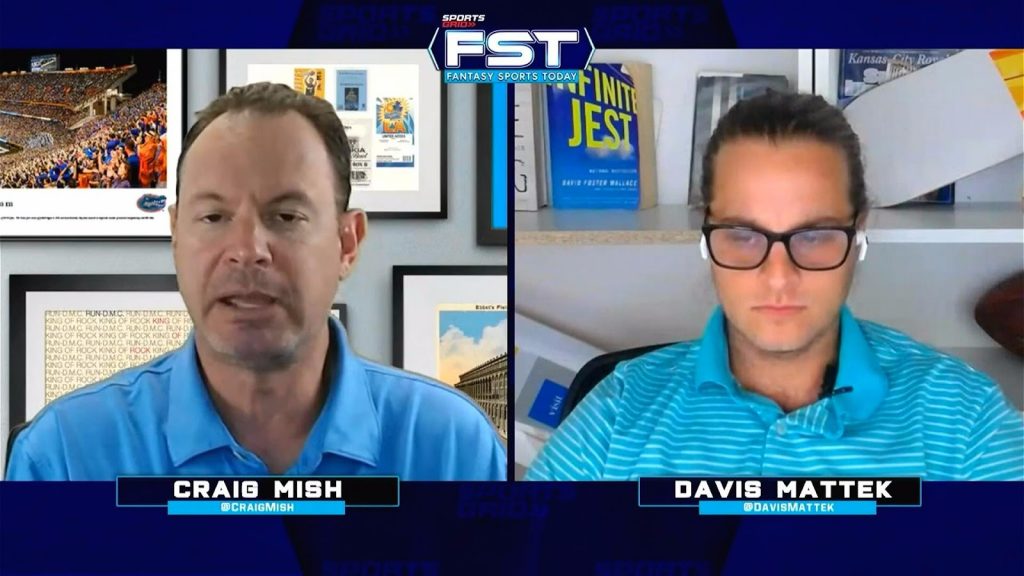
Sports Grid

Sports Grid is an excellent source of sports videos. It began as a 24/7 broadcasting network featuring original and live TV programs. The Sports Grid network also has a radio broadcasting network for listening to the latest sports updates.

The twenty-four-hour streaming of Sports Grid covers fantasy sports and major sports events. Sports Grid’s website also provides a daily eighteen hours of sports video feeds. It also gives you special insights complete with commentaries. The Sports Grid network offers the actual delivery of news, data, statistics, and betting advice.

Sports Grid has partnerships with popular sports channels and networks. Their website includes media content from NBA, ESPN, WNBA, New York Daily News, NFL team websites, Focus 360, and Sports Byline USA. Fans of the network can receive media content from Sports Grid by using apps and devices such as Tune In, iHeartRadio, Amazon Fire TV, Apple TV, Twitch, and Xbox.


Sports Grid 1


Sports Pulse

Are you a fan of exclusive sports videos? perhaps learn from your favorite teams? Then the Sports Pulse channel is perfect for you! The Sports Pulse channel offers live TV and sports videos from the Washington Metropolitan area. It provides many sports footage and videos from the local sports community.

If you want to land a job in the sports industry, then Sports Pulse can help you. The Sports Pulse network works with high-school athletes, professional athletes, journalists, and young athletes to bring local sports videos to your TV monitors. Suppose you want a chance in the sports industry, then Sports Pulse can assist you with your dreams.

Sport pulse brings youth athletes together. Young athletes may discover more interests and join sports events. They can also attend classes or participate in local competitions. Sports Pulse hosts a variety of sports events including high-school athletes and many sports enthusiasts.


Sports Pulse 1


Fuel TV

Fuel TV is the global center for action sports. When visiting the network, you can expect videos of combative sports and action duels. Apart from combat, you can watch many videos about extreme sports. There are videos about surfing, skating, motor cross, and exploring the wilderness.

The best thing about Fuel TV is that it caters to people wanting an adrenaline rush in their veins. All the videos are both exciting and thrilling at the same time. Imagine watching your favorite athlete or TV show character take on nature with their equipment and skill set. This is what Fuel TV offers, it has enough daring videos that deliver jolts to your system.

Fuel TV specializes in delivering dynamic forms of sports. Apart from that, you can learn about the proper techniques when it comes to exploring the outdoors or operating heavy machinery. Watching Fuel TV may inspire you to break free from your comfort zone.


Fuel TV 1


Fuel TV 2


Combat Go

There is nothing more thrilling than watching your favorite martial artist fight with a new challenger. This is what the Combat Go channel provides. Watching its videos ensures enough adrenaline flows through your veins. It is the best source for viewing combative sports videos.

If you are a fan, practitioner, or student of martial arts, then practicing your moves is the best way to learn. Repetition can help you master any technique. While watching the Combat Go channel, you can learn new moves from the best martial arts competitors, mentors, and commentators.

Luckily for combat sports enthusiasts, the Combat Go channel is available on Fire TV stick. All you have to do is install the Plex app on your device. From the home screen, just navigate to the Live TV menu option and scroll towards the Sports channels tab. You will find Combat Go as an official Plex channel.


Combat Go 1


Combat Go 2


Sports Wire

Sports Wire is a dedicated streaming service created by the USA Today Sports Media Group. After observing the viewing activity of fans, they decided to produce a streaming service and application. Today, with the appearance of new streaming services and platforms, Sports Wire can help sports fans follow the daily activities of their favorite sports teams.

The Sports Wire channel offers exclusive sports video content. It lets people watch the latest sports events while keeping tabs on their favorite athletes. The channel also includes in-depth coverage of sports competitions available in quality resolutions.

Fortunately for sports enthusiasts, the Sports Wire channel is available in their Fire TV sticks. All they have to do is install the Plex application. They can then enjoy watching sports videos with the Sports Wire channel. Opening the channel is easy since it is an official Plex sports channel.


Sports Wire 1


Sports Wire 2


Watch Plex Sports Channels with a VPN

The Plex app is an excellent source for watching sports channels. It contains a collection of live TV channels that offers a variety of sports videos and events coverage. You can select any sports channel whether you are into basketball, fishing, surfing, racing, motorsports, and even extreme sports.

Unfortunately, the Plex app contains geo-restrictions. 

To circumvent geo-restrictions, we recommend Surfshark while using the Plex application. The VPN has many advantages to share:


  • Surfshark helps you stream content with geo-restrictions.
  • Conceals all your online activities.
  • Keeps you hidden from online threats.
  • Guards your device from harmful software.
  • Eliminates buffering and stuttering.
  • Improves streaming speeds.


Note: For more information about Surfshark, please read our Surfshark Review.


Grab your subscription now!

Click here to get the lowest price on Surfshark through our exclusive limited-time offer.


How to Install Surfshark VPN on Firestick

If your Firestick still has the older interface, read this article to learn how to update it: Update Firestick Interface.

1. Go to the Home screen of your Firestick.

step 1 Install Surfshark VPN on Firestick


2. Navigate towards the Find tab. Press the Search button from the resulting dropdown.

step 2 Install Surfshark VPN on Firestick


3. Type in the keyword of SurfShark and select from the suggestions that will appear.

step 3 Install Surfshark VPN on Firestick


4. Click the official SurfShark icon from your search results.

step 4 Install Surfshark VPN on Firestick


5. Press the Download (You own it) button.

step 5 Install Surfshark VPN on Firestick


6. The SurfShark VPN installer will download on your device.

step 6 Install Surfshark VPN on Firestick


7. SurfShark VPN’s app will automatically install itself on your Fire TV stick.

step 7 Install Surfshark VPN on Firestick


8. Press the Open button after completing SurfShark VPN’s installation process.

step 8 Install Surfshark VPN on Firestick


9. Please wait for the SurfShark VPN to load its user interface.

step 9 Install Surfshark VPN on Firestick


10. You can now log in with your SurfShark VPN account credentials.

step 10 Install Surfshark VPN on Firestick

Learn more about Surfshark and Grab the Best Surfshark Deal Now!


Install Surfshark on Firestick

Best Surfshark Deal


Other VPNs to Consider

NordVPN (Best for Streaming)

Best Features

  • 5000+ Server in 50+ Countries 
  • Military-Grade Encryption
  • Fast Connection Speed
  • Suitable to a lot of devices
  • No-Log Policy

Prices
  • Complete $5.89 per month (64% Discount)
  • Plus $4.59 per month (56% Discount)
  • Standard $3.69 per month (55% Discount)

Best Features

  • 750+ High-speed VPN Servers in 43 Locations
  • Military-Grade Encryption
  • Fastest HD Streaming and Gaming
  • 30-Day Money-Back Guarantee
  • Unlimited Data & Devices
  • No-Log Policy

Prices
  • 3 Years $1.99 per month (82% Discount)
  • 1 Years $3.29 per month (70% Discount)
  • 1 Month $10.99 per month

IPVanish VPN (Most Secure)

Best Features

  • 1200+ Servers in 60+ Countries around the world
  • Unlimited Connections
  • No-Log Policy
  • Top Notch Military-Grade VPN Protocols and Encryptions
  • 100% Safe and Secured
  • Most Trusted VPN
  • Best VPN for Firestick
  • 30-Day Money-Back Guarantee

Prices
  • Yearly $3.99 per month (63% Discount) – 30 days risk free + Ransomware & Malware Protection
  • Quarterly $5.32 per month (51% Discount)
  • Monthly $10.99 per month


For more VPN discounts, go to ReviewVPN Deals and purchase the best VPN for you.

Click here to get the lowest price on Surfshark through our exclusive limited-time offer.


FAQs

Does the Plex app require an account?

Yes. It will require you to create an account for the easy accessibility of media bundles.


Is the Plex app geo-restricted?

Yes. The Plex app only shows its contents to a limited region. Beyond that region, users of the app cannot access its features.


Are there ads while using the Plex app?

No. Ads do not appear while using the Plex application. Ads might appear when watching different sports channels.


Can you add your media content with the Plex app?

Yes. You only have to visit its download site at https://www.plex.tv/media-server-downloads/ to install its server app on your PC. Choose the app compatible with your operating system. Here you can input some channels and media bundles you like to view the Plex application.


How can I install the Plex app on my Fire TV stick?

To install the Plex app on your Fire TV stick, visit our article about installing Plex on Firestick and gain some insight about operating the app.


Conclusion

The Plex app is a versatile application for your Fire TV stick. It allows you to stream many television shows and movies. The app even includes sports channels for the entertainment of sports enthusiasts.

We hope that this article shows you enough sports channels available in different sports categories.


How to Stream Funimation Using any Device

Overview

In this article, we will show you how to stream the Funimation website on any device.

Do you want a website you can use for streaming anime shows? If yes, then the Funimation website is perfect for you. If you familiarize yourself with famous anime streaming sites, Funimation is amongst the popular ones. The website contains thousands of shows.


Fans of the anime genre will enjoy the streaming services of the website. The developers of the website thought about the needs of anime lovers. Applying this concept to their website results in many anime titles, shows, and media content. They also offer membership and access to a community.

You won’t find yourself lonesome while using the website since you can connect with many fans. Aside from its social aspect, the site also sells anime DVD copies, Blu-rays, and many merchandises. Indulge your love for anime by using the Funimation website.

The developers of the website pride themselves on keeping the needs of anime fans at the forefront. They only employ people who have a passion for anime. As a result, many visitors to the website can relate to the content they share. Because of this, the site continues to grow as a massive business.

When you visit the website, you will find it easy to find anime content you like. Visitors will also see the latest TV shows and titles. There is also a search engine for finding their favorite TV show titles.

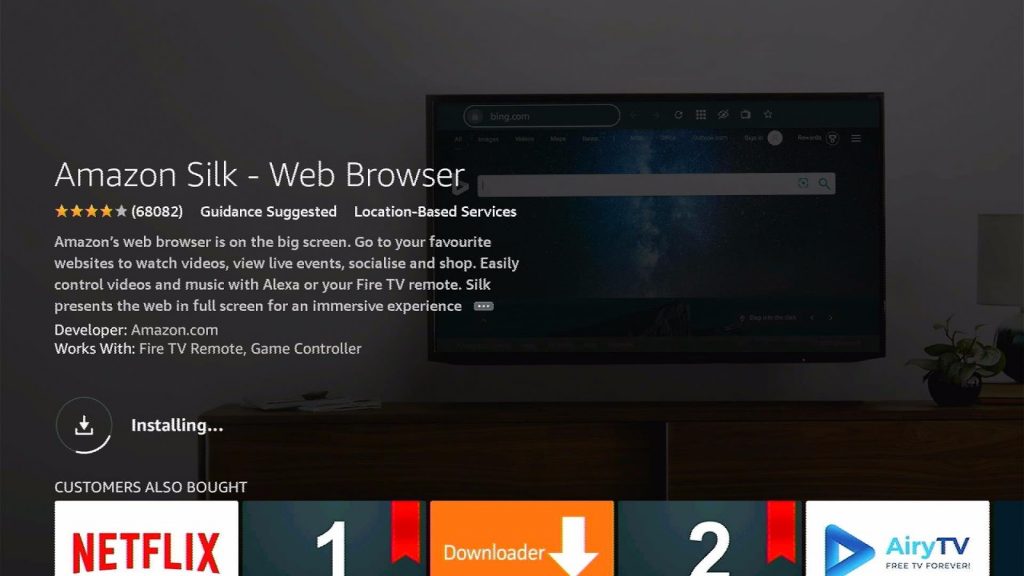
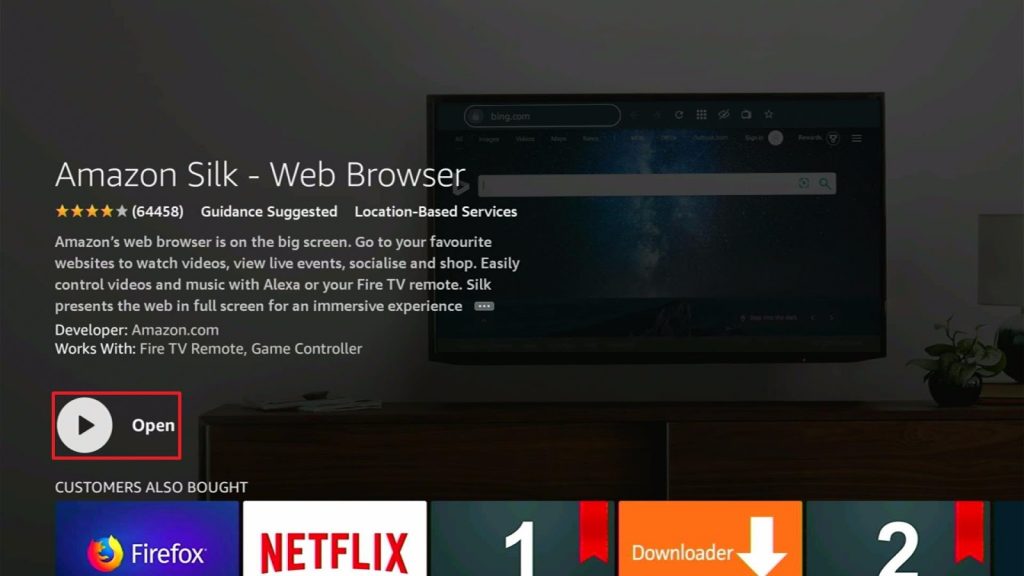
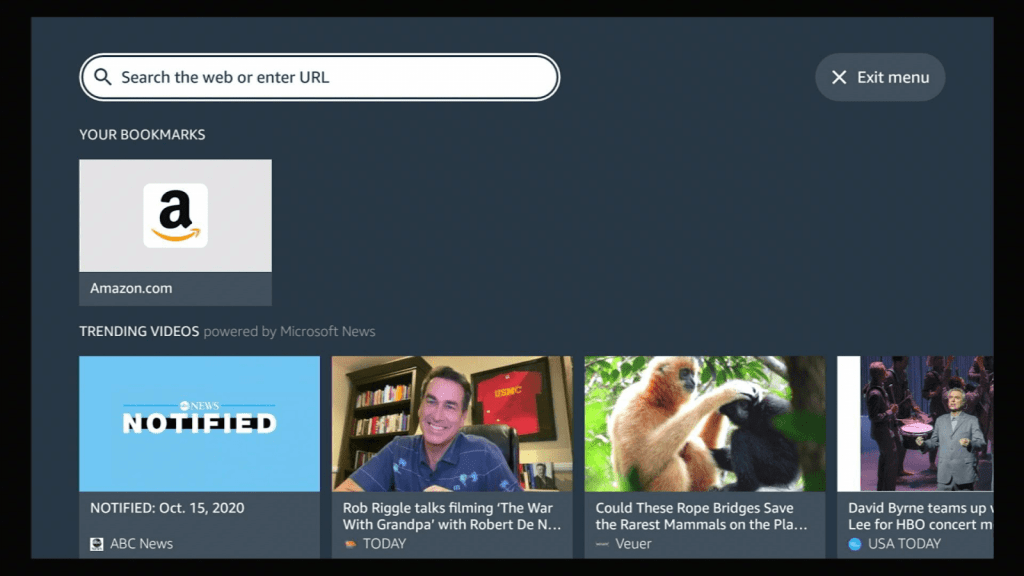
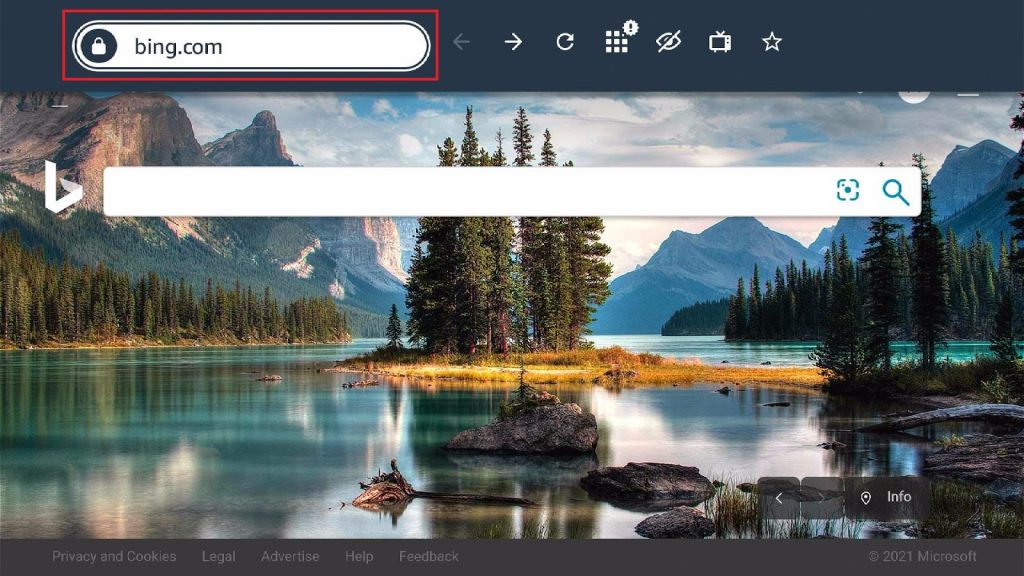
To access Funimation’s website on your Fire TV stick, you have to install the Amazon Silk Browser app on the Fire TV stick. Opening the Silk browser allows you to open websites on your Fire TV stick.

 

ANONYMOUSLY


How to Stream the Funimation Website on your Fire TV Stick with Screenshots

1. Go to the Home screen of your Firestick.

Silk Browser Installation Guide on Firestick Step 1

2. Click on Find.

Silk Browser Installation Guide on Firestick Step1


3. Tap on the Search tab.

Silk Browser Installation Guide on Firestick Step 2


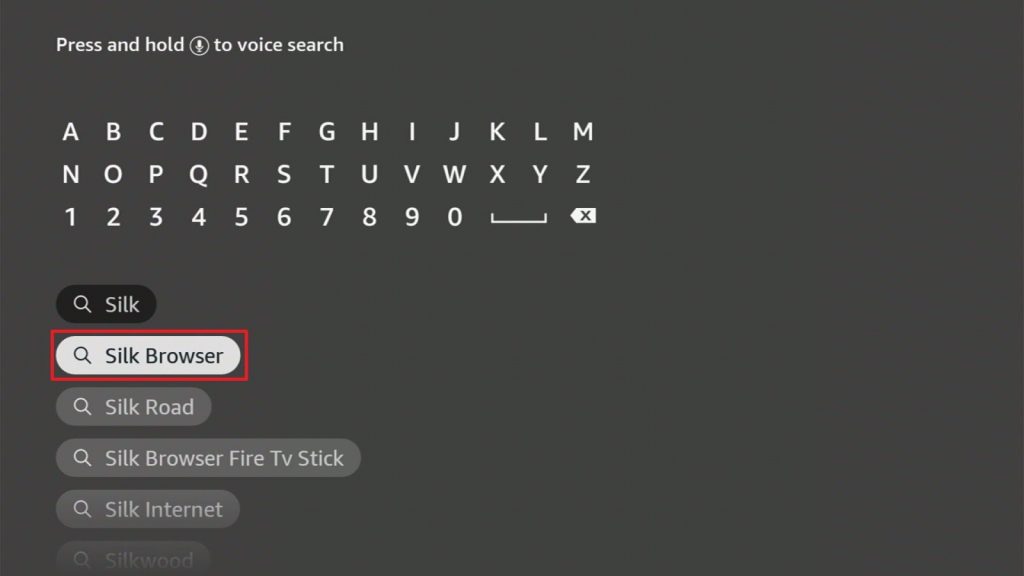
4.Type in Silk Browser and choose this item that appears on the results.

Installation Guide on Firestick Step 3


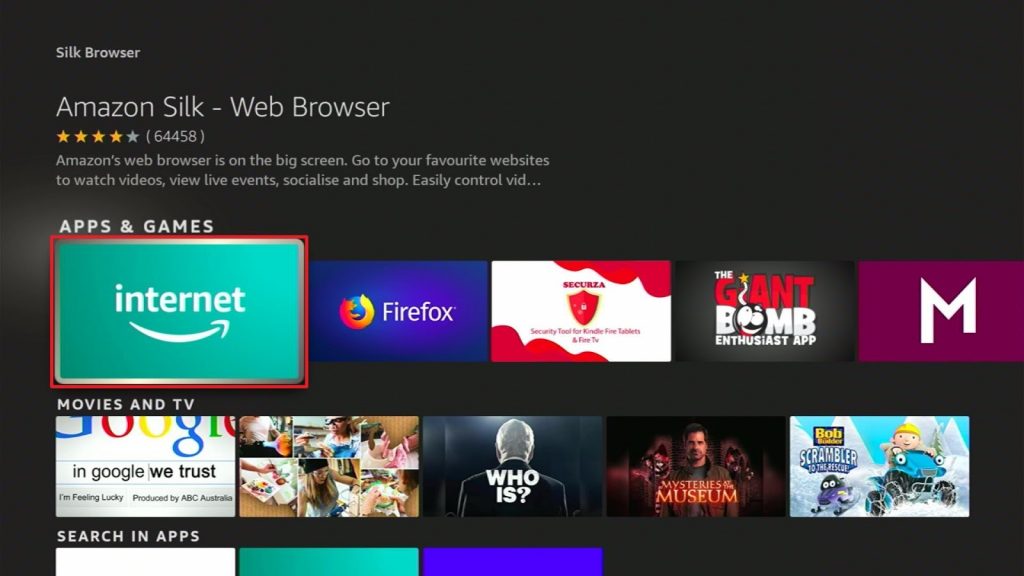
5. Click on the Silk Browser Icon.

Silk Browser Installation Guide on Firestick Step 4


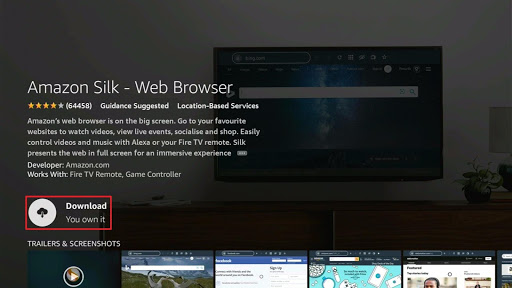
6. Choose Download.

Silk Browser Installation Guide on Firestick Step 5


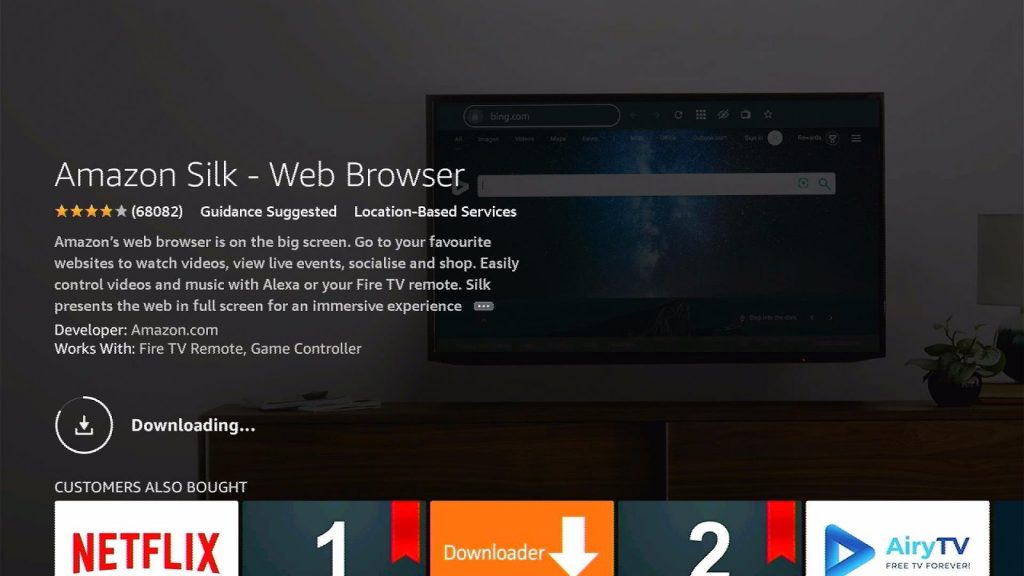
7. Silk Browser is Downloading into your Firestick.

Silk Browser Installation Guide on Firestick Step6


8. The Silk Browser app will Install on Firestick.

Silk Browser Installation Guide on Firestick Step 7


9. Select Open to launch the browser.

Silk Browser Installation Guide on Firestick Step 8


10. You can now start browsing using Amazon Silk Browser.

Silk Browser Installation Guide on Firestick Step 9


11 . The Silk Browser’s user interface will appear.

APK Exe website on your Fire TV Stick 3


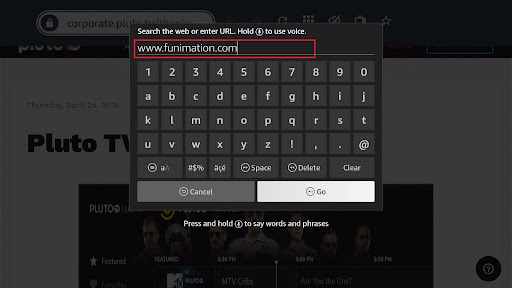
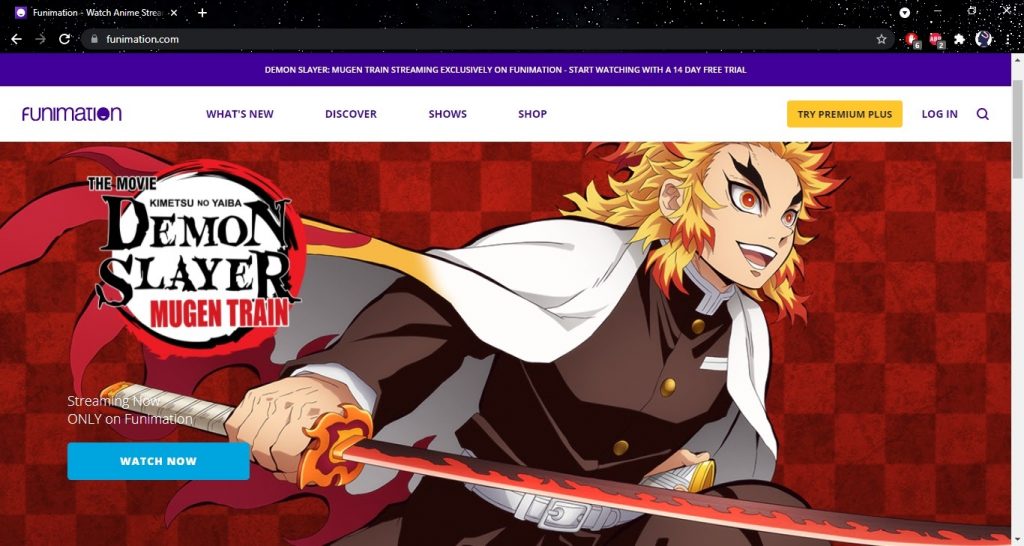
12. Type in: www.funimation.com

Stream the Funimation Website on your Fire TV Stick 12


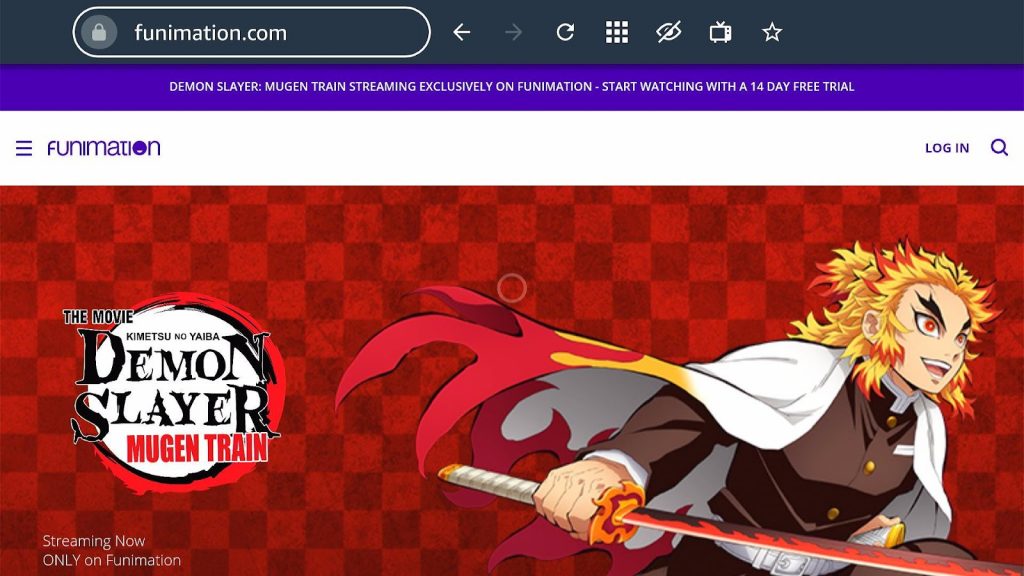
13. Silk browser will open Funimation’s main website.

Stream the Funimation Website on your Fire TV Stick 13


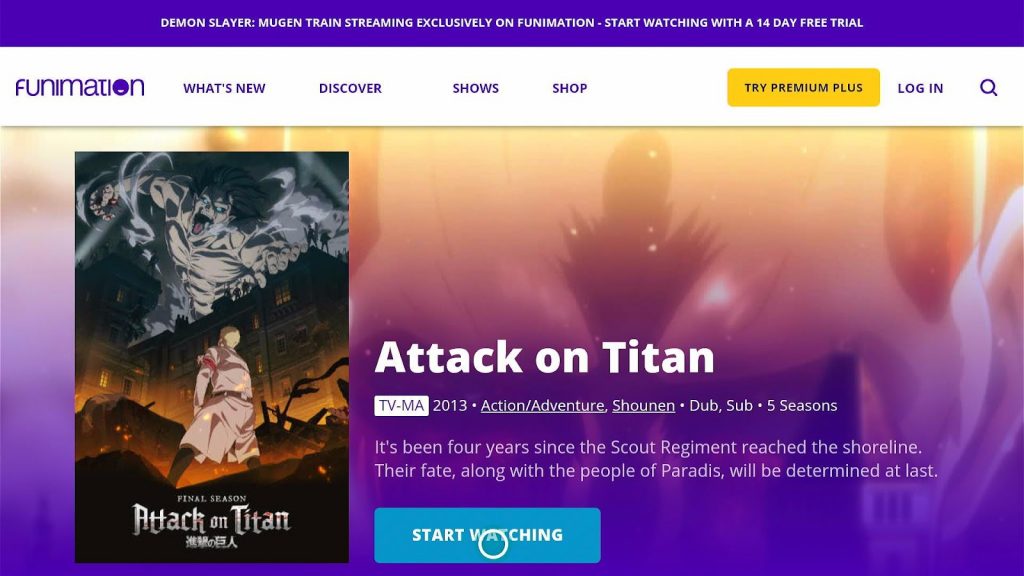
14. Choose any anime title you want to watch.

Stream the Funimation Website on your Fire TV Stick 14


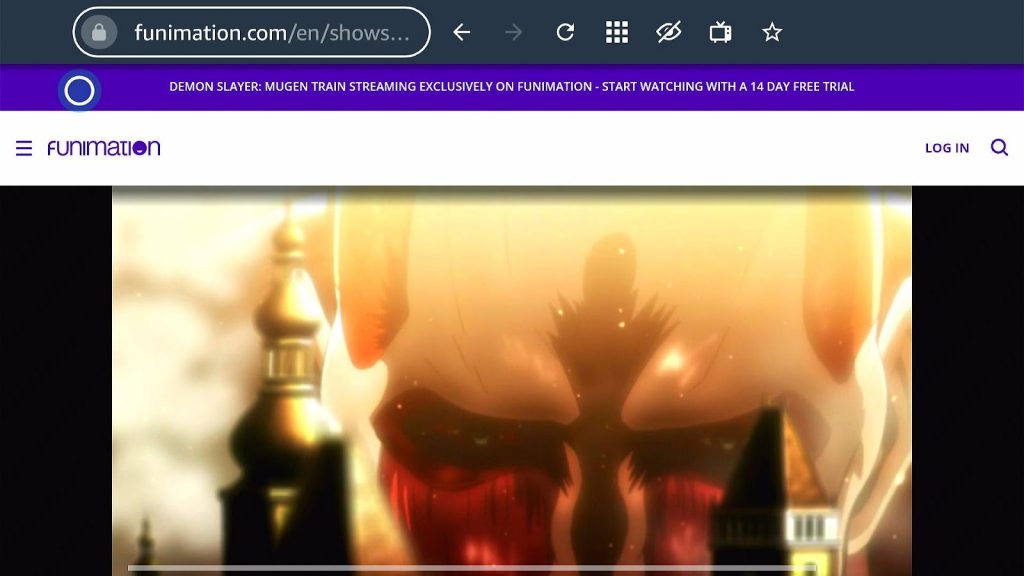
15. Enjoy watching anime video shows on your Fire TV stick!

Stream the Funimation Website on your Fire TV Stick 15


How to Stream the Funimation Website on your Android Device with Screenshots

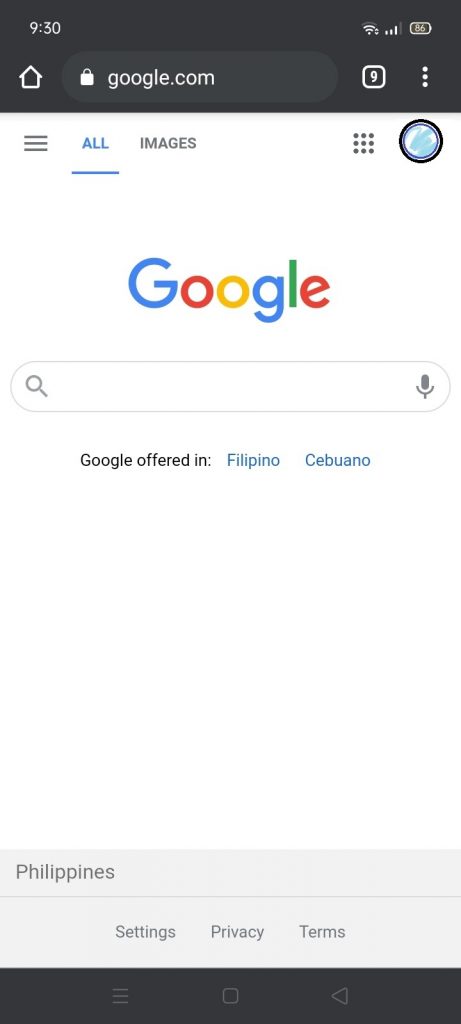
1. Open any web browser you have.

Stream the Funimation Website on your Android Device 1


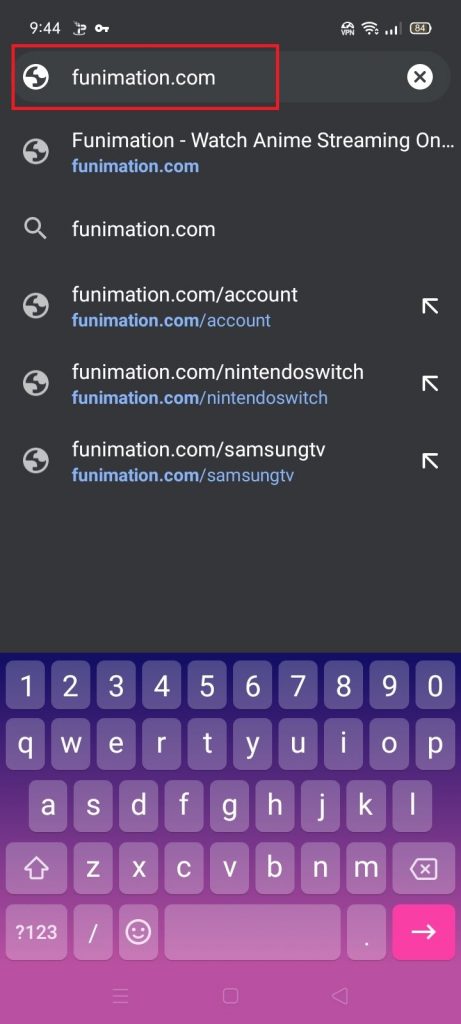
2. Type in: https://www.funimation.com/

Stream the Funimation Website on your Android Device 2


3. You can now stream anime videos on your Android mobile device.

Stream the Funimation Website on your Android Device 3


How to Stream Funimation Website on Windows wth Screenshots

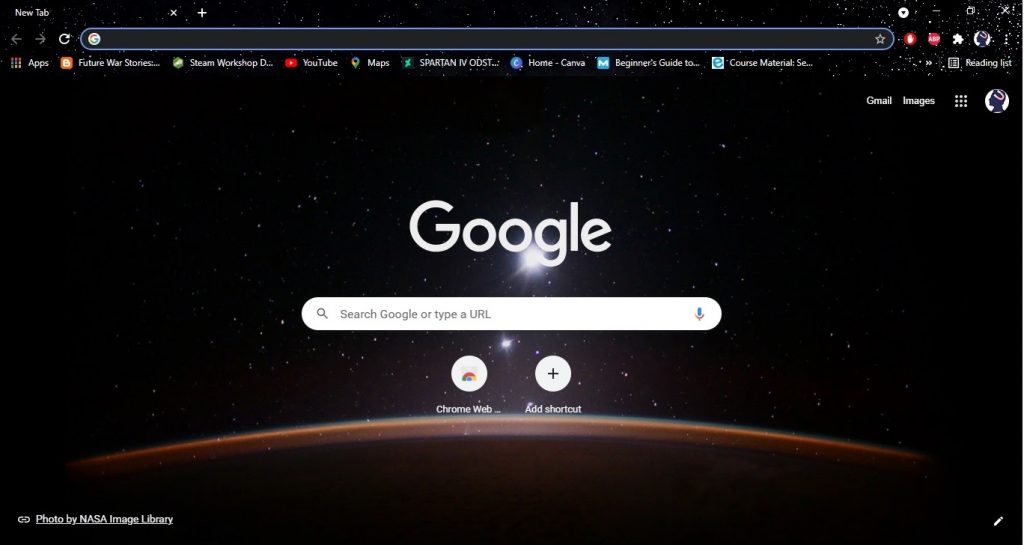
1. Launch any web browser on your computer.

Stream Funimation Website on Windows 1


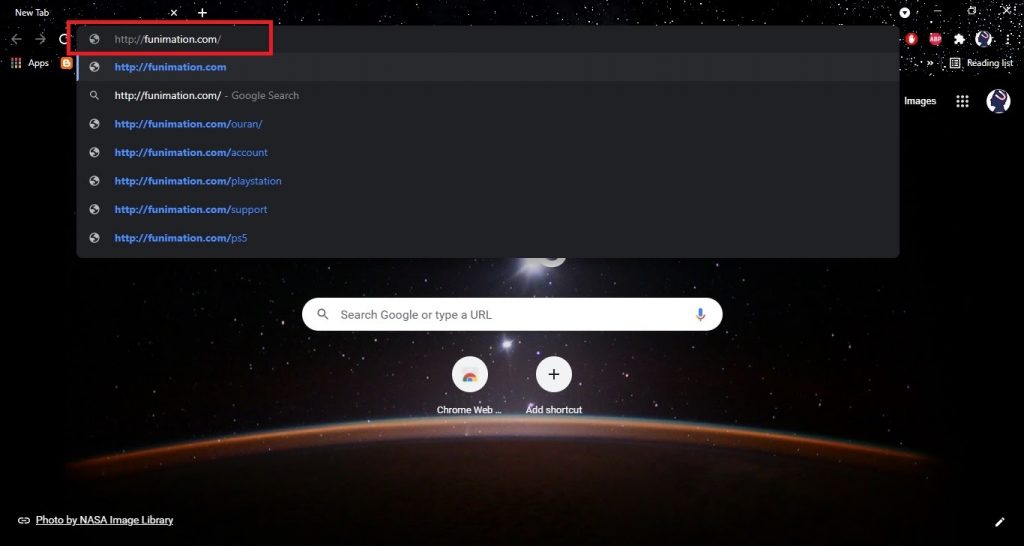
2. Type in http://funimation.com/ on the URL pane.

Stream Funimation Website on Windows 2


3. You can watch any anime episodes you like on your PC.

Stream Funimation Website on Windows 3

Stream Funimation Website on Windows 4


Install Surfshark on Firestick

Best Surfshark Deal


Funimation Website Features

  • Large Collection of English-Dubbed anime shows
  • Videos are shown in gallery-style format
  • Easy-to-use interface
  • Source of quality anime
  • Anime and Manga series
  • Futuristic home screen
  • Exclusive list of TV show titles
  • Discover new anime titles
  • Sells DVD and Blu-ray
  • Anime media content and merchandise
  • Attractive Color scheme
  • Easy to navigate


Funimation Website Interface

  • Attractive website design
  • Anime series are shown in the gallery-style format
  • Choose from What’s New from the anime industry
  • New Releases
  • Schedule of anime shows
  • Receive news about upcoming events


Funimation Discover Section

  • Recommended
  • Trending
  • Guides
  • Moods
  • Games
  • Blogs
  • Funimation Films


Funimation Shows

  • All Shows
  • Genres
  • SIMULDUB (Trademark of Funimation)
  • Popular Anime Shows


Funimation Anime Genres

  • Action
  • Adventure
  • Comedy
  • Drama
  • Fan Service
  • Fantasy
  • Horror
  • Live-Action
  • Psychological
  • Romance
  • Science Fiction
  • Shoujo (Young Woman)
  • Shounen (Few Years)
  • Slice of Life


Funimation Online Shop

  • Accessible from the website’s homepage
  • Pre-order items
  • Home Videos
  • Accessories
  • Figures and Collectibles
  • Apparel
  • Home
  • Sale


YOUR INTERNET ACTIVITY IS BEING WATCHED

ReviewVPN cannot attest to the legality, security and privacy of the applications discussed on this site. It is highly recommended that you use a VPN service while streaming or using Kodi.

Currently, your IP 216.73.216.69 is visible to everyone and your Browser is being tracked by Advertisers & ISP Provider.

Save 65% Now

Limited Time Offer

Here are the main reasons why you must use a VPN:

  • Your activities are hidden from your ISP, the government, and from the apps you are using.
  • You can access additional movies and TV streams.
  • ISP attempts to throttle are thrwarted thus reducing buffering issues.
  • Geographically restricted content like Netflix and Hulu can be unblocked.

A VPN works be replacing your ISP-assigned IP address and creating an encrypted tunnel. We recommend the no log service offered by IPVanish. It works well on a Firestick and offers the fastest possible speeds.

Special Limited Time Offer - Get IPVanish


Pros and Cons

Pros

  • 100% Free
  • Legal to use
  • Attractive Website Design
  • Several anime genres
  • Website organization
  • Has an official application
  • Recommends titles to visitors
  • Users can request anime titles
  • Has a fan-service section
  • Functions like an online shop for anime content
  • Sells anime apparel
  • Online Shop for anime merchandise
  • Filter your media content or merchandise search


Cons

  • Occasionally slow website response
  • Contains ads
  • Website limits free membership features
  • Challenging episode navigation


Watch Anime shows with a VPN

Watching anime shows is the favorite pastime of many people. Fortunately, many websites are made for streaming various anime media content. Each website contains thousands of titles and shows to select from.

Unfortunately, your ISP reduces your connectivity rate to stop heavy internet traffic.

Luckily for us, anime enthusiasts can have smooth anime video show streaming by installing Surfshark. The VPN has many benefits to offer which include:

  • Faster loading and streaming of anime videos.
  • Hides your digital footprint.
  • Protects your device.
  • Consistent streaming of online videos.
  • Eliminates streaming disruptions.


Grab your subscription now!

Click here to get the lowest price on Surfshark through our exclusive limited-time offer.


How to Install Surfshark VPN on Firestick

If your Firestick still has the older interface, read this article to learn how to update it: Update Firestick Interface.

You can download Surfshark directly from the Amazon App store. It will be easy for you to find Surfshark with your Firestick’s Find feature. Refer to our screenshots below.

1. Go to the Home screen of your Firestick.

step 1 Install Surfshark VPN on Firestick


2. Navigate towards the Find tab. Press the Search button from the resulting dropdown.

step 2 Install Surfshark VPN on Firestick


3. Type in the keyword of SurfShark and select from the suggestions that will appear.

step 3 Install Surfshark VPN on Firestick


4. Click the official SurfShark icon from your search results.

step 4 Install Surfshark VPN on Firestick


5. Press the Download (You own it) button.

step 5 Install Surfshark VPN on Firestick


6. The SurfShark VPN installer will download on your device.

step 6 Install Surfshark VPN on Firestick


7. SurfShark VPN’s app will automatically install itself on your Fire TV stick.

step 7 Install Surfshark VPN on Firestick


8. Press the Open button after completing SurfShark VPN’s installation process.

step 8 Install Surfshark VPN on Firestick


9. Please wait for the SurfShark VPN to load its user interface.

step 9 Install Surfshark VPN on Firestick


10. You can now log in with your SurfShark VPN account credentials.

step 10 Install Surfshark VPN on Firestick

Learn more about Surfshark and Grab the Best Surfshark Deal Now!


Install Surfshark on Firestick

Best Surfshark Deal


Other VPNs to Consider

NordVPN (Best for Streaming)

Best Features

  • 5000+ Server in 50+ Countries 
  • Military-Grade Encryption
  • Fast Connection Speed
  • Suitable to a lot of devices
  • No-Log Policy

Prices
  • Complete $5.89 per month (64% Discount)
  • Plus $4.59 per month (56% Discount)
  • Standard $3.69 per month (55% Discount)

Best Features

  • 750+ High-speed VPN Servers in 43 Locations
  • Military-Grade Encryption
  • Fastest HD Streaming and Gaming
  • 30-Day Money-Back Guarantee
  • Unlimited Data & Devices
  • No-Log Policy

Prices
  • 3 Years $1.99 per month (82% Discount)
  • 1 Years $3.29 per month (70% Discount)
  • 1 Month $10.99 per month

IPVanish VPN (Most Secure)

Best Features

  • 1200+ Servers in 60+ Countries around the world
  • Unlimited Connections
  • No-Log Policy
  • Top Notch Military-Grade VPN Protocols and Encryptions
  • 100% Safe and Secured
  • Most Trusted VPN
  • Best VPN for Firestick
  • 30-Day Money-Back Guarantee

Prices
  • Yearly $3.99 per month (63% Discount) – 30 days risk free + Ransomware & Malware Protection
  • Quarterly $5.32 per month (51% Discount)
  • Monthly $10.99 per month


For more VPN discounts, go to ReviewVPN Deals and purchase the best VPN for you.

Click here to get the lowest price on Surfshark through our exclusive limited-time offer.


Alternative Websites for Funimation

The Funimation website is one of the popular anime streamers. However, it might not always meet the preferences of different anime fans. We have a list of sites that can serve as alternatives for the Funimation website:

In case you are looking for more options, visit our review about the best anime streaming websites on the internet.


FAQs

Does the website require any payment?

No. You can watch anime shows for free. Users only have to install a VPN like Surfshark to unblock the videos.


Does the Funimation website require the creation of an account?

Yes. Some of the anime content is meant for mature individuals, it will ask for your account.


Are there any ads while using the website for streaming?

Yes. The Funimation website supports ads. All the ad appearances are tolerable and not annoying.


Conclusion

The Funimation website is an excellent source for viewing the latest anime episodes. Fans of anime will enjoy using the website. It contains thousands of shows and films. Apart from streaming, the website also functions as an online shop for various merchandise.

We hope this article helps you stream the Funimation website on any device.

How to Stream AnimeUltima Using any Device

Overview

In this article, we will show you how to stream the AnimeUltima website on any device.

Do you enjoy streaming animated videos from the internet? If you do, then we just have the right app for your needs. Streaming online videos such as anime, cartoons, and animated films is a hobby of many people.

The media content contains several genres to select. You can expect rich plotlines, action sequences, science fiction, fantasy, and even love stories.


Several years ago, many people from different countries returned from home or work to watch their favorite anime shows. Now, with the convenience of streaming platforms such as the Fire TV stick, they can stream these TV shows right on their mobile devices.

Anime is the video version of the famous Japanese manga comics. To explain further, they are video shows made from Japanese comic books. It is why fans of comic books rush into streaming websites and wait for their favorite titles in video format.

Great news for fans of anime! The website called AnimeUltima has returned. If you want to watch Japanese anime without spending money, then the AnimeUltima website is perfect for you! The website presents an impressive collection of anime series.

Upon visiting its domain, users will find it easy to navigate the website. They will immediately see the latest TV shows and titles. There is also a search engine for finding their favorite TV show titles.

To access AnimeUltima’s website on your Fire TV stick, you have to install the Amazon Silk Browser app on the Fire TV stick. Opening the Silk browser allows you to open websites on your Fire TV stick.
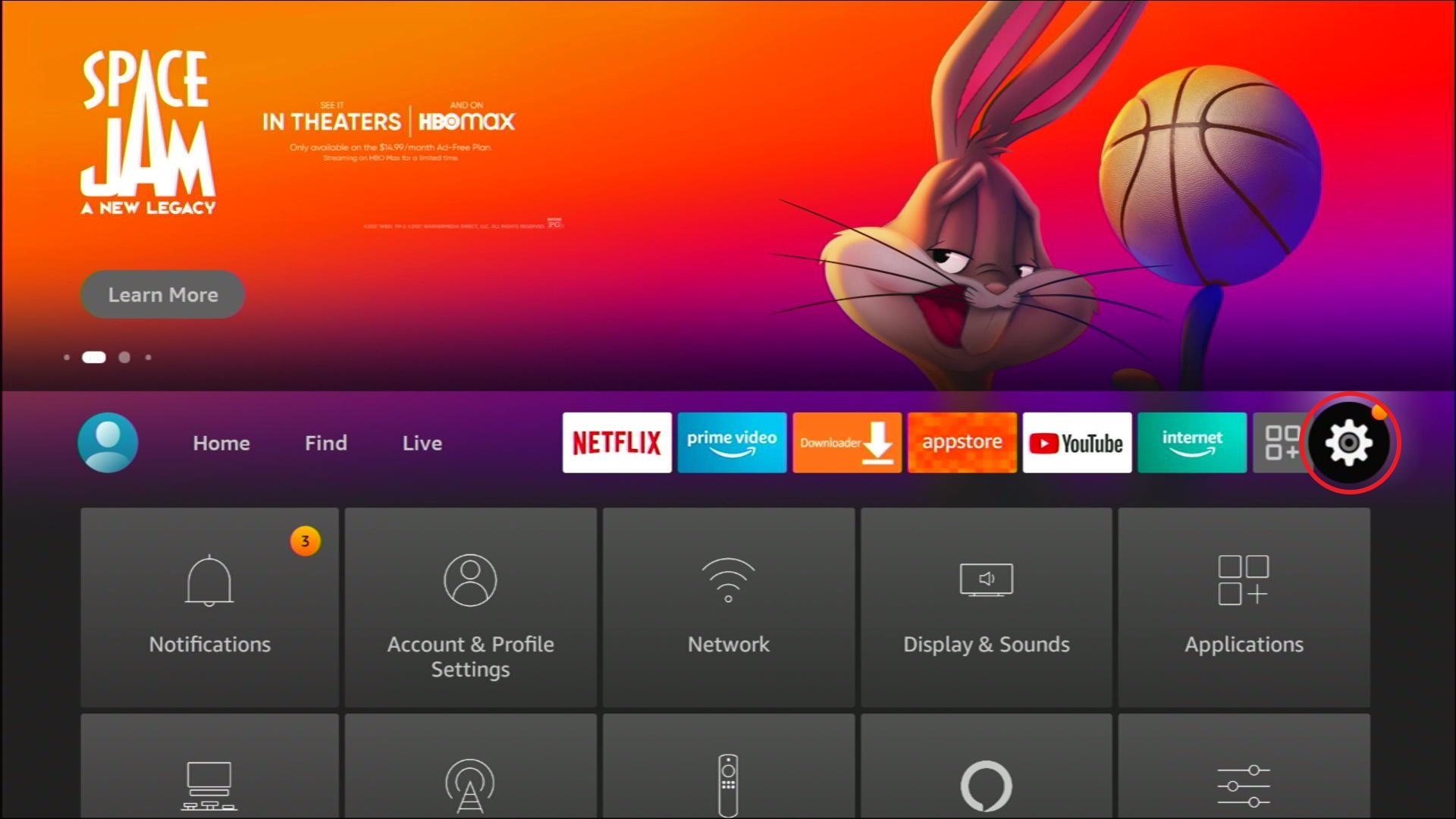
 

ANONYMOUSLY


How to Stream the AnimeUltima Website on Your Fire TV Stick with Screenshots


1. Go to the Home screen of your Firestick.

Silk Browser Installation Guide on Firestick Step 1

2. Click on Find.

Silk Browser Installation Guide on Firestick Step1


3. Tap on the Search tab.

Silk Browser Installation Guide on Firestick Step 2


4.Type in Silk Browser and choose this item that appears on the results.

Installation Guide on Firestick Step 3


5. Click on the Silk Browser Icon.

Silk Browser Installation Guide on Firestick Step 4


6. Choose Download.

Silk Browser Installation Guide on Firestick Step 5


7. Silk Browser is Downloading into your Firestick.

Silk Browser Installation Guide on Firestick Step6


8. The Silk Browser app will Install on Firestick.

Silk Browser Installation Guide on Firestick Step 7


9. Select Open to launch the browser.

Silk Browser Installation Guide on Firestick Step 8


10. You can now start browsing using Amazon Silk Browser.

Silk Browser Installation Guide on Firestick Step 9

11. Go to the URL bar on the top corner of your browsing screen.

APK Exe website on your Fire TV Stick 3


12. Type in: www1.animeultima.to

Stream the AnimeUltima Website on Your Fire TV Stick 12


13. Silk browser will open AnimeUltima’s main website.

Stream the AnimeUltima Website on Your Fire TV Stick 13


14. Choose any anime title you want to watch.

Stream the AnimeUltima Website on Your Fire TV Stick 14


15. Scroll down and select any episode from the list.

Stream the AnimeUltima Website on Your Fire TV Stick 15


16. Enjoy watching anime video shows on your Fire TV stick!

Stream the AnimeUltima Website on Your Fire TV Stick 16


How to Stream the AnimeUltima Website on your Android Device with Screenshots

1. Open any web browser you have.

Stream the AnimeUltima Website on your Android Device 1


2. Type in: www1.animeultima.to

Stream the AnimeUltima Website on your Android Device 2


3. You can now stream anime videos on your Android mobile device.

Stream the AnimeUltima Website on your Android Device 3


How to Stream AnimeUltima Website on Windows

1. Launch any web browser on your computer.

Stream AnimeUltima Website on Windows 1


2. Type in www1.animeultima.to on the URL pane.

Stream AnimeUltima Website on Windows 2


3. You can watch any anime episodes you like on your PC.

Stream AnimeUltima Website on Windows 3


YOUR INTERNET ACTIVITY IS BEING WATCHED

ReviewVPN cannot attest to the legality, security and privacy of the applications discussed on this site. It is highly recommended that you use a VPN service while streaming or using Kodi.

Currently, your IP 216.73.216.69 is visible to everyone and your Browser is being tracked by Advertisers & ISP Provider.

Save 65% Now

Limited Time Offer

Here are the main reasons why you must use a VPN:

  • Your activities are hidden from your ISP, the government, and from the apps you are using.
  • You can access additional movies and TV streams.
  • ISP attempts to throttle are thrwarted thus reducing buffering issues.
  • Geographically restricted content like Netflix and Hulu can be unblocked.

A VPN works be replacing your ISP-assigned IP address and creating an encrypted tunnel. We recommend the no log service offered by IPVanish. It works well on a Firestick and offers the fastest possible speeds.

Special Limited Time Offer - Get IPVanish


Install Surfshark on Firestick

Best Surfshark Deal


AnimeUltima Website Features

  • 2000+ Anime Titles
  • Simple webpage design
  • Built-in search engine
  • Videos are shown in gallery format
  • Each anime title includes details
  • Read the summary for every Video Title
  • Many types of media genres to select
  • Periodic updating of anime shows
  • Subtitles
  • Dubbing
  • Multi-language support
  • Complete description about each title
  • Simple user interface
  • Built-in Search Bar
  • Change from day mode to night mode


Website Interface

  • Simple user interface
  • Videos presented like a gallery
  • Latest Episodes of famous Anime titles
  • Access its Community and connect with friends
  • Socialize with friendly anime fans
  • Find anime titles based on filters
  • Wait for new anime episodes from the website’s schedule tab
  • Users can request anime titles from the site’s developers


Anime Genres

  • Shounen
  • Supernatural
  • Realistic
  • Romance
  • Magic
  • Action
  • Mecha
  • Drama
  • Psychological
  • Sci-fi
  • Shoujo
  • Horror
  • Demons
  • Mystery


Pros and Cons

Pros

  • 100% Free
  • Has an official mobile app
  • Daily updating of anime content
  • Over 2000+ Anime titles
  • Legal and safe to use
  • Simple interface
  • New Anime Episodes
  • Users can request any titles they want
  • Great for non-subscribers of cable services

Cons

  • Some ads might appear while streaming on your Fire TV stick.
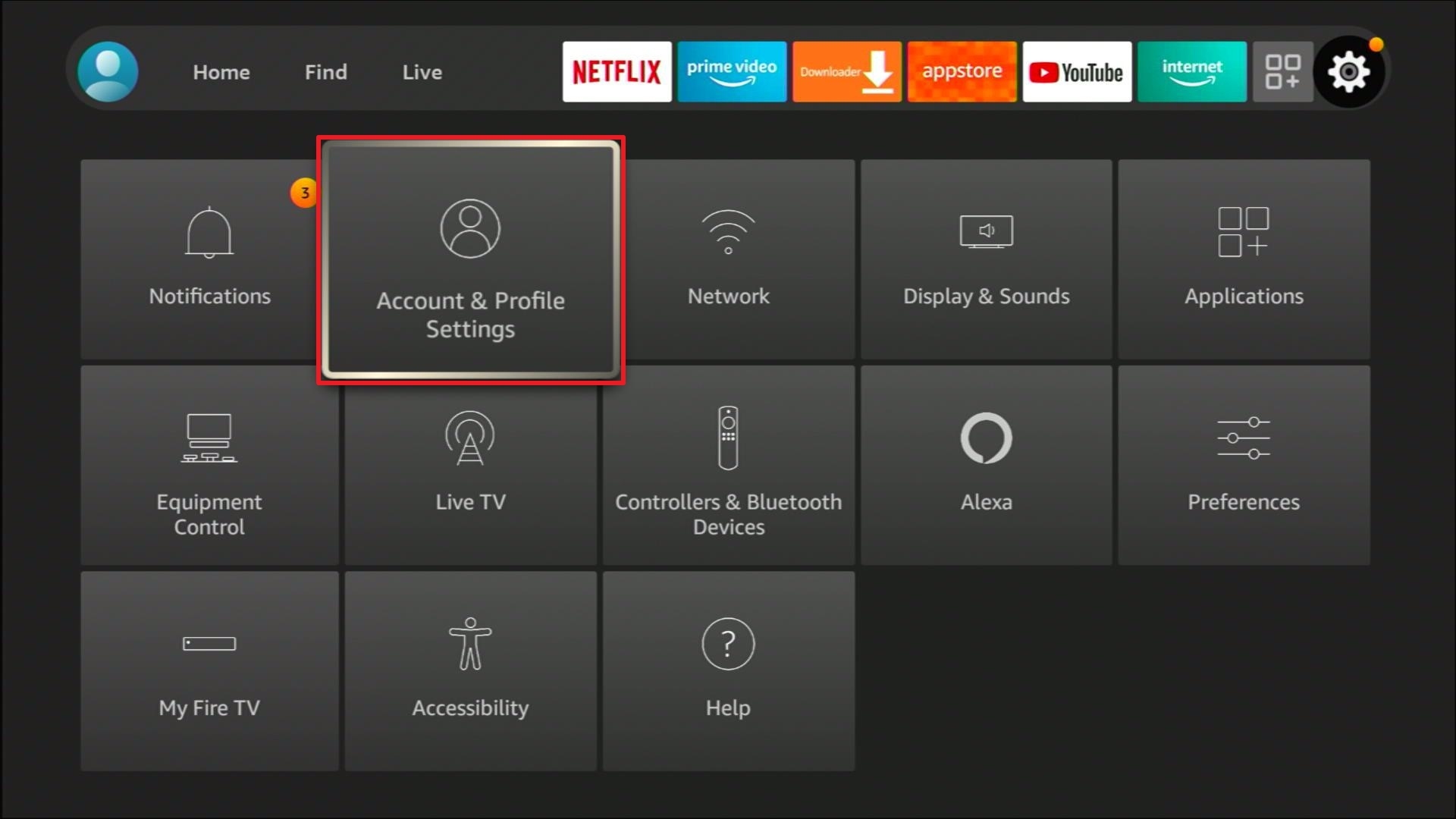
 

Watch Anime Episodes with a VPN

Streaming anime series is a popular hobby amongst its worldwide fanbase. Many anime titles, series, films, and exclusive videos can be found on the web. You can select from many anime genres with the AnimeUltima application.

Unfortunately, your ISP can decrease your streaming capabilities. This is done via ISP throttling. We can stop throttling by installing Surfshark. Here are the features that the Surfshark can share with us:

  • Fast streaming of anime video shows.
  • Cloaks your online identity from hackers.
  • Protects your gadgets from harmful software.
  • Improves streaming speeds.
  • No more disturbances while watching anime.


Grab your subscription now!

Click here to get the lowest price on Surfshark through our exclusive limited-time offer.


How to Install Surfshark VPN on Firestick

If your Firestick still has the older interface, read this article to learn how to update it: Update Firestick Interface.

Follow our screenshots below to install the SurfShark VPN app on your Fire TV stick.
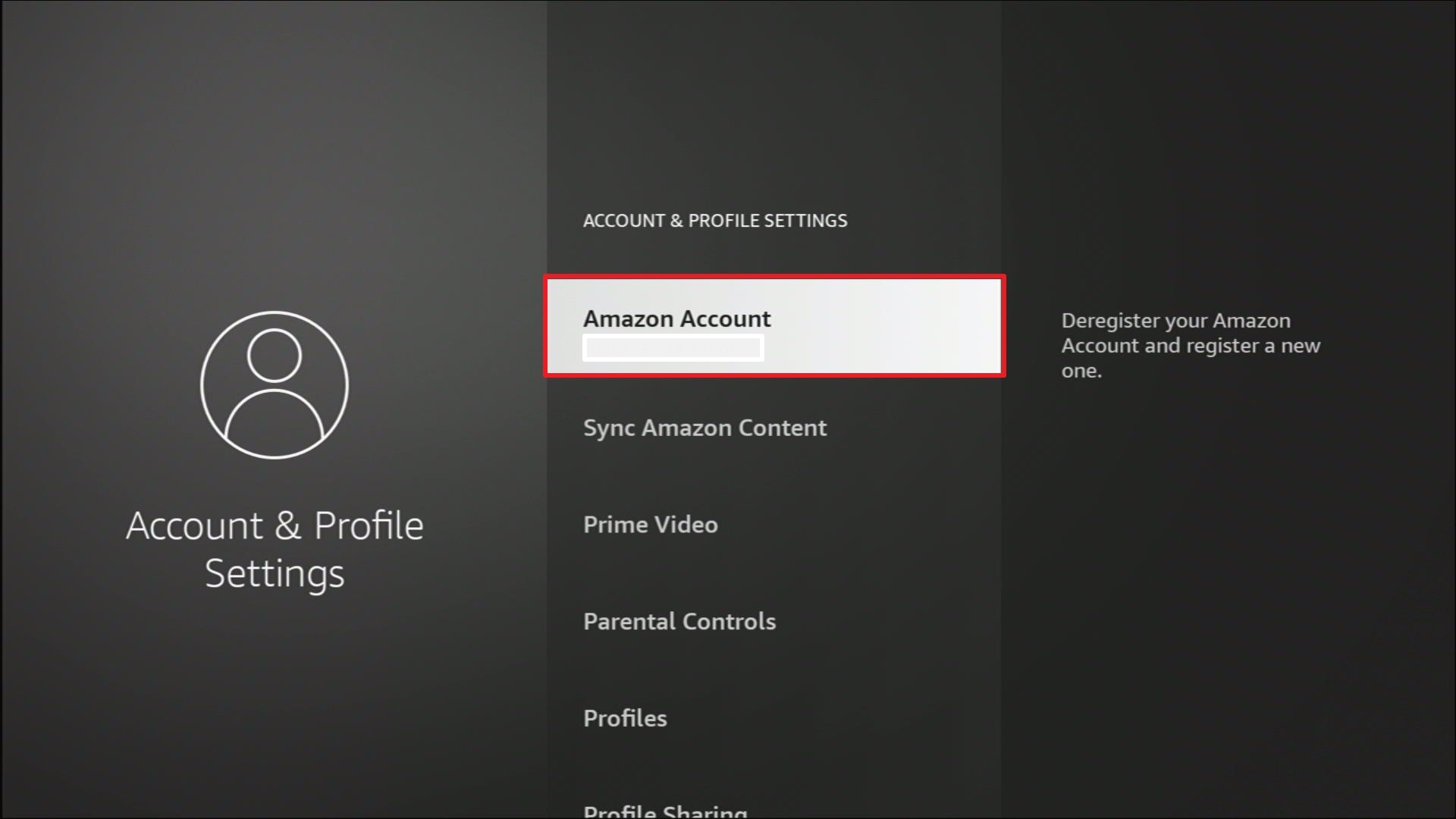
1. Go to the Home screen of your Firestick.

step 1 Install Surfshark VPN on Firestick


2. Navigate towards the Find tab. Press the Search button from the resulting dropdown.

step 2 Install Surfshark VPN on Firestick


3. Type in the keyword of SurfShark and select from the suggestions that will appear.

step 3 Install Surfshark VPN on Firestick


4. Click the official SurfShark icon from your search results.

step 4 Install Surfshark VPN on Firestick


5. Press the Download (You own it) button.

step 5 Install Surfshark VPN on Firestick


6. The SurfShark VPN installer will download on your device.

step 6 Install Surfshark VPN on Firestick


7. SurfShark VPN’s app will automatically install itself on your Fire TV stick.
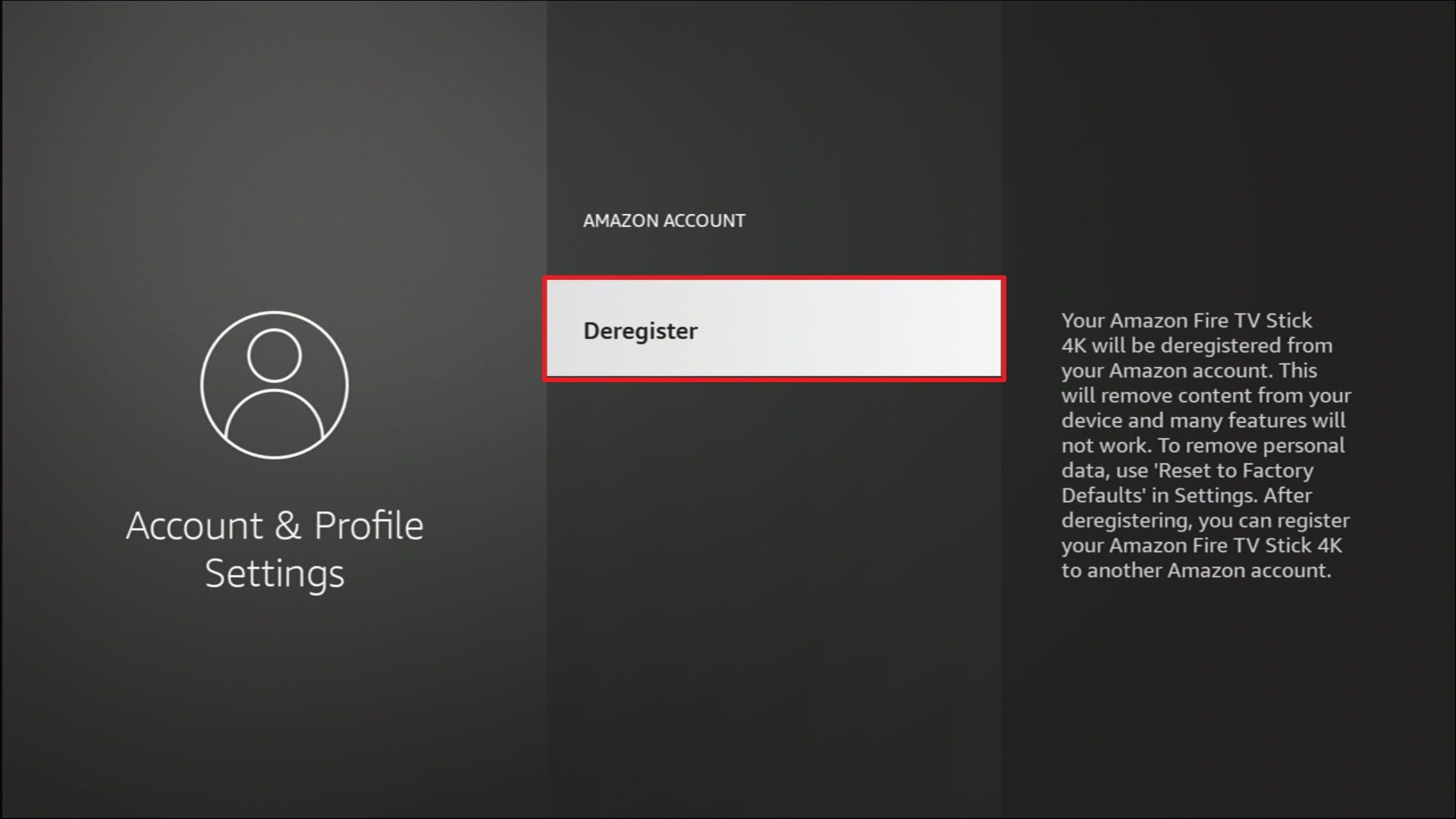
step 7 Install Surfshark VPN on Firestick


8. Press the Open button after completing SurfShark VPN’s installation process.

step 8 Install Surfshark VPN on Firestick


9. Please wait for the SurfShark VPN to load its user interface.

step 9 Install Surfshark VPN on Firestick


10. You can now log in with your SurfShark VPN account credentials.

step 10 Install Surfshark VPN on Firestick

Learn more about Surfshark and Grab the Best Surfshark Deal Now!


Install Surfshark on Firestick

Best Surfshark Deal


Other VPNs to Consider

NordVPN (Best for Streaming)

Best Features

  • 5000+ Server in 50+ Countries 
  • Military-Grade Encryption
  • Fast Connection Speed
  • Suitable to a lot of devices
  • No-Log Policy

Prices
  • Complete $5.89 per month (64% Discount)
  • Plus $4.59 per month (56% Discount)
  • Standard $3.69 per month (55% Discount)

Best Features

  • 750+ High-speed VPN Servers in 43 Locations
  • Military-Grade Encryption
  • Fastest HD Streaming and Gaming
  • 30-Day Money-Back Guarantee
  • Unlimited Data & Devices
  • No-Log Policy

Prices
  • 3 Years $1.99 per month (82% Discount)
  • 1 Years $3.29 per month (70% Discount)
  • 1 Month $10.99 per month

IPVanish VPN (Most Secure)

Best Features

  • 1200+ Servers in 60+ Countries around the world
  • Unlimited Connections
  • No-Log Policy
  • Top Notch Military-Grade VPN Protocols and Encryptions
  • 100% Safe and Secured
  • Most Trusted VPN
  • Best VPN for Firestick
  • 30-Day Money-Back Guarantee

Prices
  • Yearly $3.99 per month (63% Discount) – 30 days risk free + Ransomware & Malware Protection
  • Quarterly $5.32 per month (51% Discount)
  • Monthly $10.99 per month


For more VPN discounts, go to ReviewVPN Deals and purchase the best VPN for you.

Click here to get the lowest price on Surfshark through our exclusive limited-time offer.


Alternative Websites for AnimeUltima

The AnimeUltima app is a famous website for streaming anime series. However, it might not always meet the preferences of different anime fans. We have a list of sites that can serve as alternatives for the AnimeUltima website:


In case you are looking for more options, visit our review about the best anime streaming websites on the internet.


FAQs

Are there any ads while watching anime shows on the website?

Yes. There are only a few ads while watching with your Fire TV stick.
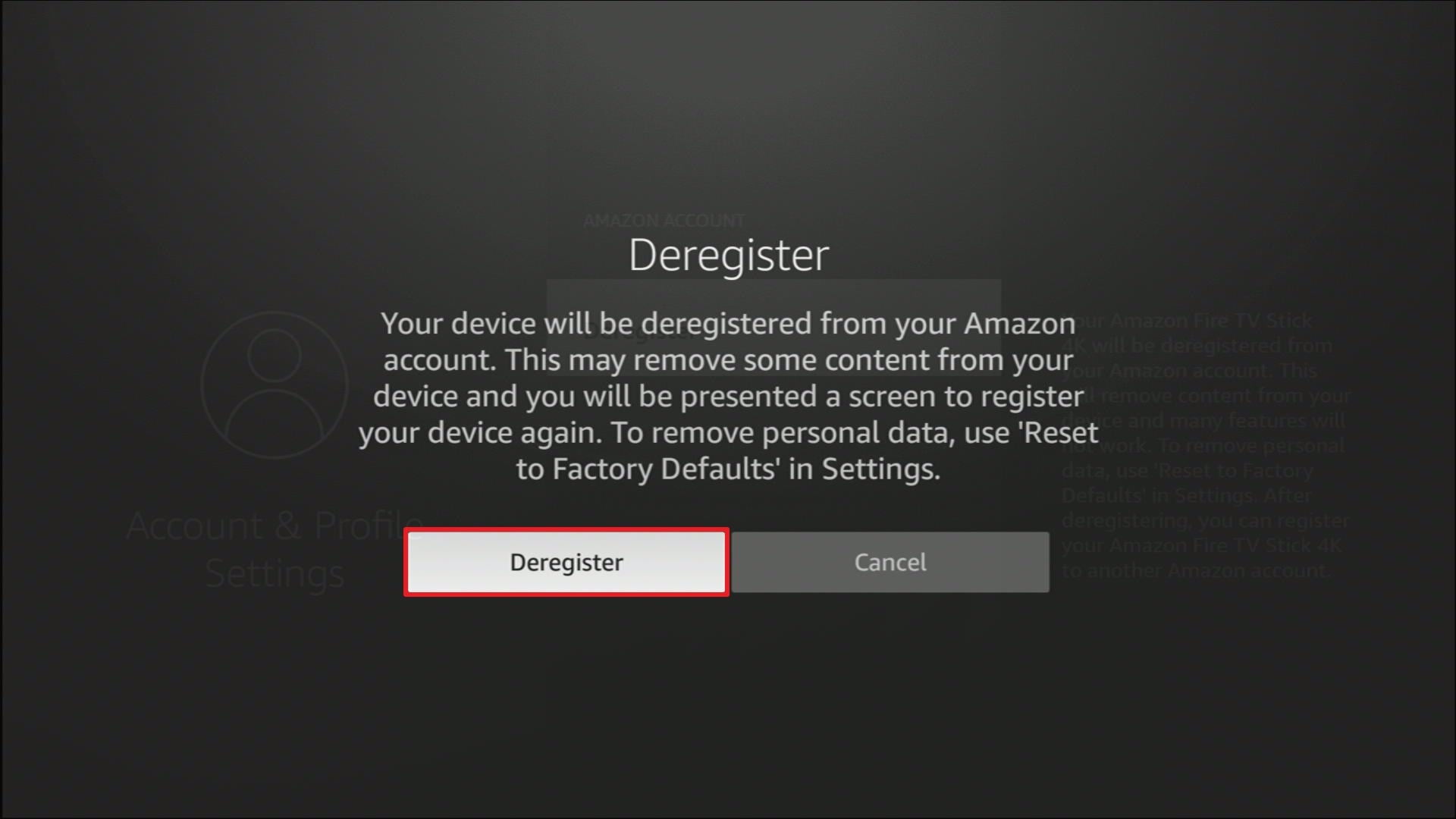
 

Does the website need any accounts?

No. You can watch any episode without creating a personal account.


Does the website require any payment?

No. Visiting the website and watching its anime videos do not require any payment.


Conclusion

The AnimeUltima website is great for watching anime videos online. The list of anime series counts to over two thousand entries. There are many genres to select. The contents of the website are updated daily by the developers. You can expect the latest episodes from famous anime titles and new releases.

We hope this article helps you stream the AnimeUltima website on any device browser.

How Firestick Works With Alexa

Overview

In this article, we will show you how your Firestick works with Alexa remote.

Do you wonder how your Fire TV stick works with its Alexa remote? If you do, then you’ve come across the right article. Aside from troubleshooting tips and installation guides, we also teach our viewers about the wonderful features of the Fire TV stick. We will discuss first the Fire TV stick then how it functions with Alexa.


What is the Fire TV stick?

Amazon’s Fire TV stick is a device for home entertainment. The purpose of the Fire TV stick is to let you stream any online videos you like. The device has its own HDMI cord and USB Power charger. You can plug it into a TV monitor’s HDMI 2.0/4K port to watch your favorite TV shows, movies, streaming services, and various media files.

The Fire TV stick is shaped like an oversized USB and comes in a matte black color. It is portable and travel-friendly. Imagine connecting your Fire TV stick to any TV monitor you can find. You can access a personal TV platform that contains your favorite media content.

Upon opening the Fire TV stick, it will prompt you to create an Amazon account. Your personal Amazon account is required to access its apps store for installing official Fire TV stick apps. As an alternative, you can also install apps with its downloader app.

The Fire TV stick has many official apps for different purposes. You won’t run out of apps to use for different entertaining activities.

When you purchase a Fire TV stick, the package is complete with a USB cable, power adapter, HDMI cable, an instruction manual, and a pair of Triple-A batteries. The Fire TV stick also comes with an Alexa voice-controlled remote. Let us now discuss how your Fire TV stick works with its Alexa remote.


ANONYMOUSLY


How does the Fire TV stick work with the Alexa Voice-control Remote?

Today, many people support the new technologies present in modern streaming devices. These gadgets let you conveniently stream many television shows and movies inside your comfortable home. The Fire TV stick is an excellent example of bringing you the voice-controlled Alexa remote.

If you wonder how the Fire TV stick functions with the Alexa Voice-control remote, the answer is quite simple. Both devices connect with each other using Bluetooth technology. Your voice commands are received by the Alexa remote which has a mic on it. It will then convert your commands as executable actions for your Fire TV stick.
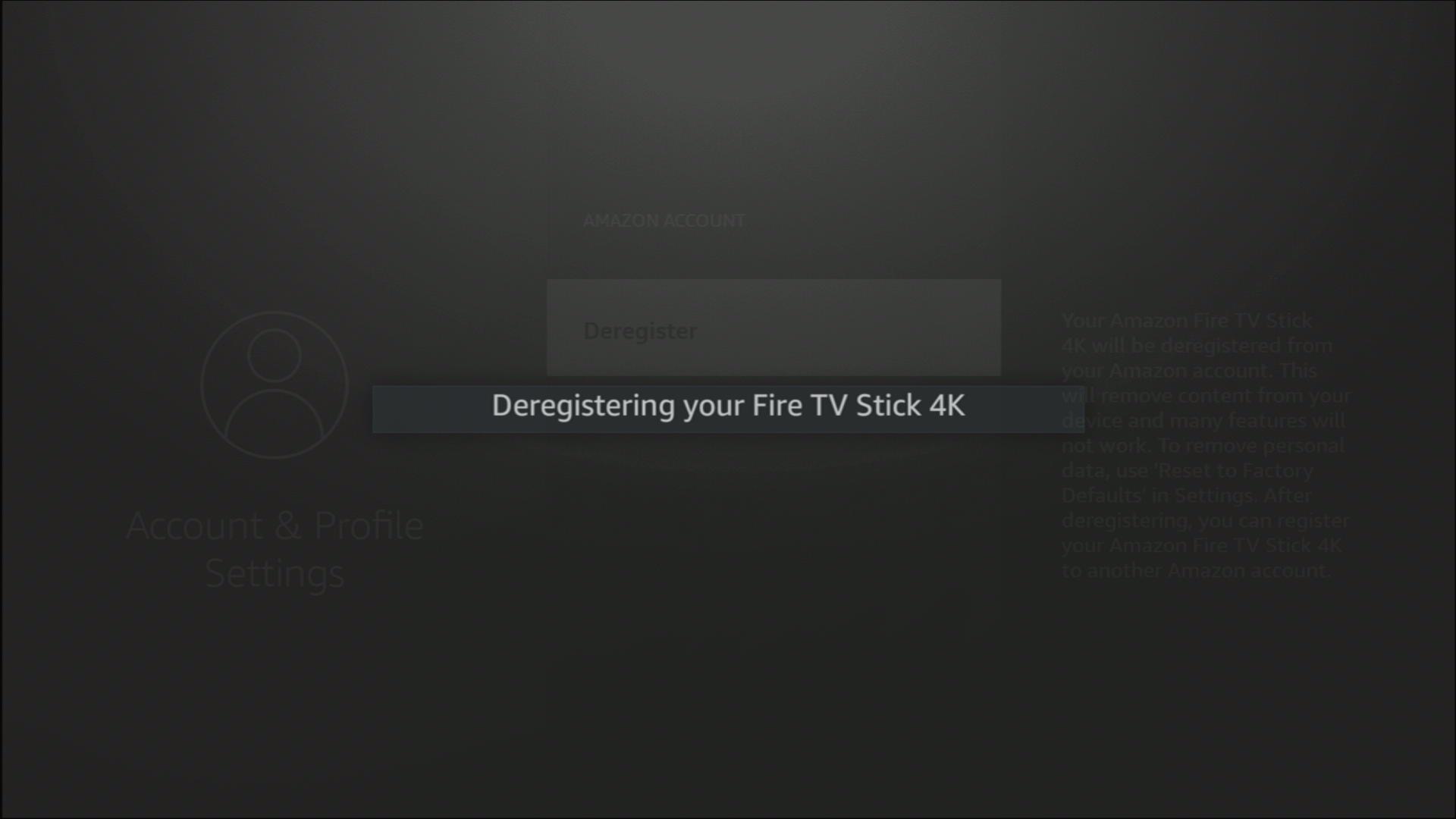
 

How to use the Alexa Voice-Control Remote?

FireTVStick_Remote2021


Install Surfshark on Firestick

Best Surfshark Deal


Parts of Alexa Voice-Controlled Remote

  • Voice Button
  • Navigation Scroll Buttons
  • Back Button
  • Home Button
  • Menu Button
  • Fast Forward Button
  • Rewind Button
  • Play or Pause Button
  • Increase Volume Button
  • Decrease Volume Button
  • Mute Button


Issuing Commands to the Alexa Remote

  1. Press on the Microphone button on your Fire TV stick remote.
  2. Wait for the Blue light to blink, this means that Alexa is activated and can receive audio signals.
  3. Speak clearly on your remote’s microphone, begin with “Alexa, (issue command)” while pressing on the Microphone button.
 

Alexa Voice Control Commands for the Fire TV stick

We have a list of known voice control commands for the Fire TV stick.

1. Control your Fire TV stick: “Alexa, [Say Command] on Fire TV“.

    • Pause
    • Play
    • Resume
    • Stop
    • Fast-forward
    • Rewind

2. Find movies and TV shows:

    • Alexa, search for [movie or TV show title] on Fire TV“.
    • Alexa, find [movie or TV show title] on Fire TV.”

3. Search for movies or shows done by actors and actresses:

    • Alexa, show me titles with [actor] on Fire TV.”

4. Open Fire TV stick apps:

    • Alexa, open [app name] on Fire TV” or “Alexa, launch [app name] on Fire TV.”

5. Go back to your Fire TV stick’s home screen:

    • Alexa, return home.


YOUR INTERNET ACTIVITY IS BEING WATCHED

ReviewVPN cannot attest to the legality, security and privacy of the applications discussed on this site. It is highly recommended that you use a VPN service while streaming or using Kodi.

Currently, your IP 216.73.216.69 is visible to everyone and your Browser is being tracked by Advertisers & ISP Provider.

Save 65% Now

Limited Time Offer

Here are the main reasons why you must use a VPN:

  • Your activities are hidden from your ISP, the government, and from the apps you are using.
  • You can access additional movies and TV streams.
  • ISP attempts to throttle are thrwarted thus reducing buffering issues.
  • Geographically restricted content like Netflix and Hulu can be unblocked.

A VPN works be replacing your ISP-assigned IP address and creating an encrypted tunnel. We recommend the no log service offered by IPVanish. It works well on a Firestick and offers the fastest possible speeds.

Special Limited Time Offer - Get IPVanish


Use your Mobile Device as an Alternative Remote

Aside from having its own Alexa remote, you can also control the Fire TV stick with the Alexa mobile application. It is an app compatible with mobile devices. After installing the app, you can use the voice controls of your phone to work with Alexa. Now, your mobile device functions as another remote for your Fire TV stick.
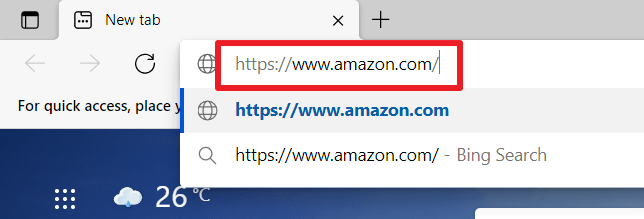
How to connect your Fire TV stick with the Alexa app:

  1. Install the Alexa app on your mobile device.
  2. Open the Alexa app on your Android or iOS mobile device. 
  3. Search for the Menu button on the upper left side part of the screen. 
  4. Tap on the Menu button. 
  5. Select the Fire Stick option found on the video selection. 
  6. Connect your Fire TV stick with the Alexa app by tapping on the Connect your Alexa device prompt.
  7. All detectable Fire TV options will be shown to you. 
  8. Choose any device you want to connect with the Alexa app. 
  9. Your screen will display a list of devices connected with the Alexa app. 
  10. Pick one or more from the list of devices that you want to run with the Fire TV Stick. 
  11. Finally, click on the Linked Devices button.


Use Fire TV Stick with a VPN

The Amazon Fire TV stick is the best device for streaming online videos. Install apps that you want for watching TV shows and movies. You can also install other apps for many purposes.

Unfortunately, your streaming activities are tracked by your ISP. They will reduce your internet speed to prevent the overloading of their servers. 

Installing Surfshark will prevent ISP throttling protocols. The VPN has many benefits to offer you:

  • Access geo-restricted content.
  • Conceals your internet traffic.
  • Protects your connection from cyber threats.
  • Improves streaming speeds.
  • Smooth video streaming without disturbances.


Grab your subscription now!

Click here to get the lowest price on Surfshark through our exclusive limited-time offer.


How to Install Surfshark VPN on Firestick

If your Firestick still has the older interface, read this article to learn how to update it: Update Firestick Interface.

Follow our screenshots below to install the SurfShark VPN app on your Fire TV stick.
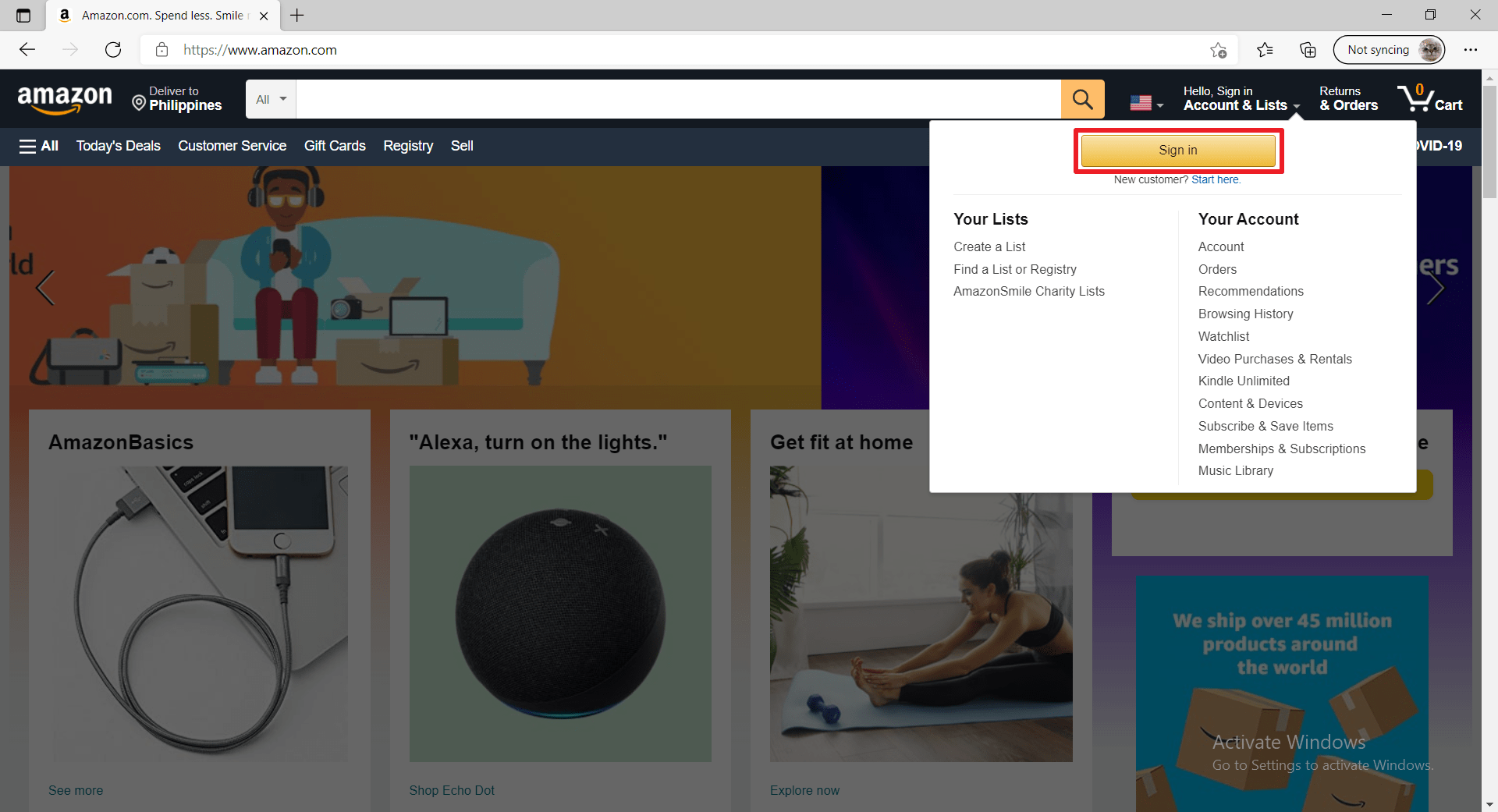
1. Go to the Home screen of your Firestick.

step 1 Install Surfshark VPN on Firestick


2. Navigate towards the Find tab. Press the Search button from the resulting dropdown.

step 2 Install Surfshark VPN on Firestick


3. Type in the keyword of SurfShark and select from the suggestions that will appear.

step 3 Install Surfshark VPN on Firestick


4. Click the official SurfShark icon from your search results.

step 4 Install Surfshark VPN on Firestick


5. Press the Download (You own it) button.

step 5 Install Surfshark VPN on Firestick


6. The SurfShark VPN installer will download on your device.

step 6 Install Surfshark VPN on Firestick


7. SurfShark VPN’s app will automatically install itself on your Fire TV stick.
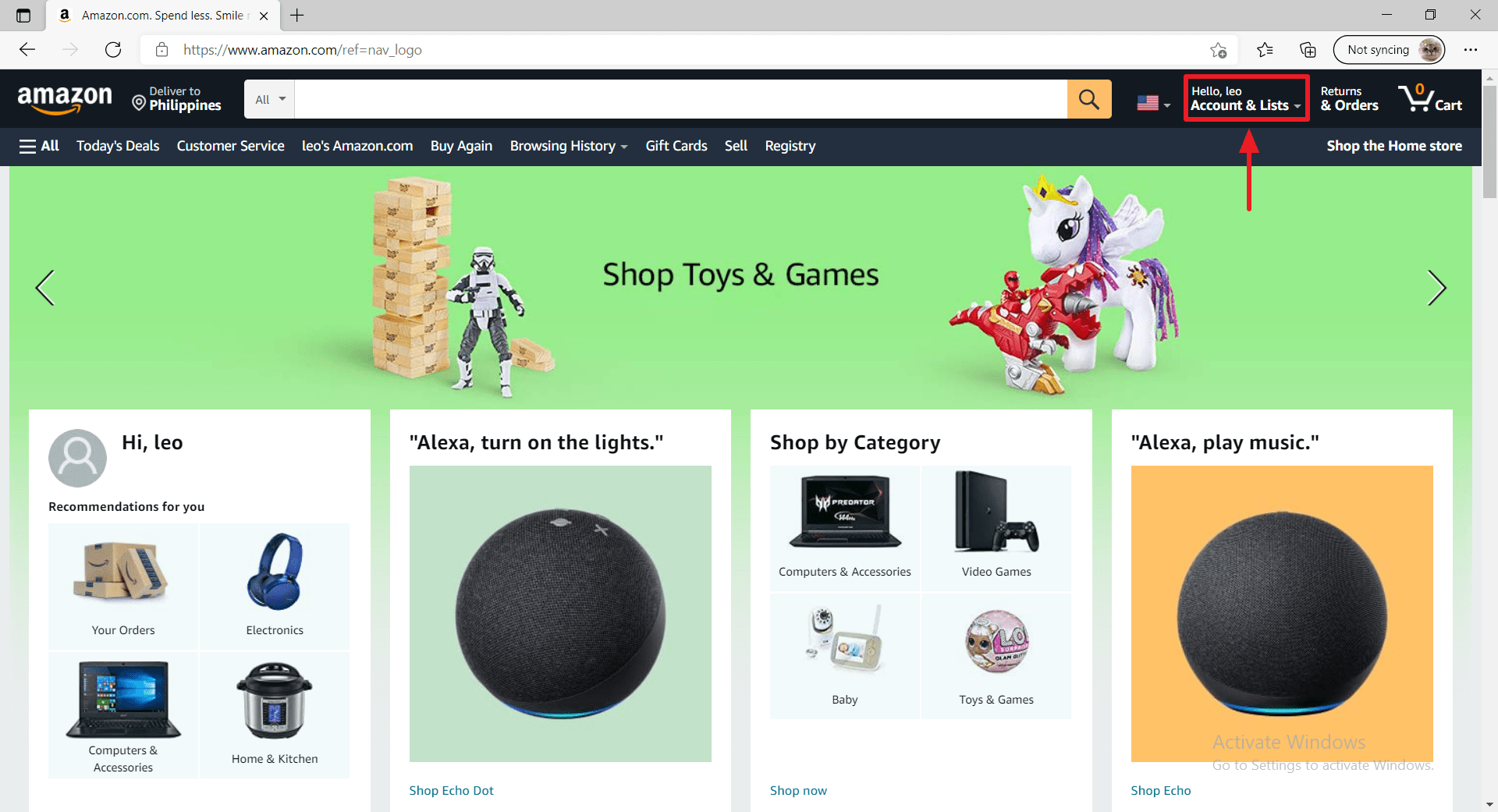
step 7 Install Surfshark VPN on Firestick


8. Press the Open button after completing SurfShark VPN’s installation process.

step 8 Install Surfshark VPN on Firestick


9. Please wait for the SurfShark VPN to load its user interface.

step 9 Install Surfshark VPN on Firestick


10. You can now log in with your SurfShark VPN account credentials.

step 10 Install Surfshark VPN on Firestick

Learn more about Surfshark and Grab the Best Surfshark Deal Now!


Install Surfshark on Firestick

Best Surfshark Deal


Other VPNs to Consider

NordVPN (Best for Streaming)

Best Features

  • 5000+ Server in 50+ Countries 
  • Military-Grade Encryption
  • Fast Connection Speed
  • Suitable to a lot of devices
  • No-Log Policy

Prices
  • Complete $5.89 per month (64% Discount)
  • Plus $4.59 per month (56% Discount)
  • Standard $3.69 per month (55% Discount)

Best Features

  • 750+ High-speed VPN Servers in 43 Locations
  • Military-Grade Encryption
  • Fastest HD Streaming and Gaming
  • 30-Day Money-Back Guarantee
  • Unlimited Data & Devices
  • No-Log Policy

Prices
  • 3 Years $1.99 per month (82% Discount)
  • 1 Years $3.29 per month (70% Discount)
  • 1 Month $10.99 per month

IPVanish VPN (Most Secure)

Best Features

  • 1200+ Servers in 60+ Countries around the world
  • Unlimited Connections
  • No-Log Policy
  • Top Notch Military-Grade VPN Protocols and Encryptions
  • 100% Safe and Secured
  • Most Trusted VPN
  • Best VPN for Firestick
  • 30-Day Money-Back Guarantee

Prices
  • Yearly $3.99 per month (63% Discount) – 30 days risk free + Ransomware & Malware Protection
  • Quarterly $5.32 per month (51% Discount)
  • Monthly $10.99 per month


For more VPN discounts, go to ReviewVPN Deals and purchase the best VPN for you.

Click here to get the lowest price on Surfshark through our exclusive limited-time offer.


FAQs

Are there any other ways to access Alexa?

Yes, Amazon has made Alexa accessible through many methods. These are:

  • Alexa app for Android and iOS mobile devices.
  • Amazon’s Shopping and music app.
  • Asking your computer’s Cortana to “Open Alexa.” after the connection begins.


Can I use the Amazon Smart Echo Speaker with Alexa?

Yes. Alexa is present in nearly every Amazon device. Just say “Alexa, [issue Command]”, and then your device will summon Alexa.


Conclusion

The Fire TV stick is a wonderful invention that joins the ranks of modern streaming devices. You can control your Fire TV stick with its Bluetooth Alexa voice-controlled remote. Your mobile device can also become your Fire TV stick’s remote by installing the mobile Alexa application.

We hope that this article teaches you about how your Fire TV stick works with Alexa.

How to Install Pikashow on Firestick and Android – 2023

Pikashow Overview

This article will show you how to install Pikashow on your Amazon Firestick.


If you’re having trouble finding Bollywood content, then you might want to look into Pikashow. Pikashow is a free Indian streaming application that allows you to watch movies and TV shows on your Firestick device. It provides not just Bollywood content but also Hollywood, Series, and Live TV. in genres such as Sci-Fi, Action, Thriller, Horror, Romance, Drama, and Comedy. 

It also frequently updates its app to ensure that it provides the most recent movies and TV shows available on the internet. Pikashow is also highly popular and has been around for quite some time, with over 7M installations. And because of the content it provides, it is a dependable and established streaming app, particularly among Indian consumers. Not to mention that the content they provide is of high definition quality.

So, let’s begin with the installation and work our way through its features and selections.


ANONYMOUSLY


Installation Guide on Firestick

If you’re still using the older version of your Firestick, you can learn how to upgrade it by reading this article: Update Firestick Interface.

To begin, if your Firestick has not yet been jailbroken, follow the simple steps below to jailbreak it to install Pikashow on your device: 

1.  Click Home on your remote and scroll once to your Right. Click Setting (Gear Wheel Icon)

Jailbreak Firestick and Install Downloader App

2. Scroll down and to the right until you get to My Fire TV. Click on it.

Jailbreak Firestick and Install Downloader App


3. Select Developer options.

Jailbreak Firestick and Install Downloader App


4. Turn on ADB debugging and Apps from Unknown Sources.

Jailbreak Firestick and Install Downloader App


5. Click Turn On when the pop-up appears.

Jailbreak Firestick and Install Downloader App


6.  From the Home page, click FIND.

Jailbreak Firestick and Install Downloader App


7. Click Search.

Jailbreak Firestick and Install Downloader App


8. You can either say Downloader to your Alexa voice-enabled remote or start typing it. If you typed it, click on the suggestion when it appears.

Jailbreak Firestick and Install Downloader App


9. Click on the Downloader icon

Jailbreak Firestick and Install Downloader App


10. Click Download

Jailbreak Firestick and Install Downloader App


11. Click on Open.

Jailbreak Firestick and Install Downloader App


12. Click on Allow.

Jailbreak Firestick and Install Downloader App


13. You will be asked to enter a download link. Type in “https://reviewvpn.com/pika” and select Go.

Install Pikashow


14. Wait for the file download to finish.

Install Pikashow 1


15. After that, choose Install.

Install Pikashow 2


16. Then click Open.

Install Pikashow 3


17. Enjoy Watching.

Install Pikashow 4

Pikashow APK Download for Android Devices


PIKASHOW LOGO

Note: ReviewVPN.com does not host this APK file. It is hosted by Archive.org


Install Surfshark on Firestick

Best Surfshark Deal


Legal Disclaimer: ReviewVPN.com does not encourage or endorse any illegal activity involved in the usage of services and applications referenced on this site. We do not verify the licensing agreements of services. The end-user is wholly responsible for ensuring that any media accessed through these services does not violate copyright and/or licensing laws. ReviewVPN does not promote, link to, or receive compensation from any Apps and IPTV services.


YOUR INTERNET ACTIVITY IS BEING WATCHED

ReviewVPN cannot attest to the legality, security and privacy of the applications discussed on this site. It is highly recommended that you use a VPN service while streaming or using Kodi.

Currently, your IP 216.73.216.69 is visible to everyone and your Browser is being tracked by Advertisers & ISP Provider.

Save 65% Now

Limited Time Offer

Here are the main reasons why you must use a VPN:

  • Your activities are hidden from your ISP, the government, and from the apps you are using.
  • You can access additional movies and TV streams.
  • ISP attempts to throttle are thrwarted thus reducing buffering issues.
  • Geographically restricted content like Netflix and Hulu can be unblocked.

A VPN works be replacing your ISP-assigned IP address and creating an encrypted tunnel. We recommend the no log service offered by IPVanish. It works well on a Firestick and offers the fastest possible speeds.

Special Limited Time Offer - Get IPVanish


App Features

  • Offers free Bollywood, Hollywood, TV shows, and live TV content in HD
  • Content is available in a variety of categories, including Romance, Comedy, Action, Sci-Fi, and much more
  • Provides the most recent and popular movies and television shows
  • You can add movies and television shows to your “Favorites” list
  • The Library tab displays your most recently watched videos as well as your favorites
  • It allows you to report a broken video
  • If you want to add subtitles to the video, it has support for that


Selections

  • Bollywood
  • Hollywood
  • Series
  • Live TV
  • Library


Genres

  • Sci-Fi
  • Action
  • Kids
  • Netflix
  • Family
  • Prime
  • Thriller
  • Hindi
  • Adventure
  • Ullu
  • Horror
  • Dual
  • Crime
  • Animation
  • Mystery
  • Comedy
  • Romance
  • Drama


Pros and Cons

Pros

  • Provides access to free video content
  • It provides content in high definition.
  • There are two video servers available

Cons

  • There is no option to change the menu setting
  • There are instances when you are unable to find videos in the categories
  • You won’t be able to use a third-party media player.


Stream Safely With A VPN

Surfshark vpn

Pikashow allows viewers to watch a large number of free and current movies on their Firestick. But, of course, we should never put our security at risk just for the sake of free online entertainment. And you’ll need a VPN like Surfshark to help you with that. Surfshark will provide you with an anonymous IP address, allowing you to hide your online activity and protect your account from cyber threats like hackers and phishers. It also prohibits third-party servers from accessing your data without your permission.

Apart from that, here are several more advantages:

  • Zero logs and no IP address leaks are guaranteed
  • Allows you to connect to thousands of anonymous IP addresses from over 3,200 servers in more than 65 countries
  • If the VPN service is accidentally interrupted, its kill switch feature will automatically disconnect you from the internet
  • With Surfshark unlimited simultaneous connections, you can connect all of your devices to have the same level of encryption
  • You’ll get unlimited bandwidth to stream and download everything you want
  • Mask your internet activities from your ISP to avoid ISP throttling; this will reduce internet slowdown, lags, and buffers
  • Bypass censorship and geoblocking to gain access to content from anywhere on the globe


Grab your subscription now!

Click here to get the lowest price on Surfshark through our exclusive limited-time offer.


How to Install Surfshark on Firestick with Screenshots

If your Firestick still has the older interface, read this article to learn how to update it: Update Firestick Interface.

You can download Surfshark directly from the Amazon App store. It will be easy for you to find Surfshark with your Firestick’s Find feature. Refer to our screenshots below.

Follow our screenshots below to install the Surfshark VPN app on your Fire TV stick.
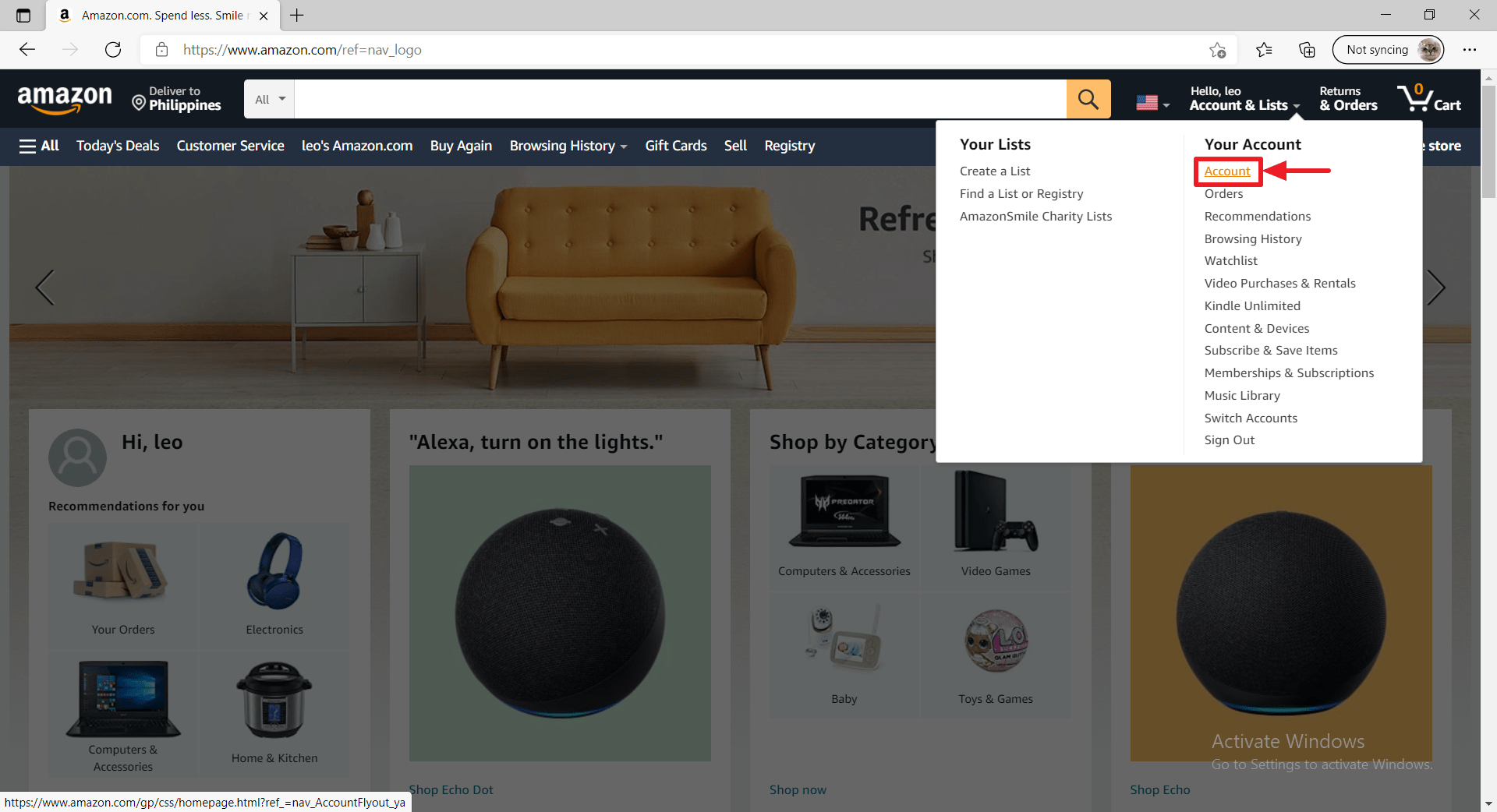
1. Go to the Home screen of your Firestick.

step 1 Install Surfshark VPN on Firestick


2. Navigate towards the Find tab. Press the Search button from the resulting dropdown.

step 2 Install Surfshark VPN on Firestick


3. Type in the keyword of Surfshark and select from the suggestions that will appear.

step 3 Install Surfshark VPN on Firestick


4. Click the official Surfshark icon from your search results.

step 4 Install Surfshark VPN on Firestick


5. Press the Download (You own it) button.

step 5 Install Surfshark VPN on Firestick


6. The Surfshark VPN installer will download on your device.

step 6 Install Surfshark VPN on Firestick


7. Surfshark VPN’s app will automatically install itself on your Fire TV stick.
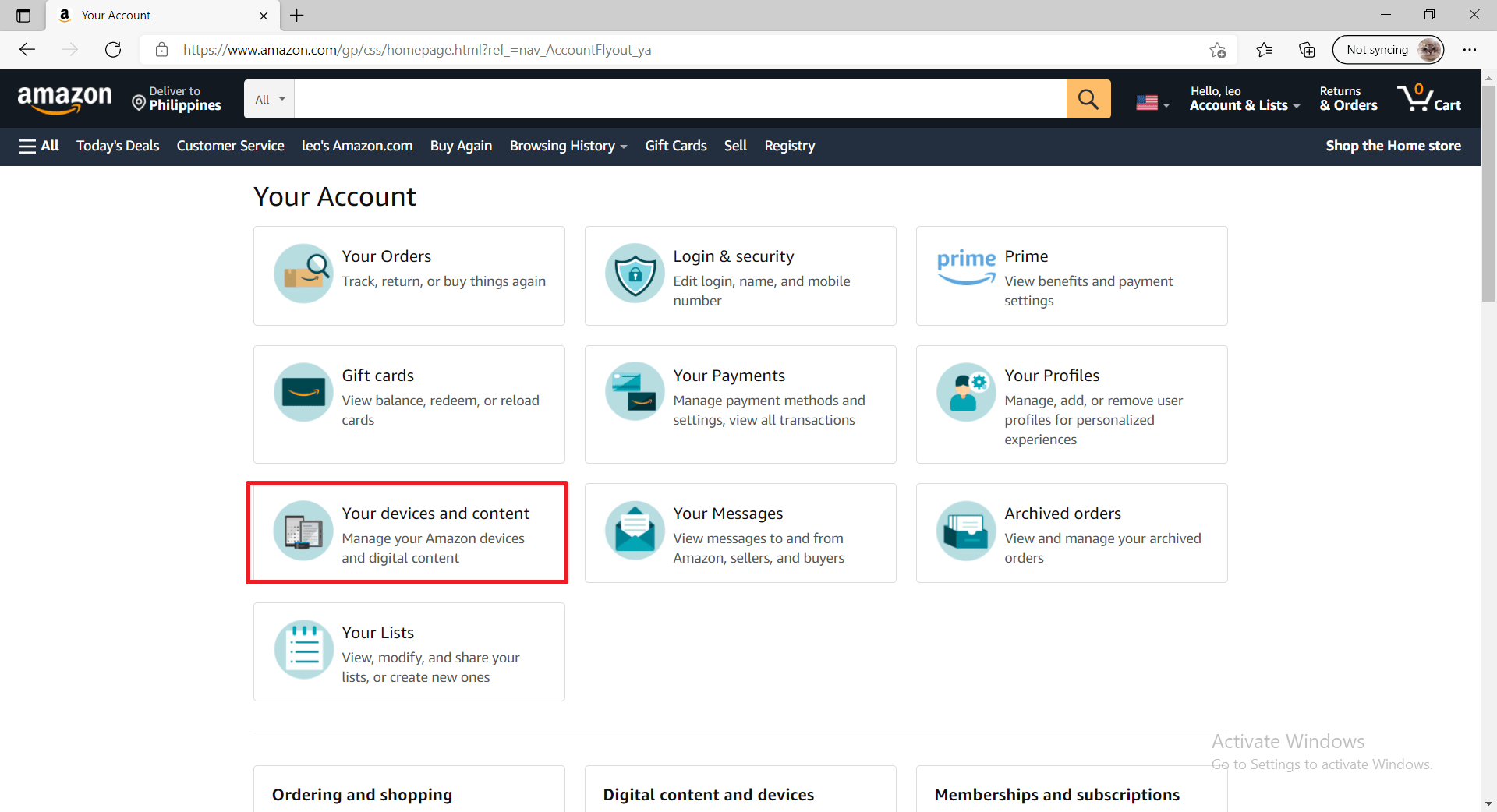
step 7 Install Surfshark VPN on Firestick


8. Press the Open button after completing Surfshark VPN’s installation process.

step 8 Install Surfshark VPN on Firestick


9. Please wait for the Surfshark VPN to load its user interface.

step 9 Install Surfshark VPN on Firestick


10. You can now log in with your Surfshark VPN account credentials.

step 10 Install Surfshark VPN on Firestick

Learn more about Surfshark and Grab the Best Surfshark Deal Now!


Install Surfshark on Firestick

Best Surfshark Deal

Other VPNs to Consider

NordVPN (Best for Streaming)

Best Features

  • 5000+ Server in 50+ Countries 
  • Military-Grade Encryption
  • Fast Connection Speed
  • Suitable to a lot of devices
  • No-Log Policy

Prices
  • Complete $5.89 per month (64% Discount)
  • Plus $4.59 per month (56% Discount)
  • Standard $3.69 per month (55% Discount)

Best Features

  • 750+ High-speed VPN Servers in 43 Locations
  • Military-Grade Encryption
  • Fastest HD Streaming and Gaming
  • 30-Day Money-Back Guarantee
  • Unlimited Data & Devices
  • No-Log Policy

Prices
  • 3 Years $1.99 per month (82% Discount)
  • 1 Years $3.29 per month (70% Discount)
  • 1 Month $10.99 per month

IPVanish VPN (Most Secure)

Best Features

  • 1200+ Servers in 60+ Countries around the world
  • Unlimited Connections
  • No-Log Policy
  • Top Notch Military-Grade VPN Protocols and Encryptions
  • 100% Safe and Secured
  • Most Trusted VPN
  • Best VPN for Firestick
  • 30-Day Money-Back Guarantee

Prices
  • Yearly $3.99 per month (63% Discount) – 30 days risk free + Ransomware & Malware Protection
  • Quarterly $5.32 per month (51% Discount)
  • Monthly $10.99 per month

For more VPN discounts, go to ReviewVPN Deals and purchase the best VPN for you.


Alternatives for PikaShow


FAQs

What is Pikashow?

Pikashow is a free streaming app developed in India that allows you to watch Bollywood, Hollywood, and live TV content. It has the most recent and up-to-date content, allowing users to find new and popular movies and TV shows.


Is Pikashow safe?

Yes, Pikashow is safe; however, we always advise our readers to use Surfshark to keep their data safe while streaming content online.


Is Pikashow free?

Yes, Pikashow is free to install and use on your Firestick device.


Are there Ads?

Yes, it displays an ad banner on its interface.


Is there a need for registration?

Fortunately, there’s no need to register to use the app and watch its contents 


Does Pikashow have an official website?

Pikashow used to have an official website, but it is currently unavailable.


Conclusion / Final Thoughts

Pikashow provides its users with access to a library of free movies and TV shows. It’s also one of the few Bollywood-themed apps for Firestick. But even though it offers free content, I experienced trouble loading movies onto the app. But, because their videos are in high definition, you’ll probably need a fast internet connection to watch them. And although I don’t think it’s quite up to par with other streaming applications, it’s worth a try. 

Finally, we’d like to thank you for taking the time to read our article on how to install Pikashow on Firestick. We hope we were able to assist you with the installation and give you an overview of the app’s features. Have fun watching!


What to Do When Firestick Says No Signal

Overview

This article will show you what to do with the Firestick No Signal problem.

Do you see the No Signal warning on your TV screen when you are using the Fire TV stick? If yes, then you’ve come across the right article. Be sure to read this article to completion to solve your Firestick No Signal problem.


The Firestick No Signal error is a common problem with many users of the Fire TV stick. We’re glad to inform you that you are not alone in this problem. Here at ReviewVPN, we have simulated some errors that you might encounter while using your Fire TV stick. The No Signal problem is one of them.
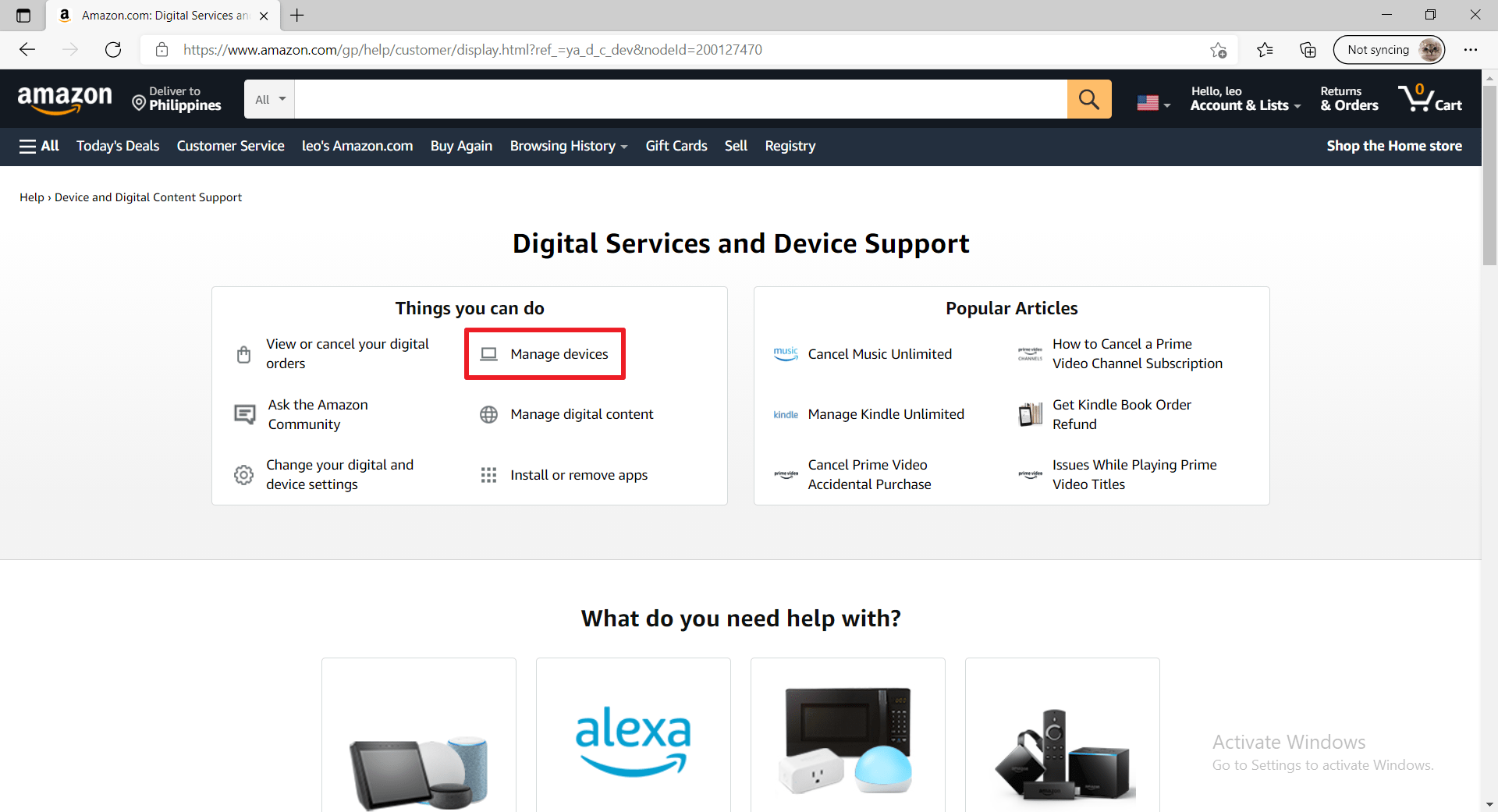
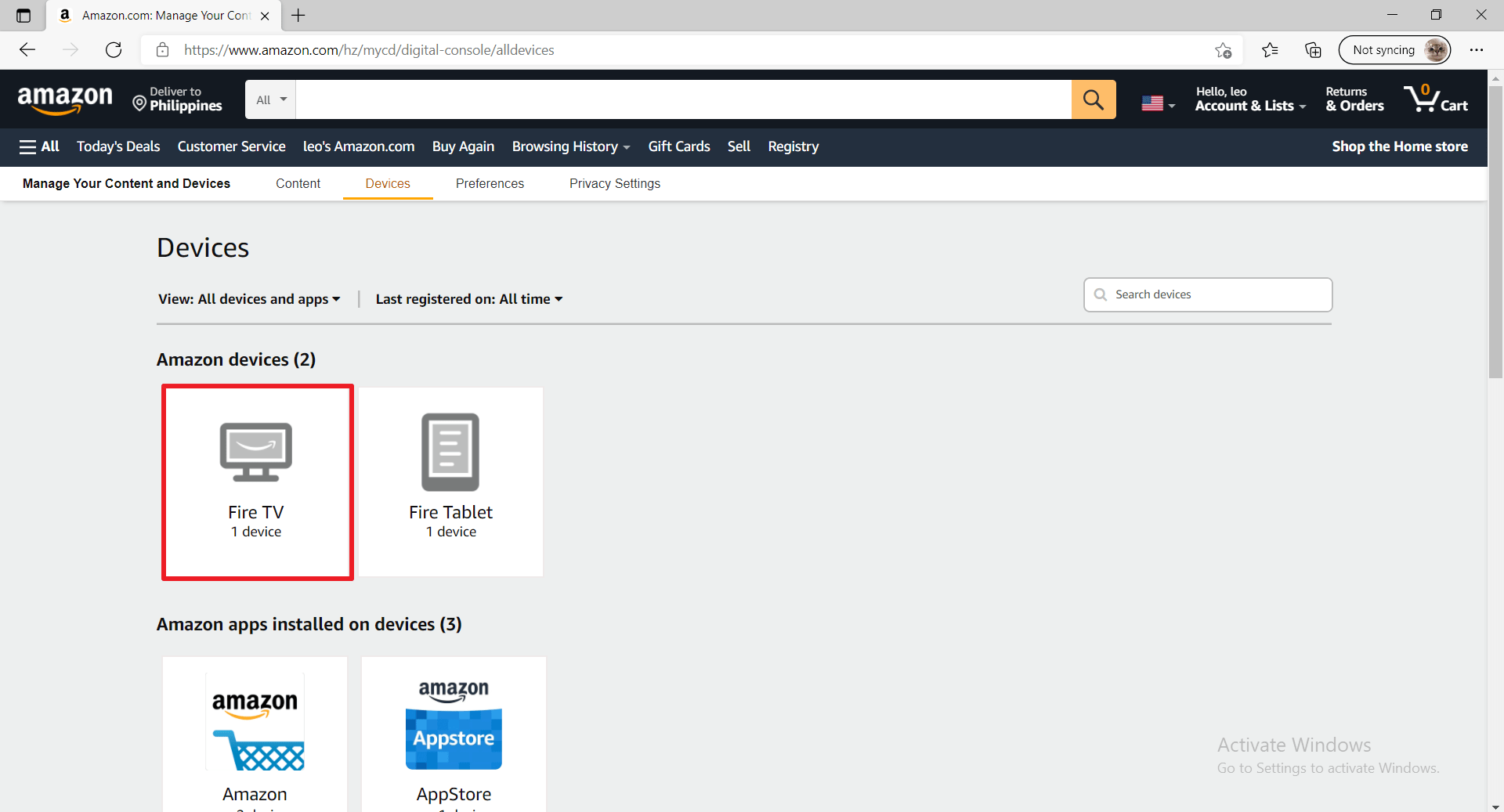
After testing and some troubleshooting, we will first discuss the possible causes of the problem. We will then list down some solutions. Nonetheless, these are methods you can take to prevent or fix the No Signal problem while using the Fire TV stick.
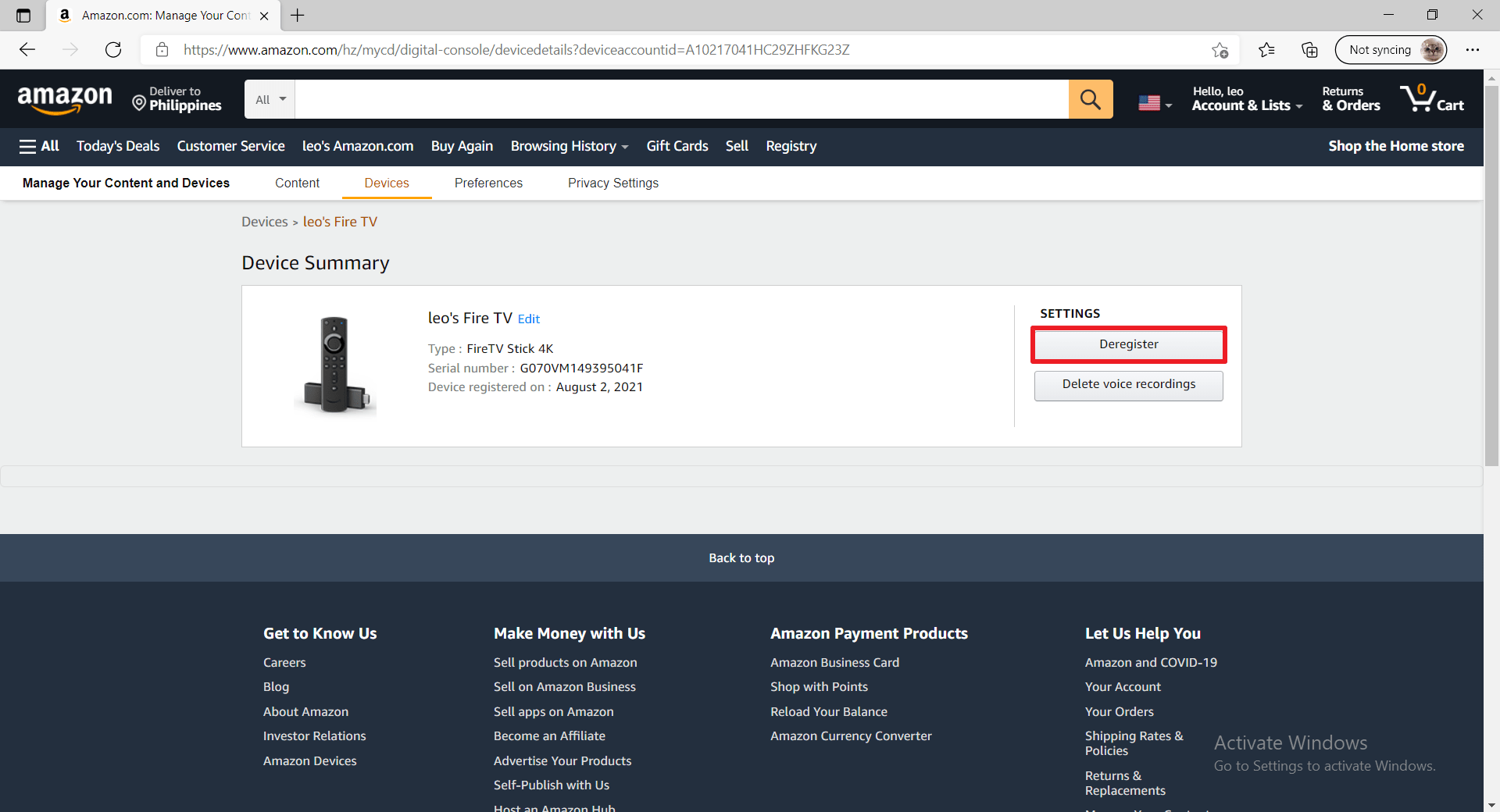
The steps we will give you are easy to follow and apply. We want to warn you to just be careful as you detach and attach some cables or perform some physical checks on your Fire TV stick and TV set.


ANONYMOUSLY


Why does your Fire TV Stick Display the No Signal Error?


firestick


While using your Fire TV stick, two display errors commonly occur. Your TV screen might show the No Signal warning. Another issue is that the Amazon Firestick has No Signal on HDMI. There are many reasons why these two scenarios suddenly happen.

However, we will now discuss all the possible reasons why your screen shows: Amazon Firestick No Signal on HDMI.


HDCP Signal Issues

HDCP stands for High-bandwidth Digital Content Protection. It is a new technology invented by the Intel Corporation. It has taken the form of a connectable cable between your streaming device and your smart TV monitor. The main goal of HDCP is the prevention of copying original digital audio and video content as they travel across the cable.

Nonetheless, some modern-day streamers use TV sets with ports for the HDCP cable. There are still cases where some people use old TV sets not compatible with HDCP technology. Their chances of encountering some HDCP issues are high. The HDCP error is a common problem where a person cannot receive video signals. This would result in the Firestick No Signal warning screen.


Solutions:

Purchase a Smart TV set

Modern Smart TV sets have built-in ports supporting the HDCP features. Keep in mind that many media companies support the inclusion of HDCP technology throughout many devices. However, the Amazon Fire TV stick is of no exemption.


Get an HDCP Converter

Getting yourself an HDCP Converter is an affordable option rather than buying a new TV set. Be aware that many cable connections can also affect the audio and visual display of your Fire TV stick.

An HDCP converter improves the compatibility between new HDMI 2.0 sources and older HDMI 1.4 displays. These devices convert the HDCP 2.2 signal to become an HDCP 1.4 signal. The HDCP 1.4 signal can then be read by older HDMI 1.4 monitors.


YOUR INTERNET ACTIVITY IS BEING WATCHED

ReviewVPN cannot attest to the legality, security and privacy of the applications discussed on this site. It is highly recommended that you use a VPN service while streaming or using Kodi.

Currently, your IP 216.73.216.69 is visible to everyone and your Browser is being tracked by Advertisers & ISP Provider.

Save 65% Now

Limited Time Offer

Here are the main reasons why you must use a VPN:

  • Your activities are hidden from your ISP, the government, and from the apps you are using.
  • You can access additional movies and TV streams.
  • ISP attempts to throttle are thrwarted thus reducing buffering issues.
  • Geographically restricted content like Netflix and Hulu can be unblocked.

A VPN works be replacing your ISP-assigned IP address and creating an encrypted tunnel. We recommend the no log service offered by IPVanish. It works well on a Firestick and offers the fastest possible speeds.

Special Limited Time Offer - Get IPVanish


Loose HDMI Cables

Let us first understand what HDMI means, and what these types of cables can do. HDMI is the acronym for High-Definition Multimedia Interface.

To simplify its concept, the cable lets you transmit both high-quality digital audio and video signals simultaneously. The HDMI cable is the standard for modern computers, TV cable boxes, TV monitors, computer monitors, and projectors.

Some people have many device connections while using their Fire TV stick. They may not notice that their HDMI cable is not securely attached to the ports of their TV monitors. There are also some cases where movement may displace the attachment of the HDMI cable.

One typical reason for the No Signal problem is loose or detached HDMI cables.

Solutions:

Check your HDMI Attachment

The HDMI Cable has a slim plug that fits with the HDMI ports of your TV monitor. Upon purchasing a new Fire TV stick, it has an HDMI cable that has both female and male ends. It means that you can extend your Fire TV stick connection with a longer cable.

Many people go for this option. However, there are times when the HDMI socket and plug are not attached completely. Some cables loosen due to a wrong set-up, cable weight, cable tension (if hanging), or being dislocated by external movement.

Your first troubleshooting task is checking these factors:

  • HDMI cables and ports are attached tightly.
  • Your HDMI cables do not have some form of damage (scratches, cuts, scrapes, etc.)

You can then figure out if you have to unplug all connections. After detaching your Fire TV stick HDMI cable from your TV port, re-attach it securely. Boot up your Fire TV stick and check if it displays your home screen or successfully plays any online video.


Using the Wrong Fire TV stick Connection

When you purchase the Fire TV stick, it comes with a USB Power cable. This cable should be attached to the power socket of your Fire TV stick, while the other end is plugged into an electrical outlet.

Some people mistake that the Fire TV stick’s USB cable can be used to display videos with their TV monitors. They would plug in the USB Power cable to the USB ports of their TV monitors. This results in the No Signal error appearing.


Solutions:

Attach your Fire TV Stick Cables to their Corresponding Ports

Fire TV Stick USB Power Cable

The Fire TV stick’s USB Power Cable is responsible for supplying an adequate amount of electricity to your device. One end should be attached to your Fire TV stick’s power socket, while the other end should be plugged into an electrical socket.


Fire TV stick HDMI Cable

Your Fire TV stick has an HDMI cable. It has both female and male socket ends. You should ensure that your Fire TV stick is attached to the female end. Then, you will then attach the male end of your HDMI cable to the HDMI port of your TV monitor.


Use Fire TV Stick with a VPN

https://get.surfshark.net/aff_c?offer_id=865&aff_id=12312

The Amazon Fire TV stick is an excellent invention for streaming online videos. Users can install apps for streaming TV shows and movies. You can also install other apps with various functions.

Unfortunately, your ISP monitors your streaming activities. They will decrease your internet speed.

IP can stop the effects of ISP throttling. Aside from that, it has many features to share:

  • Gives you consistent internet speeds.
  • Hides your internet traffic through virtual tunnels.
  • Protects you from harmful malware.
  • Buffering and stuttering are no longer occurring.


How to Install Surfshark VPN on Firestick

If your Firestick still has the older interface, read this article to learn how to update it: Update Firestick Interface.

You can download Surfshark directly from the Amazon App store. It will be easy for you to find Surfshark with your Firestick’s Find feature. Refer to our screenshots below.

1. Go to the Home screen of your Firestick.

step 1 Install Surfshark VPN on Firestick


2. Navigate towards the Find tab. Press the Search button from the resulting dropdown.

step 2 Install Surfshark VPN on Firestick


3. Type in the keyword of SurfShark and select from the suggestions that will appear.

step 3 Install Surfshark VPN on Firestick


4. Click the official SurfShark icon from your search results.

step 4 Install Surfshark VPN on Firestick


5. Press the Download (You own it) button.

step 5 Install Surfshark VPN on Firestick


6. The SurfShark VPN installer will download on your device.

step 6 Install Surfshark VPN on Firestick


7. SurfShark VPN’s app will automatically install itself on your Fire TV stick.
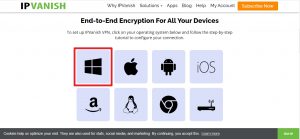
step 7 Install Surfshark VPN on Firestick


8. Press the Open button after completing SurfShark VPN’s installation process.

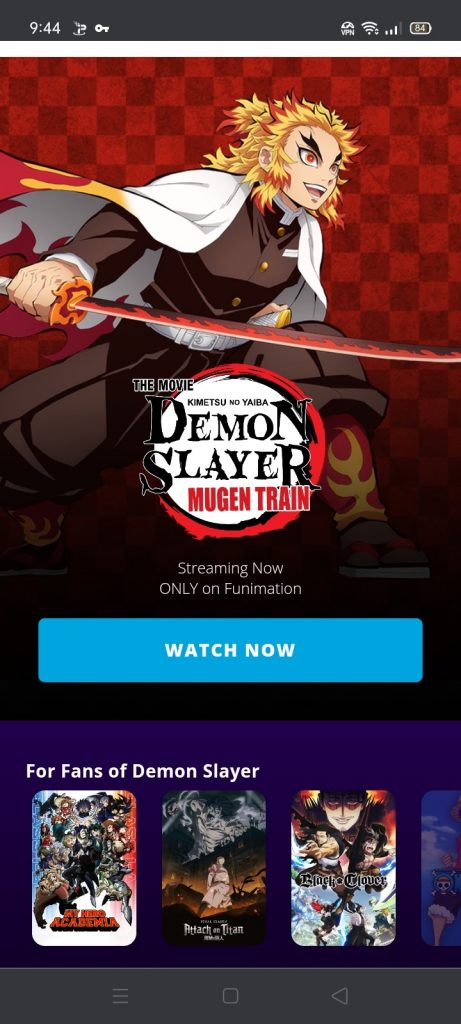
step 8 Install Surfshark VPN on Firestick


9. Please wait for the SurfShark VPN to load its user interface.

step 9 Install Surfshark VPN on Firestick


10. You can now log in with your SurfShark VPN account credentials.

step 10 Install Surfshark VPN on Firestick

Learn more about Surfshark and Grab the Best Surfshark Deal Now!


Install Surfshark on Firestick

Best Surfshark Deal


Other VPNs to Consider

NordVPN (Best for Streaming)

Best Features

  • 5000+ Server in 50+ Countries 
  • Military-Grade Encryption
  • Fast Connection Speed
  • Suitable to a lot of devices
  • No-Log Policy

Prices
  • Complete $5.89 per month (64% Discount)
  • Plus $4.59 per month (56% Discount)
  • Standard $3.69 per month (55% Discount)

Best Features

  • 750+ High-speed VPN Servers in 43 Locations
  • Military-Grade Encryption
  • Fastest HD Streaming and Gaming
  • 30-Day Money-Back Guarantee
  • Unlimited Data & Devices
  • No-Log Policy

Prices
  • 3 Years $1.99 per month (82% Discount)
  • 1 Years $3.29 per month (70% Discount)
  • 1 Month $10.99 per month

IPVanish VPN (Most Secure)

Best Features

  • 1200+ Servers in 60+ Countries around the world
  • Unlimited Connections
  • No-Log Policy
  • Top Notch Military-Grade VPN Protocols and Encryptions
  • 100% Safe and Secured
  • Most Trusted VPN
  • Best VPN for Firestick
  • 30-Day Money-Back Guarantee

Prices
  • Yearly $3.99 per month (63% Discount) – 30 days risk free + Ransomware & Malware Protection
  • Quarterly $5.32 per month (51% Discount)
  • Monthly $10.99 per month


For more VPN discounts, go to ReviewVPN Deals and purchase the best VPN for you.

Click here to get the lowest price on Surfshark through our exclusive limited-time offer.


Conclusion

The No Signal warning typically pops up on the TV monitors of Fire TV stick users. The Firestick No Signal is a common problem that many people have encountered. Fortunately, the Firestick No Signal problem is normal and appears due to wrong cable connections or incompatible technologies.

Nonetheless, we hope this article helps you fix the Firestick No Signal problem.

2