How to Install World TV Ghost Kodi Addon

World TV Ghost Kodi Addon

In this article, we will help you install World TV Ghost Kodi Addon on Firestick.


This tutorial will teach you how to install World TV Ghost Kodi Addon. World TV Ghost Addon is a Kodi addon that is within the Crew repository. World TV Ghost Kodi Addon is compatible with all the Kodi versions and has sections that include: SportsMusic, Movies, FoodEntertainment, Kids, Documentary, News, and lots more.
World TV Ghost Kodi Addon has live Television channels from the following countries: Spain, Netherlands, USA, Canada, Serbia, Portugal, Italy, Germany, Arabia, France, and UK.


ANONYMOUSLY

To install World TV Ghost Kodi Addon, first, you need to enable the unknown sources of your Kodi app. To enable unknown sources, follow the below steps:

Step 1. Launch your Kodi app. From your home menu or start menu, scroll upwards to locate the setting icon found at the top left-hand side of your screen and click on it.

Step 2. On the setting menu, go to system options and click on it.

Step 3. On the systems menu, scroll down to locate add-on options and click on it.

Step 4. Next, hover over unknown sources, and on the warning dialog message that will appear, click on YES to enable the unknown sources.

Step 5. Use the back button or the backspace key on your keyboard to return to the home menu.


YOUR INTERNET ACTIVITY IS BEING WATCHED

ReviewVPN cannot attest to the legality, security and privacy of the applications discussed on this site. It is highly recommended that you use a VPN service while streaming or using Kodi.

Currently, your IP 216.73.216.144 is visible to everyone and your Browser is being tracked by Advertisers & ISP Provider.

Save 65% Now

Limited Time Offer

Here are the main reasons why you must use a VPN:

  • Your activities are hidden from your ISP, the government, and from the apps you are using.
  • You can access additional movies and TV streams.
  • ISP attempts to throttle are thrwarted thus reducing buffering issues.
  • Geographically restricted content like Netflix and Hulu can be unblocked.

A VPN works be replacing your ISP-assigned IP address and creating an encrypted tunnel. We recommend the no log service offered by IPVanish. It works well on a Firestick and offers the fastest possible speeds.

Special Limited Time Offer - Get IPVanish


Legal Disclaimer: ReviewVPN.com does not encourage or endorse any illegal activity involved in the usage of services and applications referenced on this site. We do not verify the licensing agreements of services. The end-user is wholly responsible for ensuring that any media accessed through these services does not violate copyright and/or licensing laws. ReviewVPN does not promote, link to, or receive compensation from any Apps and IPTV services.


Install Surfshark on Firestick

Best Surfshark Deal


Installation Guide Proper

Step 1. From the home menu, navigate upwards and tap on System.

Step 2. Next, on the setting menu, scroll to File manager and click on it.

Step 3. On the new window, scroll down to Add source and click on it.

Step 4. Click on <None> option

Step 5. Carefully enter the media source URL; https://team-crew.github.io/ and click on OK once you are done. Note: double-check the media source URL to avoid errors. Hover over the box that says “Enter a name for this media source.” and enter a name for the media source file. If Kodi auto-populates a name for this media source file at your end, just click OK to continue with the installation process.

Step 6. Hit the backspace key on your keyboard or the back button to return to the home menu. 

Step 7. From the home menu, tap on the Add-ons option

Step 8. On the new window that will appear, click on Install from zip file.

Step 9. Next, on the new dialog box, navigate to locate the name which you saved the media source file with and click on it. For this installation, we used the crew. 

Step 10. On the new window, click on repository.thecrew-x.x.x.zip. Wait for the repository to complete the installation. Once the installation is completed, you will receive a notification message at the top right corner of your screen.

Step 11. Next, select the install from the repository option, and on the new window click on THE CREW.

Step 12. Next, click on Video add-ons on the new dialog box. Click on World Tv addon.

Step 13. Next, click on the Install option which is located at the bottom left side of your screen. If you are using the latest version of the Kodi app, on the dialog box with this message “the following additional addons will be installed” click OK to confirm.

Step 14. Wait for the installation to finish. Once the installation is completed, you will receive a notification at the top right corner of your screen. Go to the home menu by pressing the backspace or back button.


Use a VPN While Streaming on World TV Ghost Kodi Addon

Never stream on Kodi especially with a third-party addon without using a VPN. We recommend installing Surfshark on your device. Surfshark offers maximum online security and privacy. 

Surfshark does encryption on your IP address thereby making your IP address appear on the internet service provider network as a private user. With Surfshark, you will be able to bypass ISP throttling and streaming restrictions due to location.

Note: For more information about SurfShark, please read our SURFSHARK REVIEW.


Grab your subscription now!


How to Install Surfshark VPN on Firestick

If your Firestick still has the older interface, read this article to learn how to update it: Update Firestick Interface.

You can download Surfshark directly from the Amazon App store. It will be easy for you to find Surfshark with your Firestick’s Find feature. Refer to our screenshots below.

1. Go to the Home screen of your Firestick.

step 1 Install Surfshark VPN on Firestick


2. Navigate towards the Find tab. Press the Search button from the resulting dropdown.

step 2 Install Surfshark VPN on Firestick


3. Type in the keyword of SurfShark and select from the suggestions that will appear.

step 3 Install Surfshark VPN on Firestick


4. Click the official SurfShark icon from your search results.

step 4 Install Surfshark VPN on Firestick


5. Press the Download (You own it) button.

step 5 Install Surfshark VPN on Firestick


6. The SurfShark VPN installer will download on your device.

step 6 Install Surfshark VPN on Firestick


7. SurfShark VPN’s app will automatically install itself on your Fire TV stick.

step 7 Install Surfshark VPN on Firestick


8. Press the Open button after completing SurfShark VPN’s installation process.

step 8 Install Surfshark VPN on Firestick


9. Please wait for the SurfShark VPN to load its user interface.

step 9 Install Surfshark VPN on Firestick


10. You can now log in with your SurfShark VPN account credentials.

step 10 Install Surfshark VPN on Firestick

Learn more about Surfshark and Grab the Best Surfshark Deal Now!


Install Surfshark on Firestick

Best Surfshark Deal


Other VPNs to Consider

NordVPN (Best for Streaming)

Best Features

  • 5000+ Server in 50+ Countries 
  • Military-Grade Encryption
  • Fast Connection Speed
  • Suitable to a lot of devices
  • No-Log Policy

Prices
  • Complete $5.89 per month (64% Discount)
  • Plus $4.59 per month (56% Discount)
  • Standard $3.69 per month (55% Discount)

Best Features

  • 750+ High-speed VPN Servers in 43 Locations
  • Military-Grade Encryption
  • Fastest HD Streaming and Gaming
  • 30-Day Money-Back Guarantee
  • Unlimited Data & Devices
  • No-Log Policy

Prices
  • 3 Years $1.99 per month (82% Discount)
  • 1 Years $3.29 per month (70% Discount)
  • 1 Month $10.99 per month

IPVanish VPN (Most Secure)

Best Features

  • 1200+ Servers in 60+ Countries around the world
  • Unlimited Connections
  • No-Log Policy
  • Top Notch Military-Grade VPN Protocols and Encryptions
  • 100% Safe and Secured
  • Most Trusted VPN
  • Best VPN for Firestick
  • 30-Day Money-Back Guarantee

Prices
  • Yearly $3.99 per month (63% Discount) – 30 days risk free + Ransomware & Malware Protection
  • Quarterly $5.32 per month (51% Discount)
  • Monthly $10.99 per month


For more VPN discounts, go to ReviewVPN Deals and purchase the best VPN for you.

Click here to get the lowest price on Surfshark through our exclusive limited-time offer.


How to Install Channel PEAR Kodi Addon

Channel PEAR Kodi Addon

In this article, we will help you install Channel PEAR Kodi Addon on Firestick.


Channel PEAR Addon is a third-party Kodi addon. Channel PEAR Addon is a Kodi addon within the Fusion repository. This Addon offers live TV with a high definition video streaming experience. Channel PEAR Addon has sections such as documentaries, news, movies, music, kids shows, tv series, tv shows, and lots more. Also, Channel PEAR Addon has a great selection of US and Canada TV.


ANONYMOUSLY

Step by Step Guide on How to Install Channel PEAR Addon

The installation process of Channel PEAR Addon involves:

  1. Enabling the unknown sources
  2. Installing Channel PEAR Addon


Enabling the Unknown Sources

To enable the unknown sources, follow the below steps:

Step 1. Open your Kodi app and scroll to the setting icon and click on it

Step 2. On the setting menu which will appear, scroll down to locate the system option. Click on the system menu and the new window, scroll downwards to add-ons, and click on it.

Step 3. Next, navigate to unknown sources and click on it.

Step 4. On the warning dialog box, select YES to enable unknown sources. Once you are done with enabling the unknown sources, use the back button or the escape/backspace to go back to the home menu.


YOUR INTERNET ACTIVITY IS BEING WATCHED

ReviewVPN cannot attest to the legality, security and privacy of the applications discussed on this site. It is highly recommended that you use a VPN service while streaming or using Kodi.

Currently, your IP 216.73.216.144 is visible to everyone and your Browser is being tracked by Advertisers & ISP Provider.

Save 65% Now

Limited Time Offer

Here are the main reasons why you must use a VPN:

  • Your activities are hidden from your ISP, the government, and from the apps you are using.
  • You can access additional movies and TV streams.
  • ISP attempts to throttle are thrwarted thus reducing buffering issues.
  • Geographically restricted content like Netflix and Hulu can be unblocked.

A VPN works be replacing your ISP-assigned IP address and creating an encrypted tunnel. We recommend the no log service offered by IPVanish. It works well on a Firestick and offers the fastest possible speeds.

Special Limited Time Offer - Get IPVanish


Legal Disclaimer: ReviewVPN.com does not encourage or endorse any illegal activity involved in the usage of services and applications referenced on this site. We do not verify the licensing agreements of services. The end-user is wholly responsible for ensuring that any media accessed through these services does not violate copyright and/or licensing laws. ReviewVPN does not promote, link to, or receive compensation from any Apps and IPTV services.


Install Surfshark on Firestick

Best Surfshark Deal


Installing Channel PEAR Addon

Step1. From the home menu or the start menu, click on the setting icon again. 

Step 2. On the setting menu, scroll to file manager and click on it

Step 3. Next, on the file manager menu, navigate to add source option and click on it.

Step 4. On the new window that will appear, select <None>

Step 5. Next, hover over the box where to enter the media source URL: http://fusion.tvaddons.ag and click on OK once done. 

Step 6. Once done with entering the media source URL, click on the “Enter a name for this Media Source” box and enter a name for this Media source file. For this installation, we will use “f” as the media source name. 

Note: if Kodi auto-populates a name for this media source file on your end, click OK to proceed with the installation process.

Step 7. Go back to the home menu or start menu by pressing the back button on your remote or the escape/backspace key on your keyboard. 

Step 8. From the home menu, scroll down to addons and click on it.

Step 9. On the addons menu, scroll up to locate the addon icon found at the top left-hand side of your screen.

Step 10. Next, on the new window, click on Install from Zip File

Step 11. Scroll down to the name you saved the medial source file with. Here we used “f”. Click on ‘F’ 

Step 12. Next, on the new window, click on START HERE option

Step 13. click on the “addon.installer.zip” file.

Note: the file may have a different version.

Step 14. Wait for the installation to complete. Once the installation is completed, you will receive a notification at the top right corner of your screen. Once done, use the back button to return to the home menu.

Step 14. Scroll to PROGRAMS and click on it.

Step 15. On the new window, click on Addon Installer

Step 16. Next, you will be prompted to choose a category of the addon. Navigate to locate “Channel PEAR which is found under Featured Addons. Once you find it, click on it.

Step 17. Next, navigate to Channel PEAR and click on it.

Step 18. On the new window, click on “Install“. If you are using the latest version of the Kodi app, click OK when you see this message “the following additional addons will be installed” and wait for “Add-On Enabled“ notification at the top right corner of your screen. 

Step 19. Return to the home screen and click on the addon. Scroll to videos addons and there you will find the Channel PEAR Addon


Use Channel PEAR Addon With Surfshark

If you are fond of streaming video content with Kodi, especially with third-party addons like Channel PEAR we recommend installing Surfshark on your device. Surfshark offers a 30-day money-back guarantee and provides the highest online privacy, security, and anonymity. 

Surfshark ensures your online security by encrypting and masking your IP address on the internet service provider network. With Surfshark installed on your device, you are sure of bypassing location restrictions and ISP throttling.

Note: For more information about SurfShark, please read our SURFSHARK REVIEW.


Grab your subscription now!


How to Install Surfshark VPN on Firestick

If your Firestick still has the older interface, read this article to learn how to update it: Update Firestick Interface.

You can download Surfshark directly from the Amazon App store. It will be easy for you to find Surfshark with your Firestick’s Find feature. Refer to our screenshots below.

1. Go to the Home screen of your Firestick.

step 1 Install Surfshark VPN on Firestick


2. Navigate towards the Find tab. Press the Search button from the resulting dropdown.

step 2 Install Surfshark VPN on Firestick


3. Type in the keyword of SurfShark and select from the suggestions that will appear.

step 3 Install Surfshark VPN on Firestick


4. Click the official SurfShark icon from your search results.

step 4 Install Surfshark VPN on Firestick


5. Press the Download (You own it) button.

step 5 Install Surfshark VPN on Firestick


6. The SurfShark VPN installer will download on your device.

step 6 Install Surfshark VPN on Firestick


7. SurfShark VPN’s app will automatically install itself on your Fire TV stick.

step 7 Install Surfshark VPN on Firestick


8. Press the Open button after completing SurfShark VPN’s installation process.

step 8 Install Surfshark VPN on Firestick


9. Please wait for the SurfShark VPN to load its user interface.

step 9 Install Surfshark VPN on Firestick


10. You can now log in with your SurfShark VPN account credentials.

step 10 Install Surfshark VPN on Firestick

Learn more about Surfshark and Grab the Best Surfshark Deal Now!


Install Surfshark on Firestick

Best Surfshark Deal


Other VPNs to Consider

NordVPN (Best for Streaming)

Best Features

  • 5000+ Server in 50+ Countries 
  • Military-Grade Encryption
  • Fast Connection Speed
  • Suitable to a lot of devices
  • No-Log Policy

Prices
  • Complete $5.89 per month (64% Discount)
  • Plus $4.59 per month (56% Discount)
  • Standard $3.69 per month (55% Discount)

Best Features

  • 750+ High-speed VPN Servers in 43 Locations
  • Military-Grade Encryption
  • Fastest HD Streaming and Gaming
  • 30-Day Money-Back Guarantee
  • Unlimited Data & Devices
  • No-Log Policy

Prices
  • 3 Years $1.99 per month (82% Discount)
  • 1 Years $3.29 per month (70% Discount)
  • 1 Month $10.99 per month

IPVanish VPN (Most Secure)

Best Features

  • 1200+ Servers in 60+ Countries around the world
  • Unlimited Connections
  • No-Log Policy
  • Top Notch Military-Grade VPN Protocols and Encryptions
  • 100% Safe and Secured
  • Most Trusted VPN
  • Best VPN for Firestick
  • 30-Day Money-Back Guarantee

Prices
  • Yearly $3.99 per month (63% Discount) – 30 days risk free + Ransomware & Malware Protection
  • Quarterly $5.32 per month (51% Discount)
  • Monthly $10.99 per month


For more VPN discounts, go to ReviewVPN Deals and purchase the best VPN for you.

Click here to get the lowest price on Surfshark through our exclusive limited-time offer.


How to Install Pure Sports Kodi Addon

Pure Sports Kodi Addon

In this tutorial, you will learn how to install Pure Sports Kodi addon. Pure Sports Kodi addon is a third-party Kodi addon within the PureRepo repository. Pure Sports Kodi addon has sections such as Cricket, Football, WWE F1, MMA/BoxingDarts, NFL Rugby, NHL, 3 PM Kick-Offs, NBA, and lots more.


Pure Sports Kodi addon has a huge database of sports content for you to choose from. With Pure Sports Kodi addon, you will be able to stream live sports events. This addon also has special which allows saving and downloading of sports videos.


ANONYMOUSLY

To install Pure Sports Kodi addon, check if the unknown source of your Kodi app is enabled. If it is not, go through the following steps to enable it:

Step 1. Launch your Kodi app.

Step. 2. From the home menu, navigate up to the setting icon and click on it.

Step 3. On the setting menu, you scroll down to locate the system option and click on it.

Step 4. Next, on the system menu, scroll down and locate the addon option and click on it.

Step 5. On the new dialog box of addons, navigate to unknown sources and click on it. Select YES on the warning dialog box that will appear. 

Step 6. Press the back button on your remote or the escape or backspace key on your keyboard to go back to the home menu or start menu. 

Installing Pure Sports Kodi Addon

Step 1. From the home menu, go to the setting icon found at the top left-hand side of your screen and click on it.

Step 2. On the setting menu, go to the file manager option and click on it.

Step 3. On the file manager menu, scroll down a bit to locate the add source option and click on it.

Step 4. On the next window, click on <None> and on the text box that will appear, enter the media source URL: http://archive.org/download/purerepo/, and when you are done, click on OK.

Step 5. Enter a name for this media source file. Click on “Enter a name for this media source”. Note if Kodi auto-populates a name for this media source file already, all you will have to do is to click OK to proceed with the installation process. For this installation tutorial, we will use “pure repo” 

Step 6. Return to the home menu by clicking on the back button on your remote or escape/backspace key on your keyboard.

Step 7. From the home menu, select the Addons option

Step 8. On the addons menu, scroll up to locate the addon icon found at the top right-hand side of your screen and click on it.

Step 9. Next on the new window, select Install From Zip File option

Step 10. select pure repo or if you used a different name for this installation at your end, click on the name you saved the media source file with.

Step 11. On the new dialog box, tap on repository.PureRepo.x.x.zip and wait while the repository is installing. Once it’s done, you will get a notification at the top right side of your screen saying “Addon Enabled

Step 12. Select the  Install From Repository option

Step 13. Select the PureRepo Repository

Step 14. On the new window, navigate to Video Addons and click on it

Step 15. Select on Pure Sports

Step 16. Select Install 

Step 17. If you are using the latest version of Kodi, click on OK on the dialog box that will appear that says the following additional addons will be installed. Wait for the installation to complete. Once it is done, you will get a notification at the top right corner side of your screen.


YOUR INTERNET ACTIVITY IS BEING WATCHED

ReviewVPN cannot attest to the legality, security and privacy of the applications discussed on this site. It is highly recommended that you use a VPN service while streaming or using Kodi.

Currently, your IP 216.73.216.144 is visible to everyone and your Browser is being tracked by Advertisers & ISP Provider.

Save 65% Now

Limited Time Offer

Here are the main reasons why you must use a VPN:

  • Your activities are hidden from your ISP, the government, and from the apps you are using.
  • You can access additional movies and TV streams.
  • ISP attempts to throttle are thrwarted thus reducing buffering issues.
  • Geographically restricted content like Netflix and Hulu can be unblocked.

A VPN works be replacing your ISP-assigned IP address and creating an encrypted tunnel. We recommend the no log service offered by IPVanish. It works well on a Firestick and offers the fastest possible speeds.

Special Limited Time Offer - Get IPVanish


Legal Disclaimer: ReviewVPN.com does not encourage or endorse any illegal activity involved in the usage of services and applications referenced on this site. We do not verify the licensing agreements of services. The end-user is wholly responsible for ensuring that any media accessed through these services does not violate copyright and/or licensing laws. ReviewVPN does not promote, link to, or receive compensation from any Apps and IPTV services.


Install Surfshark on Firestick

Best Surfshark Deal


Don’t Use Pure Sports Kodi Addon Without a VPN

If you are fond of streaming with Kodi especially with a third party ad, without a VPN, just know that your online activities are public on the internet service provider network and can be monitored or recorded.

That is why we recommend using  Surfshark while streaming on Kodi or accessing the internet. Surfshark offers Highest online security, privacy, and anonymity, so you don’t need to worry about your activities being monitored or tracked. Surfshark also enables you to bypass restrictions related to location and throttling caused by the internet service provider. 

Note: For more information about Surfshark, please read our Surfshark Review.


Install Surfshark on Firestick

Best Surfshark Deal


How to Install Surfshark VPN on Firestick

If your Firestick still has the older interface, read this article to learn how to update it: Update Firestick Interface.

Follow our screenshots below to install the SurfShark VPN app on your Fire TV stick.

1. Go to the Home screen of your Firestick.

step 1 Install Surfshark VPN on Firestick


2. Navigate towards the Find tab. Press the Search button from the resulting dropdown.

step 2 Install Surfshark VPN on Firestick


3. Type in the keyword of SurfShark and select from the suggestions that will appear.

step 3 Install Surfshark VPN on Firestick


4. Click the official SurfShark icon from your search results.

step 4 Install Surfshark VPN on Firestick


5. Press the Download (You own it) button.

step 5 Install Surfshark VPN on Firestick


6. The SurfShark VPN installer will download on your device.

step 6 Install Surfshark VPN on Firestick


7. SurfShark VPN’s app will automatically install itself on your Fire TV stick.

step 7 Install Surfshark VPN on Firestick


8. Press the Open button after completing SurfShark VPN’s installation process.

step 8 Install Surfshark VPN on Firestick


9. Please wait for the SurfShark VPN to load its user interface.

step 9 Install Surfshark VPN on Firestick


10. You can now log in with your SurfShark VPN account credentials.

step 10 Install Surfshark VPN on Firestick

Learn more about Surfshark and Grab the Best Surfshark Deal Now!


Install Surfshark on Firestick

Best Surfshark Deal


Other VPNs to Consider

NordVPN (Best for Streaming)

Best Features

  • 5000+ Server in 50+ Countries 
  • Military-Grade Encryption
  • Fast Connection Speed
  • Suitable to a lot of devices
  • No-Log Policy

Prices
  • Complete $5.89 per month (64% Discount)
  • Plus $4.59 per month (56% Discount)
  • Standard $3.69 per month (55% Discount)

Best Features

  • 750+ High-speed VPN Servers in 43 Locations
  • Military-Grade Encryption
  • Fastest HD Streaming and Gaming
  • 30-Day Money-Back Guarantee
  • Unlimited Data & Devices
  • No-Log Policy

Prices
  • 3 Years $1.99 per month (82% Discount)
  • 1 Years $3.29 per month (70% Discount)
  • 1 Month $10.99 per month

IPVanish VPN (Most Secure)

Best Features

  • 1200+ Servers in 60+ Countries around the world
  • Unlimited Connections
  • No-Log Policy
  • Top Notch Military-Grade VPN Protocols and Encryptions
  • 100% Safe and Secured
  • Most Trusted VPN
  • Best VPN for Firestick
  • 30-Day Money-Back Guarantee

Prices
  • Yearly $3.99 per month (63% Discount) – 30 days risk free + Ransomware & Malware Protection
  • Quarterly $5.32 per month (51% Discount)
  • Monthly $10.99 per month


For more VPN discounts, go to ReviewVPN Deals and purchase the best VPN for you.


How to Install FANime Kodi Addon

FANime Kodi Addon

In this guide, you will learn how to successfully install FANime Kodi Addon. 


FANime Kodi add-on is a third-party Kodi add-on within the stream army repository. FANime Add has sections such as Genres, new seasons, movies, A to Z, recently added, recent release, popular, ongoing series, documentaries, tv shows, search, and lots more.


ANONYMOUSLY

Step by Step Guide on How to Install FANime Addon

The installation process of FANime involves two procedures:

  1. Turning ON the unknown source
  2. Installing FANime add-on


Turning ON the Unknown Source

Before proceeding with the installation of this addon, ensure that the unknown source of your Kodi app is enabled. If not, you can enable it by going to:

Step 1. Launch your Kodi app

Step 2. Scroll up to locate the setting icon and click on it

Step 3. On the setting menu, scroll down to system option and click on it

Step 4. On the system menu, scroll to locate the “add-ons” option and select it.

Step 5. Navigate to the unknown sources option and hover over it. Select YES on the warning message that will appear 

Step 6. Hit on the back button or the escape/backspace key on your keyboard to return to the home menu or home screen.


YOUR INTERNET ACTIVITY IS BEING WATCHED

ReviewVPN cannot attest to the legality, security and privacy of the applications discussed on this site. It is highly recommended that you use a VPN service while streaming or using Kodi.

Currently, your IP 216.73.216.144 is visible to everyone and your Browser is being tracked by Advertisers & ISP Provider.

Save 65% Now

Limited Time Offer

Here are the main reasons why you must use a VPN:

  • Your activities are hidden from your ISP, the government, and from the apps you are using.
  • You can access additional movies and TV streams.
  • ISP attempts to throttle are thrwarted thus reducing buffering issues.
  • Geographically restricted content like Netflix and Hulu can be unblocked.

A VPN works be replacing your ISP-assigned IP address and creating an encrypted tunnel. We recommend the no log service offered by IPVanish. It works well on a Firestick and offers the fastest possible speeds.

Special Limited Time Offer - Get IPVanish


Legal Disclaimer: ReviewVPN.com does not encourage or endorse any illegal activity involved in the usage of services and applications referenced on this site. We do not verify the licensing agreements of services. The end-user is wholly responsible for ensuring that any media accessed through these services does not violate copyright and/or licensing laws. ReviewVPN does not promote, link to, or receive compensation from any Apps and IPTV services.


Install Surfshark on Firestick

Best Surfshark Deal


Installing FANime Addon 

Step 1. From the home menu or home screen, scroll up to the Settings icon found at the top left corner of your screen and click on it.

Step 2. Click on File Manager

Step 3. Next, on the file manager menu, click on Add Source

Step 4. On the new window that will appear, click on <None>

Step 5. On the dialog box, enter exactly the media source URL: http://streamarmy.co.uk/repo and click on OK

Step 6. Next, you should enter a name for this media source file. Click on the “Enter a name for this media source” and enter a name.

Note: if Kodi auto-populates a name for this add-on on your end, just click on Ok to continue with the installation process. Here we used “stream” as the name for this media source and select OK

Step 7. Hit the back button or the backspace/escape key on your keyboard to go back to the home menu or home screen.

Step 8. click on Add-ons found at the left side of your screen

Step 9. On the new window that will appear, click on the add-on icon located at the top left corner of your screen

Step 10. Next, click on Install from zip file

Step 11. On the new window, scroll down to locate stream or if you used a different name, navigate to locate it.

Step 12. click on repository.StreamArmy-x.x.x.zip

Step 13. Wait while the installation is completing. Once it is done, you will receive a notification at the top right corner of your screen that says “stream army repo Add-on installed. 

Step 14. click on Install from Repository

Step 15. Next on the new window, navigate to Stream Army Repo and click on it.

Step 16. On the new dialog box that will appear, click on Video add-ons

Step 16. click on FANime

Step 17. Next, on the new window, click on Install

Step 18. If you are using the latest version of Kodi, you will receive a dialog box with “THE FOLLOWING ADDITIONAL ADD-ONS WILL BE INSTALLED” click OK.

Step 19. Wait while the installation is completing. Once the installation is finished, you will receive a notification that says “Add-on installed.

Step 20. Hit the back button on your remote or the backspace or the escape key on your keyboard to return to the home screen.


Always use a VPN

We recommend using Surfshark on your Kodi App. this is because each time you stream on the Kodi app, especially with the third-party add-on, your online activities will be public on the internet service provider network, and as such you are prone to the attacks of hackers and might be monitored by the government. 

Surfshark also helps you to bypass internet service provider-induced throttling and geo-locations. A streaming platform like NetFlix has location restrictions which means that if you are not from a particular region, you will be restricted from accessing some of its content. Also, Surfshark mas and encrypts your IP address for maximum online security, privacy, and anonymity.

Note: For more information about Surfshark, please read our Surfshark Review.


Grab your subscription now!


How to Install Surfshark VPN on Firestick

If your Firestick still has the older interface, read this article to learn how to update it: Update Firestick Interface.

Follow our screenshots below to install the SurfShark VPN app on your Fire TV stick.

1. Go to the Home screen of your Firestick.

step 1 Install Surfshark VPN on Firestick


2. Navigate towards the Find tab. Press the Search button from the resulting dropdown.

step 2 Install Surfshark VPN on Firestick


3. Type in the keyword of SurfShark and select from the suggestions that will appear.

step 3 Install Surfshark VPN on Firestick


4. Click the official SurfShark icon from your search results.

step 4 Install Surfshark VPN on Firestick


5. Press the Download (You own it) button.

step 5 Install Surfshark VPN on Firestick


6. The SurfShark VPN installer will download on your device.

step 6 Install Surfshark VPN on Firestick


7. SurfShark VPN’s app will automatically install itself on your Fire TV stick.

step 7 Install Surfshark VPN on Firestick


8. Press the Open button after completing SurfShark VPN’s installation process.

step 8 Install Surfshark VPN on Firestick


9. Please wait for the SurfShark VPN to load its user interface.

step 9 Install Surfshark VPN on Firestick


10. You can now log in with your SurfShark VPN account credentials.

step 10 Install Surfshark VPN on Firestick

Learn more about Surfshark and Grab the Best Surfshark Deal Now!


Install Surfshark on Firestick

Best Surfshark Deal


Other VPNs to Consider

NordVPN (Best for Streaming)

Best Features

  • 5000+ Server in 50+ Countries 
  • Military-Grade Encryption
  • Fast Connection Speed
  • Suitable to a lot of devices
  • No-Log Policy

Prices
  • Complete $5.89 per month (64% Discount)
  • Plus $4.59 per month (56% Discount)
  • Standard $3.69 per month (55% Discount)

Best Features

  • 750+ High-speed VPN Servers in 43 Locations
  • Military-Grade Encryption
  • Fastest HD Streaming and Gaming
  • 30-Day Money-Back Guarantee
  • Unlimited Data & Devices
  • No-Log Policy

Prices
  • 3 Years $1.99 per month (82% Discount)
  • 1 Years $3.29 per month (70% Discount)
  • 1 Month $10.99 per month

IPVanish VPN (Most Secure)

Best Features

  • 1200+ Servers in 60+ Countries around the world
  • Unlimited Connections
  • No-Log Policy
  • Top Notch Military-Grade VPN Protocols and Encryptions
  • 100% Safe and Secured
  • Most Trusted VPN
  • Best VPN for Firestick
  • 30-Day Money-Back Guarantee

Prices
  • Yearly $3.99 per month (63% Discount) – 30 days risk free + Ransomware & Malware Protection
  • Quarterly $5.32 per month (51% Discount)
  • Monthly $10.99 per month


For more VPN discounts, go to ReviewVPN Deals and purchase the best VPN for you.

Click here to get the lowest price on Surfshark through our exclusive limited-time offer.


How to Install Shadow Kodi Addon

Shadow Kodi Addon

In this article, we will help you install Shadow Kodi Addon on Firestick.


This tutorial will teach you how to install and set up the Shadow Kodi addon. Shadow add-on is a third-party Kodi addon. This add-on is within the Crew repository. Shadow Kodi addon has sections such as movies, tv-series, tv shows, documentaries, and lots more.


ANONYMOUSLY

How to Install Shadow Kodi Addon

To install Shadow Kodi addon, you must first of all, check if the unknown source of your Kodi app is enabled. In case it’s not enabled, follow the below steps to enable it.


Step 1. Open your Kodi app

Step 2. From the home menu or home screen, scroll upwards to locate the setting icon and select it.

Step 3. On the setting menu, scroll down to the system and click on it

Step 4. Next, on the system menu, scroll down to locate the addon option and click on it

Step 5. Next, navigate to unknown sources option and click on it

Step 6. Select YES on the warning dialog box that will appear.

Step 7. Tap on the escape/backspace key on your keyboard or the back button on your remote to go back to the home menu.


Installing Shadow Kodi addon

Step 1. From the home menu or start menu of your Kodi app, scroll up to locate the setting icon option and click on it. The setting icon option is found at the top left corner of your screen.

Step 2. On the setting menu, scroll to File Manager and click on it

Step 3. Next, on the file manager menu, scroll down to locate Add Source and select it.

Step 4. On the new window, click on <None>

Step 5. Proceed to enter the media source URL: https://team-crew.github.io and click on OK once you are done with entering the media source URL.

Note: double-check the media source URL after entering it to avoid any typing errors.

Step 6. On the next dialog box, click on the box with “Enter a name for this media source” and enter a name for the media source file and click on OK. In this tutorial, we are going to use “ezz” as our media source file name. 

Step 7. Use the back button or the escape/backspace key on your keyboard to return to the home menu.

Step 8. Next, from the home menu, click on Add-ons which is located at the left corner of your screen.

Step 9. On the addon menu, scroll up to the addon icon found at the top left side of your screen and click on it. 

Step 10. On the new window, click on Install from zip file

Step 11. Scroll down to select the name you used to save the media source file. Remember, we used “ezz” for this installation. Once you found it, click on it

Step 12. click on repository.thecrew-x.x.zip and wait for a notification message to appear at the top right corner of your screen.

Step 13. Next, click on Install from Repository

Step 14. Scroll to THE CREW Wizard Repository and click on it.

Step 15. On the new window, click on Video add-ons

Step 16. On the video add-ons menu, click on Shadow

Step 17. On the new window, click on Install.

Note: if you are using the latest version of Kodi Leia 18, you will get a dialog box with the “the following additional addons will be installed; click on OK to complete the installation.

Step 18. Use the back button or the backspace on your keyboard to return to the home menu


YOUR INTERNET ACTIVITY IS BEING WATCHED

ReviewVPN cannot attest to the legality, security and privacy of the applications discussed on this site. It is highly recommended that you use a VPN service while streaming or using Kodi.

Currently, your IP 216.73.216.144 is visible to everyone and your Browser is being tracked by Advertisers & ISP Provider.

Save 65% Now

Limited Time Offer

Here are the main reasons why you must use a VPN:

  • Your activities are hidden from your ISP, the government, and from the apps you are using.
  • You can access additional movies and TV streams.
  • ISP attempts to throttle are thrwarted thus reducing buffering issues.
  • Geographically restricted content like Netflix and Hulu can be unblocked.

A VPN works be replacing your ISP-assigned IP address and creating an encrypted tunnel. We recommend the no log service offered by IPVanish. It works well on a Firestick and offers the fastest possible speeds.

Special Limited Time Offer - Get IPVanish


Legal Disclaimer: ReviewVPN.com does not encourage or endorse any illegal activity involved in the usage of services and applications referenced on this site. We do not verify the licensing agreements of services. The end-user is wholly responsible for ensuring that any media accessed through these services does not violate copyright and/or licensing laws. ReviewVPN does not promote, link to, or receive compensation from any Apps and IPTV services.


Install Surfshark on Firestick

Best Surfshark Deal


Screenshots on How to Install Shadow Kodi Addon

  1. Select the cogwheel in the upper left corner

Step 1 Install Shadow kodi addon


2. Select System on the bottom left

Step 2 Install Shadow kodi addon


3. Hover over or select Add-ons on the left.

Step 3 Install Shadow kodi addon


4. Select Unknown sources to enable

Step 4 Install Shadow kodi addon


5. Click Yes to enable third-party addons

Step 5 Install Shadow kodi addon


6. Click on the File manager

Step 6 Install Shadow kodi addon


7. Click on Add source

Step 7 Install Shadow kodi addon


8. Click on None to add the URL path source

Step 8 Install Shadow kodi addon


9. Type  https://team-crew.github.io/

Step 9 Install shadow kodi addon


10. Click OK.

Step 19 Install shadow kodi addon


11. Select enter a name for this media source.

Step 11 Install shadow kodi addon


12. Name teamNEWcrew (this part isn’t critical as long as you remember the name). Click OK.

Step 12 Install shadow kodi addon


13. Head back to the Homescreen. Click Addons.

Step 13 Install shadow kodi addon


14. Click Box Icon.

Step 14 Install shadow kodi addon


15. Select install from zip file.

Step 15 Install Shadow kodi addon


16. Click on teamNEWcrew(or whatever you named the source).

Step 16 Install Shadow kodi addon


17. Click repository.thecrew-0.3.11.zip

Step 17 Install Shadow kodi addon


18. Popup in the upper right corner saying The Crew Repo  Addon installed..

Step 18 Install Shadow kodi addon


19. Select install from Repository.

Step 19 Install Shadow kodi addon


20. Click The Crew Repo

Step 20 Install Shadow kodi addon


21. Click Video Addons.

Step 21 Install Shadow kodi addon


22. Click Shadow.

Step 22 Install Shadow kodi addon


23. Click Install.

Step 23 Install Shadow kodi addon


24. Click OK.

Step 24 Install Shadow kodi addon


25. You should see a popup in the upper right corner saying Shadow addon has installed. There will actually be multiple popups for the various components.

Step 25 Install Shadow kodi addon


26. Click Shadow.

Step 26 Install Shadow kodi addon


27.  Click OPEN.

Step 27 Install Shadow kodi addon


Use a VPN

Never access the internet or stream on the Kodi app, especially with third-party addons like Shadow addon without a VPN. This is because VPN encrypts and masks your IP address to appear as a private user on the internet service provider network. 

We recommend using Surfshark as it offers the safest online security and privacy. Also, with Surfshark, you can bypass location restrictions and ISP throttling. Surfshark offers a 30-day money-back guarantee. 

Note: For more information about Surfshark, please read our Surfshark Review.


Install Surfshark on Firestick

Best Surfshark Deal


How to Install Surfshark VPN on Firestick

If your Firestick still has the older interface, read this article to learn how to update it: Update Firestick Interface.

Follow our screenshots below to install the SurfShark VPN app on your Fire TV stick.

1. Go to the Home screen of your Firestick.

step 1 Install Surfshark VPN on Firestick


2. Navigate towards the Find tab. Press the Search button from the resulting dropdown.

step 2 Install Surfshark VPN on Firestick


3. Type in the keyword of SurfShark and select from the suggestions that will appear.

step 3 Install Surfshark VPN on Firestick


4. Click the official SurfShark icon from your search results.

step 4 Install Surfshark VPN on Firestick


5. Press the Download (You own it) button.

step 5 Install Surfshark VPN on Firestick


6. The SurfShark VPN installer will download on your device.

step 6 Install Surfshark VPN on Firestick


7. SurfShark VPN’s app will automatically install itself on your Fire TV stick.

step 7 Install Surfshark VPN on Firestick


8. Press the Open button after completing SurfShark VPN’s installation process.

step 8 Install Surfshark VPN on Firestick


9. Please wait for the SurfShark VPN to load its user interface.

step 9 Install Surfshark VPN on Firestick


10. You can now log in with your SurfShark VPN account credentials.

step 10 Install Surfshark VPN on Firestick

Learn more about Surfshark and Grab the Best Surfshark Deal Now!


Install Surfshark on Firestick

Best Surfshark Deal


Other VPNs to Consider

NordVPN (Best for Streaming)

Best Features

  • 5000+ Server in 50+ Countries 
  • Military-Grade Encryption
  • Fast Connection Speed
  • Suitable to a lot of devices
  • No-Log Policy

Prices
  • Complete $5.89 per month (64% Discount)
  • Plus $4.59 per month (56% Discount)
  • Standard $3.69 per month (55% Discount)

Best Features

  • 750+ High-speed VPN Servers in 43 Locations
  • Military-Grade Encryption
  • Fastest HD Streaming and Gaming
  • 30-Day Money-Back Guarantee
  • Unlimited Data & Devices
  • No-Log Policy

Prices
  • 3 Years $1.99 per month (82% Discount)
  • 1 Years $3.29 per month (70% Discount)
  • 1 Month $10.99 per month

IPVanish VPN (Most Secure)

Best Features

  • 1200+ Servers in 60+ Countries around the world
  • Unlimited Connections
  • No-Log Policy
  • Top Notch Military-Grade VPN Protocols and Encryptions
  • 100% Safe and Secured
  • Most Trusted VPN
  • Best VPN for Firestick
  • 30-Day Money-Back Guarantee

Prices
  • Yearly $3.99 per month (63% Discount) – 30 days risk free + Ransomware & Malware Protection
  • Quarterly $5.32 per month (51% Discount)
  • Monthly $10.99 per month


For more VPN discounts, go to ReviewVPN Deals and purchase the best VPN for you.


How to Install Butter Fingers Movies Kodi Addon

Butter Fingers Movies Kodi Addon

Butter Fingers Movies is a third-party Kodi addon within the Butter Fingers Repository. This addon has sections such as Troma, Classics, Crime, Horror, Sci-fi, Movie Mix, Documentaries, Comedy, Action, Animated, Sports, Featured, Music Video, and lots more. 


Butter Fingers Movies Kodi add-on has a huge database of movie genres from YouTube. Butter Fingers Movies Kodi add-on has no buffering and lagging issues when tested. This addon is updated daily to offer you the best addon experience. In this tutorial, you will learn how to install the Butter Finger Movies addon.


ANONYMOUSLY


Legal Disclaimer: ReviewVPN.com does not encourage or endorse any illegal activity involved in the usage of services and applications referenced on this site. We do not verify the licensing agreements of services. The end-user is wholly responsible for ensuring that any media accessed through these services does not violate copyright and/or licensing laws. ReviewVPN does not promote, link to, or receive compensation from any Apps and IPTV services.


YOUR INTERNET ACTIVITY IS BEING WATCHED

ReviewVPN cannot attest to the legality, security and privacy of the applications discussed on this site. It is highly recommended that you use a VPN service while streaming or using Kodi.

Currently, your IP 216.73.216.144 is visible to everyone and your Browser is being tracked by Advertisers & ISP Provider.

Save 65% Now

Limited Time Offer

Here are the main reasons why you must use a VPN:

  • Your activities are hidden from your ISP, the government, and from the apps you are using.
  • You can access additional movies and TV streams.
  • ISP attempts to throttle are thrwarted thus reducing buffering issues.
  • Geographically restricted content like Netflix and Hulu can be unblocked.

A VPN works be replacing your ISP-assigned IP address and creating an encrypted tunnel. We recommend the no log service offered by IPVanish. It works well on a Firestick and offers the fastest possible speeds.

Special Limited Time Offer - Get IPVanish


Step by Step Guide on How to Install Butter Fingers Movies Kodi Addon

To install this addon, first, check if the unknown sources of your Kodi app are enabled or not. If it’s not enabled, follow these steps to enable it.

Step 1. Open your Kodi app

Step2. Scroll up to the setting icon found at the top left side of your screen and click on it.

Step 3. On the setting menu, navigate downwards to locate the system option and click on it

Step 4. Next, on the system menu, go down to add-ons and click on it

Step 5. Scroll to unknown sources and then click on it. Select YES on the warning message that will appear.

Step 6. To return to the home menu, hit on the back button on your remote or the escape or backspace key on your keyboard.


Install Surfshark on Firestick

Best Surfshark Deal


Follow the below steps to install Butter Fingers Movies Kodi add-on

Step 1. From the home menu or start menu of your Kodi app, scroll up and select the setting icon found at the top left-hand side of your screen. 

Step 2. On the setting menu, go to file manager and click on it

Step 3. Next, when the file manager menu opens up, click on add sources which are located at the bottom of the file manager menu. 

Step 4. On the new window, click on <none> option and hover over the dialog box that will appear. Carefully enter the media source URL: http://j1wizard.net/butter/ and click on OK once you are done.

Note: double-check the media source URL to avoid any typo errors. 

Step 5. Enter a name for this media source file. Note if Kodi auto-populates a name for this media source at your end, just click OK to continue with the installation process. For this installation, we are going to use BUTTER.

Step 6. Hit the back button on your remote controller or the escape or backspace key on your keyboard to return to the home menu.

Step 7. From the home menu, scroll down again to addon and click on it. 

Step 8. On the new window that will come out, click on the addon icon 

Step 9. On the addon browser menu (add-on icon menu), scroll down to locate the install from the zip file option.

Step 10. Next, on the new window that will come out, select Butter, or if you saved the media source file with a different name, scroll down to select that. 

Step 11. On the new dialog box, click on http://repository.butter-x.x.x.zip

Step 12. Wait while the installation is going on. Once it’s done, you should receive a notification at the top right corner of your screen.

Step 13. Next, click on the install from the repository option and scroll down to locate the butterfingers repository.

Step 14. On the new window, scroll down a bit and select video addons and then click on butter fingers movies on the new dialog box that will come up.

Step 15. Next, click on the install option, and a dialog box will appear with “the following additional addons will be installed”, click OK, and wait for the installation to complete.


Screenshots on How to Install Butter Fingers Movies Kodi Addon

  1. Select the cogwheel in the upper left corner

Step 1 Install Butter fingers movies kodi addon

2. Select System on the bottom left

Step 2 Install Butter fingers movies kodi addon


3. Hover over or select Add-ons on the left.

Step 3 Install Butter fingers movies kodi addon


4. Select Unknown sources to enable

Step 4 Install Butter fingers movies kodi addon


5. Click Yes to enable third-party addons

Step 5 Install Butter fingers movies kodi addon


6. Click on the File manager

Step 6 Install Butter fingers movies kodi addon


7. Click on Add source

Step 7 Install Butter fingers movies kodi addon


8. Click on None to add the URL path source

Step 9 Install Butter fingers movies kodi addon


9. Type  https://j1wizard.net.butter/

Step 9 Install Butter fingers movies kodi addon


10. Click OK

Step 10 Install Butter fingers movies kodi addon


11. Select enter a name for this media source.

Step 11 Install Butter fingers movies kodi addon


12. Name it “butter101” (this part isn’t critical as long as you remember the name). Click OK.

Step 12 Install Butter fingers movies kodi addon


13. Click OK.

Step 13 Install Butter fingers movies kodi addon


14. Head back to the Homescreen. Click Addons.

Step 14 Install Butter fingers movies kodi addon


15. Click Box Icon.

Step 15 Install Butter fingers movies kodi addon


16. Select install from zip file.

Step 16 Install Butter fingers movies kodi addon


17. Click on butter101 (or whatever you named the source).

Step 17 Install Butter fingers movies kodi addon


18. Click repository.butter-1.4.8.zip

Step 18 Install Butter fingers movies kodi addon


19. Popup in the upper right corner saying Butter fingers Repo  Addon installed.

Step 19 Install Butter fingers movies kodi addon


20. Select install from Repository.

Step 20 Install Butter fingers movies kodi addon


21. Click  Butter fingers Repo

Step 21 Install Butter fingers movies kodi addon


22. Click Video Addons.

Step 22 Install Butter fingers movies kodi addon


23. Click Butter fingers movies.

Step 23 Install Butter fingers movies kodi addon


24. Click Install.

Step 24 Install Butter fingers movies kodi addon


25. Click OK.

Step 25 Install Butter fingers movies kodi addon


26. You should see a popup in the upper right corner saying Butter fingers Movies addon has installed. There will actually be multiple popups for the various components.

Step 26 Install Butter fingers movies kodi addon


27. Click Butter fingers Movies.

Step 27 Install Butter fingers movies kodi addon


28. Click OPEN.

Step 28 Install Butter fingers movies kodi addon 

Use Butter Fingers Movies Kodi Addon with Surfshark

We recommend using Surfshark anytime you are streaming on Kodi or accessing the internet. Surfshark masks and does encryption on your IP address to ensure maximum online security and privacy. With Surfshark, you need not worry about your online activities being monitored or tracked. Surfshark has a zero-log policy and helps to minimize ISP throttling. Also, Surfsharkenables you to bypass location restrictions to stream from anywhere around the world. 


Note:  Our Surfshark Review will give you a piece of detailed information regarding a premium VPN service.


How to Install Surfshark VPN on Firestick

If your Firestick still has the older interface, read this article to learn how to update it: Update Firestick Interface.

Follow our screenshots below to install the SurfShark VPN app on your Fire TV stick.

1. Go to the Home screen of your Firestick.

step 1 Install Surfshark VPN on Firestick


2. Navigate towards the Find tab. Press the Search button from the resulting dropdown.

step 2 Install Surfshark VPN on Firestick


3. Type in the keyword of SurfShark and select from the suggestions that will appear.

step 3 Install Surfshark VPN on Firestick


4. Click the official SurfShark icon from your search results.

step 4 Install Surfshark VPN on Firestick


5. Press the Download (You own it) button.

step 5 Install Surfshark VPN on Firestick


6. The SurfShark VPN installer will download on your device.

step 6 Install Surfshark VPN on Firestick


7. SurfShark VPN’s app will automatically install itself on your Fire TV stick.

step 7 Install Surfshark VPN on Firestick


8. Press the Open button after completing SurfShark VPN’s installation process.

step 8 Install Surfshark VPN on Firestick


9. Please wait for the SurfShark VPN to load its user interface.

step 9 Install Surfshark VPN on Firestick


10. You can now log in with your SurfShark VPN account credentials.

step 10 Install Surfshark VPN on Firestick

Learn more about Surfshark and Grab the Best Surfshark Deal Now!


Install Surfshark on Firestick

Best Surfshark Deal


Other VPNs to Consider

NordVPN (Best for Streaming)

Best Features

  • 5000+ Server in 50+ Countries 
  • Military-Grade Encryption
  • Fast Connection Speed
  • Suitable to a lot of devices
  • No-Log Policy

Prices
  • Complete $5.89 per month (64% Discount)
  • Plus $4.59 per month (56% Discount)
  • Standard $3.69 per month (55% Discount)

Best Features

  • 750+ High-speed VPN Servers in 43 Locations
  • Military-Grade Encryption
  • Fastest HD Streaming and Gaming
  • 30-Day Money-Back Guarantee
  • Unlimited Data & Devices
  • No-Log Policy

Prices
  • 3 Years $1.99 per month (82% Discount)
  • 1 Years $3.29 per month (70% Discount)
  • 1 Month $10.99 per month

IPVanish VPN (Most Secure)

Best Features

  • 1200+ Servers in 60+ Countries around the world
  • Unlimited Connections
  • No-Log Policy
  • Top Notch Military-Grade VPN Protocols and Encryptions
  • 100% Safe and Secured
  • Most Trusted VPN
  • Best VPN for Firestick
  • 30-Day Money-Back Guarantee

Prices
  • Yearly $3.99 per month (63% Discount) – 30 days risk free + Ransomware & Malware Protection
  • Quarterly $5.32 per month (51% Discount)
  • Monthly $10.99 per month


For more VPN discounts, go to ReviewVPN Deals and purchase the best VPN for you.

Click here to get the lowest price on Surfshark through our exclusive limited-time offer.


How to Install Marauder Kodi Addon

Marauder Kodi Addon

In this tutorial, you will learn how to install Marauder Kodi addon.

Marauder Kodi addon is a third-party Kodi addon within The Crew repository. Marauder Kodi addon has sections such as Boxsets, Channels, Search, TV Shows, Movies, Hack the Planet, IMDB Top 250, The Movie Chest, New Movies and lots more.


Legal Disclaimer: ReviewVPN.com does not encourage or endorse any illegal activity involved in the usage of services and applications referenced on this site. We do not verify the licensing agreements of services. The end-user is wholly responsible for ensuring that any media accessed through these services does not violate copyright and/or licensing laws. ReviewVPN does not promote, link to, or receive compensation from any Apps and IPTV services.


ANONYMOUSLY


Install Surfshark on Firestick

Best Surfshark Deal


YOUR INTERNET ACTIVITY IS BEING WATCHED

ReviewVPN cannot attest to the legality, security and privacy of the applications discussed on this site. It is highly recommended that you use a VPN service while streaming or using Kodi.

Currently, your IP 216.73.216.144 is visible to everyone and your Browser is being tracked by Advertisers & ISP Provider.

Save 65% Now

Limited Time Offer

Here are the main reasons why you must use a VPN:

  • Your activities are hidden from your ISP, the government, and from the apps you are using.
  • You can access additional movies and TV streams.
  • ISP attempts to throttle are thrwarted thus reducing buffering issues.
  • Geographically restricted content like Netflix and Hulu can be unblocked.

A VPN works be replacing your ISP-assigned IP address and creating an encrypted tunnel. We recommend the no log service offered by IPVanish. It works well on a Firestick and offers the fastest possible speeds.

Special Limited Time Offer - Get IPVanish


Note:

Before installing Marauder Kodi addon, you need to enable the unknown sources of your Kodi app.

You can do so by following the below steps:

Step 1. Open your Kodi app

Step 2. Scroll up to where the setting icon is located and click on it

Step 3. On the setting menu, scroll downwards to system option and click on it

Step 4. Next, on the system menu, you should scroll down to add-ons and click on it

Step 5. On the add-ons menu, navigate to unknown sources and click on it. Next on the warning message, select Yes to turn ON the unknown source.

Step 6. Hit the backspace or escape ey on your keyboard twice or the back button on your remote to return to the home menu.

Follow these steps to install Marauder Kodi Addon

Step 1. From the start menu, click on the Settings icon located at the top left corner of your home menu

Step 2. Next, click on File Manager

Step 3. On the file manager menu, scroll down to Add Source and click on it

Step 4. On the new window, click on <None> 

Step 5. Next, carefully enter the media source URL: http://team-crew.github.io and then click on OK

Step 6. After entering the media source URL, click on the box with “Enter a name for this media source” and enter an easy to remember the name for this media source file. Here we used “crew”. Once you are done, select OK

Step 7. Use the back button on your remote to go back to the home screen.

Step 8. From the home menu, click on Add-ons 

Step 9. Navigate upwards to locate the add-ons icon found at the top left corner of your screen.

Step 10. Next, on the new window, click on Install from zip file

Step 11. click on crew

Step 12. Choose the “repository.thecrew-x.x.x.zip”

Step 13. Wait while the installation of the repository is downloading. Once it is done, you will receive a notification at the top right corner of your screen.

Step 14. click on Install from Repository

Step 15. Next scroll down to locate “The Crew”

Step 16. On the new window, click on Video add-ons

Step 17. Choose Marauder

Step 18. click install

Step 19. If you are using Kodi Leia 18, on the dialog box that will appear with this message; the following additional addons will be installed, click O to continue with the installation process. Wait for the installation to complete.

Once the installation is finished, you will receive a message at the top right corner of your screen.

Step 20. Use the back button on your remote to return to the home menu.

Step 21. From the home menu, scroll down to addon and click on it. Then on the new window, click on video addons, and on the new window that will appear, you will find Marauder addon ready for use.


Use Marauder Kodi Addon with Surfshark

Always use the Kodi app with Surfshark. This is because streaming on Kodi especially with a third-party addon makes you vulnerable to attacks from hackers and your activities will be public on the internet service provider network.

With Surfshark, you will be able to bypass geolocation and internet service provider throttling. Surfshark offers 30 days money-back guarantee and provides you with the needed maximum online security and privacy you always wanted.  


Note:  Our Surfshark Review will give you a piece of detailed information regarding a premium VPN service.


Grab your subscription now!

Click here to get the lowest price on Surfshark through our exclusive limited-time offer.


How to Install Surfshark VPN on Firestick

If your Firestick still has the older interface, read this article to learn how to update it: Update Firestick Interface.

Follow our screenshots below to install the SurfShark VPN app on your Fire TV stick.

1. Go to the Home screen of your Firestick.

step 1 Install Surfshark VPN on Firestick


2. Navigate towards the Find tab. Press the Search button from the resulting dropdown.

step 2 Install Surfshark VPN on Firestick


3. Type in the keyword of SurfShark and select from the suggestions that will appear.

step 3 Install Surfshark VPN on Firestick


4. Click the official SurfShark icon from your search results.

step 4 Install Surfshark VPN on Firestick


5. Press the Download (You own it) button.

step 5 Install Surfshark VPN on Firestick


6. The SurfShark VPN installer will download on your device.

step 6 Install Surfshark VPN on Firestick


7. SurfShark VPN’s app will automatically install itself on your Fire TV stick.

step 7 Install Surfshark VPN on Firestick


8. Press the Open button after completing SurfShark VPN’s installation process.

step 8 Install Surfshark VPN on Firestick


9. Please wait for the SurfShark VPN to load its user interface.

step 9 Install Surfshark VPN on Firestick


10. You can now log in with your SurfShark VPN account credentials.

step 10 Install Surfshark VPN on Firestick

Learn more about Surfshark and Grab the Best Surfshark Deal Now!


Install Surfshark on Firestick

Best Surfshark Deal


Other VPNs to Consider

NordVPN (Best for Streaming)

Best Features

  • 5000+ Server in 50+ Countries 
  • Military-Grade Encryption
  • Fast Connection Speed
  • Suitable to a lot of devices
  • No-Log Policy

Prices
  • Complete $5.89 per month (64% Discount)
  • Plus $4.59 per month (56% Discount)
  • Standard $3.69 per month (55% Discount)

Best Features

  • 750+ High-speed VPN Servers in 43 Locations
  • Military-Grade Encryption
  • Fastest HD Streaming and Gaming
  • 30-Day Money-Back Guarantee
  • Unlimited Data & Devices
  • No-Log Policy

Prices
  • 3 Years $1.99 per month (82% Discount)
  • 1 Years $3.29 per month (70% Discount)
  • 1 Month $10.99 per month

IPVanish VPN (Most Secure)

Best Features

  • 1200+ Servers in 60+ Countries around the world
  • Unlimited Connections
  • No-Log Policy
  • Top Notch Military-Grade VPN Protocols and Encryptions
  • 100% Safe and Secured
  • Most Trusted VPN
  • Best VPN for Firestick
  • 30-Day Money-Back Guarantee

Prices
  • Yearly $3.99 per month (63% Discount) – 30 days risk free + Ransomware & Malware Protection
  • Quarterly $5.32 per month (51% Discount)
  • Monthly $10.99 per month


For more VPN discounts, go to ReviewVPN Deals and purchase the best VPN for you.

Click here to get the lowest price on Surfshark through our exclusive limited-time offer.


How To Install Chrome Browser on Amazon Firestick

Safe and Secure Browsing With Chrome

In this article, we will help you install Chrome Browser on Firestick.


Google Chrome has made strides with its interface over the years. It started as an alternative to Internet Explorer and Mozilla Firefox but now it has changed the game entirely and become the top-picked browser by many users. Its evolution has paved the way for safer and more secure internet browsing. We believe that it will only continue to grow for the times to come. In this article, we will be discussing Chrome Web Browser and how to install it on your Firestick.


Is It Any Good?

From being an alternative, we can absolutely say that Chrome is by far the best web browser we have in this new decade. In this article, we will discuss the main selling points of this wonderful browser and hopefully persuade you to give it a try, especially for your Firestick.


Is Chrome Web browser Safe and Virus-free?

We tested this app using VirusTotal and found no threats or any malicious files and malware.

Despite having good results, we still need to be vigilant in protecting our privacy while streaming.

A Virtual Private Network or VPN will definitely help us maintain our security and anonymity while using Chrome Web Browser.

Here’s how you can Install The Best VPN For Firestick and All Devices.


ANONYMOUSLY

If your Firestick still has the older interface, read this article to learn how to update it: Update Firestick Interface.


Step by Step Instructions with Screenshots

1. Install the Downloader app and jailbreak your firestick by enabling unknown sources. To learn more about the procedure, you may read How to Install the Downloader App and Enable Unknown Sources.

2. Open Downloader App. Type https://reviewvpn.com/goog and click Go.

Install Chrome


3. Click Install.

step 14 install chrome on firestick


4. Click Done.

step 15 install chrome on firestick


5. Select Delete.

step 16 install chrome on firestick


6.  Choose Delete Again.

step 17 install chrome on firestick


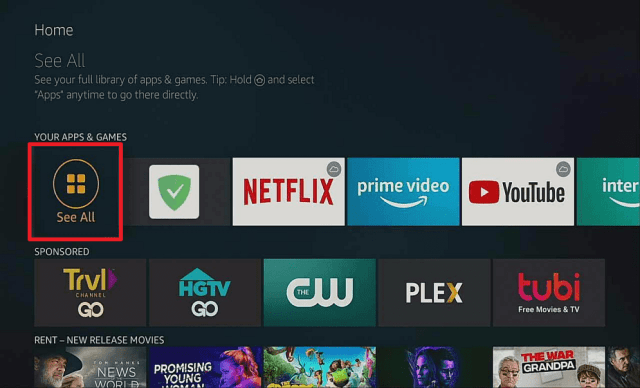
7.  Head back to the home screen and under the “Your Apps & Channels” choose See All.

step 18 install chrome on firestick


8.  Scroll down and choose Google Chrome and select the “Options”. Then select “Move to front”

step 19 install chrome on firestick


9.  Google Chrome will be moved forward to “Your Apps and Channels. Open Google Chrome

step 20 install chrome on firestick


10.  Click Accept & Continue.

step 21 install chrome on firestick


11.  Click Next.

step 22 install chrome on firestick


12.  There you go, you can now use Google Chrome.

step 23 install chrome on firestick


YOUR INTERNET ACTIVITY IS BEING WATCHED

ReviewVPN cannot attest to the legality, security and privacy of the applications discussed on this site. It is highly recommended that you use a VPN service while streaming or using Kodi.

Currently, your IP 216.73.216.144 is visible to everyone and your Browser is being tracked by Advertisers & ISP Provider.

Save 65% Now

Limited Time Offer

Here are the main reasons why you must use a VPN:

  • Your activities are hidden from your ISP, the government, and from the apps you are using.
  • You can access additional movies and TV streams.
  • ISP attempts to throttle are thrwarted thus reducing buffering issues.
  • Geographically restricted content like Netflix and Hulu can be unblocked.

A VPN works be replacing your ISP-assigned IP address and creating an encrypted tunnel. We recommend the no log service offered by IPVanish. It works well on a Firestick and offers the fastest possible speeds.

Special Limited Time Offer - Get IPVanish


Legal Disclaimer: ReviewVPN.com does not encourage or endorse any illegal activity involved in the usage of services and applications referenced on this site. We do not verify the licensing agreements of services. The end-user is wholly responsible for ensuring that any media accessed through these services does not violate copyright and/or licensing laws. ReviewVPN does not promote, link to, or receive compensation from any Apps and IPTV services.


Install Surfshark on Firestick

Best Surfshark Deal


What does it do?

You can do anything with Google Chrome. You can browse the web, watch videos online, read e-books, download music and videos, write and send emails, do research, and many more. As long as you imagine it, you can accomplish it with Google Chrome.


Compatible Platforms

Google Chrome is compatible with a lot of OS. You can use it with Windows, MAC OS, Android, IOS, Linux, Raspberry Pi, and even with the Amazon Firestick.


Features

      Flawless and Stable Browsing with its Blink Browser

      Powerful Encryption

      Download anything you want from various websites

      Pop-up and Malware Blocker

      Google Translate Integration

      Incognito Mode


Pros and Cons 

Pros

      One-Click Download

      Incognito Mode leaves nothing to be traced

      “Do Not Track” Feature

      Shows news feeds related to your interests

      Shortcuts for websites you visit often when you open a new tab

      Apps like Grammarly can be installed via extensions which is a huge help to writers.

Cons

  Requires Mouse Toggle for Firesticks

  Although the incognito mode erases history, cookies, and cache your online activity is still be visible to your ISP.

  The ad blocker is not full proof. Some pop-up ads still appear here and there.


FAQ

Is it safe to use?

Chrome is very safe to use. It is the most secure web browser available in the market today.


Is it legal or grey?

It is 100% to use but it will all depend on you on how you use it.


Is it free?

Yes, it is free to download and install on your device.


Are there ADS?

Ads will appear depending on the websites you visit. But generally, Chrome has an internal ad blocker that will block intrusive ads that will interfere with your browsing activity. Also, ads often appear whenever you are downloading files and torrents. If the internal blocking is not enough, you can use an Ad Blocker like Ad Guard


Is there a premium version?

No, there is no premium version.


Is there an official website?

You can visit https://www.google.com/chrome/ to download the browser.


What other devices does it work on?

It will also work with Fire TV, Fire Cube, Android TV Box, and any other device that runs on these operating systems.


How does the app work?

You can go to https://www.google.com/chrome/ to download it.


Minimum Version Required

Any Android device that has version 4.1 and above

Should I use VPN?

We have stated earlier that Chrome affords you more secure and safer browsing but that doesn’t mean that you are fully protected. For instance, you can download anything using Chrome but the question is the legality of your download. If you are going to download anything that is illegal, you will need to use a VPN service for that. A VPN service totally hides your online activity from your ISP. Also, using a VPN service will optimize your internet speed because it will thwart the efforts of your ISP to regulate your internet speed. If you are in need of a VPN service, you can follow our step-by-step guide by clicking on this link.

Note: For more information about SurfShark, please read our SURFSHARK REVIEW.


Grab your subscription now!


How to Install Surfshark VPN on Firestick

If your Firestick still has the older interface, read this article to learn how to update it: Update Firestick Interface.

You can download Surfshark directly from the Amazon App store. It will be easy for you to find Surfshark with your Firestick’s Find feature. Refer to our screenshots below.

1. Go to the Home screen of your Firestick.

step 1 Install Surfshark VPN on Firestick


2. Navigate towards the Find tab. Press the Search button from the resulting dropdown.

step 2 Install Surfshark VPN on Firestick


3. Type in the keyword of SurfShark and select from the suggestions that will appear.

step 3 Install Surfshark VPN on Firestick


4. Click the official SurfShark icon from your search results.

step 4 Install Surfshark VPN on Firestick


5. Press the Download (You own it) button.

step 5 Install Surfshark VPN on Firestick


6. The SurfShark VPN installer will download on your device.

step 6 Install Surfshark VPN on Firestick


7. SurfShark VPN’s app will automatically install itself on your Fire TV stick.

step 7 Install Surfshark VPN on Firestick


8. Press the Open button after completing SurfShark VPN’s installation process.

step 8 Install Surfshark VPN on Firestick


9. Please wait for the SurfShark VPN to load its user interface.

step 9 Install Surfshark VPN on Firestick


10. You can now log in with your SurfShark VPN account credentials.

step 10 Install Surfshark VPN on Firestick

Learn more about Surfshark and Grab the Best Surfshark Deal Now!


Install Surfshark on Firestick

Best Surfshark Deal


Other VPNs to Consider

NordVPN (Best for Streaming)

Best Features

  • 5000+ Server in 50+ Countries 
  • Military-Grade Encryption
  • Fast Connection Speed
  • Suitable to a lot of devices
  • No-Log Policy

Prices
  • Complete $5.89 per month (64% Discount)
  • Plus $4.59 per month (56% Discount)
  • Standard $3.69 per month (55% Discount)

Best Features

  • 750+ High-speed VPN Servers in 43 Locations
  • Military-Grade Encryption
  • Fastest HD Streaming and Gaming
  • 30-Day Money-Back Guarantee
  • Unlimited Data & Devices
  • No-Log Policy

Prices
  • 3 Years $1.99 per month (82% Discount)
  • 1 Years $3.29 per month (70% Discount)
  • 1 Month $10.99 per month

IPVanish VPN (Most Secure)

Best Features

  • 1200+ Servers in 60+ Countries around the world
  • Unlimited Connections
  • No-Log Policy
  • Top Notch Military-Grade VPN Protocols and Encryptions
  • 100% Safe and Secured
  • Most Trusted VPN
  • Best VPN for Firestick
  • 30-Day Money-Back Guarantee

Prices
  • Yearly $3.99 per month (63% Discount) – 30 days risk free + Ransomware & Malware Protection
  • Quarterly $5.32 per month (51% Discount)
  • Monthly $10.99 per month


For more VPN discounts, go to ReviewVPN Deals and purchase the best VPN for you.

Click here to get the lowest price on Surfshark through our exclusive limited-time offer.


History

How long has it been around?

Google Chrome was created in the year 2008. At first, it was just an alternative but through the efforts of the development team, it is now the leading and preferred web browser by more than 70% of internet users. 

What is the development team like?

The technical support of Chrome is outstanding because, on its website, it has already listed a number of possible issues that you can encounter and how to solve them. If your issue is not listed there, you can send them a message at https://support.google.com/chrome/?hl=en#topic=9796470. They reply very fast and will do everything to help you resolve your issue.


Alternatives

        Firefox (Firestick)

        Silk (Firestick)

        Brave Web Browser


Conclusion

Once you download Google Chrome on your firestick, you can do a multitude of things with it. You will see the difference compared to other browsers out there. It loads up content faster because of its data saver that compresses texts and media which saves you a lot of bandwidth. You can virtually do anything with Google Chrome and the best thing about it is that it is free. No hidden charges and very few ads appear depending on the website you visit. It is very easy to use and you can integrate apps that will help you make your job easier and faster. For these reasons, Chrome is one of the best browsers that we recommend.

We hope that this article was educational and helpful to you. Should you have questions, please feel free to drop a comment below and contact us at any of our other social media platforms. Thank you for reading and stay safe!

How to Install Mile Vids Firestick Edition

Install Mile Vids Firestick Version

In this article, we will be divulging important details on how to install Mile Vids on Firestick and other devices that run on the android platform.


We are aware that it is very hard to find adult streaming applications compatible with the Amazon Firestick. Most porn apps out there are specifically designed for tablets and mobile devices and the interface of the Firestick only works similarly but not entirely the same. Thus, there are only a few handfuls of working adult streaming applications for the firestick. In this article, we will be teaching you how to install Mile Vids on a Firestick.


ANONYMOUSLY

Is Mile Vids Safe and Virus-free?

We tested this application using VirusTotal and found that there is/are malicious file/files. You can see the above result for your reference.

Because of this, we highly recommend using a VPN that can protect your privacy against any threat from Mile Vids.

Here’s how you can Install The Best VPN For Firestick and All Devices.


How to Install Mile Vids on Android

To download and install Mile Vids on your Android device, just click on this link.


How To Install Mile Vids Firestick Guide

  1.  Go to Settings and select Device.
  2.  Choose Developer Options
  3.  Turn on the ADB Debugging and Apps From Unknown Sources
  4.  After turning these options on, launch the Amazon App Store on your device
  5.  Search and Download Downloader
  6.  Install Downloader and launch it after installing it.
  7.  Choose Allow and Select Ok
  8.  Type in https://reviewvpn.com/mil and select Go
  9.  Wait for it to finish and then select Mile Vids
  10.  Select Done
  11.  This will automatically take you back to Downloader. Select Delete
  12.  Choose Delete one more time
  13.  Head back to the home screen and under the Your Apps & Channels select Choose All
  14.  Scroll down and select Mile Vids and select the Options.
  15.  Then select Move to Front
  16.  Mile Vids will be moved forward to Your Apps and Channels
  17.  After this, you will see Mile Vids and click it to launch. 


Install Mile Vids on Firesticks with Screenshots

1. Install the Downloader app and jailbreak your firestick by enabling unknown sources. To learn more about the procedure, you may read How to Install the Downloader App and Enable Unknown Sources.


2. Open Downloader App. Type https://reviewvpn.com/mil and click Go.

Step 12 Install Mile Vids on Firestick


3. Select INSTALL.

Step 13 Install Mile Vids on Firestick


4. Select OPEN. There you go, The MileVids is installed!

Step 14 Install Mile Vids on Firestick


YOUR INTERNET ACTIVITY IS BEING WATCHED

ReviewVPN cannot attest to the legality, security and privacy of the applications discussed on this site. It is highly recommended that you use a VPN service while streaming or using Kodi.

Currently, your IP 216.73.216.144 is visible to everyone and your Browser is being tracked by Advertisers & ISP Provider.

Save 65% Now

Limited Time Offer

Here are the main reasons why you must use a VPN:

  • Your activities are hidden from your ISP, the government, and from the apps you are using.
  • You can access additional movies and TV streams.
  • ISP attempts to throttle are thrwarted thus reducing buffering issues.
  • Geographically restricted content like Netflix and Hulu can be unblocked.

A VPN works be replacing your ISP-assigned IP address and creating an encrypted tunnel. We recommend the no log service offered by IPVanish. It works well on a Firestick and offers the fastest possible speeds.

Special Limited Time Offer - Get IPVanish


Legal Disclaimer: ReviewVPN.com does not encourage or endorse any illegal activity involved in the usage of services and applications referenced on this site. We do not verify the licensing agreements of services. The end-user is wholly responsible for ensuring that any media accessed through these services does not violate copyright and/or licensing laws. ReviewVPN does not promote, link to, or receive compensation from any Apps and IPTV services.


Install Surfshark on Firestick

Best Surfshark Deal


Is It Any Good?

Mile Vids is the mobile version of a website. This app offers a large selection of content and categories and it is also one of the few third-party streaming applications that are compatible with the Amazon Firestick.

Note: You will be needing Mouse Toggle for Mile Vids to work. Read our Mouse Toggle Review for more details.


Mile Vids Features

Hamburger Menu

  • Profile – shows your account details.
  • Preferences – this area allows you to Force Low Quality (force low-quality video. Otherwise play in HD when available.)  and Play Video when ready (autoplay when the video is ready.)
  • Favorites – It is intended for the videos you have tagged as your favorites.
  • Categories : HD, Amateur, Anal, Asian, Ass, Babe, Babysitter, Beauty, Big Ass, Bisexual, Black, Blonde, Blowjob,    Bondage/BDSM, Celebrity, College, Compilation, Cosplay, Creampie, Cuckold, Cumshots, Double Penetration, Ebony, Funny, Gangbang, Gay, German, Handjob, Hardcore, Hentai, and more.
  • Search – you can use this function to find any type of content that cannot be found under the categories
  • Surprise Me – It function will play a random video.
  • Remove Ads – this area will help you prevent ads from popping up.
  • Contact – It is use to send complaints or suggestions to the developer. You can contact them through email or skype.
  • Twitter – follow their twitter pages for updates.
  • Website – It will redirect you to their official website.
  • Log out – this section allows you to log out of your account.


Interface

The interface of Porn HD is straightforward. You can navigate through the pages by clicking on the page numbers.


Videos

Mile Vids features full-length movies and videos that are at least 20 minutes in length.


Pros and Cons 

Pros

  • One-click play for all videos. You do not have to do a lot of clicking just to play a video.
  • High Definition videos
  • Huge Selection of content

Cons

  • A lot of videos have broken links.


Should I use a VPN?

Surfshark is a premium VPN service that gives your online activity and identity concealment. This allows you to be protected from the monitoring of your ISP. Oftentimes, your ISP checks your activities. Streaming activities usually require a huge amount of data and when this is seen by your ISP, it will surely throttle down your connection. What a VPN does is hide this kind of activity and thwarts any attempt by your ISP to slow down your connection. It will only see the flow of data but not what the data is being used for.

Note: For more information about Surfshark, please read our Surfshark Review.


Grab your subscription now!


How to Install Surfshark VPN on Firestick

If your Firestick still has the older interface, read this article to learn how to update it: Update Firestick Interface.

1. Go to the Home screen of your Firestick.

step 1 Install Surfshark VPN on Firestick


2. Navigate towards the Find tab. Press the Search button from the resulting dropdown.

step 2 Install Surfshark VPN on Firestick


3. Type in the keyword of Surfshark and select from the suggestions that will appear.

step 3 Install Surfshark VPN on Firestick


4. Click the official Surfshark icon from your search results.

step 4 Install Surfshark VPN on Firestick


5. Press the Download (You own it) button.

step 5 Install Surfshark VPN on Firestick


6. The Surfshark VPN installer will download on your device.

step 6 Install Surfshark VPN on Firestick


7. Surfshark VPN’s app will automatically install itself on your Fire TV stick.

step 7 Install Surfshark VPN on Firestick


8. Press the Open button after completing Surfshark VPN’s installation process.

step 8 Install Surfshark VPN on Firestick


9. Please wait for the Surfshark VPN to load its user interface.

step 9 Install Surfshark VPN on Firestick


10. You can now log in with your Surfshark VPN account credentials.

step 10 Install Surfshark VPN on Firestick

Learn more about Surfshark and Grab the Best Surfshark Deal Now!


Install Surfshark on Firestick

Best Surfshark Deal


Other VPNs to Consider

NordVPN (Best for Streaming)

Best Features

  • 5000+ Server in 50+ Countries 
  • Military-Grade Encryption
  • Fast Connection Speed
  • Suitable to a lot of devices
  • No-Log Policy

Prices
  • Complete $5.89 per month (64% Discount)
  • Plus $4.59 per month (56% Discount)
  • Standard $3.69 per month (55% Discount)

Best Features

  • 750+ High-speed VPN Servers in 43 Locations
  • Military-Grade Encryption
  • Fastest HD Streaming and Gaming
  • 30-Day Money-Back Guarantee
  • Unlimited Data & Devices
  • No-Log Policy

Prices
  • 3 Years $1.99 per month (82% Discount)
  • 1 Years $3.29 per month (70% Discount)
  • 1 Month $10.99 per month

IPVanish VPN (Most Secure)

Best Features

  • 1200+ Servers in 60+ Countries around the world
  • Unlimited Connections
  • No-Log Policy
  • Top Notch Military-Grade VPN Protocols and Encryptions
  • 100% Safe and Secured
  • Most Trusted VPN
  • Best VPN for Firestick
  • 30-Day Money-Back Guarantee

Prices
  • Yearly $3.99 per month (63% Discount) – 30 days risk free + Ransomware & Malware Protection
  • Quarterly $5.32 per month (51% Discount)
  • Monthly $10.99 per month


For more VPN discounts, go to ReviewVPN Deals and purchase the best VPN for you.

Click here to get the lowest price on Surfshark through our exclusive limited-time offer.



FAQ

Is it safe to download?

Mile Vids is safe to download on your device.


Is it legal or grey?

It is 100% legal to install on a Firestick. 


Is the Mile Vids free?

Yes, it is free of charge.


Are there ADS?

Unfortunately, Mile Vids has ads. It appears in the form of banners and there are a few instances where pop-up ads will appear. You can use an ad-blocking app like AdGuard to prevent ads from interfering with your viewing experience. 


Is there a premium version?

Yes, it has a premium version that will give you an ad-free viewing experience. 


Is it a Terrarium Clone?

No, Mile Vids is not a terrarium clone.


Is there an official website?

Yes, Mile Vids has an official website. Just type in Mile Vids on the search box and the first result will be the official website.


What other devices does it work on?

It will work on other devices like the Amazon Fire Tablet 7 and 10, android devices like mobile phones and tablets, Windows via an android emulator, and other devices that run on a similar operating system.


How does the app work?

The installation guide we have provided above will show you how Mile Vids work on the Firestick.


Minimum Version Required

Your device needs to be at least version 5.0 and above for Mile Vids to run smoothly.


How long has it been around?

The official website was registered in 2014. As for the app, we can only assume that it has been around more or less for 2 years.


Alternatives

As previously stated, it is rare to find adult streaming applications that work with the Amazon Firestick. We have done several adult streaming app testings and found out the following apps are the only ones compatible with the Firestick. They are as follows:

                 APPS

               REVIEW

           DOWNLOAD

                 Stremio

            Stremio Review

                Jizztagram

         Jizztagram Review

               Pron4Droid

         Pron4Droid Review

                  Porn4k

             Porn4k Review

                 XVideos

            XVideos Review


ReviewVPN.com does not host any of these files. They are hosted on Archive.org.


Note: Kindly read our How to Watch Porn using a Firestick for more details.


Our Opinion

Mile Vids is not a very popular adult streaming application, but we can attest that it is only one of the few that is compatible with the Amazon Firestick. We can overlook the minor hiccup. Remember that most of the adult streaming apps out there are working well with mobile devices and tablets and most of the time, they do not run well with the Firestick. Follow our installation guide on how to install Mile Vids Firestick edition and see how it works.

It is our wish that this article teaches you how to install Mile Vids Firestick edition. Thank you for reading and always be safe.

Note: ReviewVPN.com does not own or operate any app nor does it endorse any. The main purpose of this article is strictly for educational purposes only.

How to Install Porn HD Firestick Edition

Porn HD Firestick Version

In this article, we will be divulging important details on how to install the Porn HD app on Firestick and other devices that run on the android platform.


To be honest, it is hard to find an adult streaming application that is compatible with the Amazon Firestick. A lot of these porn apps work well with phones and tablets, but it is tricky to use them on a Firestick. In this article, we will be teaching you how to install Porn HD APK on Firestick. It is one of the only few Adult Streaming apps that will work on a Firestick.


ANONYMOUSLY

Is Porn HD Safe and Virus-free?

We tested this app using VirusTotal and found no threats or malicious files and malware.

Despite having good results, we still need to be vigilant in protecting our privacy while streaming.

A Virtual Private Network or VPN will definitely help us maintain our security and anonymity while using Porn HD.

Here’s how you can Install The Best VPN For Firestick and All Devices.


How to Install Porn HD Firestick Guide

  1.  Go to Settings and select Device.
  2.  Choose Developer Options
  3.  Turn on the ADB Debugging and Apps From Unknown Sources
  4.  After turning these options on, launch the Amazon App Store on your device
  5.  Search and Download Downloader
  6.  Install Downloader and launch it after installing it.
  7.  Choose Allow and Select Ok
  8.  Type in https://reviewvpn.com/porn and select Go
  9.  Wait for it to finish and then select Porn HD
  10.  Select Done
  11.  This will automatically take you back to Downloader. Select Delete
  12.  Choose Delete one more time
  13.  Head back to the home screen and under the Your Apps & Channels select Choose All
  14.  Scroll down and select Porn HD and select the Options.
  15.  Then select Move to Front
  16.  Porn HD will be moved forward to Your Apps and Channels
  17.  After this, you will see Porn HD and click it to launch.


If your Firestick still has the older interface, read this article to learn how to update it: Update Firestick Interface.


Install Porn HD on Firesticks with Screenshots

1. Install the Downloader app and jailbreak your firestick by enabling unknown sources. To learn more about the procedure, you may read How to Install the Downloader App and Enable Unknown Sources.


2. Open Downloader App. Type https://reviewvpn.com/porn and click Go.

Install Porn HD


3. Select INSTALL.

Step 13 Install Porn HD on Firestick


4. Select OPEN. There you go, the Porn HD is installed!

Step 14 Install Porn HD on Firestick


YOUR INTERNET ACTIVITY IS BEING WATCHED

ReviewVPN cannot attest to the legality, security and privacy of the applications discussed on this site. It is highly recommended that you use a VPN service while streaming or using Kodi.

Currently, your IP 216.73.216.144 is visible to everyone and your Browser is being tracked by Advertisers & ISP Provider.

Save 65% Now

Limited Time Offer

Here are the main reasons why you must use a VPN:

  • Your activities are hidden from your ISP, the government, and from the apps you are using.
  • You can access additional movies and TV streams.
  • ISP attempts to throttle are thrwarted thus reducing buffering issues.
  • Geographically restricted content like Netflix and Hulu can be unblocked.

A VPN works be replacing your ISP-assigned IP address and creating an encrypted tunnel. We recommend the no log service offered by IPVanish. It works well on a Firestick and offers the fastest possible speeds.

Special Limited Time Offer - Get IPVanish


Legal Disclaimer: ReviewVPN.com does not encourage or endorse any illegal activity involved in the usage of services and applications referenced on this site. We do not verify the licensing agreements of services. The end-user is wholly responsible for ensuring that any media accessed through these services does not violate copyright and/or licensing laws. ReviewVPN does not promote, link to, or receive compensation from any Apps and IPTV services.


Install Surfshark on Firestick

Best Surfshark Deal


Is It Any Good?

Porn HD APK is one of the only few apps out there that will work on a Firestick. It features high-definition snippets from Nubile Films. If you are the type of person who just wants to warm things up, then this app will do the trick.


Porn HD Features

Interface

The interface of Porn HD is straightforward. You can navigate through the pages by clicking on the page numbers.


Videos

There is a total of 180 videos that are snippets coming from Nubile Films. They are of HD quality and decent enough to watch on a firestick.


Hamburger Menu

This section only has two selections. Main and Favorite.

Note: Porn HD requires Mouse Toggle. If you want to know more about Mouse Toggle, please click here.


Pros and Cons

Pros

  1. One-Click Play
  • You no longer need to do a lot of clicks. Porn HD has a one-click play feature.
  1. You can tag a video that you like as a favorite. You can access it through the hamburger menu if you want to replay it.


Cons

  1. No categories to choose from.
  2. The video might go into full screen, but the video size itself will stay the same.
  3. Limited video count.


Should I use a VPN?

Protect your online activity and identity by using a premium VPN service like Surfshark. Since streaming requires a heavy amount of data, ISPs are very adamant in monitoring this type of activity. If you are flagged as one, the quality of the streaming experience will go down. Having one installed will counter any attempt that will throttle your connection thus assuring you of a quality viewing experience.

Note: For more information about Surfshark, please read our Surfshark Review.


Grab your subscription now!


How to Install Surfshark VPN on Firestick

If your Firestick still has the older interface, read this article to learn how to update it: Update Firestick Interface.

1. Go to the Home screen of your Firestick.

step 1 Install Surfshark VPN on Firestick


2. Navigate towards the Find tab. Press the Search button from the resulting dropdown.

step 2 Install Surfshark VPN on Firestick


3. Type in the keyword of Surfshark and select from the suggestions that will appear.

step 3 Install Surfshark VPN on Firestick


4. Click the official Surfshark icon from your search results.

step 4 Install Surfshark VPN on Firestick


5. Press the Download (You own it) button.

step 5 Install Surfshark VPN on Firestick


6. The Surfshark VPN installer will download on your device.

step 6 Install Surfshark VPN on Firestick


7. Surfshark VPN’s app will automatically install itself on your Fire TV stick.

step 7 Install Surfshark VPN on Firestick


8. Press the Open button after completing Surfshark VPN’s installation process.

step 8 Install Surfshark VPN on Firestick


9. Please wait for the Surfshark VPN to load its user interface.

step 9 Install Surfshark VPN on Firestick


10. You can now log in with your Surfshark VPN account credentials.

step 10 Install Surfshark VPN on Firestick

Learn more about Surfshark and Grab the Best Surfshark Deal Now!


Install Surfshark on Firestick

Best Surfshark Deal


Other VPNs to Consider

NordVPN (Best for Streaming)

Best Features

  • 5000+ Server in 50+ Countries 
  • Military-Grade Encryption
  • Fast Connection Speed
  • Suitable to a lot of devices
  • No-Log Policy

Prices
  • Complete $5.89 per month (64% Discount)
  • Plus $4.59 per month (56% Discount)
  • Standard $3.69 per month (55% Discount)

Best Features

  • 750+ High-speed VPN Servers in 43 Locations
  • Military-Grade Encryption
  • Fastest HD Streaming and Gaming
  • 30-Day Money-Back Guarantee
  • Unlimited Data & Devices
  • No-Log Policy

Prices
  • 3 Years $1.99 per month (82% Discount)
  • 1 Years $3.29 per month (70% Discount)
  • 1 Month $10.99 per month

IPVanish VPN (Most Secure)

Best Features

  • 1200+ Servers in 60+ Countries around the world
  • Unlimited Connections
  • No-Log Policy
  • Top Notch Military-Grade VPN Protocols and Encryptions
  • 100% Safe and Secured
  • Most Trusted VPN
  • Best VPN for Firestick
  • 30-Day Money-Back Guarantee

Prices
  • Yearly $3.99 per month (63% Discount) – 30 days risk free + Ransomware & Malware Protection
  • Quarterly $5.32 per month (51% Discount)
  • Monthly $10.99 per month


For more VPN discounts, go to ReviewVPN Deals and purchase the best VPN for you.

Click here to get the lowest price on Surfshark through our exclusive limited-time offer.


FAQs

Is it safe to download?

Porn HD APK is safe to download on your device.


Is it legal or grey?

It is 100% legal to install on a Firestick.


Is it free?

Yes, Porn HD APK is free.


Are there ADS?

Porn HD APK is ad-free. You will not have an ad-blocking app like Ad Guard.


Is there a premium version?

Porn HD APK does not have a premium version.


Is it a Terrarium Clone?

Porn HD is not a terrarium clone.


Is there an official website?

Porn HD does not have an official website.


What other devices does it work on?

Aside from the Amazon Firestick, Porn HD will work well with android devices and the Amazon Fire Tablet 7 and 10.


How does the app work?

Just follow the step-by-step guide we have provided above, and you will see how quick it is to download and install Porn HD APK on a Firestick.


Minimum Version Required

At least version 5.0 and above will be needed for Porn HD to run on your Firestick.


How long has it been around?

Not much is known as to when Porn HD was launched. We have scoured the web and found inconclusive evidence, but if we are going for an assumption, Porn HD has been around for 2 years more or less.


Alternatives

As we have stated earlier, it is difficult to find adult streaming applications that are compatible with the Amazon Firestick. Lucky for you our dear readers, we have tested other porn apps that truly work for Firestick. They are as follows:

                 APPS

               REVIEW

           DOWNLOAD

                 Stremio

            Stremio Review

                Jizztagram

         Jizztagram Review

               Pron4Droid

         Pron4Droid Review

                  Porn4k

             Porn4k Review

                 XVideos

            XVideos Review

ReviewVPN.com does not host any of these files. They are hosted on Archive.org.


Note: For more information on How to Watch Porn using a Firestick just click the blue-colored text.


Our Opinion

In terms of usability, Porn HD can be used with the Amazon Firestick. It may not be the best among the other working porn apps, but the only consolation we get is that it works with the Firestick. If you are not that choosy about what type of porn you watch, then Porn HD is decent enough to satisfy your sexual cravings.

We hope that this article helps you with how to install Porn HD Firestick Edition. Kindly drop your questions and comments down below and we assure you that we will respond promptly. Thank you! Be safe!


Note: ReviewVPN.com does not own or operate any app nor does it endorse any. The main purpose of this article is strictly for educational purposes only.