How to Install Umbrella Kodi Addon on Firestick/Fire TV/Android

Install Umbrella Kodi Addon on Firestick/Fire TV/Android

This guide will cover all you need to know about the Umbrella Kodi Addon and how to install it on Firestick, Fire TV, or Android.

Another addon that lets you stream movies, TV series, and VOD is the Umbrella Kodi Addon. Furthermore, it is easily accessible through the Umbrella Repository. It has a wide variety of genres for movies and TV shows, as well as a VOD section, so you’re likely to find what you’re looking for.


Its user interface is also fairly straightforward, making it simple to find the category you prefer. Furthermore, it enables the integration of your Trakt and IMDb accounts, allowing you to watch videos that you’ve stored while using the Umbrella Kodi Addon. It also supports all types of meta and debrid services to obtain the best accessible streaming links.

However, before we proceed, we’d want to let you know that a debrid account is required to view its content. To access the streaming content offered by the Umbrella Kodi Addon, you may as well register first for a service like Real-Debrid.


ANONYMOUSLY

How To Install Umbrella Kodi Addon on Firestick/Fire TV/Android

This guide will walk you through the steps of installing POV Kodi Addon on your device.

1. On your Firestick, open Kodi and go to Settings.

Install Umbrella Kodi Addon on Firestick step 1


2. Select on System.

Install Umbrella Kodi Addon on Firestick step 2


3. Click on the Add-ons menu and Turn ON the Unknown Sources.

Install Umbrella Kodi Addon on Firestick step 3


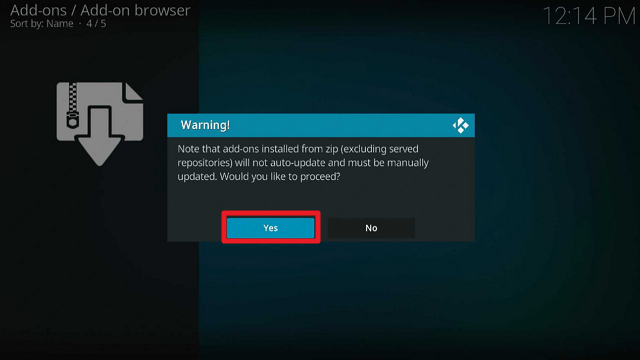
4. Select Yes when the box appears.

Install Umbrella Kodi Addon on Firestick step 4


5. Go back one step and click on File Manager.

Install Umbrella Kodi Addon on Firestick step 5


6. Select the Add Source.

Install Umbrella Kodi Addon on Firestick step 6


7. A box will pop up, so click on the ‘None’ option.

Install Umbrella Kodi Addon on Firestick step 7


8. Type in “https://umbrellaplug.github.io” then click “OK”

Install Umbrella Kodi Addon on Firestick step 8


9. Highlight the box under the source to give the media source a name, and put “umbrella” or any other name that will help you identify it quickly. Click “OK”. Then click “OK” again

Install Umbrella Kodi Addon on Firestick step 9


10. Return to the System page by pressing the return button on your remote. Select “Add-ons

Install Umbrella Kodi Addon on Firestick step 10


11. Choose “Install from zip file

Install Umbrella Kodi Addon on Firestick step 11


12. Click “Yes

Install Umbrella Kodi Addon on Firestick step 12


13. Select “umbrella

Install Umbrella Kodi Addon on Firestick step 13


14. Then click on the zip file URL – repository.umbrella-2.1.40.zip

Install Umbrella Kodi Addon on Firestick step 14


15. Wait for the notification “Umbrella Repository Add-on installed” to appear on the upper right part of the screen

Install Umbrella Kodi Addon on Firestick step 15


16. Afterward, select “Install from repository

Install Umbrella Kodi Addon on Firestick step 16


17. Then click “Umbrella Repository

Install Umbrella Kodi Addon on Firestick step 17


18. Select “Video add-ons

Install Umbrella Kodi Addon on Firestick step 18


19. Click on “Umbrella

Install Umbrella Kodi Addon on Firestick step 19


20. Then click “Install

Install Umbrella Kodi Addon on Firestick step 20


21. Click “OK” for the additional add-ons that will be installed

Install Umbrella Kodi Addon on Firestick step 21


22. Then wait for it to install. It’s finished once you see the “Umbrella Add-on Installed” message appears. Click “Umbrella” again.

Install Umbrella Kodi Addon on Firestick step 22


23. Then select “Open

Install Umbrella Kodi Addon on Firestick step 23


24. That’s it, Umbrella Kodi Addon is already installed in your Firestick.

Install Umbrella Kodi Addon on Firestick step 24

Legal Disclaimer: ReviewVPN.com does not encourage or endorse any illegal activity involved in the usage of services and applications referenced on this site. We do not verify the licensing agreements of services. The end-user is wholly responsible for ensuring that any media accessed through these services does not violate copyright and/or licensing laws. ReviewVPN does not promote, link to, or receive compensation from any Apps and IPTV services.


Install Surfshark on Firestick

Best Surfshark Deal


How to Use Umbrella Kodi Addon With Real-Debrid

Using Real debrid is the best way to watch the most recent and popular movies and TV episodes.

  1. Launch the Umbrella Kodi Addon on your Firestick
  2. Scroll down and select “Tools
  3. Choose “My Account Settings
  4. Then go to “Debrid Accounts
  5. Scroll down to Real-Debrid then click “Authorize
  6. You’ll be given a code to input by going to “https://real-debrid.com/device” on any device browser
  7. Once the code is entered, simply click “Continue” on your web browser to enable your real debrid integration with Umbrella
  8. Your integration is finally complete.
  9. Then, go back to Umbrella Kodi Addon and you’ll see a notification stating “ Real-Debrid Authorization Successful” on the top of your screen.
  10. Click “OK
  11. That’s it; you may now enjoy the premium streaming links from Real-Debrid on Umbrella Kodi Addon.


YOUR INTERNET ACTIVITY IS BEING WATCHED

ReviewVPN cannot attest to the legality, security and privacy of the applications discussed on this site. It is highly recommended that you use a VPN service while streaming or using Kodi.

Currently, your IP 216.73.216.102 is visible to everyone and your Browser is being tracked by Advertisers & ISP Provider.

Save 65% Now

Limited Time Offer

Here are the main reasons why you must use a VPN:

  • Your activities are hidden from your ISP, the government, and from the apps you are using.
  • You can access additional movies and TV streams.
  • ISP attempts to throttle are thrwarted thus reducing buffering issues.
  • Geographically restricted content like Netflix and Hulu can be unblocked.

A VPN works be replacing your ISP-assigned IP address and creating an encrypted tunnel. We recommend the no log service offered by IPVanish. It works well on a Firestick and offers the fastest possible speeds.

Special Limited Time Offer - Get IPVanish


Features

  • Contains movies, Television shows, and VOD.
  • Access your saved videos by logging into your Trakt or IMDb account.
  • It includes YouTube videos from channels like Comedy Central, Discovery, History, National Geographic, and more, as well as concert and music videos, sports, news, and more.
  • Provides support for all Debrid, Premiumize, Real-Debrid, MDBList, FANART.TV, TMDb, and other premium services
  • It includes a search feature that enables you to look up movies and TV series directly.
  • You can search for movies, television shows, movies by an actor, and television shows by an actor using the search tab.
  • Among its hosters are SCENERLS, 300MBFILMS, MYVIDEOLINK, RAPIDMOVIEZ, and
  • Account-required scrapers include EASYNEWS, FILEPURSUIT, FURK, and ORORO.
  • They scrape material from well-known torrent websites like 1337X, BITLORD, KICKASS2, LIMETORRENTS, MAGNETDL, PIRATEBAY, TORLOCK, TORRENTGALAXY, TORRENTZ2, YTSMX, and others.
  • General, Navigation, Playback, Accounts, Downloads, Subtitles, and View Types are among the customizable settings.
  • Allows you to download videos to watch later.
  • Subtitle support is available in English, Arabic, Bulgarian, Chinese, French, Indonesian, Japanese, Russian, Spanish, and large many additional languages.
  • There are several different genres to choose from, including Action, Adventure, Comedy, Drama, Family, Fantasy, Horror, Romance, Sport, Thriller, War, and more.


Pros & Cons

Pros

  • Availability of support for Debrid, Meta, and other premium services
  • It includes selections from Trakt, TMDb, and IMDb.
  • Youtube has available video content.


Cons

  • To access some of its features, you must first download the Metahandler add-on.
  • Watching its content requires a debrid account.
  • Doesn’t provide free streaming


Stream Safely With a VPN

surfshark logo

Using unofficial Kodi addons may risk its users because it connects to a multitude of third-party servers to provide material to its users. As a result, the probability of your data and IP being exposed to these servers is extremely high.

That is why it is crucial to utilize a VPN, like Surfshark, to help you conceal your online identity.

By using an Surfshark, you can stop online threats like hackers and phishers from targeting your IP address in exchange for money or other malicious purposes. In addition, it assists you in hiding your online activity from the government and your ISP. That way, you’ll never have to worry about data breaches or unwanted internet monitoring.

In addition to that, it offers you some of these extra advantages:

  • Prevents ISP throttling, so you won’t have to think about internet slowdown, delays, or buffering.
  • Automatically connects you to the fastest accessible server.
  • It will provide you unlimited bandwidth so you may stream and download any content from your preferred add-ons and apps.
  • It has a kill switch that, in the event of a VPN connection failure, will immediately cut off your internet connection.
  • Allows for an unlimited number of simultaneous connections, enabling you to safeguard all of your devices at the same time.

Note: For more information about Surfshark, please read our Surfshark Review.


How to Install Surfshark VPN on Firestick

If your Firestick still has the older interface, read this article to learn how to update it: Update Firestick Interface.

Follow our screenshots below to install the SurfShark VPN app on your Fire TV stick.

1. Go to the Home screen of your Firestick.

step 1 Install Surfshark VPN on Firestick


2. Navigate towards the Find tab. Press the Search button from the resulting dropdown.

step 2 Install Surfshark VPN on Firestick


3. Type in the keyword of SurfShark and select from the suggestions that will appear.

step 3 Install Surfshark VPN on Firestick


4. Click the official SurfShark icon from your search results.

step 4 Install Surfshark VPN on Firestick


5. Press the Download (You own it) button.

step 5 Install Surfshark VPN on Firestick


6. The SurfShark VPN installer will download on your device.

step 6 Install Surfshark VPN on Firestick


7. SurfShark VPN’s app will automatically install itself on your Fire TV stick.

step 7 Install Surfshark VPN on Firestick


8. Press the Open button after completing SurfShark VPN’s installation process.

step 8 Install Surfshark VPN on Firestick


9. Please wait for the SurfShark VPN to load its user interface.

step 9 Install Surfshark VPN on Firestick


10. You can now log in with your SurfShark VPN account credentials.

step 10 Install Surfshark VPN on Firestick

Learn more about Surfshark and Grab the Best Surfshark Deal Now!


Install Surfshark on Firestick

Best Surfshark Deal


Other VPNs to Consider

NordVPN (Best for Streaming)

Best Features

  • 5000+ Server in 50+ Countries 
  • Military-Grade Encryption
  • Fast Connection Speed
  • Suitable to a lot of devices
  • No-Log Policy

Prices
  • Complete $5.89 per month (64% Discount)
  • Plus $4.59 per month (56% Discount)
  • Standard $3.69 per month (55% Discount)

Best Features

  • 750+ High-speed VPN Servers in 43 Locations
  • Military-Grade Encryption
  • Fastest HD Streaming and Gaming
  • 30-Day Money-Back Guarantee
  • Unlimited Data & Devices
  • No-Log Policy

Prices
  • 3 Years $1.99 per month (82% Discount)
  • 1 Years $3.29 per month (70% Discount)
  • 1 Month $10.99 per month

IPVanish VPN (Most Secure)

Best Features

  • 1200+ Servers in 60+ Countries around the world
  • Unlimited Connections
  • No-Log Policy
  • Top Notch Military-Grade VPN Protocols and Encryptions
  • 100% Safe and Secured
  • Most Trusted VPN
  • Best VPN for Firestick
  • 30-Day Money-Back Guarantee

Prices
  • Yearly $3.99 per month (63% Discount) – 30 days risk free + Ransomware & Malware Protection
  • Quarterly $5.32 per month (51% Discount)
  • Monthly $10.99 per month


For more VPN discounts, go to ReviewVPN Deals and purchase the best VPN for you.

Click here to get the lowest price on Surfshark through our exclusive limited-time offer.


FAQs

What is Umbrella Kodi Addon?

Umbrella is a Kodi addon that can be found in the Umbrella Repository. It allows you to watch movies, TV series, and VOD on your device, such as the Firestick, by integrating your debrid account.


Is Umbrella Kodi Addon safe?

Yes, using the Umbrella Kodi Addon on your device is safe. However, if you want to add a layer of security to your device before browsing or streaming using this addon, you may always connect to Surfshark.


Is Umbrella Kodi Addon legal?

Given the range of content that can be streamed using the Umbrella Kodi Addon, we at Reviewvpn are never really able to determine the legality of the streams available in this addon.


Is Umbrella Kodi Addon free?

Unfortunately, to view any of its content, you must have a debrid account, which is a paid service.


Conclusion

The Umbrella Kodi Addon provides the most recent movies and TV series available online. Additionally, it contains a VOD section with some of the most well-liked channels, sports, and news programming. My only issue is that you’ll need a debrid account to view any of its content. Therefore, the Umbrella Kodi Addon is not for you if you’re looking for free stuff. However, you can refer to our list of the best Kodi Addons to find some other addons that might work for you.

5 USEFUL APPS FOR BUSINESS OWNERS

5 USEFUL APPS FOR BUSINESS OWNERS

Business in the 21st century has become digitized. Every business owner must follow suit if they want to maintain or even increase their market share. Most business employees’ productivity levels have improved as a result of digitalization. Companies record massive sales and profits simply because they have embraced the digitalization wave that is currently sweeping the business world.


5 Useful Apps for Business Owners

WHAT HINDERS PRODUCTIVITY IN BUSINESS 

In its basic form, productivity is the predicted output after exerting maximal effort. In this day and age, productivity in business has expanded. It includes working smartly, satisfying customer demand, strategizing, and harnessing collaborative effort to reach a stated goal. Most companies are underproductive because they continue using outdated methods and refuse to digitalize. As a result, this reduces their output. The emergence of the web and ICT has significantly enhanced corporate operations. However, there are still businesses that do not realize the value of digitalization. These companies either have no web presence or do not fully utilize it.


WHY DO BUSINESS ENTERPRISES NEED USEFUL APPS

Apps make people’s lives simpler and their companies more productive and efficient. The time it takes to complete a task reduces to a bare minimum when using these business tools. Nowadays, most businesses use essential services to boost their production. It has resulted in increased sales and profit. To live and grow, companies must embrace the usage of useful business apps. These useful business apps have come to stay, as more of them are being developed every day by app developers and tech enthusiasts. In the following article, we will mention the most essential and practical apps for business.


IMPORTANT USEFUL APPS FOR EVERY BUSINESS

We’ve previously discussed the significance of helpful apps for businesses. We will now go through some essentials every business should have, including the following.


Dropbox And Hootsuite

Dropbox is an app that can be useful to business enterprises in accessing files and documents. With Dropbox, you can secure important and sensitive files, accessing them when needed. Dropbox also makes provisions for sharing files, which means you can share files with your colleagues. Dropbox eliminates the issue of having each employee save confidential files privately. It makes it difficult for other employees to access such files.

Hootsuite is another must-have for businesses. This digital tool allows you to manage most if not all of your socials. It synchronizes all social media platforms. With these apps, business enterprises can monitor their online advertising and marketing and connect with their clients. 


iCall

iCall is a must-have digital tool for any organization. iCall is an app used essentially for call records. You can protect any verbal agreement between you as a business owner and your clients to avoid future disagreements or issues.


Zendesk

This application is also a must for businesses that want to stay in touch with their clients. Chat and video calls are available through the app. Most organizations want to keep track of their clients as a gesture of goodwill and to preserve current relationships for future patronage.


Asana

Asana is a platform for tracking corporate projects and coordinating group activities. A former Facebook cofounder created Asana. It has helped firms to track their progress on a particular task. In the case of a collaborative project, Asana allows you to retain direct touch with your colleagues and other personnel from other firms. Due to the coordinated effort, productivity enhances.


Slack

It is now possible to keep frequent contact in the office and business spheres thanks to the Slack software. It offers features that are useful for enhancing corporate productivity. They include file sharing, video conversations, and team public channels. Slack allows you to stay up to date on an ongoing collaborative project. It also encourages workers to brainstorm to move the business forward.


In conclusion, business today has become digitized due to the emergence of the web and ICT. Most companies are keeping up with the trends to improve their productivity levels, output, and profit. It is crucial to have useful apps to keep track of the business. Using essential apps such as iCall can be very helpful to most companies. Recording information and calls will protect your business from troubles.


Best Kodi Boxes in 2023

Best Kodi Boxes in 2023

This article will provide you with a list of the best Kodi Boxes that you can use to enjoy unlimited streaming of your favorite movies and shows.


Kodi has become a popular streaming service due to its ability to give its users a wealth of functional Builds and add-ons. These builds and addons include thousands of streaming possibilities for whatever streaming content you’re looking for. Whether you want to watch a movie, TV series, live TV, or VOD, Kodi has an addon for you. Furthermore, it enables you to stream music through music add-ons for the most popular audio streaming and media providers.

Consequently, given Kodi’s popularity, there are a variety of streaming devices that you may use to access it. So the question is: Which Kodi Boxes are ideal for Kodi streaming? We’ll now be presenting the best Kodi boxes that are currently on the market.


Best Kodi Boxes

Amazon Firestick

Best Kodi Boxes - Firestick

The most widely used media device on the market right now is the Firestick. This is because it enables access to and viewing from a variety of streaming providers, both free and paid. It includes several features, such as the ability to sideload apps by jailbreaking your Firestick.


Aside from that, you can easily download Kodi for free on this device. Kodi is extremely straightforward to set up on Firestick, so if you’re new to Kodi, this device can serve as a solid starter for your Kodi streaming needs.


Nvidia Shield

Best Kodi Boxes - Nvidia Shield

The Nvidia Shield is another popular streaming device that works with Kodi and other applications. It is one of the most competitive streaming devices on the market today because it provides streaming in 4K, HDR, Dolby Vision, Atmos, and AI-enhanced upscaling. As a result, you may enjoy the best quality possible when watching your favorite films, television programs, sporting events, and live TV.

Aside from that, this is the best option for gamers due to the video resolution it offers in a variety of gaming software selections.

Additionally, Nvidia Shield utilizes the latest Android TV software. This explains why it has a sleek interface and easy navigation. Furthermore, it boasts a built-in Google Assistant as well as 4K Chromecast functionality, which distinguishes the Nvidia Shield from other competitors. Aside from Kodi, you can also access the Google Playstore and choose from over 5,000 apps for all of your streaming, gaming, and music needs.


MECOOL Android TV Box

Best Kodi Boxes - MECOOL

MECOOL boxes are officially certified Google products that include Google Assistant, Google Movies, Google Play, and Chromecast built-in. The ability to cast videos, music, images and anything else you want from your device to the big screen is made possible by the Chromecast’s built-in functionality.

You may enjoy your favorite streaming services like Kodi while using MECOOL because it allows you to watch movies, TV episodes, news, and sports in 4k HDR quality. Additionally, there are a variety of Kodi boxes available, so you may select the one that best suits your streaming requirements and your budget.

However, the pricing is slightly higher than the Firestick, which is the closest device to MECOOL boxes.


Onn Android TV

Onn Android

The Onn Android TV box is a product that is available at Walmart. It appears to be convenient because you may easily purchase it on your next visit to Walmart or if you just go there to buy this TV box.

You may enjoy your favorite movies and TV shows on an Android TV with 4K Ultra HD compatibility and Dolby Audio as well. With just one device, you can access thousands of movies and TV shows, including those from streaming services like Kodi.

In addition, it includes Google Assistant and Chromecast exactly like the other gadgets we are highlighting in this article. Consequently, you can utilize its voice command to navigate between apps or other features effortlessly. At the same time, it allows you to cast movies or TV shows from your device to your television.


Google Chromecast

Best Kodi Boxes - Chromecast

Google Chromecast is another famous streaming device that is commonly used nowadays. This is also fairly simple to set up because it includes a Google TV that allows you to access the Google Playstore and download apps to your device. All you need to do to start streaming is plug it in, connect to Wi-Fi, choose your favorite application, and launch it.

Furthermore, it, like Firestick, has the option to jailbreak to install third-party apps. This includes major streaming software like Kodi. You can then make use of several entertainment options, including live TV, sports, music, and gaming.

Also, you may mirror your screen using your phone, laptop, or tablet to watch your favorite movies or shows on the big screen. Google Chromecast offers numerous features that will allow you to have a better streaming experience on any device you own.


Legal Disclaimer: ReviewVPN.com does not encourage or endorse any illegal activity involved in the usage of services and applications referenced on this site. We do not verify the licensing agreements of services. The end-user is wholly responsible for ensuring that any media accessed through these services does not violate copyright and/or licensing laws. ReviewVPN does not promote, link to, or receive compensation from any Apps and IPTV services.


Install Surfshark on Firestick

Best Surfshark Deal


FAQs

What is a Kodi Box?

A Kodi Box is a device that allows you to successfully install and utilize Kodi to watch your favorite movies, TV series, live TV, news, and other content.


What is the Best Kodi Box?

In this article, we’ve highlighted all of the best Kodi boxes available today. These include the Firestick, Nvidia Shield, MECOOL Android TV, Onn Android TV, and Google Chromecast.


Are Kodi Boxes Safe?

Yes, Kodi Boxes are safe. However, it is still preferable to use Kodi Boxes that support VPN apps such as Surfshark. That way, you may activate the service to avoid data breaches while using Kodi on your preferred streaming device.


Are Kodi Boxes Legal?

Yes, using Kodi boxes is legal. However, since Kodi has a ton of add-ons and builds available that use sources from third parties, we can never guarantee the legality of the streams you can obtain from these boxes.


Conclusion

There are numerous boxes available that will enable you to install and stream Kodi. But in my opinion, the Firestick is still the best choice for streaming. This is because Firestick’s software has virtually limitless potential. Aside from Kodi, you may sideload or install a ton of other apps on your device, including ones for streaming movies, music, games, and much more.

How To Watch StreamEast on Firestick/Android

StreamEast Overview

This article will show how to watch StreamEast on Firestick as well as some of its alternatives for sports streaming.

Even if there are a couple of streaming websites that allow you to watch live sports streams on your Firestick, it can be challenging to discover one that is reliable. Additionally, not all streaming websites offer access to every type of sports content you might be interested in. Some may not have certain sports, and some streaming issues may occur. Fortunately, we came across StreamEast.

StreamEast contains every sports event that you are looking for. It features basketball, soccer, football, baseball, hockey, boxing, and MMA. You may also locate previous, current, and forthcoming matches to ensure you catch them on time during its live stream. Furthermore, this streaming site is free, so you may watch your favorite teams without spending a dime.

So let’s get started on how to watch StreamEast on Firestick using the safest Firestick browser that is currently accessible. But first, let us remind you to activate your VPN like Surfshark VPN or Atlas VPN before using unverified streaming websites like StreamEast to add an extra layer of security for your data and privacy. Continue reading to learn more.


ANONYMOUSLY

Note: Please be aware that some of these links currently deny users access or provide an unsafe connection.

  • streameast.live
  • streameast.io
  • streameast.com


How To Watch StreamEast on Firestick/Android

If you’re still using the older version of your Firestick, you can learn how to upgrade it by reading this article: Update Firestick Interface.

To begin, you will need to install the Silk Browser so you can access StreamEast on your Firestick device.

If you do not know how to install it, here is an easy guide for you:


1. Go to the Home screen of your Firestick.


2. Click on Find.

Best Firestick Games


3. Tap on the Search tab.


4. Type in Silk Browser and choose this item that appears on the results.


5. Click on the Silk Browser Icon.


6. Choose Download.


7. Silk Browser is Downloading into your Firestick.


8. The Silk Browser app will Install on Firestick.


9. Select Open to launch the browser.


10. You can now start browsing using Amazon Silk Browser. 


11. You can now start browsing using Amazon Silk Browser. Simply type in https://streameast.to/ and press Go.

step 11


12. That’s it; you can now use StreamEast to browse for the game you’re searching for.

step 12


YOUR INTERNET ACTIVITY IS BEING WATCHED

ReviewVPN cannot attest to the legality, security and privacy of the applications discussed on this site. It is highly recommended that you use a VPN service while streaming or using Kodi.

Currently, your IP 216.73.216.102 is visible to everyone and your Browser is being tracked by Advertisers & ISP Provider.

Save 65% Now

Limited Time Offer

Here are the main reasons why you must use a VPN:

  • Your activities are hidden from your ISP, the government, and from the apps you are using.
  • You can access additional movies and TV streams.
  • ISP attempts to throttle are thrwarted thus reducing buffering issues.
  • Geographically restricted content like Netflix and Hulu can be unblocked.

A VPN works be replacing your ISP-assigned IP address and creating an encrypted tunnel. We recommend the no log service offered by IPVanish. It works well on a Firestick and offers the fastest possible speeds.

Special Limited Time Offer - Get IPVanish


Legal Disclaimer: ReviewVPN.com does not encourage or endorse any illegal activity involved in the usage of services and applications referenced on this site. We do not verify the licensing agreements of services. The end-user is wholly responsible for ensuring that any media accessed through these services does not violate copyright and/or licensing laws. ReviewVPN does not promote, link to, or receive compensation from any Apps and IPTV services.


Install Surfshark on Firestick

Get the Best Surfshark Deal


Features

  • Offers free streaming for sports like Soccer, MLB, F1, NBA, NHL, NFL, Boxing, and MMA.
  • There are several categories, such as Live Streams, Standings, Lineups, and About (this is for the teams)
  • Displays match from Yesterday, Today, and Tomorrow.
  • Provides match information like start time and type of competition (e.g. MLB, Regular Season)
  • Its Live Streams will provide information about the Streamer, Channel, Language, Misr, Ads, and Quality.
  • The schedule of games is displayed so you’ll know when they’ll be streamable.
  • Allows you to select from a significant number of its streamers that are available in HD quality
  • Depending on your streaming requirements, you can choose between 1K, 2K, and 4K Kbps streaming options.
  • You can view it in full-screen mode.
  • Provides fast-loading video and buffer-free streaming.
  • The streams include a live chat where you may support your team or talk to other viewers.


Pros & Cons

Pros

  • It provides free HD live streaming.
  • There are many streaming links available.
  • No registration or sign-up is necessary.


Cons

  • There is no catch-up, so even if you can view prior matches, you will not be able to watch them.
  • Ads are present.


Stream Safely With a VPN

surfshark logo

One of the most convenient yet risky ways to watch live streams is through streaming services. This is because you can never be sure who is hiding behind these streaming websites, waiting for an opportunity to steal your data and make threats of monetary or other cyberattacks. Because of this, it’s crucial to always utilize a VPN when using StreamEast to guarantee your complete protection and anonymity.

A VPN service, such as Surfshark, will give you an anonymous IP address, allowing you to hide your true IP address and avoid unwanted logs or data breaches. It encrypts your traffic with AES-256 bit encryption, so you can be certain that any data traveling to and from your device is secure and uncrackable. Following that, here are some further features of Surfshark:

  • Has over 3200+ servers
  • Connecting to a server from one of its 65 countries enables you to view geo-restricted content from anywhere in the globe.
  • It ensures that no logs are made and that no IP addresses are leaked.
  • Concealing your connection from your ISP avoids ISP throttling, which causes lags, buffering, and internet slowdown.
  • It gives you unlimited bandwidth so you may watch any sporting event you want on StreamEast.

Note: For more information about Surfshark, please read our Surfshark Review.


How to Install Surfshark VPN on Firestick

If your Firestick still has the older interface, read this article to learn how to update it: Update Firestick Interface.

Follow our screenshots below to install the SurfShark VPN app on your Fire TV stick.

1. Go to the Home screen of your Firestick.

step 1 Install Surfshark VPN on Firestick


2. Navigate towards the Find tab. Press the Search button from the resulting dropdown.

step 2 Install Surfshark VPN on Firestick


3. Type in the keyword of SurfShark and select from the suggestions that will appear.

step 3 Install Surfshark VPN on Firestick


4. Click the official SurfShark icon from your search results.

step 4 Install Surfshark VPN on Firestick


5. Press the Download (You own it) button.

step 5 Install Surfshark VPN on Firestick


6. The SurfShark VPN installer will download on your device.

step 6 Install Surfshark VPN on Firestick


7. SurfShark VPN’s app will automatically install itself on your Fire TV stick.

step 7 Install Surfshark VPN on Firestick


8. Press the Open button after completing SurfShark VPN’s installation process.

step 8 Install Surfshark VPN on Firestick


9. Please wait for the SurfShark VPN to load its user interface.

step 9 Install Surfshark VPN on Firestick


10. You can now log in with your SurfShark VPN account credentials.

step 10 Install Surfshark VPN on Firestick

Learn more about Surfshark and Grab the Best Surfshark Deal Now!


Install Surfshark on Firestick

Best Surfshark Deal


Other VPNs to Consider

NordVPN (Best for Streaming)

Best Features

  • 5000+ Server in 50+ Countries 
  • Military-Grade Encryption
  • Fast Connection Speed
  • Suitable to a lot of devices
  • No-Log Policy

Prices
  • Complete $5.89 per month (64% Discount)
  • Plus $4.59 per month (56% Discount)
  • Standard $3.69 per month (55% Discount)

Best Features

  • 750+ High-speed VPN Servers in 43 Locations
  • Military-Grade Encryption
  • Fastest HD Streaming and Gaming
  • 30-Day Money-Back Guarantee
  • Unlimited Data & Devices
  • No-Log Policy

Prices
  • 3 Years $1.99 per month (82% Discount)
  • 1 Years $3.29 per month (70% Discount)
  • 1 Month $10.99 per month

IPVanish VPN (Most Secure)

Best Features

  • 1200+ Servers in 60+ Countries around the world
  • Unlimited Connections
  • No-Log Policy
  • Top Notch Military-Grade VPN Protocols and Encryptions
  • 100% Safe and Secured
  • Most Trusted VPN
  • Best VPN for Firestick
  • 30-Day Money-Back Guarantee

Prices
  • Yearly $3.99 per month (63% Discount) – 30 days risk free + Ransomware & Malware Protection
  • Quarterly $5.32 per month (51% Discount)
  • Monthly $10.99 per month


For more VPN discounts, go to ReviewVPN Deals and purchase the best VPN for you.


Alternatives

If you’re seeking for more streaming options than StreamEast, consider some of these other recommended streaming alternatives.

Sportsurge

USTVGO

VIPRow Sports

VIPLeague

FirstRow Sports

Best Kodi Sports Addons

Best Kodi Builds for Sports


FAQs

What is StreamEast?

StreamEast is a free sports streaming website where you can watch Soccer, MLB, F1, NBA, NHL, NFL, Boxing, and MMA.


Is StreamEast Safe?

Your browser can safely access the StreamEast URL. However, you can never be completely sure of your safety while using streaming services, which is why it’s always better to use Surfshark when streaming StreamEast.


Is StreamEast Legal?

Because we are unsure of the sources or providers of StreamEast’s free streaming, we are unable to assess its legality. To avoid any legal issues, it is, therefore, preferable to just remain anonymous while streaming on this website.


Conclusion

Given that it offers about all of the available sporting events, StreamEast is a good streaming option for sports content. Furthermore, it offers HD quality broadcasts while still being free. It’s also worth noting that the streams it provides deliver buffer-free streaming and have rapid loading videos. What more could you possibly want from a streaming service, then? So give StreamEast a try right up to watch your favorite sporting events and support your favorite teams on game day.

How To Install Skeleton Crew Kodi Build on Firestick/Fire TV/Android

Install Skeleton Crew Kodi Build on Firestick/FireTV/Android

This guide will show you how to install the Skeleton Crew Kodi Build on Firestick/FireTV/Android. Additionally, you will learn everything you need to know about it from here.


You may have already guessed, based on the build’s name, that Skeleton Crew Kodi Build comes from the popular The Crew Repository. With this build, you may access a huge selection of streaming alternatives to watch movies, TV series, and live TV. You can also find some of the most popular channels to watch and catch up on your favorite shows. In addition, viewers can choose from a variety of genres to watch the movies it offers.

Furthermore, you may integrate your Trakt and Real Debrid accounts with the Skeleton Crew Kodi Build. In this manner, you can watch your Trakt TV selections in addition to locating the highest quality streaming links for your chosen media.

So, let us begin with the installation.


ANONYMOUSLY

How To Install Skeleton Crew Kodi Build on Firestick

1. On your Firestick, open Kodi and go to Settings.

Install Skeleton Crew Kodi Build on Firestick step 1


2. Select on System.

Install Skeleton Crew Kodi Build on Firestick step 2


3. Click on the Add-ons menu and Turn ON the Unknown Sources.

Install Skeleton Crew Kodi Build on Firestick step 3


4. Select Yes when the box appears.

Install Skeleton Crew Kodi Build on Firestick step 4


5. Go back one step and click on File Manager.

Install Skeleton Crew Kodi Build on Firestick step 5


6. Select the Add Source.

Install Skeleton Crew Kodi Build on Firestick step 6


7. A box will pop up, so click on the ‘None’ option.

Install Skeleton Crew Kodi Build on Firestick step 7


8. Type in “https://team-crew.github.io” then click “OK”

Install Skeleton Crew Kodi Build on Firestick step 8


9. Highlight the box under the source to give the media source a name, and put “crew” or any other name that will help you identify it quickly. Click “OK”

Install Skeleton Crew Kodi Build on Firestick step 9


10. Then click “OK” again

Install Skeleton Crew Kodi Build on Firestick step 10


11. Return to the System page by pressing the return button on your remote. Select “Add-ons”

Install Skeleton Crew Kodi Build on Firestick step 11


12. Choose “Install from zip file”

Install Skeleton Crew Kodi Build on Firestick step 12


13. Click “Yes”

Install Skeleton Crew Kodi Build on Firestick step 13


14. Select “crew”

Install Skeleton Crew Kodi Build on Firestick step 14


15. Then click on the zip file URL – thecrew-0.3.4.zip

Install Skeleton Crew Kodi Build on Firestick step 15


16. Wait for the notification “Crew Repo Add-on installed” to appear on the upper right part of the screen

Install Skeleton Crew Kodi Build on Firestick step 16


17. Then click “Install from repository

Install Skeleton Crew Kodi Build on Firestick step 17


18. Select “The Crew Repo

Install Skeleton Crew Kodi Build on Firestick step 18


19. Then choose “Program add-ons

Install Skeleton Crew Kodi Build on Firestick step 19


20. Click on “The Crew Wizard

Install Skeleton Crew Kodi Build on Firestick step 20


21. Then click “Install

Install Skeleton Crew Kodi Build on Firestick step 21


22. Simply wait for the “The Crew Wizard Add-on installed” notification

Install Skeleton Crew Kodi Build on Firestick step 22


23. Click on Dismiss and select Continue.

Install Skeleton Crew Kodi Build on Firestick step 23

Install Skeleton Crew Kodi Build on Firestick step 23b


24. Then select “Build Menu

Install Skeleton Crew Kodi Build on Firestick step 24


25. Click open.

Install Skeleton Crew Kodi Build on Firestick step 25


26. Click “Builds

Install Skeleton Crew Kodi Build on Firestick step 26


27. Then scroll down to find “Skeleton Crew

Install Skeleton Crew Kodi Build on Firestick step 27


28. Select “Fresh Install

Install Skeleton Crew Kodi Build on Firestick step 28


29. Click “Continue

Install Skeleton Crew Kodi Build on Firestick step 29


30. The build will then start to install, simply wait for it

Install Skeleton Crew Kodi Build on Firestick step 30


31. Relaunch Kodi 19 Matrix and wait for the Skeleton Crew Kodi Build to launch

Install Skeleton Crew Kodi Build on Firestick step 31


32. That’s it, Skeleton Crew Kodi Build is now successfully installed on your Firestick

Install Skeleton Crew Kodi Build on Firestick step 32

Legal Disclaimer: ReviewVPN.com does not encourage or endorse any illegal activity involved in the usage of services and applications referenced on this site. We do not verify the licensing agreements of services. The end-user is wholly responsible for ensuring that any media accessed through these services does not violate copyright and/or licensing laws. ReviewVPN does not promote, link to, or receive compensation from any Apps and IPTV services.


Install SurfShark on Firestick

Best SurfShark Deal


Features

  • Contains movies, TV shows, and live TV.
  • This build features the Homelander and Nightwing addons.
  • Provides Trakt support, allowing you to view your Trakt collection.
  • You may also integrate your Real Debrid account to access high-quality streaming links.
  • There are many different genres to choose from, including animation, comedy, drama, history, family, music, sci-fi, war, anime, crime, fantasy, romance, thriller, and more.
  • It contains IMDb and Trakt selections.
  • contains many of the most well-known networks, including ABC, Animal Planet, BBC, CBC, CBS, Comedy Central, Disney, Cartoon Network, FOX, HBO, Hulu, Showtime, Starz, and more.
  • When searching for movies and TV shows, you can choose from Trending, Most Popular, Genres, Highly Rated, Most Voted, and People Search.
  • Live TV options include USTV Now and LNTV.
  • It has an EPG for its Live TV service.
  • Interface, Skin, Player, Media, PVR & Live TV, Service, System, and Game Settings are all customizable.


YOUR INTERNET ACTIVITY IS BEING WATCHED

ReviewVPN cannot attest to the legality, security and privacy of the applications discussed on this site. It is highly recommended that you use a VPN service while streaming or using Kodi.

Currently, your IP 216.73.216.102 is visible to everyone and your Browser is being tracked by Advertisers & ISP Provider.

Save 65% Now

Limited Time Offer

Here are the main reasons why you must use a VPN:

  • Your activities are hidden from your ISP, the government, and from the apps you are using.
  • You can access additional movies and TV streams.
  • ISP attempts to throttle are thrwarted thus reducing buffering issues.
  • Geographically restricted content like Netflix and Hulu can be unblocked.

A VPN works be replacing your ISP-assigned IP address and creating an encrypted tunnel. We recommend the no log service offered by IPVanish. It works well on a Firestick and offers the fastest possible speeds.

Special Limited Time Offer - Get IPVanish


Pros & Cons

Pros

  • Allows for integration with Trakt and Real Debrid
  • There are numerous streaming links accessible.
  • The interface is very nice and neat.
  • Simple to use


Cons

  • Several tabs fail to load
  • For certain movies, there was no streaming available.
  • The search function is not accessible from the Home screen.


Stream Safely With a VPN

Surfshark vpn

We now have access to a variety of streaming options without having to navigate between Kodi addons thanks to builds like the Skeleton Crew. However, with so many streaming options available, you’ll never know whether you’re still safely accessing content that won’t compromise your data or security.

Therefore, even though these Builds have their advantages and disadvantages when it comes to streaming and free content, it is advisable to use a VPN like SurfShark. With the help of SurfShark, you may browse or watch privately and anonymously on any application or website.

Additionally, it will assist you in achieving complete confidentiality and privacy while streaming through the FF:

  • Provides you with an anonymous IP address to conceal your true IP address, hence hiding your online identity and internet behavior.
  • Encrypts your connection with AES-256 military-grade encryption, providing unbreakable protection for all of your traffic.
  • A kill switch function will automatically disconnect you from the internet in the event of a VPN disruption, preventing unprotected streaming and browsing.
  • All of your traffic is routed through an encrypted tunnel to avoid data leaks and breaches.


Note: For more information about SurfShark, please read our SurfShark REVIEW.


How to Install Surfshark on Firestick with Screenshots

If your Firestick still has the older interface, read this article to learn how to update it: Update Firestick Interface.

You can download Surfshark directly from the Amazon App store. It will be easy for you to find Surfshark with your Firestick’s Find feature. Refer to our screenshots below.

Follow our screenshots below to install the SurfShark VPN app on your Fire TV stick.

1. Go to the Home screen of your Firestick.

step 1 Install Surfshark VPN on Firestick


2. Navigate towards the Find tab. Press the Search button from the resulting dropdown.

step 2 Install Surfshark VPN on Firestick


3. Type in the keyword of SurfShark and select from the suggestions that will appear.

step 3 Install Surfshark VPN on Firestick


4. Click the official SurfShark icon from your search results.

step 4 Install Surfshark VPN on Firestick


5. Press the Download (You own it) button.

step 5 Install Surfshark VPN on Firestick


6. The SurfShark VPN installer will download on your device.

step 6 Install Surfshark VPN on Firestick


7. SurfShark VPN’s app will automatically install itself on your Fire TV stick.

step 7 Install Surfshark VPN on Firestick


8. Press the Open button after completing SurfShark VPN’s installation process.

step 8 Install Surfshark VPN on Firestick


9. Please wait for the SurfShark VPN to load its user interface.

step 9 Install Surfshark VPN on Firestick


10. You can now log in with your SurfShark VPN account credentials.

step 10 Install Surfshark VPN on Firestick

Learn more about Surfshark and Grab the Best Surfshark Deal Now!


Install Surfshark on Firestick

Best Surfshark Deal

Other VPNs to Consider

NordVPN (Best for Streaming)

Best Features

  • 5000+ Server in 50+ Countries 
  • Military-Grade Encryption
  • Fast Connection Speed
  • Suitable to a lot of devices
  • No-Log Policy

Prices
  • Complete $5.89 per month (64% Discount)
  • Plus $4.59 per month (56% Discount)
  • Standard $3.69 per month (55% Discount)

Best Features

  • 750+ High-speed VPN Servers in 43 Locations
  • Military-Grade Encryption
  • Fastest HD Streaming and Gaming
  • 30-Day Money-Back Guarantee
  • Unlimited Data & Devices
  • No-Log Policy

Prices
  • 3 Years $1.99 per month (82% Discount)
  • 1 Years $3.29 per month (70% Discount)
  • 1 Month $10.99 per month

IPVanish VPN (Most Secure)

Best Features

  • 1200+ Servers in 60+ Countries around the world
  • Unlimited Connections
  • No-Log Policy
  • Top Notch Military-Grade VPN Protocols and Encryptions
  • 100% Safe and Secured
  • Most Trusted VPN
  • Best VPN for Firestick
  • 30-Day Money-Back Guarantee

Prices
  • Yearly $3.99 per month (63% Discount) – 30 days risk free + Ransomware & Malware Protection
  • Quarterly $5.32 per month (51% Discount)
  • Monthly $10.99 per month

For more VPN discounts, go to ReviewVPN Deals and purchase the best VPN for you.


FAQs

What is Skeleton Crew Kodi Build?

Skeleton Crew is a Kodi Build available from The Crew Repository. It comes preinstalled with some of the most well-known add-ons, allowing you to watch a variety of content, including movies, TV shows, live TV, and more.


Is Skeleton Crew Kodi Build Safe?

Yes, installing Skeleton Crew Kodi Build on a Firestick or other device is safe. However, it’s still recommended to use a VPN like SurfShark to provide an extra layer of security while viewing its content.


Is Skeleton Crew Kodi Build Legal?

Installing and using Kodi builds like Skeleton Crew is legal. However, Skeleton Crew has a wide range of streaming options within the build, so we can’t say whether all of the content it provides is legal.


Conclusion

There are several channels and different streaming options in the Skeleton Crew Kodi Build. But what I like most about it is its neat User Interface, which makes it simple to browse and explore its content. You can see that even if there are many streams accessible, they are effectively categorized to prevent the interface from appearing cluttered. So even if you’re new to Kodi, this Build won’t be too overwhelming for you.

How To Install Elite Kodi Build on Firestick/Fire TV/Android

Install Elite Kodi Build on Firestick/Fire TV/Android

This article will cover all you need to know about the Elite Kodi Build and how to install it on your Firestick/FireTV/Android.


Elite Kodi Build is one of the builds available from another popular repository, cMan’s Wizard Repository. Additionally, Elite Kodi Build is a Double Build with Dead Man Walking’s Lowrider and Amber Builds. It has tons of streaming options and includes movies, TV series, live TV, and video on demand. It’s also worth mentioning that this build includes the most popular channels as well as live streaming providers.

Furthermore, this Build includes family-friendly and kid-friendly content. As a result, this build can be enjoyed by users of all ages and with a variety of streaming preferences. Finally, it has a boatload of pre-installed add-ons that you can find by exploring the Elite Kodi Build.


ANONYMOUSLY

How To Install Elite Kodi Build on Firestick

1. On your Firestick, open Kodi and go to Settings.

Install Elite Kodi Build on Firestick step 1


2. Select on System.

Install Elite Kodi Build on Firestick step 2


3. Click on the Add-ons menu and Turn ON the Unknown Sources.

Install Elite Kodi Build on Firestick step 3


4. Select Yes when the box appears.

Install Elite Kodi Build on Firestick step 4


5. Go back one step and click on File Manager.

Install Elite Kodi Build on Firestick step 5


6. Select the Add Source.

Install Elite Kodi Build on Firestick step 6


7. A box will pop up, so click on the ‘None’ option.

Install Elite Kodi Build on Firestick step 7


8. Type in “http://cmanbuilds.com/repo” then click “OK”

Install Elite Kodi Build on Firestick step 8


9. Highlight the box under the source to give the media source a name, and put “cman” or any other name that will help you identify it quickly. Then click “OK”

Install Elite Kodi Build on Firestick step 9


10. Click “OK” again.

Install Elite Kodi Build on Firestick step 10


11. Return to the System page by pressing the return button on your remote. Select “Add-ons”

Install Elite Kodi Build on Firestick step 11


12. Choose “Install from zip file”

Install Elite Kodi Build on Firestick step 12


13. Click “Yes”

Install Elite Kodi Build on Firestick step 13


14. Select “cman”

Install Elite Kodi Build on Firestick step 14


15. Then click on the zip file URL – cMaNWizard-1.0.6.zip

Install Elite Kodi Build on Firestick step 15


16. Wait for the notification “cMaN’s Wizard Repository Add-on installed” to appear on the upper right part of the screen

Install Elite Kodi Build on Firestick step 16


17. Then click “Install from repository

Install Elite Kodi Build on Firestick step 17


18. Select “cMaN’s Wizard Repository

Install Elite Kodi Build on Firestick step 18


19. Then choose “Program add-ons

Install Elite Kodi Build on Firestick step 19


20. Click on “cMaN Wizard 19

Install Elite Kodi Build on Firestick step 20


21. Then click “Install

Install Elite Kodi Build on Firestick step 21


22. Simply wait for the “cMan Wizard 19 Add-on installed” notification

Install Elite Kodi Build on Firestick step 22


23. Click “Continue and cMan Build Menu”.

Install Elite Kodi Build on Firestick step 23

Install Elite Kodi Build on Firestick step 23b


24. Click again the cMan wizard 19 and tap on Open.

Install Elite Kodi Build on Firestick step 24


25. Click “Builds

Install Elite Kodi Build on Firestick step 25


26. Then scroll down to find “Elite”. Click “Fresh Install

Install Elite Kodi Build on Firestick step 26


27. Select “Yes

Install Elite Kodi Build on Firestick step 27


28. The build will then start to install, simply wait for it.

Install Elite Kodi Build on Firestick step 28


29. Then select “OK

Install Elite Kodi Build on Firestick step 29


30. Relaunch Kodi 19 Matrix and wait for the Elite Kodi Build to launch

Install Elite Kodi Build on Firestick step 30


31. That’s it, Elite Kodi Build is now successfully installed on your Firestick

Install Elite Kodi Build on Firestick step 31


YOUR INTERNET ACTIVITY IS BEING WATCHED

ReviewVPN cannot attest to the legality, security and privacy of the applications discussed on this site. It is highly recommended that you use a VPN service while streaming or using Kodi.

Currently, your IP 216.73.216.102 is visible to everyone and your Browser is being tracked by Advertisers & ISP Provider.

Save 65% Now

Limited Time Offer

Here are the main reasons why you must use a VPN:

  • Your activities are hidden from your ISP, the government, and from the apps you are using.
  • You can access additional movies and TV streams.
  • ISP attempts to throttle are thrwarted thus reducing buffering issues.
  • Geographically restricted content like Netflix and Hulu can be unblocked.

A VPN works be replacing your ISP-assigned IP address and creating an encrypted tunnel. We recommend the no log service offered by IPVanish. It works well on a Firestick and offers the fastest possible speeds.

Special Limited Time Offer - Get IPVanish


Legal Disclaimer: ReviewVPN.com does not encourage or endorse any illegal activity involved in the usage of services and applications referenced on this site. We do not verify the licensing agreements of services. The end-user is wholly responsible for ensuring that any media accessed through these services does not violate copyright and/or licensing laws. ReviewVPN does not promote, link to, or receive compensation from any Apps and IPTV services.


Install Surfshark on Firestick

Best Surfshark Deal


Features

  • Movies, TV shows, live TV, VOD, and other content are available.
  • Preloaded with addons including Scrubs v2, Homelander, Ghost, 4K, Asgard, Black Lightning, Magic Dragon, M.E.T.V., No One, Odin, and more.
  • Offers one-click movies and television, as well as free catch-up television.
  • You can also find some of the most popular live TV services, such as Crackle TV and Tubi TV.
  • It includes family-friendly programming from Netflix Kids, NickHits, Disney, and Cartoon Network.
  • It allows you to search for Movies, TV Shows, People, Collections, Companies, and Keywords, as well as clear your search history.
  • From its Live/Sports section, you can choose between several well-known networks and channels, including FOX, ESPN, NBC, Hallmark, Lifetime, Torque Elite, TV One, Asgard Sports, Mad Titan Sports, and others.
  • Customizable settings for the Interface, Skin, Player, Media, PVR & Live TV, Service, System, and Game.
  • It includes a Skin Switcher.
  • Your favorite content can be added to your Favorites list.
  • You can configure the view type (list, panel, icons, fanart, etc) and order (ascending & descending)
  • There are also filtering options.
  • Manual library updates are possible.


Pros & Cons

Pros

  • Kids-friendly movies and TV shows are available.
  • It comes pre-installed with a variety of addons and other streaming content.
  • Several streaming links are provided.
  • A weather forecast is accessible.


Cons

  • There are lags while navigating.
  • Some channels don’t have any streams available.
  • Some items did not play.


Stream Safely With a VPN

https://get.surfshark.net/aff_c?offer_id=865&aff_id=12312

Unofficial Kodi Builds, such as the Elite Kodi Build, can never ensure your safety because they scrape from unsecured sources on the internet. And the last thing you surely want to happen is for your data to be stolen and compromised as a result of using these Builds on your device.

Additionally, we are aware that your device, like your Firestick or smartphone, keeps all of the essential information about you, including your account information. Therefore, using a VPN like Surfshark is the best approach to stop any of these data leaks from happening. To prevent anyone from monitoring your online activities, Surfshark will tunnel all of your traffic through an encrypted channel. It secures the ins and outs of your data transmissions on your device, ensuring that no leaks occur while utilizing its service.

The following are some additional advantages of using Surfshark:

  • It assists in hiding your IP address by giving you an anonymous IP address from its 3,200 VPN servers in 65 locations.
  • Keeps your internet activities from being tracked by your ISP, the authorities, and third-party servers.
  • Protects you from identity theft by shielding your information from snoopers and phishers lurking inside of apps that you browse.
  • Uses military-grade AES-256 encryption to ensure ultimate security for all of your traffic.
  • Abides strictly by the “zero logs” policy

Note: For more information about SurfShark, please read our SURFSHARK REVIEW.


How to Install Surfshark VPN on Firestick

If your Firestick still has the older interface, read this article to learn how to update it: Update Firestick Interface.

You can download Surfshark directly from the Amazon App store. It will be easy for you to find Surfshark with your Firestick’s Find feature. Refer to our screenshots below.

1. Go to the Home screen of your Firestick.

step 1 Install Surfshark VPN on Firestick


2. Navigate towards the Find tab. Press the Search button from the resulting dropdown.

step 2 Install Surfshark VPN on Firestick


3. Type in the keyword of SurfShark and select from the suggestions that will appear.

step 3 Install Surfshark VPN on Firestick


4. Click the official SurfShark icon from your search results.

step 4 Install Surfshark VPN on Firestick


5. Press the Download (You own it) button.

step 5 Install Surfshark VPN on Firestick


6. The SurfShark VPN installer will download on your device.

step 6 Install Surfshark VPN on Firestick


7. SurfShark VPN’s app will automatically install itself on your Fire TV stick.

step 7 Install Surfshark VPN on Firestick


8. Press the Open button after completing SurfShark VPN’s installation process.

step 8 Install Surfshark VPN on Firestick


9. Please wait for the SurfShark VPN to load its user interface.

step 9 Install Surfshark VPN on Firestick


10. You can now log in with your SurfShark VPN account credentials.

step 10 Install Surfshark VPN on Firestick

Learn more about Surfshark and Grab the Best Surfshark Deal Now!


Other VPNs to Consider

NordVPN (Best for Streaming)

Best Features

  • 5000+ Server in 50+ Countries 
  • Military-Grade Encryption
  • Fast Connection Speed
  • Suitable to a lot of devices
  • No-Log Policy

Prices
  • Complete $5.89 per month (64% Discount)
  • Plus $4.59 per month (56% Discount)
  • Standard $3.69 per month (55% Discount)

Best Features

  • 750+ High-speed VPN Servers in 43 Locations
  • Military-Grade Encryption
  • Fastest HD Streaming and Gaming
  • 30-Day Money-Back Guarantee
  • Unlimited Data & Devices
  • No-Log Policy

Prices
  • 3 Years $1.99 per month (82% Discount)
  • 1 Years $3.29 per month (70% Discount)
  • 1 Month $10.99 per month

IPVanish VPN (Most Secure)

Best Features

  • 1200+ Servers in 60+ Countries around the world
  • Unlimited Connections
  • No-Log Policy
  • Top Notch Military-Grade VPN Protocols and Encryptions
  • 100% Safe and Secured
  • Most Trusted VPN
  • Best VPN for Firestick
  • 30-Day Money-Back Guarantee

Prices
  • Yearly $3.99 per month (63% Discount) – 30 days risk free + Ransomware & Malware Protection
  • Quarterly $5.32 per month (51% Discount)
  • Monthly $10.99 per month


For more VPN discounts, go to ReviewVPN Deals and purchase the best VPN for you.


Grab the Best Surfshark Deal Now!


FAQs

What is Elite Kodi Build?

Elite is a Kodi Build that comes preloaded with addons and streaming entertainment that you can simply access on your device. Moreover, I t allows you to watch videos in various genres and video quality depending on your preferences.


Is Elite Kodi Build Safe?

Elite Kodi Build’s repository URL is safe to install and use on your Firestick or other devices. However, being complacent about the protection that it initially provides for your data and privacy is not enough. So using a VPN like Surfshark is still the best option.


Is Elite Kodi Build Legal?

Builds are generally legal for use and installation. We cannot, however, guarantee that the material or anything else you can access inside the build is lawful.


Conclusion

If you’re searching for a build with a wealth of streaming choices, you can test out the Elite Kodi Build on your Firestick. This is due to the large number of pre-installed add-ons and channels that you can find while browsing the build. Aside from that, it also features VOD content, which you may check out if you’re tired of streaming movies and TV shows. Furthermore, you can also look through our list of the best Kodi Builds to discover additional Kodi streaming options.

How To Install Kingpin Kodi Addon on Firestick/Fire TV/Android

Install Kingpin Kodi Addon on Firestick/Fire TV/Android

This article will show how to set up the Kingpin Kodi Addon on a Firestick and everything else you need to know.


If you like Venom, this is probably good news for you. Kingpin Kodi Addon is a Venom clone and a new Kodi addon from the Kingpin repository. It offers the most recent movies, TV series, and on-demand entertainment. In addition, it offers a ton of features that you may customize and change in its settings.

Furthermore, it scrapes from the most popular premium link generators, such as Real-Debrid, AllDebrid, and Premiumize, as well as other significant sources and accounts. However, we’d just like to let you know that you’ll need a Debrid account to watch any of Kingpin’s content.

So without further ado, let’s get started on how to install it on your Firestick or Android device.


ANONYMOUSLY

How To Install Kingpin Kodi Addon on Firestick

You can follow this tutorial to install the Kingpin Kodi Addon on your Firestick.


1. On your Firestick, open Kodi and go to Settings.

Install Kingpin Kodi Addon on Firestick step 1


2. Select System.

Install Kingpin Kodi Addon on Firestick step 2


3. Click on the Add-ons menu and Turn ON the Unknown Sources.

Install Kingpin Kodi Addon on Firestick step 3


4. Select Yes when the box appears.

Install Kingpin Kodi Addon on Firestick step 4


5. Go back one step and click on File Manager.

Install Kingpin Kodi Addon on Firestick step 5


6. Select the Add Source.

Install Kingpin Kodi Addon on Firestick step 6


7. A box will pop up, so click on the ‘None’ option.

Install Kingpin Kodi Addon on Firestick step 7


8. Type in “https://wilson-fisk.github.io” then click “OK”

Install Kingpin Kodi Addon on Firestick step 8


9. Highlight the box under the source to give the media source a name, and put “kingpin” or any other name that will help you identify it quickly and Click “OK”.

Install Kingpin Kodi Addon on Firestick step 9


10. Then click “OK” again. Return to the System page by pressing the return button on your remote

Install Kingpin Kodi Addon on Firestick step 10


11. Select “Add-ons

Install Kingpin Kodi Addon on Firestick step 11


12. Choose “Install from zip file

Install Kingpin Kodi Addon on Firestick step 12


13. Click “Yes

Install Kingpin Kodi Addon on Firestick step 13


14. Select “kingpin

Install Kingpin Kodi Addon on Firestick step 14


15. Then click on the zip file URL – repository.kingpin-1.0.zip

Install Kingpin Kodi Addon on Firestick step 15


16. Wait for the notification “Kingpin Repo Add-on installed” to appear on the upper right part of the screen

Install Kingpin Kodi Addon on Firestick step 16


17. Afterward, select “Install from repository

Install Kingpin Kodi Addon on Firestick step 17


18. Then click “Kingpin Repo

Install Kingpin Kodi Addon on Firestick step 18


19. Select “Video add-ons

Install Kingpin Kodi Addon on Firestick step 19


20. Click on “kingpin

Install Kingpin Kodi Addon on Firestick step 20


21. Then click “Install

Install Kingpin Kodi Addon on Firestick step 21


22. Click “OK” for the additional add-ons that will be installed

Install Kingpin Kodi Addon on Firestick step 22


23. Then wait for it to install. It’s finished once you see the “Kingpin Add-on Installed” message appears. Then click once again.

Install Kingpin Kodi Addon on Firestick step 23


24. Then select “Open

Install Kingpin Kodi Addon on Firestick step 24


25. That’s it, Kingpin Kodi Addon is already installed in your Firestick.

Install Kingpin Kodi Addon on Firestick step 25


YOUR INTERNET ACTIVITY IS BEING WATCHED

ReviewVPN cannot attest to the legality, security and privacy of the applications discussed on this site. It is highly recommended that you use a VPN service while streaming or using Kodi.

Currently, your IP 216.73.216.102 is visible to everyone and your Browser is being tracked by Advertisers & ISP Provider.

Save 65% Now

Limited Time Offer

Here are the main reasons why you must use a VPN:

  • Your activities are hidden from your ISP, the government, and from the apps you are using.
  • You can access additional movies and TV streams.
  • ISP attempts to throttle are thrwarted thus reducing buffering issues.
  • Geographically restricted content like Netflix and Hulu can be unblocked.

A VPN works be replacing your ISP-assigned IP address and creating an encrypted tunnel. We recommend the no log service offered by IPVanish. It works well on a Firestick and offers the fastest possible speeds.

Special Limited Time Offer - Get IPVanish


Legal Disclaimer: ReviewVPN.com does not encourage or endorse any illegal activity involved in the usage of services and applications referenced on this site. We do not verify the licensing agreements of services. The end-user is wholly responsible for ensuring that any media accessed through these services does not violate copyright and/or licensing laws. ReviewVPN does not promote, link to, or receive compensation from any Apps and IPTV services.


Install SurfShark on Firestick

Best SurfShark Deal


How to Use Kingpin Kodi Addon With Real-Debrid

 Using Real debrid is the best way to watch the most recent and popular movies and TV episodes. Fortunately, Homelander supports real debrid integration, allowing you to locate the best streaming sources for the best video quality.

1. Launch the Kingpin Kodi Addon on your Firestick. Scroll down and select “Tools

2. Choose “My Account Settings

3. Then go to “Debrid Accounts”. Scroll down to Real-Debrid then click “Authorize

4. You’ll be given a code to input by going to “https://real-debrid.com/device” on any device browser

5. Once the code is entered, simply click “Continue” on your web browser to enable your real debrid integration with Kingpin

6. Once the integration is complete, go back to Kingpin Kodi Addon

7. Then you’ll see a notification stating “ Real-Debrid Authorization Successful” on the top of your screen

8. Go back and select “kingpin Scrapers Settings”

9. Then hover to “Scraper Accounts” then click “sync(re) with My Accounts”

10. You’ve successfully integrated your account once you see a “My Accounts sync complete” at the upper right part of the screen.


Features

  • Contains movies, television shows, and YouTube videos.
  • There are options for IMDb, TMDb, and Trakt content.
  • You may quickly search for movies, shows, movies by actors, and shows by actors using its search feature.
  • The user can customize the navigation, TV Shows, Playback, Providers, Source Options, Library, Downloads, and many other features.
  • Offers support for Trakt and automatic Trakt Collections Syncing
  • Support is also available for Debrid Accounts, Meta Accounts, and Scraper Accounts.
  • Debrid Accounts – All Debrid, Premiumize, Real-Debrid
  • Meta Accounts – Fanart, TMDb, TVDb, IMDb
  • Scrapers Accounts – Furk.net, Easynews, Ororo.tv
  • There is subtitle support available.
  • Numerous premium hosts are available, such as 300MBFILMS, MAXRLS, MYVIDEOLINK, RAPIDMOVIEZ, RLSBB, and SCENERLS.
  • Torrent providers include well-known ones like 1337X, KICKASS, LIMETORRENTS, MAGNETDL, PIRATEBAY, TORLOCK, TORRENTAPI, ZOOQLE, and others.


Pros & Cons

Pros

  • There are numerous configurable settings to let you tailor your streaming experience.
  • Supports Real-Debrid, All Debrid, and Premiumize
  • Scrapes from a variety of different sources and accounts

Cons

  • Watching any of its videos requires having a debrid account.
  • Sometimes, loading takes a while.
  • Some videos won’t play, and I get a notification that Playback failed.


Stream Safely With a VPN

Surfshark vpn

The most practical way for watching your favorite movies and TV shows on your Firestick is through third-party Kodi addons. It gives you a ton of streaming possibilities that you can use whenever you want, from the comfort of your own home.

However, because these are third-party add-ons, they do not come from the official Kodi Repository. Because of this, you can never be sure who is truly behind these sites or whether they are recording your account information while you stream. That is why you will need the security services of a VPN.

  • A VPN service, such as SurfShark, will hide your IP address by supplying you with an anonymous one. And by doing so, it offers you the following security:
  • Prevents internet risks like hackers and phishers from stealing your info.
  • Ensures that no traces will be left on any apps or websites you visit and that no logs will be kept.
  • All of the information stored on your device will be protected with uncrackable 256-bit military-grade encryption.
  • It offers a kill switch function that, in the event of an unanticipated VPN disruption, will immediately unplug your device from the internet.
  • Your daily device connections have access to thousands of anonymous IP addresses from more than 3,200 servers.
  • You can safeguard all of your devices simultaneously with SurfShark due to its unlimited simultaneous connection capability.

Note: For more information about SurfShark, please read our SurfShark REVIEW.


How to Install Surfshark on Firestick with Screenshots

If your Firestick still has the older interface, read this article to learn how to update it: Update Firestick Interface.

You can download Surfshark directly from the Amazon App store. It will be easy for you to find Surfshark with your Firestick’s Find feature. Refer to our screenshots below.

Follow our screenshots below to install the SurfShark VPN app on your Fire TV stick.

1. Go to the Home screen of your Firestick.

step 1 Install Surfshark VPN on Firestick


2. Navigate towards the Find tab. Press the Search button from the resulting dropdown.

step 2 Install Surfshark VPN on Firestick


3. Type in the keyword of SurfShark and select from the suggestions that will appear.

step 3 Install Surfshark VPN on Firestick


4. Click the official SurfShark icon from your search results.

step 4 Install Surfshark VPN on Firestick


5. Press the Download (You own it) button.

step 5 Install Surfshark VPN on Firestick


6. The SurfShark VPN installer will download on your device.

step 6 Install Surfshark VPN on Firestick


7. SurfShark VPN’s app will automatically install itself on your Fire TV stick.

step 7 Install Surfshark VPN on Firestick


8. Press the Open button after completing SurfShark VPN’s installation process.

step 8 Install Surfshark VPN on Firestick


9. Please wait for the SurfShark VPN to load its user interface.

step 9 Install Surfshark VPN on Firestick


10. You can now log in with your SurfShark VPN account credentials.

step 10 Install Surfshark VPN on Firestick

Learn more about Surfshark and Grab the Best Surfshark Deal Now!


Install Surfshark on Firestick

Best Surfshark Deal

Other VPNs to Consider

NordVPN (Best for Streaming)

Best Features

  • 5000+ Server in 50+ Countries 
  • Military-Grade Encryption
  • Fast Connection Speed
  • Suitable to a lot of devices
  • No-Log Policy

Prices
  • Complete $5.89 per month (64% Discount)
  • Plus $4.59 per month (56% Discount)
  • Standard $3.69 per month (55% Discount)

Best Features

  • 750+ High-speed VPN Servers in 43 Locations
  • Military-Grade Encryption
  • Fastest HD Streaming and Gaming
  • 30-Day Money-Back Guarantee
  • Unlimited Data & Devices
  • No-Log Policy

Prices
  • 3 Years $1.99 per month (82% Discount)
  • 1 Years $3.29 per month (70% Discount)
  • 1 Month $10.99 per month

IPVanish VPN (Most Secure)

Best Features

  • 1200+ Servers in 60+ Countries around the world
  • Unlimited Connections
  • No-Log Policy
  • Top Notch Military-Grade VPN Protocols and Encryptions
  • 100% Safe and Secured
  • Most Trusted VPN
  • Best VPN for Firestick
  • 30-Day Money-Back Guarantee

Prices
  • Yearly $3.99 per month (63% Discount) – 30 days risk free + Ransomware & Malware Protection
  • Quarterly $5.32 per month (51% Discount)
  • Monthly $10.99 per month

For more VPN discounts, go to ReviewVPN Deals and purchase the best VPN for you.


FAQs

Is Kingpin Kodi Addon Safe?

It is safe to download and use the Kingpin Kodi Addon on your device. However, you may add an extra layer of security by using a VPN service like SurfShark.


Is Kingpin Kodi Addon Legal?

All of the Addons that you can install on your Kodi are legal. We cannot, however, vouch for the legitimacy of the streaming Links that it provides because it scrapes content from torrent sites.


Should I Use a VPN with the Kingpin Kodi Addon?

Yes, we constantly recommend that our users get an SurfShark to protect themselves from any threats while streaming, particularly from unofficial Kodi addons. This helps to avoid complications by providing you with privacy and security while browsing and streaming.


Conclusion

Kingpin is another good and functional addon that you can install and use on your Firestick. However, since you’ll need a debrid account to watch any of its content, this may not be the best addon for people looking for free options. Nevertheless, Kingpin may be a reliable streaming option for you if you have a Real-Debrid or other debrid accounts.

How to Install POV Kodi Addon on Firestick/Fire TV/Android

Install POV Kodi Addon on Firestick/Fire TV/Android

This tutorial will show you how to install the POV Kodi Addon on Firestick/FireTV/Android as well as everything else you need to know about it.


You might notice that POV looks quite more like the once-popular Fen Kodi Addon. This is due to the fact that POV Kodi Addon is said to be a clone of Fen.

Further, the POV Kodi Addon offers movies and TV shows from IMDb, TMDb, as well as other sources. It also supports Trakt account integration, allowing you to watch your saved episodes on your account. In addition, high-quality streaming is available thanks to the integration of premium link generators like Real-Debrid, AllDebrid, and Premiumize.

Having said that, we must let you know that this add-on only functions with premium and debrid accounts. Continue reading for instructions on how to authorize your Real-Debrid account following the POV installation guide.


ANONYMOUSLY

How To Install POV Kodi Addon on Firestick/Fire TV/Android

This guide will walk you through the steps of installing POV Kodi Addon on your device.


1. On your Firestick, open Kodi and go to Settings.

Install POV Kodi Addon on Firestick step 1


2. Select on System.

Install POV Kodi Addon on Firestick step 2


3. Click on the Add-ons menu and Turn ON the Unknown Sources.

Install POV Kodi Addon on Firestick step 3


4. Select Yes when the box appears.

Install POV Kodi Addon on Firestick step 4


5. Go back one step and click on File Manager.

Install POV Kodi Addon on Firestick step 5


6. Select the Add Source.

Install POV Kodi Addon on Firestick step 6


7. A box will pop up, so click on the ‘None’ option.

Install POV Kodi Addon on Firestick step 7


8. Type in “https://kodifitzwell.github.io/repo” then click “OK”

Install POV Kodi Addon on Firestick step 8


9. Highlight the box under the source to give the media source a name, and put “pov” or any other name that will help you identify it quickly. Click “OK

Install POV Kodi Addon on Firestick step 9


10. Then click “OK” again. Return to the System page by pressing the return button on your remote

Install POV Kodi Addon on Firestick step 10


11. Select “Add-ons

Install POV Kodi Addon on Firestick step 11


12. Choose “Install from zip file

Install POV Kodi Addon on Firestick step 12


13. Click “Yes

Install POV Kodi Addon on Firestick step 13


14. Select “pov

Install POV Kodi Addon on Firestick step 14


15. Then click on the zip file URL – repository.kodifitzwell-0.0.1.zip

Install POV Kodi Addon on Firestick step 15


16. Wait for the notification “kodifitzwell repository Add-on installed” to appear on the upper right part of the screen

Install POV Kodi Addon on Firestick step 16


17. Afterward, select “Install from repository

Install POV Kodi Addon on Firestick step 17


18. Then click “kodifitzwell repository

Install POV Kodi Addon on Firestick step 18


19. Select “Video add-ons

Install POV Kodi Addon on Firestick step 19


20. Click on “POV

Install POV Kodi Addon on Firestick step 20


21. Then click “Install

Install POV Kodi Addon on Firestick step 21


22. Click “OK” for the additional add-ons that will be installed


23. Then wait for it to install. It’s finished once you see the “POV Add-on Installed” message appears.

Install POV Kodi Addon on Firestick step 23


24. Then select “Open

Install POV Kodi Addon on Firestick step 24


25. That’s it, POV Kodi Addon is already installed on your Firestick.

Install POV Kodi Addon on Firestick step 25

Legal Disclaimer: ReviewVPN.com does not encourage or endorse any illegal activity involved in the usage of services and applications referenced on this site. We do not verify the licensing agreements of services. The end-user is wholly responsible for ensuring that any media accessed through these services does not violate copyright and/or licensing laws. ReviewVPN does not promote, link to, or receive compensation from any Apps and IPTV services.


Install Surfshark on Firestick

Best Surfshark Deal


How to Use POV Kodi Addon With Real-Debrid

Using Real debrid is the best way to watch the most recent and popular movies and TV episodes. Furthermore, you can only access POV’s content by linking your Real debrid account.

1. Launch the POV Kodi Addon on your Firestick. Scroll down and select “Settings

Use POV Kodi Addon With Real-Debrid STEP 1


2. Choose “SETTINGS: POV

Use POV Kodi Addon With Real-Debrid STEP 2


3. Then go to “Provider Accounts”. Scroll down to Real-Debrid then click “Authorize

Use POV Kodi Addon With Real-Debrid STEP 3


4. You’ll be given a code to input by going to “https://real-debrid.com/device” on any device browser


5. Once the code is entered, simply click “Continue” on your web browser to enable your real debrid integration with POV

Use POV Kodi Addon With Real-Debrid STEP 5


6. Once the integration is complete, go back to POV Kodi Addon


7. Then you’ll see a message stating “Success”. Simply click “OK”

Use POV Kodi Addon With Real-Debrid STEP 7


8. That’s it, you’ve successfully integrated your account on POV Kodi Addon.


YOUR INTERNET ACTIVITY IS BEING WATCHED

ReviewVPN cannot attest to the legality, security and privacy of the applications discussed on this site. It is highly recommended that you use a VPN service while streaming or using Kodi.

Currently, your IP 216.73.216.102 is visible to everyone and your Browser is being tracked by Advertisers & ISP Provider.

Save 65% Now

Limited Time Offer

Here are the main reasons why you must use a VPN:

  • Your activities are hidden from your ISP, the government, and from the apps you are using.
  • You can access additional movies and TV streams.
  • ISP attempts to throttle are thrwarted thus reducing buffering issues.
  • Geographically restricted content like Netflix and Hulu can be unblocked.

A VPN works be replacing your ISP-assigned IP address and creating an encrypted tunnel. We recommend the no log service offered by IPVanish. It works well on a Firestick and offers the fastest possible speeds.

Special Limited Time Offer - Get IPVanish


Features

  • Allows you to watch movies and television shows on your device
  • You can use its search feature to look for movies, television shows, people, IMDb keywords (movies/TV shows), and collections of movies (TMDb)
  • The Discover section will allow you to search for Movies, TV Shows, Movies History, and TV Shows History.
  • You can add your favorite movies and TV shows to your favorites section.
  • It allows you to download movies, TV shows, premium files, and images.
  • supports accounts on Trakt and IMDb.
  • It includes POV usage tips in the tools section.
  • You can make sources and shortcut folders.
  • Customizable features, playback, navigation, and display
  • There are provider accounts for Real Debrid, Premiumize, All Debrid, Easynews, and Furk accessible.
  • Torrent sources include 1337x, bitcq, bitlord, kickass2, limetorrents, MagnetDL, Piratebay, torlock, torrentgalaxy, torrentz2, ytsmx, and many more.


Pros & Cons

Pros

  • It features a neat user interface.
  • Allows for integration with Trakt and IMDb.
  • Supports All Debrid, Real Debrid, Premiumize, and Meta Accounts
  • Includes instructions on how to use POV.


Cons

  • Only works with debrid accounts and premium services.
  • It does not offer free streaming.


Stream Safely with a VPN

surfshark logo

Kodi is a great way to watch your favorite movies and TV shows from a wide range of currently available sources. However, using an unofficial addon such as POV Kodi Addon cannot guarantee your safety because it obtains links from unsecured sources. Therefore, using a VPN is the best option to prevent any undesired data leaks or breaches.

By allowing you to connect to one of its servers, a VPN like Surfshark will completely anonymize you and provide you access to its privacy features. Your traffic will all pass through a security tunnel while your true IP address is concealed in this manner. As a result, nobody will be able to monitor your online activities or record any of your data. In addition, Surfshark offers you the following extra security advantages:

  • It has a kill switch feature that will instantly disconnect you from the internet if your VPN connection is suddenly lost.
  • AES-256 military-grade encryption ensures unbreakable security for your device.
  • Masks your IP address by supplying you with an anonymous one from among its 3200+ servers in 65 countries
  • Unlike a dedicated IP address, it uses a shared IP address to prevent anyone from tracking your activities.
  • You may be sure that Surfshark will never sell your data to third-party servers because it owns all of its networks.

Note: For more information about Surfshark, please read our Surfshark Review.


How to Install Surfshark VPN on Firestick

If your Firestick still has the older interface, read this article to learn how to update it: Update Firestick Interface.

Follow our screenshots below to install the SurfShark VPN app on your Fire TV stick.

1. Go to the Home screen of your Firestick.

step 1 Install Surfshark VPN on Firestick


2. Navigate towards the Find tab. Press the Search button from the resulting dropdown.

step 2 Install Surfshark VPN on Firestick


3. Type in the keyword of SurfShark and select from the suggestions that will appear.

step 3 Install Surfshark VPN on Firestick


4. Click the official SurfShark icon from your search results.

step 4 Install Surfshark VPN on Firestick


5. Press the Download (You own it) button.

step 5 Install Surfshark VPN on Firestick


6. The SurfShark VPN installer will download on your device.

step 6 Install Surfshark VPN on Firestick


7. SurfShark VPN’s app will automatically install itself on your Fire TV stick.

step 7 Install Surfshark VPN on Firestick


8. Press the Open button after completing SurfShark VPN’s installation process.

step 8 Install Surfshark VPN on Firestick


9. Please wait for the SurfShark VPN to load its user interface.

step 9 Install Surfshark VPN on Firestick


10. You can now log in with your SurfShark VPN account credentials.

step 10 Install Surfshark VPN on Firestick

Learn more about Surfshark and Grab the Best Surfshark Deal Now!


Install Surfshark on Firestick

Best Surfshark Deal


Other VPNs to Consider

NordVPN (Best for Streaming)

Best Features

  • 5000+ Server in 50+ Countries 
  • Military-Grade Encryption
  • Fast Connection Speed
  • Suitable to a lot of devices
  • No-Log Policy

Prices
  • Complete $5.89 per month (64% Discount)
  • Plus $4.59 per month (56% Discount)
  • Standard $3.69 per month (55% Discount)

Best Features

  • 750+ High-speed VPN Servers in 43 Locations
  • Military-Grade Encryption
  • Fastest HD Streaming and Gaming
  • 30-Day Money-Back Guarantee
  • Unlimited Data & Devices
  • No-Log Policy

Prices
  • 3 Years $1.99 per month (82% Discount)
  • 1 Years $3.29 per month (70% Discount)
  • 1 Month $10.99 per month

IPVanish VPN (Most Secure)

Best Features

  • 1200+ Servers in 60+ Countries around the world
  • Unlimited Connections
  • No-Log Policy
  • Top Notch Military-Grade VPN Protocols and Encryptions
  • 100% Safe and Secured
  • Most Trusted VPN
  • Best VPN for Firestick
  • 30-Day Money-Back Guarantee

Prices
  • Yearly $3.99 per month (63% Discount) – 30 days risk free + Ransomware & Malware Protection
  • Quarterly $5.32 per month (51% Discount)
  • Monthly $10.99 per month


For more VPN discounts, go to ReviewVPN Deals and purchase the best VPN for you.

Click here to get the lowest price on Surfshark through our exclusive limited-time offer.


FAQs

Is POV Kodi Addon Safe?

It is safe to use POV Kodi Addon. Nonetheless, you may always use a VPN like Surfshark to guarantee that you get additional security.


Is POV Kodi Addon Legal?

Because POV is an unofficial Kodi addon, we cannot guarantee the legality of the streams it delivers. Therefore, the best option to prevent tracking is to watch content from public domains or to use a VPN.


Is POV Kodi Addon free?

While it is free to install and use on your device, you cannot watch streams without a premium debrid service, which you must pay for.


Should I Use POV Kodi Addon with a VPN?

We always recommend using a VPN service like Surfshark since you never know when your data will be targeted by hackers and phishers. Particularly when using unofficial Kodi add-ons like the POV Kodi Addon.


Conclusion

Given how simple it is to use, POV Kodi Addon might be a good addon for anyone with premium Debrid accounts. The straightforwardness and clarity of its user interface are what I find appealing about it. So even on their first use, everyone may quickly become familiar with it. However, you might want to consider other addons if you’re seeking a free streaming service. Additionally, you may use our list of the best Kodi addons to find the one that is most appropriate for your streaming demands.

How To Install The Promise Kodi Addon on Firestick/Fire TV/Android

Install The Promise Kodi Addon on Firestick/Fire TV/Android

This article will cover all you need to know about The Promise Kodi Addon and how to install it on Firestick, Fire TV, and Android.


The Promise Kodi Addon is a fantastic choice if you’re seeking a fork of The Oath Kodi Addon. It features the most popular and recent movies and TV shows available today, which are free to watch on your Firestick or Android device.

Additionally, you can choose from a wide variety of streaming links thanks to this free streaming add-on. Thus, it doesn’t matter if you want to watch in 4K, 1080P, 720P, or SD quality. You’ll then have the choice to decide which one best suits your streaming preferences.

However, because The Promise Kodi Addon is a third-party addon, we must remind you to use a VPN such as Surfshark to ensure maximum anonymity and privacy while browsing and streaming.

So, let us begin with the installation.


ANONYMOUSLY

How To Install The Promise Kodi Addon on Firestick

This guide will walk you through the steps of installing The Promise Kodi Addon on your Firestick.

1. On your Firestick, open Kodi and go to Settings.

Install The Promise Kodi Addon on Firestick step 1


2. Select System.

Install The Promise Kodi Addon on Firestick step 2


3. Click on the Add-ons menu and Turn ON the Unknown Sources.

Install The Promise Kodi Addon on Firestick step 3


4. Select Yes when the box appears.

Install The Promise Kodi Addon on Firestick step 4


5. Go back one step and click on File Manager.

Install The Promise Kodi Addon on Firestick step 5


6. Select the Add Source.

Install The Promise Kodi Addon on Firestick step 6


7. A box will pop up, so click on the ‘None’ option.

Install The Promise Kodi Addon on Firestick step 7


8. Type in “https://tinyurl.com/TWHrepo” then click “OK”

Install The Promise Kodi Addon on Firestick step 8


9. Highlight the box under the source to give the media source a name, and put “TWHrepo” or any other name that will help you identify it quickly. Click “OK”.

Install The Promise Kodi Addon on Firestick step 9


10. Click “OK”. Return to the System page by pressing the return button on your remote

Install The Promise Kodi Addon on Firestick step 10


11. Select “Add-ons

Install The Promise Kodi Addon on Firestick step 11


12. Choose “Install from zip file

Install The Promise Kodi Addon on Firestick step 12


13. Click “Yes

Install The Promise Kodi Addon on Firestick step 13


14. Select “TWHrepo

Install The Promise Kodi Addon on Firestick step 14


15. Then click on the zip file URL – Repository.thewarehouse-22.6.8.zip

Install The Promise Kodi Addon on Firestick step 15


16. Wait for the notification “TheWareHouse repository Add-on installed” to appear on the upper right part of the screen

Install The Promise Kodi Addon on Firestick step 16


17. Afterward, select “Install from repository

Install The Promise Kodi Addon on Firestick step 17


18. Then click “The WareHouse Repository

Install The Promise Kodi Addon on Firestick step 18


19. Select “Video add-ons

Install The Promise Kodi Addon on Firestick step 19


20. Click on “ThePromise

Install The Promise Kodi Addon on Firestick step 20


21. Then click “Install

Install The Promise Kodi Addon on Firestick step 21


22. Click “OK” for the additional add-ons that will be installed

Install The Promise Kodi Addon on Firestick step 22


23. Then wait for it to install. It’s finished once you see the “ThePromise Add-on Installed” message appears. Then click once again.

Install The Promise Kodi Addon on Firestick step 23


25. Select “Open”.

Install The Promise Kodi Addon on Firestick step 24


26. That’s it, ThePromise Kodi Addon is already installed in your Firestick.

Install The Promise Kodi Addon on Firestick step 25


YOUR INTERNET ACTIVITY IS BEING WATCHED

ReviewVPN cannot attest to the legality, security and privacy of the applications discussed on this site. It is highly recommended that you use a VPN service while streaming or using Kodi.

Currently, your IP 216.73.216.102 is visible to everyone and your Browser is being tracked by Advertisers & ISP Provider.

Save 65% Now

Limited Time Offer

Here are the main reasons why you must use a VPN:

  • Your activities are hidden from your ISP, the government, and from the apps you are using.
  • You can access additional movies and TV streams.
  • ISP attempts to throttle are thrwarted thus reducing buffering issues.
  • Geographically restricted content like Netflix and Hulu can be unblocked.

A VPN works be replacing your ISP-assigned IP address and creating an encrypted tunnel. We recommend the no log service offered by IPVanish. It works well on a Firestick and offers the fastest possible speeds.

Special Limited Time Offer - Get IPVanish


Legal Disclaimer: ReviewVPN.com does not encourage or endorse any illegal activity involved in the usage of services and applications referenced on this site. We do not verify the licensing agreements of services. The end-user is wholly responsible for ensuring that any media accessed through these services does not violate copyright and/or licensing laws. ReviewVPN does not promote, link to, or receive compensation from any Apps and IPTV services.


Install Surfshark on Firestick

Best Surfshark Deal


Features

  • Provides free movies and TV shows in 4K, 1080P, 720P, and SD resolution.
  • You can locate New Movies and New Episodes to keep up with the newest movies and television shows that are now available.
  • Its “People” category provides a list of actors and actresses, along with content on their movies, television appearances, and biographies.
  • Trakt support is available.
  • Integration with Real Debrid and Alldebrid is available.
  • It has a ton of resolvers, some of which include AdultSwim, CloudVideo, Dailymotion, Doodstream, FilesFM, OKRu, PandaFiles, and many others.
  • Offers a variety of streaming links to choose from
  • Among its sources are 123Movies, GoWatchseries, CMoviesHD, MovieBB, StreamLord, Watchseriess, and many others.
  • There is subtitle support available.
  • You can save your favorite movies and shows as bookmarks.


Pros & Cons

Pros

  • You have the option to authorize your Trakt Account.
  • Support for Debrid integration
  • There are a lot of resolver alternatives accessible.
  • There are numerous streaming links available.


Cons

  • You must enable downloading and subtitle options in the settings because they are off by default.
  • Some videos are only available in 720P resolution and below.


Stream Safely With a VPN

surfshark logo

Using third-party addons like The Promise Kodi Addon requires you to always take precautions to protect your privacy. This is because accessing unofficial addons that are not a part of the official Kodi repository comes with several hazards, including the exposure of your private information. It is explicitly stated that permitting unknown sources exposes your device to risks and that Kodi is not liable for any harm that results. Therefore, using a VPN is the most effective way to handle it.

A VPN like Surfshark, which allows your traffic to pass via an encrypted tunnel, will stop any data leaks and IP address intrusions. They employ the best VPN protocols to provide complete anonymity and protection to their users while connected to their service. In this manner, you can be sure that no web user will be able to access any of your information and exploit it for their benefit. Here are some more advantages of using Surfshark in addition to the protection it offers its clients:

  • Enables you to get beyond geographic limitations so that you can access any information from anywhere on the globe
  • It gives you unrestricted bandwidth, enabling you to stream and download any material from your favorite Kodi Addons.
  • Connects you automatically to the fastest internet connection available to help you increase your internet connection speed.
  • Avoids latency, buffering, and internet slowdowns from being caused by ISP throttling.

Note: For more information about Surfshark, please read our Surfshark Review.


How to Install Surfshark VPN on Firestick

If your Firestick still has the older interface, read this article to learn how to update it: Update Firestick Interface.

Follow our screenshots below to install the SurfShark VPN app on your Fire TV stick.

1. Go to the Home screen of your Firestick.

step 1 Install Surfshark VPN on Firestick


2. Navigate towards the Find tab. Press the Search button from the resulting dropdown.

step 2 Install Surfshark VPN on Firestick


3. Type in the keyword of SurfShark and select from the suggestions that will appear.

step 3 Install Surfshark VPN on Firestick


4. Click the official SurfShark icon from your search results.

step 4 Install Surfshark VPN on Firestick


5. Press the Download (You own it) button.

step 5 Install Surfshark VPN on Firestick


6. The SurfShark VPN installer will download on your device.

step 6 Install Surfshark VPN on Firestick


7. SurfShark VPN’s app will automatically install itself on your Fire TV stick.

step 7 Install Surfshark VPN on Firestick


8. Press the Open button after completing SurfShark VPN’s installation process.

step 8 Install Surfshark VPN on Firestick


9. Please wait for the SurfShark VPN to load its user interface.

step 9 Install Surfshark VPN on Firestick


10. You can now log in with your SurfShark VPN account credentials.

step 10 Install Surfshark VPN on Firestick

Learn more about Surfshark and Grab the Best Surfshark Deal Now!


Install Surfshark on Firestick

Best Surfshark Deal


Other VPNs to Consider

NordVPN (Best for Streaming)

Best Features

  • 5000+ Server in 50+ Countries 
  • Military-Grade Encryption
  • Fast Connection Speed
  • Suitable to a lot of devices
  • No-Log Policy

Prices
  • Complete $5.89 per month (64% Discount)
  • Plus $4.59 per month (56% Discount)
  • Standard $3.69 per month (55% Discount)

Best Features

  • 750+ High-speed VPN Servers in 43 Locations
  • Military-Grade Encryption
  • Fastest HD Streaming and Gaming
  • 30-Day Money-Back Guarantee
  • Unlimited Data & Devices
  • No-Log Policy

Prices
  • 3 Years $1.99 per month (82% Discount)
  • 1 Years $3.29 per month (70% Discount)
  • 1 Month $10.99 per month

IPVanish VPN (Most Secure)

Best Features

  • 1200+ Servers in 60+ Countries around the world
  • Unlimited Connections
  • No-Log Policy
  • Top Notch Military-Grade VPN Protocols and Encryptions
  • 100% Safe and Secured
  • Most Trusted VPN
  • Best VPN for Firestick
  • 30-Day Money-Back Guarantee

Prices
  • Yearly $3.99 per month (63% Discount) – 30 days risk free + Ransomware & Malware Protection
  • Quarterly $5.32 per month (51% Discount)
  • Monthly $10.99 per month


For more VPN discounts, go to ReviewVPN Deals and purchase the best VPN for you.

Click here to get the lowest price on Surfshark through our exclusive limited-time offer.


FAQs

Is The Promise Kodi Addon Safe?

Yes, The Promise Kodi Addon’s URL is safe. As a result, you can be confident that you can install and use it safely on your Firestick or other devices.


Is the Kodi addon The Promise legal?

The Promise Kodi Addon is legal. However, because it offers free streaming of movies and TV series, we cannot ensure the legality of its sources. Therefore, using only public domains for streaming is the best option.


Is the Kodi addon The Promise free?

Yes, The Promise Kodi Addon offers its users free streaming in addition to being free to install and use.


Should I Use this Addon with a VPN?

It is advisable to use The Promise Kodi Addon in conjunction with a VPN service such as Surfshark. It’s because you never know what they get in exchange for providing you with free streaming on your device.


Conclusion

One of the best Addons available today is The Promise Kodi Addon. It is very simple to use because of its straightforward and neat interface. Additionally, it offers free streaming and doesn’t require that you purchase any premium accounts like Real-Debrid or Alldebrid. So I think it’s a great addon that you can use to enjoy the newest movies and TV episodes that are now accessible.


Finally, I hope you love The Promise Kodi Addon as much as I do. Happy streaming!


10 Easy Ways to Improve Your Wi-fi Connection

10 Easy Ways to Improve Your Wi-Fi Connection


How to increase Wi-Fi internet speed? This is the most common question asked by people. Wi-Fi has become an essential part of modern life. Whether you’re at home, at work, or out and about, having a good Wi-Fi connection is important. 

Easy Ways to Improve Your Wi-fi Connection

Unfortunately, not all Wi-Fi connections are created equal. If people are experiencing slow speeds or occasional drops in signal, there are a few things they can do to improve their Wi-Fi connection. Internet users often want to know, “Will a signal booster improve internet speed?” 

In this article, we’ll share some of the easy and best ways to improve Wi-Fi router speed and connection. While we’ll mention the methods to improve your internet connection, it is also essential to keep it secure and protected. 

We can do this with the help of the best free VPN for PC. VPN offers many benefits to internet users. We’ll briefly discuss them along with the best VPN app install later in this guide. So, if you want to know, “Do Wi-Fi boosters increase internet speed?” then stay tuned!


10 Ways to Improve Wi-Fi Connection:

Check Wired Internet Connection:

One of the first things people need is to check their wired internet connection. If the wired connection is good, then the problem is likely with the Wi-Fi router or with the signal strength. If the wired connection is bad, then there may be a problem with the wiring in your home.


Reset Router:

Are you struggling with a less-than-stellar Wi-Fi connection? Before you call your provider, try resetting your router. Resetting your router is a quick and easy way to improve your Wi-Fi connection. By doing this, people can clear out any old data that may be causing interference or blocking the signal.

To reset the router, first, locate the power button. Then, hold down the button for 10 seconds until the router restarts. Once it has restarted, users should be able to connect to the Wi-Fi network as usual.


Check Data Cap:

One of the things people must do is to check their data cap. If they are close to reaching their monthly data limit, they might need to reduce their streaming quality or restrict streaming altogether until the next month. 

As we are discussing the ways to improve speed, it is also crucial to keep the connection protected and secure with a free VPN download

A VPN, or virtual private network, is a service that creates a secure, encrypted connection between your computer and the VPN server. This connection then allows you to safely navigate the internet, bypassing geo-blocking and censorship. A fast free VPN is also an excellent way to improve your online privacy and security.

There are many VPNs out there, but we need to choose one carefully. We recommend all types of internet users to use VeePN, as it is the most advanced and secure VPN. VeePN also has a free trial option for new users.


Move Router:

If your home Wi-Fi network is giving you trouble, there may be an easy solution: Move the router. If the router is located in a corner, or near a wall, it may not be providing the best coverage for the entire home. Metal objects, such as filing cabinets or refrigerators, can also interfere with the signal.

Moving your router to a central location can help improve your Wi-Fi connection, and may solve some of the problems you’ve been having with dropped connections or slow speeds.


Update Router Firmware:

Another important thing to consider is to keep the router firmware updated. Router firmware is like the software of your computer. They keep your router running properly and can be updated to improve performance and fix security issues. 


Use Ethernet Cable:

One way to improve the Wi-Fi connection is to use an Ethernet cable. An Ethernet cable will give users a more reliable connection than Wi-Fi, and it will also be faster.


Use AdBlocker:

Ad blockers always help improve the speed and reliability of the Wi-Fi connection by blocking ads and trackers from loading. This speeds up page loading times, which can improve overall performance when browsing the web. Again, we recommend a free best VPN like VeePN, as it has so many amazing features, including adblocker.


Adjust Router’s Antennas:

If you are having trouble with the Wi-Fi connection, there may be a simple solution: adjusting the antennas on your router. Many people do not realize that the position of the antennas can affect the strength and quality of the Wi-Fi signal.

If your router has external antennas, try moving them around to see which position gives you the best connection. If they are adjustable, you may be able to twist or turn them to get a better signal.


Buy Wi-Fi Range Booster:

Users may also want to consider buying a Wi-Fi range extender or booster if they have a large home or if they are having trouble getting a strong signal in certain areas. These devices can help extend the range of your Wi-Fi network, giving you better coverage throughout your home.


Prune Unnecessary Connections:

The last but not the least way to improve the speed is to prune unnecessary connections. If users have devices that are not in use, such as a cell phone, laptop, or printer, unplug them from the Wi-Fi router. This will free up bandwidth and allow their devices to connect more quickly.

In conclusion, there are many ways to improve your Wi-Fi connection. By following the tips in this article, people can make sure that they have a strong and reliable connection for all of their devices.