The CricHD live streaming platform lets you watch cricket matches online free of charge. This live streaming website allows you to watch big Leagues such as PSL, Big Bash League, LPL, IPL, as well as other tournaments across the globe.
There are numerous big tournaments & series available on the CricHD live streaming platform. All of the cricket action you can think of will be live-streamed on CricHD. About ten years ago, watching cricket on TV was the most popular method to enjoy cricket matches, however, the time has changed.
Most people these days want to stream Cricket matches on their mobile phones, tablets, or PCs. There are tons of ways to stream cricket on the internet and one of them is the CricHD website. In case you miss any live stream matches, CricHD provides highlights and match links to watch later.
How to Stream CricHD on Amazon FireStick with Silk Browser (Video)
How to Stream CricHD on Amazon FireStick with Silk Browser
1. Click Home on your remote & Select Find.
2. Click Search.
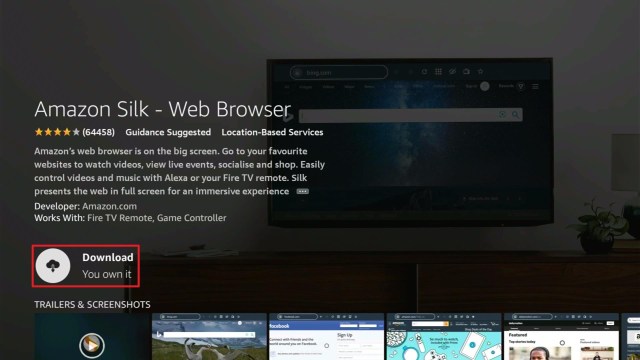
3. Type in Silk Browser and select this item that appears on the results.
4. Click on the Silk Browser Icon.
5. Choose Download.
6. Select Open to launch the browser.
7. Click on the URL section of the app.
8. Enter the following URL – https://fc4.crichd.com and click Go (you may also use these alternative URLs: crichd.se, crichd.ac, or web4.crichd.ac)
9. Now! You’ll be able to watch sports matches on CricHD through a Firestick device with the Silk Browser.
YOUR INTERNET ACTIVITY IS BEING WATCHED
ReviewVPN cannot attest to the legality, security and privacy of the applications discussed on this site. It is highly recommended that you use a VPN service while streaming or using Kodi.
Currently, your IP 216.73.216.109 is visible to everyone and your Browser is being tracked by Advertisers & ISP Provider.
Your activities are hidden from your ISP, the government, and from the apps you are using.
You can access additional movies and TV streams.
ISP attempts to throttle are thrwarted thus reducing buffering issues.
Geographically restricted content like Netflix and Hulu can be unblocked.
A VPN works be replacing your ISP-assigned IP address and creating an encrypted tunnel. We recommend the no log service offered by IPVanish. It works well on a Firestick and offers the fastest possible speeds.
Using CricHD on a computer or PC may be the simplest way of using the website for watching live sports online. All you have to do is open a browser on your PC and enter fc4.crichd.com.
What Is CricHD?
CricHD offers free Cricket live streaming of all the humongous International Cricket matches across the globe. Aside from that, the live streaming platform provides other live sports streaming, such as Rugby, Football, Boxing, Tennis, UFC, F1, and many more.
CricHD is a streaming service that provides live sporting events just before starting from huge TV broadcasters from the United Kingdom and Europe. These TV broadcasters include BT Sport, Sky Sports, Premier Sports, Eurosport, Hotstar, Star Sports, TSN, Sony Six, beINSports, ESPN, and many more. Nonetheless, UK users should know that they’re functioning illegally and are violating copyright laws by obtaining these live streaming TV channels. Thus, you must use a VPN service, like Surfshark, to access these live streaming channels.
CricHD Live Streaming TV Channels
CricHD provides a vast number of television channels for live transmission. There are tons of channels available as there are many sports to stream. However, if you love to stream in HD quality, then the CricHD platform is just like heaven for the reason that all channels are available in High Definition quality with nearly no buffering at all. Furthermore, as the live streaming website offers live Cricket matches, users will have to deal with some pop-up advertisements but those can be stopped by downloading & installing an ad blocker.
Here is CricHD’s TV Channels List:
BT Sport 1 | BT Sport 2 | BT Sport 3 | BT Sport ESPN
The live sports streams that enthusiasts can watch on the CricHD platform are available in High Definition quality. For people with decent web connection speeds, watching sports streams is smooth. When you choose an event to watch, you can select between a couple of links. In a very slim chance that the link doesn’t function, you can opt from one of the other links.
A Well-Organized Interface
CricHD contains a well-organized user interface. On the face of it, it seems quite busy, however, you’ll get used to the interface very quickly. Most of the screen shows upcoming live streams, links to streams, the status of the events, and start times.
For a more immersive experience, the live streaming platform allows you to check matchups, event schedules, match stats, and league tables. Also, the CricHD website features a chat box so that you can chat with other streamers.
Always Use A VPN While Using The Amazon Firestick
Using Virtual Private Network or VPN can be very handy on a Firestick. Thanks to a VPN service, you can access platforms or services that are unavailable in your country or bypass the meaningless restrictions that several platforms sometimes impose. When you use Amazon Firestick, an encrypted Virtual Private Network service provider is highly recommended to hide your online activities, identity, and location. Many Firestick or Fire TV Stick users prefer Surfshark service for privacy, price, and speed.
Providing the fastest server speeds and amazing live chat support, Surfshark is also an easy-to-use VPN app. Make sure to enable the VPN service when you are streaming on the internet.
CricHD provides live TV streams mostly in High Definition quality.
What devices can CricHD be used on?
The CricHD streaming website is available for use on numerous devices such as the Amazon Firestick, Google Chromecast, PCs, Android boxes, iPhones, Android phones, and lots more.
What are the categories on CricHD?
The live streaming website offers several categories for live streaming. The categories are mostly sports-related, including Football, Basketball, Cricket, Tennis, Rugby, and much more.
In this article, we have provided information on how to watch CricHD on Amazon Firestick. The information above should help you boost your sports entertainment by streaming nearly anything you want.
However, always remember to use A VPN every time you use the Amazon Firestick. If you have any other streaming platforms in mind that provide Cricket live streams on Amazon Firestick, don’t hesitate to let us know in the comments section.
Many people probably have heard of the unrestricted multi-hoster that lets you stream & download videos instantly, called Real-Debrid. People have seen numerous third-party streaming applications integrating the Real-Debrid for obtaining high-quality streamable videos. Not every one of a person’s favorite movies & TV shows is up for grabs on public sources. It’s important to link a Real Debrid account with such apps for a great streaming experience.
If you’ve sideloaded a third-party app on Amazon Firestick that provides Real-Debrid integration, thus certainly give it a shot. The same goes for Kodi video add-ons, as a person can stream his/her favorite on-demand videos in up to 4K resolution, given that you have a Firestick 4K & an Ultra HD TV to go with it.
Real-Debrid is a downloading platform that has zero restrictions and diminishes buffering for video streaming apps that distribute entertainment content. The Real-Debrid multi-hoster service offers high-quality media links hosted on open servers. Wherein, your streaming experience will be smooth.
Real Debrid collects media links from numerous supported hosts, which include Big4Shared, Mega, Filefactory, Data File, and lots more. Each host dispenses premium videos, and tons of them will need you to pay for a subscription.
Why do you need an account on Real Debrid?
If you love streaming movies, TV series, etc., then you need a Real Debrid account.
You can stream High Definition videos on Firestick with no buffering. Having a Real Debrid account lets you fuse the multi-hoster on the Firestick device. This is because Firestick is one of the most popular streaming devices – thanks to its great functionality and the several apps you can install on it.
With Real Debrid, you will acquire new video links that are obtainable to other people. These links let you stream with speeds of up to 0.125 Gbps or 1000 Mbps. Thus, you’ll never have buffering issues.
Sign Up for a Real-Debrid account
1. Head to real-debrid.com & choose Sign Up.
2. Enter personal data.
3. Select Sign Up.
(Note: if you do not want to utilize a personal email address, it is suggested to utilize an anonymous Email Account.)
4. You will soon receive an email allowing you to activate your account.
5. Now, the Real-Debrid registration is complete.
How to use Real Debrid with FireStick Apps
Real Debrid works well with numerous third-party Firestick applications. Setting up the multi-hoster in an app is very easy.
1. Open the app you want to partner with Real Debrid (Following is the screenshot of Nova TV where we’re going to click the menu option in the top-left corner).
2. The Real Debrid option is frequently located in the app Settings. The settings option is found in the main menu. Click Settings.
3. Scroll down until the Real Debrid option.
4. A window accompanied by code will appear.
5. Open the link real-debrid.com/device in a mobile phone or computer browser.
6. Enter the code.
7. Log in to your account on Real Debrid.
8. Head back to the FireStick app.
9. You will then see that Real Debrid has been authorized.
10. Finally, you can begin streaming. Many new links will be available
Always Use A VPN While Using The Amazon Firestick
Using Virtual Private Network or VPN can be very handy on a Firestick. Thanks to a VPN service, you can access platforms or services that are unavailable in your country or bypass the meaningless restrictions that several platforms sometimes impose. When you use Amazon Firestick, an encrypted Virtual Private Network service provider is highly recommended to hide your online activities, identity, and location. Many Firestick or Fire TV Stick users prefer Surfshark VPN service for privacy, price, and speed.
Surfshark provides high-speed servers & awesome live chat support. Ii is also an easy-to-use VPN application. Make sure to turn on the Surfshark VPN app when you are streaming on the internet.
Surfshark Features:
Unblocks Netflix, Disney+, and much more
Great customer service
Robust encryption
30-day money-back guarantee
Zero log policy
Great download speed
Compatible with Android, Windows, Linux, iOS, Mac, and other routers
How to Install Surfshark VPN on Firestick
If your Firestick still has the older interface, read this article to learn how to update it: Update Firestick Interface.
Follow our screenshots below to install the SurfShark VPN app on your Fire TV stick.
1. Go to the Home screen of your Firestick.
2. Navigate towards the Find tab. Press the Search button from the resulting dropdown.
3. Type in the keyword of SurfShark and select from the suggestions that will appear.
4. Click the official SurfShark icon from your search results.
5. Press the Download (You own it) button.
6. The SurfShark VPN installer will download on your device.
7. SurfShark VPN’s app will automatically install itself on your Fire TV stick.
8. Press the Open button after completing SurfShark VPN’s installation process.
9. Please wait for the SurfShark VPN to load its user interface.
10. You can now log in with your SurfShark VPN account credentials.
For more VPN discounts, go to ReviewVPN Deals and purchase the best VPN for you.
Click here to get the lowest price on Surfshark through our exclusive limited-time offer.
Real Debrid Premium Membership Features
The developers of Real-Debrid assert the following benefits and extra features with the premium account:
Real Debrid users will have high-speed download & streaming
Multiple downloads & streaming simultaneously
Unlimited Traffic
HTML 5 streaming – no plugins needed
Zero ads & no waiting time
Lots of new streams in full High Definition, High Definition, & SD quality
You can Easily Download Files
Apart from making your streaming experience great, the multi-hoster gives the chance to download files straightforwardly. The Real Debrid offers limitless bandwidth with the highest speeds to download files. To amplify the file download, it is suggested to utilize the Internet Download Manager.
In addition, you can easily download files on an Android box or Android mobile phone via the multi-hoster’s app that you can obtain on Google’s Play Store. Also, Real Debrid users have the option to play a file on the multi-hoster’s innovative internet player.
Can I Test The Real Debrid for Free?
Real Debrid used to provide free accounts during specific hours of the day. Nonetheless, free accounts were stopped in 2019. Thus, to experience Real Debrid’s quality downloads & streams, you need to purchase an account. Real Debrid lets you choose the most affordable subscription plan for $3.61 and you can use it for 15 days.
YOUR INTERNET ACTIVITY IS BEING WATCHED
ReviewVPN cannot attest to the legality, security and privacy of the applications discussed on this site. It is highly recommended that you use a VPN service while streaming or using Kodi.
Currently, your IP 216.73.216.109 is visible to everyone and your Browser is being tracked by Advertisers & ISP Provider.
Your activities are hidden from your ISP, the government, and from the apps you are using.
You can access additional movies and TV streams.
ISP attempts to throttle are thrwarted thus reducing buffering issues.
Geographically restricted content like Netflix and Hulu can be unblocked.
A VPN works be replacing your ISP-assigned IP address and creating an encrypted tunnel. We recommend the no log service offered by IPVanish. It works well on a Firestick and offers the fastest possible speeds.
Yes, Real Debrid is completely legal to download, install, and use.
Is it safe?
Yes, the Real Debrid is safe to use and has no viruses & malware.
What devices can the Real Debrid be installed on?
The Real Debrid is compatible and functions the best with devices running the Android & iOS operating systems.
Wrapping Up
In this article, we have provided information on how to use Real Debrid on Amazon Firestick. The information above should really help you boost your home entertainment by streaming nearly anything you want.
However, always remember to use A VPN every time you use the Amazon Firestick. Please let us know what you think about this article in the comments section.
In this article, we will tell you about the best websites that can serve as alternatives for the 4Anime webpage.
4Anime is a popular website for streaming Japanese cartoons. The website lets you select from its wide library of anime episodes. You can also choose from different media categories. The website known as 4Anime has millions of monthly viewers.
It is one of the largest pirate streaming sites on the web. Sadly, 4Anime announces its shutdown amid legal pressure. Fans of the site are wondering since they did not offer any explanation. The 4Anime website is also an anime streaming platform.
You don’t have to pay for anything to watch any video from its homepage. But being free comes at a price too. All the videos you can watch on the site come from rip-offs of official episode releases. It means that its contributors take videos from original titles and post them on the website.
One of the most fascinating features of the website is the security of its servers. While using the website, people can browse content knowing that their data is safe. Apart from security, you are not bombarded by annoying ads while streaming its videos.
Now, that the site is offline, we are left to find other streaming websites similar to its capabilities. Here at ReviewVPN, we look for sites that function like the 4Anime website. The ones we recommend have corresponding links which you can visit.
If you want to access these websites on your Fire TV stick, you’ll just have to install the Amazon Silk Browser for Fire TV stick since it is a reliable web browser.
Alternative Websites for 4Anime
All of the following websites we will show you are accessible with Fire TV stick browsers. If you want to watch them on a large-screen TV, it is possible with the Fire TV stick. You have to install the Amazon Silk Browser for Fire TV stick to watch with these sites.
1. Go to the Home screen of your Firestick.
2. Click on Find.
3. Tap on the Search tab.
4.Type in Silk Browser and choose this item that appears on the results.
5. Click on the Silk Browser Icon.
6. Choose Download.
7. Silk Browser is Downloading into your Firestick.
8. The Silk Browser app will Install on Firestick.
9. Select Open to launch the browser.
10. You can now start browsing using Amazon Silk Browser.
9Anime is a website similar to the 4Anime web streaming service. The website lets you watch many anime shows and episodes. You can stream many videos of different qualities. Expect high-quality video streams with special features.
Little is known about the origins of the website. However, you can visit their FAQ section for additional information. The website also provides a contact form. Users can send specific content requests to the site’s developers.
The layout of the website is attractive. It shows many videos, episodes, and new releases. The website features a default dark mode home screen. A design that is perfect for night viewing.
Each media title is complete with related information. The sections provide you with a basic insight into each show. These sections include Type, Studio, Release Date, Genre, Status, Scores, Rating, Duration, video quality, and number of Views.
Animeultima is a good anime streaming website alternative. The website is previously known as Animeflix. There are no pop-up ads while streaming videos with the website. Enjoy the smooth Anime streaming experience without frequent interruptions.
Animeultima provides the latest Japanese cartoons and anime releases. Viewers can expect the latest episodes of their favorite Anime series, movies, and OVAs.
The homepage offers a simple interface. It is can be easily understood by any visitor. Users can choose from its large collection of cartoons and videos. All the details you need are shown underneath each title. They are complete with thumbnails, video duration, and their latest time of upload.
Features
The home screen looks like a gallery
Library of many anime shows
Large vault of animated videos
Different types of media genre
Periodic updating of site content
Subtitles
Multi-language support
A complete description of each title
Basic user interface
Built-in Search Bar
Change from day mode to night mode
Streaming Link:
https://www1.animeultima.to/
Crunchyroll
The Crunchyroll website is a leading webpage for Asian content. Users can easily stream anime, manga, and Korean dramas. The website has over two million subscribers worldwide. Viewers are expected to rise since the site receives millions of visitors per month.
In 2006, Crunchyroll was launched by a group of Berkeley Graduate students. They gathered worldwide support in expanding their business. As a result, the Crunchyroll website has grown in popularity in the past few years.
Crunchyroll now hosts a large number of fan-favorite anime titles. It has a large online following that has millions of monthly viewers. It also supports Crunchyroll Games, Crunchyroll News, and Crunchyroll Expo.
The GoGo Anime website is great for streaming animated shows. Its goal is to deliver content to anime fans while providing a community for fans where they can share their thoughts.
The website aims to foster a virtual location for people who love anime. Users can post their comments below each video. The comments will be seen by the site developers and other content distributors.
No information is available about how the website began. For people wanting to know more, they can check out the About Us section for further information.
The website features a night mode theme. It is perfect for the nighttime viewing of videos. All the text’s highlights are presented with a bright color orange.
Users will be impressed with the website’s home screen. It presents a user interface that is easy to navigate. However, some ads appear while visiting the site.
Features
Original anime content
High-quality videos
Manga series
Wide collection of shows
Attractive layout
Simple interface
Streaming Link:
https://www10.gogoanime.io/
Funimation
The Funimation website is an excellent choice for streaming animated videos. It contains thousands of shows you can choose from. After a few years of development, it has grown into a large business. The site developers sell everything from streaming memberships, DVDs, Blu-ray, and other merchandise.
All the media content you discover with the site is based on the requests of fans. The developers of the site aim to relate directly to their audiences. They aim to give the fans what they want.
The Funimation website began in 1994. They are a large source of video animations with dubbing included. The site caters mostly to audiences based in the United States.
The website’s home screen looks modern and futuristic. It is clean and simple to look at and use. The interface background is mostly colored white with combinations of purple and warm colors. You will find that the website is easy to navigate.
Anime is a popular Japanese cartoon that has millions of fans worldwide. Fortunately for fans of these shows, there are sites created for streaming Anime media content. One example is the Anime-Planet website.
Anime-Planet is known as the pioneering website for streaming Japanese cartoons and TV shows. It was created by fans and lovers of art. When you visit its website, you will see many titles and genres to watch. You won’t run out of content to select.
Apart from the animated videos known as Anime, the printed and readable versions are known as Mangas. Visitors to the website will also find many Manga titles. It is because some Anime shows are based on stories found in Manga creations.
The website has a smooth and attractive interface. Visitors won’t have a hard time navigating the website. It has a built-in search bar. The site also provides a massive gallery of animated shows and titles.
For their colorful artworks and intense storylines, manga and anime shows have captured the attention of many people. Originally from Japan, Anime shows are now famous worldwide. For fans of the genre, there are websites like Anime Heaven for the free streaming of media.
The Anime Heaven website is a famous and trustworthy source of streaming animated videos. Visitors of the site are safe with their data. The site is free and requires no payment.
The good thing about the website is that it offers many animated videos in HD resolutions. Fans of anime and manga who want to enjoy quality resolutions flock to the website.
The user interface is simple and clean. It is easy to use and can be understood by any site visitor. People can easily navigate and find a show they like. All the video content is shown in different categories. Visitors can also use the filter option to refine the search results.
The Japanese art known as manga is a readable type of comic book. These are unique forms of art from the Japanese homeland. That reason alone gave animators the chance to create animated videos called Anime. These videos are entirely from the storylines of manga comic books.
SockShare is one of the best websites for streaming Japanese animations and cartoons. Users can choose from a wide selection of media content. These may be animated videos, manga, full-length movies, and short films. All the videos are in high-quality resolutions.
The website also offers a wide collection of films and movies. You can find classic anime movies and enjoy new releases. It has a simple interface with a built-in search engine. The site also offers a working media player. It will be easy for any website visitor to enjoy the videos that the website contains.
Features
Various media content
Wide gallery of Anime titles
Anime and Manga series
High-quality resolutions
Built-in media player
Search engine
Simple Interface
Easy to navigate
Streaming Link:
https://sockshare1.com/
Watch Anime Videos with a VPN
Original Japanese animated creations have a huge fan following worldwide. Fortunately, many websites stream anime content. You can catch up with the latest releases or search for episodes you might have missed.
Some of these streaming websites are geo-restricted. To open geo-blocked content, we recommend Surfshark for your viewing purposes.
Surfshark is one of the best VPNs for streaming online content. The VPN provides you with many benefits.
Protects your streaming experience from disturbances.
Eliminates the effects of ISP throttling.
Keeps you safe from cyber threats.
Stops stuttering and buffering while using Kodi and Firestick.
Click here to get the lowest price on Surfshark through our exclusive limited-time offer.
How to Install Surfshark VPN on Firestick
If your Firestick still has the older interface, read this article to learn how to update it: Update Firestick Interface.
You can download Surfshark directly from the Amazon App store. It will be easy for you to find Surfshark with your Firestick’s Find feature. Refer to our screenshots below.
1. Go to the Home screen of your Firestick.
2. Navigate towards the Find tab. Press the Search button from the resulting dropdown.
3. Type in the keyword of SurfShark and select from the suggestions that will appear.
4. Click the official SurfShark icon from your search results.
5. Press the Download (You own it) button.
6. The SurfShark VPN installer will download on your device.
7. SurfShark VPN’s app will automatically install itself on your Fire TV stick.
8. Press the Open button after completing SurfShark VPN’s installation process.
9. Please wait for the SurfShark VPN to load its user interface.
10. You can now log in with your SurfShark VPN account credentials.
For more VPN discounts, go to ReviewVPN Deals and purchase the best VPN for you.
Click here to get the lowest price on Surfshark through our exclusive limited-time offer.
FAQs
Do all the websites mentioned contain ads?
Not all anime streaming websites contain ads. However, some sites might contain ads while others do not support their appearance.
Do anime streaming websites require any payment?
No. Not all of them require any type of payment. Some only require the creation of an account.
Conclusion
4Anime is an excellent website for streaming anime videos. However, the website was shut down due to troubles with the law. The exact reason is still unknown. It has left many anime lovers wondering what happened to the site. Fortunately, there are other anime streaming websites that perform like 4Anime.
We hope that this article gives you enough websites for streaming anime videos online.
MyBundle TV offers the enterprise platform as well as the industry-leading consumer a simplified TV streaming experience. The MyBundle.TV website’s free and easy-to-use tools help you discover new streaming platforms and find entertainment content to stream across the platforms.
Incorporating over 150 streaming services and collaborating with over 30 broadband providers serving 5.7 million customers, MyBundle TV helps people navigate the streaming video industry and allows new growth opportunities for high-speed data providers and programmers alike.
A lot of people are overwhelmed on how to cut cable subscriptions without a huge channel bundle, which is why many of them are intrigued by a new website dubbed as MyBundle.TV. Aside from the fact that the website will tell you which live TV streaming platforms offer your favorite TV channels, it also suggests methods to get rid of bloated bundles completely.
Installing Silk Browser on Firestick To Use MyBundle TV
Before you can stream videos or TV channels on the MyBundle TV website, you must first install the Silk Browser on your Firestick.
1. Tap Home on your Firestick remote – hover over the search icon.
2. Choose Find and choose Search.
3. Type in Silk Browser.
4. Click on the Silk Browser Icon and select Download.
5. Choose Open to launch the Silk browser.
6. Now, you can start browsing on the internet using Amazon Silk Browser.
7. Launch the Amazon Silk Browser.
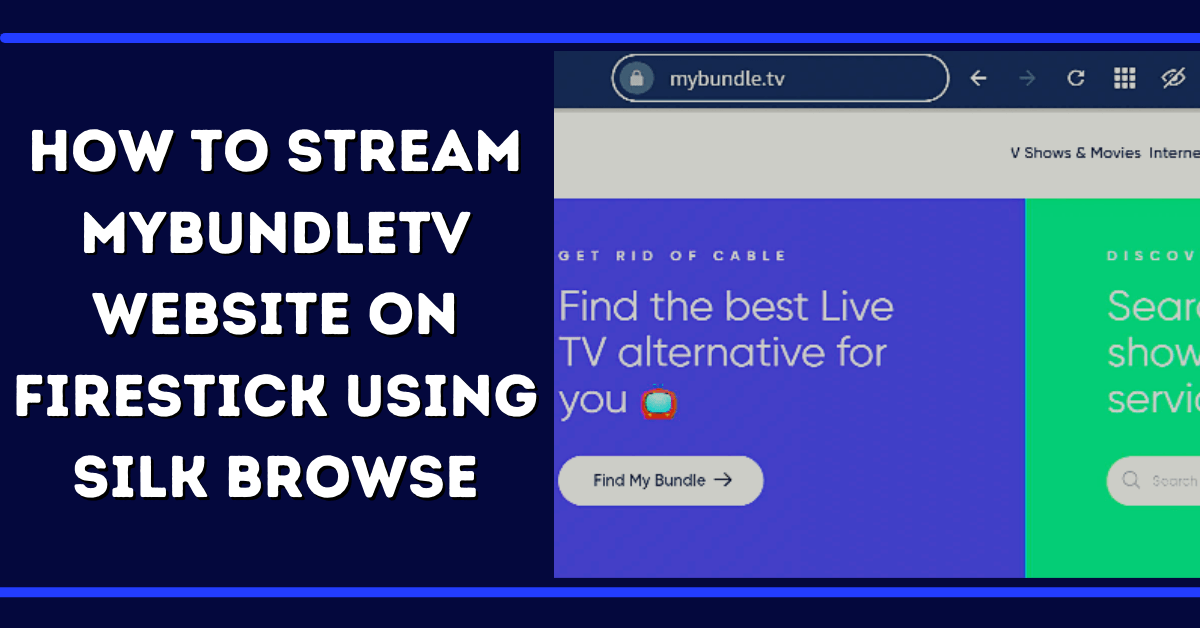
8. For this example, we are visiting www.mybundle.tv within the Amazon Silk Browser.
After installing Silk Browser on your Firestick, launch it and enter MyBundle.TV. Then, answer a couple of questions and choose the channels you wish to stream. MyBundle TV will help you cut out all the wasted time browsing what you want by customizing the streaming bundles. Just answer questions such as what’s your ZIP code, do you need a DVR with the bundle, and how many people are in your household.
Then, MyBundle TV will ask you which streaming platforms you already have and the streaming gadget you use, including mobile phones, tablets, smart TVs, and many more. One huge question is if you find live sports essential.
After you answer all of those questions, you can select the TV channels you want to watch. A list of channels will appear, such as Bloomberg Television, TBS, ESPN, Food Network, TNT, and lots more. MyBundle TV even lets you filter channels by search by name or genre.
After choosing all the channels you want, the MyBundle.TV website will compile a list of bundle choices. The website will provide suggestions like bundling Philo (live & on-demand TV) with YouTube TV.
However, if you feel like you won’t enjoy the options provided to you, you may opt for a Build My Bundle option. This option shows streaming platform options that you might like.
The best part of the MyBundle TV is that there are no contracts. Just like with most other streaming platforms, you can cancel without paying a dime.
YOUR INTERNET ACTIVITY IS BEING WATCHED
ReviewVPN cannot attest to the legality, security and privacy of the applications discussed on this site. It is highly recommended that you use a VPN service while streaming or using Kodi.
Currently, your IP 216.73.216.109 is visible to everyone and your Browser is being tracked by Advertisers & ISP Provider.
Your activities are hidden from your ISP, the government, and from the apps you are using.
You can access additional movies and TV streams.
ISP attempts to throttle are thrwarted thus reducing buffering issues.
Geographically restricted content like Netflix and Hulu can be unblocked.
A VPN works be replacing your ISP-assigned IP address and creating an encrypted tunnel. We recommend the no log service offered by IPVanish. It works well on a Firestick and offers the fastest possible speeds.
Access to a customized streaming content hub where you can find content from across all streaming applications in an easy-to-use destination.
It gives you the ability to obtain tailored Movie and TV Show recommendations. Provides suggestions for the latest Streaming apps, based on your viewing habits as well as interests
A great way to plan what you want to stream and monitor what you are currently streaming with traditional Watchlists
What to Watch Next – An amazing feature that creates a list of binge-worthy movies or series from across your apps and interests that your friends can also vote on
Provides a way to easily track & manage your streaming expenses
Sign up for streaming platforms
Browse the search results to find out the ideal offer for you. You can click on the Channel Lists option on each live TV streaming platform to see a list of TV channels. Click the Learn More button to get more information about each streaming platform – it will also let you visit the streaming marketplace’s apps page. Then, click the Visit Site button to sign up with a new streaming home.
MyBundle TV “Profile” Feature
MyBundle TV is a premier online platform connecting people, broadband partners, and streaming services with tools to make streaming television easy, and expands the broadband provider solutions with the release of the Profiles feature. It is a personalized interactive streaming television guide for people. The MyBundle TV website currently has over 30 broadband partners and over 5.7 million customers, which includes industry leaders WOW!, CenturyLink, EPB, & MetroNet.
Find My Bundle Tool
The Find My Bundle tool is created for individuals who are ready to cut their huge cable TV bills. Based on a person’s preferences and favorite television channels, the Find My Bundle tool will figure out the best Live TV streaming package, which makes the transition to streaming television as seamless as possible. You can obtain all the live TV channels you like without all of cable’s high-priced and hidden fees.
The core streaming platforms with live television include Sling TV, Hulu + Live TV, Vidgo, YouTube TV, fubo TV, AT&T TV, Locast, Frndly TV, and Philo. The Find My Bundle tool will mix & match these platforms with other platforms that either come along with the specific content you want or are alternative options to save some money and still obtain the type of videos you want.
Always Use A VPN While Using Your Firestick
Using Virtual Private Network or VPN can be very handy on a Fire TV Stick. Thanks to a VPN service, you can access platforms or services that are unavailable in your country or bypass the meaningless restrictions that several platforms sometimes impose. When you use Fire TV Stick, an encrypted Virtual Private Network service provider is highly recommended to hide your online activities, identity, and location. Many FireStick users prefer Surfshark services for privacy, price, and speed.
Providing the fastest server speeds and amazing live chat support, Surfshark is also an easy-to-use VPN app. Make sure to enable the VPN service when you are streaming on the internet.
Surfshark Features:
unlimited simultaneous devices
Unblocks Netflix, Disney+, and more
Robust encryption
30-day money-back guarantee
Great customer service
Great download speed
No log policy
Compatible with Linux, Windows, Mac, iOS, Android, and other routers
For more VPN discounts, go to ReviewVPN Deals and purchase the best VPN for you.
Click here to get the lowest price on Surfshark through our exclusive limited-time offer.
Conclusion
Now you know how to stream the MyBundleTV website on your Amazon Firestick. Please feel free to let us know what you think of the MyBundleTV website in the comments section below.
The article will help you on how to install Locast Kodi Addon.
Locast is the local broadcast digital translator service that is now available on Kodi. This add-on world is just like the traditional broadcast, but the unique thing about it is you don’t need to use an over-the-air signal to reach some channel because you can now stream the signal through the internet. However, you cannot use this add-on if you are outside the selected US cities.
This addon is a simple and an easy to use interface that works well on Kodi. However, you need to have an existing locast account because before you can access their contents, you need to sign in your email and password. The good thing is this add-on is on the Kodi official repository, which is why you can assure that they will give you legal content from the official Locast website.
How to Install Locast Kodi Addon
Here is a step-by-step guide on how you can install Locast on Kodi.
Launch Kodi and click the Settings icon.
Select Addons.
Click Install from the repository.
Scroll down and select Video add-ons.
Select Locast.
Click Install.
Tap the OK button.
Wait for the Locast Add-on installed message to appear.
Go back to the Kodi home screen and scroll down to Addon.
Then Select the Locast Kodi Addon.
Select the Sign-in Button if you have an existing Locast account. If none, click Exit Addons and create an account locast.org.
Type in your email and tap the Ok button.
Now, enter your password and select OK.
That’s it! You can now watch any content that you want.
How to Install Locast Kodi Addon with Screenshot
Follow the steps below:
1. Launch Kodi and click the Settings icon.
2. Select Addons.
3. Click Install from the repository.
4. Scroll down and select Video add-ons.
5. Select Locast.
6. Click Install.
7. Tap the OK button.
8. Wait for the Locast Add-on installed message to appear.
9. Go back to the Kodi home screen and click Addon. After that, select Locast Kodi Addon.
10. Select the Sign-in button if you have an existing Locast account. If none, click Exit Addon and create an account on locast.org.
11. Type in your email and tap the Ok button.
12. Now, enter your password and select OK.
13. That’s it! You can now watch any content that you want.
YOUR INTERNET ACTIVITY IS BEING WATCHED
ReviewVPN cannot attest to the legality, security and privacy of the applications discussed on this site. It is highly recommended that you use a VPN service while streaming or using Kodi.
Currently, your IP 216.73.216.109 is visible to everyone and your Browser is being tracked by Advertisers & ISP Provider.
Your activities are hidden from your ISP, the government, and from the apps you are using.
You can access additional movies and TV streams.
ISP attempts to throttle are thrwarted thus reducing buffering issues.
Geographically restricted content like Netflix and Hulu can be unblocked.
A VPN works be replacing your ISP-assigned IP address and creating an encrypted tunnel. We recommend the no log service offered by IPVanish. It works well on a Firestick and offers the fastest possible speeds.
Legal Disclaimer: ReviewVPN.com does not encourage or endorse any illegal activity involved in the usage of services and applications referenced on this site. We do not verify the licensing agreements of services. The end-user is wholly responsible for ensuring that any media accessed through these services does not violate copyright and/or licensing laws. ReviewVPN does not promote, link to, or receive compensation from any Apps and IPTV services.
Easy to navigate interface even without using mouse toggle
Select your city and sync all of the Live tv channels available in your area.
Some of the selected cities supported by locast: Atlanta, Baltimore, Boston, Charlotte, Chicago, Cleveland, Columbus, Dallas, Denver, Detroit, Houston, Indianapolis, Los Angeles, Madison, Miami, Minneapolis, New York, Orlando, and more.
You can watch lots of shows such as The Late Late Show With James Corden, You Gotta Eat Here, The Good Wife, Late Night with Seth Meyers, The Nanny, Two and a Half Men, Barney Miller, Closing Argument with Vinnie Politan, Fear Factor, Pet Project, The Dogs of War, NewsNet Nightside Edition, Video Jukebox, Mike & Molly and more.
It has a well-organized list of contents to watch in less buffering.
Video Features
Resume watching allows you to continue where you stopped off.
Information icon to see a brief description for each content.
You can bookmark your favorite live channel and show to see them all together in one place.
It also allows background playing
Watch in HD video quality.
Available subtitles
Pros and Cons
Pros
User-friendly interface
It is an official Kodi addon that offers only legal content from the official Locast website.
Watch TV shows in a less buffering experience
High-quality videos
Cons
This addon only works in selected US areas.
It requires an existing locast account
Some programs errors
Why do I need a VPN?
Locast only works within US selected cities, so you cannot watch it if you are not in the selected areas. It also means that this Kodi addon is geo-block, but you can solve this kind of issue by using a Virtual Private Network.
We also highly recommend Surfshark as your best choice, because it is one of the reliable and award-winning VPNs that you can rely on, in terms of these kinds of issues. Surfshark will safely destroy geo-blocks by hiding your real IP address and letting you connect on its provided servers.
Here are some of the services Surfshark:
Destroys geo-block and gains access to different content globally.
Bypass censorship and restrictions.
A high standard of AES 256-bit encryptions will safeguard all of your data.
Has a total of 3200+ servers in 65 countries
100% zero logs and no IP address leaks.
Keep your file protected from harmful malware.
Prevent ISPs from interfering with your connection and speed up your internet.
Keep your identity anonymous to protect you from hackers, especially when you are using public wi-fi.
Note: For more information about Surfshark, please read our Surfshark Review.
You can get the Locast add-on on Kodi’s official repository.
Is the Locast Kodi addon legal?
Yes, downloading this addon is not illegal and they offer content from legitimate sources.
Is it safe to stream in Locast Kodi addon?
Yes, streaming in this addon is safe, but to ensure your safety, we suggest using a VPN such as Surfshark.
Is it free to use the Locast Kodi add-on?
Yes, streaming in this addon is free, but it requires having an existing Locast account.
Where can I create a Locast Account?
If you do not have a Locast account, you can register on their official website at https://www.locast.org/.
Conclusion
Locast is an interesting Kodi addon that lets you watch different TV shows in a less buffering experience. This add-on also gives you the privilege to try out their service on Kodi. The good thing is it is a legal Kodi addon, so you don’t need to worry about any legal issue, because it is connected with the official Locast website.
We hope this article helps you install the Locast Kodi addon.
Porn Time is an online streaming app for the purpose of streaming movies or pornographic content. PornTime is unleashing its very own Android application.
Porn Time essentially functions like Netflix, where videos are streamed instantly instead of going through the painstaking way of downloading content via shady torrents. With the Porn Time app, a lot of individuals will get their rocks off easily.
In multiple reports across the internet regarding the original launch of the site, the founders of Porn Time have claimed that 450,000 individuals downloaded the PC version in only one week.
If you’re an iPhone user, don’t be upset for not being asked to join the orgy, you’ll have your chance. The Porn Time makers made it known that the app’s iOS version is soon to follow.
Nonetheless, if you go to Google Play to download the Porn Time app, you won’t find it there. However, this article will guide you on how to download & install the app in our installation process below.
Porn Time App Installation on FireStick
Turn on the FireStick device, go to the top menu bar and choose > Settings
Click My Fire TV > Developer Options
Enable Apps from Unknown Sources
Go back to FireStick’s home screen and go to the menu bar
Click here to get the lowest price on Surfshark through our exclusive limited-time offer.
YOUR INTERNET ACTIVITY IS BEING WATCHED
ReviewVPN cannot attest to the legality, security and privacy of the applications discussed on this site. It is highly recommended that you use a VPN service while streaming or using Kodi.
Currently, your IP 216.73.216.109 is visible to everyone and your Browser is being tracked by Advertisers & ISP Provider.
Your activities are hidden from your ISP, the government, and from the apps you are using.
You can access additional movies and TV streams.
ISP attempts to throttle are thrwarted thus reducing buffering issues.
Geographically restricted content like Netflix and Hulu can be unblocked.
A VPN works be replacing your ISP-assigned IP address and creating an encrypted tunnel. We recommend the no log service offered by IPVanish. It works well on a Firestick and offers the fastest possible speeds.
Go back to Fire Stick Home Screen (you may click the Home Button on the Fire Stick remote)
Go to Your Apps & Games/Channels
Scroll once to the left
Click See All
All the newly installed apps are located at the bottom – you can move the Porn Time app by clicking the Options button (at the right side of the Home Button)
Click Move > move to front > and pick any spot you want to put the app
Porn Time Operation
The Porn Time Android app’s operation is like Popcorn Time. Users can scroll through the range and tap on movie posters for additional information or stream the content. Porn Time functions with the torrents of Pornleech and provides users the option to filter videos by genre. Users are also allowed to download content and add them to their favorites. In the app’s settings, users can enable only wifi to be utilized for downloading and can set the download & upload speed to maximum.
Movies you watch are temporarily kept in a cache folder while streaming. If you want, you can empty the cache folder when you close the Porn Time app. The videos you watched are played in High Definition and eventually can also be watched on television through Firestick or the Google Chromecast.
Porn Time Alternatives
YouPorn
YouPorn lets you watch unlimited, high-quality adult videos for free. You can download it through Amazon’s App Store but you can also get it straight from its website.
Features:
It contains a huge collection of HD & 4k media links with lots of full-length media videos
Advertisement free (premium version)
VR compatible with over a thousand premium scenes
It has over 30,000 full-length DVD videos that you can download
Jizztagram
Features:
Mouse Toggle is needed to go through the app & use the Full-Screen Mode
Great Amount of Content
Set Orientation not required
Advertisement Free
It contains a search function
Offers Straight Porn, Gay Porn, & Lesbian Porn
CumTube
Features:
Compatible with Amazon Firestick
With regular update
Favorites feature
VR Compatible
Downloadable videos – watch the videos without an internet connection
Crisp design that is very easy to the eyes
Advertisement free (premium version)
720p & 1080p video format
Porn4K
Features:
Ad-Free
Search Function
No Set Orientation needed
Huge Amount of videos
Straight Porn, Gay Porn, Lesbian Porn, Tranny Porn, Hentai Porn, and many more
29 categories
24 channels
4k Content
Downloadable videos
You may need Mouse Toggle to enter Full-Screen Mode
Why You Need a VPN When You Stream Porn Content on Firestick
If you want to utilize the adult apps above for your Amazon Firestick, you must hide your identity online with a Virtual Private Network or VPN. A VPN service will mask your identity and encrypt your web traffic. Therefore, your Internet Service Provider (ISP) can’t keep logs or monitor your activities on the internet. Your ISP knows everything about the stuff you’re doing on the web, what you like, what you stream or watch, and what you search for. So, if you want to hide your internet activities, you must turn on your VPN service before streaming porn videos – it is highly recommended to utilize the Surfsharkprovider.
Surfshark Features:
It works on all unlimited simultaneous devices
Strong encryption
No Log Policy
Great customer service
Allows torrenting
Great download speed
Allows split tunneling
How to Install Surfshark VPN on Firestick
If your Firestick still has the older interface, read this article to learn how to update it: Update Firestick Interface.
Follow our screenshots below to install the SurfShark VPN app on your Fire TV stick.
1. Go to the Home screen of your Firestick.
2. Navigate towards the Find tab. Press the Search button from the resulting dropdown.
3. Type in the keyword of SurfShark and select from the suggestions that will appear.
4. Click the official SurfShark icon from your search results.
5. Press the Download (You own it) button.
6. The SurfShark VPN installer will download on your device.
7. SurfShark VPN’s app will automatically install itself on your Fire TV stick.
8. Press the Open button after completing SurfShark VPN’s installation process.
9. Please wait for the SurfShark VPN to load its user interface.
10. You can now log in with your SurfShark VPN account credentials.
For more VPN discounts, go to ReviewVPN Deals and purchase the best VPN for you.
FAQs
Is It Safe To Use Porn Time App on Amazon Firestick?
It is relatively safe to use Porn Time app on your Android device, such as Firestick. Just make sure to use it with a Virtual Private Network or VPN.
What Other Devices Do the Porn Time app Work On?
It functions well with the Amazon Firestick devices, Windows (via emulator), and other devices that run on the Android operating system.
Conclusion
Porn applications have been around for quite a long time now and they don’t seem to be going anywhere. However, one of the advantages of the Porn Time app on your Amazon Firestick is that it provides the best adult videos. We hope that this article helps you install the Porn Time app on your Firestick. Please drop your comment below or you may contact us on any of our other social media platforms for your questions & suggestions.
The Amazon Firestick is an extremely handy device that lets you enjoy nearly any streaming platform, from Hulu & Netflix to live services, such as DirecTV Now or Sling. Also, Firestick users can enjoy the streaming service & movie store of Amazon, as well as tons of games & apps. Nonetheless, this article will show you on How to Clear Cache on Firestick.
Firestick users have probably noticed that their streaming devices get slower the more they use them. If you have been a Firestick owner for years, you may want to clear the device’s cache to speed it up. When an application on Firestick stops working properly, one of the most usual reasons behind it is a corrupted cache. In certain scenarios, an app can slow down and not perform as expected because of a cache that becomes huge. Nonetheless, the solution is to clear your device’s cache.
How to Clear Cache on Firestick
1. Go to the Firestick’s main menu.
2. Head to the Settings menu.
3. Choose the Applications menu.
4. Select Manage Installed Applications.
5. Choose an app to clear its cache.
6. Then, choose Clear cache.
To get rid of additional caches, press the Firestick remote’s back button, choose a different application, and then choose Clear cache for each app. If the app still does not work properly, repeat the process and choose Clear data. However, some applications, such as Firefox, also let you delete cookies.
What is Cache?
A Cache is a dedicated place where a device keeps all sorts of data & functions that are frequently used in an app. This kind of storage lets apps start up faster and work more correctly & efficiently. For instance, if you visit a website in Mozilla Firefox, the browser will keep frequently used data so that loading it is much faster than usual. The cache is like the traditional, main memory, but it is created for lighter & more speedy processes.
As you can think about it, apps stockpile assorted information that will slow down a device. It is a bit ironic, taking into consideration the cache memory is to keep apps working efficiently. This is why it is important to keep the cache for various software. Some applications use a lot of caches compared to others. Thus, check the apps you use most regularly first.
Why Should You Clear Cache on Firestick?
The cache files gather together over time and can consume a huge amount of space in the storage of the device. The storage of the FireStick is nevertheless limited. A huge cache build-up can cause numerous issues. FireStick users may experience slow performances of their devices. Applications may start crashing and you may experience buffering issues.
If you run into unexpected, unexplained problems with your Firestick device, it would be a great idea to delete the device cache.
Important Tips
Below are some of the important tips you must remember:
Cache needs to be eliminated for each application individually. You can’t choose multiple apps and get rid of their cache
At all times, check the size of the cache of all the applications
Screensaver gradually creates a huge amount of cache. Always clear its cache every so often
Kodi, the media player software app, can generate a substantial size of the cache, particularly if you have downloaded & installed a build
Watch out for Netflix as well as other streaming apps – they tend to dump cache onto the Firestick device
Always Use A VPN While Using The Amazon Firestick
Using Virtual Private Network or VPN can be very handy on a Firestick. Thanks to a VPN service, you can access platforms or services that are unavailable in your country or bypass the meaningless restrictions that several platforms sometimes impose. When you use Amazon Firestick, an encrypted Virtual Private Network service provider is highly recommended to hide your online activities, identity, and location. Many Firestick or Fire TV Stick users prefer Surfshark VPN service for privacy, price, and speed.
Providing the fastest server speeds and amazing live chat support, Surfshark is also an easy-to-use VPN app. Make sure to enable the VPN service when you are streaming on the internet.
For more VPN discounts, go to ReviewVPN Deals and purchase the best VPN for you.
Click here to get the lowest price on Surfshark through our exclusive limited-time offer.
FAQs
What happens after clearing an app’s cache on the Firestick or Fire TV?
If you have followed the procedures above you should not distinguish any changes in the behavior of the app other than the Firestick is working better. However, as the cache keeps only unnecessary data & files, your watch history, in-app settings, and login info will not be deleted.
After clearing the cache, the Firestick is still functioning slowly. What else should I do?
Getting rid of the cache is an elemental and non-invasive method be the solution to most technical issues. Nonetheless, if the Firestick or the application is still not running properly you may need to restart the Firestick. Or, ensure that the Firestick and the app are all updated. Most app developers roll out new updates to the apps to fix bugs. A very badly outdated app or Firestick could cause major problems.
Another thing you must consider is getting rid of unnecessary apps on the Firestick device. The more apps or content you have downloaded & installed the harder it is for the streaming device to work properly. Try uninstalling some applications that are no longer useful.
You can also try to factory reset the Firestick. Relying on the software malfunction being the cause of great sorrow should fix it. Remember that doing so means you are eliminating everything off of the Firestick and making a brand new start.
Wrapping Up
It’s quite easy to clear Cache on Firestick, and the methods outlined above should really help you do so. After clearing Cache on your Firestick, you will be able to boost your home entertainment by streaming nearly anything you want.
However, always remember to use A VPN every time you use the Amazon Firestick. Please feel free to let us know what you think of this article in the comments section below.
Because the Live TV category is so broad, the majority of popular APKs just stream the most popular channels, and others don’t even include Sports content.
And while some live TV APKs include sports content, they only offer a limited range of sports that you can freely stream on your device. Thankfully, Live TV APKs have begun to up their game and provide Live Sporting Events to appeal to sports enthusiasts, particularly cord-cutters who want to watch live sporting events for free.
And, at Reviewvpn, we make every effort to provide you with viable options for your streaming needs, particularly with your Firestick devices. So, let’s get started with the list to see which of these APKs is your top choice and best for watching Boxing for free.
Best APKs to Watch Boxing for Free
The best APKs for watching Boxing events on your Firestick for free are listed below. And because they are all sideloaded applications, you must first jailbreak your Firestick and install the Downloader app. You may simply follow the steps outlined below:
Live NetTV
Live NetTV is one of the most popular live TV applications since it offers over 800 live TV channels that you can watch for free at any time and from any location. And the best part is that it features Live Sports Events, such as live Boxing fights, which you can watch without any charge. Moreover, you won’t even need to register, and you won’t need to subscribe just so you could enjoy the content that Live NetTV offers to its users. And apart from the Live TV content, you can also watch movies and VODs from Pakistan, India, the United States, the United Kingdom, the Arab countries, Turkey, and many other locations.
Features:
Provides current and upcoming live sports event schedules.
Request your favorite channels by simply typing the channel’s name into the text box.
Allows users to report broken channels so that servers can update them.
Their internal player, as well as external players like MX Player, Android Player, Wuffy Player, and XMTV Player, have built-in compatibility.
LocalCast, WebVideoCast, and the Bubble UPnP player are all available for casting.
You can save channels to favorites to make them easier to find in the app.
Every day, new channels and links are added to guarantee that you have the most up-to-date streaming experience possible.
To prevent unrestricted access to your account, you can password lock your settings
If your Firestick still has the older interface, read this article to learn how to update it: Update Firestick Interface.
Install Live NetTV on a Firestick with Screenshots
2. Open Downloader App. Type https://reviewvpn.com/livenet and click Go.
3. Then wait for the APK to download.
4. Choose “Install”.
5. Click “Open”.
Live NetTV APK Download for Android Devices
Note: ReviewVPN.com does not host this APK file. It is hosted by Archive.org
You may learn more about Live NetTV by clickinghere.
Red Box TV
Because of the thousands of satellite channels available for free streaming, Red Box TV is another popular app for Firestick users. Red Box has a similar interface to Live NetTV, but you can watch Boxing through the Sports section. This includes channels from Box Nation, Box Network, UFC Fight Pass, FOX Sports, Sky Sports, BT Sports, and many others. And the best part about this app is that it can also be used for other sporting events such as the NFL, NBA, WWE, and Golf.
Features:
Channels can be added to your Favorites list.
It offers channels for Science, Kids, Indian, Pakistani, South Indian, Arabic, UK, USA, Canada, Australian, Italian, Bangla, Punjabi, Indonesian, Turkish, Portugal TV, Iranian, Sri Lankan, French, German, and Religious, in addition to Sports channels.
To restrict access to your account, you can set a password for settings.
You can choose to hide channels from categories you don’t wish to see.
MX Player, XYZ Player, 321 Player, Android Player, VLC Player, XPlayer, Webcast Player, LocalCast Player, and Bubble Player are some of the video players that can be used.
Ads can be turned off by sharing some of your device’s resources with long-pressing Brightdata.com.
YOUR INTERNET ACTIVITY IS BEING WATCHED
ReviewVPN cannot attest to the legality, security and privacy of the applications discussed on this site. It is highly recommended that you use a VPN service while streaming or using Kodi.
Currently, your IP 216.73.216.109 is visible to everyone and your Browser is being tracked by Advertisers & ISP Provider.
Your activities are hidden from your ISP, the government, and from the apps you are using.
You can access additional movies and TV streams.
ISP attempts to throttle are thrwarted thus reducing buffering issues.
Geographically restricted content like Netflix and Hulu can be unblocked.
A VPN works be replacing your ISP-assigned IP address and creating an encrypted tunnel. We recommend the no log service offered by IPVanish. It works well on a Firestick and offers the fastest possible speeds.
2. Open Downloader App. Type https://reviewvpn.com/red and click Go.
3. Click on INSTALL
4. Click on OPEN
5. RedBox TV is Installed. Enjoy Watching.
Red Box TV APK Download for Android Devices
Note: ReviewVPN.com does not host this APK file. It is hosted by Archive.org
If you want to know more about Red Box TV, you may read thisarticle.
TV Tap Pro
TV Tap Pro is another popular free live TV and sports app that offers over a thousand channels to stream on your Firestick or other devices. You can also watch live boxing fights from Box Nation, BT Sports, ESPN, DAZN, Fox Sports, and many other channels, just like on Red Box TV. And aside from Boxing, TV Tap Pro is a go-to APK for prominent sporting events like Cricket, Darts, Football, Golf, NBA, NFL, NHL, and Rugby, which is one of the reasons why TV Tap Pro has become so popular among Firestick users.
Features:
There are also channels available for the following categories: Entertainment, movies, music, news, sports, documentaries, children, and food
You can select or unselect content from Arab, Canada, France, Germany, Italy, Netherlands, Portugal, Spain, United Kingdom, USA, and Others by using the Play/Pause button on your Firestick remote.
Provides a schedule for Boxing fights and other sporting events that are available on TVTap Pro.
Channels can be added to your Favorites list.
Allows you to customize your display settings by selecting whether your Home Screen should show all channels or only your favorites.
You can choose between English, French, and Italian as your language.
Ads can be turned off by giving Luminati access to idle resources.
2. Open the Downloader App. Type https://reviewvpn.com/tvtap and click Go.
3. Wait for the file download to finish.
4. Click Install.
5. Select Open to launch the app.
6. There you go! You have successfully installed TV Tap.
TV Tap Pro APK Download for Android Devices
Note: ReviewVPN.com does not host this APK file. It is hosted by Archive.org
To know more about TV Tap Pro, you may read it here.
HD Streamz
HD Streamz is another good APK for watching Boxing for free on your Firestick device. It contains a Live Sports section with channels such as Box Nation, BT Sports, ESPN Sports, Fight Box, Fox Sports, and others. Aside from that, you can also select all nations or specific regions, such as the UAE, Qatar, Serbia, the United Kingdom, the United States, France, Portugal, India, Romania, Ireland, the Netherlands, Pakistan, Canada, South Africa, Albania, and Bangladesh. In addition, it has a user-friendly interface that allows you to simply navigate the app and also allows customization to various settings while watching your favorite Boxing fights.
Features:
Live sporting events, sports, entertainment, music, movies, kids, entertainment, lifestyle, and news are all available for free HD live streaming.
Cricket, NBA, Golf, NFL, Tennis, and WWE are among the live sports available.
You can get rid of advertising by sharing the device’s resources.
You can choose from numerous players such as HD Streamz, MX Player, and X Player depending on the channel you want to watch.
Allows you to choose between HW, HW+, and SW decoders.
Amazon Firestick and Fire TV, Android TV Box, NVIDIA Shield, and Mi Box are all compatible.
On your device, you can change the ff settings as follows: Style, Screen, Controls, Navigation, Text, and Layout
By just long-pressing on an item, you may add it to your Favorites.
It offers a search bar that allows you to enter a term directly or sort items by category and country.
2. Open Downloader App. Type https://reviewvpn.com/hds and click Go.
3. Click on Install and you should be all set. Remember to delete the APK file after installation to save space.
4. Click Open
5. Click I Agree.
HD Streamz APK Download for Android Devices
Note: ReviewVPN.com does not host this APK file. It is hosted by Archive.org
UK Turks App
UK Turks App is also one of the most dependable APKs for Boxing. BT Sport Box Nation, Sky Sports, ESPN, and Fox Sports are among its Sports TV channels that offer live boxing streaming. And despite having fewer channels than the other apps, the UK Turks App is quite simple to use and browse. It’s not difficult to find these live TV streaming channels, so it’s a good app for those who aren’t particularly tech-savvy. All you have to do is go to the Home screen and select Live TV, then choose Sports TV, and you’ll be able to see all of the TV channels accessible on the UK Turks App. However, because UK Turks App is geo-restricted, you’ll need a VPN to use it if you’re not in the UK.
Features:
Provides live Sports TV content not only for Boxing, but also for Cricket, Racing, MLB, Golf, MMA, and Tennis
Its Live TV Sections include Sports TV, Turking TV, PPV Replays, and CCTV
You can choose from UK Turks Internal Player, MX Player Free Version, MX Player Pro, and VLC Player as your default player.
You can clear the cache straight from the App’s settings.
The UK Turks App also includes TV Shows, Cartoons, Concerts, Movies, Documentaries, Standup, Radio, and Favorites, in addition to Live TV (i.e. Live TV Favourites, Tv Shows Episode Favourites, Movies Favourites, etc.)
You may easily clean up your Favorites list by clearing All Favourites.
Install UK Turks App on a Firestick with Screenshots
Legal Disclaimer: ReviewVPN.com does not encourage or endorse any illegal activity involved in the usage of services and applications referenced on this site. We do not verify the licensing agreements of services. The end-user is wholly responsible for ensuring that any media accessed through these services does not violate copyright and/or licensing laws. ReviewVPN does not promote, link to, or receive compensation from any Apps and IPTV services.
Stream Safely With a VPN
We can watch live Boxing events on our Firestick devices for free without having to subscribe or pay for anything thanks to Firestick. However, some of these free streaming apps will try to make use of your device’s resources by enticing you to remove ads while watching live Boxing or other sports events.
And even though we don’t know the extent of this data collection, it’s always a good idea to protect and secure your data using the proper online security measure, which is a Virtual Private Network (VPN). A VPN, such as Surfshark, can help you protect your data by giving you an anonymous IP address, allowing you to keep your personal information and data on your device private.
That way, you won’t have to worry about third-party servers or prying eyes gaining access to your data without your permission. It will offer you unbreakable AES-256 military-grade encryption, ensuring that all of your incoming and outgoing traffic is safe and secure.
Here are some of the Surfshark’s additional features to provide you with more information:
Has a total of 3,200 VPN servers in 65 countries to choose from.
Connects you to the fastest available connection automatically to ensure you have the best internet speed in your area.
Get unlimited bandwidth to stream and download everything you want from the internet.
Enjoy unlimited simultaneous device connections so you can protect all of your devices with the same level of encryption.
Has a kill switch feature that will automatically disconnect your device from the internet if you disconnect from the VPN by accident
It prevents hackers and phishers from stealing your data for monetary or malicious threats
Surfshark adheres to a strong no-logs policy and ensures that no IP addresses are leaked.
How to Install Surfshark VPN on Firestick
If your Firestick still has the older interface, read this article to learn how to update it: Update Firestick Interface.
1. Go to the Home screen of your Firestick.
2. Navigate towards the Find tab. Press the Search button from the resulting dropdown.
3. Type in the keyword of Surfshark and select from the suggestions that will appear.
4. Click the official Surfshark icon from your search results.
5. Press the Download (You own it) button.
6. The Surfshark VPN installer will download on your device.
7. Surfshark VPN’s app will automatically install itself on your Fire TV stick.
8. Press the Open button after completing Surfshark VPN’s installation process.
9. Please wait for the Surfshark VPN to load its user interface.
10. You can now log in with your Surfshark VPN account credentials.
For more VPN discounts, go to ReviewVPN Deals and purchase the best VPN for you.
Click here to get the lowest price on Surfshark through our exclusive limited-time offer.
FAQs
Can I watch the boxing fight on FireStick?
Yes, you can watch boxing fights on Firestick by using the apps listed in this article.
Can you get in trouble for streaming on FireStick?
No, you won’t get in trouble for using a Firestick to stream. However, if you’re not sure whether the app you’re using serves legal content, it’s advised to always use a VPN like Surfshark while streaming to prevent legal problems.
How can I watch free fights on FireStick?
All of the apps mentioned in this article are free. And so, you can use all the apps listed above to watch free fights on your Firestick.
How do I get free sports channels on Firestick?
All you need to do is download and install the apps listed in this article on your Firestick. Then you can start using your Firestick device to get free sports channels.
Is jailbroken Firestick illegal?
No, jailbreaking of Firestick is not illegal. You simply allow installation from sources other than the Amazon Appstore by enabling access from unknown sources. However, illegal apps and content are different matters, which is why we always advise our users to utilize a VPN when streaming, especially if they aren’t sure if an app or content is legal.
Conclusion
Unlike the regular Live TV offering for TV shows, news, and entertainment, finding APKs that offer Live TV for sporting events, particularly boxing, is not easy on Firestick. However, once you find an APK that includes one, you can use this app to watch other sporting events such as the NFL, Golf, MMA, NBA, and others.
And, thankfully, developers are beginning to offer free live sports events to Firestick users, allowing us to enjoy and appreciate our Firestick even more. With that, we’d like to thank you for taking the time to read our article on the best APKs to watch Boxing for free.
We hope we were able to provide you with the best and most user-friendly options so you can begin browsing and streaming your favorite Boxing fights. Enjoy streaming!
Some individuals have recently begun complaining that they’re obtaining a Javascript error when utilizing their Amazon Firestick. If you are one of them, and you want to properly enable Javascript on Firestick, then you’re in the right place.
This article brings great news for you. You don’t need to install Javascript onto Amazon streaming devices. That’s for the reason it is already installed on Firestick. Nonetheless, you just have to enable Javascript.
There is no risk involved if you enable Javascript on your Amazon Firestick device. As a matter of fact, if you enable Javascript, you will be able to download & install even more third-party apps or add-ons on Firestick.
Without Javascript on your Amazon Firestick, you will not be able to experience the web in all its glory. Fortunately, every internet browser has enabled JavaScript (text-based programming language) by default.
How To Enable Javascript on Firestick Device
So, without any fuss, let’s go on to the most vital part of this article – how to enable Javascript on the Amazon Firestick device. In order to download & install third-party apps or add-ons onto the streaming device, you will probably be utilizing the Downloader app. The Downloader app is why it is probably that you are experiencing problems with Java because the settings of the Downloader app have been set by default. A couple of modifications need to be done to allow Javascript on the device. However, just follow the simple steps below.
1. Turn on the FireStick device and launch the Downloader app
2. Launch the Downloader app and go to Settings.
3. Choose Enable JavaScript on the screen.
4. From there, choose Yes.
5. That’s it! It’s pretty simple!
6. After you enable Javascript on your Firestick device with the Downloader app you should have no further problems downloading & installing APKs (Android application packages) from websites
ReviewVPN cannot attest to the legality, security and privacy of the applications discussed on this site. It is highly recommended that you use a VPN service while streaming or using Kodi.
Currently, your IP 216.73.216.109 is visible to everyone and your Browser is being tracked by Advertisers & ISP Provider.
Your activities are hidden from your ISP, the government, and from the apps you are using.
You can access additional movies and TV streams.
ISP attempts to throttle are thrwarted thus reducing buffering issues.
Geographically restricted content like Netflix and Hulu can be unblocked.
A VPN works be replacing your ISP-assigned IP address and creating an encrypted tunnel. We recommend the no log service offered by IPVanish. It works well on a Firestick and offers the fastest possible speeds.
JavaScript is a programming language utilized by most well-known web browsers. The primary goal of JavaScript is to make the websites and your experience utilizing them non-intrusive, interactive, and more fluid. Nearly all aspects of your internet activities are JavaScript coded, even if you are not aware of it. particularly then!
The programming language was developed in the 90s. But, before it was developed, when a person visited a website, it was not interactive. Nothing will happen when you move the mouse over a link or an icon. There is no drop-down menu that appears when a person starts typing. All things were static. All web users could do was click to load new web pages.
When JavaScript was launched, it came along with responsive content, fluid web pages, and active animations. Now, it is hard to head back to a time using the internet without JavaScript. The good thing is, people, don’t have to.
JavaScript Features
Validating the input of users
It is very handy while using forms
Greater Control
Simple Client-side Calculations
Administering Dates & Time
Platform Independent
Noticing the User’s Browser & operating system (OS)
Generating HTML Content
How Does It Work?
JavaScript is an algorithm (a very clear specification for processing data) that can perform tasks from your device completely. With JavaScript, you don’t need to communicate throughout the entire process to the server. Whereas, if you open & load a web page completely, you will still be able to communicate with it, that’s even with no web connection.
Nearly everything on a web page is JavaScript, from auto-completing the search on Google to Netflix & YouTube watching videos & listening to audio.
Furtheremore, the most essential functions JavaScript performs are managed in the background. People’s browsing experience is not interrupted in any way. Wherein, everything you do on the internet is seamless.
Always Use A VPN While Using The Amazon Firestick
Using Virtual Private Network or VPN can be very handy on a Firestick. Thanks to a VPN service, you can access platforms or services that are unavailable in your country or bypass the meaningless restrictions that several platforms sometimes impose. When you use Amazon Firestick, an encrypted Virtual Private Network service provider is highly recommended to hide your online activities, identity, and location. Many Firestick or Fire TV Stick users prefer SurfShark service for privacy, price, and speed.
Providing the fastest server speeds and amazing live chat support, SurfShark is also an easy-to-use VPN app. Make sure to enable the VPN service when you are streaming on the internet.
SurfShark Features:
Unblocks Netflix, Disney+, and lots more
Unlimited simultaneous devices
30-day money-back guarantee
Robust encryption
Great download speed
Zero log policy
Great customer service
Compatible with Android, Windows, Linux, iOS, Mac, and other routers
Click here to get the lowest price on SurfShark through our exclusive limited-time offer.
How to Install Surfshark on Firestick with Screenshots
If your Firestick still has the older interface, read this article to learn how to update it: Update Firestick Interface.
You can download Surfshark directly from the Amazon App store. It will be easy for you to find Surfshark with your Firestick’s Find feature. Refer to our screenshots below.
Follow our screenshots below to install the SurfShark VPN app on your Fire TV stick.
1. Go to the Home screen of your Firestick.
2. Navigate towards the Find tab. Press the Search button from the resulting dropdown.
3. Type in the keyword of SurfShark and select from the suggestions that will appear.
4. Click the official SurfShark icon from your search results.
5. Press the Download (You own it) button.
6. The SurfShark VPN installer will download on your device.
7. SurfShark VPN’s app will automatically install itself on your Fire TV stick.
8. Press the Open button after completing SurfShark VPN’s installation process.
9. Please wait for the SurfShark VPN to load its user interface.
10. You can now log in with your SurfShark VPN account credentials.
For more VPN discounts, go to ReviewVPN Deals and purchase the best VPN for you.
Javascript Alternatives
Typescript
Features:
Enhanced JavaScript
Great scalability
Generics support
Robust development tool
Aligned with ECMAScript
Robust type system
CoffeeScript
Features:
Provides JavaScript compilation
Ruby on rails integrated
Source code clear mapping
Easy Testing
Removes useless things
ClojureScript
Features:
Immutable data structures
Interoperability
Runtime Polymorphism
Productivity
Functional Programming
Dynamic Development
Elm
Features:
Great Performance
No Runtime Exceptions
Enforced Semantic Versioning
Small Assets
JavaScript Interop
FAQs
Is Javascript safe to use?
Javascript is completely safe to use on any type of Android device – that includes the Google Chromecast, Amazon Firestick, Android TV Boxes & NVIDIA Shield TV.
Is Javascript legal?
Yes, the Javascript is legal to use
Who uses JavaScript programming language?
There are more than 1.6 billion websites around the world, and JavaScript is utilized on 95% of them.
Wrapping up
It’s quite easy to enable Javascript on Firestick, and the methods provided above should really help you do so. The biggest advantage to enabling Javascript on your Firestick is that it will make it easier to download & install other APKs on your streaming device.
However, always remember to use A VPN every time you use the Amazon Firestick. Please feel free to let us know what you think of this article in the comments section below.
Google Chromecast is a particularly good invention that allows you to play content on your TV. It also allows you to cast entertainment content from computers to tablets to smartphones onto the television screen.
Most of the time, the Google Chromecast functions pretty seamlessly with minor issues, but like all devices, it is not perfect. It could perhaps freeze or lag, and just simply rebooting or resetting it may help.
Whether you are trying to troubleshoot tech problems or connect the Google Chromecast to a new wireless router, resetting the device to its factory settings could be the perfect solution.
Doing so is quite easy and should only take a couple of minutes, after which you will have the Google Chromecast that is just like new again.
Reset The Google Chromecast Through the Google Home App
If you already have a Google Chromecast, (first or 2nd generation) you certainly have the Google Home app as it is primarily required to set up the streaming device. The reboot or reset method is the same even if you’re using an Android or iOS device, though, of course, the menus look a bit different.
However, an Android device is used for this tutorial, but you can follow along easily with your iOS devices, such as iPhone or iPad. The first thing you should do is make sure your Chromecast is turned on and connected to the internet.
If the device is AC adapter-powered plugged into the wall, then you don’t need to have your TV turned on. Although it is most likely a good idea so you will know if it reacts appropriately. Nonetheless, if you have Chromecast powered via a USB port on the TV, the set will need to be turned on before the streaming device will power up.
Once the TV is turned on, launch the Google Home app on your mobile phone or tablet and then tap the Devices button. However, if you have numerous Google Cast devices, you may scroll until you locate the Google Chromecast you wish to reset.
Then, tap on the three-dot menu in the Chromecast card’s top-right corner – it will then show the same image that is currently on the television, called a backdrop.
YOUR INTERNET ACTIVITY IS BEING WATCHED
ReviewVPN cannot attest to the legality, security and privacy of the applications discussed on this site. It is highly recommended that you use a VPN service while streaming or using Kodi.
Currently, your IP 216.73.216.109 is visible to everyone and your Browser is being tracked by Advertisers & ISP Provider.
Your activities are hidden from your ISP, the government, and from the apps you are using.
You can access additional movies and TV streams.
ISP attempts to throttle are thrwarted thus reducing buffering issues.
Geographically restricted content like Netflix and Hulu can be unblocked.
A VPN works be replacing your ISP-assigned IP address and creating an encrypted tunnel. We recommend the no log service offered by IPVanish. It works well on a Firestick and offers the fastest possible speeds.
How to Factory Reset Your Chromecast Straight from the Device
If you can’t access Google Chromecast through the Google Home app, you will need to use a more hardware-based method. There’s no way of merely resetting the device physically. If the device needs to restart, just unplug it and plug it back in. It is kind of a poor solution, but it fulfills the task.
If you want to factory reset the Google Chromecast, you’re in the right place. Google put a hard reset button on all its Chromecast devices, so users can easily perform a factory reset. Regardless of which Chromecast you have (first or second generation), the process is the same, which makes it very easy.
First, you’ll need to physically access the Chromecast device. That means you’ll have to do it behind the TV.
Once you’ve got the streaming device in hand – make sure it is still plugged into the power & TV. Then, press the device’s physical button for about eight seconds. The indicator light of the Chromecast will blink while you are holding the button.
Do it slowly at first, then go faster once the device is about to reset. When the indicator light appears to be solid again, let go of the device’s physical button. The streaming device will reboot or reset.
After the Google Chromecast reboots, you can unplug it if you want to get rid of it. If not, you can go ahead and set the device up again.
The Chromecast is a straightforward streaming device with tons of great uses under its hood. It is good to know how to reset the Google Chromecast so you could get the amazing streaming device back into usable order as soon as possible.
Always Use A VPN While Using The Google Chromecast
Using Virtual Private Network or VPN can be very handy on a Google Chromecast. Thanks to a VPN service, you can access platforms or services that are unavailable in your country or bypass the meaningless restrictions that several platforms sometimes impose.
When you use Google Chromecast, an encrypted Virtual Private Network service provider is highly recommended to hide your online activities, identity, and location. Many Google Chromecast users prefer Surfshark VPN service for privacy, price, and speed.
Providing the fastest server speeds and amazing live chat support, Surfshark is also an easy-to-use VPN app. Make sure to enable the VPN service when streaming on the internet.
Install Surfshark VPN on Google Chromecast with Screenshots
1. Click Home on your remote then select Search.
2. On the search bar, you can use google voice assistant to find Surfshark VPN or by typing it.
3. Click on Surfshark VPN icon.
4. Click on Install.
5. Surfshark VPN is now installing just wait for it until it’s done.
For more VPN discounts, go to ReviewVPN Deals and purchase the best VPN for you.
Click here to get the lowest price on Surfshark through our exclusive limited-time offer.
FAQs
Is it necessary to factory reset my Google Chromecast?
The most common reason to reset the Google Chromecast is that users are having connection issues and they can’t update their Wi-Fi. Also, you’ll have to factory reset the Chromecast if you intend to sell the device or let other people have it.
What Should I Do If the Factory Reset of the Device Doesn’t Appear
If the Factory Reset of the Chromecast is missing in the menu it is because the smartphone is not communicating with the device. Ensure that your smartphone is linked to the same Wi-Fi network as the streaming device. Also, make sure that the TV that the Chromecast is plugged into is turned on as well.
Conclusion
It’s quite easy to reboot or reset Google Chromecast, and the methods outlined above should really help you do so. After resetting Google Chromecast, you will be able to boost your home entertainment by streaming nearly anything you want.
However, always remember to use A VPN every time you use the Google Chromecast. Please feel free to let us know what you think of this article in the comments section below.
Special offer
Get 80% Off for 29-Month Subscription + 5 Months Free on Surfshark VPN!