How to Install BoomBox Kodi Build on Firestick/Android

BoomBox Kodi Build

In this article, you are going to learn how to install and use BoomBox Build.
 

BoomBox Build is a lightweight build housing a huge database of add-ons. This Build is a third-party build within the Umbrella Corporation Repository

It is a feature-rich build that allows you to access and stream lots of entertainment for free. Moreover, you can also find add-ons offering pay-per-view content within this build.

One good side of this build is that it is compatible with all operating systems that support Kodi. BoomBox Build can be installed and run on several streaming devices such as Amazon Fire devices, Computers, Tablets, SmartTV, AppleTV, Roku, and many more.


ANONYMOUSLY


How to Install BoomBox Kodi Build on Firestick/Android

You may follow the step-by-step guide on how to install BoomBox Kodi Build below:


1. Open the Kodi app. 

2. Click on Settings (wheel gear icon).

3. Select System.

4. On the new window that will appear, scroll down and click on Addons

5. Then toggle on Unknown Sources

6. Click YES.

7. Navigate back to the home screen using the back/arrow button on your remote or keyboard.

8. Select File Manager

9. Click on Add source.

10. Select <None> and then enter the media source URL file link: http://racooncity.gq/repo/ and click OK. 

11. Next, highlight the “Enter a name for this media source” and type boombox, and then select OK. 

12. Navigate back to the home screen and select Addons

13. Select Install from zip file.

14. Choose boombox.

15. Next, click on repository.umbrellacorp-x.x.zip.

16. Wait for the Addon installed notification.

17. Next, click on Install from repository.

18. Choose Umbrella Corporation Repository.

19. Now, click on Program Addons and then select Racoon City Wizard.

20. Click on install

21. After the installation is completed, click Continue.

22. On the new window that will appear, select the “Click Here” option to proceed.

23. Return to the home screen and click on Add-ons.

24. Click on the program addon and then select Racoon City Wizard.

25. Choose Builds then scroll down and click BoomBox

26. Click on Fresh install

27. Select the YES option to continue and wait for the build to complete downloading.

28. Next click OK to Exit Kodi app.

29. Restart the Kodi app and enjoy it.


YOUR INTERNET ACTIVITY IS BEING WATCHED

ReviewVPN cannot attest to the legality, security and privacy of the applications discussed on this site. It is highly recommended that you use a VPN service while streaming or using Kodi.

Currently, your IP 216.73.216.240 is visible to everyone and your Browser is being tracked by Advertisers & ISP Provider.

Save 65% Now

Limited Time Offer

Here are the main reasons why you must use a VPN:

  • Your activities are hidden from your ISP, the government, and from the apps you are using.
  • You can access additional movies and TV streams.
  • ISP attempts to throttle are thrwarted thus reducing buffering issues.
  • Geographically restricted content like Netflix and Hulu can be unblocked.

A VPN works be replacing your ISP-assigned IP address and creating an encrypted tunnel. We recommend the no log service offered by IPVanish. It works well on a Firestick and offers the fastest possible speeds.

Special Limited Time Offer - Get IPVanish


Legal Disclaimer: ReviewVPN.com does not encourage or endorse any illegal activity involved in the usage of services and applications referenced on this site. We do not verify the licensing agreements of services. The end-user is wholly responsible for ensuring that any media accessed through these services does not violate copyright and/or licensing laws. ReviewVPN does not promote, link to, or receive compensation from any Apps and IPTV services.


Install Surfshark on Firestick

Best Surfshark Deal


Features of BoomBox Build

  • Scrapes streaming links from different sources
  • Will only occupy up to 400 MB of your device’s memory storage
  • Comes with loads of add-ons just like other builds.
  • Addons within this build provide streaming links for movies, sports documentaries, Live TV shows, kids shows, anime, cartoons, and many more.
  • Also houses APK files, tools, and weather sections.
  • It supports the following operating systems: Windows, iOS, Android, Linux, and Amazon-powered devices.
  • Works on the following streaming devices: Computer, SmartTV, AppleTV, Roku, Chromecast, Smartphone, Roku, and more. 


Stream Safely With a VPN

Surfshark vpn

A VPN is software that when installed on your device, marks and encrypts your IP address to appear on the internet service provider network as a private, anonymous, and secure user.

Cybercrime has drastically increased over the past years, with the number of hackers doubling. You can not access the internet or stream content without having your activities recorded or monitored. For someone fond of using a public internet connection, it is a double risk: you have two parties to contend with – your internet service provider and a potential third party (a hacker or spy). That is why we highly recommend protecting and keeping your online activities private and anonymous by installing a VPN like Surfshark.

When this happens, no one on the ISP network will be able to track or monitor whatever activities you are doing online.


Reasons Why You Need to Install a VPN

  • Anonymity

Keep your browsing data and activities secure, private, and anonymous by installing a VPN. It also lets you enjoy the freedom of accessing the internet without fear of tracking and monitoring

  • Bypass Third-party Monitoring 

Your internet service provider spies and keeps a log of all your online activities. Sometimes, they often sell it to advertising companies for commercial purposes. However, installing a VPN will encrypt your IP address and it will become untraceable on the internet service provider’s network

  • Geolocation 

Many websites and streaming apps use location restrictions to protect their content from unintended audiences. For example, Netflix and other streaming apps have geolocation which means that someone from a different location will not be granted access to its content. However, with a VPN installed on your device, you will bypass location restrictions and stream from anywhere around the world.


For unequaled 24/7 online security, install Surfshark on your device.

  • Surfshark features over 3,200+ servers in 100 countries to choose from.
  • Uses AES-256 GCM encryption.
  • Contains a Cleanweb that prevents ads and malware.
  • It has a cookie consent pop-up blocker.
  • Offers a Kill Switch.
  • They offer a 30 money-back guarantee policy.
  • You need not worry about your browsing data being leaked out; Surfshark has zero logs and a leaked protection policy for maximum security and anonymity.

Note: For more information about SurfShark, please read our SurfShark REVIEW.


Grab your subscription now!


How to Install Surfshark VPN on Firestick

If your Firestick still has the older interface, read this article to learn how to update it: Update Firestick Interface.

Follow our screenshots below to install the SurfShark VPN app on your Fire TV stick.

1. Go to the Home screen of your Firestick.
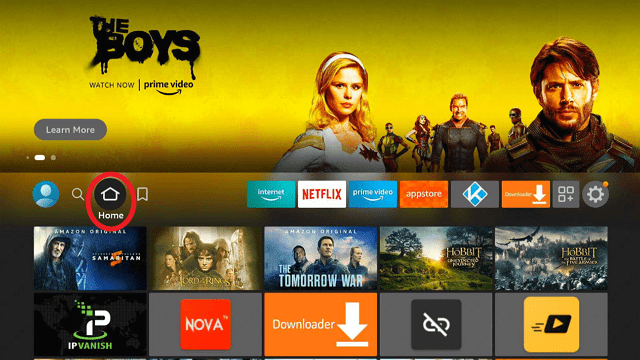
step 1 Install Surfshark VPN on Firestick


2. Navigate towards the Find tab. Press the Search button from the resulting dropdown.
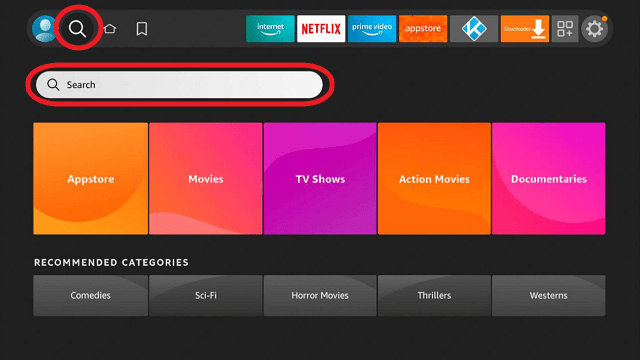
step 2 Install Surfshark VPN on Firestick


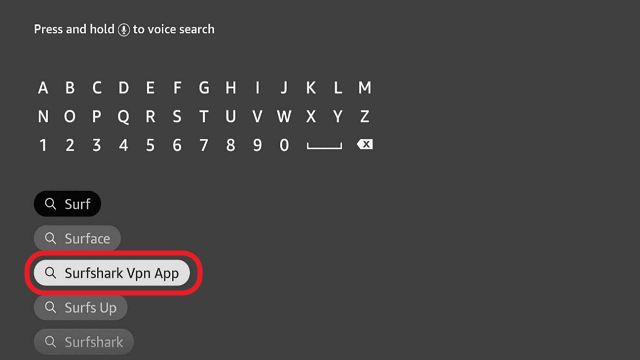
3. Type in the keyword of SurfShark and select from the suggestions that will appear.
step 3 Install Surfshark VPN on Firestick


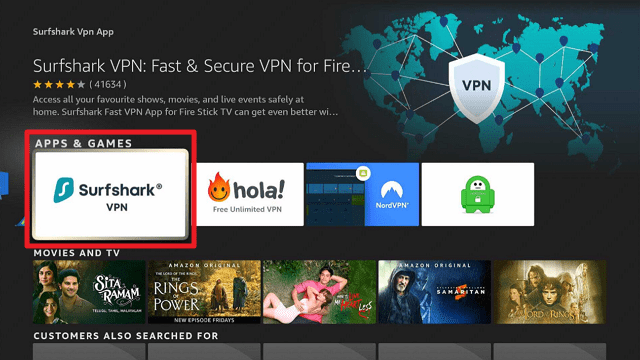
4. Click the official SurfShark icon from your search results.
step 4 Install Surfshark VPN on Firestick


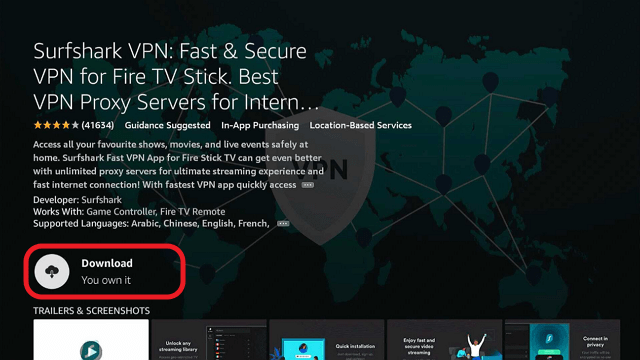
5. Press the Download (You own it) button.
step 5 Install Surfshark VPN on Firestick


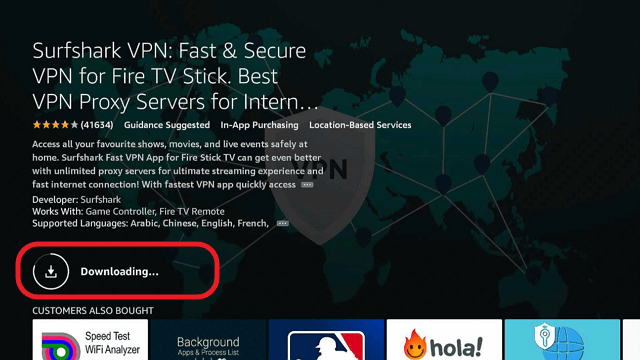
6. The SurfShark VPN installer will download on your device.
step 6 Install Surfshark VPN on Firestick


7. SurfShark VPN’s app will automatically install itself on your Fire TV stick.
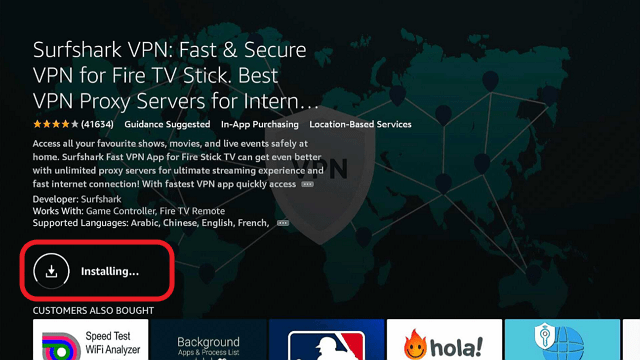
step 7 Install Surfshark VPN on Firestick


8. Press the Open button after completing SurfShark VPN’s installation process.
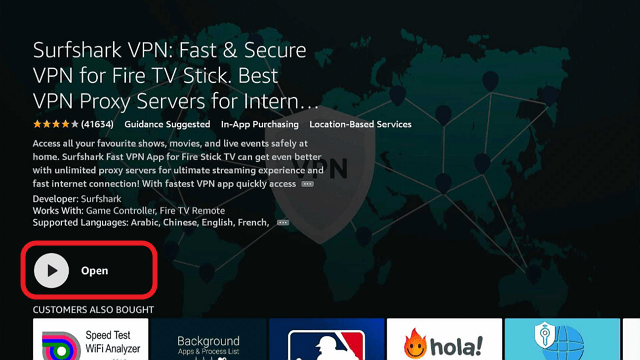
step 8 Install Surfshark VPN on Firestick


9. Please wait for the SurfShark VPN to load its user interface.
step 9 Install Surfshark VPN on Firestick


10. You can now log in with your SurfShark VPN account credentials.
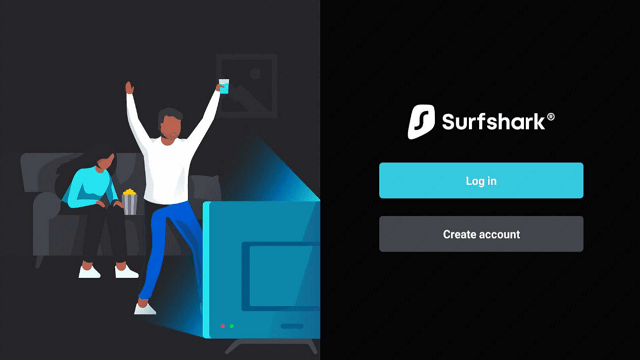
step 10 Install Surfshark VPN on Firestick

Learn more about Surfshark and Grab the Best Surfshark Deal Now!


Install Surfshark on Firestick
Best Surfshark Deal


Other VPNs to Consider

NordVPN (Best for Streaming)

Best Features

  • 5000+ Server in 50+ Countries 
  • Military-Grade Encryption
  • Fast Connection Speed
  • Suitable to a lot of devices
  • No-Log Policy

Prices
  • Complete $5.89 per month (64% Discount)
  • Plus $4.59 per month (56% Discount)
  • Standard $3.69 per month (55% Discount)

Best Features

  • 750+ High-speed VPN Servers in 43 Locations
  • Military-Grade Encryption
  • Fastest HD Streaming and Gaming
  • 30-Day Money-Back Guarantee
  • Unlimited Data & Devices
  • No-Log Policy

Prices
  • 3 Years $1.99 per month (82% Discount)
  • 1 Years $3.29 per month (70% Discount)
  • 1 Month $10.99 per month

IPVanish VPN (Most Secure)

Best Features

  • 1200+ Servers in 60+ Countries around the world
  • Unlimited Connections
  • No-Log Policy
  • Top Notch Military-Grade VPN Protocols and Encryptions
  • 100% Safe and Secured
  • Most Trusted VPN
  • Best VPN for Firestick
  • 30-Day Money-Back Guarantee

Prices
  • Yearly $3.99 per month (63% Discount) – 30 days risk free + Ransomware & Malware Protection
  • Quarterly $5.32 per month (51% Discount)
  • Monthly $10.99 per month


For more VPN discounts, go to ReviewVPN Deals and purchase the best VPN for you.

Click here to get the lowest price on Surfshark through our exclusive limited-time offer.


FAQs

What is BoomBox Kodi Build?

BoomBox is a Kodi Build from the Umbrella Corporation Repository that comes pre-loaded with add-ons that you can use to stream movies, Live TV shows, anime, cartoons, sports, documentaries, and more.


Is BoomBox Kodi Build safe?

We recommend the use of a VPN like Surfshark when using the BoomBox Kodi Build since it is an unofficial Build. This is because you’ll never know the risks associated with it since it is run by a third-party developer.


Is BoomBox Kodi Build legal?

We cannot guarantee the legality of the streams offered by BoomBox and its add-ons so it is advisable to just use a VPN with it to remain anonymous.


Wrapping Up

BoomBox build has amazing features and comes with tools to enhance the streaming experience. Install this build if you are searching for a Kodi build that offers 24/7 unmetered entertainment. 

Moreover, BoomBox build is a third-party build housing different kinds of add-ons offering free content. Addons found on these builds offer movies, Live TV shows, anime, cartoons, sports, documentaries, and many more.

Install Grindhouse Build Updated Edition 2023

Grindhouse Build


In this tutorial, you are going to learn how to install and run Grindhouse Build on versions Krypton 17.6 and Leia of the Kodi app. Grindhouse Build is jam-packed with huge addons offering movies. Grindhouse Build is one of our best builds for 2022. You will find in this Build tons of addons in various categories and subcategories. Not only that you will find in this build addons offering free;

  • Documentaries
  • Sports events
  • KidsTube
  • Cartoons
  • Anime and many more. 


Grindhouse Build also houses apps, tools, weather, and many more widgets that improve the streaming experience. That said, this build is within the Grindhouse Repository. 

Grindhouse Build comes with exciting and beautiful features and lots of tools to improve the streaming experience. You can as well install this build on any device that supports Kodi such as:

  • Computers (laptop and desktop)
  • Roku
  • Tablets
  • Smartphones
  • Chromecast and many more. 


ANONYMOUSLY


Features of Grindhouse Build

  • Grindhouse Build is compatible with the following operating systems: iOS, Android, Windows, Linux, Amazon powered devices, and lots more. You can as well install Grindhouse Build on a computer (both laptop and desktop), smartphone, tablets, Chromecast, Roku, and many more. 
  • Grindhouse Build supports the following audio format; AAC, AVI, MIDI, MP3, and many more. 
  • Grindhouse Build is a lightweight build and as such, it works well on Amazon Firestick.
  • Grindhouse Build also supports video formats such as MP4, AVI, and many other formats. 


What is Kodi?

You can go cordless and still enjoy your favorite movies and TV shows by just installing Kodi. Kodi is an open-source streaming software that allows you to access and stream all kinds of free entertainment content such as movies, sports events, documentaries, animes, cartoons and so much more.  

This software was released in 2002 as an Xbox media player. However, it was changed to the Xbox media center in 2003 which remained until 2014. Kodi also allows you to download and save files and share it with anyone connected to Kodi.

That said, the name was changed from the Xbox media center to Kodi by the XBMC foundation which overseer’s this software media content. A lot of people do not fancy the use of this software on their device because of the security issues it has. 

This is because Kodi allows the installation of third-party addons and builds; as you are aware, the majority of the third-party add-ons do not have the copyright to most of the content they provide and as such, you as a user, might be sued for accessing copyrighted content. That is why using Kodi with a VPN is highly recommended for security, privacy, and anonymity reasons.


Features

Kodi Supports the installation of third-party addons and builds. You will find third-party apps and many more on this software. 

It allows you to access and stream lots of free contents like 

  • Sports
  • Documentaries
  • TV shows
  • Live TV programs
  • Music
  • Anime
  • Cartoons and many more. 

Kodi also features sections such as search, tools, wizards, ETC. This software only occupies just a bit of your device storage memory. 

Kodi supports different audio formats like mp3. AAC, AVI, and more. You can install this software on various streaming devices such as; 

  • Computers: both laptop and desktop 
  • Chromecast
  • Smartphones
  • Tablets
  • SmartTV
  • AppleTV
  • Roku, and many others. 

It allows you to access and stream free content such as free movies, sports, documentaries, anime, cartoons, sports documentaries, and many more.

What is Kodi Build?

A Kodi build allows you to install multiple addons in a single installation; that is, instead of installing addons separately, a build comes with tons of addons with a single installation. That said, a build is familiar to addons in the sense that they both offer free and paid entertainment content. Most Kodi builds will consume large storage memory on your device and as such, it makes installing such builds on low memory devices like Amazon Firestick. Also, their low memory builds which you can easily install on low memory devices such as Amazon Firestick or Fire TV.

One good side of builds is that it offers you different options; that is, you will have tons of add-ons to choose from. You will also have numerous apps and other tools that will improve your streaming experience. 


Features of a Kodi Build 

  • A build can be installed on any operating system that supports Kodi such as Linux, iOS, Windows, and Android. Comes with a huge database of free movies, tv shows, documentaries, sports, anime, cartoons and so much more. Compatible on all devices that support Kodi apps such as a tablet, smartphones, smart TV, computer, AppleTV, and many others.
  • The interface is neat, clutter-free, well-structured, and many more. Many Kodi builds come with customizable themes and skins. (you can download and install more themes and skins). You can customize the interface to suit your taste.


YOUR INTERNET ACTIVITY IS BEING WATCHED

ReviewVPN cannot attest to the legality, security and privacy of the applications discussed on this site. It is highly recommended that you use a VPN service while streaming or using Kodi.

Currently, your IP 216.73.216.240 is visible to everyone and your Browser is being tracked by Advertisers & ISP Provider.

Save 65% Now

Limited Time Offer

Here are the main reasons why you must use a VPN:

  • Your activities are hidden from your ISP, the government, and from the apps you are using.
  • You can access additional movies and TV streams.
  • ISP attempts to throttle are thrwarted thus reducing buffering issues.
  • Geographically restricted content like Netflix and Hulu can be unblocked.

A VPN works be replacing your ISP-assigned IP address and creating an encrypted tunnel. We recommend the no log service offered by IPVanish. It works well on a Firestick and offers the fastest possible speeds.

Special Limited Time Offer - Get IPVanish


Step by Step Guide on How to Install Grindhouse Build

To Grindhouse Build or any other build, first, make sure that the unknown source is enabled on your Kodi app. Then you can then proceed with downloading and installing the EzzerMac wizard repository file and then install TajoFun build afterward.


Step 1. Launch your Kodi all

Step 2. On the home menu or screen, scroll up and select the setting icon

Step 3. Scroll down and select the system option. Next, click on addons and then click ok YES to enable the unknown sources.

Step 4. Return to the home screen.

Step 5. Scroll up and click on the setting icon. Next, on the new window, click ok file manager

Step 6. Scroll down and click on add source and the click on <none>

Step 7. Type the media source link http://grindhousekodi.tk/repo and select OK.

Step 8. Click ok Enter a name for the media source and type “Grindhouse” and then select Ok.

Step 9. Navigate back to the home screen. Click ok addons. Next, scroll up and click on the addon installer icon.

Stoe 10. Select install from zip file.

Step 11. Click on “Grindhouse” and then select repository.grindhousekodi-x.x.zip and wait for addon enabled notification.

Step 12. Click on install from repository.

Step 13. Next, click on Grindhouse Repository

Step 14. Select program addons and click on Grindhouse Wiz

Step 15. Next, click on install.

Step 16. Wait for add-on installed notification.

step 17. Next, click on continue.

Step 18. Select CLICK HERE on the new window that will appear.

Step 19. Go back to the home menu and click on addons.

Step 20. Click on programs

Step 21. Grindhouse Wiz and click on builds.

Step 22. On the list of builds that will appear, click on Blue Lite.

Step 23. Click fresh install 

Step 24. Click YES and wait for the build to complete the installation. Once the installation is done, click force close. Restart your kodi app and GrindHouse build is ready for enjoying.


Install Surfshark on Firestick

Best Surfshark Deal


Protect Yourself with a VPN

If you pay attention, you will realize that the number of internet hackers has drastically increased. Whatever you are doing online these days is being monitored and recorded either by your internet service provider network or third parties such as hackers or government agencies. That is why we strongly recommend installing a VPN on your device. 

A VPN is software that does encryption and masking on your IP address. When this happens, your IP address will appear on the internet service provider as a secure, private, and anonymous user. There are many benefits of installing a VPN on your device. These include security and privacy, bypassing restrictions due to locations, beating third-party monitoring, and many more. 


Why Do You Need a VPN?

  • Beat Third-party Tracking

It may interest you to know that each time you access the internet, your internet service provider keeps a log of sites and activities you did online. Not only that, other third parties might be spying on your online activities without your permission. That said, the only way you can bypass this is to install a VPN on your device. Installing a VPN will keep you anonymous and no one will be able to monitor or track your only activities. 

If you are fond of using public internet connections such as Public WI-FI, then you might be prey to a potential hacker using the same connection with you. For 24/7 security and privacy, install a VPN.


  • Geolocation Issues

Many websites use geolocation to protect their content from unintended audience. Many streaming apps and software apply location restrictions as well. For example, NetFlix USA does not allow people outside of the US to access its content. So how can someone from Canada or Australia access and stream content from Netflix USA? The only solution is to install a VPN and change your location to a different server. This is achieved when you choose a different server on the VPN list of servers.


  • Security 

When you install a VPN on your device, you need not worry about your online activities being monitored or recorded. This is achieved when a VPN does encryption and masking on your IP address. With this, your IP address will appear private, secure, and anonymous on the internet service provider network.

We have reviewed many VPN service providers, and we present to you, Surfshark. This VPN service provider offers the cheapest fees on subscription and allows up to 30 days money-back guarantee. 


Surfshark Features

  • Military-grade encryption with unlimited bandwidth. 
  • It offers you over 3200+ servers in 65 countries
  • You need not worry about your activities logs being kept as this VPN has a zero log policy. 
  • Surfshark has a leak protection policy ensuring that all your online activities are kept confidential and private.


Note: To get Surfshark for a discounted rate, click here.


How to Install Surfshark VPN on Firestick

If your Firestick still has the older interface, read this article to learn how to update it: Update Firestick Interface.

Follow our screenshots below to install the SurfShark VPN app on your Fire TV stick.

1. Go to the Home screen of your Firestick.

step 1 Install Surfshark VPN on Firestick


2. Navigate towards the Find tab. Press the Search button from the resulting dropdown.

step 2 Install Surfshark VPN on Firestick


3. Type in the keyword of SurfShark and select from the suggestions that will appear.

step 3 Install Surfshark VPN on Firestick


4. Click the official SurfShark icon from your search results.

step 4 Install Surfshark VPN on Firestick


5. Press the Download (You own it) button.

step 5 Install Surfshark VPN on Firestick


6. The SurfShark VPN installer will download on your device.

step 6 Install Surfshark VPN on Firestick


7. SurfShark VPN’s app will automatically install itself on your Fire TV stick.

step 7 Install Surfshark VPN on Firestick


8. Press the Open button after completing SurfShark VPN’s installation process.

step 8 Install Surfshark VPN on Firestick


9. Please wait for the SurfShark VPN to load its user interface.

step 9 Install Surfshark VPN on Firestick


10. You can now log in with your SurfShark VPN account credentials.

step 10 Install Surfshark VPN on Firestick

Learn more about Surfshark and Grab the Best Surfshark Deal Now!


Install Surfshark on Firestick
Best Surfshark Deal


Other VPNs to Consider

NordVPN (Best for Streaming)

Best Features

  • 5000+ Server in 50+ Countries 
  • Military-Grade Encryption
  • Fast Connection Speed
  • Suitable to a lot of devices
  • No-Log Policy

Prices
  • Complete $5.89 per month (64% Discount)
  • Plus $4.59 per month (56% Discount)
  • Standard $3.69 per month (55% Discount)

Best Features

  • 750+ High-speed VPN Servers in 43 Locations
  • Military-Grade Encryption
  • Fastest HD Streaming and Gaming
  • 30-Day Money-Back Guarantee
  • Unlimited Data & Devices
  • No-Log Policy

Prices
  • 3 Years $1.99 per month (82% Discount)
  • 1 Years $3.29 per month (70% Discount)
  • 1 Month $10.99 per month

IPVanish VPN (Most Secure)

Best Features

  • 1200+ Servers in 60+ Countries around the world
  • Unlimited Connections
  • No-Log Policy
  • Top Notch Military-Grade VPN Protocols and Encryptions
  • 100% Safe and Secured
  • Most Trusted VPN
  • Best VPN for Firestick
  • 30-Day Money-Back Guarantee

Prices
  • Yearly $3.99 per month (63% Discount) – 30 days risk free + Ransomware & Malware Protection
  • Quarterly $5.32 per month (51% Discount)
  • Monthly $10.99 per month


For more VPN discounts, go to ReviewVPN Deals and purchase the best VPN for you.

Click here to get the lowest price on Surfshark through our exclusive limited-time offer.


Frequently Asked Questions About the Use of Grindhouse Build

Is the use of Grindhouse Build safe, legal, and free?

Yes, installing and running this build on your device is safe. However, we strongly recommend having a VPN installed on your device for protection and security. Yes, the use of this build is free and legal. The downloading, installing, and running this build on any of your streaming devices is legal and free as well. However, for security reasons, we recommend installing a VPN on your device.


Wrap Up

Install Grindhouse Build for 24/7 unlimited streaming of sports, documentaries, and lots more. Grindhouse Build comes with an amazing feature to improve the streaming experience. It is a lightweight build. Grindhouse Build is within the Grindhouse Repository and houses a huge database of addons offering free streaming links for entertainment in different sections.

How to Install TajoFun Kodi Build on Firestick/Android

TajoFun Build

This tutorial will teach you how to install TajoFun Build on Firestick/Android.

You can also install this build on any device that supports Kodi such as computers (laptop and desktop), Roku, tablets, smartphones, Chromecast, and many more.

TajoFun is a third-party build found within the EzzerMacs Wizard Repository. This build comes with exciting and beautiful features and lots of tools to improve the streaming experience. Moreover, you will find tons of add-ons in various categories and subcategories within TajoFun. 

Additionally, TajoFun Build is jam-packed with huge add-ons offering movies. You can also find add-ons offering free documentaries, sports events, kids’ tube, cartoons, anime, and many more. Moreover, TajoFun Build also houses apps, tools, weather, and many more widgets that improve the streaming experience. 


ANONYMOUSLY


How to Install TajoFun Kodi Build on Firestick/Android

You may follow the step-by-step guide on how to install TajoFun Kodi Build below:


1. Open the Kodi app. 

2. Click on Settings (wheel gear icon).

3. Select System.

4. On the new window that will appear, scroll down and click on Addons

5. Then toggle on Unknown Sources

6. Click YES.

7. Navigate back to the home screen using the back/arrow button on your remote or keyboard.

8. Select File Manager

9. Click on Add source.

10. Select <None> and then enter the media source URL file link: http://ezzer-mac.com/repo and click OK. 

11. Next, highlight the “Enter a name for this media source” type tajofun, and then select OK. 

12. Navigate back to the home screen and select Addons

13. Select Install from zip file.

14. Choose tajofun.

15. Next, click on repository.EzzerMacsWizard-x.x.x.zip.

16. Wait for the EzzerMacs Wizard Repository Addon installed notification.

17. Next, click on Install from repository.

18. Choose EzzerMacs Wizard Repository 

19. Click Program add-ons.

20. Select EzzerMans Wizard and click Install

21. Wait for the add-on installed notification.

22. On the pop, click NEXT.

21. Click EzZeRmAnS BUILDS.

22. On the list of builds that will appear, click on FunsterBe and highlight TajoFun.

23. Select Fresh Install 

24. Click YES

25. Wait for the build to complete the installation. Once the installation is done, click Force Close.

26. Restart Kodi and enjoy the TajoFun build.


YOUR INTERNET ACTIVITY IS BEING WATCHED

ReviewVPN cannot attest to the legality, security and privacy of the applications discussed on this site. It is highly recommended that you use a VPN service while streaming or using Kodi.

Currently, your IP 216.73.216.240 is visible to everyone and your Browser is being tracked by Advertisers & ISP Provider.

Save 65% Now

Limited Time Offer

Here are the main reasons why you must use a VPN:

  • Your activities are hidden from your ISP, the government, and from the apps you are using.
  • You can access additional movies and TV streams.
  • ISP attempts to throttle are thrwarted thus reducing buffering issues.
  • Geographically restricted content like Netflix and Hulu can be unblocked.

A VPN works be replacing your ISP-assigned IP address and creating an encrypted tunnel. We recommend the no log service offered by IPVanish. It works well on a Firestick and offers the fastest possible speeds.

Special Limited Time Offer - Get IPVanish


Legal Disclaimer: ReviewVPN.com does not encourage or endorse any illegal activity involved in the usage of services and applications referenced on this site. We do not verify the licensing agreements of services. The end-user is wholly responsible for ensuring that any media accessed through these services does not violate copyright and/or licensing laws. ReviewVPN does not promote, link to, or receive compensation from any Apps and IPTV services.


Install SurfShark on Firestick

Best SurfShark Deal


TajoFun Features

  • Contains movies, free documentaries, sports events, kids’ tube, cartoons, anime, and more 
  • Also offers apps, tools, weather, and other widgets
  • Compatible with the following operating systems: iOS, Android, Windows, Linux, Amazon-powered devices, and lots more.
  • You can also install this build on a computer (both laptop and desktop), smartphone, tablet, Chromecast, Roku, and many more.
  • Supports the following audio formats; AAC, AVI, MIDI, MP3, and many more.
  • It also supports video formats such as MP4, AVI, and many other formats. 


Protect Yourself with a VPN

Surfshark vpn

If you pay attention, you will realize that the number of internet hackers has drastically increased. Whatever you are doing online these days is being monitored and recorded either by your internet service provider network or by third parties such as hackers or government agencies. That is why we strongly recommend installing a VPN on your device. 

A VPN such as Surfshark is a software that encrypts and masks your IP address. When this happens, your IP address will appear on the internet service provider as a secure, private, and anonymous user. There are many benefits of installing a VPN on your device. These include security and privacy, bypassing restrictions due to locations, beating third-party monitoring, and many more. 


Benefits of installing a VPN on your device include:

  • Privacy

When you install a VPN on your device, you need not worry about your online activities being monitored or recorded. This is achieved when a VPN does encryption and masking on your IP address. With this, your IP address will appear private, secure, and anonymous on the internet service provider network.


  • Bypass restrictions due to location

Many websites use geolocation to protect their content from unintended audiences. Many streaming apps and software apply location restrictions as well. For example, NetFlix USA does not allow people outside of the US to access its content. So how can someone from Canada or Australia access and stream content from Netflix USA? The only solution is to install a VPN and change your location to a different server. This is achieved when you choose a different server on the VPN list of servers.


  • Overcome third-party monitoring

It may interest you to know that each time you access the internet, your internet service provider keeps a log of sites and activities you do online. Not only that, other third parties might be spying on your online activities without your permission. That said, the only way you can bypass this is to install a VPN on your device. Installing a VPN will keep you anonymous and no one will be able to monitor or track your only activities. 


If you are fond of using public internet connections such as Public WI-FI, then you might be prey to a potential hacker using the same connection with you. For 24/7 security and privacy, install a VPN.

We have reviewed many VPN service providers, and we present to you, Surfshark. This VPN service provider offers the cheapest fees on subscriptions and allows up to a 30-day money-back guarantee. 

This VPN service provider features military-grade encryption with unlimited bandwidth. It offers you over 3200+ servers in 100 countries to choose from. You need not worry about your activity logs being kept as this VPN has a zero log policy. Also, Surfshark has a leak protection policy ensuring that all your online activities are kept confidential and private.

Note: For more information about SurfShark, please read our SurfShark REVIEW.


Grab your subscription now!


How to Install Surfshark VPN on Firestick

If your Firestick still has the older interface, read this article to learn how to update it: Update Firestick Interface.

Follow our screenshots below to install the SurfShark VPN app on your Fire TV stick.

1. Go to the Home screen of your Firestick.

step 1 Install Surfshark VPN on Firestick


2. Navigate towards the Find tab. Press the Search button from the resulting dropdown.

step 2 Install Surfshark VPN on Firestick


3. Type in the keyword of SurfShark and select from the suggestions that will appear.

step 3 Install Surfshark VPN on Firestick


4. Click the official SurfShark icon from your search results.

step 4 Install Surfshark VPN on Firestick


5. Press the Download (You own it) button.

step 5 Install Surfshark VPN on Firestick


6. The SurfShark VPN installer will download on your device.

step 6 Install Surfshark VPN on Firestick


7. SurfShark VPN’s app will automatically install itself on your Fire TV stick.

step 7 Install Surfshark VPN on Firestick


8. Press the Open button after completing SurfShark VPN’s installation process.

step 8 Install Surfshark VPN on Firestick


9. Please wait for the SurfShark VPN to load its user interface.

step 9 Install Surfshark VPN on Firestick


10. You can now log in with your SurfShark VPN account credentials.

step 10 Install Surfshark VPN on Firestick

Learn more about Surfshark and Grab the Best Surfshark Deal Now!


Install Surfshark on Firestick

Best Surfshark Deal


Other VPNs to Consider

NordVPN (Best for Streaming)

Best Features

  • 5000+ Server in 50+ Countries 
  • Military-Grade Encryption
  • Fast Connection Speed
  • Suitable to a lot of devices
  • No-Log Policy

Prices
  • Complete $5.89 per month (64% Discount)
  • Plus $4.59 per month (56% Discount)
  • Standard $3.69 per month (55% Discount)

Best Features

  • 750+ High-speed VPN Servers in 43 Locations
  • Military-Grade Encryption
  • Fastest HD Streaming and Gaming
  • 30-Day Money-Back Guarantee
  • Unlimited Data & Devices
  • No-Log Policy

Prices
  • 3 Years $1.99 per month (82% Discount)
  • 1 Years $3.29 per month (70% Discount)
  • 1 Month $10.99 per month

IPVanish VPN (Most Secure)

Best Features

  • 1200+ Servers in 60+ Countries around the world
  • Unlimited Connections
  • No-Log Policy
  • Top Notch Military-Grade VPN Protocols and Encryptions
  • 100% Safe and Secured
  • Most Trusted VPN
  • Best VPN for Firestick
  • 30-Day Money-Back Guarantee

Prices
  • Yearly $3.99 per month (63% Discount) – 30 days risk free + Ransomware & Malware Protection
  • Quarterly $5.32 per month (51% Discount)
  • Monthly $10.99 per month


For more VPN discounts, go to ReviewVPN Deals and purchase the best VPN for you.

Click here to get the lowest price on Surfshark through our exclusive limited-time offer.


FAQs

Is TajoFun legal?

We cannot guarantee the legality of the streams offered by TajoFun since it provides access to tons of different add-ons. Therefore, it’s best to maintain your anonymity when using the Build.


Is TajoFun free?

Yes, the use of this build is free. The downloading, installing, and running of this build on any of your streaming devices is free. However, for security reasons, we recommend installing a VPN on your device.


Is the use of TajoFun safe?

Yes, installing and running this build on your device is safe. However, we strongly recommend having a VPN installed on your device for protection and security.


Conclusion

TajoFun build comes with an amazing feature to improve the streaming experience. It is a lightweight build meaning it does not occupy much space on your device. This build is found within the EzzerMac wizard repository and houses a huge database of add-ons offering free streaming links for movies, documentaries, shows, anime, cartoons, and many more.

How to Install BCFC Joe’s Football Legends Kodi Build on Firestick/Android TV

BCFC Joes Football Legends Build

In this tutorial, you will learn how to install BCFC Joe’s Football Legends Build on Firestick/Android TV. 

BCFC Joe’s Football Legends Build is a feature-rich Kodi build that scrapes streaming links for movies and lots more. This build is lightweight and as such, you can install this build on low-memory devices like Amazon Firestick. BCFC Joe’s Football Legends Build has buffering or lagging-resistant features; meaning that it can withstand connection-related issues. Thus, it enhances the streaming experience of its users.


BCFC Joe’s Football Legends Build is packed with a huge database of entertainment sections. You will find the following entertainment section on this build: 

  • Movies
  • Documentaries
  • Live TV 
  • IPTV 
  • APKs
  • KidsTube
  • Anime
  • Cartoon 
  • Live radio 
  • Music and many more.

Furthermore, BCFC Joe’s Football Legends Build is a third-party build within the EzzerMacs Wizard Repository.


ANONYMOUSLY


How to Install BCFC Joe’s Football Legends Build on Firestick

You may follow the step-by-step guide below on how you can install BCFC Joe’s Football Legends Build on your Firestick:


1. Launch your Kodi app.

2. On the home screen, select the cog icon (found at the top left corner of your screen).

3. Next, click System.

4. Then select Add-ons

5. Click on the Unknown sources and select YES.

6. Go back to the home screen either by pressing the arrow or back button on your remote or keyboard.

7. Click on Settings (cog icon).

8. Choose File Manager.

9. Click Add source.

10. Then select <none> and carefully enter the media source link: http://ezzer-mac.com/repo and then press OK.

11. Click “Enter a name for this media source” and then enter BCFC Joe’s Football Legends and click on OK.

12. Then click OK.

13. Next, Navigate back to the home screen. On the home screen, scroll down and click on Add-ons

14. Scroll up and click on the addon installer icon located at the top left corner of your screen.

15. Select Install from zip file.

16. Select BCFC Joe’s Football Legends and click on it.

17. Now, click on repository.EzzerMacsWizard.zip and wait for the addon installation notification at the top right-hand side of your screen.

18. Next, click on Install from the repository.

19. Then choose the EzzerMacs Wizard repo.

20. Select Program Add-ons and then select EzzerMac Wizard.

21. Choose Install and wait for the installation to complete.

22. Click Open.

23. Select Dismiss then click on Continue.

24. Choose Click Here. Next, select EzzerMac Wizard.

25. Select BCFC Joe’s Football Legends.

26. Click Fresh Install or Standard.

27. Select YES and wait for the installation to complete.

28. Click force close and re-launch Kodi.

YOUR INTERNET ACTIVITY IS BEING WATCHED

ReviewVPN cannot attest to the legality, security and privacy of the applications discussed on this site. It is highly recommended that you use a VPN service while streaming or using Kodi.

Currently, your IP 216.73.216.240 is visible to everyone and your Browser is being tracked by Advertisers & ISP Provider.

Save 65% Now

Limited Time Offer

Here are the main reasons why you must use a VPN:

  • Your activities are hidden from your ISP, the government, and from the apps you are using.
  • You can access additional movies and TV streams.
  • ISP attempts to throttle are thrwarted thus reducing buffering issues.
  • Geographically restricted content like Netflix and Hulu can be unblocked.

A VPN works be replacing your ISP-assigned IP address and creating an encrypted tunnel. We recommend the no log service offered by IPVanish. It works well on a Firestick and offers the fastest possible speeds.

Special Limited Time Offer - Get IPVanish


Legal Disclaimer: ReviewVPN.com does not encourage or endorse any illegal activity involved in the usage of services and applications referenced on this site. We do not verify the licensing agreements of services. The end-user is wholly responsible for ensuring that any media accessed through these services does not violate copyright and/or licensing laws. ReviewVPN does not promote, link to, or receive compensation from any Apps and IPTV services.


Install Surfshark on Firestick

Best Surfshark Deal


Features of BCFC Joe’s Football Legends Build

BCFC Joe’s Football Legends Build is compatible with major streaming devices. Some of the compatible devices include 

  • Roku
  • Chromecast
  • Smart TVs
  • Apple TV
  • Tablets
  • Smartphones and lots more. 

This build can be installed on different operating systems like 

  • Android 
  • Windows
  • Linux
  • MAC
  • iOS 
  • Amazon devices.


  • BCFC Joe’s Football Legends Build allows you to download new themes and skins as many as you want. 
  • This build has an amazing interface with a well-structured layout. The interface is built having in mind new users of Kodi; it’s navigable, sleek, clutter-free, and well-organized.
  • BCFC Joe’s Football Legends Build houses addons offering free movies, live tv shows, music (audio), anime, music video, cartoons, sports, adult porn and adult no porn, and many more. 
  • You will also find in BCFC Joe’s Football Legends Build APKs files, weather, tools, search, and lots more utility sections. Most of the content on this build is free to access and stream, however, you will find pay-per-view content that will require you to pay before accessing or streaming such content.
  • BCFC Joe’s Football Legends Build has regular updates (it allows you to set it to either manual or automatic regular updates. This build comes with various skins and themes


Stream Safely with a VPN

Surfshark vpn

We advise protecting yourself while accessing the internet or streaming content online with a VPN. This is because when you are accessing Kodi, most of its contents come from third-party add-ons and builds. That said, third-party builds or addons do not have the copyright to the content they offer and as a user, you might be sued for copyright-related issues. 

However, when you install a VPN, it will protect, secure, and keep your online activities anonymous. A VPN is software that when installed on your device encrypts and masks your IP address. When this happens, your IP address will appear as a secure, private, and anonymous user on the internet service provider network.


Importance of Installing a VPN

Protection 

Yes, a VPN provides you with the needed protection and privacy online. You need not worry about third parties or your internet service provider spying or tracking whatever activities you are doing online. This is achieved when a VPN encrypts and masks your IP address for privacy reasons.


Outsmart geolocation

When you have a VPN on your device, you can be able to access content and contents on the internet that are protected with geolocation. Most VPN service providers have tons of servers and locations making it easier for you to switch to any location of your choice. 


Beat Third-party

Installing a VPN will encrypt and mass your IP address and as such, no one will be able to track or even monitor your online activities. It may interest you to know that each time you access the internet, your internet service provider monitors and records all your logs. However, the only way to beat that is by installing a VPN on your device.

For the best VPN services, we recommend that you go for Surfshark. They provide the highest VPN security and offer a 30-day up to 30-day money-back guarantee. Surfshark features; Military-grade encryption, unlimited bandwidth, No log policy, Leak protection policy, and over 3200+ servers in 65 countries to choose from.

Note: To get Surfshark for a discounted rate, click here.


Install Surfshark on Firestick

Best Surfshark Deal


How to Install Surfshark VPN on Firestick

If your Firestick still has the older interface, read this article to learn how to update it: Update Firestick Interface.

Follow our screenshots below to install the SurfShark VPN app on your Fire TV stick.

1. Go to the Home screen of your Firestick.

step 1 Install Surfshark VPN on Firestick


2. Navigate towards the Find tab. Press the Search button from the resulting dropdown.

step 2 Install Surfshark VPN on Firestick


3. Type in the keyword of SurfShark and select from the suggestions that will appear.

step 3 Install Surfshark VPN on Firestick


4. Click the official SurfShark icon from your search results.

step 4 Install Surfshark VPN on Firestick


5. Press the Download (You own it) button.

step 5 Install Surfshark VPN on Firestick


6. The SurfShark VPN installer will download on your device.

step 6 Install Surfshark VPN on Firestick


7. SurfShark VPN’s app will automatically install itself on your Fire TV stick.

step 7 Install Surfshark VPN on Firestick


8. Press the Open button after completing SurfShark VPN’s installation process.

step 8 Install Surfshark VPN on Firestick


9. Please wait for the SurfShark VPN to load its user interface.

step 9 Install Surfshark VPN on Firestick


10. You can now log in with your SurfShark VPN account credentials.

step 10 Install Surfshark VPN on Firestick

Learn more about Surfshark and Grab the Best Surfshark Deal Now!


Install Surfshark on Firestick

Best Surfshark Deal


Other VPNs to Consider

NordVPN (Best for Streaming)

Best Features

  • 5000+ Server in 50+ Countries 
  • Military-Grade Encryption
  • Fast Connection Speed
  • Suitable to a lot of devices
  • No-Log Policy

Prices
  • Complete $5.89 per month (64% Discount)
  • Plus $4.59 per month (56% Discount)
  • Standard $3.69 per month (55% Discount)

Best Features

  • 750+ High-speed VPN Servers in 43 Locations
  • Military-Grade Encryption
  • Fastest HD Streaming and Gaming
  • 30-Day Money-Back Guarantee
  • Unlimited Data & Devices
  • No-Log Policy

Prices
  • 3 Years $1.99 per month (82% Discount)
  • 1 Years $3.29 per month (70% Discount)
  • 1 Month $10.99 per month

IPVanish VPN (Most Secure)

Best Features

  • 1200+ Servers in 60+ Countries around the world
  • Unlimited Connections
  • No-Log Policy
  • Top Notch Military-Grade VPN Protocols and Encryptions
  • 100% Safe and Secured
  • Most Trusted VPN
  • Best VPN for Firestick
  • 30-Day Money-Back Guarantee

Prices
  • Yearly $3.99 per month (63% Discount) – 30 days risk free + Ransomware & Malware Protection
  • Quarterly $5.32 per month (51% Discount)
  • Monthly $10.99 per month


For more VPN discounts, go to ReviewVPN Deals and purchase the best VPN for you.

Click here to get the lowest price on Surfshark through our exclusive limited-time offer.


FAQs

What is Kodi?

You can go cordless and save hundreds of dollars by switching to Kodi. It allows you to stream entertainment in different categories all for free. You can access and stream movies, Live TV shows, kids’ shows, cartoons, sports, documentaries and so much more.


What is a Kodi Build?

In a nutshell, a build is a collection of add-ons and other features within a single installation. Instead of wasting time and strength installing add-ons one by one, a build allows you to install tons of add-ons on a single installation.


What is BCFC Joe’s Football Legends Kodi Build?

BCFC Joe’s Football Legal Kodi Build offers tons of streaming alternatives such as movies, live tv shows, music, anime, cartoons, sports, adult porn, and more. 


Is BCFC Joe’s Football Legends Kodi Build safe?

We cannot guarantee the safety of BCFC Joes’ Football Kodi Blue since it is being run by third-party developers. That is why we recommend the use of Surfshark alongside an antivirus software like TotalAV.


Is BCFC Joe’s Football Legends Kodi Build legal?

We are unsure if the content you can find within this Build is legal. So it’s best to remain anonymous to avoid legal complications.


Wrapping Up

For 24/7 non-stop streaming of free movies and TV shows install, BCFC Joe’s Football Legends build. You can also access TV shows, sports, documentaries, cartoons, anime, and many more. This build also prides itself on being one of the few best builds with awesome features to improve the streaming experience.

BCFC Joe’s Football Legends build comes with a huge database of add-ons offering categories and subcategories of entertainment.

How to Install Watched App – Firestick and Android

Watched App Overview

In this article, we will be guiding you on how to install Watched App on Firestick and other android devices.


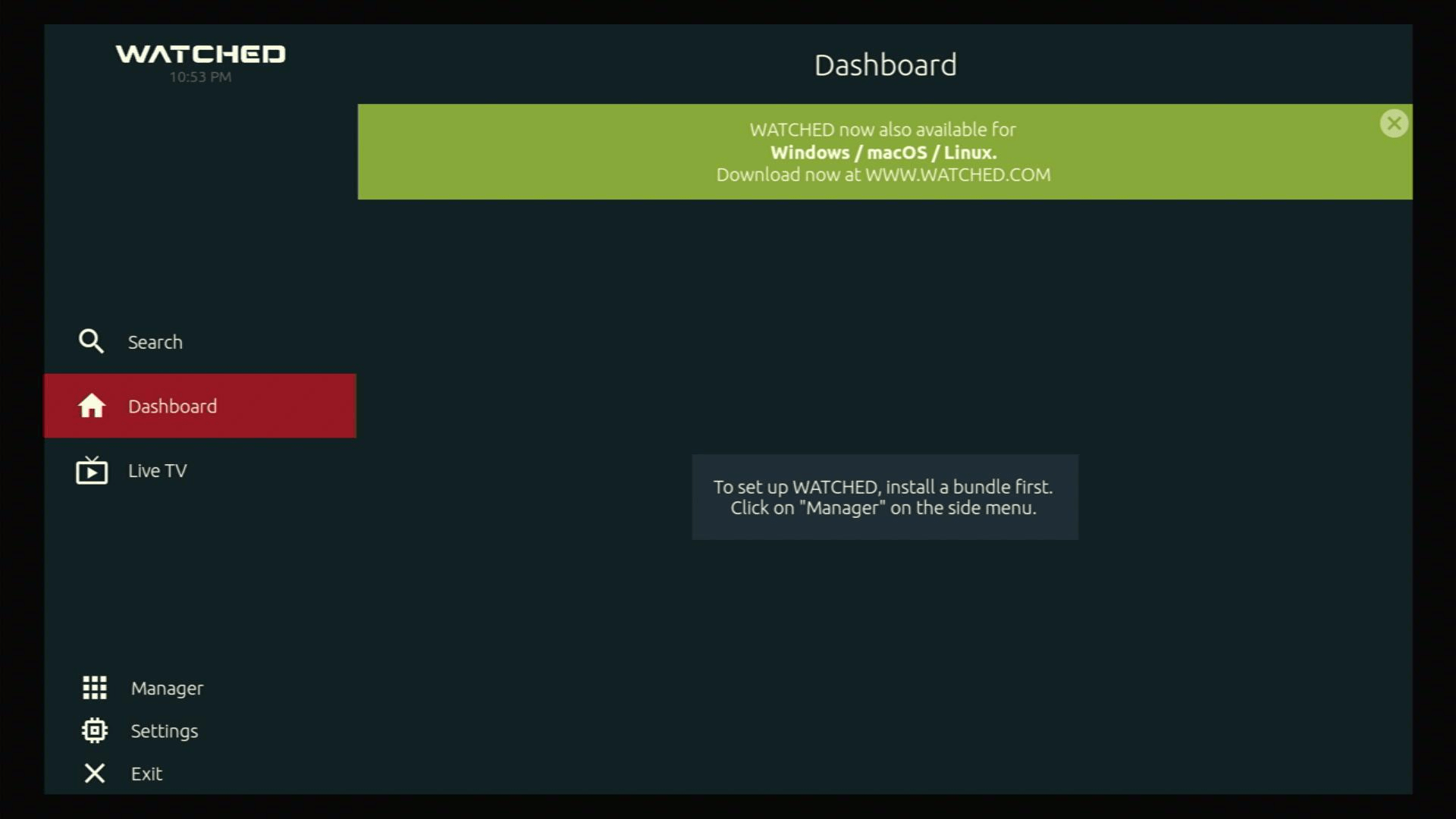
Watched is a streaming app that will allow you to watch movies and TV Shows, and a Live TV Section for free.

It provides the latest movie releases, popular TV Show episodes, and a single live tv channel called Classic Movies JC.

At first, Watched would seem like it does not have any content. The truth is, there is an extra step that you should do to see the content.

We will provide that necessary information as we go along with this write-up.


Before you can install Watched App, your Firestick should be jailbroken. If you have not done that yet, please refer to this guide:

Jailbreak the Firestick.

You will also need the Downloader App to sideload Watched on your Firestick. Follow this guide to perform the task:

Install Downloader App on Firestick.


ANONYMOUSLY

Watched App Download on Android


Watched Download Icon Install Watched App

Note: ReviewVPN.com does not host this APK file. It is hosted on Archive.org.


Install Watched App on Firestick Guide

  1. Go to Settings and select Device.
  2. Choose Developer Options
  3. Turn on the ADB Debugging and Apps From Unknown Sources
  4. After turning these options on, launch the Amazon App Store on your device
  5. Search and Download Downloader
  6. Install Downloader and launch it after installing it.
  7. Choose Allow and Select Ok
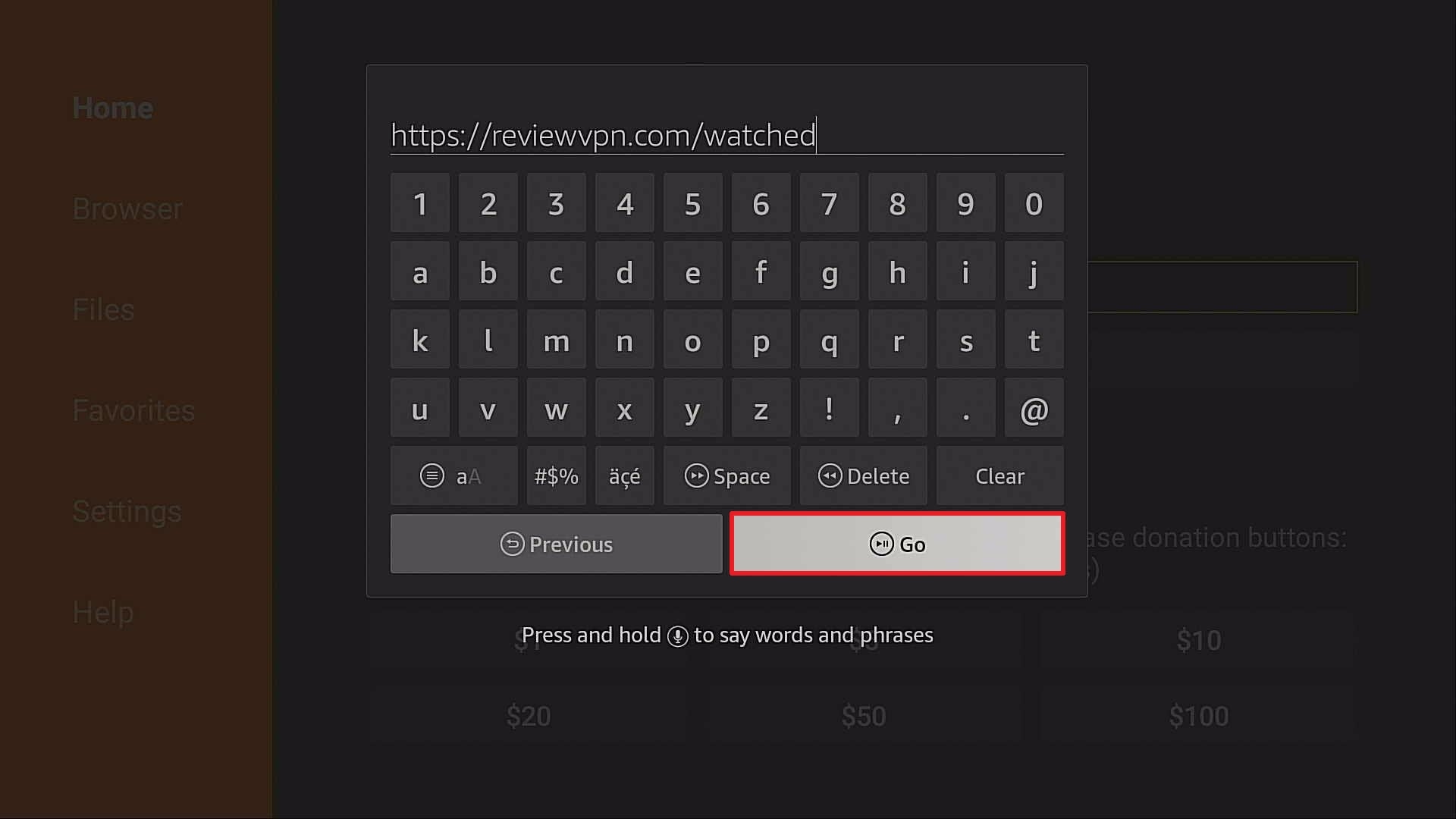
  8. Type in https://reviewvpn.com/watched and select Go
  9. Wait for it to finish and then select Watched
  10. Select Done
  11. This will automatically take you back to Downloader. Select Delete
  12. Choose Delete one more time
  13. Head back to the home screen and under the Your Apps & Channels select Choose All
  14. Scroll down and select Watched and select the Options.
  15. Then select Move to Front
  16. Watched will be moved forward to Your Apps and Channels
  17. After this, you will see Watched and click it to launch.


If your Firestick still has the older interface, read this article to learn how to update it: Update Firestick Interface.


Install Watched App on Firestick (Video)


Install Watched App on Firestick with Screenshots

1. Install the Downloader app and jailbreak your firestick by enabling unknown sources. To learn more about the procedure, you may read How to Install the Downloader App and Enable Unknown Sources.

2. Open Downloader.  Type https://reviewvpn.com/watched and click Go. 

step 2 install watched


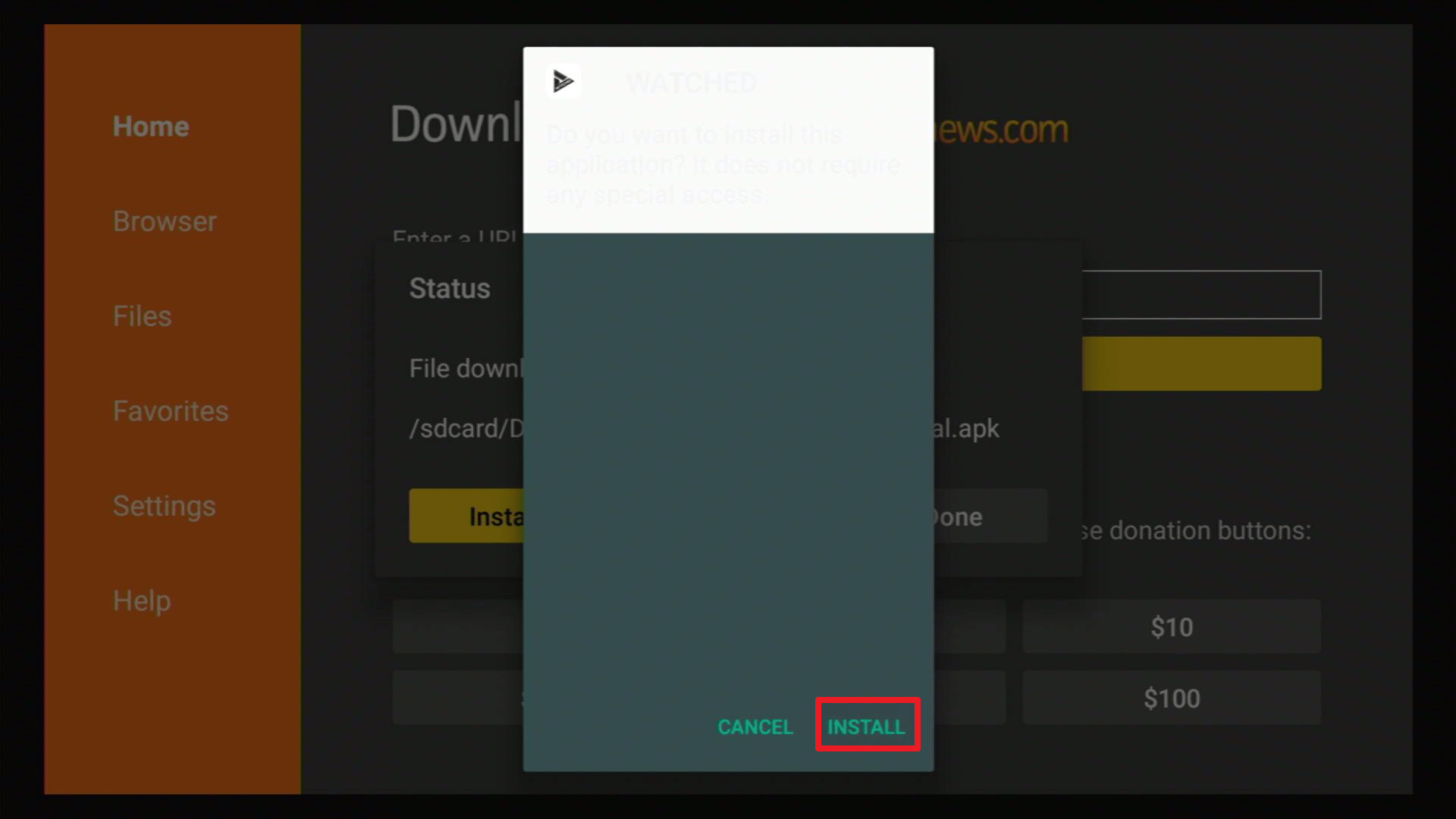
3. Click Install.

Step 14 Install Watched App


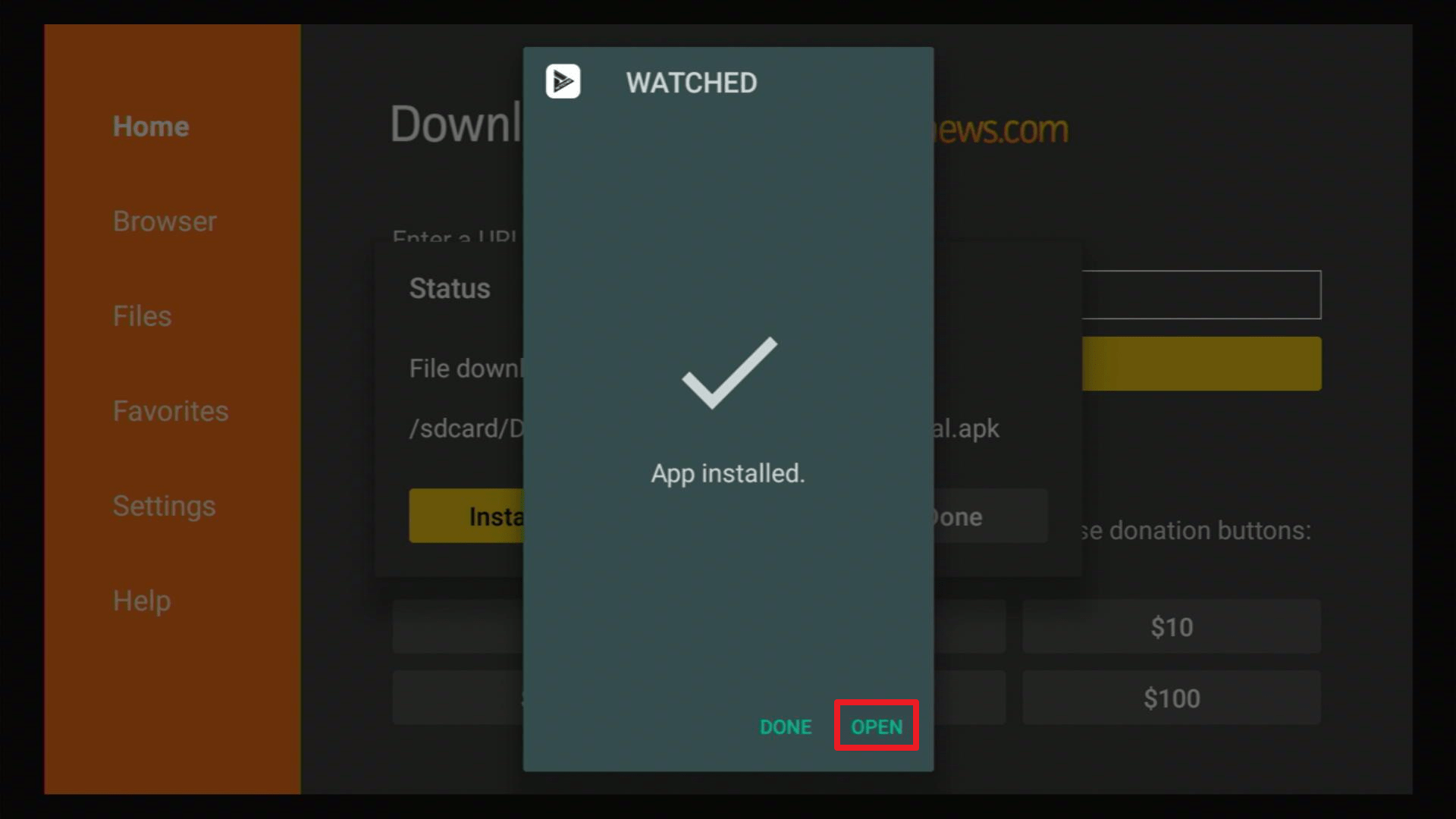
4. Click Open.

Step 15 Install Watched App


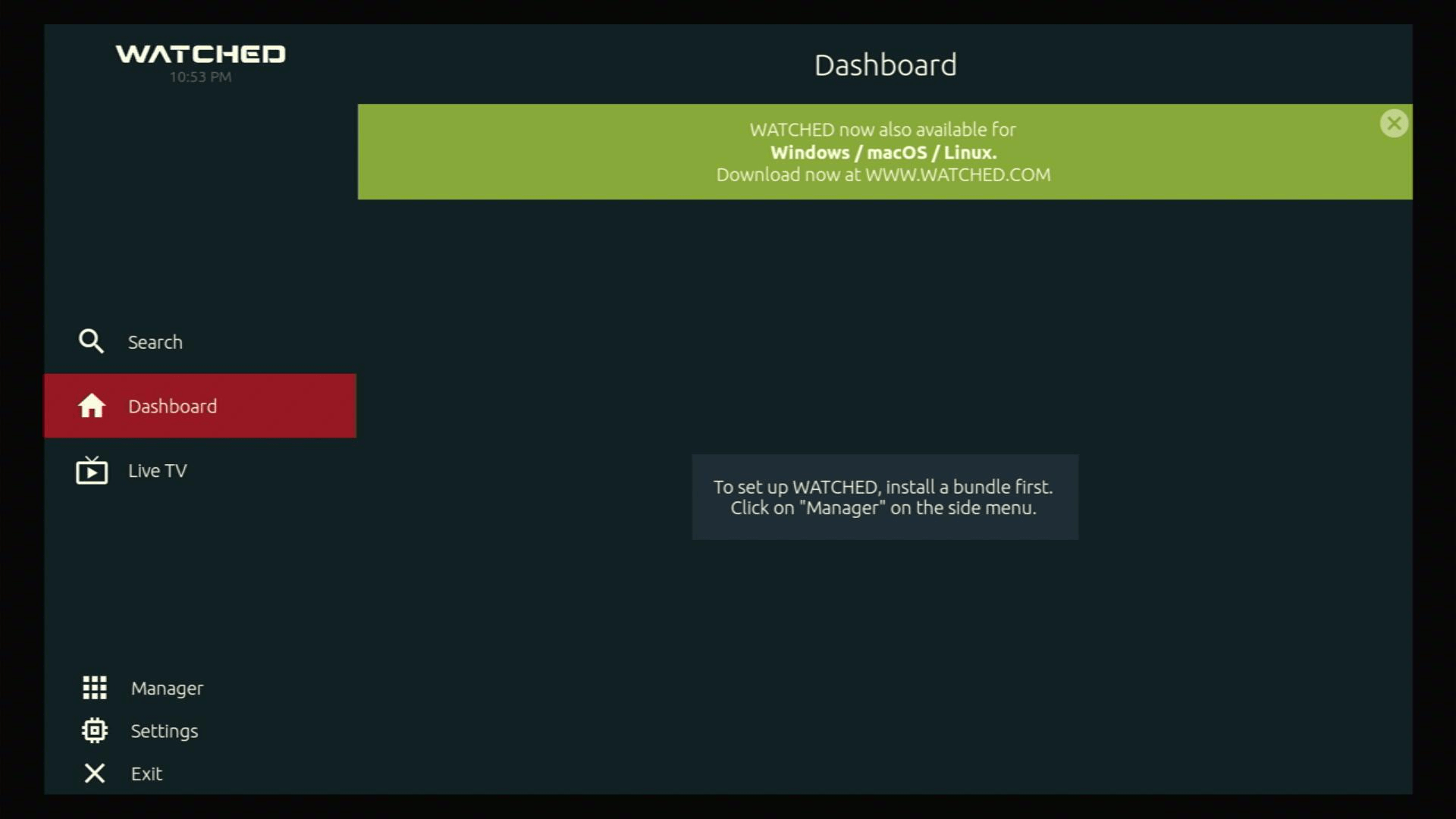
5. Enjoy Watched App!

Step 16 Install Watched App


How to Use Watched App

After successfully installing the app, you need to activate it by entering Watched App Url Codes. Please follow this guide:

1. Launch Watched App on your Firestick.


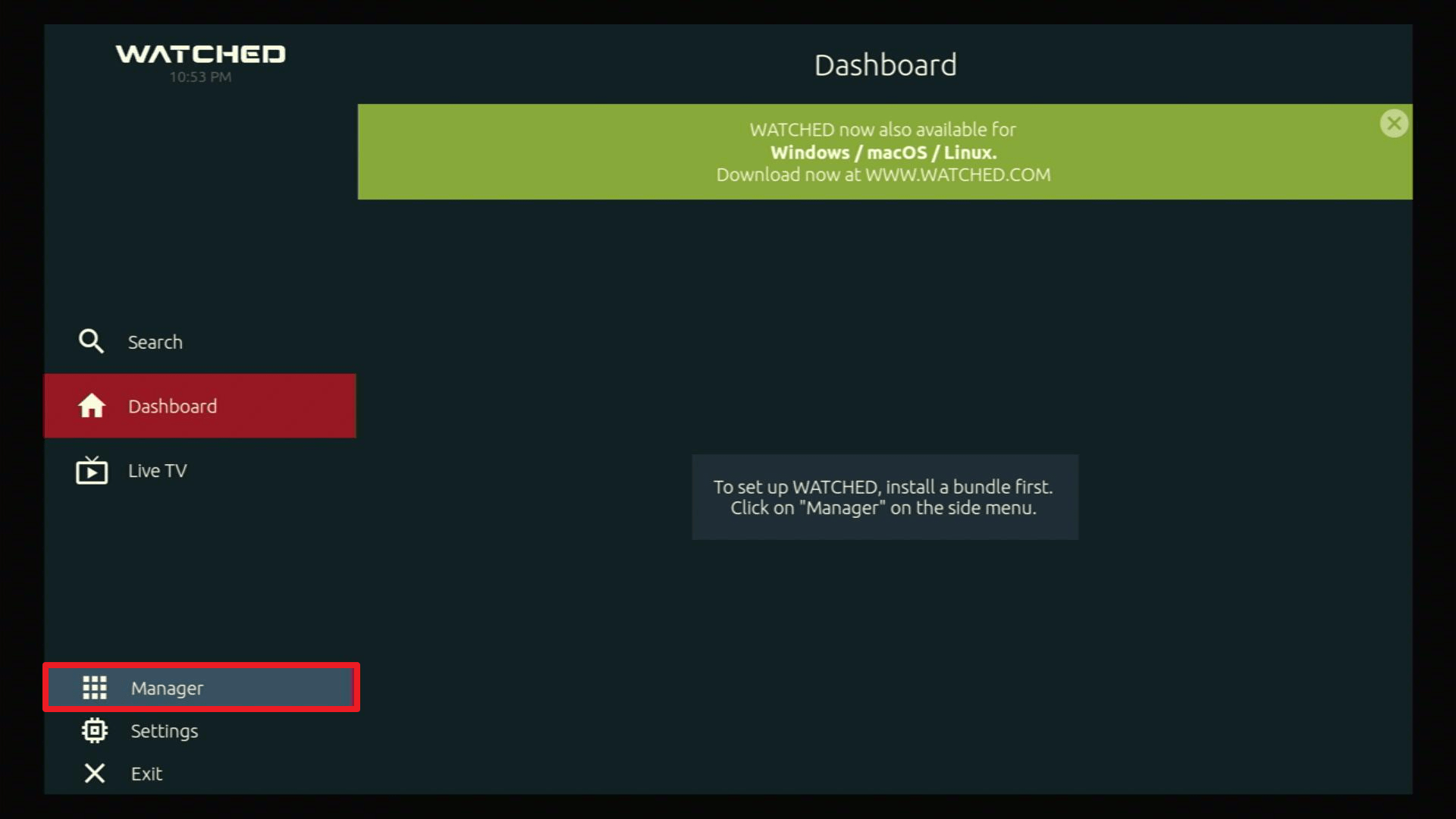
2. Click on the Manager Tab


3. Type in https://huhu.to and click on Next


4. There you go, you can now start streaming.


YOUR INTERNET ACTIVITY IS BEING WATCHED

ReviewVPN cannot attest to the legality, security and privacy of the applications discussed on this site. It is highly recommended that you use a VPN service while streaming or using Kodi.

Currently, your IP 216.73.216.240 is visible to everyone and your Browser is being tracked by Advertisers & ISP Provider.

Save 65% Now

Limited Time Offer

Here are the main reasons why you must use a VPN:

  • Your activities are hidden from your ISP, the government, and from the apps you are using.
  • You can access additional movies and TV streams.
  • ISP attempts to throttle are thrwarted thus reducing buffering issues.
  • Geographically restricted content like Netflix and Hulu can be unblocked.

A VPN works be replacing your ISP-assigned IP address and creating an encrypted tunnel. We recommend the no log service offered by IPVanish. It works well on a Firestick and offers the fastest possible speeds.

Special Limited Time Offer - Get IPVanish


Legal Disclaimer: ReviewVPN.com does not encourage or endorse any illegal activity involved in the usage of services and applications referenced on this site. We do not verify the licensing agreements of services. The end-user is wholly responsible for ensuring that any media accessed through these services does not violate copyright and/or licensing laws. ReviewVPN does not promote, link to, or receive compensation from any Apps and IPTV services.


Install Surfshark on Firestick

Best Surfshark Deal


Is it Any Good?

Watched App is very easy to use. You will find that you will not be needing Mouse Toggle to navigate through the app.

In terms of content, it can keep up with the most popular free streaming apps providing the latest releases for movies and TV Shows.

The only caveat about it is the Live TV Section. It only contains one channel and it is not even working. This is actually negligible since a lot of people prefer movies and TV Shows instead of Live TV. But if you like watching live TV, you can refer to our Best Live TV Apps for more information.


Features

Home Page

Upon installing the app, you will find the following on the left-hand side of the screen:

  • Search
  • Dashboard
  • Live TV
  • Manager
  • Settings
  • Exit


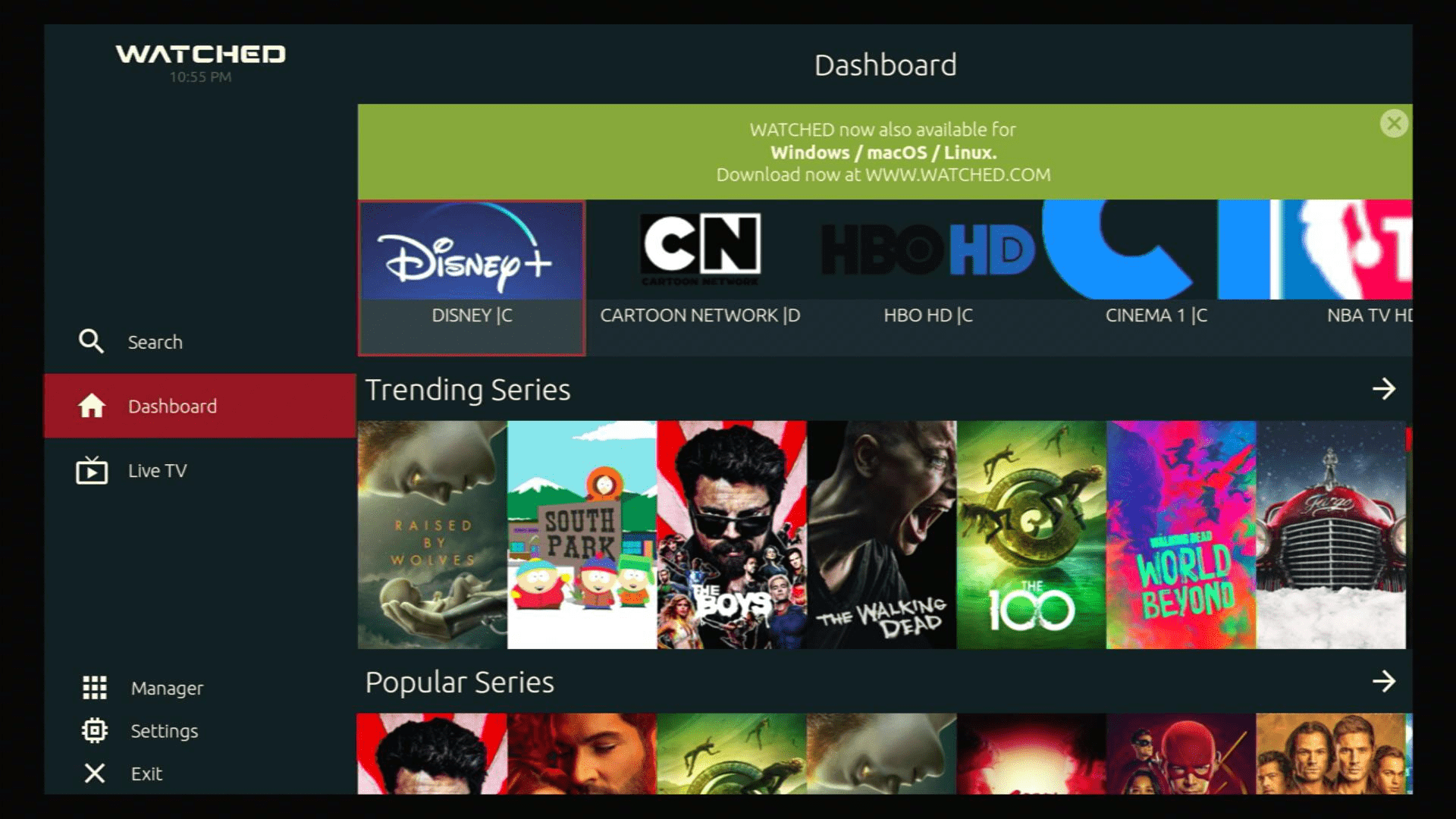
Dashboard

This section features the following:

  • Popular Series
  • Trending Movies
  • Popular Movies

Once you click on a thumbnail, it provides a brief description of the show/movie. You can also click on the dropdown button to select what season of a TV Show you would like to watch.

If you navigate to the top, you will see that there is a Star icon. Clicking on this will allow you to tag the video as a favorite.


Manager

This is the area that will show all of the installed Watched App Url Codes and Watched App Bundle Codes. Aside from huhu.to, here are the other pre-installed Watched App bundle codes:

  • Mediathek Bundle
  • Ted Bundle
  • WATCHED Bundle
  • WATCHUP Bundle

All of these bundles are German-based content except for the Ted Bundle since this is focused on Ted Talk and topics.


Genres

The available genres are Action, Adventure, Animation, Comedy, Crime, Documentary, Drama, Family, Fantasy, History, Horror, Music, Mystery, Romance, Science Fiction, TV Movie, Thriller, War, and Western.


Languages

The good thing about Watched App is that it also features movies from other countries and Languages. Here are the other available Languages:


Pros and Cons

Pros

  • Up to date releases.
  • Excellent Playback and Loading time
  • The Subtitles are automatically generated. You do not have to manually select them compared to other popular Terrarium TV Clones.
  • Ad-free
  • HD Video formats (720p and 1080p)
  • Search Functionality


Cons

  • Earlier seasons for some TV Shows do not have links.
  •  Some movie sources are not correct. Instead of showing what you clicked on, it will show another movie.


Stream Safely with a VPN?

The most important thing to remember when using free streaming apps is to utilize them alongside a premium VPN service like Surfshark. Here are the reasons why.

  • Surfshark will keep your online identity and activity anonymous. Your ISP will not be able to track what you do online.
  • It will allow you to access geo-restricted content.
  • it will provide security whenever you access public wifi internet. Keep your data and personal information protected.
  • One of the best solutions to buffering on Firestick and Kodi Buffering.

Note: For more information about Surfshark, please read our Surfshark Review.


Grab your subscription now!


How to Install Surfshark VPN on Firestick

If your Firestick still has the older interface, read this article to learn how to update it: Update Firestick Interface.

Follow our screenshots below to install the SurfShark VPN app on your Fire TV stick.

1. Go to the Home screen of your Firestick.

step 1 Install Surfshark VPN on Firestick


2. Navigate towards the Find tab. Press the Search button from the resulting dropdown.

step 2 Install Surfshark VPN on Firestick


3. Type in the keyword of SurfShark and select from the suggestions that will appear.

step 3 Install Surfshark VPN on Firestick


4. Click the official SurfShark icon from your search results.

step 4 Install Surfshark VPN on Firestick


5. Press the Download (You own it) button.

step 5 Install Surfshark VPN on Firestick


6. The SurfShark VPN installer will download on your device.

step 6 Install Surfshark VPN on Firestick


7. SurfShark VPN’s app will automatically install itself on your Fire TV stick.

step 7 Install Surfshark VPN on Firestick


8. Press the Open button after completing SurfShark VPN’s installation process.

step 8 Install Surfshark VPN on Firestick


9. Please wait for the SurfShark VPN to load its user interface.

step 9 Install Surfshark VPN on Firestick


10. You can now log in with your SurfShark VPN account credentials.

step 10 Install Surfshark VPN on Firestick

Learn more about Surfshark and Grab the Best Surfshark Deal Now!


Install Surfshark on Firestick

Best Surfshark Deal


Other VPNs to Consider

NordVPN (Best for Streaming)

Best Features

  • 5000+ Server in 50+ Countries 
  • Military-Grade Encryption
  • Fast Connection Speed
  • Suitable to a lot of devices
  • No-Log Policy

Prices
  • Complete $5.89 per month (64% Discount)
  • Plus $4.59 per month (56% Discount)
  • Standard $3.69 per month (55% Discount)

Best Features

  • 750+ High-speed VPN Servers in 43 Locations
  • Military-Grade Encryption
  • Fastest HD Streaming and Gaming
  • 30-Day Money-Back Guarantee
  • Unlimited Data & Devices
  • No-Log Policy

Prices
  • 3 Years $1.99 per month (82% Discount)
  • 1 Years $3.29 per month (70% Discount)
  • 1 Month $10.99 per month

IPVanish VPN (Most Secure)

Best Features

  • 1200+ Servers in 60+ Countries around the world
  • Unlimited Connections
  • No-Log Policy
  • Top Notch Military-Grade VPN Protocols and Encryptions
  • 100% Safe and Secured
  • Most Trusted VPN
  • Best VPN for Firestick
  • 30-Day Money-Back Guarantee

Prices
  • Yearly $3.99 per month (63% Discount) – 30 days risk free + Ransomware & Malware Protection
  • Quarterly $5.32 per month (51% Discount)
  • Monthly $10.99 per month


For more VPN discounts, go to ReviewVPN Deals and purchase the best VPN for you.


FAQ

What are Watched App URL/List/Bundle Codes

Mediathek Bundle, Ted Bundle, WATCHED Bundle, and WATCHUP Bundle.


Is it safe to download?

Yes. Watched App is safe to download on your Firestick and other android devices.


Is it legal or grey?

Watched App is 100% legal to download and install on Firestick.


Is it free?

Yes. It is free.


Are there ADS?

Ad Guard is not required to block out ads because Watched App is totally ad-free.


Is there a premium version?

There is no premium version.


Is it a Terrarium Clone?

No. Watched App is not a Terrarium TV clone.


Is there an official website?

It does not have an official website.


What other devices does it work on?

Aside from the Amazon Firestick, you can download and install Strix on Android Devices and other gadgets that run on similar platforms. 


How does the app work?

It works by scraping the web for working links. 


Minimum Version Required

Your device needs to be version 5.1 and above.


How long has it been around?

It is pretty new to the scene. It was released just this year, 2020.


Alternatives

Free Streaming apps are unpredictable by nature. Most days they will work, and sometimes, they will not. We always remind our readers to have a good set of alternatives.

If you ever find the Watched App is not working properly, here the best replacements for it:

                 APPS

               REVIEW

           DOWNLOAD

                 Nova TV

           Nova TV Review

                  Viva TV

            Viva TV Review

                PikaShow

          PikaShow Review

                    Strix

              Strix Review

                 PTV Max

           PTV Max Review

                  FilmPlus

           FilmPlus Review

ReviewVPN.com does not host any of these files. They are hosted on Archive.org.


Note: ReviewVPN.com does not host this APK file. It is hosted on Archive.org.


Our Opinion

Watched App is a pretty solid streaming app. Aside from the updated releases, we found it very nice that it did not buffer at all. Although there are minor setbacks, we believe that these are tolerable and does not define what the app is capable of.

Having said that, please follow the tutorials on how to install Watched App on your Firestick and other devices and enjoy a fine streaming experience.

We hope that this article helps you with how to install Watched App on your Firestick and other devices. Thank you for reading!


Note: ReviewVPN.com does not own or operate any app nor does it endorse any. The main purpose of this article is strictly for educational purposes only.


You may also like:

Best Filelinked Codes 2020

50 Best Free Movie Streaming Sites

Best Adult Apps for Firestick

The Best Adult Apps for Android


2