How to Install OneFlix Kodi Build on Firestick/Android (Kodi 20 Nexus)

Overview

This article will show how to install OneFlix Kodi Build on Firestick/Android. 


OneFlix is a Kodi build from The709 Repository that offers HD movies and TV shows. It gives users access to some of the most popular video add-ons, including Seren, Umbrella, Fen, Ghost, The Crew, Homelander, The Promise, IMDb Trailers, and TheMovieDB Helper.

Additionally, after choosing a title, it will let you select the Addon you want to use to stream the video. Then, you can select your preferred video quality from 4k, 1080p, 720p, or SD.

You can be guaranteed to locate a functional streaming link for the movie or television program you want to enjoy thanks to OneFlix’s abundance of streaming links. Moreover, OneFlix is great because it is seamless and simple to use Build. You can also find both debrid and free movies and shows, thus it may cater to both debrid users and those looking for free entertainment.

So without further ado, let’s get started on installing OneFlix and configuring it with Real Debrid.


ANONYMOUSLY


How To Install OneFlix Kodi Build on Firestick (Video)


How To Install OneFlix Kodi Build on Firestick

Below is the step-by-step guide on how you can install OneFlix Kodi Build on Kodi Nexus 20:


1. Launch the Kodi app on your Firestick. Click on the gear wheel icon (Settings)

OneFlix Kodi Build


2. Select “System

OneFlix Kodi Build

3. Scroll down to “Add-ons” Then Go to “Unknown sources” then toggle it on.

OneFlix Kodi Build


4. Select “Yes”. Then using your Firestick remote, press the return button to go back to the System page

OneFlix Kodi Build


5. Now choose “File Manager

OneFlix Kodi Build


6. Scroll down and select “Add source

OneFlix Kodi Build


7. Click “<None>

OneFlix Kodi Build


8. Type in “https://zaxxon709.github.io/repo” then click “OK

OneFlix Kodi Build


9. Highlight the box under the source to give the media source a name, and put “oneflix” or any other name that will help you identify it quickly. Click “OK”. Return to the System page by pressing the return button on your remote

OneFlix Kodi Build


10. Select “Add-ons

OneFlix Kodi Build


11. Choose “Install from zip file

OneFlix Kodi Build


12. Click “Yes

OneFlix Kodi Build


13. Select “oneflix

OneFlix Kodi Build


14. Then click on the zip file URL for Kodi 20 Nexus – 709-1.0-Nexus.zip

OneFlix Kodi Build


15. Wait for the notification “The 709Repo Add-on installed” to appear on the upper right part of the screen

OneFlix Kodi Build


16. Then click “Install from repository

OneFlix Kodi Build


17. Select “The709Repo

OneFlix Kodi Build


18. Then choose “Program add-ons

OneFlix Kodi Build


19. Click on “709Wizard

OneFlix Kodi Build


20. Then click “Install

OneFlix Kodi Build


21. Wait for the “709Wizard Add-on installed” notification

OneFlix Kodi Build


22. Click “Close

OneFlix Kodi Build


23. Then choose “Yes

OneFlix Kodi Build


24. Select “OneFlix

OneFlix Kodi Build


25. Click “Continue”. The OneFlix Kodi Build will then start to download

OneFlix Kodi Build


26. Once done, Click “OK” to force close Kodi.

OneFlix Kodi Build


27. Relaunch Kodi.

OneFlix Kodi Build


28. That’s it, OneFlix Kodi Build is now successfully installed on your Firestick.

OneFlix Kodi Build


YOUR INTERNET ACTIVITY IS BEING WATCHED

ReviewVPN cannot attest to the legality, security and privacy of the applications discussed on this site. It is highly recommended that you use a VPN service while streaming or using Kodi.

Currently, your IP 216.73.216.102 is visible to everyone and your Browser is being tracked by Advertisers & ISP Provider.

Save 65% Now

Limited Time Offer

Here are the main reasons why you must use a VPN:

  • Your activities are hidden from your ISP, the government, and from the apps you are using.
  • You can access additional movies and TV streams.
  • ISP attempts to throttle are thrwarted thus reducing buffering issues.
  • Geographically restricted content like Netflix and Hulu can be unblocked.

A VPN works be replacing your ISP-assigned IP address and creating an encrypted tunnel. We recommend the no log service offered by IPVanish. It works well on a Firestick and offers the fastest possible speeds.

Special Limited Time Offer - Get IPVanish


Legal Disclaimer: ReviewVPN.com does not encourage or endorse any illegal activity involved in the usage of services and applications referenced on this site. We do not verify the licensing agreements of services. The end-user is wholly responsible for ensuring that any media accessed through these services does not violate copyright and/or licensing laws. ReviewVPN does not promote, link to, or receive compensation from any Apps and IPTV services.


Install Surfshark on Firestick

Best Surfshark Deal


How to Use OneFlix Kodi Build With Real-Debrid

Using Real debrid is the best way to watch the most recent and popular movies and TV episodes. Fortunately, Serenity supports real debrid integration, allowing you to locate the best streaming sources for the best video quality.

1. From the Home Screen, select “Settings

Use OneFlix Kodi Build With Real-Debrid


2. Choose “Trakt & Debrid

Use OneFlix Kodi Build With Real-Debrid


3. Then select “Real-Debrid

Use OneFlix Kodi Build With Real-Debrid


4. Choose “Authorize

Use OneFlix Kodi Build With Real-Debrid


5. List down the Real-Debrid code provided.

Use OneFlix Kodi Build With Real-Debrid


6. Go to real-debrid.com/device and enter your authorization code then click continue.

Use OneFlix Kodi Build With Real-Debrid


7. You’ll then be prompted with a successful authorization message.

Use OneFlix Kodi Build With Real-Debrid


8. Wait for the sync-in-progress message. Real-Debrid is now successfully integrated with OneFlix Kodi Build.

Use OneFlix Kodi Build With Real-Debrid


Features

  • Contains Movies & TV Shows
  • Includes material from well-known providers like Prime Video, Hulu, Apple TV+, Disney+, HBO Max, Peacock, and Fubo.
  • You may watch movies from the 1900s to the present day.
  • There are several different genres to choose from, including action, adventure, animation, comedy, crime, documentary, drama, family, fantasy, history, horror, music, mystery, romance, science fiction, TV movie, Thriller, War, and Western.
  • G, PG, PG-13, R, NC-17, TV-Y, TV-G, TV-PG, TV-14, and TV-MA are the available movie and television ratings.
  • My Lists provides access to My Trakt Movies, My Trakt TV Shows, MDbList, Seren – My Trakt, Fen – My Movies, Fen – My Shows, Umbrella – My Movies, Umbrella – My TV Shows, Homelander – My Movies, and Homelander – My TV Shows.
  • You can use the Search option to look for movies, movies advanced, TV shows, TV shows advanced, box sets, studios, actors, and trakt lists.
  • Allows you to save items from media viewing to your favorites.
  • GUI Sounds, Image Collections, Languages, Screensaver, and Skin are all customizable.
  • Subtitle support is available.
  • Supports Trakt, Real-Debrid, AllDebrid, Premiumize, and MDbList API Key.


Pros & Cons

Pros

  • There are filters for genres, decades, and Movies & TV Ratings to help you find videos that are relevant to your interests.
  • It offers both free and debrid videos.
  • There are numerous streaming links available.
  • Features a very neat interface.

Cons

  • There is some lag while navigating, but it is manageable.
  • When watching a video, there will be some loading time.
  • I ran into a playback issue.


Should I use a VPN with OneFlix Kodi Build?

SurfShark Logo No Background

Yes, we recommend employing a VPN when using builds from third parties like OneFlix. This is because you never know what risks come with these Builds since they are not from the official Kodi Repository. In other words, Kodi will not be held responsible for any harm or violations that may result from utilizing these Builds.

Furthermore, a VPN like Surfshark hides your traffic from your ISP and everyone else on the internet. Consequently, you can make sure to prevent ISP throttling which results in lags and buffers when streaming your favorite movies or shows.

  • Here are some more benefits of using Surfshark:
  • It contains a Cleanweb function that guards against malware and advertisements.
  • Cookie consent popups can be disabled.
  • Bypassing geo-restrictions, enables you to access any content from around the world.
  • Unrestricted bandwidth is available for downloading and streaming any OneFlix material.
  • It safeguards an unlimited number of device connections.
  • Uses uncrackable 256-bit military-grade encryption.
  • You may strengthen your account’s security by enabling two-factor authentication.
  • There is a 30-day money-back guarantee available.

Note: For more information about Surfshark, please read our Surfshark Review.


How to Install Surfshark VPN on Firestick

If your Firestick still has the older interface, read this article to learn how to update it: Update Firestick Interface.

Follow our screenshots below to install the Surfshark VPN app on your Fire TV stick.

1. Go to the Home screen of your Firestick.

step 1 Install Surfshark VPN on Firestick


2. Navigate toward the Find tab. Press the Search button from the resulting dropdown.

step 2 Install Surfshark VPN on Firestick


3. Type in the keyword of Surfshark and select from the suggestions that will appear.

step 3 Install Surfshark VPN on Firestick


4. Click the official SurfShark icon from your search results.

step 4 Install Surfshark VPN on Firestick


5. Press the Download (You own it) button.

step 5 Install Surfshark VPN on Firestick


6. The Surfshark VPN installer will download on your device.

step 6 Install Surfshark VPN on Firestick


7. SurfShark VPN’s app will automatically install itself on your Fire TV stick.

step 7 Install Surfshark VPN on Firestick


8. Press the Open button after completing Surfshark VPN’s installation process.

step 8 Install Surfshark VPN on Firestick


9. Please wait for the SurfShark VPN to load its user interface.

step 9 Install Surfshark VPN on Firestick


10. You can now log in with your Surfshark VPN account credentials.

step 10 Install Surfshark VPN on Firestick

Learn more about Surfshark and Grab the Best Surfshark Deal Now!


Install Surfshark on Firestick

Best Surfshark Deal


FAQs

What is OneFlix Kodi Build?

OneFlix is a Kodi Build from The 709 Repository that includes both free and premium movies and television shows. It contains some of the best add-ons, such as The Crew, Homelander, Umbrella, and many others.


Is OneFlix Kodi Build legal?

Since OneFlix collects video from different streaming addons, we cannot ensure that the stream it offers is legal. As a result, it is advised to either stream content that is in the public domain or to use anonymous streaming to avoid breaking copyright laws.


Is OneFlix Kodi Build safe?

OneFlix Kodi Build is safe, yes. However, to guard against any unintended data breaches, we always advise using a VPN when running third-party builds. Furthermore, it is recommended that you back up your device with an antivirus to prevent harmful viruses from attacking your device.


Wrapping Up

OneFlix Kodi Build is one of the best Kodi builds available today. It has a user-friendly UI that works well and lets you view HD movies and TV shows. I like that you can select the add-on from which you want to get the source and that it also offers a ton of functional links. It also allows you to watch movies and television episodes for free.

How To Install Serenity Kodi Build on Kodi 20 Nexus

Serenity Kodi Build

This article will show how to set up the Serenity Kodi Build on the Kodi 20 Nexus.


Serenity is a Kodi Build from The 709 Repository that lets you stream movies and television shows. It includes programming from reputable video service providers and supports debrid services to obtain the optimum streaming links available. Additionally, you can access your playlist and view its contents by syncing your TMDb and Trakt accounts.

Moreover, it features the Seren Kodi Addon, which is among the best Kodi Addons listed here on ReviewVPN.  You may therefore be confident that it offers excellent quality streaming for both movies and TV episodes.

However, you should be aware that Serenity is a third-party Kodi build. In other words, because you don’t know who is responsible for this Build, your data may be at risk. Thus, it is recommended that you use a VPN like Surfshark to safeguard your connection.


ANONYMOUSLY


How To Install Serenity Kodi Build on Firestick

You may install Serenity Kodi Build on Kodi Nexus 20 by following the step-by-step instructions provided below.

1. Launch the Kodi app on your Firestick. Click on the gear wheel icon (Settings)

Serenity Kodi Build


2. Select “System

Serenity Kodi Build

3. Scroll down to “Add-ons” Then Go to “Unknown sources” then toggle it on.

Serenity Kodi Build


4. Select “Yes”. Then using your Firestick remote, press the return button to go back to the System page

Serenity Kodi Build


5. Now choose “File Manager

Serenity Kodi Build


6. Scroll down and select “Add source

Serenity Kodi Build


7. Click “<None>

Serenity Kodi Build


8. Type in “https://zaxxon709.github.io/repo” then click “OK”.

Serenity Kodi Build


9. Highlight the box under the source to give the media source a name, and put “serenity” or any other name that will help you identify it quickly. Click “OK”. Return to the System page by pressing the return button on your remote.

Serenity Kodi Build


10. Select “Add-ons

Serenity Kodi Build


11. Choose “Install from zip file

Serenity Kodi Build


12. Click “Yes

Serenity Kodi Build


13. Select “serenity

Serenity Kodi Build


14. Then click on the zip file URL for Kodi 20 Nexus – 709-1.0-Nexus.zip

Serenity Kodi Build


15. Wait for the notification “The 709Repo Add-on installed” to appear on the upper right part of the screen.

Serenity Kodi Build


16. Then click “Install from repository

Serenity Kodi Build


17. Select “The709Repo

Serenity Kodi Build


18. Then choose “Program add-ons

Serenity Kodi Build


19. Click on “709Wizard

Serenity Kodi Build


20. Then click “Install

Serenity Kodi Build


21. Simply wait for the “709Wizard Add-on installed” notification

Serenity Kodi Build


22.. Click “Close

Serenity Kodi Build


23. Then choose “Yes

Serenity Kodi Build


24. Select “SERENity

Serenity Kodi Build


25. Click “Continue”. The Serenity Kodi Build will then start to download

Serenity Kodi Build


26. Once done, Click “OK” to force close Kodi

Serenity Kodi Build


27. Relaunch Kodi

Serenity Kodi Build


28. That’s it, Serenity Kodi Build is now successfully installed on your Firestick

Serenity Kodi Build


YOUR INTERNET ACTIVITY IS BEING WATCHED

ReviewVPN cannot attest to the legality, security and privacy of the applications discussed on this site. It is highly recommended that you use a VPN service while streaming or using Kodi.

Currently, your IP 216.73.216.102 is visible to everyone and your Browser is being tracked by Advertisers & ISP Provider.

Save 65% Now

Limited Time Offer

Here are the main reasons why you must use a VPN:

  • Your activities are hidden from your ISP, the government, and from the apps you are using.
  • You can access additional movies and TV streams.
  • ISP attempts to throttle are thrwarted thus reducing buffering issues.
  • Geographically restricted content like Netflix and Hulu can be unblocked.

A VPN works be replacing your ISP-assigned IP address and creating an encrypted tunnel. We recommend the no log service offered by IPVanish. It works well on a Firestick and offers the fastest possible speeds.

Special Limited Time Offer - Get IPVanish

Legal Disclaimer: ReviewVPN.com does not encourage or endorse any illegal activity involved in the usage of services and applications referenced on this site. We do not verify the licensing agreements of services. The end-user is wholly responsible for ensuring that any media accessed through these services does not violate copyright and/or licensing laws. ReviewVPN does not promote, link to, or receive compensation from any Apps and IPTV services.


Install Surfshark on Firestick

Best Surfshark Deal


How to Use Serenity Kodi Build With Real-Debrid

Using Real debrid is the best way to watch the most recent and popular movies and TV episodes. Fortunately, Serenity supports real debrid integration, allowing you to locate the best streaming sources for the best video quality.

1. From the Home Screen, select “Settings

Use Serenity Kodi Build With Real-Debrid


2. Choose “Add-ons

Use Serenity Kodi Build With Real-Debrid


3. Then select “My add-ons

Use Serenity Kodi Build With Real-Debrid


4. Select “Video add-ons

Use Serenity Kodi Build With Real-Debrid


5. Click on “Seren

Use Serenity Kodi Build With Real-Debrid


6. Then click on the “Configure” icon

Use Serenity Kodi Build With Real-Debrid


7. Hover to “Accounts” then click the right button then scroll down and Select “Authorize Real Debrid

Use Serenity Kodi Build With Real-Debrid


8. List down the Real-Debrid code provided.

Use Serenity Kodi Build With Real-Debrid


9. Go to real-debrid.com/device and enter your authorization code then click continue.

Use Serenity Kodi Build With Real-Debrid


10. You’ll then be prompted with an authentication completed message. Simply click “OK”. Real-Debrid is now successfully integrated with Serenity Kodi Build.

Use Serenity Kodi Build With Real-Debrid


Features

  • Contains movies and TV Shows
  • Provides the ability for you to stream content from Netflix, Amazon, Hulu, Apple TV+, Disney+, and HBO Max.
  • Additional service providers include fuboTV, Peacock, Youtube, Paramount Plus, Funimation Now, Discovery Plus, Showtime, AMC+, Showtime, Starz, Hoopla, VUDU, and more.
  • To access its material and view your playlist, you can sync your TMDb and Trakt accounts.
  • There are several networks accessible, including 20th Century Fox, Amblin Entertainment, BBC Films, Columbia Pictures, DreamWorks Pictures, Lionsgate, Marvel Studios, Paramount, Summit Entertainment, and more.
  • Compatible with AllDebrid, Premiumize, and RealDebrid.
  • There is a section where you may choose to watch content at random or based on genre, keyword, recently watched, most watched, trending, popular, most played, and anticipated content.
  • It has a tab for favorites where you can instantly access all the movies and TV series you’ve bookmarked.
  • You can use the Search feature to look up movies, TV shows, people, collections, businesses, and keywords.
  • Skin, Region, Control, Screensaver, and Master Lock are among the interface settings that can be customized.
  • With Skin Settings, you can personalize your home screen, choose a background, set OSD options, enable add-on support, and turn off screen elements.
  • In the profile settings, you may configure user profiles, activate login screens, set master locks, and manage content access.
  • You can modify the Library’s display, navigation, and media database options.


Pros & Cons

Pros

  • It has a sleek interface.
  • Access to a huge number of well-known providers and streaming powerhouses
  • I certainly like the option of watching movies at random based on your predefined criteria.


Cons

  • I experienced that after relaunching, Kodi would suddenly shut down.
  • To watch any of its content, you must have a Debrid account.
  • There is no free streaming available, even for categories with the word “free” in the title.


Should I Use Serenity Kodi Build with a VPN?

Yes, it is advisable to use Serenity with a VPN. This is especially the case because Serenity is a third-party build that is not available in the official Kodi repository. That is, Kodi will not be held liable for any data leaks or device damage that may occur as a result of using this Build.

Therefore, the best way to protect your data is with a VPN that will hide your IP address, like Surfshark. In this approach, accessing streaming services like Kodi won’t expose your personal information because your activity won’t be associated with your actual IP address.

All of your traffic is going to pass through an encrypted tunnel, ensuring that no logs or leaks occur on any platform that you visit. Here are some more benefits of Surfshark.

  • Allows you to circumvent censorship and geographical restrictions.
  • Permits you to use an unlimited amount of bandwidth
  • It protects an unlimited number of devices.
  • It has a Cleanweb function that blocks advertisements and malware.
  • A cookie consent pop-up blocker is included with it.
  • There is a two-factor authentication system.
  • A 30-day money-back guarantee is available.

Note: For more information about Surfshark, please read our Surfshark Review.


How to Install Surfshark VPN on Firestick

If your Firestick still has the older interface, read this article to learn how to update it: Update Firestick Interface.

Follow our screenshots below to install the Surfshark VPN app on your Fire TV stick.

1. Go to the Home screen of your Firestick.

step 1 Install Surfshark VPN on Firestick


2. Navigate toward the Find tab. Press the Search button from the resulting dropdown.

step 2 Install Surfshark VPN on Firestick


3. Type in the keyword of Surfshark and select from the suggestions that will appear.

step 3 Install Surfshark VPN on Firestick


4. Click the official SurfShark icon from your search results.

step 4 Install Surfshark VPN on Firestick


5. Press the Download (You own it) button.

step 5 Install Surfshark VPN on Firestick


6. The Surfshark VPN installer will download on your device.

step 6 Install Surfshark VPN on Firestick


7. SurfShark VPN’s app will automatically install itself on your Fire TV stick.

step 7 Install Surfshark VPN on Firestick


8. Press the Open button after completing Surfshark VPN’s installation process.

step 8 Install Surfshark VPN on Firestick


9. Please wait for the SurfShark VPN to load its user interface.

step 9 Install Surfshark VPN on Firestick


10. You can now log in with your Surfshark VPN account credentials.

step 10 Install Surfshark VPN on Firestick

Learn more about Surfshark and Grab the Best Surfshark Deal Now!


Install Surfshark on Firestick

Best Surfshark Deal


FAQs

What is Serenity Kodi Build?

Serenity is a Kodi Build that features movies and TV shows from some of the most popular TV networks and video streaming services.


Is Serenity Kodi Build Safe?

It is safe to install and use Serenity Kodi Build. However, we still recommend utilizing a VPN while using Serenity to safeguard your privacy. Furthermore, it is best to back up your device with an anti-virus tool to assure virus-free streaming.


Is Serenity Kodi Build Legal?

We have no way to identify whether the streams Serenity provides are lawful. Therefore, if you are unsure whether you are accessing legal content, it is advisable to remain anonymous to avoid any legal ramifications.


Wrapping Up

Serenity Kodi Build has a clean interface that immediately appeals to users. Additionally, it features material from many of the most well-known video providers, like Netflix, Disney+, HBO Max, and many more. So, if you have a debrid account, Serenity is a terrific add-on for streaming the most recent movies and TV episodes.

Best Kodi Addons to Watch Football (Soccer)

Best Kodi Addons to Watch Football (Soccer)

This article will provide a list of the best Kodi Addons to watch Football.

Generally speaking, it can be harder to locate a Kodi addon for sports than it is to find addons for other categories like movies and TV series. It’s because there aren’t many add-ons that give Kodi users access to content exclusively related to sports.

But, thankfully, there are now reputable Sports Kodi Addons that you can install to watch your favorite Football (soccer) teams. And we’ve made it a point to identify the best Kodi Addons to watch Football for your next streaming.

So, if you’re looking for an addon to watch the VIPLeague, Premier League, Champions League, La Liga, Bundesliga, League 1, Serie A, or any other live soccer feeds, you can find a stream on the addons that we’ll highlight in this article.


List of Best Kodi Addons to Watch Football

Sportowa

Sportowa is the first on our list of the best Kodi Addons to watch Football. Since they are not shown in the main categories, you might first be unsure of where to look for their specific sports material. However, by selecting the LiveTV category, you can access a wealth of sporting events. It starts with football, which offers live streaming of current football matches as well as other sporting events including handball, baseball, combat sport, bandy, ice hockey, volleyball, rugby league, futsal, and much more.

Additionally, there are numerous Football streaming links available. It offers several links that cater to various ethnicities, since it is available in English, Russian, German, French, Italian, Arabic, Polish, Dutch, and Romanian. So, regardless of where in the world you live, you can be guaranteed to locate a working streaming link that will enable you to completely enjoy the live football game.

Aside from that, it provides Live On Score for sporting events such as football, basketball, motorsports, boxing, and soccer. Furthermore, it contains a category specifically for VipLeague.

URL Repository: http://mbebe.github.io/blomqvist/


TapTv

taptv

TapTv or commonly known as TvTap is a popular Android application that provides live streaming from hundreds of channels. And fortunately for people who like streaming Live TV from Kodi, it has a Kodi Addon available. You can get it from the well-known TheWareHouse Repository, where you can be guaranteed to obtain a dependable functional Kodi Addon.

Furthermore, it allows you to effortlessly and efficiently watch Football on your Kodi-compatible device. It includes the most prominent sports networks, like ESPN, CBS Sports, Fox, Bein, Sky Sports, La Liga, and more. Additionally, it is divided into categories according to country, such as the US, UK, Italy, France, Argentina, Canada, Germany, Spain, and Others. As a result, you may locate practically any Sports channel you want.

URL Repository: https://tinyurl.com/TWHrepo


Rising Tides

Rising Tides is an established Kodi addon that has a solid reputation for giving its users access to sports programming. It’s also a terrific addon for watching Football because it has Football-specific sections like Football Highlights and Live Football. Additionally, it offers live PPV events as well as sports networks in many sports categories. Additionally, it offers stations from a variety of nations, including US TV, UK TV, Canada TV, French TV, Spanish TV, German TV, Indian TV, Turkish TV, and many more.

Aside from that, live sporting events are listed at least 45 minutes before they begin, giving you adequate time to prepare. Furthermore, this addon’s content is constantly updated, so you can be guaranteed to find the most recent and up-to-date sports content. So, whether you want to watch live events, news, broadcasts, highlights, or anything else, the Rising Tides Kodi Addon will have something for you.


URL Repository: http://mullafabz.xyz/Repository/K19/

YOUR INTERNET ACTIVITY IS BEING WATCHED

ReviewVPN cannot attest to the legality, security and privacy of the applications discussed on this site. It is highly recommended that you use a VPN service while streaming or using Kodi.

Currently, your IP 216.73.216.102 is visible to everyone and your Browser is being tracked by Advertisers & ISP Provider.

Save 65% Now

Limited Time Offer

Here are the main reasons why you must use a VPN:

  • Your activities are hidden from your ISP, the government, and from the apps you are using.
  • You can access additional movies and TV streams.
  • ISP attempts to throttle are thrwarted thus reducing buffering issues.
  • Geographically restricted content like Netflix and Hulu can be unblocked.

A VPN works be replacing your ISP-assigned IP address and creating an encrypted tunnel. We recommend the no log service offered by IPVanish. It works well on a Firestick and offers the fastest possible speeds.

Special Limited Time Offer - Get IPVanish


Legal Disclaimer: ReviewVPN.com does not encourage or endorse any illegal activity involved in the usage of services and applications referenced on this site. We do not verify the licensing agreements of services. The end-user is wholly responsible for ensuring that any media accessed through these services does not violate copyright and/or licensing laws. ReviewVPN does not promote, link to, or receive compensation from any Apps and IPTV services.


Install Surfshark on Firestick

Best Surfshark Deal


Stream Safely With a VPN

Surfshark vpn

There are numerous benefits to watching football on streaming platforms like Kodi. Kodi gives you access to the matches you desire, whether you’re away from home or just want to watch them without paying for an expensive IPTV subscription. However, given these advantages, we would want to make you aware of the dangers that come with streaming via free streaming apps and third-party add-ons. This is because using these services leaves you uncertain as to whether they are tracking or logging your internet activities. So it’s always recommended to use a VPN to encrypt your connection.

A VPN, such as Surfshark, will offer you with an anonymous IP address, ensuring that no one on the internet can track your real IP address. As a result, it will avoid any undesired data breaches or IP address leaks because it will not link your IP to the device that you are using.

Here are a few more benefits of utilizing Surfshark:

  • You can access material from anywhere in the world since it circumvents censorship and geographic restrictions.
  • It contains a CleanWeb function that will stop viruses and advertisements.
  • It provides unlimited bandwidth, allowing you to stream and download any content from the internet.
  • It safeguards an unlimited number of concurrent connections.
  • A cookie consent popup blocker is included with it.
  • You may further secure your account by using two-factor authentication.
  • 256-bit military-grade encryption is used.
  • There is a 30-day money-back guarantee offered.

Note: For more information about Surfshark, please read our Surfshark Review.


How to Install Surfshark VPN on Firestick

If your Firestick still has the older interface, read this article to learn how to update it: Update Firestick Interface.

Follow our screenshots below to install the Surfshark VPN app on your Fire TV stick.

1. Go to the Home screen of your Firestick.

step 1 Install Surfshark VPN on Firestick


2. Navigate toward the Find tab. Press the Search button from the resulting dropdown.

step 2 Install Surfshark VPN on Firestick


3. Type in the keyword of Surfshark and select from the suggestions that will appear.

step 3 Install Surfshark VPN on Firestick


4. Click the official SurfShark icon from your search results.

step 4 Install Surfshark VPN on Firestick


5. Press the Download (You own it) button.

step 5 Install Surfshark VPN on Firestick


6. The Surfshark VPN installer will download on your device.

step 6 Install Surfshark VPN on Firestick


7. SurfShark VPN’s app will automatically install itself on your Fire TV stick.

step 7 Install Surfshark VPN on Firestick


8. Press the Open button after completing Surfshark VPN’s installation process.

step 8 Install Surfshark VPN on Firestick


9. Please wait for the SurfShark VPN to load its user interface.

step 9 Install Surfshark VPN on Firestick


10. You can now log in with your Surfshark VPN account credentials.

step 10 Install Surfshark VPN on Firestick

Learn more about Surfshark and Grab the Best Surfshark Deal Now!


Install Surfshark on Firestick

Best Surfshark Deal


FAQs

What is the best Kodi Addon to watch Football?

This article lists the top Kodi addons for watching football. You can compare them to discover which one best suits your preferences because each of them has unique features. Sportowa, however, is what I preferred more because of how many streaming links it offers in various languages and how simple it is to use.

What is a Kodi Addon?

Watching movies, TV shows, live TV, and sports is possible with the Kodi Addon. Furthermore, the Kodi Addons we’ve featured in this article are for Sports, specifically the best Kodi Addons to watch football.


Are Kodi Addons safe?

Kodi Addons’ safety relies on the URL repository from which they are downloaded. It’s best to use Surfshark VPN to prevent data breaches and an anti-virus tool to provide a virus-free connection to assure your safety when using these add-ons.


Are Kodi Addons legal?

In general, Kodi Addons are legal. However, we can never guarantee that all the streams offered by an addon are legal. Therefore, if you are unsure whether an addon is legal, it is advisable to just remain anonymous to prevent any legal complications.


Wrapping Up

There aren’t many Addons that provide football streaming. Fortunately, we were able to obtain and test the currently available functioning addons. And hopefully, we were able to present you with the best ones for your next Football streaming on your Kodi-compatible device, such as the Firestick.

How To Install Planet Diggz Kodi Build on Kodi 20 Nexus

Planet Diggz Kodi Build Overview

This guide will show you how to install Planet Diggz Kodi Build on Firestick.


If you’re a Diggz lover or just a casual user, you’ll be excited to learn about Planet Diggz Kodi Build. Planet Diggz is a Kodi Build from the well-known Diggz Repository that offers a wide range of streaming options. You can watch Live TV, Movies, TV Shows, Sports, or even stream Music by using this Build.

In addition, you may locate some of the featured add-ons, such as Umbrella, Asgard, Chains, Fen, Homelander, KodiVerse, Scrubs, Seren, Shadow, and The Crew. As a result, with these add-ons, you may be certain of getting the best streaming experience possible.

Additionally, we want to make sure you understand that Planet Diggz is a third-party Build and isn’t offered by the official Kodi Repository. So to prevent any undesired data breaches, remember to turn on your Surfshark VPN before installing it on your device.


ANONYMOUSLY


How To Install Planet Diggz Kodi Build on Firestick

You can find the detailed steps on how you can install Planet Diggz Kodi Build on Firestick below:

1. Launch the Kodi app on your Firestick. Click on the gear wheel icon (Settings)

Planet Diggz Kodi Build


2. Select “System

Planet Diggz Kodi Build

3. Scroll down to “Add-ons” Then Go to “Unknown sources” then toggle it on.

Planet Diggz Kodi Build


4. Select “Yes”. Then using your Firestick remote, press the return button to go back to the System page

Planet Diggz Kodi Build


5. Now choose “File Manager

Planet Diggz Kodi Build


6. Scroll down and select “Add source

Planet Diggz Kodi Build


7. Click “<None>

Planet Diggz Kodi Build


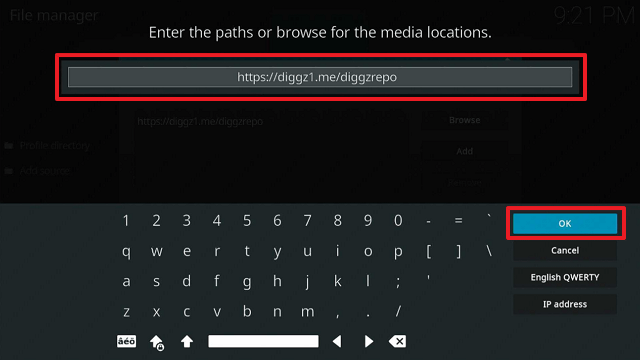
8. Type in “https://diggz1.me/diggzrepo” then click “OK

Planet Diggz Kodi Build


9. Highlight the box under the source to give the media source a name, and put “diggzrepo” or any other name that will help you identify it quickly. Click “OK”. Return to the System page by pressing the return button on your remote

Planet Diggz Kodi Build


10. Select “Add-ons

Planet Diggz Kodi Build


11. Choose “Install from zip file

Planet Diggz Kodi Build


12. Click “Yes

Planet Diggz Kodi Build


13. Select “diggzrepo

Planet Diggz Kodi Build


14. Then click on the zip file URL – zip

Planet Diggz Kodi Build


15. Wait for the notification “Diggz Repository Add-on installed” to appear on the upper right part of the screen

Planet Diggz Kodi Build


16. Then click “Install from repository

Planet Diggz Kodi Build


17. Select “Diggz Repository

Planet Diggz Kodi Build


18. Then choose “Program add-ons

Planet Diggz Kodi Build


19. Click on “Chef Nexus Wizard

Planet Diggz Kodi Build


20. Then click “Install

Planet Diggz Kodi Build


21. Simply wait for the “Chef Nexus Wizard Add-on installed” notification

Planet Diggz Kodi Build


22. Click “Close

Planet Diggz Kodi Build


23. Then choose “Yes

Planet Diggz Kodi Build


24. Click open.

Planet Diggz Kodi Build


25. Click Build Menu.

Planet Diggz Kodi Build


26. Choose Planet Diggz version 1.4

Planet Diggz Kodi Build


27. Click “Continue” And The Build will then start to install, just wait for it.

Planet Diggz Kodi Build


28. Once Done, Kodi will then force to close just tap OK then Relaunch Kodi.

Planet Diggz Kodi Build


29. That’s it Planet Diggz is installed.

Planet Diggz Kodi Build


YOUR INTERNET ACTIVITY IS BEING WATCHED

ReviewVPN cannot attest to the legality, security and privacy of the applications discussed on this site. It is highly recommended that you use a VPN service while streaming or using Kodi.

Currently, your IP 216.73.216.102 is visible to everyone and your Browser is being tracked by Advertisers & ISP Provider.

Save 65% Now

Limited Time Offer

Here are the main reasons why you must use a VPN:

  • Your activities are hidden from your ISP, the government, and from the apps you are using.
  • You can access additional movies and TV streams.
  • ISP attempts to throttle are thrwarted thus reducing buffering issues.
  • Geographically restricted content like Netflix and Hulu can be unblocked.

A VPN works be replacing your ISP-assigned IP address and creating an encrypted tunnel. We recommend the no log service offered by IPVanish. It works well on a Firestick and offers the fastest possible speeds.

Special Limited Time Offer - Get IPVanish


Legal Disclaimer: ReviewVPN.com does not encourage or endorse any illegal activity involved in the usage of services and applications referenced on this site. We do not verify the licensing agreements of services. The end-user is wholly responsible for ensuring that any media accessed through these services does not violate copyright and/or licensing laws. ReviewVPN does not promote, link to, or receive compensation from any Apps and IPTV services.


Install Surfshark on Firestick

Best Surfshark Deal


Features

  • Contains live TV, movies, television shows, sports, and music
  • The following add-ons are accessible: The Crew, Chains, Seren, Asgard, Umbrella, Fen, Homelander, and KodiVerse.
  • The “Sports Section” features ESPN Channels, Bally/RSN, Motorheads, Hunting and Fishing, Sports Replays, Sports Live PPV, and Miscellaneous Networks.
  • The music section has tabs for music videos, concerts, playlists, party modes, artists, and more.
  • Real Debrid, Premiumize, AllDebrid, Link Snappy, and Debrid Link are all compatible.
  • The Homescreen has a weather forecast.
  • Customization is available for skin colors, VIDO OSD, Music OSD, Live TV, and Main Menu
  • SiLVO Extras offer backdrop animation, rotation speed, language flags, live background for movie sets, display runtime in hours and minutes, and other features.


Pros & Cons

Pros

  • Many Addons come pre-installed.
  • Provides a wide range of streaming choices.
  • It has a sophisticated user interface.


Cons

  • It was challenging for me to navigate the Build.
  • Certain areas are inaccessible.


Should I Use Planet Diggz Kodi Build with a VPN?

Surfshark vpn

Yes, using a VPN with the Planet Diggz Kodi Build is recommended. This is because Planet Diggz is a Kodi Build that is not available through the official Kodi Repository. Therefore, Kodi will not be liable for any data breaches or risks it poses to your device. Furthermore, the usage of these builds is very risky given that Kodi explicitly denies any responsibility for any of these damages. Because of this, using a VPN is the best thing you can do to protect yourself.

With the help of a VPN like Surfshark, you may hide your identity on any Build or Addon you visit by using an anonymous IP address. By doing this, you can be certain that you are not leaving any traces on these builds and add-ons that could be used to connect you to your real IP. Here are a few more benefits of using Surfshark:

  • It contains a Cleanweb feature that will stop malware and advertisements.
  • There is also a cookie consent popup blocker available.
  • You can turn on two-factor authentication to increase account security.
  • You can access content from anywhere in the globe thanks to Surfshark’s ability to get around geographic limitations.
  • It allows an unlimited number of connections at once.
  • You won’t need to worry about data caps because there is unlimited bandwidth available.
  • In the event of a VPN failure, it contains a kill switch that will immediately disconnect your device from the internet.
  • Hides your internet activity from your ISP, preventing ISP throttling that causes lags and buffering.
  • There will be no logs and no IP address leaks.

Note: For more information about Surfshark, please read our Surfshark Review.


How to Install Surfshark VPN on Firestick

If your Firestick still has the older interface, read this article to learn how to update it: Update Firestick Interface.

Follow our screenshots below to install the Surfshark VPN app on your Fire TV stick.

1. Go to the Home screen of your Firestick.

step 1 Install Surfshark VPN on Firestick


2. Navigate toward the Find tab. Press the Search button from the resulting dropdown.

step 2 Install Surfshark VPN on Firestick


3. Type in the keyword of Surfshark and select from the suggestions that will appear.

step 3 Install Surfshark VPN on Firestick


4. Click the official SurfShark icon from your search results.

step 4 Install Surfshark VPN on Firestick


5. Press the Download (You own it) button.

step 5 Install Surfshark VPN on Firestick


6. The Surfshark VPN installer will download on your device.

step 6 Install Surfshark VPN on Firestick


7. SurfShark VPN’s app will automatically install itself on your Fire TV stick.

step 7 Install Surfshark VPN on Firestick


8. Press the Open button after completing Surfshark VPN’s installation process.

step 8 Install Surfshark VPN on Firestick


9. Please wait for the SurfShark VPN to load its user interface.

step 9 Install Surfshark VPN on Firestick


10. You can now log in with your Surfshark VPN account credentials.

step 10 Install Surfshark VPN on Firestick

Learn more about Surfshark and Grab the Best Surfshark Deal Now!


Install Surfshark on Firestick

Best Surfshark Deal


FAQs

What is Planet Diggz Kodi Build?

Planet Diggz is a Kodi Build from the Diggz Repository that offers a wide range of streaming options such as Live TV, Movies, TV Shows, Sports, and much more.


Is Planet Diggz Kodi Build Safe?

Yes, installing and using the Planet Diggz Kodi Build on any device is safe. However, it is still preferable to utilize Surfshark’s VPN and antivirus software to ensure secure and virus-free access.


Is Planet Diggz Kodi Build Legal?

The legality of the streams offered by Planet Diggz Kodi Build cannot be guaranteed. Still, it’s best to just access materials that are in the public domain to be sure that copyright regulations do not apply to them.


Conclusion

Planet Diggz Kodi Build meets practically all of your streaming demands. This Build allows you to watch movies, TV shows, live TV, and sports. It also includes music streaming, which is a plus. Furthermore, it supports premium streaming services, guaranteeing that you’ll find the best links for your desired movie or television show.

10 Best Software Torrent Sites for 2023

10 Best Software Torrent Sites for 2023

This article will provide you with a list of the best software torrent sites that are currently available.


There is a ton of software out there that you may like to try that is not offered through the official app store. Or perhaps you are looking for a modified version since you are sick of the obnoxious advertising that occasionally appears in your favorite apps. And, of course, torrents are the most dependable one-stop shop for everything you need for your device.

In light of this, we are happy to inform you that we have compiled a list of the best software torrent sites currently available. Therefore, you would save time by not having to search through each website separately for the software torrents you want to install.

Meanwhile, we’d like to caution you of the dangers of using torrent sites. And you can see it on these torrent sites, where they constantly advise you to download and use a VPN to access these sites. As a result, we recommend using Surfshark, the best VPN service that gives ultimate privacy and guarantees no logs or leaks.

Additionally, torrent sites are vulnerable to viruses, so be ready and back up your device with anti-virus software before installing torrents from the sites we’ll list below.


ANONYMOUSLY


Legal Disclaimer: ReviewVPN.com does not encourage or endorse any illegal activity involved in the usage of services and applications referenced on this site. We do not verify the licensing agreements of services. The end-user is wholly responsible for ensuring that any media accessed through these services does not violate copyright and/or licensing laws. ReviewVPN does not promote, link to, or receive compensation from any Apps and IPTV services.


List of Best Torrent Sites for Software

So, without further ado, here is our official list of the best software torrent sites.


1337X

1337x WIN 5

1337X is one of the best software torrent sites, with over 3,000 software torrents available for download. It features subcategories for apps specific to each platform, including Linux, Mac, Windows, Android, iOS, and Other. As a result, you can simply identify software or applications tailored to your device. Additionally, the list can be sorted by Time, Size, Seeders, or Leechers.

Additionally, you may locate and download the most popular apps torrents from the previous 24 hours. Other categories accessible via this popular section include Popular Today, Popular This Week, Trending Today, Trending This Week, and Top 100 This Month.


The Pirate Bay

Piratebay Live FS 5

The Pirate Bay is another popular and one of the best software torrent sites available today. It provides software applications for several operating systems, including Windows, Mac, UNIX, handheld devices, iOS (iPad/iPhone), and Android. You may also filter names to find the software you’re looking for efficiently. The torrent details include the upload date, file size, seed, leech, and uploaded by.

What’s even better about The Pirate Bay is the ability to download from it anonymously. As a result, it adds to the identity protection that a VPN already provides.


MagnetDL

The MagnetDL Website

MagnetDL is a straightforward torrent site where you can immediately click on a tab such as Software on the Homepage to find its list per category. Alternatively, if you already know the software you want to download, you may simply type its name into the search field. What makes MagnetDL special yet useful is that it enables download sharing by giving users a Direct Link, HTML Link, as well as a Forum Link.

Furthermore, this torrent site contains a wealth of information about its torrents as well as Magnet Links.


TorLock

Another name that pops up when looking for torrents in a variety of genres, especially with movies and TV series, is TorLock. It offers over 10 million verified torrents across all categories, so you can be sure it has nearly any torrent you desire. The incredible part about TorLock is that it also includes the most popular software you may download for your device. The majority of the torrents it provides have good health status, which is shown for each torrent. You may also view the date on which it was added, the size of the file, the number of other files, seeds, and peers, and whether or not it has received a favorable rating and comments.

Furthermore, you have the choice between a fast download and a safe download in addition to the standard torrent download. That is something that distinguishes it from the other torrent sites listed in this article.


KickassTorrents

kickasstorrents

Though KickassTorrents is one of the most well-known torrent sites, the one available today is just one of its clones. Fortunately, this one still functions as well as the original, making it a reliable torrent site in the present day. KickassTorrents has around 2,000 software torrents available, so you can locate an app you’re looking for or interested in. Additionally, premium mod APKs and cracked APKs are available for many operating systems, including Windows, Android, macOS, and Linux.

It also offers Fast Safe Anonymous downloading, which is advantageous because it allows you to add protection to your device without having to wait too long for a file to download.


Torrent Downloads

torrent downloads

Torrent Downloads is also one of ReviewVPN’s best Software torrent sites. What I enjoy about Torrent Download is how easy it is to use because it has filtered subcategories. As a result, if you are looking for a particular type of software, you won’t have any trouble finding it on the website. You can quickly identify apps that are compatible with your device, which will save you time.

Its subcategories include KeyGen/Tools, Linux, Mac, Mobile phones, Other operating systems, Play, PocketPC & IPAQ, and Windows. Meanwhile, their Windows subcategory has even more in-depth subsections including CD/DBD Tools, Photo Editing, Security, Sound Editing, Video Apps, and Others.


RARBG

RARBG is the next site on our list of the best software torrent sites. It also provides thousands of software torrents that you can conveniently download onto your device. This program is recommended for people who use Windows and Android devices because the majority of the torrents it delivers are for these platforms. Consequently, you can take a look at the other sites in our list if you’re looking for torrent downloads for another platform. Additionally, there are no filters available, thus your only other choice except scrolling through its list is to type directly into the Search bar.


LimeTorrents

LimeTorrents site

Another well-known name that consistently appears on lists of the best torrent sites, including our list of the best software torrent sites, is LimeTorrents. What I appreciate about LimeTorrents is that you can see the torrents’ health status. Additionally, it shows the torrent’s language so that you won’t waste time downloading torrents to discover later that they are in a language you do not even understand.

Furthermore, it offers a magnet link in addition to the torrent download. Additionally, if you click on the app you’re attempting to download, you can see a good or bad rating for it, which helps determine whether the torrent is worthwhile. Be prepared for advertisements, though, as you will need to make a few clicks before you can access the torrents on this site.


TorrentGalaxy

TorrentGalaxy on macOS

TorrentGalaxy is the next site on our list of the best software torrent sites. The excellent thing about this torrent site is that it offers verified torrents in a variety of categories, including software and apps. Additionally, you have two download options: Download Magnet and Download Torrent.

You may view the following information: seed, leech, size, date added, and uploader. Furthermore, you can view recently uploaded torrents to identify fresh torrents that are accessible for download.


Torrends

torrends

Torrends is the last site on our list of the best software torrent sites. Although Torrends is not as well-known as the sites on our list, it does provide torrents in a variety of categories, including software. It provides torrents of software or applications in categories such as PC, Mac, Linux, Graphic Design, and Video Editing. Additionally, it may sort files according to popularity, privacy, and language. But keep in mind that Torrends is a search engine that collects data from more than 600 websites, so you can be puzzled about how to download from it. However, if you begin using Torrends to download torrents, you will certainly discover how they work.


YOUR INTERNET ACTIVITY IS BEING WATCHED

ReviewVPN cannot attest to the legality, security and privacy of the applications discussed on this site. It is highly recommended that you use a VPN service while streaming or using Kodi.

Currently, your IP 216.73.216.102 is visible to everyone and your Browser is being tracked by Advertisers & ISP Provider.

Save 65% Now

Limited Time Offer

Here are the main reasons why you must use a VPN:

  • Your activities are hidden from your ISP, the government, and from the apps you are using.
  • You can access additional movies and TV streams.
  • ISP attempts to throttle are thrwarted thus reducing buffering issues.
  • Geographically restricted content like Netflix and Hulu can be unblocked.

A VPN works be replacing your ISP-assigned IP address and creating an encrypted tunnel. We recommend the no log service offered by IPVanish. It works well on a Firestick and offers the fastest possible speeds.

Special Limited Time Offer - Get IPVanish


Install Surfshark on Firestick

Best Surfshark Deal


Stream Safely with a VPN

Surfshark vpn

Torrent sites are well recognized to be vulnerable to cyberattacks since anybody may access them and use them to upload and download files. Although some torrent sites give you the option to download anonymously, you can never be sure that you are doing so. You should never be complacent because there are several risks involved with using the online platform.

Therefore, it is advised to use a VPN while visiting and downloading from torrent sites. A VPN like Surfshark will guarantee complete security when you browse the web, not just pirate sites, after connecting through its servers. That way, you may be sure that no one else will record or take your data for themselves. Additionally, it has the following benefits:

  • Allows you to circumvent censorship and geographical restrictions.
  • Protects your data and internet traffic using a 256-bit encryption key.
  • It contains a pop-up blocker for cookie consent that will prevent those intrusive messages.
  • A CleanWeb feature will automatically block ads and malware.
  • You can enable two-factor authentication to make your account more secure.
  • 24/7 live chat and email customer support are available.
  • There is a 30-day money-back guarantee offered.

Note: For more information about Surfshark, please read our Surfshark Review.


How to Install Surfshark VPN on Firestick

If your Firestick still has the older interface, read this article to learn how to update it: Update Firestick Interface.

Follow our screenshots below to install the Surfshark VPN app on your Fire TV stick.

1. Go to the Home screen of your Firestick.

step 1 Install Surfshark VPN on Firestick


2. Navigate toward the Find tab. Press the Search button from the resulting dropdown.

step 2 Install Surfshark VPN on Firestick


3. Type in the keyword of Surfshark and select from the suggestions that will appear.

step 3 Install Surfshark VPN on Firestick


4. Click the official SurfShark icon from your search results.

step 4 Install Surfshark VPN on Firestick


5. Press the Download (You own it) button.

step 5 Install Surfshark VPN on Firestick


6. The Surfshark VPN installer will download on your device.

step 6 Install Surfshark VPN on Firestick


7. SurfShark VPN’s app will automatically install itself on your Fire TV stick.

step 7 Install Surfshark VPN on Firestick


8. Press the Open button after completing Surfshark VPN’s installation process.

step 8 Install Surfshark VPN on Firestick


9. Please wait for the SurfShark VPN to load its user interface.

step 9 Install Surfshark VPN on Firestick


10. You can now log in with your Surfshark VPN account credentials.

step 10 Install Surfshark VPN on Firestick

Learn more about Surfshark and Grab the Best Surfshark Deal Now!


Install Surfshark on Firestick

Best Surfshark Deal


FAQs

Which is the best torrent site to download software?

This article includes a list of the best software torrent sites currently accessible. Everyone has different demands when it comes to torrents, so you should consider your own needs before deciding which torrent site is best for you.


Are torrent sites safe?

We cannot say that torrent sites are truly safe because they are vulnerable to cyberattacks. Because of this, torrent sites advise using a VPN before downloading torrents from them, and some even offer the option of downloading in incognito. Furthermore, anti-virus software must be used when accessing torrent sites to protect oneself from viruses.


Are torrent sites legal?

Torrent websites fall under a gray area, as we can see. This is due to the fact that we are unable to confirm the sources of their torrents or whether they have the necessary authorization for those. When selecting a torrent site, you can take into account torrents from sites like Torlock that offer verified torrents.


Wrapping Up

We sincerely hope that we were able to give you a list of the best software torrent websites currently available. You may be certain that as of this writing, every feature torrent site on our list is functional.

Of course, we must advise you once more to use caution when utilizing these sites before you start downloading loads and tons of torrents of your desired software. Make sure your VPN is activated and that you have antivirus software backing up your device.

That’s it; we hope the list of the best software torrent sites we’ve compiled for you helps you locate the software you’re looking for.

How To Install HomeFlix Kodi Build on Firestick

Overview

You may learn how to install the HomeFlix Kodi Build on a Firestick by reading this article.


HomeFlix is a Kodi Build from the Funstersplace Repository that allows you to watch movies and TV shows on your Firestick and other Kodi-enabled devices. It offers several free streams that you may watch, or you can use a debrid service like Real Debrid to get the best streaming links available. Nonetheless, you can rest assured that both alternatives offer HD movies and TV shows.

Additionally, you can link your Trakt and IMDb accounts to the HomeFlix Kodi Build so you can access your playlists.

Finally, please be aware that HomeFlix is a third-party Kodi build. Therefore, to safeguard your data from any unwanted leaks or IP address breaches, we advise using a VPN like Surfshark.


ANONYMOUSLY


How To Install HomeFlix Kodi Build on Firestick (Video)


How To Install HomeFlix Kodi Build on Firestick

You can follow along with this tutorial to install the Homeflix Kodi Build on your Firestick.

1. Launch the Kodi app on your Firestick. Click on the gear wheel icon (Settings)

HomeFlix Kodi Build


2. Select “System

HomeFlix Kodi Build

3. Scroll down to “Add-ons” Then Go to “Unknown sources” then toggle it on.

HomeFlix Kodi Build


4. Select “Yes”. Then using your Firestick remote, press the return button to go back to the System page

HomeFlix Kodi Build


5. Now choose “File Manager

HomeFlix Kodi Build


6. Scroll down and select “Add source

HomeFlix Kodi Build


7. Click “<None>

HomeFlix Kodi Build


8. Type in “https://funstersplace.net/funs/” then click “OK”

HomeFlix Kodi Build


9. Highlight the box under the source to give the media source a name, and put “funs” or any other name that will help you identify it quickly. Click “OK”. Return to the System page by pressing the return button on your remote.

HomeFlix Kodi Build


10. Select “Add-ons

HomeFlix Kodi Build


11. Choose “Install from zip file

HomeFlix Kodi Build


12. Click “Yes

HomeFlix Kodi Build


13. Select “funs

HomeFlix Kodi Build


14. Then click on the zip file URL – repository.funstersplace-0.3.zip

HomeFlix Kodi Build


15. Wait for the notification “funstersplace Repository Add-on installed” to appear on the upper right part of the screen

HomeFlix Kodi Build


16. Afterward, select “Install from repository

HomeFlix Kodi Build


17. Then click “funstersplace Repository

HomeFlix Kodi Build


18. Select “Program add-ons

HomeFlix Kodi Build


19. Click on “Funswizard

HomeFlix Kodi Build


20. Then click “Install

HomeFlix Kodi Build


21. Click “OK” for the additional add-ons that will be installed.

HomeFlix Kodi Build


22. Then wait for it to install. It’s finished once you see the “Funswizard Add-on Installed” message appears.

HomeFlix Kodi Build


23. Click “Close

HomeFlix Kodi Build


24. Click “remind me later

HomeFlix Kodi Build


25. Return to Home Screen then select “Add-ons” then Click “Funswizard”

HomeFlix Kodi Build


26. Select “Build Menu

HomeFlix Kodi Build


27. Scroll down and choose “HomeFlix

HomeFlix Kodi Build


28. Click “Continue”. Then Wait for the Build to install

HomeFlix Kodi Build


29. Click “OK” to force close Kodi

HomeFlix Kodi Build


30. Then relaunch Kodi. That’s it, HomeFlix Kodi Build is now installed on your Firestick.

HomeFlix Kodi Build


YOUR INTERNET ACTIVITY IS BEING WATCHED

ReviewVPN cannot attest to the legality, security and privacy of the applications discussed on this site. It is highly recommended that you use a VPN service while streaming or using Kodi.

Currently, your IP 216.73.216.102 is visible to everyone and your Browser is being tracked by Advertisers & ISP Provider.

Save 65% Now

Limited Time Offer

Here are the main reasons why you must use a VPN:

  • Your activities are hidden from your ISP, the government, and from the apps you are using.
  • You can access additional movies and TV streams.
  • ISP attempts to throttle are thrwarted thus reducing buffering issues.
  • Geographically restricted content like Netflix and Hulu can be unblocked.

A VPN works be replacing your ISP-assigned IP address and creating an encrypted tunnel. We recommend the no log service offered by IPVanish. It works well on a Firestick and offers the fastest possible speeds.

Special Limited Time Offer - Get IPVanish


Legal Disclaimer: ReviewVPN.com does not encourage or endorse any illegal activity involved in the usage of services and applications referenced on this site. We do not verify the licensing agreements of services. The end-user is wholly responsible for ensuring that any media accessed through these services does not violate copyright and/or licensing laws. ReviewVPN does not promote, link to, or receive compensation from any Apps and IPTV services.


Install Surfshark on Firestick

Best Surfshark Deal


Features

  • Allows you to watch movies and television shows.
  • You can use the Search feature to look for people, TV shows, and movies.
  • There is a favorite area where you may add any item from the media view to the list by utilizing the context menu.
  • Allows you to sync your Trakt and IMDb accounts to access your Movies and TV Shows playlists.
  • Quality options include 4k, 1080p, 720p, and SD.
  • Enables you to choose the best quality automatically.
  • Supports a variety of debrid services, including AllDebrid, Debrid-Link, Linksnappy, MegaDebridb, Premiumize, Real-Debrid, RPnet, Simply-Debrid, Smoozed, and many others
  • Orion is supported.
  • Skin, theme, colors, fonts, and zoom are all customizable.
  • English, Chinese, Filipino, French, German, Japanese, Korean, Russian, and many other regional languages are available.
  • Region, date, hour, temperature, and speed unit formats can be changed.
  • Enables screen saver mode in Black and Dim.
  • Gives users the option of a master lock for windows’ file manager, add-on manager, music, movies, and images.
  • You can manually add your favorite add-ons.
  • You can set it to automatically play the next video, music, or DVD.
  • supports Audio CDs, DVDs, and Blu-rays
  • Audio stream is available for visually and hearing impaired individuals.
  • Enables preferred subtitles for hearing-impaired individuals.


Pros & Cons

Pros

  • It offers both free and debrid streams.
  • There are several sources available.
  • Supports numerous Resolvers
  • Authorization for Debrid and Trakt is possible.


Cons

  • The navigation is somewhat difficult.
  • Homelander is the only built-in addon.
  • There are delays.


Should I Use HomeFlix Kodi Build with a VPN?

Surfshark vpn

Yes, you must use a VPN when installing and using the HomeFlix Kodi Build. This is because this Kodi Build is not available from the official Kodi repository. By using this build, you agree that Kodi is not responsible for any damage or data breach that might follow. On top of that, you’ll never know which servers belonging to third parties are observing or accessing your streaming activity.

So, to conceal your online behavior, you’ll need a VPN like Surfshark. You won’t have to worry about your account being stolen or someone hacking into your device because it will guarantee complete anonymity. Here are some of Surfshark’s benefits to help you understand it better:

  • It offers over 3,200 servers that you can use to remain anonymous.
  • You may connect virtually anywhere in the world and view geo-restricted content thanks to its network of 100 locations.
  • It adheres to the rigorous “zero logs” rule.
  • Your data is protected with unbreakable 256-bit military-grade encryption.
  • It has a kill switch feature that delivers further protection in the case that the VPN service is interrupted.
  • There is a pop-up blocker for cookie consent.
  • It contains a Cleanweb feature that prevents malware and advertisements.

Note: For more information about Surfshark, please read our Surfshark Review.


How to Install Surfshark VPN on Firestick

If your Firestick still has the older interface, read this article to learn how to update it: Update Firestick Interface.

Follow our screenshots below to install the Surfshark VPN app on your Fire TV stick.

1. Go to the Home screen of your Firestick.

step 1 Install Surfshark VPN on Firestick


2. Navigate toward the Find tab. Press the Search button from the resulting dropdown.

step 2 Install Surfshark VPN on Firestick


3. Type in the keyword of Surfshark and select from the suggestions that will appear.

step 3 Install Surfshark VPN on Firestick


4. Click the official SurfShark icon from your search results.

step 4 Install Surfshark VPN on Firestick


5. Press the Download (You own it) button.

step 5 Install Surfshark VPN on Firestick


6. The Surfshark VPN installer will download on your device.

step 6 Install Surfshark VPN on Firestick


7. SurfShark VPN’s app will automatically install itself on your Fire TV stick.

step 7 Install Surfshark VPN on Firestick


8. Press the Open button after completing Surfshark VPN’s installation process.

step 8 Install Surfshark VPN on Firestick


9. Please wait for the SurfShark VPN to load its user interface.

step 9 Install Surfshark VPN on Firestick


10. You can now log in with your Surfshark VPN account credentials.

step 10 Install Surfshark VPN on Firestick

Learn more about Surfshark and Grab the Best Surfshark Deal Now!


Install Surfshark on Firestick

Best Surfshark Deal


Other VPNs to Consider

NordVPN (Best for Streaming)

Best Features

  • 5000+ Server in 50+ Countries 
  • Military-Grade Encryption
  • Fast Connection Speed
  • Suitable to a lot of devices
  • No-Log Policy

Prices
  • Complete $5.89 per month (64% Discount)
  • Plus $4.59 per month (56% Discount)
  • Standard $3.69 per month (55% Discount)

Best Features

  • 750+ High-speed VPN Servers in 43 Locations
  • Military-Grade Encryption
  • Fastest HD Streaming and Gaming
  • 30-Day Money-Back Guarantee
  • Unlimited Data & Devices
  • No-Log Policy

Prices
  • 3 Years $1.99 per month (82% Discount)
  • 1 Years $3.29 per month (70% Discount)
  • 1 Month $10.99 per month

IPVanish VPN (Most Secure)

Best Features

  • 1200+ Servers in 60+ Countries around the world
  • Unlimited Connections
  • No-Log Policy
  • Top Notch Military-Grade VPN Protocols and Encryptions
  • 100% Safe and Secured
  • Most Trusted VPN
  • Best VPN for Firestick
  • 30-Day Money-Back Guarantee

Prices
  • Yearly $3.99 per month (63% Discount) – 30 days risk free + Ransomware & Malware Protection
  • Quarterly $5.32 per month (51% Discount)
  • Monthly $10.99 per month


FAQs

What is HomeFlix Kodi Build?

HomeFlix is a Kodi Build that allows you to watch free and debrid generated streaming links.


Is HomeFlix Kodi Kodi Build Safe?

Yes, installing and using the HomeFlix Kodi Build on any device is safe. However, it is still recommended to use it in conjunction with a VPN to ensure that no data is leaked. Additionally, to assure virus-free streaming, we also suggest using an antivirus tool like Surfshark or K7.


Is HomeFlix Kodi Build legal?

Because HomeFlix pulls its content from so many different sources, we cannot ensure that the streams it offers are legal. It is therefore recommended only to access those in the public domain exempt from copyright regulations.


Wrapping Up

HomeFlix is an excellent Build because it provides numerous streaming alternatives. Furthermore, you can find both free and debrid streaming connections. And aside from giving a lot of working links, it also provides HD-quality movies so you can enjoy any movie or TV show you watch. Lastly, you may also connect your Trakt and IMDb accounts to access and track your watchlist.

How To Install Artemis Kodi Addon on Firestick

Overview

This article will show you how to install Artemis Kodi Addon on Firestick.


Artemis is a Kodi Addon from The WareHouse Repository that offers movies and television shows. It supports debrid services like Real Debrid, All Debrid, and Premiumize, allowing you to find the best streaming links for both new and classic movies and TV episodes.

Moreover, this Addon includes items from IMDb, TMDb, and Trakt. You can find a variety of genres, including action, comedy, documentaries, paranormal, cartoons, and more.

Additionally, Artemis is an unofficial Kodi addon. In other words, you can’t find it in the Kodi Repository, hence Kodi won’t be held responsible for any risks you might face when using this Addon on your device.

As a result, it is advised to use it in conjunction with a VPN for anonymous streaming to protect your personal information and prevent any unintended data breaches.


ANONYMOUSLY


How To Install Artemis Kodi Addon on Firestick

You can follow along with this tutorial to install the Artemis Kodi Addon on your Firestick.

1. Launch the Kodi app on your Firestick. Click on the gear wheel icon (Settings)

Artemis Kodi Addon


2. Select “System

Artemis Kodi Addon

3. Scroll down to “Add-ons” Then Go to “Unknown sources” then toggle it on.

Artemis Kodi Addon


4. Select “Yes”. Then using your Firestick remote, press the return button to go back to the System page

Artemis Kodi Addon


5. Now choose “File Manager

Artemis Kodi Addon


6. Scroll down and select “Add source

Artemis Kodi Addon


7. Click “<None>

Artemis Kodi Addon


8. Type in “https://tinyurl.com/TWHrepo” then click “OK”

Artemis Kodi Addon


9. Highlight the box under the source to give the media source a name, and put “TWHrepo” or any other name that will help you identify it quickly. Click “OK”. Return to the System page by pressing the return button on your remote.

Artemis Kodi Addon


10. Select “Add-ons

Artemis Kodi Addon


11. Choose “Install from zip file

Artemis Kodi Addon


12. Click “Yes

Artemis Kodi Addon


13. Select “TWHrepo”.

Artemis Kodi Addon


14. Then click on the zip file URL – repository.thewarehouse-x.x.x.zip.

Artemis Kodi Addon


15. Wait for the notification “The WareHouse Repository Add-on installed” to appear on the upper right part of the screen.

Artemis Kodi Addon


16. Afterward, select “Install from repository”.

Artemis Kodi Addon


17. Then click “The WareHouse Repository”.

Artemis Kodi Addon


18. Select “Video Addons”.

Artemis Kodi Addon


19. Click on “Artemis

Artemis Kodi Addon


20. Then click “Install

Artemis Kodi Addon


21. Click “OK” for the additional add-ons to be installed

Artemis Kodi Addon


22. Then wait for it to install. It’s finished once you see the “Artemis Add-on Installed” message appears.

Artemis Kodi Addon


23. Select “Artemis” Then select “Open”.

Artemis Kodi Addon


24. That’s it, Artemis Kodi Addon is already installed on your Firestick.

24


YOUR INTERNET ACTIVITY IS BEING WATCHED

ReviewVPN cannot attest to the legality, security and privacy of the applications discussed on this site. It is highly recommended that you use a VPN service while streaming or using Kodi.

Currently, your IP 216.73.216.102 is visible to everyone and your Browser is being tracked by Advertisers & ISP Provider.

Save 65% Now

Limited Time Offer

Here are the main reasons why you must use a VPN:

  • Your activities are hidden from your ISP, the government, and from the apps you are using.
  • You can access additional movies and TV streams.
  • ISP attempts to throttle are thrwarted thus reducing buffering issues.
  • Geographically restricted content like Netflix and Hulu can be unblocked.

A VPN works be replacing your ISP-assigned IP address and creating an encrypted tunnel. We recommend the no log service offered by IPVanish. It works well on a Firestick and offers the fastest possible speeds.

Special Limited Time Offer - Get IPVanish


Legal Disclaimer: ReviewVPN.com does not encourage or endorse any illegal activity involved in the usage of services and applications referenced on this site. We do not verify the licensing agreements of services. The end-user is wholly responsible for ensuring that any media accessed through these services does not violate copyright and/or licensing laws. ReviewVPN does not promote, link to, or receive compensation from any Apps and IPTV services.


Install Surfshark on Firestick

Best Surfshark Deal


Artemis Features

  • Contains movies and television shows.
  • Selections from IMDb, TMDb, and Trakt are available.
  • The WolfGirl IMDB Movie/ TV Show Lists feature TV Shows, TV Documentaries, Tv Old School, Wolfs Picks, Action, Apocalypse, Christmas, Comedy, Documentaries, James Bond, Halloween, Monster, Paranormal, Toons, and Vault.
  • Movie choices include those that are currently playing in theaters, anticipated, upcoming, most popular, popular, box office, and Oscar winners, among others.
  • There is a range of genres to choose from, including action, adventure, animation, biography, comedy, crime, documentary, drama, family, fantasy, film noir, history, horror, music, musical, mystery, romance, science fiction, sport, Thriller, War, and Western.
  • Your watchlist can be synced with IMDb and Trakt.
  • Content from Netflix, Amazon, and Hulu is available.
  • Anime Movies and TV Shows are included.
  • It contains a Search option where you can search for movies, shows, movies by actors, and shows by actors.
  • Allows you to resume playback, auto-resume, and force container refresh.
  • Supports AllDebrid, Premiumize, and Real Debrid.
  • Account Required scrapers include EasyNews, FilePursuit, Furk, GDrive, and Ororo.
  • Premium hosts include 300MBFILMS, MAXRLS, MYVIDEOLINK, RAPIDMOVIEZ, RLSBB, and SCENERLS.


Pros & Cons

Pros

  • You have the option to enable Downloads.
  • Premium services like AllDebrid, Real Debrid, Premiumize, Easy News, and Furk are supported.
  • It is also possible to sync Trakt and IMDb.


Cons

  • Some areas require you to download Metahandler before you can stream.
  • To view its content, a Debrid account is required.
  • There is no available free streaming.


Stream Safely With a VPN

Surfshark vpn

When utilizing unofficial Kodi addons like the Artemis Kodi Addon, it is vital to keep your identity hidden. This is because they may include shady or harmful files in them that could infect your device.

And the best method for streaming anonymously is with a VPN. If you use a VPN, like Surfshark, no one online will be able to see your real IP address because it will be hidden behind an anonymous one. This will prevent anyone from accessing the data associated with your account or device.

This protects against information being stolen or recorded by unauthorized parties. It also pertains to governmental surveillance, which is intent on monitoring its citizens’ online activities for piracy and other reasons. The following are some additional advantages of using Surfshark:

  • Allows you to bypass geoblocks and access content from anywhere in the globe.
  • It has a cookie consent pop-up blocker built in to stop those intrusive cookie consent pop-ups from showing.
  • A feature called Cleanweb prevents malware and bothersome advertising.
  • AES 256-bit encryption is used to ensure that all of your traffic is protected with impenetrable protection.
  • Prevents ISP throttling, which causes lags and buffering and slows down your internet.
  • Allows you to safeguard an unlimited number of devices with a single subscription.
  • Ensures that you have unlimited bandwidth so that you can view and download any online content you choose.

Note: For more information about Surfshark, please read our Surfshark Review.


How to Install Surfshark VPN on Firestick

If your Firestick still has the older interface, read this article to learn how to update it: Update Firestick Interface.

Follow our screenshots below to install the Surfshark VPN app on your Fire TV stick.

1. Go to the Home screen of your Firestick.

step 1 Install Surfshark VPN on Firestick


2. Navigate toward the Find tab. Press the Search button from the resulting dropdown.

step 2 Install Surfshark VPN on Firestick


3. Type in the keyword of Surfshark and select from the suggestions that will appear.

step 3 Install Surfshark VPN on Firestick


4. Click the official SurfShark icon from your search results.

step 4 Install Surfshark VPN on Firestick


5. Press the Download (You own it) button.

step 5 Install Surfshark VPN on Firestick


6. The Surfshark VPN installer will download on your device.

step 6 Install Surfshark VPN on Firestick


7. SurfShark VPN’s app will automatically install itself on your Fire TV stick.

step 7 Install Surfshark VPN on Firestick


8. Press the Open button after completing Surfshark VPN’s installation process.

step 8 Install Surfshark VPN on Firestick


9. Please wait for the SurfShark VPN to load its user interface.

step 9 Install Surfshark VPN on Firestick


10. You can now log in with your Surfshark VPN account credentials.

step 10 Install Surfshark VPN on Firestick

Learn more about Surfshark and Grab the Best Surfshark Deal Now!


Install Surfshark on Firestick

Best Surfshark Deal


Other VPNs to Consider

NordVPN (Best for Streaming)

Best Features

  • 5000+ Server in 50+ Countries 
  • Military-Grade Encryption
  • Fast Connection Speed
  • Suitable to a lot of devices
  • No-Log Policy

Prices
  • Complete $5.89 per month (64% Discount)
  • Plus $4.59 per month (56% Discount)
  • Standard $3.69 per month (55% Discount)

Best Features

  • 750+ High-speed VPN Servers in 43 Locations
  • Military-Grade Encryption
  • Fastest HD Streaming and Gaming
  • 30-Day Money-Back Guarantee
  • Unlimited Data & Devices
  • No-Log Policy

Prices
  • 3 Years $1.99 per month (82% Discount)
  • 1 Years $3.29 per month (70% Discount)
  • 1 Month $10.99 per month

IPVanish VPN (Most Secure)

Best Features

  • 1200+ Servers in 60+ Countries around the world
  • Unlimited Connections
  • No-Log Policy
  • Top Notch Military-Grade VPN Protocols and Encryptions
  • 100% Safe and Secured
  • Most Trusted VPN
  • Best VPN for Firestick
  • 30-Day Money-Back Guarantee

Prices
  • Yearly $3.99 per month (63% Discount) – 30 days risk free + Ransomware & Malware Protection
  • Quarterly $5.32 per month (51% Discount)
  • Monthly $10.99 per month


FAQs

What is Artemis Kodi Addon?

The Artemis Kodi Addon allows you to stream movies and TV shows on your Kodi-compatible device. It is compatible with premium services such as Real Debrid, AllDebrid, Premiumize, Easy News, Furk, and others.


Is Artemis Kodi Addon Safe?

It is safe to use the Artemis Kodi Addon. To provide further security against data leaks and to remain anonymous while streaming, it is still recommended to use a VPN. Or, since Artemis allows content downloading, you might use an antivirus program like Surfshark or K7 to make sure you aren’t downloading any infected files.


Is Artemis Kodi Addon legal?

In general, Kodi Addons are legal. However, as we are unable to confirm that the streams provided by Artemis are legitimate, we can only recommend that you only stream from those that are in the public domain.


Should I Use Artemis Kodi Addon with a VPN?

For a secure streaming experience with Artemis, we do always recommend using a VPN. Additionally, it enables you to access geo-restricted content so you can stream any kind of material.


Click here to get the lowest price on Surfshark through our exclusive limited-time offer.

For more VPN discounts, go to ReviewVPN Deals and purchase the best VPN for you.


Conclusion

Artemis has a variety of genres for movies and TV series. Along with IMDb and TMDb, it also offers support for premium debrid services. Additionally, you may sync your Trakt account so that you can access your watchlist and schedule to keep track of your favorite shows. Therefore, you can try out this addon especially if you have a debrid account since it does not offer free streaming.

Kodi 20 Nexus – What You Should Know About The Latest Version

Kodi 20 “Nexus” Release

This article will tell you all there is to know about the latest Kodi 20 Nexus.


Finally, the Kodi Development Team has released the stable version of the Kodi 20 Nexus. And the most recent updates and releases that go along with this stable version are listed in this article.

Additionally, you may still access all of the previous updates beginning with the Alpha Release, allowing you to follow along with all of the Release Candidate upgrades.

We’ll also give you instructions on how to install the new Kodi 20 Nexus on Firesticks and other devices.

Furthermore, you may also check the list of currently running Builds and Addons on the Kodi Nexus 20.

So, without further ado, here’s a rundown of what the new Kodi 20 Nexus has to offer.


ANONYMOUSLY


Kodi 20 “Nexus” – New Features, Updates, and Fixes

The official Kodi website announced the release of the stable version of their Kodi Nexus 20 on January 15, 2023. The upgrades included in this release are detailed below.

Major Features

Multiple Instances of Binary Add-ons

Kodi may now load multiple instances of a binary add-on at the same time. Users of TVHeadend can now connect to several back-end TVHeadend servers by running multiple instances of the add-on, with unique settings like channel groups and hidden channels kept per add-on instance.


AV1 Video Support

AV1 media can now be decoded by hardware on several Kodi platforms. Inputstream.adaptive add-ons can now play AV1 streams because the Inputstream API has been upgraded to enable AV1.


Subtitles Rework

For ease of production and upkeep, subtitle formats are made more standardized to enable features that were not previously conceivable. Kodi now features better multi-language compatibility, dynamic font placement, border and background color changes, and subtitle positioning.


Game (libretro) Savestate Support

Even if games themselves don’t offer native savestate capabilities, you can still save the game state at any time with the use of this feature.


Windows HDR Support

Along with many other updates to the Windows (DXVA/2) video pipeline, full HDR support has been added for the Windows Desktop platform. Moreover, HDR is not supported on non-Desktop, i.e. Xbox UWP Store versions. Improvements to enable more accurate ACES Filmic and HABLE tone mapping make even SDR video look better, and these features are available in both the UWP and desktop versions of Kodi.


NFSv4 Support

As they previously only supported NFSv3, modifications were made to enable NFSv4 capability. However, there are certain restrictions with this, such as the requirement that you specifically choose either NFSv4 or NFSv3 as a source.


Context Menu Consistency

Numerous aspects of the handling of the right-click/long-press context menu have been improved. As a result, the context menu’s functionality is considerably more consistent across various windows, and new features like the ability to play albums directly from widgets and resumed series are now possible.


Behind The Scenes

The majority of the improvements are internal and unnoticeable to consumers, but they increase Kodi’s reliability, efficiency, and security. To advance Python and Binary add-ons and introduce new skinning features, API improvements have been done. Kodi dependencies have also been updated on the majority, if not all, Kodi systems. Additionally, corrections from routinely using static-analysis tools for code as well as database migration changes for a more seamless update, among many other things.


Note: Kodi 20 Nexus has much too many individual modifications. So, if you’re interested in learning more, the Nexus Alpha to RC2 release releases are listed below in this article.


How to Install Kodi 20 Nexus On Firestick & Fire TV

1.  Click Home on your remote and scroll once to your Right. Click Setting (Gear Wheel Icon).

Install Kodi 20 Nexus


2. Scroll down and to the right until you get to My Fire TV. Click on it.

Install Kodi 20 Nexus


3. Select Developer options.

Install Kodi 20 Nexus


4. Turn on ADB debugging and Apps from Unknown Sources.

Install Kodi 20 Nexus


5. Click Turn On when the pop-up appears.

Install Kodi 20 Nexus


6. Click Home, click FIND.

Install Kodi 20 Nexus


7. Click Search.

Install Kodi 20 Nexus


8. You can either say Downloader to your Alexa voice-enabled remote or start typing it. If you typed it, click on the suggestion when it appears.

Install Kodi 20 Nexus


9. Click on the Downloader Icon.

Install Kodi 20 Nexus


10. Click Download.

Install Kodi 20 Nexus

Install Kodi 20 Nexus


11. Click on Open.

Install Kodi 20 Nexus


12. Click on Allow.

Install Kodi 20 Nexus


13. Use the Downloader search tab.

Install Kodi 20 Nexus


14. Open the Downloader App. Type https://kodi.tv/download and click Go.

Install Kodi 20 Nexus


15. Scroll down and click on Download Now.

Install Kodi 20 Nexus


16. Scroll down the screen and select the Android icon once. Be patient because it might take it 30 seconds or so to load the next screen

Install Kodi 20 Nexus


17. Click on the ARMV7A 32-bit version.

Install Kodi 20 Nexus


18. The download should start (if it doesn’t, kick the screen a few times for good measure)

Install Kodi 20 Nexus


19. Click INSTALL.

Install Kodi 20 Nexus


20. After the Kodi App is installed, click OPEN (note, you will want to delete the APK in Downloader. You can do that at any point by going to Files and holding down on the APK file.)

Install Kodi 20 Nexus


21. Click Continue. 

Install Kodi 20 Nexus


22. Click Allow allowing Kodi to access files on your device.

Install Kodi 20 Nexus


23. Your new Kodi installed on your firestick should now load. Enjoy!

Install Kodi 20 Nexus

Install Kodi 20 Nexus


RC 2 Release Notes

On December 20, 2022, Kodi released the Kodi Nexus RC 2.

The most recent updates introduced the features listed below.


Database

A few improvements have been implemented to address v19’s database migration concerns.
The migration of the EPG database is the first of these. This resolves the issue of the EPG loading intermittently.
A second problem with the DB migration only affected the Microsoft UWP platform (Xbox and UWP desktop).


General

a fix for both audio and video playlist detection.


Platform Specific

Linux

DRMPrime on Linux now works without a problem. This enables the most recent Mesa to render hardware formats like Broadcom’s 8-bit (SAND128) and 10-bit (P030) in the proper way.


macOS

A fix has been made to allow Kodi to run on macOS 10.13. Although they still strongly advise users to upgrade to a more recent version (10.14+), this permits users who are still on version 10.13 to use Kodi. MacOS’s ability to read actual disks was stabilized. The libcdio driver was also patched as part of this to permit disk usage on Apple Silicon native builds.


Windows

There is now a fix for a crash that only affected Windows Debug builds. This had no effect on users of the actual RC1 release, however Windows developers who attempted to run Kodi as a Debug build were promptly stopped.


PVR

The problem with several resume dialogs has been resolved.


Teletext

Another concern that was fixed is Teletext.

Alpha 3 Release Notes

Last September 18, 2022, Kodi developers released the Alpha 3 version of Kodi 20 Nexus.

The following details are the features added to the latest updates.


Addons

  • Correction on the addon and repository installation crashes (ksooo,howie-f)
  • Allows numerous instances of the same binary addon.


Platforms Specifics

Linux
  • Allows setup of HDR Output


Windows
  • Fix window positioning during the transition of the window to fullscreen and back


macOS
  • OSX arm36 (Apple Silicon) build find the right binary addons from repositories


DVD

  • Fix DVD Menu indicators for DRMPrime


Database

  • ksooo optimized numerous items in DB wrappers for better performance


Filesystem

  • Fix NFS for Windows platforms after the recent NFS updates
  • NFS improvements/cleanups
  • Implementation of the initial NFS4


Font/Glyh

  • Improvements on Font/Glyph Handling code from ksooo, thexai, sarbes.
  • Caching improvements for Harbuzz glyph
  • RTL languages and certain skinning components inconsistencies are fixed


Games

  • Controllers improvements and cleanups
  • Fix crash if controller if the info files don’t have the correct info


General

  • Implements improvements from Static analysis tools like CPPCheck and ClangTidy
  • Remove obsolete addons from Core Kodi Nexus install
  • Fix wrong player playlist type for STRM file playback


Input

  • Using the mouse to drag/drop some controls is fixed


PVR

  • ksooo continues to update and fix all PVR-related items


Skinning

Estuary
  • Show titles when the “Flatten Hierarchy” setting is enabled


Subtitles

  • Further improvements/refinements to subtitles from CastagnaI


Video

  • Fix for 3D MVC Playback


Alpha 2 Release Notes

After a two-month wait, the official Kodi website revealed that the Alpha 2 version of Kodi Nexus was launched on July 10, 2022. The updates for this release are listed below:

Platform Specifics

Android
  • Fix a stutter that occurs after opening, closing, and reopening the Kodi Android app.
  • Another TrueHD fix is to reduce buffers to a specified amount to optimize data flow.
  • More local app icons should be completely rendered in Kodi.
  • Fix a binary Python module packaging issue.


Xbox

  • Fixes a few specific H.265 video crashes.

Filesystems

  • Fix a problem that prevented thumbnails from showing up when “remote” filesystems were accessed (e.g. WebDAV).


Accessible Captions

  • Fix a problem where closed captions were not functioning.


Subtitles

  • Multiple WebVTT fixes


Bluray

  • Fix BluRay resume issues on discs, including BluRay ISOs (state serializer).


Thumbnail Images

  • Reduce the “quality” of the generated thumbnails with FFmpegImage:
    • NOTE: For those people who want to change the default even further, there is an advanced setting accessible. The wiki contains additional details.


Skinning

  • A few skinning modifications have been made.
  • Skin timers
  • Removal of player.DisplayAfterSeek
  • Skip border infill
  • Moving speed
  • Diffuse fading animations
  • VideoPlayer.Art(type) and positional variants


Alpha 1 Release Notes

The updates to the Alpha 1 version of Kodi 20 Nexus on May 16, 2022, are as follows.

Video

  • AV1 hardware decoding support for Android.
  • AV1 hardware decoding support for Linux via VAAPI.
  • Upgrade to FFMPEG 4.4.


Subtitles

  • Border size/color, background type/color/opacity, shadow color/opacity, and blur are all new font style options.
  • Add support for displaying subtitles in dynamic positions using position tags.
  • Support for underlined and strikethrough text styles are also available.
  • In the color settings, create a new wide color palette.
  • To make closed caption subtitles easier to read, add a new setting to adjust text alignment.
  • Override subtitle metadata like style and position with a new setting.
  • Improvement on font size to fit the point/pixel ratio.
  • Always displays subtitles appropriately when Kodi is in window mode.
  • Enhancement on VPlayer to make the multiline text easier to read.
  • Improvement on SAMI format to better support multiple languages.
  • TX3G format has been improved to support multiple styles, colors, and an alpha channel.
  • Subtitles in ASS/SSA are shown without flickering.
  • Image-based subtitle rendering has also been improved to maintain a better aspect ratio.
  • Support for the WebVTT subtitle format type is now available.
  • The actual names of the fonts are now listed in the font list setting.
  • Support for OpenType fonts is now accessible (OTF).
  • The calibration window has been improved, and it is now able to reset the calibration settings.
  • Modification of subtitle settings without affecting the playback.


Discs

  • In file mode, restore the resume of Blu-Ray and DVD ISOs
  • Fix several optical disc playback issues on Linux due to incorrect mountpoint mapping.
  • Now mounts optical media by default on Linux (via udisks)
  • Partial code cleanup and platform separation for disc drive handling
  • Skin cosmetics
  • Resolve duplicate context menu items


EDL

  • Fix EDL mute and EDL cuts.


GUI

  • Fix wrap lists
  • Hitrect on buttons that are automatically sized are fixed.
  • Fix several context menu items that don’t trigger the built-in action.
  • GUI sounds have their volume control.
  • The keyboard dialog has a password reveal button.


Input

  • Add support for Steam Deck’s built-in controller.


Skinning

  • Create a new Color Picker window dialog to display a color palette.
  • Improvement on image control by allowing the “color diffuse” tag to access dynamic $INFO data.
  • Add new information to the Player Process Info window, which has been organized by context.
  • HDR videos now have new media flags: determine the type of HDR in a video file, store it, and process it
  • Skinners can now define modal dialogs whose visibility is determined by Boolean criteria.
  • Old info labels depreciate with the introduction of new generic labels (e.g. Player.Editlist, Player.Cuts, etc)


Estuary/Estouchy

  • New times widget on the Estuary PVR home screen (replacing the old current/next recording widget)
  • Add percentage played progress bars to the Recent Channels and Recent Recordings widgets on the Estuary PVR Home Screen.
  • Change the default click action to access the Guide window on the Estuary PVR Home Screen.
  • Improve the default skin’s display of EDL markers (now shows EDL mutes, and identifies cut sections)


Games

  • Savestate manager for Retroplayer with captions reflecting the state of the game given by https://retroachievements.org/
  • To switch between gaming controllers, use the in-game Port Setup dialog.


Platform Specifics

UNIX Family Platforms

  • Implement WS-Discovery (SMB discovery) on *ix platforms (Android, Linux, and Apple).


iOS/TVOS

  • Improvement on Siri Remote handling.
  • Improved “Now Playing” information


macOS

  • Initial M1 native support, including native windowing and input handling
    • NOTE: They do not provide pre-built M1 dmgs. However, if you are a developer eager to help smooth out the many bugs in the native windowing implementation, please contact @fuzzard on the forums.
  • Add OSX support for GameController.
  • Several code cleanups/refinements/refactorings


Android

  •  Update the Android build to use Gradle for signing, aligning, and packing.


Linux

  • For GLES, add ACES/Hable Tonemapping.
  • More GLES BiCubic Shaders
  • Pipewire support


Windows

  • Adds a new setting for SDR videos to employ a 10-bit swap chain.
  • Improves video quality and color conversion precision: YUV to RGB limited to full range, shaders, and so forth. This is true even if the system or graphics driver limits video output to 8-bit RGB.
  • By sharing decoding and rendering surfaces, DXVA2 (HW video decoding) performance can also be improved.
  • When utilizing the latest NVIDIA and AMD graphics drivers, it avoids video copy operations and dramatically reduces video memory utilization.


i8n support

  •  For scripts with open-type font shaping options, Harfbuzz rendering is available.


PVR

  • A provider can be specified for channels and recordings.
  • Support for read-only recordings
  • Add Saved Searches to EPG Search, including the new Estuary PVR Home Screen widget
  • Channel Manager: Add the option of refreshing all channel logos.
  • Settings: Allow users to decide which data to delete when the PVR database is reset.
  • Cached PVR images are automatically cleaned (texture.db and cached image files)
  • Fixes in functionality for multi-PVR Add-on scenarios
  • Improvements in performance, especially for large numbers of channels


Build System/Dependencies

  • For Apple/Android platforms, it includes updates on most dependencies to the newest version or close to it.
  • Several cmake upgrades to keep the build system latest.


Date/Time

  •  Many updates/changes throughout the code base to use std::chrono


Addons

  • Colour Picker
  • Colour button setting
  • Support for adding video HDR-type information to a video list item is now available.
  • Recursive function for removing orphaned dependencies


Conclusion/Recommendation

To conclude, we do not recommend installing the Kodi 20 Nexus Alpha at this time. But, you can still do so by clicking this link. Then, after selecting your device type, click on the prerelease tab to find the download option.

However, we must remind you that downloading the latest update is at your own risk. Because some of the builds and addons may not work with the new Kodi version. Nonetheless, if you want to be among the first to test it out or assist the Kodi development team in resolving bugs and issues with the new release, you will be of great help to the Kodi team. And so that we can get the Kodi 20 Nexus up and running as soon as possible.

You can also read our article regarding the best Kodi builds and best Kodi addons. Finding the best ones can be a pleasant way to pass the time while waiting for the Kodi 20 Nexus to be in good working condition.

How to Install YTV Player on Firestick and Android

Overview

This guide will show you how to install YTV Player on Firestick and Android devices.

YTV Player is a free multimedia link player created by Prod ADP. By simply adding a video link to the app, YTV Player makes it possible to watch any video. It also allows you to easily save and edit your links, as well as set the aspect ratio and screen rotation.

Moreover, if you enjoy viewing Yacine TV, you can use YTV Player to watch your favorite Yacine TV channels. Yacine TV offers French and Arabic channels that you may watch on your device for free. It allows you to watch videos in your selected resolution, which includes 244P, 360P, and 720P. And with YTV Player, you can now open and watch Yacine TV from your Firestick and Android devices much more easily

So without further ado, let’s get started on how to install the YTV Player on Firestick and Android.


ANONYMOUSLY


How to Install YTV Player on Firestick

1.  From your home screen, go to Settings.

YTV Player


2. Scroll down and to the right until you get to My Fire TV. Click on it.

YTV Player


3. Select Developer options.

YTV Player


4. Turn on ADB debugging and Apps from Unknown Sources.

YTV Player


5. Click Turn On when the pop-up appears.

YTV Player


6. Click Home, click FIND.

YTV Player


7. Click Search.

YTV Player


8. You can either say Downloader to your Alexa voice-enabled remote or start typing it. If you typed it, click on the suggestion when it appears.

YTV Player


9. Click on the Downloader Icon.

YTV Player


10. Click Download.

YTV Player


YTV Player


11. Click on Open.

YTV Player


12. Click on Allow.

YTV Player


13. Use the Downloader search tab.

YTV Player


14. Type https://reviewvpn.com/ytvpl and click go.

YTV Player


15. Wait for the APK to be downloaded.

YTV Player


16. Click install

YTV Player


17. Click open.

YTV Player


Download YTV Player APK on Android Devices


YTV Button

Note: ReviewVPN.com does not host this APK file. It is hosted by Archive.org


YOUR INTERNET ACTIVITY IS BEING WATCHED

ReviewVPN cannot attest to the legality, security and privacy of the applications discussed on this site. It is highly recommended that you use a VPN service while streaming or using Kodi.

Currently, your IP 216.73.216.102 is visible to everyone and your Browser is being tracked by Advertisers & ISP Provider.

Save 65% Now

Limited Time Offer

Here are the main reasons why you must use a VPN:

  • Your activities are hidden from your ISP, the government, and from the apps you are using.
  • You can access additional movies and TV streams.
  • ISP attempts to throttle are thrwarted thus reducing buffering issues.
  • Geographically restricted content like Netflix and Hulu can be unblocked.

A VPN works be replacing your ISP-assigned IP address and creating an encrypted tunnel. We recommend the no log service offered by IPVanish. It works well on a Firestick and offers the fastest possible speeds.

Special Limited Time Offer - Get IPVanish


Legal Disclaimer: ReviewVPN.com does not encourage or endorse any illegal activity involved in the usage of services and applications referenced on this site. We do not verify the licensing agreements of services. The end-user is wholly responsible for ensuring that any media accessed through these services does not violate copyright and/or licensing laws. ReviewVPN does not promote, link to, or receive compensation from any Apps and IPTV services.

Install Surfshark on Firestick

Best Surfshark Deal


YTV Player Features

  • Enables you to watch videos of any online content by using a URL
  • Streaming compatibility with Yacine TV
  • Allows you to start watching by adding your video link.
  • Enter and save the Title, URL, and User Agent (optional) of the video you want to watch.
  • Makes it simple to save and edit links.
  • The aspect ratio and screen rotations can be modified.


Pros & Cons

Pros

  • Works with any streaming URL you may find online.
  • Allows you to watch videos by merely entering a URL.
  • Lightweight and convenient.


Cons

  • There are some loading issues.
  • After updating the YTV Player, several users reported difficulties viewing Yacine TV.


Stream Safely With a VPN

Surfshark vpn

It’s crucial that you protect your data, no matter how much you enjoy watching your favorite videos on your Firestick and Android devices. The reason for this is that when you access and stream anything online, you can be exposed in a number of different ways. And using VPN services like Surfshark is one way to control this.

You can protect your online privacy using a VPN like Surfshark, making sure that no one, not even your ISP, can access your data. By doing this, you can stop online snoopers like hackers and phishers from collecting your data and using it as they want.

In addition, you can escape ISP throttling, which is troublesome when streaming because it slows down your connection and causes lags and buffering. Aside from that, the following are some of Surfshark’s benefits:

  • Censorships and geographic limitations can be bypassed to access any app, website, or media from anywhere in the world.
  • It offers 3,200 servers spread over 100 locations, guaranteeing you’ll always have a connection for your frequent streaming demands.
  • You get access to unlimited bandwidth with this service, so you can binge-watch all of your favorite episodes and movies.
  • You can secure every gadget you own because it protects an unlimited number of devices.
  • A function called Cleanweb will stop malware and advertisements.
  • It has a pop-up blocker for cookie consent.
  • Your account can be made more secure by using two-factor authentication.

Note: For more information about Surfshark, please read our Surfshark Review.


How to Install Surfshark VPN on Firestick

If your Firestick still has the older interface, read this article to learn how to update it: Update Firestick Interface.

Follow our screenshots below to install the Surfshark VPN app on your Fire TV stick.

1. Go to the Home screen of your Firestick.

step 1 Install Surfshark VPN on Firestick


2. Navigate toward the Find tab. Press the Search button from the resulting dropdown.

step 2 Install Surfshark VPN on Firestick


3. Type in the keyword of Surfshark and select from the suggestions that will appear.

step 3 Install Surfshark VPN on Firestick


4. Click the official SurfShark icon from your search results.

step 4 Install Surfshark VPN on Firestick


5. Press the Download (You own it) button.

step 5 Install Surfshark VPN on Firestick


6. The Surfshark VPN installer will download on your device.

step 6 Install Surfshark VPN on Firestick


7. SurfShark VPN’s app will automatically install itself on your Fire TV stick.

step 7 Install Surfshark VPN on Firestick


8. Press the Open button after completing Surfshark VPN’s installation process.

step 8 Install Surfshark VPN on Firestick


9. Please wait for the SurfShark VPN to load its user interface.

step 9 Install Surfshark VPN on Firestick


10. You can now log in with your Surfshark VPN account credentials.

step 10 Install Surfshark VPN on Firestick

Learn more about Surfshark and Grab the Best Surfshark Deal Now!


Install Surfshark on Firestick

Best Surfshark Deal


Other VPNs to Consider

NordVPN (Best for Streaming)

Best Features

  • 5000+ Server in 50+ Countries 
  • Military-Grade Encryption
  • Fast Connection Speed
  • Suitable to a lot of devices
  • No-Log Policy

Prices
  • Complete $5.89 per month (64% Discount)
  • Plus $4.59 per month (56% Discount)
  • Standard $3.69 per month (55% Discount)

Best Features

  • 750+ High-speed VPN Servers in 43 Locations
  • Military-Grade Encryption
  • Fastest HD Streaming and Gaming
  • 30-Day Money-Back Guarantee
  • Unlimited Data & Devices
  • No-Log Policy

Prices
  • 3 Years $1.99 per month (82% Discount)
  • 1 Years $3.29 per month (70% Discount)
  • 1 Month $10.99 per month

IPVanish VPN (Most Secure)

Best Features

  • 1200+ Servers in 60+ Countries around the world
  • Unlimited Connections
  • No-Log Policy
  • Top Notch Military-Grade VPN Protocols and Encryptions
  • 100% Safe and Secured
  • Most Trusted VPN
  • Best VPN for Firestick
  • 30-Day Money-Back Guarantee

Prices
  • Yearly $3.99 per month (63% Discount) – 30 days risk free + Ransomware & Malware Protection
  • Quarterly $5.32 per month (51% Discount)
  • Monthly $10.99 per month


FAQs

How does YTV Player work?

YTV Player works by allowing the user to copy a URL from a source and enter it into the app to watch it.


Is YTV Player safe?

It is safe to use YTV Player. You must, however, be sure that the sources you are using are secure as well. You can either use a VPN for anonymity or antivirus to make sure all files are virus-free to boost your protection.


Is YTV Player free?

Yes, YTV Player can be downloaded and used on any device without cost.


Is YTV Player legal?

Yes, it is. We cannot, however, guarantee that the URLs you play with are legal. To avoid any legal issues, be sure to only stream links that are in the public domain.


Conclusion

YTV Player allows you to stream videos by just entering a URL into the app. It makes watching videos much simpler and is incredibly convenient to use. Moreover, I t is also advantageous that it is appropriate for and functional with Yacine TV. As a result, if you’re a fan of Yacine TV or simply enjoy watching videos from URLs such as YouTube and others, you should give this app a shot.

How To Install Smokin Kodi Build on Firestick

Overview

This guide will explain how to set up Smokin Kodi Build on Firestick and provide you with all the additional information you need.


The Smokin Kodi Build is accessible via the Doomzday Repository. You can use it to watch movies, TV shows, sports, and kids’ programming. Aside from that, you may also locate Music and Apps.

Moreover, it comes pre-installed with some of the top Kodi Addons, like Scrubs v2, The Crew, Rising tides, Homelander, Live Net TV, Fetch, Fido, The Loop, and many others.

But, before we continue, we’d like to point out that Smokin is a third-party Build. This means that because it is not from the official Kodi Repository, Kodi is not liable for any harm it does to your device or any privacy invasion that results from it. Because of this, we’ll warn you right away to use a VPN like Surfshark when using this Build.


ANONYMOUSLY


How To Install Smokin Kodi Build on Firestick

You can follow along with this tutorial to install the Smokin Kodi Build on your Firestick.

1. Launch the Kodi app on your Firestick. Click on the gear wheel icon (Settings)

Smokin Kodi Build


2. Select “System

Smokin Kodi Build

3. Scroll down to “Add-ons” Then Go to “Unknown sources” then toggle it on.

Smokin Kodi Build


4. Select “Yes”. Then using your Firestick remote, press the return button to go back to the System page

Smokin Kodi Build


5. Now choose “File Manager

Smokin Kodi Build


6. Scroll down and select “Add source

Smokin Kodi Build


7. Click “<None>

Smokin Kodi Build


8. Type in “https://doomzdayteam.github.io/doomzday” then click “OK”

Smokin Kodi Build


9. Highlight the box under the source to give the media source a name, and put “doomzday” or any other name that will help you identify it quickly. Click “OK”. Return to the System page by pressing the return button on your remote

Smokin Kodi Build


10. Select “Add-ons

Smokin Kodi Build


11. Choose “Install from zip file

Smokin Kodi Build


12. Click “Yes

Smokin Kodi Build


13. Select “doomzday

Smokin Kodi Build


14. Then click on the zip file URL – repository.doomzday-x.x.x.zip

Smokin Kodi Build


15. Wait for the notification “Doomzday Repo Add-on installed” to appear on the upper right part of the screen

Smokin Kodi Build


16. Afterward, select “Install from repository

Smokin Kodi Build


17. Then click “Doomzday Repo

Smokin Kodi Build


18. Select “Program add-ons

Smokin Kodi Build


19. Click on “Doomzday Wizard

Smokin Kodi Build


20. Then click “Install

Smokin Kodi Build


21. Click “OK” for the additional add-on/s that will be installed

Smokin Kodi Build


22. Then wait for it to install. It’s finished once you see the “Doomzday Wizard Add-on Installed” message appears.

Smokin Kodi Build


23. Click “Continue

Smokin Kodi Build


24. Select “Close”

Smokin Kodi Build


25. Click “Dismiss

Smokin Kodi Build


26. Click Doomzday Wizard then Open.

Smokin Kodi Build


27. Click “Doomzday Wizard Builds”

Smokin Kodi Build


28. Scroll down and choose “Smokin

Smokin Kodi Build


29. Click “Install

Smokin Kodi Build


30. Then click “Yes, Install

Smokin Kodi Build


31. Select “Fresh Install” then Wait for the Build to install.

Smokin Kodi Build


32. Then click “OK” to force close Kodi

Smokin Kodi Build


33. Finally, Relaunch Kodi. That’s it, Smokin Kodi Build is now installed on your Firestick.

Smokin Kodi Build


YOUR INTERNET ACTIVITY IS BEING WATCHED

ReviewVPN cannot attest to the legality, security and privacy of the applications discussed on this site. It is highly recommended that you use a VPN service while streaming or using Kodi.

Currently, your IP 216.73.216.102 is visible to everyone and your Browser is being tracked by Advertisers & ISP Provider.

Save 65% Now

Limited Time Offer

Here are the main reasons why you must use a VPN:

  • Your activities are hidden from your ISP, the government, and from the apps you are using.
  • You can access additional movies and TV streams.
  • ISP attempts to throttle are thrwarted thus reducing buffering issues.
  • Geographically restricted content like Netflix and Hulu can be unblocked.

A VPN works be replacing your ISP-assigned IP address and creating an encrypted tunnel. We recommend the no log service offered by IPVanish. It works well on a Firestick and offers the fastest possible speeds.

Special Limited Time Offer - Get IPVanish


Legal Disclaimer: ReviewVPN.com does not encourage or endorse any illegal activity involved in the usage of services and applications referenced on this site. We do not verify the licensing agreements of services. The end-user is wholly responsible for ensuring that any media accessed through these services does not violate copyright and/or licensing laws. ReviewVPN does not promote, link to, or receive compensation from any Apps and IPTV services.


Install Surfshark on Firestick

Best Surfshark Deal


Features

  • Movies/Kids, 1Click/Debrid, TV Shows, TV/Sports, Music, Apps, and System/Settings are some of the categories available.
  • There are many built-in add-ons available, including Homelander, Scrubs v2, The Crew, Ghost, and many others.
  • Movies, TV Shows, Live TV, Sports, and Kids’ Content are available.
  • There are several different genres to choose from, including action, adventure, animation, comedy, crime, documentary, drama, family, fantasy, history, horror, music, mystery, romance, sci-fi, Thriller, War, and Western.
  • Access to Disney, movies, TV shows, music, and kids’ live TV are all provided in the kid’s section.
  • Action Hero, DC vs. Marvel, Walt Disney, Learning TV, and Kids Songs are some of the accessible Kids’ entertainment.
  • There are a variety of networks available, including Netflix, Amazon Prime, Hulu, HBOMax, HBO, Showtime, Disney+, Starz, Peacock, Paramount+, AppleTV+, Hallmark, Lifetime, MotorTrend, Discovery+, AXS TV, ABC, CBS, NBC, and FOX.
  • Includes regional television networks from countries such as Pakistan, India, Bangladesh, the United Kingdom, the United States, Afghanistan, Arabia, Canada, the Philippines, Nepal, France, Indonesia, Sri Lanka, Australia, Portugal, Germany, Italy, Turkey, the Netherlands, Poland, and more.
  • There is a Search feature where you can type a title.
  • Audio and visual parameters that can be customized
  • Subtitle support is available.
  • There are streaming links in 4K, 1080P, 720P, and SD resolutions that are easily accessible.
  • Allows you to bookmark movies, TV series, and episodes.


Pros & Cons

Pros

  • There is free material available to stream.
  • Streams in high-definition quality.
  • There are numerous options accessible.
  • You can access several streaming links.
  • It includes music and apps.


Cons

  • Some movies only have trailers.
  • There are videos that won’t play.


Stream Safely With a VPN

Surfshark vpn

Thanks to builds like the Smokin, we can now access a multitude of streaming services without switching between Kodi addons. Nevertheless, there are so many streaming alternatives that it’s impossible to tell if you’re still securely accessing information that won’t jeopardize your data or security.

Therefore, it is advised to utilize a VPN like Surfshark even though these Builds have their benefits and drawbacks when it comes to streaming and free material. Surfshark allows you to browse or watch any application or website safely and anonymously.

Furthermore, it will let you achieve total privacy and anonymity while streaming through the FF:

  • It provides you with an anonymous IP address to mask your true IP address, concealing your online identity and internet behavior.
  • Encrypts your connection with military-grade AES-256 encryption, guaranteeing impenetrable security for all of your traffic.
  • To stop unprotected streaming and surfing, a kill switch function will immediately disconnect you from the internet in the event of a VPN outage.
  • Your entire traffic flow is encrypted to prevent data breaches and leaks.
  • It contains a Cleanweb feature that will prevent ads and malware.
  • Those annoying pop-ups will be stopped by a built-in consent pop-up blocker.

Note: For more information about Surfshark, please read our Surfshark Review.


How to Install Surfshark VPN on Firestick

If your Firestick still has the older interface, read this article to learn how to update it: Update Firestick Interface.

Follow our screenshots below to install the Surfshark VPN app on your Fire TV stick.

1. Go to the Home screen of your Firestick.

step 1 Install Surfshark VPN on Firestick


2. Navigate toward the Find tab. Press the Search button from the resulting dropdown.

step 2 Install Surfshark VPN on Firestick


3. Type in the keyword of Surfshark and select from the suggestions that will appear.

step 3 Install Surfshark VPN on Firestick


4. Click the official SurfShark icon from your search results.

step 4 Install Surfshark VPN on Firestick


5. Press the Download (You own it) button.

step 5 Install Surfshark VPN on Firestick


6. The Surfshark VPN installer will download on your device.

step 6 Install Surfshark VPN on Firestick


7. SurfShark VPN’s app will automatically install itself on your Fire TV stick.

step 7 Install Surfshark VPN on Firestick


8. Press the Open button after completing Surfshark VPN’s installation process.

step 8 Install Surfshark VPN on Firestick


9. Please wait for the SurfShark VPN to load its user interface.

step 9 Install Surfshark VPN on Firestick


10. You can now log in with your Surfshark VPN account credentials.

step 10 Install Surfshark VPN on Firestick

Learn more about Surfshark and Grab the Best Surfshark Deal Now!


Install Surfshark on Firestick

Best Surfshark Deal


Other VPNs to Consider

NordVPN (Best for Streaming)

Best Features

  • 5000+ Server in 50+ Countries 
  • Military-Grade Encryption
  • Fast Connection Speed
  • Suitable to a lot of devices
  • No-Log Policy

Prices
  • Complete $5.89 per month (64% Discount)
  • Plus $4.59 per month (56% Discount)
  • Standard $3.69 per month (55% Discount)

Best Features

  • 750+ High-speed VPN Servers in 43 Locations
  • Military-Grade Encryption
  • Fastest HD Streaming and Gaming
  • 30-Day Money-Back Guarantee
  • Unlimited Data & Devices
  • No-Log Policy

Prices
  • 3 Years $1.99 per month (82% Discount)
  • 1 Years $3.29 per month (70% Discount)
  • 1 Month $10.99 per month

IPVanish VPN (Most Secure)

Best Features

  • 1200+ Servers in 60+ Countries around the world
  • Unlimited Connections
  • No-Log Policy
  • Top Notch Military-Grade VPN Protocols and Encryptions
  • 100% Safe and Secured
  • Most Trusted VPN
  • Best VPN for Firestick
  • 30-Day Money-Back Guarantee

Prices
  • Yearly $3.99 per month (63% Discount) – 30 days risk free + Ransomware & Malware Protection
  • Quarterly $5.32 per month (51% Discount)
  • Monthly $10.99 per month


FAQs

What is Smokin Kodi Build?

Smokin is a Kodi build available from the Doomzday Repository that enables you to stream movies, TV shows, live TV, sports, kid’s content, and music. It comes pre-loaded with add-ons that will guarantee to provide you with limitless streaming options.


Is Smokin Kodi Build Safe?

Yes, installing and using Smokin Kodi Build is safe. To prevent any undesired data breaches, it is still always suggested to utilize a VPN when streaming.


Is Smokin Kodi Build legal?

In general, Kodi and its builds are legal. However, because Smokin offers streaming options from a huge variety of add-ons, we cannot ensure that all of the streams it provides are legal.


Should I Use Smokin Kodi Build with a VPN?

Yes, using a VPN is usually recommended when using third-party builds like Smokin. This is done to guard against unintended data leaks and breaches when using it on your device.


Click here to get the lowest price on Surfshark through our exclusive limited-time offer.

For more VPN discounts, go to ReviewVPN Deals and purchase the best VPN for you.


Wrapping Up

The Smoking Kodi Build is fantastic since it is packed with add-ons that provide you with a variety of Kodi streaming alternatives. You may find a range of selections outside of the traditional movies and TV shows because it also provides Live TV, Sports, Kids’ Music, and Apps. So, we can only encourage you to try this Build out and judge for yourself.