How to Install FoxyStreams Kodi Addon

FoxyStreams Kodi Addon

In this article, we will help you install FoxyStreams Kodi Addon on Firestick.

 

FoxyStreams Kodi Addon is an add-on with a huge database of movies, documentaries, kids’ shows, entertainment, news, and live sports events. FoxyStreams Kodi Addon requires you to have a Real Debrid account before using this add-on. FoxyStreams Kodi Addon allows downloading of torrent files and has sections such as search history, list, and search.


ANONYMOUSLY

[videopress ncme8oB0]


Features of FoxyStreams Kodi Addon

  • A huge database of subcategories and categories
  • Customizable search box for rating, popularity, and category
  • Regular updating of new releases
  • Sports channel, live TV, Live radio, and lots more
  • Real Debrid integration for the best streaming
  • Large database of TV shows, entertainment, TV series, movies, and more

How to Install FoxyStreams Kodi Addon

Firstly, you need to turn ON the unknown source on your Kodi app before beginning the installation process of FoxyStreams Kodi Addon.


To turn ON the unknown source; open your Kodi app and click on the settings icon. Navigate to the SYSTEM  option and click on Add-on and scroll to turn ON;  a warning message will pop up, click YES, and click the BACKSPACE or ESC key twice to return to the home screen. 

  • Click on the setting icon again and on the new window, click FILE MANAGER and scroll to ADD SOURCE option. 
  • Click on Add source and select <NONE>. Once you click on <NONE>, it will prompt you to enter this URL: https://ruinernin.github.io/kodi/ (avoid any typing error while entering this URL). Once you are done entering the URL, enter a name that you will easily remember for this Repository file and click OK and click the backspace or ESC key to return to the home screen.
  • From the home screen, click on Add-on, on the new window that will appear, click on the Add-on icon (found at the top left side of your screen)
  • On the new window that will open, select the INSTALL FROM ZIP option and scroll down to find the name you save this Repo file with. Once you find it, click on it and it will bring a dialog box with this code: repository.foxystreams-0.0.2.zip; click on it and wait for a notification message to appear.
  • Click on INSTALL FROM REPOSITORY and select “FoxyStreams Repo”
  • Click on the video add-on
  • Click on FoxyStreams
  • Click on INSTALL
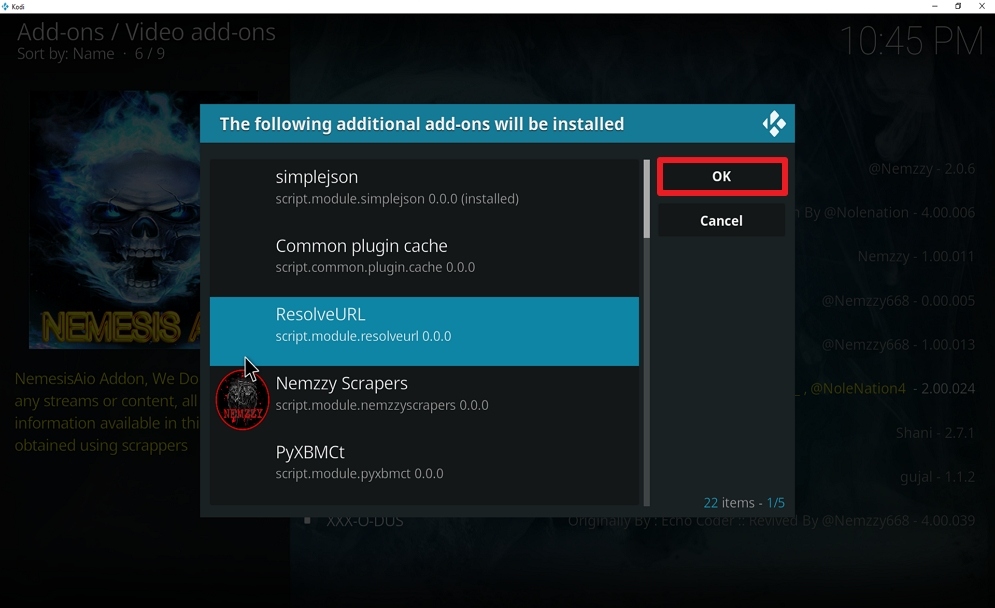
  • On the new dialog box that says “THE FOLLOWING ADDITIONAL ADD-ONS WILL BE INSTALLED:  click on OK.
  • Wait while the installation is completed. Once the installation is finished, click open.

YOUR INTERNET ACTIVITY IS BEING WATCHED

ReviewVPN cannot attest to the legality, security and privacy of the applications discussed on this site. It is highly recommended that you use a VPN service while streaming or using Kodi.

Currently, your IP 216.73.217.150 is visible to everyone and your Browser is being tracked by Advertisers & ISP Provider.

Save 65% Now

Limited Time Offer

Here are the main reasons why you must use a VPN:

  • Your activities are hidden from your ISP, the government, and from the apps you are using.
  • You can access additional movies and TV streams.
  • ISP attempts to throttle are thrwarted thus reducing buffering issues.
  • Geographically restricted content like Netflix and Hulu can be unblocked.

A VPN works be replacing your ISP-assigned IP address and creating an encrypted tunnel. We recommend the no log service offered by IPVanish. It works well on a Firestick and offers the fastest possible speeds.

Special Limited Time Offer - Get IPVanish


Legal Disclaimer: ReviewVPN.com does not encourage or endorse any illegal activity involved in the usage of services and applications referenced on this site. We do not verify the licensing agreements of services. The end-user is wholly responsible for ensuring that any media accessed through these services does not violate copyright and/or licensing laws. ReviewVPN does not promote, link to, or receive compensation from any Apps and IPTV services.


Install Surfshark on Firestick
Best Surfshark Deal


Install FoxyStreams Kodi add-on with Screenshots

 1. From the home screen, select the cogwheel at the upper left.

Step 1 Install Nemesis AIO on kodi


2. Select System in the bottom right corner.

Step 2 Install Nemesis AIO on kodi


3. Hover Add-ons on the left side of the screen.  Select Unknown sources.

Step 3 Install Nemesis AIO on kodi


4. Click Yes to allow unknown sources.

Step 4 Install Nemesis AIO on kodi


5. Take one step back, Select File manager.

Step 5 Install Nemesis AIO on kodi


6. Click Add source.

Step 6 Install Nemesis AIO on kodi


7. Click on <None>.

Step 7 Install Nemesis AIO on kodi


8. Type exactly: https://ruinernin.github.io/kodi/

Step 8 Install FoxyStreams on kodi


9. Click on OK.

Step 9 Install FoxyStreams on kodi


10. Select enter a name for this media source.

Step 10 Install FoxyStreams on kodi


11. Name is FoxyStreams  (this part isn’t critical as long as you remember the name).

Step 11 Install FoxyStreams on kodi


12. Click on OK.

Step 12 Install FoxyStreams on kodi


13. Click on OK.

Step 13 Install FoxyStreams on kodi


14. Take one step back and click on Add-ons.
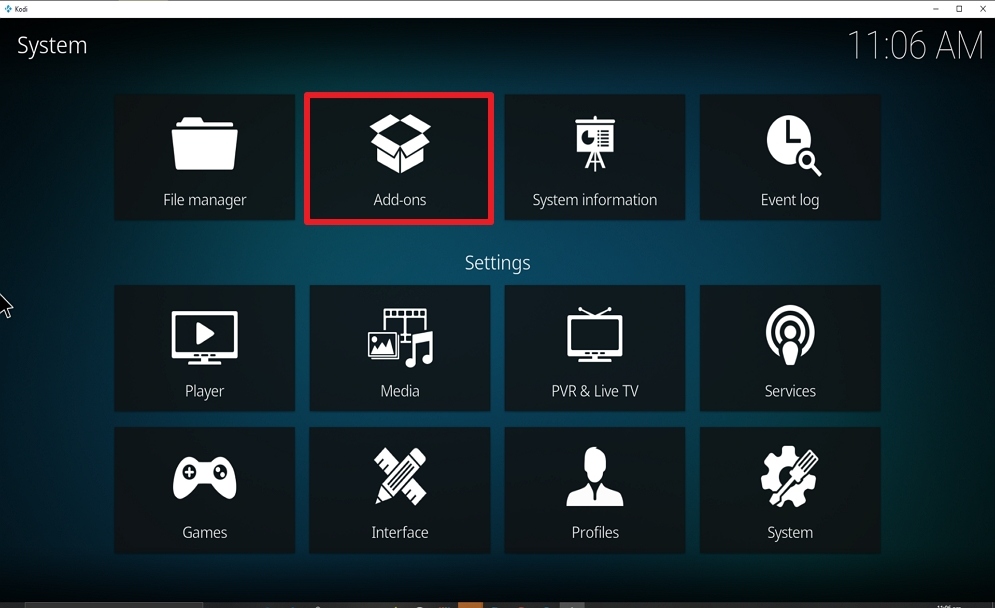
Step 14 Install FoxyStreams on kodi


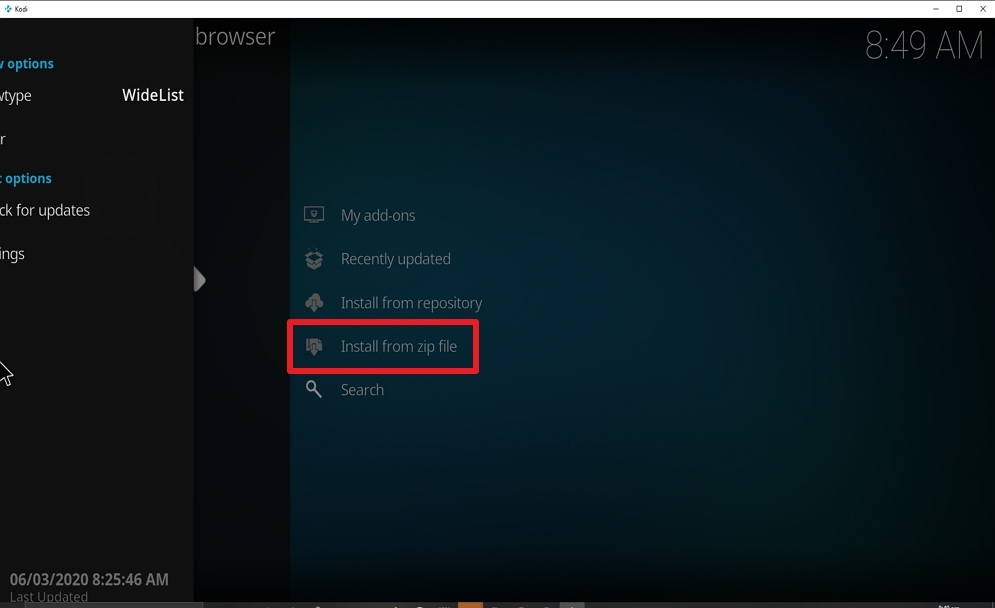
15. Select install from zip file.

Step 15 Install FoxyStreams on kodi


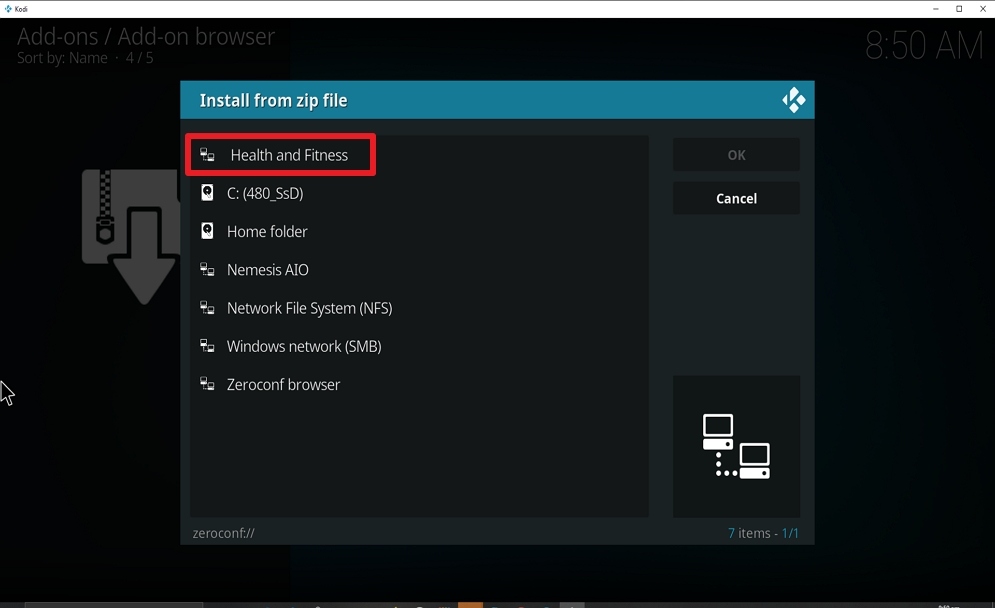
16. Click on FoxyStreams  (or whatever you named the source).

Step 16 Install FoxyStreams on kodi


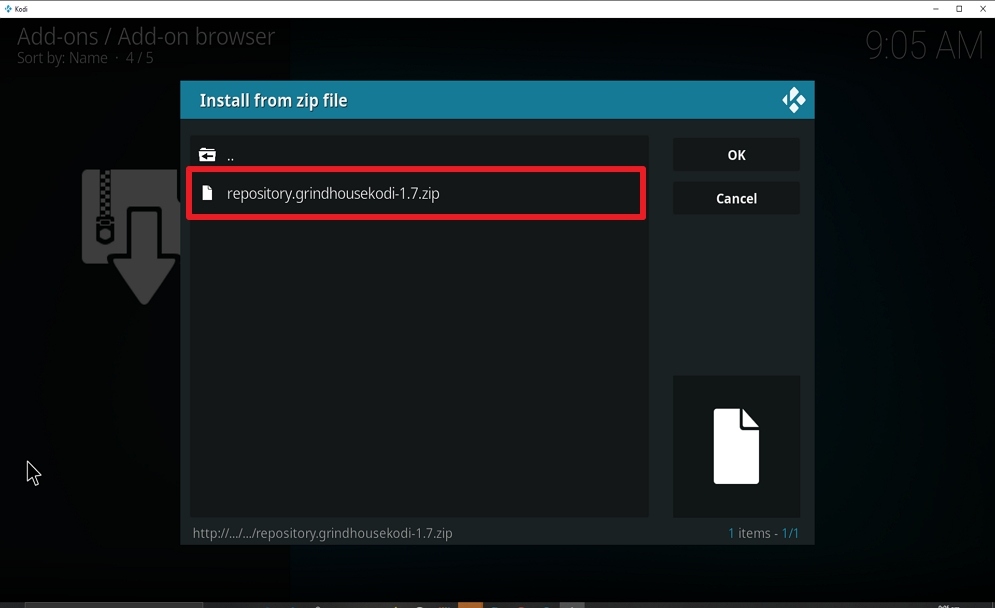
17. Click on repository.foxystreams-0.0.2.zip . 

Step 17 Install FoxyStreams on kodi


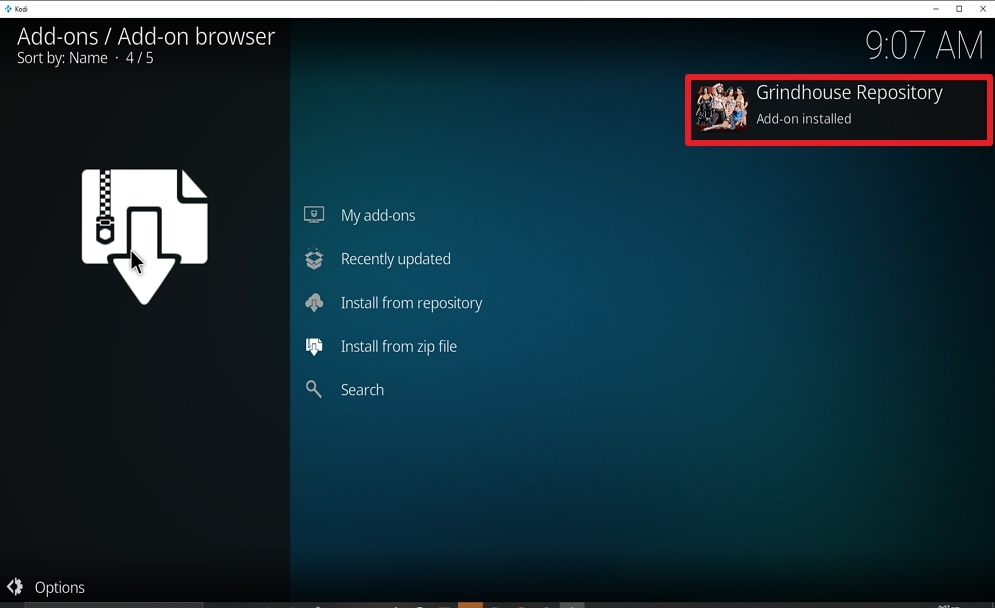
18. Once the installation is completed, a pop message will appear.

Step 18 Install FoxyStreams on kodi


19. Select on Install from repository.

Step 19 Install FoxyStreams on kodi


20. Click on FoxyStreams  Repo.

Step 20 Install FoxyStreams on kodi


21. Pick Video add-ons.

Step 21 Install FoxyStreams on kodi


22. Select FoxyStreams.

Step 22 Install FoxyStreams on kodi


23. Click on Install.

Step 23 Install FoxyStreams on kodi


24. Select Version 0.2.8

Step 24 Install FoxyStreams on kodi


25. Select OK after reviewing the add-ons that will be installed.

Step 25 Install FoxyStreams on kodi


26. You should see a popup in the upper right corner saying FoxyStreams has installed. There will actually be multiple popups for the various components.

Step 26 Install FoxyStreams on kodi


27. Click on FoxyStreams.

Step 27 Install FoxyStreams on kodi


28. Click on Open to start the FoxyStreams add-on.

Step 28 Install FoxyStreams on kodi


How to Use FoxyStreams Kodi Addon 

Click the open button and navigate to categories such as FoxyStreams movies and click on it and wait while it loads subcategories. A dialog box will appear with subcategories such as genres, live TV, live radio, etc.


Don’t Use Kodi Without a VPN!

We recommend installing Surfshark on your device before using Kodi. This is because when you stream content online or access the internet, you are public on the ISP network.

  1. VPN encrypts your IP address and makes you appear on the internet service provider network (ISP) as a private user; this way your ISP and government will not be able to monitor or track your online activities or whatever you are streaming online.
  2. Bypassing location restriction: VPN allows you to bypass location restrictions when you are streaming content online. Netflix and other streaming platforms have location restrictions and this poses a challenge to someone who does not have a VPN. installing Surfshark enables you to stream from anywhere around the world.
  3. ISP throttling: installing a VPN helps to minimize ISP throttling thereby ensuring smooth streaming of contents.

Note: For more information about Surfshark, please read our Surfshark Review.


Grab your subscription now!


How to Install Surfshark VPN on Firestick

If your Firestick still has the older interface, read this article to learn how to update it: Update Firestick Interface.

Follow our screenshots below to install the SurfShark VPN app on your Fire TV stick.

1. Go to the Home screen of your Firestick.
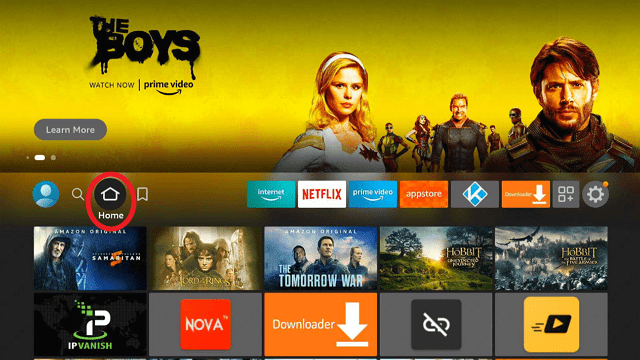
step 1 Install Surfshark VPN on Firestick


2. Navigate towards the Find tab. Press the Search button from the resulting dropdown.
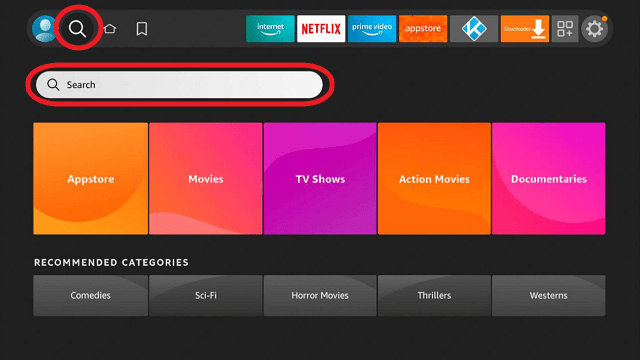
step 2 Install Surfshark VPN on Firestick


3. Type in the keyword of SurfShark and select from the suggestions that will appear.
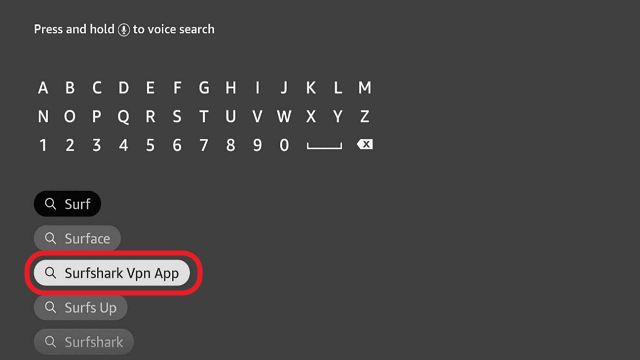
step 3 Install Surfshark VPN on Firestick


4. Click the official SurfShark icon from your search results.
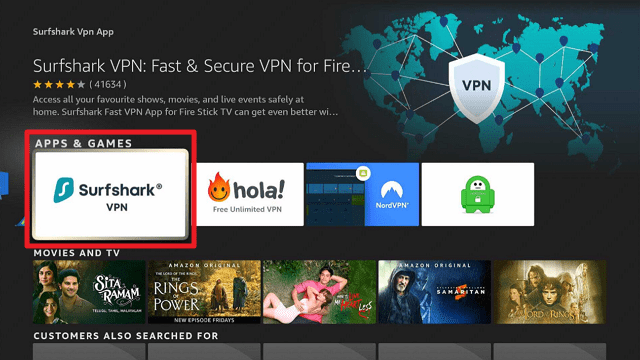
step 4 Install Surfshark VPN on Firestick


5. Press the Download (You own it) button.
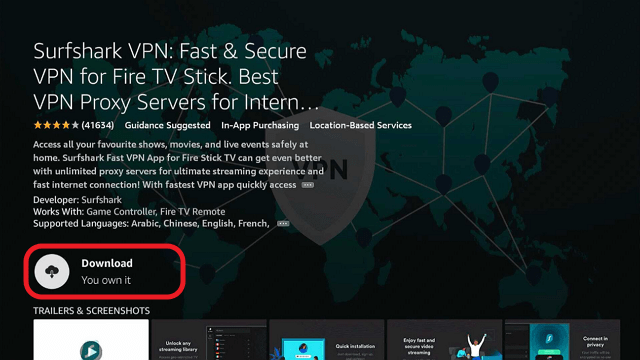
step 5 Install Surfshark VPN on Firestick


6. The SurfShark VPN installer will download on your device.
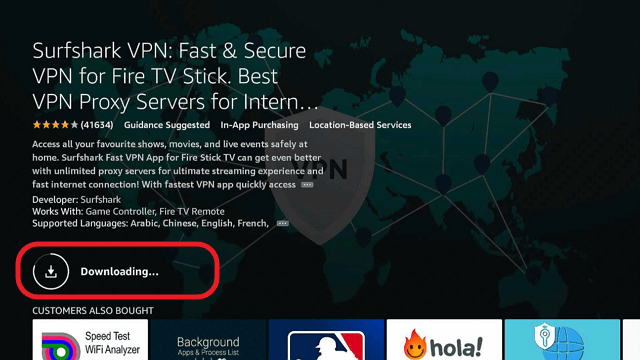
step 6 Install Surfshark VPN on Firestick


7. SurfShark VPN’s app will automatically install itself on your Fire TV stick.
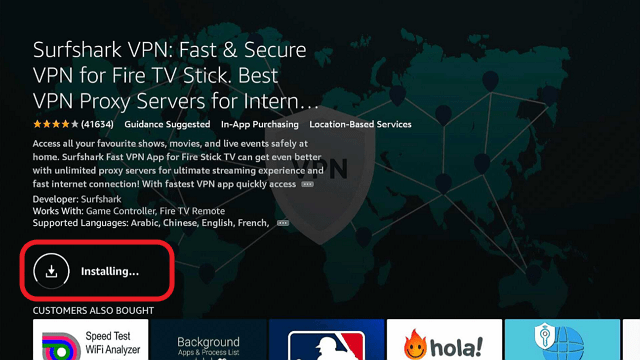
step 7 Install Surfshark VPN on Firestick


8. Press the Open button after completing SurfShark VPN’s installation process.
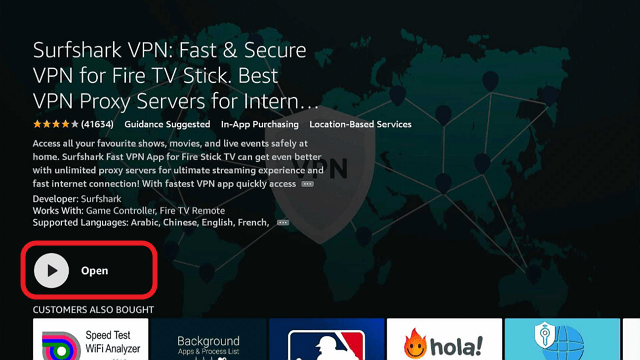
step 8 Install Surfshark VPN on Firestick


9. Please wait for the SurfShark VPN to load its user interface.
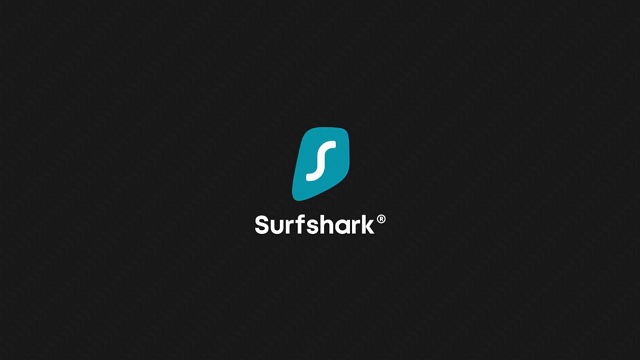
step 9 Install Surfshark VPN on Firestick


10. You can now log in with your SurfShark VPN account credentials.
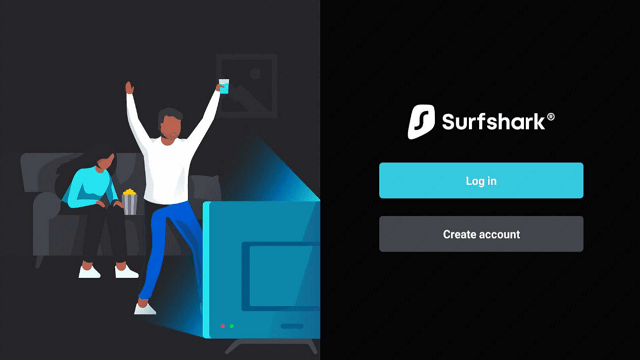
step 10 Install Surfshark VPN on Firestick

Learn more about Surfshark and Grab the Best Surfshark Deal Now!


Install Surfshark on Firestick
Best Surfshark Deal


Other VPNs to Consider

NordVPN (Best for Streaming)

Best Features

  • 5000+ Server in 50+ Countries 
  • Military-Grade Encryption
  • Fast Connection Speed
  • Suitable to a lot of devices
  • No-Log Policy

Prices
  • Complete $5.89 per month (64% Discount)
  • Plus $4.59 per month (56% Discount)
  • Standard $3.69 per month (55% Discount)

Best Features

  • 750+ High-speed VPN Servers in 43 Locations
  • Military-Grade Encryption
  • Fastest HD Streaming and Gaming
  • 30-Day Money-Back Guarantee
  • Unlimited Data & Devices
  • No-Log Policy

Prices
  • 3 Years $1.99 per month (82% Discount)
  • 1 Years $3.29 per month (70% Discount)
  • 1 Month $10.99 per month

IPVanish VPN (Most Secure)

Best Features

  • 1200+ Servers in 60+ Countries around the world
  • Unlimited Connections
  • No-Log Policy
  • Top Notch Military-Grade VPN Protocols and Encryptions
  • 100% Safe and Secured
  • Most Trusted VPN
  • Best VPN for Firestick
  • 30-Day Money-Back Guarantee

Prices
  • Yearly $3.99 per month (63% Discount) – 30 days risk free + Ransomware & Malware Protection
  • Quarterly $5.32 per month (51% Discount)
  • Monthly $10.99 per month


For more VPN discounts, go to ReviewVPN Deals and purchase the best VPN for you.

Click here to get the lowest price on Surfshark through our exclusive limited-time offer.


Verdict

FoxyStreams Kodi Addon has got you covered with a huge database of movies, documentaries, TV series, TV shows, and lots more. 

How To Install Health And Fitness Addon

Overview

In this tutorial, you will learn how to install the Health and Fitness Kodi add-on. Health and Fitness Kodi is an add-on designed for sports and fitness lovers. Health and Fitness are located within the Grindhouse Repo. Grindhouse Repository also houses other builds and add-on. 

Installing Health and Fitness add-on helps you to stay updated with the latest trends in the fitness industry.


Legal Disclaimer: ReviewVPN.com does not encourage or endorse any illegal activity involved in the usage of services and applications referenced on this site. We do not verify the licensing agreements of services. The end-user is wholly responsible for ensuring that any media accessed through these services does not violate copyright and/or licensing laws. ReviewVPN does not promote, link to, or receive compensation from any Apps and IPTV services.


ANONYMOUSLY


Features of Health and Fitness Kodi addon

  • Huge library of HD movies, TV shows, dramas, TV series, and lots more.
  • Real-Debrid integration for optimal streaming experience
  • Fast and easy streaming
  • Live TV, sports channel, live radio and more
  • Daily update of latest releases 
  • Entertainment, music, documentaries and more
  • Customizable search box for category, popularity, and rating 
  • Large categories and subcategories.


Use a VPN

If you are fond of streaming content online, we recommend using a VPN on your device. VPN enables you to access the internet and stream contents anonymously and securely. Don’t forget that each time you access the internet or stream videos, your IP address is public on the internet service provider network (ISP) and as such, you may be monitored by the government. 

VPN also helps you to bypass restrictions poised by countries (some countries ban the use of certain websites in their country and using a VPN helps you to outsmart them). We recommend installing Surfshark as it offers the best online security and privacy.


How to Install Surfshark VPN on Firestick

If your Firestick still has the older interface, read this article to learn how to update it: Update Firestick Interface.

Follow our screenshots below to install the SurfShark VPN app on your Fire TV stick.

1. Go to the Home screen of your Firestick.

step 1 Install Surfshark VPN on Firestick


2. Navigate towards the Find tab. Press the Search button from the resulting dropdown.

step 2 Install Surfshark VPN on Firestick


3. Type in the keyword of SurfShark and select from the suggestions that will appear.

step 3 Install Surfshark VPN on Firestick


4. Click the official SurfShark icon from your search results.

step 4 Install Surfshark VPN on Firestick


5. Press the Download (You own it) button.

step 5 Install Surfshark VPN on Firestick


6. The SurfShark VPN installer will download on your device.

step 6 Install Surfshark VPN on Firestick


7. SurfShark VPN’s app will automatically install itself on your Fire TV stick.

step 7 Install Surfshark VPN on Firestick


8. Press the Open button after completing SurfShark VPN’s installation process.

step 8 Install Surfshark VPN on Firestick


9. Please wait for the SurfShark VPN to load its user interface.

step 9 Install Surfshark VPN on Firestick


10. You can now log in with your SurfShark VPN account credentials.

step 10 Install Surfshark VPN on Firestick

Learn more about Surfshark and Grab the Best Surfshark Deal Now!


Install Surfshark on Firestick
Best Surfshark Deal


Other VPNs to Consider

NordVPN (Best for Streaming)

Best Features

  • 5000+ Server in 50+ Countries 
  • Military-Grade Encryption
  • Fast Connection Speed
  • Suitable to a lot of devices
  • No-Log Policy

Prices
  • Complete $5.89 per month (64% Discount)
  • Plus $4.59 per month (56% Discount)
  • Standard $3.69 per month (55% Discount)

Best Features

  • 750+ High-speed VPN Servers in 43 Locations
  • Military-Grade Encryption
  • Fastest HD Streaming and Gaming
  • 30-Day Money-Back Guarantee
  • Unlimited Data & Devices
  • No-Log Policy

Prices
  • 3 Years $1.99 per month (82% Discount)
  • 1 Years $3.29 per month (70% Discount)
  • 1 Month $10.99 per month

IPVanish VPN (Most Secure)

Best Features

  • 1200+ Servers in 60+ Countries around the world
  • Unlimited Connections
  • No-Log Policy
  • Top Notch Military-Grade VPN Protocols and Encryptions
  • 100% Safe and Secured
  • Most Trusted VPN
  • Best VPN for Firestick
  • 30-Day Money-Back Guarantee

Prices
  • Yearly $3.99 per month (63% Discount) – 30 days risk free + Ransomware & Malware Protection
  • Quarterly $5.32 per month (51% Discount)
  • Monthly $10.99 per month


For more VPN discounts, go to ReviewVPN Deals and purchase the best VPN for you.

Click here to get the lowest price on Surfshark through our exclusive limited-time offer.


YOUR INTERNET ACTIVITY IS BEING WATCHED

ReviewVPN cannot attest to the legality, security and privacy of the applications discussed on this site. It is highly recommended that you use a VPN service while streaming or using Kodi.

Currently, your IP 216.73.217.150 is visible to everyone and your Browser is being tracked by Advertisers & ISP Provider.

Save 65% Now

Limited Time Offer

Here are the main reasons why you must use a VPN:

  • Your activities are hidden from your ISP, the government, and from the apps you are using.
  • You can access additional movies and TV streams.
  • ISP attempts to throttle are thrwarted thus reducing buffering issues.
  • Geographically restricted content like Netflix and Hulu can be unblocked.

A VPN works be replacing your ISP-assigned IP address and creating an encrypted tunnel. We recommend the no log service offered by IPVanish. It works well on a Firestick and offers the fastest possible speeds.

Special Limited Time Offer - Get IPVanish


Step by Step Guide on How to Install Health and Fitness Kodi Addon

The first thing to do when installing Health and Fitness Kodi add-on is to enable the “UNKNOWN SOURCE”. This is done by launching your Kodi app and clicking on the setting icon. On the new window that will appear, click on “SYSTEM”, once you click on system button, then on the next dialog that will come up, click on Add-ons and then click on the unknown source and select YES on the warning dialog box that will pop-up. Press the ESC key twice to return to the home screen.


  1. From the home screen, click again on the setting icon and select the FILE MANAGER  option. 
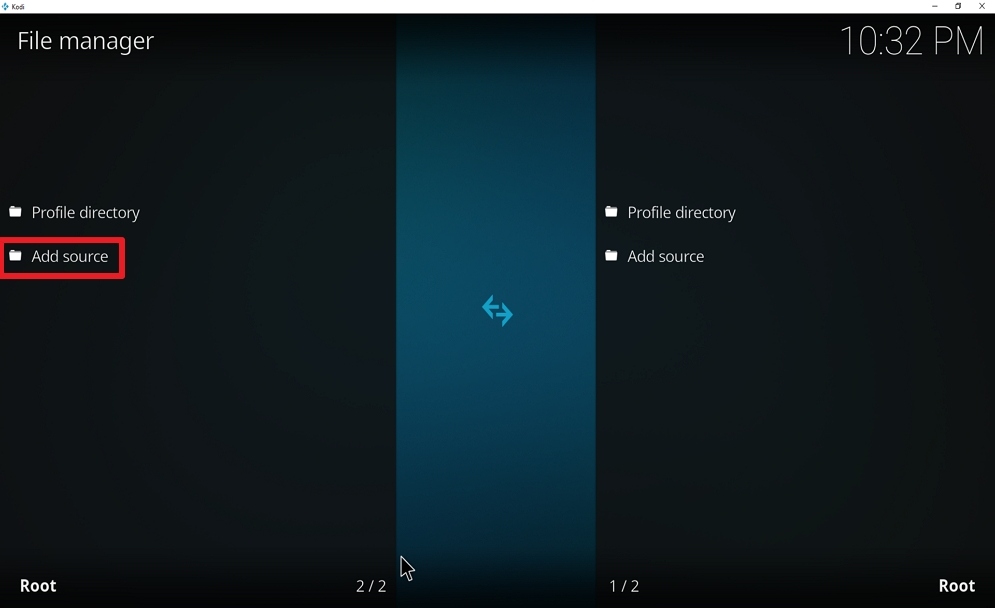
  2. Once you are on the file manager, select Add source 
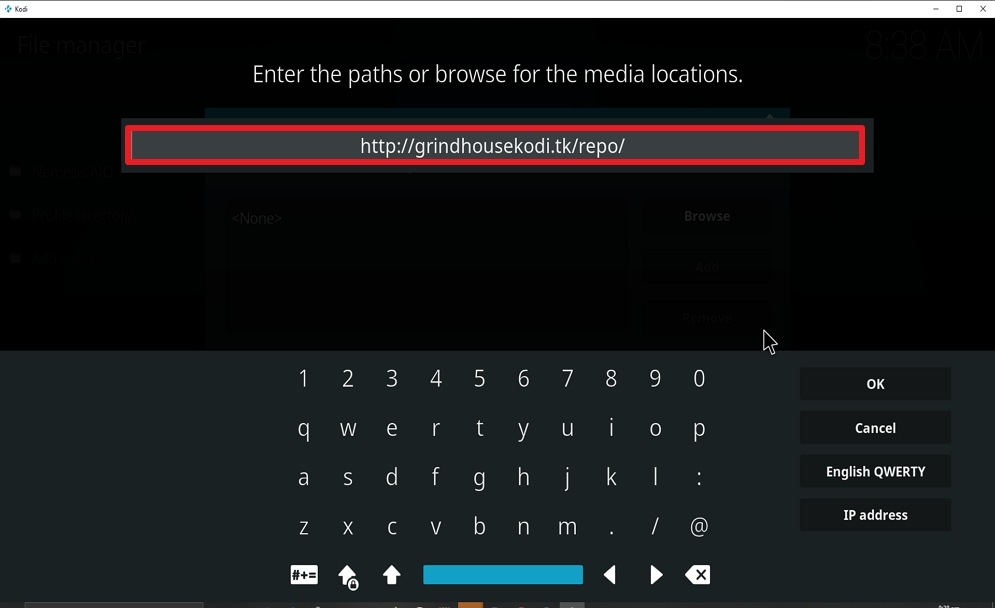
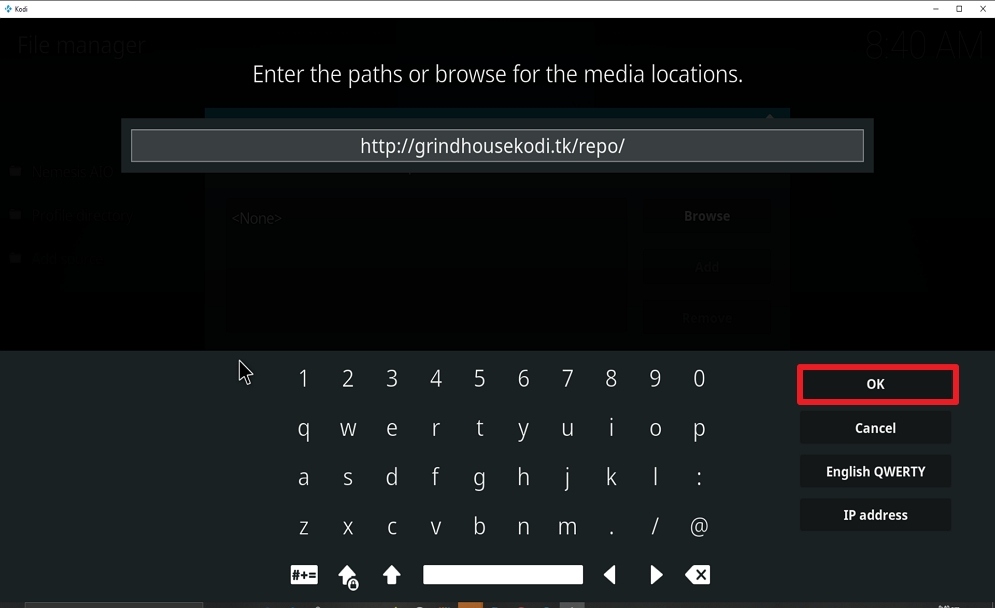
  3. Click on Add source and select <NONE>  and enter this URL on the dialog that will appear: http://grindhousekodi.tk/repo/  and enter a name for this Repository and click OK (we recommend using a name you can easily remember).
  4. Press the ESC key twice to return to the home screen. From the home screen, click on Add-ons and select the Add-on icon found at the top left side of your screen.
  5. Once you click on the add-on icon, a new window will appear, from there click on INSTALL FROM ZIP and navigate to find the name you used to save the repository file earlier. Once you find it, click on it and you will find something like this: repository.grindhousekodi-1.6.zip and click on it. Wait for a pop-up message notifying you that “GRINDHOUSE REPO IS INSTALLED” 
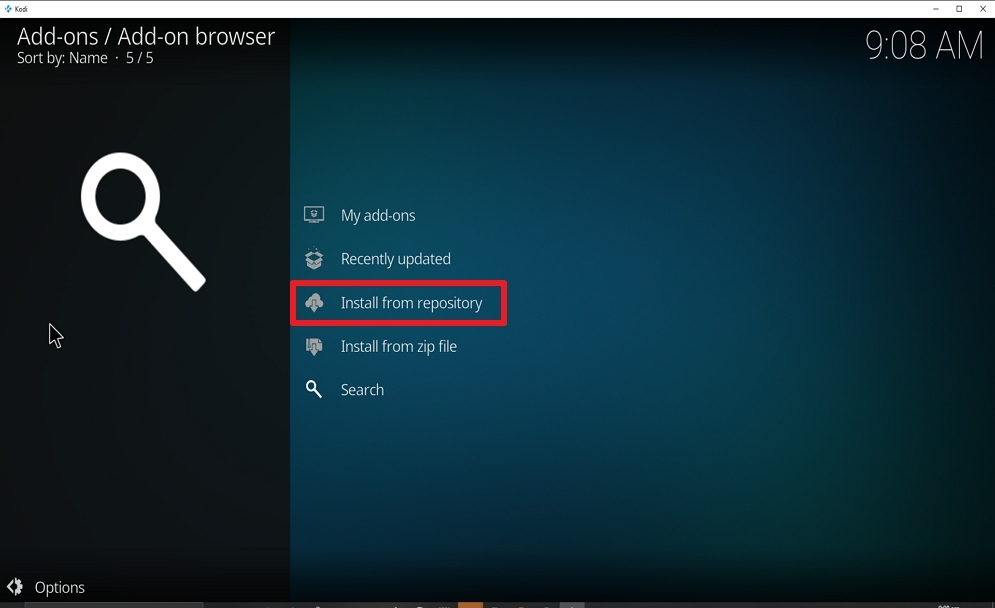
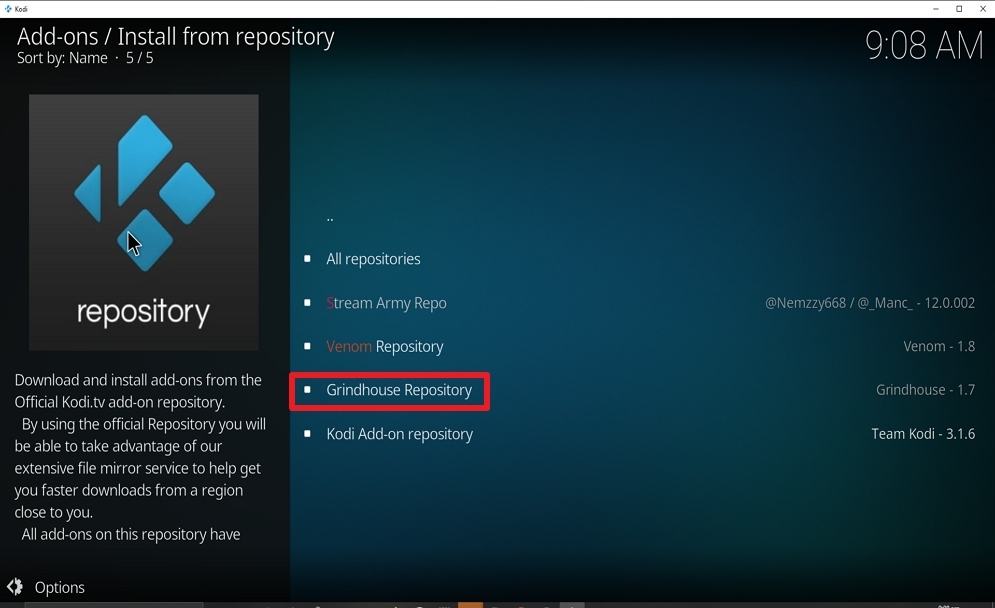
  6. Click on INSTALL FROM REPOSITORY and on the new window, click on GRINDHOUSE REPOSITORY 
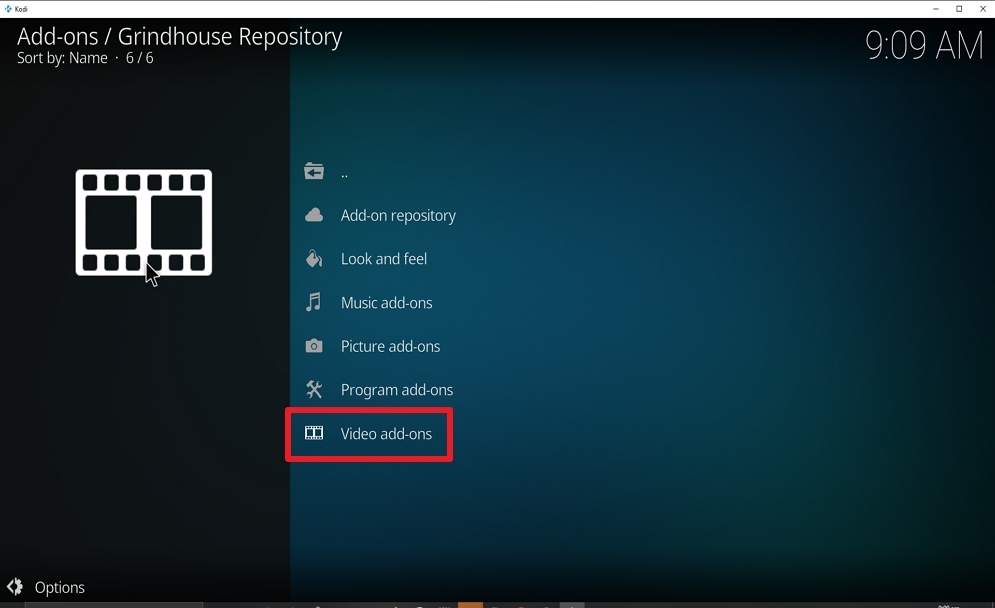
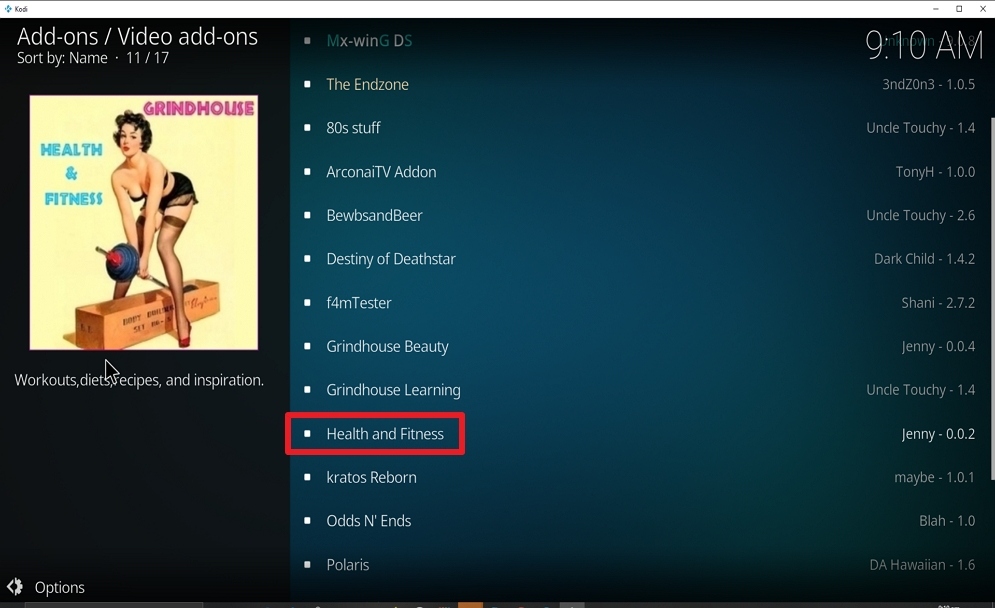
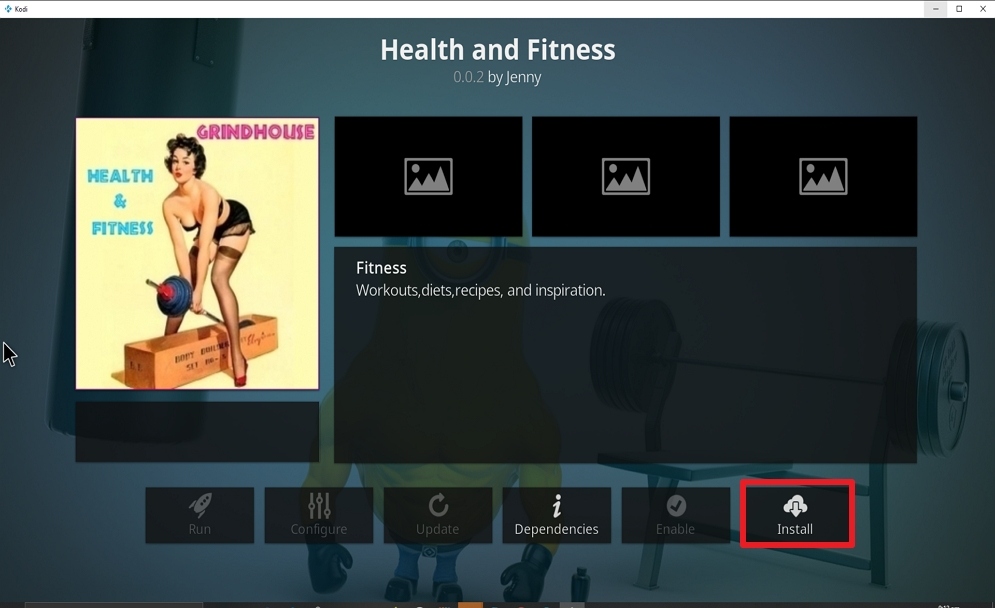
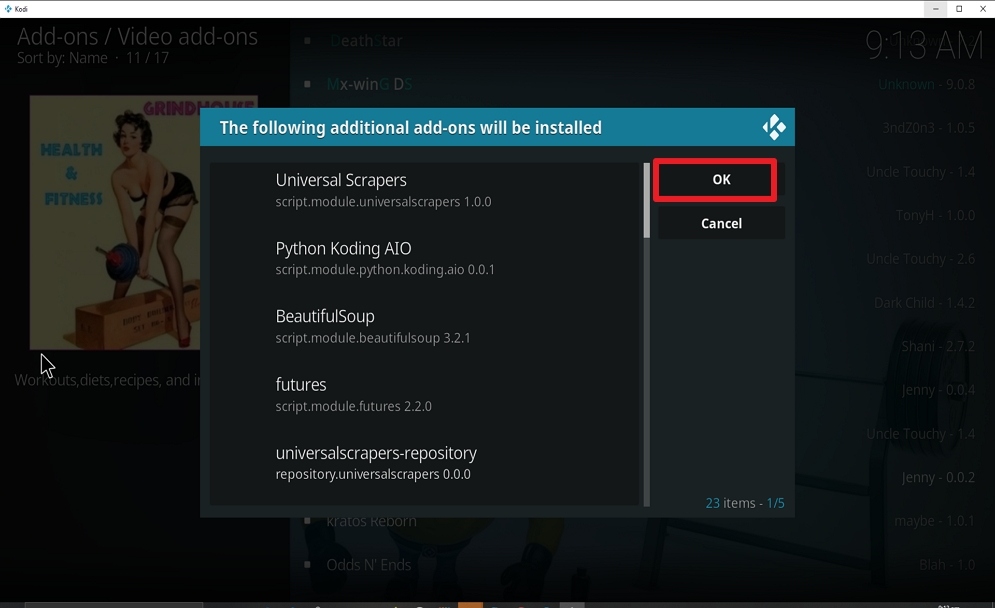
  7. Click on VIDEOS ADD-ON and on the new window that will appear, click on HEALTH AND FITNESS, and select  INSTALL on the dialog box that will come out. A pop dialog box will appear with this message “THE FOLLOWING ADDITIONAL ADD-ON WILL BE INSTALLED” click OK and Wait for the installation to finish. 
  8. Once the installation is completed, you will get a notification message. 


Install  Health and Fitness Kodi add-on with Screenshots

 1. From the home screen, select the cogwheel at the upper left.

Step 1 Install Nemesis AIO on kodi

2. Select System in the bottom right corner.

Step 2 Install Nemesis AIO on kodi


3. Hover Add-ons on the left side of the screen.  Select Unknown sources.

Step 3 Install Nemesis AIO on kodi


4. Click Yes to allow unknown sources.

Step 4 Install Nemesis AIO on kodi


5. Take one step back, Select File manager.

Step 5 Install Nemesis AIO on kodi


6. Click Add source.

Step 6 Install Nemesis AIO on kodi


7. Click on <None>.

Step 7 Install Nemesis AIO on kodi


8. Type exactly: http://grindhousekodi.tk/repo/

Step 8 Install Health and Fitness on kodi


9. Click on OK.

Step 9 Install Health and Fitness on kodi


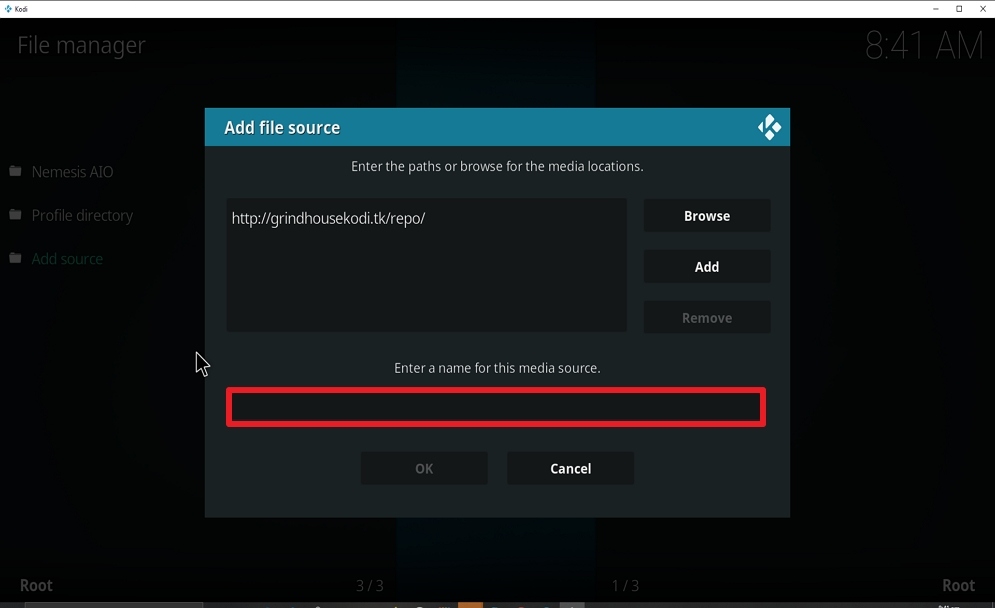
10. Select enter a name for this media source.

Step 10 Install Health and Fitness on kodi


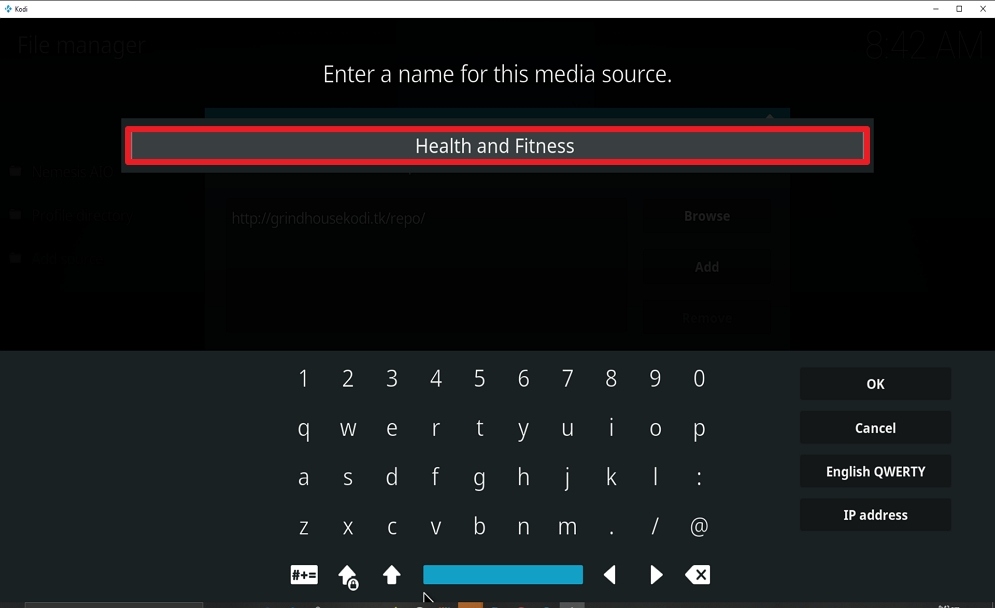
11. Name is Health and Fitness  (this part isn’t critical as long as you remember the name).

Step 11 Install Health and Fitness on kodi


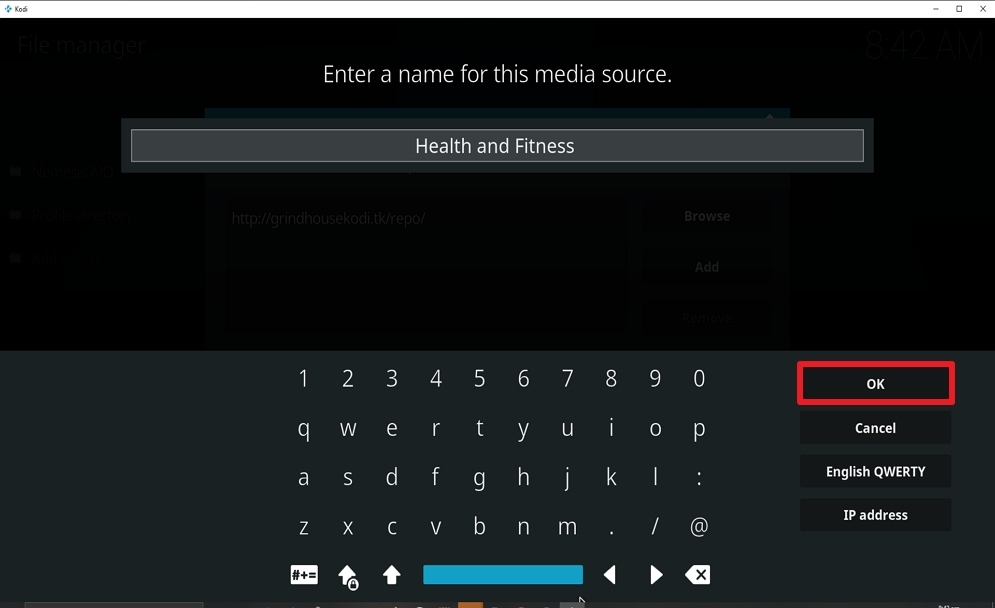
12. Click on OK.

Step 12 Install Health and Fitness on kodi


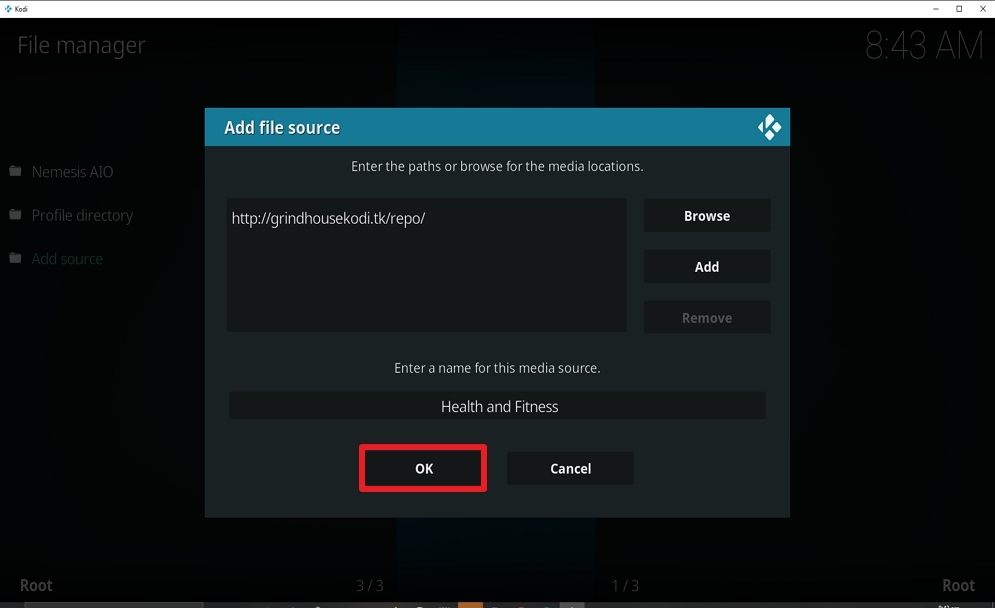
13. Click on OK.

Step 13 Install Health and Fitness on kodi


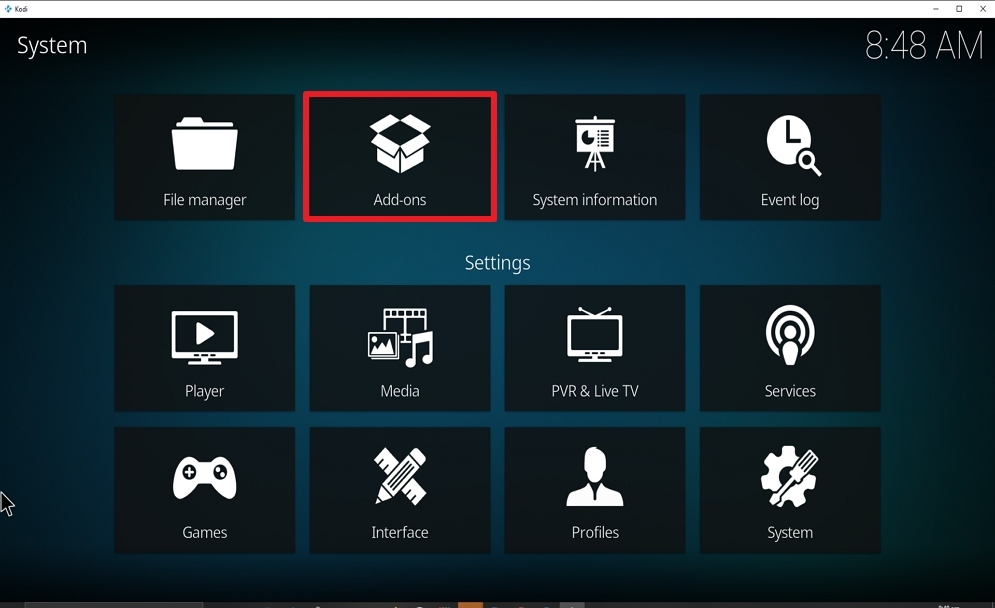
14. Take one step back and click on Add-ons.

Step 14 Install Health and Fitness on kodi


15. Select install from zip file.

Step 15 Install Health and Fitness on kodi


16. Click on Health and Fitness (or whatever you named the source).

Step 16 Install Health and Fitness on kodi


17. Click on repository.grindhousekodi-1.7.zip

Step 17 Install Health and Fitness on kodi


18. Once the installation is completed, a pop message will appear.

Step 18 Install Health and Fitness on kodi


19. Select on Install from repository.

Step 19 Install Health and Fitness on kodi


20. Click on Grindhouse  Repo.

Step 20 Install Health and Fitness on kodi


21. Pick Video add-ons.

Step 21 Install Health and Fitness on kodi


22. Select Health and Fitness.

Step 22 Install Health and Fitness on kodi


23. Click on Install.

Step 23 Install Health and Fitness on kodi


24. Select OK after reviewing the add-ons that will be installed.

Step 24 Install Health and Fitness on kodi


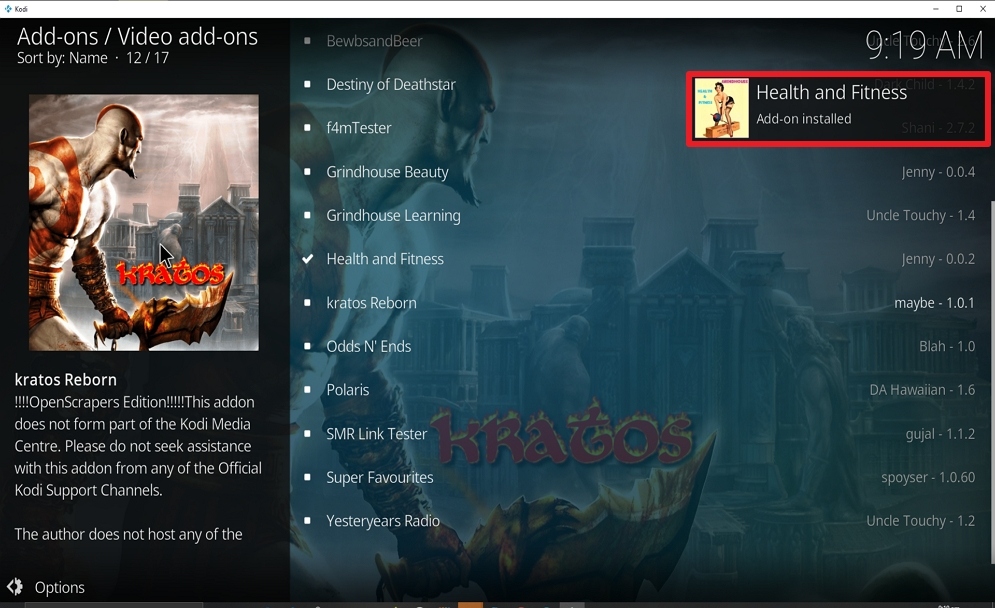
25. You should see a popup in the upper right corner saying Health and Fitness has installed. There will actually be multiple popups for the various components.

Step 25 Install Health and Fitness on kodi


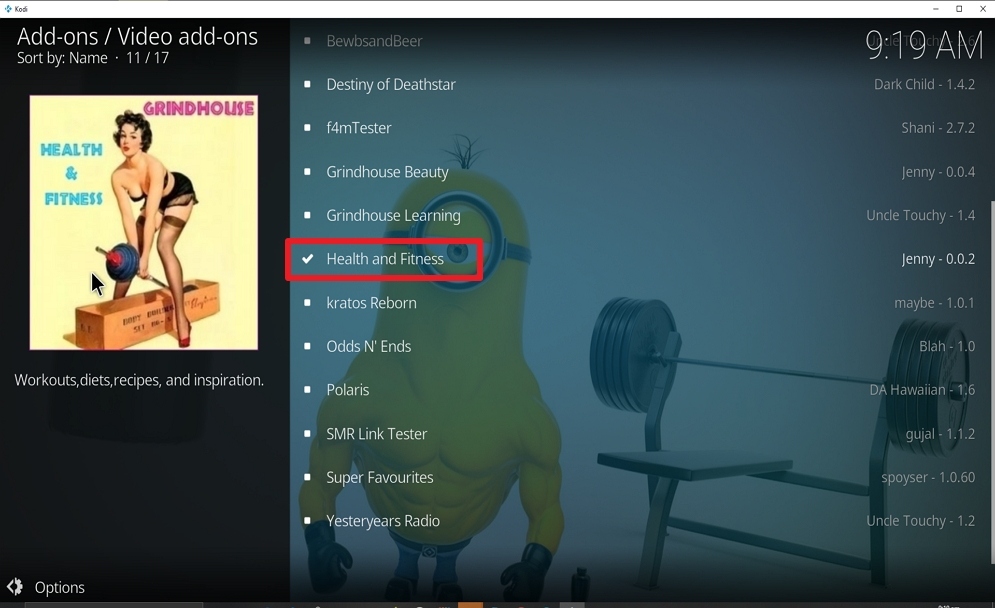
26. Click on Health and Fitness.

Step 26 Install Health and Fitness on kodi


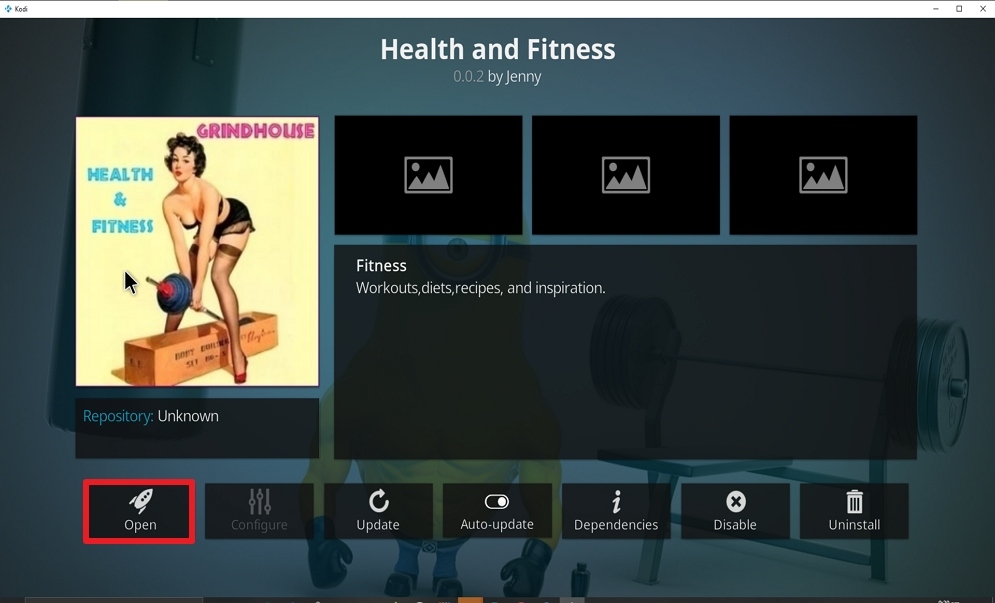
27. Click on Open to start the Health and Fitness add-on.

Step 27 Install Health and Fitness on kodi


How to Use Health and Fitness Addon

Use the ESC key to return to the home screen. From the home screen, click on add-ons and navigate to find HEALTH AND FITNESS add-on


Verdict

Health and Fitness Add-on have tons of fitness and health videos. If you are a gym freak, then this add-on has got what you are looking for.

How to Install Nemesis AIO Kodi Addon

Overview

In this tutorial, you will learn how to install Nemesis AIO Kodi addon on the Kodi app. Nemesis AIO is an add-on that you can install on your Kodi app to maximize your streaming experience. This add-on has tons of on-demand categories and subcategories of streaming content which you can enjoy for several hours. Nemesis AIO Kodi add-on allows you to stream TV shows, movies, sporting events (basketball and soccer matches), entertainment, documentaries, news, and lots more. Nemesis AIO has easy to use interface and offers fast streaming of videos.


Legal Disclaimer: ReviewVPN.com does not encourage or endorse any illegal activity involved in the usage of services and applications referenced on this site. We do not verify the licensing agreements of services. The end-user is wholly responsible for ensuring that any media accessed through these services does not violate copyright and/or licensing laws. ReviewVPN does not promote, link to, or receive compensation from any Apps and IPTV services.


ANONYMOUSLY


Features of Nemesis AIO

  • It has a customizable search where you can search for videos by popularity, rating, and category 
  • Huge variety of categories and subcategories.
  • Regular update of new releases
  • User-friendly interface
  • well-equipped library of HD movies, shows, TV shows, and TV series.
  • Real Debrid Integration for optimal performance.
  • Entertainments, documentaries, music, Kids TV, and lots more
  • Live channels, live sporting events, live radio, and lots more.


Use a VPN

We recommend using a VPN while using Kodi. This is because each time you stream videos with Kodi, your IP address, and online data are public on the internet service provider’s network and this might pose a risk to you. Also, VPN allows you to stream from anywhere around the world; this is achieved when the VPN encrypts your IP address in order to bypass location restrictions, ISP monitoring, and ISP throttling. We recommend Surfshark; they offer a 30-day money-back guarantee and provide you with the best VPN protection.


How to Install Surfshark VPN on Firestick

If your Firestick still has the older interface, read this article to learn how to update it: Update Firestick Interface.

Follow our screenshots below to install the SurfShark VPN app on your Fire TV stick.

1. Go to the Home screen of your Firestick.

step 1 Install Surfshark VPN on Firestick


2. Navigate towards the Find tab. Press the Search button from the resulting dropdown.

step 2 Install Surfshark VPN on Firestick


3. Type in the keyword of SurfShark and select from the suggestions that will appear.

step 3 Install Surfshark VPN on Firestick


4. Click the official SurfShark icon from your search results.

step 4 Install Surfshark VPN on Firestick


5. Press the Download (You own it) button.

step 5 Install Surfshark VPN on Firestick


6. The SurfShark VPN installer will download on your device.

step 6 Install Surfshark VPN on Firestick


7. SurfShark VPN’s app will automatically install itself on your Fire TV stick.

step 7 Install Surfshark VPN on Firestick


8. Press the Open button after completing SurfShark VPN’s installation process.

step 8 Install Surfshark VPN on Firestick


9. Please wait for the SurfShark VPN to load its user interface.

step 9 Install Surfshark VPN on Firestick


10. You can now log in with your SurfShark VPN account credentials.

step 10 Install Surfshark VPN on Firestick

Learn more about Surfshark and Grab the Best Surfshark Deal Now!


Install Surfshark on Firestick

Best Surfshark Deal


Other VPNs to Consider

NordVPN (Best for Streaming)

Best Features

  • 5000+ Server in 50+ Countries 
  • Military-Grade Encryption
  • Fast Connection Speed
  • Suitable to a lot of devices
  • No-Log Policy

Prices
  • Complete $5.89 per month (64% Discount)
  • Plus $4.59 per month (56% Discount)
  • Standard $3.69 per month (55% Discount)

Best Features

  • 750+ High-speed VPN Servers in 43 Locations
  • Military-Grade Encryption
  • Fastest HD Streaming and Gaming
  • 30-Day Money-Back Guarantee
  • Unlimited Data & Devices
  • No-Log Policy

Prices
  • 3 Years $1.99 per month (82% Discount)
  • 1 Years $3.29 per month (70% Discount)
  • 1 Month $10.99 per month

IPVanish VPN (Most Secure)

Best Features

  • 1200+ Servers in 60+ Countries around the world
  • Unlimited Connections
  • No-Log Policy
  • Top Notch Military-Grade VPN Protocols and Encryptions
  • 100% Safe and Secured
  • Most Trusted VPN
  • Best VPN for Firestick
  • 30-Day Money-Back Guarantee

Prices
  • Yearly $3.99 per month (63% Discount) – 30 days risk free + Ransomware & Malware Protection
  • Quarterly $5.32 per month (51% Discount)
  • Monthly $10.99 per month


For more VPN discounts, go to ReviewVPN Deals and purchase the best VPN for you.

Click here to get the lowest price on Surfshark through our exclusive limited-time offer.


YOUR INTERNET ACTIVITY IS BEING WATCHED

ReviewVPN cannot attest to the legality, security and privacy of the applications discussed on this site. It is highly recommended that you use a VPN service while streaming or using Kodi.

Currently, your IP 216.73.217.150 is visible to everyone and your Browser is being tracked by Advertisers & ISP Provider.

Save 65% Now

Limited Time Offer

Here are the main reasons why you must use a VPN:

  • Your activities are hidden from your ISP, the government, and from the apps you are using.
  • You can access additional movies and TV streams.
  • ISP attempts to throttle are thrwarted thus reducing buffering issues.
  • Geographically restricted content like Netflix and Hulu can be unblocked.

A VPN works be replacing your ISP-assigned IP address and creating an encrypted tunnel. We recommend the no log service offered by IPVanish. It works well on a Firestick and offers the fastest possible speeds.

Special Limited Time Offer - Get IPVanish


Installation Steps

Before proceeding with the installation steps, you need to turn on the unknown source. To do this, launch your Kodi app and allow it to set-up properly. Once your Kodi app already running, from the home screen of your Kodi app, click on the setting icon and then tap on “systems”. When the option of the system opens, scroll through to find add-ons. Click on add-ons and turn ON the unknown source. Once you click on the unknown source, a warning message will pop up; click on YES. When done, click on the ESC key twice to return to the home screen.


  1. From your Kodi home screen, click on the setting icon. When it opens, click on FILE MANAGER option; the next window that will come up, navigate to find the ADD SOURCE. 
  2. Click on the Add source and select the “NONE” option. Enter this URL on the dialog box that will come up: http://streamarmy.co.uk/repo and click OK.
  3. Enter a name for this add-on in the box that will prompt up; here we used “repo” (enter “repo” and click ok).
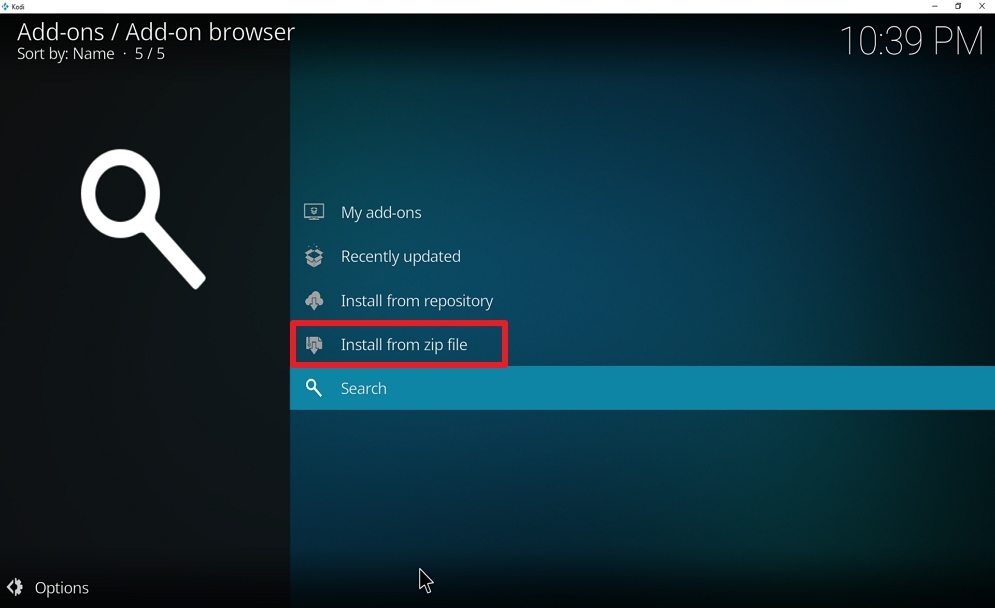
  4. Press the ESC key to return to the home screen. From the home screen, click on Add-ons, and when it opens, click on the Add-on icon at the top left side of your screen. When it opens click on install from zip option.
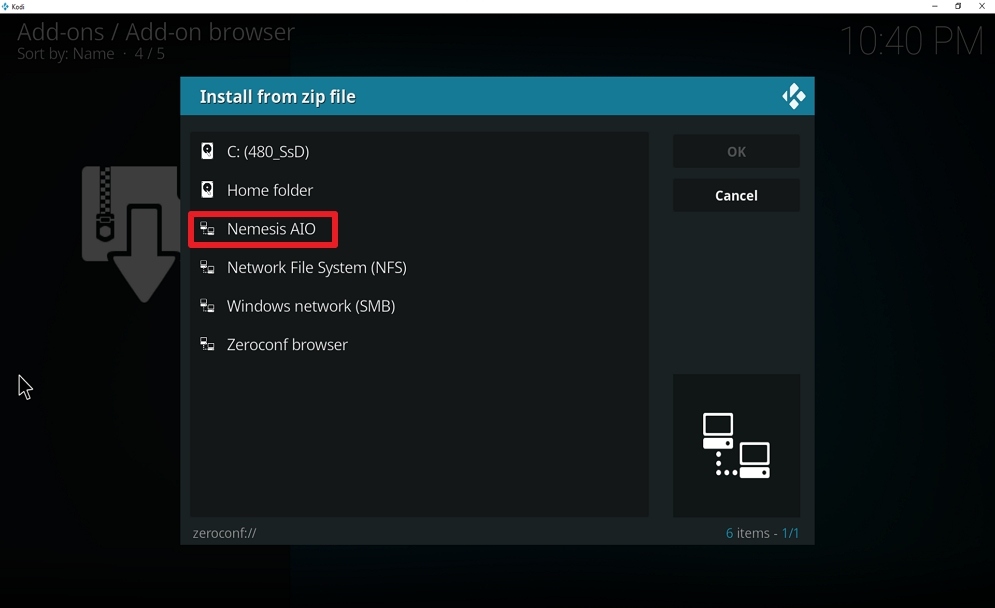
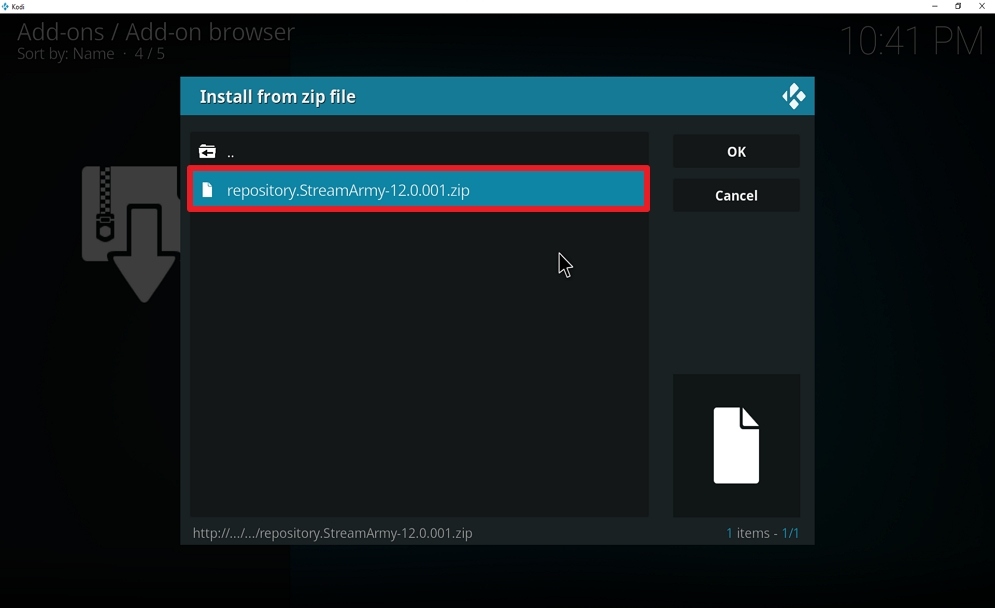
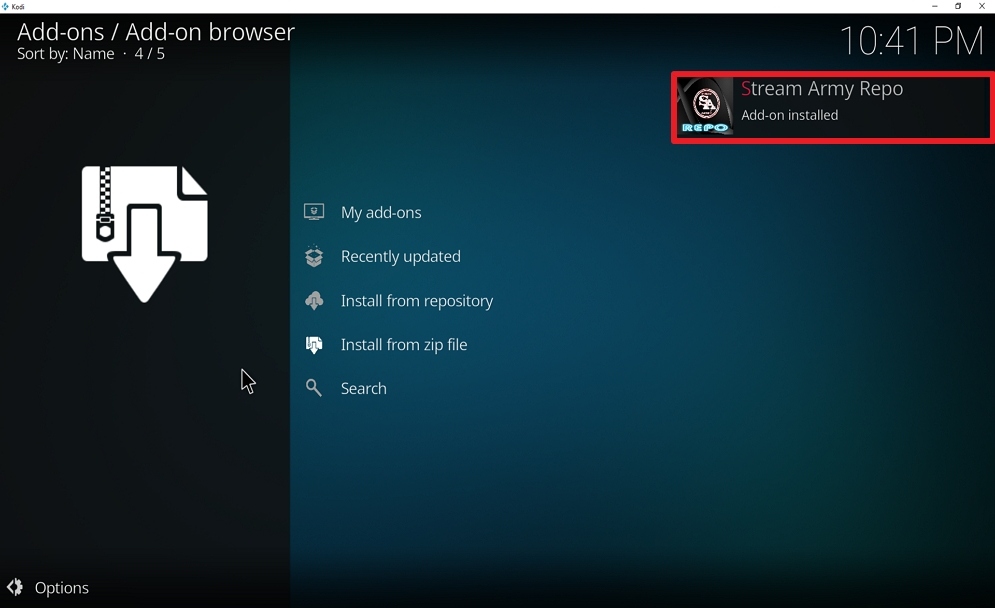
  5. Once you click on the install from zip, a new window will appear, from there navigate to find the name you used earlier to save the repo file. Once you found it, click on it. It will appear like this: repository.StreamArmy-x.x.zip (might vary depending on the version available after upgrading); click on it and wait while the installation is completing. Once the installation is completed, a pop message will appear.
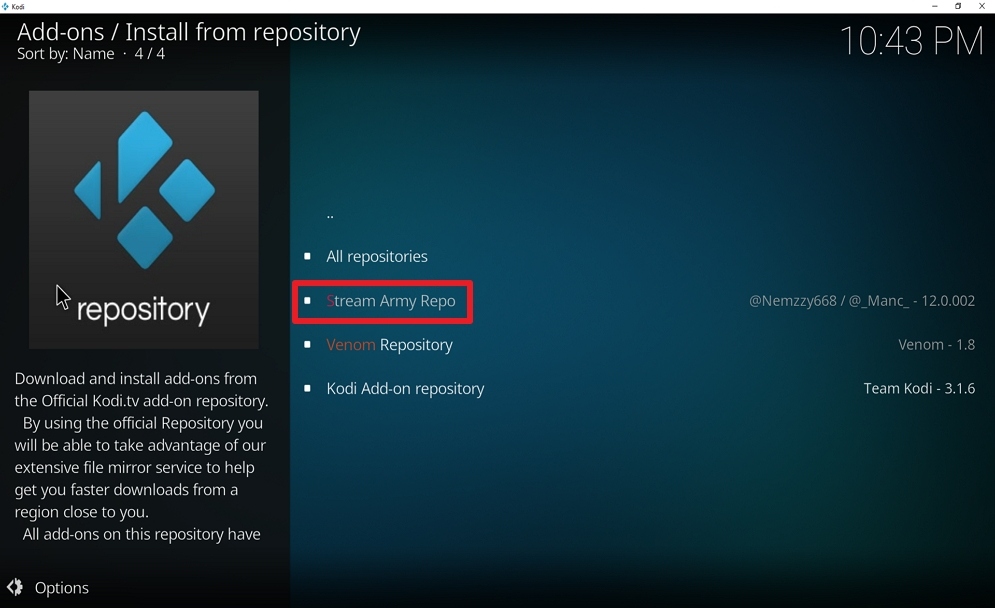
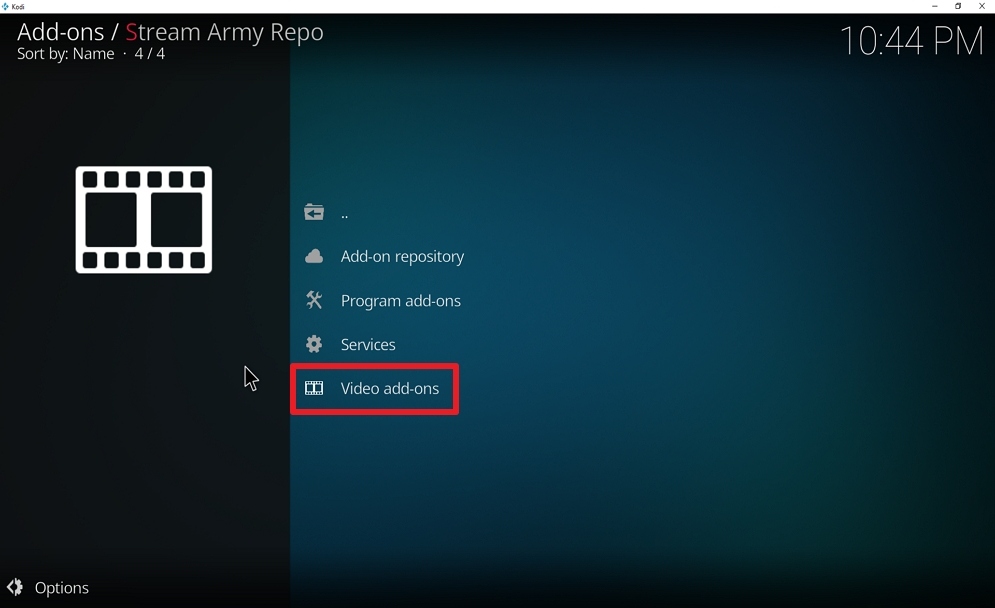
  6. Click on install from repository and choose Stream Army Repo; once it opens, click on video add-ons.
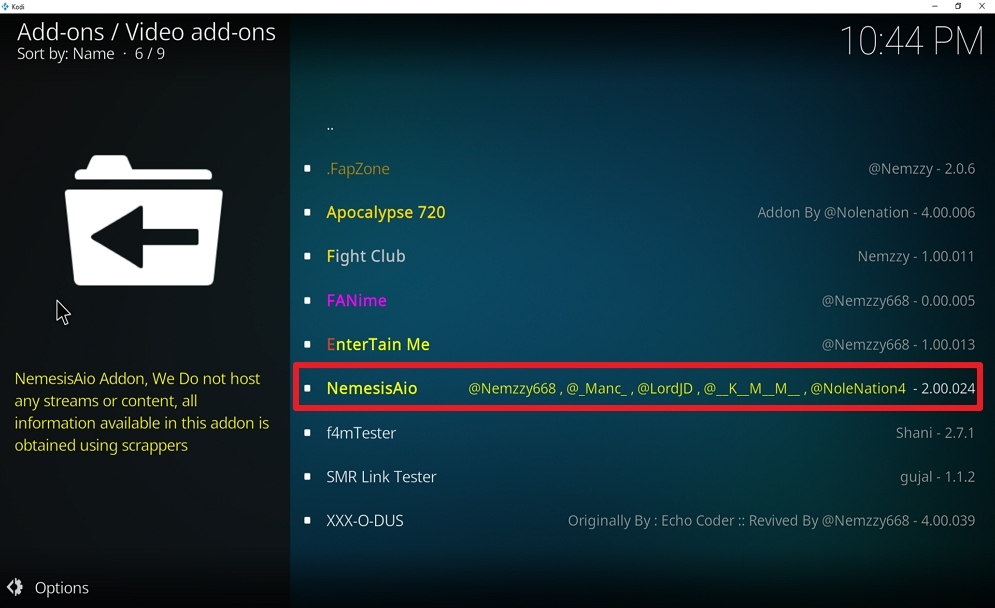
  7. A new dialog box will appear; navigate to find “Nemesis AIO
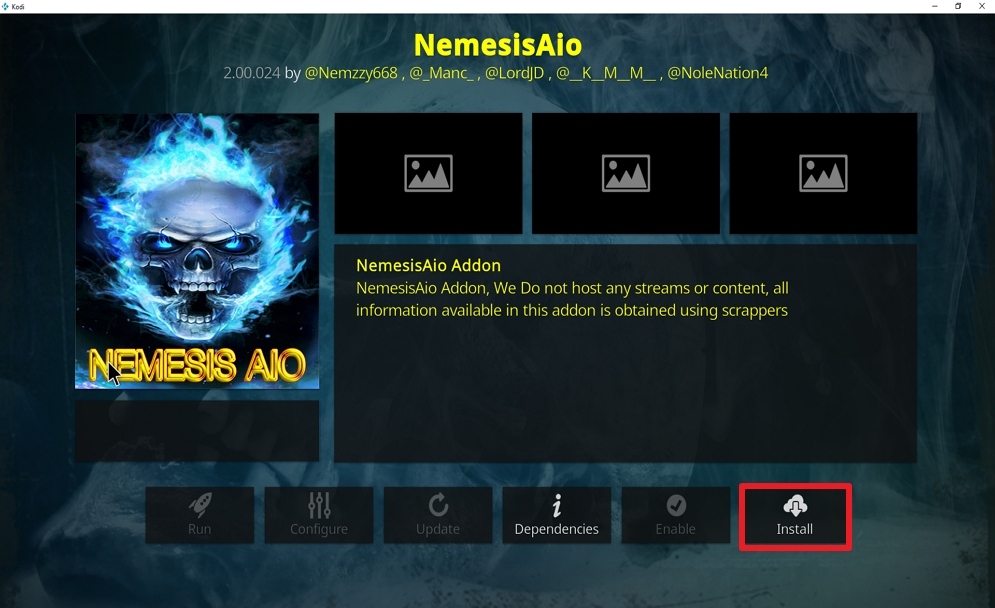
  8. Click on Nemesis AIO and on the new dialog box which appears, click on the “install option found at the right side of your screen. 
  9. Click Ok on the new window that will pop-up and wait for the installation to complete. Once the installation is done, a notification will pop up. 


Install Surfshark on Firestick

Best Surfshark Deal


Install  Nemesis AIO Kodi add-on with Screenshots

 1. From the home screen, select the cogwheel at the upper left.

Step 1 Install Nemesis AIO on kodi

2. Select System in the bottom right corner.

Step 2 Install Nemesis AIO on kodi


3. Hover Add-ons on the left side of the screen.  Select Unknown sources.

Step 3 Install Nemesis AIO on kodi


4. Click Yes to allow unknown sources.

Step 4 Install Nemesis AIO on kodi


5. Take one step back, Select File manager.

Step 5 Install Nemesis AIO on kodi


6. Click Add source.

Step 6 Install Nemesis AIO on kodi


7. Click on <None>.

Step 7 Install Nemesis AIO on kodi


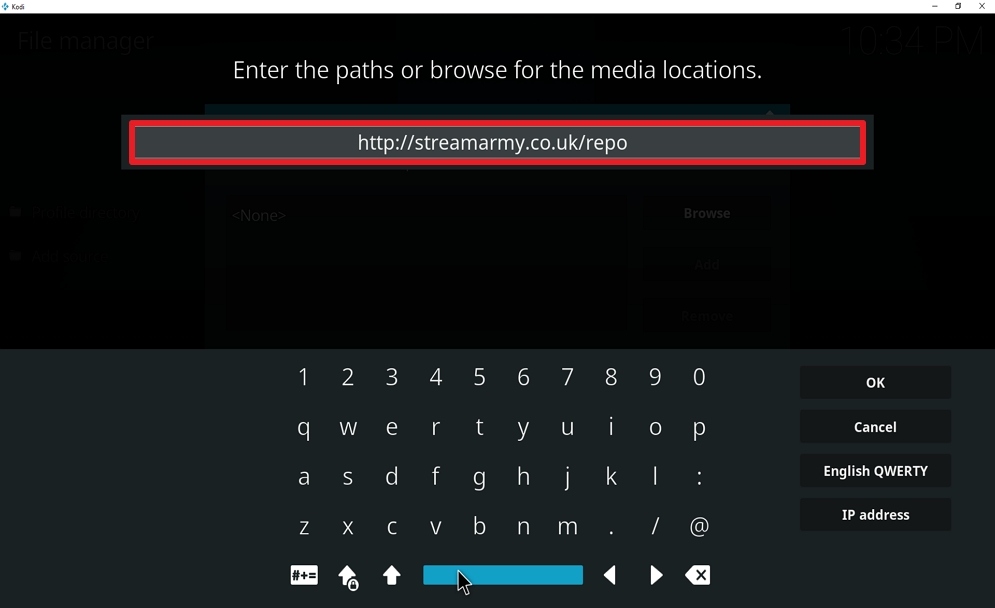
8. Type exactly: http://streamarmy.co.uk/repo

Step 8 Install Nemesis AIO on kodi


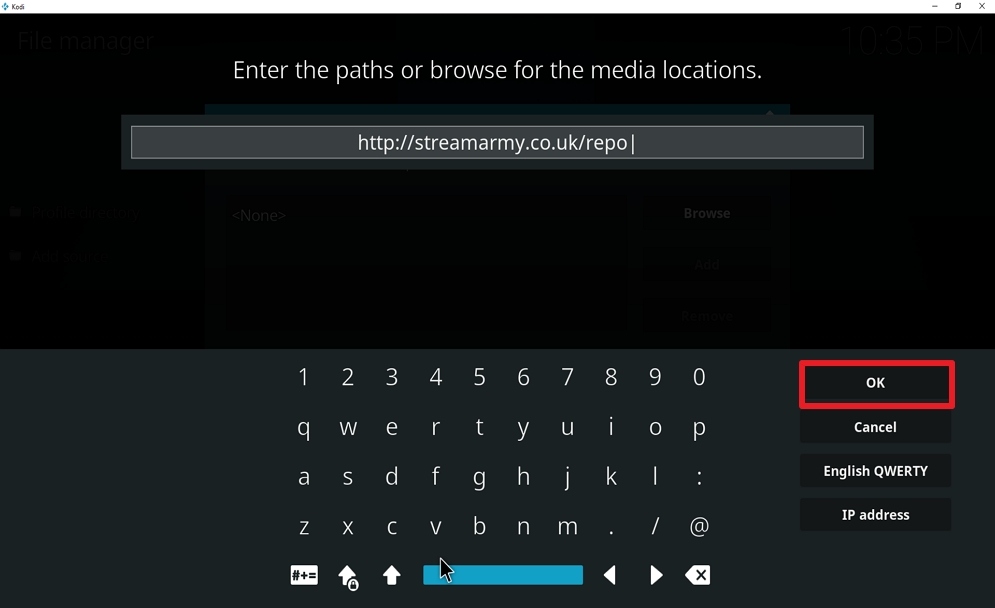
9. Click on OK.

Step 9 Install Nemesis AIO on kodi


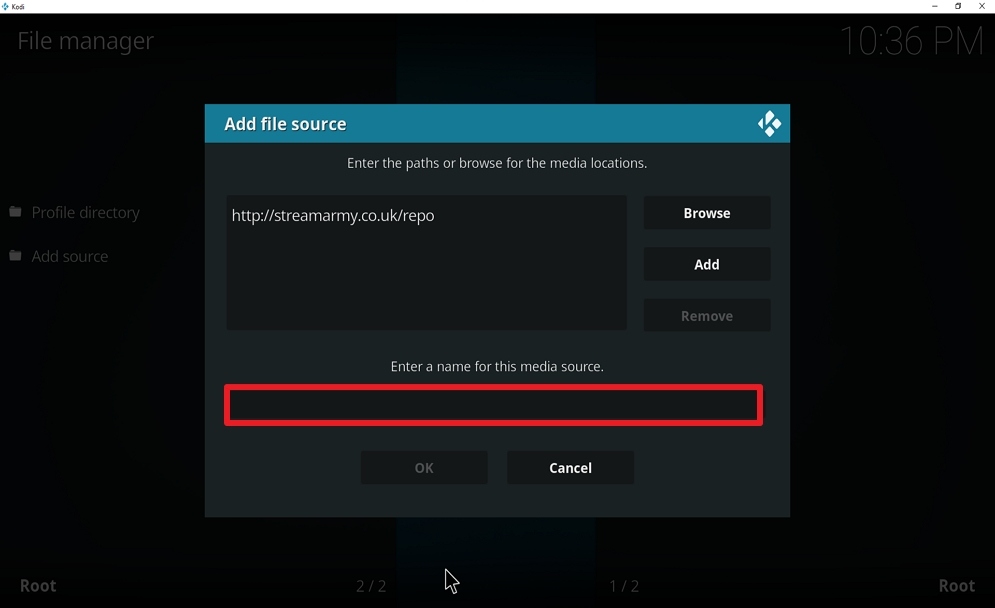
10. Select enter a name for this media source.

Step 10 Install Nemesis AIO on kodi


11. Name is Nemesis AIO  (this part isn’t critical as long as you remember the name).

Step 12 Install Nemesis AIO on kodi


12. Click on OK.

Step 12 Install Nemesis AIO on kodi


13. Click on OK.

Step 13 Install Nemesis AIO on kodi


14. Take one step back and click on Add-ons.

Step 14 Install Nemesis AIO on kodi


15. Select install from zip file.

Step 15 Install Nemesis AIO on kodi


16. Click on Nemesis AIO  (or whatever you named the source).

Step 16 Install Nemesis AIO on kodi


17. Click on repository.StreamArmy-12.0.001.zip . 

Step 17 Install Nemesis AIO on kodi


18. Once the installation is completed, a pop message will appear.

Step 18 Install Nemesis AIO on kodi


19. Select on Install from repository.

Step 19 Install Nemesis AIO on kodi


20. Click on Stream Army  Repo.

Step 20 Install Nemesis AIO on kodi


21. Pick Video add-ons.

Step 21 Install Nemesis AIO on kodi


22. Select NemesisAio.

Step 22 Install Nemesis AIO on kodi


23. Click on Install.

Step 23 Install Nemesis AIO on kodi


24. Select OK after reviewing the add-ons that will be installed.

Step 24 Install Nemesis AIO on kodi


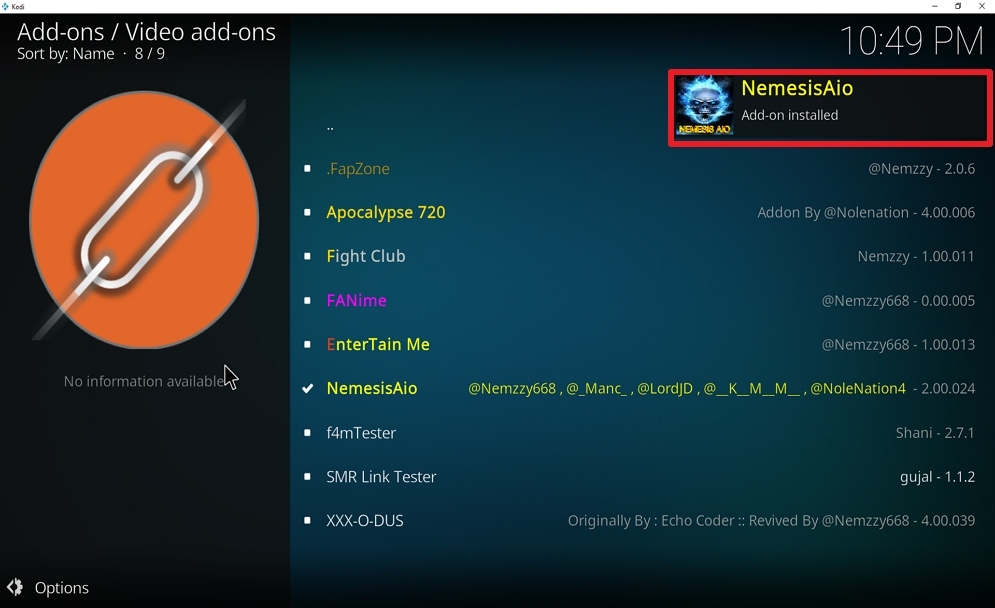
25. You should see a popup in the upper right corner saying NemesisAio has installed. There will actually be multiple popups for the various components.

Step 25 Install Nemesis AIO on kodi


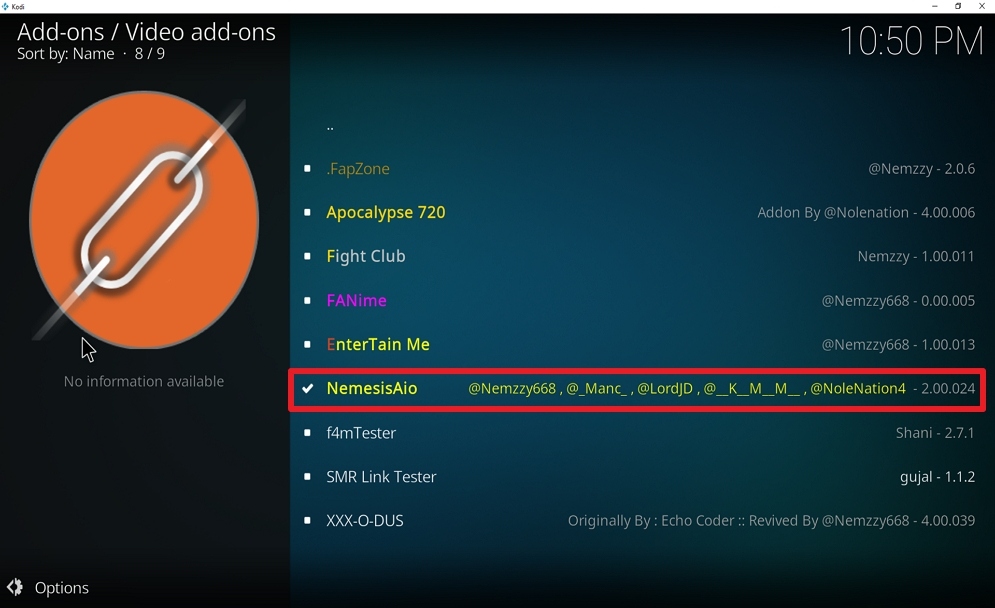
26. Click on NemesisAio.

Step 26 Install Nemesis AIO on kodi


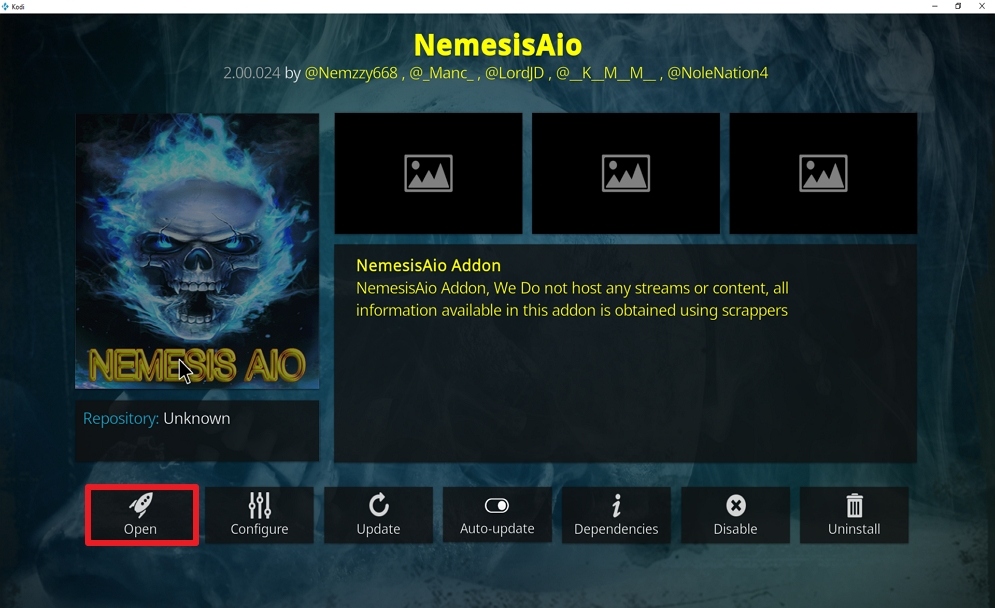
27. Click on Open to start the Nemesis Aio add-on.

Step 27 Install Nemesis AIO on kodi


Note

You will be required to enter a pin before you will be able to use this service. Log on to https://pinsystem.co.uk and navigate to the “Generate A Pin Code option” and click on “view Pin” button and when the pin code appears, copy it and paste it on the dialog box that will appear and click O


Conclusion

Nemesis AIO Kodi add-on has got loads of movies, TV series, TV shows, sports, and kids show for your entertainment purposes. It also has tools to enhance a smooth streaming experience. 

Top 3 Free VPNs For Firestick

Top 3 Free VPNs


ANONYMOUSLY

WINDSCRIBE

Install Windscribe VPN on Firesticks with Screenshots

  1. Click Home on your remote and scroll once to your left. It will be the search icon.

Step 1 Install Windscribe on Firestick

2. You can either say Windscribe to your Alexa’s voice-enabled remote or start typing it. If you typed it, click on the suggestion when it appears.

Step 2 Install Windscribe on Firestick


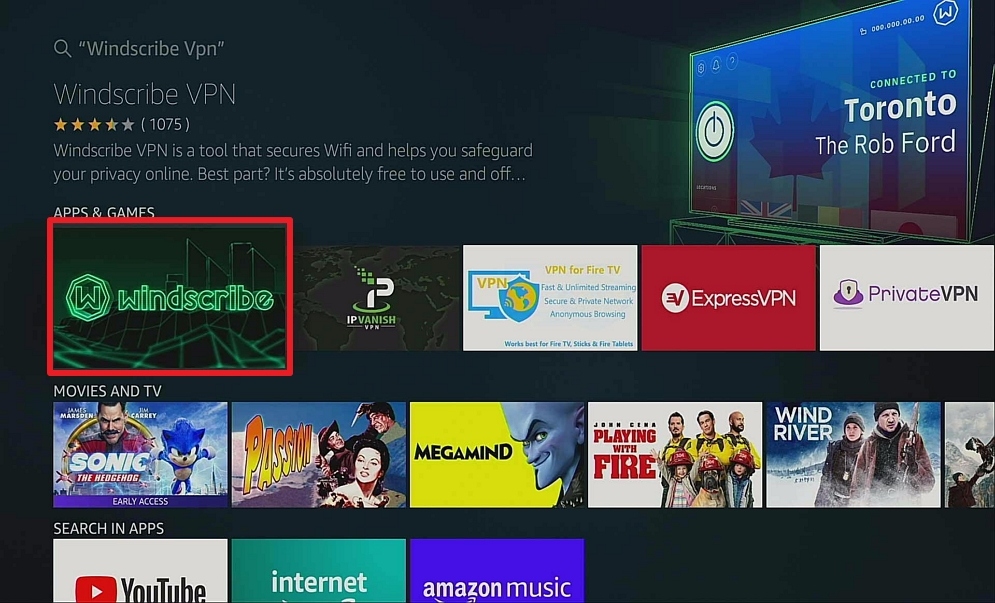
3. Click on the Windscribe icon.

Step 3 Install Windscribe on Firestick


4. Click Download

Step 4 Install Windscribe on Firestick


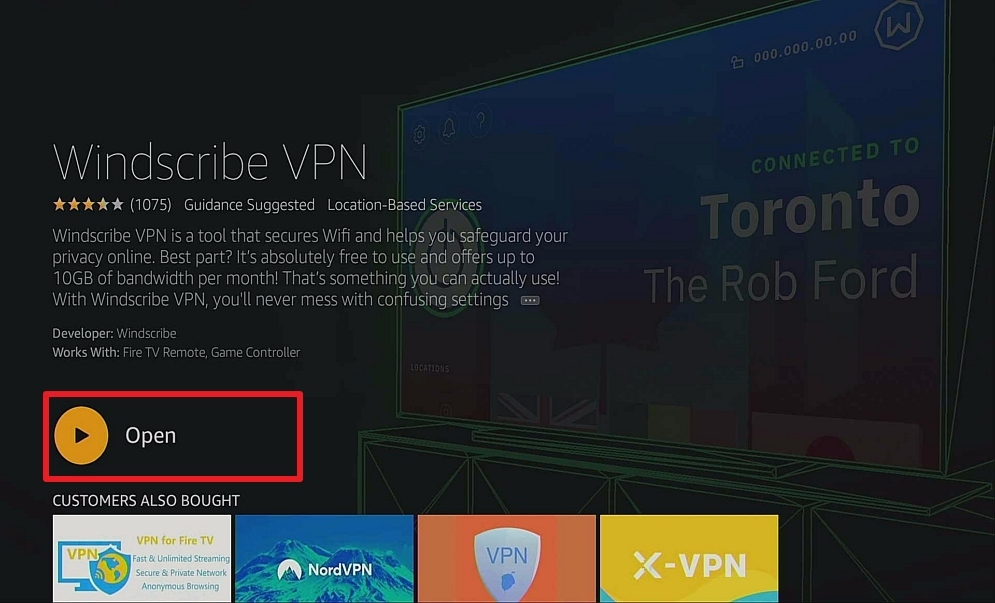
5. Click Open.

Step 5 Install Windscribe on Firestick


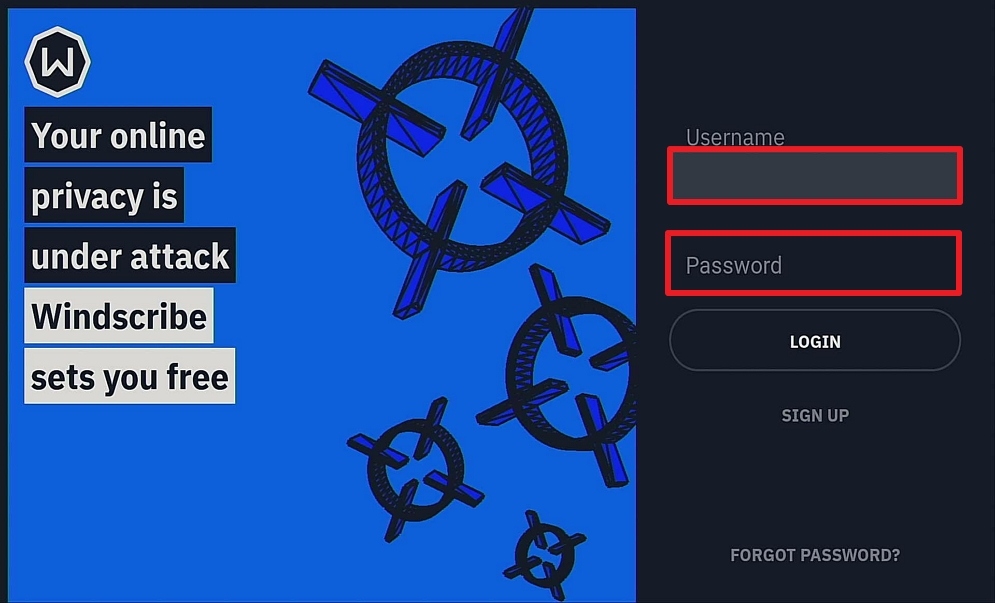
6. Input your username and password to log in.

Step 6 Install Windscribe on Firestick


7. Your Windscribe is installed now.

Step 7 Install Windscribe on Firestick


Hide.me

Install Hide.me VPN on Firesticks with Screenshots

  1. Click Home on your remote and scroll once to your left. It will be the search icon.

Step 1 Install Hide Me on Firestick


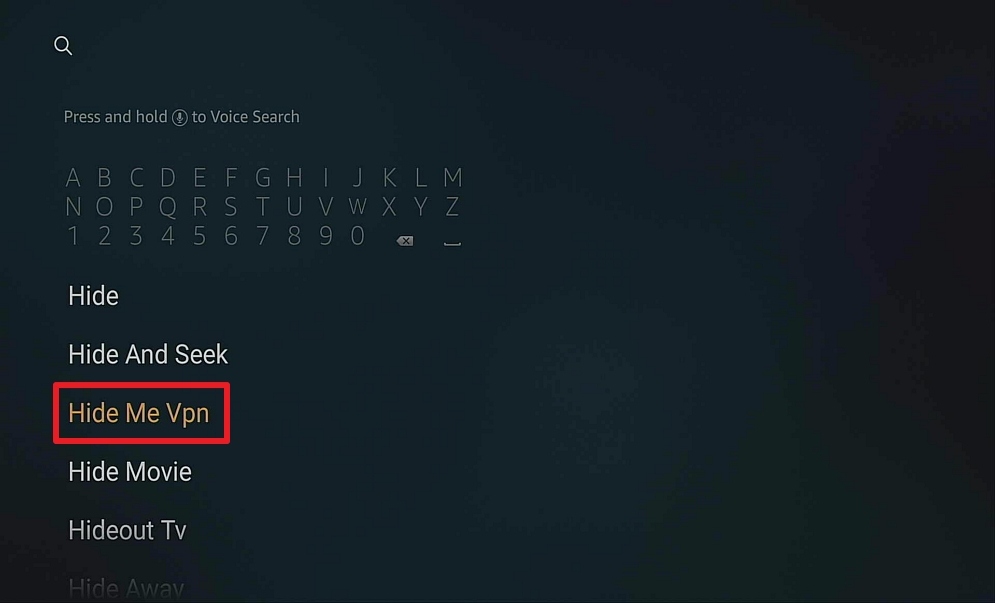
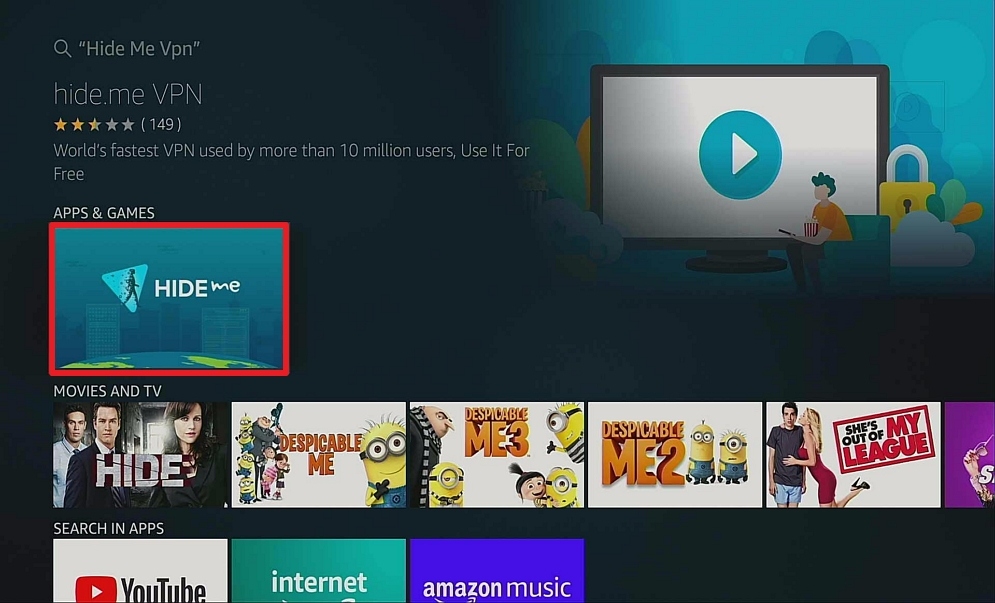
2. You can either say Hide Me to your Alexa’s voice-enabled remote or start typing it. If you typed it, click on the suggestion when it appears.

.Step 2 Install Hide Me on Firestick


3. Click on the Hide Me icon.

Step 3 Install Hide Me on Firestick


4. Click Download

Step 4 Install Hide Me on Firestick


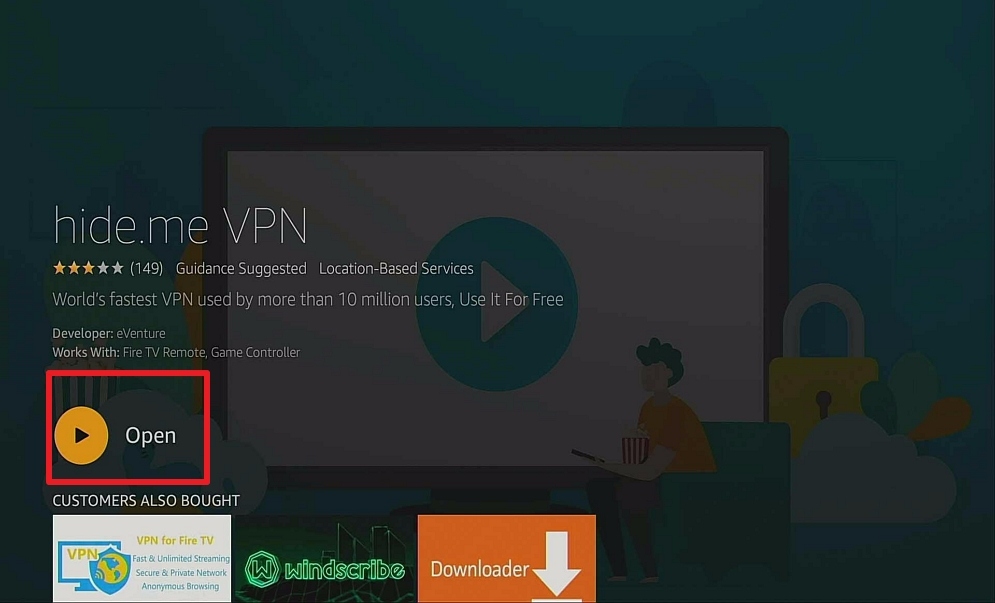
5. Click Open

Step 5 Install Hide Me on Firestick


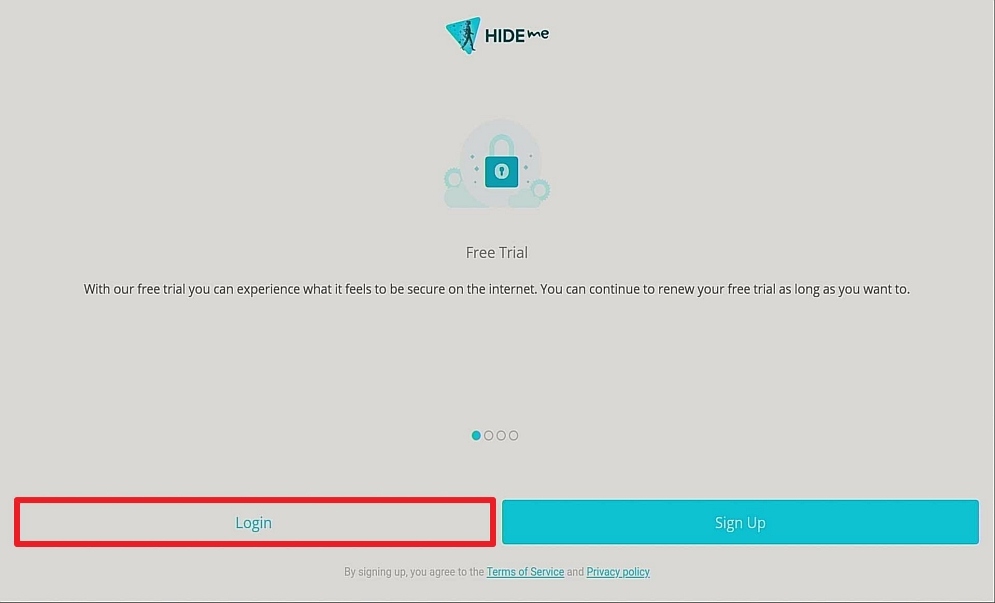
6. Click Login.

Step 6 Install Hide Me on Firestick


7. Input your username and password to log in.

Step 7 Install Hide Me on Firestick


8. Click Enable VPN.

Step 8 Install Hide Me on Firestick


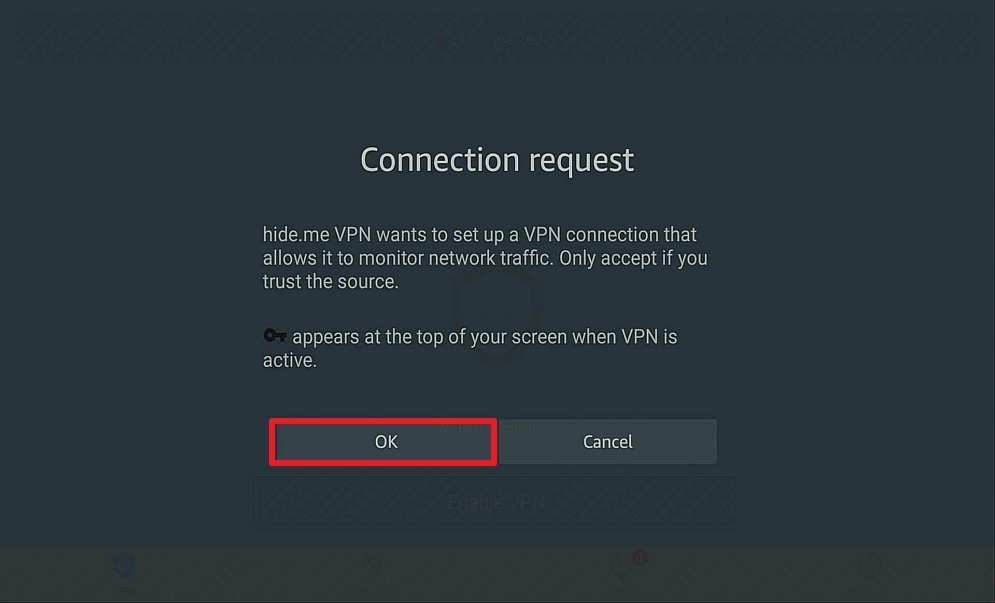
9. Click OK.

Step 9 Install Hide Me on Firestick


10. Your Hide Me VPN is installed and connected.

Step 10 Install Hide Me on Firestick


Proton

Install Proton VPN on Firesticks with Screenshots

  1. Step 1. Click Settings from the home screen of your Firestick

Step 1 Install Proton VPN on Firestick


2.  Scroll down and to the right until you reach My Fire TV

Step 2 Install Proton VPN on Firestick


3. Scroll down one and click on Developer Options

Step 3 Install Proton VPN on Firestick


4. Turn on ADB Debugging and Apps from Unknown Sources

Step 4 Install Proton VPN on Firestick


5. Turning on Apps from Unknown Sources will trigger a confirmation popup. Click Turn On to Confirm

Step 5 Install Proton VPN on Firestick


6. Click the home button on your remote and scroll once to the left to click on the magnifying glass icon

Step 6 Install Proton VPN on Firestick


7.  Search for Downloader either by saying it to your voice-enabled remote or typing. If typing, scroll to the suggested word “Downloader” and click on it

Step 7 Install Proton VPN on Firestick


8.  Click on the bright orange Downloader icon

Step 8 Install Proton VPN on Firestick


9.  Click on Download (it might say get on your device. Same difference)

Step 9 Install Proton VPN on Firestick


10. Click on Allow

Step 10 Install Proton VPN on Firestick


11. Click on OK

Step 11 Install Proton VPN on Firestick


12. Type https://reviewvpn.com/pro and click go.

Step 12 Install Proton VPN on Firestick


13. Click Install.

Step 13 Install Proton VPN on Firestick


14. Click Open.

Step 14 Install Proton VPN on Firestick


15. To be able to click NEXT, we need to install Mouse Toggle.

Step 15 Install Proton VPN on Firestick


16. To install Mouse Toggle, go to DOWNLOADER, type  http://reviewvpn.com/mouse, and click GO.

Step 1 Install Mousse Toggle on your firestick


17. Click Install

Step 2 Install Mousse Toggle on your firestick


18. Click Open.

Step 3 Install Mousse Toggle on your firestick


19. Check the BOX, and click OK

Step 4 Install Mousse Toggle on your firestick


20. Enable the mouse service, and wait until the Status is STARTED.

Step 5 Install Mousse Toggle on your firestick


21. Press the Home button, and click the Proton Icon.

Step 21 Install Proton


22. We are able now to click NEXT.

Step 15 Install Proton VPN on Firestick


23. Input your username and password to log in.

Step 16 Install Proton VPN on Firestick

Aptoide Security Breach

Overview

Aptoide, one of the popular marketplace software for installing mobile applications, has suffered a security breach of over 20 million user data, as reported by ZDNet. 

The marketplace app made an official statement regarding the security breach on April 19. Aptoide made it known that all logins, sign-ups, comments, and reviews are suspended until the company completes the comprehensive forensic analysis.

The Aptoide security breach caused multiple reactions in the hacker community since many IT professionals are the Aptoide app’s active users. Aptoide made it known that 97 percent of the Android app store users have never signed up for an Aptoide account. And that people can download apps through Aptoide without any sign-up at all.

However, the Android app store claims it has over 150 million users across the globe. Wherein, 3 percent of Aptoide users who signed up for an account are still a few million people.


What is Aptoide?

Android’s open nature allows users to download applications from various marketplaces. Aptoide is a Portugal-based marketplace software linking different application repositories. 

The Android app store offers access to over 1 million Android applications for tablets, mobile phones, Virtual Reality (VR) devices, and smart TVs, and accommodates over 150 million users. Aptoide Android app store is very famous in Asia (for the most part in China), where people can purchase Android gadgets without Google’s pre-installed applications pack.


ANONYMOUSLY


Legal Disclaimer: ReviewVPN.com does not encourage or endorse any illegal activity involved in the usage of services and applications referenced on this site. We do not verify the licensing agreements of services. The end-user is wholly responsible for ensuring that any media accessed through these services does not violate copyright and/or licensing laws. ReviewVPN does not promote, link to, or receive compensation from any Apps and IPTV services


Has Aptoide Made Any Public Statements

The Aptoide security breach was first disclosed on April 17 via the Twitter account of the data breach monitoring and prevention service – Under the Breach. 39 million Aptoide accounts were copied, with 20 million of those accounts surfacing on a public forum.

Documentations that were copied include Secure Hash Algorithm 1 (SHA-1) hashed passwords, email addresses, account status, birthdays, names, Internet Protocol addresses (IP address), and user agents from the previous logins. 

Aptoide later pitched in new information with different numbers, which showed up to 49 million Aptoide accounts could have been breached. Nonetheless, roughly 32 million accounts are held by OAuth logins utilizing Facebook and Google accounts, thus, there are no passwords connected with those accounts. Passwords for the remaining Aptoide accounts were hashed with Secure Hash Algorithm 1, which no longer weighed up a tight hashing algorithm.

The Android app store responded to the cyber attack through its blog. The post mentioned that the company is investigating the hack notification which means up to this point it is not confirmed from the Android app store side. The company noted that “Meanwhile, we would like to rest assured that all user passwords were encrypted. Besides your email address used for login and encrypted password, no Aptoide user’s data is in the database. Aptoide users were never requested for physical addresses, credit card information, telephone numbers, or other personal data.”

How Did The Aptoide Security Breach Occur

security breach

The notification of the Aptoide cyberattack was first spotted by Under the Breach. The leaked data divulged that the data breach contains Aptoide users’ information. It also contains information on sign-up tokens, account status, and developer tokens.

ZDNet reported that the PostgreSQL database file that surfaced on the hacking forum is still accessible for download. The business technology news website already reached out to the Android app store to alert them.


What Are The Best Privacy Measure When Using An Unknown Third-Party App

Your mobile phones or other mobile gadgets’ apps can be convenient tools for you to get directions, access the news, play games, or pick up rideshare. Nonetheless, these tools can also endanger your privacy. When people download an application, the app may ask for permission to access their personal information. This includes calendar inputs, email contacts, location data, and call logs, from their devices. Applications may collect this information for legitimate purposes.

One way to cut down risk from third-party app outlets is to keep away from them. However, even if people do, there is also a possibility to download an application from one of the official app stores and have their devices susceptible to malware.

So how to keep devices and people’s data safe and secure? It is part of sensibleness and protection. For example, it is ideal to ponder before downloading an email attachment from an unknown person to purchase an application. However, people can use cybersecurity products (such as Surfshark VPN) to help them keep their data safe from cybercriminals.


Secure Your Connection with a VPN

Surfshark vpn

Nowadays, security breaches are a common issue in the digital age. The privacy of its users is in danger since hackers and phishers can simply target apps or websites that are known to be susceptible and from which they can obtain a wealth of information.

While Aptoide is only one of many apps that this can happen to, the best approach to secure your data is to do it as soon as possible. And using a VPN is the best and simplest way to do this.

A VPN, such as Surfshark, will mask your IP address, allowing you to watch or browse the web anonymously. By doing this, the risk of data breaches is reduced because your personal information won’t be accessible on servers operated by unaffiliated parties. In addition, here are some other Surfshark features:

  • There are 3,200+ quick servers accessible in 100 locations to disguise your IP.
  • Allows for an unlimited number of simultaneous protected connections.
  •  Comes with an ad-blocker feature called CleanWeb that blocks malicious ads and adware.
  • Also features a cookie consent pop-up blocker that blocks annoying popups while browsing.
  • Two-factor authentication will provide additional protection for your account.

Note: For more information about Surfshark, please read our Surfshark Review.

Install Surfshark on Firestick

Best Surfshark Deal


YOUR INTERNET ACTIVITY IS BEING WATCHED

ReviewVPN cannot attest to the legality, security and privacy of the applications discussed on this site. It is highly recommended that you use a VPN service while streaming or using Kodi.

Currently, your IP 216.73.217.150 is visible to everyone and your Browser is being tracked by Advertisers & ISP Provider.

Save 65% Now

Limited Time Offer

Here are the main reasons why you must use a VPN:

  • Your activities are hidden from your ISP, the government, and from the apps you are using.
  • You can access additional movies and TV streams.
  • ISP attempts to throttle are thrwarted thus reducing buffering issues.
  • Geographically restricted content like Netflix and Hulu can be unblocked.

A VPN works be replacing your ISP-assigned IP address and creating an encrypted tunnel. We recommend the no log service offered by IPVanish. It works well on a Firestick and offers the fastest possible speeds.

Special Limited Time Offer - Get IPVanish


How to Install Surfshark VPN on Firestick

If your Firestick still has the older interface, read this article to learn how to update it: Update Firestick Interface.

Follow our screenshots below to install the SurfShark VPN app on your Fire TV stick.

1. Go to the Home screen of your Firestick.

step 1 Install Surfshark VPN on Firestick


2. Navigate toward the Find tab. Press the Search button from the resulting dropdown.

step 2 Install Surfshark VPN on Firestick


3. Type in the keyword of SurfShark and select from the suggestions that will appear.

step 3 Install Surfshark VPN on Firestick


4. Click the official SurfShark icon from your search results.

step 4 Install Surfshark VPN on Firestick


5. Press the Download (You own it) button.

step 5 Install Surfshark VPN on Firestick


6. The SurfShark VPN installer will download on your device.

step 6 Install Surfshark VPN on Firestick


7. SurfShark VPN’s app will automatically install itself on your Fire TV stick.

step 7 Install Surfshark VPN on Firestick


8. Press the Open button after completing SurfShark VPN’s installation process.

step 8 Install Surfshark VPN on Firestick


9. Please wait for the SurfShark VPN to load its user interface.

step 9 Install Surfshark VPN on Firestick


10. You can now log in with your SurfShark VPN account credentials.

step 10 Install Surfshark VPN on Firestick

Learn more about Surfshark and Grab the Best Surfshark Deal Now!


Install Surfshark on Firestick

Best Surfshark Deal


Other VPNs to Consider

NordVPN (Best for Streaming)

Best Features

  • 5000+ Server in 50+ Countries 
  • Military-Grade Encryption
  • Fast Connection Speed
  • Suitable to a lot of devices
  • No-Log Policy

Prices
  • Complete $5.89 per month (64% Discount)
  • Plus $4.59 per month (56% Discount)
  • Standard $3.69 per month (55% Discount)

Best Features

  • 750+ High-speed VPN Servers in 43 Locations
  • Military-Grade Encryption
  • Fastest HD Streaming and Gaming
  • 30-Day Money-Back Guarantee
  • Unlimited Data & Devices
  • No-Log Policy

Prices
  • 3 Years $1.99 per month (82% Discount)
  • 1 Years $3.29 per month (70% Discount)
  • 1 Month $10.99 per month

IPVanish VPN (Most Secure)

Best Features

  • 1200+ Servers in 60+ Countries around the world
  • Unlimited Connections
  • No-Log Policy
  • Top Notch Military-Grade VPN Protocols and Encryptions
  • 100% Safe and Secured
  • Most Trusted VPN
  • Best VPN for Firestick
  • 30-Day Money-Back Guarantee

Prices
  • Yearly $3.99 per month (63% Discount) – 30 days risk free + Ransomware & Malware Protection
  • Quarterly $5.32 per month (51% Discount)
  • Monthly $10.99 per month


For more VPN discounts, go to ReviewVPN Deals and purchase the best VPN for you.

Click here to get the lowest price on Surfshark through our exclusive limited-time offer.


Best Alternatives To Aptoide

If you are worn out of the American digital distribution service – Google Play Store, remember that you can try other Android app stores in the vast world of the web. Huge respect for the Google Play Store offerings, such as numerous games, apps, e-books, and a lot more. These have made people’s lives more enjoyable and productive. Nevertheless, individuals always want something new. This is where the Aptoide application comes in. An Android app store where people can find software for their Android devices.
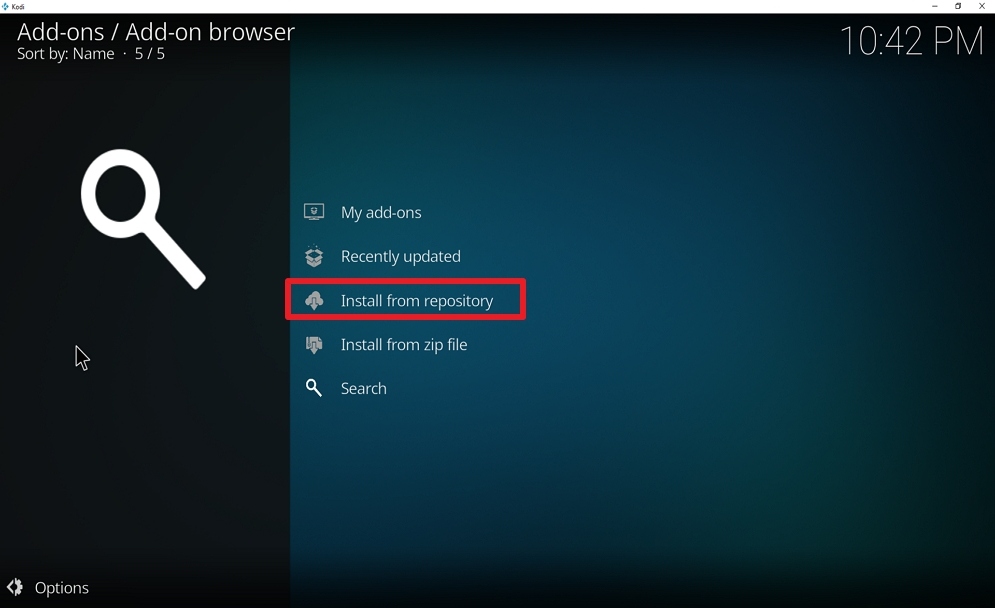
While some Android-powered devices are not compatible with the Aptoide marketplace software, the best solution is to search for alternatives rather than solving compatibility issues. Here are the best Aptoide alternatives:


  • Mobo Market– focuses on the top free Android Games and Applications
  • Amazon App Store– the most competent app store aside from the Google Play Store
  • AppBrain– formerly Android Market, a unique pay-per-install app promotion service
  • Aurora Store – users can update existing applications, download apps, get details about in-app trackers, search for apps, spoof location, and a lot more.
  • Uptodown – offers enriched editorial content on apps


Conclusion

Word of advice, turning on unknown settings means that the applications installed don’t have the seal of approval of Google. Also, apps downloaded through these third-party Android app stores may not have the in-house security of the American multinational technology company.

Fix Lag On A Firestick – SD Maid Pro Installation Guide

SD Maid Pro Overview


The Amazon Firestick has changed the way people watch entertainment. It can transform any regular LED TV into a Smart TV which allows users to download popular streaming applications like Cinema HD, Live Lounge, and PatoPlayer 2. But like all devices, the Amazon Firestick will inevitably experience lags and buffering because of its small storage capacity. A standard third-generation firestick only 1.3GHZ processor, 1GB RAM, and 8GB of storage. This is fairly small compared to its 4k successor which boasts a 1.7GHZ processor. In this article, we will teach you how to fix lags by installing SD Maid Pro on your Firestick.


ANONYMOUSLY

Is SD Maid Pro Safe and Virus-free?

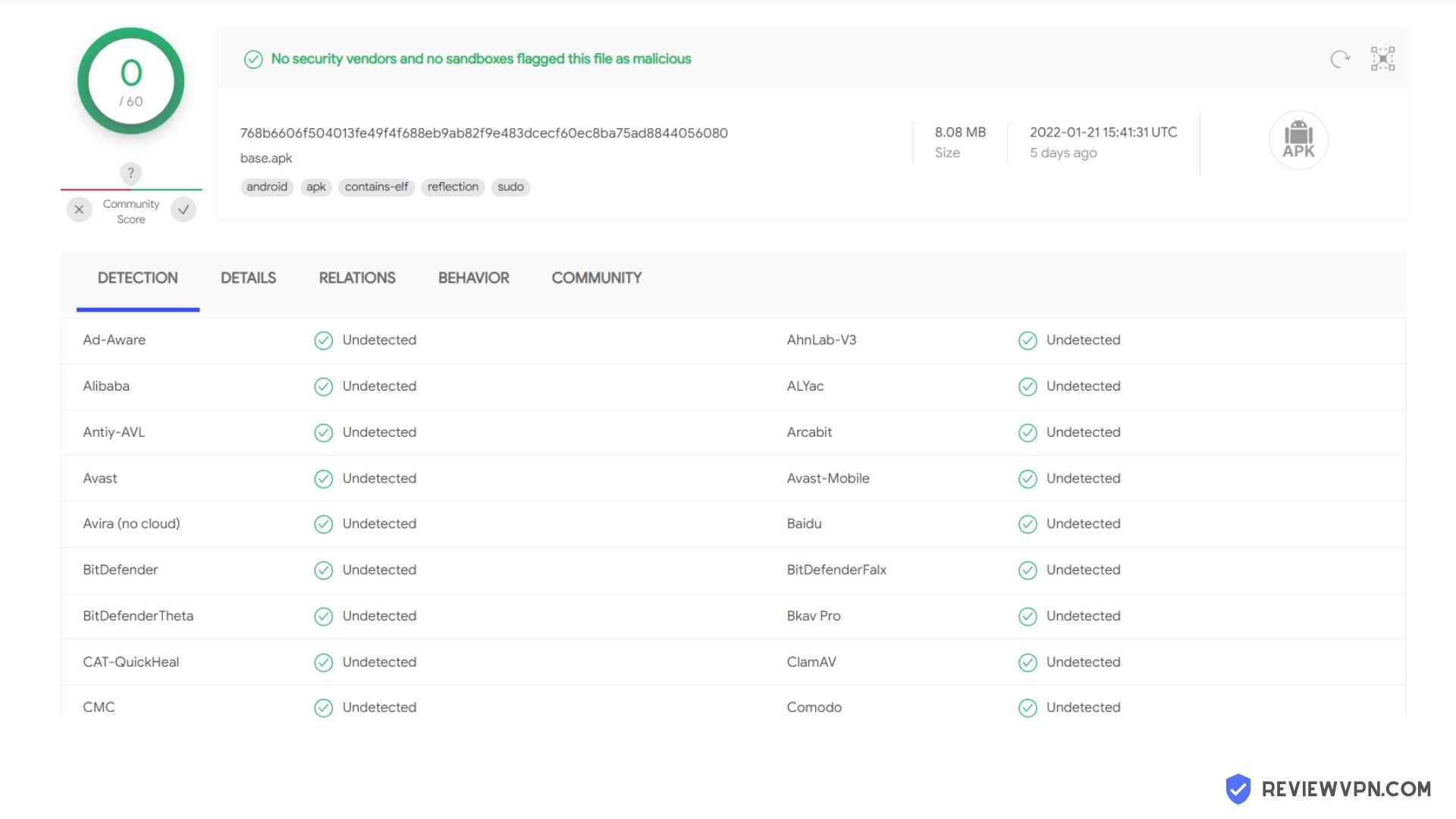
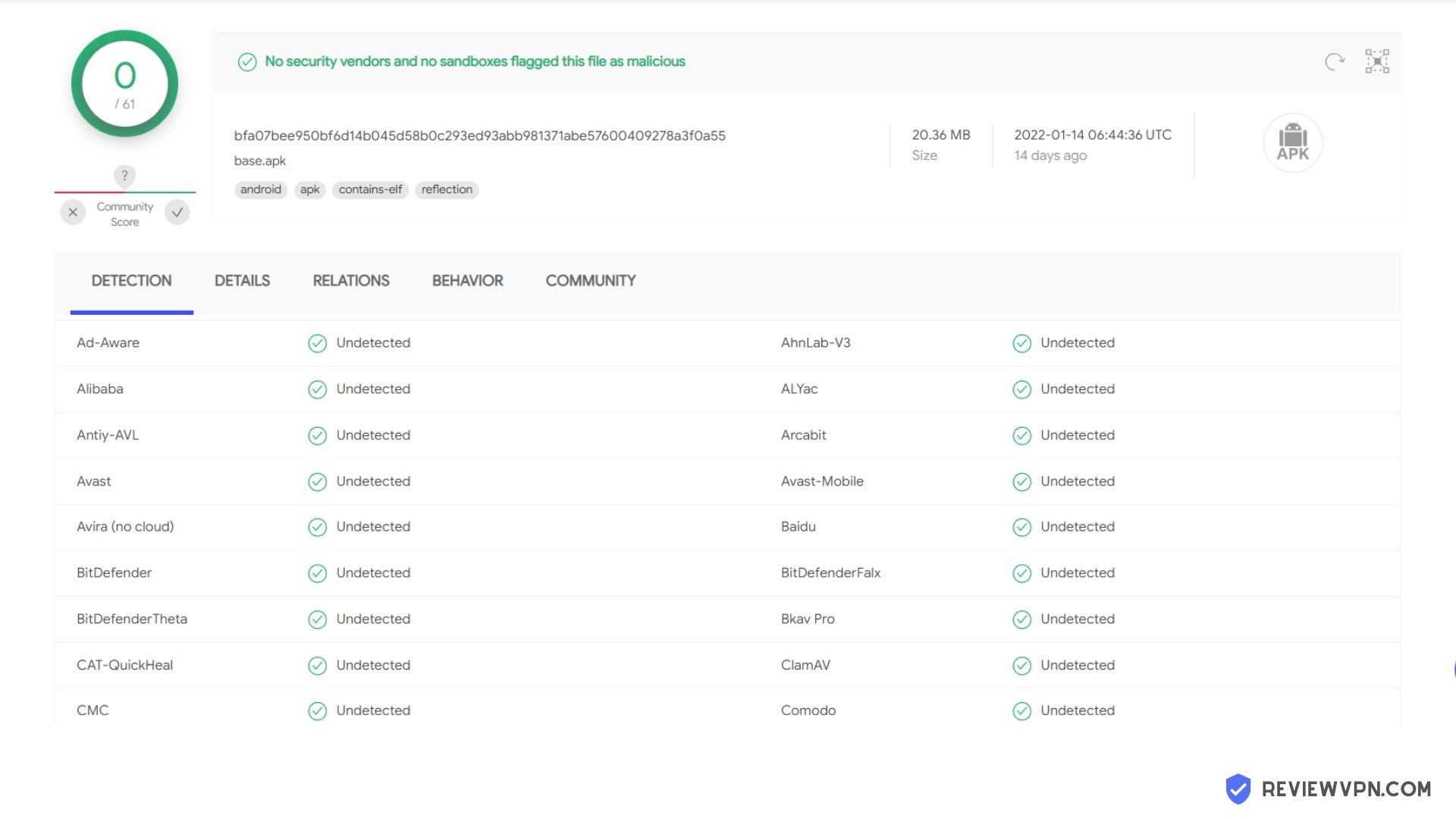
We tested this app using VirusTotal and found no threats or any malicious files and malware.

Despite having good results, we still need to be vigilant in protecting our privacy while streaming.

A Virtual Private Network or VPN will definitely help us maintain our security and anonymity while using SD Maid Pro.

Here’s how you can Install The Best VPN For Firestick and All Devices.


What Does SD Maid Pro Do?

SD Maid Pro is a utility software application that is specifically designed to optimize android devices such as tablets, mobile phones, and even Amazon devices. It will help you clean, delete unnecessary files, kill applications running in the background, and analyze what is taking up most of your storage.


SD Maid Pro Features

Quick Access

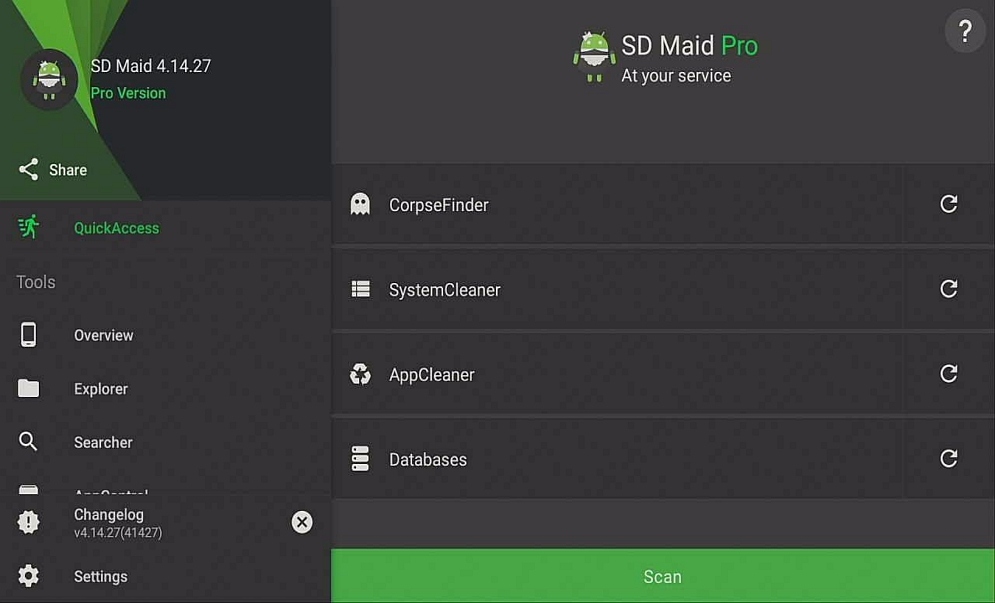
 Allows you to perform a quick scan on the following aspects of your device:

Corpse Finder, System Cleaner, App Cleaner, and Databases


App Tools

Overview – This gives you a general summary of your device.

Explorer – It gives the user permission to copy/cut, create, rename, or delete items. If SD Maid is rooted, you can virtually do anything with it. Be cautious when using this feature because you might delete something important running on your system.

Searcher – SD Maid Pro allows you to search for files using this feature.

App Control – Gives you an overview of all the apps installed on your device. If you want to see system applications, you have to check the settings. When you click on an item, it will show you all the actions available for it. The actions available will depend on the app and if SD Maid is rooted.

Corpse Finder – Corpses are files that used to belong to uninstalled applications. SD Maid will scan your device’s SD Cards and internal memory and compare it against your installed applications as well as an internal database. If you see any discrepancy, long-press the item and report it.

System Cleaner – This feature will scan for files and locations that can be deleted. Adept users can customize the filter to target more files and locations.

App Cleaner – Installed applications will be scanned for files that can be purged without losing valuable data. However, this feature does not delete application settings.

Duplicates – SD Maid will show files with extra copies. You can delete the copies using this.

Storage Analyzer – This feature will show you the entirety of your storage, the apps, and files that consume most storage.

Databases – This will optimize databases by using the SQL command VACUUM. It improves database performance by deleting empty pages.


Extras

Scheduler – This feature will allow you to customize the schedule of your scans. You don’t have to manually scan your system as long as this feature is turned on.

Exclusions – Excludes are partial paths or app package names. These are case-sensitive. Wildcards are not supported. Be as specific as possible to prevent accidentally excluding more than what is necessary.

Settings

This will allow you to manipulate SD Maid Pro on how you want it to appear. You can also perform: Show/Hide Tabs, Enforce Language, Result Notifications, Generate Preview, Press twice to exit, Animations, Bug reporting, and advanced settings(for adept users only)


YOUR INTERNET ACTIVITY IS BEING WATCHED

ReviewVPN cannot attest to the legality, security and privacy of the applications discussed on this site. It is highly recommended that you use a VPN service while streaming or using Kodi.

Currently, your IP 216.73.217.150 is visible to everyone and your Browser is being tracked by Advertisers & ISP Provider.

Save 65% Now

Limited Time Offer

Here are the main reasons why you must use a VPN:

  • Your activities are hidden from your ISP, the government, and from the apps you are using.
  • You can access additional movies and TV streams.
  • ISP attempts to throttle are thrwarted thus reducing buffering issues.
  • Geographically restricted content like Netflix and Hulu can be unblocked.

A VPN works be replacing your ISP-assigned IP address and creating an encrypted tunnel. We recommend the no log service offered by IPVanish. It works well on a Firestick and offers the fastest possible speeds.

Special Limited Time Offer - Get IPVanish


Legal Disclaimer: ReviewVPN.com does not encourage or endorse any illegal activity involved in the usage of services and applications referenced on this site. We do not verify the licensing agreements of services. The end-user is wholly responsible for ensuring that any media accessed through these services does not violate copyright and/or licensing laws. ReviewVPN does not promote, link to, or receive compensation from any Apps and IPTV services.


Install Surfshark on Firestick

Best Surfshark Deal


How to Install on Android Device


Download SD Maid Pro

Note: ReviewVPN.com does not host this APK. It is hosted by archive.org 


Installation Guide On A Firestick

  1. On the home screen, go to Settings.
  2. Select Developer Options.
  3. Open Apps from Unknown Sources.
  4. Click Turn On.
  5. Head back to the home screen and select Search.
  6. Search on Downloader and click on Downloader. It will appear under the keyboard.
  7. Choose the Downloader app.
  8. Download it.
  9. Choose Open.
  10. Select Allow.
  11. Choose OK.
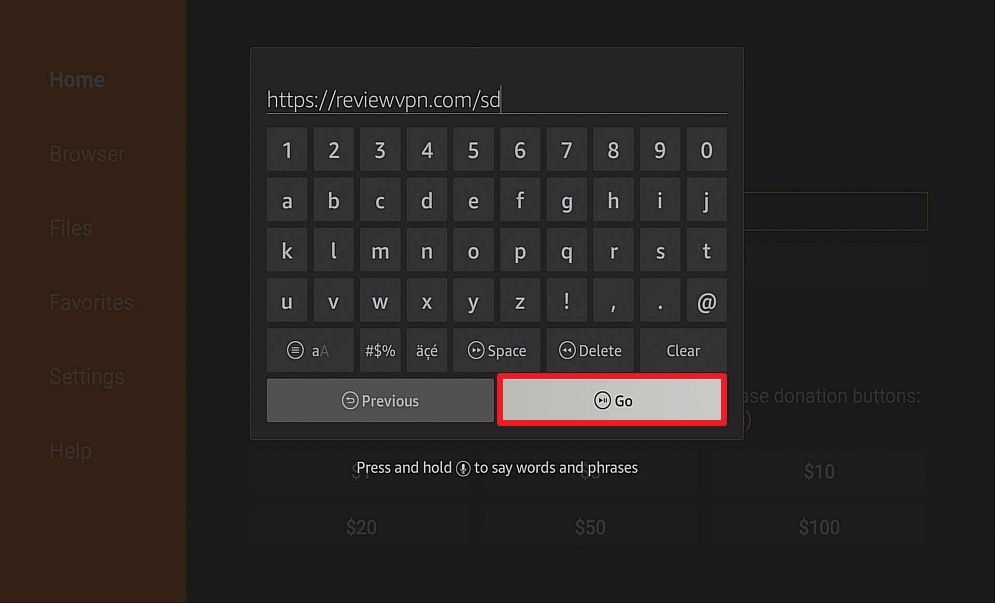
  12. Type http://reviewvpn.com/sd and click on Go.
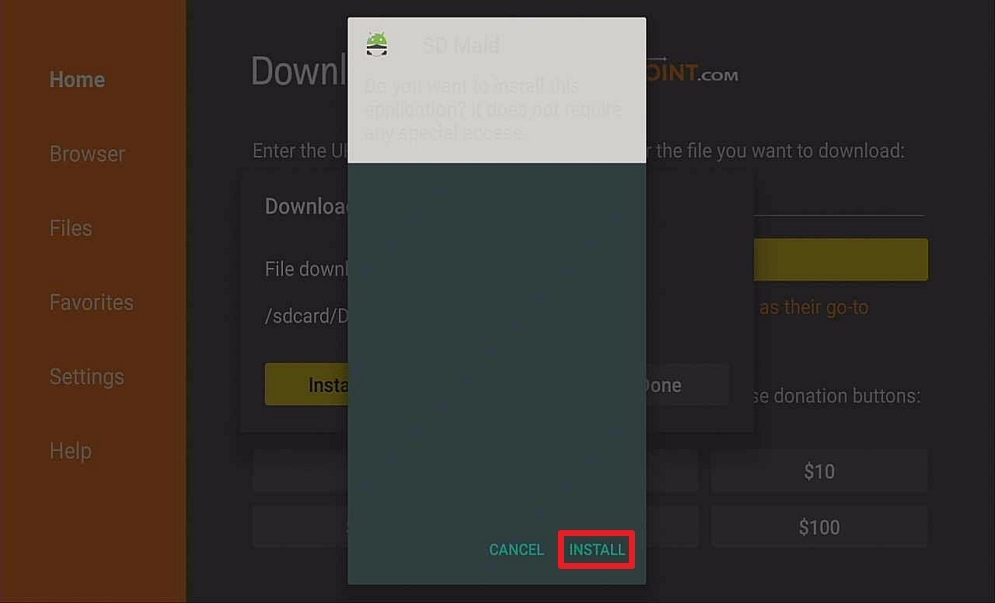
  13. Click on INSTALL
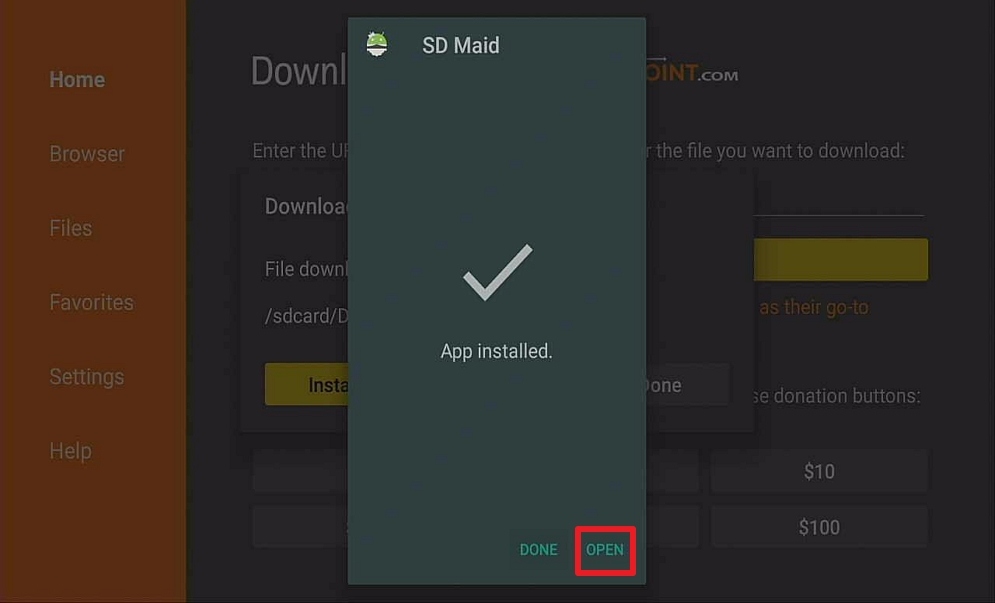
  14. Click on OPEN
  15. SD MAid Pro is Installed!


Install SD Maid Pro On A Firestick With Screenshots

If your Firestick still has the older interface, read this article to learn how to update it: Update Firestick Interface

1.  Install the Downloader app and jailbreak your firestick by enabling unknown sources. To learn more about the procedure, you may read How to Install the Downloader App and Enable Unknown Sources.


2. Type https://reviewvpn.com/sd  and click Go.

Step 2 Install SD MAID


3. Click on Install.

Step 13 Install SD Maid Pro on Firestick


4. Click OPEN.

Step 14 Install SD Maid Pro on Firestick


5. SD Maid Pro

Step 15 Install SD Maid Pro on Firestick


What Platforms does it Work On?

SD Maid Pro will perfectly work on the Amazon Firestick, Fire TV, Android TV Boxes, and all devices that run on the Android OS.


FAQs

Is It Safe To Download?

Yes, SD Maid Pro is safe to download on your Firestick and Android device.


Is It Legal or Grey?

It is 100% safe to download and use.


Should I use a VPN?

SD Maid Pro is a utility application so there is no need to run a VPN service like Surfshark. But if you want to know more about it, please read our full article on it by clicking on this link.

Note: For more information about Surfshark, please read our Surfshark Review.


Grab your subscription now!


How to Install Surfshark VPN on Firestick

If your Firestick still has the older interface, read this article to learn how to update it: Update Firestick Interface.

Follow our screenshots below to install the SurfShark VPN app on your Fire TV stick.

1. Go to the Home screen of your Firestick.

step 1 Install Surfshark VPN on Firestick


2. Navigate towards the Find tab. Press the Search button from the resulting dropdown.

step 2 Install Surfshark VPN on Firestick


3. Type in the keyword of SurfShark and select from the suggestions that will appear.

step 3 Install Surfshark VPN on Firestick


4. Click the official SurfShark icon from your search results.

step 4 Install Surfshark VPN on Firestick


5. Press the Download (You own it) button.

step 5 Install Surfshark VPN on Firestick


6. The SurfShark VPN installer will download on your device.

step 6 Install Surfshark VPN on Firestick


7. SurfShark VPN’s app will automatically install itself on your Fire TV stick.

step 7 Install Surfshark VPN on Firestick


8. Press the Open button after completing SurfShark VPN’s installation process.

step 8 Install Surfshark VPN on Firestick


9. Please wait for the SurfShark VPN to load its user interface.

step 9 Install Surfshark VPN on Firestick


10. You can now log in with your SurfShark VPN account credentials.

step 10 Install Surfshark VPN on Firestick

Learn more about Surfshark and Grab the Best Surfshark Deal Now!


Install Surfshark on Firestick

Best Surfshark Deal


Other VPNs to Consider

NordVPN (Best for Streaming)

Best Features

  • 5000+ Server in 50+ Countries 
  • Military-Grade Encryption
  • Fast Connection Speed
  • Suitable to a lot of devices
  • No-Log Policy

Prices
  • Complete $5.89 per month (64% Discount)
  • Plus $4.59 per month (56% Discount)
  • Standard $3.69 per month (55% Discount)

Best Features

  • 750+ High-speed VPN Servers in 43 Locations
  • Military-Grade Encryption
  • Fastest HD Streaming and Gaming
  • 30-Day Money-Back Guarantee
  • Unlimited Data & Devices
  • No-Log Policy

Prices
  • 3 Years $1.99 per month (82% Discount)
  • 1 Years $3.29 per month (70% Discount)
  • 1 Month $10.99 per month

IPVanish VPN (Most Secure)

Best Features

  • 1200+ Servers in 60+ Countries around the world
  • Unlimited Connections
  • No-Log Policy
  • Top Notch Military-Grade VPN Protocols and Encryptions
  • 100% Safe and Secured
  • Most Trusted VPN
  • Best VPN for Firestick
  • 30-Day Money-Back Guarantee

Prices
  • Yearly $3.99 per month (63% Discount) – 30 days risk free + Ransomware & Malware Protection
  • Quarterly $5.32 per month (51% Discount)
  • Monthly $10.99 per month


For more VPN discounts, go to ReviewVPN Deals and purchase the best VPN for you.

Click here to get the lowest price on Surfshark through our exclusive limited-time offer.


Is It Free?

SD Maid Pro is free to download. Just follow the installation guides we have provided in this article.


Are There ADS?

SD Maid Pro has no ads whatsoever.


Is There a Premium Version?

SD Maid Pro has two versions – Basic and Pro. The one we are reviewing is the Pro version. The basic version has all the basic functions minus certain additional features.


Is There an Official Website?

Yes, there is an official website.


What Other Devices Does It Work On?

Windows Laptop/PC via an android emulator and other devices that run on android.


How Does The App Work?

Follow the installation guide above and after that, you can use SD Maid Pro to optimize your Firestick.


Minimum Version Required

Your device will require at least version 5.0 and above.


How Long Has It Been Around?

SD Maid Pro is relatively new to the scene. It was released last January 12, 2020.


Alternatives

We have tested other utility apps and came to a sound conclusion that the following are suitable alternatives to SD Maid Pro if and when it malfunctions:

         DBTV Assistant

          Clean Master

          Task Killer

Note: If you are using Kodi, you can also check out our article on Kodi Buffering


Our Opinion

SD Maid Pro is a pretty straightforward utility app. You can optimize your Firestick with just one click of a button. It is that simple. SD Maid Pro’s other features also make it a cut above the rest. You might want to give SD Maid Pro a try if you are not satisfied with the performance of your previous utility apps, 

We hope that this write-up helps you in fixing lags on your Firestick using SD Maid. Please feel free to send us comments and suggestions down below. Thank you and stay safe!


Note: ReviewVPN.com does not own or operate any app nor does it endorse any. The main purpose of this article is strictly for educational purposes only.

Downloading IPVANISH On Amazon Firestick – Fast and Secure VPN Service

 IPVANISH On Amazon Firestick Overview

In this article, we will be reviewing and showing you how to download IPVANISH on your Amazon Firestick.


The Amazon Firestick has made strides over the years in terms of free entertainment. Downloading and installing streaming apps can now be done with a few steps. The common misconception is that once you have these streaming apps you are all set up and ready to go.

This notion is quite dangerous and may well, in fact, lead you to unwanted lawsuits. In order to avoid any unwanted circumstances, you need to be very careful and responsible when using such applications. Our hope is that by the end of this article we would have already shed some light on why IPVANISH is considered a fast and secure VPN service.


ANONYMOUSLY


Virtual Private Network Explained

VPN stands for Virtual Private Network. It is widely used in conjunction with free streaming applications. It serves as a barrier to helping us stay away from trouble when using streaming apps. There are a variety of reasons why you need a VPN service and they are as follows:

Secured Online Activity

Not a lot of people realize that whatever they do online is monitored by their ISP (Internet Service Provider) and even by the government. You are also susceptible to hackers who can use your information and sell them for their own benefit. A VPN service will conceal anything and everything you do online by creating encryption which is then rerouted to a private server which will make you virtually impossible to find.


Untraceable IP Address

As stated earlier, a VPN will render you untraceable by allowing you to change your IP Address. You can be anywhere in the world and nobody will find out your true location.


Access to Location-Restricted Content

You will notice that when you use some of the paid streaming applications, you will reach a point where you cannot access certain content. This means that what you are trying to watch is only accessible to people from that location. This could be very frustrating to many especially KDrama Fans. A VPN can give you access to this type of content by letting you change your IP Address to the location of the content you are trying to watch.


Online Anonymity

A VPN service will help you conceal your online identity. You are most vulnerable online when you are connected to a Public Network. So it is always desirable to connect to a VPN service first before accessing a Public Network. In this way, whatever you do online can never be traced back to you.


Increased Internet Speed

ISPs are famous for scamming their subscribers by giving off limited connection speeds not equal to what is stated in their subscription plans. This is called throttling. A VPN service will ensure that this never happens. It will always block the attempts of your ISP to throttle down your connection.

Now that we have covered the basics of a VPN, the next question would be, What is the fastest and most secure VPN Service out there? In the next section of this article, we will be introducing to you our personal go-to VPN Service of all time and that is IPVANISH.


YOUR INTERNET ACTIVITY IS BEING WATCHED

ReviewVPN cannot attest to the legality, security and privacy of the applications discussed on this site. It is highly recommended that you use a VPN service while streaming or using Kodi.

Currently, your IP 216.73.217.150 is visible to everyone and your Browser is being tracked by Advertisers & ISP Provider.

Save 65% Now

Limited Time Offer

Here are the main reasons why you must use a VPN:

  • Your activities are hidden from your ISP, the government, and from the apps you are using.
  • You can access additional movies and TV streams.
  • ISP attempts to throttle are thrwarted thus reducing buffering issues.
  • Geographically restricted content like Netflix and Hulu can be unblocked.

A VPN works be replacing your ISP-assigned IP address and creating an encrypted tunnel. We recommend the no log service offered by IPVanish. It works well on a Firestick and offers the fastest possible speeds.

Special Limited Time Offer - Get IPVanish


Legal Disclaimer: ReviewVPN.com does not encourage or endorse any illegal activity involved in the usage of services and applications referenced on this site. We do not verify the licensing agreements of services. The end-user is wholly responsible for ensuring that any media accessed through these services does not violate copyright and/or licensing laws. ReviewVPN does not promote, link to, or receive compensation from any Apps and IPTV services.


Fast and Secure Streaming With IPVanish

IPVANISH is hailed as the top VPN service in the world. It is compatible with most streaming devices and very simple and quick to use. All of the features of a VPN are embodied within IPVANISH making it the best of the best. 


Install IPVanish on Firestick with Screenshots

If your Firestick still has the older interface, read this article to learn how to update it: Update Firestick Interface.

1.  Click Home on your remote and click “Find”.

Step 1 Install IPVanish


2. Click “Search”

Step 2 Install IPVanish


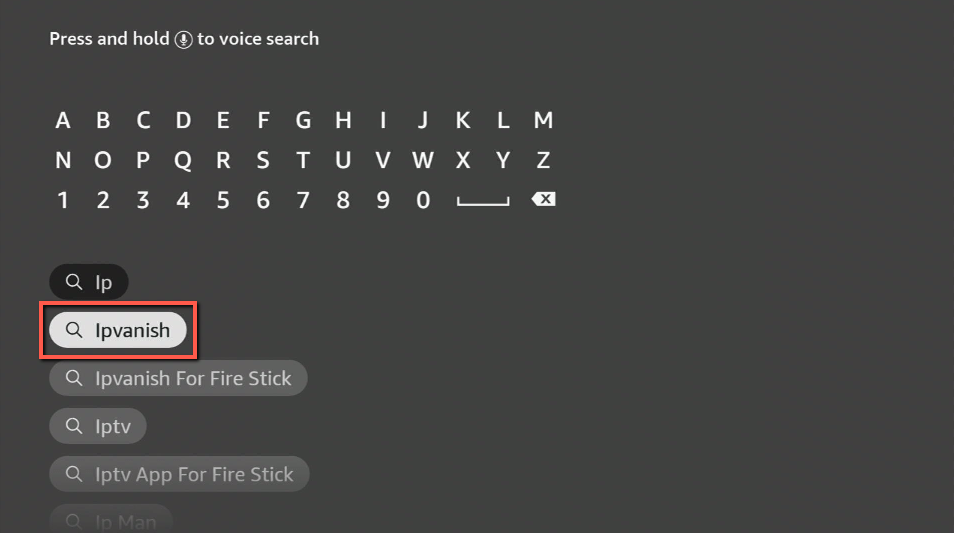
3. You can either say IPVanish to your Alexa’s voice-enabled remote or start typing it. If you typed it, click on the suggestion when it appears.

Step 3 Install IPVanish


4. Click on the IPVanish icon.

Step 4 Install IPVanish


5. Click on Download

Step 5 Install IPVanish


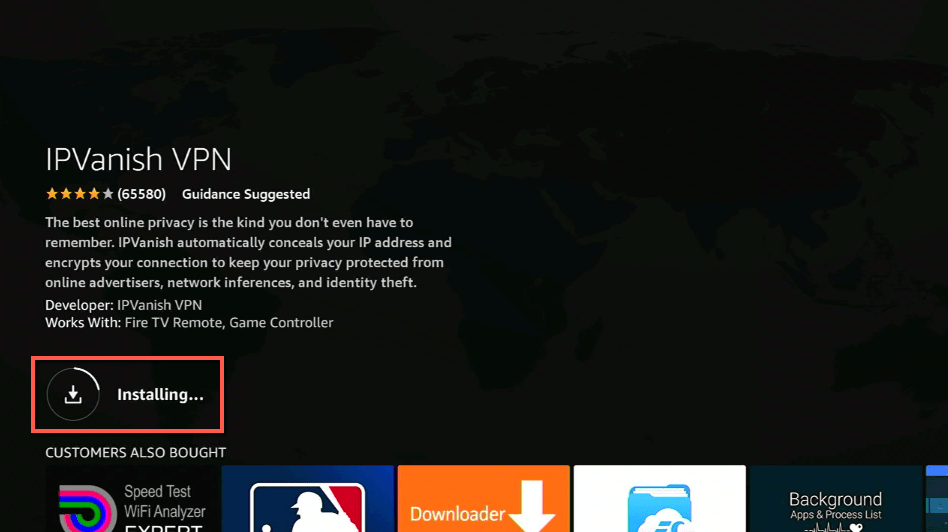
6. Wait to download.

Step 6 Install IPVanish


7.  Wait to install.

Step 8 Install IPVanish


8.  Click on Open.

Step 8 Install IPVanish


9.  Input your username and password to log in.


10. Click Connect.

Learn more about IPVanish. Get an IPVANISH now.


After successfully downloading and installing IPVANISH on your Firestick you will gain access to these functions:


Start IPVANISH

This launches the IPVANISH VPN automatically the moment you switched on your device (Amazon fireTV or Firestick).


Auto Reconnect

This relaunches IPVANISH automatically when a termination occurs. We recommend you turn ON this option always. It will save you the headache of having to turn it back on each time you are going to use it.


Allow Local Area Network (LAN)

When you turn on this feature, the re-routing of your LAN will not happen. This helps you to connect to a device that streams with an app such as a Plex media server and a lot more.
 

Allow Split Tunneling

This feature allows you to choose any app that you don’t want to be filtered through the VPN. Keep this on when using paid streaming applications. It is relatively new, so there is a possibility that this feature won’t work well with Fire TVdevices.

Note: The ones we mentioned in this section are what we think are essential to IPVANISH operations.


Pros and Cons

Pros

  • Top-Notch Download Speed
  • Tailor-Made for Amazon Fire Devices (2nd gen and above)
  • Multiple Device Connections (10 devices per account)
  • Compatible with Android and IOS devices
  • Affordable and Reasonable Price ($60 per year)

Cons

  • It is not compatible with first-generation firesticks.


IPVANISH Alternatives

IPVANISH is a league of its own and we believe that there is no other VPN service that can match its superiority. With that being said, issues are unpredictable and IPVANISH is not exempt from such. That’s why a backup is always ideal and the following VPN services are competent enough to fill in if and when IPVANISH experiences issues. They are as follows:

  • Express VPN
  • Nord VPN
  • Cyberghost 


Conclusion

IPVANISH has been in the VPN industry for a while now and offers great service. Their subscription plans are affordable and reasonable. It works perfectly on the Firestick. So, if you are looking for the best VPN service, look no further, IPVANISH is the one you have been looking for.

We hope that this article was able to help you install IPVANISH on your Firestick. Thank you for reading!

How to Install Encrypt.me VPN on a Firestick

Encrypt.me VPN Overview

In this article, we will help you install Encrypt.me VPN on Firestick.


Nowadays, everything you do online is being recorded and monitored. ISPs are constantly doing this in order to track people who are doing something shady. Your online safety and security all depend on what you do with the internet. If you are fond of watching content for free by using third part streaming applications without any form of protection against monitoring, you will be in a lot of trouble. In this article, we will be showing you how to install Encrypt.me VPN on a Firestick.


VPN In a Nutshell

Your data and identity are most vulnerable when you access a public network.  A Virtual Private Network (VPN) is software that acts as an extra layer of protection especially when you are utilizing a public network as your internet connection. It hides your online identity and makes sure that all the activities you do will never be traced back to you.


ANONYMOUSLY

Encrypt.me VPN Features

Now that we have covered the basics of a VPN service, let us dive into more specific details by discussing Encrypt.me VPN. By subscribing to Encypt.me’s services, you are afforded the following benefits:

Online Privacy and Anonymity

What Encrypt.me does is the route and encrypt all the internet traffic using an intermediary server which you might want to choose. As such, you can conceal your real location and change your IP address to whichever location you choose. It will then appear on the network as if you are located in a different country. If you are using Kodi, installing Encrypt.me VPN will also provide the much-needed privacy and hide your details from your internet service provider.


Access to Location-Restricted Content

Encypt.me VPN allows you to bypass location restrictions thus giving you access to content in those countries and regions. You can also use it with the most popular paid streaming apps in order to access geo-locked content.


Zero Log Policy

Encrypt.me VPN does not store users’ information on their database and does not give out users’ information to third parties. Whatever information you may have while using encrypt.me VPN will be secured and kept with leak protection.


Kill Switch

Encrypt.me VPN has a kill switch feature. With this feature, you don’t need to worry about your data being vulnerable when your VPN suddenly stops working. So what the kill switch does is interrupt your internet connection the moment encrypt.me VPN stops working. This safeguards your online data because a few seconds of accessing the internet without a VPN will make your online information vulnerable.
 

Device Compatibility

Encrypt.me VPN  is compatible with Amazon devices such as Fire TV and Firestick. Once subscribed to its service, you will stream content privately and safely. Second and third-generation Amazon devices such as fire cube, firestick, and Fire TV are devices that you can connect to any type of television together with an internet connection, you can be able to stream thousands of video content such as tv shows, documentaries, news, and movies. 
 

YOUR INTERNET ACTIVITY IS BEING WATCHED

ReviewVPN cannot attest to the legality, security and privacy of the applications discussed on this site. It is highly recommended that you use a VPN service while streaming or using Kodi.

Currently, your IP 216.73.217.150 is visible to everyone and your Browser is being tracked by Advertisers & ISP Provider.

Save 65% Now

Limited Time Offer

Here are the main reasons why you must use a VPN:

  • Your activities are hidden from your ISP, the government, and from the apps you are using.
  • You can access additional movies and TV streams.
  • ISP attempts to throttle are thrwarted thus reducing buffering issues.
  • Geographically restricted content like Netflix and Hulu can be unblocked.

A VPN works be replacing your ISP-assigned IP address and creating an encrypted tunnel. We recommend the no log service offered by IPVanish. It works well on a Firestick and offers the fastest possible speeds.

Special Limited Time Offer - Get IPVanish


Legal Disclaimer: ReviewVPN.com does not encourage or endorse any illegal activity involved in the usage of services and applications referenced on this site. We do not verify the licensing agreements of services. The end-user is wholly responsible for ensuring that any media accessed through these services does not violate copyright and/or licensing laws. ReviewVPN does not promote, link to, or receive compensation from any Apps and IPTV services.


Install Surfshark on Firestick

Best Surfshark Deal


How To Install Encrypt.me VPN On A Firestick Device

Before starting, you need to sign up for an account on Encrypt.me VPN. Click on this URL to sign up for an account: https://app.encrypt.me/accounts/log-in/. After signing up for an account, you need to purchase a subscription plan as well. It is advisable to use easy-to-remember passwords and usernames.

  • Switch on your firestick device and allow it to boot. Once it running properly, navigate through to the home screen and click on App. When it opens, select categories and then click on utilities. Or you may use the search bar and input VPN.
  • When this is done, click on Encrypt.me VPN from the list of VPNs that will come out.
  • You will have to click on the yellow button; this will bring out the Get option, once you click on it, it will automatically start downloading the app. Once the downloading is done, install it.
  • When the installation is done, you will have to click on the yellow button again and will open Encrypt.me VPN app.
  • When it opens, it will bring a new window where you will be prompted to input your login details such as password and username. You may use the remote to input the login details. Once done inputting the details, you will have to click on login.
  • Once you click the login, a new window will pop up where you will then connect the VPN; you may click on connect or you may choose the server you want.

Note: For more information about Surfshark, please read our Surfshark Review.


Grab your subscription now!


How to Install Surfshark VPN on Firestick

If your Firestick still has the older interface, read this article to learn how to update it: Update Firestick Interface.

Follow our screenshots below to install the SurfShark VPN app on your Fire TV stick.

1. Go to the Home screen of your Firestick.

step 1 Install Surfshark VPN on Firestick


2. Navigate towards the Find tab. Press the Search button from the resulting dropdown.

step 2 Install Surfshark VPN on Firestick


3. Type in the keyword of SurfShark and select from the suggestions that will appear.

step 3 Install Surfshark VPN on Firestick


4. Click the official SurfShark icon from your search results.

step 4 Install Surfshark VPN on Firestick


5. Press the Download (You own it) button.

step 5 Install Surfshark VPN on Firestick


6. The SurfShark VPN installer will download on your device.

step 6 Install Surfshark VPN on Firestick


7. SurfShark VPN’s app will automatically install itself on your Fire TV stick.

step 7 Install Surfshark VPN on Firestick


8. Press the Open button after completing SurfShark VPN’s installation process.

step 8 Install Surfshark VPN on Firestick


9. Please wait for the SurfShark VPN to load its user interface.

step 9 Install Surfshark VPN on Firestick


10. You can now log in with your SurfShark VPN account credentials.

step 10 Install Surfshark VPN on Firestick

Learn more about Surfshark and Grab the Best Surfshark Deal Now!


Install Surfshark on Firestick

Best Surfshark Deal


Other VPNs to Consider

NordVPN (Best for Streaming)

Best Features

  • 5000+ Server in 50+ Countries 
  • Military-Grade Encryption
  • Fast Connection Speed
  • Suitable to a lot of devices
  • No-Log Policy

Prices
  • Complete $5.89 per month (64% Discount)
  • Plus $4.59 per month (56% Discount)
  • Standard $3.69 per month (55% Discount)

Best Features

  • 750+ High-speed VPN Servers in 43 Locations
  • Military-Grade Encryption
  • Fastest HD Streaming and Gaming
  • 30-Day Money-Back Guarantee
  • Unlimited Data & Devices
  • No-Log Policy

Prices
  • 3 Years $1.99 per month (82% Discount)
  • 1 Years $3.29 per month (70% Discount)
  • 1 Month $10.99 per month

IPVanish VPN (Most Secure)

Best Features

  • 1200+ Servers in 60+ Countries around the world
  • Unlimited Connections
  • No-Log Policy
  • Top Notch Military-Grade VPN Protocols and Encryptions
  • 100% Safe and Secured
  • Most Trusted VPN
  • Best VPN for Firestick
  • 30-Day Money-Back Guarantee

Prices
  • Yearly $3.99 per month (63% Discount) – 30 days risk free + Ransomware & Malware Protection
  • Quarterly $5.32 per month (51% Discount)
  • Monthly $10.99 per month


For more VPN discounts, go to ReviewVPN Deals and purchase the best VPN for you.

Click here to get the lowest price on Surfshark through our exclusive limited-time offer.


FAQs

Does Encrypt.me VPN Offer a Free Trial?

Yes, Encrypt.me VPN has a 14-day free trial. After which monthly and annual subscription plan starts at $9.99 and $99.9 respectively.


How Many Devices or Accounts Do You Need on Encrypt.me VPN?

Only one account is enough.


Pros and Cons

Pros

  • Fast and good streaming quality
  • Very honest and a decent spread of servers with transparent service.
  • Countries and servers: 31 and 132 respectively.
  • Internet protocol address: 132

Cons

  • Expensive and many pricing subscription plans. Also, Encrypt.me does not allow torrenting.
  • Payment is via debit and credit card.


Conclusion

Encrypt.me is an ideal option for a VPN service. It provides unlimited privacy and protection while streaming online via amazon firestick and fire tv devices.

We hope that this guide helps you in installing Encrypt.me VPN on your Firestick. Thank you for reading!

How To Download Cinemax HD On a Firestick– A Fast Movie Streaming App for 2023

Cinemax HD Movie Streaming App Overview

This article will show you how to install Cinemax HD on Firestick.


In this time where quarantines and lockdowns are implemented, you are probably wondering what you can do to kill boredom. It is a trying time and people are not used to being stuck at home doing nothing but watching the news to keep updated. Nonetheless, if you need to take a break from all the unfortunate news you see on tv, you might want to try this new movie streaming app – Cinemax HD.

In this article, we will be showing you how to download Cinemax HD on a Firestick and discuss the main features of the app. Hopefully, by the end of this article, we would have already covered all the basics that you will need to use this app.

Cinemax HD is a third-party movie streaming application. It has a one-click play feature and fast loading time. It also has a default subtitle feature which is usually in English but you can totally change it depending on the language you speak and read.

Note: ReviewVPN.com does not host this APK file. It is hosted on Archive.org.


ANONYMOUSLY

Is Cinemax HD Safe and Virus-free?

Cinemax HD Virus Total Result

We tested this app using VirusTotal and found no threats or any malicious files and malware.

Despite having good results, we still need to be vigilant in protecting our privacy while streaming.

However, a Virtual Private Network or VPN will definitely help us maintain our security and anonymity while using Cinemax HD.

Here’s how you can Install The Best VPN For Firestick and All Devices.


How to Install Cinemax HD on Firestick

Download Cinemax HD


How To Install Cinemax HD on a Firestick

  1. On the Home Screen, go to Settings.
  2. Select My Fire TV
  3. Select Developer Options
  4. Turn On ADB debugging and Apps from Unknown Sources.
  5. Head back to the Home Screen and select the Search icon.
  6. Search for Downloader and click on Downloader (It will appear under the keyboard).
  7. Choose the Downloader orange button.
  8. Then, download it.
  9. Select Allow.
  10. Choose OK.
  11. Type https://reviewvpn.com/cinhd and click on GO.
  12. Click on INSTALL.
  13. Click on OPEN.
  14. Cinemax HD is Installed. Enjoy Watching!


If your Firestick still has the older interface, read this article to learn how to update it: Update Firestick Interface.


Install Cinemax HD On Firesticks With Screenshots

1. Install the Downloader app and jailbreak your firestick by enabling unknown sources. Nonetheless, to learn more about the procedure, you may read How to Install the Downloader App and Enable Unknown Sources.


2. Type https://reviewvpn.com/cinhd and click go.

Step 2 install cinemax hd


3. Click Install.

Step 13 Install Cinemax hd on Firestick


4. Click Open.

Step 14 Install Cinemax hd on Firestick


5. Cinemax HD is Installed. Enjoy Watching.

Step 15 Install Cinemax hd on Firestick


YOUR INTERNET ACTIVITY IS BEING WATCHED

ReviewVPN cannot attest to the legality, security and privacy of the applications discussed on this site. It is highly recommended that you use a VPN service while streaming or using Kodi.

Currently, your IP 216.73.217.150 is visible to everyone and your Browser is being tracked by Advertisers & ISP Provider.

Save 65% Now

Limited Time Offer

Here are the main reasons why you must use a VPN:

  • Your activities are hidden from your ISP, the government, and from the apps you are using.
  • You can access additional movies and TV streams.
  • ISP attempts to throttle are thrwarted thus reducing buffering issues.
  • Geographically restricted content like Netflix and Hulu can be unblocked.

A VPN works be replacing your ISP-assigned IP address and creating an encrypted tunnel. We recommend the no log service offered by IPVanish. It works well on a Firestick and offers the fastest possible speeds.

Special Limited Time Offer - Get IPVanish


Legal Disclaimer: ReviewVPN.com does not encourage or endorse any illegal activity involved in the usage of services and applications referenced on this site. We do not verify the licensing agreements of services. The end-user is wholly responsible for ensuring that any media accessed through these services does not violate copyright and/or licensing laws. ReviewVPN does not promote, link to, or receive compensation from any Apps and IPTV services.


Install Surfshark on Firestick

Best Surfshark Deal


Features

Movie Categories

  • New Added
  • Box Office
  • Trending Week
  • Animation
  • Romance
  • Action
  • Adventure
  • Comedy
  • Drama
  • Thriller

You can manipulate the categories into the following subcategories:

  • Most Viewed
  • Date of Release
  • Star Rating


Search

We tried to search for a movie that was released a decade ago and to our surprise, the movie was available. Although we are not sure as to the extent of its library, seeing that a movie from tens of years ago is available left a positive impression.


Interface

It has a fuchsia-themed design. The interface is also easy to use and navigate through. When playing a movie, aside from the play/pause, rewind, and fast forward buttons, you will also see a server options button, subtitle selection button, and video quality button. Nonetheless, it also shows thumbnails of the movies, synopsis of the movie, the cast (including the pictures of the actors), writers and director, star rating, number of views, and date of release. Each film is also under a specific genre and under it you will see similar videos as a sort of “Recommendation”.


Favorites

This feature allows you to favorite any movie that you like. When you access the favorites folder, you will see all the movies that you like. However, you can utilize this as a to-watch-list.


How Does Cinemax HD Work?

A third-party streaming application like Cinemax HD works by aggregating working links and placing them in a separate server which then is accessed and provided to users.


Compatible Platforms

Cinemax HD is compatible with the Amazon Firestick, Android TV Boxes, Fire TV, and other devices that run on Android OS. 


Pros and Cons

Pros

  • One-Click Play

This feature removes the need to choose links to play. Nonetheless, you can watch any movie you like with just a click.

  • Loading Time

We have tried and tested a lot of streaming movie applications and we can honestly say that Cinemax HD is one of the fastest in terms of loading time. However, this is also evident when you skim through the video and it only needs a split second to play normally again.

  • Subtitle Support

Subtitles are already pre-loaded into the movie. But you can change the subtitles according to your preference and this will also depend on the availability. Upon testing, we found out that it supports up to nine major languages.

  • Adjustable Video Quality

If you are watching a movie using your mobile data, you can save some of the data by adjusting the video quality to the lowest. But by default, Cinemax HD plays the file with the best video quality.

  • No Ads

Cinemax HD has no ads meaning your viewing experience will be continuous and non-stop.

  • Downloadable Content

This allows you to download any movie you like and watch it at a later date and time.

  • Offline Mode

Internet connection is no longer needed to watch movies. Nonetheless, just be sure to download what you like and you can watch them later.


Cons

  • No Trakt Support

Trakt allows you to get back to where you left off but with Cinemax HD, if you have forgotten which part you were in last, you will have to replay the whole movie all over again.

  • No Real-Debrid Integration

Real-Debrid ensures that you get the best video links but in Cinemax HD’s case, it has no Real-Debrid support.

  • No Chromecast Support

Although this article is towards firestick users, we would like to stress out that Cinemax HD does not have Chromecast support. This could probably a bad news for Android phone and tablet users.

  • “Unfortunately, Cinemax HD Stopped” Notification

You will notice that every time you exit or close a video, this notification will appear and then Cinemax HD will restart.


FAQs

Is It Safe To Download?

Yes, Cinemax HD is very safe to download, install, and use with your device.


Is It Legal or Grey?

It is 100% safe to download and use.


Should I use a VPN?

surfshark logo

In Cinemax HD’s case, you will be needing a VPN service to ensure that your viewing experience is buffer and lag-free. One benefit of using a VPN service is blocking your ISP’s attempt to throttle your connection. Nonetheless, with the use of a VPN service, you are sure to watch your movies seamlessly and without any interruption.

Note: For more information about Surfshark, please read our Surfshark Review.


Grab your subscription now!


How to Install Surfshark VPN on Firestick

If your Firestick still has the older interface, read this article to learn how to update it: Update Firestick Interface.

Follow our screenshots below to install the SurfShark VPN app on your Fire TV stick.

1. Go to the Home screen of your Firestick.

step 1 Install Surfshark VPN on Firestick


2. Navigate towards the Find tab. Press the Search button from the resulting dropdown.

step 2 Install Surfshark VPN on Firestick


3. Type in the keyword of SurfShark and select from the suggestions that will appear.

step 3 Install Surfshark VPN on Firestick


4. Click the official SurfShark icon from your search results.

step 4 Install Surfshark VPN on Firestick


5. Press the Download (You own it) button.

step 5 Install Surfshark VPN on Firestick


6. The SurfShark VPN installer will download on your device.

step 6 Install Surfshark VPN on Firestick


7. SurfShark VPN’s app will automatically install itself on your Fire TV stick.

step 7 Install Surfshark VPN on Firestick


8. Press the Open button after completing SurfShark VPN’s installation process.

step 8 Install Surfshark VPN on Firestick


9. Please wait for the SurfShark VPN to load its user interface.

step 9 Install Surfshark VPN on Firestick


10. You can now log in with your SurfShark VPN account credentials.

step 10 Install Surfshark VPN on Firestick

Learn more about Surfshark and Grab the Best Surfshark Deal Now!


Install Surfshark on Firestick

Best Surfshark Deal


Other VPNs to Consider

NordVPN (Best for Streaming)

Best Features

  • 5000+ Server in 50+ Countries 
  • Military-Grade Encryption
  • Fast Connection Speed
  • Suitable to a lot of devices
  • No-Log Policy

Prices
  • Complete $5.89 per month (64% Discount)
  • Plus $4.59 per month (56% Discount)
  • Standard $3.69 per month (55% Discount)

Best Features

  • 750+ High-speed VPN Servers in 43 Locations
  • Military-Grade Encryption
  • Fastest HD Streaming and Gaming
  • 30-Day Money-Back Guarantee
  • Unlimited Data & Devices
  • No-Log Policy

Prices
  • 3 Years $1.99 per month (82% Discount)
  • 1 Years $3.29 per month (70% Discount)
  • 1 Month $10.99 per month

IPVanish VPN (Most Secure)

Best Features

  • 1200+ Servers in 60+ Countries around the world
  • Unlimited Connections
  • No-Log Policy
  • Top Notch Military-Grade VPN Protocols and Encryptions
  • 100% Safe and Secured
  • Most Trusted VPN
  • Best VPN for Firestick
  • 30-Day Money-Back Guarantee

Prices
  • Yearly $3.99 per month (63% Discount) – 30 days risk free + Ransomware & Malware Protection
  • Quarterly $5.32 per month (51% Discount)
  • Monthly $10.99 per month


For more VPN discounts, go to ReviewVPN Deals and purchase the best VPN for you.


Is It Free?

Yes, it is free to download and install on your device.


Are There ADS?

Your viewing experience will be uninterrupted because Cinemax HD has no ads whatsoever.


Is There a Premium Version?

There is no premium version for Cinemax HD.


Is It a Terrarium Clone?

No, it is not because it is lacking the TV shows component.


Is There an Official Website?

There is no official website.


What Other Devices Does It Work On?

Amazon Fire Devices, Windows via an android emulator, and other android devices.


How Does The App Work?

Just follow the simple steps we have provided above you will see how Cinemax HD works.


Minimum Version Required

Version 5.0 and above is required.


How Long Has It Been Around?

Cinemax HD is relatively new to the scene. Version 2.3 was released earlier this year and with that in mind, we assume that Cinemax HD was released sometime in 2019. 


Alternatives

Third-Party streaming applications are becoming predictable in the sense that they are inconsistent with their performance. Sometimes, they work, and sometimes they don’t. Nonetheless, having a backup is desirable so that when it experiences issues, your entertainment doesn’t get cut short. Having said that, the following streaming apps can be considered as alternatives for Cinemax HD:

  • Nova TV
  • Viva TV
  • Theater Plus
  • 1234Movies


Our Opinion

Fast loading time, One-Click Play, Built-in Subtitles, and Downloadable Content are the main selling points of Cinemax HD. You have to try it for yourself and see if it is better than the one you are currently using.

Nonetheless, we hope this article helps you in downloading Cinemax HD on our Firestick. Thank you and please stay safe. 

Note: ReviewVPN.com does not own or operate any app nor does it endorse any. The main purpose of this article is strictly for educational purposes only.


Install Puffin Web Browser on Firestick and Android – 2023

Puffin Web Browser Overview

In this article, we will be introducing to you one of the best web browsers out there, Puffin Browser.


The internet has been a part of our daily lives and plays a vital role in businesses, education, and many more.
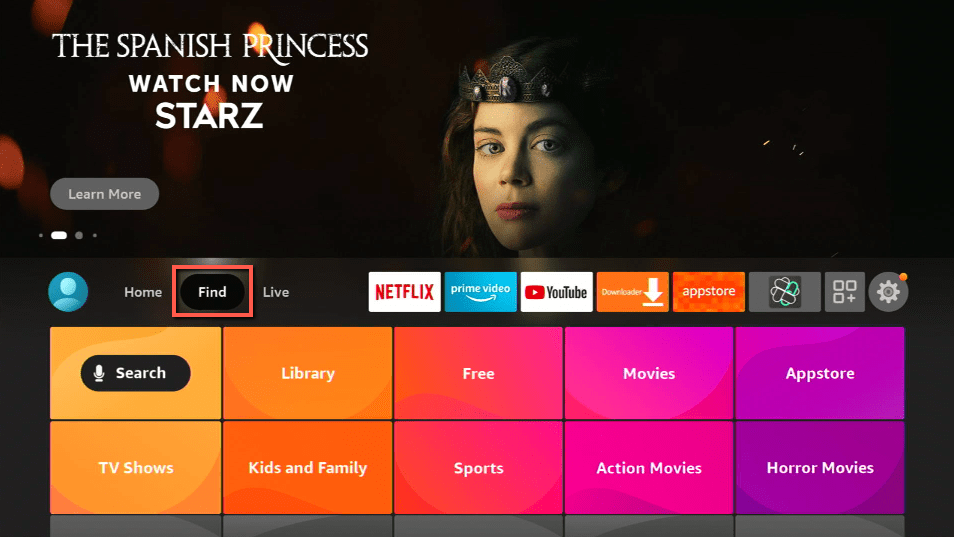
One of the essential things that people need to utilize the internet is a web browser.

People use it to communicate, make business transactions, do school work and research, watch movies and TV shows, read books, shop, and many more.
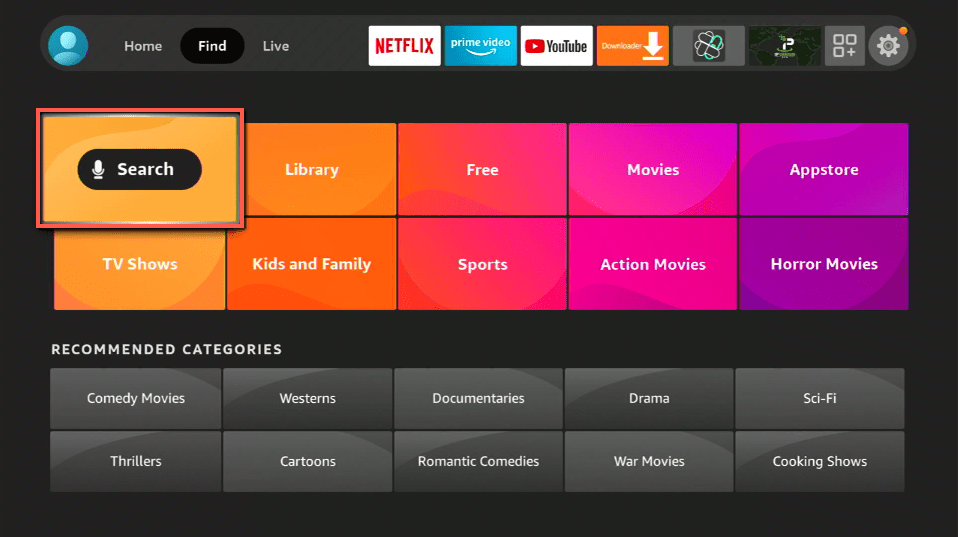
To fully maximize the internet, people need a reliable browser that will make actions faster. 


Is Puffin Web Browser Safe and Virus-free?

We tested this app using VirusTotal and found no threats or any malicious files and malware.
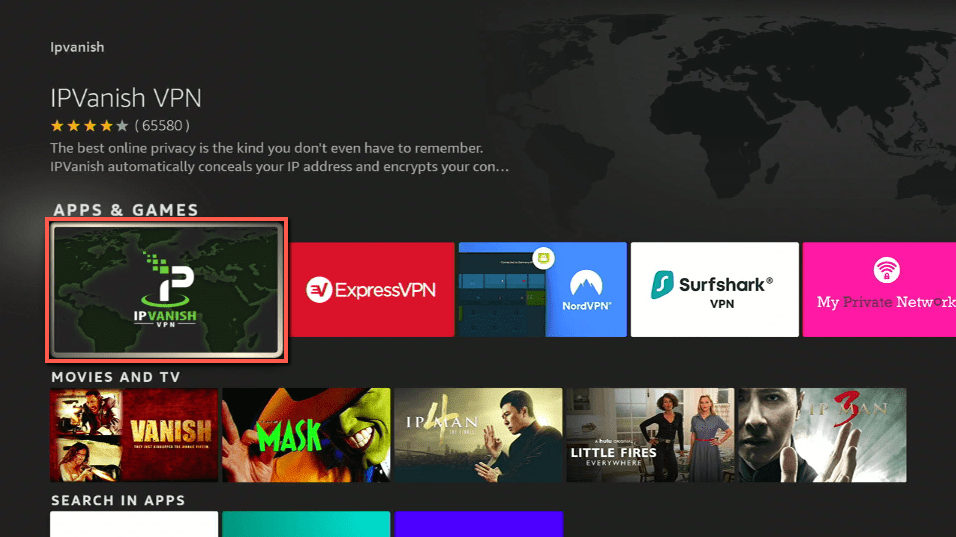
Despite having good results, we still need to be vigilant in protecting our privacy while streaming.

A Virtual Private Network or VPN will definitely help us maintain our security and anonymity while using Puffin Web Browser.

Here’s how you can Install The Best VPN For Firestick and All Devices.


Is Puffin Web Browser Any Good?

Puffin is a very reliable web browser. You will see the difference when you use it compared to a regular browser most especially if you connect it to your mobile data.

The biggest difference with Puffin is that it also has the ability to download. The crappy part is that this ability was removed at the start of the year. For this reason, we will cover both how to install the version of Puffin TV that allows downloads and the latest version. Please note that you could be putting your device at greater risk for the virus if you use the outdated version with download capabilities. This risk is likely small now, but it will grow over time.
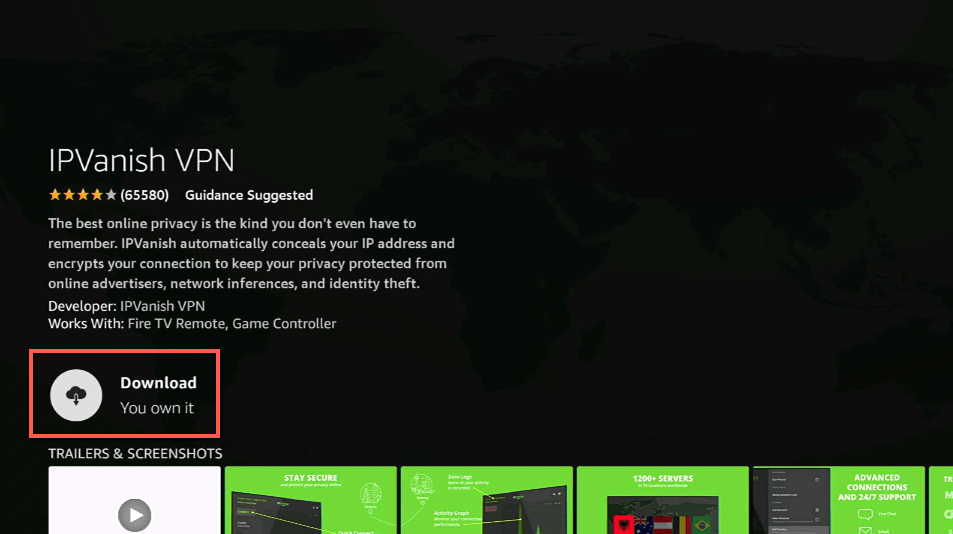
 

ANONYMOUSLY

We always recommend using an antivirus on your Firestick.
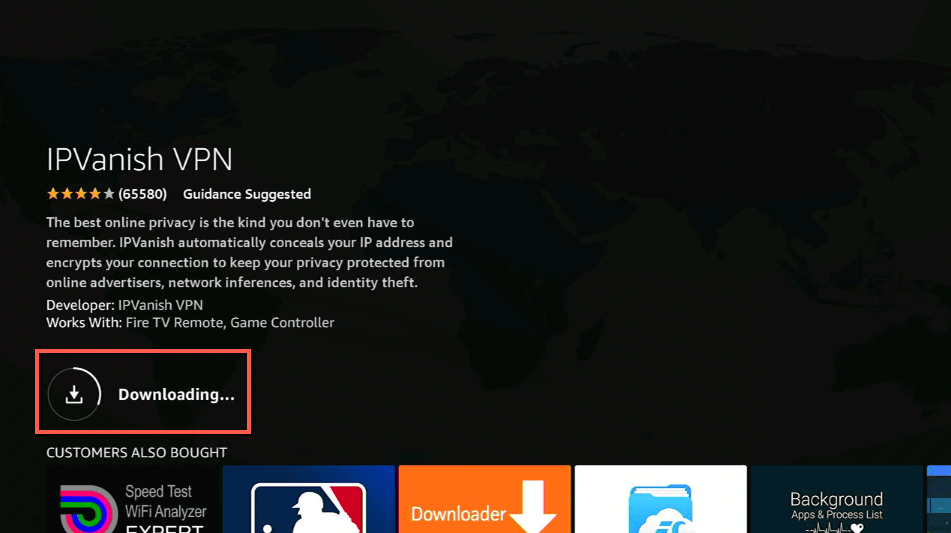
Fastest Steps to Install Puffin Web Browser on a Firestick

  1. On the Home Screen, go to Settings.
  2. Scroll down and to the right until you reach My Fire TV.
  3. Click on Developer Options
  4. Turn On ADB debugging and Apps from Unknown Sources.
  5. Head back to the home screen and select the Search icon.
  6. Search for Downloader and click on Downloader (It will appear under the keyboard).
  7. Choose the Downloader orange button.
  8. Download it.
  9. Select Allow.
  10. Choose OK.
  11. Type https://reviewvpn.com/puf and click on GO.
  12. The download will automatically start. Wait for the download to finish.
  13. Click on INSTALL.
  14. Click on OPEN.
  15. Enjoy Puffin TV on your Firestick!


download version with download capable

download latest firestick version


Install Puffin Web Browser on a Firestick with Screenshots

1. Install the Downloader app and jailbreak your firestick by enabling unknown sources. To learn more about the procedure, you may read How to Install the Downloader App and Enable Unknown Sources.


2. Open Downloader.  Type reviewvpn.com/puf for the version of Puffin TV with download capabilities and click go. Type reviewvpn.com/puff for the latest stable version without download capabilities.

Step 2 Install Pufifn


3. The download will automatically start

install puffin tv on a firestick step 13


4. Scroll once to the right and click on Install

install puffin tv on a firestick step 15


5. Click on Open to run Puffin TV (remember to always delete the APK files after installation. You can do this by clicking done instead of open and then delete on the two confirmation boxes or by going back to Downloader later and deleting from the Files section of the left-hand menu.)

install puffin tv on a firestick step 17


6. Enjoy Puffin TV on your Firestick!

install puffin tv on a firestick step 18

YOUR INTERNET ACTIVITY IS BEING WATCHED

ReviewVPN cannot attest to the legality, security and privacy of the applications discussed on this site. It is highly recommended that you use a VPN service while streaming or using Kodi.

Currently, your IP 216.73.217.150 is visible to everyone and your Browser is being tracked by Advertisers & ISP Provider.

Save 65% Now

Limited Time Offer

Here are the main reasons why you must use a VPN:

  • Your activities are hidden from your ISP, the government, and from the apps you are using.
  • You can access additional movies and TV streams.
  • ISP attempts to throttle are thrwarted thus reducing buffering issues.
  • Geographically restricted content like Netflix and Hulu can be unblocked.

A VPN works be replacing your ISP-assigned IP address and creating an encrypted tunnel. We recommend the no log service offered by IPVanish. It works well on a Firestick and offers the fastest possible speeds.

Special Limited Time Offer - Get IPVanish


Legal Disclaimer: ReviewVPN.com does not encourage or endorse any illegal activity involved in the usage of services and applications referenced on this site. We do not verify the licensing agreements of services. The end-user is wholly responsible for ensuring that any media accessed through these services does not violate copyright and/or licensing laws. ReviewVPN does not promote, link to, or receive compensation from any Apps and IPTV services.


Install Surfshark on Firestick

Best Surfshark Deal


How To Download Puffin Web Browser For A 64-Bit Android TV and Nvidia Shield

The previously mentioned versions are 32-bit arm 7. If you are on a 64 bit Android TV, like the Nvidia Shield, you might want the latest 64-bit version. Remember the latest version won’t download. If you want download abilities, use the version mentioned earlier in the article with download capabilities.


download latest 64 bit android version


Notes: We were not able to find a direct link for this 64-bit version, so this link will become a few versions behind. We will set a task to update this once a month.


How To Install Puffin Web Browser On A Firestick Using Aptoide

Note- You cannot directly download Puffin from the Amazon App store so we will be needing to download it first by using Aptoide. The guide below will include how to install Aptoide and then proceed to install the Puffin Web Browser.

  1. On the home screen, go to “Settings”.
  1. Select My Fire TV.
  1. Select Developer Options.
  1. Open Apps from Unknown Sources.
  1. Click Turn On.
  1. Head back to the home screen and select “Search”.
  1. Search Downloader and click “Downloader”. It will appear under the keyboard.
  1. Choose the “Downloader app”.
  1. Download it.
  1. Choose Open.
  1. Select Allow.
  1. Choose OK.
  1. Type https://archive.org/download/aptoide-latest_201907/aptoide-latest.apk and select Go.
  1. Wait for it to finish.
  1. Install Aptoide.
  1. Select Done.
  1. This will automatically take you back to Downloader. Select Delete.
  1. Choose Delete Again.
  1. Head back to the home screen and under the “Your Apps & Channels” choose See All.
  1. Scroll down and choose Genius Streams TV and select the “Options”. Then select “Move to the front.
  1. Aptoide will be moved forward to “Your Apps and Channels”.
  1. Open Aptoide.
  1. Allow Aptoide access to your photos and media files.
  1. On the upper left corner of the home screen, click on Search and type in “puffin”.
  1. Choose Puffin Web Browser and Install.
  1. Install again.
  1. Choose Done.
  1. Head back to the home screen and select see all at the Your Apps and Channels tab.
  1. Search for the Puffin Icon (Penguin) and then move it to the front.
  2. There you go, Puffin Web Browser is not successfully installed on your Firestick.

Note- If you are using an android device, you can install Puffin by going to the Google Play Store and searching for it, and then Install.


What Does It Do?

Puffin Web Browser is very reliable as it optimizes the loading speed and takes the burden off of your device diverting it to cloud servers. In this way, high-resource pages can load in mere seconds without any glitch.


Compatible Platforms

It works well with Android, IOS, Windows, MAC OS, Android TV, and Raspberry Pi.


App Features

  • Fast page loading and rendering
  •  Adobe Flash Support
  • Cloud Storage
  • Cinematic Mode
  • Trackpad and Gamepad
  • Customizable colors for the toolbar and sidebar
  • Top-of-the-line JavaScript engine
  • Complete Web Encounter
  • Incognito Tab


Pros and Cons

Pros

  • Makes browsing faster
  • Safe to use when using non-secure public wifi
  • Regularly updated Flash Player
  • Retains up to 90% of your device’s bandwidth

Cons

  • US only access
  • Blocked in China, Saudi Arabia, UAE, and some other schools in the US


FAQs

Is It Safe To Use?

Puffin Web Browser is relatively safe to use and download.


Is It Legal Or Grey?

It is 100% legal to use.


Should I Use A VPN?

surfshark logo

If you are not situated in the US we strongly advise the use of a reliable VPN. Puffin only allows users that are located in the US. In order to circumvent this, a VPN service will give you access to this restriction. It will also further optimize the speed of your browsing. If you need help with a VPN, we highly recommend that you use Surfshark because it is one of the best in the market today. To install it, please click on this link.

Note: For more information about Surfshark, please read our Surfshark Review.


Grab your subscription now!

Click here to get the lowest price on Surfshark through our exclusive limited-time offer.


How to Install Surfshark VPN on Firestick

If your Firestick still has the older interface, read this article to learn how to update it: Update Firestick Interface.

Follow our screenshots below to install the SurfShark VPN app on your Fire TV stick.

1. Go to the Home screen of your Firestick.

step 1 Install Surfshark VPN on Firestick


2. Navigate towards the Find tab. Press the Search button from the resulting dropdown.

step 2 Install Surfshark VPN on Firestick


3. Type in the keyword of SurfShark and select from the suggestions that will appear.

step 3 Install Surfshark VPN on Firestick


4. Click the official SurfShark icon from your search results.

step 4 Install Surfshark VPN on Firestick


5. Press the Download (You own it) button.

step 5 Install Surfshark VPN on Firestick


6. The SurfShark VPN installer will download on your device.

step 6 Install Surfshark VPN on Firestick


7. SurfShark VPN’s app will automatically install itself on your Fire TV stick.

step 7 Install Surfshark VPN on Firestick


8. Press the Open button after completing SurfShark VPN’s installation process.

step 8 Install Surfshark VPN on Firestick


9. Please wait for the SurfShark VPN to load its user interface.

step 9 Install Surfshark VPN on Firestick


10. You can now log in with your SurfShark VPN account credentials.

step 10 Install Surfshark VPN on Firestick

Learn more about Surfshark and Grab the Best Surfshark Deal Now!


Install Surfshark on Firestick

Best Surfshark Deal


Other VPNs to Consider

NordVPN (Best for Streaming)

Best Features

  • 5000+ Server in 50+ Countries 
  • Military-Grade Encryption
  • Fast Connection Speed
  • Suitable to a lot of devices
  • No-Log Policy

Prices
  • Complete $5.89 per month (64% Discount)
  • Plus $4.59 per month (56% Discount)
  • Standard $3.69 per month (55% Discount)

Best Features

  • 750+ High-speed VPN Servers in 43 Locations
  • Military-Grade Encryption
  • Fastest HD Streaming and Gaming
  • 30-Day Money-Back Guarantee
  • Unlimited Data & Devices
  • No-Log Policy

Prices
  • 3 Years $1.99 per month (82% Discount)
  • 1 Years $3.29 per month (70% Discount)
  • 1 Month $10.99 per month

IPVanish VPN (Most Secure)

Best Features

  • 1200+ Servers in 60+ Countries around the world
  • Unlimited Connections
  • No-Log Policy
  • Top Notch Military-Grade VPN Protocols and Encryptions
  • 100% Safe and Secured
  • Most Trusted VPN
  • Best VPN for Firestick
  • 30-Day Money-Back Guarantee

Prices
  • Yearly $3.99 per month (63% Discount) – 30 days risk free + Ransomware & Malware Protection
  • Quarterly $5.32 per month (51% Discount)
  • Monthly $10.99 per month


For more VPN discounts, go to ReviewVPN Deals and purchase the best VPN for you.

Click here to get the lowest price on Surfshark through our exclusive limited-time offer.


Is It Free?

Yes, it is free to download and install on your device.


Are There ADS?

No, there are no ads.


Is There A Premium Version?

Yes, there is a premium version.


Is There An Official Website?

You can check out the official website at www.puffin.com


What Other Devices Does It Work On?

Any device that runs on the Android OS is compatible with this app.


How Does The App Work?

Just follow the guide we have stated in this article.


Minimum Version Required

Any Android device that has version 4.1 and above.


History

How Long Has It Been Around?

The company that owns the app has been around since 1993. According to its official website, the app was introduced in 2017.


What Is The Development Team Like?

The website has dedicated a page where there are FAQs. If you are experiencing an issue, you can look for it there. If you have other concerns, you can send them an email at puffinbrowser@cloudmosa.com


Best Alternatives

  • Firefox (Firestick)
  • Silk (Firestick)
  • Downloader (Firestick)
  • Google Chrome
  • Brave Web Browser


Our Opinion

Upon testing this app we found out that it truly does what it promises. The browsing speed has improved tremendously and you will see the loading time is cut by half. It becomes out of this world when you use it in conjunction with a VPN. This web browser will help you when you need to finish transactions on time and submit reports way ahead of schedule. You will also see the difference when you use it to watch your favorite tv shows, you will notice little to no buffering. But this will all depend on your internet speed ok? If you have a good connection then you will really see how amazing this browser is.

Please drop a comment below and send us a message through our other social media platforms. Thank you for reading!

2