How to Install USGoTv Kodi Addon on Firestick/Android

Install USGoTv Kodi Addon on Firestick/Android

Everything you need to know about the USGoTv Kodi Addon, including how to set it up on a Firestick, is detailed in this post.


If you’re looking for a means to watch live TV channels for free, you should look at USGoTv. It is modeled on the popular USTvGo and most certainly provides the same live TV service. Additionally, USGoTv has 90+ popular live TV channels that you can watch in HD.

Furthermore, USGoTv allows you to watch any US Live Tv Channel from anywhere in the world. So, whether you’re on a trip out of home or live outside the United States, you can find live TV options. Simply install it using the Kodi program, and you’re good to go.

Moreover, you can find USGoTv within The Warehouse Repository, which contains tons of working add-ons. Now, let’s begin with how you can install it on your Android device including the Firestick.


ANONYMOUSLY


How To Install USGoTv Kodi Addon on Firestick (Video)


How To Install USGoTv Kodi Addon on Firestick

You can follow this tutorial to install the USGoTv Kodi Addon on your Firestick.

1. Launch the Kodi app on your Firestick. Click on the gear wheel icon (Settings)

Install USGoTv Kodi Addon on Firestick step 1


2. Select “System

Install USGoTv Kodi Addon on Firestick step 2

3. Scroll down to “Add-ons” Then Go to “Unknown sources” then toggle it on.

Install USGoTv Kodi Addon on Firestick step 3


4. Select “Yes”. Then using your Firestick remote, press the return button to go back to the System page

Install USGoTv Kodi Addon on Firestick step 4


5. Now choose “File Manager

Install USGoTv Kodi Addon on Firestick step 5


6. Scroll down and select “Add source

Install USGoTv Kodi Addon on Firestick step 6


7. Click “<None>

Install USGoTv Kodi Addon on Firestick step 7


8. Type in “http://tinyurl.com/TWHrepo” then click “OK”

Install USGoTv Kodi Addon on Firestick step 8


9. Highlight the box under the source to give the media source a name, and put “TWHrepo” or any other name that will help you identify it quickly. Then click “OK” again. Return to the System page by pressing the return button on your remote.

Install USGoTv Kodi Addon on Firestick step 9


10. Select “Add-ons

Install USGoTv Kodi Addon on Firestick step 10


11. Choose “Install from zip file

Install USGoTv Kodi Addon on Firestick step 11


12. Click “Yes

Install USGoTv Kodi Addon on Firestick step 12


13. Select “TWHrepo

Install USGoTv Kodi Addon on Firestick step 13


14. Then click on the zip file URL – repository.thewarehouse-22.6.8.zip

Install USGoTv Kodi Addon on Firestick step 14


15. Wait for the notification “The WareHouse Repository Add-on installed” to appear on the upper right part of the screen

Install USGoTv Kodi Addon on Firestick step 15


16. Afterward, select “Install from repository

Install USGoTv Kodi Addon on Firestick step 16


17. Then click “The WareHouse Repository

Install USGoTv Kodi Addon on Firestick step 17


18. Select “Video add-ons

Install USGoTv Kodi Addon on Firestick step 18


19. Click on “USGoTv

Install USGoTv Kodi Addon on Firestick step 19


20. Then click “Install

Install USGoTv Kodi Addon on Firestick step 20


21. Then wait for it to install. It’s finished once you see the “USGoTv Add-on Installed” message appears. Select “USGoTv

Install USGoTv Kodi Addon on Firestick step 21


22. Then select “Open

Install USGoTv Kodi Addon on Firestick step 22


23. That’s it, USGoTv Kodi Addon is already installed on your Firestick.

Install USGoTv Kodi Addon on Firestick step 23


YOUR INTERNET ACTIVITY IS BEING WATCHED

ReviewVPN cannot attest to the legality, security and privacy of the applications discussed on this site. It is highly recommended that you use a VPN service while streaming or using Kodi.

Currently, your IP 216.73.216.102 is visible to everyone and your Browser is being tracked by Advertisers & ISP Provider.

Save 65% Now

Limited Time Offer

Here are the main reasons why you must use a VPN:

  • Your activities are hidden from your ISP, the government, and from the apps you are using.
  • You can access additional movies and TV streams.
  • ISP attempts to throttle are thrwarted thus reducing buffering issues.
  • Geographically restricted content like Netflix and Hulu can be unblocked.

A VPN works be replacing your ISP-assigned IP address and creating an encrypted tunnel. We recommend the no log service offered by IPVanish. It works well on a Firestick and offers the fastest possible speeds.

Special Limited Time Offer - Get IPVanish


Legal Disclaimer: ReviewVPN.com does not encourage or endorse any illegal activity involved in the usage of services and applications referenced on this site. We do not verify the licensing agreements of services. The end-user is wholly responsible for ensuring that any media accessed through these services does not violate copyright and/or licensing laws. ReviewVPN does not promote, link to, or receive compensation from any Apps and IPTV services.


Install Surfshark on Firestick

Best Surfshark Deal


Features

  • Contains 90+ American Live TV channels such as CNN, Disney, ESPN, FOX, FoodNetwork, Hallmark Channel, HBO, MLB Network, National Geographic, Showtime, and so much more
  • Channels are listed alphabetically upon launching
  • You can add your favorite channels to bookmark
  • Provides subtitle support
  • One-click play streaming
  • Streams are in HD video quality
  • Customizable Audio, Subtitle, and Video Settings
  • Enables you to set up PVR IPTV Simple
  • You have the option to show channels that require VPN
  • A playlist will be created with your watched channels


Pros & Cons

Pros

  • Straightforward UI
  • Buffer free streaming
  • You can watch live TV for free

Cons

  • Several channels are not working
  • Takes some time to load


Stream Safely With a VPN

Surfshark vpn

Because unofficial Kodi addons link to so many different third-party servers to deliver content to its users, doing so could put users at risk. The likelihood of your data and IP being disclosed to these servers is therefore very high.

To assist you to hide your online identity, it is essential to use a VPN like Surfshark. You may prevent online risks like hackers and phishers from focusing on your IP address in exchange for money or other illegal activities by utilizing Surfshark.

It also helps you conceal your online activity from the authorities and your ISP. You won’t ever have to be concerned about data breaches or unauthorized internet monitoring thanks to this.

Additionally, it provides you with some of these other benefits:

  • ISP throttling is avoided, so you won’t have to worry about internet sluggishness, delays, or buffering.
  • Your connection to the quickest server is established automatically.
  • You’ll get unrestricted bandwidth to view and download any material from your favorite programs and add-ons.
  • It contains a kill switch that will promptly disconnect your internet connection in case your VPN connection fails.
  • Allows for an unlimited number of connections at once, enabling you to simultaneously protect all of your devices.

Note: For more information about Surfshark, please read our Surfshark Review.


How to Install Surfshark VPN on Firestick

If your Firestick still has the older interface, read this article to learn how to update it: Update Firestick Interface.

Follow our screenshots below to install the SurfShark VPN app on your Fire TV stick.

1. Go to the Home screen of your Firestick.

step 1 Install Surfshark VPN on Firestick


2. Navigate toward the Find tab. Press the Search button from the resulting dropdown.

step 2 Install Surfshark VPN on Firestick


3. Type in the keyword of SurfShark and select from the suggestions that will appear.

step 3 Install Surfshark VPN on Firestick


4. Click the official SurfShark icon from your search results.

step 4 Install Surfshark VPN on Firestick


5. Press the Download (You own it) button.

step 5 Install Surfshark VPN on Firestick


6. The SurfShark VPN installer will download on your device.

step 6 Install Surfshark VPN on Firestick


7. SurfShark VPN’s app will automatically install itself on your Fire TV stick.

step 7 Install Surfshark VPN on Firestick


8. Press the Open button after completing SurfShark VPN’s installation process.

step 8 Install Surfshark VPN on Firestick


9. Please wait for the SurfShark VPN to load its user interface.

step 9 Install Surfshark VPN on Firestick


10. You can now log in with your SurfShark VPN account credentials.

step 10 Install Surfshark VPN on Firestick

Learn more about Surfshark and Grab the Best Surfshark Deal Now!


Install Surfshark on Firestick

Best Surfshark Deal


Other VPNs to Consider

NordVPN (Best for Streaming)

Best Features

  • 5000+ Server in 50+ Countries 
  • Military-Grade Encryption
  • Fast Connection Speed
  • Suitable to a lot of devices
  • No-Log Policy

Prices
  • Complete $5.89 per month (64% Discount)
  • Plus $4.59 per month (56% Discount)
  • Standard $3.69 per month (55% Discount)

Best Features

  • 750+ High-speed VPN Servers in 43 Locations
  • Military-Grade Encryption
  • Fastest HD Streaming and Gaming
  • 30-Day Money-Back Guarantee
  • Unlimited Data & Devices
  • No-Log Policy

Prices
  • 3 Years $1.99 per month (82% Discount)
  • 1 Years $3.29 per month (70% Discount)
  • 1 Month $10.99 per month

IPVanish VPN (Most Secure)

Best Features

  • 1200+ Servers in 60+ Countries around the world
  • Unlimited Connections
  • No-Log Policy
  • Top Notch Military-Grade VPN Protocols and Encryptions
  • 100% Safe and Secured
  • Most Trusted VPN
  • Best VPN for Firestick
  • 30-Day Money-Back Guarantee

Prices
  • Yearly $3.99 per month (63% Discount) – 30 days risk free + Ransomware & Malware Protection
  • Quarterly $5.32 per month (51% Discount)
  • Monthly $10.99 per month


For more VPN discounts, go to ReviewVPN Deals and purchase the best VPN for you.

Click here to get the lowest price on Surfshark through our exclusive limited-time offer.


FAQs

What is USGoTv Kodi Addon?

USGoTv is a Kodi Addon that allows you to watch American live TV channels from anywhere in the world. It offers 90+ channels that you can stream from your device such as Firestick.


Is USGoTv Kodi Addon Safe?

Yes, USGoTv Kodi Addon is safe. However, we suggest using Surfshark with it for added protection.


Is USGoTv Kodi Addon Legal?

Addons in general are legal. But we cannot guarantee the legality of the streams it offers so it’s best to remain anonymous while using it to prevent any repercussions.


Should I Use a VPN with USGoTv Kodi Addon?

You should certainly use a VPN with addons like USGoTv since this is an unofficial Kodi Addon. This will serve as protection from unwanted threats over the internet.


Conclusion

USGoTv offers live TV channels which are very accessible to any user. You can immediately find the channels available once you launch the addon. However, some channels are not working and there are times when the navigation takes time to load. Nonetheless, it’s still a good addon to consider for free live TV streaming.


How To Install Fetch Kodi Addon on Firestick/Android

Install Fetch Kodi Addon

This article will show you how to install the Fetch Kodi Addon as well as everything else you need to know about it.


Fetch is a Kodi Addon that you can find in the famous Doomzday Repository. It provides live TV streaming on International Channels and English Channels. You can find streaming channels in tons of categories such as Comedy, Entertainment, Kids, Music, Family, and more.

Moreover, it features one-click streaming so you won’t have to spend some time searching for the best quality link available. Its video streams are available in 1080p, and 720p, and could go as low as 144p.

Further, since Fetch is a third-party Kodi Addon, we’d like to remind you to turn on your Surfshark VPN upon installing and using it on your device. This is to prevent any unwanted logs as well as data breaches.

So now let’s begin with how to install Fetch on your Firestick and Android devices.


ANONYMOUSLY


How To Install Fetch Kodi Addon on Firestick

You can follow this tutorial to install the Fetch Kodi Addon on your Firestick.

1. Launch the Kodi app on your Firestick. Click on the gear wheel icon (Settings)

Install Fetch Kodi Addon on Firestick step 1


2. Select “System

Install Fetch Kodi Addon on Firestick step 2

3. Scroll down to “Add-ons” Then Go to “Unknown sources” then toggle it on.

Install Fetch Kodi Addon on Firestick step 3


4. Select “Yes”. Then using your Firestick remote, press the return button to go back to the System page

Install Fetch Kodi Addon on Firestick step 4


5. Now choose “File Manager

Install Fetch Kodi Addon on Firestick step 5


6. Scroll down and select “Add source

Install Fetch Kodi Addon on Firestick step 6


7. Click “<None>

Install Fetch Kodi Addon on Firestick step 7


8. Type in “https://doomzdayteam.github.io/doomzday/” then click “OK”

Install Fetch Kodi Addon on Firestick step 8


9. Highlight the box under the source to give the media source a name, and put “doomzday” or any other name that will help you identify it quickly. Then click “OK” again. Return to the System page by pressing the return button on your remote

Install Fetch Kodi Addon on Firestick step 9


10. Select “Add-ons

Install Fetch Kodi Addon on Firestick step 10


11. Choose “Install from zip file

Install Fetch Kodi Addon on Firestick step 11


12. Click “Yes

Install Fetch Kodi Addon on Firestick step 12


13. Select “doomzday

Install Fetch Kodi Addon on Firestick step 13


14. Then click on the zip file URL – repository.doomzday-x.x.x.zip

Install Fetch Kodi Addon on Firestick step 14


15. Wait for the notification “Doomzday Repo Add-on installed” to appear on the upper right part of the screen

Install Fetch Kodi Addon on Firestick step 15


16. Afterward, select “Install from repository

Install Fetch Kodi Addon on Firestick step 16


17. Then click “Doomzday Repo

Install Fetch Kodi Addon on Firestick step 17


18. Select “Video add-ons

Install Fetch Kodi Addon on Firestick step 18


19. Click on “Fetch!

Install Fetch Kodi Addon on Firestick step 19


20. Then click “Install

Install Fetch Kodi Addon on Firestick step 20


21. Then wait for it to install. It’s finished once you see the “Fetch! Add-on Installed” message appears. Then click “Fetch!

Install Fetch Kodi Addon on Firestick step 21


22. Then select “Open

Install Fetch Kodi Addon on Firestick step 22


23. That’s it, Fetch Kodi Addon is already installed in your Firestick.

Install Fetch Kodi Addon on Firestick step 23


YOUR INTERNET ACTIVITY IS BEING WATCHED

ReviewVPN cannot attest to the legality, security and privacy of the applications discussed on this site. It is highly recommended that you use a VPN service while streaming or using Kodi.

Currently, your IP 216.73.216.102 is visible to everyone and your Browser is being tracked by Advertisers & ISP Provider.

Save 65% Now

Limited Time Offer

Here are the main reasons why you must use a VPN:

  • Your activities are hidden from your ISP, the government, and from the apps you are using.
  • You can access additional movies and TV streams.
  • ISP attempts to throttle are thrwarted thus reducing buffering issues.
  • Geographically restricted content like Netflix and Hulu can be unblocked.

A VPN works be replacing your ISP-assigned IP address and creating an encrypted tunnel. We recommend the no log service offered by IPVanish. It works well on a Firestick and offers the fastest possible speeds.

Special Limited Time Offer - Get IPVanish


Legal Disclaimer: ReviewVPN.com does not encourage or endorse any illegal activity involved in the usage of services and applications referenced on this site. We do not verify the licensing agreements of services. The end-user is wholly responsible for ensuring that any media accessed through these services does not violate copyright and/or licensing laws. ReviewVPN does not promote, link to, or receive compensation from any Apps and IPTV services.


Install Surfshark on Firestick

Best Surfshark Deal


Features

  • Categories are International Channels, English Channels, Search, myFavorites, Recently Played, and Settings
  • Genres for International Channels include Animation, Auto, Business, Classic, Comedy, Cooking, Culture, Documentary, Education, Entertainment, Family, News, Religious, Science, Sports, and more
  • Video quality are in 144p, 240p, 360p, 480p, 720p, and 1080p
  • Allows you to create a bookmark for your favorite channels
  • Provides subtitle support
  • It has customizable audio, subtitle, and video settings
  • Enables you to use sequence matcher and string for a search query


Pros & Cons

Pros

  • One-click play
  • Tons of channels available
  • Offers free streaming


Cons

  • Some streams are not working
  • You can’t select the video quality
  • There are buffers


Stream Safely With a VPN

Surfshark vpn

Using unofficial addons may risk your data as you do not know if your data is already being leaked to third-party servers. Apart from that, the government is also strict about monitoring your internet activities, especially when using streaming platforms online. And of course, you wouldn’t want to be conscious about what sites or apps you access as well as the content that you choose. Because it’s like taking away your freedom and restricting what you can do online.

That is why a VPN is always recommended when online. A VPN such as Surfshark will provide you with an anonymous IP address so that you can hide your real identity online. That way you can stream any content online and not be worried about the eyes behind the apps that you visit. Further, by choosing Surfshark, you get to take advantage of its ff features:

3,200 servers in 100 countries will allow you to bypass geo-restrictions

  • Ensures zero logs
  • Enables two-factor authentication
  • Allows for an unlimited number of device connections
  • Contains a cookie consent pop-up blocker
  • Blocks ads and malware
  • 24/7 customer support
  • 30-day money-back guarantee

Note: For more information about Surfshark, please read our Surfshark Review.


Install Surfshark on Firestick

Best Surfshark Deal


How to Install Surfshark VPN on Firestick

If your Firestick still has the older interface, read this article to learn how to update it: Update Firestick Interface.

Follow our screenshots below to install the SurfShark VPN app on your Fire TV stick.

1. Go to the Home screen of your Firestick.

step 1 Install Surfshark VPN on Firestick


2. Navigate toward the Find tab. Press the Search button from the resulting dropdown.

step 2 Install Surfshark VPN on Firestick


3. Type in the keyword of SurfShark and select from the suggestions that will appear.

step 3 Install Surfshark VPN on Firestick


4. Click the official SurfShark icon from your search results.

step 4 Install Surfshark VPN on Firestick


5. Press the Download (You own it) button.

step 5 Install Surfshark VPN on Firestick


6. The SurfShark VPN installer will download on your device.

step 6 Install Surfshark VPN on Firestick


7. SurfShark VPN’s app will automatically install itself on your Fire TV stick.

step 7 Install Surfshark VPN on Firestick


8. Press the Open button after completing SurfShark VPN’s installation process.

step 8 Install Surfshark VPN on Firestick


9. Please wait for the SurfShark VPN to load its user interface.

step 9 Install Surfshark VPN on Firestick


10. You can now log in with your SurfShark VPN account credentials.

step 10 Install Surfshark VPN on Firestick

Learn more about Surfshark and Grab the Best Surfshark Deal Now!


Install Surfshark on Firestick

Best Surfshark Deal


Other VPNs to Consider

NordVPN (Best for Streaming)

Best Features

  • 5000+ Server in 50+ Countries 
  • Military-Grade Encryption
  • Fast Connection Speed
  • Suitable to a lot of devices
  • No-Log Policy

Prices
  • Complete $5.89 per month (64% Discount)
  • Plus $4.59 per month (56% Discount)
  • Standard $3.69 per month (55% Discount)

Best Features

  • 750+ High-speed VPN Servers in 43 Locations
  • Military-Grade Encryption
  • Fastest HD Streaming and Gaming
  • 30-Day Money-Back Guarantee
  • Unlimited Data & Devices
  • No-Log Policy

Prices
  • 3 Years $1.99 per month (82% Discount)
  • 1 Years $3.29 per month (70% Discount)
  • 1 Month $10.99 per month

IPVanish VPN (Most Secure)

Best Features

  • 1200+ Servers in 60+ Countries around the world
  • Unlimited Connections
  • No-Log Policy
  • Top Notch Military-Grade VPN Protocols and Encryptions
  • 100% Safe and Secured
  • Most Trusted VPN
  • Best VPN for Firestick
  • 30-Day Money-Back Guarantee

Prices
  • Yearly $3.99 per month (63% Discount) – 30 days risk free + Ransomware & Malware Protection
  • Quarterly $5.32 per month (51% Discount)
  • Monthly $10.99 per month


For more VPN discounts, go to ReviewVPN Deals and purchase the best VPN for you.

Click here to get the lowest price on Surfshark through our exclusive limited-time offer.


FAQs

What is Fetch Kodi Addon?

Fetch is a third-party Kodi Addon that provides free streaming for international and English channels. It contains different categories to cater to different preferences of users.


Is Fetch Kodi Addon Safe?

Fetch Kodi Addon is safe to install and use on Firestick. However, it’s always best to use it with Surfshark.


Is Fetch Kodi Addon Legal?

Kodi Addons are legal in general. However, we cannot ensure the legality of its streams.


Do I need a VPN to use Fetch Kodi Addon?

You’ll need a VPN if you want to access some of its channels that are geo-restricted like in the UK. What I like about Fetch is you’ll immediately see in the channel title if it is geo-restricted and to what country it is restricted. Therefore, you’ll know ahead of time where you need to set your Surfshark VPN.


Conclusion

Fetch Kodi Addon can be worth trying if you’re looking for a streaming alternative that offers live tv streaming. However, Fetch is not a stable addon as some of its channels don’t have a working stream. You also cannot choose the video quality because it only offers a single stream per channel. So being a one-click play addon has both its pro and con.

10 Best Torrent Sites for Music

Overview

This article will provide you with a list of the best torrent sites for music that are available today.


Music torrents were the first type of torrenting available online. It came initially before we had access to downloading movies and TV shows. And before we started using all the well-liked paid streaming alternatives that are currently available, music torrenting was our primary source of entertainment.

And now we’ve compiled a list of the best working torrent sites for music. These websites may be primarily familiar to you because some of them are well-established and you’ve probably already used them for your other torrent demands. Nonetheless, these sites are fully functional as of this writing, so you can be confident that you will be able to visit them without trouble.

Therefore, without further ado, let’s begin with the list.


Best Torrent Sites for Music

The best music torrent sites that are available online and functional are listed below.


 The Pirate Bay

https://thepiratebay.org

pirate bay

The Pirate Bay is the first torrent site that springs to mind when you think about torrenting. And there is no doubt that this is the first on our list of the best torrent sites for music. Furthermore, this is because this is one of the oldest and most popular torrent sites available today.

It allows you to search torrents for different categories which include Music in its Audio category. And aside from music, you may also find other types of audio torrents including FLAC, audiobooks, and sound clips. What’s even better about this torrent site is that you may download it anonymously. So, in addition to making sure you have a VPN while utilizing these torrent sites, that’s a fantastic way to secure your safety.


1337X

https://www.1337x.to/

1337x

1377x is another popular torrenting site wherein you can find and download the latest music available. Upon clicking the Music tab on the Home screen, you will find the most popular Music Torrents for the last 24 Hours.

Apart from that, you may filter music selections from Popular Today, Popular This Week, Trending Today, Trending This Week, and Top 100 This Month. Other information you can find about the song are its Category, Type, Language, Total Size, Uploaded By, Downloads, Last checked, Date upload, Seeders, and Leechers. Furthermore, you can select between Magnet Download and Torrent Download.


LimeTorrents

https://www.limetorrents.to

limetorrents

Next on our list of the best torrent sites for Music is LimeTorrents. As of this writing, it has a library of over 900,000 Music torrents. LimeTorrents displays its top 100 torrents, which are updated in real-time. As a result, you can be certain to discover the newest and most popular music options to download and listen to.

Furthermore, you can choose FLAC options from its list to get the highest sound quality streams available. You may also add your favorite music to bookmarks or RSS feeds. Also, torrents can be downloaded anonymously, much like on The Pirate Bay. The size, seed, leech, health, and time added to the song are a couple of extra details that are accessible.


Torlock

https://www.torlock2.com

Torlock

The list of the best torrent sites would not be complete without Torlock. It is also one of the go-to sites for torrent users because it contains the latest and the most popular torrents available today. Its music torrents have MP3 and FLAC selections so you can choose whichever file type you prefer.

Moreover, you can also find information about the music torrent such as date added, size, files, seeds, peers, and health. You can also view and leave comments on the discussion tab if you want to know more about the torrent. Further, you have 3 download options which are fast download, torrent, and safe download. Just always make sure to use a VPN because there are porn adverts that you might click on accidentally which adds risk to your privacy.


TorrentFunk

https://www.torrentfunk.com

torrentfunk

TorrentFunk is on our list of the best torrent sites for music because it is smoother to navigate than other torrent sites. You can choose to Browse Music, Browse by First Letter, or Browse by Top Uploaders. Its Browse Music option includes tabs for All Torrents, Recently Added, and Verified Only. Therefore, there are various ways to view the music torrents that are accessible on TorrentFunk besides just looking at the list of the top torrents.

TorrentFunk also boasts an extensive music collection with more than 18 million total torrents and 8 million verified torrents. Having its verification system, Veriplus is also an advantage because it ensures that its torrent offerings are trustworthy.


TorrentDownloads

https://www.torrentdownloads.pro

TorrentDownloads

Another torrent site that provides music selections to torrent users is TorrentDownloads. It has more than 300,000 torrents available in 43 subcategories. Its subcategories include Alternative, Asian, Blues, Christian, Classic, Electronic, Hardcore, Indie, Jazz, Metal, Pop, R&B, Rock, Ska, Techno, and a lot more. Its download option is available in 3 selections: Download, Download Torrent, and Direct Download.

Further, the torrent info you can find is its name, Info hash, Total Size, Magnet, Seeds, Leechers, Stream, Last Updated, Torrent Added, and Alternatives. To add up, you can also rate the torrent to let them know if you’re happy with it or not. However, what I don’t like about TorrentDownloads is that it has lots of ads. You get redirected every time you click on a link within the site.


Torrentz2

https://torrentz2.cyou/tz2

Torrentz2

While other torrent sites have tabs where you can easily find the music category, Torrentz2 will let you manually search for music. Though it has a tab for Trending, Top 100, and New on it, you will find mixed torrent categories such as Movies, TV, XXX, Music, Anime, and others when you click on them. So the best option is to use the Search bar which you can find on the Homepage.

Information you can find about its torrents are MgL, Age, Size, Seed, Leech, and ULed by. Nonetheless, Torrentz2 is also a reputable torrent site for downloading the best torrents, including music, available today.


MixTapeTorrent

http://www.mixtapetorrent.com/

mixtapetorrent

Though not your usual torrent site for Music, MixTapeTorrent also lets you find music that you can download for free. It contains thousands of remixes from independent DJs that are free to download and for promotional use. Its site navigation includes Mixtape Torrents, Promo Tracks, Mixtape News, Search, Guide: How to Download, and Contact Us.

Moreover, you can also browse by DJ or by Mixtape Genre. The Genres include Acapellas, Blends, Chopped & Screwed, Classic/Old, Dance Hall, Dirty South, East Coast, General, Instrumentals, International, Reggae, Remixes, RnB, Unsigned Hype, and West Coast. You can also join their Member Only Mixtape Community with over 100,000 Members.


RARBG

https://www.rarbggo.to

RARBG

RARBG is another prominent music torrent site available nowadays. It provides you with the most recent and popular music torrents available today, which you can download for free.  The Music Category of the website includes MP3, Lossless, Radio, Discography, and Video.

You may find information about their music torrent offerings such as the artist, album, year, genre, format/quality, downloads, category, size, date added, language, peers, and release name. Although its user interface may not be as attractive as those of the other torrent sites, it does offer a large variety of music.


Kickasstorrents

https://kickasstorrents.to/

kickasstorrents

Another well-known torrent website is Kickasstorrents. Naturally, it also has a section for music where you can find the newest and most downloaded music torrents. Moreover, it shows the most latest searches so you can see what other torrent users are looking for on Kickasstorrents.

Besides that, just like the other torrent sites on the list, you can get information about the music torrents’ file size, uploader, age, seed, and leech. Similarly, you also have the choice to download music torrents anonymously.


Legal Disclaimer: ReviewVPN.com does not encourage or endorse any illegal activity involved in the usage of services and applications referenced on this site. We do not verify the licensing agreements of services. The end-user is wholly responsible for ensuring that any media accessed through these services does not violate copyright and/or licensing laws. ReviewVPN does not promote, link to, or receive compensation from any Apps and IPTV services.


Install Surfshark on Firestick

Best Surfshark Deal


Secure Your Connection with a VPN

Surfshark vpn

We are all aware of the dangers associated with streaming music or movies using torrent sites. This is because you are unsure of the sources of these streams, some of which might even be against the law. Additionally, this is frequently the area where hackers and phishers gather and hunt for vulnerable IP addresses to exploit for ill intentions or financial gain.

Because of this, using a VPN as a security protection is crucial. Utilizing a VPN, such as Surfshark, will mask your true IP address by giving you an anonymous IP address. In this manner, you can stream and download from any app or website without leaving any traces of your information or other private information. In addition, here are a few other advantages of using Surfshark:

  • Hides your activities from being spied on by the government surveillance
  • Prevents ISP throttling that causes lags and buffers
  • It ensures zero logs and no IP address leaks
  • Helps you access geo-restricted apps and websites
  • Provides you with unlimited data to stream and download all the content that you want from your favorite torrent sites
  • Contains a Cleanweb feature that blocks ads and malware
  • It comes with a cookie consent pop-up blocker
  • Enables you to use two-factor authentication to secure your account
  • Allows you to secure an unlimited number of simultaneous device connections
  • Provides 24/7 customer support
  • Comes with a 30-day money-back guarantee

Note: For more information about Surfshark, please read our Surfshark Review.


Install Surfshark on Firestick

Best Surfshark Deal


How to Install Surfshark VPN on Firestick

If your Firestick still has the older interface, read this article to learn how to update it: Update Firestick Interface.

Follow our screenshots below to install the SurfShark VPN app on your Fire TV stick.

1. Go to the Home screen of your Firestick.

step 1 Install Surfshark VPN on Firestick


2. Navigate towards the Find tab. Press the Search button from the resulting dropdown.

step 2 Install Surfshark VPN on Firestick


3. Type in the keyword of SurfShark and select from the suggestions that will appear.

step 3 Install Surfshark VPN on Firestick


4. Click the official SurfShark icon from your search results.

step 4 Install Surfshark VPN on Firestick


5. Press the Download (You own it) button.

step 5 Install Surfshark VPN on Firestick


6. The SurfShark VPN installer will download on your device.

step 6 Install Surfshark VPN on Firestick


7. SurfShark VPN’s app will automatically install itself on your Fire TV stick.

step 7 Install Surfshark VPN on Firestick


8. Press the Open button after completing SurfShark VPN’s installation process.

step 8 Install Surfshark VPN on Firestick


9. Please wait for the SurfShark VPN to load its user interface.

step 9 Install Surfshark VPN on Firestick


10. You can now log in with your SurfShark VPN account credentials.

step 10 Install Surfshark VPN on Firestick

Learn more about Surfshark and Grab the Best Surfshark Deal Now!


Install Surfshark on Firestick

Best Surfshark Deal


FAQs

Is Torrenting Safe?

Torrenting is safe if you download verified torrents that are offered by some of the popular torrenting websites. For starters, TorrentFunk guarantees that they have verified torrents on their site that have been validated by Veriplus. There are also anonymous download options on some torrent websites. But even on torrenting sites where your anonymity is promised, you should never get complacent. So it’s still advisable to use s VPN like Surfshark for an additional security measure.


Is Torrenting Legal?

Torrenting can be illegal if you download torrent files that contain copyrighted content. So if you’re unsure about the content that you want to download then it’s better to hide your identity when torrenting.


Is Torrenting Free?

Yes, downloading torrents is free. That is the major reason why a lot of individuals use torrenting to download content, including movies, TV series, and music. However, to prevent any issues while downloading these torrent files for free, be sure to utilize a VPN and download them anonymously.


Conclusion

There are tons of torrent sites for music available today which can be easily accessed over the internet. But the quality of its offerings and the ease of use of the site is what sets them apart. That’s why we’ve provided you with the best ones which you can check out on your next torrenting activity. And hopefully, this article has been helpful to you in finding the best music torrent site for you.

How To Install Insomnia Kodi Addon on Firestick

Overview

This article will outline how to install the Insomnia Kodi Addon on a Firestick and everything else you need to know about it.


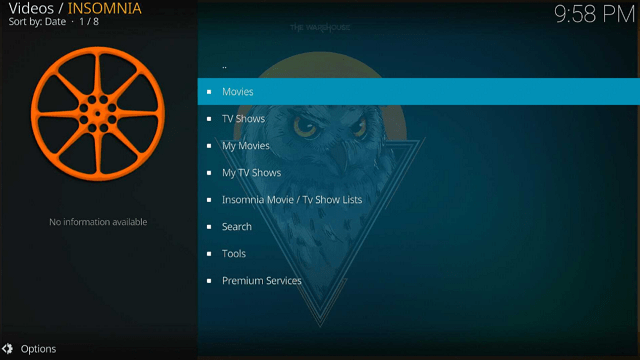
Insomnia is an addon available from the Offspring repository. It enables you to watch movies and TV shows, and you can also browse through its collection.

This addon requires a debrid account and works with real-debrid, all-debrid, and Premiumize modes. Additionally, you may link your Trakt and IMDb accounts to access your favorite movies and TV episodes.

Meanwhile, we’d like to point out that Insomnia is a third-party addon that is not available from the official repository, so it’s recommended to protect your connection with a VPN.


ANONYMOUSLY


How To Install Insomnia Kodi Addon on Firestick

You can follow this tutorial to install the Insomnia Kodi Addon on your Firestick.

1. On your Firestick, open Kodi and go to Settings.

step 1 Install CrewNique Kodi Build on Firestick


2. Select on System.

step 2 Install CrewNique Kodi Build on Firestick

3. Click on the Add-ons menu and Turn ON the Unknown Sources.

step 3 Install CrewNique Kodi Build on Firestick


4. Select Yes when the box appears.

step 4 Install CrewNique Kodi Build on Firestick


5. Go back one step and click on File Manager.

step 5 Install CrewNique Kodi Build on Firestick


6. Select the Add Source.

step 6 Install CrewNique Kodi Build on Firestick


7. A box will pop up, so click on the ‘None’ option.

step 7 Install CrewNique Kodi Build on Firestick


8. Type in “https://m3atp1zza.github.io/install_OffSpring” then click “OK”

step 8


9. Highlight the box under the source to give the media source a name, and put “insomnia” or any other name that will help you identify it quickly. Click “OK”. Return to the System page by pressing the return button on your remote

step 9


10. Select “Add-ons

step 10 Install CrewNique Kodi Build on Firestick


11. Choose “Install from zip file

step 11 Install CrewNique Kodi Build on Firestick


12. Click “Yes

step 12 Install CrewNique Kodi Build on Firestick


13. Select “insomnia

step 13


14. Then click on the zip file URL – repository.offspring.22.5.26.zip

step 14


15. Wait for the notification “offspring repo Add-on installed” to appear on the upper right part of the screen

step 15


16. Afterward, select “Install from repository

step 16 Install CrewNique Kodi Build on Firestick


17. Then click “offspring repo

step 17


18. Select “Video add-ons

step 18


19. Click on “INSOMNIA

step 19


20. Then click “Install

step 20


21. Click “OK” for the additional add-ons that will be installed

step 21


22. Then wait for it to install. It’s finished once you see the “INSOMNIA Add-on Installed” message appears.

step 22


23. Select “INSOMNIA” Then select “Open

step 23


24. That’s it, INSOMNIA Kodi Addon is already installed on your Firestick.

step 24


YOUR INTERNET ACTIVITY IS BEING WATCHED

ReviewVPN cannot attest to the legality, security and privacy of the applications discussed on this site. It is highly recommended that you use a VPN service while streaming or using Kodi.

Currently, your IP 216.73.216.102 is visible to everyone and your Browser is being tracked by Advertisers & ISP Provider.

Save 65% Now

Limited Time Offer

Here are the main reasons why you must use a VPN:

  • Your activities are hidden from your ISP, the government, and from the apps you are using.
  • You can access additional movies and TV streams.
  • ISP attempts to throttle are thrwarted thus reducing buffering issues.
  • Geographically restricted content like Netflix and Hulu can be unblocked.

A VPN works be replacing your ISP-assigned IP address and creating an encrypted tunnel. We recommend the no log service offered by IPVanish. It works well on a Firestick and offers the fastest possible speeds.

Special Limited Time Offer - Get IPVanish


Legal Disclaimer: ReviewVPN.com does not encourage or endorse any illegal activity involved in the usage of services and applications referenced on this site. We do not verify the licensing agreements of services. The end-user is wholly responsible for ensuring that any media accessed through these services does not violate copyright and/or licensing laws. ReviewVPN does not promote, link to, or receive compensation from any Apps and IPTV services.


Install Surfshark on Firestick

Best Surfshark Deal


How to Use Insomnia Kodi Addon With Real-Debrid

Insomnia will require you to have a debrid account so you can watch movies & TV Shows using this add-on. Apart from that, integration of a debrid account such as real debrid will allow you to find the best streaming sources available.

1. Launch the Insomnia Kodi Addon on your Firestick. Scroll down and select “Tools

Use Insomnia Kodi Addon With Real-Debrid


2. Choose “Your Account Settings

Use Insomnia Kodi Addon With Real-Debrid


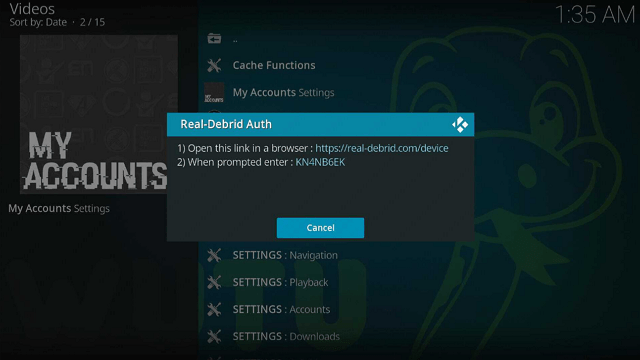
3. Then go to “Debrid Accounts”. Scroll down to Real-Debrid then click “Authorize

step 3Use Insomnia Kodi Addon With Real-Debrid


4. You’ll be given a code to input by going to “https://real-debrid.com/device” on any device browser.

Use Insomnia Kodi Addon With Real-Debrid


5. Once the code is entered, simply click “Continue” on your web browser to enable your real debrid integration with Insomnia.

Use Insomnia Kodi Addon With Real-Debrid


6. Once the integration is complete, go back to Insomnia Kodi Addon.


7. Then you’ll see a notification stating “ Real-Debrid Authorization Successful” on the top of your screen

Use Insomnia Kodi Addon With Real-Debrid


8. That’s it, you can now start browsing for movies and TV shows in premium streaming links.


Features

  • Allows you to view movies and television shows on your Firestick and other devices.
  • Provides IMDb, TMDb, and Trakt options.
  • Allows you to view your saved movies and TV shows by integrating Trakt and IMDb.
  • Has a collection of Insomnia Movies and TV Shows that you may view using your debrid account.
  • A Search tab where you may search for Movies, Shows, Movies by Actor, and Shows by Actor.
  • Debrid accounts supported are All-Debrid, Premiumize, and Real-Debrid.
  • Accessible meta accounts include Fanart, TMDb, and TVDb
  • Scraper accounts include Furk, Easynews, GDrive, and Ororo.
  • Allows for downloading videos, which you can configure in the settings.
  • It provides subtitle support, which can also be converted to UTF-8.
  • Settings for Basic, Standard, Advanced, and Expert are available and configurable.


Pros & Cons

Pros

  • Supports all sorts of debrid accounts.
  • It is possible to download stuff.
  • Allows Trakt integration so that you may sync all of your saved videos.


Cons

  • There is no free content available.
  • A debrid account is required.
  • I encountered some errors while navigating the addon.


Stream Safely With a VPN

Surfshark vpn

All of your traffic is being monitored by the government, especially if you are from a country with rigorous government surveillance. There may also be lurkers, such as hackers and phishers, who are looking for susceptible IP addresses to utilize for harmful or monetary threats.

Because of this, it’s crucial to protect your identity whilst using Kodi Addons like Insomnia. Surfshark, for instance, will supply you with an anonymous IP address to disguise your real one.

That way, you can be certain that no of your data will be logged or watched by an unwelcome third party. Along with that, Surfshark offers the following additional security precautions.

  • You’ll have access to 3,200 servers across 100 locations for your everyday streaming requirements.
  • It has a kill switch that, in the event of a VPN outage, will immediately disconnect you from the internet.
  • It has a built-in pop-up blocker for cookie consent.
  • A function called CleanWeb will stop malware and advertisements.
  • By using two-factor authentication, you can prevent unauthorized access to your account.
  • Allows you to safeguard an unlimited number of devices with a single subscription.

Note: For more information about Surfshark, please read our Surfshark Review.


Install Surfshark on Firestick

Best Surfshark Deal


How to Install Surfshark VPN on Firestick

If your Firestick still has the older interface, read this article to learn how to update it: Update Firestick Interface.

Follow our screenshots below to install the SurfShark VPN app on your Fire TV stick.

1. Go to the Home screen of your Firestick.

step 1 Install Surfshark VPN on Firestick


2. Navigate toward the Find tab. Press the Search button from the resulting dropdown.

step 2 Install Surfshark VPN on Firestick


3. Type in the keyword of SurfShark and select from the suggestions that will appear.

step 3 Install Surfshark VPN on Firestick


4. Click the official SurfShark icon from your search results.

step 4 Install Surfshark VPN on Firestick


5. Press the Download (You own it) button.

step 5 Install Surfshark VPN on Firestick


6. The SurfShark VPN installer will download on your device.

step 6 Install Surfshark VPN on Firestick


7. SurfShark VPN’s app will automatically install itself on your Fire TV stick.

step 7 Install Surfshark VPN on Firestick


8. Press the Open button after completing SurfShark VPN’s installation process.

step 8 Install Surfshark VPN on Firestick


9. Please wait for the SurfShark VPN to load its user interface.

step 9 Install Surfshark VPN on Firestick


10. You can now log in with your SurfShark VPN account credentials.

step 10 Install Surfshark VPN on Firestick

Learn more about Surfshark and Grab the Best Surfshark Deal Now!


Install Surfshark on Firestick

Best Surfshark Deal


Other VPNs to Consider

NordVPN (Best for Streaming)

Best Features

  • 5000+ Server in 50+ Countries 
  • Military-Grade Encryption
  • Fast Connection Speed
  • Suitable to a lot of devices
  • No-Log Policy

Prices
  • Complete $5.89 per month (64% Discount)
  • Plus $4.59 per month (56% Discount)
  • Standard $3.69 per month (55% Discount)

Best Features

  • 750+ High-speed VPN Servers in 43 Locations
  • Military-Grade Encryption
  • Fastest HD Streaming and Gaming
  • 30-Day Money-Back Guarantee
  • Unlimited Data & Devices
  • No-Log Policy

Prices
  • 3 Years $1.99 per month (82% Discount)
  • 1 Years $3.29 per month (70% Discount)
  • 1 Month $10.99 per month

IPVanish VPN (Most Secure)

Best Features

  • 1200+ Servers in 60+ Countries around the world
  • Unlimited Connections
  • No-Log Policy
  • Top Notch Military-Grade VPN Protocols and Encryptions
  • 100% Safe and Secured
  • Most Trusted VPN
  • Best VPN for Firestick
  • 30-Day Money-Back Guarantee

Prices
  • Yearly $3.99 per month (63% Discount) – 30 days risk free + Ransomware & Malware Protection
  • Quarterly $5.32 per month (51% Discount)
  • Monthly $10.99 per month


FAQs

Is Insomnia Kodi Addon Safe?

Yes, the Insomnia Kodi Addon is safe. However, for heightened security, it’s still recommended to use a VPN like Surfshark.


Is Insomnia Kodi Addon Legal?

The Insomnia Kodi Addon itself is legal. We cannot, however, guarantee that all of the streams that are accessible inside it are legal.


Should I Use a VPN with Insomnia Kodi Addon?

Aside from Insomnia, we always recommend using Surfshark to avoid any leaking of your confidential data and traffic.


Conclusion

If you’re seeking an addon that can help you simply find the movie or show you’re looking for, you should look into Insomnia. This is useful if you want to integrate your premium link generator accounts. However, if you’re seeking free streaming, check out our list of the best Kodi Addons.

How to Install Nova TV Kodi Build

Overview

This article will show you how you install the Nova TV Kodi Build and provide you with all the information there is to know about it.


Nova TV is a popular streaming app among Firestick users since it allows them to easily access their favorite movies, TV shows, and Live TV. Anyone from anywhere in the world can enjoy the thousands of streaming options it offers. And happily, for Kodi enthusiasts, Nova TV can be downloaded on their preferred platform. It is available via the Doomzday repository as a Kodi Build.

Nova TV, however, is a third-party addon that is not available in the official Kodi repository. So before installing it on your device, we encourage you to set up a VPN like Surfshark.

So, now that we’re all set, let’s get started with the guide on how to install it on your Android device, such as the Firestick.


ANONYMOUSLY


How To Install Nova TV Kodi Build on Firestick (Video)

How To Install Nova TV Kodi Build on Firestick

You can follow along with this tutorial to install the Nova TV Kodi Build on your Firestick.

1. Launch the Kodi app on your Firestick. Click on the gear wheel icon (Settings)

Install Nova TV Kodi Build on Firestick step 1


2. Select “System

Install Nova TV Kodi Build on Firestick step 2

3. Scroll down to “Add-ons” Then Go to “Unknown sources” then toggle it on.

Install Nova TV Kodi Build on Firestick step 3


4. Select “Yes”. Then using your Firestick remote, press the return button to go back to the System page

Install Nova TV Kodi Build on Firestick step 4


5. Now choose “File Manager

Install Nova TV Kodi Build on Firestick step 5


6. Scroll down and select “Add source

Install Nova TV Kodi Build on Firestick step 6


7. Click “<None>

Install Nova TV Kodi Build on Firestick step 7


8. Type in “https://doomzdayteam.github.io/doomzday” then click “OK”

Install Nova TV Kodi Build on Firestick step 8


9. Highlight the box under the source to give the media source a name, and put “doomzday” or any other name that will help you identify it quickly. Then click “OK” again. Return to the System page by pressing the return button on your remote

Install Nova TV Kodi Build on Firestick step 9


10. Select “Add-ons

Install Nova TV Kodi Build on Firestick step 10


11. Choose “Install from zip file

Install Nova TV Kodi Build on Firestick step 11


12. Click “Yes

Install Nova TV Kodi Build on Firestick step 12


13. Select “doomzday

Install Nova TV Kodi Build on Firestick step 13


14. Then click on the zip file URL – repository.doomzday-1.0.9.zip

Install Nova TV Kodi Build on Firestick step 14


15. Wait for the notification “Doomzday Repo Add-on installed” to appear on the upper right part of the screen

Install Nova TV Kodi Build on Firestick step 15


16. Afterward, select “Install from repository

Install Nova TV Kodi Build on Firestick step 16


17. Then click “Doomzday Repo

Install Nova TV Kodi Build on Firestick step 17


18. Select “Program add-ons

Install Nova TV Kodi Build on Firestick step 18


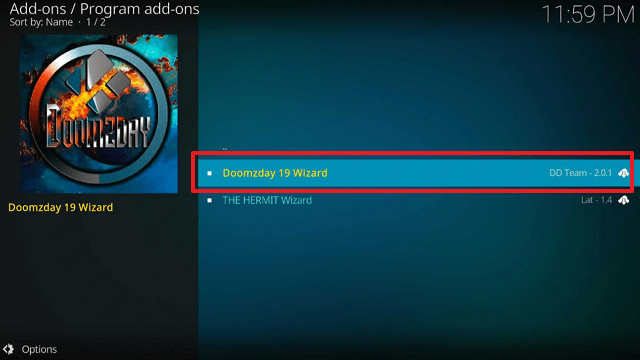
19. Click on “Doomzday 19 Wizard

Install Nova TV Kodi Build on Firestick step 19


20. Then click “Install

Install Nova TV Kodi Build on Firestick step 20


21. Click “OK” for the additional add-ons that will be installed

Install Nova TV Kodi Build on Firestick step 21


22. Then wait for it to install. It’s finished once you see the “Doomzday 19 Wizard Add-on Installed” message appears.

Install Nova TV Kodi Build on Firestick step 22


23. Click “Continue

Install Nova TV Kodi Build on Firestick step 23


24. Then select “Builds Menu

Install Nova TV Kodi Build on Firestick step 24


25. Click on Dismiss.

Install Nova TV Kodi Build on Firestick step 25


26. Click Open.

Install Nova TV Kodi Build on Firestick step 26


27. Select (Doomzday Wizard) Builds.

Install Nova TV Kodi Build on Firestick step 27


28. Click on Doomzday – Nova TV

Install Nova TV Kodi Build on Firestick step 28


29. (Doomzday Wizard) Install

Install Nova TV Kodi Build on Firestick step 29


30. Select “Yes, Install

Install Nova TV Kodi Build on Firestick step 30


31. The build will then start to install, simply wait for it. Choose “Fresh Install

step 31


32. Then reload your Kodi app. That’s it, Nova TV Kodi Build is already installed on your Firestick.


YOUR INTERNET ACTIVITY IS BEING WATCHED

ReviewVPN cannot attest to the legality, security and privacy of the applications discussed on this site. It is highly recommended that you use a VPN service while streaming or using Kodi.

Currently, your IP 216.73.216.102 is visible to everyone and your Browser is being tracked by Advertisers & ISP Provider.

Save 65% Now

Limited Time Offer

Here are the main reasons why you must use a VPN:

  • Your activities are hidden from your ISP, the government, and from the apps you are using.
  • You can access additional movies and TV streams.
  • ISP attempts to throttle are thrwarted thus reducing buffering issues.
  • Geographically restricted content like Netflix and Hulu can be unblocked.

A VPN works be replacing your ISP-assigned IP address and creating an encrypted tunnel. We recommend the no log service offered by IPVanish. It works well on a Firestick and offers the fastest possible speeds.

Special Limited Time Offer - Get IPVanish


Legal Disclaimer: ReviewVPN.com does not encourage or endorse any illegal activity involved in the usage of services and applications referenced on this site. We do not verify the licensing agreements of services. The end-user is wholly responsible for ensuring that any media accessed through these services does not violate copyright and/or licensing laws. ReviewVPN does not promote, link to, or receive compensation from any Apps and IPTV services.


Install Surfshark on Firestick

Best Surfshark Deal


Features

  • Contains movies, TV Shows, Live TV, Sports, Music, and a lot more streaming content
  • It contains the ff addons: Scrubs V2, Homelander, The Crew, Seren, Umbrella, The Archives, Magic Dragon, Ghost, Chains Reaction Lite, Asgard, Twisted, Fido Schwifty, and Mad Titan
  • You can find the weather forecast for the week
  • There’s a library where you can add movies and TV shows
  • Provides support for debris accounts such as Real debrid
  • Video quality is available in SD, HD, and 4K quality
  • Customizable video and audio settings
  • Provides subtitle support which you can browse or download
  • Has the option to resume where you left off
  • It allows you to bookmark your favorite movies and shows


Pros & Cons

Pros

  • Free movies and TV shows
  • You can find Netflix content
  • No buffers while streaming
  • Multiple streaming links are available


Cons

  • The videos take some time to load
  • There are playback failures
  • Not a fast-loading addon


Stream Safely With a VPN

Surfshark vpn

Nova TV viewers get access to an infinite number of streaming options. It has practically all of the stuff you’re looking for to stream on your device. However, you should always protect your data when using Builds like Nova TV.

A VPN like Surfshark will secure your data by giving you an anonymous IP address from one of its servers. By doing so, you can stream anonymously while preventing IP leaks and data breaches. In addition, the following are some other advantages:

  • Gives you the ability to get around limitations so you can access stuff anywhere in the globe
  • It increases the speed of your internet connection by connecting you to the fastest available server.
  • Enjoy unlimited data to download and stream whichever content you like.
  • protects all of your devices with an unlimited number of simultaneous connections
  • A CleanWeb feature that prevents malware and advertisements
  • It also has a cookie consent pop-up blocker.
  • A 30-day money-back guarantee is available.

Note: For more information about Surfshark, please read our Surfshark Review.


Install Surfshark on Firestick

Best Surfshark Deal


How to Install Surfshark VPN on Firestick

If your Firestick still has the older interface, read this article to learn how to update it: Update Firestick Interface.

Follow our screenshots below to install the SurfShark VPN app on your Fire TV stick.

1. Go to the Home screen of your Firestick.

step 1 Install Surfshark VPN on Firestick


2. Navigate towards the Find tab. Press the Search button from the resulting dropdown.

step 2 Install Surfshark VPN on Firestick


3. Type in the keyword of SurfShark and select from the suggestions that will appear.

step 3 Install Surfshark VPN on Firestick


4. Click the official SurfShark icon from your search results.

step 4 Install Surfshark VPN on Firestick


5. Press the Download (You own it) button.

step 5 Install Surfshark VPN on Firestick


6. The SurfShark VPN installer will download on your device.

step 6 Install Surfshark VPN on Firestick


7. SurfShark VPN’s app will automatically install itself on your Fire TV stick.

step 7 Install Surfshark VPN on Firestick


8. Press the Open button after completing SurfShark VPN’s installation process.

step 8 Install Surfshark VPN on Firestick


9. Please wait for the SurfShark VPN to load its user interface.

step 9 Install Surfshark VPN on Firestick


10. You can now log in with your SurfShark VPN account credentials.

step 10 Install Surfshark VPN on Firestick

Learn more about Surfshark and Grab the Best Surfshark Deal Now!


Install Surfshark on Firestick

Best Surfshark Deal


Other VPNs to Consider

NordVPN (Best for Streaming)

Best Features

  • 5000+ Server in 50+ Countries 
  • Military-Grade Encryption
  • Fast Connection Speed
  • Suitable to a lot of devices
  • No-Log Policy

Prices
  • Complete $5.89 per month (64% Discount)
  • Plus $4.59 per month (56% Discount)
  • Standard $3.69 per month (55% Discount)

Best Features

  • 750+ High-speed VPN Servers in 43 Locations
  • Military-Grade Encryption
  • Fastest HD Streaming and Gaming
  • 30-Day Money-Back Guarantee
  • Unlimited Data & Devices
  • No-Log Policy

Prices
  • 3 Years $1.99 per month (82% Discount)
  • 1 Years $3.29 per month (70% Discount)
  • 1 Month $10.99 per month

IPVanish VPN (Most Secure)

Best Features

  • 1200+ Servers in 60+ Countries around the world
  • Unlimited Connections
  • No-Log Policy
  • Top Notch Military-Grade VPN Protocols and Encryptions
  • 100% Safe and Secured
  • Most Trusted VPN
  • Best VPN for Firestick
  • 30-Day Money-Back Guarantee

Prices
  • Yearly $3.99 per month (63% Discount) – 30 days risk free + Ransomware & Malware Protection
  • Quarterly $5.32 per month (51% Discount)
  • Monthly $10.99 per month


For more VPN discounts, go to ReviewVPN Deals and purchase the best VPN for you.

Click here to get the lowest price on Surfshark through our exclusive limited-time offer.


FAQs

Is Nova TV Kodi Build Safe?

Installing Nova TV on a Firestick or other device is safe. However, we always suggest using Surfshark together for increased security protection.


Is Nova TV Kodi Build Legal?

The Nova TV Kodi Addon Build itself is legal. We cannot, however, vouch for the legality of the streams it offers.


Should I Use a VPN with Nova TV Kodi Build?

When surfing the internet, we always urge our readers to employ a VPN, especially if:

1. They use unofficial builds and addons for Kodi.
2. They are streaming content for free online.

And Nova TV Kodi Build meets both of these criteria. So, yes, a VPN is recommended when using the Nova TV Kodi Build. This is to avoid unwanted logs or data leaks, as well as to avoid inviting third-party dangers such as hackers and phishers.


Conclusion

Nova TV is a reputable streaming software that the majority of Firestick users love and enjoy. So it’s fantastic news that it’s also available in Kodi, as some streamers prefer to use Kodi. There are numerous video streams accessible that you may watch for free or with your debrid account. Additionally, you can choose from a variety of streaming URLs and watch them in various streaming qualities.

How to Install Ghetto Astronaut Kodi Build

Overview

This article will show you how to install the Ghetto Astronaut Kodi Build and everything else you should know about it.


The Ghetto Astronaut Wizard comes packed with tons of working Builds that you can easily install on your device such as the Firestick. You can also find some of the best add-ons within it such as The Crew, ThePromise, Asgard, Mad Titan, and a lot more. It offers a wide variety of streaming options like movies, TV shows, Live TV, Sports, Kids, etc.

However, since The Ghetto Astronaut Wizard is a third-party Build, we recommend you use a VPN before installing it on your device to avoid any complications such as data breaches or unwanted logs.


ANONYMOUSLY


How To Install Ghetto Astronaut Kodi Build on Firestick

You can follow along with this tutorial to install the Ghetto Astronaut Kodi Build on your Firestick.

1. On your Firestick, open Kodi and go to Settings.

Install Ghetto Astronaut Kodi Build on Firestick step 1


2. Select System.

Install Ghetto Astronaut Kodi Build on Firestick step 2

3. Click on the Add-ons menu and Turn ON the Unknown Sources.

Install Ghetto Astronaut Kodi Build on Firestick step 3


4. Select Yes when the box appears.

Install Ghetto Astronaut Kodi Build on Firestick step 4


5. Go back one step and click on File Manager.

Install Ghetto Astronaut Kodi Build on Firestick step 5


6. Select the Add Source.

Install Ghetto Astronaut Kodi Build on Firestick step 6


7. A box will pop up, so click on the ‘None’ option.

Install Ghetto Astronaut Kodi Build on Firestick step 7


8. Type in “http://famdamnlyman.one/Matrix/Repo” then click “OK”.

Install Ghetto Astronaut Kodi Build on Firestick step 8

9. Highlight the box under the source to give the media source a name, and put “Ghetto Astronaut” or any other name that will help you identify it quickly. Then click “OK” again. Return to the System page by pressing the return button on your remote.

Install Ghetto Astronaut Kodi Build on Firestick step 9


10. Select “Add-ons

Install Ghetto Astronaut Kodi Build on Firestick step 10


11. Choose “Install from zip file

Install Ghetto Astronaut Kodi Build on Firestick step 11


12. Click “Yes

Install Ghetto Astronaut Kodi Build on Firestick step 12


13. Select “Ghetto Astronaut

Install Ghetto Astronaut Kodi Build on Firestick step 13


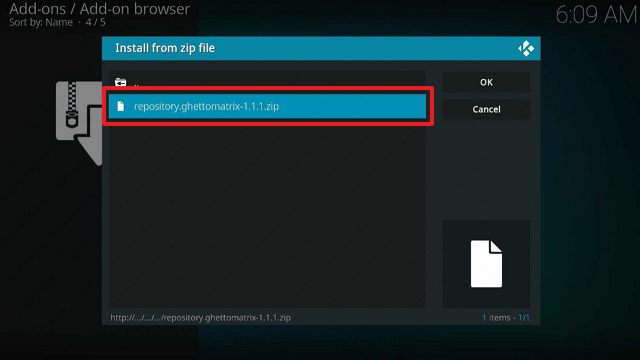
14. Then click on the zip file URL – repository.ghettomatrix-1.1.1.zip

Install Ghetto Astronaut Kodi Build on Firestick step 14


15. Wait for the notification “Ghetto Astronaut Matrix Repo Add-on installed” to appear on the upper right part of the screen

Install Ghetto Astronaut Kodi Build on Firestick step 15


16. Afterward, select “Install from repository

Install Ghetto Astronaut Kodi Build on Firestick step 16


17. Then click “Ghetto Astronaut Matrix Repo

Install Ghetto Astronaut Kodi Build on Firestick step 17


18. Select “Program add-ons

Install Ghetto Astronaut Kodi Build on Firestick step 18


19. Click on “Ghetto Astronaut Wizard

Install Ghetto Astronaut Kodi Build on Firestick step 19


20. Then click “Install

Install Ghetto Astronaut Kodi Build on Firestick step 20


21. Click “OK” for the additional add-ons that will be installed

Install Ghetto Astronaut Kodi Build on Firestick step 21


22. Then wait for it to install. It’s finished once you see the “Ghetto Astronaut Wizard Add-on Installed” message appears.

Install Ghetto Astronaut Kodi Build on Firestick step 22


23. Click “Continue

Install Ghetto Astronaut Kodi Build on Firestick step 23


24. Select “Build Menu

Install Ghetto Astronaut Kodi Build on Firestick step 24


25. Choose “Dismiss

Install Ghetto Astronaut Kodi Build on Firestick step 25


26. Click on Open.

Install Ghetto Astronaut Kodi Build on Firestick step 26


27. That’s it, you can now choose from Ghetto Astronaut Builds available.

Install Ghetto Astronaut Kodi Build on Firestick step 27


YOUR INTERNET ACTIVITY IS BEING WATCHED

ReviewVPN cannot attest to the legality, security and privacy of the applications discussed on this site. It is highly recommended that you use a VPN service while streaming or using Kodi.

Currently, your IP 216.73.216.102 is visible to everyone and your Browser is being tracked by Advertisers & ISP Provider.

Save 65% Now

Limited Time Offer

Here are the main reasons why you must use a VPN:

  • Your activities are hidden from your ISP, the government, and from the apps you are using.
  • You can access additional movies and TV streams.
  • ISP attempts to throttle are thrwarted thus reducing buffering issues.
  • Geographically restricted content like Netflix and Hulu can be unblocked.

A VPN works be replacing your ISP-assigned IP address and creating an encrypted tunnel. We recommend the no log service offered by IPVanish. It works well on a Firestick and offers the fastest possible speeds.

Special Limited Time Offer - Get IPVanish


Legal Disclaimer: ReviewVPN.com does not encourage or endorse any illegal activity involved in the usage of services and applications referenced on this site. We do not verify the licensing agreements of services. The end-user is wholly responsible for ensuring that any media accessed through these services does not violate copyright and/or licensing laws. ReviewVPN does not promote, link to, or receive compensation from any Apps and IPTV services.


Install Surfshark on Firestick

Best Surfshark Deal


Features

  • Contains movies, TV shows, Live TV, Sports, Kids, VOD, and more
  • Builds available are Astruary, Hits from the Bong, Kodeine, Konfusion, Man Cave Unleashed, Movies Plus, Netflix, Neuromancer, Sikflix Reloaded, Spidey & Friends, Super Size Me, Twisted, and Warzone
  • Addons that you can find are Asgard, The Crew, Homelander, Mad Titan Sports, KodiVerse, ThePromise, Ghost, Fanime, Wolf Pack, UK Turk, Chains, Magic Dragon, and a lot more
  • Supports Trakt and Debrid accounts
  • Customizable skins and profiles
  • Also provides XXX content
  • Provides subtitle support


Pros & Cons

Pros

  • Tons of add-ons are available
  • Loaded with Builds
  • Wide variety of video offerings
  • Lightweight build

Con

  • Some add-ons are not working


Should I Use Ghetto Astronaut Kodi Build With a VPN?

Surfshark vpn

Yes, as Ghetto Astronaut is a third-party Build, you should use a VPN with it. This is because you can never be sure what risks it might bring to your device.

Additionally, it warns you that Kodi won’t be liable for any device harm or data loss if you allow unknown sources. Therefore, the security of your device and data will be entirely your responsibility. Of course, you won’t ever want to endanger your safety and risk being held accountable for the harm and losses.

That is when a VPN is useful. By giving you an anonymous IP address, a VPN service like Surfshark will mask your connection.

As a result, it offers you the following security precautions:

  • Your online activities and data will be hidden because you will be using a different IP address, which is anonymous.
  • The IP address will give the impression that you are located somewhere else (you can even use Surfshark to access geo-restricted content through this feature)
  • It contains a kill switch that will cut off your device’s internet access if your VPN connection is unexpectedly interrupted.
  • To prevent any breaches, Surfshark encrypts your connection with 256-bit military-grade encryption.
  • Its zero-logs policy ensures that neither IP addresses nor data are made public.

Note: For more information about Surfshark, please read our Surfshark Review.


Install Surfshark on Firestick

Best Surfshark Deal


How to Install Surfshark VPN on Firestick

If your Firestick still has the older interface, read this article to learn how to update it: Update Firestick Interface.

Follow our screenshots below to install the SurfShark VPN app on your Fire TV stick.

1. Go to the Home screen of your Firestick.

step 1 Install Surfshark VPN on Firestick


2. Navigate toward the Find tab. Press the Search button from the resulting dropdown.

step 2 Install Surfshark VPN on Firestick


3. Type in the keyword of SurfShark and select from the suggestions that will appear.

step 3 Install Surfshark VPN on Firestick


4. Click the official SurfShark icon from your search results.

step 4 Install Surfshark VPN on Firestick


5. Press the Download (You own it) button.

step 5 Install Surfshark VPN on Firestick


6. The SurfShark VPN installer will download on your device.

step 6 Install Surfshark VPN on Firestick


7. SurfShark VPN’s app will automatically install itself on your Fire TV stick.

step 7 Install Surfshark VPN on Firestick


8. Press the Open button after completing SurfShark VPN’s installation process.

step 8 Install Surfshark VPN on Firestick


9. Please wait for the SurfShark VPN to load its user interface.

step 9 Install Surfshark VPN on Firestick


10. You can now log in with your SurfShark VPN account credentials.

step 10 Install Surfshark VPN on Firestick

Learn more about Surfshark and Grab the Best Surfshark Deal Now!


Install Surfshark on Firestick

Best Surfshark Deal


Other VPNs to Consider

NordVPN (Best for Streaming)

Best Features

  • 5000+ Server in 50+ Countries 
  • Military-Grade Encryption
  • Fast Connection Speed
  • Suitable to a lot of devices
  • No-Log Policy

Prices
  • Complete $5.89 per month (64% Discount)
  • Plus $4.59 per month (56% Discount)
  • Standard $3.69 per month (55% Discount)

Best Features

  • 750+ High-speed VPN Servers in 43 Locations
  • Military-Grade Encryption
  • Fastest HD Streaming and Gaming
  • 30-Day Money-Back Guarantee
  • Unlimited Data & Devices
  • No-Log Policy

Prices
  • 3 Years $1.99 per month (82% Discount)
  • 1 Years $3.29 per month (70% Discount)
  • 1 Month $10.99 per month

IPVanish VPN (Most Secure)

Best Features

  • 1200+ Servers in 60+ Countries around the world
  • Unlimited Connections
  • No-Log Policy
  • Top Notch Military-Grade VPN Protocols and Encryptions
  • 100% Safe and Secured
  • Most Trusted VPN
  • Best VPN for Firestick
  • 30-Day Money-Back Guarantee

Prices
  • Yearly $3.99 per month (63% Discount) – 30 days risk free + Ransomware & Malware Protection
  • Quarterly $5.32 per month (51% Discount)
  • Monthly $10.99 per month


For more VPN discounts, go to ReviewVPN Deals and purchase the best VPN for you.

Click here to get the lowest price on Surfshark through our exclusive limited-time offer.


FAQs

Is Ghetto Astronaut Kodi Build Safe?

It is safe to install the Ghetto Astronaut Kodi Build on any device, such as Firestick. However, because it is a third-party Build, it is recommended that you use a VPN to ensure that your device and data are not compromised when using the service.


Is Ghetto Astronaut Kodi Build Legal?

We are unable to fully determine the legality of Ghetto Astronaut Kodi Build due to the enormous number of movies and channels available. Therefore, it is suggested that you use a VPN to maintain your online anonymity and prevent any legal issues from arising from your usage of the service.


Conclusion

Ghetto Astronaut offers its users a variety of streaming possibilities. So you may find many add-ons within it regardless of whether you like to watch movies, TV shows, or sports. So it’s worth giving it a shot on your Firestick device.


How to Install Endzone Kodi Addon

Overview

This post covers all you need to know about the EndZone Kodi Addon, including how to set it up on a Firestick.


EndZone is a Sports Kodi Addon found in the Grindhouse repository. It contains practically any sporting event you can imagine, including basketball, football, boxing, racing, and more. In addition, it offers live streaming via several streaming connections.

However, the EndZone Kodi addon is a third-party addon that is not available from the official repository. Therefore, it is recommended that you utilize a VPN, such as Surfshark when installing and using this addon.

Without further ado, let’s start with the Firestick installation process.


ANONYMOUSLY


How To Install EndZone Kodi Addon on Firestick

You can follow along with this tutorial to install the EndZone Kodi Addon on your Firestick.

1. Launch the Kodi app on your Firestick. Click on the gear wheel icon (Settings)

Install EndZone Kodi Addon on Firestick step 1


2. Select “System

Install EndZone Kodi Addon on Firestick step 2

3. Scroll down to “Add-ons” Then Go to “Unknown sources” then toggle it on.

Install EndZone Kodi Addon on Firestick step 3


4. Select “Yes”. Then using your Firestick remote, press the return button to go back to the System page

Install EndZone Kodi Addon on Firestick step 4


5. Now choose “File Manager

Install EndZone Kodi Addon on Firestick step 5


6. Scroll down and select “Add source

Install EndZone Kodi Addon on Firestick step 6


7. Click “<None>

Install EndZone Kodi Addon on Firestick step 7


8. Type in “http://grindhousekodi.tk/repo” then click “OK”

Install EndZone Kodi Addon on Firestick step 8


9. Highlight the box under the source to give the media source a name, and put “endzone” or any other name that will help you identify it quickly. Then click “OK” again. Return to the System page by pressing the return button on your remote

Install EndZone Kodi Addon on Firestick step 9


10. Select “Add-ons

Install EndZone Kodi Addon on Firestick step 10


11. Choose “Install from zip file

Install EndZone Kodi Addon on Firestick step 11


12. Click “Yes

Install EndZone Kodi Addon on Firestick step 12


13. Select “endzone

Install EndZone Kodi Addon on Firestick step 13


14. Then click on the zip file URL – repository.grindhousekodi-1.7.zip

Install EndZone Kodi Addon on Firestick step 14


15. Wait for the notification “Grindhouse Repository Add-on installed” to appear on the upper right part of the screen

Install EndZone Kodi Addon on Firestick step 15


16. Afterward, select “Install from repository

Install EndZone Kodi Addon on Firestick step 16


17. Then click “Grindhouse Repository

Install EndZone Kodi Addon on Firestick step 17


18. Select “Video add-ons

Install EndZone Kodi Addon on Firestick step 18


19. Click on “The EndZone 19

Install EndZone Kodi Addon on Firestick step 19


20. Then click “Install

Install EndZone Kodi Addon on Firestick step 20


21. Click “OK” for the additional add-ons that will be installed.

Install EndZone Kodi Addon on Firestick step 21


22. Then wait for it to install. It’s finished once you see the “EndZone Add-on Installed” message appears.

Install EndZone Kodi Addon on Firestick step 22


23. Select “EndZone

Install EndZone Kodi Addon on Firestick step 23


24. Then select “Open

Install EndZone Kodi Addon on Firestick step 24


25. That’s it, EndZone Kodi Addon is already installed on your Firestick.

Install EndZone Kodi Addon on Firestick step 25


YOUR INTERNET ACTIVITY IS BEING WATCHED

ReviewVPN cannot attest to the legality, security and privacy of the applications discussed on this site. It is highly recommended that you use a VPN service while streaming or using Kodi.

Currently, your IP 216.73.216.102 is visible to everyone and your Browser is being tracked by Advertisers & ISP Provider.

Save 65% Now

Limited Time Offer

Here are the main reasons why you must use a VPN:

  • Your activities are hidden from your ISP, the government, and from the apps you are using.
  • You can access additional movies and TV streams.
  • ISP attempts to throttle are thrwarted thus reducing buffering issues.
  • Geographically restricted content like Netflix and Hulu can be unblocked.

A VPN works be replacing your ISP-assigned IP address and creating an encrypted tunnel. We recommend the no log service offered by IPVanish. It works well on a Firestick and offers the fastest possible speeds.

Special Limited Time Offer - Get IPVanish


Legal Disclaimer: ReviewVPN.com does not encourage or endorse any illegal activity involved in the usage of services and applications referenced on this site. We do not verify the licensing agreements of services. The end-user is wholly responsible for ensuring that any media accessed through these services does not violate copyright and/or licensing laws. ReviewVPN does not promote, link to, or receive compensation from any Apps and IPTV services.


Install Surfshark on Firestick

Best Surfshark Deal


Features

  • Categories you can find are NFL, NBA, NCAAF, MMA/Boxing, Wrestling, Nascar/Formula One, MLB
  • Allows you to watch NFL Redzone, Early Games, Afternoon Games, and Night Games
  • NBA preseason is accessible for viewing
  • Wrestling content includes Monday Night Raw, NXT, All Elite Wrestling, and Friday Night Smackdown
  • Contains streaming for MLB Playoffs
  • Allows you to watch live TV channels


Pros & Cons

Pros

  • Contains different types of sporting events
  • Compatible with Trakt


Cons

  • Several playback errors
  • Channels sometimes crash
  • Currently no content for MMA/Boxing


Stream Safely With a VPN

Surfshark vpn

Using unofficial Kodi Addons may put your data in danger because you don’t know if third-party threats like hackers and phishers are present. In addition, the government’s surveillance system may record all of your data and activities when you stream your favorite movies and television programs.

So to avoid any data breaches and IP address leaks, always remember to use a VPN such as Surfshark.

Surfshark will protect your personal information by concealing your IP address from its thousands of servers all across the world. To ensure that you leave no tracks on whatever apps you use or visit, it also employs top-notch security features.

Additionally, a few of its benefits are as follows:

  • A clean web that blocks advertisements and malware
  • Pop-up blocker for cookie consent
  • Killswitch that will immediately disconnect you from the internet if your VPN connection is suddenly interrupted
  • Two-factor authentication for improved login security
  • Ensures there are no logs
  • Stream and download any content with no data limits
  • You can safeguard as many devices as you like simultaneously.

Note: For more information about Surfshark, please read our Surfshark Review.

Install Surfshark on Firestick

Best Surfshark Deal


How to Install Surfshark VPN on Firestick

If your Firestick still has the older interface, read this article to learn how to update it: Update Firestick Interface.

Follow our screenshots below to install the SurfShark VPN app on your Fire TV stick.

1. Go to the Home screen of your Firestick.

step 1 Install Surfshark VPN on Firestick


2. Navigate toward the Find tab. Press the Search button from the resulting dropdown.

step 2 Install Surfshark VPN on Firestick


3. Type in the keyword of SurfShark and select from the suggestions that will appear.

step 3 Install Surfshark VPN on Firestick


4. Click the official SurfShark icon from your search results.

step 4 Install Surfshark VPN on Firestick


5. Press the Download (You own it) button.

step 5 Install Surfshark VPN on Firestick


6. The SurfShark VPN installer will download on your device.

step 6 Install Surfshark VPN on Firestick


7. SurfShark VPN’s app will automatically install itself on your Fire TV stick.

step 7 Install Surfshark VPN on Firestick


8. Press the Open button after completing SurfShark VPN’s installation process.

step 8 Install Surfshark VPN on Firestick


9. Please wait for the SurfShark VPN to load its user interface.

step 9 Install Surfshark VPN on Firestick


10. You can now log in with your SurfShark VPN account credentials.

step 10 Install Surfshark VPN on Firestick

Learn more about Surfshark and Grab the Best Surfshark Deal Now!


Install Surfshark on Firestick

Best Surfshark Deal


Other VPNs to Consider

NordVPN (Best for Streaming)

Best Features

  • 5000+ Server in 50+ Countries 
  • Military-Grade Encryption
  • Fast Connection Speed
  • Suitable to a lot of devices
  • No-Log Policy

Prices
  • Complete $5.89 per month (64% Discount)
  • Plus $4.59 per month (56% Discount)
  • Standard $3.69 per month (55% Discount)

Best Features

  • 750+ High-speed VPN Servers in 43 Locations
  • Military-Grade Encryption
  • Fastest HD Streaming and Gaming
  • 30-Day Money-Back Guarantee
  • Unlimited Data & Devices
  • No-Log Policy

Prices
  • 3 Years $1.99 per month (82% Discount)
  • 1 Years $3.29 per month (70% Discount)
  • 1 Month $10.99 per month

IPVanish VPN (Most Secure)

Best Features

  • 1200+ Servers in 60+ Countries around the world
  • Unlimited Connections
  • No-Log Policy
  • Top Notch Military-Grade VPN Protocols and Encryptions
  • 100% Safe and Secured
  • Most Trusted VPN
  • Best VPN for Firestick
  • 30-Day Money-Back Guarantee

Prices
  • Yearly $3.99 per month (63% Discount) – 30 days risk free + Ransomware & Malware Protection
  • Quarterly $5.32 per month (51% Discount)
  • Monthly $10.99 per month


For more VPN discounts, go to ReviewVPN Deals and purchase the best VPN for you.

Click here to get the lowest price on Surfshark through our exclusive limited-time offer.


FAQs

Is EndZone Kodi Addon Safe?

The EndZone Kodi Addon is safe. However, when utilizing unofficial addons like EndZone, it’s still preferable to use Surfshark.


Is EndZone Kodi Addon Legal?

Yes, EndZone Kodi Addon is legal. But even so, we are uncertain of the legality of each of the streams it offers.


Should I Use a VPN with EndZone Kodi Addon?

Yes. It is recommended to use a VPN such as Surfshark with EndZone. This is for increased protection when streaming your favorite sports material.


Conclusion

Endzone Kodi Addon provide livestreaming to its users. It contains nearly every sporting event available. However, Endzone Kodi Addon is quite unstable. There are numerous playback issues, and the channel streaming occasionally crashes. Therefore, I can state that there are better Sports add-ons that you may find in our list of the best Sports Kodi addons.

How To Install Wutu Kodi Addon on Firestick

Overview

Everything you need to know about the Wutu Kodi Addon, including how to set it up on a Firestick, is detailed in this post.


If you like the Venom Addon, then Wutu will be just up your alley. Wutu is a Venom fork of the well-liked Venom Addon that lets you view movies and television shows on a Firestick or other device.

Additionally, we would want to let you know upfront that using the Wutu Kodi Addon would require you to have a debrid account, such as real debrid.

Furthermore, since Wutu is a third-party addon that is not part of the official Kodi repository, we recommend using a VPN like Surfshark to avoid any potential problems.


How To Install Wutu Kodi Addon on Firestick

You can follow along with this tutorial to install the Wutu Kodi Addon on your Firestick.

1. On your Firestick, open Kodi and go to Settings.

Install Wutu Kodi Addon on Firestick step 1


2. Select System.

Install Wutu Kodi Addon on Firestick step 2


3. Click on the Add-ons menu and Turn ON the Unknown Sources.

Install Wutu Kodi Addon on Firestick step 3


4. Select Yes when the box appears.

Install Wutu Kodi Addon on Firestick step 4


5. Go back one step and click on File Manager.

Install Wutu Kodi Addon on Firestick step 5


6. Select the Add Source.

Install Wutu Kodi Addon on Firestick step 6


7. A box will pop up, so click on the ‘None’ option.

Install Wutu Kodi Addon on Firestick step 7


8. Type in “https://ezra-hubbard.github.io/” then click “OK”

Install Wutu Kodi Addon on Firestick step 8


9. Highlight the box under the source to give the media source a name, and put “wutu” or any other name that will help you identify it quickly. Then click “OK” again. Return to the System page by pressing the return button on your remote.

Install Wutu Kodi Addon on Firestick step 9


10. Select “Add-ons

Install Wutu Kodi Addon on Firestick step 10


11. Choose “Install from zip file

Install Wutu Kodi Addon on Firestick step 11


12. Click “Yes

Install Wutu Kodi Addon on Firestick step 12


13. Select wutu.

Install Wutu Kodi Addon on Firestick step 13


14. Then click on the zip file URL – repository.ezra-0.0.1.zip

Install Wutu Kodi Addon on Firestick step 14


15. Wait for the notification “Ezra Repository Add-on installed” to appear on the upper right part of the screen

Install Wutu Kodi Addon on Firestick step 15


16. Afterward, select “Install from repository

Install Wutu Kodi Addon on Firestick step 16


17. Then click “Ezra Repository

Install Wutu Kodi Addon on Firestick step 17


18. Select “Video add-ons

Install Wutu Kodi Addon on Firestick step 18


19. Click on “Wutu

Install Wutu Kodi Addon on Firestick step 19


20. Then click “Install

Install Wutu Kodi Addon on Firestick step 20


21. Click “OK” for the additional add-ons that will be installed

Install Wutu Kodi Addon on Firestick step 21


22. Then wait for it to install. It’s finished once you see the “Wutu Add-on Installed” message appears.

Install Wutu Kodi Addon on Firestick step 22


23. Select “Wutu” Then select “Open

Install Wutu Kodi Addon on Firestick step 23


24. That’s it, Wutu Kodi Addon is already installed on your Firestick.

Install Wutu Kodi Addon on Firestick step 24


YOUR INTERNET ACTIVITY IS BEING WATCHED

ReviewVPN cannot attest to the legality, security and privacy of the applications discussed on this site. It is highly recommended that you use a VPN service while streaming or using Kodi.

Currently, your IP 216.73.216.102 is visible to everyone and your Browser is being tracked by Advertisers & ISP Provider.

Save 65% Now

Limited Time Offer

Here are the main reasons why you must use a VPN:

  • Your activities are hidden from your ISP, the government, and from the apps you are using.
  • You can access additional movies and TV streams.
  • ISP attempts to throttle are thrwarted thus reducing buffering issues.
  • Geographically restricted content like Netflix and Hulu can be unblocked.

A VPN works be replacing your ISP-assigned IP address and creating an encrypted tunnel. We recommend the no log service offered by IPVanish. It works well on a Firestick and offers the fastest possible speeds.

Special Limited Time Offer - Get IPVanish


Legal Disclaimer: ReviewVPN.com does not encourage or endorse any illegal activity involved in the usage of services and applications referenced on this site. We do not verify the licensing agreements of services. The end-user is wholly responsible for ensuring that any media accessed through these services does not violate copyright and/or licensing laws. ReviewVPN does not promote, link to, or receive compensation from any Apps and IPTV services.


Install Surfshark on Firestick

Best Surfshark Deal


How to Use Wutu Kodi Addon With Real-Debrid

Wutu will require you to have a debrid account so you can watch movies & TV Shows using this add-on. Apart from that, integration of a debrid account such as real debrid will allow you to find the best streaming sources available.

1. Launch the Wutu Kodi Addon on your Firestick. Scroll down and select “Tools

How to Use Wutu Kodi Addon With Real-Debrid


2. Choose “My Account Settings

How to Use Wutu Kodi Addon With Real-Debrid


3. Then go to “Debrid Accounts”. Scroll down to Real-Debrid then click “Authorize

How to Use Wutu Kodi Addon With Real-Debrid


4. You’ll be given a code to input by going to “https://real-debrid.com/device” on any device browser

How to Use Wutu Kodi Addon With Real-Debrid


5. Once the code is entered, simply click “Continue” on your web browser to enable your real debrid integration with Insomnia

How to Use Wutu Kodi Addon With Real-Debrid


6. Once the integration is complete, go back to Wutu Kodi Addon.


7. Then you’ll see a notification stating “ Real-Debrid Authorization Successful” on the top of your screen

How to Use Wutu Kodi Addon With Real-Debrid


8. That’s it, you can now start browsing for movies and TV shows in premium streaming links on Wutu.


Features

  • You can browse through the Discover Movies, Discover TV Shows, My Movies, My TV Shows, Search, Tools, Premium Services, and Change Log categories.
  • Provides movies and TV shows from IMDb, TMDb, and Trakt.
  • The integration of your Trakt and IMDb accounts will allow you to view your stored videos.
  • It allows you to search for Movies, Shows, Movies by Actor, and Shows by Actor.
  • Enables you to resume playback and pick up where you left off.
  • Integration of premium services is possible, including All-debrid, Premiumize, Real-debrid, Premiumize, Easy News, Filepursuit, Furk.net, GDrive, and Ororo.
  • You can also enable video downloads under the Settings menu.
  • Subtitle support is available.


Pros & Cons

Pros

  • Straightforward UI
  • Supports all accessible Premium services.
  • Has subtitle support


Cons

  • To watch movies and TV shows, you must have a debrid account.
  • Downloading Metahandler is necessary to view the content.
  • There are no free videos available.


Stream Safely With a VPN

Surfshark vpn

Streaming services frequently have unwanted logs or data breaches, especially when utilizing unofficial Kodi addons. The government also keeps an eye on your online activity, especially if you’re coming from a nation like the US where government surveillance is very severe.

The last thing you would want is to have your privacy compromised while watching your favorite movies and television series online. Therefore, using a VPN to safeguard your connection is the best option.

Your true IP address will be concealed by a VPN, like Surfshark, allowing you to remain anonymous. It employs AES-256-bit encryption to ensure that no IP address leaks or data breaches occur while connected to its service.

Aside from that, here are a few more advantages of using Surfshark.

  • Allows you to circumvent restrictions and access content from anywhere in the globe.
  • Gives you unlimited data so you may stream and download as much as you want.
  • It permits an unlimited number of connections at once, enabling you to simultaneously secure every device you own.
  • Ads and adware will be blocked by its CleanWeb function.
  • There is also a pop-up blocker for cookie consent.
  • In the event of a VPN disruption, a kill switch will automatically disconnect you from the internet.

Note: For more information about Surfshark, please read our Surfshark Review.


Install Surfshark on Firestick

Best Surfshark Deal


How to Install Surfshark VPN on Firestick

If your Firestick still has the older interface, read this article to learn how to update it: Update Firestick Interface.

Follow our screenshots below to install the SurfShark VPN app on your Fire TV stick.

1. Go to the Home screen of your Firestick.

step 1 Install Surfshark VPN on Firestick


2. Navigate toward the Find tab. Press the Search button from the resulting dropdown.

step 2 Install Surfshark VPN on Firestick


3. Type in the keyword of SurfShark and select from the suggestions that will appear.

step 3 Install Surfshark VPN on Firestick


4. Click the official SurfShark icon from your search results.

step 4 Install Surfshark VPN on Firestick


5. Press the Download (You own it) button.

step 5 Install Surfshark VPN on Firestick


6. The SurfShark VPN installer will download on your device.

step 6 Install Surfshark VPN on Firestick


7. SurfShark VPN’s app will automatically install itself on your Fire TV stick.

step 7 Install Surfshark VPN on Firestick


8. Press the Open button after completing SurfShark VPN’s installation process.

step 8 Install Surfshark VPN on Firestick


9. Please wait for the SurfShark VPN to load its user interface.

step 9 Install Surfshark VPN on Firestick


10. You can now log in with your SurfShark VPN account credentials.

step 10 Install Surfshark VPN on Firestick

Learn more about Surfshark and Grab the Best Surfshark Deal Now!


Install Surfshark on Firestick

Best Surfshark Deal


Other VPNs to Consider

NordVPN (Best for Streaming)

Best Features

  • 5000+ Server in 50+ Countries 
  • Military-Grade Encryption
  • Fast Connection Speed
  • Suitable to a lot of devices
  • No-Log Policy

Prices
  • Complete $5.89 per month (64% Discount)
  • Plus $4.59 per month (56% Discount)
  • Standard $3.69 per month (55% Discount)

Best Features

  • 750+ High-speed VPN Servers in 43 Locations
  • Military-Grade Encryption
  • Fastest HD Streaming and Gaming
  • 30-Day Money-Back Guarantee
  • Unlimited Data & Devices
  • No-Log Policy

Prices
  • 3 Years $1.99 per month (82% Discount)
  • 1 Years $3.29 per month (70% Discount)
  • 1 Month $10.99 per month

IPVanish VPN (Most Secure)

Best Features

  • 1200+ Servers in 60+ Countries around the world
  • Unlimited Connections
  • No-Log Policy
  • Top Notch Military-Grade VPN Protocols and Encryptions
  • 100% Safe and Secured
  • Most Trusted VPN
  • Best VPN for Firestick
  • 30-Day Money-Back Guarantee

Prices
  • Yearly $3.99 per month (63% Discount) – 30 days risk free + Ransomware & Malware Protection
  • Quarterly $5.32 per month (51% Discount)
  • Monthly $10.99 per month


FAQs

Is Wutu Kodi Addon Safe?

Wutu Kodi Addon is safe to install on any device. To guarantee complete safety while using any addon, it’s always a better idea to utilize a VPN like Surfshark.


Is Wutu Kodi Addon Legal?

Because Wutu offers such a variety of content, we cannot ensure that everything is legal. You can check out our list of free movie apps if you want to make sure you only stream legal content.


Should I Use a VPN with Wutu Kodi Addon?

For complete anonymity, especially while using third-party addons like Wutu, we always suggest to our readers to employ a VPN like Surfshark. By doing this, you can prevent data breaches and theft when using these add-ons.


Conclusion

For fans of Venom, the Wutu Kodi Addon is particularly favorable because it is a fork of that addon. It supports several different kinds of Premium services and has an easy-to-use user interface. However, if you’re looking for a free streaming option, you may check out our list of the best Kodi Addons.

How to Install CrewNique Kodi Build on Firestick

CrewNique Kodi Build

This tutorial will show you how to install the CrewNique Kodi Build on Firestick as well as everything else you need to know about it.


The Crew repository has a reputation for providing a ton of great builds and add-ons that you can use on your Firestick or other devices. And now you may find another fantastic build, the CrewNique Kodi Build.

CrewNique is a Build that provides movies, television series, sports, and other entertainment. It has a huge amount of preset add-ons and streaming choices for any type of media you would need. In addition, Crewnique has the advantage of providing free material.

However, because this is a third-party build, we recommend that you utilize a VPN, such as Surfshark, before proceeding. This is to avoid any hiccups or compromises while getting the benefit of its free service. Now, let’s get started on how to install it on Firestick.


How To Install CrewNique Kodi Build on Firestick

1. On your Firestick, open Kodi and go to Settings.

step 1 Install CrewNique Kodi Build on Firestick


2. Select on System.

step 2 Install CrewNique Kodi Build on Firestick


3. Click on the Add-ons menu and Turn ON the Unknown Sources.

step 3 Install CrewNique Kodi Build on Firestick


4. Select Yes when the box appears.

step 4 Install CrewNique Kodi Build on Firestick


5. Go back one step and click on File Manager.

step 5 Install CrewNique Kodi Build on Firestick


6. Select the Add Source.

step 6 Install CrewNique Kodi Build on Firestick


7. A box will pop up, so click on the ‘None’ option.

step 7 Install CrewNique Kodi Build on Firestick


8. Type in “https://team-crew.github.io” then click “OK”

step 8 Install CrewNique Kodi Build on Firestick


9. Highlight the box under the source to give the media source a name, and put “crew” or any other name that will help you identify it quickly. Click “OK”

step 9 Install CrewNique Kodi Build on Firestick


10. Return to the System page by pressing the return button on your remote. Select “Add-ons”

step 10 Install CrewNique Kodi Build on Firestick


11. Choose “Install from zip file”

step 11 Install CrewNique Kodi Build on Firestick


12. Click “Yes”

step 12 Install CrewNique Kodi Build on Firestick


13. Select “crew”

step 13 Install CrewNique Kodi Build on Firestick


14. Then click on the zip file URL – thecrew-0.3.4.zip

step 14 Install CrewNique Kodi Build on Firestick


15. Wait for the notification “The Crew Repo Add-on installed” to appear on the upper right part of the screen

step 15 Install CrewNique Kodi Build on Firestick


16. Then click “Install from repository

step 16 Install CrewNique Kodi Build on Firestick


17. Select “The Crew Repo

step 17 Install CrewNique Kodi Build on Firestick


18. Then choose “Program add-ons

step 18 Install CrewNique Kodi Build on Firestick


19. Click on “The Crew Wizard

step 19 Install CrewNique Kodi Build on Firestick


20. Then click “Install

step 20 Install CrewNique Kodi Build on Firestick


21. Simply wait for the “The Crew Wizard Add-on installed” notification

step 21 Install CrewNique Kodi Build on Firestick


22. Select “Dismiss

step 22 Install CrewNique Kodi Build on Firestick


23. Click “Continue

step 23 Install CrewNique Kodi Build on Firestick


24. Choose “Build Menu

step 24 Install CrewNique Kodi Build on Firestick


25. Scroll down and select “CrewNique

step 25 Install CrewNique Kodi Build on Firestick


26. Choose “Fresh Install

step 26 Install CrewNique Kodi Build on Firestick


27. Click “Continue

step 27 Install CrewNique Kodi Build on Firestick


28. Relaunch Kodi

step 28 Install CrewNique Kodi Build on Firestick


29. That’s it, CrewNique Kodi Build is now successfully installed on your Firestick.

step 29 Install CrewNique Kodi Build on Firestick

Legal Disclaimer: ReviewVPN.com does not encourage or endorse any illegal activity involved in the usage of services and applications referenced on this site. We do not verify the licensing agreements of services. The end-user is wholly responsible for ensuring that any media accessed through these services does not violate copyright and/or licensing laws. ReviewVPN does not promote, link to, or receive compensation from any Apps and IPTV services.


Install Surfshark on Firestick

Best Surfshark Deal


App Features

  • Free movies, TV shows, sports, and other media are available.
  • Trakt and IMDB selections are available in the movies tab.
  • The TV Shows section features the most popular networks, including A&E, BBC, CBS, Comedy Central, Disney, Fox, Netflix, Nickelodeon, Sky, Starz, TLC, and many others.
  • You can choose from the following genres: Action, Adventure, Animation, Anime, Biography, Comedy, Crime, Drama, Family, Fantasy, Game show, History, Horror, Music, Musical, Mystery, News, Reality-TV, Romance, Science Fiction, Sport, Talk-Show, Thriller, War, and Western.
  • Scrapes videos in 4K, 1080, 720, and SD resolutions.
  • Configurable audio and visual settings
  • Allows you to make bookmarks for your favorite movies or television series.
  • NFL, NHL, NBA, MLB, NCAAF, NCAAB, UFC/MMA, WWE, Boxing, FIFA, Tennis, Moto-GP, Formula 1, PGA, Cricket, NASCAR, and LFL are all available in the sports section.
  • Accessible IPTV services include USTV247, DL, TV247, USSTREAMIX, and USTVGO.
  • Allows Parental Control for Kids’ Safe Streaming


Pros & Cons

Pros

  • There are numerous streaming links accessible.
  • Provides access to all sporting events.
  • Availability of parental control.
  • There are Netflix choices.


Cons

  • It would occasionally take some time to load.
  • I experienced numerous playback issues.
  • The majority of videos are in 720p quality.
  • No support for subtitles.


Should I Use CrewNique Kodi Build with a VPN?

Surfshark vpn

It is always advised to use a VPN when using third-party builds like CrewNique due to the possibility of data breaches. This is because you never know who is behind the shadows or who has access to your data while streaming your favorite movies and TV shows.

Furthermore, because of the susceptibility of its users, particularly while getting free content, these are common targets for hackers and phishers. As a result, the best approach to remaining anonymous online is to utilize a VPN.

A VPN, such as Surfshark, will disguise your IP address, making your true IP address untraceable on any app you use. You may be confident that while using its service, you won’t leave any records or information about yourself. In addition, below are some of its privacy features:

  • AES 256-bit encryption will guarantee unbreakable data security.
  • It has a CleanWeb feature that will stop malware and ads.
  • A cookie consent popup blocker is also available.
  • If your VPN unexpectedly disconnects, a kill switch will immediately disconnect you from the internet.
  • It offers two-factor authentication so you can guard against account theft.
  • Ensures that their service will keep no logs.

Note: For more information about Surfshark, please read our Surfshark Review.


Install Surfshark on Firestick

Best Surfshark Deal


How to Install Surfshark VPN on Firestick

If your Firestick still has the older interface, read this article to learn how to update it: Update Firestick Interface.

Follow our screenshots below to install the SurfShark VPN app on your Fire TV stick.

1. Go to the Home screen of your Firestick.

step 1 Install Surfshark VPN on Firestick


2. Navigate toward the Find tab. Press the Search button from the resulting dropdown.

step 2 Install Surfshark VPN on Firestick


3. Type in the keyword of SurfShark and select from the suggestions that will appear.

step 3 Install Surfshark VPN on Firestick


4. Click the official SurfShark icon from your search results.

step 4 Install Surfshark VPN on Firestick


5. Press the Download (You own it) button.

step 5 Install Surfshark VPN on Firestick


6. The SurfShark VPN installer will download on your device.

step 6 Install Surfshark VPN on Firestick


7. SurfShark VPN’s app will automatically install itself on your Fire TV stick.

step 7 Install Surfshark VPN on Firestick


8. Press the Open button after completing SurfShark VPN’s installation process.

step 8 Install Surfshark VPN on Firestick


9. Please wait for the SurfShark VPN to load its user interface.

step 9 Install Surfshark VPN on Firestick


10. You can now log in with your SurfShark VPN account credentials.

step 10 Install Surfshark VPN on Firestick

Learn more about Surfshark and Grab the Best Surfshark Deal Now!


Install Surfshark on Firestick

Best Surfshark Deal


Other VPNs to Consider

NordVPN (Best for Streaming)

Best Features

  • 5000+ Server in 50+ Countries 
  • Military-Grade Encryption
  • Fast Connection Speed
  • Suitable to a lot of devices
  • No-Log Policy

Prices
  • Complete $5.89 per month (64% Discount)
  • Plus $4.59 per month (56% Discount)
  • Standard $3.69 per month (55% Discount)

Best Features

  • 750+ High-speed VPN Servers in 43 Locations
  • Military-Grade Encryption
  • Fastest HD Streaming and Gaming
  • 30-Day Money-Back Guarantee
  • Unlimited Data & Devices
  • No-Log Policy

Prices
  • 3 Years $1.99 per month (82% Discount)
  • 1 Years $3.29 per month (70% Discount)
  • 1 Month $10.99 per month

IPVanish VPN (Most Secure)

Best Features

  • 1200+ Servers in 60+ Countries around the world
  • Unlimited Connections
  • No-Log Policy
  • Top Notch Military-Grade VPN Protocols and Encryptions
  • 100% Safe and Secured
  • Most Trusted VPN
  • Best VPN for Firestick
  • 30-Day Money-Back Guarantee

Prices
  • Yearly $3.99 per month (63% Discount) – 30 days risk free + Ransomware & Malware Protection
  • Quarterly $5.32 per month (51% Discount)
  • Monthly $10.99 per month


FAQs

What is CrewNique Kodi Build?

CrewNique is a Kodi Build in the Crew repository that allows access to free movies, TV shows, live TV, sports, and more.


Is CrewNique Kodi Build Safe?

Installing CrewNique Kodi Build on Firestick is safe. However, because CrewNique is a third-party build, using a VPN like Surfshark is far safer because you can never be sure if there are lurkers or unauthorized logs.


Is CrewNique Kodi Build Legal?

In general, Kodi builds are legal. However, due to the variety of CrewNique’s offerings, we can never ensure that everything is legal. They are also free. Therefore, it is advisable to maintain your anonymity when using CrewNique with Surfshark.


Conclusion

CrewNique is a fantastic Build since it provides its users with free stuff. You have a vast selection of movies, TV series, live TV, and sports to choose from. While I couldn’t play several videos and there are some loading delays, it’s still an excellent Build to consider due to the high-quality feeds it offers.


How To Install Colussus Matrix Kodi Build on Firestick/Fire TV/Android

Colussus Matrix Kodi Build

This guide will show how to set up the Colussus Matrix Kodi Build on Firestick, Fire TV, or Android devices and will also provide you with all the information you need to know.


One of the best working Kodi builds for streaming is Colussus Matrix. It lets you watch movies, TV shows, live TV, VODs, and other media. In addition, it comes packed with addons, so even if you don’t feel like installing certain addons you enjoy, you can already choose from a large range of streaming alternatives inside the build. Moreover, you may make your music playlists because there are music add-ons available to you. Moreover, there is a Gametime feature available.

However, because this Build is a third-party Build and not one that is available on the official Kodi Repository, we must remind you to activate Surfshark for your security. This is due to Kodi’s disclaimer of liability for any data breaches or device damage caused by utilizing these unofficial Builds. Therefore, it is your responsibility to protect your privacy and prevent breaches.


ANONYMOUSLY


How To Install Colussus Kodi Build on Firestick

1. On your Firestick, open Kodi and go to Settings.

Install Colussus Kodi Build on Firestick step 1


2. Select on System.

Install Colussus Kodi Build on Firestick step 2


3. Click on the Add-ons menu and Turn ON the Unknown Sources.

Install Colussus Kodi Build on Firestick step 3


4. Select Yes when the box appears.

Install Colussus Kodi Build on Firestick step 4


5. Go back one step and click on File Manager.

Install Colussus Kodi Build on Firestick step 5


6. Select the Add Source.

Install Colussus Kodi Build on Firestick step 6


7. A box will pop up, so click on the ‘None’ option.

Install Colussus Kodi Build on Firestick step 7


8. Type in “https://colussus.net/matrixcolussus/” then click “OK”

Install Colussus Kodi Build on Firestick step 8


9. Highlight the box under the source to give the media source a name, and put “matrixcolussus” or any other name that will help you identify it quickly. Click OK.

Install Colussus Kodi Build on Firestick step 9


10. Then click “OK

Install Colussus Kodi Build on Firestick step 10


11. Return to the System page by pressing the return button on your remote. Select “Add-ons

Install Colussus Kodi Build on Firestick step 11


12. Choose “Install from zip file

Install Colussus Kodi Build on Firestick step 12


13. Click “Yes

Install Colussus Kodi Build on Firestick step 13


14. Select “matrixcolussus

Install Colussus Kodi Build on Firestick step 14


15. Then click on the zip file URL – plugin.program.matrixcolussus.zip

Install Colussus Kodi Build on Firestick step 15


16. Wait for the notification “Colussus Wizard Repository Add-on installed” to appear on the upper right part of the screen

Install Colussus Kodi Build on Firestick step 16


17. Click “Continue”

Install Colussus Kodi Build on Firestick step 17


18. Select“Build Menu” and Remind me later.

Install Colussus Kodi Build on Firestick step 18

Install Colussus Kodi Build on Firestick step 19


19. Then select “Colossus Wizard”. Then scroll down and click “Install

Install Colussus Kodi Build on Firestick step 19


20. Click “Yes, Install

Install Colussus Kodi Build on Firestick step 20


21. The build will then start to install, simply wait for it

Install Colussus Kodi Build on Firestick step 21


22. Then select “Fresh Install

Install Colussus Kodi Build on Firestick step 22


23. Click “OK

Install Colussus Kodi Build on Firestick step 23


24. Relaunch Kodi 19 Matrix and wait for the Colussus Kodi Build to launch

Install Colussus Kodi Build on Firestick step 24


25. That’s it, Colussus Kodi Build is now successfully installed on your Firestick

Install Colussus Kodi Build on Firestick step 25

Legal Disclaimer: ReviewVPN.com does not encourage or endorse any illegal activity involved in the usage of services and applications referenced on this site. We do not verify the licensing agreements of services. The end-user is wholly responsible for ensuring that any media accessed through these services does not violate copyright and/or licensing laws. ReviewVPN does not promote, link to, or receive compensation from any Apps and IPTV services.


Install Surfshark on Firestick

Best Surfshark Deal


Features

  • Enables you to stream movies, television programs, live TV, music, video on demand, and more
  • There are several categories on it, including YouTube, TV series, movies, Colussus TV, Latino, Gametime, playground, documents, and programs.
  • Some of the most popular addons, like The Crew, The Loop, Pluto TV, USTVGO, DaddyLive, Disney+, Paramount+, and many more, are preloaded on the platform.
  • The following genres are available: Action, Adventure, Animation, Anime, Biography, Comedy, Crime, Documentary, Drama, Family, Fantasy, Game-Show, History, Horror, Music, Musical, Mystery, News, Reality TV, Romance, Sci-Fi, Sport, Superhero, Talk Show, Thriller, War, and Western.
  • Has options for 4k, 1080, 720P, and SD quality streaming
  • You can add your favorite content to your Favorites by bookmarking it.
  • Allows for real debrid integration so you may access the best streaming links available.
  • Within this Build, there is a playlist where you can also add music.
  • The music section includes Music Addons like AudioAddict, Napster, Pandoki, and Tidal2.
  • It has a Skin Helper Service for Kodi Skins.
  • Allows you to set up settings for your interface, player, TV, media, games, profiles, services, and systems.
  • Subtitle support is available, which you can either browse or download.


YOUR INTERNET ACTIVITY IS BEING WATCHED

ReviewVPN cannot attest to the legality, security and privacy of the applications discussed on this site. It is highly recommended that you use a VPN service while streaming or using Kodi.

Currently, your IP 216.73.216.102 is visible to everyone and your Browser is being tracked by Advertisers & ISP Provider.

Save 65% Now

Limited Time Offer

Here are the main reasons why you must use a VPN:

  • Your activities are hidden from your ISP, the government, and from the apps you are using.
  • You can access additional movies and TV streams.
  • ISP attempts to throttle are thrwarted thus reducing buffering issues.
  • Geographically restricted content like Netflix and Hulu can be unblocked.

A VPN works be replacing your ISP-assigned IP address and creating an encrypted tunnel. We recommend the no log service offered by IPVanish. It works well on a Firestick and offers the fastest possible speeds.

Special Limited Time Offer - Get IPVanish


Pros & Cons

Pros

  • Provides its users with free streaming
  • It offers video streaming of Latino content.
  • There is also a File Manager available.
  • Provides a variety of easily accessible streaming links.


Cons

  • To use PVR, you will need a tuner, backend software, and a PVR addon.
  • Some videos are only available for streaming in up to 720P resolution.


Should I Use Colussus Matrix Kodi Build with a VPN?

surfshark logo

Use of a VPN like Surfshark is typically advised when using Kodi and its builds. This is particularly the case if you’re using unofficial figures like Colussus Matrix, which are not available by the Kodi repository.

You may start by keeping your privacy protected with the help of Surfshark. This is done by hiding your real IP address, which prevents them from gaining anything from it. As a result, any third-party Build’s servers will be unable to collect any information from you. Apart from that, here are some additional reasons why utilizing Surfshark is recommended:

  • It guards against phishers and hackers stealing your information.
  • A rigorous zero-log policy is upheld to prevent IP address leaks and data breaches.
  • Enables you to overcome geographical and censorship restrictions.
  • Uses 256-bit military-grade encryption to protect your device.
  • Protects all of your devices at the same time, allowing you to protect all of your accounts at once.

Note: For more information about Surfshark, please read our Surfshark Review.


How to Install Surfshark VPN on Firestick

If your Firestick still has the older interface, read this article to learn how to update it: Update Firestick Interface.

Follow our screenshots below to install the SurfShark VPN app on your Fire TV stick.

1. Go to the Home screen of your Firestick.

step 1 Install Surfshark VPN on Firestick


2. Navigate towards the Find tab. Press the Search button from the resulting dropdown.

step 2 Install Surfshark VPN on Firestick


3. Type in the keyword of SurfShark and select from the suggestions that will appear.

step 3 Install Surfshark VPN on Firestick


4. Click the official SurfShark icon from your search results.

step 4 Install Surfshark VPN on Firestick


5. Press the Download (You own it) button.

step 5 Install Surfshark VPN on Firestick


6. The SurfShark VPN installer will download on your device.

step 6 Install Surfshark VPN on Firestick


7. SurfShark VPN’s app will automatically install itself on your Fire TV stick.

step 7 Install Surfshark VPN on Firestick


8. Press the Open button after completing SurfShark VPN’s installation process.

step 8 Install Surfshark VPN on Firestick


9. Please wait for the SurfShark VPN to load its user interface.

step 9 Install Surfshark VPN on Firestick


10. You can now log in with your SurfShark VPN account credentials.

step 10 Install Surfshark VPN on Firestick

Learn more about Surfshark and Grab the Best Surfshark Deal Now!


Install Surfshark on Firestick

Best Surfshark Deal


Other VPNs to Consider

NordVPN (Best for Streaming)

Best Features

  • 5000+ Server in 50+ Countries 
  • Military-Grade Encryption
  • Fast Connection Speed
  • Suitable to a lot of devices
  • No-Log Policy

Prices
  • Complete $5.89 per month (64% Discount)
  • Plus $4.59 per month (56% Discount)
  • Standard $3.69 per month (55% Discount)

Best Features

  • 750+ High-speed VPN Servers in 43 Locations
  • Military-Grade Encryption
  • Fastest HD Streaming and Gaming
  • 30-Day Money-Back Guarantee
  • Unlimited Data & Devices
  • No-Log Policy

Prices
  • 3 Years $1.99 per month (82% Discount)
  • 1 Years $3.29 per month (70% Discount)
  • 1 Month $10.99 per month

IPVanish VPN (Most Secure)

Best Features

  • 1200+ Servers in 60+ Countries around the world
  • Unlimited Connections
  • No-Log Policy
  • Top Notch Military-Grade VPN Protocols and Encryptions
  • 100% Safe and Secured
  • Most Trusted VPN
  • Best VPN for Firestick
  • 30-Day Money-Back Guarantee

Prices
  • Yearly $3.99 per month (63% Discount) – 30 days risk free + Ransomware & Malware Protection
  • Quarterly $5.32 per month (51% Discount)
  • Monthly $10.99 per month


For more VPN discounts, go to ReviewVPN Deals and purchase the best VPN for you.

Click here to get the lowest price on Surfshark through our exclusive limited-time offer.


FAQs

What is Colussus Kodi Build?

Colussus Matrix is a Kodi Build that comes preloaded with add-ons that allow you to watch movies, TV shows, live TV, VOD, and more. Additionally, Colussus Matrix allows you to stream music content.


Is Colussus Kodi Build Safe?

The Colussus Matrix Repository URL is safe to install and use on your device, such as the Firestick. However, because Colussus Matrix is a third-party Build, it is still suggested to use a VPN like Surfshark.


Is Colussus Kodi Build Legal?

In general, Kodi builds are legal. However, because the Colussus Matrix contains numerous addons, we cannot ensure that everything housed within it is legal.


Conclusion

The Colussus Matrix Kodi Build is an excellent add-on that you can download and install on your device. It comes pre-loaded with so many add-ons that you won’t feel the need to install anything more. Additionally, there are numerous streaming links available, so finding links for the content you want to watch shouldn’t be a problem. And even while the majority of its content only provides streaming in up to 720P resolution, you can still upgrade it by connecting your Real-Debrid account to access streams of a higher quality.