How To Install KokoTime On Firestick – 2023 Edition

KokoTime Overview

In this article, we will be divulging important details on how to install KokoTime on Firestick and other devices that run on the android platform.


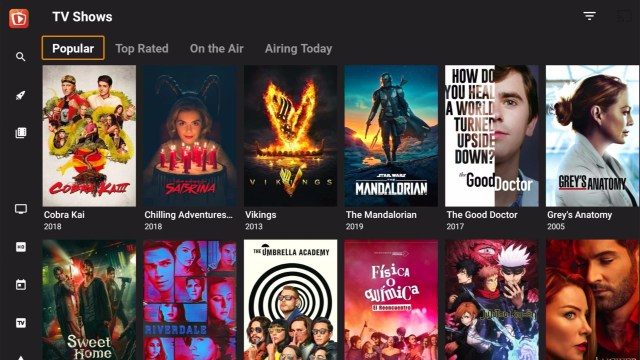
Kokotime is a free, simple, and elegantly designed media player app that allows you to watch all your favorite entertainment content in a distinctive and user-friendly design.

It comes along with unique features such as Universal Cast that will give you an amazing media experience. Also, the Kokotime app allows you to cast your content to your Chromecast in the application. The app lets you enjoy different types of content, such as movies, TV shows, etc.

Even though the media player app doesn’t provide its own content, it’s a very smooth app that makes streaming movies, TV shows, and other related entertainment content much more enjoyable. If you have a huge library of media files, the Kokotime application is worthwhile to download on your Firestick.


ANONYMOUSLY

Is KokoTime Safe and Virus-free?

We tested this application using VirusTotal and found that there is/are malicious file/files. You can see the above result for your reference.

Because of this, we highly recommend using a VPN that can protect your privacy against any threat from KokoTime.

Here’s how you can Install The Best VPN For Firestick and All Devices.


Kokotime App Installation on FireStick

  • Turn on the FireStick device, go to the top menu bar and choose > Settings
  • Click My Fire TV > Developer Options
  • Enable Apps from Unknown Sources 
  • Go back to FireStick’s home screen and go to the menu bar
  • Go to the Search option
  • Search & install the Downloader app on FireStick
  • After installing the Downloader application, launch it
  • Enter the Kokotime app download URL – https://reviewvpn.com/koko
  • Click GO
  • When the Moviebase app’s file download is complete – click Install
  • Click Done
  • Click Delete > click Delete again
  • Now, you have successfully installed the Kokotime app on FireStick

Note: ReviewVPN.com does not host any of these apps


If your Firestick still has the older interface, read this article to learn how to update it: Update Firestick Interface.

How to Install KokoTime on Firestick with Screenshots

1. Install the Downloader app and jailbreak your firestick by enabling unknown sources. To learn more about the procedure, you may read How to Install the Downloader App and Enable Unknown Sources.


2. Open the Downloader app and type –  ttps://reviewvpn.com/koko and click GO

Step 2 Install Koko time


3. Click Install.

Step 13 Install kokotime


4. Click OPEN.

Step 14 Install kokotime


5. Click Allow.

Step 15 Install kokotime


6. You have successfully installed the KokoTime app.

Step 16 Install kokotime


YOUR INTERNET ACTIVITY IS BEING WATCHED

ReviewVPN cannot attest to the legality, security and privacy of the applications discussed on this site. It is highly recommended that you use a VPN service while streaming or using Kodi.

Currently, your IP 216.73.216.144 is visible to everyone and your Browser is being tracked by Advertisers & ISP Provider.

Save 65% Now

Limited Time Offer

Here are the main reasons why you must use a VPN:

  • Your activities are hidden from your ISP, the government, and from the apps you are using.
  • You can access additional movies and TV streams.
  • ISP attempts to throttle are thrwarted thus reducing buffering issues.
  • Geographically restricted content like Netflix and Hulu can be unblocked.

A VPN works be replacing your ISP-assigned IP address and creating an encrypted tunnel. We recommend the no log service offered by IPVanish. It works well on a Firestick and offers the fastest possible speeds.

Special Limited Time Offer - Get IPVanish


Legal Disclaimer: ReviewVPN.com does not encourage or endorse any illegal activity involved in the usage of services and applications referenced on this site. We do not verify the licensing agreements of services. The end-user is wholly responsible for ensuring that any media accessed through these services does not violate copyright and/or licensing laws. ReviewVPN does not promote, link to, or receive compensation from any Apps and IPTV services.


Install Surfshark on Firestick

Best Surfshark Deal


Kokotime Features

  • Support for third-party add-ons
  • Auto subtitles in over 187 languages
  • Indexes local media and arranged by recently added, genre, top-rated. Also, it displays media like posters or backdrops for local files without the need to download
  • It allows you to get reviews, cast, and summaries for all your media
  • It has a built-in video player with support for live streams
  • It contains multiple video extensions for local & online streaming
  • Filemanager
  • Chromecast support
  • Automatic subtitles loading with custom subtitle styling
  • M3u playlist parser – allowing you to add m3u playlists or watch them directly
  • Lets you continue watching where you left off
  • Universal Cast – a unique feature that allows you to cast media to any device without an external device
  • Subtitle synchronization
  • Awesome streaming media app
  • The app is great for a media organization


Cast media anywhere with the Kokotime app

Kokotime is a media streaming app developed by Devko LLC. The media player app provides a well-designed and user-friendly interface that lets you watch all of your favorite movies and TV shows. It contains an in-app file manager that allows you to conveniently explore all of your media files. The Kokotime app allows you to cast media files to Chromecast straight from the application. 


Installing Addons on Kokotime

The soul of the Kokotime app resides in the add-ons developed by the Kokotime community. However, the drawback is that when utilizing the addons users can access content with copyright restrictions.

  • First, turn on your Virtual Private Network or VPN
  • Open the Kokotime app on your Firestick device
  • Select Addon Store
  • A pop-up box will appear saying Enter a store repository URL
  • Enter the add-on URL – get it from the official Kokotime addon repository server link or any trusted website
  • You’ll then see 3rd-party add-ons
  • Click on the addon to download & install it
  • Head back to the Kokotime app’s home screen.
  • Now, open the addon you’ve just downloaded & installed.


The Kokotime app is an amazing Kodi alternative, and you’ll get to experience the app’s extra features and awesome performance on your Amazon Fire Stick device. After installing Kokotime on your Fire Stick, just remember to stay private & secure by installing a VPN service on your device too.


Why do you need a VPN for Kokotime?

Virtual Private Network or VPN services have become a crucial tool today, particularly for individuals who love streaming entertainment content on the web, as well as other internet users. Privacy appears to be becoming a thing of the past, with Internet Service Providers (ISP) and governments intensifying their spying game every day.

If you want your internet activities not to be spied on by your ISP or the government, you must have a VPN on your device. When you enable your VPN, on your Firestick device, all your web traffic will be encrypted and transmitted via a secure tunnel to a server of your choice.

Nonetheless, the Surfshark app provides you all the privacy and security benefits of a Virtual Private Network while streaming: IP masking, and strong encryption, and it allows you to choose from various locations in different countries.

Note: For more information about Surfshark, please read our Surfshark Review.


Grab your subscription now!


How to Install Surfshark VPN on Firestick

If your Firestick still has the older interface, read this article to learn how to update it: Update Firestick Interface.

You can download Surfshark directly from the Amazon App store. It will be easy for you to find Surfshark with your Firestick’s Find feature. Refer to our screenshots below.

1. Go to the Home screen of your Firestick.

step 1 Install Surfshark VPN on Firestick


2. Navigate towards the Find tab. Press the Search button from the resulting dropdown.

step 2 Install Surfshark VPN on Firestick


3. Type in the keyword of SurfShark and select from the suggestions that will appear.

step 3 Install Surfshark VPN on Firestick


4. Click the official SurfShark icon from your search results.

step 4 Install Surfshark VPN on Firestick


5. Press the Download (You own it) button.

step 5 Install Surfshark VPN on Firestick


6. The SurfShark VPN installer will download on your device.

step 6 Install Surfshark VPN on Firestick


7. SurfShark VPN’s app will automatically install itself on your Fire TV stick.

step 7 Install Surfshark VPN on Firestick


8. Press the Open button after completing SurfShark VPN’s installation process.

step 8 Install Surfshark VPN on Firestick


9. Please wait for the SurfShark VPN to load its user interface.

step 9 Install Surfshark VPN on Firestick


10. You can now log in with your SurfShark VPN account credentials.

step 10 Install Surfshark VPN on Firestick

Learn more about Surfshark and Grab the Best Surfshark Deal Now!


Install Surfshark on Firestick

Best Surfshark Deal


Other VPNs to Consider

NordVPN (Best for Streaming)

Best Features

  • 5000+ Server in 50+ Countries 
  • Military-Grade Encryption
  • Fast Connection Speed
  • Suitable to a lot of devices
  • No-Log Policy

Prices
  • Complete $5.89 per month (64% Discount)
  • Plus $4.59 per month (56% Discount)
  • Standard $3.69 per month (55% Discount)

Best Features

  • 750+ High-speed VPN Servers in 43 Locations
  • Military-Grade Encryption
  • Fastest HD Streaming and Gaming
  • 30-Day Money-Back Guarantee
  • Unlimited Data & Devices
  • No-Log Policy

Prices
  • 3 Years $1.99 per month (82% Discount)
  • 1 Years $3.29 per month (70% Discount)
  • 1 Month $10.99 per month

IPVanish VPN (Most Secure)

Best Features

  • 1200+ Servers in 60+ Countries around the world
  • Unlimited Connections
  • No-Log Policy
  • Top Notch Military-Grade VPN Protocols and Encryptions
  • 100% Safe and Secured
  • Most Trusted VPN
  • Best VPN for Firestick
  • 30-Day Money-Back Guarantee

Prices
  • Yearly $3.99 per month (63% Discount) – 30 days risk free + Ransomware & Malware Protection
  • Quarterly $5.32 per month (51% Discount)
  • Monthly $10.99 per month


For more VPN discounts, go to ReviewVPN Deals and purchase the best VPN for you.

Click here to get the lowest price on Surfshark through our exclusive limited-time offer.


Pros and Cons

Pros

  • Contains third party add-on support
  • Contains Universal Cast
  • Comes along with a Chromecast remote
  • In-app file manager

Cons

  • Contains log-in problems
  • Scrolling is tedious
  • Third-party apps can cause issues
  • Frequent download errors


Alternatives

  • VLC
  • MX Player Pro
  • Wuffy Media Player
  • VideoMix
  • Ludio Player
  • MV Castplayer
  • XPlayer


Important Note

Kokotime doesn’t contain any media content whatsoever. Wherein, you must provide your own media content from a DVD, Blu-Ray, local/remote storage location, or other media carriers. Also, the KokoTime app lets you download & install third-party plugins that may give access to media content that is available for free on the website of the official content provider. Any other ways of streaming copyright content are not endorsed by Kokotime.

Nonetheless, the media player also supports add-ons to add media libraries or add media from a public media service or local servers. KokoTime will then display the media content in a distinctive layout while also showcasing additional information in a stunning design.


Conclusion

The Kokotime application is a multimedia file manager that comes along with a native player. It allows you to easily and comfortably browse via its various menus & functions. Kokotime functions on the Android operating system.  You can easily download and install the KokoTime app on your FireStick device and have a unique experience in multimedia. 

As you can see the installation process above is quite simple and it does not take too much time. Some of the addons could be blocked by your Internet Service Provider, but using Surfshark service helps you to avoid those issues with ease.

How To Install TeaTV On Google Chromecast

TeaTV On Google Chromecast

TeaTV is a video streaming app that offers you tons of movies and TV shows.


This streaming app provides a wide array of entertainment content for video streaming enjoyment. The TeaTV app features an amazing interface and lots of categories.

Not only the TeaTV app allows you to watch movies & TV shows, but it also offers some Live TV options.

The TeaTV app provides an extensive list of movies and TV shows from all across the world in one spot. Users don’t have to fret about not having content to stream.

As you browse via the streaming app’s extensive catalog of entertainment content, you will realize that the app is a goldmine of free movies and TV shows.

Also, the TeaTV app offers other paid features that are unavailable to even the leading streaming apps. 


ANONYMOUSLY


Note: ReviewVPN.com does not host any of these apps.


Install TeaTV App on Google Chromecast with Screenshots

1. Turn on the Google Chromecast device and scroll to your account from the home screen.

Step 1 Google Chromecast home screen

2. On the upper right of the screen, choose > Settings.


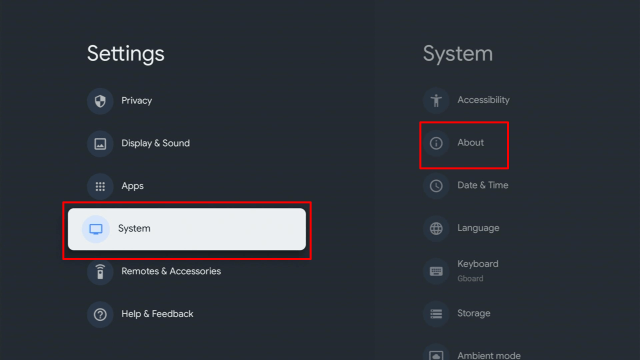
3. Once in Settings, scroll down to System > About.

12a


4. Scroll down to Android TV OS Build & click on it seven times until it goes into Developer options and it’s gonna say “you are now a developer”.


5. Click the Back Button, scroll down to see the Developer options.


6. Go back to Settings and select > Apps.


7. Scroll down to Security & Restriction – to turn on Unknown Sources.


8. Go back to the home screen and hover over the Search icon.


9. Type in Downloader app.

c1


10. Select the Downloader.


11. Click Install.

c4


12. Open the Downloader app.

c5


13. Type in the Tea TV app download URL/APK – https://reviewvpn.com/teaaf


14. Wait for a few seconds for the file download progress.


15. Click Install.


16. Click Done.


17. Click Delete > click Delete again


18. Go back to the Home screen. Click SEE ALL.


19. Click the TeaTV icon.


20. Select Allow.


21. Click ACCEPT.


22. Enjoy Watching.


Install Surfshark on Google Chromecast

Best Surfshark Deal


Features

TeaTV app is equipped with features that will entice any movie lover to download it. Below are some of the TeaTV app’s key features:


  • Wide Range of Media Content – The streaming app provides a wide array of movies & TV shows of various genres, such as comedy, action, romance, thriller, and horror
  • Available in Various Qualities – The TeaTV app provides multiple links to a single film or TV show, for various qualities from 360p to 1080p and 4K resolution. Users can select any of the video links
  • Outstanding User Interface – The video streaming app provides an excellent user interface that is very straightforward to use. The app’s clean user interface helps users to browse the app faster and have an amazing video streaming experience.
  • Completely Free – The app is absolutely free to download, install, and use. It functions on your behalf and makes movies & TV shows free for you.
  • No Need Sign-In or Register – TeaTV allows you to stream your favorite entertainment content without any type of registration or sign in. Also, it has no hidden subscription either.
  • Cross Platforms – You can install the TeaTV app on any Android-powered device, such as Google Chromecast, Amazon Fire Stick, PCs, tablets, smartphones, or smart TV. However, you can install the Tea TV app on your PC using an emulator, and by installing it on Chromecast and FireStick to run the app on your smart TV.
  • Live Option – The app provides a number of live options other than providing access to tons of movies & TV shows 
  • Frequent Uploads – The streaming app has new movies & TV shows nearly every day and provides users access to new media content
  • Make Requests feature – One of the TeaTV app’s best features is that you can request any media contents that are unavailable in the app and the app will add the entertainment content for you.


YOUR INTERNET ACTIVITY IS BEING WATCHED

ReviewVPN cannot attest to the legality, security and privacy of the applications discussed on this site. It is highly recommended that you use a VPN service while streaming or using Kodi.

Currently, your IP 216.73.216.144 is visible to everyone and your Browser is being tracked by Advertisers & ISP Provider.

Save 65% Now

Limited Time Offer

Here are the main reasons why you must use a VPN:

  • Your activities are hidden from your ISP, the government, and from the apps you are using.
  • You can access additional movies and TV streams.
  • ISP attempts to throttle are thrwarted thus reducing buffering issues.
  • Geographically restricted content like Netflix and Hulu can be unblocked.

A VPN works be replacing your ISP-assigned IP address and creating an encrypted tunnel. We recommend the no log service offered by IPVanish. It works well on a Firestick and offers the fastest possible speeds.

Special Limited Time Offer - Get IPVanish


Use and Navigation

The TeaTV app interface contains a refined aesthetic that sets the app apart from other streaming applications. The TeaTV app has all the typical filtering options of the genre, release year, and more plus Real Debrid & Trakt TV support for a completely suitable streaming experience.


FAQs

What is a TeaTV app?

TeaTV is a user-friendly video streaming app. Anyone can download, install, and use the app for free and enjoy unlimited movie and TV show streaming


What devices can the TeaTV app be installed on?

You can install the TeaTV app on tons of devices, which include the Amazon Firestick, Roku, and Google Chromecast which are the most popular video streaming devices available. You can also download & install the Tea TV app on other Android-powered devices.


How to download the TeaTV app on Android-based devices?

There are a number of steps to successfully download & install TeaTV, which depend on the device. You just have to download the TeaTV app’s APK (Android application package). Ensure to follow the installation instruction to enable unknown sources onto your Android-powered device.


Is the TeaTV app free to use?

Yes, the TeaTV app is completely free to download, install, and use. 


What are the video qualities on TeaTV?

TeaTV allows you to stream movies and TV shows in 360p, 1080p, and 4K resolution – on all platforms and devices


Pros and Cons

Pros

  • Huge library of high-quality media
  • Free
  • Supports various languages & Open Subtitle accounts
  • Support from numerous developers
  • Powerful sort & filter functions
  • Clean & easy user interface
  • No registration needed

Cons

  • Has no built-in virus scanner
  • No streaming from torrents
  • Contains Ads


Tea TV Alternatives

  • Cinema HD APK
  • Nova TV
  • Titanium TV
  • ZiniTevi
  • TVZion
  • Stremio
  • Strix
  • BeeTV 
  • UnlockMyTV
  • Sofa TV


Why Do You Need a VPN When Using TeaTV?

As TeaTV offers you to stream free movie shows online, that’s not a safe thing to do. That’s much different from streaming content on Hulu or Netflix, where you pay for the service. 

By connecting to a Virtual Private Network or VPN server, you hide your IP by using a new one, which prevents your Internet Service Provider (ISP) from monitoring what you’re doing on the web. A VPN will conceal your identity on the internet, which makes you completely anonymous. However, the best VPN service to use while streaming on the internet is Surfshark.


Surfshark Features

  • Amazing speed
  • With owned server network
  • Anonymous Torrenting
  • It works on all unlimited simultaneous devices
  • Unlimited P2P Traffic
  • Unlimited Bandwidth
  • 256-Bit AES Encryption
  • Zero Logs
  • Has additional privacy features
  • SOCKS5 Web Proxy
  • Platforms: Android, IOS, Windows, Mac
  • Geo-Locked Content Access


Grab your subscription now!

Click here to get the lowest price on Surfshark through our exclusive limited-time offer.


Install Surfshark VPN on Google Chromecast with Screenshots

1. Click Home on your remote then select Search.

Surfshark VPN on Google Chromecast step 1


2. On the search bar, you can use google voice assistant to find Surfshark VPN or by typing it.

Surfshark VPN on Google Chromecast step 2


3. Click on Surfshark VPN icon.

Surfshark VPN on Google Chromecast step 3


4. Click on Install.

Surfshark VPN on Google Chromecast step 4


5. Surfshark VPN is now installing just wait for it until it’s done.

Surfshark VPN on Google Chromecast step 5


6. Click open.

Surfshark VPN on Google Chromecast step 6


7. Input your username and password to log in

Surfshark VPN on Google Chromecast step 7

Learn more about Surfshark and Grab the Best Surfshark Deal Now!


Install Surfshark on Google Chromecast

Best Surfshark Deal


Other VPNs to Consider

NordVPN (Best for Streaming)

Best Features

  • 5000+ Server in 50+ Countries 
  • Military-Grade Encryption
  • Fast Connection Speed
  • Suitable to a lot of devices
  • No-Log Policy

Prices
  • Complete $5.89 per month (64% Discount)
  • Plus $4.59 per month (56% Discount)
  • Standard $3.69 per month (55% Discount)

Best Features

  • 750+ High-speed VPN Servers in 43 Locations
  • Military-Grade Encryption
  • Fastest HD Streaming and Gaming
  • 30-Day Money-Back Guarantee
  • Unlimited Data & Devices
  • No-Log Policy

Prices
  • 3 Years $1.99 per month (82% Discount)
  • 1 Years $3.29 per month (70% Discount)
  • 1 Month $10.99 per month

IPVanish VPN (Most Secure)

Best Features

  • 1200+ Servers in 60+ Countries around the world
  • Unlimited Connections
  • No-Log Policy
  • Top Notch Military-Grade VPN Protocols and Encryptions
  • 100% Safe and Secured
  • Most Trusted VPN
  • Best VPN for Firestick
  • 30-Day Money-Back Guarantee

Prices
  • Yearly $3.99 per month (63% Discount) – 30 days risk free + Ransomware & Malware Protection
  • Quarterly $5.32 per month (51% Discount)
  • Monthly $10.99 per month


For more VPN discounts, go to ReviewVPN Deals and purchase the best VPN for you.

Click here to get the lowest price on Surfshark through our exclusive limited-time offer.


Wrapping Up

TeaTV is an amazing entertainment app that provides free movies and TV shows.

This lightweight streaming app is the perfect solution for all your online video streaming needs.

TeaTV app offers various categories, such as Fantasy, Love, War, action movies, History, Adventure, film swordplay, cartoons, comedy, drama, historical drama, Sci-fi, and more.

How To Install TV Tap On Google Chromecast

TV Tap On Google Chromecast

TV Tap is a Live TV streaming app that allows you to watch live television on your Google Chromecast, Amazon Fire TV/Fire Stick, Android-powered phone, or tablet. The app is an amazing source of entertainment where users can find tons of movies, TV shows, news, music, cartoons, sports, and a lot more.


Thus, the app has enough content for everyone (from kids to adults). To make it easier for users to navigate, TV channels are grouped into different categories, such as music, kids, documentary, news, food, and more. The TV Tap app is ad-free, making it the best live TV streaming application for Android-based devices. 

The TV Tap app allows you to stream live television channels from all around the world, including popular TV channels from the United States, India, Portugal, France, Russia, Italy, Germany, and many more. The app already has more than 150 Live TV channels. You don’t need to sign up on the TV Tap app to watch live television. All you need to do is download and install the TV Tap app on your Android-powered device and start watching your best-loved movies, TV shows, Live TV channels for free. The app doesn’t require membership or a subscription.


ANONYMOUSLY


Note: ReviewVPN.com does not host any of these apps.


Install TV Tap App on Google Chromecast with Screenshots

1. Turn on the Google Chromecast device and scroll to your account from the home screen.

Step 1 Google Chromecast home screen

2. On the upper right of the screen, choose > Settings.


3. Once in Settings, scroll down to System > About.

12a


4. Scroll down to Android TV OS Build & click on it seven times until it goes into Developer options and it’s gonna say “you are now a developer”.


5. Click the Back Button, scroll down to see the Developer options.


6. Go back to Settings and select > Apps.


7. Scroll down to Security & Restriction – to turn on Unknown Sources.


8. Go back to the home screen and hover over the Search icon.


9. Type in Downloader app.

c1


10. Select the Downloader.


11. Click Install.

c4


12. Open the Downloader app.

c5


13. Type in the TV Tap app download URL/APK – https://reviewvpn.com/tvtap


14. Wait for a few seconds for the file download progress


15. Click Install


16. Click Done.


17. Click Delete > click Delete again


18. Go back to the Home screen. Go to Settings.


19. Choose Apps.


20. See All Apps.


21. Select TV Tap icon.


22. Click Open.


12. Enjoy Watching.


Install Surfshark on Google Chromecast

Best Surfshark Deal


TV Tap Features

  • Stylish user-interface: A number of Live TV applications are really annoying because of their sloppy interface. However, the TV Tap app has an elegant user-interface, making it easier for users to browse via TV channels. The TV Tap app’s user interface is very clean.
  • Buffer-free video streaming: There is nothing more frustrating than having a buffering screen while watching TV on the internet. It could be because of a slow internet connection but most Live TV apps stream content via slow servers.
  • Lightweight application: The TV Tap is a very light app, it only occupies 5.8MB space on your Android-powered device. Thus, don’t fret about the TV Tap occupying valuable storage space on your Android device.
  • Add TV channels to Favorites: The TV Tap app allows you to add your favorite television channels to the Favorites category. Wherein, it will be easier for users to find their favorite TV channels and don’t have to look for the channels every time.
  • Recently watched list feature: If you want to watch the show you watched days ago but you can’t remember which TV channel it was on, this app has a Recently watched list feature where you can locate all the content you watched or streamed before.
  • Scheduling feature: the app allows you to scan the schedules of different television channels to find out when a certain show is going to air. Users can set reminders so that they get notified when the program starts.
  • Built-in media player: The app comes along with a built-in media player, dubbed as Go Player. However, the app allows you to use other media players, such as MX player, to watch entertainment content.
  • Availability of content: Entertainment content from across the globe is available on the TV Tap app. The app allows you to watch tons of TV channels from countries like the United Kingdom, United States, India, France, Russia, Italy, and a lot more. 
  • TV Tap app compatibility – You can download the Live TV streaming app on all Android-based devices. The app can also be downloaded on Mac, PC, Android TV Boxes, Amazon FireTV/ Fire Stick, Kindle Fire devices, and more.


YOUR INTERNET ACTIVITY IS BEING WATCHED

ReviewVPN cannot attest to the legality, security and privacy of the applications discussed on this site. It is highly recommended that you use a VPN service while streaming or using Kodi.

Currently, your IP 216.73.216.144 is visible to everyone and your Browser is being tracked by Advertisers & ISP Provider.

Save 65% Now

Limited Time Offer

Here are the main reasons why you must use a VPN:

  • Your activities are hidden from your ISP, the government, and from the apps you are using.
  • You can access additional movies and TV streams.
  • ISP attempts to throttle are thrwarted thus reducing buffering issues.
  • Geographically restricted content like Netflix and Hulu can be unblocked.

A VPN works be replacing your ISP-assigned IP address and creating an encrypted tunnel. We recommend the no log service offered by IPVanish. It works well on a Firestick and offers the fastest possible speeds.

Special Limited Time Offer - Get IPVanish


FAQs

What does the TV Tap app offer?

The TV Tap is a live TV streaming application that provides an awesome range of television channels from all around the world. Users can enjoy tons of new television shows and watch TV series in different languages. The app offers various genres to choose from, such as music, sports, movies, TV shows, news, a lot more. With the TV Tap app, you can watch numerous TV channels at the highest video resolution.


Does TV Tap support casting apps?

Yes, users can cast the app’s contents to various screens by utilizing casting applications such as Google Chromecast, AirPlay, and more.

Is the TV Tap app free?

Yes, the TV Tap app for Android doesn’t require a subscription fee. The app allows you to watch TV channels (international & regional) free of charge and in the highest, best quality.


Is the TV Tap app safe to use?

Yes, TV Tap is one of the safest applications to watch live TV channels from around the world. Users can enjoy tons of TV channels. You don’t need to root your Android device with this app. Also, it does not come along with bugs, thus it is absolutely safe to use. 

How long has the TV Tap app been around?

Based on reviews, the TV Tap app has been around since mid-2018.


Is the TV Tap app a Terrarium Clone?

No


TV Tap Alternatives

  • Exodus Live TV
  • LiveNetTV
  • SwiftStreamz
  • AOS TV
  • Kraken TV
  • Redbox TV
  • Mobdro
  • Airy TV
  • Oreo TV
  • Pocket TV


Compatibility

  • Google Chromecast
  • Android-based phone
  • Android-based tablet
  • Amazon Fire Stick
  • Amazon Fire TV 
  • Android TV Box
  • and all other android based devices.


Why Use a VPN Service For Chromecast?

Chromecast users are highly recommended to use a Virtual Private Network while streaming. A VPN service will bypass Government surveillance, geo-restriction, and Internet Service Provider (ISP) throttling. It is strongly advised to connect to the Surfshark service on all your streaming devices. 

Surfshark is the fastest and most secure Virtual Private Network. The Surfshark provider offers easy-to-use apps for nearly all devices, such as Android, Amazon Fire TV Stick, Windows, iOS, Apple TV, Linux, Mac, PlayStation, Xbox, and routers.


Surfshark Features

  • Amazing speed
  • Anonymous Torrenting
  • With owned server network
  • Unlimited P2P Traffic
  • Allows 6 devices at the same time
  • 256-Bit AES Encryption
  • Unlimited Bandwidth
  • SOCKS5 Web Proxy
  • Has additional privacy features
  • Geo-Locked Content Access
  • Platforms: IOS, Mac, Windows, Android
  • Zero Logs
  • Privacy & security features: OpenVPN, IKEv2, & L2TP/IPsec VPN protocols


Grab your subscription now!

Click here to get the lowest price on Surfshark through our exclusive limited-time offer.


Install Surfshark VPN on Google Chromecast with Screenshots

1. Click Home on your remote then select Search.

Surfshark VPN on Google Chromecast step 1


2. On the search bar, you can use google voice assistant to find Surfshark VPN or by typing it.

Surfshark VPN on Google Chromecast step 2


3. Click on Surfshark VPN icon.

Surfshark VPN on Google Chromecast step 3


4. Click on Install.

Surfshark VPN on Google Chromecast step 4


5. Surfshark VPN is now installing just wait for it until it’s done.

Surfshark VPN on Google Chromecast step 5


6. Click open.

Surfshark VPN on Google Chromecast step 6


7. Input your username and password to log in

Surfshark VPN on Google Chromecast step 7

Learn more about Surfshark and Grab the Best Surfshark Deal Now!


Install Surfshark on Google Chromecast

Best Surfshark Deal


Other VPNs to Consider

NordVPN (Best for Streaming)

Best Features

  • 5000+ Server in 50+ Countries 
  • Military-Grade Encryption
  • Fast Connection Speed
  • Suitable to a lot of devices
  • No-Log Policy

Prices
  • Complete $5.89 per month (64% Discount)
  • Plus $4.59 per month (56% Discount)
  • Standard $3.69 per month (55% Discount)

Best Features

  • 750+ High-speed VPN Servers in 43 Locations
  • Military-Grade Encryption
  • Fastest HD Streaming and Gaming
  • 30-Day Money-Back Guarantee
  • Unlimited Data & Devices
  • No-Log Policy

Prices
  • 3 Years $1.99 per month (82% Discount)
  • 1 Years $3.29 per month (70% Discount)
  • 1 Month $10.99 per month

IPVanish VPN (Most Secure)

Best Features

  • 1200+ Servers in 60+ Countries around the world
  • Unlimited Connections
  • No-Log Policy
  • Top Notch Military-Grade VPN Protocols and Encryptions
  • 100% Safe and Secured
  • Most Trusted VPN
  • Best VPN for Firestick
  • 30-Day Money-Back Guarantee

Prices
  • Yearly $3.99 per month (63% Discount) – 30 days risk free + Ransomware & Malware Protection
  • Quarterly $5.32 per month (51% Discount)
  • Monthly $10.99 per month


For more VPN discounts, go to ReviewVPN Deals and purchase the best VPN for you.

Click here to get the lowest price on Surfshark through our exclusive limited-time offer.


Conclusion

The TV Tap is an awesome app that allows you to watch live TV on your Android-powered devices. It allows you to watch live television channels from all around the globe.  You will not miss your most-liked movies, TV shows, or sports when you aren’t at home because all the app’s media content is also available on your Android-based phone or tablet.

Install Vola Sports on Firestick – 2023 Edition

Install Vola Sports on Firestick Overview

In this article, you are going to learn how to install Vola Sports on various streaming devices such as firestick, Fire TV, Android Box Tv, Android phones, and lots more,


For sports fans, Vola Sports is a must-have. This app allows you to access and stream live sports even while on the go. Vola Sports has got tons of amazing and beautiful features that will make you love this app even more.


What is Vola Sports?

Formerly known as Wow Sports, Vola Sports is an app that allows you to access and stream live sports events. You can also stream and watch match highlights with this app.

Vola Sports offers you a wide range of sports events such as basketball, tennis, soccer, cricket, baseball. This application comes with beautiful features that improve streaming quality.


ANONYMOUSLY

Is Vola Sports Safe and Virus-free?

We tested this app using VirusTotal and found no threats or any malicious files and malware.

Despite having good results, we still need to be vigilant in protecting our privacy while streaming.

A Virtual Private Network or VPN will definitely help us maintain our security and anonymity while using Vola Sports.

Here’s how you can install the Best VPN For Firestick and All Devices.


If your Firestick still has the older interface, read this article to learn how to update it: Update Firestick Interface.


How to Install Vola Sports on Firestick

Follow our guide below showing you how to sideload the Vola Sports app on your Firestick.

  1. Open your Firestick Settings Tab. (Gear Wheel Icon).
  2. Scroll down and select My Fire TV.
  3. Select Developer options.
  4. Turn on ADB debugging and Apps from Unknown Sources.
  5. Press the Turn On when the pop-up appears.
  6. Click Home and press on FIND.
  7. Press the Search button from the dropdown.
  8. You can either say Downloader to your Alexa voice-enabled remote or start typing it. If you typed it, click on the suggestion when it appears.
  9. Click on the Downloader Icon.
  10. Tap on Download and please wait while the app is installing itself on your device.
  11. Click on Open.
  12. Press on the Allow button.
  13. You can now use the Downloader app.
  14. Type https://reviewvpn.com/vola and click Go.
  15. Click the Install button.
  16. Press the Open button to launch the Vola Sports app.


How to Install Vola Sports on Firestick (Screenshots)

1. Open your Firestick Settings Tab. (Gear Wheel Icon).


2. Scroll down and select My Fire TV.


3. Select Developer options.


4. Turn on ADB debugging and Apps from Unknown Sources.


5. Press the Turn On when the pop-up appears.


6. Click Home and press on FIND.


7. Press the Search button from the dropdown.


8. You can either say Downloader to your Alexa voice-enabled remote or start typing it. If you typed it, click on the suggestion when it appears.


9. Click on the Downloader Icon.


10. Tap on Download and please wait while the app is installing itself on your device.


11. Click on Open.


12. Press on the Allow button.


13. You can now use the Downloader app.


14. Type https://reviewvpn.com/vola and click Go.

Vola Sports


15. Click the Install button.

install Vola Sports1


16. Press the Open button to launch the Vola Sports app.

install Vola Sports2

YOUR INTERNET ACTIVITY IS BEING WATCHED

ReviewVPN cannot attest to the legality, security and privacy of the applications discussed on this site. It is highly recommended that you use a VPN service while streaming or using Kodi.

Currently, your IP 216.73.216.144 is visible to everyone and your Browser is being tracked by Advertisers & ISP Provider.

Save 65% Now

Limited Time Offer

Here are the main reasons why you must use a VPN:

  • Your activities are hidden from your ISP, the government, and from the apps you are using.
  • You can access additional movies and TV streams.
  • ISP attempts to throttle are thrwarted thus reducing buffering issues.
  • Geographically restricted content like Netflix and Hulu can be unblocked.

A VPN works be replacing your ISP-assigned IP address and creating an encrypted tunnel. We recommend the no log service offered by IPVanish. It works well on a Firestick and offers the fastest possible speeds.

Special Limited Time Offer - Get IPVanish


Legal Disclaimer: ReviewVPN.com does not encourage or endorse any illegal activity involved in the usage of services and applications referenced on this site. We do not verify the licensing agreements of services. The end-user is wholly responsible for ensuring that any media accessed through these services does not violate copyright and/or licensing laws. ReviewVPN does not promote, link to, or receive compensation from any Apps and IPTV services.


Install SurfShark on Firestick

Best SurfShark Deal


How to Install Vola Sports on iOS devices (iPad and iPhones)

  1. Click on this link to download and install TuTuApp on your iOS device. Https://tutuapp.vip
  2. Choose the regular version
  3. Once the installation is completed, launch TuTuApp
  4. On the search bar, type Vola sports
  5. Next, click on Add


How to Install Vola sports on Android Smart TV

The first thing you need to do when installing this app on Android smart TV is to enable the unknown sources.

  1. Open your smart TV, go to settings.
  2. Click on systems and select Addons
  3. Next, click on unknown sources and tap on the ON button.
  4. Return to the home screen of your smart TV and click on the Google Play app.
  5. On the search bar, type Puffin browser
  6. Install by following the on-screen instructions.
  7. Launch your Puffin browser and type this URL: https://volasports.fun/download/
  8. Click on install and follow the onscreen instructions.


How to Install Vola Sports on Windows devices

To install Vola Sports on windows devices, follow these steps

  1. Install an android emulator. Click on this URL: https://bluestack.com to download the Bluestack emulator.
  2. Install the bluestack.exe file. (Follow the onscreen instructions for the installation guide)
  3. After installing the Android emulator, download Vola Sports APK from this URL: https://volasports.fun/download/
  4. Open your Bluestack Android emulator.
  5. Go to where you saved the APK file.
  6. Drag and drop the APK on the Bluestack Android emulator
  7. The buestack emulator will start installing Vola sports on your Windows device.
  8. You will get a notification once the installation is completed.


How to Install Vola Sports On Mac OS X (Macbook Pro and Macbook Air)

If you are using the Mac operating system, follow the below steps to install Vola sports on Macbook Pro and Macbook Air.

  1. Download and install Nox Emulator from this URL: https://bignox.com. save the file on any folder or better still, on your Mac’s desktop.
  2. On the desktop, click on nox.dmg to install.
  3. When you click on install, follow the onscreen instructions to complete the installation process.
  4. Click on this URL: https://volasports.fun/download/
  5. Open your Nox app.
  6. Drag and drop the Vola sports file onto the Nox app. The installation will start automatically.

Features of Vola Sports

  • Live Sports
  • Vola Sports comes with a Live sports feature. With this, you can stream Live football, basketball, and lots more from the comfort of your homes.
  • Whatever sports you want to watch, Vola Sports gives you front-row and free tickets to any game you wish to watch.
  • You can stream and watch T20, PSL, IPL, ICC, Cricket, soccer, basketball, baseball, FIFA, NBA, and many more.


Absolutely Free

Vola Sports is complete to use. This app scrapes streaming links that allow you to stream live sports events.  Available sports you can stream for free include soccer, cricket, tennis, basketball, volleyball, and many more.


Highlights

Vola Sports has got a highlight feature that allows you to access and stream live past sports events. Whenever you miss any game, Vola Sport offers you the summarized version of any missed game in full  HD video quality.


Multiple streaming Links

Vola sports scrapes streaming links from different sources and present them in High Definition video format. The links this app provides are among the best streaming links from the best source.


Low memory

Vola Sports has approximately 6.30 MBS. This means that you can install this app on low memory devices. Also, you can install this app on the Android operating system from version 4.0+ and above.

200 Plus channels

With this app installed on your streaming device, you will enjoy premium sports packages all for free. You need not pay for anything when you are using this App. It allows you to access and stream over 200 channels from anywhere around the world.


Count Down

The count down feature of this app allows you to get information about future games. It provides crucial information on upcoming games, fixtures, and many more.


User-friendly interface

Vola Sports has got an amazing and beautiful user-friendly interface. The navigation through this app is sleek and smooth.


Ad Free

Vola Sports has an ad-blocking feature. This allows you to access and stream your favorite sports event without any interruption.

Picture in Picture mode

Vola Sports comes with a PIP feature. With this feature, you can browse content while you are watching sports. Also, you can access complete information about upcoming sports events. Vola Sports also has a Night mode which allows you to switch to dark mode if the brightness is too much.


How to Fix Vola Sports not working

  1. Clear the cache of the Vola Sports app.
  2. Uninstall and reinstall the Vola Sports app.


Frequently Asked Questions

What are the compatible devices?

Vola sports works on the following device: Android box TV, Xiaomi MI box S, iOS, Nvidia shield, WatchOS, Android Smart TV, Linux, Windows (7 and upwards), Mac OS, android phone, Android tablet, Amazon Fire TV, Firestick and many more.


Is Vola sports free to use?

Using this app is completely free.

Is Vola sports safe?

Installing and running this app on your device is safe. However, we recommend using a VPN for privacy and security reasons.


Use a VPN for Streaming Sports

Surfshark vpn

Streaming sports videos is a common hobby for many of us. However, our ISPs might throttle our connection due to excessive data use. Cyber threats such as hackers, viruses, and malware can also infiltrate our devices.

To avoid all these threats, we suggest using SurfShark. It uses military-grade AES-256 bit encryption that ensures your overall safety.

Here are some features of SurfShark:

  • Faster streaming of sports videos.
  • Conceals everything you do on the internet.
  • Unlimited bandwidth with military-grade encryption.
  • Leak protection policy.
  • Zero log policy.
  • Multiple device connectivity.

Note: For more information about SurfShark, please read our SurfShark REVIEW.


Grab your subscription now!


How to Install Surfshark on Firestick with Screenshots

If your Firestick still has the older interface, read this article to learn how to update it: Update Firestick Interface.

You can download Surfshark directly from the Amazon App store. It will be easy for you to find Surfshark with your Firestick’s Find feature. Refer to our screenshots below.

Follow our screenshots below to install the SurfShark VPN app on your Fire TV stick.

1. Go to the Home screen of your Firestick.

step 1 Install Surfshark VPN on Firestick


2. Navigate towards the Find tab. Press the Search button from the resulting dropdown.

step 2 Install Surfshark VPN on Firestick


3. Type in the keyword of SurfShark and select from the suggestions that will appear.

step 3 Install Surfshark VPN on Firestick


4. Click the official SurfShark icon from your search results.

step 4 Install Surfshark VPN on Firestick


5. Press the Download (You own it) button.

step 5 Install Surfshark VPN on Firestick


6. The SurfShark VPN installer will download on your device.

step 6 Install Surfshark VPN on Firestick


7. SurfShark VPN’s app will automatically install itself on your Fire TV stick.

step 7 Install Surfshark VPN on Firestick


8. Press the Open button after completing SurfShark VPN’s installation process.

step 8 Install Surfshark VPN on Firestick


9. Please wait for the SurfShark VPN to load its user interface.

step 9 Install Surfshark VPN on Firestick


10. You can now log in with your SurfShark VPN account credentials.

step 10 Install Surfshark VPN on Firestick

Learn more about Surfshark and Grab the Best Surfshark Deal Now!


Install Surfshark on Firestick

Best Surfshark Deal

Other VPNs to Consider

NordVPN (Best for Streaming)

Best Features

  • 5000+ Server in 50+ Countries 
  • Military-Grade Encryption
  • Fast Connection Speed
  • Suitable to a lot of devices
  • No-Log Policy

Prices
  • Complete $5.89 per month (64% Discount)
  • Plus $4.59 per month (56% Discount)
  • Standard $3.69 per month (55% Discount)

Best Features

  • 750+ High-speed VPN Servers in 43 Locations
  • Military-Grade Encryption
  • Fastest HD Streaming and Gaming
  • 30-Day Money-Back Guarantee
  • Unlimited Data & Devices
  • No-Log Policy

Prices
  • 3 Years $1.99 per month (82% Discount)
  • 1 Years $3.29 per month (70% Discount)
  • 1 Month $10.99 per month

IPVanish VPN (Most Secure)

Best Features

  • 1200+ Servers in 60+ Countries around the world
  • Unlimited Connections
  • No-Log Policy
  • Top Notch Military-Grade VPN Protocols and Encryptions
  • 100% Safe and Secured
  • Most Trusted VPN
  • Best VPN for Firestick
  • 30-Day Money-Back Guarantee

Prices
  • Yearly $3.99 per month (63% Discount) – 30 days risk free + Ransomware & Malware Protection
  • Quarterly $5.32 per month (51% Discount)
  • Monthly $10.99 per month

For more VPN discounts, go to ReviewVPN Deals and purchase the best VPN for you.


Final thought

Vola sport is an amazing app offering you links to stream sports events such as soccer, baseball, basketball, cricket, and lots more all for free. One good thing about this app is that it is compatible with the majority of the streaming devices you may have.


What Is Your Favorite Streaming App? Cast Your Vote Below.

How to Install NaAd TV On Firestick – 2023 Edition

Install NaAd TV on Firestick Overview

In this guide, we are going to teach you how to successfully install and run NaAd TV on Firestick your android and windows devices.


What is NaAd TV?

NaAd Tv is an app that allows you to access and stream LIve Tv channels offering News, sports events, lifestyle events, music, animation, documentaries, and lots more. Channels on NaAd Tv come from the following countries: Germany, Albania, Italy, Turkey, USA, Canada, Australia, and many others. With this app, you will have the avenue to access tons of sports channels and movie channels 24/7.

This app comes with amazing features aimed at improving the streaming experience.

You will not experience much buffering and lagging while streaming movies and other entertainment on this app. It allows you to access and watch free sports, movies, documentaries, and lots more.


Is NaAd Safe and Virus-free?

We tested this application using VirusTotal and found that there is/are malicious file/files. You can see the above result for your reference.

Because of this, we highly recommend using a VPN that can protect your privacy against any threat from NaAd.

Here’s how you can Install The Best VPN For Firestick and All Devices.


ANONYMOUSLY

How to install NaAD TV on firestick and Fire TV devices

Note: NaAD TV is not available on the official Amazon App store. However, the only way you can install this app on firestick or fire TV is by using the sideloading method

    1. Launch your Firestick or Fire TV device
    2. Navigate and select the setting option
    3. On the setting menu, select My Fire Tv OR devices (if you are using the new version).
    4. Next, select Apps from unknown sources and then click on Turn ON
  • Return to the home screen
  1. Select the search bar and type the Downloader APP.
  2. When the downloader app appears, select it.
  3. select download
  4. After downloading and installing, launch the downloader app and select OK once the app opens.
  5. On the left-hand side, select Javascript and enable it.
  6. Next, select the home option found at the left side of your screen and then type this URL: https://cutt.ly/1hjCLbk  and press GO
  7. Next, select Install
  8. Select Done once the installation is completed.
  9. Select delete
  10. Select delete again to erase the raw file as this often occupies space on your firestick.
  11. Return to the home screen and scroll to the Apps section. Select see all and scroll down to find NaAD TV installed.

How to install on Android device devices

If you are using an android device and you want to install NaAd Tv on your device, the below steps will guide you through.

  1. Open your android devices: smartphone, smart TV, etc
  2. Navigate to Google play store
  3. On the Google play store, click on the search bar
  4. On the search bar, type NaAd Tv
  5. When NaAd Tv appears, select it and click on the install option


How to download and install NaAD TV APK on Android devices

Follow these steps to install NaAD TV APK file on your android devices.

  1. Open your android menu
  2. Select setting
  3. Select security
  4. Select unknown source and turn It ON
  5. Next, Download and install the APK file
  6. Install afterward.


How to install NaAD TV on windows computer devices

If you are using windows devices, follow the below step by step guide to install NaAD TV on your device.

Note: Before you can install NaAD on any windows computer, you need to install an android emulator. You may choose one out of the two popular android emulators in the market: Bluestack or Nox android emulators.

  1. Download Bluestack or Nox android emulators
  2. Install after the downloading is completed on your Windows device.
  3. Open the emulator app after installing.
  4. Download the NaAD TV APK file
  5. Drag and drop the APK file on the android emulator. The installation will begin immediately.
  6. Launch NaAD TV after the installation is completed.


YOUR INTERNET ACTIVITY IS BEING WATCHED

ReviewVPN cannot attest to the legality, security and privacy of the applications discussed on this site. It is highly recommended that you use a VPN service while streaming or using Kodi.

Currently, your IP 216.73.216.144 is visible to everyone and your Browser is being tracked by Advertisers & ISP Provider.

Save 65% Now

Limited Time Offer

Here are the main reasons why you must use a VPN:

  • Your activities are hidden from your ISP, the government, and from the apps you are using.
  • You can access additional movies and TV streams.
  • ISP attempts to throttle are thrwarted thus reducing buffering issues.
  • Geographically restricted content like Netflix and Hulu can be unblocked.

A VPN works be replacing your ISP-assigned IP address and creating an encrypted tunnel. We recommend the no log service offered by IPVanish. It works well on a Firestick and offers the fastest possible speeds.

Special Limited Time Offer - Get IPVanish


Legal Disclaimer: ReviewVPN.com does not encourage or endorse any illegal activity involved in the usage of services and applications referenced on this site. We do not verify the licensing agreements of services. The end-user is wholly responsible for ensuring that any media accessed through these services does not violate copyright and/or licensing laws. ReviewVPN does not promote, link to, or receive compensation from any Apps and IPTV services.


Install Surfshark on Firestick

Best Surfshark Deal


App SPECIFICATIONS

  • App name: NaAD Tv
  • App category: Editors apps and video players
  • Latest update:   2019/07/01
  • Latest version: 9.2
  • Available on Google play store: Yes  (Google Play)
  • Android operating system Requirements: Android 4.0.3 and upwards.


Features of NaAD TV

  • Free: downloading, installing, and running NaAd Tv on your device is free. You need not pay any cents to stream movies or sports events with this app. All you need to use this app is a strong and reliable internet connection.
  • No buffering: NaAd Tv does not buffer or lag when you are streaming movies or new. That said, you need to have a strong internet connection to avoid buffering and lagging while using this app.
  • No ads: in the Mod version of this app, you will experience an uninterrupted streaming experience. This is because the Mod version does not contain ads.
  • Lightweight: this app will only occupy about 50MB of your device storage space.
  • User-friendly interface: unlike other streaming apps, NaAd Tv comes with easy to navigate interface. You need not be a techy person before you can use this app. Basic knowledge of app usage is enough.


Use a VPN

If you are the type that is fond of streaming free movies and other entertainment on apps, then protecting yourself with a VPN is highly recommended. With a VPN installed on your device, you will be secure, anonymous, and private while streaming content online.

A VPN is software that encrypts and masks your IP address to appear on the internet service provider network as a private secure and unknown user. The sole aim of using a VPN is to protect your online privacy.


Importance of using a VPN:

Security

When you install a VPN on your device, it will encrypt your IP address. When this happens, no one on the ISP network will be able to monitor or track your presence on the network. For instance, if you are using a public internet connect]ction, without a VPN, everyone can see your IP address on the  ISP network. However, when you install a VPN, your IP address will appear as a private and anonymous user.

Bypass monitoring

You can easily bypass monitoring or tracking by your internet service provider. It may interest you to know that anytime you access the internet or stream content online that your internet service provider monitors and tracks your online activities. However, you can beat this by installing a VPN on your device.

Note: For more information about Surfshark, please read our Surfshark Review.


Grab your subscription now!

Click here to get the lowest price on Surfshark through our exclusive limited-time offer.


How to Install Surfshark VPN on Firestick

If your Firestick still has the older interface, read this article to learn how to update it: Update Firestick Interface.

Follow our screenshots below to install the SurfShark VPN app on your Fire TV stick.

1. Go to the Home screen of your Firestick.

step 1 Install Surfshark VPN on Firestick


2. Navigate towards the Find tab. Press the Search button from the resulting dropdown.

step 2 Install Surfshark VPN on Firestick


3. Type in the keyword of SurfShark and select from the suggestions that will appear.

step 3 Install Surfshark VPN on Firestick


4. Click the official SurfShark icon from your search results.

step 4 Install Surfshark VPN on Firestick


5. Press the Download (You own it) button.

step 5 Install Surfshark VPN on Firestick


6. The SurfShark VPN installer will download on your device.

step 6 Install Surfshark VPN on Firestick


7. SurfShark VPN’s app will automatically install itself on your Fire TV stick.

step 7 Install Surfshark VPN on Firestick


8. Press the Open button after completing SurfShark VPN’s installation process.

step 8 Install Surfshark VPN on Firestick


9. Please wait for the SurfShark VPN to load its user interface.

step 9 Install Surfshark VPN on Firestick


10. You can now log in with your SurfShark VPN account credentials.

step 10 Install Surfshark VPN on Firestick

Learn more about Surfshark and Grab the Best Surfshark Deal Now!


Install Surfshark on Firestick

Best Surfshark Deal


Other VPNs to Consider

NordVPN (Best for Streaming)

Best Features

  • 5000+ Server in 50+ Countries 
  • Military-Grade Encryption
  • Fast Connection Speed
  • Suitable to a lot of devices
  • No-Log Policy

Prices
  • Complete $5.89 per month (64% Discount)
  • Plus $4.59 per month (56% Discount)
  • Standard $3.69 per month (55% Discount)

Best Features

  • 750+ High-speed VPN Servers in 43 Locations
  • Military-Grade Encryption
  • Fastest HD Streaming and Gaming
  • 30-Day Money-Back Guarantee
  • Unlimited Data & Devices
  • No-Log Policy

Prices
  • 3 Years $1.99 per month (82% Discount)
  • 1 Years $3.29 per month (70% Discount)
  • 1 Month $10.99 per month

IPVanish VPN (Most Secure)

Best Features

  • 1200+ Servers in 60+ Countries around the world
  • Unlimited Connections
  • No-Log Policy
  • Top Notch Military-Grade VPN Protocols and Encryptions
  • 100% Safe and Secured
  • Most Trusted VPN
  • Best VPN for Firestick
  • 30-Day Money-Back Guarantee

Prices
  • Yearly $3.99 per month (63% Discount) – 30 days risk free + Ransomware & Malware Protection
  • Quarterly $5.32 per month (51% Discount)
  • Monthly $10.99 per month


For more VPN discounts, go to ReviewVPN Deals and purchase the best VPN for you.

Click here to get the lowest price on Surfshark through our exclusive limited-time offer.


Verdict

NaAD TV  is an app that allows you to watch free movies, documentaries, sports events, and many others.  You need not pay any cents to stream movies or sports events with this app. To use this app, all you need is a strong and reliable internet connection.

If you are looking for an app that offers no ads and buffering while streaming, NaAD TV is for you.


What Is Your Favorite Streaming App? Cast Your Vote Below.

How to Install Vexoz IPTV – 2023 Edition

Vexoz IPTV Overview

Today you are going to learn how to install Vexoz IPTV on various streaming devices such as Amazon Fire TV, Firestick, Android Box TV, and many more.


Vexoz is an internet protocol television service provider. This IPTV service has been around for a while and it offers amazing features to improve the streaming experience.

Vexoz TV offers you over 900 channels in different categories such as sports channels, movie channels, music channels, kids channels: anime, cartoons, documentary channels, and many more.

This IPTV offers you a free trial so you can decide whether to proceed with a paid account or not.

How to sign up for the Vexoz IPTV service

If you want to sign up for this service, follow the below step-by-step guide.

  1. Visit the Vexoz home page.
  2. On the home page, click on the free trial option (if you want to check its content before going for a paid account).
  3. For old customers, type Convert on the type box on your screen (that’s if you want your old account canceled)
  4. For new users, on the home screen, choose any of the plans suitable for you.
  5. Follow the onscreen instructions on how to check out and make a payment.

Note there’s a new website now, however already existing customers can still log in with their old details on the new site.


ANONYMOUSLY


How to install Vexoz IPTV on Firestick and Fire TV

Follow the below steps to install Vexoz on firestick and Fire TV devices.

  1. Launch your firestick or Fire TV device.
  2. Scroll up and click on settings
  3. Next, click on My Fire TV
  4. Now, select the Developer option
  5. Click on ADB Debugging and Unknown sources to ON.
  6. Return to the home screen. Click on the search bar or magnifying glass (found at the top left side of your screen).
  7. Type downloader app
  8. Download and install.
  9. Open the downloader app and type tiny.cc.vewhub (use this tiny.cc/vewhub2 if the above link does not work).
  10. Select Go and install. Click on Yes on any popups that will appear.
  11. Type your login. Info (login with API): password and username.
  12. Enter the Url you received via email.


How to install Vexoz IPTV on Android devices

Follow these steps to install Vexoz on Android devices.

  1. Go to the Apps store. Download and install Vexoz IPTV
  2. Type the login details you received via email (password, URL, and username)
  3. Set the Electronic program guide to US time format.
  4. Open the Vexoz IPTV app
  5. On the top right corner of your screen, click on the setting.
  6. Next, open “Time Format and then set it to 12 Hr Format.
  7. Click on Save Changes.
  8. Review to make sure Live TV is working.


How to install Vexoz IPTV on Samsung TV

  1. Download Vexoz IPTV from the Samsung TV apps store.
  2. Enter the login details: password, username, and URL: https://vewvew.com:8443


How to install Vexoz IPTV on a PC

  1. Download an android emulator (Nox or Bluestacks).
  2. Open appstore and download Smarters IPTV
  3. Enter the password, username, and URL https://vewvew.com:8443 (received from email)
  4. Set up the Electronic program guide format for US times.
  5. Launch Vexoz IPTV.
  6. Go to settings
  7. Click on time format and tap on ” 12 Hrs Format.
  8. Save changes
  9. Review if the live TV is working.


Feature of Vexoz IPTV

Works on the following streaming devices: Android Box TV, Amazon Fire TV, Firestick, Android mobile devices, Windows PC, Mac, smart TVs: Samsung TV, LG TV (newer versions).

Has over 900 live HD channels.

No credit card, no cancellation fee, no hidden charge, and more.

Easy installation and setup guide.

Local and international channels

Video-on-demand movies, TV series, sports, music videos, documentaries, kids’ shows, and many more.

Accepts major credit cards, Visa cards, and more.


YOUR INTERNET ACTIVITY IS BEING WATCHED

ReviewVPN cannot attest to the legality, security and privacy of the applications discussed on this site. It is highly recommended that you use a VPN service while streaming or using Kodi.

Currently, your IP 216.73.216.144 is visible to everyone and your Browser is being tracked by Advertisers & ISP Provider.

Save 65% Now

Limited Time Offer

Here are the main reasons why you must use a VPN:

  • Your activities are hidden from your ISP, the government, and from the apps you are using.
  • You can access additional movies and TV streams.
  • ISP attempts to throttle are thrwarted thus reducing buffering issues.
  • Geographically restricted content like Netflix and Hulu can be unblocked.

A VPN works be replacing your ISP-assigned IP address and creating an encrypted tunnel. We recommend the no log service offered by IPVanish. It works well on a Firestick and offers the fastest possible speeds.

Special Limited Time Offer - Get IPVanish


Legal Disclaimer: ReviewVPN.com does not encourage or endorse any illegal activity involved in the usage of services and applications referenced on this site. We do not verify the licensing agreements of services. The end-user is wholly responsible for ensuring that any media accessed through these services does not violate copyright and/or licensing laws. ReviewVPN does not promote, link to, or receive compensation from any Apps and IPTV services.


Install Surfshark on Firestick

Best Surfshark Deal


Frequently Asked Questions

How to fix the Electronic program guide (EPG) not working?

  1. Go to Live TV
  2. Select the three dots at the top right side of your screen
  3. Click on the Refresh TV guide


How to fix App not working?

If you are using a mobile and computer device, follow these steps

  1. Uninstall the app
  2. Install it back
  3. Contact the support team at contact@vewhub.com if the above doesn’t work.


Fix App not working on Android TV and Firestick and Fire TV

  1. Clear cache
  2. Uninstall and reinstall the app
  3. Contact@vewhub.com if the problem continues.


How to fix Buffering

  1. Make sure you refresh the change: go to Live TV, select the three dots. Next, click on refresh channels.
  2. Restart the app.
  3. Check your internet connection.
  4. If the above persists, Contact@vewhub.com for assistance.


How to fix apps disappearing from the fire stick

  1. On the home screen (ensure your mouse is on Your Apps and channels row) and then navigate to SEE ALL and click on it.
  2. Find any app and then select pin to front.


Protect yourself with a VPN

If you are fond of streaming content online, we recommend installing a VPN on your device. A VPN encrypts and masks your IP address to appear on the internet service provider network as an anonymous and private user.

Note: For more information about Surfshark, please read our Surfshark Review.


Install Surfshark on Firestick

Best Surfshark Deal


How to Install Surfshark VPN on Firestick

If your Firestick still has the older interface, read this article to learn how to update it: Update Firestick Interface.

Follow our screenshots below to install the SurfShark VPN app on your Fire TV stick.

1. Go to the Home screen of your Firestick.

step 1 Install Surfshark VPN on Firestick


2. Navigate towards the Find tab. Press the Search button from the resulting dropdown.

step 2 Install Surfshark VPN on Firestick


3. Type in the keyword of SurfShark and select from the suggestions that will appear.

step 3 Install Surfshark VPN on Firestick


4. Click the official SurfShark icon from your search results.

step 4 Install Surfshark VPN on Firestick


5. Press the Download (You own it) button.

step 5 Install Surfshark VPN on Firestick


6. The SurfShark VPN installer will download on your device.

step 6 Install Surfshark VPN on Firestick


7. SurfShark VPN’s app will automatically install itself on your Fire TV stick.

step 7 Install Surfshark VPN on Firestick


8. Press the Open button after completing SurfShark VPN’s installation process.

step 8 Install Surfshark VPN on Firestick


9. Please wait for the SurfShark VPN to load its user interface.

step 9 Install Surfshark VPN on Firestick


10. You can now log in with your SurfShark VPN account credentials.

step 10 Install Surfshark VPN on Firestick

Learn more about Surfshark and Grab the Best Surfshark Deal Now!


Install Surfshark on Firestick

Best Surfshark Deal


Other VPNs to Consider

NordVPN (Best for Streaming)

Best Features

  • 5000+ Server in 50+ Countries 
  • Military-Grade Encryption
  • Fast Connection Speed
  • Suitable to a lot of devices
  • No-Log Policy

Prices
  • Complete $5.89 per month (64% Discount)
  • Plus $4.59 per month (56% Discount)
  • Standard $3.69 per month (55% Discount)

Best Features

  • 750+ High-speed VPN Servers in 43 Locations
  • Military-Grade Encryption
  • Fastest HD Streaming and Gaming
  • 30-Day Money-Back Guarantee
  • Unlimited Data & Devices
  • No-Log Policy

Prices
  • 3 Years $1.99 per month (82% Discount)
  • 1 Years $3.29 per month (70% Discount)
  • 1 Month $10.99 per month

IPVanish VPN (Most Secure)

Best Features

  • 1200+ Servers in 60+ Countries around the world
  • Unlimited Connections
  • No-Log Policy
  • Top Notch Military-Grade VPN Protocols and Encryptions
  • 100% Safe and Secured
  • Most Trusted VPN
  • Best VPN for Firestick
  • 30-Day Money-Back Guarantee

Prices
  • Yearly $3.99 per month (63% Discount) – 30 days risk free + Ransomware & Malware Protection
  • Quarterly $5.32 per month (51% Discount)
  • Monthly $10.99 per month


For more VPN discounts, go to ReviewVPN Deals and purchase the best VPN for you.

Click here to get the lowest price on Surfshark through our exclusive limited-time offer.


Verdict

Vexoz IPTV seems promising with tons of features they offer which enhance the streaming experience. Their customer care is top-notch. What are you waiting for?

Cut the cord and switch to Vexoz and enjoy 24/7 uninterrupted streaming of your favorite channels.

How To Install Filelinked On Google Chromecast

Install Filelinked On Google Chromecast

This article will guide you on how to install FileLinked on your Google Chromecast.


You can use the FileLinked app to install Android application packages (APK) on your Android-powered device. With the FileLinked app, you can have access to numerous apps that are unavailable on Google’s Play Store or Amazon App Store.

The FileLinked allows you to install numerous apps at the same time. With particular codes for tons of Android application packages, installing video streaming applications and more onto your Google Chromecast and other Android-based devices will be a breeze.


ANONYMOUSLY

Installing Filelinked App On Google Chromecast

1. Turn on the Google Chromecast device and scroll to your account from the home screen.

Step 1 Google Chromecast home screen


2. On the upper right of the screen, choose > Settings


3. Once in Settings, scroll down to System > About

12a


4. Scroll down to Android TV OS Build & click on it seven times until it goes into Developer options and it’s gonna say “you are now a developer”


5. Click the Back Button, scroll down to see the Developer options


6. Go back to Settings and select > Apps


7. Scroll down to Security & Restriction – to turn on Unknown Sources


8. Go back to the home screen and hover over the Search icon


9. Type in Downloader app

c1


10. Select the Downloader


11. Click Install

c4


12. Open the Downloader app

c5


13. Type in get.filelinked.com

c6


14. Wait for a few seconds for the file download progress


15.Click Install

c7


16. Click Done

c8


17. Click Delete > click Delete again

c9


18. Go back to Home screen

c10


19. Now, you have successfully installed the Filelinked app on Google Chromecast


20. Open the Filelinked app and type in your store code & click continue

11


21. That’s it, you’ll be taken into the Filelinked store

12


YOUR INTERNET ACTIVITY IS BEING WATCHED

ReviewVPN cannot attest to the legality, security and privacy of the applications discussed on this site. It is highly recommended that you use a VPN service while streaming or using Kodi.

Currently, your IP 216.73.216.144 is visible to everyone and your Browser is being tracked by Advertisers & ISP Provider.

Save 65% Now

Limited Time Offer

Here are the main reasons why you must use a VPN:

  • Your activities are hidden from your ISP, the government, and from the apps you are using.
  • You can access additional movies and TV streams.
  • ISP attempts to throttle are thrwarted thus reducing buffering issues.
  • Geographically restricted content like Netflix and Hulu can be unblocked.

A VPN works be replacing your ISP-assigned IP address and creating an encrypted tunnel. We recommend the no log service offered by IPVanish. It works well on a Firestick and offers the fastest possible speeds.

Special Limited Time Offer - Get IPVanish


Legal Disclaimer: ReviewVPN.com does not encourage or endorse any illegal activity involved in the usage of services and applications referenced on this site. We do not verify the licensing agreements of services. The end-user is wholly responsible for ensuring that any media accessed through these services does not violate copyright and/or licensing laws. ReviewVPN does not promote, link to, or receive compensation from any Apps and IPTV services.


Install Surfshark on Google Chromecast

Best Surfshark Deal


What Is FileLinked?

There are tons of ways to download & install non-App Store applications on Google Chromecast but that could be redundant. However, once you’ve installed FileLinked on your Google Chromecast, downloading & installing other apps will be a lot easier.

FileLinked is a platform that creates download links into a code. It has become a popular service for downloading applications outside Google’s Play Store or Amazon App Store. You can create a code for your favorite app, share the code with others, and make the download process of that app a lot easier. You can even bundle numerous apps into a single code, which allows you to acquire a ton of useful apps with just a couple of button presses.

All you have to do is put the Filelinked code for the download link in the FileLinked app and you’ll be able to download that app or tool with just one click.


FileLinked Features

To share & download apps and/or tools in bulk, Filelinked is your perfect choice because of its unique features:

Straightforward User Interface

The Filelinked app’s user interface is very simple, attractive, and clean making it very easy to use. You can use this app without requiring much guidance.

Free to Register

You can download & use Filelinked absolutely free of cost. You are not required to pay for signing up to make a Filelinked account.


Share Numerous Files

You are allowed to add any kinds of files such as movies, games, songs, images, documents files, and more in your Filelinked app and obtain a link. With just a single link, you are allowed to share all types of files.


Download Bulk Files

Just like the way you can share numerous files, you can also download multiple files utilizing one link.


Stream Movies and TV Shows

Filelinked app allows you to watch or stream movies & TV shows on the internet.


Saves Time

The Filelinked app allows you to easily share & download files in bulk with a unique Filelinked code, which helps save your time & energy. The time needed to share or download files in bulk is also insignificant.


Why You Need A VPN While Streaming Online

The Internet has multiple built-in flaws that make web users vulnerable when they are online. Internet users must know that the government, hackers, snoopers, and advertisers can take full advantage of their vulnerability on the web. Nonetheless, you can make the Internet more secure, more private, and safer with the help of a Virtual Private Network or VPN service.


Here’s what happens once you use a VPN service while you’re online:

  1. Your actual IP address will be concealed
  2. You’ll have a hack-proof web connection
  3. Your Internet activity will be encrypted & unreadable
  4. You’ll be very secure in an unsecured hotspot
  5. You can bypass geographical restrictions


Best VPN Service

Surfshark Features

  • Amazing speed
  • Anonymous Torrenting
  • With owned server network
  • Unlimited P2P Traffic
  • Allows unlimited devices at the same time
  • 256-Bit AES Encryption
  • Unlimited Bandwidth
  • SOCKS5 Web Proxy
  • Has additional privacy features
  • Geo-Locked Content Access
  • Platforms: IOS, Mac, Windows, Android
  • Zero Logs
  • Privacy & security features: OpenVPN, IKEv2, & L2TP/IPsec VPN protocols


Best VPN Deal

The first thing a VPN service asks for is a username and a password. Surfshark is a premium service but it has an exclusive discount that offers 70% OFF. To obtain the user name & password and avail of the huge discount, type https://reviewvpn.com/deal into any browser.

The Surfshark service offers a 30-day money-back guarantee to let people try the VPN for up to a month and make a decision on whether to acquire the VPN provider on a long-term basis.

Note: For more information about Surfshark, please read our Surfshark Review.


Grab your subscription now!


Install Surfshark VPN on Google Chromecast with Screenshots

1. Click Home on your remote then select Search.

Surfshark VPN on Google Chromecast step 1


2. On the search bar, you can use google voice assistant to find Surfshark VPN or by typing it.

Surfshark VPN on Google Chromecast step 2


3. Click on Surfshark VPN icon.

Surfshark VPN on Google Chromecast step 3


4. Click on Install.

Surfshark VPN on Google Chromecast step 4


5. Surfshark VPN is now installing just wait for it until it’s done.

Surfshark VPN on Google Chromecast step 5


6. Click open.

Surfshark VPN on Google Chromecast step 6


7. Input your username and password to log in

Surfshark VPN on Google Chromecast step 7

Learn more about Surfshark and Grab the Best Surfshark Deal Now!


Install Surfshark on Google Chromecast

Best Surfshark Deal


Other VPNs to Consider

NordVPN (Best for Streaming)

Best Features

  • 5000+ Server in 50+ Countries 
  • Military-Grade Encryption
  • Fast Connection Speed
  • Suitable to a lot of devices
  • No-Log Policy

Prices
  • Complete $5.89 per month (64% Discount)
  • Plus $4.59 per month (56% Discount)
  • Standard $3.69 per month (55% Discount)

Best Features

  • 750+ High-speed VPN Servers in 43 Locations
  • Military-Grade Encryption
  • Fastest HD Streaming and Gaming
  • 30-Day Money-Back Guarantee
  • Unlimited Data & Devices
  • No-Log Policy

Prices
  • 3 Years $1.99 per month (82% Discount)
  • 1 Years $3.29 per month (70% Discount)
  • 1 Month $10.99 per month

IPVanish VPN (Most Secure)

Best Features

  • 1200+ Servers in 60+ Countries around the world
  • Unlimited Connections
  • No-Log Policy
  • Top Notch Military-Grade VPN Protocols and Encryptions
  • 100% Safe and Secured
  • Most Trusted VPN
  • Best VPN for Firestick
  • 30-Day Money-Back Guarantee

Prices
  • Yearly $3.99 per month (63% Discount) – 30 days risk free + Ransomware & Malware Protection
  • Quarterly $5.32 per month (51% Discount)
  • Monthly $10.99 per month


For more VPN discounts, go to ReviewVPN Deals and purchase the best VPN for you.

Click here to get the lowest price on Surfshark through our exclusive limited-time offer.


Wrapping up

The FileLinked app is a useful way to side-load applications onto Google Chromecast as well as other Android-powered devices. All you have to do is get numeric code and easily download any type of file without needing long URLs. Also, FileLinked is a wonderful way to share APKs, files, and a lot more. Nonetheless, if you have any difficulty installing or utilizing FileLinked on your Google Chromecast, Amazon Fire Stick/ Fire TV, or other Android-based devices, feel free to share them with us through the comments section below.

Fix Firestick Overheating – 2023 Guide

Firestick Overheating Overview


Whenever your Firestick feels hot to the touch, it may produce issues that can affect the performance of your Firestick. Overheating places the device at risk of continual damage if it’s not being taken care of. It won’t only slow the Firestick’s performance, but you will experience more lags, connectivity problems, and more buffering.

Fortunately, not all Firesticks overheat. However, if you are reading this, then yours probably did. Don’t worry, there have been many complaints online about this issue and that is why this article is made.


ANONYMOUSLY


What is an Amazon Firestick?

An Amazon Firestick is a popular streaming device that you connect to your television and enables you to stream any content over the internet. The Firestick is branded officially as the Amazon Fire TV Stick. However, it is more commonly known as Firestick.


Causes That Lead To Firestick Overheating

Aside from checking your Firestick device from time to time, your device will notify you with a warning message like “Device overheating”, which will be displayed on the screen. 


If not taken care of immediately, you will face at least one of these issues:

  • Menu freezing when scrolling.
  • Streams buffer.
  • Loss of internet connection.
  • Lagging hardware that will take minutes before an app is launched.
  • Regular rebooting or restarting of your device.


There are some cases where users will find out too late that their Firestick device has already melted away.

There are many apps that need more processing power than other apps, such as the Kodi app. When using these “heavy” applications, you will notice that your Firestick will feel warmer than how it actually is, which is expected.


Techniques To Prevent Firestick Overheating

1. Use an HDMI extender

A Firestick comes with its own HDMI extender. The extender is there for a reason. It’s a great idea that you use the HDMI extender when plugging your Firestick on the TV.

Without an extender, your Firestick will be too near to your TV, which bars the airflow. More importantly, the TV also produces heat. This will prevent your Firestick from cooling down. It partakes in your Firestick overheating.

Using an HDMI extender will assist in making space between the two resulting in the Firestick having better airflow. This will help your Firestick from overheating.


2. Insert the Firestick in a different panel or another HDMI port

This is something that you should keep in mind, many TVs have multiple HDMI ports. You will see that there are ports on the side and on the back of the TV.

You can plug the device at the back panel of the TV. However, it will be compressed and have less exposure to airflow. While the side ports are better exposed to more airflow.

Even if you use the HDMI extender, its length is enough to hide your Firestick behind the TV. It will maintain to be uncluttered and neat.


3. Clear the unneeded cache from heavy apps

When using an app on your Firestick, it produces caches in your device’s storage. The heavier the app, the larger the cache size. Even though it’s stored temporarily, it will still consume your storage space.

Streaming applications such as Kodi makes larger caches than others. It’s a great idea to maintain the clearing up of the cache from time to time. 


To remove the cache, here are the steps:

  • Open the Settings in your Firestick device. 
  • Click on the Applications tab.
  • Then open the “Manage Installed Applications”. 
  • Select the app you want to clean. For example, Kodi.
  • Then click on the “Clear Cache” option.


4. Force close other apps from running in the background to prevent Firestick Overheating

Oftentimes the app will continue to run even if you have closed the app. For example, when an app freezes, usually you press the Home button to return to the home screen of your Firestick because pressing the back button won’t work. With that, it is likely that the app continues to run in the background. 

When apps are running in the background, it eats the device’s resources which results in overheating. Luckily, you can forcefully close them.


Follow these steps:

  • Access the Settings in your Firestick.
  • Click on the “Applications” tab.
  • Then open the “Manage Installed Applications”.
  • Click on the app that you want to close.
  • Finally, click “Force Stop”.


5. Unplug Firestick to Reset

Forcefully closing apps and clearing up caches avoids your Firestick from overheating. However, for each app, you must do that individually. With many cache files, there is a chance that there are multiple applications running in the background.

Clearing up the cache and forcefully stopping the apps will consume a lot of time. The remedy for that is to power down your device. However, the Firestick doesn’t have a built-in shutdown option, so you will have to do it manually. 

You will unplug your Firestick from the power source. Unplug it for 2 to 3 minutes until the device has cooled down. After that, you may plug the device back. This will automatically clear up the cache and close running apps in the background.


6. Uninstall unnecessary apps to prevent Firestick Overheating

One of the downsides of a Firestick is that it has limited storage. Both the Firestick 4K and Firestick only comes with a storage space of 8GB. With that size and the size of files and apps today, it’s likely to fill up easily.

When your Firestick is running out of storage, it will work harder which then leads to overheating. Hence, it’s suggested that you remove any applications that are not needed.

There are 2 methods that you may follow. Here are the following steps:

Method 1: 

  • Open the Settings of your Firestick.
  • Access the Applications.
  • Click on the Manage Installed Applications tab. 
  • Select the app you want to uninstall.
  • Then click on Uninstall.
  • Click on Uninstall again when asked again.


Method 2:

  • On your Firestick home screen, go to the second row labeled Your Apps & Channels.
  • Move to the left and click on See All.
  • Using your remote, select the app or apps you want to uninstall.
  • Press the menu button on your remote to display the popup menu that is in the bottom right corner.
  • Click on Uninstall.
  • Then, click on OK at the next pop-up.


7. Delete the APK files of installed third-party apps to Avoid Firestick Overheating

For you to sideload third-party applications like Tea TV or Cinema HD, you will have to download APK files on your Firestick. When the app has been installed, you won’t need the APK files anymore. However, these files don’t automatically get deleted, you will have to remove them manually to prevent your Firestick from overheating.

If you are using a downloader app to sideload these apps, it will have an option to delete the APK files. 

Follow these steps to do so: 

  • When the app you want has been installed, click on the Done button but don’t click on Open.
  • Then, click on Delete.
  • Click on the Delete button again to remove the APK file that you installed.


8. Manually reset Firestick

If some of the ways mentioned don’t work, then the only troubleshooting left is to reset your device. Resetting will return your Firestick to its factory default settings. It will delete all of your apps and clear out your custom settings. With that being said, you will have to set your Firestick again, just like when you first got it.

Here are the steps to reset Firestick:

  • Access the Settings of your Firestick.
  • Scroll down the page and open the Reset to Factory Defaults option.
  • Then click on Reset.
  • The device will then automatically reset.


9. Turn off Video and Sound Autoplay

One of the best things about the Firestick is that it constantly plays videos in replay on the screen. However, it does not play any videos. The device’s algorithm chooses the videos that you would like based on your streaming history. 

The only issue with this feature is that it adds a lot to the device’s CPU load. Luckily, it can be easily disabled. Switching off the Autoplay feature will help in saving your Firestick’s power, which will avoid it from overheating.

 Follow these steps to do so:

  • Access the Settings on your Firestick.
  • Then click on the Preferences tab.
  • Open the Featured Content option.
  • Finally, switch off both the Allow Sound Autoplay and Allow Video Play.


10. Use the TV USB port instead

Everyone knows that the Firestick uses the power adapter to boot which can be used from an adapter or directly on the TV. So, this will create issues when using the adapter due to the light voltage rising too high and will result in your Firestick overheating.

However, it is highly advisable to use the USB port of the TV instead because it only provides a specific amount of power to the Firestick. This will prevent your device from overheating and the issue will be fixed.


Always Use FireStick with a VPN

The Amazon Fire TV stick is the best device for streaming online videos. Install apps that you want for watching TV shows and movies. You can also install other apps for many purposes. Unfortunately, ISPs may impede you streaming rate. We recommend you to get Surfshark to stop ISP throttling. Nonetheless, many Firestick or Fire TV Stick users prefer Surfshark VPN service for privacy, price, and speed.  It is recommended to use Surfshark service, the fastest, trusted, & most secure Virtual Private Network available.


Install Surfshark on Firestick

Best Surfshark Deal


How to Install Surfshark VPN on Firestick

If your Firestick still has the older interface, read this article to learn how to update it: Update Firestick Interface.

Follow our screenshots below to install the SurfShark VPN app on your Fire TV stick.

1. Go to the Home screen of your Firestick.

step 1 Install Surfshark VPN on Firestick


2. Navigate towards the Find tab. Press the Search button from the resulting dropdown.

step 2 Install Surfshark VPN on Firestick


3. Type in the keyword of SurfShark and select from the suggestions that will appear.

step 3 Install Surfshark VPN on Firestick


4. Click the official SurfShark icon from your search results.

step 4 Install Surfshark VPN on Firestick


5. Press the Download (You own it) button.

step 5 Install Surfshark VPN on Firestick


6. The SurfShark VPN installer will download on your device.

step 6 Install Surfshark VPN on Firestick


7. SurfShark VPN’s app will automatically install itself on your Fire TV stick.

step 7 Install Surfshark VPN on Firestick


8. Press the Open button after completing SurfShark VPN’s installation process.

step 8 Install Surfshark VPN on Firestick


9. Please wait for the SurfShark VPN to load its user interface.

step 9 Install Surfshark VPN on Firestick


10. You can now log in with your SurfShark VPN account credentials.

step 10 Install Surfshark VPN on Firestick

Learn more about Surfshark and Grab the Best Surfshark Deal Now!


Install Surfshark on Firestick

Best Surfshark Deal


Other VPNs to Consider

NordVPN (Best for Streaming)

Best Features

  • 5000+ Server in 50+ Countries 
  • Military-Grade Encryption
  • Fast Connection Speed
  • Suitable to a lot of devices
  • No-Log Policy

Prices
  • Complete $5.89 per month (64% Discount)
  • Plus $4.59 per month (56% Discount)
  • Standard $3.69 per month (55% Discount)

Best Features

  • 750+ High-speed VPN Servers in 43 Locations
  • Military-Grade Encryption
  • Fastest HD Streaming and Gaming
  • 30-Day Money-Back Guarantee
  • Unlimited Data & Devices
  • No-Log Policy

Prices
  • 3 Years $1.99 per month (82% Discount)
  • 1 Years $3.29 per month (70% Discount)
  • 1 Month $10.99 per month

IPVanish VPN (Most Secure)

Best Features

  • 1200+ Servers in 60+ Countries around the world
  • Unlimited Connections
  • No-Log Policy
  • Top Notch Military-Grade VPN Protocols and Encryptions
  • 100% Safe and Secured
  • Most Trusted VPN
  • Best VPN for Firestick
  • 30-Day Money-Back Guarantee

Prices
  • Yearly $3.99 per month (63% Discount) – 30 days risk free + Ransomware & Malware Protection
  • Quarterly $5.32 per month (51% Discount)
  • Monthly $10.99 per month


For more VPN discounts, go to ReviewVPN Deals and purchase the best VPN for you.

Click here to get the lowest price on Surfshark through our exclusive limited-time offer.


YOUR INTERNET ACTIVITY IS BEING WATCHED

ReviewVPN cannot attest to the legality, security and privacy of the applications discussed on this site. It is highly recommended that you use a VPN service while streaming or using Kodi.

Currently, your IP 216.73.216.144 is visible to everyone and your Browser is being tracked by Advertisers & ISP Provider.

Save 65% Now

Limited Time Offer

Here are the main reasons why you must use a VPN:

  • Your activities are hidden from your ISP, the government, and from the apps you are using.
  • You can access additional movies and TV streams.
  • ISP attempts to throttle are thrwarted thus reducing buffering issues.
  • Geographically restricted content like Netflix and Hulu can be unblocked.

A VPN works be replacing your ISP-assigned IP address and creating an encrypted tunnel. We recommend the no log service offered by IPVanish. It works well on a Firestick and offers the fastest possible speeds.

Special Limited Time Offer - Get IPVanish


Conclusion

The Firestick has been designed to tolerate heat. However, it cannot be denied that it happens. Above are some of the easiest ways that you can fix Firestick overheating. All of the steps function well. Moreover, be sure that you have read through all the listed ways so that in case one does not work for you, then surely the others will. If we happen to miss or forget something to mention, then feel free to leave a comment below.

Install Fire and Ice Kodi Build – 2023 Latest Update

Fire and Ice Kodi Build

In this article, we are going to teach you how to install and use fire and ice build on your device.


Fire and Ice build is a third-party build found within the Ezzermacs Wizard Repository and offers addons with free streaming for movies, TV shows, documentaries, and many more. 


Addons within Fire and Ice build include: 

  • Kiddo
  • DaethStar
  • Now Music
  • Supremacy Sports
  • Kratos Reborn
  • Supremacy
  • Maverick Tv
  • 80s stuff
  • Joyride


Fire and Ice Kodi Build is a lightweight build with 300MB, consequently, this build works well on low storage devices such as Amazon Firestick and Fires TV. Fire and Ice Kodi Build is compatible with devices that support Kodi. 

The compatible device includes Roku, computer both laptop and desktop, Chromecast, smartphone, tablet, and many more.


ANONYMOUSLY

Features of Fire and Ice Kodi Build

  • Fire and Ice build works well on any device that supports Kodi such as Tablet, Roku, Smartphones, Smart TV, computer (both laptop and desktop), and Amazon Firestick and Fire TV. This build is compatible with various operating systems such as Windows, Android, Linux, and iOS.
  • Fire and Ice Kodi build is a lightweight build with 300MB. Consequently, you can install this build on low-memory devices like Amazon Firestick and Fire TV.
  • This build scrapes streaming links from different sources for movies and other entertainment. Sections on Fire and Ice build include sports, music, kids shows, Live TV, documentaries, movies, and lots more. Most of the above sections are on free to streaming platforms. However, you will find pay-per-view contents that will require you to purchase a subscription plan before accessing its content.
  • Fire and Ice build supports all kinds of video and audio formats such as MOV, WEBM, MPG, MP2, AAC, AVCHD, AIFF, AVI, MP4, PCM, MPEG, M4V, OGA QT, WMV, MP3, FLV, and SWF.
  • Fire and Ice build has a neat, clutter-free, well-organized, and user-friendly interface. This build allows you to download and install more themes and skins. Themes and skins are customizable. You will also find in this build, Dark Neon themes.
  • Fire and Ice build is built with automatic build update. Also, you can manually update this build by going to the settings section and then select the build update.


What is Kodi

Kodi is an open-source media platform that allows you to access and stream free and Pay Per View (PPV) entertainment content. 

Kodi was launched in 2002 as Xbox media player. It retained that name until 2003 when it was changed to Xbox media center in 2012. However, XBMC Foundation, the developer of this software changed the name Kodi which remained to date.

Kodi allows you to access and stream entertainment content in different sections. Sections you will find in Kodi include movies (in different categories and subcategories such as horror, action, comedy, tragedy, war, documentary movies, and many more), Live TV shows, documentaries, sports, music, kids shows, anime, cartoons, and lots more.

That said, there are challenges you might encounter while using Kodi: security challenges.

Kodi supports third-party addons and builds: third-party addons, builds, and apps do not have the copyright to the majority of the content they offer. That is why we recommend installing a VPN on your device for security and privacy reasons.

One good side of Kodi is that you can save lots of money spent on cable TV subscription by just installing this software. It allows you to cut cable and still stream your favorite entertainment content.


Features of Kodi

  • This software scrapes streaming links from different sources for movies and other entertainment. 
  • Sections on Kodi include sports, music, kids shows, Live TV, documentaries, movies, and lots more. Most of the above sections are on a free to stream platform. However, you will find pay per view contents that will require you to purchase a subscription plan before accessing its content.
  • Kodi is compatible with various operating systems such as Windows, Android, Linux, iOS, 
  • Kodi supports all kinds of video and audio formats such as MOV, WEBM, MPG, MP2, AAC, AVCHD, AIFF, AVI, MP4, PCM, MPEG, M4V, OGA QT, WMV, MP3, FLV, and SWF. Kodi has a neat, clutter-free, well-organized, and user-friendly interface. This software allows you to download and install more themes and skins. Themes and skins are customizable.
  • Kodi is built with automatic updates. Also, you can manually update Kodi by going to the settings section and then select the build update.
  • Kodi is a lightweight software with 300MB. And as such, you can install this software on low memory devices like Amazon Firestick and Fire TV.
  • Kodi works well on any device that supports Kodi such as tablets, Roku, Smartphones, Smart TVs, computers (both laptop and desktop), and Amazon Firestick and Fire TV. You will also find in this build, Dark Neon themes.


Kodi Build

Since you are already familiar with what a Kodi addon is, a Kodi build is an upgrade. A Kodi build allows you to install multiple add-ons on a single installation. In other words, it saves you time spent on installing addons separately.

One good side of a Kodi build is that it comes with many addons and features when compared to a Kodi addon.


Features of Kodi build

  • A kodi build is a lightweight build with 300MB. Consequently, you can install this build on low memory devices like Amazon Firestick and Fire TV.
  • A build scrapes streaming links from different sources for movies and other entertainments. Sections on Fire and Ice build include sports, music, kids shows, Live TV, documentaries, movies, and lots more. 
  • Most of the above sections are on a free to stream platform. However, you will find pay per view contents that will require you to purchase a subscription plan before accessing its content.
  • A build works well on any device that supports Kodi such as tablets, Roku, Smartphones, Smart TVs, computers (both laptop and desktop), and Amazon Firestick and Fire TV. 
  • A build is compatible with various operating systems such as Windows, Android, Linux, iOS, 
  • A kodi build supports all kinds of video and audio formats such as MOV, WEBM, MPG, MP2, AAC, AVCHD, AIFF, AVI, MP4, PCM, MPEG, M4V, OGA QT, WMV, MP3, FLV, and SWF.
  • A kodi build has a neat, clutter-free, well-organized, and user-friendly interface. It allows you to download and install more themes and skins. A build’s Themes and skins are customizable and you will also find in a build, Dark Neon themes.
  • A build is built with an automatic build update. Also, you can manually update a build by going to the section and then selecting the build update.


YOUR INTERNET ACTIVITY IS BEING WATCHED

ReviewVPN cannot attest to the legality, security and privacy of the applications discussed on this site. It is highly recommended that you use a VPN service while streaming or using Kodi.

Currently, your IP 216.73.216.144 is visible to everyone and your Browser is being tracked by Advertisers & ISP Provider.

Save 65% Now

Limited Time Offer

Here are the main reasons why you must use a VPN:

  • Your activities are hidden from your ISP, the government, and from the apps you are using.
  • You can access additional movies and TV streams.
  • ISP attempts to throttle are thrwarted thus reducing buffering issues.
  • Geographically restricted content like Netflix and Hulu can be unblocked.

A VPN works be replacing your ISP-assigned IP address and creating an encrypted tunnel. We recommend the no log service offered by IPVanish. It works well on a Firestick and offers the fastest possible speeds.

Special Limited Time Offer - Get IPVanish


Legal Disclaimer: ReviewVPN.com does not encourage or endorse any illegal activity involved in the usage of services and applications referenced on this site. We do not verify the licensing agreements of services. The end-user is wholly responsible for ensuring that any media accessed through these services does not violate copyright and/or licensing laws. ReviewVPN does not promote, link to, or receive compensation from any Apps and IPTV services.


Install Surfshark on Firestick

Best Surfshark Deal


Steps on how to install Fire and Ice build

Ensure that the unknown source of your Kodi app is enabled. After that proceed with downloading and installing the repository file.


Step 1. Launch the kodi app. Now, from the home screen, scroll up and click on the setting icon (found at the top left corner of your screen).

Step 2. On the setting menu, scroll down and select System.

Step 3. On the new window, scroll down and click on Addons and then navigate rightward and select unknown sources. On the warning dialog box, select YES.

Step 4. Navigate back to the home screen using the back/arrow button on your remote or keyboard.

Step 5. Next, from the home screen, scroll up, and select the setting icon.

Step 6. On the new window that will appear, scroll and select File Manager and then click on Add source.

Step 7. Next, select <none> and then enter the media source URL file link: http://ezzer-mac.com/repo and select OK. 

Step 8. Next, highlight the “Enter a name for this media source” and the type Fire and Ice, and then select OK. 

Step 9. Navigate back to the home screen and select Addons

Step 10. On the new window, scroll up and click on the Addon installer icon (found at the top left corner of your screen).

Step 11. Select Install from zip file.

Step 12. Select Fire and Ice.

Step 13. Next, click on repository.EzzerMacswizard.zip.

Step 14. Wait for Addon installed notification.

Step 15. Now, select Install from repository.

Step 16. Select Program Addons

Step 17. Next, scroll down and click on EzzerMacs Wizard.

Step 18. On the pop dialog box, scroll down and click on install

Step 19. Next, click on Dismiss.

Step 20. On the new window with settings choose the setting you want and then click on Continue.

Step 21. Now, select Build and then click on Fire and Ice Build.

Step 22. Select Fresh Install on the new dialog box that will appear.

Step 23. Click on Continue. Now, wait for Fire and Ice build to download and install.

Step 24. On the pop message, click on Force Close.

Step 25. Restart Kodi and Fire and Ice build is ready.


Use a VPN

We at ReviewVPN strongly recommend installing a VPN on your device if you are fond of streaming movies, music, and other entertainment with third-party addons or builds. This is because third-party builds and addons do not have the copyright to most of the content they offer. 

Installing a VPN will enable you to stay anonymous and private while accessing the internet. When you install a VPN, you will appear on the internet service provider network as a secure, anonymous, and private use and as such, all your online activities and data will be hidden on the internet service provider network. A VPN encrypts and masks your IP address to bypass location restrictions, third-party monitoring, and lots more.

We recommend installing a VPN. A VPN masks and encrypts your IP address to appear on the internet service provider as a secure user.

For maximum online security and privacy, install Surfshark.


Features of Surfshark

Surfshark features 3,200 VPN servers in 65 locations to choose from. This VPN comes with a zero log policy and lots more.

Get Surfshark here.

Note: For more information about SurfShark, please read our SURFSHARK REVIEW.


Grab your subscription now!


How to Install Surfshark VPN on Firestick

If your Firestick still has the older interface, read this article to learn how to update it: Update Firestick Interface.

You can download Surfshark directly from the Amazon App store. It will be easy for you to find Surfshark with your Firestick’s Find feature. Refer to our screenshots below.

1. Go to the Home screen of your Firestick.

step 1 Install Surfshark VPN on Firestick


2. Navigate towards the Find tab. Press the Search button from the resulting dropdown.

step 2 Install Surfshark VPN on Firestick


3. Type in the keyword of SurfShark and select from the suggestions that will appear.

step 3 Install Surfshark VPN on Firestick


4. Click the official SurfShark icon from your search results.

step 4 Install Surfshark VPN on Firestick


5. Press the Download (You own it) button.

step 5 Install Surfshark VPN on Firestick


6. The SurfShark VPN installer will download on your device.

step 6 Install Surfshark VPN on Firestick


7. SurfShark VPN’s app will automatically install itself on your Fire TV stick.

step 7 Install Surfshark VPN on Firestick


8. Press the Open button after completing SurfShark VPN’s installation process.

step 8 Install Surfshark VPN on Firestick


9. Please wait for the SurfShark VPN to load its user interface.

step 9 Install Surfshark VPN on Firestick


10. You can now log in with your SurfShark VPN account credentials.

step 10 Install Surfshark VPN on Firestick

Learn more about Surfshark and Grab the Best Surfshark Deal Now!


Install Surfshark on Firestick

Best Surfshark Deal


Other VPNs to Consider

NordVPN (Best for Streaming)

Best Features

  • 5000+ Server in 50+ Countries 
  • Military-Grade Encryption
  • Fast Connection Speed
  • Suitable to a lot of devices
  • No-Log Policy

Prices
  • Complete $5.89 per month (64% Discount)
  • Plus $4.59 per month (56% Discount)
  • Standard $3.69 per month (55% Discount)

Best Features

  • 750+ High-speed VPN Servers in 43 Locations
  • Military-Grade Encryption
  • Fastest HD Streaming and Gaming
  • 30-Day Money-Back Guarantee
  • Unlimited Data & Devices
  • No-Log Policy

Prices
  • 3 Years $1.99 per month (82% Discount)
  • 1 Years $3.29 per month (70% Discount)
  • 1 Month $10.99 per month

IPVanish VPN (Most Secure)

Best Features

  • 1200+ Servers in 60+ Countries around the world
  • Unlimited Connections
  • No-Log Policy
  • Top Notch Military-Grade VPN Protocols and Encryptions
  • 100% Safe and Secured
  • Most Trusted VPN
  • Best VPN for Firestick
  • 30-Day Money-Back Guarantee

Prices
  • Yearly $3.99 per month (63% Discount) – 30 days risk free + Ransomware & Malware Protection
  • Quarterly $5.32 per month (51% Discount)
  • Monthly $10.99 per month


For more VPN discounts, go to ReviewVPN Deals and purchase the best VPN for you.

Click here to get the lowest price on Surfshark through our exclusive limited-time offer.


Final Thought

Fire and Ice build is designed with amazing features. This build houses a huge collection of addons offering free movies, sports documentaries, Live TV shows, music, and many more. We recommend installing this build for 24/7 non-stop streaming of free entertainment content.

Install Peaky Blinders Build – 2023 Edition

Peaky Blinders Build

This article talks about how you can install and run Peaky Blinders Build on different versions of Kodi such as Krypton 17.6, Leia 18.8, and above. 


Peaky Blinders Build is a third party Kodi build which you can install on any device that supports Kodi such as computer both laptop and desktop, tablet, Chromecast, Smart TV, smartphone, and many more.

Peaky Blinders Build is found within the EzzerMac Wizard Repository houses old and new addons such as Joker sports, Arrakis, Aspis, Wow, and many more. This build is a lightweight build having 300 Mb of storage space, making this build compatible with low memory devices like Amazon Fire TV and Firestick. 

Peaky Blinders Build works on a variety of operating systems such as Android, Windows, Linux, and lots more.

This build is feature-rich with amazing themes, skins, and tools used to improve the streaming experience. Sections on this build include anime, sports documentaries, TV shows, movies, and many more.


ANONYMOUSLY


Features of Peaky Blinders Build

Peaky Blinders Build comes with a navigable, neat, and well-organized interface. The interface of this build is customizable with a well-structured layout.

This build supports the following video and audio formats: MP4, MP3, FLV, SWF, PCM, MPEG, M4V, OGA, AIFF, QT, WMV, MOV, WEBM, MPG, MP2, AAC, AVCHD, AVI, and many more.

Peaky Blinders Build allows you to access and stream free and paid entertainment such as documentaries, movies, sports, anime, live TV shows, music, and many more. Pay Per view sections of this build allows you to stream Live TV shows, Live sports events such as boxing, football, wrestling, and many more. The Pay Per View section requires you to purchase a subscription before you can access its content.

This build can be installed on low storage memory devices like Amazon Fire TV and Firestick. You can install this build on Roku, Chromecast, smartphone, tablet, computer both desktop and laptop, and many more. This build is compatible with a major operating system like iOS, Windows, Linux, ETC.

Peaky Blinders Build has a daily/regular build update. You can set up the update to be either automatic or manual.

Kodi

Kodi has been in existence since 2002. It was released as Xbox media player. However, the name was changed to Xbox media center in 2003 through 2014. That said, XBMC, Foundation, the brain behind the development of this software changed the name to Kodi which remained until date.

Installing Kodi will give you access to stream your favorite Live TV shows, movies, documentaries, music, anime, cartoons, and many more all free of charge. In other words, you can save hundreds of dollars spent on cable Television subscriptions by installing Kodi.

That said, you will also find on Kodi, paid per view section which has Live IPTV, Live TV, ETC. The Pay Per View section requires you to purchase a paid subscription before accessing its content.

Nevertheless, using Kodi is free and legal, there are issues/challenges you may encounter while using Kodi; security issues. Kodi itself is official software, however, the majority of the builds and addons you install on Kodi are third-party addons and builds. Third-party apps, build or add-ons do not have the copyright to most of the content they offer. That is why we at reviewvpn.com highly recommend installing a VPN for security purposes.


YOUR INTERNET ACTIVITY IS BEING WATCHED

ReviewVPN cannot attest to the legality, security and privacy of the applications discussed on this site. It is highly recommended that you use a VPN service while streaming or using Kodi.

Currently, your IP 216.73.216.144 is visible to everyone and your Browser is being tracked by Advertisers & ISP Provider.

Save 65% Now

Limited Time Offer

Here are the main reasons why you must use a VPN:

  • Your activities are hidden from your ISP, the government, and from the apps you are using.
  • You can access additional movies and TV streams.
  • ISP attempts to throttle are thrwarted thus reducing buffering issues.
  • Geographically restricted content like Netflix and Hulu can be unblocked.

A VPN works be replacing your ISP-assigned IP address and creating an encrypted tunnel. We recommend the no log service offered by IPVanish. It works well on a Firestick and offers the fastest possible speeds.

Special Limited Time Offer - Get IPVanish


Frequently Asked Kodi questions

Is the use of Kodi legal and safe?

Yes. Installing and running Kodi on your streaming devices is safe and legal. However, for your safety and privacy, we recommend installing a vpn before running Kodi on your device.


Is the use of Kodi free?

Downloading, installing, and running this software on your device is free. It supports addons providing free streaming links for entertainment in various categories and subcategories.


Features of Kodi

Kodi allows you to access and stream free and paid entertainment such as documentaries, movies, sports, anime, live TV shows, music, and many more. Pay Per view sections of Kodi allows you to stream Live TV shows, Live sports events such as boxing, football, wrestling, and many more. The Pay Per View section requires you to purchase a subscription before you can access its content.

This software supports the following video and audio formats: MP4, MP3, FLV, SWF, PCM, MPEG, M4V, OGA, AIFF, QT, WMV, MOV, WEBM, MPG, MP2, AAC, AVCHD, AVI, and many more.

Kodi comes with a navigable, neat, and well-organized interface. The interface of this software is customizable with a well-structured layout.

Kodi is compatible with major operating systems like iOS, Windows, Linux, ETC.

Kodi can be installed on low storage memory devices like Amazon Fire TV and Firestick. You can install this software on Roku, Chromecast, smartphone, tablet, computer both desktop and laptop, and many more. 

This software has daily/regular updates. You can set up the update to be either automatic or manual.


Kodi build

A build is a higher version of an addon. Installing a Kodi saves you the time spent on installing add-ons separately. A build allows you to access and stream free and paid entertainment contents as well. Most builds are lightweight (having approximately 300mb of storage memory).


Features of Kodi build

Kodi build comes with a navigable, neat, and well-organized interface. The interface of a build is customizable with a well-structured layout.

A Build has daily/regular update. You can set up the update to be either automatic or manual. Pay Per view sections of a build allow you to stream Live TV shows, Live sports events such as boxing, football, wrestling, and many more. The Pay Per View section requires you to purchase a subscription before you can access its content.

A build can be installed on low storage memory devices like Amazon Fire TV and Firestick. You can install a build on Roku, Chromecast, smartphone, tablet, computer both desktop and laptop, and many more. 

A build is compatible with major operating systems like iOS, Windows, Linux, ETC.

A build supports the following video and audio formats: MP4, MP3, FLV, SWF, PCM, MPEG, M4V, OGA, AIFF, QT, WMV, MOV, WEBM, MPG, MP2, AAC, AVCHD, AVI, and many more.

A Build allows you to access and stream free and paid entertainment such as documentaries, movies, sports, anime, live TV show, music, and many more. 


Steps on how to install Peaky Blinders Build

To install any addon or build on Kodi, you must enable the unknown sources of your Kodi app. Follow below step by step instructions to switch ON the unknown sources.


Step 1. Launch your streaming device and open the Kodi app.

Step 2. Now, scroll up and click on the setting icon (located at the top left side of your screen).

Step 3. On the. Setting menu, scroll down, and click on the System option.

Step 4. Next, scroll down and select Addons. 

Step 5. Navigate rightward and click on Unknown sources. On the dialog box with a warning message, click on YES to enable the unknown sources.

Step 6. Return to the home screen by pressing the back or arrow button.

Step 7. Next, from the home screen, scroll up and select the setting icon found at the top left side of your screen.

Step 8. Click on FILE MANAGER and then select the ADD SOURCE option.

Step 9. Next, select <None> and then type the media source URL: and select OK to continue.

Step 10. Click on Enter a name for this media source and input PEAKY BLINDERS and select OK.

Step 11. Go back to the home screen.

Step 12. From the home screen, Scroll down and click on ADDONS.

Step 13. On the new scroll up and click on the addon installer icon.

Step 14. Click on install from zip file and then select PEAKY BLINDERS.

step 15. Click on repository.EzzerMacsWizard.zip and wait for addon enabled notification.

Step 16. Click on Install from repository and then select EzzerMacs Wizard repository.

Step 17. Next, click on program addons and then click on EzzerMacs wizard.

Step 18. Click on install.

Step 19. On the pop-up window, click ok Dismiss.

Step 20. On the list of settings, select the ones you want and then click on Continue.

Step 21. Click on Build.

Step 22. Next, scroll down click on [17.6] EzzerMacs Peaky Blinders build (Vx.x).

Step 23. On the new window, click on EzzerMac (Fresh Install)

Step 24. Next, select continue and wait for the build to download and install.

Step 25. Click on force close to restart the Kodi app.


Install Surfshark on Firestick

Best Surfshark Deal


Install a VPN

We recommend protecting your online privacy and activities by installing a VPN. A VPN is software designed to mask and encrypt your IP address on the internet service provider network to appear as a private, anonymous, and secure user. 

When your IP address is encrypted and masked, your online activities will be hidden on your ISP network.

That said, a VPN will help you to bypass restrictions due to location, and third-party monitoring encountered while accessing the internet, or streaming content online.

We recommend installing a VPN. A VPN masks and encrypts your IP address to appear on the internet service provider as a secure user.

For maximum online security and privacy, install Surfshark.


Features of Surfshark

Surfshark features over 3200+ servers in 65 countries. This VPN comes with a zero log policy and lots more.

Get Surfshark here.

If you wish to know more about Surfshark and you want to try it on your Firestick device, please refer to our Surfshark Review.


How to Install Surfshark VPN on Firestick

If your Firestick still has the older interface, read this article to learn how to update it: Update Firestick Interface.

Follow our screenshots below to install the SurfShark VPN app on your Fire TV stick.

1. Go to the Home screen of your Firestick.

step 1 Install Surfshark VPN on Firestick


2. Navigate towards the Find tab. Press the Search button from the resulting dropdown.

step 2 Install Surfshark VPN on Firestick


3. Type in the keyword of SurfShark and select from the suggestions that will appear.

step 3 Install Surfshark VPN on Firestick


4. Click the official SurfShark icon from your search results.

step 4 Install Surfshark VPN on Firestick


5. Press the Download (You own it) button.

step 5 Install Surfshark VPN on Firestick


6. The SurfShark VPN installer will download on your device.

step 6 Install Surfshark VPN on Firestick


7. SurfShark VPN’s app will automatically install itself on your Fire TV stick.

step 7 Install Surfshark VPN on Firestick


8. Press the Open button after completing SurfShark VPN’s installation process.

step 8 Install Surfshark VPN on Firestick


9. Please wait for the SurfShark VPN to load its user interface.

step 9 Install Surfshark VPN on Firestick


10. You can now log in with your SurfShark VPN account credentials.

step 10 Install Surfshark VPN on Firestick

Learn more about Surfshark and Grab the Best Surfshark Deal Now!


Install Surfshark on Firestick

Best Surfshark Deal


Other VPNs to Consider

NordVPN (Best for Streaming)

Best Features

  • 5000+ Server in 50+ Countries 
  • Military-Grade Encryption
  • Fast Connection Speed
  • Suitable to a lot of devices
  • No-Log Policy

Prices
  • Complete $5.89 per month (64% Discount)
  • Plus $4.59 per month (56% Discount)
  • Standard $3.69 per month (55% Discount)

Best Features

  • 750+ High-speed VPN Servers in 43 Locations
  • Military-Grade Encryption
  • Fastest HD Streaming and Gaming
  • 30-Day Money-Back Guarantee
  • Unlimited Data & Devices
  • No-Log Policy

Prices
  • 3 Years $1.99 per month (82% Discount)
  • 1 Years $3.29 per month (70% Discount)
  • 1 Month $10.99 per month

IPVanish VPN (Most Secure)

Best Features

  • 1200+ Servers in 60+ Countries around the world
  • Unlimited Connections
  • No-Log Policy
  • Top Notch Military-Grade VPN Protocols and Encryptions
  • 100% Safe and Secured
  • Most Trusted VPN
  • Best VPN for Firestick
  • 30-Day Money-Back Guarantee

Prices
  • Yearly $3.99 per month (63% Discount) – 30 days risk free + Ransomware & Malware Protection
  • Quarterly $5.32 per month (51% Discount)
  • Monthly $10.99 per month


For more VPN discounts, go to ReviewVPN Deals and purchase the best VPN for you.

Click here to get the lowest price on Surfshark through our exclusive limited-time offer.


Concluding

Peaky Blinders Kodi build offers you amazing features to improve the streaming experience. This build houses addons offering free movies, live TV shows, sports, and many more.

Install Peaky Blinders Build for unlimited streaming of entertainment in various categories and subcategories.