Install TP Rapid App Installer on Firestick

TP Rapid App Installer

In this article, you are going to learn how to install TP Rapid App Installer on Amazon devices such as Firestick, IceCube, Fire TV, and lots more.


As we all know, updating your Android TV can be a daunting task. This is because of the proliferation of streaming Apps (many apps are developed every day). Often, you will notice that your streaming apps will buffer, which means you need to update them.

That said, with TP Rapid App Installer from TroyPoint, you will have a list of updated apps available for download.


Is TP Rapid App Installer Safe and Virus-free?

Rapid App Installer Virus Total Result

We tested this app using VirusTotal and found no threats or any malicious files and malware.

Despite having good results, we still need to be vigilant in protecting our privacy while streaming.

A Virtual Private Network or VPN will definitely help us maintain our security and anonymity while using TP Rapid App Installer.

Here’s how you can Install The Best VPN For Firestick and All Devices.


How to install TP Rapid App Installer on Amazon Firestick and Fire TV

This tutorial also works for Android TV box, Nvidia Shield devices (installing via the downloader app).

  1. From the home page of your Amazon firestick device, click on the settings
  2. Next, navigate and select My Fire TV.
  3. On the My Fire TV menu, select About
  4. Scroll down and click on Check For Updates and wait for the updates to complete.
  5. Return to the My fire TV section and click on Developer Options.
  6. Click on Apps from Unknown Sources. On the warning dialog box that will appear, click on Turn On.
  7. Return to the home screen.
  8. On the home screen, click on the search bar or icon and type Downloader App.
  9. Download and install the Downloader app
  10. Click Open and on the dialog box that says “Allow Downloader to access photos, media, and files on your device, click Allow.
  11. On the dialog box that will appear, click OK
  12. Use the onscreen keyboard and type the Download URL: troypoint.com/tpapp and then click on the GO button. Wait for the app to download.
  13. The installation will be automatic after the downloading is completed.
  14. Delete the APK file. Click on delete twice to delete the APK file.
  15. Return to the home screen.
  16. Next, is to add the TP Rapid App Installer on your home screen: to do that, scroll rightward and select the See All option.
  17. On the see All menu, scroll down and click on the TP Rapid app icon
  18. Highlight TP Rapid App by pressing the three horizontal lines on your remote.
  19. It will bring out options, click on the Move option, and then drag the TP Rapid App to the top.
  20. Click the OK button to drop it into place.
  21. Next, click on the TP Rapid App Installer icon from the home screen.
  22. Click OK on the legal disclaimer.
  23. Next, when the TP Rapid App Installer Opens, click on Rapid App Installer
  24. Select allow on the dialog box that will appear.
  25. Next, on the dialog that will appear, you will see a list of apps to choose from. Click any of the apps and wait until the icon turns into a Play Button.
  26. Enjoy your newly installed TP Rapid App Installer.


ANONYMOUSLY

If your Firestick still has the older interface, read this article to learn how to update it: Update Firestick Interface.


Video on How to Install TP Rapid App Installer on Firestick


Install TP Rapid App Installer on Firestick with Screenshots

1. Install the Downloader app and jailbreak your firestick by enabling unknown sources. To learn more about the procedure, you may read How to Install the Downloader App and Enable Unknown Sources.


2. Open Downloader App. Type https://reviewvpn.com/rapid  and click Go.

Install Rapid App Installer 1


3. Choose Install

Install Rapid App Installer 2


4. Wait for the app to be installed

Install Rapid App Installer 3


5. Launch the app by clicking Open

Install Rapid App Installer 4


6. Select OK

Install Rapid App Installer 5


7. You can now use TP Rapid App Installer

Install Rapid App Installer 6

Note: ReviewVPN.com does not host any of these apps.


YOUR INTERNET ACTIVITY IS BEING WATCHED

ReviewVPN cannot attest to the legality, security and privacy of the applications discussed on this site. It is highly recommended that you use a VPN service while streaming or using Kodi.

Currently, your IP 216.73.216.156 is visible to everyone and your Browser is being tracked by Advertisers & ISP Provider.

Save 65% Now

Limited Time Offer

Here are the main reasons why you must use a VPN:

  • Your activities are hidden from your ISP, the government, and from the apps you are using.
  • You can access additional movies and TV streams.
  • ISP attempts to throttle are thrwarted thus reducing buffering issues.
  • Geographically restricted content like Netflix and Hulu can be unblocked.

A VPN works be replacing your ISP-assigned IP address and creating an encrypted tunnel. We recommend the no log service offered by IPVanish. It works well on a Firestick and offers the fastest possible speeds.

Special Limited Time Offer - Get IPVanish


Legal Disclaimer: ReviewVPN.com does not encourage or endorse any illegal activity involved in the usage of services and applications referenced on this site. We do not verify the licensing agreements of services. The end-user is wholly responsible for ensuring that any media accessed through these services does not violate copyright and/or licensing laws. ReviewVPN does not promote, link to, or receive compensation from any Apps and IPTV services.


Install Surfshark on Firestick

Best Surfshark Deal


What is TP Rapid App Installer?

TP Rapid App Installer is found within the TroyPoint App. This app is an all-in-one stream tool housing tons of the best apps for your streaming devices. Popularly known as RAI, this app hosts 45 plus streaming apps in different categories such as Live TV, security, movies, TV shows, cleaning, games, and lots more.

Using TP Rapid App Installer allows you to download apps by clicking on the app’s logo or icon without having to enter the file URL for installation.


You will find within TP Rapid App Installer the following APK:

BeeTV, Nova TV, Stremio, ZiniTevi, Kodi, Tea TV, CyberFlix TV, Cinema APK, and lots more.

 RAI gives you the avenue to download multiple apps with just a click.


Features of TP Rapid App Installer App

  • Allows you to access TroyPoint’s latest videos on streaming tips such as General Technology, APK, Android, VPN, Kodi, Hardware, and lots more.
  • Compatible with Android-powered streaming devices such as NVIDIA SHIELD, MI box, Fire Stick, Fire TV, TV boxes, Phones, tablet, and many more.
  • Give you access to TroyPoint weekly Advisor on tutorials, tricks, tips, and many more.
  • Regular application update.


Why Do You Need a VPN While Streaming Online?

We recommend installing Surfshark on your device for maximum online privacy and security. This is a result of online privacy threats you might be subjected to when you use third-party and unofficial apps.

Not only that, but a VPN also protects you from potential hackers when you use a public Internet connection.


What is a VPN?

A virtual private network (VPN) is software that encrypts and masks your IP address over the internet service provider network. An IP address is a number/digits used to identify every connected computer on the internet service provider network.

When you install a VPN on your device, it will encrypt and mask your IP address: when this happens, no one on the network will be able to track or monitor your online activities or data.

That said, installing a VPN will give you the avenue to bypass location restrictions and stream from anywhere around the world.  Your online presence will be masked and encrypted and as such, you will appear Anonymous on the internet service provider network.

For 24/7 nonstop online security, privacy and anonymity, install Surfshark.

They offer:

  • 30 days money-back guarantee
  • Unlimited bandwidth
  • Leak protection policy
  • Unlimited simultaneous connections
  • Kill switch
  • Split tunneling
  • 3,200 VPN servers in 65 locations


Install Surfshark on Firestick

Best Surfshark Deal


Grab your subscription now!

Click here to get the lowest price on Surfshark through our exclusive limited-time offer.


How to Install Surfshark VPN on Firestick

If your Firestick still has the older interface, read this article to learn how to update it: Update Firestick Interface.

1. Go to the Home screen of your Firestick.

step 1 Install Surfshark VPN on Firestick


2. Navigate towards the Find tab. Press the Search button from the resulting dropdown.

step 2 Install Surfshark VPN on Firestick


3. Type in the keyword of Surfshark and select from the suggestions that will appear.

step 3 Install Surfshark VPN on Firestick


4. Click the official Surfshark icon from your search results.

step 4 Install Surfshark VPN on Firestick


5. Press the Download (You own it) button.

step 5 Install Surfshark VPN on Firestick


6. The Surfshark VPN installer will download on your device.

step 6 Install Surfshark VPN on Firestick


7. Surfshark VPN’s app will automatically install itself on your Fire TV stick.

step 7 Install Surfshark VPN on Firestick


8. Press the Open button after completing Surfshark VPN’s installation process.

step 8 Install Surfshark VPN on Firestick


9. Please wait for the Surfshark VPN to load its user interface.

step 9 Install Surfshark VPN on Firestick


10. You can now log in with your Surfshark VPN account credentials.

step 10 Install Surfshark VPN on Firestick

Learn more about Surfshark and Grab the Best Surfshark Deal Now!


Install Surfshark on Firestick

Best Surfshark Deal


Other VPNs to Consider

NordVPN (Best for Streaming)

Best Features

  • 5000+ Server in 50+ Countries 
  • Military-Grade Encryption
  • Fast Connection Speed
  • Suitable to a lot of devices
  • No-Log Policy

Prices
  • Complete $5.89 per month (64% Discount)
  • Plus $4.59 per month (56% Discount)
  • Standard $3.69 per month (55% Discount)

Best Features

  • 750+ High-speed VPN Servers in 43 Locations
  • Military-Grade Encryption
  • Fastest HD Streaming and Gaming
  • 30-Day Money-Back Guarantee
  • Unlimited Data & Devices
  • No-Log Policy

Prices
  • 3 Years $1.99 per month (82% Discount)
  • 1 Years $3.29 per month (70% Discount)
  • 1 Month $10.99 per month

IPVanish VPN (Most Secure)

Best Features

  • 1200+ Servers in 60+ Countries around the world
  • Unlimited Connections
  • No-Log Policy
  • Top Notch Military-Grade VPN Protocols and Encryptions
  • 100% Safe and Secured
  • Most Trusted VPN
  • Best VPN for Firestick
  • 30-Day Money-Back Guarantee

Prices
  • Yearly $3.99 per month (63% Discount) – 30 days risk free + Ransomware & Malware Protection
  • Quarterly $5.32 per month (51% Discount)
  • Monthly $10.99 per month


For more VPN discounts, go to ReviewVPN Deals and purchase the best VPN for you.

Click here to get the lowest price on Surfshark through our exclusive limited-time offer.


Verdict

TP Rapid App Installer from Troypoint allows you to install multiple apps and APK without any hassle. You can install any apps with TP Rapid App without entering the Apps URL. One good thing about this app is that it houses tons of the latest apps and APKs.

Install YMusic App on Firestick

YMusic App Overview

In this article, we will be divulging important details on how to install YMusic on Firestick and other devices that run on the android platform.


When it comes to choosing music, individual preferences matter. The kind of music I love to listen to might not be the kind of music suitable for you. That said, we know that music is an indispensable part of our lives. 

There comes a time when listening to music is the only solution to lessen our mood and emotions. However, the type of music and the device used to listen to music also plays a big role. This is where YMusic App comes into play.

Unlike traditional Youtube, YMusic allows you to play music in the background.  YouTube does not have the features of playing music in the background or when the screen of the device is turned off.

In this article, you will learn how to install YMusic on Android and PC devices.


ANONYMOUSLY

Is YMusic App Safe and Virus-free?

We tested this app using VirusTotal and found no threats or any malicious files and malware.

Despite having good results, we still need to be vigilant in protecting our privacy while streaming.

A Virtual Private Network or VPN will definitely help us maintain our security and anonymity while using YMusic App.

Here’s how you can Install The Best VPN For Firestick and All Devices.


How to install YMusic on Android devices

  1. Go to the Google app store.
  2. Click on the search icon and type YMusic
  3. Select install
  4. After installation, launch the app.


How to install YMusic on Computers (Windows)

To install YMusic on a Windows computer, you need an Android emulator.

  1. Download Bluestack or Nox Android emulator
  2. Open the package installer of the Android emulator (Pay attention to the instructions)
  3. You will receive instructions on your screen, follow that, and install the Android emulator.
  4. Launch the Android emulator,  and download the app file via the emulator. If you already have the all file, drag and drop the apk file on the Android emulator and it will install.
  5. On the Android emulator, if you want to download via Playstore, log in with your Google password and ID on the play store app. 
  6. Click on the search icon and type YMusic.
  7. Click on install
  8. Wait for the installation to complete.
  9. Click open and you are good to go.


If your Firestick still has the older interface, read this article to learn how to update it: Update Firestick Interface.


Install YMusic on Firestick with Screenshots

1. Install the Downloader app and jailbreak your firestick by enabling unknown sources. To learn more about the procedure, you may read How to Install the Downloader App and Enable Unknown Sources.


2. Open Downloader App. Type https://reviewvpn.com/ymusic and click Go.

 install YMusic


3. Choose Install


4. Launch the app by clicking Open


5. Select Allow 3 times


6. Enjoy listening to your favorite music on your Firestick!

Note: ReviewVPN.com does not host any of these apps.


YOUR INTERNET ACTIVITY IS BEING WATCHED

ReviewVPN cannot attest to the legality, security and privacy of the applications discussed on this site. It is highly recommended that you use a VPN service while streaming or using Kodi.

Currently, your IP 216.73.216.156 is visible to everyone and your Browser is being tracked by Advertisers & ISP Provider.

Save 65% Now

Limited Time Offer

Here are the main reasons why you must use a VPN:

  • Your activities are hidden from your ISP, the government, and from the apps you are using.
  • You can access additional movies and TV streams.
  • ISP attempts to throttle are thrwarted thus reducing buffering issues.
  • Geographically restricted content like Netflix and Hulu can be unblocked.

A VPN works be replacing your ISP-assigned IP address and creating an encrypted tunnel. We recommend the no log service offered by IPVanish. It works well on a Firestick and offers the fastest possible speeds.

Special Limited Time Offer - Get IPVanish


Legal Disclaimer: ReviewVPN.com does not encourage or endorse any illegal activity involved in the usage of services and applications referenced on this site. We do not verify the licensing agreements of services. The end-user is wholly responsible for ensuring that any media accessed through these services does not violate copyright and/or licensing laws. ReviewVPN does not promote, link to, or receive compensation from any Apps and IPTV services.


Install SurfShark on Firestick

Best SurfShark Deal


Frequently Asked Questions

Is YMusic free to use?

YMusic is absolutely free to use. You just need to install this app on your device. With an internet connection, you are good to go.


Is YMusic safe?

Yes, installing and running this app on your device is completely safe. YMusic does not collect your data. However, if you are privacy cautious, we recommend installing a VPN.


Can I use YMusic on PC?

You can easily install YMusic on your computer. All you have to do is install this app on your PC using an Android emulator such as Nox or Bluestack.


Is it Safe to Download Music from YMusic App?

Yes, it is safe to convert video files to audio via this app. However, downloading videos with copyright might be seen as an illegal activity especially in the United States.


What is Music?

YMusic stands for the Youtube Music app. It is an app that allows you to enjoy your favorite music even when your device screen is turned off: this means that you don’t need to keep the screen of your device ON.

YMusic allows you to seamlessly play Youtube videos in the background when your device screen is off and without any ads popping up. In other words, this app comes with Ad blocking feature.


Features YMusic App

  • Allows you to save tons of data: this app continues playing the audio version of the video you are playing when the screen of your device is turned Off thereby saving internet data.
  • Supports lots of audio formats: this app supports the following audio file formats; WebM, Mp4, Mp3, AAC, AVI, Opus, etc.
  • Allows you to download and save music files.
  • Comes with a Jockey player: this app features a lightweight music player Jockey player. The Jockey Player improves the music quality with its in-built feature for maximum music streaming experience.
  • Comes with a user-friendly, easy to navigate, and well-structured interface.
  • Free of charge: this app allows you to stream all kinds of music all for free unlike some apps like Google Youtube Red app which has a subscription.
  • Allows you to access the YouTube video library on the app.
  • Comes with a video and audio downloader


Protect yourself with a VPN

Surfshark vpn

It is advisable to stream content online with a VPN. This is because your internet service provider and other third parties collect and tracks your online activities.

We recommend installing SurfShark for 24/7 maximum online security and privacy.

Note: For more information about SurfShark, please read our SURFSHARK REVIEW.


Grab your subscription now!


How to Install Surfshark on Firestick with Screenshots

If your Firestick still has the older interface, read this article to learn how to update it: Update Firestick Interface.

You can download Surfshark directly from the Amazon App store. It will be easy for you to find Surfshark with your Firestick’s Find feature. Refer to our screenshots below.

Follow our screenshots below to install the SurfShark VPN app on your Fire TV stick.

1. Go to the Home screen of your Firestick.

step 1 Install Surfshark VPN on Firestick


2. Navigate towards the Find tab. Press the Search button from the resulting dropdown.

step 2 Install Surfshark VPN on Firestick


3. Type in the keyword of SurfShark and select from the suggestions that will appear.

step 3 Install Surfshark VPN on Firestick


4. Click the official SurfShark icon from your search results.

step 4 Install Surfshark VPN on Firestick


5. Press the Download (You own it) button.

step 5 Install Surfshark VPN on Firestick


6. The SurfShark VPN installer will download on your device.

step 6 Install Surfshark VPN on Firestick


7. SurfShark VPN’s app will automatically install itself on your Fire TV stick.

step 7 Install Surfshark VPN on Firestick


8. Press the Open button after completing SurfShark VPN’s installation process.

step 8 Install Surfshark VPN on Firestick


9. Please wait for the SurfShark VPN to load its user interface.

step 9 Install Surfshark VPN on Firestick


10. You can now log in with your SurfShark VPN account credentials.

step 10 Install Surfshark VPN on Firestick

Learn more about Surfshark and Grab the Best Surfshark Deal Now!


Install Surfshark on Firestick

Best Surfshark Deal

Other VPNs to Consider

NordVPN (Best for Streaming)

Best Features

  • 5000+ Server in 50+ Countries 
  • Military-Grade Encryption
  • Fast Connection Speed
  • Suitable to a lot of devices
  • No-Log Policy

Prices
  • Complete $5.89 per month (64% Discount)
  • Plus $4.59 per month (56% Discount)
  • Standard $3.69 per month (55% Discount)

Best Features

  • 750+ High-speed VPN Servers in 43 Locations
  • Military-Grade Encryption
  • Fastest HD Streaming and Gaming
  • 30-Day Money-Back Guarantee
  • Unlimited Data & Devices
  • No-Log Policy

Prices
  • 3 Years $1.99 per month (82% Discount)
  • 1 Years $3.29 per month (70% Discount)
  • 1 Month $10.99 per month

IPVanish VPN (Most Secure)

Best Features

  • 1200+ Servers in 60+ Countries around the world
  • Unlimited Connections
  • No-Log Policy
  • Top Notch Military-Grade VPN Protocols and Encryptions
  • 100% Safe and Secured
  • Most Trusted VPN
  • Best VPN for Firestick
  • 30-Day Money-Back Guarantee

Prices
  • Yearly $3.99 per month (63% Discount) – 30 days risk free + Ransomware & Malware Protection
  • Quarterly $5.32 per month (51% Discount)
  • Monthly $10.99 per month

For more VPN discounts, go to ReviewVPN Deals and purchase the best VPN for you.

Final Verdict

YMusic app is a must-have for music lovers. It allows you to play music and video in the background when your screen is turned off. This app is absolutely free to use and saves more data on your device.

Installing Advanced Download Manager Pro On FireStick

Advanced Download Manager Pro On FireStick

In this article, we will be divulging important details on how to install Advanced Downloading Manager Pro on Firestick and other devices that run on the android platform.


Advanced Download Manager Pro APK is Android’s best download management application. This download management tool works like Internet Download Manager (IDM) in Windows and lets you download files faster.

Advanced Download Manager Pro provides super-fast media and file download support for Android-powered devices. With a clean User Interface, it provides tons of support and functionality for all file formats. Advanced Download Manager Pro’s download features include support for SD cards, simultaneous downloads, support for huge files, and speed management.

Other important features of the download management tool include a download schedule, batch downloader, automatic file categorizing, custom themes, and more. This app allows you to optimize transfers & manage the bandwidth.


ANONYMOUSLY

Is Advanced Download Manager Pro Safe and Virus-free?

We tested this app using VirusTotal and found no threats or any malicious files and malware.

Despite having good results, we still need to be vigilant in protecting our privacy while streaming.

A Virtual Private Network or VPN will definitely help us maintain our security and anonymity while using Advanced Download Manager Pro.

Here’s how you can Install The Best VPN For Firestick and All Devices.


Advanced Download Manager Pro Installation on FireStick

  • Turn on the FireStick device.
  • From the home screen, select the setting option
  • Click My Fire TV > Developer Options
  • Enable Apps from Unknown Sources 
  • Go back to FireStick’s home screen and go to the menu bar
  • Go to the Search option
  • Search & install the Downloader app on FireStick
  • After installing the Downloader application, launch it
  • Enter the Advanced Download Manager Pro download URL/APK – https://reviewvpn.com/adv
  • Click GO
  • When the Advanced Download Manager Pro’s file download is complete – click Install
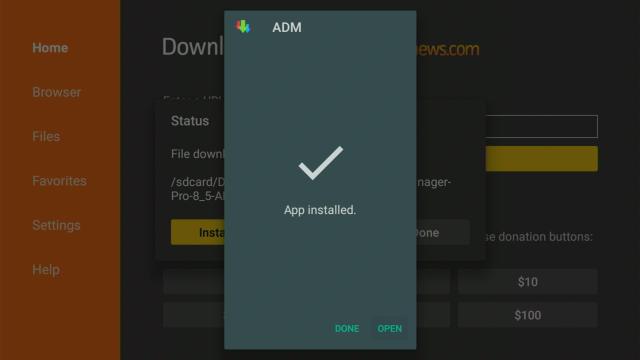
  • Click Done
  • Click Delete > click Delete again
  • Now, you have successfully installed the Advanced Download Manager Pro app on FireStick


Note: ReviewVPN.com does not host any of these apps.


If your Firestick still has the older interface, read this article to learn how to update it: Update Firestick Interface.


Step by Step Instructions with Screenshots

1. Install the Downloader app and jailbreak your firestick by enabling unknown sources. To learn more about the procedure, you may read How to Install the Downloader App and Enable Unknown Sources.


2. Open Downloader App. Type https://reviewvpn.com/adv and click Go.


3.  Click on Install


4. Click on Open


5. Click Allow

Step 15 Install Advance Download Manager Pro

6. You have successfully installed the Advance Download Manager Pro app.

Step 16 Install Advance Download Manager Pro


YOUR INTERNET ACTIVITY IS BEING WATCHED

ReviewVPN cannot attest to the legality, security and privacy of the applications discussed on this site. It is highly recommended that you use a VPN service while streaming or using Kodi.

Currently, your IP 216.73.216.156 is visible to everyone and your Browser is being tracked by Advertisers & ISP Provider.

Save 65% Now

Limited Time Offer

Here are the main reasons why you must use a VPN:

  • Your activities are hidden from your ISP, the government, and from the apps you are using.
  • You can access additional movies and TV streams.
  • ISP attempts to throttle are thrwarted thus reducing buffering issues.
  • Geographically restricted content like Netflix and Hulu can be unblocked.

A VPN works be replacing your ISP-assigned IP address and creating an encrypted tunnel. We recommend the no log service offered by IPVanish. It works well on a Firestick and offers the fastest possible speeds.

Special Limited Time Offer - Get IPVanish


Legal Disclaimer: ReviewVPN.com does not encourage or endorse any illegal activity involved in the usage of services and applications referenced on this site. We do not verify the licensing agreements of services. The end-user is wholly responsible for ensuring that any media accessed through these services does not violate copyright and/or licensing laws. ReviewVPN does not promote, link to, or receive compensation from any Apps and IPTV services.


Install Surfshark on Firestick

Best Surfshark Deal


Moving the Newly Installed App to the Front

  • Go back to Fire Stick Home Screen (you may click the Home Button on the Fire Stick remote)
  • Go to Your Apps & Games/Channels
  • Scroll once to the left
  • Click See All
  • All the newly installed apps are located at the bottom – you can move the Advanced Download Manager Pro app by clicking the Options button (at the right side of the Home Button)
  • Click Move > move to front > and pick any spot you want to put the app


Advanced Download Manager Pro Features

  • Ability to download 3 at the same time
  • It has the ability to add browser download links 
  • Enhance download speed by dividing the file into nine parts
  • Copy from download list & save it to the memory card
  • It shows the status of the download in the Notification Bar
  • Displays download completion 
  • Storing various files in various folders
  • Resume capability
  • Scheduling Downloads


Utilizing Advanced Download Manager or ADM app

When your Android device downloads a file as one huge data, it can’t use the maximum bandwidth of the connection. And if you have a patchy web connection, chances are you’ll lose the download progress. The Advanced Download Manager Pro app enables your Android device to divide the file and download it into various pieces.

Wherein, you can download the file quickly and you’ll not be worried about the loss of time & data. This download management tool is so good at downloading more than 1 file. The Download Manager Pro app has a built-in smart multithreading algorithms feature.

The Advanced Download Manager Pro app allows you to pause a few unessential downloads while you download multiple files. You can assign these unimportant downloads a time period and let the download management tool kick-off the download process at the scheduled time. This way, vital files will be downloaded first.

Also, the Advanced Download Manager Pro app will automatically pause downloads on your phone when it’s low on battery. You can set a limit on files when the data network is limited. You can obtain a widget along with user-friendly functionality. The Advanced Download Manager Pro app is free with ads.


Advanced Download Manager Pro’s Advanced Settings

  • Interface customization & themes
  • Choose the downloaded file folder
  • Various automatic actions after completing downloads
  • Make an empty file to speed up downloading
  • It has an auto-stop process if the phone’s battery is low
  • Bring in a list of links from the SD-card’s text file
  • Auto resume after errors & break of internet connection
  • Turbo mode for accelerated downloading
  • Obtaining size of file & attractive name


Why Do You Need A VPN For Fire Stick?

Amazon Fire devices feature thousands of entertainment choices with support for numerous video streaming platforms, such as Hulu, Amazon Prime Video, and Netflix. Nonetheless, like other web-connected Android devices, the internet traffic generated from the Fire Stick can be seen by Internet Service Providers and that’s not good. 

Fire Stick users should consider utilizing a Virtual Private Network or VPN to keep their personal information out of the reach of their Internet Service Providers. Also, a VPN service allows you to access geo-restricted content.

Using a VPN service with your Fire Stick is such a great idea. It will hide your web activity if you link through a home/work internet provider. Regarding security and privacy, Surfshark is the number 1 option for Firestick users.


Best VPN Deal

The first thing a VPN service asks for is a username and a password. Surfshark is a premium service but it has an exclusive discount that offers 63% OFF. To obtain the user name & password and avail of the huge discount, type https://reviewvpn.com/deal into any browser.


Surfshark Features

Opting for the best FireStick VPN can take some time for the reason that there are tons of aspects people need to consider like privacy policy, speed,  jurisdiction, number of locations & servers, security features, and others. However, you do not need to worry about it as this article has already done the job for you.

Surfshark is a solid VPN provider with servers in over 75 worldwide locations. 


Features:

  1. 3,200 VPN servers in 65 countries
  2. 256-bit encryption
  3. Unlimited simultaneous connections
  4. Superb speed
  5. Dedicated applications for all devices
  6. Unlimited Bandwidth
  7. No Streaming restrictions
  8. Access BBC iPlayer & Netflix 
  9. Killswitch
  10. 30-day money-back guarantee
  11. 24/7 Customer Support

Note: For more information about Surfshark, please read our Surfshark Review.


Grab your subscription now!


How to Install Surfshark VPN on Firestick

If your Firestick still has the older interface, read this article to learn how to update it: Update Firestick Interface.

1. Go to the Home screen of your Firestick.

step 1 Install Surfshark VPN on Firestick


2. Navigate towards the Find tab. Press the Search button from the resulting dropdown.

step 2 Install Surfshark VPN on Firestick


3. Type in the keyword of SurfShark and select from the suggestions that will appear.

step 3 Install Surfshark VPN on Firestick


4. Click the official SurfShark icon from your search results.

step 4 Install Surfshark VPN on Firestick


5. Press the Download (You own it) button.

step 5 Install Surfshark VPN on Firestick


6. The SurfShark VPN installer will download on your device.

step 6 Install Surfshark VPN on Firestick


7. SurfShark VPN’s app will automatically install itself on your Fire TV stick.

step 7 Install Surfshark VPN on Firestick


8. Press the Open button after completing SurfShark VPN’s installation process.

step 8 Install Surfshark VPN on Firestick


9. Please wait for the SurfShark VPN to load its user interface.

step 9 Install Surfshark VPN on Firestick


10. You can now log in with your SurfShark VPN account credentials.

step 10 Install Surfshark VPN on Firestick

Learn more about Surfshark and Grab the Best Surfshark Deal Now!


Install Surfshark on Firestick

Best Surfshark Deal


Other VPNs to Consider

NordVPN (Best for Streaming)

Best Features

  • 5000+ Server in 50+ Countries 
  • Military-Grade Encryption
  • Fast Connection Speed
  • Suitable to a lot of devices
  • No-Log Policy

Prices
  • Complete $5.89 per month (64% Discount)
  • Plus $4.59 per month (56% Discount)
  • Standard $3.69 per month (55% Discount)

Best Features

  • 750+ High-speed VPN Servers in 43 Locations
  • Military-Grade Encryption
  • Fastest HD Streaming and Gaming
  • 30-Day Money-Back Guarantee
  • Unlimited Data & Devices
  • No-Log Policy

Prices
  • 3 Years $1.99 per month (82% Discount)
  • 1 Years $3.29 per month (70% Discount)
  • 1 Month $10.99 per month

IPVanish VPN (Most Secure)

Best Features

  • 1200+ Servers in 60+ Countries around the world
  • Unlimited Connections
  • No-Log Policy
  • Top Notch Military-Grade VPN Protocols and Encryptions
  • 100% Safe and Secured
  • Most Trusted VPN
  • Best VPN for Firestick
  • 30-Day Money-Back Guarantee

Prices
  • Yearly $3.99 per month (63% Discount) – 30 days risk free + Ransomware & Malware Protection
  • Quarterly $5.32 per month (51% Discount)
  • Monthly $10.99 per month


For more VPN discounts, go to ReviewVPN Deals and purchase the best VPN for you.

Click here to get the lowest price on Surfshark through our exclusive limited-time offer.


Installing Fildo Music App On Firestick

Fildo Music App On Firestick

In this article, we will be divulging important details on how to install Fildo Music on Firestick and other devices that run on the android platform.


If you want an audio streaming app, Fildo Music App is an ideal choice. This audio streaming app allows you to stream the best-quality, awesome audio tracks from across the globe. The Fildo Music App allows you to download any type of music you like.

If you want to download a song or a whole album do not fret, this audio streaming app serves you with any music you want.

The Fildo Music App even provides a list of all the recordings created by a particular artist or group.

Obtaining music only takes a single touch and a couple of seconds. When you consider all of the music streaming applications, Fildo makes itself distinctive among other audio streaming apps by not possessing an audio track collection.

However, the Fildo Music streaming app brings numerous types of audio files across the globe to one spot utilizing numerous sources. One of the advantages you obtain from the Fildo Music app is it does not keep any memory.

When compared with other audio streaming applications, this app provides some more special quality music. The Fildo Music app links you and other parties with the audio resources, then you’ll be given the option to easily download tunes.

Just simply type the name of the band or the music track name, and you’ll acquire it after a few clicks. Fildo is a well-established audio streaming application and it provides the opportunity to download tons of your well-liked new audio tracks.


ANONYMOUSLY

Is Fildo Music App Safe and Virus-free?

We tested this app using VirusTotal and found no threats or any malicious files and malware.

Despite having good results, we still need to be vigilant in protecting our privacy while streaming.

A Virtual Private Network or VPN will definitely help us maintain our security and anonymity while using Fildo Music App.

Here’s how you can Install The Best VPN For Firestick and All Devices.


Fildo Music App Installation on FireStick

  • Turn on the FireStick device.
  • From the home screen, select the setting option
  • Click My Fire TV > Developer Options.
  • Enable Apps from Unknown Sources.
  • Go back to FireStick’s home screen and go to the menu bar.
  • Go to the Search option.
  • Search & install the Downloader app on FireStick.
  • After installing the Downloader application, launch it.
  • Enter the Fildo Music download URL/APK – https://reviewvpn.com/fild
  • Click GO.
  • When the Fildo Music file download is complete – click Install.
  • Click Done.
  • Click Delete > click Delete again.
  • Now, you have successfully installed the Fildo Music app on FireStick.


Note: ReviewVPN.com does not host any of these apps.


If your Firestick still has the older interface, read this article to learn how to update it: Update Firestick Interface.


Step by Step Instructions with Screenshots

1. Install the Downloader app and jailbreak your firestick by enabling unknown sources. To learn more about the procedure, you may read How to Install the Downloader App and Enable Unknown Sources.


2. Open Downloader App. Type https://reviewvpn.com/fild and click Go.


3. Click on INSTALL.

Step 13 Install Fildo Music App On Fire Stick


4. Click on OPEN.

Step 14 Install Fildo Music App On Fire Stick


5. Click on Allow.

Step 15 Install Fildo Music App On Fire Stick


6. Enjoy Listening.

Step 16 Install Fildo Music App On Fire Stick


YOUR INTERNET ACTIVITY IS BEING WATCHED

ReviewVPN cannot attest to the legality, security and privacy of the applications discussed on this site. It is highly recommended that you use a VPN service while streaming or using Kodi.

Currently, your IP 216.73.216.156 is visible to everyone and your Browser is being tracked by Advertisers & ISP Provider.

Save 65% Now

Limited Time Offer

Here are the main reasons why you must use a VPN:

  • Your activities are hidden from your ISP, the government, and from the apps you are using.
  • You can access additional movies and TV streams.
  • ISP attempts to throttle are thrwarted thus reducing buffering issues.
  • Geographically restricted content like Netflix and Hulu can be unblocked.

A VPN works be replacing your ISP-assigned IP address and creating an encrypted tunnel. We recommend the no log service offered by IPVanish. It works well on a Firestick and offers the fastest possible speeds.

Special Limited Time Offer - Get IPVanish


Legal Disclaimer: ReviewVPN.com does not encourage or endorse any illegal activity involved in the usage of services and applications referenced on this site. We do not verify the licensing agreements of services. The end-user is wholly responsible for ensuring that any media accessed through these services does not violate copyright and/or licensing laws. ReviewVPN does not promote, link to, or receive compensation from any Apps and IPTV services.


Install Surfshark on Firestick

Best Surfshark Deal


Moving the Newly Installed App to the front

  • Go back to Fire Stick Home Screen (you may click the Home Button on the Fire Stick remote)
  • Go to Your Apps & Games/Channels
  • Scroll once to the left
  • Click See All
  • All the newly installed apps are located at the bottom – you can move the Fildo Music app by clicking the Options button (at the right side of the Home Button)
  • Click Move > move to front > and pick any spot you want to put the app


What Is Fildo Music?

Fildo is a free-to-use audio streaming application that allows people to listen to their favorite audio on their Android devices. The Fildo Music app provides all the best quality tracks across the globe and supports nearly all types of formats, such as MIDI, MP3, WAV FLAC, and more.

Just like other music streaming apps, Fildo Music also allows its users to straightforwardly navigate & play music by artists, genres, folders, songs, and albums. The audio streaming app contains a search feature where users need to put genre, a single line, or text of any track to look for and play.

With the Fildo Music app, you can add unlimited collections by creating a playlist, and then share it with friends or family. Nonetheless, you are required to register to make your own playlist – an email address as well as other information.

Additionally, the Fildo Music app comes along with core features like major audio format support, exploring categories, creating unlimited playlists, playing random music, and a lot more.


Features Of Fildo Music

  • Can be easily navigated and play songs by albums, genres, songs, folders, and artists.
  • Find search feature – can find the music a lot faster
  • Reproduce music – play music by artist, song, playlist, or album
  • One touch to maneuver the music player
  • Create & edit music in playlists
  • Can play the music randomly
  • Albums – showcases the covers on the music player
  • Notifications control – manage music from notifications in Android 5.0 & above


Best Fildo Music Alternatives – 2020

  • SoundCloud

SoundCloud allows you to share your music easily & quickly. SoundCloud gets rid of the hassles of sending, distributing and receiving music for record companies or artists.

Google Play Music

Google Play Music allows you to upload your personal music collection & access it online.

Pandora

Pandora is free internet radio. Utilizing the Music Genome Project, over 400 song attributes are examined for personalization.


Why Do You Need A VPN For Streaming Music?

Tons of music streaming platforms around the world, it has revolutionized people’s way of enjoying their music. Nonetheless, there are platforms that are unavailable to everyone – regardless of the platforms’ widespread reach & accessibility. Some music platforms are currently available only in certain countries, while some are blocked in various jurisdictions.

Fortunately, there are ways of bypassing these restrictions. Whether you reside in a country that does not support the music streaming platform or you can’t use it due to a network limitation, you can use a Virtual Private Network or VPN to obtain access.

By concealing your IP address and securing your internet connection, a VPN can bypass access issues. You might be unsure, but there are numerous reasons why you must use a VPN service for using audio streaming services.

Note: For more information about SurfShark, please read our SURFSHARK REVIEW.


Grab your subscription now!

Click here to get the lowest price on Surfshark through our exclusive limited-time offer.


How to Install Surfshark VPN on Firestick

If your Firestick still has the older interface, read this article to learn how to update it: Update Firestick Interface.

1. Go to the Home screen of your Firestick.

step 1 Install Surfshark VPN on Firestick


2. Navigate towards the Find tab. Press the Search button from the resulting dropdown.

step 2 Install Surfshark VPN on Firestick


3. Type in the keyword of SurfShark and select from the suggestions that will appear.

step 3 Install Surfshark VPN on Firestick


4. Click the official SurfShark icon from your search results.

step 4 Install Surfshark VPN on Firestick


5. Press the Download (You own it) button.

step 5 Install Surfshark VPN on Firestick


6. The SurfShark VPN installer will download on your device.

step 6 Install Surfshark VPN on Firestick


7. SurfShark VPN’s app will automatically install itself on your Fire TV stick.

step 7 Install Surfshark VPN on Firestick


8. Press the Open button after completing SurfShark VPN’s installation process.

step 8 Install Surfshark VPN on Firestick


9. Please wait for the SurfShark VPN to load its user interface.

step 9 Install Surfshark VPN on Firestick


10. You can now log in with your SurfShark VPN account credentials.

step 10 Install Surfshark VPN on Firestick

Learn more about Surfshark and Grab the Best Surfshark Deal Now!


Install Surfshark on Firestick

Best Surfshark Deal


Other VPNs to Consider

NordVPN (Best for Streaming)

Best Features

  • 5000+ Server in 50+ Countries 
  • Military-Grade Encryption
  • Fast Connection Speed
  • Suitable to a lot of devices
  • No-Log Policy

Prices
  • Complete $5.89 per month (64% Discount)
  • Plus $4.59 per month (56% Discount)
  • Standard $3.69 per month (55% Discount)

Best Features

  • 750+ High-speed VPN Servers in 43 Locations
  • Military-Grade Encryption
  • Fastest HD Streaming and Gaming
  • 30-Day Money-Back Guarantee
  • Unlimited Data & Devices
  • No-Log Policy

Prices
  • 3 Years $1.99 per month (82% Discount)
  • 1 Years $3.29 per month (70% Discount)
  • 1 Month $10.99 per month

IPVanish VPN (Most Secure)

Best Features

  • 1200+ Servers in 60+ Countries around the world
  • Unlimited Connections
  • No-Log Policy
  • Top Notch Military-Grade VPN Protocols and Encryptions
  • 100% Safe and Secured
  • Most Trusted VPN
  • Best VPN for Firestick
  • 30-Day Money-Back Guarantee

Prices
  • Yearly $3.99 per month (63% Discount) – 30 days risk free + Ransomware & Malware Protection
  • Quarterly $5.32 per month (51% Discount)
  • Monthly $10.99 per month


For more VPN discounts, go to ReviewVPN Deals and purchase the best VPN for you.

Click here to get the lowest price on Surfshark through our exclusive limited-time offer.


How To Install Cyberflix TV On Google Chromecast

Install Cyberflix TV On Google Chromecast

Cyberflix TV is a popular streaming application to watch movies on the internet. This app has a huge movie & TV show collection that people can watch on their Google Chromecast or any Android-powered device.


If you want to install Cyberflix tv on your Google Chromecast, you need to download its Android application package (APK). Cyberflix TV’s latest version (version 3.3.2) comes along with new features and additional video links.

Cyberflix TV is one of the best applications that give you an advertisement-free video streaming experience. This video streaming app is available with subtitle support, which is a good thing for non-English individuals. The reason behind the Cyberflix TV app’s popularity is its regular updates as well as its ad-free media content.


ANONYMOUSLY


Note: ReviewVPN.com does not host any of these apps.


Cyberflix TV App Filelinked Codes

If you’ve installed a filelinked store on your Google Chromecast or Android-based devices, you can download the updated version of CyberFlix TV from the filelinked store to your device directly.


Install Cyberflix TV App on Google Chromecast with Screenshots

1. Turn on the Google Chromecast device and scroll to your account from the home screen.

Step 1 Google Chromecast home screen

2. On the upper right of the screen, choose > Settings.


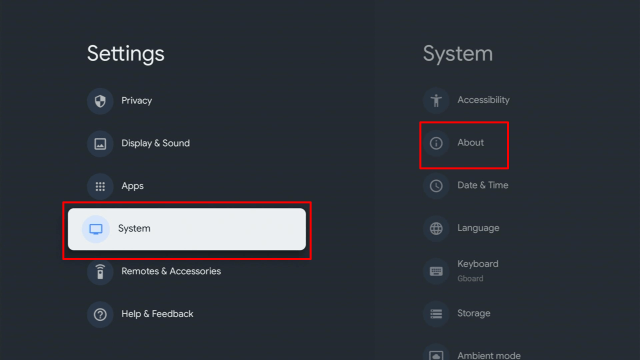
3. Once in Settings, scroll down to System > About.

12a


4. Scroll down to Android TV OS Build & click on it seven times until it goes into Developer options and it’s gonna say “you are now a developer”.


5. Click the Back Button, scroll down to see the Developer options.


6. Go back to Settings and select > Apps.


7. Scroll down to Security & Restriction – to turn on Unknown Sources.


8. Go back to the home screen and hover over the Search icon.


9. Type in Downloader app.

c1


10. Select the Downloader.


11. Click Install.

c4


12. Open the Downloader app.

c5


13. Type in the Cyberflix TV app download URL/APK – https://reviewvpn.com/cyber


14. Wait for a few seconds for the file download progress


15. Click Install


16. Click Done.


17.  Click Delete > click Delete again


18. Go back to the Home screen. Click SEE ALL.


19. Click Cyberflix TV icon.


20. Select Allow.


21. Click Ok.


22. Click Exoplayer (Native).


23.  Select Accept.


24. Enjoy Watching.


Install Surfshark on Google Chromecast

Best Surfshark Deal


Cyberflix TV Features

  • It has external video player support
  • Subtitles support
  • Fast Servers
  • Regular updates with new features
  • Dependable video links
  • New & enhanced video source
  • Clean & intuitive interface
  • Android TV Mode
  • No Advertisements
  • Built-in casting
  • HD and Full HD video links


YOUR INTERNET ACTIVITY IS BEING WATCHED

ReviewVPN cannot attest to the legality, security and privacy of the applications discussed on this site. It is highly recommended that you use a VPN service while streaming or using Kodi.

Currently, your IP 216.73.216.156 is visible to everyone and your Browser is being tracked by Advertisers & ISP Provider.

Save 65% Now

Limited Time Offer

Here are the main reasons why you must use a VPN:

  • Your activities are hidden from your ISP, the government, and from the apps you are using.
  • You can access additional movies and TV streams.
  • ISP attempts to throttle are thrwarted thus reducing buffering issues.
  • Geographically restricted content like Netflix and Hulu can be unblocked.

A VPN works be replacing your ISP-assigned IP address and creating an encrypted tunnel. We recommend the no log service offered by IPVanish. It works well on a Firestick and offers the fastest possible speeds.

Special Limited Time Offer - Get IPVanish


CyberFlix TV App Details and Extras

If you’ve used Terrarium TV before, you’ll immediately see the same design and layout CyberFlix TV app features. The CyberFlix TV app has an easy-to-use interface along with movie & TV show Categories. The streaming app also has tons of Sub-Categories, which include Most Popular, Genre, Trending, and a lot more. One of the CyberFlix TV app’s best features is it allows you to watch a trailer before streaming the content.


Frequently Asked Questions – FAQs

Is CyberFlix TV Legal?

Yes, the CyberFlix TV app is completely legal for the reason that it does not host any media content on its server. The streaming app only gets the video links from the web.


Is it safe to use?

Yes, the CyberFlix TV app is absolutely safe & secure to use.


Is the CyberFlix TV app free?

You can use the CyberFlix TV app for free


What are the alternatives to the CyberFlix TV app?

There are tons of Cyberflix alternatives, which include BeeTV, Titanium TV,  Morpheus TV, TeaTV, and a lot more.


WhatCyberFlix TV does?

The CyberFlix TV app helps you watch your favorite movies and TV shows. The app has a huge database of free, popular, or trending movies and TV shows that you can stream anytime.


Pros and Cons

Pros

  • One of Terrarium TV’s most recognizable & best functioning clones
  • It has a slick & customizable user interface
  • Absolutely free and advertisement-free
  • The app updates regularly
  • Best streaming application for those familiar with Terrarium 
  • It has a wide selection of entertainment content


Cons

  • It has no Autoplay
  • As it utilizes third-party media content, the links are expected to change over time
  • Doesn’t allow users to stream torrents 


Why You Need A VPN

When you access a website on the web, you start by connecting to your ISP or Internet Service Provider. You will then be redirected to the websites that you want to visit. All of your internet traffic passes via your ISP’s servers, which means your Internet Service Provider can see & log everything you’re doing on the internet. Your Internet Service Provider can give your browsing history to government agencies, interested organizations, and advertisers.

Nonetheless, you can avoid this situation by using a Virtual Private Network or VPN. A VPN service redirects your web traffic via a particularly configured server. Wherein, the VPN conceals your real IP address and encrypts all the information you send and receive. If someone can intercept the encrypted data, it will look scrambled and it’s unreadable.

However, the best VPN service for unblocking popular streaming platforms is Surfshark. Surfshark can unblock Amazon Prime Video, Netflix, HBO Max, BBC iPlayer, Hulu, and many more.


Surfshark Features

  • Amazing speed
  • Anonymous Torrenting
  • With owned server network
  • Unlimited P2P Traffic
  • Allows unlimited connections at the same time
  • 256-Bit AES Encryption
  • Unlimited Bandwidth
  • SOCKS5 Web Proxy
  • Has additional privacy features
  • Geo-Locked Content Access
  • Platforms: IOS, Mac, Windows, Android, Firestick/Fire TV, Roku, Linux
  • Zero Logs
  • Privacy & security features: OpenVPN, IKEv2, & L2TP/IPsec VPN protocols


Grab your subscription now!

Click here to get the lowest price on Surfshark through our exclusive limited-time offer.


Install Surfshark VPN on Google Chromecast with Screenshots

1. Click Home on your remote then select Search.

Surfshark VPN on Google Chromecast step 1


2. On the search bar, you can use google voice assistant to find Surfshark VPN or by typing it.

Surfshark VPN on Google Chromecast step 2


3. Click on Surfshark VPN icon.

Surfshark VPN on Google Chromecast step 3


4. Click on Install.

Surfshark VPN on Google Chromecast step 4


5. Surfshark VPN is now installing just wait for it until it’s done.

Surfshark VPN on Google Chromecast step 5


6. Click open.

Surfshark VPN on Google Chromecast step 6


7. Input your username and password to log in

Surfshark VPN on Google Chromecast step 7

Learn more about Surfshark and Grab the Best Surfshark Deal Now!


Install Surfshark on Google Chromecast

Best Surfshark Deal


Other VPNs to Consider

NordVPN (Best for Streaming)

Best Features

  • 5000+ Server in 50+ Countries 
  • Military-Grade Encryption
  • Fast Connection Speed
  • Suitable to a lot of devices
  • No-Log Policy

Prices
  • Complete $5.89 per month (64% Discount)
  • Plus $4.59 per month (56% Discount)
  • Standard $3.69 per month (55% Discount)

Best Features

  • 750+ High-speed VPN Servers in 43 Locations
  • Military-Grade Encryption
  • Fastest HD Streaming and Gaming
  • 30-Day Money-Back Guarantee
  • Unlimited Data & Devices
  • No-Log Policy

Prices
  • 3 Years $1.99 per month (82% Discount)
  • 1 Years $3.29 per month (70% Discount)
  • 1 Month $10.99 per month

IPVanish VPN (Most Secure)

Best Features

  • 1200+ Servers in 60+ Countries around the world
  • Unlimited Connections
  • No-Log Policy
  • Top Notch Military-Grade VPN Protocols and Encryptions
  • 100% Safe and Secured
  • Most Trusted VPN
  • Best VPN for Firestick
  • 30-Day Money-Back Guarantee

Prices
  • Yearly $3.99 per month (63% Discount) – 30 days risk free + Ransomware & Malware Protection
  • Quarterly $5.32 per month (51% Discount)
  • Monthly $10.99 per month


For more VPN discounts, go to ReviewVPN Deals and purchase the best VPN for you.

Click here to get the lowest price on Surfshark through our exclusive limited-time offer.


Wrapping Up

CyberFlix TV is one of the most trending video streaming apps although there are tons of competitors like Cinema APK, Titanium TV, Dream TV, Morph TV, BeeTV, Typhoon TV, and more. The CyberFlix TV app is available on all Android-powered devices. The video streaming app allows you to enjoy unlimited, free movies, and television shows. The CyberFlix TV app functions on Google Chromecast, Android-based phones/tablets, Roku, Amazon FireStick, Nvidia Shield, Android TV Box, etc.

The free-to-use Cyberflix TV app has a user-friendly interface and provides you non-stop entertainment. This video streaming platform will let you relax and clear out all of your stress with the help of its excellent, free media content.

Installing All In One Toolbox Pro App On FireStick

All In One Toolbox Pro App On FireStick

In this article, we will be guiding you on how to install All In One Toolbox Pro on Firestick.


All-In-One Toolbox Pro is a set of basic handy tools that will help your Android-powered devices, such as Amazon Fire Stick, work the best that it can. The All-In-One Toolbox Pro has all the useful tools in one small-size application.

The All-In-One Toolbox app provides a collection of tools like a history eraser, junk cleaner, memory optimizer, speed booster, CPU cooler, battery optimizer, app manager, mini launcher, and file manager – to keep better performance for Android-based devices. The All-In-One Toolbox app is also compatible with tons of plug-ins such as game booster, volume settings app lock, and a lot more.

The All-In-One Toolbox Pro will be your number one tool app to boost device speed, extend battery life, and free up storage. The app provides various useful tools to speed up and optimize performance.


ANONYMOUSLY

Is All-In-One Toolbox Pro Safe and Virus-free?

We tested this app using VirusTotal and found no threats or any malicious files and malware.

Despite having good results, we still need to be vigilant in protecting our privacy while streaming.

A Virtual Private Network or VPN will definitely help us maintain our security and anonymity while using All-In-One Toolbox Pro.

Here’s how you can Install The Best VPN For Firestick and All Devices.


All In One Toolbox Pro App Installation on FireStick

  • Turn on the FireStick device
  • From the home screen, select the setting option
  • Click My Fire TV > Developer Options
  • Enable Apps from Unknown Sources 
  • Go back to FireStick’s home screen and go to the menu bar
  • Go to the Search option
  • Search & install the Downloader app on FireStick
  • After installing the Downloader application, launch it
  • Enter the All-In-One Toolbox Pro download URL/APK – https://reviewvpn.com/tool
  • Click GO
  • When the All-In-One Toolbox file download is complete – click Install
  • Click Done
  • Click Delete > click Delete again
  • Now, you have successfully installed the All-In-One Toolbox Pro app on FireStick

Note: ReviewVPN.com does not host any of these apps.


If your Firestick still has the older interface, read this article to learn how to update it: Update Firestick Interface.


Step by Step Instructions with Screenshots

1. Install the Downloader app and jailbreak your firestick by enabling unknown sources. To learn more about the procedure, you may read How to Install the Downloader App and Enable Unknown Sources.


2. Open Downloader App. Type https://reviewvpn.com/tool and click Go.


3. Click on INSTALL.

Step 13 Install All in one toolbox


4. Click on OPEN.

Step 14 Install All in one toolbox


5. Select Yes, I Agree.

Step 15 Install All in one toolbox

6. All-In-One Toolbox is Installed.

Step 16 Install All in one toolbox

Moving the Newly Installed App to the Front

  • Go back to Fire Stick Home Screen (you may click the Home Button on the Fire Stick remote)
  • Go to Your Apps & Games/Channels
  • Scroll once to the left
  • Click See All
  • All the newly installed apps are located at the bottom – you can move the All-In-One Toolbox Pro app by clicking the Options button (at the right side of the Home Button)
  • Click Move > move to front > and pick any spot you want to put the app


YOUR INTERNET ACTIVITY IS BEING WATCHED

ReviewVPN cannot attest to the legality, security and privacy of the applications discussed on this site. It is highly recommended that you use a VPN service while streaming or using Kodi.

Currently, your IP 216.73.216.156 is visible to everyone and your Browser is being tracked by Advertisers & ISP Provider.

Save 65% Now

Limited Time Offer

Here are the main reasons why you must use a VPN:

  • Your activities are hidden from your ISP, the government, and from the apps you are using.
  • You can access additional movies and TV streams.
  • ISP attempts to throttle are thrwarted thus reducing buffering issues.
  • Geographically restricted content like Netflix and Hulu can be unblocked.

A VPN works be replacing your ISP-assigned IP address and creating an encrypted tunnel. We recommend the no log service offered by IPVanish. It works well on a Firestick and offers the fastest possible speeds.

Special Limited Time Offer - Get IPVanish


Legal Disclaimer: ReviewVPN.com does not encourage or endorse any illegal activity involved in the usage of services and applications referenced on this site. We do not verify the licensing agreements of services. The end-user is wholly responsible for ensuring that any media accessed through these services does not violate copyright and/or licensing laws. ReviewVPN does not promote, link to, or receive compensation from any Apps and IPTV services.


Install Surfshark on Firestick

Best Surfshark Deal


Features of All-In-One Toolbox Pro

  • Cache Cleaner – it cleans residual cache & system files remained by uninstalled applications to free up space
  • Junk Cleaner – it scans & wipes off junk files, which  includes system & app caches
  • Memory Booster – it removes background applications to free up device storage space, speed up the device, and optimize memory 
  • CPU Cooler – it shuts down overheating applications to cool down device temperature & save device battery
  • Battery Saver – it stops the draining process of the battery to save power
  • Batch App Installer and Uninstaller – Bulk operate multiple applications at a time
  • App2sd – this feature moves applications from the internal storage of the device to the external SD card
  • Backup and Restore – it backups installed applications or re-install these apps after device restoration from factory reset
  • System Uninstall – this feature removes factory or manufacture applications
  • Quick Charge Master – quickly charges the device battery
  • File Manager – it manages music, photos, documents, videos, folders, download files, APK packages stored on the external SD card
  • Photo Compression – it saves photos in small size to make more storage
  • System Info – it checks hardware info of the device in one place
  • Easy Switch – it quickly switches recent apps, system settings, and AIO tools


All-In-One Toolbox Additional Features

  • App lock – It encrypts private applications with a pattern or password
  • Ads detector – analyze advertisements in installed applications
  • Permission check – this feature list permissions other applications required
  • Quick settings – it gives you quick access to system settings
  • Game Booster – it boosts the gaming speed 
  • Volume settings – it gives you a one-click system volume setup
  • Flashlight
  • QR and Barcode scanner
  • Compass


Why Use the All-In-One Toolbox Pro?

  • It has a simple, intuitive user interface UI
  • All useful tools on one application
  • Optimize Android-powered devices in just a couple of clicks
  • Fast & efficient with low CPU & memory usage


File and App Management

If your Android device has so much stuff inside, it’ll become messed up and much difficult to use. However, you don’t need to worry that – the All-In-One Toolbox Pro app will be available to help you. The app allows you to make a list of all the apps installed on your device to customize them.


Why Use A VPN When Using FireStick

If you have an Amazon Fire Stick as your means to access online entertainment then you must use a Virtual Private Network or VPN. But, opting for the right VPN service is very important. A VPN allows a person to appear somewhere else he/she is not – using various servers to bounce his/her IP address. Wherein, you can bypass content with geographical restrictions. A VPN service will also keep you unidentified and secure when you’re using the internet.

The highly recommended VPN service is Surfshark – it has all the VPN features you need, and it works well on Fire Stick


Best VPN Deal

The first thing a VPN service asks for is a username and a password. Surfshark is a premium service but it has an exclusive discount that offers up to 70% OFF. To obtain the user name & password and avail of the huge discount, type https://reviewvpn.com/deal into any browser.

Note: For more information about Surfshark, please read our Surfshark Review.


Grab your subscription now!

Click here to get the lowest price on Surfshark through our exclusive limited-time offer.


How to Install Surfshark VPN on Firestick

If your Firestick still has the older interface, read this article to learn how to update it: Update Firestick Interface.

1. Go to the Home screen of your Firestick.

step 1 Install Surfshark VPN on Firestick


2. Navigate towards the Find tab. Press the Search button from the resulting dropdown.

step 2 Install Surfshark VPN on Firestick


3. Type in the keyword of SurfShark and select from the suggestions that will appear.

step 3 Install Surfshark VPN on Firestick


4. Click the official SurfShark icon from your search results.

step 4 Install Surfshark VPN on Firestick


5. Press the Download (You own it) button.

step 5 Install Surfshark VPN on Firestick


6. The SurfShark VPN installer will download on your device.

step 6 Install Surfshark VPN on Firestick


7. SurfShark VPN’s app will automatically install itself on your Fire TV stick.

step 7 Install Surfshark VPN on Firestick


8. Press the Open button after completing SurfShark VPN’s installation process.

step 8 Install Surfshark VPN on Firestick


9. Please wait for the SurfShark VPN to load its user interface.

step 9 Install Surfshark VPN on Firestick


10. You can now log in with your SurfShark VPN account credentials.

step 10 Install Surfshark VPN on Firestick

Learn more about Surfshark and Grab the Best Surfshark Deal Now!


Install Surfshark on Firestick

Best Surfshark Deal


Other VPNs to Consider

NordVPN (Best for Streaming)

Best Features

  • 5000+ Server in 50+ Countries 
  • Military-Grade Encryption
  • Fast Connection Speed
  • Suitable to a lot of devices
  • No-Log Policy

Prices
  • Complete $5.89 per month (64% Discount)
  • Plus $4.59 per month (56% Discount)
  • Standard $3.69 per month (55% Discount)

Best Features

  • 750+ High-speed VPN Servers in 43 Locations
  • Military-Grade Encryption
  • Fastest HD Streaming and Gaming
  • 30-Day Money-Back Guarantee
  • Unlimited Data & Devices
  • No-Log Policy

Prices
  • 3 Years $1.99 per month (82% Discount)
  • 1 Years $3.29 per month (70% Discount)
  • 1 Month $10.99 per month

IPVanish VPN (Most Secure)

Best Features

  • 1200+ Servers in 60+ Countries around the world
  • Unlimited Connections
  • No-Log Policy
  • Top Notch Military-Grade VPN Protocols and Encryptions
  • 100% Safe and Secured
  • Most Trusted VPN
  • Best VPN for Firestick
  • 30-Day Money-Back Guarantee

Prices
  • Yearly $3.99 per month (63% Discount) – 30 days risk free + Ransomware & Malware Protection
  • Quarterly $5.32 per month (51% Discount)
  • Monthly $10.99 per month


For more VPN discounts, go to ReviewVPN Deals and purchase the best VPN for you.

Click here to get the lowest price on Surfshark through our exclusive limited-time offer.


Install RetroArch APK On FireStick

RetroArch APK Overview

In this article, we will be guiding you on how to install RetroArch on Firestick.


Playing games on your Amazon Fire Stick is sure to be fun. There are tons of gaming applications that are available for Fire Stick on Amazon’s Official App Store. However, as an alternative to downloading all the games individually, there’s an app to install to access all the games. You need to install the RetroArch app on Firestick. 

RetroArch is software that utilizes the powerful development interface, Libretro. Libretro lets you create cross-platform apps that can use features like cross-platform camera support, OpenGL, location support, and many more.


ANONYMOUSLY

Is RetroArch Safe and Virus-free?

We tested this app using VirusTotal and found no threats or any malicious files and malware.

Despite having good results, we still need to be vigilant in protecting our privacy while streaming.

A Virtual Private Network or VPN will definitely help us maintain our security and anonymity while using RetroArch.

Here’s how you can Install The Best VPN For Firestick and All Devices.


RetroArch App Installation on FireStick

  • Turn on the FireStick device, go to the top menu bar and choose > Settings
  • Click My Fire TV > Developer Options
  • Enable Apps from Unknown Sources 
  • Go back to FireStick’s home screen and go to the menu bar
  • Go to the Search option
  • Search & install the Downloader app on FireStick
  • After installing the Downloader application, launch it
  • Enter the RetroArch app download URL/APK – https://reviewvpn.com/ret
  • Click GO
  • When the RetroArch file download is complete – click Install
  • Click Done
  • Click Delete > click Delete again
  • Now, you have successfully installed the RetroArch app on FireStick

Note: ReviewVPN.com does not host any of these apps.


If your Firestick still has the older interface, read this article to learn how to update it: Update Firestick Interface.


Step by Step Instructions with Screenshots

1. Install the Downloader app and jailbreak your firestick by enabling unknown sources. To learn more about the procedure, you may read How to Install the Downloader App and Enable Unknown Sources.


2. Open Downloader App. Type https://reviewvpn.com/ret and click Go.


3. Click on INSTALL.

4. Click on OPEN.

5. Retroarch is Installed.


YOUR INTERNET ACTIVITY IS BEING WATCHED

ReviewVPN cannot attest to the legality, security and privacy of the applications discussed on this site. It is highly recommended that you use a VPN service while streaming or using Kodi.

Currently, your IP 216.73.216.156 is visible to everyone and your Browser is being tracked by Advertisers & ISP Provider.

Save 65% Now

Limited Time Offer

Here are the main reasons why you must use a VPN:

  • Your activities are hidden from your ISP, the government, and from the apps you are using.
  • You can access additional movies and TV streams.
  • ISP attempts to throttle are thrwarted thus reducing buffering issues.
  • Geographically restricted content like Netflix and Hulu can be unblocked.

A VPN works be replacing your ISP-assigned IP address and creating an encrypted tunnel. We recommend the no log service offered by IPVanish. It works well on a Firestick and offers the fastest possible speeds.

Special Limited Time Offer - Get IPVanish


Legal Disclaimer: ReviewVPN.com does not encourage or endorse any illegal activity involved in the usage of services and applications referenced on this site. We do not verify the licensing agreements of services. The end-user is wholly responsible for ensuring that any media accessed through these services does not violate copyright and/or licensing laws. ReviewVPN does not promote, link to, or receive compensation from any Apps and IPTV services.


Install Surfshark on Firestick

Best Surfshark Deal


Moving the newly installed app to the front

  • Go back to Fire Stick Home Screen (you may click the Home Button on the Fire Stick remote)
  • Go to Your Apps & Games/Channels
  • Scroll once to the left
  • Click See All
  • All the newly installed apps are located at the bottom – you can move the RetroArch app by clicking the Options button (at the right side of the Home Button)
  • Click Move > move to front > and pick any spot you want to put the app


What Is a Retroarch App?

RetroArch is a non-proprietary software that is available with a collection of apps. With this open-source app, you can create multimedia programs, games, emulators, as well as play multiple games. The RetroArch app utilizes a powerful development interface.


Features of RetroArch App

  • Attractive menus
  • Take a look at database info on each added game to the collection
  • Allows you to download Game & Watch games and play the games with the Game & Watch emulator
  • Download software online
  • The app has built-in remapping control
  • It has the ability to remap controls
  • More than 80 programs
  • You can enter and load cheats
  • Allows you to can scan files, directories and add them to the game collections
  • You can download games, watch games, & enjoy them in multiplayer mode
  • RetroArch app supports multiple languages


Games run on RetroArch App

  • PlayStation 1 through PCSX ReARMed
  • Super Nintendo through the SNES9x Next emulator
  • GameBoy & GameBoy Color
  • Nintendo Entertainment System using the FCEUmm & NEStopia emulators
  • Arcade using the Final Burn Alpha
  • GameBoy Advance using the VBA Next
  • Virtual Boy through Mednafen VB
  • Neo Geo Pocket Color through the Mednafen NGP emulator
  • Sega Master System & Sega Game Gear using the Genesis Plus GX
  • Sega CD & Mega-CD through the Genesis Plus GX emulator
  • Sega Genesis & Mega Drive through Genesis Plus GX
  • WonderSwan Color & Crystal through the Mednafen Wonderswan emulator
  • PC Engine & PC Engine CD using the Mednafen PCE Fast


Keeping RetroArch App Updated

There’s something vital you must consider when you use the Retroarch app. You must keep the app updated via the Play Store. However, that will only update the Retroarch application and not any of its assets, cores, thumbnail lists, etc.

From time to time, you must manually update the installed cores of the app to ensure you’re using the latest version. Wherein, it will inevitably enhance the app’s performance, stability, and a lot of other factors. As a matter of fact, if you experience issues while running a game, the first thing you must do is update the Retroarch app’s cores.

In doing so:

  • Go to the main menu of the Retroarch app
  • Tap the Online Updater button
  • Tap the Update Installed Cores
  • Then, tap the Update Core Info Files


Why Use A VPN When Using Fire Stick

The Amazon Fire devices such as the Fire TV Stick, Fire Cube, and Firestick are a cost-effective and straightforward way to turn any television into a web-connected streaming device with access to tons of movies, TV shows, as well as other entertainment content. Sadly, a great amount of that media content has geo-restrictions, which means the content can only be accessed from particular countries.

From watching movies, TV shows, browsing the internet, and playing games on your Fire Stick, it can all be traced if you are using an unsecured internet network. Also, you’ll be vulnerable to snooping, hacking, advertising, or government tracking. That’s where a Virtual Private Network or VPN comes in – where it will keep you concealed and secure.

The most secured, trusted, and highly recommended VPN service for Fire Stick is Surfshark.


Best VPN Deal

The first thing a VPN service asks for is a username and a password. Surfshark is a premium service but it has an exclusive discount that offers up to 70% OFF. To obtain the user name & password and avail of the huge discount, type https://reviewvpn.com/deal into any browser.

Note: For more information about Surfshark, please read our Surfshark Review.


Install Surfshark on Firestick

Best Surfshark Deal


How to Install Surfshark VPN on Firestick

If your Firestick still has the older interface, read this article to learn how to update it: Update Firestick Interface.

Follow our screenshots below to install the SurfShark VPN app on your Fire TV stick.

1. Go to the Home screen of your Firestick.

step 1 Install Surfshark VPN on Firestick


2. Navigate towards the Find tab. Press the Search button from the resulting dropdown.

step 2 Install Surfshark VPN on Firestick


3. Type in the keyword of SurfShark and select from the suggestions that will appear.

step 3 Install Surfshark VPN on Firestick


4. Click the official SurfShark icon from your search results.

step 4 Install Surfshark VPN on Firestick


5. Press the Download (You own it) button.

step 5 Install Surfshark VPN on Firestick


6. The SurfShark VPN installer will download on your device.

step 6 Install Surfshark VPN on Firestick


7. SurfShark VPN’s app will automatically install itself on your Fire TV stick.

step 7 Install Surfshark VPN on Firestick


8. Press the Open button after completing SurfShark VPN’s installation process.

step 8 Install Surfshark VPN on Firestick


9. Please wait for the SurfShark VPN to load its user interface.

step 9 Install Surfshark VPN on Firestick


10. You can now log in with your SurfShark VPN account credentials.

step 10 Install Surfshark VPN on Firestick

Learn more about Surfshark and Grab the Best Surfshark Deal Now!


Install Surfshark on Firestick

Best Surfshark Deal


Other VPNs to Consider

NordVPN (Best for Streaming)

Best Features

  • 5000+ Server in 50+ Countries 
  • Military-Grade Encryption
  • Fast Connection Speed
  • Suitable to a lot of devices
  • No-Log Policy

Prices
  • Complete $5.89 per month (64% Discount)
  • Plus $4.59 per month (56% Discount)
  • Standard $3.69 per month (55% Discount)

Best Features

  • 750+ High-speed VPN Servers in 43 Locations
  • Military-Grade Encryption
  • Fastest HD Streaming and Gaming
  • 30-Day Money-Back Guarantee
  • Unlimited Data & Devices
  • No-Log Policy

Prices
  • 3 Years $1.99 per month (82% Discount)
  • 1 Years $3.29 per month (70% Discount)
  • 1 Month $10.99 per month

IPVanish VPN (Most Secure)

Best Features

  • 1200+ Servers in 60+ Countries around the world
  • Unlimited Connections
  • No-Log Policy
  • Top Notch Military-Grade VPN Protocols and Encryptions
  • 100% Safe and Secured
  • Most Trusted VPN
  • Best VPN for Firestick
  • 30-Day Money-Back Guarantee

Prices
  • Yearly $3.99 per month (63% Discount) – 30 days risk free + Ransomware & Malware Protection
  • Quarterly $5.32 per month (51% Discount)
  • Monthly $10.99 per month


For more VPN discounts, go to ReviewVPN Deals and purchase the best VPN for you.


Installing Wawa Sport TV On Firestick – 2023 Edition

Wawa Sport TV Overview

In this article, we will be divulging important details on how to install Wawa Sport TV on Firestick and other devices that run on the android platform.


Wawa Sport TV Apk is a live TV app that offers you loads of sports channels to stream on Android or Amazon Fire Devices. With the Wawa Sport TV app installed on your Android-powered device, you can watch tons of live sports channels from all around the world. Apart from streaming sports, the app also offers a wide range of famous television channels that allows you to stream your favorite movies, TV shows, as well as other entertainment videos. 

Wawa Sport TV app allows you to stream TV channels in various languages and also from various countries across the globe. The app provides the most popular sports TV channels such as BT Sports, Sky, ESPN, and a lot more. The Wawa Sport TV application can be installed on FireStick, Fire TV, Android TV box, as well as other Android-powered devices.


Installation On Fire Stick

  • Turn on the FireStick device.
  • From the home screen, select the setting option
  • Click My Fire TV > Developer Options
  • Enable Apps from Unknown Sources 
  • Go back to FireStick’s home screen and go to the menu bar
  • Go to the Search option
  • Search & install the Downloader app on FireStick
  • After installing the Downloader application, launch it
  • Enter the Wawa Sport TV download URL/APK – https://reviewvpn.com/waw
  • Click GO
  • When the Wawa Sport TV file download is complete – click Install
  • Click Done
  • Click Delete > click Delete again
  • Now, you have successfully installed the Wawa Sport TV app on FireStick

Note: ReviewVPN.com does not host any of these apps.


ANONYMOUSLY

Is Wawa Sport TV Safe and Virus-free?

We tested this app using VirusTotal and found no threats or any malicious files and malware.

Despite having good results, we still need to be vigilant in protecting our privacy while streaming.

A Virtual Private Network or VPN will definitely help us maintain our security and anonymity while using Wawa Sport TV.

Here’s how you can Install The Best VPN For Firestick and All Devices.


If your Firestick still has the older interface, read this article to learn how to update it: Update Firestick Interface.


Step by Step Instructions with Screenshots

1. Install the Downloader app and jailbreak your firestick by enabling unknown sources. To learn more about the procedure, you may read How to Install the Downloader App and Enable Unknown Sources.


2. Open Downloader App. Type https://reviewvpn.com/ret and click Go.


3. Click on INSTALL.

Step 13 Install Wawa Sport TV on Firestick


4. Click on OPEN.

Step 14 Install Wawa Sport TV on Firestick


5. Click on Allow.

Step 15 Install Wawa Sport TV on Firestick


16. Click on ACCEPT.

Step 16 Install Wawa Sport TV on Firestick


Moving the newly installed app to the front

  • Go back to Fire Stick Home Screen (you may click the Home Button on the Fire Stick remote)
  • Go to Your Apps & Games/Channels
  • Scroll once to the left
  • Click See All
  • All the newly installed apps are located at the bottom – you can move the Wawa Sport TV app by clicking the Options button (at the right side of the Home Button)
  • Click Move > move to front > and pick any spot you want to put the app


YOUR INTERNET ACTIVITY IS BEING WATCHED

ReviewVPN cannot attest to the legality, security and privacy of the applications discussed on this site. It is highly recommended that you use a VPN service while streaming or using Kodi.

Currently, your IP 216.73.216.156 is visible to everyone and your Browser is being tracked by Advertisers & ISP Provider.

Save 65% Now

Limited Time Offer

Here are the main reasons why you must use a VPN:

  • Your activities are hidden from your ISP, the government, and from the apps you are using.
  • You can access additional movies and TV streams.
  • ISP attempts to throttle are thrwarted thus reducing buffering issues.
  • Geographically restricted content like Netflix and Hulu can be unblocked.

A VPN works be replacing your ISP-assigned IP address and creating an encrypted tunnel. We recommend the no log service offered by IPVanish. It works well on a Firestick and offers the fastest possible speeds.

Special Limited Time Offer - Get IPVanish


Legal Disclaimer: ReviewVPN.com does not encourage or endorse any illegal activity involved in the usage of services and applications referenced on this site. We do not verify the licensing agreements of services. The end-user is wholly responsible for ensuring that any media accessed through these services does not violate copyright and/or licensing laws. ReviewVPN does not promote, link to, or receive compensation from any Apps and IPTV services.


Install SurfShark on Firestick

Best SurfShark Deal


What is WAWA Sports TV?

Wawa Sports TV is an amazing Android application package (APK) that provides sports channels such as BT, ESPN in High Definition quality. Most of the live TV channels that Wawa Sports TV offers are in English but you’ll find some channels in other languages as well. If you’re a sports enthusiast and like watching football then the Wawa Sports TV app is perfect for you. The Wawa Sports TV app has a file size of 16.8MB. The Wawa Sports TV app doesn’t require you to log in and it provides a range of TV channels in various qualities. The Wawa Sports TV provides live feeds from the internet and puts them into an easy-to-use app. From the streaming app’s menu, you can search channels via categories, check the latest inclusions, or watch the TV channels that you’ve added to the favorites. The streaming app provides an interesting variety of television channels in various languages in its extensive catalog.


Wawa Sport TV Features

  • The app provides tons of Live Sports channels – free of charge
  • Stream popular sports channels like ESPN, Sky, BT Sports, and a lot more
  • The app provides other entertainment content like Movies, Entertainment videos, Music channels, and much more
  • The app offers media content from different countries all around the world. 
  • The app allows you to stream videos in various languages
  • The app offers videos in different categories like News, Sports, HBO, Sky Movies, and many more
  • The streaming app has a straightforward and user-friendly interface that lets you stream the content easily
  • No subscription or fees
  • Watch more than 700 hundred movies instantly
  • New movies added daily
  • Tons of genres, which include Romance, Comedy Family, Kids, Urban, Action/Thrillers, Horror, Drama,  Documentaries, and many more
  • No limit on how many movies you’ll watch


Compatibility

  • Fire Stick
  • Fire TV
  • Android TV Box
  • Android Phone
  • Android Tablet
  • and all other Android-powered devices


The Importance of a VPN Service While Using FireStick

Surfshark vpn

If you’re planning on streaming entertainment content on your Fire Stick, it is recommended to use a Virtual Private Network or VPN. A VPN service will hide your internet activity, safeguard you from snooping Internet Service Providers, and will give you access to geographically blocked media content.

Using the best VPN service will protect you on the web by stopping your ISPs from seeing what you are accessing on the internet. There are tons of VPN services available out there but the most highly recommended use is the SurfShark service.


SurfShark Features

Opting for the best FireStick VPN can take some time for the reason that there are tons of aspects people need to consider like privacy policy, speed,  jurisdiction, number of locations & servers, security features, and others. Nonetheless, you don’t need to worry about it as this article has already done the job for you. SurfShark is a robust VPN service with servers in more than 65 worldwide locations. 


Best VPN Deal

The first thing a VPN service asks for is a username and a password. SurfShark is a premium service but it has an exclusive discount that offers up to 70% OFF. To obtain the user name & password and avail of the huge discount, type https://reviewvpn.com/deal into any browser.

Note: For more information about SurfShark, please read our SURFSHARK REVIEW.


Grab your subscription now!


How to Install Surfshark on Firestick with Screenshots

If your Firestick still has the older interface, read this article to learn how to update it: Update Firestick Interface.

You can download Surfshark directly from the Amazon App store. It will be easy for you to find Surfshark with your Firestick’s Find feature. Refer to our screenshots below.

Follow our screenshots below to install the SurfShark VPN app on your Fire TV stick.

1. Go to the Home screen of your Firestick.

step 1 Install Surfshark VPN on Firestick


2. Navigate towards the Find tab. Press the Search button from the resulting dropdown.

step 2 Install Surfshark VPN on Firestick


3. Type in the keyword of SurfShark and select from the suggestions that will appear.

step 3 Install Surfshark VPN on Firestick


4. Click the official SurfShark icon from your search results.

step 4 Install Surfshark VPN on Firestick


5. Press the Download (You own it) button.

step 5 Install Surfshark VPN on Firestick


6. The SurfShark VPN installer will download on your device.

step 6 Install Surfshark VPN on Firestick


7. SurfShark VPN’s app will automatically install itself on your Fire TV stick.

step 7 Install Surfshark VPN on Firestick


8. Press the Open button after completing SurfShark VPN’s installation process.

step 8 Install Surfshark VPN on Firestick


9. Please wait for the SurfShark VPN to load its user interface.

step 9 Install Surfshark VPN on Firestick


10. You can now log in with your SurfShark VPN account credentials.

step 10 Install Surfshark VPN on Firestick

Learn more about Surfshark and Grab the Best Surfshark Deal Now!


Install Surfshark on Firestick

Best Surfshark Deal


Other VPNs to Consider

NordVPN (Best for Streaming)

Best Features

  • 5000+ Server in 50+ Countries 
  • Military-Grade Encryption
  • Fast Connection Speed
  • Suitable to a lot of devices
  • No-Log Policy

Prices
  • Complete $5.89 per month (64% Discount)
  • Plus $4.59 per month (56% Discount)
  • Standard $3.69 per month (55% Discount)

Best Features

  • 750+ High-speed VPN Servers in 43 Locations
  • Military-Grade Encryption
  • Fastest HD Streaming and Gaming
  • 30-Day Money-Back Guarantee
  • Unlimited Data & Devices
  • No-Log Policy

Prices
  • 3 Years $1.99 per month (82% Discount)
  • 1 Years $3.29 per month (70% Discount)
  • 1 Month $10.99 per month

IPVanish VPN (Most Secure)

Best Features

  • 1200+ Servers in 60+ Countries around the world
  • Unlimited Connections
  • No-Log Policy
  • Top Notch Military-Grade VPN Protocols and Encryptions
  • 100% Safe and Secured
  • Most Trusted VPN
  • Best VPN for Firestick
  • 30-Day Money-Back Guarantee

Prices
  • Yearly $3.99 per month (63% Discount) – 30 days risk free + Ransomware & Malware Protection
  • Quarterly $5.32 per month (51% Discount)
  • Monthly $10.99 per month


For more VPN discounts, go to ReviewVPN Deals and purchase the best VPN for you.

Click here to get the lowest price on Surfshark through our exclusive limited-time offer.


Conclusion

Wawa Sport TV is one of the functioning apps for watching sports, movies, TV shows content. Although there are many sports streaming apps available for Fire Stick, the Wawa Sport TV app is one of the best options. We hope this article is helpful in installing Wawa Sports App on your FireStick.


What Is Your Favorite Streaming App? Cast Your Vote Below.

Install HDtv Ultimate App On Fire Stick

HDtv Ultimate App Overview

In this article, we will be divulging important details on how to install Cuco TV on Firestick and other devices that run on the android platform.


HDtv Ultimate is a great live TV streaming app for Android-powered devices. This live TV streaming app is equipped with tons of popular cable TV channels from across the globe, which include the United States, the United Kingdom, Asian countries, European countries, and a lot more.

The HDtv Ultimate is a neat, simple app that allows you to start streaming with just a few clicks. Also, the HDtv Ultimate provides the option to select from numerous streaming servers. The developers of the live TV streaming app have also added the Movies category that comes along with a collection of on-demand films. The HDtv Ultimate would be your ideal Live TV streaming option. The streaming app has a file size of 19.4MB

The HDTV Ultimate APK (Android application package) with its amazing features captured the hearts of numerous Android users. People who were not able to watch live TV due to their busy routines can now watch their favorite TV channels on their mobile Android devices. With the streaming app’s help, you can watch live TV channels such as TV series, kids, sports, movies, entertainment, religion,  and a lot more.


ANONYMOUSLY

Is HDtv Ultimate Safe and Virus-free?

We tested this app using VirusTotal and found no threats or any malicious files and malware.

Despite having good results, we still need to be vigilant in protecting our privacy while streaming.

A Virtual Private Network or VPN will definitely help us maintain our security and anonymity while using HDtv Ultimate.

Here’s how you can Install The Best VPN For Firestick and All Devices.


HDtv Ultimate Installation On Fire Stick

  • Turn on the FireStick device
  • From the home screen, select the setting option
  • Click My Fire TV > Developer Options
  • Enable Apps from Unknown Sources 
  • Go back to FireStick’s home screen and go to the menu bar
  • Go to the Search option
  • Search & install the Downloader app on FireStick
  • After installing the Downloader application, launch it
  • Enter the HDtv Ultimate download URL/APK – https://reviewvpn.com/hdt
  • Click GO
  • When the HDtv Ultimate file download is complete – click Install
  • Click Done
  • Click Delete > click Delete again
  • Now, you have successfully installed the HDtv Ultimate app on FireStick

Note: ReviewVPN.com does not host any of these apps.


If your Firestick still has the older interface, read this article to learn how to update it: Update Firestick Interface.


Step by Step Instructions with Screenshots

1. Install the Downloader app and jailbreak your firestick by enabling unknown sources. To learn more about the procedure, you may read How to Install the Downloader App and Enable Unknown Sources.


2. Open Downloader App. Type https://reviewvpn.com/hdt and click Go.


3. Click on INSTALL.


4. Click on OPEN.


5. Select TV Mode


6. HDTV Ultimate is Installed.


YOUR INTERNET ACTIVITY IS BEING WATCHED

ReviewVPN cannot attest to the legality, security and privacy of the applications discussed on this site. It is highly recommended that you use a VPN service while streaming or using Kodi.

Currently, your IP 216.73.216.156 is visible to everyone and your Browser is being tracked by Advertisers & ISP Provider.

Save 65% Now

Limited Time Offer

Here are the main reasons why you must use a VPN:

  • Your activities are hidden from your ISP, the government, and from the apps you are using.
  • You can access additional movies and TV streams.
  • ISP attempts to throttle are thrwarted thus reducing buffering issues.
  • Geographically restricted content like Netflix and Hulu can be unblocked.

A VPN works be replacing your ISP-assigned IP address and creating an encrypted tunnel. We recommend the no log service offered by IPVanish. It works well on a Firestick and offers the fastest possible speeds.

Special Limited Time Offer - Get IPVanish


Legal Disclaimer: ReviewVPN.com does not encourage or endorse any illegal activity involved in the usage of services and applications referenced on this site. We do not verify the licensing agreements of services. The end-user is wholly responsible for ensuring that any media accessed through these services does not violate copyright and/or licensing laws. ReviewVPN does not promote, link to, or receive compensation from any Apps and IPTV services.


Install Surfshark on Firestick

Best Surfshark Deal


Moving the newly installed app to the front

  • Go back to Fire Stick Home Screen (you may click the Home Button on the Fire Stick remote)
  • Go to Your Apps & Games/Channels
  • Scroll once to the left
  • Click See All
  • All the newly installed apps are located at the bottom – you can move the HDtv Ultimate app by clicking the Options button (at the right side of the Home Button)
  • Click Move > move to front > and pick any spot you want to put the app


What Is HDtv Ultimate?

The HDTV Ultimate is an Android-based app that runs on the Android operating system (OS) 5.0 or above. The live TV streaming app supports numerous languages such as English, Hindi, Urdu, Marathi, Tamil, Odia, Malayalam, Punjabi, and Telugu. The HDTV Ultimate provides media content for streaming like regional & international.  The app also contains premium movies that you can watch for free.

The HDTV Ultimate becomes the ideal streaming for people all around the world. Because utilizing the perfect streaming app on Android devices allows people to watch their favorite movies, TV shows, listen to Radio, Live matches, and a lot more. 

If you want a robust app to stream live TV channels on your Fire Stick, then HDTV Ultimate is perfect for you – because this streaming app has it all. The HDtv Ultimate runs well on Amazon Fire TV, Fire Stick, Android TV, Android-powered smartphones & tablets.


HDtv Ultimate Features

  • All the live channels are absolutely free
  • The app provides a built-in video player but you can add an external player
  • The MxPlayer functions well
  • The app allows you to stream channels on MX Player and a lot more
  • Live Radio
  • Sports TV
  • More than 1000 TV channels to watch – include numerous countries
  • Stream Movies, TV shows, or series
  • Numerous streaming links so you can be fond of uninterrupted service 
  • User-friendly streaming application with Material Design User Interface


How to Use HDTV Apk on FireStick?

Using the HDTV Ultimate application is very straightforward. Follow the instructions below to use the streaming app on your Fire Stick.

  • Open the HDTV Ultimate app from the Fire Stick’s Apps & Channels section
  • On the HDTV Ultimate app’s home screen, it has a list of TV channels to choose from
  • The app’s menu has sections like Live TV, Movies, Sports, TV shows, and many more.
  • You can choose any of the categories and select your region to obtain the video links.
  • The app’s settings button is located on the screen’s top right corner – there you can alter the app’s default video player. But, it is recommended to use MX Player


Why Do You Need a VPN Service While Using FireStick?

One of the most used streaming sources of cord-cutters is Fire Stick apps. There are tons of applications available for Fire Stick. However, several exclusive applications can be accessed only through sideloading. These applications may contain copyrighted media content, which is very risky. Furthermore, an IP address can be easily traced by Internet Service Providers, thus there is a huge possibility of losing privacy on the internet. In order to stay away from these problems and to bypass geographical restrictions, you must use a Virtual Private Network or VPN service.

There are tons of VPN services out there, but it is recommended to use the Surfshark service – the fastest and most secure VPN provider that provides great protection while you stream on the internet.


Best VPN Deal

The first thing a VPN service asks for is a user name and a password. Surfshark is a premium service but it has an exclusive discount that offers 65% OFF. To obtain the user name & password and avail of the huge discount, type https://reviewvpn.com/deal into any browser.

Note: For more information about Surfshark, please read our Surfshark Review.


Grab your subscription now!


How to Install Surfshark VPN on Firestick

If your Firestick still has the older interface, read this article to learn how to update it: Update Firestick Interface.

Follow our screenshots below to install the SurfShark VPN app on your Fire TV stick.

1. Go to the Home screen of your Firestick.

step 1 Install Surfshark VPN on Firestick


2. Navigate towards the Find tab. Press the Search button from the resulting dropdown.

step 2 Install Surfshark VPN on Firestick


3. Type in the keyword of SurfShark and select from the suggestions that will appear.

step 3 Install Surfshark VPN on Firestick


4. Click the official SurfShark icon from your search results.

step 4 Install Surfshark VPN on Firestick


5. Press the Download (You own it) button.

step 5 Install Surfshark VPN on Firestick


6. The SurfShark VPN installer will download on your device.

step 6 Install Surfshark VPN on Firestick


7. SurfShark VPN’s app will automatically install itself on your Fire TV stick.

step 7 Install Surfshark VPN on Firestick


8. Press the Open button after completing SurfShark VPN’s installation process.

step 8 Install Surfshark VPN on Firestick


9. Please wait for the SurfShark VPN to load its user interface.

step 9 Install Surfshark VPN on Firestick


10. You can now log in with your SurfShark VPN account credentials.

step 10 Install Surfshark VPN on Firestick

Learn more about Surfshark and Grab the Best Surfshark Deal Now!


Install Surfshark on Firestick

Best Surfshark Deal


Other VPNs to Consider

NordVPN (Best for Streaming)

Best Features

  • 5000+ Server in 50+ Countries 
  • Military-Grade Encryption
  • Fast Connection Speed
  • Suitable to a lot of devices
  • No-Log Policy

Prices
  • Complete $5.89 per month (64% Discount)
  • Plus $4.59 per month (56% Discount)
  • Standard $3.69 per month (55% Discount)

Best Features

  • 750+ High-speed VPN Servers in 43 Locations
  • Military-Grade Encryption
  • Fastest HD Streaming and Gaming
  • 30-Day Money-Back Guarantee
  • Unlimited Data & Devices
  • No-Log Policy

Prices
  • 3 Years $1.99 per month (82% Discount)
  • 1 Years $3.29 per month (70% Discount)
  • 1 Month $10.99 per month

IPVanish VPN (Most Secure)

Best Features

  • 1200+ Servers in 60+ Countries around the world
  • Unlimited Connections
  • No-Log Policy
  • Top Notch Military-Grade VPN Protocols and Encryptions
  • 100% Safe and Secured
  • Most Trusted VPN
  • Best VPN for Firestick
  • 30-Day Money-Back Guarantee

Prices
  • Yearly $3.99 per month (63% Discount) – 30 days risk free + Ransomware & Malware Protection
  • Quarterly $5.32 per month (51% Discount)
  • Monthly $10.99 per month


For more VPN discounts, go to ReviewVPN Deals and purchase the best VPN for you.

Click here to get the lowest price on Surfshark through our exclusive limited-time offer.


Wrapping Up

The HDTV Ultimate app is one of the best options for streaming live TV channels on Fire Stick. Since the app provides you with numerous TV channels, it also allows you to find something new with each TV channel. 


What Is Your Favorite Streaming App? Cast Your Vote Below.

John Doe Streams IPTV

John Doe Streams IPTV

John Doe Streams IPTV is an Internet Protocol television service that provides high-quality streams from across the globe. John Doe Streams IPTV allows you to watch 4K resolution movies. This IPTV service lets you stream all your favorite sports events, TV channels, movies, TV shows, streaming services, and a lot more all in one spot. The IPTV provider offers reliable and inexpensive premium IPTV plans in FHD, HD, SD, premium channels, VOD (Video on demand), and Adult video on demand.


The John Doe Streams IPTV is based on Sky Q format and a layout of Netflix for movies and television shows. The John Doe Streams IPTV provides nice extra features such as Sports Schedule, which tells you what channel, time, and date a sports event will telecast. Also, this IPTV service features a page login for the LT VPN, dubbed as a smart switch. You can purchase this feature from John Doe Streams IPTV website – you will not be interrupted on match day.

The John Doe Streams IPTV allows you to have all major streaming platforms all in one spot for a cheap price. You can enjoy the John Doe Streams IPTV with your family and friends with its multiroom subscriptions – under a single account. 

The John Doe Streams IPTV allows you to order a free test or a free trial. In doing so, just choose the setup you like on the premium IPTV subscription service. Then, John Doe Streams will send you JDQ7 or/and  Smarters instantly. However, if you’re in the United Kingdom, you need to use a  VPN to watch the premier league games. 


ANONYMOUSLY


John Doe Streams IPTV Installation on FireStick

  • Turn on the FireStick device, go to the top menu bar and choose > Settings
  • Click My Fire TV > Developer Options
  • Enable Apps from Unknown Sources 
  • Go back to FireStick’s home screen and go to the menu bar
  • Go to the Search option
  • Search & install the Downloader app on FireStick
  • After installing the Downloader application, launch it
  • Enter the John Doe Streams IPTV download URL/APK 
  • Click GO
  • Once the John Doe Streams IPTV file download is complete – click Install
  • Head back to the Downloader app 
  • delete the APK file > click Delete again
  • Now, you have successfully installed the John Doe Streams IPTV app on FireStick

Moving the newly installed app to the front

  • Go back to Fire Stick Home Screen (you may click the Home Button on the Fire Stick remote)
  • Go to Your Apps & Games/Channels
  • Scroll once to the left
  • Click See All
  • All the newly installed apps are located at the bottom – you can move the John Doe Streams IPTV app by clicking the Options button (at the right side of the Home Button)
  • Click Move > move to front > and pick any spot you want to put the app


John Doe Streams IPTV Subscription Plans

  • 1 Month – £15.00

  1. Full HD (High Definition) or HD Channels
  2. Premium Sports Channels
  3. Premium Channels
  4. 600 TV Shows
  5. 4000 Movies
  6. Catch-Up TV
  7. 4K resolution movies and Adult


  • 3 Month IPTV – £30.00

  1. Full HD (High Definition) or HD Channels
  2. Premium Sports Channels
  3. Premium Channels
  4. 600 TV Shows
  5. 4000 Movies
  6. Catch-Up TV
  7. 4K resolution movies and Adult


  • 6 Month – £40.00

  1. Full HD (High Definition) or HD Channels
  2. Premium Sports Channels
  3. Premium Channels
  4. 600 TV Shows
  5. 4000 Movies
  6. Catch-Up TV
  7. 4K resolution movies and Adult


  • 12 Month/1 Year – £55.00

  1. Full HD (High Definition) or HD Channels
  2. Premium Sports Channels
  3. Premium Channels
  4. 600 TV Shows
  5. 4000 Movies
  6. Catch-Up TV
  7. 4K resolution movies and Adult


Install SurfShark on Firestick

Best SurfShark Deal


Why Use VPN While Streaming Online

A Virtual Private Network or VPNs enables you to send and receive information across public networks and virtually remain anonymous. A VPN service is often used by individuals who travel abroad and people who stream videos, music, and games.

A VPN service enhances your security and privacy on the internet. The stuff you can do with VPN services is not limited to streaming online but being on the internet in general.


You’ll have unlimited streaming

The government and Internet service provider (ISP) are continuously tracing your online presence and several Internet service providers will use that data to reduce usage regarding the connection speed. You may experience streaming on Hulu & Netflix and then the platform begins buffering. This is for the reason that ISPs want to restrict the connection speed. VPN services stop the connection speed restriction and allow you to stream as much as you want.


Privacy

It may appear frightening, but regardless of what you stream on the internet, your phone, tablet, or PC transmits data to servers. The government permits internet service providers to sell user information such as app usage, location, and even browsing history to third-parties. A VPN service prevents the ISP and the government from getting your privacy and others from monitoring your internet activity.

A VPN service provides anonymity and allows you to be safe when handling your personal information or online activities. Web users want to have privacy to be comfortable enough to browse the internet as they do and most individuals don’t become fully aware that their information is being transmitted to third-parties.

The servers of a VPN are encrypted so people will have strengthened security online. This is particularly essential for people who travel abroad – for work or vacation. Having your data open as you travel the world is not safe and hackers can easily obtain it.


YOUR INTERNET ACTIVITY IS BEING WATCHED

ReviewVPN cannot attest to the legality, security and privacy of the applications discussed on this site. It is highly recommended that you use a VPN service while streaming or using Kodi.

Currently, your IP 216.73.216.156 is visible to everyone and your Browser is being tracked by Advertisers & ISP Provider.

Save 65% Now

Limited Time Offer

Here are the main reasons why you must use a VPN:

  • Your activities are hidden from your ISP, the government, and from the apps you are using.
  • You can access additional movies and TV streams.
  • ISP attempts to throttle are thrwarted thus reducing buffering issues.
  • Geographically restricted content like Netflix and Hulu can be unblocked.

A VPN works be replacing your ISP-assigned IP address and creating an encrypted tunnel. We recommend the no log service offered by IPVanish. It works well on a Firestick and offers the fastest possible speeds.

Special Limited Time Offer - Get IPVanish


Bypass geo-restriction & censorship

As regards video streaming, you want to be safe from people trying to obtain access to your information. A VPN service changes your IP address with one of your choices or randomly-generated, allowing you to stream media content that has geo-restriction.

If you’re using streaming apps, such as Kodi, it’s essential to ensure that not only your personal information is safe but your location too. In keeping your information safe and continuing to obtain access to video streaming platforms without complications with restrictions and privacy, you must use a Virtual Private Network.


Safe To Use Unsecured, Public Wi-fi

Individuals typically get excited when they get connected to free Wi-Fi, but they should be scared by it. It has extremely high risk when your browsing is unencrypted and could be detected by anyone. By using a VPN, you’ll be free to use public, unsecured Wi-Fi networks anywhere to stream online without worrying about someone seeing what you’re doing on the web.


Best Streaming VPN Provider

Surfshark vpn

One of the main purposes of using a Virtual Private Network service is that it allows people to access blocked streaming platforms and live television channels on the internet. A VPN service alters IP addresses and encrypts web connections, which allows you to access blocked content in your region. In this article, we list the best video streaming VPN providers.


SurfShark

  • Has a total of 2,300 servers in 65+ locations to choose from
  • Strict no-log policy
  • Unlimited simultaneous connections
  • Limitless bandwidth
  • Kill switch
  • 250GB SugarSync encrypted backup
  • 30-Days Money-Back Guarantee


Grab your subscription now!

Click here to get the lowest price on SurfShark through our exclusive limited-time offer.


How to Install Surfshark on Firestick with Screenshots

If your Firestick still has the older interface, read this article to learn how to update it: Update Firestick Interface.

You can download Surfshark directly from the Amazon App store. It will be easy for you to find Surfshark with your Firestick’s Find feature. Refer to our screenshots below.

Follow our screenshots below to install the SurfShark VPN app on your Fire TV stick.

1. Go to the Home screen of your Firestick.

step 1 Install Surfshark VPN on Firestick


2. Navigate towards the Find tab. Press the Search button from the resulting dropdown.

step 2 Install Surfshark VPN on Firestick


3. Type in the keyword of SurfShark and select from the suggestions that will appear.

step 3 Install Surfshark VPN on Firestick


4. Click the official SurfShark icon from your search results.

step 4 Install Surfshark VPN on Firestick


5. Press the Download (You own it) button.

step 5 Install Surfshark VPN on Firestick


6. The SurfShark VPN installer will download on your device.

step 6 Install Surfshark VPN on Firestick


7. SurfShark VPN’s app will automatically install itself on your Fire TV stick.

step 7 Install Surfshark VPN on Firestick


8. Press the Open button after completing SurfShark VPN’s installation process.

step 8 Install Surfshark VPN on Firestick


9. Please wait for the SurfShark VPN to load its user interface.

step 9 Install Surfshark VPN on Firestick


10. You can now log in with your SurfShark VPN account credentials.

step 10 Install Surfshark VPN on Firestick

Learn more about Surfshark and Grab the Best Surfshark Deal Now!


Install Surfshark on Firestick

Best Surfshark Deal

Other VPNs to Consider

NordVPN (Best for Streaming)

Best Features

  • 5000+ Server in 50+ Countries 
  • Military-Grade Encryption
  • Fast Connection Speed
  • Suitable to a lot of devices
  • No-Log Policy

Prices
  • Complete $5.89 per month (64% Discount)
  • Plus $4.59 per month (56% Discount)
  • Standard $3.69 per month (55% Discount)

Best Features

  • 750+ High-speed VPN Servers in 43 Locations
  • Military-Grade Encryption
  • Fastest HD Streaming and Gaming
  • 30-Day Money-Back Guarantee
  • Unlimited Data & Devices
  • No-Log Policy

Prices
  • 3 Years $1.99 per month (82% Discount)
  • 1 Years $3.29 per month (70% Discount)
  • 1 Month $10.99 per month

IPVanish VPN (Most Secure)

Best Features

  • 1200+ Servers in 60+ Countries around the world
  • Unlimited Connections
  • No-Log Policy
  • Top Notch Military-Grade VPN Protocols and Encryptions
  • 100% Safe and Secured
  • Most Trusted VPN
  • Best VPN for Firestick
  • 30-Day Money-Back Guarantee

Prices
  • Yearly $3.99 per month (63% Discount) – 30 days risk free + Ransomware & Malware Protection
  • Quarterly $5.32 per month (51% Discount)
  • Monthly $10.99 per month

For more VPN discounts, go to ReviewVPN Deals and purchase the best VPN for you.