How Firestick Works With Alexa

Overview

In this article, we will show you how your Firestick works with Alexa remote.

Do you wonder how your Fire TV stick works with its Alexa remote? If you do, then you’ve come across the right article. Aside from troubleshooting tips and installation guides, we also teach our viewers about the wonderful features of the Fire TV stick. We will discuss first the Fire TV stick then how it functions with Alexa.


What is the Fire TV stick?

Amazon’s Fire TV stick is a device for home entertainment. The purpose of the Fire TV stick is to let you stream any online videos you like. The device has its own HDMI cord and USB Power charger. You can plug it into a TV monitor’s HDMI 2.0/4K port to watch your favorite TV shows, movies, streaming services, and various media files.

The Fire TV stick is shaped like an oversized USB and comes in a matte black color. It is portable and travel-friendly. Imagine connecting your Fire TV stick to any TV monitor you can find. You can access a personal TV platform that contains your favorite media content.

Upon opening the Fire TV stick, it will prompt you to create an Amazon account. Your personal Amazon account is required to access its apps store for installing official Fire TV stick apps. As an alternative, you can also install apps with its downloader app.

The Fire TV stick has many official apps for different purposes. You won’t run out of apps to use for different entertaining activities.

When you purchase a Fire TV stick, the package is complete with a USB cable, power adapter, HDMI cable, an instruction manual, and a pair of Triple-A batteries. The Fire TV stick also comes with an Alexa voice-controlled remote. Let us now discuss how your Fire TV stick works with its Alexa remote.


ANONYMOUSLY


How does the Fire TV stick work with the Alexa Voice-control Remote?

Today, many people support the new technologies present in modern streaming devices. These gadgets let you conveniently stream many television shows and movies inside your comfortable home. The Fire TV stick is an excellent example of bringing you the voice-controlled Alexa remote.

If you wonder how the Fire TV stick functions with the Alexa Voice-control remote, the answer is quite simple. Both devices connect with each other using Bluetooth technology. Your voice commands are received by the Alexa remote which has a mic on it. It will then convert your commands as executable actions for your Fire TV stick.


How to use the Alexa Voice-Control Remote?

FireTVStick_Remote2021


Install Surfshark on Firestick

Best Surfshark Deal


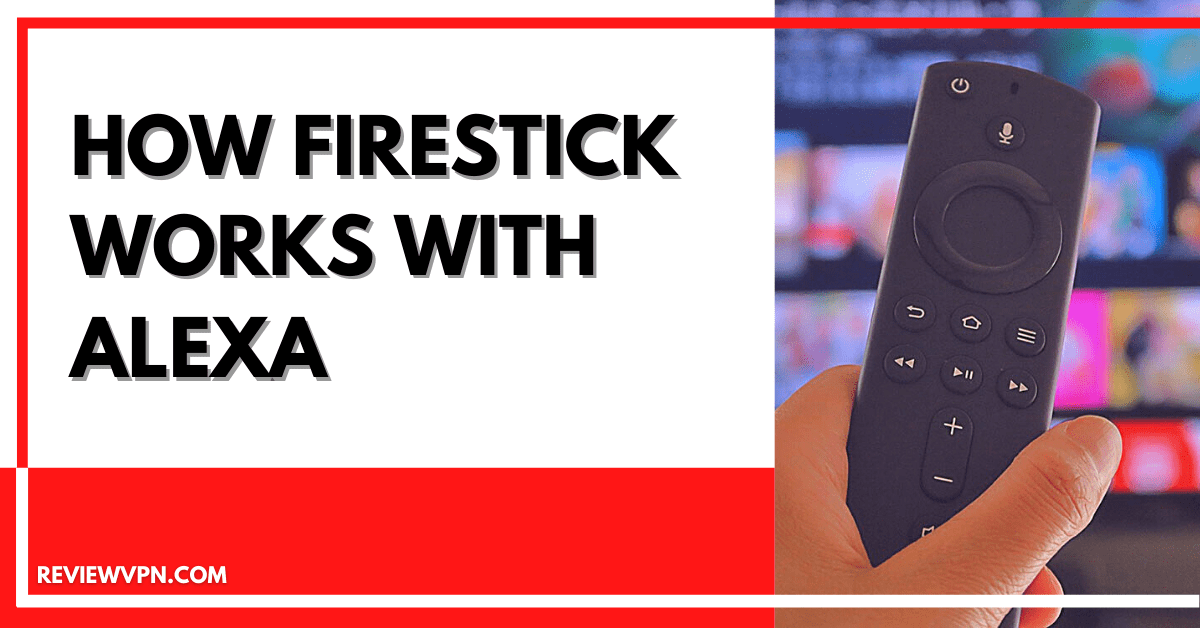
Parts of Alexa Voice-Controlled Remote

  • Voice Button
  • Navigation Scroll Buttons
  • Back Button
  • Home Button
  • Menu Button
  • Fast Forward Button
  • Rewind Button
  • Play or Pause Button
  • Increase Volume Button
  • Decrease Volume Button
  • Mute Button


Issuing Commands to the Alexa Remote

  1. Press on the Microphone button on your Fire TV stick remote.
  2. Wait for the Blue light to blink, this means that Alexa is activated and can receive audio signals.
  3. Speak clearly on your remote’s microphone, begin with “Alexa, (issue command)” while pressing on the Microphone button.
 

Alexa Voice Control Commands for the Fire TV stick

We have a list of known voice control commands for the Fire TV stick.

1. Control your Fire TV stick: “Alexa, [Say Command] on Fire TV“.

    • Pause
    • Play
    • Resume
    • Stop
    • Fast-forward
    • Rewind

2. Find movies and TV shows:

    • Alexa, search for [movie or TV show title] on Fire TV“.
    • Alexa, find [movie or TV show title] on Fire TV.”

3. Search for movies or shows done by actors and actresses:

    • Alexa, show me titles with [actor] on Fire TV.”

4. Open Fire TV stick apps:

    • Alexa, open [app name] on Fire TV” or “Alexa, launch [app name] on Fire TV.”

5. Go back to your Fire TV stick’s home screen:

    • Alexa, return home.


YOUR INTERNET ACTIVITY IS BEING WATCHED

ReviewVPN cannot attest to the legality, security and privacy of the applications discussed on this site. It is highly recommended that you use a VPN service while streaming or using Kodi.

Currently, your IP 216.73.216.221 is visible to everyone and your Browser is being tracked by Advertisers & ISP Provider.

Save 65% Now

Limited Time Offer

Here are the main reasons why you must use a VPN:

  • Your activities are hidden from your ISP, the government, and from the apps you are using.
  • You can access additional movies and TV streams.
  • ISP attempts to throttle are thrwarted thus reducing buffering issues.
  • Geographically restricted content like Netflix and Hulu can be unblocked.

A VPN works be replacing your ISP-assigned IP address and creating an encrypted tunnel. We recommend the no log service offered by IPVanish. It works well on a Firestick and offers the fastest possible speeds.

Special Limited Time Offer - Get IPVanish


Use your Mobile Device as an Alternative Remote

Aside from having its own Alexa remote, you can also control the Fire TV stick with the Alexa mobile application. It is an app compatible with mobile devices. After installing the app, you can use the voice controls of your phone to work with Alexa. Now, your mobile device functions as another remote for your Fire TV stick.

How to connect your Fire TV stick with the Alexa app:

  1. Install the Alexa app on your mobile device.
  2. Open the Alexa app on your Android or iOS mobile device. 
  3. Search for the Menu button on the upper left side part of the screen. 
  4. Tap on the Menu button. 
  5. Select the Fire Stick option found on the video selection. 
  6. Connect your Fire TV stick with the Alexa app by tapping on the Connect your Alexa device prompt.
  7. All detectable Fire TV options will be shown to you. 
  8. Choose any device you want to connect with the Alexa app. 
  9. Your screen will display a list of devices connected with the Alexa app. 
  10. Pick one or more from the list of devices that you want to run with the Fire TV Stick. 
  11. Finally, click on the Linked Devices button.


Use Fire TV Stick with a VPN

The Amazon Fire TV stick is the best device for streaming online videos. Install apps that you want for watching TV shows and movies. You can also install other apps for many purposes.

Unfortunately, your streaming activities are tracked by your ISP. They will reduce your internet speed to prevent the overloading of their servers. 

Installing Surfshark will prevent ISP throttling protocols. The VPN has many benefits to offer you:

  • Access geo-restricted content.
  • Conceals your internet traffic.
  • Protects your connection from cyber threats.
  • Improves streaming speeds.
  • Smooth video streaming without disturbances.


Grab your subscription now!

Click here to get the lowest price on Surfshark through our exclusive limited-time offer.


How to Install Surfshark VPN on Firestick

If your Firestick still has the older interface, read this article to learn how to update it: Update Firestick Interface.

Follow our screenshots below to install the SurfShark VPN app on your Fire TV stick.

1. Go to the Home screen of your Firestick.

step 1 Install Surfshark VPN on Firestick


2. Navigate towards the Find tab. Press the Search button from the resulting dropdown.

step 2 Install Surfshark VPN on Firestick


3. Type in the keyword of SurfShark and select from the suggestions that will appear.

step 3 Install Surfshark VPN on Firestick


4. Click the official SurfShark icon from your search results.

step 4 Install Surfshark VPN on Firestick


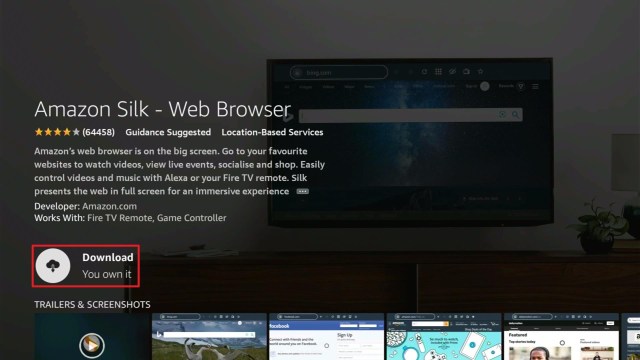
5. Press the Download (You own it) button.

step 5 Install Surfshark VPN on Firestick


6. The SurfShark VPN installer will download on your device.

step 6 Install Surfshark VPN on Firestick


7. SurfShark VPN’s app will automatically install itself on your Fire TV stick.

step 7 Install Surfshark VPN on Firestick


8. Press the Open button after completing SurfShark VPN’s installation process.

step 8 Install Surfshark VPN on Firestick


9. Please wait for the SurfShark VPN to load its user interface.

step 9 Install Surfshark VPN on Firestick


10. You can now log in with your SurfShark VPN account credentials.

step 10 Install Surfshark VPN on Firestick

Learn more about Surfshark and Grab the Best Surfshark Deal Now!


Install Surfshark on Firestick

Best Surfshark Deal


Other VPNs to Consider

NordVPN (Best for Streaming)

Best Features

  • 5000+ Server in 50+ Countries 
  • Military-Grade Encryption
  • Fast Connection Speed
  • Suitable to a lot of devices
  • No-Log Policy

Prices
  • Complete $5.89 per month (64% Discount)
  • Plus $4.59 per month (56% Discount)
  • Standard $3.69 per month (55% Discount)

Best Features

  • 750+ High-speed VPN Servers in 43 Locations
  • Military-Grade Encryption
  • Fastest HD Streaming and Gaming
  • 30-Day Money-Back Guarantee
  • Unlimited Data & Devices
  • No-Log Policy

Prices
  • 3 Years $1.99 per month (82% Discount)
  • 1 Years $3.29 per month (70% Discount)
  • 1 Month $10.99 per month

IPVanish VPN (Most Secure)

Best Features

  • 1200+ Servers in 60+ Countries around the world
  • Unlimited Connections
  • No-Log Policy
  • Top Notch Military-Grade VPN Protocols and Encryptions
  • 100% Safe and Secured
  • Most Trusted VPN
  • Best VPN for Firestick
  • 30-Day Money-Back Guarantee

Prices
  • Yearly $3.99 per month (63% Discount) – 30 days risk free + Ransomware & Malware Protection
  • Quarterly $5.32 per month (51% Discount)
  • Monthly $10.99 per month


For more VPN discounts, go to ReviewVPN Deals and purchase the best VPN for you.

Click here to get the lowest price on Surfshark through our exclusive limited-time offer.


FAQs

Are there any other ways to access Alexa?

Yes, Amazon has made Alexa accessible through many methods. These are:

  • Alexa app for Android and iOS mobile devices.
  • Amazon’s Shopping and music app.
  • Asking your computer’s Cortana to “Open Alexa.” after the connection begins.


Can I use the Amazon Smart Echo Speaker with Alexa?

Yes. Alexa is present in nearly every Amazon device. Just say “Alexa, [issue Command]”, and then your device will summon Alexa.


Conclusion

The Fire TV stick is a wonderful invention that joins the ranks of modern streaming devices. You can control your Fire TV stick with its Bluetooth Alexa voice-controlled remote. Your mobile device can also become your Fire TV stick’s remote by installing the mobile Alexa application.

We hope that this article teaches you about how your Fire TV stick works with Alexa.

What to Do When Firestick Says No Signal

Overview

This article will show you what to do with the Firestick No Signal problem.

Do you see the No Signal warning on your TV screen when you are using the Fire TV stick? If yes, then you’ve come across the right article. Be sure to read this article to completion to solve your Firestick No Signal problem.


The Firestick No Signal error is a common problem with many users of the Fire TV stick. We’re glad to inform you that you are not alone in this problem. Here at ReviewVPN, we have simulated some errors that you might encounter while using your Fire TV stick. The No Signal problem is one of them.

After testing and some troubleshooting, we will first discuss the possible causes of the problem. We will then list down some solutions. Nonetheless, these are methods you can take to prevent or fix the No Signal problem while using the Fire TV stick.

The steps we will give you are easy to follow and apply. We want to warn you to just be careful as you detach and attach some cables or perform some physical checks on your Fire TV stick and TV set.


ANONYMOUSLY


Why does your Fire TV Stick Display the No Signal Error?


firestick


While using your Fire TV stick, two display errors commonly occur. Your TV screen might show the No Signal warning. Another issue is that the Amazon Firestick has No Signal on HDMI. There are many reasons why these two scenarios suddenly happen.

However, we will now discuss all the possible reasons why your screen shows: Amazon Firestick No Signal on HDMI.


HDCP Signal Issues

HDCP stands for High-bandwidth Digital Content Protection. It is a new technology invented by the Intel Corporation. It has taken the form of a connectable cable between your streaming device and your smart TV monitor. The main goal of HDCP is the prevention of copying original digital audio and video content as they travel across the cable.

Nonetheless, some modern-day streamers use TV sets with ports for the HDCP cable. There are still cases where some people use old TV sets not compatible with HDCP technology. Their chances of encountering some HDCP issues are high. The HDCP error is a common problem where a person cannot receive video signals. This would result in the Firestick No Signal warning screen.


Solutions:

Purchase a Smart TV set

Modern Smart TV sets have built-in ports supporting the HDCP features. Keep in mind that many media companies support the inclusion of HDCP technology throughout many devices. However, the Amazon Fire TV stick is of no exemption.


Get an HDCP Converter

Getting yourself an HDCP Converter is an affordable option rather than buying a new TV set. Be aware that many cable connections can also affect the audio and visual display of your Fire TV stick.

An HDCP converter improves the compatibility between new HDMI 2.0 sources and older HDMI 1.4 displays. These devices convert the HDCP 2.2 signal to become an HDCP 1.4 signal. The HDCP 1.4 signal can then be read by older HDMI 1.4 monitors.


YOUR INTERNET ACTIVITY IS BEING WATCHED

ReviewVPN cannot attest to the legality, security and privacy of the applications discussed on this site. It is highly recommended that you use a VPN service while streaming or using Kodi.

Currently, your IP 216.73.216.221 is visible to everyone and your Browser is being tracked by Advertisers & ISP Provider.

Save 65% Now

Limited Time Offer

Here are the main reasons why you must use a VPN:

  • Your activities are hidden from your ISP, the government, and from the apps you are using.
  • You can access additional movies and TV streams.
  • ISP attempts to throttle are thrwarted thus reducing buffering issues.
  • Geographically restricted content like Netflix and Hulu can be unblocked.

A VPN works be replacing your ISP-assigned IP address and creating an encrypted tunnel. We recommend the no log service offered by IPVanish. It works well on a Firestick and offers the fastest possible speeds.

Special Limited Time Offer - Get IPVanish


Loose HDMI Cables

Let us first understand what HDMI means, and what these types of cables can do. HDMI is the acronym for High-Definition Multimedia Interface.

To simplify its concept, the cable lets you transmit both high-quality digital audio and video signals simultaneously. The HDMI cable is the standard for modern computers, TV cable boxes, TV monitors, computer monitors, and projectors.

Some people have many device connections while using their Fire TV stick. They may not notice that their HDMI cable is not securely attached to the ports of their TV monitors. There are also some cases where movement may displace the attachment of the HDMI cable.

One typical reason for the No Signal problem is loose or detached HDMI cables.

Solutions:

Check your HDMI Attachment

The HDMI Cable has a slim plug that fits with the HDMI ports of your TV monitor. Upon purchasing a new Fire TV stick, it has an HDMI cable that has both female and male ends. It means that you can extend your Fire TV stick connection with a longer cable.

Many people go for this option. However, there are times when the HDMI socket and plug are not attached completely. Some cables loosen due to a wrong set-up, cable weight, cable tension (if hanging), or being dislocated by external movement.

Your first troubleshooting task is checking these factors:

  • HDMI cables and ports are attached tightly.
  • Your HDMI cables do not have some form of damage (scratches, cuts, scrapes, etc.)

You can then figure out if you have to unplug all connections. After detaching your Fire TV stick HDMI cable from your TV port, re-attach it securely. Boot up your Fire TV stick and check if it displays your home screen or successfully plays any online video.


Using the Wrong Fire TV stick Connection

When you purchase the Fire TV stick, it comes with a USB Power cable. This cable should be attached to the power socket of your Fire TV stick, while the other end is plugged into an electrical outlet.

Some people mistake that the Fire TV stick’s USB cable can be used to display videos with their TV monitors. They would plug in the USB Power cable to the USB ports of their TV monitors. This results in the No Signal error appearing.


Solutions:

Attach your Fire TV Stick Cables to their Corresponding Ports

Fire TV Stick USB Power Cable

The Fire TV stick’s USB Power Cable is responsible for supplying an adequate amount of electricity to your device. One end should be attached to your Fire TV stick’s power socket, while the other end should be plugged into an electrical socket.


Fire TV stick HDMI Cable

Your Fire TV stick has an HDMI cable. It has both female and male socket ends. You should ensure that your Fire TV stick is attached to the female end. Then, you will then attach the male end of your HDMI cable to the HDMI port of your TV monitor.


Use Fire TV Stick with a VPN

https://get.surfshark.net/aff_c?offer_id=865&aff_id=12312

The Amazon Fire TV stick is an excellent invention for streaming online videos. Users can install apps for streaming TV shows and movies. You can also install other apps with various functions.

Unfortunately, your ISP monitors your streaming activities. They will decrease your internet speed.

IP can stop the effects of ISP throttling. Aside from that, it has many features to share:

  • Gives you consistent internet speeds.
  • Hides your internet traffic through virtual tunnels.
  • Protects you from harmful malware.
  • Buffering and stuttering are no longer occurring.


How to Install Surfshark VPN on Firestick

If your Firestick still has the older interface, read this article to learn how to update it: Update Firestick Interface.

You can download Surfshark directly from the Amazon App store. It will be easy for you to find Surfshark with your Firestick’s Find feature. Refer to our screenshots below.

1. Go to the Home screen of your Firestick.

step 1 Install Surfshark VPN on Firestick


2. Navigate towards the Find tab. Press the Search button from the resulting dropdown.

step 2 Install Surfshark VPN on Firestick


3. Type in the keyword of SurfShark and select from the suggestions that will appear.

step 3 Install Surfshark VPN on Firestick


4. Click the official SurfShark icon from your search results.

step 4 Install Surfshark VPN on Firestick


5. Press the Download (You own it) button.

step 5 Install Surfshark VPN on Firestick


6. The SurfShark VPN installer will download on your device.

step 6 Install Surfshark VPN on Firestick


7. SurfShark VPN’s app will automatically install itself on your Fire TV stick.

step 7 Install Surfshark VPN on Firestick


8. Press the Open button after completing SurfShark VPN’s installation process.

step 8 Install Surfshark VPN on Firestick


9. Please wait for the SurfShark VPN to load its user interface.

step 9 Install Surfshark VPN on Firestick


10. You can now log in with your SurfShark VPN account credentials.

step 10 Install Surfshark VPN on Firestick

Learn more about Surfshark and Grab the Best Surfshark Deal Now!


Install Surfshark on Firestick

Best Surfshark Deal


Other VPNs to Consider

NordVPN (Best for Streaming)

Best Features

  • 5000+ Server in 50+ Countries 
  • Military-Grade Encryption
  • Fast Connection Speed
  • Suitable to a lot of devices
  • No-Log Policy

Prices
  • Complete $5.89 per month (64% Discount)
  • Plus $4.59 per month (56% Discount)
  • Standard $3.69 per month (55% Discount)

Best Features

  • 750+ High-speed VPN Servers in 43 Locations
  • Military-Grade Encryption
  • Fastest HD Streaming and Gaming
  • 30-Day Money-Back Guarantee
  • Unlimited Data & Devices
  • No-Log Policy

Prices
  • 3 Years $1.99 per month (82% Discount)
  • 1 Years $3.29 per month (70% Discount)
  • 1 Month $10.99 per month

IPVanish VPN (Most Secure)

Best Features

  • 1200+ Servers in 60+ Countries around the world
  • Unlimited Connections
  • No-Log Policy
  • Top Notch Military-Grade VPN Protocols and Encryptions
  • 100% Safe and Secured
  • Most Trusted VPN
  • Best VPN for Firestick
  • 30-Day Money-Back Guarantee

Prices
  • Yearly $3.99 per month (63% Discount) – 30 days risk free + Ransomware & Malware Protection
  • Quarterly $5.32 per month (51% Discount)
  • Monthly $10.99 per month


For more VPN discounts, go to ReviewVPN Deals and purchase the best VPN for you.

Click here to get the lowest price on Surfshark through our exclusive limited-time offer.


Conclusion

The No Signal warning typically pops up on the TV monitors of Fire TV stick users. The Firestick No Signal is a common problem that many people have encountered. Fortunately, the Firestick No Signal problem is normal and appears due to wrong cable connections or incompatible technologies.

Nonetheless, we hope this article helps you fix the Firestick No Signal problem.

Firestick Freezes: What are Reasons and the Best Solutions to Do

Overview

In this article, we will show you what to do when your Firestick freezes.


Did you encounter a situation where your Fire TV stick gets stuck? If yes, then we understand the Firestick Freezes problem you are experiencing. We agree that it can really be a frustrating episode. However, you are not the only person to have their Fire TV stick suddenly frozen.

Generally, it is a problem that users of the device commonly report. When your Firestick freezes, it can hinder your streaming activities. The freezing of the device happens frequently worldwide. It is just annoying that it chooses to get stuck during the important moments of the show.

Sometimes, the devices suddenly stop during a film’s climax! If you are wondering how to unfreeze your Fire TV stick, then you’ve come across the right webpage. Here at ReviewVPN, we test many apps and programs. This also applies to troubleshooting some issues that your Fire TV stick might encounter. Your Firestick freezes due to many possible reasons. We will discuss each of them and tell you about the adequate solutions for each one.


ANONYMOUSLY

Why does your Fire TV Stick Freeze?

There are many factors to consider when troubleshooting a Fire TV stick that freezes. It might revolve around a software problem. Sometimes, the connections and hardware of your Fire TV stick may also encounter malfunctions. We will now discuss each possible problem and its corresponding solutions.


Out of Storage

The Fire TV stick has built-in storage for applications you want to install. The present storage capacity of your Fire TV stick totals 8 Gigabytes (GB).

If we consider all the apps you download, each installation file can be kept inside your device storage. This also happens when you sideload an app using the Fire TV Stick’s Downloader app. All the installers you have may pool up inside the memory of your device.

Aside from storing many app installers, your device uses some of its free space to keep records of its history. It also logs the latest states of your applications. They might show as available space, but actually, your device is using the extra memory.

When all the app installer APKs you forgot to delete pile up, they may take a large portion of your disk space. It causes your Fire TV stick to suddenly freeze out of the blue.


Solutions:

Uninstall Applications

1. Go to your Fire TV stick’s Settings tab.

Uninstall Applications 1


2. Select the Applications window.

Uninstall Applications 2


3. Check your Fire TV stick’s storage consumption at the right pane.

Uninstall Applications 3


4. Tap on Managed Installed Applications.

Uninstall Applications 4


5. Select any app you are not using.

Uninstall Applications 5


6. Use the middle button of your remote’s scroll button group.

Uninstall Applications 6


7. Scroll down and press on the Uninstall option.

Uninstall Applications 7


8. Apps will be removed from your Fire TV stick.


Empty your Downloader App’s storage

1. Scroll to your Downloader app.

Empty your Downloader App's Storage 1


2. Click on the Files section.

Empty your Downloader App's Storage 2


3. Choose any app installer you want to remove.

Empty your Downloader App's Storage 3


4. Click on your Remote’s Menu button.

Empty your Downloader App's Storage 4


5. Select Delete from the prompt.

Empty your Downloader App's Storage 5

6. Any apps APK installer will be deleted from your Fire TV stick.


YOUR INTERNET ACTIVITY IS BEING WATCHED

ReviewVPN cannot attest to the legality, security and privacy of the applications discussed on this site. It is highly recommended that you use a VPN service while streaming or using Kodi.

Currently, your IP 216.73.216.221 is visible to everyone and your Browser is being tracked by Advertisers & ISP Provider.

Save 65% Now

Limited Time Offer

Here are the main reasons why you must use a VPN:

  • Your activities are hidden from your ISP, the government, and from the apps you are using.
  • You can access additional movies and TV streams.
  • ISP attempts to throttle are thrwarted thus reducing buffering issues.
  • Geographically restricted content like Netflix and Hulu can be unblocked.

A VPN works be replacing your ISP-assigned IP address and creating an encrypted tunnel. We recommend the no log service offered by IPVanish. It works well on a Firestick and offers the fastest possible speeds.

Special Limited Time Offer - Get IPVanish


Legal Disclaimer: ReviewVPN.com does not encourage or endorse any illegal activity involved in the usage of services and applications referenced on this site. We do not verify the licensing agreements of services. The end-user is wholly responsible for ensuring that any media accessed through these services does not violate copyright and/or licensing laws. ReviewVPN does not promote, link to, or receive compensation from any Apps and IPTV services.


Install Surfshark on Firestick

Best Surfshark Deal


Clear an App’s cache

1. Go to your Fire TV stick’s Settings tab.

Clear an App's cache 1


2. Select the Applications window.

Clear an App's cache 2


3. Click on Managed Installed Applications.

Clear an App's cache 3


4. Choose an app for cache clearing.

Clear an App's cache 4


5. Use the middle button of your remote’s scroll button group.

Clear an App's cache 5


6. Select Clear Cache from the list of options.

Clear an App's cache 6


Buffering

While streaming random videos from the internet, your Fire TV stick temporarily stores downloadable chunks of content.

To explain further, it is similar whenever you watch a small video clip from YouTube. You will notice that the video progress bar loads the entire length of the clip. Behind the scenes, your device downloads small portions of the video.

It is similar to your Fire TV stick. When you get to a portion where the next part is still loading, the buffering icon will appear on your screen. People mistake this situation as freezing of their Fire TV stick, but actually, your device is trying to get additional data from the source of the video.


Solutions:

Restart your Fire TV stick:

1. Go to your Fire TV stick’s home screen.

Restart your Fire TV stick 1


2. Navigate towards its Settings tab.

Restart your Fire TV stick 2


3. Select the My Fire TV tab.

Restart your Fire TV stick 3


4. Scroll down and press on the Restart option.

Restart your Fire TV stick 4


5. Wait until your Fire TV stick reboots itself.


Malfunctioning Fire TV stick Remote

In some cases, people mistake Fire TV stick freezing when it does not respond to commands from your remote. If your Fire TV stick successfully opens and shows the home screen, then it is working. Sometimes, we mistake the miscommunication of our Fire TV stick and its remote with freezing.

The Fire TV stick’s remote is powered by two triple-A batteries. Time can pass by without you realizing that the remote is out of charge. It will cause your remote not to communicate with your Fire TV stick.


Solution:

  1. Open the back of your Fire TV stick’s remote.
  2. Replace the batteries with a new pair.
  3. Check if your Fire TV stick will respond to its remote.


Use Fire TV Stick with a VPN

The Amazon Fire TV stick is the best device for streaming online videos. Install apps that you want for watching TV shows and movies. You can also install other apps for many purposes.

Unfortunately, ISPs may impede your streaming rate. We recommend you get Surfshark to stop ISP throttling. It also has many benefits to perform:

  • Allows for a faster internet connection.
  • Conceals your private history.
  • Drives your traffic through virtual tunnels.
  • Gives you access around geo-restrictions.
  • You may no longer experience buffering and stuttering.

Note: For more information about Surfshark, please read our Surfshark Review.


Install Surfshark on Firestick

Best Surfshark Deal


How to Install Surfshark VPN on Firestick

If your Firestick still has the older interface, read this article to learn how to update it: Update Firestick Interface.

Follow our screenshots below to install the SurfShark VPN app on your Fire TV stick.

1. Go to the Home screen of your Firestick.

step 1 Install Surfshark VPN on Firestick


2. Navigate towards the Find tab. Press the Search button from the resulting dropdown.

step 2 Install Surfshark VPN on Firestick


3. Type in the keyword of SurfShark and select from the suggestions that will appear.

step 3 Install Surfshark VPN on Firestick


4. Click the official SurfShark icon from your search results.

step 4 Install Surfshark VPN on Firestick


5. Press the Download (You own it) button.

step 5 Install Surfshark VPN on Firestick


6. The SurfShark VPN installer will download on your device.

step 6 Install Surfshark VPN on Firestick


7. SurfShark VPN’s app will automatically install itself on your Fire TV stick.

step 7 Install Surfshark VPN on Firestick


8. Press the Open button after completing SurfShark VPN’s installation process.

step 8 Install Surfshark VPN on Firestick


9. Please wait for the SurfShark VPN to load its user interface.

step 9 Install Surfshark VPN on Firestick


10. You can now log in with your SurfShark VPN account credentials.

step 10 Install Surfshark VPN on Firestick

Learn more about Surfshark and Grab the Best Surfshark Deal Now!


Install Surfshark on Firestick

Best Surfshark Deal


Other VPNs to Consider

NordVPN (Best for Streaming)

Best Features

  • 5000+ Server in 50+ Countries 
  • Military-Grade Encryption
  • Fast Connection Speed
  • Suitable to a lot of devices
  • No-Log Policy

Prices
  • Complete $5.89 per month (64% Discount)
  • Plus $4.59 per month (56% Discount)
  • Standard $3.69 per month (55% Discount)

Best Features

  • 750+ High-speed VPN Servers in 43 Locations
  • Military-Grade Encryption
  • Fastest HD Streaming and Gaming
  • 30-Day Money-Back Guarantee
  • Unlimited Data & Devices
  • No-Log Policy

Prices
  • 3 Years $1.99 per month (82% Discount)
  • 1 Years $3.29 per month (70% Discount)
  • 1 Month $10.99 per month

IPVanish VPN (Most Secure)

Best Features

  • 1200+ Servers in 60+ Countries around the world
  • Unlimited Connections
  • No-Log Policy
  • Top Notch Military-Grade VPN Protocols and Encryptions
  • 100% Safe and Secured
  • Most Trusted VPN
  • Best VPN for Firestick
  • 30-Day Money-Back Guarantee

Prices
  • Yearly $3.99 per month (63% Discount) – 30 days risk free + Ransomware & Malware Protection
  • Quarterly $5.32 per month (51% Discount)
  • Monthly $10.99 per month


For more VPN discounts, go to ReviewVPN Deals and purchase the best VPN for you.


Alternative Solutions

Your Firestick freezes during times you do not expect. If the methods above do not solve the problem, we have two alternative solutions that can work. Take note that the changes made by these solutions are permanent and irreversible.

Clear the Cache of your Amazon App Store

The Amazon App store is the backbone of your Fire TV stick. Here you can download compatible apps made for your Fire TV stick. The app’s cache plays a vital role in its overall performance. It stores and logs all the apps you have inside your Fire TV stick. Follow the instructions below to clear its cache.

  1. Open your Fire TV stick’s home screen.
  2. Select the Settings tab.
  3. Click on the Applications tab.
  4. Choose Managed Installed Applications.
  5. Scroll down to the Appstore’s official icon.
  6. Press the middle button of your remote’s scroll button group.
  7. Scroll towards the Clear cache option.
  8. Your Appstore’s cache will be cleared with your latest input.


Perform a Factory Reset

The Fire TV stick can be cleared of junk files when you perform a complete Factory Reset. It will render your Fire TV stick to its basic functions. All the apps you have will be gone. You can restore your apps if you input your Amazon account credentials. Choose to sync your device and account if you want to restore its previous settings.

  1. Open your Fire TV stick’s home screen.
  2. Select the Settings tab.
  3. Choose the My Fire TV section.
  4. Scroll down towards the Reset to Factory Defaults option.


Conclusion

The Amazon Fire TV stick is a great invention for streaming online videos. However, the device is prone to freezing and getting stuck. People typically report this problem and few solutions can be found online.

We hope this article helps you on what to do when your Firestick freezes. 

How to Clear Data on Firestick

Overview

In this article we will show you on How to Clear Data on Firestick.

The Firestick has been one of Amazon’s sensational devices to be released. This streaming device provides an opportunity for people to watch their favorite movies, TV shows, & more that is accessed via the internet on the television. The Amazon Firestick is available with remote control as well. Additionally, the streaming device supports video games.


Many apps can be found on the internet. There could be scenarios where you will find some storage problems during new apps installation. Also, the FireStick device has an internal storage of about 8GB among which 5 to 6 gigabytes of storage is only available for installation of apps. Thus, it is really important to free up some storage. The best possible means of solving this issue is to delete the saved data from the installed apps. 


ANONYMOUSLY


Clear Data on Your Firestick

1. Head to the Firestick’s main menu.

main menu

2. Go to the Settings menu.

settings menu


3. Select the Applications menu.

applications


4. Choose Manage Installed Applications. 

Manage Installed Applications


5. Select an app to clear its cache.

Select an app to clear its cache


6. Then, Clear Data.

clear data


Removing the cache of an application on the Firestick will usually let the app start functioning correctly again. However, you may need to select the remove data option, or even get rid of the app and download it again. 

If the Firestick or other Fire TV devices still does not function properly after removing the cache of each app individually, you may factory reset the device to remove all of the stored data. This affects the entire Firestick instead of only fixing one application at a time.

Nonetheless, don’t perform the factory reset method if you only want to clear the cache on a couple of apps. The factory reset process will return the Firestick to the settings the device had when it was first purchased, which will eliminate all of your apps.


Unofficial Apps on Firesticks Eats up Significant Cache

Firesticks frequently slow down the most when users have installed unofficial applications, such as Kodi. Thus, if you are running a Firestick that you have equipped with tons of apps as well as other add-ons, it is important to regularly remove the app cache. Sadly, you can’t perform a mass-delete on Firestick. Users have to clear the cache for each app individually.

Clear Data Option

REMEMBER: If you are deleting cache in any application, make sure to hit the Clear data option. Choosing the Clear Data option removes the app, from preferences & customizations to cached & saved data. This method will bring back the app to its factory defaults. Assuming you have removed everything, your Firestick device should function much faster. Also, you will have more storage space for downloading & installing other applications.


Always clear data on your Firestick to get the Kodi app to launch

If you’ve installed Kodi on Firestick, there’s a possibility that every 2 to 3 weeks the media player software app will stop working on Firestick. The only way to get Kodi to work again is to delete the cache as well as data. Deleting only the cache does not fix the Firestick slow performance issue. However, this could be annoying because you have to set everything up again, which includes numerous profiles. 

Nonetheless, there are instances that the cause of the Firestick slow performance issue is not Kodi addons. The issue might be the movie thumbnails that the app is downloading. 


YOUR INTERNET ACTIVITY IS BEING WATCHED

ReviewVPN cannot attest to the legality, security and privacy of the applications discussed on this site. It is highly recommended that you use a VPN service while streaming or using Kodi.

Currently, your IP 216.73.216.221 is visible to everyone and your Browser is being tracked by Advertisers & ISP Provider.

Save 65% Now

Limited Time Offer

Here are the main reasons why you must use a VPN:

  • Your activities are hidden from your ISP, the government, and from the apps you are using.
  • You can access additional movies and TV streams.
  • ISP attempts to throttle are thrwarted thus reducing buffering issues.
  • Geographically restricted content like Netflix and Hulu can be unblocked.

A VPN works be replacing your ISP-assigned IP address and creating an encrypted tunnel. We recommend the no log service offered by IPVanish. It works well on a Firestick and offers the fastest possible speeds.

Special Limited Time Offer - Get IPVanish


Always Use A VPN While Using The Amazon Firestick

Using Virtual Private Network or VPN can be very handy on a Firestick. Thanks to a VPN service, you can access platforms or services that are unavailable in your country or bypass the meaningless restrictions that several platforms sometimes impose. When you use Amazon Firestick, an encrypted Virtual Private Network service provider is highly recommended to hide your online activities, identity, and location. Many Firestick or Fire TV Stick users prefer Surfshark service for privacy, price, and speed.

Providing the fastest server speeds and amazing live chat support, Surfshark is also an easy-to-use VPN app. Make sure to enable the VPN service when you are streaming on the internet.

Surfshark Features:

  • Unblocks Netflix, Disney+, and lots more
  • Unlimited simultaneous devices
  • 30-day money-back guarantee
  • Robust encryption
  • Great download speed
  • Zero log policy
  • Great customer service
  • Compatible with Android, Windows, Linux, iOS, Mac, and other routers


How to Install Surfshark VPN on Firestick

If your Firestick still has the older interface, read this article to learn how to update it: Update Firestick Interface.

Follow our screenshots below to install the SurfShark VPN app on your Fire TV stick.

1. Go to the Home screen of your Firestick.

step 1 Install Surfshark VPN on Firestick


2. Navigate towards the Find tab. Press the Search button from the resulting dropdown.

step 2 Install Surfshark VPN on Firestick


3. Type in the keyword of SurfShark and select from the suggestions that will appear.

step 3 Install Surfshark VPN on Firestick


4. Click the official SurfShark icon from your search results.

step 4 Install Surfshark VPN on Firestick


5. Press the Download (You own it) button.

step 5 Install Surfshark VPN on Firestick


6. The SurfShark VPN installer will download on your device.

step 6 Install Surfshark VPN on Firestick


7. SurfShark VPN’s app will automatically install itself on your Fire TV stick.

step 7 Install Surfshark VPN on Firestick


8. Press the Open button after completing SurfShark VPN’s installation process.

step 8 Install Surfshark VPN on Firestick


9. Please wait for the SurfShark VPN to load its user interface.

step 9 Install Surfshark VPN on Firestick


10. You can now log in with your SurfShark VPN account credentials.

step 10 Install Surfshark VPN on Firestick

Learn more about Surfshark and Grab the Best Surfshark Deal Now!


Install Surfshark on Firestick

Best Surfshark Deal


Other VPNs to Consider

NordVPN (Best for Streaming)

Best Features

  • 5000+ Server in 50+ Countries 
  • Military-Grade Encryption
  • Fast Connection Speed
  • Suitable to a lot of devices
  • No-Log Policy

Prices
  • Complete $5.89 per month (64% Discount)
  • Plus $4.59 per month (56% Discount)
  • Standard $3.69 per month (55% Discount)

Best Features

  • 750+ High-speed VPN Servers in 43 Locations
  • Military-Grade Encryption
  • Fastest HD Streaming and Gaming
  • 30-Day Money-Back Guarantee
  • Unlimited Data & Devices
  • No-Log Policy

Prices
  • 3 Years $1.99 per month (82% Discount)
  • 1 Years $3.29 per month (70% Discount)
  • 1 Month $10.99 per month

IPVanish VPN (Most Secure)

Best Features

  • 1200+ Servers in 60+ Countries around the world
  • Unlimited Connections
  • No-Log Policy
  • Top Notch Military-Grade VPN Protocols and Encryptions
  • 100% Safe and Secured
  • Most Trusted VPN
  • Best VPN for Firestick
  • 30-Day Money-Back Guarantee

Prices
  • Yearly $3.99 per month (63% Discount) – 30 days risk free + Ransomware & Malware Protection
  • Quarterly $5.32 per month (51% Discount)
  • Monthly $10.99 per month


For more VPN discounts, go to ReviewVPN Deals and purchase the best VPN for you.

Click here to get the lowest price on Surfshark through our exclusive limited-time offer.


FAQs

What’s the advantage of clear data on Firestick?

Deleting data will get rid of any information Firestick users have kept on the app that may require them to enter their info again as well as lose game data. This will make the Firestick work much better as it frees up some storage space.


Does the Firestick eat up a lot of data?

When a person is streaming entertainment content on Firestick, the device will be using tons of data. However, there is no particular amount of data usage that can be pointed to. The ideal general count is that standard definition (SD) video will consume around 1GB of data every hour. On the other hand, high-definition (HD) video will eat up about 3GB of data every hour.


How To Check Firestick Storage Space

Usually, the Firestick will show a low storage warning when the device has 500MB left of storage space available. However, if you missed the storage space warning and you start noticing some performance-related problems on the device, you should check if it has enough storage space.


1. Head to the Firestick’s main menu. 

main menu


2. Go to the Settings menu.

settings menu


3. Go to the storage menu of FireStick and choose My Fire TV.

My Fire TV


4. Choose About.

Choose About 


5. Go to Storage.

Storage


6. Check the pane of the screen’s right-hand side to see the storage info of the device.

internal space


7. You should be able to see the storage of the Firestick available for use below the indicator bar.


Conclusion

It’s quite easy to clear data on Firestick, and the methods outlined above should really help you do so. After clearing data on your Firestick, you will be able to boost your home entertainment by streaming nearly anything you want. 

However, always remember to use A VPN every time you use the Amazon Firestick. Please feel free to let us know what you think of this article in the comments section below.

How To Watch La Liga On Firestick 

Overview

La Liga is among the most electrifying professional football leagues around the world. As per the coefficients of UEFA (Union of European Football Associations), La Liga has been the most well-known football league since 2013. As the average attendance in prestigious matches is not as inflated as the English Premier League or the EPL, the broadcasts of La Liga are watched by millions across the globe.


In this guide, we provide methods for you to stream La Liga on your FireStick device with Sling, fuboTV, & DAZN. From there, you can stream Sports channels like NBC Sports, Fox Sports, or CBS Sports where you can stream all La Liga matches live.


ANONYMOUSLY


How to Stream La Liga on FireStick with Silk Browser

1. Click Home on your remote & Select Find.

2. Click Search.


3. Type in Silk Browser and select this item that appears on the results.


4. Click on the Silk Browser Icon.


5. Choose Download.


6. Select Open to launch the browser.


7. Click on the URL section of the app


8. Type ustvgo.tv/category/sports then click Go.

Soccer


9. Choose Fox Sports 2 from the list.

Fox 2


10. Click Play to start streaming.

watch


Install Surfshark on Firestick

Best Surfshark Deal


What Is La Liga?

The Spanish football league or La Liga is Spain’s first national football league. It is one of the most famous professional sports leagues around the world. La Liga was founded in 1929 and the league has transpired every year since then – except for the Spanish Civil War (1936–1939). At La Liga’s foundation, the Spanish football league was only composed of 10 teams. 

La Liga is currently made up of 20 teams evenly extended over the country but primarily from the most developed areas, such as Barcelona, Basque, and Madrid Country. The top 4 teams will qualify for the Champions League. On the other hand, the 3 lowest placed teams will be downgraded to the second division.


Stream La Liga on Your Fire TV Stick via Sling TV

If you’re living in the U.S. then Sling TV is the best & inexpensive live streaming platform that can help you to stream La Liga (without cable) on your Firestick. The Sling TV service provides three different plans – Sling Orange, Sling Blue, as well as Sling Orange + Blue. The most inexpensive one costs $35. Nonetheless, with this plan, you will not acquire any sports channel. To obtain the sports channel needed, you must pay an extra $10 to acquire the additional sports add-on.

beIN Sports is a famous TV channel that provides various sports, which include La Liga. Thus, if you’re thinking of purchasing the Sling TV package then pay the additional $10 to acquire the beIN Sports channel to stream La Liga on your Amazon Firestick.

It’s easy to get started with Sling TV, thanks to a smooth-running payment system that agrees to receive globally recognized payment services and other major credit & debit cards. Sling TV offers a FREE trial that lets you watch a couple of football matches without paying a dime!

Sling TV: Installation Guide And Review On Firestick


YOUR INTERNET ACTIVITY IS BEING WATCHED

ReviewVPN cannot attest to the legality, security and privacy of the applications discussed on this site. It is highly recommended that you use a VPN service while streaming or using Kodi.

Currently, your IP 216.73.216.221 is visible to everyone and your Browser is being tracked by Advertisers & ISP Provider.

Save 65% Now

Limited Time Offer

Here are the main reasons why you must use a VPN:

  • Your activities are hidden from your ISP, the government, and from the apps you are using.
  • You can access additional movies and TV streams.
  • ISP attempts to throttle are thrwarted thus reducing buffering issues.
  • Geographically restricted content like Netflix and Hulu can be unblocked.

A VPN works be replacing your ISP-assigned IP address and creating an encrypted tunnel. We recommend the no log service offered by IPVanish. It works well on a Firestick and offers the fastest possible speeds.

Special Limited Time Offer - Get IPVanish


Stream La Liga on your FireStick with FuboTV

FuboTV is an awesome option for people who love to stream sports channels on their television. This American streaming television platform is the best live TV streaming platform for sports fanatics and particularly for La Liga enthusiasts. The La Liga Football league is only provided by a couple of TV channels and that is why it is suggested to use FuboTV.

FuboTV’s basic plan starts at $55 and it provides the beIN sports channel. If you want additional channels then you can pay the additional $6 to acquire Fubo Extra that comes along with a DIY network, cooking channels, and many more.

FuboTV: Installation Guide and Review on Firestick


Stream La Liga on Amazon Fire TV Stick via DAZN

You can utilize DAZN (a global over-the-top sports subscription video streaming platform) to watch La Liga on Firestick devices. If you reside in the United Kingdom, Germany, Canada, or Austria, then DAZN is a perfect choice. La Liga has worked together with DAZN and they obtain the right to broadcast La Liga.

DAZN has settled on a particular arrangement with La Liga for exclusive rights in Germany for each La Liga football match. There are no other streaming platforms that provide La Liga on Amazon Fire Stick in Germany other than DAZN. Nonetheless, the good thing is that a cable connection is not needed to sign in.

With regard to the DAZN package, you can purchase the subscription for $9.99 and it is cheaper than other live tv streaming platforms. Also, you can try the DAZN 30-day free trial before purchasing.

Apart from La Liga, DAZN also provides on-demand & live streams for AFC, Premier League, UEFA League, Bundesliga, EFL, Serie A football league, and other sports events across the globe. In Germany, people can purchase a DAZN subscription for €11.99 a month. The official app of DAZN is up for grabs in the Amazon Appstore.

Additionally, DAZN will broadcast La Liga soccer matches in Austria, Japan, San Marino, Switzerland, and Italy. The commentaries of the live broadcast are available in English, Italian, German, and Japanese languages.

How To Install DAZN On Firestick


Always Use A VPN While Using The Amazon Firestick

Using Virtual Private Network or VPN is very useful on a Firestick. Props to a VPN service, you can access platforms, services, or websites that are unavailable in your country or bypass the restrictions that many platforms impose. When you use Amazon Firestick, an encrypted VPN service provider is highly suggested to hide your online activities, identity, and location. Many Firestick users prefer Surfshark service for its price, speed, and privacy.

Providing super-fast Surfshark and great live chat support, Surfshark is also an easy-to-use app. Ensure to turn on the VPN service when you are streaming on the internet.

Surfshark Features:

  • Unlimited simultaneous devices
  • Unblocks Netflix, Disney+, and lots more
  • Robust encryption
  • Great customer service
  • 30-day money-back guarantee
  • Zero log policy
  • Great download speed
  • Compatible with Android, Windows, Linux, iOS, Mac, and other routers


Grab your subscription now!

Click here to get the lowest price on Surfshark through our exclusive limited-time offer.


How to Install Surfshark VPN on Firestick

If your Firestick still has the older interface, read this article to learn how to update it: Update Firestick Interface.

You can download Surfshark directly from the Amazon App store. It will be easy for you to find Surfshark with your Firestick’s Find feature. Refer to our screenshots below.

1. Go to the Home screen of your Firestick.

step 1 Install Surfshark VPN on Firestick


2. Navigate towards the Find tab. Press the Search button from the resulting dropdown.

step 2 Install Surfshark VPN on Firestick


3. Type in the keyword of SurfShark and select from the suggestions that will appear.

step 3 Install Surfshark VPN on Firestick


4. Click the official SurfShark icon from your search results.

step 4 Install Surfshark VPN on Firestick


5. Press the Download (You own it) button.

step 5 Install Surfshark VPN on Firestick


6. The SurfShark VPN installer will download on your device.

step 6 Install Surfshark VPN on Firestick


7. SurfShark VPN’s app will automatically install itself on your Fire TV stick.

step 7 Install Surfshark VPN on Firestick


8. Press the Open button after completing SurfShark VPN’s installation process.

step 8 Install Surfshark VPN on Firestick


9. Please wait for the SurfShark VPN to load its user interface.

step 9 Install Surfshark VPN on Firestick


10. You can now log in with your SurfShark VPN account credentials.

step 10 Install Surfshark VPN on Firestick

Learn more about Surfshark and Grab the Best Surfshark Deal Now!


Install Surfshark on Firestick

Best Surfshark Deal


Other VPNs to Consider

NordVPN (Best for Streaming)

Best Features

  • 5000+ Server in 50+ Countries 
  • Military-Grade Encryption
  • Fast Connection Speed
  • Suitable to a lot of devices
  • No-Log Policy

Prices
  • Complete $5.89 per month (64% Discount)
  • Plus $4.59 per month (56% Discount)
  • Standard $3.69 per month (55% Discount)

Best Features

  • 750+ High-speed VPN Servers in 43 Locations
  • Military-Grade Encryption
  • Fastest HD Streaming and Gaming
  • 30-Day Money-Back Guarantee
  • Unlimited Data & Devices
  • No-Log Policy

Prices
  • 3 Years $1.99 per month (82% Discount)
  • 1 Years $3.29 per month (70% Discount)
  • 1 Month $10.99 per month

IPVanish VPN (Most Secure)

Best Features

  • 1200+ Servers in 60+ Countries around the world
  • Unlimited Connections
  • No-Log Policy
  • Top Notch Military-Grade VPN Protocols and Encryptions
  • 100% Safe and Secured
  • Most Trusted VPN
  • Best VPN for Firestick
  • 30-Day Money-Back Guarantee

Prices
  • Yearly $3.99 per month (63% Discount) – 30 days risk free + Ransomware & Malware Protection
  • Quarterly $5.32 per month (51% Discount)
  • Monthly $10.99 per month


For more VPN discounts, go to ReviewVPN Deals and purchase the best VPN for you.

Click here to get the lowest price on Surfshark through our exclusive limited-time offer.


Wrapping Up

In this article, we have provided information for streaming La Liga on Amazon Firestick. The information above should really help you boost your sports entertainment by streaming nearly anything you want. 

However, always remember to use A VPN every time you use the Amazon Firestick. If you have any other streaming platforms in mind that provide La Liga streams on Amazon Firestick, don’t hesitate to let us know in the comments section.

How To Watch CricHD on FireStick

CricHD Overview

The CricHD live streaming platform lets you watch cricket matches online free of charge. This live streaming website allows you to watch big Leagues such as PSL, Big Bash League, LPL, IPL, as well as other tournaments across the globe.


There are numerous big tournaments & series available on the CricHD live streaming platform. All of the cricket action you can think of will be live-streamed on CricHD. About ten years ago, watching cricket on TV was the most popular method to enjoy cricket matches, however, the time has changed.

Most people these days want to stream Cricket matches on their mobile phones, tablets, or PCs. There are tons of ways to stream cricket on the internet and one of them is the CricHD website. In case you miss any live stream matches, CricHD provides highlights and match links to watch later.


ANONYMOUSLY


How to Stream CricHD on Amazon FireStick with Silk Browser (Video)


How to Stream CricHD on Amazon FireStick with Silk Browser

1. Click Home on your remote & Select Find.

Stream CricHD 1


2. Click Search.

Stream CricHD 2


3. Type in Silk Browser and select this item that appears on the results.

Stream CricHD 3


4. Click on the Silk Browser Icon.

Stream CricHD 4


5. Choose Download.

Stream CricHD 5


6. Select Open to launch the browser.

Stream CricHD 6


7. Click on the URL section of the app.

Stream CricHD 7


8. Enter the following URL – https://fc4.crichd.com and click Go (you may also use these alternative URLs: crichd.se, crichd.ac, or web4.crichd.ac)

Stream CricHD 8


9. Now! You’ll be able to watch sports matches on CricHD through a Firestick device with the Silk Browser.

Stream CricHD 9


YOUR INTERNET ACTIVITY IS BEING WATCHED

ReviewVPN cannot attest to the legality, security and privacy of the applications discussed on this site. It is highly recommended that you use a VPN service while streaming or using Kodi.

Currently, your IP 216.73.216.221 is visible to everyone and your Browser is being tracked by Advertisers & ISP Provider.

Save 65% Now

Limited Time Offer

Here are the main reasons why you must use a VPN:

  • Your activities are hidden from your ISP, the government, and from the apps you are using.
  • You can access additional movies and TV streams.
  • ISP attempts to throttle are thrwarted thus reducing buffering issues.
  • Geographically restricted content like Netflix and Hulu can be unblocked.

A VPN works be replacing your ISP-assigned IP address and creating an encrypted tunnel. We recommend the no log service offered by IPVanish. It works well on a Firestick and offers the fastest possible speeds.

Special Limited Time Offer - Get IPVanish


Streaming CricHD on a Computer or PC

Using CricHD on a computer or PC may be the simplest way of using the website for watching live sports online. All you have to do is open a browser on your PC and enter fc4.crichd.com.


What Is CricHD?

CricHD offers free Cricket live streaming of all the humongous International Cricket matches across the globe. Aside from that, the live streaming platform provides other live sports streaming, such as Rugby, Football, Boxing, Tennis, UFC, F1, and many more.

CricHD is a streaming service that provides live sporting events just before starting from huge TV broadcasters from the United Kingdom and Europe. These TV broadcasters include BT Sport, Sky Sports, Premier Sports, Eurosport, Hotstar, Star Sports, TSN, Sony Six, beINSports, ESPN, and many more. Nonetheless, UK users should know that they’re functioning illegally and are violating copyright laws by obtaining these live streaming TV channels. Thus, you must use a VPN service, like Surfshark, to access these live streaming channels.


CricHD Live Streaming TV Channels

CricHD provides a vast number of television channels for live transmission. There are tons of channels available as there are many sports to stream. However, if you love to stream in HD quality, then the CricHD platform is just like heaven for the reason that all channels are available in High Definition quality with nearly no buffering at all. Furthermore, as the live streaming website offers live Cricket matches, users will have to deal with some pop-up advertisements but those can be stopped by downloading & installing an ad blocker.


Here is CricHD’s TV Channels List:

  • BT Sport 1 | BT Sport 2 | BT Sport 3 | BT Sport ESPN
  • Sky Sports 1 | Sky Sports 2 | Sky Sports 3| Sky Sports 4 | Sky Sports 5
  • PTV Sports
  • Willow Cricket
  • Star Sports 1 | Star Sports 2 | Star Sports 3 | Star Sports 4
  • Fox Sports 1 | Fox Sports 2
  • ESPN UK | ESPN USA | ESPN 2
  • Sky Box Office
  • NFL Network
  • & a lot more


High Definition (HD) Quality Streams

The live sports streams that enthusiasts can watch on the CricHD platform are available in High Definition quality. For people with decent web connection speeds, watching sports streams is smooth. When you choose an event to watch, you can select between a couple of links. In a very slim chance that the link doesn’t function, you can opt from one of the other links.


A Well-Organized Interface

CricHD contains a well-organized user interface. On the face of it, it seems quite busy, however, you’ll get used to the interface very quickly. Most of the screen shows upcoming live streams, links to streams, the status of the events, and start times. 

For a more immersive experience, the live streaming platform allows you to check matchups, event schedules, match stats, and league tables. Also, the CricHD website features a chat box so that you can chat with other streamers.


Always Use A VPN While Using The Amazon Firestick

Using Virtual Private Network or VPN can be very handy on a Firestick. Thanks to a VPN service, you can access platforms or services that are unavailable in your country or bypass the meaningless restrictions that several platforms sometimes impose. When you use Amazon Firestick, an encrypted Virtual Private Network service provider is highly recommended to hide your online activities, identity, and location. Many Firestick or Fire TV Stick users prefer Surfshark service for privacy, price, and speed.

Providing the fastest server speeds and amazing live chat support, Surfshark is also an easy-to-use VPN app. Make sure to enable the VPN service when you are streaming on the internet.


Grab your subscription now!

Click here to get the lowest price on Surfshark through our exclusive limited-time offer.


How to Install Surfshark VPN on Firestick

If your Firestick still has the older interface, read this article to learn how to update it: Update Firestick Interface.

Follow our screenshots below to install the SurfShark VPN app on your Fire TV stick.

1. Go to the Home screen of your Firestick.

step 1 Install Surfshark VPN on Firestick


2. Navigate towards the Find tab. Press the Search button from the resulting dropdown.

step 2 Install Surfshark VPN on Firestick


3. Type in the keyword of SurfShark and select from the suggestions that will appear.

step 3 Install Surfshark VPN on Firestick


4. Click the official SurfShark icon from your search results.

step 4 Install Surfshark VPN on Firestick


5. Press the Download (You own it) button.

step 5 Install Surfshark VPN on Firestick


6. The SurfShark VPN installer will download on your device.

step 6 Install Surfshark VPN on Firestick


7. SurfShark VPN’s app will automatically install itself on your Fire TV stick.

step 7 Install Surfshark VPN on Firestick


8. Press the Open button after completing SurfShark VPN’s installation process.

step 8 Install Surfshark VPN on Firestick


9. Please wait for the SurfShark VPN to load its user interface.

step 9 Install Surfshark VPN on Firestick


10. You can now log in with your SurfShark VPN account credentials.

step 10 Install Surfshark VPN on Firestick

Learn more about Surfshark and Grab the Best Surfshark Deal Now!


Install Surfshark on Firestick

Best Surfshark Deal


Other VPNs to Consider

NordVPN (Best for Streaming)

Best Features

  • 5000+ Server in 50+ Countries 
  • Military-Grade Encryption
  • Fast Connection Speed
  • Suitable to a lot of devices
  • No-Log Policy

Prices
  • Complete $5.89 per month (64% Discount)
  • Plus $4.59 per month (56% Discount)
  • Standard $3.69 per month (55% Discount)

Best Features

  • 750+ High-speed VPN Servers in 43 Locations
  • Military-Grade Encryption
  • Fastest HD Streaming and Gaming
  • 30-Day Money-Back Guarantee
  • Unlimited Data & Devices
  • No-Log Policy

Prices
  • 3 Years $1.99 per month (82% Discount)
  • 1 Years $3.29 per month (70% Discount)
  • 1 Month $10.99 per month

IPVanish VPN (Most Secure)

Best Features

  • 1200+ Servers in 60+ Countries around the world
  • Unlimited Connections
  • No-Log Policy
  • Top Notch Military-Grade VPN Protocols and Encryptions
  • 100% Safe and Secured
  • Most Trusted VPN
  • Best VPN for Firestick
  • 30-Day Money-Back Guarantee

Prices
  • Yearly $3.99 per month (63% Discount) – 30 days risk free + Ransomware & Malware Protection
  • Quarterly $5.32 per month (51% Discount)
  • Monthly $10.99 per month


For more VPN discounts, go to ReviewVPN Deals and purchase the best VPN for you.


FAQs about CricHD

Does CricHD stream Live TV?

CricHD provides live TV streams mostly in High Definition quality.


What devices can CricHD be used on?

The CricHD streaming website is available for use on numerous devices such as the Amazon Firestick, Google Chromecast, PCs, Android boxes, iPhones, Android phones, and lots more.


What are the categories on CricHD?

The live streaming website offers several categories for live streaming. The categories are mostly sports-related, including Football, Basketball, Cricket, Tennis, Rugby, and much more.


Wrapping Up

In this article, we have provided information on how to watch CricHD on Amazon Firestick. The information above should help you boost your sports entertainment by streaming nearly anything you want. 

However, always remember to use A VPN every time you use the Amazon Firestick. If you have any other streaming platforms in mind that provide Cricket live streams on Amazon Firestick, don’t hesitate to let us know in the comments section.

How to Use Real Debrid on Firestick

Overview

Many people probably have heard of the unrestricted multi-hoster that lets you stream & download videos instantly, called Real-Debrid. People have seen numerous third-party streaming applications integrating the Real-Debrid for obtaining high-quality streamable videos. Not every one of a person’s favorite movies & TV shows is up for grabs on public sources. It’s important to link a Real Debrid account with such apps for a great streaming experience.

If you’ve sideloaded a third-party app on Amazon Firestick that provides Real-Debrid integration, thus certainly give it a shot. The same goes for Kodi video add-ons, as a person can stream his/her favorite on-demand videos in up to 4K resolution, given that you have a Firestick 4K & an Ultra HD TV to go with it.


What Is Real Debrid?

Real-Debrid is a downloading platform that has zero restrictions and diminishes buffering for video streaming apps that distribute entertainment content. The Real-Debrid multi-hoster service offers high-quality media links hosted on open servers. Wherein, your streaming experience will be smooth.

Real Debrid collects media links from numerous supported hosts, which include Big4Shared, Mega, Filefactory, Data File, and lots more. Each host dispenses premium videos, and tons of them will need you to pay for a subscription.


Why do you need an account on Real Debrid?

If you love streaming movies, TV series, etc., then you need a Real Debrid account.

You can stream High Definition videos on Firestick with no buffering. Having a Real Debrid account lets you fuse the multi-hoster on the Firestick device. This is because Firestick is one of the most popular streaming devices – thanks to its great functionality and the several apps you can install on it.

With Real Debrid, you will acquire new video links that are obtainable to other people. These links let you stream with speeds of up to 0.125 Gbps or 1000 Mbps. Thus, you’ll never have buffering issues.


ANONYMOUSLY


Sign Up for a Real-Debrid account

1. Head to real-debrid.com & choose Sign Up.

Real Debrid

2. Enter personal data.

Real Debrid


3. Select Sign Up.

(Note: if you do not want to utilize a personal email address, it is suggested to utilize an anonymous Email Account.)


4. You will soon receive an email allowing you to activate your account.


5. Now, the Real-Debrid registration is complete.


How to use Real Debrid with FireStick Apps

Real Debrid works well with numerous third-party Firestick applications. Setting up the multi-hoster in an app is very easy.

1. Open the app you want to partner with Real Debrid (Following is the screenshot of Nova TV where we’re going to click the menu option in the top-left corner).

Nova TV


2. The Real Debrid option is frequently located in the app Settings. The settings option is found in the main menu. Click Settings.

settings


3. Scroll down until the Real Debrid option.

Log in real debrid


4. A window accompanied by code will appear.

code


5. Open the link real-debrid.com/device in a mobile phone or computer browser.


6. Enter the code.


7. Log in to your account on Real Debrid.


8. Head back to the FireStick app.


9. You will then see that Real Debrid has been authorized.

Real Debrid has been authorized


10. Finally, you can begin streaming. Many new links will be available


Always Use A VPN While Using The Amazon Firestick

Using Virtual Private Network or VPN can be very handy on a Firestick. Thanks to a VPN service, you can access platforms or services that are unavailable in your country or bypass the meaningless restrictions that several platforms sometimes impose. When you use Amazon Firestick, an encrypted Virtual Private Network service provider is highly recommended to hide your online activities, identity, and location. Many Firestick or Fire TV Stick users prefer Surfshark VPN service for privacy, price, and speed.

Surfshark provides high-speed servers & awesome live chat support. Ii is also an easy-to-use VPN application. Make sure to turn on the Surfshark VPN app when you are streaming on the internet.

Surfshark Features:

  • Unblocks Netflix, Disney+, and much more
  • Great customer service
  • Robust encryption
  • 30-day money-back guarantee
  • Zero log policy
  • Great download speed
  • Compatible with Android, Windows, Linux, iOS, Mac, and other routers


How to Install Surfshark VPN on Firestick

If your Firestick still has the older interface, read this article to learn how to update it: Update Firestick Interface.

Follow our screenshots below to install the SurfShark VPN app on your Fire TV stick.

1. Go to the Home screen of your Firestick.

step 1 Install Surfshark VPN on Firestick


2. Navigate towards the Find tab. Press the Search button from the resulting dropdown.

step 2 Install Surfshark VPN on Firestick


3. Type in the keyword of SurfShark and select from the suggestions that will appear.

step 3 Install Surfshark VPN on Firestick


4. Click the official SurfShark icon from your search results.

step 4 Install Surfshark VPN on Firestick


5. Press the Download (You own it) button.

step 5 Install Surfshark VPN on Firestick


6. The SurfShark VPN installer will download on your device.

step 6 Install Surfshark VPN on Firestick


7. SurfShark VPN’s app will automatically install itself on your Fire TV stick.

step 7 Install Surfshark VPN on Firestick


8. Press the Open button after completing SurfShark VPN’s installation process.

step 8 Install Surfshark VPN on Firestick


9. Please wait for the SurfShark VPN to load its user interface.

step 9 Install Surfshark VPN on Firestick


10. You can now log in with your SurfShark VPN account credentials.

step 10 Install Surfshark VPN on Firestick

Learn more about Surfshark and Grab the Best Surfshark Deal Now!


Install Surfshark on Firestick

Best Surfshark Deal


Other VPNs to Consider

NordVPN (Best for Streaming)

Best Features

  • 5000+ Server in 50+ Countries 
  • Military-Grade Encryption
  • Fast Connection Speed
  • Suitable to a lot of devices
  • No-Log Policy

Prices
  • Complete $5.89 per month (64% Discount)
  • Plus $4.59 per month (56% Discount)
  • Standard $3.69 per month (55% Discount)

Best Features

  • 750+ High-speed VPN Servers in 43 Locations
  • Military-Grade Encryption
  • Fastest HD Streaming and Gaming
  • 30-Day Money-Back Guarantee
  • Unlimited Data & Devices
  • No-Log Policy

Prices
  • 3 Years $1.99 per month (82% Discount)
  • 1 Years $3.29 per month (70% Discount)
  • 1 Month $10.99 per month

IPVanish VPN (Most Secure)

Best Features

  • 1200+ Servers in 60+ Countries around the world
  • Unlimited Connections
  • No-Log Policy
  • Top Notch Military-Grade VPN Protocols and Encryptions
  • 100% Safe and Secured
  • Most Trusted VPN
  • Best VPN for Firestick
  • 30-Day Money-Back Guarantee

Prices
  • Yearly $3.99 per month (63% Discount) – 30 days risk free + Ransomware & Malware Protection
  • Quarterly $5.32 per month (51% Discount)
  • Monthly $10.99 per month


For more VPN discounts, go to ReviewVPN Deals and purchase the best VPN for you.

Click here to get the lowest price on Surfshark through our exclusive limited-time offer.


Real Debrid Premium Membership Features

The developers of Real-Debrid assert the following benefits and extra features with the premium account:

  • Real Debrid users will have high-speed download & streaming 
  • Multiple downloads & streaming simultaneously
  • Unlimited Traffic
  • HTML 5 streaming – no plugins needed
  • Zero ads & no waiting time
  • Lots of new streams in full High Definition, High Definition, & SD quality


You can Easily Download Files

Apart from making your streaming experience great, the multi-hoster gives the chance to download files straightforwardly. The Real Debrid offers limitless bandwidth with the highest speeds to download files. To amplify the file download, it is suggested to utilize the Internet Download Manager.

In addition, you can easily download files on an Android box or Android mobile phone via the multi-hoster’s app that you can obtain on Google’s Play Store. Also, Real Debrid users have the option to play a file on the multi-hoster’s innovative internet player.


Can I Test The Real Debrid for Free?

Real Debrid used to provide free accounts during specific hours of the day. Nonetheless, free accounts were stopped in 2019. Thus, to experience Real Debrid’s quality downloads & streams, you need to purchase an account. Real Debrid lets you choose the most affordable subscription plan for $3.61 and you can use it for 15 days.


YOUR INTERNET ACTIVITY IS BEING WATCHED

ReviewVPN cannot attest to the legality, security and privacy of the applications discussed on this site. It is highly recommended that you use a VPN service while streaming or using Kodi.

Currently, your IP 216.73.216.221 is visible to everyone and your Browser is being tracked by Advertisers & ISP Provider.

Save 65% Now

Limited Time Offer

Here are the main reasons why you must use a VPN:

  • Your activities are hidden from your ISP, the government, and from the apps you are using.
  • You can access additional movies and TV streams.
  • ISP attempts to throttle are thrwarted thus reducing buffering issues.
  • Geographically restricted content like Netflix and Hulu can be unblocked.

A VPN works be replacing your ISP-assigned IP address and creating an encrypted tunnel. We recommend the no log service offered by IPVanish. It works well on a Firestick and offers the fastest possible speeds.

Special Limited Time Offer - Get IPVanish


FAQs

Is Real Debrid legal?

Yes, Real Debrid is completely legal to download, install, and use. 


Is it safe?

Yes, the Real Debrid is safe to use and has no viruses & malware. 


What devices can the Real Debrid be installed on?

The Real Debrid is compatible and functions the best with devices running the Android & iOS operating systems.


Wrapping Up

In this article, we have provided information on how to use Real Debrid on Amazon Firestick. The information above should really help you boost your home entertainment by streaming nearly anything you want. 

However, always remember to use A VPN every time you use the Amazon Firestick. Please let us know what you think about this article in the comments section.

4Anime Alternatives

Overview

In this article, we will tell you about the best websites that can serve as alternatives for the 4Anime webpage.

 4Anime is a popular website for streaming Japanese cartoons. The website lets you select from its wide library of anime episodes. You can also choose from different media categories. The website known as 4Anime has millions of monthly viewers.


It is one of the largest pirate streaming sites on the web. Sadly, 4Anime announces its shutdown amid legal pressure. Fans of the site are wondering since they did not offer any explanation. The 4Anime website is also an anime streaming platform.

You don’t have to pay for anything to watch any video from its homepage. But being free comes at a price too. All the videos you can watch on the site come from rip-offs of official episode releases. It means that its contributors take videos from original titles and post them on the website.

One of the most fascinating features of the website is the security of its servers. While using the website, people can browse content knowing that their data is safe. Apart from security, you are not bombarded by annoying ads while streaming its videos.

Now, that the site is offline, we are left to find other streaming websites similar to its capabilities. Here at ReviewVPN, we look for sites that function like the 4Anime website. The ones we recommend have corresponding links which you can visit.

If you want to access these websites on your Fire TV stick, you’ll just have to install the Amazon Silk Browser for Fire TV stick since it is a reliable web browser.


ANONYMOUSLY


Alternative Websites for 4Anime

All of the following websites we will show you are accessible with Fire TV stick browsers. If you want to watch them on a large-screen TV, it is possible with the Fire TV stick. You have to install the Amazon Silk Browser for Fire TV stick to watch with these sites.

1. Go to the Home screen of your Firestick.

Silk Browser Installation Guide on Firestick Step 1

2. Click on Find.

Silk Browser Installation Guide on Firestick Step1


3. Tap on the Search tab.

Silk Browser Installation Guide on Firestick Step 2


4.Type in Silk Browser and choose this item that appears on the results.

Installation Guide on Firestick Step 3


5. Click on the Silk Browser Icon.

Silk Browser Installation Guide on Firestick Step 4


6. Choose Download.

Silk Browser Installation Guide on Firestick Step 5


7. Silk Browser is Downloading into your Firestick.

Silk Browser Installation Guide on Firestick Step6


8. The Silk Browser app will Install on Firestick.

Silk Browser Installation Guide on Firestick Step 7


9. Select Open to launch the browser.

Silk Browser Installation Guide on Firestick Step 8


10. You can now start browsing using Amazon Silk Browser.

Silk Browser Installation Guide on Firestick Step 9


Install Surfshark on Firestick

Best Surfshark Deal


9Anime

9Anime is a website similar to the 4Anime web streaming service. The website lets you watch many anime shows and episodes. You can stream many videos of different qualities. Expect high-quality video streams with special features.

Little is known about the origins of the website. However, you can visit their FAQ section for additional information. The website also provides a contact form. Users can send specific content requests to the site’s developers.

The layout of the website is attractive. It shows many videos, episodes, and new releases. The website features a default dark mode home screen. A design that is perfect for night viewing.

Each media title is complete with related information. The sections provide you with a basic insight into each show. These sections include Type, Studio, Release Date, Genre, Status, Scores, Rating, Duration, video quality, and number of Views.


Features

  • A wide library of Anime media content
  • Large collection of video show titles
  • Different types of media genre
  • Daily updating of site content
  • Subtitles
  • Multi-language support
  • A comprehensive description of each title
  • Default dark mode
  • Built-in Search Bar


Streaming Link:

https://9anime.to/


Animeultima

Animeultima is a good anime streaming website alternative. The website is previously known as Animeflix. There are no pop-up ads while streaming videos with the website. Enjoy the smooth Anime streaming experience without frequent interruptions.

Animeultima provides the latest Japanese cartoons and anime releases. Viewers can expect the latest episodes of their favorite Anime series, movies, and OVAs.

The homepage offers a simple interface. It is can be easily understood by any visitor. Users can choose from its large collection of cartoons and videos. All the details you need are shown underneath each title. They are complete with thumbnails, video duration, and their latest time of upload.


Features

  • The home screen looks like a gallery
  • Library of many anime shows
  • Large vault of animated videos
  • Different types of media genre
  • Periodic updating of site content
  • Subtitles
  • Multi-language support
  • A complete description of each title
  • Basic user interface
  • Built-in Search Bar
  • Change from day mode to night mode


Streaming Link:

https://www1.animeultima.to/


Crunchyroll

The Crunchyroll website is a leading webpage for Asian content. Users can easily stream anime, manga, and Korean dramas. The website has over two million subscribers worldwide. Viewers are expected to rise since the site receives millions of visitors per month.

In 2006, Crunchyroll was launched by a group of Berkeley Graduate students. They gathered worldwide support in expanding their business. As a result, the Crunchyroll website has grown in popularity in the past few years.

Crunchyroll now hosts a large number of fan-favorite anime titles. It has a large online following that has millions of monthly viewers. It also supports Crunchyroll Games, Crunchyroll News, and Crunchyroll Expo.


Features

  • Various Media Content
  • High-quality Anime videos
  • Manga series
  • Korean Drama shows
  • Wide library
  • Attractive Color scheme
  • Simple interface


Streaming Link:

https://www.crunchyroll.com/


GoGo Anime

The GoGo Anime website is great for streaming animated shows. Its goal is to deliver content to anime fans while providing a community for fans where they can share their thoughts.

The website aims to foster a virtual location for people who love anime. Users can post their comments below each video. The comments will be seen by the site developers and other content distributors.

No information is available about how the website began. For people wanting to know more, they can check out the About Us section for further information.

The website features a night mode theme. It is perfect for the nighttime viewing of videos. All the text’s highlights are presented with a bright color orange.

Users will be impressed with the website’s home screen. It presents a user interface that is easy to navigate. However, some ads appear while visiting the site.


Features

  • Original anime content
  • High-quality videos
  • Manga series
  • Wide collection of shows
  • Attractive layout
  • Simple interface


Streaming Link:

https://www10.gogoanime.io/


Funimation

The Funimation website is an excellent choice for streaming animated videos. It contains thousands of shows you can choose from. After a few years of development, it has grown into a large business. The site developers sell everything from streaming memberships, DVDs, Blu-ray, and other merchandise.

All the media content you discover with the site is based on the requests of fans. The developers of the site aim to relate directly to their audiences. They aim to give the fans what they want.

The Funimation website began in 1994. They are a large source of video animations with dubbing included. The site caters mostly to audiences based in the United States.

The website’s home screen looks modern and futuristic. It is clean and simple to look at and use. The interface background is mostly colored white with combinations of purple and warm colors. You will find that the website is easy to navigate.


Features

  • Easy-to-use interface
  • Source of quality anime
  • Anime and Manga series
  • Futuristic home screen
  • DVD
  • Blu-ray
  • Attractive Color scheme
  • Easy to navigate


Streaming Link:

https://funimation.com/


Anime Planet

Anime is a popular Japanese cartoon that has millions of fans worldwide. Fortunately for fans of these shows, there are sites created for streaming Anime media content. One example is the Anime-Planet website.

Anime-Planet is known as the pioneering website for streaming Japanese cartoons and TV shows. It was created by fans and lovers of art. When you visit its website, you will see many titles and genres to watch. You won’t run out of content to select.

Apart from the animated videos known as Anime, the printed and readable versions are known as Mangas. Visitors to the website will also find many Manga titles. It is because some Anime shows are based on stories found in Manga creations.

The website has a smooth and attractive interface. Visitors won’t have a hard time navigating the website. It has a built-in search bar. The site also provides a massive gallery of animated shows and titles.


Features

  • User-Friendly interface
  • Smooth interaction
  • Anime shows and movies
  • Quality videos
  • Huge library of anime and manga titles
  • Attractive Color scheme
  • Easy to navigate


Streaming Link:

https://www.anime-planet.com/


Anime Heaven

For their colorful artworks and intense storylines, manga and anime shows have captured the attention of many people. Originally from Japan, Anime shows are now famous worldwide. For fans of the genre, there are websites like Anime Heaven for the free streaming of media.

The Anime Heaven website is a famous and trustworthy source of streaming animated videos. Visitors of the site are safe with their data. The site is free and requires no payment.

The good thing about the website is that it offers many animated videos in HD resolutions. Fans of anime and manga who want to enjoy quality resolutions flock to the website.

The user interface is simple and clean. It is easy to use and can be understood by any site visitor. People can easily navigate and find a show they like. All the video content is shown in different categories. Visitors can also use the filter option to refine the search results.


Features

  • Simple and Clean user interface
  • Fast and responsive website
  • Many Anime and Manga series
  • HD Videos
  • Safe and secure to use
  • Attractive website design
  • Easy to navigate

Streaming Link:

https://animeheaven.ru/


SockShare

The Japanese art known as manga is a readable type of comic book. These are unique forms of art from the Japanese homeland. That reason alone gave animators the chance to create animated videos called Anime. These videos are entirely from the storylines of manga comic books.

SockShare is one of the best websites for streaming Japanese animations and cartoons. Users can choose from a wide selection of media content. These may be animated videos, manga, full-length movies, and short films. All the videos are in high-quality resolutions.

The website also offers a wide collection of films and movies. You can find classic anime movies and enjoy new releases. It has a simple interface with a built-in search engine. The site also offers a working media player. It will be easy for any website visitor to enjoy the videos that the website contains.


Features

  • Various media content
  • Wide gallery of Anime titles
  • Anime and Manga series
  • High-quality resolutions
  • Built-in media player
  • Search engine
  • Simple Interface
  • Easy to navigate


Streaming Link:

https://sockshare1.com/


Watch Anime Videos with a VPN

Original Japanese animated creations have a huge fan following worldwide. Fortunately, many websites stream anime content. You can catch up with the latest releases or search for episodes you might have missed.

Some of these streaming websites are geo-restricted.  To open geo-blocked content, we recommend Surfshark for your viewing purposes. 

Surfshark is one of the best VPNs for streaming online content. The VPN provides you with many benefits.


  • Protects your streaming experience from disturbances.
  • Eliminates the effects of ISP throttling.
  • Keeps you safe from cyber threats.
  • Stops stuttering and buffering while using Kodi and Firestick.
  • Allows for the smooth streaming of video content.


Grab your subscription now!

Click here to get the lowest price on Surfshark through our exclusive limited-time offer.


How to Install Surfshark VPN on Firestick

If your Firestick still has the older interface, read this article to learn how to update it: Update Firestick Interface.

You can download Surfshark directly from the Amazon App store. It will be easy for you to find Surfshark with your Firestick’s Find feature. Refer to our screenshots below.

1. Go to the Home screen of your Firestick.

step 1 Install Surfshark VPN on Firestick


2. Navigate towards the Find tab. Press the Search button from the resulting dropdown.

step 2 Install Surfshark VPN on Firestick


3. Type in the keyword of SurfShark and select from the suggestions that will appear.

step 3 Install Surfshark VPN on Firestick


4. Click the official SurfShark icon from your search results.

step 4 Install Surfshark VPN on Firestick


5. Press the Download (You own it) button.

step 5 Install Surfshark VPN on Firestick


6. The SurfShark VPN installer will download on your device.

step 6 Install Surfshark VPN on Firestick


7. SurfShark VPN’s app will automatically install itself on your Fire TV stick.

step 7 Install Surfshark VPN on Firestick


8. Press the Open button after completing SurfShark VPN’s installation process.

step 8 Install Surfshark VPN on Firestick


9. Please wait for the SurfShark VPN to load its user interface.

step 9 Install Surfshark VPN on Firestick


10. You can now log in with your SurfShark VPN account credentials.

step 10 Install Surfshark VPN on Firestick

Learn more about Surfshark and Grab the Best Surfshark Deal Now!


Install Surfshark on Firestick

Best Surfshark Deal


Other VPNs to Consider

NordVPN (Best for Streaming)

Best Features

  • 5000+ Server in 50+ Countries 
  • Military-Grade Encryption
  • Fast Connection Speed
  • Suitable to a lot of devices
  • No-Log Policy

Prices
  • Complete $5.89 per month (64% Discount)
  • Plus $4.59 per month (56% Discount)
  • Standard $3.69 per month (55% Discount)

Best Features

  • 750+ High-speed VPN Servers in 43 Locations
  • Military-Grade Encryption
  • Fastest HD Streaming and Gaming
  • 30-Day Money-Back Guarantee
  • Unlimited Data & Devices
  • No-Log Policy

Prices
  • 3 Years $1.99 per month (82% Discount)
  • 1 Years $3.29 per month (70% Discount)
  • 1 Month $10.99 per month

IPVanish VPN (Most Secure)

Best Features

  • 1200+ Servers in 60+ Countries around the world
  • Unlimited Connections
  • No-Log Policy
  • Top Notch Military-Grade VPN Protocols and Encryptions
  • 100% Safe and Secured
  • Most Trusted VPN
  • Best VPN for Firestick
  • 30-Day Money-Back Guarantee

Prices
  • Yearly $3.99 per month (63% Discount) – 30 days risk free + Ransomware & Malware Protection
  • Quarterly $5.32 per month (51% Discount)
  • Monthly $10.99 per month


For more VPN discounts, go to ReviewVPN Deals and purchase the best VPN for you.

Click here to get the lowest price on Surfshark through our exclusive limited-time offer.


FAQs

Do all the websites mentioned contain ads?

Not all anime streaming websites contain ads. However, some sites might contain ads while others do not support their appearance.


Do anime streaming websites require any payment?

No. Not all of them require any type of payment. Some only require the creation of an account.


Conclusion

4Anime is an excellent website for streaming anime videos. However, the website was shut down due to troubles with the law. The exact reason is still unknown. It has left many anime lovers wondering what happened to the site. Fortunately, there are other anime streaming websites that perform like 4Anime.

We hope that this article gives you enough websites for streaming anime videos online.

How To Stream MyBundleTV Website On FireStick Using Silk Browser

Overview

MyBundle TV offers the enterprise platform as well as the industry-leading consumer a simplified TV streaming experience. The MyBundle.TV website’s free and easy-to-use tools help you discover new streaming platforms and find entertainment content to stream across the platforms.


Incorporating over 150 streaming services and collaborating with over 30 broadband providers serving 5.7 million customers, MyBundle TV helps people navigate the streaming video industry and allows new growth opportunities for high-speed data providers and programmers alike.

A lot of people are overwhelmed on how to cut cable subscriptions without a huge channel bundle, which is why many of them are intrigued by a new website dubbed as MyBundle.TV. Aside from the fact that the website will tell you which live TV streaming platforms offer your favorite TV channels, it also suggests methods to get rid of bloated bundles completely. 


ANONYMOUSLY


Installing Silk Browser on Firestick To Use MyBundle TV

Before you can stream videos or TV channels on the MyBundle TV website, you must first install the Silk Browser on your Firestick.

1. Tap Home on your Firestick remote – hover over the search icon.

my bundle

2. Choose Find and choose Search.

my bundle


3. Type in Silk Browser.

Silk


4. Click on the Silk Browser Icon and select Download.

amazonsilkbrowser


5. Choose Open to launch the Silk browser.


6. Now, you can start browsing on the internet using Amazon Silk Browser.


7. Launch the Amazon Silk Browser.

google


8. For this example, we are visiting www.mybundle.tv within the Amazon Silk Browser.

TV


Install Surfshark on Firestick

Best Surfshark Deal


Here’s how it works

After installing Silk Browser on your Firestick, launch it and enter MyBundle.TV. Then,  answer a couple of questions and choose the channels you wish to stream. MyBundle TV will help you cut out all the wasted time browsing what you want by customizing the streaming bundles. Just answer questions such as what’s your ZIP code, do you need a DVR with the bundle, and how many people are in your household.

Then, MyBundle TV will ask you which streaming platforms you already have and the streaming gadget you use, including mobile phones, tablets, smart TVs, and many more. One huge question is if you find live sports essential. 

After you answer all of those questions, you can select the TV channels you want to watch. A list of channels will appear, such as Bloomberg Television, TBS, ESPN, Food Network, TNT, and lots more. MyBundle TV even lets you filter channels by search by name or genre.

After choosing all the channels you want, the MyBundle.TV website will compile a list of bundle choices. The website will provide suggestions like bundling Philo (live & on-demand TV) with YouTube TV.

However, if you feel like you won’t enjoy the options provided to you, you may opt for a Build My Bundle option. This option shows streaming platform options that you might like.

The best part of the MyBundle TV is that there are no contracts. Just like with most other streaming platforms, you can cancel without paying a dime.


YOUR INTERNET ACTIVITY IS BEING WATCHED

ReviewVPN cannot attest to the legality, security and privacy of the applications discussed on this site. It is highly recommended that you use a VPN service while streaming or using Kodi.

Currently, your IP 216.73.216.221 is visible to everyone and your Browser is being tracked by Advertisers & ISP Provider.

Save 65% Now

Limited Time Offer

Here are the main reasons why you must use a VPN:

  • Your activities are hidden from your ISP, the government, and from the apps you are using.
  • You can access additional movies and TV streams.
  • ISP attempts to throttle are thrwarted thus reducing buffering issues.
  • Geographically restricted content like Netflix and Hulu can be unblocked.

A VPN works be replacing your ISP-assigned IP address and creating an encrypted tunnel. We recommend the no log service offered by IPVanish. It works well on a Firestick and offers the fastest possible speeds.

Special Limited Time Offer - Get IPVanish


MyBundle TV Profiles Features

  • Access to a customized streaming content hub where you can find content from across all streaming applications in an easy-to-use destination.
  • It gives you the ability to obtain tailored Movie and TV Show recommendations. Provides suggestions for the latest Streaming apps, based on your viewing habits as well as interests
  • A great way to plan what you want to stream and monitor what you are currently streaming with traditional Watchlists
  • What to Watch Next – An amazing feature that creates a list of binge-worthy movies or series from across your apps and interests that your friends can also vote on
  • Provides a way to easily track & manage your streaming expenses


Sign up for streaming platforms

Browse the search results to find out the ideal offer for you. You can click on the Channel Lists option on each live TV streaming platform to see a list of TV channels. Click the Learn More button to get more information about each streaming platform – it will also let you visit the streaming marketplace’s apps page. Then, click the Visit Site button to sign up with a new streaming home.


MyBundle TV “Profile” Feature

MyBundle TV is a premier online platform connecting people, broadband partners, and streaming services with tools to make streaming television easy, and expands the broadband provider solutions with the release of the Profiles feature. It is a personalized interactive streaming television guide for people. The MyBundle TV website currently has over 30 broadband partners and over 5.7 million customers, which includes industry leaders WOW!, CenturyLink, EPB, & MetroNet.


Find My Bundle Tool

The Find My Bundle tool is created for individuals who are ready to cut their huge cable TV bills. Based on a person’s preferences and favorite television channels, the Find My Bundle tool will figure out the best Live TV streaming package, which makes the transition to streaming television as seamless as possible. You can obtain all the live TV channels you like without all of cable’s high-priced and hidden fees.

The core streaming platforms with live television include Sling TV, Hulu + Live TV, Vidgo, YouTube TV,  fubo TV, AT&T TV, Locast, Frndly TV, and Philo. The Find My Bundle tool will mix & match these platforms with other platforms that either come along with the specific content you want or are alternative options to save some money and still obtain the type of videos you want.

Always Use A VPN While Using Your Firestick

surfshark logo

Using Virtual Private Network or VPN can be very handy on a Fire TV Stick. Thanks to a VPN service, you can access platforms or services that are unavailable in your country or bypass the meaningless restrictions that several platforms sometimes impose. When you use Fire TV Stick, an encrypted Virtual Private Network service provider is highly recommended to hide your online activities, identity, and location. Many FireStick users prefer Surfshark services for privacy, price, and speed.

Providing the fastest server speeds and amazing live chat support, Surfshark is also an easy-to-use VPN app. Make sure to enable the VPN service when you are streaming on the internet.

Surfshark Features:

  • unlimited simultaneous devices
  • Unblocks Netflix, Disney+, and more
  • Robust encryption
  • 30-day money-back guarantee
  • Great customer service
  • Great download speed
  • No log policy
  • Compatible with Linux, Windows, Mac, iOS, Android, and other routers


Grab your subscription now!

Click here to get the lowest price on Surfshark through our exclusive limited-time offer.


How to Install Surfshark VPN on Firestick

If your Firestick still has the older interface, read this article to learn how to update it: Update Firestick Interface.

Follow our screenshots below to install the SurfShark VPN app on your Fire TV stick.

1. Go to the Home screen of your Firestick.

step 1 Install Surfshark VPN on Firestick


2. Navigate towards the Find tab. Press the Search button from the resulting dropdown.

step 2 Install Surfshark VPN on Firestick


3. Type in the keyword of SurfShark and select from the suggestions that will appear.

step 3 Install Surfshark VPN on Firestick


4. Click the official SurfShark icon from your search results.

step 4 Install Surfshark VPN on Firestick


5. Press the Download (You own it) button.

step 5 Install Surfshark VPN on Firestick


6. The SurfShark VPN installer will download on your device.

step 6 Install Surfshark VPN on Firestick


7. SurfShark VPN’s app will automatically install itself on your Fire TV stick.

step 7 Install Surfshark VPN on Firestick


8. Press the Open button after completing SurfShark VPN’s installation process.

step 8 Install Surfshark VPN on Firestick


9. Please wait for the SurfShark VPN to load its user interface.

step 9 Install Surfshark VPN on Firestick


10. You can now log in with your SurfShark VPN account credentials.

step 10 Install Surfshark VPN on Firestick

Learn more about Surfshark and Grab the Best Surfshark Deal Now!


Install Surfshark on Firestick

Best Surfshark Deal


Other VPNs to Consider

NordVPN (Best for Streaming)

Best Features

  • 5000+ Server in 50+ Countries 
  • Military-Grade Encryption
  • Fast Connection Speed
  • Suitable to a lot of devices
  • No-Log Policy

Prices
  • Complete $5.89 per month (64% Discount)
  • Plus $4.59 per month (56% Discount)
  • Standard $3.69 per month (55% Discount)

Best Features

  • 750+ High-speed VPN Servers in 43 Locations
  • Military-Grade Encryption
  • Fastest HD Streaming and Gaming
  • 30-Day Money-Back Guarantee
  • Unlimited Data & Devices
  • No-Log Policy

Prices
  • 3 Years $1.99 per month (82% Discount)
  • 1 Years $3.29 per month (70% Discount)
  • 1 Month $10.99 per month

IPVanish VPN (Most Secure)

Best Features

  • 1200+ Servers in 60+ Countries around the world
  • Unlimited Connections
  • No-Log Policy
  • Top Notch Military-Grade VPN Protocols and Encryptions
  • 100% Safe and Secured
  • Most Trusted VPN
  • Best VPN for Firestick
  • 30-Day Money-Back Guarantee

Prices
  • Yearly $3.99 per month (63% Discount) – 30 days risk free + Ransomware & Malware Protection
  • Quarterly $5.32 per month (51% Discount)
  • Monthly $10.99 per month


For more VPN discounts, go to ReviewVPN Deals and purchase the best VPN for you.

Click here to get the lowest price on Surfshark through our exclusive limited-time offer.


Conclusion

Now you know how to stream the MyBundleTV website on your Amazon Firestick. Please feel free to let us know what you think of the MyBundleTV website in the comments section below.

Porn Time On FireStick

Overview

Porn Time is an online streaming app for the purpose of streaming movies or pornographic content. PornTime is unleashing its very own Android application.

Porn Time essentially functions like Netflix, where videos are streamed instantly instead of going through the painstaking way of downloading content via shady torrents. With the Porn Time app, a lot of individuals will get their rocks off easily.


In multiple reports across the internet regarding the original launch of the site, the founders of Porn Time have claimed that 450,000 individuals downloaded the PC version in only one week. 

If you’re an iPhone user, don’t be upset for not being asked to join the orgy, you’ll have your chance. The Porn Time makers made it known that the app’s iOS version is soon to follow. 

Nonetheless, if you go to Google Play to download the Porn Time app, you won’t find it there. However, this article will guide you on how to download & install the app in our installation process below.


ANONYMOUSLY


Porn Time App Installation on FireStick

  • Turn on the FireStick device, go to the top menu bar and choose > Settings
  • Click My Fire TV > Developer Options
  • Enable Apps from Unknown Sources 
  • Go back to FireStick’s home screen and go to the menu bar
  • Go to the Search option
  • Search & install the Downloader app on FireStick
  • After installing the Downloader app, launch it
  • Enter the Porn Time app download URL/APK – https://reviewvpn.com/pot
  • Click GO
  • When the Porn Time app file download is complete – click Install
  • Click Done
  • Click Delete > click Delete again
  • Now, you have successfully installed the Porn Time app on FireStick


Step by Step Instructions with Screenshots

1. Install the Downloader app and jailbreak your firestick by enabling unknown sources. To learn more about the procedure, you may read How to Install the Downloader App and Enable Unknown Sources.

2. Open Downloader App. Type https://reviewvpn.com/pot and click Go.

install porn time


3. Wait for the download to finish.

install porn time2


4. Click on INSTALL.

install porn time3


5.  Click on OPEN.

install porn time4

 Now, you have successfully installed the Porn Time app on FireStick


Grab your subscription now!

Click here to get the lowest price on Surfshark through our exclusive limited-time offer.


YOUR INTERNET ACTIVITY IS BEING WATCHED

ReviewVPN cannot attest to the legality, security and privacy of the applications discussed on this site. It is highly recommended that you use a VPN service while streaming or using Kodi.

Currently, your IP 216.73.216.221 is visible to everyone and your Browser is being tracked by Advertisers & ISP Provider.

Save 65% Now

Limited Time Offer

Here are the main reasons why you must use a VPN:

  • Your activities are hidden from your ISP, the government, and from the apps you are using.
  • You can access additional movies and TV streams.
  • ISP attempts to throttle are thrwarted thus reducing buffering issues.
  • Geographically restricted content like Netflix and Hulu can be unblocked.

A VPN works be replacing your ISP-assigned IP address and creating an encrypted tunnel. We recommend the no log service offered by IPVanish. It works well on a Firestick and offers the fastest possible speeds.

Special Limited Time Offer - Get IPVanish


Moving the newly installed app to the front

  • Go back to Fire Stick Home Screen (you may click the Home Button on the Fire Stick remote)
  • Go to Your Apps & Games/Channels
  • Scroll once to the left
  • Click See All
  • All the newly installed apps are located at the bottom – you can move the Porn Time app by clicking the Options button (at the right side of the Home Button)
  • Click Move > move to front > and pick any spot you want to put the app


Porn Time Operation

The Porn Time Android app’s operation is like Popcorn Time. Users can scroll through the range and tap on movie posters for additional information or stream the content. Porn Time functions with the torrents of Pornleech and provides users the option to filter videos by genre. Users are also allowed to download content and add them to their favorites. In the app’s settings, users can enable only wifi to be utilized for downloading and can set the download & upload speed to maximum.

Movies you watch are temporarily kept in a cache folder while streaming. If you want, you can empty the cache folder when you close the Porn Time app. The videos you watched are played in High Definition and eventually can also be watched on television through Firestick or the Google Chromecast.


Porn Time Alternatives

YouPorn

YouPorn lets you watch unlimited, high-quality adult videos for free. You can download it through Amazon’s App Store but you can also get it straight from its website.

Features:

  • It contains a huge collection of HD & 4k media links with lots of full-length media videos
  • Advertisement free (premium version)
  • VR compatible with over a thousand premium scenes
  • It has over 30,000 full-length DVD videos that you can download


Jizztagram

Features:

  • Mouse Toggle is needed to go through the app & use the Full-Screen Mode
  • Great Amount of Content
  • Set Orientation not required
  • Advertisement Free
  • It contains a search function
  • Offers Straight Porn, Gay Porn, &  Lesbian Porn


CumTube

Features:

  • Compatible with Amazon Firestick
  • With regular update 
  • Favorites feature
  • VR Compatible
  • Downloadable videos –  watch the videos without an internet connection
  • Crisp design that is very easy to the eyes
  • Advertisement free (premium version)
  • 720p & 1080p video format


Porn4K

Features:

  • Ad-Free
  • Search Function
  • No Set Orientation needed
  • Huge Amount of videos
  • Straight Porn, Gay Porn,  Lesbian Porn, Tranny Porn, Hentai Porn,  and many more
  • 29 categories
  • 24 channels
  • 4k Content
  • Downloadable videos 
  • You may need Mouse Toggle to enter Full-Screen Mode


Fire Porn

Features:

  • 720p & 1080p Video Quality
  • 4k Content
  • Fast Loading time and playback
  • Ad-free
  • One-Click Play


Install Surfshark on Firestick

Best Surfshark Deal


Why You Need a VPN When You Stream Porn Content on Firestick

If you want to utilize the adult apps above for your Amazon Firestick, you must hide your identity online with a Virtual Private Network or VPN. A VPN service will mask your identity and encrypt your web traffic. Therefore, your Internet Service Provider (ISP) can’t keep logs or monitor your activities on the internet. Your ISP knows everything about the stuff you’re doing on the web, what you like, what you stream or watch, and what you search for. So, if you want to hide your internet activities, you must turn on your VPN service before streaming porn videos – it is highly recommended to utilize the Surfshark provider.

Surfshark Features:

  • It works on all unlimited simultaneous devices
  • Strong encryption
  • No Log Policy
  • Great customer service
  • Allows torrenting
  • Great download speed
  • Allows split tunneling


How to Install Surfshark VPN on Firestick

If your Firestick still has the older interface, read this article to learn how to update it: Update Firestick Interface.

Follow our screenshots below to install the SurfShark VPN app on your Fire TV stick.

1. Go to the Home screen of your Firestick.

step 1 Install Surfshark VPN on Firestick


2. Navigate towards the Find tab. Press the Search button from the resulting dropdown.

step 2 Install Surfshark VPN on Firestick


3. Type in the keyword of SurfShark and select from the suggestions that will appear.

step 3 Install Surfshark VPN on Firestick


4. Click the official SurfShark icon from your search results.

step 4 Install Surfshark VPN on Firestick


5. Press the Download (You own it) button.

step 5 Install Surfshark VPN on Firestick


6. The SurfShark VPN installer will download on your device.

step 6 Install Surfshark VPN on Firestick


7. SurfShark VPN’s app will automatically install itself on your Fire TV stick.

step 7 Install Surfshark VPN on Firestick


8. Press the Open button after completing SurfShark VPN’s installation process.

step 8 Install Surfshark VPN on Firestick


9. Please wait for the SurfShark VPN to load its user interface.

step 9 Install Surfshark VPN on Firestick


10. You can now log in with your SurfShark VPN account credentials.

step 10 Install Surfshark VPN on Firestick

Learn more about Surfshark and Grab the Best Surfshark Deal Now!


Install Surfshark on Firestick

Best Surfshark Deal


Other VPNs to Consider

NordVPN (Best for Streaming)

Best Features

  • 5000+ Server in 50+ Countries 
  • Military-Grade Encryption
  • Fast Connection Speed
  • Suitable to a lot of devices
  • No-Log Policy

Prices
  • Complete $5.89 per month (64% Discount)
  • Plus $4.59 per month (56% Discount)
  • Standard $3.69 per month (55% Discount)

Best Features

  • 750+ High-speed VPN Servers in 43 Locations
  • Military-Grade Encryption
  • Fastest HD Streaming and Gaming
  • 30-Day Money-Back Guarantee
  • Unlimited Data & Devices
  • No-Log Policy

Prices
  • 3 Years $1.99 per month (82% Discount)
  • 1 Years $3.29 per month (70% Discount)
  • 1 Month $10.99 per month

IPVanish VPN (Most Secure)

Best Features

  • 1200+ Servers in 60+ Countries around the world
  • Unlimited Connections
  • No-Log Policy
  • Top Notch Military-Grade VPN Protocols and Encryptions
  • 100% Safe and Secured
  • Most Trusted VPN
  • Best VPN for Firestick
  • 30-Day Money-Back Guarantee

Prices
  • Yearly $3.99 per month (63% Discount) – 30 days risk free + Ransomware & Malware Protection
  • Quarterly $5.32 per month (51% Discount)
  • Monthly $10.99 per month


For more VPN discounts, go to ReviewVPN Deals and purchase the best VPN for you.


FAQs

Is It Safe To Use Porn Time App on Amazon Firestick?

It is relatively safe to use Porn Time app on your Android device, such as Firestick. Just make sure to use it with a Virtual Private Network or VPN.


What Other Devices Do the Porn Time app Work On?

It functions well with the Amazon Firestick devices, Windows (via emulator), and other devices that run on the Android operating system.


Conclusion

Porn applications have been around for quite a long time now and they don’t seem to be going anywhere. However, one of the advantages of the Porn Time app on your Amazon Firestick is that it provides the best adult videos. We hope that this article helps you install the Porn Time app on your Firestick. Please drop your comment below or you may contact us on any of our other social media platforms for your questions & suggestions.