Install SelfLess Live Kodi Addon

SelfLess Live Kodi Addon

Source: http://kodighost.gq/grave/

Selfless Live is a Kodi addon that concentrates mainly on drawing Live Tv from a wide range of services including Mobdro, Red Box, and TV Tap amongst other sources.

They also provide a selection of Movies and TV Shows. This is the new and improved version of Selfless Lite.

As far as the Movie and TV Show sections go, we recommend using Real Debrid. For as little as $2.50 a month you can get premium links and lists from 50+ paid servers, drawn directly from Torrent servers. Using Real Debrid you never have to worry again about trawling through dead links, only to find one that works but with crappy quality.


Common Errors

Here are the most common errors you will come across with Selfless Live including some quick fixes and links to in-depth guides:

  • Source not working/slow/frozen: All the sources that Selfless Live is drawing from are from other providers, in many cases other Kodi add ons. So, you have maybe 2 or 3 requests needing to happen in a row. This means you will need to be extra patient when waiting for links to work. Give it up to 20 seconds to process the request, receive a go from the link server, and start to buffer the source. Particularly for Live TV. You may also want to refresh the link, to see if it loads the second time. The link itself may be blocked or Geo-IP locked due to the location of the stream. To circumvent both locks always use Kodi with a VPN, to make sure your connection is secure and encrypted. For more fixes read our fix guide linked above.
  • Could not connect to URL/Download: If the download URL for the addon fails to connect, check the spelling first. Try to connect a few times, to make sure it’s just not a server error, from receiving too many requests. Also, make sure you are using a VPN to discount your ISP blocking the content. Check here for the best VPN deal. If it’s still not working work through our step-by-step error fixing guide linked above.
  • Kodi check log error: This will probably be due to your media cache being full. To find out how to clear your cache and download system tools to read our in-depth fix guide linked above.


ANONYMOUSLY


Review

Selfless Live is a pretty good all-around addon. Just like other addons that attempt to do everything it lacks in certain areas, for example, Live Sports and Live TV are not its strong points. You will find a lot of dead links.

But you can get a great range of Movies and TV Shows, and that’s not to say none of the Live TV works, you will just have to work for it. The links to Mobdro and Red Box aren’t full proof. So, you’re not getting say 7 or 8 great addons in one addon, as the scrapers differ.

If you really want to get the best out of Live TV, then we recommend you pay say $7-8 a month for a good premium IPTV service. We recommend Player’s Klub or Helix. You get a choice of 3,000+ Live TV Channels from all around the world, in HD quality.

There is no free service on Kodi that will compare to a paid premium service.

Sections in Selfless Live include:

  • IPTV SVR.1 (Net.tv)
  • IPTV SVR.2 (Mobdro)
  • IPTV SVR.3 (SwiftStreamz 1)
  • IPTV SVR.4 (SwiftStreamz 2)
  • IPTV SVR.5 (TV TAP)
  • IPTV SVR.6 (RedBox TV)
  • IPTV SVR.7 (USA NEWS)
  • Kodi Ghost: Movies
  • Kodi Ghost: TV Shows

When you drill down into the sections, some of the categories include:

  • 24/7 Shows
  • Video on Demand
  • WWE Live
  • Sports Heaven
  • UK Channels
  • Live Games
  • The Big List
  • Manual Links
  • WWE SmackDown Live
  • Rock’n’Roll
  • USA Channels


YOUR INTERNET ACTIVITY IS BEING WATCHED

ReviewVPN cannot attest to the legality, security and privacy of the applications discussed on this site. It is highly recommended that you use a VPN service while streaming or using Kodi.

Currently, your IP 216.73.216.191 is visible to everyone and your Browser is being tracked by Advertisers & ISP Provider.

Save 65% Now

Limited Time Offer

Here are the main reasons why you must use a VPN:

  • Your activities are hidden from your ISP, the government, and from the apps you are using.
  • You can access additional movies and TV streams.
  • ISP attempts to throttle are thrwarted thus reducing buffering issues.
  • Geographically restricted content like Netflix and Hulu can be unblocked.

A VPN works be replacing your ISP-assigned IP address and creating an encrypted tunnel. We recommend the no log service offered by IPVanish. It works well on a Firestick and offers the fastest possible speeds.

Special Limited Time Offer - Get IPVanish


How to Install Selfless Live Addon on Kodi with Screenshots

  1. From the home screen, select the cogwheel at the upper left.

Step 1 Installing SelfLess addon on Kodi

2. Select System in the bottom right corner.

Step 2 Installing SelfLess addon on Kodi


3. Select Add-ons on the left side of the screen.

Step 3 Installing SelfLess addon on Kodi


4. Select Unknown sources.

Step 4 Installing SelfLess addon on Kodi


5. Click Yes to allow unknown sources.

Step 5 Installing SelfLess addon on Kodi


6. Select File manager.

Step 6 Installing SelfLess on Kodi


7. Click Add source.

Step 7 Installing SelfLess addon on Kodi


8. Click on <None>.

Step 8 Installing SelfLess addon on Kodi


9. Type exactly: http://kodighost.gq/grave/

Step 9 Installing SelfLess Kodi addon on Kodi


10. Click on OK.

Step 10 Installing SelfLess Kodi addon on Kodi


11. Select enter a name for this media source.

Step 11 Installing SelfLess Kodi addon on Kodi


12. Name is SelfLess (this part isn’t critical as long as you remember the name).

Step 12 Installing SelfLess Kodi addon on Kodi


13. Click on OK.

Step 13 Installing SelfLess Kodi addon on Kodi


14. Click on OK.

Step 14 Installing SelfLess Kodi addon on Kodi


15. Take one step back and click on Add-ons.

Step 15 Installing SelfLess Kodi addon on Kodi


16. Select install from zip file.

Step 16 Installing SelfLess Kodi addon on Kodi


17. Click on SelfLess (or whatever you named the source).

Step 17 Installing SelfLess Kodi addon on Kodi


18. Click on repository.kodi_ghost-1.0.zip

Step 18 Installing SelfLess Kodi addon on Kodi


19. Select on Install from repository.

Step 19 Installing SelfLess Kodi addon on Kodi


20. Click on Kodi Ghost Repo.

Step 20 Installing SelfLess Kodi addon on Kodi


21. Pick Video add-ons.

Step 21 Installing SelfLess Kodi addon on Kodi


22. Select SelfLess again.

Step 22 Installing SelfLess Kodi addon on Kodi


23. Click on Install.

Step 23 Installing SelfLess Kodi addon on Kodi


24. Select OK after reviewing the add-ons that will be installed.

Step 24 Installing SelfLess Kodi addon on Kodi


25. You should see a popup in the upper right corner saying SelfLess has installed. There will actually be multiple popups for the various components.

Step 25 Installing SelfLess Kodi addon on Kodi


26. Click on Open to start the SelfLess add-on.

Step 26 Installing SelfLess Kodi addon on Kodi


Install Surfshark on Firestick

Best Surfshark Deal


How to Install Surfshark VPN on Firestick

If your Firestick still has the older interface, read this article to learn how to update it: Update Firestick Interface.

You can download Surfshark directly from the Amazon App store. It will be easy for you to find Surfshark with your Firestick’s Find feature. Refer to our screenshots below.

1. Go to the Home screen of your Firestick.

step 1 Install Surfshark VPN on Firestick


2. Navigate towards the Find tab. Press the Search button from the resulting dropdown.

step 2 Install Surfshark VPN on Firestick


3. Type in the keyword of SurfShark and select from the suggestions that will appear.

step 3 Install Surfshark VPN on Firestick


4. Click the official SurfShark icon from your search results.

step 4 Install Surfshark VPN on Firestick


5. Press the Download (You own it) button.

step 5 Install Surfshark VPN on Firestick


6. The SurfShark VPN installer will download on your device.

step 6 Install Surfshark VPN on Firestick


7. SurfShark VPN’s app will automatically install itself on your Fire TV stick.

step 7 Install Surfshark VPN on Firestick


8. Press the Open button after completing SurfShark VPN’s installation process.

step 8 Install Surfshark VPN on Firestick


9. Please wait for the SurfShark VPN to load its user interface.

step 9 Install Surfshark VPN on Firestick


10. You can now log in with your SurfShark VPN account credentials.

step 10 Install Surfshark VPN on Firestick

Learn more about Surfshark and Grab the Best Surfshark Deal Now!


Install Surfshark on Firestick

Best Surfshark Deal


Other VPNs to Consider

NordVPN (Best for Streaming)

Best Features

  • 5000+ Server in 50+ Countries 
  • Military-Grade Encryption
  • Fast Connection Speed
  • Suitable to a lot of devices
  • No-Log Policy

Prices
  • Complete $5.89 per month (64% Discount)
  • Plus $4.59 per month (56% Discount)
  • Standard $3.69 per month (55% Discount)

Best Features

  • 750+ High-speed VPN Servers in 43 Locations
  • Military-Grade Encryption
  • Fastest HD Streaming and Gaming
  • 30-Day Money-Back Guarantee
  • Unlimited Data & Devices
  • No-Log Policy

Prices
  • 3 Years $1.99 per month (82% Discount)
  • 1 Years $3.29 per month (70% Discount)
  • 1 Month $10.99 per month

IPVanish VPN (Most Secure)

Best Features

  • 1200+ Servers in 60+ Countries around the world
  • Unlimited Connections
  • No-Log Policy
  • Top Notch Military-Grade VPN Protocols and Encryptions
  • 100% Safe and Secured
  • Most Trusted VPN
  • Best VPN for Firestick
  • 30-Day Money-Back Guarantee

Prices
  • Yearly $3.99 per month (63% Discount) – 30 days risk free + Ransomware & Malware Protection
  • Quarterly $5.32 per month (51% Discount)
  • Monthly $10.99 per month


For more VPN discounts, go to ReviewVPN Deals and purchase the best VPN for you.

Click here to get the lowest price on Surfshark through our exclusive limited-time offer.


Install Bone Crusher White Goo Kodi Addon

Bone Crusher White Goo Kodi Addon

In this article, we will help you install Blue Hats Aeon Terror Kodi Build on Firestick.


Source: https://cy4root2.github.io/zip/

Bone Crusher White Goo Kodi addon is a brand new addon for 2019, a house in the Cy4root repository, which has a reputation for only providing quality addons.

Bone Crushed provides good quality links for Movies and TV Shows.

Currently, it’s not compatible with Real Debrid, but you can tie in your free or premium Trakt account. A Trakt account allows you to keep track of what you have watched across different devices and addons. The premium function for $2.50 gives you access to 20+ premium features, probably the best of which is a curated list of content based on what you watched and liked.


Common Errors

These are lists of common errors and fixes as well as in-depth guides to help you get the best out of Bone Crusher:

  • Source not working/slow/frozen: Bone Crusher does not host any of the content that it serves, using Resolve URL and other scrapers it finds the best working links from across the globe. The lack of Real Debrid compatibility also means that there is no minimum bar set for quality links being served. Also, it means that you need to be patient when links are connecting as you have no idea where they are from. Wait up to 20 seconds and try to refresh the link at least once if it comes to the top. Also always make sure that you are using Kodi with a VPN. Without a VPN many of the links to content may be blocked by your internet provider. They work in conjunction with content producers to stop people from easily accessing illegal streams of their content. Using a VPN, you can encrypt your connection and alter your IP, to allow you to browse and watch whatever you want freely. Check here for the best VPN deal. For more fixes for a broke or slow working source, read our in-depth fix guide linked above.


  • Kodi check log error: A check log error, simply asks you to check the internal log that Kodi must list all its processes and errors. Though an error could be one of a hundred reasons, it tends to only be one of a few. The most common is that your media cache is full and needs to be emptied. This cache contains snippets of all your content and media. When this is full, it will start giving an error, as Kodi doesn’t have an inbuilt cache clearing or warning system. Do this easily with an Amazon Firestick or find out how to download system tools and addons to do this on Kodi, check our fixes guide linked above.


  • Could not connect to URL/Download: Problems with the URL, firstly means check you spelled it correctly and exactly. Next check that the URL is not down, by putting the URL into a browser bar. If the URL works, then you may just need to try it a few times, if the server is getting lots of requests. Sometimes repository URL goes down at a minute’s notice, so Google for news or just find a different addon to download in the meantime. We recommend you have at least 10 addons downloaded so you always have a backup. 


ANONYMOUSLY

Review

Bone Crusher is a good new addon, with working links and easy-to-navigate sections, as well as a simple UI. Is it better than any other Movie and Tv Show addon? No.

A big drawback is the lack of Real Debrid compatibility which would allow you to access high-quality premium links from 50+ servers. This means you don’t have to sift through acres of dead or low-quality links.

Categories in Bone Crusher include:

  • Movies
  • TV Shows
  • Swift Streams
  • Documentaries
  • My TV Shows
  • New Movies (IMDB)
  • New Episodes (Trakt)
  • Recently Aired (TV Maze)
  • Search
  • Tools


YOUR INTERNET ACTIVITY IS BEING WATCHED

ReviewVPN cannot attest to the legality, security and privacy of the applications discussed on this site. It is highly recommended that you use a VPN service while streaming or using Kodi.

Currently, your IP 216.73.216.191 is visible to everyone and your Browser is being tracked by Advertisers & ISP Provider.

Save 65% Now

Limited Time Offer

Here are the main reasons why you must use a VPN:

  • Your activities are hidden from your ISP, the government, and from the apps you are using.
  • You can access additional movies and TV streams.
  • ISP attempts to throttle are thrwarted thus reducing buffering issues.
  • Geographically restricted content like Netflix and Hulu can be unblocked.

A VPN works be replacing your ISP-assigned IP address and creating an encrypted tunnel. We recommend the no log service offered by IPVanish. It works well on a Firestick and offers the fastest possible speeds.

Special Limited Time Offer - Get IPVanish


Legal Disclaimer: ReviewVPN.com does not encourage or endorse any illegal activity involved in the usage of services and applications referenced on this site. We do not verify the licensing agreements of services. The end-user is wholly responsible for ensuring that any media accessed through these services does not violate copyright and/or licensing laws. ReviewVPN does not promote, link to, or receive compensation from any Apps and IPTV services.


Install Surfshark on Firestick

Best Surfshark Deal


How to Install Bone Crusher White Goo Addon on Kodi with Screenshots

  1. From the home screen, select the cogwheel at the upper left.

Step 1 Installing Bone Crusher White Goo addon on Kodi


2. Select System in the bottom right corner.

Step 2 Installing Bone Crusher White Goo addon on Kodi


3. Select Add-ons on the left side of the screen.

Step 3 Installing Bone Crusher White Goo addon on Kodi


4. Select Unknown sources.

Step 4 Installing Bone Crusher White Goo addon on Kodi


5. Click Yes to allow unknown sources.

Step 5 Installing Bone Crusher White Goo addon on Kodi


6. Select File manager.

Step 6 Installing Bone Crusher White Goo on Kodi


7. Click Add source.

Step 7 Installing Bone Crusher White Goo addon on Kodi


8. Click on <None>.

Step 8 Installing Bone Crusher White Goo addon on Kodi


9. Type exactly: https://cy4root2.github.io/zip/

Step 9 Installing Bone Crusher White Goo Kodi addon on Kodi


10. Click on OK.

Step 10 Installing Bone Crusher White Goo Kodi addon on Kodi


11. Select enter a name for this media source.

Step 11 Installing Bone Crusher White Goo Kodi addon on Kodi


12. Name is Bone Crusher White Goo (this part isn’t critical as long as you remember the name).

Step 12 Installing Bone Crusher White Goo Kodi addon on Kodi


13. Click on OK.

Step 13 Installing Bone Crusher White Goo Kodi addon on Kodi


14. Click on OK.

Step 13 Installing Bone Crusher White Goo Kodi addon on Kodi


15. Take one step back and click on Add-ons.

Step 15 Installing Bone Crusher White Goo Kodi addon on Kodi


16. Select install from zip file.

Step 16 Installing Bone Crusher White Goo Kodi addon on Kodi


17. Click on Bone Crusher White Goo (or whatever you named the source).

Step 17 Installing Bone Crusher White Goo Kodi addon on Kodi


18. Click on repository.cy4root-master.zip

Step 18 Installing Bone Crusher White Goo Kodi addon on Kodi


19. Select on Install from repository.

Step 19 Installing Bone Crusher White Goo Kodi addon on Kodi


20. Click on cy4root Repo.

Step 20 Installing Bone Crusher White Goo Kodi addon on Kodi


21. Pick Video add-ons.

Step 21 Installing Bone Crusher White Goo Kodi addon on Kodi


22. Select Bone Crusher White Goo again.

Step 22 Installing Bone Crusher White Goo Kodi addon on Kodi


23. Click on Install.

Step 23 Installing Bone Crusher White Goo Kodi addon on Kodi


24. Select OK after reviewing the add-ons that will be installed.

Step 24 Installing Bone Crusher White Goo Kodi addon on Kodi


25. You should see a popup in the upper right corner saying Bone Crusher White Goo has installed. There will actually be multiple popups for the various components.

Step 25 Installing Bone Crusher White Goo Kodi addon on Kodi


26. Click on Open to start the Bone Crusher White Goo add-on.

Step 26 Installing Bone Crusher White Goo Kodi addon on Kodi


Always Use a VPN On Kodi

It is advisable to install a VPN on your streaming device. This is because any time you are streaming content online, your online data is vulnerable and you are being monitored on the internet service provider’s network. 

Not only that, but you will also experience location restrictions. Using a VPN will save you that headache and stress and you will be safe and secure while streaming content online. We recommend Surfshark as it offers high security and privacy with a zero-log policy with DNS leak protection. 

Note: For more information about Surfshark, please read our Surfshark Review.


Grab your subscription now!


How to Install Surfshark VPN on Firestick

If your Firestick still has the older interface, read this article to learn how to update it: Update Firestick Interface.

Follow our screenshots below to install the SurfShark VPN app on your Fire TV stick.

1. Go to the Home screen of your Firestick.

step 1 Install Surfshark VPN on Firestick


2. Navigate towards the Find tab. Press the Search button from the resulting dropdown.

step 2 Install Surfshark VPN on Firestick


3. Type in the keyword of SurfShark and select from the suggestions that will appear.

step 3 Install Surfshark VPN on Firestick


4. Click the official SurfShark icon from your search results.

step 4 Install Surfshark VPN on Firestick


5. Press the Download (You own it) button.

step 5 Install Surfshark VPN on Firestick


6. The SurfShark VPN installer will download on your device.

step 6 Install Surfshark VPN on Firestick


7. SurfShark VPN’s app will automatically install itself on your Fire TV stick.

step 7 Install Surfshark VPN on Firestick


8. Press the Open button after completing SurfShark VPN’s installation process.

step 8 Install Surfshark VPN on Firestick


9. Please wait for the SurfShark VPN to load its user interface.

step 9 Install Surfshark VPN on Firestick


10. You can now log in with your SurfShark VPN account credentials.

step 10 Install Surfshark VPN on Firestick

Learn more about Surfshark and Grab the Best Surfshark Deal Now!


Install Surfshark on Firestick

Best Surfshark Deal


Other VPNs to Consider

NordVPN (Best for Streaming)

Best Features

  • 5000+ Server in 50+ Countries 
  • Military-Grade Encryption
  • Fast Connection Speed
  • Suitable to a lot of devices
  • No-Log Policy

Prices
  • Complete $5.89 per month (64% Discount)
  • Plus $4.59 per month (56% Discount)
  • Standard $3.69 per month (55% Discount)

Best Features

  • 750+ High-speed VPN Servers in 43 Locations
  • Military-Grade Encryption
  • Fastest HD Streaming and Gaming
  • 30-Day Money-Back Guarantee
  • Unlimited Data & Devices
  • No-Log Policy

Prices
  • 3 Years $1.99 per month (82% Discount)
  • 1 Years $3.29 per month (70% Discount)
  • 1 Month $10.99 per month

IPVanish VPN (Most Secure)

Best Features

  • 1200+ Servers in 60+ Countries around the world
  • Unlimited Connections
  • No-Log Policy
  • Top Notch Military-Grade VPN Protocols and Encryptions
  • 100% Safe and Secured
  • Most Trusted VPN
  • Best VPN for Firestick
  • 30-Day Money-Back Guarantee

Prices
  • Yearly $3.99 per month (63% Discount) – 30 days risk free + Ransomware & Malware Protection
  • Quarterly $5.32 per month (51% Discount)
  • Monthly $10.99 per month


For more VPN discounts, go to ReviewVPN Deals and purchase the best VPN for you.

Click here to get the lowest price on Surfshark through our exclusive limited-time offer.


Install Sport365 Live Kodi Addon

Sport365 Live Kodi Addon

In this article, we will help you install Sport365 Live Kodi Addon on Firestick.


Source: https://bugatsinho.github.io/repo/

Sport365 Live Kodi Addon is a great resource for watching live sports streams. Unlike the endless live sports addon, it also offers a unique code base, which means it doesn’t draw its streams from Sports Devil, Plexus, or Live Resolver. This gives it the ability to better find working streams where other addons may fail. Also, it means that Sports 365 Live isn’t reliant on another addon to provide you with working links. This is great, seeing as recently Sports Devil has become less reliable.

Instead, all live content is fetched from the sport365.live website. The User Interface for the addon is super simple, simply showing all the live matches that are currently going on right now or coming up today. You can access up to 15 links per match, giving you a great range to choose from.

The Developer Bugatsinho also has a major form in developing successful Kodi addons and has a working GitHub repository where people can flag open issues, and other members of the community can fix the open codebase. This is a great advantage if the developer goes dark, or another developer wants to come in and help with the project.


ANONYMOUSLY

Common Errors

These are the most common errors you might come across when using Sports 365 Live:

  • Source not working/slow/frozen: Dealing with live sports feeds can be more taking on resources than other sources. Firstly it may take longer for the link to connect and loud due to the complexity of tieing into a live feed rather than just a video file. We recommend you wait for up to 20 seconds for the link to load before trying another link. Also due to the bandwidth needed for a live feed, you should have your Kodi box wired in rather than running on WiFI. That will definitely increase the speed and quality of the connection. For more fixes read our fix guide linked above.
  • Could not connect to URL/Download: The most common mistake here is mis-spelling the URL. So go back and double-check that first. Next, you can pop the URL into a web browser and see if it’s working. As it’s a GitHub repo, there shouldn’t be a problem. Check the Sports 365 issues section, to see if anybody has flagged any issues. If there are no issues, also make sure that your internet connection is being used with a VPN, or your ISP may be blocking the link to download the addon. Check here for the best VPN deal. For other fixes read our in-depth fix guide linked above.
  • Kodi check log error: A check log error generally relates to your media cache being full. If you have an Amazon Firestick you will be able to flush the cache using the device settings. However, on other devices, you might need to download a custom service maintenance addon. Kodi does not have an inbuilt function to clear the cache. To find out how to do this and other fixes read our in-depth fix guide linked above.


Review

Sport 365 Live is a fantastic addon and has shown great stability in finding working addons. The fact that it doesn’t rely on other addons is a massive bonus. Most sporting add-ons use Sports Devil, which is become less active and up to date.

The fact that the codebase is open source also increases the chances of the project staying live and being committed to even if the developer goes dark. It’s also great to see an add on from a developer who has come up with so many great addons already.

There are no categories in Sports 365 Live, you just get a massive list of all the live games and times that are happening today, which you can click through to and then search for working links.


YOUR INTERNET ACTIVITY IS BEING WATCHED

ReviewVPN cannot attest to the legality, security and privacy of the applications discussed on this site. It is highly recommended that you use a VPN service while streaming or using Kodi.

Currently, your IP 216.73.216.191 is visible to everyone and your Browser is being tracked by Advertisers & ISP Provider.

Save 65% Now

Limited Time Offer

Here are the main reasons why you must use a VPN:

  • Your activities are hidden from your ISP, the government, and from the apps you are using.
  • You can access additional movies and TV streams.
  • ISP attempts to throttle are thrwarted thus reducing buffering issues.
  • Geographically restricted content like Netflix and Hulu can be unblocked.

A VPN works be replacing your ISP-assigned IP address and creating an encrypted tunnel. We recommend the no log service offered by IPVanish. It works well on a Firestick and offers the fastest possible speeds.

Special Limited Time Offer - Get IPVanish


Legal Disclaimer: ReviewVPN.com does not encourage or endorse any illegal activity involved in the usage of services and applications referenced on this site. We do not verify the licensing agreements of services. The end-user is wholly responsible for ensuring that any media accessed through these services does not violate copyright and/or licensing laws. ReviewVPN does not promote, link to, or receive compensation from any Apps and IPTV services.


Install Surfshark on Firestick

Best Surfshark Deal


How to Install Sport365 Live Addon on Kodi with Screenshots

  1. From the home screen, select the cogwheel at the upper left.

Step 1 Installing Sport365 Live addon on Kodi


2. Select System in the bottom right corner.

Step 2 Installing Sport365 Live addon on Kodi


3. Select Add-ons on the left side of the screen.

Step 3 Installing Sport365 Live addon on Kodi


4. Select Unknown sources.

Step 4 Installing Sport365 Live addon on Kodi


5. Click Yes to allow unknown sources.

Step 5 Installing Sport365 Live addon on Kodi


6. Select File manager.

Step 6 Installing Sport365 Live on Kodi


7. Click Add source.

Step 7 Installing Sport365 Live addon on Kodi


8. Click on <None>.

Step 8 Installing Sport365 Live addon on Kodi


9. Type exactly: https://bugatsinho.github.io/repo/

Step 9 Installing Sport365 Live addon on Kodi


10. Click on OK.

Step 10 Installing Sport365 Live addon on Kodi


11. Select enter a name for this media source.

Step 12 Installing Sport365 Live addon on Kodi


12. Name is Sport365 Live (this part isn’t critical as long as you remember the name).

Step 12 Installing Sport365 Live addon on Kodi


13. Click on OK.

Step 13 Installing Sport365 Live addon on Kodi


14. Click on OK.

Step 14 Installing Sport365 Live addon on Kodi


15. Take one step back and click on Add-ons.

Step 15 Installing Sport365 Live addon on Kodi


16. Select install from zip file.

Step 16 Installing Sport365 Live addon on Kodi


17. Click on Sport365 Live (or whatever you named the source).

Step 17 Installing Sport365 Live addon on Kodi


18. Click on repository.bugatsinho-2.3.zip

Step 18 Installing Sport365 Live addon on Kodi


19. Select on Install from repository.

Step 19 Installing Sport365 Live addon on Kodi


20. Click on Bugatsinho Repo.

Step 20 Installing Sport365 Live addon on Kodi


21. Pick Video add-ons.

Step 21 Installing Sport365 Live addon on Kodi


22. Select Sport365 Live again.

Step 22 Installing Sport365 Live addon on Kodi


23. Click on Install.

Step 23 Installing Sport365 Live addon on Kodi


24. Select Version 2.6.4 Bugatsinho Repo

Step 24 Installing Sport365 Live addon on Kodi


25. Select OK after reviewing the add-ons that will be installed.

Step 25 Installing Sport365 Live addon on Kodi


26. You should see a popup in the upper right corner saying Sport365 Live has installed. There will actually be multiple popups for the various components.

Step 26 Installing Sport365 Live addon on Kodi


27. Click on Open to start the Sport365 Live  add-on.

Step 27 Installing Sport365 Live addon on Kodi


Always Use a VPN On Kodi

It is advisable to install a VPN on your streaming device. This is because any time you are streaming content online, your online data is vulnerable and you are being monitored on the internet service provider’s network. 

Not only that, but you will also experience location restrictions. Using a VPN will save you that headache and stress and you will be safe and secure while streaming content online. We recommend Surfshark as it offers high security and privacy with a zero log policy with DNS leak protection. 

Note: For more information about Surfshark, please read our Surfshark Review.


Grab your subscription now!


How to Install Surfshark VPN on Firestick

If your Firestick still has the older interface, read this article to learn how to update it: Update Firestick Interface.

Follow our screenshots below to install the SurfShark VPN app on your Fire TV stick.

1. Go to the Home screen of your Firestick.

step 1 Install Surfshark VPN on Firestick


2. Navigate towards the Find tab. Press the Search button from the resulting dropdown.

step 2 Install Surfshark VPN on Firestick


3. Type in the keyword of SurfShark and select from the suggestions that will appear.

step 3 Install Surfshark VPN on Firestick


4. Click the official SurfShark icon from your search results.

step 4 Install Surfshark VPN on Firestick


5. Press the Download (You own it) button.

step 5 Install Surfshark VPN on Firestick


6. The SurfShark VPN installer will download on your device.

step 6 Install Surfshark VPN on Firestick


7. SurfShark VPN’s app will automatically install itself on your Fire TV stick.

step 7 Install Surfshark VPN on Firestick


8. Press the Open button after completing SurfShark VPN’s installation process.

step 8 Install Surfshark VPN on Firestick


9. Please wait for the SurfShark VPN to load its user interface.

step 9 Install Surfshark VPN on Firestick


10. You can now log in with your SurfShark VPN account credentials.

step 10 Install Surfshark VPN on Firestick

Learn more about Surfshark and Grab the Best Surfshark Deal Now!


Install Surfshark on Firestick

Best Surfshark Deal


Other VPNs to Consider

NordVPN (Best for Streaming)

Best Features

  • 5000+ Server in 50+ Countries 
  • Military-Grade Encryption
  • Fast Connection Speed
  • Suitable to a lot of devices
  • No-Log Policy

Prices
  • Complete $5.89 per month (64% Discount)
  • Plus $4.59 per month (56% Discount)
  • Standard $3.69 per month (55% Discount)

Best Features

  • 750+ High-speed VPN Servers in 43 Locations
  • Military-Grade Encryption
  • Fastest HD Streaming and Gaming
  • 30-Day Money-Back Guarantee
  • Unlimited Data & Devices
  • No-Log Policy

Prices
  • 3 Years $1.99 per month (82% Discount)
  • 1 Years $3.29 per month (70% Discount)
  • 1 Month $10.99 per month

IPVanish VPN (Most Secure)

Best Features

  • 1200+ Servers in 60+ Countries around the world
  • Unlimited Connections
  • No-Log Policy
  • Top Notch Military-Grade VPN Protocols and Encryptions
  • 100% Safe and Secured
  • Most Trusted VPN
  • Best VPN for Firestick
  • 30-Day Money-Back Guarantee

Prices
  • Yearly $3.99 per month (63% Discount) – 30 days risk free + Ransomware & Malware Protection
  • Quarterly $5.32 per month (51% Discount)
  • Monthly $10.99 per month


For more VPN discounts, go to ReviewVPN Deals and purchase the best VPN for you.

Click here to get the lowest price on Surfshark through our exclusive limited-time offer.

 

Install Ultimate Whitecream Kodi Addon

Ultimate Whitecream Kodi Addon

Ultimate Whitecream was one of the popular adult Kodi addons for pornography as well as live links and cam stuff until mid-2018 when it suddenly went dark for no reason.


Luckily the addon’s development has been picked up by a dedicated developer who is really helping to keep it updated and fixed, as well as accepting commits and issues through GitHub which opens it up to the community to fix.

A great add-on with a good mix of content, as well as an inbuilt ad blocker, which stops any annoying advert which may pop up in the content from the original link providers.

Source: https://fusion.tvaddons.co


Common Errors

Here are the 4 most common errors you are likely to come across when using Ultimate White Cream:

  • Could not connect to URL/Download:

    • The most common reason why people get an error when trying to download Ultimate White Cream or any other Kodi add-on is that they just misspell the add-on URL. So, make sure that you double-check the spelling and that the add-on is coming from the right repository. There have been several problems with Ultimate White Cream, but it seems to have found a home in Dobbelina’s GitHub. Also, you have the dual problem that Ultimate White Cream is both a Kodi add-on as well as an adult content add-on. So, the chances are high that your Internet Service Provider may block your access to the add-on as well as the content. To make sure you can circumvent any content blocks you can have a quality Tier 1 VPN installed. If the problem persists then read our in-depth fix guide linked above.


  • Script Error:

    • A script error comes from a missing or corrupted script. This could either be in the Ultimate White Cream add-on or your Kodi installation. To check, try to reinstall the Kodi add-on from the URL above. If you continue to get a script error, then the problem lies with your Kodi installation. A previous add-on or download could have downloaded a crucial script on Kodi. Now it’s unable to download other add-ons. To find out how to update or install a fresh version of Kodi read our fix guide linked above.


  • Kodi check log error:

    • An error in your Kodi check log can mean many things. But most likely you just need to empty your media cache. Every piece of media on your add ons and content is cached as a snippet in your media cache. Over time this cache fills up and needs to be emptied. To find out how to do that and more, read our in-depth fix guide linked above.


  • Source not working/slow/frozen:
    • When sources don’t work, it could be for several reasons. Either the source is broken, give it 15 seconds, and if you still have a black screen. Then refresh the source to double-check. Move onto the next source and make sure you are using a VPN. Check here for the best VPN deal. For other fixes read our fix guide linked above.


ANONYMOUSLY

Review

Since Dobbelina picked up Ultimate Whitecream and started keeping it updated in March, Ultimate Whitecream has become one of the best adult Kodi add ons available.

A great range of content as well as cam recordings through Chaturbate. Also, a lot of the links are in 720p and 1080p, as well as a good community forum for flagging problems. The fact that the developer is picking up commits that can be publicly raised is also a great sign, with the most recent fix and update coming only 3 days ago which is admirable.

Thankfully the developer has fixed many of the massive problems the add-on was having before it went dark in 2018, it lost a lot of users after lying dormant for 6 months, good to see it back up and running.


YOUR INTERNET ACTIVITY IS BEING WATCHED

ReviewVPN cannot attest to the legality, security and privacy of the applications discussed on this site. It is highly recommended that you use a VPN service while streaming or using Kodi.

Currently, your IP 216.73.216.191 is visible to everyone and your Browser is being tracked by Advertisers & ISP Provider.

Save 65% Now

Limited Time Offer

Here are the main reasons why you must use a VPN:

  • Your activities are hidden from your ISP, the government, and from the apps you are using.
  • You can access additional movies and TV streams.
  • ISP attempts to throttle are thrwarted thus reducing buffering issues.
  • Geographically restricted content like Netflix and Hulu can be unblocked.

A VPN works be replacing your ISP-assigned IP address and creating an encrypted tunnel. We recommend the no log service offered by IPVanish. It works well on a Firestick and offers the fastest possible speeds.

Special Limited Time Offer - Get IPVanish


Legal Disclaimer: ReviewVPN.com does not encourage or endorse any illegal activity involved in the usage of services and applications referenced on this site. We do not verify the licensing agreements of services. The end-user is wholly responsible for ensuring that any media accessed through these services does not violate copyright and/or licensing laws. ReviewVPN does not promote, link to, or receive compensation from any Apps and IPTV services.


Install Surfshark on Firestick

Best Surfshark Deal


How to Install Ultimate Whitecream Addon on Kodi with Screenshots

1. From the home screen, select the cogwheel at the upper left.

Step 1 Installing Ultimate Whitecream addon on Kodi


2. Select System in the bottom right corner.

Step 2 Installing Ultimate Whitecream addon on Kodi


3. Select Add-ons on the left side of the screen.

Step 3 Installing Ultimate Whitecream addon on Kodi


4. Select Unknown sources.

Step 4 Installing Ultimate Whitecream addon on Kodi


5. Click Yes to allow unknown sources.

Step 5 Installing Ultimate Whitecream addon on Kodi


6. Select File manager.

Step 6 Installing Ultimate Whitecream on Kodi


7. Click Add source.

Step 7 Installing Ultimate Whitecream addon on Kodi


8. Click on <None>.

Step 8 Installing Ultimate Whitecream addon on Kodi


9. Type exactly: https://fusion.tvaddons.co

Step 9 Installing Ultimate Whitecream Kodi addon on Kodi


10. Click on OK.

Step 10 Installing Ultimate Whitecream Kodi addon on Kodi


11. Select enter a name for this media source.

Step 11 Installing Ultimate Whitecream Kodi addon on Kodi


12. Name is Ultimate Whitecream (this part isn’t critical as long as you remember the name).

Step 12 Installing Ultimate Whitecream Kodi addon on Kodi


13. Click on OK.

Step 13 Installing Ultimate Whitecream Kodi addon on Kodi


14. Click on OK.

Step 14 Installing Ultimate Whitecream Kodi addon on Kodi


15. Take one step back and click on Add-ons.

Step 15 Installing Ultimate Whitecream Kodi addon on Kodi


16. Select install from zip file.

Step 16 Installing Ultimate Whitecream Kodi addon on Kodi


17. Click on Ultimate Whitecream (or whatever you named the source).

Step 17 Installing Ultimate Whitecream Kodi addon on Kodi


18. Click on kodi-repos

Step 18 Installing Ultimate Whitecream Kodi addon on Kodi


19. Select on xxx-adult

Step 19 Installing Ultimate Whitecream Kodi addon on Kodi


20. Select on Repository.kodiadult-1.0.0.zip

Step 20 Installing Ultimate Whitecream Kodi addon on Kodi


21. Select Install from Repository

Step 21 Installing Ultimate Whitecream Kodi addon on Kodi


22. Click on TVADDONS.CO Adult 19+ Add-on Repo

Step 22 Installing Ultimate Whitecream Kodi addon on Kodi


23. Pick Video add-ons.

Step 23 Installing Ultimate Whitecream Kodi addon on Kodi


24. Select Ultimate Whitecream Video again.

Step 24 Installing Ultimate Whitecream Kodi addon on Kodi


25. Click on Install.

Step 25 Installing Ultimate Whitecream Kodi addon on Kodi


26. Select Version 1.1.99 (TVADDONS.COM Adult 18+ Add-on Repo

Step 26 Installing Ultimate Whitecream Kodi addon on Kodi


27. Select OK after reviewing the add-ons that will be installed.

Step 27 Installing Ultimate Whitecream Kodi addon on Kodi


28. You should see a popup in the upper right corner saying Ultimate Whitecream has been installed. There will actually be multiple popups for the various components.

Step 28 Installing Ultimate Whitecream Kodi addon on Kodi


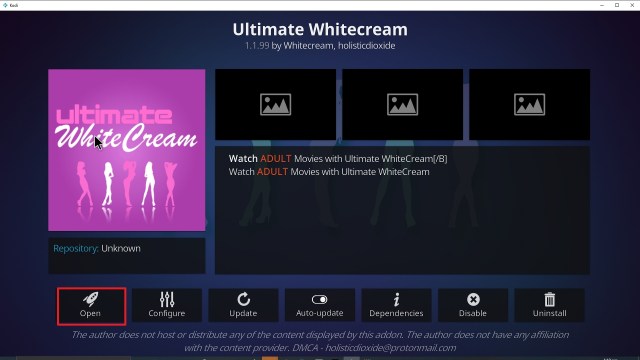
29. Click on Open to start the Ultimate Whitecream add-on.

Step 29 Installing Ultimate Whitecream Kodi addon on Kodi


Fast and Safe Streaming with VPN

To safeguard your online safety and privacy, we always recommend utilizing a Virtual Private Network on your device. The benefit of using a VPN is that it will automatically mask your real IP address and online identity, allowing you to remain anonymous online.
Surfshark is one of the most reliable VPNs when it comes to privacy and security. This VPN is a good option if you love to stream adult content on your Kodi because with this VPN you can safely stream without your ISP knowing it. Whereas, Surfshark safely hides all of your online activities and gives you the privacy that you need. The good thing is, that it also allows you to access any restricted content as it safely destroys geo-block or geo-restrictions.  This VPN, on the other hand, protects all of your data with AES-250 encryption. It is an award-winning VPN with millions of users around the world.

Here are some of the impressive features of Surfshark:
  • Surfshark’s protocols are perfect for use with Kodi.
  • This VPN will definitely hide all of your online activities. 
  • It has a military-grade level of encryption that will ensure your safety. 
  • With this VPN you can access more content and even unblock Netflix and other platforms.
  • It also supports P2p file-sharing activities which makes it applicable to torrenting
  • Strictly follows No-Log Policy.
  • This VPN is one of the Fastest as its raging speed
  • It provides 3200+ servers in 65 countries and locations worldwide.
  • DNS Leak Protection is active by default.

Note: For more information about Surfshark, please read our Surfshark Review.


Grab your subscription now!


How to Install Surfshark VPN on Firestick

If your Firestick still has the older interface, read this article to learn how to update it: Update Firestick Interface.

1. Go to the Home screen of your Firestick.

step 1 Install Surfshark VPN on Firestick


2. Navigate towards the Find tab. Press the Search button from the resulting dropdown.

step 2 Install Surfshark VPN on Firestick


3. Type in the keyword of SurfShark and select from the suggestions that will appear.

step 3 Install Surfshark VPN on Firestick


4. Click the official SurfShark icon from your search results.

step 4 Install Surfshark VPN on Firestick


5. Press the Download (You own it) button.

step 5 Install Surfshark VPN on Firestick


6. The SurfShark VPN installer will download on your device.

step 6 Install Surfshark VPN on Firestick


7. SurfShark VPN’s app will automatically install itself on your Fire TV stick.

step 7 Install Surfshark VPN on Firestick


8. Press the Open button after completing SurfShark VPN’s installation process.

step 8 Install Surfshark VPN on Firestick


9. Please wait for the SurfShark VPN to load its user interface.

step 9 Install Surfshark VPN on Firestick


10. You can now log in with your SurfShark VPN account credentials.

step 10 Install Surfshark VPN on Firestick

Learn more about Surfshark and Grab the Best Surfshark Deal Now!


Install Surfshark on Firestick

Best Surfshark Deal


Other VPNs to Consider

NordVPN (Best for Streaming)

Best Features

  • 5000+ Server in 50+ Countries 
  • Military-Grade Encryption
  • Fast Connection Speed
  • Suitable to a lot of devices
  • No-Log Policy

Prices
  • Complete $5.89 per month (64% Discount)
  • Plus $4.59 per month (56% Discount)
  • Standard $3.69 per month (55% Discount)

Best Features

  • 750+ High-speed VPN Servers in 43 Locations
  • Military-Grade Encryption
  • Fastest HD Streaming and Gaming
  • 30-Day Money-Back Guarantee
  • Unlimited Data & Devices
  • No-Log Policy

Prices
  • 3 Years $1.99 per month (82% Discount)
  • 1 Years $3.29 per month (70% Discount)
  • 1 Month $10.99 per month

IPVanish VPN (Most Secure)

Best Features

  • 1200+ Servers in 60+ Countries around the world
  • Unlimited Connections
  • No-Log Policy
  • Top Notch Military-Grade VPN Protocols and Encryptions
  • 100% Safe and Secured
  • Most Trusted VPN
  • Best VPN for Firestick
  • 30-Day Money-Back Guarantee

Prices
  • Yearly $3.99 per month (63% Discount) – 30 days risk free + Ransomware & Malware Protection
  • Quarterly $5.32 per month (51% Discount)
  • Monthly $10.99 per month


For more VPN discounts, go to ReviewVPN Deals and purchase the best VPN for you.

Click here to get the lowest price on Surfshark through our exclusive limited-time offer.