The RuTracker Website

Overview

In this article, we will show you how to visit the RuTracker website with your Fire TV stick.


Are you looking for an alternative website with downloadable files? If yes, then we’ve got the right website for you. Here at ReviewVPN, we also look for the sites that host downloadable files. We understand that torrenting is now a part of our daily lives. Letting our readers know about these sites may help them share or download files that they need.


Torrenting is important since it allows us to get files from the internet. We can also share the files that we have from our devices. It makes our lives easier since we can download files for various activities. Recently, we have learned about a site you can also use for getting files.

Let us now introduce you to the RuTracker website.

There is no other similar site to the RuTracker website. It hosts a variety of files from media content to cinematic types. The only restriction it has is that you have to create a login account. Aside from that, you can then get files available on the website.

While using the Fire TV stick, you may only visit the RuTracker website by installing a web browser. We recommend you download and install the Amazon Silk browser on your Fire TV stick.


ANONYMOUSLY


How to Install the Amazon Silk Browser on your Fire TV stick

Let us now teach you how to install the Amazon Silk Browser on your Fire TV stick. Afterward, we will teach you how to use it for opening the RuTracker downloads website.

1. Open your Fire TV stick’s home screen.

Silk Browser Install 1

2. Navigate to the Find tab.

Silk Browser Install 2


3. Click on the Search button from the drop-down.

Silk Browser Install 3


4. Type in: Silk Browser Fire tv stick.

Silk Browser Install 4


5. Select the official Amazon Silk Browser app icon.

Silk Browser Install 5


6. Press on the ‘Get/ Download (You Own It)’ button that appears.

Silk Browser Install 6


7. The Amazon Silk Browser app will download its installation files.

Silk Browser Install 7


8. Its installation will begin shortly after download.

Silk Browser Install 8


9. You can then use the Amazon Silk Browser app for visiting websites with the Fire TV stick.

Silk Browser Install 9


How to Open the RuTracker Torrenting Website with the Amazon Silk Browser

Follow the steps below to visit the RuTracker website on your Fire TV stick:

1. Go to your Fire TV stick’s home screen.

RuTracker Firestick 1


2. Scroll right towards the Amazon Silk browser’s icon.

RuTracker Firestick 2


3. Type in: rutracker.org

RuTracker Firestick 3


4. Users can now choose any movie title that they want to download.

RuTracker Firestick 4


How to Visit the RuTracker Website on your Windows PC:

Torrent enthusiasts may also visit the RuTracker website by using their Windows PC.

1. Open any Windows Browser you have, for this example we will be using Google Chrome.

RuTracker Windows 1


2. Tap on the URL Address bar on the top of your web browser.

RuTracker Windows 2


3. Type in: rutracker.org

RuTracker Windows 4


4. You will now see the RuTracker front webpage, click on the translation panel to change Russian to English.

RuTracker Windows 5


5. Site visitors can choose from any category present on the RuTracker website.

RuTracker Windows 6


YOUR INTERNET ACTIVITY IS BEING WATCHED

ReviewVPN cannot attest to the legality, security and privacy of the applications discussed on this site. It is highly recommended that you use a VPN service while streaming or using Kodi.

Currently, your IP 216.73.216.211 is visible to everyone and your Browser is being tracked by Advertisers & ISP Provider.

Save 65% Now

Limited Time Offer

Here are the main reasons why you must use a VPN:

  • Your activities are hidden from your ISP, the government, and from the apps you are using.
  • You can access additional movies and TV streams.
  • ISP attempts to throttle are thrwarted thus reducing buffering issues.
  • Geographically restricted content like Netflix and Hulu can be unblocked.

A VPN works be replacing your ISP-assigned IP address and creating an encrypted tunnel. We recommend the no log service offered by IPVanish. It works well on a Firestick and offers the fastest possible speeds.

Special Limited Time Offer - Get IPVanish


Install Surfshark on Firestick

Best Surfshark Deal


Features of the RuTracker Website

  • Requires the creation of a login account.
  • Displays the latest tracker news.
  • Shows the upcoming holidays and greets its visitors.
  • Provides a section for crowdfunding activities.
  • Adds a section for questions and guides.
  • Users may add suggestions about the improvement of their categories.
  • Contains many categories for file downloads.


RuTracker Interface

  • Quite confusing at first glance.
  • Requires you to enable your web browser’s translation.
  • Translate from Russian to English.
  • Provides a Guide about downloading from the website.
  • Built-in search bar.
  • Diverse categories.
  • Login section.


RuTracker Website Categories

  • Goods
  • Services
  • Games
  • Entertainment
  • Bypassing Blocks
  • News
  • Tracker News
  • Questions about the Forum and Trackers
  • Rules, Basic Instructions, FAQ
  • Cinema
  • Video
  • TV
  • Art house and Auteur Cinema
  • Theatre
  • DVD video
  • HD Video
  • 3D – (Stereo Cinema, Video, TV, and Sports)
  • Cartoons
  • Animated Series
  • Sports
  • Anime
  • Humor
  • Serials


Compatible Torrent Clients with RuTracker

  • uTorrent
  • BitComet
  • Linux Clients
  • Setting the Torrent Client to Maximum Speed


RuTracker Books Section

  • Books
  • Audiobooks
  • Instructional Videos
  • Languages
  • Video Lessons


RuTracker Music Selection

  • Rock music
  • Classical music
  • Jazz and Blues
  • Pop Music
  • Folklore
  • Rap
  • Hip-Hop
  • Rhythm and Blues
  • Electronic music
  • Soundtracks and Karaoke
  • Chants
  • Author’s song
  • Sheet music and libretto
  • Music video


RuTracker Games and Apps

  • iOS, Linux, Macintosh
  • Windows Games
  • Console Games
  • OS: Linux, Windows, iOS
  • System programs
  • Web Development
  • Clip Arts
  • Multimedia and 3D content
  • Mobile ph. and PDA
  • Miscellaneous


Pros and Cons

Pros

  • Contains different file downloads
  • Exclusive content for account owners
  • Provides a guide on how to download from the site
  • Shows which torrent client apps are compatible with the website

Cons

  • Difficult and confusing to use or visit
  • Requires the creation of a user account
  • Contains risk ware and is not compatible with PCs with malware protection


Download Files with a VPN

The modern internet contains many files from generous users. To get these files, we have to visit sites like RuTracker to download various content. Sometimes, we even need to create an account to gain access to exclusive files. As a warning, some websites contain dangerous cyberthreats and risky software.

To protect your device, we advise you to install Surfshark. It has many security features to provide you:

  • Faster file sharing durations.
  • Increases your uploading rate.
  • Protects your device and connection from harmful programs.
  • Maintains the integrity of your internet connection.
  • Keeps you anonymous from other online accounts.


Grab your subscription now!

Click here to get the lowest price on Surfshark through our exclusive limited-time offer.


How to Install Surfshark VPN on Firestick

If your Firestick still has the older interface, read this article to learn how to update it: Update Firestick Interface.

Follow our screenshots below to install the SurfShark VPN app on your Fire TV stick.

1. Go to the Home screen of your Firestick.

step 1 Install Surfshark VPN on Firestick


2. Navigate towards the Find tab. Press the Search button from the resulting dropdown.

step 2 Install Surfshark VPN on Firestick


3. Type in the keyword of SurfShark and select from the suggestions that will appear.

step 3 Install Surfshark VPN on Firestick


4. Click the official SurfShark icon from your search results.

step 4 Install Surfshark VPN on Firestick


5. Press the Download (You own it) button.

step 5 Install Surfshark VPN on Firestick


6. The SurfShark VPN installer will download on your device.

step 6 Install Surfshark VPN on Firestick


7. SurfShark VPN’s app will automatically install itself on your Fire TV stick.

step 7 Install Surfshark VPN on Firestick


8. Press the Open button after completing SurfShark VPN’s installation process.

step 8 Install Surfshark VPN on Firestick


9. Please wait for the SurfShark VPN to load its user interface.

step 9 Install Surfshark VPN on Firestick


10. You can now log in with your SurfShark VPN account credentials.

step 10 Install Surfshark VPN on Firestick

Learn more about Surfshark and Grab the Best Surfshark Deal Now!


Install Surfshark on Firestick

Best Surfshark Deal


Other VPNs to Consider

NordVPN (Best for Streaming)

Best Features

  • 5000+ Server in 50+ Countries 
  • Military-Grade Encryption
  • Fast Connection Speed
  • Suitable to a lot of devices
  • No-Log Policy

Prices
  • Complete $5.89 per month (64% Discount)
  • Plus $4.59 per month (56% Discount)
  • Standard $3.69 per month (55% Discount)

Best Features

  • 750+ High-speed VPN Servers in 43 Locations
  • Military-Grade Encryption
  • Fastest HD Streaming and Gaming
  • 30-Day Money-Back Guarantee
  • Unlimited Data & Devices
  • No-Log Policy

Prices
  • 3 Years $1.99 per month (82% Discount)
  • 1 Years $3.29 per month (70% Discount)
  • 1 Month $10.99 per month

IPVanish VPN (Most Secure)

Best Features

  • 1200+ Servers in 60+ Countries around the world
  • Unlimited Connections
  • No-Log Policy
  • Top Notch Military-Grade VPN Protocols and Encryptions
  • 100% Safe and Secured
  • Most Trusted VPN
  • Best VPN for Firestick
  • 30-Day Money-Back Guarantee

Prices
  • Yearly $3.99 per month (63% Discount) – 30 days risk free + Ransomware & Malware Protection
  • Quarterly $5.32 per month (51% Discount)
  • Monthly $10.99 per month


For more VPN discounts, go to ReviewVPN Deals and purchase the best VPN for you.

Click here to get the lowest price on Surfshark through our exclusive limited-time offer.


Alternative Websites for the RuTracker Torrenting Website

The RuTracker website includes many file uploads arranged in many categories. It also includes a guide for its visitors showing them how to download files from the website. However, the website seems difficult to use at first glance, and visitors might opt to visit other torrenting websites. If this is the case, we have a list of websites that can serve as alternatives for the RuTracker torrenting website:

  • YTS
  • 1337x
  • The Pirate Bay
  • RARBG
  • KickAss Torrents
  • LimeTorrents


FAQs

How to access RuTracker org?

The RuTracker website is accessible with the use of web browsers. There are different web browsers compatible with any device you are using.


Does the RuTracker website require an account?

Yes, you won’t be able to download its files without creating a user account.


Conclusion

The RuTracker website is a unique website to get files from many online sources. It enumerates a list of categories complete with guides about how to download these files. The website also shows the torrent client apps you can use compatible with the website.

We hope this article teaches you how to open the RuTracker website.

Everything You Need To Know About uTorrent

Overview

uTorrent is one of the most well-known torrent clients. This app is miles ahead among all the torrent clients when considering user base size, speed, usability,  features, as well as premium variants. 

Unlike other torrent apps, the focus of uTorrent is on performance. The size of the installer app is just more than 4MB which is smaller than other torrent clients. Also, the uTorrent free download is not a memory hog that slows devices down by utilizing numerous resources.


What Is uTorrent?

uTorrent is a Micro-Torrent or a file that helps web users download things like images, documents, videos, e-books, and more. It web is very handy as it is responsible for storing metadata (a collection of information). You can use uTorrent to download enormous amounts of data.

This is one of the best torrent downloaders on Google’s Play Store with more than 100 million downloads. It helps you obtain magnet links or torrent files from an Android-powered device. You can enjoy a simplified download experience without size or speed limits.

  • Download torrent file & magnet links
  • Fast, light & powerful
  • Opt for a file download location

Once you download & install uTorrent Web on your computer or Android-based device, you’ll be able to automatically launch all the torrent files & magnet links in the internet browser’s window. With the uTorrent, you can search for content on various torrent websites. Also, you can make use of uTorrent’s search box facility.


ANONYMOUSLY


Features of uTorrent

uTorrent is certainly a fully-featured torrent client. There are tons of really handy functions that you can get across all variants of the uTorrent client. It lets you schedule speed caps for a number of times of the day. For instance, if you want it to use the topmost bandwidth for easy downloads at night, you can do it from the uTorrent settings.

You can possibly set a cap on the highest bandwidth that can be utilized by the uTorrent for downloads. Therefore, uTorrent ensures that other more essential tasks will keep all their bandwidth.

Like other torrent clients, uTorrent lets you manage downloads. It has a dedicated Android app that lets users start or stop downloads on their home PC/computer while they’re away.

Another neat touch of uTorrent is its ability to add RSS feeds. Although that’s not a distinctive feature, it is very handy for automatically starting downloads whenever there is additional content to the feed.

How does it work?

The uTorrent program is a peer-to-peer (P2P) file-sharing network. It lets you access and plays a part in this P2P network. When you run the uTorrent program on an Android device or mac, you’ll become a peer in the network. If you want to download a file or files, you then have to get the torrent file that contains all of the tracking information for the file. Wherein, torrent files can be obtained from numerous peers over the network.


Install Surfshark on Firestick

Best Surfshark Deal


uTorrent User Interface

It contains a vigorously laid out user interface that you can use easily. The menu bar is located at the top. Some of its quick access settings are positioned on the left. uTorrent’s central panel displays the completed or in-progress downloads. Generally, this torrent client has an uncluttered user interface with most settings congregating under just a number of drop-down menus, which makes it easy to navigate.

However, unlike other torrent programs, uTorrent doesn’t have external plugin support. Since uTorrent is not an open-source program, creating third-party plugins is not possible.


User experience

This user experience really sets it apart from other torrent programs. Its entire UI is very easy to use. Even beginners or novices to the torrenting universe will be able to utilize uTorrent and start off downloading files without any help.


YOUR INTERNET ACTIVITY IS BEING WATCHED

ReviewVPN cannot attest to the legality, security and privacy of the applications discussed on this site. It is highly recommended that you use a VPN service while streaming or using Kodi.

Currently, your IP 216.73.216.211 is visible to everyone and your Browser is being tracked by Advertisers & ISP Provider.

Save 65% Now

Limited Time Offer

Here are the main reasons why you must use a VPN:

  • Your activities are hidden from your ISP, the government, and from the apps you are using.
  • You can access additional movies and TV streams.
  • ISP attempts to throttle are thrwarted thus reducing buffering issues.
  • Geographically restricted content like Netflix and Hulu can be unblocked.

A VPN works be replacing your ISP-assigned IP address and creating an encrypted tunnel. We recommend the no log service offered by IPVanish. It works well on a Firestick and offers the fastest possible speeds.

Special Limited Time Offer - Get IPVanish


Always Use A VPN While Using The Internet

Using Virtual Private Network or VPN service can be very useful. Thanks to a VPN service, web users can access platforms, services, or websites that are unavailable in their country or bypass restrictions that numerous platforms sometimes impose. When you utilize uTorrent, an encrypted Virtual Private Network service provider is highly recommended to conceal your activities on the internet, identity, as well as location. Tons of internet users choose Surfshark for privacy, price, and speed.

Offering superfast servers and astounding live chat support, the Surfshark service is also an easy-to-use app. Ensure to turn the Surfshark on when you’re streaming on the internet.


Surfshark Features:

  • Unlimited simultaneous devices
  • Unblocks Disney+, Hulu, Netflix, and many more
  • Strict NO log policy
  • 30-day money-back guarantee
  • Great customer service
  • Robust encryption
  • Great download speed
  • Compatible with Android, Windows, Linux,  iOS, and other routers


Grab your subscription now!

Click here to get the lowest price on Surfshark through our exclusive limited-time offer.


How to Install Surfshark VPN on Firestick

If your Firestick still has the older interface, read this article to learn how to update it: Update Firestick Interface.

You can download Surfshark directly from the Amazon App store. It will be easy for you to find Surfshark with your Firestick’s Find feature. Refer to our screenshots below.

1. Go to the Home screen of your Firestick.

step 1 Install Surfshark VPN on Firestick


2. Navigate towards the Find tab. Press the Search button from the resulting dropdown.

step 2 Install Surfshark VPN on Firestick


3. Type in the keyword of SurfShark and select from the suggestions that will appear.

step 3 Install Surfshark VPN on Firestick


4. Click the official SurfShark icon from your search results.

step 4 Install Surfshark VPN on Firestick


5. Press the Download (You own it) button.

step 5 Install Surfshark VPN on Firestick


6. The SurfShark VPN installer will download on your device.

step 6 Install Surfshark VPN on Firestick


7. SurfShark VPN’s app will automatically install itself on your Fire TV stick.

step 7 Install Surfshark VPN on Firestick


8. Press the Open button after completing SurfShark VPN’s installation process.

step 8 Install Surfshark VPN on Firestick


9. Please wait for the SurfShark VPN to load its user interface.

step 9 Install Surfshark VPN on Firestick


10. You can now log in with your SurfShark VPN account credentials.

step 10 Install Surfshark VPN on Firestick

Learn more about Surfshark and Grab the Best Surfshark Deal Now!


Other VPNs to Consider

NordVPN (Best for Streaming)

Best Features

  • 5000+ Server in 50+ Countries 
  • Military-Grade Encryption
  • Fast Connection Speed
  • Suitable to a lot of devices
  • No-Log Policy

Prices
  • Complete $5.89 per month (64% Discount)
  • Plus $4.59 per month (56% Discount)
  • Standard $3.69 per month (55% Discount)

Best Features

  • 750+ High-speed VPN Servers in 43 Locations
  • Military-Grade Encryption
  • Fastest HD Streaming and Gaming
  • 30-Day Money-Back Guarantee
  • Unlimited Data & Devices
  • No-Log Policy

Prices
  • 3 Years $1.99 per month (82% Discount)
  • 1 Years $3.29 per month (70% Discount)
  • 1 Month $10.99 per month

IPVanish VPN (Most Secure)

Best Features

  • 1200+ Servers in 60+ Countries around the world
  • Unlimited Connections
  • No-Log Policy
  • Top Notch Military-Grade VPN Protocols and Encryptions
  • 100% Safe and Secured
  • Most Trusted VPN
  • Best VPN for Firestick
  • 30-Day Money-Back Guarantee

Prices
  • Yearly $3.99 per month (63% Discount) – 30 days risk free + Ransomware & Malware Protection
  • Quarterly $5.32 per month (51% Discount)
  • Monthly $10.99 per month


For more VPN discounts, go to ReviewVPN Deals and purchase the best VPN for you.

FAQs

Is uTorrent legal?

Yes, uTorrent is completely legal to download, install, & use. 


Is uTorrent Safe?

Yes, uTorrent is safe to use and contains no viruses & malware. 


What devices can uTorrent be installed on?

For most individuals, torrenting means utilizing a PC/computer or laptop to download torrent files. Nonetheless, you do not need to utilize a PC/computer to download torrent files. You can also use portable Android devices, such as mobile phones or tablets.


Pricing

  • Basic/Classic: It is the most basic uTorrent version and you can download it for free. But, it is laden with ads in the user interface.
  • Ad-Free: uTorrent’s ad-free version is available for $4.95 a year, thus it’s inexpensive.
  • Pro: uTorrent’s Pro version aims at serious web users who want a secure torrenting experience. uTorrent’s Pro version is available at $19.95 a year.
  • Pro + VPN (Virtual Private Network): This variant of the uTorrent adds a premium Virtual Private Network or VPN service. This will keep users anonymous online while downloading content. uTorrent Pro+VPN retails at $69.95 a year.

Apart from these various variants, uTorrent also provides other products such as an Android application with free & pro variants.


Wrapping Up

In this article, we have given you information on uTorrent. The information above should really help you boost your download experience. Hope you’ve learned a lot about the uTorrent client.

However, always remember to use A VPN every time you use uTorrent. Please let us know what you think about this article in the comments section.

How to Use Firestick Without an Amazon Registration

Overview

In this article, we will teach you how to use the Fire TV stick without an Amazon account.

There are many Fire TV stick users who wonder if they can use the device without an Amazon account. Upon using the famous search engines for answers, one will discover that many people also attempt to do this. Several Fire TV stick users post this query to Google, Yahoo, etc.


Do you want to use the Amazon Fire TV stick without an Amazon account? If you want to, then we got a possible solution for you. Here at ReviewVPN, we cover the best apps for streaming. Aside from streaming apps, we also review and test them if they will work on your Fire TV stick. Now, we began researching any method in case you want to use the Amazon Fire TV stick without an Amazon account.

Upon learning that many people attempt to use the Fire TV stick without registration, we’ve come across many answers from the internet. Furthermore, we have a solution in the shape of an app. If you want to learn to use Fire TV stick without an Amazon account, continue reading this article if it is even possible.


ANONYMOUSLY


Is it possible to use the Amazon Fire TV stick without an Account?

The Fire TV stick is one of the best devices from the Amazon company. It means that after its purchase, the Fire TV stick requires any user to create an official Amazon account. The next step would be to add the Fire TV stick as one of the devices included on your Amazon account.

When you register your Fire TV stick or link it to your Amazon account, accessing its features becomes easy. Aside from that, the device would instantly recognize your payment details. All your credentials are necessary when downloading various applications from the Amazon app store. You can do this by installing official Amazon apps directly on your Fire TV stick.

Let us now go back to the question: Is it possible to use the Amazon Fire TV stick without an account? Simply put, the direct answer is YES. It is possible to still use the Fire TV stick device without registering for an account with Amazon. However, we need to remind you that the process is complex. You have to learn some technical terms to proceed.


To use the Fire TV stick without an Amazon account

To use the Fire TV stick without an Amazon account, you have to enable the installation of apps from unknown sources. Then you have to learn how to Jailbreak your Fire TV stick or sideload an app for its installation.

You need to learn the complex method above step by step to be able to use the Fire TV stick without an Amazon account. It is because the device requires the installation of a third-party app from an unofficial app developer. It is the reason why you have to learn these terms. Don’t worry, we will guide you through each step.


How to use the Fire TV stick without Registering for an Amazon Account:

After learning about the basics of Jailbreaking your Fire TV stick, or installing apps from unknown sources, we will now teach you about an app for using the Fire TV stick.

As we all know, the Fire TV stick is an official Amazon device. When using the Fire TV stick, there are annoying pop-up ads on the background of its home screen. This is the reason why an app developer from XDA labs began working on an app for launching software. It is known as Appstarter and installable on your Fire TV stick.


How to Install the Appstarter Program on your Fire TV stick

We will now teach you how to install Appstarter on your Fire TV stick:

1. Open your Firestick Settings Tab.

Appstarter 1

2. Choose the My Fire TV icon.

Appstarter 2


3. Go inside the Developer options.

Appstarter 3


4. Turn On ADB Debugging and Apps from Unknown Sources.

Appstarter 4


5. Return to your Home Screen.

Appstarter 5


6. Use the Search Bar.

Appstarter 6


7. Input Downloader app.

Appstarter 7


8. Tap on the suggested result.

Appstarter 8


9. Click on the Get or Download button.

Appstarter 9


10. Open the Downloader app.

Appstarter 10


11. Select Allow.

Appstarter 11


12. Use the Downloader search tab.

Appstarter 12


13. Type in: reviewvpn.com/star

Appstarter 13


14. The Appstarter’s APK file will download on your Fire TV stick.

Appstarter 14


15. Click on Install.

Appstarter 15


16. Complete its installation process.

Appstarter 16


17. The Appstarter’s APK file will install on your Fire TV stick.

Appstarter 17


18. Open the Appstarter program to access some programs without registering for an Amazon Prime account.

Appstarter 18


YOUR INTERNET ACTIVITY IS BEING WATCHED

ReviewVPN cannot attest to the legality, security and privacy of the applications discussed on this site. It is highly recommended that you use a VPN service while streaming or using Kodi.

Currently, your IP 216.73.216.211 is visible to everyone and your Browser is being tracked by Advertisers & ISP Provider.

Save 65% Now

Limited Time Offer

Here are the main reasons why you must use a VPN:

  • Your activities are hidden from your ISP, the government, and from the apps you are using.
  • You can access additional movies and TV streams.
  • ISP attempts to throttle are thrwarted thus reducing buffering issues.
  • Geographically restricted content like Netflix and Hulu can be unblocked.

A VPN works be replacing your ISP-assigned IP address and creating an encrypted tunnel. We recommend the no log service offered by IPVanish. It works well on a Firestick and offers the fastest possible speeds.

Special Limited Time Offer - Get IPVanish


Install Surfshark on Firestick

Best Surfshark Deal


How to Deregister your Amazon Account from the Fire TV stick

1. Go to your Fire TV stick’s home screen.

Deregister Firestick 1


2. Tap on the Gear icon or the Setting’s button.

Deregister Firestick 2


3. Click on ‘Account & Profile Settings’ from the dropdown.

Deregister Firestick 3


4. Select your ‘Amazon Account’ from the list.

Deregister Firestick 4


5. Press on the ‘Deregister’ button.

Deregister Firestick 5


6. Choose the ‘Deregister’ option from the pop-up window.

Deregister Firestick 6


Use Firestick with a VPN

 The Amazon Fire TV stick is an amazing device that allows you to stream many videos from the internet. You can even connect the device to your TV set or large screen monitor. Select from many streaming apps available on the Amazon app store.

Sometimes, we can experience buffering and lagging while using our Fire TV sticks. It is because of ISP throttling methods. Our ISPs decrease our internet connection speeds to stop their servers from overloading.

To solve this problem, we recommend Surfshark for your device. Here are the advantages that Surfshark can deliver:

  • Speeds up our connection while streaming.
  • Protects our devices from cyber threats.
  • Conceals your data from hackers.
  • Adds extra layers of security.
  • Buffering and stuttering will not happen while streaming with our Fire TV sticks.


Install Surfshark on Firestick

Best Surfshark Deal


How to Install Surfshark VPN on Firestick

If your Firestick still has the older interface, read this article to learn how to update it: Update Firestick Interface.

Follow our screenshots below to install the SurfShark VPN app on your Fire TV stick.

1. Go to the Home screen of your Firestick.

step 1 Install Surfshark VPN on Firestick


2. Navigate towards the Find tab. Press the Search button from the resulting dropdown.

step 2 Install Surfshark VPN on Firestick


3. Type in the keyword of SurfShark and select from the suggestions that will appear.

step 3 Install Surfshark VPN on Firestick


4. Click the official SurfShark icon from your search results.

step 4 Install Surfshark VPN on Firestick


5. Press the Download (You own it) button.

step 5 Install Surfshark VPN on Firestick


6. The SurfShark VPN installer will download on your device.

step 6 Install Surfshark VPN on Firestick


7. SurfShark VPN’s app will automatically install itself on your Fire TV stick.

step 7 Install Surfshark VPN on Firestick


8. Press the Open button after completing SurfShark VPN’s installation process.

step 8 Install Surfshark VPN on Firestick


9. Please wait for the SurfShark VPN to load its user interface.

step 9 Install Surfshark VPN on Firestick


10. You can now log in with your SurfShark VPN account credentials.

step 10 Install Surfshark VPN on Firestick

Learn more about Surfshark and Grab the Best Surfshark Deal Now!


Install Surfshark on Firestick

Best Surfshark Deal


Other VPNs to Consider

NordVPN (Best for Streaming)

Best Features

  • 5000+ Server in 50+ Countries 
  • Military-Grade Encryption
  • Fast Connection Speed
  • Suitable to a lot of devices
  • No-Log Policy

Prices
  • Complete $5.89 per month (64% Discount)
  • Plus $4.59 per month (56% Discount)
  • Standard $3.69 per month (55% Discount)

Best Features

  • 750+ High-speed VPN Servers in 43 Locations
  • Military-Grade Encryption
  • Fastest HD Streaming and Gaming
  • 30-Day Money-Back Guarantee
  • Unlimited Data & Devices
  • No-Log Policy

Prices
  • 3 Years $1.99 per month (82% Discount)
  • 1 Years $3.29 per month (70% Discount)
  • 1 Month $10.99 per month

IPVanish VPN (Most Secure)

Best Features

  • 1200+ Servers in 60+ Countries around the world
  • Unlimited Connections
  • No-Log Policy
  • Top Notch Military-Grade VPN Protocols and Encryptions
  • 100% Safe and Secured
  • Most Trusted VPN
  • Best VPN for Firestick
  • 30-Day Money-Back Guarantee

Prices
  • Yearly $3.99 per month (63% Discount) – 30 days risk free + Ransomware & Malware Protection
  • Quarterly $5.32 per month (51% Discount)
  • Monthly $10.99 per month


For more VPN discounts, go to ReviewVPN Deals and purchase the best VPN for you.

Click here to get the lowest price on Surfshark through our exclusive limited-time offer.


FAQs

Can I use the Fire TV stick without a credit card?

No, your Amazon account needs to have your credentials. It is required for the payment of apps that you choose to download from the Amazon app store.


Does an Amazon Account require a monthly fee?

No, creating an Amazon account is free and does not charge you per month. However, it might ask for your payment methods.


Conclusion

The Amazon Fire TV stick is a wonderful device for modern streaming. However, many users often attempt to use the Fire TV stick without registering for an Amazon account. They do this to avoid the annoying pop-up ads appearing on their home screen.

We hope this article teaches you how to use the Fire TV stick without registering for an Amazon account.

Torrentz2 Review

Overview

Torrentz2 is a simple, powerful, and fast metasearch engine that integrates the result from tons of search engines. It is actually a great torrent platform. Torrentz2 searches more than 90 torrent platforms.


It replaced the old Torrentz. Nevertheless, this torrent site is very simple to use. Just type in the content you are looking for and it will search torrent platforms to provide you with the best torrent file.

However, there is not much to say about the Torrentz2 torrenting site’s user interface. You’ll be greeted with a search box that allows you to search for the torrent file you want. Then, a list of results will emerge, displaying the torrent title, category, file size, as well as how old the torrent file is.


ANONYMOUSLY


How to Launch Torrentz2 on Amazon FireStick with Silk Browser

1. Click Home on your remote & Select Find.

2. Click Search.


3. Type in Silk Browser and select this item that appears on the results.


4. Click on the Silk Browser Icon.


5. Choose Download.


6. Select Open to launch the browser.


7. Click on the URL section of the app.


8. Type 2torrentz2eu.in, then, click Go

Torrentz2


9. There you go, you now have the Torrentz2 on Firestick

Torrentz2 site


YOUR INTERNET ACTIVITY IS BEING WATCHED

ReviewVPN cannot attest to the legality, security and privacy of the applications discussed on this site. It is highly recommended that you use a VPN service while streaming or using Kodi.

Currently, your IP 216.73.216.211 is visible to everyone and your Browser is being tracked by Advertisers & ISP Provider.

Save 65% Now

Limited Time Offer

Here are the main reasons why you must use a VPN:

  • Your activities are hidden from your ISP, the government, and from the apps you are using.
  • You can access additional movies and TV streams.
  • ISP attempts to throttle are thrwarted thus reducing buffering issues.
  • Geographically restricted content like Netflix and Hulu can be unblocked.

A VPN works be replacing your ISP-assigned IP address and creating an encrypted tunnel. We recommend the no log service offered by IPVanish. It works well on a Firestick and offers the fastest possible speeds.

Special Limited Time Offer - Get IPVanish


Install Surfshark on Firestick

Best Surfshark Deal


How to Download Content from Torrentz2

  • Launch Torrentz2 on a browser and look for the file you want
  • After you find the content you like, you may download it. Typically, you may click the download button or use the download link of the torrent file. This depends on the torrent platform you are on.
  • Once you click the download button or link, a dialog box pops up and asks you to launch Torrentz2
  • Just click Open, then the download starts


History of Torrentz2

Torrentz2 is Torrentz.eu’s successor which was obliterated in 2017. After Torrentz.eu’s successful years, it was brought down because of extreme pressure from authorities. But, the name was not going to disappear completely. Just a couple of months after it shut down, the capable replacement, Torrentz2, was up & running. Not only did Torrentz2 replace the original torrenting platform but it exceeded all the expectations & records set by Torrentz.eu. Thus, Torrentz2 is an amazing search engine where people will find torrent files available on top torrent platforms, such as KAT, The Pirate Bay, YTS, & Limetorrents to name a few.


Torrentz2 User Interface & Design

Torrentz2 is very honest with its users. The site never claimed itself as Torrentz’s official revival. It copied Torrentz’s overall look as well as functionalities. Nonetheless, Torrentz has its own metasearch engine. Also, it brags about indexing additional torrent files and websites compared to its predecessor.

Torrentz2 arguably provides the simplest design and UI among all torrenting websites. You’ll be greeted by a user menu and a search panel. You don’t need to register with the torrent search engine before searching for a particular file. Nonetheless, to search a torrent file, you just have to type in a set of descriptive words inside the site’s search bar. The search will begin by pressing the keyboard’s enter key or clicking the search button. 


How to Access Torrentz2 Site

Utilizing Torrentz2 proxy & mirror sites is the fastest way to obtain access to the obstructed torrent search engine. These proxy servers are independent web pages that are an intermediary between the user and the web. Proxy servers let you enter particular sites as they conceal your IP address to bypass restrictions. On the other hand, mirror sites are just clones of an original platform containing a different domain name as well as a server. Apart from proxy servers & mirror sites, there are other ways to access the Torrentz2 torrenting site

A Virtual Private Network or VPN masks your identity and true location by changing your real IP address. The VPN’s encrypted tunneling contains a lot of security measures that prevent government inspections as well as malware attacks. 

Surfshark is a reputed VPN service provider. It has secure encryption. This VPN service provider redirects internet traffic via encrypted servers. Thus, it protects your privacy rights on the internet. In addition, the Surfshark service doesn’t affect your network speed.

Surfshark Features:

  • Unlimited simultaneous devices
  • Strict NO log policy
  • Unblocks Disney+, Hulu, Netflix, and many more
  • Great customer service
  • 30-day money-back guarantee
  • Great download speed
  • Robust encryption
  • Compatible with Android, Windows, Linux,  iOS, and other routers


Grab your subscription now!

Click here to get the lowest price on Surfshark through our exclusive limited-time offer.


How to Install Surfshark VPN on Firestick

If your Firestick still has the older interface, read this article to learn how to update it: Update Firestick Interface.

You can download Surfshark directly from the Amazon App store. It will be easy for you to find Surfshark with your Firestick’s Find feature. Refer to our screenshots below.

1. Go to the Home screen of your Firestick.

step 1 Install Surfshark VPN on Firestick


2. Navigate towards the Find tab. Press the Search button from the resulting dropdown.

step 2 Install Surfshark VPN on Firestick


3. Type in the keyword of SurfShark and select from the suggestions that will appear.

step 3 Install Surfshark VPN on Firestick


4. Click the official SurfShark icon from your search results.

step 4 Install Surfshark VPN on Firestick


5. Press the Download (You own it) button.

step 5 Install Surfshark VPN on Firestick


6. The SurfShark VPN installer will download on your device.

step 6 Install Surfshark VPN on Firestick


7. SurfShark VPN’s app will automatically install itself on your Fire TV stick.

step 7 Install Surfshark VPN on Firestick


8. Press the Open button after completing SurfShark VPN’s installation process.

step 8 Install Surfshark VPN on Firestick


9. Please wait for the SurfShark VPN to load its user interface.

step 9 Install Surfshark VPN on Firestick


10. You can now log in with your SurfShark VPN account credentials.

step 10 Install Surfshark VPN on Firestick

Learn more about Surfshark and Grab the Best Surfshark Deal Now!


Install Surfshark on Firestick

Best Surfshark Deal


Other VPNs to Consider

NordVPN (Best for Streaming)

Best Features

  • 5000+ Server in 50+ Countries 
  • Military-Grade Encryption
  • Fast Connection Speed
  • Suitable to a lot of devices
  • No-Log Policy

Prices
  • Complete $5.89 per month (64% Discount)
  • Plus $4.59 per month (56% Discount)
  • Standard $3.69 per month (55% Discount)

Best Features

  • 750+ High-speed VPN Servers in 43 Locations
  • Military-Grade Encryption
  • Fastest HD Streaming and Gaming
  • 30-Day Money-Back Guarantee
  • Unlimited Data & Devices
  • No-Log Policy

Prices
  • 3 Years $1.99 per month (82% Discount)
  • 1 Years $3.29 per month (70% Discount)
  • 1 Month $10.99 per month

IPVanish VPN (Most Secure)

Best Features

  • 1200+ Servers in 60+ Countries around the world
  • Unlimited Connections
  • No-Log Policy
  • Top Notch Military-Grade VPN Protocols and Encryptions
  • 100% Safe and Secured
  • Most Trusted VPN
  • Best VPN for Firestick
  • 30-Day Money-Back Guarantee

Prices
  • Yearly $3.99 per month (63% Discount) – 30 days risk free + Ransomware & Malware Protection
  • Quarterly $5.32 per month (51% Discount)
  • Monthly $10.99 per month


For more VPN discounts, go to ReviewVPN Deals and purchase the best VPN for you.

Click here to get the lowest price on Surfshark through our exclusive limited-time offer.


What To Expect From Torrentz2?

The best thing about Torrentz2 is that it is a famous torrenting website that offers data from different torrents on the internet. Nonetheless, this torrent search engine doesn’t host files and you must rely on third parties. Also, it has no community, such as Discord, Telegram, or Facebook, that you can be a part of. Torrentz2 simply functions like Google. You can search for content, go to third-party websites, and download/stream from there.


Torrentz2 users each month

Torrentz2 is a huge torrenting platform. It draws about 7 million users every month. It is amazing how this torrenting website manages to attract millions of torrent lovers. Each session on this torrent search engine lasts for about 5 minutes. Users get to watch and download their favorite movies and TV shows in full High Definition quality from reputable websites without any hassle for free.


Torrentz2 Alternatives

The best Torrentz2 alternatives are:

  • The Pirate Bay
  • RARBG
  • 1337x
  • LimeTorrents
  • TorLock
  • Zooqle
  • iDope
  • ExtraTorrent
  • SeedPeer
  • BitPort


FAQs

Is the Torrentz2 torrenting site Free?

Yes, the Torrentz2 is free to use


Is the Torrentz2 torrenting site legal?

Yes, the Torrentz2  site is 100% legal. Nonetheless, you are only allowed to download and browse legal content in the public domain.


Is the Torrentz2 search engine safe?

Yes, the Torrentz2 torrent site is very safe to use and has no viruses or malware. 


Conclusion

In this article, we have provided information on the Torrentz2 torrenting site. The information above should really help you boost your torrenting experience. 

Nonetheless, always remember to use A VPN every time you use the internet. If you have any thoughts about the Torrentz2 torrenting site, don’t hesitate to let us know in the comments section.

The YTS Movie Torrent Website

Overview

In this article, we will teach you how to open the YTS website on various devices.

Torrent websites host thousands of files from many users. They allow us to get media files in different formats. Some websites host only one kind of media file. They can be websites that dedicate themselves to host either movies, music, games, apps, or other material.


Are you looking for a website that only provides downloadable movies? If yes, then you’ve come across the right article. Here at ReviewVPN, we perform reviews about apps for streaming. Aside from that, we also search the internet for websites where you can download different media content.

We also ensure that visiting these websites is possible with your Fire TV stick. So without further ado, let us now acquaint you with the YTS website.

The YTS website works as an online library of movies and videos. It hosts over thirty-three thousand movies available for download. You can find different movie genres, classics, and even documentaries.

When using the Fire TV stick, you may only visit the YTS website by installing a web browser. We recommend you download and install the Amazon Silk browser on your Fire TV stick.


ANONYMOUSLY


How to Install the Amazon Silk Browser on your Fire TV stick

Let us now teach you how to install the Amazon Silk Browser on your Fire TV stick. Afterward, we will teach you how to use it in accessing the YTS torrenting website.
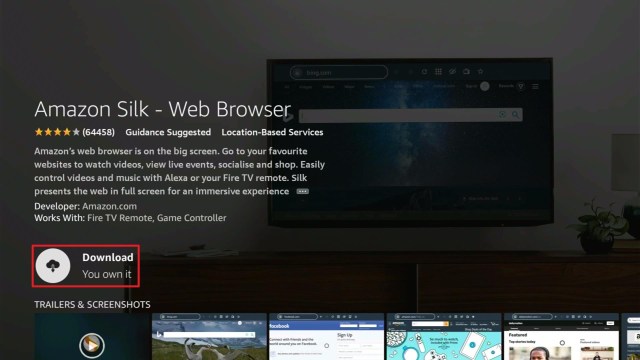
1. Open your Fire TV stick’s home screen.

Silk Browser Install 1

2. Navigate to the Find tab.

Silk Browser Install 2


3. Click on the Search button from the drop-down.

Silk Browser Install 3


4. Type in: Silk Browser Fire tv stick.

Silk Browser Install 4


5. Select the official Amazon Silk Browser app icon.

Silk Browser Install 5


6. Press on the ‘Get/ Download (You Own It)’ button that appears.

Silk Browser Install 6


7. The Amazon Silk Browser app will download its installation files.

Silk Browser Install 7


8. Its installation will begin shortly after download.

Silk Browser Install 8


9. You can then use the Amazon Silk Browser app for visiting websites with the Fire TV stick.

Silk Browser Install 9


YOUR INTERNET ACTIVITY IS BEING WATCHED

ReviewVPN cannot attest to the legality, security and privacy of the applications discussed on this site. It is highly recommended that you use a VPN service while streaming or using Kodi.

Currently, your IP 216.73.216.211 is visible to everyone and your Browser is being tracked by Advertisers & ISP Provider.

Save 65% Now

Limited Time Offer

Here are the main reasons why you must use a VPN:

  • Your activities are hidden from your ISP, the government, and from the apps you are using.
  • You can access additional movies and TV streams.
  • ISP attempts to throttle are thrwarted thus reducing buffering issues.
  • Geographically restricted content like Netflix and Hulu can be unblocked.

A VPN works be replacing your ISP-assigned IP address and creating an encrypted tunnel. We recommend the no log service offered by IPVanish. It works well on a Firestick and offers the fastest possible speeds.

Special Limited Time Offer - Get IPVanish


Install Surfshark on Firestick

Best Surfshark Deal


How to Open the YTS Torrenting Website with the Amazon Silk Browser

Follow the steps below to visit the YTS website on your Fire TV stick:

1. Go to your Fire TV stick’s home screen.

YTS mx FS 1


2. Scroll right towards the Amazon Silk browser’s icon.

YTS mx FS 2


3. Type in: YTS.mx

YTS mx FS 3


4. Users can now choose any movie title that they want to download.

YTS mx FS 4


Install Surfshark on Firestick

Best Surfshark Deal


How to Visit the YTS website on your Windows PC

Movie enthusiasts may also visit the YTS website by using their Windows PC.

1. Open any Windows Browser you have, for this example we will be using Google Chrome.

YTS mx WIN 1


2. Tap on the URL Address bar on the top of your web browser.

YTS mx WIN 2


3. Type in: www.YTS.mx

YTS mx WIN 3


4. You will now see the YTS main webpage.

YTS mx WIN 4


5. Press on the Trending tab to check the latest movies.

YTS mx WIN 5


6. Select the ‘Browse Movies’ button to find any film title you want to download.

YTS mx WIN 6


YTS Website Features

  • 100% Free
  • Contains over thirty-three thousand movie titles
  • Download any films you want
  • All movies are in HD quality resolutions
  • Choose between 720p and 1080p resolutions
  • Provides the latest movie releases
  • Built-in search engine
  • Works as an online library for all available movies
  • Presents the cast and director of each movie
  • Shows the genre of each YTS original movie title
  • Includes a brief description of each movie
  • Displays important details about each film
  • Shows the duration of each movie
  • Users of the website may post comments and feedback
  • Watch trailers before downloading any movie
  • Learn about the file size of each movie
  • Movie enthusiasts can also find and subtitles corresponding to each movie


YTS Website Interface

  • Simple interface
  • Responsive buttons
  • Default dark theme with Lime green fonts
  • Built-in search bar
  • Home tab
  • 4K tab
  • Trending tab
  • Browse Movies tab
  • Login Button
  • Register Button


Pros and Cons

Pros

  • 100% Free availability of all its movies
  • Online repository of free movies
  • People can register for free
  • Contains over thirty-thousand movie titles
  • Presents important details about the movie
  • Includes a trailer for each film
  • Movies of different genres are inside the website
  • Users may upload high-quality movies
  • All movies are in HD Resolutions
  • Includes subtitles for each movie feature
  • Presents the latest movie releases3
  • Direct download of any movie available on the website


Cons

  • May require a torrent client for magnet download (Allows for a smoother download process)
  • Direct downloads may stop if the internet connection is not consistent


Download Movies for Free with a VPN

https://get.surfshark.net/aff_c?offer_id=865&aff_id=12312

If you want many movies you can download for offline viewing, then the YTS website is for you. The website acts as an online repository of downloadable movies and films. You can even watch each trailer, read the synopsis, or check out the cast. 

Downloading content can sometimes be a difficult process. Our ISPs may decrease the speeds of our internet connection while streaming.

We advise the installation of an effective VPN like Surfshark. Here are some of the benefits that Surfshark can give us:


  • Consistent streaming rates while watching online videos.
  • Protects your device from any forms of malware.
  • Enhances the speed of our internet connection.
  • Lets us access media content with geo-restrictions.


Grab your subscription now!

Click here to get the lowest price on Surfshark through our exclusive limited-time offer.


How to Install Surfshark VPN on Firestick

If your Firestick still has the older interface, read this article to learn how to update it: Update Firestick Interface.

You can download Surfshark directly from the Amazon App store. It will be easy for you to find Surfshark with your Firestick’s Find feature. Refer to our screenshots below.

1. Go to the Home screen of your Firestick.

step 1 Install Surfshark VPN on Firestick


2. Navigate towards the Find tab. Press the Search button from the resulting dropdown.

step 2 Install Surfshark VPN on Firestick


3. Type in the keyword of SurfShark and select from the suggestions that will appear.

step 3 Install Surfshark VPN on Firestick


4. Click the official SurfShark icon from your search results.

step 4 Install Surfshark VPN on Firestick


5. Press the Download (You own it) button.

step 5 Install Surfshark VPN on Firestick


6. The SurfShark VPN installer will download on your device.

step 6 Install Surfshark VPN on Firestick


7. SurfShark VPN’s app will automatically install itself on your Fire TV stick.

step 7 Install Surfshark VPN on Firestick


8. Press the Open button after completing SurfShark VPN’s installation process.

step 8 Install Surfshark VPN on Firestick


9. Please wait for the SurfShark VPN to load its user interface.

step 9 Install Surfshark VPN on Firestick


10. You can now log in with your SurfShark VPN account credentials.

step 10 Install Surfshark VPN on Firestick

Learn more about Surfshark and Grab the Best Surfshark Deal Now!


Other VPNs to Consider

NordVPN (Best for Streaming)

Best Features

  • 5000+ Server in 50+ Countries 
  • Military-Grade Encryption
  • Fast Connection Speed
  • Suitable to a lot of devices
  • No-Log Policy

Prices
  • Complete $5.89 per month (64% Discount)
  • Plus $4.59 per month (56% Discount)
  • Standard $3.69 per month (55% Discount)

Best Features

  • 750+ High-speed VPN Servers in 43 Locations
  • Military-Grade Encryption
  • Fastest HD Streaming and Gaming
  • 30-Day Money-Back Guarantee
  • Unlimited Data & Devices
  • No-Log Policy

Prices
  • 3 Years $1.99 per month (82% Discount)
  • 1 Years $3.29 per month (70% Discount)
  • 1 Month $10.99 per month

IPVanish VPN (Most Secure)

Best Features

  • 1200+ Servers in 60+ Countries around the world
  • Unlimited Connections
  • No-Log Policy
  • Top Notch Military-Grade VPN Protocols and Encryptions
  • 100% Safe and Secured
  • Most Trusted VPN
  • Best VPN for Firestick
  • 30-Day Money-Back Guarantee

Prices
  • Yearly $3.99 per month (63% Discount) – 30 days risk free + Ransomware & Malware Protection
  • Quarterly $5.32 per month (51% Discount)
  • Monthly $10.99 per month


For more VPN discounts, go to ReviewVPN Deals and purchase the best VPN for you.


Grab the Best Surfshark Deal Now!


Alternative Websites for the YTS Torrenting Website

The YTS website allows us to check out the latest movies and video releases. However, the website only contains movies and straight-to-tv videos. People looking for other torrents may look for other websites. If this is the case, we have a list of websites that can serve as alternatives for the YTS torrenting website:

  • The Pirate Bay
  • RARBG
  • KickAss Torrents
  • LimeTorrents
  • 1337x

To learn about each website above, visit our article about the best YTS Alternatives for your torrenting needs.


FAQs

What does YTS mean?

YTS is the popular acronym for YIFY Torrents. The YIFY Torrents website became famous for hosting thousands of movies for free download.


Are the movies from YTS free for download?

Yes, you don’t have to pay for anything. Just click on the movie title and the download button. You can either opt for a direct or magnet download.


Conclusion

Torrenting has given us a way to share or get any type of files we need from the internet. There are many types of torrenting sites on the web. The YTS website dedicates itself to providing the latest movie releases. It also acts as the only repository of both old and modern movies. The website also lets us get these movies for free via direct or magnet downloads.

We hope this article helps you open the YTS website on your Fire TV stick or Windows PC.

The 1337x Torrenting Website

Overview

In this article, we will teach you how to open the 1337x website on various devices.

We know about the famous sites that provide us with many torrent files. Torrenting has become a habit for most of us. They allow us to download or share files that we have. Apart from that, watching movies and listening to music files offline is possible.


Are you searching for an excellent website with loads of torrents? Then we got your back! Here at ReviewVPN, we perform meticulous testing of many streaming apps. Aside from that, we also cover some of the best-streaming sites available online. We ensure that you can visit these sites while using your Fire TV stick.

While looking for the best torrent sites online, we stumbled upon a wonderful torrent site. Let us now introduce you to the 1337x torrenting website.

The 1337x torrenting website became the famous substitute for the websites of The Pirate Bay and KickAss Torrents. Its website hosts thousands of torrent files in many formats. Visitors of the website can download movies, music tracks, songs, apps, games, and many more. The site also features a dynamic orange theme and a simple user interface.

When using the Fire TV stick, you may only visit the 1337x website by installing a web browser. We recommend you download and install the Amazon Silk browser on your Fire TV stick.


ANONYMOUSLY


How to Install the Amazon Silk Browser on your Fire TV stick

Let us now teach you how to install the Amazon Silk Browser on your Fire TV stick. Afterward, we will teach you how to use it in accessing the 1337x torrenting website.

1. Open your Fire TV stick’s home screen.

Silk Browser Install 1

2. Navigate to the Find tab.

Silk Browser Install 2


3. Click on the Search button from the drop-down.

Silk Browser Install 3


4. Type in: Silk Browser Fire tv stick.

Silk Browser Install 4


5. Select the official Amazon Silk Browser app icon.

Silk Browser Install 5


6. Press on the ‘Get/ Download (You Own It)’ button that appears.

Silk Browser Install 6


7. The Amazon Silk Browser app will download its installation files.

Silk Browser Install 7


8. Its installation will begin shortly after download.

Silk Browser Install 8


9. You can then use the Amazon Silk Browser app for visiting websites with the Fire TV stick.

Silk Browser Install 9


How to Open the 1337x Torrenting Website on your Fire TV stick

Follow the steps below to visit the 1337x website on your Fire TV stick:

1. Go to your Fire TV stick’s home screen.

1337x - FS 1


2. Scroll right towards the Amazon Silk browser’s icon.

1337x - FS 2


3. Type in: 1337x.to

1337x - FS 3


4. The 1337x front webpage will open.

1337x - FS 4


5. Click on the ‘Full Home Page‘ button to access its main website.

1337x - FS 5


6. 1337x’s main webpage will open and display all the latest and available torrents.

1337x - FS 6


YOUR INTERNET ACTIVITY IS BEING WATCHED

ReviewVPN cannot attest to the legality, security and privacy of the applications discussed on this site. It is highly recommended that you use a VPN service while streaming or using Kodi.

Currently, your IP 216.73.216.211 is visible to everyone and your Browser is being tracked by Advertisers & ISP Provider.

Save 65% Now

Limited Time Offer

Here are the main reasons why you must use a VPN:

  • Your activities are hidden from your ISP, the government, and from the apps you are using.
  • You can access additional movies and TV streams.
  • ISP attempts to throttle are thrwarted thus reducing buffering issues.
  • Geographically restricted content like Netflix and Hulu can be unblocked.

A VPN works be replacing your ISP-assigned IP address and creating an encrypted tunnel. We recommend the no log service offered by IPVanish. It works well on a Firestick and offers the fastest possible speeds.

Special Limited Time Offer - Get IPVanish


Install Surfshark on Firestick

Best Surfshark Deal


How to Visit the 1337x website on your Windows PC:

Torrent users may also visit the 1337x website by using their Windows PC.

1. Open any Windows Browser you have, for this example we will be using Google Chrome.

1337x WIN 1


2. Tap on the URL Address bar on the top of your web browser.

1337x WIN 2


3. Type in: www.1337x.to

1337x WIN 3


4. It will now open the 1337x front webpage.

1337x WIN 4


5. Press on the ‘Full Home Page’ button to access its main website.

1337x WIN 5


6. 1337x’s main webpage will open and display all the latest and available torrents.

1337x WIN 6


7. You can check out the latest and available movie titles from their different categories. (e.g. Popular Movies)

1337x WIN 7


1337x Website Features

  • 100% Free
  • Hosts thousands of various torrent files from different uploaders.
  • Download different media files
  • Movies are in HD Quality
  • Get quality songs and music tracks
  • Contains hundreds of TV shows and TV series
  • Provides a dedicated Anime selection
  • Includes a section for adult media content
  • Presents a brief description of each movie
  • Shows the details about each torrent file you want to download


1337x Website Interface

  • Simple interface
  • Direct or magnet download
  • Search engine style front webpage
  • Different tabs for selecting categories
  • Provides a link to KickAss torrents
  • Includes a Pirate Bay proxy link
  • Shows the Top 100 Torrents
  • Presents the latest or trending torrent files
  • Gives you access to its Full Home Page


1337x Torrent Categories

  • Movies
  • Television
  • Games
  • Music
  • Applications
  • Anime
  • Documentaries
  • Other
  • Adult Content (XXX)
  • Solar Movie
  • French Stream
  • FMovies
  • 123 Movies
  • CPASBIEN


1337x Full Home Page Categories

  • Weekly Popular Torrents (Most Popular Torrents This Week)
  • Popular Movie Torrents
  • Famous Foreign Movie Torrents (Popular Foreign Movie Torrents)
  • Popular TV Torrents
  • Famous Music Torrents (Popular Music Torrents)
  • Popular Application Torrents
  • Famous Game Torrents
  • Other Torrents


Pros and Cons

Pros

  • 100% Free
  • Hosts thousands of torrent files
  • Acts as an online repository of available torrents
  • Download torrents in different file formats
  • Get movies in HD quality
  • Availability of Music, Apps, Games, and other torrents
  • Provides links to 123Movies, Solar Movies, Pirate Proxy, and KickAss torrents

Cons

  • May require users to get a torrent client app for magnet downloads (useful for downloading magnet torrents)
  • Direct downloads may stop if the internet connection is not consistent


Download Torrents for Free with a VPN

surfshark logo

Torrent files are files available on famous torrenting websites. Many users may opt to download or share the files they have through these websites. As a result, many people can get any type of torrent file. You can download movies, music, apps, games, and other types of torrents.

Your ISP may reduce your internet speed while getting torrents from the web. Surfshark can help you maintain a consistent download rate. Installing Surfshark can provide many benefits:

  • Excellent downloading speeds.
  • Best VPN for file-sharing activities.
  • Protects your device while browsing torrent websites.
  • Allows people to access content with geo-restrictions.


Grab your subscription now!

Click here to get the lowest price on Surfshark through our exclusive limited-time offer.


How to Install Surfshark VPN on Firestick

If your Firestick still has the older interface, read this article to learn how to update it: Update Firestick Interface.

Follow our screenshots below to install the SurfShark VPN app on your Fire TV stick.

1. Go to the Home screen of your Firestick.

step 1 Install Surfshark VPN on Firestick


2. Navigate towards the Find tab. Press the Search button from the resulting dropdown.

step 2 Install Surfshark VPN on Firestick


3. Type in the keyword of SurfShark and select from the suggestions that will appear.

step 3 Install Surfshark VPN on Firestick


4. Click the official SurfShark icon from your search results.

step 4 Install Surfshark VPN on Firestick


5. Press the Download (You own it) button.

step 5 Install Surfshark VPN on Firestick


6. The SurfShark VPN installer will download on your device.

step 6 Install Surfshark VPN on Firestick


7. SurfShark VPN’s app will automatically install itself on your Fire TV stick.

step 7 Install Surfshark VPN on Firestick


8. Press the Open button after completing SurfShark VPN’s installation process.

step 8 Install Surfshark VPN on Firestick


9. Please wait for the SurfShark VPN to load its user interface.

step 9 Install Surfshark VPN on Firestick


10. You can now log in with your SurfShark VPN account credentials.

step 10 Install Surfshark VPN on Firestick

Learn more about Surfshark and Grab the Best Surfshark Deal Now!


Install Surfshark on Firestick

Best Surfshark Deal


Other VPNs to Consider

NordVPN (Best for Streaming)

Best Features

  • 5000+ Server in 50+ Countries 
  • Military-Grade Encryption
  • Fast Connection Speed
  • Suitable to a lot of devices
  • No-Log Policy

Prices
  • Complete $5.89 per month (64% Discount)
  • Plus $4.59 per month (56% Discount)
  • Standard $3.69 per month (55% Discount)

Best Features

  • 750+ High-speed VPN Servers in 43 Locations
  • Military-Grade Encryption
  • Fastest HD Streaming and Gaming
  • 30-Day Money-Back Guarantee
  • Unlimited Data & Devices
  • No-Log Policy

Prices
  • 3 Years $1.99 per month (82% Discount)
  • 1 Years $3.29 per month (70% Discount)
  • 1 Month $10.99 per month

IPVanish VPN (Most Secure)

Best Features

  • 1200+ Servers in 60+ Countries around the world
  • Unlimited Connections
  • No-Log Policy
  • Top Notch Military-Grade VPN Protocols and Encryptions
  • 100% Safe and Secured
  • Most Trusted VPN
  • Best VPN for Firestick
  • 30-Day Money-Back Guarantee

Prices
  • Yearly $3.99 per month (63% Discount) – 30 days risk free + Ransomware & Malware Protection
  • Quarterly $5.32 per month (51% Discount)
  • Monthly $10.99 per month


For more VPN discounts, go to ReviewVPN Deals and purchase the best VPN for you.

Click here to get the lowest price on Surfshark through our exclusive limited-time offer.


Alternative Websites for the 1337x Torrenting Website

1337x serves as another famous torrenting website that shares thousands of downloadable files. However, the site may not always contain the files that we need to download. If this is the case, there are still some torrenting websites that might contain the files you are looking for. Here are some websites that function similarly to the 1337x website:

  • The Pirate Bay
  • RARBG
  • KickAss Torrents
  • LimeTorrents
  • 1337x


FAQs

How to download from 1337x?

To download torrents from the website, we recommend downloading and installing a torrent client’s app. As an example, torrent client apps are uTorrent, BitTorrent, Vuze, etc. After installing them on your device, visit the 1337x website. Select any torrent file you want to download and click on the magnet icon.


Is the 1337x website free?

Yes, site visitors don’t have to pay for anything while downloading files from the website.


Conclusion

Several torrent websites are being targeted and blocked in many countries. As an alternative, the 1337x website provides another online repository for torrent files. It also provides links to other torrenting websites such as The Pirate Bay and KickAss Torrents.

We hope this article teaches you how to visit the 1337x website on various devices.

Limetorrents Review

Overview

With the shutdown of many popular torrent sites years back, tons of other torrent sites took their place. One such torrent site is Limetorrents. However, it is not new in the torrent industry, and it has been in existence since 2009 but has stayed mostly dormant. But, not only the movie files of LimeTorrents are of good quality, it does have superior-quality verified torrent files.


LimeTorrents distributes files over the internet. It operates on the BitTorrent protocol facilitating P2P (peer-to-peer) file-sharing. LimeTorrents provides all sorts of entertainment, such as music, games, and TV shows. It indexes torrents of all the well-known TV series. Nonetheless, due to its popularity, LimeTorrents is blocked in various countries.

You can use the search engine LimeTorrents to obtain the torrent files you want or you may browse the categories for inspiration. LimeTorrents users can choose the file and can download it. The site knows how to get rid of LimeTorrents pop-ups as it displays no popups, advertisements, or a shady maze of links to acquire the file you wish to download.


ANONYMOUSLY


How to Launch Limetorrents on Amazon FireStick with Silk Browser

1. Click Home on your remote & Select Find.

2. Click Search.


3. Type in Silk Browser and select this item that appears on the results.


4. Click on the Silk Browser Icon.


5. Choose Download.


6. Select Open to launch the browser.


7. Click on the URL section of the app.


8. Type limetorrents.info, then, click Go

LimeTorrents


9. There you go, you have the Limetorrents on Firestick

LimeTorrents site


YOUR INTERNET ACTIVITY IS BEING WATCHED

ReviewVPN cannot attest to the legality, security and privacy of the applications discussed on this site. It is highly recommended that you use a VPN service while streaming or using Kodi.

Currently, your IP 216.73.216.211 is visible to everyone and your Browser is being tracked by Advertisers & ISP Provider.

Save 65% Now

Limited Time Offer

Here are the main reasons why you must use a VPN:

  • Your activities are hidden from your ISP, the government, and from the apps you are using.
  • You can access additional movies and TV streams.
  • ISP attempts to throttle are thrwarted thus reducing buffering issues.
  • Geographically restricted content like Netflix and Hulu can be unblocked.

A VPN works be replacing your ISP-assigned IP address and creating an encrypted tunnel. We recommend the no log service offered by IPVanish. It works well on a Firestick and offers the fastest possible speeds.

Special Limited Time Offer - Get IPVanish


LimeTorrents is the Perfect Place for Torrent Freaks

Unlike some other torrent platforms, the LimeTorrents content is categorized (with separated adult content) to make finding particular stuff easier. The easy-to-use interface of LimeTorrents makes it easy for you to find media before you download it. The LimeTorrents site is the place to be for torrent freaks.

The LimeTorrents was released in 2009 and it became popular for its programs that allowed users to download content from famous movies, TV shows, music, games, entertainment, and many more.  Heavily downloaded programs such as The Walking Dead, Game of Thrones, & more have made the site a popular choice. However, the torrent site has been banned in various nations for violating piracy & copyright laws.


Interface

One of the best things that you’d really love about LimeTorrents is how the site design is uncharacteristically stylish for a torrent website. LimeTorrents has a clean & fresh look along with its lime gray & green theme. From the moment you land on the site’s homepage, you’ll immediately be impressed. A sparse splash page (professionally done) will greet you that contains icons to browse by file type, a slender site menu bar, a search bar, as well as a very modern logo.  The interface is all intuitive & concise.


Content

LimeTorrents provides a wide selection of file types, such as TV shows, movies, apps, games, music, and lots more. Each torrent file has a comments section. However, LimeTorrents draws over 14.6 million users every month.


Why use a Virtual Private Network or VPN when torrenting?

Due to the bans imposed by ISPs across the globe, tons of LimeTorrents proxy websites are available that allow you to access them with no restriction. Nonetheless, proxy sites come with several security issues, which include malware.

However, not only do those proxy websites have advertisements but also annoying pop-ups as well as links that redirect to other web pages.

Thus, while you try downloading an Agents of Shield episode, malware that appears to be a shield starts to download in the background. Additionally, a huge number of popups can eat up enormous system resources.

Nonetheless, with a VPN service, you can evade all the issues associated with the proxy sites of LimeTorrents. Some of the recommended VPN service providers include Surfshark VPN service. The Surfshark VPN service can bypass the LimeTorrents block.


Use Surfshark VPN Service for LimeTorrents

https://get.surfshark.net/aff_c?offer_id=865&aff_id=12312

Surfshark VPN service has servers all across the globe. The purpose these servers serve is to unblock LImeTorrents in the United States. All you need to do is to connect to a Surfshark server in another country. After connecting to a server, in Europe for instance, the device acquires a European IP address. 

When you launch limetorrents.info, you will not see a single website blocked error or the likes. Surfshark VPN service’s server encrypts the connection and provides a different IP address.

Therefore, there’s no way the ISP knows that you’re using the LimeTorrents site. All information that the ISP obtains is some information transferred between your device and the Surfshark server.

Surfshark is a reputed VPN service provider. It has secure encryption. The VPN service provider redirects internet traffic via encrypted servers. Thus, it protects your privacy rights on the internet. In addition, the Surfshark VPN service doesn’t affect your network speed.

Surfshark Features:

  • Strict NO log policy
  • Unblocks Disney+, Hulu, Netflix, and many more
  • Great customer service
  • 30-day money-back guarantee
  • Great download speed
  • Robust encryption
  • Compatible with Android, Windows, Linux,  iOS, and other routers


How to Install Surfshark VPN on Firestick

If your Firestick still has the older interface, read this article to learn how to update it: Update Firestick Interface.

You can download Surfshark directly from the Amazon App store. It will be easy for you to find Surfshark with your Firestick’s Find feature. Refer to our screenshots below.

1. Go to the Home screen of your Firestick.

step 1 Install Surfshark VPN on Firestick


2. Navigate towards the Find tab. Press the Search button from the resulting dropdown.

step 2 Install Surfshark VPN on Firestick


3. Type in the keyword of SurfShark and select from the suggestions that will appear.

step 3 Install Surfshark VPN on Firestick


4. Click the official SurfShark icon from your search results.

step 4 Install Surfshark VPN on Firestick


5. Press the Download (You own it) button.

step 5 Install Surfshark VPN on Firestick


6. The SurfShark VPN installer will download on your device.

step 6 Install Surfshark VPN on Firestick


7. SurfShark VPN’s app will automatically install itself on your Fire TV stick.

step 7 Install Surfshark VPN on Firestick


8. Press the Open button after completing SurfShark VPN’s installation process.

step 8 Install Surfshark VPN on Firestick


9. Please wait for the SurfShark VPN to load its user interface.

step 9 Install Surfshark VPN on Firestick


10. You can now log in with your SurfShark VPN account credentials.

step 10 Install Surfshark VPN on Firestick

Learn more about Surfshark and Grab the Best Surfshark Deal Now!


Install Surfshark on Firestick

Best Surfshark Deal


Other VPNs to Consider

NordVPN (Best for Streaming)

Best Features

  • 5000+ Server in 50+ Countries 
  • Military-Grade Encryption
  • Fast Connection Speed
  • Suitable to a lot of devices
  • No-Log Policy

Prices
  • Complete $5.89 per month (64% Discount)
  • Plus $4.59 per month (56% Discount)
  • Standard $3.69 per month (55% Discount)

Best Features

  • 750+ High-speed VPN Servers in 43 Locations
  • Military-Grade Encryption
  • Fastest HD Streaming and Gaming
  • 30-Day Money-Back Guarantee
  • Unlimited Data & Devices
  • No-Log Policy

Prices
  • 3 Years $1.99 per month (82% Discount)
  • 1 Years $3.29 per month (70% Discount)
  • 1 Month $10.99 per month

IPVanish VPN (Most Secure)

Best Features

  • 1200+ Servers in 60+ Countries around the world
  • Unlimited Connections
  • No-Log Policy
  • Top Notch Military-Grade VPN Protocols and Encryptions
  • 100% Safe and Secured
  • Most Trusted VPN
  • Best VPN for Firestick
  • 30-Day Money-Back Guarantee

Prices
  • Yearly $3.99 per month (63% Discount) – 30 days risk free + Ransomware & Malware Protection
  • Quarterly $5.32 per month (51% Discount)
  • Monthly $10.99 per month


For more VPN discounts, go to ReviewVPN Deals and purchase the best VPN for you.

Click here to get the lowest price on Surfshark through our exclusive limited-time offer.


LimeTorrents Alternatives

The best LimeTorrents alternatives are:

  • The Pirate Bay
  • RARBG
  • 1337x
  • Torrentz2
  • TorLock
  • Zooqle
  • iDope
  • ExtraTorrent
  • SeedPeer
  • BitPort


FAQs

Is torrenting safe?

Yes, it is completely safe to torrent. Torrenting is an easy method to share files. Nonetheless, torrenting gains criticism for being illegal in various countries across the globe. But, it is legal in many countries. To ensure that you’re torrenting legally, ensure that you enable the VPN service before launching a torrent site.


Is the Limetorrents torrent site Free?

Yes, the Limetorrents is free to use


Is the Limetorrents torrent site legal?

Yes, the Limetorrents torrent site is 100% legal. Nonetheless, you are only allowed to download and browse legal content in the public domain.


Is the Limetorrents torrent site safe?

Yes, the Limetorrents torrent site is very safe to use and has no viruses or malware. 


Conclusion

In this article, we have provided information on the Limetorrents torrent site. The information above should really help you boost your torrenting experience. 

Nonetheless, always remember to use A VPN every time you use the internet. If you have any thoughts about the Limetorrents torrent site, don’t hesitate to let us know in the comments section.

The Pirate Bay Proxy Sites

Overview

In this article, we will tell you about the best Pirate Bay proxy sites.


TPB Icon 1


Torrenting is almost a daily ritual since many nations advise us to stay at home. Surfing the internet with the comfort of our houses became the substitute of face to face interaction. Today, the internet provides us with nonstop connection as most of the globe transitions into a home-based workforce.


To get various files from the web, we rely on famous torrenting sites. Going into popular torrenting sites is more common since many people are familiar with them. We can then expect to find the latest files and media content we are searching for. This is possible since many individuals upload their files on these sites.

However, the Pirate Bay being a famous web source is not available in some countries. It is known that the website was a center for illegal online actions. Some people upload files with copyright protection.

Being the target of anti-piracy laws, the Pirate bay’s main site became hard to access. For people to visit its webpage, its creators employ many forms of proxy servers. Let us first discuss what the Pirate Bay is, its proxy sites, and how we can visit each of its proxies.


ANONYMOUSLY


What is the Pirate Bay?

The Pirate bay is one of the popular websites where people get torrents. It acts as an online repository of various types of files. Upon visiting the website, people can either download or upload files that they have on their devices. These files range from apps, games, videos, music, eBooks, and many more.

The wide availability of files and its open nature gave way to piracy. Many people put their files on the website. Some uploaders know that these files are protected by copyright laws. Consequently, many governments began noticing the many pirated files appearing on the website.

Aside from that, the original creators of these files that own the rights for them began complaining about the Pirate Bay. As a result, many countries agreed to pass laws that prohibit the use of the website inside their areas. They install geo-restrictions to the files available on The Pirate Bay.


How can I download files from the Pirate Bay?

As we all know, the Pirate bay is an excellent online source for the latest and existing torrents. Many people upload their files on the website. You can get these files in different formats. However, we want to warn you that visiting the website may result in getting you caught in illegal activities. Some of these illegal activities are piracy and the distribution of copyright content.

However, no matter how negative the site has become in the eyes of government organizations, the website still hosts many files online. The website lets us download apps, games, movies, music, songs, and even readable materials. This is the advantage of torrent sites, they act as an online library for free file sharing.

To download from the Pirate Bay, you will have to download torrent client software. We will now give you a shortlist of torrent clients:

  • uTorrent
  • qBittorrent
  • Vuze
  • Deluge
  • BitTorrent


Why should we use the Pirate Bay’s Proxy Sites?

The purpose of a proxy server is to give users access to content with geo-blocks. As a result, our queries pass through their ISPs and are then redirected to their main server. Conceptually, a proxy server acts as a periscope. A user can see their search results as the proxy server gets them from the primary source.

As another example, a proxy server works as an intermediary between a person and the internet. The server deploys firewalls between us and the websites we browse. It allows for a safer, private, and secure method of browsing the internet for free.

The Pirate Bay is a famous online source for pirated content. It is why many governments implement laws to prevent people from using them. Many countries are fighting to shut down their online operations involving piracy. Similar to many sites on the internet, there is a route around these restrictions. It is how the Pirate Bay is still existing after all the years of punishment.


Why are there Pirate Bay Proxy sites?

To avoid government restrictions, Pirate Bay has many online portals. Any person wanting to get torrents can visit these web pages. These proxy websites provide a way to bypass many attempts to shut the site down.


Punishments for Illegal File Sharing

Many countries now join the fight against illegal online activities and website piracy. Individuals who are caught doing these activities may be subject to punishments. Luckily for us, most of these punishments are not deadly. Some nations only ask for fines and payments.


Countries that Block the Pirate Bay

By 2021, many countries are restricting access to The Pirate Bay website. It is not accessible in almost twenty countries. In case you are visiting these countries, you cannot visit the website. These are the countries that restrict the use of the Pirate Bay:

  • Australia
  • Belgium
  • China
  • France
  • Germany
  • Greece
  • Romania
  • Russia
  • Spain
  • United Kingdom
  • Netherlands
  • United States


How do the Pirate Bay Proxies Work?

Any proxy works as a gateway between a user and the internet. It acts as some form of virtual shield. When using a proxy, the other end of your connection does not know your identity. They won’t be able to track or isolate your location since proxies conceal your IP address.

The application of proxies allows for a private, safe, and secure way of browsing the web. They also allow us to access online content with geo-restrictions. We can open these files through our browsers while being anonymous from other people on the internet.

Since the Pirate Bay is a famous platform, many people use it to explore torrent files. It is also gaining the attention of many file-sharing enthusiasts. As a result, many individuals go to great lengths to protect the accessibility of the Pirate Bay. They continuously set up proxy sites and mirror sites. These proxies allow many people to still be able to download files from the Pirate bay website.


What are the Best Pirate Bay Proxies to Use?

Proxies can be similar to extension sites of any website. In this case, we will discuss the proxies of the Pirate Bay website. File sharing enthusiasts continuously create proxy sites for the Pirate Bay. This prevents the website from getting shut down.

Luckily for many of us, we can get torrent files via these proxy websites. We will now teach you how to use these websites on your Fire TV stick. To be able to visit these proxies while using the Fire TV stick, you have to download and install the Amazon Silk Browser which is the best web browser for the device.


How to Install the Amazon Silk Browser on your Fire TV stick

1. Open your Fire TV stick’s home screen.

Silk Browser Install 1

2. Navigate to the Find tab.

Silk Browser Install 2


3. Click on the Search button from the drop-down.

Silk Browser Install 3


4. Type in: Silk Browser Fire tv stick.

Silk Browser Install 4


5. Select the official Amazon Silk Browser app icon.

Silk Browser Install 5


6. Press on the ‘Get/ Download (You Own It)’ button that appears.

Silk Browser Install 6


7. The Amazon Silk Browser app will download its installation files.

Silk Browser Install 7


8. Its installation will begin shortly after download.

Silk Browser Install 8


9. You can then use the Amazon Silk Browser app for visiting websites with the Fire TV stick.

Silk Browser Install 9


Grab your subscription now!

Click here to get the lowest price on Surfshark through our exclusive limited-time offer.


How to Visit the Pirate Bay Proxy Sites with the Amazon Silk Browser App

After installing the Amazon Silk Browser app, you may now visit the proxy sites of the Pirate Bay website.

www.pirateproxy.space

1. Go to your Fire TV stick’s home screen.

Pirateproxy FS 1


2. Navigate towards your Silk Browser and open it.

Pirateproxy FS 2


3. Click on the URL bar for typing in website addresses.

Pirateproxy FS 3


4. Type in: pirateproxy.space

Pirateproxy FS 4


5. You can now access the Pirate Bay’s torrent search engine.

Pirateproxy FS 5


www.tpbproxypirate.com

1. Go to your Fire TV stick’s home screen.

TPBPirateProxy FS 1


2. Navigate towards your Silk Browser and open it.

TPBPirateProxy FS 2


3. Click on the URL bar for typing in website addresses.

TPBPirateProxy FS 3


4. Type in: tpbproxypirate.com

TPBPirateProxy FS 4


5. You can now access the Pirate Bay’s torrent search engine.

TPBPirateProxy FS 5


Grab your subscription now!

Click here to get the lowest price on Surfshark through our exclusive limited-time offer.


www.tpbaysproxy.com

1. Go to your Fire TV stick’s home screen.

TPBay FS 1\


2. Navigate towards your Silk Browser and open it.

TPBay FS 2


3. Click on the URL bar for typing in website addresses.

TPBay FS 3


4. Type in: tpbaysproxy.com

TPBay FS 4


5. You can now access the Pirate Bay’s torrent search engine.

TPBay FS 5


www.pirateproxy-bay.com

1. Go to your Fire TV stick’s home screen.

PirateProxyBay FS 1


2. Navigate towards your Silk Browser and open it.

PirateProxyBay FS 2


3. Click on the URL bar for typing in website addresses.

PirateProxyBay FS 3


4. Type in: pirateproxy-bay.com

PirateProxyBay FS 4


5. You can now access the Pirate Bay’s torrent search engine.

PirateProxyBay FS 5


Grab your subscription now!

Click here to get the lowest price on Surfshark through our exclusive limited-time offer.


www.thepiratebay.zone

1. Go to your Fire TV stick’s home screen.

TPB Zone FS 1


2. Navigate towards your Silk Browser and open it.

TPB Zone FS 2


3. Click on the URL bar for typing in website addresses.

TPB Zone FS 3


4. Type in: thepiratebay.zone

TPB Zone FS 4


5. You can now access the Pirate Bay’s torrent search engine.

TPB Zone FS 5


YOUR INTERNET ACTIVITY IS BEING WATCHED

ReviewVPN cannot attest to the legality, security and privacy of the applications discussed on this site. It is highly recommended that you use a VPN service while streaming or using Kodi.

Currently, your IP 216.73.216.211 is visible to everyone and your Browser is being tracked by Advertisers & ISP Provider.

Save 65% Now

Limited Time Offer

Here are the main reasons why you must use a VPN:

  • Your activities are hidden from your ISP, the government, and from the apps you are using.
  • You can access additional movies and TV streams.
  • ISP attempts to throttle are thrwarted thus reducing buffering issues.
  • Geographically restricted content like Netflix and Hulu can be unblocked.

A VPN works be replacing your ISP-assigned IP address and creating an encrypted tunnel. We recommend the no log service offered by IPVanish. It works well on a Firestick and offers the fastest possible speeds.

Special Limited Time Offer - Get IPVanish


How to Visit the Pirate Bay Proxy sites by using Windows Browsers

We will now teach you how to open the Pirate Bay Proxy websites with a Windows web browser.


www.pirateproxy.space

1. Open any web browser you have on your PC. For this example, we will be using Chrome.

Pirateproxy WIN 1


2. Click on the URL bar on the top of the browser.

Pirateproxy WIN 2


3. Type in: www.pirateproxy.space

Pirateproxy WIN 3


4. Select the appropriate result matching its web address.

Pirateproxy WIN 4


5. You can now look for torrents with the Pirate bay’s search engine.

Pirateproxy WIN 5


Grab your subscription now!

Click here to get the lowest price on Surfshark through our exclusive limited-time offer.


www.tpbproxypirate.com

1. Open any web browser you have on your PC. For this example, we will be using Chrome.

TPBPirateProxy WIN 1


2. Click on the URL bar on the top of the browser.

TPBPirateProxy WIN 2


3. Type in: www.tpbproxypirate.com

TPBPirateProxy WIN 3


4. You can now look for torrents with the Pirate bay’s search engine.

TPBPirateProxy WIN 4


www.tpbaysproxy.com

1. Open any web browser you have on your PC. For this example, we will be using Chrome.

TP-Bay WIN 1


2. Click on the URL bar on the top of the browser.

TP-Bay WIN 2


3. Type in: www.tpbaysproxy.com

TP-Bay WIN 3


4. You can now look for torrents with the Pirate bay’s search engine.

TP-Bay WIN 4


www.pirateproxy-bay.com

1. Open any web browser you have on your PC. For this example, we will be using Chrome.

PirateProxyBay WIN 1


2. Click on the URL bar on the top of the browser.

PirateProxyBay WIN 2


3. Type in: www.pirateproxy-bay.com

PirateProxyBay WIN 3


4. You can now look for torrents with the Pirate bay’s search engine.

PirateProxyBay WIN 4


www.thepiratebay.zone

1. Open any web browser you have on your PC. For this example, we will be using Chrome.

TPB Zone WIN 1


2. Click on the URL bar on the top of the browser.

TPB Zone WIN 2


3. Type in: www.thepiratebay.zone

TPB Zone WIN 3


4. You can now look for torrents with the Pirate bay’s search engine.

TPB Zone WIN 4


Visit Pirate Bay Proxies with a VPN

The Pirate Bay is now unavailable in almost twenty countries worldwide. People can still get torrent files from its main website by visiting its proxies.

Torrenting can cause a reduction with our internet speeds. Downloading torrents can become a difficult process. Sometimes torrent files may contain harmful programs.

Installing Surfshark on our Fire TV sticks is an effective solution. It is the best VPN for torrenting. Here are the reasons why:

  • Allows the faster downloading of torrent files.
  • Efficient file sharing speeds.
  • Prevents any type of malware from infecting our devices.
  • Helps us find any downloadable content from the internet.


Install Surfshark on Firestick

Best Surfshark Deal


How to Install Surfshark VPN on Firestick

If your Firestick still has the older interface, read this article to learn how to update it: Update Firestick Interface.

Follow our screenshots below to install the SurfShark VPN app on your Fire TV stick.

1. Go to the Home screen of your Firestick.

step 1 Install Surfshark VPN on Firestick


2. Navigate towards the Find tab. Press the Search button from the resulting dropdown.

step 2 Install Surfshark VPN on Firestick


3. Type in the keyword of SurfShark and select from the suggestions that will appear.

step 3 Install Surfshark VPN on Firestick


4. Click the official SurfShark icon from your search results.

step 4 Install Surfshark VPN on Firestick


5. Press the Download (You own it) button.

step 5 Install Surfshark VPN on Firestick


6. The SurfShark VPN installer will download on your device.

step 6 Install Surfshark VPN on Firestick


7. SurfShark VPN’s app will automatically install itself on your Fire TV stick.

step 7 Install Surfshark VPN on Firestick


8. Press the Open button after completing SurfShark VPN’s installation process.

step 8 Install Surfshark VPN on Firestick


9. Please wait for the SurfShark VPN to load its user interface.

step 9 Install Surfshark VPN on Firestick


10. You can now log in with your SurfShark VPN account credentials.

step 10 Install Surfshark VPN on Firestick

Learn more about Surfshark and Grab the Best Surfshark Deal Now!


Install Surfshark on Firestick

Best Surfshark Deal


Other VPNs to Consider

NordVPN (Best for Streaming)

Best Features

  • 5000+ Server in 50+ Countries 
  • Military-Grade Encryption
  • Fast Connection Speed
  • Suitable to a lot of devices
  • No-Log Policy

Prices
  • Complete $5.89 per month (64% Discount)
  • Plus $4.59 per month (56% Discount)
  • Standard $3.69 per month (55% Discount)

Best Features

  • 750+ High-speed VPN Servers in 43 Locations
  • Military-Grade Encryption
  • Fastest HD Streaming and Gaming
  • 30-Day Money-Back Guarantee
  • Unlimited Data & Devices
  • No-Log Policy

Prices
  • 3 Years $1.99 per month (82% Discount)
  • 1 Years $3.29 per month (70% Discount)
  • 1 Month $10.99 per month

IPVanish VPN (Most Secure)

Best Features

  • 1200+ Servers in 60+ Countries around the world
  • Unlimited Connections
  • No-Log Policy
  • Top Notch Military-Grade VPN Protocols and Encryptions
  • 100% Safe and Secured
  • Most Trusted VPN
  • Best VPN for Firestick
  • 30-Day Money-Back Guarantee

Prices
  • Yearly $3.99 per month (63% Discount) – 30 days risk free + Ransomware & Malware Protection
  • Quarterly $5.32 per month (51% Discount)
  • Monthly $10.99 per month


For more VPN discounts, go to ReviewVPN Deals and purchase the best VPN for you.


FAQs

Is it safe for me to visit any of the Pirate Bay proxy sites?

Yes, it can be safe if you have some apps that protect you from the latest cyber dangers. Apart from that, installing a VPN like Surfshark can add another layer of protection while preventing cyber threats.


Why use a Pirate Bay proxy?

Proxies allow us to get torrents from the main website of the Pirate Bay. They also allow anonymous browsing of the website. Proxies also circumnavigate the effects of geo-restrictions.


Alternative the Pirate Bay Proxies

The Pirate Bay is unavailable in many countries. Its website is being targeted by anti-piracy laws. In case you cannot access the website or any of its proxies, here are other sites to get torrents:

  • 1337x
  • RARBG
  • YTS
  • LimeTorrents


Conclusion

The Pirate bay website is a famous website for getting torrent files. After a few years of experiencing pressure from anti-piracy punishments, file-sharing enthusiasts continuously create proxies. These proxy sites help in hiding the main website of the Pirate Bay. They are also crucial in protecting the identity of both its administrators and daily visitors.

We hope this article teaches you how to visit the best Pirate bay proxies available online.

Best Airplay Apps for Firestick

Overview

Screen mirroring is the most common tool to use to share mobile or desktop screens with the smart TV. Individuals can easily mirror or cast their Android devices to the big screen. However, in the case of iOS devices (iPad/iPhone), you must use the AirPlay option.


Users can mirror their device screen utilizing non-Apple TV devices’ screen mirroring.  If you have a Firestick, you can cast the iPhone screen to the TV using the airplay applications for Firestick. Using the Firestick mirroring applications is the simple method to mirror an Apple device to the Firestick connected to the television screen.

You can install screen mirroring apps on Firestick from Amazon’s App Store. There are tons of popular AirPlay applications on the Amazon App Store, like the AirScreen, AirPlayMirror Receiver, AirBeamTV Mirroring Receiver, ApowerMirror, and lots more. This article will discuss these AirPlay apps in detail with features.


ANONYMOUSLY


Why Use AirPlay Apps on Firestick

Before moving towards the screen mirroring apps on Firestick, have you wondered why you need to use an AirPlay application on the Firestick? If not, thus you must continue reading this article. Nonetheless, before answering that query, let us comprehend what an AirPlay app is? The AirPlay is an interactive app from Apple that is utilized to share Photos, screens, & audio between devices. The AirPlay app is available in Macbook, iPhone, iMac as well as other iOS devices.

Now, as you know about the AirPlay service, let’s move towards the topic – the use of AirPlay Applications on Firestick? Thus, the Firestick is based on an Android OS that has Miracast support. On the other hand, Apple’s AirPlay is an entirely different technology and does not have Android’s screencasting support. That is why to share a screen between Android & iOS devices, a user needs to acquire an AirPlay app.

Apple launched the AirPlay service back in 2010 and then the American multinational tech company improved it and rolled out AirPlay 2 in 2018. But, before that, there was no method to screen mirror iOS devices. Thus, after that, the tech company offers the source to third-party developers. Now, many screencasting apps screen mirror iOS devices to Android devices or other operating systems.


Best AirPlay Apps for Firestick

Screen Mirroring is the most uncomplicated way to share music, videos, & photos from a device to the television. Apple devices have a distinctive service to screen mirror iOS devices to the Apple TV. However, you can still screen mirror iOS devices to other TV via AirPlay applications. These apps come up with seamless mirroring of all iOS devices to the TV. Below, we’ll discuss the best AirPlay apps for Firestick.


AirBeam TV

AirBeam is the leading screen mirroring app that is utilized across the globe to show iPhone, iPod, iPad, and other iOS devices on the big screen. With the help of the AirBeam app, users can view their gallery, watch recorded or saved videos. Also, you can use this app to watch movies or TV series from your most-favored app straight to the Amazon Firestick.

You can get the AirBeam TV app on the Amazon App Store for free. This screen mirroring app doesn’t need you to have a wired connection as it functions with wireless mirroring. Nonetheless, to use the AirBeam TV  app, just download it on an Apple device and link to the same Wi-Fi network you are utilizing on TV.

From there, you’ll be able to find the TV on the device. Then, just tap on it and choose Start Broadcasting and you’ll notice the screen come into view on the television. The app is very easy to set up and to use. You don’t need to launch Screencasting on Firestick as others used to do with other applications.


How to Install Airbeam TV Screen Mirroring Receiver on FireStick with Screenshots

1. Click Home on your remote & Select Find.

2. Click Search.


3. Type Airbeam  TV Screen Mirroring Receiver.

AirBeam


4. Select the Airbeam  TV Screen Mirroring Receiver icon.

AirBeam TV


5. Click Download.

Download AirBeam


6. After the download is complete, click open to launch the app.

Launch AirBeam


7. Now, you have installed the Airbeam  TV Screen Mirroring Receiver on your Firestick device.

AirBeam app


Install SurfShark on Firestick

Best SurfShark Deal


Features:

  • The screen mirroring app lets you mirror iPad, Mac, iPhone, or other iOS devices on the big screen. The app offers the easiest way for casting the screen & sound of your device on the TV. You may share the screen of your device with any smart television.
  • Use the app to stream your favorite movies or TV shows on the big screen. You can stream TV series on your TV from your iOS devices. Also, the app allows you to cast presentations as well as other applications
  • The screen mirroring app makes screen mirroring look extremely easy and fast. You don’t need cables and extra hardware to cast devices to your big TV screen.


ApowerMirror

ApowerMirror is one of the best free screen mirroring apps that you can use to cast iOS device screens to the Firestick. The ApowerMirror app supports compatibility with other devices, such as Android Mobile, Tablet, and even Windows PCs. One of the best things about the ApowerMirror app is that users can set the default screen up to 1080p resolution. Also, the app supports 60fps.

Unlike other screen mirroring apps, ApowerMirror does not require having a different application installed on your device. You just have to connect to the same Wi-Fi network and you’ll be able to cast the screen. Apart from this, even if you don’t have a web connection, you can still use the screen mirroring app to cast your device’s screen utilizing a USB cable.


Features

  • ApowerMirror performs well when you screen share documents, photos, & videos 
  • The app screen mirrors iOS devices to other Android mobile devices
  • Cast PDF & PowerPoint to the Smart TV & PC
  • Users can control PowerPoint from their smartphone during the presentation
  • Screen share & control PC or Mac from an iOS device
  • Allows screencast live streaming applications on the TV or computer
  • It lets you wirelessly connect an iOS mobile device to the TV
  • Easy Setup (Wireless connection)
  • HD Quality (No Delay)
  • AirPlay game streaming on TV & computer to share with friends
  • It has video streaming support from all DLNA-compatible applications
  • Video streaming
  • It has screenshot & screen recording features that lets you capture memorable moments 
  • Compatible with all iOS & Android devices


YOUR INTERNET ACTIVITY IS BEING WATCHED

ReviewVPN cannot attest to the legality, security and privacy of the applications discussed on this site. It is highly recommended that you use a VPN service while streaming or using Kodi.

Currently, your IP 216.73.216.211 is visible to everyone and your Browser is being tracked by Advertisers & ISP Provider.

Save 65% Now

Limited Time Offer

Here are the main reasons why you must use a VPN:

  • Your activities are hidden from your ISP, the government, and from the apps you are using.
  • You can access additional movies and TV streams.
  • ISP attempts to throttle are thrwarted thus reducing buffering issues.
  • Geographically restricted content like Netflix and Hulu can be unblocked.

A VPN works be replacing your ISP-assigned IP address and creating an encrypted tunnel. We recommend the no log service offered by IPVanish. It works well on a Firestick and offers the fastest possible speeds.

Special Limited Time Offer - Get IPVanish


How to Install ApowerMirror – Screen Mirroring App on FireStick with Screenshots

1. Click Home on your remote & Select Find.


2. Click Search.


3. Type ApowerMirror Screen Mirroring for TV.

ApowerMirror


4. Select the ApowerMirror – Screen Mirroring icon.

ApowerMirror icon


5. Then, click Download.

ApowerMirror download


6. After the download is complete, click open to launch the app.

Launch ApowerMirror


7. Now, you have installed the ApowerMirror – Screen Mirroring on your Firestick device.

ApowerMirror app


AirPlay Mirror Receiver

AirPlay Mirror Receiver is another great application to share iOS device screens with Amazon Firestick. This screen mirroring app has state-of-the-art features. It lets you view documents,  gallery photos, & share YouTube screens. Also, you can use it to play a slideshow.

The AirPlay Mirror Receiver app is compatible with Firestick devices, such as Firestick Lite, FireTV Cube, as well as Firestick 4K. Since the app provides tons of features, it’s not available for free. You must purchase it for $4.99. However, to check if the app is worth purchasing, you can download & install the app’s 15-minutes trial from the Amazon Store.


AirPlay Mirror Receiver App Installation on FireStick with Screenshots

1. Install the Downloader app and jailbreak your firestick by enabling unknown sources. To learn more about the procedure, you may read How to Install the Downloader App and Enable Unknown Sources.


2. Open Downloader App. Type https://reviewvpn.com/aipl and click Go.

AirPlay


3. Click on INSTALL.

AirPlay Install


4. Then, click on OPEN.

AirPlay Open


5. Now, you have successfully installed the AirPlay Mirror Receiver app on FireStick.


Install SurfShark on Firestick

Best SurfShark Deal


AirPlay Features:

  • Mirror or cast from up to 4 iOS devices at the same time
  • Screen mirroring of iOS devices 
  • Allows slideshow of images & videos
  • You can share a game screen while you play a game on an iOS device
  • Playback the media content of the Apple device
  • Restrict unauthorized users by using the passcode feature
  • YouTube free content playback from iOS device to the AirPlay Mirror receiver app
  • You can resize & move the mirroring window in the application view


AirScreen

AirScreen is another great AirPlay app for Firestick that supports Google Cast, Miracast, DLNA, & AirPlay. It works well on all macOS & iOS devices. The AirScreen app has a wide selection of apps, such as browsing Safari, playing songs from iTunes, and streaming YouTube videos. The data & file transfers are extremely encrypted. The AirScreen app comes along with video hardware acceleration for High Definition 4K resolution. The app’s background service model lets you stream videos or view photos while you’re transferring files. The app allows you to screen record all your streaming.

The AirScreen app is available on different platforms, such as Apple Store, Google Play Store, Tablets, and lots more. It’s an all-in-one app for individuals who are willing to cast their device screen to the television. You can use the AirScreen app on devices that don’t have AirPlay or mirroring support. Just download & install it and you’re ready for screen mirroring.

AirScreen can make your experience larger as it allows you to listen to iTunes, stream videos on YouTube, and do so much more. AirScreen supports tons of apps, which means there are more media resources.


How to Install AirScreen App on FireStick with Screenshots

1. Click Home on your remote & Select Find.


2. Click Search.


3. Type AirScreen.

Step 2 Install Airscreen on firestick


4. Select the AirScreen icon.

Step 3 Install Airscreen on firestick


5. Click Download.

Step 4 Install Airscreen on firestick


6. After the download is complete, click open to launch the app.

Step 5 Install Airscreen on firestick


7. Now, you have installed the AirScreen on your Firestick device, click Start Now.

Step 6 Install Airscreen on firestick


Always Use The Best VPN

Surfshark vpn

Using Virtual Private Network or VPN service can be very useful. Thanks to a VPN service, web users can access platforms, services, or websites that are unavailable in their country or bypass restrictions that numerous platforms sometimes impose. When you utilize the internet, an encrypted Virtual Private Network service provider is highly recommended to conceal your activities, location, as well as identity. Tons of internet users choose SurfShark for privacy, price, and speed.

Offering superfast servers and astounding live chat support, the SurfShark service is also an easy-to-use app. Ensure to turn the SurfShark on when you’re streaming on the internet.


SurfShark Features:

  • Unlimited simultaneous devices
  • Strict NO log policy
  • Unblocks Disney+, Hulu, Netflix, and many more
  • Great customer service
  • 30-day money-back guarantee
  • Great download speed
  • Robust encryption
  • Compatible with Android, Windows, Linux,  iOS, and other routers


Grab your subscription now!

Click here to get the lowest price on SurfShark through our exclusive limited-time offer.


How to Install Surfshark on Firestick with Screenshots

If your Firestick still has the older interface, read this article to learn how to update it: Update Firestick Interface.

You can download Surfshark directly from the Amazon App store. It will be easy for you to find Surfshark with your Firestick’s Find feature. Refer to our screenshots below.

Follow our screenshots below to install the SurfShark VPN app on your Fire TV stick.

1. Go to the Home screen of your Firestick.

step 1 Install Surfshark VPN on Firestick


2. Navigate towards the Find tab. Press the Search button from the resulting dropdown.

step 2 Install Surfshark VPN on Firestick


3. Type in the keyword of SurfShark and select from the suggestions that will appear.

step 3 Install Surfshark VPN on Firestick


4. Click the official SurfShark icon from your search results.

step 4 Install Surfshark VPN on Firestick


5. Press the Download (You own it) button.

step 5 Install Surfshark VPN on Firestick


6. The SurfShark VPN installer will download on your device.

step 6 Install Surfshark VPN on Firestick


7. SurfShark VPN’s app will automatically install itself on your Fire TV stick.

step 7 Install Surfshark VPN on Firestick


8. Press the Open button after completing SurfShark VPN’s installation process.

step 8 Install Surfshark VPN on Firestick


9. Please wait for the SurfShark VPN to load its user interface.

step 9 Install Surfshark VPN on Firestick


10. You can now log in with your SurfShark VPN account credentials.

step 10 Install Surfshark VPN on Firestick

Learn more about Surfshark and Grab the Best Surfshark Deal Now!


Install Surfshark on Firestick

Best Surfshark Deal

Other VPNs to Consider

NordVPN (Best for Streaming)

Best Features

  • 5000+ Server in 50+ Countries 
  • Military-Grade Encryption
  • Fast Connection Speed
  • Suitable to a lot of devices
  • No-Log Policy

Prices
  • Complete $5.89 per month (64% Discount)
  • Plus $4.59 per month (56% Discount)
  • Standard $3.69 per month (55% Discount)

Best Features

  • 750+ High-speed VPN Servers in 43 Locations
  • Military-Grade Encryption
  • Fastest HD Streaming and Gaming
  • 30-Day Money-Back Guarantee
  • Unlimited Data & Devices
  • No-Log Policy

Prices
  • 3 Years $1.99 per month (82% Discount)
  • 1 Years $3.29 per month (70% Discount)
  • 1 Month $10.99 per month

IPVanish VPN (Most Secure)

Best Features

  • 1200+ Servers in 60+ Countries around the world
  • Unlimited Connections
  • No-Log Policy
  • Top Notch Military-Grade VPN Protocols and Encryptions
  • 100% Safe and Secured
  • Most Trusted VPN
  • Best VPN for Firestick
  • 30-Day Money-Back Guarantee

Prices
  • Yearly $3.99 per month (63% Discount) – 30 days risk free + Ransomware & Malware Protection
  • Quarterly $5.32 per month (51% Discount)
  • Monthly $10.99 per month

For more VPN discounts, go to ReviewVPN Deals and purchase the best VPN for you.


Wrapping Up

The Airplay platform is utilized to mirror the iOS device screen to Amazon Firestick. Generally, iOS devices can’t mirror their screens to other devices aside from Apple TV. Nonetheless, the AirPlay applications are the only way to couple the iOS devices to Firestick.

There are tons of AirPlay apps available, and some of the free apps have certain limitations and some are available with a price tag. You must connect the Firestick and the iOS device to the same WiFi network to start with the mirroring function via AirPlay.

However, always remember to use A VPN every time you use the internet. If you have any thoughts about the Best Airplay Apps for Firestick, don’t hesitate to let us know in the comments section.

How to Sync Amazon Content on Firestick

Overview

In this article, we will teach you how to sync Amazon content to your Fire TV stick.


Do you want to learn how to sync the contents of your Amazon account to your Fire TV stick? If yes, then you’ve come across the right article. This article will provide you with a brief guide about syncing content from your Amazon account to your device. We will also teach you things about synchronization and what it does for your Fire TV stick.

There are a few factors to understand when it comes to syncing devices and accounts. Suppose you are a beginner with the Fire TV stick, then we will explain to you how synchronization works. Upon looking for the best methods from the internet, we discovered that many people want to sync their Amazon accounts to their Fire TV devices.


ANONYMOUSLY


What does “Sync Content” mean when it comes to the Fire TV stick?

The term ‘sync’ is the famous shortcut for the word ‘synchronize’. The primary definition of synchronizing is when two events are happening simultaneously, or instantly taking place at the same time. Its second definition is to render two things synchronous in operation. Other definitions provide the same concept for the word synchronize.

When we now apply the word ‘synchronize’ to modern-day devices, this covers the process of merging all the contents from one device to another. In the tech industry, the term ‘sync’ became famous for its easy application to buttons, tabs, and interface options. Today, we can now sync media content from our website accounts to any of our smart devices. This includes the media contents from our Amazon account to our Fire TV devices like the Fire TV stick.


The Importance of the Sync Feature on Amazon Devices

Now, you might be wondering how the sync feature came to be? or you might be asking yourself how they thought about such a wonderful feature. If these questions pop into your head, we just got the right answers for you.

Let us now teach you about the Sync Content feature available on the settings of your Fire TV stick.


How did the Sync Content Feature come to be?

Our modern internet gave us a way to watch shows and videos online. Originally, people began realizing that we can stream many video uploads from YouTube. This results in the appearance of various streaming platforms like Amazon Prime Video.

During its first phases, many Amazon Prime Video subscribers watch its media contents either on their smartphones, computers, tablets, and TV sets. However, complaints began to flood the company that accessing their video subscriptions cannot be done on different devices. For example, when people want to watch their favorite TV series on their TV sets, they have to go through the difficult task of searching for it again.

Considering the needs of their subscribers, device developers began applying the ‘Sync Content’ feature on Amazon’s latest gadgets. 


YOUR INTERNET ACTIVITY IS BEING WATCHED

ReviewVPN cannot attest to the legality, security and privacy of the applications discussed on this site. It is highly recommended that you use a VPN service while streaming or using Kodi.

Currently, your IP 216.73.216.211 is visible to everyone and your Browser is being tracked by Advertisers & ISP Provider.

Save 65% Now

Limited Time Offer

Here are the main reasons why you must use a VPN:

  • Your activities are hidden from your ISP, the government, and from the apps you are using.
  • You can access additional movies and TV streams.
  • ISP attempts to throttle are thrwarted thus reducing buffering issues.
  • Geographically restricted content like Netflix and Hulu can be unblocked.

A VPN works be replacing your ISP-assigned IP address and creating an encrypted tunnel. We recommend the no log service offered by IPVanish. It works well on a Firestick and offers the fastest possible speeds.

Special Limited Time Offer - Get IPVanish


Install Surfshark on Firestick

Best Surfshark Deal


What is the Purpose of the “Sync Recent Content” Feature?

Today, when you purchase a new Fire TV device, users are given the requirement to register their gadget with their Amazon account. If they do not have an Amazon account, they will have to register for a new one. All they have to do is to create an account on Amazon’s main website, add their credentials, and they’re good to go.

The ‘Sync Recent Content’ feature’s purpose is to let any individual with an Amazon account access all their apps on any Amazon device that they prefer to use. They can activate the feature optionally by visiting the settings of their Fire TV devices.


Advantages of the Sync Recent Content Feature:

The ‘Sync Recent Content’ feature provides many advantages to Fire TV stick users:

  • Access personal media content using different devices present on their Amazon Account.
  • Amazon Subscribers will not have a hard time re-installing some apps when resetting their Fire TV sticks.
  • Use their official Amazon apps through each Amazon Fire TV device.
  • Applicable with Amazon’s Fire TV Stick 4K, Fire TV Cube, Fire TV Stick 2nd, 3rd Generation, and the Fire TV stick lite.

How to Activate Sync Feature on your Fire TV stick with Screenshots

We will now show you how to use the ‘Sync Feature’ on your Fire TV stick. Keep in mind that this is for Firestick users. Fortunately, the sync feature is also available with the Fire TV Cube, Fire TV Stick 2nd, 3rd Generation, and the Fire TV stick lite.

1. Go to your Fire TV stick’s ‘Home’ screen.

Sync Amazon Content 1

2. Navigate to your Fire TV stick’s ‘Settings‘ by clicking on the gear button.

Sync Amazon Content 2


3. Click on the ‘Preferences’ button from the resulting dropdown.

Sync Amazon Content 3


4. Scroll down towards the ‘Sync Recent Content‘ option.

Sync Amazon Content 4


5. Press on the ‘Sync Recent Content‘ option to turn it ‘ON‘.

Sync Amazon Content 5


Stream Videos with a VPN

Amazon’s Fire TV stick 4k is the latest device from the Fire TV stick series. It allows users to stream many online videos. There are also many apps you can download for streaming. People can even connect their Fire TV sticks to their TV sets. 

Disturbances while streaming online videos can happen. Our ISP performs the throttling of our internet connections. As an effective answer, the Surfshark has many features to share:

  • Stuttering and buffering will no longer occur.
  • Conceals our identity while streaming from the web.
  • Gains us access to content with restrictions.
  • Safeguards our device from the latest forms of malware.


Grab your subscription now!

Click here to get the lowest price on Surfshark through our exclusive limited-time offer.


How to Install Surfshark VPN on Firestick

If your Firestick still has the older interface, read this article to learn how to update it: Update Firestick Interface.

1. Go to the Home screen of your Firestick.

step 1 Install Surfshark VPN on Firestick


2. Navigate towards the Find tab. Press the Search button from the resulting dropdown.

step 2 Install Surfshark VPN on Firestick


3. Type in the keyword of SurfShark and select from the suggestions that will appear.

step 3 Install Surfshark VPN on Firestick


4. Click the official SurfShark icon from your search results.

step 4 Install Surfshark VPN on Firestick


5. Press the Download (You own it) button.

step 5 Install Surfshark VPN on Firestick


6. The SurfShark VPN installer will download on your device.

step 6 Install Surfshark VPN on Firestick


7. SurfShark VPN’s app will automatically install itself on your Fire TV stick.

step 7 Install Surfshark VPN on Firestick


8. Press the Open button after completing SurfShark VPN’s installation process.

step 8 Install Surfshark VPN on Firestick


9. Please wait for the SurfShark VPN to load its user interface.

step 9 Install Surfshark VPN on Firestick


10. You can now log in with your SurfShark VPN account credentials.

step 10 Install Surfshark VPN on Firestick

Learn more about Surfshark and Grab the Best Surfshark Deal Now!


Other VPNs to Consider

NordVPN (Best for Streaming)

Best Features

  • 5000+ Server in 50+ Countries 
  • Military-Grade Encryption
  • Fast Connection Speed
  • Suitable to a lot of devices
  • No-Log Policy

Prices
  • Complete $5.89 per month (64% Discount)
  • Plus $4.59 per month (56% Discount)
  • Standard $3.69 per month (55% Discount)

Best Features

  • 750+ High-speed VPN Servers in 43 Locations
  • Military-Grade Encryption
  • Fastest HD Streaming and Gaming
  • 30-Day Money-Back Guarantee
  • Unlimited Data & Devices
  • No-Log Policy

Prices
  • 3 Years $1.99 per month (82% Discount)
  • 1 Years $3.29 per month (70% Discount)
  • 1 Month $10.99 per month

IPVanish VPN (Most Secure)

Best Features

  • 1200+ Servers in 60+ Countries around the world
  • Unlimited Connections
  • No-Log Policy
  • Top Notch Military-Grade VPN Protocols and Encryptions
  • 100% Safe and Secured
  • Most Trusted VPN
  • Best VPN for Firestick
  • 30-Day Money-Back Guarantee

Prices
  • Yearly $3.99 per month (63% Discount) – 30 days risk free + Ransomware & Malware Protection
  • Quarterly $5.32 per month (51% Discount)
  • Monthly $10.99 per month


For more VPN discounts, go to ReviewVPN Deals and purchase the best VPN for you.


FAQs

Does the Amazon account require any payment?

Creating an Amazon account does not require any payment. However, when using the Fire TV stick, typing in your payment credentials is necessary for purchasing apps from the Amazon app store.


Is the ‘Sync Recent Content’ feature applicable to all Amazon Devices?

Amazon’s ‘Sync Recent Content’ feature is available with the Fire TV stick 4k, Fire TV Stick 2nd, 3rd Generation and Fire TV stick lite, and the Fire TV Cube.


Conclusion

Initially, many people complain about not being able to find their favorite apps while using different Amazon devices. Whether using their smartphones, tablets, PCs, or Fire TV devices, they have a hard time looking for them. This is why the ‘Sync Recent Content’ feature became available with different Fire TV devices. Its purpose is the accessibility of Amazon apps across different platforms through one Amazon profile.

We hope this article teaches you how to sync Amazon content to your Fire TV stick.