How To Install Konfusion Kodi Build on Firestick

Overview

This article will show you how to install Konfusion Kodi Build on Firestick.


Konfusion is a Kodi Build that can be found in the Ghetto Astronaut Matrix Repository. It allows you to watch movies, television shows, sports, and kids’ content. Some of the TV shows you can watch include classics, documentaries, paranormal, lifestyle, and others. You may also watch live TV as well as replays of your favorite sporting events.

Moreover, Konfusion enables the use of debrid services like Real Debrid to get the best streaming links available. In addition, Konfusion makes it possible to link your Trakt account, allowing you to manage your watchlist while using this Build.

But first, we’d like to let you know that Konfusion is a third-party Build before we start the installation. Because of this, it is suggested that you use it in conjunction with a VPN, such as Surfshark, to secure your security and privacy while using it.


ANONYMOUSLY


How To Install Konfusion Kodi Build on Firestick

You can follow along with this tutorial to install the Konfusion Kodi Build on your Firestick.

1. Launch the Kodi app on your Firestick. Click on the gear wheel icon (Settings)

Konfusion Kodi Build


2. Select “System

Konfusion Kodi Build

3. Scroll down to “Add-ons” Then Go to “Unknown sources” then toggle it on.

Konfusion Kodi Build


4. Select “Yes”. Then using your Firestick remote, press the return button to go back to the System page

Konfusion Kodi Build


5. Now choose “File Manager

Konfusion Kodi Build


6. Scroll down and select “Add source

Konfusion Kodi Build


7. Click “<None>

Konfusion Kodi Build


8. Type in “http://famdamnlyman.one/Matrix/Repo” then click “OK”

Konfusion Kodi Build


9. Highlight the box under the source to give the media source a name, and put “konfusion” or any other name that will help you identify it quickly. Click “OK”. Return to the System page by pressing the return button on your remote

Konfusion Kodi Build


10. Select “Add-ons

Konfusion Kodi Build


11. Choose “Install from zip file

Konfusion Kodi Build


12. Click “Yes

Konfusion Kodi Build


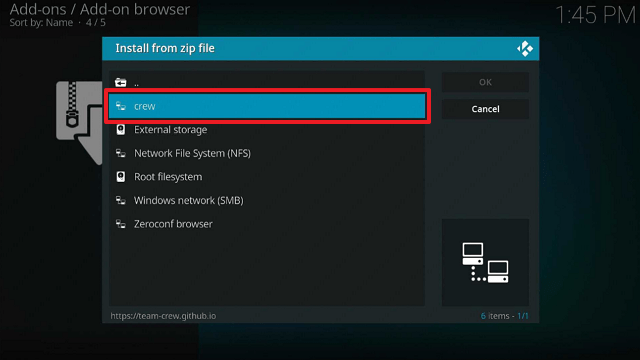
13. Select “Ghetto Astronaut

Konfusion Kodi Build


14. Then click on the zip file URL – repository.ghettomatrix-1.1.1.zip

Konfusion Kodi Build


15. Wait for the notification “Ghetto Astronaut Matrix Repo Add-on installed” to appear on the upper right part of the screen

Konfusion Kodi Build


16. Afterward, select “Install from repository

Konfusion Kodi Build


17. Then click “Ghetto Astronaut Matrix Repo

Konfusion Kodi Build


18. Select “Program add-ons

Konfusion Kodi Build


19. Click on “Ghetto Astronaut Wizard

Konfusion Kodi Build


20. Then click “Install

Konfusion Kodi Build


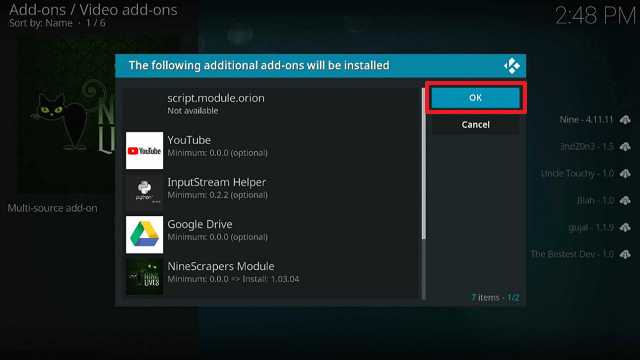
21. Click “OK” for the additional add-ons that will be installed

Konfusion Kodi Build


22. Then wait for it to install. It’s finished once you see the “Ghetto Astronaut Wizard Add-on Installed” message appears.

Konfusion Kodi Build


23. Click continue.

Konfusion Kodi Build


24. Click “Build Menu”

Konfusion Kodi Build


25. Select “Remind Me Later

Konfusion Kodi Build


26. Scroll down and choose “Konfusion

Konfusion Kodi Build


27. Click “Install

Konfusion Kodi Build


28. Then click “Yes, Install

Konfusion Kodi Build


29. Click Fresh Install

Konfusion Kodi Build


30. Click “OK

Konfusion Kodi Build


31. Then relaunch Kodi

Konfusion Kodi Build


32. That’s it, Konfusion Kodi Build is now installed on your Firestick.

Konfusion Kodi Build

Konfusion Kodi Build


YOUR INTERNET ACTIVITY IS BEING WATCHED

ReviewVPN cannot attest to the legality, security and privacy of the applications discussed on this site. It is highly recommended that you use a VPN service while streaming or using Kodi.

Currently, your IP 216.73.216.102 is visible to everyone and your Browser is being tracked by Advertisers & ISP Provider.

Save 65% Now

Limited Time Offer

Here are the main reasons why you must use a VPN:

  • Your activities are hidden from your ISP, the government, and from the apps you are using.
  • You can access additional movies and TV streams.
  • ISP attempts to throttle are thrwarted thus reducing buffering issues.
  • Geographically restricted content like Netflix and Hulu can be unblocked.

A VPN works be replacing your ISP-assigned IP address and creating an encrypted tunnel. We recommend the no log service offered by IPVanish. It works well on a Firestick and offers the fastest possible speeds.

Special Limited Time Offer - Get IPVanish


Legal Disclaimer: ReviewVPN.com does not encourage or endorse any illegal activity involved in the usage of services and applications referenced on this site. We do not verify the licensing agreements of services. The end-user is wholly responsible for ensuring that any media accessed through these services does not violate copyright and/or licensing laws. ReviewVPN does not promote, link to, or receive compensation from any Apps and IPTV services.


Install Surfshark on Firestick

Best Surfshark Deal


Features

  • Contains tv, movies, sports, and kids’ content
  • Includes streaming live television
  • The TV show category offers new TV shows, one-click shows, 4K TV shows, classic shows, docu shows, lifestyle shows, paranormal shows, and international shows.
  • The kids’ section includes Pixar, Warner Bros., Disney, Universal Studios, Nickelodeon, Cartoon Network, 4K, Boxsets, TV Shows, Teens TV, Family Movies, and Family TV Shows.
  • Boxing, Football, Formula 1, the NFL, and UFC/MMA are all available Live and on replay through Sports Section.
  • There are several built-in add-ons, such as KodiVerse, Homelander, Nightwing, Chains Reaction Lite, Ghost, Gratis, and Youtube.
  • Customizable actions and playback options for videos and music
  • DVD, Blu-ray, and Audio CDs are among the discs supported.
  • Provides subtitle and closed captioning support.
  • Allows you to configure PVR & Live TV Menu/OSD, Guide, Playback, Recording, Reminders, Power Saving, and Parental Control.
  • Customizable Skin and Interface
  • You can add movies and television shows to your favorites list.


Pros & Cons

Pros

  • Features a parental control function
  • Provides a variety of streaming links
  • Supports real debrid and Trakt integration
  • Excellent user interface


Con

  • The only con I found in this Build is the numerous playback failure.


Stream Safely With A VPN

Surfshark vpn

When using third-party builds such as Konfusion, it is always recommended to use a VPN. This is done to stop any unintended data breaches or IP address leaks from occurring while using unofficial addons.

Furthermore, we are cautious of the sheer number of other parties—such as phishers, hackers, the authorities, or your ISP—that may be interested in obtaining your data. It is therefore best to maintain your anonymity by utilizing a VPN like Surfshark.

Surfshark will assign you an anonymous IP address, masking your true IP address. This will prevent any records from appearing anywhere on the internet because all of your traffic will be directed through a private and secure tunnel.

In addition, the following are some of its advantages:

  • It enables you to bypass geo-restrictions.
  • Unbreakable data protection is provided by 256-bit military-grade encryption.
  • Its CleanWeb function stops malware and advertisements.
  • It has a cookie consent popup blocker.
  • Allows for two-factor authentication to increase account security.
  • Gives you access to an unlimited number of device connections so you may secure all of your devices.
  • There is a 30-day money-back guarantee included.

Note: For more information about Surfshark, please read our Surfshark Review.


How to Install Surfshark VPN on Firestick

If your Firestick still has the older interface, read this article to learn how to update it: Update Firestick Interface.

Follow our screenshots below to install the Surfshark VPN app on your Fire TV stick.

1. Go to the Home screen of your Firestick.

step 1 Install Surfshark VPN on Firestick


2. Navigate toward the Find tab. Press the Search button from the resulting dropdown.

step 2 Install Surfshark VPN on Firestick


3. Type in the keyword of Surfshark and select from the suggestions that will appear.

step 3 Install Surfshark VPN on Firestick


4. Click the official SurfShark icon from your search results.

step 4 Install Surfshark VPN on Firestick


5. Press the Download (You own it) button.

step 5 Install Surfshark VPN on Firestick


6. The Surfshark VPN installer will download on your device.

step 6 Install Surfshark VPN on Firestick


7. SurfShark VPN’s app will automatically install itself on your Fire TV stick.

step 7 Install Surfshark VPN on Firestick


8. Press the Open button after completing Surfshark VPN’s installation process.

step 8 Install Surfshark VPN on Firestick


9. Please wait for the SurfShark VPN to load its user interface.

step 9 Install Surfshark VPN on Firestick


10. You can now log in with your Surfshark VPN account credentials.

step 10 Install Surfshark VPN on Firestick

Learn more about Surfshark and Grab the Best Surfshark Deal Now!


Install Surfshark on Firestick

Best Surfshark Deal


Other VPNs to Consider

NordVPN (Best for Streaming)

Best Features

  • 5000+ Server in 50+ Countries 
  • Military-Grade Encryption
  • Fast Connection Speed
  • Suitable to a lot of devices
  • No-Log Policy

Prices
  • Complete $5.89 per month (64% Discount)
  • Plus $4.59 per month (56% Discount)
  • Standard $3.69 per month (55% Discount)

Best Features

  • 750+ High-speed VPN Servers in 43 Locations
  • Military-Grade Encryption
  • Fastest HD Streaming and Gaming
  • 30-Day Money-Back Guarantee
  • Unlimited Data & Devices
  • No-Log Policy

Prices
  • 3 Years $1.99 per month (82% Discount)
  • 1 Years $3.29 per month (70% Discount)
  • 1 Month $10.99 per month

IPVanish VPN (Most Secure)

Best Features

  • 1200+ Servers in 60+ Countries around the world
  • Unlimited Connections
  • No-Log Policy
  • Top Notch Military-Grade VPN Protocols and Encryptions
  • 100% Safe and Secured
  • Most Trusted VPN
  • Best VPN for Firestick
  • 30-Day Money-Back Guarantee

Prices
  • Yearly $3.99 per month (63% Discount) – 30 days risk free + Ransomware & Malware Protection
  • Quarterly $5.32 per month (51% Discount)
  • Monthly $10.99 per month


FAQs

What is Konfusion Kodi Build?

With Konfusion Kodi Build, you may stream live TV, sports, children’s programming, movies, and television series. Additionally, this Build allows you to access some of the most popular networks and sporting events.


Is Konfusion Kodi Build Safe?

It is safe to use Konfusion Kodi Build. However, we still urge the use of a VPN like Surfshark to ensure your data security.


Is Konfusion Kodi Build Legal?

In general, Kodi builds are legal. However, we are unable to ensure that all of the streams Konfusion provides to its users are legal. So it’s still advisable to only access anything that is in the public domain.


Should I Use Konfusion Kodi Build with a VPN?

Yes, we constantly advise our readers to use a VPN whenever they access any internet content, especially when using third-party Kodi builds. This is to avoid data breaches or anything else that could jeopardize your security.


For more VPN discounts, go to ReviewVPN Deals and purchase the best VPN for you.

Click here to get the lowest price on Surfshark through our exclusive limited-time offer.


Conclusion

Konfusion comes with various popular Kodi Addons like Homelander, Chains, KodiVerse, and more. Because of this, you can be sure to find a ton of streaming options and offerings when utilizing it on a device like the Firestick. You can therefore be guaranteed to discover a streaming link from Konfusion for whatever you wish to watch, whether it be live sports, movies, or classic television.

How To Install Xlite Kodi Build on Firestick

Overview

This guide will show you how to install the Xlite Kodi Build on Firestick.


Xlite Kodi Build is a Build you may get within the 709 Repository. It lets you watch movies, TV shows, live TV, and Sports on your Firestick and other Kodi-compatible devices. Though it demands the use of debrid services on some of its content, you can also get free live streams of your favorite Sports events and other entertainment.

Apart from that, you may find some of the most popular add-ons within the Xlite Kodi Build. This includes FEN, The Crew, Seren, Homelander, Umbrella, and a lot more. As a result, the Xlite Kodi Build may provide users with limitless streaming options because it collects videos from numerous sources. Additionally, there are several streaming providers to choose from, giving you a ton of alternatives and removing any concern that there won’t be a stream available for you.


ANONYMOUSLY


How To Install Xlite Kodi Build on Firestick

You can follow the step-by-step guide below on how you can install the Xlite Kodi Build on Firestick:

1. Launch the Kodi app on your Firestick. Click on the gear wheel icon (Settings)

Xlite Kodi Build


2. Select “System

Xlite Kodi Build

3. Scroll down to “Add-ons” Then Go to “Unknown sources” then toggle it on.

Xlite Kodi Build


4. Select “Yes”. Then using your Firestick remote, press the return button to go back to the System page

Xlite Kodi Build


5. Now choose “File Manager

Xlite Kodi Build


6. Scroll down and select “Add source

Xlite Kodi Build


7. Click “<None>

Xlite Kodi Build


8. Type in “https://zaxxon709.github.io/repo” then click “OK

Xlite Kodi Build


9. Highlight the box under the source to give the media source a name, and put “zax” or any other name that will help you identify it quickly. Click “OK”. Return to the System page by pressing the return button on your remote

Xlite Kodi Build


10. Select “Add-ons

Xlite Kodi Build


11. Choose “Install from zip file

Xlite Kodi Build


12. Click “Yes

Xlite Kodi Build


13. Select “zax

Xlite Kodi Build


14. Then click on the zip file URL – 709-1.2.zip

Xlite Kodi Build


15. Wait for the notification “The 709Repo Add-on installed” to appear on the upper right part of the screen

Xlite Kodi Build


16. Then click “Install from repository

Xlite Kodi Build


17. Select “The 709Repo

Xlite Kodi Build


18. Then choose “Program add-ons

Xlite Kodi Build


19. Click on “709Wizard

Xlite Kodi Build


20. Then click “Install

Xlite Kodi Build


21. Wait for the “709Wizard Add-on installed” notification

Xlite Kodi Build


22. Select “Close

Xlite Kodi Build


23. Then click “709Wizard” then click “Open

Xlite Kodi Build


24. Select “Build Menu

Xlite Kodi Build


25. Select “Xlite Plus Build

Xlite Kodi Build


26. Click “Continue

Xlite Kodi Build


27. Then wait for the build to install. Relaunch Kodi

Xlite Kodi Build


28. That’s it, Xlite Plus Kodi Build is now successfully installed on your Firestick

Xlite Kodi Build


YOUR INTERNET ACTIVITY IS BEING WATCHED

ReviewVPN cannot attest to the legality, security and privacy of the applications discussed on this site. It is highly recommended that you use a VPN service while streaming or using Kodi.

Currently, your IP 216.73.216.102 is visible to everyone and your Browser is being tracked by Advertisers & ISP Provider.

Save 65% Now

Limited Time Offer

Here are the main reasons why you must use a VPN:

  • Your activities are hidden from your ISP, the government, and from the apps you are using.
  • You can access additional movies and TV streams.
  • ISP attempts to throttle are thrwarted thus reducing buffering issues.
  • Geographically restricted content like Netflix and Hulu can be unblocked.

A VPN works be replacing your ISP-assigned IP address and creating an encrypted tunnel. We recommend the no log service offered by IPVanish. It works well on a Firestick and offers the fastest possible speeds.

Special Limited Time Offer - Get IPVanish


Legal Disclaimer: ReviewVPN.com does not encourage or endorse any illegal activity involved in the usage of services and applications referenced on this site. We do not verify the licensing agreements of services. The end-user is wholly responsible for ensuring that any media accessed through these services does not violate copyright and/or licensing laws. ReviewVPN does not promote, link to, or receive compensation from any Apps and IPTV services.


Install Surfshark on Firestick

Best Surfshark Deal


Features

  • Contains Movies, TV Shows, Networks, and Sports
  • There are sections for 4K Releases, Trending, Genres, Years, Discover, and Trakt TV in the movies section.
  • Available under the TV Shows section are Premieres, Trending, Genres, Years, Discover, and Trakt TV.
  • Films and television programs from Netflix, Amazon, Hulu, Apple TV+, Disney+, and HBO Max are included in the Networks category.
  • The sports you may discover content for include the NBA, MLB, NFL, NHL, Football, motorsports, NCAAF, NCAAB, wrestling, cricket, pool, and darts.
  • The Loop, The Endzone, Rising Tides, SportHD, Mad Titan Sports, The Crew Sports, FEN, Seren, The Crew, Homelander, and Umbrella are some of the add-ons you can access.
  • There are several different genres to choose from, including action, adventure, animation, comedy, crime, documentary, drama, family, fantasy, history, horror, music, mystery, romance, science fiction, TV movie, Thriller, War, and Western.
  • You can find a variety of different networks, like A&E, Animal Planet, BBC, BET, Crackle, Discovery Plus, FOX, Showtime, Starz, TLC, and many others.
  • Provides you with the option to set up bookmarks for your preferred channels, TV shows, and movies.
  • Offers the ability to explore or download subtitle support.
  • It contains a search feature that lets you look for actors, box sets, TV shows, movies, Trakt lists, movie search history, TV show history, and a few more things.
  • The TV Guide, Channels, Search, Build/Repair TV Guide, TV Guide Genre Colors, and TV Guide Keyboard Shortcuts are all accessible in the Live TV area.


Pros & Cons

Pros

  • Contains a huge variety of Sports categories.
  • The Sports tab makes it simple to access built-in addons that provide sports information.
  • Provides a variety of streaming sources.
  • Some sporting events are available for free live TV viewing.
  • It has a TV Guide/EPG so you can check what live TV shows are airing now and in the upcoming.


Cons

  • Kodi unexpectedly closed when browsing this Build.
  • You must have a debrid account to watch movies and TV series.
  • I experienced some playback issues.
  • There is some loading delay when navigating the Build.


Stream Safely With a VPN

Surfshark vpn

There are numerous streaming options available to Xlite Kodi Build users. However, because it scrapes data from a variety of sources, using builds like Xlite can never completely ensure your privacy. Therefore, it is always advised to keep your identity private when utilizing builds and addons, especially if they come from unofficial sources, by using a VPN like Surfshark. This will stop your information from being stolen or sold to ads for profit. Additionally, you can be sure that no one will be able to monitor and track your internet behavior.

In addition, the following are some benefits of Surfshark:

  • Enables you to get around geographic limitations so you can access any material from anywhere.
  • It has a CleanWeb feature that will stop malware and advertisements.
  • Surfshark has an integrated consent popup blocker.
  • You have access to more than 3,200 servers across 100 countries.
  • gives you limitless bandwidth so you may stream and download any media from your favorite Kodi builds.
  • Protects an unlimited number of devices at the same time.
  • You will receive an additional degree of account protection with two-factor authentication.
  • maintains no logs
  • It offers a 30-day money-back guarantee.

Note: For more information about Surfshark, please read our Surfshark Review.


How to Install Surfshark VPN on Firestick

If your Firestick still has the older interface, read this article to learn how to update it: Update Firestick Interface.

Follow our screenshots below to install the Surfshark VPN app on your Fire TV stick.

1. Go to the Home screen of your Firestick.

step 1 Install Surfshark VPN on Firestick


2. Navigate toward the Find tab. Press the Search button from the resulting dropdown.

step 2 Install Surfshark VPN on Firestick


3. Type in the keyword of Surfshark and select from the suggestions that will appear.

step 3 Install Surfshark VPN on Firestick


4. Click the official Surfshark icon from your search results.

step 4 Install Surfshark VPN on Firestick


5. Press the Download (You own it) button.

step 5 Install Surfshark VPN on Firestick


6. The Surfshark VPN installer will download on your device.

step 6 Install Surfshark VPN on Firestick


7. Surfshark VPN’s app will automatically install itself on your Fire TV stick.

step 7 Install Surfshark VPN on Firestick


8. Press the Open button after completing Surfshark VPN’s installation process.

step 8 Install Surfshark VPN on Firestick


9. Please wait for the Surfshark VPN to load its user interface.

step 9 Install Surfshark VPN on Firestick


10. You can now log in with your Surfshark VPN account credentials.

step 10 Install Surfshark VPN on Firestick

Learn more about Surfshark and Grab the Best Surfshark Deal Now!


Install Surfshark on Firestick

Best Surfshark Deal


Other VPNs to Consider

NordVPN (Best for Streaming)

Best Features

  • 5000+ Server in 50+ Countries 
  • Military-Grade Encryption
  • Fast Connection Speed
  • Suitable to a lot of devices
  • No-Log Policy

Prices
  • Complete $5.89 per month (64% Discount)
  • Plus $4.59 per month (56% Discount)
  • Standard $3.69 per month (55% Discount)

Best Features

  • 750+ High-speed VPN Servers in 43 Locations
  • Military-Grade Encryption
  • Fastest HD Streaming and Gaming
  • 30-Day Money-Back Guarantee
  • Unlimited Data & Devices
  • No-Log Policy

Prices
  • 3 Years $1.99 per month (82% Discount)
  • 1 Years $3.29 per month (70% Discount)
  • 1 Month $10.99 per month

IPVanish VPN (Most Secure)

Best Features

  • 1200+ Servers in 60+ Countries around the world
  • Unlimited Connections
  • No-Log Policy
  • Top Notch Military-Grade VPN Protocols and Encryptions
  • 100% Safe and Secured
  • Most Trusted VPN
  • Best VPN for Firestick
  • 30-Day Money-Back Guarantee

Prices
  • Yearly $3.99 per month (63% Discount) – 30 days risk free + Ransomware & Malware Protection
  • Quarterly $5.32 per month (51% Discount)
  • Monthly $10.99 per month


FAQs

What is Xlite Kodi Build?

Xlite Kodi Build is a Build from the 709 Repository that allows access to movies, TV shows, sports, and live TV.


Is Xlite Kodi Build Safe?

It is safe to use Xlite Kodi Build. However, since Xlite is an unofficial Kodi Build that is not from the Kodi Repository, we still advise using a VPN like Surfshark.


Is Xlite Kodi Build Legal?

Kodi Builds are legal. But, we cannot guarantee that all the content you can find from it is lawful because it comprises many add-ons that scrape sources from various sources.


Should I Use Xlite Kodi Build with a VPN?

Yes, a VPN should be used with Xlite. As previously said, it is an unofficial Build, hence Kodi will not be held responsible for any data leaks or IP address breaches while using Xlite. It is therefore advisable to use it while choosing an anonymous streaming solution.


For VPN discounts, go to ReviewVPN Deals and purchase the best VPN for you.

Click here to get the lowest price on Surfshark through our exclusive limited-time offer.


Wrapping Up

The Xlite Kodi Build is an excellent build because it provides its users with a variety of streaming alternatives. You may stream a variety of content, including movies, TV series, sports, and live TV. We can therefore recommend you test out this Build and determine for yourself.

How To Install Patriot Kodi Addon on Firestick

Overview

This article will show you how to install Patriot Kodi Addon on Firestick.


Many Kodi users are constantly searching for the best Addon that will allow them to view their favorite movies and television shows on their devices. A plus if it has a lot of categories aside from the standard movies and TV show options supplied by most addons. And the Patriot Kodi Addon is a good choice for this.

Patriot offers a huge collection of thousands of films and TV shows in various genres. There are options for Docs, Kids, Comedy, Anime, and even Music. It offers box sets and collections that will undoubtedly keep you entertained for a very long time. Because of its extensive video options, you can almost certainly locate practically any material you’re looking for.

However, before we show you how to install it on your Firestick, we should make clear that Patriot is a third-party Kodi Addon and is not listed in the official Kodi Repository. To protect data privacy and prevent data breaches while using it on your device, it is advised to utilize a VPN in conjunction with it.


ANONYMOUSLY


How To Install Patriot Kodi Addon on Firestick

You can follow this tutorial to install the Patriot Kodi Addon on your Firestick.

1. Launch the Kodi app on your Firestick. Click on the gear wheel icon (Settings)

Patriot Kodi Addon


2. Select “System

Patriot Kodi Addon

3. Scroll down to “Add-ons” Then Go to “Unknown sources” then toggle it on.

Patriot Kodi Addon


4. Select “Yes”. Then using your Firestick remote, press the return button to go back to the System page

Patriot Kodi Addon


5. Now choose “File Manager

Patriot Kodi Addon


6. Scroll down and select “Add source

Patriot Kodi Addon


7. Click “<None>

Patriot Kodi Addon


8. Type in “http://www.narcacist.com/repo/” then click “OK”

Patriot Kodi Addon


9. Highlight the box under the source to give the media source a name, and put “narcacist” or any other name that will help you identify it quickly. Click “OK”. Return to the System page by pressing the return button on your remote

Patriot Kodi Addon


10. Select “Add-ons

Patriot Kodi Addon


11. Choose “Install from zip file

Patriot Kodi Addon


12. Click “Yes

Patriot Kodi Addon


13. Select “narcacist

Patriot Kodi Addon


14. Then click on the zip file URL – repository.NarcacistWizard-1.1.6.zip

Patriot Kodi Addon


15. Wait for the notification “Narcacist’s Wizard Repository Add-on installed” to appear on the upper right part of the screen

Patriot Kodi Addon


16. Afterward, select “Install from repository

Patriot Kodi Addon


17. Then click “Narcacist’s Wizard Repository

Patriot Kodi Addon


18. Select “Video add-ons

Patriot Kodi Addon


19. Click on “Patriot

Patriot Kodi Addon


20. Then click “Install

Patriot Kodi Addon


21. Click “OK” for the additional add-ons that will be installed

Patriot Kodi Addon


22. Then wait for it to install. It’s finished once you see the “Patriot Add-on Installed” message appears.

Patriot Kodi Addon


23. Select “Patriot”. Then select “Open

Patriot Kodi Addon


24. That’s it, Patriot Kodi Addon is already installed in your Firestick.

Patriot Kodi Addon

YOUR INTERNET ACTIVITY IS BEING WATCHED

ReviewVPN cannot attest to the legality, security and privacy of the applications discussed on this site. It is highly recommended that you use a VPN service while streaming or using Kodi.

Currently, your IP 216.73.216.102 is visible to everyone and your Browser is being tracked by Advertisers & ISP Provider.

Save 65% Now

Limited Time Offer

Here are the main reasons why you must use a VPN:

  • Your activities are hidden from your ISP, the government, and from the apps you are using.
  • You can access additional movies and TV streams.
  • ISP attempts to throttle are thrwarted thus reducing buffering issues.
  • Geographically restricted content like Netflix and Hulu can be unblocked.

A VPN works be replacing your ISP-assigned IP address and creating an encrypted tunnel. We recommend the no log service offered by IPVanish. It works well on a Firestick and offers the fastest possible speeds.

Special Limited Time Offer - Get IPVanish


Legal Disclaimer: ReviewVPN.com does not encourage or endorse any illegal activity involved in the usage of services and applications referenced on this site. We do not verify the licensing agreements of services. The end-user is wholly responsible for ensuring that any media accessed through these services does not violate copyright and/or licensing laws. ReviewVPN does not promote, link to, or receive compensation from any Apps and IPTV services.


Install Surfshark on Firestick

Best Surfshark Deal


Features

  • Selections of movies and TV shows
  • Its categories include Docs, Kids, Comedy, Music, and Anime.
  • Its Search area allows you to look for Direct Links, Actors, Genres, Years, Studios, Real Debrid History, Real Debrid Torrents, and more.
  • The Docs Section will give users access to WWE Docs, Shark Docs, Sports Docs, Netflix Docs, and Wildlife 4K Docs.
  • Disney Collection, Pixar Collection, Dreamworks Collection, Toy Story Box Set, Cars Box Set, Harry Potter Box Set, Marvel Collection, and much more are all available in the Kids Section.
  • There are musical options including Classic House Mixes, Essential Mixes, Music Films & Docs, and concerts.
  • You can see your most recently played link.
  • You can also keep watching the current film or television program.
  • Suitable for Real Debrid, All Debrid, and Premiumize accounts
  • You could synchronize your Trakt account to keep track of the movies and TV series you’ve viewed.
  • Context Menu, Next Up, and Filters are all fully customizable.
  • You can access the What’s New tab to see any updates to the current Patriot version.


Pros & Cons

Pros

  • Simple and excellent user interface
  • It includes the most recent movies and television shows.
  • You can get links to free music.
  • There are numerous categories to choose from.
  • The most well-known box sets and movie compilations are available.
  • Contains anime collections.


Cons

  • For you to view any of its material, you must have a debrid account.
  • There is some loading time while navigating.
  • Hardly any free content.


Stream Safely With a VPN

Surfshark vpn

Using a VPN, you can prevent unlawful data logging and traffic monitoring. All of your traffic will be routed through an encrypted tunnel by a VPN like Surfshark, leaving no traces on the websites or apps you visit. Additionally, it will provide you with an anonymous IP address to conceal your true identity. By doing this, you may be certain that risks from outside parties, such as hackers and phishers, won’t be able to access your data. In addition, it stops your ISP and the government from monitoring your internet activity for their ends. Here are some more benefits of utilizing Surfshark:

  • Enables you to get around geographic limitations so you can access any content from anywhere in the globe
  • It has a built-in pop-up consent blocker.
  • Its Cleanweb feature will shield your device from malware and advertisements.
  • Stream and download any internet entertainment you want with no limits on bandwidth.
  • It safeguards an unlimited number of concurrent device connections.
  • Uses 256-bit military-grade encryption to ensure unbreakable data security.

Note: For more information about Surfshark, please read our Surfshark Review.


How to Install Surfshark VPN on Firestick

If your Firestick still has the older interface, read this article to learn how to update it: Update Firestick Interface.

Follow our screenshots below to install the Surfshark VPN app on your Fire TV stick.

1. Go to the Home screen of your Firestick.

step 1 Install Surfshark VPN on Firestick


2. Navigate toward the Find tab. Press the Search button from the resulting dropdown.

step 2 Install Surfshark VPN on Firestick


3. Type in the keyword of Surfshark and select from the suggestions that will appear.

step 3 Install Surfshark VPN on Firestick


4. Click the official SurfShark icon from your search results.

step 4 Install Surfshark VPN on Firestick


5. Press the Download (You own it) button.

step 5 Install Surfshark VPN on Firestick


6. The Surfshark VPN installer will download on your device.

step 6 Install Surfshark VPN on Firestick


7. SurfShark VPN’s app will automatically install itself on your Fire TV stick.

step 7 Install Surfshark VPN on Firestick


8. Press the Open button after completing Surfshark VPN’s installation process.

step 8 Install Surfshark VPN on Firestick


9. Please wait for the Surfshark VPN to load its user interface.

step 9 Install Surfshark VPN on Firestick


10. You can now log in with your Surfshark VPN account credentials.

step 10 Install Surfshark VPN on Firestick

Learn more about Surfshark and Grab the Best Surfshark Deal Now!


Install Surfshark on Firestick

Best Surfshark Deal


Other VPNs to Consider

NordVPN (Best for Streaming)

Best Features

  • 5000+ Server in 50+ Countries 
  • Military-Grade Encryption
  • Fast Connection Speed
  • Suitable to a lot of devices
  • No-Log Policy

Prices
  • Complete $5.89 per month (64% Discount)
  • Plus $4.59 per month (56% Discount)
  • Standard $3.69 per month (55% Discount)

Best Features

  • 750+ High-speed VPN Servers in 43 Locations
  • Military-Grade Encryption
  • Fastest HD Streaming and Gaming
  • 30-Day Money-Back Guarantee
  • Unlimited Data & Devices
  • No-Log Policy

Prices
  • 3 Years $1.99 per month (82% Discount)
  • 1 Years $3.29 per month (70% Discount)
  • 1 Month $10.99 per month

IPVanish VPN (Most Secure)

Best Features

  • 1200+ Servers in 60+ Countries around the world
  • Unlimited Connections
  • No-Log Policy
  • Top Notch Military-Grade VPN Protocols and Encryptions
  • 100% Safe and Secured
  • Most Trusted VPN
  • Best VPN for Firestick
  • 30-Day Money-Back Guarantee

Prices
  • Yearly $3.99 per month (63% Discount) – 30 days risk free + Ransomware & Malware Protection
  • Quarterly $5.32 per month (51% Discount)
  • Monthly $10.99 per month


FAQs

What is Patriot Kodi Addon?

Patriot Kodi Addon is a third-party addon that allows you to view movies and TV episodes on your device. It includes selections from Docs, Kids, Comedy, Music, and Anime.


Is Patriot Kodi Addon Safe?

Installing Patriot Kodi Addon on your device is safe. However, as this is a third-party addon, you shouldn’t let your data security slip through your fingers. So it’s best to use Surfshark with it.


Is Patriot Kodi Addon Legal?

Kodi Addons are legal. However, as Patriot Kodi Addon pulls content from numerous sources, we cannot ensure that the content there is legal.


Should I Use a VPN with Patriot Kodi Addon?

Yes, using a VPN with the Patriot Kodi Addon is crucial. This will stop any unauthorized data logging or data breaches when using it on your device.


For more VPN discounts, go to ReviewVPN Deals and purchase the best VPN for you.

Click here to get the lowest price on Surfshark through our exclusive limited-time offer.


Wrapping Up

Patriot is a fantastic addon because it provides its users with a broad variety of streaming possibilities. Along with its selection of TV and movie shows, it is also one of the few that also offer music and anime. Patriot, however, might not be the best choice for you if you’re looking for free stuff. Nevertheless, you can find more addons by reading our article on the best Kodi Addons.

How To Install Crazy Canucks Kodi Addon on Firestick

Overview

This post will walk you through the process of installing the Crazy Canucks Kodi Addon on Firestick.


If you’re looking for a way to stream the newest movies and TV episodes on your Firestick or other smart devices, you should check out Crazy Canucks.

Crazy Canucks is a video addon from the Canuck Repository that allows you to acquire high-quality streaming links by integrating your debrid account. This add-on contains a list of some of the top networks and filmmakers, along with links to their latest releases. Additionally, it enables you to authorize your Trakt account so you can manage your watchlist across all of your preferred add-ons.

But before we go any further, we want to let you know that Crazy Canucks is a third-party addon that isn’t available in the official Kodi Repository. As a result, it’s critical to protect your connection using a VPN since Kodi disclaims responsibility for any harm this addon may cause.


ANONYMOUSLY


How To Install Crazy Canucks Kodi Addon on Firestick

You can follow this tutorial to install the Crazy Canucks Kodi Addon on your Firestick.

1. Launch the Kodi app on your Firestick. Click on the gear wheel icon (Settings)

Crazy Canucks Kodi Addon


2. Select “System

Crazy Canucks Kodi Addon

3. Scroll down to “Add-ons” Then Go to “Unknown sources” then toggle it on.

Crazy Canucks Kodi Addon


4. Select “Yes”. Then using your Firestick remote, press the return button to go back to the System page

Crazy Canucks Kodi Addon


5. Now choose “File Manager

Crazy Canucks Kodi Addon


6. Scroll down and select “Add source

Crazy Canucks Kodi Addon


7. Click “<None>

Crazy Canucks Kodi Addon


8. Type in “http://twiglet.esy.es/canuck” then click “OK”

Crazy Canucks Kodi Addon


9. Highlight the box under the source to give the media source a name, and put “canuck” or any other name that will help you identify it quickly. Click “OK”. Return to the System page by pressing the return button on your remote.

Crazy Canucks Kodi Addon


10. Select “Add-ons

Crazy Canucks Kodi Addon


11. Choose “Install from zip file

Crazy Canucks Kodi Addon


12. Click “Yes

Crazy Canucks Kodi Addon


13. Select “canuck

Crazy Canucks Kodi Addon


14. Then click on the zip file URL – repository.canuck-0.1.0.zip

Crazy Canucks Kodi Addon


15. Wait for the notification “Canuck Repository Add-on installed” to appear on the upper right part of the screen

Crazy Canucks Kodi Addon


16. Afterward, select “Install from repository

Crazy Canucks Kodi Addon


17. Then click “Canuck Repository

Crazy Canucks Kodi Addon


18. Select “Video add-ons

Crazy Canucks Kodi Addon


19. Click on “Crazy Canucks

Crazy Canucks Kodi Addon


20. Then click “Install

Crazy Canucks Kodi Addon


21. Then wait for it to install. It’s finished once you see the “Crazy Canucks Add-on Installed” message appears.

Crazy Canucks Kodi Addon


22. Select “Crazy Canucks”. Then select “Open

Crazy Canucks Kodi Addon


23. That’s it, Crazy Canucks Kodi Addon is already installed in your Firestick.

Crazy Canucks Kodi Addon


YOUR INTERNET ACTIVITY IS BEING WATCHED

ReviewVPN cannot attest to the legality, security and privacy of the applications discussed on this site. It is highly recommended that you use a VPN service while streaming or using Kodi.

Currently, your IP 216.73.216.102 is visible to everyone and your Browser is being tracked by Advertisers & ISP Provider.

Save 65% Now

Limited Time Offer

Here are the main reasons why you must use a VPN:

  • Your activities are hidden from your ISP, the government, and from the apps you are using.
  • You can access additional movies and TV streams.
  • ISP attempts to throttle are thrwarted thus reducing buffering issues.
  • Geographically restricted content like Netflix and Hulu can be unblocked.

A VPN works be replacing your ISP-assigned IP address and creating an encrypted tunnel. We recommend the no log service offered by IPVanish. It works well on a Firestick and offers the fastest possible speeds.

Special Limited Time Offer - Get IPVanish


Legal Disclaimer: ReviewVPN.com does not encourage or endorse any illegal activity involved in the usage of services and applications referenced on this site. We do not verify the licensing agreements of services. The end-user is wholly responsible for ensuring that any media accessed through these services does not violate copyright and/or licensing laws. ReviewVPN does not promote, link to, or receive compensation from any Apps and IPTV services.


Install Surfshark on Firestick

Best Surfshark Deal


Features

  • The Crazy Canuck, Movies, TV Shows, Trakt, Last Link Played, Resume Watching, My RD History, RD Torrents, Search, Search History, Settings, and Odin are among the categories you can discover on its Home Screen.
  • Contains films, TV shows, and video on demand
  • There are also one-click links for movies.
  • Selections from TMDb and IMDb are also available.
  • You can choose and filter Year and Genre using the Advanced Content Selection feature.
  • You can find genres like Action & Adventure, Animation, Comedy, Crime, Documentary, Drama, Family, Kids, Mystery, News, Reality, Sci-Fi & Fantasy, Soap, Talk, War & Politics, and Western.
  • There are a number of networks available, including Disney+, Apple TV+, Netflix, HBO, CBS, SyFy, The CW, ABC, NBC, Amazon, Hulu, Showtime, BBC, and ITV.
  • It has a search box where you can type titles into the field.
  • Available video resolutions include 4K, 1080, 720, and 480.
  • Allows you to authorize your Trakt account
  • You can filter movies and TV shows by minimum and maximum quality.
  • Real-debrid, Premiumize, and AllDebrid are all supported.


Pros & Cons

Pros

  • It offers a large number of streaming links in various video resolutions.
  • Trakt and debrid account authorization are supported.
  • Allows for HD-quality streaming
  • VOD content from YouTube is also available.


Cons

  • To view its content, a debrid account is necessary.
  • No free streaming is available.


Stream Safely With a VPN

Surfshark vpn

While Kodi streaming is highly convenient, it poses a significant risk to your data privacy. This is because you are unaware of any potential lurkers while accessing and streaming content through add-ons, particularly third-party ones.

Therefore, the best course of action is to stream in anonymity. And the easiest way to accomplish this is using a VPN like Surfshark.

To protect your privacy, Surfshark will provide you with an anonymous IP address. Your true identity won’t be exposed in this manner on any online network you use. Additional benefits of utilizing Surfshark include the following:

  • Makes certain that no logs are stored and that no IP addresses are disclosed.
  • Allows you to bypass geo-restrictions and access content from all around the world.
  • Gives you access to unlimited bandwidth so you may stream and download any content from your favorite Kodi Addons.
  • Encrypts your connection with unbreakable 256-bit military-grade encryption.
  • Surfshark features a built-in cookie consent pop-up blocker, so you can get rid of bothersome popups.
  • Additionally, a Cleanweb feature will stop malware and advertisements.
  • A customer service that is available around the clock will help you with any issues you may have.

Note: For more information about Surfshark, please read our Surfshark Review.


How to Install Surfshark VPN on Firestick

If your Firestick still has the older interface, read this article to learn how to update it: Update Firestick Interface.

Follow our screenshots below to install the Surfshark VPN app on your Fire TV stick.

1. Go to the Home screen of your Firestick.

step 1 Install Surfshark VPN on Firestick


2. Navigate toward the Find tab. Press the Search button from the resulting dropdown.

step 2 Install Surfshark VPN on Firestick


3. Type in the keyword of Surfshark and select from the suggestions that will appear.

step 3 Install Surfshark VPN on Firestick


4. Click the official Surfshark icon from your search results.

step 4 Install Surfshark VPN on Firestick


5. Press the Download (You own it) button.

step 5 Install Surfshark VPN on Firestick


6. The Surfshark VPN installer will download on your device.

step 6 Install Surfshark VPN on Firestick


7. Surfshark VPN’s app will automatically install itself on your Fire TV stick.

step 7 Install Surfshark VPN on Firestick


8. Press the Open button after completing Surfshark VPN’s installation process.

step 8 Install Surfshark VPN on Firestick


9. Please wait for the Surfshark VPN to load its user interface.

step 9 Install Surfshark VPN on Firestick


10. You can now log in with your Surfshark VPN account credentials.

step 10 Install Surfshark VPN on Firestick

Learn more about Surfshark and Grab the Best Surfshark Deal Now!


Install Surfshark on Firestick

Best Surfshark Deal


Other VPNs to Consider

NordVPN (Best for Streaming)

Best Features

  • 5000+ Server in 50+ Countries 
  • Military-Grade Encryption
  • Fast Connection Speed
  • Suitable to a lot of devices
  • No-Log Policy

Prices
  • Complete $5.89 per month (64% Discount)
  • Plus $4.59 per month (56% Discount)
  • Standard $3.69 per month (55% Discount)

Best Features

  • 750+ High-speed VPN Servers in 43 Locations
  • Military-Grade Encryption
  • Fastest HD Streaming and Gaming
  • 30-Day Money-Back Guarantee
  • Unlimited Data & Devices
  • No-Log Policy

Prices
  • 3 Years $1.99 per month (82% Discount)
  • 1 Years $3.29 per month (70% Discount)
  • 1 Month $10.99 per month

IPVanish VPN (Most Secure)

Best Features

  • 1200+ Servers in 60+ Countries around the world
  • Unlimited Connections
  • No-Log Policy
  • Top Notch Military-Grade VPN Protocols and Encryptions
  • 100% Safe and Secured
  • Most Trusted VPN
  • Best VPN for Firestick
  • 30-Day Money-Back Guarantee

Prices
  • Yearly $3.99 per month (63% Discount) – 30 days risk free + Ransomware & Malware Protection
  • Quarterly $5.32 per month (51% Discount)
  • Monthly $10.99 per month


FAQs

What is Crazy Canucks Kodi Addon?

Crazy Canucks is a Kodi Addon that allows you to watch high-definition movies, TV programs, and VOD. You can use your actual Debrid account to scrape the highest-quality links on Crazy Canucks.


Is Crazy Canucks Kodi Addon Safe?

Running the repository URL of Crazy Canuck will reveal that it does include one suspicious file or malware. It is therefore strongly advised to use a VPN such as Surfshark while using this add-on.


Is Crazy Canucks Kodi Addon Legal?

In general, Kodi Addons are legal. However, we are unable to verify the legitimacy of the streams provided by Crazy Canucks, so be sure to only view publicly available material.


Should I Use a VPN with Crazy Canucks Kodi Addon?

A VPN is unquestionably recommended when using the Crazy Canucks Kodi Addon. This is done to stop any data breaches, especially as its repository contains a suspicious file. You wouldn’t want to jeopardize your data only to view your favorite movies and TV shows.


For more VPN discounts, go to ReviewVPN Deals and purchase the best VPN for you.

Click here to get the lowest price on Surfshark through our exclusive limited-time offer.


Wrapping Up

Crazy Canucks offers a bunch of streaming links in varying video quality based on your preferences. What worries me, though, is the security of the users while they utilize this add-on. So I’ll merely recommend that you look through our list of the top Kodi addons to locate more trustworthy add-ons.

How To Install Aliunde K19 Kodi Addon on Firestick/Android

Overview

This post will show you how to install Aliunde K19 Kodi Addon as well as everything else you need to know about it.


Aliunde K19 Kodi Addon is a Shadow Kodi Addon fork that allows you to watch on-demand movies and TV shows. It also works with premium hoster services like Real Debrid, AllDebrid, and Premiumize. Moreover, it allows you to sync your Trakt account so you could keep track of your watchlist while using Aliunde K19.

Aliunde offers hundreds of titles in different genres such as Action, Comedy, Drama, Romance, and Sci-fi. You can find the latest movies and shows as well as those dating back to the 70s. In addition, it offers some of the top movies and television shows from the most well-known networks and production companies right now.

But, before we continue, we’d like to point out that Aliunde K19 is a third-party addon. To prevent any data breaches from happening while using this add-on, we recommend that you set up a VPN service.


ANONYMOUSLY


How To Install Aliunde K19 Kodi Addon on Firestick

You can follow this tutorial to install the Aliunde K19 Kodi Addon on your Firestick.

1. Launch the Kodi app on your Firestick. Click on the gear wheel icon (Settings)

Aliunde K19 Kodi Addon


2. Select “System

Aliunde K19 Kodi Addon

3. Scroll down to “Add-ons” Then Go to “Unknown sources” then toggle it on.

Aliunde K19 Kodi Addon


4. Select “Yes”. Then using your Firestick remote, press the return button to go back to the System page

Aliunde K19 Kodi Addon


5. Now choose “File Manager

Aliunde K19 Kodi Addon


6. Scroll down and select “Add source

Aliunde K19 Kodi Addon


7. Click “<None>

Aliunde K19 Kodi Addon


8. Type in “https://fuse99.com/aliunde/” then click “OK”

Aliunde K19 Kodi Addon


9. Highlight the box under the source to give the media source a name, and put “aliunde” or any other name that will help you identify it quickly. Click “OK” Return to the System page by pressing the return button on your remote.

Aliunde K19 Kodi Addon


10. Select “Add-ons

Aliunde K19 Kodi Addon


11. Choose “Install from zip file

Aliunde K19 Kodi Addon


12. Click “Yes

Aliunde K19 Kodi Addon


13. Select “aliunde

Aliunde K19 Kodi Addon


14. Then click on the zip file URL – repository.aliunde-1.0.4.zip

Aliunde K19 Kodi Addon


15. Wait for the notification “Aliunde Repository Add-on installed” to appear on the upper right part of the screen

Aliunde K19 Kodi Addon


16. Afterward, select “Install from repository

Aliunde K19 Kodi Addon


17. Then click “Aliunde Repository

Aliunde K19 Kodi Addon


18. Select “Video add-ons

Aliunde K19 Kodi Addon


19. Click on “Aliunde K19

Aliunde K19 Kodi Addon


20. Then click “Install

Aliunde K19 Kodi Addon


21. Click “OK” for the additional add-ons that will be installed

Aliunde K19 Kodi Addon


22. Then wait for it to install. It’s finished once you see the “Aliunde K19 Add-on Installed” message appears.

Aliunde K19 Kodi Addon


23. Select “Aliunde K19”Then select “Open

Aliunde K19 Kodi Addon


24. That’s it, Aliunde K19 Kodi Addon is already installed on your Firestick.

Aliunde K19 Kodi Addon


YOUR INTERNET ACTIVITY IS BEING WATCHED

ReviewVPN cannot attest to the legality, security and privacy of the applications discussed on this site. It is highly recommended that you use a VPN service while streaming or using Kodi.

Currently, your IP 216.73.216.102 is visible to everyone and your Browser is being tracked by Advertisers & ISP Provider.

Save 65% Now

Limited Time Offer

Here are the main reasons why you must use a VPN:

  • Your activities are hidden from your ISP, the government, and from the apps you are using.
  • You can access additional movies and TV streams.
  • ISP attempts to throttle are thrwarted thus reducing buffering issues.
  • Geographically restricted content like Netflix and Hulu can be unblocked.

A VPN works be replacing your ISP-assigned IP address and creating an encrypted tunnel. We recommend the no log service offered by IPVanish. It works well on a Firestick and offers the fastest possible speeds.

Special Limited Time Offer - Get IPVanish


Legal Disclaimer: ReviewVPN.com does not encourage or endorse any illegal activity involved in the usage of services and applications referenced on this site. We do not verify the licensing agreements of services. The end-user is wholly responsible for ensuring that any media accessed through these services does not violate copyright and/or licensing laws. ReviewVPN does not promote, link to, or receive compensation from any Apps and IPTV services.


Install Surfshark on Firestick

Best Surfshark Deal


Features

  • You can search for content in the following categories: One Click Links, Movies, TV Shows, Trakt, Last Link Played, Resume Watching, My RD History, RD Torrents, Search, Search History, and Settings.
  • It offers the most recent movies and television shows.
  • Contains one-click play links
  • There are several different genres to choose from, including action, adventure, animation, comedy, crime, documentary, drama, family, fantasy, history, horror, music, mystery, romance, sci-fi, TV movie, Thriller, War, and Western.
  • You can watch movies from 1971 to the present.
  • Marvel, DC, Warner Bros, Walt Disney Pictures, Pixar, Paramount, Dreamworks, Lions Gate Films, and more prominent studios can be found.
  • Disney+, Apple TV+, Netflix, HBO, CBS, SyFy, The CW, ABC, NBC, Amazon, Hulu, Showtime, BBC, and ITV are among the available networks.
  • Allows you to integrate your Trakt account to sync your favorite movies and TV shows
  • Allows you to sync your favorite movies and TV episodes with your Trakt account.
  • You’ll be able to see the most recently played link and resume watching.
  • You can use the Search feature to look for movies or TV shows by entering their titles.
  • Your TV and movie searches are displayed in the Search history section.
  • Supports Real-debrid, AllDebrid, and Premiumize


Pros & Cons

Pros

  • Contains titles from the most popular networks and studios.
  • There are numerous options for streaming in different genres.
  • Allows you to sync your Trakt account.
  • Supports premium debrid services


Cons

  • To access its one-click play links, you must enter either an email address or a password.
  • Watching its content requires a debrid account.
  • No free streaming is accessible.


Stream Safely With a VPN

Surfshark vpn

The use of Kodi for streaming is incredibly practical, but it also poses a significant risk to the privacy of your data. You’ll never know who is behind the software or the risks you’re taking on when utilizing third-party add-ons, especially. You won’t be able to tell if your personal information is being recorded or even sold to affiliated developers. Or if your ISP and the government are both keeping an eye on your internet activities.

Because of this, we consistently advise our readers to employ a VPN to remain anonymous when accessing or streaming anything online. With a VPN like Surfshark, you can be confident that no data leaks or breaches are occurring without your knowledge. It’s because it will provide you with an anonymous IP address that will conceal your identity. Additionally, by using this anonymous IP address from one of its servers, you can benefit from the following:

  • Your traffic will travel through an encrypted tunnel, ensuring that you won’t leave any traces on the websites or applications you use.
  • Your data will be protected with uncrackable AES 256-bit encryption.
  • Due to the ability to get around geographic restrictions, you can access content from anywhere in the globe.
  • It stops ISP throttling, which results in lag and buffering.

Note: For more information about Surfshark, please read our Surfshark Review.


How to Install Surfshark VPN on Firestick

If your Firestick still has the older interface, read this article to learn how to update it: Update Firestick Interface.

Follow our screenshots below to install the Surfshark VPN app on your Fire TV stick.

1. Go to the Home screen of your Firestick.

step 1 Install Surfshark VPN on Firestick


2. Navigate toward the Find tab. Press the Search button from the resulting dropdown.

step 2 Install Surfshark VPN on Firestick


3. Type in the keyword of Surfshark and select from the suggestions that will appear.

step 3 Install Surfshark VPN on Firestick


4. Click the official Surfshark icon from your search results.

step 4 Install Surfshark VPN on Firestick


5. Press the Download (You own it) button.

step 5 Install Surfshark VPN on Firestick


6. The Surfshark VPN installer will download on your device.

step 6 Install Surfshark VPN on Firestick


7. Surfshark VPN’s app will automatically install itself on your Fire TV stick.

step 7 Install Surfshark VPN on Firestick


8. Press the Open button after completing Surfshark VPN’s installation process.

step 8 Install Surfshark VPN on Firestick


9. Please wait for the Surfshark VPN to load its user interface.

step 9 Install Surfshark VPN on Firestick


10. You can now log in with your Surfshark VPN account credentials.

step 10 Install Surfshark VPN on Firestick

Learn more about Surfshark and Grab the Best Surfshark Deal Now!


Install Surfshark on Firestick

Best Surfshark Deal


Other VPNs to Consider

NordVPN (Best for Streaming)

Best Features

  • 5000+ Server in 50+ Countries 
  • Military-Grade Encryption
  • Fast Connection Speed
  • Suitable to a lot of devices
  • No-Log Policy

Prices
  • Complete $5.89 per month (64% Discount)
  • Plus $4.59 per month (56% Discount)
  • Standard $3.69 per month (55% Discount)

Best Features

  • 750+ High-speed VPN Servers in 43 Locations
  • Military-Grade Encryption
  • Fastest HD Streaming and Gaming
  • 30-Day Money-Back Guarantee
  • Unlimited Data & Devices
  • No-Log Policy

Prices
  • 3 Years $1.99 per month (82% Discount)
  • 1 Years $3.29 per month (70% Discount)
  • 1 Month $10.99 per month

IPVanish VPN (Most Secure)

Best Features

  • 1200+ Servers in 60+ Countries around the world
  • Unlimited Connections
  • No-Log Policy
  • Top Notch Military-Grade VPN Protocols and Encryptions
  • 100% Safe and Secured
  • Most Trusted VPN
  • Best VPN for Firestick
  • 30-Day Money-Back Guarantee

Prices
  • Yearly $3.99 per month (63% Discount) – 30 days risk free + Ransomware & Malware Protection
  • Quarterly $5.32 per month (51% Discount)
  • Monthly $10.99 per month


FAQs

What is Aliunde K19 Kodi Addon?

Aliunde K19 is a Kodi Addon that allows you to stream movies and TV shows using debrid services. In addition, it is a fork of the Shadow Kodi Addon.


Is Aliunde K19 Kodi Addon Safe?

The Kodi addon Aliunde K19 is safe. Its URL repository does not contain any suspicious files or malware. However, because it is an unverified Kodi Addon, it is still important to utilize a VPN such as Surfshark with it.


Is Aliunde K19 Kodi Addon Legal?

We can’t ensure that Aliunde has the necessary licenses for the streams it offers. Thus, it is still recommended to stream through materials in the public domain that are exempt from copyright regulations.


Should I Use a VPN with Aliunde K19 Kodi Addon?

Yes, a VPN is recommended when using the Aliunde K19 Kodi Addon. Simply put, you won’t know whether your private information and online behavior are being tracked since it is an unverified Kodi Addon.


For more VPN discounts, go to ReviewVPN Deals and purchase the best VPN for you.

Click here to get the lowest price on Surfshark through our exclusive limited-time offer.


Wrapping Up

There are numerous streaming options available to users of Aliunde K19. However, this Addon might not be for you if you’re looking for free streaming. In the meanwhile, you can see if there is an addon in our list of the best Kodi Addons that better meets your needs.

How To Install Torque Lite Kodi Addon on Firestick

Overview

By reading this guide, you may learn how to install Torque Lite on Firestick and Android devices.


Torque Lite is an add-on that you can use if you’re looking for a Kodi addon that offers motorsports events. You may watch Formula 1, NASCAR, MotoGP, V8 Supercars, Superbikes, and many more types of racing on it. Furthermore, you may find 24/7 sports stations to watch games at any time of day.

You can also find certain channels for football, cricket, golf, and other sports categories. As a result, Torque Lite will appeal to sports enthusiasts because it has so much to offer.

Torque Lite, on the other hand, is a third-party addon that isn’t accessible via the official Kodi Repository. As a result, we need to give you the heads-up that you should use a VPN like Surfshark to secure your connection. This is done to stop any unwanted data leaks or activity tracking while using the Torque Lite Kodi Addon.


ANONYMOUSLY


How To Install Torque Lite Kodi Addon on Firestick

You can follow this tutorial to install the Torque Lite Kodi Addon on your Firestick.

1. Launch the Kodi app on your Firestick. Click on the gear wheel icon (Settings)

Torque Lite Kodi Addon


2. Select “System

Torque Lite Kodi Addon

3. Scroll down to “Add-ons” Then Go to “Unknown sources” then toggle it on.

Torque Lite Kodi Addon


4. Select “Yes”. Then using your Firestick remote, press the return button to go back to the System page

Torque Lite Kodi Addon


5. Now choose “File Manager

Torque Lite Kodi Addon


6. Scroll down and select “Add source

Torque Lite Kodi Addon


7. Click “<None>

Torque Lite Kodi Addon


8. Type in “http://www.narcacist.com/repo/” then click “OK”

Torque Lite Kodi Addon


9. Highlight the box under the source to give the media source a name, and put “narcacist” or any other name that will help you identify it quickly. Click “OK”. Return to the System page by pressing the return button on your remote

Torque Lite Kodi Addon


10. Select “Add-ons

Torque Lite Kodi Addon


11. Choose “Install from zip file

Torque Lite Kodi Addon


12. Click “Yes

Torque Lite Kodi Addon


13. Select “narcacist

Torque Lite Kodi Addon


14. Then click on the zip file URL – repository.NarcacistWizard-1.1.6.zip

Torque Lite Kodi Addon


15. Wait for the notification “Narcacist’s Wizard Repository Add-on installed” to appear on the upper right part of the screen

Torque Lite Kodi Addon


16. Afterward, select “Install from repository

Torque Lite Kodi Addon


17. Then click “Narcacist’s Wizard Repository

Torque Lite Kodi Addon


18. Select “Video add-ons

Torque Lite Kodi Addon


19. Click on “Torque Lite

Torque Lite Kodi Addon


20. Then click “Install

Torque Lite Kodi Addon


21. Click “OK” for the additional add-ons that will be installed

Torque Lite Kodi Addon


22. Then wait for it to install. It’s finished once you see the “Torque Lite Add-on Installed” message appears.

Torque Lite Kodi Addon


23. Select “Torque Lite”. Then select “Open

Torque Lite Kodi Addon


24. That’s it, Torque Lite Kodi Addon is already installed on your Firestick.

Torque Lite Kodi Addon

Torque Lite Kodi Addon


YOUR INTERNET ACTIVITY IS BEING WATCHED

ReviewVPN cannot attest to the legality, security and privacy of the applications discussed on this site. It is highly recommended that you use a VPN service while streaming or using Kodi.

Currently, your IP 216.73.216.102 is visible to everyone and your Browser is being tracked by Advertisers & ISP Provider.

Save 65% Now

Limited Time Offer

Here are the main reasons why you must use a VPN:

  • Your activities are hidden from your ISP, the government, and from the apps you are using.
  • You can access additional movies and TV streams.
  • ISP attempts to throttle are thrwarted thus reducing buffering issues.
  • Geographically restricted content like Netflix and Hulu can be unblocked.

A VPN works be replacing your ISP-assigned IP address and creating an encrypted tunnel. We recommend the no log service offered by IPVanish. It works well on a Firestick and offers the fastest possible speeds.

Special Limited Time Offer - Get IPVanish


Legal Disclaimer: ReviewVPN.com does not encourage or endorse any illegal activity involved in the usage of services and applications referenced on this site. We do not verify the licensing agreements of services. The end-user is wholly responsible for ensuring that any media accessed through these services does not violate copyright and/or licensing laws. ReviewVPN does not promote, link to, or receive compensation from any Apps and IPTV services.


Install Surfshark on Firestick

Best Surfshark Deal


Features

  • MotoGP Valencia Pre-Season Testing, Live Zone, Super Cars, Super Bikes, Car Shows, Race Archives, and Test Zone are among the categories available.
  • Its Live Zone includes 24/7 Sports channels, the Formula 1, WSBK, and MotoGP.
  • There are a number of 24-hour sports networks accessible, including Bein Sport, BT Sport, ESPN, Eurosport, Fox Sports Australia, Fox Sports, CBS, CBSSN Network, MAV TV, Sky Sport, Supersport, and TSN.
  • Sky Sports has channels for F1, Premier League, Football, Cricket, Arena, NFL, Main Event, and Golf.
  • The section on Car Shows also includes documentaries and movies.
  • There are archives for Formula 1 (1999–2020), V8 Supercars (2016–2020), and Superbikes (2014-2020)
  • Enables you to set up a bookmark for your preferred channels
  • Offers support for subtitles


Pros & Cons

Pros

  • Several streaming links are available.
  • 1080P video quality is provided.
  • Live motorsports are available for free streaming.
  • Buffer-free streaming


Cons

  • The Test Zone section is not accessible.
  • Some of the content has streams that are not available.


Stream Safely With a VPN

Surfshark vpn

Several Kodi addons put users’ safety at risk because it’s uncertain who may see your connection when you’re using them. You won’t know if these are being operated by hackers, phishers, or perhaps someone following your online activity and collecting personal data to sell to advertisers. Or, for certain reasons, the government and your ISP might even be watching what you do. Therefore, using a VPN to stream anonymously is crucial to avoiding problems.

A VPN, such as Surfshark, will disguise your IP address, allowing you to stream privately at all times. In this way, you won’t have to worry about the apps or content you’re trying to access or even that your data might be compromised. In addition, the following are some extra benefits of Surfshark:

  • 3,200+ servers spread across 100 locations make up its extensive network.
  • Enables you to get around restrictions so that you can stream and download information from any location in the world
  • Gives you unlimited bandwidth so that you never have to be concerned about data caps
  • Stops ISP throttling that results in latency and buffering
  • Protects any device you own by offering security to an unlimited number of devices.
  • It has a pop-up blocker for cookie consent.
  • Its Cleanweb function prevents malware and advertisements.
  • 24/7 customer service is available.
  • A 30-day money-back guarantee is offered.

Note: For more information about Surfshark, please read our Surfshark Review.


How to Install Surfshark VPN on Firestick

If your Firestick still has the older interface, read this article to learn how to update it: Update Firestick Interface.

Follow our screenshots below to install the Surfshark VPN app on your Fire TV stick.

1. Go to the Home screen of your Firestick.

step 1 Install Surfshark VPN on Firestick


2. Navigate toward the Find tab. Press the Search button from the resulting dropdown.

step 2 Install Surfshark VPN on Firestick


3. Type in the keyword of Surfshark and select from the suggestions that will appear.

step 3 Install Surfshark VPN on Firestick


4. Click the official Surfshark icon from your search results.

step 4 Install Surfshark VPN on Firestick


5. Press the Download (You own it) button.

step 5 Install Surfshark VPN on Firestick


6. The Surfshark VPN installer will download on your device.

step 6 Install Surfshark VPN on Firestick


7. Surfshark VPN’s app will automatically install itself on your Fire TV stick.

step 7 Install Surfshark VPN on Firestick


8. Press the Open button after completing Surfshark VPN’s installation process.

step 8 Install Surfshark VPN on Firestick


9. Please wait for the Surfshark VPN to load its user interface.

step 9 Install Surfshark VPN on Firestick


10. You can now log in with your Surfshark VPN account credentials.

step 10 Install Surfshark VPN on Firestick

Learn more about Surfshark and Grab the Best Surfshark Deal Now!


Install Surfshark on Firestick

Best Surfshark Deal


Other VPNs to Consider

NordVPN (Best for Streaming)

Best Features

  • 5000+ Server in 50+ Countries 
  • Military-Grade Encryption
  • Fast Connection Speed
  • Suitable to a lot of devices
  • No-Log Policy

Prices
  • Complete $5.89 per month (64% Discount)
  • Plus $4.59 per month (56% Discount)
  • Standard $3.69 per month (55% Discount)

Best Features

  • 750+ High-speed VPN Servers in 43 Locations
  • Military-Grade Encryption
  • Fastest HD Streaming and Gaming
  • 30-Day Money-Back Guarantee
  • Unlimited Data & Devices
  • No-Log Policy

Prices
  • 3 Years $1.99 per month (82% Discount)
  • 1 Years $3.29 per month (70% Discount)
  • 1 Month $10.99 per month

IPVanish VPN (Most Secure)

Best Features

  • 1200+ Servers in 60+ Countries around the world
  • Unlimited Connections
  • No-Log Policy
  • Top Notch Military-Grade VPN Protocols and Encryptions
  • 100% Safe and Secured
  • Most Trusted VPN
  • Best VPN for Firestick
  • 30-Day Money-Back Guarantee

Prices
  • Yearly $3.99 per month (63% Discount) – 30 days risk free + Ransomware & Malware Protection
  • Quarterly $5.32 per month (51% Discount)
  • Monthly $10.99 per month


FAQs

What is Torque Lite Kodi Addon?

Torque Lite is a Kodi addon that gives users access to Motorsports events. In addition, there are specific sports channels available for cricket, football, and other sports.


Is Torque Lite Kodi Addon Safe?

It is safe to use the Torque Lite Kodi add-on. However, we constantly advise our readers to use a VPN like Surfshark to enhance the security of their network.


Is Torque Lite Kodi Addon Legal?

In general, Kodi Addons are legal. However, we cannot determine the legitimacy of the live streams provided by Torque Lite Kodi Addon.


Should I Use a VPN with Torque Lite Kodi Addon?

Yes, you should use a VPN with Torque Lite to add an extra layer of security while using this third-party addon. This is to safeguard your safety and privacy at all times.


For more VPN discounts, go to ReviewVPN Deals and purchase the best VPN for you.

Click here to get the lowest price on Surfshark through our exclusive limited-time offer.


Wrapping Up

If you want to watch motorsports events, Torque Lite is a beautiful Kodi add-on. It provides high-quality content that is free and easily accessible. Another benefit of Torque Lite is that the addon is simple to use and you won’t have to worry about loading delays.

Additionally, you can look through our list of the best Kodi addons for Sports if you’re looking for additional add-ons similar to Torque Lite.

How To Install Dynasty Kodi Addon on Firestick

Overview

Everything you need to know about the Dynasty Kodi Addon, including how to set it up on a Firestick, is detailed in this post.


Dynasty is a Kodi Addon that lets you enjoy movies, TV shows, IPTV, sports, and other streaming entertainment on your Firestick or other devices. It is sourced from the renowned The WareHouse Repository, which guarantees that you will have a huge selection of streaming possibilities.

Within the Addon, it provides some free streaming content, but for access to more options, such as movies and TV shows, you’ll need a Debrid account. Moreover, the Dynasty Kodi Addon is something you should certainly use if you want one-click play streaming alternatives.

Furthermore, you won’t be able to find this Addon in the official Kodi repository because it is a third-party add-on. As a result, we’d like to recommend you use a VPN to safeguard your connection ahead of time.

Now, let’s begin with the installation of the Dynasty Kodi Addon on Firestick. This method is also applicable to Android and other Kodi-compatible devices.


ANONYMOUSLY


How To Install Dynasty Kodi Addon on Firestick

You can follow this tutorial to install the Dynasty Kodi Addon on your Firestick.

1. Launch the Kodi app on your Firestick. Click on the gear wheel icon (Settings)

Dynasty Kodi Addon


2. Select “System

Dynasty Kodi Addon

3. Scroll down to “Add-ons” Then Go to “Unknown sources” then toggle it on.

Dynasty Kodi Addon


4. Select “Yes”. Then using your Firestick remote, press the return button to go back to the System page

Dynasty Kodi Addon


5. Now choose “File Manager

Dynasty Kodi Addon


6. Scroll down and select “Add source

Dynasty Kodi Addon


7. Click “<None>

Dynasty Kodi Addon


8. Type in “http://tinyurl.com/TWHrepo” then click “OK”

Dynasty Kodi Addon


9. Highlight the box under the source to give the media source a name, and put “TWHrepo” or any other name that will help you identify it quickly. Click “OK”. Return to the System page by pressing the return button on your remote

Dynasty Kodi Addon


10. Select “Add-ons

Dynasty Kodi Addon


11. Choose “Install from zip file

Dynasty Kodi Addon


12. Click “Yes

Dynasty Kodi Addon


13. Select “TWHrepo

Dynasty Kodi Addon


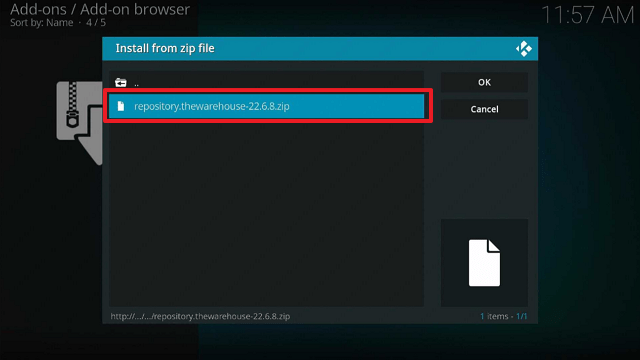
14. Then click on the zip file URL – repository.thewarehouse-22.6.8.zip

Dynasty Kodi Addon


15. Wait for the notification “The WareHouse Repository Add-on installed” to appear on the upper right part of the screen

Dynasty Kodi Addon


16. Afterward, select “Install from repository

Dynasty Kodi Addon


17. Then click “The WareHouse Repository”.

Dynasty Kodi Addon


18. Select “Video add-ons”.

Dynasty Kodi Addon


19. Click on “Dynasty”.

Dynasty Kodi Addon


20. Then click “Install”.

Dynasty Kodi Addon


21. Click “OK” for the additional add-ons that will be installed.

Dynasty Kodi Addon


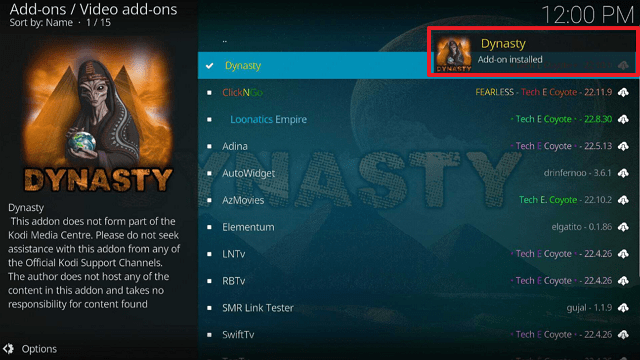
22. Then wait for it to install. It’s finished once you see the “Dynasty Add-on Installed” message appears.

Dynasty Kodi Addon


23. Select “Dynasty”. Then select “Open”.

Dynasty Kodi Addon


24. That’s it, Dynasty Kodi Addon is already installed in your Firestick.

Dynasty Kodi Addon


YOUR INTERNET ACTIVITY IS BEING WATCHED

ReviewVPN cannot attest to the legality, security and privacy of the applications discussed on this site. It is highly recommended that you use a VPN service while streaming or using Kodi.

Currently, your IP 216.73.216.102 is visible to everyone and your Browser is being tracked by Advertisers & ISP Provider.

Save 65% Now

Limited Time Offer

Here are the main reasons why you must use a VPN:

  • Your activities are hidden from your ISP, the government, and from the apps you are using.
  • You can access additional movies and TV streams.
  • ISP attempts to throttle are thrwarted thus reducing buffering issues.
  • Geographically restricted content like Netflix and Hulu can be unblocked.

A VPN works be replacing your ISP-assigned IP address and creating an encrypted tunnel. We recommend the no log service offered by IPVanish. It works well on a Firestick and offers the fastest possible speeds.

Special Limited Time Offer - Get IPVanish


Legal Disclaimer: ReviewVPN.com does not encourage or endorse any illegal activity involved in the usage of services and applications referenced on this site. We do not verify the licensing agreements of services. The end-user is wholly responsible for ensuring that any media accessed through these services does not violate copyright and/or licensing laws. ReviewVPN does not promote, link to, or receive compensation from any Apps and IPTV services.


Install Surfshark on Firestick

Best Surfshark Deal


Features

  • Allows you to watch movies, television shows, IPTV, sports, and other content.
  • My Movies, My TV Shows, movies, Debrid 1ClickMovies, and Dynasty User Movie/ TV Show Lists are a few of the categories you can find.
  • Provides content from some of the most prominent streaming providers, including Netflix, Amazon, Hulu, and YouTube.
  • You can also watch DC vs. Marvel movies, documentaries, music, stand-up comedy, kids’ movies, and anime.
  • From the YouTube tab, you can also stream movies, concerts, and soundtracks.
  • It offers a search feature that allows you to look up movies, shows, movies by actors, and shows by actors.
  • Allows Trakt to access your account and add or stream your favorite movies and shows.
  • All Debrid, Premiumize, and Real-Debrid Debrid Accounts are supported.
  • Integration of the Meta Accounts for FANART.TV, TMDb, TVDb, and IMDb are also possible.
  • Supports Scraper Accounts from Furk.net, Easynews, GDRIVE, and Ororo.tv
  • Allows you to download your favorite movies and TV series to watch later on your device.
  • Subtitle support is available, and you can add your primary and secondary languages.


Pros & Cons

Pros

  • Free streams are also accessible.
  • There are numerous sources for streaming.
  • Provides buffer-free playback
  • Allows you to integrate your Trakt account.
  • Supports major premium debrid accounts.


Cons

  • To watch its content, you must install a few extra add-ons.
  • You can install the AzMovies addon to obtain more free streams, but after that, there is no video available.
  • I found it difficult to quickly browse and find movies from their free content because it is sorted alphabetically.


Stream Safely With a VPN

Surfshark vpn

Kodi is a fantastic tool for watching your favorite films and TV shows from a variety of currently accessible sources. However, because it acquires links from untrustworthy sources, using an unofficial addon such as Dynasty Kodi Addon cannot guarantee your safety. Thus, the most efficient way to stop any unauthorized data breaches or leaks is to use a VPN.

A VPN like Surfshark will completely anonymize you and provide you access to its privacy features by letting you connect to one of its servers. Your traffic will all be routed through a secure tunnel, masking your true IP address. Because of this, no one will be able to keep track of your online activity or collect any of your data.

Surfshark also grants you the following additional security benefits:

  • It contains a kill switch feature that will immediately cut off your internet access if your VPN connection is abruptly lost.
  • Your device is protected with unbreakable security owing to AES-256 military-grade encryption.
  • Masks your IP address by assigning you an anonymous IP from one of its 3,200+ servers.
  • It includes an ad and malware blocker, as well as a cookie consent pop-up blocker.
  • Allows for two-factor authentication.

Note: For more information about Surfshark, please read our Surfshark Review.


How to Install Surfshark VPN on Firestick

If your Firestick still has the older interface, read this article to learn how to update it: Update Firestick Interface.

Follow our screenshots below to install the Surfshark VPN app on your Fire TV stick.

1. Go to the Home screen of your Firestick.

step 1 Install Surfshark VPN on Firestick


2. Navigate toward the Find tab. Press the Search button from the resulting dropdown.

step 2 Install Surfshark VPN on Firestick


3. Type in the keyword of Surfshark and select from the suggestions that will appear.

step 3 Install Surfshark VPN on Firestick


4. Click the official Surfshark icon from your search results.

step 4 Install Surfshark VPN on Firestick


5. Press the Download (You own it) button.

step 5 Install Surfshark VPN on Firestick


6. The Surfshark VPN installer will download on your device.

step 6 Install Surfshark VPN on Firestick


7. Surfshark VPN’s app will automatically install itself on your Fire TV stick.

step 7 Install Surfshark VPN on Firestick


8. Press the Open button after completing Surfshark VPN’s installation process.

step 8 Install Surfshark VPN on Firestick


9. Please wait for the Surfshark VPN to load its user interface.

step 9 Install Surfshark VPN on Firestick


10. You can now log in with your Surfshark VPN account credentials.

step 10 Install Surfshark VPN on Firestick

Learn more about Surfshark and Grab the Best Surfshark Deal Now!


Install Surfshark on Firestick

Best Surfshark Deal


Other VPNs to Consider

NordVPN (Best for Streaming)

Best Features

  • 5000+ Server in 50+ Countries 
  • Military-Grade Encryption
  • Fast Connection Speed
  • Suitable to a lot of devices
  • No-Log Policy

Prices
  • Complete $5.89 per month (64% Discount)
  • Plus $4.59 per month (56% Discount)
  • Standard $3.69 per month (55% Discount)

Best Features

  • 750+ High-speed VPN Servers in 43 Locations
  • Military-Grade Encryption
  • Fastest HD Streaming and Gaming
  • 30-Day Money-Back Guarantee
  • Unlimited Data & Devices
  • No-Log Policy

Prices
  • 3 Years $1.99 per month (82% Discount)
  • 1 Years $3.29 per month (70% Discount)
  • 1 Month $10.99 per month

IPVanish VPN (Most Secure)

Best Features

  • 1200+ Servers in 60+ Countries around the world
  • Unlimited Connections
  • No-Log Policy
  • Top Notch Military-Grade VPN Protocols and Encryptions
  • 100% Safe and Secured
  • Most Trusted VPN
  • Best VPN for Firestick
  • 30-Day Money-Back Guarantee

Prices
  • Yearly $3.99 per month (63% Discount) – 30 days risk free + Ransomware & Malware Protection
  • Quarterly $5.32 per month (51% Discount)
  • Monthly $10.99 per month


For more VPN discounts, go to ReviewVPN Deals and purchase the best VPN for you.

Click here to get the lowest price on Surfshark through our exclusive limited-time offer.


FAQs

What is Dynasty Kodi Addon?

Dynasty is a third-party Kodi Addon from The WareHouse Repository that enables you to stream movies, TV shows, IPTV, sports, and more.


Is Dynasty Kodi Addon Safe?

Dynasty Kodi Addon is safe to install and use on any device, including the Firestick. However, as Dynasty is a third-party addon, it’s still recommended to use Surfshark as an additional layer of security.


Is Dynasty Kodi Addon Legal?

In general, Kodi Addons are legal. However, because we cannot ensure the legality of the streams Dynasty provides to its users, it is advisable to utilize a VPN to stream anonymously.


Should I Use a VPN with Dynasty Kodi Addon?

The Dynasty Kodi Addon is a third-party addon, hence it is recommended that you use a VPN with it. This is to stop any unauthorized logging and data breaches from occurring while you are streaming it or merely accessing it on your device.


Click here to get the lowest price on Surfshark through our exclusive limited-time offer.

For more VPN discounts, go to ReviewVPN Deals and purchase the best VPN for you.


Conclusion

The excellent streaming experience that Dynasty offers its user makes it a highly recommended add-on. It also offers support for the most popular debrid accounts, including Real-debrid, All debrid, Premiumize, Easy News, and Furk.net. In addition, you may integrate your Trakt account to keep track of the movies and TV series you’ve watched. Furthermore, I t also offers free streaming, which is beneficial if you’re only seeking free content.

How To Install Base19 Kodi Addon on Firestick

Overview

This guide will show you how to install the Base 19 Kodi Addon on your Firestick.


Base 19 is a Kodi Addon that allows you to stream movies and TV episodes on any Kodi-compatible device. You may be sure that it will give its user a top-notch streaming experience because it comes from the renowned The Crew Repository.

Furthermore, Base 19 provides thousands of media titles across a wide range of genres and release years. As a result, you can be guaranteed that this addon will have almost any movie or television program.

Additionally, it supports the most popular debrid services, namely Real-debrid, AllDebrid, and Premiumize, allowing you to discover the best streaming link available. You can also authorize your Trakt account to track the movies and shows on your watchlist.


ANONYMOUSLY


How To Install Base 19 Kodi Addon on Firestick

You can follow this tutorial to install the Base 19 Kodi Addon on your Firestick.

1. Launch the Kodi app on your Firestick. Click on the gear wheel icon (Settings)

Base 19 Kodi Addon


2. Select “System

Base 19 Kodi Addon

3. Scroll down to “Add-ons” Then Go to “Unknown sources” then toggle it on.

Base 19 Kodi Addon


4. Select “Yes”. Then using your Firestick remote, press the return button to go back to the System page

Base 19 Kodi Addon


5. Now choose “File Manager

Base 19 Kodi Addon


6. Scroll down and select “Add source

Base 19 Kodi Addon


7. Click “<None>

Base 19 Kodi Addon


8. Type in “https://team-crew.github.io then click “OK

Base 19 Kodi Addon


9. Highlight the box under the source to give the media source a name, and put “crew” or any other name that will help you identify it quickly. Click “OK”. Return to the System page by pressing the return button on your remote

Base 19 Kodi Addon


10. Select “Add-ons

Base 19 Kodi Addon


11. Choose “Install from zip file

Base 19 Kodi Addon


12. Click “Yes

Base 19 Kodi Addon


13. Select “crew

Base 19 Kodi Addon


14. Then click on the zip file URL – repository.thecrew-0.3.4.zip

Base 19 Kodi Addon


15. Wait for the notification “The Crew Repo Add-on installed” to appear on the upper right part of the screen

Base 19 Kodi Addon


16. Afterward, select “Install from repository

Base 19 Kodi Addon


17. Then click “The Crew Repo

Base 19 Kodi Addon


18. Select “Video add-ons

Base 19 Kodi Addon


19. Click on “Base 19

Base 19 Kodi Addon


20. Then click “Install

Base 19 Kodi Addon


21. Click “OK” for the additional add-ons that will be installed

Base 19 Kodi Addon


22. Then wait for it to install. It’s finished once you see the “Base 19 Add-on Installed” message appears.

Base 19 Kodi Addon


23. Select “Base 19”. Then select “Open

Base 19 Kodi Addon


24. That’s it, Base 19 Kodi Addon is already installed in your Firestick.

Base 19 Kodi Addon


YOUR INTERNET ACTIVITY IS BEING WATCHED

ReviewVPN cannot attest to the legality, security and privacy of the applications discussed on this site. It is highly recommended that you use a VPN service while streaming or using Kodi.

Currently, your IP 216.73.216.102 is visible to everyone and your Browser is being tracked by Advertisers & ISP Provider.

Save 65% Now

Limited Time Offer

Here are the main reasons why you must use a VPN:

  • Your activities are hidden from your ISP, the government, and from the apps you are using.
  • You can access additional movies and TV streams.
  • ISP attempts to throttle are thrwarted thus reducing buffering issues.
  • Geographically restricted content like Netflix and Hulu can be unblocked.

A VPN works be replacing your ISP-assigned IP address and creating an encrypted tunnel. We recommend the no log service offered by IPVanish. It works well on a Firestick and offers the fastest possible speeds.

Special Limited Time Offer - Get IPVanish


Legal Disclaimer: ReviewVPN.com does not encourage or endorse any illegal activity involved in the usage of services and applications referenced on this site. We do not verify the licensing agreements of services. The end-user is wholly responsible for ensuring that any media accessed through these services does not violate copyright and/or licensing laws. ReviewVPN does not promote, link to, or receive compensation from any Apps and IPTV services.


Install Surfshark on Firestick

Best Surfshark Deal


Features

  • Base 19, Movies, TV Shows, Trakt World, Trakt, Search, and Settings are among the categories available.
  • The following sections can be found under the Base 19 tab: RD Movies, RD TV Shows, 4K Section, Free Section, RD Sports Replay, RD Documentaries, RD U.F.O, RD Music, and RD Requestion.
  • Includes both free and debrid options.
  • There are videos for F1, Boxing, UFC, the World Cup, Moto GP, and other sports in its Sports Replay section.
  • Provides 4K resolution streams for movies, movie box sets, and television shows/documentaries.
  • There are several other genres you can choose from, including Action, Adventure, Animation, Comedy, Crime, Documentary, Drama, Family, Fantasy, History, Horror, Music, Mystery, Romance, Sci-Fi, TV Movie, Thriller, War, and Western.
  • Disney+, Apple TV+, Netflix, HBO, CBS, Syfy, The CW, ABC, NBC, Amazon, Hulu, Showtime, BBC One, BBC Two, BBC Three, and ITV are among the networks from which you can choose and view content.
  • You can save your favorite titles as bookmarks.
  • Subtitle support is available.
  • Configurable video, audio, and subtitle settings
  • Depending on how long the video is, it displays the end time on the screen.
  • It has a Search bar so you can quickly and simply look up a title.
  • Supports Real Debrid, All Debrid, and Premiumize
  • Allows Trakt synchronization.
  • Filtering for minimum and the maximum quality in movies and television shows.


Pros & Cons

Pros

  • There are numerous streaming links available.
  • Gives free streaming in high quality
  • Streaming without buffering
  • Tons of customizable settings are available


Con

  • There are several playback issues with the free content, which is the only drawback I could find with this addon. To maximize the Base 19 Kodi Addon, it is advisable to use a debrid service.


Stream Safely With a VPN

Surfshark vpn

The authorities are monitoring all of your traffic, especially if you are from a country with strict government surveillance.

Hackers and phishers who are hunting for vulnerable IP addresses to use for harmful or financially risky attacks may also be lurking.

As a result, it’s critical to safeguard your identity when utilizing Kodi Addons like Base 19. Surfshark, for example, will provide you with an anonymous IP address to mask your real one.

In this manner, you may be sure that no information about you will be recorded or watched by an unwelcome third party. In addition, Surfshark provides the following extra security measures:

  • You’ll have access to 3,200 servers that will offer you an encrypted connection.
  • It contains a kill switch that will rapidly disconnect you from the internet in the event of a VPN outage.
  • A feature called CleanWeb will prevent malware and advertisements.
  • It has a pop-up blocker for cookie consent.
  • You may guard against unauthorized access to your account by utilizing two-factor authentication.
  • Allows you to protect an unlimited number of devices with a single subscription.
  • By connecting from one of its 100 locations worldwide, you may get around geo-restrictions and view any content anywhere in the world.

Note: For more information about Surfshark, please read our Surfshark Review.


How to Install Surfshark VPN on Firestick

If your Firestick still has the older interface, read this article to learn how to update it: Update Firestick Interface.

Follow our screenshots below to install the Surfshark VPN app on your Fire TV stick.

1. Go to the Home screen of your Firestick.

step 1 Install Surfshark VPN on Firestick


2. Navigate toward the Find tab. Press the Search button from the resulting dropdown.

step 2 Install Surfshark VPN on Firestick


3. Type in the keyword of Surfshark and select from the suggestions that will appear.

step 3 Install Surfshark VPN on Firestick


4. Click the official Surfshark icon from your search results.

step 4 Install Surfshark VPN on Firestick


5. Press the Download (You own it) button.

step 5 Install Surfshark VPN on Firestick


6. The Surfshark VPN installer will download on your device.

step 6 Install Surfshark VPN on Firestick


7. Surfshark VPN’s app will automatically install itself on your Fire TV stick.

step 7 Install Surfshark VPN on Firestick


8. Press the Open button after completing Surfshark VPN’s installation process.

step 8 Install Surfshark VPN on Firestick


9. Please wait for the Surfshark VPN to load its user interface.

step 9 Install Surfshark VPN on Firestick


10. You can now log in with your Surfshark VPN account credentials.

step 10 Install Surfshark VPN on Firestick

Learn more about Surfshark and Grab the Best Surfshark Deal Now!


Install Surfshark on Firestick

Best Surfshark Deal


Other VPNs to Consider

NordVPN (Best for Streaming)

Best Features

  • 5000+ Server in 50+ Countries 
  • Military-Grade Encryption
  • Fast Connection Speed
  • Suitable to a lot of devices
  • No-Log Policy

Prices
  • Complete $5.89 per month (64% Discount)
  • Plus $4.59 per month (56% Discount)
  • Standard $3.69 per month (55% Discount)

Best Features

  • 750+ High-speed VPN Servers in 43 Locations
  • Military-Grade Encryption
  • Fastest HD Streaming and Gaming
  • 30-Day Money-Back Guarantee
  • Unlimited Data & Devices
  • No-Log Policy

Prices
  • 3 Years $1.99 per month (82% Discount)
  • 1 Years $3.29 per month (70% Discount)
  • 1 Month $10.99 per month

IPVanish VPN (Most Secure)

Best Features

  • 1200+ Servers in 60+ Countries around the world
  • Unlimited Connections
  • No-Log Policy
  • Top Notch Military-Grade VPN Protocols and Encryptions
  • 100% Safe and Secured
  • Most Trusted VPN
  • Best VPN for Firestick
  • 30-Day Money-Back Guarantee

Prices
  • Yearly $3.99 per month (63% Discount) – 30 days risk free + Ransomware & Malware Protection
  • Quarterly $5.32 per month (51% Discount)
  • Monthly $10.99 per month


FAQs

What is Base 19 Kodi Addon?

Base 19 is a Kodi Addon from the Crew Repository that allows you to watch movies, TV shows, sports replays, documentaries, UFOs, music, and more.


Is Base 19 Kodi Addon Safe?

It is safe to use Base 19 Kodi Addon. However, because this is a third-party addon, it is advised to utilize a VPN with it to prevent any unintended data leaks at all times.


Is Base 19 Kodi Addon Legal?

Because Base 19 Kodi Addon uses content that is scraped from a variety of sources, we cannot ensure that it is legal. So be cautious to only stream from public domains.


Should I Use a VPN with Base 19 Kodi Addon?

Yes, using a VPN with third-party addons like Base 19 is always encouraged. This is because you’ll never know who is behind its sources or whether it is tracking your online activities. Even worse, it might already be stealing or exposing your data.


Click here to get the lowest price on Surfshark through our exclusive limited-time offer.

For more VPN discounts, go to ReviewVPN Deals and purchase the best VPN for you.


Wrapping Up

There are a ton of movies and TV shows available through the superb Base 19 Kodi Addon. It also gives you the option to link your Trakt and Debrid accounts, which is beneficial. Moreover, if you want to try it out first, it also comes with a handful of free titles. Nonetheless, Base 19 can ensure the best streaming experience with its high-quality and buffer-free feeds.

How To Install 9 Lives Kodi Addon on Firestick

Overview

This article will cover all the details you need to know about installing the 9 Lives Kodi Addon on Firestick.


9 Lives Kodi Addon is a Kodi Addon that can be found in the Grindhouse Repository. It gives users access to a large collection of movies and television shows across many genres. Additionally, it enables you to get shows from some of the most well-known streaming services available right now.

Along with that, it enables integration with several of the current premium debrid services. So, whether you use Real-debrid, AllDebrid, Premiumize, MegaDebrid, or Debrid-Link, you may successfully use it on the 9 Lives Kodi Addon.

You can also permit access to your Orion Account, which also searches for and chooses the finest streaming links.

Plus, it supports Trakt, allowing you to sync your account with your favorite TV shows and movies.


ANONYMOUSLY


How To Install 9 Lives Kodi Addon on Firestick

You can follow this tutorial to install the 9 Lives Kodi Addon on your Firestick.


1. Launch the Kodi app on your Firestick. Click on the gear wheel icon (Settings)

9 Lives Kodi Addon


2. Select “System

9 Lives Kodi Addon

3. Scroll down to “Add-ons” Then Go to “Unknown sources” then toggle it on.

9 Lives Kodi Addon


4. Select “Yes”. Then using your Firestick remote, press the return button to go back to the System page

9 Lives Kodi Addon


5. Now choose “File Manager

9 Lives Kodi Addon


6. Scroll down and select “Add source

9 Lives Kodi Addon


7. Click “<None>

9 Lives Kodi Addon


8. Type in “http://grindhousekodi.tk/repo then click “OK

9 Lives Kodi Addon


9. Highlight the box under the source to give the media source a name, and put “grindhouse” or any other name that will help you identify it quickly. Click “OK”. Return to the System page by pressing the return button on your remote

9 Lives Kodi Addon


10. Select “Add-ons

9 Lives Kodi Addon


11. Choose “Install from zip file

9 Lives Kodi Addon


12. Click “Yes

9 Lives Kodi Addon


13. Select “grindhouse

9 Lives Kodi Addon


14. Then click on the zip file URL – repository.grindhousekodi-1.7.zip

9 Lives Kodi Addon


15. Wait for the notification “Grindhouse Repository Add-on installed” to appear on the upper right part of the screen

9 Lives Kodi Addon


16. Afterward, select “Install from repository

9 Lives Kodi Addon


17. Then click “Grindhouse Repository

9 Lives Kodi Addon


18. Select “Video add-ons

9 Lives Kodi Addon


19. Click on “9 LIVES

9 Lives Kodi Addon


20. Then click “Install

9 Lives Kodi Addon


21. Click “OK” for the additional add-ons that will be installed

9 Lives Kodi Addon


22. Then wait for it to install. It’s finished once you see the “9 LIVES Add-on Installed” message appears.

9 Lives Kodi Addon


23. Select “9 LIVES”. Then select “Open

9 Lives Kodi Addon


24. That’s it, 9 LIVES Kodi Addon is already installed in your Firestick.

9 Lives Kodi Addon


YOUR INTERNET ACTIVITY IS BEING WATCHED

ReviewVPN cannot attest to the legality, security and privacy of the applications discussed on this site. It is highly recommended that you use a VPN service while streaming or using Kodi.

Currently, your IP 216.73.216.102 is visible to everyone and your Browser is being tracked by Advertisers & ISP Provider.

Save 65% Now

Limited Time Offer

Here are the main reasons why you must use a VPN:

  • Your activities are hidden from your ISP, the government, and from the apps you are using.
  • You can access additional movies and TV streams.
  • ISP attempts to throttle are thrwarted thus reducing buffering issues.
  • Geographically restricted content like Netflix and Hulu can be unblocked.

A VPN works be replacing your ISP-assigned IP address and creating an encrypted tunnel. We recommend the no log service offered by IPVanish. It works well on a Firestick and offers the fastest possible speeds.

Special Limited Time Offer - Get IPVanish


Legal Disclaimer: ReviewVPN.com does not encourage or endorse any illegal activity involved in the usage of services and applications referenced on this site. We do not verify the licensing agreements of services. The end-user is wholly responsible for ensuring that any media accessed through these services does not violate copyright and/or licensing laws. ReviewVPN does not promote, link to, or receive compensation from any Apps and IPTV services.


Install Surfshark on Firestick

Best Surfshark Deal


Features

  • Offers free and debrid-generated movies and television series.
  • You can browse through the following categories: People, Tools, Search, My Movies, My TV Shows, New Movies, New Episodes, and TV Shows.
  • There are several different TV networks available, including A&E, Animal Planet, BBC, Cartoon Network, CBS, FOX, HBO, Paramount, PBS, Sky, and many more.
  • You can choose from the following genres: Action, Adventure, Animation, Anime, Biography, Comedy, Crime, Documentary, Drama, Family, Fantasy, History, Horror, Music, Musical, Mystery, Romance, Science Fiction, Sport, Superhero, Thriller, War, and Western.
  • Shows from Netflix, Paramount+, Disney+ and other major streaming services are also available.
  • Allows you to create a bookmark for your favorite movies or series.
  • Supports the use of downloadable and searchable subtitles.
  • Gives you access to the most recent movies and TV episodes.
  • It has a People section where you can access actor biographies, movies, and television shows.
  • Allows you to customize General Settings, Playback, Sources filtering, and other settings.
  • Real-debrid, AllDebrid, Debrid-Link, Linksnappy, MegaDebrid, Premiumize, RPnet, Simply-Debrid, and Smoozed are premium services that can be integrated.
  • Allows you to authorize your Trakt and Orion accounts.


Pros & Cons

Pros

  • You may watch movies and TV episodes for free.
  • Several streaming links are provided.
  • Facilitates buffer-free streaming.


Cons

  • There are certain movies with no streaming availability.
  • Some titles are only offered in SD quality.
  • It takes a while for videos to load.


Stream Safely With a VPN

Surfshark vpn

It is crucial to hide your identity when using unofficial Kodi addons like the 9 Lives Kodi Addon. This is due to the possibility that they contain suspicious or malicious files that could infect your device. And using a VPN is the most effective approach to streaming anonymously. A VPN, such as Surfshark, will provide you with an anonymous IP address, ensuring that no one on the internet can see your true IP address. In this manner, no one will be able to access the data linked to your account or device. This guard against third parties stealing or logging your info. It also applies to governmental surveillance, which is keen on monitoring its citizens’ online activity for piracy and other reasons. Other benefits of using Surfshark include the following:

  • Enables you to get around geoblocks so you can access material from anywhere in the world.
  • It includes a cookie consent pop-up blocker to prevent those obtrusive cookie consent pop-ups from appearing.
  • There is a Cleanweb feature that blocks malware as well as those annoying advertising.
  • Utilizes AES 256-bit encryption to guarantee that all of your traffic will be safeguarded with impenetrable security.
  • Eliminates ISP throttling, which slows down your internet and causes lags and buffering.
  • Protects an unlimited number of devices, allowing you to secure all of your devices with just one subscription.
  • Gives you unlimited bandwidth so you can stream and download any online content you desire.

Note: For more information about Surfshark, please read our Surfshark Review.


How to Install Surfshark VPN on Firestick

If your Firestick still has the older interface, read this article to learn how to update it: Update Firestick Interface.

Follow our screenshots below to install the Surfshark VPN app on your Fire TV stick.

1. Go to the Home screen of your Firestick.

step 1 Install Surfshark VPN on Firestick


2. Navigate toward the Find tab. Press the Search button from the resulting dropdown.

step 2 Install Surfshark VPN on Firestick


3. Type in the keyword of Surfshark and select from the suggestions that will appear.

step 3 Install Surfshark VPN on Firestick


4. Click the official Surfshark icon from your search results.

step 4 Install Surfshark VPN on Firestick


5. Press the Download (You own it) button.

step 5 Install Surfshark VPN on Firestick


6. The Surfshark VPN installer will download on your device.

step 6 Install Surfshark VPN on Firestick


7. Surfshark VPN’s app will automatically install itself on your Fire TV stick.

step 7 Install Surfshark VPN on Firestick


8. Press the Open button after completing Surfshark VPN’s installation process.

step 8 Install Surfshark VPN on Firestick


9. Please wait for the Surfshark VPN to load its user interface.

step 9 Install Surfshark VPN on Firestick


10. You can now log in with your Surfshark VPN account credentials.

step 10 Install Surfshark VPN on Firestick

Learn more about Surfshark and Grab the Best Surfshark Deal Now!


Install Surfshark on Firestick

Best Surfshark Deal


Other VPNs to Consider

NordVPN (Best for Streaming)

Best Features

  • 5000+ Server in 50+ Countries 
  • Military-Grade Encryption
  • Fast Connection Speed
  • Suitable to a lot of devices
  • No-Log Policy

Prices
  • Complete $5.89 per month (64% Discount)
  • Plus $4.59 per month (56% Discount)
  • Standard $3.69 per month (55% Discount)

Best Features

  • 750+ High-speed VPN Servers in 43 Locations
  • Military-Grade Encryption
  • Fastest HD Streaming and Gaming
  • 30-Day Money-Back Guarantee
  • Unlimited Data & Devices
  • No-Log Policy

Prices
  • 3 Years $1.99 per month (82% Discount)
  • 1 Years $3.29 per month (70% Discount)
  • 1 Month $10.99 per month

IPVanish VPN (Most Secure)

Best Features

  • 1200+ Servers in 60+ Countries around the world
  • Unlimited Connections
  • No-Log Policy
  • Top Notch Military-Grade VPN Protocols and Encryptions
  • 100% Safe and Secured
  • Most Trusted VPN
  • Best VPN for Firestick
  • 30-Day Money-Back Guarantee

Prices
  • Yearly $3.99 per month (63% Discount) – 30 days risk free + Ransomware & Malware Protection
  • Quarterly $5.32 per month (51% Discount)
  • Monthly $10.99 per month


FAQs

What is 9 Lives Kodi Addon?

The Grindhouse Repository’s 9 Lives Kodi Addon offers access to a huge selection of movies and television shows. You can either watch for free or use your debrid account to get better streaming links.


Is 9 Lives Kodi Addon Safe?

The repository of 9 Lives contains files that are questionable or malicious. Consequently, using this Addon is advised with a VPN.


Is 9 Lives Kodi Addon Legal?

We cannot guarantee the legality of the streams provided by 9 Lives Kodi Addon because it scrapes content from multiple sources. As a result, it’s best to only stream and download from public domains, which are protected by copyright laws.


Should I Use a VPN with 9 Lives Kodi Addon?

Yes, a VPN is necessary when using the 9 Lives Kodi Addon. This is a result of the malicious files discovered during this Addon’s scanning. This result increases the risk of unauthorized third parties stealing or accessing your data.


For more VPN discounts, go to ReviewVPN Deals and purchase the best VPN for you.

Click here to get the lowest price on Surfshark through our exclusive limited-time offer.


Conclusion

9 Lives Kodi Addon is a good addon that delivers both free and debrid-generated links. However, if a VPN isn’t used, using this Addon for streaming could be dangerous. Additionally, some titles have no streaming options, which makes it challenging to locate available shows. Alternatively, you may use our list of the best Kodi Addons to find other verified add-ons.

How To Install Moria Kodi Addon on Firestick

Overview

This article will cover all the details you need to know about installing the Moria Kodi Addon on a Firestick.


Moria is a Kodi Addon that is accessible through the well-known The Crew Repository. It allows you to stream movies and TV shows on any Kodi-compatible device. Moreover, you may locate the most popular TV networks and access them for free. You can also connect your Trakt account to sync and track your favorite movies and TV series.

Additionally, any available debrid premium service is supported with the Moria Kodi Addon. This comprises Real Debrid, All Debrid, Premiumize, Debrid-Link, MegaDebrid, and Simply-Debrid. As a result, you can connect your Debrid account to locate and get the best streaming for the movie or show you want to watch.

Last but not least, as the Moria Kodi Addon is a third-party Addon that is not maintained by the official Kodi team, we want to encourage you to secure your connection using a VPN before you start using it. This is done to avoid any unauthorized logs or data breaches when using unofficial Kodi Addons.


ANONYMOUSLY


How To Install Moria Kodi Addon on Firestick (Video)


How To Install Moria Kodi Addon on Firestick

You can follow this tutorial to install the Moria Kodi Addon on your Firestick.

1. Launch the Kodi app on your Firestick. Click on the gear wheel icon (Settings)

Moria Kodi Addon


2. Select “System

Moria Kodi Addon

3. Scroll down to “Add-ons” Then Go to “Unknown sources” then toggle it on.

Moria Kodi Addon


4. Select “Yes”. Then using your Firestick remote, press the return button to go back to the System page

Moria Kodi Addon


5. Now choose “File Manager

Moria Kodi Addon


6. Scroll down and select “Add source

Moria Kodi Addon


7. Click “<None>

Moria Kodi Addon


8. Type in “https://team-crew.github.io then click “OK

Moria Kodi Addon


9. Highlight the box under the source to give the media source a name, and put “crew” or any other name that will help you identify it quickly. Click “OK”. Return to the System page by pressing the return button on your remote

Moria Kodi Addon


10. Select “Add-ons

Moria Kodi Addon


11. Choose “Install from zip file

Moria Kodi Addon


12. Click “Yes

Moria Kodi Addon


13. Select “crew

Moria Kodi Addon


14. Then click on the zip file URL – repository.thecrew-0.3.4.zip

Moria Kodi Addon


15. Wait for the notification “The Crew Repo Add-on installed” to appear on the upper right part of the screen

Moria Kodi Addon


16. Afterward, select “Install from repository

Moria Kodi Addon


17. Then click “The Crew Repo

Moria Kodi Addon


18. Select “Video add-ons

Moria Kodi Addon


19. Click on “Moria

Moria Kodi Addon


20. Then click “Install

Moria Kodi Addon


21. Click “OK” for the additional add-ons that will be installed

Moria Kodi Addon


22. Then wait for it to install. It’s finished once you see the “Moria Add-on Installed” message appears.

Moria Kodi Addon


23. Select “Moria”. Then select “Open

Moria Kodi Addon


24. That’s it, Moria Kodi Addon is already installed on your Firestick.

Moria Kodi Addon


YOUR INTERNET ACTIVITY IS BEING WATCHED

ReviewVPN cannot attest to the legality, security and privacy of the applications discussed on this site. It is highly recommended that you use a VPN service while streaming or using Kodi.

Currently, your IP 216.73.216.102 is visible to everyone and your Browser is being tracked by Advertisers & ISP Provider.

Save 65% Now

Limited Time Offer

Here are the main reasons why you must use a VPN:

  • Your activities are hidden from your ISP, the government, and from the apps you are using.
  • You can access additional movies and TV streams.
  • ISP attempts to throttle are thrwarted thus reducing buffering issues.
  • Geographically restricted content like Netflix and Hulu can be unblocked.

A VPN works be replacing your ISP-assigned IP address and creating an encrypted tunnel. We recommend the no log service offered by IPVanish. It works well on a Firestick and offers the fastest possible speeds.

Special Limited Time Offer - Get IPVanish


Legal Disclaimer: ReviewVPN.com does not encourage or endorse any illegal activity involved in the usage of services and applications referenced on this site. We do not verify the licensing agreements of services. The end-user is wholly responsible for ensuring that any media accessed through these services does not violate copyright and/or licensing laws. ReviewVPN does not promote, link to, or receive compensation from any Apps and IPTV services.


Install Surfshark on Firestick

Best Surfshark Deal


Features

  • You can browse through the following categories: Movies, TV Shows, My Movies, My TV Shows, New Movies, New Episodes, People, Tools, and Search
  • Allows you to watch Recently Released, Featured, Most Popular, Most Voted, Highly Rated, Oscar Winners, and Box Office Movies
  • Contains 70+ popular TV networks such as A&E, Apple TV+, BBC, HBO, Hulu, Netflix, Paramount+, Showtime, Starz, and many more.
  • There are a variety of genres accessible, including action, adventure, animation, anime, biography, comedy, crime, documentary, drama, family, fantasy, game show, history, horror, music, musical, mystery, news, reality TV, romance, science fiction, sport, superhero, talk show, thriller, war, and western.
  • Allows you to watch new TV shows and episodes as they become available.
  • You may filter and choose the minimum and maximum video resolution.
  • Ability to authorize account integration with Trakt
  • Supports all Debrid services, including Real Debrid, All Debrid, Premiumize, Debrid-Link, MegaDebrid, Simply-Debrid, and others
  • You can create bookmarks for your preferred television programs and movies.


Pros & Cons

Pros

  • Content can be downloaded.
  • There are numerous streaming links available.
  • Provides buffer-free streaming
  • Free content is made available
  • There are a lot of streaming alternatives accessible.
  • The videos are in high-definition quality.
  • Subtitle support is provided.


Cons

  • It takes a while for videos to load.
  • Some titles don’t have streams available.
  • Certain shows can only be viewed in 720p without a Debrid account.


Stream Safely With a VPN

Surfshark vpn

It’s important to always take precautions to safeguard your privacy when using third-party add-ons, such as the Moria Kodi Addon. This is due to the risks associated with using unofficial addons that are not available in the Kodi repository, including the exposing of your data. It is made clear that allowing unverified sources puts your device in danger and that Kodi is not responsible for any damage that arises from doing so. Therefore, the best approach to handle it is by using a VPN.

A VPN, such as Surfshark, will prevent data breaches and IP address leaks by allowing your traffic to flow through encrypted traffic. To give its consumers maximum privacy and protection when using its service, they use the best VPN protocols. You can be sure that no online individual will be able to access your information this way and use it for their gain. In addition to the safety, it provides its clients, using Surfshark has the following additional benefits:

  • Helps you overcome geographic restrictions so you can access any information from anywhere in the world
  • Its CleanWeb feature assists you in blocking advertisements and malware.
  • It provides a cookie consent pop-up blocker.
  • Allows you to view and download any content from your favorite Kodi Addons with unlimited bandwidth.
  • Helps you enhance the speed of your internet connection by automatically connecting you to the fastest connection available.
  • Avoids ISP throttling, which can lead to lag, buffering, and internet slowdowns.

Note: For more information about Surfshark, please read our Surfshark Review.


How to Install Surfshark VPN on Firestick

If your Firestick still has the older interface, read this article to learn how to update it: Update Firestick Interface.

Follow our screenshots below to install the SurfShark VPN app on your Fire TV stick.

1. Go to the Home screen of your Firestick.

step 1 Install Surfshark VPN on Firestick


2. Navigate toward the Find tab. Press the Search button from the resulting dropdown.

step 2 Install Surfshark VPN on Firestick


3. Type in the keyword of SurfShark and select from the suggestions that will appear.

step 3 Install Surfshark VPN on Firestick


4. Click the official SurfShark icon from your search results.

step 4 Install Surfshark VPN on Firestick


5. Press the Download (You own it) button.

step 5 Install Surfshark VPN on Firestick


6. The SurfShark VPN installer will download on your device.

step 6 Install Surfshark VPN on Firestick


7. SurfShark VPN’s app will automatically install itself on your Fire TV stick.

step 7 Install Surfshark VPN on Firestick


8. Press the Open button after completing SurfShark VPN’s installation process.

step 8 Install Surfshark VPN on Firestick


9. Please wait for the SurfShark VPN to load its user interface.

step 9 Install Surfshark VPN on Firestick


10. You can now log in with your SurfShark VPN account credentials.

step 10 Install Surfshark VPN on Firestick

Learn more about Surfshark and Grab the Best Surfshark Deal Now!


Install Surfshark on Firestick

Best Surfshark Deal


Other VPNs to Consider

NordVPN (Best for Streaming)

Best Features

  • 5000+ Server in 50+ Countries 
  • Military-Grade Encryption
  • Fast Connection Speed
  • Suitable to a lot of devices
  • No-Log Policy

Prices
  • Complete $5.89 per month (64% Discount)
  • Plus $4.59 per month (56% Discount)
  • Standard $3.69 per month (55% Discount)

Best Features

  • 750+ High-speed VPN Servers in 43 Locations
  • Military-Grade Encryption
  • Fastest HD Streaming and Gaming
  • 30-Day Money-Back Guarantee
  • Unlimited Data & Devices
  • No-Log Policy

Prices
  • 3 Years $1.99 per month (82% Discount)
  • 1 Years $3.29 per month (70% Discount)
  • 1 Month $10.99 per month

IPVanish VPN (Most Secure)

Best Features

  • 1200+ Servers in 60+ Countries around the world
  • Unlimited Connections
  • No-Log Policy
  • Top Notch Military-Grade VPN Protocols and Encryptions
  • 100% Safe and Secured
  • Most Trusted VPN
  • Best VPN for Firestick
  • 30-Day Money-Back Guarantee

Prices
  • Yearly $3.99 per month (63% Discount) – 30 days risk free + Ransomware & Malware Protection
  • Quarterly $5.32 per month (51% Discount)
  • Monthly $10.99 per month


FAQs

What is Moria Kodi Addon?

Moria Kodi Addon is a streaming addon that allows you to watch movies and TV shows for free. To give you the highest quality streaming, it also enables the integration of premium debrid services.


Is Moria Kodi Addon Safe?

Kodi addon Moria is safe. However, it’s better to use a VPN like Surfshark if you want to be certain that you are completely protected when using Moria.


Is Moria Kodi Addon Legal?

Moria offers a variety of free streams from different sources. If you want to be sure, just keep your anonymity when using this Addon as there’s a chance it can be disseminating copyrighted content.


Should I Use a VPN with Moria Kodi Addon?

Yes, you should use a VPN in combination with the Moria Kodi Addon. As was previously noted, this addon is operated by a third-party developer, so you never know what they are receiving in exchange for the free streams that it offers to its users. Therefore, it is advisable to use a VPN to conceal your true identity when using it.


Click here to get the lowest price on Surfshark through our exclusive limited-time offer.

For more VPN discounts, go to ReviewVPN Deals and purchase the best VPN for you.


Conclusion

Moria is a wonderful addon that supports debrid accounts and offers free streams. Even though there have been instances where there were no streams available for certain shows, I still think you should give this app a shot. It offers high-quality streams and includes the majority of well-known networks, making it a reliable streaming alternative.