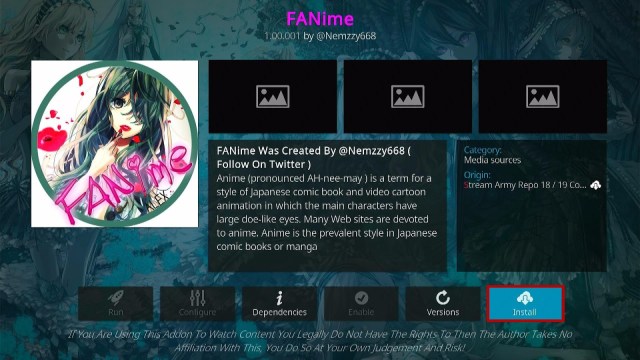
How to Install Fanime Kodi Addon

Overview

The article will help you on how to install Fanime Kodi Addon.


FaNime is an anime add-on from the popular Stream Army Repository that works well on Kodi, which offers you a lot of content in a wide variety of genres. This add-on lets you watch thousands of anime from different countries for free in a less buffering experience. It offers you video-on-demand anime that are well-organized. 

This add-on comes with an easy-to-use interface that has a well-organized list of content. The good thing is its database is regularly updated, and content is added daily. However, this add-on requires a PIN to access their content, which is why you need to go on the pinsystem.co.uk site to get a pin. 


ANONYMOUSLY


How to Install Fanime Kodi Addon

Follow these simple steps:

1. On your Firestick, open Kodi and go to Settings.

install Fanime Kodi Addon Step 1

2. Select on System.

nstall Fanime Kodi Addon Step 2


3. Click on the Add-ons menu and Turn ON Unknown Sources.

nstall Fanime Kodi Addon Step 3


4. Select Yes when the box appears.

nstall Fanime Kodi Addon Step 4


5. Go back one step and click on File Manager.

nstall Fanime Kodi Addon Step 5


6. Click Add Source.

nstall Fanime Kodi Addon Step 6


7. A box will pop up, so click on the ‘None’ option.
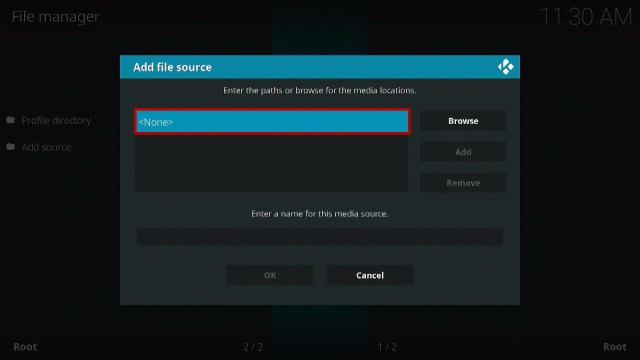
nstall Fanime Kodi Addon Step 7


8. Now type in this URL http://streamarmy.co.uk/repo and click OK.

nstall Fanime Kodi Addon Step 8


9. Name this URL as army and click OK.

nstall Fanime Kodi Addon Step 9


10. After that, go back to the system menu and click Add-ons.

nstall Fanime Kodi Addon Step 10


11. Select Install from Zip File.

nstall Fanime Kodi Addon Step 11


12. Click Yes.

nstall Fanime Kodi Addon Step 12


13. When the box pop-up, select army or any name you have given. 

nstall Fanime Kodi Addon Step 12


14. Click repository.StreamArmy-13.0.003.zip 

nstall Fanime Kodi Addon Step 13


15. Wait a few minutes for the app to be installed. After that, an icon will appear at the top menu.


16. Select Install from Repository.

nstall Fanime Kodi Addon Step 16


17. Then select Stream Army Repo from the list.

nstall Fanime Kodi Addon Step 17


18. Tap on Video Add-ons.

nstall Fanime Kodi Addon Step 18


19. Then Select FaNime.

nstall Fanime Kodi Addon Step 19


20. Click the Install button.

nstall Fanime Kodi Addon Step 20


21. When a box Pop up, click OK.

nstall Fanime Kodi Addon Step 21


22. Wait for the FaNime Add-on installed message to appear.

nstall Fanime Kodi Addon Step 22


23. Go back to the Kodi home screen and scroll down to Addon.

nstall Fanime Kodi Addon Step 23


24. Click FaNime icon.

nstall Fanime Kodi Addon Step 24


25. Since this add-on requires Pin, click OK and go to https://pinsystem.co.uk to get your Pin.

nstall Fanime Kodi Addon Step 25


26. When you get your Pin, go back to the Addon and enter it. Click OK.

nstall Fanime Kodi Addon Step 26


27. That’s it! Choose any of the categories and enjoy watching.

nstall Fanime Kodi Addon Step 27


Features of FaNime Kodi Addon

Interface

  • No registration needed
  • Easy to navigate interface
  • Excellent Search function


Contents

  • Updated with the fresh and recent release of animes
  • A to Z list of animes
  • Thousand of animes from different countries
  • Available New season of animes 
  • You can watch lots of ongoing anime series
  • Dubbed and subbed popular series and movies 
  • You can watch on different sources of your choice 
  • Well-organized categories and subcategories.
  • One-click Playback and Forward button
  • Pause and stop button
  • Background playing
  • Meta Description of contents. 
  • You can create bookmarks and Clear bookmarks.
  • Resume watching that allow you to continue where you stopped off
  • Available subtitle 
  • HD quality of videos


FaNime Genres

You can choose different anime based on their genres: Action, Adventures, Comedy, Cars, Demons, Drama, Dub, Family, Fantasy, Games, Hentai, Historical, Horror, Military, Music, Mystery, Parody, Police, Psychological, Romance, School, Sci-Fi, and more.  


YOUR INTERNET ACTIVITY IS BEING WATCHED

ReviewVPN cannot attest to the legality, security and privacy of the applications discussed on this site. It is highly recommended that you use a VPN service while streaming or using Kodi.

Currently, your IP 216.73.216.84 is visible to everyone and your Browser is being tracked by Advertisers & ISP Provider.

Save 65% Now

Limited Time Offer

Here are the main reasons why you must use a VPN:

  • Your activities are hidden from your ISP, the government, and from the apps you are using.
  • You can access additional movies and TV streams.
  • ISP attempts to throttle are thrwarted thus reducing buffering issues.
  • Geographically restricted content like Netflix and Hulu can be unblocked.

A VPN works be replacing your ISP-assigned IP address and creating an encrypted tunnel. We recommend the no log service offered by IPVanish. It works well on a Firestick and offers the fastest possible speeds.

Special Limited Time Offer - Get IPVanish


Legal Disclaimer: ReviewVPN.com does not encourage or endorse any illegal activity involved in the usage of services and applications referenced on this site. We do not verify the licensing agreements of services. The end-user is wholly responsible for ensuring that any media accessed through these services does not violate copyright and/or licensing laws. ReviewVPN does not promote, link to, or receive compensation from any Apps and IPTV services.


Install Surfshark on Firestick

Best Surfshark Deal


Pros and Cons

Pros

  • No registration needed
  • Well-organized list of content
  • Wide variety of categories to choose
  • Excellent Search function
  • Newly added content regularly 

Cons

  • It requires a PIN every four hours. 
  • Some anime are not here.


Why do I need a VPN?

Streaming free content from third-party add-ons and builds can be risky because sometimes these add-ons offer you copyrighted content, censored content, and pirated content which is very illegal. 

Sometimes this third-party addon is also prone to malware and viruses that might affect your devices. That is why we always recommend using a Virtual Private Network on your device to ensure your privacy and security while streaming on any third-party addons. 

A VPN that will keep you anonymous and protected from these addons is Surfshark. This VPN has advanced security features that will keep you unknown from different potential hacks, trackers, phasers and even snooping ISPs. Surfshark will safeguard any connection to handle personal data with uncrackable security. Read our Surfshark Review if you want to learn more about this VPN.

Here are the reasons why it is our VPN of choice:
  • Its protocols are perfect for use with Kodi.
  • This VPN will definitely hide all of your online activities. 
  • It has a military-grade level of encryption that will ensure your safety. 
  • With this VPN you can access more content and even unblock Netflix and other platforms.
  • It also supports P2p file-sharing activities which makes it applicable to torrenting
  • Strictly follows No-Log Policy.
  • Has a total of 3,200 VPN servers in 65 locations to choose from
  • DNS Leak Protection is active by default.


Grab your subscription now!

Click here to get the lowest price on Surfshark through our exclusive limited-time offer.


How to Install Surfshark VPN on Firestick

If your Firestick still has the older interface, read this article to learn how to update it: Update Firestick Interface.

You can download Surfshark directly from the Amazon App store. It will be easy for you to find Surfshark with your Firestick’s Find feature. Refer to our screenshots below.

1. Go to the Home screen of your Firestick.

step 1 Install Surfshark VPN on Firestick


2. Navigate towards the Find tab. Press the Search button from the resulting dropdown.

step 2 Install Surfshark VPN on Firestick


3. Type in the keyword of SurfShark and select from the suggestions that will appear.

step 3 Install Surfshark VPN on Firestick


4. Click the official SurfShark icon from your search results.

step 4 Install Surfshark VPN on Firestick


5. Press the Download (You own it) button.

step 5 Install Surfshark VPN on Firestick


6. The SurfShark VPN installer will download on your device.

step 6 Install Surfshark VPN on Firestick


7. SurfShark VPN’s app will automatically install itself on your Fire TV stick.

step 7 Install Surfshark VPN on Firestick


8. Press the Open button after completing SurfShark VPN’s installation process.

step 8 Install Surfshark VPN on Firestick


9. Please wait for the SurfShark VPN to load its user interface.

step 9 Install Surfshark VPN on Firestick


10. You can now log in with your SurfShark VPN account credentials.

step 10 Install Surfshark VPN on Firestick

Learn more about Surfshark and Grab the Best Surfshark Deal Now!


Install Surfshark on Firestick

Best Surfshark Deal


Other VPNs to Consider

NordVPN (Best for Streaming)

Best Features

  • 5000+ Server in 50+ Countries 
  • Military-Grade Encryption
  • Fast Connection Speed
  • Suitable to a lot of devices
  • No-Log Policy

Prices
  • Complete $5.89 per month (64% Discount)
  • Plus $4.59 per month (56% Discount)
  • Standard $3.69 per month (55% Discount)

Best Features

  • 750+ High-speed VPN Servers in 43 Locations
  • Military-Grade Encryption
  • Fastest HD Streaming and Gaming
  • 30-Day Money-Back Guarantee
  • Unlimited Data & Devices
  • No-Log Policy

Prices
  • 3 Years $1.99 per month (82% Discount)
  • 1 Years $3.29 per month (70% Discount)
  • 1 Month $10.99 per month

IPVanish VPN (Most Secure)

Best Features

  • 1200+ Servers in 60+ Countries around the world
  • Unlimited Connections
  • No-Log Policy
  • Top Notch Military-Grade VPN Protocols and Encryptions
  • 100% Safe and Secured
  • Most Trusted VPN
  • Best VPN for Firestick
  • 30-Day Money-Back Guarantee

Prices
  • Yearly $3.99 per month (63% Discount) – 30 days risk free + Ransomware & Malware Protection
  • Quarterly $5.32 per month (51% Discount)
  • Monthly $10.99 per month


For more VPN discounts, go to ReviewVPN Deals and purchase the best VPN for you.

Click here to get the lowest price on Surfshark through our exclusive limited-time offer.


Alternatives for FaNime Kodi Add-on

We list down some of the Kodi addons that offer the same content as FaNime. If you want to know about these add-ons kindly read their corresponding articles. 


FAQs

Is the FaNime Kodi Add-on legal?

Yes, this addon is legal.


Is the FaNime Kodi Add safe?

Yes, this Add-on is safe and only offers official repo links.


Is the FaNime Kodi Add free?

Yes, this Add-on is free and allows you to use their links for free.


Can I install the FaNime Kodi addon on Firestick?

Yes, you can also install this addon on Firestick as an apk.


Conclusion

FaNime is an amazing add-on that brings you lots of anime in a wide variety of genres for free. This add-on is a great option for anime lovers who want to access free content to watch. You will never miss any ongoing anime series because this add-on will give you all the latest and newly added series regularly. However, you must get a PIN to access their content. We hope this article helps you install the FaNime Kodi addon.

How to Install Xumo TV Kodi Addon

Overview

The article will help you with how to install Xumo TV Kodi Addon.


Xumo TV Kodi addon is one of the most popular live tv channels that offer you quality content to watch for free. This add-on offers you over 180+ live tv channels with a wide variety of genres for all ages, including movies, tv shows, sports, news, music, live tv, and more. It covers lots of popular news channels such as NBC, CBS, Bloomberg, ABC, Cheddar, Newsy, Fox Sports, and more. 

Explore their large collection of content from popular streaming channels and lots of Videos on demand. The good thing is this Kodi add-on is completely free, and it does not require any subscription or registration. You can also get this add-on on the Kodi Official repository. 


ANONYMOUSLY


How to Install the XUMO TV Kodi Addon

Here is a step-by-step guide on how you can install the XUMO TV on Kodi.

  1. Launch Kodi and click the Settings icon.
  2. Select Addons.
  3. Click Install from repository
  4. Scroll down and select Video add-ons
  5. Select XUMO TV
  6. Click Install
  7. Tap OK button
  8. Wait for the XUMO TV Add-on installed message to appear.
  9. Go back to the home screen and select add-ons. Then click the XUMO TV icon
  10. Choose any of these categories
  11. Select XUMO TV
  12. That’s it! You can now enjoy XUMO TV content on Kodi.


How to Install XUMO TV on Kodi with a Screenshot

 Follow the steps below:

1. Launch Kodi and click the Settings icon.

Install the XUMO TV Kodi Addon Step 1

2. Select Addons.

Install the XUMO TV Kodi Addon Step 2


3. Click Install from repository.

Install the XUMO TV Kodi Addon Step 3


4. Scroll down and select Video add-ons.

Install the XUMO TV Kodi Addon Step 5


5. Select Xumo TV News.

Install the XUMO TV Kodi Addon Step 5


6. Click Install.

Install the XUMO TV Kodi Addon Step 6


7. Tap the OK button.

Install the XUMO TV Kodi Addon Step 7


8. Wait for the XUMO TV Add-on installed message to appear.

Install the XUMO TV Kodi Addon Step 8


9. Go back to the home screen and select add-ons. Then click the XUMO TV icon.

Install the XUMO TV Kodi Addon Step 9


10. Choose any of these categories.

Install the XUMO TV Kodi Addon Step 10


11. That’s it! You can now enjoy XUMO TV content on Kodi.

Install the XUMO TV Kodi Addon Step 11


Install Surfshark on Firestick

Best Surfshark Deal


Legal Disclaimer: ReviewVPN.com does not encourage or endorse any illegal activity involved in the usage of services and applications referenced on this site. We do not verify the licensing agreements of services. The end-user is wholly responsible for ensuring that any media accessed through these services does not violate copyright and/or licensing laws. ReviewVPN does not promote, link to, or receive compensation from any Apps and IPTV services.


YOUR INTERNET ACTIVITY IS BEING WATCHED

ReviewVPN cannot attest to the legality, security and privacy of the applications discussed on this site. It is highly recommended that you use a VPN service while streaming or using Kodi.

Currently, your IP 216.73.216.84 is visible to everyone and your Browser is being tracked by Advertisers & ISP Provider.

Save 65% Now

Limited Time Offer

Here are the main reasons why you must use a VPN:

  • Your activities are hidden from your ISP, the government, and from the apps you are using.
  • You can access additional movies and TV streams.
  • ISP attempts to throttle are thrwarted thus reducing buffering issues.
  • Geographically restricted content like Netflix and Hulu can be unblocked.

A VPN works be replacing your ISP-assigned IP address and creating an encrypted tunnel. We recommend the no log service offered by IPVanish. It works well on a Firestick and offers the fastest possible speeds.

Special Limited Time Offer - Get IPVanish


Features of XUMO TV Kodi Addon

Interface

  • No registration and subscription needed
  • Simple and easy to use interface
  • Excellent Search Function


Contents

  • Watch on a wide variety of contents
  • The TV & Movie category features content from FilmRise, American Classics, Hi-Yah, and Samuel Goldwyn Films. 
  • Regularly updated news and sports updates.
  • VOD library with a huge amount of content.
  • Available Video on demand to watch for free. 
  • Full-length high-quality streaming links.
  • The less buffering streaming experience
  • Available bookmarks 
  • 1080p HD video quality.
  • Available resume watching that allow you to continue where you stopped off
  • Closed captions are available  
  • Allow background playing
  • Provided meta Description of contents. 


Pros and Cons

Pros

  • No signup process
  • It supports lots of popular channels
  • A regularly updated list of news stories and information
  • 1080p videos quality
  • It is an official Kodi Repository

Cons

  • Some contents are not available to play


Fast and Safe Streaming with VPN

One of the frustrating problems you face in streaming online is lags and buffering because the ISP interferes with your connection. That is why we always recommend using a Virtual Private Network on your devices to give you a high speed of connection and prevent ISP from interfering. 

We highly recommend Surfshark as your best choice, as it will give you both high speed and security. Surfshark is one of the fastest VPNs in the world, it allows you to access your favorite streaming services and events online, with no significant speed loss.  

This VPN will not just give you a high speed of connection, but also an advanced security feature that will keep you safe. This VPN will safeguard any connection to handle personal data with uncrackable security. If you want to know more about this VPN, kindly read our Surfshark Review.

Here are the reasons why it is our VPN of choice:

  • It bypasses restrictions and geo-blocks to let you access any restricted content. 
  • This VPN service offers 3,200 VPN servers in 65 different countries.
  • Military-grade AES-256 encryption adheres to FIPS (Federal Information Processing Standards), which controls how sensitive data is handled.
  • It adheres to a strict no-log policy.
  • By default, DNS Leak Protection is enabled.
  • There are no bandwidth restrictions, so you can use your VPN connection at maximum speed without any throttling.
  • It works on all unlimited simultaneous devices
  • Customer service is available around the clock.
  • More content is available, and you can even unblock Netflix and other platforms.
  • Supports peer-to-peer file sharing, making it suitable for torrenting.


Grab your subscription now!

Click here to get the lowest price on Surfshark through our exclusive limited-time offer.


How to Install Surfshark VPN on Firestick

If your Firestick still has the older interface, read this article to learn how to update it: Update Firestick Interface.

You can download Surfshark directly from the Amazon App store. It will be easy for you to find Surfshark with your Firestick’s Find feature. Refer to our screenshots below.

1. Go to the Home screen of your Firestick.

step 1 Install Surfshark VPN on Firestick


2. Navigate towards the Find tab. Press the Search button from the resulting dropdown.

step 2 Install Surfshark VPN on Firestick


3. Type in the keyword of SurfShark and select from the suggestions that will appear.

step 3 Install Surfshark VPN on Firestick


4. Click the official SurfShark icon from your search results.

step 4 Install Surfshark VPN on Firestick


5. Press the Download (You own it) button.

step 5 Install Surfshark VPN on Firestick


6. The SurfShark VPN installer will download on your device.

step 6 Install Surfshark VPN on Firestick


7. SurfShark VPN’s app will automatically install itself on your Fire TV stick.

step 7 Install Surfshark VPN on Firestick


8. Press the Open button after completing SurfShark VPN’s installation process.

step 8 Install Surfshark VPN on Firestick


9. Please wait for the SurfShark VPN to load its user interface.

step 9 Install Surfshark VPN on Firestick


10. You can now log in with your SurfShark VPN account credentials.

step 10 Install Surfshark VPN on Firestick

Learn more about Surfshark and Grab the Best Surfshark Deal Now!


Other VPNs to Consider

NordVPN (Best for Streaming)

Best Features

  • 5000+ Server in 50+ Countries 
  • Military-Grade Encryption
  • Fast Connection Speed
  • Suitable to a lot of devices
  • No-Log Policy

Prices
  • Complete $5.89 per month (64% Discount)
  • Plus $4.59 per month (56% Discount)
  • Standard $3.69 per month (55% Discount)

Best Features

  • 750+ High-speed VPN Servers in 43 Locations
  • Military-Grade Encryption
  • Fastest HD Streaming and Gaming
  • 30-Day Money-Back Guarantee
  • Unlimited Data & Devices
  • No-Log Policy

Prices
  • 3 Years $1.99 per month (82% Discount)
  • 1 Years $3.29 per month (70% Discount)
  • 1 Month $10.99 per month

IPVanish VPN (Most Secure)

Best Features

  • 1200+ Servers in 60+ Countries around the world
  • Unlimited Connections
  • No-Log Policy
  • Top Notch Military-Grade VPN Protocols and Encryptions
  • 100% Safe and Secured
  • Most Trusted VPN
  • Best VPN for Firestick
  • 30-Day Money-Back Guarantee

Prices
  • Yearly $3.99 per month (63% Discount) – 30 days risk free + Ransomware & Malware Protection
  • Quarterly $5.32 per month (51% Discount)
  • Monthly $10.99 per month


For more VPN discounts, go to ReviewVPN Deals and purchase the best VPN for you.


Grab the Best Surfshark Deal Now!


Alternatives for Xumo TV Kodi Addon

We list down some of the Xumo TV Kodi Add-on. To know more about these Addons, kindly read their corresponding articles.


If you want to know more about the best and working Kodi Addons and Builds, Kindly read the articles below.

Best Kodi Addons and Addons Working on Kodi 19 Matrix.


FAQs

Who currently owns Xumo?

Xumo TV is currently owned by Comcast.


Is the Xumo TV Kodi Add-on legal?

Yes, this is 100% legal and an official Kodi addon.


Is the  Xumo TV Kodi Kodi Add-on safe?

Yes, this Add-on is safe because it only offers content from its official website.


Is the  Xumo TV Kodi Kodi Add-on free?

Yes, this Add-on is free, and you can watch it without any hidden fees.


Can I get XUMO tv on Firestick?

Yes, you can get it directly from the Firestick store. 


Conclusion

Xumo TV addon is one of the great live TV channels that are now available on Kodi. It offers you a large collection of content available to watch for free in a less buffering experience. The good thing is this addon covers different popular channels to bring you quality content. It is a good option for cord-cutters because they offer a wide variety of content, including kids’ shows, sports, and even news. However, before you use this addon we suggest using a VPN such as Surfshark to enjoy a smooth streaming experience online. We hope this article helps you install the Xumo TV Kodi addon.