How To Install Flix-MX Kodi Build on Firestick

Overview

You may learn how to set up Flix-MX on a Firestick and everything else you need to know about it in this article.


Flix-MX is a Doomzday Repository Kodi Build that allows you to view Live TV, Movies, TV Shows, and other content. Base19, Asgard, Scrubs v2, Homelander, Fen, and Umbrella are just a few of the Addons that are already preinstalled on it. You may also use your Real-Debrid account to integrate and get the finest streaming connections with the best video quality.

Furthermore, we would like to caution you about the risks it could pose for your device because Flix-MX Kodi Build is not from the official Kodi repository. One way to get around this is to use a VPN service like Surfshark.


ANONYMOUSLY


How To Install Flix-MX Kodi Build on Firestick

You can follow along with this tutorial to install the Flix-MX Kodi Build on your Firestick.


1. Launch the Kodi app on your Firestick. Click on the gear wheel icon (Settings)

Flix-MX Kodi Build


2. Select “System

Flix-MX Kodi Build

3. Scroll down to “Add-ons” Then Go to “Unknown sources” then toggle it on.

Flix-MX Kodi Build


4. Select “Yes”. Then using your Firestick remote, press the return button to go back to the System page

Flix-MX Kodi Build


5. Now choose “File Manager

Flix-MX Kodi Build


6. Scroll down and select “Add source

Flix-MX Kodi Build


7. Click “<None>

Flix-MX Kodi Build


8. Type in “https://doomzdayteam.github.io/doomzday” then click “OK”

Flix-MX Kodi Build


9. Highlight the box under the source to give the media source a name, and put “doomzday” or any other name that will help you identify it quickly. Click “OK”. Return to the System page by pressing the return button on your remote

Flix-MX Kodi Build


10. Select “Add-ons

Flix-MX Kodi Build


11. Choose “Install from zip file

Flix-MX Kodi Build


12. Click “Yes

Flix-MX Kodi Build


13. Select “doomzday

Flix-MX Kodi Build


14. Then click on the zip file URL – repository.doomzday-x.x.x.zip

Flix-MX Kodi Build


15. Wait for the notification “Doomzday Repo Add-on installed” to appear on the upper right part of the screen

Flix-MX Kodi Build


16. Afterward, select “Install from repository

Flix-MX Kodi Build


17. Then click “Doomzday Repo

Flix-MX Kodi Build


18. Select “Program add-ons

Flix-MX Kodi Build


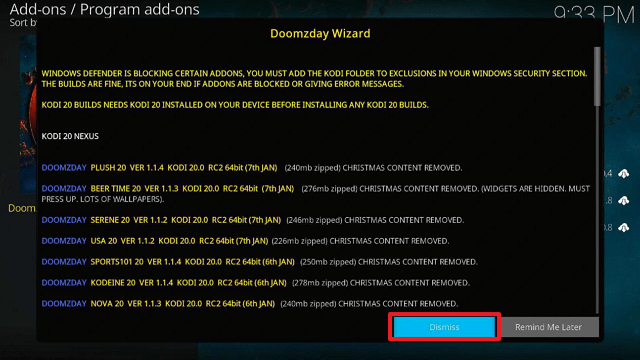
19. Click on “Doomzday Wizard

Flix-MX Kodi Build


20. Then click “Install

Flix-MX Kodi Build


21. Click “OK” for the additional add-on/s that will be installed

Flix-MX Kodi Build


22. Then wait for it to install. It’s finished once you see the “Doomzday Wizard Add-on Installed” message appears.

Flix-MX Kodi Build


23. Click “Continue

Flix-MX Kodi Build


24. Select “Close”

Flix-MX Kodi Build


25. Click “Dismiss

Flix-MX Kodi Build


26. Click Doomzday Wizard then Open.

Flix-MX Kodi Build


27. Click “Doomzday Wizard Builds”

Flix-MX Kodi Build


28. Scroll down and choose “FLIX-MX

Flix-MX Kodi Build


29. Click “Install

Flix-MX Kodi Build


30. Then click “Yes, Install

Flix-MX Kodi Build


31. Select “Fresh Install” then Wait for the Build to install.

Flix-MX Kodi Build


32. Then click “OK” to force close Kodi. Finally, Relaunch Kodi. That’s it, FLIX-MX Kodi Build is now installed on your Firestick.

Flix-MX Kodi Build

YOUR INTERNET ACTIVITY IS BEING WATCHED

ReviewVPN cannot attest to the legality, security and privacy of the applications discussed on this site. It is highly recommended that you use a VPN service while streaming or using Kodi.

Currently, your IP 216.73.216.102 is visible to everyone and your Browser is being tracked by Advertisers & ISP Provider.

Save 65% Now

Limited Time Offer

Here are the main reasons why you must use a VPN:

  • Your activities are hidden from your ISP, the government, and from the apps you are using.
  • You can access additional movies and TV streams.
  • ISP attempts to throttle are thrwarted thus reducing buffering issues.
  • Geographically restricted content like Netflix and Hulu can be unblocked.

A VPN works be replacing your ISP-assigned IP address and creating an encrypted tunnel. We recommend the no log service offered by IPVanish. It works well on a Firestick and offers the fastest possible speeds.

Special Limited Time Offer - Get IPVanish


Legal Disclaimer: ReviewVPN.com does not encourage or endorse any illegal activity involved in the usage of services and applications referenced on this site. We do not verify the licensing agreements of services. The end-user is wholly responsible for ensuring that any media accessed through these services does not violate copyright and/or licensing laws. ReviewVPN does not promote, link to, or receive compensation from any Apps and IPTV services.


Install Surfshark on Firestick

Best Surfshark Deal


Features

  • On the Home Screen, there are categories for Live TV, BK’s Live TV, Christmas, movies, TV shows, Debrid, Scrubs v2, Homelander, Fen, and Umbrella.
  • Contains live feeds of football, cricket, boxing, rugby, tennis, WWE, and FIFA.
  • Local television is available in Arabia, Australia, Bangladesh, Canada, France, Germany, India, and other countries.
  • Allows you to customize the Skin, Fonts, Zoom, Language, Screensaver, Master Lock, and Start-Up.
  • Media settings and player options for videos, music, discs, pictures, language, and accessibility can be changed.
  • Remote control via HTTP is supported.
  • Allows for the use of UPnP and Airplay.
  • PVR service settings that can be modified for guides, replays, recordings, reminders, power conservation, and client-specific information
  • Allows for the use of Parental Control.
  • It includes a file manager.


Pros & Cons

Pros

  • There is parental control accessible.
  • Allows for free streaming.
  • Provides buffer-free streams.


Cons

  • The only issue I had with this build was that occasionally, loading would be slow while navigating.


Stream Safely With a VPN

Surfshark vpn

With programs like Kodi, streaming is virtually limitless. We have an endless supply of selections when looking for movies and television shows to watch on our smart devices. But since there are numerous unofficial builds and addons available, we can never be sure of their security.

First, you’re not sure whether the streams you get from these add-ons are legal. The worst scenario is that you might be caught and questioned about your streaming activity. Next, you are unaware that there may be invisible eyes behind those screens. You can watch free movies, TV series, and live TV, but we hope you’re not sacrificing your data while doing so. Because of this, you will require a strong tool to help you maintain your anonymity online.

As a result, we highly advise choosing Surfshark as your VPN. It includes the following security features:

  • Unbreakable 256-bit military-grade encryption.
  • If your VPN connection is interrupted, its kill switch will automatically deactivate your access.
  • It has more than 3,200 servers spread across 100 locations.
  • A built-in pop-up consent blocker is available.
  • It has a CleanWeb feature that will stop viruses and advertisements.
  • You can increase account security by switching on two-factor authentication.

Note: For more information about Surfshark, please read our Surfshark Review.


How to Install Surfshark VPN on Firestick

If your Firestick still has the older interface, read this article to learn how to update it: Update Firestick Interface.

Follow our screenshots below to install the Surfshark VPN app on your Fire TV stick.

1. Go to the Home screen of your Firestick.

step 1 Install Surfshark VPN on Firestick


2. Navigate toward the Find tab. Press the Search button from the resulting dropdown.

step 2 Install Surfshark VPN on Firestick


3. Type in the keyword of Surfshark and select from the suggestions that will appear.

step 3 Install Surfshark VPN on Firestick


4. Click the official SurfShark icon from your search results.

step 4 Install Surfshark VPN on Firestick


5. Press the Download (You own it) button.

step 5 Install Surfshark VPN on Firestick


6. The Surfshark VPN installer will download on your device.

step 6 Install Surfshark VPN on Firestick


7. SurfShark VPN’s app will automatically install itself on your Fire TV stick.

step 7 Install Surfshark VPN on Firestick


8. Press the Open button after completing Surfshark VPN’s installation process.

step 8 Install Surfshark VPN on Firestick


9. Please wait for the SurfShark VPN to load its user interface.

step 9 Install Surfshark VPN on Firestick


10. You can now log in with your Surfshark VPN account credentials.

step 10 Install Surfshark VPN on Firestick

Learn more about Surfshark and Grab the Best Surfshark Deal Now!


Install Surfshark on Firestick

Best Surfshark Deal


Other VPNs to Consider

NordVPN (Best for Streaming)

Best Features

  • 5000+ Server in 50+ Countries 
  • Military-Grade Encryption
  • Fast Connection Speed
  • Suitable to a lot of devices
  • No-Log Policy

Prices
  • Complete $5.89 per month (64% Discount)
  • Plus $4.59 per month (56% Discount)
  • Standard $3.69 per month (55% Discount)

Best Features

  • 750+ High-speed VPN Servers in 43 Locations
  • Military-Grade Encryption
  • Fastest HD Streaming and Gaming
  • 30-Day Money-Back Guarantee
  • Unlimited Data & Devices
  • No-Log Policy

Prices
  • 3 Years $1.99 per month (82% Discount)
  • 1 Years $3.29 per month (70% Discount)
  • 1 Month $10.99 per month

IPVanish VPN (Most Secure)

Best Features

  • 1200+ Servers in 60+ Countries around the world
  • Unlimited Connections
  • No-Log Policy
  • Top Notch Military-Grade VPN Protocols and Encryptions
  • 100% Safe and Secured
  • Most Trusted VPN
  • Best VPN for Firestick
  • 30-Day Money-Back Guarantee

Prices
  • Yearly $3.99 per month (63% Discount) – 30 days risk free + Ransomware & Malware Protection
  • Quarterly $5.32 per month (51% Discount)
  • Monthly $10.99 per month


FAQs

What is Flix-MX Kodi Build?

Flix MX is a Kodi Build that allows you to stream movies, television shows, and live television.


Is Flix-MX Kodi  Kodi Build Safe?

Yes, installing and using Flix-MX on a Firestick is safe. To ensure security while using Flix-MX, it is still advised to use a VPN.


Is Flix-MX Kodi Build legal?

We can never guarantee the legality of the streams provided by Flix-MX. To avoid any legal issues related to your use of Flix-MX, we advise you to maintain your anonymity.


Should I Use Flix-MX Kodi Build with a VPN?

When viewing content online, we always advise using a VPN to prevent any undesired data leaks or IP address intrusions. The very last thing we want is for your data to be compromised and misused for malicious purposes.


Click here to get the lowest price on Surfshark through our exclusive limited-time offer.

For more VPN discounts, go to ReviewVPN Deals and purchase the best VPN for you.


Wrapping Up

Flix-MX is a decent Kodi build because it offers its users a ton of streaming options. Additionally, it permits both free and paid usage, which is advantageous for reaching a wider audience. Moreover, unlike other Builds that contain harmful files, it is safe to install and use on your device. However, if you’re looking for better choices, you might want to check out our list of the Best Kodi Builds.

How To Install The Watcher Kodi Addon on Firestick

Overview

Everything you need to know about installing The Watcher Kodi Addon on a Firestick will be covered in this article.


The Watcher is a Kodi Addon from the EnCryptic Repository that allows you to view movies and TV episodes on any Kodi-compatible device. It supports the use of premium debrid services such as Real Debrid and Premiumize to find high-quality streaming links of your desired movies or shows. Additionally, you may combine your Trakt account to sync and manage your watchlist and TV calendar.

Furthermore, before we begin the installation of The Watcher Kodi Addon, we’d like to point out that this is a third-party addon. As a result, we recommend that you utilize a VPN when using The Watcher Kodi Addon to avoid any inadvertent leaks or data breaches.


ANONYMOUSLY


How To Install The Watcher Kodi Addon on Firestick

You can follow along with this tutorial to install The Watcher Kodi Addon on your Firestick.

1. Launch the Kodi app on your Firestick. Click on the gear wheel icon (Settings)

The Watcher Kodi Addon


2. Select “System

The Watcher Kodi Addon

3. Scroll down to “Add-ons” Then Go to “Unknown sources” then toggle it on.

The Watcher Kodi Addon


4. Select “Yes”. Then using your Firestick remote, press the return button to go back to the System page

The Watcher Kodi Addon


5. Now choose “File Manager

The Watcher Kodi Addon


6. Scroll down and select “Add source

The Watcher Kodi Addon


7. Click “<None>

The Watcher Kodi Addon


8. Type in “https://tinyurl.com/encryptic” then click “OK”

The Watcher Kodi Addon


9. Highlight the box under the source to give the media source a name, and put “encryptic” or any other name that will help you identify it quickly. Click “OK”. Return to the System page by pressing the return button on your remote.

The Watcher Kodi Addon


10. Select “Add-ons

The Watcher Kodi Addon


11. Choose “Install from zip file

The Watcher Kodi Addon


12. Click “Yes

The Watcher Kodi Addon


13. Select “encryptic

The Watcher Kodi Addon


14. Then click on the zip file URL – repository.encryptic.zip

The Watcher Kodi Addon


15. Wait for the notification “EnCryptic Repository Add-on installed” to appear on the upper right part of the screen

The Watcher Kodi Addon


16. Afterward, select “Install from repository

The Watcher Kodi Addon


17. Then click “EnCryptic Repository

The Watcher Kodi Addon


18. Select “Video Addons

The Watcher Kodi Addon


19. Scroll down and click on “The Watcher

The Watcher Kodi Addon


20. Then click “Install

The Watcher Kodi Addon


21. Then wait for it to install. It’s finished once you see the “The Watcher Add-on Installed” message appears.

The Watcher Kodi Addon


22. Select “The Watcher”. Then select “Open

The Watcher Kodi Addon


23. That’s it, The Watcher Kodi Addon is already installed on your Firestick.

The Watcher Kodi Addon


YOUR INTERNET ACTIVITY IS BEING WATCHED

ReviewVPN cannot attest to the legality, security and privacy of the applications discussed on this site. It is highly recommended that you use a VPN service while streaming or using Kodi.

Currently, your IP 216.73.216.102 is visible to everyone and your Browser is being tracked by Advertisers & ISP Provider.

Save 65% Now

Limited Time Offer

Here are the main reasons why you must use a VPN:

  • Your activities are hidden from your ISP, the government, and from the apps you are using.
  • You can access additional movies and TV streams.
  • ISP attempts to throttle are thrwarted thus reducing buffering issues.
  • Geographically restricted content like Netflix and Hulu can be unblocked.

A VPN works be replacing your ISP-assigned IP address and creating an encrypted tunnel. We recommend the no log service offered by IPVanish. It works well on a Firestick and offers the fastest possible speeds.

Special Limited Time Offer - Get IPVanish


Legal Disclaimer: ReviewVPN.com does not encourage or endorse any illegal activity involved in the usage of services and applications referenced on this site. We do not verify the licensing agreements of services. The end-user is wholly responsible for ensuring that any media accessed through these services does not violate copyright and/or licensing laws. ReviewVPN does not promote, link to, or receive compensation from any Apps and IPTV services.


Install Surfshark on Firestick

Best Surfshark Deal


Features

  • Contains selections for movies and TV shows.
  • You can access some Trakt movies and TV shows even if you don’t have an account.
  • Supports Trakt so that you can access your Watchlists, Recommendations, Lists of TV shows and movies You’ve Watched, and More.
  • It has a Search function that makes it simple to look for titles.
  • The Search History feature displays the TV and movie titles you’ve looked for.
  • You may view the Last Link Played from the Home page.
  • The most recent update to the add-on is displayed in the “What’s New” tab.
  • You can filter for the minimum and maximum video quality.
  • Available video resolutions are 720p, 1080p, and 2160p.
  • Real Debrid and Premiumize are supported
  • There is a “Next Up” option accessible.
  • You can resume watching your recently watched movies and series.
  • For Real Debrid, there are sections for history and torrents.
  • You may look up actors to see their movies and television programs.


Pros & Cons

Pros

  • No account is necessary to access Trakt content.
  • Offers Trakt and Debrid support.
  • Movies and TV series in HD resolution are accessible.


Cons

  • No free media are available.
  • There is no support for All Debrid.


Secure Your Connection With a VPN

Surfshark vpn

When using add-ons such as The Watcher, data security is very important. This is to protect your personal information from being taken by hackers and phishers lurking on apps, especially free software like Kodi. In this way, you may stop these cybercriminals from exposing your information and using it to threaten you financially or maliciously. In addition, certain apps may request your location and other accesses through permissions. You may therefore be guaranteed that no information about you is disclosed without your permission, regardless of the purpose for the permissions or whether they are legitimate.

By enabling you to connect from one of its more than 3,200 servers spread across 100 countries, a VPN like Surfshark can assist you in avoiding those occurrences. All of your traffic will be protected since these IP addresses will secure your connection using AES 256-bit encryption, which is guaranteed to be uncrackable. Additionally, it strictly enforces a zero IP address leaks and no data breaches policy, giving you added assurance that your data won’t be sold to outside servers. Its other benefits also include the following:

  • You will have unrestricted bandwidth to access any Kodi content you like.
  • A kill switch will stop you from accessing content without protection by immediately cutting off your device’s internet connection if your VPN connection is interrupted.
  • Bypassing geo-restrictions enables you to quickly access restricted apps and websites.
  • A CleanWeb feature is available to stop malware and advertisements.
  • There is also a Cookie Consent Pop-Up Blocker available.
  • To further secure your account, a two-factor authentication is an option.

Note: For more information about Surfshark, please read our Surfshark Review.


How to Install Surfshark VPN on Firestick

If your Firestick still has the older interface, read this article to learn how to update it: Update Firestick Interface.

Follow our screenshots below to install the Surfshark VPN app on your Fire TV stick.

1. Go to the Home screen of your Firestick.

step 1 Install Surfshark VPN on Firestick


2. Navigate toward the Find tab. Press the Search button from the resulting dropdown.

step 2 Install Surfshark VPN on Firestick


3. Type in the keyword of Surfshark and select from the suggestions that will appear.

step 3 Install Surfshark VPN on Firestick


4. Click the official SurfShark icon from your search results.

step 4 Install Surfshark VPN on Firestick


5. Press the Download (You own it) button.

step 5 Install Surfshark VPN on Firestick


6. The Surfshark VPN installer will download on your device.

step 6 Install Surfshark VPN on Firestick


7. SurfShark VPN’s app will automatically install itself on your Fire TV stick.

step 7 Install Surfshark VPN on Firestick


8. Press the Open button after completing Surfshark VPN’s installation process.

step 8 Install Surfshark VPN on Firestick


9. Please wait for the SurfShark VPN to load its user interface.

step 9 Install Surfshark VPN on Firestick


10. You can now log in with your Surfshark VPN account credentials.

step 10 Install Surfshark VPN on Firestick

Learn more about Surfshark and Grab the Best Surfshark Deal Now!


Install Surfshark on Firestick

Best Surfshark Deal


Other VPNs to Consider

NordVPN (Best for Streaming)

Best Features

  • 5000+ Server in 50+ Countries 
  • Military-Grade Encryption
  • Fast Connection Speed
  • Suitable to a lot of devices
  • No-Log Policy

Prices
  • Complete $5.89 per month (64% Discount)
  • Plus $4.59 per month (56% Discount)
  • Standard $3.69 per month (55% Discount)

Best Features

  • 750+ High-speed VPN Servers in 43 Locations
  • Military-Grade Encryption
  • Fastest HD Streaming and Gaming
  • 30-Day Money-Back Guarantee
  • Unlimited Data & Devices
  • No-Log Policy

Prices
  • 3 Years $1.99 per month (82% Discount)
  • 1 Years $3.29 per month (70% Discount)
  • 1 Month $10.99 per month

IPVanish VPN (Most Secure)

Best Features

  • 1200+ Servers in 60+ Countries around the world
  • Unlimited Connections
  • No-Log Policy
  • Top Notch Military-Grade VPN Protocols and Encryptions
  • 100% Safe and Secured
  • Most Trusted VPN
  • Best VPN for Firestick
  • 30-Day Money-Back Guarantee

Prices
  • Yearly $3.99 per month (63% Discount) – 30 days risk free + Ransomware & Malware Protection
  • Quarterly $5.32 per month (51% Discount)
  • Monthly $10.99 per month


FAQs

What is The Watcher Kodi Addon?

The Watcher is a Kodi Addon that enables its users to watch HD-quality movies and TV shows.


Is The Watcher Kodi Addon Safe?

It is strongly advised to use a VPN like Surfshark to secure your data since The Watcher Kodi Addon’s URL shows a suspicious file.


Is The Watcher Kodi Addon Legal?

The legality of the streams offered by The Watcher Kodi Addon cannot be guaranteed. To avoid any legal issues, it is best to use caution and maintain your anonymity when using this add-on.


Should I Use The Watcher Kodi Addon with a VPN?

Yes, utilizing a VPN is highly recommended when using The Watcher Kodi Addon. This is because the URL Repository contained a malicious file. So, if you use this add-on, you’ll never know what harm it might cause you.


Click here to get the lowest price on Surfshark through our exclusive limited-time offer.

For more VPN discounts, go to ReviewVPN Deals and purchase the best VPN for you.


Wrapping Up

We can conclude that this addon is quite good if you have a Real Debrid and Premiumize account because it offers a ton of streaming options. You can be confident that using this addon will provide you with the best streaming experience because it supports HD-quality streams. In addition, you may use The Watcher Kodi Addon to connect your Trakt account and sync your watchlist.

However, what disturbs me is the malicious file seen in the repository URL. To find other alternatives, you may check out our list of the best Kodi Addons.

How To Install Samsung TV Plus Kodi Addon on Firestick

Overview

You can learn everything you need to know about installing Samsung TV Plus Kodi Addon on Firestick from this article.


Samsung TV Plus is a Kodi Addon from SlyGuy Repository that allows you to view live TV channels on your Firestick and other Kodi-compatible devices. There are over a thousand channels available in categories such as Auto & Motor, Comedy, Crime, Kids, Music, and Lifestyle. Additionally, it offers local channels in countries like Austria, Canada, France, Germany, Italy, South Korea, Spain, Switzerland, the United Kingdom, and the United States. In essence, this addon offers every Live TV station you could want.

But first, as Samsung TV Plus is a third-party addon, we’d like to remind you to use a VPN when running it on your device. This is to secure your data, as no one can guarantee the safety of your data when using this addon.


ANONYMOUSLY


How To Install Samsung TV Plus Kodi Addon on Firestick

You can follow along with this tutorial to install Samsung TV Plus Kodi Addon on your Firestick.

1. Launch the Kodi app on your Firestick. Click on the gear wheel icon (Settings)

Samsung TV Plus Kodi Addon


2. Select “System

Samsung TV Plus Kodi Addon

3. Scroll down to “Add-ons” Then Go to “Unknown sources” then toggle it on.

Samsung TV Plus Kodi Addon


4. Select “Yes”. Then using your Firestick remote, press the return button to go back to the System page

Samsung TV Plus Kodi Addon


5. Now choose “File Manager

Samsung TV Plus Kodi Addon


6. Scroll down and select “Add source

Samsung TV Plus Kodi Addon


7. Click “<None>

Samsung TV Plus Kodi Addon


8. Type in “http://k.slyguy.xyz/” then click “OK”

Samsung TV Plus Kodi Addon


9. Highlight the box under the source to give the media source a name, and put “slyguy” or any other name that will help you identify it quickly. Click “OK”. Return to the System page by pressing the return button on your remote.

Samsung TV Plus Kodi Addon


10. Select “Add-ons

Samsung TV Plus Kodi Addon


11. Choose “Install from zip file

Samsung TV Plus Kodi Addon


12. Click “Yes

Samsung TV Plus Kodi Addon


13. Select “slyguy

Samsung TV Plus Kodi Addon


14. Then click on the zip file URL – repository.slyguy.zip

Samsung TV Plus Kodi Addon


15. Wait for the notification “SlyGuy Repository Add-on installed” to appear on the upper right part of the screen

Samsung TV Plus Kodi Addon


16. Afterward, select “Install from repository

Samsung TV Plus Kodi Addon


17. Then click “SlyGuy Repository

Samsung TV Plus Kodi Addon


18. Select “Video Addons

Samsung TV Plus Kodi Addon


19. Scroll down and click on “Samsung TV Plus

Samsung TV Plus Kodi Addon


20. Then click “Install

Samsung TV Plus Kodi Addon


21. Click “OK” for the additional add-ons that will be installed

Samsung TV Plus Kodi Addon


22. Then wait for it to install. It’s finished once you see the “Samsung TV Plus Add-on Installed” message appears.

Samsung TV Plus Kodi Addon


23. Select “Samsung TV Plus”. Then select “Open

Samsung TV Plus Kodi Addon


24. That’s it, Samsung TV Plus Kodi Addon is already installed on your Firestick.

Samsung TV Plus Kodi Addon


YOUR INTERNET ACTIVITY IS BEING WATCHED

ReviewVPN cannot attest to the legality, security and privacy of the applications discussed on this site. It is highly recommended that you use a VPN service while streaming or using Kodi.

Currently, your IP 216.73.216.102 is visible to everyone and your Browser is being tracked by Advertisers & ISP Provider.

Save 65% Now

Limited Time Offer

Here are the main reasons why you must use a VPN:

  • Your activities are hidden from your ISP, the government, and from the apps you are using.
  • You can access additional movies and TV streams.
  • ISP attempts to throttle are thrwarted thus reducing buffering issues.
  • Geographically restricted content like Netflix and Hulu can be unblocked.

A VPN works be replacing your ISP-assigned IP address and creating an encrypted tunnel. We recommend the no log service offered by IPVanish. It works well on a Firestick and offers the fastest possible speeds.

Special Limited Time Offer - Get IPVanish


Legal Disclaimer: ReviewVPN.com does not encourage or endorse any illegal activity involved in the usage of services and applications referenced on this site. We do not verify the licensing agreements of services. The end-user is wholly responsible for ensuring that any media accessed through these services does not violate copyright and/or licensing laws. ReviewVPN does not promote, link to, or receive compensation from any Apps and IPTV services.


Install Surfshark on Firestick

Best Surfshark Deal


Features

  • Provides free Live TV streaming
  • Contains live TV stations from Austria, Canada, France, Germany, India, Italy, South Korea, Spain, Switzerland, the United Kingdom, and the United States.
  • You can find a wide range of genres, including comedy, crime, drama, entertainment, food & drink, game shows, kids, lifestyle, news, reality, sci-fi & horror, and many others.
  • Provides a variety of streaming links with the varying video quality.
  • Allows you to pause, stop, rewind, and fast-forward videos.
  • You can bookmark your favorite channels.
  • It has a mini EPG for each channel.
  • You may find a channel by just typing it into the Search tool.


Pros & Cons

Pros

  • Gives access to free live TV stations.
  • It includes local television networks.
  • HD streaming is available.
  • There are numerous channels to pick from in a variety of categories.


Cons

  • I was unable to view some channels.
  • Buffers were present, but they were tolerable.


Stream Safely With a VPN

Surfshark vpn

We would like to caution you to always use a VPN or other security solution to encrypt your connection when using streaming platforms. You never know when online threats will use these services to steal data from streamers all over the world. We don’t want you to be at risk when using apps and websites that offer live streaming from these sources.

A VPN, such as Surfshark, will hide your IP address, making it impossible for third-party servers to access your data. You may be certain to have the best end-to-end encryption because Surfshark uses uncrackable AES 256-bit encryption. When you use Surfshark’s service, you won’t have to worry about data breaches or IP address leaks.

In addition, it gives you the following advantages and benefits:

  • It has a vast server network of more than 3,200 servers across 100 countries.
  • You can see any content from anywhere in the globe by getting around censorship and geographic restrictions.
  • It offers unlimited bandwidth, allowing you to stream any content without worrying about data limits.
  • Availability on key platforms, allowing you to safeguard all of your devices, including Firestick, iOS, Android, macOS, and many others.
  • It supports an unlimited number of simultaneous streams, allowing you to safeguard all of your streaming devices.
  • In the case that your VPN connection drops, Surfshark provides a kill switch that immediately disconnects your device from the internet.
  • It automatically connects you to the fastest internet service provider in your area to provide you with the strongest connection.

Note: For more information about Surfshark, please read our Surfshark Review.


How to Install Surfshark VPN on Firestick

If your Firestick still has the older interface, read this article to learn how to update it: Update Firestick Interface.

Follow our screenshots below to install the Surfshark VPN app on your Fire TV stick.

1. Go to the Home screen of your Firestick.

step 1 Install Surfshark VPN on Firestick


2. Navigate toward the Find tab. Press the Search button from the resulting dropdown.

step 2 Install Surfshark VPN on Firestick


3. Type in the keyword of Surfshark and select from the suggestions that will appear.

step 3 Install Surfshark VPN on Firestick


4. Click the official SurfShark icon from your search results.

step 4 Install Surfshark VPN on Firestick


5. Press the Download (You own it) button.

step 5 Install Surfshark VPN on Firestick


6. The Surfshark VPN installer will download on your device.

step 6 Install Surfshark VPN on Firestick


7. SurfShark VPN’s app will automatically install itself on your Fire TV stick.

step 7 Install Surfshark VPN on Firestick


8. Press the Open button after completing Surfshark VPN’s installation process.

step 8 Install Surfshark VPN on Firestick


9. Please wait for the SurfShark VPN to load its user interface.

step 9 Install Surfshark VPN on Firestick


10. You can now log in with your Surfshark VPN account credentials.

step 10 Install Surfshark VPN on Firestick

Learn more about Surfshark and Grab the Best Surfshark Deal Now!


Install Surfshark on Firestick

Best Surfshark Deal


Other VPNs to Consider

NordVPN (Best for Streaming)

Best Features

  • 5000+ Server in 50+ Countries 
  • Military-Grade Encryption
  • Fast Connection Speed
  • Suitable to a lot of devices
  • No-Log Policy

Prices
  • Complete $5.89 per month (64% Discount)
  • Plus $4.59 per month (56% Discount)
  • Standard $3.69 per month (55% Discount)

Best Features

  • 750+ High-speed VPN Servers in 43 Locations
  • Military-Grade Encryption
  • Fastest HD Streaming and Gaming
  • 30-Day Money-Back Guarantee
  • Unlimited Data & Devices
  • No-Log Policy

Prices
  • 3 Years $1.99 per month (82% Discount)
  • 1 Years $3.29 per month (70% Discount)
  • 1 Month $10.99 per month

IPVanish VPN (Most Secure)

Best Features

  • 1200+ Servers in 60+ Countries around the world
  • Unlimited Connections
  • No-Log Policy
  • Top Notch Military-Grade VPN Protocols and Encryptions
  • 100% Safe and Secured
  • Most Trusted VPN
  • Best VPN for Firestick
  • 30-Day Money-Back Guarantee

Prices
  • Yearly $3.99 per month (63% Discount) – 30 days risk free + Ransomware & Malware Protection
  • Quarterly $5.32 per month (51% Discount)
  • Monthly $10.99 per month


FAQs

What is Samsung TV Plus Kodi Addon?

Samsung TV Plus is a Kodi Addon from the SlyGuy Repository that offers live TV channels that are free to stream.


Is Samsung TV Plus Kodi Addon Safe?

Yes, installing and using Samsung TV Plus on a Firestick or other device is safe. However, it’s still a smart option to safeguard your connection using a VPN because you should never be complacent when using streaming platforms.


Is Samsung TV Plus Kodi Addon Legal?

Kodi Addons are legal. We cannot, however, vouch for the legality of the streams offered by Samsung TV Plus. It is therefore advised to use this addon in an anonymous mode.


Should I Use Samsung TV Plus Kodi Addon with a VPN?

To preserve data privacy, we always advise our readers to utilize a VPN when streaming or simply browsing the internet. It prevents any unauthorized leaks or data breaches so you can feel secure using any streaming service.


Click here to get the lowest price on Surfshark through our exclusive limited-time offer.

For more VPN discounts, go to ReviewVPN Deals and purchase the best VPN for you.


Wrapping Up

Samsung TV Plus is an excellent Kodi Addon for Live TV because it offers a large number of available channels to its users. Additionally, it offers live TV channels from various genres and countries. As a result, you may be guaranteed to locate a channel at any time of day that you’d like to watch.

How To Install IPTV Merge Kodi Addon on Firestick

Overview

This guide will teach you how to install the IPTV Merge Kodi Addon on your Firestick.


IPTV Merge is a Kodi Addon that may be used in combination with PVR IPTV Simple Client. You can already guess from this addon’s name that it merges multiple IPTV services into Kodi. In essence, it gives you access to several IPTV Playlists on a single platform. Additionally, it supports and is compatible with any IPTV provider you desire to utilize with it.

However, we want to make sure that you are aware that IPTV Merge is a third-party Kodi addon before we start the installation. Therefore, to ensure that your data and device are secure when using it on your Firestick, we recommend utilizing a VPN like Surfshark.


ANONYMOUSLY


How To Install IPTV Merge Kodi Addon on Firestick

You can follow along with this tutorial to install IPTV Merge Kodi Addon on your Firestick.

1. Launch the Kodi app on your Firestick. Click on the gear wheel icon (Settings)

IPTV Merge Kodi Addon


2. Select “System

IPTV Merge Kodi Addon

3. Scroll down to “Add-ons” Then Go to “Unknown sources” then toggle it on.

IPTV Merge Kodi Addon


4. Select “Yes”. Then using your Firestick remote, press the return button to go back to the System page

IPTV Merge Kodi Addon


5. Now choose “File Manager

IPTV Merge Kodi Addon


6. Scroll down and select “Add source

IPTV Merge Kodi Addon


7. Click “<None>

IPTV Merge Kodi Addon


8. Type in “http://k.slyguy.xyz/” then click “OK”

IPTV Merge Kodi Addon


9. Highlight the box under the source to give the media source a name, and put “slyguy” or any other name that will help you identify it quickly. Click “OK”. Return to the System page by pressing the return button on your remote.

IPTV Merge Kodi Addon


10. Select “Add-ons

IPTV Merge Kodi Addon


11. Choose “Install from zip file

IPTV Merge Kodi Addon


12. Click “Yes

IPTV Merge Kodi Addon


13. Select “slyguy

IPTV Merge Kodi Addon


14. Then click on the zip file URL – repository.slyguy.zip

IPTV Merge Kodi Addon


15. Wait for the notification “SlyGuy Repository Add-on installed” to appear on the upper right part of the screen

IPTV Merge Kodi Addon


16. Afterward, select “Install from repository

IPTV Merge Kodi Addon


17. Then click “SlyGuy Repository

IPTV Merge Kodi Addon


18. Select “Program Addons

IPTV Merge Kodi Addon


19. Scroll down and click on “IPTV Merge

IPTV Merge Kodi Addon


20. Then click “Install

IPTV Merge Kodi Addon


21. Click “OK” for the additional add-ons that will be installed

IPTV Merge Kodi Addon


22. Then wait for it to install. It’s finished once you see the “IPTV Merge Add-on Installed” message appears.

IPTV Merge Kodi Addon


23. Select “IPTV Merge”. Then select “Open

IPTV Merge Kodi Addon


24. That’s it, IPTV Merge Kodi Addon is already installed on your Firestick.

IPTV Merge Kodi Addon


YOUR INTERNET ACTIVITY IS BEING WATCHED

ReviewVPN cannot attest to the legality, security and privacy of the applications discussed on this site. It is highly recommended that you use a VPN service while streaming or using Kodi.

Currently, your IP 216.73.216.102 is visible to everyone and your Browser is being tracked by Advertisers & ISP Provider.

Save 65% Now

Limited Time Offer

Here are the main reasons why you must use a VPN:

  • Your activities are hidden from your ISP, the government, and from the apps you are using.
  • You can access additional movies and TV streams.
  • ISP attempts to throttle are thrwarted thus reducing buffering issues.
  • Geographically restricted content like Netflix and Hulu can be unblocked.

A VPN works be replacing your ISP-assigned IP address and creating an encrypted tunnel. We recommend the no log service offered by IPVanish. It works well on a Firestick and offers the fastest possible speeds.

Special Limited Time Offer - Get IPVanish


Legal Disclaimer: ReviewVPN.com does not encourage or endorse any illegal activity involved in the usage of services and applications referenced on this site. We do not verify the licensing agreements of services. The end-user is wholly responsible for ensuring that any media accessed through these services does not violate copyright and/or licensing laws. ReviewVPN does not promote, link to, or receive compensation from any Apps and IPTV services.


Install Surfshark on Firestick

Best Surfshark Deal


Features

  • Setup IPTV Simple Client, Playlists, EPGs, Manage TV, Manage Radio, Run Merge, and Settings are among the categories available.
  • You can Add a Playlist by URL, File, Addon, or Custom
  • It gives you the option to add EPGs.
  • Allows you to view all of your TV and radio channels.
  • Enables you to activate Merging every X hours and set the number of hours for it.
  • You can run merge on boot as well as reload IPTV Simple Client after merging.
  • Merging Playlists and EPGs is one of its capabilities.
  • The number of channels per page can be customized: the default is 200.
  • You can also request the addition of a Playlist/EPG.
  • Playback Quality can be adjusted to Best, Lowest, Bypass, Custom, or Ask.
  • You can choose to use IPTV Merge Proxy for HTTP streams.
  • Playback Quality can be adjusted to Best, Lowest, Bypass, Custom, or Ask.
  • You can optionally choose a Max Bandwidth (Mbit/s) value between.5 and 100.
  • Inputstream HLS can also be used for live streaming.


Pros & Cons

Pros

  • Enables you to integrate all of your IPTV subscriptions in Kodi
  • Provides convenience to its users


Cons

  • There are issues with the audio.
  • Does not support recording.


Stream Safely With a VPN

Surfshark vpn

Fortunately, IPTV offers its consumers several advantages, including the ability to watch premium live TV at a lower cost than cable subscriptions. However, protecting your connection is crucial, especially when streaming live material online. As a result, a VPN is frequently used in conjunction with IPTV services and IPTV players. But, not all VPNs are created equal, so you must make sure to choose the best VPN for IPTV streaming.

Surfshark is a reputable VPN service since it offers top-tier features such as AES-256 military-grade encryption and a variety of security protocols such as WireGuard, IKEv2/IPsec, and OpenVPN, as well as a kill switch, which serves as the third layer of protection following Surfshark’s security protection. Apart from that, below are some of its additional advantages:

  • You can access even IPTVs that are geo-restricted to some countries by getting around censorship and geo-restrictions.
  • It has a large number of connections available due to its 3,200+ servers spread over 100 countries.
  • Ideal for regular streaming because it offers unlimited bandwidth to stream any IPTV service material you choose.
  • You may use your IPTV player on all of your devices and be sure to secure them all at once because it supports an unlimited number of simultaneous connections.

Note: For more information about Surfshark, please read our Surfshark Review.


How to Install Surfshark VPN on Firestick

If your Firestick still has the older interface, read this article to learn how to update it: Update Firestick Interface.

Follow our screenshots below to install the Surfshark VPN app on your Fire TV stick.

1. Go to the Home screen of your Firestick.

step 1 Install Surfshark VPN on Firestick


2. Navigate toward the Find tab. Press the Search button from the resulting dropdown.

step 2 Install Surfshark VPN on Firestick


3. Type in the keyword of Surfshark and select from the suggestions that will appear.

step 3 Install Surfshark VPN on Firestick


4. Click the official SurfShark icon from your search results.

step 4 Install Surfshark VPN on Firestick


5. Press the Download (You own it) button.

step 5 Install Surfshark VPN on Firestick


6. The Surfshark VPN installer will download on your device.

step 6 Install Surfshark VPN on Firestick


7. SurfShark VPN’s app will automatically install itself on your Fire TV stick.

step 7 Install Surfshark VPN on Firestick


8. Press the Open button after completing Surfshark VPN’s installation process.

step 8 Install Surfshark VPN on Firestick


9. Please wait for the SurfShark VPN to load its user interface.

step 9 Install Surfshark VPN on Firestick


10. You can now log in with your Surfshark VPN account credentials.

step 10 Install Surfshark VPN on Firestick

Learn more about Surfshark and Grab the Best Surfshark Deal Now!


Install Surfshark on Firestick

Best Surfshark Deal


Other VPNs to Consider

NordVPN (Best for Streaming)

Best Features

  • 5000+ Server in 50+ Countries 
  • Military-Grade Encryption
  • Fast Connection Speed
  • Suitable to a lot of devices
  • No-Log Policy

Prices
  • Complete $5.89 per month (64% Discount)
  • Plus $4.59 per month (56% Discount)
  • Standard $3.69 per month (55% Discount)

Best Features

  • 750+ High-speed VPN Servers in 43 Locations
  • Military-Grade Encryption
  • Fastest HD Streaming and Gaming
  • 30-Day Money-Back Guarantee
  • Unlimited Data & Devices
  • No-Log Policy

Prices
  • 3 Years $1.99 per month (82% Discount)
  • 1 Years $3.29 per month (70% Discount)
  • 1 Month $10.99 per month

IPVanish VPN (Most Secure)

Best Features

  • 1200+ Servers in 60+ Countries around the world
  • Unlimited Connections
  • No-Log Policy
  • Top Notch Military-Grade VPN Protocols and Encryptions
  • 100% Safe and Secured
  • Most Trusted VPN
  • Best VPN for Firestick
  • 30-Day Money-Back Guarantee

Prices
  • Yearly $3.99 per month (63% Discount) – 30 days risk free + Ransomware & Malware Protection
  • Quarterly $5.32 per month (51% Discount)
  • Monthly $10.99 per month


FAQs

What is IPTV Merge Kodi Addon?

IPTV Merge is a Kodi Addon that allows users to merge several IPTV services in Kodi.


Is IPTV Merge Kodi Addon Safe?

Installing and using IPTV Merge on your device is safe. To ensure complete safety when using it, we still advise utilizing a VPN.


Is IPTV Merge Kodi Addon Legal?

Kodi Addon IPTV Merge is legal. However, it is the end user’s responsibility to make sure that the IPTV service they will be using offers legal feeds.


Should I Use IPTV Merge Kodi Addon with a VPN?

We always recommend employing a VPN while using third-party addons such as IPTV Merge to avoid data breaches and IP address leaks.


Click here to get the lowest price on Surfshark through our exclusive limited-time offer.

For more VPN discounts, go to ReviewVPN Deals and purchase the best VPN for you.


Wrapping Up

IPTV Merge Kodi Addon is useful for individuals who have multiple IPTV services because it allows you to merge them all in Kodi. As a result, you won’t have any trouble switching between these services on your device, such as a Firestick.

How To Install Mega IPTV Kodi Addon on Firestick

Overview

This guide will cover everything you need to know about installing the Mega IPTV Kodi Addon on a Firestick.


Mega IPTV is a G-Live repository Kodi addon that offers live TV channels in a variety of categories. The offerings are well-organized, and you may search by language, category, or country. Moreover, Fluxus Channels are available in English, Spanish, and Arabic. And using the Mega IPTV Addon, you can undoubtedly find a ton of streaming channels that will keep you entertained for hours.

But first, we want to let you know that Mega IPTV is a third-party Kodi Addon. Because of this, it is advised to utilize a VPN in conjunction with it to prevent any data breaches or IP address leaks while using this add-on.


ANONYMOUSLY


How To Install Mega IPTV Kodi Addon on Firestick

You can follow along with this tutorial to install the Mega IPTV Kodi Addon on your Firestick.

1. Launch the Kodi app on your Firestick. Click on the gear wheel icon (Settings)

Mega IPTV Kodi Addon


2. Select “System

Mega IPTV Kodi Addon

3. Scroll down to “Add-ons” Then Go to “Unknown sources” then toggle it on.

Mega IPTV Kodi Addon


4. Select “Yes”. Then using your Firestick remote, press the return button to go back to the System page

Mega IPTV Kodi Addon


5. Now choose “File Manager

Mega IPTV Kodi Addon


6. Scroll down and select “Add source

Mega IPTV Kodi Addon


7. Click “<None>

Mega IPTV Kodi Addon


8. Type in “https://mrgsi.github.io/glive/” then click “OK”

Mega IPTV Kodi Addon


9. Highlight the box under the source to give the media source a name, and put “glive” or any other name that will help you identify it quickly. Click “OK”. Return to the System page by pressing the return button on your remote

Mega IPTV Kodi Addon


10. Select “Add-ons

Mega IPTV Kodi Addon


11. Choose “Install from zip file

Mega IPTV Kodi Addon


12. Click “Yes

Mega IPTV Kodi Addon


13. Select “glive

Mega IPTV Kodi Addon


14. Then click on the zip file URL – repository.glive-1.0.6.zip

Mega IPTV Kodi Addon


15. Wait for the notification “G-Live Repository Add-on installed” to appear on the upper right part of the screen

Mega IPTV Kodi Addon


16. Afterward, select “Install from repository

Mega IPTV Kodi Addon


17. Then click “G-Live Repository

Mega IPTV Kodi Addon


18. Select “Video Addons

Mega IPTV Kodi Addon


19. Click on “Mega IPTV

Mega IPTV Kodi Addon


20. Then click “Install

Mega IPTV Kodi Addon


21. Then wait for it to install. It’s finished once you see the “Mega IPTV Add-on Installed” message appears.

Mega IPTV Kodi Addon


22. Select “Mega IPTV”. Then select “Open

Mega IPTV Kodi Addon


23. That’s it, Mega IPTV Kodi Addon is already installed on your Firestick.

Mega IPTV Kodi Addon


YOUR INTERNET ACTIVITY IS BEING WATCHED

ReviewVPN cannot attest to the legality, security and privacy of the applications discussed on this site. It is highly recommended that you use a VPN service while streaming or using Kodi.

Currently, your IP 216.73.216.102 is visible to everyone and your Browser is being tracked by Advertisers & ISP Provider.

Save 65% Now

Limited Time Offer

Here are the main reasons why you must use a VPN:

  • Your activities are hidden from your ISP, the government, and from the apps you are using.
  • You can access additional movies and TV streams.
  • ISP attempts to throttle are thrwarted thus reducing buffering issues.
  • Geographically restricted content like Netflix and Hulu can be unblocked.

A VPN works be replacing your ISP-assigned IP address and creating an encrypted tunnel. We recommend the no log service offered by IPVanish. It works well on a Firestick and offers the fastest possible speeds.

Special Limited Time Offer - Get IPVanish


Legal Disclaimer: ReviewVPN.com does not encourage or endorse any illegal activity involved in the usage of services and applications referenced on this site. We do not verify the licensing agreements of services. The end-user is wholly responsible for ensuring that any media accessed through these services does not violate copyright and/or licensing laws. ReviewVPN does not promote, link to, or receive compensation from any Apps and IPTV services.


Install Surfshark on Firestick

Best Surfshark Deal


Features

  • You have the option of choosing from IPTV-ORG Channels by Country, IPTV-ORG Channels by Category, or IPTV-ORG Channels by Language.
  • There are several countries to choose from, including Afghanistan, Argentina, Australia, Brazil, Canada, Denmark, Egypt, Germany, Haiti, Hong Kong, Maldives, New Zealand, and the United States.
  • Channels by Category include Animation, Classic, Comedy, Documentary, Kids, Family, Science, Sports, Travel, Weather, and many others.
  • There are many different languages, such as Albanian, Arabic, Korean, Japanese, French, German, Indonesian, English, Polish, Tagalog, and many more.
  • Fluxus Channels in English, Fluxus Channels in Spanish, and Fluxus Channels in Arabic are also available.
  • It contains a search feature that lets you enter a new search query.
  • You can save items to myFavorites.
  • There is a tab for your most recently played videos.
  • Available video resolutions include 1080p, 720p, 576p, and 480p
  • One-click play streaming method


Pros & Cons

Pros

  • It has a user-friendly interface since its content is organized.
  • Numerous streaming options are available.
  • It meets many different streaming demands.


Cons

  • Sometimes, the loading process takes a while.
  • I ran into a playback issue.
  • It occasionally hangs.


Stream Safely With a VPN

Surfshark vpn

To stop hackers and phishers from stealing your information, we always urge our readers to keep their online activities secure. Particularly with streaming services, where you never know who may be accessing them in search of vulnerable IP addresses from which they can gather data for profit or malicious objectives. And you’ll need a VPN, or virtual private network, to aid you to do that.

A VPN, such as Surfshark, can help you protect your privacy by providing you with an anonymous IP address that protects your data from prying eyes on the internet. Additionally, it secures your connection using military-grade AES-256 encryption, so you can be guaranteed that neither your incoming nor outgoing traffic will be visible to the apps you visit.

Here are some of its further advantages:

  • It ensures you always have access to the internet for your daily needs by housing over 3,200 servers across 100 countries.
  • Access any content from any location in the world by getting around geo-restrictions and censorship.
  • Make sure that IP addresses are hidden and that no records are stored.
  • Receive unlimited internet bandwidth so you may download and stream anything you want.
  • You can connect every device simultaneously using Surfshark’s unlimited simultaneous connections.
  • Surfshark is compatible with all major platforms, allowing you to utilize it on any device you own.
  • The kill switch feature will immediately disconnect your device from the internet if your VPN subscription is unexpectedly disrupted.
  • 24/7 customer support is available.

Note: For more information about Surfshark, please read our Surfshark Review.


How to Install Surfshark VPN on Firestick

If your Firestick still has the older interface, read this article to learn how to update it: Update Firestick Interface.

Follow our screenshots below to install the Surfshark VPN app on your Fire TV stick.

1. Go to the Home screen of your Firestick.

step 1 Install Surfshark VPN on Firestick


2. Navigate toward the Find tab. Press the Search button from the resulting dropdown.

step 2 Install Surfshark VPN on Firestick


3. Type in the keyword of Surfshark and select from the suggestions that will appear.

step 3 Install Surfshark VPN on Firestick


4. Click the official SurfShark icon from your search results.

step 4 Install Surfshark VPN on Firestick


5. Press the Download (You own it) button.

step 5 Install Surfshark VPN on Firestick


6. The Surfshark VPN installer will download on your device.

step 6 Install Surfshark VPN on Firestick


7. SurfShark VPN’s app will automatically install itself on your Fire TV stick.

step 7 Install Surfshark VPN on Firestick


8. Press the Open button after completing Surfshark VPN’s installation process.

step 8 Install Surfshark VPN on Firestick


9. Please wait for the SurfShark VPN to load its user interface.

step 9 Install Surfshark VPN on Firestick


10. You can now log in with your Surfshark VPN account credentials.

step 10 Install Surfshark VPN on Firestick

Learn more about Surfshark and Grab the Best Surfshark Deal Now!


Install Surfshark on Firestick

Best Surfshark Deal


Other VPNs to Consider

NordVPN (Best for Streaming)

Best Features

  • 5000+ Server in 50+ Countries 
  • Military-Grade Encryption
  • Fast Connection Speed
  • Suitable to a lot of devices
  • No-Log Policy

Prices
  • Complete $5.89 per month (64% Discount)
  • Plus $4.59 per month (56% Discount)
  • Standard $3.69 per month (55% Discount)

Best Features

  • 750+ High-speed VPN Servers in 43 Locations
  • Military-Grade Encryption
  • Fastest HD Streaming and Gaming
  • 30-Day Money-Back Guarantee
  • Unlimited Data & Devices
  • No-Log Policy

Prices
  • 3 Years $1.99 per month (82% Discount)
  • 1 Years $3.29 per month (70% Discount)
  • 1 Month $10.99 per month

IPVanish VPN (Most Secure)

Best Features

  • 1200+ Servers in 60+ Countries around the world
  • Unlimited Connections
  • No-Log Policy
  • Top Notch Military-Grade VPN Protocols and Encryptions
  • 100% Safe and Secured
  • Most Trusted VPN
  • Best VPN for Firestick
  • 30-Day Money-Back Guarantee

Prices
  • Yearly $3.99 per month (63% Discount) – 30 days risk free + Ransomware & Malware Protection
  • Quarterly $5.32 per month (51% Discount)
  • Monthly $10.99 per month


FAQs

What is Mega IPTV?

Mega IPTV is a Kodi Addon from the G-Live Repository that allows users to stream live channels. It offers a ton of streaming alternatives in many different categories.


Is Mega IPTV Safe?

Yes, installing and using Mega IPTV on a Firestick is safe. However, to provide an extra level of safety, it is always recommended to utilize a VPN such as Surfshark.


Is Mega IPTV Legal?

We cannot guarantee the legality of Mega IPTV’s offerings to its users, so it’s best to be safe and only watch from those in the public domain. The end-user of Mega IPTV is responsible for all content viewed.


Should I Use Mega IPTV with a VPN?

To avoid any undesired data breaches, it is always suggested to use a VPN when streaming on add-ons like Mega IPTV. This safeguards user data privacy while using devices like the Firestick to access these add-ons.


Click here to get the lowest price on Surfshark through our exclusive limited-time offer.

For more VPN discounts, go to ReviewVPN Deals and purchase the best VPN for you.


Wrapping Up

With its extensive selection of categories, Mega IPTV offers its viewers a wide range of streaming possibilities. You can search by country, language, and other parameters. However, due to the app’s extensive offering, certain channels were unavailable throughout testing. Nevertheless, you should give this add-on a look because you might get lucky and find a working streaming connection for what you’re looking for.

How To Install RBTv Kodi Addon on Firestick

Overview

You can learn how to install the RBTv Kodi Addon and everything else you need to know about it in this article.


RBTv is a Kodi Addon from The WareHouse Repository that enables you to locate Live TV channels in various categories.

Some of the categories you can find are Sports, Kids, Religious, and Science, and there are also local channels available. These local channels originate from various countries, including the United States, France, Canada, Italy, Sri Lanka, and many others.

Additionally, we want to let you know upfront that RBTv is a third-party addon and isn’t accessible through the official Kodi Repository.

As a result, we’d like to recommend that you turn on your VPN before installing and using this add-on. This prevents any unintended data leaks or security breaches since Kodi won’t be held responsible for any harm caused to your device by third-party add-ons.


ANONYMOUSLY


How To Install RBTv Kodi Addon on Firestick

You can follow along with this tutorial to install the RBTv Kodi Addon on your Firestick.

1. Launch the Kodi app on your Firestick. Click on the gear wheel icon (Settings)

RBTv Kodi Addon


2. Select “System

RBTv Kodi Addon

3. Scroll down to “Add-ons” Then Go to “Unknown sources” then toggle it on.

RBTv Kodi Addon


4. Select “Yes”. Then using your Firestick remote, press the return button to go back to the System page

RBTv Kodi Addon


5. Now choose “File Manager

RBTv Kodi Addon


6. Scroll down and select “Add source

RBTv Kodi Addon


7. Click “<None>

RBTv Kodi Addon


8. Type in “https://tinyurl.com/TWHrepo” then click “OK”

RBTv Kodi Addon


9. Highlight the box under the source to give the media source a name, and put “TWHrepo” or any other name that will help you identify it quickly. Click “OK”. Return to the System page by pressing the return button on your remote

RBTv Kodi Addon


10. Select “Add-ons

RBTv Kodi Addon


11. Choose “Install from zip file

RBTv Kodi Addon


12. Click “Yes

RBTv Kodi Addon


13. Select “TWHrepo

RBTv Kodi Addon


14. Then click on the zip file URL – repository.thewarehouse-x.x.x.zip

RBTv Kodi Addon


15. Wait for the notification “The WareHouse Repository Add-on installed” to appear on the upper right part of the screen

RBTv Kodi Addon


16. Afterward, select “Install from repository

RBTv Kodi Addon


17. Then click “The WareHouse Repository

RBTv Kodi Addon


18. Select “Video Addons

RBTv Kodi Addon


19. Click on “RBTv

RBTv Kodi Addon


20. Then click “Install

RBTv Kodi Addon


21. Then wait for it to install. It’s finished once you see the “RBTv Add-on Installed” message appears.

RBTv Kodi Addon


22. Select “RBTv”. Then select “Open

RBTv Kodi Addon


23. That’s it, RBTv Kodi Addon is already installed on your Firestick.

RBTv Kodi Addon


YOUR INTERNET ACTIVITY IS BEING WATCHED

ReviewVPN cannot attest to the legality, security and privacy of the applications discussed on this site. It is highly recommended that you use a VPN service while streaming or using Kodi.

Currently, your IP 216.73.216.102 is visible to everyone and your Browser is being tracked by Advertisers & ISP Provider.

Save 65% Now

Limited Time Offer

Here are the main reasons why you must use a VPN:

  • Your activities are hidden from your ISP, the government, and from the apps you are using.
  • You can access additional movies and TV streams.
  • ISP attempts to throttle are thrwarted thus reducing buffering issues.
  • Geographically restricted content like Netflix and Hulu can be unblocked.

A VPN works be replacing your ISP-assigned IP address and creating an encrypted tunnel. We recommend the no log service offered by IPVanish. It works well on a Firestick and offers the fastest possible speeds.

Special Limited Time Offer - Get IPVanish


Legal Disclaimer: ReviewVPN.com does not encourage or endorse any illegal activity involved in the usage of services and applications referenced on this site. We do not verify the licensing agreements of services. The end-user is wholly responsible for ensuring that any media accessed through these services does not violate copyright and/or licensing laws. ReviewVPN does not promote, link to, or receive compensation from any Apps and IPTV services.


Install Surfshark on Firestick

Best Surfshark Deal


Features

  • Enables you to watch live television networks.
  • You can explore categories like Sports, Kids, Religion, and Science.
  • There are numerous local channels available, including the following: Pakistani, Indian, Turkish, South Indian, Portugal TV, UK, USA, Arabic, Bangla, Indonesian, Australian, German, French, Sri Lankan, Iranian, Punjabi, Canadian, and Italian.
  • Sports channels include PTV Sports, TEN, STAR SP, Sky Sports, BEIN, Super Sports, BEOUTQ, Fight Network, UFC Fight Pass, and Big Ten Network.
  • Its Kids Section features a variety of channels for children, including Baby TV, Nickelodeon, Cartoon Network, PBS Kids, and more.
  • There are Kids’ channels in Hindi, Arabic, Tamil, and Telugu.
  • Medine TV, Bereket TV, Rehber TV, Yasin TV, Semerkand TV, Hadi TV, and other religious channels are available.
  • The Science Category includes channels from Animal Planet, Nat Geo, Discovery, and Sony.
  • Your favorite channels can be added to your bookmarks.
  • Allows for one-click streaming.


Pros & Cons

Pros

  • It offers free live TV streaming.
  • There are numerous options for live TV.
  • Allows you to stream easily by providing one-click play streams.


Cons

  • SD video resolution is provided.
  • Some buffering occurs.
  • No subtitle is available for some channels.


Stream Safely With a VPN

Surfshark vpn

When using unofficial addons like RBTv, we always advise our readers to use a VPN like Surfshark to protect their online privacy. This is because these add-ons are not developed or maintained by Kodi, so you never know who could be able to watch what you are streaming.

As a result, there can be hazards involved with it that affect your privacy. You won’t be able to tell if hackers and phishers who prowl around these Builds are targeting your data for dubious monetary gain.

Therefore, it is recommended to use a VPN to remain anonymous when using these Addons. To prevent your real IP address from being linked to your streaming, Surfshark will mask your IP address.

By doing this, you may be certain that you are not disclosing your IP address to any streaming platform you use. You may be confident that there won’t be any logs or IP address leaks when using its service because it uses military-grade AES-256-bit encryption, which is guaranteed to be uncrackable. Along with that, the following are some other advantages:

  • Its CleanWeb function prevents viruses and advertising.
  • It has a pop-up blocker for cookie consent.
  • Supports two-factor authentication.
  • Unlimited bandwidth is provided.
  • Allows you to circumvent geo-restrictions.
  • It safeguards an unlimited number of devices.
  • A 30-day money-back guarantee is provided.

Note: For more information about Surfshark, please read our Surfshark Review.


How to Install Surfshark VPN on Firestick

If your Firestick still has the older interface, read this article to learn how to update it: Update Firestick Interface.

Follow our screenshots below to install the Surfshark VPN app on your Fire TV stick.

1. Go to the Home screen of your Firestick.

step 1 Install Surfshark VPN on Firestick


2. Navigate toward the Find tab. Press the Search button from the resulting dropdown.

step 2 Install Surfshark VPN on Firestick


3. Type in the keyword of Surfshark and select from the suggestions that will appear.

step 3 Install Surfshark VPN on Firestick


4. Click the official SurfShark icon from your search results.

step 4 Install Surfshark VPN on Firestick


5. Press the Download (You own it) button.

step 5 Install Surfshark VPN on Firestick


6. The Surfshark VPN installer will download on your device.

step 6 Install Surfshark VPN on Firestick


7. SurfShark VPN’s app will automatically install itself on your Fire TV stick.

step 7 Install Surfshark VPN on Firestick


8. Press the Open button after completing Surfshark VPN’s installation process.

step 8 Install Surfshark VPN on Firestick


9. Please wait for the SurfShark VPN to load its user interface.

step 9 Install Surfshark VPN on Firestick


10. You can now log in with your Surfshark VPN account credentials.

step 10 Install Surfshark VPN on Firestick

Learn more about Surfshark and Grab the Best Surfshark Deal Now!


Install Surfshark on Firestick

Best Surfshark Deal


Other VPNs to Consider

NordVPN (Best for Streaming)

Best Features

  • 5000+ Server in 50+ Countries 
  • Military-Grade Encryption
  • Fast Connection Speed
  • Suitable to a lot of devices
  • No-Log Policy

Prices
  • Complete $5.89 per month (64% Discount)
  • Plus $4.59 per month (56% Discount)
  • Standard $3.69 per month (55% Discount)

Best Features

  • 750+ High-speed VPN Servers in 43 Locations
  • Military-Grade Encryption
  • Fastest HD Streaming and Gaming
  • 30-Day Money-Back Guarantee
  • Unlimited Data & Devices
  • No-Log Policy

Prices
  • 3 Years $1.99 per month (82% Discount)
  • 1 Years $3.29 per month (70% Discount)
  • 1 Month $10.99 per month

IPVanish VPN (Most Secure)

Best Features

  • 1200+ Servers in 60+ Countries around the world
  • Unlimited Connections
  • No-Log Policy
  • Top Notch Military-Grade VPN Protocols and Encryptions
  • 100% Safe and Secured
  • Most Trusted VPN
  • Best VPN for Firestick
  • 30-Day Money-Back Guarantee

Prices
  • Yearly $3.99 per month (63% Discount) – 30 days risk free + Ransomware & Malware Protection
  • Quarterly $5.32 per month (51% Discount)
  • Monthly $10.99 per month


FAQs

What is RBTv Kodi Addon?

The RBTv Kodi Addon enables users to view live TV across a range of genres, including local stations, sports, kids’ programming, and religious content.


Is RBTv Kodi Addon Safe?

Installing and using RBTv is safe. To ensure complete safety, we still advise pairing it with a VPN like Surfshark.


Is RBTv Kodi Addon Legal?

Since it appears that RBTv is offering copyrighted content, we cannot ensure that the streams it offers are legal. It is therefore advised to only stream from sources that are in the public domain.


Should I use a VPN and RBTv?

Since RBTv is a third-party addon, we advise using a VPN to access it. Apart from preventing data breaches and other potential security hazards, it’s critical to maintain your anonymity to protect yourself from any online attacks.


Click here to get the lowest price on Surfshark through our exclusive limited-time offer.

For more VPN discounts, go to ReviewVPN Deals and purchase the best VPN for you.


Wrapping Up

If you’re looking for live TV streaming, the RBTv Kodi Addon is recommended because it has a ton of different options. It is also simple and incredibly convenient to use because it offers one-click play streaming, saving you time from having to select links. Furthermore, what I appreciate about it is that it offers a free streaming solution to individuals looking for free live TV.

How To Install Centry Sports Kodi Addon on Firestick

Overview

You can learn how to install Centry Sports Kodi Addon by reading this article.


Centry Sports is a Kodi Addon available from the Centry Repository that allows users to watch live TV and sports. This addon contains 90+ TV networks in a range of live-streaming choices for entertainment. As a result, you may be certain to find the best TV Networks and channels for live TV. In addition, you can get streaming for soccer, hockey, and basketball through Centry Sports Kodi Addon.

But before we go any further, we’d like to let you know that Centry Sports is a third-party Kodi Addon and isn’t accessible through the official Kodi Repository. It is therefore recommended to utilize a VPN in conjunction with it to prevent any undesired data breaches and leaks.


ANONYMOUSLY

How To Install Centry Sports Kodi Addon on Firestick

You can follow along with this tutorial to install the Centry Sports Kodi Addon on your Firestick.

1. Launch the Kodi app on your Firestick. Click on the gear wheel icon (Settings)

Centry Sports Kodi Addon


2. Select “System

Centry Sports Kodi Addon

3. Scroll down to “Add-ons” Then Go to “Unknown sources” then toggle it on.

Centry Sports Kodi Addon


4. Select “Yes”. Then using your Firestick remote, press the return button to go back to the System page

Centry Sports Kodi Addon


5. Now choose “File Manager

Centry Sports Kodi Addon


6. Scroll down and select “Add source

Centry Sports Kodi Addon


7. Click “<None>

Centry Sports Kodi Addon


8. Type in “https://centry7.github.io” then click “OK”

Centry Sports Kodi Addon


9. Highlight the box under the source to give the media source a name, and put “centry” or any other name that will help you identify it quickly. Click “OK”. Return to the System page by pressing the return button on your remote

Centry Sports Kodi Addon


10. Select “Add-ons

Centry Sports Kodi Addon


11. Choose “Install from zip file

Centry Sports Kodi Addon


12. Click “Yes

Centry Sports Kodi Addon


13. Select “centry

Centry Sports Kodi Addon


14. Then click on the zip file URL – repository.centry-0.0.1.zip

Centry Sports Kodi Addon


15. Wait for the notification “centry Add-on installed” to appear on the upper right part of the screen

Centry Sports Kodi Addon


16. Afterward, select “Install from repository

Centry Sports Kodi Addon


17. Then click “centry

Centry Sports Kodi Addon


18. Select “Video Addons

Centry Sports Kodi Addon


19. Click on “Centry Sports

Centry Sports Kodi Addon


20. Then click “Install

Centry Sports Kodi Addon


21. Then wait for it to install. It’s finished once you see the “Centry Sports Add-on Installed” message appears.

Centry Sports Kodi Addon


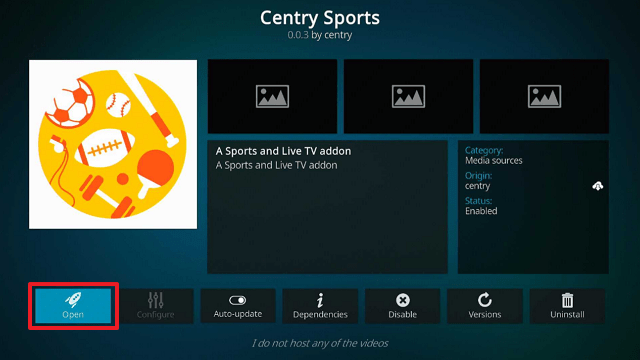
22. Select “Centry Sports”. Then select “Open

Centry Sports Kodi Addon


23. That’s it, Centry Sports Kodi Addon is already installed on your Firestick.


YOUR INTERNET ACTIVITY IS BEING WATCHED

ReviewVPN cannot attest to the legality, security and privacy of the applications discussed on this site. It is highly recommended that you use a VPN service while streaming or using Kodi.

Currently, your IP 216.73.216.102 is visible to everyone and your Browser is being tracked by Advertisers & ISP Provider.

Save 65% Now

Limited Time Offer

Here are the main reasons why you must use a VPN:

  • Your activities are hidden from your ISP, the government, and from the apps you are using.
  • You can access additional movies and TV streams.
  • ISP attempts to throttle are thrwarted thus reducing buffering issues.
  • Geographically restricted content like Netflix and Hulu can be unblocked.

A VPN works be replacing your ISP-assigned IP address and creating an encrypted tunnel. We recommend the no log service offered by IPVanish. It works well on a Firestick and offers the fastest possible speeds.

Special Limited Time Offer - Get IPVanish


Legal Disclaimer: ReviewVPN.com does not encourage or endorse any illegal activity involved in the usage of services and applications referenced on this site. We do not verify the licensing agreements of services. The end-user is wholly responsible for ensuring that any media accessed through these services does not violate copyright and/or licensing laws. ReviewVPN does not promote, link to, or receive compensation from any Apps and IPTV services.


Install Surfshark on Firestick

Best Surfshark Deal


Features

  • Enables users to watch Live TV and Sports
  • Categories you can find under the Live TV section are Daddy Live and USTVGO
  • More than 90 TV Networks can be found and including ABC 7 New York, BET, Cartoon Network, CBS Sports Network, Disney, MLB Network, Paramount, Showtime, TLC, The Weather Channel, WWE Network, and a lot more.
  • The Sports section provides Soccer Streams, NBA Streams, and NHL Streams
  • Lets you add to, create, and clear bookmarks
  • Offers subtitle support
  • Provides one-click streaming of live TV and Sports
  • Live TV streams are in SD quality
  • Customizable audio and video settings


Pros & Cons

Pros

  • Numerous TV networks are streamable.
  • It offers free live TV and sports streaming.
  • A single-click play feature.


Cons

  • Daddy Live cannot be accessed while testing because of a Centry issue.
  • It takes a while for categories to load.
  • There are buffers.
  • Some channels don’t have any streams available.


Stream Safely with a VPN

Surfshark vpn

When it comes to data privacy, streaming with Kodi is incredibly easy but also highly dangerous. You’ll never know who is behind the software or the risks you’re taking on when utilizing third-party add-ons, especially. You won’t be able to tell if your personal information is being recorded or even sold to third-party developers. Or if your ISP and the government are both keeping an eye on your internet activities.

Because of this, we consistently advise our readers to utilize a VPN to remain anonymous when accessing or streaming anything online. You can be sure that there are no data breaches or leaks taking place without your permission if you use a VPN like Surfshark.

That is because it will provide you with an anonymous IP address that will conceal your identity. Additionally, by using this anonymous IP address from one of its servers, you can benefit from the following:

  • You can access content from anywhere in the globe because it bypasses geo-restrictions.
  • Your traffic will travel through an encrypted tunnel, ensuring that you won’t leave any traces on the websites or applications you use.
  • It stops ISP throttling, which results in lagging and buffering.
  • Your data will be protected with uncrackable AES 256-bit encryption.
  • Through its Cleanweb function, viruses and advertisements will be prevented.
  • It also has a cookie consent pop-up blocker.
  • To improve the security of your account, two-factor authentication is available.

Note: For more information about Surfshark, please read our Surfshark Review.


How to Install Surfshark VPN on Firestick

If your Firestick still has the older interface, read this article to learn how to update it: Update Firestick Interface.

Follow our screenshots below to install the Surfshark VPN app on your Fire TV stick.

1. Go to the Home screen of your Firestick.

step 1 Install Surfshark VPN on Firestick


2. Navigate toward the Find tab. Press the Search button from the resulting dropdown.

step 2 Install Surfshark VPN on Firestick


3. Type in the keyword of Surfshark and select from the suggestions that will appear.

step 3 Install Surfshark VPN on Firestick


4. Click the official SurfShark icon from your search results.

step 4 Install Surfshark VPN on Firestick


5. Press the Download (You own it) button.

step 5 Install Surfshark VPN on Firestick


6. The Surfshark VPN installer will download on your device.

step 6 Install Surfshark VPN on Firestick


7. SurfShark VPN’s app will automatically install itself on your Fire TV stick.

step 7 Install Surfshark VPN on Firestick


8. Press the Open button after completing Surfshark VPN’s installation process.

step 8 Install Surfshark VPN on Firestick


9. Please wait for the SurfShark VPN to load its user interface.

step 9 Install Surfshark VPN on Firestick


10. You can now log in with your Surfshark VPN account credentials.

step 10 Install Surfshark VPN on Firestick

Learn more about Surfshark and Grab the Best Surfshark Deal Now!


Install Surfshark on Firestick

Best Surfshark Deal


Other VPNs to Consider

NordVPN (Best for Streaming)

Best Features

  • 5000+ Server in 50+ Countries 
  • Military-Grade Encryption
  • Fast Connection Speed
  • Suitable to a lot of devices
  • No-Log Policy

Prices
  • Complete $5.89 per month (64% Discount)
  • Plus $4.59 per month (56% Discount)
  • Standard $3.69 per month (55% Discount)

Best Features

  • 750+ High-speed VPN Servers in 43 Locations
  • Military-Grade Encryption
  • Fastest HD Streaming and Gaming
  • 30-Day Money-Back Guarantee
  • Unlimited Data & Devices
  • No-Log Policy

Prices
  • 3 Years $1.99 per month (82% Discount)
  • 1 Years $3.29 per month (70% Discount)
  • 1 Month $10.99 per month

IPVanish VPN (Most Secure)

Best Features

  • 1200+ Servers in 60+ Countries around the world
  • Unlimited Connections
  • No-Log Policy
  • Top Notch Military-Grade VPN Protocols and Encryptions
  • 100% Safe and Secured
  • Most Trusted VPN
  • Best VPN for Firestick
  • 30-Day Money-Back Guarantee

Prices
  • Yearly $3.99 per month (63% Discount) – 30 days risk free + Ransomware & Malware Protection
  • Quarterly $5.32 per month (51% Discount)
  • Monthly $10.99 per month


FAQs

What is Centry Sports Kodi Addon?

Centry Sports is a Kodi Addon that allows you to watch live TV and sports. Additionally, broadcasts from USTVGo and Daddy Live are available. You could also watch NBA, soccer, and NHL games.


Is Centry Sports Kodi Addon Safe?

It is safe to install and use Centry Sports. However, a VPN, such as Surfshark, is advised to keep data secure and protected, especially while using third-party builds.


Is Centry Sports Kodi Addon Legal?

Add-ons are generally legal. We cannot, however, guarantee that all of the streams supplied by Centry Sports are legal.


Should I Use Centry Sports Kodi Addon with a VPN?

A VPN is unquestionably advised when using the Centry Sports Kodi Addon. This is done to avoid any unwanted logging or breaches while using this add-on.


For more VPN discounts, go to ReviewVPN Deals and purchase the best VPN for you.

Click here to get the lowest price on Surfshark through our exclusive limited-time offer.


Wrapping Up

Centry Sports is a useful add-on because it provides a wide selection of live TV channels. In addition, it offers live streaming, which is advantageous. However, if you’re searching for a Sports addon that offers more sports streaming, Centry Sports may not meet your needs. Nonetheless, you can look through ReviewVPN’s list of the best Sports Kodi Addons.

How To Install Court TV Live Kodi Addon on Firestick

Overview

Reading this article, you can learn how to set up Court TV Live Kodi Addon on a Firestick.


If you enjoy watching courtroom shows or anything related to the legal system, Court TV Live may interest you. You can undoubtedly find the most recent and popular court cases in it, even though it just has a few categories when you run it on Kodi.

Furthermore, it is available in the official Kodi Repository, so you will have no trouble installing it on Kodi. Additionally, as Court TV is a broadcast network, you won’t need to be concerned about its legality when utilizing it on your Firestick. As a result, you can be confident that it is the owner of every stream it provides in this add-on.

Without further ado, let’s begin installing the Court TV Live Kodi Addon on Firestick. This guide is also applicable to any Kodi-compatible device, including Android and Mac.


ANONYMOUSLY

How To Install Court TV Live Kodi Addon on Firestick

You can follow this tutorial to install the Court TV Live Kodi Addon on your Firestick.

1. Launch the Kodi app on your Firestick. Click on the gear wheel icon (Settings)

Court TV Live Kodi Addon


2. Select “Add-ons

Court TV Live Kodi Addon


3. Click “Install from repository”

Court TV Live Kodi Addon


4. Scroll down to “Video add-ons

Court TV Live Kodi Addon


5. Choose “Court TV Live

Court TV Live Kodi Addon


6. Select “Install

Court TV Live Kodi Addon


7. Click “OK”

Court TV Live Kodi Addon


8. Then wait for it to install. It’s finished once you see the “Court TV Live Add-on Installed” message appears.

Court TV Live Kodi Addon


9. Click “Open”

Court TV Live Kodi Addon


10. That’s it, Court TV Live Kodi Addon is already installed on your Firestick.

Court TV Live Kodi Addon


YOUR INTERNET ACTIVITY IS BEING WATCHED

ReviewVPN cannot attest to the legality, security and privacy of the applications discussed on this site. It is highly recommended that you use a VPN service while streaming or using Kodi.

Currently, your IP 216.73.216.102 is visible to everyone and your Browser is being tracked by Advertisers & ISP Provider.

Save 65% Now

Limited Time Offer

Here are the main reasons why you must use a VPN:

  • Your activities are hidden from your ISP, the government, and from the apps you are using.
  • You can access additional movies and TV streams.
  • ISP attempts to throttle are thrwarted thus reducing buffering issues.
  • Geographically restricted content like Netflix and Hulu can be unblocked.

A VPN works be replacing your ISP-assigned IP address and creating an encrypted tunnel. We recommend the no log service offered by IPVanish. It works well on a Firestick and offers the fastest possible speeds.

Special Limited Time Offer - Get IPVanish


Legal Disclaimer: ReviewVPN.com does not encourage or endorse any illegal activity involved in the usage of services and applications referenced on this site. We do not verify the licensing agreements of services. The end-user is wholly responsible for ensuring that any media accessed through these services does not violate copyright and/or licensing laws. ReviewVPN does not promote, link to, or receive compensation from any Apps and IPTV services.


Install Surfshark on Firestick

Best Surfshark Deal


Features

  • Courtroom cases are accessible for free viewing.
  • A one-hour to an hour-and-a-half-long video is available.
  • The video quality is 720HD.
  • You can find categories like Larry’s Country Diner, Heartland, Music City Tonight, and Country Music Rewind.
  • It gives you the ability to bookmark your favorite videos.
  • Subtitle support is available.
  • Audio and video parameters that can be customized.
  • Provides information/a brief synopsis of the available videos.


Pros & Cons

Pros

  • Free streaming of video.
  • It certainly delivers legal videos to watch.
  • Simple to install.
  • The user interface is straightforward.

Cons

  • There are only a few video options available.
  • The titles and video information don’t seem to match the videos.
  • There are breaks.


Stream Safely With a VPN

Surfshark vpn

Online streaming puts your data in danger since you never know if it has already been compromised and sent to a different server. In addition, the government strictly polices your online actions, particularly when using streaming platforms.

Of course, you wouldn’t want to think twice about the websites or apps you use or the content you decide to view. It essentially amounts to taking away your freedom and limiting what you can do online.

Because of this, using a VPN when online is always recommended.

You may conceal your true identity online by using a VPN like Surfshark, which will give you an anonymous IP address. In this way, you can stream any online entertainment without worrying about hackers watching you through the applications you use.

The following are some more advantages of using Surfshark.

  • Enables you to bypass geographical constraints.
  • Allows for an unlimited number of concurrent device connections
  • Features a CleanWeb function that safeguards your device from malware and ad tracking.
  • It has a cookie consent pop-up blocker.
  • Allows you to use an unlimited amount of bandwidth
  • It has a two-factor authentication option that gives your account more secure.
  • Stops ISP throttling, which causes latency and buffer overflows.

Note: For more information about Surfshark, please read our Surfshark Review.


How to Install Surfshark VPN on Firestick

If your Firestick still has the older interface, read this article to learn how to update it: Update Firestick Interface.

Follow our screenshots below to install the Surfshark VPN app on your Fire TV stick.

1. Go to the Home screen of your Firestick.

step 1 Install Surfshark VPN on Firestick


2. Navigate toward the Find tab. Press the Search button from the resulting dropdown.

step 2 Install Surfshark VPN on Firestick


3. Type in the keyword of Surfshark and select from the suggestions that will appear.

step 3 Install Surfshark VPN on Firestick


4. Click the official SurfShark icon from your search results.

step 4 Install Surfshark VPN on Firestick


5. Press the Download (You own it) button.

step 5 Install Surfshark VPN on Firestick


6. The Surfshark VPN installer will download on your device.

step 6 Install Surfshark VPN on Firestick


7. SurfShark VPN’s app will automatically install itself on your Fire TV stick.

step 7 Install Surfshark VPN on Firestick


8. Press the Open button after completing Surfshark VPN’s installation process.

step 8 Install Surfshark VPN on Firestick


9. Please wait for the SurfShark VPN to load its user interface.

step 9 Install Surfshark VPN on Firestick


10. You can now log in with your Surfshark VPN account credentials.

step 10 Install Surfshark VPN on Firestick

Learn more about Surfshark and Grab the Best Surfshark Deal Now!


Install Surfshark on Firestick

Best Surfshark Deal


Other VPNs to Consider

NordVPN (Best for Streaming)

Best Features

  • 5000+ Server in 50+ Countries 
  • Military-Grade Encryption
  • Fast Connection Speed
  • Suitable to a lot of devices
  • No-Log Policy

Prices
  • Complete $5.89 per month (64% Discount)
  • Plus $4.59 per month (56% Discount)
  • Standard $3.69 per month (55% Discount)

Best Features

  • 750+ High-speed VPN Servers in 43 Locations
  • Military-Grade Encryption
  • Fastest HD Streaming and Gaming
  • 30-Day Money-Back Guarantee
  • Unlimited Data & Devices
  • No-Log Policy

Prices
  • 3 Years $1.99 per month (82% Discount)
  • 1 Years $3.29 per month (70% Discount)
  • 1 Month $10.99 per month

IPVanish VPN (Most Secure)

Best Features

  • 1200+ Servers in 60+ Countries around the world
  • Unlimited Connections
  • No-Log Policy
  • Top Notch Military-Grade VPN Protocols and Encryptions
  • 100% Safe and Secured
  • Most Trusted VPN
  • Best VPN for Firestick
  • 30-Day Money-Back Guarantee

Prices
  • Yearly $3.99 per month (63% Discount) – 30 days risk free + Ransomware & Malware Protection
  • Quarterly $5.32 per month (51% Discount)
  • Monthly $10.99 per month


FAQs

Is Court TV Live Kodi Addon Legal?

Yes, Court TV Live is legal. It is simply accessible through the official Kodi Repository. Moreover, Court TV Live also owns all of its streams because Court TV is a broadcasting network.


Is Court TV Live Addon Safe?

Yes, Court TV Live is safe. However, we consistently advise our readers to use a VPN like Surfshark to increase their security when using streaming services like Kodi.


What is Court TV Live Kodi Addon?

Court TV Live Kodi Addon provides free access to courtroom programming via your Kodi-compatible device.


Should I Use a VPN with Court TV Live Kodi Addon?

Even though Court TV Live is an authorized add-on, we still advise using a VPN to protect your online privacy. This will safeguard you against potential data breaches and phishing attacks while watching your favorite media online.


Click here to get the lowest price on Surfshark through our exclusive limited-time offer.

For more VPN discounts, go to ReviewVPN Deals and purchase the best VPN for you.


Wrapping Up

Court Live TV provides a unique streaming option in comparison to the typical movie and TV selections provided by other add-ons. You can be sure that there are hours of interesting stuff that you may stream on your device, even though it just offers a small range of available video options. And, while it does not generally deliver the highest streaming video quality, it is acceptable because it provides free feeds to its users.

How To Install Rumble Kodi Addon on Firestick

Overview

You may learn how to set up the Rumble Kodi Addon on a Firestick by reading this article.


Are you looking for a video that covers today’s hot topics? Or are you just looking for unusual, censored videos that are online? You may do this by watching a ton of free streaming videos thanks to the Rumble Kodi Addon.

If you’re interested in Rumble, you can download it through the One Play Repository as a Kodi add-on. It has a huge number of links in many different categories, including news, viral, podcasts, entertainment, sports, and many more.

Furthermore, Rumble is an unofficial third-party Addon that is not from the Kodi Repository. As a result, we want to remind you in advance to use a VPN like Surfshark to protect your data when using third-party addons like Rumble.


ANONYMOUSLY


How To Install Rumble Kodi Addon on Firestick (Video)


How To Install Rumble Kodi Addon on Firestick

You can follow this tutorial to install the Rumble Kodi Addon on your Firestick.

1. Launch the Kodi app on your Firestick. Click on the gear wheel icon (Settings)

Rumble Kodi Addon


2. Select “System

Rumble Kodi Addon

3. Scroll down to “Add-ons” Then Go to “Unknown sources” then toggle it on.

Rumble Kodi Addon


4. Select “Yes”. Then using your Firestick remote, press the return button to go back to the System page

Rumble Kodi Addon


5. Now choose “File Manager

Rumble Kodi Addon


6. Scroll down and select “Add source

Rumble Kodi Addon


7. Click “<None>

Rumble Kodi Addon


8. Type in “https://oneplayhd.com/oneplay” then click “OK”

Rumble Kodi Addon


9. Highlight the box under the source to give the media source a name, and put “oneplay” or any other name that will help you identify it quickly. Click “OK”. Return to the System page by pressing the return button on your remote.

Rumble Kodi Addon


10. Select “Add-ons

Rumble Kodi Addon


11. Choose “Install from zip file

Rumble Kodi Addon


12. Click “Yes

Rumble Kodi Addon


13. Select “oneplay

Rumble Kodi Addon


14. Then click on the zip file URL – One.repo-1.07.zip

Rumble Kodi Addon


15. Wait for the notification “Repositorio: ONEPLAY Add-on installed” to appear on the upper right part of the screen

Rumble Kodi Addon


16. Afterward, select “Install from repository

Rumble Kodi Addon


17. Then click “Repositorio: ONEPLAY

Rumble Kodi Addon


18. Select “Video add-ons

Rumble Kodi Addon


19. Click on “Rumble

19


20. Then click “Install

Rumble Kodi Addon


21. Then wait for it to install. It’s finished once you see the “Rumble Add-on Installed” message appears.

Rumble Kodi Addon


22. Select “Rumble”. Then select “Open

Rumble Kodi Addon


23. That’s it, Rumble Kodi Addon is already installed in your Firestick.

Rumble Kodi Addon


YOUR INTERNET ACTIVITY IS BEING WATCHED

ReviewVPN cannot attest to the legality, security and privacy of the applications discussed on this site. It is highly recommended that you use a VPN service while streaming or using Kodi.

Currently, your IP 216.73.216.102 is visible to everyone and your Browser is being tracked by Advertisers & ISP Provider.

Save 65% Now

Limited Time Offer

Here are the main reasons why you must use a VPN:

  • Your activities are hidden from your ISP, the government, and from the apps you are using.
  • You can access additional movies and TV streams.
  • ISP attempts to throttle are thrwarted thus reducing buffering issues.
  • Geographically restricted content like Netflix and Hulu can be unblocked.

A VPN works be replacing your ISP-assigned IP address and creating an encrypted tunnel. We recommend the no log service offered by IPVanish. It works well on a Firestick and offers the fastest possible speeds.

Special Limited Time Offer - Get IPVanish


Legal Disclaimer: ReviewVPN.com does not encourage or endorse any illegal activity involved in the usage of services and applications referenced on this site. We do not verify the licensing agreements of services. The end-user is wholly responsible for ensuring that any media accessed through these services does not violate copyright and/or licensing laws. ReviewVPN does not promote, link to, or receive compensation from any Apps and IPTV services.


Install Surfshark on Firestick

Best Surfshark Deal


Features

  • Gives users access to the most recent issues as well as videos on demand.
  • There are several categories available, including Search, Favorites, News, Viral, Podcast, Battle leaderboard, Entertainment, Sports, Science, Technology, Vlogs, and Settings.
  • Its Search option allows you to look for a video or channel.
  • Allows you to save videos or channels as favorites.
  • Contains the most recent and significant news.
  • English or Portuguese are available as language options.
  • Allows you to bookmark videos to watch later.
  • Offers support for subtitles.


Pros & Cons

Pros

  • In terms of video categories, it contains a diverse assortment.
  • Provides free streaming.

Cons

  • Codes were not correctly encoded, therefore you may see them in some sections.
  • Wordy titles for videos.
  • The videos are in SD quality.
  • Settings are limited.


Stream Safely with a VPN

Surfshark vpn

Since you cannot be certain whether third-party dangers like hackers and phishers exist, using unofficial Kodi Addons may put your data at risk. In addition, the government’s surveillance system may collect all of your data and activities when you stream your favorite movies and television programs.

Therefore, always remember to use a VPN like Surfshark to prevent data breaches and IP address leaks. Through the use of its thousands of servers around the world, Surfshark will conceal your IP address and safeguard your private information.

Additionally, it employs top-notch security measures to guarantee that you won’t leave any tracks on any apps you use or visit.

Furthermore, some of its advantages are as follows:

  • Ads and viruses will be blocked by Cleanweb.
  • It comes with a cookie consent pop-up blocker.
  • Improved login protection with two-factor authentication.
  • Unlimited data for downloading and streaming any material.
  • You can safeguard as many devices as you like simultaneously.
  • A killswitch that will immediately disconnect you from the internet if your VPN connection is suddenly interrupted.
  • Maintains no logs.

Note: For more information about Surfshark, please read our Surfshark Review.


How to Install Surfshark VPN on Firestick

If your Firestick still has the older interface, read this article to learn how to update it: Update Firestick Interface.

Follow our screenshots below to install the Surfshark VPN app on your Fire TV stick.

1. Go to the Home screen of your Firestick.

step 1 Install Surfshark VPN on Firestick


2. Navigate toward the Find tab. Press the Search button from the resulting dropdown.

step 2 Install Surfshark VPN on Firestick


3. Type in the keyword of Surfshark and select from the suggestions that will appear.

step 3 Install Surfshark VPN on Firestick


4. Click the official SurfShark icon from your search results.

step 4 Install Surfshark VPN on Firestick


5. Press the Download (You own it) button.

step 5 Install Surfshark VPN on Firestick


6. The Surfshark VPN installer will download on your device.

step 6 Install Surfshark VPN on Firestick


7. SurfShark VPN’s app will automatically install itself on your Fire TV stick.

step 7 Install Surfshark VPN on Firestick


8. Press the Open button after completing Surfshark VPN’s installation process.

step 8 Install Surfshark VPN on Firestick


9. Please wait for the SurfShark VPN to load its user interface.

step 9 Install Surfshark VPN on Firestick


10. You can now log in with your Surfshark VPN account credentials.

step 10 Install Surfshark VPN on Firestick

Learn more about Surfshark and Grab the Best Surfshark Deal Now!


Install Surfshark on Firestick

Best Surfshark Deal


Other VPNs to Consider

NordVPN (Best for Streaming)

Best Features

  • 5000+ Server in 50+ Countries 
  • Military-Grade Encryption
  • Fast Connection Speed
  • Suitable to a lot of devices
  • No-Log Policy

Prices
  • Complete $5.89 per month (64% Discount)
  • Plus $4.59 per month (56% Discount)
  • Standard $3.69 per month (55% Discount)

Best Features

  • 750+ High-speed VPN Servers in 43 Locations
  • Military-Grade Encryption
  • Fastest HD Streaming and Gaming
  • 30-Day Money-Back Guarantee
  • Unlimited Data & Devices
  • No-Log Policy

Prices
  • 3 Years $1.99 per month (82% Discount)
  • 1 Years $3.29 per month (70% Discount)
  • 1 Month $10.99 per month

IPVanish VPN (Most Secure)

Best Features

  • 1200+ Servers in 60+ Countries around the world
  • Unlimited Connections
  • No-Log Policy
  • Top Notch Military-Grade VPN Protocols and Encryptions
  • 100% Safe and Secured
  • Most Trusted VPN
  • Best VPN for Firestick
  • 30-Day Money-Back Guarantee

Prices
  • Yearly $3.99 per month (63% Discount) – 30 days risk free + Ransomware & Malware Protection
  • Quarterly $5.32 per month (51% Discount)
  • Monthly $10.99 per month


FAQs

What is Rumble Kodi Addon?

Rumble is a Kodi add-on from One Play Repository that offers videos in a variety of categories, including news, sports, entertainment, science, and technology.


Is Rumble Kodi Addon Safe?

It is safe to install Rumble Kodi Addon on your Firestick. But for enhanced security, it is still recommended to use Surfshark while using any Addon on any device.


Is Rumble Kodi Addon Legal?

Although Addons are generally legal, we cannot vouch for the legality of the content that Rumble is providing. So, be sure to limit your streaming to materials in the public domain.


Should I Use Rumble Kodi Addon with a VPN?

Yes, especially when using third-party addons like Rumble, we always encourage our readers to use a VPN. This is because since these add-ons are not managed by Kodi, you can never be certain that your data won’t be compromised when using them.


For more VPN discounts, go to ReviewVPN Deals and purchase the best VPN for you.

Click here to get the lowest price on Surfshark through our exclusive limited-time offer.


Wrapping Up

You can give Rumble a try if you’re searching for a different streaming alternative from the usual Kodi Addons. However, the codes that are visible from their already lengthy titles are what bother and turn me off. Apart from that, I think their selections are rather random. But, of course, feel free to browse around because its offerings may pique your interest.

If you’re looking for better options, you can also look at our list of the best Kodi Addons.

How To Install GlooM Kodi Build on Firestick

Overview

You may learn how to set up the GlooM Kodi Build on Firestick by reading this article.


GlooM is a Kodi Build from the Funstersplace repository that allows you to view Movies, TV Shows, Live TV, and Sports.

Some of the most popular add-ons, including Chains Reaction, Genocide, and KodiVerse, are already pre-loaded on it. As a result, accessing any title won’t be an issue for you because these addons scrape data from numerous servers that are readily available.

Additionally, you can integrate your Real-Debrid account to get links in 1080p and 4K resolution.

Furthermore, if you enjoy sports, they host practically all sporting events to satisfy any sports enthusiast. So, whether you enjoy basketball, hockey, cricket, football, Formula One, or boxing, you can locate broadcasts of the most popular live matches.


ANONYMOUSLY


How To Install GlooM Kodi Build on Firestick

You can follow along with this tutorial to install the GlooM Kodi Build on your Firestick.

1. Launch the Kodi app on your Firestick. Click on the gear wheel icon (Settings)

GlooM Kodi Build


2. Select “System

GlooM Kodi Build

3. Scroll down to “Add-ons” Then Go to “Unknown sources” then toggle it on.

GlooM Kodi Build


4. Select “Yes”. Then using your Firestick remote, press the return button to go back to the System page

GlooM Kodi Build


5. Now choose “File Manager

GlooM Kodi Build


6. Scroll down and select “Add source

GlooM Kodi Build


7. Click “<None>

GlooM Kodi Build


8. Type in “https://funstersplace.net/funs/” then click “OK”

GlooM Kodi Build


9. Highlight the box under the source to give the media source a name, and put “funs” or any other name that will help you identify it quickly. Click “OK”. Return to the System page by pressing the return button on your remote.

GlooM Kodi Build


10. Select “Add-ons

GlooM Kodi Build


11. Choose “Install from zip file

GlooM Kodi Build


12. Click “Yes

GlooM Kodi Build


13. Select “funs

GlooM Kodi Build


14. Then click on the zip file URL – repository.funstersplace19-x.x.zip

GlooM Kodi Build


15. Wait for the notification “funstersplace 19 Repository Add-on installed” to appear on the upper right part of the screen

GlooM Kodi Build


16. Afterward, select “Install from repository

GlooM Kodi Build


17. Then click “funstersplace 19 Repository

GlooM Kodi Build


18. Select “Program add-ons

GlooM Kodi Build


19. Click on “Funswizard

GlooM Kodi Build


20. Then click “Install

GlooM Kodi Build


21. Click “OK” for the additional add-ons that will be installed

GlooM Kodi Build


22. Then wait for it to install. It’s finished once the “Funswizard Add-on Installed” message appears.

GlooM Kodi Build


23. Click Close then tap remind me later.

GlooM Kodi Build


24. Click Open

GlooM Kodi Build


25 Select Build Menu

GlooM Kodi Build


26. Scroll down and choose “GlooM

GlooM Kodi Build


27. Click “Continue

GlooM Kodi Build


28. Then click “Fresh Install”, another fresh start appears just tap it.

GlooM Kodi Build


29. Wait for the Build to install. Click “OK

GlooM Kodi Build


30. Then relaunch Kodi

GlooM Kodi Build


31. That’s it, GlooM Kodi Build is now installed on your Firestick.

GlooM Kodi Build


YOUR INTERNET ACTIVITY IS BEING WATCHED

ReviewVPN cannot attest to the legality, security and privacy of the applications discussed on this site. It is highly recommended that you use a VPN service while streaming or using Kodi.

Currently, your IP 216.73.216.102 is visible to everyone and your Browser is being tracked by Advertisers & ISP Provider.

Save 65% Now

Limited Time Offer

Here are the main reasons why you must use a VPN:

  • Your activities are hidden from your ISP, the government, and from the apps you are using.
  • You can access additional movies and TV streams.
  • ISP attempts to throttle are thrwarted thus reducing buffering issues.
  • Geographically restricted content like Netflix and Hulu can be unblocked.

A VPN works be replacing your ISP-assigned IP address and creating an encrypted tunnel. We recommend the no log service offered by IPVanish. It works well on a Firestick and offers the fastest possible speeds.

Special Limited Time Offer - Get IPVanish


Legal Disclaimer: ReviewVPN.com does not encourage or endorse any illegal activity involved in the usage of services and applications referenced on this site. We do not verify the licensing agreements of services. The end-user is wholly responsible for ensuring that any media accessed through these services does not violate copyright and/or licensing laws. ReviewVPN does not promote, link to, or receive compensation from any Apps and IPTV services.


Install Surfshark on Firestick

Best Surfshark Deal


Features

  • Search, Movies, TV Shows, Sports/Live TV, Add-ons, Settings, and Auth Trakt TMD are among the categories you can access.
  • You can use the search option to look up movies, TV shows, people, collections, businesses, and keywords.
  • The following sports events are offered: PGA, Cricket, NASCAR, NFL, NHL, NBA, MLB, NCAA, NCAAB, UFC/MMA, WWE, Boxing, FIFA, Tennis, Moto-GP, Formula 1, and LFL.
  • Some pre-installed Addons include The Loop, Mad Titan, Siren, Genocide, KodiVerse, Chains Reaction, and more.
  • Authorization for Trakt is allowed.
  • Settings for PVR and live TV as well as media players, systems, services, and skins are all customizable.
  • provides support for AirPlay.
  • Allows you to record PVR and live TV.
  • There is a power-saving option.
  • Parental control is available.
  • Allows you to look into System Information such as Storage, Network, Video, Hardware, PVR Service, and Privacy Policy.
  • There are 4K, 1080p, 720p, and SD quality streams available.
  • Subtitle support is available.
  • Makes it possible for you to save videos as bookmarks.


Pros & Cons

Pros

  • Allows you to choose which addon will offer to stream.
  • Access to several streaming links is provided.
  • enables you to watch HD movies and television programs.
  • It provides free streaming.


Cons

  • I received a playback failure notification, but I was still able to choose a Link for streaming.
  • Navigating involves loading times.
  • I’ve encountered sudden freezing.


Stream Safely With a VPN

Surfshark vpn

To protect user privacy when utilizing unofficial Builds like GlooM, we always advise our readers to use a VPN like Surfshark. This is due to the fact that these Builds are not created or maintained by Kodi, thus you never know who may be able to watch what you are streaming.

As a result, there can be hazards involved with it that affect your privacy. You won’t be able to tell if hackers and phishers who prowl around these Builds are targeting your data for malicious financial gain.

Therefore, it is best to maintain your anonymity when using these Builds by using a VPN. Your IP address will be hidden by Surfshark, preventing your true IP address from being linked to your streaming.

By doing this, you may be certain that you are not disclosing your IP address to any streaming platform you use. You may be confident that there won’t be any logs or IP address leaks when using its service because it uses military-grade AES-256-bit encryption, which is guaranteed to be uncrackable.

Along with that, the following are some other advantages:

  • Its CleanWeb function prevents viruses and advertising.
  • It has a pop-up blocker for cookie consent.
  • Helps you to get around geo-restrictions
  • Safeguards an unlimited number of devices
  • Allows for two-factor authentication.
  • A 30-day money-back guarantee is provided.


How to Install Surfshark VPN on Firestick

If your Firestick still has the older interface, read this article to learn how to update it: Update Firestick Interface.

Follow our screenshots below to install the Surfshark VPN app on your Fire TV stick.

1. Go to the Home screen of your Firestick.

step 1 Install Surfshark VPN on Firestick


2. Navigate toward the Find tab. Press the Search button from the resulting dropdown.

step 2 Install Surfshark VPN on Firestick


3. Type in the keyword of Surfshark and select from the suggestions that will appear.

step 3 Install Surfshark VPN on Firestick


4. Click the official SurfShark icon from your search results.

step 4 Install Surfshark VPN on Firestick


5. Press the Download (You own it) button.

step 5 Install Surfshark VPN on Firestick


6. The Surfshark VPN installer will download on your device.

step 6 Install Surfshark VPN on Firestick


7. SurfShark VPN’s app will automatically install itself on your Fire TV stick.

step 7 Install Surfshark VPN on Firestick


8. Press the Open button after completing Surfshark VPN’s installation process.

step 8 Install Surfshark VPN on Firestick


9. Please wait for the SurfShark VPN to load its user interface.

step 9 Install Surfshark VPN on Firestick


10. You can now log in with your Surfshark VPN account credentials.

step 10 Install Surfshark VPN on Firestick

Learn more about Surfshark and Grab the Best Surfshark Deal Now!


Install Surfshark on Firestick

Best Surfshark Deal


Other VPNs to Consider

NordVPN (Best for Streaming)

Best Features

  • 5000+ Server in 50+ Countries 
  • Military-Grade Encryption
  • Fast Connection Speed
  • Suitable to a lot of devices
  • No-Log Policy

Prices
  • Complete $5.89 per month (64% Discount)
  • Plus $4.59 per month (56% Discount)
  • Standard $3.69 per month (55% Discount)

Best Features

  • 750+ High-speed VPN Servers in 43 Locations
  • Military-Grade Encryption
  • Fastest HD Streaming and Gaming
  • 30-Day Money-Back Guarantee
  • Unlimited Data & Devices
  • No-Log Policy

Prices
  • 3 Years $1.99 per month (82% Discount)
  • 1 Years $3.29 per month (70% Discount)
  • 1 Month $10.99 per month

IPVanish VPN (Most Secure)

Best Features

  • 1200+ Servers in 60+ Countries around the world
  • Unlimited Connections
  • No-Log Policy
  • Top Notch Military-Grade VPN Protocols and Encryptions
  • 100% Safe and Secured
  • Most Trusted VPN
  • Best VPN for Firestick
  • 30-Day Money-Back Guarantee

Prices
  • Yearly $3.99 per month (63% Discount) – 30 days risk free + Ransomware & Malware Protection
  • Quarterly $5.32 per month (51% Discount)
  • Monthly $10.99 per month


FAQs

What is GlooM Kodi Build?

GlooM is a Funstersplace repository Kodi Build that allows users to view movies, TV series, live TV, and sports.


Is GlooM Kodi Build Safe?

GlooM Kodi Build is safe to install and use on devices such as Firestick. However, we constantly advise our readers to use Surfshark to increase their safety.


Is GlooM Kodi Build legal?

Kodi Builds are legal. But, we are unable to determine whether GlooM has the required licensing for the movies and TV shows it offers. Therefore, the best option for anonymous streaming is to use a VPN.


For more VPN discounts, go to ReviewVPN Deals and purchase the best VPN for you.

Click here to get the lowest price on Surfshark through our exclusive limited-time offer.


Wrapping Up

Watching the most recent movies and TV shows are made possible by the superb GlooM Kodi Build. You may also locate live TV for its Sports section, which offers nearly, if not all, of the sports events that are now available. Apart from real debrid integration, there are also free streaming options available. In conclusion, this build is recommended because it comes with the most reliable Kodi add-ons available right now.