Install 1Amazing Kodi Build in 5 Minutes [2023]

1Amazing Kodi Build


1Amazing Kodi build is yet another build featured in The One Alliance Repository and packs a punch with a sophisticated and advanced Graphical User Interface using Material Design for a really smooth user experience. As you can imagine this comes at a price, with the build coming in at over 400MB in size. So you may want to think about a lighter build if you are using a low RAM device. 1Amazing also features a good selection of top-quality add ons.


IMPORTANT – 1Amazing is no longer available because the repository is offline. Please view our list of best Kodi builds.

Check our Best Kodi Build List articles.


What is Kodi?

Kodi Logo

Kodi is free to download a piece of open-source software that can turn your TV into an all-in-one media and entertainment center. First developed in 2002 Kodi has become one of the leading media players in the world and has a custom-designed 10-foot user interface which means it can effectively scale add ons and media content to fit any TV.

Kodi is a massively popular piece of open-source software that allows you to turn your TV into a media center that can play any form of media. It first came out in 2002 and is now the most widely used open media software in the world. Kodi features a 10-foot user interface and thousands of addons that you can download to adjust to your viewing tastes.

The software is 100% legal and the foundation specifically only sanctions add ons that will not permit the streaming of copyrighted content, but a host of third party add ons exists that allows you to access the latest tv show, films, music, and Live TV.


ANONYMOUSLY


What is a Build?

A Kodi Build is like a starter kit for Kodi. Instead of you needing to search out individual add ons, you can simply install a build that has all of your add ons pre-installed as well as a series of customizable skins. The repository will also help you to find the best add ons rather than ones that are redundant or have tonnes of broken links.

Builds can vary massively in size from as little as 50MB known as a Super Light build, to ones that are well over 400MB. The size of your build should always reflect the capacity of the device you are using it on. Low RAM devices may struggle to run bigger builds smoothly.

We always recommend builds that we have tested, used successfully and know that they can be trusted.

What is 1Amazing Kodi Build?

1Amazing is a small build with a ton of great add ons and easy usability. They have really cut the build down to the core to give great functionality without any bloated add ons or features.

Features

  • Netflix like GUI
  • TV Shows
  • Live TV
  • Movies
  • Sports
  • Add ons
  • Quality add ons

Add ons included:

  • Magic Dragon
  • Exodus Redux
  • Deathstar
  • Genesis
  • iPlayer
  • Aspis
  • Deceit
  • Rising Tides


How to Install 1Amazing Kodi Build

install image

We’ve made it easy for you to install this great building on Kodi. Prior to installing the build make sure that you have a VPN installed and activated otherwise the build may have some of it’s add on blocked or may not even work at all:

  1. Open up Kodi
  2. Click on settings (the gear icon in the top left-hand corner of your screen)
  3. Click System
  4. Turn on Unknown sources
  5. Return to the previous screen using the back button and click File Manager
  6. Click add source
  7. Click “Add None”
  8. In the “Enter the paths or browse for the media locations” URL bar that you can see on the screen, type the following URL EXACTLY: http://onealliancereborn.com/repo/ (If for any reason this link stops working just look for “1 Amazing Build official link” in Google to find a working link, make sure that it’s from The One Alliance repo)
  9. Name the source 1A
  10. Return to the Add ons menu
  11. Select the box icon on top of the video add ons selection on the menu
  12. Install from Zip file
  13. Click the file named 1A then install it from the repository
  14. Click the Build Menu once the installation finishes
  15. Choose the build that you want
  16. Choose Force close once the build has been installed and restart Kodi
  17. You have your brand-new 1Amazing Build


Install Surfshark on Firestick

Best Surfshark Deal


Legal Disclaimer: ReviewVPN.com does not encourage or endorse any illegal activity involved in the usage of services and applications referenced on this site. We do not verify the licensing agreements of services. The end-user is wholly responsible for ensuring that any media accessed through these services does not violate copyright and/or licensing laws. ReviewVPN does not promote, link to, or receive compensation from any Apps and IPTV services.


YOUR INTERNET ACTIVITY IS BEING WATCHED
ReviewVPN cannot attest to the legality, security and privacy of the applications discussed on this site. It is highly recommended that you use a VPN service while streaming or using Kodi.

Currently, your IP 216.73.217.150 is visible to everyone and your Browser is being tracked by Advertisers & ISP Provider.

Save 65% Now

Limited Time Offer

Here are the main reasons why you must use a VPN:

  • Your activities are hidden from your ISP, the government, and from the apps you are using.
  • You can access additional movies and TV streams.
  • ISP attempts to throttle are thrwarted thus reducing buffering issues.
  • Geographically restricted content like Netflix and Hulu can be unblocked.

A VPN works be replacing your ISP-assigned IP address and creating an encrypted tunnel. We recommend the no log service offered by IPVanish. It works well on a Firestick and offers the fastest possible speeds.

Special Limited Time Offer - Get IPVanish


FAQ

Is it Safe to Use?

Yes, the application is safe to use and should always be downloaded from the official One Alliance Reborn Repository.

Always be careful when downloading builds as they are a common method used by malicious third parties to insert malware on unsuspecting users’ devices. Gaia reportedly infected millions of unsuspecting users with Malware and yet is still around and being downloaded today!

We always recommend that you scan unknown source files with Malwarebytes before opening them.


Is it Legal or Grey?

1Amazing is definitely in the grey area when it comes to watching content. You are going to be skating on thin ice if you don’t use the build with a VPN.

When using Builds they bring together many add ons that may be on your ISP’s watch list and therefore won’t work through their cabled connection if your connection is not secure.

Chances are many of the add ons will not work and you may find the build useless without a VPN.


Should I Use This App With a VPN?
surfshark logo

You should always use Kodi with a VPN for a number of reasons:

  • A VPN encrypts all of your data between your client and their server, meaning that it is impossible for your Internet Service Provider to know what you are doing or whether your browsing history needs to be logged
  • Using a VPN, you can encrypt your data with 256-bit AES military-grade encryption meaning that your connection is unbreakable
  • Your Internet Service Provider works actively to prevent users from accessing pirated content. In the UK it’s estimated that 50% of online content may be restricted by ISP’s. You also run the risk of having your browsing history logged and stored for up to a year, as well as the possibility in extreme cases of a fine 
  • A VPN allows you to bypass internet throttling as well as access content from around the globe by using your VPN’s servers and changing your IP address to register as coming from a different country


How to Install Surfshark VPN on Firestick

If your Firestick still has the older interface, read this article to learn how to update it: Update Firestick Interface.

Follow our screenshots below to install the SurfShark VPN app on your Fire TV stick.

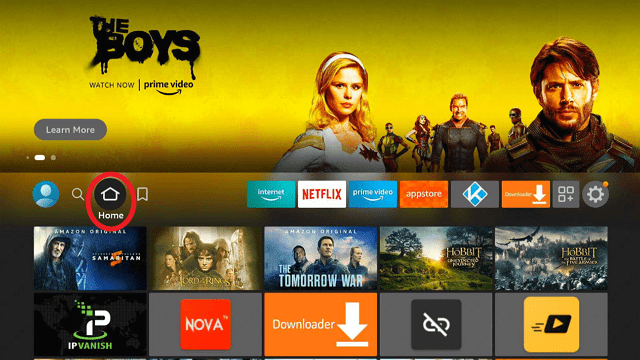
1. Go to the Home screen of your Firestick.
step 1 Install Surfshark VPN on Firestick


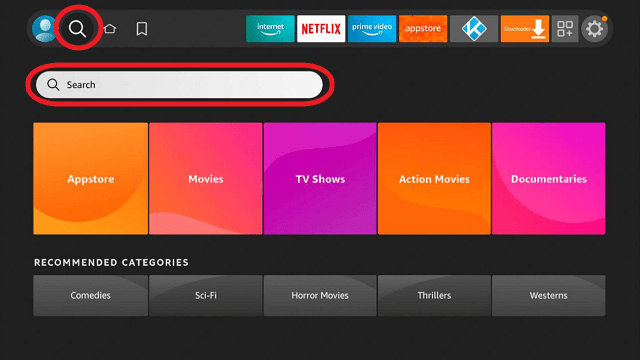
2. Navigate towards the Find tab. Press the Search button from the resulting dropdown.
step 2 Install Surfshark VPN on Firestick


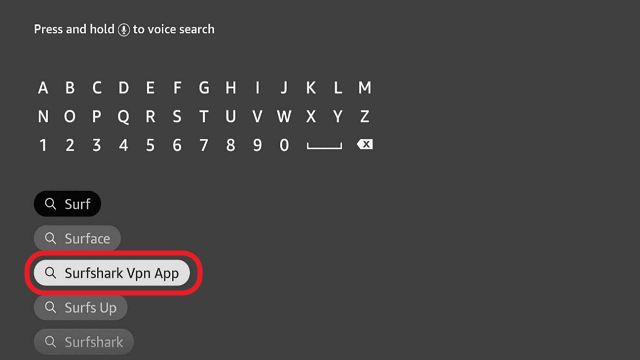
3. Type in the keyword of SurfShark and select from the suggestions that will appear.
step 3 Install Surfshark VPN on Firestick


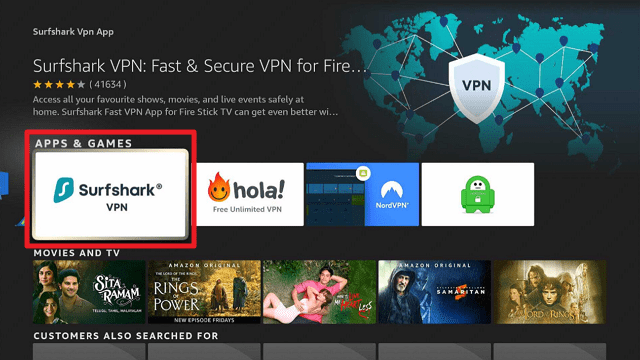
4. Click the official SurfShark icon from your search results.
step 4 Install Surfshark VPN on Firestick


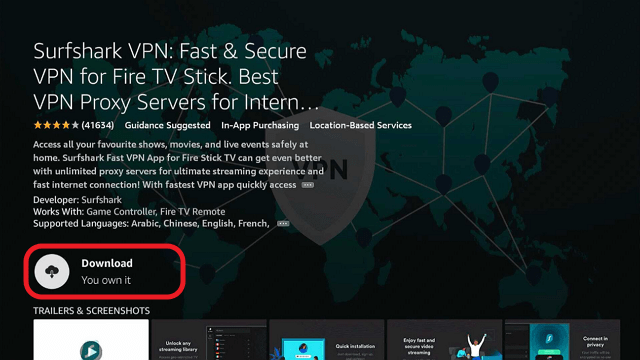
5. Press the Download (You own it) button.
step 5 Install Surfshark VPN on Firestick


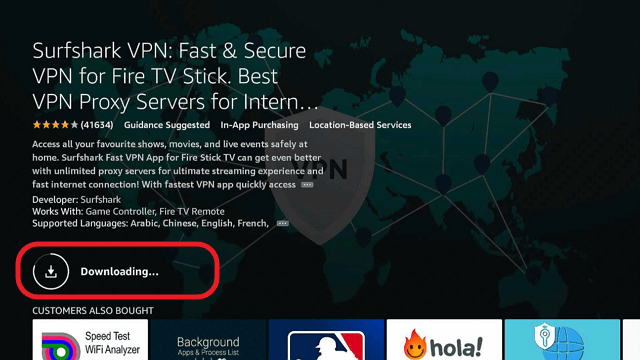
6. The SurfShark VPN installer will download on your device.
step 6 Install Surfshark VPN on Firestick


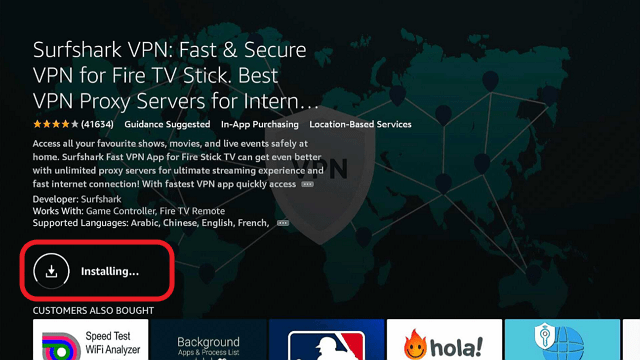
7. SurfShark VPN’s app will automatically install itself on your Fire TV stick.
step 7 Install Surfshark VPN on Firestick


8. Press the Open button after completing SurfShark VPN’s installation process.
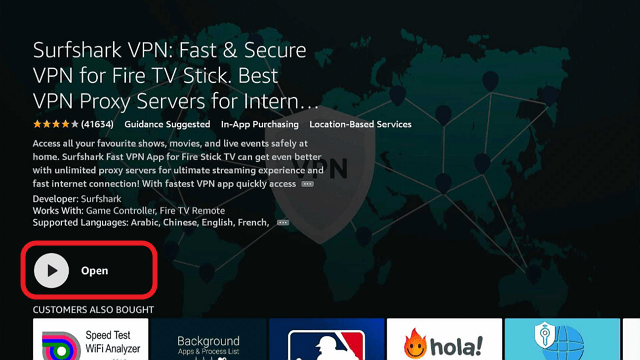
step 8 Install Surfshark VPN on Firestick


9. Please wait for the SurfShark VPN to load its user interface.
step 9 Install Surfshark VPN on Firestick


10. You can now log in with your SurfShark VPN account credentials.
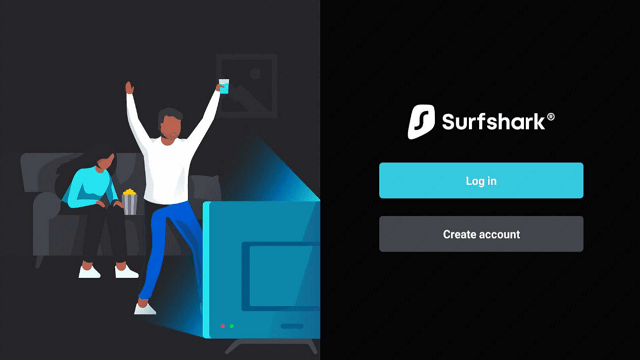
step 10 Install Surfshark VPN on Firestick

Learn more about Surfshark and Grab the Best Surfshark Deal Now!


Install Surfshark on Firestick
Best Surfshark Deal


Other VPNs to Consider

NordVPN (Best for Streaming)

Best Features

  • 5000+ Server in 50+ Countries 
  • Military-Grade Encryption
  • Fast Connection Speed
  • Suitable to a lot of devices
  • No-Log Policy

Prices
  • Complete $5.89 per month (64% Discount)
  • Plus $4.59 per month (56% Discount)
  • Standard $3.69 per month (55% Discount)

Best Features

  • 750+ High-speed VPN Servers in 43 Locations
  • Military-Grade Encryption
  • Fastest HD Streaming and Gaming
  • 30-Day Money-Back Guarantee
  • Unlimited Data & Devices
  • No-Log Policy

Prices
  • 3 Years $1.99 per month (82% Discount)
  • 1 Years $3.29 per month (70% Discount)
  • 1 Month $10.99 per month

IPVanish VPN (Most Secure)

Best Features

  • 1200+ Servers in 60+ Countries around the world
  • Unlimited Connections
  • No-Log Policy
  • Top Notch Military-Grade VPN Protocols and Encryptions
  • 100% Safe and Secured
  • Most Trusted VPN
  • Best VPN for Firestick
  • 30-Day Money-Back Guarantee

Prices
  • Yearly $3.99 per month (63% Discount) – 30 days risk free + Ransomware & Malware Protection
  • Quarterly $5.32 per month (51% Discount)
  • Monthly $10.99 per month


For more VPN discounts, go to ReviewVPN Deals and purchase the best VPN for you.

Click here to get the lowest price on Surfshark through our exclusive limited-time offer.


Is it Free?

Yes

History

When Was It Released?

1Amazing was released in 2018

Best Alternatives

There are plenty of great builds out there

  • No Limits Magic
  • Nefarious
  • Lobo
  • Silvo
  • One Nation
  • Equinox

If you have any problems, just use Google and search for the best Kodi add ons to find a list of working add ons for that day.


Our Opinion

1Amazing Kodi build is a lovely-looking build and delivers a higher level of quality and usability than other generic builds. It may run slowly on Amazon Fire Stick due to the layering of the graphics and the demands on your RAM. But if you want a Netflix-like feel to your build then choose 1Amazing.

Install Nefarious Kodi Build in 5 Minutes

Nefarious Kodi Build

Nefarious Kodi build comes from The One Alliance Repository and is one of our top recommendations for small and quick builds. The build itself is small, coming in at ~150MB it’s one of the smallest builds out there.


What is Kodi?

Kodi Logo

Prior to Kodi, there was no software that enables you to watch all forms of media in one place. Invented by a team of hobbyist programmers in 2002 it has grown to become one of the most downloaded pieces of software in regard to media and entertainment, with over 50 million users.

Kodi is highly featured rich and has a large library of codec which means it is easily able to play a wide range of media in its in-app media player. In addition, it also has a 10-foot user interface allowing it to correctly scale Android applications, so they can be viewed and used on television.

The software is completely free and legal, but also feature a large add on the library of unsanctioned add ons which give you access to a wide range of free media that otherwise would need to be paid for.


ANONYMOUSLY


What is a Build?

Downloading a Kodi Build is the smartest and quickest way for you to start using Kodi. Due to its size and complexity, Kodi can be quite daunting for the non-tech-savvy user which is why there are so many Builds that are freely available to download.

These builds come pre-populated with a large number of add ons which have been handpicked because they provide quality links and are reliable. In addition to this, you can also further customize Kodi using skins and make a wide range of tweaks.

Builds are a good place to start if you don’t want to spend too much time finding and downloading individual add ons.

YOUR INTERNET ACTIVITY IS BEING WATCHED

ReviewVPN cannot attest to the legality, security and privacy of the applications discussed on this site. It is highly recommended that you use a VPN service while streaming or using Kodi.

Currently, your IP 216.73.217.150 is visible to everyone and your Browser is being tracked by Advertisers & ISP Provider.

Save 65% Now

Limited Time Offer

Here are the main reasons why you must use a VPN:

  • Your activities are hidden from your ISP, the government, and from the apps you are using.
  • You can access additional movies and TV streams.
  • ISP attempts to throttle are thrwarted thus reducing buffering issues.
  • Geographically restricted content like Netflix and Hulu can be unblocked.

A VPN works be replacing your ISP-assigned IP address and creating an encrypted tunnel. We recommend the no log service offered by IPVanish. It works well on a Firestick and offers the fastest possible speeds.

Special Limited Time Offer - Get IPVanish


What is Nefarious Kodi Build?

Nefarious is a small build with a ton of great addons and easy usability. They have really cut the build down to the core to give great functionality without any bloated add ons or features.

Features

  • One of the lightest addons around
  • Reputable build library
  • Uses TAP Live TV for live streaming, good for speed and caching
  • Sports
  • TV Shows
  • Movies
  • Catchup
  • Kids
  • 1A Wizard (lots of setting and customization)
  • 5 other skins
  • Uses Placenta streams for high speed and quality

Addons included:

  • Supremacy
  • Sport’s Devil
  • Planet MMA 
  • Mobdro
  • Placenta
  • Chapp’ai
  • Maverick TV
  • Wraith
  • Subzero
  • Tap TV
  • Aragon Live
  • Selfless
  • Vintage
  • Numbers
  • UK Turks
  • Magic Dragon
  • Startec
  • Eden
  • UK Turks

How to Install Nefarious Kodi Build

install image

Follow these simple steps to install Nefarious on your Kodi application. We always recommend that you activate and connect your VPN prior to running Nefarious, without it you may not be able to access many of the addons which have their IP blocked by your Internet Service Provider (ISP) :

  1. Open up Kodi
  2. Clock on settings (the gear icon in the top left-hand corner)
  3. Click System
  4. Turn on Unknown sources
  5. Go back to the previous screen using the back button and click File Manager
  6. Click add source
  7. Click “Add None”
  8. In the “Enter the paths or browse for the media locations” URL bar that comes up type in: http://onealliancereborn.com/repo/ (If for any reason this link stops working use Google to find a working link/mirror site for the latest working version)
  9. Name the source Nefarious
  10. Go back to the Add ons menu
  11. Click the box icon above the video add ons selection on the menu then install from Zip file
  12. Click the file named Nefarious then install from repository
  13. Select Build Menu once the installation completes
  14. Choose the build which you prefer
  15. Choose Force close once the build has installed and restart Kodi
  16. You have your brand-new Nefarious Build


Video on How to Install the Nefarious Kodi Build on All Devices

[videopress iTWihaWS]


YOUR INTERNET ACTIVITY IS BEING WATCHED

ReviewVPN cannot attest to the legality, security and privacy of the applications discussed on this site. It is highly recommended that you use a VPN service while streaming or using Kodi.

Currently, your IP 216.73.217.150 is visible to everyone and your Browser is being tracked by Advertisers & ISP Provider.

Save 65% Now

Limited Time Offer

Here are the main reasons why you must use a VPN:

  • Your activities are hidden from your ISP, the government, and from the apps you are using.
  • You can access additional movies and TV streams.
  • ISP attempts to throttle are thrwarted thus reducing buffering issues.
  • Geographically restricted content like Netflix and Hulu can be unblocked.

A VPN works be replacing your ISP-assigned IP address and creating an encrypted tunnel. We recommend the no log service offered by IPVanish. It works well on a Firestick and offers the fastest possible speeds.

Special Limited Time Offer - Get IPVanish


FAQ

Is it Safe to Use?

The One Alliance Reborn repository is one of the biggest on Kodi and features several top builds which can be explored at a later date.

The biggest problem you might have is if you choose to download the build from a link that isn’t directly from One Alliance Reborn.

Many websites copycat links and provide their own altered files which could contain everything from trackers to Malware. So, to be safe make sure that you scan any file you download with Malware scanning software.


Is it Legal or Grey?

Nefarious is definitely in the grey area when it comes to watching content. You are going to be skating on thin ice if you don’t use the build with a VPN.

Chances are many of the addons will not work and you may find the build useless without a VPN.


Should I Use This app With a VPN?

surfshark logo

We recommend using Nefarious with a VPN for the following reasons:

  • Your ISP could be blocking as much as 50% of online content. Many IP’s are blogged and blacklisted because they have been known to distribute illegal content. Meaning they do not have permission from the provider. To get around these blocks you need a VPN to encrypt your connection.
  • Maintain your privacy using a VPN, which not only encrypts your data but also obscures your IP address. This prevents your browsing sessions from being logged, your data from being illegally harvested and your presence from being tracked.


Grab your subscription now!

Click here to get the lowest price on Surfshark through our exclusive limited-time offer.


How to Install Surfshark VPN on Firestick

If your Firestick still has the older interface, read this article to learn how to update it: Update Firestick Interface.

Follow our screenshots below to install the SurfShark VPN app on your Fire TV stick.

1. Go to the Home screen of your Firestick.

step 1 Install Surfshark VPN on Firestick


2. Navigate towards the Find tab. Press the Search button from the resulting dropdown.

step 2 Install Surfshark VPN on Firestick


3. Type in the keyword of SurfShark and select from the suggestions that will appear.

step 3 Install Surfshark VPN on Firestick


4. Click the official SurfShark icon from your search results.

step 4 Install Surfshark VPN on Firestick


5. Press the Download (You own it) button.

step 5 Install Surfshark VPN on Firestick


6. The SurfShark VPN installer will download on your device.

step 6 Install Surfshark VPN on Firestick


7. SurfShark VPN’s app will automatically install itself on your Fire TV stick.

step 7 Install Surfshark VPN on Firestick


8. Press the Open button after completing SurfShark VPN’s installation process.

step 8 Install Surfshark VPN on Firestick


9. Please wait for the SurfShark VPN to load its user interface.

step 9 Install Surfshark VPN on Firestick


10. You can now log in with your SurfShark VPN account credentials.

step 10 Install Surfshark VPN on Firestick

Learn more about Surfshark and Grab the Best Surfshark Deal Now!


Install Surfshark on Firestick
Best Surfshark Deal


Other VPNs to Consider

NordVPN (Best for Streaming)

Best Features

  • 5000+ Server in 50+ Countries 
  • Military-Grade Encryption
  • Fast Connection Speed
  • Suitable to a lot of devices
  • No-Log Policy

Prices
  • Complete $5.89 per month (64% Discount)
  • Plus $4.59 per month (56% Discount)
  • Standard $3.69 per month (55% Discount)

Best Features

  • 750+ High-speed VPN Servers in 43 Locations
  • Military-Grade Encryption
  • Fastest HD Streaming and Gaming
  • 30-Day Money-Back Guarantee
  • Unlimited Data & Devices
  • No-Log Policy

Prices
  • 3 Years $1.99 per month (82% Discount)
  • 1 Years $3.29 per month (70% Discount)
  • 1 Month $10.99 per month

IPVanish VPN (Most Secure)

Best Features

  • 1200+ Servers in 60+ Countries around the world
  • Unlimited Connections
  • No-Log Policy
  • Top Notch Military-Grade VPN Protocols and Encryptions
  • 100% Safe and Secured
  • Most Trusted VPN
  • Best VPN for Firestick
  • 30-Day Money-Back Guarantee

Prices
  • Yearly $3.99 per month (63% Discount) – 30 days risk free + Ransomware & Malware Protection
  • Quarterly $5.32 per month (51% Discount)
  • Monthly $10.99 per month


For more VPN discounts, go to ReviewVPN Deals and purchase the best VPN for you.

Click here to get the lowest price on Surfshark through our exclusive limited-time offer.


Is it Free?

Yes

History

When Was It Released?

Nefarious was released in 2017

Best Alternatives

There are many great alternatives out there offering the same if not better functionality than Nefarious:

  • Equinox
  • No Limits Magic
  • One Nation
  • Lobo
  • Silvo

Builds do often go down for a limited period of time if that happens just use one of the above or simply search Google to find Builds that are currently up and working.  Check our list of Best Kodi Builds.


Our Opinion

Nefarious is blazingly quick and really packs a lot under the hood while being one of the few builds we have reviewed that comes under 200MB. We would highly recommend Nefarious if you are using a low RAM device like an Amazon Fire Stick.

Install Equinox Kodi Build in 5 Minutes [2023]

Equinox Kodi Build

Equinox Kodi build comes from Genie TV which has gained a strong following since it’s release in mid-2018. Genie TV runs its own premium service which you can find at https://genietv.co.uk/. The build is crammed with add ons hence the size coming in at just over 400MB. You can also access genie TV’s proprietary live streaming software which gives you access to hundreds of channels across the world, as well as their specialized Sports Tv service.

Genie TV’s Premium service isn’t cheap with 1 month for £10 and 1 year for £100, but you get access to 1,5000 channels, as well as support for Plex and X Box.


What is Kodi?

Kodi is one of the most widely used free to use media players in the world, downloaded tens of millions of time. First created in 2002 it has become massively popular, being used as an all in one entertainment center because it can play so many different media formats and has so many additional features inbuilt into the player.

The software is also 100% legal and maintained by a regular team of developers. The addon store has a massive range of add ons from unknown sources which gives you access to heaps of free films, tv shows, and much more.


ANONYMOUSLY


What is a Build?

The best way to get going with Kodi is by downloading a build. This means that you can get a repository that has all the add ons you want, as well as skins and features that have been tested and adapted to your viewing needs.

Save yourself lots of time, by avoiding downloading add ons one by one and get going quickly with a one-time download.

What is Equinox Kodi Build?

Equinox comes from the Genie TV repository, with the added advantage you get access to Genie Tv, an in-house live TV service, rather than a third party add on. This speaks to this build getting ongoing support and updates to continue to deliver a premium service.


Features

  • Massive add on a selection
  • Access to Genie TV
  • Easy to navigate interface
  • Widely used
  • Increasingly popular
  • Regular updates
  • Movies
  • TV Shows
  • Music
  • Live TV
  • Adult section

Add ons included:

  • Merin Project
  • Monster Munch
  • Genesis Reborn
  • Now Music
  • Pure Sport
  • Maverick TV
  • At the Flix
  • Genie TV
  • Big Star Movies
  • Cartoon 8
  • Erotik
  • Fantastic Movies and TV Shows
  • Genie TV Sports
  • Jukebox Hero
  • Neptune Rising
  • Covenant
  • Project M
  • The Pyramid
  • At the Flix
  • Bob Unleashed
  • Sports Devil
  • UK Turk’s Playlist

How to Install Equinox Kodi Build

Take these simple steps to get Equinox going on your Kodi device. Always use the exact URL that we give you. We recommend you have a VPN.

  1. Open up Kodi
  2. Click on settings (the gear icon in the top left-hand corner)
  3. Click System
  4. Turn on Unknown sources
  5. Go back to the previous screen using the back button and click File Manager
  6. Click add source
  7. Click “Add None”
  8. In the “Enter the paths or browse for the media locations” URL bar that comes up type in: http://genietv.co.uk/repo/ (If for any reason this link stops working use Google to find a working link/mirror site for the latest working version)
  9. Name the source Equinox
  10. Go back to the Add ons menu
  11. Select the box icon above the video to add ons selection on the menu
  12. Install from Zip file
  13. Click the file named Equinox then install from repository
  14. Click Build Menu once the installation completes
  15. Choose the build which you prefer
  16. Choose Force close once the build has installed and restart Kodi
  17. You have your brand-new Equinox Build


YOUR INTERNET ACTIVITY IS BEING WATCHED

ReviewVPN cannot attest to the legality, security and privacy of the applications discussed on this site. It is highly recommended that you use a VPN service while streaming or using Kodi.

Currently, your IP 216.73.217.150 is visible to everyone and your Browser is being tracked by Advertisers & ISP Provider.

Save 65% Now

Limited Time Offer

Here are the main reasons why you must use a VPN:

  • Your activities are hidden from your ISP, the government, and from the apps you are using.
  • You can access additional movies and TV streams.
  • ISP attempts to throttle are thrwarted thus reducing buffering issues.
  • Geographically restricted content like Netflix and Hulu can be unblocked.

A VPN works be replacing your ISP-assigned IP address and creating an encrypted tunnel. We recommend the no log service offered by IPVanish. It works well on a Firestick and offers the fastest possible speeds.

Special Limited Time Offer - Get IPVanish


Grab your subscription now!

Click here to get the lowest price on Surfshark through our exclusive limited-time offer


FAQ

Is it Safe to Use?
Yes, the application is safe to use and should always be downloaded from the official Genie TV website.

As a popular build, there will be plenty of suspicious websites offering the build through their servers. Avoid them.

Always be careful when downloading builds as they are a common method used by malicious third parties to insert malware on unsuspecting users’ devices. Gaia reportedly infected millions of unsuspecting users with Malware and yet is still around and being downloaded today!

We always recommend that you scan unknown source files with Malwarebytes before opening them.


Is it Legal or Grey?
Equinox is definitely in the grey area when it comes to watching content. The fact that Genie TV offers a service to stream some of the most popular paid-for TV channels around means you are almost certainly treading a fine line. Always use a VPN with Equinox.

Should I Use This App With a VPN?
We recommend using a VPN with Equinox for a few good reasons:

  • A VPN helps you stay safe and anonymous online. Through your provider, your IP is changed and your data encrypted meaning that no one can see what you are doing or restrict your access to any content online
  • A VPN prevents you from being tracked or having third parties like advertisers and Google harvesting your information
  • Using a VPN is the best way to stay anonymous and unseen online


How to Install Surfshark VPN on Firestick

If your Firestick still has the older interface, read this article to learn how to update it: Update Firestick Interface.

Follow our screenshots below to install the SurfShark VPN app on your Fire TV stick.

1. Go to the Home screen of your Firestick.

step 1 Install Surfshark VPN on Firestick


2. Navigate towards the Find tab. Press the Search button from the resulting dropdown.

step 2 Install Surfshark VPN on Firestick


3. Type in the keyword of SurfShark and select from the suggestions that will appear.

step 3 Install Surfshark VPN on Firestick


4. Click the official SurfShark icon from your search results.

step 4 Install Surfshark VPN on Firestick


5. Press the Download (You own it) button.

step 5 Install Surfshark VPN on Firestick


6. The SurfShark VPN installer will download on your device.

step 6 Install Surfshark VPN on Firestick


7. SurfShark VPN’s app will automatically install itself on your Fire TV stick.

step 7 Install Surfshark VPN on Firestick


8. Press the Open button after completing SurfShark VPN’s installation process.

step 8 Install Surfshark VPN on Firestick


9. Please wait for the SurfShark VPN to load its user interface.

step 9 Install Surfshark VPN on Firestick


10. You can now log in with your SurfShark VPN account credentials.

step 10 Install Surfshark VPN on Firestick

Learn more about Surfshark and Grab the Best Surfshark Deal Now!


Install Surfshark on Firestick

Best Surfshark Deal


Other VPNs to Consider

NordVPN (Best for Streaming)

Best Features

  • 5000+ Server in 50+ Countries 
  • Military-Grade Encryption
  • Fast Connection Speed
  • Suitable to a lot of devices
  • No-Log Policy

Prices
  • Complete $5.89 per month (64% Discount)
  • Plus $4.59 per month (56% Discount)
  • Standard $3.69 per month (55% Discount)

Best Features

  • 750+ High-speed VPN Servers in 43 Locations
  • Military-Grade Encryption
  • Fastest HD Streaming and Gaming
  • 30-Day Money-Back Guarantee
  • Unlimited Data & Devices
  • No-Log Policy

Prices
  • 3 Years $1.99 per month (82% Discount)
  • 1 Years $3.29 per month (70% Discount)
  • 1 Month $10.99 per month

IPVanish VPN (Most Secure)

Best Features

  • 1200+ Servers in 60+ Countries around the world
  • Unlimited Connections
  • No-Log Policy
  • Top Notch Military-Grade VPN Protocols and Encryptions
  • 100% Safe and Secured
  • Most Trusted VPN
  • Best VPN for Firestick
  • 30-Day Money-Back Guarantee

Prices
  • Yearly $3.99 per month (63% Discount) – 30 days risk free + Ransomware & Malware Protection
  • Quarterly $5.32 per month (51% Discount)
  • Monthly $10.99 per month


For more VPN discounts, go to ReviewVPN Deals and purchase the best VPN for you.

Click here to get the lowest price on Surfshark through our exclusive limited-time offer.


Is it Free?
Yes

History

When Was Equinox Released?
2018

Best Alternatives

There are plenty of great builds out there

  • No Limits Magic
  • One Nation
  • Turbo
  • Lobo
  • Silvo

Builds tend to come and go, so if any of the above doesn’t work, simply Google “best builds for Kodi” and find one that is currently up and working.

Opinion

Equinox is a bigger build and will run slowly the first time round as all the add ons update. If you are using a small or low RAM device you might be better off with a smaller size build like Silvo.

Install Silvo Kodi Build in 5 Minutes [2023]

Silvo Kodi Build

Silvo Kodi build is a lovely build coming from the Multi Build Wizard team. Relatively small in size at ~260MB it is also lightweight and great for Amazon Fire Sticks. The build also comes with 35 themes or skins from football through to Batman, making it both easy to use and versatile for a wide range of tastes or moods.


What is Kodi?

Kodi was first developed in 2002 to allow Xbox users to browse and stream media directly from their devices. Since then the software has flourished and grown to become a global phenomenon. Downloaded tens of millions of times, Kodi is one of the best all in one media solution for people who want to use media directly from their TV using a streaming device.

The software is free, legal, and highly feature-rich with an extensive Codec library which means you will rarely find a media file that Kodi cannot play. It also has a ten-foot user interface meaning Android Application is correctly scaled, and usable with a TV remote.

Kodi remains popular because of its extensive non-sanctioned addon library featuring thousands of add ons allowing you to watch a wide range of media.


ANONYMOUSLY

What is a Build?

If you are new to Kodi it can be daunting and confusing trying to choose from so many different add ons and skins.

We recommend using a build to simplify your life as well as save time. A build is put together by Kodi professionals who have collated the most popular add ons as well as cool-looking visuals which make Kodi a joy to use.

Builds are also maintained and updated meaning that you don’t have to constantly find new working add ons.

What is Silvo Kodi Build?

Silvo is a multi-theme build with a series of interchangeable skins.

Features

  • Large amount of add ons
  • Small in size
  • Movies
  • TV Shows
  • Kids
  • Favorites
  • Live TV
  • Good selection of sports channels
  • Wide selection of Live US and UK channels
  • Easy to navigate layout
  • Good depth of working add ons

Add ons included:

  • Yoda
  • Maverick TV
  • cCloud TV
  • Copy & Paste
  • Pulse Fitness
  • Sports Devil
  • The Magic Dragon
  • Uranus
  • Monster Munch
  • Neptune Rising
  • Nemesis
  • Sports World
  • Halow Live TV 
  • Supremacy
  • Numbers
  • Skynet
  • Wrestle Maniac
  • Joker Sports
  • World of Wrestling


How to Install Silvo Kodi Build

Here are the exact steps to take to install Silvo on Kodi. Make sure that you use the exact URL we give you. We also recommend that you install and activate a VPN prior to downloading and using Kodi, otherwise many of the builds and add ons you download may not work on an unencrypted connection.

  1. Open up Kodi
  2. Click on settings (the gear icon in the top left-hand corner)
  3. Click System
  4. Turn on Unknown sources
  5. Go back to the previous screen using the back button and click File Manager
  6. Click add source
  7. Click “Add None”
  8. In the “Enter the paths or browse for the media locations” URL bar that comes up type in: http://multibuild.info/mbwiz  (If for any reason this link stops working use Google to find a working link/mirror site for the latest working version)
  9. Name the source Silvo
  10. Go back to the Add ons menu
  11. Click the box icon above the video add ons selection on the menu
  12. Then install from Zip file
  13. Click the file named Silvo then install it from the repository
  14. Click Build Menu once the installation completes
  15. Choose the build that you prefer
  16. Choose Force close once the build has been installed and restart Kodi
  17. You have your brand new Silvo Build


YOUR INTERNET ACTIVITY IS BEING WATCHED

ReviewVPN cannot attest to the legality, security and privacy of the applications discussed on this site. It is highly recommended that you use a VPN service while streaming or using Kodi.

Currently, your IP 216.73.217.150 is visible to everyone and your Browser is being tracked by Advertisers & ISP Provider.

Save 65% Now

Limited Time Offer

Here are the main reasons why you must use a VPN:

  • Your activities are hidden from your ISP, the government, and from the apps you are using.
  • You can access additional movies and TV streams.
  • ISP attempts to throttle are thrwarted thus reducing buffering issues.
  • Geographically restricted content like Netflix and Hulu can be unblocked.

A VPN works be replacing your ISP-assigned IP address and creating an encrypted tunnel. We recommend the no log service offered by IPVanish. It works well on a Firestick and offers the fastest possible speeds.

Special Limited Time Offer - Get IPVanish


Legal Disclaimer: ReviewVPN.com does not encourage or endorse any illegal activity involved in the usage of services and applications referenced on this site. We do not verify the licensing agreements of services. The end-user is wholly responsible for ensuring that any media accessed through these services does not violate copyright and/or licensing laws. ReviewVPN does not promote, link to, or receive compensation from any Apps and IPTV services.


Install Surfshark on Firestick

Best Surfshark Deal


FAQ

Is it Safe to Use?

Multi build site has been around for years and features lots of great builds which you can explore later.

The repository is safe, just make sure you download directly from them instead of other servers which may give files which are corrupted or worse contain Malware.

We recommend using a professional Malware scanner like Malwarebytes to scan any executable files before you open them.


Is it Legal or Grey?

Silvo is definitely in the grey area when it comes to watching content. Though it acts as an aggregator of scrapers from across the web the large majority of the content that you watch will have come from illegal sources. They have such a wide range of add ons that one is bound to be delivering illegal content. On the other hand, with such a broad range of add ons you are always likely to get content even when some add ons go down.


Should I Use This App With a VPN?

We always recommend that you use Silvo and Kodi with a VPN, as without it you may be fooled into thinking the build is broken.

Reason being that many of the IP addresses associated with the creators of the builds and add ons on Kodi are blocked when you try to access them with an unencrypted connection.

Using a VPN, allows you to encrypt your connection, meaning your ISP can only see a secure data file going to your VPN’s DNS and then returning, without knowing the exact destination of your URL request they will not block you.

A VPN also means that you can stay anonymous online and evade tracking as well as leaking your true location and IP.

Note: For more information about Surfshark, please read our Surfshark Review.


Install Surfshark on Firestick

Best Surfshark Deal


How to Install Surfshark VPN on Firestick

If your Firestick still has the older interface, read this article to learn how to update it: Update Firestick Interface.

Follow our screenshots below to install the SurfShark VPN app on your Fire TV stick.

1. Go to the Home screen of your Firestick.

step 1 Install Surfshark VPN on Firestick


2. Navigate towards the Find tab. Press the Search button from the resulting dropdown.

step 2 Install Surfshark VPN on Firestick


3. Type in the keyword of SurfShark and select from the suggestions that will appear.

step 3 Install Surfshark VPN on Firestick


4. Click the official SurfShark icon from your search results.

step 4 Install Surfshark VPN on Firestick


5. Press the Download (You own it) button.

step 5 Install Surfshark VPN on Firestick


6. The SurfShark VPN installer will download on your device.

step 6 Install Surfshark VPN on Firestick


7. SurfShark VPN’s app will automatically install itself on your Fire TV stick.

step 7 Install Surfshark VPN on Firestick


8. Press the Open button after completing SurfShark VPN’s installation process.

step 8 Install Surfshark VPN on Firestick


9. Please wait for the SurfShark VPN to load its user interface.

step 9 Install Surfshark VPN on Firestick


10. You can now log in with your SurfShark VPN account credentials.

step 10 Install Surfshark VPN on Firestick

Learn more about Surfshark and Grab the Best Surfshark Deal Now!


Install Surfshark on Firestick

Best Surfshark Deal


Other VPNs to Consider

NordVPN (Best for Streaming)

Best Features

  • 5000+ Server in 50+ Countries 
  • Military-Grade Encryption
  • Fast Connection Speed
  • Suitable to a lot of devices
  • No-Log Policy

Prices
  • Complete $5.89 per month (64% Discount)
  • Plus $4.59 per month (56% Discount)
  • Standard $3.69 per month (55% Discount)

Best Features

  • 750+ High-speed VPN Servers in 43 Locations
  • Military-Grade Encryption
  • Fastest HD Streaming and Gaming
  • 30-Day Money-Back Guarantee
  • Unlimited Data & Devices
  • No-Log Policy

Prices
  • 3 Years $1.99 per month (82% Discount)
  • 1 Years $3.29 per month (70% Discount)
  • 1 Month $10.99 per month

IPVanish VPN (Most Secure)

Best Features

  • 1200+ Servers in 60+ Countries around the world
  • Unlimited Connections
  • No-Log Policy
  • Top Notch Military-Grade VPN Protocols and Encryptions
  • 100% Safe and Secured
  • Most Trusted VPN
  • Best VPN for Firestick
  • 30-Day Money-Back Guarantee

Prices
  • Yearly $3.99 per month (63% Discount) – 30 days risk free + Ransomware & Malware Protection
  • Quarterly $5.32 per month (51% Discount)
  • Monthly $10.99 per month


For more VPN discounts, go to ReviewVPN Deals and purchase the best VPN for you.


Is it Free?

Yes

History

When Was It Released?

Silvo was released in 2018

Best Alternatives

Silvo is a lovely build, but there are plenty of great alternatives.

  • One Nation
  • Lobo
  • Turbo
  • Titanium
  • No Limits Magic
  • Stealth

If for any reason you find that your Build has gone down or stopped working, simply download one of the above using our Guides, or Google for the best working builds which are up and running right now.

Our Opinion

Silvo is a great little build with a simple design which means it will run quickly on a Fire Stick, it’s a far cry from some of the 400MB+ builds out there which makes it ideal for low RAM devices.

Install Diamond Dust Kodi Build in 5 Minutes [2023]

The Diamond Dust Kodi Build

In this article, we will help you install The Diamond Dust Kodi Build on Firestick.


Previously known as Diamond Dust, The Diamond Dust Kodi Build packs a lot of great add ons in a build that’s just over 200MB. Coming in at half the size of many of the bigger builds it makes for a good snappy build on an Nvidia Shield or a well-proportioned build for a lower RAM and storage device like an Amazon Fire Stick.


What is Kodi?

Kodi is your ticket to turning your regular TV into an all-in-one entertainment system. Simply install it on an Android streaming device like an Amazon Fire device or an Android Box and attack your TV, giving you access to a world of content and media online.

First developed in 2002, Kodi has been downloaded over 50 million times and is one of the most popular free and legal pieces of media streaming software online. The software is developed and maintained by the XMBC Foundation and features a 10-foot user interface that allows applications on your Android device to be resized on your TV and navigable using a standard TV remote.

Kodi features a modest library of official add ons, but the real gems lie in its unofficial store of thousands of add ons, builds and wizards which give users access to free tv shows, movies, latest releases, live TV, and anything else you can think of.


ANONYMOUSLY

What is a Build?

A build is a quick and easy way for you to get started with Kodi. Saves you the time of searching out individual add ons or learning how to customize Kodi.

Just download one build and get the best working add ons, heaps of features, interchangeable skins, and even electronic programming guides for live TV.

What is The Diamond Dust Kodi Build?

The Diamond Build packs a lot of high-quality add ons as being low in size. One of its key features is it will automatically find the best working link for your content rather than make you search through endless links.

The Diamond Dust Kodi Build Features

  • Wide range of quality add ons
  • ~200MB in size
  • Lightweight
  • Wide range of skins
  • Easy to navigate menu
  • Real Debrid compatible
  • Movies
  • TV Shows
  • Favorites
  • Library
  • Explore
  • HD and 4K
  • Retro
  • King Fu
  • Live TV 
  • Hers
  • Sports
  • Music

Add ons included in this build including:

  • Deathstar
  • Monster Munch
  • Golden Age
  • Selfless Lite
  • Redemption
  • Supremacy Sports
  • Sports Devil
  • Tubi TV
  • Wolf Pack
  • YouTube
  • The Kratos
  • Yoda
  • 7of9
  • Mobdro
  • Movie Theatre Butter
  • Aspis
  • The Magic Dragon


How to Install The Diamond Dust Kodi Build

Get the Diamond up and running in less than 5 minutes using our easy to follow steps:

  1. Start on the Kodi Home Screen
  2. Click on settings in the top left-hand corner of the screen (the gear icon)
  3. Click System and turn on Unknown sources (without this you won’t be able to find The Diamond in the Kodi library, as it is not an official add on)
  4. Go back to Settings and click on File Manager
  5. Click add source then  “Add None”
  6. You will see a pop up saying “Enter the paths or browse for the media locations” type in: http://repo.rubyjewelwizard.com/ (Sometimes URL’s are blocked or go down, just search Google for the mirror or new URL)
  7. Name the file Diamond
  8. Return to the Add ons menu
  9. Click the box icon above the video add ons selection on the menu and then install from Zip file
  10. Click on your Diamond file and install from repository
  11. When the installation completes, click Build Menu, you will see a selection of builds of varying sizes that you can choose from
  12. Click on the build you want and then dismiss the note from the developer
  13. Keep the pre-selected settings and then continue
  14. Fresh install the build and let it restart Kodi
  15. When Kodi restarts you’ll know the build has installed as you will see everything laid out using The Diamond skin


YOUR INTERNET ACTIVITY IS BEING WATCHED

ReviewVPN cannot attest to the legality, security and privacy of the applications discussed on this site. It is highly recommended that you use a VPN service while streaming or using Kodi.

Currently, your IP 216.73.217.150 is visible to everyone and your Browser is being tracked by Advertisers & ISP Provider.

Save 65% Now

Limited Time Offer

Here are the main reasons why you must use a VPN:

  • Your activities are hidden from your ISP, the government, and from the apps you are using.
  • You can access additional movies and TV streams.
  • ISP attempts to throttle are thrwarted thus reducing buffering issues.
  • Geographically restricted content like Netflix and Hulu can be unblocked.

A VPN works be replacing your ISP-assigned IP address and creating an encrypted tunnel. We recommend the no log service offered by IPVanish. It works well on a Firestick and offers the fastest possible speeds.

Special Limited Time Offer - Get IPVanish


Legal Disclaimer: ReviewVPN.com does not encourage or endorse any illegal activity involved in the usage of services and applications referenced on this site. We do not verify the licensing agreements of services. The end-user is wholly responsible for ensuring that any media accessed through these services does not violate copyright and/or licensing laws. ReviewVPN does not promote, link to, or receive compensation from any Apps and IPTV services.


Install Surfshark on Firestick

Best Surfshark Deal


FAQ

Is it Safe to Use?

Absolutely, The Diamond is still pretty new but has gotten great reviews from a number of trusted sources.

Under its previous name, Diamond has been a trusted source since 2016.

Just make sure you ONLY download the build from the official repository. Avoid third-party sites.


Is it Legal or Grey?

The build operates in a grey area like many other builds. Most of the add ons will stream and give access to illegal content which then becomes your choice to access.


Should I Use this App with a VPN?

We always recommend that you use a VPN with The Diamond for a number of reasons:

  • Firstly, without a VPN, The Diamond may not even work. Also, you’ll find many of the add ons appear dead. There’s nothing wrong with the build or the add ons. Chances are your ISP is blocking their access to the internet and their sources of content online
  • A VPN helps you to maintain your anonymity and avoid your traffic being logged by your Internet Service Provider
  • With a VPN your connection will be encrypted and undetectable by your ISP or any other third-party trackers. Your traffic will just look like normally secured packets

Note: For more information about SurfShark, please read our SURFSHARK REVIEW.


Grab your subscription now!


How to Install Surfshark VPN on Firestick

If your Firestick still has the older interface, read this article to learn how to update it: Update Firestick Interface.

You can download Surfshark directly from the Amazon App store. It will be easy for you to find Surfshark with your Firestick’s Find feature. Refer to our screenshots below.

1. Go to the Home screen of your Firestick.

step 1 Install Surfshark VPN on Firestick


2. Navigate towards the Find tab. Press the Search button from the resulting dropdown.

step 2 Install Surfshark VPN on Firestick


3. Type in the keyword of SurfShark and select from the suggestions that will appear.

step 3 Install Surfshark VPN on Firestick


4. Click the official SurfShark icon from your search results.

step 4 Install Surfshark VPN on Firestick


5. Press the Download (You own it) button.

step 5 Install Surfshark VPN on Firestick


6. The SurfShark VPN installer will download on your device.

step 6 Install Surfshark VPN on Firestick


7. SurfShark VPN’s app will automatically install itself on your Fire TV stick.

step 7 Install Surfshark VPN on Firestick


8. Press the Open button after completing SurfShark VPN’s installation process.

step 8 Install Surfshark VPN on Firestick


9. Please wait for the SurfShark VPN to load its user interface.

step 9 Install Surfshark VPN on Firestick


10. You can now log in with your SurfShark VPN account credentials.

step 10 Install Surfshark VPN on Firestick

Learn more about Surfshark and Grab the Best Surfshark Deal Now!


Install Surfshark on Firestick

Best Surfshark Deal


Other VPNs to Consider

NordVPN (Best for Streaming)

Best Features

  • 5000+ Server in 50+ Countries 
  • Military-Grade Encryption
  • Fast Connection Speed
  • Suitable to a lot of devices
  • No-Log Policy

Prices
  • Complete $5.89 per month (64% Discount)
  • Plus $4.59 per month (56% Discount)
  • Standard $3.69 per month (55% Discount)

Best Features

  • 750+ High-speed VPN Servers in 43 Locations
  • Military-Grade Encryption
  • Fastest HD Streaming and Gaming
  • 30-Day Money-Back Guarantee
  • Unlimited Data & Devices
  • No-Log Policy

Prices
  • 3 Years $1.99 per month (82% Discount)
  • 1 Years $3.29 per month (70% Discount)
  • 1 Month $10.99 per month

IPVanish VPN (Most Secure)

Best Features

  • 1200+ Servers in 60+ Countries around the world
  • Unlimited Connections
  • No-Log Policy
  • Top Notch Military-Grade VPN Protocols and Encryptions
  • 100% Safe and Secured
  • Most Trusted VPN
  • Best VPN for Firestick
  • 30-Day Money-Back Guarantee

Prices
  • Yearly $3.99 per month (63% Discount) – 30 days risk free + Ransomware & Malware Protection
  • Quarterly $5.32 per month (51% Discount)
  • Monthly $10.99 per month


For more VPN discounts, go to ReviewVPN Deals and purchase the best VPN for you.

Click here to get the lowest price on Surfshark through our exclusive limited-time offer.


Is it Free?

Yes

History

When Was It Released?

The Diamond Dust Kodi build was released under its new name in 2019, but Diamond Dust has been around since 2016

Best Alternatives

The Diamond Dust Kodi build  covers it all, but if you want a different build with more features or just fancy a change we recommend:

  • Titanium
  • No Limits Magic
  • Diggz
  • One Nation
  • Stealth
  • Lobo
  • Turbo

If none of the above takes your fancy, then you can just browse Google for the best working Builds. There’s always a lot to choose from.

Our Opinion

The Diamond Dust Kodi build is a great lightweight build with a ton of well-known add ons. The rebrand and re-name mean that developers are still working on it. The auto finds the best link function is worth the download all by itself.

Install Turbo Kodi Build in 5 Minutes [2023]

Turbo Kodi Build

Turbo Build has been making waves since 2017. With an intuitive and easy-to-use interface, as well as a wide-ranged of updated add ons. It has been a Kodi fan favorite for years.


What is Kodi?

Kodi Logo

If you haven’t heard of Kodi then you are in for a treat. A 100% free and legal piece of software that can turn your TV into an all in one entertainment center. Store any form of media, watch Live TV, stream movies and listen to music. Kodi opens the door to allow almost any form of media to be played through your big screen TV.

Originally designed in 2002, the software is now on its 18th version and still going strong after 17 years. Run by a dedicated team of developers who work for the XMBC Foundation, Kodi has gone from being a niche program just for the Xbox to one of the most downloaded pieces of software for media playing. Numbering in the tens of millions.

As well as its official library, Kodi has an extensive library of unknown source third party add ons numbering in the thousands. Allowing you to watch the latest movies, TV shows and stream live TV all completely free.


ANONYMOUSLY

What is a Build?

When using Kodi you could spend hours trawling Google for the 50 best add ons and downloading them one by one.

Or you could just save yourself the time and download one build which comes with all the add ons built-in.

A Build is a pre-programmed package of add ons, skins, features an electronic programming schedules which makes it easy for you to get started on Kodi, without the pain of hours of handpicking each feature and add on.


What is Turbo Kodi Build?

Turbo Build comes from the Turbo JTV repository and ranks as being one of the smaller builds on Kodi coming in at 260MB. Great for lightweight devices or those with little RAM like the Amazon Fire Stick.


Turbo Kodi Build Features

  • Wide range of add ons
  • Lightweight ~260MB
  • Long-life for a build over 2 years old
  • Movies
  • TV Shows
  • Real Debrid compatible
  • Movies
  • TV Shows
  • Favorites
  • Kids TV
  • YouTube
  • Music
  • Good sports and working Live TV sections

Add ons included in this build including:

  • Covenant
  • Magic Dragon
  • Picasso
  • Live Premiership
  • Stream Army
  • Wolf Pack
  • Elysium
  • Maverick TV
  • Star-Tec
  • Neptune Rising,
  • Supremacy
  • Mobdro
  • WWE
  • Joker Sports
  • MMA
  • Pulse
  • UK Turks
  • Good Fellas

YOUR INTERNET ACTIVITY IS BEING WATCHED

ReviewVPN cannot attest to the legality, security and privacy of the applications discussed on this site. It is highly recommended that you use a VPN service while streaming or using Kodi.

Currently, your IP 216.73.217.150 is visible to everyone and your Browser is being tracked by Advertisers & ISP Provider.

Save 65% Now

Limited Time Offer

Here are the main reasons why you must use a VPN:

  • Your activities are hidden from your ISP, the government, and from the apps you are using.
  • You can access additional movies and TV streams.
  • ISP attempts to throttle are thrwarted thus reducing buffering issues.
  • Geographically restricted content like Netflix and Hulu can be unblocked.

A VPN works be replacing your ISP-assigned IP address and creating an encrypted tunnel. We recommend the no log service offered by IPVanish. It works well on a Firestick and offers the fastest possible speeds.

Special Limited Time Offer - Get IPVanish


Legal Disclaimer: ReviewVPN.com does not encourage or endorse any illegal activity involved in the usage of services and applications referenced on this site. We do not verify the licensing agreements of services. The end-user is wholly responsible for ensuring that any media accessed through these services does not violate copyright and/or licensing laws. ReviewVPN does not promote, link to, or receive compensation from any Apps and IPTV services.


Install Surfshark on Firestick

Best Surfshark Deal


How to Install Turbo Kodi Build

install image

Stick to the following simple steps to install Turbo Build:

  1. From the Kodi home screen, click on settings which appear as a gear icon in the top left-hand corner of your screen
  2. Click System and then turn on Unknown sources
  3. Go back to System and click on File Manager
  4. Click add source then “Add None”
  5. A pop up will come up saying “Enter the paths or browse for the media locations” type in the following: http://turbojtv.com/repo/ (Sometimes URL’s may change if they have been blogged, just use Google to find the new URL)
  6. Once downloaded call the file Turbo 
  7. Go back to the Add ons menu
  8. Click the box icon above the video add ons selection on the menu, then install from Zip file
  9. Click your Turbo file and then install from repository
  10. When the installation finished, click “Build Menu” from the new screen 
  11. You will see a range of Builds and sizes, pick a smaller Build if you have a low RAM device, or a bigger build if you want as many add ons and features as possible
  12. Go through the settings, we recommend you stick to what they provide, as you can always go back and change them later
  13. You’ll be asked if you want to install a Fresh Build, click “Yes”
  14. When the Build is complete, force restart Kodi and it will start with your chosen Builds layout


Should I Use This App With a VPN?

We love using a VPN for anything we do online, not just Kodi or Turbo Build in particular for a number of reasons:

  • Without a VPN you are allowing your Internet Service Provider to log all of your traffic and retain it for up to a year. An ISP will also pay close attention to anyone who accesses content that has been banned or flagged
  • A lot of Kodi’s unofficial add ons will be on a watchlist for distributing content illegally. Without a VPN you will probably find a lot of the add ons don’t work as their IPs have been banned. Or they aren’t stable as the add on rotates IP addresses
  • A VPN allows you to remain anonymous online and maintain your privacy by hiding your true IP address as well as encrypting your traffic

Note: For more information about Surfshark, please read our Surfshark Review.


Install Surfshark on Firestick

Best Surfshark Deal


How to Install Surfshark VPN on Firestick

If your Firestick still has the older interface, read this article to learn how to update it: Update Firestick Interface.

Follow our screenshots below to install the SurfShark VPN app on your Fire TV stick.

1. Go to the Home screen of your Firestick.

step 1 Install Surfshark VPN on Firestick


2. Navigate towards the Find tab. Press the Search button from the resulting dropdown.

step 2 Install Surfshark VPN on Firestick


3. Type in the keyword of SurfShark and select from the suggestions that will appear.

step 3 Install Surfshark VPN on Firestick


4. Click the official SurfShark icon from your search results.

step 4 Install Surfshark VPN on Firestick


5. Press the Download (You own it) button.

step 5 Install Surfshark VPN on Firestick


6. The SurfShark VPN installer will download on your device.

step 6 Install Surfshark VPN on Firestick


7. SurfShark VPN’s app will automatically install itself on your Fire TV stick.

step 7 Install Surfshark VPN on Firestick


8. Press the Open button after completing SurfShark VPN’s installation process.

step 8 Install Surfshark VPN on Firestick


9. Please wait for the SurfShark VPN to load its user interface.

step 9 Install Surfshark VPN on Firestick


10. You can now log in with your SurfShark VPN account credentials.

step 10 Install Surfshark VPN on Firestick

Learn more about Surfshark and Grab the Best Surfshark Deal Now!


Install Surfshark on Firestick

Best Surfshark Deal


Other VPNs to Consider

NordVPN (Best for Streaming)

Best Features

  • 5000+ Server in 50+ Countries 
  • Military-Grade Encryption
  • Fast Connection Speed
  • Suitable to a lot of devices
  • No-Log Policy

Prices
  • Complete $5.89 per month (64% Discount)
  • Plus $4.59 per month (56% Discount)
  • Standard $3.69 per month (55% Discount)

Best Features

  • 750+ High-speed VPN Servers in 43 Locations
  • Military-Grade Encryption
  • Fastest HD Streaming and Gaming
  • 30-Day Money-Back Guarantee
  • Unlimited Data & Devices
  • No-Log Policy

Prices
  • 3 Years $1.99 per month (82% Discount)
  • 1 Years $3.29 per month (70% Discount)
  • 1 Month $10.99 per month

IPVanish VPN (Most Secure)

Best Features

  • 1200+ Servers in 60+ Countries around the world
  • Unlimited Connections
  • No-Log Policy
  • Top Notch Military-Grade VPN Protocols and Encryptions
  • 100% Safe and Secured
  • Most Trusted VPN
  • Best VPN for Firestick
  • 30-Day Money-Back Guarantee

Prices
  • Yearly $3.99 per month (63% Discount) – 30 days risk free + Ransomware & Malware Protection
  • Quarterly $5.32 per month (51% Discount)
  • Monthly $10.99 per month


For more VPN discounts, go to ReviewVPN Deals and purchase the best VPN for you.


FAQ

Is it Safe to Use?

Turbo Builds is one of the older Wizards around. At 2 years old it’s well respected and has been stable for most of that time.

As one of the older builds your biggest danger would be downloading it from an unofficial repository. Avoid other servers and hosts at all costs and always scan your file with a professional Malware scanner if you have any doubts.


Is it Legal or Grey?

Turbo Build provides a wide range of add ons which allow you to access content that hasn’t been legally distributed.

Though the add ons do not host the files themselves, you use it in the full knowledge that the content falls into a grey area.

We strongly advise you use Turbo Build and anything on Kodi with a VPN active.


Is it Free?

Yes


History

When Was It Released?

Turbo Build is one the oldest Wizards around, released in 2017


Best Alternatives

Turbo Build covers a lot of what we would want in a great build, luckily there are plenty of great alternatives:

  • Titanium
  • No Limits Magic
  • Diggz
  • One Nation
  • Stealth
  • Lobo
  • Venom

In the unlikely case that all these builds are down at the same time, just turn to Google or Reddit to find the best working build or check our list of Best Kodi Builds.


Our Opinion

Really versatile Build and has been going for a long time, got a good track record of getting rid of the bloat in updates and keeping only working add ons. A solid build that suits beginners using an Amazon Fire Stick.

Install Lobo Kodi Build in 5 Minutes – 2023 Update

Lobo Kodi Build


Lobo Kodi build forms part of the One Nation repository which is one of the largest numbers of Builds available on Kodi. This build is pretty chunky coming in at 400MB when some slimmer builds can come in at under 200MB. If you have a relatively basic device then you may want to consider a slimmer Build like The Diamond or Turbo Build.


What is Kodi?

Kodi is a free and 100% legal open-source media player, which is feature-rich and history. Since its initial development in 2002, Kodi has been downloaded millions of times and become a firm favorite with the streaming community.

Its popularity stems from two main reasons. Firstly, Kodi is really good at what it does. It features a massive library of Codecs which means you can play almost any media file, also it has an inbuild 10-foot user interface meaning you can easily turn your TV into a home movie theatre, simply by downloading Kodi on an Android streaming device and connecting it to your TV.

Secondly, Kodi has a massive library of unofficial add ons, numbering in the thousands. Partly due to its age, it has developed a rich ecosystem of add ons, builds, wizards supported by a legion of hobbyist developers. These add ons give you access to any form of media you can think of. From the latest movie releases to your favorite anime.


What is a Build?

A build is like an all-in-one software package. Think of it as an Operating System for Kodi. Instead of starting with a blank slate and installing every add-on, feature and changing every setting yourself. You just download one build which does that for you.

We recommend Builds if you are just using Kodi for the first time, as it saves time and cuts out a lot of aggravation of hours spent downloading individual items.

ANONYMOUSLY

What is Lobo Kodi Build?

This build packs a lot of high-quality add ons hence its large size. One of its key features is it will automatically find the best working link for your content and cycle through dead links.


Lobo Kodi Build Features

  • Wide range of add ons
  • Not too big ~375MB
  • Part of One Nation, a mark of quality
  • Real Debrid compatible
  • Movies
  • TV Shows
  • Favorites
  • Kids TV
  • YouTube
  • Music
  • Add additional add ons

Add ons included in this build include:

  • Maverick TV
  • The Lab
  • Toon Town
  • Genesis Reborn
  • Flixnet
  • Rising Tides
  • Astroplane
  • Bone Crusher
  • Monster Munch
  • Yoda
  • Incursion (Defunct)
  • At the Flix


How to Install Lobo Kodi Build

Use these simple steps to get up and running with Lobo Build. We recommend you have a working VPN when running Build otherwise some add ons may not work.

  1. Start Kodi from your streaming device
  2. Click Settings, then System
  3. Turn on Unknown sources
  4. Click the back button and then File Manager
  5. Click add source then “Add None”
  6. In the pop-up URL bar type in: http://www.onenation.info/Repo/ (If the URL doesn’t work, then One Nation may be down, use Google to find a working mirror site)
  7. Name the source Lobo 
  8. Go back to the Add ons menu
  9. Click the box icon above the video add ons selection on the menu
  10. Click install from Zip file, then install from repository
  11. The installation will take a few minutes then you will get a Build Menu pop up, choose your Build
  12. Dismiss the developer note, and keep the Build’s standard settings
  13. Fresh Install the Build and then restart Kodi


YOUR INTERNET ACTIVITY IS BEING WATCHED

ReviewVPN cannot attest to the legality, security and privacy of the applications discussed on this site. It is highly recommended that you use a VPN service while streaming or using Kodi.

Currently, your IP 216.73.217.150 is visible to everyone and your Browser is being tracked by Advertisers & ISP Provider.

Save 65% Now

Limited Time Offer

Here are the main reasons why you must use a VPN:

  • Your activities are hidden from your ISP, the government, and from the apps you are using.
  • You can access additional movies and TV streams.
  • ISP attempts to throttle are thrwarted thus reducing buffering issues.
  • Geographically restricted content like Netflix and Hulu can be unblocked.

A VPN works be replacing your ISP-assigned IP address and creating an encrypted tunnel. We recommend the no log service offered by IPVanish. It works well on a Firestick and offers the fastest possible speeds.

Special Limited Time Offer - Get IPVanish


Using a VPN to stream online

Did you even know that using a public network to stream online is risky? It’s because your ISP knows everything you do online, and you’re vulnerable without using a VPN. That is why before you stream online, it is much better if you use a VPN such as Surfshark to ensure safe and private streaming online.

Surfshark will protect your privacy by encrypting all of your activity with military-grade encryption. This VPN is also known as a multi-award-winning VPN used by millions of people all around the world. It also gives you unlimited bandwidth to stream as much as you can and makes your internet speed faster. 

For more information, kindly read our  Surfshark Review.

Here are some of the impressive features of Surfshark:
  • It bypasses restrictions and geo-blocks to let you access any restricted content. 
  • Has a total of 3200+ servers in 65 countries
  • Military-grade AES-256 encryption adheres to FIPS (Federal Information Processing Standards), which control how sensitive data is handled.
  • It adheres to a strict no-log policy.
  • By default, DNS Leak Protection is enabled.
  • Unlimited simultaneous devices
  • Customer service is available around the clock.
  • More content is available, and you can even unblock Netflix and other platforms.
  • Supports peer-to-peer file sharing, making it suitable for torrenting.


Grab your subscription now!

Click here to get the lowest price on Surfshark through our exclusive limited-time offer.


How to Install Surfshark VPN on Firestick

If your Firestick still has the older interface, read this article to learn how to update it: Update Firestick Interface.

Follow our screenshots below to install the SurfShark VPN app on your Fire TV stick.

1. Go to the Home screen of your Firestick.

step 1 Install Surfshark VPN on Firestick


2. Navigate towards the Find tab. Press the Search button from the resulting dropdown.

step 2 Install Surfshark VPN on Firestick


3. Type in the keyword of SurfShark and select from the suggestions that will appear.

step 3 Install Surfshark VPN on Firestick


4. Click the official SurfShark icon from your search results.

step 4 Install Surfshark VPN on Firestick


5. Press the Download (You own it) button.

step 5 Install Surfshark VPN on Firestick


6. The SurfShark VPN installer will download on your device.

step 6 Install Surfshark VPN on Firestick


7. SurfShark VPN’s app will automatically install itself on your Fire TV stick.

step 7 Install Surfshark VPN on Firestick


8. Press the Open button after completing SurfShark VPN’s installation process.

step 8 Install Surfshark VPN on Firestick


9. Please wait for the SurfShark VPN to load its user interface.

step 9 Install Surfshark VPN on Firestick


10. You can now log in with your SurfShark VPN account credentials.

step 10 Install Surfshark VPN on Firestick

Learn more about Surfshark and Grab the Best Surfshark Deal Now!


Install Surfshark on Firestick

Best Surfshark Deal


Other VPNs to Consider

NordVPN (Best for Streaming)

Best Features

  • 5000+ Server in 50+ Countries 
  • Military-Grade Encryption
  • Fast Connection Speed
  • Suitable to a lot of devices
  • No-Log Policy

Prices
  • Complete $5.89 per month (64% Discount)
  • Plus $4.59 per month (56% Discount)
  • Standard $3.69 per month (55% Discount)

Best Features

  • 750+ High-speed VPN Servers in 43 Locations
  • Military-Grade Encryption
  • Fastest HD Streaming and Gaming
  • 30-Day Money-Back Guarantee
  • Unlimited Data & Devices
  • No-Log Policy

Prices
  • 3 Years $1.99 per month (82% Discount)
  • 1 Years $3.29 per month (70% Discount)
  • 1 Month $10.99 per month

IPVanish VPN (Most Secure)

Best Features

  • 1200+ Servers in 60+ Countries around the world
  • Unlimited Connections
  • No-Log Policy
  • Top Notch Military-Grade VPN Protocols and Encryptions
  • 100% Safe and Secured
  • Most Trusted VPN
  • Best VPN for Firestick
  • 30-Day Money-Back Guarantee

Prices
  • Yearly $3.99 per month (63% Discount) – 30 days risk free + Ransomware & Malware Protection
  • Quarterly $5.32 per month (51% Discount)
  • Monthly $10.99 per month


For more VPN discounts, go to ReviewVPN Deals and purchase the best VPN for you.

Click here to get the lowest price on Surfshark through our exclusive limited-time offer.


FAQs

Is Lobo Kodi Build Safe to Use?

One Nation is one of the most respected repositories online. Many of their Build make the Top 20 list of Builds for Kodi.

They are also ideal for copycats who want to offer their build links on their websites. Always use the onenation.info repo.

If you doubt the source of your download, then scan it using a professional Virus and Malware scanner like Malwarebytes.


Is Lobo Kodi Build Legal or Grey?

It’s a grey area, but without a VPN many of them add ons won’t work.


When Was It Released?

2018 as part of the One Nation Repository


Best Alternatives

Some other builds we would recommend:

  • Diggz
  • Stealth
  • Turbo
  • Titanium
  • No Limits Magic

Other builds you can try as part of the One Nation repository include:

  • Wario
  • Kashyyyk
  • White Out


Our Opinion

In summary, Lobo Kodi build is a decent build but there is a bit of bloat there. Some of the add ons like Incursion has become defunct. Also, as part of the One Build repo, some add ons may get more love than others. Good backup build, but there are better ones out there with less fluff.

The link function though is pure gold, as it saves you the time of having to trawl through dead links.

What is All Debrid and is It Worth Paying For

All Debrid

If you want to bring thousands of TV channels, movies, and tv shows into the comfort of your own home then Kodi or an Android streaming app is the right choice for you.


Get the latest content free, and even download it to watch offline.

But sometimes you’re viewing pleasure can be cut short when you trawl endlessly through dead links, slow connection, and poor-quality content.

Luckily a few companies have made it their mission to deliver the best quality links from hosting providers around the world.

Companies like All Debrid

But over time you might get frustrated with endless dead links, content that is low quality, or downloads that either means you must click through several adverts or are just slow.

That’s where All Debrid comes in.


ANONYMOUSLY


What Is It?

Alldebrid Image

All Debrid supports a massive number of hosts and streams to bring you the best quality links through your Kodi application

It has a wide range of functions:

  • 70+ server hosts provided
  • Support 900+ streams meaning that can access Live TV streams directly
  • 7-day free trial to use the service
  • Happy Hour where free users can enjoy increased speeds at nonpeak times
  • Servers never have more than 50% load to allow for maximum download speed for online users
  • Compatible Chrome and Firefox links
  • Downloads using HTTPS making your downloads imperceptible to your ISP
  • Highly configurable
  • One-click streaming to a chosen video player
  • Play directly from magnet links
  • A wide number of tools and add ons
  • High download speed

Where Do I Signup?

Alldebrid website image

You can sign up at All Debrid’s official website: https://alldebrid.com/

All Debrid offers a 7-day free trial service where you can enjoy regular download speeds during happy hours which are nominated off-peak times.

They have 3 one-off payment plans:

  • 30 days: 3.99 Euros
  • 90 days: 8.99 Euros 
  • 180 days: 15.99 Euros per month


Payment Methods?

Credit Cards Image
Pile of credit cards on table, closeup

You can pay via:

  • Credit Card
  • Bitcoin 
  • Amazon Pay

For anonymity, we recommend using Bitcoin


Is it Legal?

All Debrid just like Kodi is legal software. All the file providers that they use are also fully legal. What the disclaimer states is that if you choose to download something which you clearly know is illegal then they cannot be held accountable.

As a hosting provider, All Debrid can’t police every single download link that is provided by users online and so gives itself plausible deniability.

They are based in France so would face greater scrutiny than some other companies, but by acting as a third party linking illegal download sites and users, they have been able to operate successfully since 2011.


Install Surfshark on Firestick

Best Surfshark Deal


How Do I Use It?

All Debrid has a free option to try out the service at a limited time, which is more than the other big providers give. Still with 30 days starting from as little as 4 Euros they are worth a trial. But unlike Real Debrid and Premiumize, it’s worth checking if they are compatible with your add on before paying for it

Go to: https://alldebrid.com/ and pay for your subscription. Once your account has been paid for you can either download the plugin if you want to use the app in the browser.

More than likely you will want to synchronize your account with your Android Tv addon or Kodi.

Each application is different so follow their user manual, but below we provide the steps to take for setting up All Debrid on Kodi:

  1. Set up an All Debrid account and pay for a subscription
  2. Have a Kodi add on already installed like Exodus Redux
  3. Launch Kodi
  4. Go to Settings (the gear icon)
  5. Click system
  6. At the bottom of the menu, you will see “Standard” next to a gear icon. Click it twice until it changes to “Advanced”
  7. Click Add ons then Manage dependencies
  8. Choose Resolve URL
  9. Click configure
  10. Click Universal Resolvers and under All Debrid click priority
  11. Change priority from 100 to 90 (This means any links given for content will place All Debrid links at the top of the list if they are available)
  12. Click OK, then the configure button again
  13. Click Universal Resolvers and turn on the All Debrid Enabled toggle to on (You can also enable torrent support if you plan on downloading content) followed by “ReAuthorize my Account”
  14. Write down the code that appears in a new Window
  15. Go to “www.real-debrid.com/device and type in the authorization code you were just given
  16. You will now receive an authorized message on Kodi
  17. Repeat steps 9-19 for URL Resolver


YOUR INTERNET ACTIVITY IS BEING WATCHED

ReviewVPN cannot attest to the legality, security and privacy of the applications discussed on this site. It is highly recommended that you use a VPN service while streaming or using Kodi.

Currently, your IP 216.73.217.150 is visible to everyone and your Browser is being tracked by Advertisers & ISP Provider.

Save 65% Now

Limited Time Offer

Here are the main reasons why you must use a VPN:

  • Your activities are hidden from your ISP, the government, and from the apps you are using.
  • You can access additional movies and TV streams.
  • ISP attempts to throttle are thrwarted thus reducing buffering issues.
  • Geographically restricted content like Netflix and Hulu can be unblocked.

A VPN works be replacing your ISP-assigned IP address and creating an encrypted tunnel. We recommend the no log service offered by IPVanish. It works well on a Firestick and offers the fastest possible speeds.

Special Limited Time Offer - Get IPVanish


What are the Alternatives?

Real Debrid Image

The most popular alternative is Real Debrid, you can access 50+ hosting providers. So, they offer fewer providers, but don’t have as many streaming channels on demand.

Premiumize is a great package but much more expensive. Their yearly plan would cost almost 5 times as much. Premiumize is for users who really want to get the most out of a torrent provider. To give you an idea you can download 1TB with Premiumize which is probably well out of the scope of most amateur users.

For a regular user who just wants quick links, quality, and ease of use we would recommend Real Debrid which gives the same functionality and has been around almost if All Debrid.

Make sure to read our article on Real Debrid.


We recommend installing an active VPN on your device. This is to keep your connection encrypted and anonymous. We recommend Surfshark.


How to Install Surfshark VPN on Firestick

If your Firestick still has the older interface, read this article to learn how to update it: Update Firestick Interface.

Follow our screenshots below to install the SurfShark VPN app on your Fire TV stick.

1. Go to the Home screen of your Firestick.

step 1 Install Surfshark VPN on Firestick


2. Navigate towards the Find tab. Press the Search button from the resulting dropdown.

step 2 Install Surfshark VPN on Firestick


3. Type in the keyword of SurfShark and select from the suggestions that will appear.

step 3 Install Surfshark VPN on Firestick


4. Click the official SurfShark icon from your search results.

step 4 Install Surfshark VPN on Firestick


5. Press the Download (You own it) button.

step 5 Install Surfshark VPN on Firestick


6. The SurfShark VPN installer will download on your device.

step 6 Install Surfshark VPN on Firestick


7. SurfShark VPN’s app will automatically install itself on your Fire TV stick.

step 7 Install Surfshark VPN on Firestick


8. Press the Open button after completing SurfShark VPN’s installation process.

step 8 Install Surfshark VPN on Firestick


9. Please wait for the SurfShark VPN to load its user interface.

step 9 Install Surfshark VPN on Firestick


10. You can now log in with your SurfShark VPN account credentials.

step 10 Install Surfshark VPN on Firestick

Learn more about Surfshark and Grab the Best Surfshark Deal Now!


Install Surfshark on Firestick

Best Surfshark Deal


Other VPNs to Consider

NordVPN (Best for Streaming)

Best Features

  • 5000+ Server in 50+ Countries 
  • Military-Grade Encryption
  • Fast Connection Speed
  • Suitable to a lot of devices
  • No-Log Policy

Prices
  • Complete $5.89 per month (64% Discount)
  • Plus $4.59 per month (56% Discount)
  • Standard $3.69 per month (55% Discount)

Best Features

  • 750+ High-speed VPN Servers in 43 Locations
  • Military-Grade Encryption
  • Fastest HD Streaming and Gaming
  • 30-Day Money-Back Guarantee
  • Unlimited Data & Devices
  • No-Log Policy

Prices
  • 3 Years $1.99 per month (82% Discount)
  • 1 Years $3.29 per month (70% Discount)
  • 1 Month $10.99 per month

IPVanish VPN (Most Secure)

Best Features

  • 1200+ Servers in 60+ Countries around the world
  • Unlimited Connections
  • No-Log Policy
  • Top Notch Military-Grade VPN Protocols and Encryptions
  • 100% Safe and Secured
  • Most Trusted VPN
  • Best VPN for Firestick
  • 30-Day Money-Back Guarantee

Prices
  • Yearly $3.99 per month (63% Discount) – 30 days risk free + Ransomware & Malware Protection
  • Quarterly $5.32 per month (51% Discount)
  • Monthly $10.99 per month


For more VPN discounts, go to ReviewVPN Deals and purchase the best VPN for you.

Click here to get the lowest price on Surfshark through our exclusive limited-time offer.


Is It Worth It?

All Debrid has got great support and is compatible with a wide number of add ons but not as many as Real Debrid which the industry standard is.

All Debrid has been around since 2011 but doesn’t get as much talk as Real Debrid or Premiumize. Like Real Debrid what holds it back is their customer service which is pretty much non-existent. But considering the price that you are paying that can’t come as much of a surprise.

All Debrid also may not be compatible with as many add ons as Real Debrid or Premiumize.

What is Premiumize and It is Worth Paying For

Premiumize


Using Kodi to watch your favorite TV shows and films is great and one of the best ways to access the latest releases for free from your home TV.

But over time you might get frustrated with endless dead links, content that is low quality, or downloads that either mean you must click through several adverts or are just slow.

That’s where Premiumize comes in.


What is it?

Think of Premiumize as a swiss army knife of tools that you might need when streaming online.

It has a wide range of functions:

  • Provides high-quality links from recognized hosting providers. When you sync your Premiumize account with your Kodi Add on or Android TV application, these links are always shown first when available. Meaning you can always access high-quality links and downloads
  • If you like to torrent or want to download something to watch for free later, you can copy and paste a torrent magnet link and turn it into a direct download
  • Offers USENET access. USENET predates the internet, first invented in 1979, it is a decentralized network of computers and users that share information, downloads, and links. Favored by those wanting anonymity and access to content not widely available online
  • Access other hosting providers that is trusted and provide a fast download and streaming service so you can avoid queuing, adverts, long wait times, or just endless dead links
  • Inbuilt VPN service to encrypt your connection
  • Download up to 1000GB (1TB) of data each month
  • Unlock region-restricted content using their GeoIP unlock service built within their VPN
  • SLL privacy protection
  • Use 10 devices at the same time
  • Use Premiumize’s own high-speed servers to download and stream torrents
  • Download tools and plugin support


ANONYMOUSLY

Where Do I Signup?

You can sign up at Premiumize’s official website: https://www.premiumize.me

They have 3 one-off payment plans:

  • 30 days: 9.99 Euros
  • 90 days: 8.33 Euros per month
  • 365 days: 5.75 Euros per month

Payment Methods?

You can pay via:

  • PayPal
  • Visa/Mastercard
  • Cryptocurrencies
  • Wire Transfer
  • Resellers

For anonymity we recommend using a cryptocurrency, all packages come with the same headline features:

  • 1 TB cloud storage
  • Access to 35+ streaming and file host services
  • Protected Torrent and Usenet access
  • Connect to 10 devices at the same time
  • Built-in VPN
  • Proxy servers to circumvent GeoIP


YOUR INTERNET ACTIVITY IS BEING WATCHED

ReviewVPN cannot attest to the legality, security and privacy of the applications discussed on this site. It is highly recommended that you use a VPN service while streaming or using Kodi.

Currently, your IP 216.73.217.150 is visible to everyone and your Browser is being tracked by Advertisers & ISP Provider.

Save 65% Now

Limited Time Offer

Here are the main reasons why you must use a VPN:

  • Your activities are hidden from your ISP, the government, and from the apps you are using.
  • You can access additional movies and TV streams.
  • ISP attempts to throttle are thrwarted thus reducing buffering issues.
  • Geographically restricted content like Netflix and Hulu can be unblocked.

A VPN works be replacing your ISP-assigned IP address and creating an encrypted tunnel. We recommend the no log service offered by IPVanish. It works well on a Firestick and offers the fastest possible speeds.

Special Limited Time Offer - Get IPVanish


Install Surfshark on Firestick

Best Surfshark Deal


Is it Legal?

Premiumize just like Kodi is legal software. All the file providers that they use are also fully legal. What the disclaimer states are that if you choose to download something which you clearly know is illegal then you cannot be held accountable.

As a hosting provider, Premiumize can’t police every single download link that is provided by users online and so gives itself plausible deniability.

Being based in Hong Kong, they can operate outside of scrutiny from most copyright enforcement.

How do I use it?

Premiumize doesn’t have any free options and honestly, the price is so low and the value so great that it’s well worth just trying it even for 14 days.

Once you use it, you will realize why paying a bit of money can be so useful.

Go to:  https://www.premiumize.me/ and pay for your subscription. Once your account has been paid for you can either download the plugin if you want to use the app in the browser.

More than likely you will want to synchronize your account with your Android Tv addon or Kodi.

Each application is different so follow their user manual, but below we provide the steps to take for setting up Premiumize on Kodi:

  1. Set up a Premiumize account and pay for a subscription
  2. Have a Kodi add on already installed like Exodus Redux
  3. Launch Kodi
  4. Go to Settings (the gear icon)
  5. Click system
  6. At the bottom of the menu you will see “Standard” next to a gear icon. Select it twice until it changes to “Advanced”
  7. Click Add ons
  8. Click Manage dependencies
  9. Choose Resolve URL
  10. Click configure
  11. Click Universal Resolvers and under Premiumize click priority
  12. Change priority from 100 to 90 (This means any links given for content will place Premiumize links at the top of the list if they are available)
  13. Click the configure button again
  14. Select Universal Resolvers and turn on the Premiumize Enabled toggle to on (You can also enable torrent support if you plan on downloading content)
  15. Click “ReAuthorize my Account”
  16. Write down the code that appears in a new Window
  17. Go to “www.real-debrid.com/device and type in the authorization code you were just given
  18. You will now receive an authorized message on Kodi
  19. Repeat steps 9-19 for URL Resolver


What are the Alternatives?

The most popular alternative is Real Debrid, you can access 50+ hosting providers. But it does lack a lot of Premiumize’s features which is why it’s much cheaper coming at 3 Euros for 15 days. But you won’t get access to Usenet files, cloud storage or a built-in VPN. Read our article on Real Debrid.

Another alternative is All Debrid which offers similar features to Real Debrid as well as a 7-day free trial. Read our article on All Debrid.


Is it Worth it?

Premiumize has got great support and is compatible with a wide number of add ons but not as many as Real Debrid which the industry standard is.

What we would say is that accessing Usenet files for a beginner may be unduly complicated. Premiumize is a service for people who are familiar with Kodi know what they are doing and intend on downloading a lot of content. As indicated by the 1TB a month limit.

The service is expensive but worthwhile to the right type of user, but as a beginner is better to go for something cheap and easy like Real Debrid which has all the functionality you will ever need.

In the ecosystem, Premiumize is exactly as its name suggests, a premium service for heavy-duty users. Its VPN is ok at best and there are better VPN providers out there for less money like Surfshark, ExpressVPN, and NordVPN.

Kodi Troubleshooting Tips for Buffering, Crashing, and More

Kodi Troubleshooting Tips for Buffering, Crashing, and More

Kodi is Not Working Image

Kodi is the best all in one open-source media player and entertainment hub out there. With a 10-foot user interface allowing it to be used seamlessly on your Smart TV and an easy to use Graphical user Interface (GUI) Kodi offers thousands of add ons and builds mean you can access an unlimited number of Live TV streams, tv shows, films, and anything else you can think of.

Going since 2003, Kodi has had 500 developers contribute to its development, and has 60 regular developers.

But with so many add ons, options and configurations you are bound to come across problems. Here we show you how to troubleshoot the most common problems you’ll come across with Kodi.

Always Use a VPN with Kodi

https://get.surfshark.net/aff_c?offer_id=865&aff_id=12312

Kodi is free and legal open source software, but if you want to use some of their most popular addons you will find many don’t work without a VPN.

These add ons give you access to a lot of content that is in breach of their copyright and distribution terms.

Your Internet Service Provider (ISP) works actively with large media companies to block any links which work back to distributors of questionable content.

A VPN works by creating an encrypted connection between your device and its server. This helps to obscure or change your IP as well as hide the destination as well as the contents of your data.

Your ISP is then unable to block a connection or see through the encryption.

So, before you do anything else, make sure you have downloaded and started a VPN on the device you are using Kodi with.

We recommend Surfshark.


ANONYMOUSLY


How to Install Surfshark VPN on Firestick

If your Firestick still has the older interface, read this article to learn how to update it: Update Firestick Interface.

You can download Surfshark directly from the Amazon App store. It will be easy for you to find Surfshark with your Firestick’s Find feature. Refer to our screenshots below.

1. Go to the Home screen of your Firestick.

step 1 Install Surfshark VPN on Firestick


2. Navigate towards the Find tab. Press the Search button from the resulting dropdown.

step 2 Install Surfshark VPN on Firestick


3. Type in the keyword of SurfShark and select from the suggestions that will appear.

step 3 Install Surfshark VPN on Firestick


4. Click the official SurfShark icon from your search results.

step 4 Install Surfshark VPN on Firestick


5. Press the Download (You own it) button.

step 5 Install Surfshark VPN on Firestick


6. The SurfShark VPN installer will download on your device.

step 6 Install Surfshark VPN on Firestick


7. SurfShark VPN’s app will automatically install itself on your Fire TV stick.

step 7 Install Surfshark VPN on Firestick


8. Press the Open button after completing SurfShark VPN’s installation process.

step 8 Install Surfshark VPN on Firestick


9. Please wait for the SurfShark VPN to load its user interface.

step 9 Install Surfshark VPN on Firestick


10. You can now log in with your SurfShark VPN account credentials.

step 10 Install Surfshark VPN on Firestick

Learn more about Surfshark and Grab the Best Surfshark Deal Now!


Install Surfshark on Firestick

Best Surfshark Deal


Other VPNs to Consider

NordVPN (Best for Streaming)

Best Features

  • 5000+ Server in 50+ Countries 
  • Military-Grade Encryption
  • Fast Connection Speed
  • Suitable to a lot of devices
  • No-Log Policy

Prices
  • Complete $5.89 per month (64% Discount)
  • Plus $4.59 per month (56% Discount)
  • Standard $3.69 per month (55% Discount)

Best Features

  • 750+ High-speed VPN Servers in 43 Locations
  • Military-Grade Encryption
  • Fastest HD Streaming and Gaming
  • 30-Day Money-Back Guarantee
  • Unlimited Data & Devices
  • No-Log Policy

Prices
  • 3 Years $1.99 per month (82% Discount)
  • 1 Years $3.29 per month (70% Discount)
  • 1 Month $10.99 per month

IPVanish VPN (Most Secure)

Best Features

  • 1200+ Servers in 60+ Countries around the world
  • Unlimited Connections
  • No-Log Policy
  • Top Notch Military-Grade VPN Protocols and Encryptions
  • 100% Safe and Secured
  • Most Trusted VPN
  • Best VPN for Firestick
  • 30-Day Money-Back Guarantee

Prices
  • Yearly $3.99 per month (63% Discount) – 30 days risk free + Ransomware & Malware Protection
  • Quarterly $5.32 per month (51% Discount)
  • Monthly $10.99 per month


For more VPN discounts, go to ReviewVPN Deals and purchase the best VPN for you.

Click here to get the lowest price on Surfshark through our exclusive limited-time offer.


YOUR INTERNET ACTIVITY IS BEING WATCHED

ReviewVPN cannot attest to the legality, security and privacy of the applications discussed on this site. It is highly recommended that you use a VPN service while streaming or using Kodi.

Currently, your IP 216.73.217.150 is visible to everyone and your Browser is being tracked by Advertisers & ISP Provider.

Save 65% Now

Limited Time Offer

Here are the main reasons why you must use a VPN:

  • Your activities are hidden from your ISP, the government, and from the apps you are using.
  • You can access additional movies and TV streams.
  • ISP attempts to throttle are thrwarted thus reducing buffering issues.
  • Geographically restricted content like Netflix and Hulu can be unblocked.

A VPN works be replacing your ISP-assigned IP address and creating an encrypted tunnel. We recommend the no log service offered by IPVanish. It works well on a Firestick and offers the fastest possible speeds.

Special Limited Time Offer - Get IPVanish


Common Kodi Problems

The following list gives solutions to the main troubleshooting problems for Kodi and detailed fixes. 

But always remember that Google is your friend.

Most questions can be answered by first reading through the Kodi first time user guide on their Wiki page.

If that doesn’t work, simply type your problem into Google and you are almost certain to find someone who has had the same problem and comes up with a solution.

Still, stuck? Then consider filing an official bug report on their Git Hub page, you can find the procedure for logging bugs here and also see if it is an issue other users are having.

Make sure that you follow the instructions outlined and have done everything you can to check the problem yourself. Also, remember that developers aren’t on standby to fix issues within the hour so be prepared to wait a few days!


Kodi Won’t Start

Kodi is stable, so the chances are if Kodi won’t start you have 2 possible solutions

  • Make Sure You Have The Latest Version of Kodi Installed

The XMBC team is constantly updating the software and releasing patches and bug fixes. Always make sure you download it from the official website.

Also, that you have downloaded the right version for your operating system. The same goes for running automatic updates for Kodi


  • Download The Latest C++ Distributable Version

If you are using a new Windows 10 PC to run Kodi there is a small chance that it doesn’t have the latest version of Visual C++ Distributable which you can find on Microsoft’s official website here

Kodi will normally ask to download any missing dependencies or software that it needs when first installed


Kodi Keeps Crashing

Once you’ve got Kodi up and running. If it keeps crashing, pausing for long periods of time, or just freezing up altogether even when you restart the device then the problem could lie with the hardware itself.

This could also be down to a fault addon or dependency you installed from an untrusted source. There are 3 solutions with the third only to be used if all else fails


  • Clear cache

Kodi can stream video seamlessly by caching (storing it on the RAM or short-term memory) Problem is if your device has little storage then the cache can quickly fill up. If you find your video starts to get jumpy, keeps freezing or a warning pops up telling you about a shortage of RAM then it’s time to clear the cache.


Android Boxes/ Amazon Fire Series/ Nvidia Shield TV

On Android devices, you can do this through your devices. 

Go to

Apps > Kodi > Click on “Clear Cache”

Windows/Mac/Linux

On non-Android devices, you will need to install an addon.

Kodi doesn’t have this inbuilt feature, so install Indigo Add on, searching the add on a name within the Kodi search bar. 

Then go to

Maintenance Tools > Clear Cache.

Once done restart Kodi


  • Disable Hardware Acceleration

If the device that you are using has an average or basic graphics card, then it may be working overtime to give you video in the highest quality. This perpetually causes the device to freeze.

You can do this from the Kodi home screen, by clicking the gear icon in the settings menu.

Go to Player Settings>Gear Icon (Click 3 times to turn from Basic to Expert> Video> Allow Hardware acceleration – DXVA2 > Click Disable


  • Install Again

If all else fails and Kodi keeps crashing or freezing, then chances are you have installed something which is messing with the software. You can either use Indigo Tools Restore option in the maintenance tab to revert to factory settings. Or you can uninstall Kodi and reinstall it from the official Kodi website


Kodi Failed to Install a Dependency

This is a pretty common error with Kodi. You generally get this when you are installing an add on. Add ons are an accumulation of programs and if one is missing the whole addon won’t work.

Sometimes add ons are poorly made, but if it’s recognized and highly rated then you should try and walk through each one of these 3 solutions to get rid of the error:


  • Clear Cache

Kodi can stream video seamlessly by caching (storing it on the RAM or short-term memory) Problem is if your device has little storage then the cache can quickly fill up. If you find your video starts to get jumpy, keeps freezing or a warning pops up telling you about a shortage of RAM then it’s time to clear the cache.

Android Boxes/ Amazon Fire Series/ Nvidia Shield TV

On Android devices, you can do this through your devices. 

Go to

Apps > Kodi > Click on “Clear Cache”

Windows/Mac/Linux

On non-Android devices, you will need to install an addon.

Kodi doesn’t have this inbuilt feature, so install Indigo Add on, searching the add on a name within the Kodi search bar. 

Then go to

Maintenance Tools > Clear Cache.

Once done restart Kodi

  • Install the Dependencies Manually

There are a number of important dependencies that are required for most add ons, luckily you can simply go to http://fusion.tvaddons.co/ and install them manually using the following steps

From the Kodi Home Screen:

Click Gear Icon> File Manager> Add Source> Input the URL: http://fusion.tvaddons.co/ >Name the source TV Addons and click OK

You then need to press backspace and go back to Kodi’s home screen:

Click Addons> Open Package icon (top left corner) > Next > Install from Zip File

Then,

Open Tv Addons > Open the Kodi Scripts folder> Click on all the Zip files to allow them to install

You will now have all the important dependencies installed on Kodi and your Add On should now run

  • Rebuild the Database

This is not as complicated as it sounds but is better suited for new users, rather than those who already have many add ons installed. Deleting dependencies will also delete the related add ons.

Restart Kodi with Admin privileges > Click Gear Icon on Home Screen > File Manager > Profile Directory > Database > Right click on the file called “Addon27.db” and click delete

Now try and reinstall your addon.

Kodi Add On Not Working

Firstly, always make sure your VPN is connected before starting Kodi. Many add ons which are not endorsed by Kodi won’t work without an encrypted and anonymized connection.

If that still doesn’t work, then try the following from the home screen:

Go to Add ons section > Video Add ons > Find the add on that’s not working > Right-click and click Information > Click update

If the Add on can’t be updated, then it’s worth Googling to see if the addon is down or having issues. Add ons do have a habit of having their servers blocked or taken down intermittently, once you get used to Kodi you’ll get used to some add ons being more temperamental than others.

Kodi won’t connect you to a source

Sometimes you click on a link to a stream and it just doesn’t play and you get a black screen, there are 3 reasons, not all of which can be fixed:

  • Restart Wi-Fi

Check your internet connection and restart your Wi-Fi also see if you can access the internet on another device to check your ISP isn’t having connectivity issues. Always worth restarting your router and then restart Kodi just to check.

  • Use a VPN

Some content uses GeoIP tracking. This means that if you aren’t in the right country it will block access. Google the addon and country and then use your VPN to reconnect to a server-based in that country. Restart Kodi and try again.

  • Deadlink / Addon Isn’t Working

One of the biggest problems with add ons is sometimes they just stop working. You can always check online to see if other users are having the same problem. Also, if an add on is scraping sites and links, many will stop working overtime. Try a different link or add on if you keep having issues with the same add on.

Kodi Won’t Let Me Watch My Video in 4K or HD

Ultra-high-quality media is only as good as the device playing it. Some devices like the basic Fire Stick may either buffer high-quality videos slowly or not play them at all. Always check first if your device is compatible. If it is, then it might be worth downloading a 4K add on like Nole Cinema, Scrubs v2, Exodux Redux, or Release BB

Kodi Buffering Issues

Another pretty common issue is that your video will play but keep buffering and be quite slow. There are several different fixes to work through for this:

  • Clear cache

Kodi can stream video seamlessly by caching (storing it on the RAM or short-term memory) Problem is if your device has little storage then the cache can quickly fill up. If you find your video starts to get jumpy, keeps freezing or a warning pops up telling you about a shortage of RAM then it’s time to clear the cache.

Android Boxes/ Amazon Fire Series/ Nvidia Shield TV

On Android devices, you can do this through your devices. 

Go to Apps > Kodi > Click on “Clear Cache”

Windows/Mac/Linux

On non-Android devices, you will need to install an addon.

Kodi doesn’t have this inbuilt feature, so install Indigo Add on, searching the add on a name within the Kodi search bar. 

Then go to Maintenance Tools > Clear Cache.

Once done restart Kodi

  • Update Kodi and the Add ons

Check you have the latest version of Kodi, if yes then make sure the add on you are using is running the latest version:

Go to Add ons section > Video Add ons > Find the add on that’s not working > Right-click and click Information > Click update

  • Check AutoPlay

Some Add ons will automatically play the first link, which may be dead or be low speed, hence the constant buffering. 

So, try to find a working link by clicking on the menu and going to a list of links. Try a few and see if you still get the same problem

  • Uninstall non-working Add ons

As we’ve covered before finding a working Add on can sometimes get frustrating. If you consistently get buffering on all the videos in that addon it might be time to move on and find a replacement

  • Check Your Internet Speed

Some ISP throttles their internet speeds, this is likely to happen if you consistently stream and use lots of bandwidth without a VPN. Run https://www.speedtest.net/ and see what kind of speeds you are getting. 

A normal video can play seamlessly at 3MBps, HD at 5MBps, and Ultra HD at 25Mbps.

2