How To Install Mega IPTV Kodi Addon on Firestick

Overview

This guide will cover everything you need to know about installing the Mega IPTV Kodi Addon on a Firestick.

 

Mega IPTV is a G-Live repository Kodi addon that offers live TV channels in a variety of categories. The offerings are well-organized, and you may search by language, category, or country. Moreover, Fluxus Channels are available in English, Spanish, and Arabic. And using the Mega IPTV Addon, you can undoubtedly find a ton of streaming channels that will keep you entertained for hours.

But first, we want to let you know that Mega IPTV is a third-party Kodi Addon. Because of this, it is advised to utilize a VPN in conjunction with it to prevent any data breaches or IP address leaks while using this add-on.


ANONYMOUSLY


How To Install Mega IPTV Kodi Addon on Firestick

You can follow along with this tutorial to install the Mega IPTV Kodi Addon on your Firestick.

1. Launch the Kodi app on your Firestick. Click on the gear wheel icon (Settings)
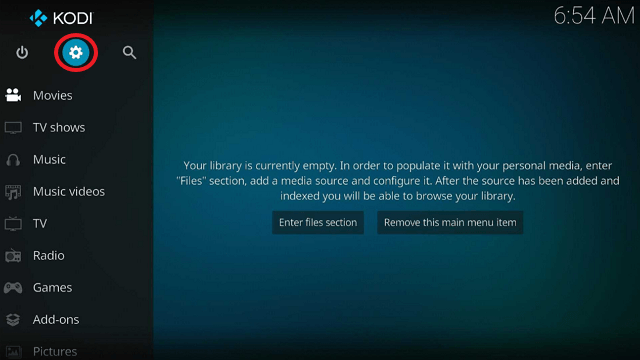
Mega IPTV Kodi Addon


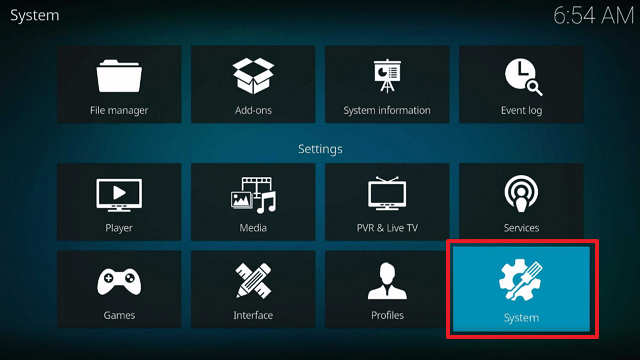
2. Select “System

Mega IPTV Kodi Addon

3. Scroll down to “Add-ons” Then Go to “Unknown sources” then toggle it on.
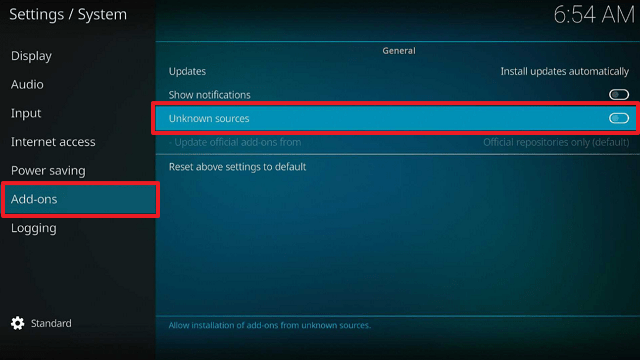
Mega IPTV Kodi Addon


4. Select “Yes”. Then using your Firestick remote, press the return button to go back to the System page
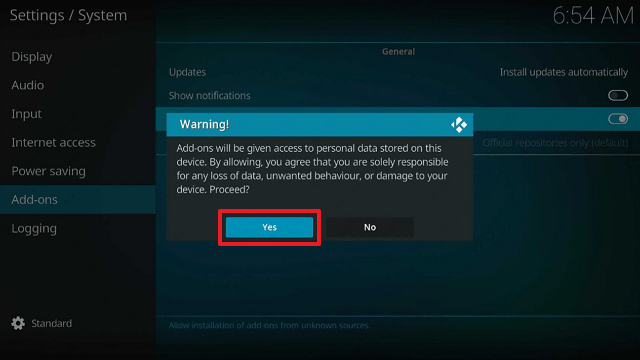
Mega IPTV Kodi Addon


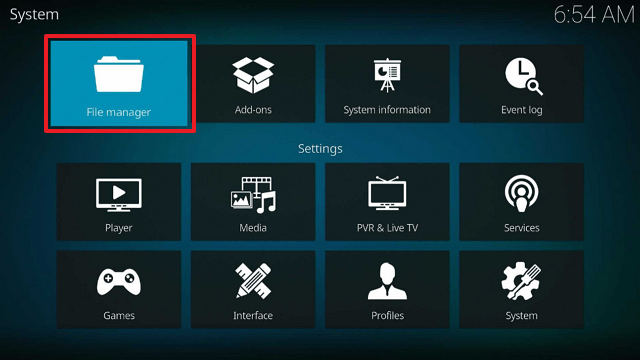
5. Now choose “File Manager

Mega IPTV Kodi Addon


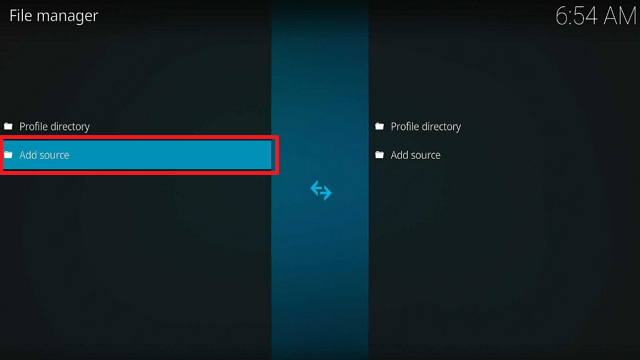
6. Scroll down and select “Add source

Mega IPTV Kodi Addon


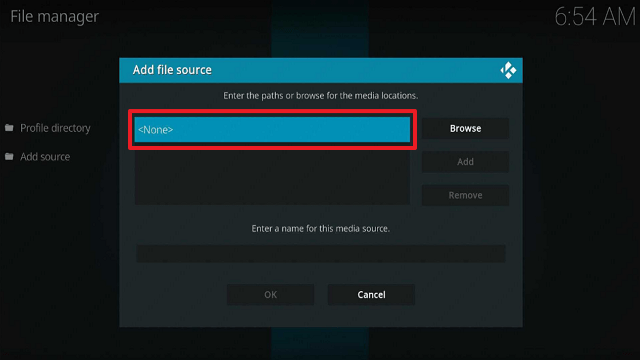
7. Click “<None>

Mega IPTV Kodi Addon


8. Type in “https://mrgsi.github.io/glive/” then click “OK”
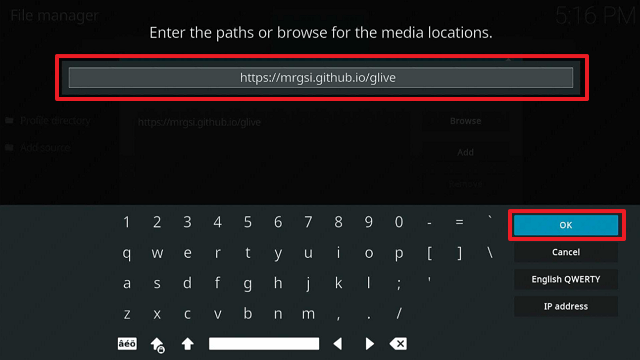
Mega IPTV Kodi Addon


9. Highlight the box under the source to give the media source a name, and put “glive” or any other name that will help you identify it quickly. Click “OK”. Return to the System page by pressing the return button on your remote
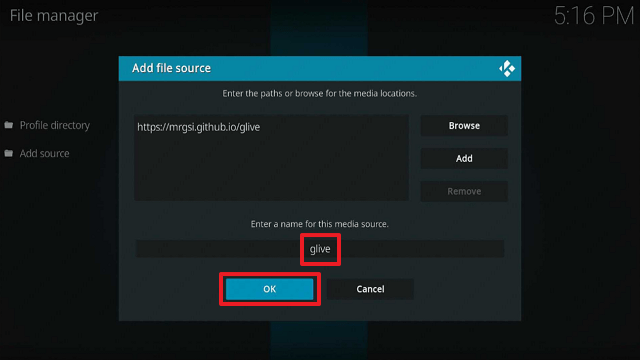
Mega IPTV Kodi Addon


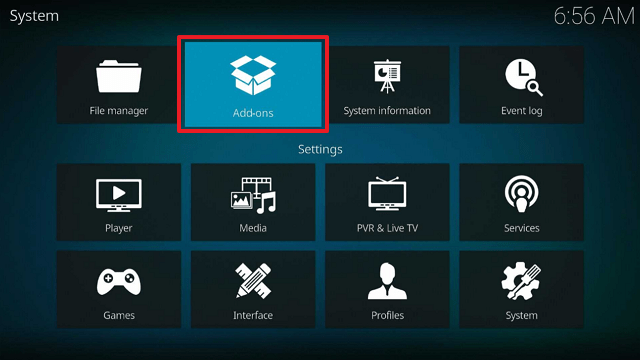
10. Select “Add-ons

Mega IPTV Kodi Addon


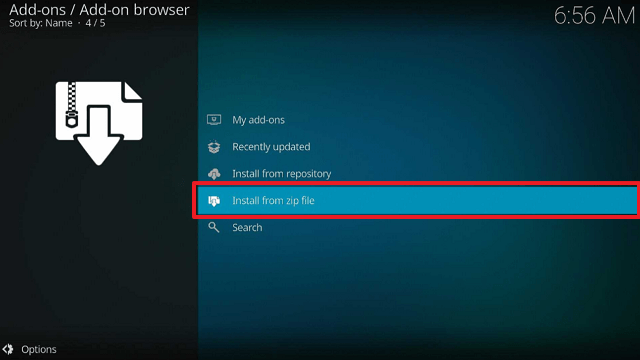
11. Choose “Install from zip file

Mega IPTV Kodi Addon


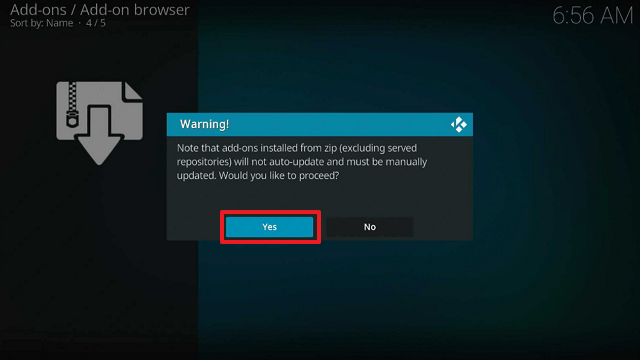
12. Click “Yes

Mega IPTV Kodi Addon


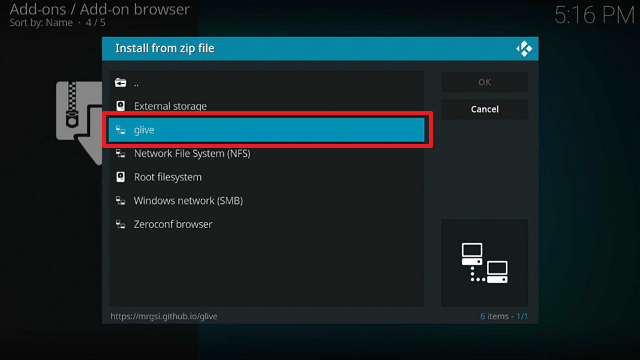
13. Select “glive

Mega IPTV Kodi Addon


14. Then click on the zip file URL – repository.glive-1.0.6.zip
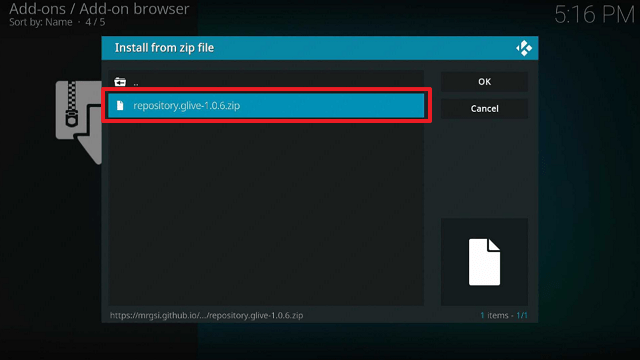
Mega IPTV Kodi Addon


15. Wait for the notification “G-Live Repository Add-on installed” to appear on the upper right part of the screen
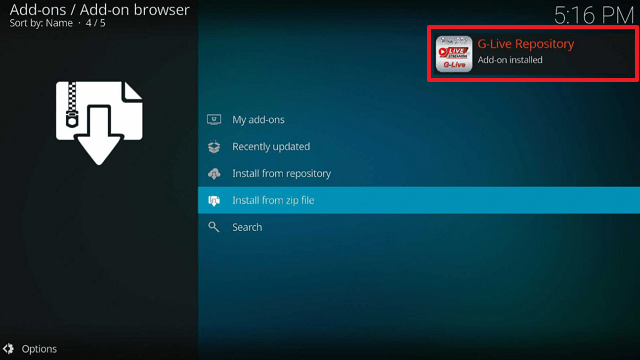
Mega IPTV Kodi Addon


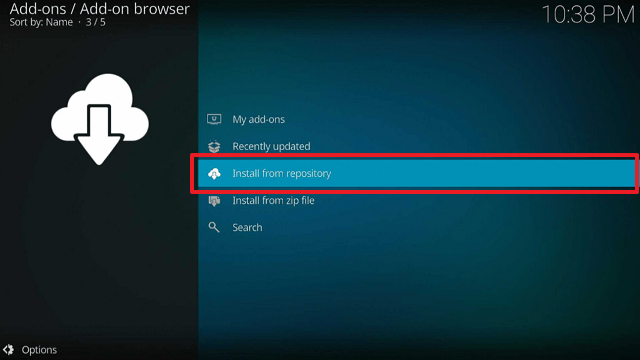
16. Afterward, select “Install from repository

Mega IPTV Kodi Addon


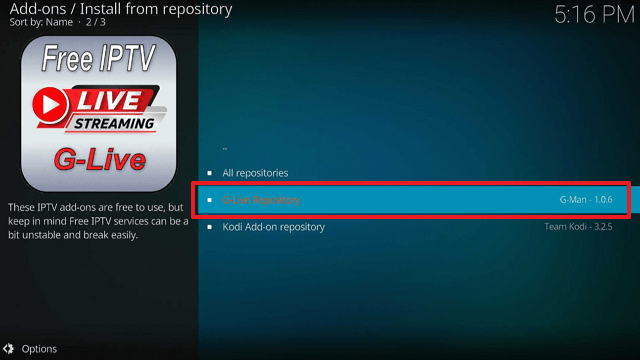
17. Then click “G-Live Repository

Mega IPTV Kodi Addon


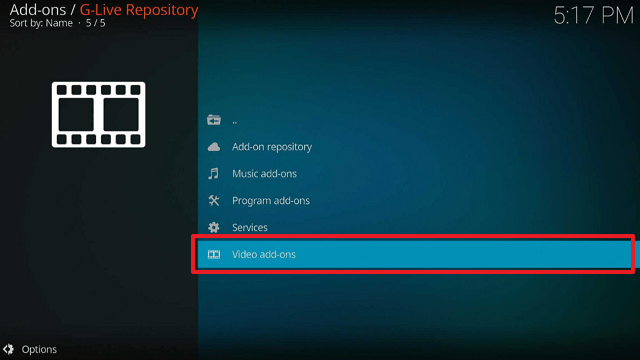
18. Select “Video Addons

Mega IPTV Kodi Addon


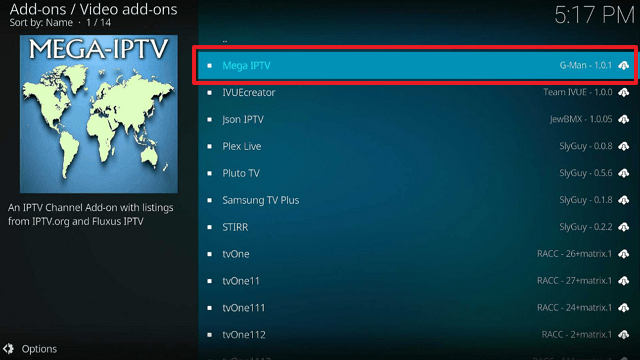
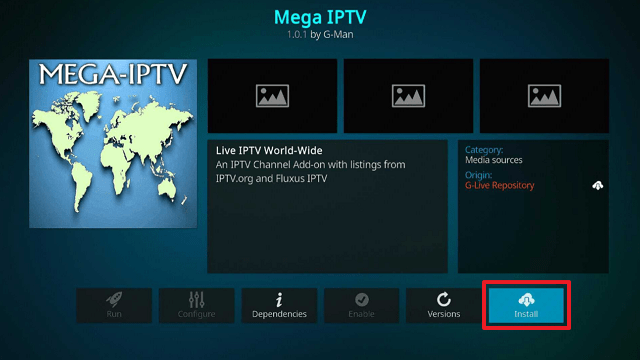
19. Click on “Mega IPTV

Mega IPTV Kodi Addon


20. Then click “Install

Mega IPTV Kodi Addon


21. Then wait for it to install. It’s finished once you see the “Mega IPTV Add-on Installed” message appears.
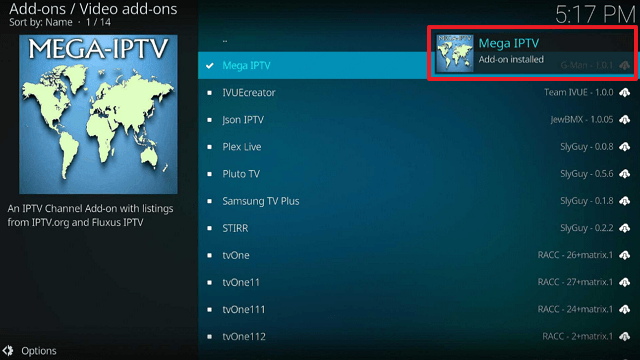
Mega IPTV Kodi Addon


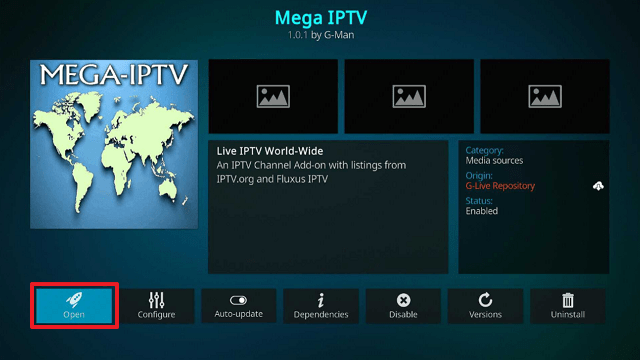
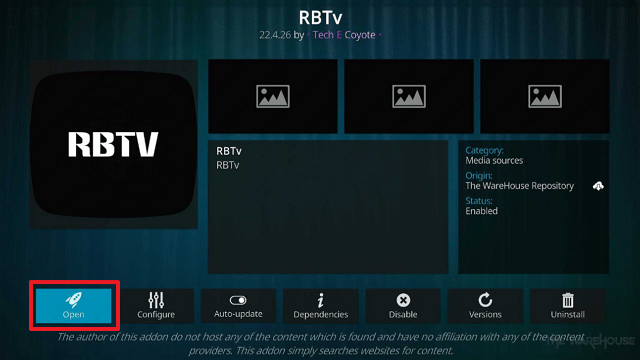
22. Select “Mega IPTV”. Then select “Open

Mega IPTV Kodi Addon


23. That’s it, Mega IPTV Kodi Addon is already installed on your Firestick.
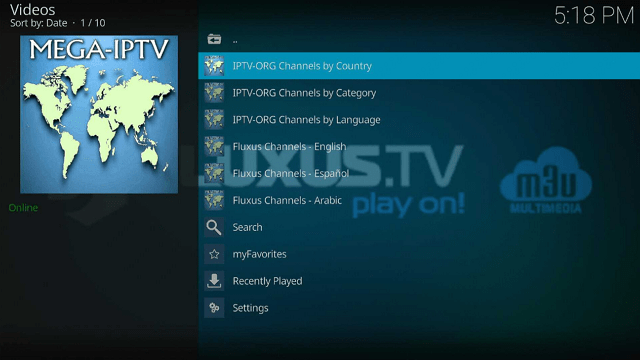
Mega IPTV Kodi Addon


YOUR INTERNET ACTIVITY IS BEING WATCHED

ReviewVPN cannot attest to the legality, security and privacy of the applications discussed on this site. It is highly recommended that you use a VPN service while streaming or using Kodi.

Currently, your IP 216.73.217.167 is visible to everyone and your Browser is being tracked by Advertisers & ISP Provider.

Save 65% Now

Limited Time Offer

Here are the main reasons why you must use a VPN:

  • Your activities are hidden from your ISP, the government, and from the apps you are using.
  • You can access additional movies and TV streams.
  • ISP attempts to throttle are thrwarted thus reducing buffering issues.
  • Geographically restricted content like Netflix and Hulu can be unblocked.

A VPN works be replacing your ISP-assigned IP address and creating an encrypted tunnel. We recommend the no log service offered by IPVanish. It works well on a Firestick and offers the fastest possible speeds.

Special Limited Time Offer - Get IPVanish


Legal Disclaimer: ReviewVPN.com does not encourage or endorse any illegal activity involved in the usage of services and applications referenced on this site. We do not verify the licensing agreements of services. The end-user is wholly responsible for ensuring that any media accessed through these services does not violate copyright and/or licensing laws. ReviewVPN does not promote, link to, or receive compensation from any Apps and IPTV services.


Install Surfshark on Firestick
Best Surfshark Deal


Features

  • You have the option of choosing from IPTV-ORG Channels by Country, IPTV-ORG Channels by Category, or IPTV-ORG Channels by Language.
  • There are several countries to choose from, including Afghanistan, Argentina, Australia, Brazil, Canada, Denmark, Egypt, Germany, Haiti, Hong Kong, Maldives, New Zealand, and the United States.
  • Channels by Category include Animation, Classic, Comedy, Documentary, Kids, Family, Science, Sports, Travel, Weather, and many others.
  • There are many different languages, such as Albanian, Arabic, Korean, Japanese, French, German, Indonesian, English, Polish, Tagalog, and many more.
  • Fluxus Channels in English, Fluxus Channels in Spanish, and Fluxus Channels in Arabic are also available.
  • It contains a search feature that lets you enter a new search query.
  • You can save items to myFavorites.
  • There is a tab for your most recently played videos.
  • Available video resolutions include 1080p, 720p, 576p, and 480p
  • One-click play streaming method


Pros & Cons

Pros

  • It has a user-friendly interface since its content is organized.
  • Numerous streaming options are available.
  • It meets many different streaming demands.


Cons

  • Sometimes, the loading process takes a while.
  • I ran into a playback issue.
  • It occasionally hangs.


Stream Safely With a VPN

Surfshark vpn

To stop hackers and phishers from stealing your information, we always urge our readers to keep their online activities secure. Particularly with streaming services, where you never know who may be accessing them in search of vulnerable IP addresses from which they can gather data for profit or malicious objectives. And you’ll need a VPN, or virtual private network, to aid you to do that.

A VPN, such as Surfshark, can help you protect your privacy by providing you with an anonymous IP address that protects your data from prying eyes on the internet. Additionally, it secures your connection using military-grade AES-256 encryption, so you can be guaranteed that neither your incoming nor outgoing traffic will be visible to the apps you visit.

Here are some of its further advantages:

  • It ensures you always have access to the internet for your daily needs by housing over 3,200 servers across 100 countries.
  • Access any content from any location in the world by getting around geo-restrictions and censorship.
  • Make sure that IP addresses are hidden and that no records are stored.
  • Receive unlimited internet bandwidth so you may download and stream anything you want.
  • You can connect every device simultaneously using Surfshark’s unlimited simultaneous connections.
  • Surfshark is compatible with all major platforms, allowing you to utilize it on any device you own.
  • The kill switch feature will immediately disconnect your device from the internet if your VPN subscription is unexpectedly disrupted.
  • 24/7 customer support is available.

Note: For more information about Surfshark, please read our Surfshark Review.


How to Install Surfshark VPN on Firestick

If your Firestick still has the older interface, read this article to learn how to update it: Update Firestick Interface.

Follow our screenshots below to install the Surfshark VPN app on your Fire TV stick.

1. Go to the Home screen of your Firestick.
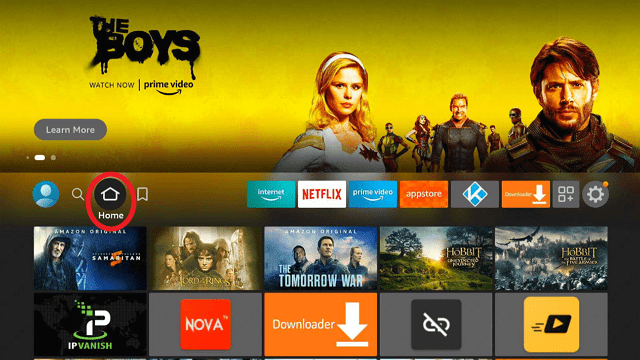
step 1 Install Surfshark VPN on Firestick


2. Navigate toward the Find tab. Press the Search button from the resulting dropdown.
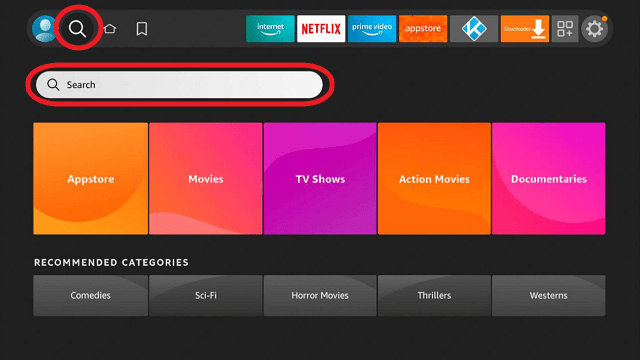
step 2 Install Surfshark VPN on Firestick


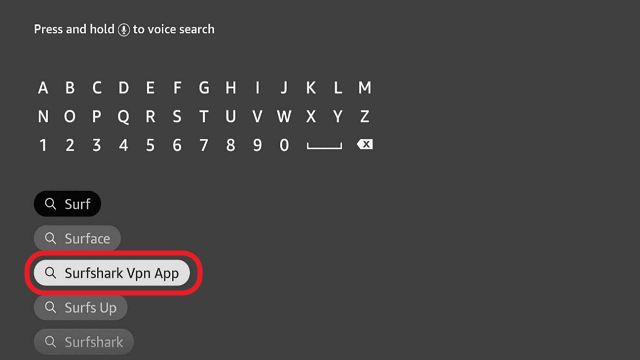
3. Type in the keyword of Surfshark and select from the suggestions that will appear.
step 3 Install Surfshark VPN on Firestick


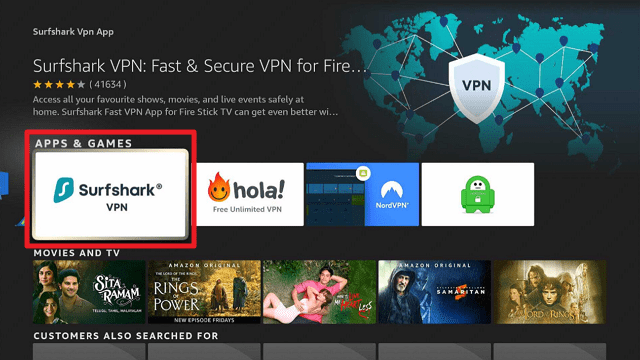
4. Click the official SurfShark icon from your search results.
step 4 Install Surfshark VPN on Firestick


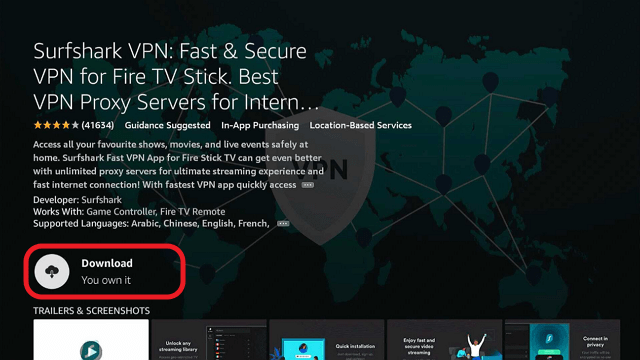
5. Press the Download (You own it) button.
step 5 Install Surfshark VPN on Firestick


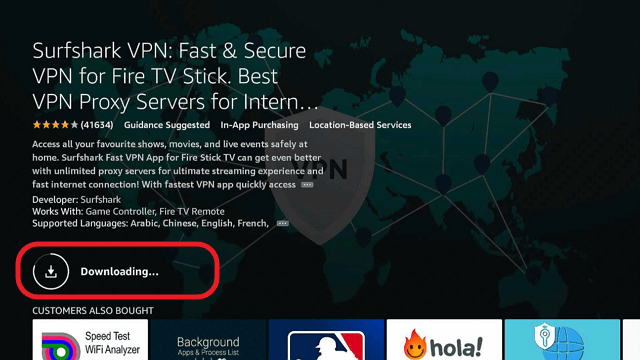
6. The Surfshark VPN installer will download on your device.
step 6 Install Surfshark VPN on Firestick


7. SurfShark VPN’s app will automatically install itself on your Fire TV stick.
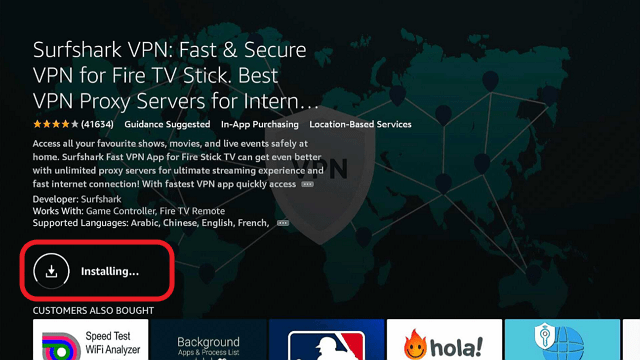
step 7 Install Surfshark VPN on Firestick


8. Press the Open button after completing Surfshark VPN’s installation process.
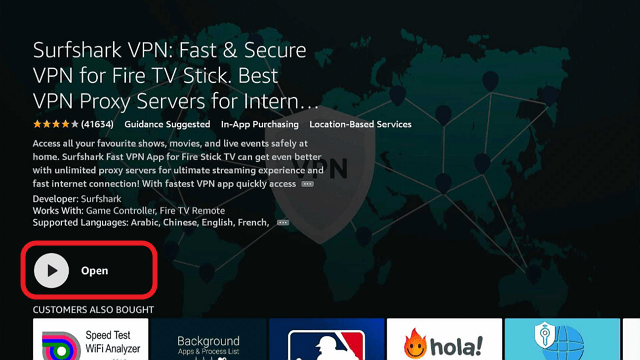
step 8 Install Surfshark VPN on Firestick


9. Please wait for the SurfShark VPN to load its user interface.
step 9 Install Surfshark VPN on Firestick


10. You can now log in with your Surfshark VPN account credentials.
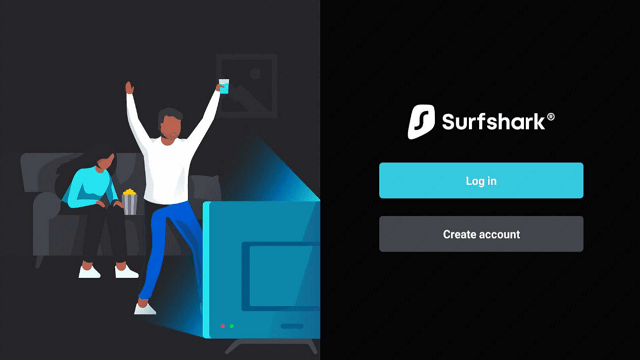
step 10 Install Surfshark VPN on Firestick

Learn more about Surfshark and Grab the Best Surfshark Deal Now!


Install Surfshark on Firestick
Best Surfshark Deal


Other VPNs to Consider

NordVPN (Best for Streaming)

Best Features

  • 5000+ Server in 50+ Countries 
  • Military-Grade Encryption
  • Fast Connection Speed
  • Suitable to a lot of devices
  • No-Log Policy

Prices
  • Complete $5.89 per month (64% Discount)
  • Plus $4.59 per month (56% Discount)
  • Standard $3.69 per month (55% Discount)

Best Features

  • 750+ High-speed VPN Servers in 43 Locations
  • Military-Grade Encryption
  • Fastest HD Streaming and Gaming
  • 30-Day Money-Back Guarantee
  • Unlimited Data & Devices
  • No-Log Policy

Prices
  • 3 Years $1.99 per month (82% Discount)
  • 1 Years $3.29 per month (70% Discount)
  • 1 Month $10.99 per month

IPVanish VPN (Most Secure)

Best Features

  • 1200+ Servers in 60+ Countries around the world
  • Unlimited Connections
  • No-Log Policy
  • Top Notch Military-Grade VPN Protocols and Encryptions
  • 100% Safe and Secured
  • Most Trusted VPN
  • Best VPN for Firestick
  • 30-Day Money-Back Guarantee

Prices
  • Yearly $3.99 per month (63% Discount) – 30 days risk free + Ransomware & Malware Protection
  • Quarterly $5.32 per month (51% Discount)
  • Monthly $10.99 per month


FAQs

What is Mega IPTV?

Mega IPTV is a Kodi Addon from the G-Live Repository that allows users to stream live channels. It offers a ton of streaming alternatives in many different categories.


Is Mega IPTV Safe?

Yes, installing and using Mega IPTV on a Firestick is safe. However, to provide an extra level of safety, it is always recommended to utilize a VPN such as Surfshark.


Is Mega IPTV Legal?

We cannot guarantee the legality of Mega IPTV’s offerings to its users, so it’s best to be safe and only watch from those in the public domain. The end-user of Mega IPTV is responsible for all content viewed.


Should I Use Mega IPTV with a VPN?

To avoid any undesired data breaches, it is always suggested to use a VPN when streaming on add-ons like Mega IPTV. This safeguards user data privacy while using devices like the Firestick to access these add-ons.


Click here to get the lowest price on Surfshark through our exclusive limited-time offer.

For more VPN discounts, go to ReviewVPN Deals and purchase the best VPN for you.


Wrapping Up

With its extensive selection of categories, Mega IPTV offers its viewers a wide range of streaming possibilities. You can search by country, language, and other parameters. However, due to the app’s extensive offering, certain channels were unavailable throughout testing. Nevertheless, you should give this add-on a look because you might get lucky and find a working streaming connection for what you’re looking for.

How To Install RBTv Kodi Addon on Firestick

Overview

You can learn how to install the RBTv Kodi Addon and everything else you need to know about it in this article.


RBTv is a Kodi Addon from The WareHouse Repository that enables you to locate Live TV channels in various categories.

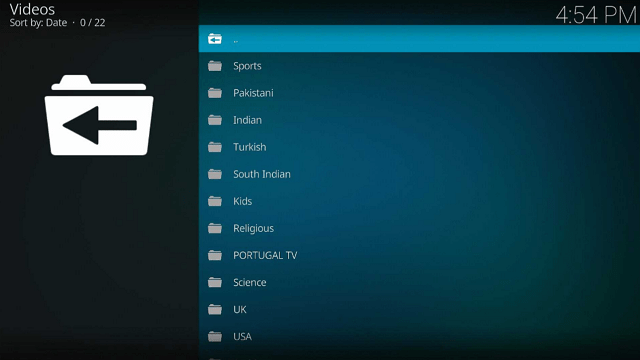
Some of the categories you can find are Sports, Kids, Religious, and Science, and there are also local channels available. These local channels originate from various countries, including the United States, France, Canada, Italy, Sri Lanka, and many others.

Additionally, we want to let you know upfront that RBTv is a third-party addon and isn’t accessible through the official Kodi Repository.

As a result, we’d like to recommend that you turn on your VPN before installing and using this add-on. This prevents any unintended data leaks or security breaches since Kodi won’t be held responsible for any harm caused to your device by third-party add-ons.


ANONYMOUSLY


How To Install RBTv Kodi Addon on Firestick

You can follow along with this tutorial to install the RBTv Kodi Addon on your Firestick.

1. Launch the Kodi app on your Firestick. Click on the gear wheel icon (Settings)

RBTv Kodi Addon


2. Select “System

RBTv Kodi Addon

3. Scroll down to “Add-ons” Then Go to “Unknown sources” then toggle it on.

RBTv Kodi Addon


4. Select “Yes”. Then using your Firestick remote, press the return button to go back to the System page

RBTv Kodi Addon


5. Now choose “File Manager

RBTv Kodi Addon


6. Scroll down and select “Add source

RBTv Kodi Addon


7. Click “<None>

RBTv Kodi Addon


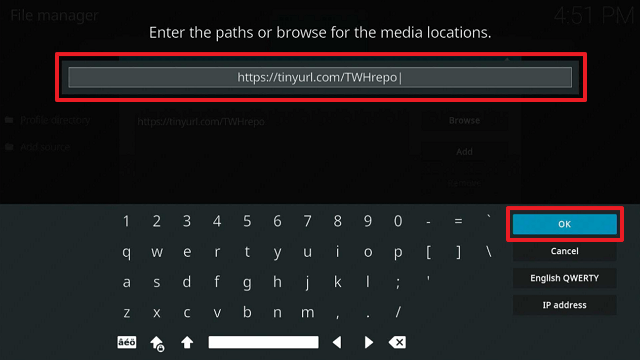
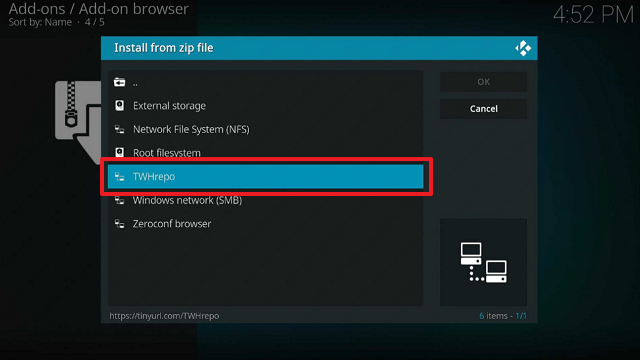
8. Type in “https://tinyurl.com/TWHrepo” then click “OK”

RBTv Kodi Addon


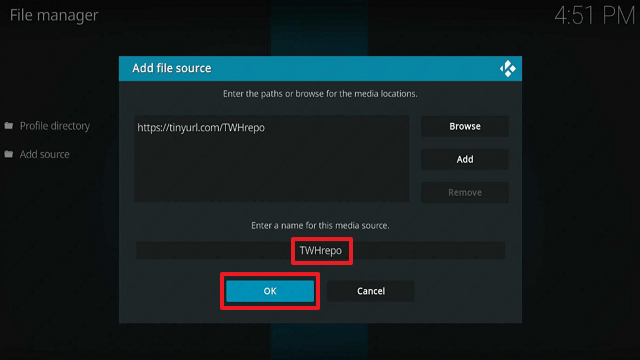
9. Highlight the box under the source to give the media source a name, and put “TWHrepo” or any other name that will help you identify it quickly. Click “OK”. Return to the System page by pressing the return button on your remote

RBTv Kodi Addon


10. Select “Add-ons

RBTv Kodi Addon


11. Choose “Install from zip file

RBTv Kodi Addon


12. Click “Yes

RBTv Kodi Addon


13. Select “TWHrepo

RBTv Kodi Addon


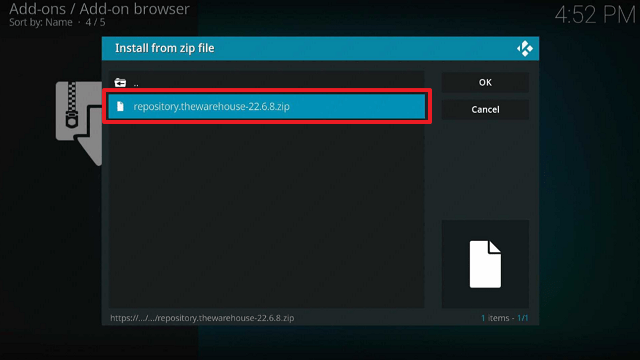
14. Then click on the zip file URL – repository.thewarehouse-x.x.x.zip

RBTv Kodi Addon


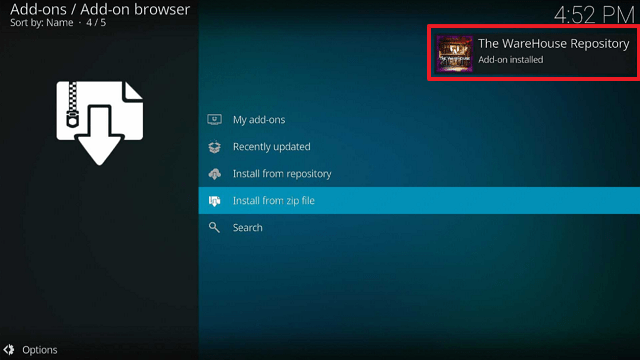
15. Wait for the notification “The WareHouse Repository Add-on installed” to appear on the upper right part of the screen

RBTv Kodi Addon


16. Afterward, select “Install from repository

RBTv Kodi Addon


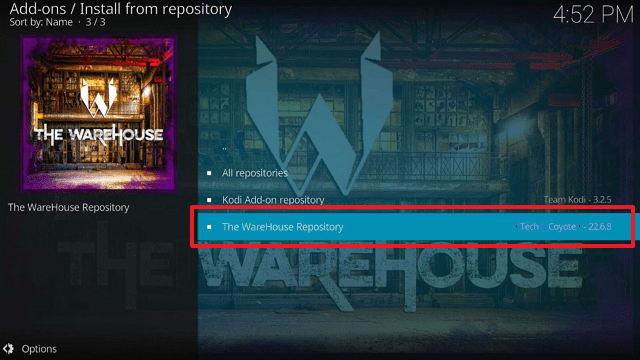
17. Then click “The WareHouse Repository

RBTv Kodi Addon


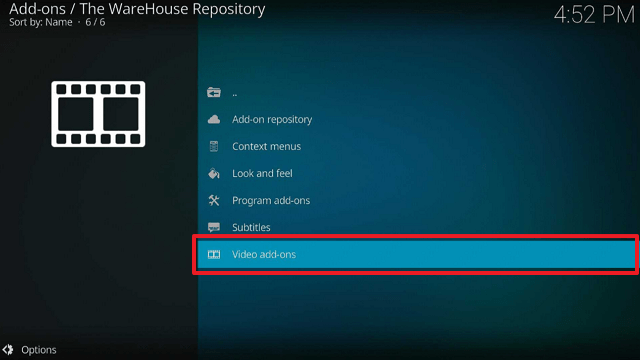
18. Select “Video Addons

RBTv Kodi Addon


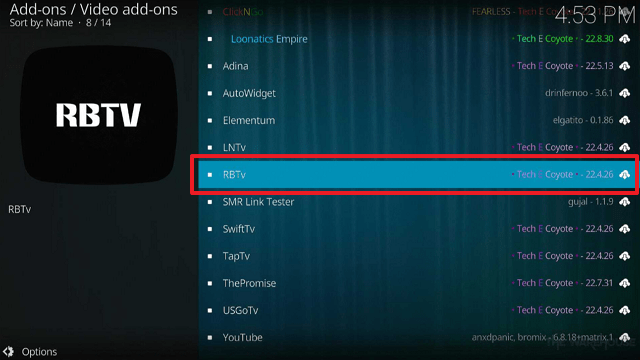
19. Click on “RBTv

RBTv Kodi Addon


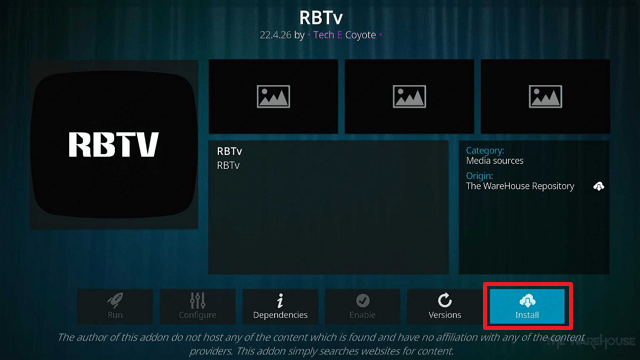
20. Then click “Install

RBTv Kodi Addon


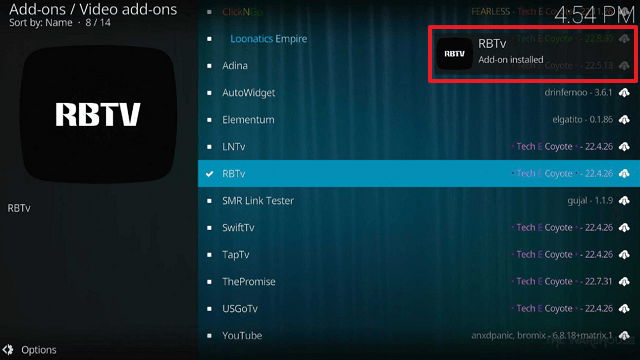
21. Then wait for it to install. It’s finished once you see the “RBTv Add-on Installed” message appears.

RBTv Kodi Addon


22. Select “RBTv”. Then select “Open

RBTv Kodi Addon


23. That’s it, RBTv Kodi Addon is already installed on your Firestick.

RBTv Kodi Addon


YOUR INTERNET ACTIVITY IS BEING WATCHED

ReviewVPN cannot attest to the legality, security and privacy of the applications discussed on this site. It is highly recommended that you use a VPN service while streaming or using Kodi.

Currently, your IP 216.73.217.167 is visible to everyone and your Browser is being tracked by Advertisers & ISP Provider.

Save 65% Now

Limited Time Offer

Here are the main reasons why you must use a VPN:

  • Your activities are hidden from your ISP, the government, and from the apps you are using.
  • You can access additional movies and TV streams.
  • ISP attempts to throttle are thrwarted thus reducing buffering issues.
  • Geographically restricted content like Netflix and Hulu can be unblocked.

A VPN works be replacing your ISP-assigned IP address and creating an encrypted tunnel. We recommend the no log service offered by IPVanish. It works well on a Firestick and offers the fastest possible speeds.

Special Limited Time Offer - Get IPVanish


Legal Disclaimer: ReviewVPN.com does not encourage or endorse any illegal activity involved in the usage of services and applications referenced on this site. We do not verify the licensing agreements of services. The end-user is wholly responsible for ensuring that any media accessed through these services does not violate copyright and/or licensing laws. ReviewVPN does not promote, link to, or receive compensation from any Apps and IPTV services.


Install Surfshark on Firestick

Best Surfshark Deal


Features

  • Enables you to watch live television networks.
  • You can explore categories like Sports, Kids, Religion, and Science.
  • There are numerous local channels available, including the following: Pakistani, Indian, Turkish, South Indian, Portugal TV, UK, USA, Arabic, Bangla, Indonesian, Australian, German, French, Sri Lankan, Iranian, Punjabi, Canadian, and Italian.
  • Sports channels include PTV Sports, TEN, STAR SP, Sky Sports, BEIN, Super Sports, BEOUTQ, Fight Network, UFC Fight Pass, and Big Ten Network.
  • Its Kids Section features a variety of channels for children, including Baby TV, Nickelodeon, Cartoon Network, PBS Kids, and more.
  • There are Kids’ channels in Hindi, Arabic, Tamil, and Telugu.
  • Medine TV, Bereket TV, Rehber TV, Yasin TV, Semerkand TV, Hadi TV, and other religious channels are available.
  • The Science Category includes channels from Animal Planet, Nat Geo, Discovery, and Sony.
  • Your favorite channels can be added to your bookmarks.
  • Allows for one-click streaming.


Pros & Cons

Pros

  • It offers free live TV streaming.
  • There are numerous options for live TV.
  • Allows you to stream easily by providing one-click play streams.


Cons

  • SD video resolution is provided.
  • Some buffering occurs.
  • No subtitle is available for some channels.


Stream Safely With a VPN

Surfshark vpn

When using unofficial addons like RBTv, we always advise our readers to use a VPN like Surfshark to protect their online privacy. This is because these add-ons are not developed or maintained by Kodi, so you never know who could be able to watch what you are streaming.

As a result, there can be hazards involved with it that affect your privacy. You won’t be able to tell if hackers and phishers who prowl around these Builds are targeting your data for dubious monetary gain.

Therefore, it is recommended to use a VPN to remain anonymous when using these Addons. To prevent your real IP address from being linked to your streaming, Surfshark will mask your IP address.

By doing this, you may be certain that you are not disclosing your IP address to any streaming platform you use. You may be confident that there won’t be any logs or IP address leaks when using its service because it uses military-grade AES-256-bit encryption, which is guaranteed to be uncrackable. Along with that, the following are some other advantages:

  • Its CleanWeb function prevents viruses and advertising.
  • It has a pop-up blocker for cookie consent.
  • Supports two-factor authentication.
  • Unlimited bandwidth is provided.
  • Allows you to circumvent geo-restrictions.
  • It safeguards an unlimited number of devices.
  • A 30-day money-back guarantee is provided.

Note: For more information about Surfshark, please read our Surfshark Review.


How to Install Surfshark VPN on Firestick

If your Firestick still has the older interface, read this article to learn how to update it: Update Firestick Interface.

Follow our screenshots below to install the Surfshark VPN app on your Fire TV stick.

1. Go to the Home screen of your Firestick.

step 1 Install Surfshark VPN on Firestick


2. Navigate toward the Find tab. Press the Search button from the resulting dropdown.

step 2 Install Surfshark VPN on Firestick


3. Type in the keyword of Surfshark and select from the suggestions that will appear.

step 3 Install Surfshark VPN on Firestick


4. Click the official SurfShark icon from your search results.

step 4 Install Surfshark VPN on Firestick


5. Press the Download (You own it) button.

step 5 Install Surfshark VPN on Firestick


6. The Surfshark VPN installer will download on your device.

step 6 Install Surfshark VPN on Firestick


7. SurfShark VPN’s app will automatically install itself on your Fire TV stick.

step 7 Install Surfshark VPN on Firestick


8. Press the Open button after completing Surfshark VPN’s installation process.

step 8 Install Surfshark VPN on Firestick


9. Please wait for the SurfShark VPN to load its user interface.

step 9 Install Surfshark VPN on Firestick


10. You can now log in with your Surfshark VPN account credentials.

step 10 Install Surfshark VPN on Firestick

Learn more about Surfshark and Grab the Best Surfshark Deal Now!


Install Surfshark on Firestick
Best Surfshark Deal


Other VPNs to Consider

NordVPN (Best for Streaming)

Best Features

  • 5000+ Server in 50+ Countries 
  • Military-Grade Encryption
  • Fast Connection Speed
  • Suitable to a lot of devices
  • No-Log Policy

Prices
  • Complete $5.89 per month (64% Discount)
  • Plus $4.59 per month (56% Discount)
  • Standard $3.69 per month (55% Discount)

Best Features

  • 750+ High-speed VPN Servers in 43 Locations
  • Military-Grade Encryption
  • Fastest HD Streaming and Gaming
  • 30-Day Money-Back Guarantee
  • Unlimited Data & Devices
  • No-Log Policy

Prices
  • 3 Years $1.99 per month (82% Discount)
  • 1 Years $3.29 per month (70% Discount)
  • 1 Month $10.99 per month

IPVanish VPN (Most Secure)

Best Features

  • 1200+ Servers in 60+ Countries around the world
  • Unlimited Connections
  • No-Log Policy
  • Top Notch Military-Grade VPN Protocols and Encryptions
  • 100% Safe and Secured
  • Most Trusted VPN
  • Best VPN for Firestick
  • 30-Day Money-Back Guarantee

Prices
  • Yearly $3.99 per month (63% Discount) – 30 days risk free + Ransomware & Malware Protection
  • Quarterly $5.32 per month (51% Discount)
  • Monthly $10.99 per month


FAQs

What is RBTv Kodi Addon?

The RBTv Kodi Addon enables users to view live TV across a range of genres, including local stations, sports, kids’ programming, and religious content.


Is RBTv Kodi Addon Safe?

Installing and using RBTv is safe. To ensure complete safety, we still advise pairing it with a VPN like Surfshark.


Is RBTv Kodi Addon Legal?

Since it appears that RBTv is offering copyrighted content, we cannot ensure that the streams it offers are legal. It is therefore advised to only stream from sources that are in the public domain.


Should I use a VPN and RBTv?

Since RBTv is a third-party addon, we advise using a VPN to access it. Apart from preventing data breaches and other potential security hazards, it’s critical to maintain your anonymity to protect yourself from any online attacks.


Click here to get the lowest price on Surfshark through our exclusive limited-time offer.

For more VPN discounts, go to ReviewVPN Deals and purchase the best VPN for you.


Wrapping Up

If you’re looking for live TV streaming, the RBTv Kodi Addon is recommended because it has a ton of different options. It is also simple and incredibly convenient to use because it offers one-click play streaming, saving you time from having to select links. Furthermore, what I appreciate about it is that it offers a free streaming solution to individuals looking for free live TV.

2