

Overview About the Article
Quick Navigation
According to our analysis, more than 50% of streamers ask How to Download Movies on Firestick.
Believe it or not, but this is possible now. Using Movie Apps from the Best Firestick Apps like Cinema HD, Nova TV, Titanium TV and more allow you to stream apps through ES File Manager. With this, you can download any title and stream it anytime.
ES File Manager is a direct app that you can easily install from the Amazon App Store. It has amazing features of managing almost all of your files, from music to photos to videos. But the only problem is, it is not 100%. It offers a 1-week free trial and then asks for $9.99 monthly after the trial. So even though, there is a chance for you to download movies on your Firestick, you still need to pay for the ES File Explorer Manager.

In this article, we are going to use the Cinema HD app as an example of how to download movies on firestick. But this app is not an official Amazon app. In order to download this, you need to Jailbreak your Firestick and Use the Downloader App.
Before we show you how to download movies on firestick, we will teach you first how to install ES File Manager and Cinema HD on your device.
If your Firestick still has the older interface, read this article to learn how to update it: Update Firestick Interface.

How to Install ES File Explorer on Firestick
1. From the Firestick Home Screen, click Find and select Search.
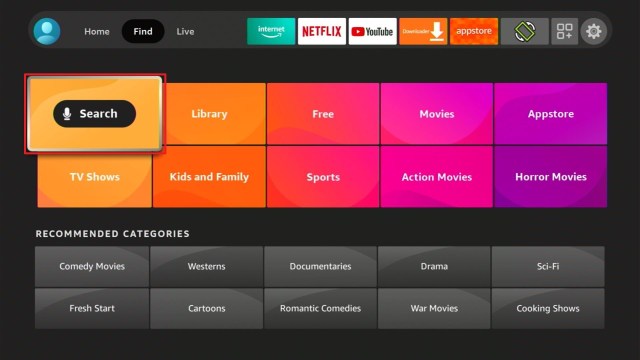
2. Type “ES File Explorer Manager” then select the result.

3. Select the ES File Explorer Manager app

4. Click Download

5. Wait for the download to finish

6. Click Open

7. Click Allow

8. Select Agree

9. You can now use ES File Explorer Manager

Note: a Premium account costs $9.99 per month.
How to Install Cinema HD on Firestick
1. Install the Downloader app and jailbreak your firestick by enabling unknown sources. To learn more about the procedure, you may read How to Install the Downloader App and Enable Unknown Sources.
2. Open Downloader App. Type https://reviewvpn.com/cin and click Go.

3. Click on INSTALL

4. Click on OPEN

5. Click on Allow

6. Click on ACCEPT

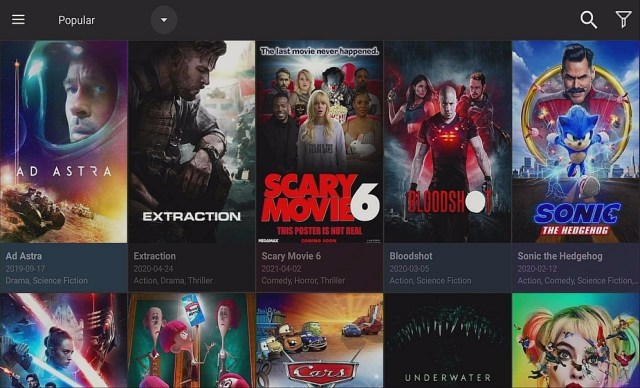
7. Cinema HD is Installed. Enjoy Watching.
Legal Disclaimer: ReviewVPN.com does not encourage or endorse any illegal activity involved in the usage of services and applications referenced on this site. We do not verify the licensing agreements of services. The end-user is wholly responsible for ensuring that any media accessed through these services does not violate copyright and/or licensing laws. ReviewVPN does not promote, link to, or receive compensation from any Apps and IPTV services.
Install Surfshark on Firestick
How to Download Movies on Firestick
1. Launch the Cinema HD apk

2. Click the magnifying glass icon if you will search for the title of the movie that you like to download.

3. Type the title of the movie and click Next.

4. Select the movie you want to stream.

5. Choose a link that is suitable for your streaming needs. To learn about Streaming links, click here.

6. Click Open with

7. Select ES Downloader.

8. Let the movie be downloaded.

9. Once done, launch the ES File Explorer Manager.

10. Tap on Library.

11. Choose Movies.

12. Select the movie you downloaded.

13. All possible players will appear.

14. Choose your preferred video player. You can use MX Media Player.

15. Now you can stream your downloaded movie.

Reminder: If Cinema HD is not working, here as some alternatives.
Stream Safely With a VPN

Whichever apps you are using to download movies on your firestick, you need to be extra careful. We are not sure of the exact source from which Cinema HD or other related apps get their streaming links. You have to mask your identity so that any questionable activities done by the app will not trace back to you.
The best way to hide your identity is to change your IP address. Because your IP serves as your online fingerprint. To change it, you need to have a VPN.
Surfshark changes your IP address by connecting you to a different server of your choice. With this, you can access a lot of other content and even cover your activities from your internet service provider or ISP.
This VPN works well with Firestick and provides more features and benefits such as:
- 3200+ servers in 65 countries
- Lets you choose a city or country to connect your IP with.
- Allows you to access geo-restricted content and features that are not available in your region.
- Proven working with popular apps like Hulu and Netflix.
- Has the best VPN protocols for each type of device.
- Continues to develop great and wonderful features like split tunneling and kill switch.
- Does not log any of your online activity while using the app.
- Your ISP won’t be able to monitor you when you are using Surfshark.
- Block any spying eyes and hackers when you are using public wifi.
- Encrypts all of your data with the best VPN protocols.
- You can use multiple devices for 1 account.
- Boosts your internet bandwidth.
- Proven working for torrent activities.
- Prevents Firestick Buffering and Kodi Buffering
Install Surfshark on Firestick
How to Install Surfshark VPN on Firestick
If your Firestick still has the older interface, read this article to learn how to update it: Update Firestick Interface.
Follow our screenshots below to install the SurfShark VPN app on your Fire TV stick.
1. Go to the Home screen of your Firestick.

2. Navigate towards the Find tab. Press the Search button from the resulting dropdown.

3. Type in the keyword of SurfShark and select from the suggestions that will appear.

4. Click the official SurfShark icon from your search results.

5. Press the Download (You own it) button.

6. The SurfShark VPN installer will download on your device.

7. SurfShark VPN’s app will automatically install itself on your Fire TV stick.

8. Press the Open button after completing SurfShark VPN’s installation process.

9. Please wait for the SurfShark VPN to load its user interface.

10. You can now log in with your SurfShark VPN account credentials.

Learn more about Surfshark and Grab the Best Surfshark Deal Now!
Install Surfshark on Firestick


For more VPN discounts, go to ReviewVPN Deals and purchase the best VPN for you.
Click here to get the lowest price on Surfshark through our exclusive limited-time offer.
FAQs
How to download movie HD on Firestick?
Movies of any definition can be downloaded to your firestick if you follow the procedure above.
How to Download Movie Apps on my Firestick?
Apps can be downloaded directly from the Amazon app store, while some other apps can be downloaded using the Downloader app upon jailbreaking your Firestick.
Can I download movies on Firestick?
The answer is Yes. But it is not 100% free. The procedure shown above uses ES File Explorer Manager. Today, this app requires payment of $9.99 a month.
Conclusion
The possibility of downloading movies on your Firestick is feasible. You need to have an ES File Explorer Manager app to do it. The bad thing is, the service is not for free. You can download it for free but you need to pay an amount of $9.99 to use its feature. As of now, it is the easiest and proven way to download movies on your Firestick.
You can use any apps that allow the use of ES File Downloader like Cinema HD, Nova TV, and more.
Even though it is not 100% free, we hope that this article helped you on How to Download Movies on your Firestick.
Note: ReviewVPN.com does not own or operate any app nor does it endorse any. The main purpose of this article is strictly for educational purposes only.


