
What Are The Must-Have Firestick Apps?
This article will list down the must-have Firestick apps that you should consider having on your device.
There are a lot of things that we can do using Firestick on our television. And no matter if it’s for streaming or merely to make use of the utility apps available, we can’t help but be grateful that the Firestick was created for us. However, have you ever wondered what the must-have Firestick apps are, given that the device allows us to do so much?

These are usually the ones that help us make the best use of our Firestick device. Here, we’ve provided a list for you to know and see whether you already have them installed on your device or if you still need to verify and consider adding them.
Rest assured that all of the apps that will be featured in this article have been thoroughly tested and are highly recommended. We’ll also show you how to install them on your device fast and easily. So now, let’s get started with the list of the must-have firestick apps.

Must-Have Firestick Apps
The Must-Have Firestick Apps will be divided into two categories: verified/legal apps and third-party apps.
Note: If you’re still using the older version of your Firestick, you can learn how to upgrade it by reading this article: Update Firestick Interface.
Verified / Legal Apps
These are apps that may be readily found and downloaded through the Amazon Appstore.
Background Apps and Process List
Backgrounds Apps and Process List, which is also featured in our Best Legal Utility Apps for Firestick, is the first app on our Must-Have Firestick Apps list. Because it efficiently cleans up background programs, this app is a must-have app for Firestick devices. Background Apps and Process List allows you to force-quit apps and processes that you didn’t know are still running even after you’ve stopped using them. And, you must remember that it is important to close these unnecessary apps because they eat up your RAM, causing your Firestick device to slow down. And, of course, who wants a sluggish Firestick?
Apart from that, it also notifies you when an app is consuming CPU or RAM in the background, ensuring that your device’s RAM and processing power are not depleted. As a result, you wouldn’t have to keep the app open all the time only to detect and delete running apps and processes from your background.
If your Firestick still has the older interface, read this article to learn how to update it: Update Firestick Interface.
Step by Step Instruction to Install Background Apps and Process List
1. Click FIND.

2. Click Search.

3. You can either say Background Apps and Process List to your Alexa’s voice-enabled remote or start typing it. If you typed it, click on the suggestion when it appears.

4. Click on the Background Apps and Process List icon.

5. Click on Download

6. Click Open.

7. Click Got it.

8. Background Apps and Process List is now installed and ready to use on your Firestick.

If you wish to learn more about Background Apps and Process List, you may read here.
App Info Manager
Without a file manager like App Info Manager, your Firestick experience would pretty much be incomplete. By managing your installed applications, App Info Manager also helps you delete unnecessary data on your device by allowing you to force stop background apps, clear data, and clear cache. Apart from that, it allows you to quickly navigate and manage all of the apps on your device by sorting them alphabetically by name, size, or permissions. You can also display apps in a mosaic or linear layout to easily see all of your apps and manage or open them. Moreover, App Info Manager also allows you to backup your favorite APKs on your Firestick device, which is one of its most useful features.
How to Install the App Info Manager on your Fire TV stick with Screenshots
Follow the pictures below to install the App Info Manager on your Fire TV stick.
1. Go to your Fire TV stick’s Home screen.

2. Navigate towards the Find tab.

3. Click on the Search tab from the resulting drop-down.

4. Type in: App Info Manager with your Fire TV stick’s screen keyboard.

5. Select the official icon of App Info Manager from the search results.

6. Click on the Get button.

7. Wait until the app’s installer downloads to your Fire TV stick.

8. Complete its installation process which will begin after download.

9. Press on Open if you want to use the app.

10. Wait for its application list to load. (Do not press the Home or Return button).

11. Tap on the Got It! button which will appear.

12. You can now access the app’s features.

13. For searching apps easier, click on the Sort tab.

14. Many app filters will appear from its drop-down.

15. For managing apps, press on the Manage Applications tab.

16. You will be immediately redirected to the Apps Menu of your Fire TV stick.

Install Surfshark on Firestick
Legal Disclaimer: ReviewVPN.com does not encourage or endorse any illegal activity involved in the usage of services and applications referenced on this site. We do not verify the licensing agreements of services. The end-user is wholly responsible for ensuring that any media accessed through these services does not violate copyright and/or licensing laws. ReviewVPN does not promote, link to, or receive compensation from any Apps and IPTV services.
YOUR INTERNET ACTIVITY IS BEING WATCHED
ReviewVPN cannot attest to the legality, security and privacy of the applications discussed on this site. It is highly recommended that you use a VPN service while streaming or using Kodi.
Currently, your IP 216.73.217.61 is visible to everyone and your Browser is being tracked by Advertisers & ISP Provider.
Here are the main reasons why you must use a VPN:
- Your activities are hidden from your ISP, the government, and from the apps you are using.
- You can access additional movies and TV streams.
- ISP attempts to throttle are thrwarted thus reducing buffering issues.
- Geographically restricted content like Netflix and Hulu can be unblocked.
A VPN works be replacing your ISP-assigned IP address and creating an encrypted tunnel. We recommend the no log service offered by IPVanish. It works well on a Firestick and offers the fastest possible speeds.
Third-Party Apps Lists
These are apps that aren’t available on the Amazon Appstore, so you’ll have to sideload them onto your Firestick. But first, you must jailbreak your Firestick and install the Downloader app.
VPN Safety Dot
Have you ever wondered if your VPN is functioning properly? Yes, you may see that you are connected to your VPN, but how confident are you that your VPN is providing you with the service for which you have paid? Fortunately, there is an app called VPN Safety Dot that displays a red or green dot in the upper right corner of your TV screen to let you know if you are truly connected to the VPN. It is also one way of alerting you if you have been disconnected from the VPN, so you could stop what you are doing and reconnect to your VPN service. This is a good and recommendable app for daily internet use, especially if you have active subscriptions to VPN services that don’t include a Kill Switch feature.
For those who are unfamiliar, a kill switch is a function that automatically disconnects you from the internet in the event of accidental disconnection or any interruption with your VPN service. This prevents you from accessing content without the VPN’s encryption, as well as avoiding data breaches and IP address leaks.
This app is something I recommend because I also use it as an extra layer of security when using my VPN service, which is Surfshark.
Install VPNSafetyDot on Firestick with Screenshots
1. Install the Downloader app and jailbreak your firestick by enabling unknown sources. To learn more about the procedure, you may read How to Install the Downloader App and Enable Unknown Sources.
2. On the Downloader App, type in “https://reviewvpn.com/sado” and select Go.

3. Depending on your internet connection, the APK will take a few seconds to download.

4. After that, choose Install.

5. Then click Open.

6. Click “Start”.

7. Toggle to turn ON VPNSafetyDot Monitoring Service. That’s it, you can now start testing VPNSafetyDot by browsing through your Firestick.

To learn more about VPNSafetyDot, you may read here.
Mouse Toggle
Since there are third-party apps that cannot be accessed using a remote, Mouse Toggle is one of the must-have firestick apps. You’ll need a Mouse Toggle for Firestick to navigate and click on buttons on these apps, therefore you won’t be able to use them without one. So, if you haven’t downloaded it yet or if you’re a new Firestick user, you should do so right now.
Steps to Install Mouse Toggle on a Fire TV Stick with Screenshots
1. Install the Downloader app and jailbreak your firestick by enabling unknown sources. To learn more about the procedure, you may read How to Install the Downloader App and Enable Unknown Sources.
2. On the Downloader App type in “https://reviewvpn.com/mouse” then click “Go”

3. The app will automatically install. Click on Open after installation (note delete the apk files after installation to save space on the Firestick)

4. On the Mouse Toggle screen wait until you see Status changed to started before trying to use the app

5. A popup should appear that asks if you want to allow USB debugging. Check the box that says always allow and click ok

Note: To use the Mouse Toggle on Firestick, simply press the Play/Pause button 2 consecutive times. You’ll know it is activated once you see a bluish-purple circle appear on your screen. And to deactivate, all you have to do is also press the Play/Pause button twice.
DB Assistant
DangBei Assistant, also known as DB Assistant, is a professional TV management software that cleans and optimizes your Firestick to make it work faster and more efficiently. It allows you to uninstall multiple apps on one screen by displaying all available apps on your device alongside an uninstall button.
Apart from that, you can see how much storage is used and how much is free to help you manage your Firestick storage. That way, you’ll know when you’ve deleted enough apps to either speed up your Firestick or download new files. Moreover, it also contains an autorun kill feature that allows you to force close any background software by clicking the “Disable” button.”
And lastly, it displays all relevant information about your Firestick, including the device name, Android version, CPU, RAM, Internal Storage, and Render.
Install DBTV Assistant on a Firestick with Screenshots
1. Install the Downloader app and jailbreak your firestick by enabling unknown sources. To learn more about the procedure, you may read How to Install the Downloader App and Enable Unknown Sources.
2. On the Downloader app, type in “https://reviewvpn.com/dbt” then select “Go”.

3. Click Install.

4. Click Open.
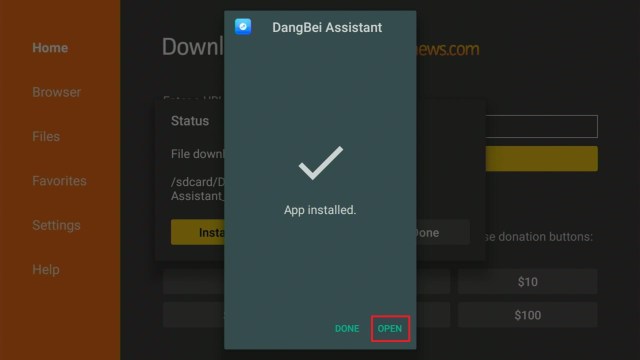
5. DBTV Assistant is Installed.

To learn more about DBTV Assistant, you may read here.
Firestick Fast Task Killer
Firestick Fast Task Killer is also one of the must-have Firestick apps because it allows you to force stop background apps with a single click. All you have to do is click the app on your screen, and it will immediately terminate processes on your running apps. And as a result, it will prevent lags, buffers, and slowdown on your Firestick device.
To sum up, Firestick Fast Task Killer is a simple method that allows you to speed up your Firestick with a single click of your Firestick remote. And, as the name suggests, it lives up as a fast task killer for your Firestick.
How to Install the Fast Task Killer App on your Fire TV stick with Screenshots
1. Install the Downloader app and jailbreak your firestick by enabling unknown sources. To learn more about the procedure, you may read How to Install the Downloader App and Enable Unknown Sources.
2. On the Downloader app, type in “https://reviewvpn.com/ftk” then select “Go”.

3. The Fast Task Killer app’s APK file will download.

4. Click on Install.

5. Complete its installation process.

6. You can open the Fast Task Killer app after installing it.

7. Use the Fast Task Killer app for stopping any background tasks causing device malfunctions.

Install Surfshark on Firestick
Virus Total
What better way to bring the list to a close than with a virus scanner? Of course, every device, particularly the Firestick, requires a virus scanner to detect viruses in apps that are being installed. With a single click on the “Scan” button on Virus Total, you can quickly scan all of your apps on your device. It will then display the applications report, which will show you app detections as well as statistics for suspicious files, programs, and URLs. As a result, you can rest assured that your device is secure and that no data breaches will occur when using your favorite apps.
Screenshots with Step by Step Instruction to Install Virus Total Antivirus on a Firestick
1. Install the Downloader app and jailbreak your firestick by enabling unknown sources. To learn more about the procedure, you may read How to Install the Downloader App and Enable Unknown Sources.
2. On the Downloader App type in “https://reviewvpn.com/vir” then select “Go”.

3. Click on “Click here” to start download quickly

4. Click Install.

5. Click Open.

6. Enjoy your Virus Total Antivirus,

To know more about Virus Total, you may read here.
Stream Safely with Surfshark
Streaming and viewing content on your Firestick would be incomplete without a VPN service to protect your online activity. And the best VPN service currently available on the market is Surfshark, which is the most popular and extensively tested. Surfshark utilizes end-to-end encryption to ensure that no IP addresses or data are leaked when using their service. They use AES 256-bit encryption to secure their connections, which is the same standard encryption used by the military and the US government. Surfshark also owns all of its networks and servers, ensuring that no third-party server has access to your personal information or online activity.
Aside from those, here are some other advantages of using Surfshark:
- It enables users to access geo-restricted content by connecting to one of its 70+ locations, allowing you to view any content and apps you want from anywhere in the world.
- Surfshark has a Kill switch feature that will automatically disconnect your device from the internet if the VPN is accidentally interrupted.
- Enjoy the benefits of unlimited bandwidth to stream and download any content from the internet.
- You can have an unlimited number of simultaneous connections to ensure that all of your devices are protected with Surfsharkencryption.
- It helps you protect your personal information from prying eyes and cyber criminals such as hackers and phishers.
Click here to get the lowest price on Surfshark through our exclusive limited-time offer.
How to Install Surfshark VPN on Firestick
If your Firestick still has the older interface, read this article to learn how to update it: Update Firestick Interface.
Follow our screenshots below to install the SurfShark VPN app on your Fire TV stick.
1. Go to the Home screen of your Firestick.

2. Navigate towards the Find tab. Press the Search button from the resulting dropdown.

3. Type in the keyword of SurfShark and select from the suggestions that will appear.

4. Click the official SurfShark icon from your search results.

5. Press the Download (You own it) button.

6. The SurfShark VPN installer will download on your device.

7. SurfShark VPN’s app will automatically install itself on your Fire TV stick.

8. Press the Open button after completing SurfShark VPN’s installation process.

9. Please wait for the SurfShark VPN to load its user interface.

10. You can now log in with your SurfShark VPN account credentials.

Learn more about Surfshark and Grab the Best Surfshark Deal Now!
Install Surfshark on Firestick



For more VPN discounts, go to ReviewVPN Deals and purchase the best VPN for you.
Click here to get the lowest price on Surfshark through our exclusive limited-time offer.
Conclusion
Even though there are a variety of legal and third-party apps available for Firestick, there are still few that set it apart. These are the must-have Firestick apps that help users get the most out of their device, whether it’s for file management, storage cleaner, virus scanner, VPN service, and the like. And, thankfully, most of them are free to download and use on your device.
With that, we’d like to thank you for taking the time to read our article on the must-have Firestick apps. We hope we were able to provide you with the most useful ones for both beginners and experienced Firestick users.
You may also read:
Common Mistakes Firestick Users Commit






