
Aplayer
Quick Navigation
In this article, we will help you install the Aplayer app on your Firestick and Android.

Aplayer is a video player that also serves as a webcast for Android and TV devices. It has a simple interface but offers extremely great features as a cross-platform. Aplayer can help you stream videos for free on your device with any format like 4K, HD, and Ultra HD.
In using Aplayer, you will observe how it can help you watch any videos smoothly, with enough speed.
You can also use Aplayer for video crapping and advanced video decoding.
Aplayer is actually available in the Google Play Store, so you can easily install it on your Android devices like mobile phones, and tablets. On the other hand, this app is not available in the Amazon App Store. What we are going to do is to sideload it on your Firestick, but we have to Jailbreak your Firestick first and use the Downloader app.

Virus Found
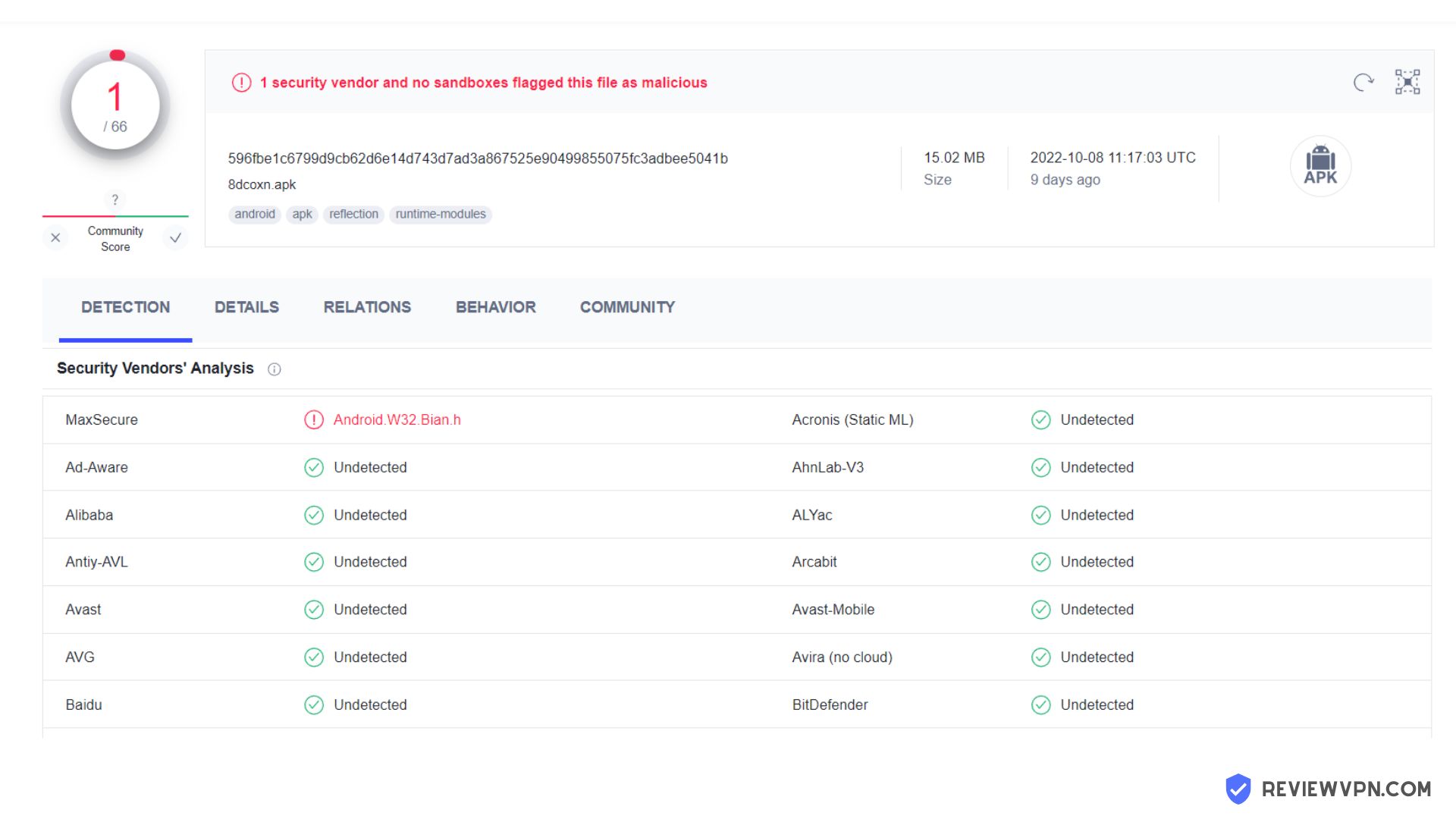
We tested this application using VirusTotal and found that there is/are malicious file/files. You can see the above result for your reference.
Because of this, we highly recommend using a VPN that can protect your privacy against any threat from Aplayer.
Here’s how you can Install The Best VPN For Firestick and All Devices.
If your Firestick still has the older interface, read this article to learn how to update it: Update Firestick Interface.
How to Install Aplayer on Firestick
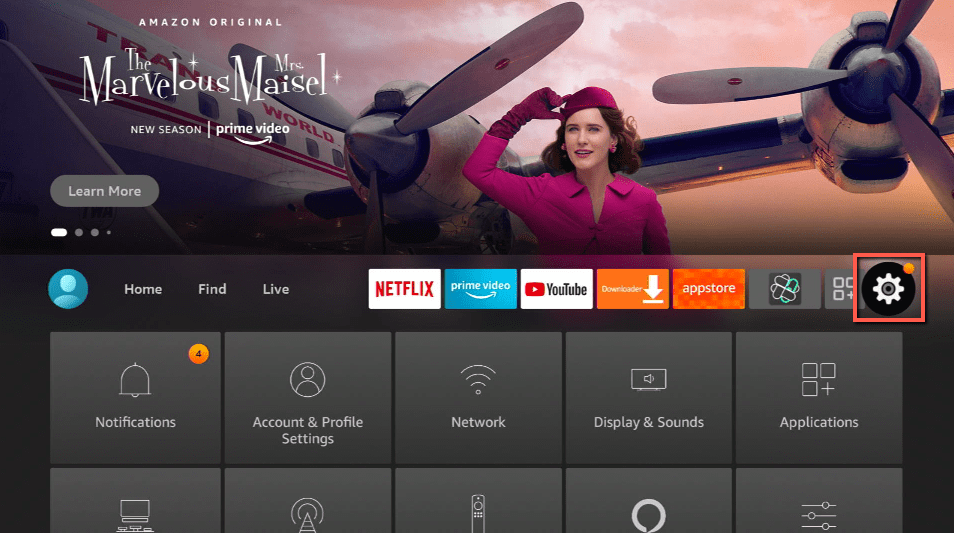
1. Click Home on your remote and scroll once to your Right. Click Setting (Gear Wheel Icon).
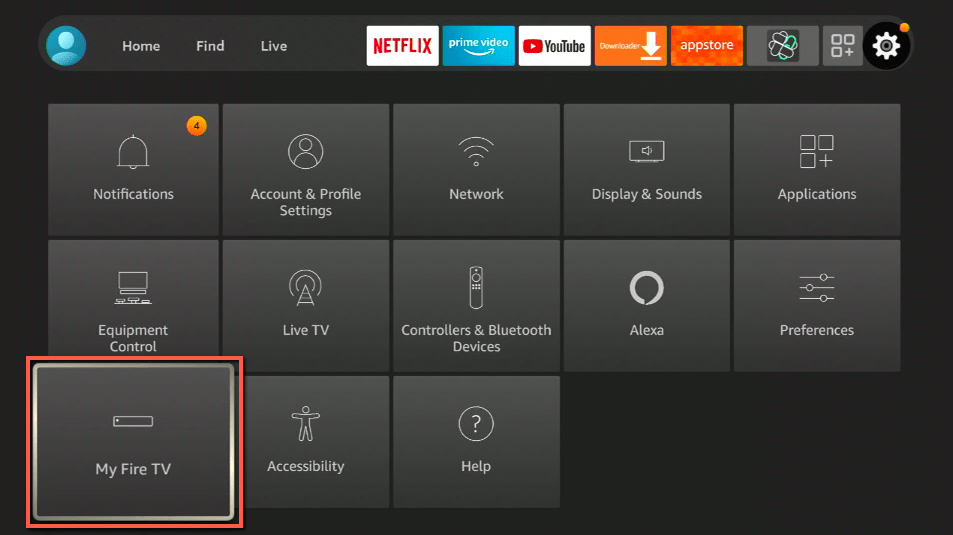
2. Scroll down and to the right until you get to My Fire TV. Click on it.
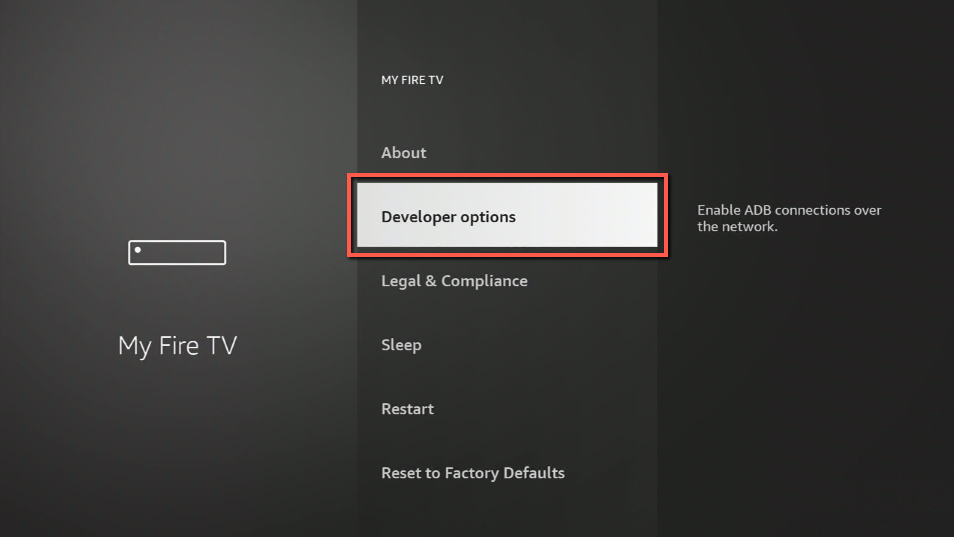
3. Select Developer options.
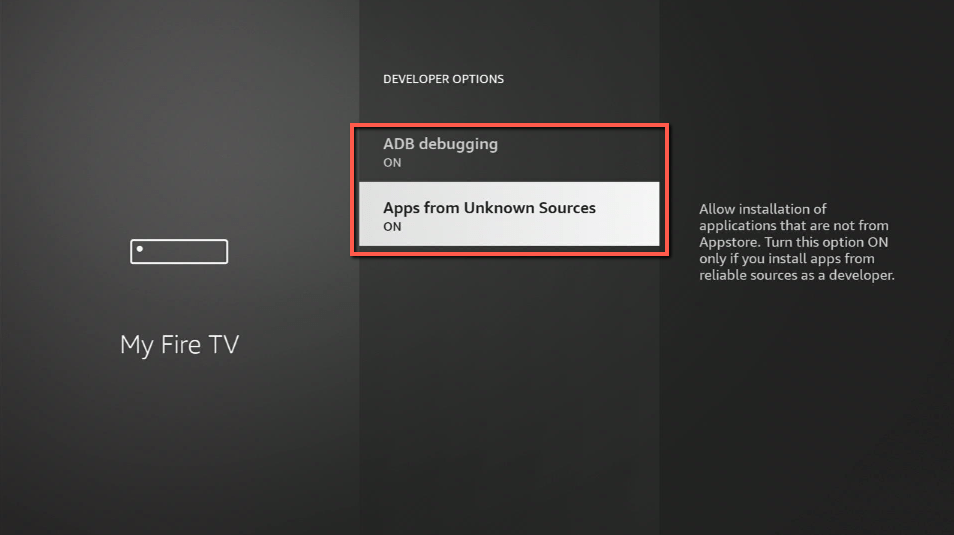
4. Turn on ADB debugging and Apps from Unknown Sources.
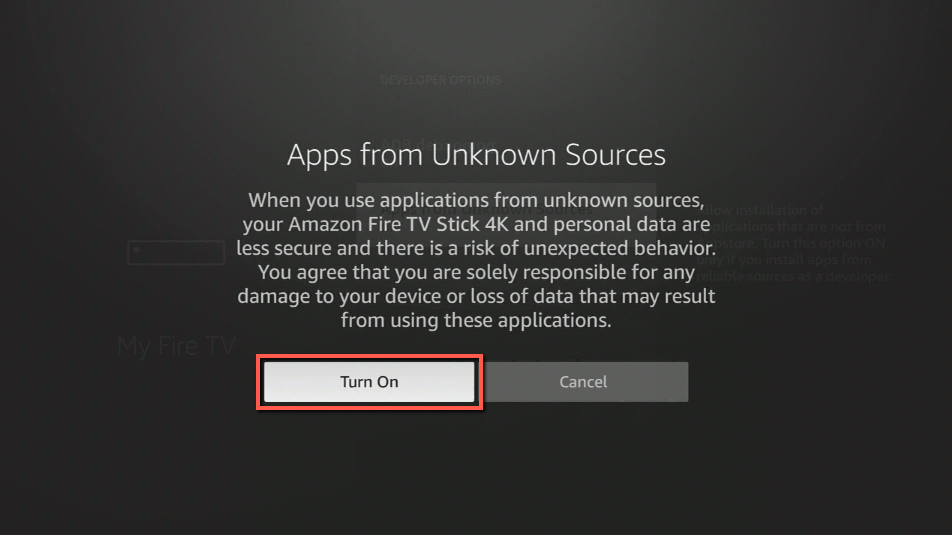
5. Click Turn On when the pop-up appears.
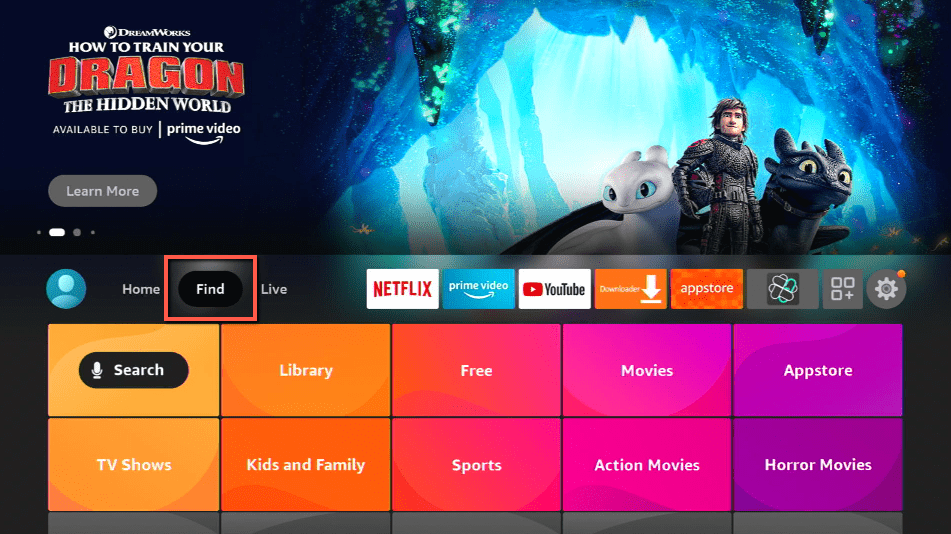
6. Click Home, click FIND.
7. Click Search.
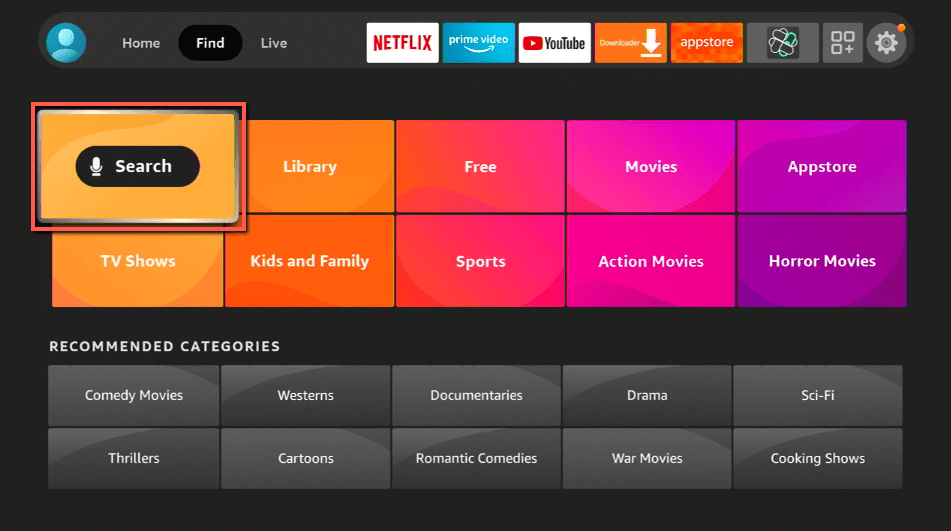
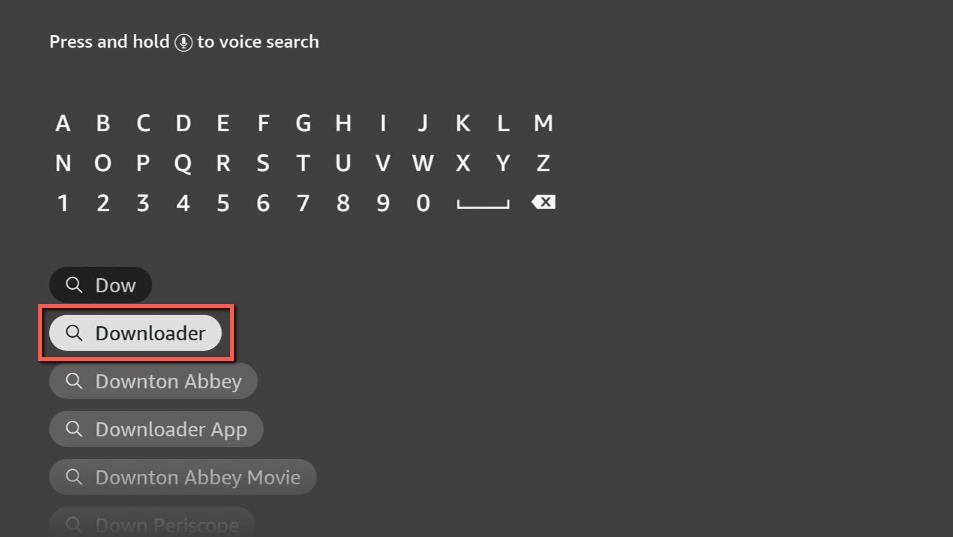
8. You can either say Downloader to your Alexa voice-enabled remote or start typing it. If you typed it, click on the suggestion when it appears.
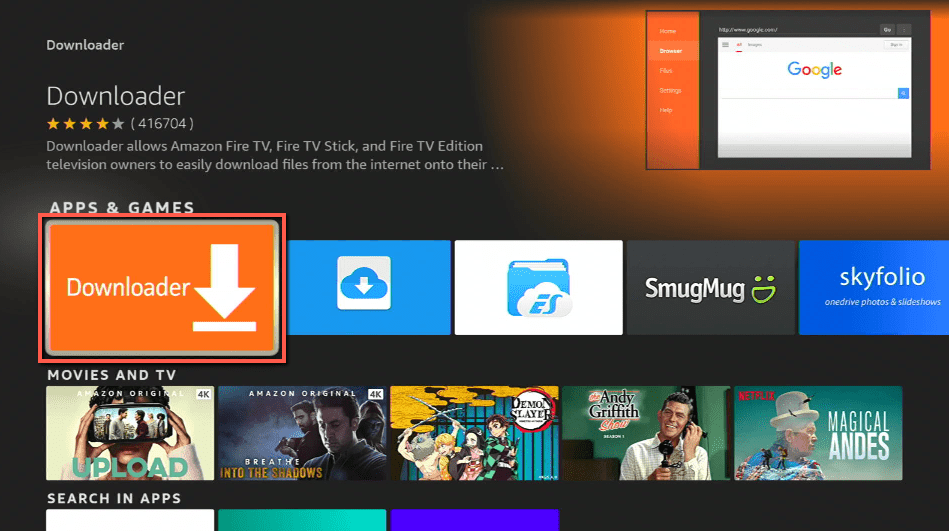
9. Click on the Downloader Icon.
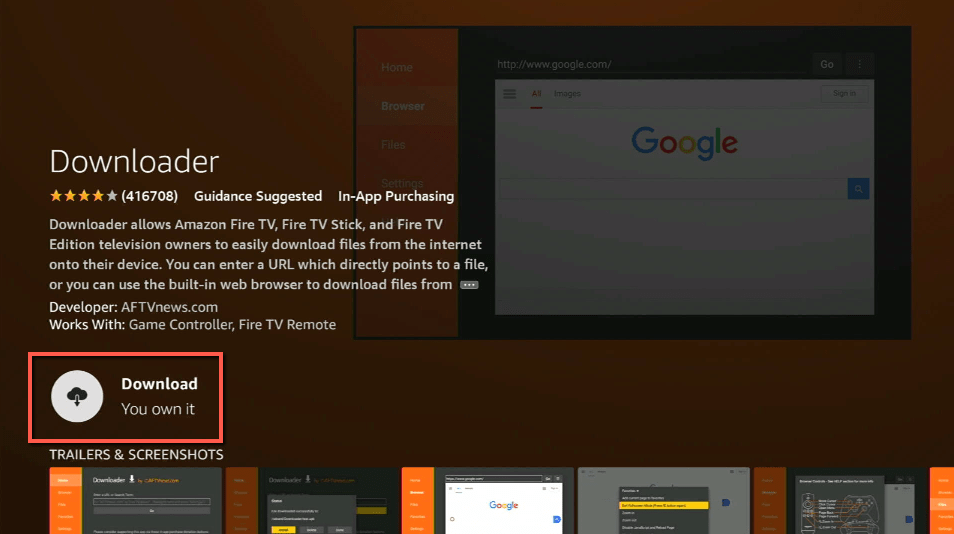
10. Click Download.
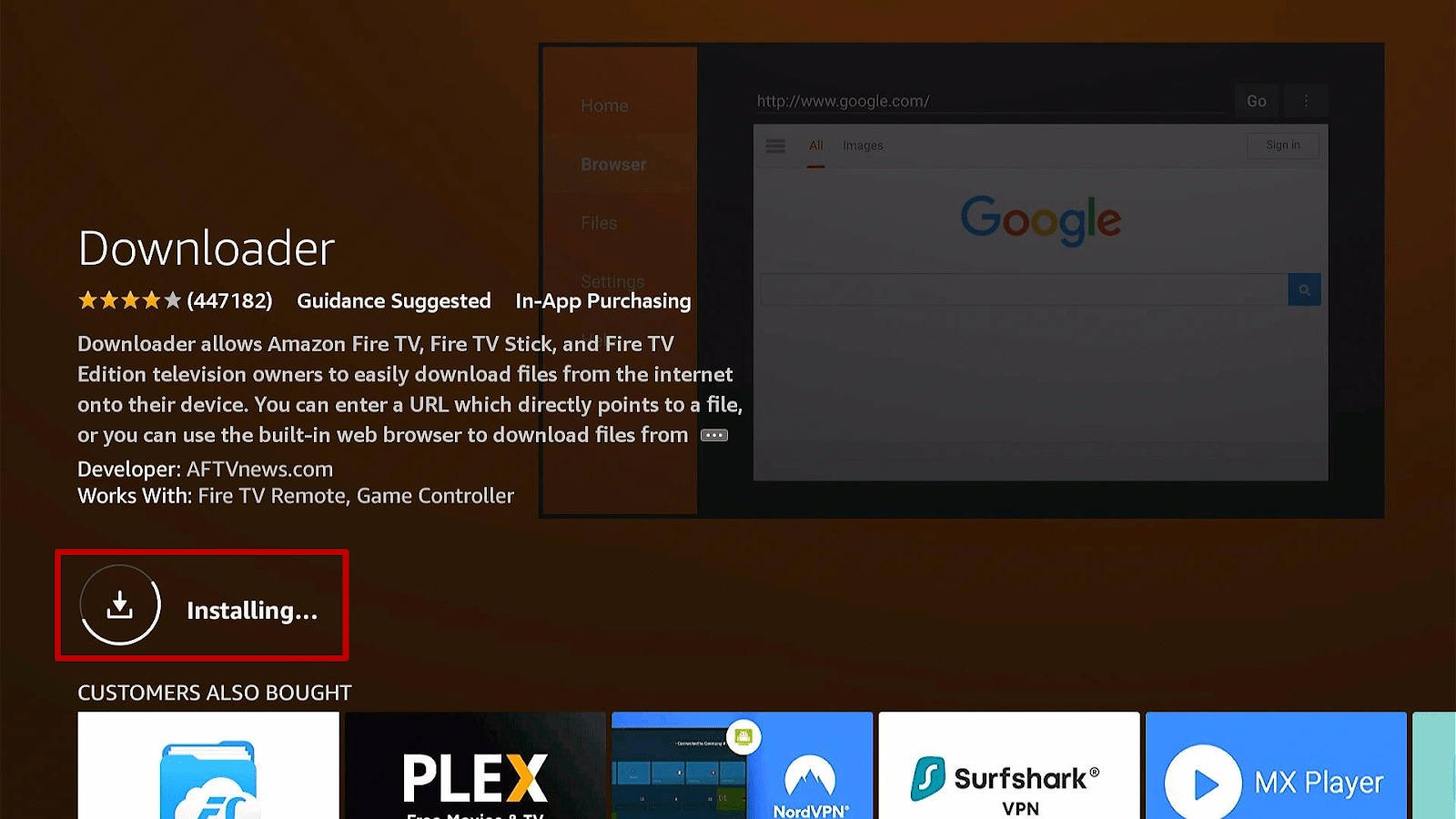
11. Click on Open.
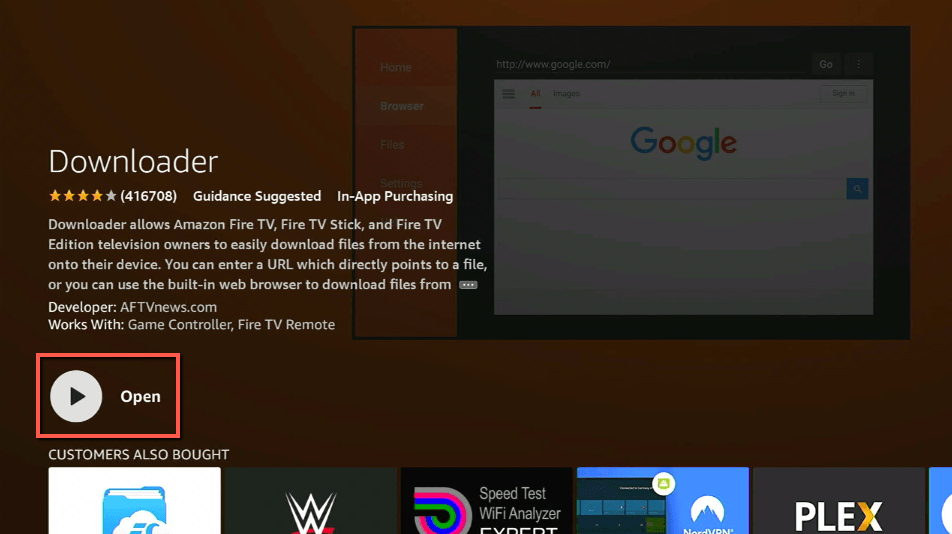
12. Click on Allow.
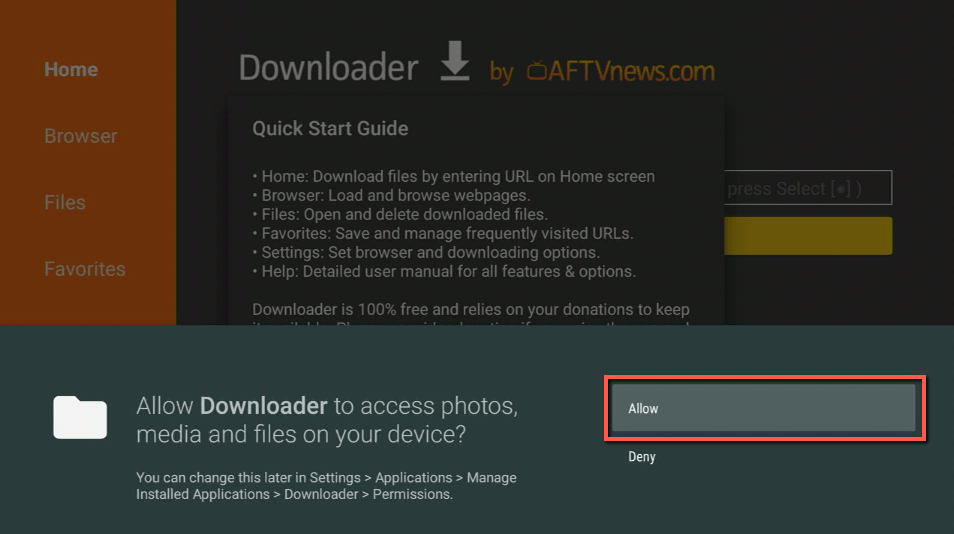
13. Use the Downloader search tab.
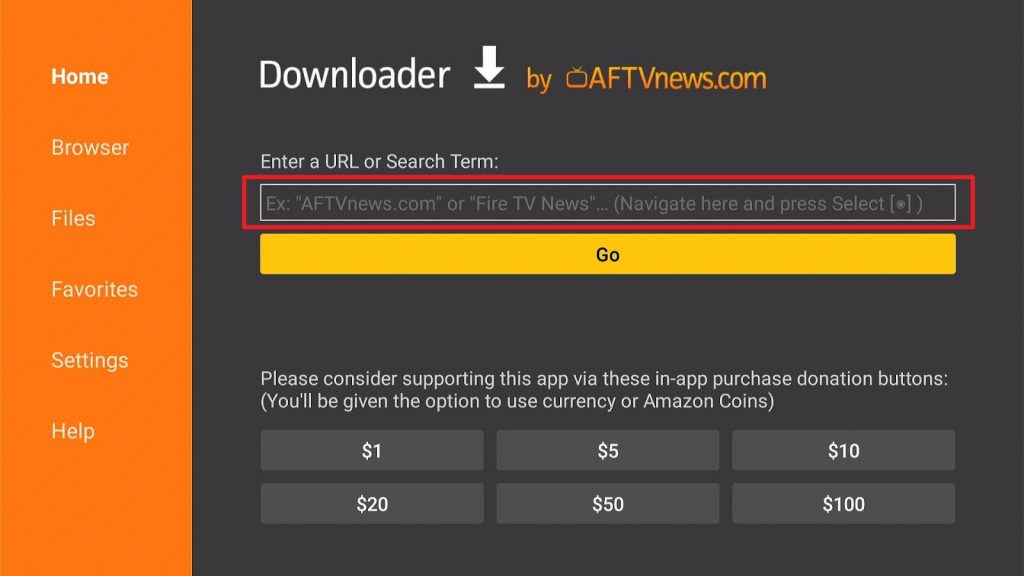
14. Type https://reviewvpn.com/apla and click go.
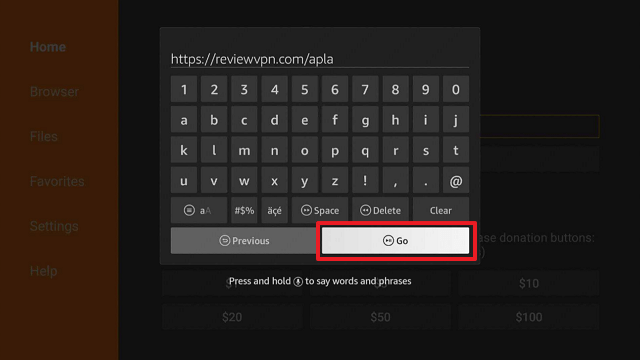
15. Wait for the APK to be downloaded.
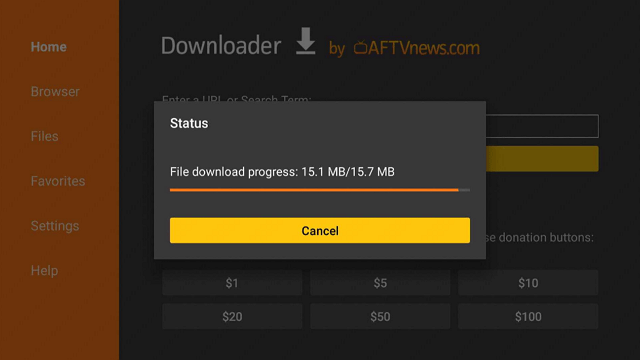
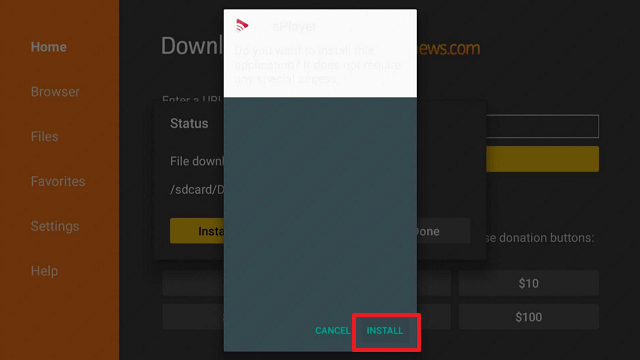
16. Select the Install button and wait for the app to be installed.
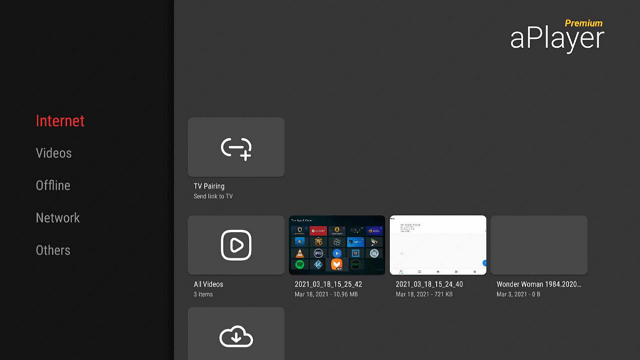
17. Launch the app by clicking Open
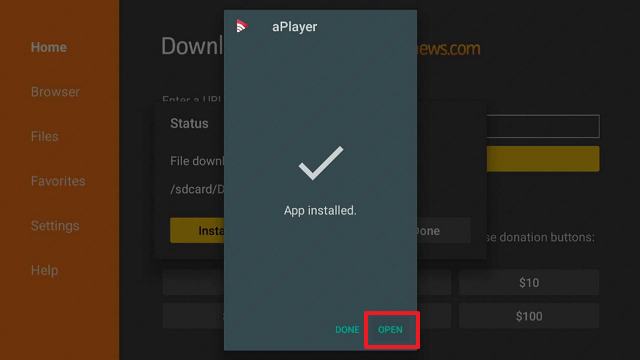
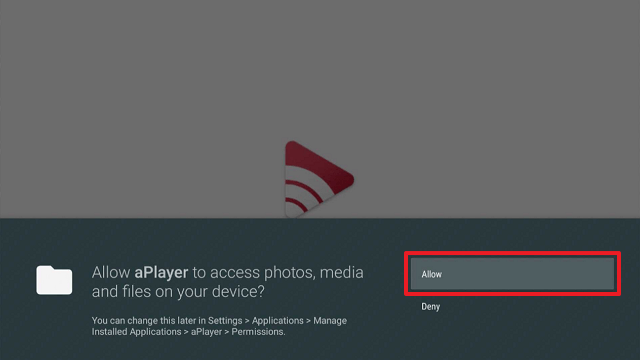
18. Click allow.
ReviewVPN cannot attest to the legality, security and privacy of the applications discussed on this site. It is highly recommended that you use a VPN service while streaming or using Kodi. Currently, your IP 216.73.217.24 is visible to everyone and your Browser is being tracked by Advertisers & ISP Provider. Here are the main reasons why you must use a VPN: A VPN works be replacing your ISP-assigned IP address and creating an encrypted tunnel. We recommend the no log service offered by IPVanish. It works well on a Firestick and offers the fastest possible speeds.
YOUR INTERNET ACTIVITY IS BEING WATCHED
Legal Disclaimer: ReviewVPN.com does not encourage or endorse any illegal activity involved in the usage of services and applications referenced on this site. We do not verify the licensing agreements of services. The end-user is wholly responsible for ensuring that any media accessed through these services does not violate copyright and/or licensing laws. ReviewVPN does not promote, link to, or receive compensation from any Apps and IPTV services.
Install SURFSHARK on Firestick

Aplayer Features
- Free to Download
- Simple User Interface
- Fast Video player
- Support a lot of different formats
- Compatible with 4K, HD, and Ultra HD
- Detect Video from Browser
Formats Compatible with Aplayer
- Dolby Vision
- AVI
- MOV
- MP4
- WMV
- RMVB
- 3GP
- M4V
- MKV
- TS
- MPG
- FLV
- many more
Pros and Cons
Pros
- Free
- Easy-to-use interface
- No registration
Cons
- ad-supported subscription
Stream Safely With a VPN

Aside from websites, and internet providers, many apps and devices monitor the user’s information. Especially those with advertisements. This is why you need to have an extra layer of protection while surfing the internet.
A Virtual Private Network or VPN is the best tool that you can use to secure your privacy while streaming. It has great protocols and encryptions that hide your traffic while connecting you to a different server. It will mask your identity while giving you access to geo-restricted content.
SurfShark is the best VPN service you can use. It unblocks tons of streaming platforms and works with all types of devices.
Read our Surfshark review to know more about this VPN.
SurfShark Features
- You can choose the best server among thousands of available.
- Over-the-top VPN protocols and encryptions
- Unblocks all of the most popular streaming platforms
- Connects an unlimited number of devices simultaneously
- Follows the zero-log policy
- 100% Money-back guarantee
- Cloud Storage
- P2P friendly VPN
- SOCKS5 Proxy
- Best for Torrenting
- Kill Switch
- Split Tunneling
- DNS Leak Protection
- Prevents Firestick Buffering and Kodi Buffering
Grab your subscription now!
How to Install Surfshark on Firestick with Screenshots
If your Firestick still has the older interface, read this article to learn how to update it: Update Firestick Interface.
You can download Surfshark directly from the Amazon App store. It will be easy for you to find Surfshark with your Firestick’s Find feature. Refer to our screenshots below.
Follow our screenshots below to install the SurfShark VPN app on your Fire TV stick.
1. Go to the Home screen of your Firestick.

2. Navigate towards the Find tab. Press the Search button from the resulting dropdown.

3. Type in the keyword of SurfShark and select from the suggestions that will appear.

4. Click the official SurfShark icon from your search results.

5. Press the Download (You own it) button.

6. The SurfShark VPN installer will download on your device.

7. SurfShark VPN’s app will automatically install itself on your Fire TV stick.

8. Press the Open button after completing SurfShark VPN’s installation process.

9. Please wait for the SurfShark VPN to load its user interface.

10. You can now log in with your SurfShark VPN account credentials.

Learn more about Surfshark and Grab the Best Surfshark Deal Now!
Install Surfshark on Firestick



For more VPN discounts, go to ReviewVPN Deals and purchase the best VPN for you.
Click here to get the lowest price on Surfshark through our exclusive limited-time offer.
Aplayer Alternatives
Here are some of the best media players you can use for Firestick and android aside from Aplayer.
If you want to know others, you can read our list of the Best Video Players for Firestick, Android, and iOS.
FAQs
What is Aplayer?
Aplayer is a simple yet wonderful media player that can support any format and offers 4k, HD, and Ultra HD streaming.
Is Aplayer safe?
Yes. This app is safe to use.
Is Aplayer Free?
You can install the app for free on your Firestick and Android device.
Are there any ads?
Yes, this app is ad-supported.
Conclusion
Aplayer is yet another great app that we can add to our list of the best media players for Firestick and Android. It works well with both devices and is so easy to use.
What’s really amazing is its ability to support all types of formats and offers great quality streaming.
We hope that we are able to help you install the app on your Firestick and Android device.






