

How To Download Kodi On Your Firestick
Quick Navigation
Kodi has revolutionized home entertainment by allowing us to combine Sports, Live TV, Movies, TV Shows, Music, Adult, and more into a single media center. In this article, we will explore all the ways you can download Kodi on your Amazon Firestick to open this new world of entertainment options. We will cover several methods so you can choose what best fits your needs.

Legal Disclaimer: ReviewVPN.com does not encourage or endorse any illegal activity involved in the usage of services and applications referenced on this site. We do not verify the licensing agreements of services. The end-user is wholly responsible for ensuring that any media accessed through these services does not violate copyright and/or licensing laws. ReviewVPN does not promote, link to, or receive compensation from any Apps and IPTV services.
Official Kodi Website Download Method via Downloader App
- Go to Settings and select Device.
- Choose Developer Options
- Turn on the ADB Debugging and Apps From Unknown Sources
- After turning these options on, launch the Amazon App Store on your device
- Search and Download Downloader
- Install Downloader and launch it after installing it.
- Choose Allow and Select Ok
- Type in https://kodi.tv/download/ and select Go
- Scroll down and select the Android icon (Choose ArmV7A 32 Bit)
- The download will start; simply wait for it to finish
- Click Install
- Then select Done
- This will automatically take you back to Downloader. Select Delete
- Choose Delete one more time
- Head back to the home screen and under the Your Apps & Channels select Choose All
- Scroll down and select Kodi and select the Options.
- Then select Move to Front
- Kodi will be moved forward to Your Apps and Channels
- After this, you will see Kodi and click it to launch.

If your Firestick still has the older interface, read this article to learn how to update it: Update Firestick Interface.
Download Kodi On Your Firestick via Downloader App With Screenshots
1. Install the Downloader app and jailbreak your firestick by enabling unknown sources. To learn more about the procedure, you may read How to Install the Downloader App and Enable Unknown Sources.
2. Open Downloader. Type in https://kodi.tv/download/ and select Go.

3. Scroll down to find the Android icon.

4. Select ARMV7A (32BIT).

5. Click on INSTALL.

6. Click on Done.

7. Choose Delete.

8. Choose Delete again.

9. Head back to the home screen. Scroll to the right and select the “apps and channel” button.

10. Scroll down and hover over the Kodi icon.

11. Click the menu button with 3 lines on your remote.

12. Select Move to front. Kodi will be moved forward to Your Apps and Channels.

13. Select the Kodi icon to launch.

14. Press Continue.

15. Select Allow.

16. There you go, Kodi on a Firestick is installed!

After successfully installing Kodi on your Firestick, you can install builds by adding the source and going through the wizard process. Notable builds that you can install are Xenon Build, Xanax Build, No Limits Build, and Titanium Build.
If you are new to the Kodiverse and unfamiliar with how to install these builds, do not worry, we have your back. We have step-by-step guides on how to install these builds. Just click on the following links (blue colored texts) and it will redirect you to our installation guides for Xenon Build, Xanax Build, No Limits Magic Build, and Titanium Build. We take pride in these guides because they are simple and very easy to follow.
Click here to get the lowest price on Surfshark through our exclusive limited-time offer.
ReviewVPN cannot attest to the legality, security and privacy of the applications discussed on this site. It is highly recommended that you use a VPN service while streaming or using Kodi. Currently, your IP 216.73.216.84 is visible to everyone and your Browser is being tracked by Advertisers & ISP Provider. Here are the main reasons why you must use a VPN: A VPN works be replacing your ISP-assigned IP address and creating an encrypted tunnel. We recommend the no log service offered by IPVanish. It works well on a Firestick and offers the fastest possible speeds.
YOUR INTERNET ACTIVITY IS BEING WATCHED
Download Kodi via the UnLinked App
1. On the Downloader App, type in https://unlinked.link and select Go

2. Scroll down and select Download Android App

3. Then click Install

4. Choose Open

5. Once the app launches, click Add under Add a new library.

6. Then enter 67664537 (Note: This code is one of Reviewvpn’s Best Unlinked Codes)

7. Once you enter the store, scroll to find Kodi then click on it.


8. Click Download

9. Wait until the downloading is done.

10. After downloading tap the Kodi icon again and select “install app”

11. Then click “Install”

12. Click on open.

13. Click Continue.

14. Click Allow allowing Kodi to access files on your device.

15. That’s it, Kodi app is finally installed via Unlinked.

Note: Aside from storing Kodi and Kodi Builds, our Unlinked Store is full of Movies, TV, Sports, and utility apps. We make sure that the apps featured in our store are all up-to-date and well maintained. You can also check out our article on Unlinked by clicking on this link. The article is a full review of the best working and updated Unlinked Codes for 2023.

Download Kodi Using ES File Explorer
- Go to Settings and select Device.
- Choose Developer Options.
- Turn on the ADB Debugging and Apps From Unknown Sources.
- After turning these options on, launch the Amazon App Store on your device.
- Search and Download ES File Explorer.
- Install ES File Explorer and launch it after installing it.
- Now once inside ES File Explorer, go to Tools and select Download Manager.
- Choose New.
- A notification will appear asking for the Name and Path.
- Under the Name, type in Kodi.
- For Path, input https://kodi.tv/download/
- Choose Download Now.
- Once the download finishes, choose Open File.
- Select Install and hang on for a few seconds.
- Once the installation is finished, go to the Settings of ES File Explorer and select Applications.
- Choose Manage Installed Applications.
- Select Kodi to open it.
Download Kodi On Your Firestick Using ES File Explorer With Screenshots
1. From the Firestick Home Screen, click Find and select Search.
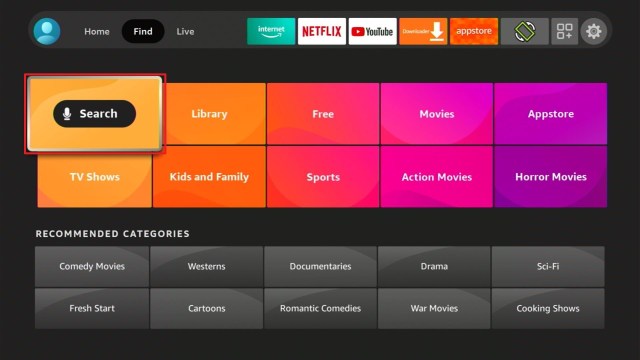
2. Type “ES File Explorer Manager” then select the result.

3. Select the ES File Explorer Manager app

4. Click Download

5. Wait for the download to finish

6. Click Open

7. Click Allow

8. Select Agree

9. Click on back button.

10. You can now use ES File Explorer Manager

Install Surfshark on Firestick
How To Reset Kodi to add Another Build/Addon
Now that we have covered the ways on how you can download and install Kodi on your Firestick, let us discuss builds and add-ons. We consider these as the foundation that paved the way to Kodi’s rise in popularity that’s why it is of utmost importance that we get to discuss them.
A build is primarily a collection of add-ons. It is made in such a way that you don’t have to move between add-ons just to see which has a working link or which has the best video quality. The magic behind the build is collecting the best links out of all the add-ons under it. Sounds pretty cool right? But there is a minor setback, you can only install one build at a time. You can reset Kodi on your Firestick by following these steps:
- Exit Kodi on your Firestick. You will be brought back to the Home Screen.
- Press the Home button on your remote.
- Select Settings and then scroll down
- Select Applications
- Go down and choose the item Manage Installed Applications.
- Look for Kodi and click on it. After that Kodi’s settings menu will appear.
Note: To be sure that it has stopped, choose Force Stop
- Go down and choose Clear Data
- Click on Clear Data one more time for confirmation.
- Head back to the home screen by pressing the home button on your remote.
- Relaunch Kodi
- A confirmation that Kodi is back to its default settings will appear.
- You can now install which build you like.
Full Entertainment Showcase on Kodi
As we have stated earlier, Builds and Add-ons are essential to the whole entertainment experience with Kodi. Earlier, we have already talked about Builds, and now we will be talking about add-ons.
Add-ons are the building blocks of a build. If there are no add-ons, there are no builds. Add-ons were created by genius developers in order to maximize the potential of Kodi. Indeed, these geniuses changed the way we view entertainment.
Add-ons are very similar in nature in terms of content. The main offerings of these add-ons are TV Shows, Movies, Sports, and sometimes, Live TV. You have to be wise in choosing add-ons. Some are claiming that they have it all but fall short and there are the quiet ones that pack a heavy punch. Be that as it may, we have tried and tested countless add-ons and we have come to the conclusion that the best ones come from the most popular builds. This actually makes sense because these builds will not be popular if their add-ons are not functional.
So here is a list of the best working add-ons in our opinion:
Xenon Build
- DejaVu
- Scrubs v2
- NuMb3r5
- Diggz Favorites
- Library Data Provider
- Listen up!!
- LiveStreamsPro
- OpenMeta
- Playlist Loader
- Prime Stream
- See My Bear Bass
- Seren
- Skin Helper Service Widgets
- Sports Devil
- Spotify Mod
- T2K IPTV Kingdom
- Voodoo
- Wolf Pack
- YouTube
- Yoda
- Exodus Redux
No Limits Magic Build
- Magic Dragon
- Yoda
- UK Turk Playlist
- Adryan List
- Bennu
- BoB Unleashed
- Castaway
- cCloud TV
- Champion Sports
- Covenant
- DC Sports
- Death Streams
- Duckpool
- Elysium
- Goodfellas 2.0
- Maverick TV
- NBA Full Games
- Planet MMA
- Pro Sport
- Pulse Fitness
- Release HUB
- Spectro Fork
- Sports Devil
- Video Devil
Titanium Build
- 13 Clowns (Defunct – replaced by IT)
- Deathstar
- Supremacy
- Rising Tide
- Gaia
- Sport’s Devil
- At the Flix
- Maverick TV
- Yoda
- Neptune Rising
- Sports Replay
- Bob Unleashed
- UK Turk Playlist
- Kid’s Zone
- Gears TV
- Vader’s Streams
- Placenta
- Exodus Redux
- The Magic Dragon
You will notice that there are similar add-ons within each build and that means these are the cream of the crop.
Note: If you want to know more about add-ons, please click on this link for our full review of the best add-ons in the Kodiverse.
VPN Requirement
It is always optimal to have a VPN installed when accessing content on Kodi most especially because of the Live TV component. The following reasons will show us why we need a VPN service:
- It makes your internet connection safe and secure.
- You can bypass censorship barriers.
- Use the internet anonymously.
- It allows you to bypass location-restricted content.
- Aids in the removal of throttling.
When using Kodi, numbers 1, 3, and 5 are the main benefits you get when you use a VPN. Number 5 most especially because this will ensure that you have a smooth and lag-free viewing experience.
Note: For a more in-depth article regarding VPN, please click on this link.
Click here to get the lowest price on Surfshark through our exclusive limited-time offer.
How to Install Surfshark VPN on Firestick
If your Firestick still has the older interface, read this article to learn how to update it: Update Firestick Interface.
You can download Surfshark directly from the Amazon App store. It will be easy for you to find Surfshark with your Firestick’s Find feature. Refer to our screenshots below.
1. Go to the Home screen of your Firestick.

2. Navigate towards the Find tab. Press the Search button from the resulting dropdown.

3. Type in the keyword of SurfShark and select from the suggestions that will appear.

4. Click the official SurfShark icon from your search results.

5. Press the Download (You own it) button.

6. The SurfShark VPN installer will download on your device.

7. SurfShark VPN’s app will automatically install itself on your Fire TV stick.

8. Press the Open button after completing SurfShark VPN’s installation process.

9. Please wait for the SurfShark VPN to load its user interface.

10. You can now log in with your SurfShark VPN account credentials.

Learn more about Surfshark and Grab the Best Surfshark Deal Now!
Install Surfshark on Firestick


For more VPN discounts, go to ReviewVPN Deals and purchase the best VPN for you.
Click here to get the lowest price on Surfshark through our exclusive limited-time offer.
Conclusion
We hope that this article helps you in downloading Kodi on your Firestick. It is also our wish that this write-up serves as a crash course on all the things you need to know about Kodi.
Moreover, please help us improve by giving your feedback by commenting down below. Thank you for reading!
Note: ReviewVPN.com is not affiliated with any App or IPTV Service nor are we endorsing or promoting any. The sole purpose of this article is for educational purposes only.


