
Overview
Quick Navigation
In this article, we will teach you how to install the Cloud TV app on your Fire TV stick.
Are you searching for an IPTV app with free access to live TV channels? If you agree, then you have come across the right article.
Thanks to our modern internet, we can now stream videos from online sources. However, all the famous streaming giants such as Netflix, Amazon Prime, YouTube, and HBO cost us a lot of money. Not everyone on the planet can afford expensive services. This is where free IPTV apps work well.

Let us now introduce you to the Cloud TV app. Simple in its name and function, the Cloud TV app is one of the free IPTV apps available for download. App users can then stream with the app without having large expenses. Moreover, one of the best features of the app is its live TV streaming service.
The Cloud TV app is easy to download and install. Let us take a look at some of its specifications so that you will know which devices are compatible with it.
We will now teach you how to install the Cloud TV app on your Fire TV stick. You only have to Jailbreak your Fire TV Stick and sideload the app for its successful installation.
Cloud TV app for Android Devices

Note: ReviewVPN.com does not host this APK file. It is hosted by Archive.org

How to Install the Cloud TV app on your Fire TV stick
You can install the Cloud TV app on your Fire TV stick by using the Downloader app. Just follow our simple guide below.
- Open your Firestick Settings Tab. (Gear Wheel Icon).
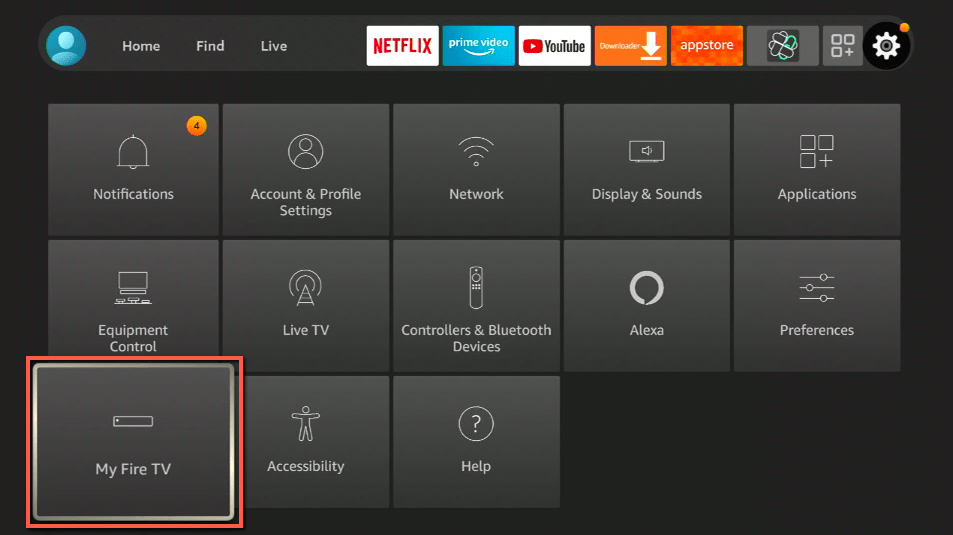
- Scroll down and to the right until you get to My Fire TV. Click on it.
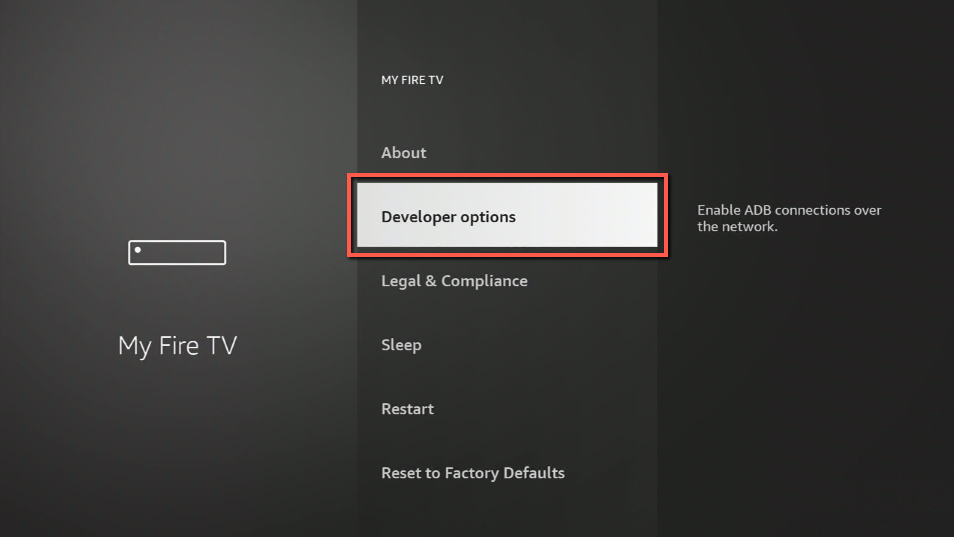
- Select Developer options.
- Turn on ADB debugging and Apps from Unknown Sources.
- Press the Turn On when the pop-up appears.
- Click Home and press on FIND.
- Press on Search.
- You can either say Downloader to your Alexa voice-enabled remote or start typing it. If you typed it, click on the suggestion when it appears.
- Click on the Downloader Icon.
- Tap on Download.
- Click on Open.
- Press on the Allow button.
- Use the Downloader search tab.
- Type in: reviewvpn.com/clo
- The Cloud TV app’s APK file will download.
- Click on Install.
- The Cloud TV app will install on Firestick.
- You can now Open the Cloud TV app and wait for it to load.
- As the app opens, you can either update the app with its latest version or log in with your credentials. (Creating an account is mandatory for using the Cloud TV app)
How to Install the Cloud TV App on Your Fire TV Stick With Screenshots
Installing the Cloud TV app on your Fire TV stick is possible with the Downloader app. Be sure to follow our screenshots down below and not miss one step of its installation procedure.
1. Open your Firestick Settings Tab. (Gear Wheel Icon).
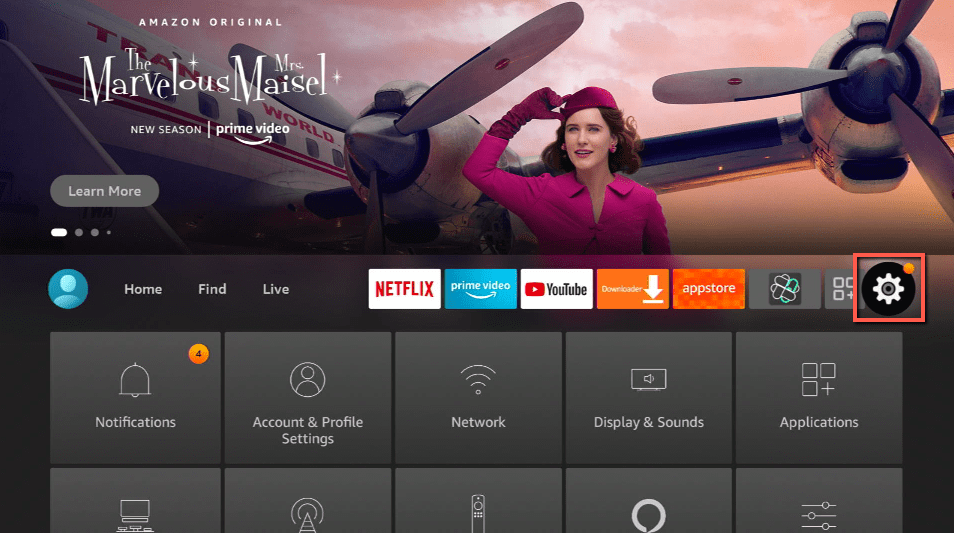
2. Scroll down and to the right until you get to My Fire TV. Click on it.
3. Select Developer options.
4. Turn on ADB debugging and Apps from Unknown Sources.
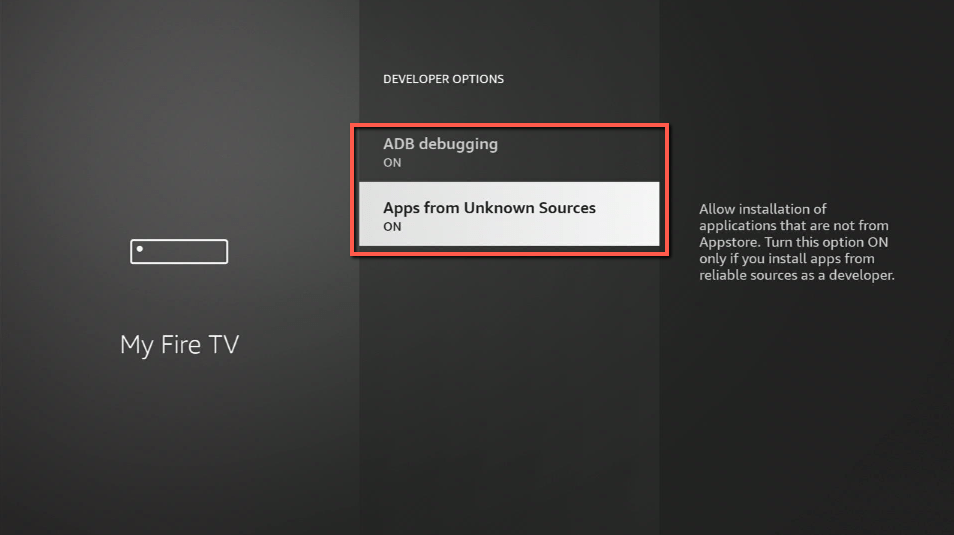
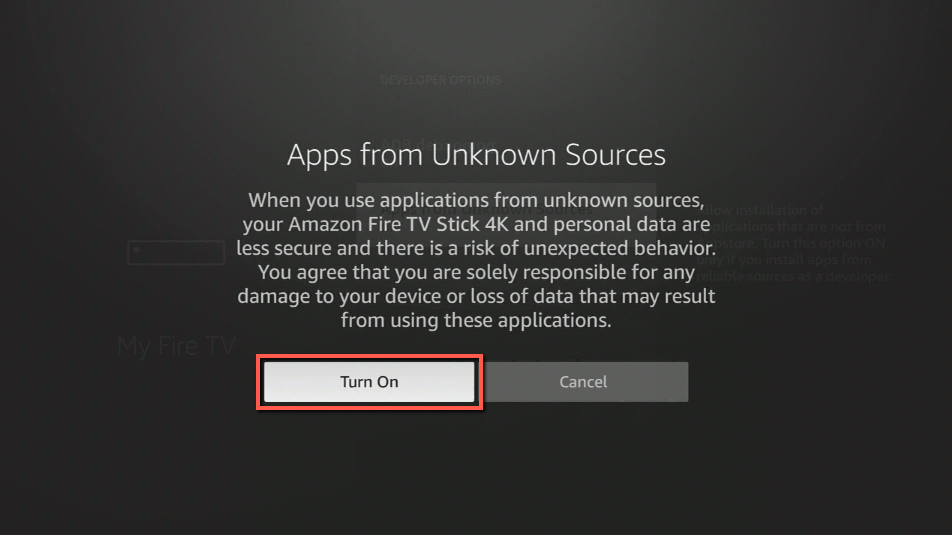
5. Press the Turn On when the pop-up appears.
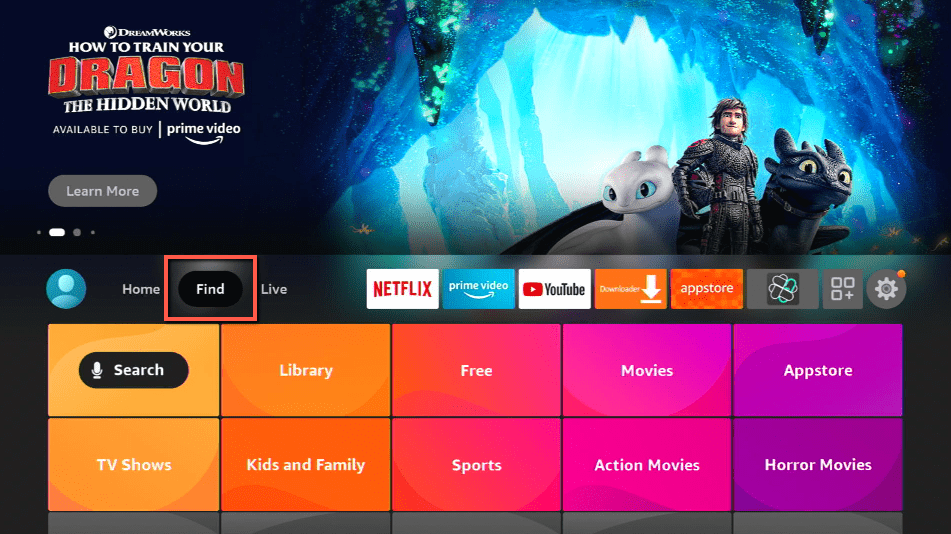
6. Click Home and press on FIND.
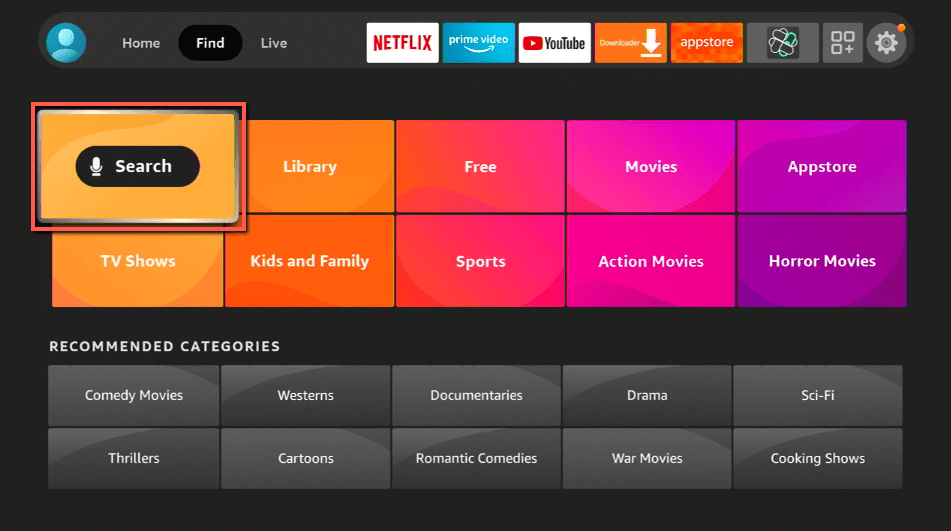
7. Press on Search.
8. You can either say Downloader to your Alexa voice-enabled remote or start typing it. If you typed it, click on the suggestion when it appears.
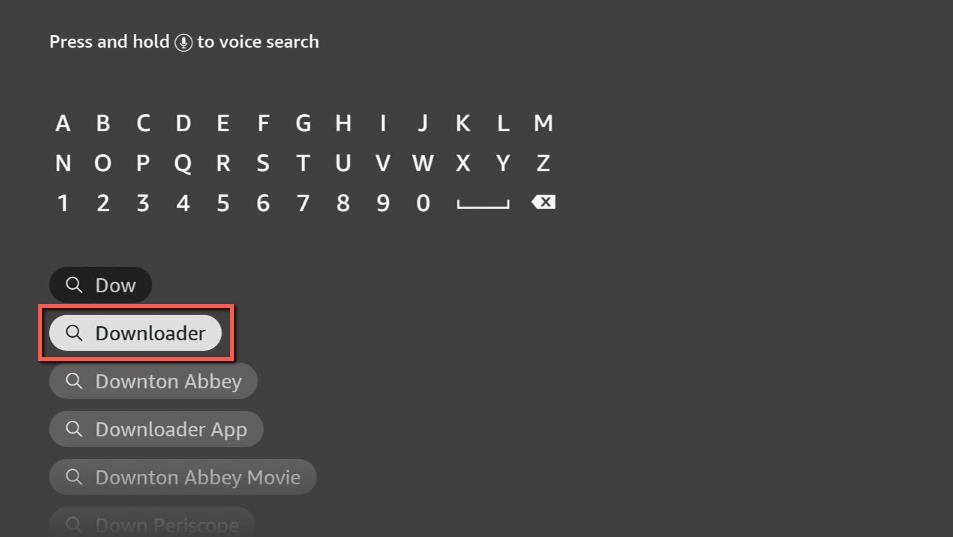
9. Click on the Downloader Icon.
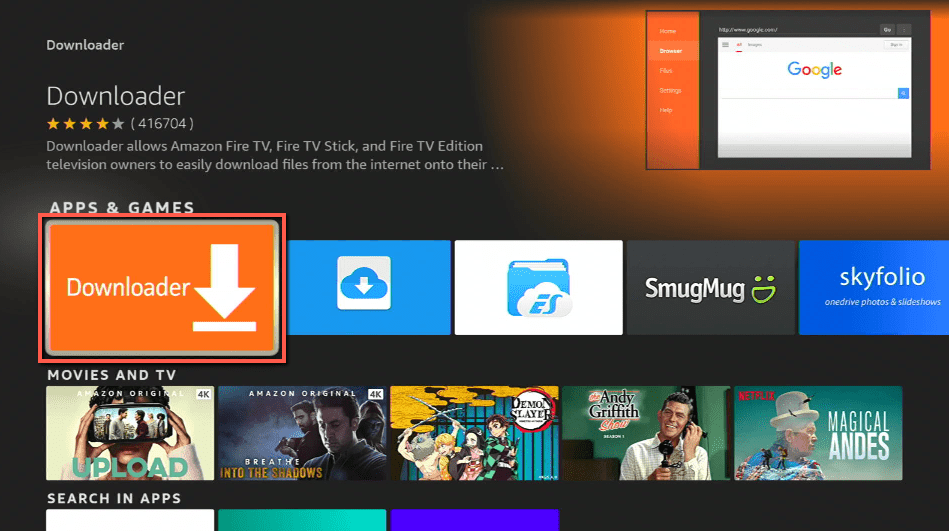
10. Tap on Download.
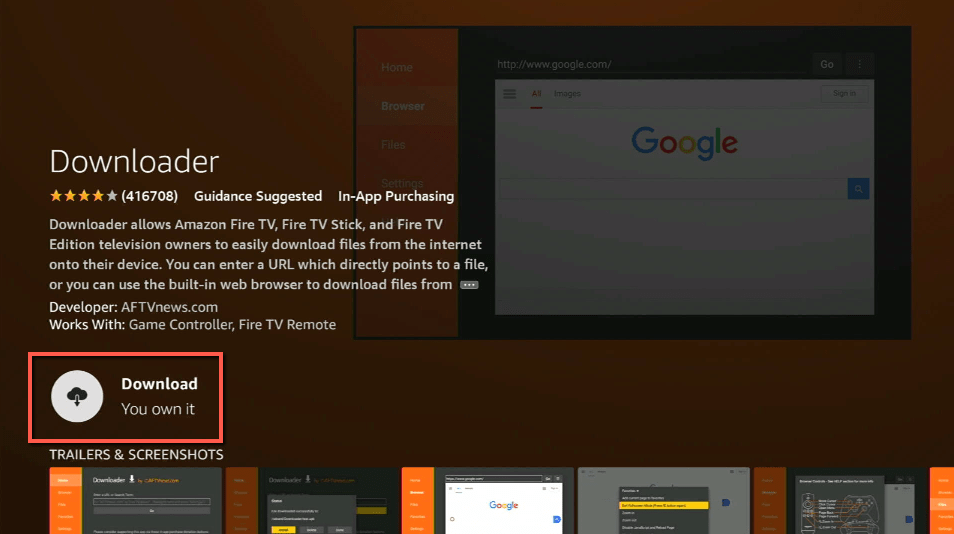
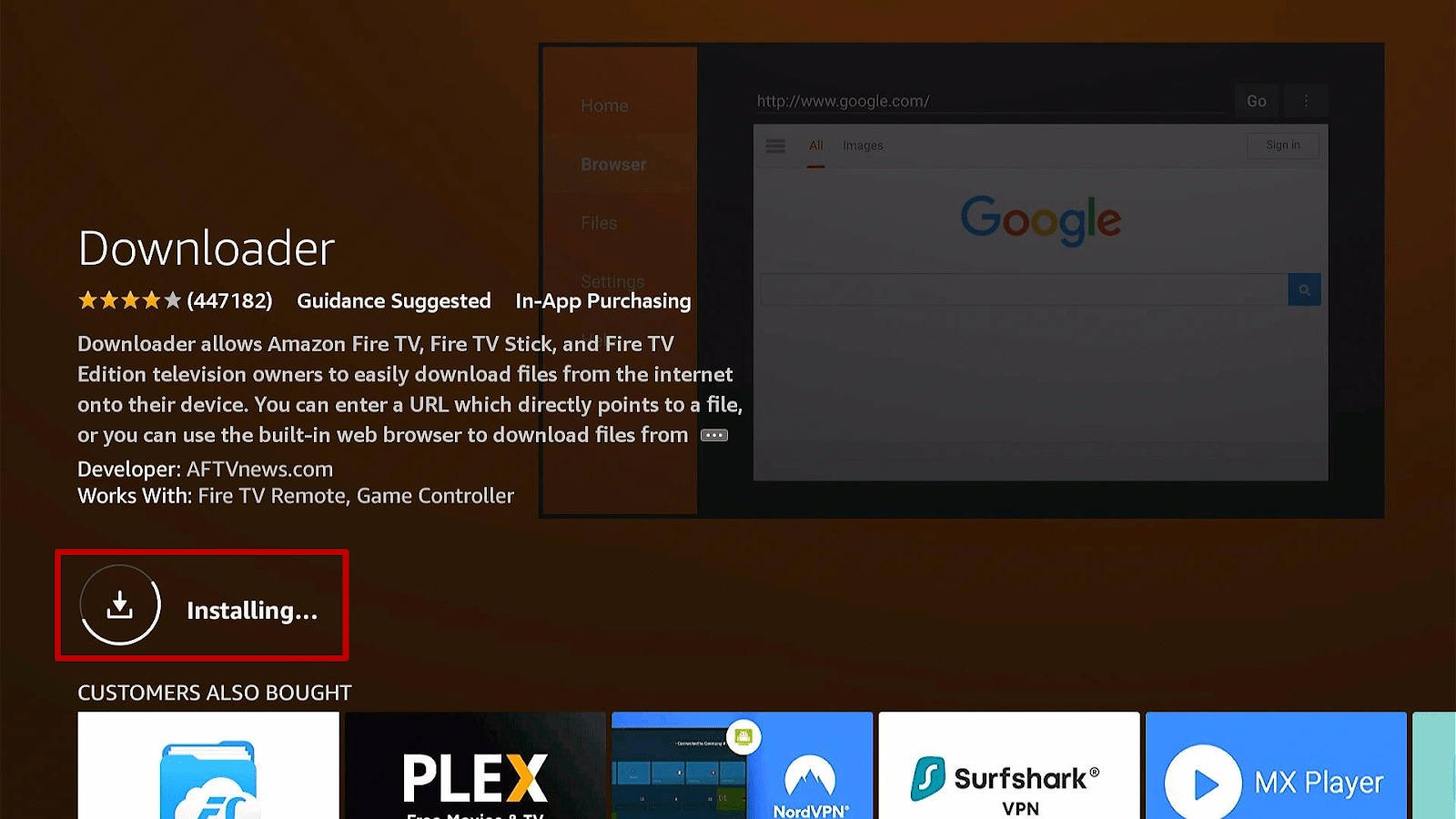
11. Click on Open.
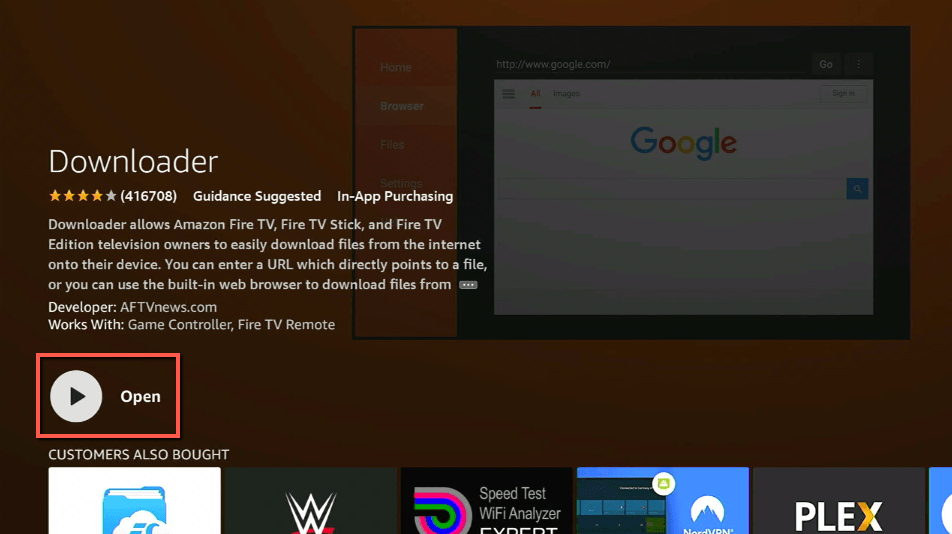
12. Press on the Allow button.
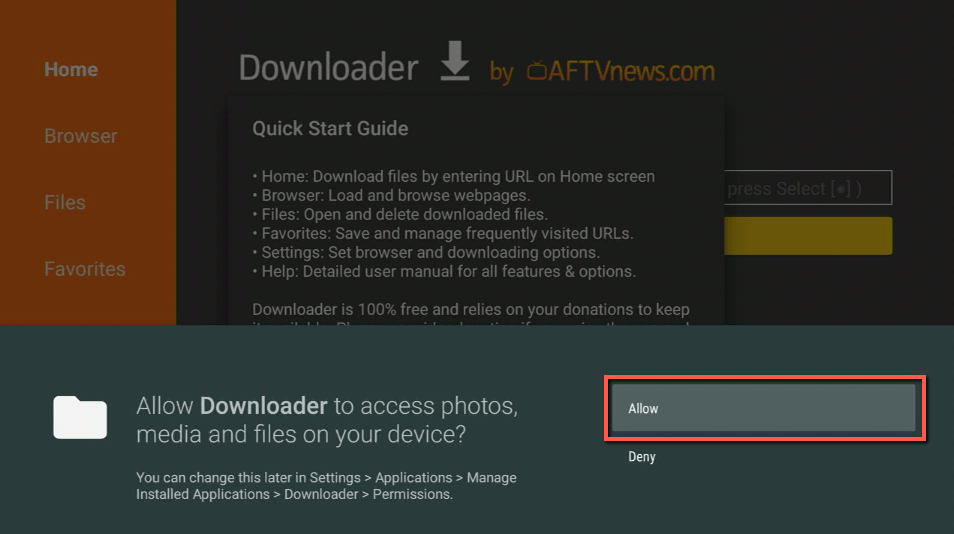
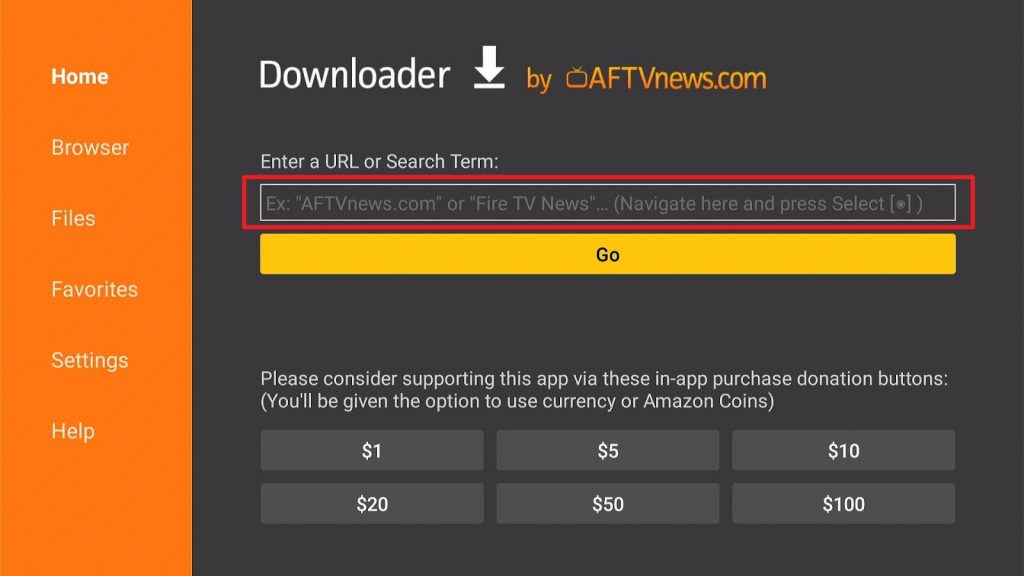
13. Use the Downloader search tab.
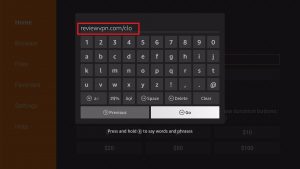
14. Type in: reviewvpn.com/clo
15. The Cloud TV app’s APK file will download.
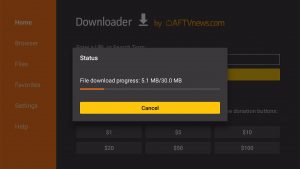
16. Click on Install.
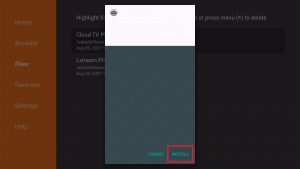
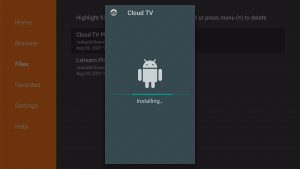
17. The Cloud TV app will install on Firestick.
18. You can now Open the Cloud TV app and wait for it to load.
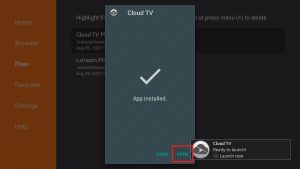
19. As the app opens, you can either update the app with its latest version or log in with your credentials. (Creating an account is mandatory for using the Cloud TV app)
ReviewVPN cannot attest to the legality, security and privacy of the applications discussed on this site. It is highly recommended that you use a VPN service while streaming or using Kodi. Currently, your IP 216.73.216.193 is visible to everyone and your Browser is being tracked by Advertisers & ISP Provider. Here are the main reasons why you must use a VPN: A VPN works be replacing your ISP-assigned IP address and creating an encrypted tunnel. We recommend the no log service offered by IPVanish. It works well on a Firestick and offers the fastest possible speeds.
YOUR INTERNET ACTIVITY IS BEING WATCHED
Install Surfshark on Firestick
Features of Cloud TV App
- IPTV app for Android devices
- Provides multiple languages.
- Easy identification of TV shows and programs from each category
- Categories TV shows and channels
- Neat User Interface
- Easy to use interface
- Let users create their playlists
- Save videos for future viewing
- The app works with many online servers
- It relies on cloud-storage servers and IPTV service providers
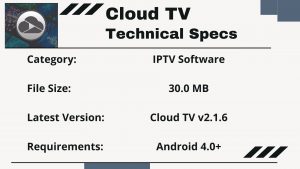
Cloud TV App Technical Specifications
The Cloud TV app is compatible with devices having an Android operating system. It is an IPTV app that offers the free streaming of IPTV live channels. You can then stream many TV shows and videos for free with an Android smartphone or device.
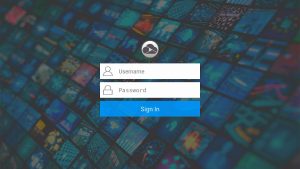
Cloud TV App Interface
- Neat User Interface
- Easy to learn
- Simple to Use
- Responsive buttons and tabs
- Requires the log in of user credentials
Pros and Cons
Pros
- 100% Free
- Easy to learn interface
- TV shows, videos, and channels in different categories
- Legal to Use
- Responsive tabs and buttons
- High-quality streaming of HD videos and TV shows
- Gains you access to TV channels
- Allows users to watch live TV anywhere
- It functions with many online servers
Cons
- Requires users to create an account before they can access the features of the app.
Enjoy Streaming with Live IPTV apps with a VPN
The Cloud TV app is one of the best IPTV apps available online. It can substitute popular streaming services that require us to pay expensive fees. Moreover, using this IPTV app is free and is compatible with Android devices.
Streaming with IPTV services may sometimes result in stuttering, lagging, and buffering. It is often caused by the throttling of our internet connection. Our internet service providers throttle our internet if they detect heavy traffic requests such as streaming.
Negating the effects of throttling is possible. You only have to install the Surfshark. It is the best VPN for streaming with IPTV apps.
Here are the benefits of getting Surfshark:
- Consistent Streaming of Live TV channels.
- Protects your device from online dangers.
- Hides your internet connection from ISP monitoring.
- Renders you anonymous while browsing the internet.
Click here to get the lowest price on Surfshark through our exclusive limited-time offer.
How to Install Surfshark VPN on Firestick
If your Firestick still has the older interface, read this article to learn how to update it: Update Firestick Interface.
Follow our screenshots below to install the SurfShark VPN app on your Fire TV stick.
1. Go to the Home screen of your Firestick.

2. Navigate towards the Find tab. Press the Search button from the resulting dropdown.

3. Type in the keyword of SurfShark and select from the suggestions that will appear.

4. Click the official SurfShark icon from your search results.

5. Press the Download (You own it) button.

6. The SurfShark VPN installer will download on your device.

7. SurfShark VPN’s app will automatically install itself on your Fire TV stick.

8. Press the Open button after completing SurfShark VPN’s installation process.

9. Please wait for the SurfShark VPN to load its user interface.

10. You can now log in with your SurfShark VPN account credentials.

Learn more about Surfshark and Grab the Best Surfshark Deal Now!
Install Surfshark on Firestick



For more VPN discounts, go to ReviewVPN Deals and purchase the best VPN for you.
Click here to get the lowest price on Surfshark through our exclusive limited-time offer.
Alternative Apps for the Cloud TV App
The Cloud TV app is undoubtedly one of the best free IPTV apps available. It is compatible with Android devices. The app is systematic and neat with its content. However, not all people will be satisfied with its features. We invite you to check our list of IPTV apps to serve as its alternatives:
FAQs
Is Cloud TV for free?
Yes, avid IPTV enthusiasts can download and use the Cloud TV app for free. They are only required to create an account as their log-in credentials.
How to Install Cloud TV on Android Box?
Installing Cloud TV on your Android Box is the same as installing it on your Fire TV stick.
- Go to your Settings> Security/Privacy Option>
- Toggle, activate, or turn on Apps from Unknown Sources.
- Search the web for the Cloud TV app’s APK installer.
- You can then install the Cloud TV app on your Android box by clicking on the Install button.
Conclusion
IPTV apps offer us an affordable way to watch and stream with our modern gadgets. Many IPTV apps like the Cloud TV app are compatible with Android devices such as the Fire TV stick. Furthermore, it is for free and only requires the creation of a user account.
We hope this article helps you install the Cloud TV app on your Fire TV stick and Android devices.






